RLink J2534
Product Overview
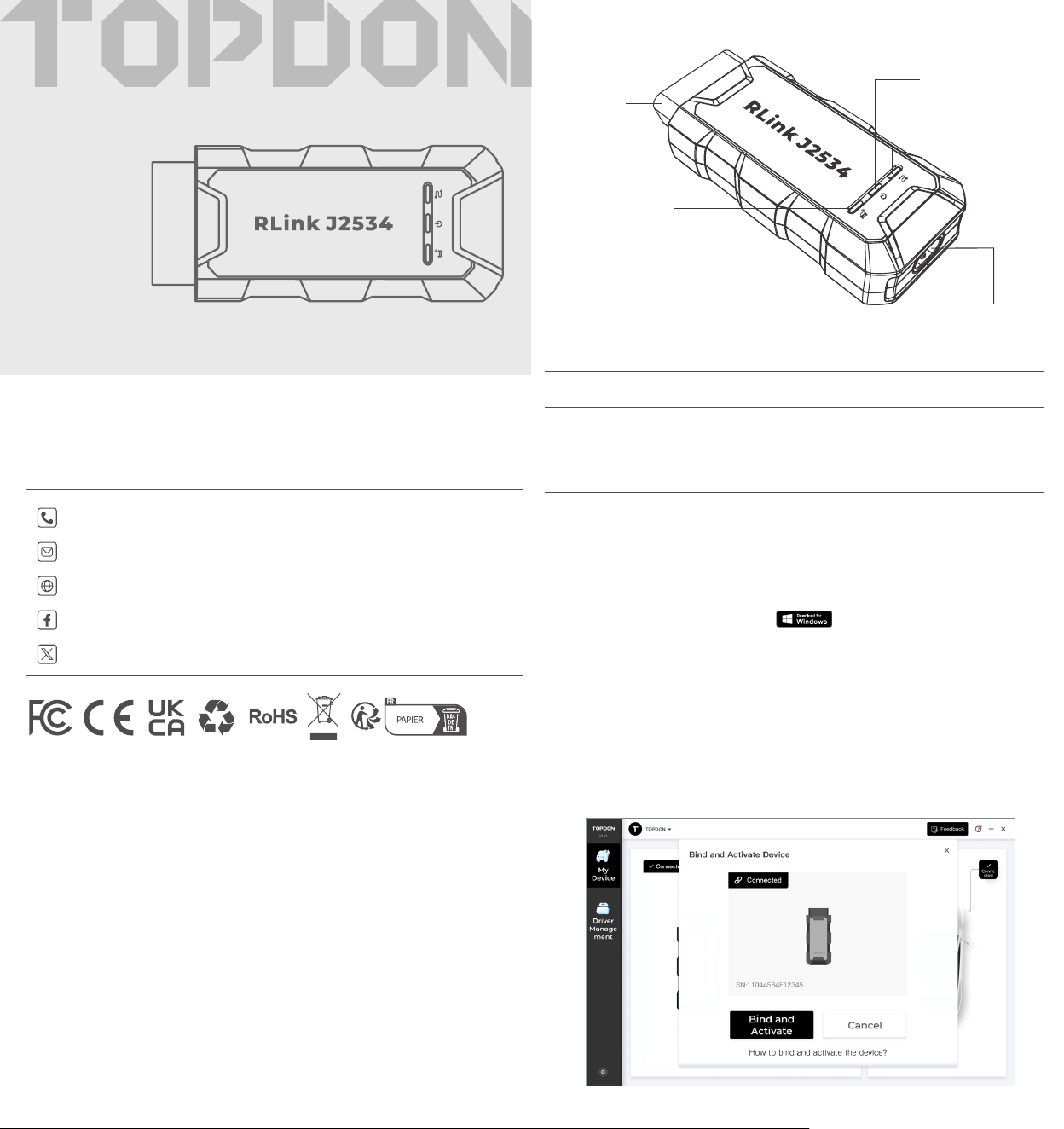
LED Indicators
Activate Device & Download Software
Quick User Guide
All-in-one Pass-thru Device
Thank you for purchasing the TOPDON RLink J2534. This quick user guide
will walk you through the basic setup and operation of the RLink J2534.
Please carefully read all the instructions before use. For further information,
please download the detailed user manual via www.topdon.com/products/
RLink-J2534.
FCC Statement
Any changes or modications not expressly approved by the party responsible
for compliance could void the user's authority to operate the equipment.
This device complies with Part 15 of the FCC Rules. Operation is subject to the
following two conditions:
(1) this device may not cause harmful interference, and
(2) this device must accept any interference received, including interference
that may cause undesired operation.
Note: This equipment has been tested and found to comply with the limits
for a Class B digital device, pursuant to Part 15 of the FCC Rules. These limits
are designed to provide reasonable protection against harmful interference
in a residential installation. This equipment generates, uses, and can radiate
radio frequency energy, and if not installed and used in accordance with
the instructions, may cause harmful interference to radio communications.
However, there is no guarantee that interference will not occur in a particular
installation. If this equipment does cause harmful interference to radio or
television reception, which can be determined by turning the equipment off
and on, the user is encouraged to try to correct the interference by one or
more of the following measures:
– Reorient or relocate the receiving antenna.
– Increase the separation between the equipment and receiver.
– Connect the equipment into an outlet on a circuit different from that to
which the receiver is connected.
– Consult the dealer or an experienced radio/TV technician for help.
Download and install the RLink Platform software to your PC.
Go to www.topdon.com. Click Diagnostic Tools > RLink J2534.
Then click Download and click
.
Note: It is recommended to disable antivirus software during
installation. Because RLink Platform is the driver management
platform for OEM software. It may be mistakenly removed by antivirus
software.
Launch the RLink Platform software. Register or log in to your TOPDON
account. Connect the RLink J2534 to a PC using the supplied USB 2.0
cable. Then click Bind and Activate to activate the RLink J2534.
Note: Upgrade the rmware to the latest version after binding the
device.
①
②
USB Type-C Port
Connection Indicator
Power Indicator
Communication Indicator
Solid Blue: PC connected
Solid Red: power on
Flashing Green: communicating with the
vehicle
Connection
Indicator
Power
Indicator
Communication
Indicator
OBD-II
Diagnostic
Port
WWW.TOPDON.COM
@TOPDONOFFICIAL
@TOPDONOFFICIAL
EMAIL
TEL
WEBSITE
FACEBOOK
X
+86-755-21612590 +1-833-629-4832 (North America)
+34 930 038 094 (Europe)
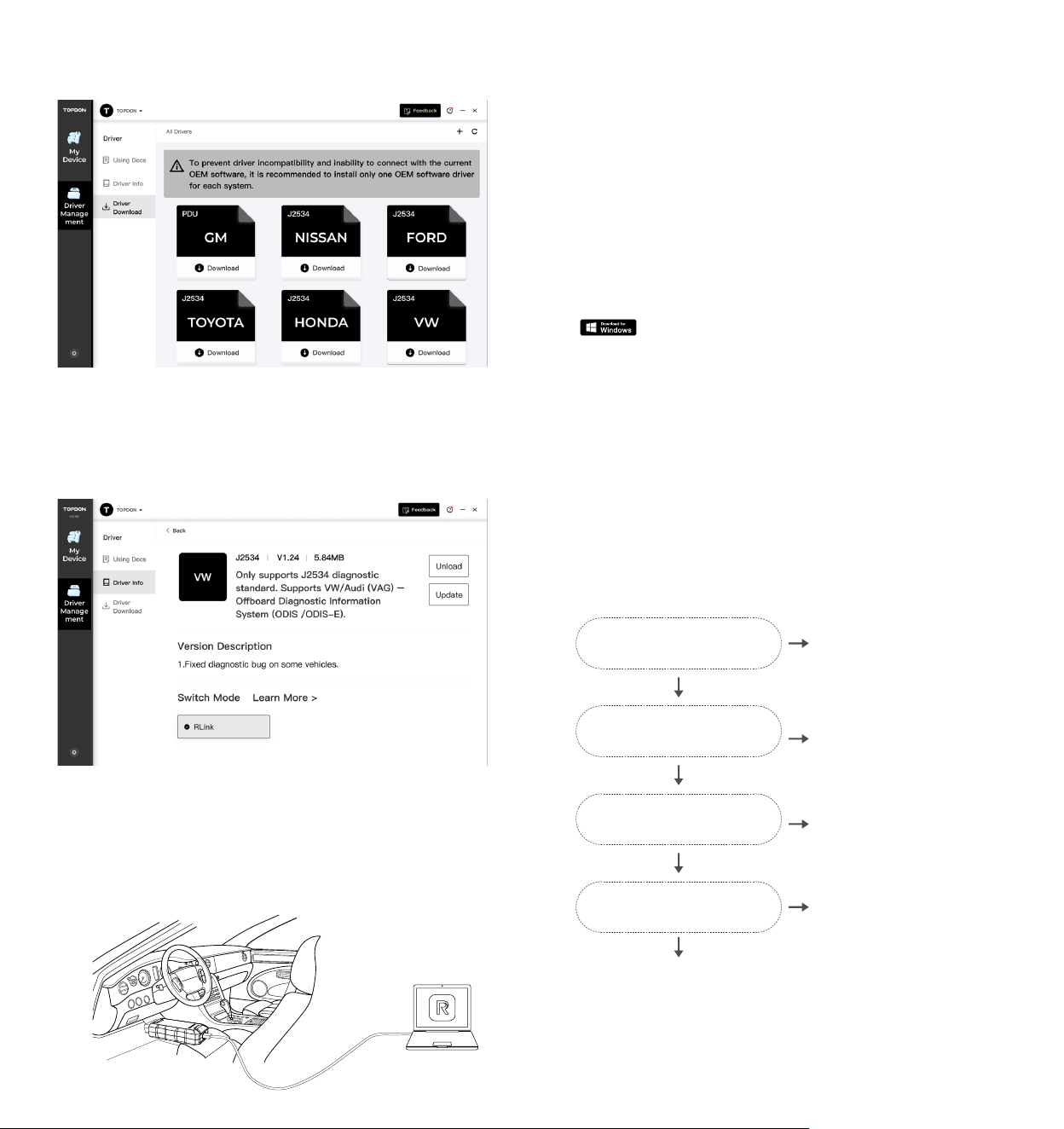
Connect Device & Start Diagnosing
FAQ
Note: For the stability of the program, download the corresponding
driver according to the OEM software of your PC. Do not download
drivers that are not related to the OEM software.
Click Driver Management > Driver Info after the driver is downloaded.
Then click to open the driver you just downloaded and choose RLink
mode.
Note: The illustrations and screenshots used in this Quick User Guide
may slightly differ from the actual product due to ongoing product
improvements.
Note: The details and functions of the product may differ from the actual
product due to ongoing product improvements. The actual product
shall prevail. Contact [email protected]om for any problems. TOPDON
technical support will reply in 24 hours.
Note: The OEM diagnostic software can be obtained from the ofcial
website of the corresponding manufacturer or other channels.
Connect the RLink J2534 to the vehicle's Data Link Connector (DLC).
The vehicle's DLC is usually located under the dashboard.
Note: Ensure the ignition is OFF before plugging in the unit.
What systems support installing the RLink Platform?
Windows 7, 8, 10 or higher (64-bit). 32-bit is not supported.
How to download the driver management software of the RLink J2534?
Go to www.topdon.com. Click RLink J2534. Then click Download and click
to download the RLink Platform and install it to your PC.
Note: It is recommended to disable antivirus software during
installation. Because RLink Platform is the driver management
platform for OEM software. It may be mistakenly removed by antivirus
software.
Why does it prompt that the email address is already registered?
Please check if this account is already registered on another TOPDON
device.
If you have already registered, just log in to the account and bind RLink
J2534.
Why does it prompt that the device is bound to another account?
Please choose the correct account to log in or contact TOPDON technical
service to unbind. (Note: One device can only be bound to one account)
Why does it prompt that the vehicle is not connected?
Is the RLink J2534 connected to the
vehicle?
Uninstall drivers that are not related
to the current OEM software.
1. Check whether the pins of the RLink J2534
diagnostic port are rusty, loose, or clogged.
2. Check whether the rmware of the RLink
Platform has been updated.
3. Check whether the vehicle's DLC is normal.
1. Select RLink mode.
2. Check whether there is an update for
the RLink Platform rmware (if so, update
it).
Provide relevant information to
TOPDON technical service.
Have you downloaded multiple
drivers?
Have you selected the
corresponding driver mode on the
RLink Platform?
Are the USB cable and port normal?
Check whether the USB port of the PC is normal, or try again with another port.
Check whether the RLink J2534 hardware is normal.
Yes
No
No
Yes
No
No
Yes
Yes
Ensure that the communication is normal after the connection is
completed. Then open the OEM diagnostic software and select RLink as
the diagnostic interface.
Turn the ignition to the "ON" position. You are now ready to start
diagnosing the vehicle.
④
①
Q:
A:
Q:
A:
Q:
A:
Q:
A:
Q:
A:
②
③
Click Driver Management > Driver Download to download the specic
driver for the OEM diagnostic software.
Note: The driver list is subject to the actual configuration of the
product.
③