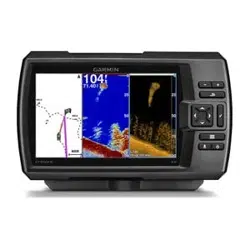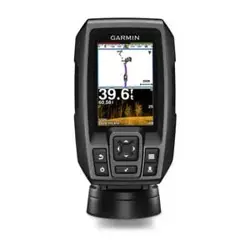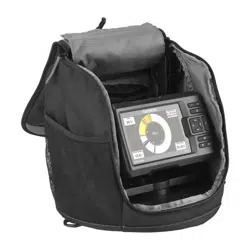
STRIKER
™
Series
Owner’s Manual

© 2015 Garmin Ltd. or its subsidiaries
All rights reserved. Under the copyright laws, this manual may not be copied, in whole or in part, without the written consent of Garmin. Garmin reserves the right to change
or improve its products and to make changes in the content of this manual without obligation to notify any person or organization of such changes or improvements. Go to
www.garmin.com for current updates and supplemental information concerning the use of this product.
Garmin
®
, the Garmin logo, and Ultrascroll
®
are trademarks of Garmin Ltd. or its subsidiaries, registered in the USA and other countries. Garmin ClearVü
™
and STRIKER
™
are
trademarks of Garmin Ltd. or its subsidiaries. These trademarks may not be used without the express permission of Garmin.
Follow the leader.
®

Table of Contents
Introduction......................................1
Device Keys............................................. 1
Selecting the Transducer Type...............2
Zooming on the STRIKER 4.................... 2
Panning on the STRIKER 4......................2
Adjusting the Backlight........................... 2
Adjusting the Color Mode....................... 2
Setting the Beeper................................... 2
GPS Satellite Signal Acquisition............. 2
Home Screen....................................3
Customizing the Home Screen...............3
Adding a New Layout to the Home
Screen of the STRIKER 5 or 7............. 3
Adding a New Layout to the Home
Screen.................................................. 4
Adding the Numbers Screen...................4
Numbers.............................................. 4
Adding the Data Graphs Screen............. 4
Data Graphs......................................... 4
Sonar............................................... 4
Full Screen Sonar.................................... 5
Garmin ClearVü Sonar View................... 6
SideVü Sonar View.................................. 7
Split-Screen Frequency........................... 8
Flasher..................................................... 9
Split-Zoom View.................................... 10
Pausing the Sonar................................. 10
Creating a Waypoint on the Sonar Screen
Using Your Present Location................ 10
Creating a Waypoint on the Sonar Screen
Using a Different Location.................... 10
Adjusting the Zoom.............................. 11
Locking the Screen to the Water
Bottom............................................... 11
Sonar Frequencies................................ 11
Selecting Frequencies.......................11
Creating a Frequency Preset............ 11
Sonar Gain............................................. 11
Setting the Gain Automatically......... 12
Setting the Gain Manually................. 12
Adjusting the Range of the Depth
Scale...................................................... 12
Sonar Setup........................................... 12
Showing and Adjusting the Depth
Line..................................................... 12
Setting the Scroll Speed....................13
Setting the Bottom Search Limit...... 13
Sonar Appearance Settings.............. 13
Sonar Noise Rejection Settings........ 15
Overlay Number Settings.................. 16
Waypoints...................................... 16
Marking Your Present Location as a
Waypoint................................................ 16
Creating a Waypoint at a Different
Location................................................. 16
Editing a Saved Waypoint..................... 16
Marking and Navigating to a Man
Overboard Location.............................. 16
Navigating to a Waypoint..................... 17
Measuring Distance on the Waypoint
Map........................................................ 17
Deleting a Waypoint or an MOB........... 17
Deleting All Waypoints.......................... 17
Sharing Waypoints and Routes Across
Devices.................................................. 17
Waypoint Map Settings.........................17
Routes............................................17
Creating and Navigating a Route Using
the Waypoint Map................................. 18
Editing a Saved Route........................... 18
Viewing a List of Routes....................... 18
Browsing for and Navigating a Saved
Route...................................................... 18
Deleting a Saved Route......................... 18
Deleting All Saved Routes.....................18
Track..............................................19
Setting the Color of the Track.............. 19
Clearing the Track................................. 19
Managing the Track Log Memory During
Recording...............................................19
Configuring the Recording Interval of the
Track Log............................................... 19
Deleting All Saved Waypoints, Routes,
and Tracks............................................. 19
Device Configuration...................... 19
System Settings.................................... 19
System Information...........................20
Table of Contents i

My Vessel Settings............................... 20
Setting the Keel Offset...................... 20
Setting the Water Temperature
Offset................................................. 21
Alarms Settings..................................... 21
Navigation Alarms............................. 21
System Alarms.................................. 21
Sonar Alarms..................................... 21
Unit Settings.......................................... 22
Navigation Settings...............................22
Restoring the Factory Default
Settings.................................................. 22
Appendix........................................ 22
Registering Your Device........................22
Specifications........................................22
Troubleshooting.................................... 23
My device does not turn on.............. 23
My sonar does not work................... 23
My device is not creating waypoints in
the correct location........................... 23
ii Table of Contents
Introduction
WARNING
See the Important Safety and Product Information guide in the product box for product warnings and other
important information.
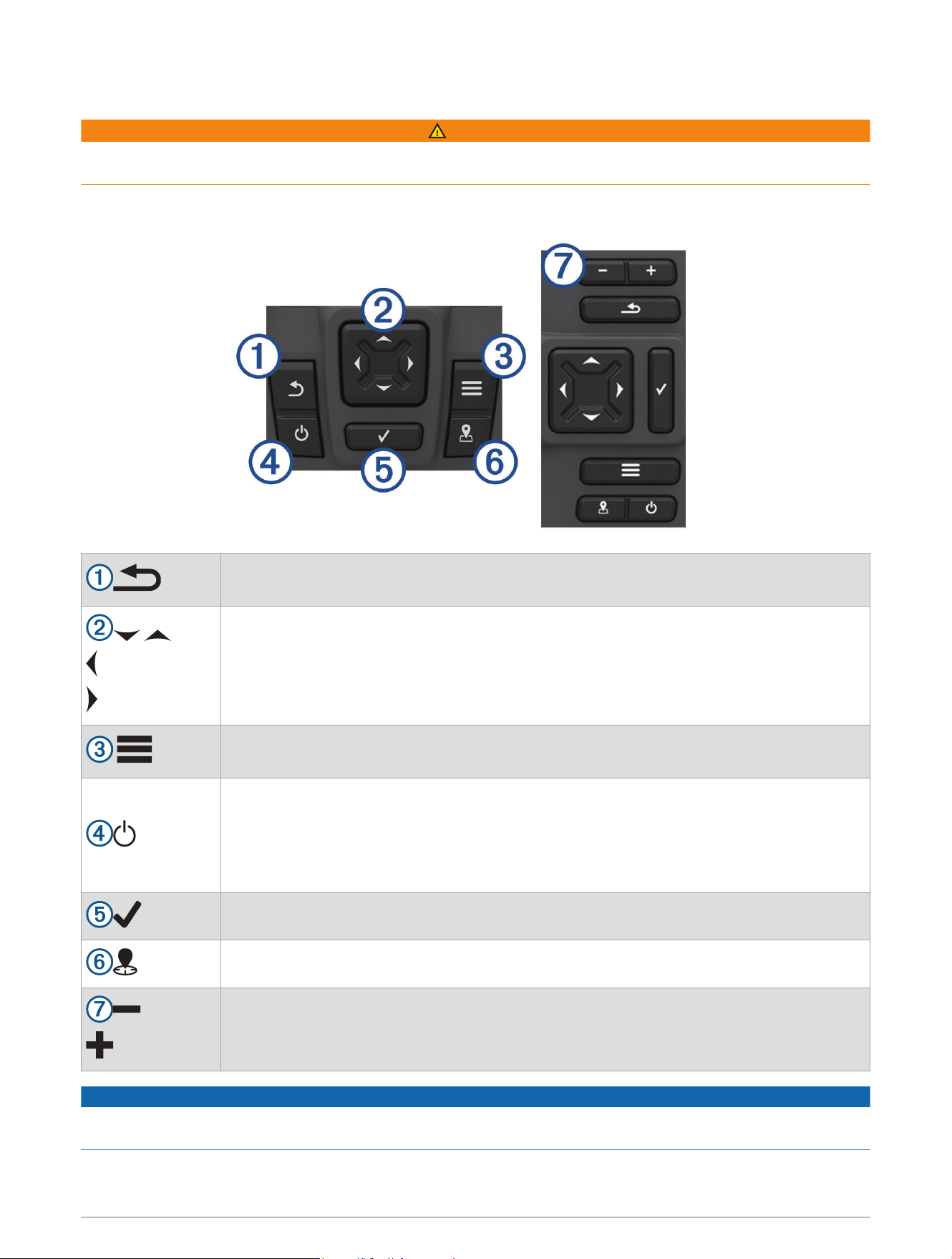
Device Keys
Returns to the previous screen.
Returns to the home screen when held.
Scrolls, highlights options, and moves the cursor.
Zooms in and out of a view. (Not available on all models.)
Closes a menu, when applicable.
Opens a menu of options for the page, when applicable.
Turns on and off the device when held.
Performs one or more of these actions when quickly pressed:
• Adjusts the backlight
• Adjusts the color mode
• Enables and disables sonar
Acknowledges messages and selects options.
Saves the present location as a waypoint.
Zooms out of a view. (Not available on all models.)
Zooms in to a view. (Not available on all models.)
NOTICE
Before turning on the device, you must firmly press the connectors into the appropriate holes in the device. If the
cables are not pressed far enough into the device, the device appears to lose power or stop working.
Introduction 1
Selecting the Transducer Type
If you are connecting a transducer that was not included with the chartplotter, you may need to set the
transducer type to make the sonar function properly. If the device automatically detected your transducer, this
option does not appear.
This chartplotter is compatible with the Garmin ClearVü
™
transducer as well as a range of accessory
transducers including Garmin
®
GT transducers, which are available at www.garmin.com.
1 Select Settings > My Vessel > Transducer Type.
2 Select the type of transducer you are using.
Zooming on the STRIKER 4
You can zoom in and out of the Waypoint Map.
• Select to zoom in.
• Select to zoom out.
Panning on the STRIKER 4
You can move the Waypoint Map to view an area other than your present location.
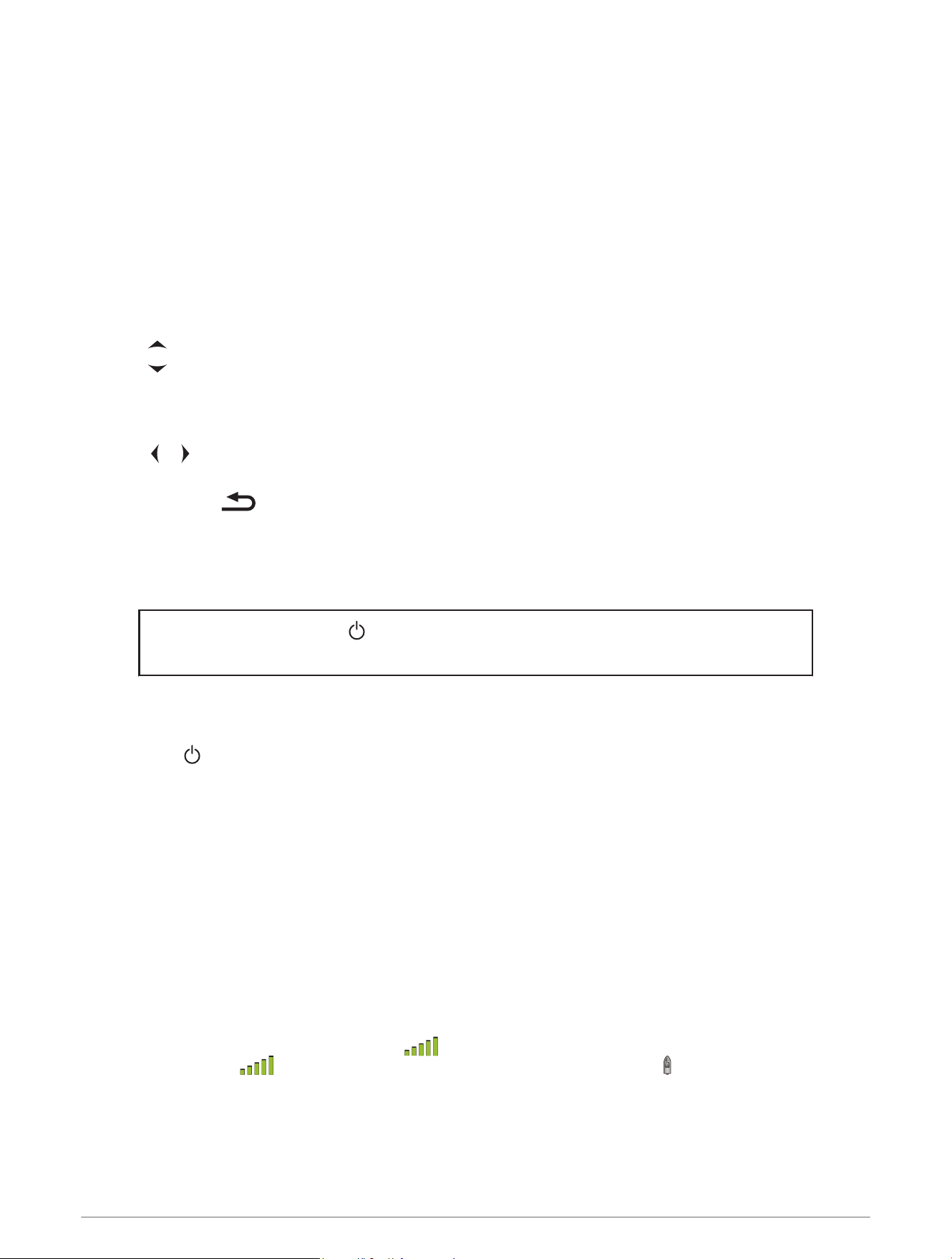
1 Select or to start panning.
2 Use the arrow keys to pan.
TIP: You can select to zoom.
Adjusting the Backlight
1 Select Settings > System > Display > Backlight.
2 Adjust the backlight.
TIP: From any screen, press repeatedly to scroll through the brightness levels. This can be
helpful when the brightness is so low you cannot see the screen.
Adjusting the Color Mode
1 Select Settings > System > Display > Color Mode.
TIP: Select > Color Mode from any screen to access the color settings.
2 Select an option.
Setting the Beeper
You can set when the device makes sounds.
1 Select Settings > System > Beeper.
2 Select an option:
• To have the device beep when you select an item and when an alarm is triggered, select On (Selections
and Alarms).
• To have the device beep only when alarms are triggered, select Alarms Only.
GPS Satellite Signal Acquisition
When you turn on the fishfinder, the GPS receiver must collect satellite data and establish the current location.
When the fishfinder acquires satellite signals, appears at the top of the Home screen. When the fishfinder
loses satellite signals, disappears and a flashing question mark appears over on the screen.
For more information about GPS, go to www.garmin.com/aboutGPS.
2 Introduction
Home Screen
The fishfinder home screen provides access to all of the features in the fishfinder. The features are dependant
on the accessories you have connected to the fishfinder. You may not have all of the options and features
discussed in this manual.
When viewing another screen, you can return to the home screen by holding . You can customize the layout
of the screens.
Customizing the Home Screen
You can add items to and rearrange items on the Home screen.
1 From the Home screen, select Customize Home.
2 Select an option:
• To rearrange an item, select Rearrange, select the item to move, and select the new location.
• To add an item to the Home screen, select Add, and select the new item.
• To remove an item you have added to the Home screen, select Remove, and select the item.
Adding a New Layout to the Home Screen of the STRIKER 5 or 7
You can create a custom screen to suit your needs, which is added to your home screen.
1 Select Customize Home > Add > Add New Layout.
2 Select a function layout.
3 Select a window to change.
4 Select a screen to add.
5 Repeat steps 3 and 4 for additional windows.
6 Select Data (Hidden) (optional).
7 Select an option:
• To customize the data shown on the screen, select Overlay Numbers.
• To turn on and off the compass tape data bar, select Compass Tape.
8 Select Next.
9 Enter a name for the combination.
TIP:
• Select to save.
• Hold to clear data.
• Select or to change letter case.
10 Use the arrow keys to resize the windows.
11 Use the arrow keys to select a home screen location.
Home Screen 3
Adding a New Layout to the Home Screen
You can create a custom screen to suit your needs, which is added to your home screen.
1 Select Customize Home > Add > Add New Layout.
2 Select the first function.
3 Select the second function.
4 Select Split to choose the direction of the split screen (optional).
5 Select Next.
6 Enter a name for the combination.
TIP:
• Select to save.
• Select to change letter case.
• Hold to clear data.
7 Use the arrow keys to resize the windows.
8 Use the arrow keys to select a home screen location.
Adding the Numbers Screen
Before you can customize the Numbers screen, you must add it to the home screen.
You can view numeric data on the home screen using the Numbers screen.
Select Customize Home > Add > Numbers.
Numbers
To customize the Numbers screen, select Numbers > .
Change Numbers: Sets what type of number data is displayed.
Change Layout: Sets the amount of number data that is displayed.
Reset Trip: Resets the trip data and allows you to record new trip data.
Reset Odometer: Resets the odometer data and allows you to record new odometer data.
Reset Maximum Speed: Resets the maximum speed for the trip and allows your to record a new maximum
speed.
Adding the Data Graphs Screen
Before you can customize the Data Graphs screen, you must add it to the home screen.
You can view graphical sonar data on the home screen using the Data Graphs screen.
From the home screen, select Customize Home > Add > Data Graphs.
Data Graphs
To customize the Data Graphs screen, select Data Graphs > .
Change Graph: Sets the type of data displayed on the screen.
Depth Graph Settings: Sets the amount of time and the range of depth that appear in the depth graphs.
Temperature Graph Settings: Sets the amount of time and the range of depth that appear in the temperature
graphs.
Sonar
The full screen page, the split frequency page, and the flasher page are visual representations of the area
beneath your boat. You can customize these sonar views.
NOTE: Not all devices have these features.
4 Sonar
Full Screen Sonar
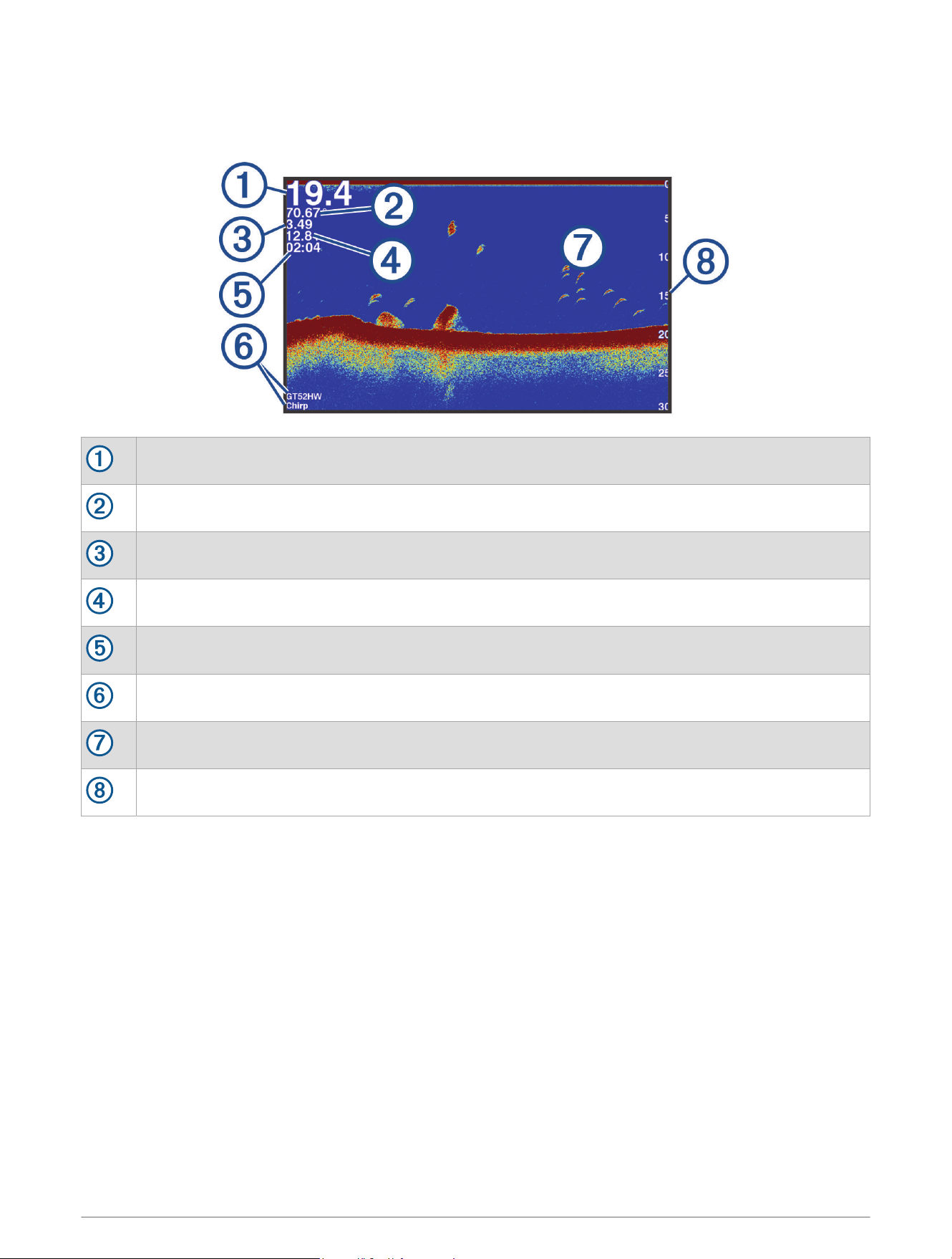
You can see a full-view graph of sonar readings from a transducer on the full screen.
Select Traditional or ClearVü.
Bottom depth
Water temperature
GPS speed
Device voltage
Time
Transducer type and frequency
Suspended targets (fish)
Depth indicator as the sonar data the screen scrolls from right to left
Sonar 5
Garmin ClearVü Sonar View
NOTE: To receive Garmin ClearVü scanning sonar, you need a compatible transducer.
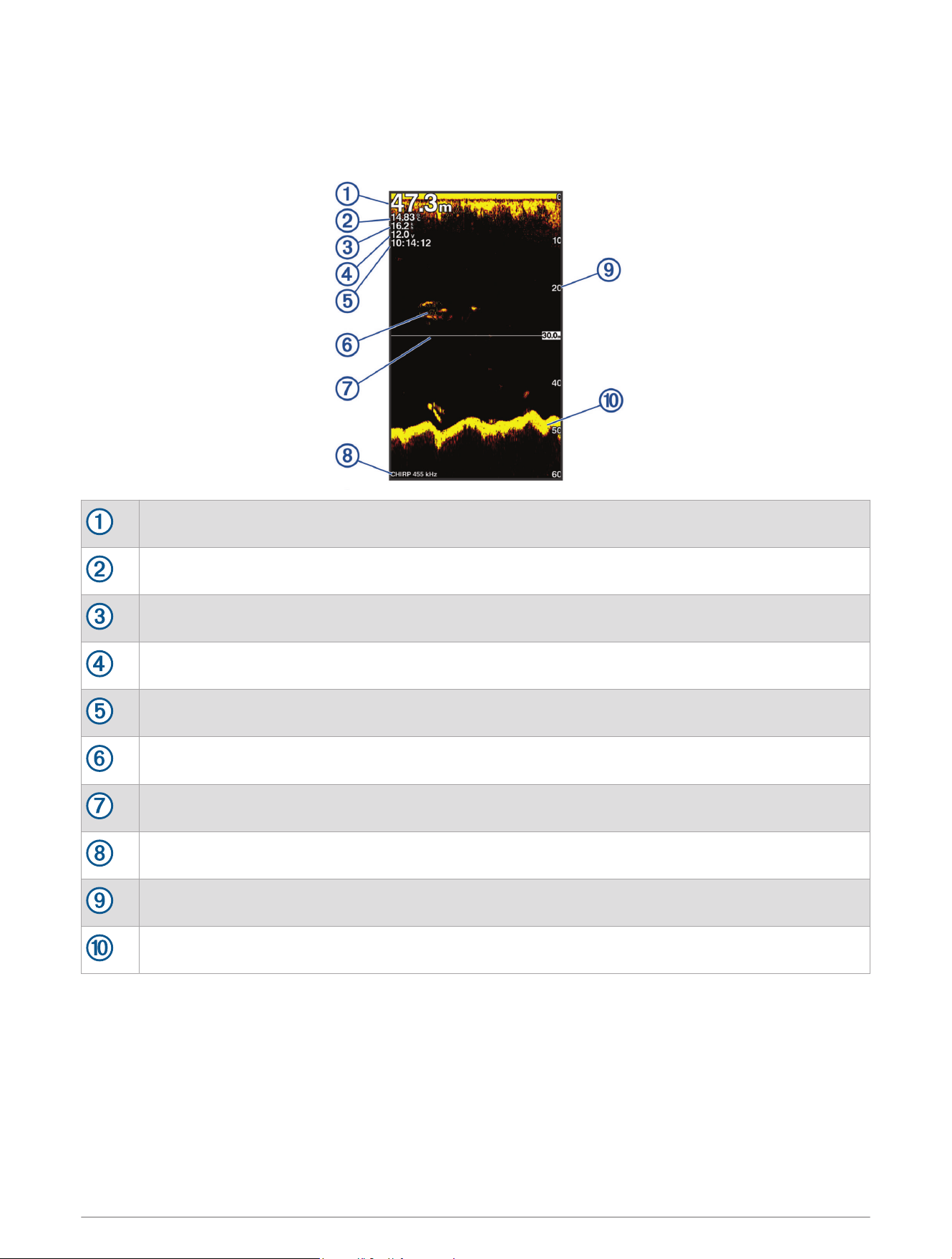
Garmin ClearVü high-frequency sonar provides a detailed picture of the fishing environment around the boat in a
detailed representation of structures the boat is passing over.
Bottom depth
Water temperature
GPS speed
Device voltage
Time
Suspended targets (fish)
Depth line
Transducer type and frequency, and zoom type
Depth indicator as the sonar data screen scrolls from right to left
Bottom echo
Traditional transducers emit a conical beam. The Garmin ClearVü scanning sonar technology emits two narrow
beams, similar to the shape of the beam in a copying machine. These beams provide a clearer, picture-like
image of what is around the boat.
6 Sonar
SideVü Sonar View
NOTE: Not all models support SideVü sonar and scanning transducers.
NOTE: To receive SideVü scanning sonar, you need a compatible transducer and fishfinder.
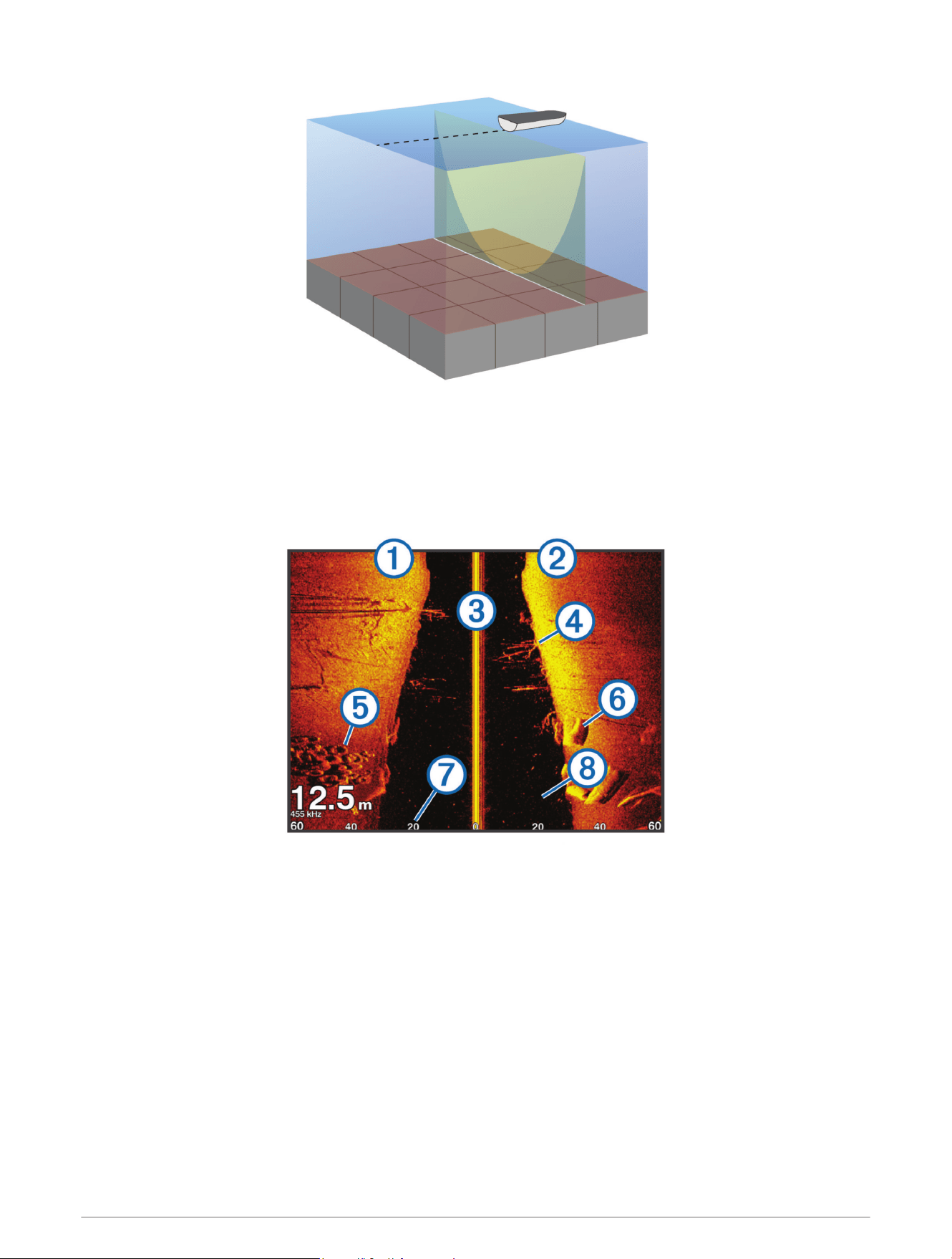
SideVü scanning sonar technology shows you a picture of what lies to the sides of the boat. You can use this as
a search tool to find structures and fish.
Sonar 7
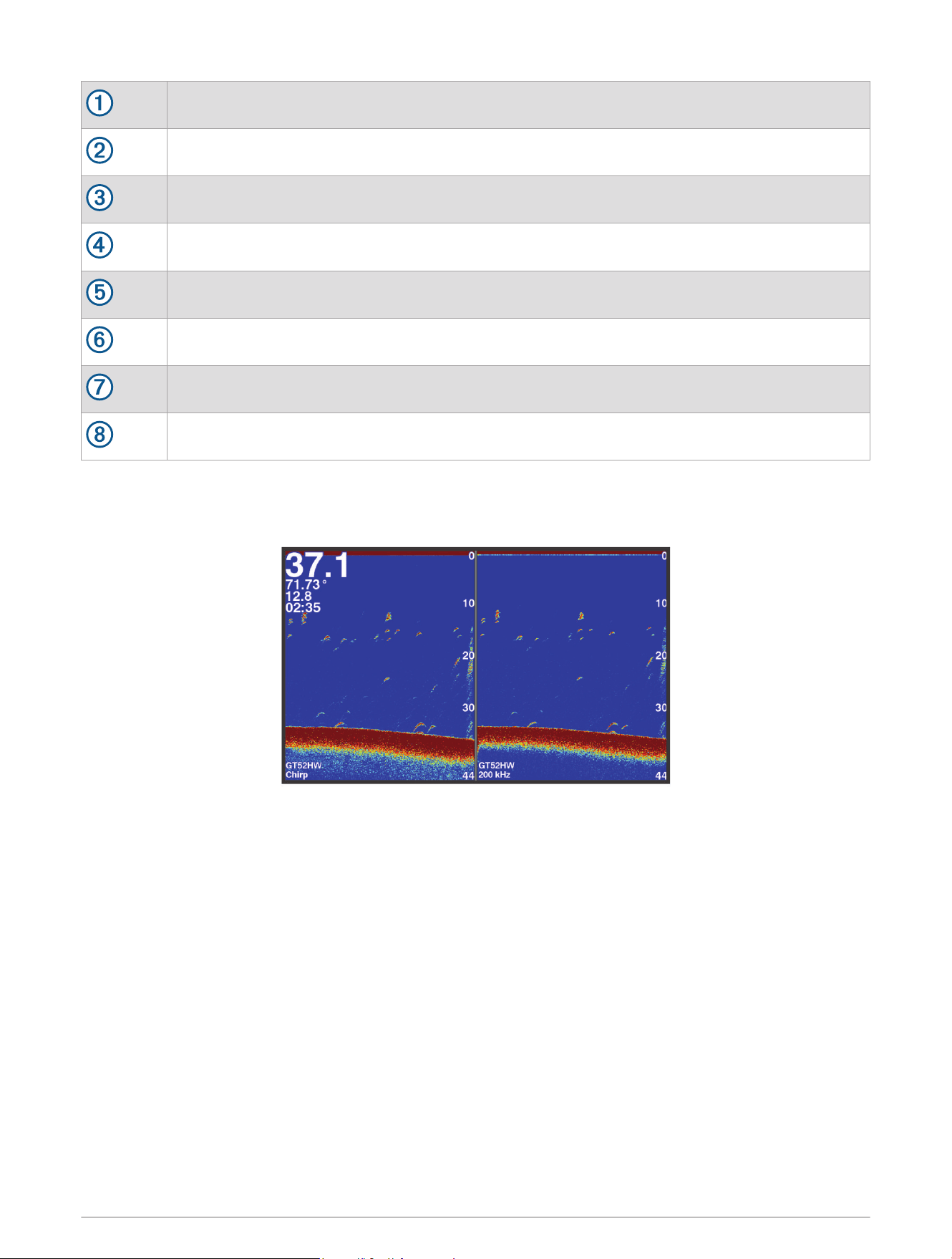
Left side of the vessel
Right side of the vessel
The transducer on your vessel
Trees
Old tires
Logs
Distance from the side of the vessel
Water between the vessel and the bottom
Split-Screen Frequency
You can view two frequencies from the split frequency screen.
8 Sonar
Flasher
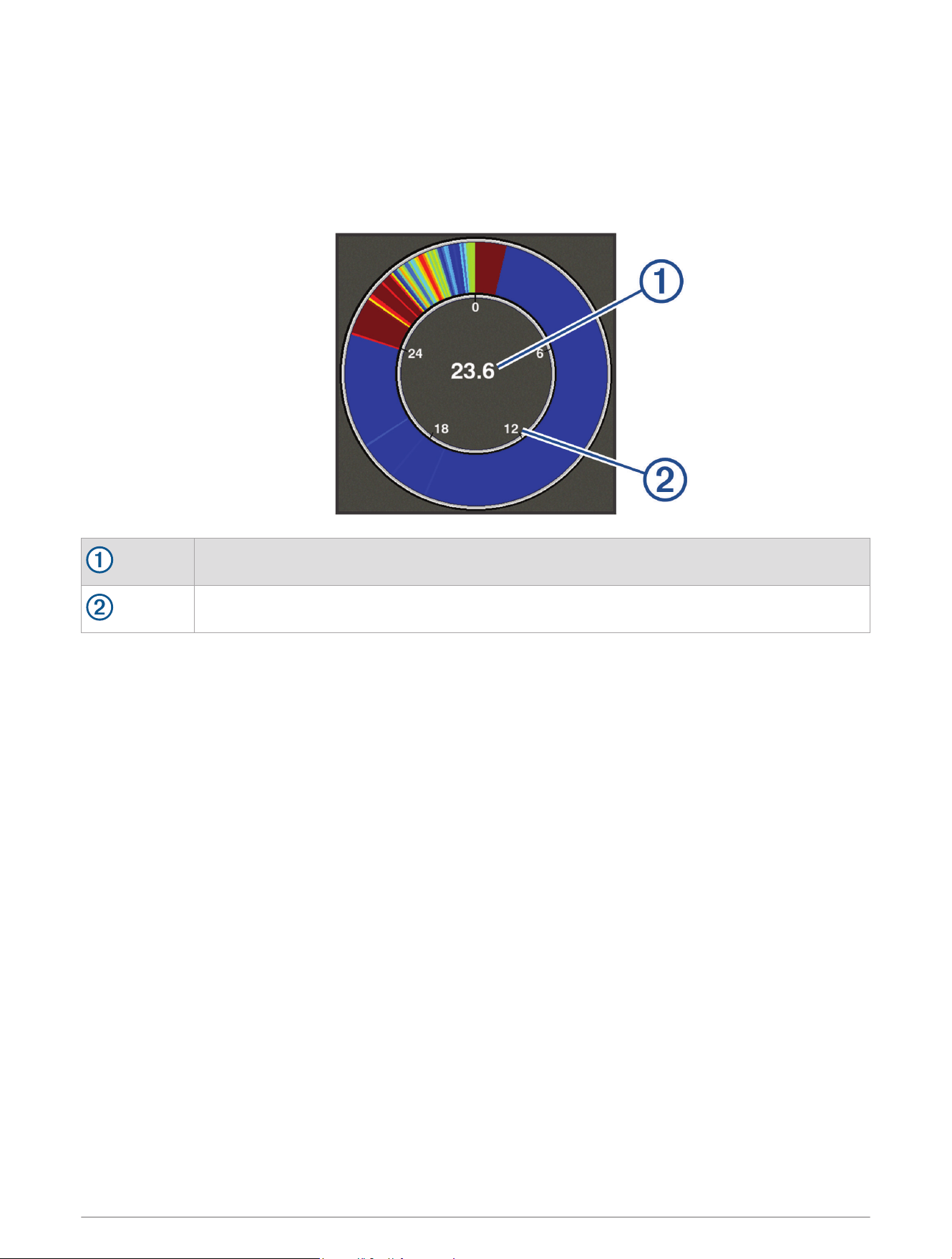
The flasher shows sonar information on a circular depth scale, indicating what is beneath your boat. It is
organized as a ring that starts at the top and progresses clockwise. Depth is indicated by the scale inside
the ring. Sonar information flashes on the ring when it is received at the depth indicated. The colors indicate
different strengths of the sonar return.
Select Flasher.
Depth at your present location
Depth scale
Sonar 9
Split-Zoom View
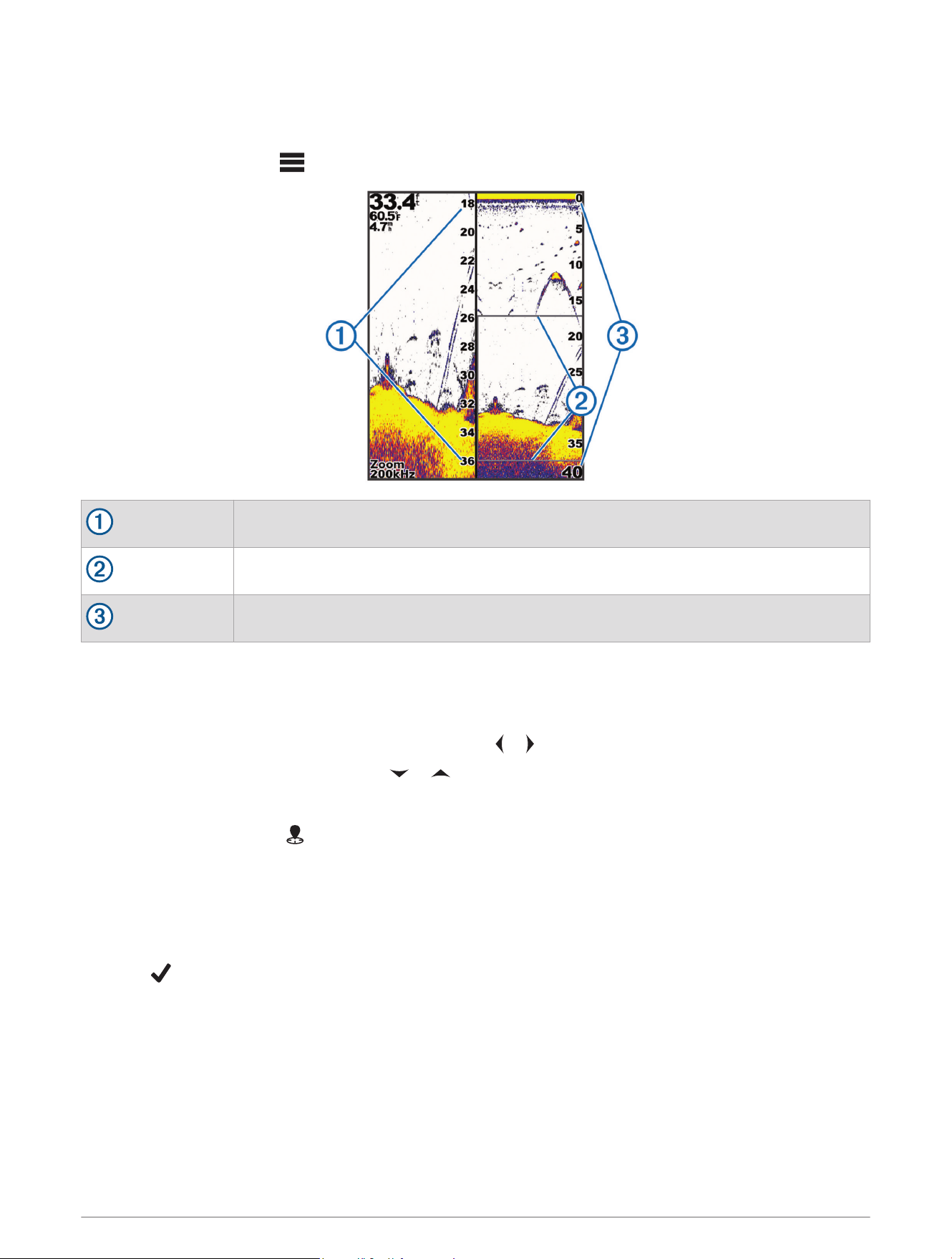
On the split-zoom page, you can see a full-view graph of sonar readings on the right side of the screen, and a
magnified portion of that graph on the left side of the screen.
From a sonar screen, select > Zoom > Split Zoom.
Zoomed depth scale
Zoom window
Depth range
Pausing the Sonar
Not all options are available on all models.
Select an option:
• From the Traditional or ClearVü sonar screen, select or .
• From the SideVü sonar screen, select or .
Creating a Waypoint on the Sonar Screen Using Your Present Location
1 From a sonar view, select .
2 If necessary, edit the waypoint information.
Creating a Waypoint on the Sonar Screen Using a Different Location
1 From a sonar view, pause the sonar.
2 Select a location.
3 Select .
4 If necessary, edit the waypoint information.
10 Sonar
Adjusting the Zoom
You can adjust the zoom manually by specifying the span and a fixed starting depth. For example, when the
depth is 15m and the starting depth is 5m, the device displays a magnified area from 5to 20m deep.
You also can allow the device to adjust the zoom automatically by specifying a span. The device calculates
the zoom area from the bottom of the water. For example, if you select a span of 10m, the device displays an
magnified area from the bottom of the water to 10m above the bottom.
1 From a sonar screen, select > Zoom.
2 Select an option:
• Select Bottom Lock to lock the screen to the water bottom.
• Select Manual to manually set the zoom.
• Select Auto to automatically set the zoom.
• Select Split Zoom to turn on the split-zoom view.
Locking the Screen to the Water Bottom
You can lock the screen to the water bottom. For example, if you select a span of 20 meters, the device shows
an area from the water bottom to 20 meters above the bottom. The span appears on the right side.
1 From a sonar view, select > Zoom > Bottom Lock.
2 Select a span.
Sonar Frequencies
NOTE: The frequencies that are available depend on the transducer being used.
Adjusting the frequency helps adapt the sonar for your particular goals and the present depth of the water.
Selecting Frequencies
NOTE: You cannot adjust the frequency for all sonar views and transducers.
You can indicate which frequencies appear on the sonar screen.
1 From a sonar view, select > Frequency.
2 Select a frequency suited to your needs and water depth.
For more information on frequencies, see Sonar Frequencies, page11.
Creating a Frequency Preset
NOTE: Not available with all transducers.
You can create a preset to save a specific sonar frequency, which allows you to change frequencies quickly.
1 From a sonar view, select > Frequency.
2 Select Add.
3 Enter a frequency.
Sonar Gain
The gain setting controls the sensitivity of the sonar receiver to compensate for water depth and water clarity.
Increasing the gain shows more detail, and decreasing the gain reduces screen clutter.
NOTE: Setting the gain on one sonar view applies the setting to all the views.
Sonar 11
Setting the Gain Automatically
NOTE: To set the gain on the split-frequency screen, you must set each frequency separately.
1 Select > Gain.
2 Select Enable Auto Gain, if applicable.
3 Select an option:
• To display higher-sensitivity, weaker sonar returns with more noise automatically, select Auto High.
• To display medium-sensitivity sonar returns with moderate noise automatically, select Auto Med.
• To display lower-sensitivity sonar returns with less noise automatically, select Auto Low.
Setting the Gain Manually
1 From a sonar screen, select > Gain.
2 Select or until you begin to see noise in the water portion of the screen.
3 Select or to decrease the gain.
Adjusting the Range of the Depth Scale
You can adjust the range of the depth scale that appears on the right side of the screen. Automatic ranging
keeps the bottom within the lower third of the sonar screen, and can be useful for tracking the bottom where
there are slow or moderate terrain changes.
When the depth changes dramatically, like a drop off or cliff, manually adjusting the range allows a view of a
specified depth range. The bottom is shown on the screen as long as the bottom is anywhere within the manual
range established.
1 From a sonar screen, select > Range.
2 Select an option:
• To allow the device to adjust the range automatically based on the depth, select Auto.
• To increase or decrease the range manually, select or . (Available only on the 5 in. and 7in. models.)
• To increase or decrease the range manually, select or . (Available only on the 4 in. models.)
NOTE: From a sonar screen, select and to quickly manually adjust the range. (Available only on the 5
in. and 7in. models.)
From a sonar screen, select and to quickly resume auto range. (Available only on the 5 in. and 7in.
models.)
From a sonar screen, select or to quickly adjust the range. (Available only on the 4in. models.)
Setting the range on one screen applies that setting to all screens.
Sonar Setup
NOTE: Not all options and settings apply to all models and transducers.
Showing and Adjusting the Depth Line
You can show and adjust a horizontal line on a sonar screen. The depth of the line is indicated on the right side
of the screen.
NOTE: Showing a depth line on one screen displays the depth line on all the screens.
1 From a sonar screen, select > Sonar Setup > Depth Line.
2 Select .
3 To adjust the Depth Line, select or .
12 Sonar
Setting the Scroll Speed
You can set the rate at which the sonar image moves across the screen. A higher scroll speed shows more
detail, especially while moving or trolling. A lower scroll speed displays sonar information on the screen longer.
Setting the scroll speed on one sonar view applies to all the sonar views.
1 From a sonar view, select > Sonar Setup > Scroll Speed.
2 Select an option:
• To adjust the scroll speed automatically using speed-over-ground, select Auto.
The Auto setting selects a scroll rate to match the boat speed, so targets in the water are drawn with the
correct aspect ratio and appear less distorted. When viewing Garmin ClearVü or SideVü sonar views, it is
recommend to use the Auto setting.
• To use a very fast scroll speed, select Ultrascroll
®
.
The Ultrascroll option quickly scrolls new sonar data, but with a reduced image quality. For most
situations, the Fast option provides a good balance between a quickly scrolling image and targets that are
less distorted.
Setting the Bottom Search Limit
You can set a maximum depth at which the auto range feature searches for the bottom. A lower limit acquires
data about the bottom faster than a higher limit.
1 From a sonar screen, select > Sonar Setup > Bottom Search Limit.
2 Select a range.
Sonar Appearance Settings
From a sonar view, select > Sonar Setup > Appearance.
Color Scheme: Sets the color scheme.
Edge: Highlights the strongest signal from the bottom to help define the hardness or softness of the signal.
A-Scope: Displays a vertical flasher along the right side of the screen that shows instantaneously the range to
targets along a scale.
Fish Symbols: Sets how the sonar interprets suspended targets.
Sonar 13
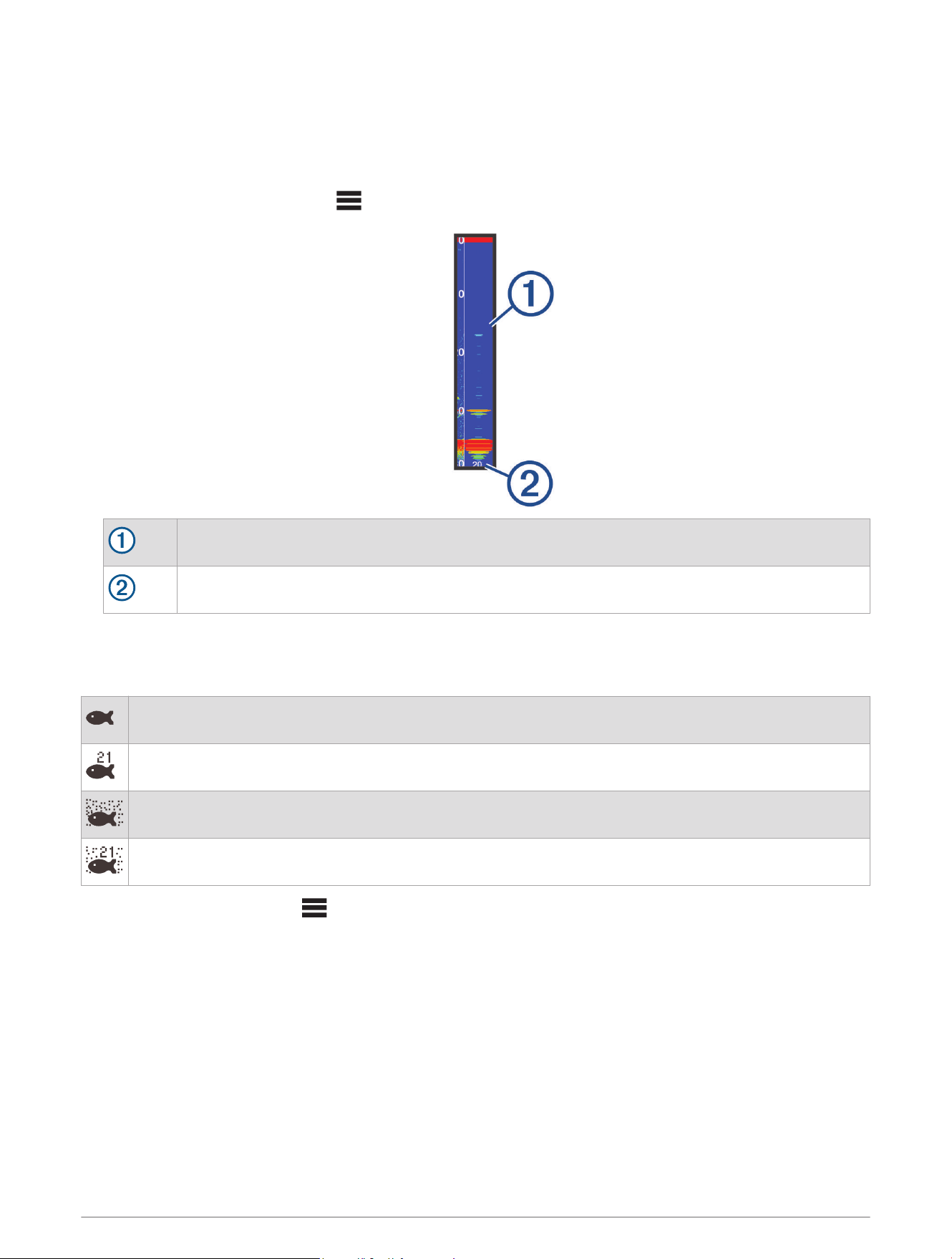
Turning on the A-Scope
The a-scope is a vertical flasher along the right side of the full-screen sonar view. This feature expands the most
recently received sonar data so that it is easier to see. It can also be helpful for detecting fish that are close to
the bottom.
NOTE: This feature is not available on all sonar screens.
From the full screen page, select > Sonar Setup > Appearance > A-Scope.
A-Scope
Diameter of the sonar cone at the present depth
Configuring the Appearance of Suspended Targets
NOTE: Configuring the appearance of suspended targets on one screen applies that setting to all screens.
NOTE: This feature is not available on all sonar views.
Shows suspended targets as symbols.
Shows suspended targets as symbols with target depth information.
Shows suspended targets as symbols with background sonar information.
Shows suspended targets as symbols with background sonar information and target depth information.
1 From a sonar screen, select > Sonar Setup > Appearance > Fish Symbols.
2 Select an option.
14 Sonar
Sonar Noise Rejection Settings
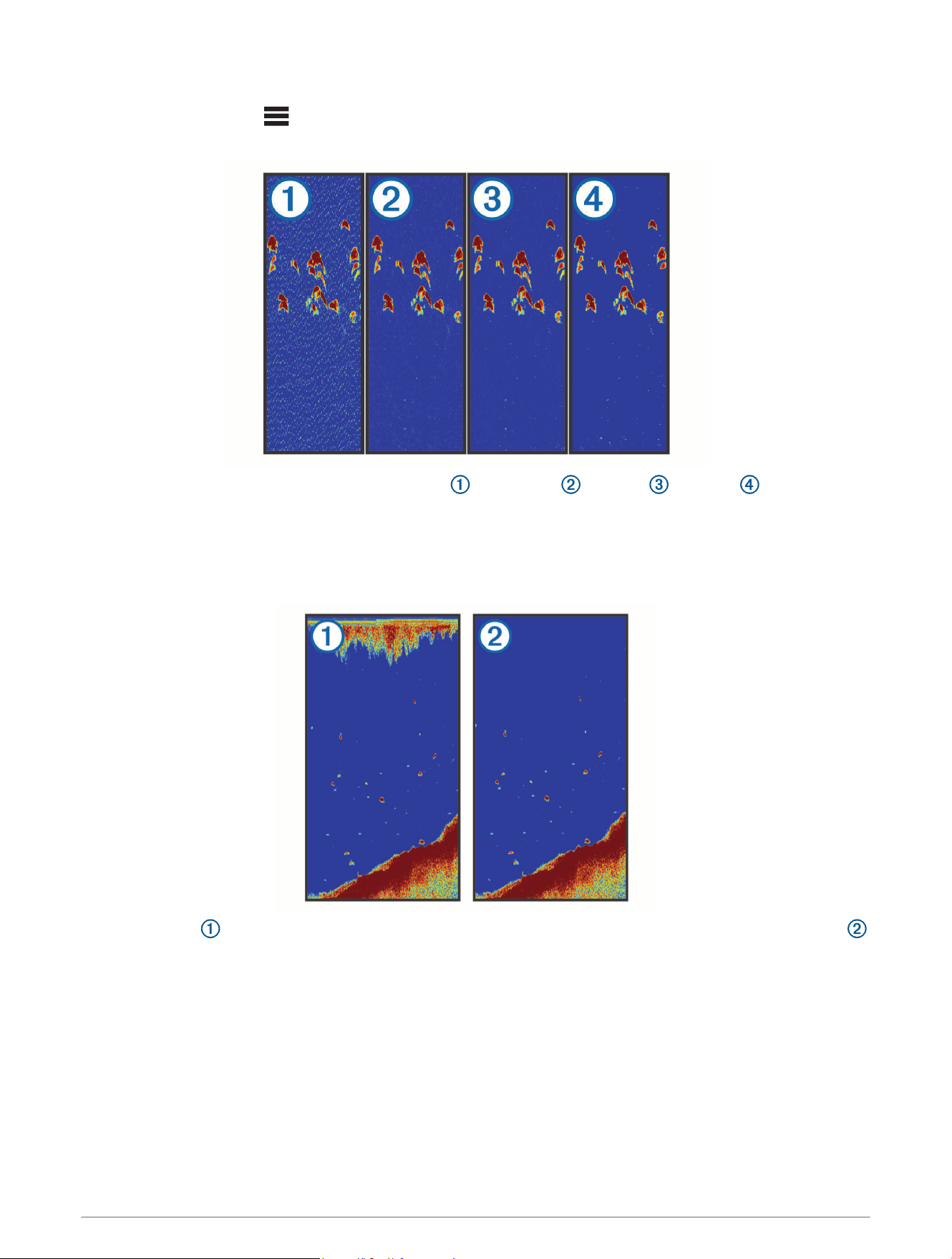
From a sonar view, select > Sonar Setup > Noise Reject.
Interference: Adjusts the sensitivity to reduce the effects of interference from nearby sources of noise.
When you adjust the interference setting from off through low , medium , and high , noise
is gradually removed, but there is little effect on the strong target returns. You should use the lowest
interference setting that achieves the desired improvement to remove interference from the screen.
Correcting installation issues that cause noise is the best way to eliminate interference.
Surface Noise: Hides sonar returns near the surface of the water. Hiding surface noise helps reduce screen
clutter.
Surface noise is caused by interference between the transducer and water. You can hide surface noise
to help reduce clutter. Wider beam widths (lower frequencies) can show more targets, but can generate more
surface noise.
TVG: Reduces surface noise.
This control is best used for situations when you want to control and suppress clutter or noise near the water
surface. It also allows for the display of targets near the surface that are otherwise hidden or masked by
surface noise.
Sonar 15

Overlay Number Settings
You can customize the data shown on the sonar screen.
From a sonar screen, select > Overlay Numbers.
Navigation Inset: Shows the navigation inset when the vessel is navigating to a destination.
Compass Tape: Shows the compass tape data bar.
Device Voltage: Shows the voltage of the device.
Depth: Shows the transducer's current depth.
Speed: Shows the vessel's current speed.
Water Temp.: Shows the current water temperature.
Time of Day: Shows the current time of day.
Waypoints
Waypoints are locations you record and store in the device.
Marking Your Present Location as a Waypoint
From any screen, select .
Creating a Waypoint at a Different Location
1 Select User Data > Waypoints > New Waypoint.
2 Select an option:
• To create the waypoint by entering position coordinates, select Enter Coordinates, and enter the
coordinates.
• To create the waypoint using the waypoint map, select Use Waypoint Map, select the location, and select
.
• To create the waypoint using your present location, select Use Current Position, and enter the data.
The waypoint is saved automatically.
Editing a Saved Waypoint
1 Select User Data > Waypoints.
2 Select a waypoint.
3 Select Edit Waypoint.
4 Select an option:
• To add a name, select Name, and enter a name.
• To change the symbol, select Symbol.
• To change the depth, select Depth.
• To change the water temperature, select Water Temp..
• To change the comment, select Comment.
• To move the position of the waypoint, select Position.
Marking and Navigating to a Man Overboard Location
From any screen, select > Man Overboard > Yes.
The fishfinder sets a direct course back to the location.
16 Waypoints
Navigating to a Waypoint
1 Pan the waypoint map to find the waypoint.
2 Place the center of the cursor on the center of the waypoint symbol.
The waypoint name appears on the screen.
3 Select the waypoint.
4 Select Navigate Route > Go To.
Measuring Distance on the Waypoint Map
You can measure the distance between two locations.
1 From the waypoint map, begin panning (Panning on the STRIKER 4, page2).
2 Select > Measure Distance.
The distance and other data appear on the screen.
Deleting a Waypoint or an MOB
1 Select User Data > Waypoints.
2 Select a waypoint or an MOB.
3 Select Delete > OK.
Deleting All Waypoints
Select User Data > Manage Data > Clear User Data > Waypoints > All.
Sharing Waypoints and Routes Across Devices
Before you can share waypoints and routes, you must connect the blue and brown wires on the power cable.
The blue wire is for Tx (Transmit) and brown is for Rx (Receive). These wires are used only for sharing data
between compatible STRIKER and echoMAP
™
series devices.
You must turn on user data sharing for both devices to share data.
Select User Data > Manage Data > User Data Sharing > On on both devices.
Waypoint Map Settings
Select Waypoint Map > .
Waypoints: Shows the list of waypoints.
Waypoint Display: Sets how to display waypoints on the chart.
Routes: Shows the list of routes.
Track: Shows the track option menu.
Search: Allows you to search for saved routes and waypoints.
Map Setup: Sets the perspective of the waypoint map and shows the heading line, which is a line drawn on the
waypoint map from the bow of the boat in the direction of travel.
Overlay Numbers: Allows you to customize the data shown on the waypoint map.
Routes
A route is a sequence of waypoints or locations that leads you to your final destination.
Routes 17

Creating and Navigating a Route Using the Waypoint Map
The starting point can be your present location or another location.
1 Select User Data > Routes > New > Use Waypoint Map.
2 Pan the waypoint map to select the starting location of the route.
3 Follow the onscreen instructions to add a turns.
4 Select > Navigate To.
5 Select an option.
Editing a Saved Route
You can change the name of a route or change the turns the route contains.
1 Select User Data > Routes.
2 Select a route.
3 Select Edit Route.
4 Select an option:
• To change the name, select Name, and enter the name.
• To select a waypoint from the turn list, select Edit Turns > Use Turn List, and select a waypoint from the
list.
• To select a turn using the chart, select Edit Turns > Use Waypoint Map, and select a location on the chart.
Viewing a List of Routes
Select User Data > Routes.
Browsing for and Navigating a Saved Route
Before you can browse a list of routes and navigate to one of them, you must create and save at least one route.
1 Select User Data > Routes.
2 Select a route.
3 Select Navigate To.
4 Select an option:
• To navigate the route from the starting point used when the route was created, select Forward.
• To navigate the route from the destination point used when the route was created, select Backward.
A magenta line appears. In the center of the magenta line is a thinner purple line that represents the
corrected course from your present location to the destination. The corrected course is dynamic, and it
moves with your boat when you are off course.
5 Review the course indicated by the magenta line.
6 Follow the magenta line along each leg in the route, steering to avoid land, shallow water, and other
obstacles.
7 If you are off course, follow the purple line (corrected course) to go to your destination, or steer back to the
magenta line (direct course).
Deleting a Saved Route
1 Select User Data > Routes.
2 Select a route.
3 Select Delete.
Deleting All Saved Routes
Select User Data > Manage Data > Clear User Data > Routes.
18 Routes

Track
A track is a recording of the current path of your boat. You can show your current track in waypoint map view.
Setting the Color of the Track
1 Select User Data > Track > Track Options > Track Color.
2 Select a track color.
Clearing the Track
Select User Data > Track > Clear Track > OK.
Managing the Track Log Memory During Recording
1 Select User Data > Track > Track Options.
2 Select Record Mode.
3 Select an option:
• To record a track log until the track memory is full, select Fill.
• To continuously record a track log, replacing the oldest track data with new data, select Wrap.
Configuring the Recording Interval of the Track Log
You can indicate the frequency at which the track plot is recorded. Recording more frequent plots is more
accurate but fills the track log faster. The resolution interval is recommended for the most efficient use of
memory.
1 Select User Data > Track > Track Options > Record Intervals > Interval.
2 Select an option:
• To record the track based on a distance between points, select Distance > Change, and enter the distance.
• To record the track based on a time interval, select Time > Change, and enter the time interval.
• To record the track plot based on a variance from your course, select Resolution > Change, and enter the
maximum error allowed from the true course before recording a track point.
Deleting All Saved Waypoints, Routes, and Tracks
Select User Data > Manage Data > Clear User Data > All > OK.
Device Configuration
System Settings
Select Settings > System.
Display: Adjusts the backlight brightness (Adjusting the Backlight, page2) and color scheme (Adjusting the Color
Mode, page2).
Beeper: Turns on and off the tone that sounds for alarms and selections (Setting the Beeper, page2).
GPS: Provides information about the GPS satellite settings and fix.
Auto Power: Turns on the device automatically when power is applied.
Language: Sets the on-screen language.
System Information: Provides information about the device and the software version.
Simulator: Turns on the simulator and allows you to set the speed and simulated location.
Track 19
System Information
Select Settings > Settings > System Information.
Event Log: Allows you to view a log of system events.
Software Information: Provides information about the device and the software version.
Garmin Devices: Provides information about connected Garmin devices.
Factory Settings: Restores the device to factory settings.
NOTE: This deletes any setting information you have entered.
My Vessel Settings
NOTE: Some settings and options require additional hardware.
Select Settings > My Vessel.
Transducer Type: Displays the type of transducer connected to the device (Selecting the Transducer Type,
page2).
Keel Offset: Offsets the surface reading for the depth of a keel, making it possible to measure depth from the
bottom of the keel instead of from the transducer location (Setting the Keel Offset, page20).
Temp. Offset: Compensates for the water temperature reading from a temperature-capable transducer (Setting
the Water Temperature Offset, page21).
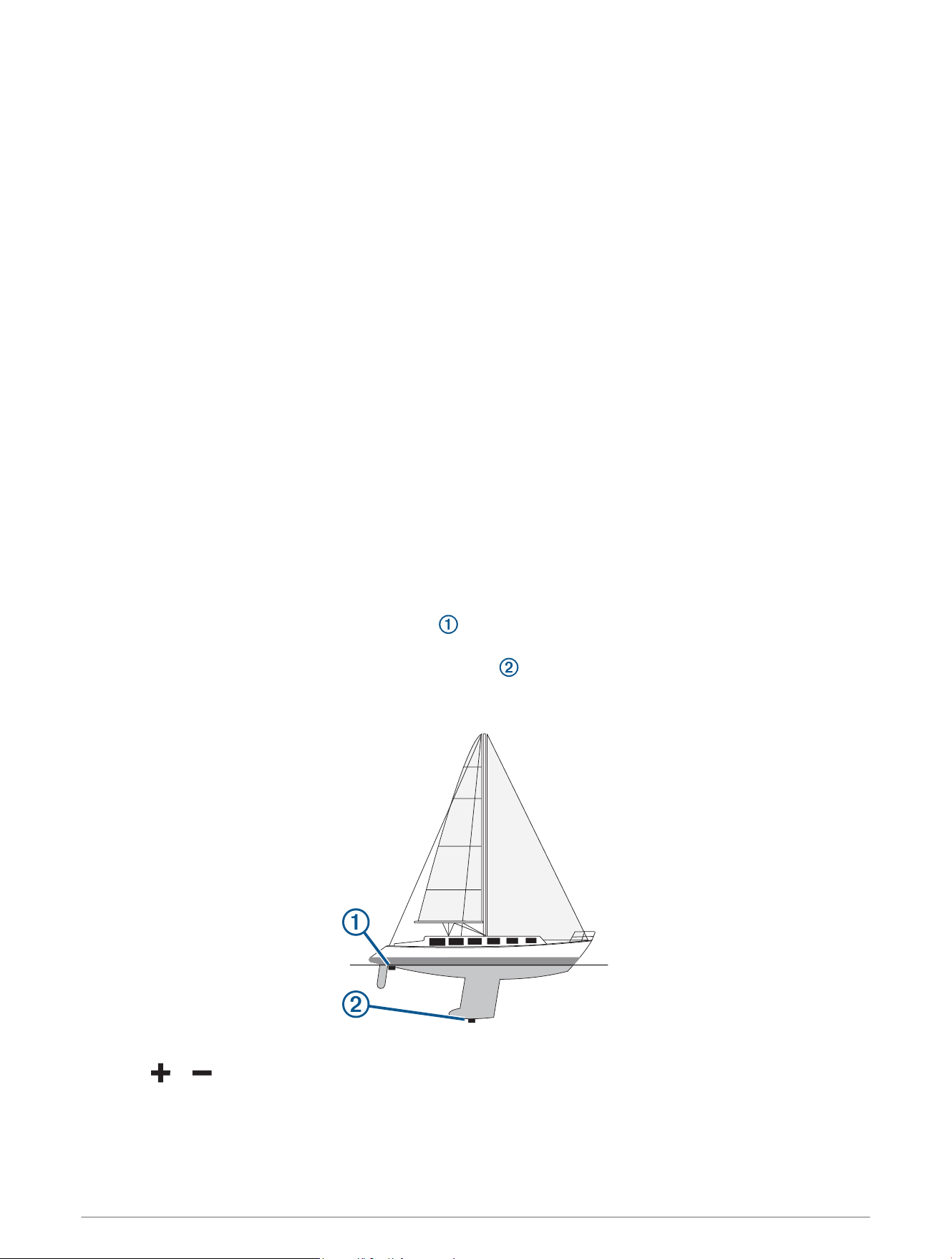
Setting the Keel Offset
You can enter a keel offset to compensate the surface reading for the depth of a keel, making it possible to
measure water depth or depth below the keel instead of depth below the transducer. Enter a positive number to
offset for a keel. You can enter a negative number to compensate for a large vessel that may draw several feet
of water.
1 Complete an action, based on the location of the transducer:
• If the transducer is installed at the water line , measure the distance from the transducer location to the
keel of the boat. Enter this value in steps 3 and 4 as a positive number to display depth below keel.
• If the transducer is installed at the bottom of the keel , measure the distance from the transducer to the
water line. Enter this value in steps 3 and 4 as a negative number to display water depth. Enter a 0 in this
value to display depth below keel and depth below transducer.
2 Select Settings > My Vessel > Keel Offset.
3 Select or based on the location of the transducer.
4 Enter the distance measured in step 1.
20 Device Configuration

Setting the Water Temperature Offset
You can set the temperature offset to compensate for the temperature reading from a temperature-capable
sensor.
1 Measure the water temperature using the temperature-capable transducer that is connected to the device.
2 Measure the water temperature using a different thermometer or temperature sensor that is known to be
accurate.
3 Subtract the water temperature measured in step 1 from the water temperature measured in step 2.
This is the temperature offset. Enter this value in step 5 as a positive number if the sensor connected to
the device measures the water temperature as being colder than it actually is. Enter this value in step 5 as
a negative number if the sensor connected to the device measures the water temperature as being warmer
than it actually is.
4 Select Settings > My Vessel > Temp. Offset.
5 Use the arrow keys to enter water temperature offset measured in step 3.
Alarms Settings
Navigation Alarms
Select Settings > Alarms > Navigation.
Arrival: Sets an alarm to sound when you are within a specified distance or time from a turn or a destination.
Anchor Drag: Sets an alarm to sound when you exceed a specified drift distance while anchored.
Off Course: Sets an alarm to sound when you are off course by a specified distance.
System Alarms
Alarm Clock: Sets an alarm clock.
Device Voltage: Sets an alarm to sound when the battery reaches a specified low voltage.
GPS Accuracy: Sets an alarm to sound when the GPS location accuracy falls outside the user-defined value.
Sonar Alarms
Select Settings > Alarms > Sonar.
Shallow Water: Sounds when the water depth is shallower than the specified depth.
Deep Water: Sounds when the water depth is deeper than the specified depth.
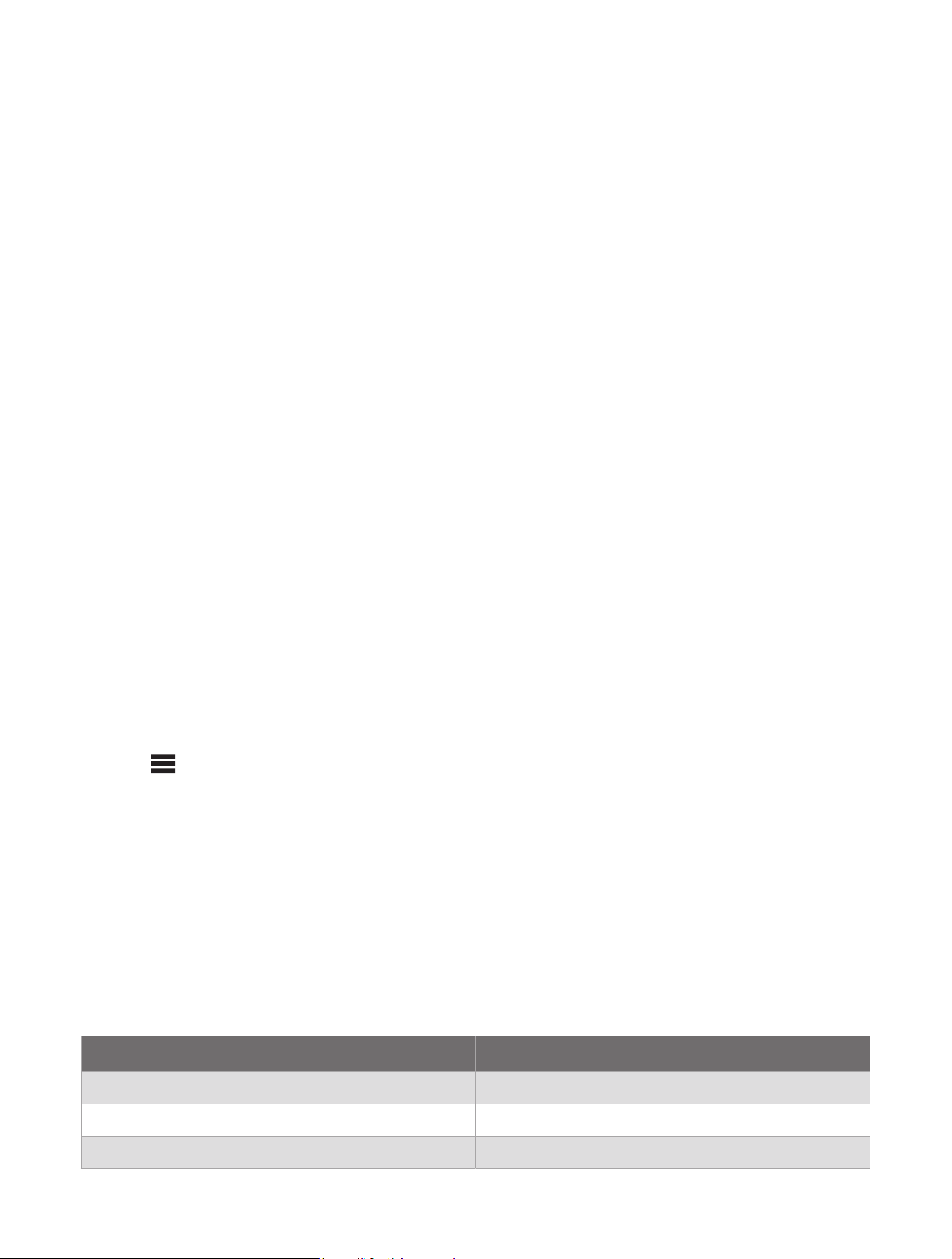
Water Temp.: Sounds when the water temperature varies more than ±2°F (±1.1°C). Alarm settings are saved
when the device is turned off.
NOTE: You must connect the device to a temperature-capable transducer to use this alarm.
Fish: Sets an alarm to sound when the device detects a suspended target.
• sets the alarm to sound when fish of all sizes are detected.
• sets the alarm to sound only when medium or large fish are detected.
• sets the alarm to sound only when large fish are detected.
Device Configuration 21
Unit Settings
Select Settings > Units.
System Units: Sets the unit format for the device.
Variance: Sets the magnetic declination, the angle between magnetic north and true north, for your present
location.
North Reference: Sets the direction references used in calculating heading information. True sets geographic
north as the north reference. Grid sets grid north as the north reference (000º). Magnetic sets the magnetic
north as the north reference.
Position Format: Sets the position format in which a given location reading appears. Do not change this setting
unless you are using a map or chart that specifies a different position format.
Map Datum: Sets the coordinate system on which the map is structured. Do not change this setting unless you
are using a map or chart that specifies a different map datum.
Time Format: Sets a 12-hour, 24-hour, or UTC time format.
Time Zone: Sets the time zone.
Daylight Savings Time: Sets daylight savings time to Off or On.
Navigation Settings
NOTE: Some settings and options require additional hardware.
Select Settings > Navigation.
Route Labels: Sets the type of labels shown with route turns on the map.
Turn Transition Activ.: Sets the turn transition to be calculated based on time or distance.
Turn Transition Time: Sets how many minutes before the turn that you transition to it as the next leg, when
Time is selected for the Turn Transition Activ. setting.
Turn Transition Dist.: Sets how far before the turn that you transition to it as the next leg, when Distance is
selected for the Turn Transition Activ. setting.
Route Start: Selects a starting point for route navigation. You can select Boat to start navigation from the
current vessel location, or Waypoints to start from the first waypoint on the route.
Restoring the Factory Default Settings
NOTE: This deletes all settings information you have entered.
1 Select > System > System Information > Factory Settings.
2 Select an option.
Appendix
Registering Your Device
Help us better support you by completing our online registration today. Keep the original sales receipt, or a
photocopy, in a safe place.
1 Go to my.garmin.com/registration.
2 Sign in to your Garmin account.
Specifications
Measurement
Temperature range From -15° to 55°C (from 5° to 131°F )
Power source voltage range From 10 to 20V
Rated current 1A
22 Appendix

Troubleshooting
My device does not turn on
• Push the power cable all the way into the back of the device.
Even if the cable seems to be connected, you should push firmly so that it is fully seated.
• Make sure the power source is generating power.
You can check this several ways. For example, you can check whether other devices powered by the source
are functioning.
• Check the fuse in the power cable.
The fuse should be located in a holder that is part of the red wire of the power cable. Check that the proper
size fuse is installed. Refer to the label on the cable or the installation instructions for the exact fuse size
needed. Check the fuse to make sure there is still a connection inside of the fuse. You can test the fuse using
a multimeter. If the fuse is good, the multimeter reads 0 ohm.
• Check to make sure the device is receiving at least 10 Vdc, but 12 Vdc is recommended.
To check the voltage, measure the female power and ground sockets of the power cable for DC voltage. If the
voltage is less than 10 Vdc, the device will not turn on.
My sonar does not work
• Push the transducer cable all the way into the back of the device.
Even if the cable seems to be connected, you should push firmly so that it is fully seated.
• Check to make sure the sonar transmission is turned on.
My device is not creating waypoints in the correct location
You can manually enter a waypoint location to transfer and share data from one device to the next. If you have
manually entered a waypoint using coordinates, and the location of the point does not appear where the point
should be, the map datum and position format of the device may not match the map datum and position format
originally used to mark the waypoint.
Position format is the way in which the GPS receiver's position appears on the screen. This is commonly
displayed as latitude/longitude in degrees and minutes, with options for degrees, minutes and second, degrees
only, or one of several grid formats.
Map datum is a math model which depicts a part of the surface of the earth. Latitude and longitude lines on a
paper map are referenced to a specific map datum.
1 Find out which map datum and position format was used when the original waypoint was created.
If the original waypoint was taken from a map, there should be a legend on the map that lists the map datum
and position format used to create that map. Most often this is found near the map key.
2 Select Settings > Units.
3 Select the correct map datum and position format settings.
4 Create the waypoint again.
Appendix 23

support.garmin.com
GUID-1153977F-305D-4F69-B6F0-A214B08E367D v7January 2025