1
Installation Guide
AT-PRO5-101-SC-RX
4K HDR SDVoE Receiver
with Scaler for PRO5 Matrix Switcher
AT-PRO5-101-SC-RX
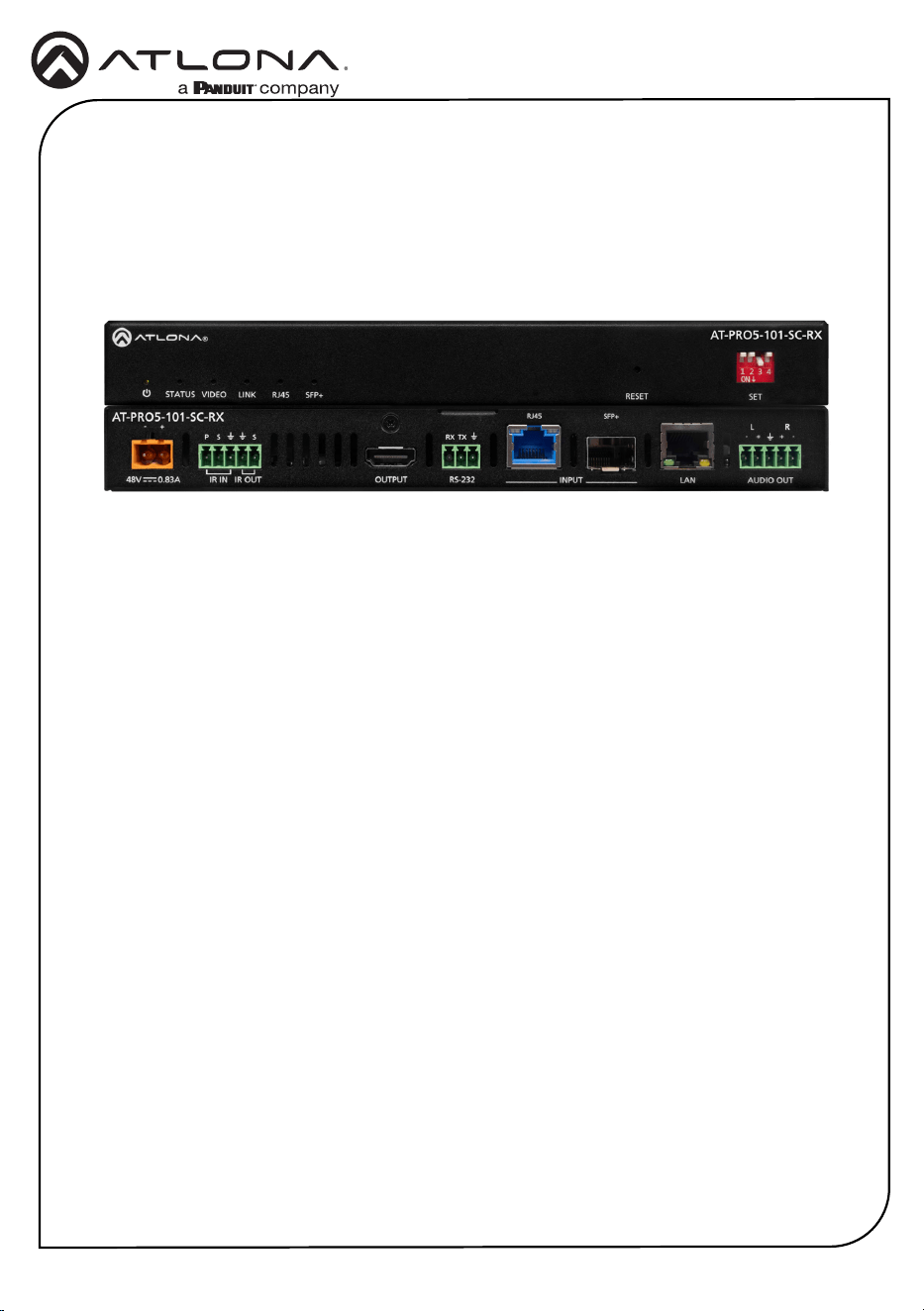
The Atlona AT-PRO5-101-SC-RX is an AV extension receiver with integrated video processing,
featuring SDVoE
®
10GbE connectivity for receiving ultra-high denition video and audio from the
AT-PRO5-MX810 matrix switcher. Part of the PRO5 Series, the PRO5-101-SC-RX is HDCP 2.3
compliant, and supports 4K/60 4:4:4 and HDR at HDMI
®
data rates up to 18 Gbps. It features an
RJ45 port, and an SFP+ cage for copper or ber optic connectivity to receive video, embedded
audio, Gigabit Ethernet, and RS-232 and IR control signals from the matrix switcher. The RJ45
port allows extension up to 330 feet (100 meters) over CAT6a UTP cable, along with PoE for
powering the PRO5-101-SC-RX, while the SFP+ cage can be used with a compatible ber
optic module to extend from 38 meters up to 10 kilometers over ber optic cable. This receiver
features high-performance video processing which includes 4K video upscaling and downscaling
with frame rate conversion, and video wall processing for 2x2, 1x3, and 2x4 display arrays. The
PRO5-101-SC-RX SDVoE scaling receiver, together with the PRO5-MX810 HDMI to SDVoE
matrix switcher, is ideal for a wide range of commercial applications requiring multi-zone AV
distribution with long-distance signal extension.
1 x AT-PRO5-101-SC-RX
1 x 3-pin captive screw connector
2 x 5-pin captive screw connectors
1 x Insert w/ QR code
Package Contents
2
Installation Guide
AT-PRO5-101-SC-RX
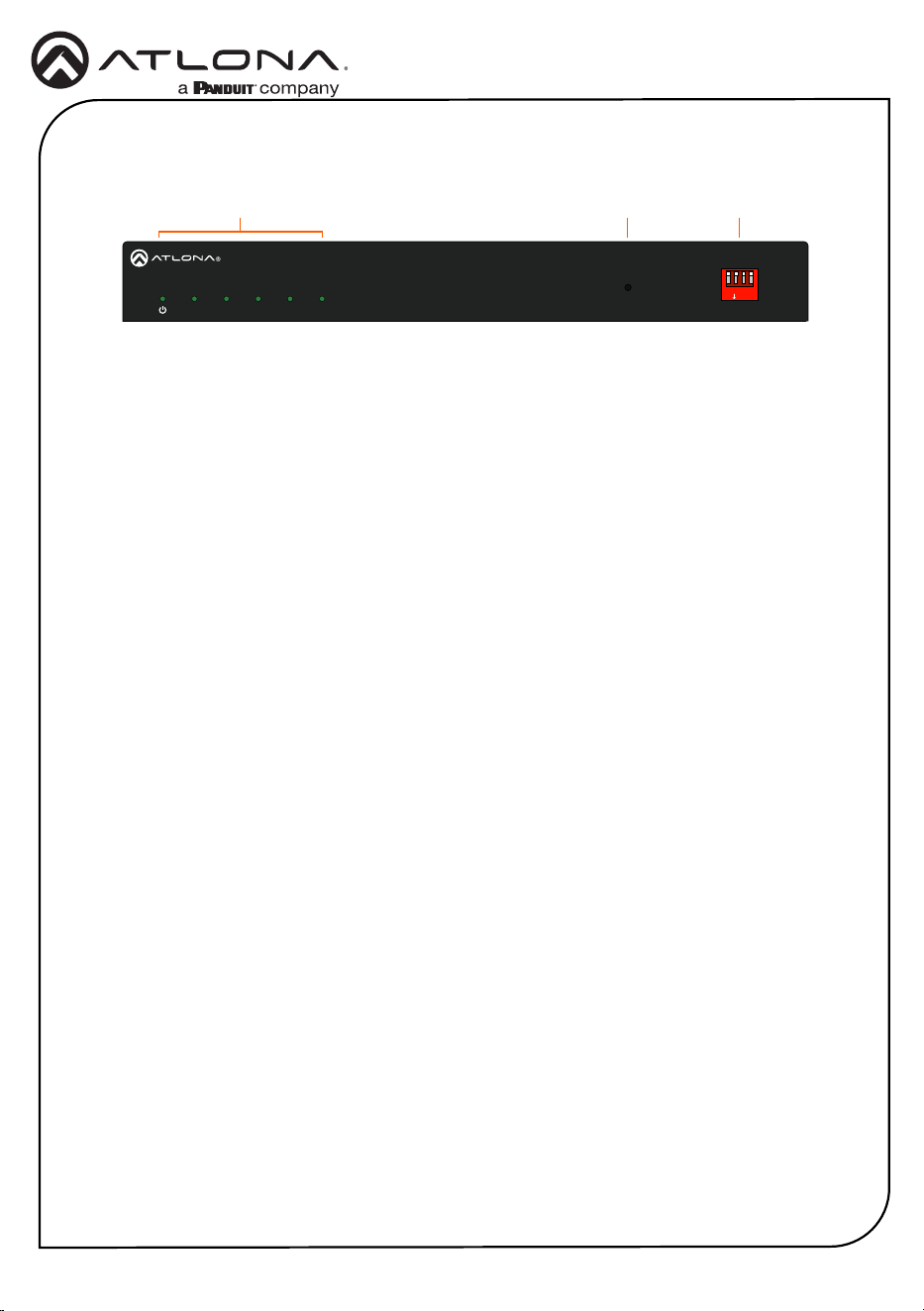
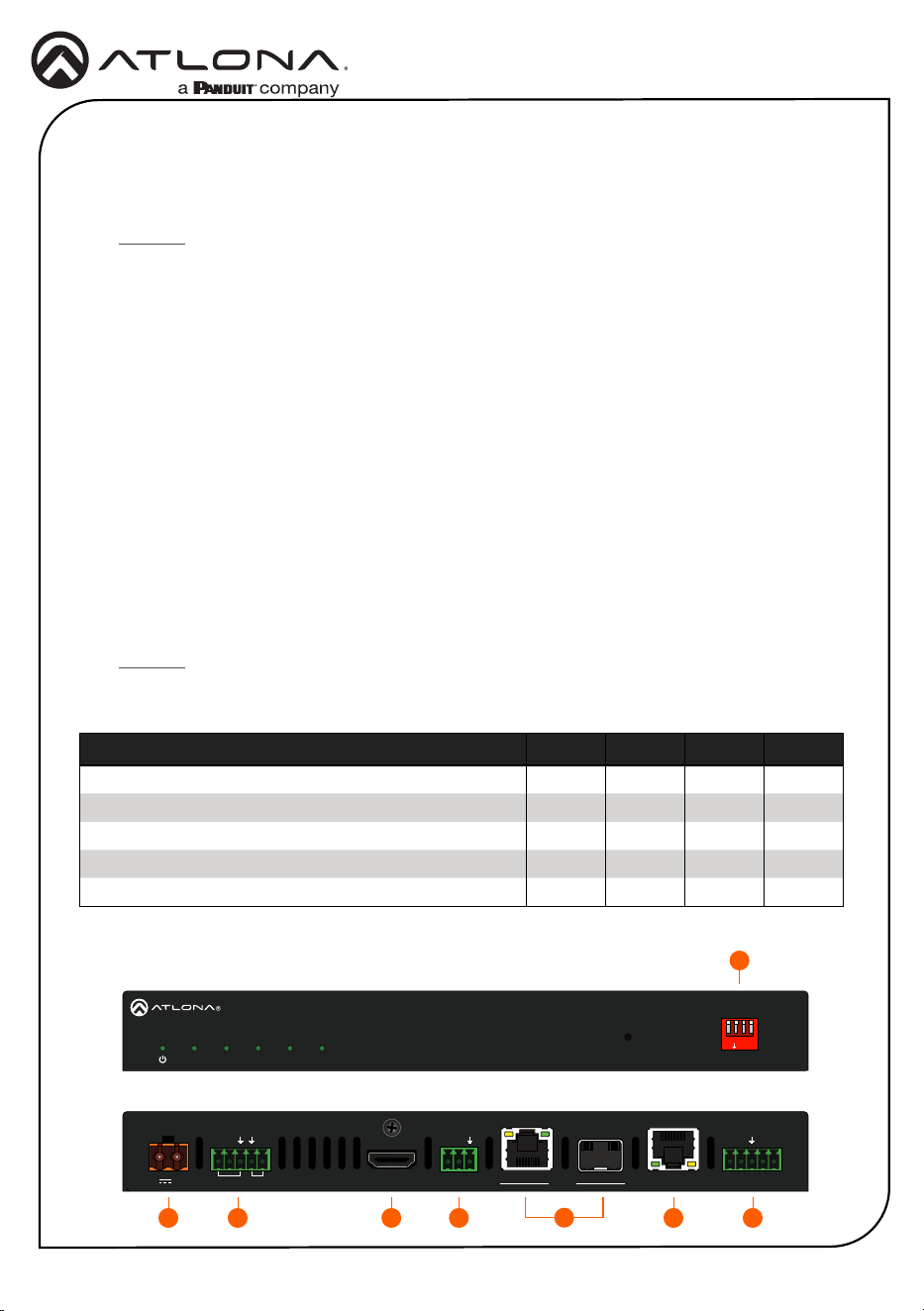
1 LED Indicators
Displays the current state of the unit:
• PWR - LED will be green when the
unit is powered.
• STATUS - LED will be solid green
when the signal is encrypted with
HDCP. If the signal is not encrypted,
the LED will blink green. If no video
signal is detected, then the LED will
be o.
• VIDEO - LED will be solid green
when video is passing through the
AT-PRO5-SC-RX.
• LINK - LED will be solid green when
a link has been established with AT-
PRO5-MX810.
• RJ45 - LED will be solid green when
the RJ45 port is being used.
• SPF+ - LED will be solid green when
and SFP+ module is being used.
2 RESET
Press this recessed button, using a
paperclip or other small object, to perform
a factory-reset on the unit.
3 SET
These DIP switches control the function
of both the RJ45 and SFP+ port. Refer to
DIP Switch Settings (page 4) for more
information.
Front Panel Descriptions
32
AT-PRO5-101-SC-RX
AUDIO OUTRS-232 INPUT LANOUTPUTIR IN IR OUT
RX TX
48V 0.83A
SP
+
-
+ +
- -
S
L R
RJ45 SFP+
SETRESETSTATUS VIDEO LINK
RJ45 SFP+
AT-PRO5-101-SC-RX
1
ON
2 3 4
1
3
Installation Guide
AT-PRO5-101-SC-RX
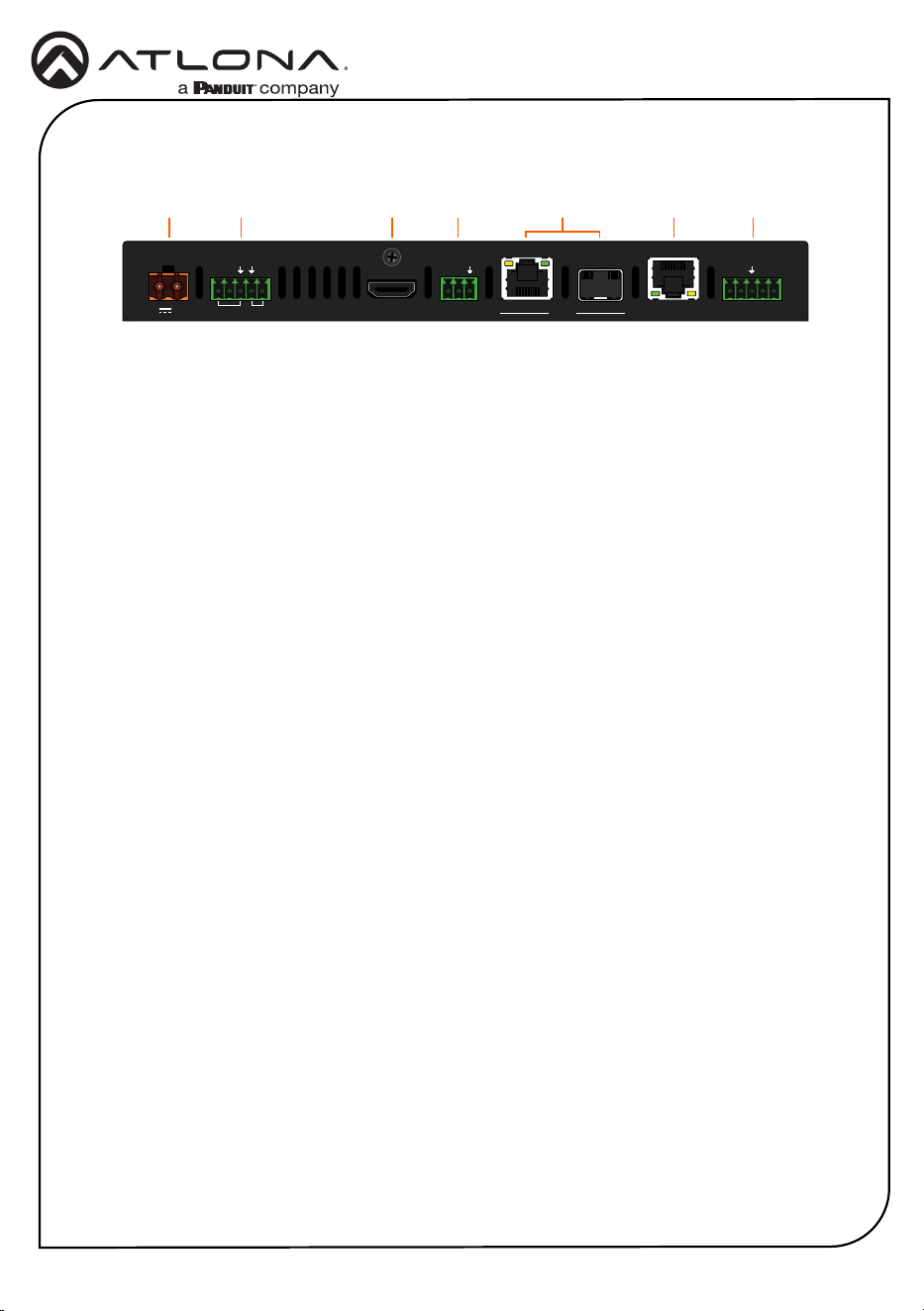
1 48V / 0.83A
Connect the included 48 V / 0.83 A power
supply from this port to an available AC
electrical outlet. Note that the power
supply is optional when using the SFP+
port.
2 IR IN / IR OUT
Connect one of the included 5-pin captive
screw connectors to this port. Refer to
IR IN / IR OUT (page 6) for wiring
information.
3 OUTPUT
Connect an HDMI cable from this port to
a display.
4 RS-232
Connect the included 3-pin captive screw
connector to this port.
5 INPUT
Connect these inputs from the AT-PRO5-
MX810, based on the desired extension
method. Note that both RJ45 and SFP+
port cannot be used at the same time.
• RJ45 - Provides extension up to 330
feet (100 meters) over CAT6A/7 cable
along with Power over Ethernet
(PoE).
• SFP+
When used with compatible ber
optic transceiver modules, this port
provides extension from 38 meters
(125 feet) up to 10 kilometers (6.2
miles) over ber optic cable.
6 LAN
Connect an Ethernet cable from this port
to the network.
7 AUDIO OUT
Connect the included 5-pin captive screw
connector from this port to an amplier.
Rear Panel Descriptions
761 2 3 4
AT-PRO5-101-SC-RX
AUDIO OUTRS-232 INPUT LANOUTPUTIR IN IR OUT
RX TX
48V 0.83A
SP
+
-
+ +
- -
S
L R
RJ45 SFP+
SETRESETSTATUS VIDEO LINK
RJ45 SFP+
AT-PRO5-101-SC-RX
1
ON
2 3 4
5
4
Installation Guide
AT-PRO5-101-SC-RX
Installation
DIP Switch Settings
1. Connect these INPUT ports from the EXT 1 - EXT 8 ports on the AT-PRO5-MX810.
Note that both RJ45 and SFP+ port cannot be used at the same time.
2. Optional: Adjust the DIP switches to the desired setting. By default, they are congured to
Auto mode, which automatically detects the correct extension type on the back panel.
Refer to the DIP Switch Settings table below
• RJ45 - Connect CAT6a/7 cabling up to 330 feet (100 meters) to
AT-PRO5-101-SC-RX scaling receivers or AT-PRO5-101-RX receivers.
• SFP+ - Fiber optic transceiver modules extend from 38 meters up to 10 kilometers over
ber optic cable. Refer to Compatible Transceivers (page 4) for more information.
NOTE: The “-” symbol indicates that the switch can be in either up or down for that function.
1
3 5 4 7
2
68
3. Connect an HDMI cable from the OUTPUT port to a display.
4. Connect an Ethernet cable from the LAN port to the Local Area Network (LAN).
5. Connect the included 3-pin captive screw connector from the RS-232 port to the display, if
using RS-232 to control the display. Refer to RS-232 (page 5) for more information.
6. Connect a 3.5 mm jack from the control system to the IR IN ports. Connect IR emitters
from the IR OUT ports to controlled devices.
7. Connect the included 5-pin captive screw connectors from these AUDIO OUT ports to an
amplier. Refer to AUDIO OUT (page 5) for more information.
8. Optional: Connect the power supply to the 48V / 0.83A receptacle.
AT-PRO5-101-SC-RX
AUDIO OUTRS-232 INPUT LANOUTPUTIR IN IR OUT
RX TX
48V 0.83A
SP
+
-
+ +
- -
S
L R
RJ45 SFP+
SETRESETSTATUS VIDEO LINK
RJ45 SFP+
AT-PRO5-101-SC-RX
1
ON
2 3 4
AT-PRO5-101-SC-RX
AUDIO OUTRS-232 INPUT LANOUTPUTIR IN IR OUT
RX TX
48V 0.83A
SP
+
-
+ +
- -
S
L R
RJ45 SFP+
SETRESETSTATUS VIDEO LINK
RJ45 SFP+
AT-PRO5-101-SC-RX
1
ON
2 3 4
Function SW 1 SW 2 SW 3 SW 4
Auto Up Up - -
10Gb Up Down - -
SFP+ Down Down - -
Ethernet Pass-Through - - Up -
Ethernet Control - - Down -
5
Installation Guide
AT-PRO5-101-SC-RX
RS-232
AUDIO OUT
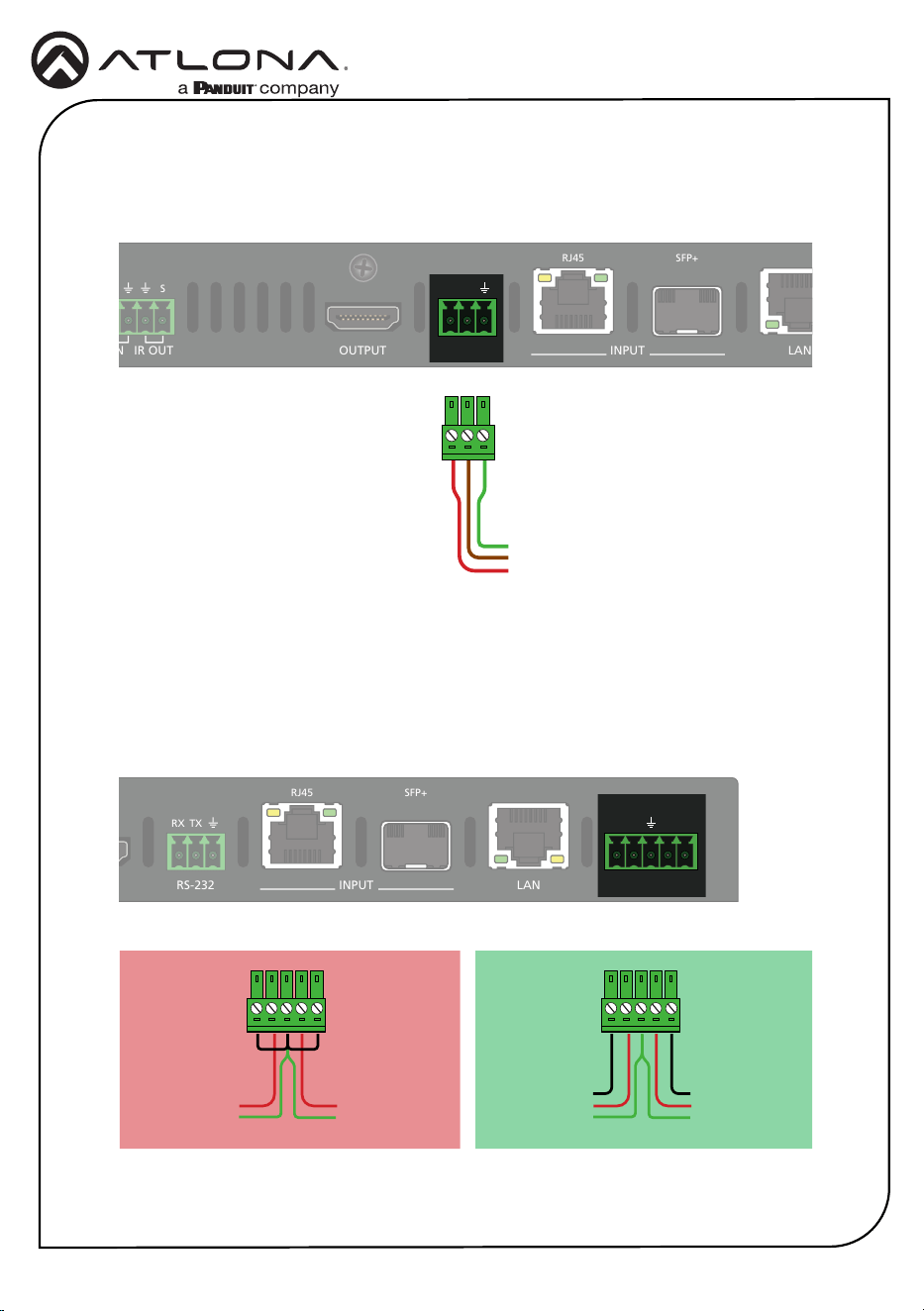
Connect the RS-232 cable between the RS-232 port on the AT-PRO5-101-SC-RX and the
display. Use the included 3-pin captive screw connector to wire the RS-232 cable as shown.
Each AUDIO OUT port can be wired for either unbalanced or balanced output. For unbalanced
audio connections, both negative terminals should be connected to ground. Wire the included
5-pin captive screw connectors as shown.
RX
To display
TX
GND
}
Right Channel
Left Channel
}
}
++
GNDGND
Unbalanced Audio
Right Channel
Left Channel
}
}
+
-
+
-
GNDGND
Balanced Audio
AT-PRO5-101-SC-RX
AUDIO OUT
RS-232 INPUT
LAN
OUTPUT
IR IN
IR OUT
RX TX
48V 0.83A
SP
+
-
+ +
- -
S
L R
RJ45 SFP+
SETRESETSTATUS VIDEO LINK
RJ45 SFP+
AT-PRO5-101-SC-RX
1
ON
2 3 4
AT-PRO5-101-SC-RX
AUDIO OUT
RS-232
INPUT LANOUTPUTIR IN IR OUT
RX TX
48V 0.83A
SP
+
-
+ +
- -
S
L R
RJ45 SFP+
SETRESETSTATUS VIDEO LINK
RJ45 SFP+
AT-PRO5-101-SC-RX
1
ON
2 3 4
AT-PRO5-101-SC-RX
AUDIO OUTRS-232 INPUT LAN
OUTPUTIR IN IR OUT
RX TX
48V 0.83A
SP
+
-
+ +
- -
S
L R
RJ45 SFP+
SETRESETSTATUS VIDEO LINK
RJ45 SFP+
AT-PRO5-101-SC-RX
1
ON
2 3 4
AT-PRO5-101-SC-RX
AUDIO OUT
RS-232 INPUT LANOUTPUTIR IN IR OUT
RX TX
48V 0.83A
SP
+
-
+ +
- -
S
L R
RJ45 SFP+
SETRESETSTATUS VIDEO LINK
RJ45 SFP+
AT-PRO5-101-SC-RX
1
ON
2 3 4
6
Installation Guide
AT-PRO5-101-SC-RX
IR IN / IR OUT
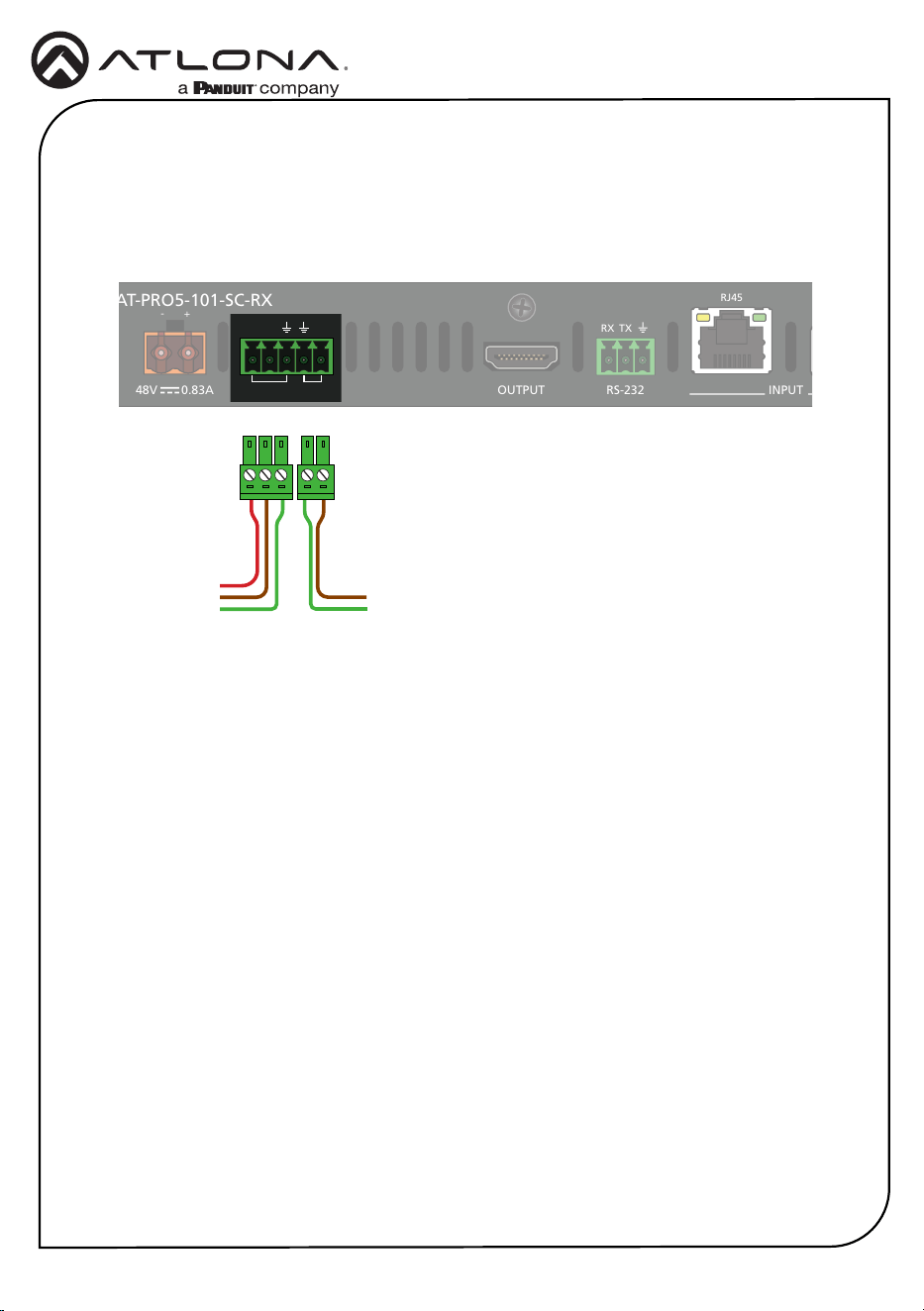
Connect the IR sensor and an IR emitter to the IR IN / IR OUT port on the AT-PRO5-101-SC-RX.
Use the included 3-pin captive screw connector for the IR receiver (IR IN) and the included 2-pin
captive screw connector to connect the IR emitter (IR OUT).
GND
GND
From IR sensor
or receiver
To IR emitter
S
S
P
}
}
A
T-PRO5-101-SC-RX
AUDIO OUT
RS-232 INPUT
LAN
OUTPUTIR IN IR OUT
RX TX
48V 0.83A
SP
+
-
+ +
- -
S
L R
RJ45
SFP+
SETRESETSTATUS VIDEO LINK
RJ45 SFP+
AT-PRO5-101-SC-RX
1
ON
2 3 4
AT-PRO5-101-SC-RX
AUDIO OUTRS-232 INPUT LANOUTPUT
IR IN IR OUT
RX TX
48V 0.83A
SP
+
-
+ +
- -
S
L R
RJ45 SFP+
SETRESETSTATUS VIDEO LINK
RJ45 SFP+
AT-PRO5-101-SC-RX
1
ON
2 3 4

7
Installation Guide
AT-PRO5-101-SC-RX
Notes
8
Installation Guide
AT-PRO5-101-SC-RX
25377-R1
®
The terms HDMI, HDMI High-Denition Multimedia Interface, HDMI trade dress and the HDMI Logos are
trademarks or registered trademarks of HDMI Licensing Administrator, Inc.
© 2025 Atlona Inc. All rights reserved. “Atlona” and the Atlona logo are registered trademarks of Atlona Inc. All other brand names and trademarks or registered
trademarks are the property of their respective owners. Pricing, specications and availability subject to change without notice. Actual products, product images, and
online product images may vary from images shown here.
English Declaration of Conformity
The English version can be found under the resources tab at:
https://atlona.com/product/at-pro5-101-sc-rx/.
Warranty
Chinese Declaration of Conformity 中国RoHS合格声明
To view the product warranty, use the following link or QR code:
https://atlona.com/warranty/.
由SKU列出於:
https://atlona.com/about-us/china-rohs/.
US International
atlona.com • 408.962.0515 • 41.43.508.4321