User Manual
© Copyright 2010, Superscope Technologies, Inc.
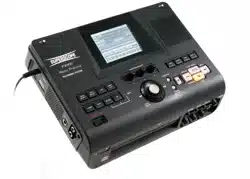
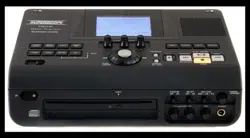
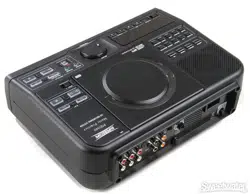
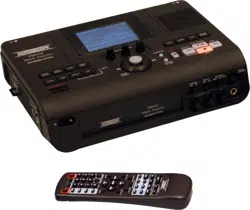
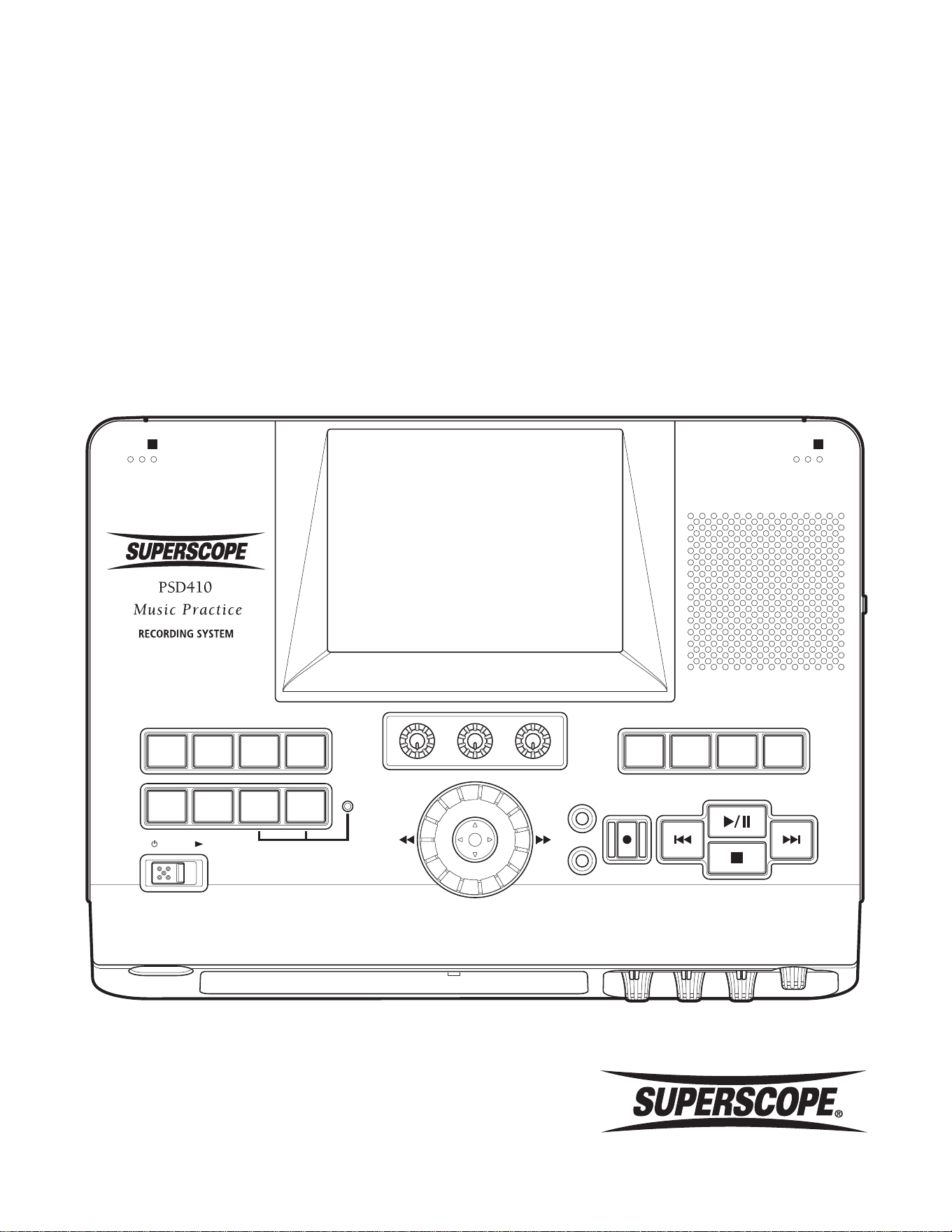
PSD410
Music Practice and Digital Recording System
PREVIOUS
OVERDUB
PUNCH
IN/OUT
PUSH
ENTER
BEAT
LMIC
RMIC
32
FUNCTION ADJUST
1
NEXT
PLAY/PAUSE
REC REVIEW
STOP
REC
POWER
TAPMETROTONETUNER
TEMPO
/ KEY
LOOP
INPUT
SELECT
TRACK
SELECT
EDITCANCELMENU
RECORD
FORMAT
https://manual-hub.com/
- 2 -
Superscope PSD410 User Manual
Superscope PSD410 User Manual
The lightning flash with arrowhead symbol
within an equilateral triangle is intended to
alert the user to the presence of uninsulated
"dangerous voltage" within the product's
enclosure that may be of sufficient magnitude to
constitute a risk of electric shock to persons.
The exclamation point within an equilateral
triangle is intended to alert the user to
the presence of important operating and
maintenance (servicing) instructions in the
literature accompanying the appliance.
■Important Safety
Instructions
READ BEFORE OPERATING EQUIPMENT
This product was designed and manufactured to meet strict quality
and safety standards. There are, however, some installation and
operation precautions which you should be particularly aware of.
1. Read instructions.
2. Keep these instructions.
3. Heed all warnings.
4. Follow all instructions.
5. Clean only with dry cloth.
6. Do not use this apparatus near water.
7. To ventilate the unit, do not install it in a rack or bookshelf, and
note the following: Do not insert objects beneath the unit. Do not
block ventilation slots at the top of the unit. Do not place anything
about 1 meter above the top panel. Make a space of about 8“ (20
cm) around the unit.
8. Do not install near nay heat sources such as radiators, heat
registers, stoves, or other apparatus (including amplifiers) that
produce heat.
9. Do not defeat the safety purpose of the polarized or grounding-
type plug. A polarized plug has two blades with one wider than
the other. A grounding type plug has two blades and a third
grounding prong. The wide blade or the third prong are provided
for your safety. If the provided plug does not fit into your outlet,
consult an electrician for replacement of the obsolete outlet.
10. Protect the power cord from being walked on or pinched
particularly at plugs, convenience receptacles, and the point where
they exit from the apparatus.
11. Only use attachments/accessories specified by
the manufacturer.
12. Use only with the cart, stand, tripod, bracket,
or table specified by the manufacturer, or
sold with the apparatus. When a cart is used,
use caution when moving the cart/apparatus
combination to avoid injury from tip-over.
13. Unplug this apparatus during lightning storms or when unused for
long periods of time.
14. Refer all servicing to qualified service personnel. Servicing is
required when the apparatus has been damaged in any way, such
as power-supply cord or plug is damaged, liquid has been spilled
or objects have fallen into the apparatus, the apparatus has been
exposed to rain or moisture, does not operate normally, or has
been dropped.
Additional Safety Information!
• This product should not be placed in a built-in installation such
as a bookcase or rack unless proper ventilation is provided or the
manufacturer’s instructions have been adhered to.
• Apparatus shall not be exposed to dripping or splashing and that
no objects filled with liquids, such as vases, shall be placed on the
apparatus.
• When the switch is in the OFF position, the apparatus isn’t
completely switched-off from the MAINS.
WARNINGS
Do not expose the equipment to rain or moisture.
Do not remove the cover from the equipment.
No naked flame sources, such as lighted candles, should be placed on the
equipment.
Protect the power cord from being walked on or pinched particularly at plugs,
convenience receptacles, and the point where they exit from the apparatus.
Set the unit up on an even surface away from direct sunlight, high
temperatures, high humidity, and excessive vibration.
Do not place heavy items on the unit.
Do not use high voltage power sources. This can overload the unit and cause a
fire.
Do not handle the plug with wet hands. This can cause electric shock.
Do not let metal objects fall inside the unit.
Do not let liquids get into the unit.
Do not spray insecticides onto or into the unit.
Do not attempt to repair this unit by yourself.
WARNING
TO REDUCE THE RISK OF FIRE OR ELECTRIC SHOCK, DO NOT
EXPOSE THIS PRODUCT TO RAIN OR MOISTURE.
CAUTION: TO PREVENT ELECTRIC SHOCK, MATCH WIDE
BLADE OF PLUG TO WIDE SLOT, FULLY INSERT.
ATTENTION: POUR EVITER LES CHOC ELECTRIQUES, INTRODUIRE LA
LAME LA PLUS LARGE DE LA FICHE DANS LA BORNE CORRESPONDANTE
DE LA PRISE ET POUSSER JUSQUíAU FOND.
NOTE TO CATV SYSTEM INSTALLER:
This reminder is provided to call the CATV (Cable-TV) system installer’s
attention to Section 820-40 of the NEC which provides guidelines for
proper grounding and, in particular, specifies that the cable ground
shall be connected to the grounding system of the building, as close to
the point of cable entry as practical.
NOTE: This equipment has been tested and found to comply with the
limits for a Class B digital device, pursuant to Part 15 of the FCC Rules.
These limits are designed to provide reasonable protection against
harmful interference in a residential installation. This equipment
generates, uses and can radiate radio frequency energy and, if not
installed and used in accordance with the instructions, may cause
harmful interference to radio communications. However, there is no
guarantee that interference will not occur in a particular installation. If
this equipment does cause harmful interference to radio or television
reception, which can be determined by tuning the equipment off and
on, the user is encouraged to try to correct the interference by one or
more of the following measures:
• Reorient or relocate the receiving antenna.
• Increase the separation between the equipment and receiver.
• Connect the equipment into an outlet on a circuit different from
that to which the receiver is connected.
• Consult the dealer or an experienced radio/TV technician for help.
NOTE: Changes or modifications not expressly approved by the party
responsible for compliance could void the user’s authority to operate
the equipment.
This Class B digital apparatus complies with Canadian ICES-003.
Cet appareil numÈrique de la Classe B conforme à la norme NMB-003
du Canada.
SD Logo is a trademark. microSD Logo is a trademark.
CAUTION: TO REDUCE THE RISK OF ELECTRIC SHOCK,
DO NOT REMOVE COVER (OR BACK)
NO USER-SERVICEABLE PARTS INSIDE
REFER SERVICING TO QUALIFIED SERVICE PERSONNEL
RISK OF ELECTRIC SHOCK
DO NOT OPEN
CAUTION
https://manual-hub.com/
Superscope PSD410 User Manual
- 3 -
Contents
■Table of Contents
■Important Safety Instructions ..................... 2
■Table of Contents ......................................... 3
■Supplied Accessories .................................... 6
Infrared (IR) Remote .................................................. 6
AAA Batteries ........................................................... 6
AC Adapter ............................................................... 6
Micro SD Card ...........................................................6
Mini SD Card Adapter ............................................... 6
SD Card Adapter ....................................................... 6
USB Cable ................................................................. 6
AC Power Cord ......................................................... 6
RCA Patch Cables ......................................................6
■Introduction .................................................. 7
General Features ....................................................... 7
Recording Features .................................................... 7
Music Practice Features ............................................. 7
Package Contents .....................................................7
■Preparations Before Use .............................. 8
AC Adapter Safety ...................................................8
Remote Controller Battery Installation ....................... 9
■Top Panel ....................................................... 10
POWER .................................................... 10
FUNCTION CONTROL Buttons ............................. 10
A. TRACK SELECT ..................................................... 10
B. INPUT SELECT ....................................................... 10
C. LOOP .................................................................... 11
D. TEMPO/KEY ..........................................................11
E. TUNER ...................................................................11
F. TONE ..................................................................... 11
G. METRO ................................................................. 11
H. TAP ....................................................................... 11
BEAT Indicator ..................................................... 11
FUNCTION ADJUST Knobs ................................... 11
JOG WHEEL / JOYSTICK / ENTER ..........................11
OVERDUB ............................................................12
PUNCH IN / OUT .................................................. 12
CONTROL Buttons (Transport) ............................. 12
A. REC BUTTON ........................................................ 12
B. PREVIOUS & REC REVIEW BUTTON ....................... 12
C. PLAY/PAUSE Button .............................................. 12
D. STOP BUTTON ...................................................... 12
E. NEXT ..................................................................... 12
CONTROL Buttons (Top Right) ............................. 12
A. MENU ...................................................................12
B. CANCEL ................................................................ 12
C. EDIT ...................................................................... 12
D. RECORD FORMAT .................................................12
Internal Speaker ..................................................13
- Internal Mic R & Internal Mic L ................... 13
LCD Color Display ................................................ 13
■Front Panel .................................................... 14
Infrared (IR) Receiver ........................................... 14
IR Signal Indicator ................................................14
MIC / LINE L & R Level Control ............................. 14
Instrument Level Control ..................................... 14
Phantom Power ON/OFF SWITCH ........................ 14
MIC ATT ON/OFF ................................................ 14
RECORD LEVEL MAN / LIM / ALC .........................14
MAN (Manual) .......................................................... 14
LIM (Limiter) .............................................................. 14
ALC (Automatic Level Control) ..................................14
PHONES / SPEAKER LEVEL ................................... 14
PHONES Jack ....................................................... 14
■Right Side Panel ............................................ 15
Left / XLR / “1/4” Input Jack ................................ 15
Right / XLR / “1/4” Input Jack .............................. 15
INST IN Jack ......................................................... 15
AUX LEVEL .......................................................... 15
AUX IN Jacks ....................................................... 15
LINE OUT Jacks .................................................... 15
■Left Side Panel .............................................. 16
DC Input Jack ...................................................... 16
USB Connector .................................................... 16
Mini SD Slot ........................................................16
FOOT PEDAL Jack ................................................ 16
Digital OUT Jack .................................................. 16
Digital IN Jack ......................................................16
■Back Panel ..................................................... 17
Battery Compartment .......................................... 17
■Remote Control ............................................ 18
STANDBY / POWER ......................................... 18
w Alphanumeric Keypad ...........................................18
e FOLDER ................................................................. 18
r SEARCH ................................................................ 18
t CANCEL ................................................................ 18
y TEMPO .................................................................. 18
u ENTER ................................................................... 18
i FINE TUNE ............................................................. 18
o TEMPO RESET ....................................................... 18
a PLAY
................................................................ 18
s STOP
................................................................. 19
d REPEAT.................................................................. 19
f PAUSE
.............................................................19
g DRIVE SELECT ....................................................... 19
h MUTE .................................................................... 19
j LOCATION ............................................................ 19
k LOOP ENTER/EXIT ................................................. 19
FF
(Fast Forward) ............................................. 19
REW
(Rewind)..................................................19
https://manual-hub.com/

- 4 -
Superscope PSD410 User Manual
Contents
Next ............................................................... 19
Previous .......................................................... 19
FINE TUNE RESET .................................................. 19
KEY RESET ............................................................ 19
KEY ....................................................................... 19
MENU ................................................................... 19
TONE ON/OFF ....................................................... 19
TUNER ON/OFF ..................................................... 19
METRO ON/OFF .................................................... 19
INPUT MIC/LINE/AUX ............................................ 19
RECORD ................................................................19
RECORD REVIEW ...................................................19
MONITOR ............................................................. 19
■LCD Display ................................................... 20
PLAY / STOP Mode .................................................... 20
Ⓐ Icons ..................................................................... 20
Status Icons ........................................................... 20
w Loop Icons............................................................. 20
e Repeat Icons .......................................................... 20
r Voice Reduction Icons ........................................... 21
y Monitor Icons ....................................................... 21
y Mute Icons ............................................................ 21
u AC/Battery Icons ................................................... 21
PLAY / STOP Mode .................................................... 21
Ⓑ File Information ....................................................21
PLAY / STOP Mode .................................................... 22
Ⓒ Playback Data ....................................................... 22
PLAY / STOP Mode .................................................... 22
Ⓓ Location ............................................................... 22
Indicating Location .................................................... 22
PLAY / STOP Mode .................................................... 22
Ⓔ Balance & Levels ................................................... 22
PLAY / STOP Mode .................................................... 22
Ⓕ VU Meters ............................................................ 22
■Powering On ................................................. 23
Using the AC Adapter ............................................... 23
Using Batteries .......................................................... 23
Battery Life ................................................................ 24
AC Power and Battery Tips ........................................ 24
■Setting Date and Time ................................. 25
■About the Mini SD Card ............................... 26
Inserting a Mini SD Card ...........................................26
Inserting an SD Card with a Large Number of Audio
Files ........................................................................... 26
Inserting an SD Card with a Large Number of Non-
Audio Files ................................................................ 26
Inserting an SD Card Containing Large Audio Files .... 26
Removing the Mini SD Card ...................................... 27
■Setting Up Speakers ..................................... 27
Using Headphones or the Built-In Speaker ................. 27
External Speakers ...................................................... 27
■Setting Up Microphones, Instruments and
Other Sound Sources ....................................... 28
Microphones ............................................................. 28
Balanced Connections ............................................... 28
Unbalanced Connections ..........................................28
External Microphones ............................................... 28
Setting Levels ............................................................ 29
STEREO/PAN Mode ................................................... 30
Pan Setting – L/1 ....................................................... 30
Pan Setting – R/2 ...................................................... 30
Recording a Solo Performance ................................... 31
Internal Built-in Microphones ....................................32
Connecting Musical Instruments ............................... 33
Recording a Microphone and a Musical Instrument at
the Same Time .......................................................... 33
Line Level Sources ..................................................... 35
AUX .......................................................................... 36
Digital Connection .................................................... 38
Computer Connection ............................................... 39
■Working With Files and Folders .................. 40
Selecting Tracks ......................................................... 40
Searching Folders ...................................................... 40
Search a USB Device ..................................................40
Create a Folder .......................................................... 41
Rename ..................................................................... 41
Create a Playlist .........................................................42
■Music Practice ............................................... 43
How to Use the Tuner ............................................... 43
Using the Chromatic Tuner ........................................ 43
Using the Tuning Tone ............................................... 44
Using the Metronome ............................................... 44
Adjusting Accent Beat and Accent Beat Volume ........ 45
Using Tap Tempo ....................................................... 45
Using the [Search] Feature .........................................46
Text Input Method .................................................... 47
■Play ................................................................ 48
Playback Operation ................................................... 48
Playback Modes ........................................................ 49
Repeat Modes ........................................................... 49
A-B Loop (Repeat Playback) ...................................... 50
Set the A Point .......................................................... 50
Set the B Point .......................................................... 50
Adjusting Tempo, Key, and Fine Tune ........................ 51
Tempo ....................................................................... 51
Key ........................................................................... 51
Interval Indication ...................................................... 52
Fine Tune ..................................................................52
Voice Reduction ........................................................ 52
https://manual-hub.com/

Superscope PSD410 User Manual
- 5 -
Contents
■Editing ........................................................... 54
Export ....................................................................... 54
Creating a File with a New Tempo or Key .................. 54
Changing File Format ................................................ 55
Naming the Exported File ..........................................55
Move a Track ............................................................. 56
Copy a Track ............................................................. 57
Delete a Track ........................................................... 58
Divide a Track ............................................................ 58
Trim In / Out .............................................................. 61
Edit Track Information ............................................... 62
Title/Artist/Album ..................................................... 62
Genre ........................................................................ 63
24>16bit Convert ......................................................63
■Recording with the PSD410 ......................... 64
Basic Recording ......................................................... 64
Recording to External USB Storage ............................ 64
Track Increment ......................................................... 64
The Record Settings Menu ........................................ 65
Fade In / Out ............................................................. 65
Count In .................................................................... 65
Recording File Format ................................................65
Bit size table .............................................................. 66
Pre-Roll Time/ Post-Roll Time ..................................... 66
Auto Track Increment ................................................ 66
One Touch Recording ................................................66
Auto Convert ............................................................ 66
■Overdub ........................................................ 67
Overdubbing for Composition (Layering sections of a
Track) ........................................................................ 67
Overdubbing for Practice (Recording over a Loop) ..... 69
Monitor Source ......................................................... 70
■Punch In/Out ................................................. 71
Punch In/Out with Foot Pedal .................................... 73
■Recording Effects ......................................... 74
Selecting an Input Signal ........................................... 74
① Delay Time ............................................................ 75
Decay ................................................................... 75
Playback Balance and Level........................................75
Equalizer Settings ...................................................... 77
Playback Equalizer ..................................................... 77
Frequency ................................................................. 77
Gain .......................................................................... 77
Bandwidth ................................................................ 78
Input Equalizer .......................................................... 78
■System Settings ............................................ 79
Auto Power Off .........................................................79
Backlight Timer ......................................................... 79
Recording Dimmer ....................................................79
Battery Type .............................................................. 79
Foot Pedal ................................................................. 79
Set Time / Date .......................................................... 80
■Appendix ....................................................... 81
Main Menu (1 of 2) ................................................... 81
Main Menu (2 of 2) ................................................... 82
Track Select Mode Transition Diagram ....................... 83
Input Select Mode Transition Diagram ....................... 84
Edit Menu Options .................................................... 85
Key/Tempo Menu......................................................86
Chromatic Tuner Menu .............................................87
Tone Menu................................................................ 87
Metronome Menu .....................................................87
Continuous Recording Time with Battery Operation .. 88
SD Card Record Times ............................................... 88
■Specifications ................................................ 89
General ..................................................................... 89
Audio ........................................................................ 89
Input/Outputs .......................................................... 89
■Trademarks, Copyrights and Disclaimers.... 90
MPEG Layer-3 Licensing ............................................ 90
https://manual-hub.com/
- 6 -
Superscope PSD410 User Manual
Superscope PSD410 User Manual
3
GHI
2
DEF
1
ABC
6
PQR
5
MNO
4
JKL
9
XYZ
8
VW
7
STU
0
SPACE
REPEAT
OFF
/
1
/
ALL
SDCD
DRIVE SELECT
HDDLOOP
ENTER / EXIT
MUTE
ON / OFF
BA
MENU CANCEL
FINE TUNE +
KEY RESET TEMPO RESET
ENTER
KEY
KEY
#
TEMPO TEMPO
+
FINE TUNE RESET
REMOTE CONTROL RC450PSD
LOCATION
♭
FINE TUNE
RECORD
j
POWER
MIC/LINE/AUX
ON / OFF
ON / OFF
ON / OFF
INPUT
TONE
TUNER
METRO
FOLDERSEARCH
PLAY
STOPNEXT
PREVIOUS
PAUSEFFREW
xwfd
rsa
MONTOR
REC REVIEW
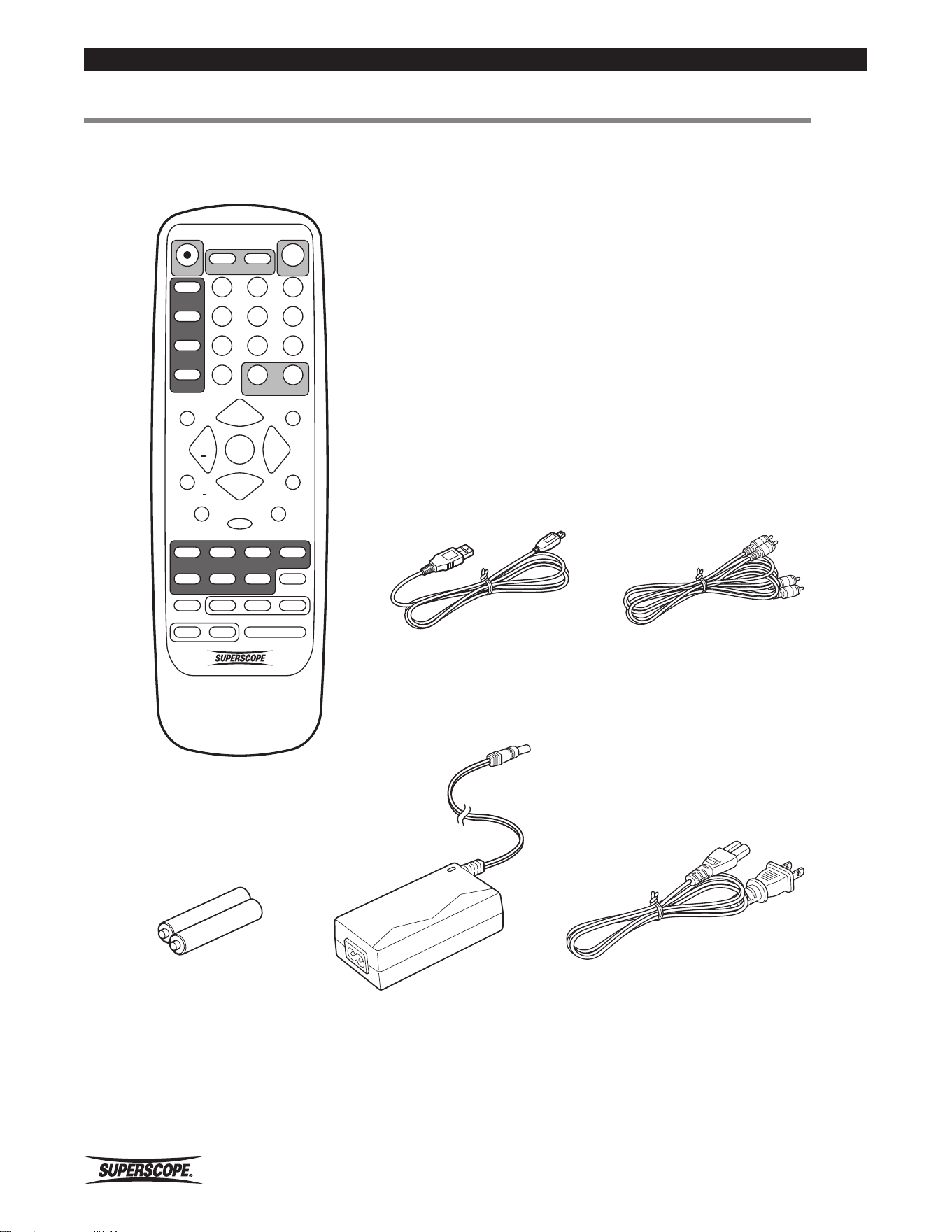
Infrared (IR) Remote
Micro SD Card
Mini SD Card Adapter
SD Card Adapter
USB Cable RCA Patch Cables
AC Adapter
AC Power Cord
AAA Batteries
■Supplied Accessories
The following items (not pictured) are also in the box:
• Instruction Manual on CD-ROM (PDF format)
• Quick Start Guide (printed))
https://manual-hub.com/

Superscope PSD410 User Manual
- 7 -
Getting Started
■Introduction
Thank you for purchasing the Superscope PSD410 Recording System.
Were you looking for a high-quality, portable recorder? A music practice and transcription tool? If either factor
is important to you, we’re confident you’ll find the PSD410 is an immensely powerful and versatile audio system.
Here are just a few of the PSD410’s features:
General Features
• 3.5-inch liquid crystal color display for easy navigation of all features.
• Record more than 6 hours with eight nickel metal hydride AA batteries (or 4 hours with alkaline batteries).
• USB connection for transferring audio files to and from a computer.
• Stereo internal microphones.
• Stereo XLR combo microphone jacks.
• 48V phantom power.
Recording Features
• Record WAV or MP3 files to SD card or to external USB storage.
• Layer audio with the Overdub feature.
• Re-record portions of audio with the Punch In/Out feature.
• Edit file information or recorded audio (Trim, Divide, etc.).
Music Practice Features
• Change the key of a song without affecting tempo (+/- one octave in half steps or finer increments).
• Change the tempo of a song without affecting musical pitch (-75% to +50%).
• Create new versions of audio files in different keys and tempos.
• Seamlessly loop different sections of audio material for practice or transcription.
• Reduce lead vocals from stereo recordings.
• Rehearse with the built-in metronome.
• Tune your instrument with the 440Hz tone or chromatic tuner.
Package Contents
• One Superscope PSD410 Recorder.
• One AC adapter (DA450PSD).
• One micro SD card (with micro-mini adapter).
• One infrared wireless remote controller (RC450PSD).
• 2-AAA type batteries (for remote control).
• One USB cable.
• One RCA stereo audio system cable.
• One instruction manual on CD-ROM.
• One Quick Start Guide (printed).
https://manual-hub.com/
- 8 -
Superscope PSD410 User Manual
Getting Started
■Preparations
Before Use
AC Adapter Connection
Connect the power output plug of the adapter to the DC
IN jack of the recorder. Connect the AC Power cord to
the household AC power receptacle.
AC Adapter Safety
Only use the AC adapter that is provided with the
recorder. Use of other adapters may result in damage to
the recorder and invalidate the warranty.
Using Batteries
The recorder is designed for use with 8 “AA” size
Alkaline, Nickel-Cadmium (Ni-Cad) or Nickel-Metal
Hydride (Ni-MH) batteries.
The recorder DOES NOT allow for charging of
rechargeable batteries. If you use rechargeable batteries,
you must use an external battery charger (see battery
charger manufacturer instructions for operation and safe
use).
The battery capacity monitoring is different for alkaline
batteries and Ni-Cad/Ni-MH batteries. Please select
the correct battery type you are using from the System
Settings menu of the recorder.
To operate the recorder with battery power, install
batteries into the recorder as follows:
1. Remove the battery cover from the rear side of the
recorder.
2. Insert the batteries into the battery compartment,
making sure to align the positive ( + ) and negative
( - ) end of each battery according to the polarity
diagram shown inside the compartment.
3. Re-attach the battery cover to the rear side of the
recorder.
Safety Cautions When Handling
Batteries
To avoid leakage, overheating, fire and rupturing, always
follow the points below when using batteries with the
recorder.
• Electrolyte leakage or corrosion may occur if
batteries are kept inside the recorder for prolonged
periods of time. Remove batteries prior to prolonged
storage of the recorder.
• When installing batteries into the recorder, make
sure the batteries are installed with the proper
polarity shown inside the battery compartment of
the recorder.
• Do not attempt to recharge non-rechargeable
batteries.
• Do not install old/exhausted batteries into the
recorder. Dispose of old batteries properly.
• Do not mix the types (Alkaline, Ni-Cad or Ni-MH) or
voltages of batteries.
Remote Controller Notes
The remote controller may not work if the infrared
receiver is exposed to direct sunlight.
The remote controller will not work when there is an
obstacle between the wireless remote controller and the
infrared receiver.
Please be careful when using the remote controller near
other equipment that responds to infrared signals.
Please do not place objects on the remote controller. If
an object resting on the remote continuously depresses a
button, battery power will drain.
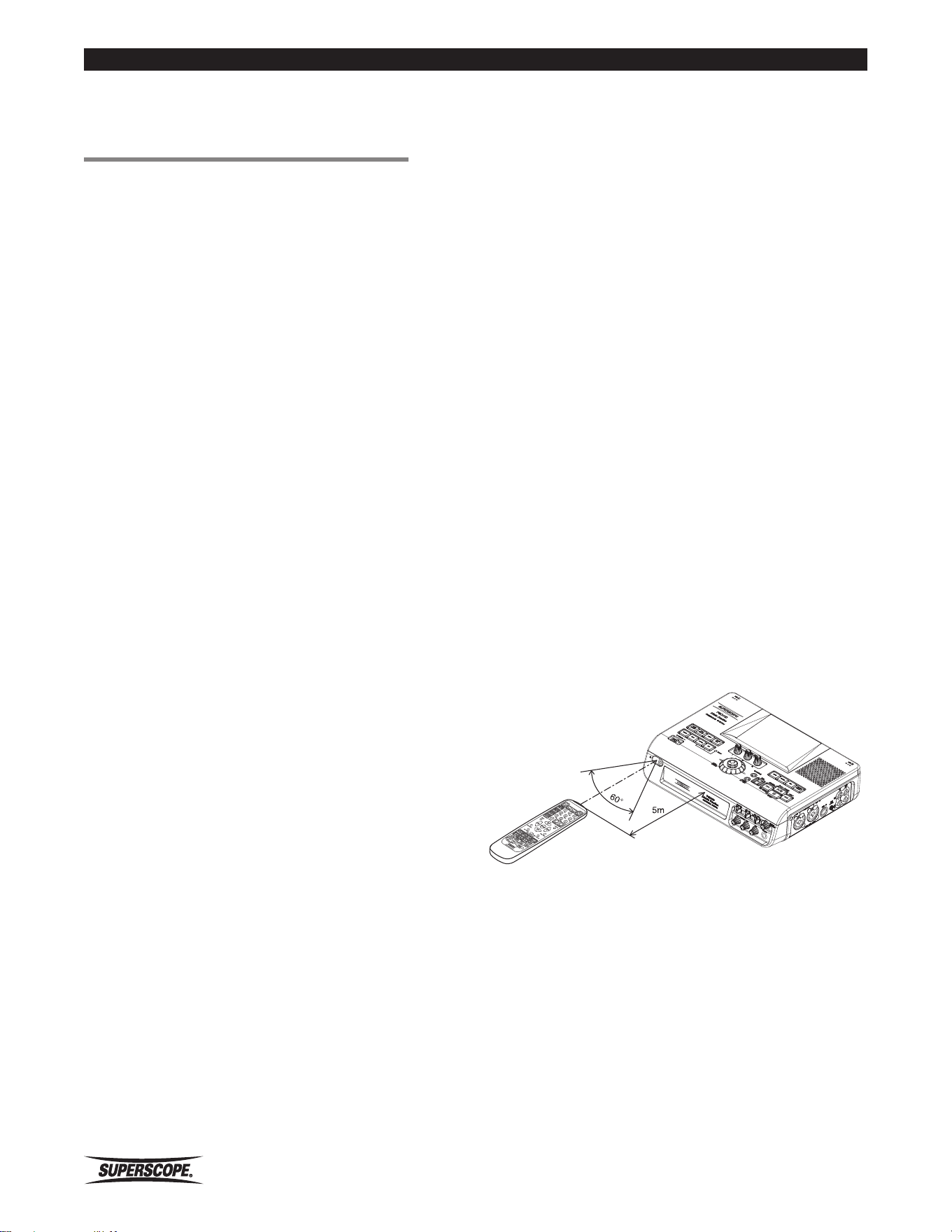
The remote controller will work within a range of 5m and
60 degrees right or left of the IR receiver, as indicated by
the following image:
https://manual-hub.com/
Superscope PSD410 User Manual
- 9 -
Getting Started
Remote Controller Battery Installation
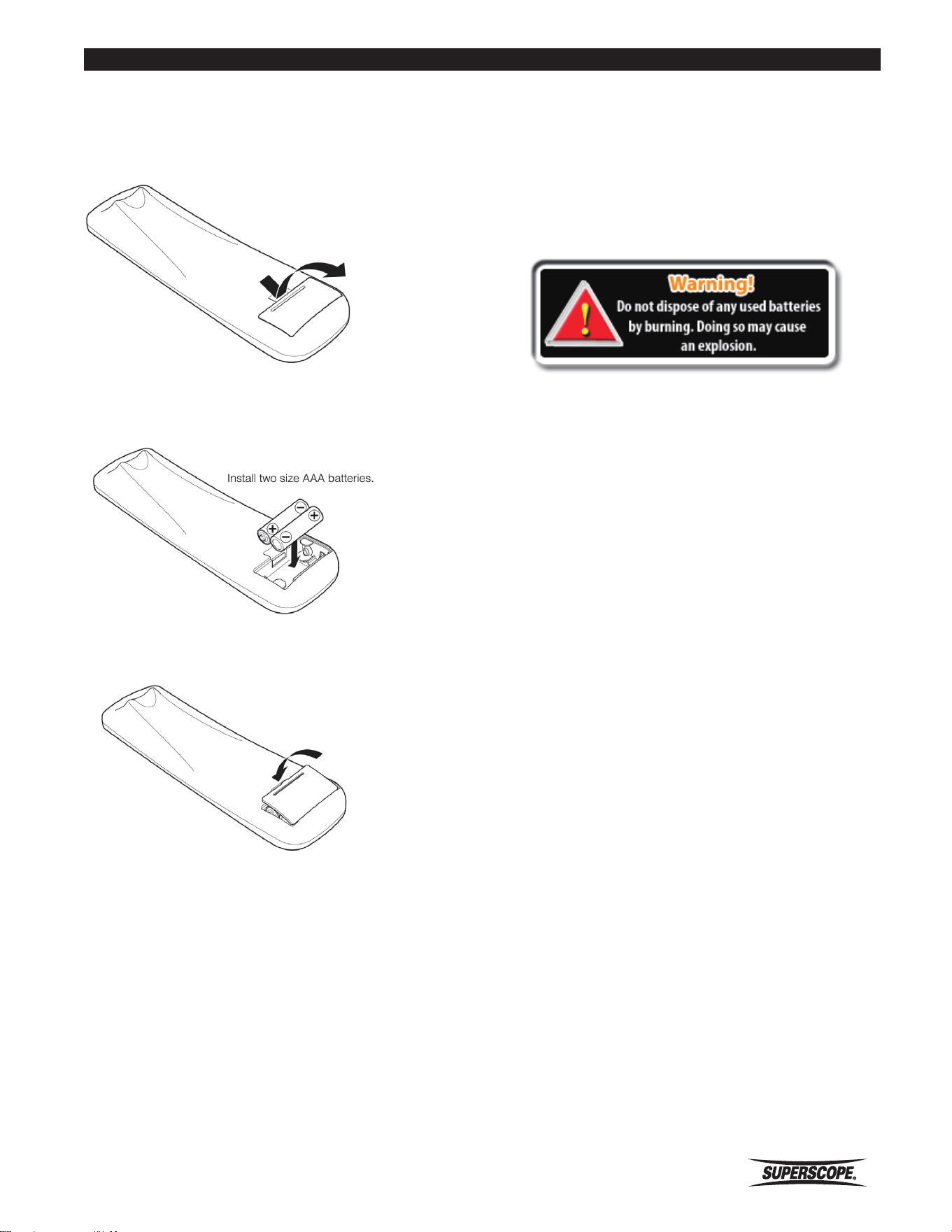
Place 2-AAA batteries (included) inside the wireless
remote controller before it is used. Replace batteries by
removing the battery cover as shown:
Always match the polarity of the 2-AAA batteries with
the polarity indication inside the battery compartment.
Close the battery cover as shown:
With improper battery use, batteries may rupture, leak,
and cause corrosion. Please read the following guidelines
carefully:
If the remote controller is not in use for a long period of
time (more than one month), remove the batteries.
Please do not mix old batteries and new batteries
together.
Please match the polarity of the battery (+/ -) with the
polarity indication on the remote controller.
Batteries may have the same shape, but different
voltages. Do not mix different battery types.
If a battery leaks, clean the liquid from the battery
compartment and dispose of the leaking battery
according to the guidelines of your local government.
Please dispose of the used batteries according to the
guidelines of your local government.
https://manual-hub.com/
- 10 -
Superscope PSD410 User Manual
Controls
■Top Panel
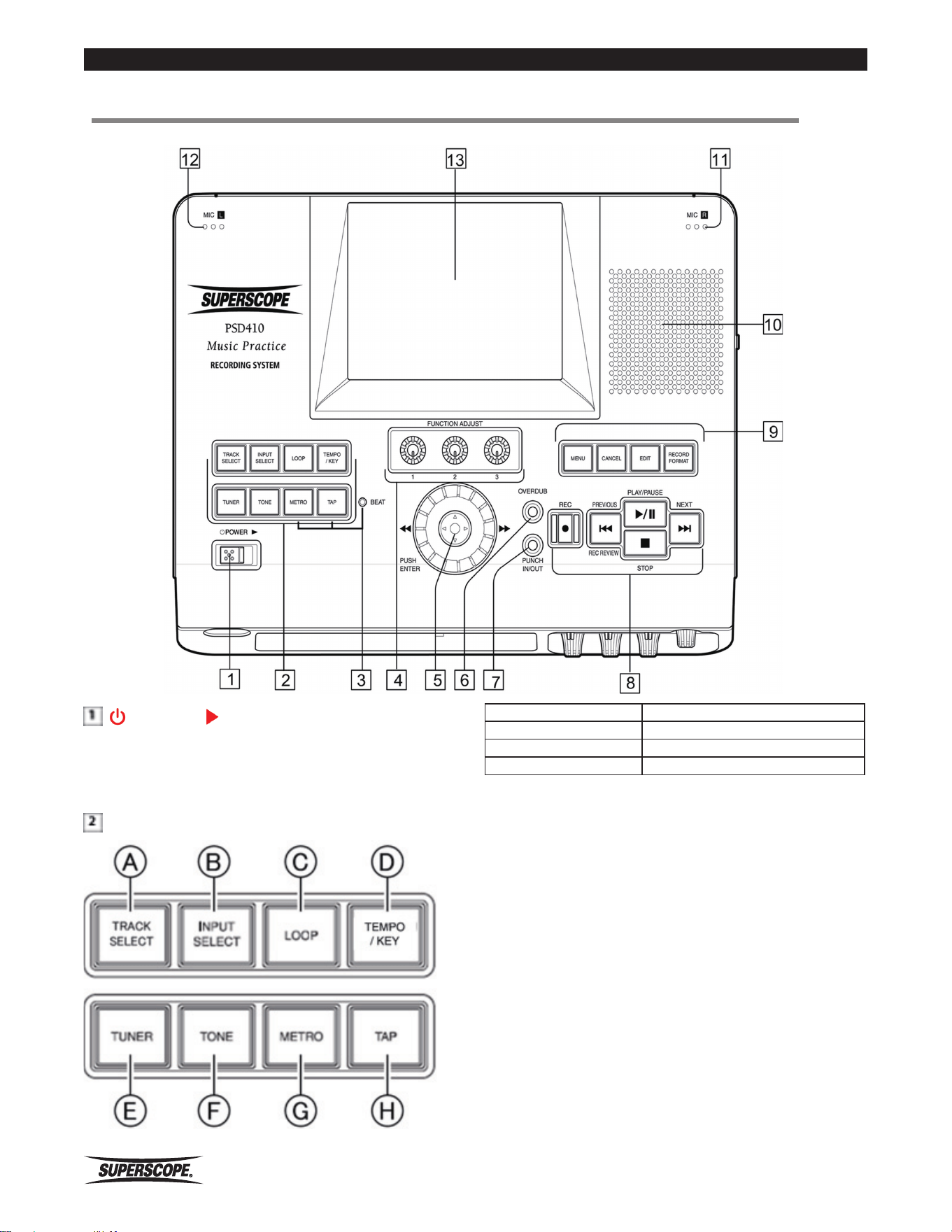
POWER
Slide the POWER switch to the right to turn power ON or
OFF.
FUNCTION CONTROL Buttons
Ⓐ TRACK SELECT Ⓔ TUNER (Chromatic tuner)
Ⓑ INPUT SELECT Ⓕ TONE (Tuning tone)
Ⓒ LOOP (A-B) Ⓖ METRO (Metronome)
Ⓓ TEMPO/ KEY Ⓗ TAP
A. TRACK SELECT
Press to select a track for playback, Edit, Overdub, or
Punch In/Out. Also, use to select a record location. Press
this button a second time to return to the normal screen.
B. INPUT SELECT
Press to select an input for recording or practice. The
Input Select menu also provides options for Pan, Input
Equalizer, and Effect. Press this button a second time to
return to the main screen.
https://manual-hub.com/
Superscope PSD410 User Manual
- 11 -
Controls
C. LOOP
Press to set loop markers and seamlessly loop a section
of audio. Press this button a second time to return to the
main screen.
D. TEMPO/KEY
Press to adjust the Key, Tempo, and Fine Tuning of any
file played on the PSD410. The Tempo/Key menu also
provides options for Voice Reduction, Playback Level,
Playback Balance, and Playback Equalizer. Press this
button a second time to return to the main screen.
E. TUNER
Press to access the chromatic tuner. Press this button a
second time to return to the main screen.
F. TONE
Press to sound the 440Hz tuning tone. The frequency of
this tone is adjustable between 410Hz and 470Hz. Press
this button a second time to return to the main screen.
G. METRO
Press to access the Metronome menu. Press this button a
second time to return to the main screen.
H. TAP
When the metronome menu is selected, press repeatedly
at the desired tempo. Once this button has been pressed
six consecutive times, a new BPM (beats per minute)
setting will be established for the metronome.
BEAT Indicator
LED flashes on and off according to the BPM setting
of the metronome. The LED will flash green for normal
beats and red for accent beats.
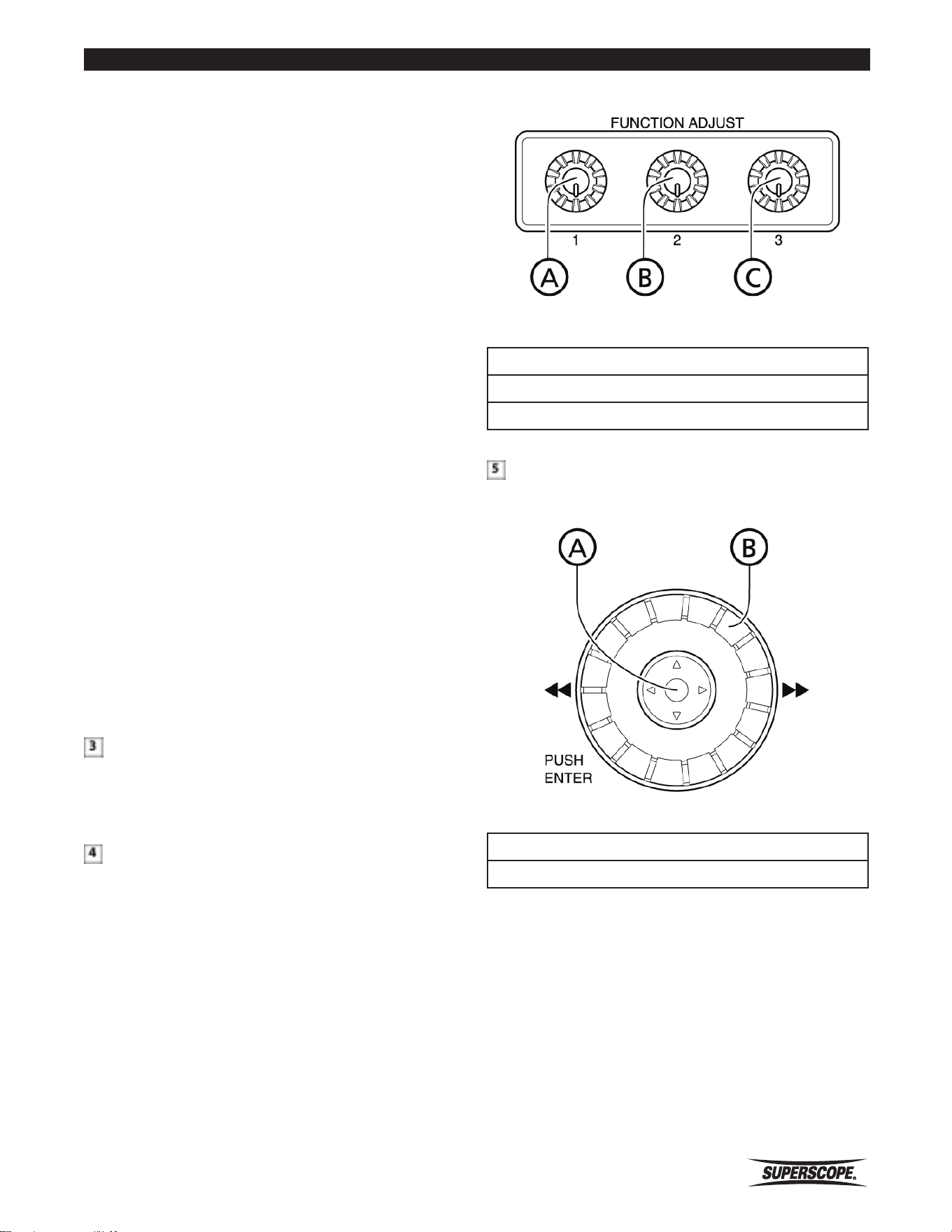
FUNCTION ADJUST Knobs
Turn to adjust various parameters. In addition, pushing
the knobs resets certain settings to their default
values. Refer to indication on display for knob/function
relationship.
Ⓐ FUNCTION ADJUST #1 knob
Ⓑ FUNCTION ADJUST #2 knob
Ⓒ FUNCTION ADJUST #3 knob
JOG WHEEL / JOYSTICK / ENTER
Ⓐ JOYSTICK
Ⓑ JOG WHEEL
A. Move the joystick up and down to select items, or
in certain modes, to change screens. Move the joystick
right and left to changes parameters, or in Play mode to
search through a track. In addition, push the joystick to
"ENTER" (select) items or settings.
B. Turn the jog wheel to select various items or
parameters.
https://manual-hub.com/
- 12 -
Superscope PSD410 User Manual
Controls
OVERDUB
When an accompaniment track is selected, press this
button to enter Overdub mode. When overdubbing is
complete, press this button to return to the main screen.
PUNCH IN / OUT
When a track is selected, press to enter Punch In/Out
mode. When you have finished recording your punch-in,
press this button to return to the main screen.
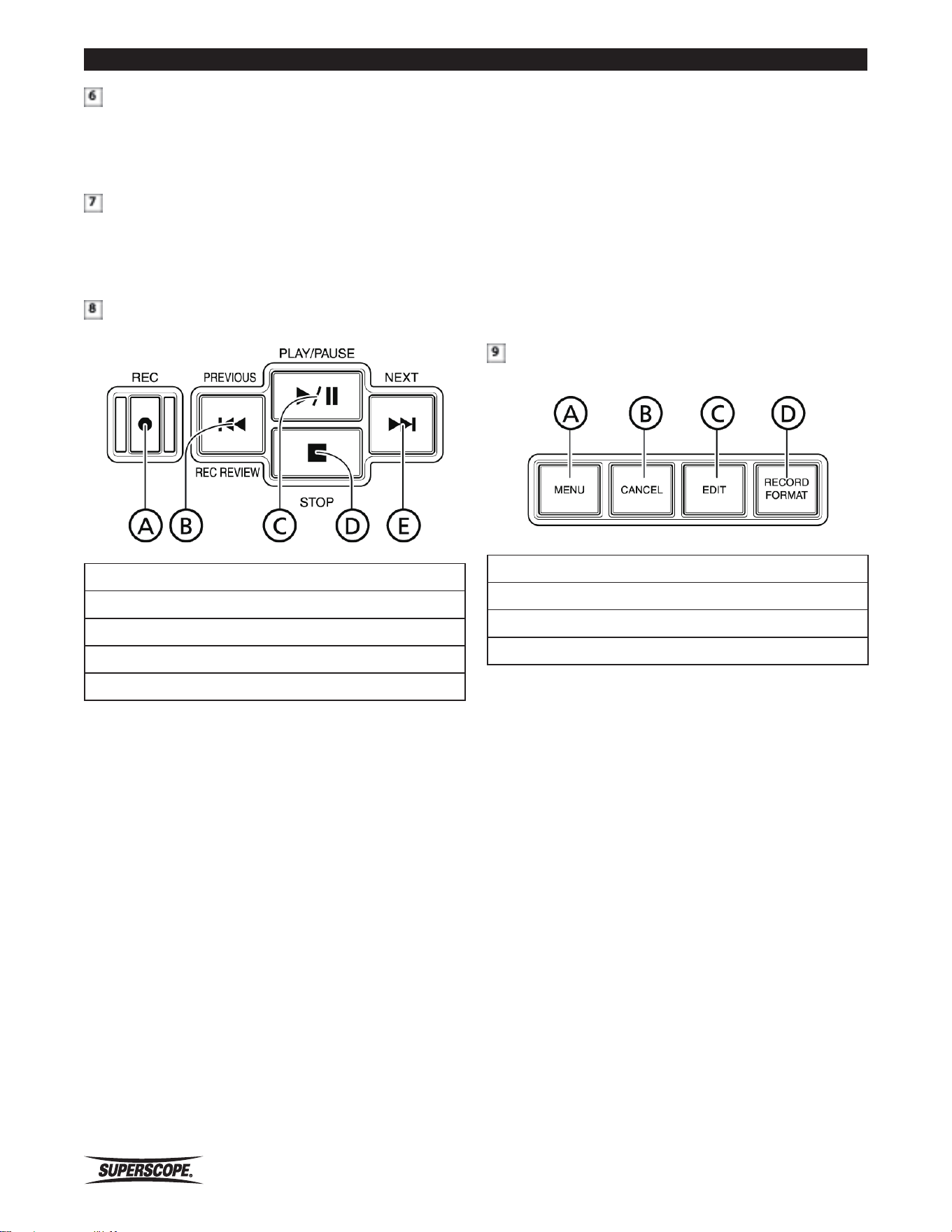
CONTROL Buttons (Transport)
Ⓐ REC
Ⓑ PREVIOUS & REC REVIEW
Ⓒ PLAY/PAUSE
Ⓓ STOP
Ⓔ NEXT
A. REC BUTTON
From Stop mode, press to enter Record Pause mode or
Record mode. The Record LED will flash during Record
Pause mode and remain lit during Record mode. From
Record mode, press to increment a track.
B. PREVIOUS & REC REVIEW BUTTON
During playback, press to return to the beginning of the
track. If playback is within one second of the start point,
press to return to the beginning of the previous track.
In Stop mode, press to return to the beginning of the
previous track. In Record Mode, press to stop recording
and automatically play back the recently recorded file
(Rec Review function).
C. PLAY/PAUSE Button
From Stop mode, press to start or pause playback.
From Record Pause mode, press to begin recording.
From Record mode, press to pause the recording and
increment a track.
D. STOP BUTTON
Press to stop playback or recording.
E. NEXT
Press to advance to the next track.
CONTROL Buttons (Top Right)
Ⓐ MENU
Ⓑ CANCEL
Ⓒ EDIT
Ⓓ RECORD FORMAT
A. MENU
Press to view menu options.
B. CANCEL
Press to cancel settings and delete characters when
editing titles and file information.
C. EDIT
Press to view edit options.
D. RECORD FORMAT
Press to view the Record Settings menu.
https://manual-hub.com/

Superscope PSD410 User Manual
- 13 -
Controls
Internal Speaker
All PSD410 sounds can be heard through the built-in
monitor speaker.
- Internal Mic R & Internal Mic L
Use the Right and Left internal mics to record without
additional equipment.
LCD Color Display
High-resolution full-color liquid crystal display monitor.
Please refer to LCD Display for an explanation of display
icons.
https://manual-hub.com/
- 14 -
Superscope PSD410 User Manual
Controls
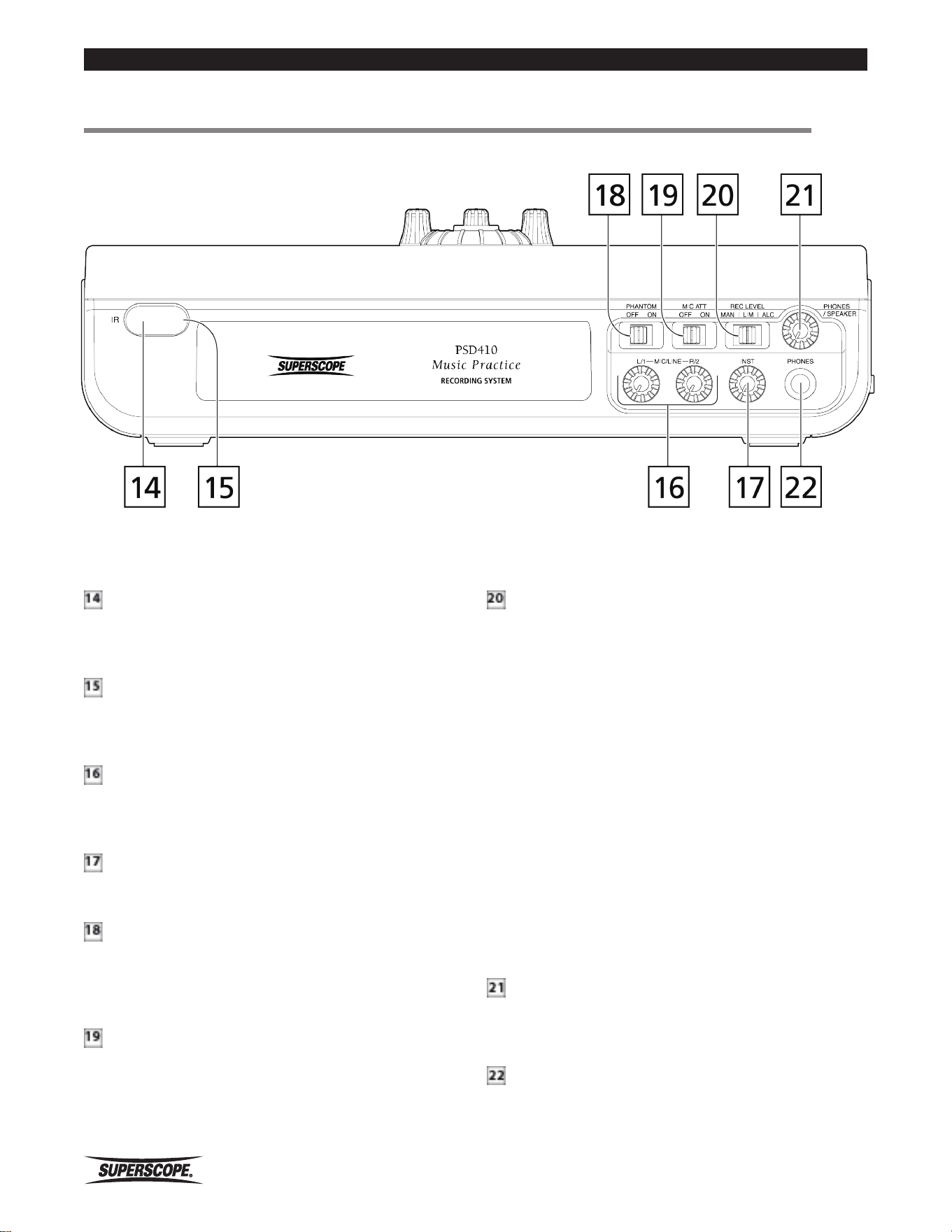
■Front Panel
Infrared (IR) Receiver
The infrared receiver detects signals from the wireless
remote controller.
IR Signal Indicator
This LED flashes red when a signal from the wireless
remote controller is received.
MIC / LINE L & R Level Control
Turn these knobs to adjust the level of the MIC/LINE
inputs.
Instrument Level Control
Turn this knob to adjust the level of the INST input.
Phantom Power ON/OFF SWITCH
Switch on to supply 48V phantom power to microphones
connected to the XLR inputs. Switch off when a
microphone does not need phantom power.
MIC ATT ON/OFF
If input level controls are turned low and microphone or
instrument levels are still too strong, switch on to add
15dB of attenuation.
RECORD LEVEL MAN / LIM / ALC
This switch determines the method for setting record
levels.
MAN (Manual)
Input level is controlled by manual adjustment of the
Mic/Line, INST, or AUX level controls.
LIM (Limiter)
Input level is controlled by manual adjustment of the
Mic/Line, INST, or AUX level controls. A limiter circuit
protects against signal overload.
ALC (Automatic Level Control)
The Mic/Line, INST, or AUX level controls are bypassed
and input level is controlled automatically. A limiter circuit
protects against signal overload.
PHONES / SPEAKER LEVEL
Turn this knob to adjust the level for the built-in speaker
and headphones.
PHONES Jack
Connect stereo headphones here. This input accepts ¼”
headphone plugs.
https://manual-hub.com/
Superscope PSD410 User Manual
- 15 -
Controls
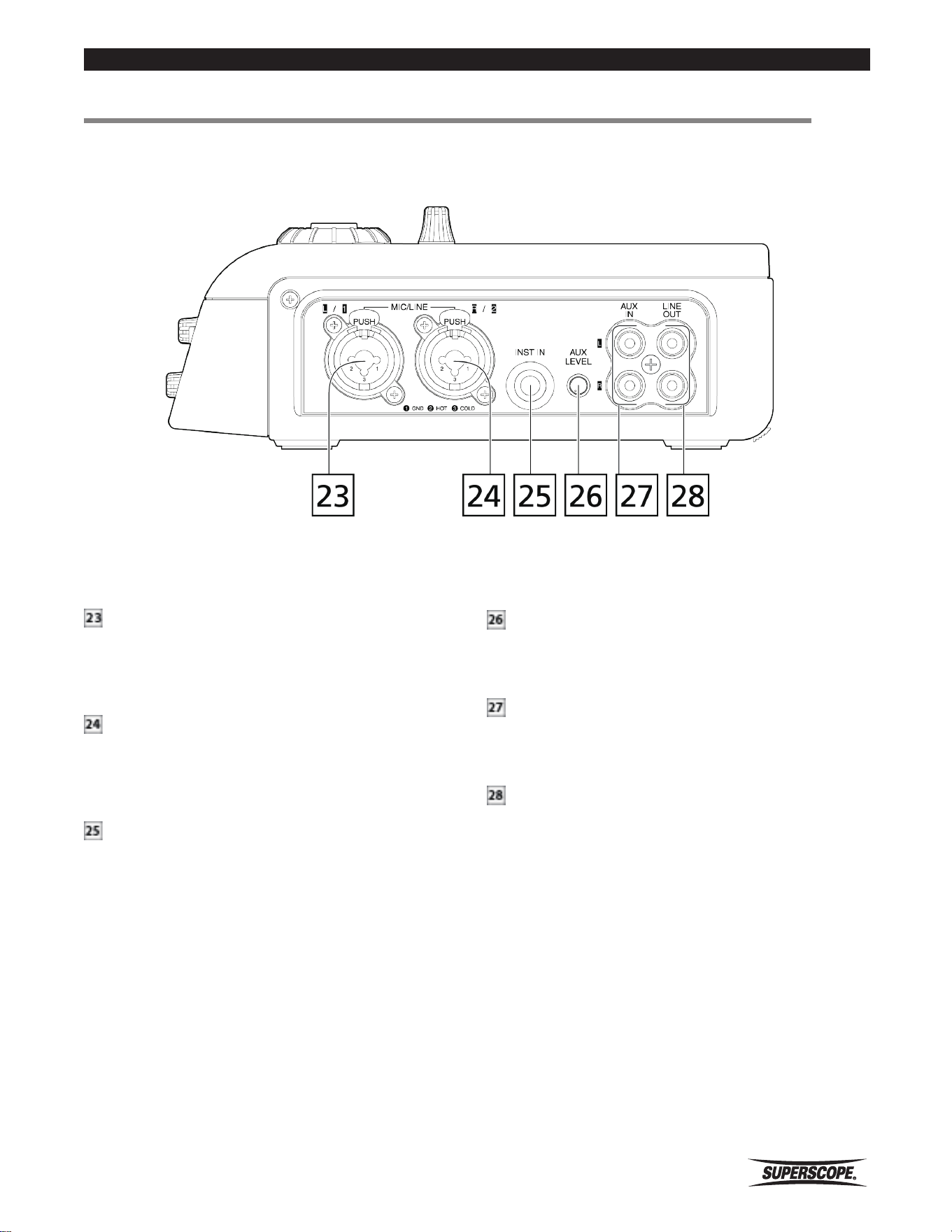
■Right Side Panel
Left / XLR / “1/4” Input Jack
Connect microphones or line level equipment with XLR
or ¼” inch plugs here. Push the Input Select button [2B]
to select the input you wish to use.
Right / XLR / “1/4” Input Jack
Connect microphones or line level equipment with XLR
or ¼” inch plugs here. Push the Input Select button [2B]
to select the input you wish to use.
INST IN Jack
Connect an electric guitar, bass, or keyboard here.
VU Meter Overload If your keyboard or guitar/bass
signals routinely cause the VU meters to display “OVER,”
change INST Input Gain setting to Low.
AUX LEVEL
Turn this knob to adjust the input signal level of the AUX
IN.
AUX IN Jacks
Use these inputs when connecting line level equipment
with RCA outputs, such as CD players or mixing boards.
LINE OUT Jacks
Connect these outputs to the inputs of another audio
device, such as an amplifier, mixing board or alternate
recording device.
https://manual-hub.com/
- 16 -
Superscope PSD410 User Manual
Controls
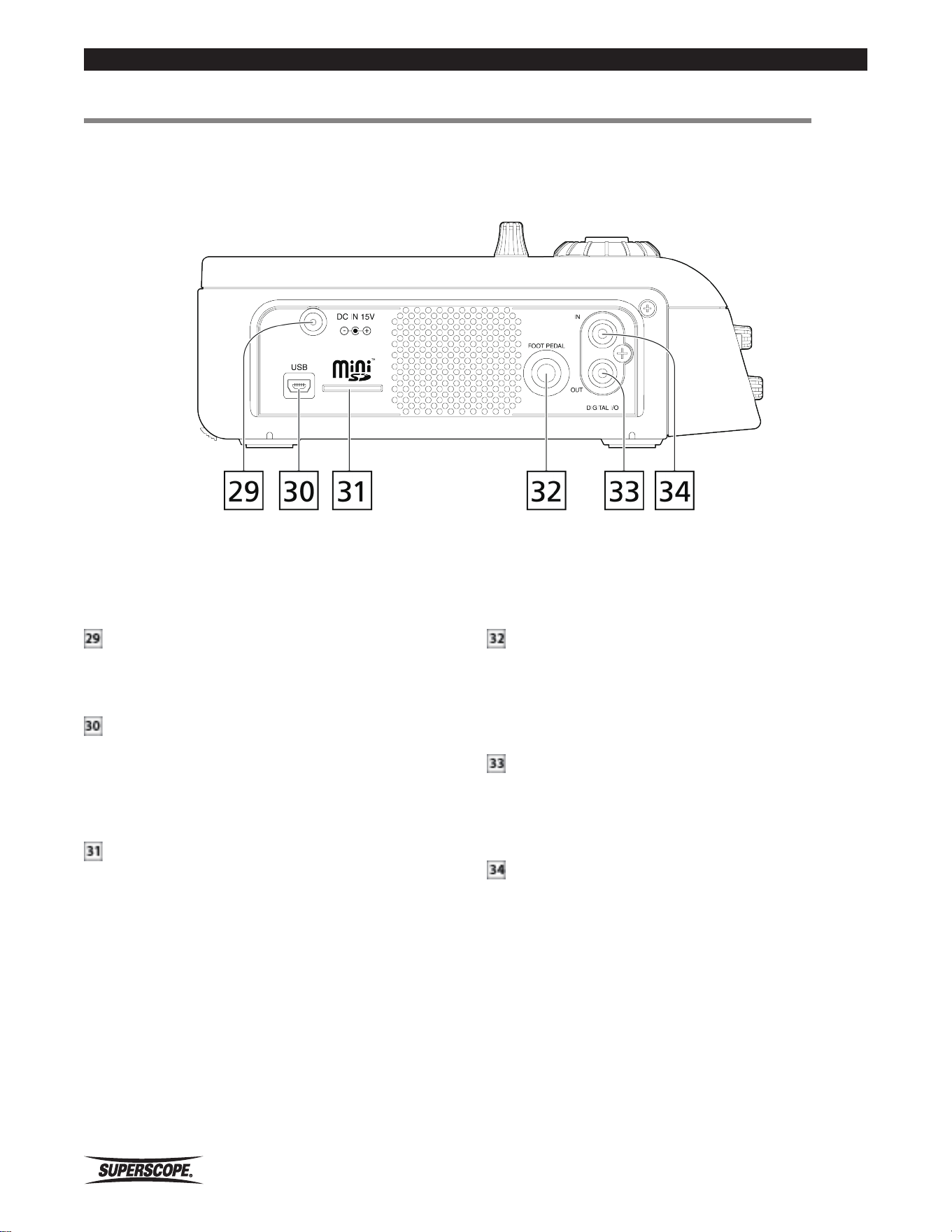
DC Input Jack
Connect the DA450PSD AC to DC adapter here.
Do not use any adapter other than the DA450PSD.
USB Connector
Connect a USB cable here to transfer data between the
PSD410’s mini SD card and a PC. In USB mode, all other
features will be inactive. The PSD410 will not enter USB
mode during recording or when menu screens are active.
Mini SD Slot
Insert a mini SD card in here. (The PSD410 includes a
micro SD card with a micro-to-mini adapter.)
■Left Side Panel
FOOT PEDAL Jack
Connect an optional foot pedal here to provide Play/
Pause, Record/Pause, or Punch In/Out control. The
Superscope FT200 foot pedal is available at our online
store.
Digital OUT Jack
Connect to the digital input terminal of another audio
product. The PSD410 outputs a signal with a 44.1 kHz
sample rate.
Digital IN Jack
Connect the digital output of another audio product to
this terminal.
https://manual-hub.com/
Superscope PSD410 User Manual
- 17 -
Controls
■Back Panel
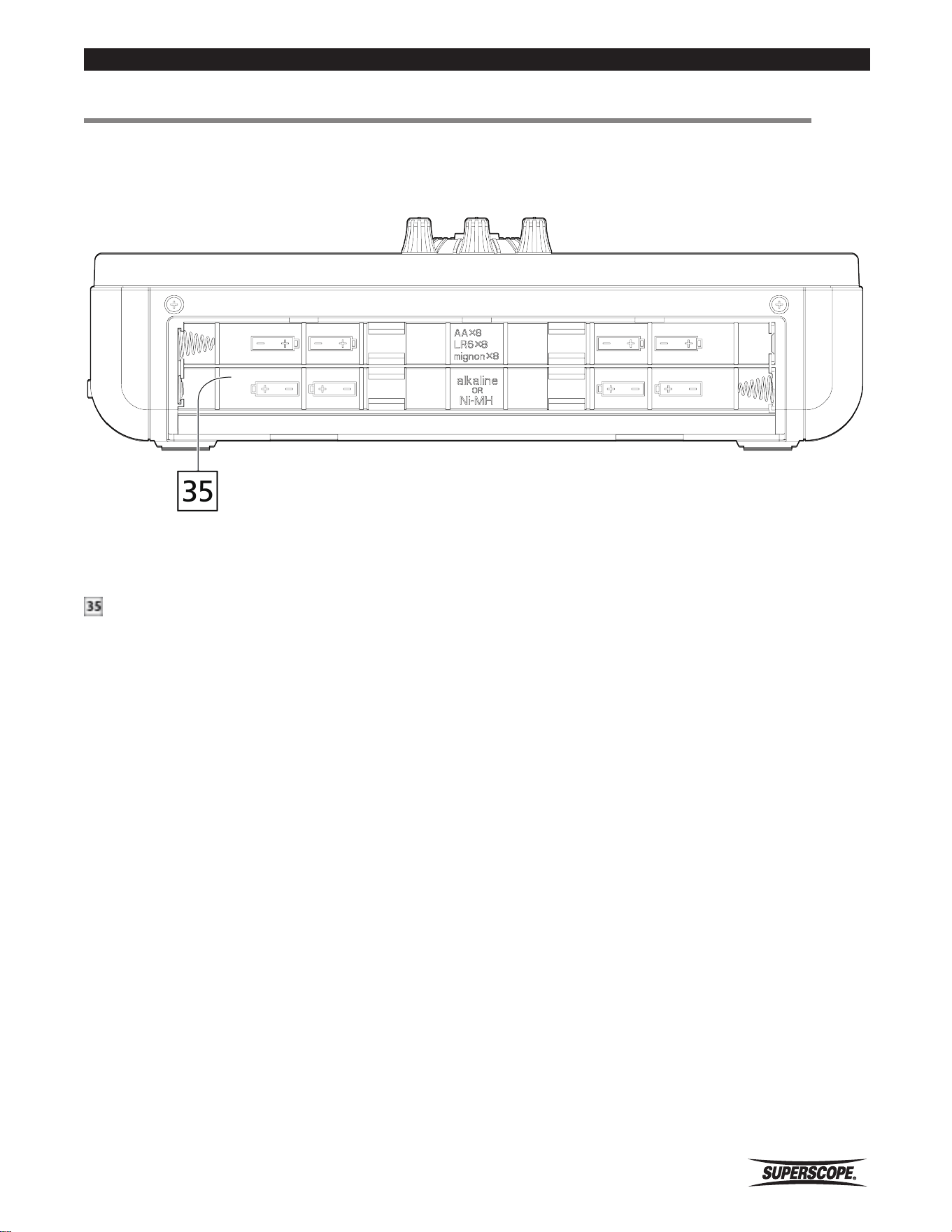
Battery Compartment
Insert a Ni-MH rechargeable battery or eight alkaline size
AA batteries here. Please refer to "Using Batteries.”
https://manual-hub.com/
- 18 -
Superscope PSD410 User Manual
Controls
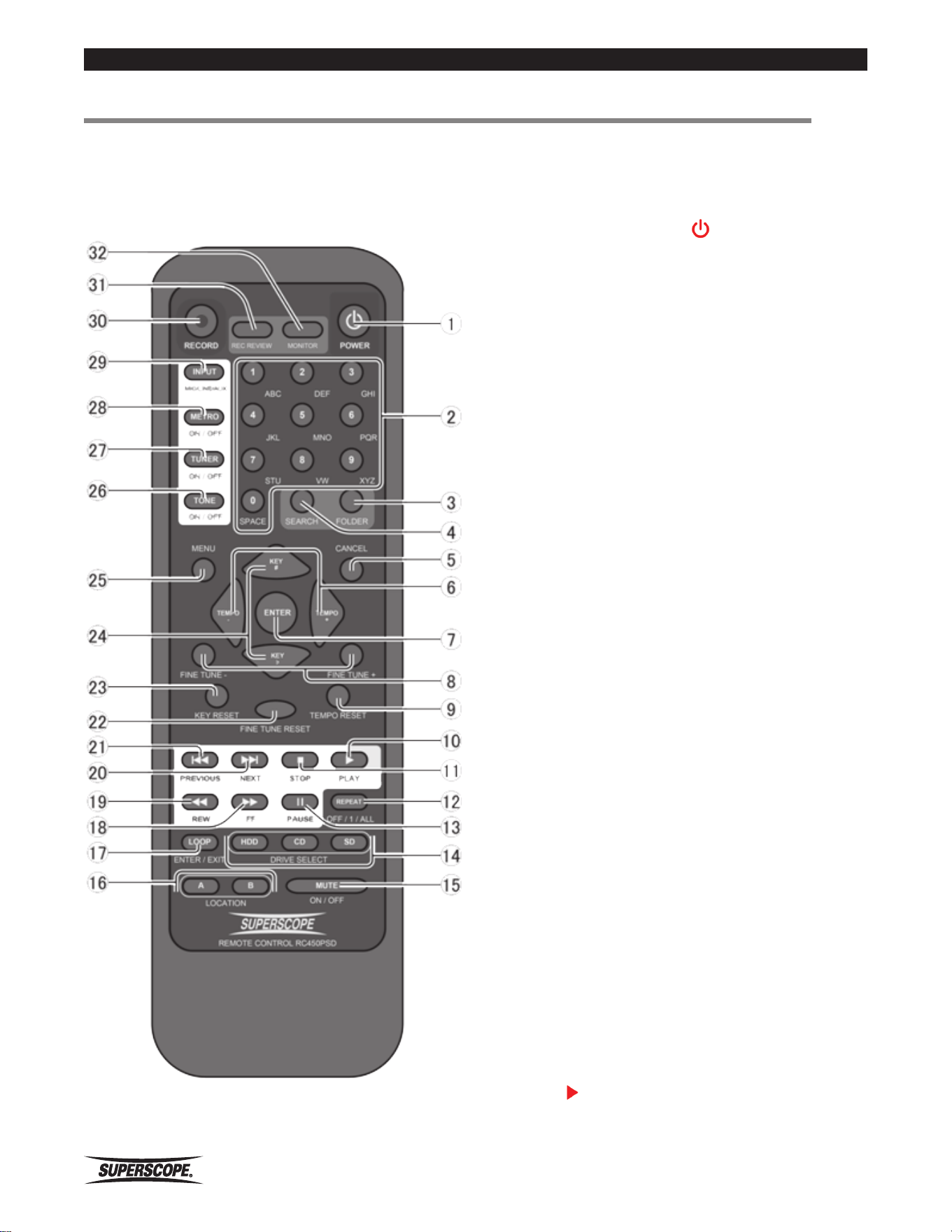
STANDBY / POWER
Press to turn power ON or OFF.
※ During battery operation, this button can
only be used to power the unit off. The AC
adapter must be connected to power the unit
on with the remote control.
w Alphanumeric Keypad
When editing folder names, playlist names, or file
information, use the alphanumeric keypad to enter text.
e FOLDER
Press to select a new folder.
r SEARCH
Press to access the Search function.
t CANCEL
When editing folder names, playlist names, or file
information, use this button to delete a character. Also
used to undo changes to Menu settings.
y TEMPO
Press to increase or decrease playback speed without
affecting pitch.
u ENTER
Press to enter selected menus or confirm setting
changes.
i FINE TUNE
Press to increase or decrease playback pitch without
affecting playback speed. Fine Tune control is adjustable
+/-50 cents (100 cents = 1 semitone).
o TEMPO RESET
Press to reset Tempo control to normal speed.
a PLAY
Press to play the currently selected track.
■Remote Control
https://manual-hub.com/

Superscope PSD410 User Manual
- 19 -
Controls
s STOP
Press to stop playback.
d REPEAT
Press to change repeat mode. Options include: Off, All,
1, (Single, 1), (Single, All), and Single.
f PAUSE
Press to pause playback.
g DRIVE SELECT
On the PSD410, pressing the SD button will return to
the Track Select screen. The HDD and CD buttons are
reserved for the model PSD450 and will have no effect
on the PSD410.
h MUTE
Press to mute the internal speaker and Line Out. This will
not affect the headphones or Digital Out.
j LOCATION
A. LOCATION A – In Loop mode, press to set location A.
B. LOCATION B – In Loop mode, press to set location B.
k LOOP ENTER/EXIT
Press to enter and exit Loop mode.
FF (Fast Forward)
Press and hold to initiate an audible forward search of
the playing track.
REW (Rewind)
Press and hold to initiate an audible reverse search of the
playing track.
Next
Press to advance to the next available track.
Previous
Press to return to the beginning of the selected track.
Press within the first second of playback to return to the
previous track.
FINE TUNE RESET
Press to reset Fine Tune control to normal pitch.
KEY RESET
Press to reset Key control to normal pitch.
KEY
Press to change the playback key in semitones. Press
‘♭’ to lower the key. Press ‘♯’ to raise the key. Key is
adjustable +/- one octave.
MENU
Press to view Menu options.
TONE ON/OFF
Press to sound the 440Hz tuning tone. The frequency of
this tone is adjustable between 410Hz and 470Hz. Press
this button a second time to return to the main screen.
TUNER ON/OFF
Press to access the chromatic tuner. Press this button a
second time to return to the main screen.
METRO ON/OFF
Press to turn the metronome ON and to enter the
metronome screen. Press this button a second time to
stop the metronome and return to the main screen.
INPUT MIC/LINE/AUX
Press to change the Input Source. Options include: Input
MUTE, Internal MIC, External MIC, LINE, INST, Internal
MIC (Lch) + INST, External MIC (Lch) + INST, LINE (Lch) +
INST, AUX, and DIGITAL.
RECORD
Press to enter Record Pause mode. Press this button a
second time to begin recording. During recording, press
this button to increment tracks.
RECORD REVIEW
In Record mode, press to stop recording and
automatically play back the recently recorded file.
MONITOR
Press to toggle the monitor source between Playback
Signal and Recording Signal. When Playback Signal is
selected, the input signals, e.g., External MIC, INST, etc.
will not be heard.
https://manual-hub.com/
- 20 -
Superscope PSD410 User Manual
LCD Display
■LCD Display
PLAY / STOP Mode
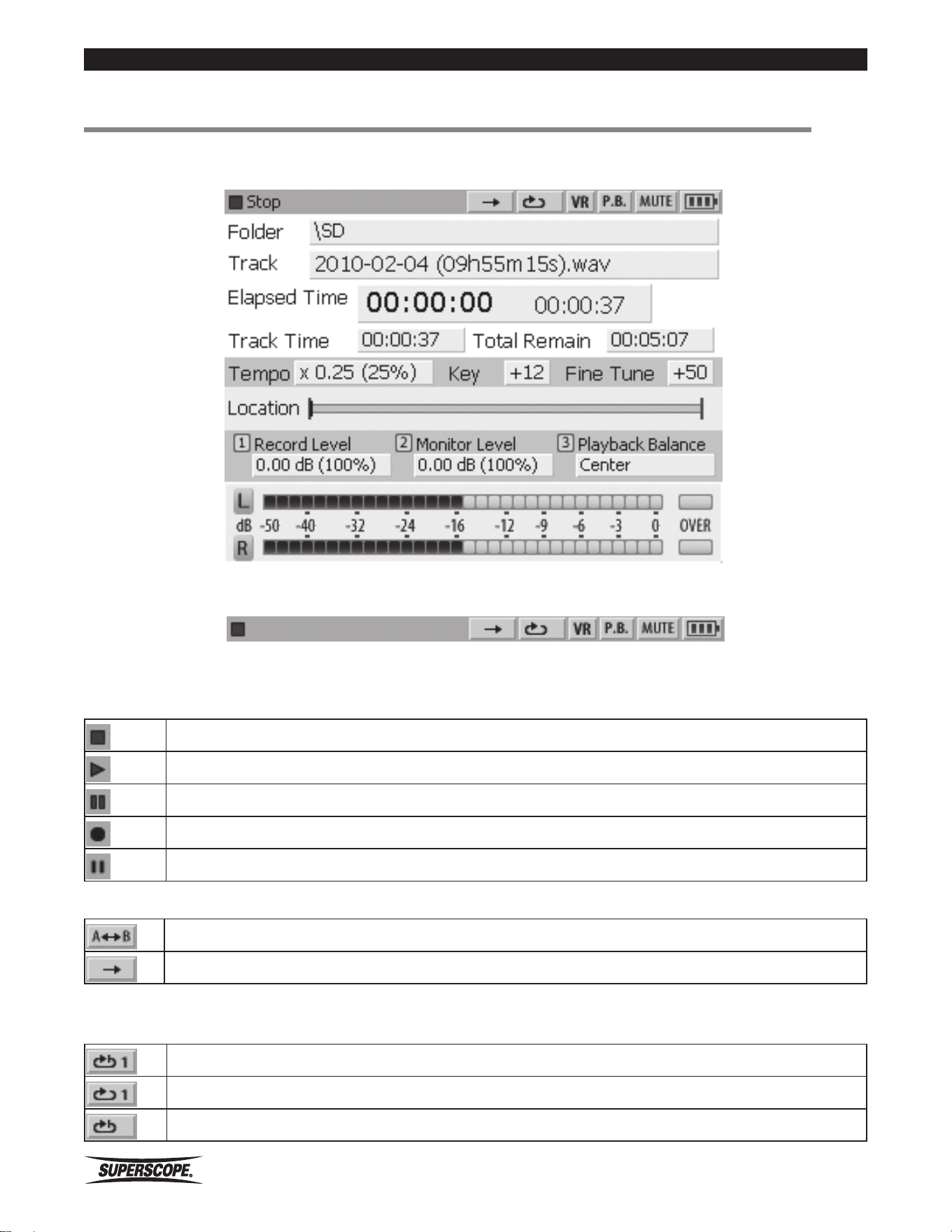
Ⓐ
Ⓐ Icons
Status Icons
Indicates STOP
Indicates PLAY
Indicates PLAYBACK PAUSE
Indicates RECORD
Indicates RECORD PAUSE
w Loop Icons
Indicates “A-B” LOOP Playback is ON
Indicates “A-B” LOOP Playback is OFF
e Repeat Icons
Play back current track once, then stop at start of current track (Single, 1)
Play back and repeat current track (Repeat 1)
Play back all tracks once, then stop at start of the first track (Single, All)
https://manual-hub.com/
Superscope PSD410 User Manual
- 21 -
LCD Display
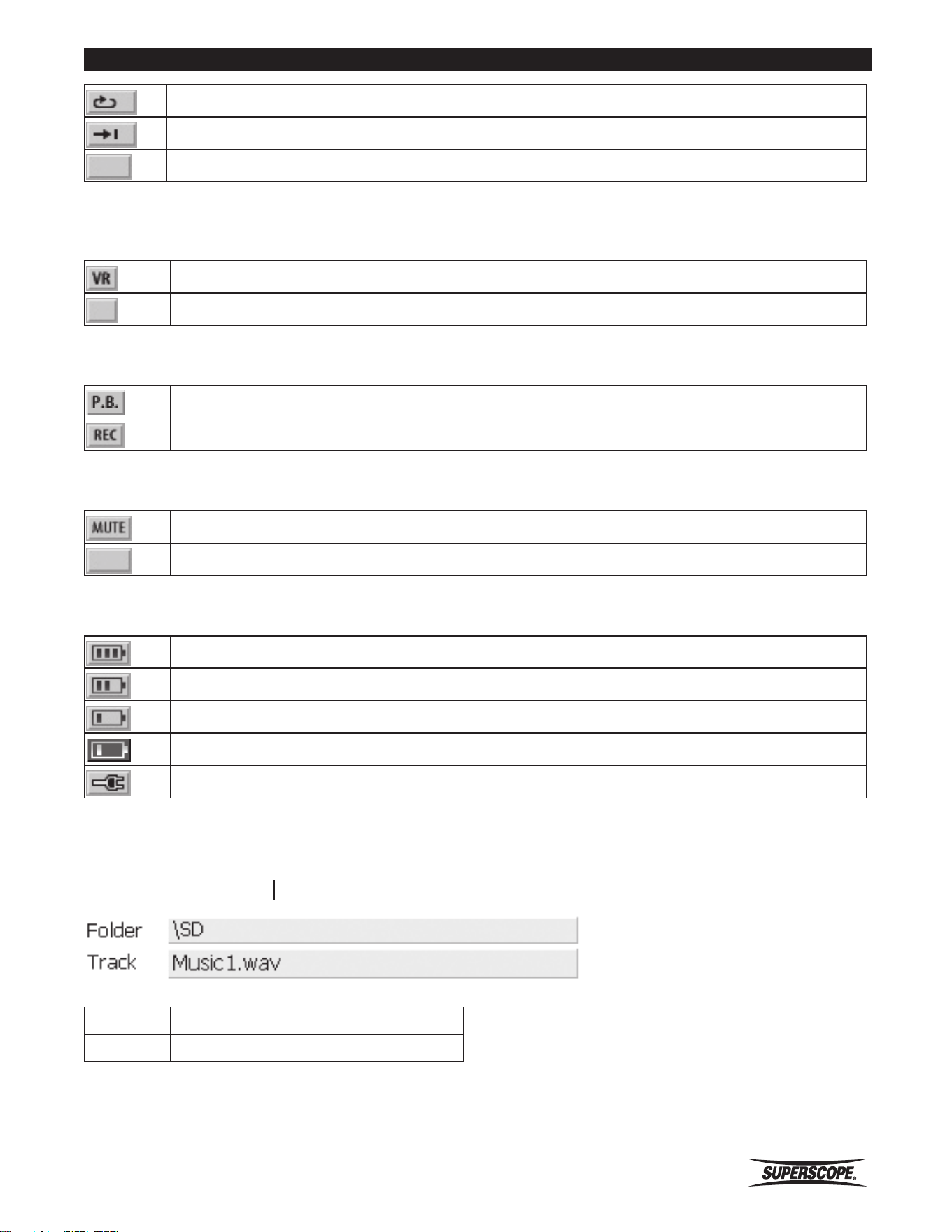
Play back and repeat all tracks (Repeat All)
Play back current track once, then stop at start of the next track (Single)
No indication when Repeat Mode if OFF
r Voice Reduction Icons
Indicates VR is ON
Indicates VR is OFF
y Monitor Icons
Playback audio is being monitored
Record audio is being monitored
y Mute Icons
Indicates MUTE is ON
No indication when MUTE is OFF
u AC/Battery Icons
Indicates the battery level is full
Indicates the battery level is less than full capacity
Indicates the battery level is low
Indicates the battery level is almost empty (needs to be charged or replaced)
Indicates the AC Adapter is connected
PLAY / STOP Mode
Ⓑ File Information
Folder
Displays the current folder
Track
Displays the active track
https://manual-hub.com/
- 22 -
Superscope PSD410 User Manual
LCD Display
PLAY / STOP Mode
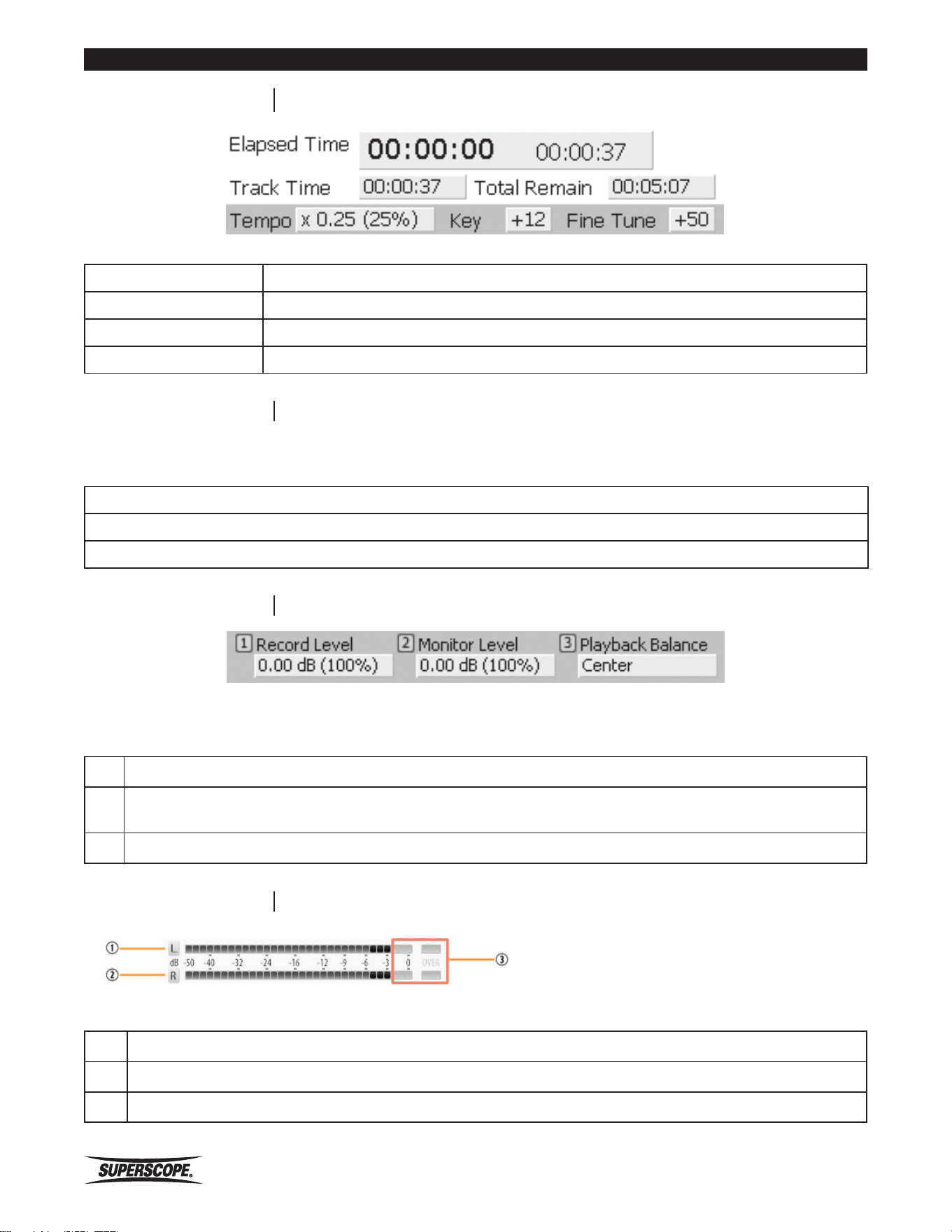
Ⓒ Playback Data
Elapsed Time Displays the elapsed and remaining time for the current track
Track Time Displays the total time for the selected track
Total Remain Displays the total time for all tracks in the currently selected folder
Tempo, Key, Fine Tune Displays the current Tempo, Key, and Fine Tune settings (only when modified)
PLAY / STOP Mode
Ⓓ Location
Indicating Location
Displays the current position on the time line.
Displays the position of location A on the time line.
Displays the position of location B on the time line.
PLAY / STOP Mode
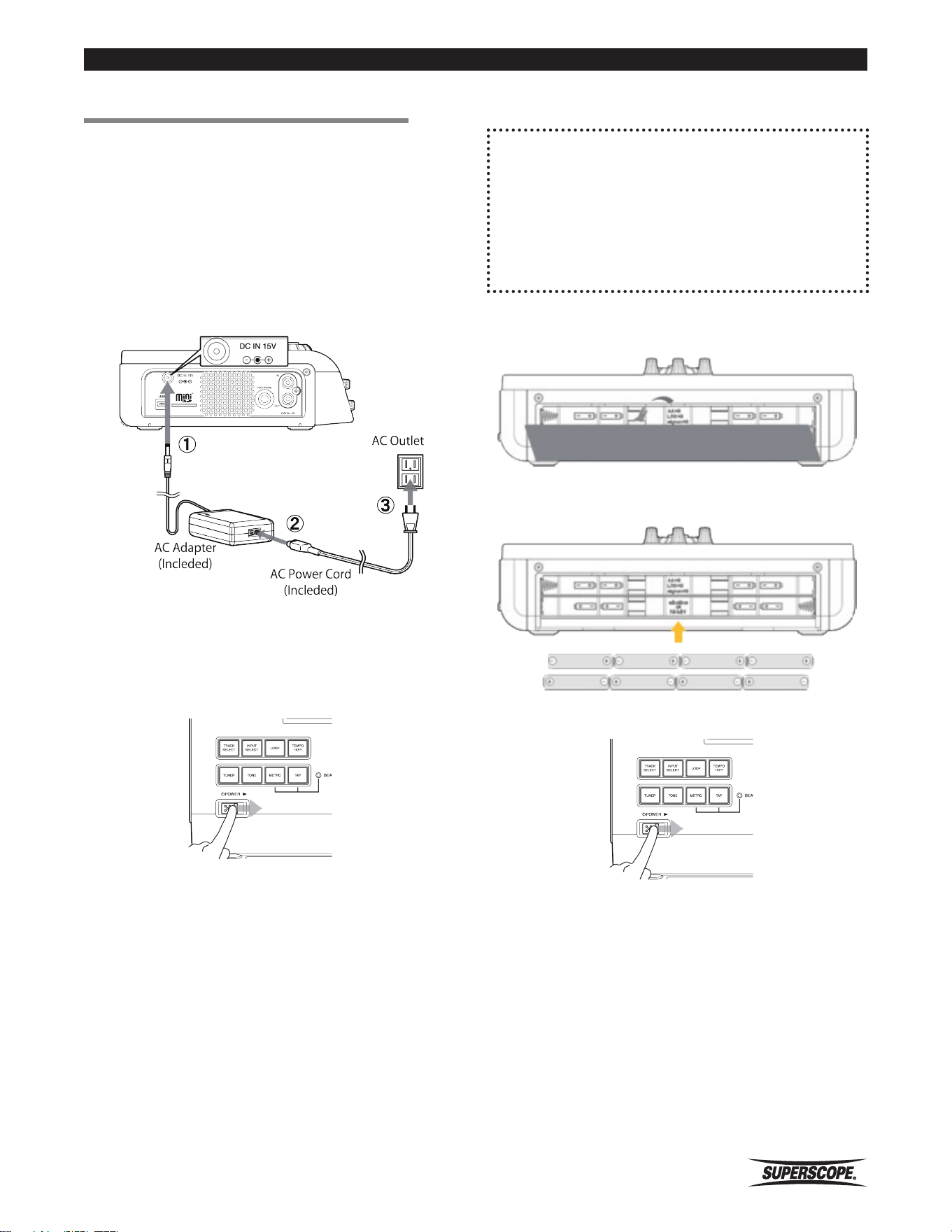
Ⓔ Balance & Levels
Assignment of FUNCTION ADJUST knobs
When the Play/Stop mode screen is active, use FUNCTION ADJUST #1 to adjust Record Level.
w
When the Play/Stop mode screen is active, use FUNCTION ADJUST #2 to adjust Monitor Level.
This does not affect the level at which accompaniment files are recorded.
e
When the Play/Stop mode screen is active, use FUNCTION ADJUST #3 to adjust Playback Balance.
PLAY / STOP Mode
Ⓕ VU Meters
Level meter indication
Displays the sound level of the left channel in decibels (dB).
w
Displays the sound level of the right channel in decibels (dB).
e
When sound level is beyond 0dB, "OVER" turns on.
https://manual-hub.com/
Superscope PSD410 User Manual
- 23 -
Set Up
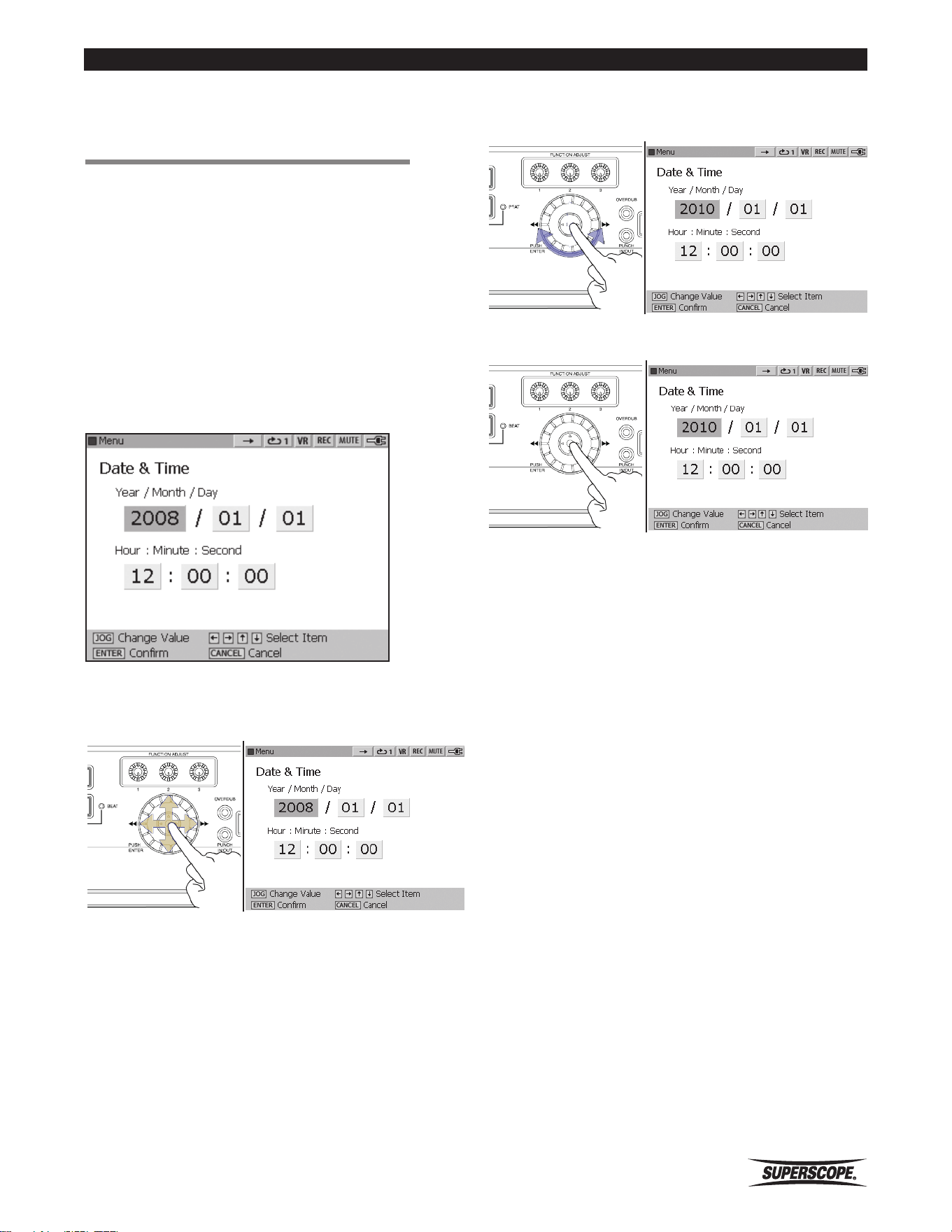
■Powering On
The PSD410 works with AC power or AA size batteries.
Before using batteries, please refer to Using Batteries.
※ It is not possible to power the unit ON with
the remote controller when using battery
power.
Using the AC Adapter
Connect the AC Adapter to the DC Jack.
w Connect the AC Cord to the Input of the AC Adapter.
e Connect the AC Plug to AC power source.
r Slide the POWER switch to power on.
r
Using Batteries
Compatible Batteries
The PSD410 works with alkaline batteries and
rechargeable Ni-MH batteries.
※ Manganese batteries are not recommended
due to their low capacity.
1. Remove the battery cover on the back of the
PSD410.
2. Insert eight alkaline AA size or Ni-MH batteries (fully
charged).
3. Close the battery cover.
4. Slide the POWER switch to power on.
Ⓐ
Ⓐ
When inserting batteries always be mindful of polarity
(+/-).
※ During battery operation, an icon is displayed
in the top right corner of the display showing
battery capacity. See AC/Battery Icons.
https://manual-hub.com/

- 24 -
Superscope PSD410 User Manual
Set Up
Battery Life
Battery Type
Phantom
Power
LCD
Full
Bright
Dimmer
Ni-MH
Fully charged
2,700mAh
OFF 6.0 h 6.5 h
Ni-MH
Fully charged
2,700mAh
ON 5.0 h 5.5 h
Alkaline AA size OFF 3.5 h 4.0 h
Alkaline AA size ON 3.0 h 3.5 h
※ All times are estimated. Battery times will
vary by frequency of use, LCD dimmer
settings, phantom power, etc.
AC Power and Battery Tips
• When the AC adapter is connected while batteries
are inserted, AC power will have priority over the
battery power supply.
• It can be helpful to use batteries and the AC power
supply together. If the AC power supply is removed
unexpectedly, recording or playback will continue
without interruption using battery power.
• Do not mix new and old batteries or battery types
(Alkaline, Ni-Cad or Ni-MH).
• When the unit is not in use for a long period of time,
please remove batteries to prevent battery leakage.
https://manual-hub.com/
Superscope PSD410 User Manual
- 25 -
Set Up
■Setting Date and
Time
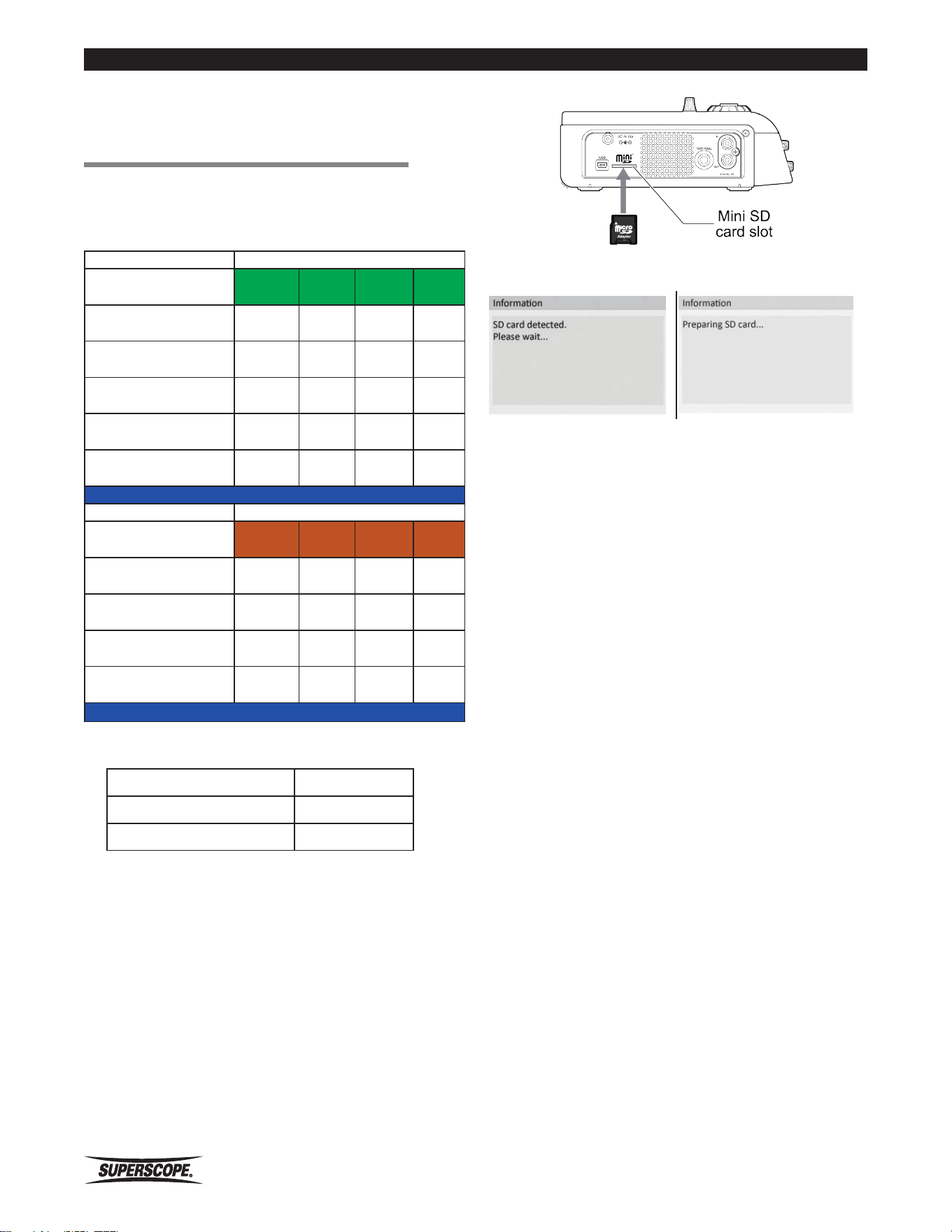
New recordings created by the PSD410 are given a
default track title comprised of the current date and time,
e.g., 2010-01-01 (12h00m00s).wav. Follow these steps to
ensure that the date and time is accurate.
1. Press the Menu button.
2. Use the joystick or jog wheel to highlight System
Settings. Press ENTER.
3. Use the joystick or jog wheel to highlight Set Time/
Date. Press ENTER.
The following screen should appear:
4. Move the joystick right, left, up, or down to select
Year, Month, Day, Hour, Minute, or Second.
5. Change Time and Date values by turning the jog
wheel.
6. Press ENTER to confirm new settings.
https://manual-hub.com/
- 26 -
Superscope PSD410 User Manual
Set Up
■About the Mini
SD Card
The PSD410 comes equipped with an SD card. Available
record times vary with format/bitrates selected.
Some sample record times:
Stereo SD Memory Card Size
Settings
(file format & quality)
512Mb 1Gb 2Gb* 4Gb
MP3 - (192 kbps)
5:54 11:48 22:36 47:12
MP3 - (128 kbps)
8:52 17:44 35.28 70:56
MP3 - (64 kbps)
17:44 35:28 70:56 141:52
PCM - 16 (44.1 kHz) 48
minutes
1:36 3:12 6:24
PCM - 24 (44.1 kHz) 32
minutes
1:04 2:08 4:16
*2GB SD card is supplied with the recorder.
Mono SD Memory Card Size
Settings
(file format & quality)
512Mb 1Gb 2Gb* 4Gb
MP3 - (96 kbps)
11:48 22:36 47:12 94:24
MP3 - (64 kbps)
17:44 35.28 70:56 141:52
MP3 - (32 kbps)
35:28 70:56 141:52 283:44
PCM - 16 (44.1 kHz)
1:36 3:12 6:24 12:48
Recording time shown in Hours:Minutes. All times are approximated.
PSD410 File and Folder Limits
Files Per Folder 99
Folder Size 2GB
Single File Size 2GB
※ When the above limits are exceeded
during recording, a new folder is created
automatically and recording continues.
Inserting a Mini SD Card
Insert a mini SD card (or micro SD with mini adapter) into
the mini SD card slot on the left panel of the PSD410.
The PSD410 will begin creating a file database once an
SD card is detected.
During this process, the PSD410 scans the SD card for
audio files (WAV, MP3) and ID3 tag information (Artist,
Title, Album, etc.). The time to create this database will
vary, based on what is on the SD card you insert:
Inserting an SD Card with a Large
Number of Audio Files
Although the PSD410 can support high capacity (mini or
micro) SD cards (8GB, 16GB, etc.), the amount of audio
files and folders you choose to store on your SD card will
directly affect the amount of time it takes to create a file
database. Superscope recommends that you limit the
number of files/folders on the SD card.
Inserting an SD Card with a Large
Number of Non-Audio Files
The PSD410 must scan all files before proceeding,
so using the same SD card for non-audio files is not
recommended. Any number of additional files on your
SD card (e.g., JPG, MOV, PDF, etc) will slow down
database creation.
Inserting an SD Card Containing Large
Audio Files
When an audio file is detected on the SD card, the
PSD410 will open the audio file and begin searching
for content information, e.g. Title, Artist, Album, etc.
The PSD410 must search the entire file in case this
information is stored at the end of the file. Large audio
files therefore require more time during database
creation.
https://manual-hub.com/
Superscope PSD410 User Manual
- 27 -
Set Up
Removing the Mini SD Card
※ Do not remove the mini SD card during
recording, playback, or editing. It is
recommended that you remove the mini SD
card only after switching off power to avoid
any risk of lost or damaged data.
Safe SD Card Removal
1. Confirm that the PSD410 is not writing to the SD
card (recording or editing).
2. Push the mini SD card further into the unit until the
mini SD card springs outward.
3. Remove the mini SD card.
■Setting Up
Speakers
Using Headphones or the Built-In
Speaker
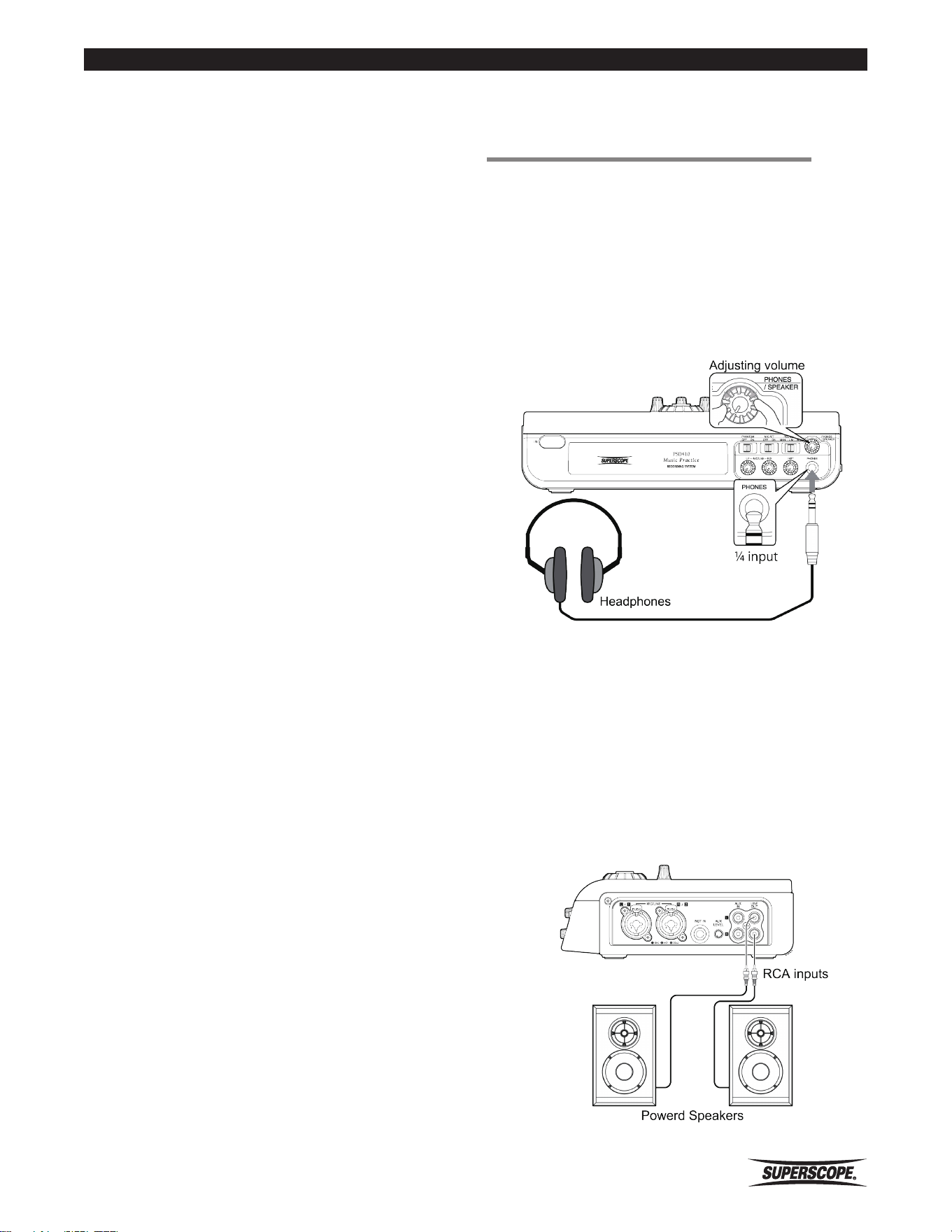
When using headphones or the built-in speaker, regulate
volume by turning the PHONES/SPEAKER level knob on
the front panel. The internal speaker will be muted when
headphones are connected.
External Speakers
When using a powered speaker system, (speakers with
built-in amplifiers), please connect the speaker’s LINE
INPUT to the LINE OUT terminal on the right side panel.
The left channel is the white terminal and the right
channel is the red terminal. Use the volume control on
the powered speakers to adjust level.
.
https://manual-hub.com/
- 28 -
Superscope PSD410 User Manual
Set Up
■Setting Up
Microphones,
Instruments and
Other Sound
Sources
The PSD410 is designed to record microphones, musical
instruments (guitars and keyboards), line level equipment
and digital equipment (preamps, mixers, etc.). Please
refer to the procedure that describes your particular
recording set-up.
Microphones
Balanced Connections
Balanced signals require three separate connections
(HOT, COLD, GND):
• HOT refers to the original audio signal.
• The COLD signal is the original signal with
opposite phase.
• GND refers to the grounding wire.
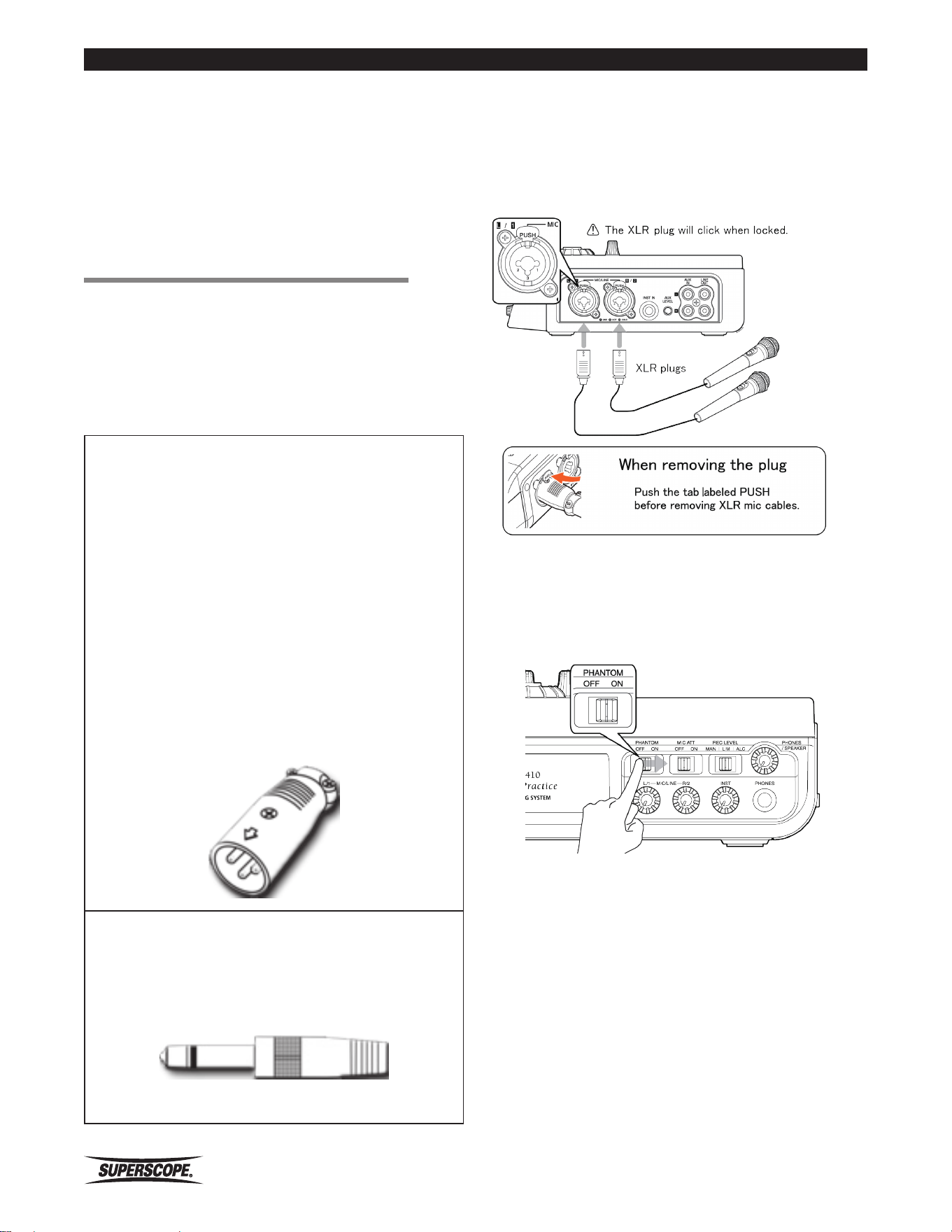
Using balanced connections like the XLR plug (male)
will help to eliminate noise, especially when running
long cable lengths. The XLR inputs on the PSD410 will
also lock to prevent microphone cables from becoming
unexpectedly disconnected.
XLR Plug
Unbalanced Connections
Unbalanced signals only use two connections and are
therefore more susceptible to noise than balanced
connections.
Unbalanced ¼” Plug
External Microphones
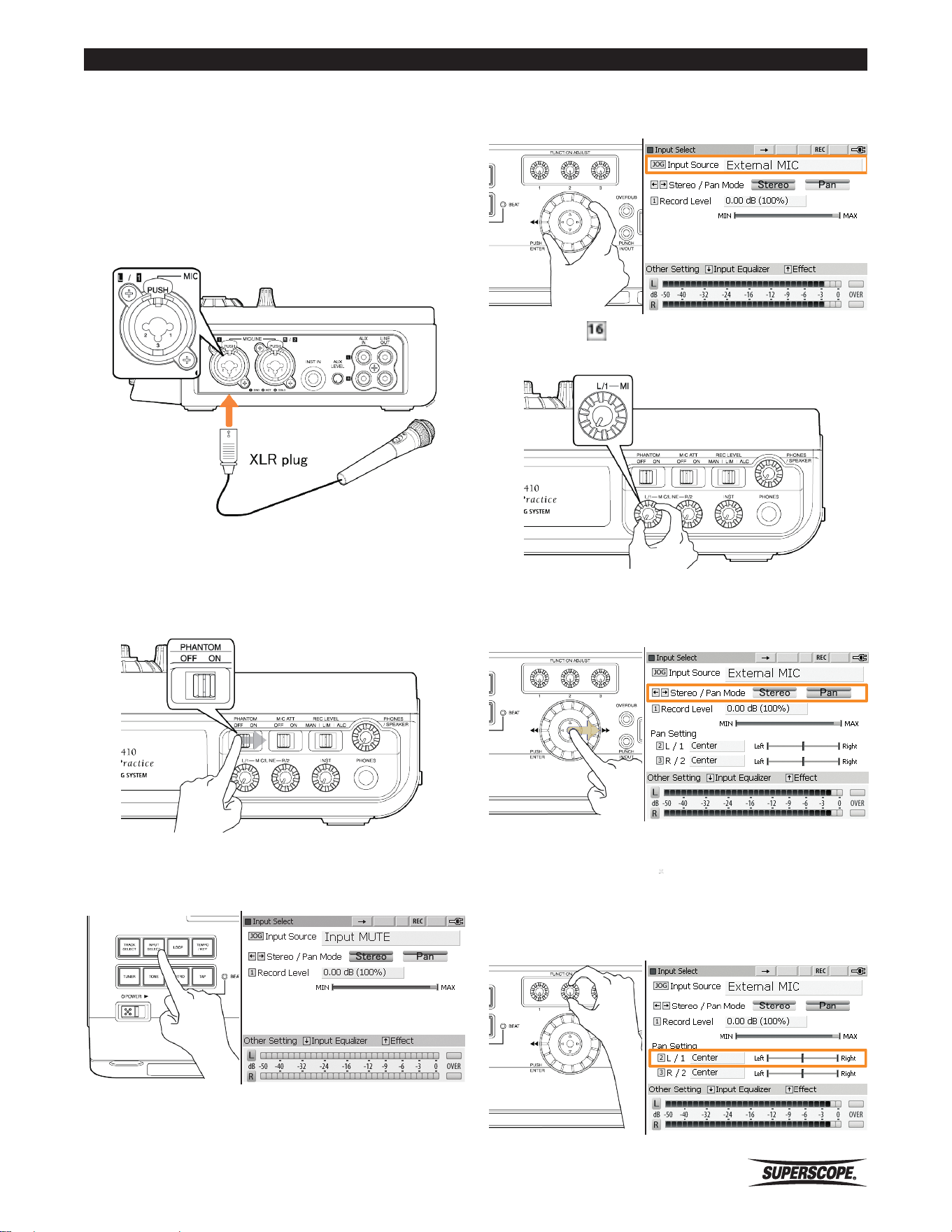
1. Insert microphones into the MIC/LINE input jacks on
the side panel. Both XLR type and ¼”standard plug
types can be used.
When using microphones requiring 48V phantom
power, move the PHANTOM switch to the ON position.
Consult your microphone’s owner’s manual for power
requirement specifications
.
https://manual-hub.com/
Superscope PSD410 User Manual
- 29 -
Set Up
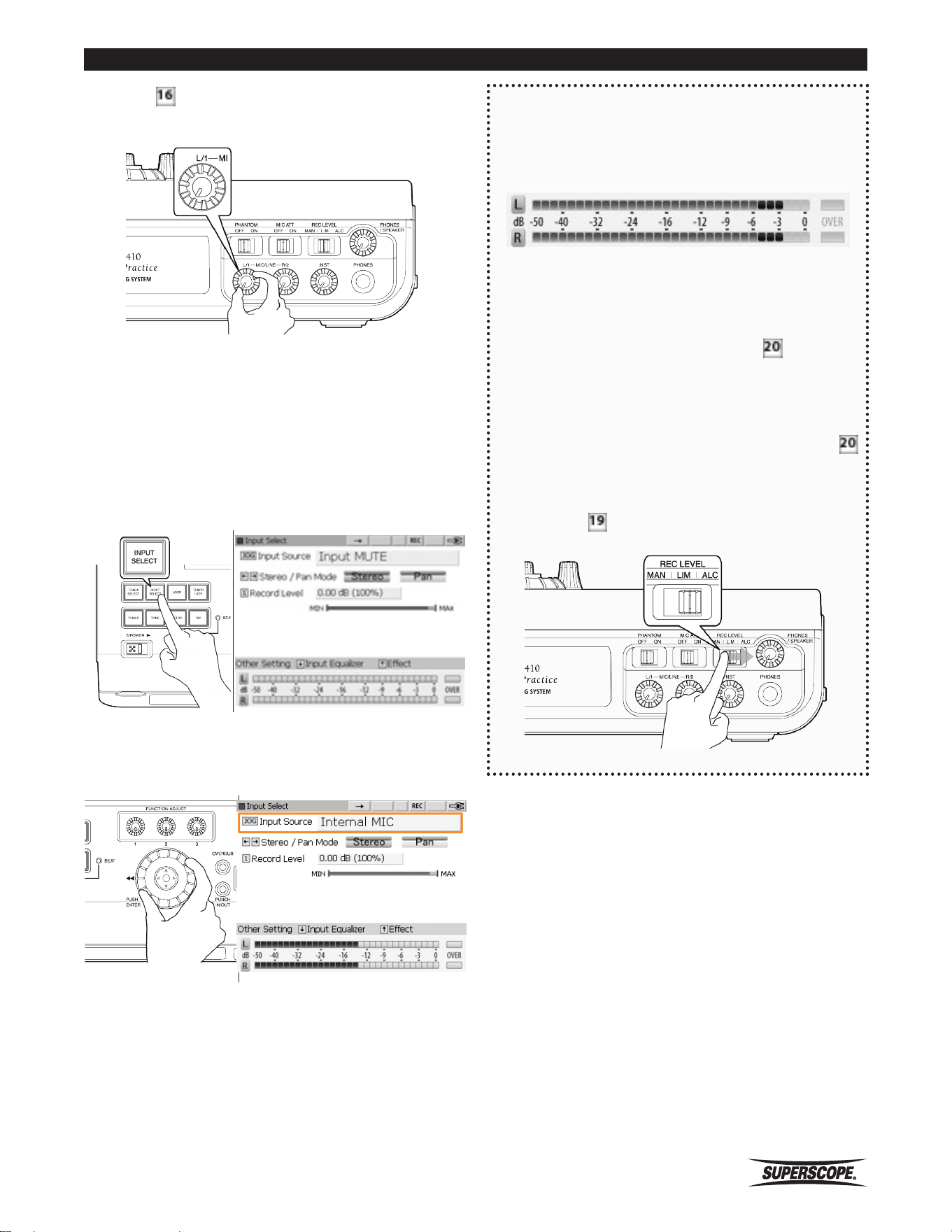
Adjust the
MIC / LINE L & R Level Controls to obtain a
suitable recording level. See Setting Levels, below.
※ When using the AUX input, control input
level with the AUX LEVEL controller on the
right side panel. When using the INST input,
control input level with the Instrument level
controller.
2. Push the INPUT SELECT button to display the Input
Source options.
3. Turn the jog wheel to select "External MIC” and
then press the INPUT SELECT button to exit the
screen. SELECT button to exit the screen.
Setting Levels
As you sing or play your instrument, turn the L/1
and R/2 input-level control knobs clockwise while
observing the display VU meters.
When your performance is at its loudest, the VU meter
should approach 0 dB without lighting OVER.
If the meter consistently lights red, adjust the input-
level control knobs counter clockwise to reduce the
level and avoid distortion. Switching the REC LEVEL
switch to the LIM (Limiter) setting can protect the
recording from distortion caused by transient peaks.
To disengage the L/1 and R/2 input-level control knobs
and set the recording level automatically, adjust the
REC LEVEL switch to ALC.
If your mics have higher than normal output, try
switching the MIC ATT switch to ON.
https://manual-hub.com/
- 30 -
Superscope PSD410 User Manual
Set Up
STEREO/PAN Mode
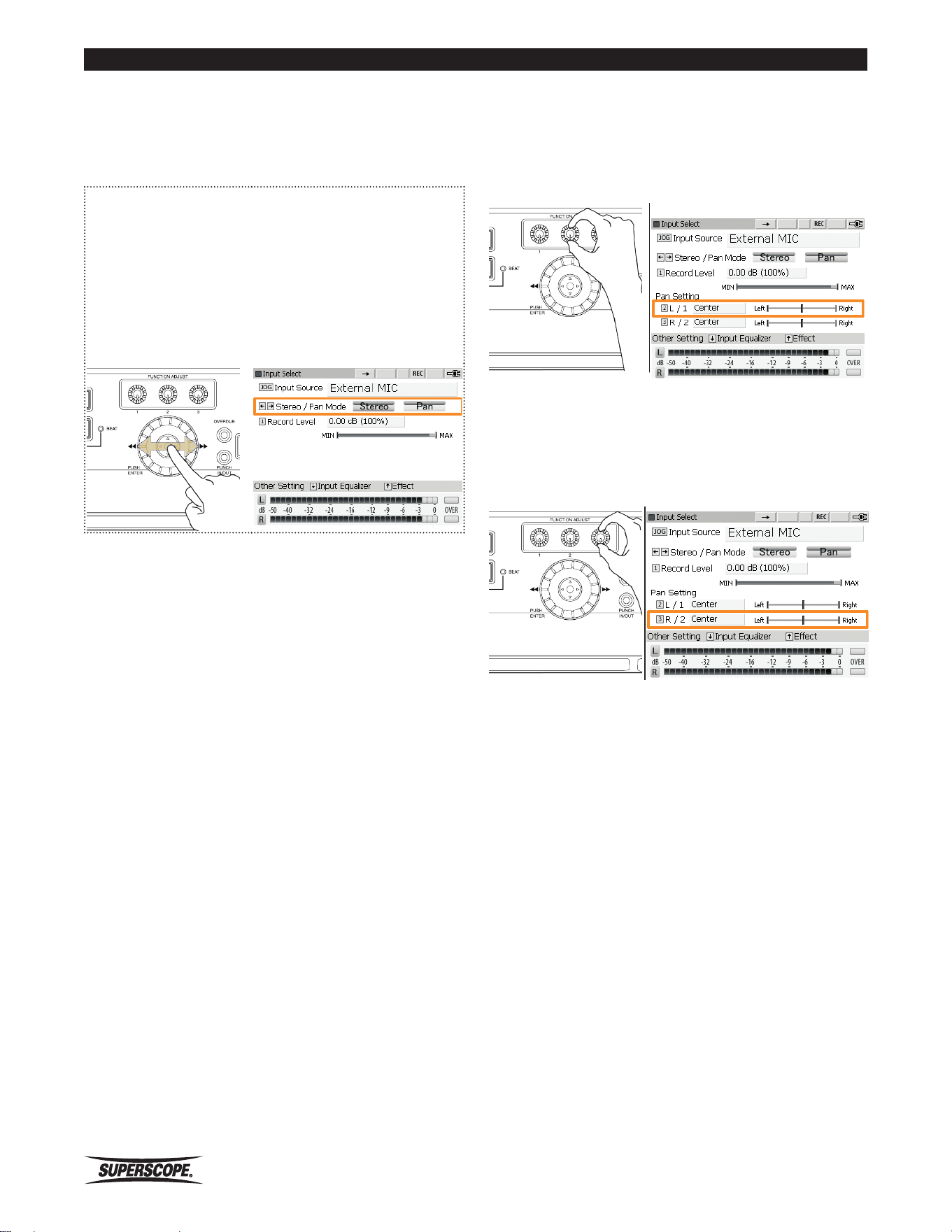
From the Input Select screen, move the joystick right or
left to select Stereo Mode or Pan Mode (Stereo mode is
the default setting).
Stereo Mode
Left channel inputs (L) are routed to the left channel
of the recording. Right channel inputs (R) are routed to
the right channel of the recording.
Pan Mode
Input signals can be routed to any position along the
(L/R) stereo spectrum.
Pan Setting – L/1
Turn FUNCTION ADJUST #2 (4B) to adjust the Pan
Setting for input L/1 (the left microphone). Adjustments
are made in 1% increments between Left100% - Center
- Right100%. The initial setting is Center.
Pan Setting – R/2
Turn FUNCTION ADJUST #3 (4C) to adjust the Pan
Setting for input R/2 (the right microphone). Adjustments
are made in 1% increments between Left100% - Center
- Right100%. The initial setting is Center.
https://manual-hub.com/
Superscope PSD410 User Manual
- 31 -
Set Up
Recording a Solo Performance
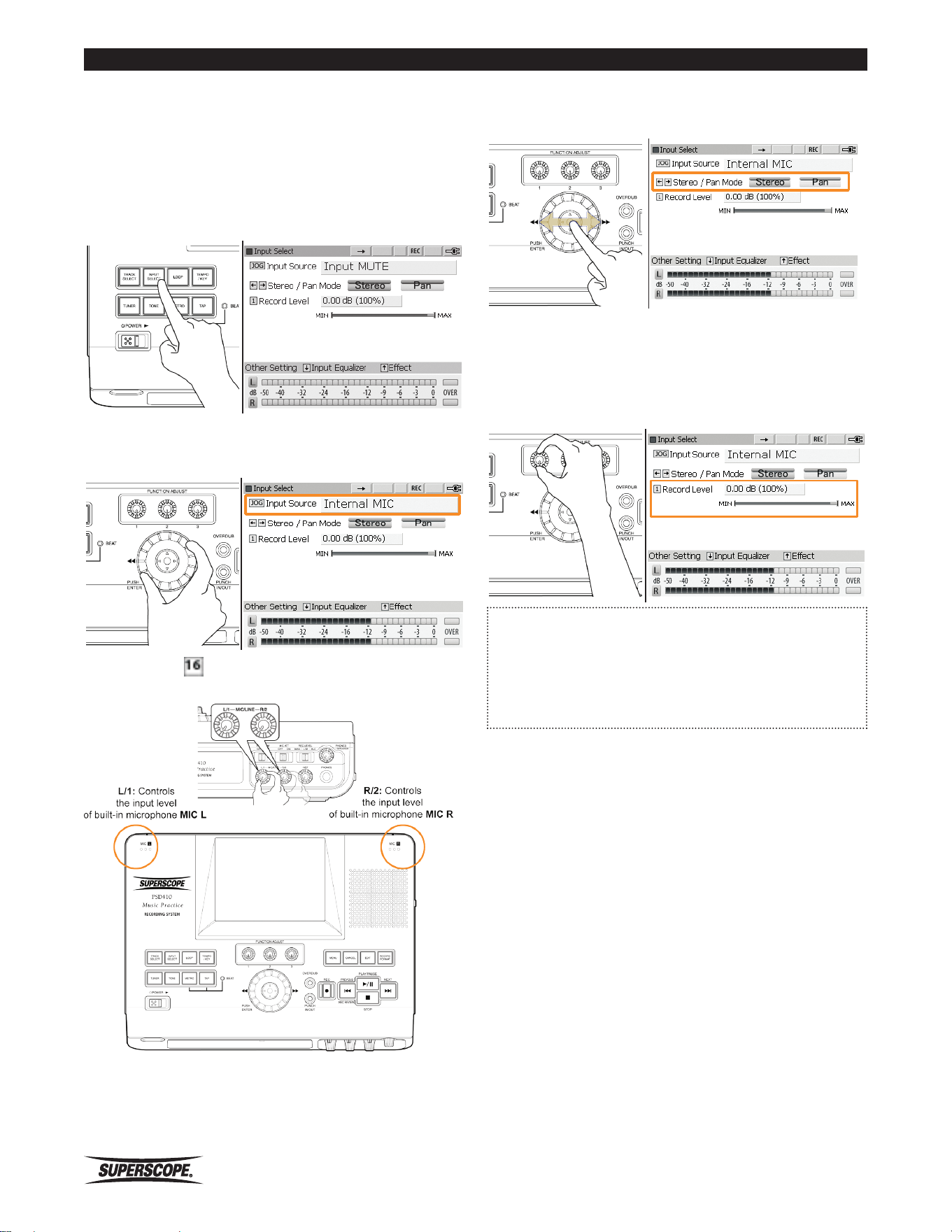
Follow the instructions below when recording a voice or
instrument with a single microphone:
1. Insert a microphone into the MIC/LINE input (L/1)
on the side panel. Both XLR type and 1/4 “standard
plug types can be used.
When using a microphone that requires 48V phantom
power, move the PHANTOM switch to the ON position.
2. Push the INPUT SELECT button to display the Input
Source options.
3. Turn the jog wheel to select External MIC and then
press the INPUT SELECT button to exit the screen.
4. Adjust the MIC / LINE level control (L/1) to
obtain a suitable recording level. See Setting Levels.
5. From the Input Select Screen, move the joystick to
the right to select Pan Mode.
6. Pan Setting – L/1 Selecting Pan Mode will “center”
the stereo position of the microphone connected to
Input (L/1). When recording a solo performance, it is
most common to place the soloist in the “center” of
the stereo spectrum. To alter the stereo positioning
for Input (L/1), turn FUNCTION ADJUST #2 (4B).
https://manual-hub.com/
- 32 -
Superscope PSD410 User Manual
Set Up
Internal Built-in Microphones
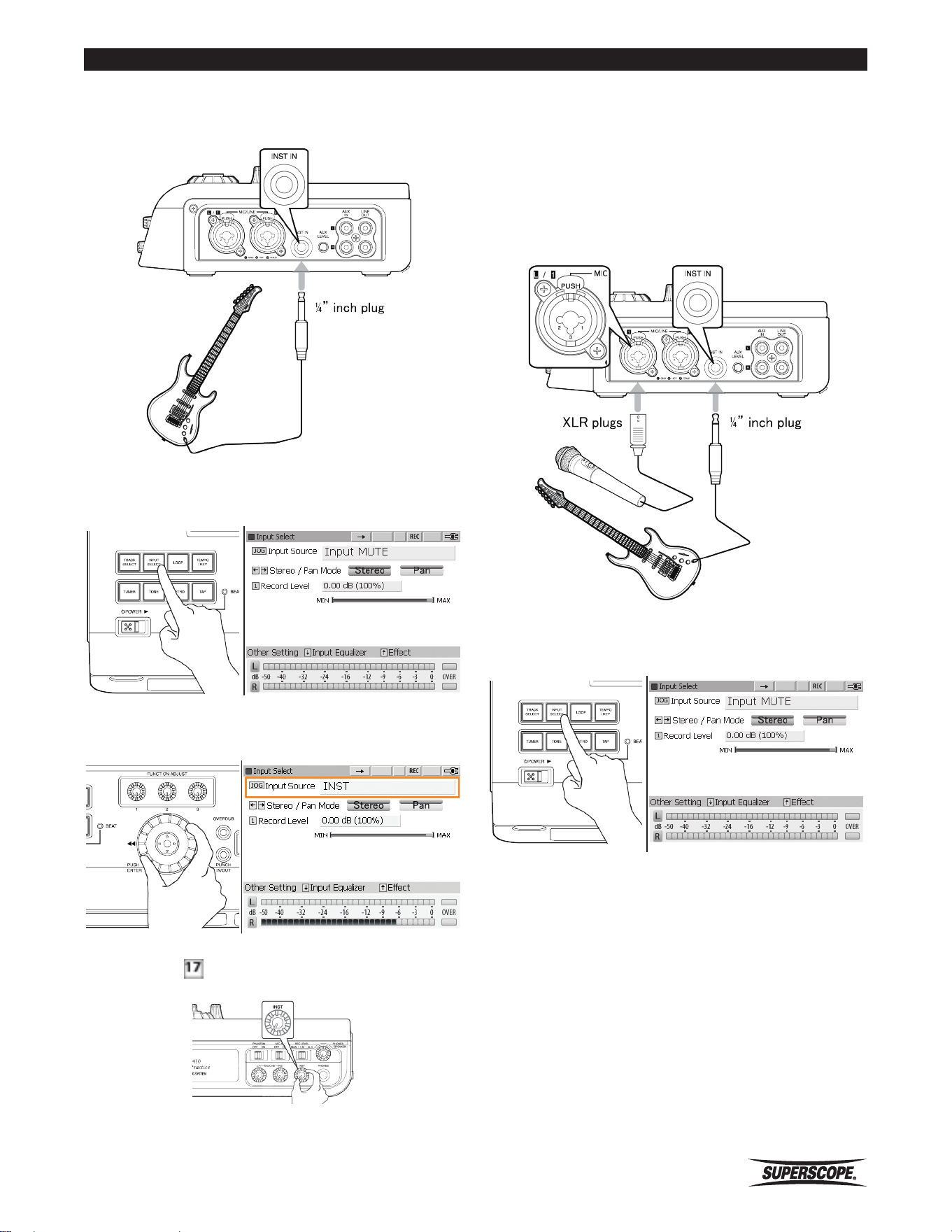
The PSD410 has a built-in stereo microphone. When
using the built-in microphones, please refer to the
following procedures.
1. Push the INPUT SELECT button to display the Input
Source options.
2. Turn the jog wheel to select Internal MIC and then
press the INPUT SELECT button to exit the screen.
3. Adjust the MIC / LINE L & R Level Controls to
obtain a suitable recording level. See Setting Levels.
4. Move the joystick right or left to select Stereo Mode
or Pan Mode (Stereo mode is the default setting).
5. Set Record Level - For most applications, the Record
Level should be set to the default value of 0dB. Turn
FUNCTION ADJUST #1 (4A) to adjust Record Level.
Press FUNCTION ADJUST #1 (4A) to return Record
Level to 0dB.
※ When using the built-in microphones,
the built-in speaker is muted to prevent
feedback. To prevent the built-in
microphones from picking up the sound
of buttons on the top panel, operate the
PSD410 with the RC450PSD remote control.
https://manual-hub.com/
Superscope PSD410 User Manual
- 33 -
Set Up
Recording a Microphone and a Musical
Instrument at the Same Time
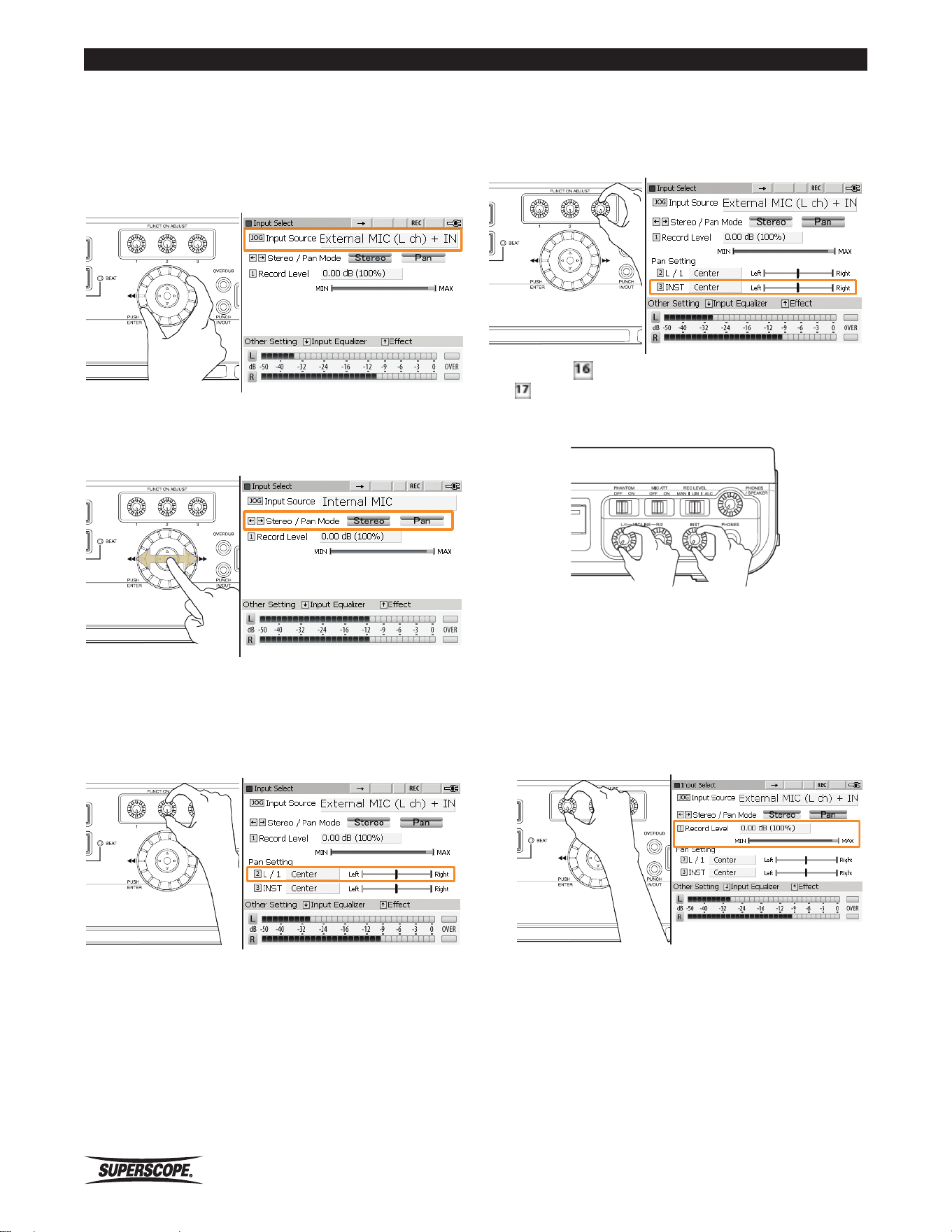
1. Please insert the plug from your instrument cable
into the INST IN Jack on the side panel. Insert
the microphone plug into MIC/LINE jack L1. In
addition, please switch the PHANTOM switch on
the front panel ON when connecting a condenser
microphone.
2. Push the INPUT SELECT button to display the Input
Source options.
Connecting Musical Instruments
1. Please insert the plug from your instrument cable
into the INST IN jack on the right side panel.
2. Push the INPUT SELECT button to display the Input
Source options.
3. Turn the jog wheel to select INST and then press the
INPUT SELECT button to exit the screen.
4. Adjust the INST knob to obtain a suitable
recording level.
See Setting Levels.
https://manual-hub.com/
- 34 -
Superscope PSD410 User Manual
Set Up
3. Turn the jog wheel to select External MIC (L ch) +
INST and then press the INPUT SELECT button to exit
the screen.
※ When connecting an instrument along with a
line level device such as an electronic piano,
please choose LINE (L ch) + INST.
4. Move the joystick right or left to select Stereo Mode
or Pan Mode (Stereo mode is the default setting).
5. If Pan Mode is selected, turn FUNCTION ADJUST
#2 (4B) to adjust the Pan Setting for input L/1 (the
left microphone). Adjustments are made in 1%
increments between Left 100% - Center - Right
100%. The initial setting is Center.
6. Turn FUNCTION ADJUST #3 (4C) to adjust the Pan
Setting for the INST input. Adjustments are made in
1% increments between Left 100% - Center - Right
100%. The initial setting is Center.
7. Turn the MIC/LINE input level knob (L/1) and the
INST knob to obtain a proper level and balance
between the microphone and the instrument. Please
refer to Setting Levels.
※ After the recording is completed, the MIC/
INST balance cannot be changed.
8. Set Record Level - For most applications, the Record
Level should be set to the default value of 0dB. Turn
FUNCTION ADJUST #1 (4A) to adjust Record Level.
Press FUNCTION ADJUST #1 (4A) to return Record
Level to 0dB.
https://manual-hub.com/
Superscope PSD410 User Manual
- 35 -
Set Up
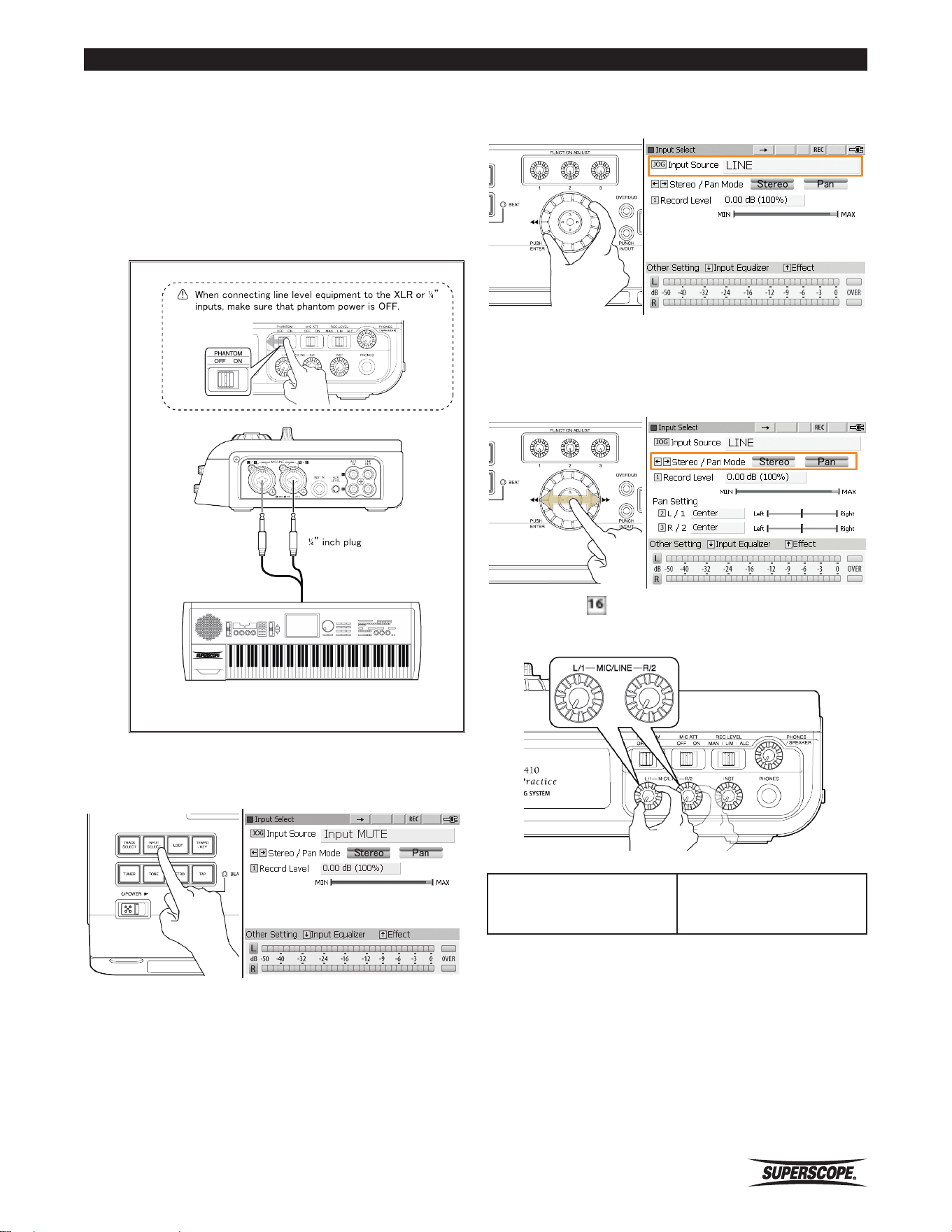
Line Level Sources
Use the following procedure when connecting line level
equipment (keyboards, mixers, CD players, etc.) to the
XLR or ¼” balanced inputs.
1. Connect line level audio equipment such as mixers
or keyboards to the MIC/LINE Jacks on the right side
panel.
2. Push the INPUT SELECT button to display the Input
Source options.
3. Turn the jog wheel to select LINE and then press the
INPUT SELECT button to exit the screen.
4. Move the joystick right or left to select Stereo Mode
or Pan Mode (Stereo mode is the default setting).Ⓐ
For adjustment of Pan Setting see STEREO/PAN
Mode.
5. Adjust the MIC / LINE L & R level controls to
obtain a suitable recording level. See Setting Levels.
L/1: Controls the input
level for LINE L/1.
R/2: Controls the input
level for LINE R/2.
https://manual-hub.com/
- 36 -
Superscope PSD410 User Manual
Set Up
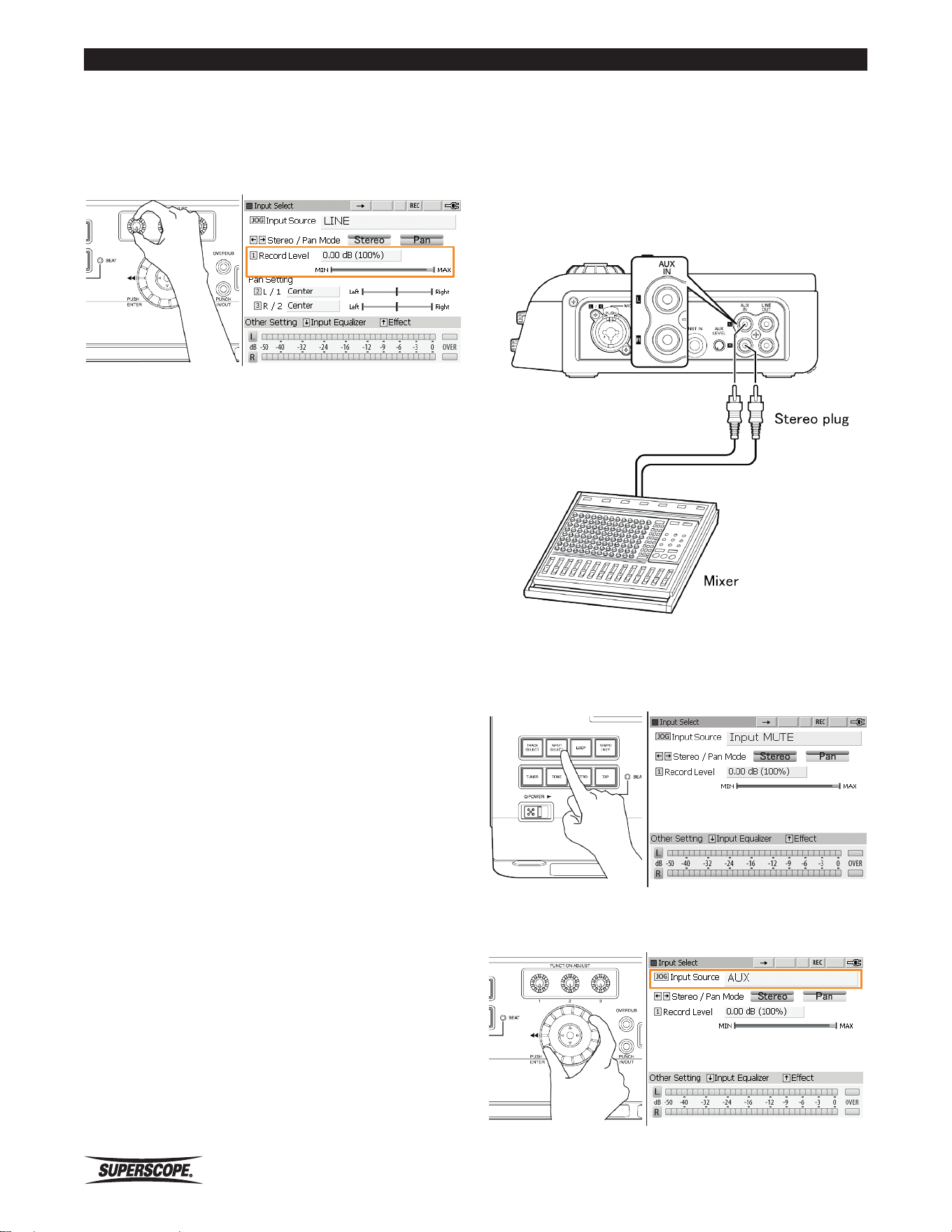
6. Set Record Level - For most applications, the Record
Level should be set to the default value of 0dB. Turn
FUNCTION ADJUST #1 (4A) to adjust Record Level.
Press FUNCTION ADJUST #1 (4A) to return Record
Level to 0dB.
AUX
Use the following procedure when connecting line level
equipment (keyboards, mixers, CD players, etc.) to the
RCA unbalanced inputs
1. Connect line level audio equipment such as mixers or
keyboards to the AUX IN Jack on the right side panel.
2. Push the INPUT SELECT button to display the Input
Source options.
3. Turn the jog wheel to select AUX and then press the
INPUT SELECT button to exit the screen.
https://manual-hub.com/
Superscope PSD410 User Manual
- 37 -
Set Up
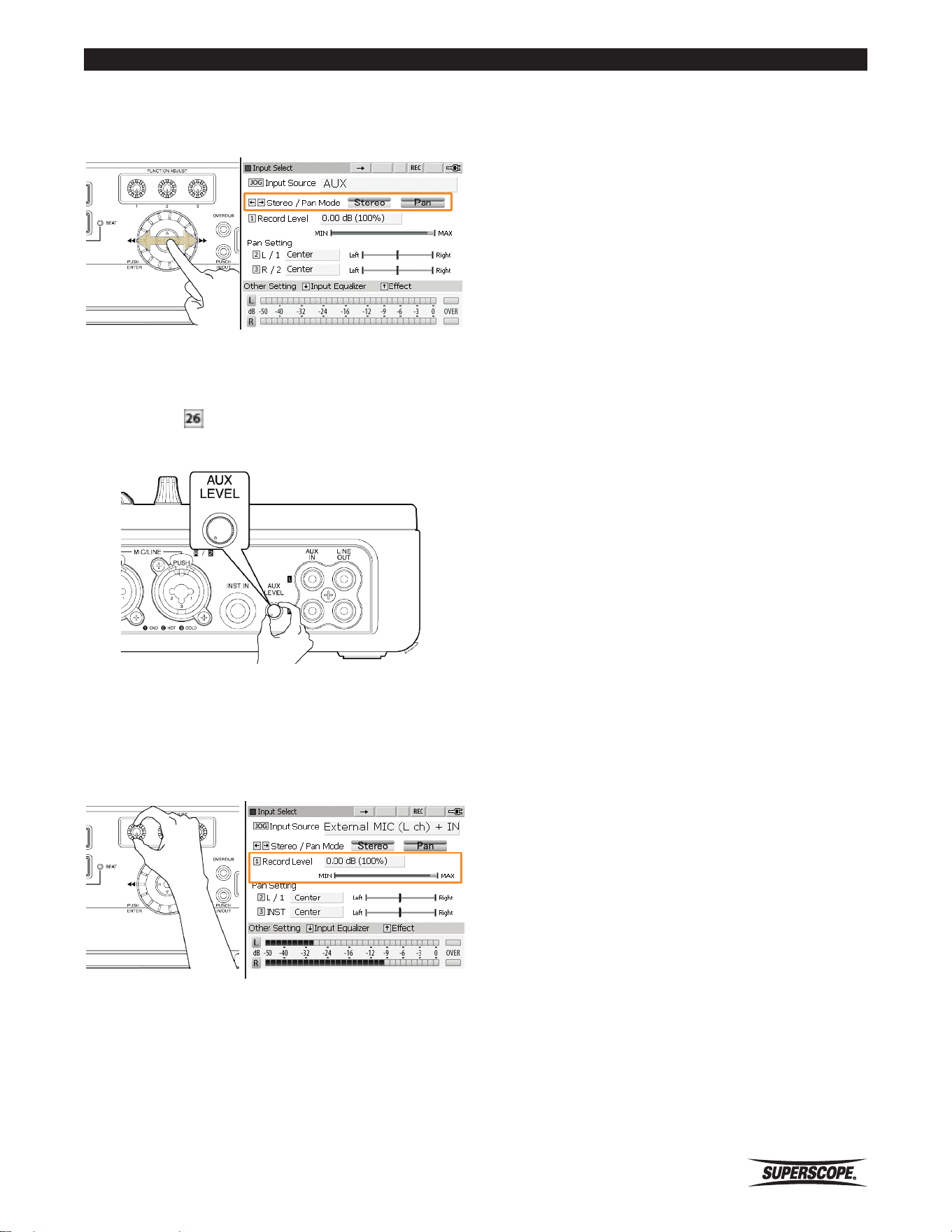
4. Move the joystick right or left to select Stereo Mode
or Pan Mode (Stereo mode is the default setting.)
※ For adjustment of Pan Setting see STEREO/
PAN Mode.
5. Adjust the AUX LEVEL control to obtain a
suitable recording level. See Setting Levels.
6. Set Record Level - For most applications, the Record
Level should be set to the default value of 0dB. Turn
FUNCTION ADJUST #1 (4A) to adjust Record Level.
Press FUNCTION ADJUST #1 (4A) to return Record
Level to 0dB.
https://manual-hub.com/
- 38 -
Superscope PSD410 User Manual
Set Up
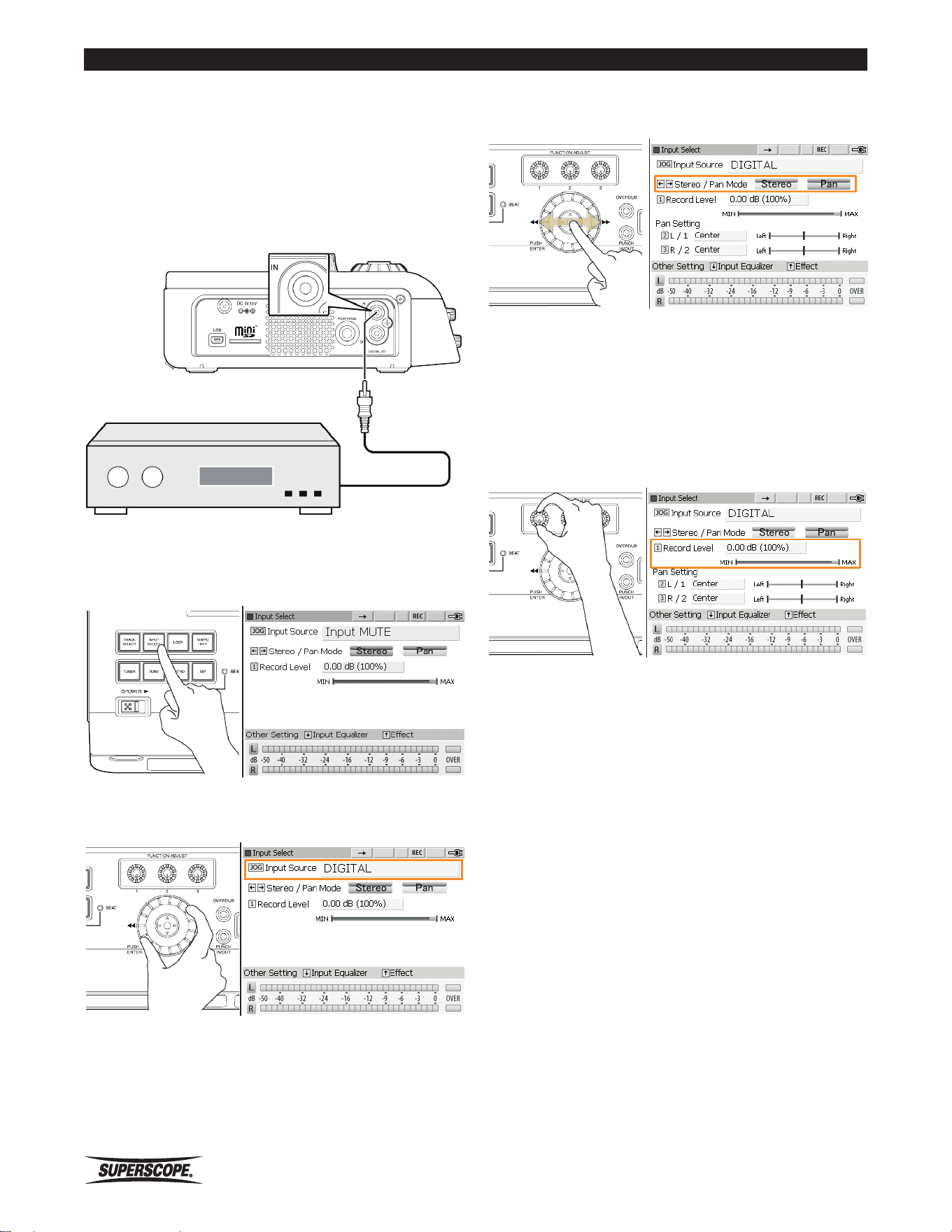
Digital Connection
Use the following procedure when connecting
equipment with digital outputs (keyboards, mixers, CD
players, etc.)
1. Connect digital equipment such as mixers or effects
processors to the DIGITAL IN on the left side panel.
2. Push the INPUT SELECT button to display the Input
Source options.
3. Turn the jog wheel to select DIGITAL and then press
the INPUT SELECT button to exit the screen.
4. Move the joystick right or left to select Stereo Mode
or Pan Mode (Stereo mode is the default setting).
※ For adjustment of pan settings, see STEREO/
PAN Mode. .
5. Set Record Level - For most applications, the Record
Level should be set to the default value of 0dB. Turn
FUNCTION ADJUST #1 (4A) to adjust Record Level.
Press FUNCTION ADJUST #1 (4A) to return Record
Level to 0dB.
https://manual-hub.com/
Superscope PSD410 User Manual
- 39 -
Set Up
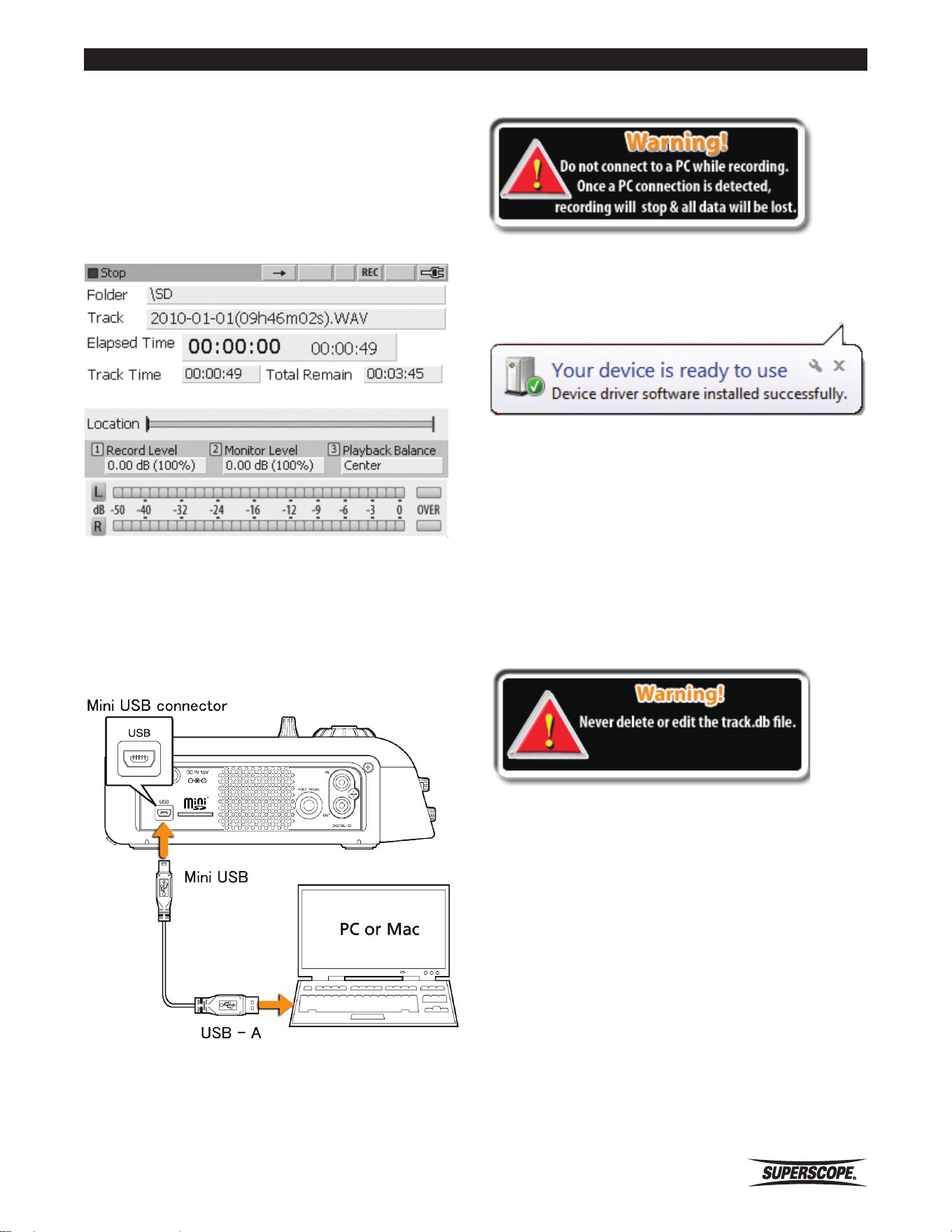
3. The PSD410 should be recognized as an external
hard drive without having to install a new driver.
4. Locate the PSD410 in your computer’s directory.
Copy, move, and delete files using your computer’s
operating system.
※ When the PSD410 is connected to a
computer, the file “track.db” will appear in
the PSD410’s file directory. If this file is edited
or deleted, you may lose access to your audio
files and settings.
Computer Connection
By connecting the PSD410 to a PC or Mac, you can
transfer music to and from a computer for editing or data
backup.
1. Confirm that the PSD410 is in Stop Mode and the
Normal Screen is active before entering USB mode.
If menu screens are active, the PSD410 will not enter
USB Mode.
※ When in USB Mode, all other features will be
inactive.
2. Use the included USB cable to connect the PSD410
to your computer.
※ Do not connect to a PC or Mac before
powering on the PSD410.
https://manual-hub.com/
- 40 -
Superscope PSD410 User Manual
- 40 -
Superscope PSD410 User Manual
EditingWorking With Files and Folders
■Working With
Files and Folders
Selecting Tracks
The PSD410 offers several methods for locating a track
for playback, editing, or for use as accompaniment when
overdubbing.
Searching Folders
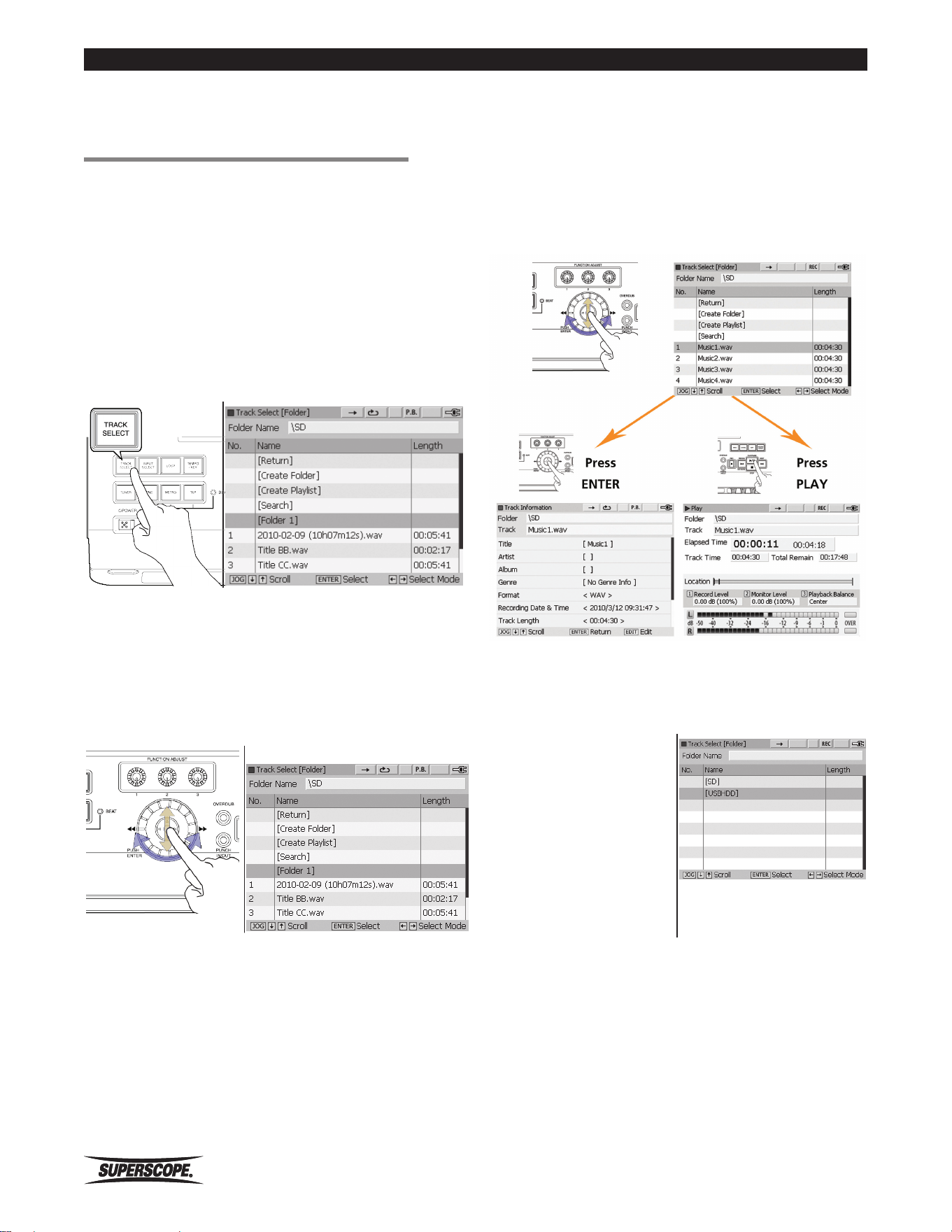
1. Press the TRACK SELECT button to view all files,
folders, and playlists on the SD card.
2. All newly recorded files will appear in the main
folder. Turn the jog wheel or move the joystick up or
down to highlight tracks or subfolders. Sub folders
will appear in brackets, e.g., [sub folder 1]. To search
the contents of a sub folder, either turn the jog
wheel or move the joystick up or down to highlight a
sub folder.
Track Select [Folder] Screen.
3. Press ENTER to view the contents of the selected
folder.
※ When a track is highlighted in the Track Select
Screen, push ENTER to view or edit track
information. Press the Play/Pause button (8C)
to begin playback.
Search a USB Device
To search the contents of
an attached USB storage
device, select [Return] on
the Track Select [Folder]
screen and press ENTER.
Select [USBHDD] and
press ENTER. The contents
of the attached USB
storage device will now be
displayed.
https://manual-hub.com/
Superscope PSD410 User Manual
- 41 -
Superscope PSD410 User Manual
- 41 -
EditingWorking with Files and Folders
Create a Folder
Use the following steps to organize files into a new
folder.
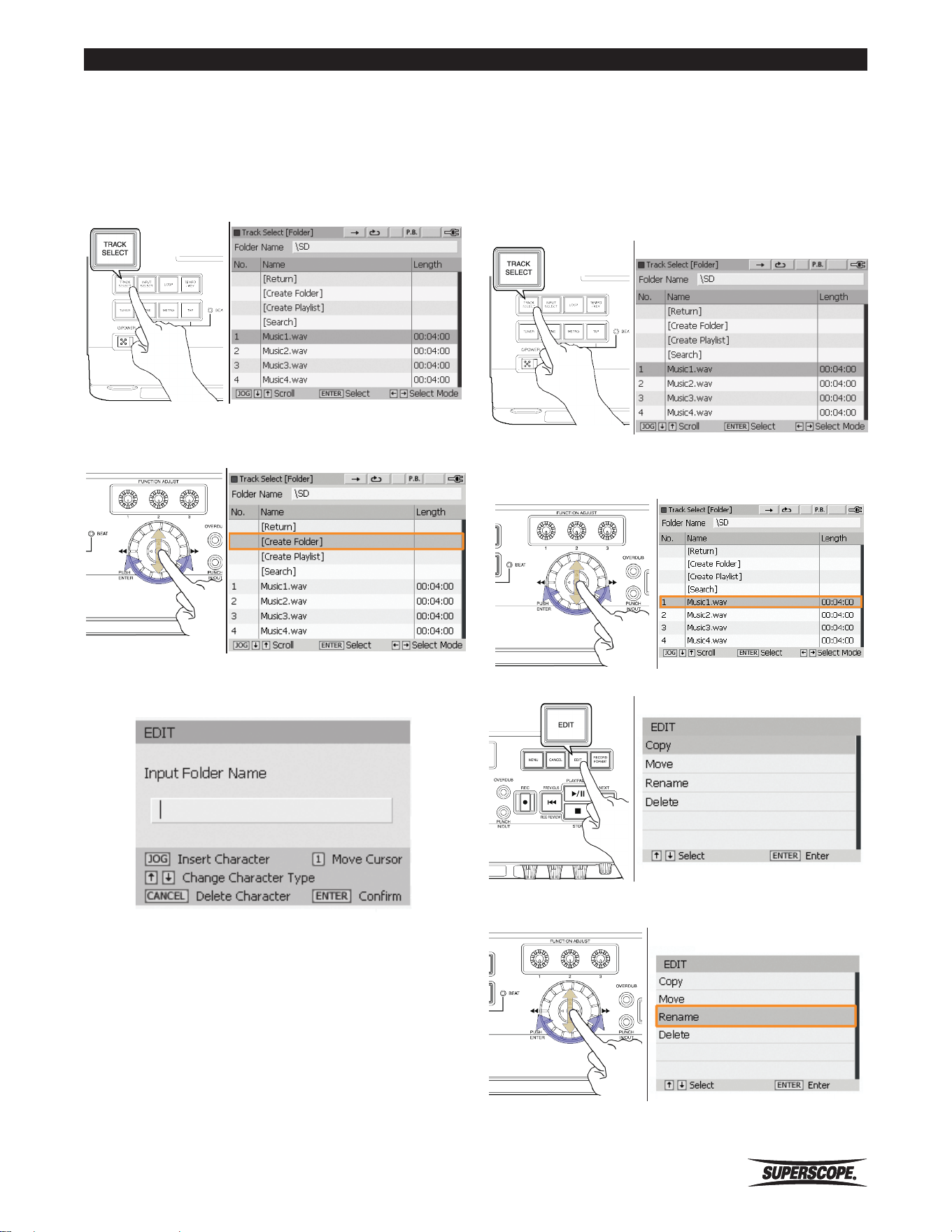
1. Press the TRACK SELECT button to open the Track
Select [Folder] screen.
2. Turn the jog wheel or move the joystick up or down
to highlight [Create Folder]. Press ENTER
.
3. Enter the name of the new folder by using the Text
Input Method.
Rename
Use the following steps to rename folders or tracks.
The PSD410 will not allow you to use the same name as
another file or folder in the same location.
1. Press the TRACK SELECT button to open the Track
Select [Folder] screen.
Track Select [folder] Screen
2. Turn the jog wheel or move the joystick up or down
to highlight the folder or file you wish to rename.
3. Press the EDIT button.
Edit Screen
4. Turn the jog wheel or move the joystick up or down
to highlight Rename. Press ENTER.
5. Enter the name of the new folder by using the Text
Input Method.
https://manual-hub.com/
- 42 -
Superscope PSD410 User Manual
- 42 -
Superscope PSD410 User Manual
EditingWorking With Files and Folders
Create a Playlist
Use the following steps to create a playlist (M3U file
format).
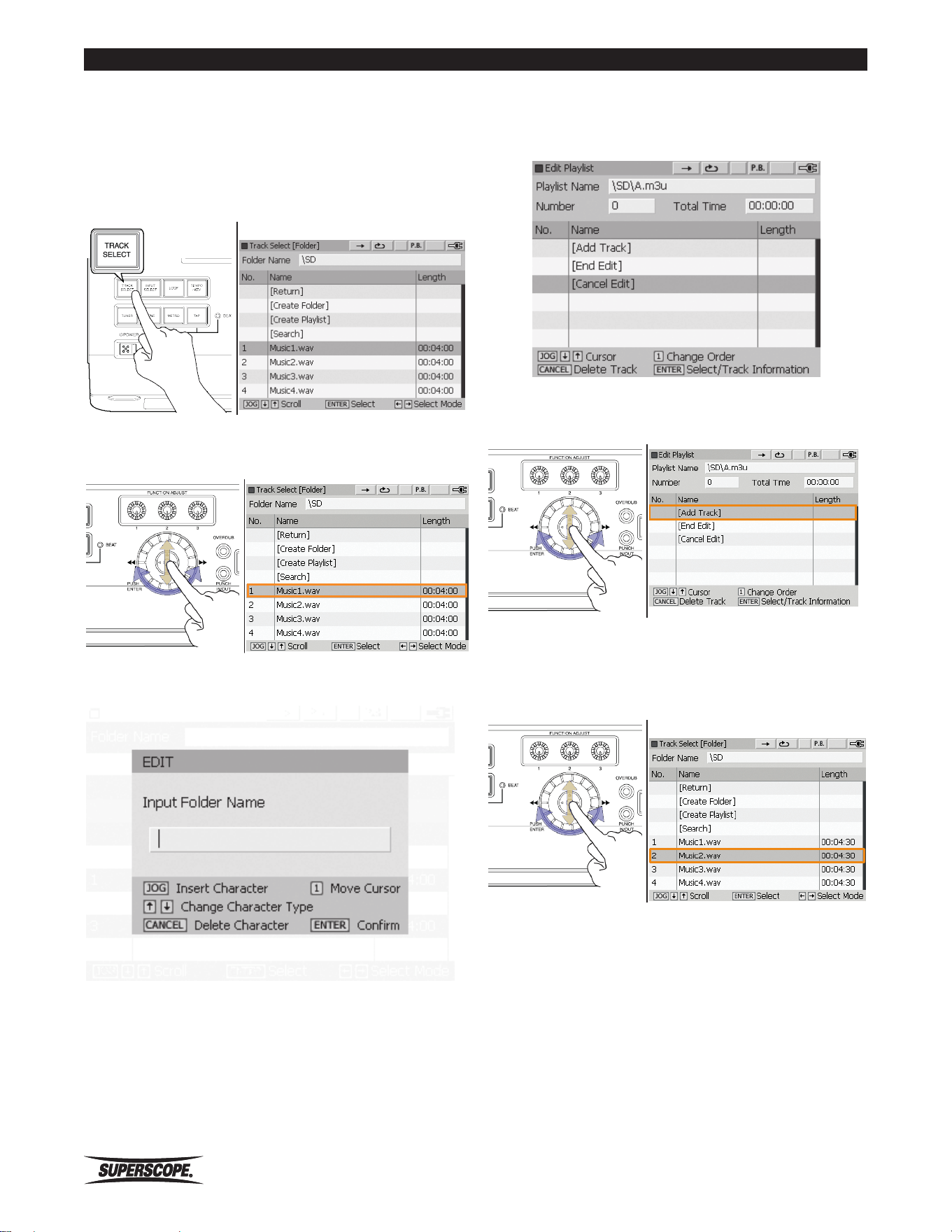
1. Press the TRACK SELECT button to open the Track
Select [Folder] screen.
Track Select [folder] Screen
2. Turn the jog wheel or move the joystick up or down
to highlight [Create Playlist]. Press ENTER.
3. Enter the name of the new folder by using the Text
Input Method.
4. When you have finished naming your new playlist
and pressed ENTER to confirm the new title, the Edit
Playlist screen will appear.
5. Turn the jog wheel or move the joystick up or down
to highlight [Add Track]. Press ENTER.
6. The Select Track [Folder] screen will appear. Turn
the jog wheel or move the joystick up or down to
highlight a track. Press ENTER to add the selected
track to the playlist.
ISelect Track [Folder] screen
https://manual-hub.com/
Superscope PSD410 User Manual
- 43 -
Music Practice
■Music Practice
How to Use the Tuner
The PSD410 provides two options for tuning instruments:
a chromatic tuner (range=A0 ~ C8) and a tone generator
(default=440Hz).
Using the Chromatic Tuner
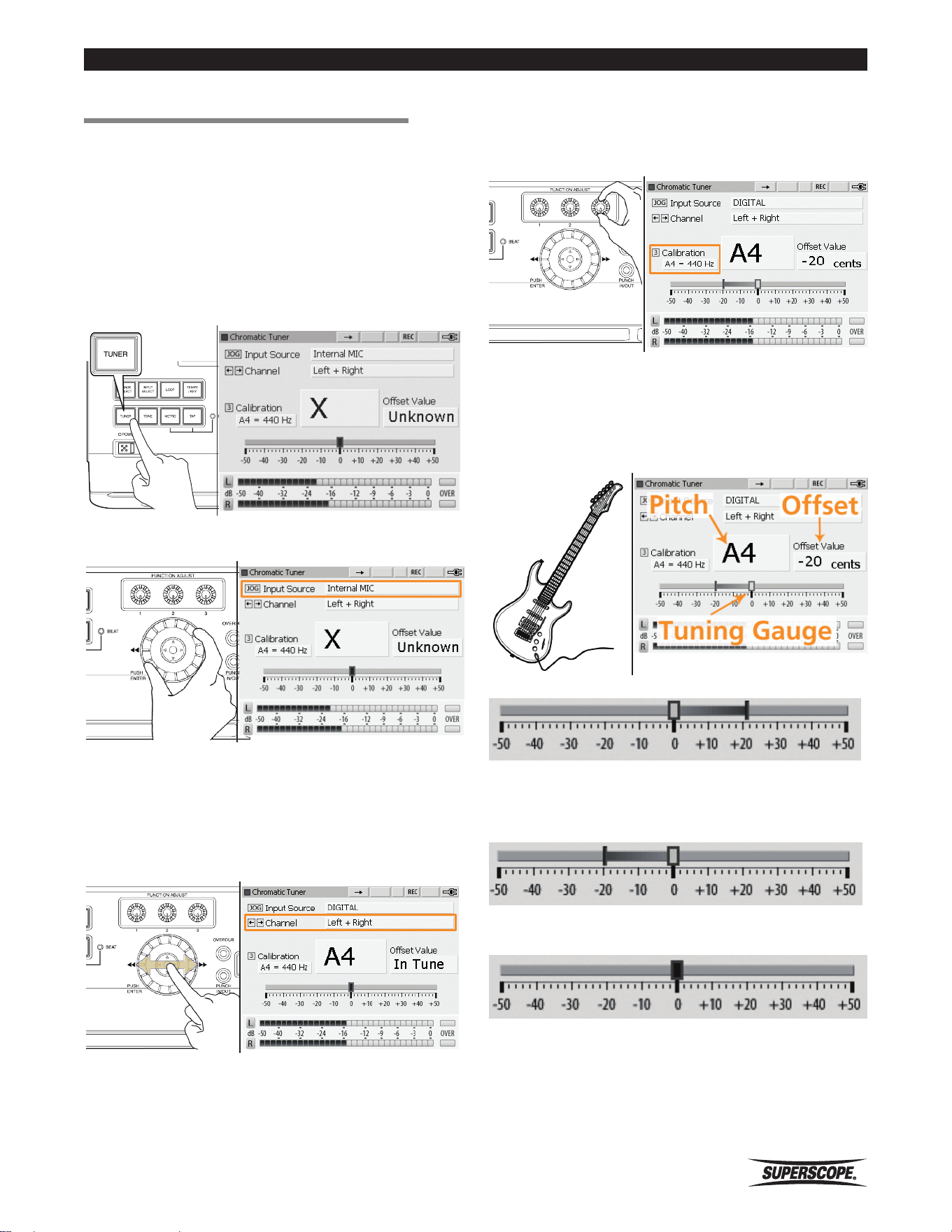
1. Push the TUNER button to open the chromatic tuner
screen.
2. Turn the jog wheel to select the Input Source.
3. Move the joystick left or right to select the Input
Channel. Specifying an Input Channel improves
tuning accuracy by preventing interference from
other channels. For example, if youare using one
microphone connected to Input L/1, select Input
Source: External MIC, Channel: Left.
4. By default, the chromatic tuner is calibrated to
A4=440Hz. The tuner can be calibrated to any
frequency between 430Hz and 460Hz by turning
FUNCTION ADJUST #3 (4C).
5. As you play a note on your instrument, the closest
musical pitch will be displayed along with an Offset
Value showing how flat or sharp the note is (+/- 50
cents). Tune your instrument until the tuning gauge
is centered and the Offset Value displays “In Tune.”
Tuning gauge indicating “Sharp”
Tuning gauge indicating “Flat”
Tuning gauge indicating “In Tune”
https://manual-hub.com/
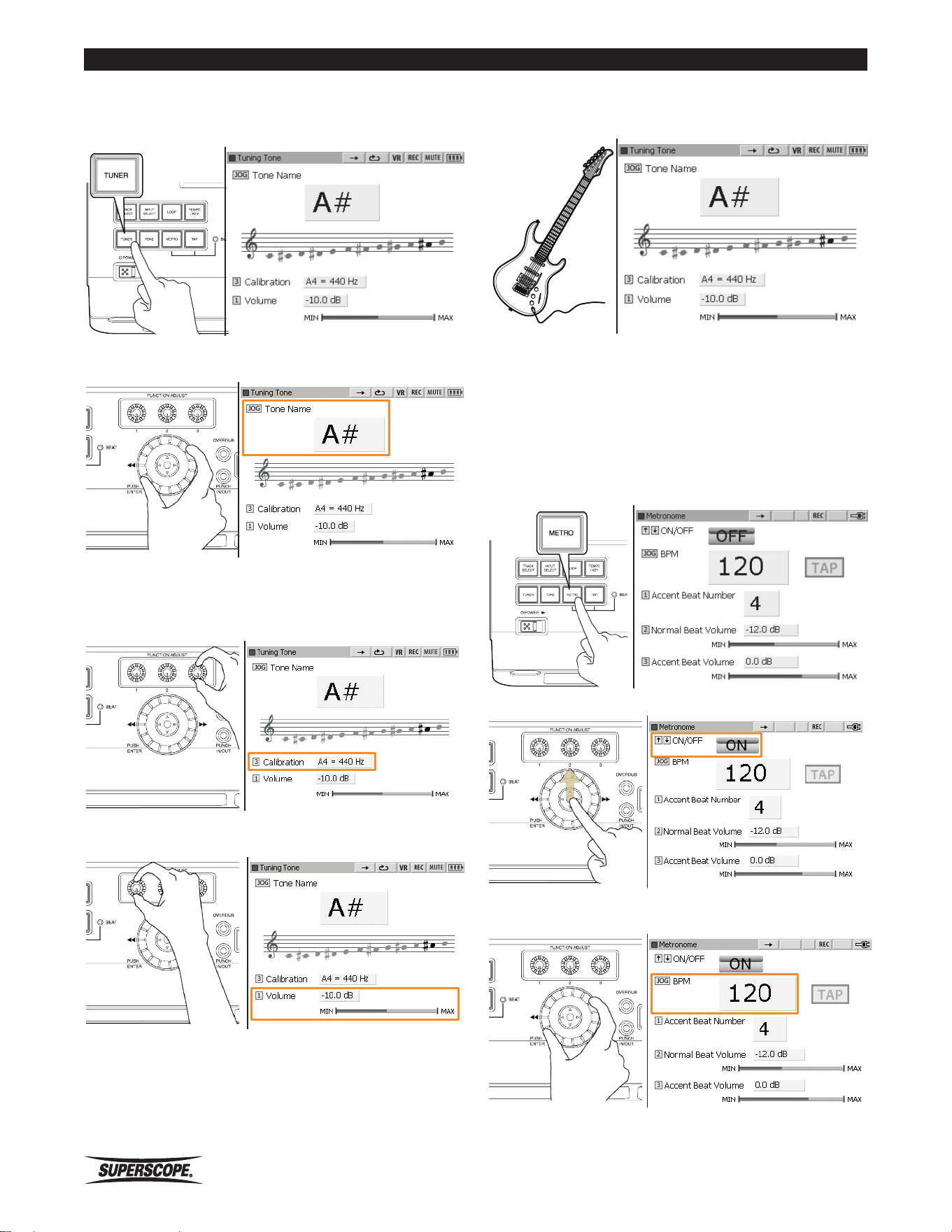
- 44 -
Superscope PSD410 User Manual
Music Practice
Using the Tuning Tone
1. Push the Tone button (2E) to open the Tuning Tone
screen.
2. Turn the jog wheel to select the frequency of the
tone generator.
3. By default, the tone generator is calibrated to
A4=440Hz. The tuner can be calibrated to any
frequency between 410Hz and 470Hz by turning
FUNCTION ADJUST #3 (4C).
4. Turn FUNCTION ADJUST #1 (4A) to adjust the
volume of the tone generator.
5. All notes are displayed in concert pitch. Tune your
instrument to match Tone Name displayed on the
Tuning Tone screen. Tuning Tone Screen
Using the Metronome
The metronome signal can be heard through the line
outputs, headphones or built-in speaker.
1. Press the METRO button or the TAP button to open
the Metronome screen.
2. Move the joystick up to turn the metronome ON.
3. Turn the jog wheel to adjust tempo. Tempo can be
set between 35BPM and 250BPM.
https://manual-hub.com/
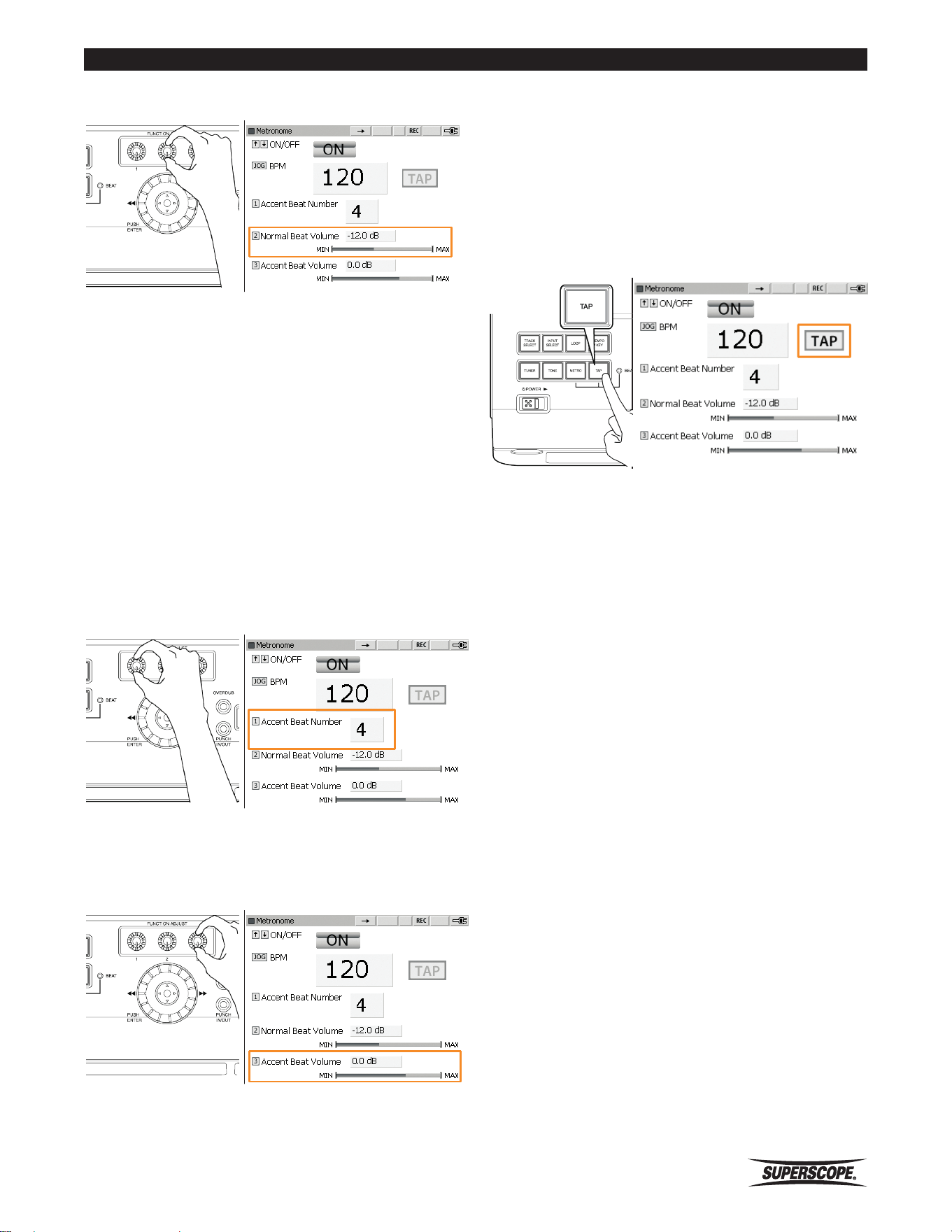
Superscope PSD410 User Manual
- 45 -
Music Practice
4. Turn FUNCTION ADJUST #2 (4B) to adjust the
volume of the metronome.
Adjusting Accent Beat and Accent Beat
Volume
By designating a particular beat to play louder than other
beats, the PSD410 metronome is able to imply different
rhythmic meters. For instance, setting the Accent Beat
Number to 3 will cause every third beat to sound louder
than the other two. At moderate tempos, this will create
a waltz feel. Adjusting the Accent Beat Volume will
determine how much louder the Accent Beat will sound
over the non-accented beats.
1. Turn FUNCTION ADJUST #1 (4A) to set an Accent
Beat Number. Select beat 1-7 or ‘0’ for no accent
beat. Press FUNCTION ADJUST #1 (4A) to return the
Accent Beat Number to the default setting (4).
2. Turn FUNCTION ADJUST #3 (4C) to set the volume
of the accent beat. Press FUNCTION ADJUST #3 (4C)
to return the Accent Beat Volume to the default
setting (0.00dB).
Using Tap Tempo
Metronome Tempo can also be determined by pressing
the TAP button.
Press the TAP button at the desired tempo a minimum of
6 times toadjust the BPM setting of the metronome.
The LED flashes on and off according to the BPM setting
of the metronome. The LED will flash green for normal
beats and red for accent beats.
https://manual-hub.com/
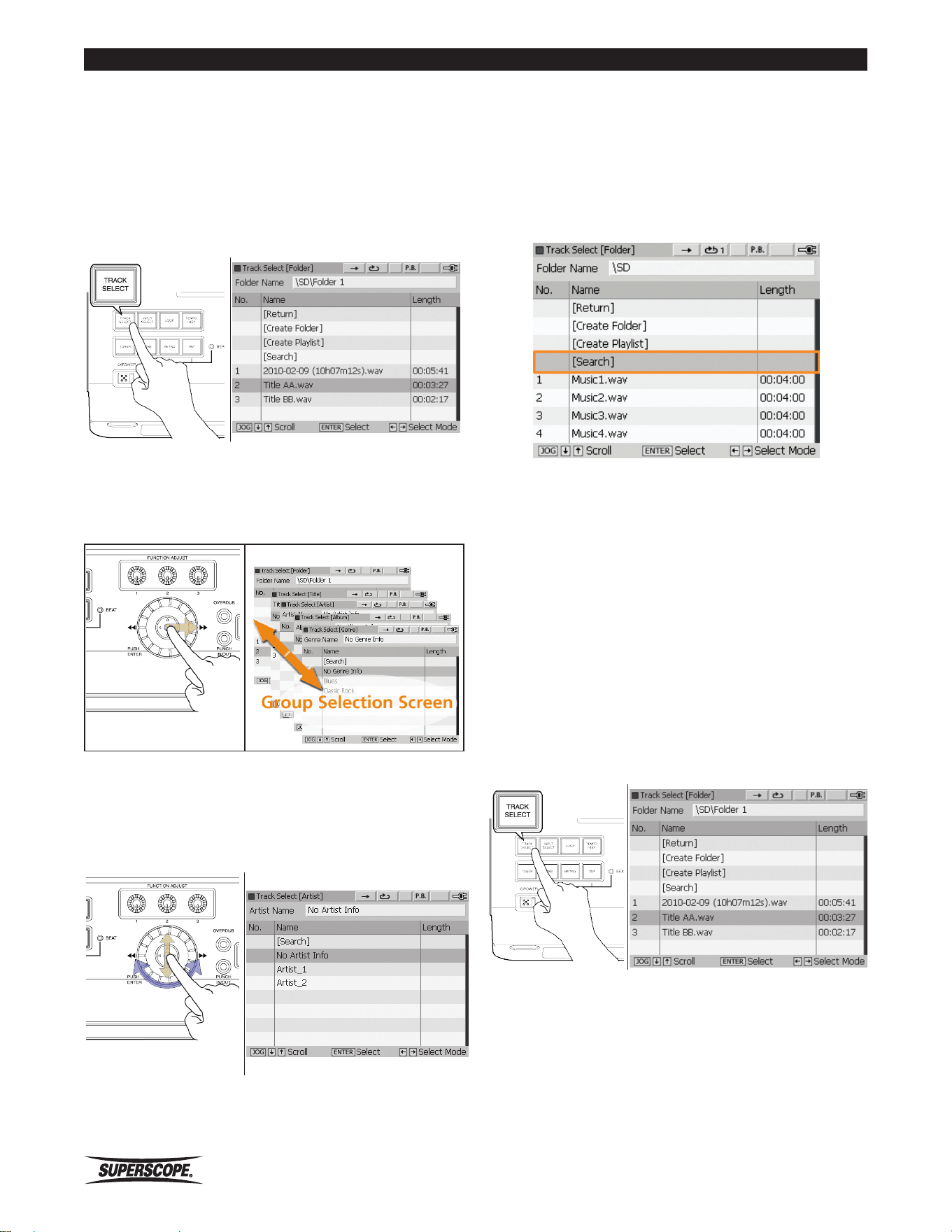
- 46 -
Superscope PSD410 User Manual
Music Practice
Filtering by Title, Artist, Album, and
Genre
The PSD410 allows you to create, view, or edit a file’s
tag information (e.g., title, album). You are also able to
search for files by four key tags: Title, Artist, Album, or
Genre.
1. Press the TRACK SELECT Key to launch the Track
Select [Folder] screen.
2. Push the joystick to the right to view the four Group
Selection Screens. These screens will filter the audio
files on your SD card or USB storage device by tag
information: Title, Artist, Album, and Genre.
Track Select [Folder] Screen
3. Move the joystick up or down or turn the jog wheel
to select a track from any Group Selection Screen.
Move the joystick right or left to switch between the
Group Selection Screens: Title, Artist, Album, and
Genre.
Artist Selection Screen
※ When a track is highlighted in a Group
Selection Screen, push ENTER to view or
edit track information. Press the Play/Pause
button (8C) to begin playback. Track Select
[Folder] Screen
Using the [Search] Feature
At the top of the Track Select [Folder] screen and each
Group Selection screen, you will see the [Search] option.
Use this feature to filter the contents of the current
screen by typing in keywords for the File name, Title,
Artist, Album, or Genre you are searching for.
※ The [Search] feature will only filter the
contents of the currently selected screen. For
example, using [Search] on the Title screen
will only search Title information.
Use the following procedure when searching for files.
The same procedure is used when searching for titles,
artists, albums, or genres.
1. Press the TRACK SELECT Key to open the Track
Select [Folder] screen.
https://manual-hub.com/
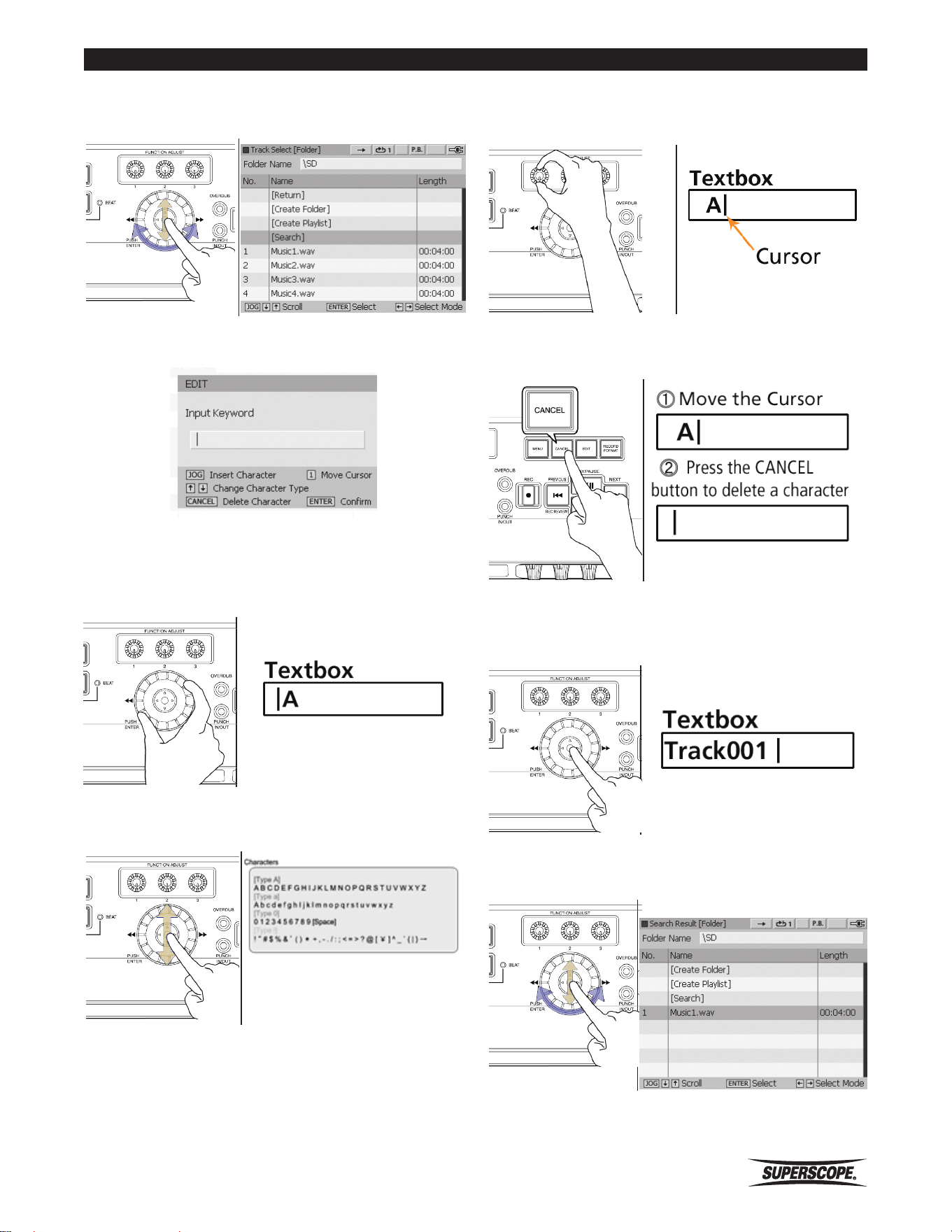
Superscope PSD410 User Manual
- 47 -
Music Practice
2. Turn the jog wheel or move the joystick up or down
to highlight [Search], and then press ENTER.
3. Use the Text Input Method below to type the file
name or part of the file name you are searching for.
Text Input Method
Enter Characters
Turn the jog wheel to enter characters.
Change Character Type
Move the joystick up or down to change character types.
The four different character groups are shown below.
Move the Cursor
Use FUNCTION ADJUST # 1 (4A) to move the cursor to a
new character.
Delete a Character
Press the CANCEL button to delete a character.
Confirm Entry
When you are finished entering text, press the joystick to
ENTER. When the search is complete, the search results
will be displayed.
Move the joystick up or down or turn the jog wheel to
select a track from the Search Result [Folder] screen.
Search Result [Folder] screen.
https://manual-hub.com/
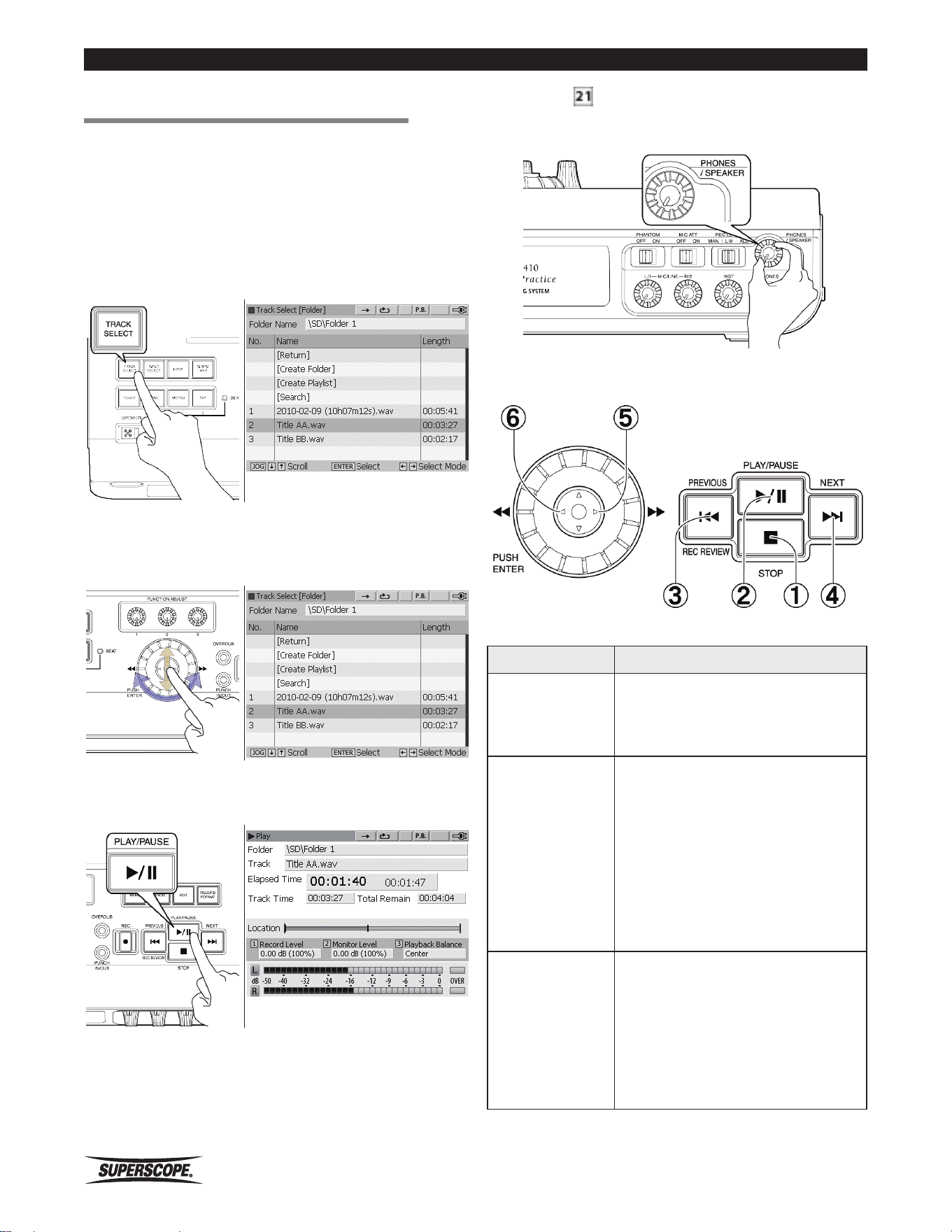
- 48 -
Superscope PSD410 User Manual
Music Practice
■Play
The PSD410 can play WAV or MP3 files located on a mini
SD card or USB storage device.
1. Power the unit on and insert a mini SD card
containing WAV or MP3 files (see Set Up).
2. Press the TRACK SELECT button to open the Track
Select [Folder] screen.
3. Turn the jog wheel or move the joystick up or down
to highlight track for playback.
4. Press the PLAY/PAUSE button (8C) to play the
selected track.
5. Turn the PHONES/SPEAKER knob to adjust the
volume of the speaker or headphones.
Playback Operation
Button Function
① STOP
Press to stop playback. Playback
location returns to the beginning of
the track.
② PLAY/PAUSE
• From Stop Mode, press to
begin playback.
• From Pause Mode, press to
resume playback from the
pause location.
• From Play Mode, press to pause
playback.
③ PREVIOUS
Press during playback to return
to the start of the track. Press the
Previous button within the first two
seconds of playback to return to
the start of the previous track.
Press during Stop Mode to return to
the start of the previous track.
https://manual-hub.com/
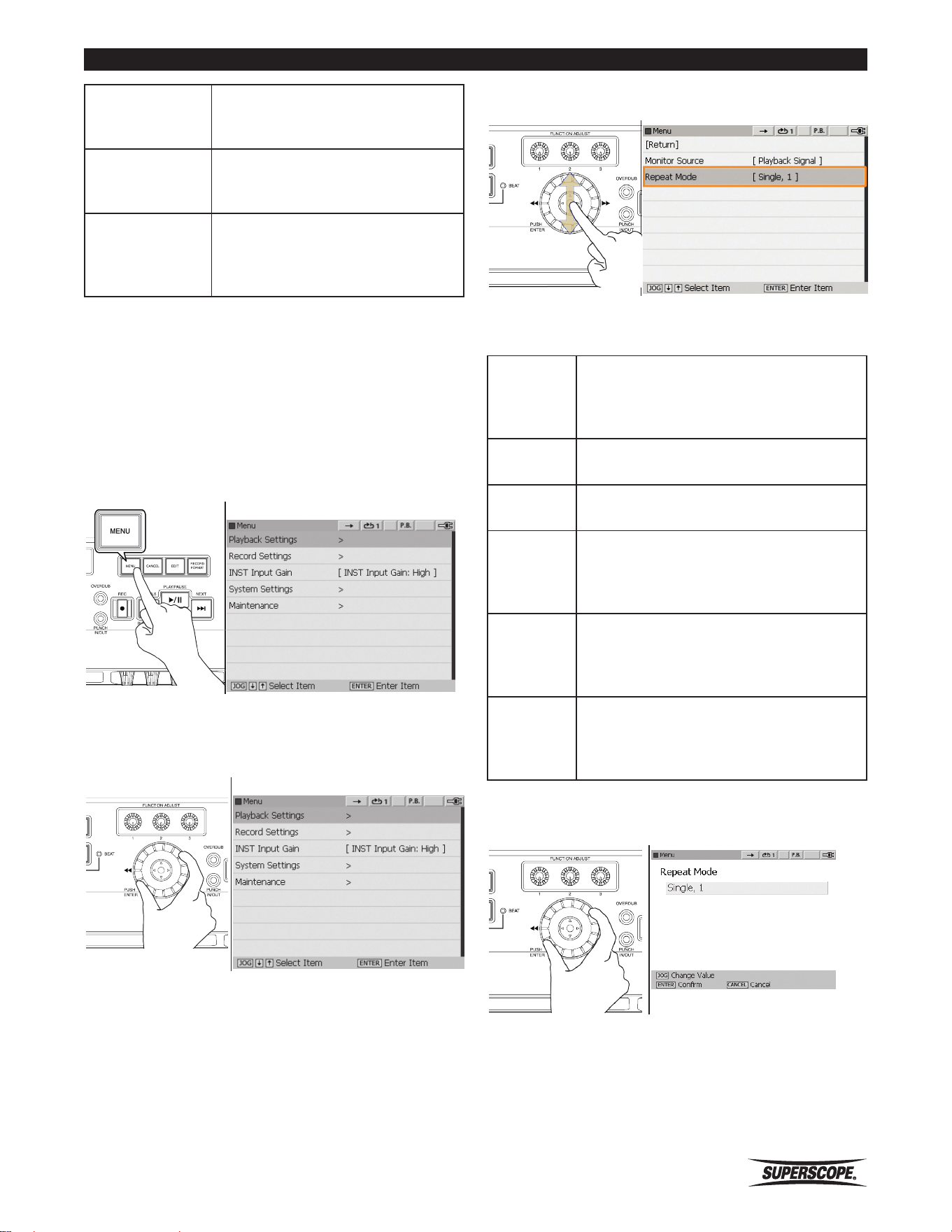
Superscope PSD410 User Manual
- 49 -
Music Practice
④ NEXT
Press to begin playback at the
beginning of the next track.
⑤ Fast
Forward
Hold the joystick to the right to
begin audible high-speed searching.
⑥ Fast Rewind
Hold the joystick to the left to
begin audible high-speed backward
searching.
Playback Modes
In Normal operation, playback continues to the next track
as soon as the current track is finished playing.
The PSD410 contains several alternative playback modes
to accommodate a variety of situations. Follow these
steps to select a new playback (repeat) mode.
1. Press the Menu button to open the Menu screen.
Menu Screen
2. Use the jog wheel or joystick to highlight Playback
Settings and then press ENTER.
Menu Screen
3. Use the jog wheel or joystick to highlight "Repeat
Mode" and then press ENTER.
Repeat Modes
OFF
Normal operation. When a track is
finished playing, playback continues to
the next track.
All
All songs in a given folder play repeatedly
1
The current track will play repeatedly.
Single, 1
The current track plays once before
playback stops at the beginning of the
current track.
Single, All
All songs in a given folder play once
before playback stops at thebeginning of
the first track.
Single
The current track plays once before
playback stops at the beginning of next
track.
4. Select a Repeat Mode by turning the jog wheel.
Press ENTER to confirm the selection.
https://manual-hub.com/
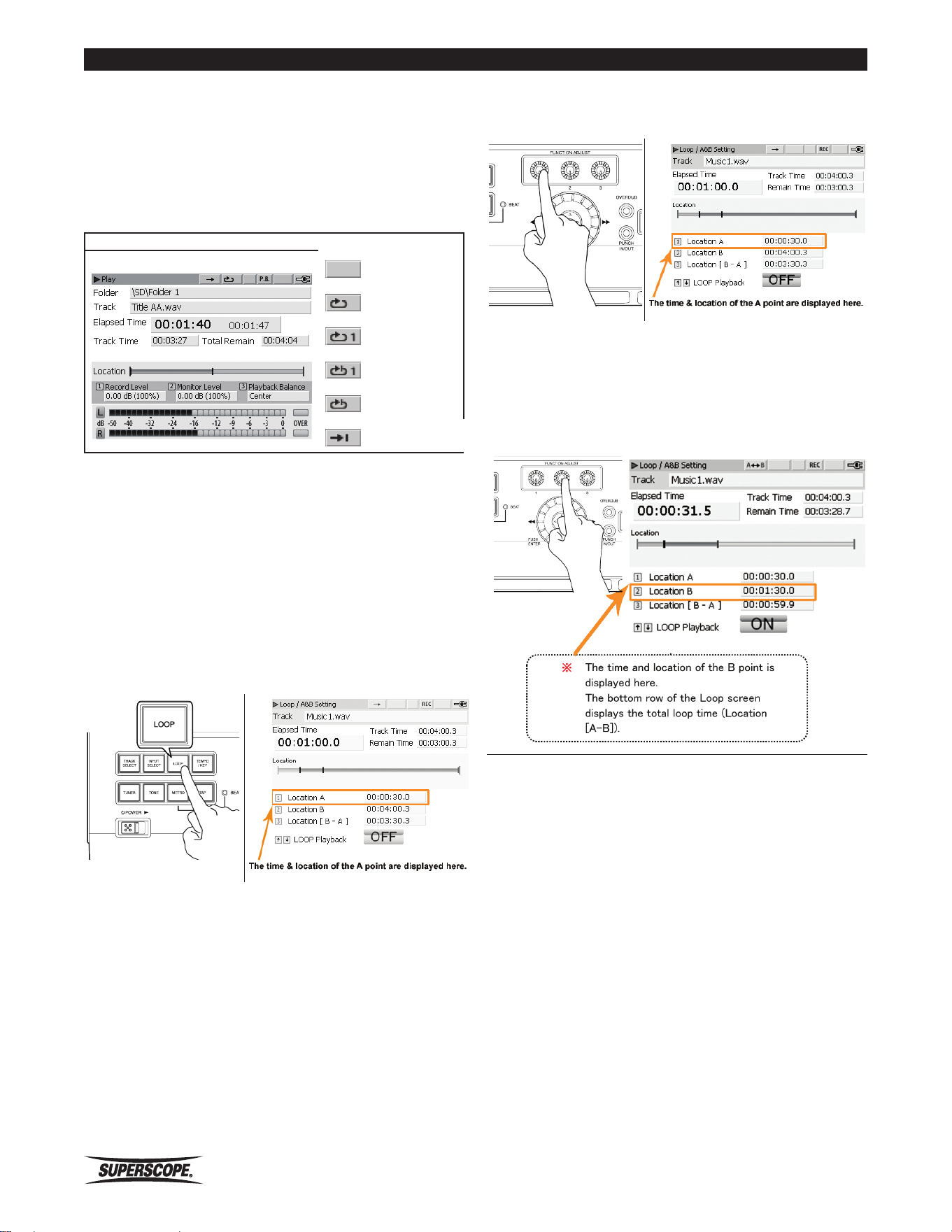
- 50 -
Superscope PSD410 User Manual
Music Practice
To cancel the setting, press the CANCEL button.
5. Press the Menu button to exit.
The following Repeat icons will be displayed when the
corresponding Repeat Mode is selected:
Play Screen
OFF
All
1
Single, 1
Single, All
Single
A-B Loop (Repeat Playback)
Use the A-B Loop function to play a section of audio
repeatedly. The procedure below is also used when
determining In/Out points for Overdub and Punch In/
Out.
Set the A Point
1. During playback, press the LOOP button to open the
Loop/ A&B Setting screen.
2. When you hear the point at which the loop should
begin, press FUNCTION ADJUST #1(4A).
Set the B Point
1. When you hear the point at which the loop should
end, press FUNCTION ADJUST #2 (4B). When the B point
is set, LOOP Playback begins automatically.
https://manual-hub.com/
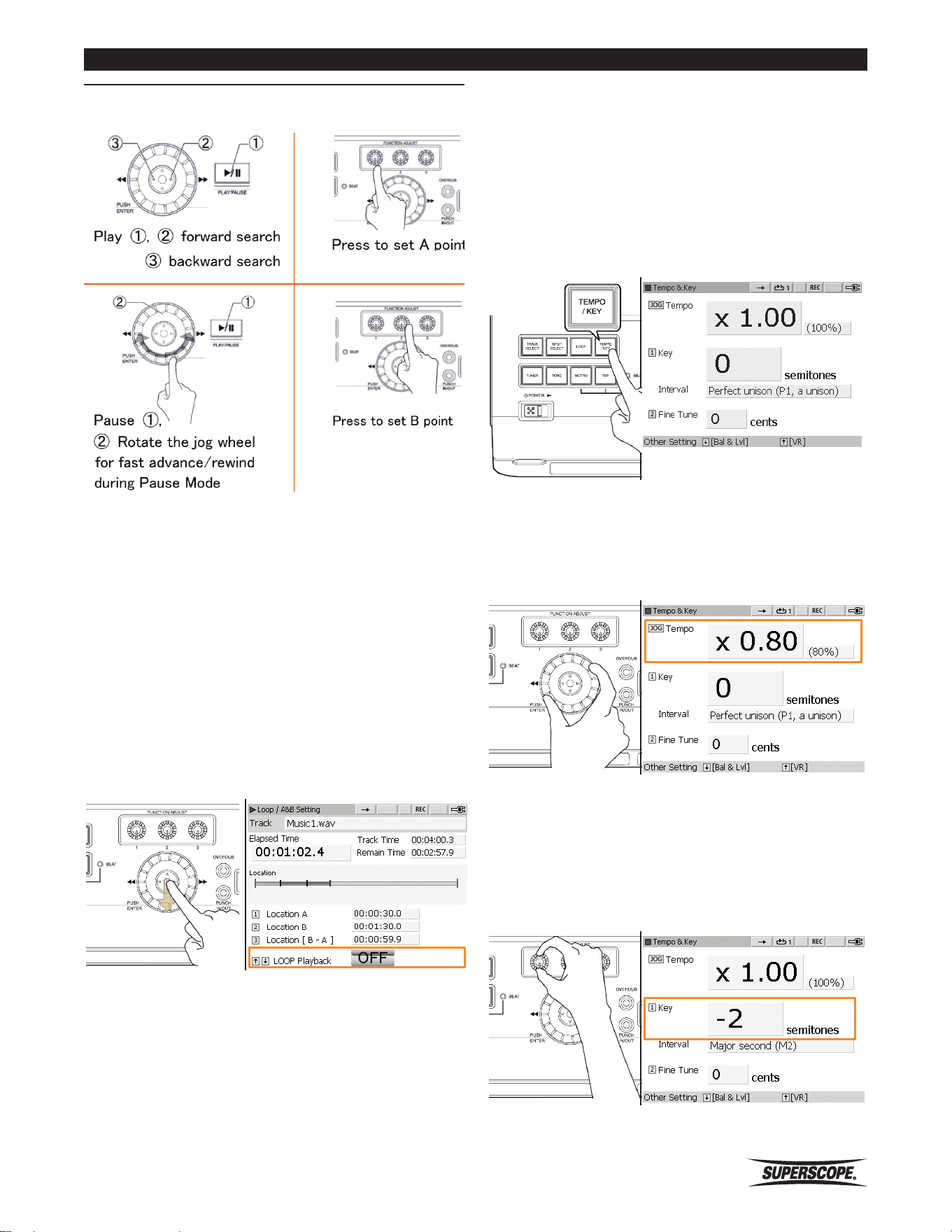
Superscope PSD410 User Manual
- 51 -
Music Practice
Use the following controls during Loop Mode to locate
A and B points.
※ To fine adjust the A point, turn FUNCTION
ADJUST#1 (4A). To fine adjust the B point,
turn FUNCTION ADJUST #2 (4B). Turn
FUNCTION ADJUST #3 (4C) to reposition the
A and B point at the same time.
The A and B points for each track are stored on the SD
card, so the next time you access the selected track, the
same loop points should appear.
Moving the joystick down will switch to normal playback
(LOOP Playback OFF). Moving the joystick up will resume
A-B Repeat playback (LOOP Playback ON).
Delete a Loop Point
1. Push and hold FUNCTION ADJUST #1 (4A) to reset the
A point the beginning of the track (0:00).
2. Push and hold FUNCTION ADJUST #2 (4B) to reset the
B point to the end of the track.
3. Push and hold FUNCTION ADJUST #3 (4C) to reset
both the A and the B point.
Adjusting Tempo, Key, and Fine Tune
Tempo
1. Press the TEMPO/ KEY button to open the Tempo &
Key screen.
2. Turn the jog wheel to adjust Tempo (playback
speed). Press ENTER to reset Tempo to normal speed.
The tempo control function can modify a track’s
tempo (playback speed) between -75% and +50%
(1% intervals) without affecting playback pitch.
Key
1. Turn FUNCTION ADJUST #1 (4A) to modify playback
Key in semitones. Push FUNCTION ADJUST #1 (4A) to
reset Key to normal playback (no Key adjustment). The
Key adjustment range is +/-12 semitones (half steps).
https://manual-hub.com/
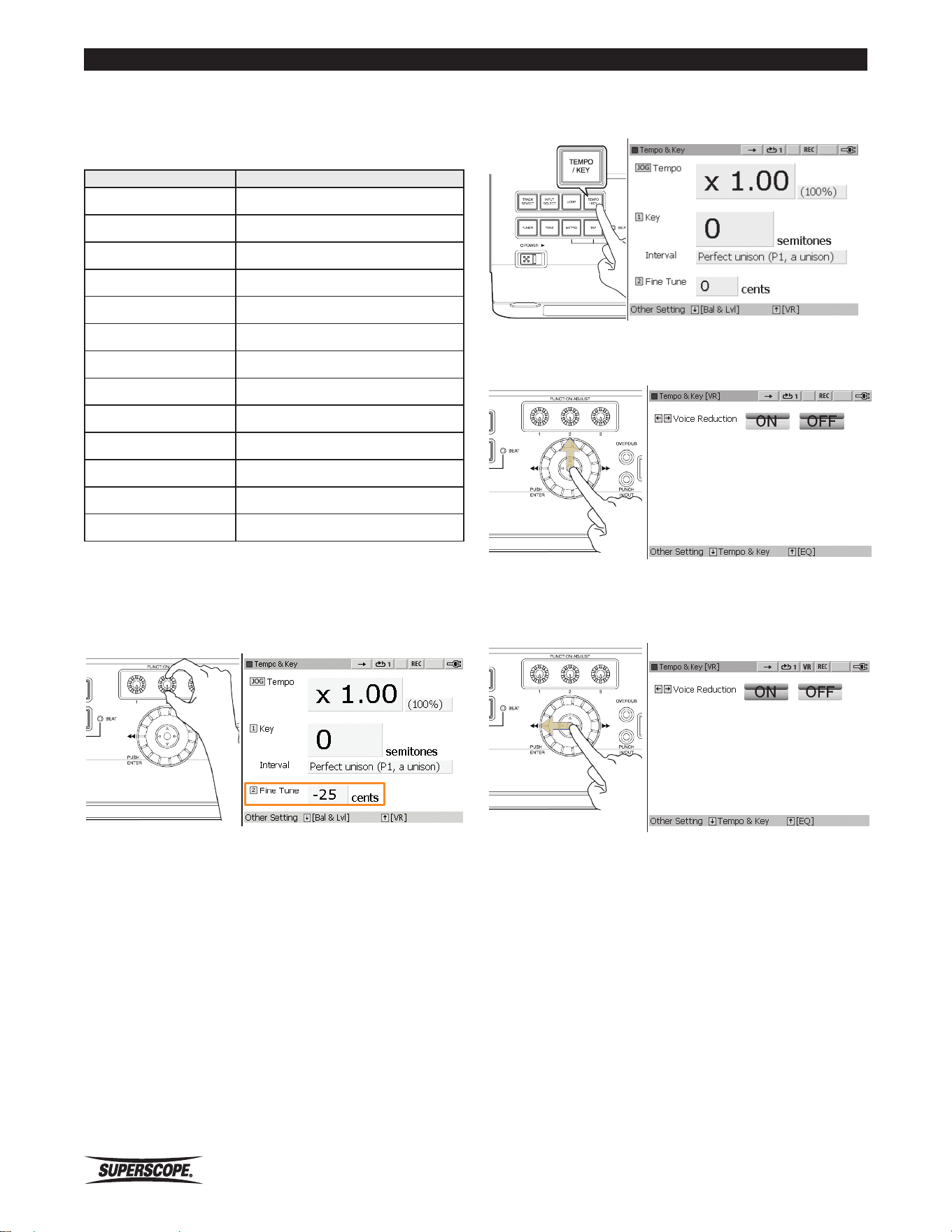
- 52 -
Superscope PSD410 User Manual
Music Practice
Interval Indication
The Interval indication displays the interval for the
corresponding Key change in semitones.
Semitones Interval
[0] Perfect unison (P1, a unison)
[-1/+1] Minor second (m2)
[-2/+2] Major second (M2)
[-3/+3] Minor third (m3)
[-4/+4] Major third (M3)
[-5/+5] Perfect fourth (P4)
[-6/+6] Tritone (TT)
[-7/+7] Perfect fifth (P5)
[-8/+8] Minor sixth (m6)
[-9/+9] Major sixth (M6)
[-10/+10] Minor seventh (m7)
[-11/+11] Major seventh (M7)
[-12/+12] Perfect octave (P8)
Fine Tune
Turn FUNCTION ADJUST #2 (4B) to fine tune playback
pitch +/-50 cents. Push FUNCTION ADJUST #2 (4B) to
reset FINE TUNE to normal pitch.
※ When you exit the Tempo/Key screen, all
settings are stored on the SD card along with
the selected file.
Voice Reduction
The voice reduction function is used to reduce the lead
vocal performance in stereo recordings. Use this feature
in conjunction with the Overdub feature to create your
own karaoke-style recordings.
1. Press the TEMPO/KEY button to open the Tempo &
Key screen.
2. Move the joystick (5A) up to view the Tempo & Key
[VR] screen.
3. Move the joystick to the left to select Voice
Reduction ON. A VR icon will be displayed at the top
of the screen.
Tempo & Key [VR] Screen
4. When a file is played, the level of the main vocal will
be reduced.
※ The Vocal Reduction feature uses a technique
called Center Channel Cancelation to reduce
vocals in stereo recordings. For this feature
to be effective, the main vocal performance
must be positioned in the center of the
stereo field (equal level in the right and left
channel). Vocal Reduction will not work with
vocals that are panned to the right or left
channel.
https://manual-hub.com/
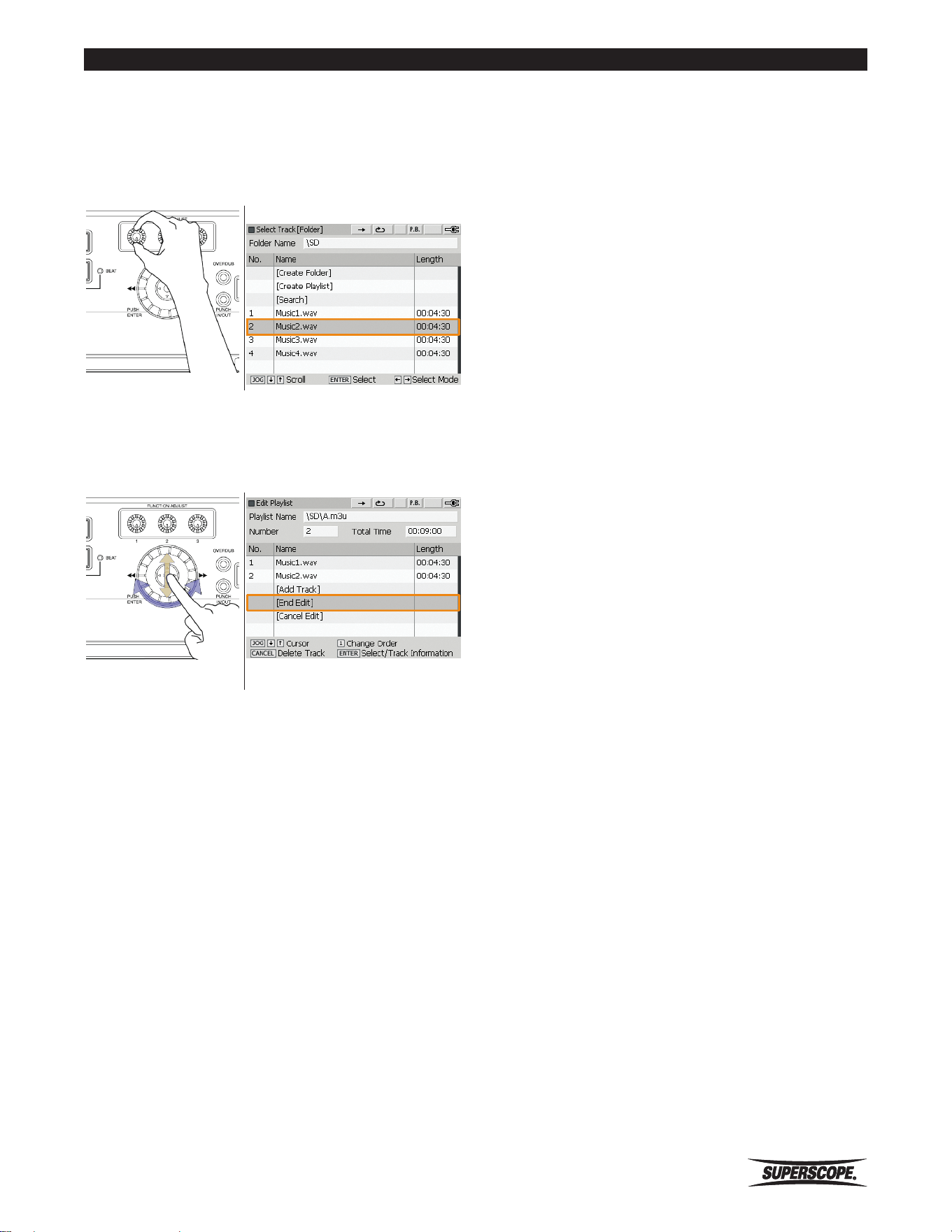
Superscope PSD410 User Manual
- 53 -
Superscope PSD410 User Manual
- 53 -
EditingWorking with Files and Folders
Change Track Order
7. Highlight a track and turn FUNCTION ADJUST #1
(4A) to change the order of tracks in a playlist.
Highlight a track and press the CANCEL button to
remove the track from the playlist.
Change Track Order
8. When you have finished adding tracks to the playlist,
turn the jog wheel to highlight [End Edit]. Press
ENTER to save the new playlist and exit.
https://manual-hub.com/
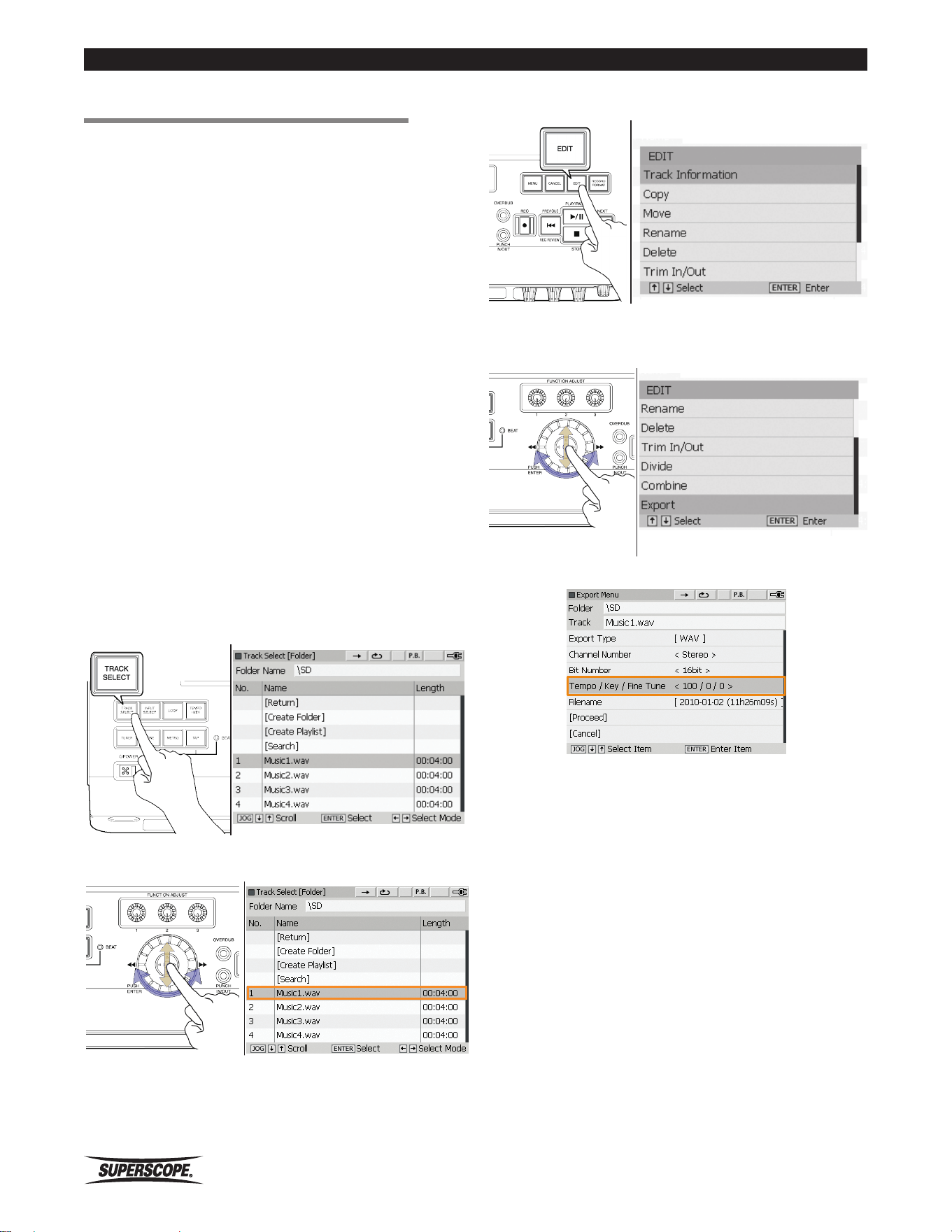
- 54 -
Superscope PSD410 User Manual
Editing
3. Press the EDIT button.
Edit Screen
4. Turn the jog wheel or move the joystick up or down
to highlight Export. Press ENTER.
5. Confirm the Tempo, Key, and Fine Tune settings.
If the displayed values are correct, proceed to Naming
the Exported File. If not, turn the jog wheel or move the
joystick down to select [Cancel]. See Adjusting Tempo,
Key, and Fine Tune.
■Editing
※ See the Appendix section for a list of all file,
folder or playlist Edit Menu Options.
Export
The Export feature has two primary functions:
1. Creating a new file with alternative Tempo, Key, or
Fine Tune settings
2. Creating a new file in a different format, i.e., creating
an MP3 version of a WAV file.
The new file will always be exported to the same folder
as the original.
Creating a File with a New Tempo or
Key
When Tempo, Key, or Fine Tune settings are altered, the
new values are stored with the file. To change Tempo,
Key and Fine Tune settings, see Adjusting Tempo, Key,
and Fine Tune. Once you have altered these settings,
follow these steps to create a new file:
1. Press the TRACK SELECT button to open the Track
Select [Folder] screen.
2. Turn the jog wheel or move the joystick up or down
to highlight the track you wish to export.
https://manual-hub.com/
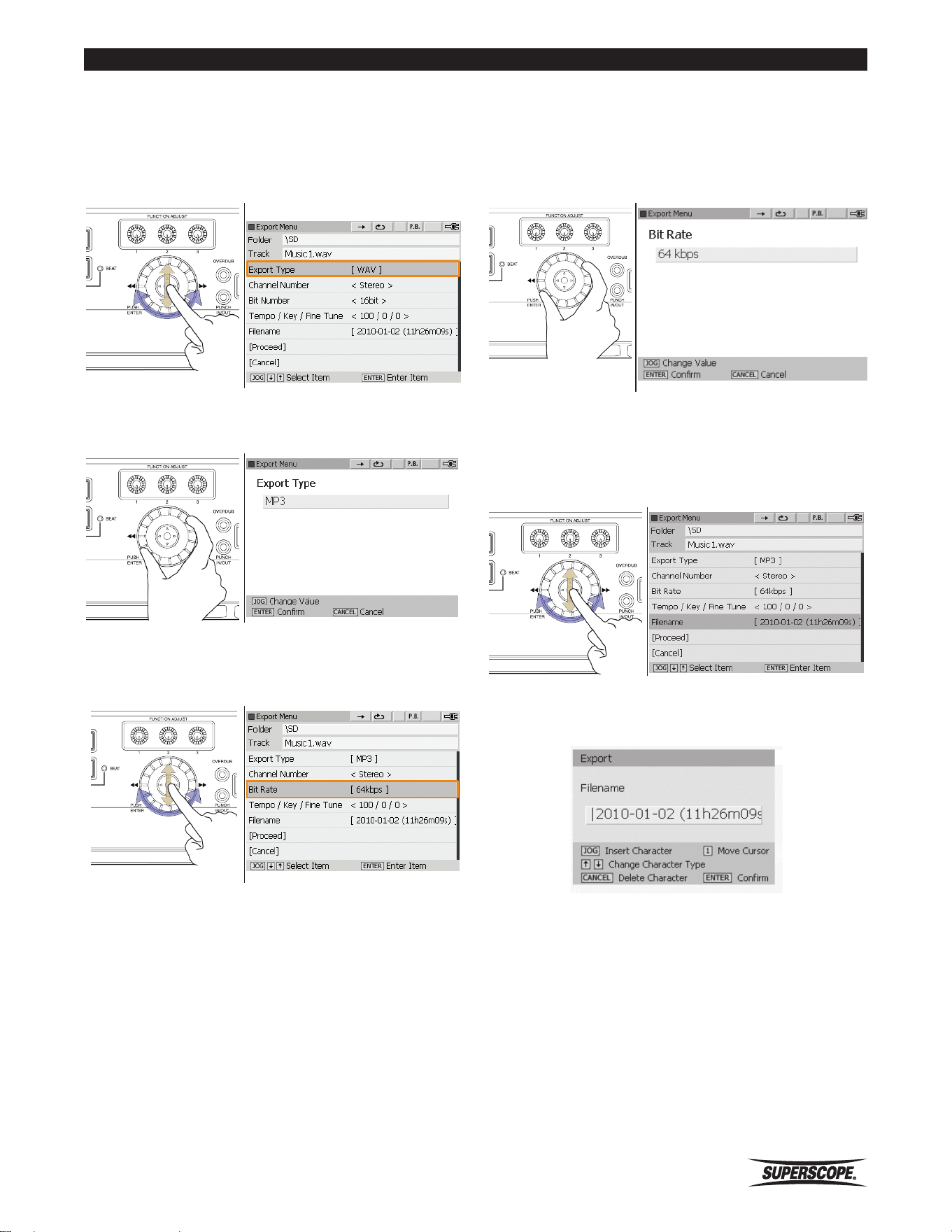
Superscope PSD410 User Manual
- 55 -
Editing
Changing File Format
1. Turn the jog wheel or move the joystick up or
down to highlight Export Type. The default setting
is [WAV]. To export the selected file as MP3, press
ENTER.
Export Menu
2. Turn the jog wheel to select MP3. Press ENTER to
confirm the change. Export Menu Edit Screen
3. The Export Menu will be displayed. Turn the jog
wheel or move the joystick up or down to select Bit
Rate. Press ENTER.
4. Turn the jog wheel to select a bit rate. Press ENTER
to confirm the setting. Options include 64, 80, 96,
112, 128, 160, 192, 224, 256, or 320kbps for stereo
files. When exporting mono files, options include 32,
40, 48, 56, 64, 80, 96, 112, 128, or 160kbps.
Naming the Exported File
1. Turn the jog wheel or move the joystick up or down
to select Filename. Press ENTER.
2. Enter the name of the new file by using the Text
Input Method.
https://manual-hub.com/
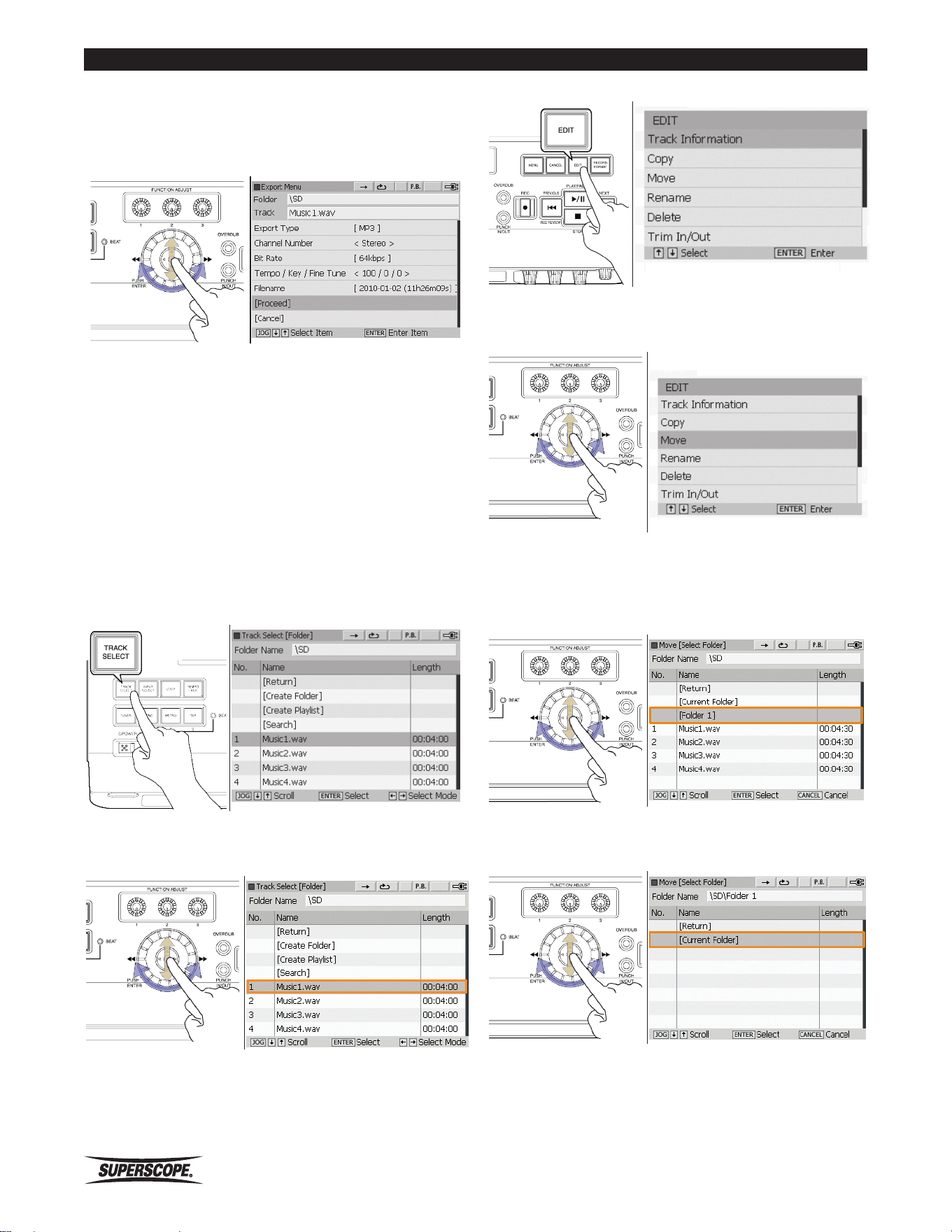
- 56 -
Superscope PSD410 User Manual
Editing
3. When you have finished naming the new file and
pressed ENTER to confirm the new title, the Export
Menu screen will appear. Turn the jog wheel to
select [Proceed]. Press ENTER to begin exporting.
※ A progress bar is displayed during the Export
procedure. Do not power off until the
procedure is complete. If power is interrupted
during Export, the exported file will be lost.
Move a Track
Use this feature to move a folder or file to another
location, either a new folder or a different drive (SD or
USBHDD).
1. Press the TRACK SELECT button to open the Track
Select [Folder] screen
.
2. Turn the jog wheel or move the joystick up or down
to highlight the folder or file you wish to move.
3. Push the EDIT button to open the Edit menu screen.
4. Turn the jog wheel or move the joystick up or down
to highlight Move. Press ENTER.
5. Turn the jog wheel or move the joystick up or down
to select the folder you wish to move the selected
item to. Once you have highlighted the new location,
press ENTER.
6. Turn the jog wheel or move the joystick up or down
to highlight [Current Folder]. Press ENTER.
https://manual-hub.com/
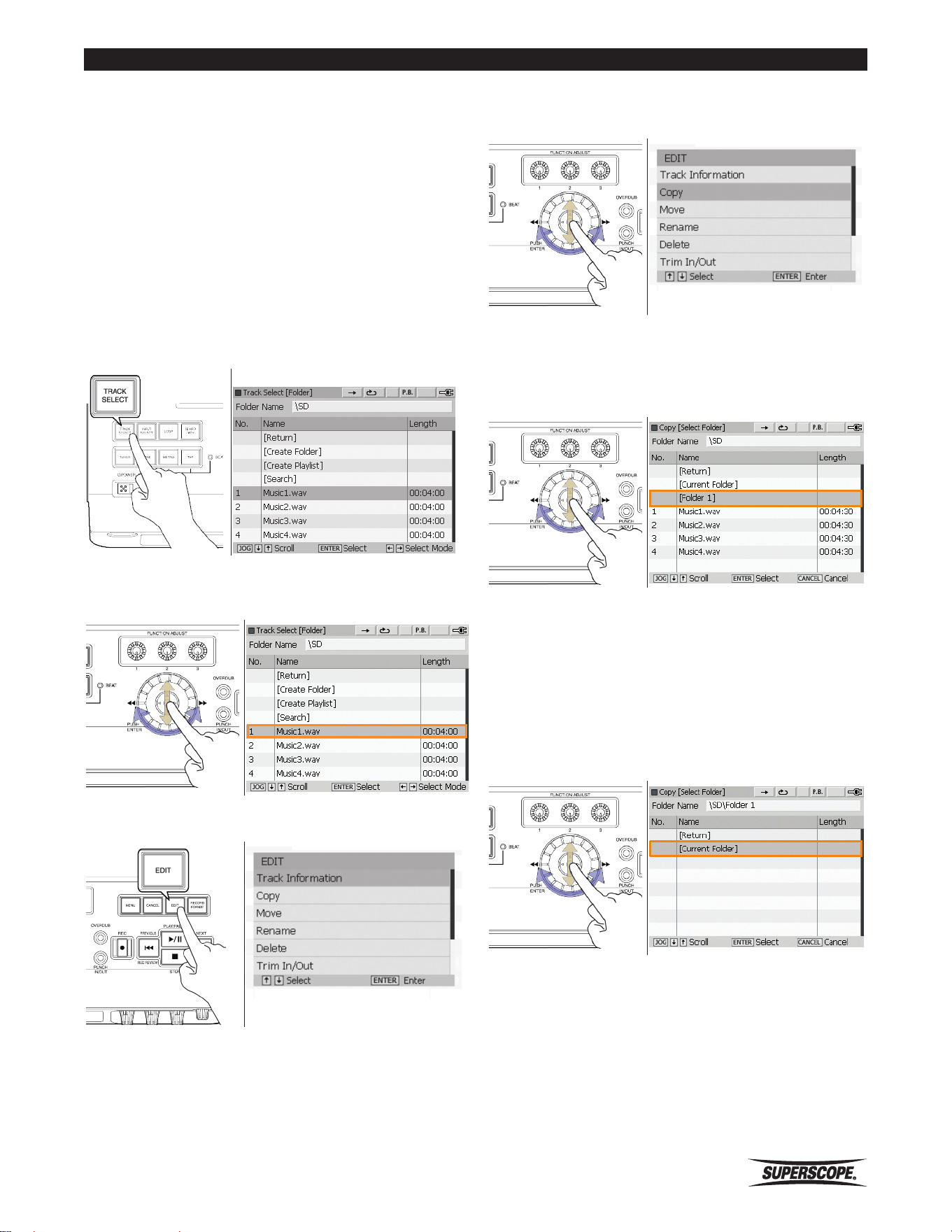
Superscope PSD410 User Manual
- 57 -
Editing
※ A progress bar is displayed during the Move
procedure. Do not power off until the
procedure is complete. If power is interrupted
during the Move operation, the file you are
moving may be lost.
Copy a Track
Use this feature to copy a folder or file to another
location, either a new folder or a different drive (SD or
USBHDD).
1. Press the TRACK SELECT button to open the Track
Select [Folder] screen.
Track Select [Folder] Screen
2. Turn the jog wheel or move the joystick up or down
to highlight the folder or file you wish to copy.
3. Push the EDIT button to open the Edit menu screen.
4. Turn the jog wheel or move the joystick up or down
to highlight Copy. Press ENTER.
5. Turn the jog wheel or move the joystick up or down
to select the folder you wish to copy the selected
item to. Once you have highlighted the new location,
press ENTER.
6. Turn the jog wheel or move the joystick up or down
to highlight [Current Folder]. Press ENTER.Track
Select [Folder] Screen Edit Screen
※ A progress bar is displayed during the Copy
procedure. Do not power off until the
procedure is complete. If power is interrupted
during the Copy operation, data may be lost.
https://manual-hub.com/
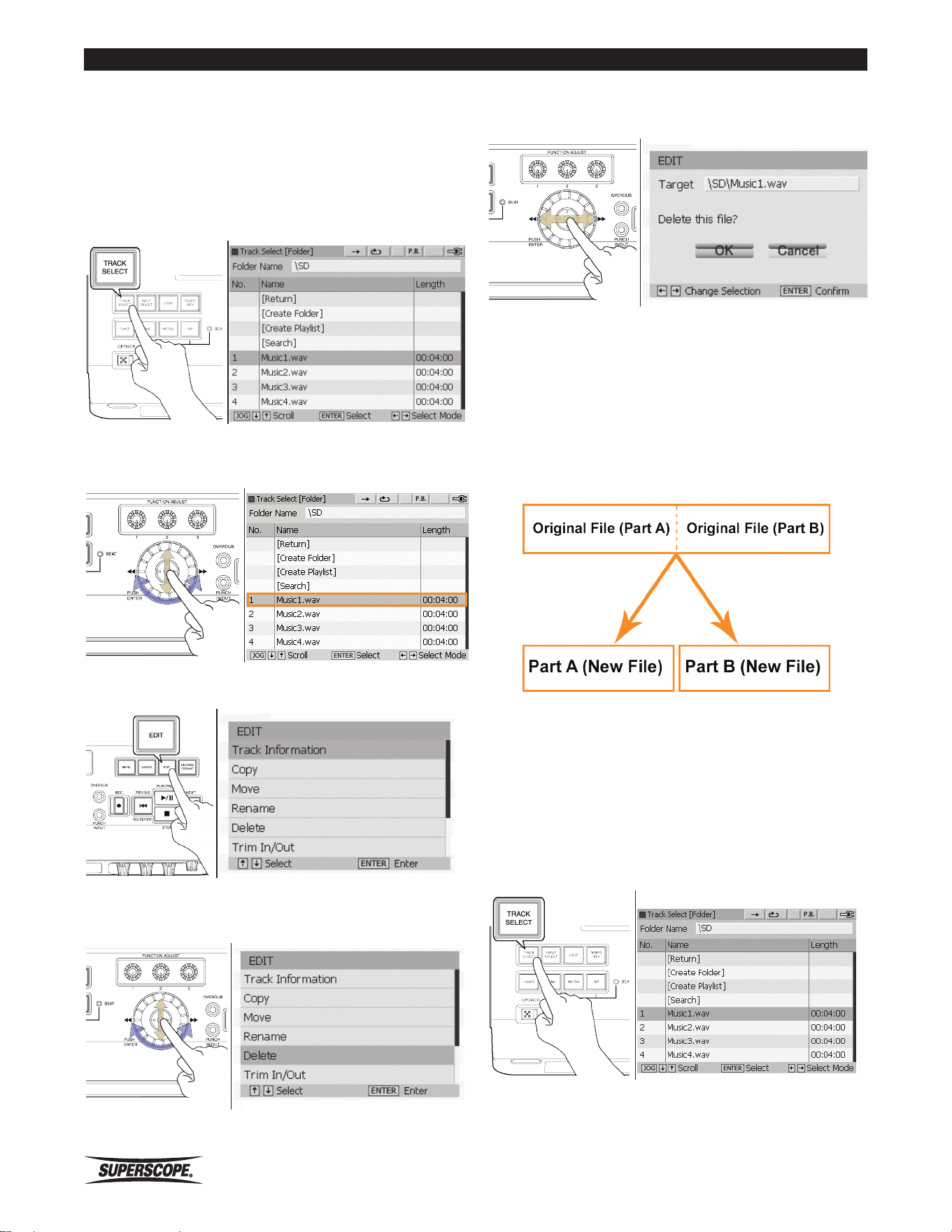
- 58 -
Superscope PSD410 User Manual
Editing
Delete a Track
Use this feature to remove a folder, playlist or audio file
from any SD card or USB storage device recognized by
the PSD410.
1. Press the TRACK SELECT button to open the Track
Select [Folder] screen.
2. Turn the jog wheel or move the joystick up or down
to highlight the folder or file you wish to delete.
3. Push the EDIT button to open the Edit menu screen
4. Turn the jog wheel or move the joystick up or down
to highlight Delete. Press ENTER.
5. The Delete confirmation screen will appear. Move
the joystick left to select OK and press ENTER.
※ A progress bar is displayed during the Delete
procedure. Do not power off until the
procedure is complete. If power is interrupted
during the Delete operation, the procedure
may fail.
Divide a Track
Use this feature to divide a track into two separate tracks.
※ This features works with WAV files only. If you
wish to divide an MP3 file, convert the file
to WAV format first before using the Divide
feature (see Export.). Each new file must be
more than 4 seconds.
1. Press the TRACK SELECT button to open the Track
Select [Folder] screen.
Track Select [Folder] Screen
https://manual-hub.com/
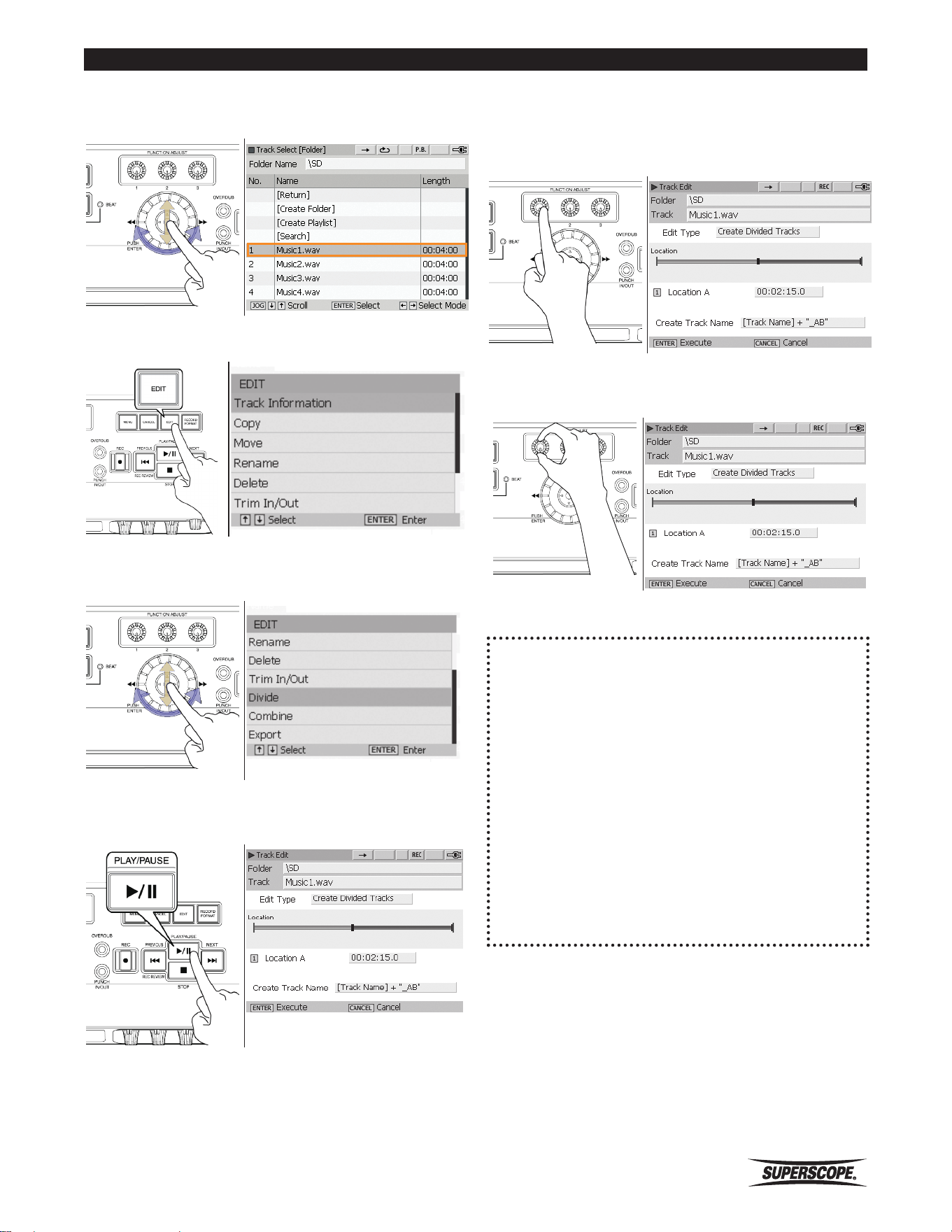
Superscope PSD410 User Manual
- 59 -
Editing
2. Turn the jog wheel or move the joystick up or down
to highlight the folder or file you wish to divide.
3. Push the EDIT button to open the Edit menu screen.
4. Turn the jog wheel or move the joystick up or down
to highlight Divide. Press ENTER.
5. The Divide screen will be displayed. Press the PLAY/
PAUSE button [8C] to begin playback
.
6. When you hear the point at which you want to
divide the track, press FUNCTION ADJUST #1 (4A).
Playback will loop the 4 seconds before the Divide
point.
7. You can fine-adjust the divide point by turning
FUNCTION ADJUST #1 (4A).
8. Press the ENTER to divide the track.
The two new files will be placed in the same folder as
the original track.
The new files will be named according to the following
format:
Original file = ‘Track01. wav’
Part A (before Divide point) = ‘Track01_A.wav’
Part B (after Divide point) = ‘Track01_B.wav’
A progress bar is displayed during the Divide
procedure. Do not power off until the procedure is
complete. If power is interrupted during the Divide
operation, the new files may be lost.
https://manual-hub.com/
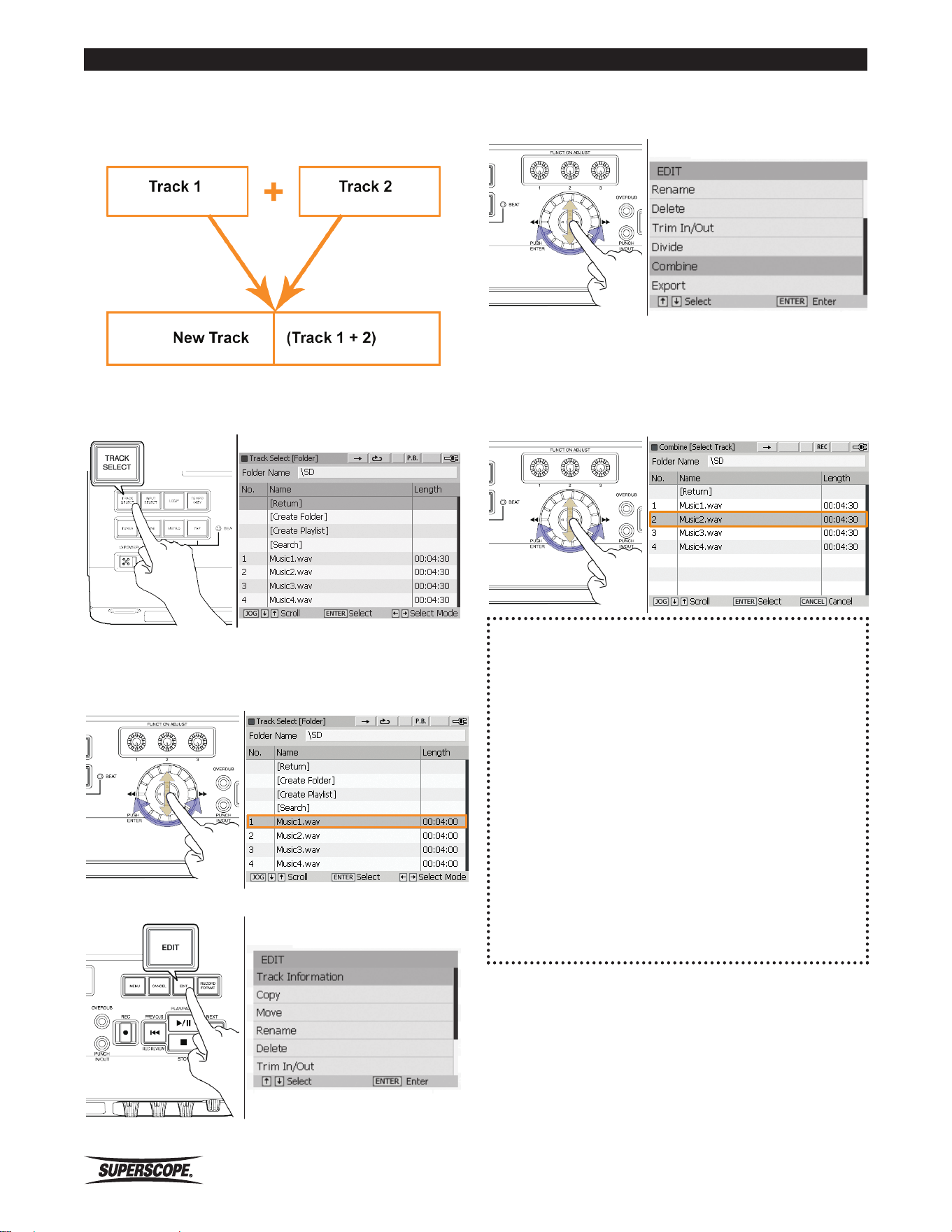
- 60 -
Superscope PSD410 User Manual
Editing
Combine a Track
Follow these steps to combine two audio files into one
file.
1. Press the TRACK SELECT button to open the Track
Select [Folder] screen.
Track Select [Folder] Screen
2. Turn the jog wheel or move the joystick up or down
to highlight the file you wish to combine (this track
will become the first part of the combined file).
3. Push the EDIT button to open the Edit menu screen.
4. Turn the jog wheel or move the joystick up or down
to highlight Combine. Press ENTER.
Edit [Combine]
5. The Combine [Select Track] screen will be displayed.
Turn the jog wheel or move the joystick up or down
to highlight the file you wish to combine (this track
will become the second part of the combined file).
Press ENTER.
The new file will be placed in the same folder as
track 1 (the first track selected during the Combine
procedure). The new file will be named according to
the following format:
Part A (first file selected) = ‘TrackA.wav’
Part B (second file selected) = ‘TrackB.wav’
Combined file = ‘TrackA_001.wav
A progress bar is displayed during the Combine
procedure.
Do not power off until the procedure is complete. If
power is interrupted during the Combine operation,
the new file may be lost.
https://manual-hub.com/
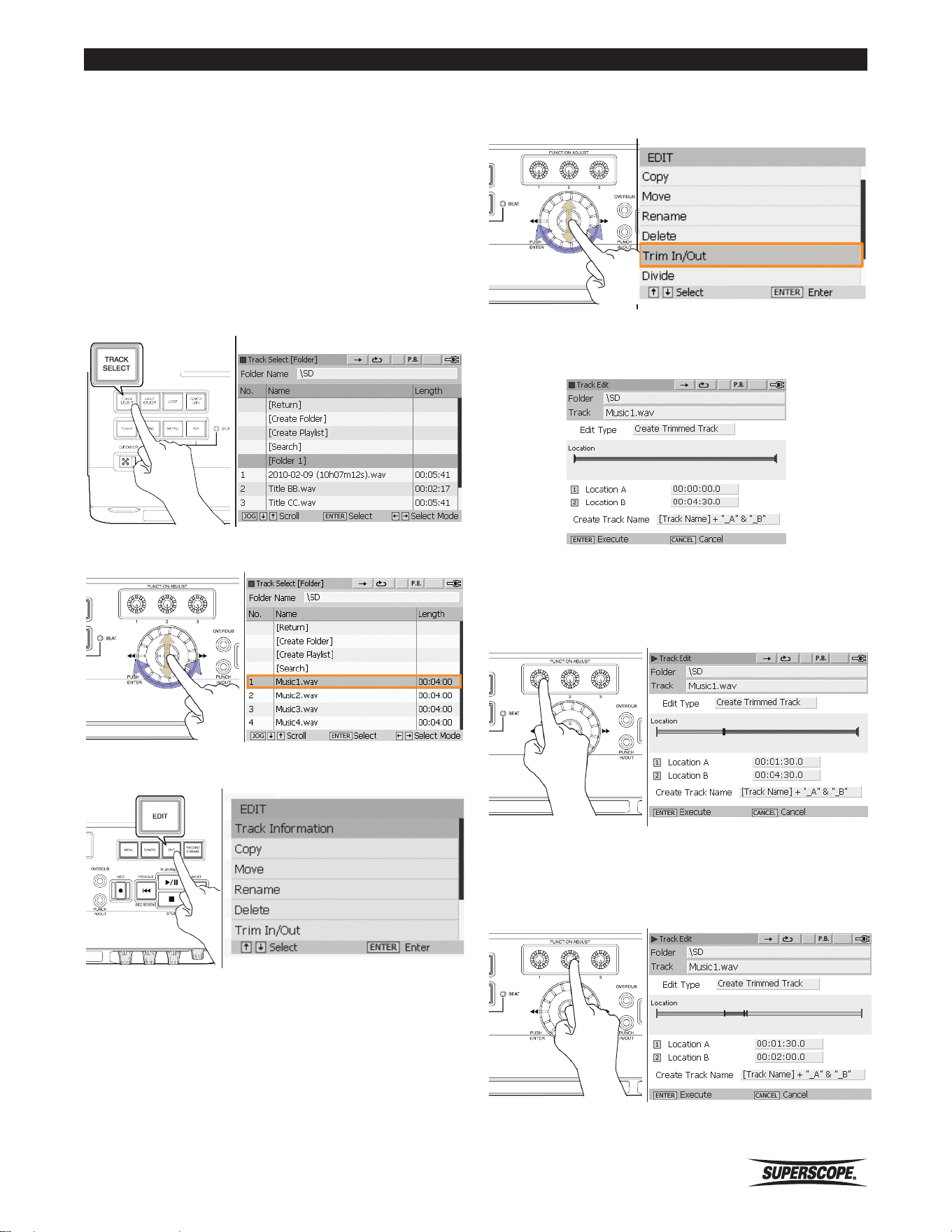
Superscope PSD410 User Manual
- 61 -
Editing
Trim In / Out
※ This features works with WAV files only. If you
wish to divide an MP3 file, convert the file
to WAV format first before using the Divide
feature (see Export.). Each new file must be
more than 4 seconds.
Use this feature to remove unnecessary audio at the
beginning or end of track.
1. Press the TRACK SELECT button to open the Track
Select [Folder] screen.
Track Select [Folder] Screen
2. Turn the jog wheel or move the joystick up or down
to highlight the file you wish to trim.
3. Push the EDIT button to open the Edit menu screen.
4. Turn the jog wheel or move the joystick up or down
to highlight Trim In/Out. Press ENTER.
5. The Trim In/Out screen will be displayed. Press the
PLAY/PAUSE button [8C] to begin playback
.
6. When you hear the point at which you want to trim,
press FUNCTION ADJUST #1 (4A). Playback will loop
the 4 seconds after the Trim point. Audio from the
beginning of the track to this point will be removed.
7. Press FUNCTION ADJUST #2 (4B) to switch playback
to the second trim point. Audio from this point to
the end of the track will be removed. Playback will
loop the 4 seconds before the Trim point.
https://manual-hub.com/
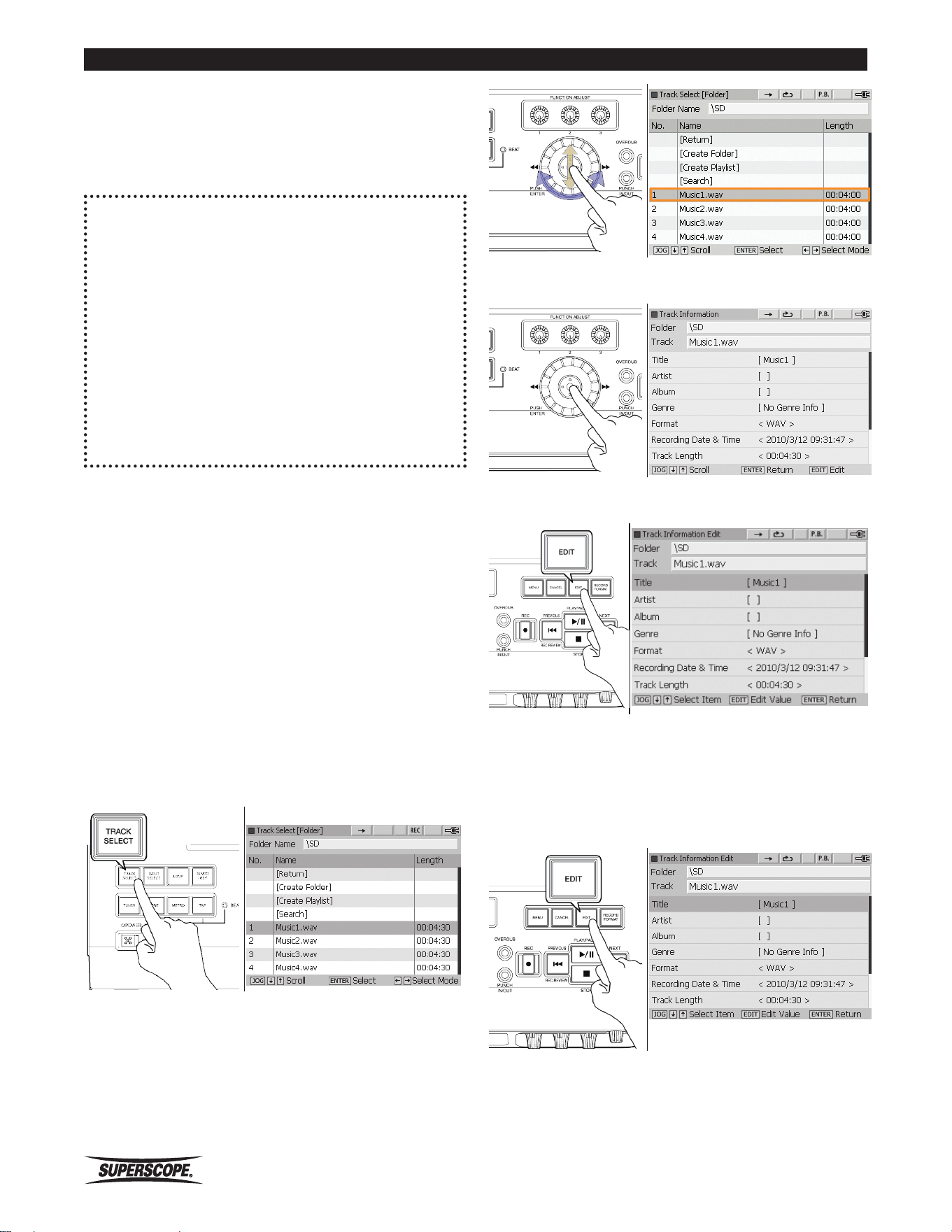
- 62 -
Superscope PSD410 User Manual
Editing
8. You can fine-adjust the first Trim point by turning
FUNCTION ADJUST #1 (4A). Fine-adjust the second
Trim point by turning FUNCTION ADJUST #2 (4B).
9. Press the ENTER to trim the track.
The new file will be placed in the same folder as the
original track. The new file will be named according to
the following format:
Original file = ‘TrackA.wav’
Trimmed file = ‘TrackA_001.wav’
A progress bar is displayed during the Trim procedure.
Do not power off until the procedure is complete. If
power is interrupted during the Trim operation, the
new file may be lost.
Edit Track Information
Whenever a file is selected in the Track Select screen
or the Normal screen, simply press ENTER to view Track
Information.
The following information is stored with each file: Title,
Artist, Album, Genre, Format, Recording Date & Time,
Track Length, Channel Number, Sampling Rate, and Bit
Number/Bit Rate.
Follow these steps to edit a track’s Title, Artist, Album,
and Genre information:
1. Press the TRACK SELECT button to open the Track
Select [Folder] screen.
Track Select [Folder] screen
2. Turn the jog wheel or move the joystick up or down
to highlight the file you wish to edit
3. Press ENTER to view the file’s track information.
4. Press the EDIT button to begin editing track
information.
Title/Artist/Album
1. From the Track Information Edit screen, turn the jog
wheel or move the joystick up or down to highlight
Title. Press the EDIT button to change the title.
https://manual-hub.com/
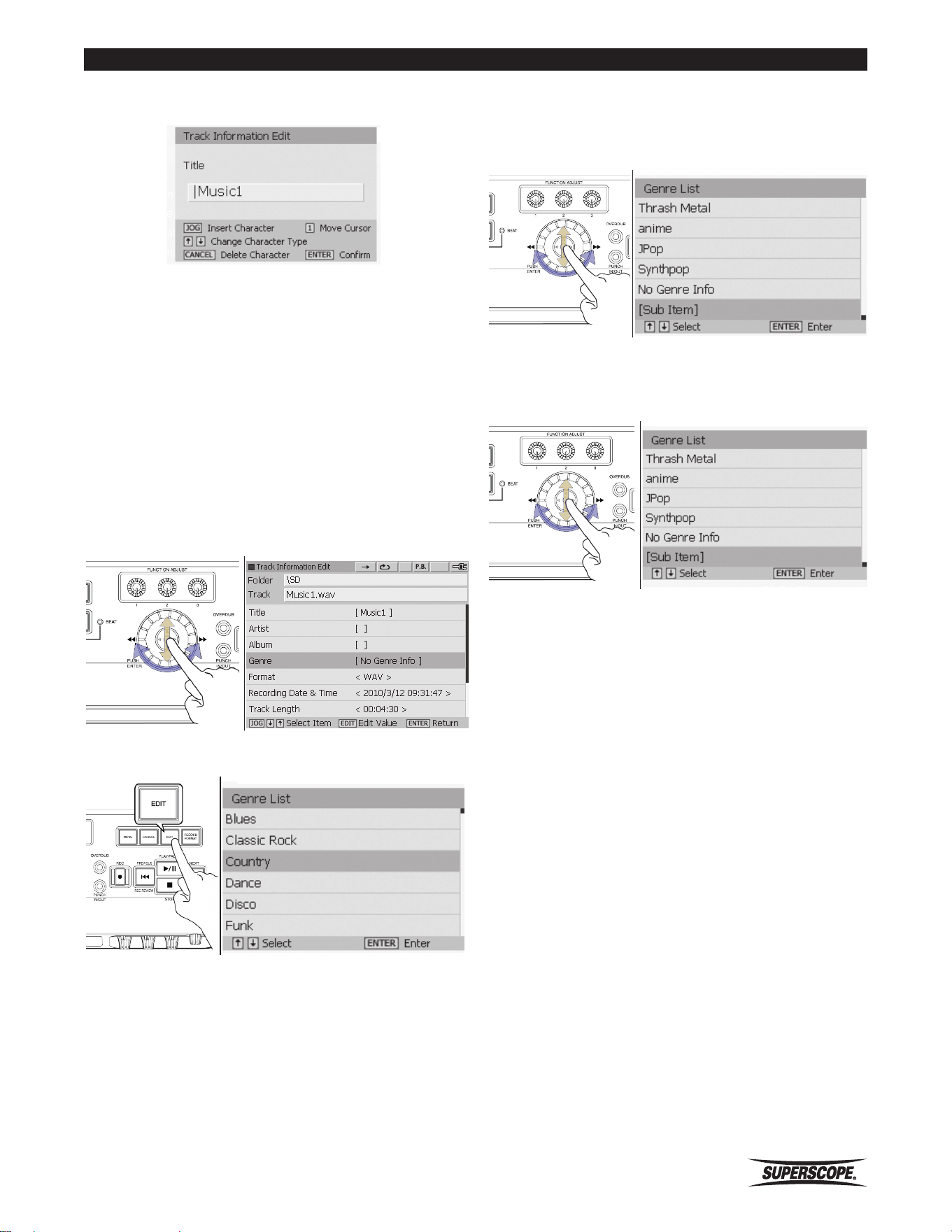
Superscope PSD410 User Manual
- 63 -
Editing
2. Enter the new title by using the Text Input Method.
3. When you have finished editing text and pressed
ENTER to confirm the new title, the Track
Information Edit screen will appear. Turn the jog
wheel to highlight Artist or Album.
4. Press the EDIT button. Enter the new Artist or Album
information by using the Text Input Method.
Genre
1. From the Track Information Edit screen, turn the jog
wheel or move the joystick up or down to highlight
Genre.
2. Press the EDIT button.
Turn the jog wheel or move the joystick up or down to
highlight a genre from the list. Press ENTER to select a
genre.
※ If the genre is not listed, turn the jog wheel
or move the joystick up or down to highlight
[Sub Item].
Press ENTER. Enter the new genre by using the Text
Input Method. Repeat steps 1-3. The new genre will now
appear as an option.
24>16bit Convert
This option only appears for 24-bit WAV files. Select this
option to make 24-bit files playable on the PSD410. See
Auto Convert.
https://manual-hub.com/
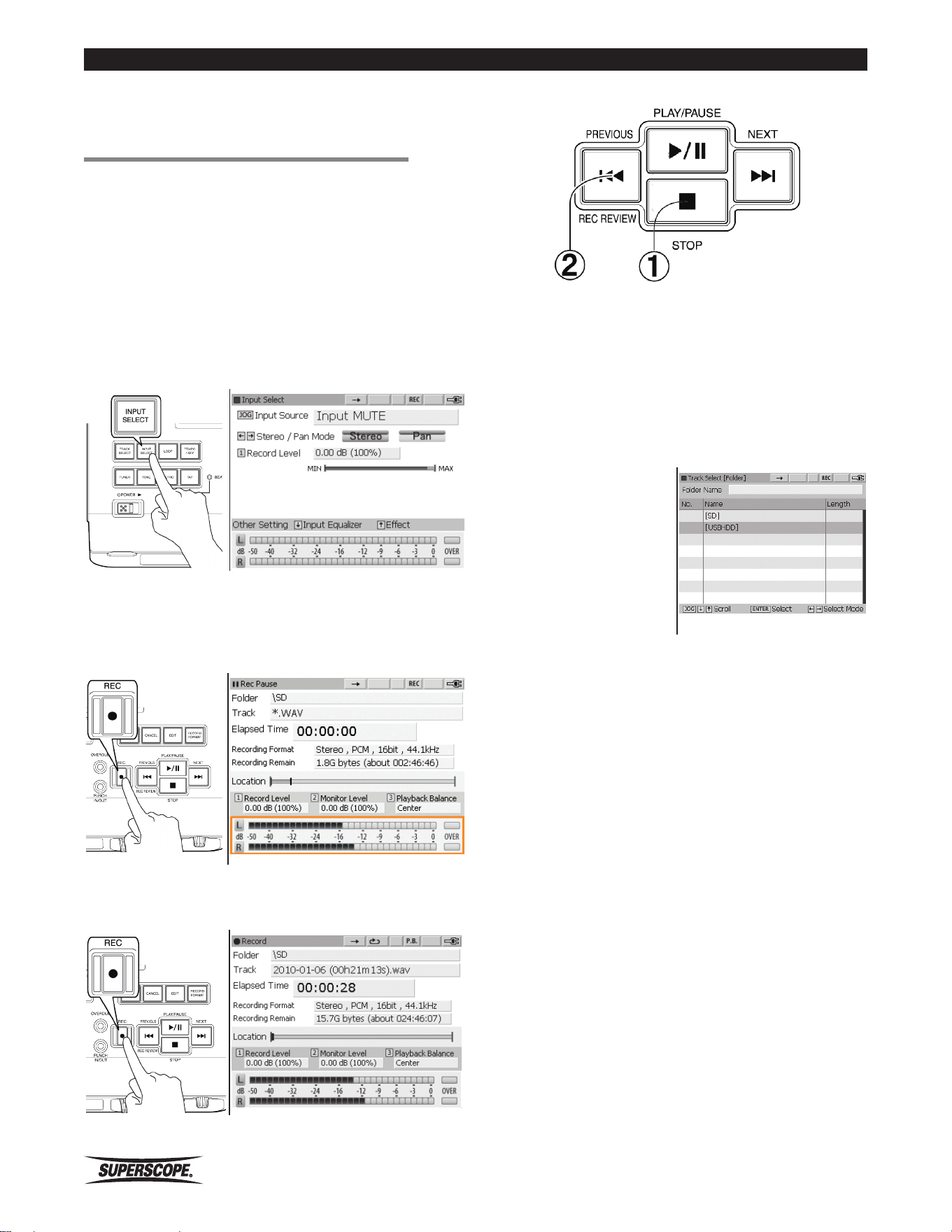
- 64 -
Superscope PSD410 User Manual
Recording
■Recording with
the PSD410
Basic Recording
1. Insert a mini SD Card (see Inserting a Mini SD Card.).
2. Select an Input – Press the Input Select button
to view input options. Turn the jog wheel to
change Input Source. For more information on
selecting inputs and setting levels see Setting Up
Microphones, Instruments and Other Sound Sources.
3. Press the Record button once to enter Record Pause
mode. The Record button will flash and the VU
meters at the bottom of the display will respond to
your input signal(s).
4. Press the Record Button again to start recording.The
Record button will stay lit during recording.
5. Finish recording.
① Press the Stop button when you are finished
recording
or
② Press the REC REVIEW button to stop the recording
and playback the recording immediately.
Recording to External USB Storage
To record to an attached
USB storage device, select
[Return] on the Track Select
[Folder] screen and press
ENTER. Select [USBHDD]
and press ENTER. The
remaining steps are the
same as Basic Recording.
Track Increment
During recording, you can increment tracks by:
(1) pressing the Record button (seamless track increment)
or
(2) pressing the Play/Pause button (recording is paused).
When a recording is paused, press the Play/Pause button
again to continue recording on a new track.
https://manual-hub.com/
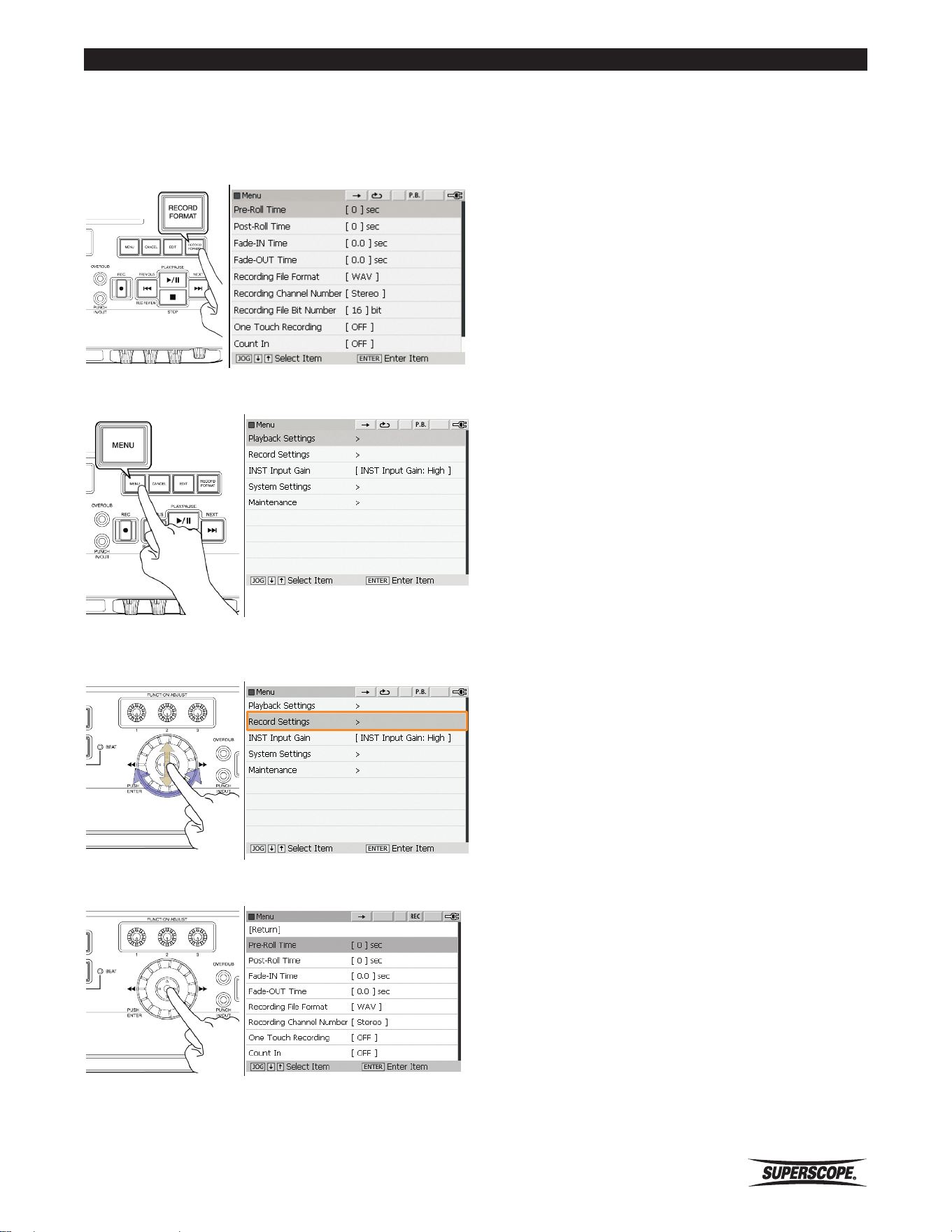
Superscope PSD410 User Manual
- 65 -
Recording
The Record Settings Menu
There are two ways to access the Record Settings menu:
Option 1: Press the Record Format button:
Option 2: Press the Menu button.
From the menu screen, turn the jog wheel or move the
joystick down to select Record Settings.
Press ENTER to view the Record Settings Menu
To change Record Settings:
1. Move the joystick up or down or turn the jog wheel
to highlight options on the Record Settings screen.
2. Press ENTER to select the setting you wish to edit.
3. Turn the jog wheel to change the value.
4. Press ENTER to confirm or CANCEL to cancel the
change.
Fade In / Out
When a Fade-IN Time is selected, the Record Level will
gradually increase from a mute condition to full Record
Level, from the beginning of the recording to the time
specified.
The range for Fade-IN Time is 0 (OFF) ~ 10 seconds,
adjustable in increments of 0.5 seconds. The default
setting is 0 (OFF) secondsⒶ
When a Fade-OUT Time is selected, the Record Level
will gradually decrease from full Record Level to a mute
condition. The fade begins the moment the recording is
stopped.
The range for Fade-OUT Time is 0 (OFF) ~ 10 seconds,
adjustable in increments of 0.5 seconds. The default
setting is 0 (OFF) secondsⒶ
※ To fade out manually, gradually turn
FUNCTION ADJUST #1 (4A) (Record Level)
counter-clockwise before stopping a
recording.
Count In
When a Count In value is selected, the metronome will
play the specified number of beats before recording
begins. You can select up to 16 beats for a Count In.
To record using Count In, follow the normal steps (see
Basic Recording). When you press the Record button to
begin recording, the metronome will begin automatically
before recording begins. To adjust metronome settings,
see Using the Metronome.
Recording File Format
The PSD410 can record either WAV (uncompressed) or
MP3 (compressed) files. Select Recording File Format to
change the type of file the PSD410 will create. WAV is
the default setting).
Recording Channel Number (mono, stereo setting)
The PSD410 can record either mono or stereo files. Select
Recording Channel Number to change the number of
channels in recorded files. Stereo is the default setting.
https://manual-hub.com/

- 66 -
Superscope PSD410 User Manual
Recording
Bit Size (resolution of the recording).
If Recording File Format is set for WAV, this option
will appear as Recording File Bit Number. If Recording
File Format is set for MP3, this option will appear as
Recording File Bit Rate. Increasing this setting increases
the resolution of the recording, but also increases the
size of the recorded file. The settings for bit number/
bit rate will vary depending on the current settings for
Recording File Format and Recording Channel Number.
See the tables below
Bit size table
Recording format WAV.
Settings
24bit* or 16bit
Recording format MP3
Channels Settings
Mono 32 , 40 , 64 , 80 , 128 , 160
Stereo 64 , 80 , 128 , 160 , 256 , 320
Default settings: WAV - Stereo - 16bit.
*Must be converted for playback. See Auto Convert
below.
Pre-Roll Time/ Post-Roll Time
During Overdub and Punch In/Out, it is often helpful
to add a time gap between the moment the Record
button is pressed and the moment that recording begins
(Pre-Roll Time). This added time allows the user to listen
to or play along with the accompaniment track before
recording. This allows for smooth transitions between
original recorded material and new material added
through an overdub or punch-in.
Adding a Post-Roll Time during Overdub or Punch In/
Out will allow the accompaniment track to play for an
additional amount of time after the user is finished
recording new material. Pre-Roll Time and Post-Roll Time
can be adjusted between 0 seconds and 10 seconds in
1 second intervals. The default setting for Pre-Roll Time
and Post-Roll Time is [0] seconds.
Auto Track Increment
Increment tracks at pre-set time intervals. Options
include: OFF, 1 minute, 5 minutes, 10 minutes, 15
minutes or 30 minutes. The default setting is OFF.
One Touch Recording
The PSD410 has the ability to bypass Record Pause Mode
and simply begin recording after the user presses the
Record button once. The default setting for One Touch
Recording is [OFF].
Auto Convert
The PSD410 is designed to be a “music practice recording
system.” The recorder is therefore capable of performing
a number of different audio manipulations concurrently,
i.e., simultaneous Tempo, Key, and Fine Tune adjustment;
Voice Reduction; Parametric EQ; etc.
To allow for this level of real time processing, it is
necessary for playback to be CD quality (16bit/44.1kHz).
When higher-than-CD quality (24bit) recordings are
made with the PSD410, a CD quality (16bit) version of
the file should be created for playback on the PSD410.
The original 24bit recording will be unaffected and
available for transfer to a PC for editing or playback.
To create a 16bit playback file automatically, select Auto
Convert [ON]. The default value is Auto Convert [OFF].
https://manual-hub.com/
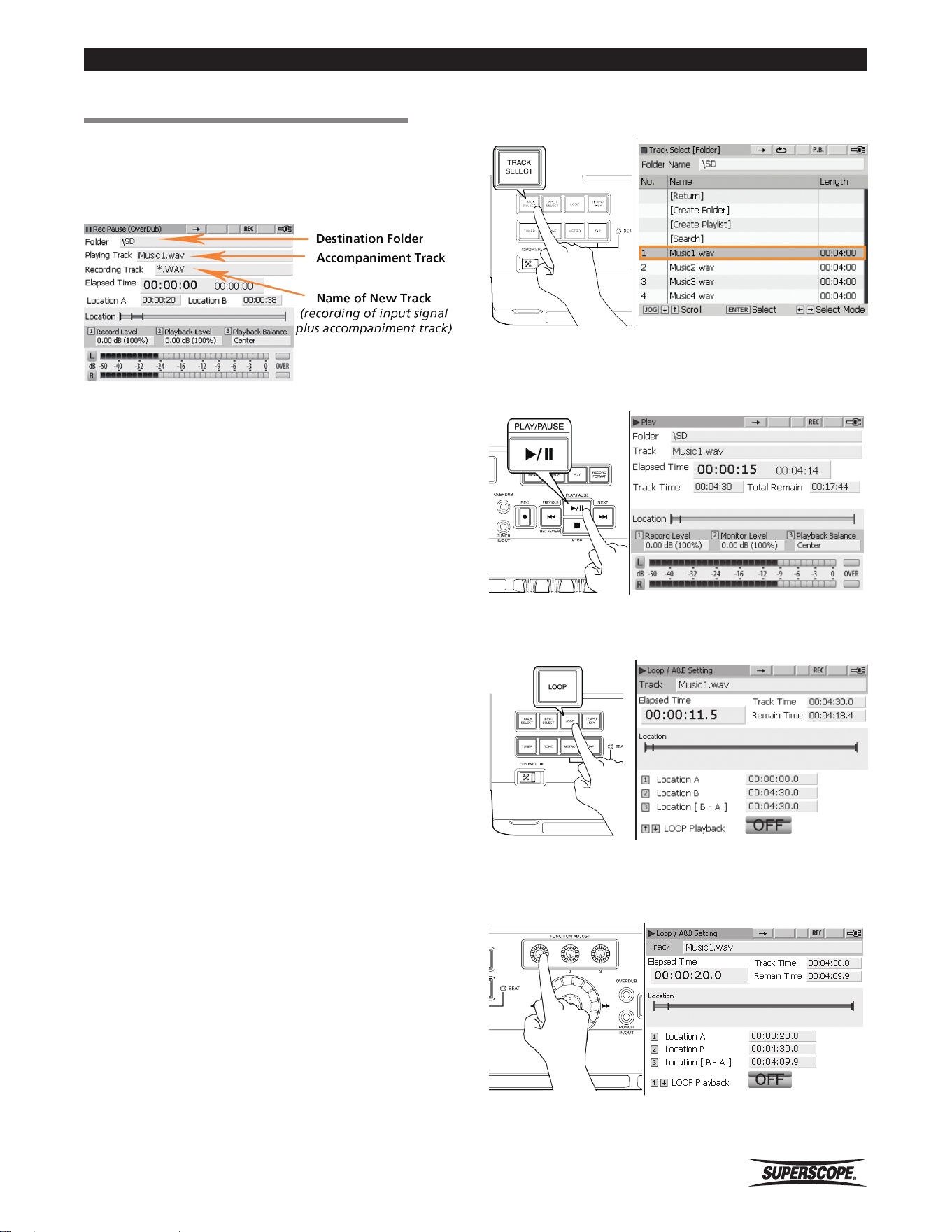
Superscope PSD410 User Manual
- 67 -
Recording
■Overdub
The Overdub feature allows the user to layer audio over
a pre-existing recording (sound on sound). When the
Overdub button is pressed, the PSD410 enters REC Pause
Mode (Overdub).
In REC Pause Mode (Overdub), pressing the Record
button (blinking red) or the Play/Pause button (blinking
green) will mix the selected input signal (see Setting Up
Microphones, Instruments, and Other Sound Sources.)
with the currently selected track. If you have not adjusted
the loop points for the selected accompaniment track,
then you may layer audio until the accompaniment track
finishes playing or until you stop the recording. When the
recording is stopped early (before the accompaniment
track finishes playing), the length of the newly recorded
file will equal the elapsed time at the moment the
recording was stopped.
By adjusting loop points before using the Overdub
feature, you are able to utilize the PSD410’s additional
Overdub modes:
Overdubbing for Composition
(Layering sections of a Track)
In this mode, you will identify a section of audio, then
record additional audio over that section. The end result
is a file identical to the original accompaniment file in
length, but with an added layer of audio within the
section you have outlined.
※ When this mode is selected, playback level
will automatically be reset to maintain
consistent accompaniment level throughout
the recording. See Playback Balance and
Level.
※ This mode does not work when MP3 files are
used as accompaniment.
1. Press the TRACK SELECT button to select a track to
record over.
2. If you have already set your Overdub points, proceed
to step 7. If not, press the PLAY/PAUSE button to
listen to the track.
3. Press the LOOP button during playback to view the
LOOP setting menu.
4. Press FUNCTION ADJUST #1 (4A) during playback
to set Overdub point A. This is the point in the track
you wish to begin layering audio.
https://manual-hub.com/
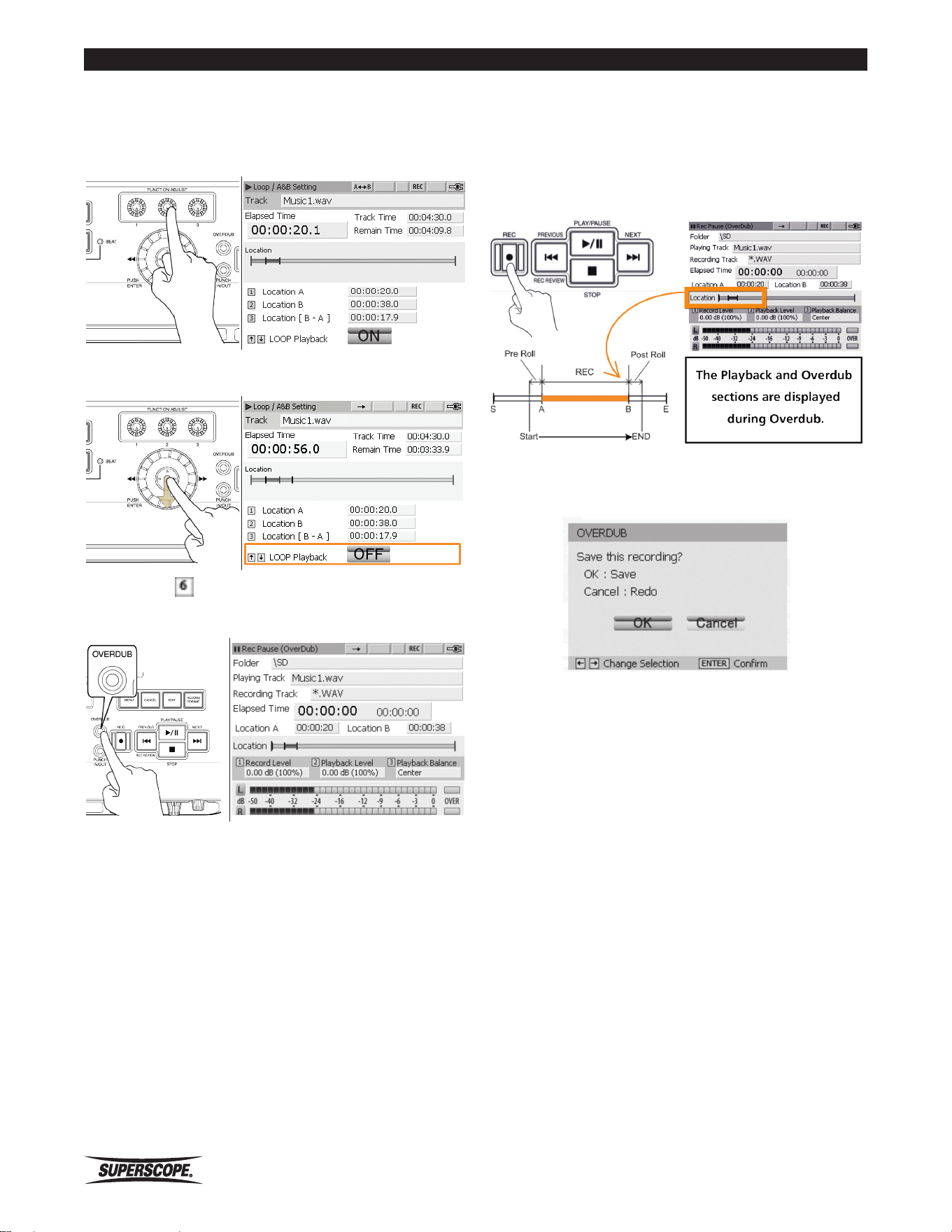
- 68 -
Superscope PSD410 User Manual
Recording
5. Press FUNCTION ADJUST #2 (4B) during playback to
set Overdub point B. This is the point at which you
will finish layering audio. Loop Playback will start at
point A automatically.
6. Move the joystick down to turn Loop playback OFF.
7. Press the OVERDUB button to enter REC Pause
Mode (Overdub).
8. Adjust the REC Level knobs so that the Record Level
(left and right channels) does not exceed 0 dB as
indicated on the Level meters. (see Setting Levels).
9. Press the REC button (8A) or PLAY/PAUSE button
(8C) to start overdubbing. If a Pre-Roll Time is set in
the Record Settings menu (see Pre-Roll Time / Post-
Roll Time), playback will begin a number of seconds
before Overdub point A, as determined by the Pre-
Roll Time.
10. The accompaniment track will stop at the end of
point B or the Post-Roll Time (see Pre-Roll Time /
Post-Roll Time). The Save menu will appear.
11. Select OK and the new file (executed overdub) will
be saved. Select Cancel and the file will not be
saved. When Cancel is selected, the PSD410 will re-
enter REC Pause Mode (Overdub) (step 7) allowing
the user to redo the Overdub recording.
https://manual-hub.com/
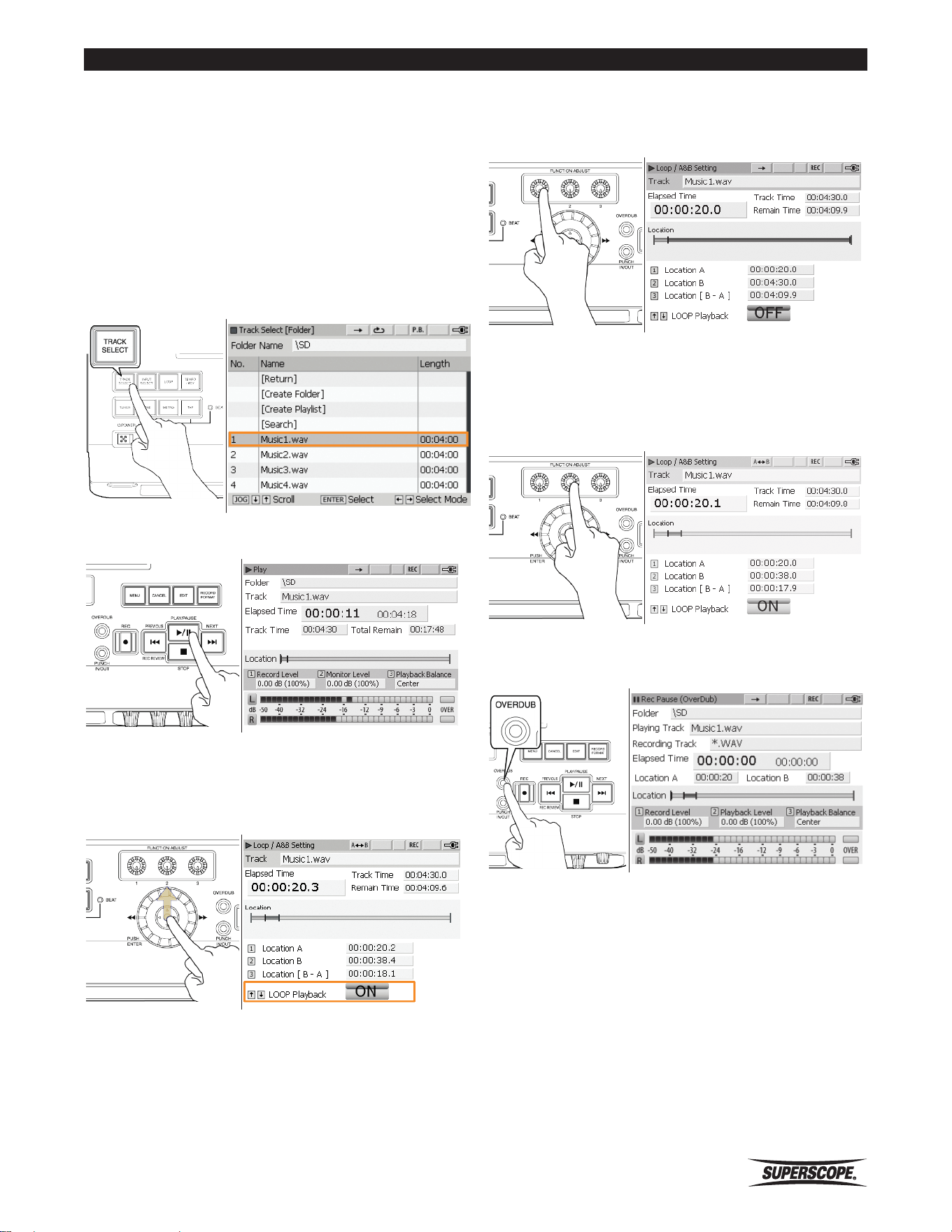
Superscope PSD410 User Manual
- 69 -
Recording
Overdubbing for Practice (Recording
over a Loop)
In this mode, you will identify a section of audio, then
record additional audio over that section until the STOP
button is pressed. Unlike Mode A (Layering Sections of
a Track), the length of the resulting file in this mode is
determined by how long you choose to record over the
repeating loop.
1. Select a track to record over by pressing the TRACK
SELECT button.
2. Press the PLAY/PAUSE button to listen to the track.
3. Press the LOOP button during playback to view the
LOOP setting menu. If you have already set your
Overdub points, simply move the joystick up to turn
Loop playback ON, and proceed to step 6.
4. Press FUNCTION ADJUST #1 (4A) during playback
to set the beginning of your accompaniment loop
(point A).
5. Press FUNCTION ADJUST #2 (4B) during playback to
set the end of your accompaniment loop (point B).
Loop Playback will start at point A automatically.
6. Press the OVERDUB button [6] to enter REC Pause
Mode (Overdub).
7. Adjust the REC Level knobs so that the Record Level
(left and right channels) does not exceed 0 dB as
indicated on the Level meters. (see Setting Levels).
https://manual-hub.com/
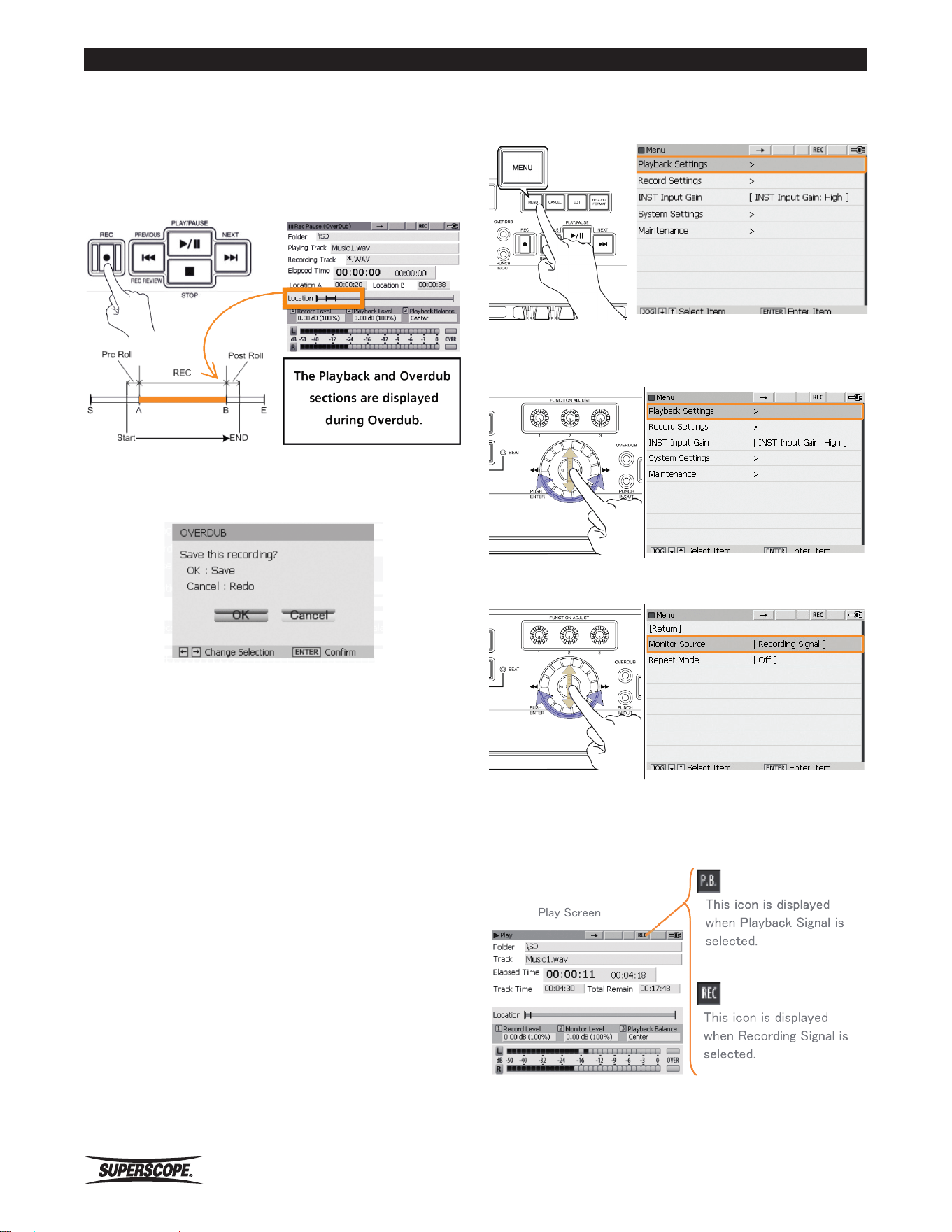
- 70 -
Superscope PSD410 User Manual
Recording
8. Press the REC button (8A) or PLAY/PAUSE button
(8C) to start overdubbing. If a Pre-Roll Time is set in
the Record Settings menu (see Pre Roll Time / Post
Roll Time), playback will begin a number of seconds
before Overdub point A, as determined by the Pre-
Roll Time.
9. Press the Stop button when you are finished
recording. The Save menu will appear.
10. Select OK and the new file (executed overdub) will
be saved. Select Cancel and the file will not be
saved. When Cancel is selected, the PSD410 will re-
enter REC Pause Mode (Overdub) (step #6) allowing
the user to redo the Overdub recording.
※ To adjust Playback Level for the
accompaniment file, turn FUNCTION ADJUST
#2 (4B) when the main Overdub screen is
visible.
Monitor Source
When Overdubbing, it is helpful to specify a Monitor
Source. Selecting ‘Recording Signal’ as the Monitor
Source will allow you to hear both the accompaniment
file and the input signals (microphones, instruments, etc.)
in the headphones and built-in speaker as you record.
When ‘Playback Signal’ is selected as the Monitor Source,
the input signals will not be heard in the headphones
or built-in speaker. This allows you to hear the
accompaniment track without hearing your own voice or
instrument during recording.
1. Press the MENU button.
2. Move the joystick up or down or turn the jog wheel
to select Playback Settings. Press ENTER.
3. Move the joystick up or down or turn the jog wheel
to select Monitor Source. Press ENTER.
4. Turn the jog wheel to select Recording Signal or
Playback Signal. Press ENTER. Press the CANCEL
button to cancel changes.
https://manual-hub.com/
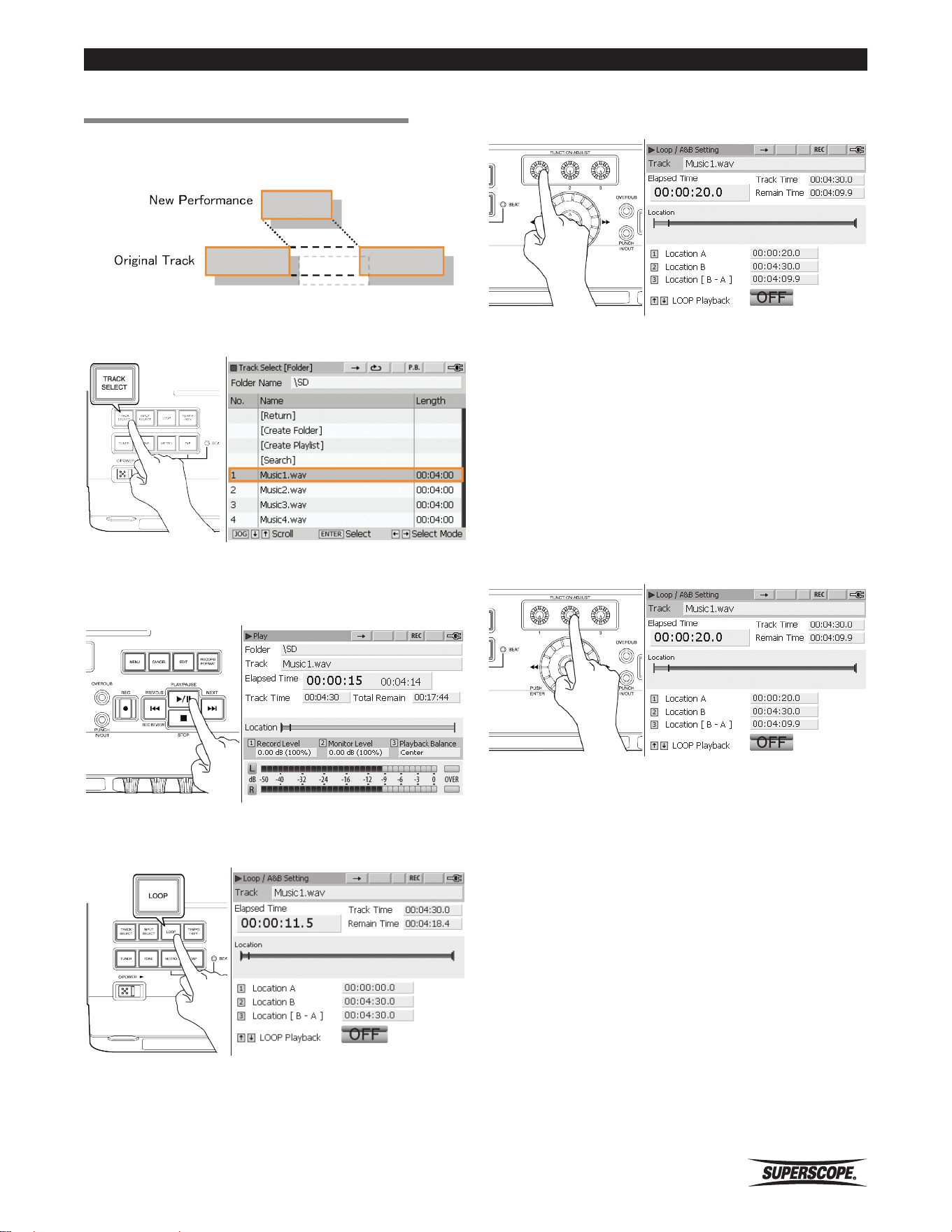
Superscope PSD410 User Manual
- 71 -
Recording
■Punch In/Out
Use the Punch In/Out feature to replace a section of a
performance with a new performance (correct mistakes).
1. Press the TRACK SELECT button to select a track.
2. If you have already set your Punch In/Out points,
proceed to step 6. If not, press the PLAY/PAUSE
button to start playback.
3. Press the LOOP button during playback to view the
LOOP setting menu.
4. Press FUNCTION ADJUST #1 (4A) during playback to
set the punch-in point.
5. Press FUNCTION ADJUST #2 (4B) during playback
to set the punch-out point. Loop Playback will be
started at point A automatically.
※ To facilitate smooth transitions between
the original track and your newly recorded
punch-in, it is recommended you set your
punch-in/out points several seconds before
and after the section that needs to be
replaced. Rather than attempting to replace
individual missed notes, try outlining larger
phrases when using Punch In/Out.
https://manual-hub.com/
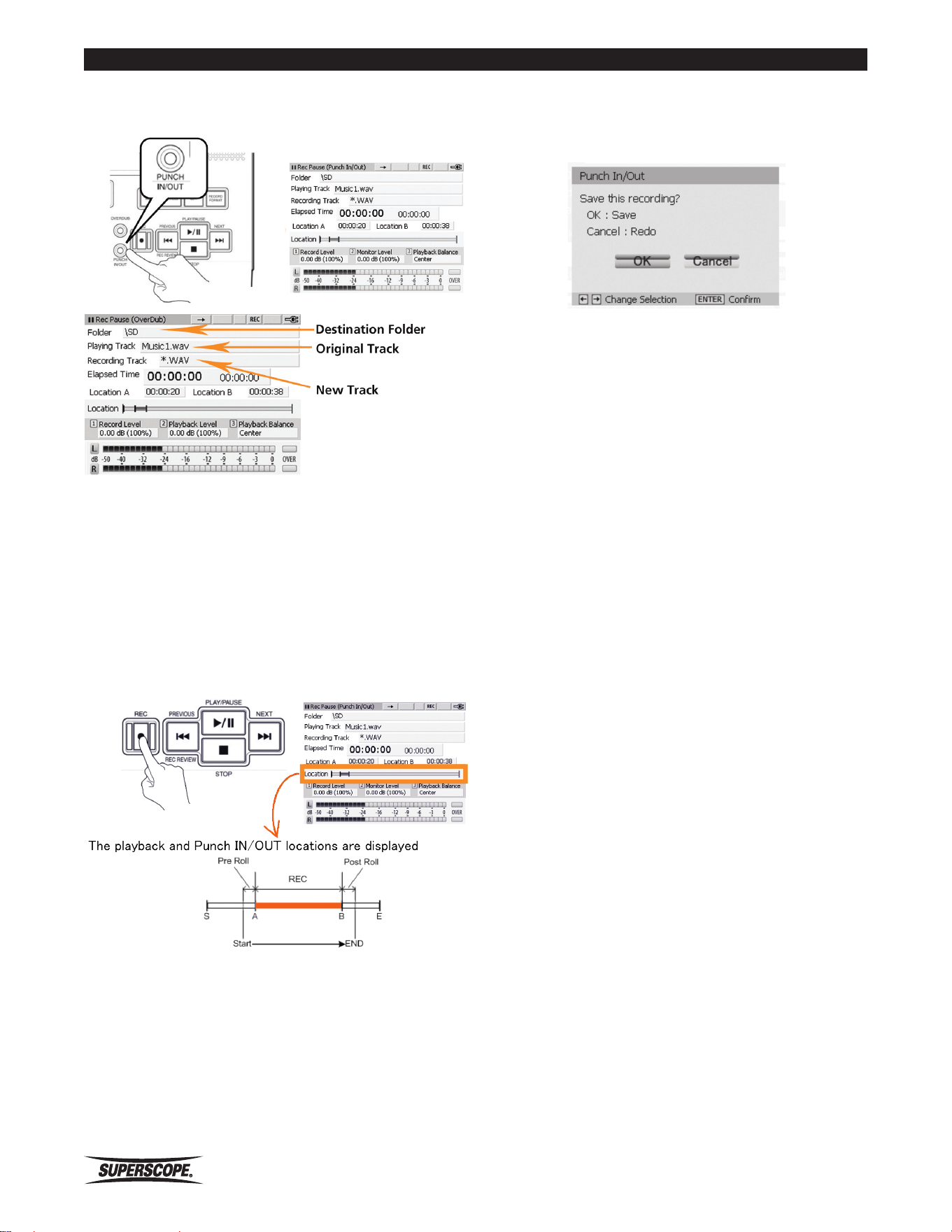
- 72 -
Superscope PSD410 User Manual
Recording
6. Press PUNCH IN/OUT button to change to REC Pause
Mode (Punch In/Out).
7. Adjust the REC Level knobs so that the Record Level
(left and right channels) does not exceed 0 dB as
indicated on the Level meters. (see Setting Levels).
8. Press the REC button or PLAY/PAUSE button to start
recording. If a Pre-Roll Time is set in the Record
Settings menu (see Pre-Roll Time / Post-Roll Time),
playback will begin a number of seconds before
punch-in point A, as determined by the Pre-Roll
Time.
9. When Recording between point A (punch-in) and
point B (punch-out) has finished, the recording will
stop automatically and the Save menu will appear.
10. Select OK and the new file (executed punch-in)
will be saved. Select Cancel and the file will not be
saved. When Cancel is selected, the PSD410 will
reenter REC Pause Mode (Punch In/Out) (step #6)
allowing the user to redo the punch-in recording.
https://manual-hub.com/
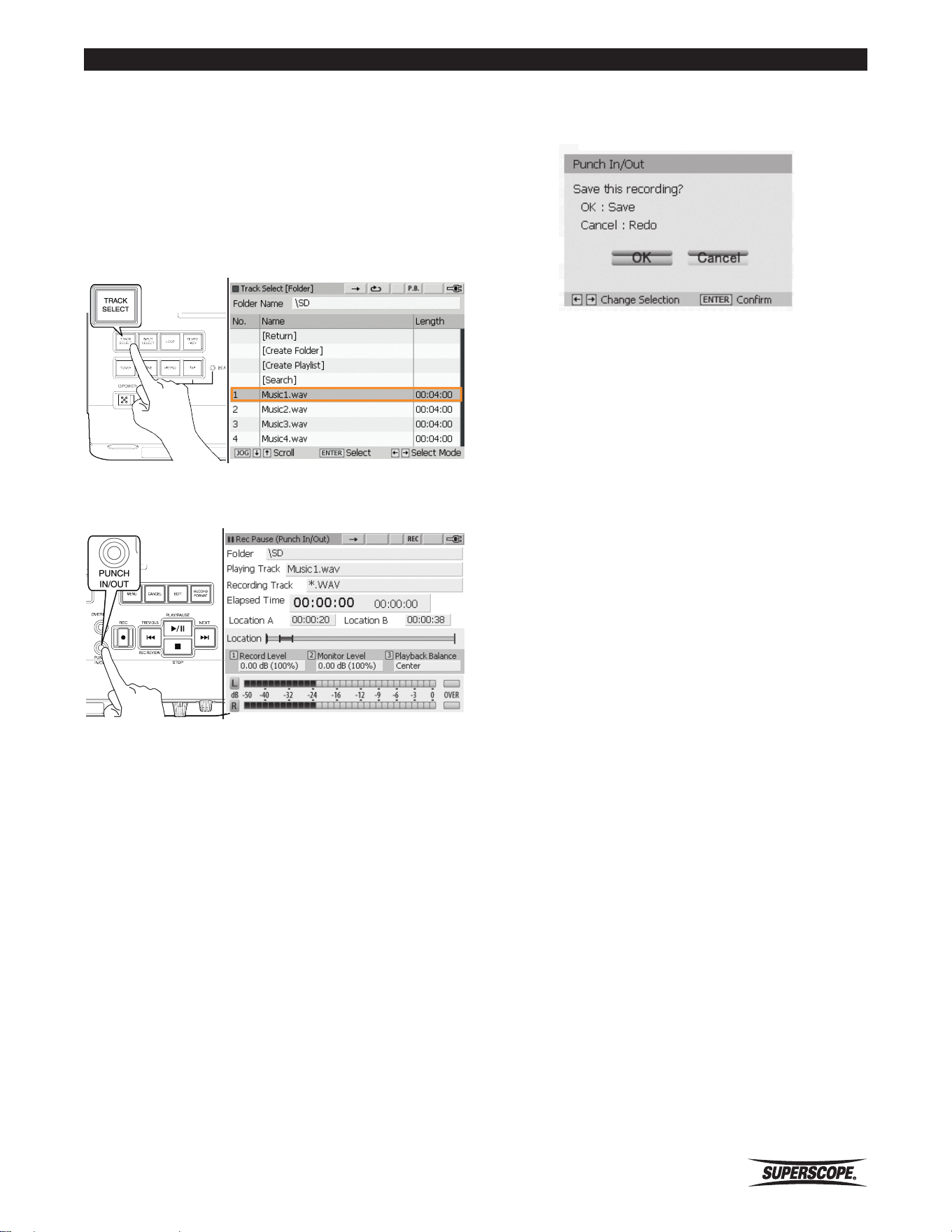
Superscope PSD410 User Manual
- 73 -
Recording
Punch In/Out with Foot Pedal
Follow these steps to punch in/out “on the fly” with the
help of an external foot pedal.
1. Select “Foot pedal: Punch In<->Punch Out” in the
System Settings menu.
2. Press the TRACK SELECT button to select a file for
Punch In/Out recording.
3. Press the Punch IN/OUT button to change display to
REC Pause (Punch In/Out).
4. Adjust the REC Level knobs so that the Record Level
(left and right channels) does not exceed 0 dB as
indicated on the Level meters. (see Setting Levels)..
5. Press the Foot Pedal to start playback.
6. Press the Foot Pedal again to set the punch-in point
during playback. The PSD410 will begin punch-in
recording.
7. Press the Foot Pedal again to set the punch-out point
during playback. After setting the punch-out point,
the recording will be stopped.
8. When Recording between point A (punch-in) and
point B (punch-out) has finished, the recording will
stop automatically and the Save menu will appear.
9. Select OK and the new file (executed punch-in)
will be saved. Select Cancel and the file will not be
saved. When Cancel is selected, the PSD410 will re-
enter Rec Pause Mode (step 3), allowing the user to
redo the punch-in recording.
https://manual-hub.com/
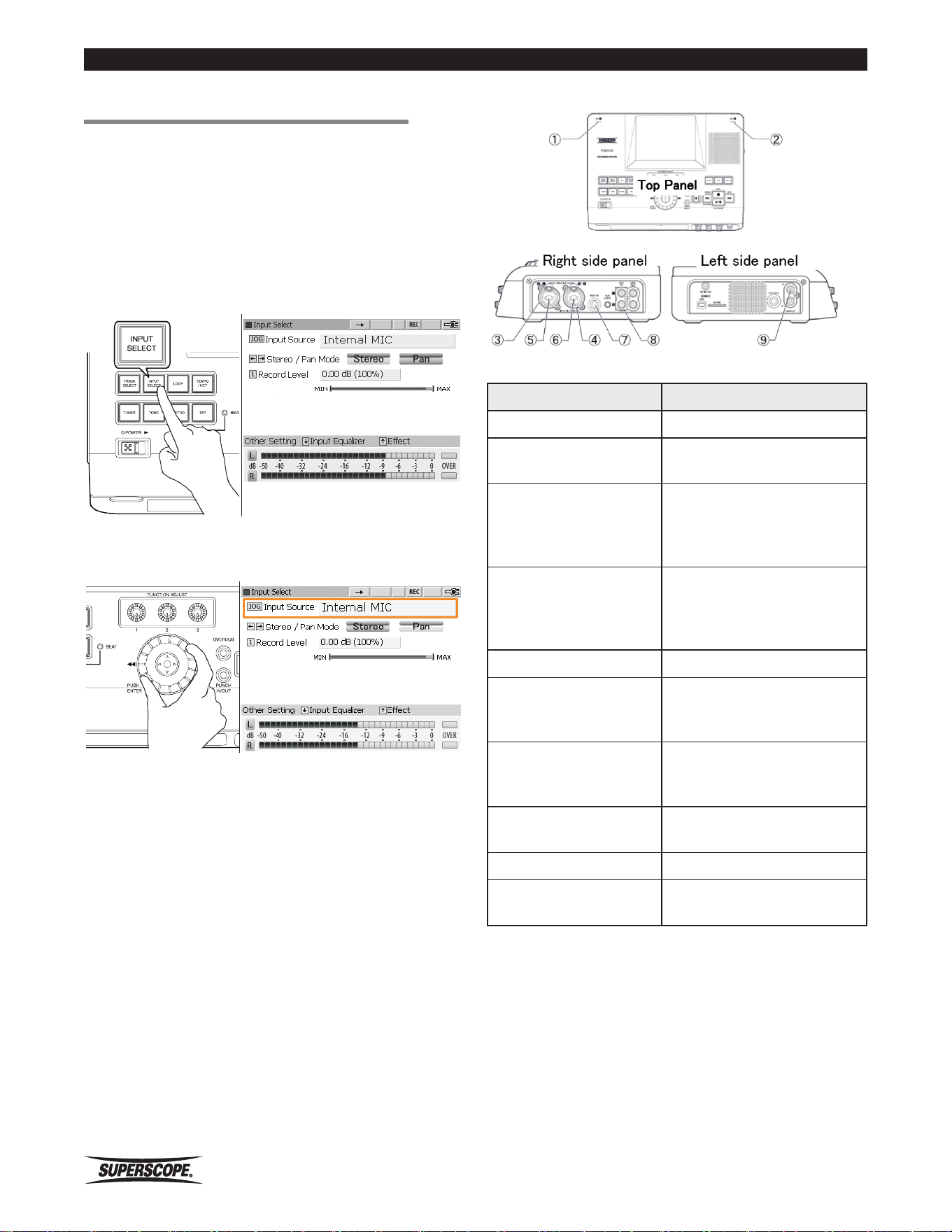
- 74 -
Superscope PSD410 User Manual
Recording
Available Input Sources
Input Description
Input Mute Input signal is muted.
Internal MIC
Selects the built-in
microphones ① ②.
External MIC
Select this setting when
external microphones are
connected to the XLR/1/4”
inputs③ ④.
LINE
Select this setting when LINE
level signals are connected
to the XLR/1/4” inputs.
⑤⑥.
INST
Selects the INST input ⑦.
Internal MIC (L ch) +
INST
Select the Left internal
microphone ① + the INST
input ⑦.
External MIC (L ch) +
INST
Selects the Left external
microphone input ③ + the
INST input ⑦.
LINE (L ch) + INST
Selects the Left LINE input
⑤ + the INST input ⑦.
AUX
Selects the AUX inputs⑧.
DIGITAL
Selects the DIGITAL Inputs
⑨.
■Recording Effects
Reverb and Delay effects can be added to input signals
and then recorded. It is not possible to add an effect
to an existing recording. Follow these steps to apply an
effect to your selected input.
Selecting an Input Signal
1. Press the INPUT SELECT button to open the Input
Select screen.
2. Turn the jog wheel to select an input configuration
from the options below.
https://manual-hub.com/
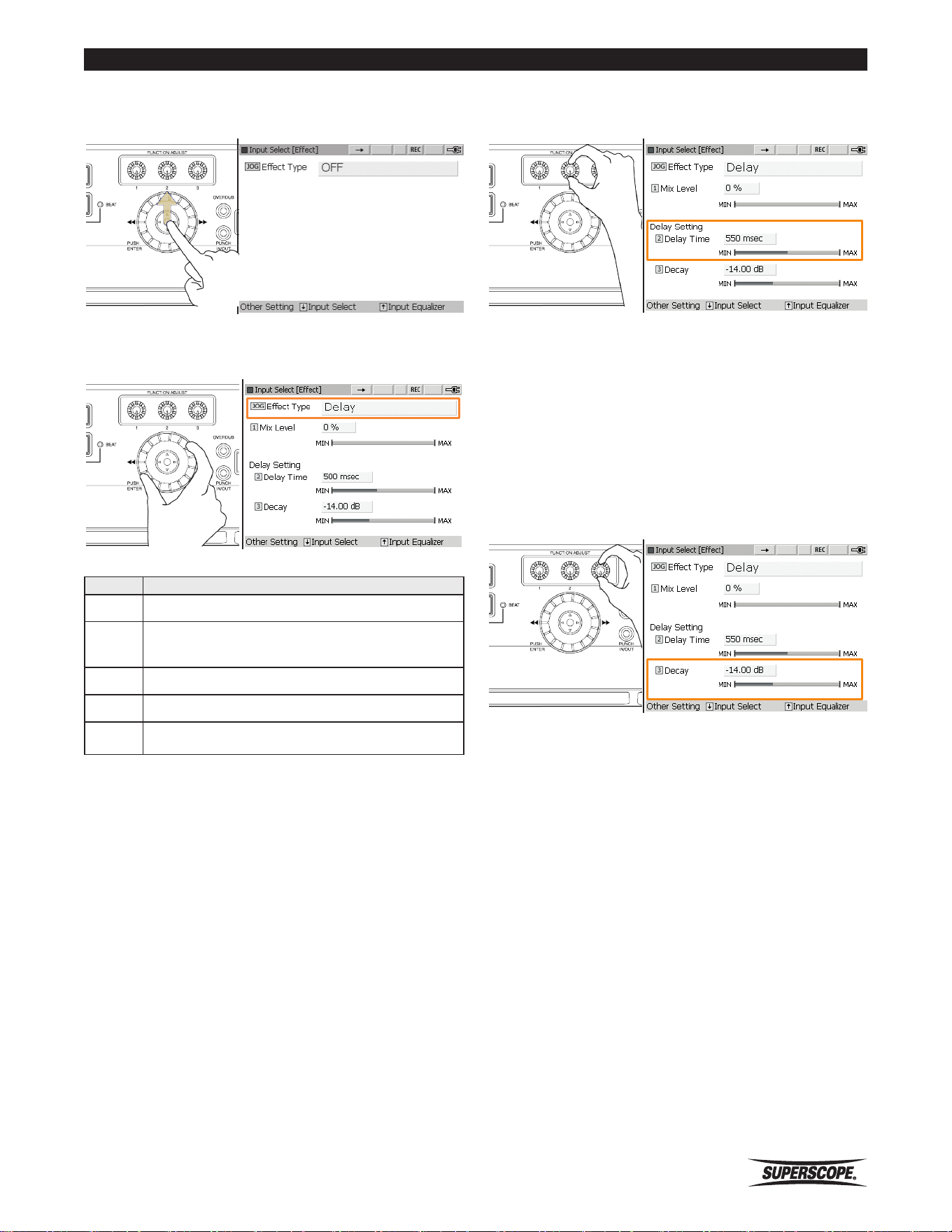
Superscope PSD410 User Manual
- 75 -
Recording
3. Once an input is selected, push the joystick up to
view the Input Select [Effect] screen.
4. Turn the jog wheel to select the effect type from the
table below. The default setting is OFF.
Effect Type Settings
Effect Description
OFF No effect
Room
Adds ambience similar to that of a small to
medium sized room
Hall Adds ambience similar to that of a large hall
Plate Imitates the sound of a plate reverb unit
Delay Adds discrete echoes to the sound source
5. If Room, Hall, or Plate is selected as the Effect Type,
the only parameter to adjust is the Mix Level. The
Mix Level setting controls the balance between direct
signal (0%) and processed signal (100%).
6. If Delay is selected as the Effect Type, the following
additional parameters should be adjusted:
① Delay Time
Delay Time sets the amount of time delay between
repeats.
Delay Time can be adjusted between 0 msec and 1000
msec in 1 msec intervals. The default setting is 500 msec.
Turn FUNCTION ADJUST # 2 (4B) to adjust Delay Time.
Press FUNCTION ADJUST # 2 (4B) to return to the default
setting.
Decay
Decay sets the amount of attenuation for each successive
repeat. The greater the attenuation, the quicker the
echoes will fade away. Decay can be adjusted between
-20.00 and -3.00 ㏈ in 0.25 ㏈ steps.
The default is setting is -14.00dB. Turn FUNCTION
ADJUST # 3 to adjust Decay. Press FUNCTION ADJUST #
3 to return to the default setting.
Playback Balance and Level
The PSD410 offers a great deal of flexibility when
determining Playback Balance. Follow these steps to alter
the Balance and Level of any file played by the PSD410.
※ When you exit this screen, all settings will be
stored on the SD card along with the selected
file.
https://manual-hub.com/
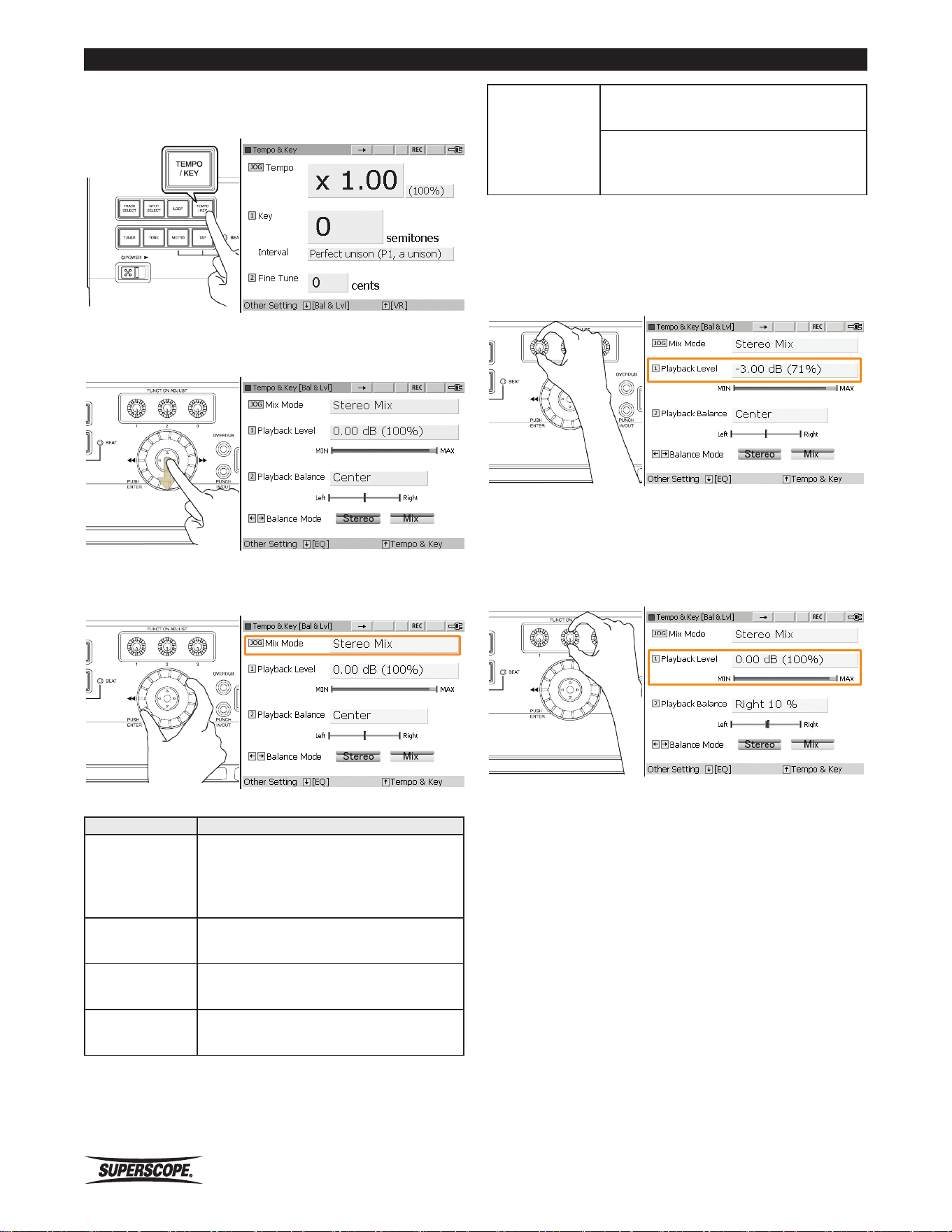
- 76 -
Superscope PSD410 User Manual
Recording
1. Press the TEMPO/KEY button to open the Tempo/
Key screen.
2. Press the joystick down one time to open the Tempo
& Key [Bal & Lvl] screen.
3. Turn the jog wheel to select Mix Mode. The Mix
Mode settings are explained in the chart below.
Mix Mode Output Mix
Stereo Mix
( n o r m a l
operation)
Left channel [input signal (left) +
playback signal (left)]
Right channel [input signal (right) +
playback signal (right)]
L ch – Mix
Left channel [input signal (left) +
playback signal (left)]
R ch – Mix
Right channel [input signals (right) +
playback signal (right)]
Mono - Mix
Left channel [input signal (left) +
playback signal (left + right)]
Split
Right channel [input signals (right) +
playback signal (left + right
Left channel [playback signal (left +
right)] Right channel [input signal (left
+ right)]
4. Playback Level. Turn FUNCTION ADJUST # 1(4A) to
adjust Playback Level. Playback Level can be adjusted
between -20 ㏈ (0%) and -0.0 ㏈ (100%) in 0.5 dB
(1%) increments. The default setting is 0 ㏈ (100%).
5. Playback Balance. Playback Balance can be adjusted
in 1% increments between "Left 100% ~ Center ~
Right100%" by turning FUNCTION ADJUST #2 (4B).
The default setting is Center. For a description of
Playback Balance behavior, see Balance Mode below.
6. Balance Mode. In normal operation (Stereo),
a Playback Balance setting of ‘Left 100%’ will
completely mute the Right channel. Likewise, a
Playback Balance setting of ‘Right 100%’ will mute
the Left channel.
When transcribing an instrument that is solidly in one
channel (Right or Left), it can be useful to move the
desired channel into both channels, rather than muting
the opposing channel, i.e., silencing one speaker or one
side of a pair of headphones.
https://manual-hub.com/
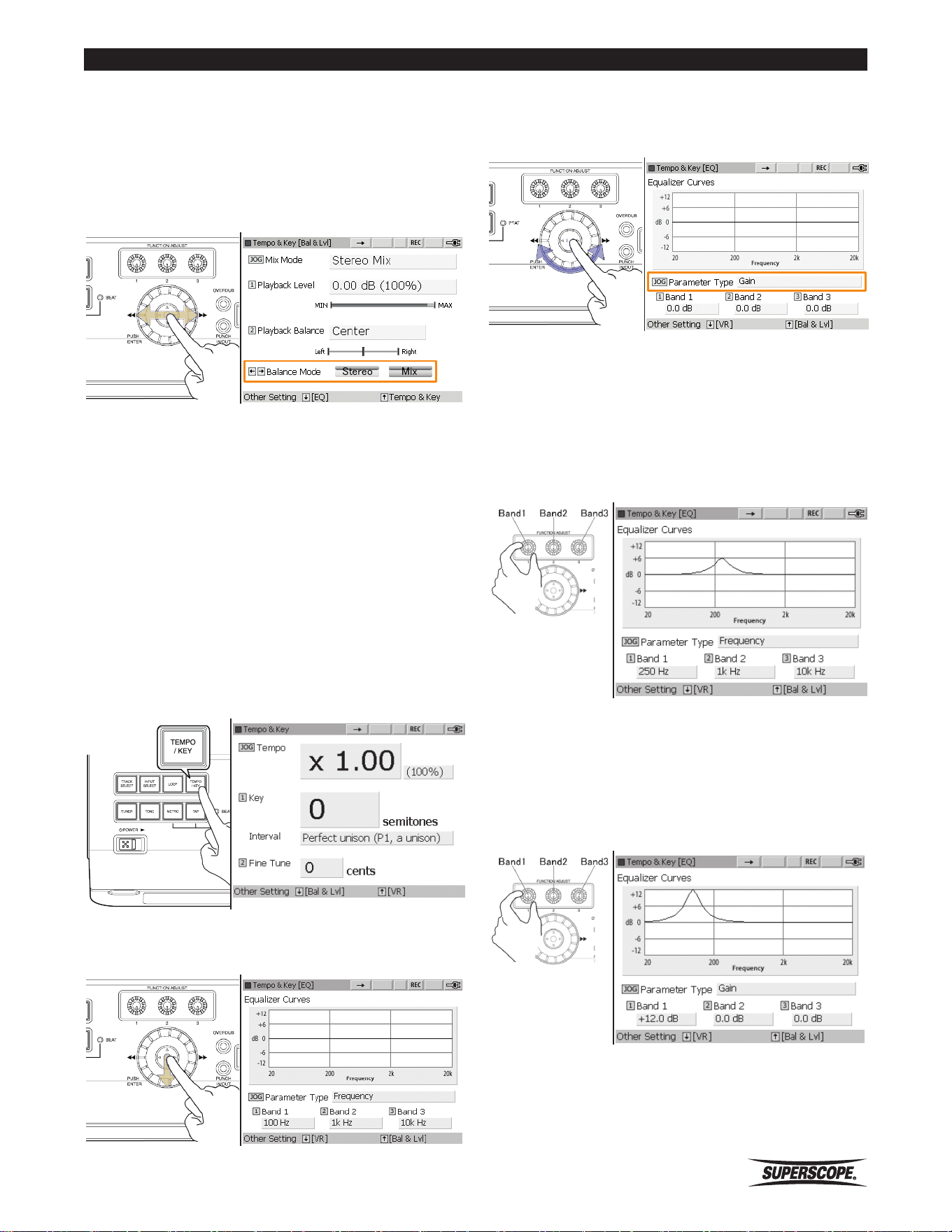
Superscope PSD410 User Manual
- 77 -
Recording
This Balance Mode is referred to as “Mix.” In Balance
Mode: Mix, a Playback Balance setting of ‘Left 100%’
will place the Left channel content in both the Left and
Right output channels (both sides of your headphones/
L&R speakers) Move the joystick left or right to select
"Stereo" or "Mix.” The default setting is "Stereo.”
Equalizer Settings
The PSD410 offers two independent 3-band parametric
equalizers (EQ); one equalizer affects input signals
(microphones, instruments, etc.) while the other
equalizer affects file playback. Follow these steps to
adjust the playback equalizer (Note: When you exit this
screen, all settings will be stored on the SD card along
with the selected file):
Playback Equalizer
1. Press the TEMPO/KEY button to open the Tempo/
Key screen.
2. Press the joystick down two times to open the
Tempo & Key [EQ] screen.
3. Parameter Type: Turn the jog wheel to select
the parameter to be adjusted: Frequency, Gain, or
Bandwidth.
Frequency
When Parameter Type is set for Frequency, turn the
FUNCTION ADJUST controller to select any frequency
between 20Hz and 20kHz for each band. Pressing the
FUNCTION ADJUST knobs will return all settings to
default values.
Gain
When Parameter Type is set for Gain, turn the FUNCTION
ADJUST controller to determine the gain for each Band.
Gain can be adjusted +/- 12dB. Pressing the FUNCTION
ADJUST knobs will return all settings to default values.
https://manual-hub.com/
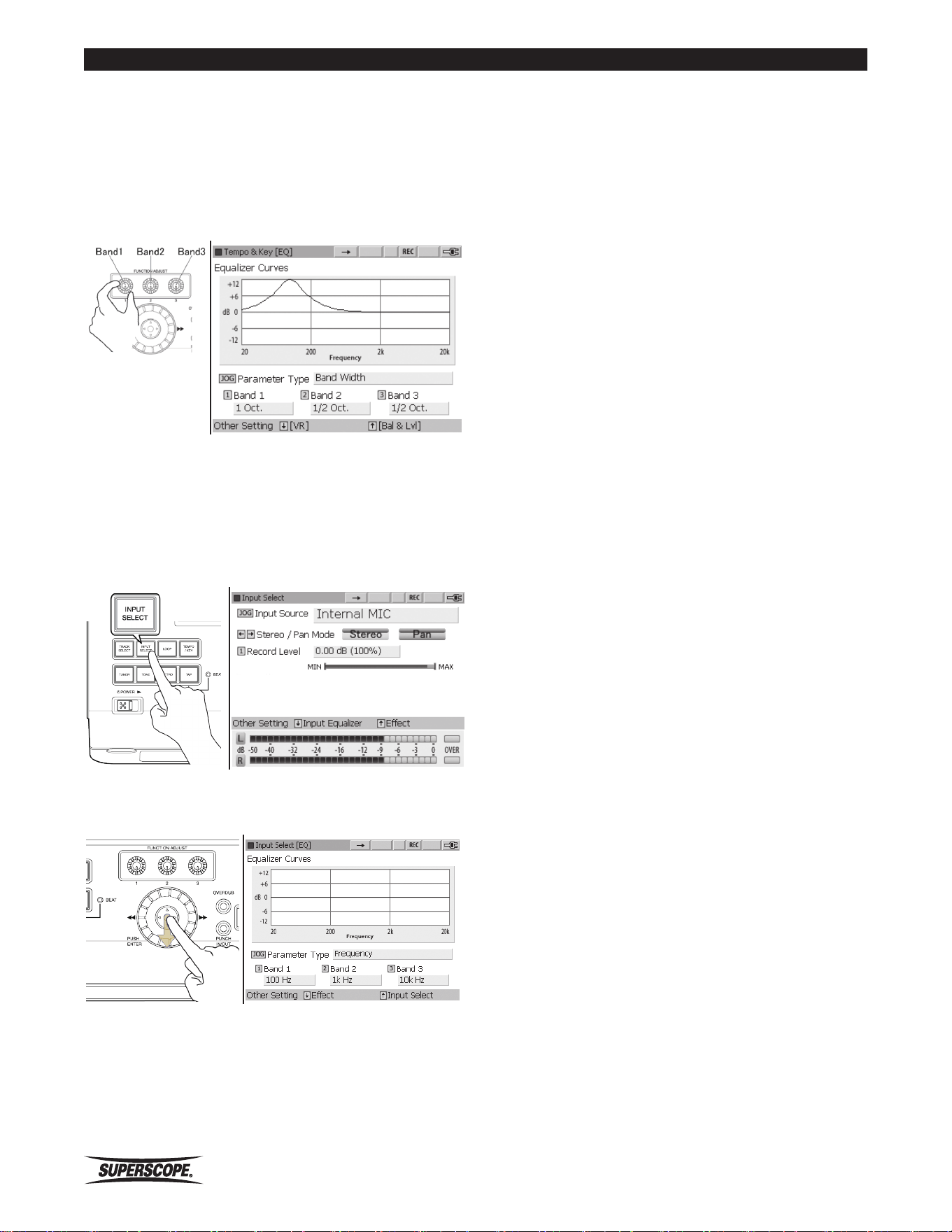
- 78 -
Superscope PSD410 User Manual
Recording
Bandwidth
When Parameter Type is set for Bandwidth, turn the
FUNCTION ADJUST controller to set the Bandwidth for
each Band. Turn right to widen the frequency band.
Turn left to narrow the frequency band. Pressing the
FUNCTION ADJUST knobs will return all settings to
default values.
Input Equalizer
Follow these steps to adjust the input equalizer:
1. Press the INPUT SELECT button to open the Input
Select screen.
2.
3. Press the joystick down one time to open the Input
Select [EQ] screen.
4. Repeat the remaining steps under Equalizer Settings:
Playback Equalizer.
https://manual-hub.com/
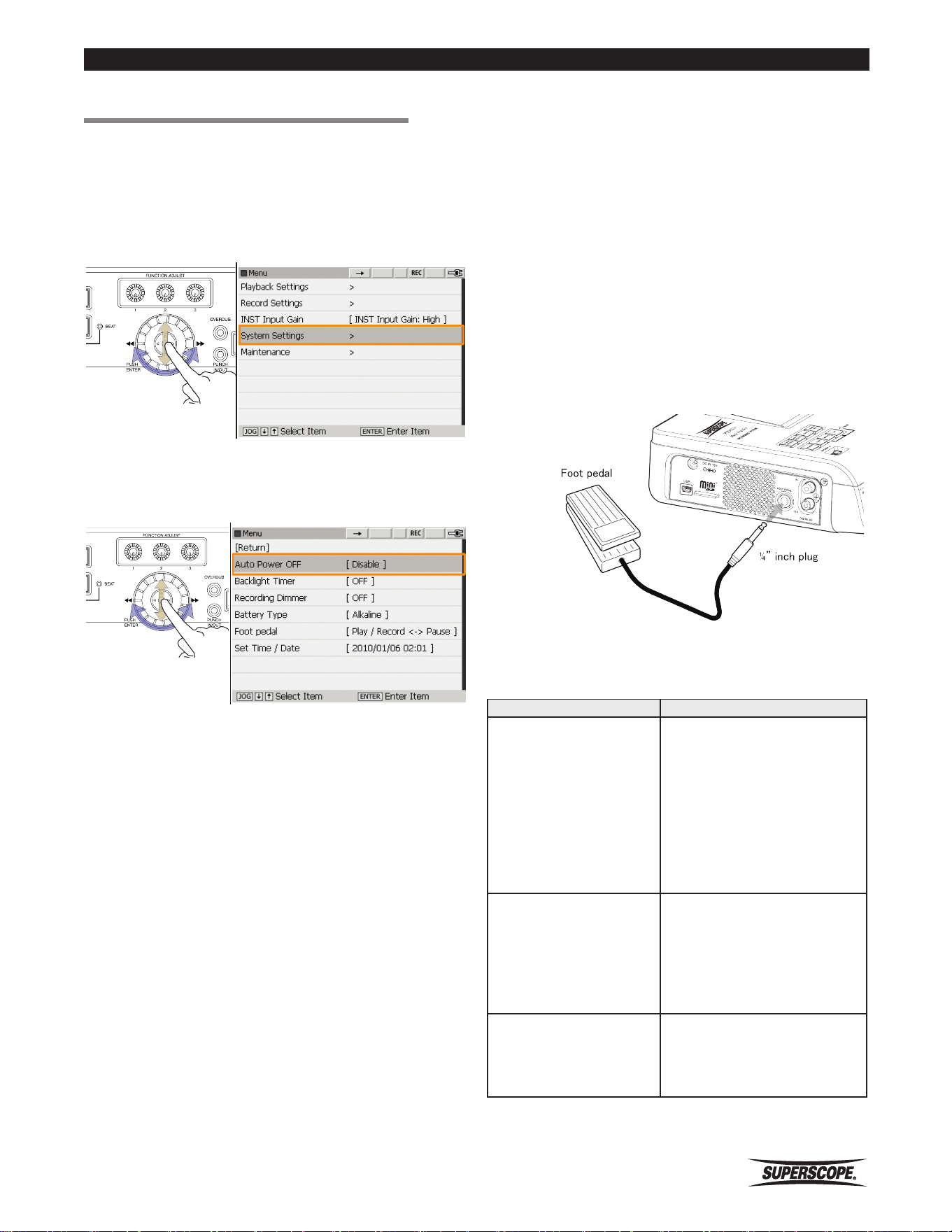
Superscope PSD410 User Manual
- 79 -
System Settings
■System Settings
Follow these steps to adjust System Settings:
1. Press the MENU button to display the menu screen.
2. Turn the jog wheel or move the joystick up or down
to highlight System Settings. Press ENTER.
3. From the System Settings menu, turn the jog wheel
or move the joystick up or down to highlight a menu
setting. Press ENTER.
4. Turn the jog wheel to change settings. Press ENTER.
Auto Power Off
Turn this feature on to conserve power when the PSD410
is not in use. When Auto Power OFF is enabled, the
PSD410 will power off automatically after 15 minutes of
inactivity. This includes the use of all top panel buttons
and knobs, and the remote control. This feature is
disabled during recording and playback. The default
setting is [Disable].
Backlight Timer
This feature saves power by automatically dimming the
LCD backlight after a period of inactivity. This includes
the use of all top panel buttons and knobs, and the
remote control. Settings include OFF, 2 seconds, 5
seconds, 10 seconds, and 20 seconds.
The default setting is OFF.
Recording Dimmer
When this feature is OFF (default setting), the LCD
backlight will not dim during recording regardless of the
Backlight Timer setting. This will save power by allowing
the backlight to dim during recording.
Battery Type
Setting Battery Type allows for greater accuracy with
the battery life gauge. Available options include alkaline
batteries (default setting) and nickel metal hydride
(NiMH).
Foot Pedal
An optional foot pedal can be connected to the Foot
Pedal input on the Left panel.
The following table describes the functions of the foot
pedal:
Foot Pedal Setting Performance
Play/REC <->Pause
During playback, press
the foot pedal to toggle
between Play and Pause
mode.
During Recording, press
the foot pedal to toggle
between Record and Record
Pause mode.
Play<->Recall
During playback, press the
foot pedal once to mark a
recall point. When the foot
pedal is pressed a second
time, playback will return to
the recall point.
Punch In <-> Punch Out
During Punch In/Out mode,
the foot pedal can be used
to set punch-in and punch-
out points “on the fly.”
The default setting is "Play/REC <->Pause.”
https://manual-hub.com/

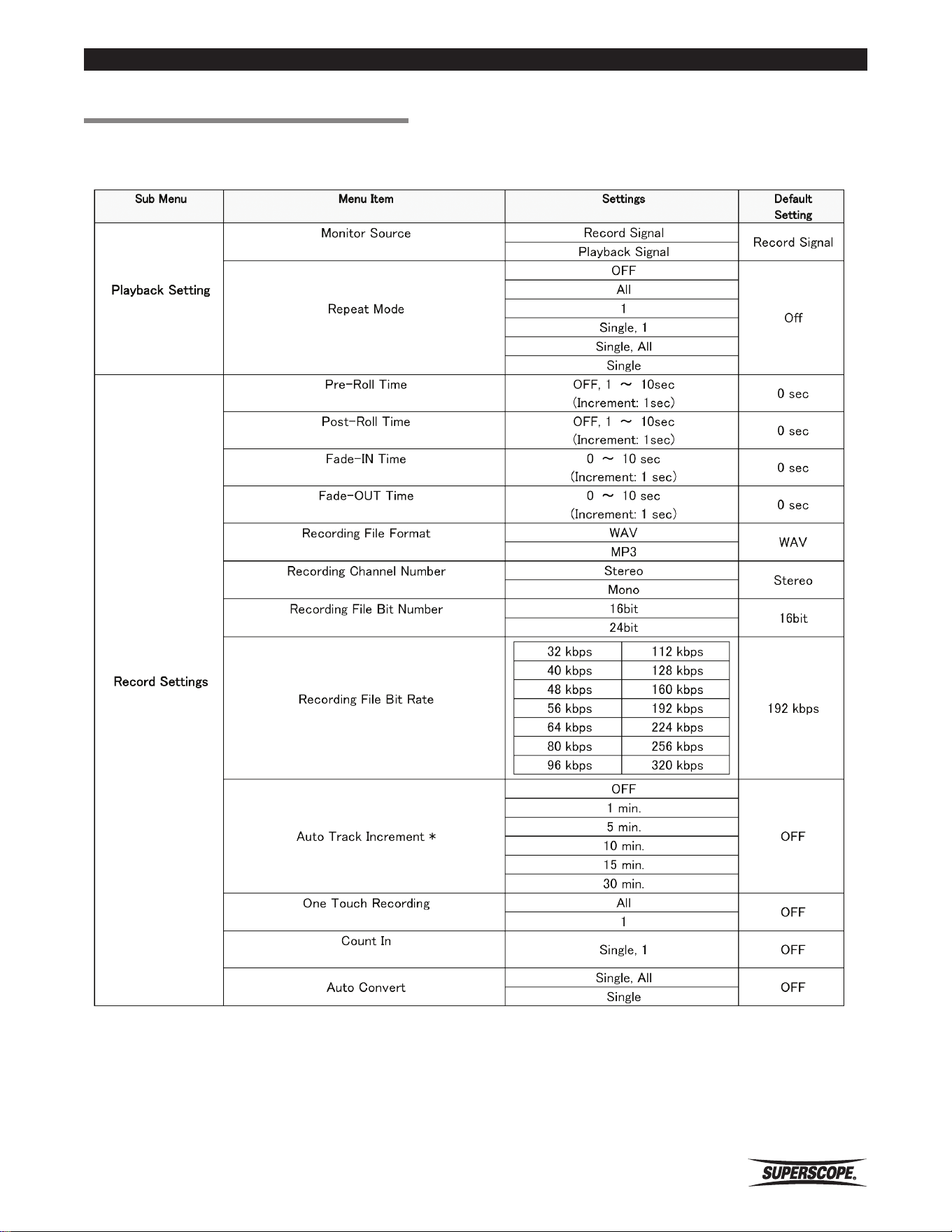
Superscope PSD410 User Manual
- 81 -
Appendix
■Appendix
Main Menu (1 of 2)
* +/- 2 seconds
https://manual-hub.com/
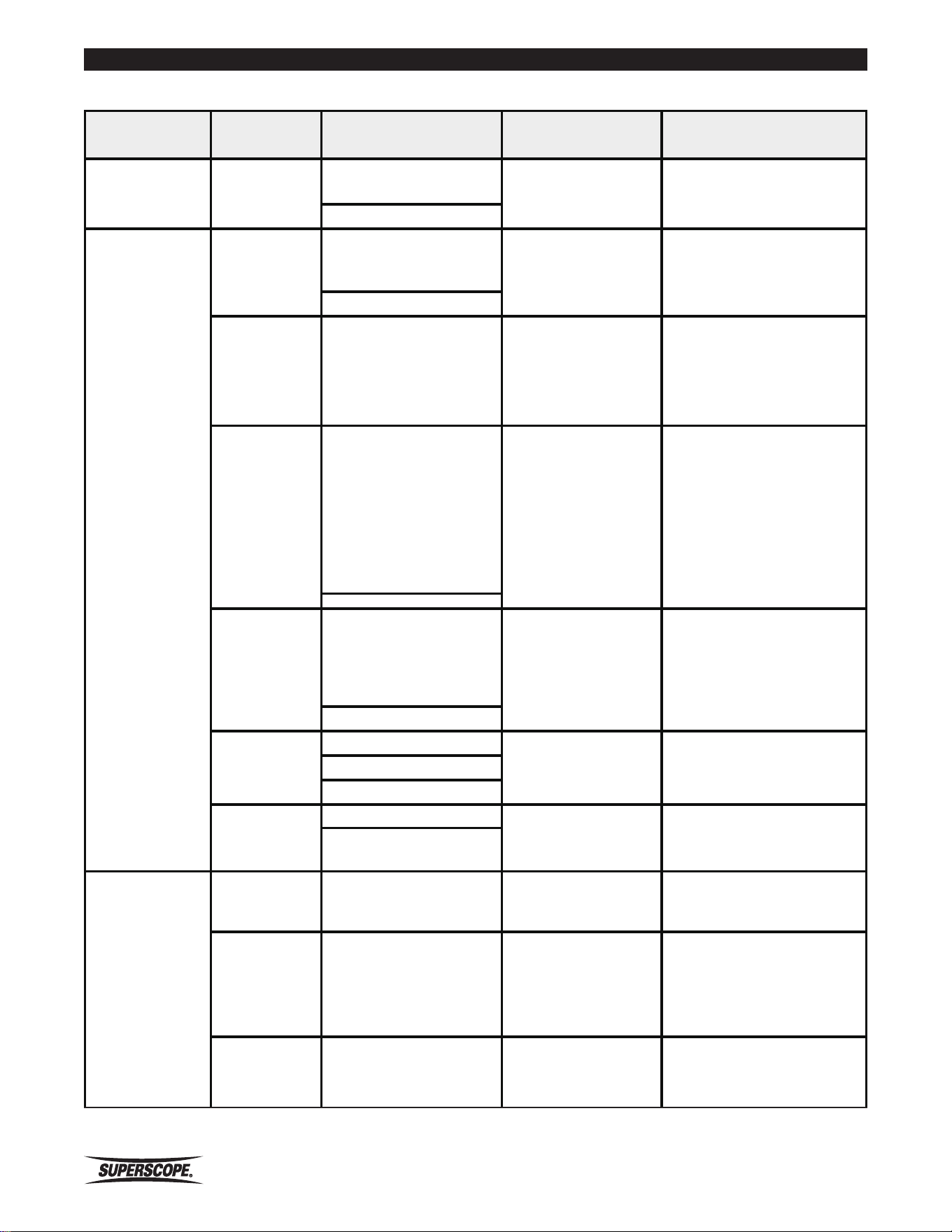
- 82 -
Superscope PSD410 User Manual
Appendix
Main Menu (2 of 2)
Sub Menu Menu Item Settings
Default
Note
Setting
INST Input Gain
Setting
INST Input Gain
High
High
Sets the sensitivity for the INST
input.
Low
System Settings
Auto Power OFF
Disable
Disable
Powers the unit off after 15
minutes of no activity.
Enable
Backlight Timer
OFF,
OFF
Dims the LCD backlight
after the selected period of
inactivity.
2sec, 5sec, 10sec, 20sec
Recording
Dimmer
OFF
OFF
Turn ON to maintain LCD
backlight during recording
regardless of Backlight Timer
setting.
ON
Battery Type
Alkaline
Alkaline
For accurate battery gauge
read out, select Battery Type.
Ni-MH
Play/Record <-> Pause
Foot Pedal Play <-> Recall Play/Record <-> Pause Select Foot Pedal function
Punch In <-> Punch Out
Set Time/Date
Year/Month/Day
-
Time/Date determines file
name for new recordings. See
Setting Time/Date.
Hour:Minute:Second
Maintenance
System
Information
- -
Displays Model, Software
Version, and SD capacity.
Format SD - -
Select to initialize the SD Card
for use on the PSD410.
※All the data currently
on the SD card will
be deleted.
Restore Defaults - -
Returns all menu settings to
factory default values.
https://manual-hub.com/
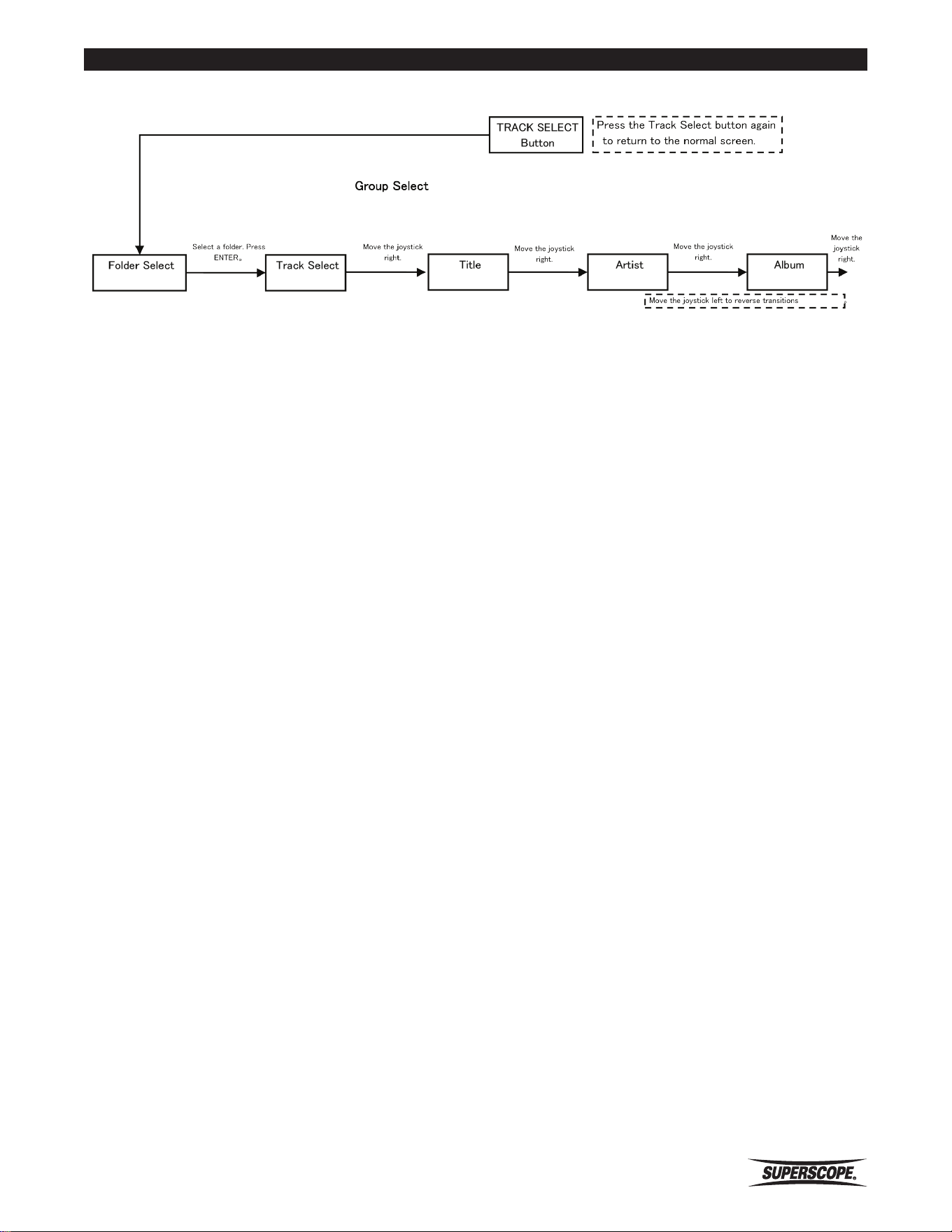
Superscope PSD410 User Manual
- 83 -
Appendix
Track Select Mode Transition Diagram
https://manual-hub.com/
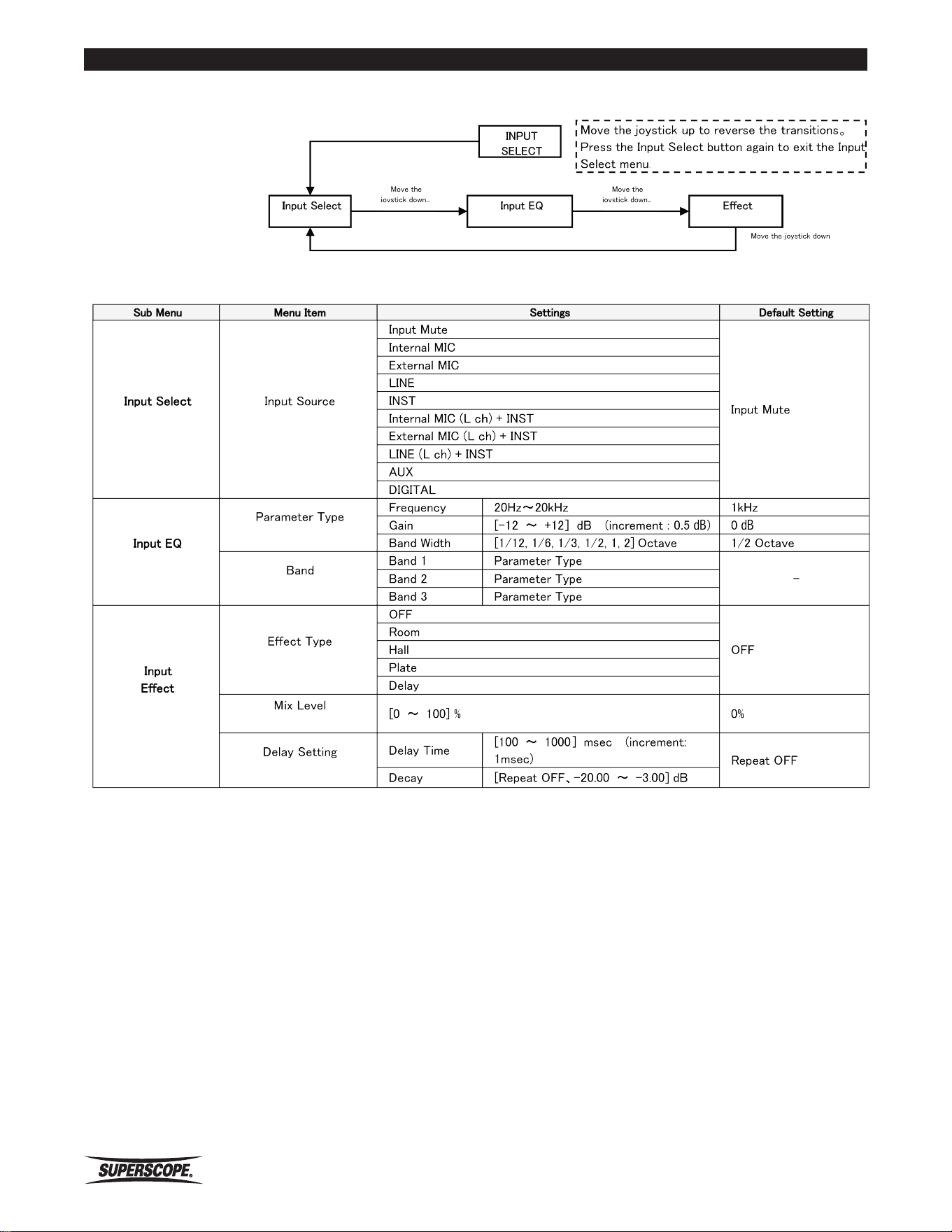
- 84 -
Superscope PSD410 User Manual
Appendix
Input Select Mode Transition Diagram
https://manual-hub.com/
Superscope PSD410 User Manual
- 85 -
Appendix
Edit Menu Options
Selected Item
16bit WAV file 24bit WAV file MP3 file Playlist Folder
Track Information Track Information Track Information Copy Copy
Copy Copy Copy Move Move
Move Move Move Rename Rename
Rename Rename Rename Delete Delete
Delete Delete Delete Edit Playlist
Trim In/Out 24 > 16bit Convert Export
Divide
Combine
Export
https://manual-hub.com/
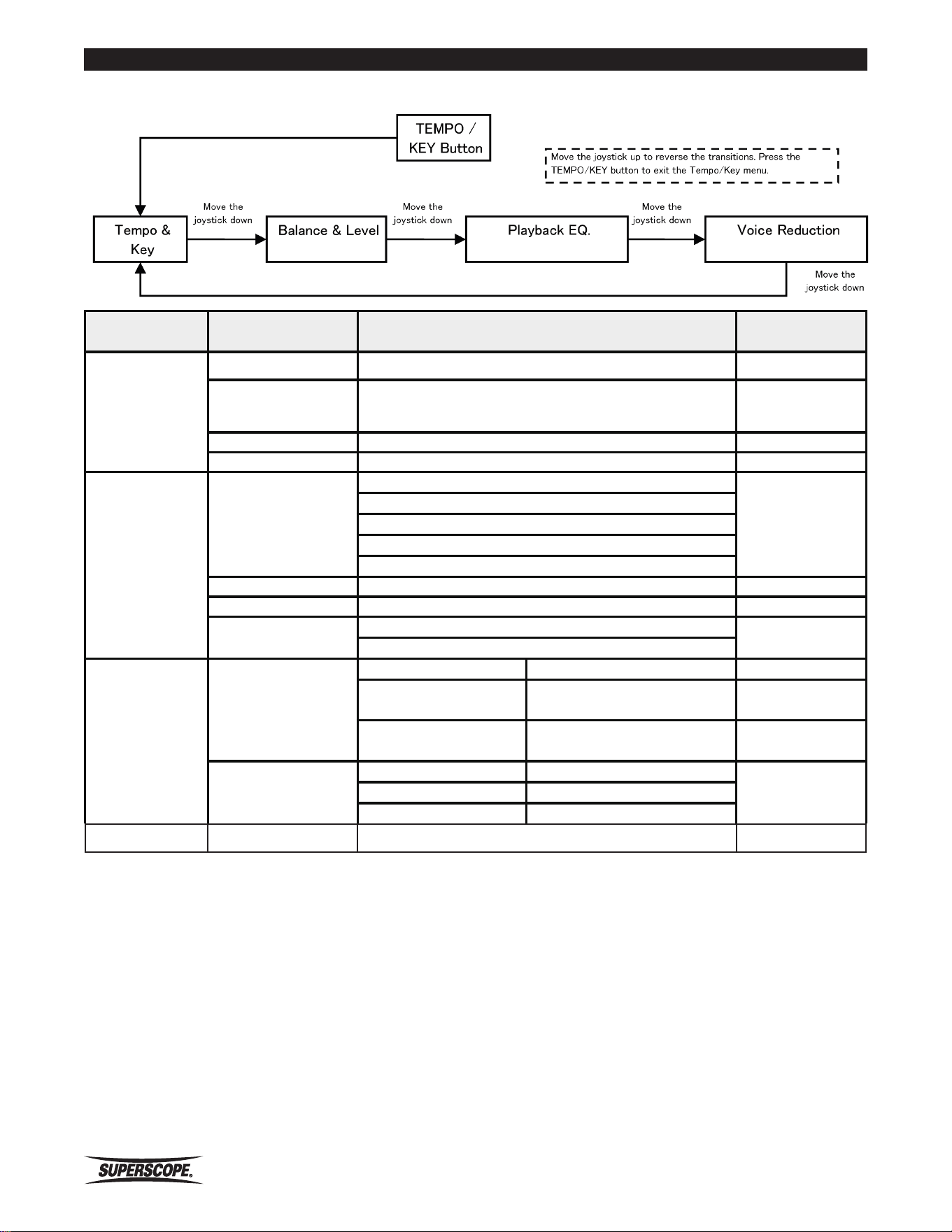
- 86 -
Superscope PSD410 User Manual
Appendix
Key/Tempo Menu
Sub Menu Menu Item Settings Default Setting
Tempo & Key
Tempo x[ -0.75 ~ 1.50 ] ( -75 ~ 150% ) increment : 0.01(1%) X 1.00 (100%)
Key [ -12 ~ +12 ] semitones increment : 1 semitone 0 semitones
Fine Tune [ -50 ~ +50 ] cent step : 1 cent 0 cents
Calibration A4 : [ 430 ~ 460 ] Hz step : 1 Hz 440 Hz
Balance & Level
Mix Mode
Stereo
Stereo
Split
L ch Mix
R ch Mix
Monaural Mix
Playback Level [0 ~ 100] % increment: 1% -0 dB (100%)
Playback Balance Left [100 ~ center ~ -100 %] increment: 1% Center
Balance Mode
Stereo
Stereo
Mix
Playback EQ.
Parameter Type
Frequency 20Hz~20kHz 1kHz
Gain
[-12 ~ +12] dB (increment :
0.5 dB)
0 dB
Band Width
[1/12, 1/6, 1/3, 1/2, 1, 2]
Octave
1/2 Octave
Band
Band 1 Parameter Type
-Band 2 Parameter Type
Band 3 Parameter Type
Voice Reduction Voice Reduction ON / OFF OFF
https://manual-hub.com/
Superscope PSD410 User Manual
- 87 -
Appendix
Chromatic Tuner Menu
Sub Menu Menu Item Settings
Default
Setting
Chromatic Tuner
Input Source
Input Mute
Input Mute
Internal MIC
External MIC
LINE
INST
Internal MIC (L ch) + INST
External MIC (L ch) + INST
LINE (L ch) + INST
AUX
DIGITAL
Channel Select
Left + Right
Left + RightLeft
Right
Calibration [410 ~ 470] Hz increment : 1Hz 440 Hz
Tone Menu
Sub Menu Menu Item Settings
Default
Setting
Tuning Tone
Tone Name
C, C#, D, D#, E, F, F#, G, G#, A, A#, B A
Calibration [410 ~ 470] Hz increment: 1 Hz 440 Hz
Volume [-20 ~ 0] dB increment: 0.5 dB -10 dB
Metronome Menu
Sub Menu Menu Item Settings
Default
Setting
Metronome
ON / OFF
ON
OFF
OFF
BPM [35 ~ 250] BPM increment: 1 BPM 120 BPM
Accent Beat Number [0 (OFF) ~ 9] increment: 1 4
Normal Beat Volume [mute, -20 ~ 0] dB increment: 0.5 dB (1%) 0 dB (0%)
Accent Beat Volume [mute, -20 ~ 10] dB increment: 0.5 dB (1%) 3 dB (0%)
https://manual-hub.com/
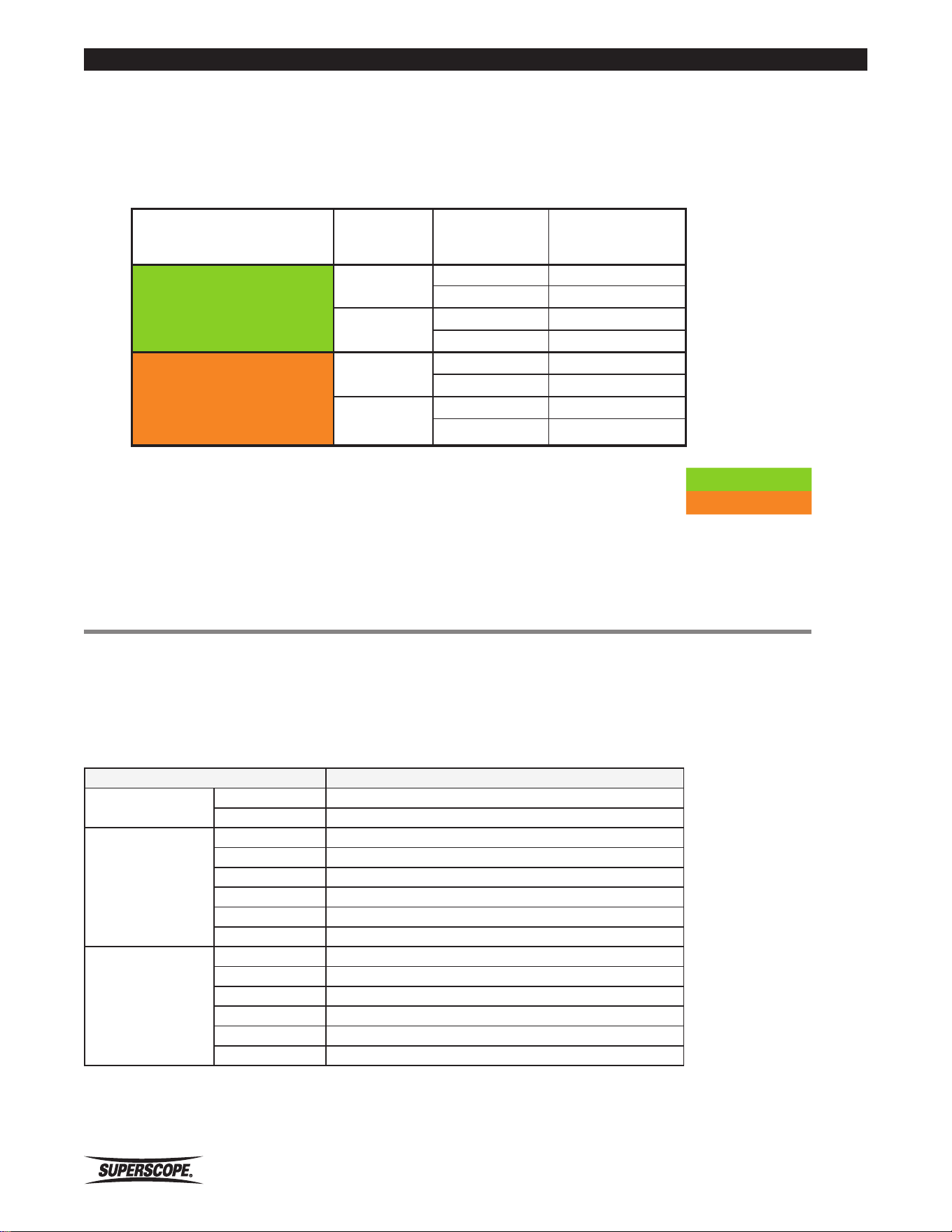
- 88 -
Superscope PSD410 User Manual
Appendix
Continuous Recording Time with Battery Operation
The following times are estimates. Recording times may vary.
Battery Type LCD
Phantom
Power
Battery Life
(Hours)
Fully Charged 2,700mAh
Ni-MH
Full bright
OFF 5.5
ON 4.9
Dimmer
OFF 6.3
ON 5.8
AA Size
Alkaline
Full bright
OFF 3.6
ON 3.3
Dimmer
OFF 4.7
ON 4.2
Conditions: 77 degrees Fahrenheit. Ni-MH
Volume controller: Minimum position. Alkaline
Mode: Recording MP3-Stereo-128kbps-Internal MIC.
SD Card Record Times
The table below shows estimated record times.
Estimated Record Times SD memory card (1GB)
Estimated Record Times SD Memory Card (1GB) Continuous Recording
WAV
44.1KHz
16 bit 1 hr 34 min
24 bit 1 hr 02 min
MP3
Stereo
64Kbps 34 hr 43 min
80Kbps 27 hr 46 min
128Kbps 17 hr 21 min
160Kbps 13 hr 53 min
256Kbps 8 hr 40 min
320Kbps 6 hr 56 min
MP3
Mono
32Kbps 69 hr 26 min
40Kbps 55 hr 33 min
64Kbps 34 hr 43 min
80Kbps 27 hr 46 min
128Kbps 17 hr 21 min
160Kbps 13 hr 53 min
https://manual-hub.com/

Superscope PSD410 User Manual
- 89 -
Specifications
■Specifications
General
System ...................................SD Digital Recording.System
Number of Recording Channels.......................2 (stereo)
Recording / Playback Formats.................WAV and MP3
16bit/24bit Recording Format: linear PCM WAV 44.1KHz
(extension. WAV)
MP3 Stereo 64, 80, 128, 160, 256, 320
Kbps Mono 32, 40, 64, 80, 128, 160 Kbps
A / D Conversion................24bit 128 times oversampling
D / A conversion.................24bit 128 times oversampling
Sampling Rate........................................................44.1 KHz
Maximum Recording File Size .................................2 GB
Recording Media..................Maximum 32GB Mini-SDHC
Display.....High-resolution 3.5-inch TFT LCD color display
Power Requirements....15 VDC 3.2A Center Pin Positive
AC 100 - 240V 50/60Hz power supply
Battery 8 X 1.5V “AA” Alkaline or NiMH
Dimensions..............................10.5(W) 3.3(H) 7.8(D) in
269 (W) 81 (H) 202 (D) mm
Weight................................3.9lb / 1.8 Kg without batteries
Operating Temperature.......................................5° to 35°
Internal Speaker...................................................3.5cm X 1
Internal Microphones..................Electret Condenser X 2
Phantom Power Supply..........................48V 10 mA max
USB...USB 2.0 High speed / Mass Storage Class operation
Audio
Analog to Digital Converter.................24 Bit resolution
128 times Oversampling
Digital to Analog Converter..................24 Bit resolution
128 times Oversampling
Overall Frequency Response.20 Hz to 20 KHz +/- 1 dB
Line Output Level......................................2.2Vrms, 300
Headphone Output Level..........50mW, 32, 10% THD
Speaker Output Level.........................2W, 8, 10% THD
Digital Output Level.........................0.5 Vp-p, 75 Load
Input/Outputs
Mic / Line Inputs
Mic Level
Input Sensitivity.............................................1.2mV, 12K
THD................................................................................0.18%
S/N.....................................................................60dB A-WTD
Line Level
Input Sensitivity...........................................500mV, 12K
THD................................................................................0.01%
S/N .................................................................... 92dB A-WTD
Instrument Input
High Gain
Input Sensitivity...............................................10mV, 1M
THD................................................................................0.03%
S/N......................................................................72dB A-WTD
Low Gain
Input Sensitivity...........................................500mV, 22K
THD................................................................................0.01%
S/N......................................................................92dB A-WTD
AUX Input
Input Sensitivity...........................................500mV, 22K
THD................................................................................0.01%
S/N......................................................................92dB A-WTD
Appearance standards and specifications are subject to
change without notice.
https://manual-hub.com/
Superscope Technologies, Inc.
1508 Batavia Ave.
Geneva, IL 60134-3302
8/2010
Phone: 630-232-8900 Fax: 630-232-8905
www.SuperscopeTechnologies.com
sales@SuperscopeTechnologies.com
©Copyright Superscope Technologies, Inc.
All Rights Reserved.
www.SuperscopeTechnologies.com
■Trademarks,
Copyrights and
Disclaimers
• SDHC logo is a trademark.
• Microsoft and Windows are either registered
trademarks or trademarks of Microsoft
Corporation in the United States and/or other
countries.
• Macintosh, Mac OS and Mac OS X are
trademarks of Apple Inc.
• Supply of this product does not convey a
license nor imply any right to distribute MPEG
Layer-3 compliant content created with this
product in revenue-generating broadcast
systems (terrestrial, satellite, cable, and/or other
distribution channels), streaming applications (via
Internet, intranets, and/or other networks), or
other content distribution systems (pay-audio or
audio-on-demand applications and the like) or
on physical media (compact discs, digital versatile
discs, semiconductor chips, hard drives, memory
cards and the like). An independent license for
such use is required. For details, please visit
http://mp3licensing.com.
• MPEG Layer-3 audio coding technology licensed
from Fraunhofer IIS and Thomson.
• Other company names, product names and logos
in this document are the trademarks or registered
trademarks of their respective owners.
This product is designed to help you record
and reproduce sound works to which you
own or copyright, or where you have obtained
permission from the copyright holder or the
rightful licensor.
Unless you own the copyright, or have obtained
the appropriate permission from the copyright
holder or the rightful licensor, your unauthorized
recording, reproduction or distribution thereof
may result in severe criminal penalties under
copyright laws and international copyright
treaties.
MPEG Layer-3 Licensing
MPEG Layer-3 audio coding technology licensed from
Fraunhofer IIS and Thompson.
“Supply of this product does not convey a license nor
imply any right to distribute MPEG Layer-3 compliant
content created with this product in revenue-generating
broadcast systems (terrestrial, satellite, cable and/or
other distribution channels), streaming applications (via
Internet, intranets and/or other networks). Other content
distribution systems (pay-audio or audio-on-demand
applications and the like) or on physical media (compact
disc, digital versatile discs, semiconductor chips, hard
drives, memory cards and the like). An independent
license for such use is required. For details, please visit
http://mp3licensing.com.”
https://manual-hub.com/