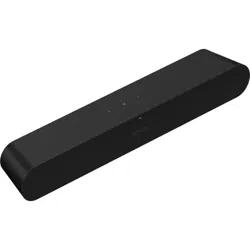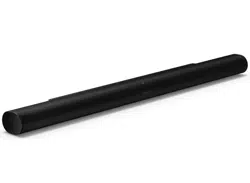

Arc Ultra

Overview
Featuring Sound Motion technology, the
Arc Ultra soundbar brings your home
entertainment to life with superior clarity,
depth, and dimension.
Next-level immersion. With an all-new acoustic
architecture powered by 14 Sonos-engineered drivers
and advanced technologies like Sound Motion, Arc Ultra
fills every inch of the room and precisely places sounds
all around you.
The only soundbar with Sound Motion. One of the
most significant breakthroughs in audio engineering in
nearly 100 years, Sound Motion allows Arc Ultra to pack
unprecedentedly clear, deep, and balanced sound into an
unbelievably sleek design.
Experience Dolby Atmos like never before. Dolby
Atmos takes your entertainment to another dimension,
enveloping you in a 9.1.4 spatial audio experience. Add a
Sonos Sub and Era 300 rear speakers for unparalleled
surround sound, with bass you can feel and jaw-dropping
detail from every direction.
Ultra-clear dialogue. Arc Ultra maximizes center
channel performance for vocal clarity so you never miss a
word. Make dialogue even clearer by choosing your
preferred level of Speech Enhancement in the
Sonos
app.
Effortless setup and control. Just plug in the power
cable, connect your TV with the included HDMI cable,
and open the Sonos app to complete setup. Control with
your TV remote, the Sonos app, the touch controls,
Sonos Voice Control, and Amazon Alexa.
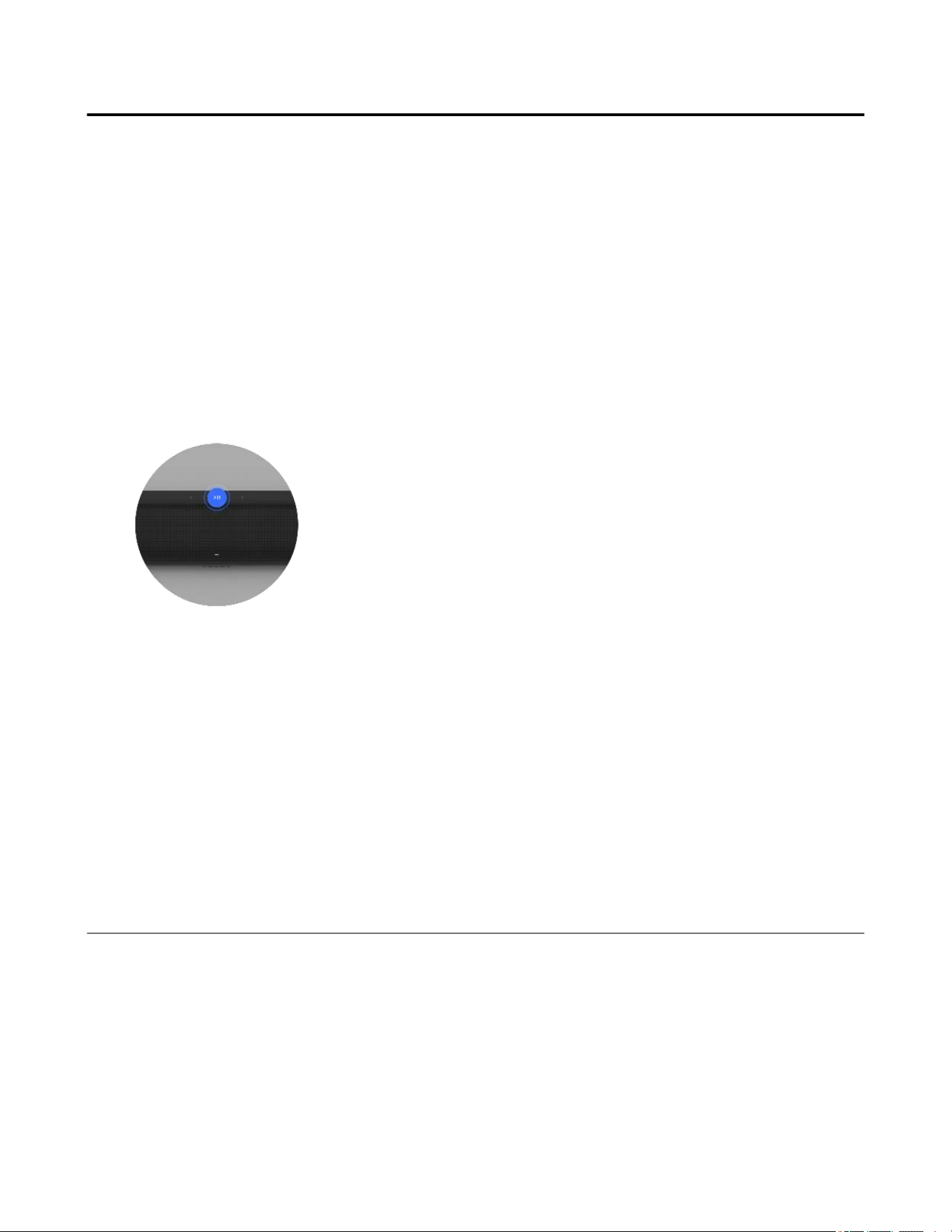
Controls and lights
Play/Pause
Playback
Tap to play or pause
audio.
Group
When another Sonos
speaker is streaming
audio, press and hold
Play/Pause (about 1
second). You’ll hear a tone
and your speakers will
begin playing the same
content.
Sound Swap
When another Sonos
speaker is streaming
audio, press and hold
Play/Pause (about 2
seconds). You’ll hear a
tone and content will stop
streaming from the other
Sonos speaker and start
streaming on your Arc
Ultra.
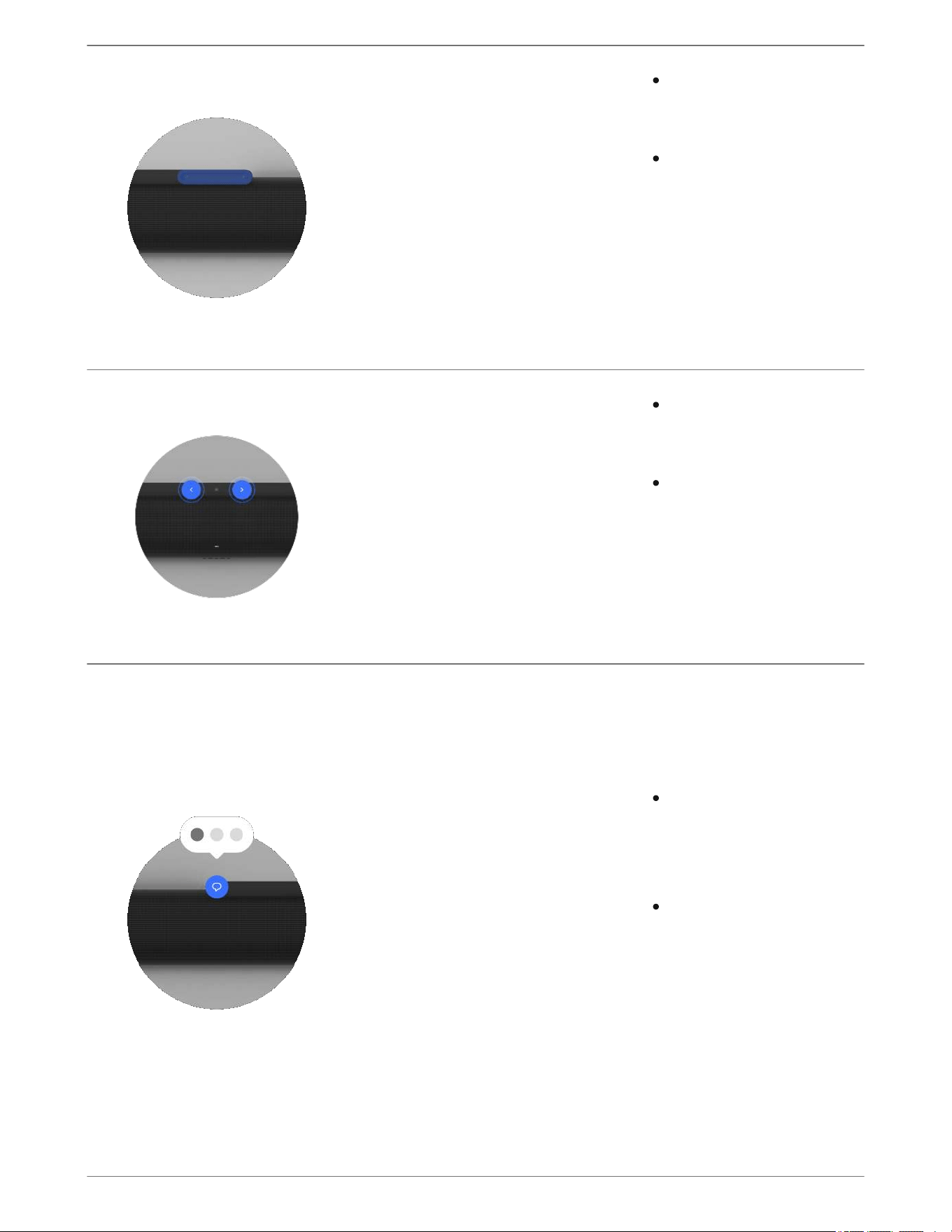
Volume
Note: When music is
playing, press and hold +
or - to quickly change the
volume.
Next/Previous (music
only)
Note: You can’t skip
forward or go back when
listening to a radio station.
Voice control
Press the voice services
icon to turn voice services
on or off.
Note: the microphone
switch located on the
connector panel (back)
must be turned on to use
voice services.
Volume up (slide right,
or tap + )
Volume down (slide
left, or tap - )
Press > to skip to the
next song.
Press < to go to the
previous song.
When the indicator
light is on, voice
control is available.
When the indicator
light is off, voice
control is off.

Status light
Displays the state of
the product in various
situations, such as
connecting to WiFi or
Bluetooth, and signals
errors.
Gives feedback when
buttons on the product
are pressed and when
a command is sent
from a remote.
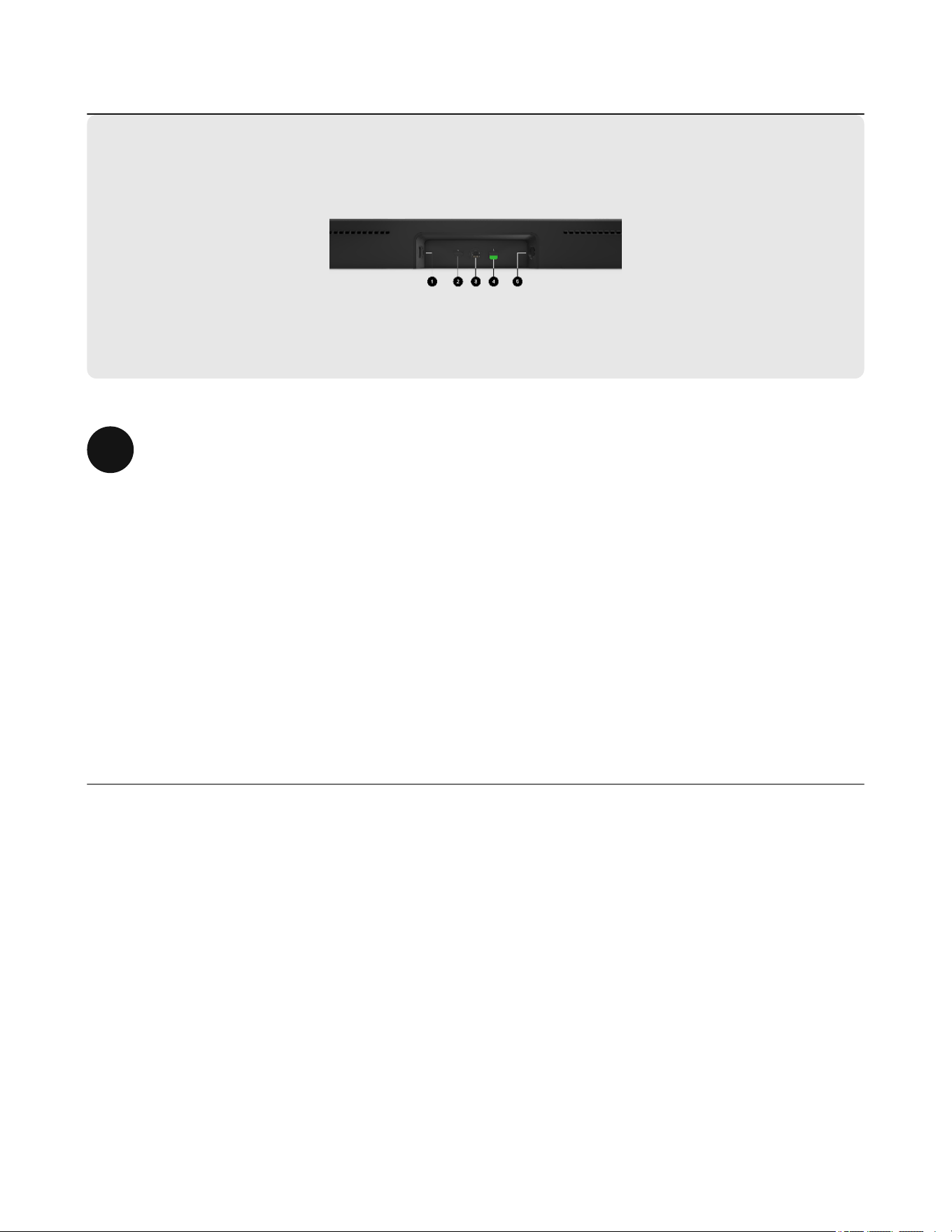
Connector panel
1 HDMI port
ARC or eARC
Connect your soundbar to your TV's
HDMI eARC or ARC port with an
HDMI cable (included).
Optical
Connect your soundbar to your TV's
optical port with a Sonos Optical
Audio Adapter (sold separately) and
an HDMI cable (included).

2 Bluetooth button Pair a new device:
1. Turn on Bluetooth in your
device's settings.
2. Press and hold until (about 2
seconds) you hear a tone and the
status light blinks blue.
3. Go to the device’s Bluetooth
settings and select Arc Ultra
from the list.
When your Arc Ultra successfully
connects to Bluetooth, the status
light will show solid blue.
3 Ethernet 10/100 port for hardwiring to your
router.
4 Microphone switch Toggle to turn all product
microphones on or off.
Note: To use voice services, both the
microphone switch and the voice
services indicator light must be on.
When the switch is off (down), the
microphones are disabled so
microphone-enabled features like
Trueplay quick tuning and voice
services are unavailable.
When the switch is on (up),
microphone-enabled features are
available.

5 AC power (mains) input Use only the included power cable
(using a third-party power cord will
void your warranty).
Note: Insert the power cord firmly
until it is flush with the speaker.
Placement
Here are some recommendations to get the most out of your Sonos Arc Ultra soundbar:
Connect the cables
When your soundbar is securely where you want it, use the included cables to set up your Arc
Ultra.
Before you start:
Place Arc Ultra on a stable, horizontal surface. Don't place it vertically or on its side.
Don’t enclose Arc Ultra in a cabinet or in a corner.
Make sure the controls are facing up.
For best sound quality, place Arc Ultra in front of and below your TV. Alternatively, you
can mount it above your TV.
If placing Arc Ultra below your TV, keep 4 in (10 cm) of space (minimum) between the top
of the soundbar and the bottom of your TV.
Position the front of Arc Ultra as close to the edge as possible.
Disconnect existing home theater or surround sound equipment from your TV.
Connect any external devices, like a streaming box or DVD player, directly to your TV.
Turn your TV on.
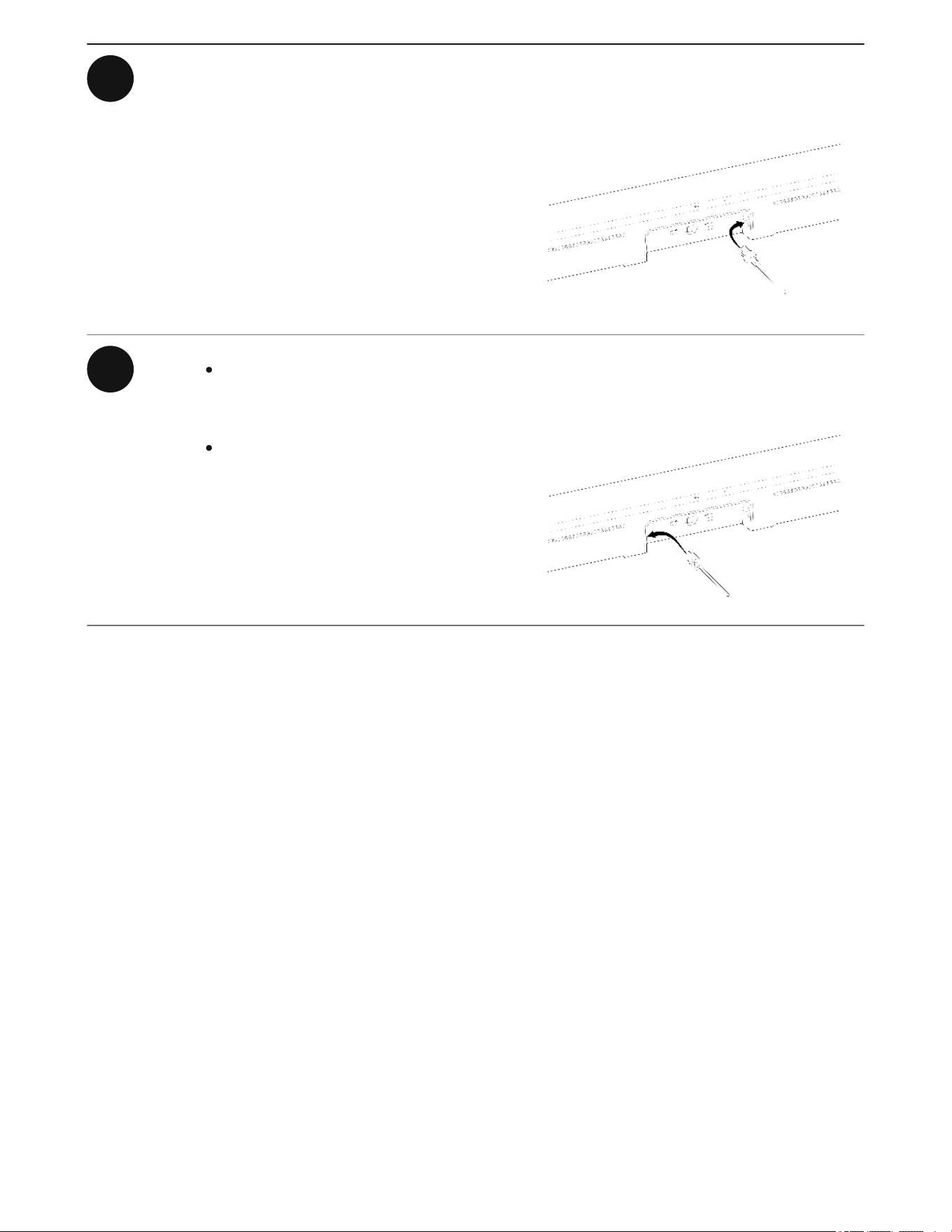
1 Connect the power cable to Arc Ultra
and plug it in to power.
Note: Use only the included power
cable (using a third-party power cord
will void your warranty).
2 Connect the HDMI cable
(included) to Arc Ultra.
If you're using an Ethernet cable,
connect that to Arc Ultra too.

3 Connect the other end of the HDMI
cable to your TV:
1. Remove the protective cap from
the optical adapter, then attach the
optical adapter to the HDMI cable.
2. Connect the optical adapter to your
TV’s optical digital OUT port.
Note: Make sure the optical adapter
aligns correctly into the port before
securely plugging it in. Inserting the
adapter incorrectly may damage the
adapter.
If your TV has an HDMI ARC or
eARC port, connect the HDMI
cable to it.
If your TV doesn’t have an HDMI
ARC or eARC port, connect the
HDMI cable to your TV's optical
port with the
Sonos Optical Audio
Adapter (sold separately):

Wall mount
Use the Sonos Arc Ultra Wall Mount (sold separately) to mount Arc Ultra to the wall below
(recommended) or above your TV. Sonos recommends:
Note: Arc Ultra is also compatible with Sonos Arc Wall Mount.
Contents
Wall material Pre drill
Wood stud 1/8 in / 3 mm bit
Drywall (no stud) 5/16 in / 8 mm bit
Plaster 5/16 in / 8 mm bit
Concrete or brick 5/16 in / 8 mm bit
Installation
Keep 4 in (10 cm) of space (minimum) between the mounted soundbar and your TV.
Make sure the controls are facing up.
Keep both ends of the soundbar at least 1 in (2.5 cm) from a wall or other obstructions.
Sonos Arc Ultra Wall Mount bracket
Positioning guide (don't discard—it may look like packing material)
2 knobs
6 wall anchors
6 screws
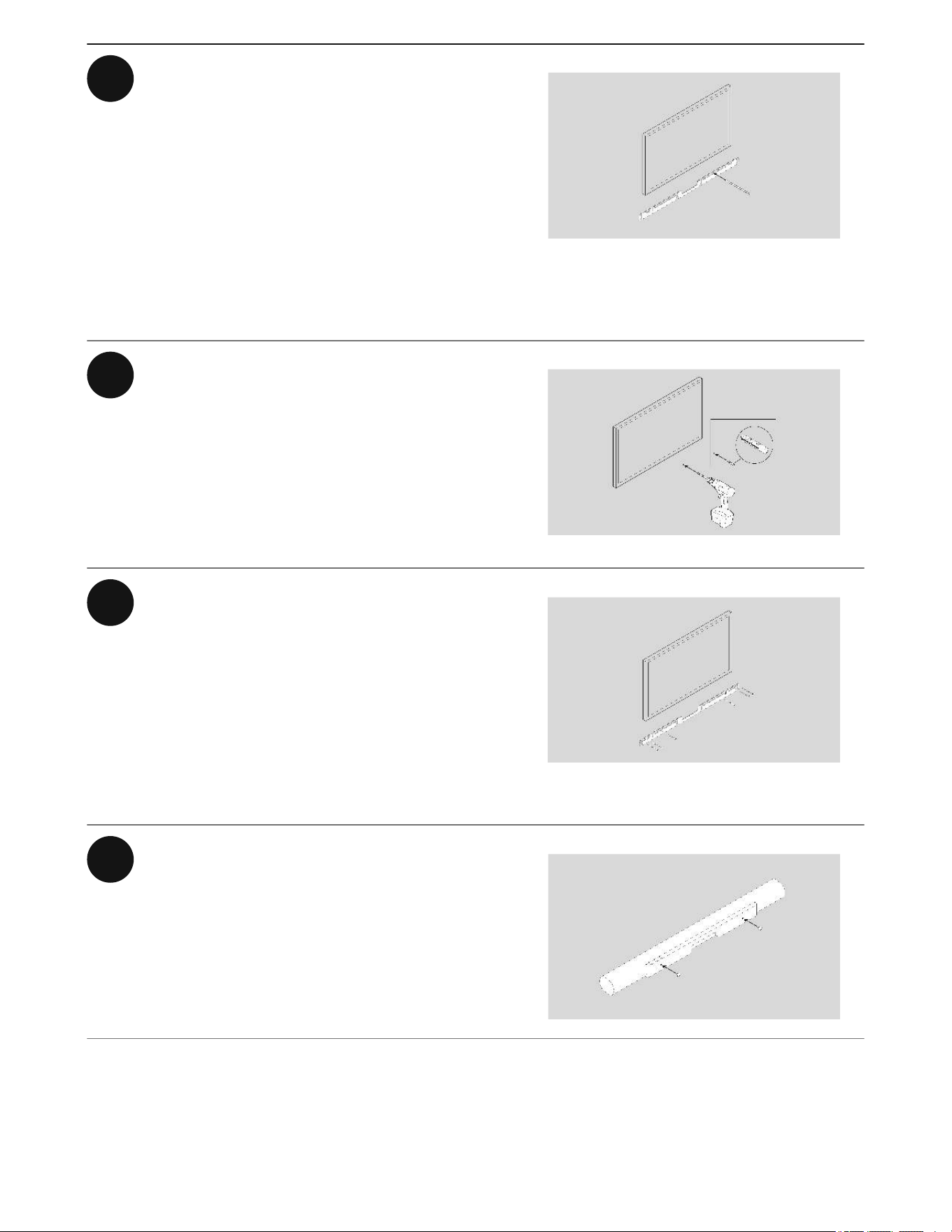
1 Use the wall mount bracket to mark
screw locations. Align the top edge
with the bottom of your TV. There
should be 5.5 in (14 cm) between the
top of the wall mount bracket and the
TV.
Mark the screw locations and remove
the wall mount bracket for now.
2 If you’re using the included wall
anchors, use a 5/16 in / 8 mm drill bit
to drill the pilot holes and then insert
the wall anchors. Don’t use the
anchors if you’re drilling into wood or
plastic.
3 Position the wall mount bracket over
the marked screw locations, using a
level to confirm accuracy. Use a
Phillips-head screwdriver or a power
drill to screw the bracket to the wall,
making sure the arrows in the center
are pointing up.
4 Screw the 2 knobs (thumb screws)
into the back of the soundbar until
they are fully tightened.
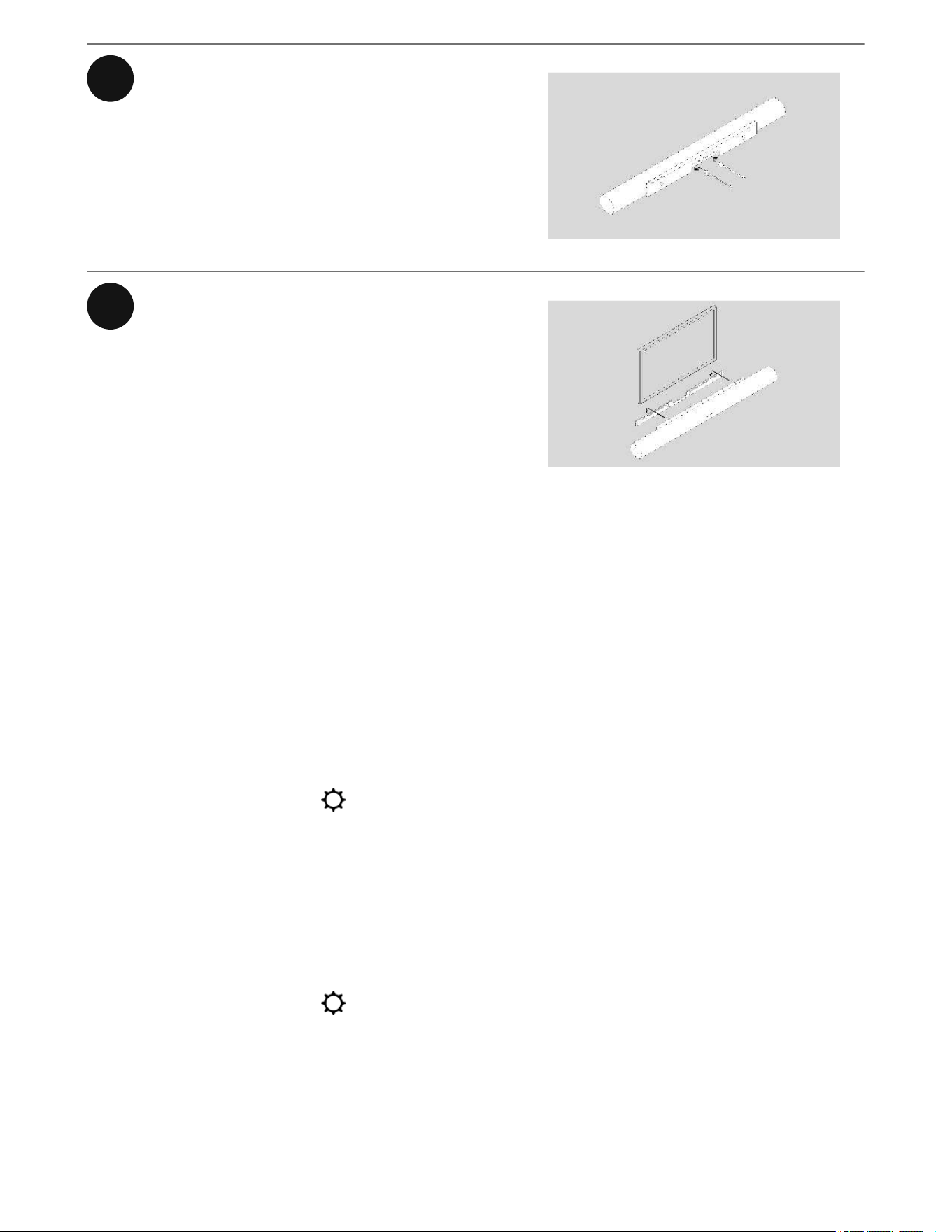
5 Connect the power and HDMI cables
to the back of the soundbar.
Note: If you’re connecting the cables
to the TV at this time, be sure to plug
the HDMI cable into the HDMI ARC or
eARC port on your TV.
6 Slide the soundbar down so the
knobs fit into the slots on the wall
bracket. Make sure the touch controls
are facing up and the soundbar is fully
seated.
Home theater
Start with Arc Ultra and expand your system over time with Sonos speakers that easily
connect over WiFi.
Use the Sonos app to configure your home theater and set up helpful features.
1. Place your compatible Sonos products around your room.
2. Set up your Sonos products in the Sonos app (if you haven't already).
3. Go to System Settings
and select your Arc Ultra.
4. Select + Connect Sub or + Set up Surrounds to get started.
Home theater settings
Use the Sonos app to adjust home theater settings:
1. Go to System Settings
.
2. Select the room.
3. Navigate to Home Theater to get started.

Setting Description
TV Autoplay
If music or other content is playing when
you turn on your TV, the audio
automatically switches to TV audio
(default).
Ungroup on Autoplay
If your home theater speaker is grouped
with other products when you turn on the
TV, it automatically drops from the group
(default).
TV Dialogue Sync
If the TV audio is out of sync with the
video, you can adjust the audio delay (lip
sync) in your room’s settings.
Group Audio Delay
If you notice audio issues when playing to
a group, you can adjust this setting.
TV Setup
Go through TV configuration again to
make adjustments to your setup.
Use IR
Enable or disable the use of IR remote
controls.
IR Signal Light
Turn on or off to see the IR signal light on
your IR receiver when you press a button
on your remote.
IR Repeater
Turn on if you're using an IR repeater with
your TV.

Setting Description
Remote Control Setup
During setup, you’ll program a remote
control. You can program a different
remote control any time.
Trueplay™
Every room is different. Trueplay tuning measures how sound reflects off walls, furnishings,
and other surfaces in a room, then fine tunes your Sonos speaker to make sure it sounds
great no matter where you've placed it.
In the Sonos app:
1. Go to System Settings
.
2. Select your Arc Ultra from the list of products.
3. Navigate to Sound and select Trueplay to get started.
Microphone and voice
There are two ways to control the microphones on Arc Ultra:
A universal microphone switch on the back turns all microphones on and off.
A voice services button on top turns voice services on and off without affecting the
microphones needed for Trueplay and other microphone-enabled features.
Voice control
TM
TM
When both are on, voice control and all microphone-enabled features are available.
When both are off, voice control and all microphone-enabled features are unavailable.
When the universal microphone switch is on and the voice services light is off, Trueplay
and other microphone-enabled features are available but voice control is off.
TM

You can add Sonos Voice Control, or a voice assistant you use often, for hands-free control
of your Sonos system.
Note: If you're adding a voice assistant, download the voice assistant's app before adding it to
your Sonos system.
To add voice control in the Sonos app:
1. Go to System Settings .
2. Select Manage.
3. Select + Add a voice assistant to get started.
Service Description
Sonos Voice Control
Play music and control your system with
hands-free ease and unmatched privacy.
It all starts with “Hey Sonos."
Here's a few things you can do hands-
free with Sonos Voice Control:
Amazon Alexa
Group products—"Hey Sonos, group
the living room and dining room."
Start a playlist—"Hey Sonos, play
'Cooking tunes.'"
Save a favorite—"Hey Sonos, add
this song to my favorites."
Before setting up Alexa in the Sonos
app, go to the Alexa app and enable
the Sonos skill.
You can add Alexa and Sonos Voice
Control to the same product.

Product settings
Use the Sonos app to adjust product settings for your Arc Ultra:
1. Go to System Settings
.
2. Select the room.
3. Select Arc Ultra under Products to get started.
Setting Description
Status
Microphone
Indicates if the microphone switch is on or
off.
Network
See WiFi connection status and other
network information.
Connection
Disable WiFi / Enable WiFi
Toggle WiFi on and off.
Note: An Ethernet cable, wired to your
router, is required to allow WiFi to be
disabled.

TV Audio Swap
Instantly swap TV audio from a Arc Ultra to your Sonos Ace and feel enveloped in exhilarating
surround sound and spatial audio.
Note: Only TV audio (via HDMI or optical) can stream to Sonos Ace.
Use the Sonos app (iOS only) to set up the connection between your Arc Ultra and Sonos
Ace. Make sure your products are up to date and WiFi is enabled. Check out the Sonos Ace
page to learn more about TV Audio Swap.

Specifications
Audio
Amplifiers
Fifteen Class-D digital amplifiers perfectly
tuned to the soundbar's unique acoustic
architecture.
Tweeters
Seven precisely angled silk-dome
tweeters create crisp high frequencies and
clear dialogue. Two of these fire upward,
creating dedicated height channels for
spatial audio.
Midwoofers
Six woofers ensure faithful playback of
mid-range frequencies.
Woofers
Sound Motion, a four-motor, dual-
membrane woofer, delivers exceptional
bass in a revolutionary flat, compact
design.
Microphones
The far-field microphone array uses
advanced beamforming and multichannel
echo cancellation for quick and accurate
voice control and Trueplay tuning.
Disconnect by toggling off the mic switch.
Adjustable EQ
Use the Sonos app to adjust bass, treble,
and loudness.

Trueplay
This software measures the acoustics of
the room then fine-tunes the EQ.
Compatible with iOS and Android devices.
Speech Enhancement
Choose your preferred level of dialogue
clarity in the Sonos app.
Night Sound
Turn this setting on in the Sonos app to
reduce the intensity of loud sounds and
enhance quieter sounds.
Home Theater Audio Formats
Stereo PCM, Dolby Digital, Dolby Digital
Plus, Dolby Atmos (Dolby Digital Plus),
Dolby Atmos*, Dolby TrueHD*, Dolby
Atmos (True HD)*, Multichannel PCM*,
Dolby Multichannel PCM*, DTS Digital
Surround** The Sonos app's Now Playing
screen will display what type of audio is
being decoded.
*HDMI eARC connection required.
**This is not an indication of a licensed
decoder.
Dolby Atmos Music Requires compatible content.
TV Audio Swap
Swap TV audio between the soundbar
and Sonos Ace headphones.
Details & Dimensions
TM
1

Dimensions
Height: 2.95 in (75 mm)
Width: 46.38 in (1178 mm)
Depth: 4.35 in (110.6 mm)
Weight 13 lb (5.9 kg)
Colors Black, White
Finish Matte
Mounting M5 x 0.8 mm thread pitch L6.5 mm
Controls
Use the capacitive touch controls to play,
pause, skip, replay, adjust the volume,
turn off voice assistants, and group or
ungroup Sonos products.
Bluetooth button Press to pair a Bluetooth device.
Mic switch
Toggle off this switch on the back of the
product to disconnect power to the mics.
LEDs
Lights on the product indicate connection,
microphone activity, and mute status.
Power & Connectivity

WiFi
Compatible with WiFi 6. Connect to WiFi
with any 802.11a/b/g/n/ac/ax 2.4 GHz/5
GHz broadcast-capable router.
HDMI ARC/eARC
Connect to your TV's HDMI eARC/ARC
port with the included HDMI cable. Optical
adapter sold separately.
Bluetooth
Bluetooth 5.3 supports audio streaming
from any Bluetooth-enabled device.
Voltage 100-240V 50/60 Hz internal power supply
CPU Quad Core 4xA55 1.9 GHz
Memory 2 GB SDRAM 8 GB NV
Voice
Works with Sonos Voice Control and
Amazon Alexa. Availability of voice
assistants varies by language and
country.
Apple AirPlay 2
Works with AirPlay 2 on Apple devices
iOS 11.4 and higher.
What's in the box?
Sonos Arc Ultra Product

Power cable Length: 6 ft (2 m)
HDMI cable Length: 4.9 ft (1.5 m)
Documentation
Quickstart Guide and legal/warranty
information
Requirements
WiFi Internet connection
Power source Nearby electrical outlet.
Sonos app
The latest generation of the Sonos app
running on a compatible device.
1 Dolby, Dolby Atmos, and the double-D symbol are registered trademarks of Dolby Laboratories Licensing Corporation.
Manufactured under license from Dolby Laboratories. Confidential unpublished works. Copyright © 2012-2024 Dolby
Laboratories. All rights reserved.

Important safety information
1. Read these instructions.
2. Keep these instructions.
3. Heed all warnings.
4. Follow all instructions.
5. Do not use this apparatus near water.
6. Clean only with dry soft cloth. Household cleaners or solvents can damage the finish on
your Sonos products.
7. Do not block any ventilation openings. Install in accordance with the manufacturer’s
instructions.
8. Do not install near any heat sources such as radiators, heat registers, stoves, or other
apparatus that produce heat.
9. Protect the power cable from being walked on or pinched, particularly at plugs,
convenience receptacles, and the point where they exit from the apparatus.
10. Only use attachments/accessories specified by the manufacturer.
11. Unplug this apparatus during lightning storms or when unused for long periods of time.
12. This product does not have any user-serviceable parts. Do not open or disassemble or
attempt to repair it or replace any components. Refer all servicing to Sonos qualified
service personnel. Servicing is required when the apparatus has been damaged in any
way, such as power-supply cable or plug is damaged, liquid has been spilled or objects
have fallen into the apparatus, the apparatus has been exposed to rain or moisture, does
not operate normally, or has been dropped.
13. The Mains plug should be readily available to disconnect the equipment.
14. Warning: To reduce the risk of fire or electric shock, do not expose this apparatus to rain
or moisture.
15. Do not expose apparatus to dripping or splashing and do not place objects filled with
liquids, such as vases, on the apparatus.