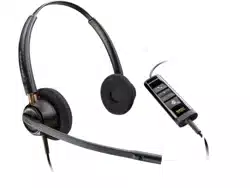

EncorePro 500 USB Series
Corded USB headset with inline call
control
User Guide

Contents
Overview 3
Standard LEDs and functions 3
Microsoft Teams LEDs and functions* (Teams model only) 3
Setup 4
Load software 4
Fit 5
Adjust the headband 5
Position the boom 5
Adjust the boom 5
Assemble your headset (Encore Pro 545 only) 6
Daily use 7
Make/take/end calls 7
Volume 7
Mute 7
Launch Microsoft Teams (Teams model only) 7
Troubleshooting 9
What's in the box 11
Support 12
2
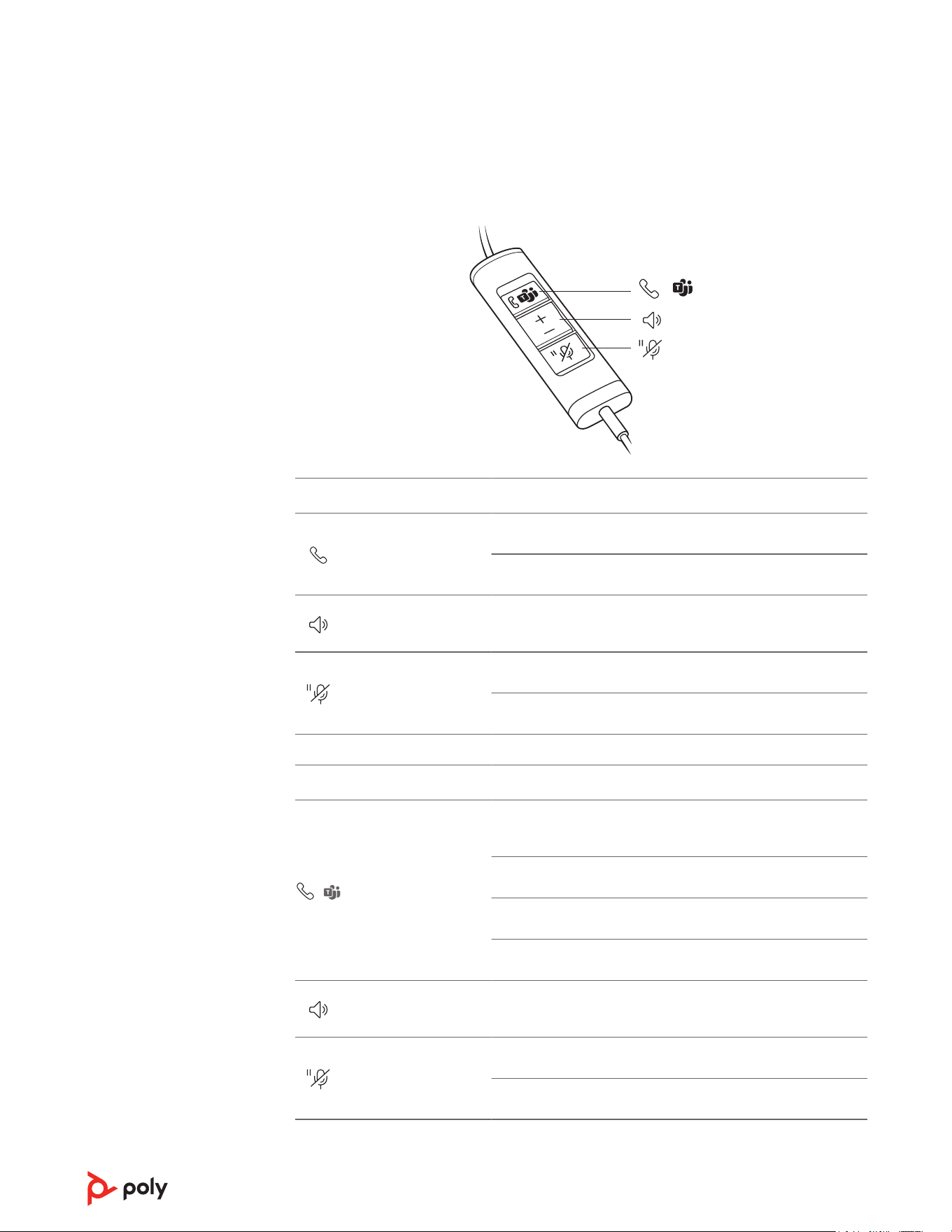
/
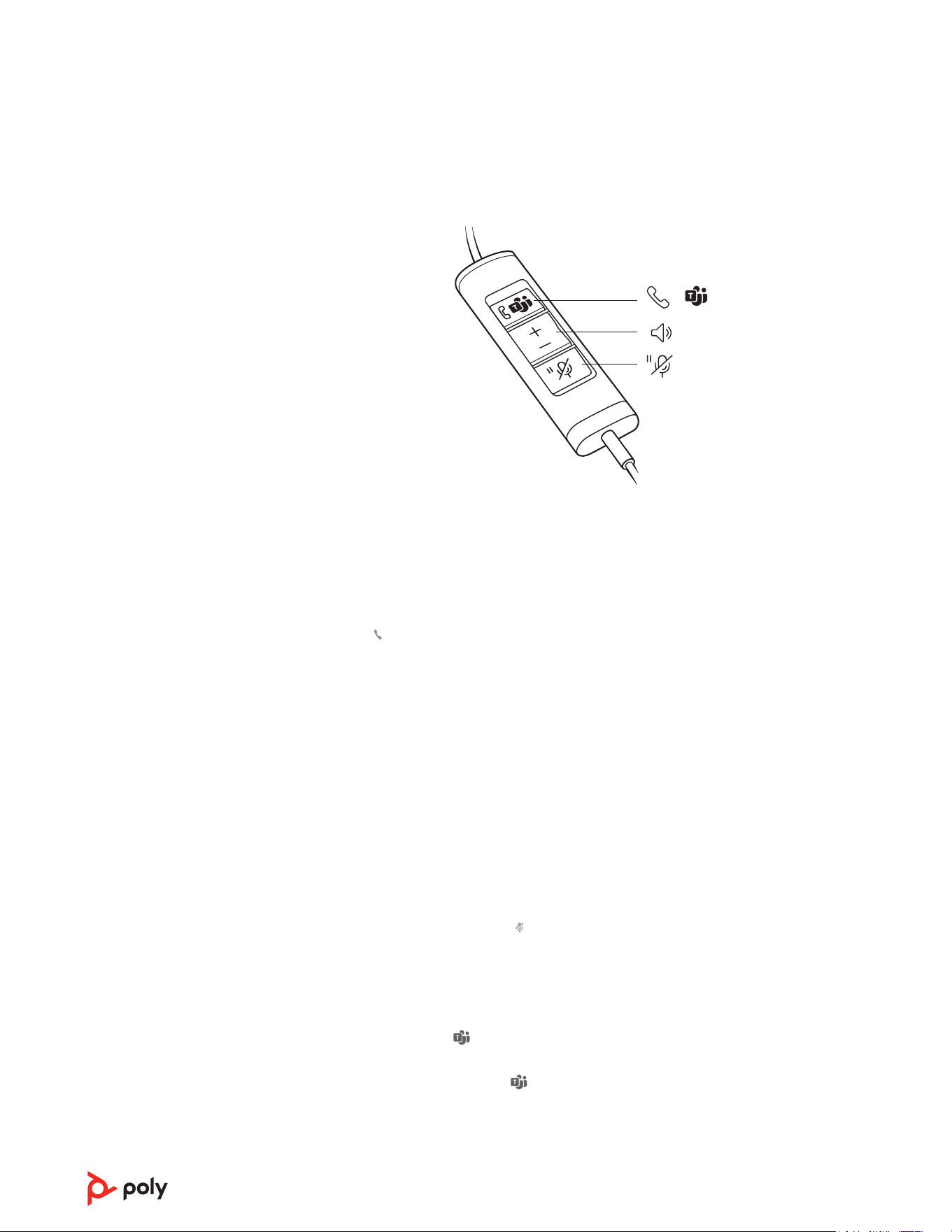
Icons Inline control LEDs Function
Call button
Flashing green
Incoming call
Solid green
On a call
Volume up / down
buttons
Increases / decreases the listening
volume
Mute / Hold button
Solid red
Headset muted
Flashing red
Call on hold
Icons Inline control LEDs Function
/
Call button /
Microsoft Teams
button
Solid purple
Headset connected; Microsoft Teams
connected
Flashing blue
Incoming call
Solid blue
On a call
Pulsing purple
Microsoft Teams notication
Volume up / down
buttons
Increases / decreases the listening
volume
Mute / Hold button
Solid red
Headset muted
Flashing red
Call on hold
NOTE * Requires Microsoft Teams variant and application
Overview
Standard LEDs and
functions
Microsoft Teams LEDs
and functions* (Teams
model only)
3
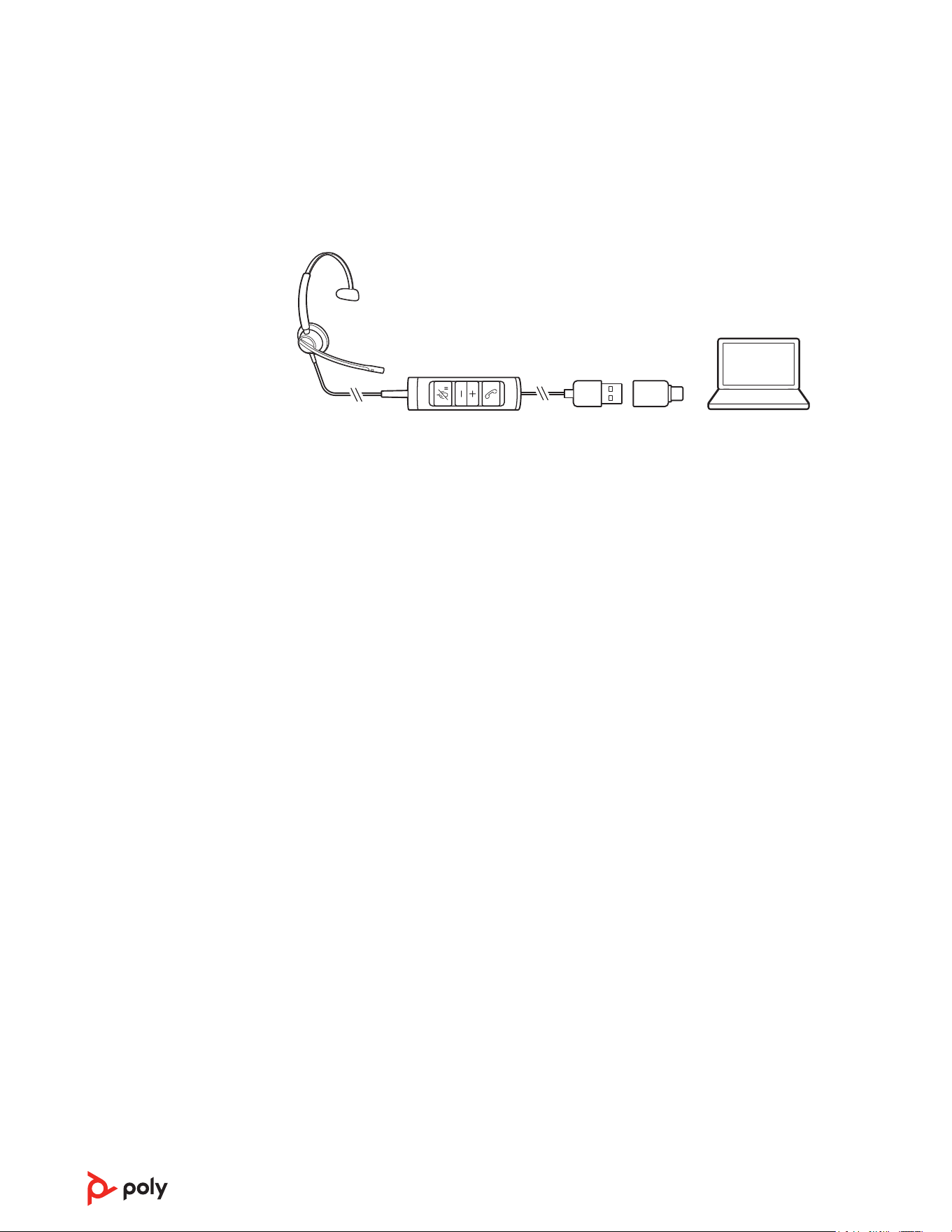
Power on your headset by connecting it to your computer.
Headphones
Phone
Mobile
Computer
Camera
Customize your device behavior through advanced settings and options with Poly Lens
Desktop App. Some softphones require the installation of Poly software to enable device
call control (answer/end and mute) functionality. Download: poly.com/lens.
NOTE Device settings are also available in Plantronics Hub Desktop App.
Update your Poly device
Keep your firmware and software up-to-date to improve performance and add new
features to your Poly device.
Update your device using your computer with Poly Lens Desktop App. Download at
poly.com/lens.
While updating:
• Do not use your Poly device until the update is complete.
• Do not start a second update from a second device.
• Do not stream media.
• Do not answer or place a call.
Setup
Load software
4
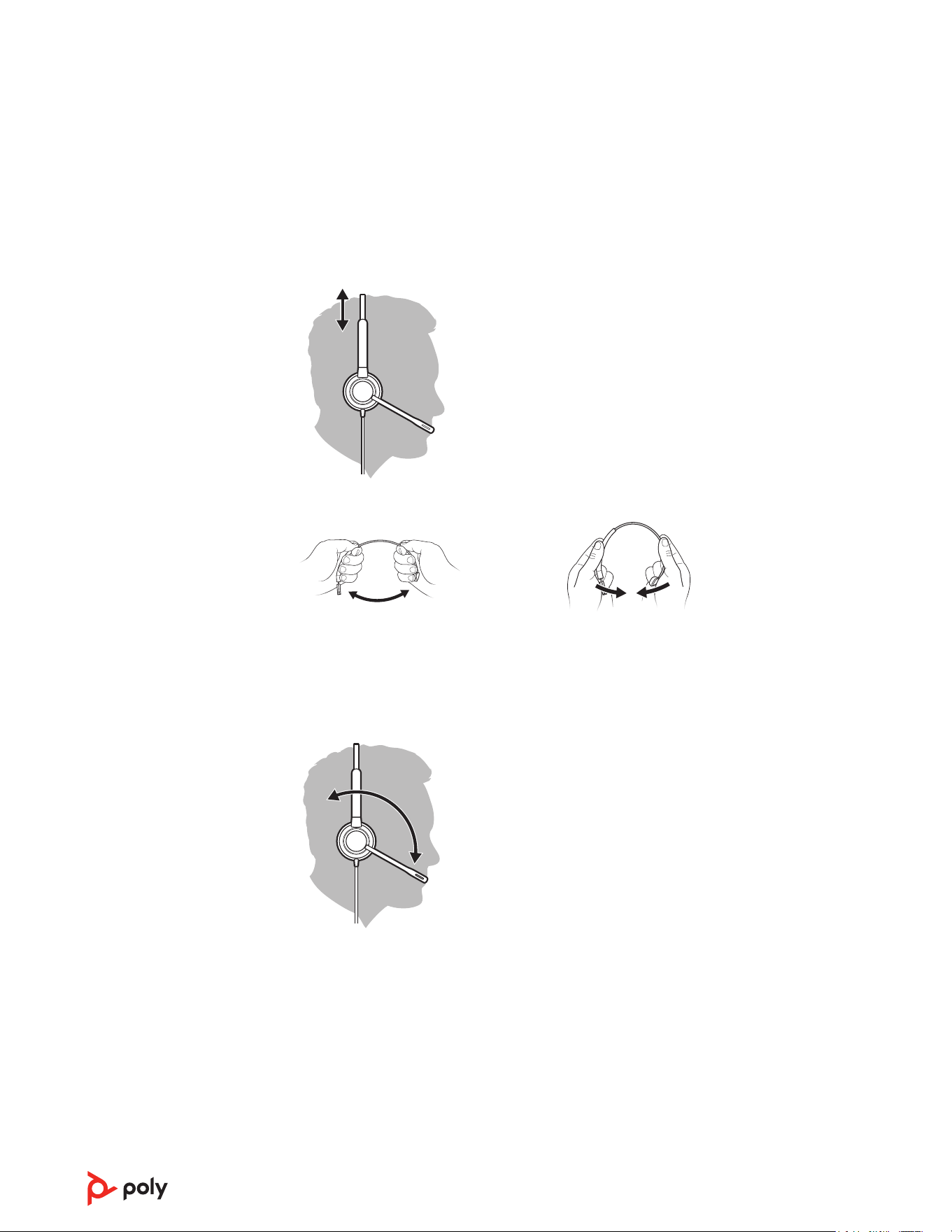
1 Lengthen or shorten the band until it fits comfortably. The cushions should sit comfortably
over the center of your ears.
2 If the headband is too tight or loose, gently bend the headband for a comfortable fit.
The headset can be worn with the boom on your left or right side. For true stereo listening,
wear the boom on your left side.
Rotate the boom to align with your mouth.
For optimum audio, bend the boom so it is approximately two finger widths from the
corner of your mouth.
Fit
Adjust the headband
Position the boom
Adjust the boom
5
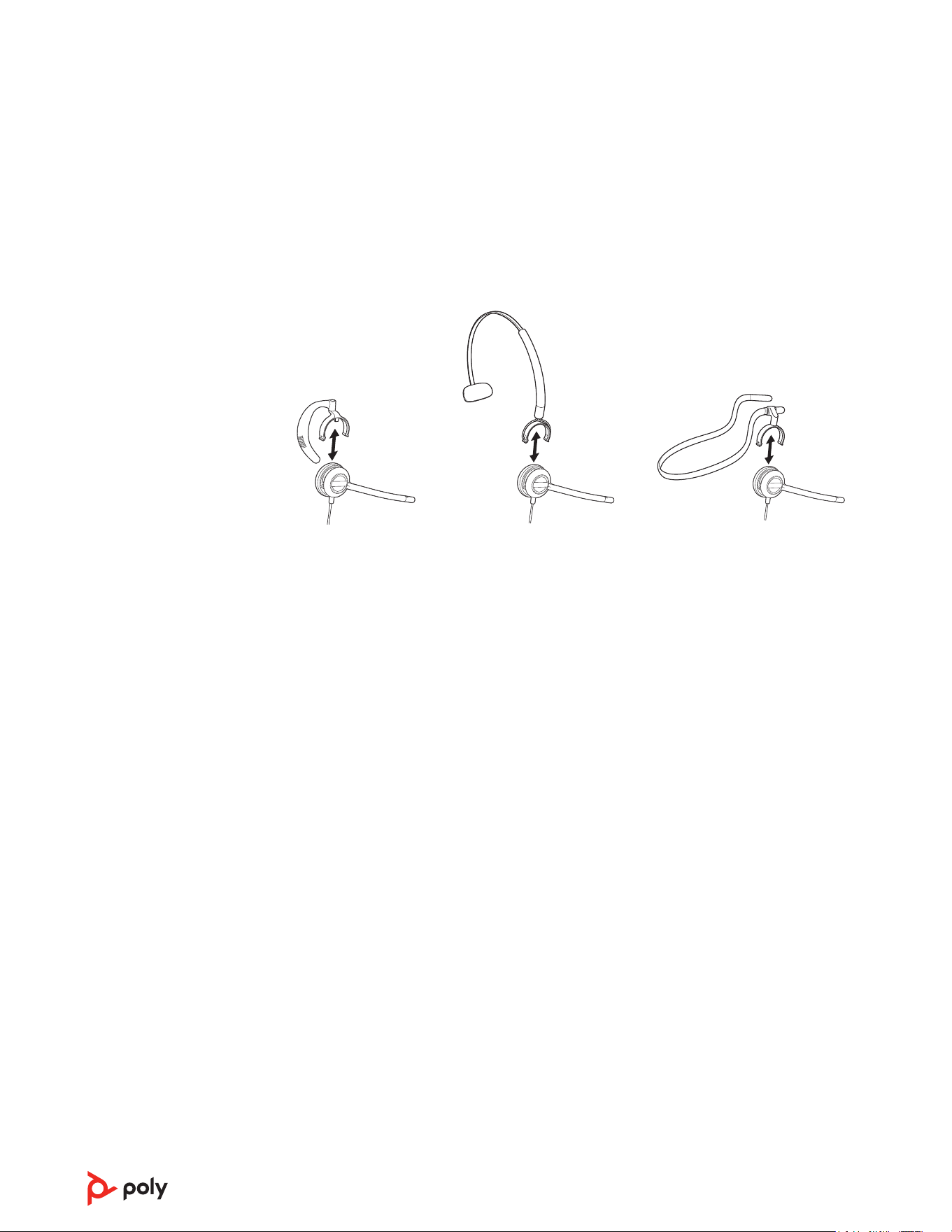
Choose a headset wearing style and assemble your headset for over-ear, over-head or
behind-head.
Attach the desired wearing style to the top of your headset. The wearing style snaps into
place.
Over-ear Over-head Behind-head
Assemble your headset
(Encore Pro 545 only)
6
/
Headset call control is a software feature and dependent on a compatible softphone. If you
have not installed Poly Lens Desktop App (poly.com/software) or do not have a compatible
softphone, press the headset call button first and then make/take/end the call using the
softphone application.
Answer or end a call
Tap the Call
button or use your softphone.
Make a call
Dial using your softphone application.
Hold
Press and hold the Hold button for 2 seconds to put a call on hold. The Hold LED flashes
red.
Listening volume
Press the Volume up (+) or Volume down (-) button.
Adjust headset microphone volume (softphone)
Place a test softphone call and adjust softphone volume and PC sound volume accordingly.
During an active call, tap the Mute
button to mute or unmute your headset.
Mute reminder
If mute reminder is on, an alert repeats when you speak to remind you that mute is
activated. Customize your settings in Poly Lens Desktop App.
Your device has a Teams button to quickly view and use the Microsoft Teams desktop
app. The Teams button pulses when you have a meeting or notification.
•
When not on a call, tap the Teams button to view Microsoft Teams app on your
computer.
• When the Teams button LED pulses purple, tap to view your Teams notifications or
meeting.
Daily use
Make/take/end calls
Volume
Mute
Launch Microsoft
Teams (Teams model
only)
7

NOTE Teams model and open Teams desktop application required. Teams mobile application is
not supported.
8

The headset audio is
not working as
expected when
connected to my
computer.
• Make sure the softphone you are using is supported by viewing
poly.com/SoftphoneCompatibility .
• Ensure that only one softphone application is opened at a time.
• Be sure you have the Poly Lens Desktop App installed.
• For best performance, ensure your headset rmware is up-to-date. See
Update rmware.
• Ensure that the headset is the default sound device by going to your
Sound Control Panel (Windows) or your Sound System Preferences
(Mac).
I cannot hear the caller.
• Your headset is not set as the default audio device. Ensure that the
EncorePro headset (EP515/EP525/EP545) is the default sound device
by going to your Sound Control Panel (Windows) or your Sound
System Preferences (Mac).
• Listening volume is too low. Press the volume up button on the
headset.
Callers cannot hear me.
• Headset is muted. Press the mute button to unmute the microphone.
• Headset microphone boom is aligned incorrectly. Align headset boom
with your mouth.
• Your headset is not set as the default audio device. Ensure that the
EncorePro headset (EP515/EP525/EP545) is the default sound device
by going to your Sound Control Panel (Windows) or your Sound
System Preferences (Mac).
Sound in headset is
distorted. I can hear
echo in headset.
• Reduce speaking and/or listening volume on the computer using your
softphone application.
• Headset microphone boom is aligned incorrectly. Align headset boom
with your mouth.
• If the distortion is still present, lower the volume on the headset.
My headset stops
responding to button
presses.
• When a PC goes into standby or hibernation, the headset is no longer
powered on. Be sure your PC is in an active state.
The headset feels too
tight over my ears.
• Gently ex the headband wider.
(Teams model only)
Microsoft Teams does
not launch on desktop
when I press the Teams
button.
Microsoft Teams is not set as your target softphone. Change the target
softphone in Poly Lens Desktop App.
(Teams model only)
Does my Microsoft
Teams-enabled headset
work with other
softphones?
Yes, while your headset is optimized for Microsoft Teams, it can be
congured to use with other supported softphones. Set your target
phone with the Poly Lens Desktop App.
When you congure another softphone, the Call button:
• doesn't interact with Teams
Troubleshooting
9

• doesn't go to Teams notications
• will not launch Cortana
10
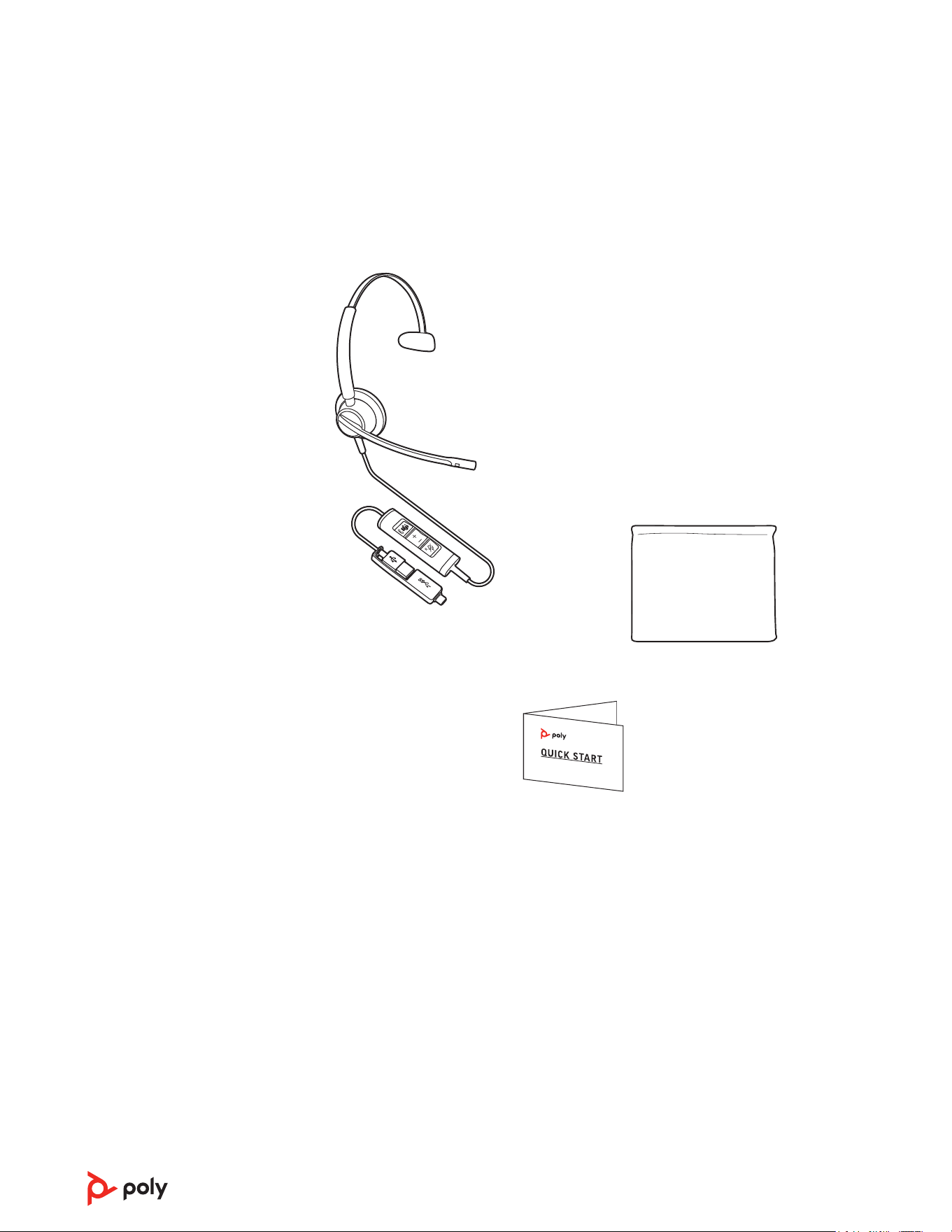
Contents may vary by product.
USB headset with inline call control
and combined USB-A and USB-C
cable Pouch
Quick start guide
What's in the box
11

Support
NEED MORE HELP?
poly.com/support
Plantronics, Inc. Plantronics B.V.
345 Encinal Street
Santa Cruz, CA 95060
United States
Scorpius 171
2132 LR Hoofddorp
Netherlands
©
2021 Plantronics, Inc. All rights reserved. Poly, the propeller design, and the Poly logo are trademarks of Plantronics, Inc. All other
trademarks are the property of their respective owners. Manufactured by Plantronics, Inc.
Model ID: EP515, EP515-M, EP525, EP525-M, EP545
219887-06 06.21