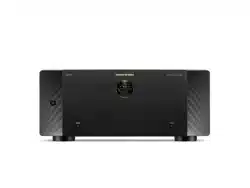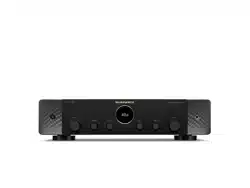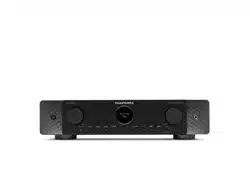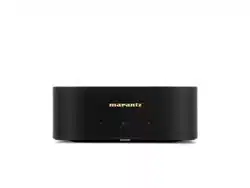
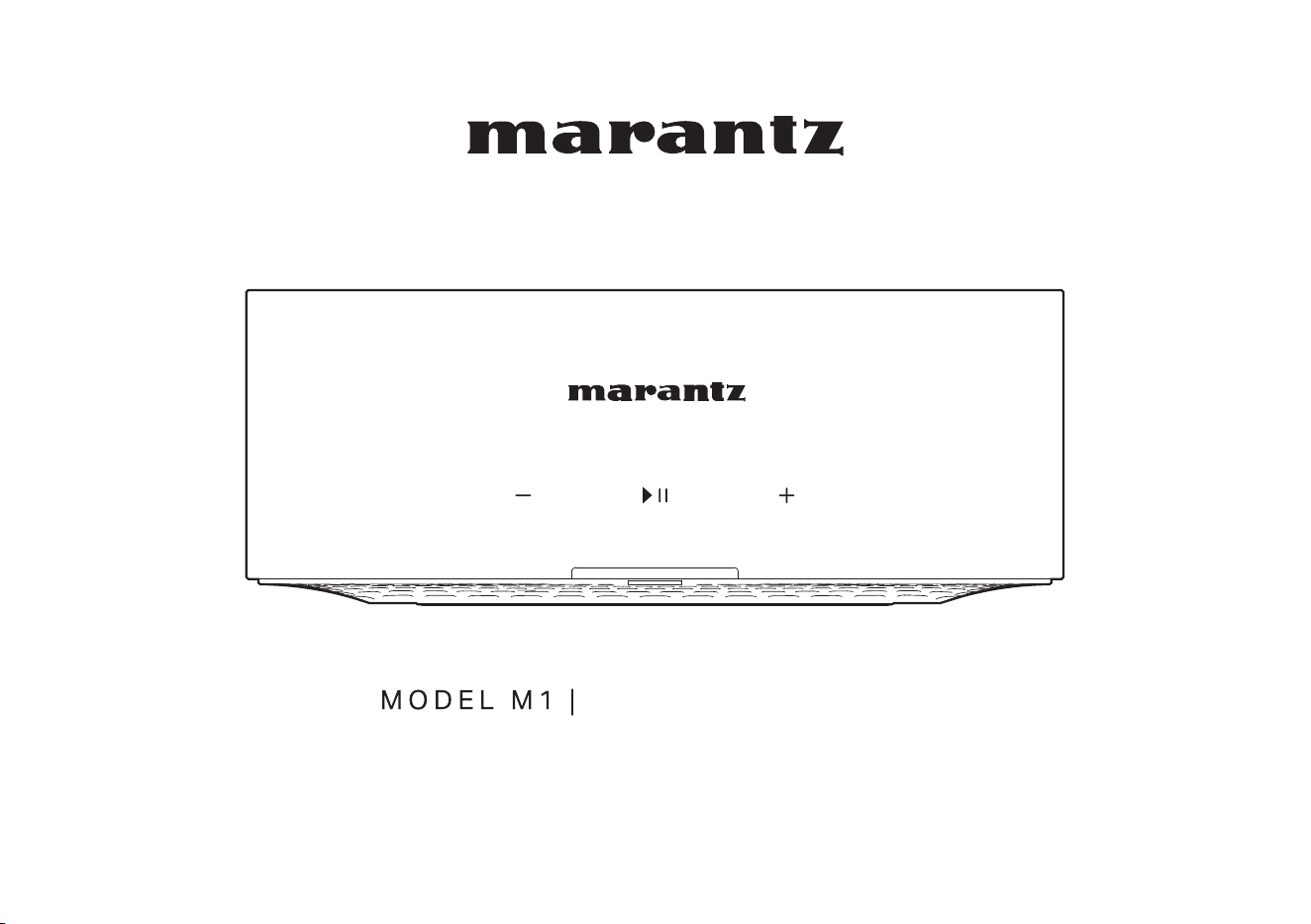
Wireless Streaming Amplifier
Owner’s Manual
1
Accessories
4
Part names and functions
5
Front panel
5
Rear panel
6
Connecting
7
Connecting
7
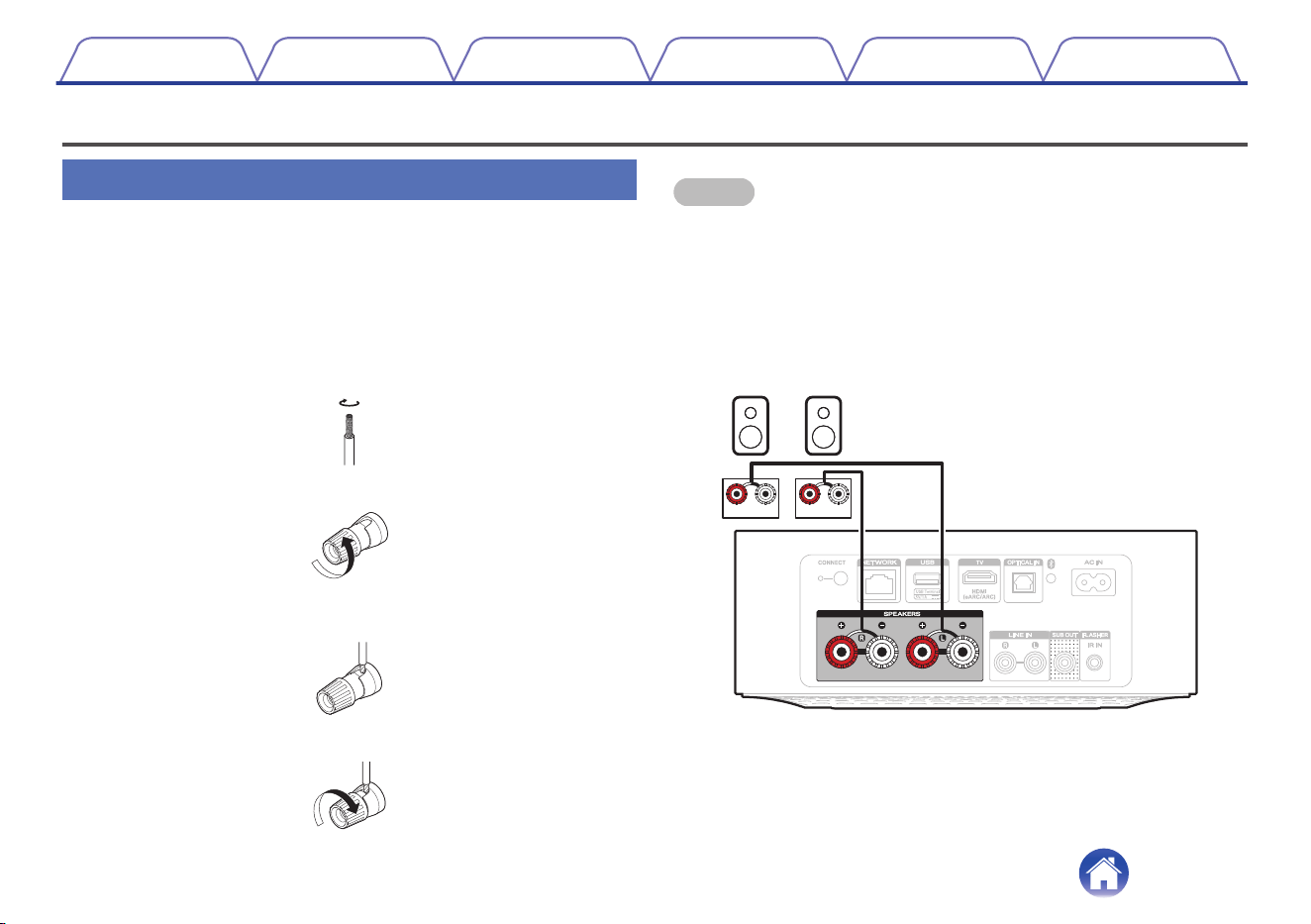
Connecting speakers
7
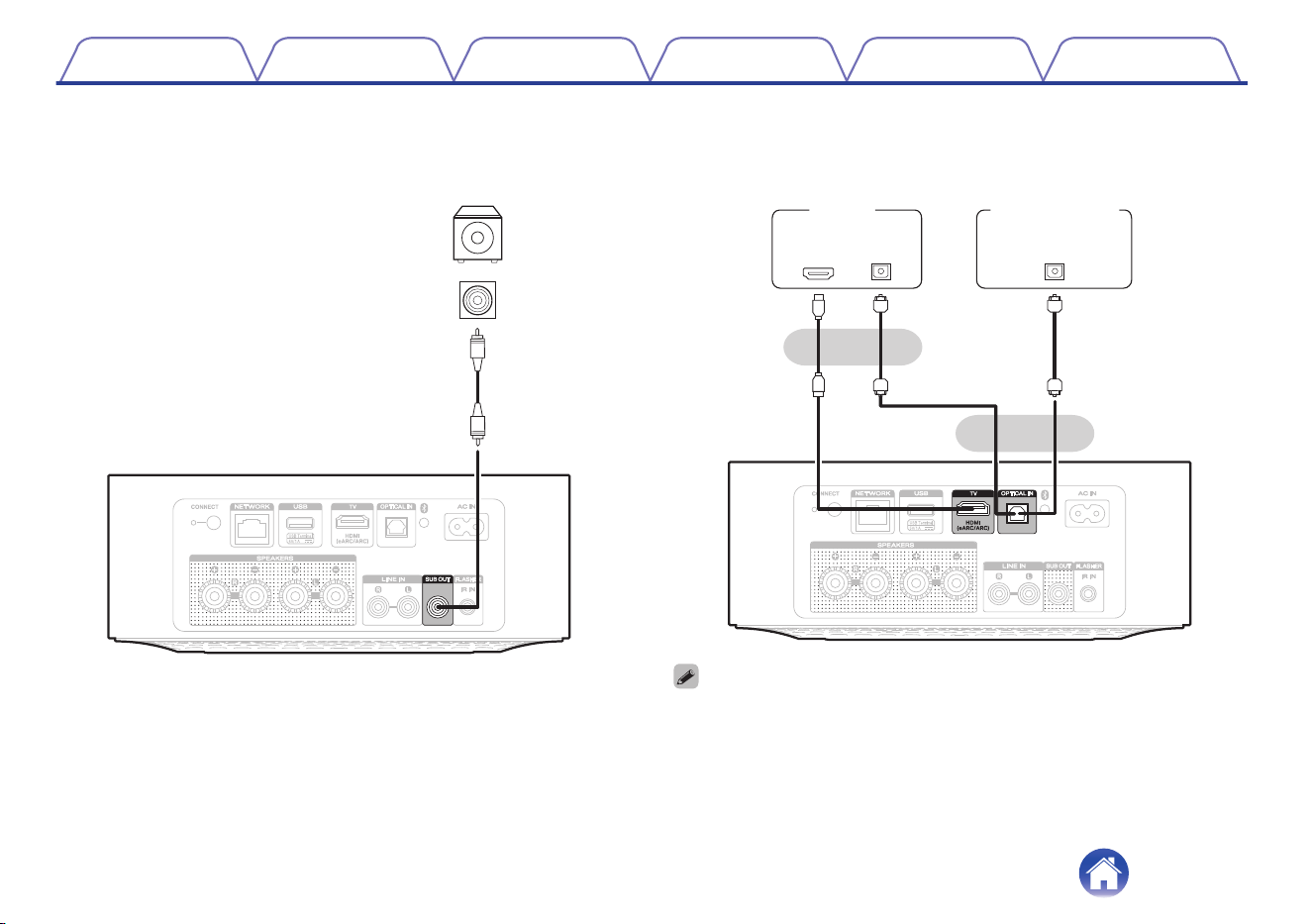
Connecting a subwoofer
8
Connecting a digital device
8
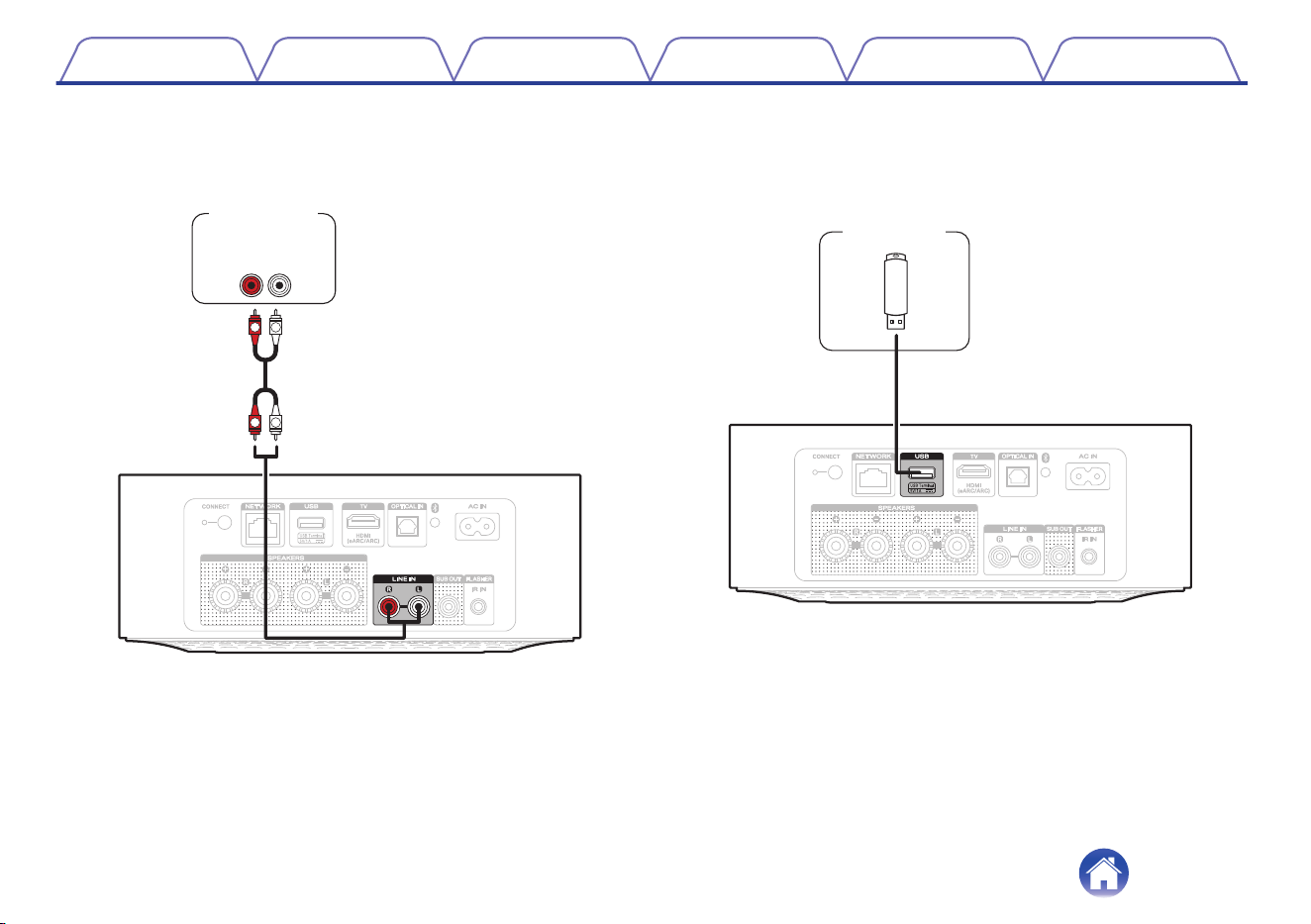
Connecting an analog device
9
Connecting a USB flash drive
9
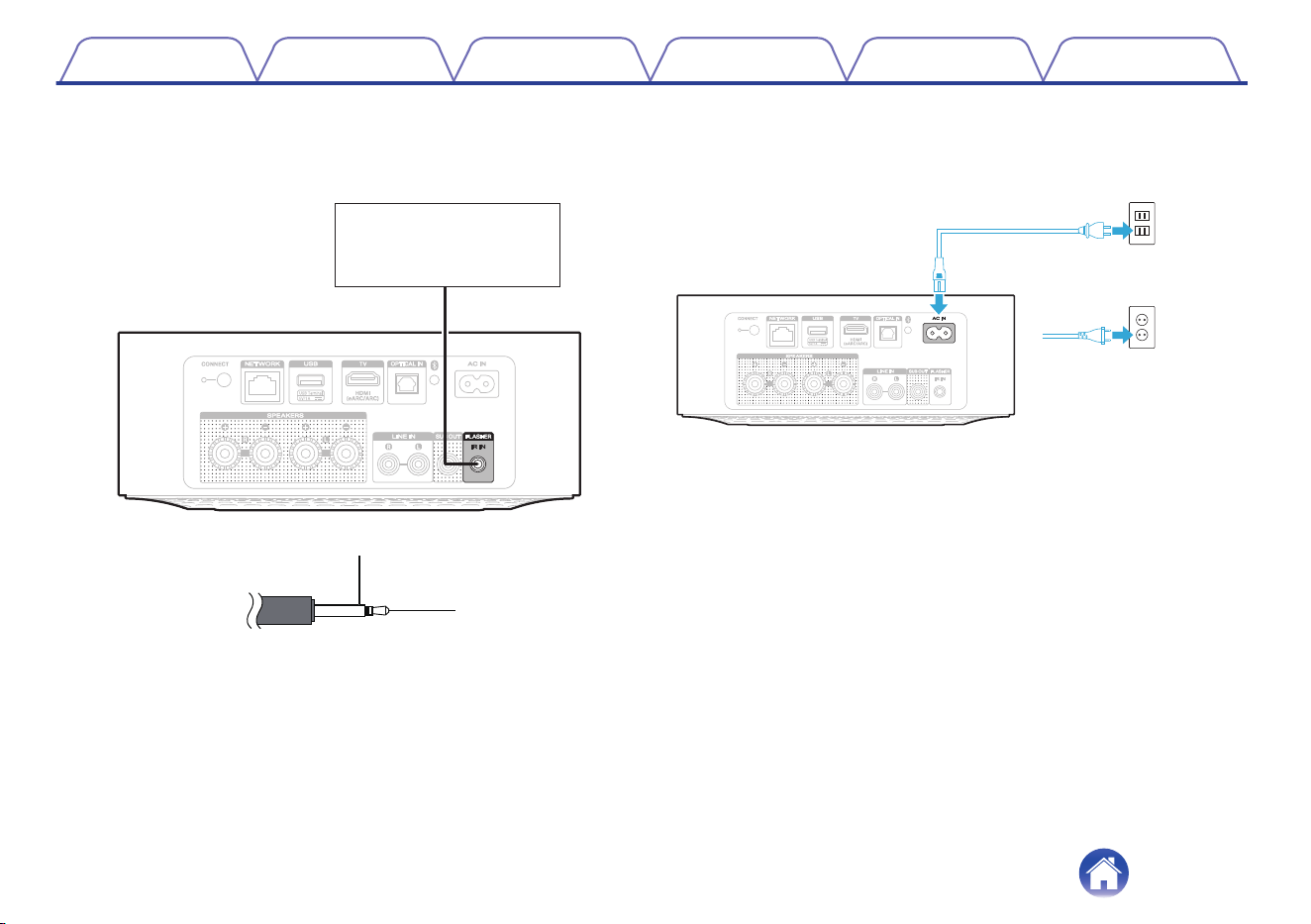
Connecting an external control device
10
Connecting the power cord
10
Getting the HEOS app
11
Setup
Setting up the HEOS app for the first time with a HEOS Built-in
device
12
Adding the registration of HEOS Built-in devices in the HEOS
app
13
Adding wired HEOS Built-in devices
13
Adding wireless HEOS Built-in devices
14
HEOS account
15
Dirac Live Setup
16
Playback
Playing from streaming music services
17
Selecting a room/device
17
Selecting the music track or station from music sources
18
Listening to the same music in multiple rooms
19
Grouping rooms
19
Ungrouping rooms
20
Grouping all rooms
21
Ungrouping all rooms
22
Listening to Internet Radio
23
Playing music stored on your mobile
23
Playing back files stored on a PC or NAS
23
Playing music from an external device
24
Playing music from a USB flash drive
24
Playing music from a Bluetooth device
25
AirPlay function
26
Playing songs from your iPhone, iPod touch, iPad or Mac
27
Playing songs from Windows PC
27
Play a song from your iPhone, iPod touch, iPad or Mac on multiple
synced devices (AirPlay 2)
28
Spotify Connect function
29
Playing Spotify music with this unit
29
Operating this unit using the remote control of a TV
30
Contents Setup Playback Troubleshooting Status LED Appendix
2
Troubleshooting
Troubleshooting
31
Cannot connect this unit to the network
32
Cannot pair a Bluetooth mobile device with this unit
32
Cannot hear Bluetooth music
32
The Power is turned off and the status LED flashes in red (fast
blink)
33
Music cuts out or delays sometimes
33
Cannot connect to a network using an iOS device
34
I hear a delay when using the external input with my TV
34
Cannot connect to a WPS network
35
Resetting this unit
35
The HDMI control function does not work
35
Resetting the firmware to the default state
36
Status LED
Status LED table
37
Appendix
Power management
43
Supported file types and codecs
45
Supported audio formats (Optical)
45
About HDMI
46
Trademark information
47
Specifications
49
Contents Setup Playback Troubleshooting Status LED Appendix
3
Thank you for purchasing this Marantz product.
To ensure proper operation, please read this owner’s manual carefully before using the product.
After reading this manual, be sure to keep it for future reference.
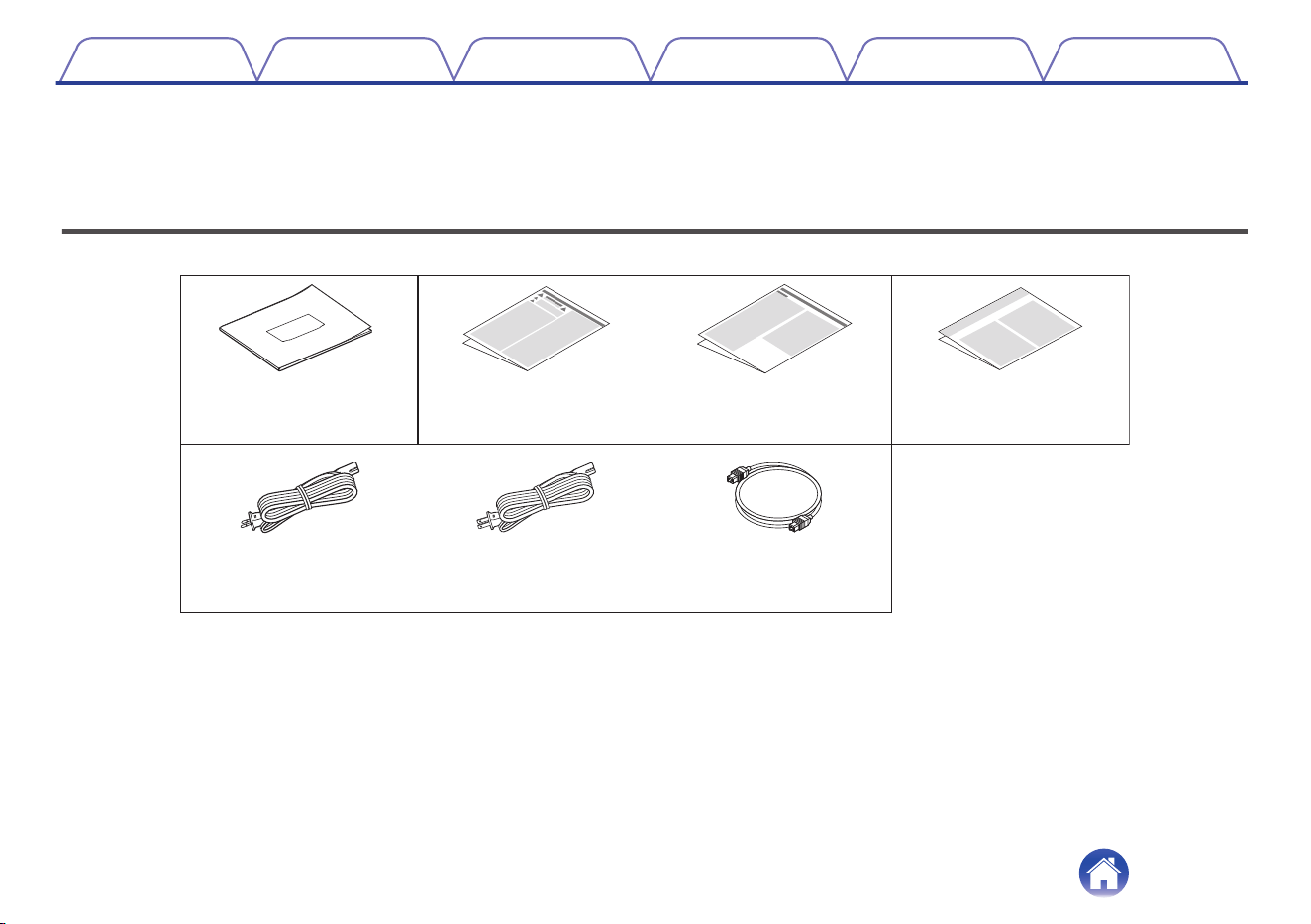
Accessories
Check that the following parts are included with the product.
Quick Start Guide Safety Instructions Notes on radio
Power cord
(for North America model)
Power cord
(for Europe model)
or
Optical cable
Warranty
(North America model only)
Contents Setup Playback Troubleshooting Status LED Appendix
4
Part names and functions
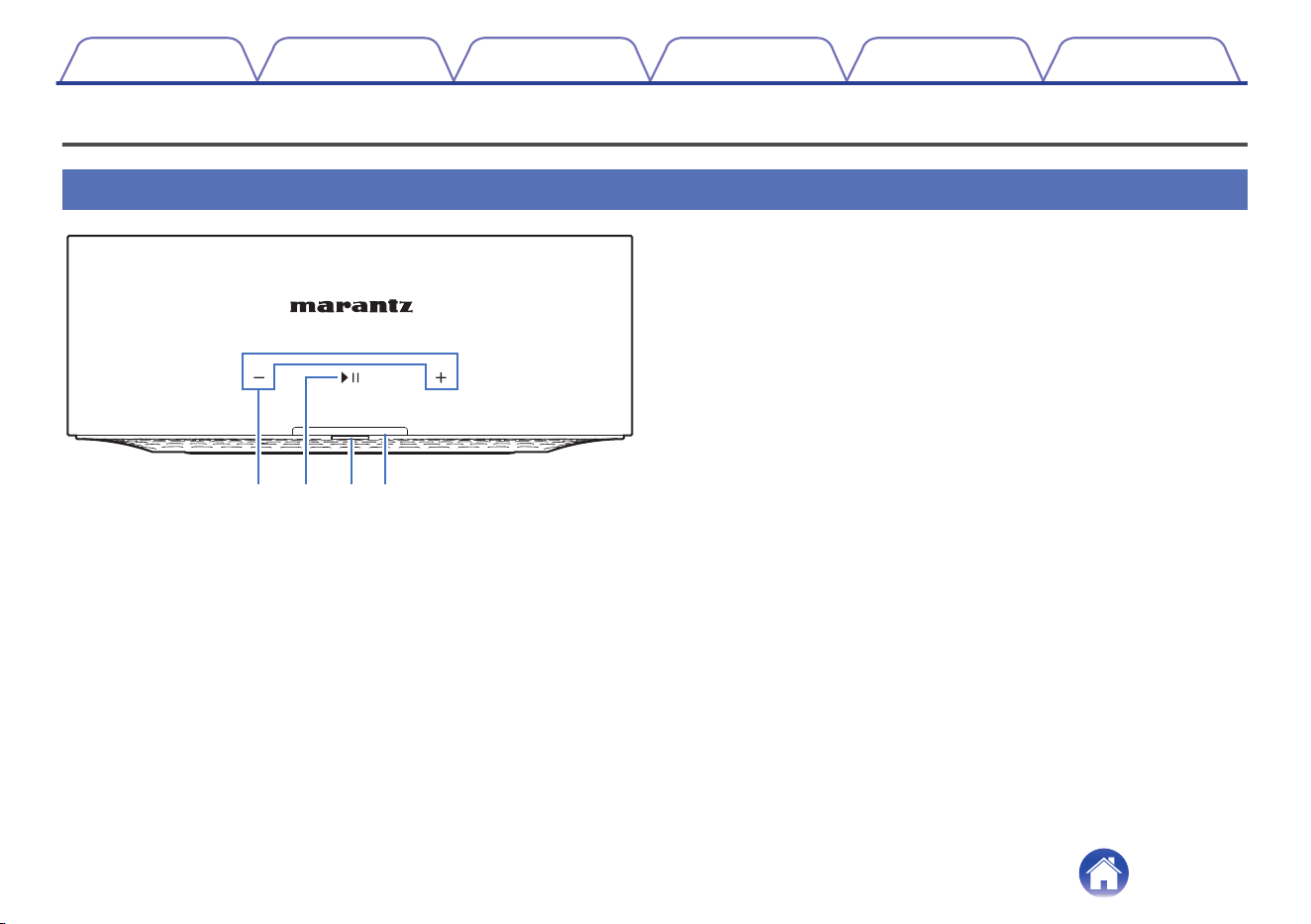
Front panel
ewq r
A
Volume keys (+, –)
These adjusts the volume level.
B
Play/Pause key (1/3)
0
Press this key to pause during playback. If pressed while paused or
stopped, resumes playback from the last track played.
0
Double-tap the key to play the next track.
0
Triple-tap the key to restart the current track or play the previous
track.
0
Press and hold the key for about 5 seconds to enter Deep Standby
mode. (v p. 44)
C
Status LED
Please refer to the “Status LED table” for LED color and state meaning.
(v p. 37)
D
Remote control sensor
This unit does not come with a remote control, but it can receive and be
operated using signals from the remote control of your TV or similar
device. (v p. 30)
Contents
Setup Playback Troubleshooting Status LED Appendix
5
Rear panel
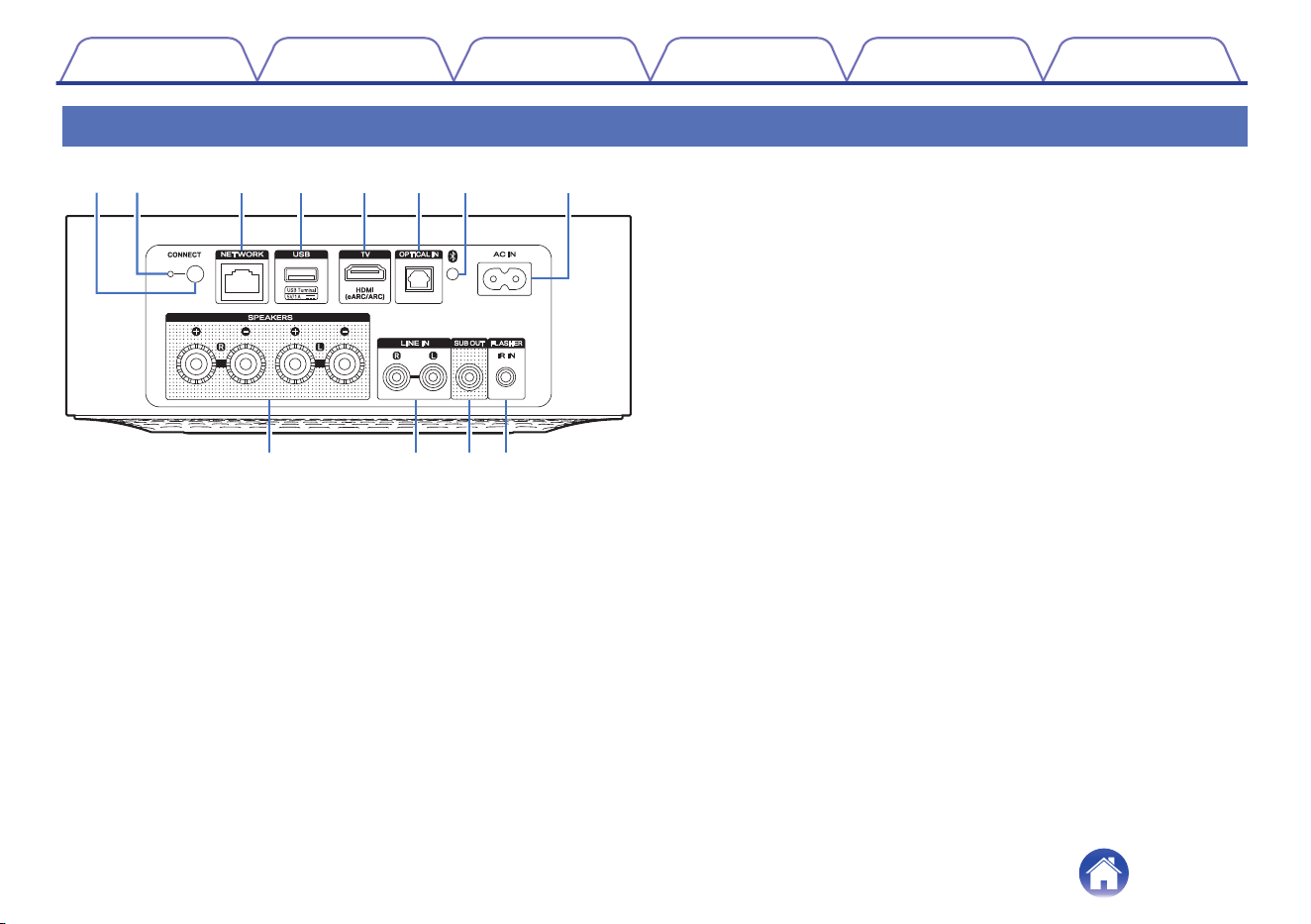
o Q0 Q1 Q2
werty iuq
A
CONNECT button
Used for Wi-Fi setup. (v p. 14)
B
CONNECT LED
Indicates the status of this unit (v p. 37).
C
NETWORK connector
Used to connect this unit to a wired Ethernet network. (v p. 13)
D
USB port
Used to connect USB storage devices. (such as USB flash drives)
(v p. 9)
E
TV connector (HDMI (eARC/ARC))
Used to connect an eARC/ARC function-compatible TV.
(v p. 8)
F
OPTICAL IN connector
Used to connect audio devices equipped with optical audio output
connector. (v p. 8)
G
Bluetooth button (V)
Used in the Bluetooth pairing settings. (v p. 25)
H
AC inlet (AC IN)
Used to connect the power cord. (v p. 10)
I
Speaker terminals (SPEAKERS)
Used to connect speakers. (v p. 7)
J
LINE IN connectors
Used to connect audio devices equipped with analog audio output
connectors. (v p. 9)
K
Subwoofer connector (SUB OUT)
Used to connect a powered subwoofer. (v p. 8)
L
FLASHER IR IN jack
Used to connect a control box, etc. (v p. 10)
Contents
Setup Playback Troubleshooting Status LED Appendix
6
Connecting
Connecting
o
Connecting speakers
Carefully check the left (L) and right (R) channels and + (red) and –
(black) polarities on the speakers being connected to this unit, and be
sure to connect the channels and polarities correctly.
1
Peel off about 3/8 inch (10 mm) of sheathing from the
tip of the speaker cable, then either twist the core wire
tightly or terminate it.
2
Turn the speaker terminal counterclockwise to loosen it.
3
Insert the speaker cable’s core wire to the hilt into the
speaker terminal.
4
Turn the speaker terminal clockwise to tighten it.
NOTE
0
Disconnect this unit’s power plug from the power outlet before connecting the
speakers. Also, turn off any connected powered subwoofers.
0
Connect so that the speaker cable core wires do not protrude from the speaker
terminal. The protection circuit may be activated if the core wires touch the rear
panel or if the + and – sides touch each other.
0
Never touch the speaker terminals while the power cord is connected. Doing so
could result in electric shock.
0
Use speakers with an impedance of 4 – 16 Ω/ohms. The protection circuit may be
activated if speakers with an impedance other than specified are used.
wq
(R)
wq
(L)
Contents Setup Playback Troubleshooting Status LED Appendix
7
o
Connecting a subwoofer
Connect the SUB OUT connector to an input on your powered
subwoofer or your subwoofer amplifier.
IN
Subwoofer
with built-in
amplifier
o
Connecting a digital device
Connect this unit to a device with digital output connectors, such as a
TV.
IN
HDMI
(eARC/ARC)
TV
or
Digital device
or
OPTICAL
OUT
OPTICAL
OUT
0
When connecting a TV to this unit, turn off the audio output of the TV’s internal
speakers. See the owner’s manual of your TV for details.
0
When connecting the HDMI (eARC/ARC) terminal of this unit to your TV, connect it
to the HDMI input terminal of your TV that supports the eARC/ARC function.
0
When connecting to a TV that does not support the eARC/ARC function, use an
optical connection to play the TV audio.
Contents Setup Playback Troubleshooting Status LED Appendix
8
o
Connecting an analog device
Connect the LINE IN connectors to an audio playback device with
analog audio output.
R
L
R
L
RL
AUDIO
OUT
Analog device
o
Connecting a USB flash drive
Connect a FAT32 or NTFS formatted USB flash drive containing
digital music files to the USB port.
USB flash
drive
Contents Setup Playback Troubleshooting Status LED Appendix
9
o
Connecting an external control device
This unit can be controlled by connecting a control box or other control
device to the FLASHER IR IN jack of this unit.
Control box
or
control device
GND
Signal
Monaural mini-plug cable
(Sold separately)
o
Connecting the power cord
Connect the power cord included in the box to the back of this unit and
the plug to a wall outlet.
for North America
(AC 120 V, 60 Hz)
for Europe
(AC 230 V, 50/60 Hz)
Contents Setup Playback Troubleshooting Status LED Appendix
10
Getting the HEOS app
You can use many online music streaming services from the HEOS app. Depending upon your geographical location, there are several options to choose
from.
Download the HEOS app for iOS or Android by searching App Store
®
, Google Play™ store or Amazon App Store for “HEOS”.
For the purpose of improvement, the specifications and design are subject to change without notice.
Contents Setup Playback Troubleshooting Status LED Appendix
11
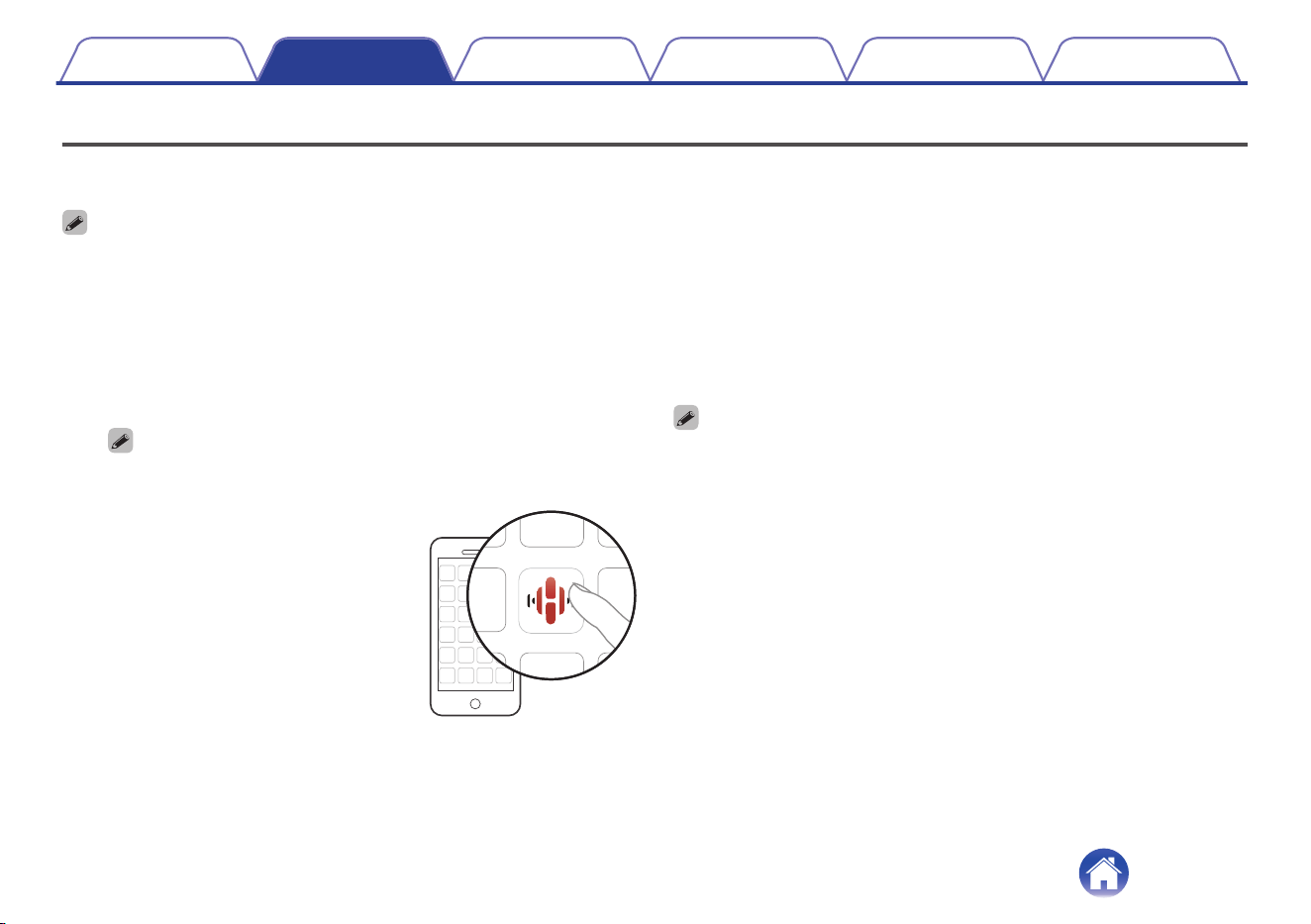
Setting up the HEOS app for the first time with a HEOS Built-in device
Once you have placed this unit in your listening room and have downloaded the HEOS app, you are ready to configure this unit for music playback. This
involves following a few simple steps to get this unit connected to your existing home network:
0
DO NOT connect the Ethernet cable if you are connecting this unit to a wireless network. If you are connecting this unit to a wired network, use an Ethernet cable to connect
this unit to your network or router.
1
Make sure your mobile device is connected to your
wireless network (the same network you want this unit
connected to).
You can check this in the “Settings” - “Wi-Fi” menu of your iOS or
Android device.
0
If your wireless network is secure, make sure you know the password to join
your network.
2
Launch the HEOS app on your
mobile device.
3
Tap the “Setup Now” button at the top of the screen.
4
Follow the instructions to add this unit to your wireless
network.
0
If you have any problems connecting this unit, jump to the Troubleshooting section
(v p. 31).
Contents Setup Playback Troubleshooting Status LED Appendix
12
Adding the registration of HEOS Built-in devices in the HEOS app
The HEOS system is a true multi-room audio system that automatically synchronizes audio playback between multiple HEOS Built-in devices so that the
audio coming from different rooms is perfectly in sync and always sounds amazing! You can easily add up to 32 HEOS Built-in devices to your HEOS
system.
Adding wired HEOS Built-in devices
Just connect the HEOS Built-in devices to your home network using an Ethernet cable and the HEOS Built-in device will appear on your HEOS app as a
new room in the Rooms screen.
At your convenience, you can assign a name to the HEOS Built-in device to indicate which room you have it placed in.
0
Use only a shielded STP or ScTP LAN cable which is easily available at electronics stores (CAT-5 or greater recommended).
0
The normal shielded-type LAN cable is recommended. If a flat-type cable or unshielded-type cable is used, other devices could be affected by noise.
0
Do not connect a NETWORK connector directly to the LAN port/Ethernet connector on your computer.
Contents
Setup Playback Troubleshooting Status LED Appendix
13
HEOS account
o
What is a HEOS account?
A HEOS account is a master account or “keychain” for managing all of
your HEOS music services with one single username and password.
o
Why do I need a HEOS account?
With a HEOS account, you only need to enter your music services
login names and passwords once. This allows you to easily and
quickly use multiple controller apps on different devices. You just log
into your HEOS account on any device and you will have access to all
of your associated music services, play history and custom playlists,
even if you are at a friend’s house listening to music on their HEOS
system.
o
Signing up for a HEOS account
You will be instructed to signup for a HEOS account the first time you
try to access any music service from the “Home” screen of the HEOS
app.
o
Changing your HEOS account
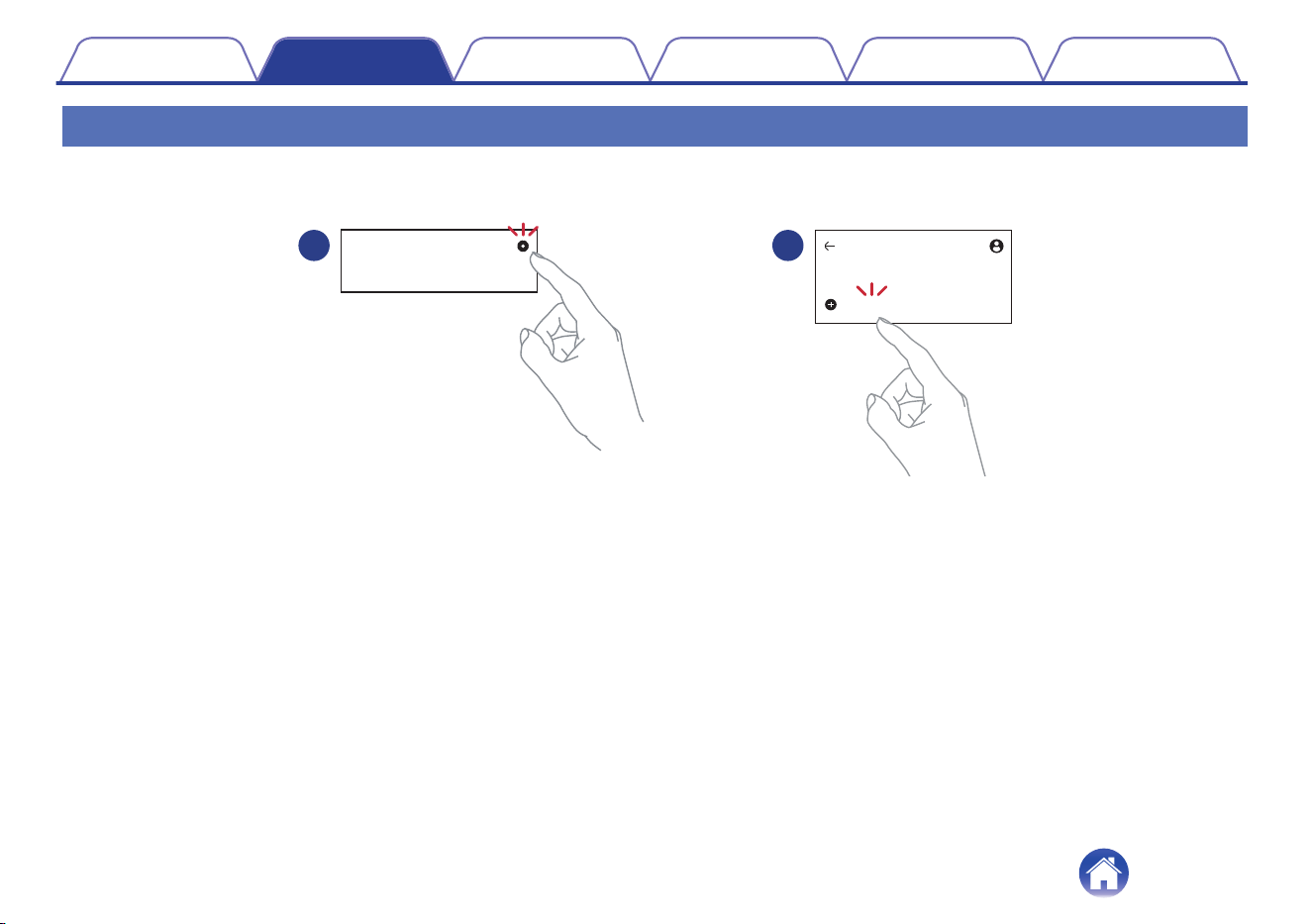
1
Tap the “Home” tab.
2
Select the Settings icon in the upper-right corner of
the screen.
3
Select the HEOS Account icon .
4
Change your location, change your password, delete
your account or sign out of your account.
Contents Setup Playback Troubleshooting Status LED Appendix
15
Dirac Live Setup
Dirac Live is a powerful solution that helps you get the best from your speakers.
Dirac Live and its various features use research-driven acoustic processing algorithms to analyze your room and reduce its impact on sound quality,
resulting in speaker performance that would be physically impossible otherwise.
You will need to create a Dirac Live account and purchase a license before running Dirac Live.
You can create an account and purchase a license on the website below.
www.dirac.com/marantz/
See the Dirac Live Room Correction manual for details on Dirac Live.
https://manuals.marantz.com/DiracLiveAmp/ALL/EN
Contents
Setup Playback Troubleshooting Status LED Appendix
16
Playing from streaming music services
A music service is an online music company that provides access to vast
music collections via free and/or paid subscriptions. Depending upon your
geographical location, there are several options to choose from.
NOTE
0
The HEOS app and brand is not affiliated with any manufacturer of any mobile
device. Availability of music services may vary by region. Not all services may be
available at time of purchase. Some services may be added or discontinued from
time to time based on decisions of the music service providers or others.
Selecting a room/device
1
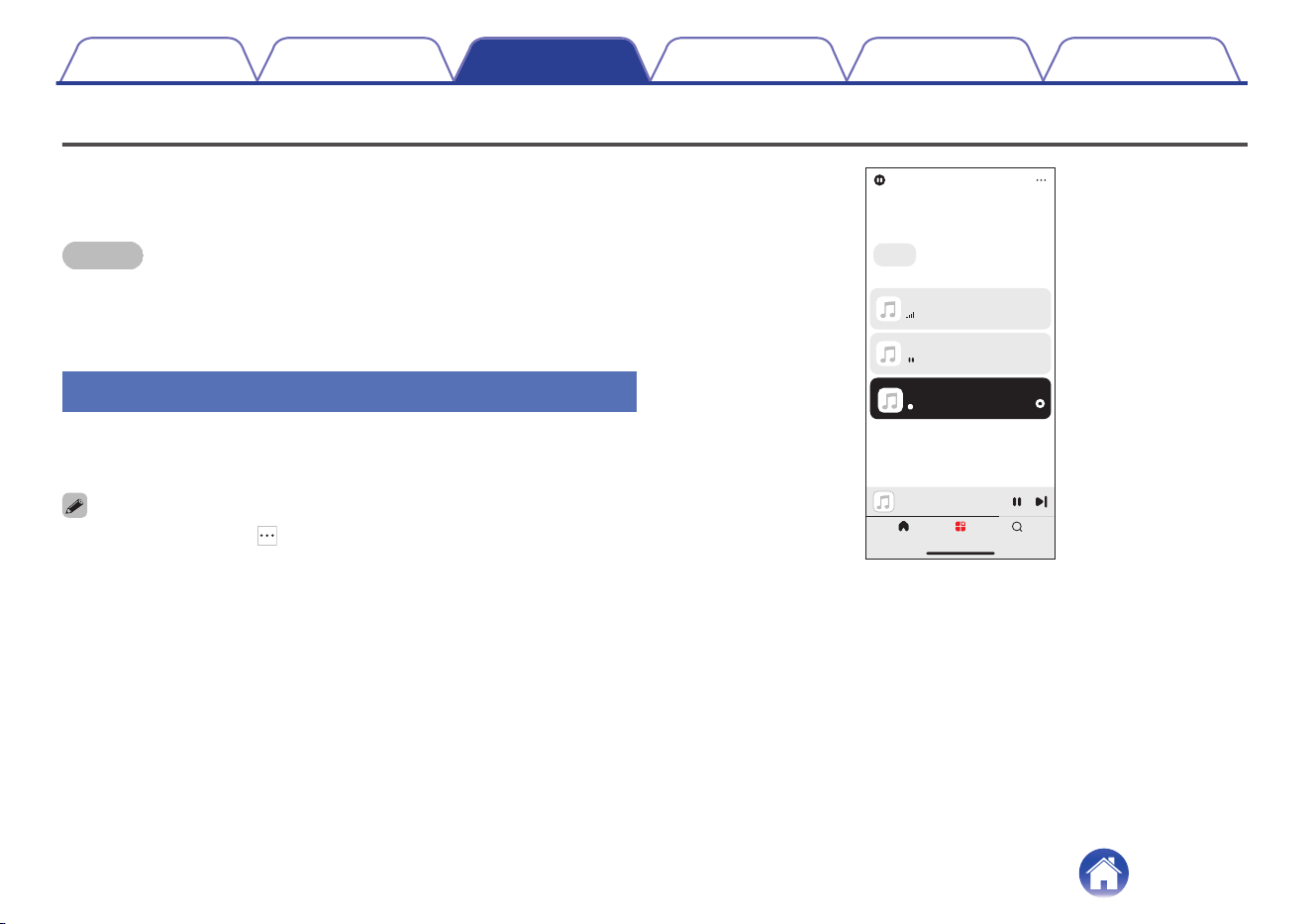
Tap the “Rooms” tab. Select “Marantz XXXXXXX” if
there are multiple HEOS built-in devices.
0
Tap the 3 dots menu icon at the top right to switch edit mode. You can change
the displayed name.
Marantz XXXXXXX
Song 3
Song 2
Bedroom
Song 1
Kitchen
Song 1
Bedroom
Rooms SearchHome
Edit
Rooms
Group Presets
All Rooms
Contents Setup Playback Troubleshooting Status LED Appendix
17
Selecting the music track or station from music sources
1
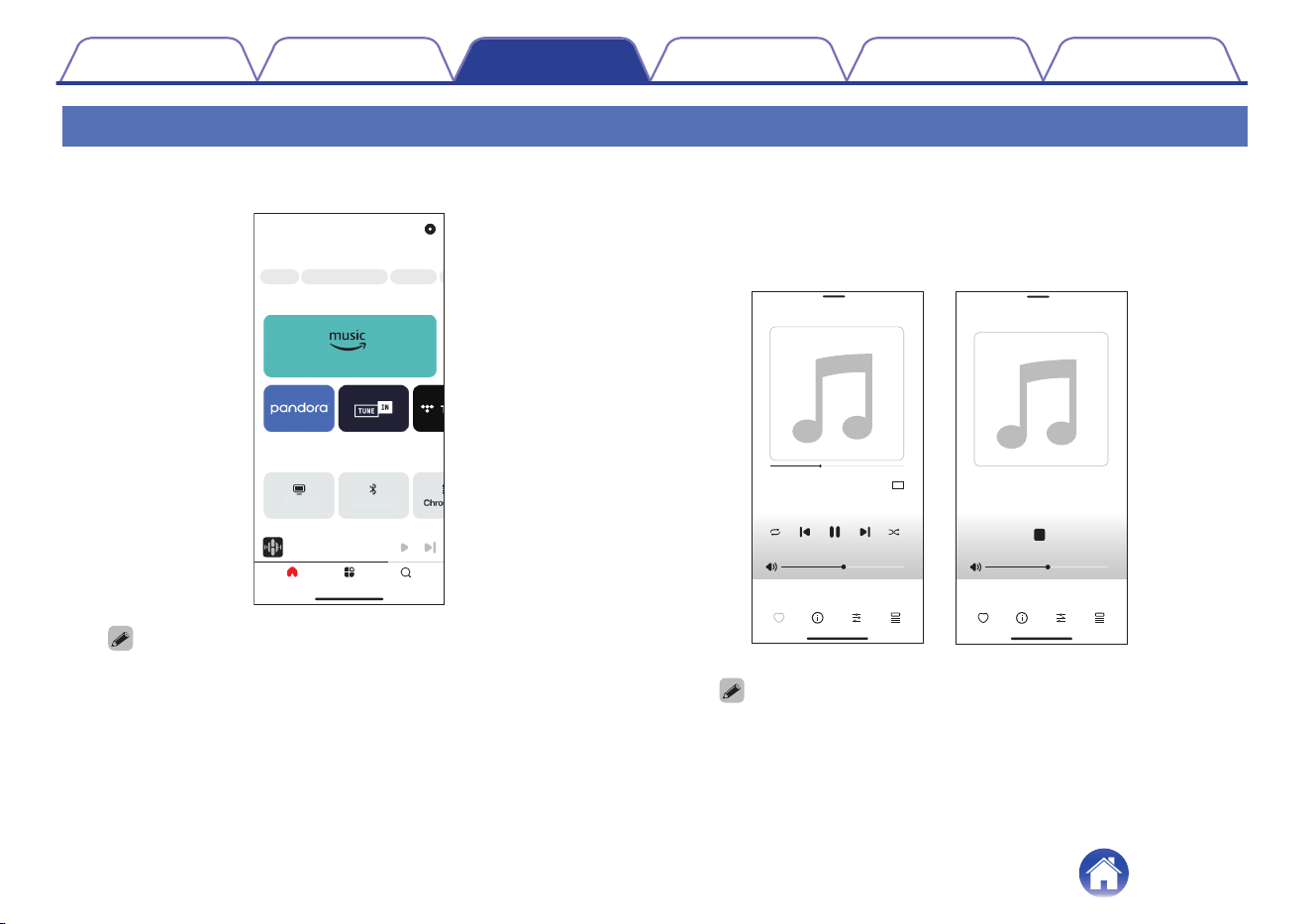
Tap the “Home” tab and select a music source.
Rooms SearchHome
Living Room
Song 1
BluetoothTV
Music Services
Sources
Home
Edit
Edit
HEOS Favorite StationsRecent New Music
0
All music services displayed may not be available in your location.
2
Browse the music to play.
After selecting a music track or radio station the app will
automatically change to the “Now Playing” screen.
HD
55
0:51 -3:01
Living Room
LIVE
Station
Song
Living Room
Artist
Song
Audio file Streaming
0
The “Now Playing” banner appears on the “Home” screen, “Rooms” screen
and “Search” screen. You can check the song currently playing and perform
simple playback operations no matter which screen is displayed.
Contents Setup Playback Troubleshooting Status LED Appendix
18
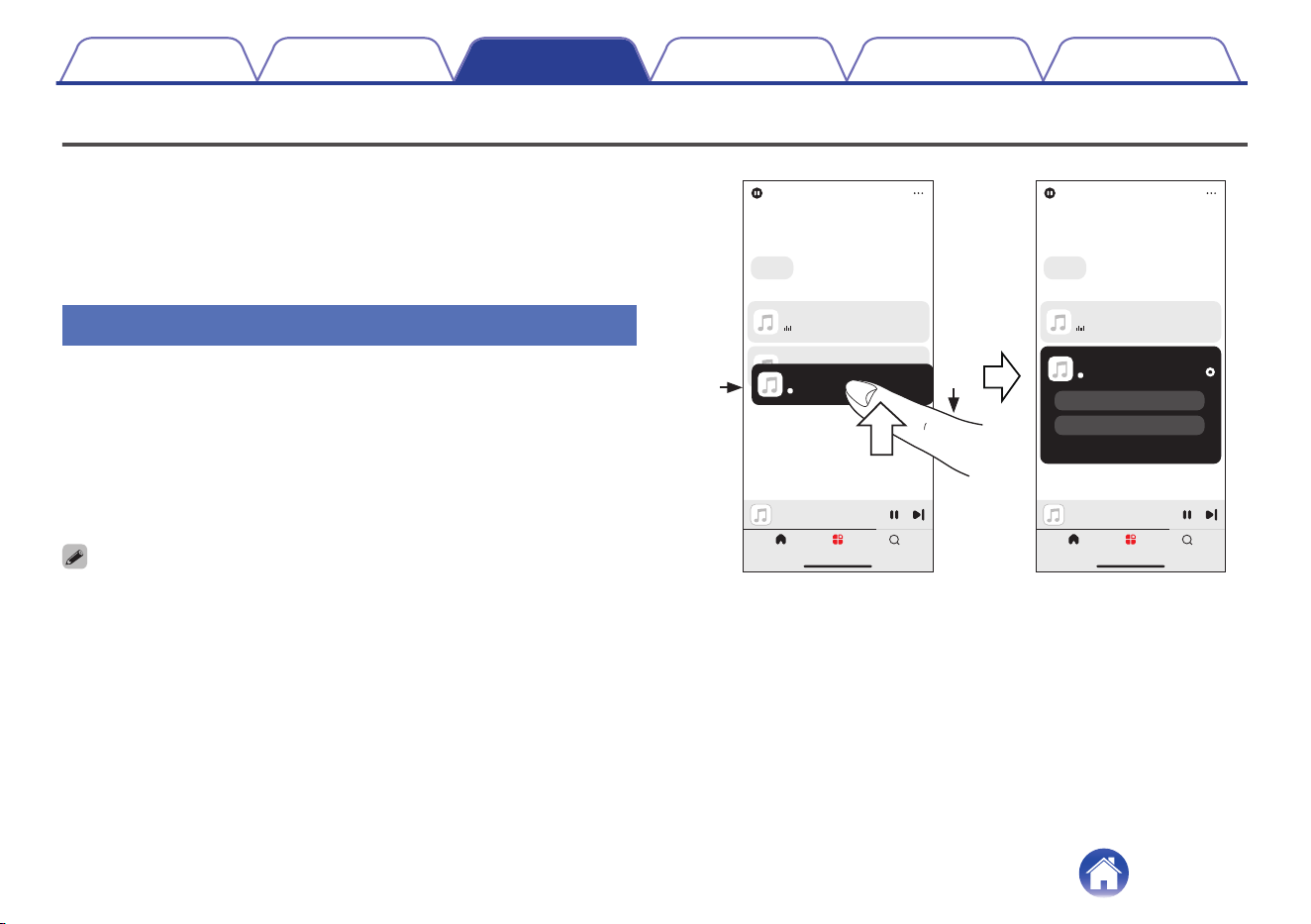
Listening to the same music in multiple rooms
This system is a true multi-room audio system. You can create one or
more HEOS groups to automatically synchronize audio playback between
multiple products with HEOS Built-in so that the music playing different
rooms is perfectly in sync and always sounds amazing! You can easily
add up to 32 products to your system in total. You can group up to 16
individual products to have them play the same song fully synchronized.
Grouping rooms
1
Press and hold your finger on room that is not playing
music.
2
Drag it into the room that is playing music and lift your
finger.
The two rooms will be grouped together into a single device group
and both rooms will be playing the same music in perfect sync.
0
You can also use the “Edit” function of the “Group Presets” to create groups and
select rooms within a group preset.
STAY,THE KID LAROI & JUSTIN...
Kitchen + Living Room
Bedroom
Song 1
Song 1
Living Room
Kitchen
Song 1
Bedroom
Rooms SearchHome
Bedroom
Song 1
Rooms SearchHome
Song 1
Bedroom
Drag a room out of this group to ungroup it
Song 1
Kitchen
Living Room
Edit
Rooms
Group Presets
All Rooms
Edit
Rooms
Group Presets
All Rooms
2
1
Contents Setup Playback Troubleshooting Status LED Appendix
19
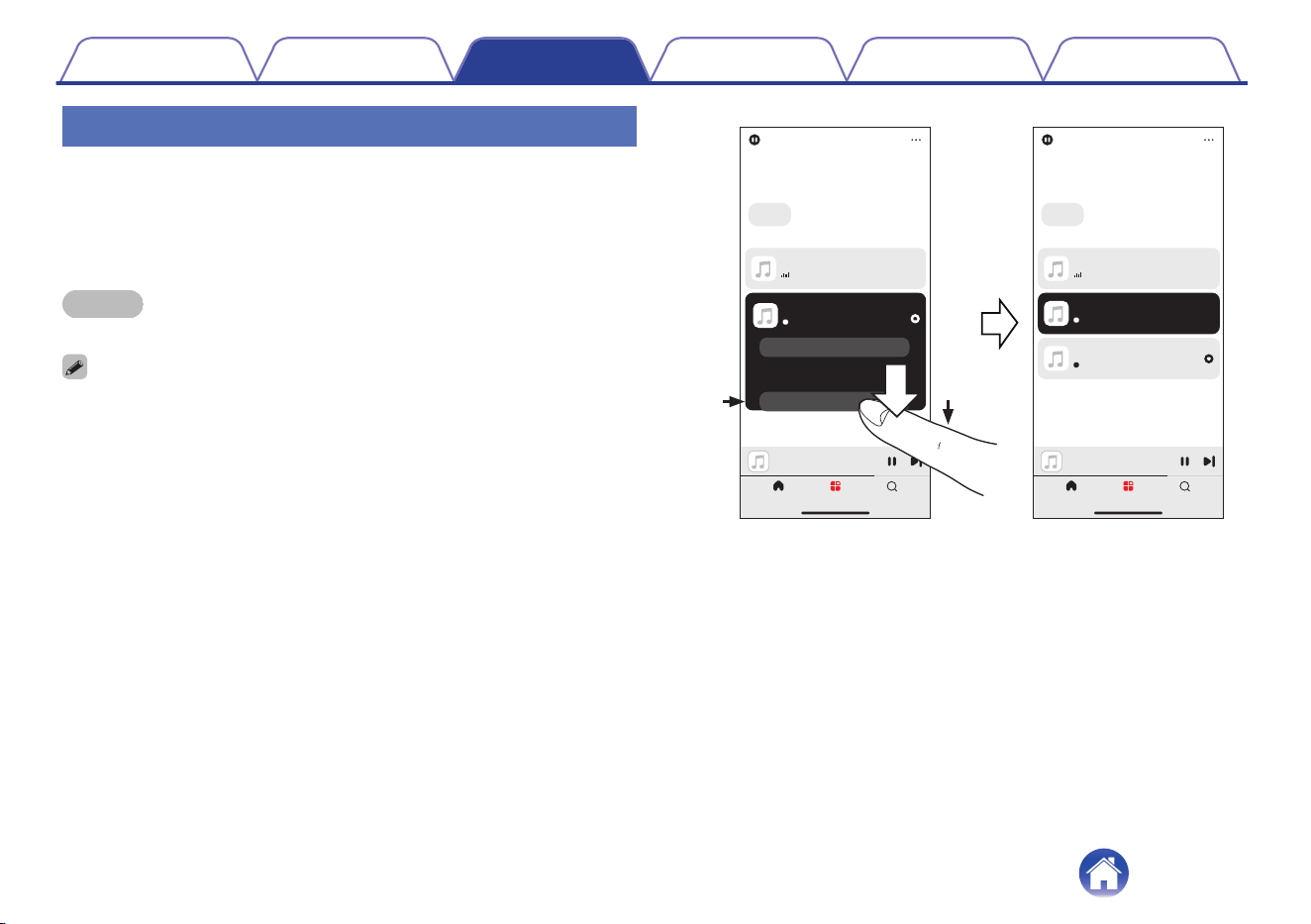
Ungrouping rooms
1
Press and hold your finger on room that you want to
remove from the group.
2
Drag it out of the group and lift your finger.
NOTE
0
You can not remove the first room that started playing the music before grouping.
0
You can also use the “Edit” function of the “Group Presets” to create groups and
select rooms within a group preset.
Bedroom
Song 1
Rooms SearchHome
Bedroom
Song 1
Rooms SearchHome
Edit
Rooms
Group Presets
All Rooms
Edit
Rooms
Group Presets
All Rooms
Song 1
Bedroom
Kitchen + Living Room
Song 1
Kitchen
Living Room
Song 1
Bedroom
Song 1
Song 1
Living Room
Kitchen
2
1
Contents Setup Playback Troubleshooting Status LED Appendix
20
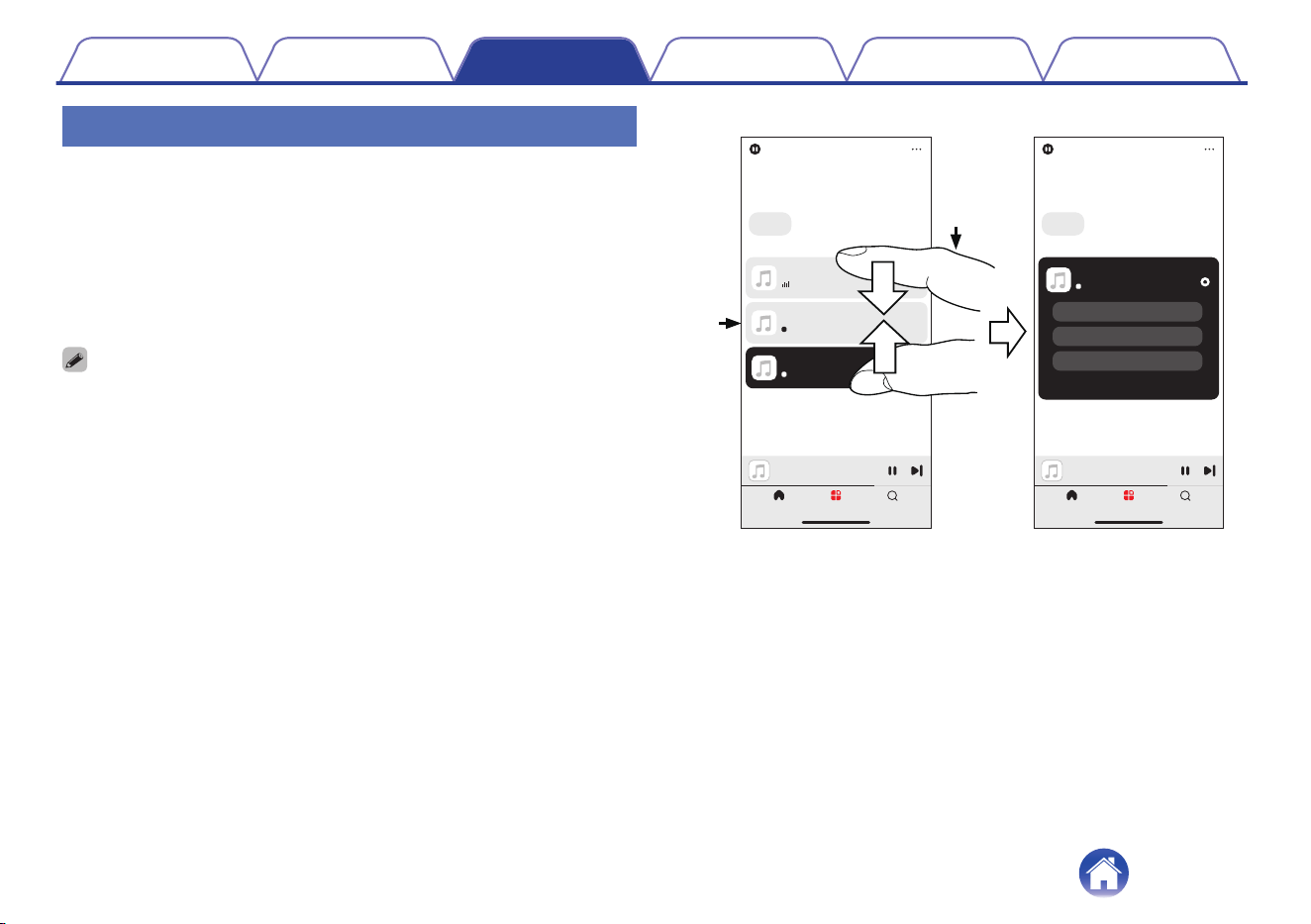
Grouping all rooms
You can easily group all rooms (up to 16 rooms) together by using a
“pinch” gesture.
1
Place two fingers on the screen over the list of rooms.
2
Quickly pinch your two fingers together and release.
All of your rooms will be joined together and begin playing the same
music in perfect sync.
0
You can also use the “Edit” function of the “Group Presets” to create groups and
select rooms within a group preset.
Bedroom
Song 1
Rooms SearchHome
Bedroom
Song 1
Rooms SearchHome
Edit
Rooms
Group Presets
All Rooms
Edit
Rooms
Group Presets
All Rooms
Song 1
Living Room
Song 1
Kitchen
Song 1
Bedroom
Drag a room out of this group to ungroup it
Song 1
Bedroom + Kitchen + Living..
Bedroom
Kitchen
Living Room
2
1
Contents Setup Playback Troubleshooting Status LED Appendix
21
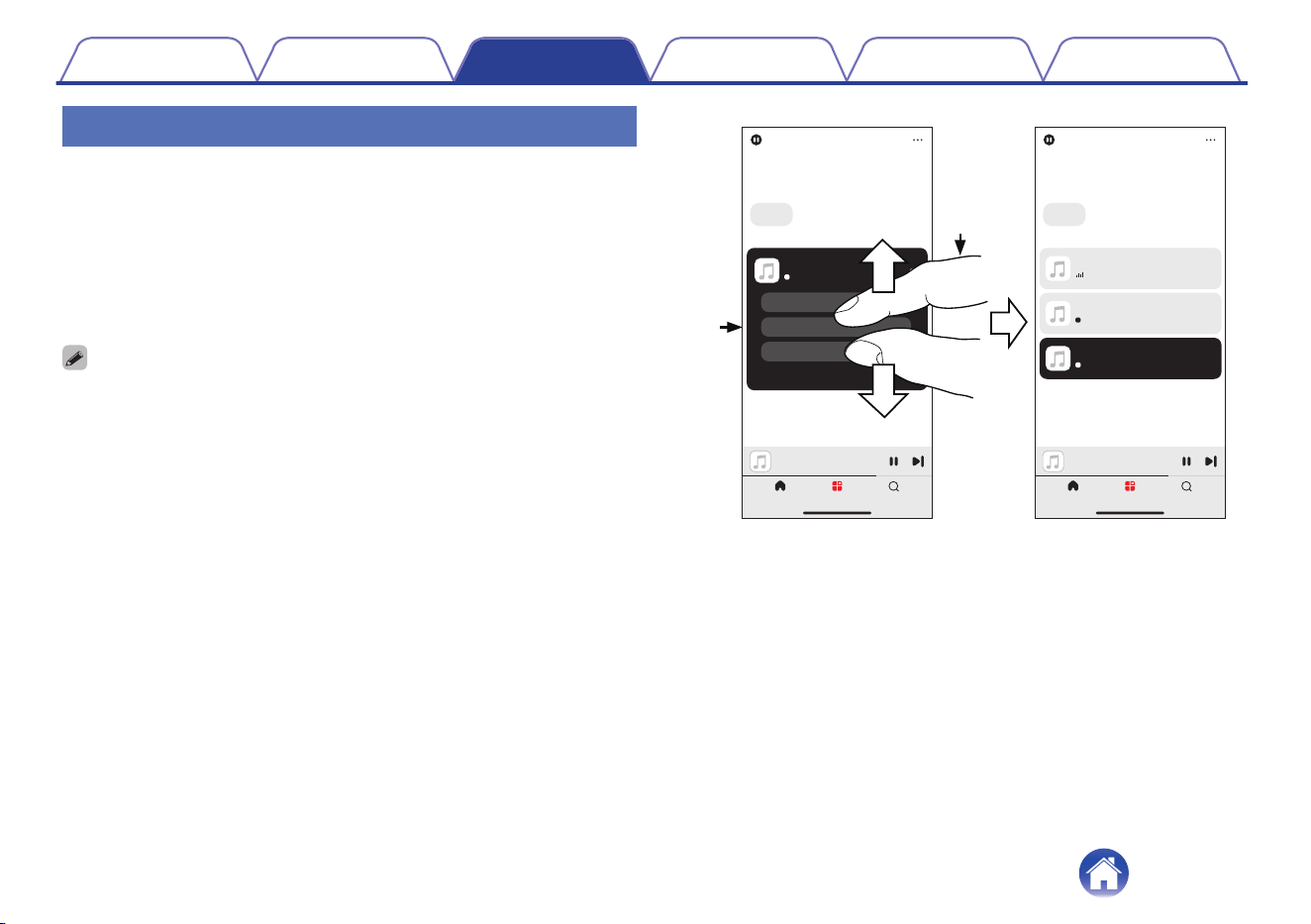
Ungrouping all rooms
You can easily ungroup all of your rooms by using a “spread” gesture.
1
Place two fingers close together on the screen over list
of rooms.
2
Quickly spread your two fingers apart from each other
and release.
All of your rooms will be ungrouped.
0
You can also use the “Edit” function of the “Group Presets” to create groups and
select rooms within a group preset.
Bedroom
Song 1
Rooms SearchHome
Bedroom
Song 1
Rooms SearchHome
Edit
Rooms
Group Presets
All Rooms
Edit
Rooms
Group Presets
All Rooms
Drag a room out of this group to ungroup it
Song 1
Bedroom + Kitchen + Living..
Bedroom
Kitchen
Living Room
Song 1
Living Room
Song 1
Kitchen
Song 1
Bedroom
1
2
Contents Setup Playback Troubleshooting Status LED Appendix
22
Listening to Internet Radio
The HEOS system includes access to more than 100,000 free internet
radio streams from all corners of the globe via the TuneIn radio service.
Just select the TuneIn logo from the “Home” screen and browse among
the 100,000 stations neatly organized into popular categories and select a
station that appeals to your mood.
0
If you have a TuneIn account, tap “Edit” from the “Music Services” section of the
“Home” screen, select “TuneIn” and sign in to the TuneIn service to access all “My
Favorites” TuneIn stations.
NOTE
0
The radio station database service may be suspended or be otherwise unavailable
without notice.
Playing music stored on your
mobile
1
Tap the “Home” tab.
2
Select “This Phone” from the “Sources” section.
3
Browse the local music on your phone and select
something to play.
Playing back files stored on a PC or
NAS
1
Tap the “Home” tab.
2
Select “Server” from the “Sources” section.
3
Select the name of your networked PC or NAS
(Network Attached Storage) server.
4
Browse the music on your PC/NAS and select
something to play.
Contents Setup Playback Troubleshooting Status LED Appendix
23
Playing music from an external
device
1
Connect an external device to the digital optical,
analog RCA stereo or HDMI input on the back of this
unit.
2
Tap the “Home” tab.
3
Select “Inputs” from the “Sources” section.
4
Select the name of this unit and which input to which
you connected the audio device in step 1.
5
Initiate playback on the audio device.
o
HDMI control function
Connect this unit to a TV that supports the HDMI control function with
an HDMI cable and enable the HDMI control setting on the TV to
perform basic operations on this unit (changing the input source,
turning the power on and off, adjusting the volume) with the remote
control of the TV.
Refer to “About HDMI” (v p. 46) for more information about the
HDMI control function.
Playing music from a USB flash
drive
1
Insert a FAT32 or NTFS formatted USB flash drive into
the USB port on the rear panel of this unit.
2
Tap the “Home” tab.
3
Select “USB” from the “Sources” section.
4
Select the name of this unit.
5
Browse the music on your USB flash drive and select
something to play.
NOTE
0
It may take several minutes for the name of this unit to appear in the “USB” list if
you have a large number of files on your USB flash drive.
0
It is not possible to connect and use a computer via the USB port of this unit using
a USB cable.
Contents
Setup Playback Troubleshooting Status LED Appendix
24
Playing music from a Bluetooth
device
1
Activate the Bluetooth setting on your mobile device.
2
Press and hold the Bluetooth button (V) located on the
back of this unit for 3 seconds and release the button
when you see a pattern of two green flashes on the
status LED.
3
Select “Marantz MODEL M1” from the list of available
Bluetooth devices.
In a few seconds, your mobile device will indicate that it is
connected to this unit.
4
Play music using any app on your device.
The sound will now play from this unit.
NOTE
0
If no sound is heard, disconnect and reconnect Bluetooth connections from your
Bluetooth device.
Contents Setup Playback Troubleshooting Status LED Appendix
25
AirPlay function
Music files stored on your iPhone, iPod touch, iPad, Mac or Windows PC can be played on this unit via the network.
0
Input source will be switched to “AirPlay” when AirPlay playback is started.
0
You can stop AirPlay playback by choosing another input source.
0
The screen may differ depending on the OS and software versions.
This device supports AirPlay 2
®
.
Sync multiple AirPlay 2 compatible devices/speakers for simultaneous playback.
Contents Setup Playback Troubleshooting Status LED Appendix
26
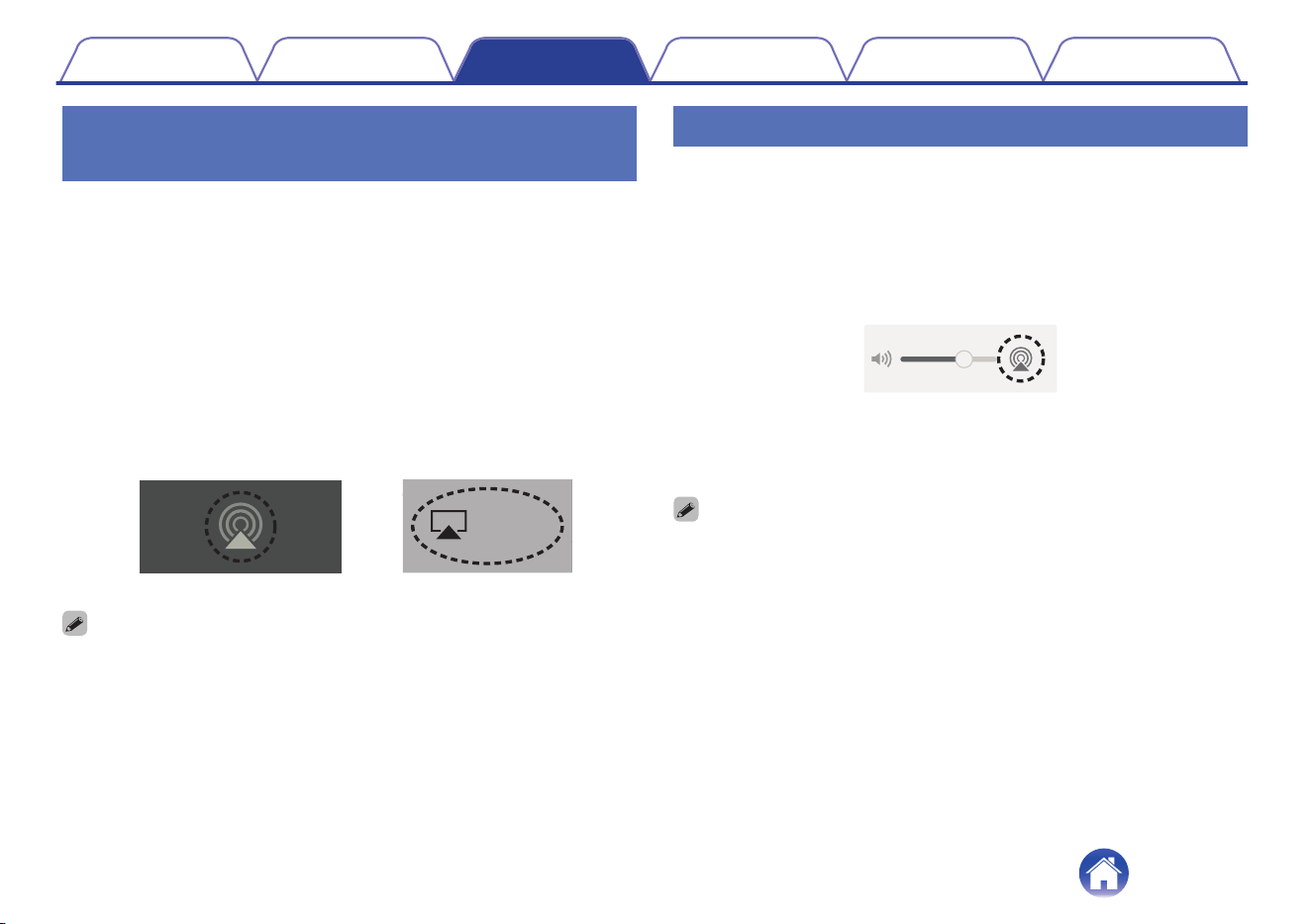
Playing songs from your iPhone, iPod
touch, iPad or Mac
You can stream music stored in your “iPhone/iPod touch/iPad/Mac”
directly to this unit.
1
Connect your iPhone, iPod touch, iPad or Mac Wi-Fi to
the same network as this unit.
0
For details, see your device’s manual.
2
Open Apple Music and play music from your iPhone,
iPod touch, iPad or Mac.
3
Tap or click the AirPlay icon and select this unit.
AirPlay
D
rop:
ryone
AirPlay
AirPlay
AirDrop:
ryone
[Example] iOS 15 or macOS 13
[Example] iOS 10
0
You can also use AirPlay to stream music from other applications. Open the
Control Center, tap or click the AirPlay icon, then select this unit.
0
To use AirPlay, your iOS device must support iOS 10.0.2 or later, or OS X
Mountain Lion 10.8 or later.
Playing songs from Windows PC
1
Install iTunes 10, or later, on a Windows PC that is
connected to the same network as this unit.
2
Start iTunes and click the AirPlay icon to select this
unit.
[Example] iTunes
3
Choose a song and click play in iTunes.
The music will stream to this unit.
0
For information about how to use iTunes, also see the Help for iTunes.
Contents Setup Playback Troubleshooting Status LED Appendix
27
Play a song from your iPhone, iPod
touch, iPad or Mac on multiple synced
devices (AirPlay 2)
Songs from an iPhone, iPod touch, iPad or Mac can be synced with
multiple AirPlay 2 supported devices for simultaneous playback.
1
Play the song on your iPhone, iPod touch, iPad or Mac.
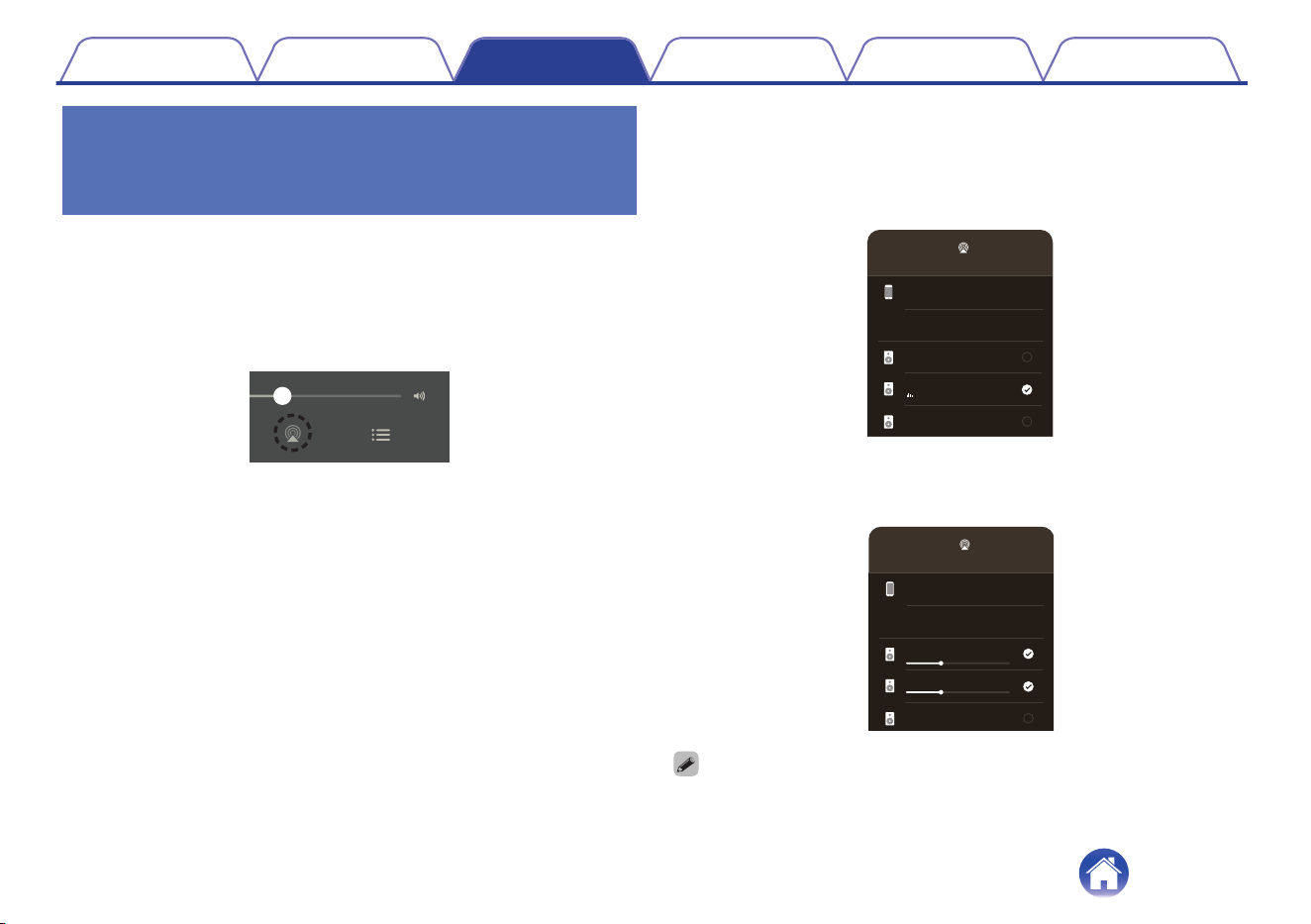
AirPlay icon is displayed on the iPhone, iPod touch, iPad or Mac
screen.
2
Tap or click the AirPlay icon and select this unit.
Displays a list of devices/speakers that can be played back on the
same network.
0
A circle is displayed to the right of AirPlay 2 compatible devices.
iPhone
AirPlay
Living Room
Marantz xxxxxxxx
Song - Artist
Bedroom
Speakers & TVs
3
Select the devices/speakers you want to use.
0
Multiple AirPlay 2 compatible devices can be selected.
iPhone
AirPlay
Living Room
Marantz xxxxxxxx
Bedroom
Speakers & TVs
0
To use AirPlay 2, your iOS device must support iOS 11.4 or later, or macOS
Catalina or later.
Contents Setup Playback Troubleshooting Status LED Appendix
28
Spotify Connect function
Spotify is all the music you’ll ever need. Millions of songs available
instantly. Just search for the music you love, or let Spotify play you
something great. Spotify works on your phone, tablet, computer and home
speakers. So you’ll always have the perfect soundtrack for whatever
you’re doing. Now you can enjoy Spotify with your free account as well as
a Premium account.
Use your phone, tablet or computer as a remote control for Spotify.
Go to www.spotify.com/connect to learn how.
The Spotify software is subject to third party licenses found here:
www.spotify.com/connect/third-party-licenses
Playing Spotify music with this unit
Download the “Spotify App” onto your iOS or Android device beforehand.
1
Connect the Wi-Fi settings of the iOS or Android device
in the same network as this unit.
2
Launch the Spotify App.
3
Play back a Spotify track.
4
Tap the Spotify icon to select the unit.
The music will stream to this unit.
Contents Setup Playback Troubleshooting Status LED Appendix
29
Operating this unit using the remote control of a TV
There are three ways to operate this unit using the remote control of a TV.
0
HDMI control function
Connect this unit to a TV that supports the HDMI control function with
an HDMI cable and enable the HDMI control setting on the TV to
perform basic operations on this unit (changing the input source, turning
the power on and off, adjusting the volume) with the remote control of
the TV.
Refer to “HDMI control function” for more information about the HDMI
control function. (v p. 24)
0
Remote control preset function
This unit is preset such that you can adjust the volume using the volume
adjustment button on the remote controls for the televisions of major
manufacturers. This is useful when the television you are using does
not support HDMI control, or when you connect to a television that does
not have an HDMI connector.
0
Remote control learning function
If your TV does not support the HDMI control function and Remote
control preset function, use this unit’s remote control learning function.
This enables you to operate this unit with the remote control of a TV.
(“Using the remote control learning function” (v p. 30))
o
Using the remote control learning function
Perform this operation on the HEOS App. Download the HEOS App in
advance to your iOS or Android device. (v p. 11)
1
Tap the Settings icon a located in the upper-right
corner of the “Home” screen.
The setting menu screen is displayed.
2
Select “My Devices” to display a list of your HEOS
built-in devices.
3
Select this unit.
4
Select “Remote Control”.
The setup below is not required when device control by HDMI is
active. (A check mark will be displayed by “HDMI CEC” in this case)
5
Select “IR Control”.
6
Select a command of this unit you would like to control
by the remote control of your TV.
Follow the instructions on the screen to complete setup.
Contents
Setup Playback Troubleshooting Status LED Appendix
30
Troubleshooting
If a problem should arise, first check the following:
1. Are the connections correct?
2. Is the set being operated as described in the owner’s manual?
3. Are the other devices operating properly?
0
If steps 1 to 3 above do not improve the problem, restarting the device may improve the problem. Remove and re-insert the power cord of the unit.
If this unit does not operate properly, check the corresponding symptoms in this section.
If the symptoms do not match any of those described here, consult your dealer as it could be due to a fault in this unit. In this case, disconnect the power
immediately and contact the store where you purchased this unit.
Contents Setup Playback Troubleshooting Status LED Appendix
31
Cannot connect this unit to the network
0
Make sure your mobile device is connected to your wireless network before setting up your device. (v p. 12)
0
Alternatively, you can connect this unit to your network router using an Ethernet cable sold separately. Once connected via Ethernet, the HEOS app
should recognize the device and you can manually move it to your wireless network using “Settings” - “My Devices” - (“Device Name”) - “Advanced” -
“NETWORK SETTINGS”. (v p. 13)
Cannot pair a Bluetooth mobile device with this unit
0
The connection from the Bluetooth mobile device is malfunctioning. Power cycle the mobile device, remove the pairing information and re-pair this unit
to the mobile device.
Cannot hear Bluetooth music
0
Your Bluetooth mobile device is not paired with this unit. Re-pair this unit to the mobile device.
0
This unit is Wi-Fi mode etc. Pair and connect Bluetooth device to this unit.
0
The Bluetooth mobile device is connected to another audio device. Make sure your Bluetooth device is connected to this unit.
0
The volume on your Bluetooth mobile device or your speaker is set too low. Check the volume on the Bluetooth mobile device. Check the volume on
this unit.
Contents
Setup Playback Troubleshooting Status LED Appendix
32
The Power is turned off and the status LED flashes in red (fast blink)
0
The protection circuit has been activated due to a rise in temperature within this unit. Turn the power off, wait about an hour until this unit cools down
sufficiently, and then turn the power on again.
0
Check the speaker connections. The protection circuit may have been activated because speaker cable core wires came in contact with each other or a
core wire was disconnected from the connector and came in contact with the rear panel of this unit. After unplugging the power cord, take corrective
action such as firmly re-twisting the core wire or taking care of the connector, and then reconnect the wire. (v p. 7)
Music cuts out or delays sometimes
0
Make sure your Internet connection is operating correctly. If you are sharing your network with other users or devices, they may be using most of your
bandwidth (especially if they are streaming video).
0
Make sure this unit is within range of your wireless network.
0
Make sure this unit is not located near other electronic devices that could interfere with its wireless connectivity (like microwave ovens, cordless
phones, TVs, etc.).
Contents
Setup Playback Troubleshooting Status LED Appendix
33
Cannot connect to a network using an iOS device
0
This unit supports Apple’s “WAC (Wireless Accessory Configuration)” setup mode. WAC setup mode allows you to connect this unit to your network
without requiring you to type in the network name and password.
1. The CONNECT LED on the rear of this unit will slowly blink amber to indicate that WAC setup mode is active. If the rear LED is not blinking amber,
press and hold volume down (-) and 13 buttons on this unit for 3 seconds until you see the LED blinking amber.
2. On your iOS device, go to the Wi-Fi menu under Settings.
3. Select “Marantz MODEL M1” under “SET UP NEW AIRPLAY SPEAKER...” at the bottom of the list.
4. Select the network you want this unit to connect to and select “Next”.
5. Follow the instructions on the screen to complete setup.
6. When the connection is complete, the status LED on the front of this unit will turn solid white.
This unit will stay in WAC setup mode for 15 minutes. If this unit is not setup within 15 minutes, it will revert back to its previous network connection.
Press the 13 button on this unit if you want to cancel WAC setup mode.
I hear a delay when using the external input with my TV
0
If you are connecting the External input with your cable or satellite box for enjoying TV audio through multiple HEOS built-in devices, you may hear a
delay between when you see someone speak and when you hear the audio. This is because the HEOS system must buffer the audio before it sends it
out to the HEOS built-in devices so that it arrives at all devices at the same time.
0
You can avoid this delay by listening only to the device which is directly connected to the set top box.
Contents
Setup Playback Troubleshooting Status LED Appendix
34
Cannot connect to a WPS network
0
If your wireless router support WPS (Wi-Fi Protected Setup™) this unit can optionally connect to your network using the “Push Button” method by
following these steps:
Wi-Fi Protected Setup™ is trademarks of Wi-Fi Alliance.
1. Press the WPS button on your router.
2. Within 2 minutes, press and hold the CONNECT button on the rear panel of this unit for 5 seconds.
3. The LED on the front of this unit will flash green for several seconds as it connects to your WPS router.
4. When the connection is complete, the LED on the front of this unit will turn solid Green.
Resetting this unit
0
Resetting this unit will clear out the wireless network info, EQ, and name but retain it’s current software. You will have to use Settings - Add Device to
reconnect this unit to your home network before it can be used.
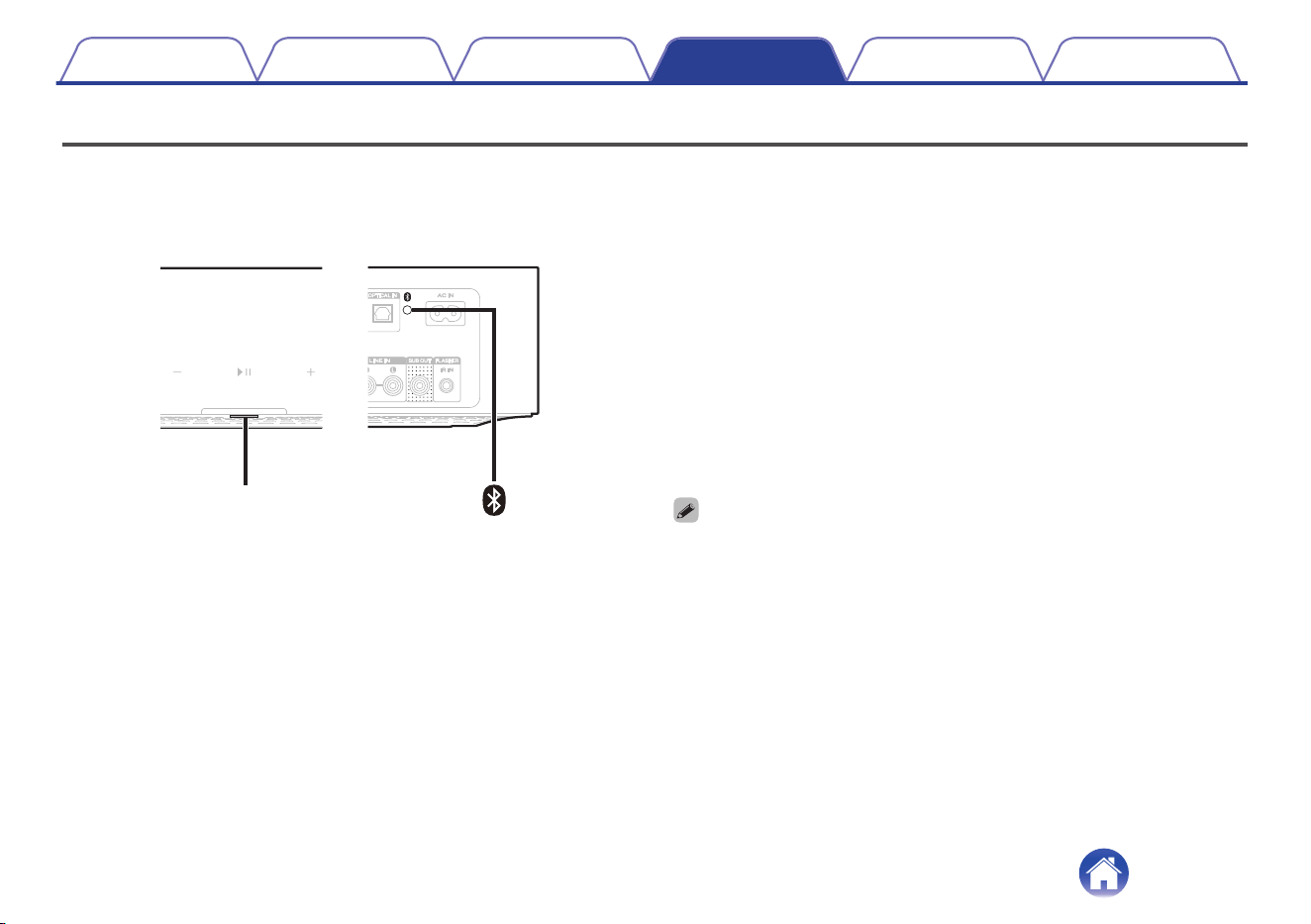
To reset this unit, press and hold the CONNECT and Bluetooth (V) buttons located on the back of this unit for 5 seconds until the front LED begins to
flash amber.
The HDMI control function does not work
The HDMI control function does not work.
0
You cannot operate devices that are not compatible with the HDMI control function. In addition, depending on the connected device or the settings, the
HDMI control function may not work. In this case, operate the external device directly.
0
Check that the HDMI control function setting is enabled on the TV connected to this unit.
Contents
Setup Playback Troubleshooting Status LED Appendix
35
Resetting the firmware to the default state
When the network function or this unit does not operate correctly, the problem may be solved by resetting the firmware to the default state.
0
It is confirmed that the network connection has no problem, but the unit cannot connect to the Internet.
0
The solution described in “Resetting this unit” does not work. (v p. 35)
For such cases, perform the following operation:
Status LED
1
Unplug the power cord from the power outlet.
2
Plug in the power cord while holding down the
Bluetooth(V) button.
3
Release the button after the status LED starts to blink
in orange.
When the status LED switches from blinking orange to solid, the
recovery process is complete.
0
Since this process includes a firmware recovery, it takes some time to complete.
0
This process will clear out all the information that you set.
0
After performing this RESET to default state, an update to actual firmware version
is needed.
0
Do not unplug the power cord until the entire process completes.
0
If the problem is not solved after performing this operation, contact our customer
service center.
Contents Setup Playback Troubleshooting Status LED Appendix
36
Status LED table
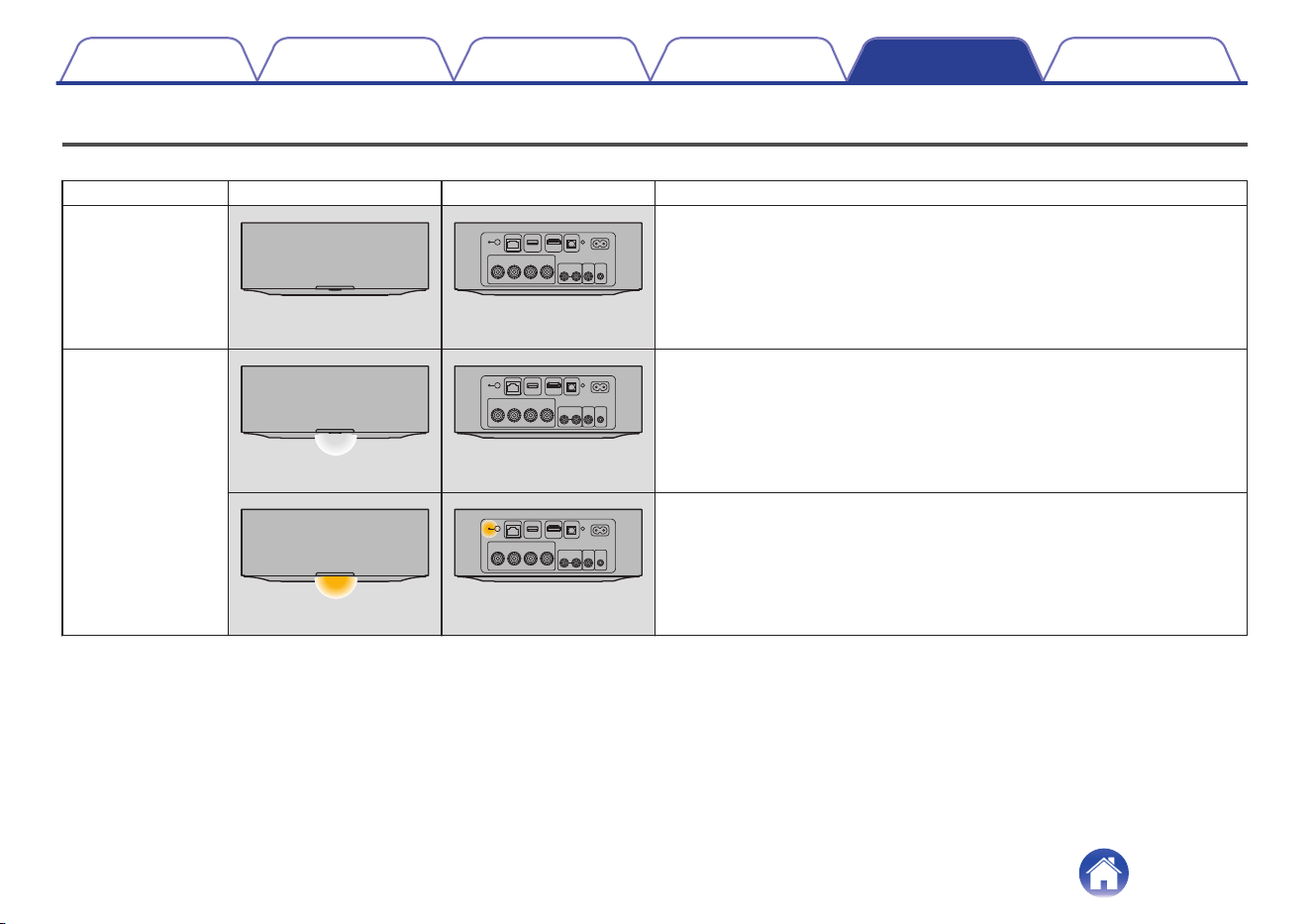
The LEDs on the front panel and rear panel change to indicate the current status.
Status Front LED action Rear LED action Description
Deep Standby
mode
(off)
(off)
Power is off, or this unit is in Deep Standby mode. (v p. 44)
Network Standby
mode
(dimmed solid) (off)
This unit is in Network Standby mode (Connected to your network).
(v p. 43)
(dimmed solid)
(dimmed solid)
This unit is in Network Standby mode (Not connected to your network).
(v p. 43)
Contents Setup Playback Troubleshooting Status LED Appendix
37
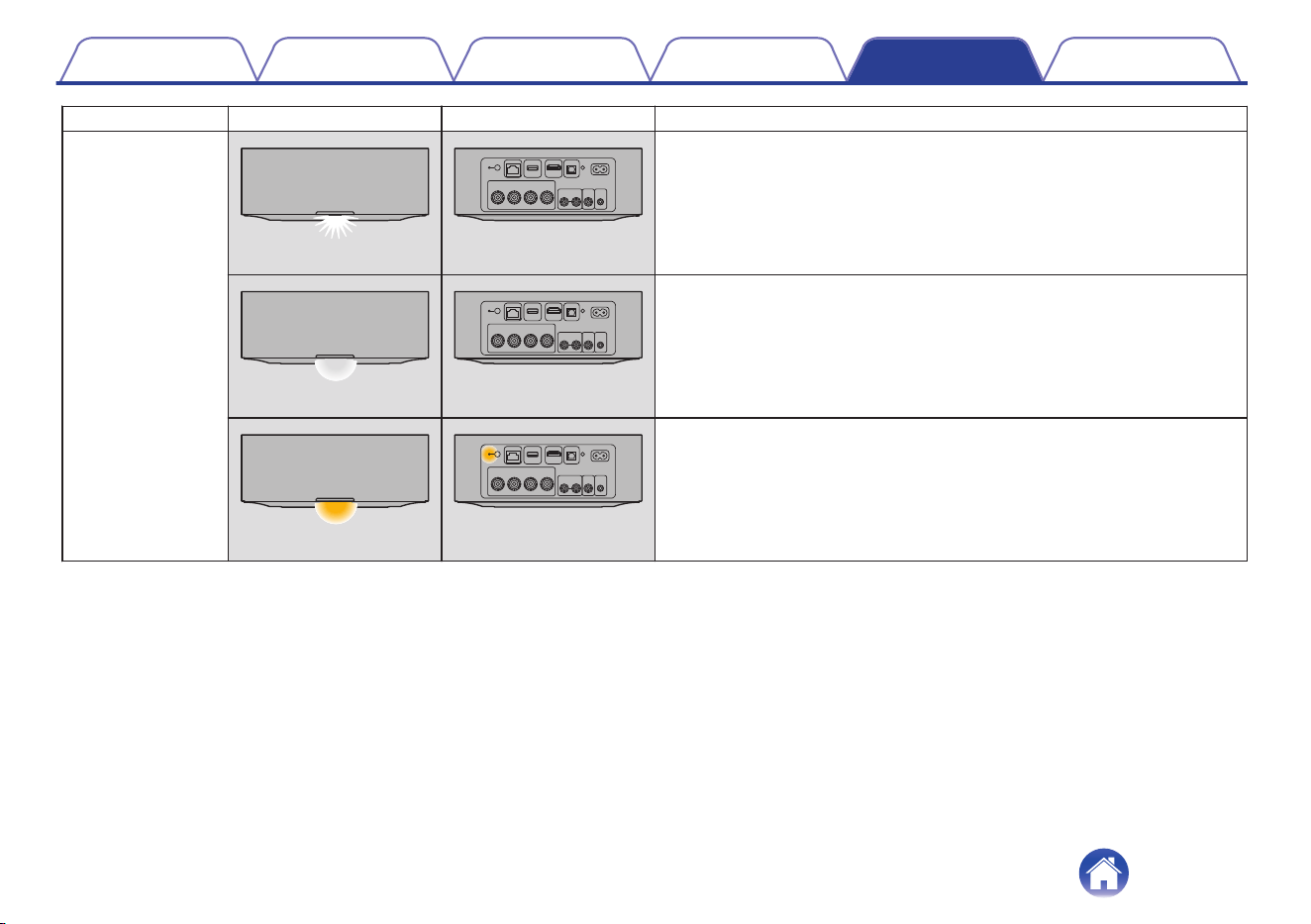
Status Front LED action Rear LED action Description
Power on
(blink)
(off)
This unit is starting up or connecting to the network.
(solid) (off)
This unit is connected to the network.
(solid)
(solid)
This unit is unable to connect to the network. Try to connect this unit again.
Contents Setup Playback Troubleshooting Status LED Appendix
38
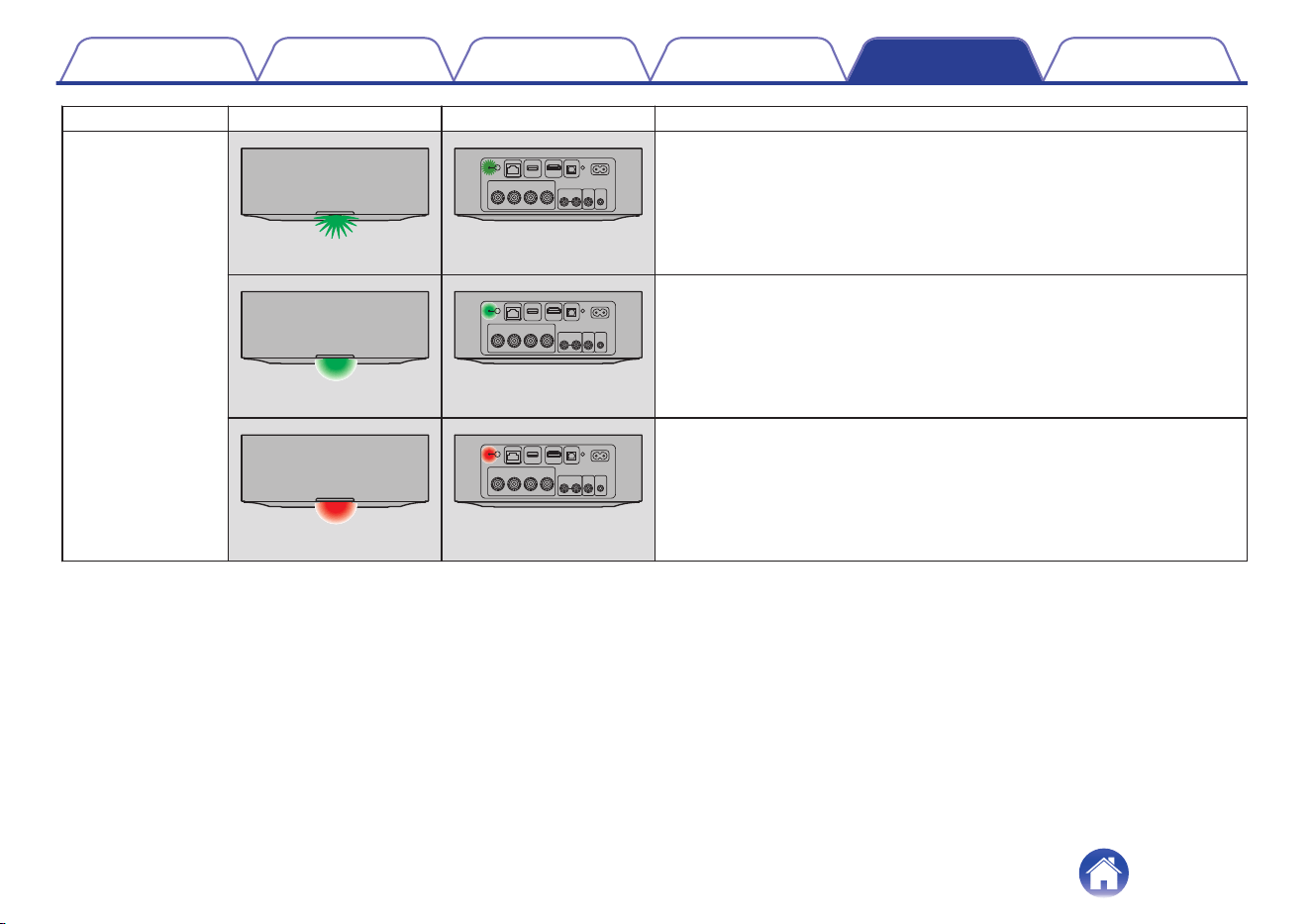
Status Front LED action Rear LED action Description
WPS
(fast blink) (fast blink)
This unit is connecting to the network via WPS.
(for 3 sec. solid)
(solid)
This unit is connected to the network via WPS.
(for 3 sec. solid)
(solid)
WPS has timed out.
Contents Setup Playback Troubleshooting Status LED Appendix
39
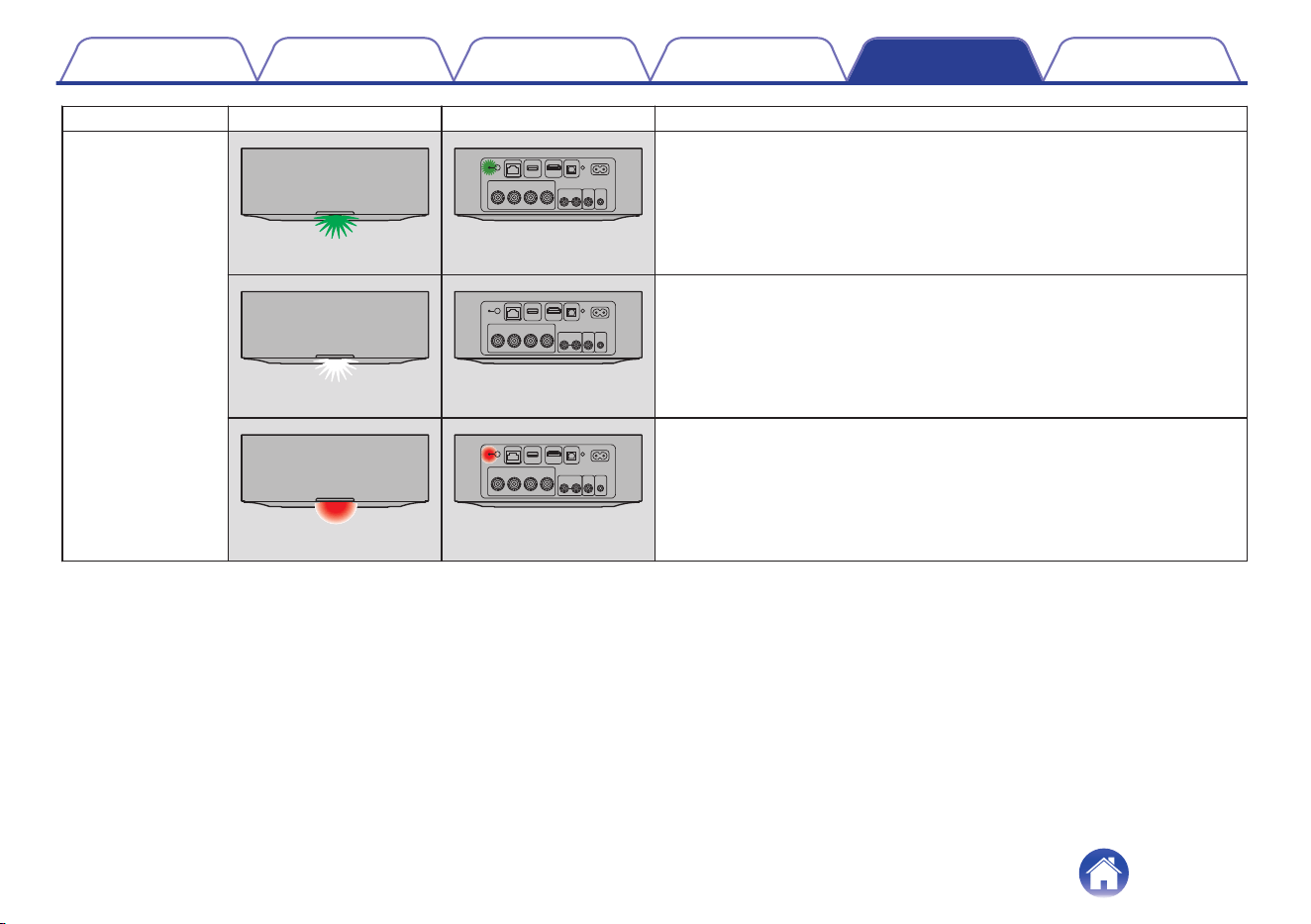
Status Front LED action Rear LED action Description
Bluetooth
(two blinks) (two blinks)
This unit is pairing via Bluetooth.
(one blink)
(off)
This unit is paired via Bluetooth.
(for 3 sec. solid)
(for 3 sec. solid)
This unit failed to pair to the Bluetooth device. Try to pair again. (v p. 25)
Contents Setup Playback Troubleshooting Status LED Appendix
40
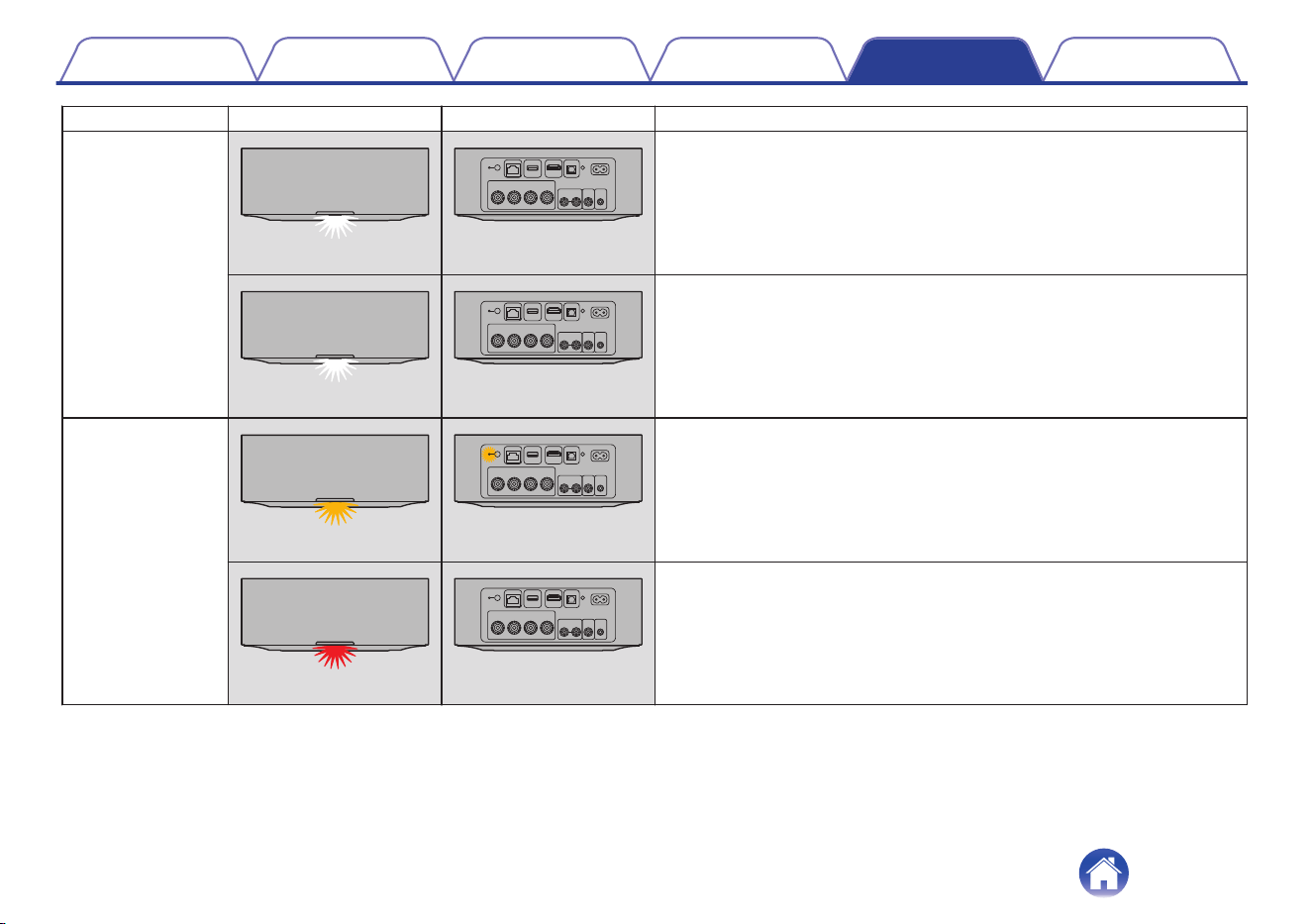
Status Front LED action Rear LED action Description
Volume setting
(quick blink)
(off)
Volume is being adjusted.
(slow blink)
(off)
This unit is muted.
Firmware update
(blink)
(blink)
Firmware is being updated.
(slow blink (Not fade)) (off)
There is a firmware error. Check your Internet connection quality, relaunch
the app, then try to update the firmware again.
Contents Setup Playback Troubleshooting Status LED Appendix
41
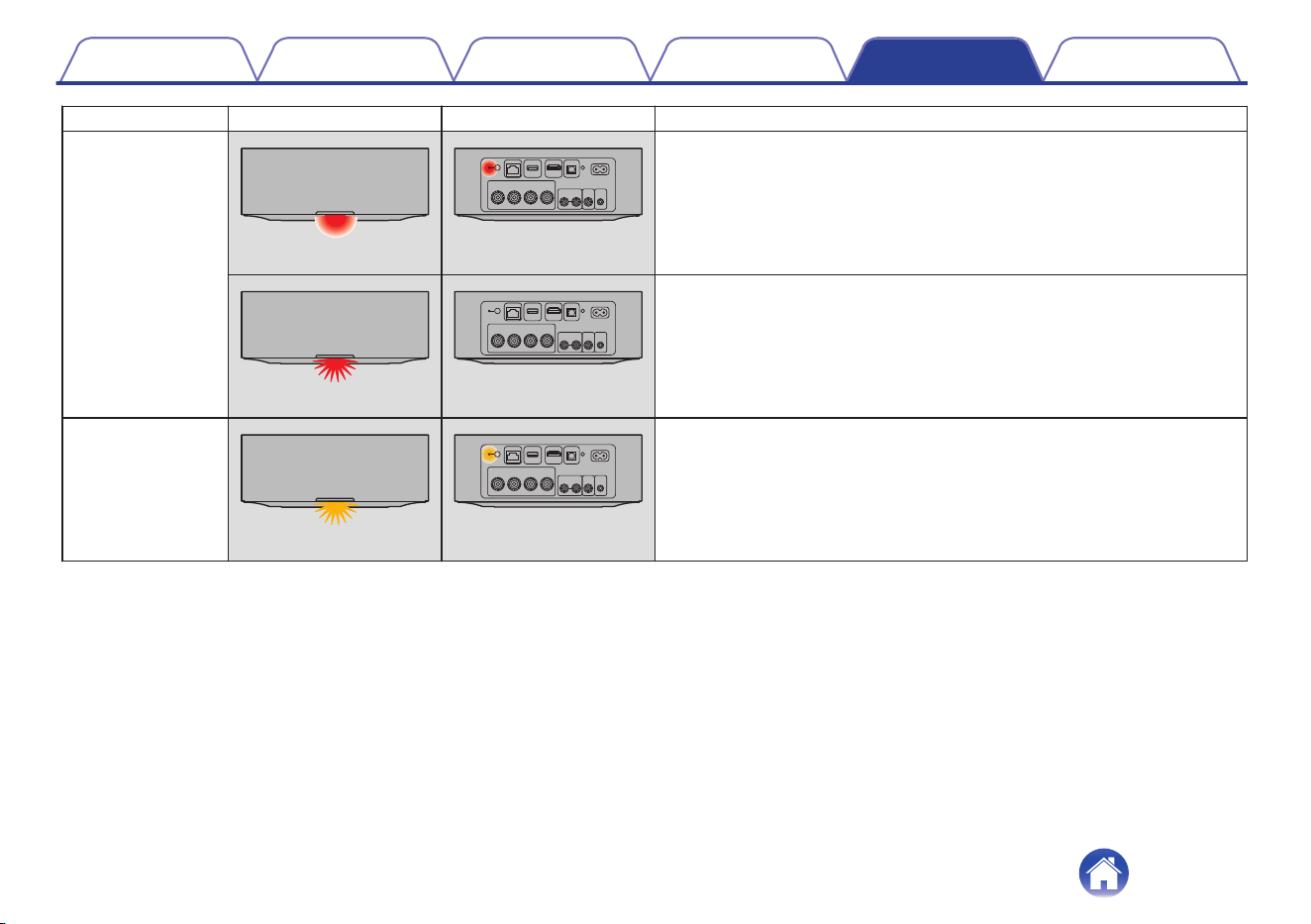
Status Front LED action Rear LED action Description
Error
(solid)
(solid)
There was a setup error. Check your usage environment, then follow the
correct procedure to try setup again. If the error occurs again, restore
factory settings and try setup again. (v p. 36)
(fast blink) (off)
There is a hardware error. Unplug the power cord, wait about 30 seconds,
then plug the power cord back in.
Reset
(fast blink)
(solid)
Factory settings have been restored.
Contents Setup Playback Troubleshooting Status LED Appendix
42
Power management
o
Network Standby mode
This unit automatically enters “Network Standby mode” to save power
in the following cases. This unit will automatically resume to full power
whenever the device is selected and playing music.
During “Network Standby mode”, the status LED lights in dim white or
dim amber.
n
Ethernet
After 20 minutes of no operation and no network access after
playing music via Ethernet.
n
Wi-Fi
After 20 minutes of no operation and no network access after
playing music via Wi-Fi.
n
USB
After 20 minutes of no operation and no network access after
playing music from a USB flash drive.
n
Bluetooth
After the Bluetooth connection is disconnected and there is 20
minutes of no operation and no network access after playing music
via Bluetooth.
n
Optical input
After 20 minutes of no operation after optical device is put into
standby.
n
TV HDMI (eARC/ARC)
Connect this unit and the eARC/ARC compatible TV with HDMI
cable and play TV. 20 minutes after TV is put into standby.
Contents Setup Playback Troubleshooting Status LED Appendix
43
o
Deep Standby mode
This unit also has the ability to automatically enter “Deep Standby
mode” whenever the wired or wireless network connection is removed
for more than 60 minutes in “Network Standby mode”. The front panel
LED will turn off during “Deep Standby mode”.
To wake this unit from “Deep Standby mode”,
0
Press any button on this unit.
0
Input audio signal to optical input.
0
CEC (Consumer Electronics Control) command over HDMI
eARC/ARC
0
Use a TV remote control that has learned the operations of this unit
with the remote control learning function to operate this unit.
(v p. 30)
0
You also press the 13 key for 5 seconds, the device enters the Deep
Standby.
NOTE
0
If “Power Saving” is set to “Quick Start” in the HEOS app, the unit will not
switch to Deep Standby Mode. (“Settings” - “My Devices” - (“Device Name”) -
“Power Saving”)
o
Off
To completely turn off the power to the device, you must remove the
mains plug from the power outlet.
Contents
Setup Playback Troubleshooting Status LED Appendix
44
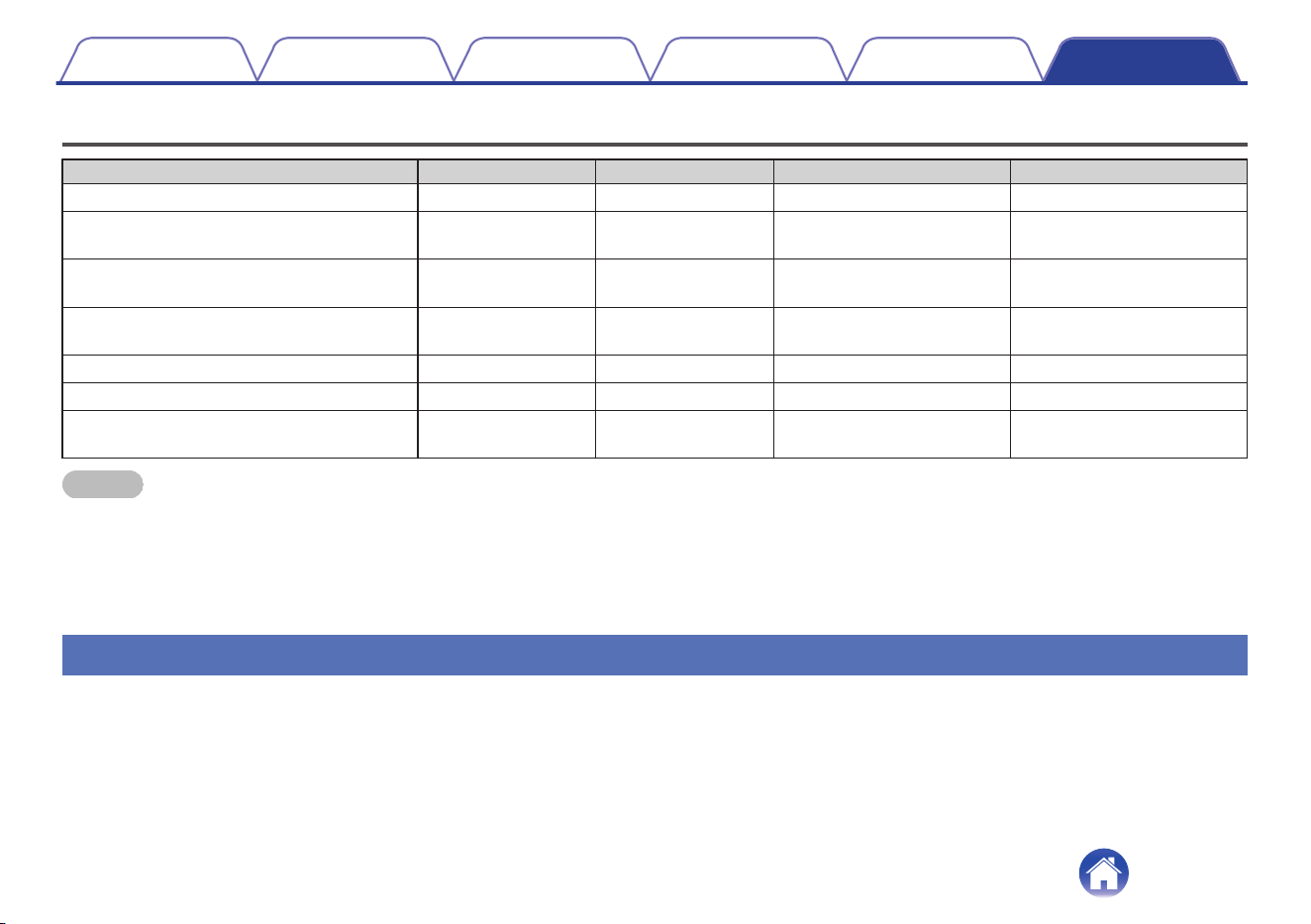
Supported file types and codecs
Sampling frequency Bit length File extension Codec Bit rates
32/44.1/48/88.2/96/176.4/192 kHz 16/24 bit wav PCM –
32/44.1/48 kHz 16 bit mp3
MPEG-1 Audio Layer 3
CBR/VBR
32 - 320 kbps
32/44.1/48 kHz 16 bit
m4a
aac
AAC-LC 48 - 320 kbps
32/44.1/48 kHz 16 bit wma
wma9
CBR
CBR:48 - 192 kbps
44.1/48/88.2/96/176.4/192 kHz 16/24 bit flac flac –
44.1/48/88.2/96/176.4/192 kHz 16/24 bit m4a ALAC –
2.8/5.6 MHz 1 bit
dff
dsf
DSDIFF
DSF
–
NOTE
0
For USB flash drive, the limited numbers of folders and files that can be played back on this unit are as follows.
0
Number of folder directory levels: 8 levels (The limited number includes the root folder.)
0
Number of folders: 500
0
Number of files: 5000 (The allowable number of files may differ according to the USB flash drive capacity and the file size.)
0
Files protected by DRM, such as Apple’s FairPlay DRM, are not supported.
0
The ALAC decoder is distributed under the Apache License, Version 2.0 (http://www.apache.org/licenses/LICENSE-2.0)
Supported audio formats (Optical)
2-channel Linear PCM:2-channel, 32 kHz – 192 kHz, 16/20/24 bit
Bitstream:Dolby Digital
Contents
Setup Playback Troubleshooting Status LED Appendix
45
About HDMI
This unit supports the following HDMI functions.
0
eARC (Enhanced Audio Return Channel)/ARC (Audio Return Channel) function
Enjoy movies, music, etc., on your TV simply by connecting an eARC/ARC function-compatible TV to this unit via HDMI.
0
HDMI control function
Connect an HDMI control-compatible TV and this unit via HDMI and enable the HDMI control to enable linked control from either device.
0
Input source switching
If the TV is turned on, this unit automatically powers on and switches the input source.
0
Power off link
The TV power off operation is linked so this unit also turns off.
0
Volume adjustment
The volume of this unit can be adjusted using the TV remote control.
0
Audio output destination switching
If this unit is turned on, TV audio is output from this unit. If this unit is turned off, TV audio is output from the speakers of the TV.
0
Some functions may not operate depending on the connected TV.
Contents Setup Playback Troubleshooting Status LED Appendix
46
Trademark information
Apple, AirPlay, iPad, iPad Air, iPad Pro, iPhone and Mac are trademarks
of Apple Inc., registered in the U.S. and other countries.
The trademark “iPhone” is used in Japan with a license from Aiphone
K.K.
Use of the Works with Apple badge means that an accessory has been
designed to work specifically with the technology identified in the badge
and has been certified by the developer to meet Apple performance
standards.
The Bluetooth
®
word mark and logos are registered trademarks owned
by the Bluetooth SIG, Inc. and any use of such marks by DEI Sales, Inc.
is under license. Other trademarks and trade names are those of their
respective owners.
Manufactured under license from Dolby Laboratories. Dolby, Dolby
Audio, and the double-D symbol are trademarks of Dolby Laboratories
Licensing Corporation.
The terms HDMI, HDMI High-Definition Multimedia Interface, HDMI trade
dress and the HDMI Logos are trademarks or registered trademarks of
HDMI Licensing Administrator, Inc.
Contents Setup Playback Troubleshooting Status LED Appendix
47
The Wi-Fi CERTIFIED logo is a registered trademark of the Wi-Fi
Alliance.
Wi-Fi Certification provides assurance that the device has passed the
interoperability test conducted by the Wi-Fi Alliance, a group that certifies
interoperability among wireless LAN devices.
Google Play and the Google Play logo are trademarks of Google LLC.
App Store
®
is registered in the U.S. and other countries.
Being Roon Ready means that Marantz uses Roon streaming
technology, for an incredible user interface, simple setup, rock-solid daily
reliability, and the highest levels of audio performance, without
compromise.
© 2018 Dirac Research AB. All rights reserved. Dirac, Dirac Live and the
Dirac logos are trademarks of Dirac Research AB.
Contents Setup Playback Troubleshooting Status LED Appendix
48
Specifications
o
Audio section
0
Power amplifier
Rated output: 100 W + 100 W (8 Ω/ohms, 20 Hz - 20 kHz with 0.05 % T.H.D. LPF 20 kHz)
125 W + 125 W (4 Ω/ohms, 1 kHz with 0.05 % T.H.D.)
Output connectors: 4 – 16 Ω/ohms
S/N (IHF-A): OPTICAL IN, HDMI IN (ARC/eARC): 105 dB
LINE IN: 91 dB
Frequency response: 20 Hz - 40 kHz ±3 dB
0
Analog (LINE IN)
Input sensitivity/impedance: 200 mV/20 kΩ/kohms
Maximum allowable input level: 2.5 V
Contents Setup Playback Troubleshooting Status LED Appendix
49
o
Wireless LAN section
Network type (wireless LAN standard): Conforming to IEEE 802.11a/b/g/n/ac
(Wi-Fi
®
compliant)
z
1
Security: WEP 64 bit, WEP 128 bit
WPA/WPA2-PSK (AES)
WPA/WPA2-PSK (TKIP)
WPA3-SAE (AES)
Used frequency range: 2.4 GHz, 5 GHz
z1
The Wi-Fi
®
CERTIFIED Logo and the Wi-Fi CERTIFIED On-Product Logo are registered trademarks of the Wi-Fi Alliance.
o
Bluetooth section
Communications system: Bluetooth Specification Version 4.2
Transmission power: Bluetooth Specification Power Class 1
Maximum communication range:
Approx. 98.4 ft/30 m in line of sight
z
2
Used frequency range: 2.4 GHz
Modulation scheme: FHSS (Frequency-Hopping Spread Spectrum)
Supported profiles: A2DP (Advanced Audio Distribution Profile) 1.3.2
AVRCP (Audio Video Remote Control Profile) 1.6.2
Corresponding codec: SBC
Transmission range (A2DP): 20 Hz – 20,000 Hz
z2
The actual communication range varies depending on the influence of such factors as obstructions between devices, electromagnetic waves from microwave ovens,
static electricity, cordless phones, reception sensitivity, antenna performance, operating system, application software etc.
Contents
Setup Playback Troubleshooting Status LED Appendix
50
o
General
Operating temperature: 41 °F - 95 °F (5 °C - 35 °C)
Power supply: AC 120 V, 60 Hz (for North America)
AC 230 V, 50/60 Hz (for Europe)
Power consumption: 70 W
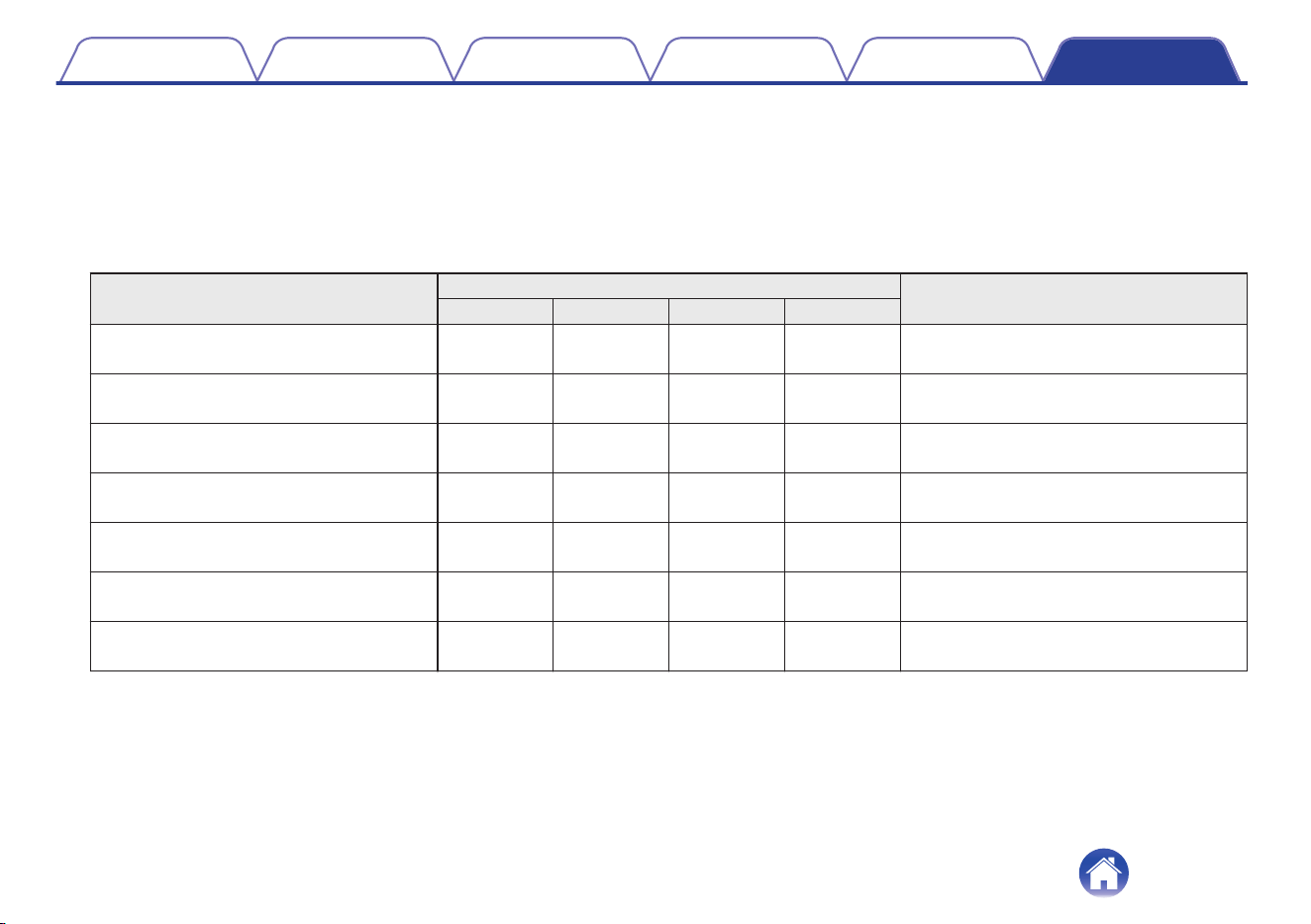
Power consumption in Network Standby mode:
Standby modes
Setting items in the HEOS app
Power consumption
TV Input Auto-Play Wi-Fi Bluetooth
Normal standby None Off Off Off
1.7 W (for North America)
1.9 W (for Europe)
Optical standby Optical On Off Off
1.7 W (for North America)
1.9 W (for Europe)
CEC standby
HDMI ARC/
eARC
On Off Off
1.7 W (for North America)
1.9 W (for Europe)
Wi-Fi connect (5 GHz) None Off On Off
1.8 W (for North America)
1.9 W (for Europe)
Bluetooth connect None Off Off On
1.7 W (for North America)
1.8 W (for Europe)
Ethernet connect None Off Off Off
1.7 W (for North America)
1.8 W (for Europe)
All standby
HDMI ARC/
eARC
On On On
2.0 W (for North America)
2.3 W (for Europe)
Power consumption in Deep Standby mode: 0.3 W
For the purpose of improvement, the specifications and design are subject to change without notice.
Contents
Setup Playback Troubleshooting Status LED Appendix
51

3520 10968 00ASD
©2024 Masimo. All Rights Reserved.
53