ENGLISH
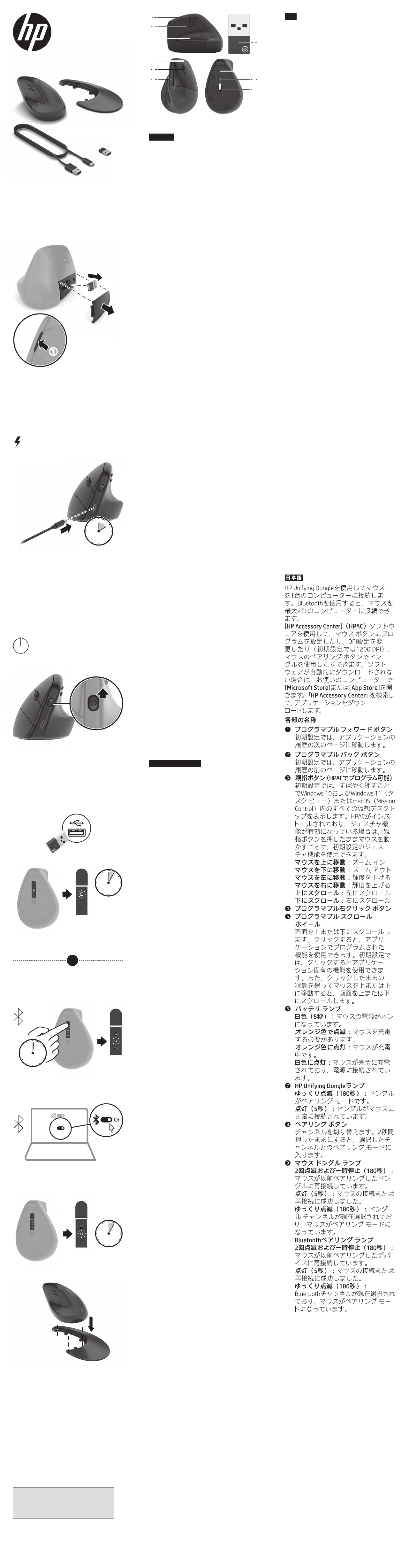
Connect the mouse to one computer using
the HP Unifying Dongle and up to two
computers via Bluetooth®.
Use the HP Accessory Center (HPAC)
software to program the mouse buttons,
change the DPI setting (1200 DPI by
default), and use the dongle with the
mouse’s pairing button. If the software
does not download automatically, on your
computer, open Microsoft Store or App
Store. Search for HP Accessory Center, and
then download the app.
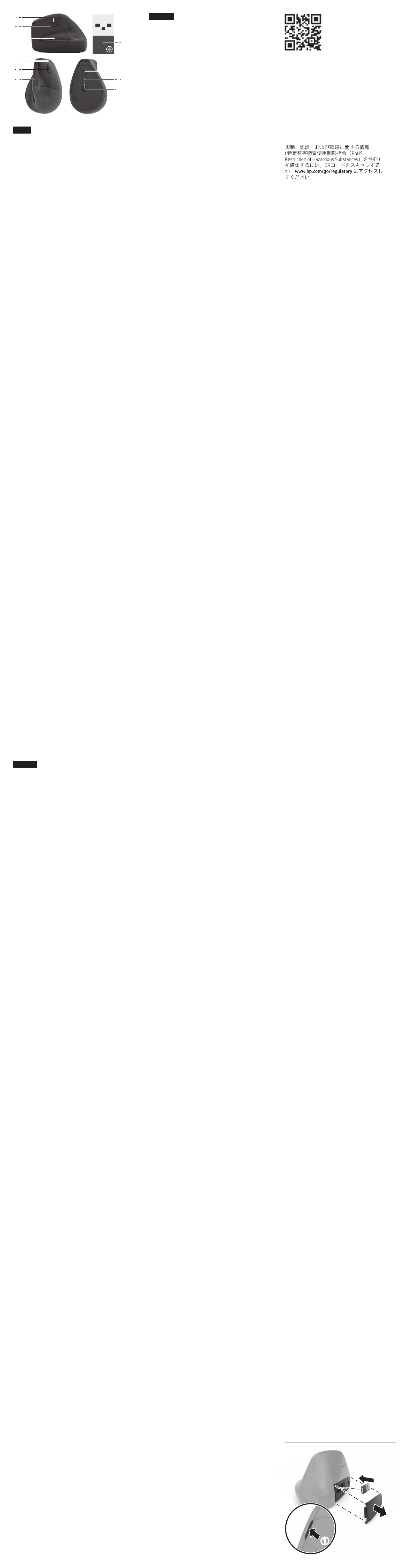
Components description
1
Programmable forward button
By default, press to display the next page
in your application history.
2
Programmable back button
By default, press to display the
previous page in your application
history.
3
Thumb button (programmable by
HPAC)
By default, quick press to display all
virtual desktops in Windows® 10 and
Windows 11 (Task View) or macOS®
(Mission Control). When HPAC is
installed and Gesture function is
enabled, press and hold the thumb
button and move the mouse to use the
default Gesture functions.
Mouse up: Zoom in
Mouse down: Zoom out
Mouse left: Brightness -
Mouse right: Brightness +
Scroll up: Scroll left
Scroll down: Scroll right
4
Programmable right-click button
5
Programmable scroll wheel
Scrolls the screen up or down. Click
to use functions programmed in
the app. By default, click to use
application-specic functions, and
click and hold to scroll when you
move the mouse up or down.
6
Battery light
White (5 s): The mouse is on.
Blinking amber: The mouse needs to
be charged.
Solid amber: The mouse is charging.
Solid white: The mouse is fully
charged and connected to power.
7
HP Unifying Dongle light
Slowly blinking (180 s): The dongle is
in pairing mode.
Solid (5 s): The dongle is connected to
the mouse successfully.
8
Pairing button
Press to switch between channels.
Press and hold for 2 s to enter pairing
mode for the selected channel.
9
Mouse dongle light
Two blinks and a pause (180 s): The
mouse is reconnecting to a previously
paired dongle.
Solid (5 s): The mouse connection or
reconnection was successful.
Slowly blinking (180 s): The dongle
channel is currently selected and the
mouse is in pairing mode.
-
Bluetooth pairing lights
Two blinks and a pause (180 s): The
mouse is reconnecting to a previously
paired device.
Solid (5 s): The mouse connection or
reconnection was successful.
Slowly blinking (180 s): The
Bluetooth channel is currently
selected and the mouse is in pairing
mode.
BAHASA INDONESIA
Sambungkan mouse ke satu komputer
dengan menggunakan HP Unifying Dongle
dan hingga dua komputer melalui Bluetooth.
Gunakan perangkat lunak HP Accessory
Center (HPAC) untuk memprogram tombol
mouse, mengubah pengaturan DPI (1200
DPI secara default), dan gunakan dongle
dengan tombol penyandingan mouse. Jika
perangkat lunak tidak terunduh secara
otomatis, pada komputer Anda, buka
Microsoft Store atau App Store. Cari HP
Accessory Center, lalu unduh aplikasinya.
Keterangan komponen
1
Tombol maju terprogram
Secara default, tekan untuk
menampilkan halaman berikutnya di
riwayat aplikasi Anda.
2
Tombol kembali terprogram
Secara default, tekan untuk
menampilkan halaman sebelumnya di
riwayat aplikasi Anda.
3
Tombol jempol (terprogram oleh
HPAC)
Secara default, tekan cepat untuk
menampilkan semua desktop virtual
di Windows 10 dan Windows 11 (Task
View) atau macOS (Mission Control).
Saat HPAC diinstal dan fungsi Gerakan
diaktifkan, tekan dan tahan tombol
jempol dan gerakkan mouse untuk
menggunakan fungsi Gerakan default.
Mouse ke atas: Perbesar
Mouse ke bawah: Perkecil
Mouse ke kiri: Cerah -
Mouse ke kanan: Cerah +
Gulir ke atas: Gulir ke kiri
Gulir ke bawah: Gulir ke kanan
4
Tombol klik kanan terprogram
5
Roda gulir terprogram
Menggulir layar ke atas atau ke bawah.
Klik untuk menggunakan fungsi yang
terprogram di aplikasi. Secara default,
klik untuk menggunakan fungsi khusus
aplikasi, lalu klik dan tahan untuk
menggulir saat Anda menggerakkan
mouse ke atas atau ke bawah.
6
Lampu baterai
Putih (5 detik): Mouse menyala.
Kuning tua berkedip: Daya mouse
perlu diisi.
Kuning tua tidak berkedip: Daya
mouse sedang diisi.
Putih tidak berkedip: Daya mouse
terisi penuh dan tersambung ke daya.
7
Lampu HP Unifying Dongle
Berkedip lambat (180 detik): Dongle
dalam mode penyandingan.
Tidak berkedip (5 detik): Dongle
berhasil tersambung ke mouse.
8
Tombol penyandingan
Tekan untuk beralih antar saluran.
Tekan dan tahan selama 2 detik untuk
masuk ke mode penyandingan pada
saluran yang dipilih.
9
Lampu dongle mouse
Berkedip dua kali dan jeda sekali
(180 detik): Mouse menyambung
kembali ke dongle yang disandingkan
sebelumnya.
Tidak berkedip (5 detik):
Penyambungan atau penyambungan
kembali mouse berhasil.
Berkedip lambat (180 detik): Saluran
dongle saat ini dipilih, dan mouse
dalam mode penyandingan.
-
Lampu penyandingan Bluetooth
Berkedip dua kali dan jeda sekali
(180 detik): Mouse menyambung
kembali ke perangkat yang
disandingkan sebelumnya.
Tidak berkedip (5 detik):
Penyambungan atau penyambungan
kembali mouse berhasil.
Berkedip lambat (180 detik): Saluran
Bluetooth saat ini dipilih dan mouse
dalam mode penyandingan.
1
2
3
8
-
9
2
3
1
7
5
6
4
ไทย
เช
ื
่
อมต
่
อเมาส
์
ก
ั
บคอมพ
ิ
วเตอร
์
หน
ึ
่
งเคร
ื
่
อง โดยใช
้
ดองเก
ิ
ล HP Unifying และเช
ื
่
อมต
่
อก
ั
บคอมพ
ิ
วเตอร
์
ได
้
ส
ู
งส
ุ
ดสองเคร
ื
่
องผ
่
าน Bluetooth
ใช
้
ซอฟต
์
แวร
์
HP Accessory Center (HPAC)
เพ
ื
่
อต
ั
้
งโปรแกรมป
ุ
่
มเมาส
์
เปล
ี
่
ยนแปลงการต
ั
้
งค
่
า DPI
(ค
่
าเร
ิ
่
มต
้
น 1200 DPI) และใช
้
ดองเก
ิ
ลร
่
วมก
ั
บป
ุ
่
ม
ท
�
าการจ
ั
บค
ู
่
ของเมาส
์
หากซอฟต
์
แวร
์
ไม
่
เร
ิ
่
มดาวน
์
โหลด
โดยอ
ั
ตโนม
ั
ต
ิ
ให
้
เป
ิ
ด Microsoft Store หร
ื
อ
App Store จากบนคอมพ
ิ
วเตอร
์
ของค
ุ
ณ ค
้
นหา
HP Accessory Center แล
้
วท
�
าการดาวน
์
โหลดแอป
ค
�
ำอธ
ิ
บำยส
่
วนประกอบต
่
ำงๆ
1
ป
ุ
่
มไปข
้
ำงหน
้
ำแบบต
ั
้
งโปรแกรมได
้
ตามค
่
าเร
ิ
่
มต
้
น กดเพ
ื
่
อแสดงหน
้
าถ
ั
ดไป ในประว
ั
ต
ิ
แอปพล
ิ
เคช
ั
นของค
ุ
ณ
2
ป
ุ
่
มย
้
อนกล
ั
บแบบต
ั
้
งโปรแกรมได
้
ตามค
่
าเร
ิ
่
มต
้
น กดเพ
ื
่
อแสดงหน
้
าก
่
อนหน
้
าน
ี
้
ใน
ประว
ั
ต
ิ
แอปพล
ิ
เคช
ั
นของค
ุ
ณ
3
ป
ุ
่
มกดน
ิ
้
วโป
้
ง ( ใช
้
HPAC ต
ั
้
งโปรแกรมได
้
)
ตามค
่
าเร
ิ
่
มต
้
น เม
ื
่
อกดและปล
่
อยอย
่
างรวดเร
็
ว
จะแสดงเวอร
์
ชวลเดสก
์
ท
็
อปท
ั
้
งหมดใน
Windows 10 และ Windows 11 (ม
ุ
มมอง
งาน) หร
ื
อ macOS (Mission Control) หล
ั
ง
จากต
ิ
ดต
ั
้
ง HPAC และเป
ิ
ดใช
้
งานงก
์
ช
ั
นร
ู
ปแบบ
การขย
ั
บ ให
้
กดป
ุ
่
มกดน
ิ
้
วโป
้
งค
้
างไว
้
แล
้
วขย
ั
บเมาส
์
เพ
ื
่
อใช
้
งานค
่
าเร
ิ
่
มต
้
นของงก
์
ช
ั
นร
ู
ปแบบการขย
ั
บ
ขย
ั
บเมำส
์
ข
ึ
้
น: ซ
ู
มเข
้
า
ขย
ั
บเมำส
์
ลง: ซ
ู
มออก
ขย
ั
บเมำส
์
ไปทำงซ
้
ำย: - ความสว
่
าง
ขย
ั
บเมำส
์
ไปทำงขวำ: + ความสว
่
าง
หม
ุ
นล
้
อเล
ื
่
อนข
ึ
้
น: เล
ื
่
อนไปทางซ
้
าย
หม
ุ
นล
้
อเล
ื
่
อนลง: เล
ื
่
อนไปทางขวา
4
ป
ุ
่
มคล
ิ
กขวำแบบต
ั
้
งโปรแกรมได
้
5
ล
้
อเล
ื
่
อนแบบต
ั
้
งโปรแกรมได
้
เล
ื
่
อนหน
้
าจอข
ึ
้
นบนหร
ื
อลงล
่
าง คล
ิ
กเพ
ื
่
อใช
้
งก
์
ช
ั
นท
ี
่
ต
ั
้
งโปรแกรมไว
้
ภายในแอป ตามค
่
าเร
ิ
่
มต
้
น
คล
ิ
กเพ
ื
่
อใช
้
งก
์
ช
ั
นเฉพาะแอปพล
ิ
เคช
ั
น แล
้
ว
คล
ิ
กค
้
างไว
้
เพ
ื
่
อเล
ื
่
อนเม
ื
่
อค
ุ
ณขย
ั
บเมาส
์
ข
ึ
้
นหร
ื
อลง
6
ไฟแสดงสถำนะแบตเตอร
ี
่
ส
ี
ขำว (5 ว
ิ
นำท
ี
): เมาส
์
ท
�
างานตามปกต
ิ
กะพร
ิ
บเป
็
นส
ี
เหล
ื
อง: ต
้
องชาร
์
จเมาส
์
สว
่
ำงเป
็
นส
ี
เหล
ื
อง: ก
�
าล
ั
งชาร
์
จไฟเมาส
์
อย
ู
่
สว
่
ำงคงท
ี
่
เป
็
นส
ี
ขำว: เมาส
์
ชาร
์
จเต
็
มแล
้
วและ
เช
ื
่
อมต
่
อก
ั
บแหล
่
งจ
่
ายไฟ
7
ไฟแสดงสถำนะดองเก
ิ
ล HP Unifying
กะพร
ิ
บช
้
ำๆ (180 ว
ิ
นำท
ี
): ดองเก
ิ
ลอย
ู
่
ใน
โหมดจ
ั
บค
ู
่
สว
่
ำงคงท
ี
่
(5 ว
ิ
นำท
ี
): ดองเก
ิ
ลเช
ื
่
อมต
่
อก
ั
บเมาส
์
เร
ี
ยบร
้
อยแล
้
ว
8
ป
ุ
่
มท
�
ำกำรจ
ั
บค
ู
่
กดเพ
ื
่
อสล
ั
บระหว
่
างช
่
องส
ั
ญญาณ กดค
้
างไว
้
2 ว
ิ
นาท
ี
เพ
ื
่
อเข
้
าส
ู
่
โหมดการจ
ั
บค
ู
่
ส
�
าหร
ั
บช
่
อง
ส
ั
ญญาณท
ี
่
เล
ื
อก
9
ไฟแสดงสถำนะดองเก
ิ
ลเมำส
์
กะพร
ิ
บสองคร
ั
้
งและหย
ุ
ดพ
ั
ก (180 ว
ิ
นำท
ี
):
เมาส
์
ก
�
าล
ั
งเช
ื
่
อมต
่
อใหม
่
ก
ั
บดองเก
ิ
ลท
ี
่
จ
ั
บค
ู
่
ไว
้
ก
่
อนหน
้
าน
ี
้
สว
่
ำงคงท
ี
่
(5 ว
ิ
นำท
ี
): การเช
ื
่
อมต
่
อหร
ื
อ
การเช
ื
่
อมต
่
อใหม
่
ก
ั
บเมาส
์
เสร
็
จสมบ
ู
รณ
์
แล
้
ว
กะพร
ิ
บช
้
ำๆ (180 ว
ิ
นำท
ี
): ขณะน
ี
้
ม
ี
การเล
ื
อก
ใช
้
งานช
่
องส
ั
ญญาณดองเก
ิ
ลไว
้
และเมาส
์
ก
�
าล
ั
ง
อย
ู
่
ในโหมดจ
ั
บค
ู
่
-
ไฟแสดงสถำนะกำรจ
ั
บค
ู
่
Bluetooth
กะพร
ิ
บสองคร
ั
้
งและหย
ุ
ดพ
ั
ก (180 ว
ิ
นำท
ี
):
เมาส
์
ก
�
าล
ั
งเช
ื
่
อมต
่
อใหม
่
ก
ั
บอ
ุ
ปกรณ
์
ท
ี
่
จ
ั
บค
ู
่
ไว
้
ก
่
อนหน
้
าน
ี
้
สว
่
ำงคงท
ี
่
(5 ว
ิ
นำท
ี
): การเช
ื
่
อมต
่
อหร
ื
อ
การเช
ื
่
อมต
่
อใหม
่
ก
ั
บเมาส
์
เสร
็
จสมบ
ู
รณ
์
แล
้
ว
กะพร
ิ
บช
้
ำๆ (180 ว
ิ
นำท
ี
): ขณะน
ี
้
ม
ี
การเล
ื
อก
ใช
้
งานช
่
องส
ั
ญญาณ Bluetooth ไว
้
และเมาส
์
ก
�
าล
ั
งอย
ู
่
ในโหมดจ
ั
บค
ู
่
-
5s
3
4
OR
A
B
C
1
2
2 hrs
*N20990-371*
N20990-371
PRINTER: Replace this box with Printed- In (PI)
Statement(s) as per spec.
NOTE: This box is simply a placeholder. PI Statement(s)
do not have to t inside the box but should be placed
in this area.
© Copyright 2023 HP Development Company, L.P.
Apple and macOS are trademarks of Apple Inc., registered in the
U.S. and other countries and regions. The Bluetooth trademarks
are owned by their proprietor and used by HP Inc. under license.
Windows is either a registered trademark or trademark of
Microsoft Corporation in the United States and/or other countries.
The information contained herein is subject to change without
notice. The only warranties for HP products and services are set
forth in the express warranty statements accompanying such
products and services. Nothing herein should be construed as
constituting an additional warranty. HP shall not be liable for
technical or editorial errors or omissions contained herein.
First Edition: February 2023
RMN/型號/型号: TPA-D003M + TPA-D003D
5s
1s
On
On
한국어
마우스를 HP Unifying Dongle을 사용하여
컴퓨터 한 대에 연결하고 Bluetooth로
최대 두 대의 컴퓨터에 연결합니다.
HP Accessory Center(HPAC) 소프트웨어를
사용하여 마우스 버튼을 프로그래밍하고
DPI 설정(기본값은 1200DPI)을 변경한
다음 마우스의 연결 버튼과 동글을 함께
사용합니다. 소프트웨어가 자동으로
다운로드되지 않는 경우 컴퓨터에서
Microsoft Store 또는 App Store를 엽니다.
HP Accessory Center를 검색한 다음 앱을
다운로드합니다.
구성 요소 설명
1
프로그래밍 가능 앞으로 버튼
기본값으로는 응용 프로그램 기록에서
다음 페이지를 표시하려면 누릅니다.
2
프로그래밍 가능 뒤로 버튼
기본값으로는 응용 프로그램
기록에서 이전 페이지를 표시하려면
누릅니다.
3
엄지 버튼(HPAC로 프로그래밍 가능)
기본값으로는 빠르게 누르면
Windows 10 및 Windows 11(작업
보기) 또는 macOS(Mission Control)에
모든 가상 데스크톱이 표시됩니다.
HPAC가 설치되었고 제스처 기능이
활성화된 경우, 엄지 버튼을 길게
누르고 마우스를 움직여 기본 제스처
기능을 사용합니다.
마우스 위로: 확대
마우스 아래로: 축소
마우스 왼쪽으로: 밝기 -
마우스 오른쪽으로: 밝기 +
위로 스크롤: 왼쪽으로 스크롤
아래로 스크롤: 오른쪽으로 스크롤
4
프로그래밍 가능 오른쪽 클릭 버튼
5
프로그래밍 가능 스크롤 휠
화면을 위아래로 스크롤합니다.
앱에서 프로그래밍된 기능을
사용하려면 클릭합니다.
기본값으로는 클릭하여 응용
프로그램별 기능을 사용하고, 클릭한
채로 누르고 마우스를 위아래로
움직여 스크롤합니다.
6
배터리 표시등
흰색(5초): 마우스가 켜져 있습니다.
황색으로 깜박임: 마우스를 충전해야
합니다.
황색으로 켜짐: 마우스를 충전하는
중입니다.
흰색으로 켜짐: 마우스가 완전히
충전되었고 전원에 연결되어
있습니다.
7
HP Unifying Dongle 표시등
천천히 깜박임(180초): 동글이 페어링
모드입니다.
계속 켜짐(5초): 동글이 마우스에
연결되었습니다.
8
연결 버튼
채널 간에 전환하려면 누릅니다.
선택된 채널에 대한 페어링 모드를
시작하려면 2초 동안 길게 누릅니다.
9
마우스 동글 표시등
두 번 깜박이고 일시 정지(180초):
마우스를 이전에 페어링된 동글로
다시 연결하는 중입니다.
계속 켜짐(5초): 마우스 연결 또는
재연결에 성공했습니다.
천천히 깜박임(180초): 동글 채널이
현재 선택되어 있으며 마우스가
페어링 모드입니다
.
-
Bluetooth 페어링 표시등
두 번 깜박이고 일시 정지(180초):
마우스를 이전에 페어링된 장치로
다시 연결하는 중입니다.
계속 켜짐(5초): 마우스 연결 또는
재연결에 성공했습니다.
천천히 깜박임(180초): Bluetooth
채널이 현재 선택되어 있으며,
마우스가 페어링 모드입니다.
简体中文
使用 HP Unifying Dongle 将鼠标连接到一
台计算机,或者通过蓝牙将鼠标连接到
最多两台计算机。
使用 HP Accessory Center (HPAC) 软件可
对鼠标按钮进行编程、更改 DPI 设置
(默认值为 1200 DPI),以及将接收器与
鼠标配对按钮配合使用。如果没有自动
下载软件,请在计算机上打开 Microsoft
Store 或 App Store。搜索 HP Accessory
Center,然后下载该应用程序。
组件说明
1
可编程前进按钮
默认情况下,按下可显示应用程序
历史记录中的下一页。
2
可编程后退按钮
默认情况下,按下可显示应用程序
历史记录中的上一页。
3
拇指按钮(可通过 HPAC 进行编程)
默认情况下,快速按下可显示
Windows 10 和 Windows 11(任务视
图)或 macOS(调度中心)中的所
有虚拟桌面。在已安装 HPAC 并启用
手势功能的情况下,按住拇指按钮
并移动鼠标可使用默认手势功能。
鼠标向上:放大
鼠标向下:缩小
鼠标向左:亮度 -
鼠标向右:亮度 +
向上滚动:向左滚动
向下滚动:向右滚动
4
可编程右键单击按钮
5
可编程滚轮
向上或向下滚动屏幕。单击可使用
已在应用程序中编程的功能。默认
情况下,单击可使用特定于应用
程序的功能,单击并按住可在上下
移动鼠标时进行滚动。
6
电池指示灯
白色(5 秒):鼠标已开启。
闪烁琥珀色:需要为鼠标充电。
常亮琥珀色:鼠标正在充电。
常亮白色:鼠标已充满电,且已
连接到电源。
7
HP Unieding Dongle 指示灯
慢速闪烁(180 秒):接收器处于
配对模式。
常亮(5 秒):接收器已成功连接
到鼠标。
8
配对按钮
按下可在通道之间切换。按住 2 秒
可进入选定通道的配对模式。
9
鼠标接收器指示灯
闪烁两次后暂停数秒(180 秒):
鼠标正在重新连接到上次配对的
接收器。
常亮(5 秒):鼠标连接或重新连
接已成功。
慢速闪烁(180 秒):当前已选择
接收器通道,并且鼠标正处于配对
模式。
-
蓝牙配对指示灯
闪烁两次后暂停数秒(180 秒):
鼠标正在重新连接到上次配对的
设备。
常亮(5 秒):鼠标连接或重新连
接已成功。
慢速闪烁(180 秒):当前已选择
蓝牙通道,并且鼠标正处于配对
模式。
For regulatory, certication, and environmental
information, including Restriction of Hazardous
Substances (RoHS), scan the QR code, or go to
www.hp.com/go/regulatory.
Untuk mengetahui informasi tentang pengaturan,
sertikasi, dan lingkungan, termasuk larangan
penggunaan bahan berbahaya (Restriction of
Hazardous Substances/RoHS), pindai kode QR, atau
kunjungi www.hp.com/go/regulatory.
สามารถตรวจสอบข
้
อม
ู
ลเก
ี
่
ยวก
ั
บกฎข
้
อบ
ั
งค
ั
บ ใบร
ั
บรอง และส
ิ
่
ง
แวดล
้
อม รวมถ
ึ
งข
้
อจ
�
าก
ั
ดการใช
้
สารอ
ั
นตราย (RoHS) ได
้
โดยการ
สแกนค
ิ
วอาร
์
โค
้
ด หร
ื
อไปท
ี
่
www.hp.com/go/regulatory
유해물질 사용제한 지침(RoHS: Restriction of
Hazardous Substances)을 비롯한 규정, 인증 및
환경 정보를 확인하려면 QR 코드를 스캔하거나
www.hp.com/go/regulatory 페이지로
이동합니다.
如需管制、认证和环境信息(包括有害物质的
限制 (RoHS)),请扫描二维码或访问
www.hp.com/go/regulatory
。
如需法規、認證及環境(包括危險物質限制
(RoHS))的相關資訊,請掃描 QR 碼或前往
www.hp.com/go/regulatory
。
1
2
3
繁體中文
使用 HP Unifying Dongle 可將滑鼠連線至
一部電腦,而透過 Bluetooth 可將滑鼠
連線至最多兩部電腦。
使用 HP Accessory Center (HPAC) 軟體以
程式化滑鼠按鈕、變更 DPI 設定(預設
為 1200 DPI),以及搭配滑鼠的配對按
鈕使用接收器。若軟體並未自動下載,
可在您的電腦上開啟 Microsoft Store 或
App Store。搜尋 HP Accessory Center,
接著下載該應用程式。
元件說明
1
可程式化前進按鈕
依預設,按下即可顯示應用程式歷
史記錄中的下一頁。
2
可程式化後退按鈕
依預設,按下即可顯示應用程式歷
史記錄中的上一頁。
3
姆指按鈕(可由 HPAC 程式化)
依預設,快速按下即可顯示
Windows 10 及 Windows 11(工作
檢視)或 macOS(指揮中心)內的
所有虛擬桌面。當安裝 HPAC 並啟用
手勢功能後,按住姆指按鈕並移動
滑鼠即可使用預設的手勢功能。
滑鼠向上:放大
滑鼠向下:縮小
滑鼠向左:亮度 -
滑鼠向右:亮度 +
向上捲動:向左捲動
向下捲動:向右捲動
4
可程式化滑鼠右鍵按鈕
5
可程式化滾輪
向上或向下捲動畫面。按一下即可
使用於應用程式內程式化的功能。
依預設,按一下可使用特定於應用
程式的功能,而當您向上或向下
移動滑鼠時,按住它即可進行捲動。
6
電池指示燈
白色(5 秒):滑鼠已啟動。
閃爍琥珀色:滑鼠需要充電。
恆亮琥珀色︰滑鼠正在充電中。
恆亮白色:滑鼠已充飽電力並已
連接電源。
7
HP Unifying Dongle 指示燈
緩慢閃爍(180 秒):接收器處於
配對模式。
恆亮(5 秒):接收器與滑鼠已
成功連線。
8
配對按鈕
按下即可在頻道之間切換。長按約
2 秒以進入所選頻道的配對模式。
9
滑鼠接收器指示燈
閃爍兩次然後停頓數秒(180 秒):
滑鼠正在重新連接至先前已配對的
接收器。
恆亮(5 秒):滑鼠連線或重新連
線成功。
緩慢閃爍(180 秒):目前已選取
接收器頻道,滑鼠處於配對模式。
-
Bluetooth 配對指示燈
閃爍兩次然後停頓數秒(180 秒):
滑鼠正在重新連接至先前已配對的
裝置。
恆亮(5 秒):滑鼠連線或重新連
線成功。
緩慢閃爍(180 秒):目前已選取
Bluetooth 頻道,滑鼠處於配對模式。
8
-
9
2
3
1
7
5
6
4