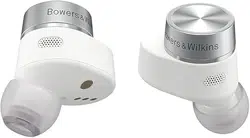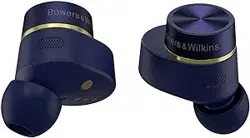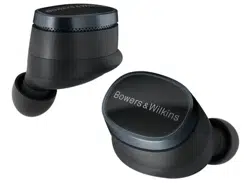
Pi8
In-Ear True Wireless Earbuds
User Manual

2
ENGLISH
Welcome to Bowers & Wilkins and Pi8
Thank you for choosing Bowers & Wilkins. When John Bowers rst established
our company, he did so in the belief that imaginative design, innovative
engineering and advanced technology were keys that could unlock the enjoyment
of audio in the home.
Pi8 are high-performance in-ear true wireless earbuds designed to deliver the
highest quality mobile personal audio experience combined with the convenience
of wireless operation and the serenity of active noise cancellation. This manual
will tell you everything you need to know to get the most from your Pi8 earbuds.
Your Pi8 can play music streamed wirelessly from your mobile phone, tablet or
computer via Bluetooth. Pi8 can also be used for wireless telephony. The smart
charging case can also connect to analogue and USB sources and retransmit
this audio to your Pi8 earbuds.
Pi8 features include our latest innovations in Active Noise Cancellation,
Ambient Pass-Through and enhanced Wear Sensing technologies. Our latest
generation noise cancellation was designed from the ground up to deliver an
uncompromised listening experience. Ambient Pass-Through enables external
sounds, such as conversation or safety announcements, to be heard clearly
without any need to remove the earbuds. The Wear Sensing feature enables Pi8
to respond naturally, pausing and resuming the music simply by removing an
earbud from your ear. These features can be enabled and further customised via
the Bowers & Wilkins Music app, available for free on iOS and Android devices.
Pi8 incorporates a rechargeable case. When fully charged, the earbuds and
charging case can provide up to 20 hours of wireless media playback at average
playback volume levels.
www.bowerswilkins.com
3
ENGLISH
1. Pi8 Carton Contents
Pi8 True Wireless Earbuds with medium ear tips
Extra small ear tip x 2
Small ear tip x 2
Large ear tip x 2
Charging case
USB-C charging cable
USB-C to 3.5mm audio cable
Literature Pack (including Quick Start Guide and
Safety & Warranty)
2. Getting to Know Your Pi8
We recommend installing
the Bowers & Wilkins
Music app on your iOS
or Android device. This
allows conguration
of your earbuds and
provides helpful hints
and tips to make the most of your new earbuds.
2.1 Switching Earbuds On and Off
Pi8 power management is automatic. Your earbuds
will be ready for use when removed from the
charging case and will automatically enter standby
and start charging when placed into the case.
If your earbuds are removed from the charging case
and not used for 5 minutes, they will enter a power
saving mode to preserve battery life. Simply tap both
earbuds to wake them up (see section 2.2 below).
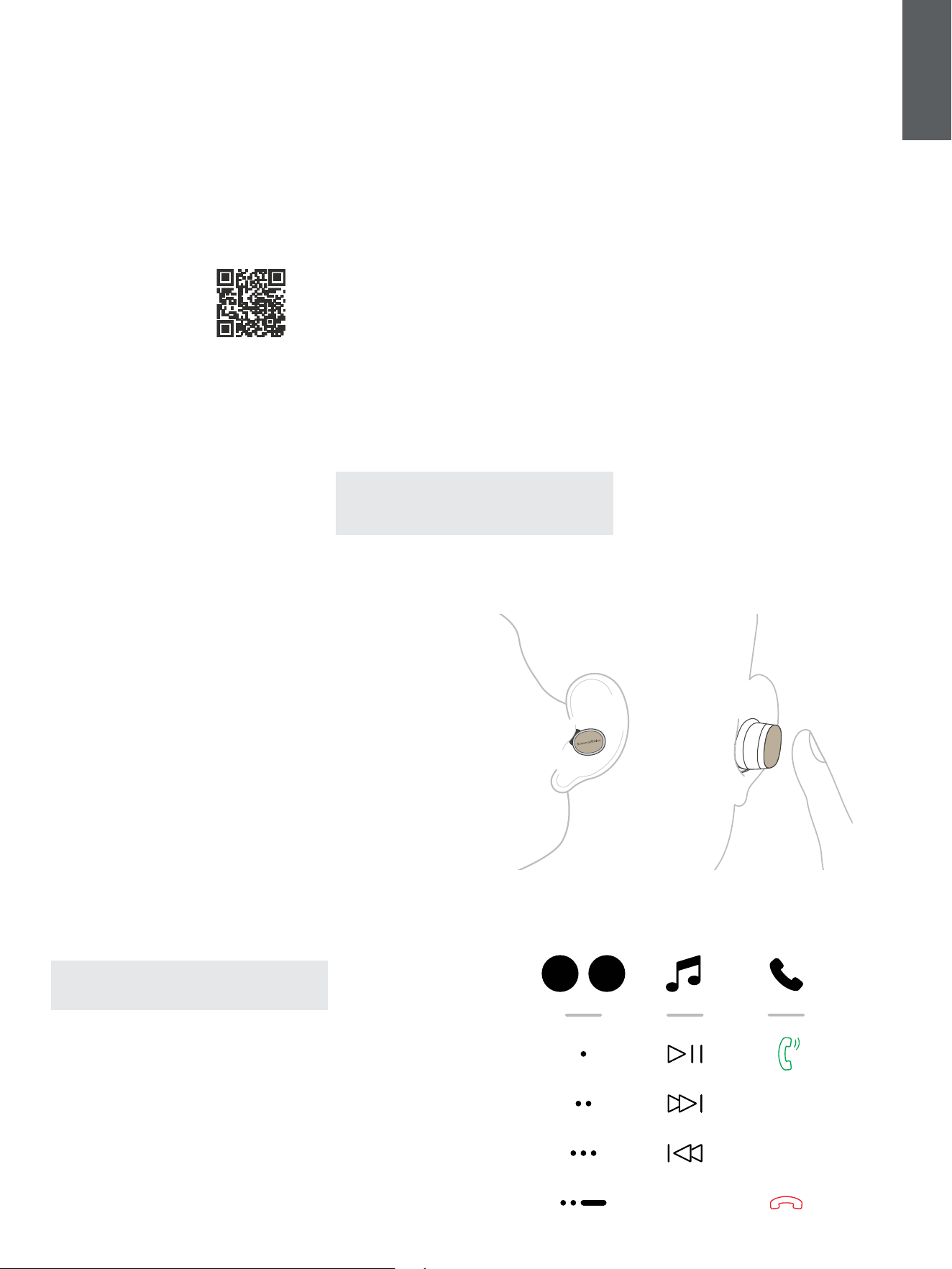
2.2 Earbud Controls
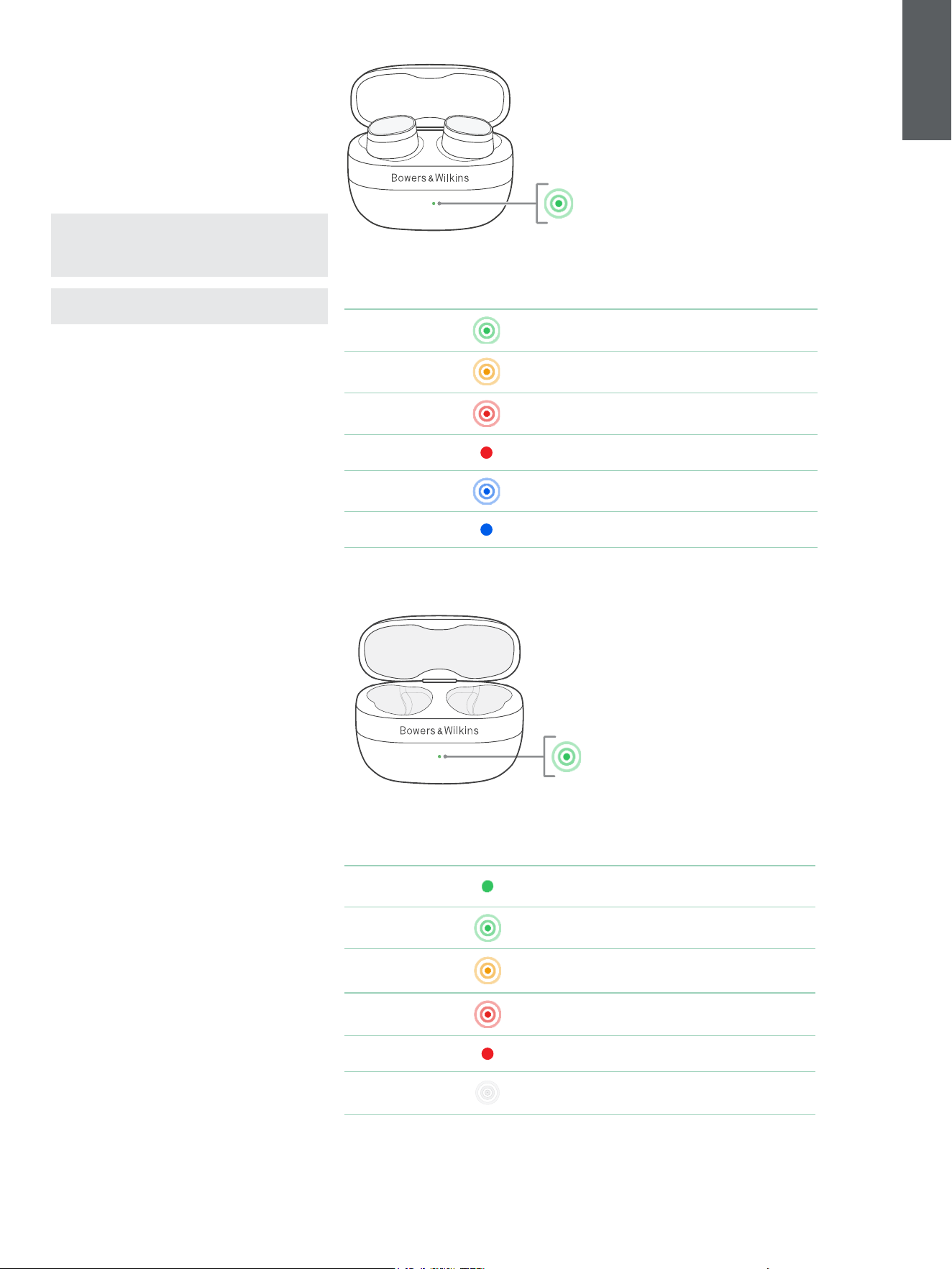
Each earbud has a touch-sensitive multi-function
button area on the top face of each earbud; see
Diagram 1.
2.3 Voice Assistance
Voice Assistance on your source device can be
activated by tapping and holding the right (R) earbud
multi-function button for 1 second. The Bowers &
Wilkins Music app can be used to customise the
multi-function button behaviour. Please refer to
section 6 for details on using your earbuds with the
Bowers & Wilkins Music app.
2.4 Active Noise Cancellation
Pi8 features an advanced Active Noise Cancellation
(ANC) mode, which aids in signicantly reducing
undesired noise from the surrounding environment.
The Pi8 earbuds use built-in microphones to pick
up and cancel out ambient sound for a more
comfortable listening experience while maintaining
optimum sound quality.
Note: Noise cancellation requires a good seal
between the earbuds and your ear canal for
optimal performance.
Pi8 also features an ambient “Pass-Through”
mode, which allows in some external sound from
the surrounding environment, allowing safety
announcements or conversations to be heard
without the need to remove your earbuds.
Toggle between ANC and Pass-Through by tapping
and holding the left (L) earbud multi-function button
for 1 second. The Bowers & Wilkins Music app can
be used to customise the multi-function button
behaviour and adjust ANC and Pass-Through modes
directly from your phone. Please refer to section 6
for details on using your earbuds with the Bowers &
Wilkins Music app.
2.5 Wear Sensors
Pi8 incorporate our latest enhanced wear detection
sensors in both earbuds. The sensors will pause
audio when either earbud is removed from your
ears. Playback will automatically resume when the
earbuds are placed back in your ears.
The sensors also enable intelligent battery
conservation by entering power saving mode when
removed from your ears and left out of the charging
case. Simply tap both earbuds to wake them up
again.
The wear sensors can be enabled or disabled from
the Bowers & Wilkins Music app. Please refer to
section 6 for details on using your earbuds with the
Bowers & Wilkins Music app.
Note: Take special care when wearing your
earbuds. Hair or accessories trapped between
your ears and the earbuds may interfere with
wear sensor operation.
3. Stowing the Earbuds
When not in use, the Pi8 earbuds should be
stored inside the charging case, where they will be
recharged ready for future use.
4. Battery Charging
Pi8 ships with the charging case and earbud
batteries partially charged and may be used
immediately. However, we recommend fully charging
the earbuds and case before rst use and every 3
weeks to maintain battery health. Please allow up to
3 hours to fully charge.
To charge your Pi8 earbuds:
1. Place the Pi8 earbuds in the charging case.
2. Close the charging case lid.
To charge the Pi8 charging case:
1. Use the supplied USB charging cable and
connect one end to a USB wall charger or a
powered computer USB port.
2. Connect the other end to the USB-C socket on
the charging case.
bowerswilkins.com/downloadapp
Diagram 1
Multi-function button location
Diagram 2
Multi-function button functions
L R
4
ENGLISH
To charge the Pi8 case using a wireless charging
station:
1. Place the charging case onto the centre of your
wireless charging station (not supplied).
2. Ensure that the rear of the charging case is on
the charging station (with the Bowers & Wilkins
logo facing up).
Note: While charging, the case indicator LED will
ash green. When fully charged, the LED will light
solid green. The case can be charged with or
without the earbuds inside the case.
Note: It is normal for the charging case to get
warm during charging.
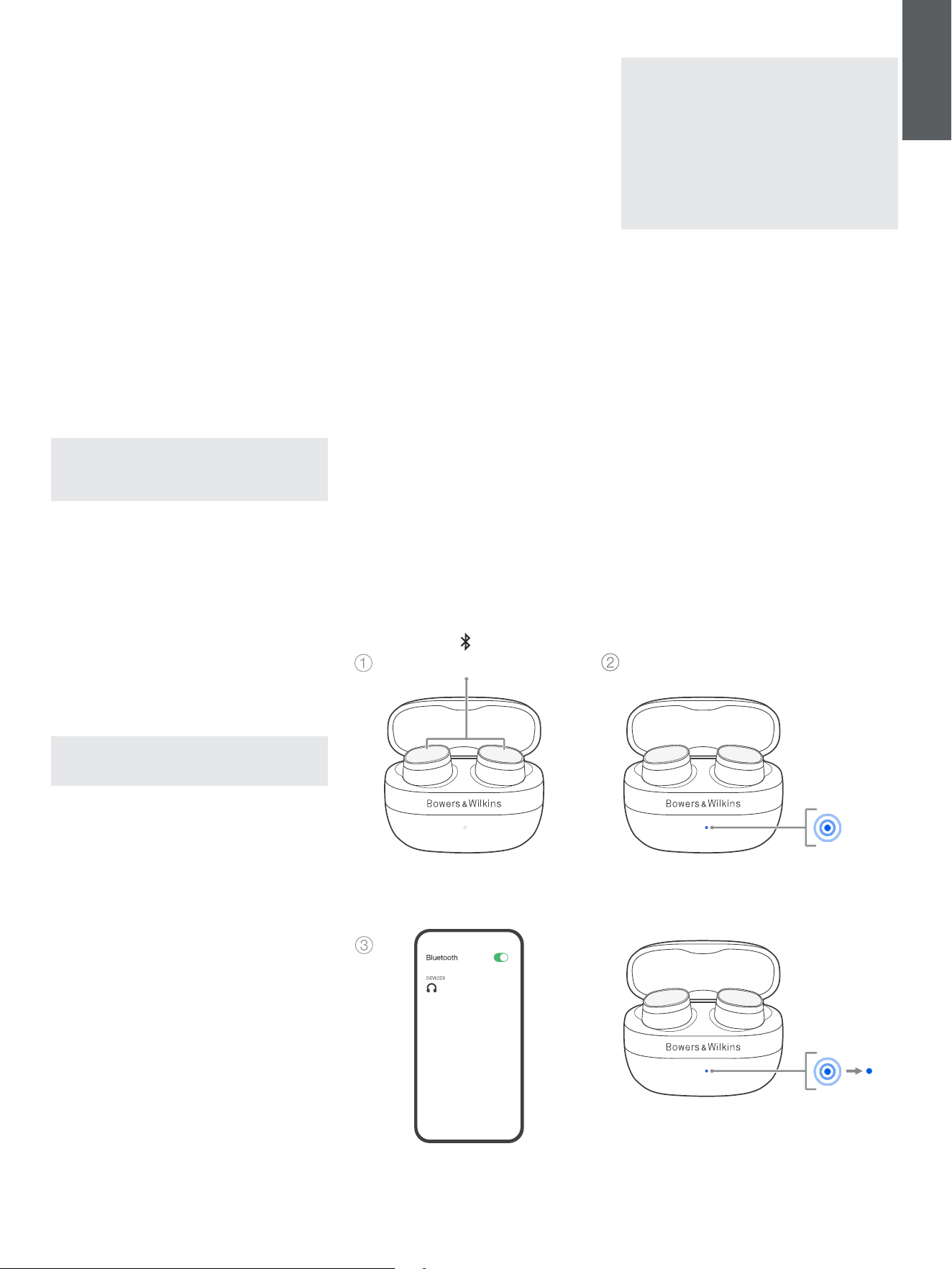
4.1 Status Indicator
The status indicator LED is located on the front of
the charging case. When the case is opened the
status LED will display the battery charge status of
the earbuds (if they are in the case) or the charging
case itself (if the earbuds are out of the case). The
status LED is also used to display Bluetooth pairing
mode, audio retransmission mode and system status
(e.g. rmware update).
Battery levels can also be viewed in the Bowers &
Wilkins Music app.
LED states with earbuds in the charging case and the lid open:
Illumination Operational state
Flashing Green
(case lid open)
Earbud battery charge >40%
Flashing Yellow
(after power on)
Earbud battery charge between 20% and 40%
Flashing Red
(after power on)
Earbud battery charge <20%
Solid Red
System error
Flashing Blue
Bluetooth pairing mode enabled
Solid Blue
(for 3 seconds)
Bluetooth pairing successful
Status LED states with the earbuds removed from the charging case:
Illumination Operational state
Solid Green
Case battery fully charged/trickle charging
Flashing Green
(case lid open)
Case battery charge >40%
Flashing Yellow
(after power on)
Case battery charge between 20% and 40%
Flashing Red
(after power on)
Case battery charge <20%
Solid Red
System error
Flashing White
Audio retransmission from case to earbuds active
Diagram 3
Status indicator illuminations
5
ENGLISH
5. Bluetooth Connectivity
We recommend adding your earbuds to the Bowers
& Wilkins Music app. This allows you to congure
your earbuds in detail and provides helpful hints and
tips to make the most of your new earbuds. The app
can also assist in pairing the earbuds to your source
device for audio playback. Please refer to section 6
for details on using your earbuds with the Bowers &
Wilkins Music app.
5.1 Pairing
Your Pi8 earbuds are designed to stream music
wirelessly from Bluetooth audio devices, such as
smartphones, tablets, or computers. To do so,
the earbuds and source audio device must rst be
paired.
When you receive your Pi8 earbuds they will be
ready to pair to any Bluetooth audio device. Simply
open the charging case lid to enable Bluetooth
pairing mode and start the pairing process. The
case LED will ash blue to indicate pairing mode is
enabled.
Note: The case LED will stop ashing blue if
the buds are removed from the case during the
pairing process, however the buds will remain in
pairing mode.
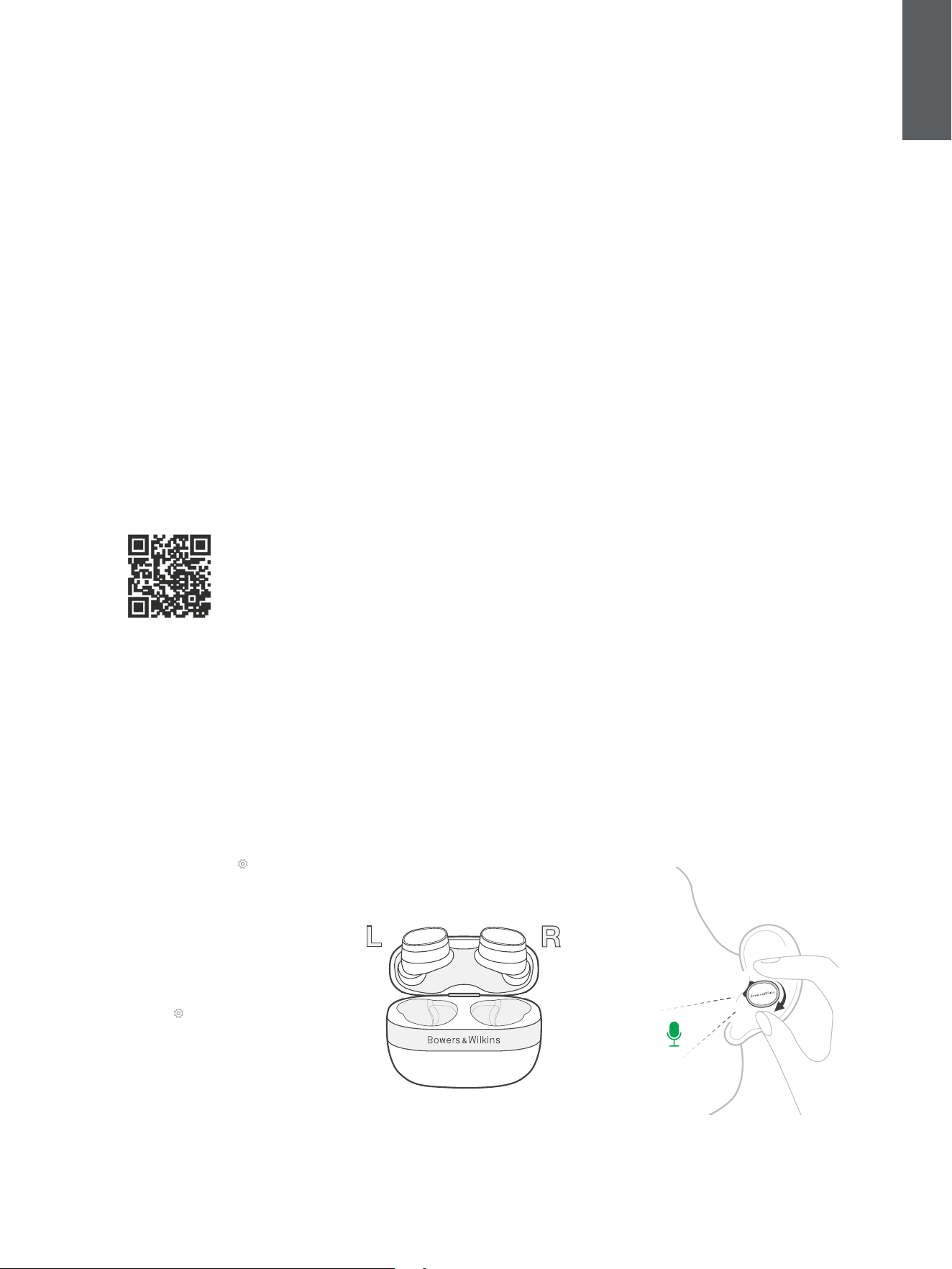
To manually enable pairing mode (e.g. to pair
a second device), tap & hold both earbuds
simultaneously for 3 seconds. This can be performed
with the earbuds in the charging case or when
placed in your ears.
If the buds are in the case, the case LED will ash
blue to indicate pairing mode has been enabled (see
Diagram 4).
If the buds are worn, the buds will play a tone every
15 seconds to indicate pairing mode has been
enabled (the charging case indicator will not ash
blue in this scenario).
Note: To conserve power your earbuds will exit
pairing mode if no device has been paired after
2 minutes.
Simply repeat the relevant steps below to pair
subsequent devices.
5.1.1 Apple iPhone
We highly recommend installing the Bowers &
Wilkins Music app, which will guide you through the
pairing process, as well as allowing you to congure
your earbuds in detail. Please refer to section 6 for
details on using your earbuds with the Bowers &
Wilkins Music app.
1. Place the case and earbuds no further than 10
cm (4 inches) away from your source device
and ensure its Bluetooth connection is enabled.
2. Open the app and follow the instructions to
link your earbuds to the app (refer to section 6
below if necessary).
3. During the process of connecting your
earbuds to the app for the rst time, you will
be prompted to pair the earbuds as an audio
accessory. Tap on the conrmation popup to
complete the pairing process.
4. If the earbuds are in the case, the case LED will
change to solid blue momentarily to indicate
pairing is successful.
5. If the earbuds are out of the case, they will play
a tone to indicate pairing is successful.
To pair your Pi8 without using the Bowers & Wilkins
Music app, follow the instructions in section 5.1.2
below.
5.1.2 Mac / PC / Android / Other Devices
To pair your earbuds:
1. Place the case and earbuds no further than
10 cm (4 inches) away from your source device
and ensure its Bluetooth connection is enabled.
2. Ensure the earbuds are in pairing mode (see
section 5.1 above).
3. Go to the Bluetooth pairing menu of your
source device and select “Pi8” from the device
list. If multiple devices are listed, select the one
with the headphones icon.
4. If the earbuds are in the case, the case LED
will change to solid blue to indicate pairing is
successful.
5. If the earbuds are out of the case, they will play
a tone to indicate pairing is successful.
Note: On Windows 10 devices your Pi8 will
appear as two Bluetooth audio proles; Stereo
(default) and Hands-Free (for telephony). The
Hands-Free prole will automatically be used
when making or receiving a call (e.g. Teams,
Skype, Zoom etc.). However, the system volume
will remain controlling the previously selected
device (Stereo prole by default). To change the
volume of the earbuds while on a call, use the
application volume control or ensure the system
volume control is set to control the Hands-Free
prole.
5.2 Disconnect from a Device
You can quickly disconnect Pi8 from a device by
placing the earbuds back into the case and closing
the lid. Alternatively, use your device’s Bluetooth
settings to select a new Bluetooth device or disable
Bluetooth completely.
To stop Pi8 automatically connecting to your source
device, the device must be deleted from the Pi8’s
paired devices list using the Bowers & Wilkins Music
app; refer to section 6 below.
5.3 Multiple Bluetooth Connections
Pi8 supports multipoint and can be connected
to two devices simultaneously. Simply repeat the
relevant steps above to pair multiple devices.
However, note that only one device at a time can
play audio or make calls.
Diagram 4
Bluetooth pairing
Pi8
Tap & hold for 3s
6
ENGLISH
To switch playback between two connected devices:
1. Pause audio on the rst device.
2. Play audio from the second device and the
earbuds will automatically switch over to this
device.
When streaming audio, receiving a call on the
second device will automatically pause playback on
the rst device and the call will be routed to your
earbuds.
You can manage connections in further detail using
the Bowers & Wilkins Music app.
6. Bowers & Wilkins Music App
The Bowers & Wilkins Music app is available for
free on iOS and Android devices and provides
extended setup and adjustments to features such as
Active Noise Cancellation, Pass-Through and Wear
Sensors. The app also provides further functions
such as connection management and software
updates.
To add your earbuds:
1. From your Android or iOS device, download
and install the Bowers & Wilkins Music app.
bowerswilkins.com/downloadapp
2. Ensure your earbuds are powered on by
opening the charging case or taking them out
of the case.
3. Open the app, then read and follow the
instructions pertaining to app notications and
permissions.
4. The app should detect your earbuds
automatically and invite you to set up your
earbuds; follow the in-app instructions to
complete the setup process.
5. If your earbuds are not detected automatically,
navigate to the Settings page (
icon), tap Add
product and follow the in-app instructions.
6.1 Controlling Your Earbuds
Commonly used features of your earbuds are
accessible directly on the homepage of the Bowers
& Wilkins Music app, including battery status and
environmental controls (Noise Cancellation/Pass-
Through). Other settings can be adjusted from the
Settings page. Tap the icon at the bottom of the
screen to enter the Settings page then select your
earbuds.
Environmental Controls
Set the desired Noise Cancelling and Pass-Through
mode from the following options:
• Noise Cancelling On
• Pass-Through On
• Noise Cancelling and Pass-Through Off
Advanced EQ
Use the sliders to customise the tone of your
earbuds.
Pi8 features a True Sound™ mode which bypasses
any tonal customisation to deliver the audio as the
artist and Bowers & Wilkins intended.
Connections
Tap PAIRED DEVICES to view more detailed
connection settings, including currently connected
devices and previously paired devices. To delete
a device from the list, tap the device and select
Remove device.
Device Management
Toggle Wear sensor on to enable intelligent
playback control. Once enabled, remove an earbud
to pause playback; place the earbud back in your
ear to resume playback.
Rename product
Tap Rename product to choose a new Bluetooth
name for your earbuds. Note that devices already
paired with the earbuds may still reference the
previous name.
6.2 Earbud Software Update
Bowers & Wilkins will occasionally make available
software updates that rene and optimise the
performance of your earbuds or add new features.
We recommend installing updates whenever
available to obtain the best experience with your
earbuds.
The Bowers & Wilkins Music app will notify you when
a software update is available. Follow the in-app
instructions to perform the update.
7. Wearing Your Earbuds
Correctly wearing your earbuds will help ensure
the best possible experience. Like many in-ear
earbuds, Pi8 are designed to seal the ear canal in
order to perform optimally. Four eartip sizes are
provided: extra small, small, medium and large. The
earbuds come pre-tted with the medium eartips,
the other sizes are located in the bottom of the Pi8
box. Finding the best size for each ear is critical to
obtaining a good seal and ensuring the advanced
features of Pi8, such as Active Noise Cancellation
and superior audio performance, function optimally.
1. Identify the left and right earbud by nding the
L and R identication (located on the inner side
of each earbud).
2. Place each earbud in your ear and twist them
backward slightly so that the tips engage
comfortably with the opening of the ear canal.
3. If the earbud tip feels too large or small, try
another ear tip size to ensure the best t. You
may nd that different sizes are required for
each ear.
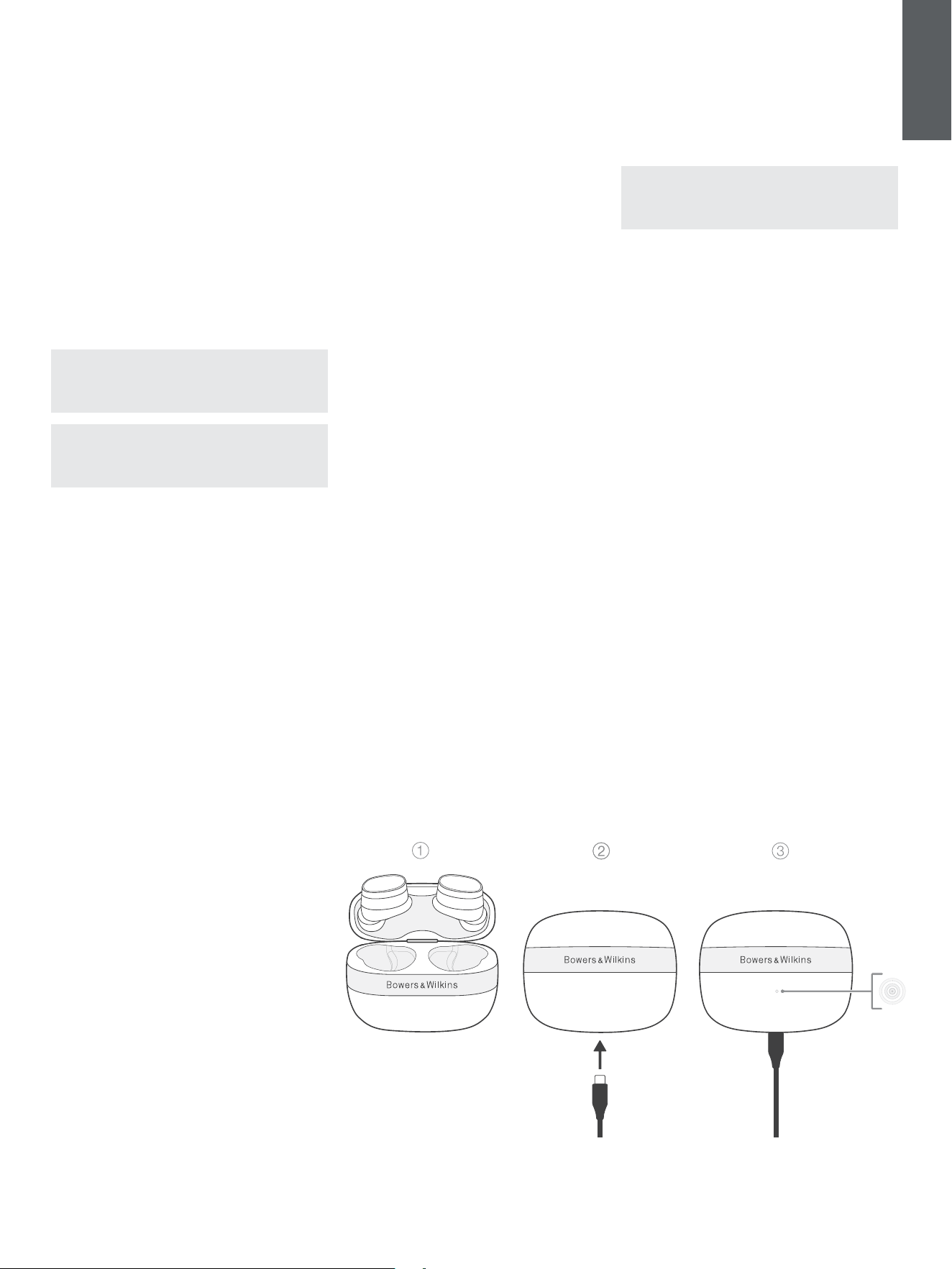
Each Pi8 earbud contains two microphones
designed to optimise the pick-up of your voice
during calls. As a general rule the Bowers & Wilkins
logo on each earbud should be in alignment with
your mouth, see Diagram 5. However, these
microphones work together to provide excellent call
quality for a range different wearing positions.
Diagram 5
Wearing your earbuds
7
ENGLISH
8. Media Streaming Using The Smart
Charging Case
The charging case of your Pi8 can be used to
wirelessly retransmit audio to your earbuds using the
supplied USB type-C-to-3.5mm (analogue) or USB
type-C-to-C Cable; see Diagram 6.
1. Remove the earbuds from the charging case
and close the lid.
2. Connect the supplied 3.5mm or USB-C cable
to the charging case and the source device.
3. Start playback on the source device.
4. Your Pi8 case will automatically start
transmitting audio to the earbuds.
Note: If using Mac and streaming over USB for
the rst time, go to Apple Menu > System
Preferences > Sound > Output and select
“Bowers & Wilkins Pi8”.
Note: The charging case will only transmit audio
from the analogue/USB source; the microphone
signals from the earbuds will not be transmitted
back to the case.
9. Resetting/Troubleshooting
If your Pi8 earbuds or charging case stop working,
try returning the earbuds to the charging case,
closing the lid and charging the case from a USB
power source until the LED turns solid green. If the
earbuds/case remain unresponsive, try performing a
hardware reboot as detailed in the next section.
9.1 Reboot
To reboot the earbuds and charging case:
1. Place the earbuds inside the case and close
the lid.
2. Press and hold the recessed button next to the
USB socket for 8-10 seconds. Use an object
with a rounded end such as a sim card removal
tool to prevent damaging the charging case.
3. The case LED may ash amber indicating
Factory Reset mode (see below). Do not
release the button until the case LED turns off.
This will ensure a reboot is performed instead
of a factory reset.
If a reboot does not resolve the issue, please try a
factory reset; this is described in the next section.
9.2 Factory Reset
Factory reset can be used to clear the product’s
paired device history and restore all settings to their
defaults. Open the case with the earbuds placed
inside.
To factory reset the earbuds and charging case:
1. Place the earbuds inside the case and close
the lid.
2. Press and hold the recessed button next to the
USB socket for 3-5 seconds. Use an object
with a rounded end such as a sim card removal
tool to prevent damaging the charging case.
3. Release the button when the case LED starts
ashing amber.
4. The case LED will turn solid amber to indicate
the reset is in progress then green when the
reset is complete.
Note that you will also need to delete the Pi8
from each device’s Bluetooth pairing list and re-
pair the Pi8 earbuds after resetting them; please
refer to section 5.1 above for pairing instructions.
10. Caring For Your Earbuds
Your earbuds and charging case can be cleaned
by a soft, clean, damp cloth and gently dabbing
until clean. Do not use cleaning detergents, rubbing
alcohol, or chemical cleaners/polish, doing so may
damage your product.
12. Service/Support
If you need help troubleshooting a specic problem
or simply have a question you would like answered,
please initially consult the Headphones Support
section of the Bowers & Wilkins website:
www.bowerswilkins.com.
Diagram 6
Audio Retransmission

8
ENGLISH
Specications
Technical Features High performance DSP with dedicated DSP and amplier/DAC
True 24-bit audio connection
5 band customisable EQ + TrueSound™ mode
Bluetooth 5.4 with aptX™ Lossless technology
Multipoint connectivity
Active Noise Cancellation (ANC)
Audio retransmission from charging case (aptX Adaptive)
Wireless and USB-C charging
Fast charging support
Apple MFi Made For iPhone support
Wearing Style In-ear noise cancelling true wireless earbuds
Bluetooth Codecs aptX Lossless
aptX Adaptive
aptX Classic
AAC
SBC
Bluetooth Proles A2DP v1.3.2
AVRCP v1.6.2
HFP v1.8
HSP v1.2
BLE GATT (Generic Attribute Prole)
Frequency Band Bluetooth Tx & Rx: 2402MHz - 2480MHz
Wireless Charging Rx: 114.8kHz - 119kHz
RF Output Power <15dBm
H-eld -3.99dBuA/m at 10m
Microphones 3 per earbud for telephony and ANC
Drive Units 12mm Carbon Cone
Battery Type Rechargeable Lithium-ion (earbuds and charging case)
Battery Life* and Charging Up to 6.5 hours for earbuds (with ANC on)
Additional 13.5 hours from charging case
Charge time = 2 hours
15 minute charge = 2 hours playback
*Testing performed using pre-production hardware and software paired with a
smartphone. Actual battery life differs based on device settings, environment, usage,
and additional factors.
Wireless Charging Support Yes
Water Resistance Yes – IP54 (earbuds)
Inputs Earbuds: Bluetooth
Charging case: USB-C & 3.5mm analogue jack
(wireless audio retransmission via charging case)
Accessories Extra Small / Small / Medium / Large ear tips
60cm USB-C to USB-C charging cable
80cm 3.5mm jack to USB-C audio cable
Dimensions Charging case: 65mm (w) x 29mm (d) x 52mm (h)
Weight Earbuds: 7 g (each)
Charging case: 46 g
The Bluetooth® word mark and logos are registered trademarks owned by Bluetooth SIG, Inc.
and any use of such marks by B&W Group Ltd. is under license.
Apple, iPhone, and the Apple logo are trademarks of Apple Inc., registered in the U.S. and other
countries and regions. The trademark “iPhone” is used in Japan with a license from Aiphone K.K.
App Store is a service mark of Apple Inc., registered in the U.S. and other countries.
Android and Google Play are trademarks of Google LLC. Other trademarks and trade names are
those of their respective owners.