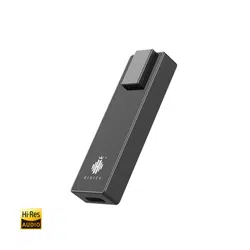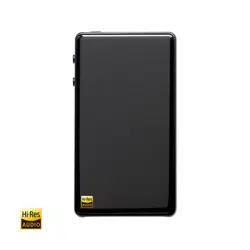
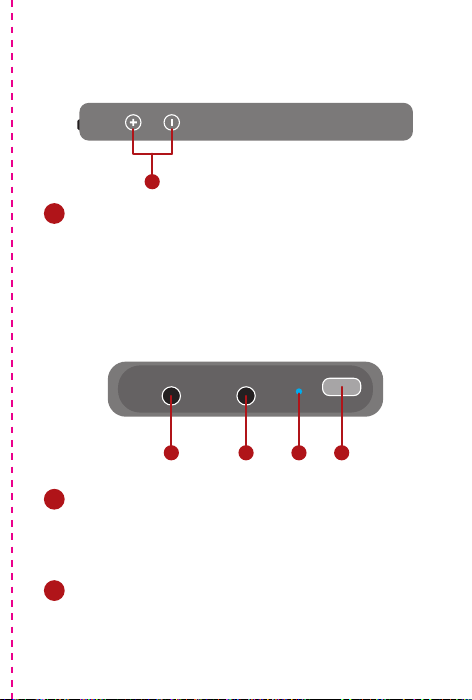
Top View:
Driver download:
http://www.Hidizs.com
DH1000 Illustration
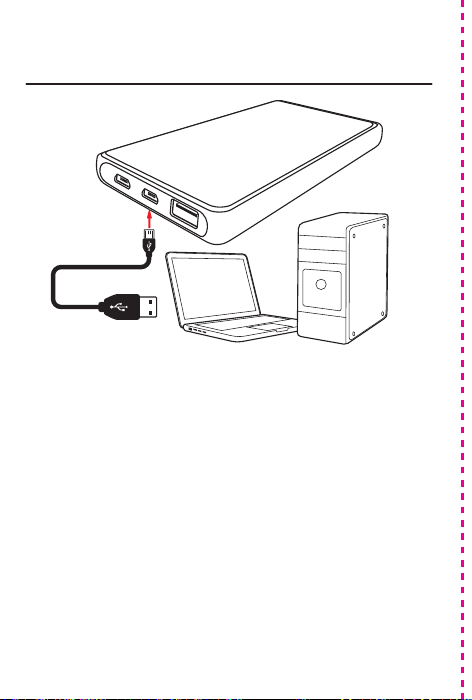
For PC computer
1. Turn on the phone's USB debug mode, if the
OTG option is also turned on. Some phones do
not have the above options, but connected to
the computer and installed the phone manage-
ment app or device driver, will open this mode.
Android device - Private mode
Some Android devices can’t work in normal
mode, or when the phone is almost out of power,
the private mode can be used: connect equip-
ment through the corresponding wire to
DH1000 Data Port B, the other steps are same as
the normal mode. In this case, the Sonata
DH1000 also charges the battery of connected
device when playing, but the playback time will
be greatly reduced.
* Note: HibyMusic app supported only on
1. Connect the DH1000 and PC via Data Port A.
2. The operating system will prompt to find new
hardware, if not please change the computer's
USB port and try again.
3. Download the DH1000 driver in Hidizs official
website.
4. Execute and follow the prompts to complete
the installation.
5. Make sure that the System’s default playback
device has been selected to
DH1000.
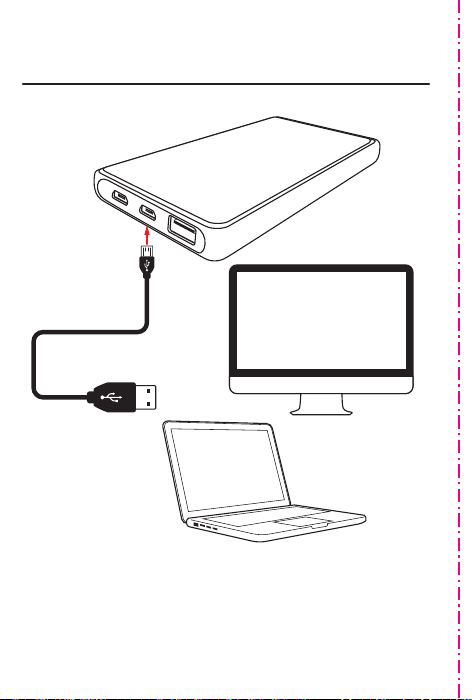
For Apple computer
Connected DH1000 and Apple computer
through the Data Port A, just turn on the
switch to use.
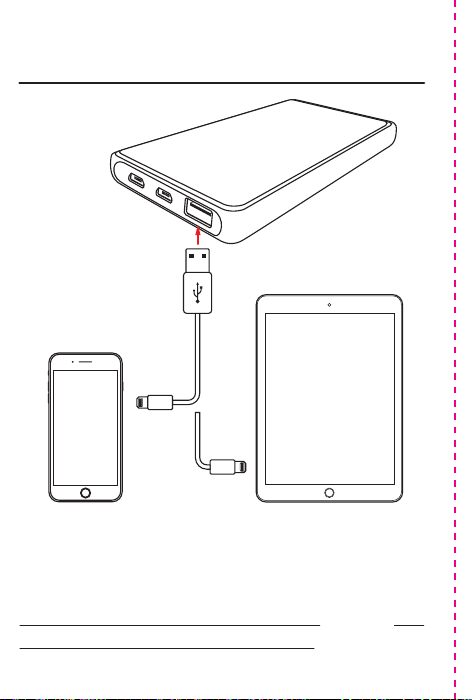
For iPhone, iPad Specifications
Connected the DH1000 and iPhone, iPad
through the Data Port B, just turn on the switch
to use.
* Note: Unlike in Android Private mode, DH1000 will
not charge battery of the iPhone & iPad.
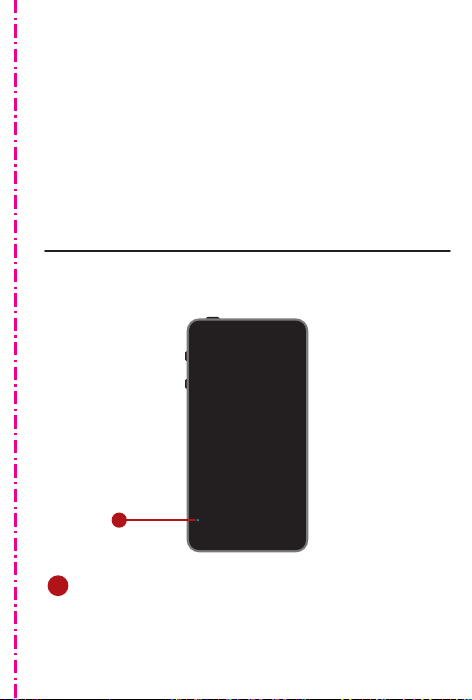
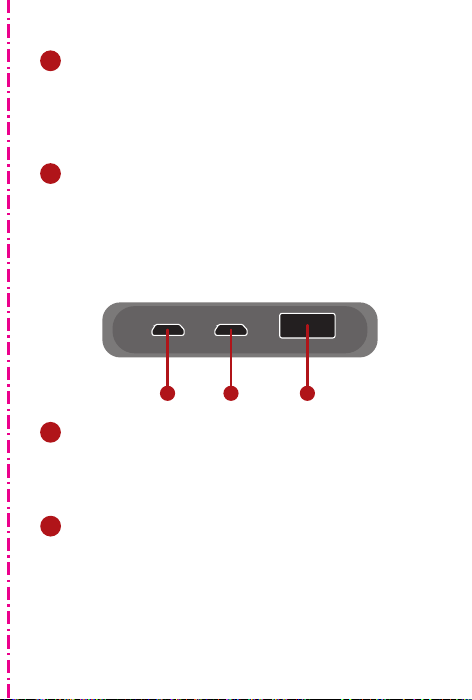
Battery charge indicator1
Android device - Normal mode
The blue LED lights up when charging,
extinguished after fully charged.
Power switch
6
Button Switch, press 3 sec. to power on or off.
Power jack(MircoUSB)7
Battery charging interface, equipment can
work well when charging.
Volume adjustment button
2
“+” For volume increase
“–” For volume reduction
Headphone port I3
3.5mm, compatible with CTIA standard
headphone.
Headphone port II4
2.5mm, balanced headphone output.
Power indicator
5
Turn on the switch, it will turn on green,
blinking red when the power is weak, turn off
when the switch is off.
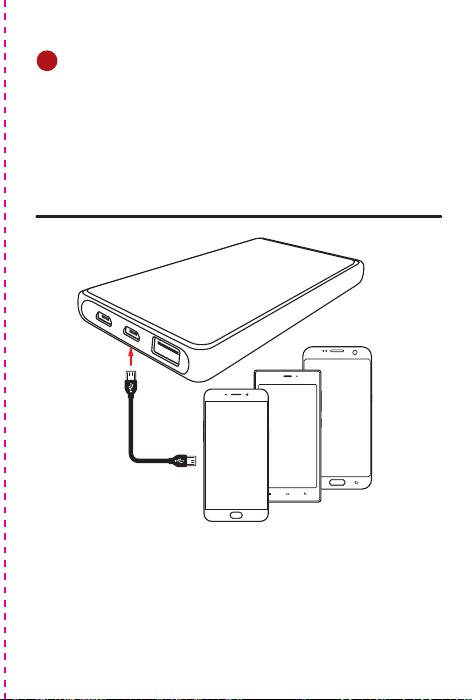
Data port B
9
Connect to iPhone or iPad via Apple Lightning
to USB cable, or connect to Android device via
USB data cable (private mode).
DH1000 support PC, iOS, macOS & Android
operating systems.
DH1000 supports APE, FLAC, WAV, MP3 &
DSD audio formats.
HibyMusic
Supports PCM decoding:
Support DSD decoding:
THD + N:
Stereo resolution
Frequency response:
Output Power:
Output Interface:
input interface:
System support:
ASIO driver:
Exclusive APP:
Play time:
Dimensions:
Color:
32Bit、192KHz
DSD 64、128
120dB
120dB
0Hz-50KHz
150mW/32 Ohms
1x3.5mm+1x2.5mm
micro USB,USB(iOS)
Android,iOS, PC, Mac OS
Windows7/8/10
HibyMusic app
10 hrs
65*120*14mm
Black/Silver
Side View:
Front View:
Rear View:
DH1000
Quick Start Guide
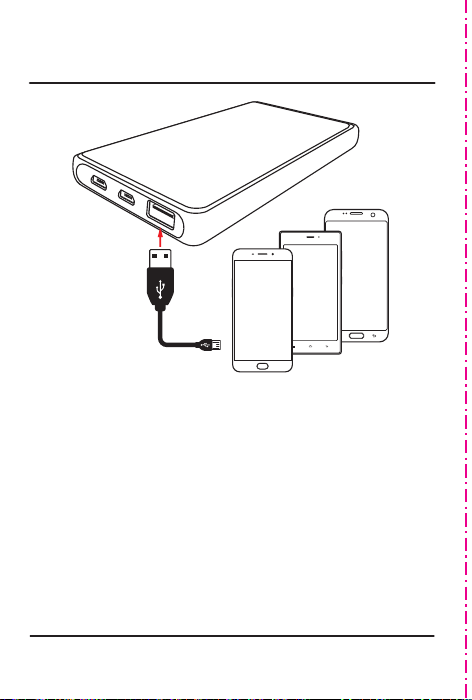
8 Data port A(MircoUSB)
Connect to the computer via the MicroUSB
data cable , connect to the Android phones via
the MicroUSB / Type-C OTG data cable.
2. Download the latest version of the HibyMusic
app in the Google Play and install.
3. Connected
DH1000 and mobile phone
through the Data Port A
4. Launch the HibyMusic app, the software will
prompt to find a USB device, identify success. If
silent or sound is still coming from the phone,
please restart the phone and try again.
5. If you still can’t playback through the
DH1000
after restart the phone, please use the Data Port
B connected in the private mode.
1
2
4
3
65
8
7
9
OTG线
Top View:
Driver download:
http://www.Hidizs.com
DH1000 Illustration
For PC computer
1. Turn on the phone's USB debug mode, if the
OTG option is also turned on. Some phones do
not have the above options, but connected to
the computer and installed the phone manage-
ment app or device driver, will open this mode.
Android device - Private mode
Some Android devices can’t work in normal
mode, or when the phone is almost out of power,
the private mode can be used: connect equip-
ment through the corresponding wire to
DH1000 Data Port B, the other steps are same as
the normal mode. In this case, the Sonata
DH1000 also charges the battery of connected
device when playing, but the playback time will
be greatly reduced.
* Note: HibyMusic app supported only on
1. Connect the DH1000 and PC via Data Port A.
2. The operating system will prompt to find new
hardware, if not please change the computer's
USB port and try again.
3. Download the DH1000 driver in Hidizs official
website.
4. Execute and follow the prompts to complete
the installation.
5. Make sure that the System’s default playback
device has been selected to
DH1000.
For Apple computer
Connected DH1000 and Apple computer
through the Data Port A, just turn on the
switch to use.
For iPhone, iPad Specifications
Connected the DH1000 and iPhone, iPad
through the Data Port B, just turn on the switch
to use.
* Note: Unlike in Android Private mode, DH1000 will
not charge battery of the iPhone & iPad.
Battery charge indicator1
Android device - Normal mode
The blue LED lights up when charging,
extinguished after fully charged.
Power switch
6
Button Switch, press 3 sec. to power on or off.
Power jack(MircoUSB)7
Battery charging interface, equipment can
work well when charging.
Volume adjustment button
2
“+” For volume increase
“–” For volume reduction
Headphone port I3
3.5mm, compatible with CTIA standard
headphone.
Headphone port II4
2.5mm, balanced headphone output.
Power indicator
5
Turn on the switch, it will turn on green,
blinking red when the power is weak, turn off
when the switch is off.
Data port B
9
Connect to iPhone or iPad via Apple Lightning
to USB cable, or connect to Android device via
USB data cable (private mode).
DH1000 support PC, iOS, macOS & Android
operating systems.
DH1000 supports APE, FLAC, WAV, MP3 &
DSD audio formats.
HibyMusic
Supports PCM decoding:
Support DSD decoding:
THD + N:
Stereo resolution
Frequency response:
Output Power:
Output Interface:
input interface:
System support:
ASIO driver:
Exclusive APP:
Play time:
Dimensions:
Color:
32Bit、192KHz
DSD 64、128
120dB
120dB
0Hz-50KHz
150mW/32 Ohms
1x3.5mm+1x2.5mm
micro USB,USB(iOS)
Android,iOS, PC, Mac OS
Windows7/8/10
HibyMusic app
10 hrs
65*120*14mm
Black/Silver
Side View:
Front View:
Rear View:
DH1000
Quick Start Guide
8 Data port A(MircoUSB)
Connect to the computer via the MicroUSB
data cable , connect to the Android phones via
the MicroUSB / Type-C OTG data cable.
2. Download the latest version of the HibyMusic
app in the Google Play and install.
3. Connected
DH1000 and mobile phone
through the Data Port A
4. Launch the HibyMusic app, the software will
prompt to find a USB device, identify success. If
silent or sound is still coming from the phone,
please restart the phone and try again.
5. If you still can’t playback through the
DH1000
after restart the phone, please use the Data Port
B connected in the private mode.
1
2
4
3
65
8
7
9
OTG线
Top View:
Driver download:
http://www.Hidizs.com
DH1000 Illustration
For PC computer
1. Turn on the phone's USB debug mode, if the
OTG option is also turned on. Some phones do
not have the above options, but connected to
the computer and installed the phone manage-
ment app or device driver, will open this mode.
Android device - Private mode
Some Android devices can’t work in normal
mode, or when the phone is almost out of power,
the private mode can be used: connect equip-
ment through the corresponding wire to
DH1000 Data Port B, the other steps are same as
the normal mode. In this case, the Sonata
DH1000 also charges the battery of connected
device when playing, but the playback time will
be greatly reduced.
* Note: HibyMusic app supported only on
1. Connect the DH1000 and PC via Data Port A.
2. The operating system will prompt to find new
hardware, if not please change the computer's
USB port and try again.
3. Download the DH1000 driver in Hidizs official
website.
4. Execute and follow the prompts to complete
the installation.
5. Make sure that the System’s default playback
device has been selected to
DH1000.
For Apple computer
Connected DH1000 and Apple computer
through the Data Port A, just turn on the
switch to use.
For iPhone, iPad Specifications
Connected the DH1000 and iPhone, iPad
through the Data Port B, just turn on the switch
to use.
* Note: Unlike in Android Private mode, DH1000 will
not charge battery of the iPhone & iPad.
Battery charge indicator1
Android device - Normal mode
The blue LED lights up when charging,
extinguished after fully charged.
Power switch
6
Button Switch, press 3 sec. to power on or off.
Power jack(MircoUSB)7
Battery charging interface, equipment can
work well when charging.
Volume adjustment button
2
“+” For volume increase
“–” For volume reduction
Headphone port I3
3.5mm, compatible with CTIA standard
headphone.
Headphone port II4
2.5mm, balanced headphone output.
Power indicator
5
Turn on the switch, it will turn on green,
blinking red when the power is weak, turn off
when the switch is off.
Data port B
9
Connect to iPhone or iPad via Apple Lightning
to USB cable, or connect to Android device via
USB data cable (private mode).
DH1000 support PC, iOS, macOS & Android
operating systems.
DH1000 supports APE, FLAC, WAV, MP3 &
DSD audio formats.
HibyMusic
Supports PCM decoding:
Support DSD decoding:
THD + N:
Stereo resolution
Frequency response:
Output Power:
Output Interface:
input interface:
System support:
ASIO driver:
Exclusive APP:
Play time:
Dimensions:
Color:
32Bit、192KHz
DSD 64、128
120dB
120dB
0Hz-50KHz
150mW/32 Ohms
1x3.5mm+1x2.5mm
micro USB,USB(iOS)
Android,iOS, PC, Mac OS
Windows7/8/10
HibyMusic app
10 hrs
65*120*14mm
Black/Silver
Side View:
Front View:
Rear View:
DH1000
Quick Start Guide
8 Data port A(MircoUSB)
Connect to the computer via the MicroUSB
data cable , connect to the Android phones via
the MicroUSB / Type-C OTG data cable.
2. Download the latest version of the HibyMusic
app in the Google Play and install.
3. Connected
DH1000 and mobile phone
through the Data Port A
4. Launch the HibyMusic app, the software will
prompt to find a USB device, identify success. If
silent or sound is still coming from the phone,
please restart the phone and try again.
5. If you still can’t playback through the
DH1000
after restart the phone, please use the Data Port
B connected in the private mode.
1
2
4
3
65
8
7
9
OTG线
Top View:
Driver download:
http://www.Hidizs.com
DH1000 Illustration
For PC computer
1. Turn on the phone's USB debug mode, if the
OTG option is also turned on. Some phones do
not have the above options, but connected to
the computer and installed the phone manage-
ment app or device driver, will open this mode.
Android device - Private mode
Some Android devices can’t work in normal
mode, or when the phone is almost out of power,
the private mode can be used: connect equip-
ment through the corresponding wire to
DH1000 Data Port B, the other steps are same as
the normal mode. In this case, the Sonata
DH1000 also charges the battery of connected
device when playing, but the playback time will
be greatly reduced.
* Note: HibyMusic app supported only on
1. Connect the DH1000 and PC via Data Port A.
2. The operating system will prompt to find new
hardware, if not please change the computer's
USB port and try again.
3. Download the DH1000 driver in Hidizs official
website.
4. Execute and follow the prompts to complete
the installation.
5. Make sure that the System’s default playback
device has been selected to
DH1000.
For Apple computer
Connected DH1000 and Apple computer
through the Data Port A, just turn on the
switch to use.
For iPhone, iPad Specifications
Connected the DH1000 and iPhone, iPad
through the Data Port B, just turn on the switch
to use.
* Note: Unlike in Android Private mode, DH1000 will
not charge battery of the iPhone & iPad.
Battery charge indicator1
Android device - Normal mode
The blue LED lights up when charging,
extinguished after fully charged.
Power switch
6
Button Switch, press 3 sec. to power on or off.
Power jack(MircoUSB)7
Battery charging interface, equipment can
work well when charging.
Volume adjustment button
2
“+” For volume increase
“–” For volume reduction
Headphone port I3
3.5mm, compatible with CTIA standard
headphone.
Headphone port II4
2.5mm, balanced headphone output.
Power indicator
5
Turn on the switch, it will turn on green,
blinking red when the power is weak, turn off
when the switch is off.
Data port B
9
Connect to iPhone or iPad via Apple Lightning
to USB cable, or connect to Android device via
USB data cable (private mode).
DH1000 support PC, iOS, macOS & Android
operating systems.
DH1000 supports APE, FLAC, WAV, MP3 &
DSD audio formats.
HibyMusic
Supports PCM decoding:
Support DSD decoding:
THD + N:
Stereo resolution
Frequency response:
Output Power:
Output Interface:
input interface:
System support:
ASIO driver:
Exclusive APP:
Play time:
Dimensions:
Color:
32Bit、192KHz
DSD 64、128
120dB
120dB
0Hz-50KHz
150mW/32 Ohms
1x3.5mm+1x2.5mm
micro USB,USB(iOS)
Android,iOS, PC, Mac OS
Windows7/8/10
HibyMusic app
10 hrs
65*120*14mm
Black/Silver
Side View:
Front View:
Rear View:
DH1000
Quick Start Guide
8 Data port A(MircoUSB)
Connect to the computer via the MicroUSB
data cable , connect to the Android phones via
the MicroUSB / Type-C OTG data cable.
2. Download the latest version of the HibyMusic
app in the Google Play and install.
3. Connected
DH1000 and mobile phone
through the Data Port A
4. Launch the HibyMusic app, the software will
prompt to find a USB device, identify success. If
silent or sound is still coming from the phone,
please restart the phone and try again.
5. If you still can’t playback through the
DH1000
after restart the phone, please use the Data Port
B connected in the private mode.
1
2
4
3
65
8
7
9
OTG线
Top View:
Driver download:
http://www.Hidizs.com
DH1000 Illustration
For PC computer
1. Turn on the phone's USB debug mode, if the
OTG option is also turned on. Some phones do
not have the above options, but connected to
the computer and installed the phone manage-
ment app or device driver, will open this mode.
Android device - Private mode
Some Android devices can’t work in normal
mode, or when the phone is almost out of power,
the private mode can be used: connect equip-
ment through the corresponding wire to
DH1000 Data Port B, the other steps are same as
the normal mode. In this case, the Sonata
DH1000 also charges the battery of connected
device when playing, but the playback time will
be greatly reduced.
* Note: HibyMusic app supported only on
1. Connect the DH1000 and PC via Data Port A.
2. The operating system will prompt to find new
hardware, if not please change the computer's
USB port and try again.
3. Download the DH1000 driver in Hidizs official
website.
4. Execute and follow the prompts to complete
the installation.
5. Make sure that the System’s default playback
device has been selected to
DH1000.
For Apple computer
Connected DH1000 and Apple computer
through the Data Port A, just turn on the
switch to use.
For iPhone, iPad Specifications
Connected the DH1000 and iPhone, iPad
through the Data Port B, just turn on the switch
to use.
* Note: Unlike in Android Private mode, DH1000 will
not charge battery of the iPhone & iPad.
Battery charge indicator1
Android device - Normal mode
The blue LED lights up when charging,
extinguished after fully charged.
Power switch
6
Button Switch, press 3 sec. to power on or off.
Power jack(MircoUSB)7
Battery charging interface, equipment can
work well when charging.
Volume adjustment button
2
“+” For volume increase
“–” For volume reduction
Headphone port I3
3.5mm, compatible with CTIA standard
headphone.
Headphone port II4
2.5mm, balanced headphone output.
Power indicator
5
Turn on the switch, it will turn on green,
blinking red when the power is weak, turn off
when the switch is off.
Data port B
9
Connect to iPhone or iPad via Apple Lightning
to USB cable, or connect to Android device via
USB data cable (private mode).
DH1000 support PC, iOS, macOS & Android
operating systems.
DH1000 supports APE, FLAC, WAV, MP3 &
DSD audio formats.
HibyMusic
Supports PCM decoding:
Support DSD decoding:
THD + N:
Stereo resolution
Frequency response:
Output Power:
Output Interface:
input interface:
System support:
ASIO driver:
Exclusive APP:
Play time:
Dimensions:
Color:
32Bit、192KHz
DSD 64、128
120dB
120dB
0Hz-50KHz
150mW/32 Ohms
1x3.5mm+1x2.5mm
micro USB,USB(iOS)
Android,iOS, PC, Mac OS
Windows7/8/10
HibyMusic app
10 hrs
65*120*14mm
Black/Silver
Side View:
Front View:
Rear View:
DH1000
Quick Start Guide
8 Data port A(MircoUSB)
Connect to the computer via the MicroUSB
data cable , connect to the Android phones via
the MicroUSB / Type-C OTG data cable.
2. Download the latest version of the HibyMusic
app in the Google Play and install.
3. Connected
DH1000 and mobile phone
through the Data Port A
4. Launch the HibyMusic app, the software will
prompt to find a USB device, identify success. If
silent or sound is still coming from the phone,
please restart the phone and try again.
5. If you still can’t playback through the
DH1000
after restart the phone, please use the Data Port
B connected in the private mode.
1
2
4
3
65
8
7
9
OTG线

Top View:
Driver download:
http://www.Hidizs.com
DH1000 Illustration
For PC computer
1. Turn on the phone's USB debug mode, if the
OTG option is also turned on. Some phones do
not have the above options, but connected to
the computer and installed the phone manage-
ment app or device driver, will open this mode.
Android device - Private mode
Some Android devices can’t work in normal
mode, or when the phone is almost out of power,
the private mode can be used: connect equip-
ment through the corresponding wire to
DH1000 Data Port B, the other steps are same as
the normal mode. In this case, the Sonata
DH1000 also charges the battery of connected
device when playing, but the playback time will
be greatly reduced.
* Note: HibyMusic app supported only on
1. Connect the DH1000 and PC via Data Port A.
2. The operating system will prompt to find new
hardware, if not please change the computer's
USB port and try again.
3. Download the DH1000 driver in Hidizs official
website.
4. Execute and follow the prompts to complete
the installation.
5. Make sure that the System’s default playback
device has been selected to
DH1000.
For Apple computer
Connected DH1000 and Apple computer
through the Data Port A, just turn on the
switch to use.
For iPhone, iPad Specifications
Connected the DH1000 and iPhone, iPad
through the Data Port B, just turn on the switch
to use.
* Note: Unlike in Android Private mode, DH1000 will
not charge battery of the iPhone & iPad.
Battery charge indicator1
Android device - Normal mode
The blue LED lights up when charging,
extinguished after fully charged.
Power switch
6
Button Switch, press 3 sec. to power on or off.
Power jack(MircoUSB)7
Battery charging interface, equipment can
work well when charging.
Volume adjustment button
2
“+” For volume increase
“–” For volume reduction
Headphone port I3
3.5mm, compatible with CTIA standard
headphone.
Headphone port II4
2.5mm, balanced headphone output.
Power indicator
5
Turn on the switch, it will turn on green,
blinking red when the power is weak, turn off
when the switch is off.
Data port B
9
Connect to iPhone or iPad via Apple Lightning
to USB cable, or connect to Android device via
USB data cable (private mode).
DH1000 support PC, iOS, macOS & Android
operating systems.
DH1000 supports APE, FLAC, WAV, MP3 &
DSD audio formats.
HibyMusic
Supports PCM decoding:
Support DSD decoding:
THD + N:
Stereo resolution
Frequency response:
Output Power:
Output Interface:
input interface:
System support:
ASIO driver:
Exclusive APP:
Play time:
Dimensions:
Color:
32Bit、192KHz
DSD 64、128
120dB
120dB
0Hz-50KHz
150mW/32 Ohms
1x3.5mm+1x2.5mm
micro USB,USB(iOS)
Android,iOS, PC, Mac OS
Windows7/8/10
HibyMusic app
10 hrs
65*120*14mm
Black/Silver
Side View:
Front View:
Rear View:
DH1000
Quick Start Guide
8 Data port A(MircoUSB)
Connect to the computer via the MicroUSB
data cable , connect to the Android phones via
the MicroUSB / Type-C OTG data cable.
2. Download the latest version of the HibyMusic
app in the Google Play and install.
3. Connected
DH1000 and mobile phone
through the Data Port A
4. Launch the HibyMusic app, the software will
prompt to find a USB device, identify success. If
silent or sound is still coming from the phone,
please restart the phone and try again.
5. If you still can’t playback through the
DH1000
after restart the phone, please use the Data Port
B connected in the private mode.
1
2
4
3
65
8
7
9
OTG线
Top View:
Driver download:
http://www.Hidizs.com
DH1000 Illustration
For PC computer
1. Turn on the phone's USB debug mode, if the
OTG option is also turned on. Some phones do
not have the above options, but connected to
the computer and installed the phone manage-
ment app or device driver, will open this mode.
Android device - Private mode
Some Android devices can’t work in normal
mode, or when the phone is almost out of power,
the private mode can be used: connect equip-
ment through the corresponding wire to
DH1000 Data Port B, the other steps are same as
the normal mode. In this case, the Sonata
DH1000 also charges the battery of connected
device when playing, but the playback time will
be greatly reduced.
* Note: HibyMusic app supported only on
1. Connect the DH1000 and PC via Data Port A.
2. The operating system will prompt to find new
hardware, if not please change the computer's
USB port and try again.
3. Download the DH1000 driver in Hidizs official
website.
4. Execute and follow the prompts to complete
the installation.
5. Make sure that the System’s default playback
device has been selected to
DH1000.
For Apple computer
Connected DH1000 and Apple computer
through the Data Port A, just turn on the
switch to use.
For iPhone, iPad Specifications
Connected the DH1000 and iPhone, iPad
through the Data Port B, just turn on the switch
to use.
* Note: Unlike in Android Private mode, DH1000 will
not charge battery of the iPhone & iPad.
Battery charge indicator1
Android device - Normal mode
The blue LED lights up when charging,
extinguished after fully charged.
Power switch
6
Button Switch, press 3 sec. to power on or off.
Power jack(MircoUSB)7
Battery charging interface, equipment can
work well when charging.
Volume adjustment button
2
“+” For volume increase
“–” For volume reduction
Headphone port I3
3.5mm, compatible with CTIA standard
headphone.
Headphone port II4
2.5mm, balanced headphone output.
Power indicator
5
Turn on the switch, it will turn on green,
blinking red when the power is weak, turn off
when the switch is off.
Data port B
9
Connect to iPhone or iPad via Apple Lightning
to USB cable, or connect to Android device via
USB data cable (private mode).
DH1000 support PC, iOS, macOS & Android
operating systems.
DH1000 supports APE, FLAC, WAV, MP3 &
DSD audio formats.
HibyMusic
Supports PCM decoding:
Support DSD decoding:
THD + N:
Stereo resolution
Frequency response:
Output Power:
Output Interface:
input interface:
System support:
ASIO driver:
Exclusive APP:
Play time:
Dimensions:
Color:
32Bit、192KHz
DSD 64、128
120dB
120dB
0Hz-50KHz
150mW/32 Ohms
1x3.5mm+1x2.5mm
micro USB,USB(iOS)
Android,iOS, PC, Mac OS
Windows7/8/10
HibyMusic app
10 hrs
65*120*14mm
Black/Silver
Side View:
Front View:
Rear View:
DH1000
Quick Start Guide
8 Data port A(MircoUSB)
Connect to the computer via the MicroUSB
data cable , connect to the Android phones via
the MicroUSB / Type-C OTG data cable.
2. Download the latest version of the HibyMusic
app in the Google Play and install.
3. Connected
DH1000 and mobile phone
through the Data Port A
4. Launch the HibyMusic app, the software will
prompt to find a USB device, identify success. If
silent or sound is still coming from the phone,
please restart the phone and try again.
5. If you still can’t playback through the
DH1000
after restart the phone, please use the Data Port
B connected in the private mode.
1
2
4
3
65
8
7
9
OTG线
Top View:
Driver download:
http://www.Hidizs.com
DH1000 Illustration
For PC computer
1. Turn on the phone's USB debug mode, if the
OTG option is also turned on. Some phones do
not have the above options, but connected to
the computer and installed the phone manage-
ment app or device driver, will open this mode.
Android device - Private mode
Some Android devices can’t work in normal
mode, or when the phone is almost out of power,
the private mode can be used: connect equip-
ment through the corresponding wire to
DH1000 Data Port B, the other steps are same as
the normal mode. In this case, the Sonata
DH1000 also charges the battery of connected
device when playing, but the playback time will
be greatly reduced.
* Note: HibyMusic app supported only on
1. Connect the DH1000 and PC via Data Port A.
2. The operating system will prompt to find new
hardware, if not please change the computer's
USB port and try again.
3. Download the DH1000 driver in Hidizs official
website.
4. Execute and follow the prompts to complete
the installation.
5. Make sure that the System’s default playback
device has been selected to
DH1000.
For Apple computer
Connected DH1000 and Apple computer
through the Data Port A, just turn on the
switch to use.
For iPhone, iPad Specifications
Connected the DH1000 and iPhone, iPad
through the Data Port B, just turn on the switch
to use.
* Note: Unlike in Android Private mode, DH1000 will
not charge battery of the iPhone & iPad.
Battery charge indicator1
Android device - Normal mode
The blue LED lights up when charging,
extinguished after fully charged.
Power switch
6
Button Switch, press 3 sec. to power on or off.
Power jack(MircoUSB)7
Battery charging interface, equipment can
work well when charging.
Volume adjustment button
2
“+” For volume increase
“–” For volume reduction
Headphone port I3
3.5mm, compatible with CTIA standard
headphone.
Headphone port II4
2.5mm, balanced headphone output.
Power indicator
5
Turn on the switch, it will turn on green,
blinking red when the power is weak, turn off
when the switch is off.
Data port B
9
Connect to iPhone or iPad via Apple Lightning
to USB cable, or connect to Android device via
USB data cable (private mode).
DH1000 support PC, iOS, macOS & Android
operating systems.
DH1000 supports APE, FLAC, WAV, MP3 &
DSD audio formats.
HibyMusic
Supports PCM decoding:
Support DSD decoding:
THD + N:
Stereo resolution
Frequency response:
Output Power:
Output Interface:
input interface:
System support:
ASIO driver:
Exclusive APP:
Play time:
Dimensions:
Color:
32Bit、192KHz
DSD 64、128
120dB
120dB
0Hz-50KHz
150mW/32 Ohms
1x3.5mm+1x2.5mm
micro USB,USB(iOS)
Android,iOS, PC, Mac OS
Windows7/8/10
HibyMusic app
10 hrs
65*120*14mm
Black/Silver
Side View:
Front View:
Rear View:
DH1000
Quick Start Guide
8 Data port A(MircoUSB)
Connect to the computer via the MicroUSB
data cable , connect to the Android phones via
the MicroUSB / Type-C OTG data cable.
2. Download the latest version of the HibyMusic
app in the Google Play and install.
3. Connected
DH1000 and mobile phone
through the Data Port A
4. Launch the HibyMusic app, the software will
prompt to find a USB device, identify success. If
silent or sound is still coming from the phone,
please restart the phone and try again.
5. If you still can’t playback through the
DH1000
after restart the phone, please use the Data Port
B connected in the private mode.
1
2
4
3
65
8
7
9
OTG线
Top View:
Driver download:
http://www.Hidizs.com
DH1000 Illustration
For PC computer
1. Turn on the phone's USB debug mode, if the
OTG option is also turned on. Some phones do
not have the above options, but connected to
the computer and installed the phone manage-
ment app or device driver, will open this mode.
Android device - Private mode
Some Android devices can’t work in normal
mode, or when the phone is almost out of power,
the private mode can be used: connect equip-
ment through the corresponding wire to
DH1000 Data Port B, the other steps are same as
the normal mode. In this case, the Sonata
DH1000 also charges the battery of connected
device when playing, but the playback time will
be greatly reduced.
* Note: HibyMusic app supported only on
1. Connect the DH1000 and PC via Data Port A.
2. The operating system will prompt to find new
hardware, if not please change the computer's
USB port and try again.
3. Download the DH1000 driver in Hidizs official
website.
4. Execute and follow the prompts to complete
the installation.
5. Make sure that the System’s default playback
device has been selected to
DH1000.
For Apple computer
Connected DH1000 and Apple computer
through the Data Port A, just turn on the
switch to use.
For iPhone, iPad Specifications
Connected the DH1000 and iPhone, iPad
through the Data Port B, just turn on the switch
to use.
* Note: Unlike in Android Private mode, DH1000 will
not charge battery of the iPhone & iPad.
Battery charge indicator1
Android device - Normal mode
The blue LED lights up when charging,
extinguished after fully charged.
Power switch
6
Button Switch, press 3 sec. to power on or off.
Power jack(MircoUSB)7
Battery charging interface, equipment can
work well when charging.
Volume adjustment button
2
“+” For volume increase
“–” For volume reduction
Headphone port I3
3.5mm, compatible with CTIA standard
headphone.
Headphone port II4
2.5mm, balanced headphone output.
Power indicator
5
Turn on the switch, it will turn on green,
blinking red when the power is weak, turn off
when the switch is off.
Data port B
9
Connect to iPhone or iPad via Apple Lightning
to USB cable, or connect to Android device via
USB data cable (private mode).
DH1000 support PC, iOS, macOS & Android
operating systems.
DH1000 supports APE, FLAC, WAV, MP3 &
DSD audio formats.
HibyMusic
Supports PCM decoding:
Support DSD decoding:
THD + N:
Stereo resolution
Frequency response:
Output Power:
Output Interface:
input interface:
System support:
ASIO driver:
Exclusive APP:
Play time:
Dimensions:
Color:
32Bit、192KHz
DSD 64、128
120dB
120dB
0Hz-50KHz
150mW/32 Ohms
1x3.5mm+1x2.5mm
micro USB,USB(iOS)
Android,iOS, PC, Mac OS
Windows7/8/10
HibyMusic app
10 hrs
65*120*14mm
Black/Silver
Side View:
Front View:
Rear View:
DH1000
Quick Start Guide
8 Data port A(MircoUSB)
Connect to the computer via the MicroUSB
data cable , connect to the Android phones via
the MicroUSB / Type-C OTG data cable.
2. Download the latest version of the HibyMusic
app in the Google Play and install.
3. Connected
DH1000 and mobile phone
through the Data Port A
4. Launch the HibyMusic app, the software will
prompt to find a USB device, identify success. If
silent or sound is still coming from the phone,
please restart the phone and try again.
5. If you still can’t playback through the
DH1000
after restart the phone, please use the Data Port
B connected in the private mode.
1
2
4
3
65
8
7
9
OTG线
Top View:
Driver download:
http://www.Hidizs.com
DH1000 Illustration
For PC computer
1. Turn on the phone's USB debug mode, if the
OTG option is also turned on. Some phones do
not have the above options, but connected to
the computer and installed the phone manage-
ment app or device driver, will open this mode.
Android device - Private mode
Some Android devices can’t work in normal
mode, or when the phone is almost out of power,
the private mode can be used: connect equip-
ment through the corresponding wire to
DH1000 Data Port B, the other steps are same as
the normal mode. In this case, the Sonata
DH1000 also charges the battery of connected
device when playing, but the playback time will
be greatly reduced.
* Note: HibyMusic app supported only on
1. Connect the DH1000 and PC via Data Port A.
2. The operating system will prompt to find new
hardware, if not please change the computer's
USB port and try again.
3. Download the DH1000 driver in Hidizs official
website.
4. Execute and follow the prompts to complete
the installation.
5. Make sure that the System’s default playback
device has been selected to
DH1000.
For Apple computer
Connected DH1000 and Apple computer
through the Data Port A, just turn on the
switch to use.
For iPhone, iPad Specifications
Connected the DH1000 and iPhone, iPad
through the Data Port B, just turn on the switch
to use.
* Note: Unlike in Android Private mode, DH1000 will
not charge battery of the iPhone & iPad.
Battery charge indicator1
Android device - Normal mode
The blue LED lights up when charging,
extinguished after fully charged.
Power switch
6
Button Switch, press 3 sec. to power on or off.
Power jack(MircoUSB)7
Battery charging interface, equipment can
work well when charging.
Volume adjustment button
2
“+” For volume increase
“–” For volume reduction
Headphone port I3
3.5mm, compatible with CTIA standard
headphone.
Headphone port II4
2.5mm, balanced headphone output.
Power indicator
5
Turn on the switch, it will turn on green,
blinking red when the power is weak, turn off
when the switch is off.
Data port B
9
Connect to iPhone or iPad via Apple Lightning
to USB cable, or connect to Android device via
USB data cable (private mode).
DH1000 support PC, iOS, macOS & Android
operating systems.
DH1000 supports APE, FLAC, WAV, MP3 &
DSD audio formats.
HibyMusic
Supports PCM decoding:
Support DSD decoding:
THD + N:
Stereo resolution
Frequency response:
Output Power:
Output Interface:
input interface:
System support:
ASIO driver:
Exclusive APP:
Play time:
Dimensions:
Color:
32Bit、192KHz
DSD 64、128
120dB
120dB
0Hz-50KHz
150mW/32 Ohms
1x3.5mm+1x2.5mm
micro USB,USB(iOS)
Android,iOS, PC, Mac OS
Windows7/8/10
HibyMusic app
10 hrs
65*120*14mm
Black/Silver
Side View:
Front View:
Rear View:
DH1000
Quick Start Guide
8 Data port A(MircoUSB)
Connect to the computer via the MicroUSB
data cable , connect to the Android phones via
the MicroUSB / Type-C OTG data cable.
2. Download the latest version of the HibyMusic
app in the Google Play and install.
3. Connected
DH1000 and mobile phone
through the Data Port A
4. Launch the HibyMusic app, the software will
prompt to find a USB device, identify success. If
silent or sound is still coming from the phone,
please restart the phone and try again.
5. If you still can’t playback through the
DH1000
after restart the phone, please use the Data Port
B connected in the private mode.
1
2
4
3
65
8
7
9
OTG线

Top View:
Driver download:
http://www.Hidizs.com
DH1000 Illustration
For PC computer
1. Turn on the phone's USB debug mode, if the
OTG option is also turned on. Some phones do
not have the above options, but connected to
the computer and installed the phone manage-
ment app or device driver, will open this mode.
Android device - Private mode
Some Android devices can’t work in normal
mode, or when the phone is almost out of power,
the private mode can be used: connect equip-
ment through the corresponding wire to
DH1000 Data Port B, the other steps are same as
the normal mode. In this case, the Sonata
DH1000 also charges the battery of connected
device when playing, but the playback time will
be greatly reduced.
* Note: HibyMusic app supported only on
1. Connect the DH1000 and PC via Data Port A.
2. The operating system will prompt to find new
hardware, if not please change the computer's
USB port and try again.
3. Download the DH1000 driver in Hidizs official
website.
4. Execute and follow the prompts to complete
the installation.
5. Make sure that the System’s default playback
device has been selected to
DH1000.
For Apple computer
Connected DH1000 and Apple computer
through the Data Port A, just turn on the
switch to use.
For iPhone, iPad Specifications
Connected the DH1000 and iPhone, iPad
through the Data Port B, just turn on the switch
to use.
* Note: Unlike in Android Private mode, DH1000 will
not charge battery of the iPhone & iPad.
Battery charge indicator1
Android device - Normal mode
The blue LED lights up when charging,
extinguished after fully charged.
Power switch
6
Button Switch, press 3 sec. to power on or off.
Power jack(MircoUSB)7
Battery charging interface, equipment can
work well when charging.
Volume adjustment button
2
“+” For volume increase
“–” For volume reduction
Headphone port I3
3.5mm, compatible with CTIA standard
headphone.
Headphone port II4
2.5mm, balanced headphone output.
Power indicator
5
Turn on the switch, it will turn on green,
blinking red when the power is weak, turn off
when the switch is off.
Data port B
9
Connect to iPhone or iPad via Apple Lightning
to USB cable, or connect to Android device via
USB data cable (private mode).
DH1000 support PC, iOS, macOS & Android
operating systems.
DH1000 supports APE, FLAC, WAV, MP3 &
DSD audio formats.
HibyMusic
Supports PCM decoding:
Support DSD decoding:
THD + N:
Stereo resolution
Frequency response:
Output Power:
Output Interface:
input interface:
System support:
ASIO driver:
Exclusive APP:
Play time:
Dimensions:
Color:
32Bit、192KHz
DSD 64、128
120dB
120dB
0Hz-50KHz
150mW/32 Ohms
1x3.5mm+1x2.5mm
micro USB,USB(iOS)
Android,iOS, PC, Mac OS
Windows7/8/10
HibyMusic app
10 hrs
65*120*14mm
Black/Silver
Side View:
Front View:
Rear View:
DH1000
Quick Start Guide
8 Data port A(MircoUSB)
Connect to the computer via the MicroUSB
data cable , connect to the Android phones via
the MicroUSB / Type-C OTG data cable.
2. Download the latest version of the HibyMusic
app in the Google Play and install.
3. Connected
DH1000 and mobile phone
through the Data Port A
4. Launch the HibyMusic app, the software will
prompt to find a USB device, identify success. If
silent or sound is still coming from the phone,
please restart the phone and try again.
5. If you still can’t playback through the
DH1000
after restart the phone, please use the Data Port
B connected in the private mode.
1
2
4
3
65
8
7
9
OTG线