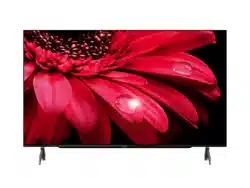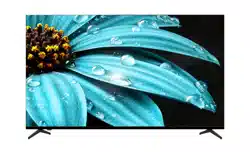
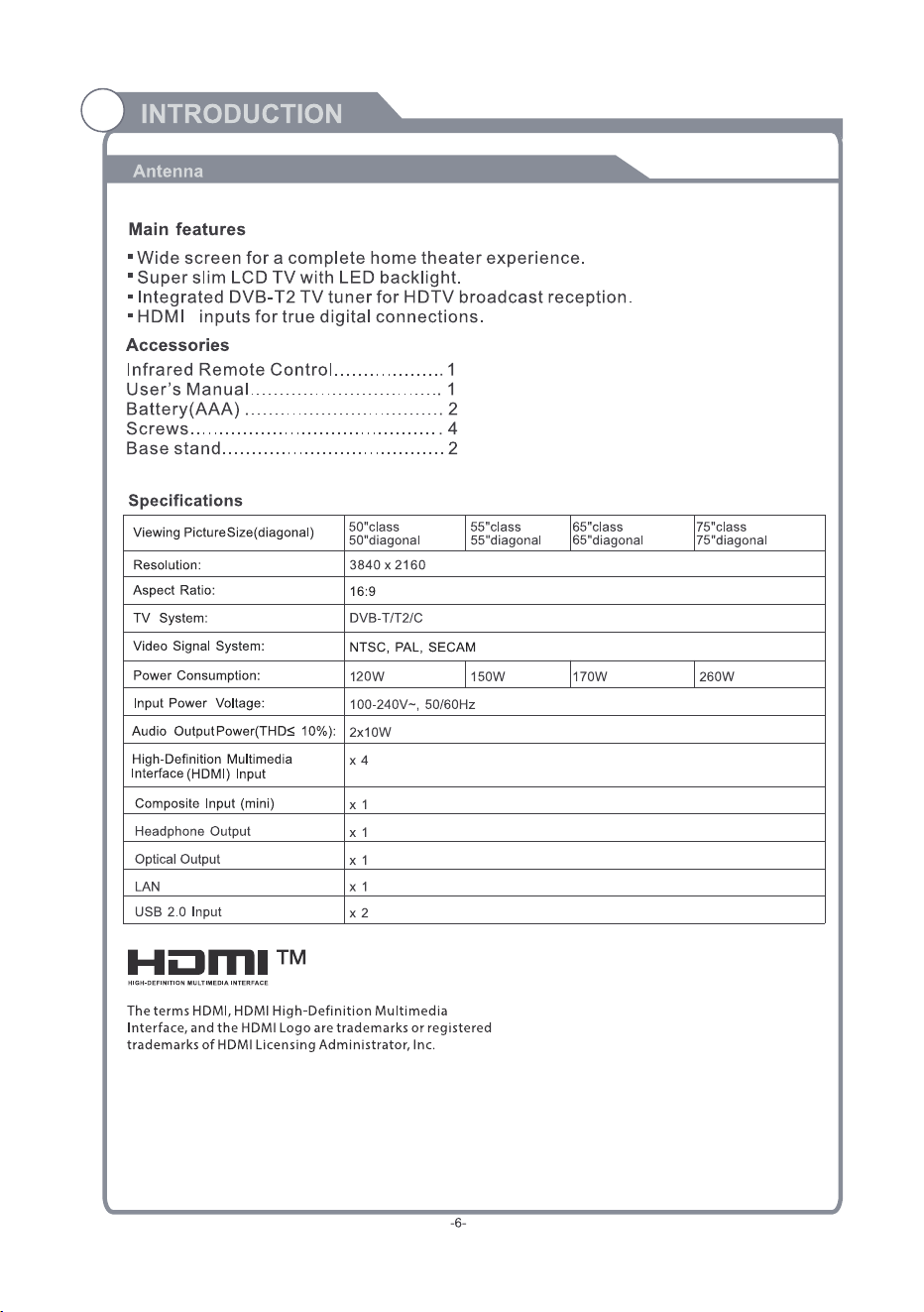
4T-C50FJ1X; 4T-C55FJ1X
4T-C65FJ1X; 4T-C75FJ1X
32-33
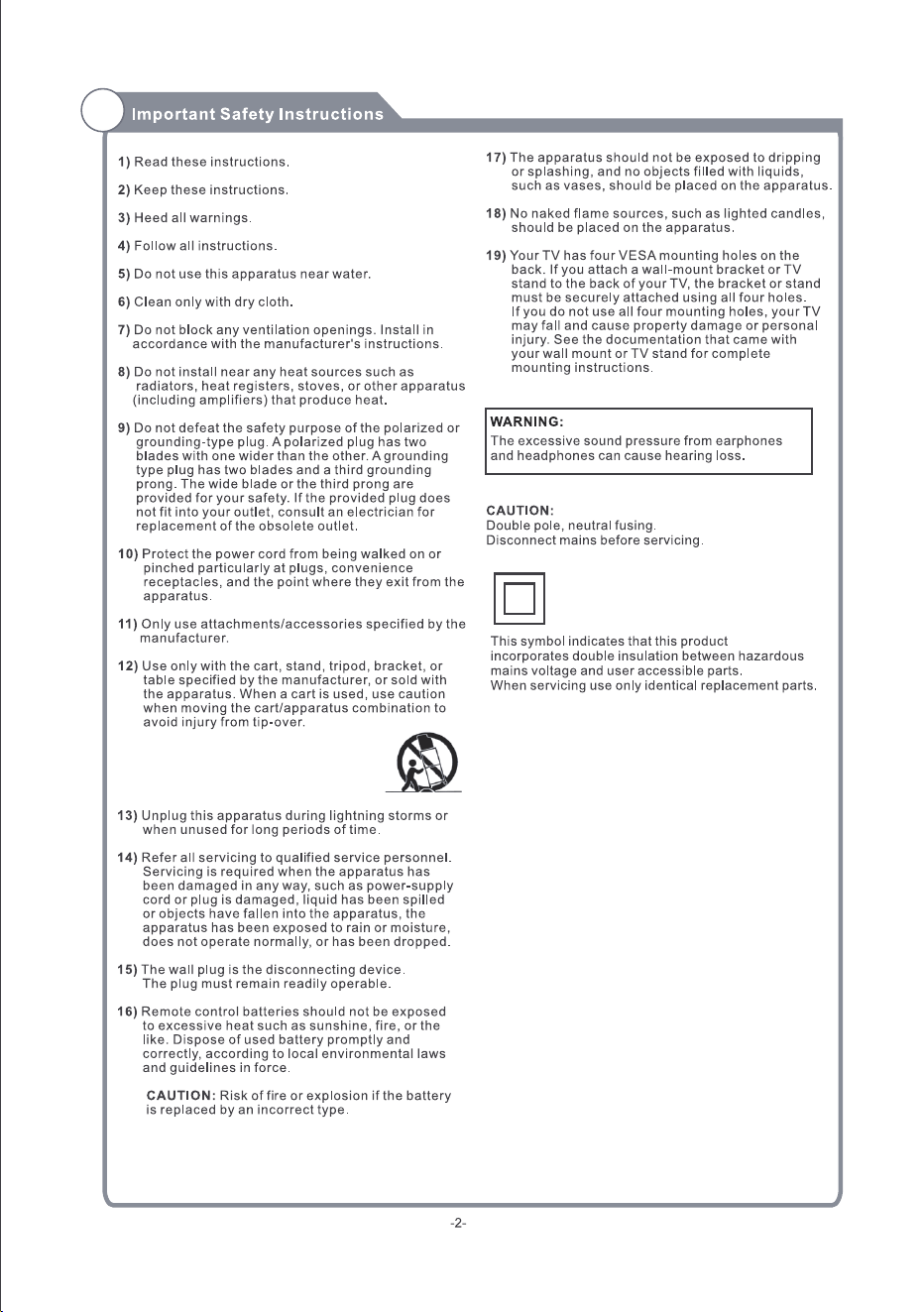
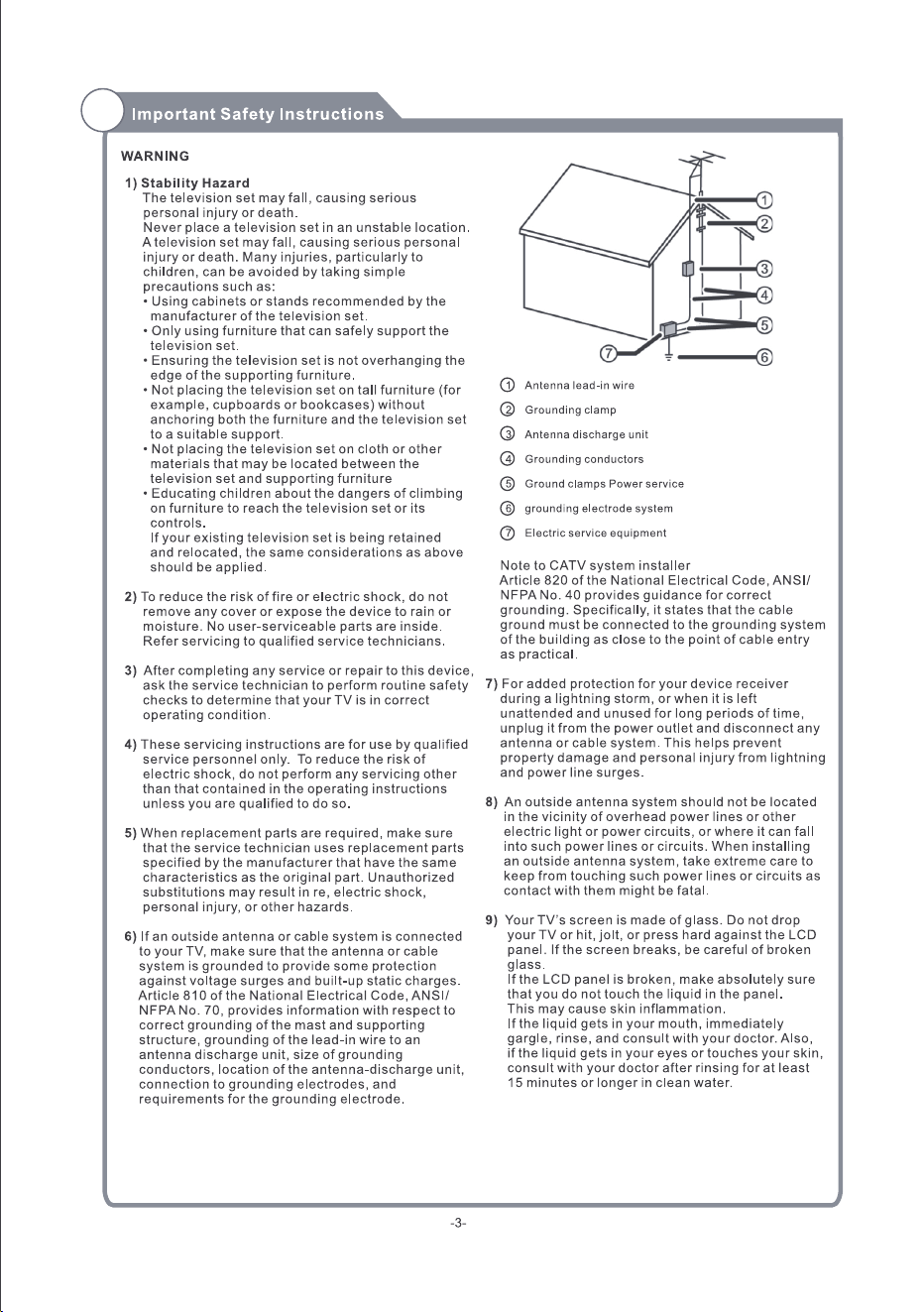
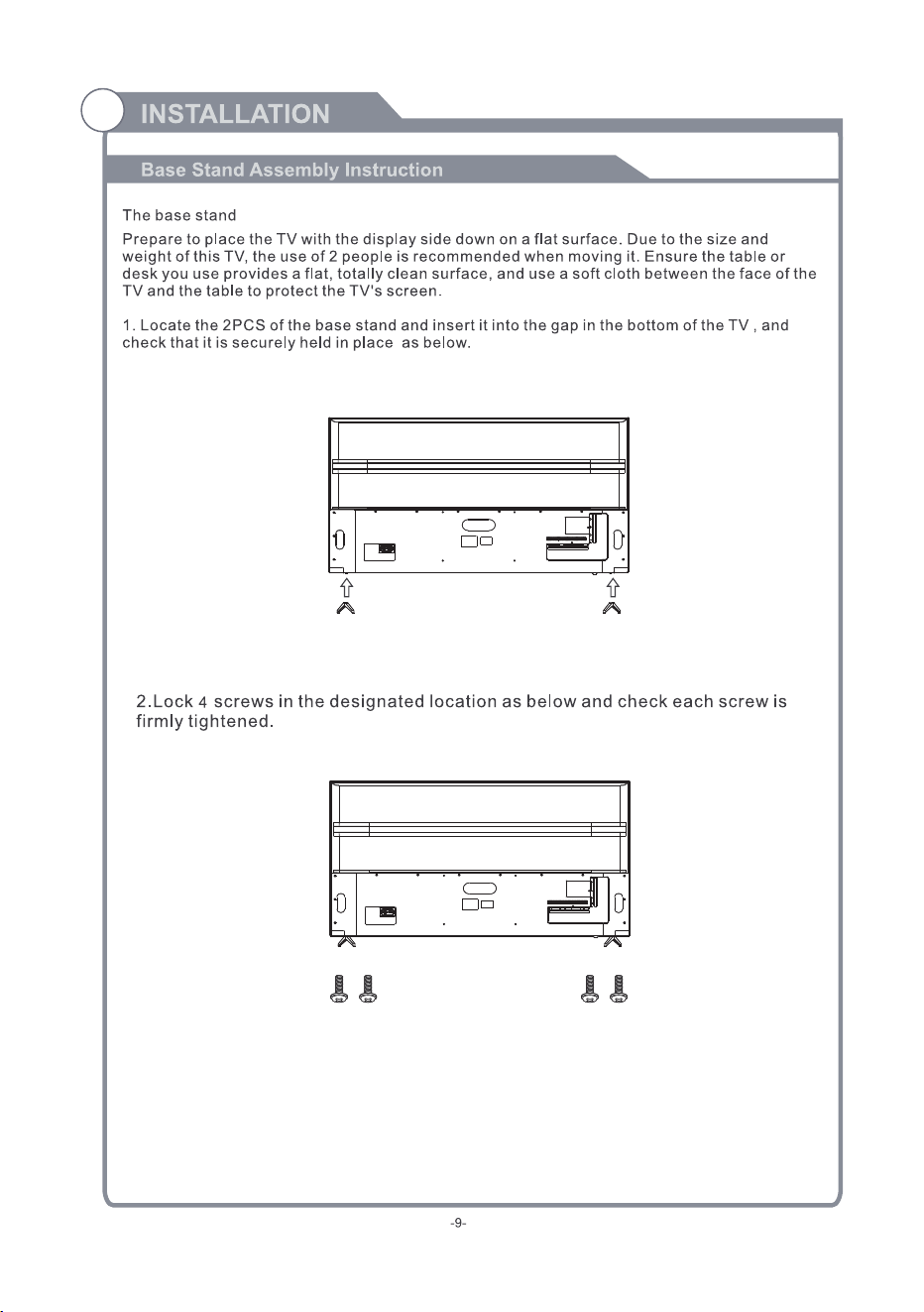
50”/55”/65”(M4x14PM)x4
75”(M6x18PM)x4
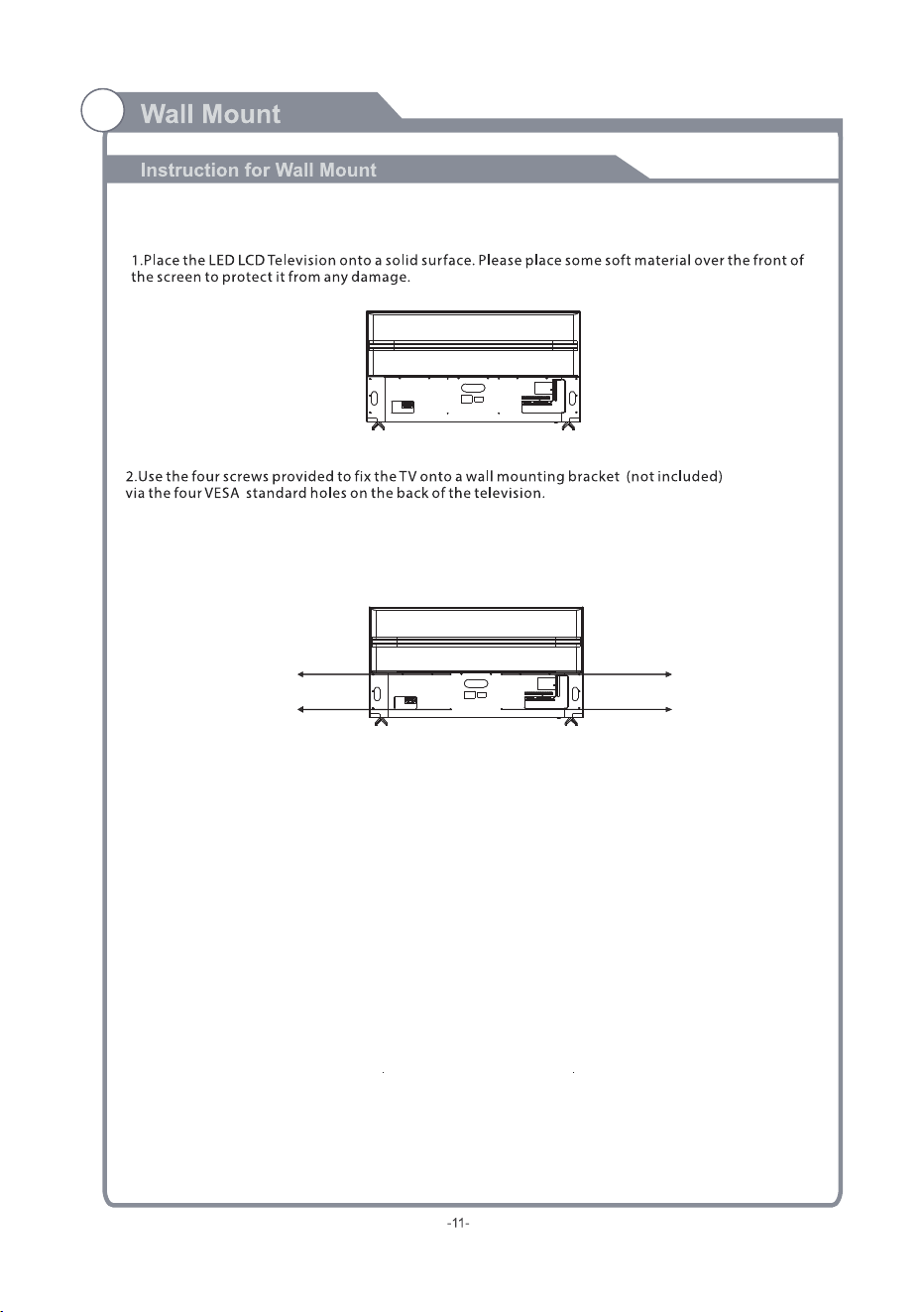
50”(M6x12mm)x4
55”/65”/75”(M6x16mm)x4
M6x16mm
M6x16mm
M6x16mm
M6x16mm
TEXT
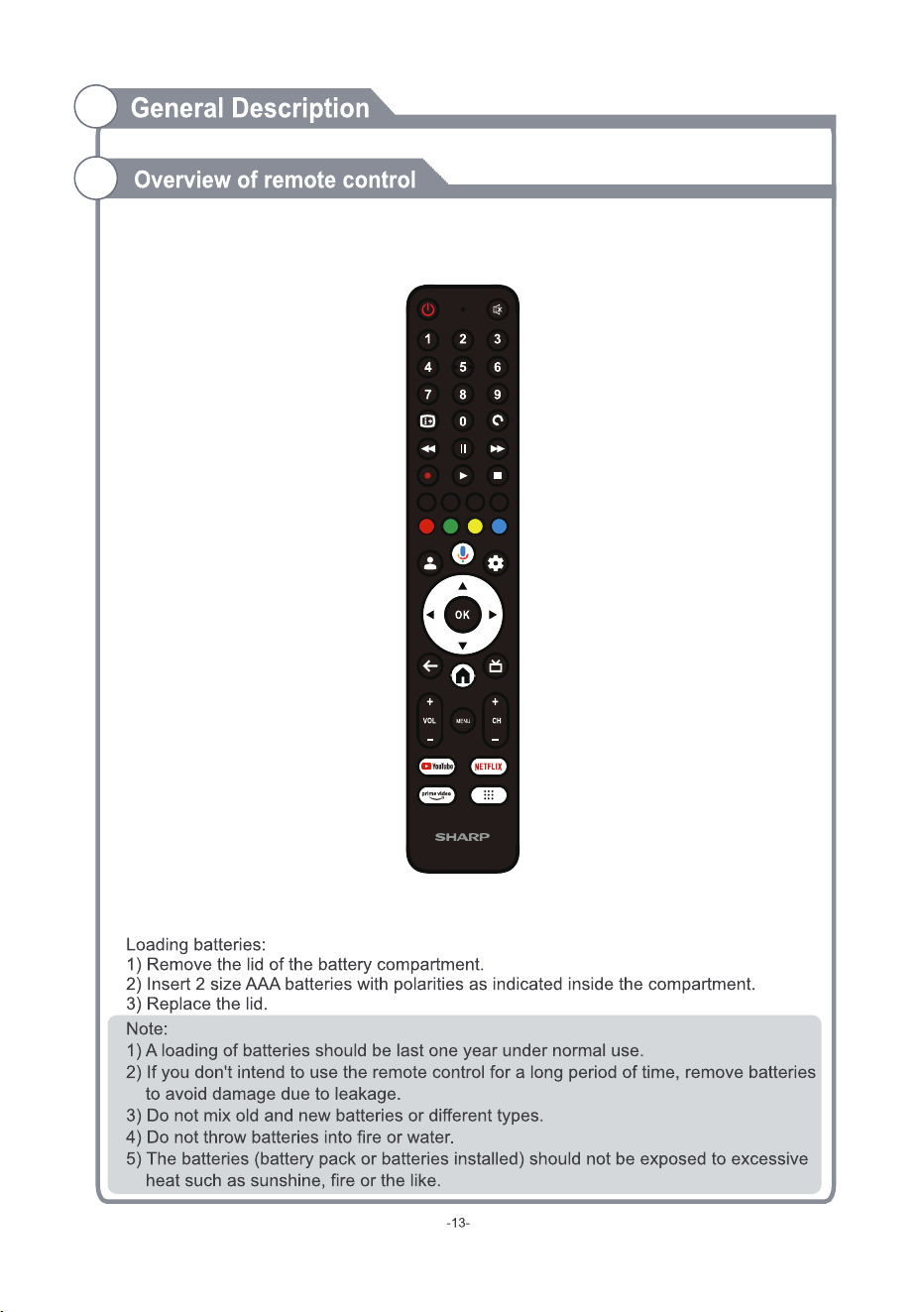
ASPECT
AD
SUBTITLES
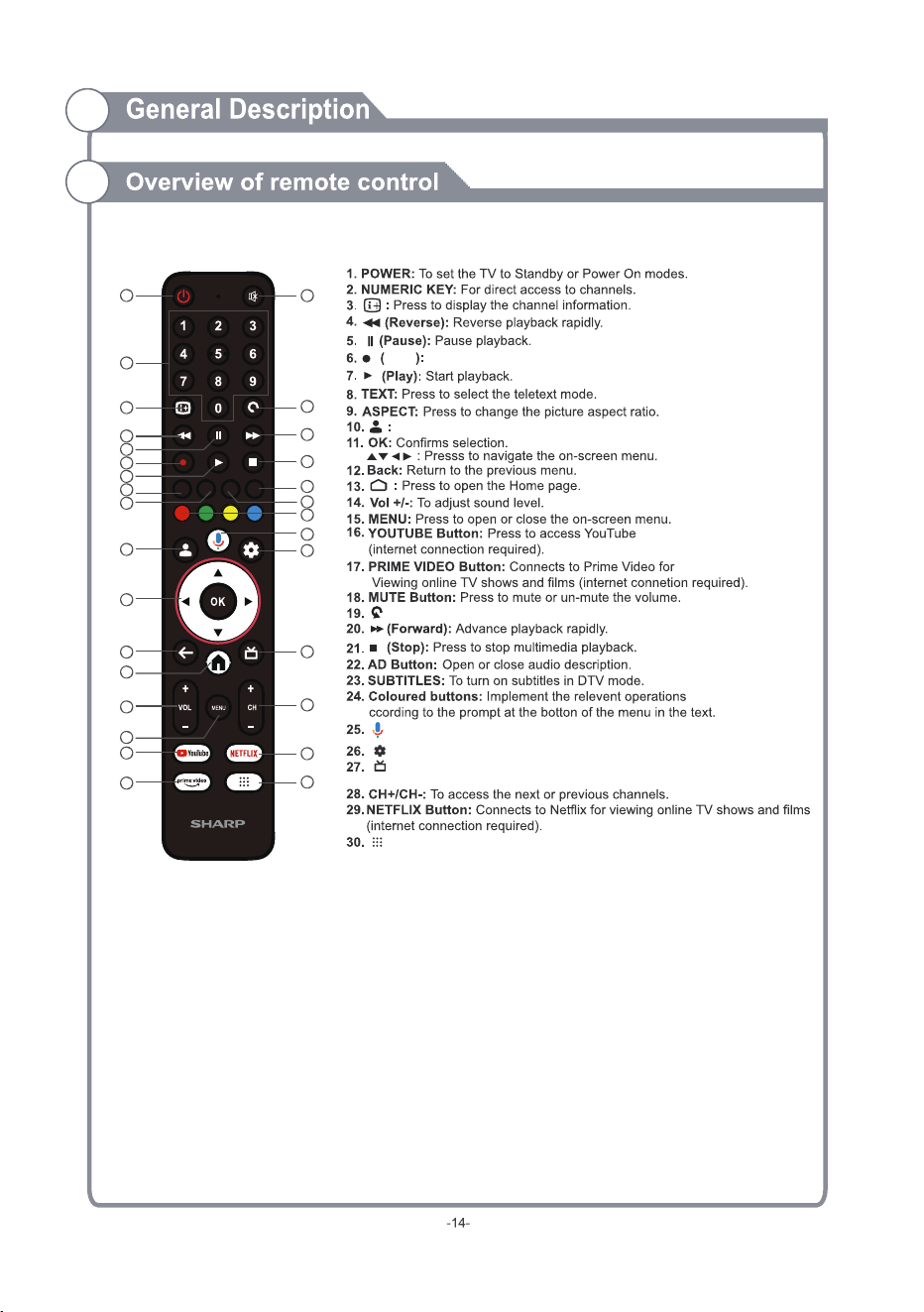
PVR Record video.
Choose or add an account.
: Jumps to last viewed channel.
: Press to open the setting option.
: Select electronic program guide, in DTV mode,it will display all the
information of program in a week when pressing this button.
open all app list.
TEXT
ASPECT
AD
SUBTITLES
1
2
3
4
5
7
6
8
9
10
11
12
13
18
19
20
21
22
23
24
15
14
16
17
25
26
27
28
29
30
Start a voice search or speak to Google Assistant.
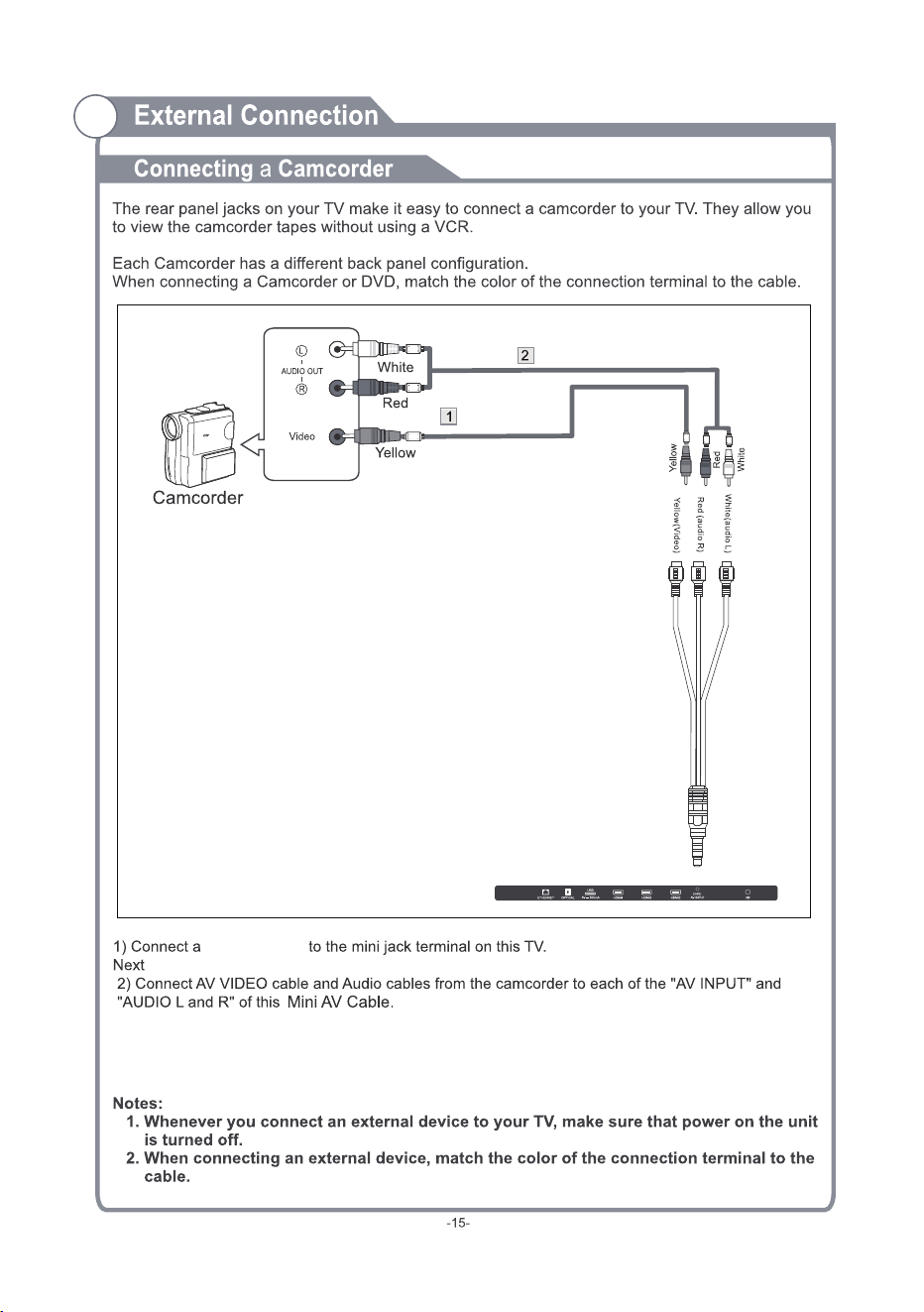
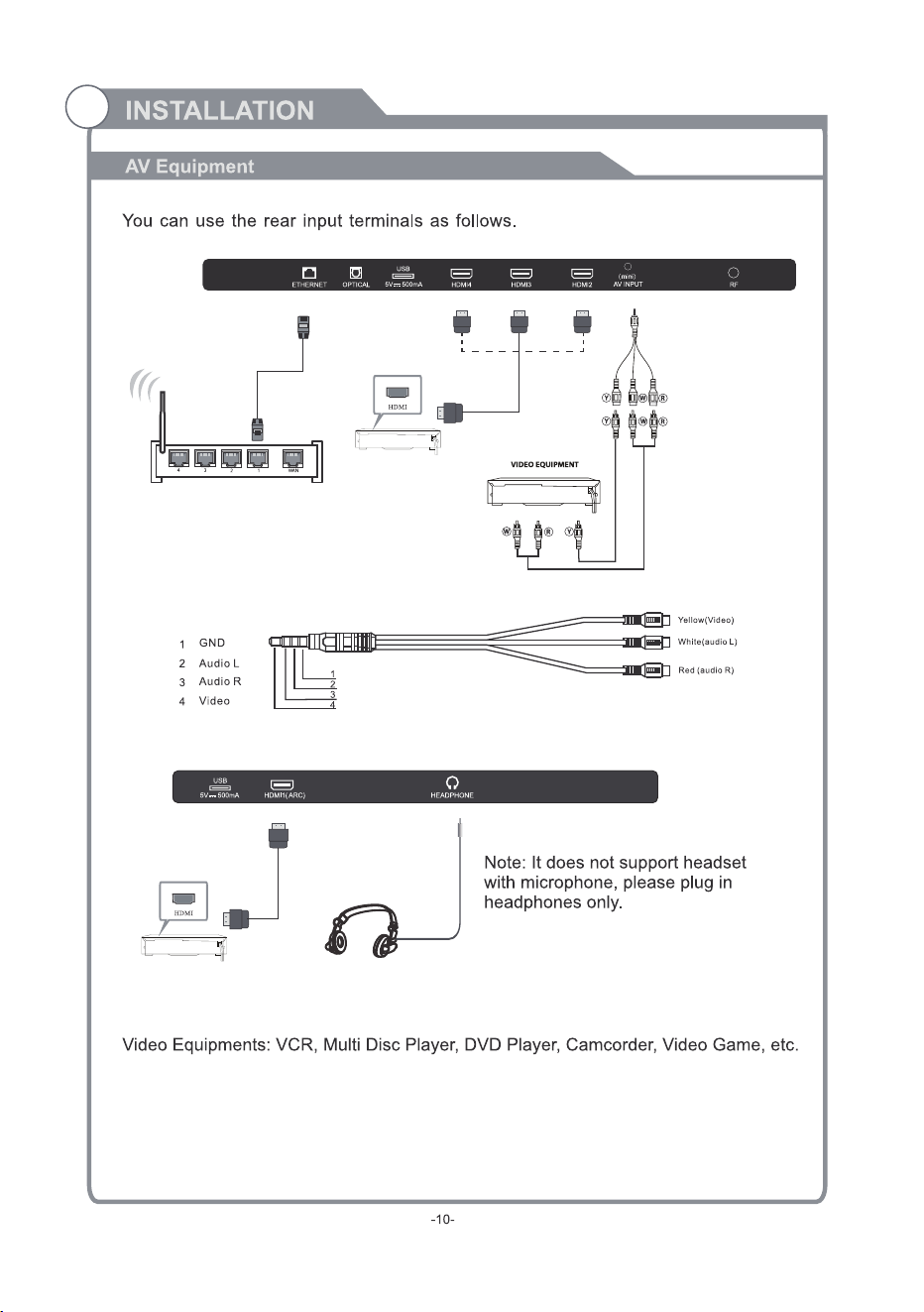
Mini AV Cable
Mini AV Cable
(Not included)
Audio Cable (Not included)
Video Cable
(Not included)
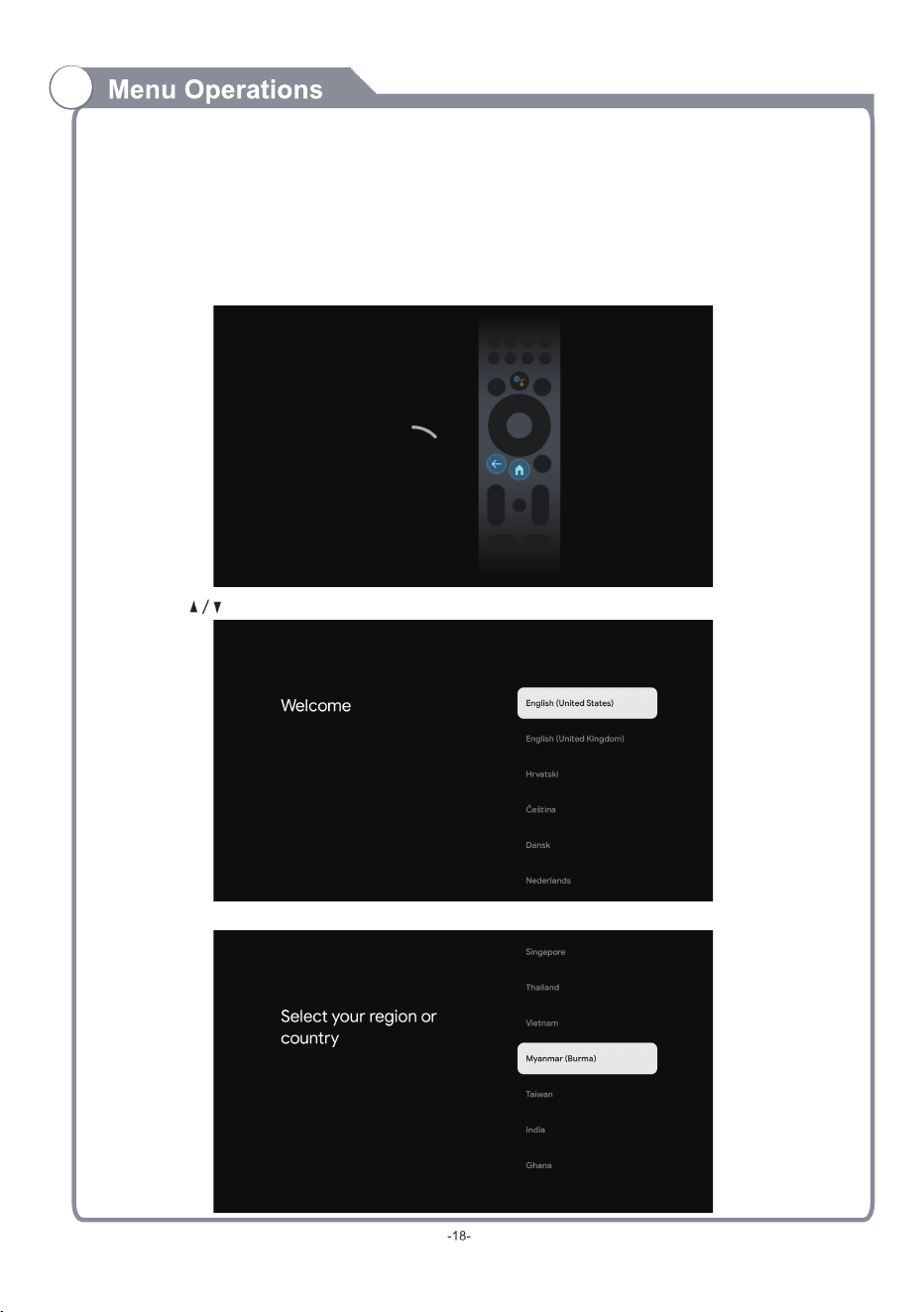
Use the buttons to select system language, then press OK/SELECT to confirm.
Select CORRECT country you are located in otherwise Google TV will not work correctly.
For the first initial setup, on screen setup wizard will guide you through setting up your TV.
Please follow according to on screen guide to setup your TV correctly.
Be sure to follow the below prompts to pair your Bluetooth remote control. After the pairing is
successful, you can now operate the TV.
Press BACK and HOME buttons on RC at the same time for 3 seconds to enter pairing mode.
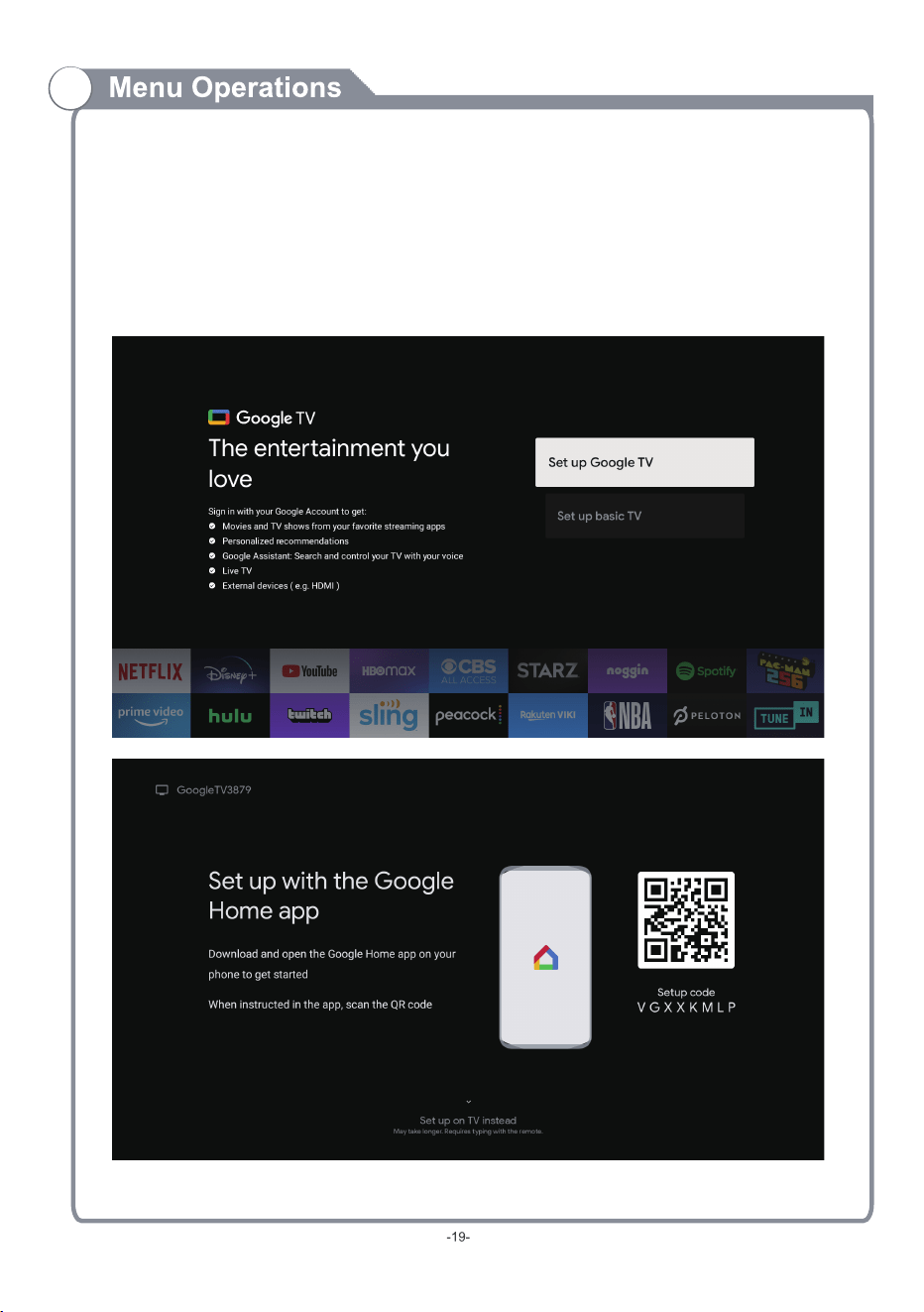
INITIAL SETUP (Cont.)
At the Initial Setup you will be asked whether you want to setup your Google TV now or just proceed with basic
setup of scanning your live DTV Channels.
If you want to SKIP Google TV Setup steps - SELECT “SET UP BASIC TV” and proceed to page
If you select “SET UP GOOGLE TV” please follow the below instructions below:
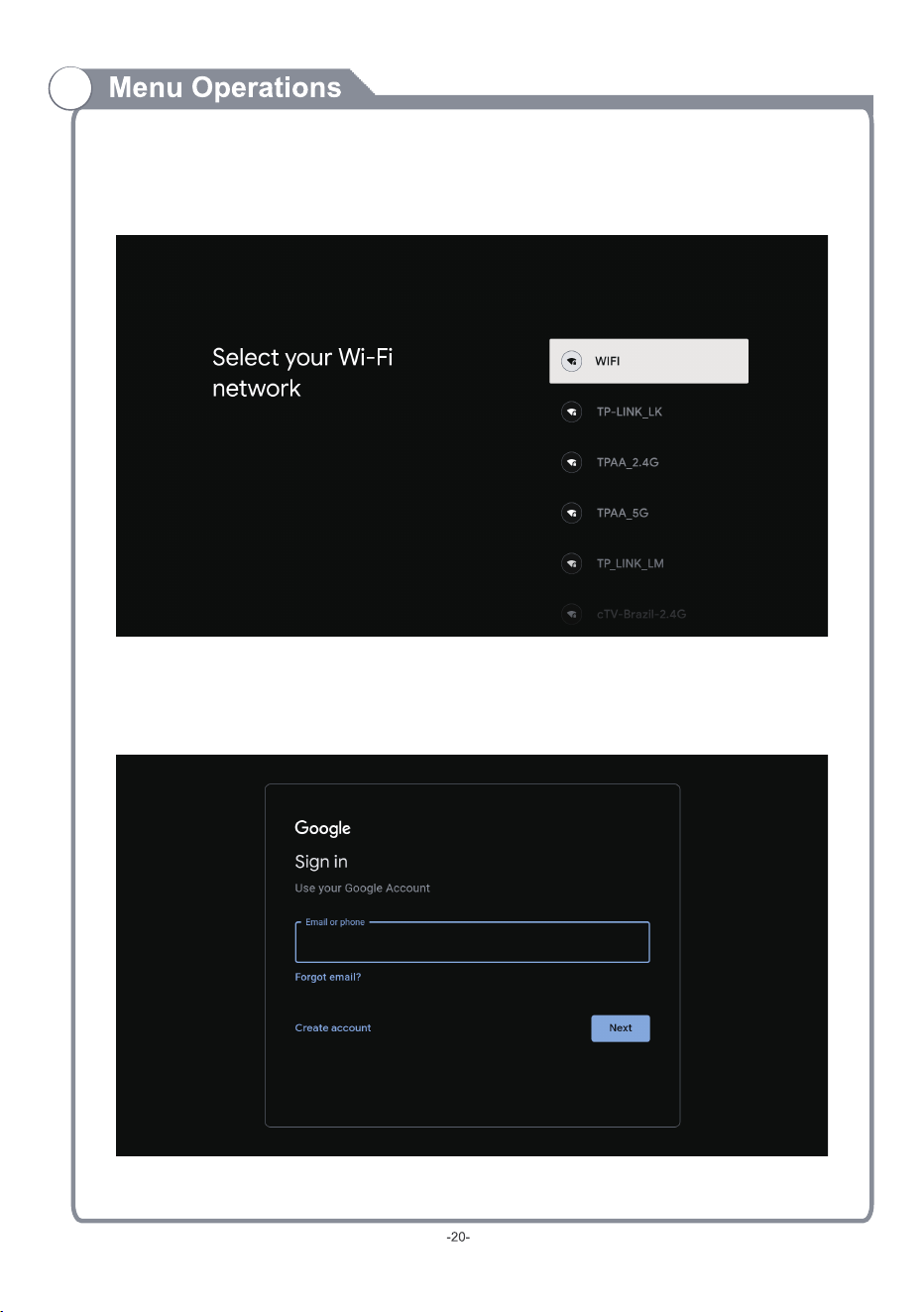
WI-FI
GOOGLE
Select your home Wi-Fi network and enter in the password to start connection process.
Once successfully connected you will proceed to the next step.
To have access and to download applications from Google Play, ou must sign in with a Google y
Account. Once you open Google Play, you will be prompted to sign in or create a new account.
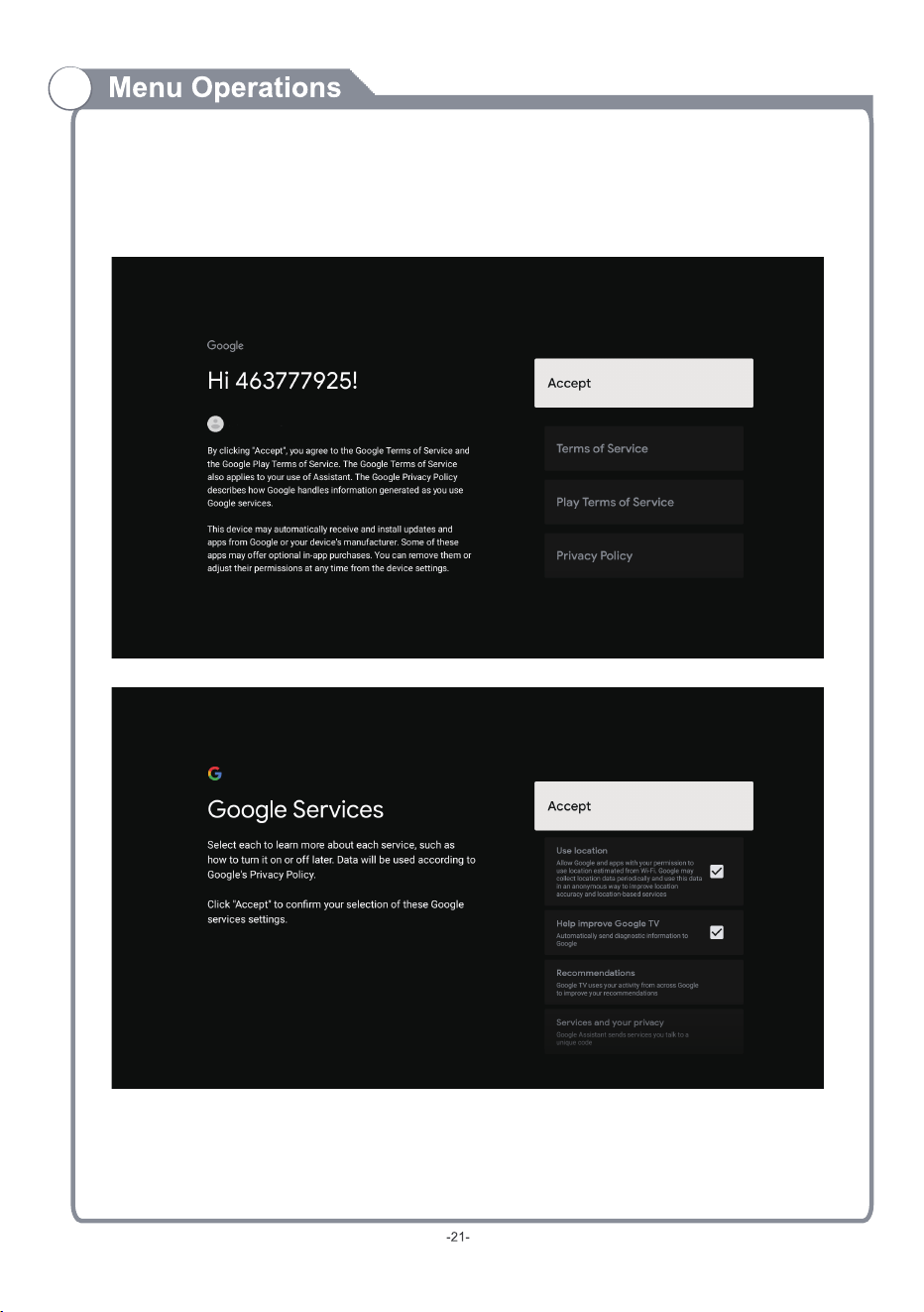
ACCEPTANCE - TERMS OF SERVICE
By accepting the Google Terms of Service to improve the product experience, Select “ACCEPT”
to proceed with this condition.
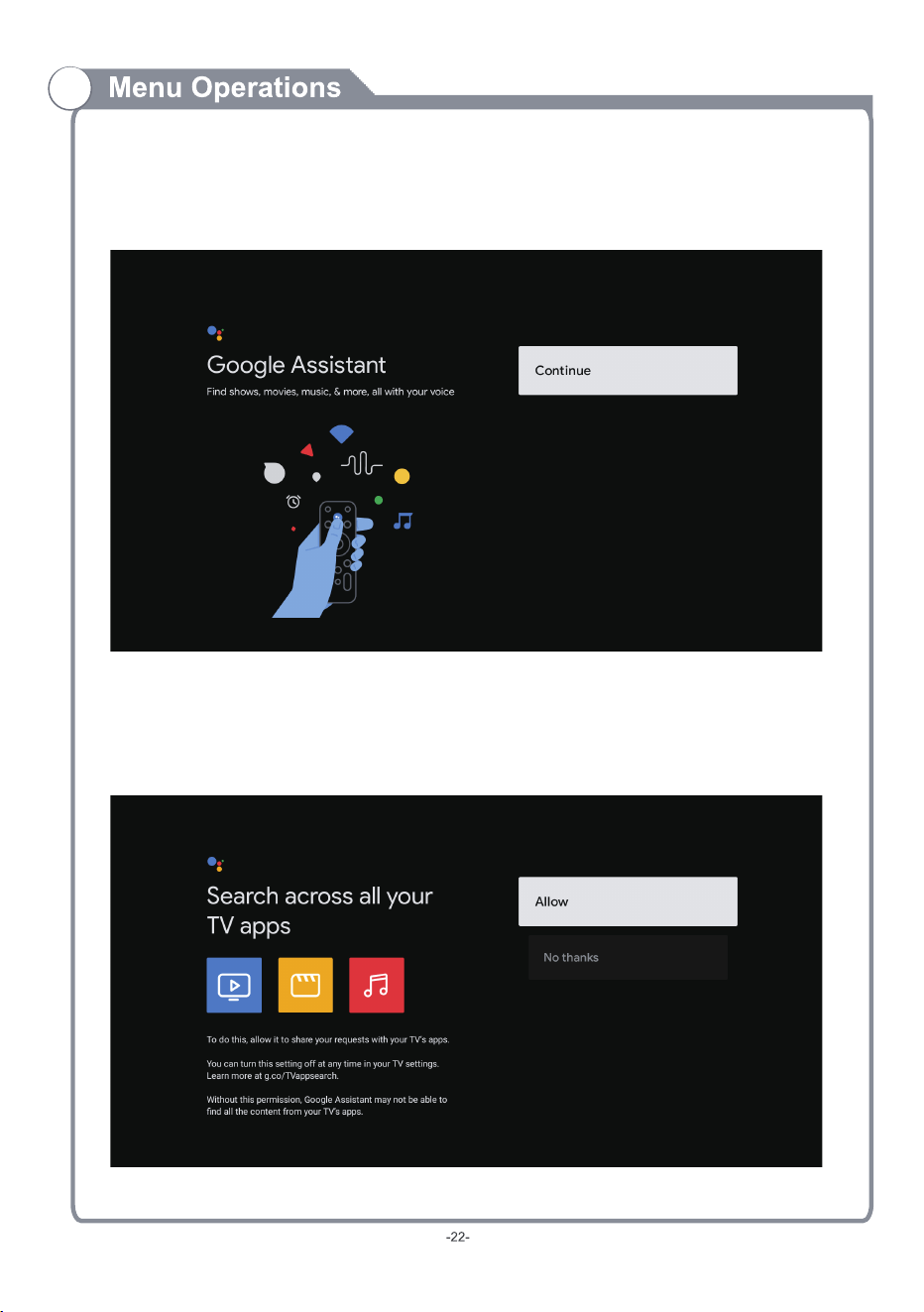
GOOGLE ASSISTANT SETUP
Now starts the process of setting up your Google Assistant to work best for you.
Please select Continue to start this process.
For the best experience with Google Assistant, please select “Allow” for Google Assistant
to share requests with your TV’s Installed apps.
Without this permission, Google Assistant may not be bale to find all the content
from your TV’s Apps.
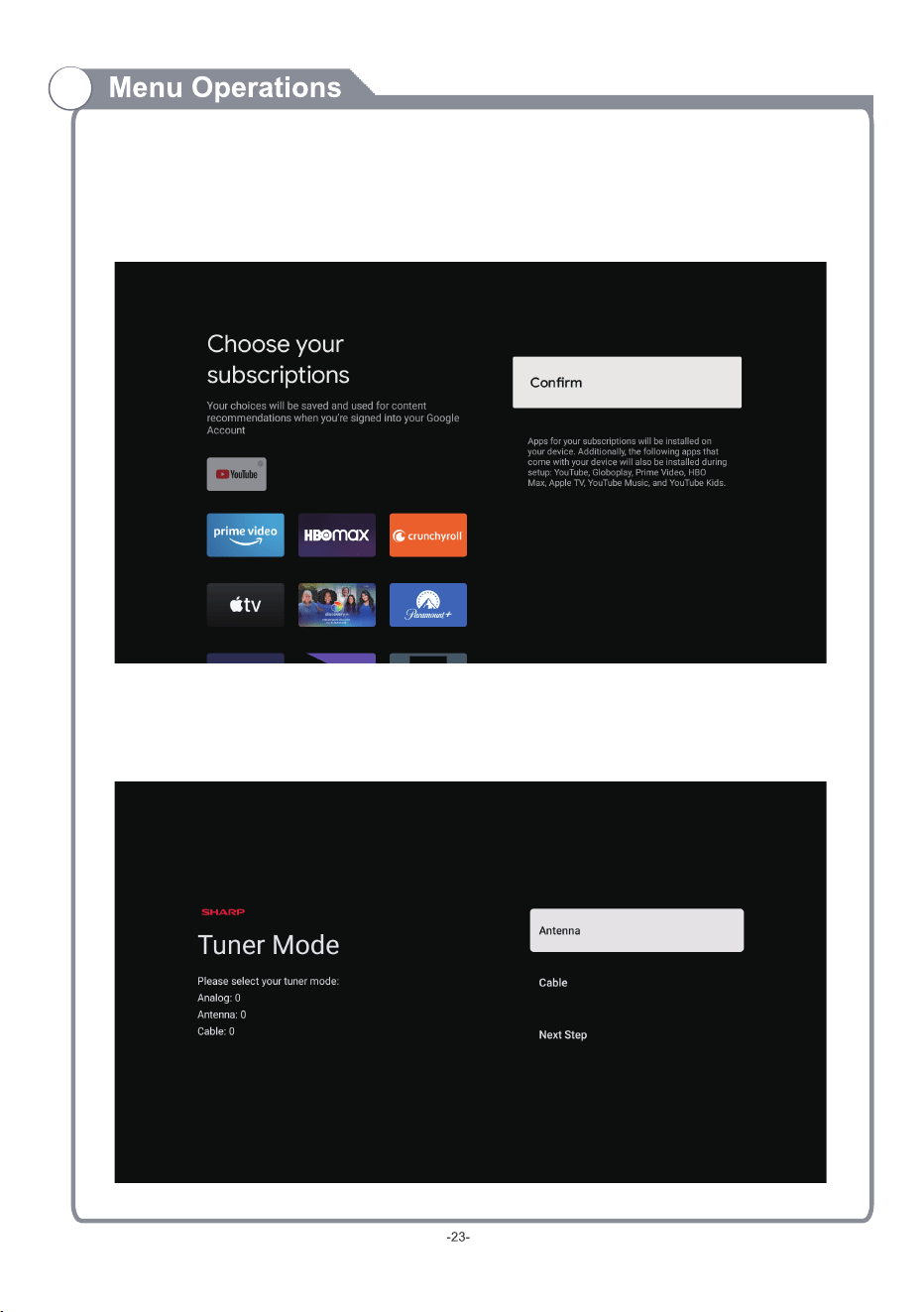
GOOGLE ASSISTANT SETUP (CONT.)
If you have select “Allow” in the previous step, content recommendations can now be provided
to you.
Channel Installation
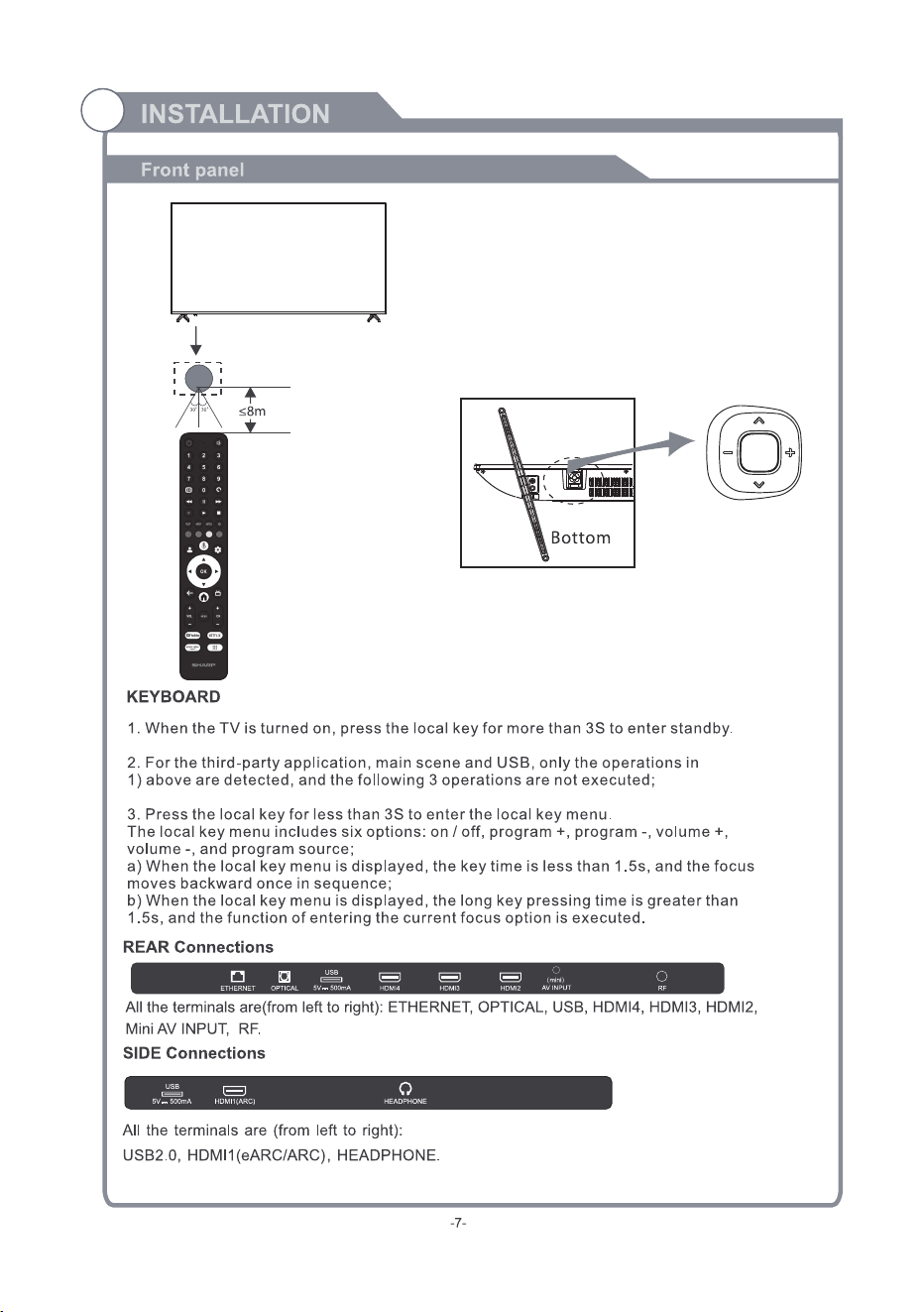
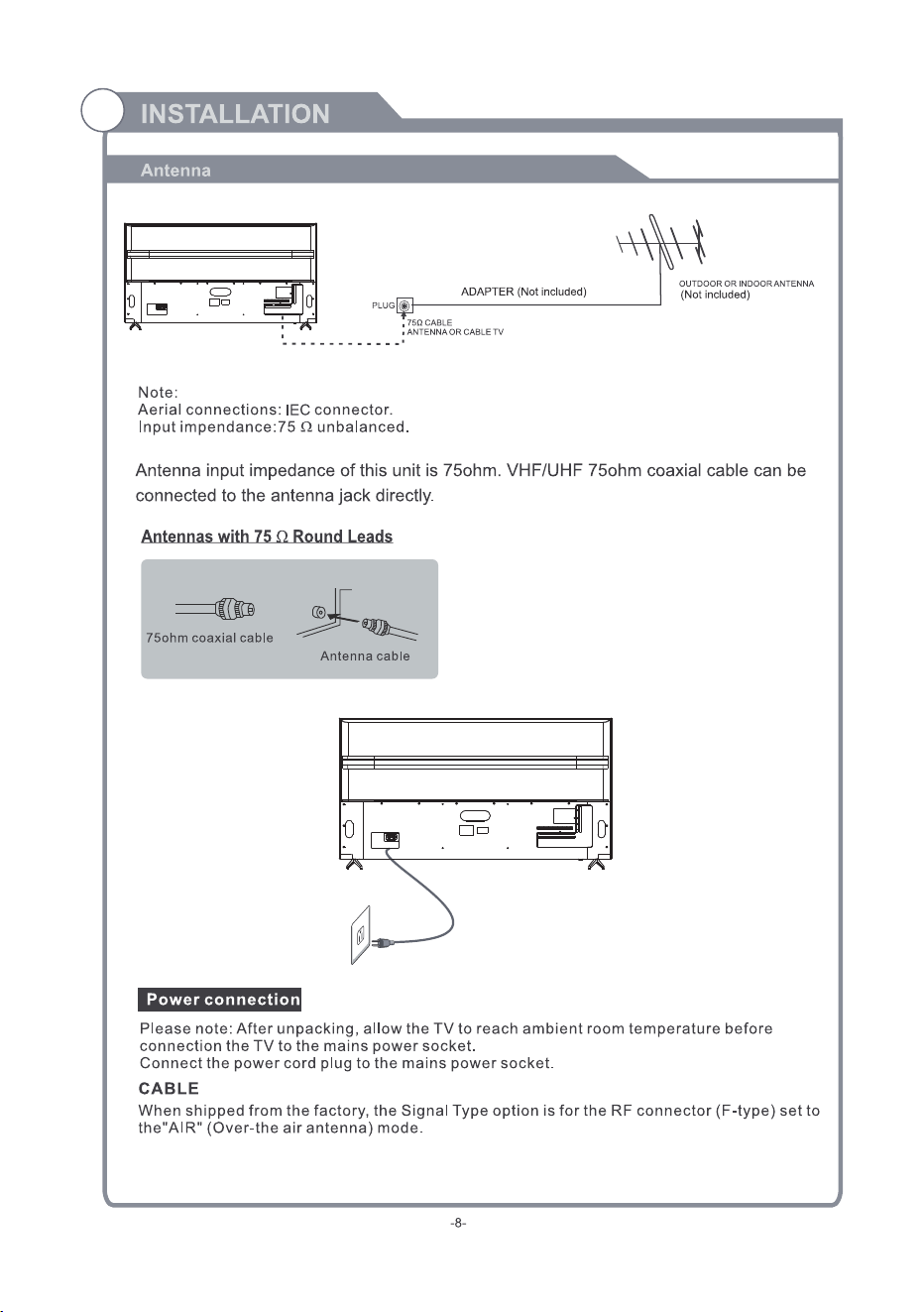
NOTE: Please make sure Antenna (RF) cable is plugged into the TV port located on back of TV.
Make sure to select “ANTENNA” to scan for channels using antenna cable.
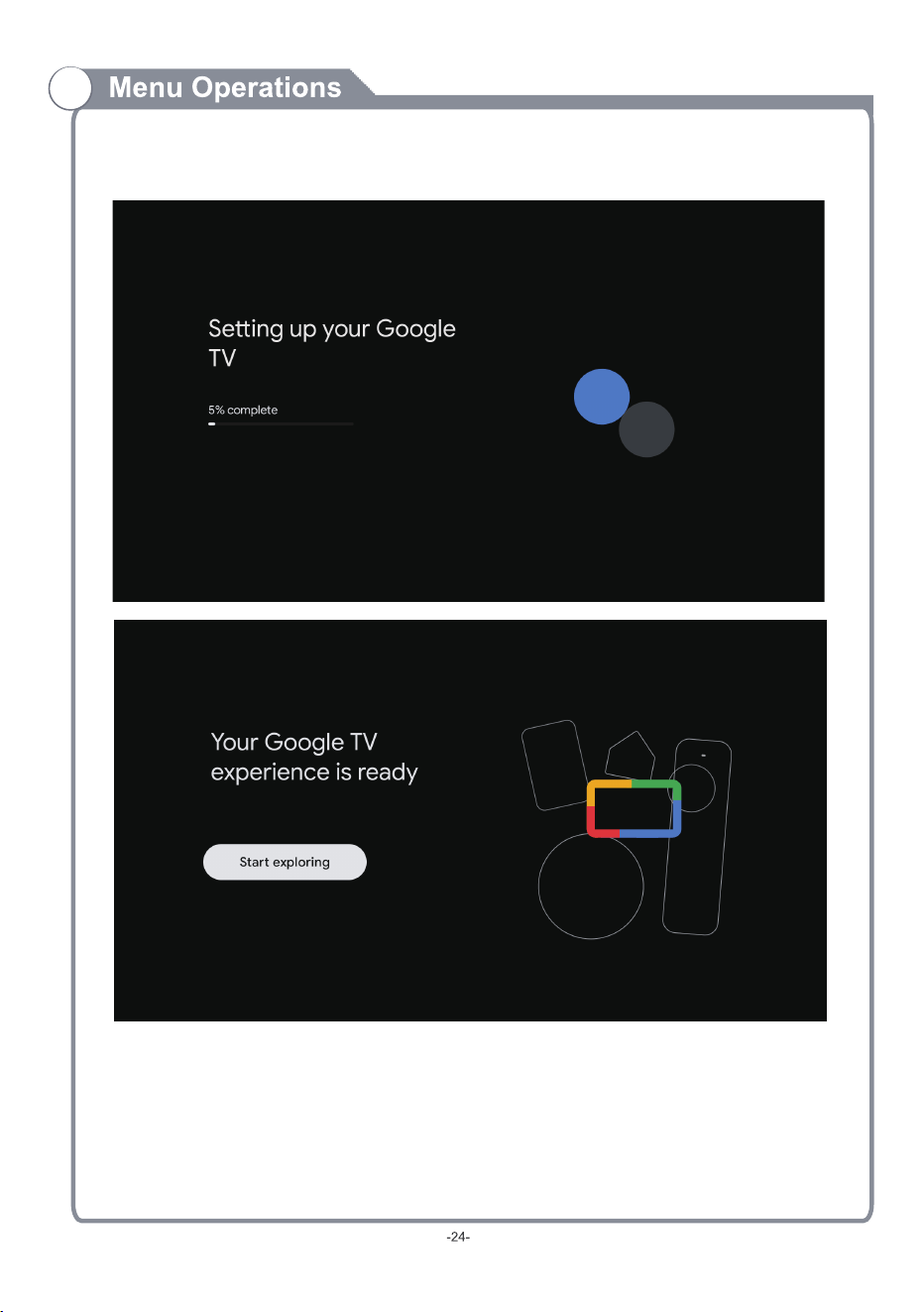
GOOGLE TV
Once you have completed initial setup, you will now enter the Google TV home screen.
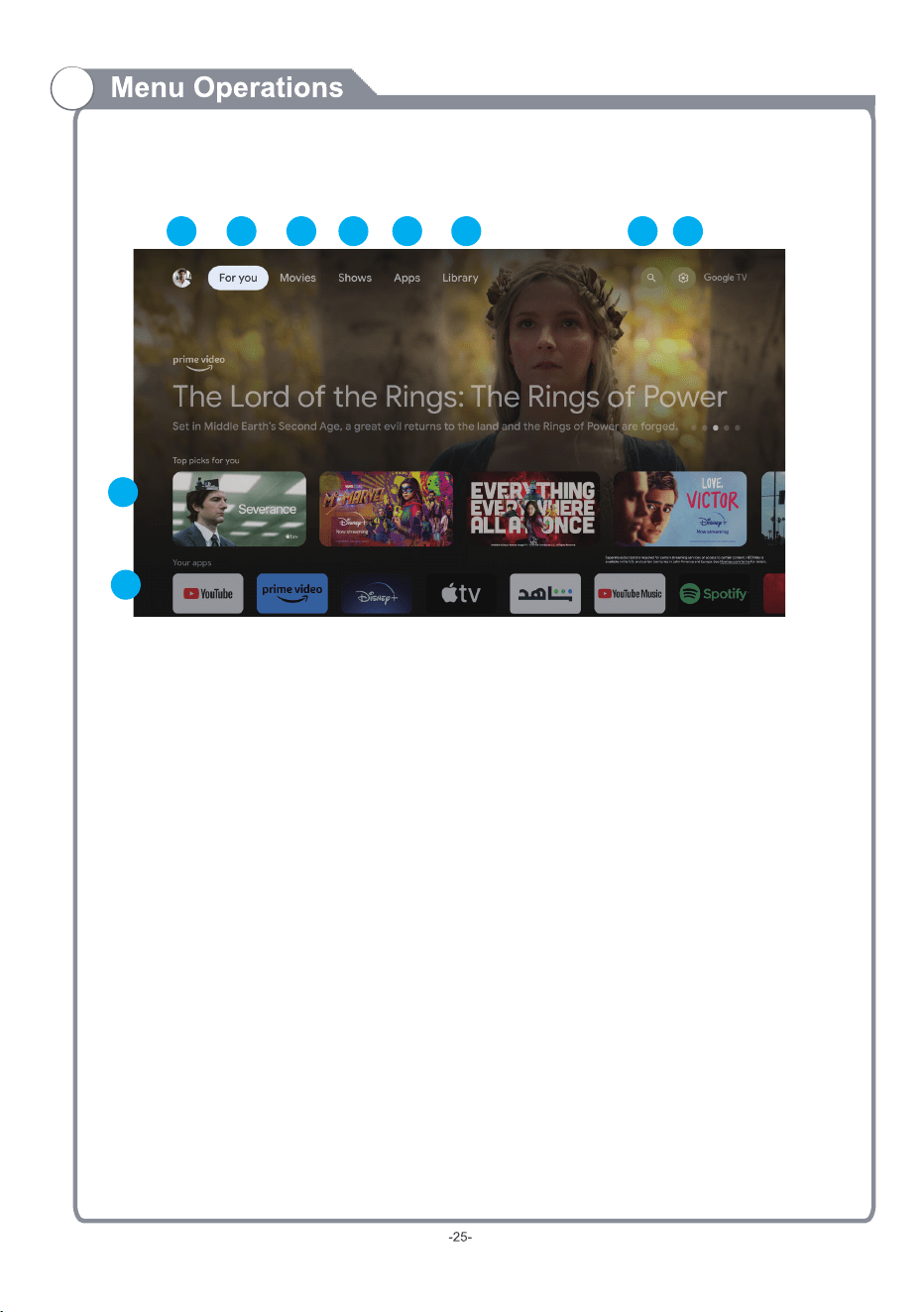
GOOGLE TV (CONT.)
1. PROFILE - Select this option if you want to access:
Add or Manage Google Account
2. FOR YOU - Main page for advertised TV shows, Live TV, Installed Apps, and top
picks based on content recommendations tailored for you.
9 - Each row past this point will display recommended content from the apps you already have installed.
10 - Apps you have installed. At the end of this row of apps, Select the + box and add your app that
you have downloaded and installed to the home screen of your Google TV.
3. MOVIES - This menu is all movies recommended for you to watch.
4. SHOWS - This menu is all TV shows recommended for you to watch.
5. APPS - to
search for and download/install onto your Google TV.
6. LIBRARY - All installed app will appear in this menu, including updates and more.
7. SEARCH - Press the Google Assistant button on your remote to do more on your
TV with your voice, or select “Search” and type in what you are looking for.
8. SETTINGS - To Access Settings, Date & Time, TV Inputs, Picture (TV Display)
3 4 6 7 852
1
9
10
TEXT
ASPECT
AD
SUBTITLES
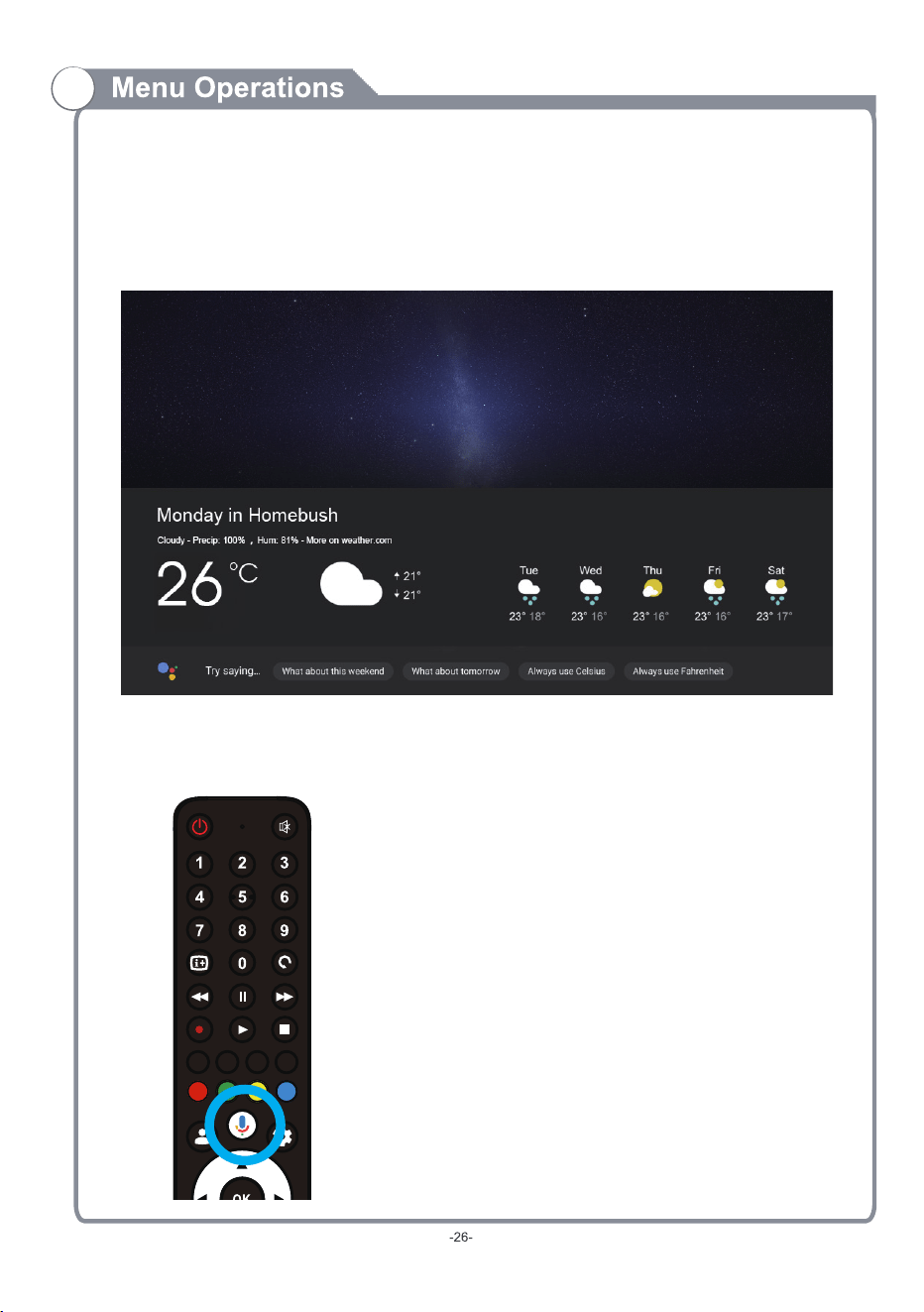
GOOGLE ASSISTANT
Do more on your TV with your voice. Press the Google Assistant button on your remote to
quickly search 400,000+ movies and shows, get recommendations to match your mood, control
smart home devices, and more.
Ask Google to search for the latest blockbuster, stream shows, or open multiplayer games.
Have it dim the lights by connecting smart home devices. Manage tasks and see your
calendar. Or ask it questions and see the answers on your TV.
“What’s the
weather today?”
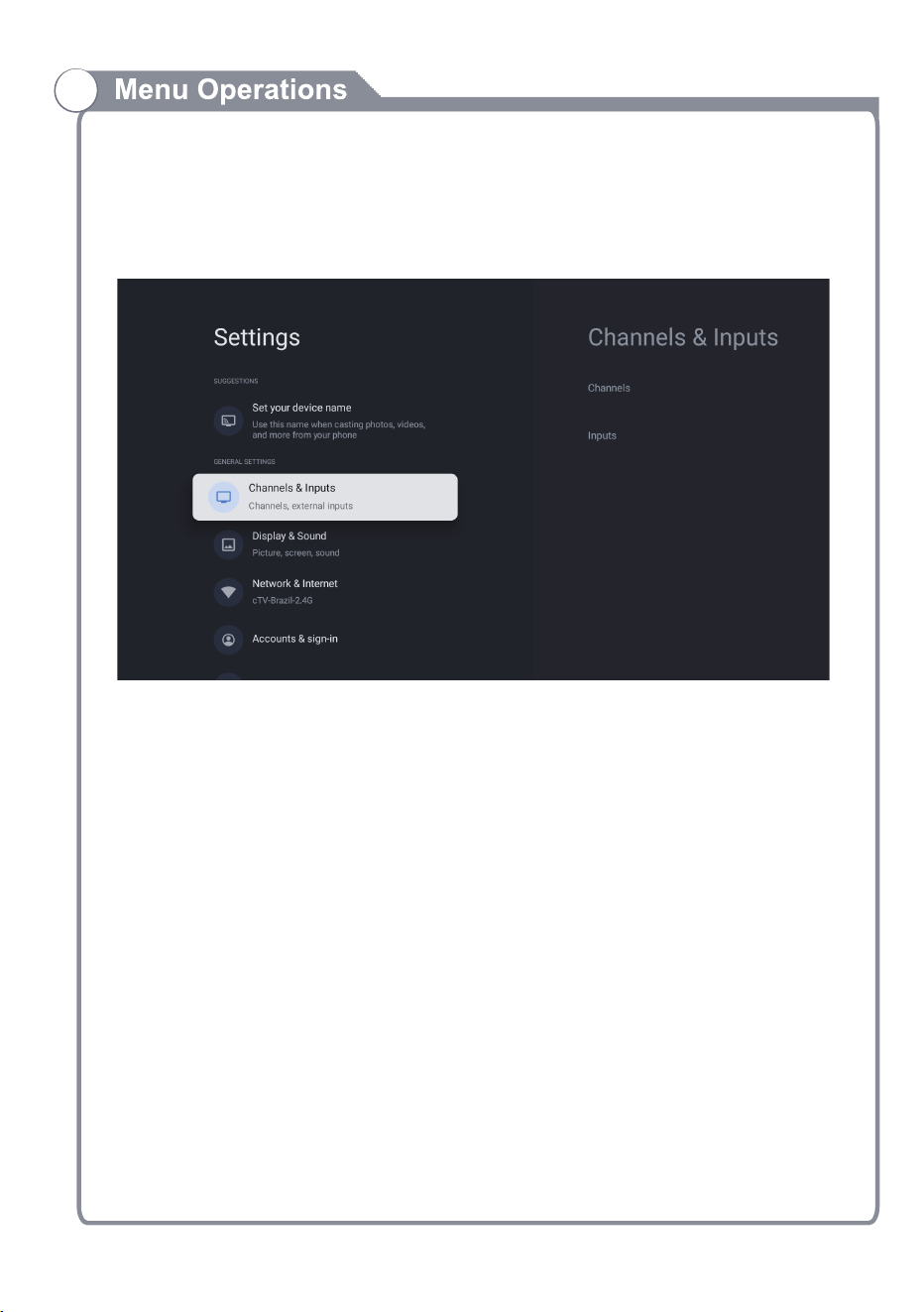
SETTINGS MENU
To access SETTINGS menu:
1. Select Profile Icon menu
2. Select Settings
SETTINGS AVAILABLE ARE:
- Set your Device Name - This is to pick a Chromecast name, when searching to chromecast
content from smartphone to TV, this name will appear on your smart device.
- Channels & Inputs - Live TV channel search and TV inputs menu
- Display & Sound - Picture and Audio settings
- Network & Internet - Wi-Fi or Ethernet connection settings
- Accounts & Sign in - Google Account settings
- System
- Remotes & Accessories
- Help & Feedback
-27-
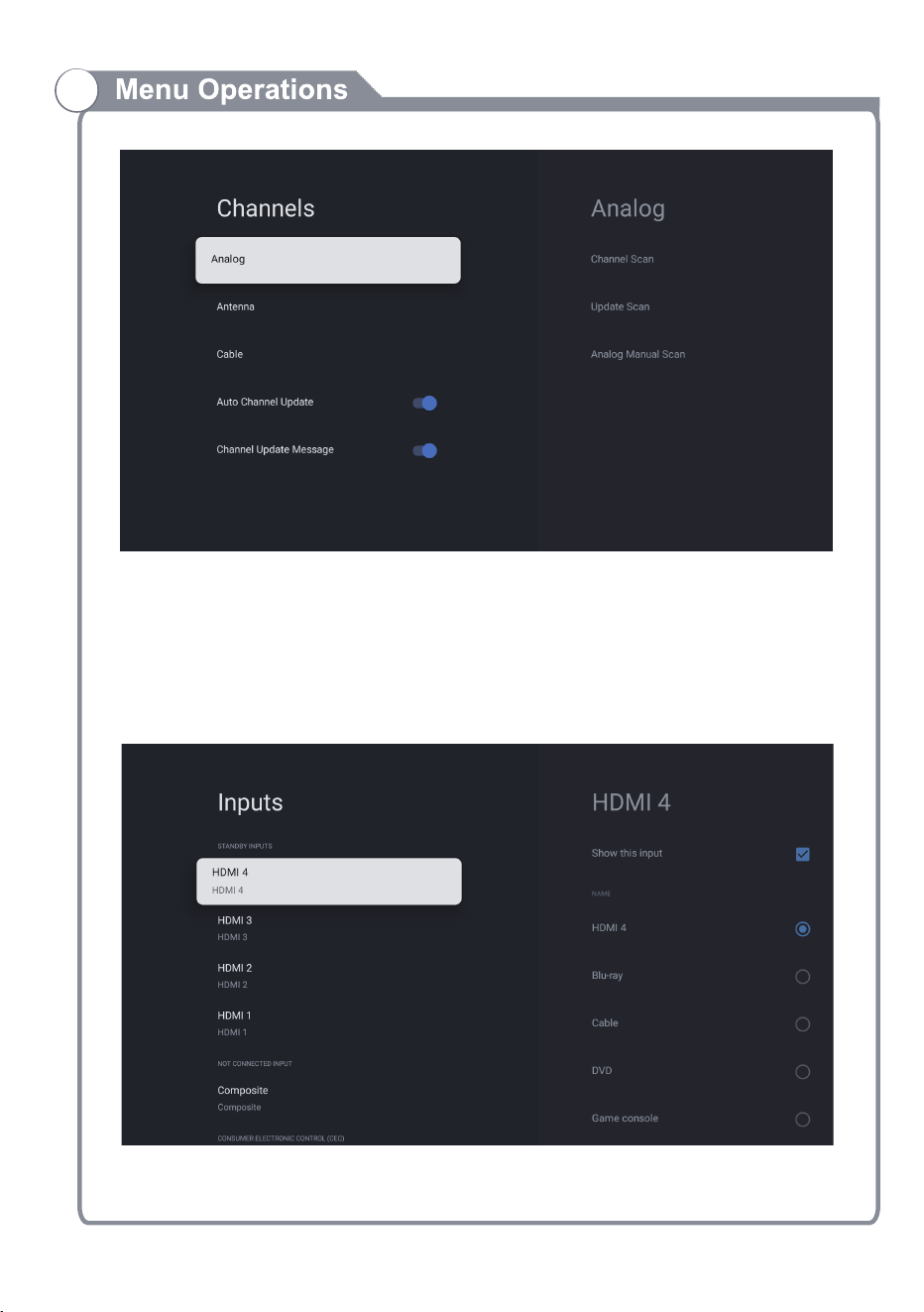
Channels MENU
To access Channels
1.Select Profile Icon menu
2.Select Settings
3.Go down and select Channels & Inputs
4.Select Channels
In this interface, you can search for channels.
-28-
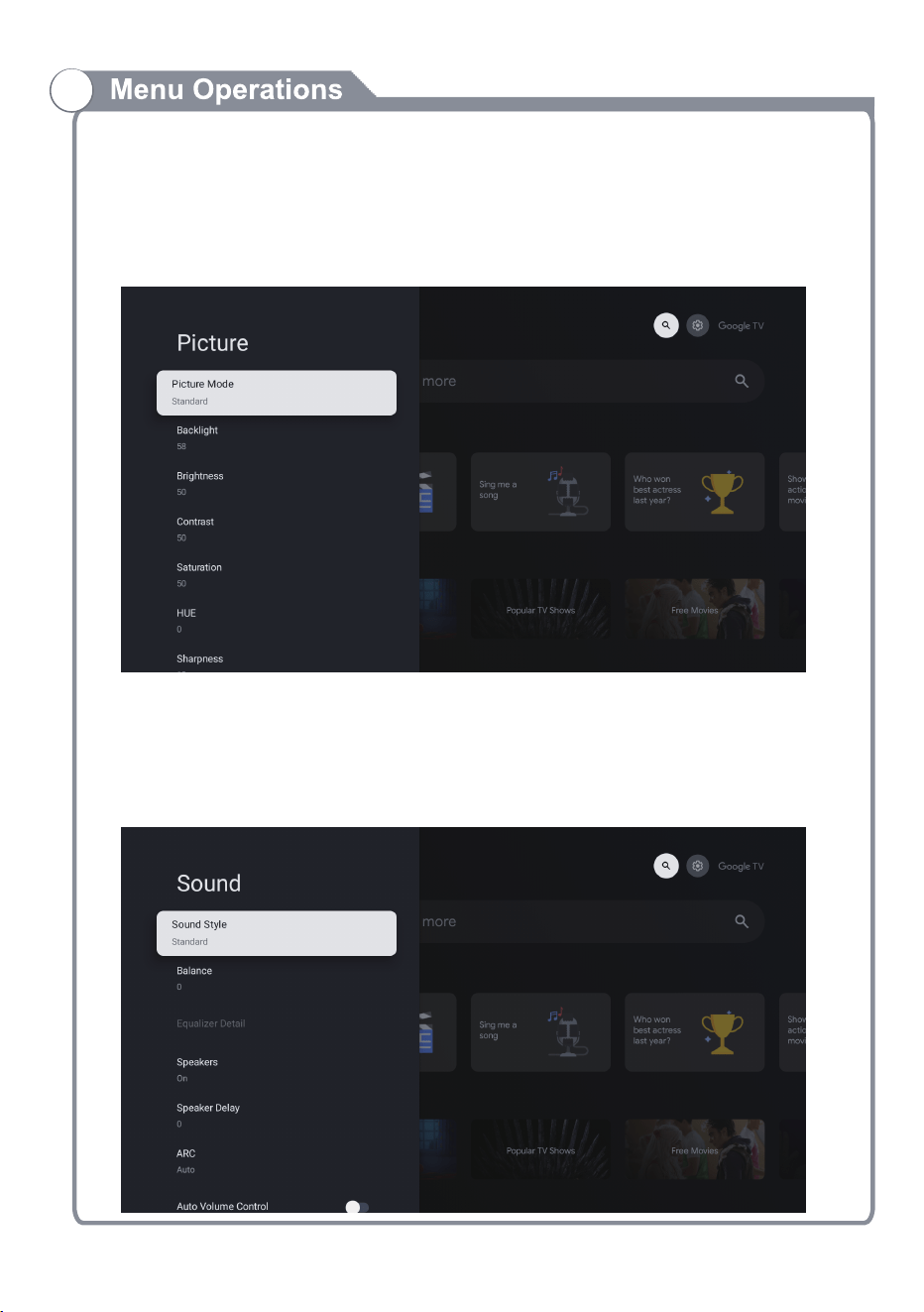
Inputs MENU
To access Channels
1.Select Profile Icon menu
2.Select Settings
3.Go down and select Channels & Inputs
4.Select Inputs
PICTURE MENU
To access Picture menu
1. Select Profile lcon menu.
2. Select Settings.
3. Go down and select Display & Sound.
4. Then select Picture.
SOUND MENU
To access SOUND menu:
1. Select Profile Icon menu
2. Select Settings
3. Go down and select Display & Sound.
4. Then select Sound
-29-
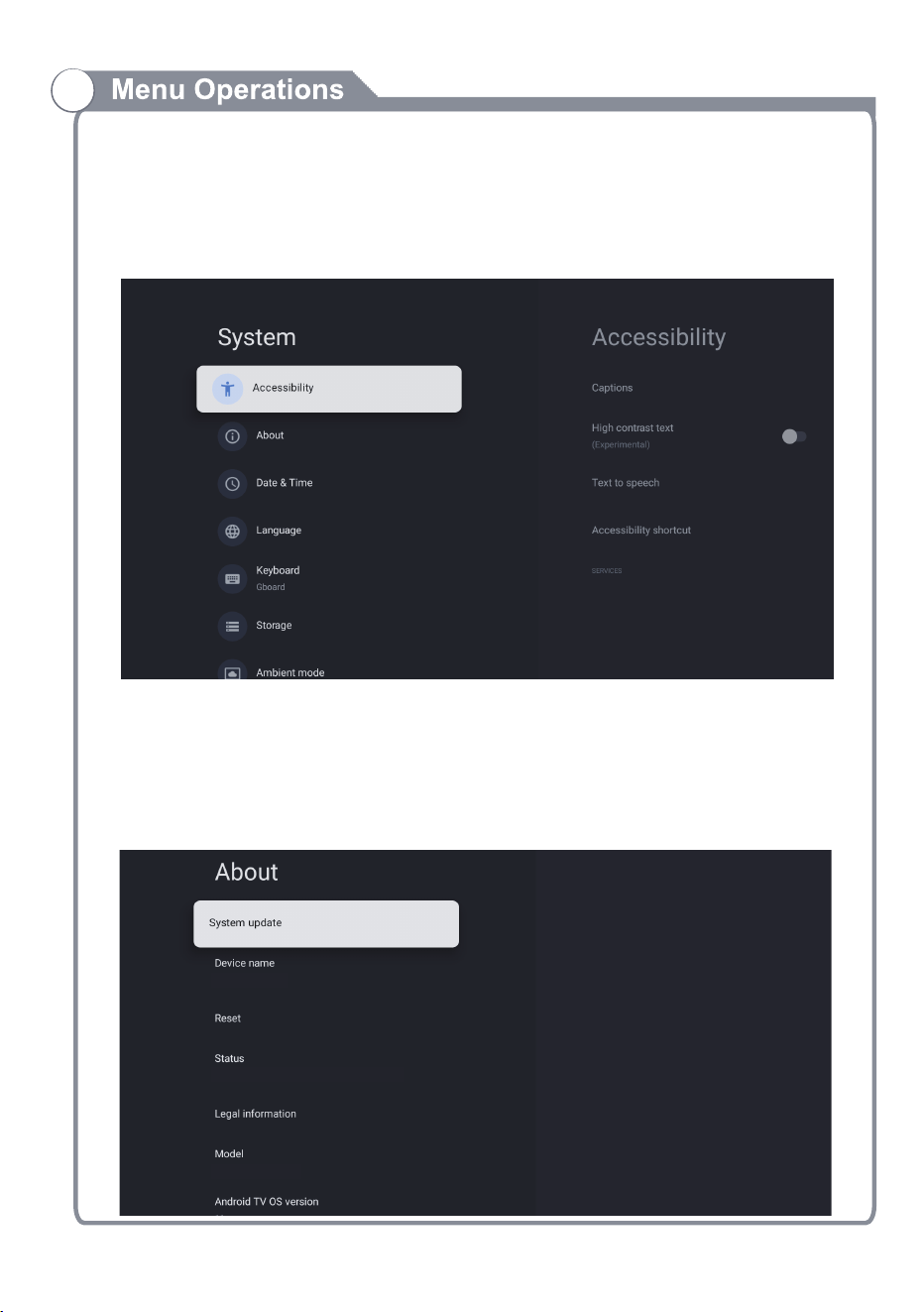
SYSTEM MENU
To access SYSTEM menu:
1. Select Profile Icon menu
2. Select Settings
3. Go down and select SYSTEM
ABOUT MENU
To access ABOUT menu:
1. Select Profile Icon menu
2. Select Settings
3. Go down and select System
4. Select About
-30-
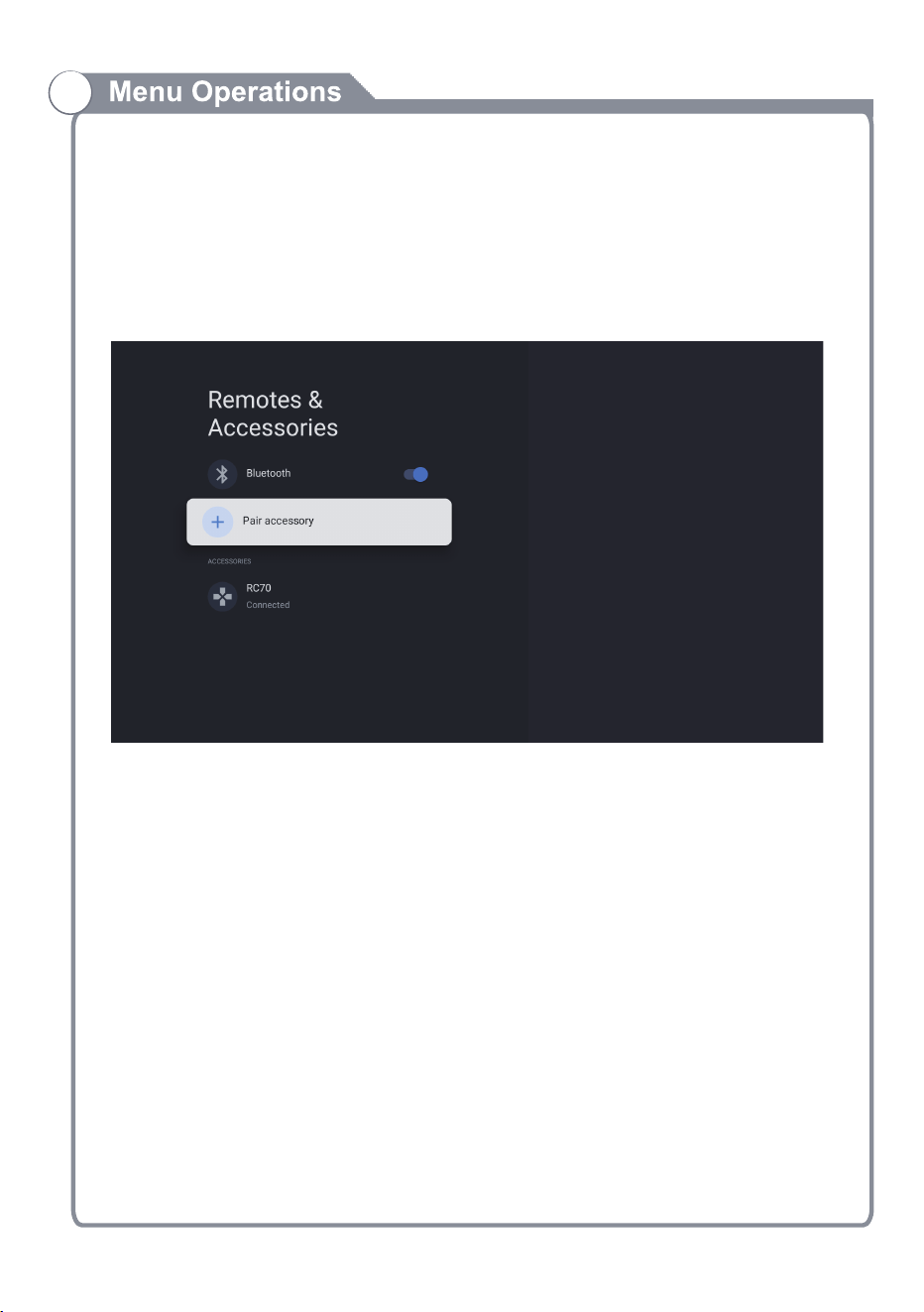
Remotes & Accessories
To access Remotes & Accessories menu,
1. Select Profile Icon menu
2. Select Settings
3. Go down and select Remotes & Accessories
Check and set your Bluetooth connection status and add new Bluetooth devices
PVR (PERSONAL VIDEO RECORDER)
To access RECORDING menu, (PVR)
1. While watching Live TV, press “OK” on remote control.
2. Press “Start recording” and then choose the recording time.
IMPORTANT - You must have a USB Drive inserted into the USB Port of the TV to in order
to use any of these “RECORD” functions. (Must be FAT32 format)
-31-
-32-
-33-