Instruction Manual
43" LED Smart HD TV
LT-43C770
GB
LT-43C770_IB.indd 1 20/04/2017 17:04

Contents
1 Safety Warnings ...........................................................................................................................................................................6
2 Preparation ...................................................................................................................................................................................9
Unpacking the TV ...............................................................................................................................................................................................................9
Installing / Removing the Base Stand .......................................................................................................................................................................10
− Fitting the Stand Neck and Base Together..................................................................................................................................................10
− Fitting the Stand to the TV ................................................................................................................................................................................10
Mounting the TV to a Wall .............................................................................................................................................................................................11
Front / Right Side View and Controls .........................................................................................................................................................................11
Rear View and Sockets ....................................................................................................................................................................................................12
Installing Batteries in the Remote Control ..............................................................................................................................................................13
Remote Control Operation Range ..............................................................................................................................................................................13
Remote Control .................................................................................................................................................................................................................14
3 Initial Setup ................................................................................................................................................................................16
Turning the TV On for the First Time .........................................................................................................................................................................16
− Choose Region (UK only) ...................................................................................................................................................................................18
− Connecting an Analogue Device ....................................................................................................................................................................19
− Channel Selection ...............................................................................................................................................................................................19
− Display Channel Information ...........................................................................................................................................................................19
− Volume Adjustment .............................................................................................................................................................................................19
− Using the multifunction button on the back of the TV ..........................................................................................................................19
4 Customising TV Settings ...........................................................................................................................................................20
Adjusting the Picture Settings .................................................................................................................................................................................... 20
− Aspect Ratio ............................................................................................................................................................................................................21
Adjusting the Sound Settings ......................................................................................................................................................................................21
Editing the Channel List ................................................................................................................................................................................................ 22
Viewing your Favourite Channel List ........................................................................................................................................................................ 23
5 Using the Features .....................................................................................................................................................................24
Programme Guide ........................................................................................................................................................................................................... 24
− Switch On / O Programme Guide ............................................................................................................................................................... 24
− Select a Programme ........................................................................................................................................................................................... 24
Time Shift Recording onto a USB Storage Device ............................................................................................................................................... 26
Recording DTV Programmes onto a USB Storage Device ................................................................................................................................ 27
Timer Programming ....................................................................................................................................................................................................... 28
Recording Settings .......................................................................................................................................................................................................... 29
Playing Recorded Programmes .................................................................................................................................................................................. 30
Red Button + (Interactive services) ............................................................................................................................................................................31
− Accessing the Information ................................................................................................................................................................................31
Listening to the Radio .....................................................................................................................................................................................................31
6 Using the Smart Features .......................................................................................................................................................... 32
Connecting to the Internet (Wired) .......................................................................................................................................................................... 32
Connecting to the Internet using wireless ............................................................................................................................................................. 33
Using Freeview Play ........................................................................................................................................................................................................ 34
− Catch Up Services ................................................................................................................................................................................................ 34
− Freeview Apps Updating .................................................................................................................................................................................. 34
− Freeview Play 7 day Catch Up through the Programme Guide .......................................................................................................... 34
Selecting Smart TV .......................................................................................................................................................................................................... 35
− Market ...................................................................................................................................................................................................................... 35
− Widget ..................................................................................................................................................................................................................... 35
− My Apps ................................................................................................................................................................................................................... 36
− Organising your apps in My Apps ................................................................................................................................................................. 36
− Deleting an app from My Apps ...................................................................................................................................................................... 36
− Key Apps ................................................................................................................................................................................................................. 36
− Searching for Apps .............................................................................................................................................................................................. 36
LT-43C770_IB.indd 2 20/04/2017 17:04

− Editing the Smart Wallpaper ........................................................................................................................................................................... 37
Using the Internet ............................................................................................................................................................................................................ 38
− Adding Bookmarks ............................................................................................................................................................................................. 38
− Adding Tabs ........................................................................................................................................................................................................... 38
− Adding a Site to Speed Dial ............................................................................................................................................................................. 39
− Editing Speed Dial ............................................................................................................................................................................................... 39
− Opera Menu ........................................................................................................................................................................................................... 39
7 Other Information ......................................................................................................................................................................40
CI (Common Interface) (DTV Mode) ..........................................................................................................................................................................40
Time Settings......................................................................................................................................................................................................................41
Accessibility Settings .......................................................................................................................................................................................................41
Other Settings ................................................................................................................................................................................................................... 42
− Connecting a Soundbar - HDMI ARC (Audio Return Channel) ........................................................................................................... 43
Language Settings ..........................................................................................................................................................................................................44
Sources................................................................................................................................................................................................................................. 44
Resetting your TV ............................................................................................................................................................................................................ 45
Parental Settings .............................................................................................................................................................................................................. 46
8 Entertainment ............................................................................................................................................................................47
Connecting a USB Storage Device ............................................................................................................................................................................. 47
Viewing Videos ................................................................................................................................................................................................................. 48
Viewing Photos ................................................................................................................................................................................................................. 49
Listening to Music ............................................................................................................................................................................................................ 50
9 Technical Information and Help ...............................................................................................................................................51
Maintenance .......................................................................................................................................................................................................................51
Hints and Tips .....................................................................................................................................................................................................................51
Product Fiche and Specications ............................................................................................................................................................................. 53
License Information used with JVC Televisions .................................................................................................................................................... 55
Declaration of Conformity ............................................................................................................................................................................................ 55
Remote Control Codes ................................................................................................................................................................................................... 55
− Sky Codes ............................................................................................................................................................................................................... 55
− Virgin Media Codes (TiVo box) ....................................................................................................................................................................... 55
− BT Vision .................................................................................................................................................................................................................. 55
LT-43C770_IB.indd 3 20/04/2017 17:04

WE KNOWHOW
TO HELP YOU
WITH YOUR TV
We want you to be able to enjoy your new TV for many years. From getting it home and setting it up,
to helping you get the most out of your new purchase. And in the unlikely event your TV lets you down,
we can get it working again in no time.
Here are some of our TV services, but if you want to know more look us up at www.knowhow.com or call
us on: 0344 561 1234.
TV SET UP & DEMO
We’ll assemble the stand and connect your new TV to the existing equipment. We’ll tune your TV so it’s
ready to watch. We’ll also give you a demonstration of your new TV’s functions.
TV WALLMOUNT & DEMO
We’ll fi x your TV to a suitable position on the wall and connect to your existing equipment, so it’s all
ready to go. We’ll use neat wire management so you don’t have to look at any untidy cabling and, to
complete your fuss-free installation, we’ll test and demonstrate your TV’s functions.
FREESAT INSTALLATION
We’ll set up the Freesat receiver and connect it to your existing dish, TV and cabling. We’ll then tune in
all available channels.
AERIAL INSTALLATION
We’ll supply, install and align a new, high quality aerial and connect it to your Freeview receiver and TV.
Then we’ll scan and tune in all available digital channels.
HOME CINEMA OR SOUNDBAR INSTALLATION
We’ll un-box, connect and set up your new and existing equipment. We’ll then confi gure, calibrate and
optimise the equipment. To avoid ugly trailing cables we’ll clip them to your skirting board if you’d like
us to. Then we’ll give you a demonstration.
FAULT & FIX SERVICES
With our Fault & Fix services we can repair a wide range of products at our new state-of-the-art repair
lab. This service is available for:
• Computer desktops • Laptops
• Netbooks • TVs
CT_362_52TG_123456_CT_A4PF
For UK
Knowhow Page UK.indd 1 25/04/2014 10:06
WE KNOWHOW
TO HELP YOU
WITH YOUR TV
We want you to be able to enjoy your new TV for many years. From getting it home and setting it up,
to helping you get the most out of your new purchase. And in the unlikely event your TV lets you down,
we can get it working again in no time.
Here are some of our TV services, but if you want to know more look us up at www.knowhow.ie or call
us on: 1 890 818 575.
TV SET UP & DEMO
We’ll assemble the stand and connect your new TV to the existing equipment. We’ll tune your TV so it’s
ready to watch. We’ll also give you a demonstration of your new TV’s functions.
TV WALLMOUNT & DEMO
We’ll fi x your TV to a suitable position on the wall and connect to your existing equipment, so it’s all
ready to go. We’ll use neat wire management so you don’t have to look at any untidy cabling and, to
complete your fuss-free installation, we’ll test and demonstrate your TV’s functions.
TV & HOME CINEMA INSTALLATION
We’ll un-box, connect and set up your new and existing equipment. We’ll then confi gure, calibrate and
optimise the equipment. To avoid ugly trailing cables we’ll clip them to your skirting board if you’d like
us to. Then we’ll give you a demonstration.
FAULT & FIX SERVICES
With our Fault & Fix services we can repair a wide range of products at our new state-of-the-art repair
lab. This service is available for:
• Desktop PCs • Laptops
• Netbooks • TVs
CT_459_52TG_123456_CT_A4PF
For
Ireland
Knowhow Page IRL.indd 1 25/04/2014 10:06
LT-43C770_IB.indd 4 20/04/2017 17:04

WE KNOWHOW
TO HELP YOU
WITH YOUR TV
We want you to be able to enjoy your new TV for many years. From getting it home and setting it up,
to helping you get the most out of your new purchase. And in the unlikely event your TV lets you down,
we can get it working again in no time.
Here are some of our TV services, but if you want to know more look us up at www.knowhow.com or call
us on: 0344 561 1234.
TV SET UP & DEMO
We’ll assemble the stand and connect your new TV to the existing equipment. We’ll tune your TV so it’s
ready to watch. We’ll also give you a demonstration of your new TV’s functions.
TV WALLMOUNT & DEMO
We’ll fi x your TV to a suitable position on the wall and connect to your existing equipment, so it’s all
ready to go. We’ll use neat wire management so you don’t have to look at any untidy cabling and, to
complete your fuss-free installation, we’ll test and demonstrate your TV’s functions.
FREESAT INSTALLATION
We’ll set up the Freesat receiver and connect it to your existing dish, TV and cabling. We’ll then tune in
all available channels.
AERIAL INSTALLATION
We’ll supply, install and align a new, high quality aerial and connect it to your Freeview receiver and TV.
Then we’ll scan and tune in all available digital channels.
HOME CINEMA OR SOUNDBAR INSTALLATION
We’ll un-box, connect and set up your new and existing equipment. We’ll then confi gure, calibrate and
optimise the equipment. To avoid ugly trailing cables we’ll clip them to your skirting board if you’d like
us to. Then we’ll give you a demonstration.
FAULT & FIX SERVICES
With our Fault & Fix services we can repair a wide range of products at our new state-of-the-art repair
lab. This service is available for:
• Computer desktops • Laptops
• Netbooks • TVs
CT_362_52TG_123456_CT_A4PF
For UK
Knowhow Page UK.indd 1 25/04/2014 10:06
WE KNOWHOW
TO HELP YOU
WITH YOUR TV
We want you to be able to enjoy your new TV for many years. From getting it home and setting it up,
to helping you get the most out of your new purchase. And in the unlikely event your TV lets you down,
we can get it working again in no time.
Here are some of our TV services, but if you want to know more look us up at www.knowhow.ie or call
us on: 1 890 818 575.
TV SET UP & DEMO
We’ll assemble the stand and connect your new TV to the existing equipment. We’ll tune your TV so it’s
ready to watch. We’ll also give you a demonstration of your new TV’s functions.
TV WALLMOUNT & DEMO
We’ll fi x your TV to a suitable position on the wall and connect to your existing equipment, so it’s all
ready to go. We’ll use neat wire management so you don’t have to look at any untidy cabling and, to
complete your fuss-free installation, we’ll test and demonstrate your TV’s functions.
TV & HOME CINEMA INSTALLATION
We’ll un-box, connect and set up your new and existing equipment. We’ll then confi gure, calibrate and
optimise the equipment. To avoid ugly trailing cables we’ll clip them to your skirting board if you’d like
us to. Then we’ll give you a demonstration.
FAULT & FIX SERVICES
With our Fault & Fix services we can repair a wide range of products at our new state-of-the-art repair
lab. This service is available for:
• Desktop PCs • Laptops
• Netbooks • TVs
CT_459_52TG_123456_CT_A4PF
For
Ireland
Knowhow Page IRL.indd 1 25/04/2014 10:06
LT-43C770_IB.indd 5 20/04/2017 17:04
6
1 Safety Warnings
Chapter
1
10 cm 10 cm
20 cm
10 cm
• Read all the instructions carefully before using the unit
and keep them for future reference.
• Retain the manual. If you pass the unit onto a third
party make sure to include this manual.
• Check that the voltage marked on the rating label
matches your mains voltage.
• WARNING: Never let people (including children) with
reduced physical, sensory or mental capabilities or lack
of experience and / or knowledge use electrical devices
unsupervised.
• To avoid danger of suffocation, keep plastic bags out of
reach of babies, children and domestic animals.
• Carefully attach the stand to the TV. If the stand is
provided with screws, tighten the screws firmly to
prevent the TV from tilting. Do not over tighten the
screws and mount the stand rubbers properly.
Damage
• Please inspect the unit for damage after unpacking.
• Do not continue to operate the unit if you are in any
doubt about it working normally, or if it is damaged
in any way - switch off, withdraw the mains plug and
consult your dealer.
Location of Unit
• The unit must be placed on a flat stable surface and
should not be subjected to vibrations.
• Do not place the unit on sloped or unstable surfaces
as the unit may fall off or tip over causing serious
personal injury or death.
• The mains socket must be located near the unit and
should be easily accessible.
• This unit is designed for indoor, domestic use only.
• Use this TV set at an altitude of less than 2000 meters
above sea level, in dry locations and in regions with
moderate or tropical climates.
Many injuries, particularly to children, can be avoided by
taking simple precautions such as;
• Using cabinets or stands recommended by the
manufacturer of the television set.
• Only use furniture that can safely support the
television set.
• Ensuring the television set is not overhanging the edge
of the supporting furniture.
• Not placing the television set on tall furniture (for
example, cupboards or bookcases) without anchoring
both furniture and the television set to a suitable
support.
• Not standing the television set on cloth or other
materials placed between the television and
supporting furniture.
• Educating children about the dangers of climbing
on furniture to reach the television set or its controls.
If your existing television set is being retained and
relocated, the same considerations as above should be
applied.
Wall Mounting
• Read the TV and wall mount instructions before
mounting your TV on the wall.
• For TVs over 40" in size, wall mounting requires 2
people to lift and position the TV on to the wall mount.
• The wall mount bracket is not supplied, they can be
purchased from your dealer.
• Do not install the TV on a ceiling or an inclined wall.
• Only use the screws supplied with the wall mount
bracket when attaching the TV to the bracket. See your
TV instructions for screw type.
• Tighten the wall mount screw firmly to prevent the TV
from falling. Do not over tighten the screws.
• If you are in any doubt how to mount your TV, contact
a professional.
Temperature
• Avoid extreme degrees of temperature, either hot or
cold. Place the unit well away from heat sources such
as radiators or gas / electric fires.
• Avoid exposure to direct sunlight and other sources of
heat.
Naked Flames
• Never place any type of candle or naked flame on the
top of or near the unit.
Moisture
• To reduce the risk of fire, electric shock or product
damage, do not expose this unit to rain, moisture,
dripping or splashing. No objects filled with liquids,
such as vases, should be placed on the unit.
• If you spill any liquid into the unit, it can cause serious
damage. Switch it off at the mains immediately.
Withdraw the mains plug and consult your dealer.
Ventilation
• To prevent the risk of electric shock or fire hazard
due to overheating, ensure that curtains and other
materials do not obstruct the ventilation vents.
• Do not install or place this unit in a bookcase, built-in
cabinet or in another confined space. Ensure the unit is
well ventilated.
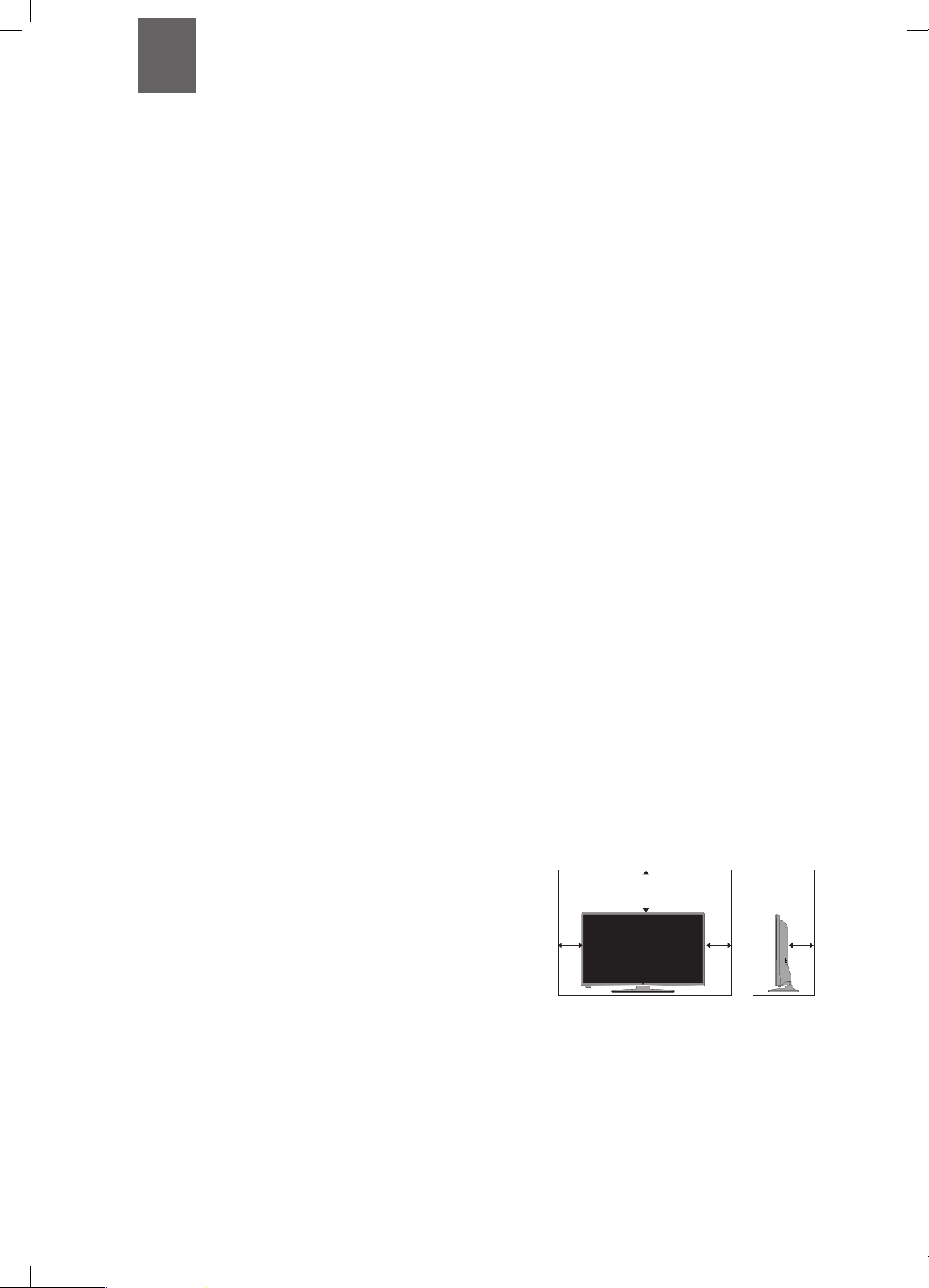
• Make sure that there is a gap of at least 10 cm on both
sides and a gap of 20 cm at the top.
Safety
• Always disconnect the unit from the mains supply
before connecting / disconnecting other devices or
moving the unit.
• Unplug the unit from the mains socket during a
lightning storm and long inactivity periods (going on
holiday).
LT-43C770_IB.indd 6 20/04/2017 17:04
7
1
Safety Warnings
Mains Cable
• Make sure the unit or unit stand is not resting on top of
the mains cable, as the weight of the unit may damage
the mains cable and create a safety hazard.
• A damaged power cord/plug can cause fire or give
you an electric shock. Handle the power cord by the
plug, do not unplug the TV by pulling the power cord.
Never touch the power cord/plug with wet hands
as this could cause a short circuit or electric shock.
Never make a knot in the power cord or tie it with
other cords. If the mains cable is damaged it must be
replaced by the manufacturer, its service agent, or
similarly qualified persons in order to avoid a hazard.
Interference
• Do not place the unit on or near appliances which may
cause electromagnetic interference. If you do, it may
adversely affect the operating performance of the unit,
and cause a distorted picture or sound.
Optimum viewing
• View the unit in moderate light to prevent eye strain. It
is recommended to watch the unit from a distance
3-7 times that of the screen height.
LCD screen
• The LCD screen is manufactured using high-precision
technology. However, some tiny black points and /
or bright points (red, blue or green in colour) may
constantly appear on the LCD screen. These points
are generated in the manufacturing process and are
normal.
Screen Burn
• A characteristic of Plasma and TV Panels is that
displaying the same image for a long time may cause
a permanent after-image to remain on the screen. This
is called screen burn. Most pictures shown on the unit
will be constantly moving and fill the screen.
• Examples of images that you need to watch out for are
as follows (this is not an all-inclusive list):
1. Black Bars: If black bars appear at the left / right or
top / bottom of the screen, it is recommended to
change the format so that the picture fills the entire
screen.
2. TV Channel Logos: e.g. Shopping channel logos
and pricing displays - especially if they are bright
and stationary. Moving or low-contrast graphics are
less likely to cause ageing of the screen.
3. Time Displays
4. Teletext: Do not view a stationary page for long
periods of time.
5. TV Menus
6. Pause Mode: Do not leave the screen in pause
mode for long periods of time, e.g. when watching
videos.
• To prevent screen burn if viewing any of the above for
long periods of time, reduce contrast and brightness
when viewing. Once burn-in occurs it will never
disappear completely.
Country Restrictions for Wireless Internet
• This device is intended for home and office use in
all EU countries (and other countries following the
relevant EU directive) without any limitation except for
the countries mentioned below.
Country Restriction
Bulgaria
General authorization required for
outdoor use and public service
France In-door use only for 2454-2483.5 MHz
Italy
If used outside of own premises, general
authorization is required
Greece
In-door use only for 5470 MHz to 5725
MHz band
Luxembourg
General authorization required for
network and service supply(not for
spectrum)
Norway
Radio transmission is prohibited for the
geographical area within a radius of 20
km from the centre of Ny-Ålesund
Russian
Federation
In-door use only
• The requirements for any country may change at any
time. It’s recommended that user checks with local
authorities for the current status of their national
regulations for both 2.4 GHz and 5 GHz wireless LAN’s.
Earphones
• Listening to loud sounds for prolonged periods of time
may permanently damage your hearing.
• Before putting on earphones, turn the volume down
then put the earphones on and slowly increase the
volume until you reach a comfortable listening level.
Standby
• The
button on the remote control does not switch
off the unit completely. The unit will continue to draw
electricity from the mains supply while in standby. In
the interests of safety and to avoid unnecessary energy
consumption, never leave the unit in standby while
unattended for long periods of time, e.g. overnight,
while on holiday or while out of the house. Disconnect
the mains plug from the mains socket.
Batteries
• Batteries used in the remote control for this unit
are easily swallowed by young children and this is
dangerous.
• Keep loose batteries away from young children and
make sure that the battery holder tray is secure in the
remote control. Seek medical advice if you believe a
cell has been swallowed.
• Please dispose of batteries correctly by following the
guidance in this manual.
• Do not dispose of batteries in fire or with hazardous or
flammable materials.
• The batteries shall not be exposed to excessive heat
such as sunshine, fire or the like.
Supervision
• Children should be supervised to ensure that they do
not play with the unit and the remote control.
• Never let anyone especially children push anything
into the holes, slots or any other openings in the case -
this could result in a fatal electric shock.
LT-43C770_IB.indd 7 20/04/2017 17:04
8
1
Safety Warnings
Earthing
• Apparatus connected to the protective earthing of the
building installation through the MAINS connection
or through other apparatus with a connection to
protective earthing - and to a television distribution
system using coaxial cable, may in some circumstances
create a fire hazard. Connection to a television
distribution system has therefore to be provided
through a device providing electrical isolation below a
certain frequency range (galvanic isolator,
see EN 60728-11)
CAUTION
RISK OF ELECTRIC SHOCK
DO NOT OPEN
The lightning flash with arrowhead symbol,
within an equilateral triangle, is intended to
alert the user to the presence of uninsulated
“dangerous voltage” within the unit’s
enclosure that may be of sufficient
magnitude to constitute a risk of electric
shock.
The exclamation point within an equilateral
triangle is intended to alert the user to the
presence of important operating and
maintenance (servicing) instructions in the
manual accompanying the unit.
Service
• To reduce the risk of electric shock, do not remove
screws. The unit does not contain any user-serviceable
parts. Please leave all maintenance work to qualified
personnel.
• Do not open any fixed covers as this may expose
dangerous voltages.
Maintenance
• Ensure to unplug the unit from the mains socket before
cleaning.
• Do not use any type of abrasive pad or abrasive
cleaning solutions as these may damage the unit’s
surface.
• Do not use liquids to clean the unit.
• The wall socket plug is used as a disconnect device, the
disconnect device should be readily accessible.
•
This equipment is a Class II or double insulated
electrical appliance. It has been designed in such
a way that it does not require a safety connection
to electrical earth.
To prevent the spread of fire,
keep candles or other open
flames away from this product
at all times.
LT-43C770_IB.indd 8 20/04/2017 17:04
9
2 Preparation
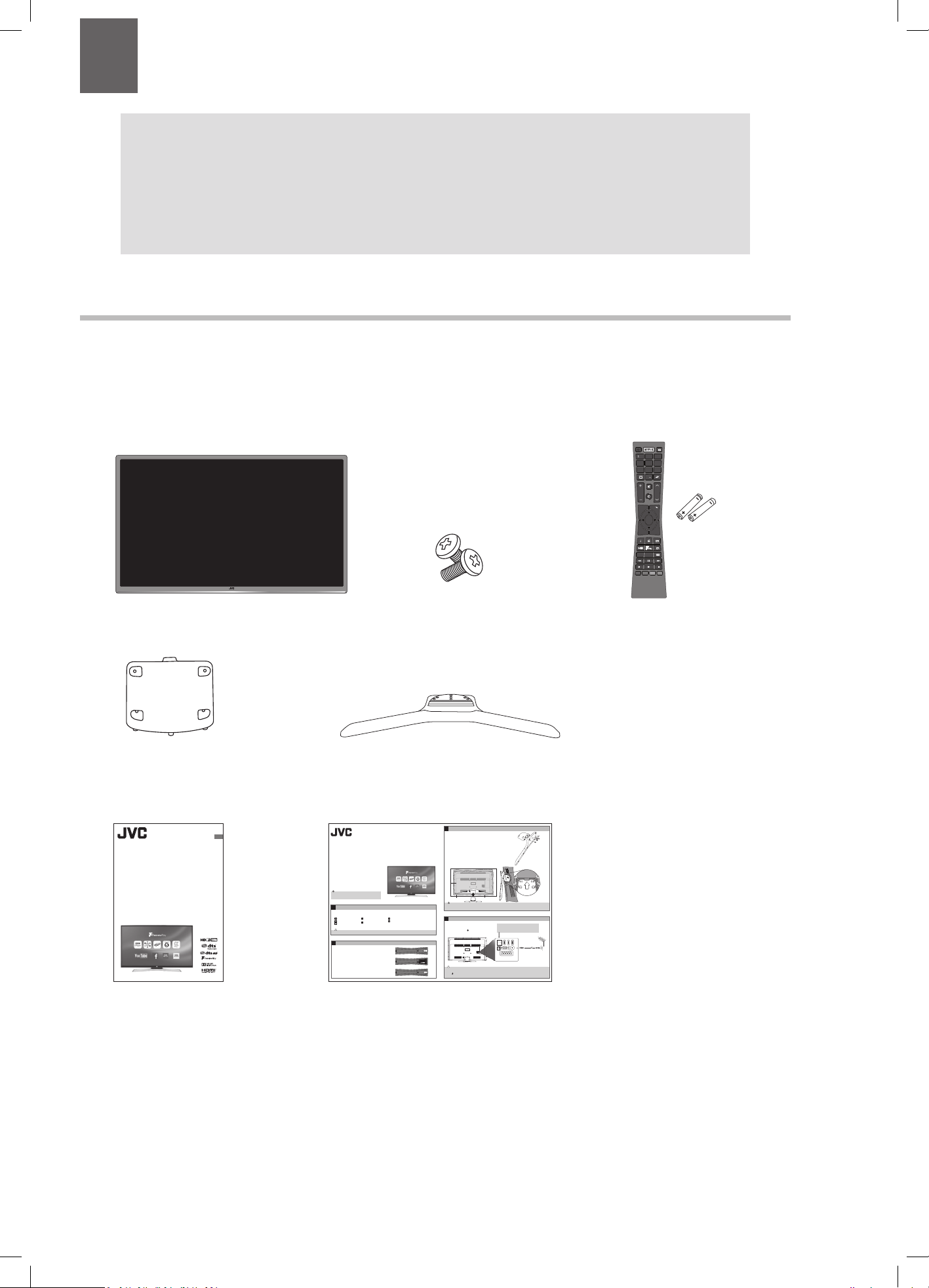
Unpacking the TV
Remove all packaging from the TV. Retain the packaging. If you dispose of it please do so according to local regulations.
The following items are included:
Thank you for purchasing your new JVC TV.
Your new TV has many features and incorporates the latest technology to enhance your viewing
experience. We recommend that you spend some time reading this instruction manual so that you fully
understand these features. You will also find some hints and tips to help you resolve any issues.
Read all the safety instructions carefully before use and keep this instruction manual for future reference.
Chapter
2
Remote Control /
AAA Batteries x 2
Instruction Manual Quick Start Guide
Instruction Manual
43" LED Smart HD TV
LT-43C770
GB
Please inspect your TV for damage after unpacking. If you do notice any damage please consult your dealer.
Remove all packaging from the unit. Retain the packaging. If you dispose of it please do so according to any local regulations.
TV
TV Stand Neck
TV Stand Base
Remote Control/
AAA Batteries x2
Screws x 8
Instruction Manual
Quick Start Guide
Unpacking
1
1. Slide open the battery compartment on the back of the remote control.
Operating Your Remote Control
2
Thank you for purchasing your new JVC TV.
Your new TV incorporates the latest technology to enhance your viewing
experience. We would suggest that you allow about 20 mins for initial setup.
Please follow this guide for a successful rst time installation.
The latest eco-friendly power-saving technology will switch o the TV if
it is left on and idle for 4 hours. Please refer to “Auto Standby” under the
“Time Settings” section of the instruction manual for more detail.
Quick Start Guide
43" LED Smart HD TV
LT-43C770
2. Insert two AAA size batteries. Make sure to match the (+) and ( - )
ends of the batteries with the (+) and ( - ) ends indicated in the battery
compartment.
3. Slide the battery compartment cover back into place. Make sure it clicks
into place.
• Do not connec t the TV to the mains supply until you have completed all the connections.
• Always disconnect the TV from the mains socket when not in use for a long period of time.
• The
button on the remote control is only used for switching the TV into standby, it does not disconnect the TV from the mains power.
To completely disconnect the mains power, please remove the mains plug from the mains socket.
The LCD display is very fragile, and must be protected at all times when installing and removing the base stand. Be sure that no hard or sharp object,
or anything that could scratch or damage the LCD display, comes into contact with it. DO NOT exert pressure on the front of the TV at any time because
the screen could crack.
1. Connect one end of the RF coaxial cable to the aerial socket on the wall
and the other end of the cable to the ANT socket on the back of your TV.
2. Plug the TV into a mains socket and switch on at the mains.
3. In standby mode, press the
button on the remote control to turn the
TV on. The LED indicator will ash for a few seconds then the TV will
switch on.
Connecting the Aerial and Turning on the TV
4
Fitting the Stand to the TV
3. Ensure the TV is switched o and not connected to the mains power supply.
4. Lay the TV down on a at surface ideally on the edge of a table so the base of the
TV slightly overhangs the edge of the table, with the back side facing up. Please
make sure a soft cushioned material (such as a dry bath towel or thick piece of
foam) is placed beneath the screen.
5. Slide the stand under the lip, the neck will t snugly over the screw holes. Then
screw the stand to the TV using the 4 screws supplied.
Fitting the Stand Neck and Base Together
1. Fit the neck onto the base.
2. Using 4 of the supplied screws, screw the neck to the base.
Installing the Base Stand
3
Slide under
the lip
SCART
SPDIF
Optic.OUT
VGA
ANT.
HDMI 1
(ARC)
HDMI 2
HDMI 3
LAN
Table
Cushioned
material
SCART
SPDIF
Optic.OUT
VGA
ANT.
HDMI 1
(ARC)
HDMI 2
HDMI 3
LAN
SCART
SPDIF
VGA
ANT.
HDMI 1
(ARC)
HDMI 2
HDMI 3
LAN
RF coaxial cable
(not included)
Optic.OUT
Optional
If you want to connect to the internet via a wired connection
then connect your ethernet cable to the LAN socket.
Protective
Bag
LT-43C770_QSG.indd 1 28/03/2017 13:45
SUBT.LANG.
TXT
MENU
Q. MENU
EXIT
BACK
OK
6
MNO
9
WXYZ
0
TV
7
PQRS
8
TUV
4
GHI
5
JKL
.,/@
2
ABC
3
DEF
V
P
EPG
Stand screws x8
TV
TV Stand Neck TV Stand Base
LT-43C770_IB.indd 9 20/04/2017 17:04
2
10
Preparation
Installing / Removing the Base Stand
The LCD display is very fragile, and must be protected at all times when installing and removing the base stand. Be sure that
no hard or sharp object, or anything that could scratch or damage the LCD display, comes into contact with it. DO NOT exert
pressure on the front of the TV at any time because the screen could crack.
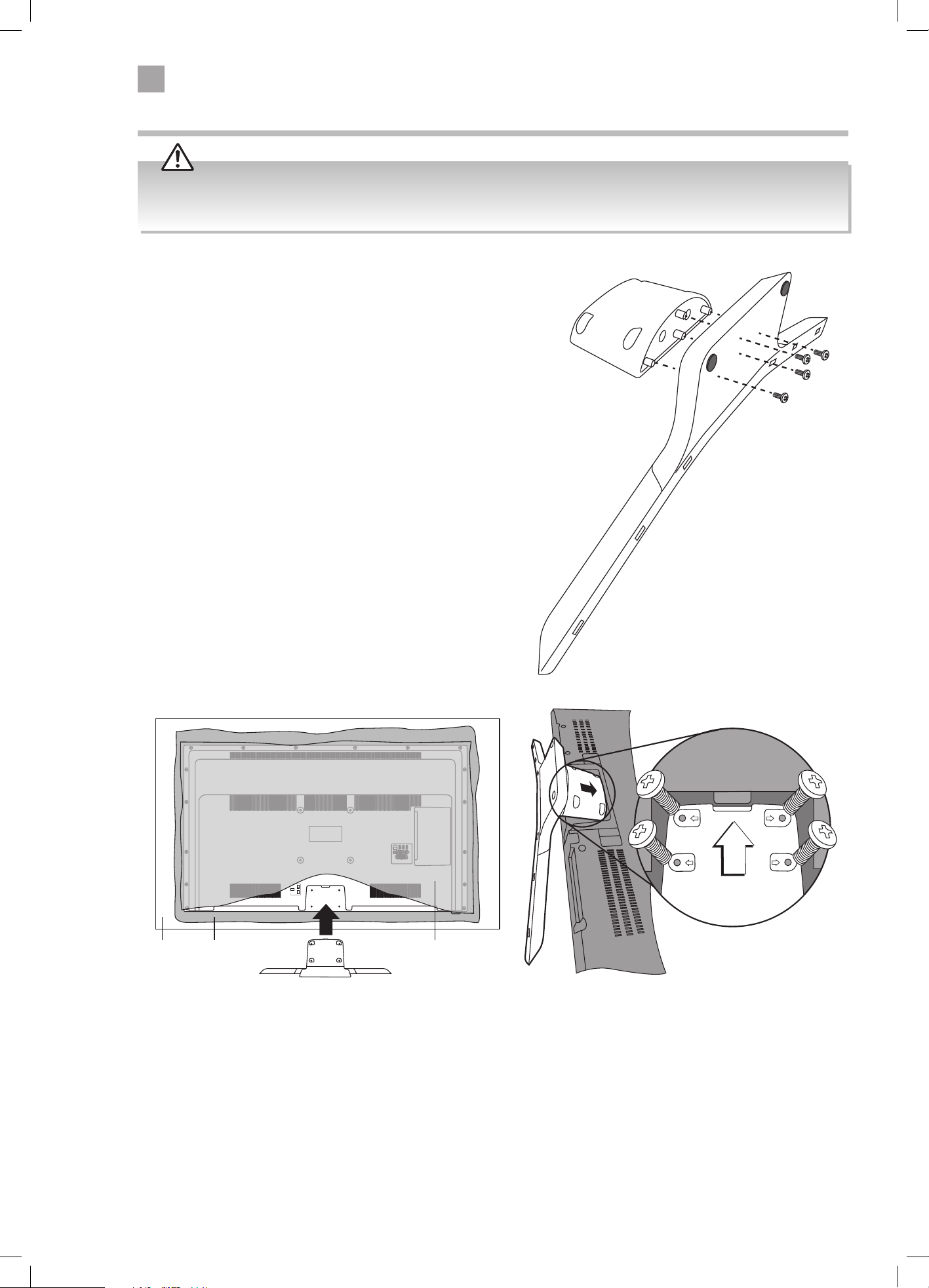
3. Ensure the TV is switched off and not connected to the mains power supply.
4. Lay the TV down on a flat surface ideally on the edge of a table so the base of the TV slightly overhangs the edge of the table,
with the back side facing up. Please make sure a soft cushioned material (such as a dry bath towel or thick piece of foam) is
placed beneath the screen.
5. Slide the stand under the lip, the neck will fit snugly over the screw holes. Then screw the stand to the TV using the
4 screws supplied.
Fitting the Stand Neck and Base Together
1. Fit the neck onto the base.
2. Using 4 of the supplied screws, screw the neck to the base.
Slide under
the lip
SCART
SPDIF
Optic.OUT
VGA
ANT.
HDMI 1
(ARC)
HDMI 2
HDMI 3
LAN
Table
Cushioned
material
Protective
bag
Fitting the Stand to the TV
LT-43C770_IB.indd 10 20/04/2017 17:04
2
Preparation
11
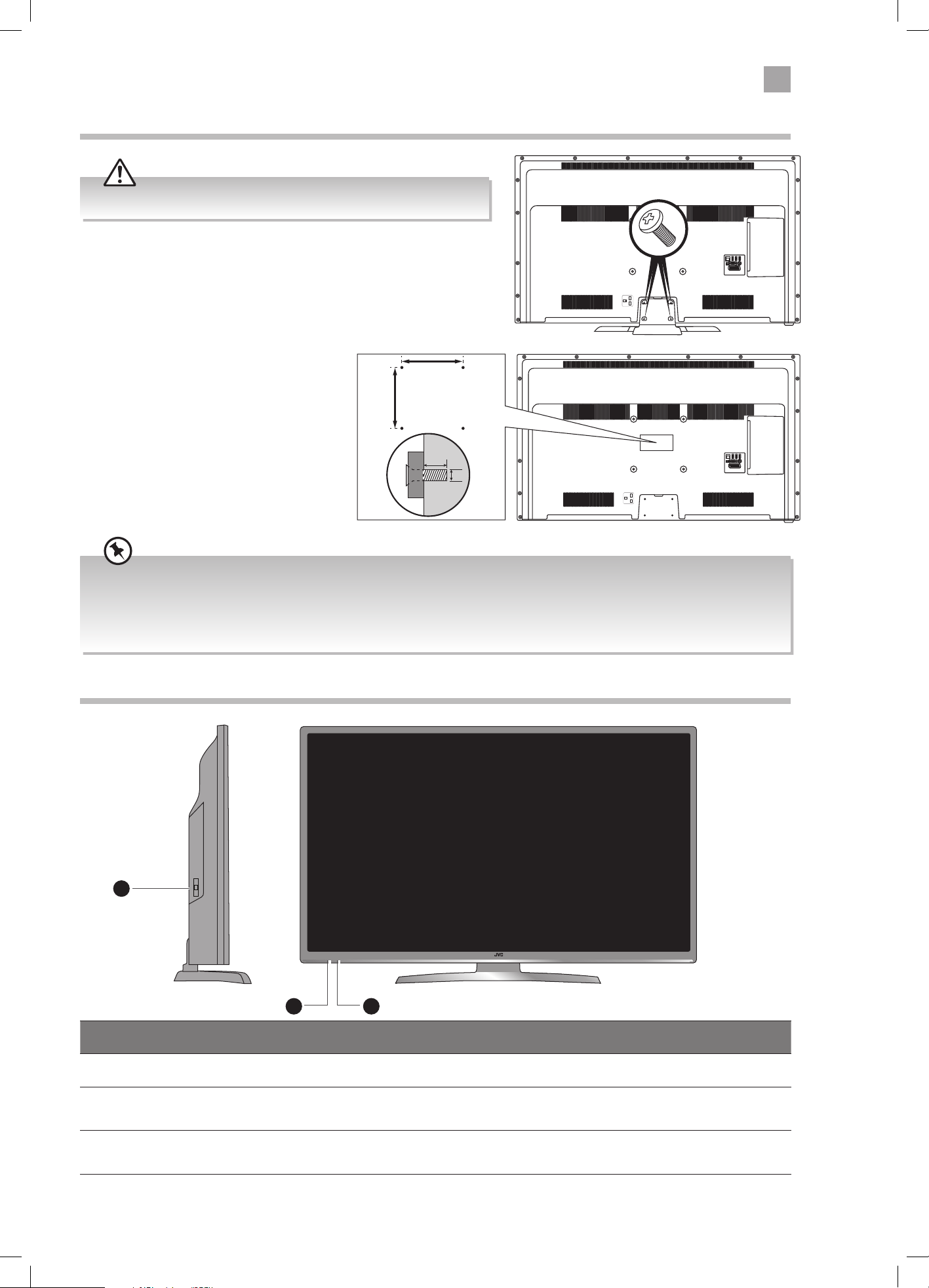
Front / Right Side View and Controls
Item Description
1 MULTI FUNCTION SWITCH Switches the TV into standby and on. Selects modes (channel,volume, and source).
2 POWER LED
Illuminates when the TV is in standby mode. The LED will blink confirming that a timer
recording programme has started in the standby mode.
3 IR (Infrared Receiver)
Receives IR signals from the remote control.
Do not put anything near the sensor, as its function may be affected.
2
1
3
Remove the stand assembly before mounting the TV onto the wall.
• If you are wall mounting your TV you may wish to buy a 90° HDMI adapter. This will help with your cable management.
• Please read this instruction manual carefully while setting up your TV.
• If you require additional assistance please call our Call Centre on (UK) 0344 561 1234 or (Ireland) 1 890 818 575.
Our Customer Contact Centre is open Monday-Saturday 8am-8pm or Sunday 8am-6pm.
1. Remove the 4 screws from the neck of the stand and detach the
stand.
Mounting the TV to a Wall
2. This TV is designed to be wall-mounted
with a standard 200 mm x 200 mm
mounting kit (sold separately) designed
for flat-panel TVs. Mount this TV according
to the instructions included in the
mounting kit. Due to space restrictions, we
recommend that you make all connections
before mounting on to
the wall.
SCART
SPDIF
Optic.OUT
VGA
ANT.
HDMI 1
(ARC)
HDMI 2
HDMI 3
LAN
x4
SCART
SPDIF
Optic.OUT
VGA
ANT.
HDMI 1
(ARC)
HDMI 2
HDMI 3
LAN
200mm
Four mounting holes
(size M6 screw)
200mm
10-13mm
M6
LT-43C770_IB.indd 11 20/04/2017 17:04
2
12
Preparation
COMMON INTERFACE
USB
5Vdc
Max. 500mA
SCART
SPDIF
VGA
ANT.
HDMI 1
(ARC)
HDMI 2
HDMI 3
LAN
USB
5Vdc
Max. 500mA
SIDE AV
MODE - / I
- +
Optic.OUT
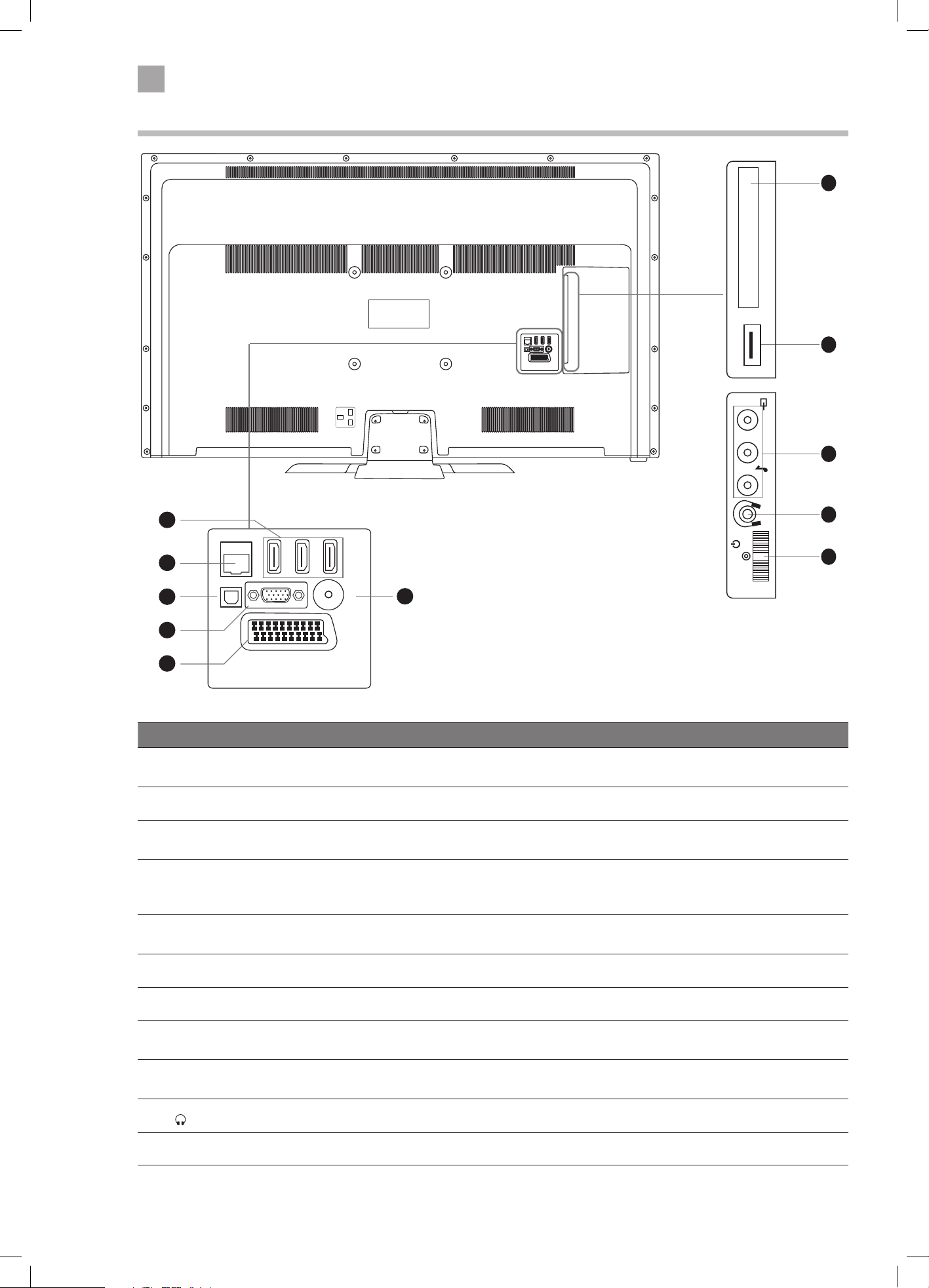
Rear View and Sockets
SCART
SPDIF
Optic.OUT
VGA
ANT.
HDMI 1
(ARC)
HDMI 2
HDMI 3
LAN
3
4
5
2
1
6
Item Description
1 HDMI 1 (ARC), 2 & 3
Connects to a High-Definition (HD) signal output device, such as a set-top box, blu-ray
disc player or AV receiver.
2 LAN Connects to the internet for using the Smart hub.
3 SPDIF (Optic. OUT) Optical audio out (Digital) - Connects to an audio device via an optical cable.
4 VGA/YPbPr
Connects to a computer or other devices with a VGA interface.
The VGA input is also used for component input via a VGA to component cable (not
supplied).
5 SCART
Connects to a VCR, DVD Player, or other AV device with a SCART output socket.
Select SCART 1.
6 ANT Connects to the aerial socket on the wall with the RF coaxial cable.
7 COMMON INTERFACE Allows the insertion of a Common Access Module.
8 USB
Allows the insertion of a USB storage device to play video, audio, photo and text files
(USB mode) and record DTV programmes on to a USB storage device.
9 CVBS/AUDIO IN (L/R)
(audio L/R also used for YPbPr and VGA)
Connects to the Composite VIDEO and AUDIO (L/R) output sockets on external video
devices.
10
Connects to the headphones.
11 MULTI FUNCTION SWITCH Switches the TV into standby and on. Selects modes (channel,volume, and source).
7
8
9
10
11
SCART
SPDIF
COMMON INTERFACE
USB
5Vdc
Max. 500mA
VGA
ANT.
HDMI 1
HDMI 2
LR
MODE - / I
- +
LT-43C770_IB.indd 12 20/04/2017 17:04
2
Preparation
13
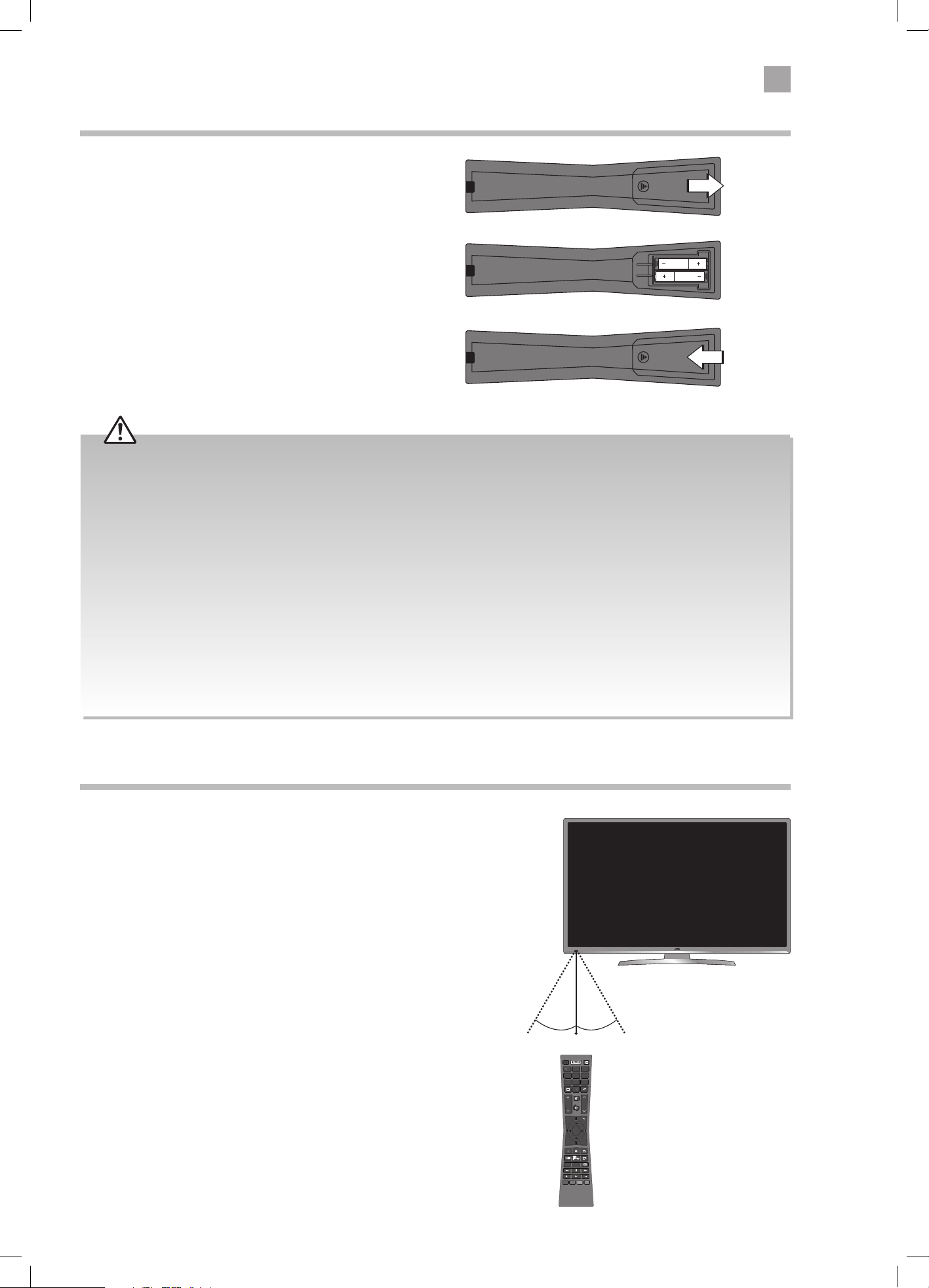
Remote Control Operation Range
Point the remote control at the TV no more than 5 metres from the
remote control sensor on the TV and within 60° in front of the TV.
The operating distance may vary depending on the brightness of
the room.
Installing Batteries in the Remote Control
1. Slide open the battery compartment on the back
of the remote control.
2. Insert two AAA size batteries. Make sure to match the (+)
and ( - ) ends of the batteries with the (+) and ( - ) ends
indicated in the battery compartment.
3. Replace the battery compartment cover. Make sure it
clicks into place.
SUBT.LANG.
TXT
MENU
Q. MENU
EXIT
BACK
OK
6
MNO
9
WXYZ
0
TV
7
PQRS
8
TUV
4
GHI
5
JKL
.,/@
2
ABC
3
DEF
V
P
EPG
30° 30°
5M
Handling the Batteries
• Improper or incorrect use of batteries may cause
corrosion or battery leakage, which could cause
fire, personal injury or damage to property.
• Only use the battery type indicated in this manual.
• When the batteries are exhausted, the remote will
not function. Replace both batteries at the same
time with new ones.
• Do not install new batteries with used ones and do
not mix different types of batteries.
• Do not dispose of used batteries as domestic
waste. Dispose of them in accordance with local
regulations.
Handling the Remote Control
• Take care of your fingernails when you press and
hold the battery release tab.
• Do not drop or cause impact to the remote control.
• Do not spill water or any liquid on the remote
control.
• Do not place the remote control on a wet object.
• Do not place the remote control under direct
sunlight or near sources of excessive heat.
• Remove the battery from the remote control
when not in use for a long period of time, as it
could cause corrosion or battery leakage and may
result in physical injury and/or property damage
including fire.
LT-43C770_IB.indd 13 20/04/2017 17:04
2
14
Preparation
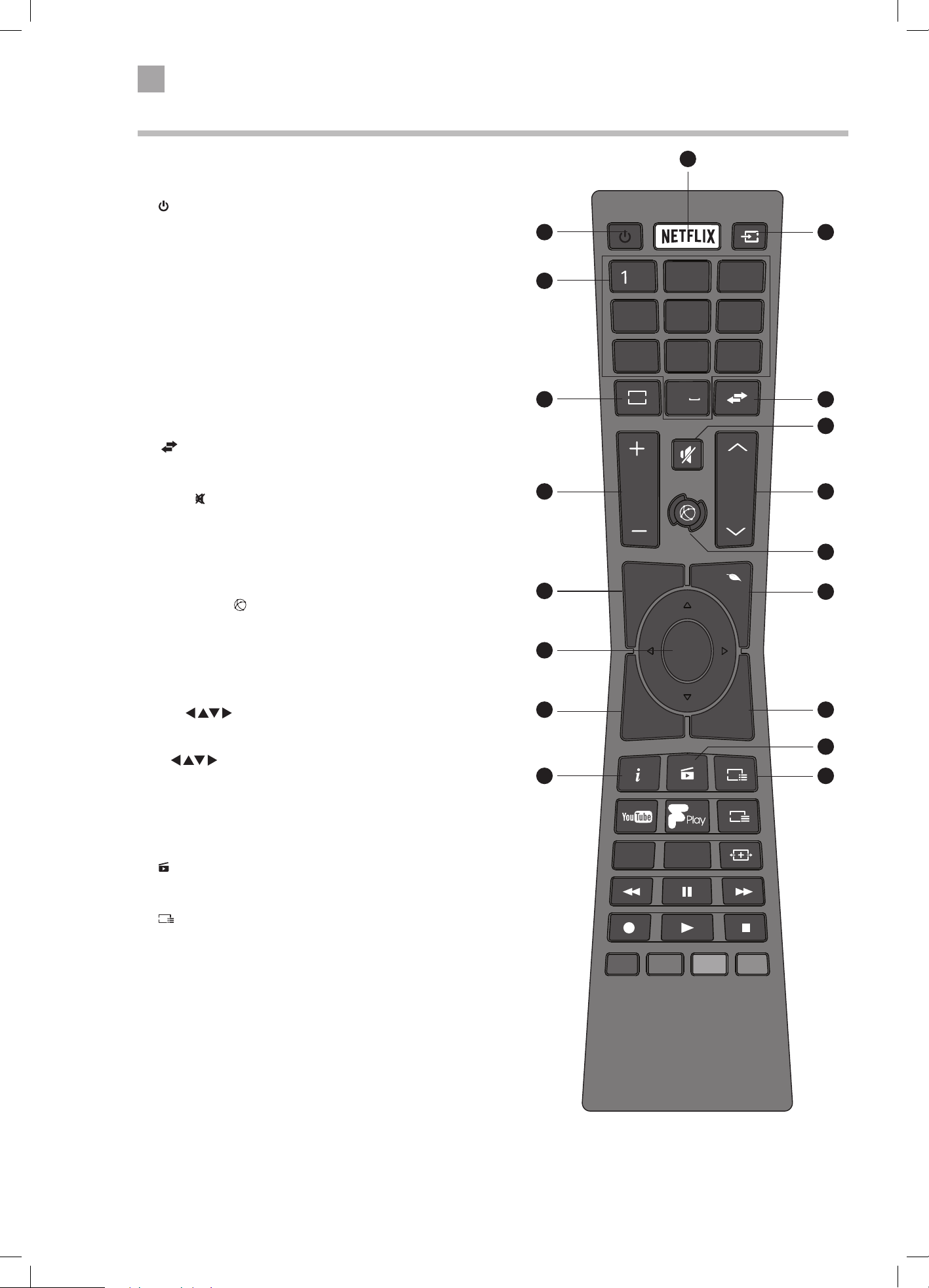
Remote Control
SUBT.LANG.
TXT
MENU
Q. MENU
EXIT
BACK
OK
6
MNO
9
WXYZ
0
TV
7
PQRS
8
TUV
4
GHI
5
JKL
.,/@
2
ABC
3
DEF
V
P
EPG
1.
Switch the TV between on and standby mode.
2. NETFLIX Button
Connects to Netix for viewing online TV shows and lms
(internet connection required).
3. SOURCE
Press to change the source you are viewing.
TV - EXT1 - SIDE AV - HDMI 1 - HDMI 2 - HDMI 3
- YPbPr - VGA/PC.
4. 0-9 Number Button
• Press to select a programme. (TV / RADIO mode)
5. TV
• Press to enter TV mode when viewing other sources.
• Press to view the channel list when in TV mode.
6.
(Previous programme/source)
• Press to switch between the previous programme or source
that was selected.
7. MUTE
Mute and restore the sound.
8. V + / –
Adjust the volume.
9. P+ / P-
Press to select the next channel up or down the channel list.
10. SMART HUB
Connects to the Smart Hub (internet connection required).
11. MENU
Display the main menu.
12. Q. MENU
Press the select the Settings menu.
13. OK /
• Press OK to select or save a setting in menus.
• Press OK to select the Channel list while watching TV.
• Allows you to navigate the OSD menus and adjust
the system settings to your preference.
14. BACK
Press to move backwards through menus.
15. EXIT
Press to exit a menu.
16.
(Media Browser)
Press to enter the media browser menu, a hard drive will need
to be attached to the USB port.
17.
EPG
(Programme Guide)
Press to view the Programme Guide.
18. i (info)
Press to see programme information in TV mode.
5
4
1
7
10
16
3
2
9
12
15
17
11
14
18
8
13
6
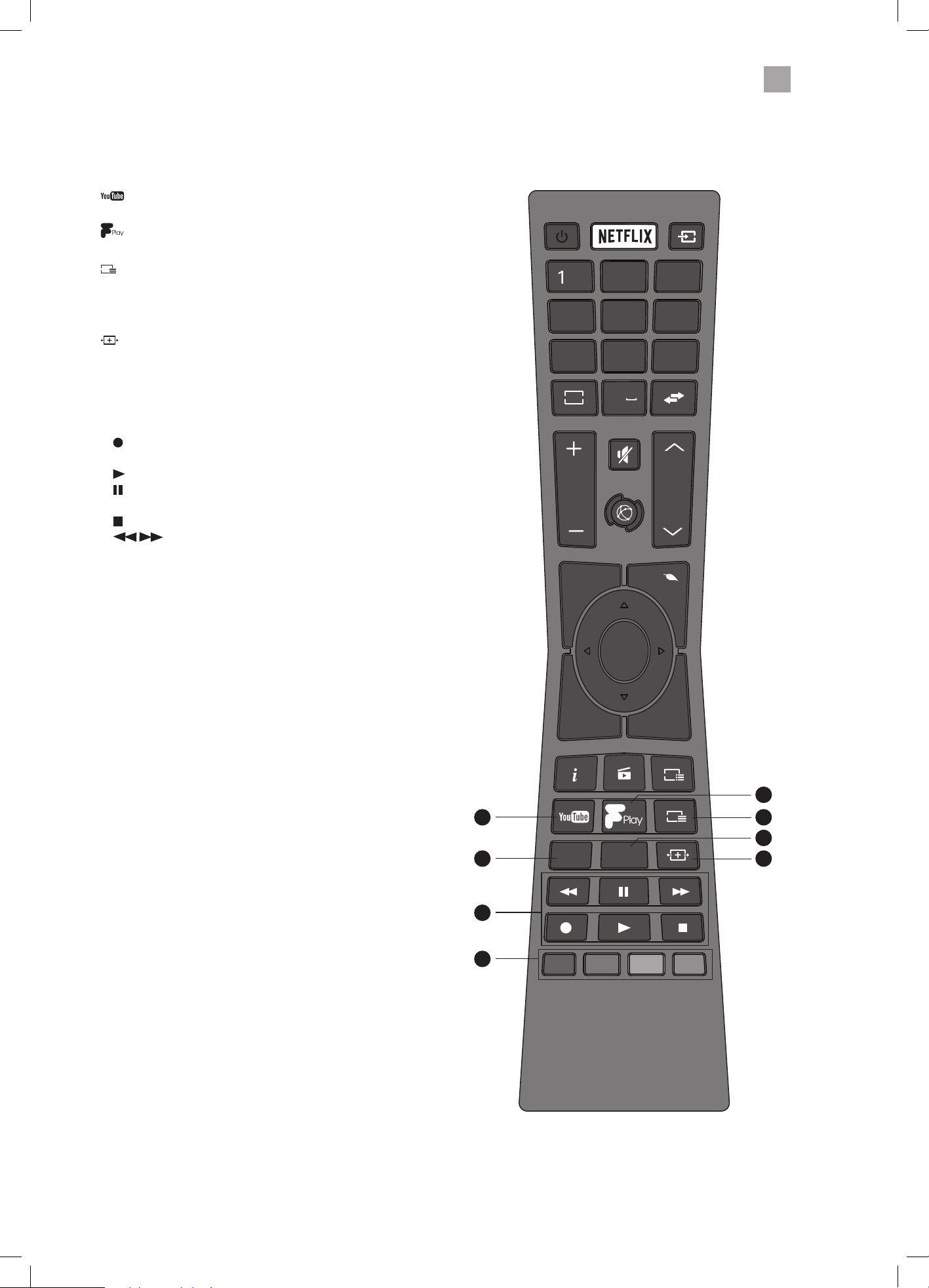
LT-43C770_IB.indd 14 20/04/2017 17:04
2
Preparation
15
SUBT.LANG.
TXT
MENU
Q. MENU
EXIT
BACK
OK
6
MNO
9
WXYZ
0
TV
7
PQRS
8
TUV
4
GHI
5
JKL
.,/@
2
ABC
3
DEF
V
P
EPG
21
23
20
22
25
26
19
24
19.
Press to enter YouTube (internet connection required).
20.
Press to enter Freeview Play (internet connection required).
21.
TXT
Press to enter teletext if available.
22. SUBT
Press to switch subtitles on and o.
23.
(Aspect ratio)
Press to adjust the aspect ratio of the picture.
AUTO - 16:9 - Subtitle - 14:9 - 14:9 Zoom - 4:3 - Cinema.
24. LANG.
Selects the Current Language menu.
25. PLAYBACK and RECORD buttons
•
starts a recording, continue to press will add more
recordings.
•
plays a recording.
pauses a recording and starts timeshifting in TV mode
if you have a hard drive attached to the USB port.
•
stops a recording.
•
searches forwards and backwards when
viewing a recording.
26. COLOURED BUTTONS
Access the TELETEXT items (TV mode) or menu options.
TELETEXT (RED)
Accesses TELETEXT.
LT-43C770_IB.indd 15 20/04/2017 17:04
16
3 Initial Setup
Turning the TV On for the First Time
1. Connect one end of the RF coaxial cable
to the aerial socket on the wall and
the other end of the cable to the ANT
socket on the back of your TV.
2. Plug the TV into a mains socket and
switch on at the mains.
3. In standby mode, press the
button
on the remote control to turn the TV
on. The LED indicator will flash for a few
seconds then the TV will switch on.
Do not connect the TV to the mains
supply until you have completed all
the connections.
• Always disconnect the TV from the mains socket when not in use for a long period of time.
• The
button on the remote control is only used for switching the TV into standby, it does not disconnect the TV from the
mains power. To completely disconnect the mains power, please remove the mains plug from the mains socket.
Chapter
3
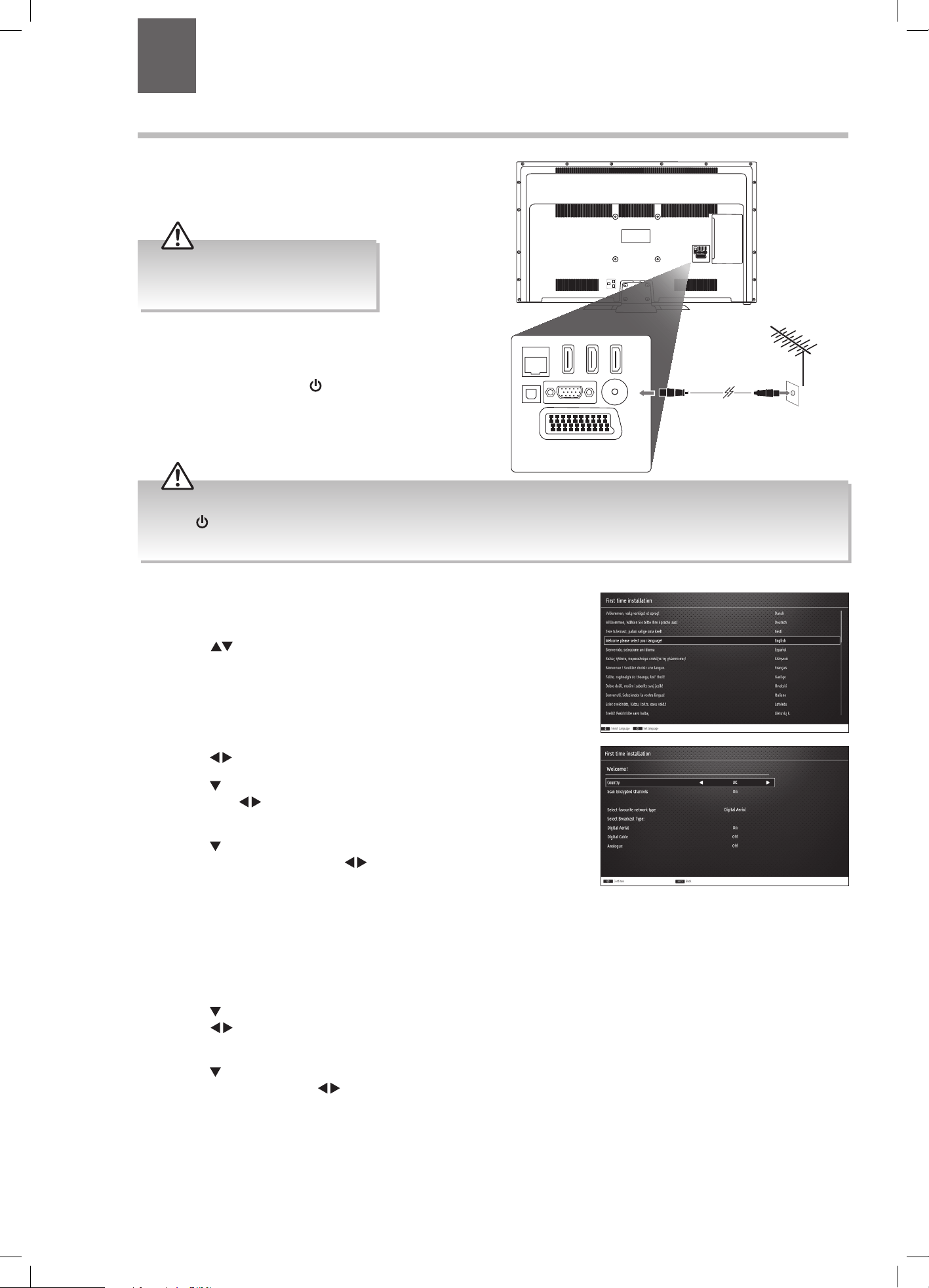
4. The first time you turn the TV on, it will go straight
into the First Time Installation menu. Please ensure
the aerial is plugged in.
Press the
buttons to highlight your language
then press OK.
5. Press the buttons to select your country.
6. Press the
button to highlight Teletext Language,
then press the
buttons to select your language.
The majority of people will want this set to West.
7. Press the
button to highlight Scan Encrypted (pay-
per-view) Channel, then press the
buttons to
select On or Off.
Select Broadcast Type
In this section you can tell your TV what to tune in.
Digital Aerial is TV through your aerial (Freeview) this is automatically set to On for UK customers.
Cable is if you have cable wired directly into your TV NOT through a set top box like Virgin.
Analogue is for analogue devices that you may have connected to your TV e.g. a video recorder.
8. Press the
button to highlight Digital Aerial, then
press the
buttons to select On or Off. On will only
search for the digital channels.
9. Press the
button to highlight Select favourite
network type, then press the
buttons to select
Digital Aerial, Digital Cable or Analogue. This can
only be chosen if you have selected more than one
Broadcast type. Confirm these settings by pressing
OK.
Optic.OUT
SCART
SPDIF
Optic.OUT
VGA
ANT.
HDMI 1
(ARC)
HDMI 2
HDMI 3
LAN
SCART
SPDIF
VGA
ANT.
HDMI 1
(ARC)
HDMI 2
HDMI 3
LAN
RF coaxial cable
(not included)
LT-43C770_IB.indd 16 20/04/2017 17:04
17
3
Initial Setup
WIRED Connection
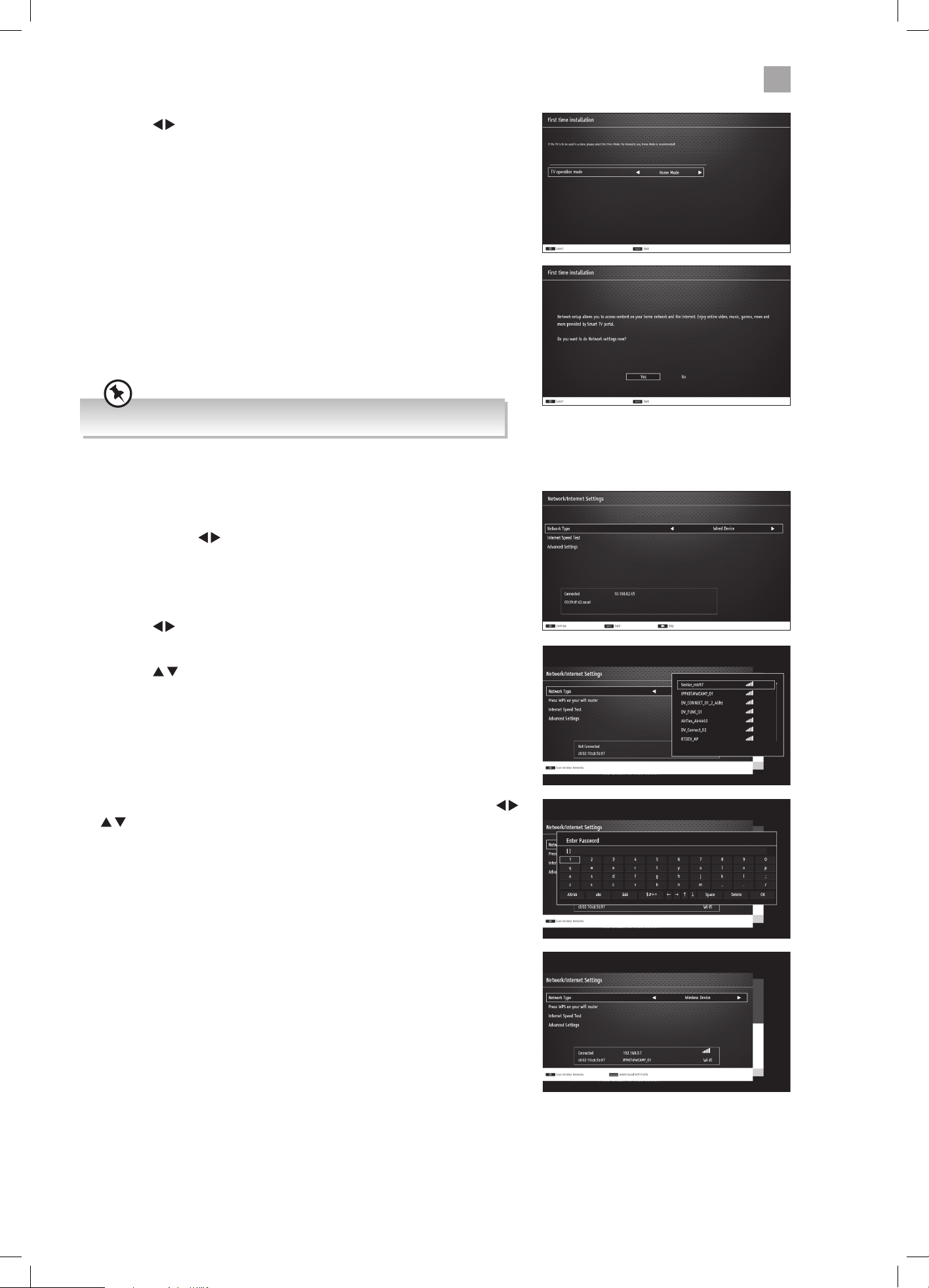
• If you have connected your ethernet cable to the LAN socket on the back of
your TV press the
buttons to select WIRED DEVICE. When Network says
ENABLED press the OK button.
WIRELESS Connection
You can connect using a wireless connection via your router.
12. Press the
buttons to select WIRELESS DEVICE. Wait a few seconds and a
list of all wireless networks will be displayed.
13. Press the
buttons to select your wireless network then press OK.
10. Press the buttons to highlight Home Mode then
press OK.
To access all the features of your Smart TV you must be connected to the internet.
If you do not wish to set up your network connection you can skip this section
by pressing selecting NO , however we recommend you set up your network
connection now.
11. Select Yes and Press OK.
14. You now need to enter your password, a keyboard will appear. Press the
buttons to select a letter/number/symbol and press OK to enter each
one. Once you have typed your password highlight OK and press OK. The
network will now show Connected.
15. Press the OK button to continue.
• To enjoy Freeview Play your TV must be connected to the internet.
LT-43C770_IB.indd 17 20/04/2017 17:04
18
3
Initial Setup
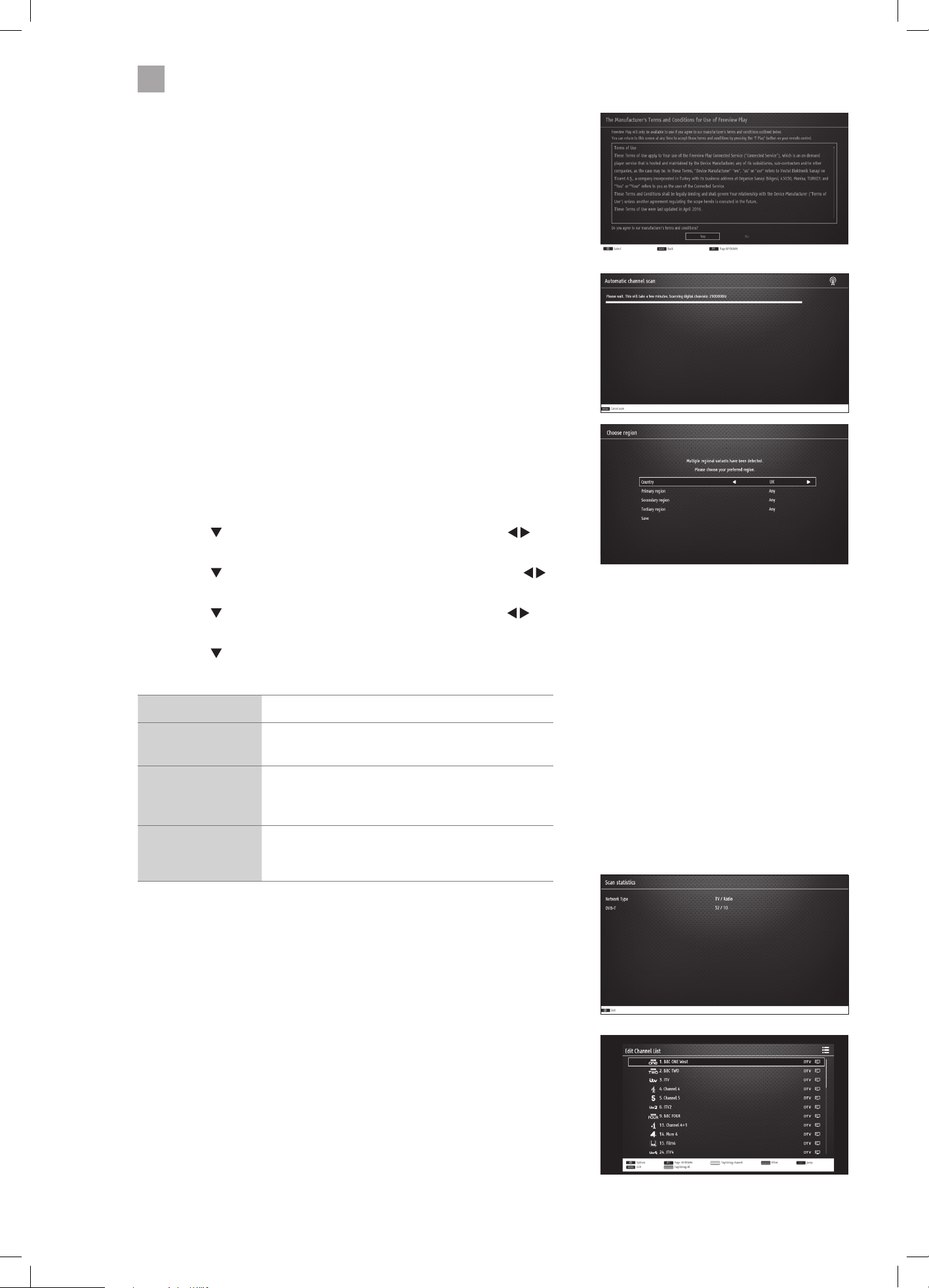
16. To make sure you activate Freeview Play select YES and press OK.
17. Your TV will now start the automatic channel scan.
Choose Region (UK only)
During tuning, your TV may have received signals from more than one
transmitter. If this has occurred the Choose Region screen will be displayed.
This will enable you to select the correct regional transmission for the local
news service that you require.
• Press the
button to highlight Primary region, then press the
buttons to select your Primary Region e.g. England.
• Press the
button to highlight Secondary region, then press the
buttons to select your Secondary Region e.g. London.
• Press the
button to highlight Tertiary region, then press the
buttons to select your Tertiary Region e.g. Greater London.
• Press the
button to highlight Save then press OK.
Your TV is now fully tuned in.
Country Code This will be shown as UK.
Primary Region
This will show the regional country (England, Wales,
Scotland, NI).
Secondary Region
This will allow you to set the region for your local
news service on BBC and ITV (London, Beds and
Cambs etc).
Tertiary Region
You may receive signals from more than one
transmitter within the Secondary Region, (e.g Beds
and Cambs may have Luton or Sandy Heath).
18. The Scan statistics screen will now be displayed. This shows the amount of TV
and Radio channels that have been tuned in. Press OK to exit.
19. The Edit Channel list will appear, press the EXIT button to remove this. Your TV
is now fully tuned in and ready to use.
LT-43C770_IB.indd 18 20/04/2017 17:04
19
3
Initial Setup
Connecting an Analogue Device
If you have connected an analogue device such as a video recorder via the
aerial socket on your TV you will have to tune it in using Analogue mode. Ensure
the device is switched on before you start the tuning process.
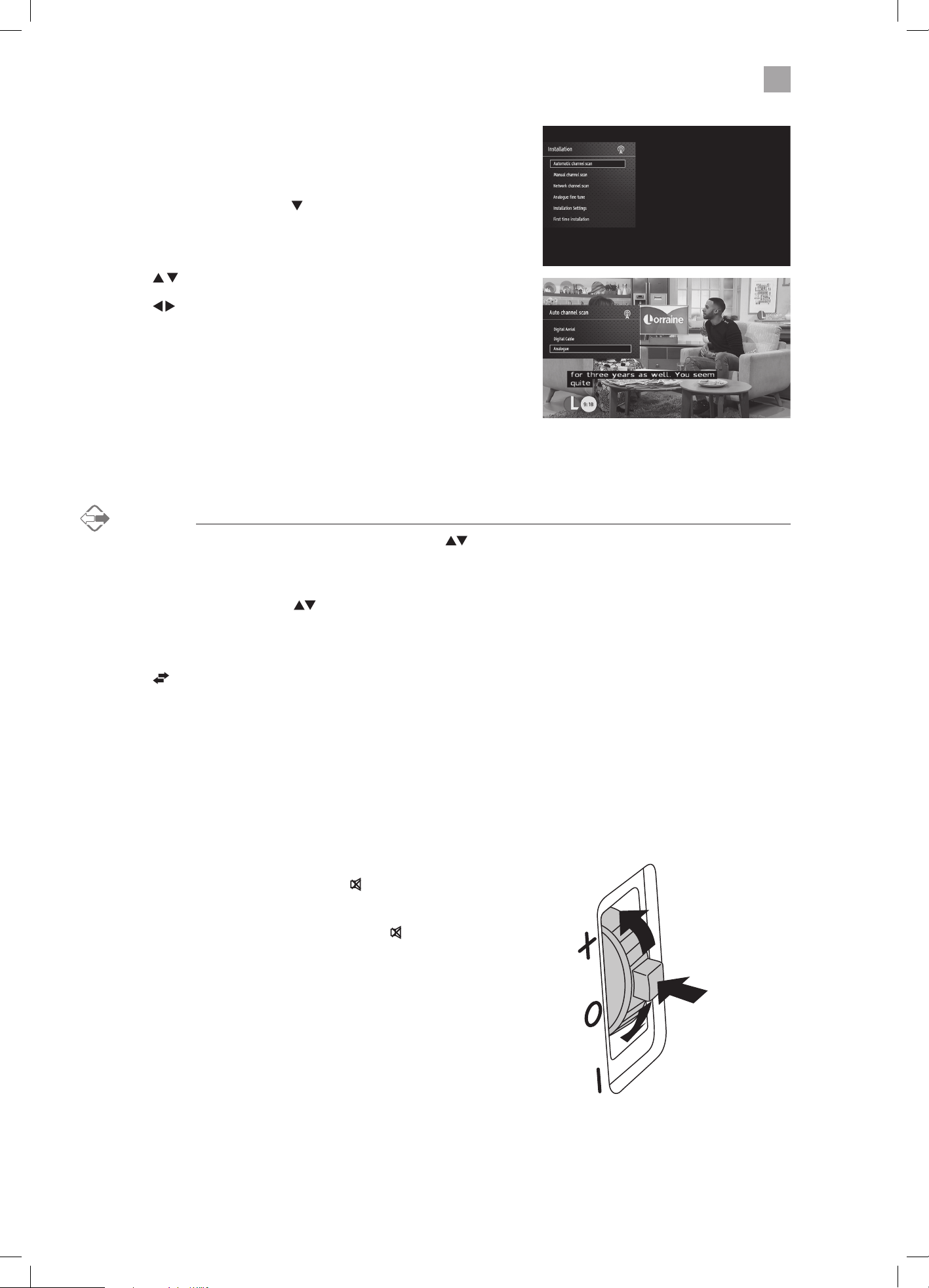
1. Press the MENU button, press the
buttons to select INSTALLATION and
press OK.
2. Select AUTOMATIC CHANNEL SCAN (RETUNE) and press OK.
3. Press the
buttons to select ANALOGUE and press OK.
4. Press the
buttons to select YES then press OK. The search will
automatically start, this will not delete your Digital channels, so don't worry!
5. When the search has finished the EDIT CHANNEL LIST will appear. Your
analogue channel will be at the end of the channel list.
• If a locked channel is selected, the password screen will be displayed. Press the 0-9 buttons to enter the password, the
channel will then be unlocked (refer to Locking Channel for details).
• Press the
button to return to the previously viewed channel.
Display Channel Information
• Press the i button to view the current information.
Volume Adjustment
• Press the V + or – button on the remote control or select volume mode and
rotate the multi-function switch up or down on the back of the TV.
• If you wish to switch the sound off, press the
button. You can turn the
volume down while your TV is in mute mode. Press the VOL – button, you
will see the volume level reduce, but you won't hear anything at the moment.
To listen to your TV at the new lower level, press the
button again or VOL
+ button.
Using the multifunction button on the back of the TV
The button on the back of the TV can be pushed the centre and moved up and
down.
• Press and hold the button the switch the TV into STANDBY.
• Press the button to scroll through the SOURCE, VOLUME and PROGRAMME
modes.
• Press up/down to change source, volume or programme.
Channel Selection
• Press the P + / – buttons on the remote control repeatedly or the 0-9 buttons to select the channel.
Alternative
Press the OK button to enter the Channel List. Then use the buttons to highlight and select the channel.
Press the OK button to view the selected channel.
OR
Press the i (info) button then the
buttons to search for a channel you wish to watch then press OK.
LT-43C770_IB.indd 19 20/04/2017 17:04
20
4 Customising TV Settings
Chapter
4
2. Press the buttons to select the following picture options and then
press the OK button.
• Press the
buttons to adjust the levels in the menus.
Adjusting the Picture Settings
Allows you to set your preferred picture mode.
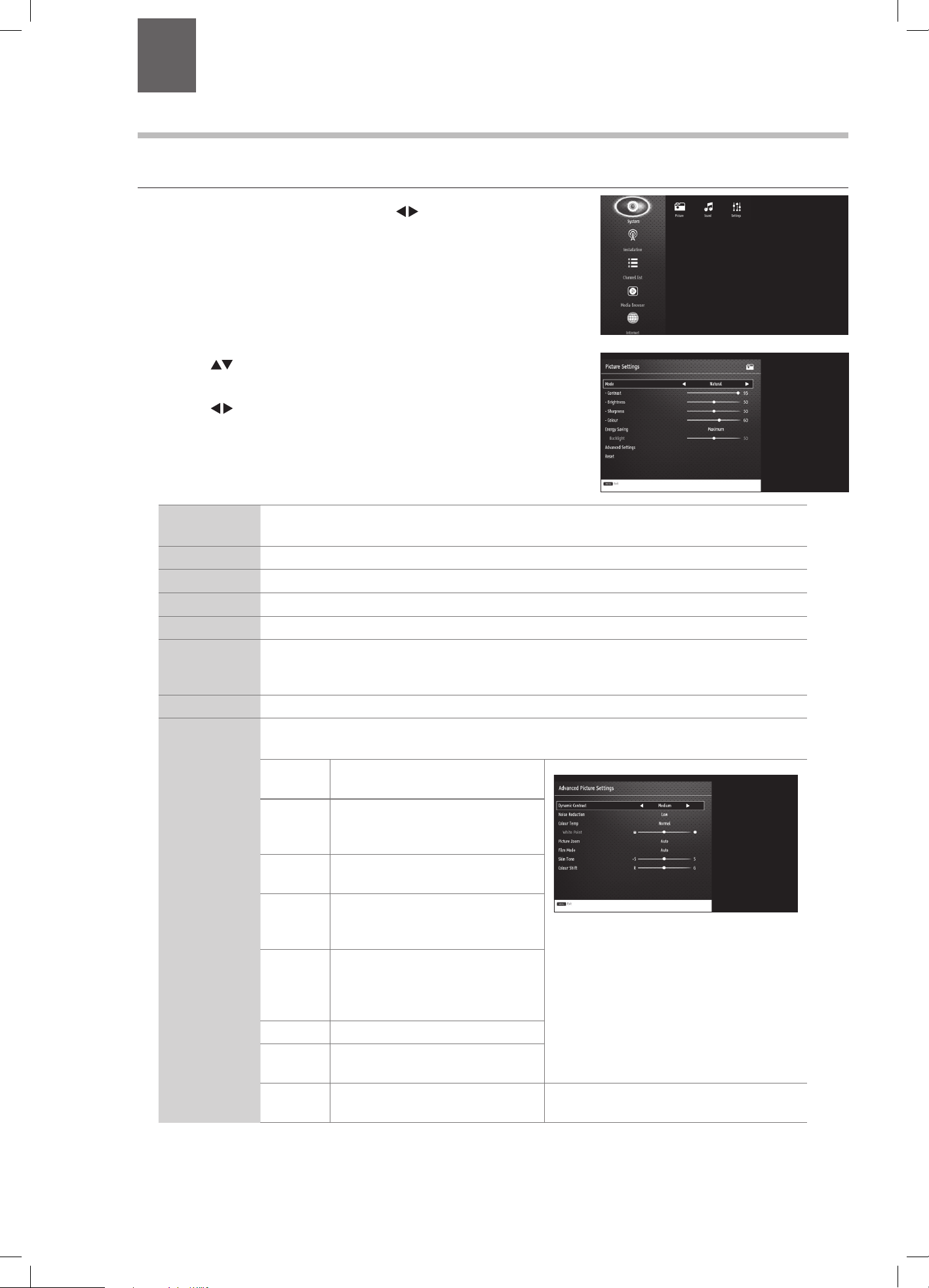
1. Press the MENU button and then press the
buttons to select the
PICTURE and then press the OK button.
Picture Mode Your TV has some pre-set picture modes: Dynamic - Natural - Cinema - Game. The default setting
is Standard. You can also manually adjust each mode.
Contrast Adjusts the difference between light and dark levels in the picture.
Brightness Increases or decreases the picture brightness.
Sharpness Adjusts the level of crispness in the edges between light and dark areas of the picture.
Colour Controls the colour intensity.
Energy Saving The energy saving mode can be adjusted from Custom - OFF - Minimum - Medium - Maximum
- Auto - Screen Off. Adjusting this setting will reduce the brightness and power consumption of
your TV or turn the screen off altogether.
Backlight Adjusts the backlight setting. Only available when Custom Energy Saving is selected above.
Advanced
Picture Settings
Select to have more advanced adjustments to your TVs picture.
Dynamic
Contrast
Adjusts the contrast to pre-set levels.
OFF - LOW - MEDIUM -HIGH
Noise
Reduction
Reduces the noise level of the
connected device: Off / Low / Middle
/ High.
Colour
Temp
Adjusts the colour temperature.
NORMAL - WARM - COOL
Picture
Zoom
Adjusts the aspect ration of the
picture. AUTO - 16:9 - SUBTITLE - 14:9
- 14:9 Zoom - 4:3 - CINEMA.
Film Mode Film mode can be switched to AUTO
or OFF. Auto mode will adjust the
frame rate to produce the clearest
motion.
Skin Tone Adjusts the skin tone from -5 to 5.
Colour
Shift
Adjusts the colour tint from red to
green.
Colour
Shift
Select to adjust the picture colour
between Red and Green.
3. Press the BACK button to return to the previous menu.
4. Press the EXIT button to exit the menu.
LT-43C770_IB.indd 20 20/04/2017 17:04
21
4
Customising TV Settings
Aspect Ratio
Allows you to watch the screen in various picture formats: Auto / 16:9 / Subtitle / 14:9 / 14:9 Zoom / 4:3 / Cinema.
The default setting is AUTO.
1. Press the
button to scroll through the aspect rations.
The aspect Ratio can also be adjusted in the PICTURE
ZOOM section of the Advanced Picture settings menu.
Simply adjust the aspect ratio until you see a picture format
you are happy with. This may need to be adjusted when
viewing a 4:3 transmission, if you want to fill the screen.
SUBT.LANG.
TXT
MENU
Q. MENU
EXIT
BACK
OK
6
MNO
9
WXYZ
0
TV
7
PQRS
8
TUV
4
GHI
5
JKL
.,/@
2
ABC
3
DEF
V
P
EPG
2. Press the buttons to select the following sound options and then
press the OK button to select or press the
buttons to adjust each
option’s setting.
Adjusting the Sound Settings
Allows you to adjust the sound settings on your TV.
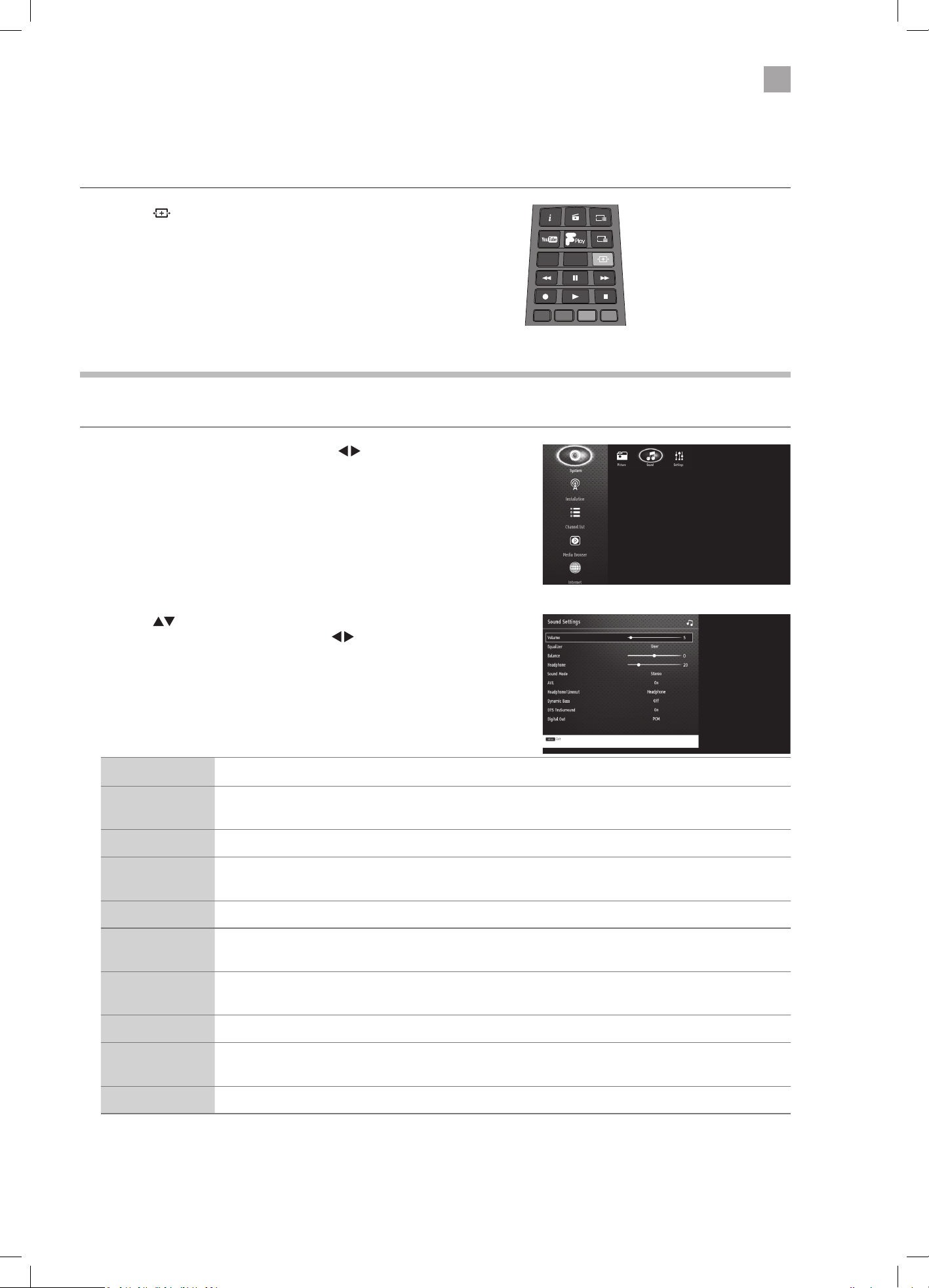
1. Press the MENU button and then press the
buttons to select
SOUND and then press the OK button.
Volume Adjusts the volume level.
Equalizer Selects pre-set equalizer modes. Highlight the equalizer mode then press OK to enter the EQUALIZER
SETTINGS menu. The equalizer modes are: MOVIE - SPEECH - FLAT - CLASSIC - USER - MUSIC.
Balance Adjusts the sound level from the left and right speakers.
Headphone Adjusts the volume level when listening to the TV with headphones. To prevent damaging your hearing
set the volume level low and gradually increase the level until you're happy.
Sound Mode Selects the sound modes. STEREO - DUAL I - DUAL II.
AVL (Automatic
volume limiting)
AVL will set the sound level so that its the same across all programmes. So when you change channels
the sound level won't change. Set AVL to ON or OFF.
Headphone/
lineout
Changes output between Headphone and lineout. Choose 'Headphone' when connecting headphones
and 'Lineout' when connecting an audio device to your Headphone socket.
Dynamic Bass Switches Dynamic bass ON and OFF.
DTS TruSurround
HD
Surround Sound can be switched ON or OFF. When switched on you will hear a more spacious sound, to
make you feel more immersed in the action on your TV.
Digital Out Sets the digital audio out type to PCM or COMPRESSED.
3. Press the BACK button to return to the previous menu.
4. Press the EXIT button to exit the menu.
LT-43C770_IB.indd 21 20/04/2017 17:04
22
4
Customising TV Settings
Editing the Channel List
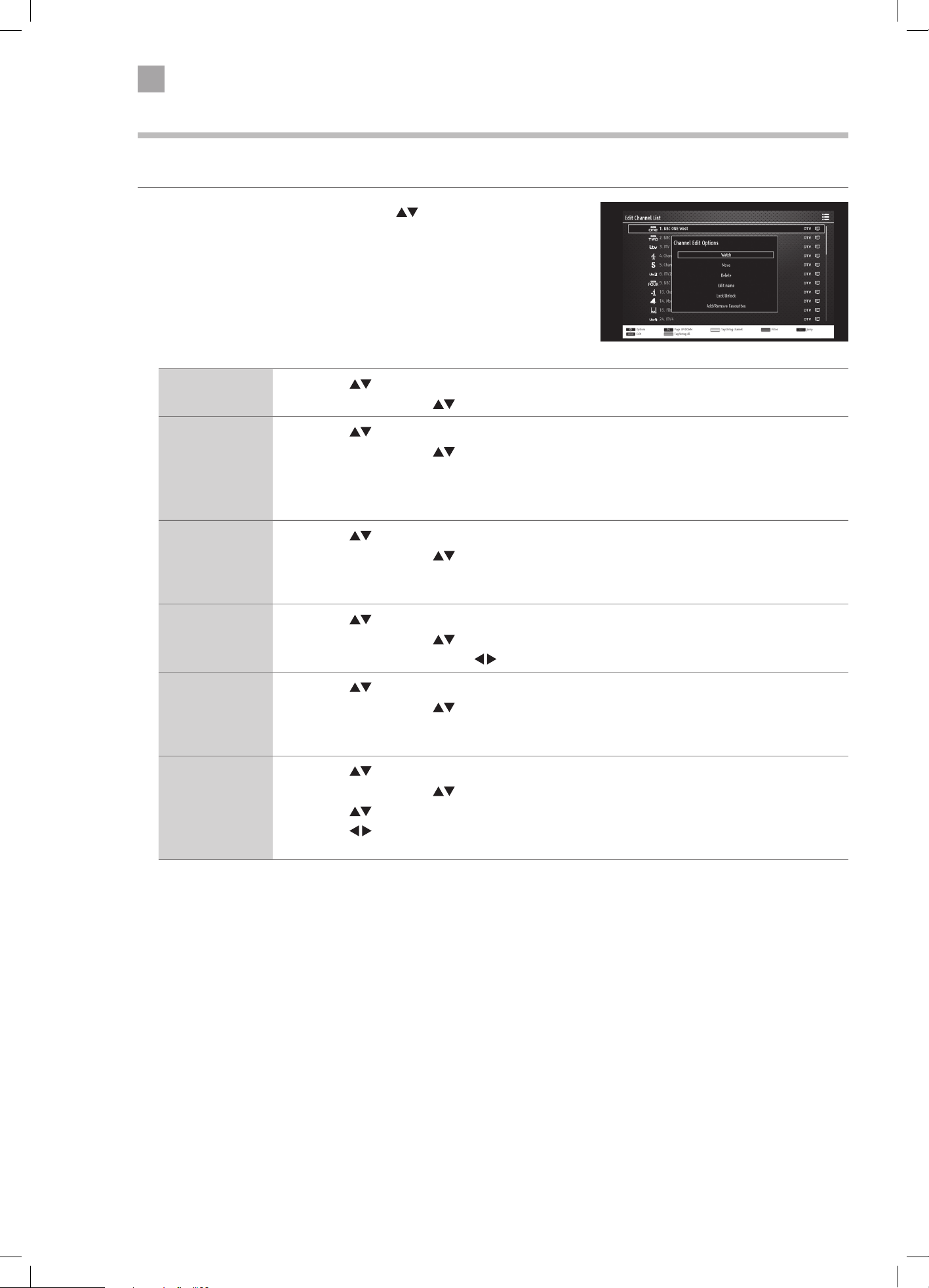
You can move, delete, edit the name of or lock channels in the EDIT CHANNEL LIST menu.
1. Press the MENU button and then press the
buttons to select
Channel List and then press the OK button. Press OK again to see the
Channel Edit Options.
Watch 1. Press the buttons to select the channel that you wish to watch.
2. Press OK, then press the
buttons to select WATCH then press OK.
Move 1. Press the
buttons to select the channel that you wish to move.
2. Press OK, then press the
buttons to select MOVE then press OK.
3. Press the NUMBER buttons to enter the channel number that you want to move the channel to,
then press OK.
4. Select YES and press OK. The channel will now have moved positions in the channel list.
Delete 1. Press the
buttons to select the channel that you wish to delete.
2. Press OK, then press the
buttons to select DELETE then press OK.
3. Select YES and press OK. The channel will be deleted. To get the channel back you will need to tune
your TV in again.
Edit name 1. Press the
buttons to select the channel that you wish to change the name of.
2. Press OK, then press the
buttons to select EDIT NAME then press OK.
3. Press the NUMBER buttons and
buttons to enter the new name of the channel, then press OK.
Lock/Unlock 1. Press the
buttons to select the channel that you wish to lock.
2. Press OK, then press the
buttons to select LOCK/UNLOCK then press OK.
3. Press the NUMBER buttons to enter your PIN number. The lock symbol will appear next to the
channel. To view the locked channel you will now have to enter your PIN number.
Add/Remove
Favourites
1. Press the
buttons to select the channel that you wish to add or remove from your favourites.
2. Press OK, then press the
buttons to select ADD/REMOVE FAVOURITES then press OK.
3. Press the
buttons to select the list you want to add the channel into.
4. Press the
buttons to select YES or NO, then press OK. The list number will now appear next to
the channel number to show its been added to your favourites.
LT-43C770_IB.indd 22 20/04/2017 17:04

23
4
Customising TV Settings
Viewing your Favourite Channel List
1. Press the MENU button and then press the buttons to select Channel List and then press the OK button.
2. Press the BLUE button to view the CHANNEL LIST FILTER.
3. Press
buttons to select FAVOURITES, then press the buttons to select the favourite list 1-4 that you want to view. The
channel list will now just show you your favourite channels.
To see the full list of channels again select NONE under Favourites.
LT-43C770_IB.indd 23 20/04/2017 17:04
24
5 Using the Features
Chapter
5
Programme Guide
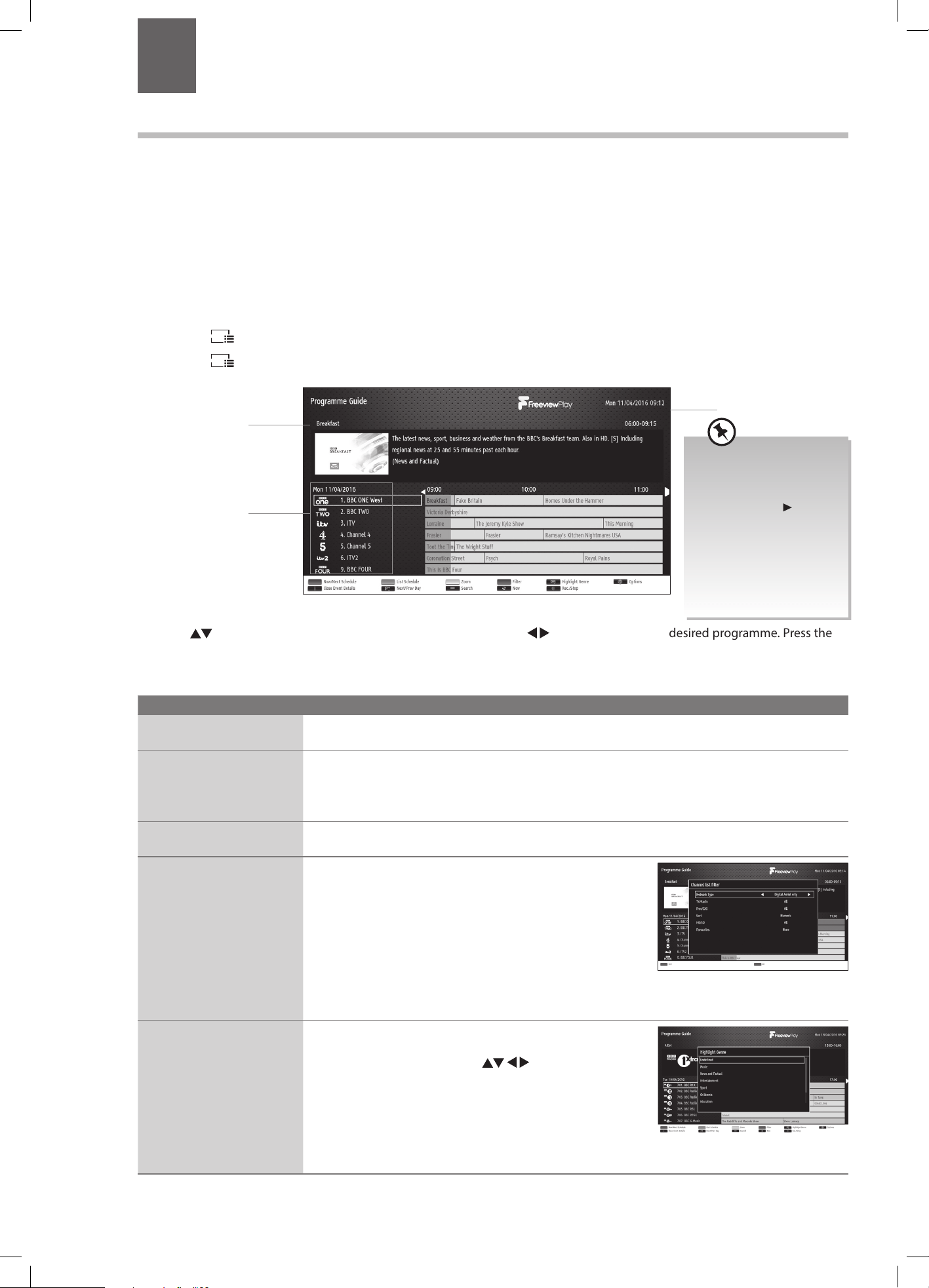
This system has a Programme Guide to help you navigate through all the possible viewing options.
The Programme Guide supplies information such as programme listings, start and end times for all available services. In addition,
detailed information about the programme is often available in the Programme Guide (the availability and amount of programme
information will vary, depending on the particular broadcaster).
This function can be used only when the Programme Guide information is broadcast by broadcasting companies.
The Programme Guide displays the programme details for the next 7 days.
Switch On / Off Programme Guide
1. Press the
EPG
button to view the Programme Guide.
2. Press the
EPG
button or the EXIT button again to switch off Programme Guide and return to normal TV viewing.
Select a Programme
Press the buttons to select the desired channel and then press the buttons to select the desired programme. Press the
OK button to confirm.
Button Functions in a 7-Days Guide
Remote Control Button Function
RED (Now/Next Schedule)
Press the RED button to view a list of current programmes and the next programmes. Press the
YELLOW button to return back to the Timeline schedule.
GREEN (List Schedule)
1. Press the GREEN button to view the List Schedule. It will list the next programmes that are on
the selected channel.
2. Press the RED button to see the previous programmes or press GREEN to see the next
programmes in the list.
YELLOW (Zoom)
Press the YELLOW button to condense the programme information so you can see more
programmes for your selected day.
BLUE (Filter)
Press the BLUE button to select the CHANNEL LIST FILTER.
Here you can filter the Programme Guide to make it easier
to find your programmes.
• Network Type - DIGITAL AERIAL - DIGITAL CABLE
• TV/Radio - Filter ALL - TV ONLY - RADIO ONLY - TEXT ONLY.
• Free/CAS - Filter ALL - FREE - ENCRYPTED
• A-Z - Filter using the first letter of the programme A - B - C...
• Sort - Filter NUMERIC or ALPHABETIC
• HD/SD - Filter for High Definition or Standard Definition.
• Favourites - NONE - FAVOURITES 1 - 2 - 3 - 4
SUBT.
• Press the SUBT. button to select a Genre. Once a Genre
is selected the programmes in that Genre will be
highlighted in blue. Press the
until you see the
highlighted programmes.
current date and time
current programme title
channel no. and
channel name
• When you scroll
back through the
Programme Guide
if you see a
next
to a programme
name this shows
you can watch the
programme. Press
OK to watch the
programme.
LT-43C770_IB.indd 24 20/04/2017 17:04
25
5
Using the Features
i (Event Details) Press i to see a brief description of the selected programme.
P+/-
Press the P+ / P- buttons to view the next or previous days programmes.
OK (Options)
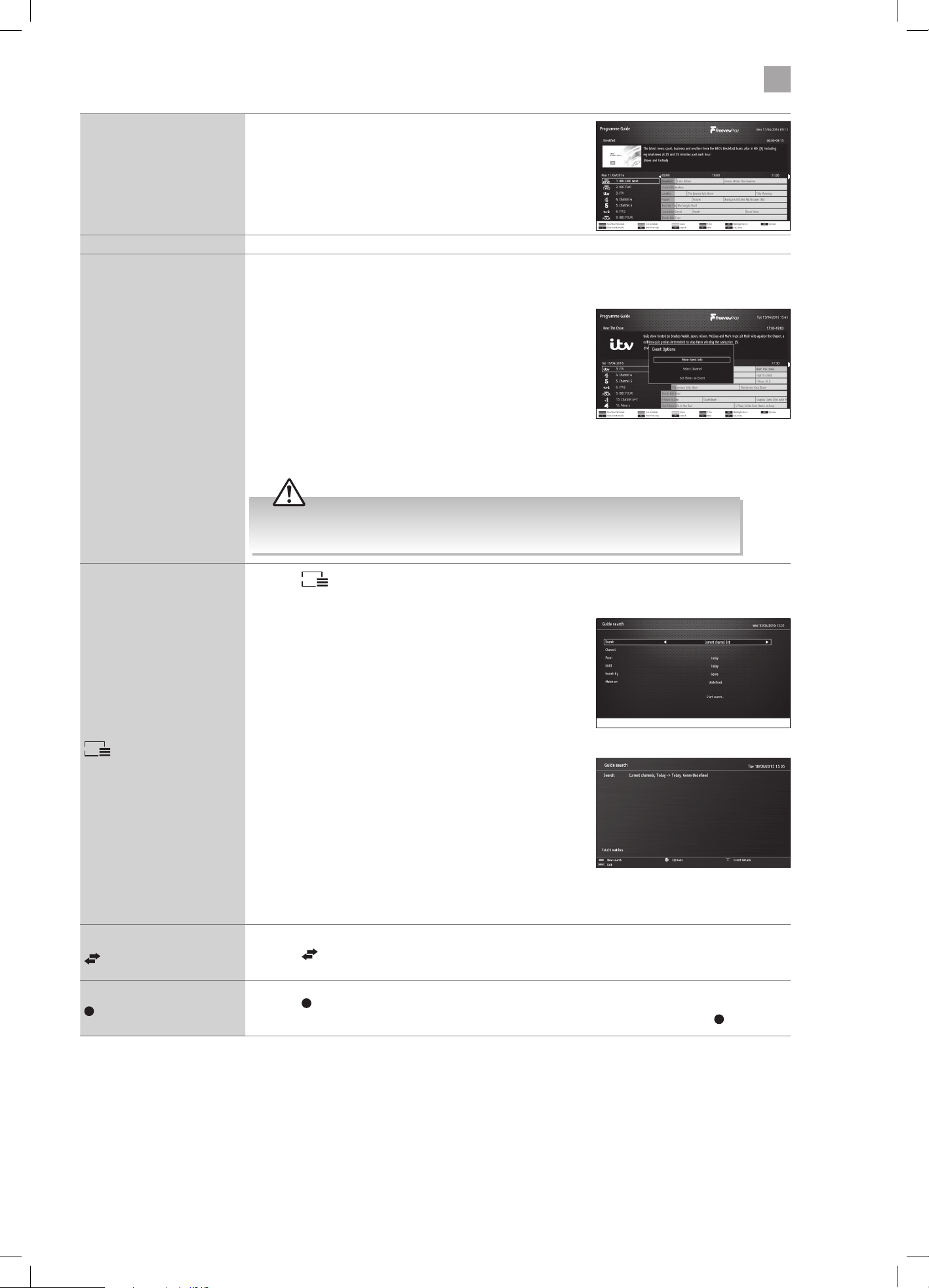
When a programme is highlighted press the OK button to
see the EVENT OPTIONS menu.
• More Event Info - Shows programme information.
• Select Channel - Select this option to view the selected
programme.
• View HD Alternatives - Select to view the HD channel.
• Record - Select this option to set the selected programme
to automatically record. The programme will be
highlighted in red to show a recording is set.
• Set Timer on Event - Select this option to set the
selected programme to switch on when the programme
starts. The programme will be highlighted in yellow to
show a 'timer on event' is set.
Not all of the event options may be available, it depends if a programme has started
and it a USB storage device is connected.
TXT
(Search)
Press the
TXT
button to enter the GUIDE SEARCH menu. Use this menu to search the Programme
Guide for a specific programme or type of programme on a particular day.
• Search - This is the field that you wish to search though.
Select ALL CHANNELS - ALL TV CHANNELS - ALL RADIO
CHANNELS - CURRENT CHANNEL LIST - SINGLE CHANNEL.
• Channel - If you have selected SINGLE CHANNEL you can
now select the channel you wish to search.
• From - Select the day you want to search from. To select
from your current day select TODAY.
• Until - Select the day you want to search until. Make sure
this day is after the 'FROM' day.
• Search By - Select GENRE to search by genre or select
NAME MATCH to manually type in the name of the
programme you are searching for.
• Match on - If you selected GENRE above, press OK to
open the SELECT GENRE menu. If you selected NAME
MATCH above then press the NUMBER buttons to enter
the name of the programme you are searching for.
• Start search - Select START SEARCH and then press OK
to start searching. A list of search results will appear on
screen, this may take a few seconds to generate.
(Now) Press the button to automatically go back to the programme that is on now.
(Record/Stop)
Press the
button to record the selected programme, to show a recording is set it will be
highlighted red. To remove the record function, highlight the programme then press
.
Search Results
LT-43C770_IB.indd 25 20/04/2017 17:04
26
5
Using the Features
Time Shift Recording onto a USB Storage Device
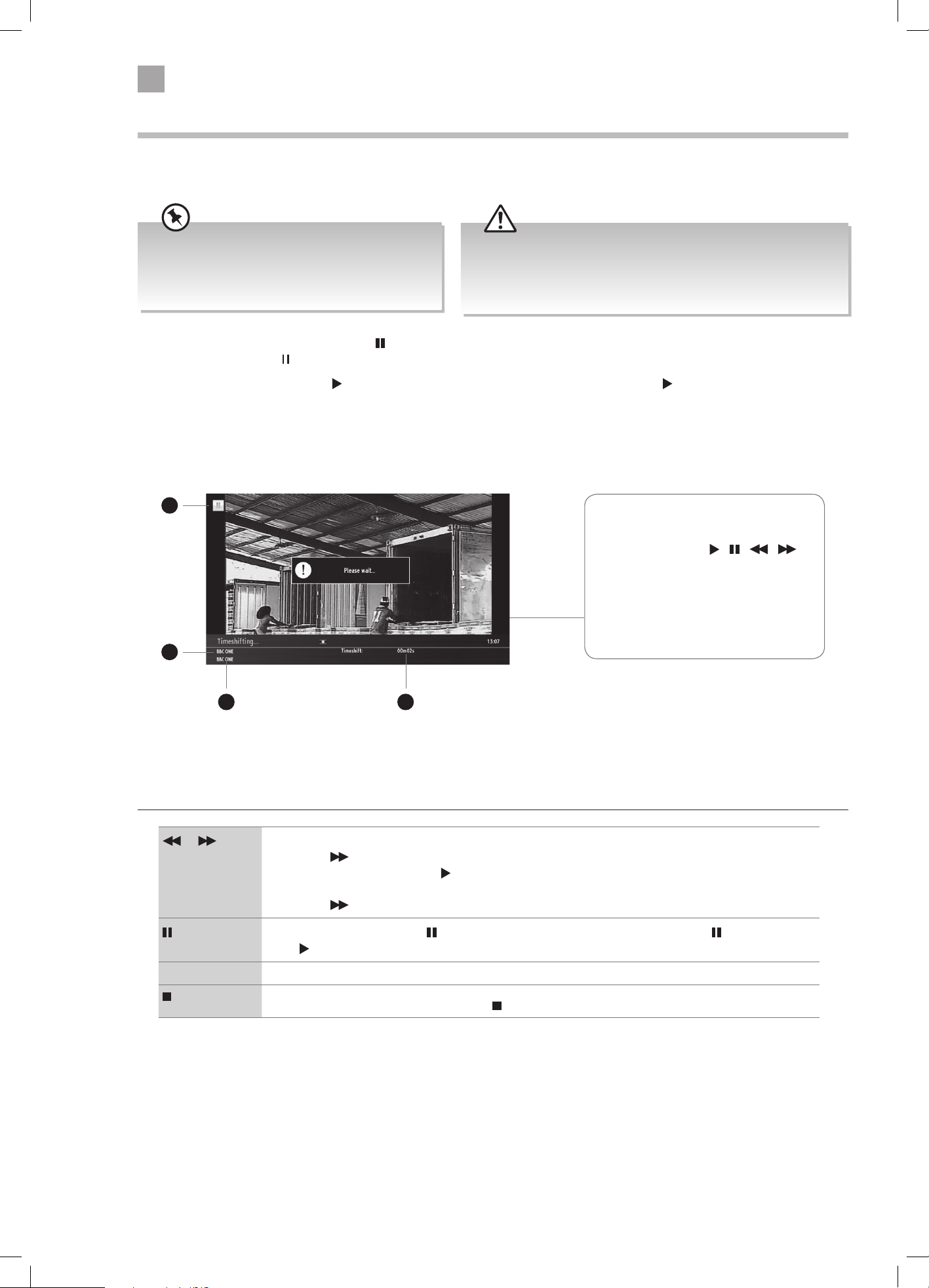
This function allows you to pause live TV. The picture will pause and the programme will begin recording so you don't miss any of
the programme. You will have to have a USB storage device attached to the USB socket for Time Shift Recording to work.
Using the Remote Control
You can shift playback to any point of the virtually recorded programme.
or When playing,
• Press the
button repeatedly to speed up - x 2 / x 4 / x 8 / x 16 / x 32.
• During fast forward press the
(PLAY) button to return to normal playback.
When paused
• Press the
button repeatedly to view in slow motion - x 1/4 / x 1/2 / x 1 (normal playback).
• During playback, press the button to display a still screen and then press the button again or
the
(PLAY) button to resume playback.
OK When timeshifting press the OK button to play or pause the recording.
If you want to exit timeshifting, press the button.
The ‘PVR Time Shift Progress Bar’
1 Indicates the status of the currently
displayed video (
/ / / )
2 Channel name being recorded.
3 Programme name being recorded.
4 Indicates the amount of time
recorded.
2
3 4
1
While watching your TV, you may press the button to pause the live programme if you want to go out for a while (e.g. going to
the bathroom / kitchen). "
" will show on the screen.
When you have returned, press the
(PLAY) button to play the missed broadcast programme. " " will briefly show on the
screen.
The video and sound may have a little bit of delay or be out-of-sync for a few seconds when the unit starts to playback the missed
programme. It will soon turn to normal.
If the transfer rate of the USB storage device is too slow for
recording or time shift function, a warning statement will be
shown on the screen. If this happens, please upgrade your USB
storage device. The minimum transfer speed is 5MB/s.
• Time Shift Mode and Recording functions may
not work if the signal strength is weak.
• Stop the time shift function before switching to
another input source.
LT-43C770_IB.indd 26 20/04/2017 17:04
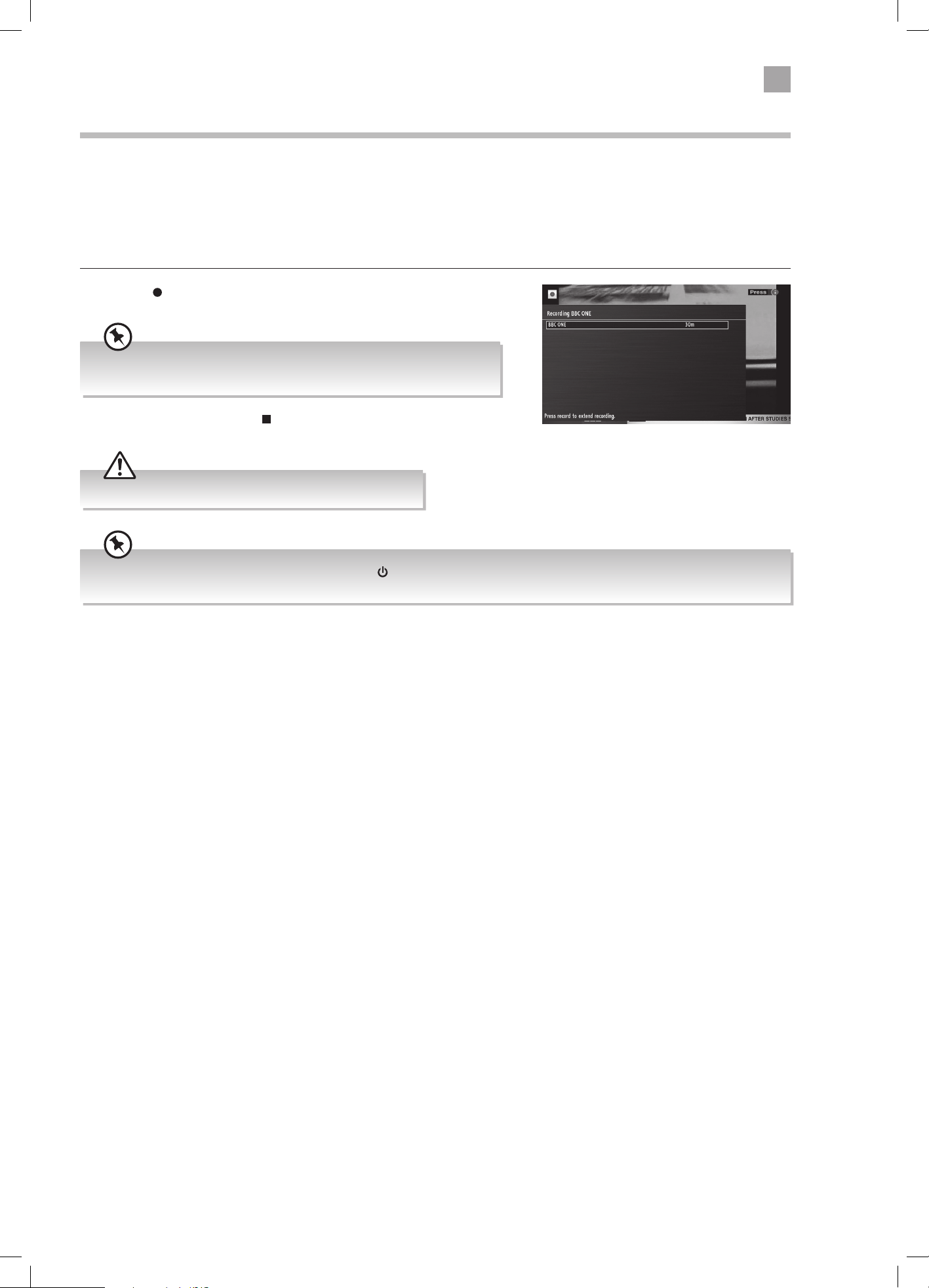
27
5
Using the Features
Recording DTV Programmes onto a USB Storage Device
Use this function to record the DTV programme you are watching on the main screen and save it for future viewing.
The recording from timer programme or direct recording may have a little bit of delay when it starts to record the broadcast
programme.
Please make sure the USB device is inserted. If not, a warning message will pop up. You can only record the programme that you
are currently watching.
1. Press the
button to record the programme that you are currently
watching.
2. To stop a recording press the button, then select YES and press OK.
Recording will stop automatically when the disk is full.
The recording screen will briefly appear. It will display the channel and
programme name and the minutes of that programme left.
You can turn off the TV while recording. Press the button. The standby indicator light will flash to show the TV is still
recording.
LT-43C770_IB.indd 27 20/04/2017 17:04
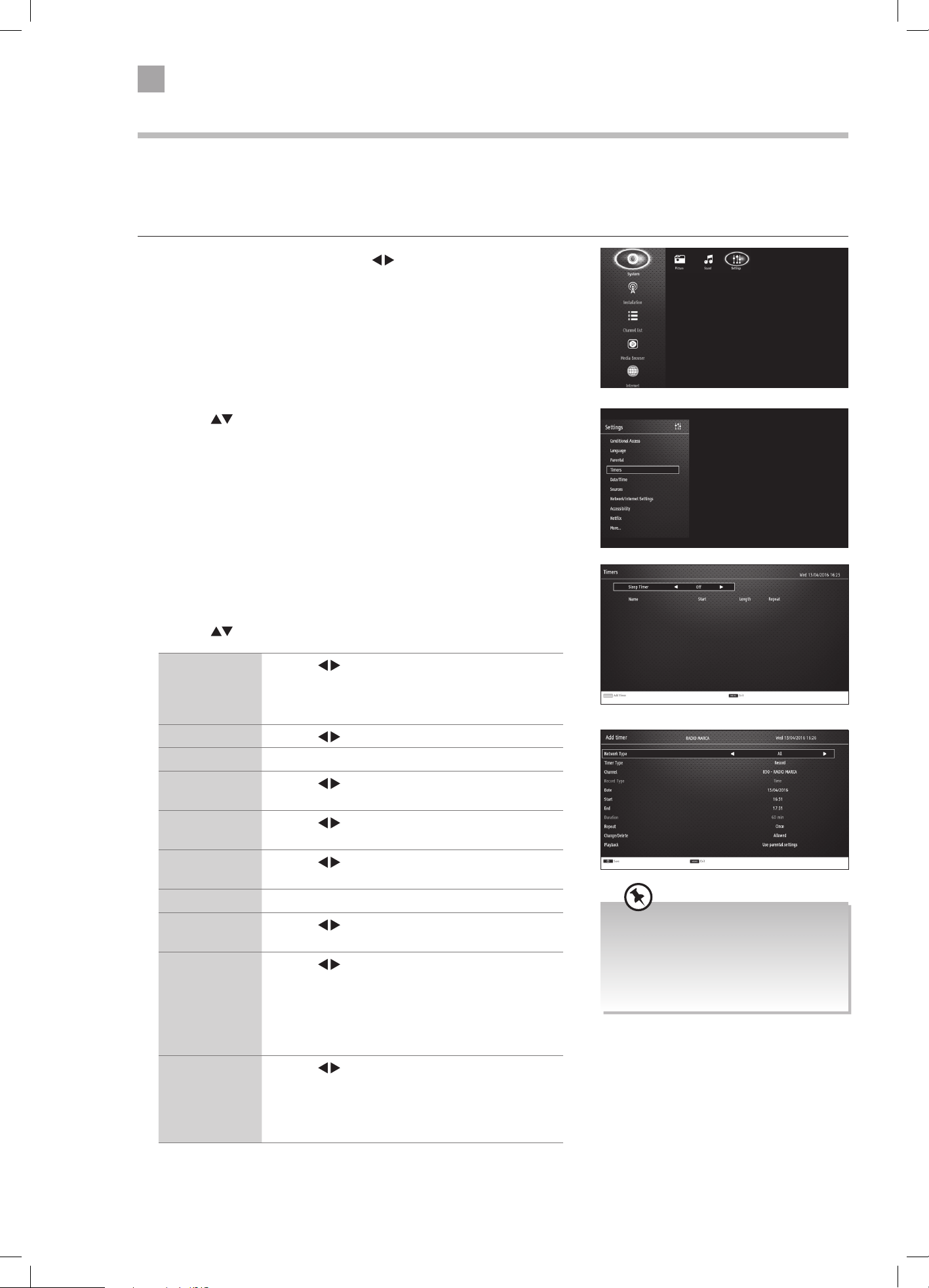
28
5
Using the Features
3. Press the YELLOW button to add a timer. The ADD TIMER menu will be
displayed.
4. Adding the timer
Press the
to select each setting below.
Timer Type Press the buttons to select RECORD or TIMER.
RECORD - Will record a programme
TIMER - Will automatically switch to the selected
programme when it starts.
Channel Press the
buttons to select the channel.
Record Type Not adjustable.
Date Press the
buttons and the NUMBER buttons to
set the date.
Start Press the
buttons and the NUMBER buttons to
set the start time.
End Press the
buttons and the NUMBER buttons to
set the end time.
Duration Set automatically.
Repeat Press the buttons to set the recording to record
ONCE - DAILY - WEEKLY or just WEEKDAYS.
Change/Delete Press the
buttons to select ALLOWED or
DISALLOWED
ALLOWED - You allow anyone to change or delete the
recording.
DISALLOWED - You will have to enter the PIN code to
change or delete the recording.
Playback Press the
buttons to select USE PARENTAL
SETTINGS, DISALLOWED or ALLOWED. You will
need to enter the PIN number if you want to play a
recording when you select 'use parental settings and
disallowed'.
2. Press the
to highlight TIMERS then press OK.
Timer Programming
This function is used to perform scheduled recordings or timers (will switch the programme on when it starts).
The recording from timers or direct recording may have a little bit of delay when it starts to record the broadcast programme.
Please make sure the USB device is inserted. If not, a warning message will pop up.
1. Press the MENU button then press the
buttons to select SETTINGS and
press OK.
• When the preset time is reached, the
TV will start recording automatically.
• If a programme recording starts
when the TV is in standby mode, the
LED indicator will flash.
LT-43C770_IB.indd 28 20/04/2017 17:04
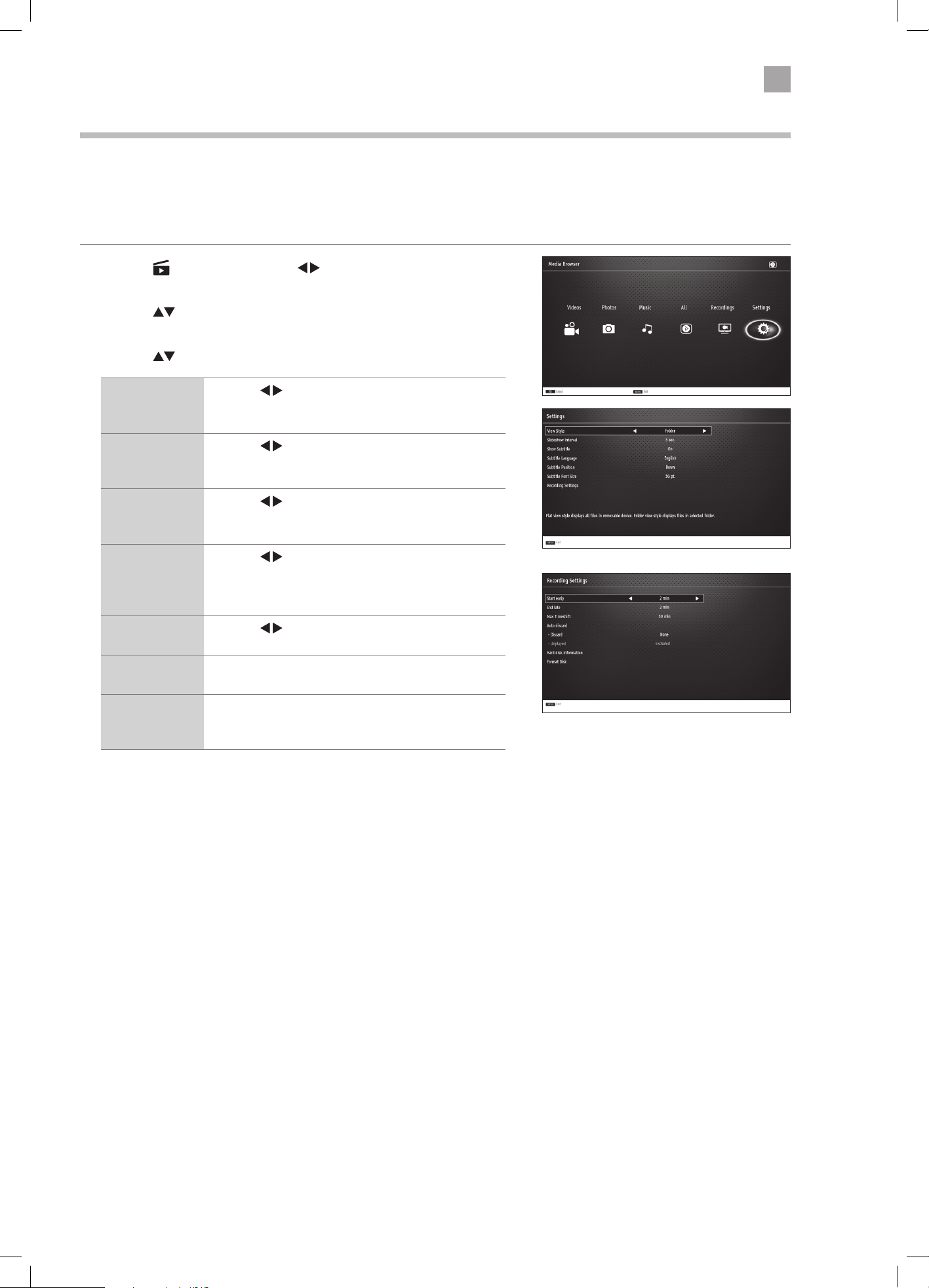
29
5
Using the Features
Recording Settings
The recording settings menu allows recording adjustment. You can add time to the start and end of each recording and set and
maximum recording time for timeshifting.
You can also select how you want your TV to automatically delete your recordings so you won't run out of space on your USB
storage device.
1. Press the
button then press the buttons to select SETTINGS and
press OK.
2. Press the
to highlight RECORDING SETTINGS then press OK. The
Recording settings menu will be displayed.
3. Press the
to select each setting below.
Start early Press the buttons to select an amount of time
you would like the recording to start before the
programme starts (max 10 mins).
End late Press the
buttons to select an amount of
time you would like the recording to end after the
programme finishes (max 10 mins).
Max Timeshift Press the
buttons to select a maximum amount
of time you would like the timeshift recording to
record (from 10 mins to 2 hours).
Auto discard
- Discard
Press the
buttons to select the recording that
you want to automatically delete when the USB
storage device is full.
NONE - OLDEST - LONGEST - SHORTEST
Auto discard
- Unplayed
Press the
buttons to select to delete the played
or unplayed recordings.
Hard disk
information
Select to see the Hard disk information.
Format Disk Select to format the USB storage device, you will
need to enter your PIN number. Any previous
recordings will be deleted.
LT-43C770_IB.indd 29 20/04/2017 17:04
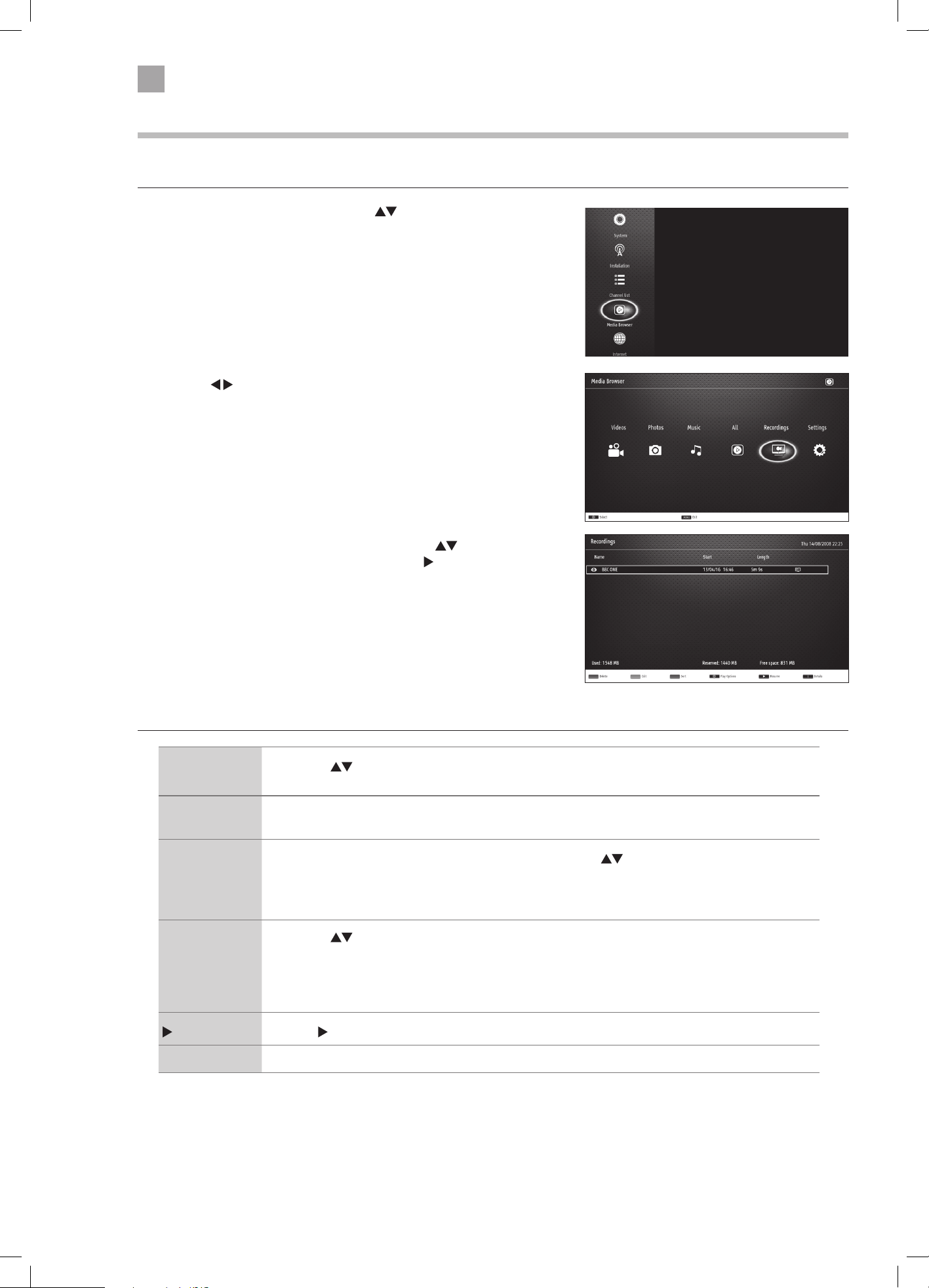
30
5
Using the Features
Playing Recorded Programmes
All of your recording are stored in the Media Browser, in the
1. Press the MENU button, then press the
buttons to select MEDIA
BROWSER then press OK.
Recordings Library Controls
RED button
(Delete)
• Press the
buttons to select the recording that you wish to delete then press the RED button.
You will be asked if you want to delete the recording, select YES then press OK.
GREEN button
(Edit)
• To edit the recording permissions press the GREEN button. You can allow or disallow the
recording to be deleted or played back.
BLUE button
(Sort)
• Press the BLUE button to see the SORT BY menu. Press the
buttons to select your sorting
option then press OK.
NAME - NAME, REVERSED - START, OLDEST FIRST - START, NEWEST FIRST - LENGTH, SHORTEST FIRST -
LENGTH, LONGEST FIRST - UNVIEWED FIRST - VIEWED FIRST.
OK
(Play Options)
• Press the
buttons to select the recording that you wish to play then press OK. The PLAY
OPTIONS menu will be displayed.
PLAY FROM START - This option will play the recording from the start.
RESUME - This option with play the recording from the point you last watched the recording.
PLAY FROM OFFSET - This option allows you to select a start point into the recording.
(Play) Press the (play) button to play the recording.
i Press the i button to see information about the recorded programme.
2. Press the buttons to select RECORDINGS then press OK.
3. The RECORDING menu will be displayed. Press the
buttons to select
the recording that the want to watch then press
(PLAY).
LT-43C770_IB.indd 30 20/04/2017 17:04
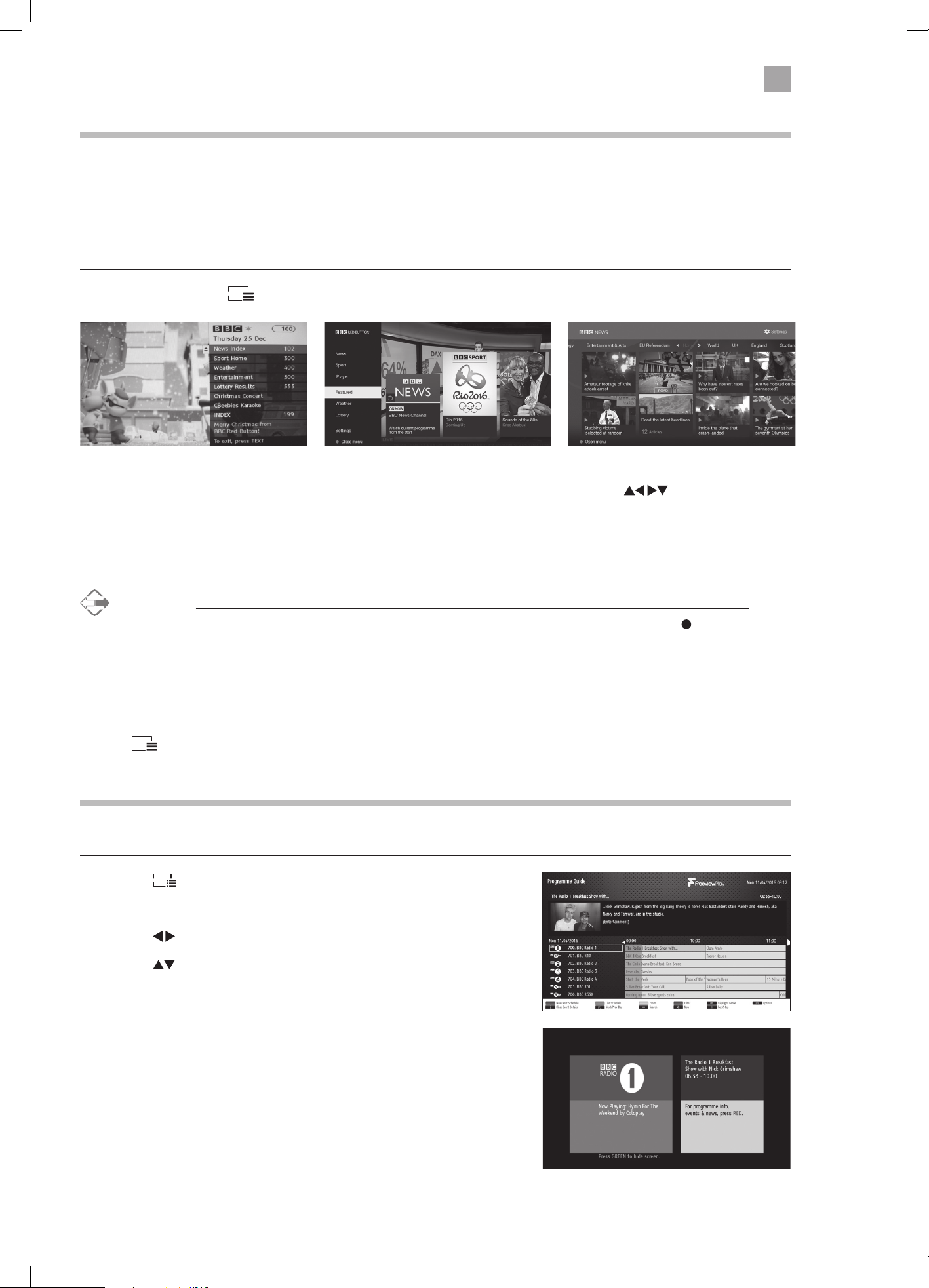
31
5
Using the Features
Listening to the Radio
You can listen to radio stations through your TV.
1. Press the
EPG
button to select the PROGRAMME GUIDE.
2. Press the BLUE button to select the filter.
3. Press the
buttons to select RADIO ONLY then press OK.
4. Press the
buttons to select your desired radio station then press OK to
listen to it.
5. The radio stations are from channel position 700, you can also select them
using the P+/P- buttons or the NUMBER buttons.
Red Button + (Interactive services)
Red button + services are available on BBC TV and Radio channels. The services are gradually changing to an internet based
service rather than the conventual over air (though your aerial). To make the most out of the Red Button + services make sure
your TV is connected to the internet. You can also access BBC iPlayer through RED button +.
Accessing the Information
1. In DTV mode press the
TXT
button to display the main information page.
You may see slightly different looking pages depending if your TV is accessing the page over air or via the internet.
2. Follow the instructions on the interactive services page and move around the page by pressing , OK, RED, GREEN,
YELLOW, BLUE or 0-9 buttons etc.
To change digital teletext services, you will need to exit the current text service
and change channels. Then enter the text service on the newly selected channel.
Alternative
You may press the RED button to display the interactive services information when you see a red "press " logo in the
top right corner of the screen (e.g. BBC services). This will now display the Red Button menu and available information
categories.
To access the pages, use navigation buttons to highlight item required and press the OK button to select.
Follow on screen prompts for other functions.
3. Press
TXT
or the EXIT button to exit.
Over Air Red Button + Services Internet Red Button + Services iPlayer via the Red Button + Services
LT-43C770_IB.indd 31 20/04/2017 17:04
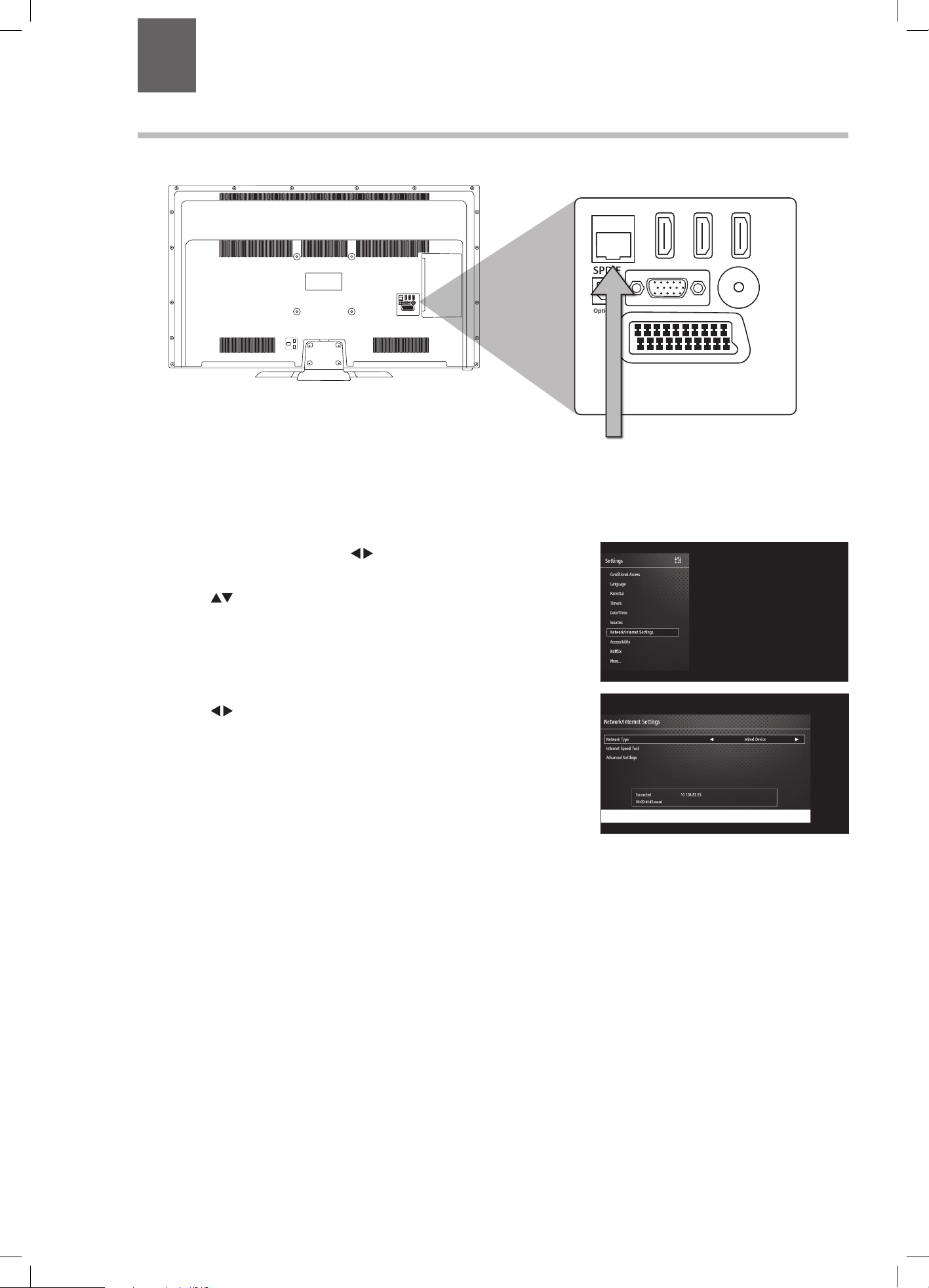
32
6 Using the Smart Features
Chapter
6
Connecting to the Internet (Wired)
For the fastest and most reliable connection we recommend connecting your TV to the internet using an ethernet cable.
1. Press the MENU button then press to select SETTINGS then
press OK.
2. Press the
buttons to select NETWORK/INTERNET SETTINGS
then press OK.
3. Press the
buttons to select wired. The word connected will
appear to show you are now connected to the internet.
SCART
SPDIF
Optic.OUT
VGA
ANT.
HDMI 1
(ARC)
HDMI 2
HDMI 3
LAN
COMMON INTERFACE
USB
5Vdc
Max. 500mA
SCART
SPDIF
VGA
ANT.
HDMI 1
(ARC)
HDMI 2
HDMI 3
LAN
USB
5Vdc
Max. 500mA
SIDE AV
MODE - / I
- +
Optic.OUT
Connect your ethernet cable
to the LAN socket
LT-43C770_IB.indd 32 20/04/2017 17:04
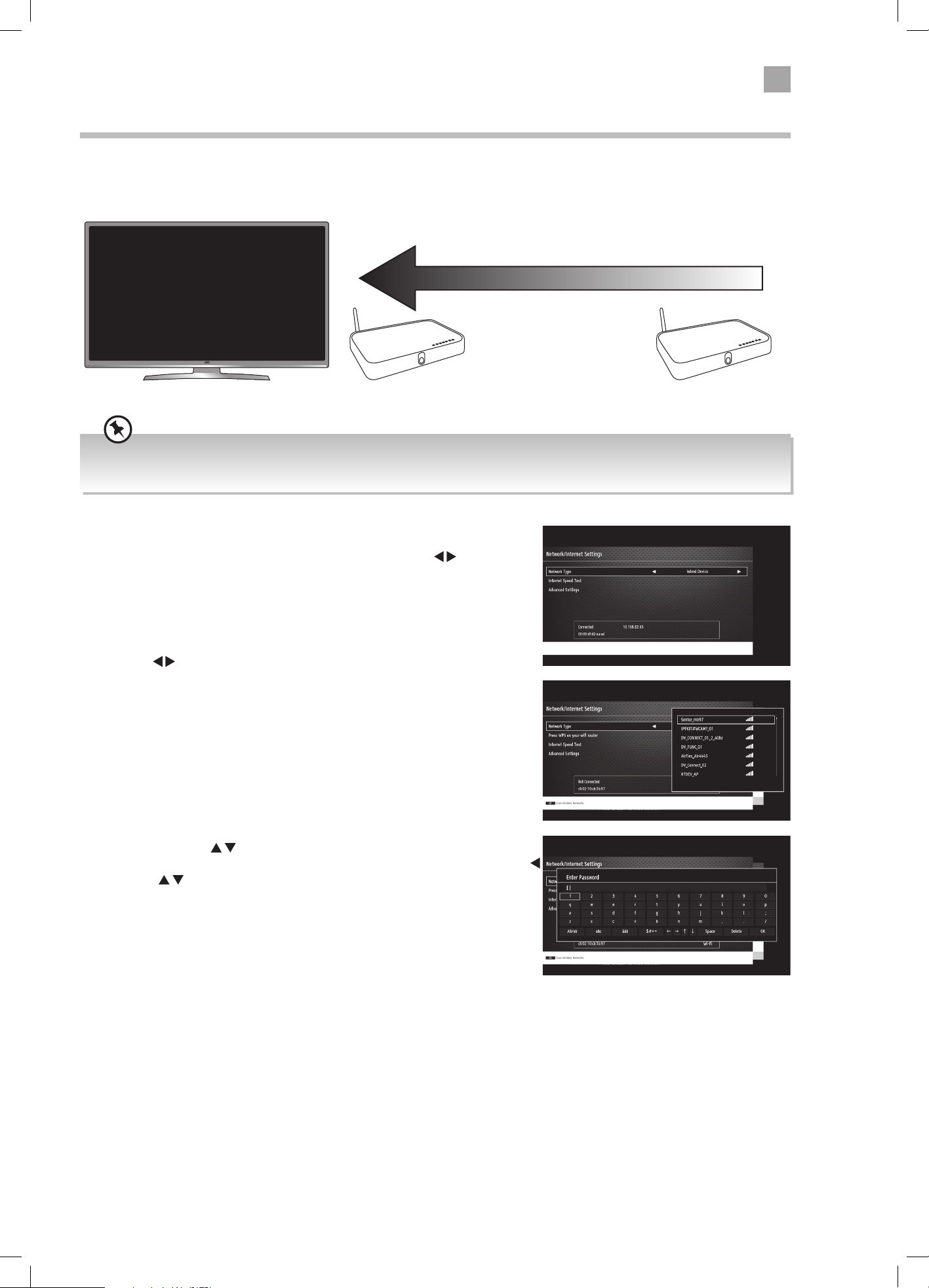
33
6
Using the Smart TV Features
Best connection
speed
Maximum distance
5m
Wireless Router Wireless Router
Connecting to the Internet using wireless
You can connect your TV to your router using the built in wireless connection. This may not always give you the fastest
connection speed but may be the most convenient connection method.
WIRELESS Connection
• If you want to connect using a wireless connection press the
buttons to
select WIRELESS DEVICE.
You have two options for connecting to your wireless network. By entering your
router PASSWORD or using the WPS button.
PASSWORD option
1. Press the
buttons to select WIRELESS DEVICE.
2. Press the YELLOW button to scan for your wireless network (router). A
message saying 'Please wait' will appear while your TV searches for all the
wireless networks in your area.
3. Press the buttons to select your wireless network then press OK. You
now need to enter your password, a keyboard will appear. Press the
buttons to select a letter/number/symbol and press OK to enter each
one. Once you have typed your password highlight SAVE and press OK. The
network will now show ENABLED.
4. Press the OK button to continue.
For the best wireless connection its recommended than your router its positioned no more that 5 meters away from your TV
and that its in the same room as your TV.
LT-43C770_IB.indd 33 20/04/2017 17:04
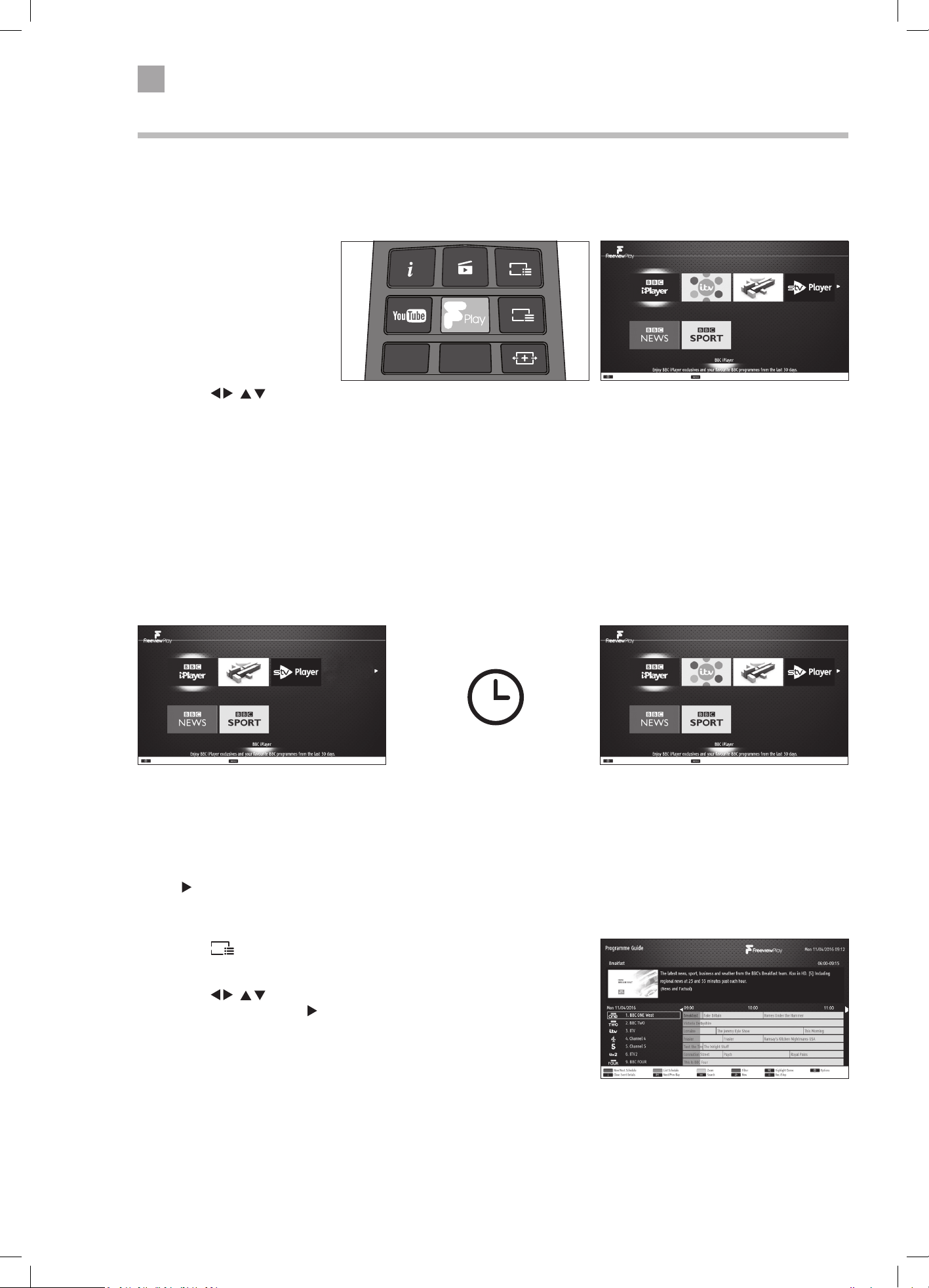
34
6
Using the Smart TV Features
SUBT.LANG.
TXT
MENU
Q. MENU
EXIT
BACK
OK
6
MNO
9
WXYZ
0
TV
7
PQRS
8
TUV
4
GHI
5
JKL
.,/@
2
ABC
3
DEF
V
P
EPG
Using Freeview Play
To use Freeview Play your TV must be connected to the internet. You must also have installed Freeview Play and accepted the
Terms and Conditions.
Catch Up Services
1. Press the F Play button on
your remote control to access
Freeview Play.
The Freeview Page will appear on
screen. Here you can access all of
the carch up services.
2. Press the
/ to highlight
the catch up service that you
would like to enter and then
press OK.
Freeview Play 7 day Catch Up through the Programme Guide
You can view TV programmes 7 days back through the Programme Guide. Simply scroll back through the guide. Any programme
with an
next to it can be viewed.
1. Press the
EPG
button on your remote control to access the Programme
Guide.
2. Press the
/ to highlight the program that you wish to view.
Remember it has to have a
next to it to be available for playback.
3. Press the OK button the view the programme.
Freeview Apps Updating
From time to time you might enter the Freeview Play service and notice that an App is missing. This isn't a fault with your TV,
the App provider may be making improvments or updates to the App. They will take it off line to do this, usually this is only very
temporary and the App will return shortly.
Missing ITV Hub
Example: ITV Hub missing
ITV Hub returns
The ITV Hub is being
update, try again later.
The App will return once
its been updated.
LT-43C770_IB.indd 34 20/04/2017 17:04
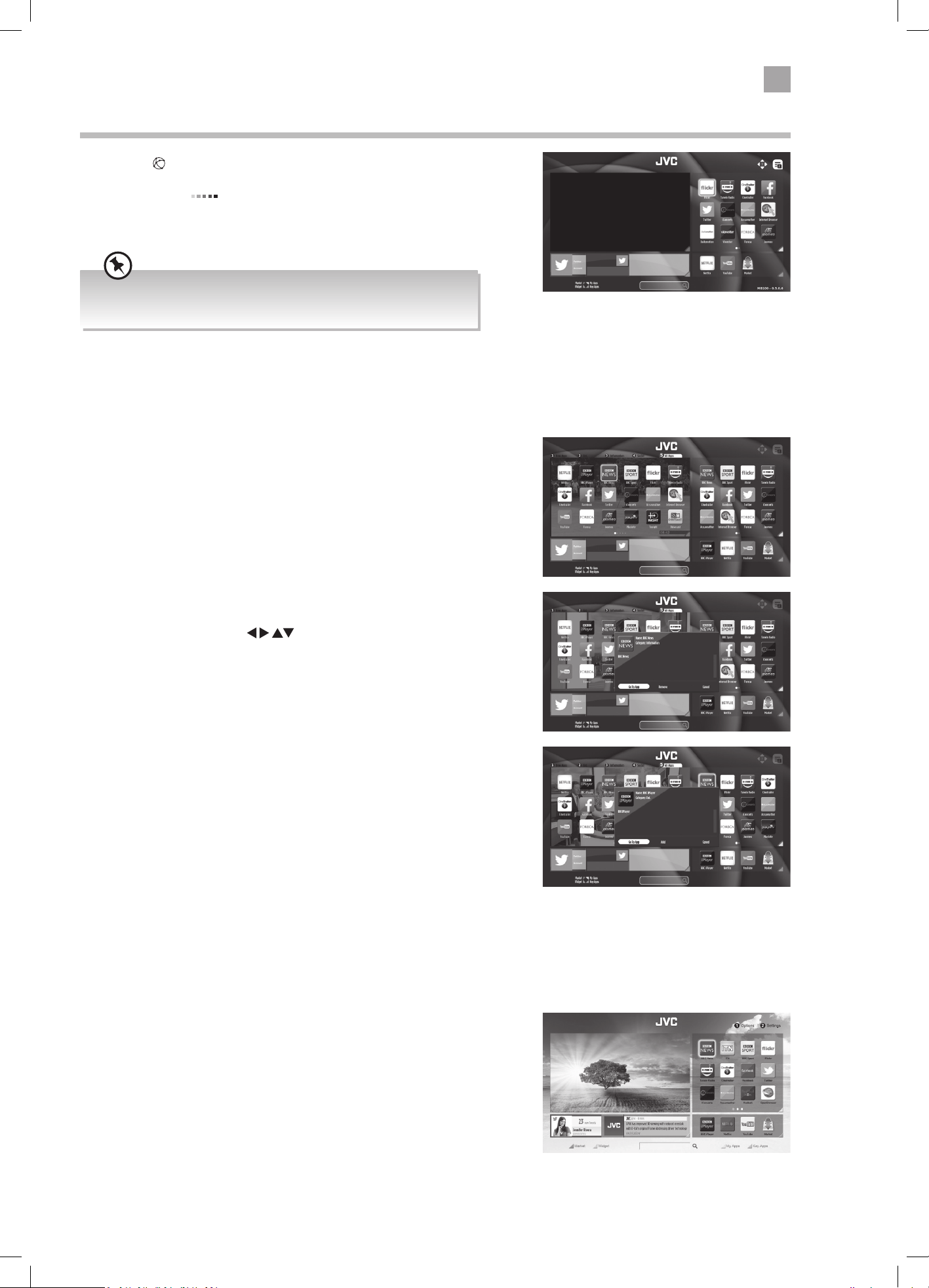
35
6
Using the Smart TV Features
Selecting Smart TV
1. Press the button to enter smart mode.
The loading symbol
will appear in the top left corner of the
screen while smart mode is loading. Please be patient it may take a
few seconds to load the smart mode.
Your TV will update automatically, so the amount of apps available
may vary from time to time. The app content may also be updated.
The Smart screen is broken up into 4 sections. Market, Widget, My Apps and Key Apps. Each section can be accessed by pressing
one of the COLOURED buttons.
Market
The Market shows all the Apps that are available on your TV. You can
either add them to My Apps section or open the App directly from
the Market.
1. Press the RED button to open the Market. The TV picture will
change to a list of Apps.
2. The Apps can be viewed in 5 different tabs. 1 - New Apps, 2 -
Services, 3 - Videos, 4 - TV Apps, 5 - All Apps. Press the NUMBER
buttons to select these tabs.
3. To select an App press the
to highlight the App then
press OK.
If the App is already in your My Apps section you will be given
the option to GO TO APP or REMOVE. Select GO TO APP to run
the App. Select REMOVE if you wish to remove it from your My
Apps section.
If the App isn't already in your My Apps section you will be given
the ADD option. Select ADD to add the App into your My Apps
section.
Widget
The Widget section shows your Facebook and Twitter feeds if you are
logged in.
1. Press the GREEN button to select the Wiget section.
2. Repeatedly press the GREEN button to switch between Facebook
and Twitter.
LT-43C770_IB.indd 35 20/04/2017 17:04
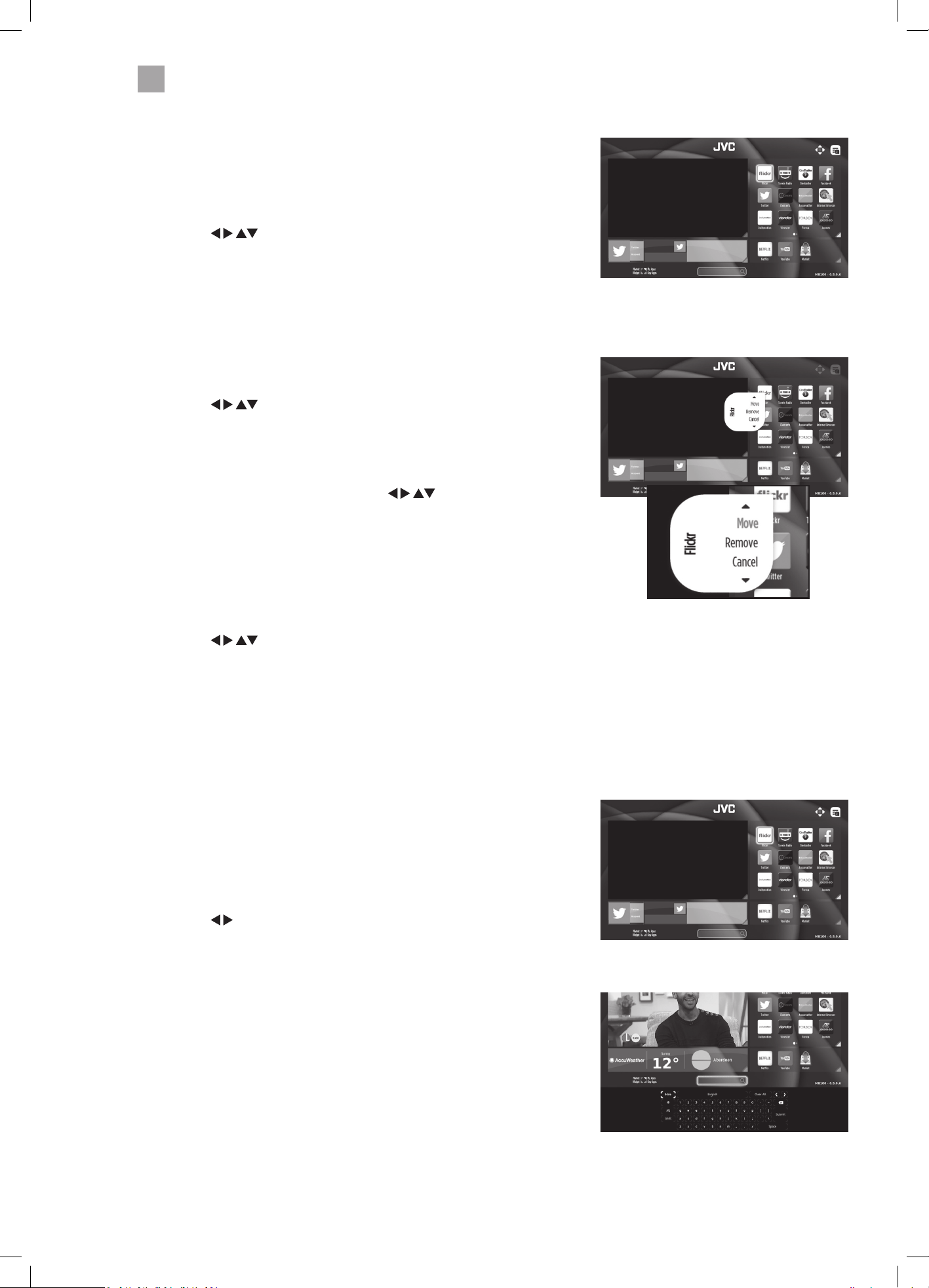
36
6
Using the Smart TV Features
My Apps
The My Apps section shows all of your Apps that you have added to
this section. They can be arranged into any order, to make it easy for
you to find your Apps.
1. Press the YELLOW button to Select the My Apps section.
2. Press the
buttons to highlight the app that you would
like to open, then press OK.
Organising your apps in My Apps
You can change the order of the apps to suit your personal use.
1. Press the YELLOW button to make sure you are in the My Apps
section.
2. Press the
buttons to highlight the app that you would
like to move.
3. Press the NUMBER 1 to open the OPTIONS menu. Select MOVE
and press OK.
4. The App logo will now animate, press the
buttons to
move the App to its new location, then press OK.
Deleting an app from My Apps
1. Press the YELLOW button to make sure you are in the My Apps
section.
2. Press the
buttons to highlight the app that you would
like to delete.
3. Press the NUMBER 1 to open the OPTIONS menu. Select REMOVE
and press OK. The app will be deleted from the My Apps section,
but will remain in the Market section if you want it back in the
future.
Key Apps
The Key Apps are the apps that are the most commonly used. These
app can't be changed or deleted. You can also access the Market
section from Key Apps.
1. Press the BLUE button to make sure you are in the Key Apps
section.
2. Press the
buttons to highlight the app that you would like to
use.
Searching for Apps
Rather than scrolling through lists of Apps to find the App you are
looking for you can type in a word and a list of apps related to your
search will be displayed, e.g. type Weather and all the weather apps
will be displayed.
LT-43C770_IB.indd 36 20/04/2017 17:04
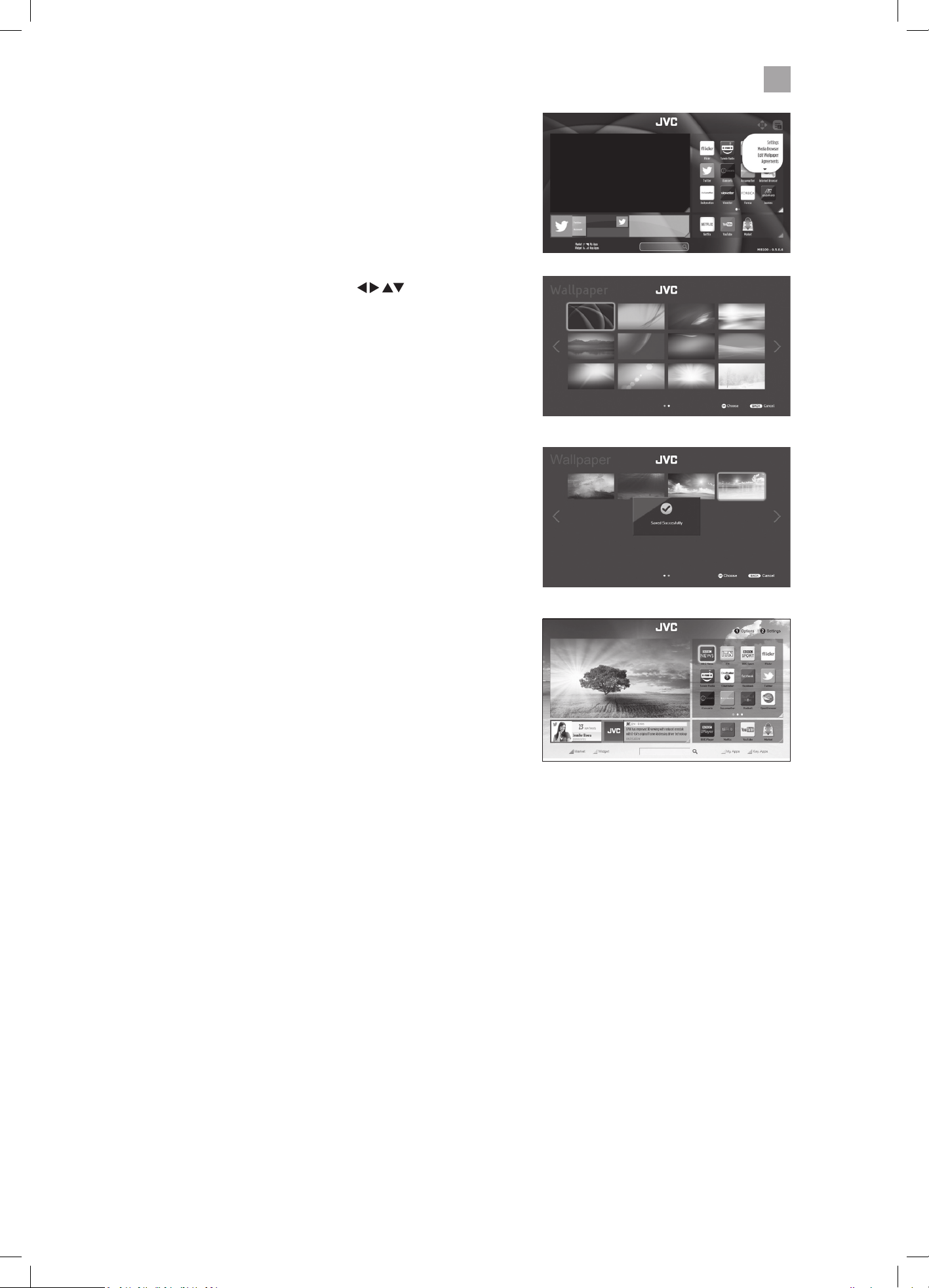
37
6
Using the Smart TV Features
Editing the Smart Wallpaper
You can select different background picture for the smart screen.
1. Press the NUMBER 2 button, highlight EDIT WALLPAPER and
press OK.
2. A list of wallpapers will be displayed, press the buttons
to highlight the wallpaper you would like, then press OK.
3. The display will say its 'SAVED SUCCESSFULLY' and when
the smart screen returns the new wallpaper will be in the
background.
New wallpaper
Selection of wallpapers
LT-43C770_IB.indd 37 20/04/2017 17:04
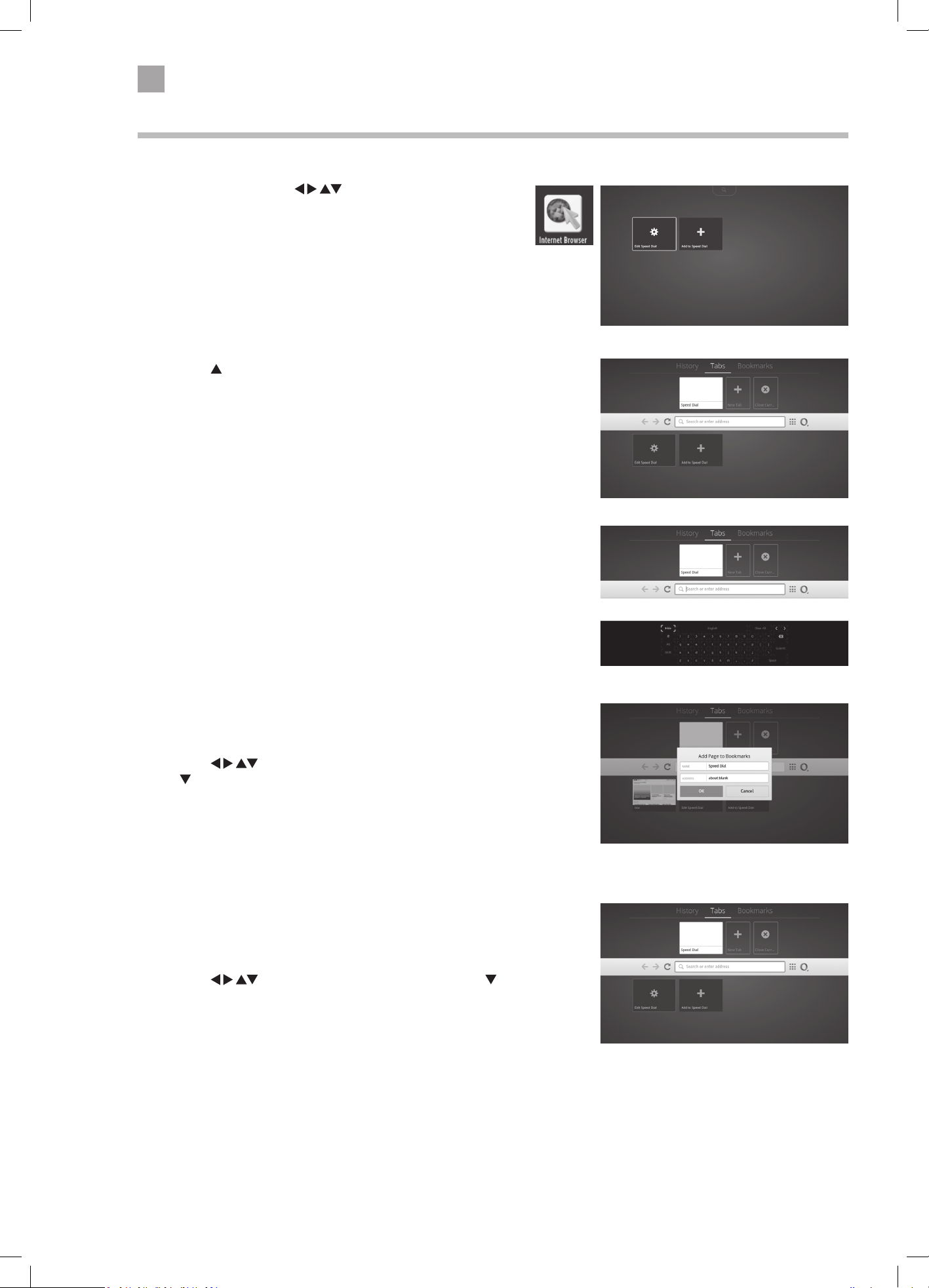
38
6
Using the Smart TV Features
Using the Internet
You can surf the internet on your TV in just the same way you would on a PC.
1. In smart mode press the
buttons to highlight the
Internet Browser app then press OK. The internet home screen
will appear.
3. With the address bar highlighted press the OK button, a
keyboard will now appear on the screen. You can now search the
internet. Simply type in what you are looking for and then click
on SUBMIT.
2. Press the buttons to access the address bar.
Adding Bookmarks
You can bookmark web pages to make them quicker and easier to find.
1. Press the
buttons to highlight BOOKMARKS then press
the
button to highlight ADD TO BOOKMARKS then press OK.
2. Enter the name of your bookmark e.g. BBC, and the address e.g.
www.bbc.co.uk. Highlight OK and press OK. Your bookmark will
now be saved and added to the top of the page.
Adding Tabs
You can add tabs to help you navigate webpages. The tabs will not
be saved when you exit the smart hub.
1. Press the
buttons to highlight TABS then press the
button to highlight ADD TABS then press OK.
2. Enter the name of your Tab e.g. BBC, and the address e.g. www.
bbc.co.uk. Highlight OK and press OK. Your Tab will now appear
at the top of the screen.
LT-43C770_IB.indd 38 20/04/2017 17:04
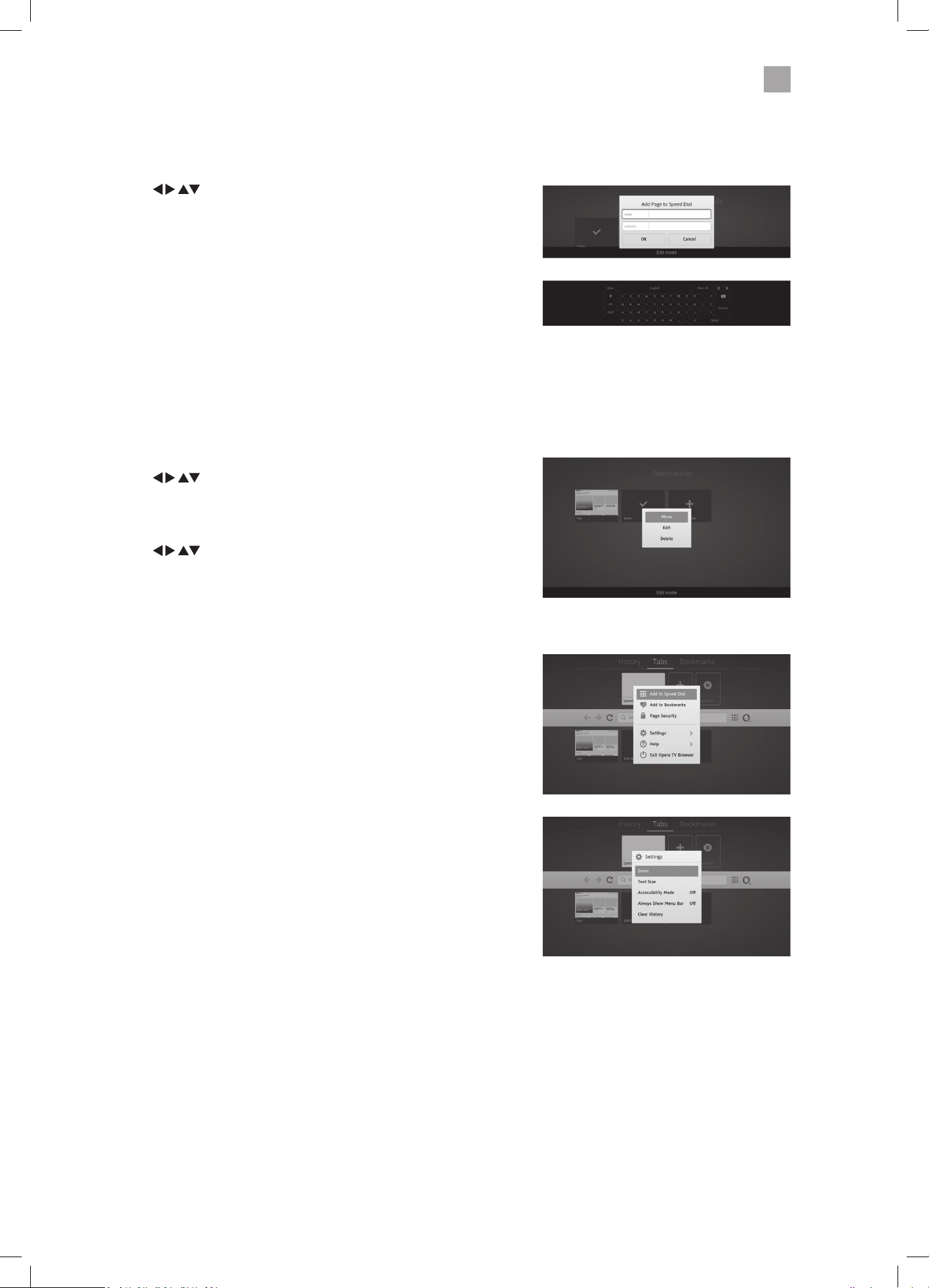
39
6
Using the Smart TV Features
Adding a Site to Speed Dial
You can add your favourite sites to Speed Dial. They will be saved so you can easily access them without entering the URL each
time.
1. Press the
buttons to highlight ADD TO SPEED DIAL then
press OK.
2. Using the keyboard enter a name for your speed dial e.g. BBC.
3. Using the keyboard enter Address for your speed dial e.g. bbc.
co.uk.
4. Once you have entered these details your speed dial will appear
at the bottom of the screen.
5. To select on of your saved speed dials highlight it and press OK.
The web browser will open and show the page.
Editing Speed Dial
You can move, re-name or delete your speed dials.
1. Press the
buttons to highlight EDIT SPEED DIAL then
press OK.
2. A tick and the word done will appear.
3. Press the
buttons to select the speed dial you wish
to edit. and press OK. The edit menu will appear, you can now
choose to move, edit or delete the selected speed dial.
Opera Menu
The Opera menu can be accessed by selecting the 'O' symbol. This
menu give the following options:
Add to Speed Dial
Add to bookmarks
Page Security
Settings -
Zoom
Text Size
Accessibility Mode (ON/OFF)
Always Show Menu Bar (ON/OFF)
Clear History
Help
Exit Opera TV Browser
LT-43C770_IB.indd 39 20/04/2017 17:04
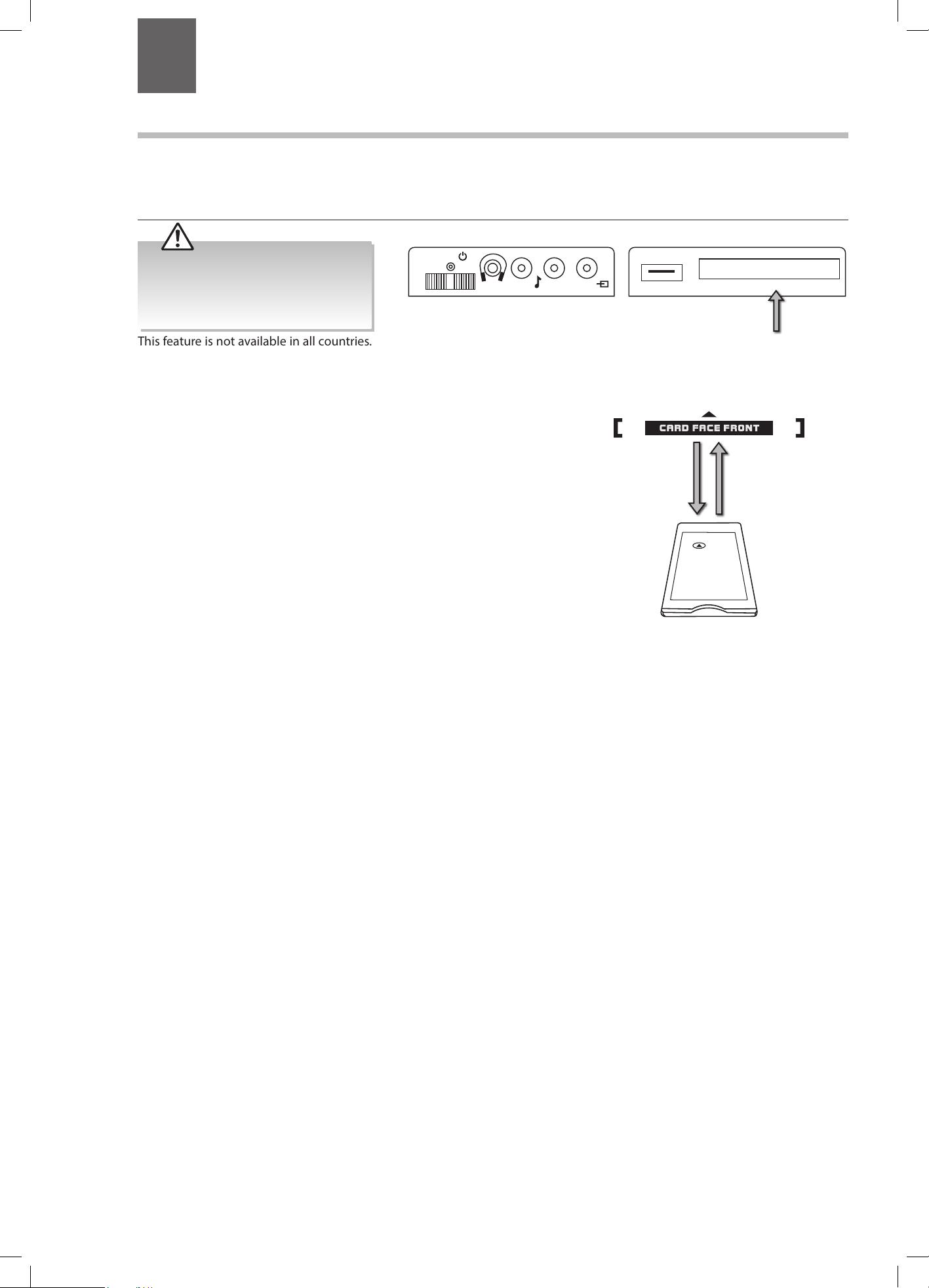
40
SCART
SPDIF
COMMON INTERFACE
USB
5Vdc
Max. 500mA
VGA
ANT.
HDMI 1
HDMI 2
LR
MODE - / I
- +
7 Other Information
Chapter
7
This feature is not available in all countries.
To insert the Common Access Module
1. Before you insert the Common Access Module, ensure that the TV is
switched off and the viewing card is inserted in accordance with the
Service Provider’s instructions.
2. Insert the Common Access Module into the slot. Flip it to the other side
and try again if you feel resistance.
3. Switch the TV on.
To remove the Common Access Module
1. Before you remove the Common Access Module, ensure that the TV is
switched off at the mains.
2. Pull the Common Access Module from the slot.
3. Switch the TV on.
CI (Common Interface) (DTV Mode)
The common interface allows the use of a Common Access Module to enable you to view scrambled (pay-per-view) services.
These services are provided by TopUp TV (UK only) and others. The Common Access Module and viewing card can be obtained
from the service provider.
CI CARD IN
Common Access
Module
Rear Left Side View of TV
CI (Common Interface)
Allows the Common Access Module to be
inserted and access the content that has
been encrypted.
Do not repeatedly insert or remove
the Common Access Module as this
may damage the interface and cause
a malfunction.
LT-43C770_IB.indd 40 20/04/2017 17:04
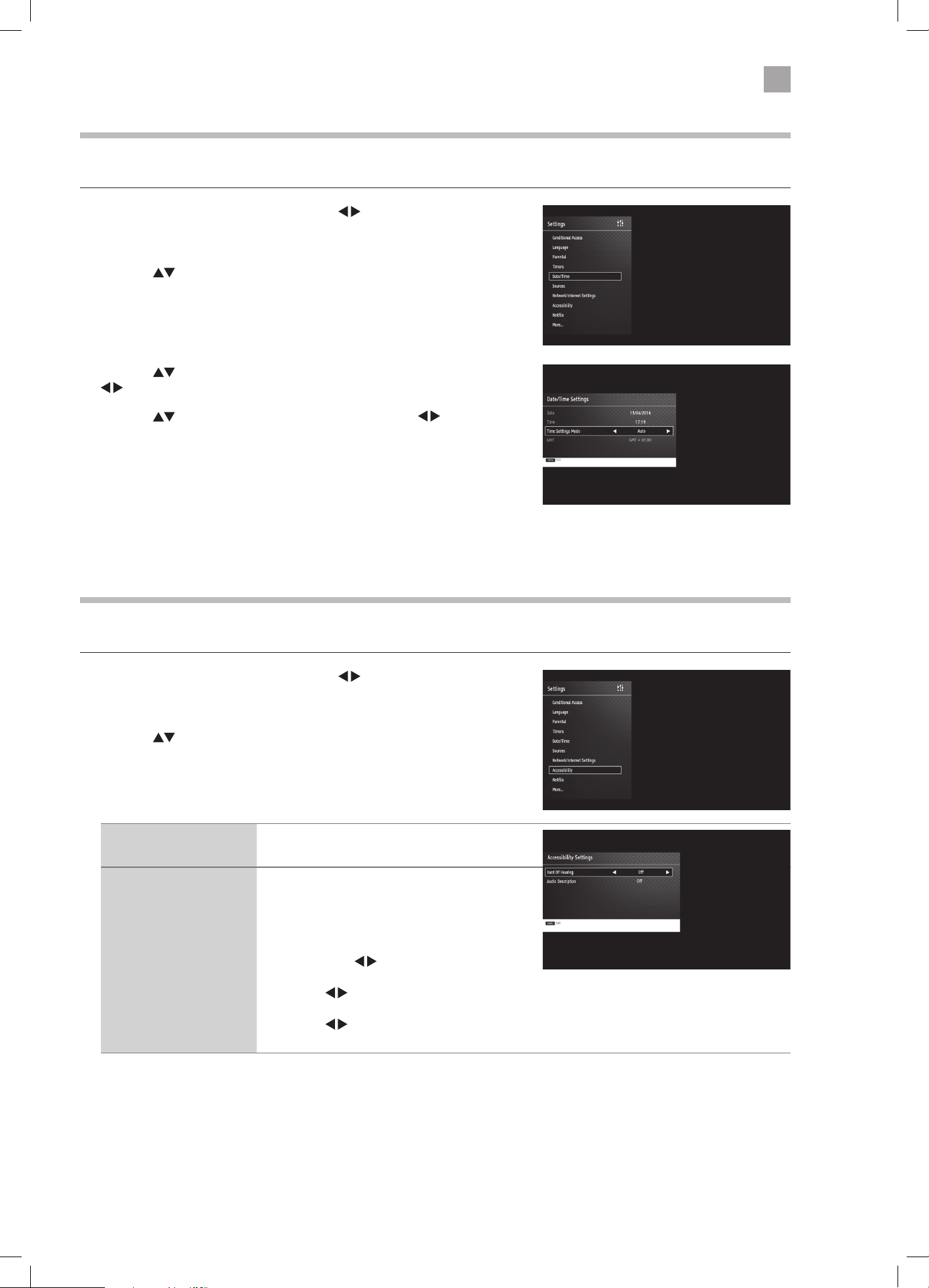
41
7
Other Information
Time Settings
The time and date are set automatically. You can manually change the time zone if required.
1. Press the MENU button and then press the
buttons to select the
SETTINGS and then press the OK button. The SETTINGS menu will be
displayed.
2. Press the
buttons to select DATE/TIME and then press the OK
button.
Accessibility Settings
This setting allows you to switch the Hard of Hearing mode on and off and switch Audio Description on and off.
1. Press the MENU button and then press the
buttons to select the
SETTINGS and then press the OK button. The SETTINGS menu will be
displayed.
2. Press the
buttons to select ACCESSIBILITY SETTINGS and then press
the OK button.
3. Press the
buttons to select TIME SETTING MODE and then press the
buttons to select MANUAL.
4. Press the
buttons to select TIME ZONE then press the buttons to
select your desired time zone.
5. Press the MENU button to exit the menu.
Hard of Hearing Hard of Hearing will enhance the dialogue to
make it easier to hear. Select ON or OFF.
Audio Description Audio description describes the action when
people aren't speaking.
• Select AUDIO DESCRIPTION then press the
OK button.
• If any available languages are available
then press the
to select your desired
language.
• Press the
to select your preferred
language.
• Press the to set your desired volume of
the audio description.
3. Press the MENU button to exit the menu.
LT-43C770_IB.indd 41 20/04/2017 17:04
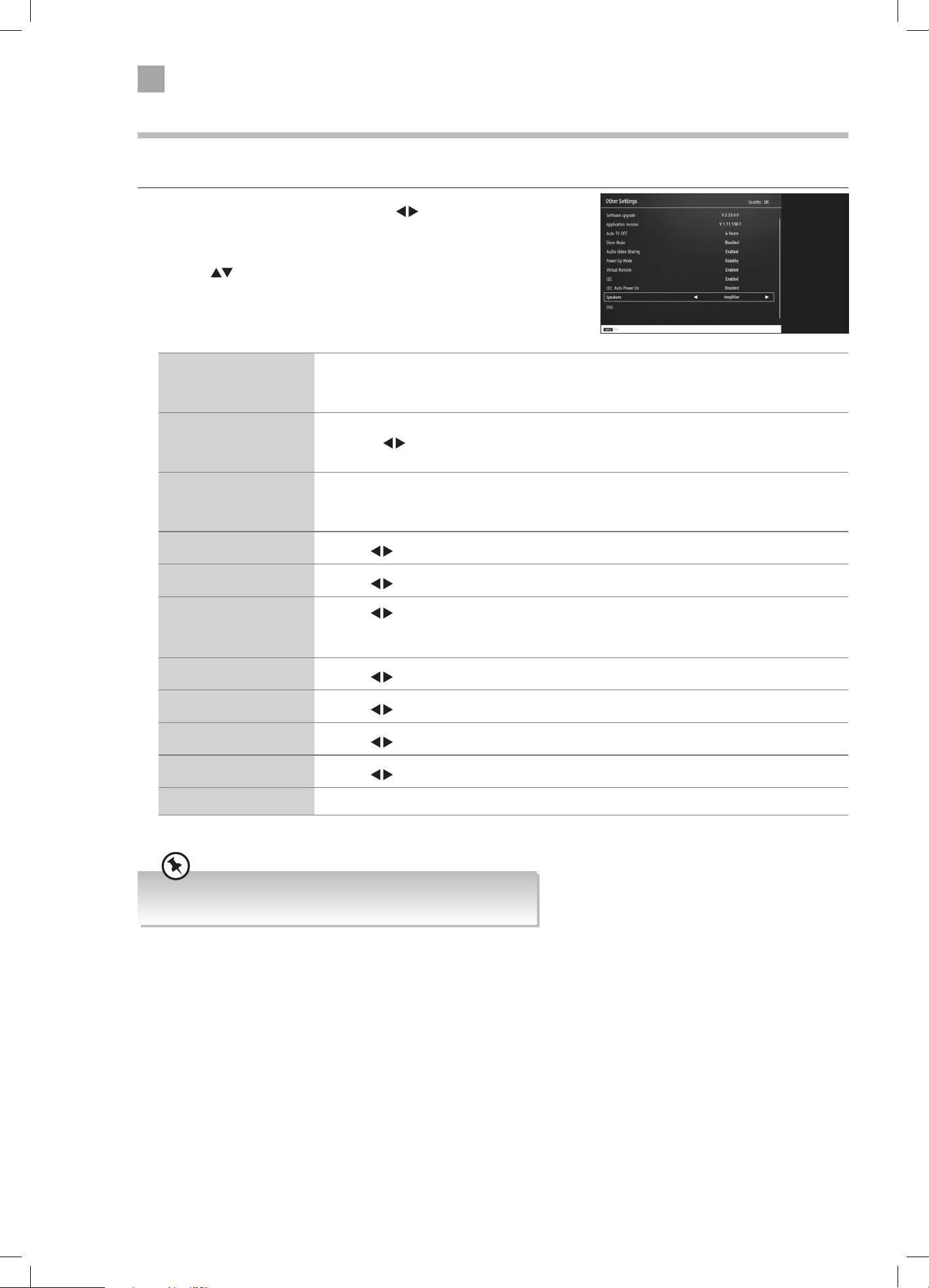
42
7
Other Information
Other Settings
The Other Settings menu has more advanced setting that you can adjust, these are not everyday setting.
1. Press the MENU button and then press the
buttons to select the
SETTINGS and then press the OK button. The SETTINGS menu will be
displayed.
2. Press the
buttons to select MORE and then press the OK button.
Menu Timeout You can select a time that your TV menus will be displayed. If you select OFF the menu will
remain on the screen until you press a button to remove it.
OFF - 15 Sec - 30 Sec - 60 Sec.
Software upgrade • Select SOFTWARE UPGRADE then press OK. The Upgrade Options menu will appear.
• Press the
to enable or disable AUTOMATIC SCANNING.
• To manually scan for an upgrade select SCAN FOR UPGRADE then press OK.
Auto TV OFF Select a time that you would like your TV to switch off if no buttons are pressed for a certain
amount of time.
OFF - 1 HOUR - 2 HOURS - 3 HOURS - 4 HOURS - 5 HOURS - 6 HOURS - 7 HOURS - 8 HOURS
Store Mode
Press the
to select enable or disable store mode. Store mode will brighten the display.
Audio Video Sharing
Press the
to select enable or disable audio video sharing.
Power Up Mode
Press the
to select STANDBY or LAST STATE. If you choose LAST STATE, and switch your
TV off and back on again at the mains it will switch on at its last state. Its best to leave it as
STANDBY, otherwise your TV may switch on after a power cut.
Virtual Remote
Press the
to select enable or disable virtual remote.
CEC
Press the
to select enable or disable virtual remote.
CEC Auto Power On
Press the
to select enable or disable virtual remote.
Speaker
Press the
to select TV or Amplifier. CEC has to be set to Enabel to access this setting.
OSS Press OK to view the licencing information of your TV.
When in Smart or Media modes the CEC function will not function.
For CEC to function properly your TV must be in TV mode.
LT-43C770_IB.indd 42 20/04/2017 17:04
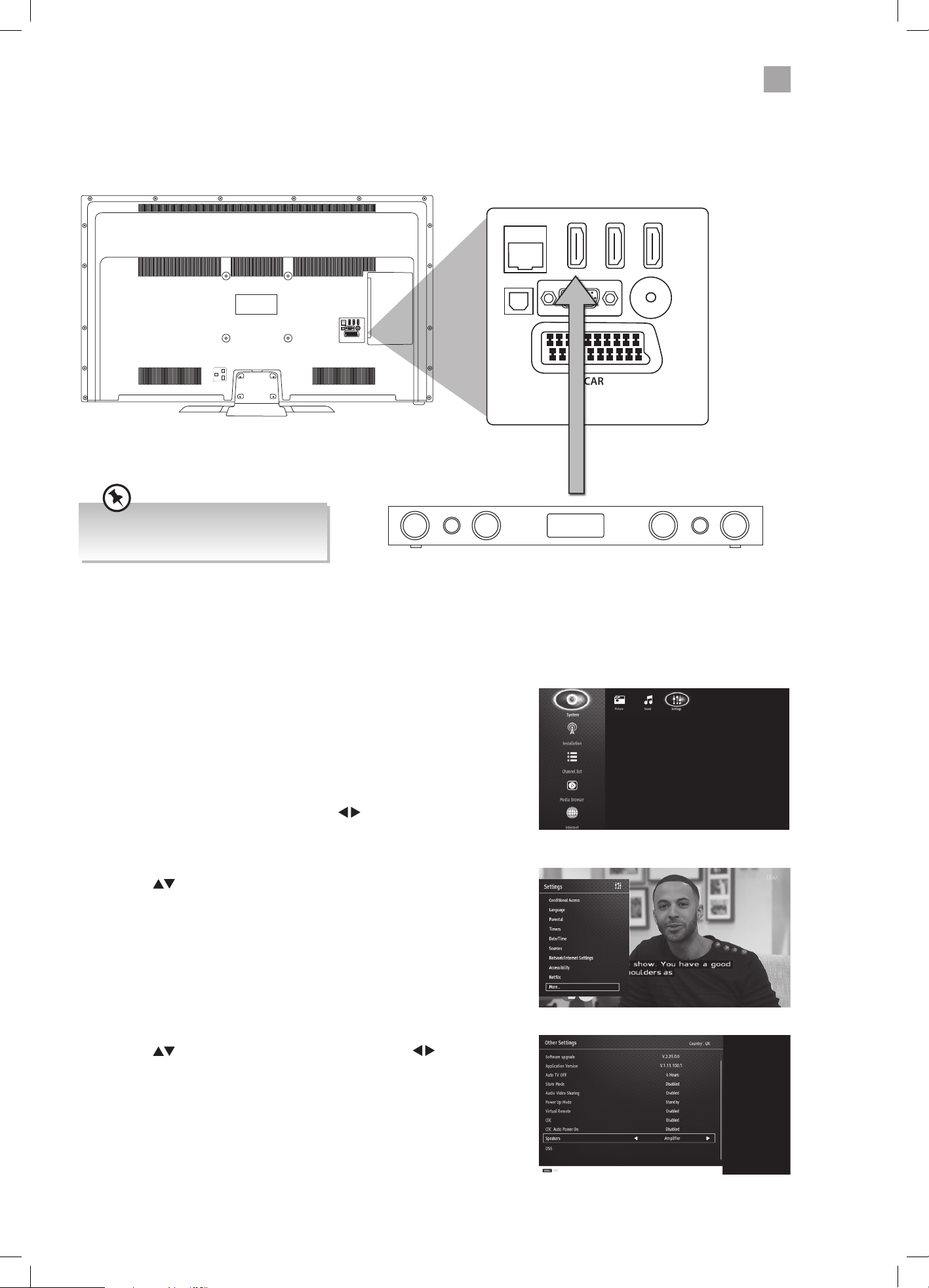
43
7
Other Information
SCART
SPDIF
Optic.OUT
VGA
ANT.
HDMI 1
(ARC)
HDMI 2
HDMI 3
LAN
Connecting a Soundbar - HDMI ARC (Audio Return Channel)
The ARC (Audio Return Channel) function allows you to send audio from your ARC-compliant TV to ARC-compliant audio devices
(e.g. soundbar) through a single HDMI connection.
External speaker e.g. Soundbar
Make sure CEC is enabeled when using
an ARC-compliant device.
HDMI-ARC Connection
To enjoy the ARC function, please ensure your ARC-compliant audio devices are connected by an HDMI cable that support the
ARC function to the HDMI 3(ARC) port of your ARC-compliant TV. When correctly set up, you can use your TV remote control to
adjust the volume output (VOL +/– and MUTE) of the connected audio device.
1. Make sure your TV and ARC-compliant device are disconnected from the
main and switched off.
2. Connect your ARC-compliant device to your TV making sure you use the
HDMI3 (ARC) socket on the back of the TV. The plug in and switch on at
the mains.
3. Press the MENU button and then press the
buttons to select the
SETTINGS and then press the OK button.
4. Press the buttons to select MORE then press OK.
5. Press the
buttons to select SPEAKERS then press the buttons to
select AMPLIFIER. It may take up to 15 seconds before you hear sound
from your external speaker, this is normal.
You will now be able to use your TV remote control to adjust the volume of
your external speaker and the speaker will also switch into on/standby when
you switch your TV on and off.
COMMON INTERFACE
USB
5Vdc
Max. 500mA
SCART
SPDIF
VGA
ANT.
HDMI 1
(ARC)
HDMI 2
HDMI 3
LAN
USB
5Vdc
Max. 500mA
SIDE AV
MODE - / I
- +
Optic.OUT
ARC enabled devices MUST
be connected to the socket
marked HDMI 1 (ARC).
LT-43C770_IB.indd 43 20/04/2017 17:04
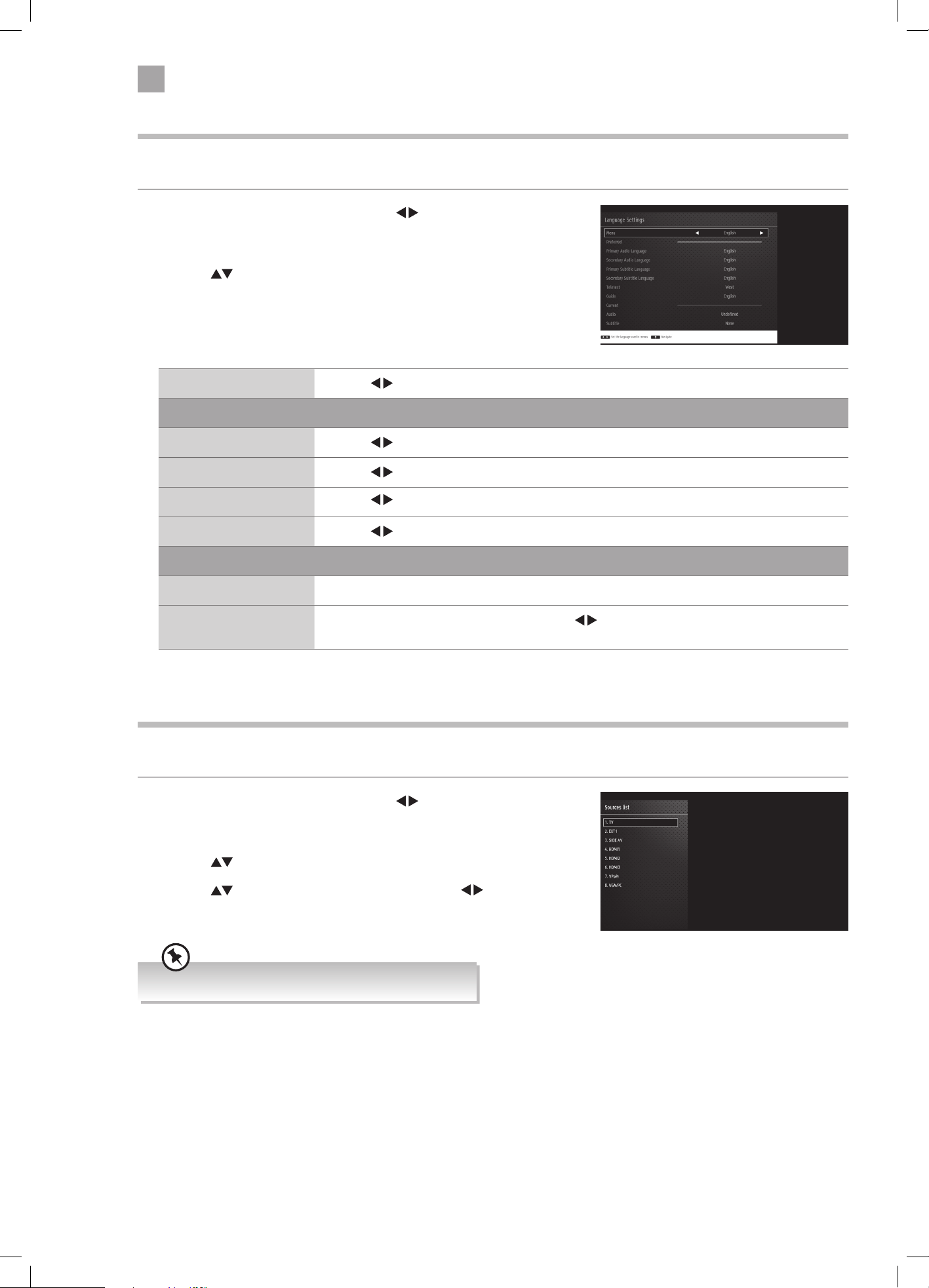
44
7
Other Information
Language Settings
Allows you to select your desired language settings for your TV.
1. Press the MENU button and then press the
buttons to select the
SETTINGS and then press the OK button. The SETTINGS menu will be
displayed.
2. Press the
buttons to select LANGUAGE and then press the OK
button.
Menu Press the buttons to select your desired menu language.
Preferred
Audio Press the
buttons to select your preferred audio language.
Subtitle Press the
buttons to select your preferred subtitle language.
Teletext Press the
buttons to select your preferred teletext language.
Guide Press the
buttons to select your preferred guide language.
Current
Audio Shows the current audio language, this may not be able to be changed.
Subtitle Shows the current subtitle language. Press the
buttons to select a different subtitle
language.
Sources
In the SOURCE SETTING menu you can decide to switch each input source on or off, by selecting ENABLED or DISABLED.
1. Press the MENU button and then press the
buttons to select the
SETTINGS and then press the OK button. The SETTINGS menu will be
displayed.
2. Press the
buttons to select SOURCES and then press the OK button.
3. Press the
buttons to select a source then press the buttons to
select ENABLED or DISABLED.
Select EXT1 for a source connected to the AV socket.
LT-43C770_IB.indd 44 20/04/2017 17:04
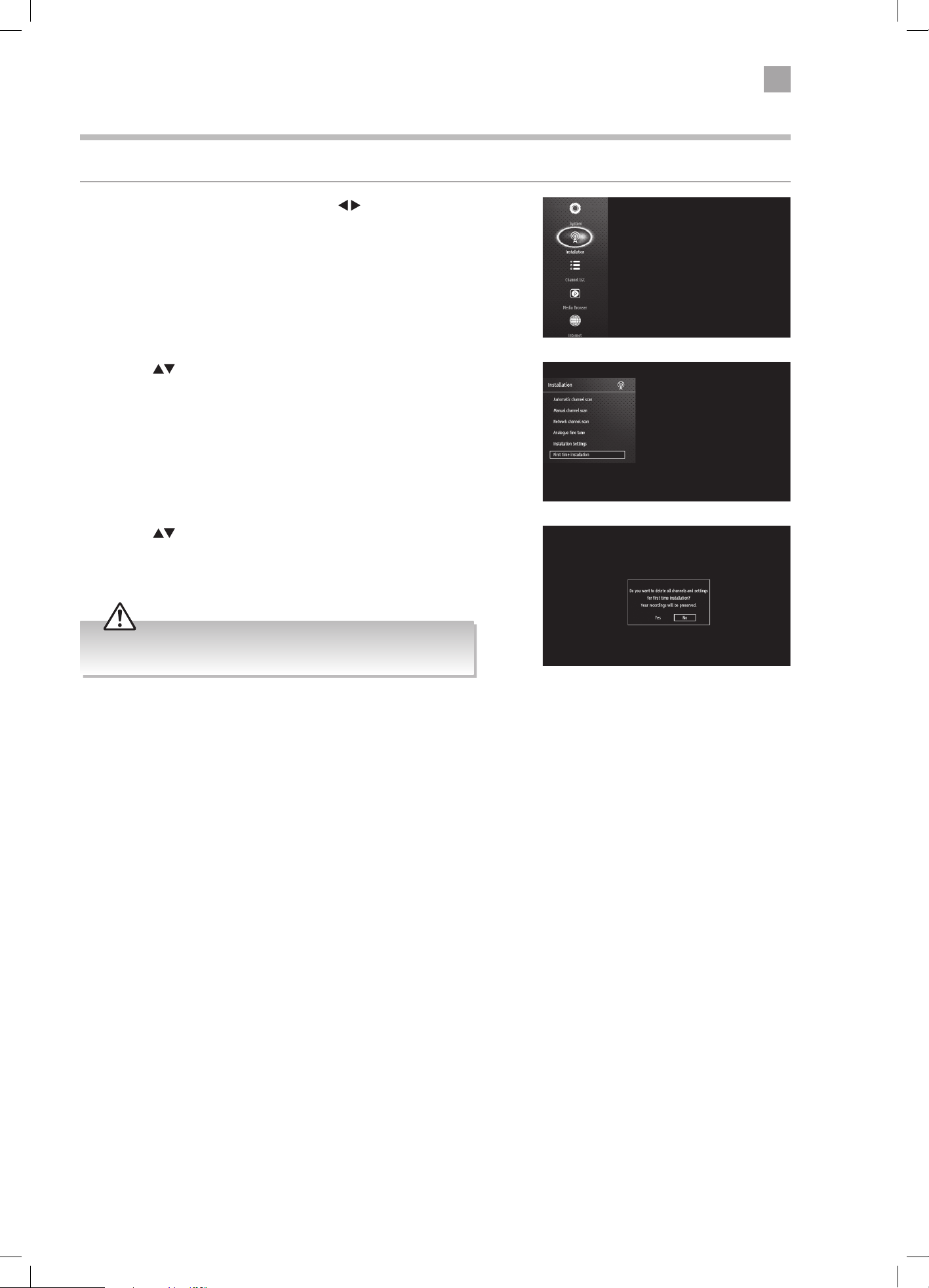
45
7
Other Information
Resetting your TV
Restores all settings to the factory defaults and will delete all channels you currently have stored.
1. Press the MENU button and then press the
buttons to select the
INSTALL AND RETUNE and then press the OK button. The INSTALL AND
RETUNE menu will be displayed.
2. Press the buttons to select FIRST TIME INSTALLATION and then press
the OK button.
3. Press the
buttons to select YES the press OK. The screen will
turn black and then in a few seconds you will see the FIRST TIME
INSTALLATION MENU.
All channel and user settings will be lost and the TV will revert to
"First Time Installation".
LT-43C770_IB.indd 45 20/04/2017 17:04
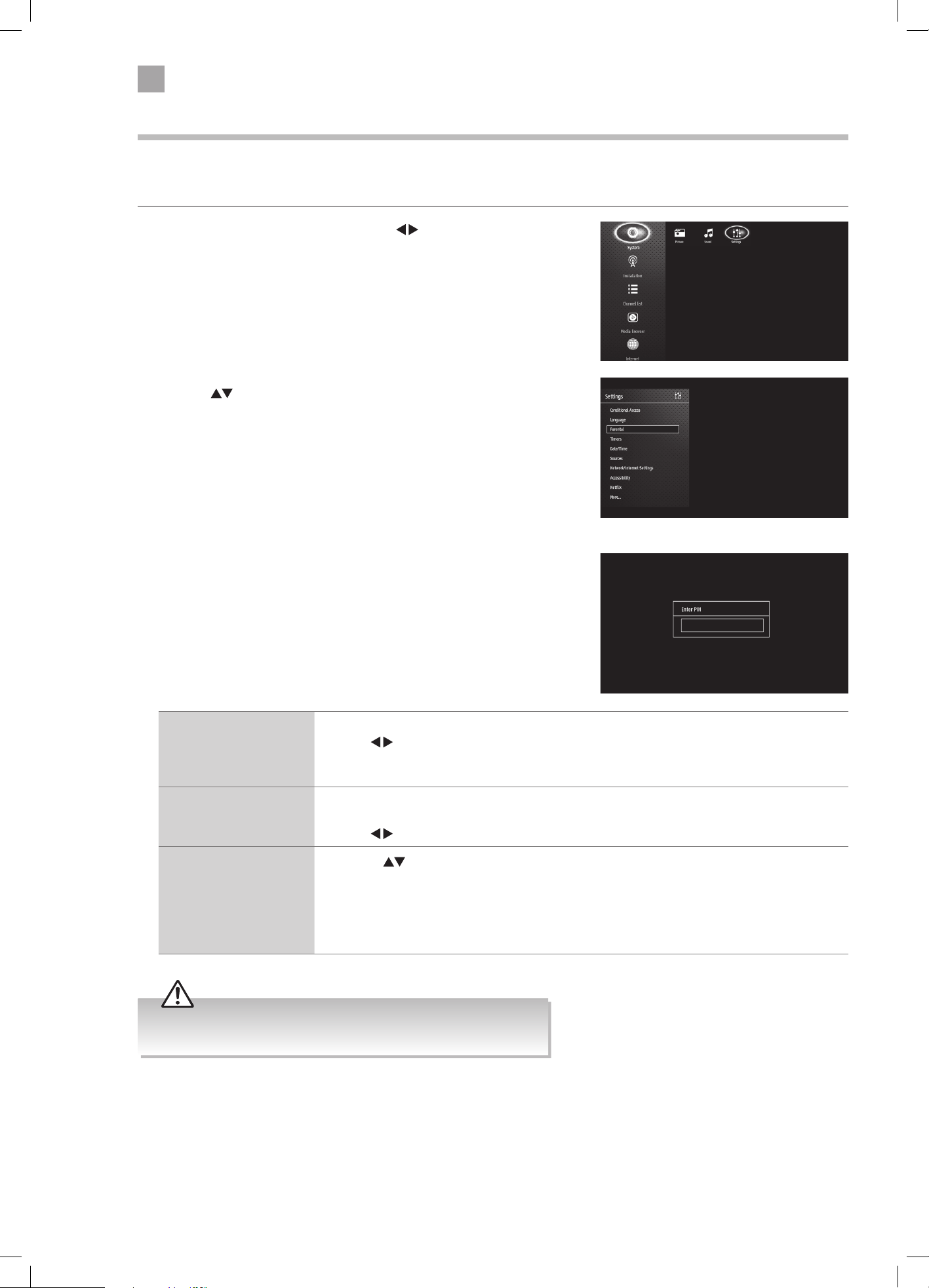
46
7
Other Information
Parental Settings
To access the PARENTAL SETTINGS menu options, you must enter the password. Enter the default password “0000” for first time
use. To change the password, select SET PIN.
1. Press the MENU button and then press the
buttons to select the
SETTINGS and then press the OK button. The SETTINGS menu will be
displayed.
2. Press the buttons to select PARENTAL and then press the OK button.
3. Press the NUMBER buttons to enter your PIN number. The PARENTAL
SETTINGS menu will appear on screen.
Menu Lock You can lock all of the menus or just the installation menus.
Press the
buttons to select ALL MENUS - INSTALLATION MENUS - OFF.
If you choose to lock the menus you will have to enter your PIN number to enter the selected
menu.
Child Lock The child lock will prevent the buttons working on your TV, to stop children from accidentally
changing any of the settings.
Press the
buttons to set the child lock to ON or OFF.
Set PIN • Press the
buttons to select SET PIN.
• Press OK.
• Press the NUMBER buttons to enter and NEW PIN
• Press the NUMBER buttons to CONFIRM the new pin. The words 'PIN CHANGED' will briefly
appear on the screen.
Don't forget to make a note of your new PIN number.
The default password is “0000”.
If you change the password, be sure to remember the new password!
LT-43C770_IB.indd 46 20/04/2017 17:04
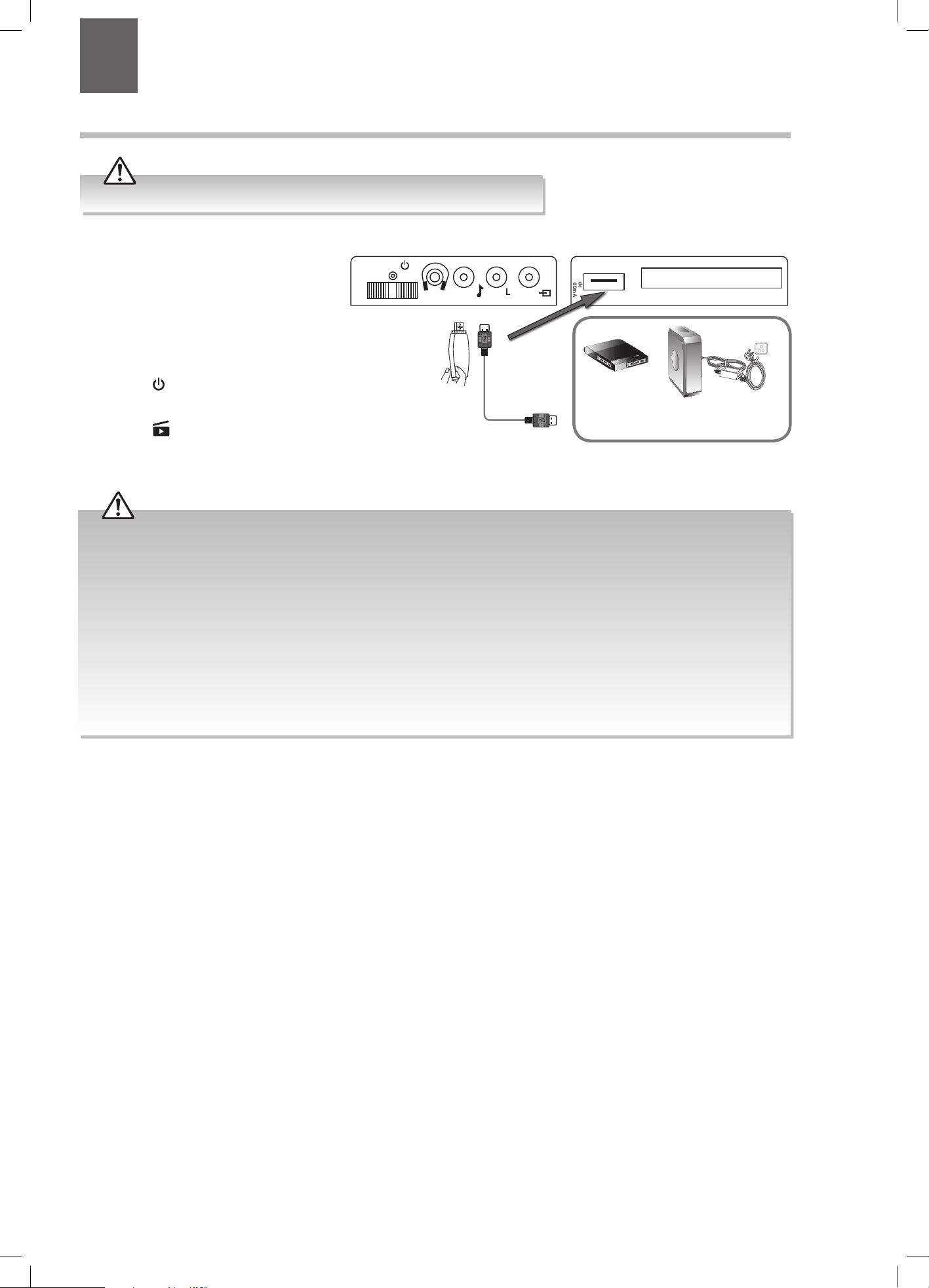
47
1. Switch off the TV before connecting
any USB storage device.
2. Connect your USB storage device to
the USB port of your TV. If your USB
device is powered by the main, plug
the connected devices into the mains
socket and switch on.
3. Press the
button on the remote
control to turn on your TV.
4. Press the
button on the remote
control to enter MEDIA BROWSER
mode.
Connecting a USB Storage Device
Rear Left Side View of TV
USB Cable
(not included)
Adapter
Portable
hard Disk
USB Hub
USB
You must use a USB storage device with a minimum of 2GB of storage space.
• Some versions of portable hard disk may require more power than the TV USB socket can provide. To ensure correct
operation please use the power adapter for that device.
• If a USB hub is used, make sure its mains adapter is connected to the mains supply as the total current consumption may
exceed 500mA.
• The file system only supports FAT32 format.
• If you want to store the video streaming of a DTV programme, the transfer rate of the USB storage device must not be less
than 5MB/s, otherwise the picture and sound of the programme will be affected and a warning statement will be shown
on the screen. If this happens, please upgrade your USB storage device.
• The TV screen will be blank temporarily as it will take time to start up and stabilise the connected hard disk. This is normal
and the starting time may vary depending on the brand and the memory size of the connected hard disk.
• Disconnect the USB storage device if it is not in use.
8 Entertainment
Chapter
8
SCART
SPDIF
COMMON INTERFACE
USB
5Vdc
Max. 500mA
VGA
ANT.
HDMI 1
HDMI 2
LR
MODE - / I
- +
LT-43C770_IB.indd 47 20/04/2017 17:04
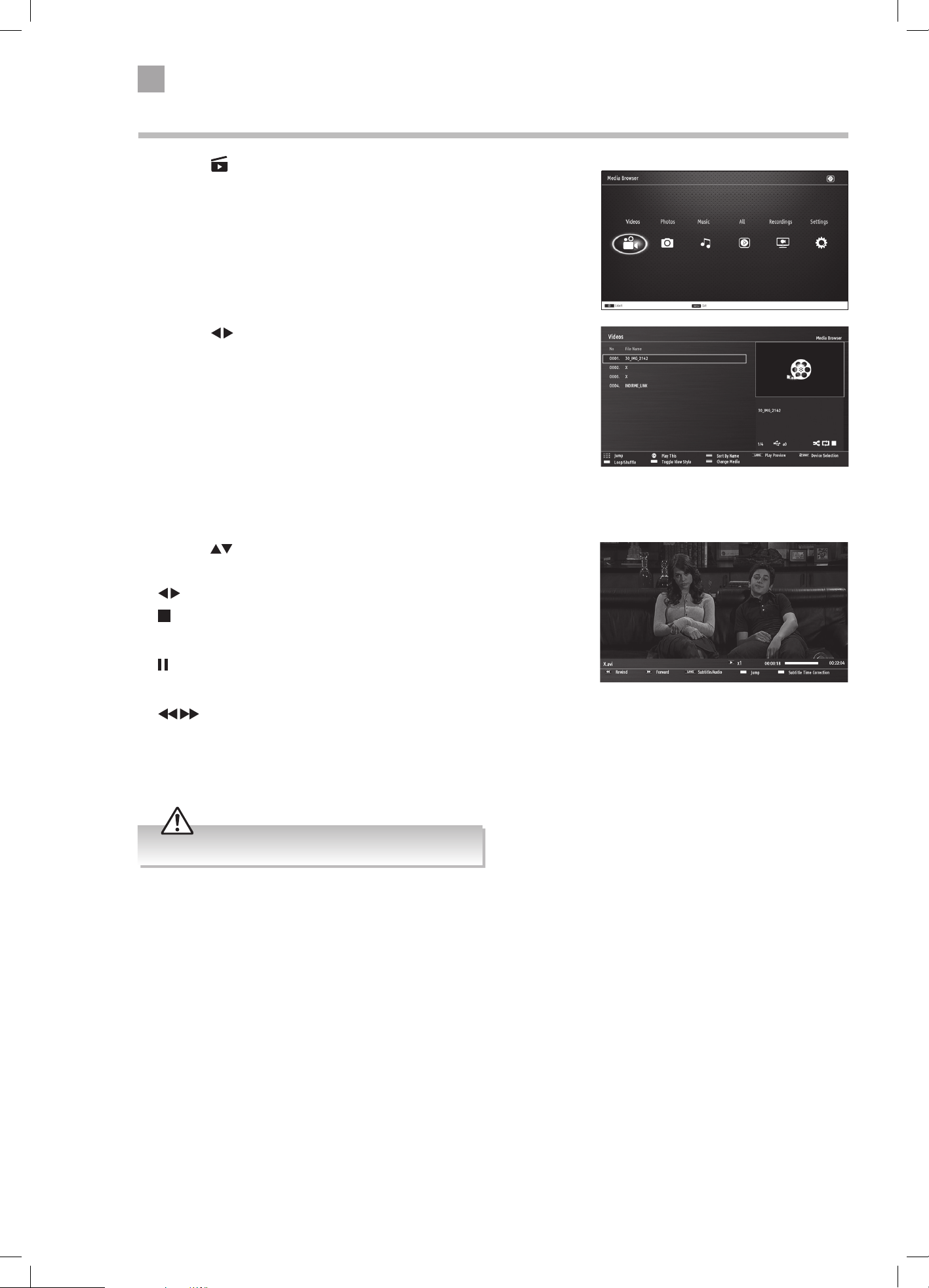
48
8
Entertainment
2. Press the buttons to select VIDEOS and then press the OK button.
• NUMBER Buttons - Jump to a video in the list.
• OK Button - Plays the selected video.
• PLAY button - Plays the selected video.
• GREEN button - Repeats or shuffles your videos.
• YELLOW button - Changes the menu style.
• LANG button - Plays a preview of the selected video.
• BLUE button - Changes to another media.
Viewing Videos
1. Press the button on the remote control. The MEDIA BROWSER will be
displayed.
3. Press the buttons to select the video you wish to play, then press
the OK button. The video will start to play.
•
buttons - Plays the next or previous video
•
button - Stops the video.
• LANG button - Shows the Subtitle/Audio menu
•
button - Pauses the video, press again to resume playback.
• BACK button - Returns back to the video menu.
•
buttons - Rewind and fast forward the video 2x - 4x - 8x.
• GREEN button - Press to jump to a selected time in your video.
• YELLOW button - Press to see the SUBTITLE TIME CORRECTION menu, where you can adjust the time delay of the subtitles to
match the action in the video.
• Supported file formats: MPEG1 & 2, VOB, and MKV.
LT-43C770_IB.indd 48 20/04/2017 17:04
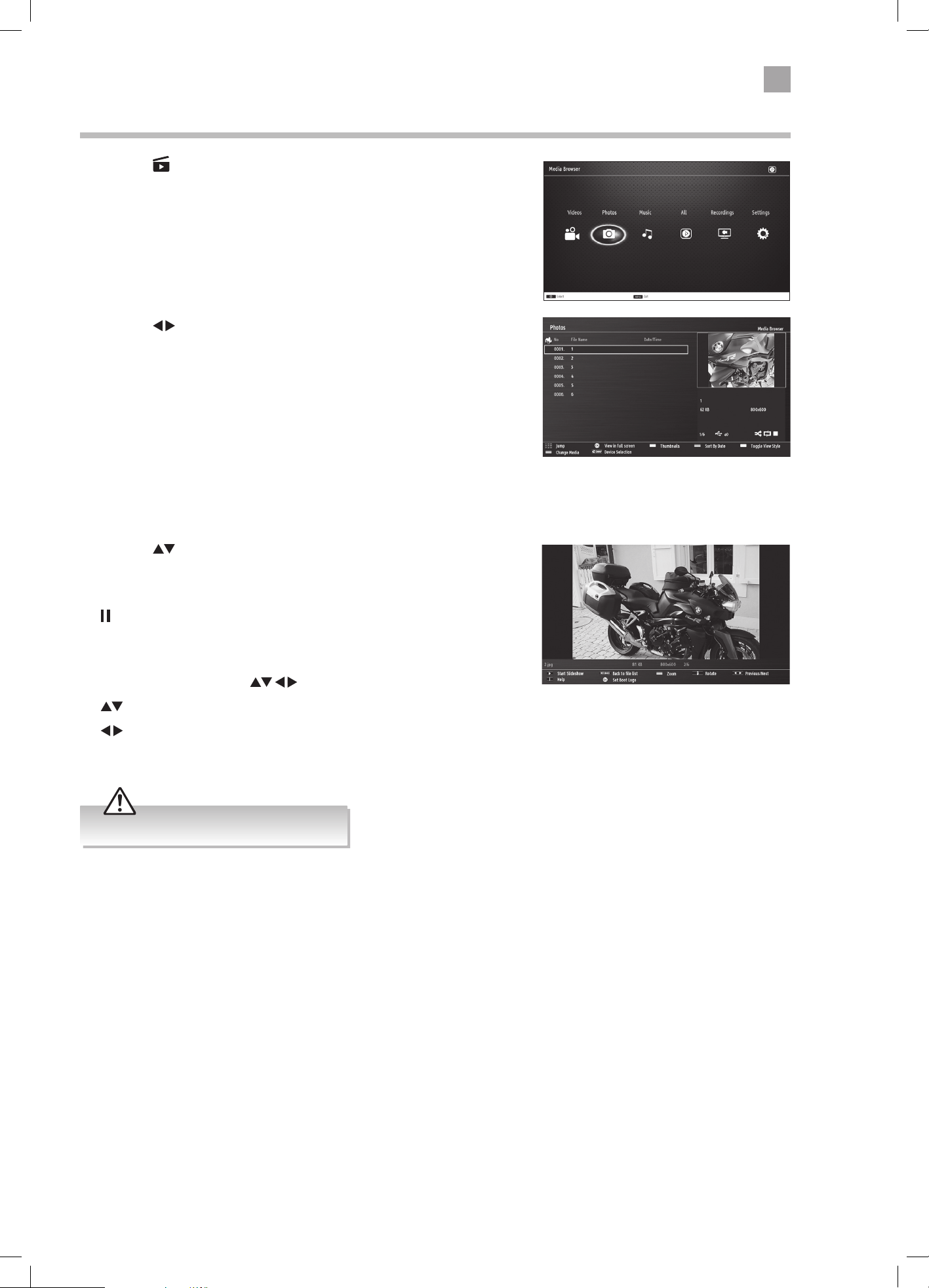
49
8
Entertainment
Viewing Photos
1. Press the button on the remote control. The MEDIA BROWSER will be
displayed.
2. Press the
buttons to select PHOTOS and then press the OK button.
• NUMBER Buttons - Jump to a photo in the list.
• OK Button - Press to view the selected photo on the full screen.
• PLAY button - Plays a slide show of all the photos in the list.
• GREEN button - Shows thumbnail images of the photos in the list.
• RED button - Sorts the photos by date.
• YELLOW button - Changes the menu style.
• BLUE button - Changes to another media.
3. Press the buttons to select the photo you wish to view, then press
the OK button. The photo will now be displayed on the full screen.
• PLAY button - Plays a slide show of all the photos in the list.
•
button - Pauses the slide show.
• BACK button - Returns back to the photo menu.
• RED button - Zooms into the photo 150% - 200% - 300% - 400% - 50%.
When zoomed in press the
buttons to move around the photo.
•
button - Press to rotate the photo.
•
button - Press to see the next or previous photo in the list.
• i button - Press to see the information bar.
• Supported file formats: JPEG and BMP.
LT-43C770_IB.indd 49 20/04/2017 17:04
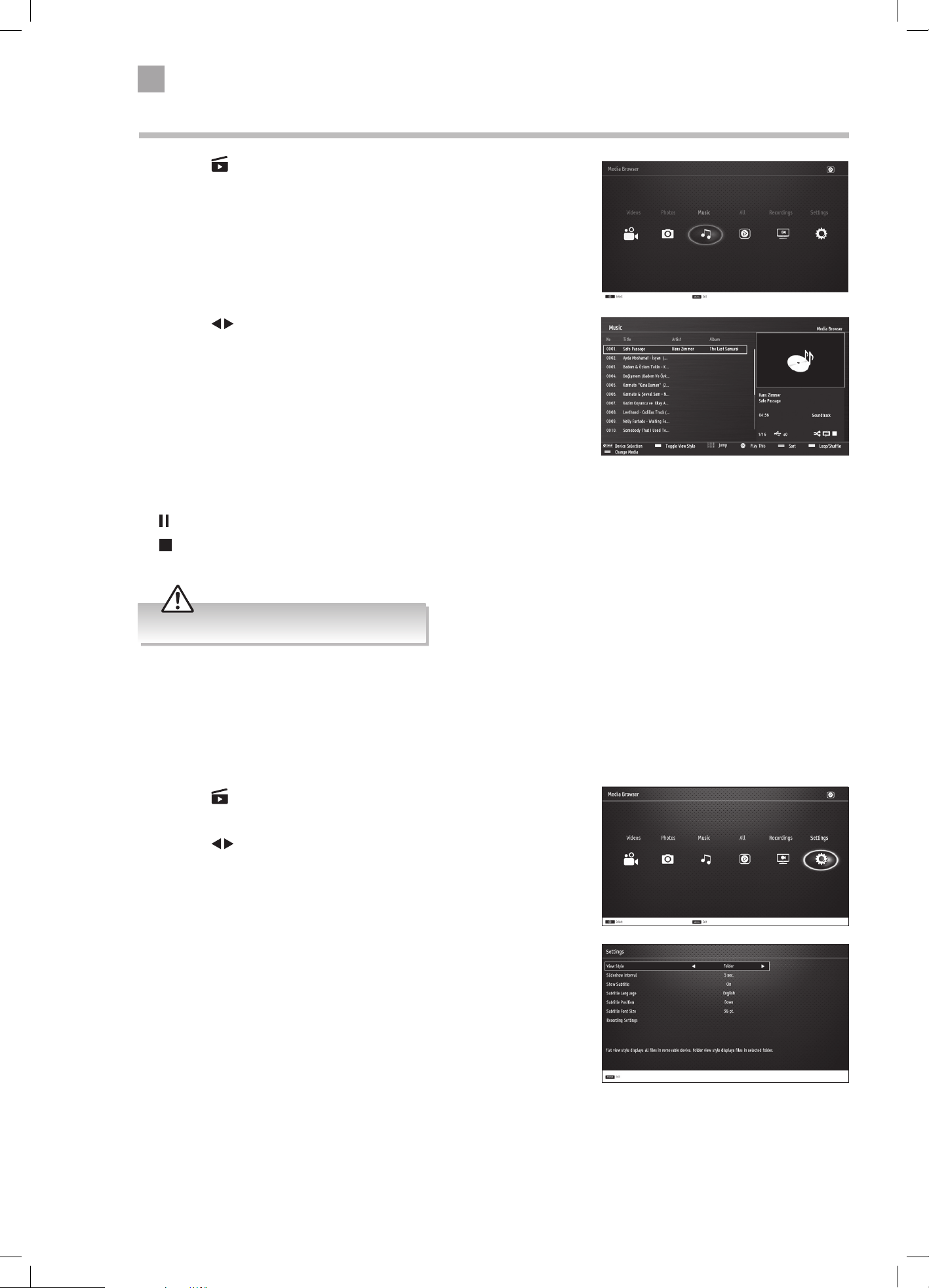
50
8
Entertainment
Listening to Music
1. Press the button on the remote control. The MEDIA BROWSER will be
displayed.
2. Press the
buttons to select Music and then press the OK button.
• NUMBER Buttons - Jump to a track in the list.
• OK Button - Press to play the selected track.
• PLAY button - Press to play the selected track.
• GREEN button - Press to repeat or shuffle the tracks.
• RED button - Sorts the tracks by Title - Artist - Album.
• YELLOW button - Changes the menu style.
• BLUE button - Changes to another media.
•
button - Pauses the track, press again to resume playback.
•
button - Stops the track.
Media Browser Settings
1. Press the button on the remote control. The MEDIA BROWSER will be
displayed.
2. Press the
buttons to select Settings and then press the OK button.
In the SETTINGS menu you can adjust the settings for your slideshows and
subtile settings for when you are watching a video.
• Supported file formats: MP3 and WMA /ASF.
LT-43C770_IB.indd 50 20/04/2017 17:04
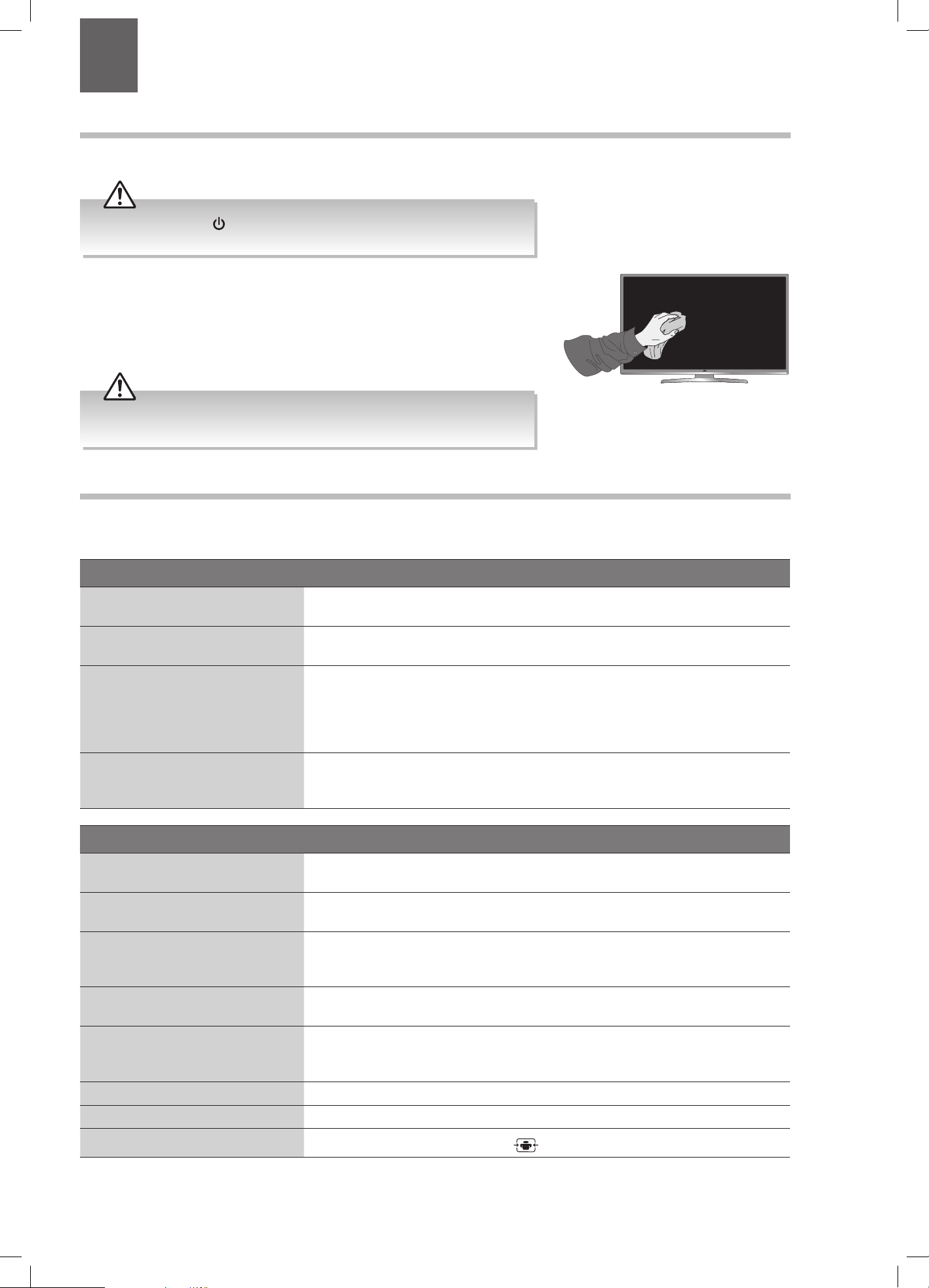
51
1. Use a soft dry cloth to wipe away the dust from the screen and surfaces.
2. If the surfaces are extremely dirty, clean the TV with a damp cloth.
3. Ensure there is no excess water on the screen. Allow any water or dampness to
evaporate before switching the TV on.
Maintenance
Careful and regular cleaning can prolong the life of your TV.
Be sure to press the button on the remote control and disconnect the
mains cable from the mains socket before any cleaning.
Never use alcohol, benzine, paint-thinner, cleaning fluid or other chemicals.
Do not use compressed air to remove dust.
9 Technical Information and Help
Chapter
9
Hints and Tips
The following table contains various hints and tips to get the best performance from your TV. If you require additional assistance
please call our Call Centre on (UK) 0344 561 1234 or (Ireland) 1 890 818575. Our Customer Contact Centre is open 24/7.
The TV does not operate properly.
The TV does not respond when
pressing any buttons
• The TV may freeze up during use. Switch the TV off at the mains for a few minutes.
Switch on again and try to operate it again as usual.
TV cannot be switched on
• Check that the TV is connected to the mains supply and switched on.
• Make sure all connected AV devices are switched off before switching on your TV.
The remote control does not work
• Check to see if there are any objects between the TV and the remote control
causing an obstruction. Ensure that you are pointing the remote control directly at
the TV.
• Ensure that the batteries are installed with the correct polarity (+ to +, - to -).
• Install new batteries.
Power is suddenly turned off
• Check the TV has power to it. The mains supply maybe interrupted.
• Check if the sleep timer is set.
• Check whether the Auto Standby is activated.
The video function does not work.
No Picture & No Sound
• Check whether the TV is switched on.
• Try another channel. The problem may be caused by the broadcaster.
Picture appears slowly after
switching on
• This is normal, the image is muted during the TV startup process. Please contact
your service centre, if the picture has not appeared after five minutes.
No or poor colour or poor picture
• Adjust the settings in the PICTURE menu.
• Try another channel. The problem may be caused by the broadcaster.
• Check if the video cables are connected properly.
Horizontal / Vertical bar or picture
shaking
• Check for local interference such as an electrical appliance or power tool.
Poor reception on some channels
• Station or cable channel may be experiencing problems, tune to another station.
• Station signal is weak, reposition the aerial for better reception.
• Check for sources of possible interference.
Lines or streaks in pictures • Check aerial (Change the position of the aerial.)
No pictures when connecting HDMI • Check if the input source is HDMI 1, 2 or 3.
Picture appears in wrong ratio
• Adjust the Aspect Ratio. Press the
(ASPECT) button on the remote control.
LT-43C770_IB.indd 51 20/04/2017 17:04
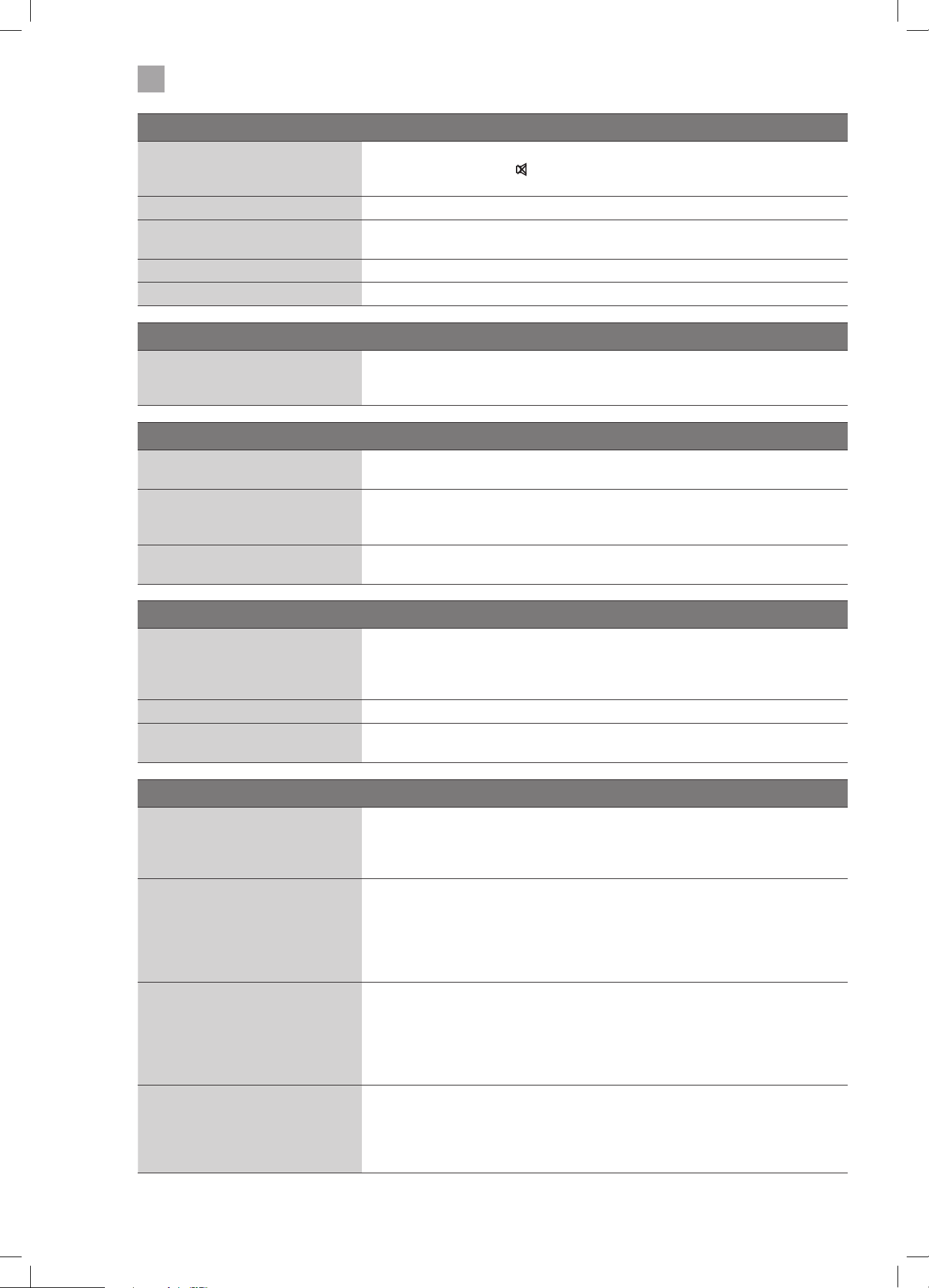
52
9
Technical Information and Help
The audio function does not work.
Picture OK but no sound
• Press the VOL + / – buttons.
• Sound muted? Press the
MUTE button.
• Try another channel. The problem may be caused by the broadcaster.
No output from one of the speakers • Adjust the Balance settings in the SOUND menu.
Unusual sound from inside the TV
• A change in ambient humidity or temperature may result in an unusual noise when
the TV is switched on or off and does not indicate a fault with the TV.
No sound when connecting HDMI • Check if the input source is HDMI1, 2 or 3.
Audio noise • Keep the RF coaxial cable away from other connected cables.
Password
Lost password
• Select the Set Password setting in the LOCK menu, then enter the following master
password “4725”. The master password clears your previous password and allows
you to enter a new password.
There is a problem in PC mode.
The signal is out of range (Invalid
format)
• Adjust the resolution, horizontal frequency, or vertical frequency.
Vertical bar or stripe on background
& horizontal noise & incorrect
position
• Use Auto configure or adjust clock, phase, or H/V position.
Screen colour is unstable or shows a
single colour
• Check the signal cable.
• Reinstall the PC video card.
Smart or Freeview Play TV isn't working
Can't access Smart TV or Freeview
Play
• Check you are connected to your router and that the router is switch on and
working.
• Your router may be to far away from your TV, move your router closer to your TV.
• Try connecting your TV to your router using an ethernet cable.
Smart TV is very slow to activate • Your internet speed may be very slow, check your speed with your internet provider.
Some of the Apps have disappeared
or changed from Smart TV
• The Apps on your TV may have been updated or even removed this can happen at
any time. Its normal and not a fault of your TV.
FAQs (Frequently Asked Questions)
Why have I lost some / all of my
channels?
• It happens sometimes if you have a weak signal. Usually it just means you’ll need to
re-tune your TV. Don’t worry, it is easy to do. And once you’ve done it, you should
get all the Freeview channels available to you. If problems persist you may need to
get your aerial checked. Talk to your retailer or contact your local aerial installer.
Why do I get ‘blocking’ on my digital
picture?
• In most cases, blocking is caused by a reception problem – either the signal is too
weak or there is some kind of interference. Talk to your retailer or contact your local
aerial installer.
• Blocking can also be caused by a digital signal that is too strong. If you are still
experiencing blocking and the signal is strong, consult your local aerial installer
for advice.
Can I watch Freeview using a
portable set-top aerial?
• Some, but only a few, homes may be able to use a set top aerial. However, for a
much better reception, we strongly recommend that you use a rooftop aerial.
• If you do not have access to a rooftop aerial – for example, if you rent a flat and
the aerial is the responsibility of your landlord, or if you’re using a second TV in
the bedroom and don’t want the hassle and expense of using extension cables,
a set top aerial may be your only option.
What type of aerial do I need?
• If you are installing a new aerial, we recommend a wideband rooftop aerial rather
than a loft aerial. Loft aerials generally receive a weaker digital signal and are more
likely to get interference from other electrical devices at home. We suggest you
have an aerial survey done before getting an aerial upgrade.
• Talk to your retailer or contact your local aerial installer.
LT-43C770_IB.indd 52 20/04/2017 17:04
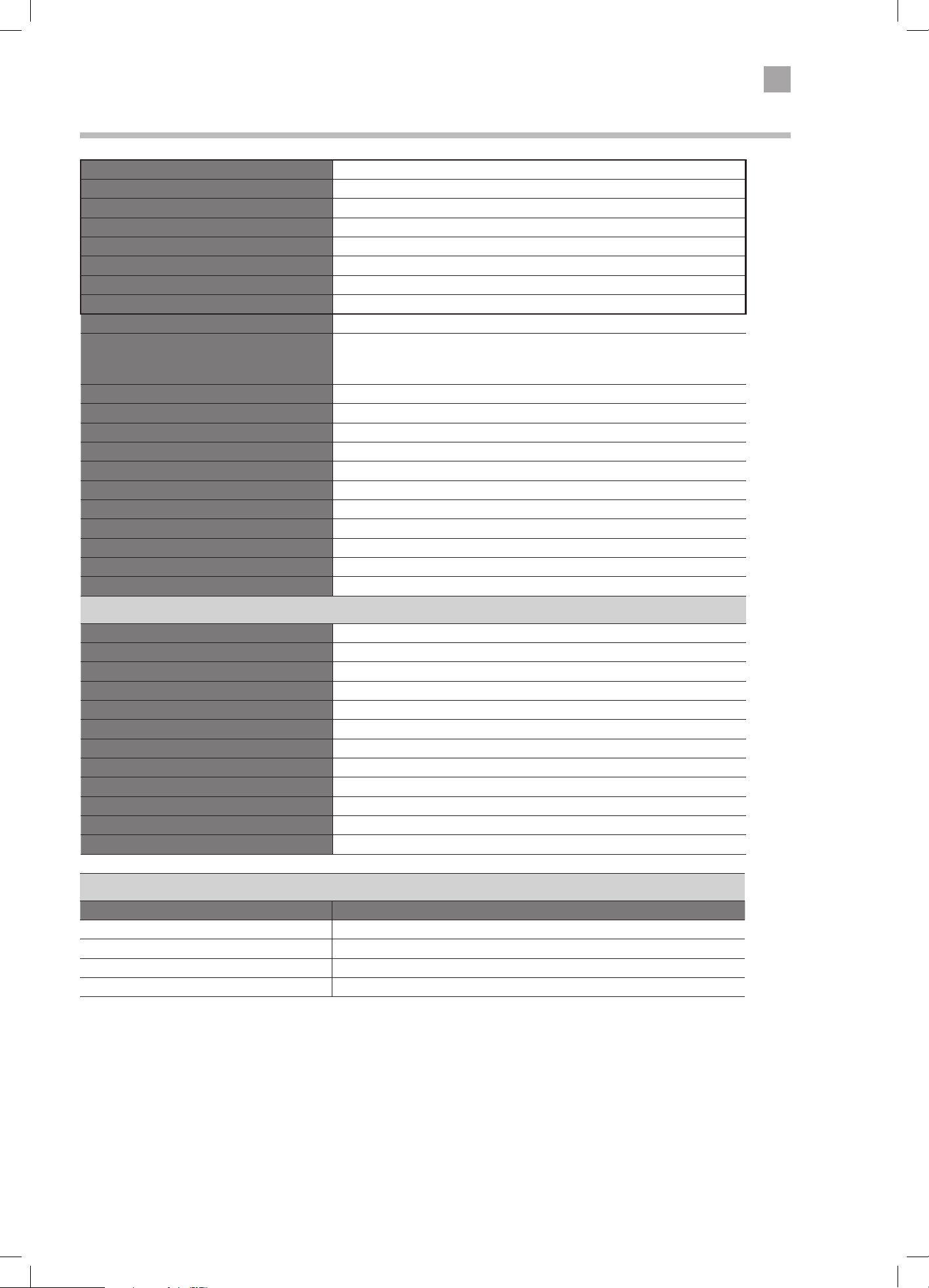
53
9
Technical Information and Help
Product Fiche and Specifications
Brand JVC
Model LT-43C770
Energy Efficiency Class A+
Screen Size (measured diagonally) 43" - 109cm
Power Consumption (In HOME mode) 54W
Average Annual Energy Consumption ** 78 kWh / annum
Standby Power Consumption 0.5W
Display Resolution 1920 pixels (horizontal) x 1080 pixels (vertical)
Panel System 43 inch Direct lit LED Panel
Television System
PAL I / BG / DK
DVB-T2 (VIDEO: MPEG-4 MP@ML,
SOUND: AAC, MPEG-1 LAYER 1/2, MPEG-2 LAYER 2)
Brightness 300 cd/m
2
Contrast Ratio 1200 : 1
Power Source 220-240V ~50Hz
Operating Temperature 0°C – 40°C
Operating Humidity 80% (max)
Mercury Content (mg) X
Presence of Lead √*
Reference Period 2010/1062 - 2017
Speaker Power 2 x 8W
Dimension( W x H x D) with base 974(W) x 636(H) x 220(D)
Weight (Net) 9.05kg
Inputs / Output
Scart 1
HDMI 3 (HDMI 1 with ARC)
PC-RGB (VGA) 1
Side AV (L & R) 1
YPbPr 1
Common Interface 1
USB 1
ANT. (Aerial socket) 1
SPDIF (Optical) 1
Headphone 1
Ethernet (RJ-45) 1
Built in wireless network Yes
Features and specifications are subject to change without prior notice.
*This television contains lead in certain parts or components where no technology alternatives exist in accordance with existing
exemption clauses under the RoHS Directive.
**Energy consumption 78 kWh per year, based on the power consumption of the television operating 4 hours per day for 365
days. The actual energy consumption will depend on how the television is used.
Wireless LAN Transmitter
Frequency Ranges Max Output Power
2400 - 2483,5 MHz (CH1-CH13) < 100 mW
5150 - 5250 MHz (CH36 - CH48) < 200 mW
5250 - 5350 MHz (CH52 - CH64) < 200 mW
5470 - 5725 MHz (CH100 - CH140) < 200 mW
LT-43C770_IB.indd 53 20/04/2017 17:04
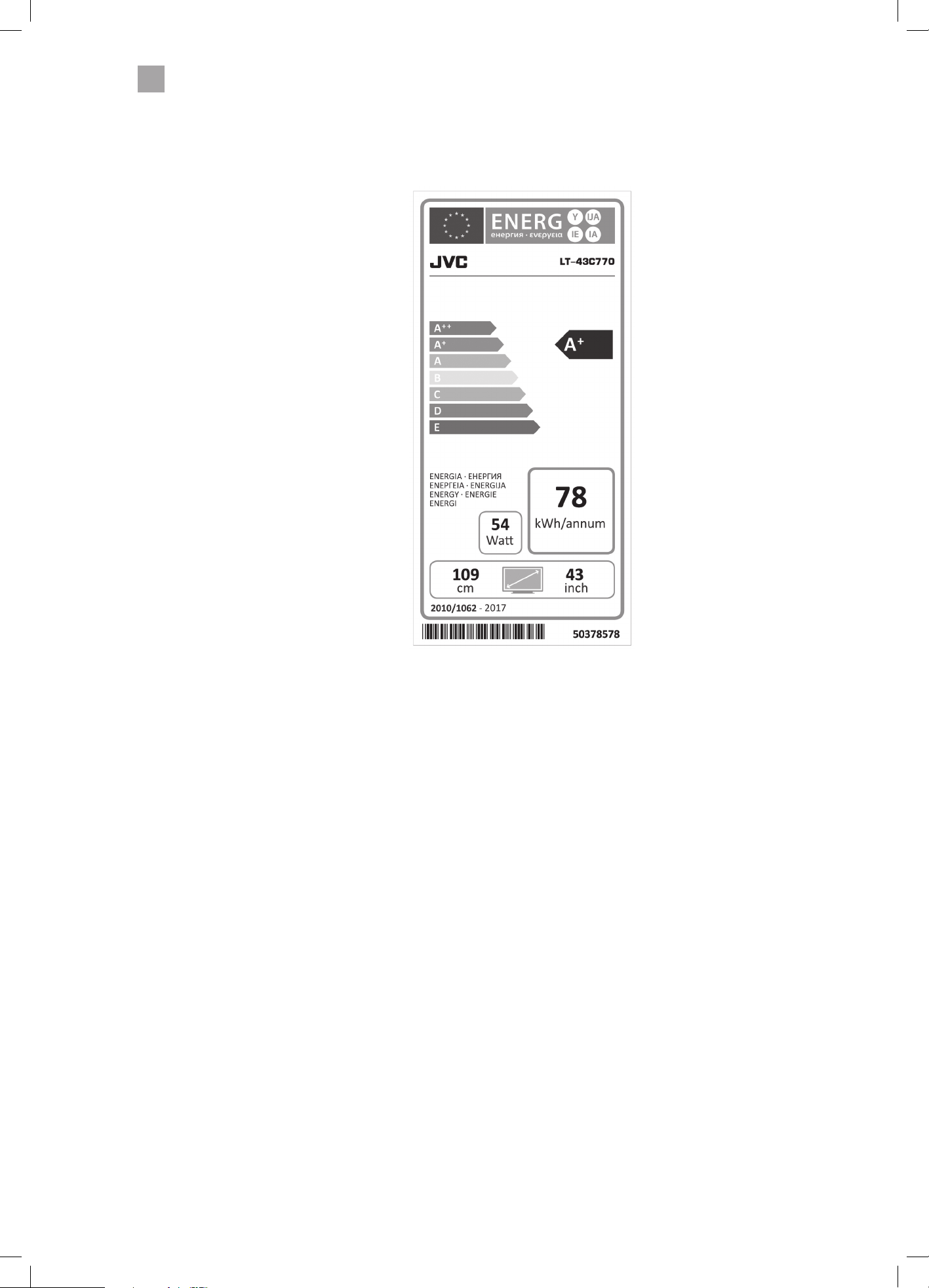
54
9
Technical Information and Help
LT-43C770_IB.indd 54 20/04/2017 17:04
55
9
Technical Information and Help
License Information used with JVC Televisions
The software pre-installed in the JVC Digital Televisions consists of multiple, independent software components. Each software
component is copyrighted by JVC or a third party. The JVC Digital Televisions uses software components that are distributed as
freeware under a third-party end-user license agreement or copyright notice (hereinafter referred to as a "EULA"). Some EULAs
require that the source code of the applicable component be disclosed as the condition for distributing the software component
in executable format. The JVC warranty provided in respect of the Digital TV is the only warranty provided and no additional
warranties are provided in respect of the software components subject to EULAs. Some of the software components distributed
under EULAs are made available for use by the user on the premise that they are not copyrighted or warranted by JVC or any
third party. These software components are licensed to the user free of charge and therefore not covered by any warranty within
the scope of the applicable laws. These software components are provided in "as is" condition without any warranty, whether
express or implied. "Warranty" here includes, but not limited to, an implied warranty for marketability or fitness for specific uses.
All risks associated with the quality or performance of these software components are assumed by the user. JVC shall not be
liable whatsoever for any cost of repair or correction or other incidental expense incurred in connection with a defect found in
any of these software components. Unless specified under the applicable laws or in a written agreement, a party who changes
or redistributes the software with consent from the copyright holders or based on the aforementioned licenses shall not be held
liable whatsoever for any loss arising from the use of or inability to use such software components. The same applies even when
the copyright holders or relevant third parties have been informed of the possibility of such loss. "Loss" here includes normal,
special, incidental and indirect loss (including, but not limited to, the loss of data or its accuracy; loss incurred by the user or any
third party; and interface incompability with other software).
Please read each EULA for details on the use conditions and items that must be observed regarding these software components.
For details of software components covered by "GPL", please visit the following website:
http://www.currys.co.uk/compliance
Remote Control Codes
Sky Codes
The code for controlling your TV using a Sky Remote Control is 0065. For instruction on how to use the code see your Sky
instruction manual.
Virgin Media Codes (TiVo box)
The codes for controlling your TV using a Virgin Media Remote Control are 0044, 0049, 0101, 0107, 0125, 0152, 0166, 0379,
0654. For instruction on how to use the code see your Virgin Media instruction manual.
BT Vision
The codes for controlling your TV using a BT Vision Remote Control are 0000, 0019, 0725, 0669, 0016, 0152, 0184, 0197, 0198,
0225, 0244, 0324, 0325, 0339, 0319. For instruction on how to use the code see your BT Vision instruction manual.
Hereby, DSG Retail Ltd., declares that this TV is in
compliance with Directive 2014/53/EU. The full text
of the EU declaration of conformity is available at the
following internet address:
https://tinyurl.com/knowhowdoc
Declaration of Conformity
LT-43C770_IB.indd 55 20/04/2017 17:04
Visit Partmaster.co.uk today for the easiest way to buy electrical spares and accessories. With over
1 million spares and accessories available we can deliver direct to your door the very next day. Visit
www.partmaster.co.uk or call 0344 800 3456 (UK customers only). Calls charged at National Rate.
For general information about this appliance and handy hints
and tips, please visit www.knowhow.com/knowledgebank
or call (UK) 0344 5611234 or (Ireland) 1 890 818 575.
The symbol on the product or its packaging indicates that this product must not be disposed of with your other
household waste. Instead, it is your responsibility to dispose of your waste equipment by handing it over to a
designated collection point for the recycling of waste electrical and electronic equipment. The separate collection
and recycling of your waste equipment at the time of disposal will help conserve natural resources and ensure
that it is recycled in a manner that protects human health and the environment.
For more information about where you can drop off your waste for recycling, please contact your local authority,
or where you purchased your product.
The product is distributed and warranted exclusive by DSG Retail Ltd.
“JVC” is the trademark of JVC KENWOOD Corporation, used by DSG Retail Ltd. under license.
MPEG-2 NOTICE
Any use of this product in any matter other than personal
use that complies with the MPEG-2 standard for encoding
video information for packaged media is expressly prohibited
without a license under applicable patents in the MPEG-2
Patent Portfolio, which license is available from MPEG LA, LLC,
6312 S. Fiddlers Green Circle, Suite 400E, Greenwood Village,
Colorado, 80111 U.S.A.
Rovi Proprietary Rights
This item incorporates copy protection technology that is
protected by U.S. patents and other intellectual property rights
of Rovi Corporation. Reverse engineering and disassembly are
prohibited.
Restriction on Use & Rovi Trade Mark Rights
Use of the copyright protection technology contained in
this product must be authorised by Rovi Corporation and is
intended for home and other limited viewing uses only unless
otherwise authorised by Rovi Corporation. The names “Rovi
Corporation” and “Macrovision” are protected by trademarks.
Dolby Digital
Manufactured under license from Dolby Laboratories.
Dolby and the double-D symbol are trademarks of Dolby
Laboratories. Confidential unpublished works. ©1992-1997
Dolby Laboratories, Inc. all rights reserved.
Freeview
The Freeview service and channels are subject to coverage
and may be changed from time to time. Aerial upgrade and/or
receiver may be required. Visit freeview.co.uk/availability.
The FREEVIEW words and logos are trade marks of DTV
Services LTD. © DTV Services Ltd.
Notes for battery disposal
The batteries used with this product contain chemicals that
are harmful to the environment. To preserve our environment,
dispose of used batteries according to your local laws
or regulations. Do not dispose of batteries with normal
household waste.
For more information, please contact the local authority or
your retailer where you purchased the product.
The terms HDMI and HDMI High-Definition Multimedia
Interface, and the HDMI logo are trademarks or registered
trademarks of HDMI Licensing LLC in the United States and
other countries.
For DTS patents, see http://patents.dts.com. Manufactured
under license from DTS Licensing Limited. DTS, DTS-HD,
the Symbol, & DTS or DTS-HD and the Symbol together
are registered trademarks and DTS-HD Master Audio is a
trademark of DTS, Inc. © DTS, Inc. All Rights Reserved.
All trademarks are the property of their respective owners and
all rights are acknowledged.
LT-43C770_IB.indd 56 20/04/2017 17:04

LT-43C770_IB.indd 57 20/04/2017 17:04

LT-43C770_IB.indd 58 20/04/2017 17:04

LT-43C770_IB.indd 59 20/04/2017 17:04

(IB-LT-43C770-170420V2)
The product is distributed and warranted exclusive by DSG Retail Ltd.
“JVC” is the trademark of JVC KENWOOD Corporation, used by DSG Retail Ltd. under license.
Dear Customer,
This apparatus is in conformance with the valid European directives compatibility and electrical
safety.
European representative of the manufacturer is:
DSG Retail Ltd. (co. no. 504877)
1 Portal Way, London, W3 6RS, UK
For Help and Support Call
UK: 0344 561 1234
Ireland: 1890 818 575
LT-43C770_IB.indd 60 20/04/2017 17:04