@2015 Shure Incorporated
User Manual AO 6008 rev O.docx
Conferencing and Discussion Systems
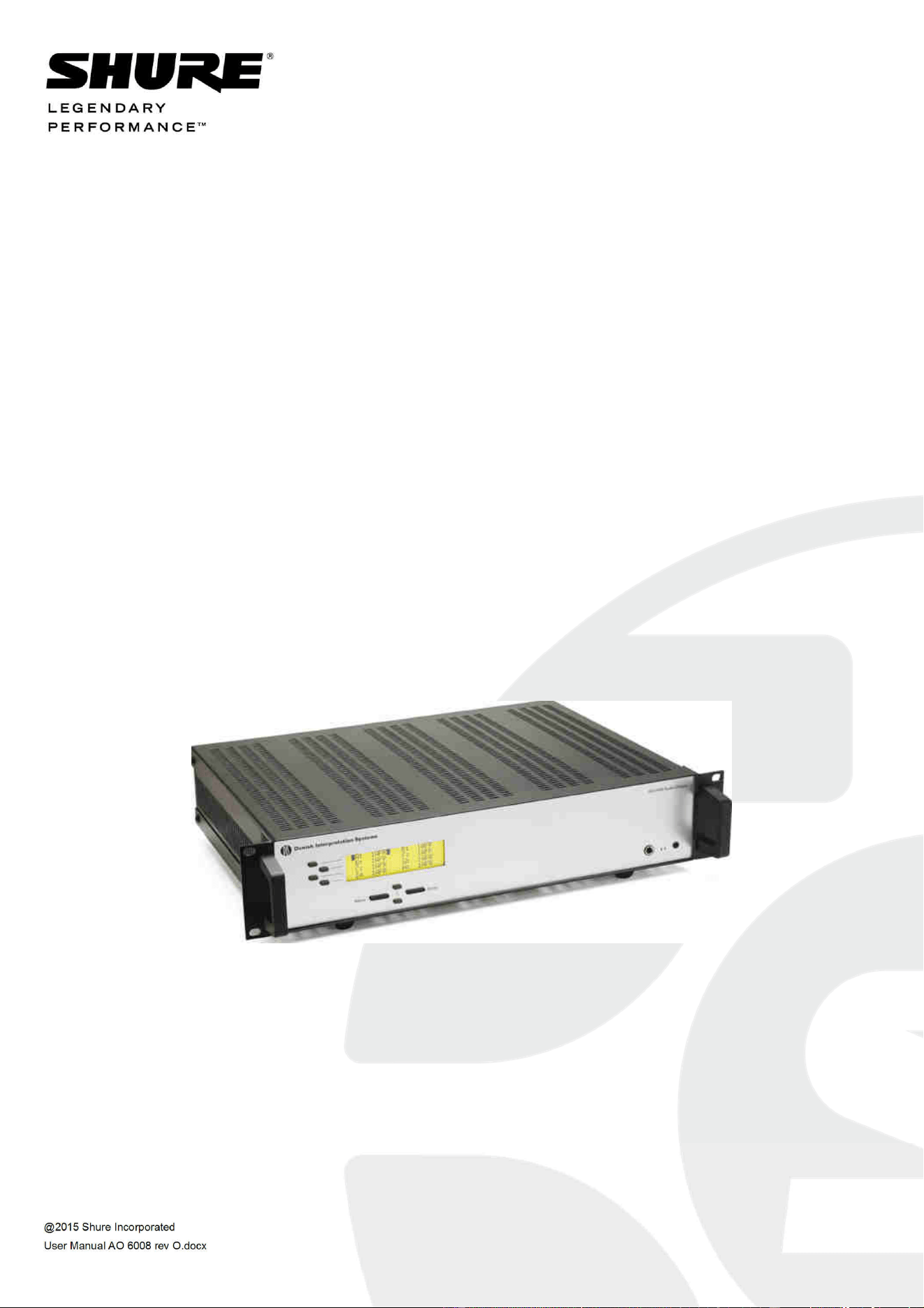
AO 6008 Audio Output
USER GUIDE

DCS 6000 Digital Conference System User Manual
@2015 Shure Incorporated User Manual AO 6008 rev O.docx
Table of Contents
Table of Contents .................................... 2
Important ................................................ 3
Installation precautions ....................... 3
Compliance ........................................... 3
Information to the user .......................... 3
Cleaning ............................................... 3
Repacking ............................................. 4
Warranty .............................................. 4
Your DCS 6000 Conference System ......... 5
The DCS 6000 system ........................... 5
System components ............................. 6
Central equipment etc. ........................... 6
Interpreter equipment ............................ 6
Conference units and Ch. selectors .......... 6
Accessories ........................................... 6
Operating instructions ............................. 7
6008 Audio Output Unit ........................ 7
General description ............................... 7
Features .............................................. 7
User controls, indications & connections ... 8
Setup .................................................. 9
Normal operation .................................11
System Setup ........................................ 12
General guidelines .............................. 12
Typical schematics ................................. 13
Using AO 6008 with DT 60xx Digital IR-
Transmitter ......................................... 13
Using AO 6008 with IT 6108 IR-
Transmitter ......................................... 13
Technical Specifications ......................... 14
System Specification ........................... 14
Connection Details .............................. 15
Accessories ......................................... 15

DIS Digital Conference System User Manual
3
Important
Installation precautions
Do not install the unit in a location near heat
sources such as radiators or air ducts, or in a place
exposed to direct sunlight, excessive dust or
humidity, mechanical vibration or shock.
To avoid moisture condensations do not install the
unit where the temperature may rise rapidly.
Compliance
The equipment is intended to be used in
professional audio applications.
Note: This device is not intended to be connected
directly to a public internet network.
EMC conformance to Environment E2:
Commercial and Light Industrial.
Testing is based on the use of supplied and
recommended cable types.
The use of other than shielded (screened) cable
types may degrade EMC performance.
Changes or modifications not expressly approved
by Shure Incorporated could void your authority
to operate this equipment.
This Class B digital apparatus complies with
Canadian ICES-003. Cet appareil numérique de la
classe B est conforme à la norme NMB-003 du
Canada.
Authorized under the verification provision of FCC
Part 15B.
Please follow your regional recycling scheme for
batteries, packaging, and electronic waste.
Information to the user
This equipment has been tested and found to
comply with the limits for a Class B digital device,
pursuant to Part 15 of the FCC Rules. These
limits are designed to provide reasonable
protection against harmful interference in a
residential installation.
This equipment generates uses and can radiate
radio frequency energy and, if not installed and
used in accordance with the instructions, may
cause harmful interference to radio
communications. However, there is no guarantee
that interference will not occur in a particular
installation. If this equipment does cause harmful
interference to radio or television reception,
which can be determined by turning the
equipment off and on, the user is encouraged to
try to correct the interference by one or more of
the following measures:
• Reorient or relocate the receiving antenna.
• Increase the separation between the
equipment and the receiver.
• Connect the equipment to an outlet on a
circuit different from that to which the
• receiver is connected.
• Consult the dealer or an experienced
radio/TV technician for help.
Cleaning
To keep the cabinet in its original condition,
periodically clean it with a soft cloth. Stubborn
stains may be removed with a cloth lightly
dampened with a mild detergent solution. Never
use organic solvents such as thinners or abrasive
cleaners since these will damage the cabinet.

DIS Digital Conference System User Manual
4
Repacking
Save the original shipping cardboard box and
packing material; they will become handy if you
ever have to ship the unit. For maximum protection,
re-pack the unit as originally packed from the
factory.
Warranty
The individual units in the DCS 6000 system are
minimum covered by 24 months warranty against
defects in materials or workmanship.

DCS 6000 Digital Conference System User Manual
5
Your DCS 6000 Conference System
The DCS 6000 system
DCS 6000 Digital Conference System is a system
to be used at meetings, where a number of people
are addressing the ‘Floor’ in a structured manor.
The audio from the Conference units can be heard
in the built in loudspeakers in the units.
The system does also allow for simultaneous
interpretation for international conferences where
multiple languages are used.
To enable all participants to understand the
proceedings, interpreters can simultaneously
translate the speaker’s language as required.
These interpretations are distributed through the
connected Conference units and delegates can
select the language of their choice and listen to it
through headphones.
DCS 6000 Digital Conference System comprises of
one CU 61xx Central Unit and a number of
Conference Units, Gooseneck Microphones and
other accessories depending on the system
configuration.
The DCS 6000 system has the following main
features:
• Fully digital
• Excellent sound quality
• “State of the Art” fully digital integrated
interpretation, discussion and voting system
offering interpretation, language distribution,
conference microphone and voting facilities with
attendance check with Chip Card ™
• Digital transmission of audio from/to the
Conference unit to/from the central unit using a
unique digital DATA and AUDIO bus named
DCS-LAN
• Control of up to 3800 conference units. This
number does not include Channel Selectors,
Repeaters etc. In practical use there are no
limits for the number of Channel Selectors in a
system
• Delegate and Interpreter units are powered and
controlled by the CU 61xx Central Unit, which
drives up to app. 50 units with the PS CU power
supply
• EX 6010 Extension Unit or PS 6001 DCS-LAN
Power Kit is available if more units are required
• Delayed switching on of power to the two
DCS-LAN chains, to minimize the total ‘in-
rush’ current on the Mains supply
• Designed for 31 interpretation channels and
8 open microphones
• Audio scrambling of the audio to avoid
eavesdropping
• Designed in a standard 1HE 19” cabinet
• TCP/IP connection on CU 61xx for external
operation of the system using a PC or control
system such as AMX ® or Crestron ®
• Functionality on the CU 61xx depends on the
Feature License uploaded into the unit
• Firmware in Delegate units, Interpreter Units,
Central Units etc. is upgradeable
• Operated either stand alone or from a PC
using the CU browser or using SW 6000
software
• Added functionality and comprehensive
features provided by SW 6000 software
package running on PC
The SW 6000 is an optional software package,
which expands the functionality of the DCS
6000 system. The software runs on standard
computer technology (Standard PC with
Windows 7, Server 2008 etc.).
Main features of the SW 6000 are:
• Microphone management
• Mimic panel operation
• Interpretation management
• Voting management
• Message handling
• Agenda handling
• Data stored on SQL data base
• Web service interface available for easy links
to external applications
• Multi language user interfaces
• Supports different User types with different
priorities, user interfaces and control
possibilities

DCS 6000 Digital Conference System User Manual
6
System components
Central equipment etc.
CU 6105 Central Unit
CU 6110 Central Unit
EX 6010 Extension Unit
PS 6001 DCS-LAN Power Kit consisting of one
PS CU and one PI 6000
PS CU Power Supply
PI 6000 DCS-LAN Power Inserter
RC 6000 Redundancy Controller
AO 6004 Audio Output Unit
AO 6008 Audio Output Unit
RP 6004 Repeater for four chains
JB 6104 Junction Box with 4 outputs
Interpreter equipment
IS 6132 P Interpreter Unit
LS 6132 P Interpreter Loudspeaker
Conference units and Ch. selectors
DC 6990 P Conference Unit (portable) with touch
screen with two built-in channel
selector, Chip-card and 5 voting
buttons, configurable as Delegate,
Dual Delegate or Chairman.
DC 6120 P Conference Unit (portable)
DC 6190 P Conference Unit (portable) with two
built-in channel selectors
DM 6680 P Conference Unit (portable) with voting
CM/DM 6080 F Conference Unit (flush mounted)
with built-in channel selectors
DM 6620 F Conference Unit (flush
mounted) with, Chip-card and 5
voting buttons
CM/DM 6680 F Conference Unit (flush
mounted) with one built-in
channel selector, Chip-card and
5 voting buttons
MU 6040 C/D Microphone Unit for use with
FD/FC front plate with
Loudspeaker, Microphone and
Buttons. Available in Delegate
(D) and Chairman (C) version
MU 6042 D Dual Microphone Unit for use
with FD/FC front plate with
Loudspeaker, Microphone and
two delegate Buttons
DV 6501 F Voting Unit
AM 6040 Ambient Microphone Unit
CS 6340 FV/H Channel Selector (flush
mounted)
Accessories
In addition to the unit a number of accessories
are available like:
• Storage Boxes
• GM 6523 Gooseneck Microphone, 40 cm
• GM 6524 Gooseneck Microphone, 50 cm
• GM 6525 Gooseneck Microphone, 63 cm
• DH 6021 Delegate Headphone
• DH 6223 Stethoscope Headphone
• DH 6225 Ear Clip Headphone
For detailed instruction in how to use the above
units, please refer to the User Manuals for the
relevant products.

DCS 6000 Digital Conference System User Manual
7
Operating instructions
6008 Audio Output Unit
General description
The AO 6008 Audio Output Unit for the DCS 6000
system enables the user to record the sound from a
number of interpreted language channels or floor
channel on external devices such as tape- or hard
disk recorders by analogue interface.
It can also be used to distribute sound channels to
for example infrared distribution or loudspeaker
system.
Features
• Decoding of 8 language channels into analogue
audio chosen out of the possible 31 digital
channels as well as the Floor channel in 3
qualities.
• The 8 decoded channels are available on 8
analogue outputs (XLR connectors).
• A number of AO 6008 can be combined to
decode more channels. Up to 20 pieces AO
6008 can be connected and configured in one
system to decode more channels.
• User control of the AO 6008 by using the
buttons and display on the front or by
sending commands and reading status from
a PC via CU 60XX.
• The unit is connected to the bus as any other
unit and by controlling it from the CU 60XX it
can be placed anywhere in the system.
• The user can set up the desired languages
and volume settings, read error status,
load/save settings and view information
about the unit.
• A headphone connector on the front of the
unit enables the user to check the sound from
the analogue outputs. The sound is routed
from the XLR connectors through an
analogue switch to the headphones.
DCS 6000 Digital Conference System User Manual
8
User controls, indications & connections
Front plate layout
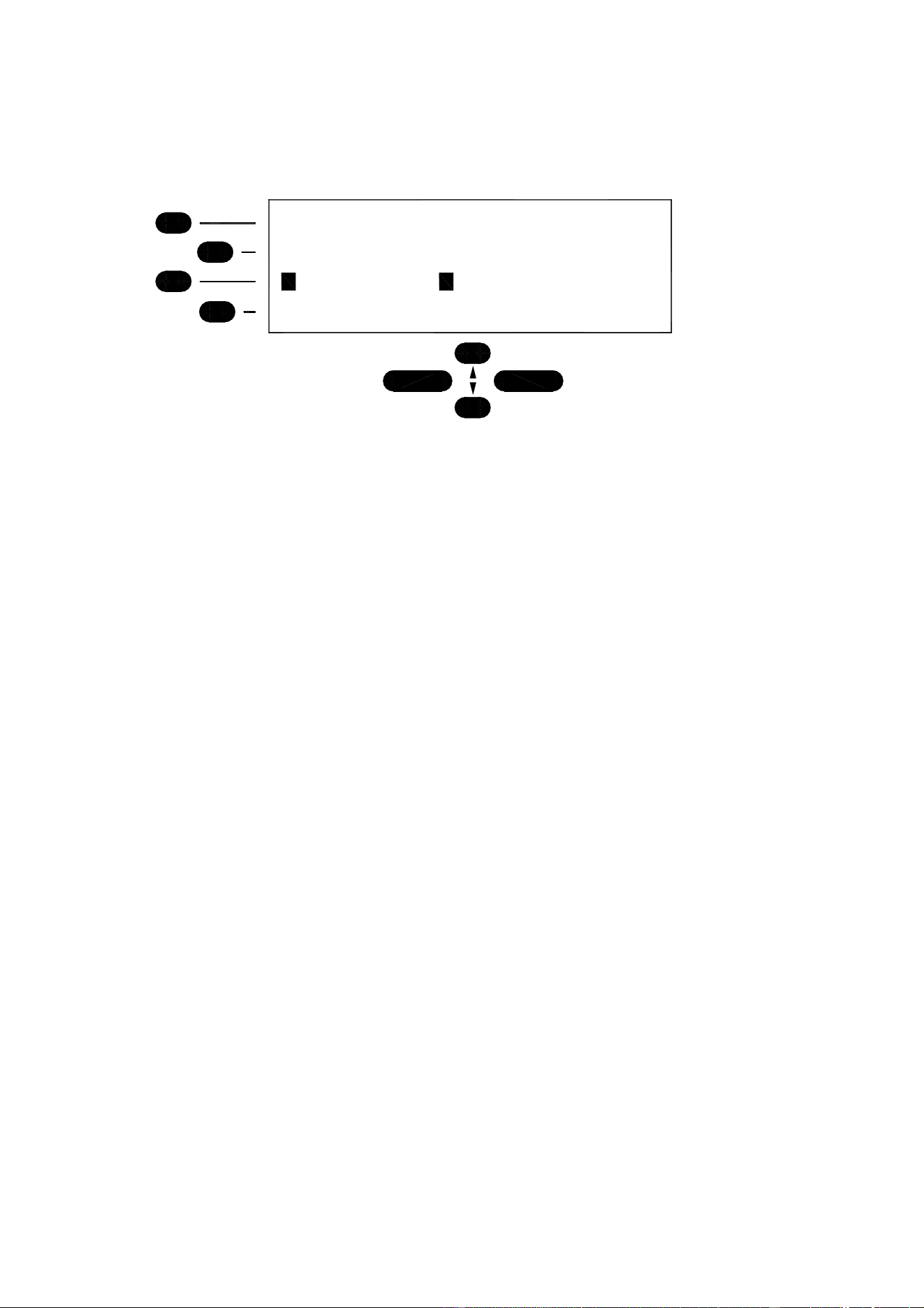
The front plate layout of the AO 6008 Audio Output Unit consists of a large illuminated LCD display and 8
buttons for setting up/controlling the unit:
A: 12ALB E: 13DAN
B: 14ENG F: 1FIN
C: 15NOR G: 2SWE
D: 0FLO H: 3POL
Menu Enter
Front plate controls
The AO 6008 Audio Output Unit features the
following controls and displays.
LCD Display
The display is a multi-line, dot matrix, back lit,
LCD display. It is possible to view the language
settings for all 8 channels simultaneously. By
navigating a menu structure the user can access
the settings for a particular channel.
Buttons
Eight push buttons are placed on the front of the
AO 6008 for changing the languages and volume
settings for the output channels as well as for
navigating the menu structure. The buttons have
the following general functionality:
1 Four select buttons
Four buttons placed on the left-hand side of the
display. Each button is associated with a line
pointing towards a text line in the display. This
indicates, that pushing the button ‘selects’ the
functionality.
2 Enter button
The Enter button is used, when a selection is made
in the Menu. Pressing the Enter button concludes
the selection made, and at the same time it
indicates a confirmation of the possible changes
made within the selection. The Menu system
returns to the previous menu. Notice, that some
changes are applied immediately, and confirmation
is thus not required.
3 Menu button
The Menu button is also used, when a selection is
made in the Main Menu. The Menu button
concludes the selection, but in contrast to the
Enter button, the Menu button does not confirm
a possible change made within the selection.
Instead, the Menu system returns to the
previous menu without confirming changes, if
confirmation is required.
4 Up (▲) and Down (▼) buttons
In the normal operation display these buttons
are used to select the headphone monitoring
channel. In the set-up menu the Up and Down
buttons are used to leaf through menu items, or
to increase/decrease values within a selection
Symbols
The following symbols are used on the LCD
display:
‘-‘
The dash symbol (‘-‘) preceding a line of text
identifies a submenu or a changeable parameter.
The submenu or parameter can be selected by
pressing the corresponding select button.
‘>’
The ‘>’ symbol preceding a line of text identifies
a selected parameter. The parameter can be
changed by pressing the up and down buttons.
The ‘>’ symbol is shown as long as the value of
the parameter currently used is the same as the
value shown in the display.
‘▲▼’
The up and down symbols shown in the right side
of the display (up is shown in the first line and
down is shown in the last line) indicates that the
current menu consists of more than 4 menu
items. It is therefore necessary to use the up and
down buttons to leaf through menu items.

DCS 6000 Digital Conference System User Manual
9
Connectors
Headphone Connectors
A mini jack and a standard jack are located on the
front plate for connecting a headphone for listening
to the Floor language or one of the interpreted
languages.
Audio Output A to H
On the back are located 8 XLR 3P connectors, each
supplying transformer balanced audio signal from
each of the 8 channels.
The outputs can be used for tape recording purpose
i.e. or for connecting a digital infrared transmitter
like DT6008, DT 6032 or analogue infrared
transmitter IT 6108 for wireless transmission of the
interpreted languages.
DCS-LAN connector
Two RJ45 sockets are located at the back of the unit
for connecting to the previous unit like the CU
6005/6010 Central Unit or any other unit with a
DCS LAN connector and to the next unit like an IS
6132 Interpreter set, CS 6032 Channel Selector,
DM/CM 6xxx Conference Unit.
Setup
Set-up menu
The user can change the settings for the output
channels by entering the Set-up menu. This is
done by pressing the MENU button:
The menu is scrolled one line up or down by
pressing the up/down arrow keys. If for example ▼
is pressed the display will reveal the next menu item
at the last line.
The menu “wraps around” when the last menu item
is reached at the bottom making “Language” the
last entry in the display.
The whole list contains the following entries:
• Channel setup
• Volume setup
• Headphone setup
• Communication status
• Ver. and serial no
• Clipboard
• Original Attenuation
Channel setup menu
If the “Channel setup” entry is chosen the
Channel menu is shown:
An entry can be changed by selecting it with the
select keys. This is marked by an ”>” to the left
of the entry:
Now the language can be toggled up or down
with the arrow keys. The change is accepted with
the ENTER key or discarded with the MENU key.
The channel can be adjusted between “Floor 2,
Floor 1, Floor” as the lowest channel up to the
number of open interpreter channels.
The Channel menu is left with the MENU key.
Floor output
There are 3 floor outputs available at the
Channel menu:
Floor Automatic gain controlled output
Floor 1 Loudspeaker audio, unregulated
Floor 2 Loudspeaker audio, regulated
An ambience microphone will only be active on the
Floor channel, not on Floor 1 or Floor 2
Volume setup menu
By pressing the Volume button from the Set-up
menu the user gains access to the Volume
menu:
From this menu it is possible to change the
volume setting for each channel individually from
-40 dB to +15 dB in steps of 1 dB. When selecting
Off the output is muted.
-Channel setup ▲
-
Volume setup
-Headphone setup
-Communication status
▼
-Volume setup ▲
-Headphone setup
-Communication status
-Ver. and serial no.
▼
-Out A (12POL): -12 dB ▲
-Out B (13ALB): +15 dB
-Out C ( 2ENG): 0 dB
-Out D ( 5DAN): +7 dB
▼
-Out A: 12Polish ▲
-Out B: 13Albanian
-Out C: 2English
-Out D: 5Danish
▼
-Out A: 12Polish ▲
-Out B: 13Albanian
-Out C: 2English
>Out D: 5Danish
▼

DCS 6000 Digital Conference System User Manual
10
The volume level for a specific output is changed in
the same way as the language setting by pressing
one of the four SELECT buttons. The changes are
applied instantly to the audio when the up/down
keys are pressed so the user can check the volume
level while adjusting it.
The last item on the volume menu list is “All” by
selecting this item the user can change the volume
setting for all the outputs simultaneously. The
outputs are all set to the value selected in this menu
item.
Pressing the MENU button leaves the volume menu.
This brings back the Set-up menu.
Headphone setup menu
The Headphone setup menu gives access to the
headphone settings.
The “Headphone monitoring” entry indicates the
analogue output from which the audio for the
headphones are taken. It is altered by selecting it
and using the up/down keys. Range is A..H.
Headphone volume adjusts the level of the
headphone monitoring output (this attenuation is
applied to the channel output which is already under
volume control). Range is 0dB .. –62dB (Off is
mute) in steps of 1 dB. It is selected and altered in
the same way as the “Headphone monitoring”
entry.
Communication status menu
By pressing the key next to the Communication
Status item the user is taken to the
Communication status menu:
From this menu the user can view the error status
of the unit and reset the error counters. The error
status shows the number of errors encountered on
the incoming and outgoing busses since last error
reset. If the number of errors on the outgoing bus
exceeds a certain amount the AO 6008 can no
longer decode the audio data correctly and the
audio is muted. The audio is re-enabled when the
communication is normalised. The error counters
are reset by pressing the Reset key.
Ver. and serial no. menu
The serial number and the unit address can be
checked from the display by entering the Ver.
and serial no. menu.
From this menu the software and hardware
version can also be viewed.
As usual the menu is left with the MENU key.
Clipboard menu
From this menu the user can save the settings of
the AO 6008 temporarily in the CU 60XX. This
feature is to be used when settings must be
copied from one AO 6008 to another.
The menu holds two entries:
When a user wants to copy settings to another
AO 6008 he executes the “Copy to clipboard”
command after he has finished setting up all the
channels and volume settings. This brings out a
confirmation display:
The settings are then transferred to another unit
by executing the “Paste from clipboard”
command on that unit.
The “Paste from clipboard” command brings out
a confirmation display:
If the user presses ENTER the settings of the unit
are replaced by the settings stored in the
clipboard.
The settings stored in the clipboard are:
• Channel settings for all 8 outputs
AO 6008 rev A
Version: 053.017
Serial #: 200.007.123
Address:
1
-Headphone monitoring: A
-Headphone volume: -20dB
-Copy to clipboard
-Paste from clipboard
Rx Errors: 0
Tx Retries: 0
Tx Dropped: 0
-Reset counters
This will replace
current settings!
Proceed?
Settings copied
to clipboard!

DCS 6000 Digital Conference System User Manual
11
• Volume settings for all 8 outputs
Storing AO 6008 settings
Each time the user changes the language or volume
for an output on an AO 6008 it is communicated to
the CU 60XX. This means that the CU 60XX always
has an updated copy of the AO 6008 unit’s settings
and it is therefore possible to store the settings in
non-volatile memory on the CU 60XX by executing
the “Save Configuration” command on the CU 60XX.
In this way the settings for each AO 6008 will be
recalled automatically when powering up the
system.
If the “Save Configuration” command is not
executed the settings are only stored as long as the
CU 60XX has power. If an AO 6008 Unit is removed
and reinserted while there is power on the CU 60XX
the AO 6008 will keep its settings but if the system
is powered off and on again the AO 6008 will get
the settings stored in FLASH.
Original Attenuation menu
The Original Attenuation menu gives access to
setting the attenuation level. In systems where
channel selectors are used along with delegate
microphones acoustic feedback can occur. This
effect can be minimized by lowering the volume on
the selected channel or the attenuation when it is
carrying floor audio (because there is no
interpretation taking place on the channel). The
attenuation level can be adjusted between -20 and
0 dB. The 0 dB setting is used when no
attenuation is desired. When selecting Off the
output is muted.
Lock feature
A feature is included to hide part of the set-up menu
from the user. The lock can be enabled/disabled
locally from the unit by pressing a predefined key
combination.
When in locked mode the user only has access to
the “Headphone”, “Ver. and serial no.” and
“Communication” menus and is thereby unable to
make any changes to the unit configuration. The
unavailable menu entries will not have a “-“ sign to
the left of the entry:
If the user presses one of the disabled menu entries
the “Unit locked!” message is shown for three
seconds.
The lock is activated from the unit by holding the
ENTER button depressed for five seconds in the set-
up menu display. This brings up a confirmation
display for three seconds:
The unit is unlocked in the same way by holding
the ENTER key depressed and a confirmation
display is shown:
The lock status is being saved in the CU 60XX
and retransmitted to the unit after power up.
Normal operation
Normal Operation Display
In normal operation the user must be able to
check the language setting of all the output
channels from a single display without pressing
any buttons. This is the Normal Operation
Display:
This display indicates which language-channel
has been assigned for each of the 8 outputs. And
the filled square indicates the channel, where the
headphone is monitoring. Use the up (
▲
) and
down (
▼
) buttons to select the headphone
monitoring channel.
If an output is set to a language that no longer
exists the language indication will be “---“. The
user can then choose a new language for the
channel. If no buttons have been pressed for 2
minutes the display will change to shown the
Normal Operation display.
Menu
The user has access to the following functions,
by pressing the Menu button:
• Language for each output channel.
• Volume setting for each channel.
• Monitoring output and volume for
headphone.
• Communication status.
• Unit info.
• Load/save of configuration.
• Original Attenuation
Unit locked!
Channel setup ▲
Volume setup
-Headphone setup
-Communication status
▼
Unit unlocked!
A: 12ALB E: 13DAN
B: 14ENG F: 1FIN
■ C: 15NOR■ G: 2SWE
D: 0FLO H: 3POL

DCS 6000 Digital Conference System User Manual
12
System Setup
General guidelines
Connect the AO 6008 to the various units using Cat
5 FTP or STP cables. Please observe the following
guide lines:
• Maximum cable length in one chain is 200 m
without repeater. This includes
interconnection cables between the units.
The max. usable cable length depends on
the units connected and length of feeding
cables etc.
• Maximum cable length in one chain when
using repeaters is 650 m.
If the last unit in one chain is a CS 6032
Channel Selector, this unit has to be terminated
with an external termination, as the CS 6032
does not have an internal termination.
DCS 6000 Digital Conference System User Manual
13
Typical schematics
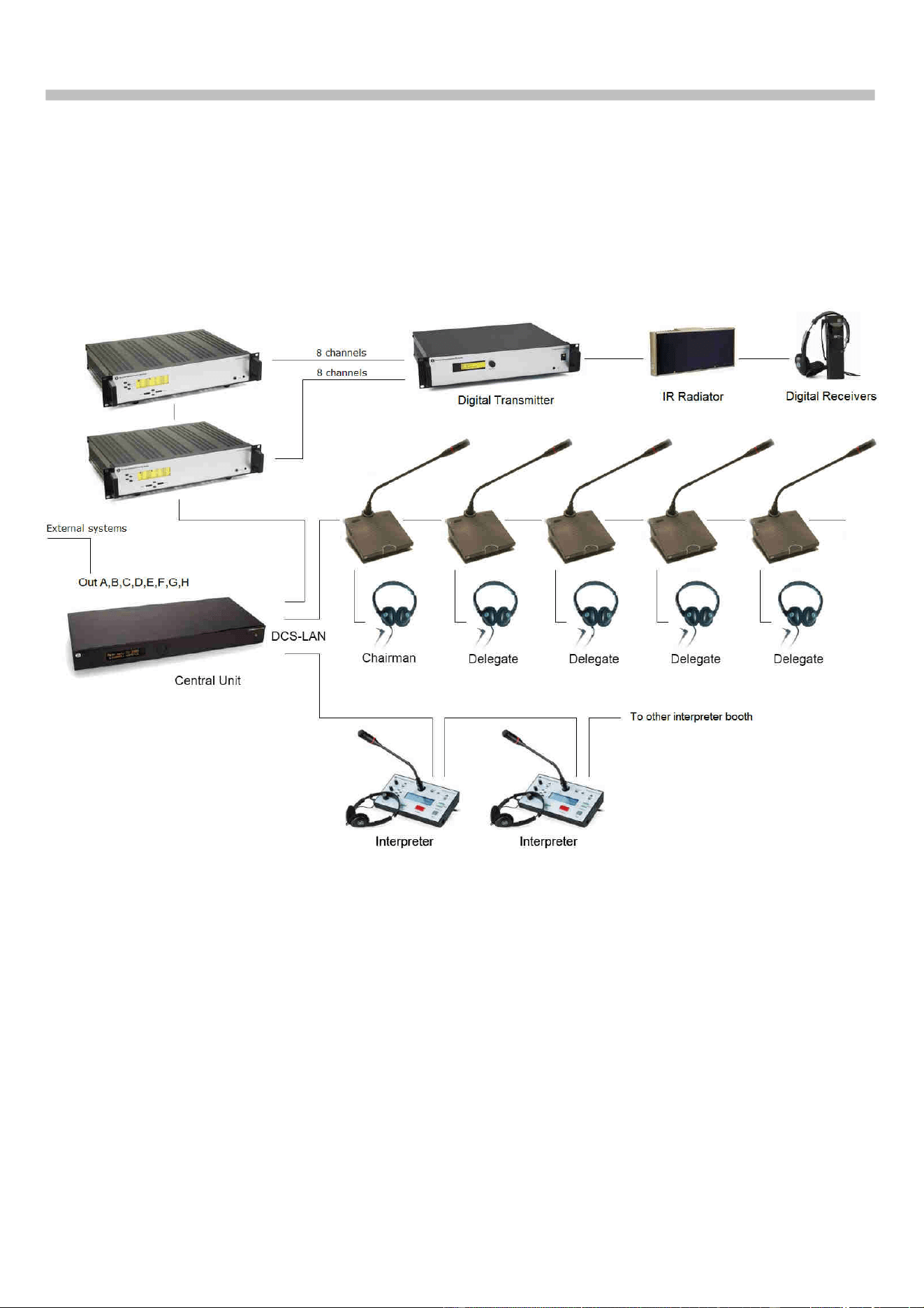
Connect the AO 6008 to the DCS 6000 network
using Cat 5 cables. The Analog Audio output
connectors are connected to either Tape recorders
for recording the interpreted channels or to DT
6008/DT 6032 Infrared Transmitter for
transmitting the interpreted channels wireless.
Using AO 6008 with DT 60xx Digital IR-Transmitter
When using the AO 6008 with the DT 60xx Infrared
Transmitter, the audio output level on the AO 6008
has to be set to match the sensitivity on the
transmitter.
The correct level to be set on each connected
channel on the AO 6008 is +3dB. This level is
factory preset, but can as earlier mentioned be
changed using SW 6000. The DT-60XX input
level settings should be set to –6dB.
.
Using AO 6008 with IT 6108 IR-Transmitter
When using the AO 6008 with the IT 6108 Infrared
Transmitter, the audio output level on the AO
6008 has to be set to match the sensitivity on the
transmitter
The correct level to be set on each connected
channel on the AO 6008 is –12db.

DCS 6000 Digital Conference System User Manual
14
Technical Specifications
System Specification
Digital Section
Sound quality ........... 20 bit audio @ 32 kHz sampling
frequency
Analog Section
Output signal type ground lifting transformer balanced
Nominal output level: ............ 0 dBm at nominal input
Max. Output level: ....................................... 15 dBm
Frequency response ................................. 125-15kHz
Signal to noise ratio: .................................>85 dBA
Total harmonic distortion: ........................... < 0.1%
General
Power requirement ................................. 24-48 V DC
Power consumption ............................ 5W maximum
Power supplied from
.................................. CU 61xx / EX 6010 / PS 6000
Temperature to guarantee specified performance
............. 5 Deg C. to 40 Deg C. (35 to 80% humidity)
Storage temperature
.......... -20 Deg C. to 60 Deg C. (10 to 80% humidity)
Weight ......................................................... 4,5 kg
Dimensions (W x H x D) ... 425 (483) x 87 x 317 (357)
mm
Dimensions in bracket are including 19” brackets
Connectors
DCS-LAN loop through ......................... 2 pieces RJ45
Analog outputs connectors .. 8 - XLR3 male connectors
Remote Control commands in/out
By using SW 6000 the user can control the AO 6008
through the CU 61XX. A number of control messages
are used for this communication.
By using SW 6000 the user can monitor/control the
following settings in the AO 6008 through the CU 61xx:
* ......................................................... Error status
* .......................... Channel number for each channel
* ............................ Volume setting for each channel
* ...................................................... Serial number
* .................................................. Software version
* ................................................. Hardware version
The CU 6005/6010 can control the following settings:
* .................................. Volume steps for all channel
* ................ Channel number for each output channel
* ...... Volume setting for each channel and headphone
* ............................................ Error counter (reset)
Specifications are subject to change without
notice.
DCS 6000 Digital Conference System User Manual
15
Connection Details
DCS-LAN Chain
The DCS 6000 system uses shielded Cat5e, Cat6
or Cat7 F/UTP or U/FTP cables with shielded RJ45
connectors.
EIA 568-B wiring shall be used.
Important: The names of Cat5/6/7 cable type have
changed.
Old name New name
FTP F/UTP
STP U/FTP
UTP U/UTP
Important: Use only F/UTP or U/FTP (shielded) cables
and shielded RJ45 connectors and not U/UTP cable,
which are unshielded.
How to wire a Cat5e (EIA 568-B) cable to a RJ45
con.:
Pin Function Connector #1 Connector #2
1 In-going + ORG/WHT ORG/WHT
2 In-going - ORG ORG
3 +48V GRN/WHT GRN/WHT
4 0V BLU BLU
5 0V BLU/WHT BLU/WHT
6 +48V GRN GRN
7 Outgoing - BRN/WHT BRN/WHT
8 Outgoing + BRN BRN
Important: If other color codes are used then the
four pairs are connected as follows:
Pair 2: Pin 1 & 2
Pair 3: Pin 3 & 6
Pair 1: Pin 4 & 5
Pair 4: Pin 7 & 8
The phase of the pairs must be correct and the
wiring spec. as stated in Cat5e (EIA 568-B) have
to be followed.
Note: Cat6 and Cat7 cables can normally only be
terminated in sockets (female) and not in cable plugs.
Cat6 and Cat7 can thus only be used for feeding cables
terminating in wall outlets or patch panels.
Accessories
Cat5e Connection Cables (AWG24)
EC 6001-0.5 .................. Connection Cable 0.5 m
EC 6001-01 ..................... Connection Cable 1 m
EC 6001-02 ..................... Connection Cable 2 m
EC 6001-05 ..................... Connection Cable 5 m
EC 6001-10 ................... Connection Cable 10 m
EC 6001-20 ................... Connection Cable 20 m
EC 6001-50 ................... Connection Cable 50 m

www.shure.com
United States, Canada, Latin
America, Caribbean:
Shure Incorporated
5800 West Touhy Avenue
Niles, IL 60714-4608
USA
Phone: +1 847 600 2000
Fax: +1 847 600 1212 (USA)
Fax: +1 847 600 6446
Email: info@shure.com
Europe, Middle East, Africa:
Shure Europe Gmbh
Jakob-Dieffenbacher-Str. 12
75031 Eppingen
Germany
Phone: +49 (0) 7262-9249-100
Fax: +49 (0) 7262-9249-114
Email: info@shure.de
Asia, Pacific:
Shure Asia Limited
22/F, 625 King's Road
North Point, Island East,
Hong Kong
Phone: (+852) 2893-4290
Fax: (+852) 2893-4055
Email: info@shure.com.hk