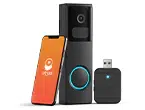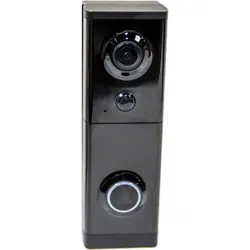
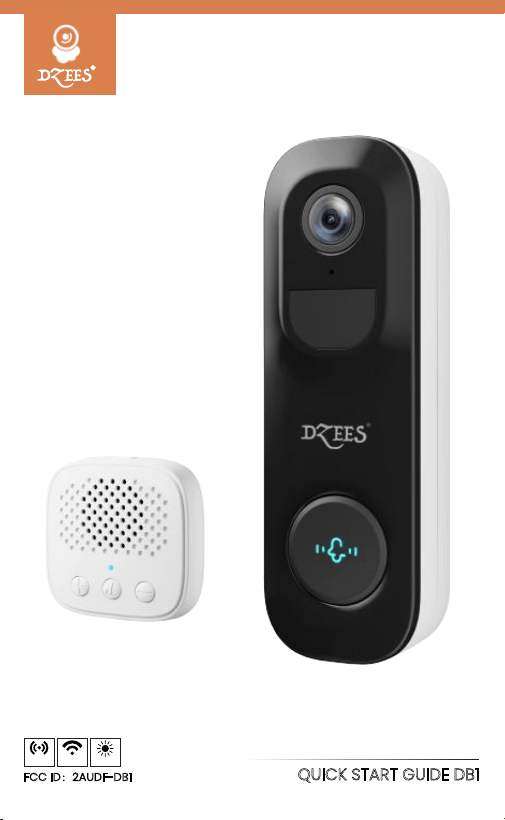
Smart Battery
Video Doorbell
WIRELESS WIFI OUTDOOR
QUICK START GUIDE DB1
FCC ID:2AUDF-DB1
R
Email: [email protected]
Distributor: [email protected]
Warranty Service
Product Service
Web: www.dzees.com
Facebook: www.facebook.com/DzeesHome
More About Us
Thanks for your shopping and trust. We have been
optimizing our products and improve our
lifetime
customer service to offer you a better shopping
experience. If you have anyproblems, please feel free to
write us e-mail We will solve yourproblems within 24
hours. In addition, your advice or suggestions will be
much appreciated and welcomed.
Register via link below to get 3 Years Warranty
Extension.
https://bit.ly/3zBSB2y

Contents
1. Packing List ---------------------------------
2. Product Appearance -----------------------
3. Download & Install App ---------------------
4. Account Registration -----------------------
5. Add Doorbell to APP ------------------------
5.1 Preparation for Connection --------------
5.2 Connect Doorbell to APP -----------------
6. Connect the Chime ------------------------
7. Install the Doorbell--------------------------
8. Remove the Doorbell -----------------------
9. Tamper Alert Setting -----------------------
P1
P2
P3
P3
P5
P6
P7
P8
P10
P13
P13

Contents
10. Battery Management ---------------------
11. Indicator Light Status ----------------------
12. Share Doorbell ---------------------------
13. Multi-Device Management ----------------
14. Doorbell Reset ----------------------------
15. Filter Storage------------------------------
16. Product Specification ---------------------
17. Firmaware Upgrade-----------------------
18. FAQ --------------------------------------
P14
P14
P15
P16
P17
P17
P18
P19
P19
1
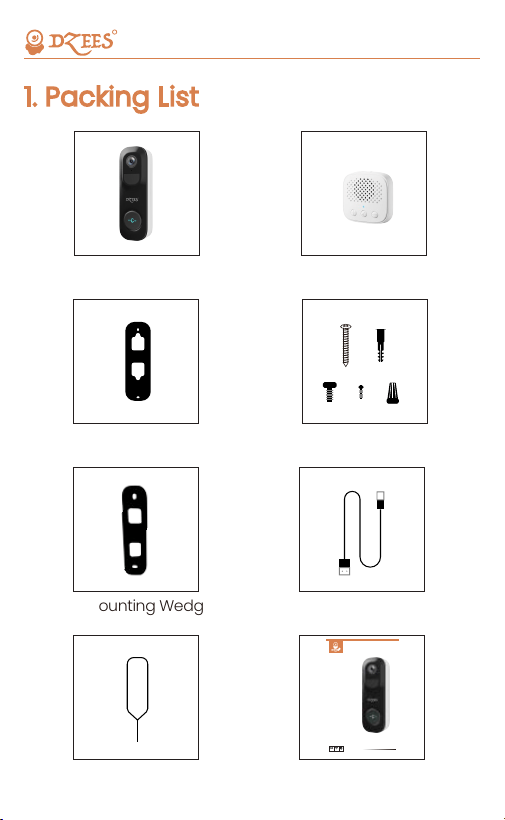
1. Packing List
Safe, Convenient, and Scientific
R
Smart Battery
Video Doorbell
WIRELESS WIFI OUTDOOR
QUICK START GUIDE DB1
FCC ID:2AUDF-DB1
R
Flat Mounting Branket
(3M Adhesive)
20° Mounting Wedge
Chime
User Guide
Doorbell
USB Power Cable
Screws Set
X4
X4
X2
X2
X2
X2
Doorbell Detaching Pin
2
Safe, Convenient, and Scientific
R
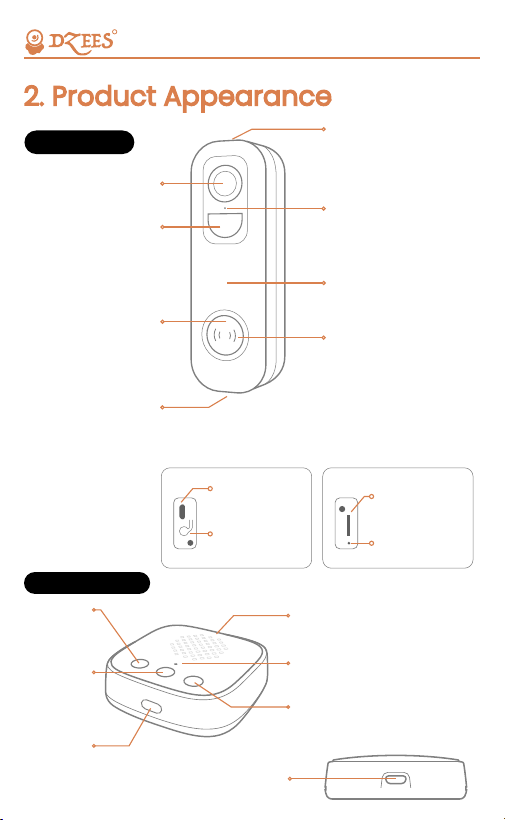
2. Product Appearance
Doorbell
Lens
Microphone
PIR Sensor
Infrared Light
Doorbell
Button
Indicator Light
Speaker
Removal Hole
Micro-USB
Port
Power Button
Micro-SD
Card Slot
Reset Button
Exploded views of functional interfaces on both left and
right sides without flat bracket
Indoor Unit
Speaker
Indicator
Light
Volume
Reduction
Key
Pairing
Key
Volume
Plus Key
Pairing
Selection
Key
Micro-USB Port
SYNC
3
Safe, Convenient, and Scientific
R
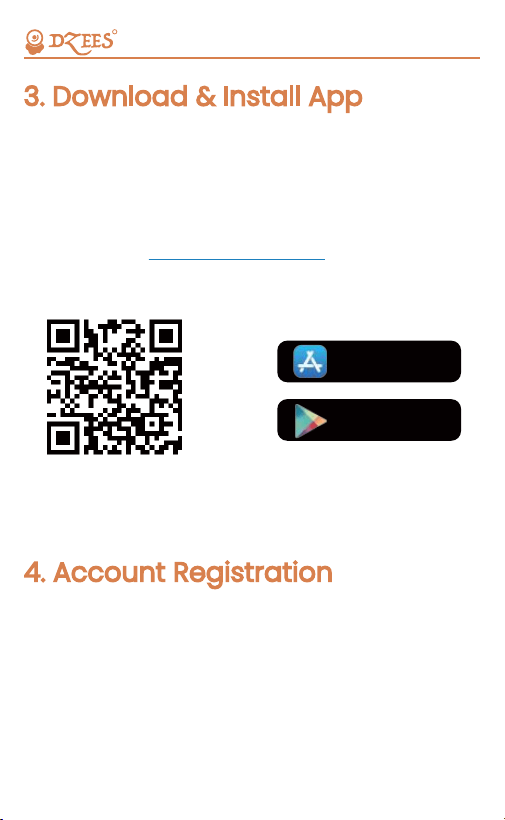
The doorbell supports Android and iOS system. Please
scan the QR code below or search'Dzees Home' in App
store to download the App, and follow the instruction
to register account. If you encounter any problems
during the installation process, please feel free to
contact us via [email protected]
3. Download & Install App
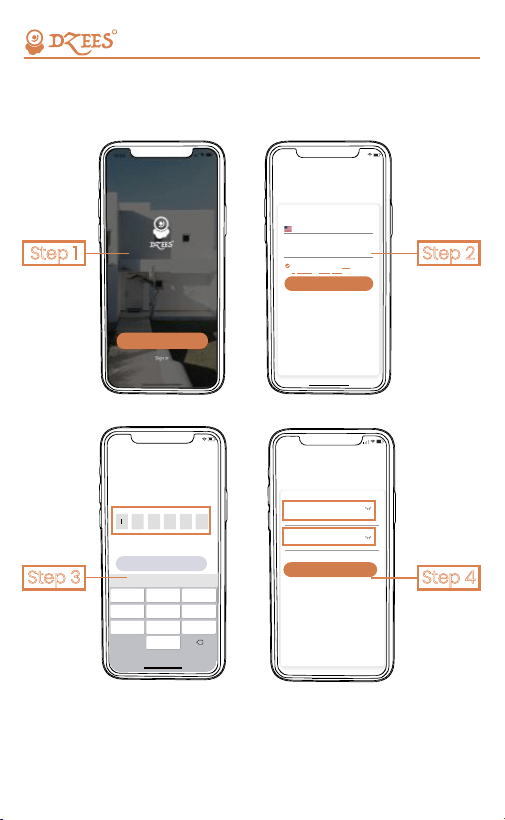
New users need to sign up with email ID.Click 'Sign up
a New Account' and follow the steps to complete the
registration.
4. Account Registration
Dzees Home App
Download on the
App Store
Android App on
Google play
4
Safe, Convenient, and Scientific
R
5:39
....
<
>
Sign up
Enter an email ID, and we’ll send a verification code
to you.
Country/Region
United States
Email ID
I understand and agree with
Agreement
User
andPrivacy Policy
Next Step
5:39
....
<
Next Step
Verification Code
We just send a verification code to your email ID,
Please fill in correctly.
Done
1 2
0
A B C
4
G H I
5
J K L
6
M N O
7
P Q R S
8
T U V
9
W X Y Z
3
D E F
X
5:41
<
Finish
Set Password
For your safety,password must contain at least one
uppercase letter,one lowercase letter,one number
and has a minimum length of 8 characters.
Password
Confirm Password
Step 3
Step 2
Step 4
Sign up for a New Account
Step 1
5
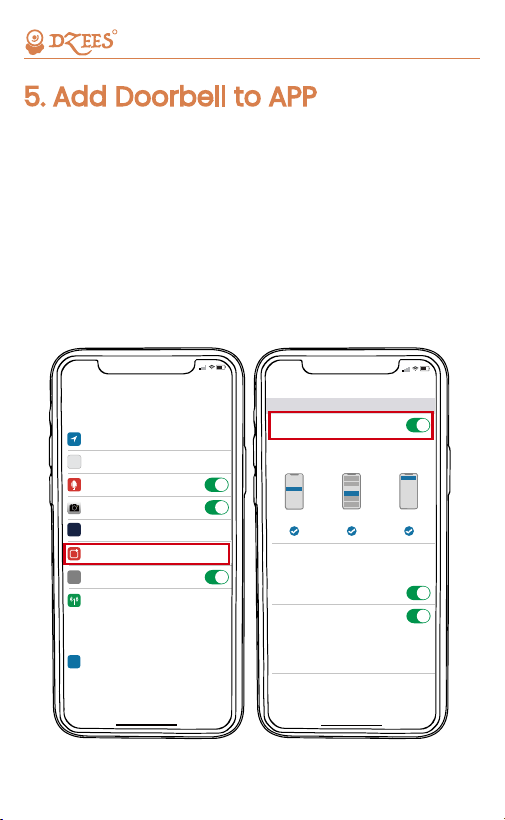
1. Allow 'Dzees Home' App to access mobile cellular data
and wireless LAN, or it will fail to add doorbell.
2. Allow 'Dzees Home' App to receive pop-up messages,
otherwise the smart phone will not receive notification
when motion is detected.
5. Add Doorbell to APP
5:44
<
Settings
Dzees Home
ALLOW Dzees Home TO ACCESS
PREFERRED LANGUAGE
Always
Location
>
English
Language
>
Microphone
Camera
Siri & Search
Notifications
Background App Refresh
Banners,Sounds,Badges
Wireless Data
WLAN & Cellular
Read and Write
Photos
>
>
>
>
5:43
>
>
<
Notifications
Dzees Home
ALERTS
Allow Notifications
9:41
Lock Screen
Banner Style
Sounds
Badges
OPTIONS
When Unlocked(Default)
Show Previews
Temporary
>
>
Automatic
Notification Grouping
>
Notification Center Banners
Safe, Convenient, and Scientific
R
6
Safe, Convenient, and Scientific
R
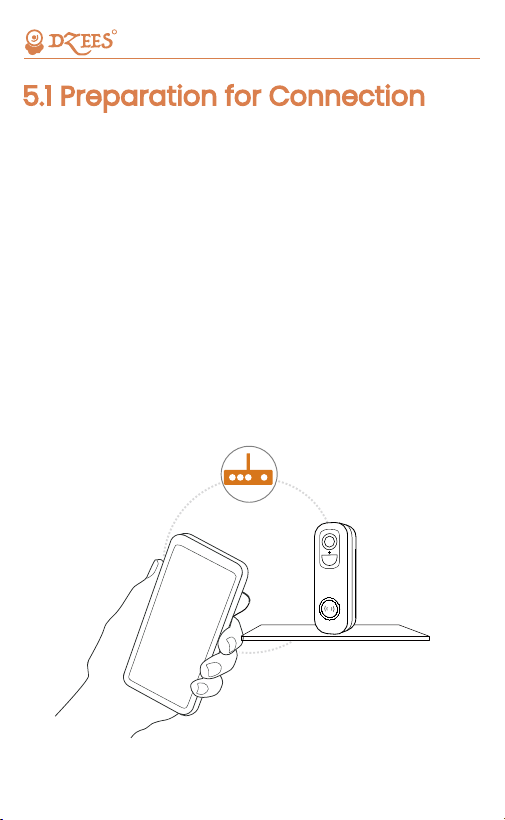
1. Insert Mirco SD card (not included) before turnon the
doorbell. We also provide 7-day free cloudstorage, the
doorbell can work without SD Card.
2. The doorbell only works with 2.4GHz Wi-Fi, not
support 5G.
3. Take the doorbell close to the router whileconnecting.
4. Keep pressing the power button for 2-4s to
power on/off the doorbell.
3
0
-
1
0
0
c
m
3
0
-
1
0
0
c
m
2.4G Wi-fi
5.1 Preparation for Connection
7
Safe, Convenient, and Scientific
R
5.2 Connect doorbell to App
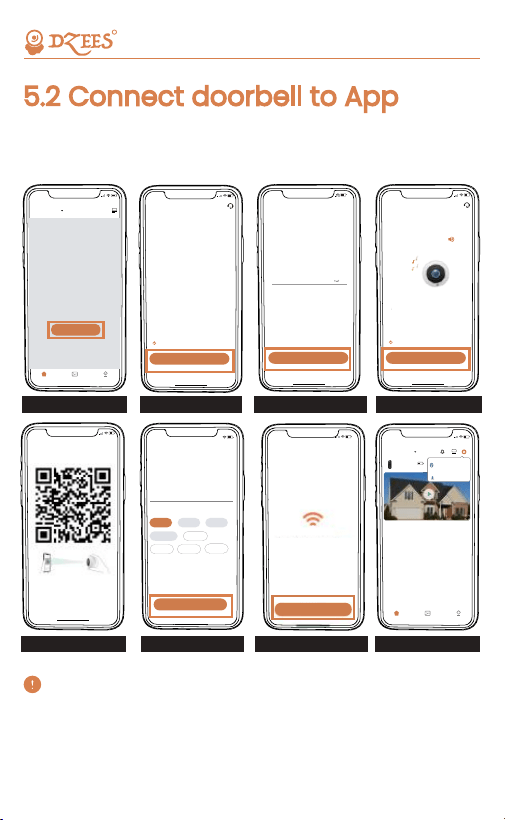
If you can't hear 'Ding Dong Ding Dong', please double-click the
power button to enter the network configuration mode again.
(1) By seaching the activated doorbell to connect
(2) By scanning the QR code to connect
Sign in Dzees Home App
Turn on doorbell
Confirm connection mode
5:45
All doorbell
Add Camera NOW!
Home Library User
No doorbell
you have not added any doorbell yet.
Add another doorbell
Check Wi-Fi signal
Name and mark
5:39
....
Set the doorbell name
and Location
Location
Doorbell Name
Smart Doorbell
Edit
Finish
Garden
Default location
Back doorFront door
Living room
Bedroom Office
+
Scan QR code
5:46
<
Continue
Scan QR code to connect
5:46
<
Next Step
Cannot turn on?
Turn on the doorbell according to
the doorbell body guide
I hear the scanning sound or see the light on.
Please press the power button or
connect a power source until you
hear a scanning sound or see the
light on.
14:04
<
Next Step
Didn't hear the scanning sound?
Confirm whether the doorbell is
emitting a beeping sound
I heard the scanning sound
"Ding Dong Ding Dong"
6-12 inches
After the connection is successful,it will
automatically jump to the next step.
5:48
All doorbell
Home Library User
Smart Doorbell
Add a new doorbell
Add Friend's Doorbell
5:46
<
Next Step
Add a new doorbell
Please enter the network name(SSID) and
Learn more
dzees
Password
5GHz Wi-Fi and enterprise Wi-Fi are not supported.
password to be connected to the camera.Currently
5:48
Next Step
Connect to 2.4GHz Wi-Fi
Please place the doorbell where you
need to install it and check the
strength of the Wi-Fi signal.
Confirm your Wi-Fi signal strength: Strong
It's recommended to mount the doorbell in the
current location.
8
Safe, Convenient, and Scientific
R
6. Connect the Chime
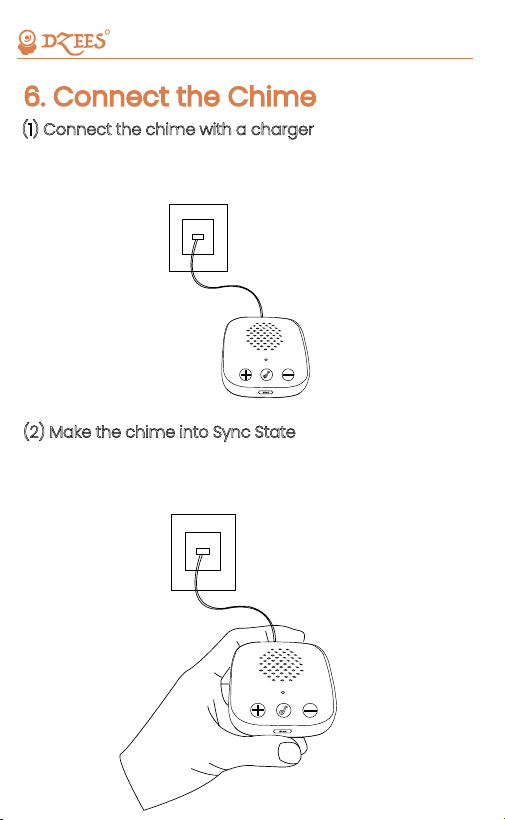
(1) Connect the chime with a charger
Connect the Chime to the power supply of 5V/1A-5V/2A,
the Chime will ring once.
(2) Make the chime into Sync State
Press and hold the "SYNC" button on the side of the
Doorbell Chime until the indicator light flashes.
9
Safe, Convenient, and Scientific
R
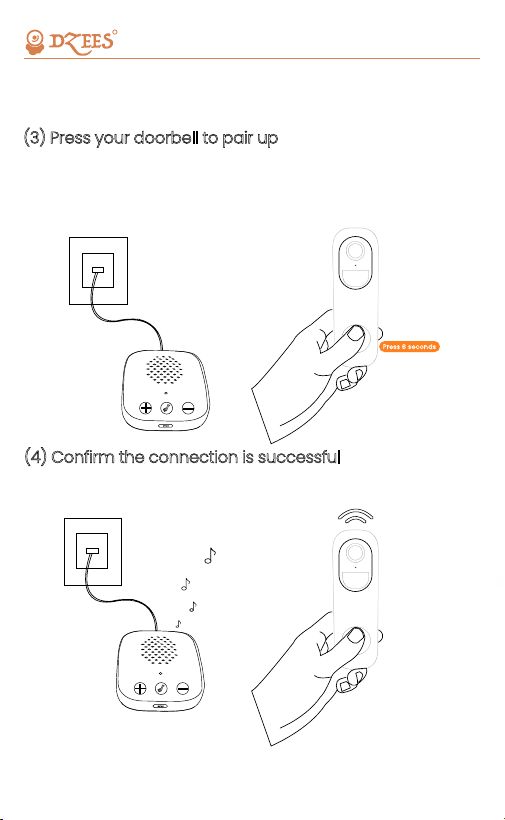
(3) Press your doorbell to pair up
Press and hold the Doorbell button for 6 seconds, the
doorbell will ring twice, abd send a connection signal
the Doorbell Chime will ring.
(4) Confirm the connection is successful
Press the doorbell button, the Chime rings.
Press 6 seconds
10
Safe, Convenient, and Scientific
R
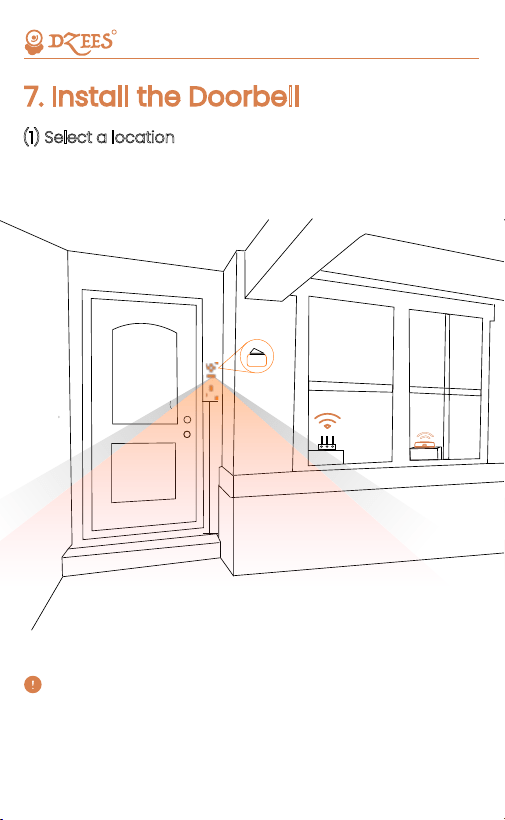
7. Install the Doorbell
Optional: If you need to see images from different angles, you can
use the 20° left and right inclined brackets as supplementary
mounting brackets for installation
.
120cm
(1) Select a location
It is suggested to mount the doorbell at least 4ft
(120cm). Make Sure it is an unobstructed view
and within the coverage area of the WiFi signal.
160°
20°
11
Safe, Convenient, and Scientific
R
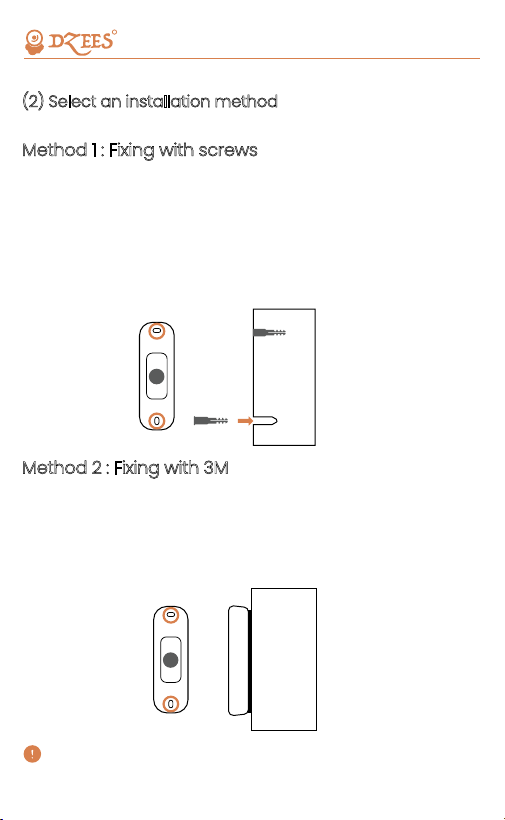
(2) Select an installation method
Method 1 : Fixing with screws
When you choose to install on a rough surface
(suchas: cement wall, brick wall, concrete, and
wooden door), first mark the screw hole positions
with brackets attached to the wall, drills to make
holes in the wall, install expansion bolts.
Method 2 : Fixing with 3M
When you choose to install on a clean and smooth
surface(such as: glass, marble, and latex surface),
clean it first, and mark the bracket the approximate
location before sticking the bracker with 3M adhesive.
TIPS: Please note that the adhesive backing will not fully sticky until
24 hours after it has been applied.
12
Safe, Convenient, and Scientific
R
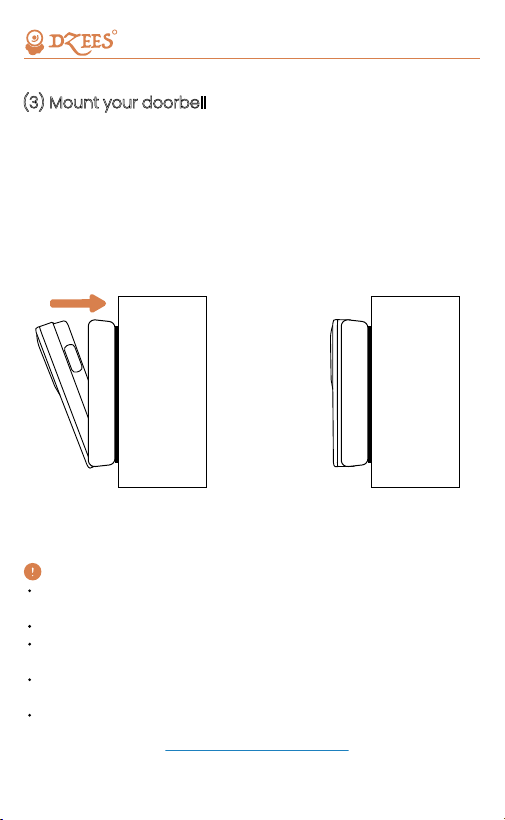
(3) Mount your doorbell
Install the lower end of the doorbell on the bottom of
the bracket, and then snap it into the bracket from
bottom to top. When you may hear a "click" sound,
the doorbell is well installed!
To reduce false alerts, please note that:
·
Do not install the doorbell in a position facingstrong lights
mirror/glasse/water.
·
Do not place the doorbell to busy traffic.
·
Recommended distance between the doorbell and motion
objects is within 5M (16ft).
·
Stay away from the outlets, including air conditioner vents,
humidifier outlets, the heat.transfer vents of the projectors, etc.
·
Fo rany qustions please contact 24/7
after-sales service:
13
Safe, Convenient, and Scientific
R
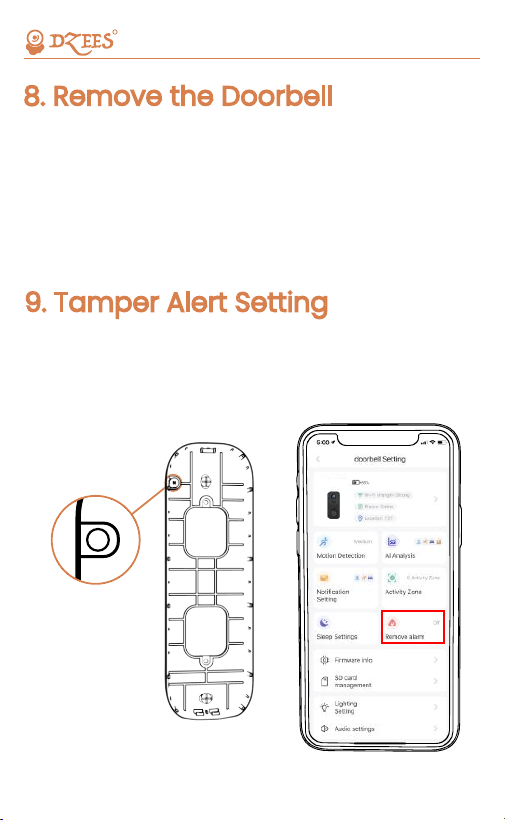
8. Remove the Doorbell
When you need to dismantle the doorbell from the
bracket, please use the removal pin to press and insert
the removal hole at the top of the doorbell, and then
take out the doorbell from the back to the front.
9. Tamper Alert Setting
The version with electronic tamper will trigger a 10s
tamper alarm when it is removed, and you can turn it
off to cancel the alarm via the App or by long pressing
the power button.
Smart Doorbell
Tamper detection button
14
Safe, Convenient, and Scientific
R
10. Battery Management
1. Battery can last 3-5 months, assuming triggering
of 20 times/day.
2. Charger Standard: DC 5V 1.5A (adapter not included).
3. It takes 8-12 hours to fully charge it. Please fully
charge the doorbell before first use.
4. The battery durability depends on how frequently
the doorbell is woken up. The more times the doorbell
is woken up, the faster the battery drains. It is
recommended to set up 'Motion Detection' sensitivity
to “Low” or turn it off if you don’t need it.
5. The battery of your doorbell may drain faster below
32°F(0°C). When you receive low-battery alert on your
App, it is suggested to recharge it INDOOR.
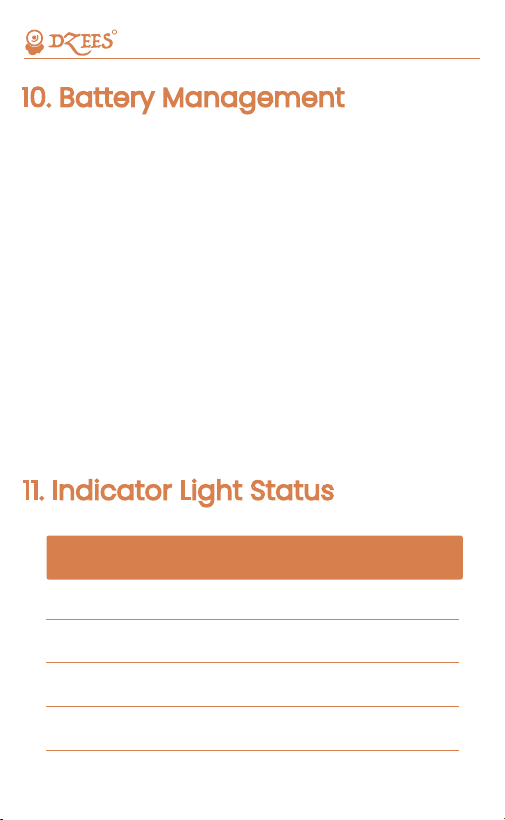
11. Indicator Light Status
Mode
Working mode
Sleep mode
Charging mode
Fully charged
Green
Status
Blue
Off
Yellow
Mode
15
Safe, Convenient, and Scientific
R
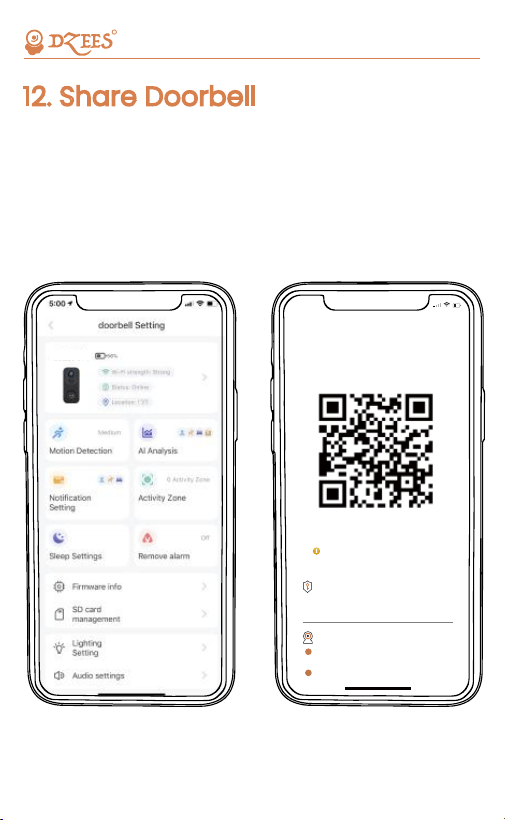
12. Share Doorbell
A is the person who shares the Doorbell; B istheperson
who is shared (must register his own account first).
1. A enter the 'Device info' page and open the QR code.
14:59
<
Please use Dzees Home APP to
scan the QR code below to add
a doorbell
QR code will expire at
Check the Live stream, playback
video clips.
The invitee needs to download and
install Dzees Home.
Permission
How to add shared doorbell?
doorbell sharing
1
Go to the APP homepage and click on
the“+”sign inthe unner right corner,
2
Smart Doorbell
16
Safe, Convenient, and Scientific
R
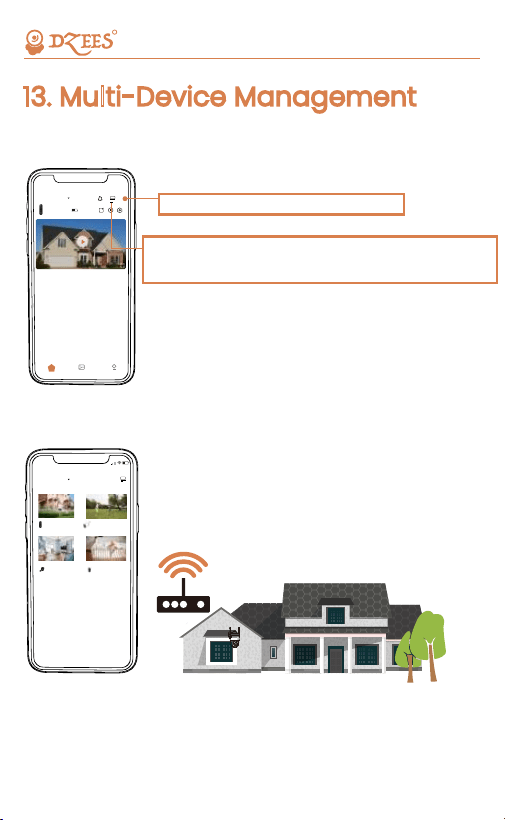
13. Multi-Device Management
With strong Wi-Fi connection you can
view multiple cameras at the same time
Split screen setting can watch live view
from multiple doorbella at the same time
Click '+' to add more devices
All Doorbell
Library User
Smart Doorbella
+
Home
All camera
Front Door
Backyard
Living Room Bedroom
Backyard
17
Safe, Convenient, and Scientific
R
Micro SD Card
15. Filter Storage
1. Insert the Micro SD card and wait for a few seconds
until you hear 'SD card detected', or you can check if the
Micro SD card is inserted successfully in 'Advanced
Setting' . If not, try it again after turning off the doorbell.
Cloud Recording
1. Cloud Recording can be subscribed on 'Dzees Home
Awareness'.
2. Subscribing Dzees awareness plan can get smarter
security. One subscription supports multiple devices
store data more secure, support one-click downloading
and sharing.
No plan
Cloud
7 days 15 days 30 days 60days
Recording
Intelligent
Notification
Activity
Zone
(≤1GB)
X
X
(≤3GB) (≤5GB) (≤10GB)
Basic Plus Pro
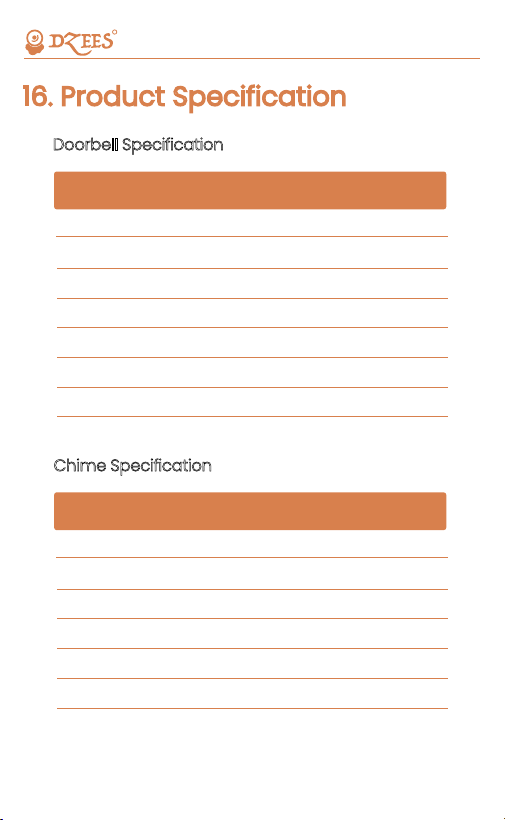
14. Doorbell Reset
1. Press reset button with the pin.
2. Double-click the power button to enter connection
mode again.
Power Button
Micro-SD Card Slot
Reset Button
18
Safe, Convenient, and Scientific
R
16. Product Specification
Item
Specification
Doorbell lens
Field of view: 160°
Video bit rate
Adaptive
Storage media
Micro SD card (Up to 128GB)
Battery capacity
5200 mAH
Adapter requirement
5V/1.5A
Resolution
2K 3MP
Size
144*46*31mm
Item
Specification
Power Port
Micro USB
Number of ringtones
5
Communication protoco
Adapter requirements
FSK
Ringtong type
Chord music
5V/1.5A
Size
65*65*20mm
Doorbell Specification
Chime Specification
19
17. Firmware Upgrade
When you connect your doorbell to the 'Dzees Home' App it will
prompt you if the latest firmware is available.You can also
manually check the firmware upgrade in the 'Advanced Setting'
of the App.
Please make sure that your doorbell is fully charged or charging while
upgrading the firmware, please do not cut off the power supply during
upgradation.
Safe, Convenient, and Scientific
R
18. FAQ
1. Q: How to share my doorbell with others?
A,1. Go to 'Home' page and click 'Share' in the upper right
corner of this page, or click 'Setting' to get to setting interface,
then click 'Share'. You will see a QR code.
2. Have him/her to download 'Dzees Home' App . Then register
his/her account on App and log in.
3. Then he/she should go to 'Home' page, click '+' and select
'Add Friend's Device'. Then scan your QR code with his/her phone.
4. You will receive a share request, then just click'Accept' to
finish sharing.
2. Q: What should I do if my doorbell cannot connect to WIFI?
A,1. Make sure the doorbell is power enough and turned on.
2. Make sure your Wi-Fi router is 2.4GHz instead of 5GHz.
3. Make sure to enter the correct Wi-Fi name and password.
4. Take doorbell and phone close to your router to ensure
strong signal.
20
3. Q: What should I do if my doorbell doesn’t work?
A,1. Please open the doorbell back cover and rubber plug, find
the 'RST' hole, insert a pin, and press it for more than 5s to
reboot the doorbell .2. Double-click the doorbell power button to
reset the doorbell and add it again.
5. Go to 'Home' page and click '+'. Click 'Add a new device' and
followthe steps till done. If you cannot connect successfully,
please contact us [email protected]. We will offer sollutions
within 24 hours.
Safe, Convenient, and Scientific
R
4. Q: What if I did not receive motion detection notification?
A,1. Go to 'Setting' page of your phone -> Notification ->
Dzees Home App -> turn on 'Notification'.
2. Go to 'Home' page of App -> Setting -> Notification ->
turn on 'Notification'.
3. Make sure to turn on the 'Motion Detection' function of the
doorbell in App.
4. Reboot your internet router and make sure a strong Wi-Fi
signal. Add your doorbell to your phone again in App.
5. Q: How to turn on the alarm?
A,1. Go to 'Home' page and click 'Setting' on upper right corner
of this page.
2.Click 'Audio Setting' to turn on 'Alarm Siren'.
7. Q: Where to find the serial number (SN) of the doorbell?
A,1. Go to 'Home' page and click 'Setting' on upper right corner
of this page.
2. View 'doorbell Info' and click 'More info', you will see the SN
number.
21
Safe, Convenient, and Scientific
R
9. Q:What if the SD card cannot be detected?
A,1. It must be a Micro SD card; at least 10 MB/S can be used
(For a Micro SD card 64GB, 128G, 30 MB/S is recommended).
2. Insert the SD card to your doorbell when it is power on. You
will hear 'SD card detected'. If no voice reminding, please
turn off your doorbell and then insert the card again. Then
turn on the doorbell and check the SD card status in App.
3. If it still cannot be detected, try formatting the SD card
and reinsert.
4. Try to use another SD card and see if it works well.
10. Q:Why does the doorbell battery drain fast?
A,1. The longer the doorbell works, the faster the battery drains.
Therefore, we suggest, if it’s possible, reduce the sensitivity of
motion detection, the time of two-way calls and watching live.
2. If you receive too many alarm notifications, please adjust
the sensitivity from 'High' to 'Low' to reduce the number of
alarms, or set the 'Activity Zone' to narrow the detection range.
3. You can adjust the installation angle of the doorbell to avoid
unnecessary alarms, to save battery power. For example,
don't let the doorbell face a sparkling swimming pool, swaying
trees, or heavy traffic, etc.
4. As you may know, battery drains faster in cold enviroment.
8. Q: What is the longest time for the doorbell to record
an
alarm video?
A,1. It records 3 minutes maximum under 'Auto' mode.
2. If you want each video to be 10s, 15s or 20s, you can set it
in App.

THANK YOU
Please Email us for Better Solution
instead of returning any unqualified product to Amazon