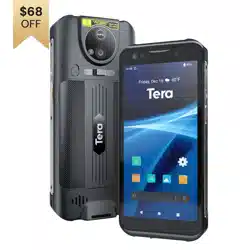
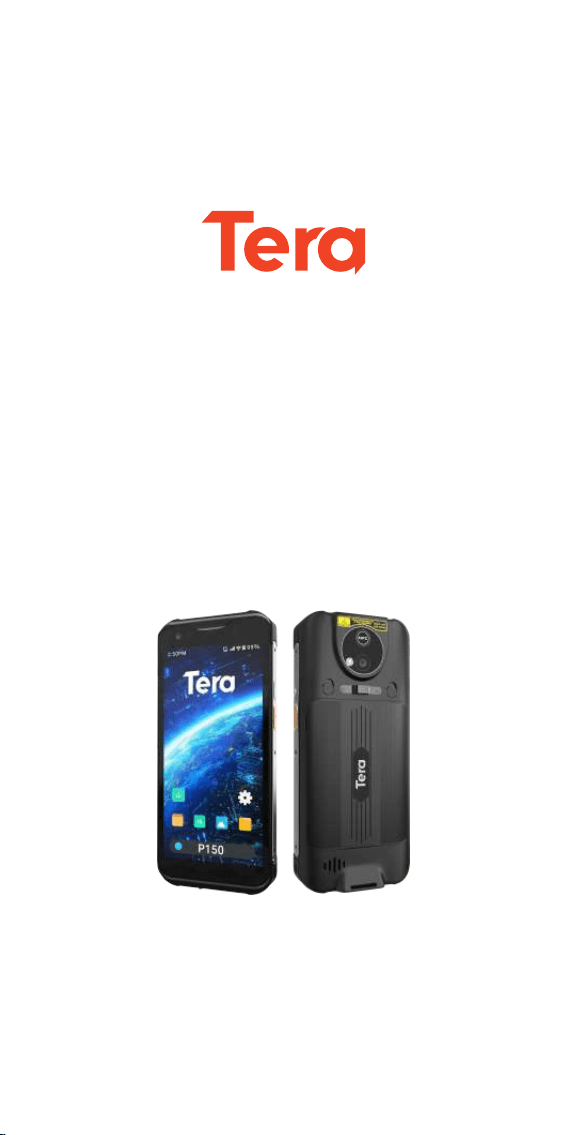
Model: P150
Mobile Data Terminal
Quick Start Guide

Please do not hesitate to contact us if you
have any questions.
Customer Service
Note:
Email: [email protected]
Phone: +1 (626) 438-1404
When contacting the Tera support, please have
the following information available:
Serial number (found on manufacturing label)
Model number (found on manufacturing label)
You can visit our official website via the link
below or by scanning the provided QR code:
https://www.tera-digital.com
Follow us:
Instagram: tera_digital
Youtube: Tera Digital
Twitter: Tera Digital
Facebook: Tera
Getting Started
Unpack Your Device
After you open the shipping carton containing the product, take
the following steps:
1. Check for damage during shipment. Report damage
immediately to us.
2. Make sure the items in the carton match your order.
3. Save the shipping container for later storage or shipping.
About the Terminal
The P150 is a handheld, high-performance terminal built on
Android, offering real-time connectivity and advanced data
capture. It provides a durable, stable, and secure foundation for
businesses to build solutions, featuring Wi-Fi radio technology,
Bluetooth wireless radio technology, and integrated Near Field
Communication (NFC) technology. The P150 also includes
front and rear-facing cameras and a USB Type-C connector for
both charging and communication. Equipped with a 2.0 GHz
octa-core processor, this device is ideal for applications in
retail, logistics, warehousing, energy, finance, transportation,
and manufacturing, helping users significantly improve work
efficiency.
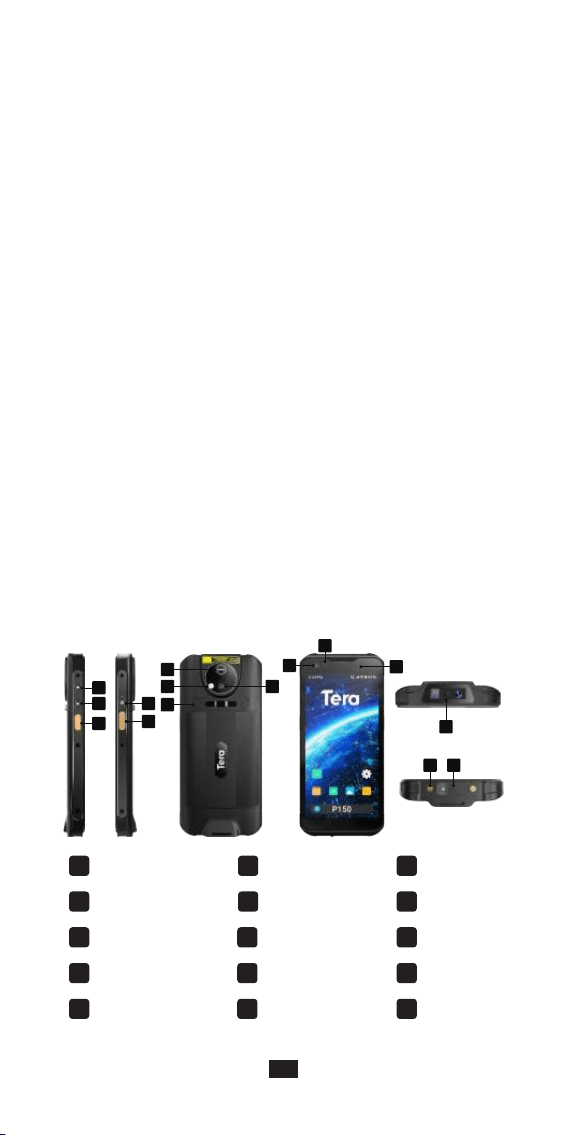
Mobile Terminal Features
Volume Up
1
NFC Antenna
6
Sensor
11
Volume Down
2
Flashlight
7
Indicator
12
Left Scan Button
3
Battery Latch
8
Scan Engine
13
Power Button
4
Rear Camera
9
I/O Connector
14
Right Scan Button
5
Front Camera
10
USB-C Port
15
The front and back views of the device are shown below:
1
2
4
5
12
9
3
13
14
11
15
6
7
10
8
1

Charge the Terminal
This device is equipped with a USB Type-C port. It is advised to
charge the terminal with the original USB cable and power
adapter.
1. Connect the USB cable to the power adatper, then to he
terminal.
2. The terminal starts to charge automatically.
You may also use the original USB Type-A to USB Type-C cable
to charge the terminal from a host device (e.g. laptop or
desktop computer). The connected host device must supply a
minimum power output of 5V, 0.5A to the terminal.
Remove the battery
1. Press and hold the Power button until the options menu
appears.
2. Tap Power off.
3. Pull down the battery latches to unlock the battery.
4. Lift up on the edge of the battery cover and remove it from
the terminal.
5. Remove the battery by pulling the tape attached to it.
About the Battery
This terminal uses a rechargeable Li-polymer battery as its
power source. Several factors determine the life of your battery,
such as display brightness, display timeout, input device,
extreme temperature, and usage.
Buttons and Description
Buttons Description
a.Press and release the Power Button to turn on/off the
terminal screen.
b.Press and hold the button for approximately 3
seconds, and then release to view the options menu.
- Power Off
- Restart
- Emergency
Power Button
Press the right or left Scan Button to trigger the scanner.Scan Button
Press the up arrow button to raise the volume or the
down arrow button to lower the volume.
Volume Button
Report missing or damaged items?
+1(626)438-1404
https://www.tera-digital.com
2
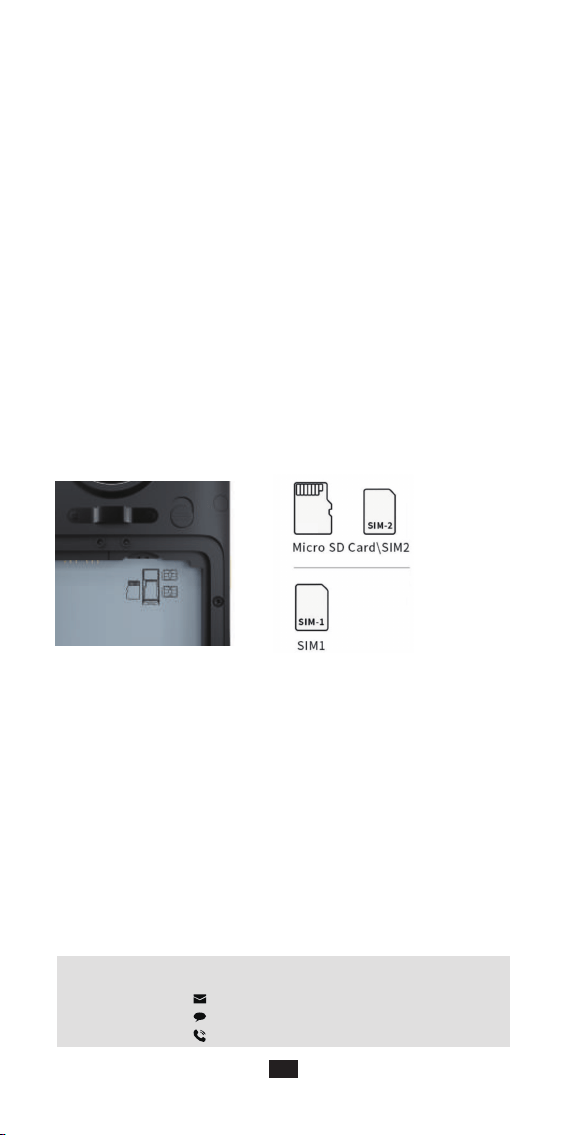
Install the SIM Card and the Micro SD Card
This model comes with a hybrid dual SIM card tray. You can
use either two nano SIM cards simultaneously or one nano SIM
card and a microSD card to increase storage capacity.
Scan a Barcode with the Keyboard Emulator
For optimum performance, avoid reflections by scanning the
barcode at a slight angle.
1. Swipe up from the bottom of the Home screen to access all
apps.
2. Touch Keyboard Emulator>Test
3. Point the terminal at the barcode.
4. Press and hold any Scan Button. Center the aiming beam
over the barcode.
5. The decode results appear on the screen.
• Do not use the battery if it is noticeably deformed, swollen, or discolored.
• Do not modify the battery or attempt to insert foreign objects into it.
• Do not solder directly to the battery contacts.
• Do not drop the battery or apply mechanical shocks or pressure to the
battery.
• Do not immerse batteries into, or expose them to, water or seawater.
• Do not incinerate, microwave, throw into a fire, or expose batteries to
temperatures above the maximum rating.
• Do not disassemble a battery or try to open or penetrate its housing.
• Do not store or carry batteries where they are in close proximity to or
touching conductive material (metal).
Caution: Improper battery replacement or incompatible device
usage may result in risk of burns, fire, explosion, or other
hazard. Dispose of lithium-ion batteries according to local
regulations. Risk of fire and burns if improperly handled. Do not
open, crush, heat above 60°C (140°F), or incinerate.
Need support?
+1(626)438-1404
https://www.tera-digital.com
3
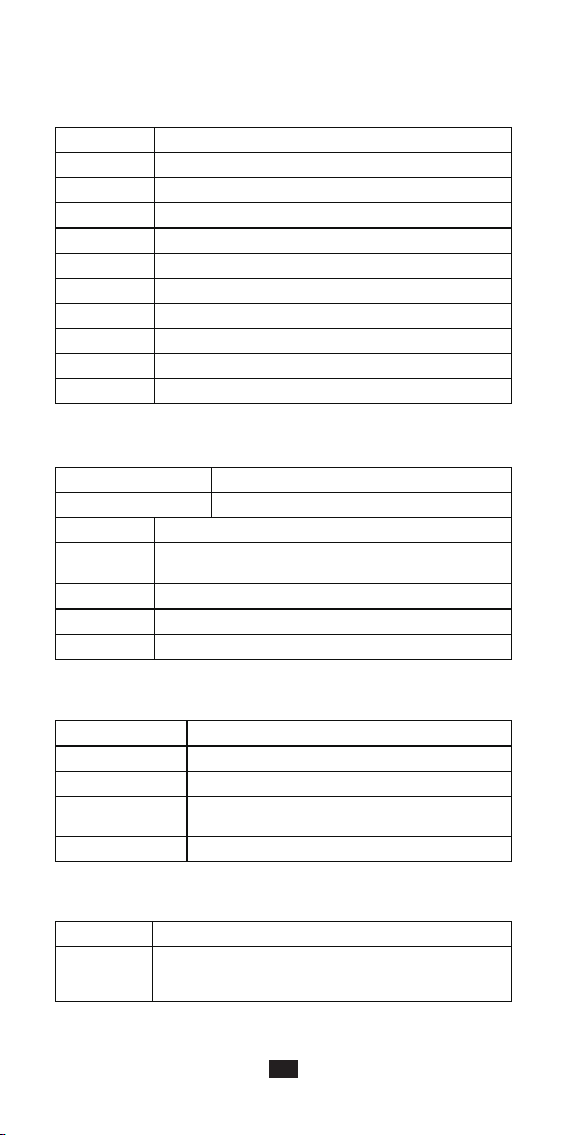
Specifications
Mechanical
Dimensions 160 x 75 x 16.4 mm/6.3 x 2.95 x 0.65 in
288g/10.16oz (battery included)
5.5 in
1400 x 720 pixels
removable 5000mAh Li-ion battery
USB Type-C, USB 2.0, OTG
1 slot for SIM card and the other slot for 1 SIM or TF card
2 microphones, 1 speaker
5mp front; 13mp rear with flash
beeper, LED, vibration
Weight
Display Size
Resolution
Battery
Interface
Card Tray
Audio
Camera
Indicator
scan buttons, volume buttons, power buttonButton
System Architecture
CPU MTK Ota-core 2.0GHz
RAM: 4GB; ROM: 64GB
Up to 256 GB with Micro SD (TF) card
13-megapixel rear camera with flash, 5-megapixel
front camera
Gravity Sensor, Proximity Sensor, Light Sensor
Memory
Storage Expansion
Camera
Sensors
Data Collection
Scan Engine Zebra SE4710
Integrated NFC reader, compliant with ISO/IEC
14443 A, ISO/IEC 14443B, ISO/IEC 15693, NFC-IP1,
NFC-IP2; read range: 2 to 4 cm (0.79 to 1.57 in)
NFC
Environmental
Operating Temperature -20℃ to 50 ℃(-4°F to 122°F)
-40℃ to 70 ℃(-22℉ to 158℉)
5%RH-95%RH(Non-condensing)
withstand multiple 1.5m (4.92ft) drops to concrete at
operating temperatures.
Exceeds 1000 0.5m (1.64ft) tumbles per IEC
Independently certified to meet IP67, IEC standards
±15 kV Air and ±8 kV Direct
Storage Temperature
Humidity
Drop
Tumble
Seal
ESD
4
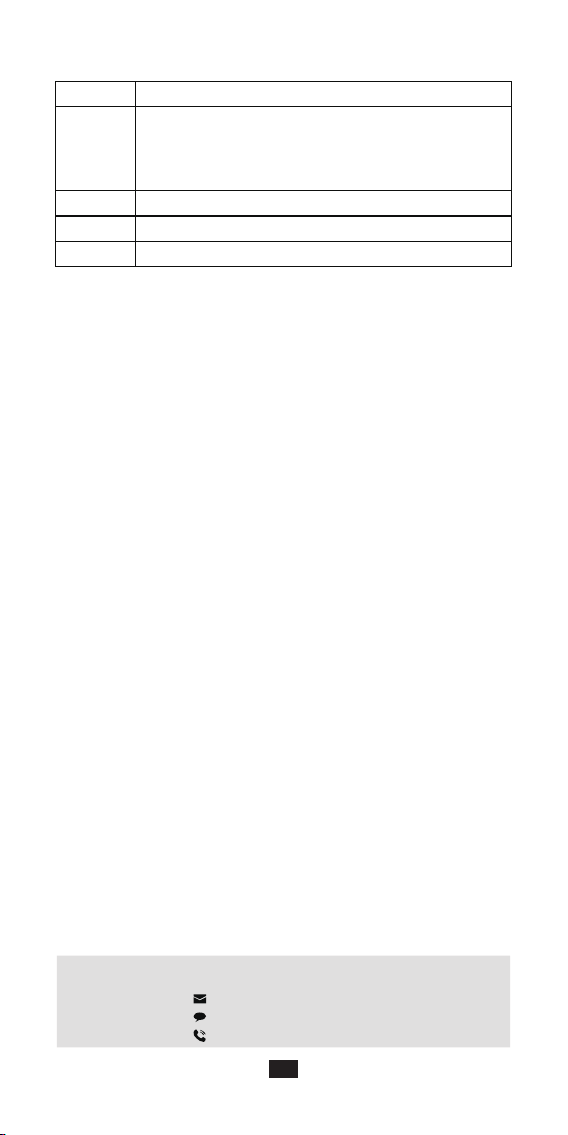
Connectivity
WLAN IEEE802.11 a/b/g/n/ac, 2.4G/5G dual band, 5G PA
2G: GSM(B2/B3/B5/B8);
3G: WCDMA (B1/B2/B4/B5/B8), TD-SCDMA(B34/B39);
4G:FDD-LTE(B1/B2/B3/B4/B5/B7/B8/B12/B17/B20/B28A/B28B);
TDD-LTE(B38/B39/B40/B41)
5.0
Supported
WWAN
Bluetooth
Vo-LTE
GPS, Beidou, GLONASS, Galileo, AGPS
GNSS
For returns, contact us!
+1(626)438-1404
https://www.tera-digital.com
5