VÍVOFIT
®
JR. 3
Owner’s Manual

© 2020 Garmin Ltd. or its subsidiaries
All rights reserved. Under the copyright laws, this manual may not be copied, in whole or in part, without the written consent of Garmin. Garmin reserves the right to change
or improve its products and to make changes in the content of this manual without obligation to notify any person or organization of such changes or improvements. Go to
www.garmin.com for current updates and supplemental information concerning the use of this product.
Garmin
®
, the Garmin logo, and vívofit
®
are trademarks of Garmin Ltd. or its subsidiaries, registered in the USA and other countries. Garmin Connect
™
, Garmin Jr.
™
, and Toe-to-Toe
™
are trademarks of Garmin Ltd. or its subsidiaries. These trademarks may not be used without the express permission of Garmin.
Android
™
is a trademark of Google Inc. Apple
®
is a trademark of Apple Inc., registered in the U.S. and other countries. The BLUETOOTH
®
word mark and logos are owned by
Bluetooth SIG, Inc. and any use of such marks by Garmin is under license. Other trademarks and trade names are those of their respective owners.
M/N: A04065

Table of Contents
Introduction......................................1
Using the Watch...................................... 1
Pairing with Your Phone......................... 1
Garmin Jr. App........................................ 2
Garmin Connect...................................... 2
Icons.........................................................2
Menu Options.......................................... 3
Sleep Tracking......................................... 5
History............................................. 5
Sending Data Manually to Your
Phone....................................................... 5
Customizing Your Watch.................. 6
App Settings............................................ 6
Device Information........................... 7
Specifications.......................................... 7
Software Update......................................7
Viewing Device Information....................8
Device Care.............................................. 8
User Replaceable Battery........................8
Replacing the Band............................... 11
Troubleshooting............................. 11
My step count doesn't seem
accurate................................................. 11
My watch does not display the correct
time........................................................ 12
Is my phone compatible with my
watch?....................................................12
Pairing Multiple Mobile Devices........... 12
How do I pair an additional watch with
the Garmin Jr. app?............................... 12
Resetting the Watch.............................. 12
My watch won't turn on.........................12
My watch won't turn on after the battery
was replaced......................................... 13
Appendix........................................ 13
Getting More Information..................... 13
Table of Contents i

Introduction
WARNING
See the Important Safety and Product Information guide in the product box for product warnings and other
important information.
Always consult your physician before you begin or modify any exercise program.
Using the Watch
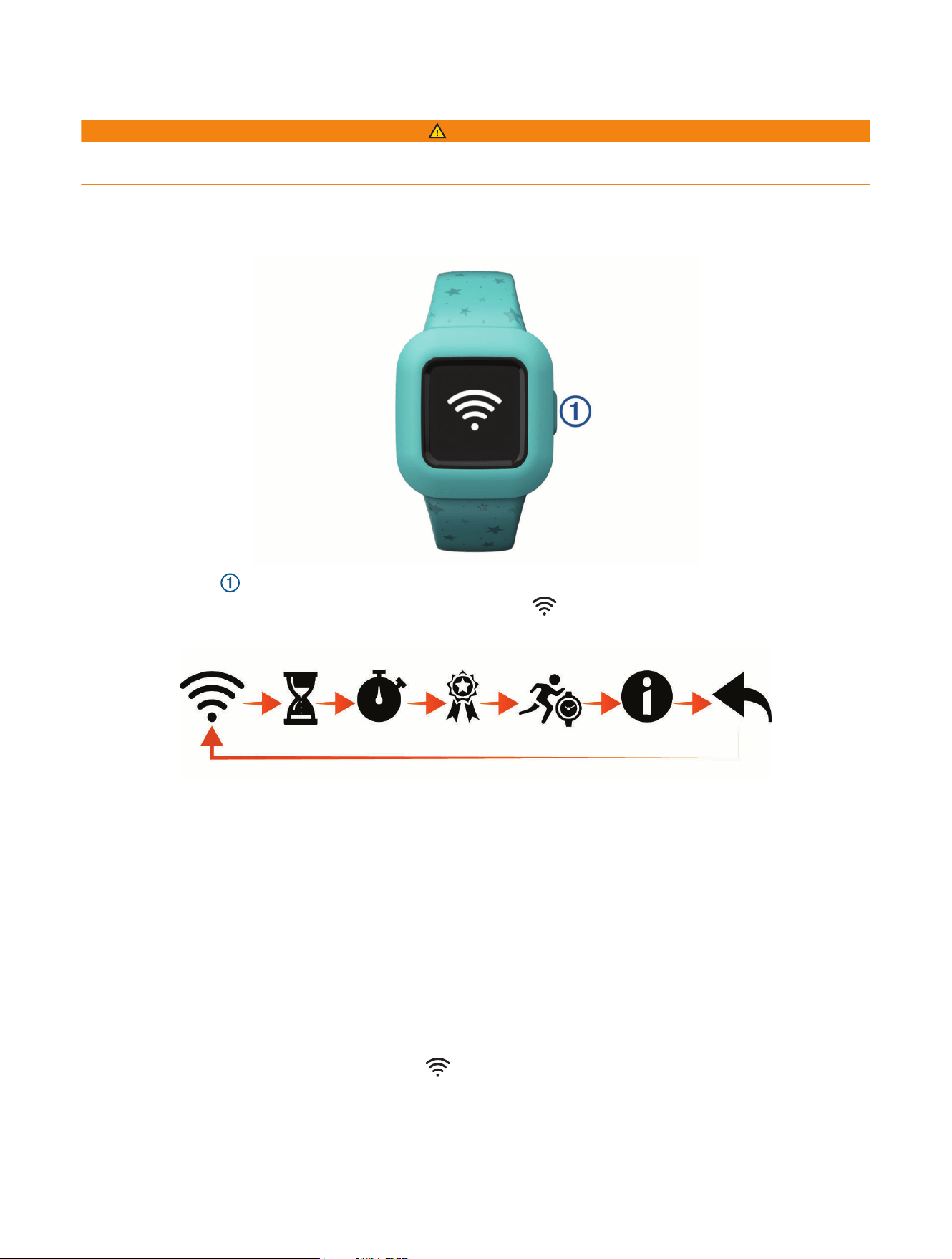
• Press the button to scroll through watch features (Icons, page2).
• Hold the button for 1 second, and release it to view the menu (Menu Options, page3).
• Press the button to scroll through menu options.
• Hold the button for 1 second, and release it to select menu options.
• Hold the button for less than 1 second to turn on the backlight.
The backlight turns off automatically.
Pairing with Your Phone
Before you can pair your vívofit jr. 3 watch with a phone, at least one parent or guardian must have a Garmin
Connect
™
account (Garmin Connect, page2).
Your watch must be paired directly through the Garmin Jr.
™
app, instead of from the Bluetooth
®
settings on your
phone.
1 From the app store on your phone, install and open the Garmin Jr. app.
2 Log on using your Garmin Connect username and password.
3 Follow the instructions in the app to set up your family and add each child.
4 On the vívofit jr. 3 watch, hold the button until appears.
The watch enters pairing mode.
5 Follow the instructions in the app to complete the setup process.
NOTE: You can pair multiple mobile devices, such as a tablet or another parent's phone (Pairing Multiple
Mobile Devices, page12).
Introduction 1
Garmin Jr. App
The free Garmin Jr. app lets you track your children's daily activity and chore progress.
Activity tracking: Allows you to track your children's daily steps, active minutes, timed activities, and sleep data.
Adventure map: Allows you to view your children's progress each day they reach the 60minute activity goal,
revealing adventures.
Challenges: Allows you to compare steps for the whole family and connections from your Garmin Connect
community.
Chore progress: Allows you to create and manage chores, award coins for chore completion, and redeem coins
for custom rewards.
More: Allows you to customize your family, update app settings, and view help topics and about information.
Rewards: Allows you to create rewards and redeem coins for rewards.
Settings: Allows you to customize the watch and user settings, including alert tones, emergency contact
information, profile pictures, and more.
Sleep tracking: Allows you to view your child's sleep statistics.
Stats: Allows you to view your child's active minutes and steps records.
Steps: Allows you to view your child's step data.
Garmin Connect
At least one parent must have a Garmin Connect account to use the Garmin Jr. app. To sign up for a free
account, go to www.garminconnect.com. Your Garmin Connect account gives you the tools to track, analyze,
share, and encourage each other. Record the events of your active lifestyle and participate in family challenges
by connecting a compatible activity tracker with your Garmin Connect account.
Icons
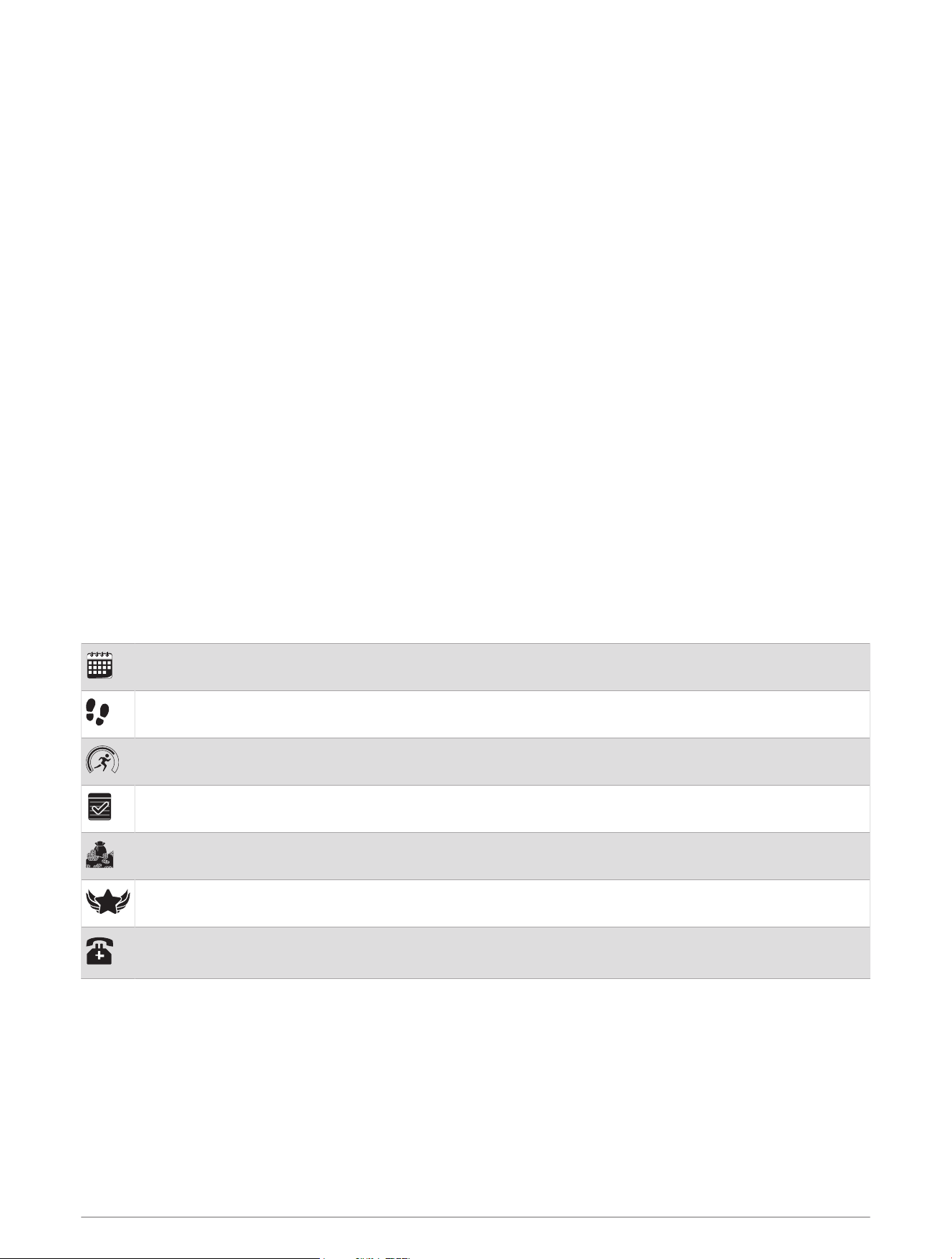
Icons represent the watch features. You can press the button to scroll through the features.
The current date. The watch updates the time and date when you send data to your phone.
The total number of steps taken for the day.
The total number of active minutes for the day and progress toward the 60 minute activity goal.
The number of chores completed and assigned for the day.
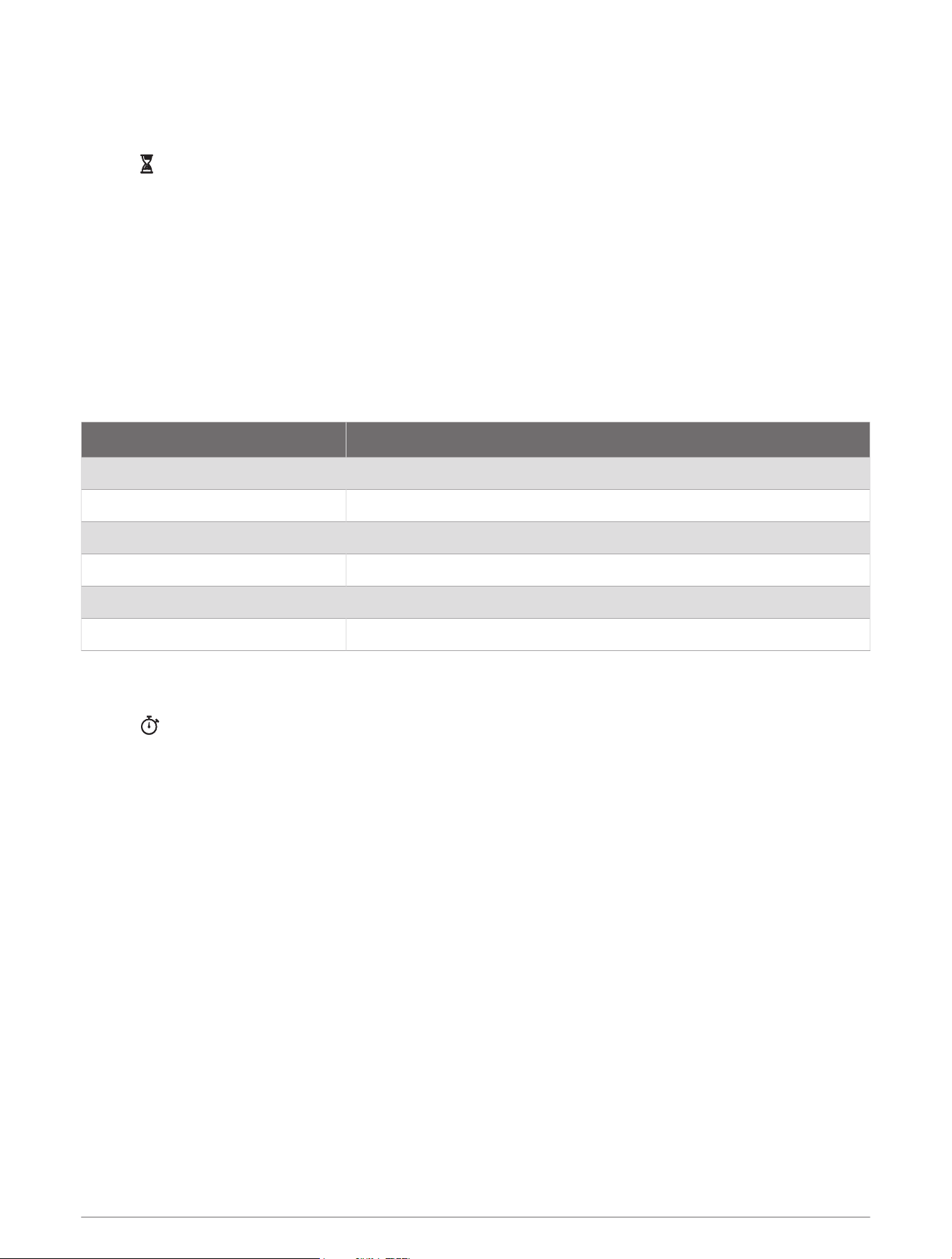
The total number of coins earned.
New level. You can earn moves and complete missions on the adventure map.
Emergency contact information. The ICE (in case of emergency) page appears after you set it up in the
Garmin Jr. app.
Activity Goal
To improve children's health, organizations such as the U.S. Centers for Disease Control and Prevention
recommend at least 60minutes of physical activity each day. This can include moderate intensity activity,
such as brisk walking, or vigorous intensity activity, such as running.
The watch encourages children to be active by displaying their progress toward the 60minute daily goal.
2 Introduction
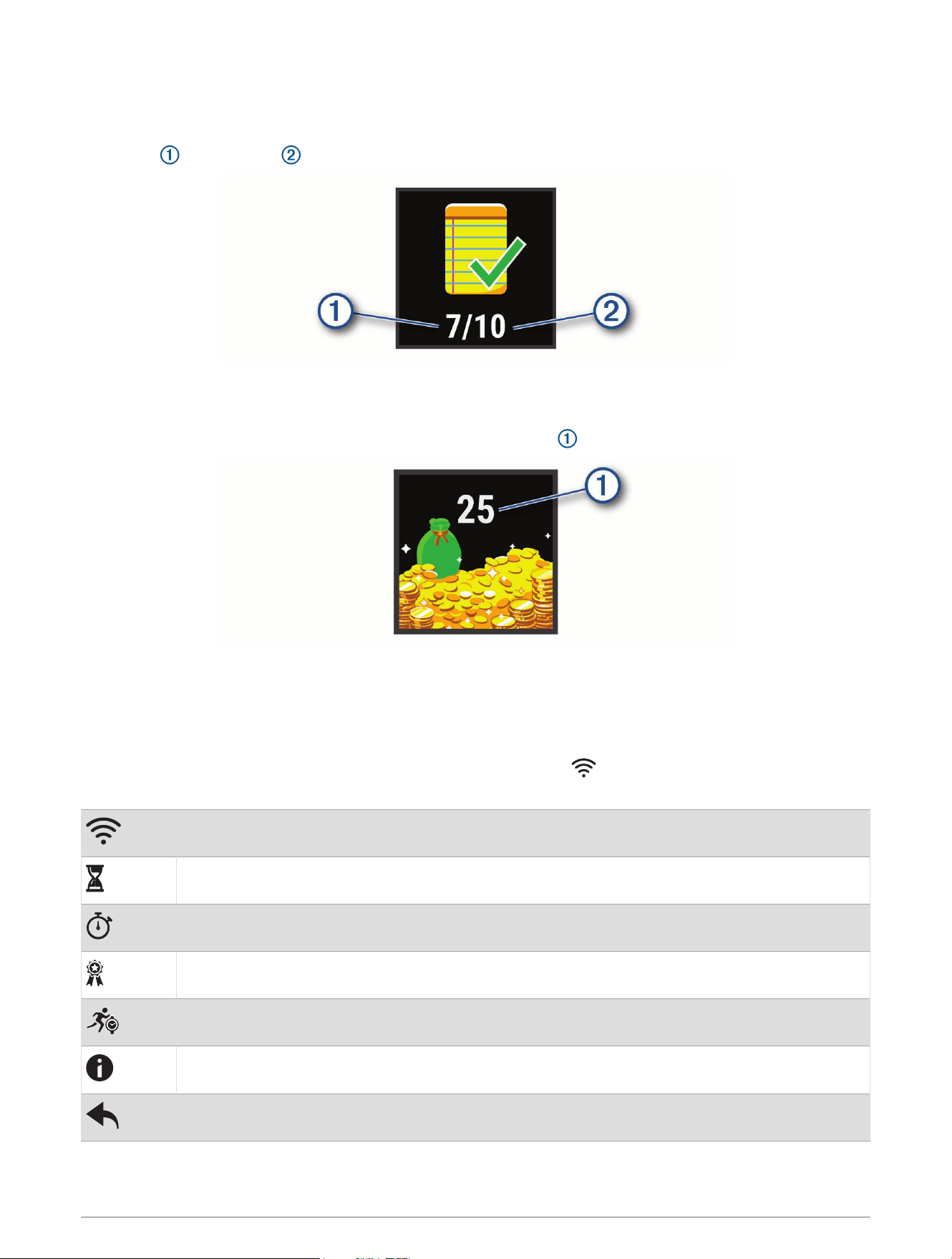
Chore Progress
You can use the Garmin Jr. app to create and assign chores, as well as update your children's chore progress.
When your vívofit jr. 3 watch is connected to a phone, the watch displays the updated number of chores
completed and assigned for the day.
Coins Earned
You can use the Garmin Jr. app to award coins for chore completion. When your vívofit jr. 3 watch is connected
to a phone, the watch displays the updated number of coins earned .
Coins can be redeemed for rewards in the Garmin Jr. app. You can use the app to create custom rewards and
set the number of coins needed to redeem a reward. When you redeem coins in the app and connect your watch
to a phone, the watch displays the updated coin total.
Menu Options
You can hold the button for 1 second, and release it to view the menu .
TIP: You can press the button to scroll through the menu options.
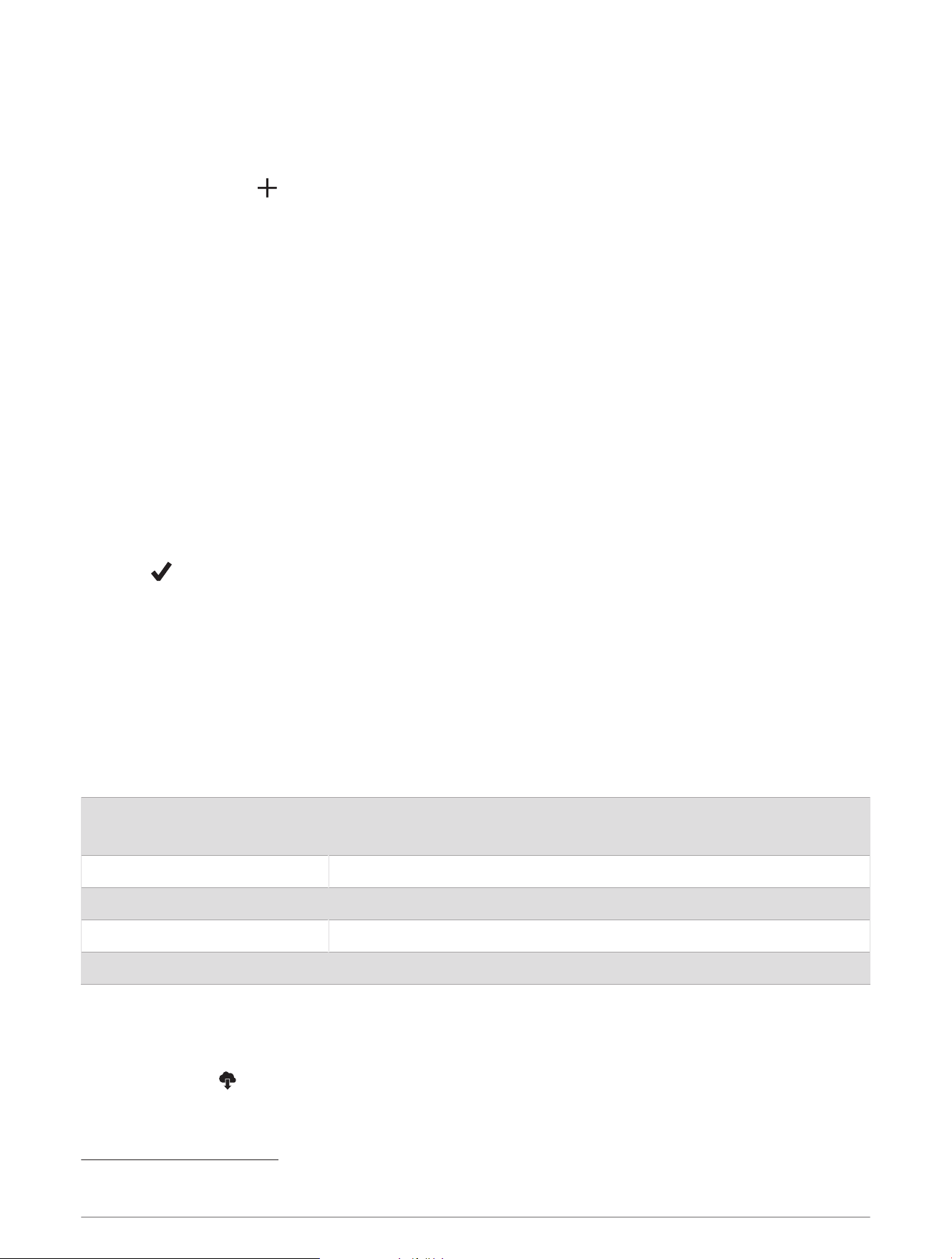
Sends data to your Bluetooth enabled phone.
Displays task timer options.
Starts the stopwatch.
Starts a Toe-to-Toe
™
challenge.
Starts a timed activity.
Displays watch information.
Returns to the previous screen.
Introduction 3
Using the Task Timer
You can use your watch to start a countdown timer.
1 Hold the button to view the menu.
2 Hold .
3 Press the button to scroll through the task timer options.
4 Hold the button to select and start a timer.
The watch beeps, the timer begins counting down, and the watch sends a notification to the nearest paired
phone. When 3seconds remain, the watch beeps until the time expires.
TIP: You can hold the button to stop the timer.
TIP: You can press the button to view the time of day and scroll back to the active timer.
Task Timer Options
Your watch comes preloaded with task timers that can be used for common activities. For example, you can use
the 2-minute timer for brushing your teeth or any other task that takes 2 minutes. Each task is timed for a preset
number of minutes.
Duration Example Activity
2min. Brushing teeth
5min. Sharing toys
10min. Finish eating
15min. Reading
20min. Lesson or practice
30min. Screen time
Using the Stopwatch
1 Hold the button to view the menu.
2 Hold .
3 Press the button to start the timer.
4 Press the button to stop the timer.
5 Hold the button.
6 Select an option.
• To reset the timer, press the button.
• To exit the timer, hold the button.
4 Introduction

Starting a Toe-to-Toe Step Challenge
You can start a 2-minute, Toe-to-Toe step challenge with yourself or with a friend.
NOTE: This procedure describes a two-player step challenge, and both players must start a challenge on
their vívofit jr. 3 watch. During a single-player challenge, the timer starts when you hold .
1 Hold the button to view the menu.
2 Hold .
3 Select to challenge another vívofit jr. 3 player in range (3 m).
4 When the player name appears, hold .
The watch counts down for 3 seconds before the timer starts.
5 Get steps for 2 minutes.
When 3 seconds remain, the watch beeps until the time expires.
6 Bring the watches in range (3 m).
The watches display the steps for each player and first or second place.
Players can start another challenge or exit the menu.
Recording a Timed Activity
You can record a timed activity, like recess or a kickball game, which can be sent to your Garmin Jr. account.
1 Hold the button to view the menu.
2 Hold .
3 Press the button to start the activity timer.
4 Start your activity.
5 Press the button to stop the activity timer.
6 Hold the button to save the timed activity.
7 Hold the button to exit the timed activity.
You can sync your watch to view activity details in the Garmin Jr. app.
Sleep Tracking
While your child is sleeping, the watch monitors their movement. You can set normal sleep hours in the Garmin
Jr. app settings. You can view sleep statistics in the Garmin Jr. app.
History
Your watch keeps track of your daily steps, sleep statistics, and timed activities. This history can be sent to your
Garmin Jr. account.
Your watch stores up to 7 timed activities and 14 days of activity tracking data. When the data storage is full,
the watch deletes the oldest files to make room for new data.
TIP: You should sync your data regularly to reduce the time required to complete a sync.
Sending Data Manually to Your Phone
Your watch periodically sends data automatically to the nearest paired Bluetooth device. You can also manually
send data at any time. This allows you to view activities, chores, and coins in the Garmin Jr. app.
1 Bring the watch near your phone.
2 Open the Garmin Jr. app.
3 On the vívofit jr. 3 watch, hold the button to view the menu .
appears while the watch is sending data.
4 On your phone, swipe down to refresh the app.
History 5

Customizing Your Watch
App Settings
You can customize your family and app settings in the Garmin Jr. app. You can also customize user and safety
settings.
From the Garmin Jr. app, select More.
Family: Allows you to customize your family settings. For example, you can edit your family name or invite
additional parents or guardians.
App settings: Allows you to set the Garmin Jr. app to kid mode, customize notifications, turn music and sound
effects on or off, and sign out of your account.
Help: Includes watch fit and care, videos, and other helpful information.
About: Allows you to view version and legal information.
Pair a new Garmin device: Allows you to replace a watch for an existing child or add a new watch for a new
child.
Kid Settings
From the Garmin Jr. app, select your child, and select Settings.
Edit Profile: Allows you to customize your child's profile information. You can set the child's name, avatar,
background color, bed time, wake time, birth date, and gender.
Display text: Allows you to change the name displayed on the watch face.
Watch faces: Allows you to select a watch face for the watch.
Steps icons: Allows you to select an image to display above the steps icon on the watch.
ICE: Allows you to configure the contact information that displays on the ICE page.
Alarms: Allows you to set an alarm to send to the watch.
Sounds: Enables or disables sounds on the watch, aside from timers and alarms.
Daily steps goal: Allows you to update the daily step goal.
Custom stride length: Allows you to set custom stride lengths for walking and running.
Time format: Allows you to select the time format for the watch.
Date format: Allows you to select the date format for the watch.
Device details: Allows you to view the model, software version, serial number, and owner's manual.
Pairing: Allows you to register an accessory band, pair a new watch, or unpair the current watch.
Adding Members to a Garmin Jr. Family
Before you can add members to a Garmin Jr. family, each user must have or create a Garmin Connect account.
1 From the Garmin Jr. app, select More > Family > Invite member.
2 Enter the email address that is associated with the user's Garmin Connect account.
3 Select an option:
• Select Guardian to allow the user to view and interact with the family and modify kid settings.
• Select Caregiver to allow the user to view and interact with the family.
4 Select Continue > Send invitation.
The user receives an email invitation to join your Garmin Jr. family.
NOTE: The user's email address appears on the Pending Invitations list until the invitation is accepted. You
can resend or cancel the invitation before it is accepted.
6 Customizing Your Watch
Inviting People with the Garmin Jr. App
Each person must have or create a Garmin Connect account.
You can invite people to include on your family's daily and weekly steps leaderboards.
1 From the Garmin Jr. app, select More > Family > Connections.
2 Select Find People or .
3 Select an option:
• Enter a name or email to search for a person.
• Select Your Contacts to choose a person from your contacts.
4 Select the person, and select Connect > OK.
The person receives an email invitation to connect with your family.
Using Kid Mode
You can enable kid mode in the Garmin Jr. app to allow a child to mark chores as complete and redeem rewards
without parent or guardian approval. You can also use facial recognition on your phone in place of a passcode
to unlock the kid mode settings.
1 From the Garmin Jr. app, select More > App settings > Kid Mode.
2 Turn on kid mode.
3 If necessary, select options to customize kid mode.
4 If necessary, select Change Passcode to change the passcode.
NOTE: The passcode is required to access certain features in the Garmin Jr. app when kid mode is turned
on. The default passcode is 0000.
5 Select .
Deleting a Profile
1 From the Garmin Jr. app, select Home.
2 Select your child.
3 Select Settings > Edit Profile > Delete profile.
Device Information
Specifications
Battery type
User-replaceable CR2025 battery, 3 V
TIP: To replace the battery, go to Replacing the Battery, page9.
Battery life Up to 1yr.
Operating temperature range From -15º to 45ºC (from 5º to 113ºF)
Radio frequency Bluetooth technology, 2.4 GHz @ 2 dBm nominal
Water rating 5ATM
1
Software Update
When a software update is available, your watch automatically downloads the update when you send data to
your phone (Sending Data Manually to Your Phone, page5).
A progress bar and appear on the vívofit jr. 3 watch during the update process. The update can take several
minutes. You should keep the watch near your phone during the update. When the update is complete, your
watch restarts.
1
The device withstands pressure equivalent to a depth of 50m. For more information, go to www.garmin.com/waterrating.
Device Information 7
Viewing Device Information
You can view the unit ID and software version.
1 Hold the button to view the menu.
2 Hold .
Device Care
NOTICE
Avoid extreme shock and harsh treatment, because it can degrade the life of the product.
Avoid pressing the buttons under water.
Do not use a sharp object to clean the device.
Avoid chemical cleaners, solvents, and insect repellents that can damage plastic components and finishes.
Thoroughly rinse the device with fresh water after exposure to chlorine, salt water, sunscreen, cosmetics,
alcohol, or other harsh chemicals. Prolonged exposure to these substances can damage the case.
Do not place in high temperature environments, such as a clothes dryer.
Do not store the device where prolonged exposure to extreme temperatures can occur, because it can cause
permanent damage.
Cleaning the Watch
CAUTION
Some users may experience skin irritation after prolonged use of the watch, especially if the user has sensitive
skin or allergies. If you notice any skin irritation, remove the watch and give your skin time to heal. To help
prevent skin irritation, ensure the watch is clean and dry, and do not overtighten the watch on your wrist.
TIP: For more information, go to www.garmin.com/fitandcare.
1 Rinse with water, or use a damp lint-free cloth.
2 Allow the watch to dry completely.
User Replaceable Battery
WARNING
See the Important Safety and Product Information guide in the product box for product warnings and other
important information.
8 Device Information
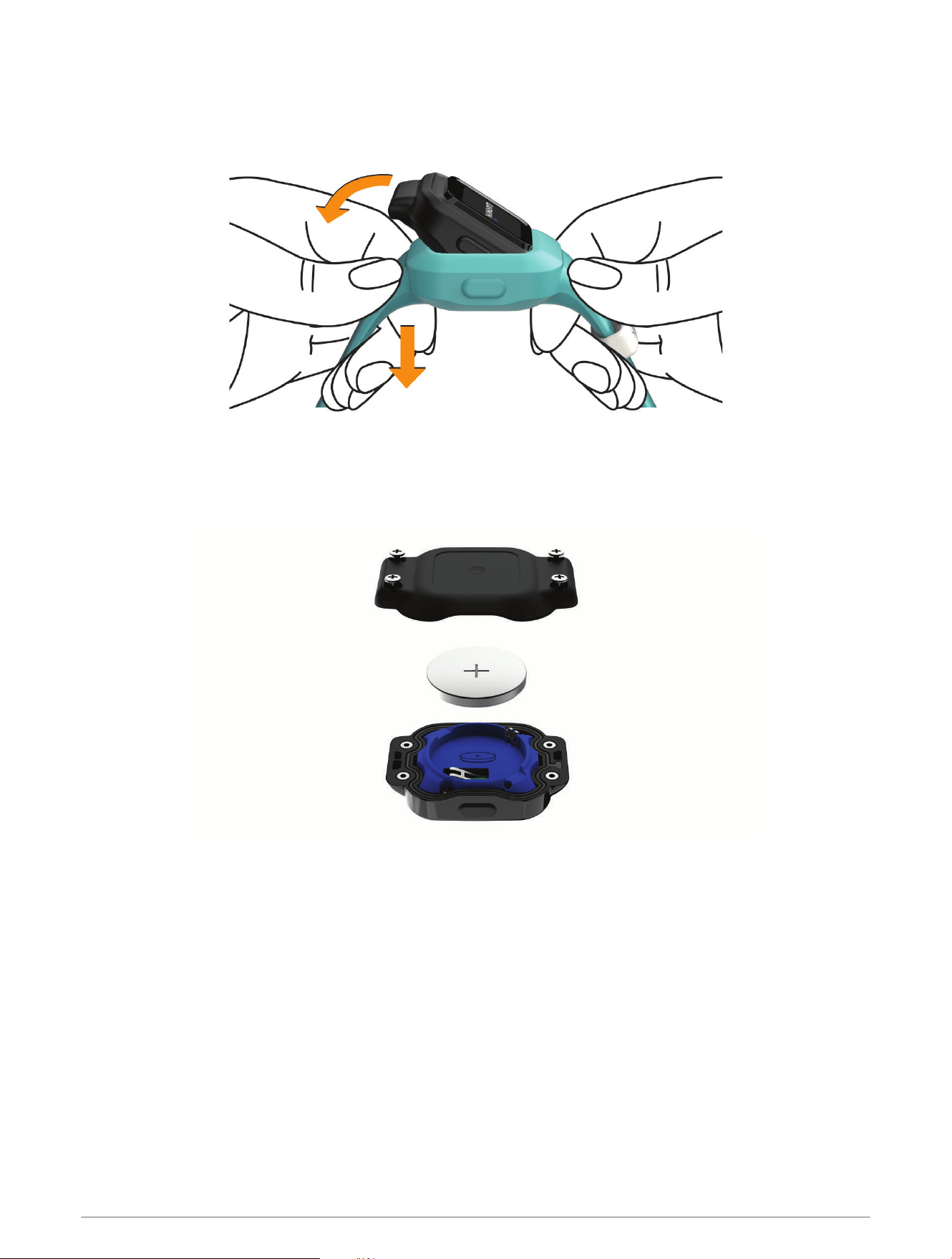
Replacing the Battery
The watch uses one CR2025 battery.
1 Remove the watch from the band.
2 Use a small screwdriver to loosen the four screws (Torx) on the back of the watch.
NOTE: Devices produced before October 2024 may use Phillips screws.
3 Remove the rear case and battery.
4 Insert the new battery with the positive side facing the rear case.
5 Verify the gasket is not damaged and that it is fully seated in the front case.
6 Replace the rear case.
7 Tighten the four screws equally and firmly.
Device Information 9
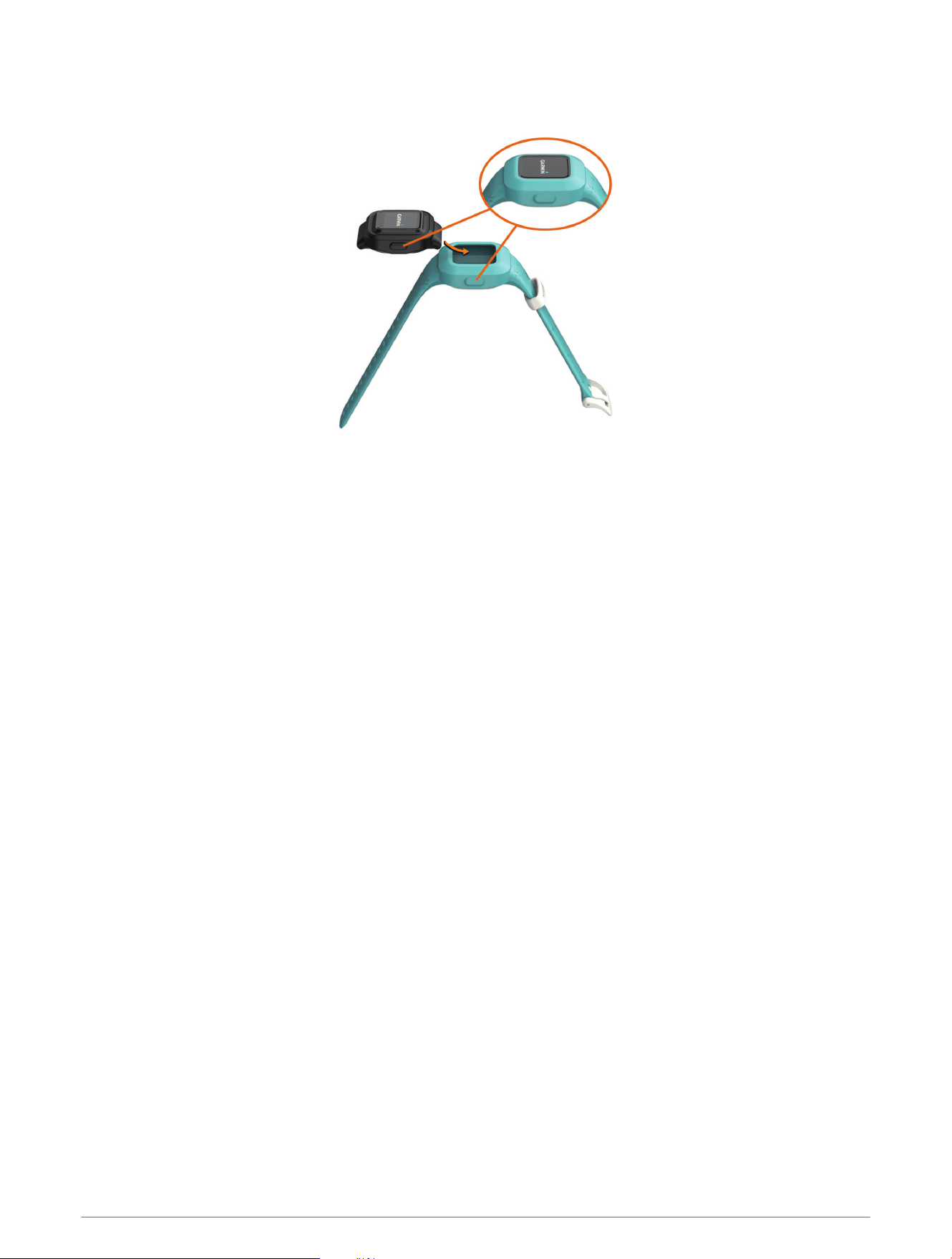
8 Insert the watch into the flexible silicone band by stretching the band material around the watch.
The watch button must be aligned with the button insert on the side of the band.
9 Press the button to turn on the watch.
10 Device Information
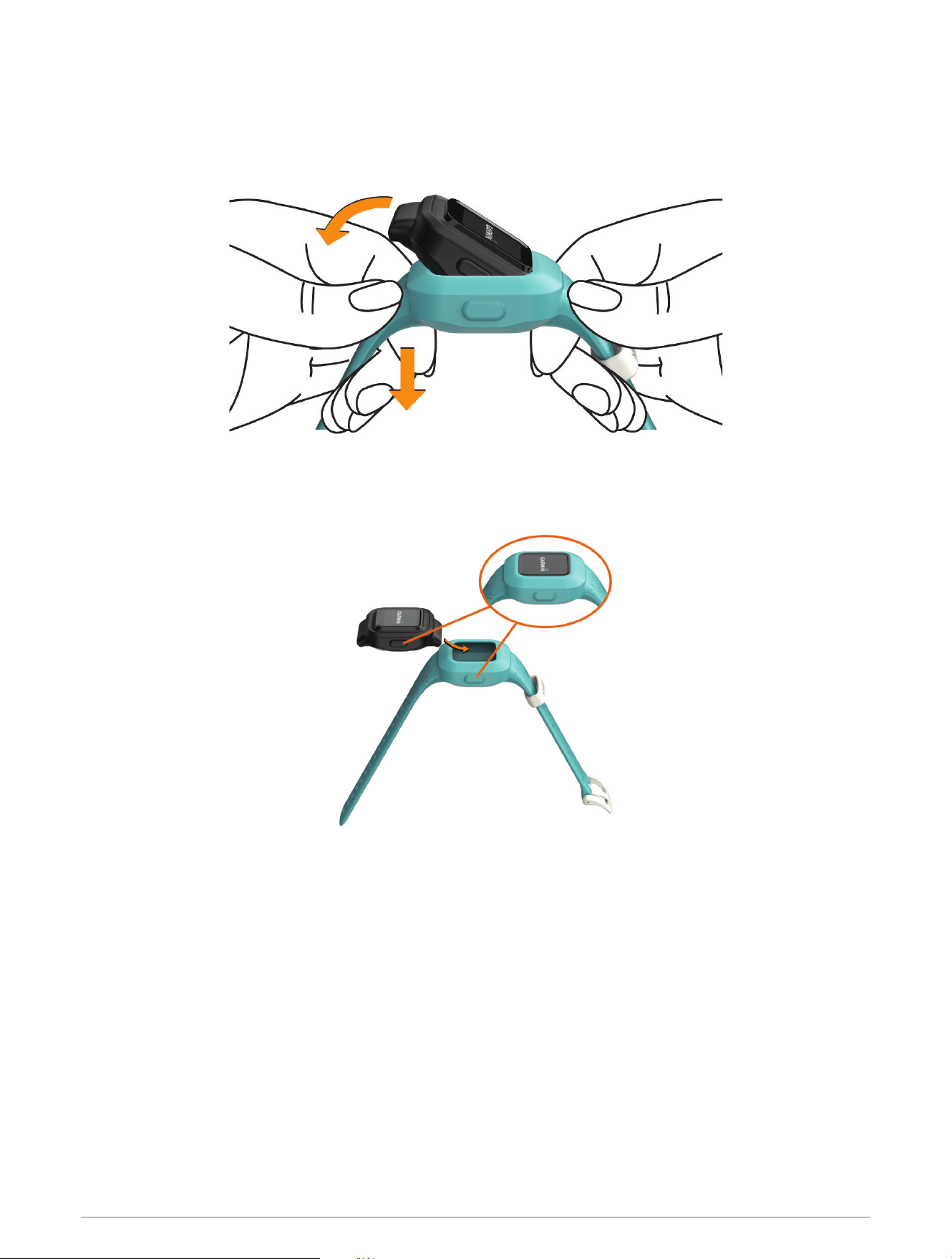
Replacing the Band
The adjustable band is designed to fit children 4 and older. Go to buy.garmin.com, or contact your Garmin
®
dealer for information about optional accessories and replacement parts.
1 Remove the watch from the band.
2 Insert the watch into the flexible silicone band by stretching the band material around the watch.
The watch button must be aligned with the button insert on the side of the band.
Troubleshooting
My step count doesn't seem accurate
If your step count doesn't seem accurate, you can try these tips.
• Go to http://garmin.com/ataccuracy.
• Wear the watch on your non-dominant wrist.
• Carry the watch in your pocket when actively using your hands or arms only.
NOTE: The watch may interpret some repetitive motions, such as clapping your hands or brushing your teeth,
as steps.
Troubleshooting 11

My watch does not display the correct time
The watch updates the time and date when you send data to your phone. You should manually send data to your
phone to receive the correct time when you change time zones, and to update for daylight saving time.
1 Confirm that your phone or mobile device displays the correct local time.
2 Send data to your phone (Sending Data Manually to Your Phone, page5).
The time and date are updated automatically.
Is my phone compatible with my watch?
The vívofit jr. 3 watch is compatible with phones for Android
™
and Apple
®
mobile digital devices using Bluetooth
technology.
Pairing Multiple Mobile Devices
After you complete the initial setup (Pairing with Your Phone, page1), you can pair your vívofit jr. 3 watch with up
to two additional mobile devices, such as a tablet or another parent's phone.
1 From the app store on your phone or tablet, install and open the Garmin Jr. app.
2 Log on using your Garmin Connect username and password.
3 Follow the instructions in the app to join an existing family.
4 Bring your mobile device within 3m (10ft.) of your vívofit jr. 3 watch.
NOTE: Stay 10m (33ft.) away from other mobile devices while pairing.
5 If necessary, turn off Bluetooth wireless technology on previously paired mobile devices.
6 On the vívofit jr. 3 watch, hold the button to view the menu.
7 Hold to enter pairing mode.
8 Follow the instructions in the app to complete the pairing process.
9 If necessary, repeat steps 1 through 8 for each additional mobile device.
How do I pair an additional watch with the Garmin Jr. app?
If you have already paired a watch with the Garmin Jr. app, you can add a new child and watch from the kid
menu. You can pair up to eight watches.
NOTE: You must remove a watch from a child before adding a new watch for that child.
1 Open the Garmin Jr. app.
2 Select Home > > Add a new child or device.
3 Select an option:
• To add a new watch for an existing child, select the child.
• To add a new watch for a new child, select New kid.
4 Follow the on-screen instructions.
Resetting the Watch
If the watch stops responding, you may need to reset it. This does not erase any of your data.
1 Hold the button until the watch powers off.
2 Press the button to turn on the watch.
My watch won't turn on
If your watch no longer turns on, you may need to replace the battery.
Go to Replacing the Battery, page9.
12 Troubleshooting

My watch won't turn on after the battery was replaced
If your watch does not turn on after you replace the battery, you can try these tips.
• Make sure you installed a new CR2025 battery that was purchased from a high-quality manufacturer and a
reputable vendor.
• Make sure the positive side of the battery is facing the rear case.
• Make sure you press the button to turn the watch on.
Appendix
Getting More Information
• Go to support.garmin.com for additional manuals, articles, and software updates.
• Go to buy.garmin.com, or contact your Garmin dealer for information about optional accessories and
replacement parts.
Appendix 13

support.garmin.com
GUID-BE237499-CE69-4300-B563-57DAA26CF813 v4October 2024