User Manual
KOORUI Monitor
Product Manual
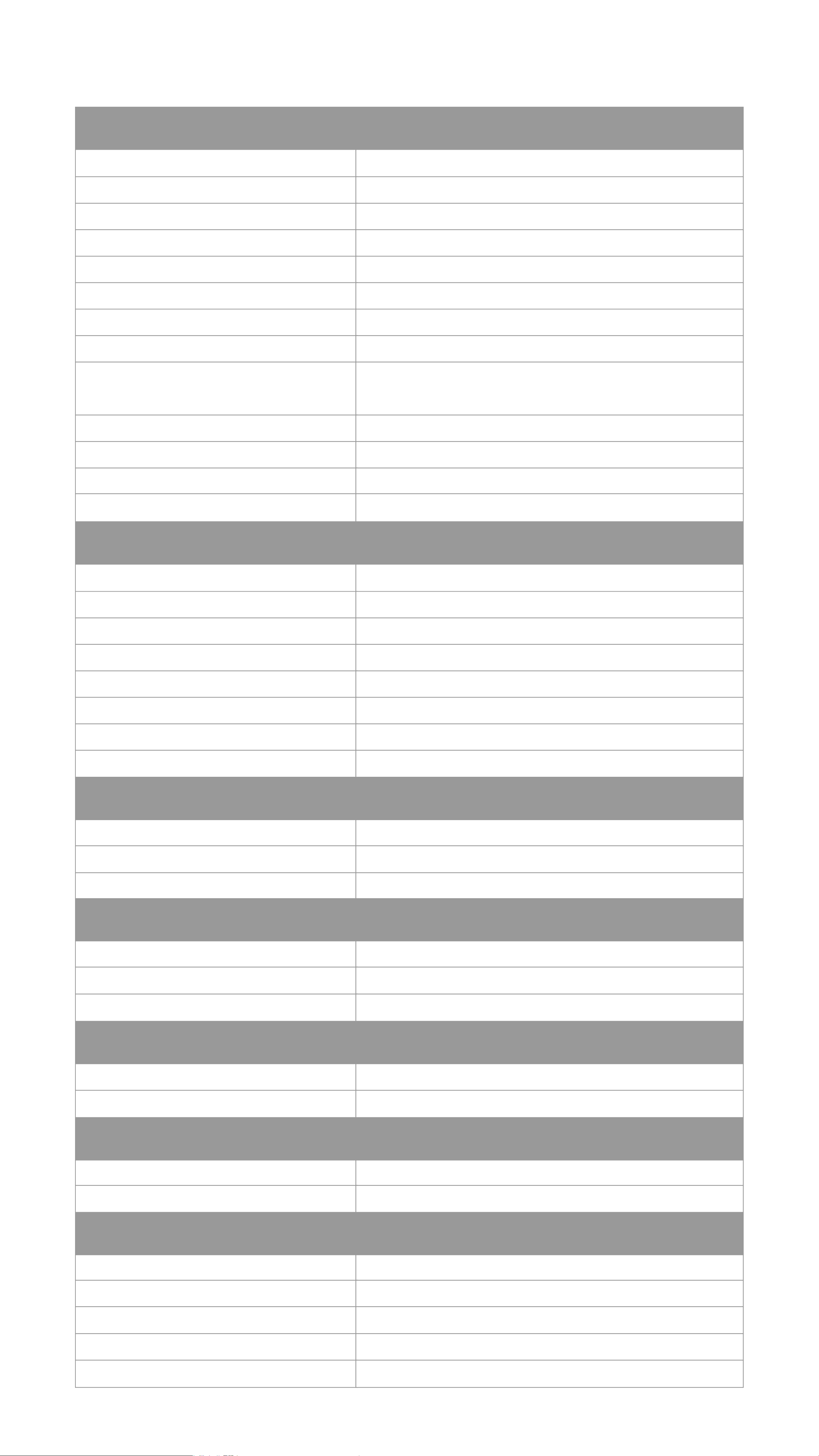
MODEL 24E3
Display
Screen Form
Screen Size
Response Time(G/G)
Display Color
Image Ratio
Perspective(typ.)
Resolution
Pixel Distance
Maximum Refresh Rate
Viewing Angle(Horizontal/Vertical)
Static Contrast
Dynamic Contrast
Color Gamut
FLAT, IPS
23.8 Inches
1ms(OD)
16.7M Colors
16: 9
250cd/m
2
1920*1080
0.2745 mm x 0.2745 mm
HDMI:144Hz
DP:165Hz (MAX)
178°/178°
1000:1
20000000:1
72% (NTSC1976)
Product 3D Display
With Bracket
Without Bracket
Product Packaging
541.9×437.7×214.9 mm, 21.3×17.2×8.5 inch
541.9×322.3×60.4 mm, 21.3×12.7×2.4 inch
612×151×409 mm, 24.1×5.9×16.5 inch
Inputs
DP 1.2
HDMI 1.4
1
2
Environment
Working Temperature
Storage Temperature
Working Humidity
Storage Humidity
Altitude
0-40℃
-20~60℃
10%~80%
5%~95%
Below 5000m
Weight
Product Weight (with bracket)
Package Weight
3.06KG, 6.75lbs
4.49KG, 9.9lbs
Features
Output Model Type
Language
Eye Saver Mode
Monitor Bracket
Wall-Mount(Size)
Free Sync
Timer
Output:Audio / Headphone(3.5mm)
Digital Signal
English, Chinese, German,Japanese, Italian, French (optional)
YES
Detachable
75mm×75mm(M4 x 7mm screws not included)
YES
YES
1
Physical Properties
Power Type
Input Current
Power consumption
AC power cord
AC 100-240V,50/60HZ
Boot≤30W, Sleep≤0.5W

Table of contents
ChapterⅠAttention
Safety Precautions
Storage Precautions
Product Placement Space
Protection Recommendations
Product Pick-and-Place
1.1
1.2
1.3
1.4
1.5
Product Accessories
Bracket Installation
Monitor Disassembly
Interface Description
Adjust Product Inclination
Anti-theft Lock
2.2.1
2.2.2
2.3.1
2.3.2
Self-contained Base Installation
VESA Bracket Installation
VESA Bracket Removal Diagram
Disassembly Diagram of the Base
4.1.1
4.1.2
Resolution setting
Refresh rate setting
2.1
2.2
2.3
2.4
2.5
2.6
Chapter Ⅱ Preparation Before Use
Chapter Ⅲ OSD Function
Resolution and Refresh Rate Setting
Monitor Extension Application
Display Sound Settings
Display Orientation Settings
4.1
4.2
4.3
4.4
Chapter Ⅳ Common Applications
···························································· 01
·························································· 01
················································ 02
··········································· 02
····················································· 03
································ 16
······························································ 16
····························································· 16
··········································· 16
····················································· 16
·············································· 17
··········································· 11
Chapter Ⅴ Q&A
································································ 17
··························· 16
························································ 01
························ 04
························································· 04
···························································· 04
················································ 04
······················································ 05
························································· 06
·············································· 06
············································· 07
························································· 08
·················································· 09
··································································· 10
ChapterⅠAttention
Safety Precautions1.1
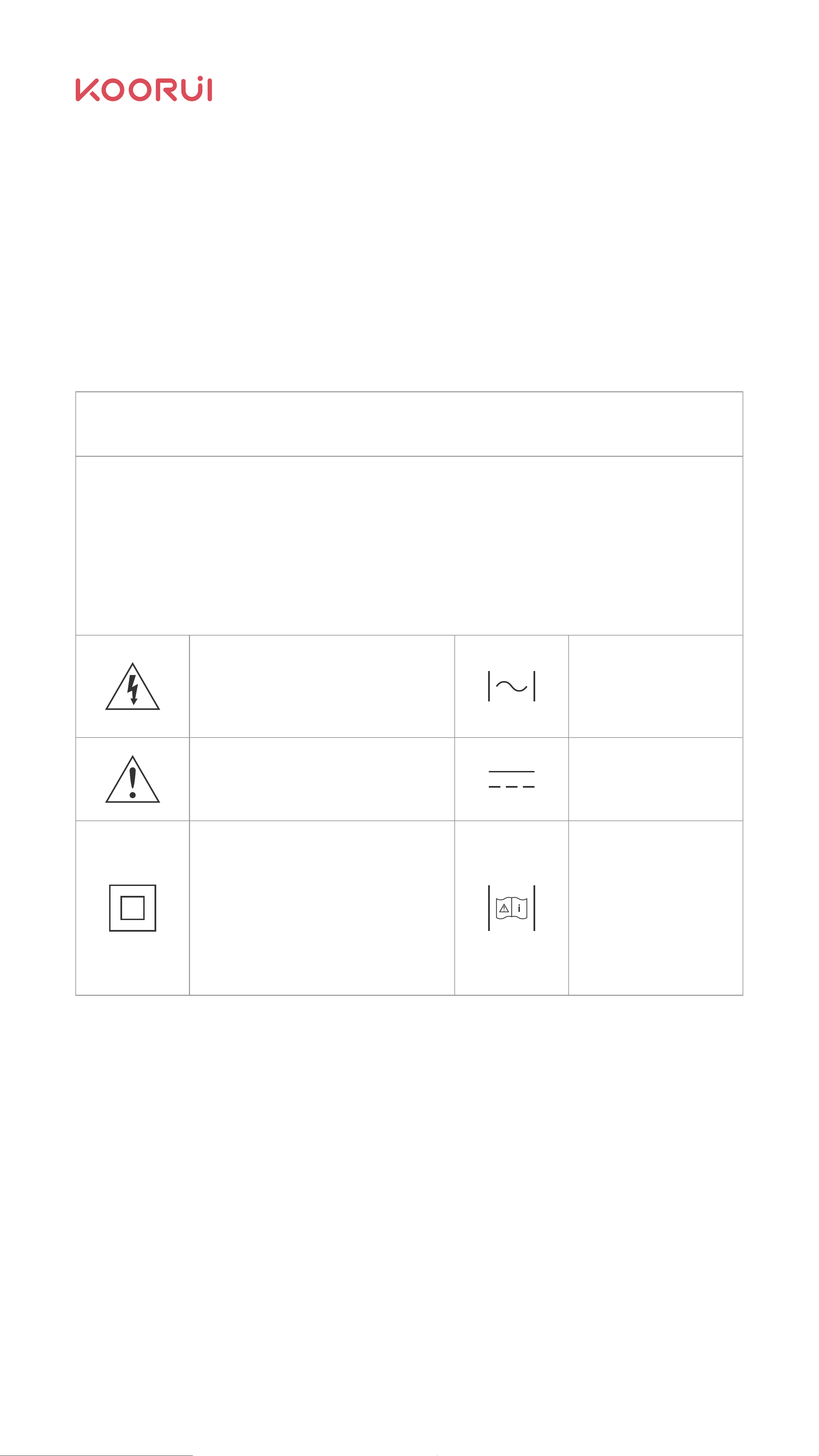
WARNING: Serious or fatal injury may result if instructions are not followed.
CAUTION: Personal injury or damage to properties may result if instructions are
not followed.
Storage Precautions1.2
Do not store the product near water sources or damp places, such as bathrooms,
kitchens, basements, swimming pools, etc.
Make sure that the device is installed in a stable place. If it falls, it may cause
personal injury or equipment damage;
Store in a cool, dry and ventilated place. Keep away from radiation and heat
sources;
Do not cover or block the ventilation holes on the rear case, and do not place
it on a bed, sofa, blanket, or similar surface;
Ν
Ν
Ν
Ν
Risk of electric shock. Do not open.
(CAUTION: TO REDUCE THE RISK OF ELECTRIC SHOCK, DO NOT
REMOVE BACK COVER (OR BACK CASE). There are no user-operable parts
inside. If there needs cleaning and maintenance, please leave it to professional
maintenance personnel.
This symbol indicates that high voltage is present inside. Do not make any kind
of contact with any internal parts of this product.)
This symbol indicates that there has
high pressure inside the product.
Please do not have any form of contact
with internal components of this product.
AC voltage: Rated
voltage marked with this
symbol is AC voltage.
This symbol indicates that this product
has included important literature
concerning operation and maintenance.
DC voltage: Rated
voltage marked with this
symbol is DC voltage.
Class II product:
This symbol indicates that a safety
connection to electrical earth (ground)
is not required.
If this symbol is not present on a
product with a mains lead, the product
MUST have a reliable connection to
protective earth (ground).
Reference:
This symbol indicates
that users need to consult
further user manuals for
more safety-related
information.
01
The power supply voltage range of the device operation is indicated on the label
on the rear case. If you are not sure about the supplied voltage, you can consult
the local power company;
When the device is not in use for a long time, please cut off the power supply to
prevent the product from being damaged by lightning strikes or abnormal power
voltage in thunderstorms;
Do not overload the socket, which may cause fire and electric shock;
Do not put foreign objects into the machine, which may cause a short circuit or
cause fire or electric shock;
Do not disassemble or repair this product by yourself. If there is a fault, please
contact the after-sales service personnel;
Do not excessively pull or twist the power cord;
Ν
Ν
Ν
Ν
Ν
Ν
Protection Recommendations1.4
Eye health advice:
To avoid eye strain, neck, arm, back, and shoulder pain from prolonged use of a
monitor, please pay attention to the following:
Keep a distance of 20-28 inches (about 50-70cm) between the eyes and the screen;
Adjust the angle of the product so that there is no reflection on the screen;
Please take a 20-minute break after using the monitor for 2 hours.
Ν
Ν
Ν
Product Placement Space1.3
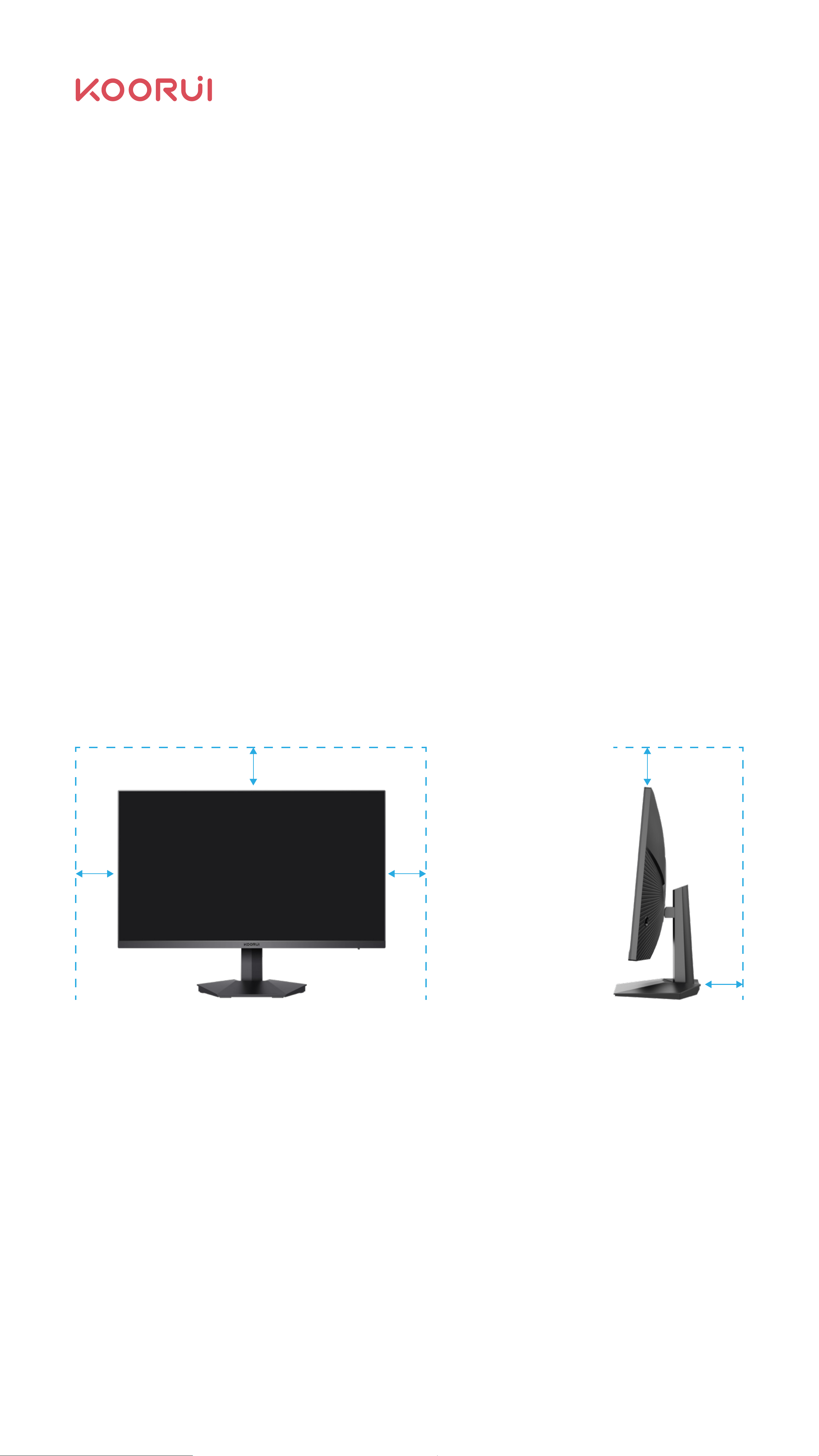
Make sure to leave enough space for ventilation around the product. When
installing the product, make sure to leave at least the area around the product,
as shown below.
10cm
10cm10cm
10cm
10cm
02
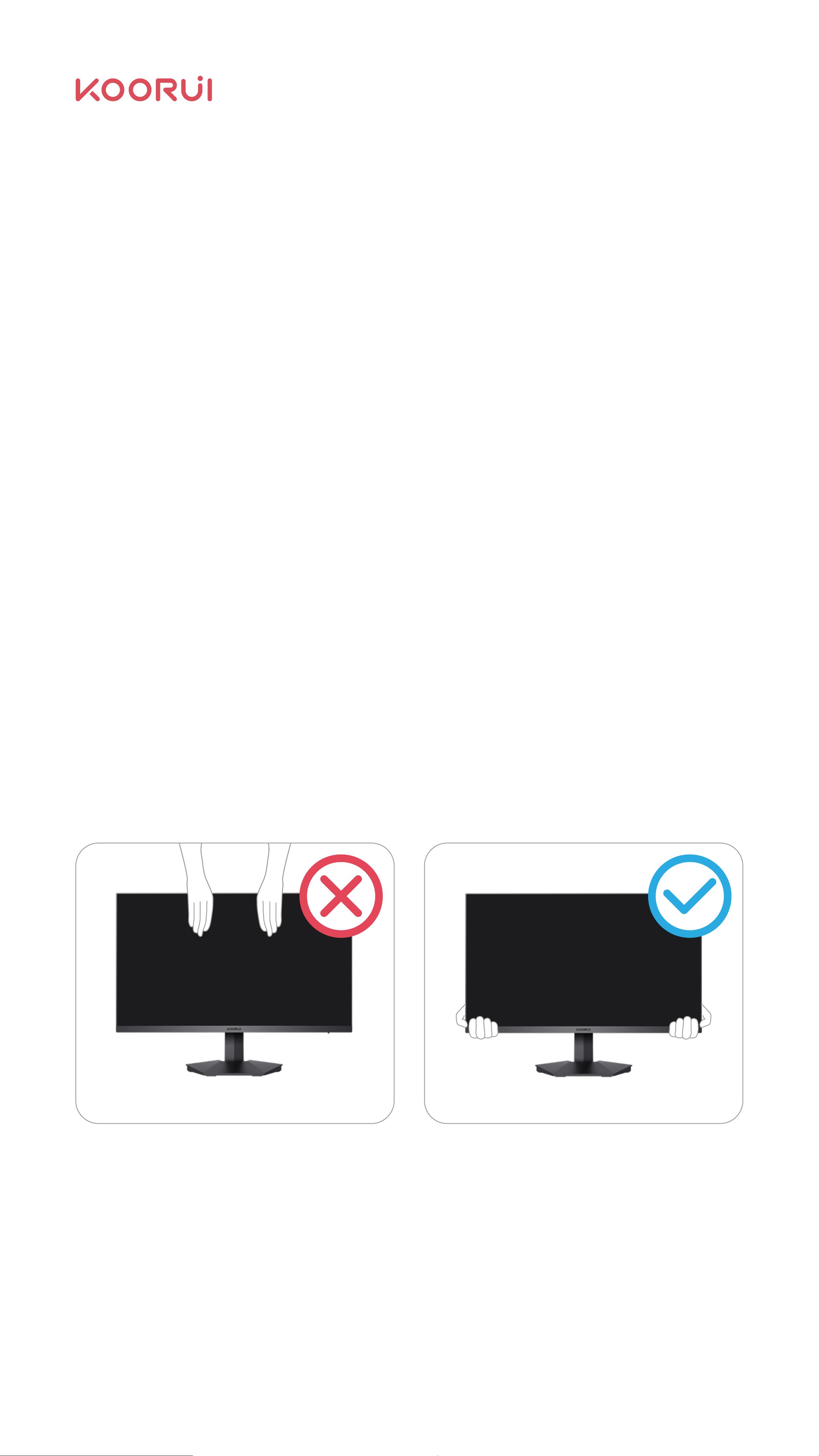
Don't put pressure directly on
the screen.
Do not hold the screen while
moving the product.
Ν
Ν
Hold the bottom corner or edge of
the product frame to move it.
Ν
Product Pick-and-Place 1.5
Low blue light instructions
The blue light wavelength is in the blue light band, and the monitor has the function
of reducing the intensity of blue light;
"Eye Protection Mode" can be selected from the menu to protect your eyes.
Cleaning your monitor
To clean the screen, lightly dampen a soft, clean cloth with water. If possible, use a
special screen-cleaning wipe or detergents suitable for antistatic coatings.
Please do not use benzene, thinner, ammonia containing large amounts of alcohol
or strong chemical ingredients that may cause discoloration or cracking of the exterior
of the product or peel off the surface of the panel.
When taking a break, take your eyes off the monitor and focus on the distance
for 20 seconds.
When taking a break, stretch or soothe the neck, arms, back, and shoulders;
Ν
Ν
03
Chapter Ⅱ Preparation Before Use
Product Accessories2.1
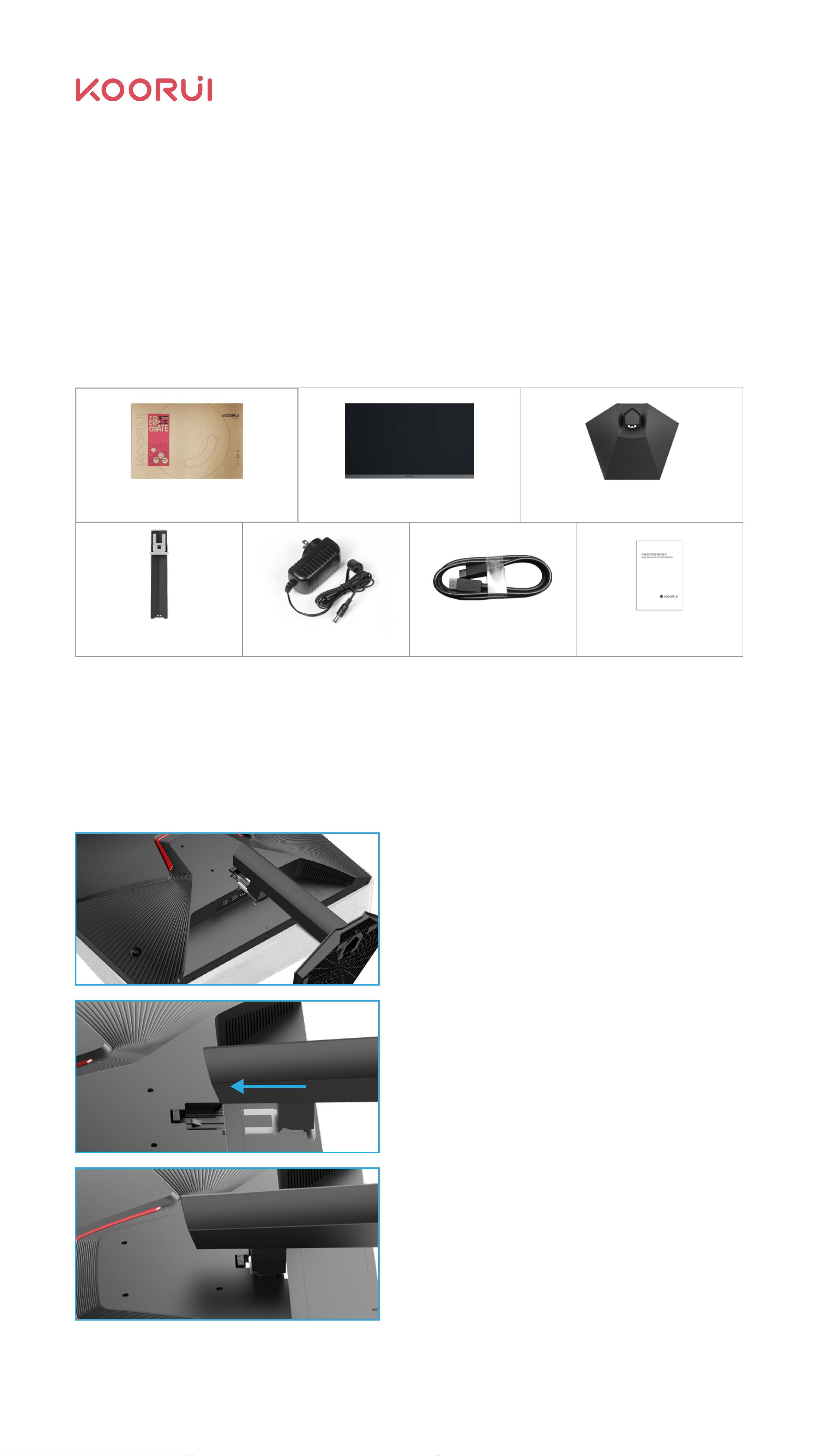
Your monitor comes with the following parts. Please check that all parts have been
received and contact Koorui if any are missing.
Monitor
Adapter
Bottom Base
User Manual
Bracket Installation2.2
2.2.1 Self-contained Base Installation
Put a soft cloth on the table to protect the
product (or use the foam vinyl that comes
with the product packaging), and place the
product face down on the soft cloth.
Push the column into the main body of the
monitor in the direction indicated by the
arrow;
Check whether the bracket and the main
body are firmly connected;
Column
DisplayPort Cable
Outer box
04
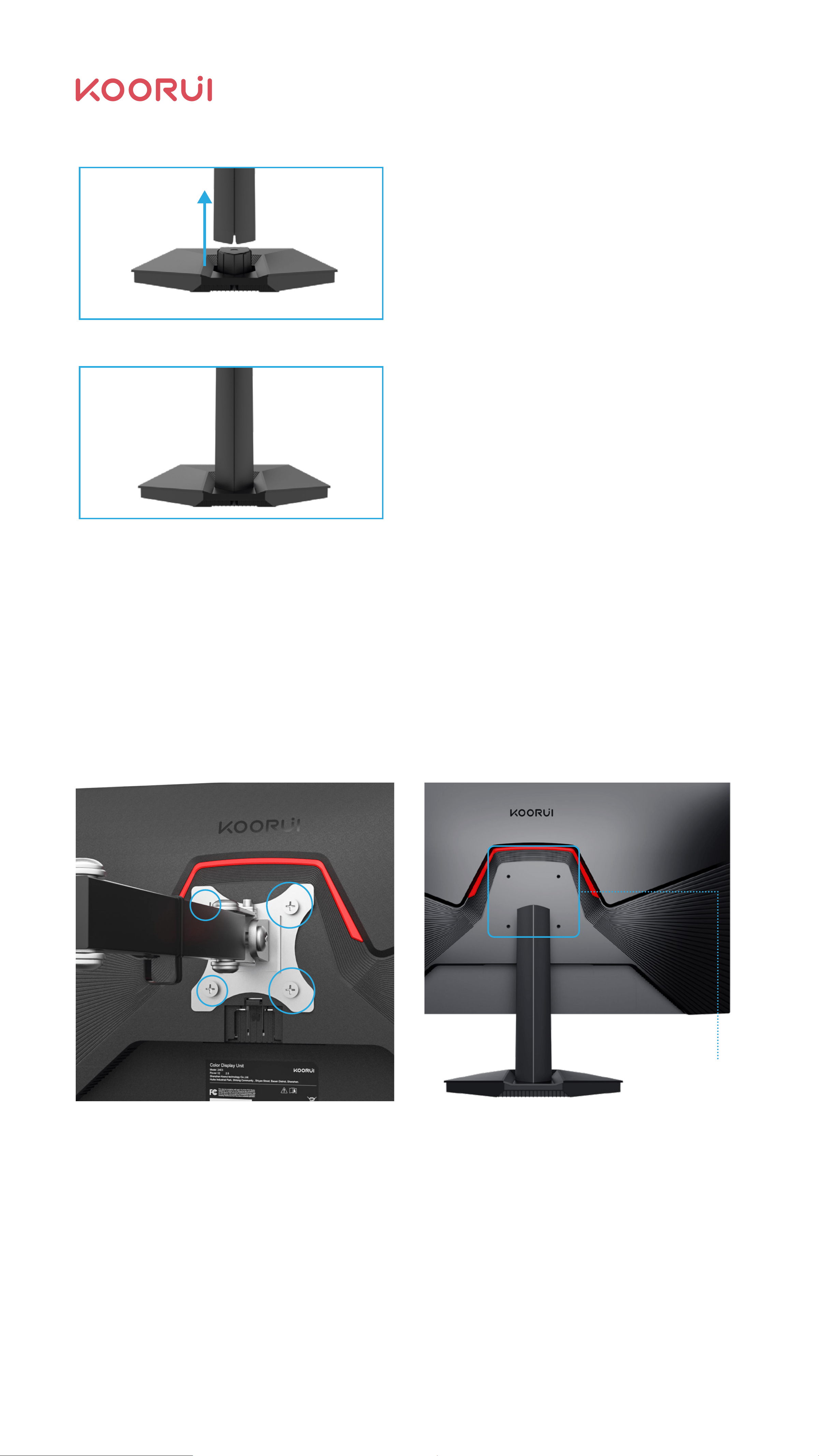
2.2.2 VESA Bracket Installation
Ν WARNING: Wall mounting screws require M4 screws , the length should not
exceed 8mm,avoid damage to the product due to excessive length.
VESA support
75×75mm
Assembled the
VESA screws
Ν
Ν
Wall Mount Notes
Please purchase the VESA bracket device separately.
For more information, please refer to the user guide provided with your VESA
bracket device.
Insert the base into the column according
to the direction shown in the figure;
Check whether the base and the column
are firmly connected, and place the
installed product on a stable platform
according to figure 1.5 - monitor
pick-and-place method.
05
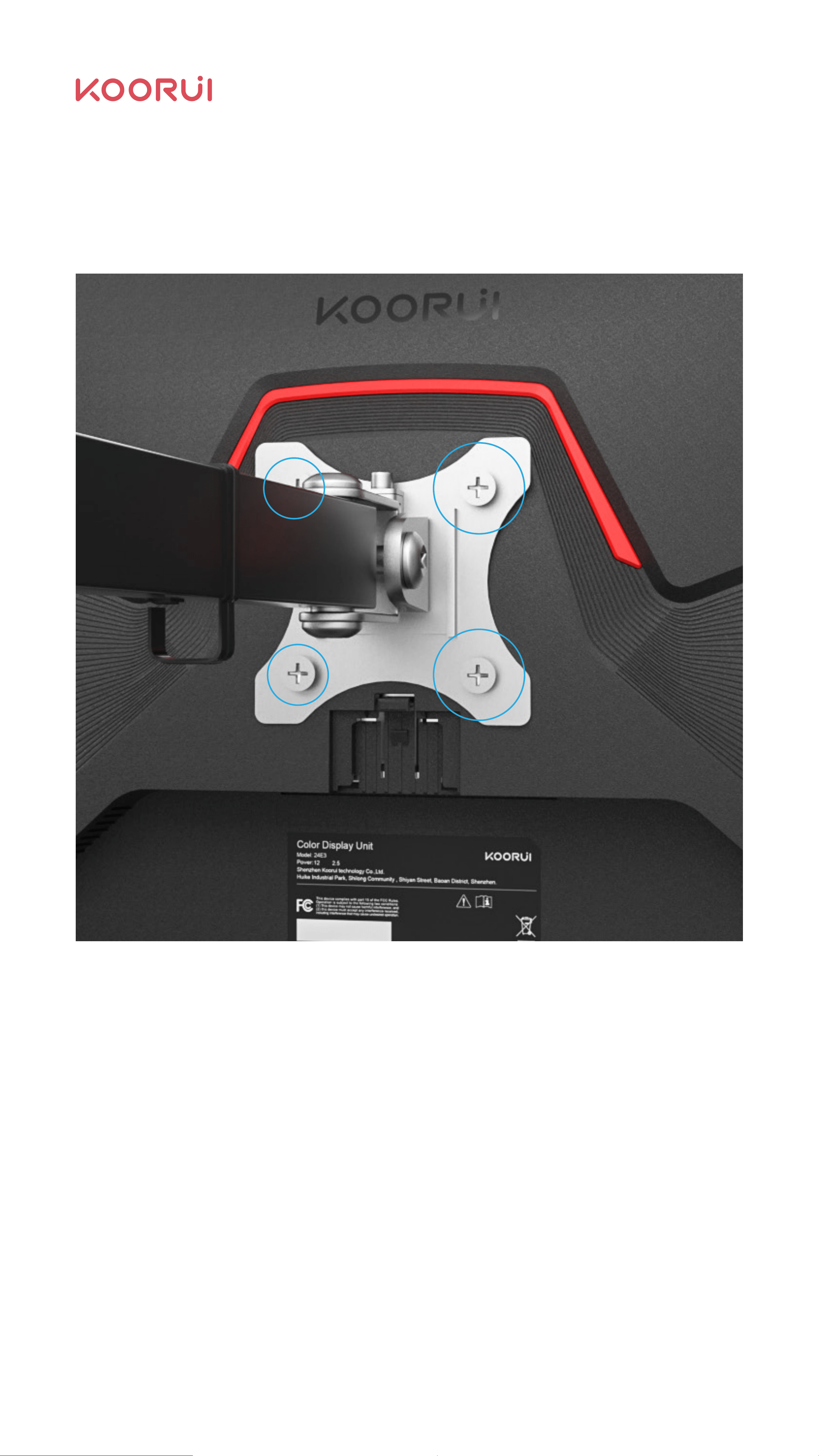
2.3.1 VESA Bracket Removal Diagram
2.3 Monitor Disassembly
Removed the
VESA screws
Ν
Ν
Just remove the screws as shown in the figure. During the process of removal,
please avoid the monitor from falling;
Please follow figure 1.5 (operation of protecting the monitor) to pick and place
the monitor,
06
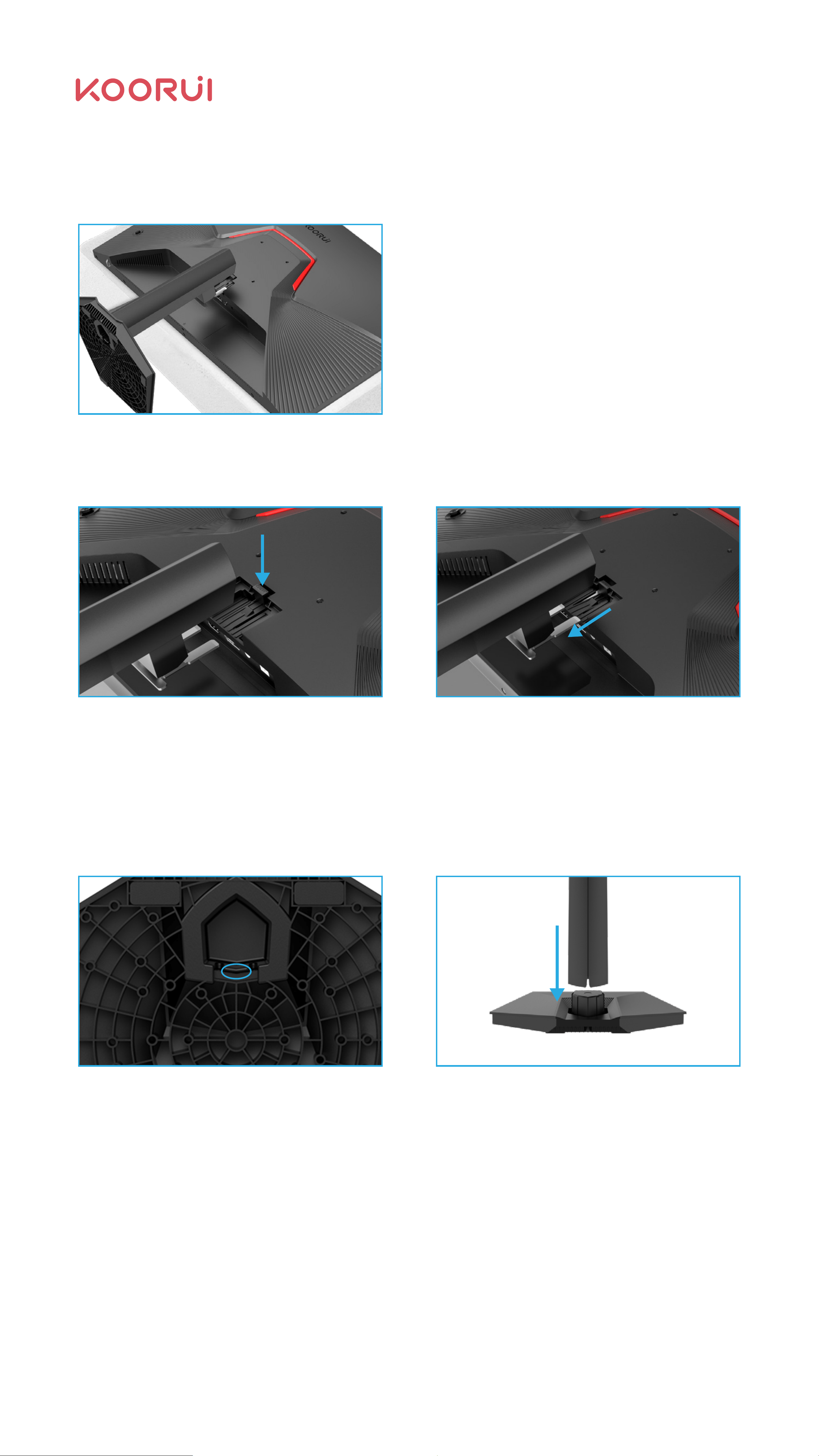
2.3.2 Disassembly Diagram of the Base
Hold down the "PUSH" button and exit the column assembly according to the
operation direction in the figure;
Place the foamed polystyrene (Mat) in
the package on the floor and place the
product face down on the foamed
polystyrene as shown. If you don't have
styrofoam, use a thick cushion.
Pre-press the hook and separate the column according to the direction shown in
the figure;
07
Ν
Ν
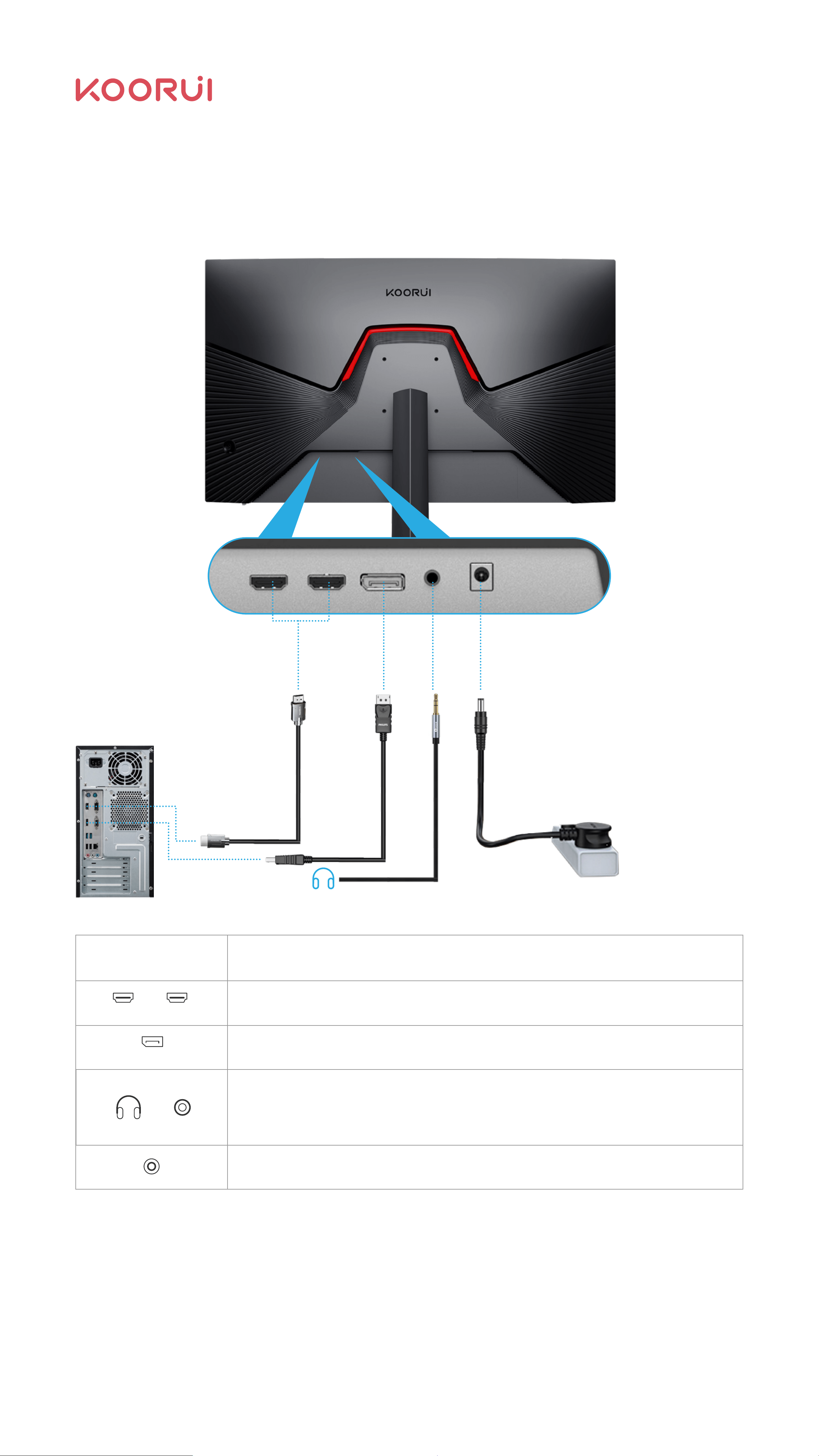
Connect and use the PC
Choose the connection method that suits your PC.
Different products may have different connecting parts.
2.4 Interface Description
Use HDMI cable to connect to your PC.
HDMI 1 HDMI 2
Connect to the AC power cord.
Interface Description of interface
Use DP cable to connect to your PC.
DP
HDMI 1 HDMI 2 DP ACAUDIO
Connect to audio output devices that support 3.5 mm headphones.
Note: DVI and VGA do not support audio transmission.
08
Ν DP interface supports 1920*1080,165Hz; HDMI 1.4 supports 1920×1080, 144Hz.
Please choose the connection method you need.
Ν
Ν
Ν
Ν
Connect and use the source device.
Read the following before installing the product.
Before installing, please check the shape of the two ports of the attached signal
cable and the shape and location of the ports on the product and external
equipment.
Before connecting the signal lines, be sure to connect from the product and the
external equipment to prevent damage to the product due to short circuits or
over-current.
Connect the power cord back to the product and external equipment after
properly connecting all the signal wires.
After the installation, please be sure to read the user guide to familiarize with
the correct use of products required products’ features, cautions, and other
information.
As for the operation and use of the source device, please read the user guide provided by
the source device. If the original device signal is abnormal, it is recommended to contact
the source device manufacturer rst.
If you need Koorui’s assistance, please contact Koorui’s after-sales sta.
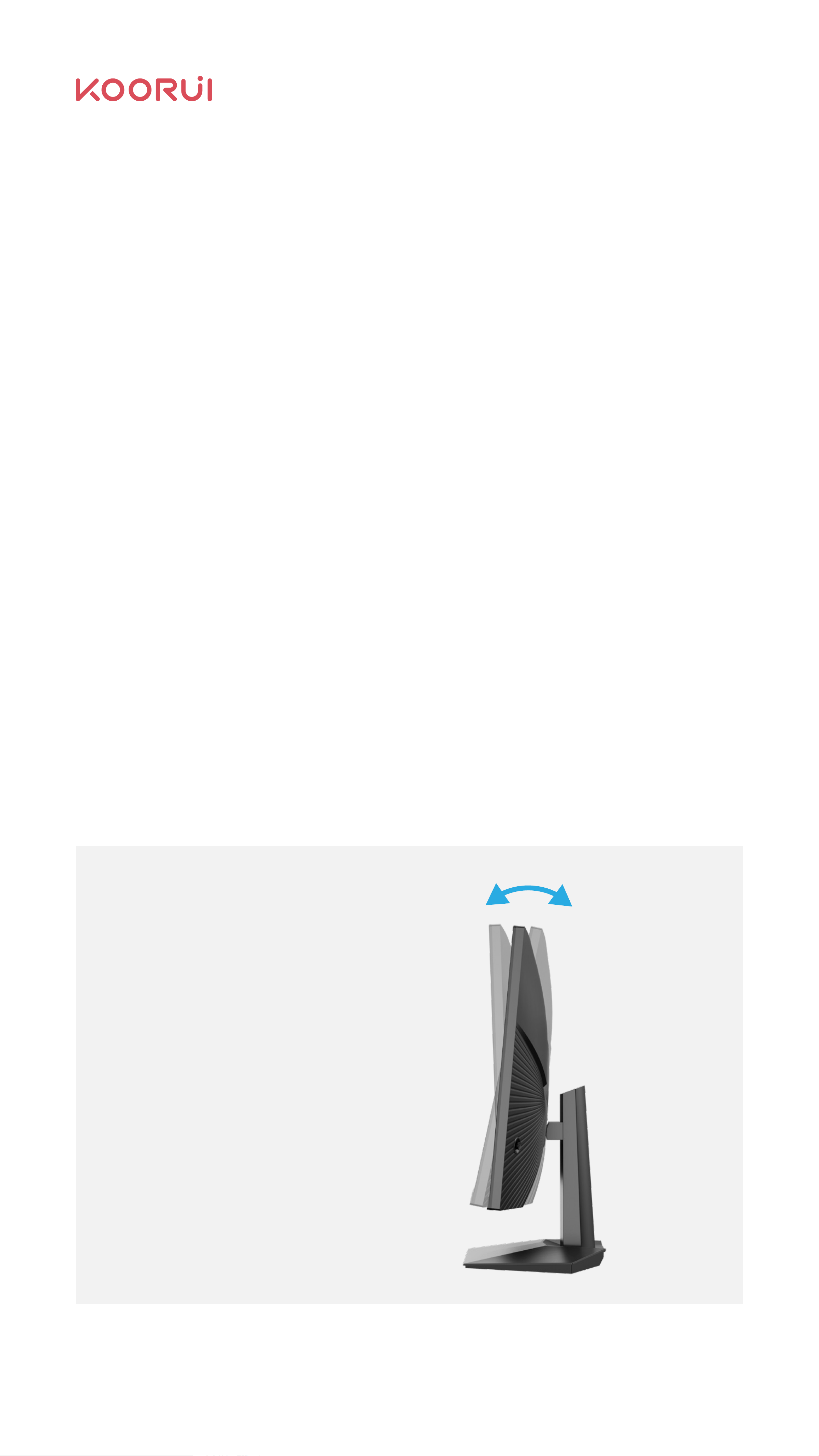
2.5 Adjust Product Inclination
Adjustable display with
titl from -5°~20°
09
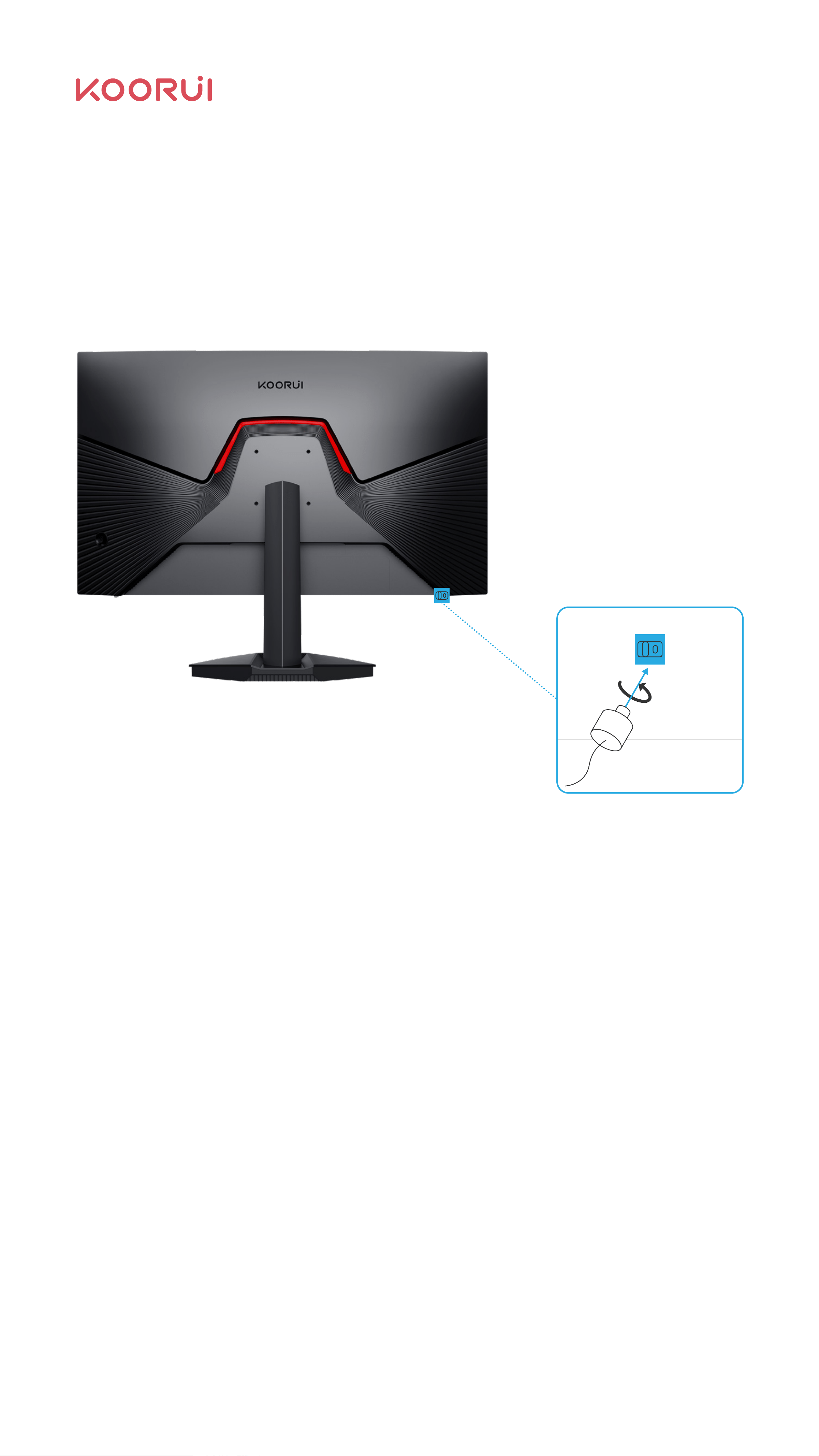
2.6 Anti-theft Lock
Ν
Ν
Please buy the anti-theft lock device separately yourself.
For more information, please refer to the user guide provided with your
anti-theft lock device.
To lock an anti-theft locking device:
Anti-theft lock is an anti-theft device that allows users to lock the product so as to use
the product safely in public places.
10
Chapter Ⅲ OSD Function
The OSD function information table of this product is as follows. If there is any
question about the operation process, please contact Koorui customer services.
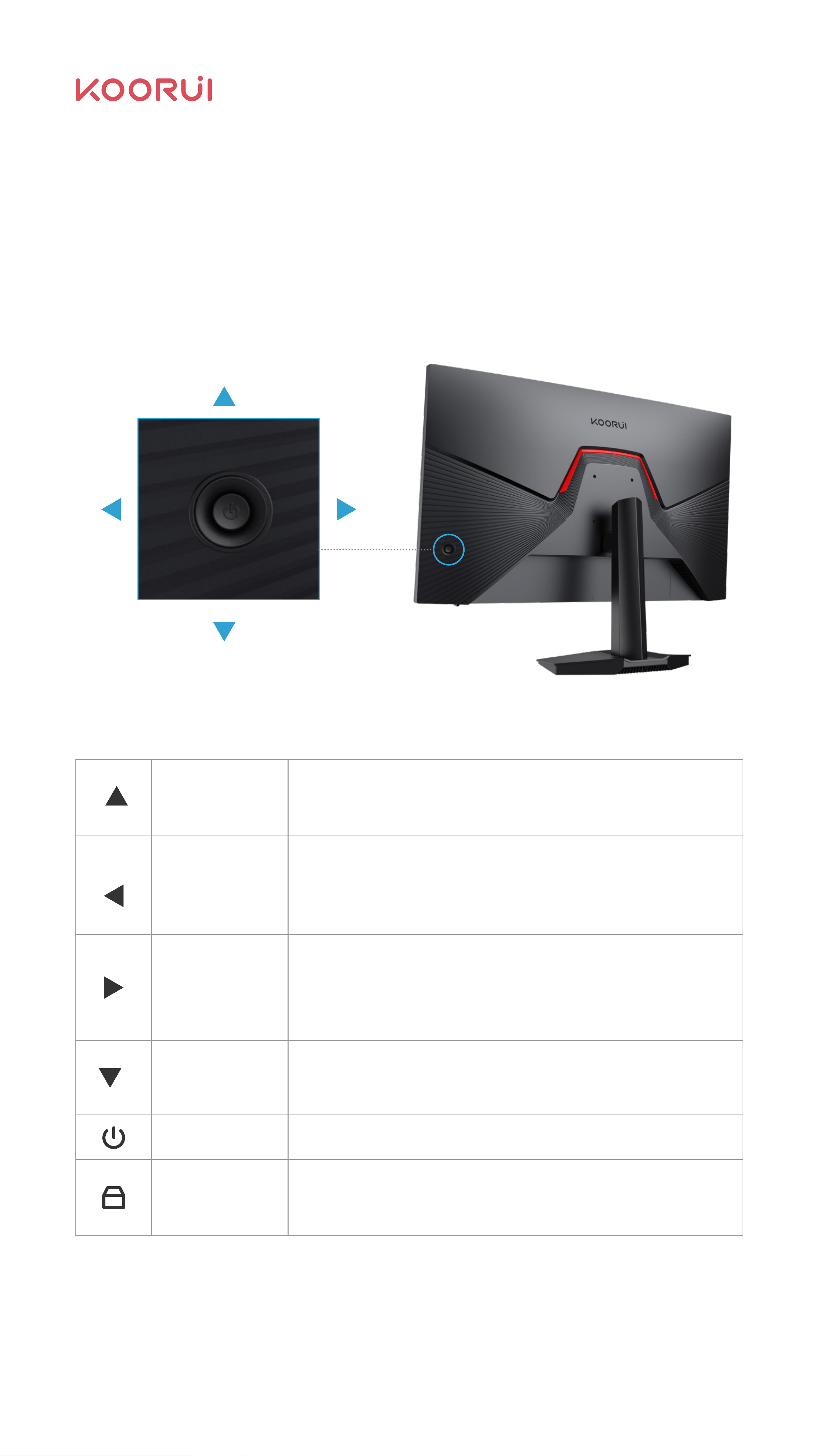
Press this button to display the main menu, return to the
previous menu or exit the main menu.
Whenthemenuisopen,thecursormovesleftortheprogressbar
valuedecreases.
When the menu is closed, act as the specified shortcut volume
mode hotkey.
Whenthemenuisopened,itismovedtotherightortheprogressbar
valueisincremented
When the menu is closed, act as the specified shortcut volume
mode hotkey.
If the menu is active, pressing this key selects the function:
When the menu is closed, act as the specified shortcut Crosshair
mode hotkey.
Press it to turn on/off the monitor.
Remains on : normal working state ;
Flashes : power-saving standby state.
Menu
Left
Right
Power button
Fix on
Power LED
Menu
Select this
feature
Select the
left item
Select the
Right item
11
The OSD language is English.
English
The OSD language is French.
French
The OSD language is German.
German
The OSD language is Italian.
Italian
The OSD language is Japanese.
Japanese
The OSD language is Chinese.
Chinese /
/
/
/
/
/
Language
First order
menu
Secondary
menu
Tertiary
menu
Description
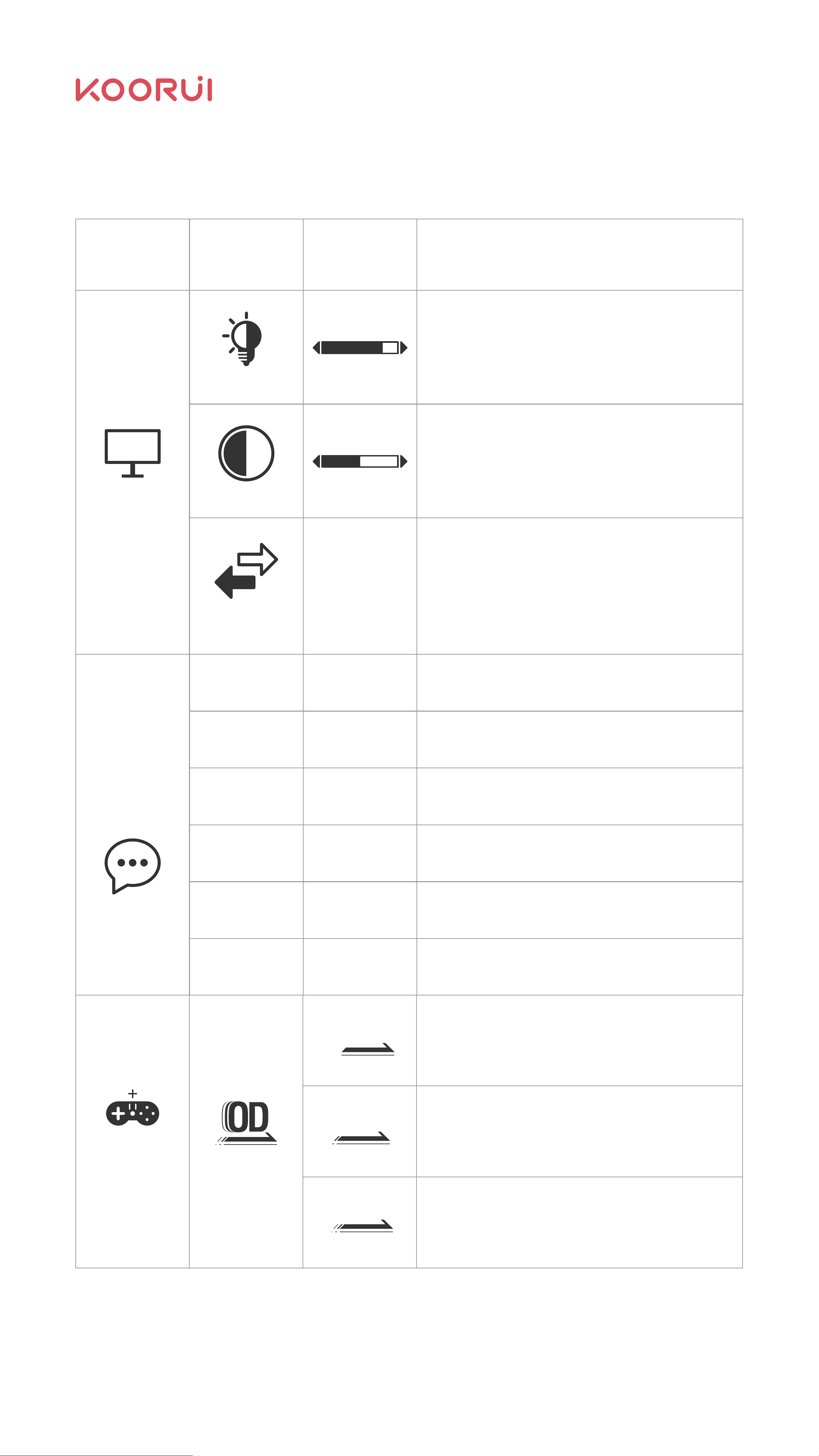
Can adjust the brightness of your display by
pressing the left and right key -/+;
Brightness
Can adjust the Contrast of your display by
pressing the left and right key -/+;
Contrast
The brightness and contrast of the monitor can be
controlled automatically to balance the brightness
and darkness of the whole picture.
DCR
ON OR OFF
Display
0 50 100
0 50 100
Turn off OD acceleration, and GTG response
time is 5ms
Start general acceleration, GTG response
time is 2ms
Start rapid acceleration, GTG response
time is 1ms
OD mode
OFF
Normal
Extreme
Game mode
,
,,,,,
,,,
12
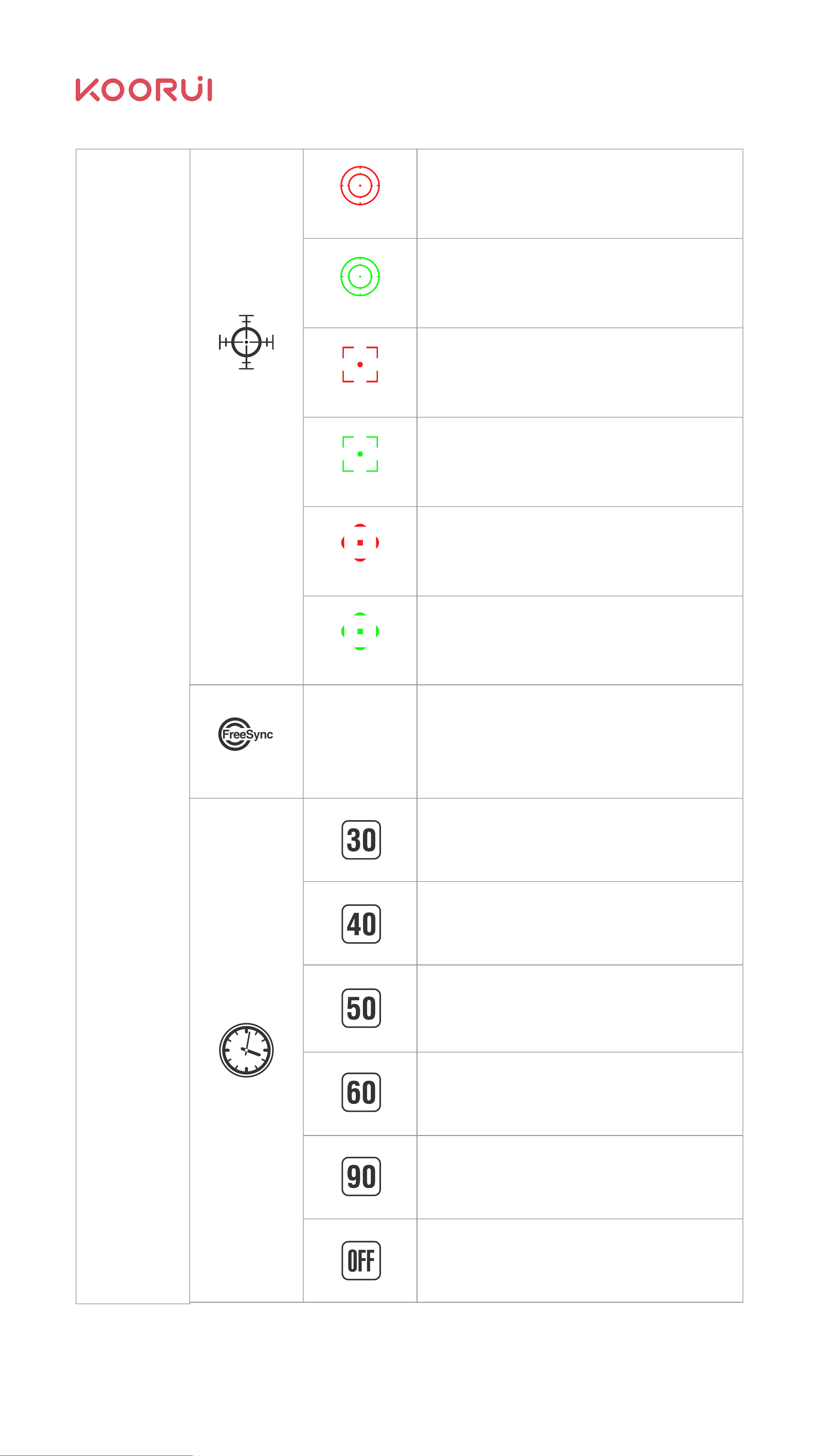
Confirm to use this crosshair graphic sight
(supported by the source equipment);
Confirm to use this crosshair graphic sight
(supported by the source equipment);
Crosshair
Crosshair 1
Crosshair 2
Crosshair 3
Crosshair 4
Crosshair 5
Crosshair 6
Confirm to use this crosshair graphic sight
(supported by the source equipment);
Confirm to use this crosshair graphic sight
(supported by the source equipment);
Confirm to use this crosshair graphic sight
(supported by the source equipment);
Confirm to use this crosshair graphic sight
(supported by the source equipment);
FreeSync
Premium
ON OR OFF
ON:Turn On; OFF:Turn Off
Open freesync (need your source device
support, open the display freesync before using);
After selection, turn on the 30-minute timer
function (countdown will appear in the upper
left corner).
After selection, turn on the 40-minute timer
function (countdown will appear in the upper
left corner).
After selection, turn on the 50-minute timer
function (countdown will appear in the upper
left corner).
Timer
After selection, turn on the 60-minute timer
function (countdown will appear in the upper
left corner).
After selection, turn on the 90-minute timer
function (countdown will appear in the upper
left corner).
Turn off Timer Mode.
13
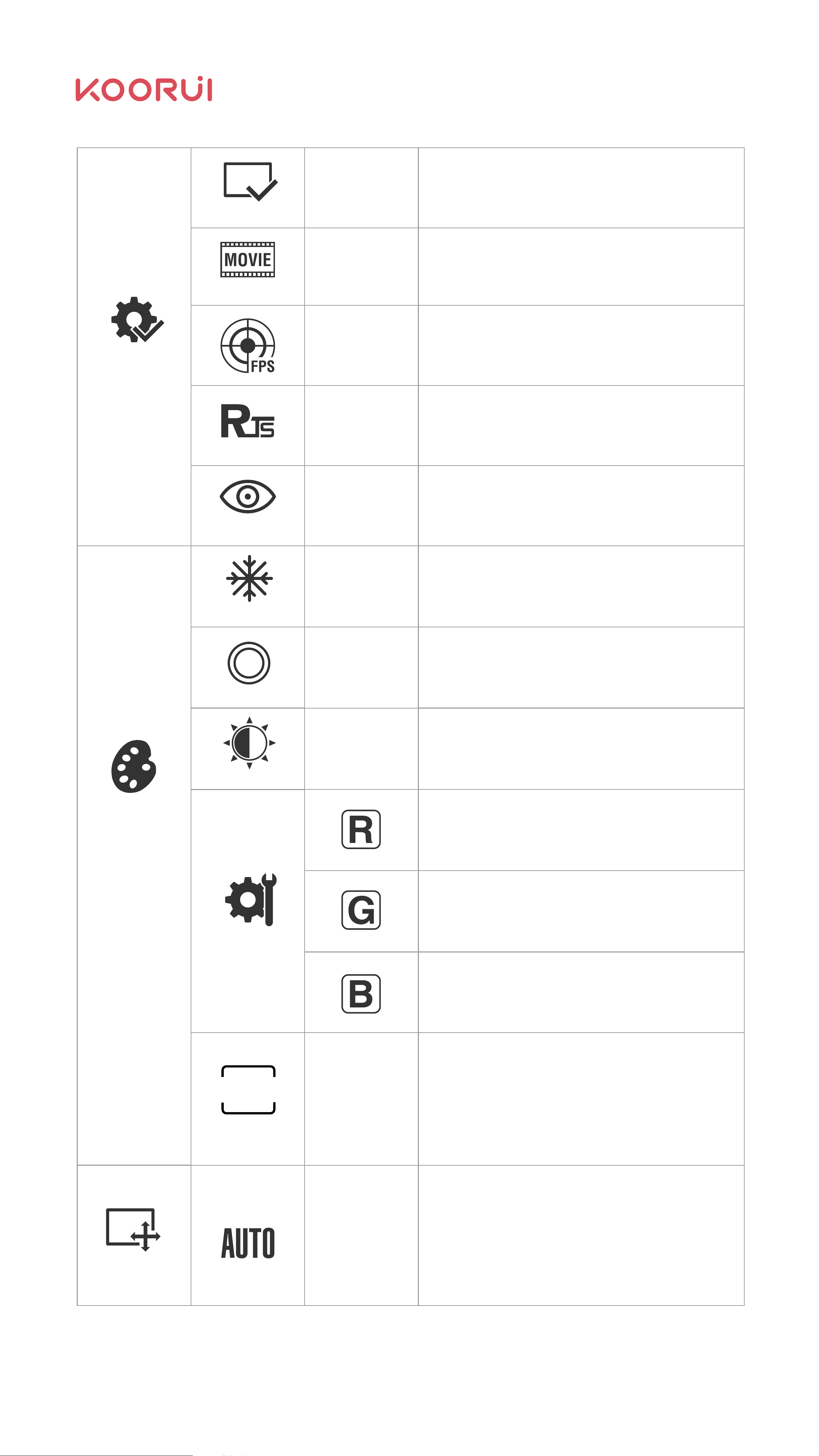
Fine-tune the red saturation level. The closer a
value is to 100, the stronger the color.
Fine-tune the blue saturation level. The closer a
value is to 100, the stronger the color.
Fine-tune the green saturation level. The closer a
value is to 100, the stronger the color.
Cool
When confirmed, turn on cool color temperature
mode.
Standard
When confirmed, Turn on Standard color
temperature mode.
Color
temperature
User
/
/
Warm
When confirmed, Turn on warm color temperature
mode.
/
Automatically find input source after selection.
Aspect Ratio
/
Standard
Movie
Turn on Standard mode.
Turn on Movie mode.
Turn on FPS mode.
Preset Mode
Turn on RTS mode.
Eye Saver
Turn on eye protection mode.
/
/
/
/
/
Limit colors to the sRGB color gamut range
sRGB
/
sRGB
14
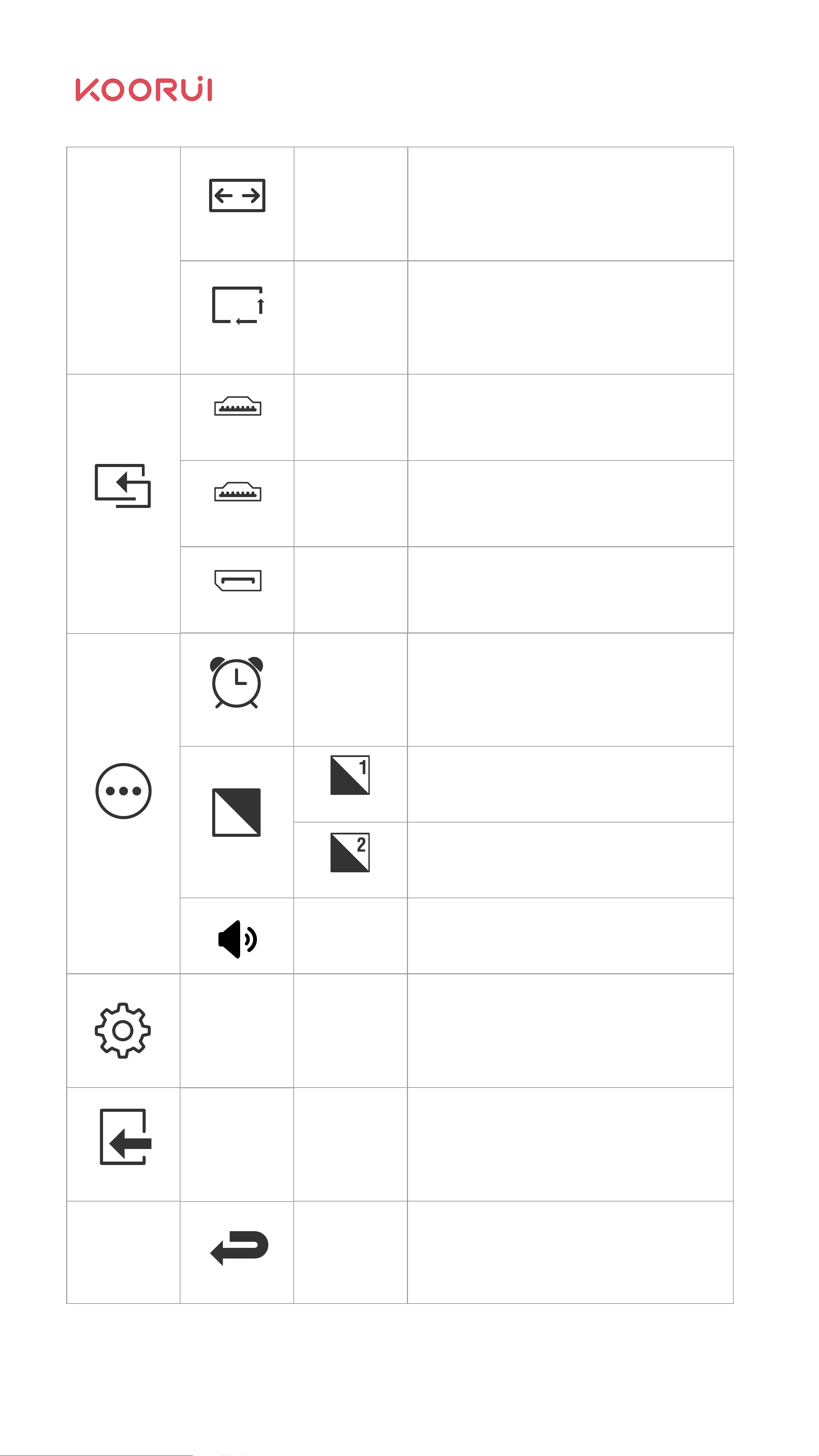
Power Off
ON OR OFF
ON: Turn on Auto power off after 1min
OFF: Turn off Auto power off after 1min
PS: When the monitor goes to sleep
Gamma
Gamma 1
Adjust Hue Brightness, Grayscale 1
Gamma 2
Adjust Hue Brightness, Grayscale 2
Adjust the sound size. The higher the
value, the louder the sound.
Other
/
16 : 9
Select to display the image of the sub-screen
with an aspect ratio of 16 : 9.
4 : 3
Select an aspect ratio of 4: 3 to display the
image of the sub-screen. Applicable to video
and standard broadcasting.
/
/
Return
Return to the previous menu (this selection only
appears in the second\ third order settings).
Exit
YES OR NO
In addition to OSD language, you can reset
your other option settings and revert to the
factory settings of the product.
Reset
/
/
/ /
/
Exit OSD menu.
Input Source
HDMI 2
Select HDMI 2 Signal Input (HDMI 1.4 port)
Select HDMI 1 Signal Input (HDMI 1.4 port)
/
/
DP
Select DisplayPort Signal Input (DisplayPort port)
/
HDMI 1
15

Chapter Ⅳ Common Applications
4.1.1 Resolution settings
4.1 Resolution and Refresh Rate Setting
Windows:Windows Settings
>
System
>
Screen
>
Display Resolution
MAC:MAC System Preferences
>
Monitor
>
Optimization
>
Scaling
4.1.2 Refresh rate setting
Windows:Windows Settings > System > Screen > Advanced Display Settings > Refresh Rate
MAC:MAC System Preferences > Monitor > Refresh Rate
4.2 Monitor Extension Application
Screen expansion function setting.
Windows:Windows Settings > System > Screen > Multiple Display Settings
> select “Extend This Monitor”
MAC:MAC System Preferences
>
Monitor
>
Arrangement
>
Mirror Display
4.3 Display Sound Settings
HDMI, DP sound effect selection;
Windows:Windows Settings > System > Sound > Output > select“Output Settings”
MAC:MAC System Preferences
>
Sound
>
Output
Ν
Ν
Ν
Ν
Ν
Ν
Cautions:
It's best to set response time and mode to standard when you're not watching a
movie or playing a game.
Under dynamic contrast, the brightness and contrast cannot be adjusted.
In Standard mode, you will get the clearest display effect. Meanwhile, you can
adjust according to your preferences
In cinema mode, eye protection mode, RTS mode and FPS mode, the dynamic
contrast mode (DCR) will be switched automatically, and the brightness and
contrast can not be adjusted;
In Eye Protection mode, the color temperature cannot be adjusted.
If you have any other questions, you can consult Koorui customer service.
16
Ν
Ν
Ν
Ν
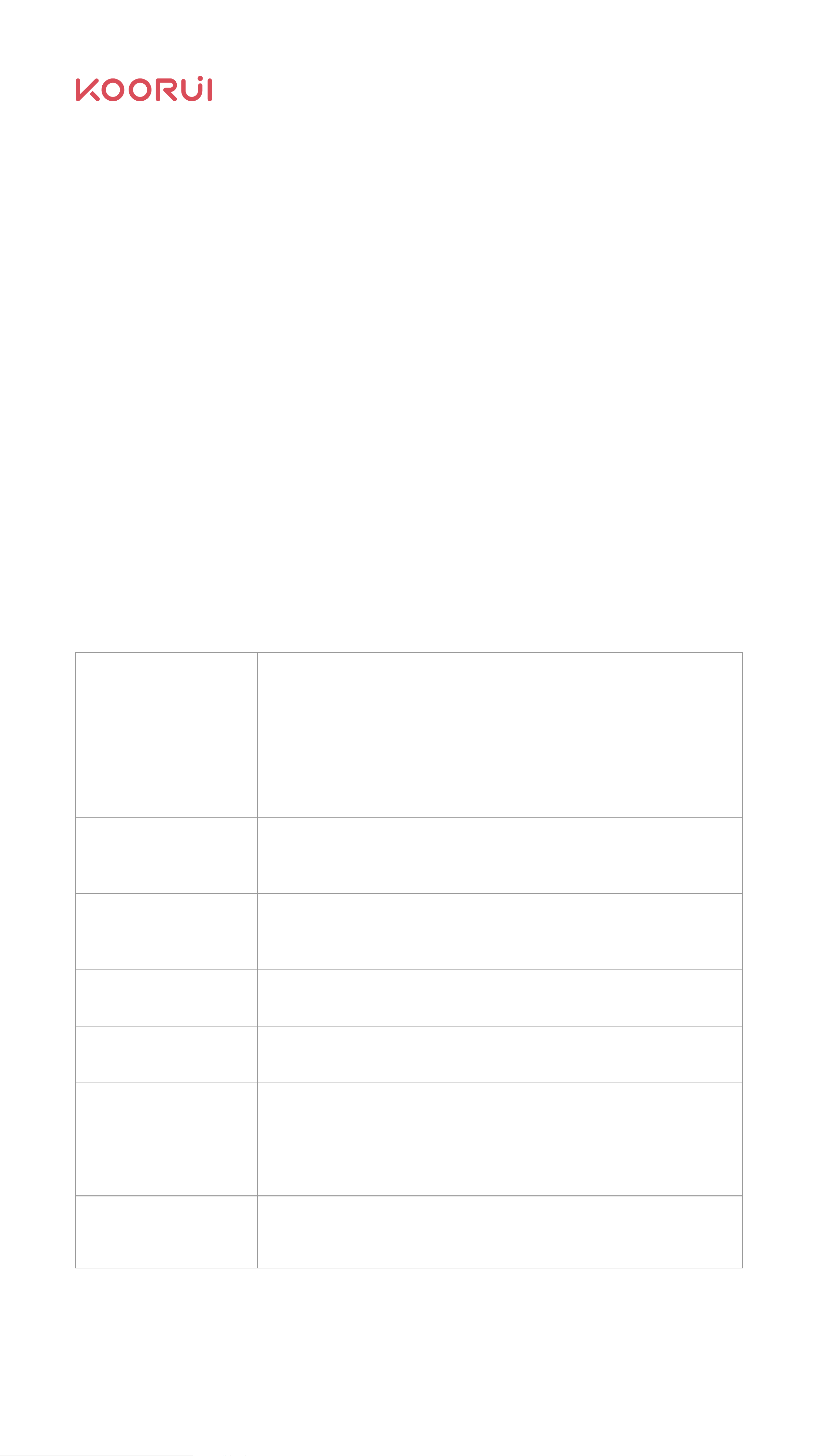
The following table lists some common monitor problems that you may
encounter and their solutions.
If you can't solve your difficulties, please contact Koorui customer services.
Official website: http://www.koorui.net/
E-mail: suppor[email protected]
Chapter Ⅴ Q&A
All four sides of the screen
appear blank when using
an HDMI cable or DP
cable to connect the
product and PC.
The blank that appears on the screen has nothing to do with our product.
The blank on the screen is caused by a PC or graphics card.
Please adjust the screen size in your graphics card's HDMI or DVI settings
to resolve this issue.
If the graphics card settings menu does not have the option to resize the
screen, please update the graphics card driver program to the latest version.
(Contact your graphics card or PC manufacturer for more details on adjusting
your screen.)
The power LED goes out.
The screen won't turn on.
Check if the power cord is connected correctly. If there is a problem with the
monitor screen, run a self-diagnostic to check that the monitor is working
properly.
Display "Over Frequency" This message appears when the signal from the graphics card exceeds the
maximum resolution or frequency of the product.
The images on the
screen look distorted.
Check the cable connection to the product.
The screen is not clear
or blurry.
Remove all accessories (video extension cord, etc.) and try again.
Set the resolution and frequency to the recommended level.
4.4 Display Orientation Settings
Windows:Windows Settings > System > Screen > Display Orientation
MAC:MAC System Preferences > Monitor > Optimization > Rotate
The screen is unstable and
shaky. There is a shadow
or ghosting on the screen.
Check if the resolution and frequency of the PC are within the range of the
resolution and frequency that compatible with the product. Next, change the
settings if needed.
The screen is too bright,
while the image is too dark.
Adjust the brightness and the contrast.
17
The screen colors do not
match. Colors on the
screen are shaded and
distorted. The white color
doesn't look really white.
Change the Color Settings.
There is no image on the
screen, and the power
LED flashes every 0.5 to
1 second.
The product runs under the power-saving mode;
Press any key on the keyboard or move the mouse to get back to the normal
operating mode;
Use the Caps Lock on your PC keyboard to see if your computer is operating
or rebooting your device.
The video played
intermittently.
The play of large high-definition video files can be spotty. This may be
because the video player is not optimized for PC resources.
Try playing the file on another video player.
No sound. You will not hear the sound if you connect an input device with an HDMI-DVI
cable. Please use an HDMI cable or a DP cable to connect the device.
Re-check the condition of the connected audio cable and/or adjust the volume.
Check the volume.
Check if the audio is set to silent.
Monitor sound output is not set, refer to 4.3
Volume is too low. Adjust the volume.
Video is available, but no
sound.
If you connect the input device with an HDMI-DVI cable, then there will be no
sound to be heard.
Please connect the device with an HDMI cable or DP cable.
Monitor sound output is not set, please refer to 4.3.
An energy efficiency
prompt appears on the
monitor or there shows
"XXS Power"
"XXS Power" on the top
left corner.
It’s because the product you buy and sell is a European product, which
should comply with the European energy efficiency requirements.
Monitor quickly goes
dark (no display).
In the power setting state, the monitor shuts down for a short time;
Windows Settings > System > Power and Sleep > Screen > Please reset the time.
There is a shadow or
ghosting on the screen.
Open OD acceleration.
Can’t adjust the
brightness and the
contrast.
1. Check if the HDR/eye protection/DCR automatic/cinema/FPS/RTS mode is
turned on. In this mode, the brightness/contrast will automatically adjust and
cannot be adjusted manually. It is recommended to turn this mode off and
switch to the standard mode by default;
2. The monitor can be restored to factory settings through the OSD button;
Tap Key M to wake up the menu > Reset > YES.
The resolution is only
1920*1080, and the
refresh rate is only 60HZ.
1. In the safe mode of the host, the resolution cannot be adjusted, please
return to safe mode;
2. HDMI 1.4 only supports 1K 144HZ, 2K 60HZ; it is recommended to
replace HDMI 2.0 interface or DP interface;
18