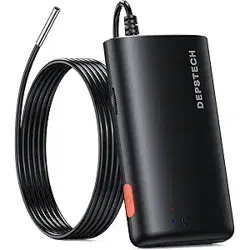
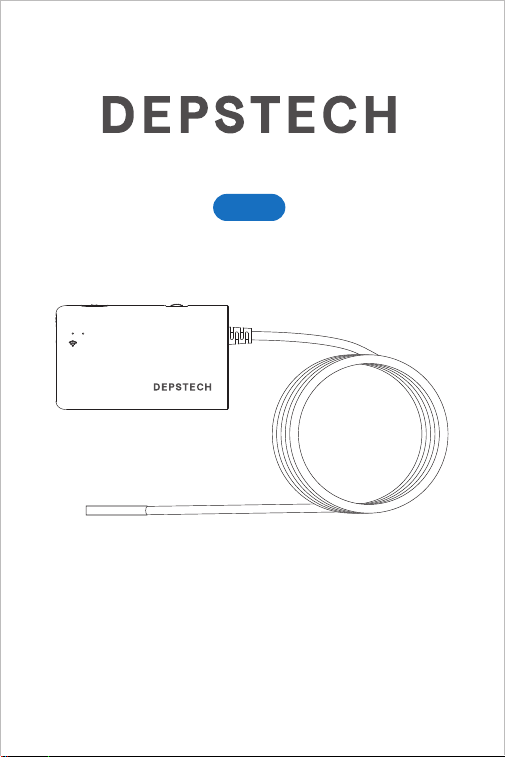
User Manual
FHD Inspection Camera
WF070
English
01
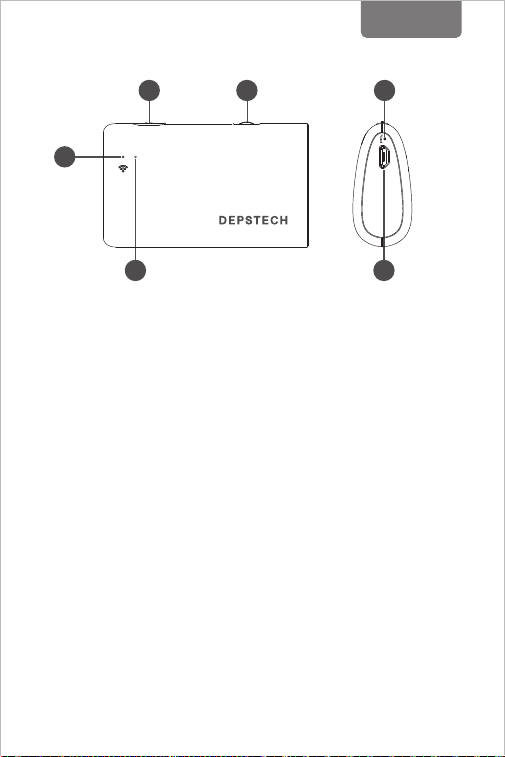
Product Structure
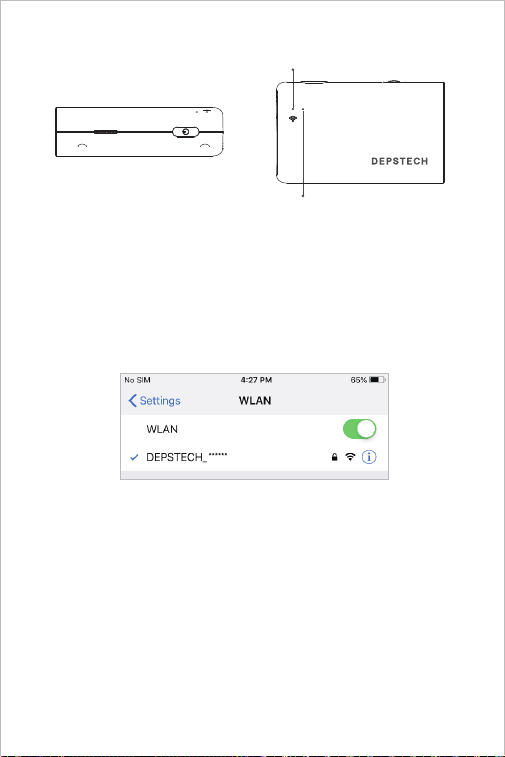
1. Power Button ON / OFF
Hold this button for 2s to power on/off the endoscope
2. Camera LEDs dimmer:
Roll to control the brightness of the camera LEDs
3. WiFi signal indicator:
Blue LED flash: Ready to pair
Blue LED stay on: Connect successfully
4. Power indicator:
Red LED stay on: Power system work normally
Red LED flash: Low battery
Green LED stay on: Charging status
5. Reset Button:
Long press the reset button for about 7 seconds, the device
will shut down, and then restore the factory settings
6. Micro-USB charging port
1
2
5
3
4
6
02
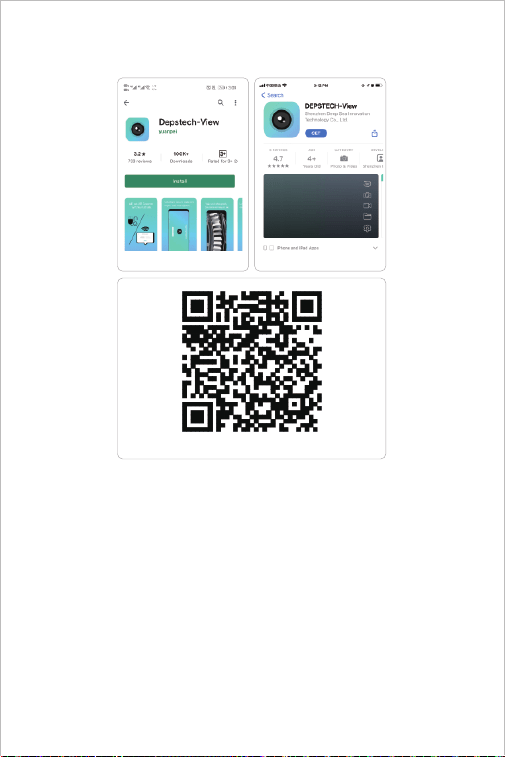
Step 1- APP Downloading
Register
After downloading the APP, it is necessary to register a personal
account before using.
Register and log in
Fill in email - fill in password - view agreement - click register. Please
log in after successful registration. (Note: Please keep your mobile
phone connected with network during registration)
For iOS user (iOS 9+), search and download
“DEPSTECH-View” app from APP Store.
For Android user (Android 7.0+), search and download
“DEPSTECH-View” from Google Play Store.
iOS & Android
Android
iOS
03
Step 2- Power on
Hold this button for 2s to power on the endoscope.
Step 3- WiFi Connection
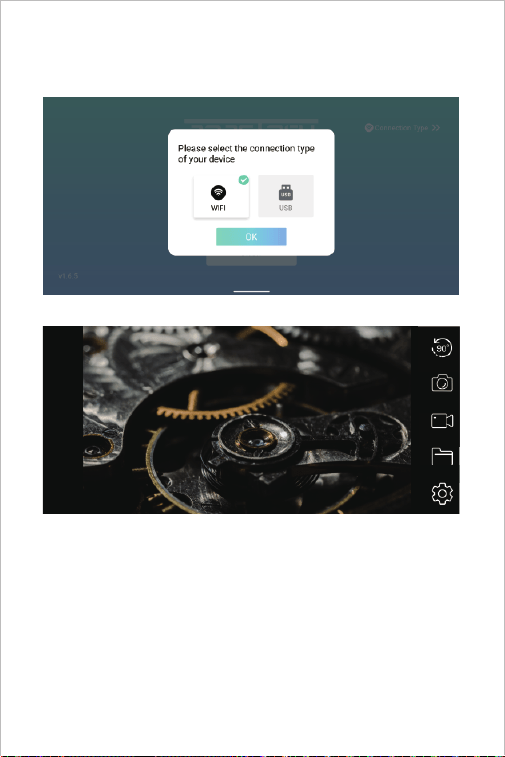
A. Turn to the WiFi setting on your smart devices (Android / iOS
phone), search for the factory setting WiFi SSID:
DEPSTECH_******
B. Then choose and fill the factory setting WiFi password:
12345678
Note: Once the power system standby, the red LED indicator will stay on.
When the blue LED indicator flashed, means the WiFi module is ready to
paired.
Note: “******” will be a series of random numbers& letters, and it may
take several seconds to wait for the WiFi signal and the wifi connection.
Please be patient for the process.
04
Step 4- Return to the APP
Note:
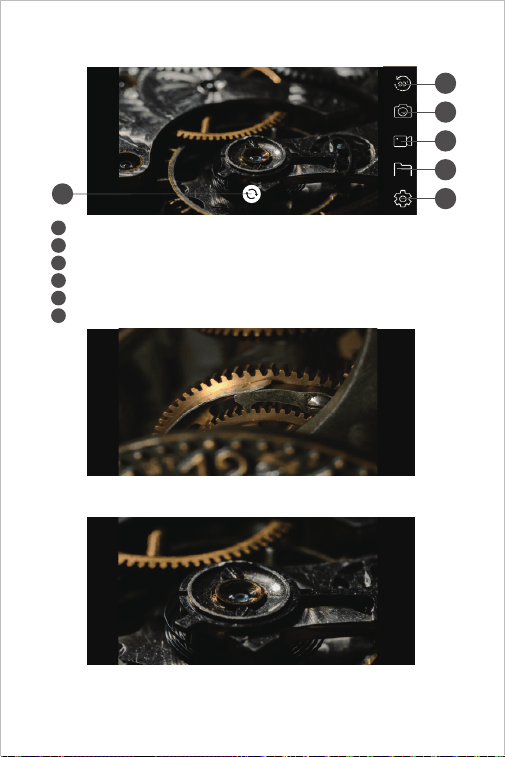
If the endoscope and your smart device connected successfully, you
can receive the real-time images of the endoscope via the
DEPSTECH-View APP, and the blue LED of the endoscope Wi-Fi
transmiter will stay on.
05
2
3
4
5
6
1
APP Introduction
Rotate Button: Click to rotate the image 90°
Photo Shoot Button: Click to take a photo
Record Button: Click to start / end a video record
Buttons Hidden Function:
Click the screen to hide / wake the buttons.
Zoom in / Zoom out Function:
Two fingers expand outwards to zoom in the real- time image.
Two fingers get close to zoom out the real- time image.
Gallery Button: Click to check the photos / videos
Setting Button: Click to enter the setting
Camera Switch Button: Click to switch main / side camera
2
3
4
5
1
6
06
Note:
We wouldn’t recommend our customers to modify the Wi-Fi SSID /
Password.
Which may do disadvantages for next usage. (Once you’ve forgotten
the modified Wi-Fi SSID / Password) So you’d better write down the
modified Wi-Fi SSID / Password if you have to do it.
APP Introduction
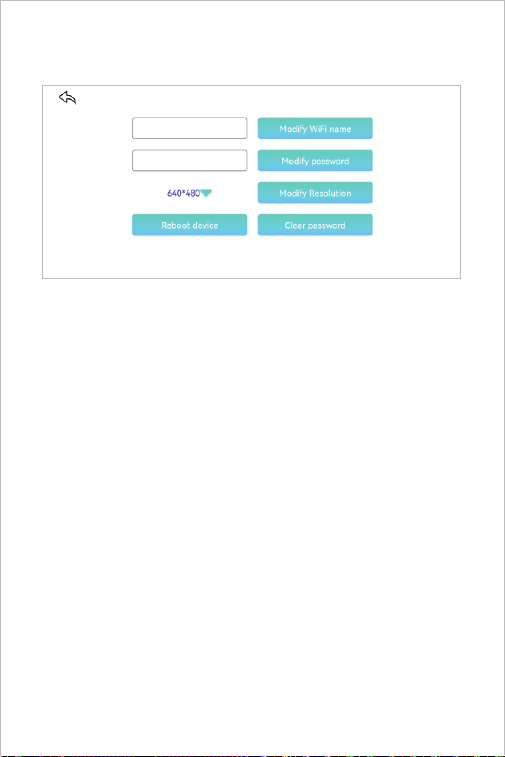
You can reset the WiFi name / password once you have got
the smart device connected with the endoscope.
Modify WiFi name: Click it to enter WiFi name
Modify password: Click it to enter WiFi password
Modify Resolution: Click it to switch the resolution
Reboot device:Shut down the device
After setup, please remember to click “Modify WiFi name /
password / resolution” button.
07
Charging Guide
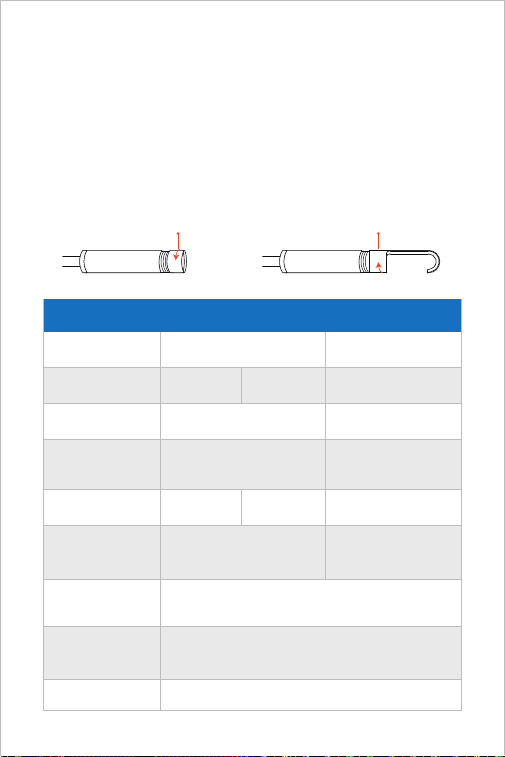
Guide for Accessories Installation
(Not suitable for 0.154in camera)
16.5FT
IP67(For camera part only)
Maximum
Resolution
Sensor
DC 5V/2A
Working Voltage and
Electric Current
WiFi Transmission
Distance
Model
Viewing Angle
Depth of View
Diameter
Waterproof Grade
WF070 WF070 Dual Cam
78°
2*2MP CMOS
1920*1080px
2*70°
Main cam: 1.181-3.150 in
Side cam: 0.787-1.969 in
0.154 in
2MP CMOS
76°
1920*1080px
1.181-3.150 in
0.177 in 0.197 in
Specification
1. Connect the device to the DC 5V USB adapter for charging;
2. During the charging process, the green LED indicator light will be steady on.
3. When the device is fully charged, the green LED indicator will go out.
Turn counterclockwise-remove
accessories
Turn clockwise-tighten
accessories

08
FAQ& Help
Q1: How to connect WiFi endoscope to "DEPSTECH-View"?
A1:
1. Make sure the device is fully charged, long press the power button or
press the switch to turn on the device. The WiFi module will turn on
about 15 seconds after turning on the device. You can observe
whether the WiFi signal light (blue light) of the device is always on. If
it is on, it indicates that the WiFi module is ready;
2. Enter the phone's "Settings" - "WiFi Connection" to find the WiFi
name printed on the device; select and connect, the default password
is "12345678". If the phone prompts "Internet may be unavailable",
please ignore the prompt and select "Keep Connected";
3. Open this App and get real-time images of the endoscope. While the
App is acquiring the device image, the WiFi signal light will flash. If
the image cannot be obtained during the flashing process, please
contact the seller of the device.
Q2: The mobile phone cannot get the real-time image of the WiFi
endoscope or the screen went black?
A2: Please follow the steps below to solve the problems.
1. Please try to restart the device after fully charged.
2. There is a reset hole near the charging port of the device. Please use
reset pin to insert the reset hole. Please make sure that you've
reached the reset button with the reset pin, and the device will turn on
again.
3. Please turn off the "WiFi" function of other mobile phones that have
been connected to this WiFi endoscope at home.
4. Turn on the phone in airplane mode, search for the WiFi signal
identified on the device body, select and connect it, the default
password is "12345678";
5. It should be noted that during the installation of this App, you need to
authorize the "photo/media content" and "document storage"
permissions of this App, otherwise some functions such as taking
pictures/viewing albums may be hindered;

09
FAQ& Help
Q3: Can search for the Wi-Fi signal, but couldn’t get the connection?
A3:
Q4: When the product is in use, it flickers, freezes or disconnects?
A4:
1. The Wi-Fi connection may be failing, you’ve to forget the network and
reconnect it. Also, you can change to an some place without Wi-Fi
distribute and retry the connection.
2. For Android user, at the first time of connecting to the Wi-Fi signal, the
phone may tip "Internet may not be available", please click "Keep
Wi-Fi connection" option.
3. For iOS user, please make sure that you’ve turn on the "Cellular data"
and "Native network" option in the settings - “DEPSTECH-View”.
4. For user who used to modified the Wi-Fi-SSID / password before,
please use a reset pin and plug it into the reset port of the
endoscope. You can refer to lable on the bottom to the default Wi-Fi
SSID / Password and reconnect it.
1. Please make sure that the Wi-Fi endoscope is within 5 meters of your
mobile phone and there is no obstacle between them.
2. When using this Wi-Fi endoscope, please stay away from other
hotspots with strong Wi-Fi signal, or turn off other hotspots.
3. Check whether the power of the device is normal and whether the
power indicator is flashing; if the power is insufficient, please fully
charge it before use;
Note:
If the malfunction cannot be solved after the above operations, please
contact us via email [email protected]
6. For iOS users (especially iOS 14), please enter the "Settings"
interface of the phone, find and click “DEPSTECH-View”, then turn on
the "Cellular Data" and "Native network"option, otherwise it may not
be able to establish communication with the device.

10
SAFETY & MAINTENANCE INFO
※ Please remember to turn off the endoscope and place it in a dry environment after
per use. You can use soft cotton cloth with little alcohol to keep the camera lens
clear, which also does great help to capture the best image. Besides, for every
three month you should charge and use your electric devices regularly, which will
do great help to extend the battery life.
※The storage temperature should between 32-158℉. And the working temperature
should between 32-113℉. Besides, the Childs can only operate this device with
the guidance of adults, please don’t let them operate the device alone.
※ Please keep the device away from fire source/ liquid/ acidic. These may increase
the risk of electrical shocks and damages of the device.
※ The unit is not shock-resistant. Please avoid high impact results from things such
as dropping the unit from height.
※ The lens and the tube are water resistant when the unit is fully assembled, but the
WiFi box isn’t. Which means IP67 waterproof only available for the camera probe
part, and the camera part support underwater inspections within 3.33ft/ 30 mins.
Note: Do not immerse the WiFi box in water
※ According to the guidance of WEEE, attention should be given to the
environmental aspects of battery disposal.
※ It's normal that the camera will turn hot, especially when the camera LED turn to
the brightest level, but it won’t affect the regular usage or the lifespan of the
endoscope.
※ The WiFi transmission distance is about 16.5ft without any obstacles. Please
keep the distance between WiFi box and the phone / tablet within 16.5ft.
※ Please Keep the unit away from strong WiFi disturb area while using. Otherwise,
it may affect the WiFi connection between the WiFi box and the smartphone.
For your safety and better using experience, please read the
instructions carefully before using.

11
※ FCC statement: This device complies with Part 15 of the FCC rules.
Operation is subject to the following two conditions:
1) This device may not cause harmful interface;
2) This device must accept any interference received, including
interference that may cause undesired operation.
This equipment complies with FCC radiation exposure limits set forth
for an uncontrolled environment. This equipment should be installed
and operated with a minimum distance of 20cm between the radiator &
your body. This transmitter must not be co-located or operating in
conjunction with any other antenna or transmitter.
※ 2012/19/EU (WEEE directive): Products marked with this symbol
cannot be disposed of as unsorted municipal waste in the European
Union. For proper recycling, return this product to your local supplier
upon the purchase of equivalent new equipment, or dispose of it at
designated collection points. For more information see: www.recycle-
this.info
2013/56/EU (battery directive): This product contains a battery that
cannot be disposed of as unsorted municipal waste in the European
Union. See the product documentation for specific battery information.
The battery is marked with this symbol, which may include lettering to
indicate cadmium (Cd), lead (Pb), or mercury (Hg). For proper
recycling, return the battery to your supplier or to a designated
collection point. For more information see: www.recyclethis.info
※ EU Conformity Statement
This product and - if applicable - the supplied accessories too are
marked with "CE" and comply therefore with the applicable harmonized
European standards listed under the EMC Directive 2004/108/EC, the
RoHS Directive 2011/65/EU and Amendment (EU) 2015/863.