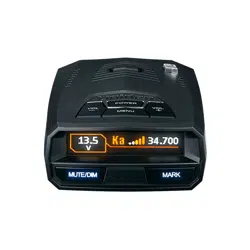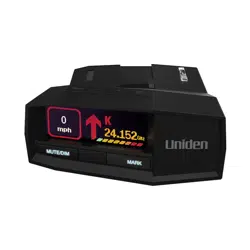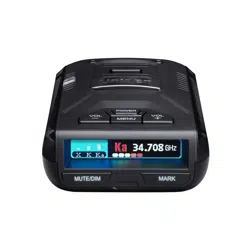
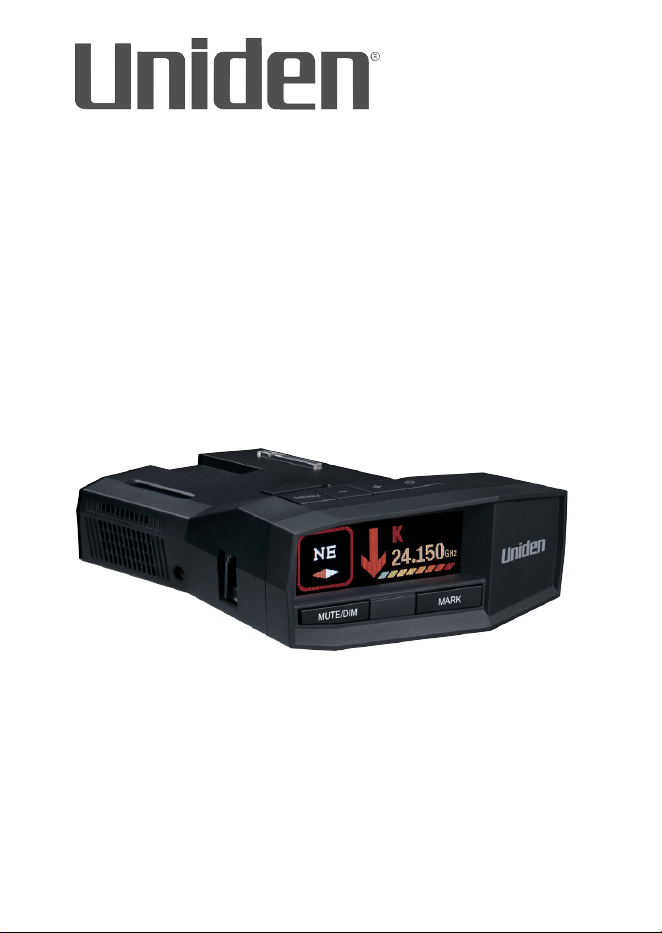
LONG RANGE Radar/Laser Detector
User’s Manual
R8
© 2024 Uniden America Corporation
Flower Mound, Texas
Issue 3, March 2024
Printed in Korea

CUSTOMER CARE
At Uniden®, we care about you!
If you need assistance, please do NOT return this product to your place of purchase
Save your receipt/proof of purchase for warranty.
Quickly find answers to your questions by:
• Reading this User’s Manual.
• Visiting our customer support website at uniden.com.
Images in this manual may differ slightly from your actual product.
DISCLAIMER: Radar detectors are illegal in some states. Some states prohibit
mounting any object on your windshield. Check applicable law in your state and
any state in which you use the product to verify that using and mounting a radar
detector is legal. Uniden radar detectors are not manufactured and/or sold with the
intent to be used for illegal purposes. Drive safely and exercise caution while using
this product. Do not change settings of the product while driving. Uniden expects
consumer’s use of these products to be in compliance with all local, state, and
federal law. Uniden expressly disclaims any liability arising out of or related to your
use of this product.

CONTENTS
R8 OVERVIEW .............................................................................................5
FEATURES ........................................................................................................................ 5
WHAT’S IN THE BOX ...................................................................................6
PARTS OF THE R8 ........................................................................................7
NON-KEY ELEMENTS .................................................................................................. 9
POWER CORD ................................................................................................................. 9
OLED DISPLAY .............................................................................................................11
INSTALL AND TURN ON R8 ..................................................................... 12
INSTALL/POWER ON ..................................................................................................13
Windshield ............................................................................................................13
Dashboard .............................................................................................................13
GPS CONNECT .............................................................................................................13
MENU SYSTEM ......................................................................................... 14
BASIC OPERATIONS ................................................................................ 26
FEATURE DETAILS ................................................................................... 28
ALARM PRIORITIES.....................................................................................................28
ALERT DISPLAY OPTIONS ........................................................................................ 28
ALLOCATING MEMORY ............................................................................................29
ALL THREAT DISPLAY ................................................................................................30
AUTO DIM ...................................................................................................................... 31
Set DIM to Auto from the R8/Power Cord ..................................................31
Congure Auto from MENU ............................................................................ 31
AUTO MUTE/AUTO MUTE VOLUME.....................................................................32
LOW BATTERY ..............................................................................................................32
MODES (HIGHWAY, CITY, AUTO, AND ADVANCED).......................................33
MUTE MEMORY ...........................................................................................................34
OLED DISPLAY OPTIONS .........................................................................................34
MODE DISPLAY ....................................................................................................34
SCAN DISPLAY ......................................................................................................34
TIME DISPLAY .......................................................................................................35
POP MODE ....................................................................................................................35
QUIET RIDE ....................................................................................................................35
REAR BALANCE ............................................................................................................35

RED LIGHT CAMERA QUIET RIDE .........................................................................35
RED LIGHT CAMERA POINT DELETE ...................................................................36
THREATS ......................................................................................................................... 36
USER MARKS (LASER AND RADAR SITES) ......................................................... 37
USER SPEED LIMIT ...................................................................................................... 37
MAINTENANCE ........................................................................................ 37
MAINTAINING THE EQUIPMENT ...........................................................................37
UPDATING THE FIRMWARE/DATABASE .............................................................38
TROUBLESHOOTING ............................................................................... 38
SPECIFICATIONS ..................................................................................... 38
FCC/IC COMPLIANCE .............................................................................. 39
FCC COMPLIANCE ...................................................................................................... 39
FCC INTERFERENCE STATEMENT ..........................................................................40
FCC CAUTION ...............................................................................................................40
FCC RADIATION EXPOSURE STATEMENT .......................................................... 40
IC COMPLIANCE .......................................................................................................... 40
ONE-YEAR LIMITED WARRANTY ........................................................... 41

- 5 -
UNIDEN
LONG RANGE RADAR/LASER DETECTOR
USER’S MANUAL
R8
R8 OVERVIEW
Uniden’s R8
is a top of the line Radar Detector with a built-in GPS feature. With
the R8, you can mark geographical points where you commonly encounter radar
transmissions. These can be school zones, red-light cameras, and places where police
frequently monitor traffic. You can mark these points so the detector will announce
“User mark ahead” when you approach them. Among other announcements, the
Voice Notification feature lets you know when you are approaching a radar and what
type of radar it is (red light, speed, etc).
FEATURES
• Super Long Range Laser Radar Detection
• MRCD/MRCT [Alert priority: GPS alarms, Laser, MRCD, Gatso, Radar (Ka, K, X) with
customizable tones]
• Dual Antennas display Laser direction
• Voice Notifications
• Radar band frequency displays
• GPS for Red Light and Speed camera locations
• Up to 1,750 GPS lockouts
• Easy to read OLED display
• User Mark set and alarm with voice notification (up to 1,750 User Mark points)
• Advanced K and Ka band filters
• Spectre I and IV undetectable
• Displays Signal Strength and Vehicle Battery Voltage
• Max. Speed Warning System
• Red light camera point delete
• 12 X, K, MRCD, Gatso, Ka, and Laser band selectable alert tones
• Bogey tone (Alert tones 1 - 5)
• X, K, and Ka band user-defined sensitivity levels
• Auto mute volume levels (Off, On: 0 - 7)
• Ka Frequency Voice Alert
• Auto Dim
• Overspeed Alert Mute
- 6 -
• POI database save and update (Max. 20,000 points)
• POI alarms (Speed and Red-light cameras, and User Marks)
• 2 POI types: Speed Camera and Red-Light camera
• POI alarm on/off
• Laser gun ID
• Vehicle battery saver and Low Battery warning
• Red-light camera quiet ride
• Speed unit display (mph and km/h)
• Compass display (8 directions)
• GMT setting (–12 ~ +12 hr)
• Dylight Saving Time setting (On, Off)
• Memory Quota
• K Block Filter to block K band monitor systems
• Auto Mute Memory
• 2 Low Noise Amplifiers (LNA)
• Gatso RT3/RT4 detection
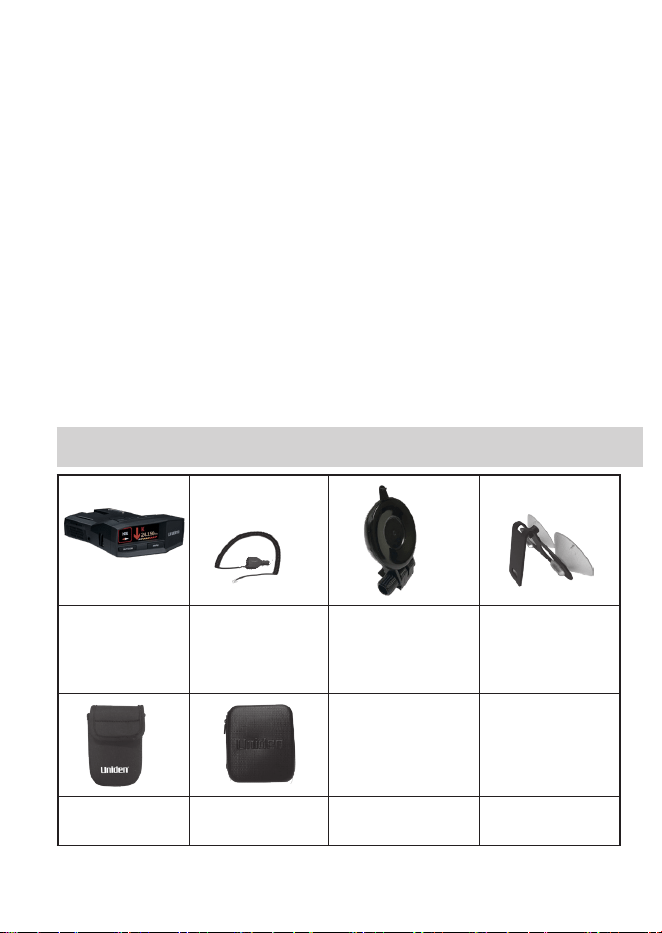
WHAT’S IN THE BOX
R8 Radar
Detector
12V DC Power
Cord with RJ11
Connector
Windshield
Mounting Bracket
(1 Suction Cup)
Windshield
Mounting
Bracket
(2 Suction Cups)
Neoprene
Sleeve
Carrying Case
- 7 -
Not Shown:
USB Cable
Hook and Loop Tape
Owner’s Manuals (English, French, and Spanish)
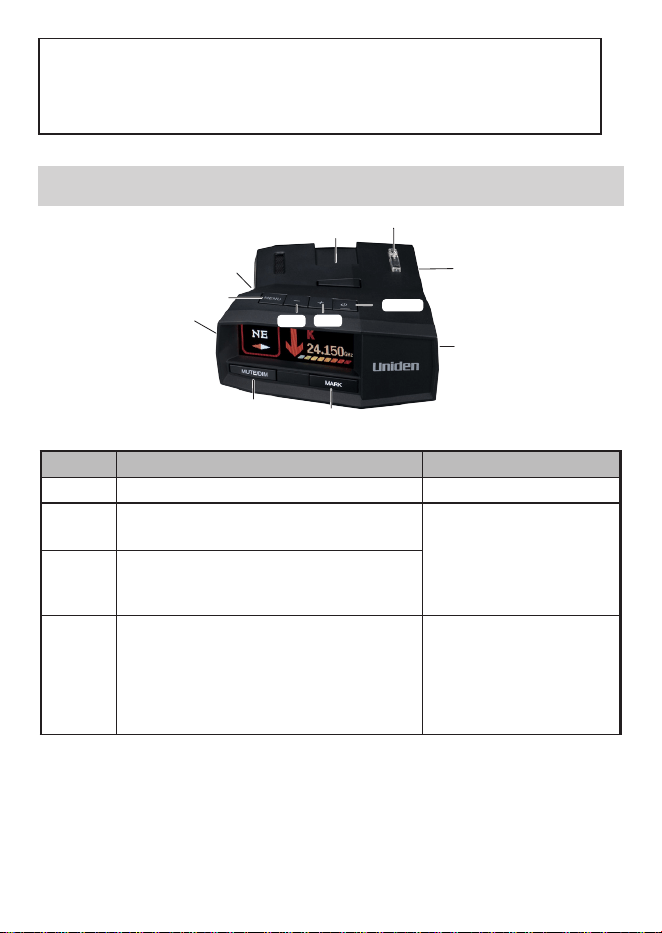
PARTS OF THE R8
Audio
Jack
Eagle Eye
MENU
Latch
Release
MUTE/DIM
VOL +
VOL –
Micro
USB
POWER
MARK
Accessory
Jack
Power
Connection
KEY PRESS TO... PRESS AND HOLD TO ...
POWER
Turn R8 on and off. NA
+
Turn volume up (9 levels: 0 - 8; Default = 4).
In Menus, go to next item.
Quickly turn volume up or
down.
–
Turn volume down (9 levels: 8 - 0; Default
= 4).
In Menus, go to previous item.
MENU
Access the Menu system.
In Menus, press to cycle through options
for the current menu item.
When in Menu mode, exit
the Menu system.
When NOT in Menu mode,
changes modes between
Highway, City, Auto, and
Advanced.
- 8 -
KEY PRESS TO... PRESS AND HOLD TO ...
MUTE/
DIM
MUTE
MUTE on - Press
MUTE/DIM
to mute
an alarm. Returns to normal operation
10 seconds after the alert ends or if a
different band is detected during Mute
mode. Mute On displays for a few
seconds.
MUTE off - Press
MUTE/DIM
to restore
audible alarms before the 10 second
automatic mute time-out. Mute also turns
off when
MENU
is slected.
MUTE MEMORY
Save a Mute Location (Mute Memory) -
press
MUTE/DIM
again while Mute On
displays to save that GPS location and
frequency to memory. Mute Memory
displays on the screen.
R8 stores 2000 points divided between
Mute Memory and User Mark
locations.
DIM - Changes the
display and key backlight
brightness:
Auto (Default). Set
brightness levels for the
OLED display (see page
24).
Bright
Dim
Dimmer
Dark (Dark is off unless
there is alert.)
Off (Off regardless of
whether or not there is
an alert.)
Delete Mute Memory - Press
MUTE/
DIM
while Mute Memory displays; the R8
displays a delete confirmation message.
Press
MUTE/DIM
again to confirm.
MUTE RED LIGHT CAMERA VOICE ALERT
Mute the voice alert for a red light camera
alarm. Press
MUTE/DIM
while the voice
alarm for a red light camera sounds. The
voice alarm mutes.
MUTE ALERTS FOR POI OVERSPEED ALERT
AND USER LIMIT SPEED
When R8 alerts you to an overspeed or
speed limit situation (an alarm sounds and
the alert displays), you can press
MUTE/
DIM
to silence that alarm.
If Overspeed Alert and Radar Alert
alarms are detected at the same
time, R8 alternates between these
two alarms.
DURING RED LIGHT
CAMERA ALERT
Press and hold
MUTE/
DIM
to delete the red light
camera point.
RED LIGHT CAMERA POINT
DELETE
When R8 alerts you to a
red light camera (the alert
displays), you can press
and hold
MUTE/DIM
to
delete that camera point.
After confirming this
deletion, R8 will not give
an alert for that camera.
- 9 -
KEY PRESS TO... PRESS AND HOLD TO ...
MARK
User Mark. A User Mark is a manually
tagged geographic location where an
alarm is usually found. The R8 alerts when
close to these User Marks.
Add - Press MARK when you are at the
alarm location.
Delete - Press MARK when you are at an
alarm location that has been marked.
An error message displays/sounds if
memory is full or there is a GPS error.
Delete all User Marks.
NON-KEY ELEMENTS
ELEMENT WHAT IS DOES
Eagle Eye Provides a 360° monitoring radius.
Latch Slot Insert the bracket latch into this slot.
Micro USB Provides PC connection for data updates.
Audio Jack Plug in headset.
Eject Press to release the bracket latch.
Power Jack Plug the 12V Power Cord here.
Signal Strength Displays received signal strength (8 levels).
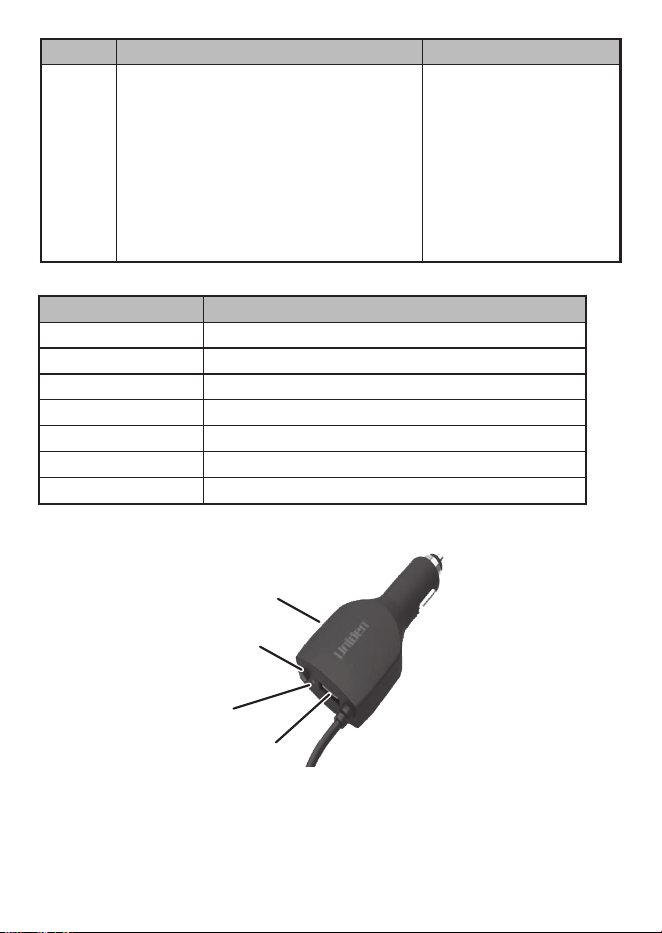
POWER CORD
USB port
MUTE
button
LED
RJ11 port
- 10 -
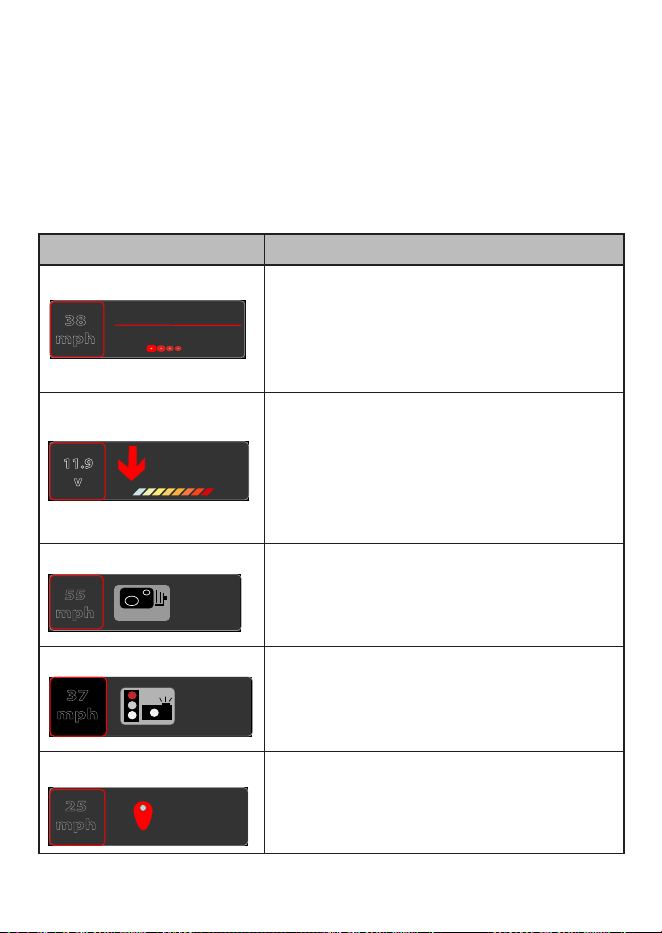
ELEMENT WHAT IT DOES...
MUTE
button
(Although
not labeled,
press
and hold
MUTE
to
access DIM
functions)
• Press the
MUTE
button to mute an alarm. Returns to normal
operation 10 seconds after the alert ends or if a different band
is detected during Mute mode. Mute On displays on the R8 for a
few seconds.
• Save a Mute location (Mute Memory) - press the
MUTE
button
again while Mute On displays on the R8 to save that GPS location
and frequency to memory. Mute Memory displays on the screen.
R8 stores 2000 points divided between Mute Memory and User
Mark locations.
• Delete Mute Memory - Press the
MUTE
button while Mute
Memory displays on the R8; the R8 displays a delete confirmation
message. Press the MUTE button again to confirm.
• Red Light Camera Point Alert Mute/Delete - When R8 alerts you
to a red light camera (the alert displays), you can press
MUTE
to mute or delete (press and hold) that camera point. After
confirming this deletion, R8 will not give an alert for that camera.
• Mute Overspeed Alarms - When R8 alerts you to an overspeed or
speed limit situation (an alarm sounds and the alert displays), you can
press MUTE to silence that alarm
• Press and hold the MUTE button to change the OLED display
brightness.
DIM function. Press and hold for DIM options to display on the
OLED. Press the button again to scroll through and select one of the
following options:
• Auto (Default; see page 24 to set OLED brightness levels.)
• Bright
• Dim
• Dimmer
• Dark (Dark is off unless there is alert.)
• Off (Off regardless of whether or not there is an alert.)
Dim level cannot be changed during a Red Light Camera alert.
LED (Red) • Off: Power is off.
• Steady on: Power is on.
• Flashing: Receiving an alert. The faster it flashes, the stronger the
signal.
USB Port Use this USB port to charge mobile devices.
- 11 -
OLED DISPLAY
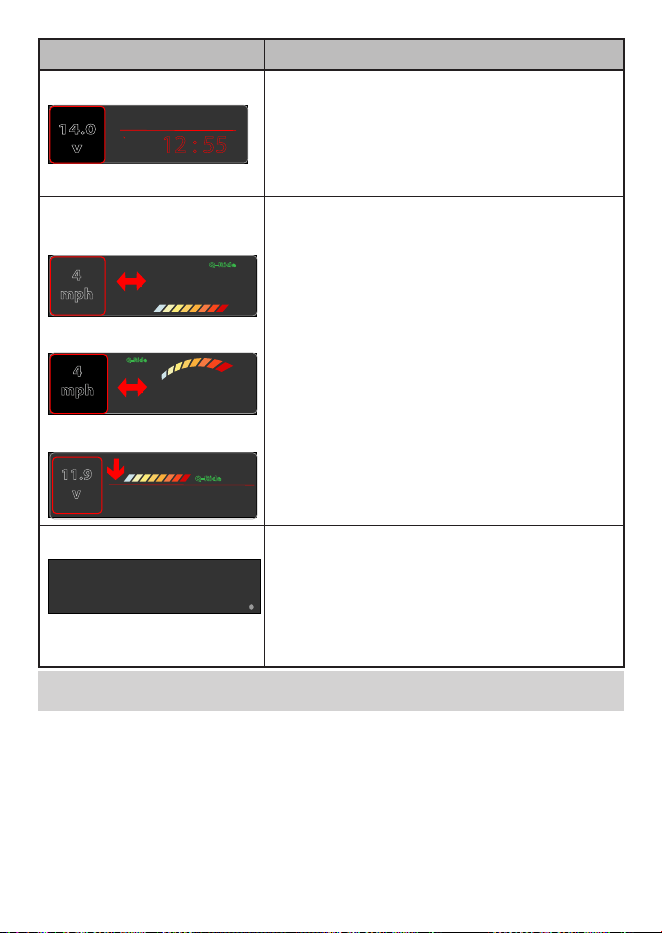
The OLED display on the front of the unit changes depending on what events are
happening.
If GPS = ON, the OLED’s left display area shows the display selected in the Left
Menu Display option (see page 22).
If GPS = Off, the OLED’s left display area shows Volt regardless of user settings.
The following table provides examples of the most common displays.
OLED EXAMPLES MEANING
Scanning for Frequencies
Advanced
38
mph
Information displayed:
• Current Speed (in mph or km/h)
• System mode (Advanced)
• Scanning blocks
Frequency Found
K
24.158GHz
11.9
v
Information displayed:
• Band type Type (X, K, KA)
• Frequency number
• Band direction
• Voltage
• Signal strength indicator bars
Speed Camera Alert
650 ft
55
mph
S p e e d
Information displayed:
• Current speed (in mph or km/h)
• Distance to speed camera
• Speed camera icon
Red Light Camera Alert
730 ft
37
mph
Information displayed:
• Current speed (in mph or km/h)
• Distance to red light camera
• Red light camera icon
User Mark Detected
730 ft
25
mph
Information displayed:
• Current speed (in mph or km/h)
• Distance to user mark
• User mark icon
- 12 -
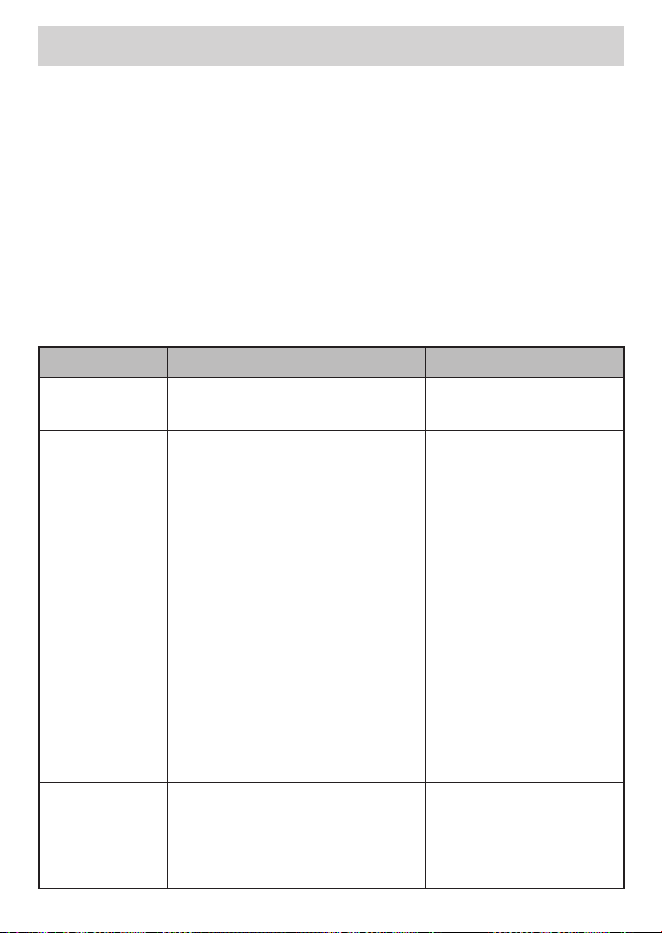
OLED EXAMPLES MEANING
Time Display
Highway
14.0
v
AM
12 : 55
Information displayed:
• Voltage
• Time and AM/PM
• Highway/City/Auto/Advanced
• Heart to indicate end of scanning
Quiet Ride
Display Style #1
K
24.158GHz
Q-Ride
4
mph
Display Style #2
24.158GHz
Q-Ride
K
4
mph
Display Style #3
K
24.158
GHz
11.9
v
Q-Ride
Information displayed:
• Current speed (in mph or km/h)
• Signal strength indicators
• Signal direction arrows
• Status Area (Q-Ride displays)
• Band
Dark Mode Set mode to Dark if the unit’s OLED is not
expected to change a lot to prevent image burn-
in (Auto Dim setting).
In Dark mode, the OLED is dark with a small dot
in the lower corner that moves from bottom left
to center to bottom right. The movement of the
dot confirms that the unit is still powered up.
INSTALL AND TURN ON R8
You can mount the R8 on the windshield (1- and 2-cup suction brackets included) or
on the dashboard (hook and loop tape included).

- 13 -
INSTALL/POWER ON
Windshield
When you mount the R8 on the windshield, mount it in the middle of the windshield
between the driver and passenger. Be sure there are no obstructions and that there
is a clear view through the windshield.
1. Attach the rubber suction cups to the bracket and push the cups firmly onto the
windshield.
2. Slide the unit onto the bracket until it clicks into place.
3. Plug the power cord RJ11 connector into the R8 and plug the cigarette lighter
adapter into the vehicle’s cigarette lighter.
4. When the vehicle turns on, the R8 automatically turns on and runs through a
self test cycle.
Release the R8 from the bracket by pressing the
Eject
key on top of the detector.
Dashboard
The same types of mounting requirements for the windshield apply for mounting the
unit on the dashboard.
1. Attach the unit to the dashboard using the hook and loop fastener tape.
Be careful not to cover any air vent holes with the hook and fastener tape.
2. Plug the power cord RJ11 connector into the R8 and plug the cigarette lighter
adapter into the vehicle’s cigarette lighter.
3. When the vehicle turns on, the R8 automatically turns on and runs through a
self test cycle.
Pull the unit from the dashboard, separating the hook and loop tape.
GPS CONNECT
When the R8 powers on, it starts receiving GPS data. When it receives GPS data, it
announces “GPS Connected” and displays the following:
GPS Connected
i
- 14 -
MENU SYSTEM
Menus let you set up the system to your own requirements. You can turn different
bands on and off and set specific items such as speed or auto mute.
Press MENU to access the Menu system. The screen displays the selection’s current
status. For example, if you press MENU and the screen displays Voice: ON, you have
the option of turning Voice to OFF.
Use the following keys to navigate the menus:
•
MENU
: Change a menu item setting (press and hold to exit the Menu system).
•
+
: Go to the next Menu item.
•
–
: Go to the previous Menu item.
Several menu items only display if GPS is set to ON. These entries are noted in the
following table.
MENU ITEM FUNCTION SETTINGS
Mode display Shows selected mode. Basic
Expert
Band Sensitivity
Selection
Changes band sensitivity as
follows:
Highway - Full Sensitivity
City - X and K sensitivity reduced.
Ka band sensitivity same as
Highway.
Auto - the R8 will automatically
switch between Highway and City
depending on the speed limits set
in the Auto City Speed menu. See
Auto City Speed below and on
page 33.
Advanced - User adjusts X, K, and
Ka band in decreasing sensitivity
from 100% - 30% in 10% intervals.
Advanced - Select Attenuation
levels for the X, K, and Ka bands.
See page 15 for details.
Highway (Default)
City
Auto
Advanced
Auto City Speed
(If Band
Sensitivity set
to Auto)
Set the speed limit at which the
R8 will switch from City mode to
Highway mode and back.
10 ~ 60 mph in 5 mph
increments (Default: 40
mph)
10 ~ 100 km/h (in 10km/h
increments)
- 15 -
MENU ITEM FUNCTION SETTINGS
X Band
Attenuation
(Basic and
Expert levels,
Advanced
modes only)
The higher the attenuation (100%)
the more signals, including weaker
signals, are received. Reduce
attenuation and the weaker
signals drop out, leaving only the
stronger signals.
100% (Default) ~ 30%
(In decreasing 10%
increments)
K Band
Attenuation
(Basic and
Expert levels,
Advanced
modes only)
The higher the attenuation (100%)
the more signals, including weaker
signals, are received. Reduce
attenuation and the weaker
signals drop out, leaving only the
stronger signals.
100% (Default) ~ 30%
(In decreasing 10%
increments)
Ka Band
Attenuation
(Basic and
Expert levels,
Advanced
modes only)
The higher the attenuation (100%)
the more signals, including weaker
signals, are received. Reduce
attenuation and the weaker
signals drop out, leaving only the
stronger signals.
100% (Default) ~ 30%
(In decreasing 10%
increments)
Rear Balance
(Expert level
only)
Adjust sensitivity between front
and rear antennas.
100% (Default) ~ 30%
(In decreasing 10%
increments)
GPS
(Turn GPS
on and off in
Expert level
only)
Display current GPS status in Basic
level.
Turn GPS on or off in Expert level
only.
GPS determines your geographic
location and locates set frequency
locations in your area from a
database.
If GPS is turned on, other GPS-
related menu items display.
On (Default)
Off
Speed Camera
Alarm
(If GPS on)
Notifies you if any speed cameras
are nearby.
On (Default)
Off
- 16 -
MENU ITEM FUNCTION SETTINGS
Speed Camera
Alert Range
(If Speed
Camera Alert
on)
Sets range for speed camera
detection when Speed Camera
Alarm is On.
Auto
1000 ft (300 m) (Default)
2,000 ft (600 m)
2,500 ft (760 m)
3,000 ft (900 m)
Redlight
Camera Alarm
(If GPS on)
Notifies you if any red light
cameras are nearby. The red light
camera alerts when the vehicle
is about 984 ft (300m) from the
red light camera and goes off
when the vehicle is about 1,148 ft
(350m) away from it.
On (Default)
Off
RLC Q-Ride
(If GPS on)
Red Light Camera Quiet Ride -
Mutes red light camera alarms if
you are driving below the speed
set here.
50 ~ 85 MPH (80 ~ 140
km/h)
Off (Default)
POI Passchime
(If GPS on)
Turns the alert chime off and on. On
Off (Default)
Voice Turns voice alert on or off under
the following conditions:
Type of radar/laser
Band alarms
On (Default)
Off
Ka Frequency
Voice
Announces the detected Ka band
frequency.
On
Off (Default)
X Band Turn off to have the detector
ignore X band frequencies.
Turn on for X band sensitivity as
follows:
Highway: Full sensitivity
City: X and K bands sensitivity
reduced
On
Off (Default)
K Band Turn off to have the detector
ignore K band frequencies.
On (Default)
Off
Ka Band Turn off to have the detector
ignore Ka band frequencies.
On (Default)
Off
- 17 -
MENU ITEM FUNCTION SETTINGS
Laser Turn off to have the detector
ignore lasers.
On (Default)
Off
Laser Gun ID
(Laser set to on
in Expert level
only)
Turn on to display laser gun
identifier.
On
Off (Default)
K POP
(Expert level
only)
Detects K POP transmissions (very
brief transmissions, too fast for
some detectors to hear).
On
Off (Default)
MRCD/T Activates MultaRadar CD/CT low-
powered radar gun detection.
On
Off (Default)
Gatso RT3/4 Activates detection for Gatso
radar guns.
Gatso RT3/4 On
Gatso RT3/4 Off (Default)
Ka POP
(Expert level
only)
Detects Ka POP transmissions
(very brief transmissions, too fast
for some detectors to hear).
On
Off (Default)
K Filter
(Expert level
only)
Filters noise from the K band to
prevent false detections.
On (Default)
Off
Ka Filter
(Expert level
only)
Filters noise from the Ka band to
prevent false detections.
On
Off (Default)
TSF
(Expert level
only)
Traffic Sensor Filter. Prevents
false alarms caused by traffic
monitoring radar systems.
On
Off (Default)
K Block1 Filter
(Expert level
only)
Keep K Block1 Filter ON to block
K band monitor systems in the
24.199 (± 0.005) range.
On
Weak (Default)
Mute
Off
K Block2 Filter
(Expert level
only)
Keep K Block2 Filter ON to block
K band monitor systems in the
24.168 (± 0.002) range.
On
Weak (Default)
Mute
Off
- 18 -
MENU ITEM FUNCTION SETTINGS
K Wide/
Narrow/
Extended
(Expert level
only)
K Wide and K Narrow scan for K
band radar guns used in the US
only. K Narrow scans a narrower
frequency range than K Wide.
K Extended increases the
frequency scanning range for K
band radar guns.
K Wide (Default)
K Narrow
K Extended
Ka Narrow/
Wide/
Segmentation
(Expert level
only)
Ka Narrow scans for Ka radar guns
used in the US only and reduces
false alarms. Ka Narrow also
provides a fast response to Ka POP
radar guns.
Ka Wide scans Super Wide Ka
band.
Ka Segmentation allows the user
to customize a Ka band sweep
from 9 filtered settings.
Ka Narrow (Default)
Ka Wide
Segmentation (Default
= On)
Ka 1 : 33.399 – 33.705
On/Off
Ka 2 : 33.705 – 33.903
On/Off
Ka 3 : 33.903 – 34.191
On/Off
Ka 4 : 34.191 – 34.587
On/Off
Ka 5 : 34.587 – 34.803
On/Off
Ka 6 : 34.803 – 35.163
On/Off
Ka 7 : 35.163 – 35.379
On/Off
Ka 8 : 35.379 – 35.613
On/Off
Ka 9 : 35.613 – 35.701
On/Off
Priority
(Expert level
only)
Sets whether Ka band signals have
priority over the strongest radar
signals for X, K, or Ka band, or
MRCD.
Laser alerts have priority over
radar alerts.
If MRCD on:
MRCD/Ka Priority
(Default)
Signal
Ka/MRCD
If MRCD off:
Signal
Ka (Default)
- 19 -
MENU ITEM FUNCTION SETTINGS
Mute Memory
Band
(If GPS on,
Expert level
only)
Select bands to be muted. X & K (Default)
X, K, Ka
Auto Mute
Memory
(If GPS on,
Expert level
only)
This menu turns the ability to
save mute requests for specific
locations/frequency bands on
and off.
On (Default)
Off
Auto Mute
Memory Band
Option Set
(If GPS on,
Expert level
only)
Auto Mute Memory Band Option
Set specifies which bands will be
muted.
X & K (Default)
X, K, and Ka
Threat Display
(Expert level
only)
Displays if more than one radar
signals are detected at the same
time. The signal with the strongest
radar signal is considered the
main signal; the other signals are
displayed on the left side (see
page 36).
All Threat On
All Threat Off (Default)
Color
(Expert level
only)
Select the color for the fixed
display elements on the OLED.
Blue
Amber
Green
Pink
Gray
Red (Default)
White
Violet
- 20 -
MENU ITEM FUNCTION SETTINGS
Arrow Color
(Expert level
only)
X Band
Signal setting matches signal
strength level color.
Red (Default)
Blue
Green
Orange
Yellow
White
Violet
K Band
Signal setting matches signal
strength level color.
Red (Default)
Blue
Green
Orange
Yellow
White
Violet
MRCD/T Band
Signal setting matches signal
strength level color.
When MRCD/T is on:
Red (Default)
Blue
Green
Orange
Yellow
White
Violet
Gatso RT3/4 Band:
Signal setting matches signal
strength level color.
When Gatso RT3/4 is on:
Red (Default)
Blue
Green
Orange
Yellow
White
Violet
Ka Band
Signal setting matches signal
strength level color.
Red (Default)
Blue
Green
Orange
Yellow
White
Violet
- 21 -
MENU ITEM FUNCTION SETTINGS
Band Color
(Expert level
only)
X Band
When Band Color is set to Signal,
band color matches signal
strength level color.
Signal (default)
Red
Blue
Green
Orange
Yellow
White
Violet
K Band
When Band Color is set to Signal,
band color matches signal
strength level color.
Signal (default)
Red
Blue
Green
Orange
Yellow
White
Violet
MRCD/T Band
When Band Color is set to Signal,
band color matches signal
strength level color.
When MRCD/T is on:
Signal (default)
Red
Blue
Green
Orange
Yellow
White
Violet
Gatso RT3/4 Band:
When Band Color is set to Signal,
band color matches signal
strength level color.
When Gatso RT3/4 is on:
Signal (default)
Red
Blue
Green
Orange
Yellow
White
Violet
Ka Band
When Band Color is set to Signal,
band color matches signal
strength level color.
Signal (default)
Red
Blue
Green
Orange
Yellow
White
Violet
- 22 -
MENU ITEM FUNCTION SETTINGS
Display mode
(GPS on)
Select what displays on the right
side of the OLED.
Scan Display
Mode Dsplay (Default)
Time Display
Display mode
(GPS off)
Select what displays on the right
side of the OLED.
Scan Display
Mode Dsplay (Default)
Scan Icon mode Turn the small scanning dot icon
on or off.
On
Off (Default)
Left Display
Mode
Select what elements display on
the left side of the OLED.
Altitude
Speed (Default)
Speed + Compass
Compass
Voltage
Alert Display
Mode
Select the desisred alert display
format for the OLED.
Alert Format #1 (Default)
K
24.158GHz
11.9
v
Alert Format #2
24.158GHz
11.9
v
K
Alert Format #3
K
24.158
GHz
11.9
v
Q-Ride
Speed Unit
(If GPS on)
Select the speed measurement
type.
mph (default)
km/h
X Band Tone
(Expert level)
Set a tone to indicate X Band. 1 ~ 12 tones (Default = 1)
K Band Tone
(Expert level)
Set a tone to indicate K Band. 1 ~ 12 tones (Default = 2)
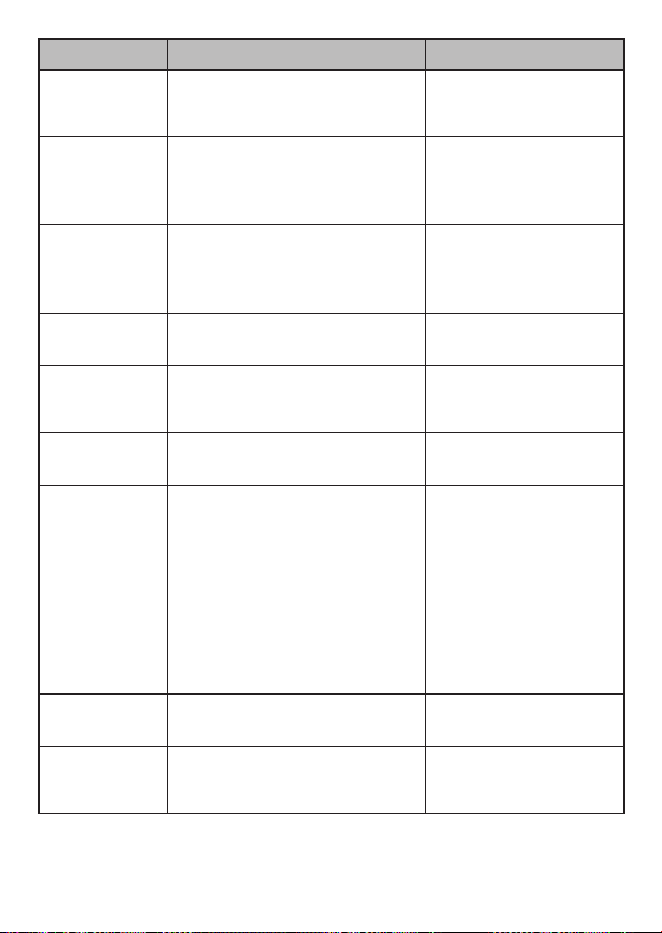
- 23 -
MENU ITEM FUNCTION SETTINGS
K Bogey Tone
(Expert level)
Set a tone to indicate when
the detector is responding to a
different K band signal.
1 ~ 5 tones (Default = 1)
MRCD/T Tone
(if MRCD/T is
on in Expert
level)
Set a tone to indicate when
MRCD/T signals are detected.
1 ~ 12 tones
(Default = 6)
Gatso Tone
(if Gatso RT3/4
on in Expert
level)
Set a tone to indicate Gatso RT3/4. 1 ~ 12 tones (Default = 9)
Ka Band Tone
(Expert level)
Set a tone to indicate Ka Band. 1 ~ 12 tones
(Default = 3)
Ka Bogey Tone
(Expert level)
Set a tone to indicate the detector
is responding to a different Ka
band signal during a Ka band alert.
1 ~ 5 tones
(Default = 1)
Laser Tone
(Expert level)
Set a tone to indicate Laser. 1 ~ 12 tones
(Default = 4)
Auto Mute Auto Mute reduces alarm level
to 1 after 3 seconds and returns
to normal operation (Auto Mute
= Off) 10 seconds after the alert
ends. If the same alarm sounds
within the 10 second period, Auto
Mute remains at level 1. The unit
returns to normal operation (Auto
Mute = OFF) if a different band is
detected during Auto Mute = ON
mode.
On (Default)
Off
Auto Mute
Volume
Sets a volume level for muted
alarms.
0 - 7 (Default = 2)
Off
Rear K Mute
(Expert level)
Turn on to mute K band alarms
coming from the rear. The alarm
will still display on the OLED.
On
Off (Default)
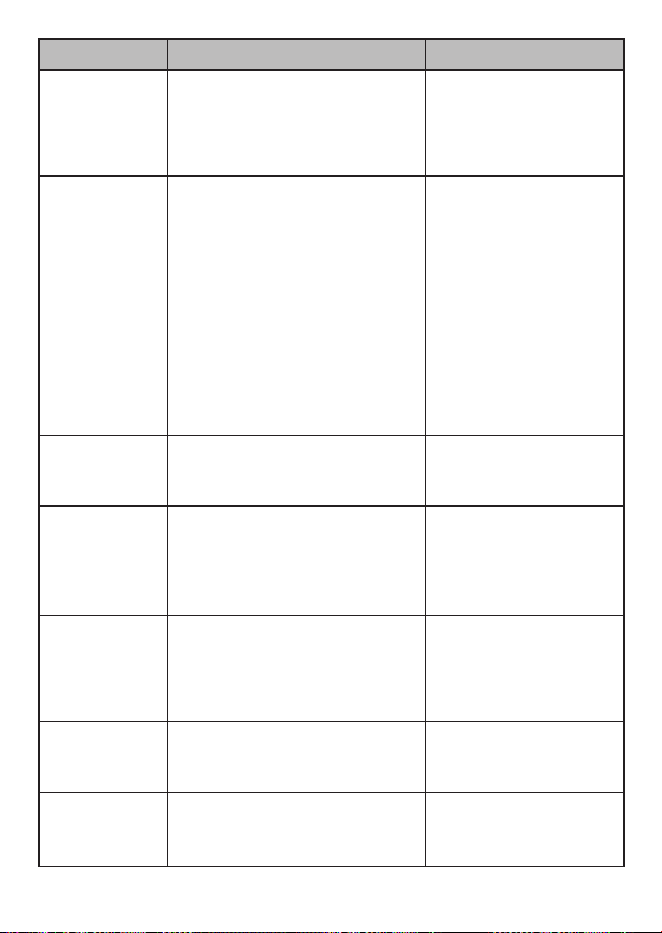
- 24 -
MENU ITEM FUNCTION SETTINGS
Dark Mode
Brightness
Setting
(Expert level
only)
Set Alert brightness. Bright
Dim
Dimmer (Default)
Auto Dim
Setting
[If GPS on in
Expert level
AND Dim
setting set to
Auto through
the MUTE/DIM
key (see page
31).]
Choose Time or Sensor (Default).
See page 31 for details.
Choosing Time lets you set the
start times for the OLED to
automatically brighten or dim. For
example, you can set the OLED
to be brighter at 6:00 AM and
dimmer at 6:45 PM.
Choosing Sensor lets the R8’s
light sensors determine which
brightness level to follow.
Bright time - Set time
for the OLED to change
brightness in 15 minute
increments.
Bright Level - Select
Bright, Dim, or Dimmer.
Dim Time - Set time
for Dim in 15 minute
increments (up to 24
hours).
Dim level - Select Bright,
Dim, Dimmer, Dark, or
Off.
Backlight
(Expert level
only)
Turns the front key backlight on
and off.
On (Default)
Off
Quiet Ride
(If GPS on)
Mutes radar alarms for K and X
bands when you drive under the
speed limit you set here.
Off (Default)
mph = 5 - 90 in 5 mph
intervals
km/h = 10 - 140 in 10
km/h intervals
Q-Ride
MRCD/T
(If both GPS
and MRCD/T
are on)
Mutes MRCD/T alarms when you
drive under the speed limit set
previously.
On
Off (Default)
Quiet Ride Beep
Volume
(If GPS on)
Sets the volume for Quiet Ride
alerts.
0 ~ 8
(Default = 1)
Limit Speed
(If GPS on)
Set an alarm to sound if you go
faster than this selected speed.
Off (Default)
50 - 100 mph
80 - 160 km/h
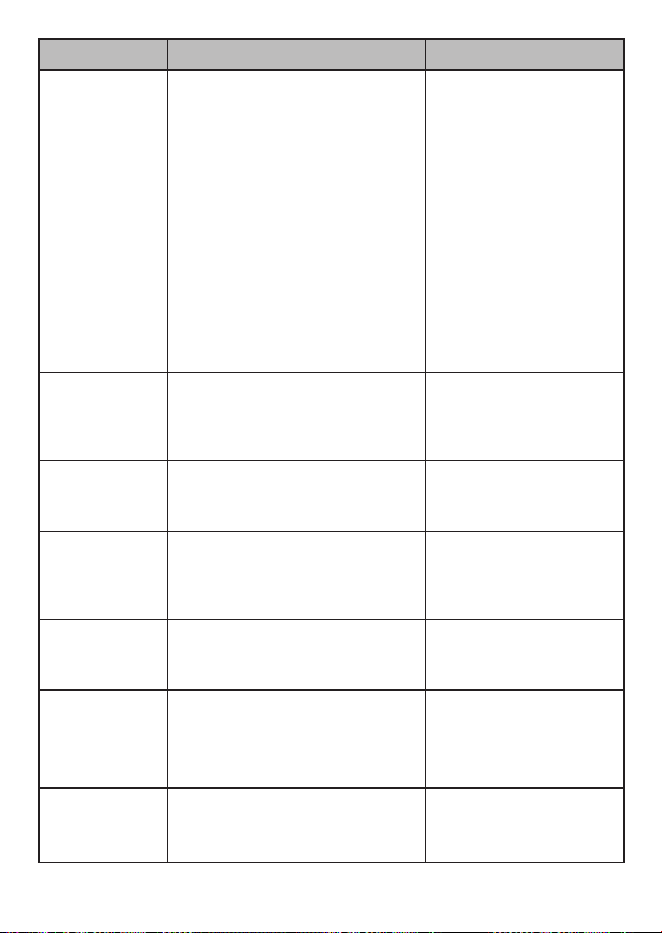
- 25 -
MENU ITEM FUNCTION SETTINGS
GMT
(If GPS on,
Expert level
only)
Sets time zone according to
Greenwich Mean Time (GMT).
Most common time
zone settings for North
America are:
GMT-05:00 - Eastern
Standard
GMT-06:00 - Central
Standard
GMT-07:00 - Mountain
Standard
GMT-08:00 - Pacific
Standard
GMT-09:00 - Yukon
Standard
GMT-10:00 - Alaska-
Hawaii Standard
DST
(If GPS on,
Expert level
only)
Daylight Saving Time On
Off (Default)
BAT Warning
(Expert level
only)
Sounds a warning tone if the
vehicle battery power drops below
11V.
BAT Warning On
BAT Warning Off (Default)
Battery Saver
(If GPS on,
Expert level
only)
Turns off power to the R8 if the
speed stays at 0 or if the GPS is
not connected for more than an
hour.
On
Off (Default)
Self Test
(Expert level
only)
Runs a self diagnostic test on the
unit to check for faults.
On (Default)
Off
Factory Reset? Resets all settings to the factory
defaults.
There is no confirmation request
for reset.
Press MENU to reset to
factory settings.
Delete All
Mute?
(If GPS on)
Delete all saved Mute Memory
points.
Press MENU to delete
all saved Mute Memory
points.
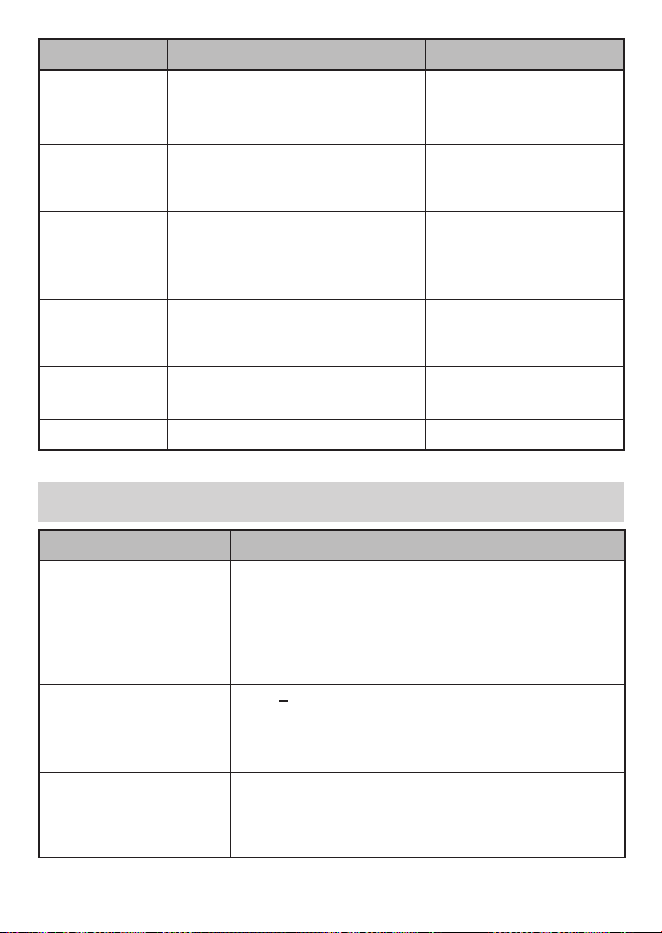
- 26 -
MENU ITEM FUNCTION SETTINGS
Delete All
Auto?
(If GPS on)
Delete all saved Auto Mute
Memory points.
Press MENU to delete all
saved Auto Mute Memory
points.
Delete All User?
(If GPS on)
Delete all user-selected memory
points.
Press MENU to delete all
user-selected memory
points.
Memory Quota
(If GPS on,
Expert level
only)
R8 shares up to 2,000 points
between Mute Memory and User
Marks. Allocate these levels using
this menu.
Mute Memory: 250 ~1750
points total
User Marks: 250 ~ 1750
points total
S/W version/
DSP Version/
GPS Version
Displays the latest firmware, DSP,
and GPS versions.
NA
DB Ver
(If GPS on)
Displays the latest database
version.
NA
Exit Closes the Menu system. NA
BASIC OPERATIONS
HOW DO I ...? TRY THIS...
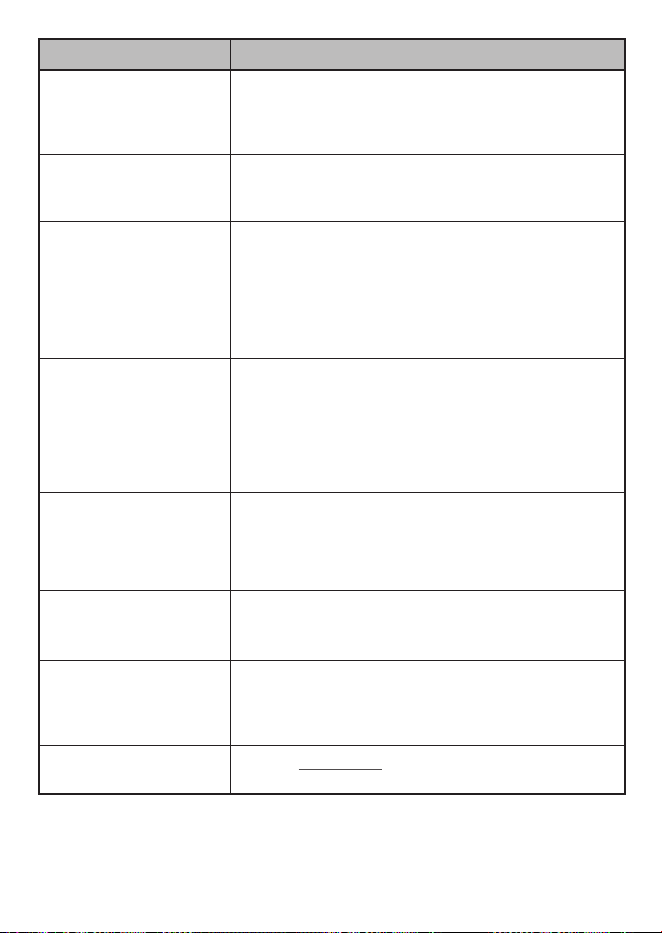
Turn on the R8 Be sure the unit is connected to power and then press
POWER. The unit turns on and runs through an initial
self-check if Self Test is turned on. It displays the
different bands and their settings.
The R8 turns on automatically when you start the
vehicle.
Adjust the volume Press
+
to increase volume. The unit beeps and
displays a number increase.
Press
–
to decrease volume. The unit beeps and
displays a number decrease.
Mute alarm audio during
the alert
Press
MUTE/DIM
during an audio alarm to mute it.
(This is especially useful in situations where the alert
may be prolonged, such as at red lights.) You can also
press the
MUTE
button on the power cord.
- 27 -
HOW DO I ...? TRY THIS...
Change the screen’s
brightness
Press and hold
MUTE/DIM
. The unit displays the
current brightness level. Press
MUTE/DIM
again.
The R8 announces the brightness level (Bright, Dim,
Dimmer, Dark, or Off) as it changes to that level.
Turn bands on and off Press MENU then
+
to cycle through the menu options
until the band you want to turn off displays. Press
MENU again to change that band’s status.
Change Highway to
City or Auto or set
attenuation levels in
Advanced mode and
back
Press MENU. The first menu selection is Highway
(default). Press MENU to cycle through Highway, City,
Auto, and Advanced. After you select Highway, City,
or Auto, press and hold MENU to exit. If you select
Advanced, press + to select the X, K, or Ka band to
adjust. Press MENU to adjust sensitivity levels in 10%
increments. Press + again to adjust the other mode.
Set a user mark Press
MARK
to create a user mark when you are at a
location where there is normally some type of radar.
The R8 announces “User mark logged.” The R8 will
announce when you approach user marks.
R8 stores 2000 points divided between Mute Memory
and User Mark locations.
Delete a user mark Press
MARK
again at that location to delete the user
mark.
R8 stores 2000 points divided between Mute Memory
and User Mark locations.
Delete ALL user marks Press and hold
MARK
to delete all user marks.
The R8 does NOT ask for confirmation before deleting
single user marks.
Allocate dynamic
memory points between
Mute Memory and User
Marks
Press
MENU
and
+
to scroll to the Memory Quota;
menu. Press
MENU
to select it and press
-
and
+
to
change the allocation in 50 point increments. See for
details.
Update the firmware and
database
Refer to uniden.com for details.
- 28 -
FEATURE DETAILS
ALARM PRIORITIES
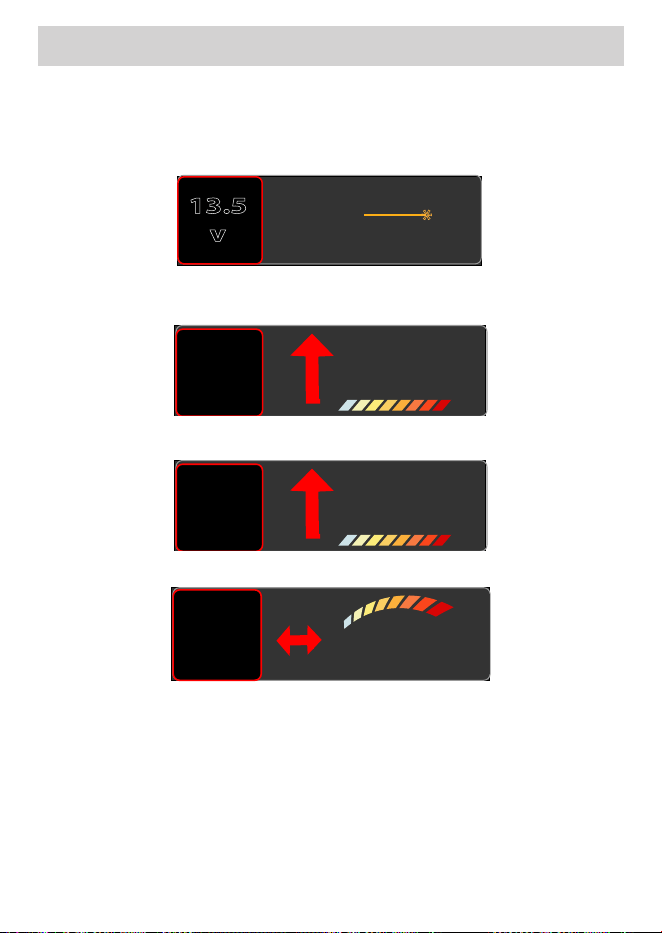
• GPS Connected / GPS Error / Speed Camera / Red Light Camera / User Mark
Alarm/POI Limit Speed Alarm.
• Laser signal
Laser
13.5
v
*
• MRCD Alarm
MRCD
24.100GHz
13.0
v
• Gatso
RT3
Gatso
13.0
v
• Radar (X, K, Ka band signal)
24.051GHz
20
mph
K
ALERT DISPLAY OPTIONS
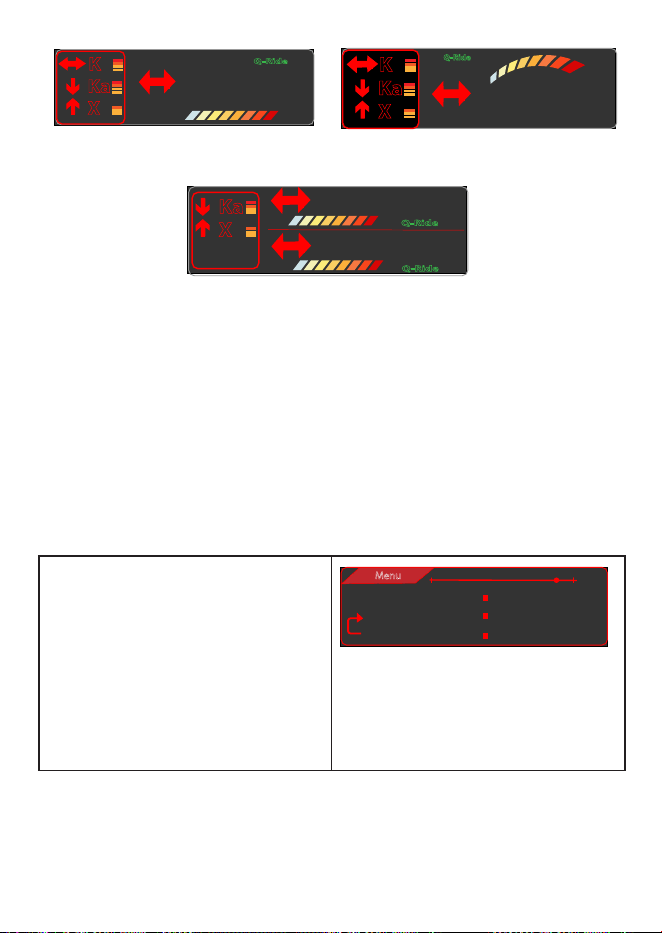
The R8 has 3 different display options for alerts, selectable in the Menus.
- 29 -
K
24.158GHz
Q-Ride
Ka
X
K
24.158GHz
Q-Ride
K
Ka
X
K
Alert Display #1 Alert Display #2
K
Q-Ride
24.158
GHz
K
Q-Ride
24.051GHz
Ka
X
Alert Display #3
If the frequency is muted, the signal strength display is gray.
ALLOCATING MEMORY
The R8 allows 2000 memory points to be shared between Mute Memory points and
User marks. The default allocation is 1000 points each; the most one category can
have is 1750 with the other category having a maximum of 250 at the same time.
Change this allocation through the Memory Quota menu.
The Memory Quota menu lets you allocate memory in 50 point blocks. For example,
if you want to add 50 points to Mute Memory, those 50 points are deducted from
User Marks. This creates a balancing effect between the two.
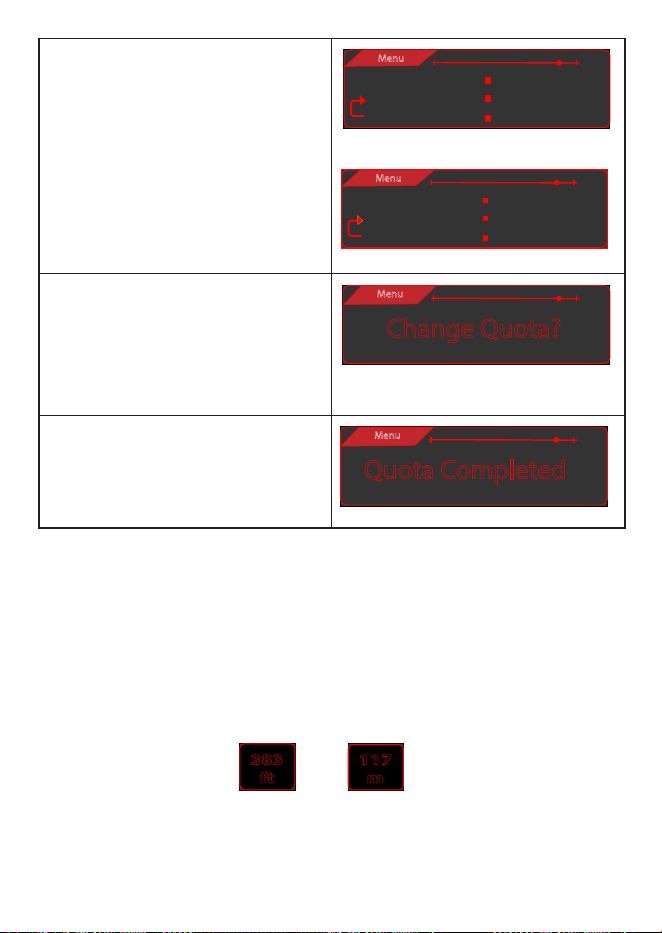
1. Select Memory Quota from the
main menu. The Memory Quota
screen displays. The bottom line is
the starting allotment; the middle
line is the line that changes as you
increase/decrease allotments. The
number in parentheses indicates
the number used; for example,
the user has used 100 Mute
Memory points out of 250.
Menu
Mute mem User Mark
250 (100) 1750 (200)
250 (100) 1750 (200)
- 30 -
2. Use the
+
and
-
keys to increase
or decrease the category with the
highest allotment by 50 units.
Using the examples to the right,
you start with User Mark at the
maximum, 1750, so pressing
+
doesn’t affect the allotments.
Pressing
-
will subtract 50 from
User Mark and add 50 to Mute
Memory.
Menu
Mute mem User Mark
300 (100) 1700 (200)
250 (100) 1750 (200)
Press
-
again for the following result:
Menu
Mute mem User Mark
350 (100) 1650 (200)
250 (100) 1750 (200)
3. Press
MENU
to save that change.
Change Quota? displays.
If no keys are pressed within 10
seconds after this confirmation
message displays, the system
cancels the changes.
Change Quota?
Menu
4. Press
MENU
again to accept
changes to the Memory Quota.
A confirmation message displays
before returning to the status
screen.
Quota Completed
Menu
ALL THREAT DISPLAY
R8 can detect up to 4 radar signals at a time and display then on the OLED. The main
display reflects the value set in the Priority menu (see page 18) and up to 3 more
alerts display in the left side.
ALTITUDE DISPLAY
The altitude display changes according to the speed unit selected in the menu. If
mph is selected, the altitude displays in feet (ft). If km/h is selected, the altitude
displays in meters (m).
117
m
Altitude - feet
Altitude - meters
383
ft

- 31 -
AUTO DIM
The Auto Dim feature only displays in the Expert level if you select Auto using the R8
unit’s
MUTE/DIM
button or the power cord’s
MUTE
button.
The R8 has a light sensor that works with the Auto Dim feature to dim or brighten
the OLED display according to outside light levels. Configure OLED brightness/dim
levels through the Auto Dim setting in the menus.
Set DIM to Auto from the R8/Power Cord
1. Press and hold the MUTE/DIM button on the R8 device or the MUTE button on
the power cord. The current DIM level displays on the OLED.
2. Press the MUTE/DIM button on the R8 device or the MUTE button on the
power cord to change DIM levels until AUTO displays. The R8 device displays
and, if volume is turned on, announces the current feature setting.
Congure Auto from MENU
The unit must be set to Expert level with GPS on and the brightness level must be
set to Auto through the Mute/Dim button or the MUTE button on the power
cord.
1. Press MENU. Press VOL+ or VOL- to scroll through the menu options until Auto
Dim Setting displays.
2. Press MENU to display Auto/Dim options display - Time or Sensor. Selecting
Time will let you set specific times when you want the OLED to get brighter
or dimmer. Selecting Sensor will let the ambient light levels trigger when the
OLED will get brighter or dimmer.
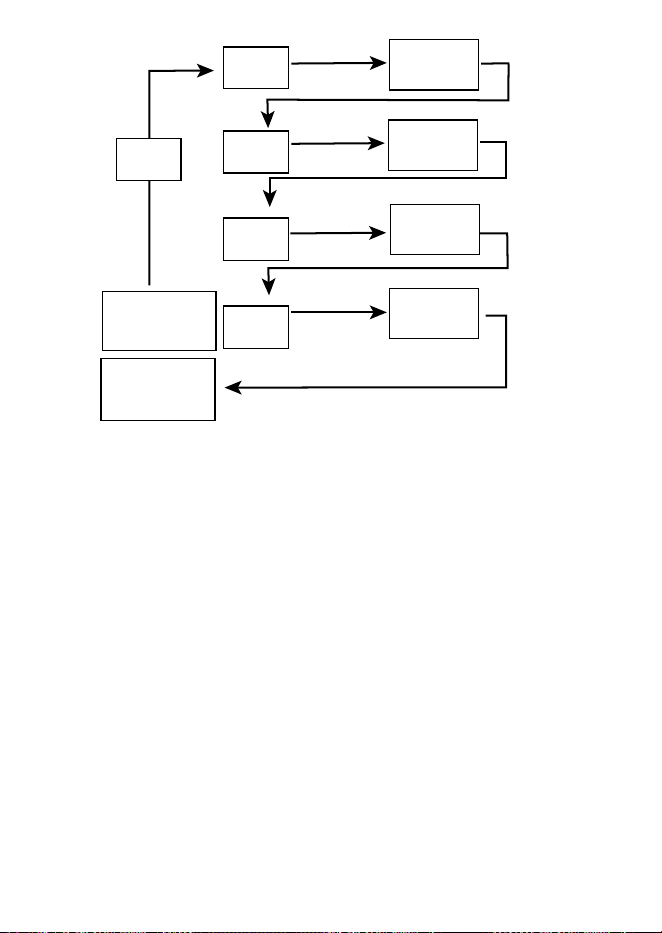
3. Select Mode: Time Press VOL+ access Bright time. (Bright time box in the
illustration.) Press MENU to add 15 minutes to the start time displayed. (Range
= 5:30 AM - 7:30 AM)
4. Press VOL+ to access Bright Level options (Bright level box in the illustration).
Press MENU to scroll between Bright, Dim, and Dimmer.
5. Press VOL+ to access Dim time options (Dim time box in the illustration). Press
MENU to add 15 minutes to the start time displayed (Range = 5:00 PM - 8:00
PM).
6. Press VOL+ to access Dim level options (Dim level box in the illustration). Press
MENU to scroll between Bright, Dim, Dimmer, Dark, and Off.
7. Press VOL+ to access the next menu item, Backlight.
8. The OLED will change to these preset levels at the preset times, making the
OLED brighter or dimmer as selected.
- 32 -
Auto Dim Setting
Menu Option
Bright
time
Add 15 min to
starting time
Press VOL+
Press Menu to
Bright
level
Select Bright,
Dim, Dimmer
Dim
time
Dim
level
Select Bright,
Dim, Dimmer,
Dark, O
Press Menu
Add 15 min to
starting time
Backlight
Menu Option
Press Menu to
Press Menu to
Press Menu to
Mode:
Time
Press VOL+
Press VOL+
Press VOL+
Press VOL+
AUTO MUTE/AUTO MUTE VOLUME
When the R8 detects a signal, it sounds an alarm at the current volume level for three
seconds. After 3 seconds, R8 changes the volume level to the Auto Mute Volume level
set in the Menu (see page 23).
Regardless of how high Auto Mute may be set, it will never be at a higher level than
the actual volume level. For example, if the volume is set to level 5 and Auto Mute
Volume is set to level 7, Auto Mute will keep the volume at level 5, the same as the
actual volume level.
Auto Mute ends 10 seconds after the alarm ends unless:
• The same signal is detected within that 10 second period; then, Auto Mute stays
on.
• A different band signal is detected during that 10 second period; then, Auto Mute
turns off and then back on at the current volume level.
Auto Mute does not apply to Laser Alert.
LOW BATTERY
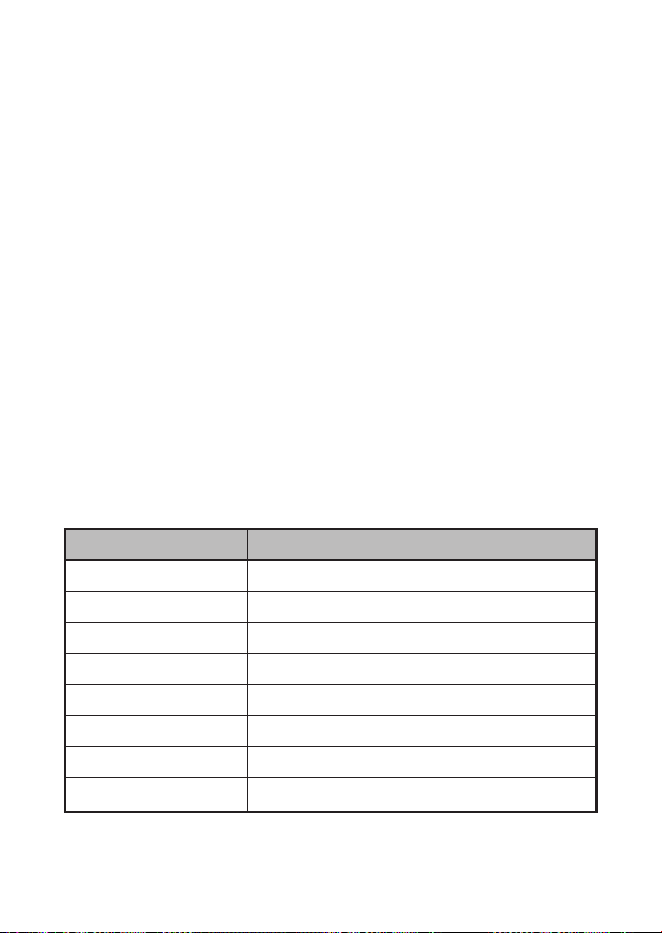
The R8 alerts every 30 minutes when the car battery voltage is under 11 Volts. It
announces Low Battery and displays a Low Battery alert.
- 33 -
MODES (HIGHWAY, CITY, AUTO, AND ADVANCED)
Uniden’s R8 radar detector operates in two different frequency (X, K, and Ka band)
sensitivity modes - Highway and City. Highway mode is the most sensitive, with
maximum detection ranges while on the highway or open road. City is on the lower
end of the detection scale for city driving. City mode reduce sensitivity so that false
signals (such as from automatic door openers) are filtered out.
Under factory default conditions (X band = off on all modes, K and Ka bands = on),
the band sensitivities are:
• Highway: X, K, and Ka bands full sensitivity.
• City: X and K bands sensitivity reduced; Ka band full sensitivity.
• Auto: Auto mode will switch the R8 between Highway and City depending on the
Auto City Speed menu setting (see page 14). If the driving speed is over the
Auto City Speed setting, R8 operates in Highway mode. If it is below the set speed,
R8 operates in City mode. Sensitivity is the same as Highway and City settings.
If GPS is not connected, R8 automatically operates in Highway mode.
• Advanced: Adjust the sensitivity level for each band.
1. Press MENU. The current level and mode display.
2. Press MENU to scroll through the modes and select Advanced mode.
3. Press VOL+ to scroll through the Bands and then press MENU to adjust the
desired band in 10% increments.
Sensitivity Level % Sensitivity Adjustment (Attenuation)
100 Full sensitivity (Default)
90 – 1 dB
80 – 2 dB
70 – 3 dB
60 – 4.5 dB
50 – 6 dB
40 – 8 dB
30 – 10.5dB

- 34 -
4. When complete, press VOL+ to move to the next mode to adjust.
5. Press VOL+ to return to the MENU.
If a band is turned off through the menus, it is off in all modes.
MUTE MEMORY
Use Mute Memory to mute known areas of false alarms (such as department store
automatic doors). The R8 remembers where you muted the audio (GPS location) and
the frequency you muted. It will automatically mute when you travel to that location
and the saved frequency is detected; however, if a different frequency is detected,
the R8 alerts to that different frequency.
When you press
MUTE/DIM
or the
MUTE
button on the power cord to mute audio
for a specific location, Mute On displays. While Mute On displays, press
MUTE/DIM
or the
MUTE
button on the power cord again to save that GPS location to memory.
Mute Memory displays on the screen.
R8 stores 2000 points divided between Mute Memory and User Mark locations.
To delete Mute Memory points, press
MUTE/DIM
or the
MUTE
button on the
power cord while Mute Memory displays. The R8 displays a delete confirmation
message; press
MUTE/DIM
or the
MUTE
button on the power cord again to
confirm. You can also delete Mute Memory points from Menus/Delete All Mute?
OLED DISPLAY OPTIONS
Use the Display Setting menu to determine what displays on the right side of the
OLED display. Options are Mode, Scan, and Time.
MODE DISPLAY
Select MODE Display to show the band sensitivity selection on the OLED’s right side
(Highway, City, Auto, or Advanced).
Highway
12.0
v
SCAN DISPLAY
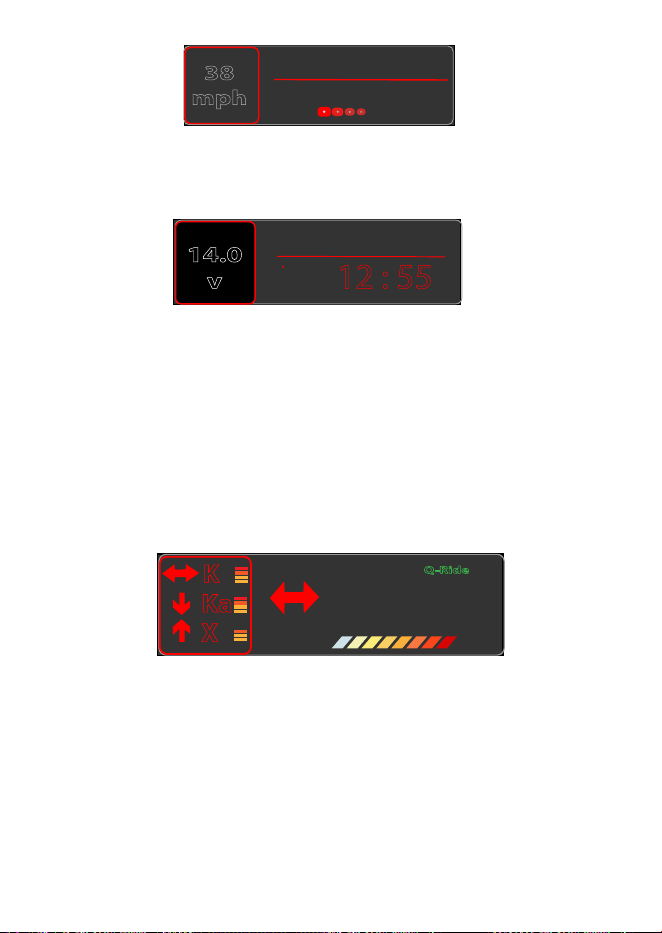
Select Scan Display to show active scanning. The OLED uses a multi block light to
indicate scanning is in progress. The lights move from left to right and back again
from right to left.
- 35 -
Advanced
38
mph
TIME DISPLAY
The OLED displays the time in the center of the OLED if Time Display is selected in
the menu.
Highway
14.0
v
AM
12 : 55
POP MODE
In POP mode, the R8 can detect short burst from radars that are too fast for many
other detectors to catch. You can turn POP mode on and off in the Menu system.
QUIET RIDE
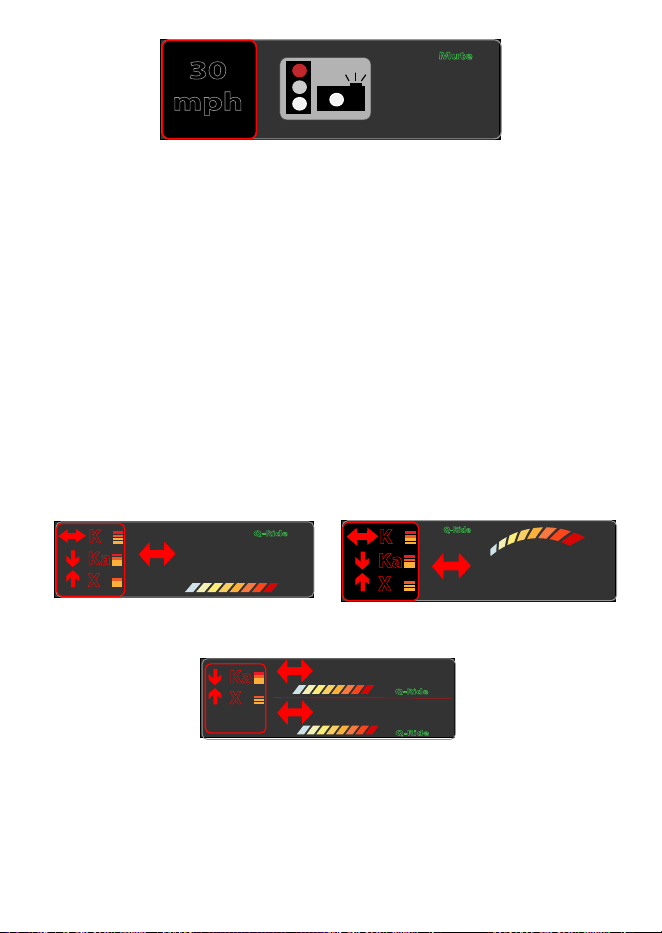
This function mutes X and K band radar alarms when you drive under a speed limit
set in this menu (up to 90 mph/140 km/h). If X or K band signals are detected, the
unit beeps once in volume level one and then goes to volume level zero. Q-Ride
flashes in green on the OLED.
Ka and Laser bands are NOT muted. Mute Memory overrides Quiet Ride.
K
24.158GHz
Q-Ride
Ka
X
K
REAR BALANCE
This feature lets you adjust the X, K, and Ka band rear radar sensitivity from 100% to
30% in Highway, City, and Advanced modes. If you set rear balance to 50%, the rear
radar’s sensitivity will be half of what the front radar’s sensitivity is. If the front radar
is set to 100%, rear radar will be 50% (half of 100%).
RED LIGHT CAMERA QUIET RIDE
This function mutes red light camera alarms when you drive below a speed limit set
in this menu (up to 85 mph or 140 km/h) (see page 16.)
- 36 -
450ft
30
mph
Mute
RED LIGHT CAMERA POINT DELETE
When you are at a red light camera and an alert displays, you can delete that camera
point. Once deleted, the R8 will not alert at that red light camera location again.
To delete the RLC Point, press MUTE/DIM on the unit or MUTE on the power cord
while the alert displays.
A confirmation message displays. Press MUTE/DIM on the unit again or MUTE again
on the power cord. Delete Completed displays.
THREATS
The R8 detects up to 4 radar band signals (threats) at a single time. The strongest
rader signal is designated as the Priority signal, and its frequency displays on the
OLED. Alert Display #3 also displays the second strongest signal on the OLED. The
other signals (threats) are indicated in the left side of the display. In the following
example, 2 K band, 1 Ka band, and 1 X band frequencies are detected. The multicolor
rectangles on the left side indicates signal strength.
K
24.158GHz
Q-Ride
Ka
X
K
24.158GHz
Q-Ride
K
Ka
X
K
Alert Display #1 Alert Display #2
K
Q-Ride
24.158GHz
K
Q-Ride
24.051GHz
Ka
X
Alert Display #3
If the frequency is muted, the signal strength display is gray.
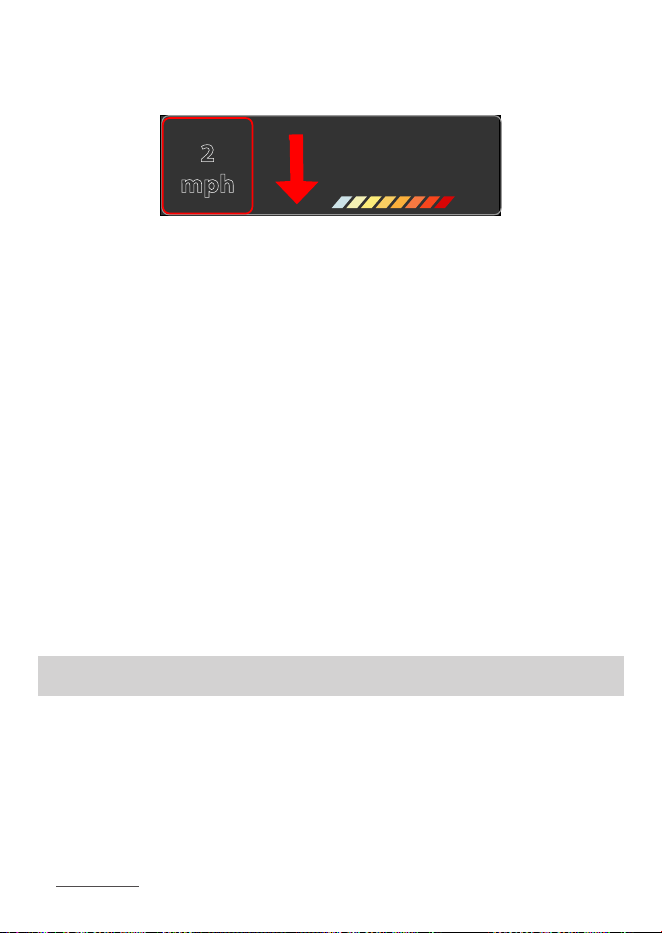
The Priority menu setting determines which type of frequency displays on the OLED
(see page 18). If Priority is set to Signal priority, the strongest signal displays on the
OLED. If Priority is set to Ka Priority, the Ka band radar signal displays on the OLED.
- 37 -
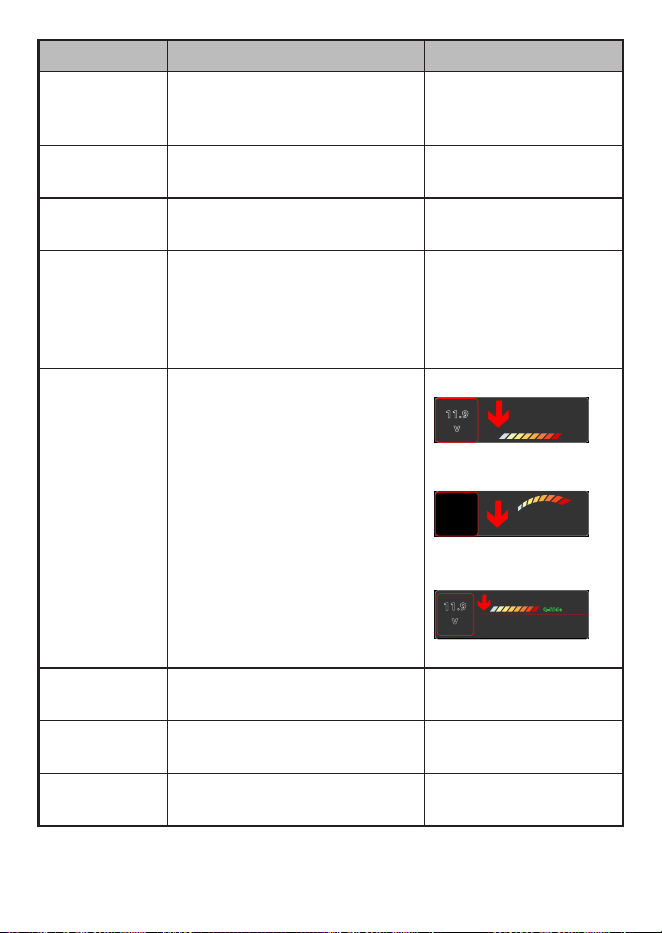
If the strongest signal is muted, it displays in grey on the left side and the next
strongest signal displays in the main part of the display.
If only one signal is detected, the R8 display keeps the current Left Display setting.
K
24.158GHz
2
mph
USER
MARKS (LASER AND RADAR SITES)
With the R8, you can mark geographical points where you commonly encounter
radar transmissions, These can be school zones, red-light cameras, and places where
police frequently monitor traffic.
When you are at the location, press MARK. The R8 announces “User mark logged.”
Now, when you approach these points, the R8 announces “User mark ahead.”
If there is already a User Mark within a 1,666 ft (508m) radius, you cannot save
that specific location as a new User Mark.
Press and hold MARK at that location to delete that user mark.
The R8 registers up to 2,000 marks split between mute memory marks and user
marks. These marks are split at 1750 maximum and 250 minimum between the two
mark types.
USER SPEED LIMIT
When you set a speed limit thorough the menus, the R8 sends an alarm tone if your
speed exceeds that speed limit setting. If that happens, the unit announces and
displays over speed warnings.
MAINTENANCE
MAINTAINING THE EQUIPMENT
The R8 requires very little physical maintenance. Wipe it with a soft cloth to keep
dust from accumulating. Check the power cord connections to keep them clean and
free of corrosion.
UPDATING THE FIRMWARE/DATABASE
Uniden recommends that you update your firmware and database periodically. Go
to uniden.com, find your model, and check if you have the latest firmware.
- 38 -
TROUBLESHOOTING
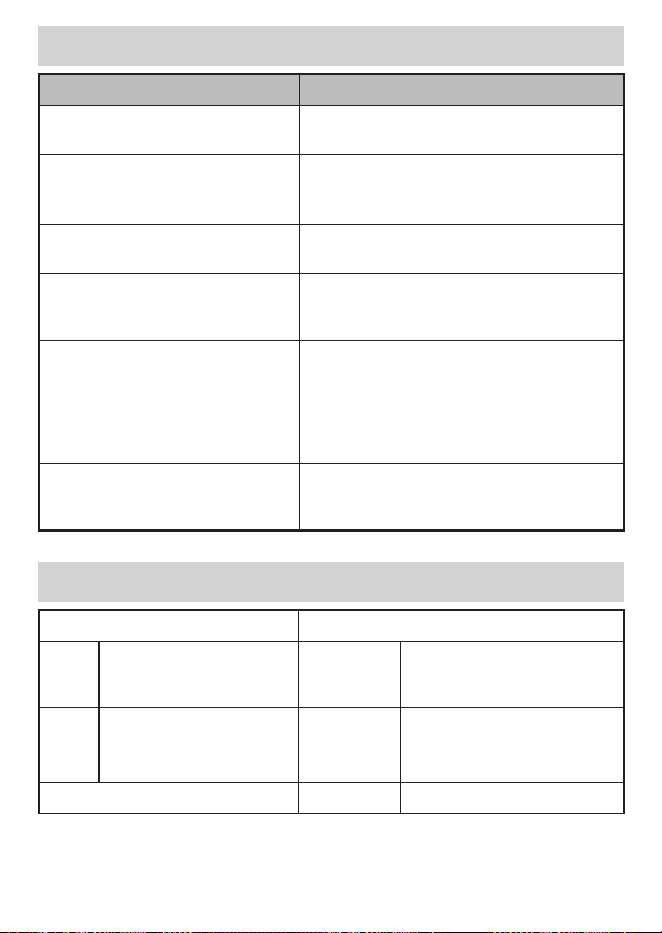
If... TRY THIS...
The unit won’t turn on Check the connections. Be sure they are all
secure.
No display or audio. If no display, check the connections. Be sure
they are all secure.
If no audio, check if Voice is turned off.
The unit alarms when the vehicle
hits bumps.
Check the connections. Be sure they are all
secure.
The unit alarms briefly in the same
location but no radar source was
in view.
There may be a motion sensor or house
alarm in use within range.
The R8 did not alert when a police
car was in view.
The officer may not have radar/laser units
turned on.
Check that the band is turned on. Press
MENU and cycle through the options to get
to the bands. If the band is turned off, the
OLED will show OFF. Turn the band on.
The vehicle starts but the R8 does
not turn on.
Verify that the power cord is securely
connected to the unit and inserted into the
cigarette lighter jack.
SPECIFICATIONS
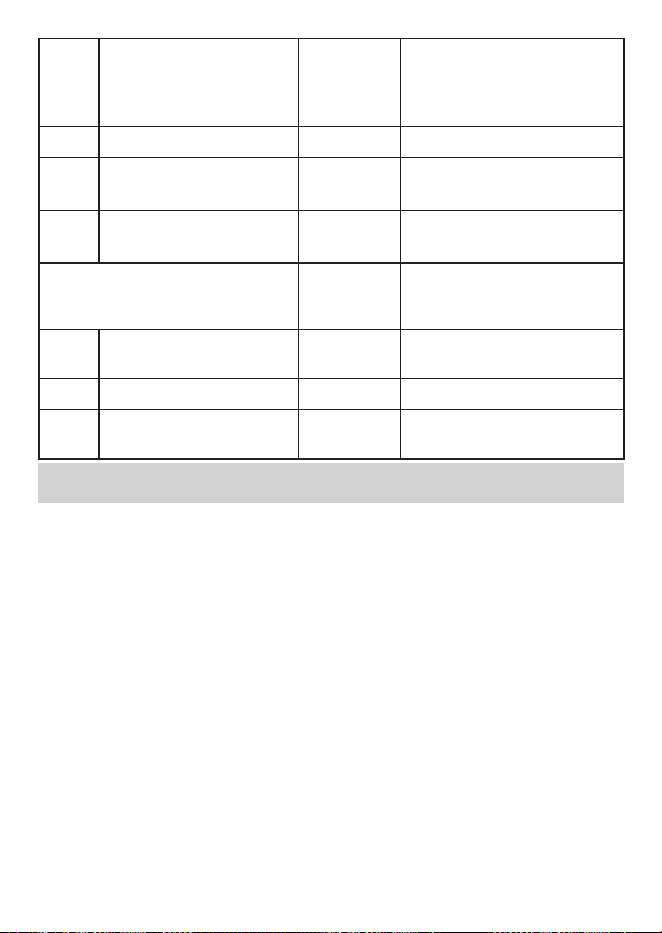
Receiver Type: Antenna Type:
Radar Double Conversion
Super-heterodyne Self-
Contained Antenna
Radar Linear Polarized E-vector
Vertical
Laser Pulsed Laser Signal
Receiver
Laser
Front
Back
Convex Condenser Lens
Concave Condenser Lens
Frequency:
- 39 -
X 10.525 GHz Dimensions 4.88in (D) x 3.85in (W) x
1.52in (H)
124.11mm (D) x 98.00mm
(W) x 38.80mm (H)
K 24.150 GHz Weight 7.4 oz (210 g)
Ka 33.400 - 35.700 GHz Operating
Temp.
-4° to +185° F (Radar/Laser)
-20° to +85° C (Radar/Laser)
Laser 800 nm - 1,100 nm Storage
Temp.
-22° to +203° F (Radar/Laser)
-30° to +95° C (Radar/Laser)
Detector Type: Operating
Power
Source
DC 11.0 to 16.0 V
Radar Scanning Frequency
Discriminator
USB
Interface
USB Specification 2.0/1.1
Laser Pulse Width Discriminator
Alarm
Type
Voice and Beep (Detected
Band and Signal strength)
FCC/IC COMPLIANCE
FCC ID: AMWUA2102 contains FCC ID: W75-BTM0.
FCC COMPLIANCE
This device complies with Part 15 of the FCC rules. Operation is subjected to the
following two conditions: (1) this device may not cause harmful interference, and (2)
this device must accept any interference received, including interference that may
cause undesired operation.
Changes or modifications not expressly approved by the party responsible for
compliance could void your authority to operate the equipment.
Avis de conformité à la FCC : Ce dispositif a été testé et s’avère conforme à l’article
15 des règlements de la Commission fédérale des communications (FCC). Ce
dispositif est soumis aux conditions suivantes: 1) Ce dispositif ne doit pas causer
d’interférences nuisibles et; 2) Il doit pouvoir supporter les parasites qu’il reçoit,
incluant les parasites pouvant nuire à son fonctionnement.
Tout changement ou modification non approuvé expressément par la partie
responsable pourrait annuler le droit à l’utilisateur de faire fonctionner cet
équipement.

- 40 -
FCC INTERFERENCE STATEMENT
This equipment has been tested and found to comply with the limits for a Class B
digital device, pursuant to part 15 of the FCC Rules. These limits are designed
to provide reasonable protection against harmful interference in a residential
installation. This equipment generates, uses and can radiate radio frequency
energy and, if not installed and used in accordance with the instructions, may cause
harmful interference to radio communications. However, there is no guarantee that
interference will not occur in a particular installation.
If this equipment does cause harmful interference to radio or television reception,
which can be determined by turning the equipment off and on, the user is
encouraged to correct the interference by one of the following measures:
• Reorient or relocate the receiving antenna.
• Increase the separation between the equipment and receiver.
• Connect the equipment into an outlet on a circuit different from which the
receiver is connected.
• Consult the dealer or an experienced radio/TV technician for help.
FCC CAUTION
This transmitter must not be co-located or operating in conjunction with any other
antenna or transmitter.
FCC RADIATION EXPOSURE STATEMENT
This equipment complies with FCC radiation exposure limits set forth for an
uncontrolled environment. This equipment should be installed and operated with
minimum distance 20 cm between the radiator and your body. This transmitter must
not be co-located or operating in conjunction with any other antenna or transmitter.
IC COMPLIANCE
This device complies with Industry Canada license-exempt RSS standard(s).
Operation is subject to the following two conditions: (1) this device may not cause
interference, and (2) this device must accept any interference, including interference
that may cause undesired operation of the device.
Changes or modifications not expressly approved by the party responsible for
compliance could void your authority to operate the equipment.
Cet appareil est conforme aux normes RSS exemptes de licences d’Industrie Canada.
Son fonctionnement est soumis aux deux conditions suivantes : (1) cet appareil
ne doit pas causer d’interférences nuisibles et (2), il doit pouvoir accepter les
interférences, incluant celles pouvant nuire à son fonctionnement normal.

- 41 -
Tout changement ou modification non approuvé expressément par la partie
responsable pourrait annuler le droit à l’utilisateur de faire fonctionner cet
équipement.
ONE-YEAR LIMITED WARRANTY
Keep your receipt! Proof of purchase is required for warranty service.
WARRANTOR: UNIDEN AMERICA CORP. (“UNIDEN”).
ELEMENTS OF WARRANTY: Uniden warrants, for one year, to the original
retail owner, this Uniden Product to be free from defects in materials and
crasmanship with only the limitaons or exclusions set out below.
WARRANTY DURATION: This warranty to the original user shall terminate
and be of no further eect 12 months aer the date of original retail sale. The
warranty is invalid if the Product is (A) damaged or not maintained as reasonable
or necessary, (B) modied, altered, or used as part of any conversion kits,
subassemblies, or any conguraons not sold by Uniden, (C) improperly installed,
(D) serviced or repaired by someone other than an authorized Uniden service
center for a defect or malfuncon covered by this warranty, (E) used in any
conjuncon with equipment or parts or as part of any system not manufactured
by Uniden, or (F) installed or programmed by anyone other than as detailed by
the Operang Guide for this product.
STATEMENT OF REMEDY: In the event that the product does not conform to
this warranty at any me while this warranty is in eect, warrantor will repair
the defect and return it to you without charge for parts, service, or any other
cost (except shipping and handling) incurred by warrantor or its representaves
in connecon with the performance of this warranty. THE LIMITED WARRANTY
SET FORTH ABOVE IS THE SOLE AND ENTIRE WARRANTY PERTAINING TO
THE PRODUCT AND IS IN LIEU OF AND EXCLUDES ALL OTHER WARRANTIES
OF ANY NATURE WHATSOEVER, WHETHER EXPRESS, IMPLIED OR ARISING
BY OPERATION OF LAW, INCLUDING, BUT NOT LIMITED TO ANY IMPLIED
WARRANTIES OF MERCHANTABILITY OR FITNESS FOR A PARTICULAR
PURPOSE. THIS WARRANTY DOES NOT COVER OR PROVIDE FOR THE
REIMBURSEMENT OR PAYMENT OF INCIDENTAL OR CONSEQUENTIAL
DAMAGES. Some states do not allow this exclusion or limitaon of incidental
or consequenal damages so the above limitaon or exclusion may not apply to
you.
LEGAL REMEDIES: This warranty gives you specic legal rights, and you may also
have other rights which vary from state to state. This warranty is void outside the
United States of America.
PROCEDURE FOR OBTAINING PERFORMANCE OF WARRANTY: If, aer
following the instrucons in this Operang Guide, you are certain that the
Product is defecve, pack the Product carefully (preferably in its original
packaging). Include evidence of original purchase and a note describing the defect
that has caused you to return it. The Product should be shipped freight prepaid,
by traceable means, or delivered, to warrantor at:

- 42 -
Uniden America Corporaon
301 Internaonal Parkway, Suite 460
Flower Mound, TX 75022
POP Mode is a trademark of MPH Industries, Inc.
Spectre I and Spectre IV are trademarks of Stealth Micro Systems Pty. Ltd.