List of ComponentsSafety Information
1. Carrying
• Before moving the fan, turn it off and unplug from the power source.
• When moving the fan, hold the handle at back tightly to prevent dropping.
2. Power supply
• Make sure that the voltage of your electricity supply is the same as that indicated on the fan.
• Do not use the fan on inflammable materials like bedsheets or blanket.
• If the fan becomes unusually hot or warps, unplug it immediately.
3. In use
• When the fan is in operation, do not insert fingers, pencil or other objects into the grilles.
• If there is abnormal sound or smell emitting from the fan, or the fan becomes extremely hot or runs with
irregular rotation, turn it off immediately and contact our customer support team.
Warning
• Do not use the fan near objects that are easily tipped over.
• Do not use the fan in hot and humid environments, such as bathrooms.
• Do not let children or adults who are unfamiliar with the user manual operate the fan.
• Do not place the fan near water sources or heat sources.
• Do not put the fan under running water directly.
• Keep hair and soft cloths away from the fan rear to prevent being drawn into the fan.
• Do not spray cleaning fluid or insecticides on the fan, as those may damage the fan surface.
• Do not use outdoors.
• When you leave or are not using the fan, turn off the power to prevent fire, electrical shock or injury.
Please read this user manual carefully before using your device.
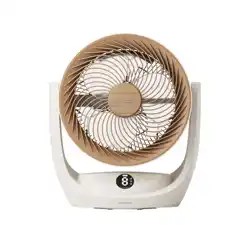
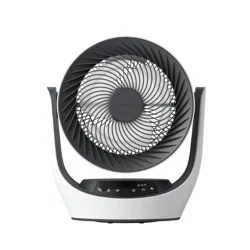
Circulator Fan
User Manual
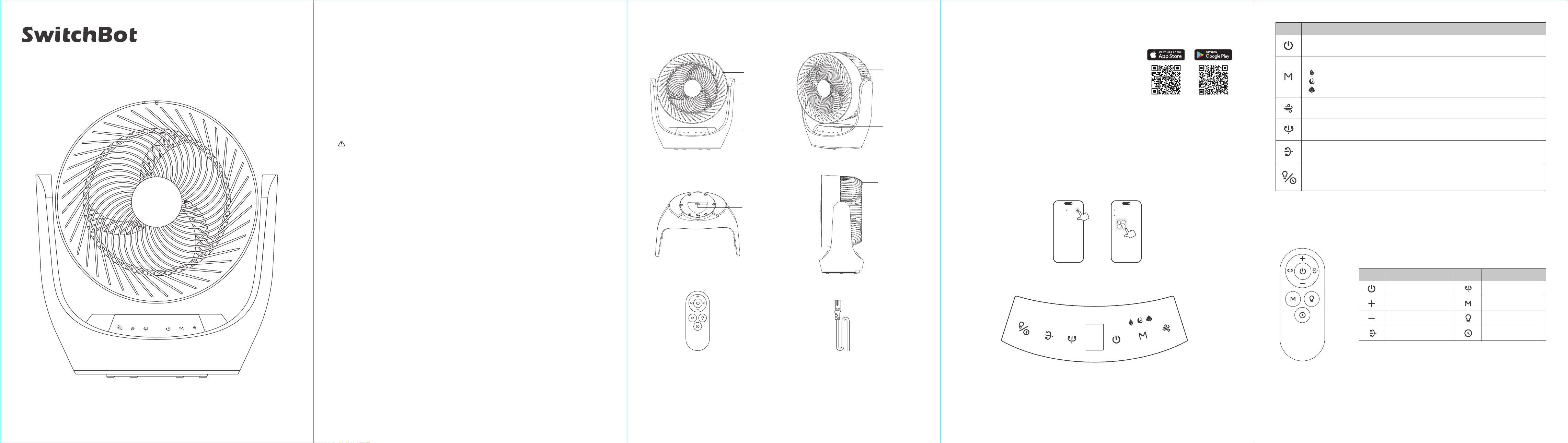
Button Description
Power Adapter × 1
Control Panel
Front Guard
Rear Guard
Blade
Power Port
Nightlight
Handle
Remote Control × 1
Please note: illustrations of this product and accessories are for reference only.
Preparation
You will need:
• A smartphone or tablet using Bluetooth 4.2 or later.
• The latest version of our app, downloadable via the Apple App Store
or Google Play Store.
• A SwitchBot account, you can register via our app or sign in to your
account directly if you already have one.
Please note:
if you intend to use the Cloud Services feature, you will need a SwitchBot Hub
(sold separately).
How to Use
Power On
Plug the product to an AC outlet to power it on.
Add Your Fan to Our App
Open our app and sign in to your account. Tap the "+" icon located at the top right-hand corner of the home
page, select "Add Device", find the Fan icon and select. Then follow the instructions to add your Fan.
Control Panel
• Turn on the fan to previous settings by default.
• For first-time use: enter Normal mode, fan speed 1.
• Enter Normal mode
• Press repeatedly to cycle through fan speed 1 to 9.
• Short press to activate/deactivate horizontal oscillation.
• Long press to make the fan oscillate to the front and then stop oscillating.
• Short press to activate/deactivate vertical oscillation.
• Long press to make the fan oscillate to the level position and then stop oscillating.
• Short press to turn on Nightlight, dim Nightlight or turn off Nightlight.
• Long press for 2 seconds to enter Timer setting mode. Short press to switch between 1 to 9
hours. Exit the Timer setting mode by not operating for 5 seconds.
• Switch between Natural, Sleep and Baby mode.
Circulator fan simulates natural wind to blow.
Fan speed decreases by 1 level every 30 minutes and will remain constant when at level 1.
Circulator fan runs at the lowest speed.
Please note:
• The oscillation angle range is adjustable in our app.
• After turned off, the fan will operate under the previous settings (fan speed, oscillation direction and mode) when it is turned
on again.
Remote Control
Button Button DescriptionDescription
Power
Increase Speed
Decrease Speed
Horizontal Oscillation
Vertical Oscillation
Switch Mode
Timer
Nightlight
My Home
Household
Add Device
• This appliance is not intended for use by persons (including children) with reduced physical, sensory or
mental capabilities, or lack of experience and knowledge, unless they have been given supervision or
instruction concerning use of the appliance by a person responsible for their safety.
• Children should be supervised to ensure that they do not play with the appliance.
• Ensure that the fan is switched off from the supply mains before removing the guard.
iOS 14.0+ Android OS 5.0+
For more utterance examples,
scan this QR code please.
Outer Surface
Gently wipe off dust with a soft, dry cloth. If there are hard-to-remove stains, use a soft cloth soaked in neutral
detergent to clean, then wipe off the remaining detergent with a dry cloth.
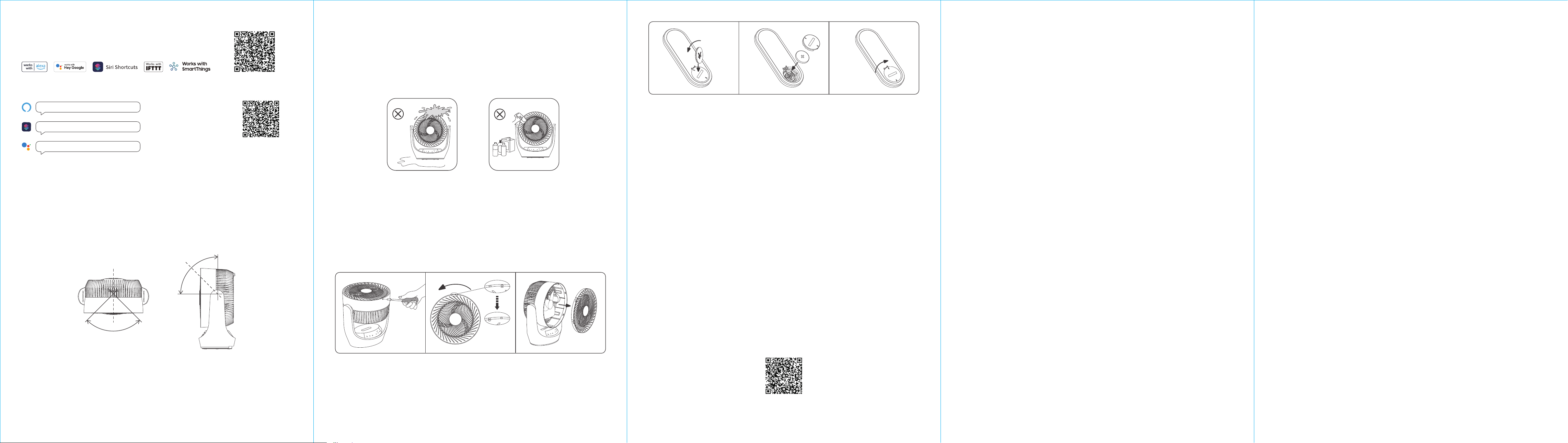
Voice Commands
Alexa, set bedroom fan mode to Sleep.
Hey Siri, turn on my bedroom fan.
Hey Google, turn off the kitchen fan.
Front Guard and Blades
1. Remove the screws on the front, rotate the front guard counterclockwise to take it off. The blades cannot be
removed.
2. Use a clean, damp cloth to clean the blades and the front guard.
3. Dry up the blades and front guard before installing back in place.
*Use a vacuum to vacuum the dust on the floor.
Insert a screwdriver or a coin into the groove on the battery cover, rotate it to the "unlock" position to open
the cover. Replace with a new CR2032 battery. Then put the cover back and turn it to the "lock" position.
Please note:
1. Be sure to replace with a new battery.
2. When not in use for an extended period, remove the battery to prevent leakage.
*The batteries must be disposed of properly according to local regulations.
Press and hold the Power button, the indicator lights will start to flash after 1 second and stop flashing after
15 seconds. Your device has now been reset successfully.
In order to improve user experience, we will regularly release firmware updates to introduce new functions
and solve any software defects that may occur during usage. When a new firmware version is available, we
will send an upgrade notification to your account via our app. When upgrading, please make sure your
product has sufficient battery or stay powered on and make sure your smartphone is within range to
prevent interference.
Please scan the QR code below for more information.
Q: Why is my circulator fan making too much noise?
A: Check if the fan guard is fastened. You can also place your circulator fan on a flat, level surface.
Q: I can't use remote control, what can I do?
A: Replace the batteries, and make sure you're using the remote control within 10 meters of your circulator fan.
You can also try removing obstacles between your circulator fan and the remote control to improve device
signal.
Q: Why is my fan speed so slow?
A: Your fan blades may be too dusty and need cleaning.
Caution:
1. Always unplug the fan before any cleaning and maintenance to avoid the risk of fire, electric shock, or injury.
2. Wait until the fan completely cools down before cleaning.
3. Do not use any chemical agents when cleaning the fan.
4. Do not immerse in water or get water inside the motor housing.
5. Clean and maintain your fan regularly to extend product life.
Cleaning and Maintenance
Replacing the Remote Control Battery
Frequently Asked Questions
Resetting Factory Settings
We warrant to the original owner of the product that the product will be free from defects in materials and
workmanship. Please note that this limited warranty does not cover:
1. Products submitted beyond the original limited warranty period.
2. Products on which repairs or modifying have been attempted.
3. Products subjected to falls, extreme temperatures, water, or other operating conditions outside the product
specifications.
4. Damage due to natural disaster (including but not limited to lightning, flood, tornado, earthquake, or
hurricane, etc.).
5. Damage due to misuse, abuse, negligence or casualty (e.g. fire).
6. Other damage that is not attributable to defects in the manufacture of product materials.
7. Products purchased from unauthorized resellers.
8. Consumable parts (including but not limited to batteries).
9. Natural wear of the product.
Warranty
Feedback: If you have any concerns or problems when using our products, please send feedback via our app
through the Profile > Help & Feedback page.
Setup and Troubleshooting: support.switch-bot.com
Support Email: [email protected]
Contact & Support
This device complies with Part 15 of the FCC Rules. Operation is subject to the following two conditions:
(1) This device may not cause harmful interference.
(2) This device must accept any interference received, including interference that may cause undesired operation.
NOTE: This equipment has been tested and found to comply with the limits for a Class B digital device, pursuant to
part 15 of the FCC Rules. These limits are designed to provide reasonable protection against harmful interference in
a residential installation.
This equipment generates uses and can radiate radio frequency energy and, if not installed and used in accordance
with the instructions, may cause harmful interference to radio communications. However, there is no guarantee that
interference will not occur in a particular installation. If this equipment does cause harmful interference to radio or
television reception, which can be determined by turning the equipment off and on, the user is encouraged to try to
correct the interference by one or more of the following measures:
- Reorient or relocate the receiving antenna.
- Increase the separation between the equipment and receiver.
- Connect the equipment into an outlet on a circuit different from that to which the receiver is connected.
- Consult the dealer or an experienced radio/TV technician for help.
NOTE: The manufacturer is not responsible for any radio or TV interference caused by unauthorized modifications to
this equipment. Such modifications could void the user’s authority to operate the equipment.
FCC Radiation Exposure Statement
This equipment complies with FCC radiation exposure limits set forth for an uncontrolled environment. This equipment
should be installed and operated with minimum distance 20 cm between the radiator and your body.
Manufacturer: Woan Technology (Shenzhen) Co., Ltd.
Address: Room 1101, Qiancheng Commercial Center, No. 5 Haicheng Road, Mabu Community, Xixiang Sub-district, Bao'an
District, Shenzhen, Guangdong, P.R.China, 518100
FCC Warning
Firmware Upgrades
Third-party Services
After connecting your fan to a SwitchBot Hub (sold separately), you can use
the following services.
Please scan the QR code on the right for more information.
Oscillation Direction
1. The horizontal oscillation angle range is 90°.
2. The vertical oscillation angle range is 90°.
Pleate note:
• Your fan will oscillate automatically within the angle range. Do not adjust the angle manuallly with force.
• You can turn on the "Auto-Align Front" feature in our app so your fan will automatically return to a front facing level position
every time it is turned off.
Memory function:
If the fan is turned off or disconnected from power, it will operate under the previous settings before power was disconnected
(fan speed, oscillation direction and mode) when it is turned on again.
90°
90°
Color: White
Material: ABS
Size: 334 × 173 × 382 mm (13.1 × 6.8 × 15 in.)
Weight: 2280 g (80 oz.)
Input: AC 100 V ~ 240 V
Specifications
Power: 18 W
Frequency: 50 Hz/60 Hz
Remote Control Battery : CR2032
Connectivity: Bluetooth Low Energy 4.2 or above
System Requirements: iOS 14.0+, Android OS 5.0+
V1.6-2506