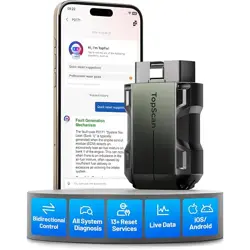
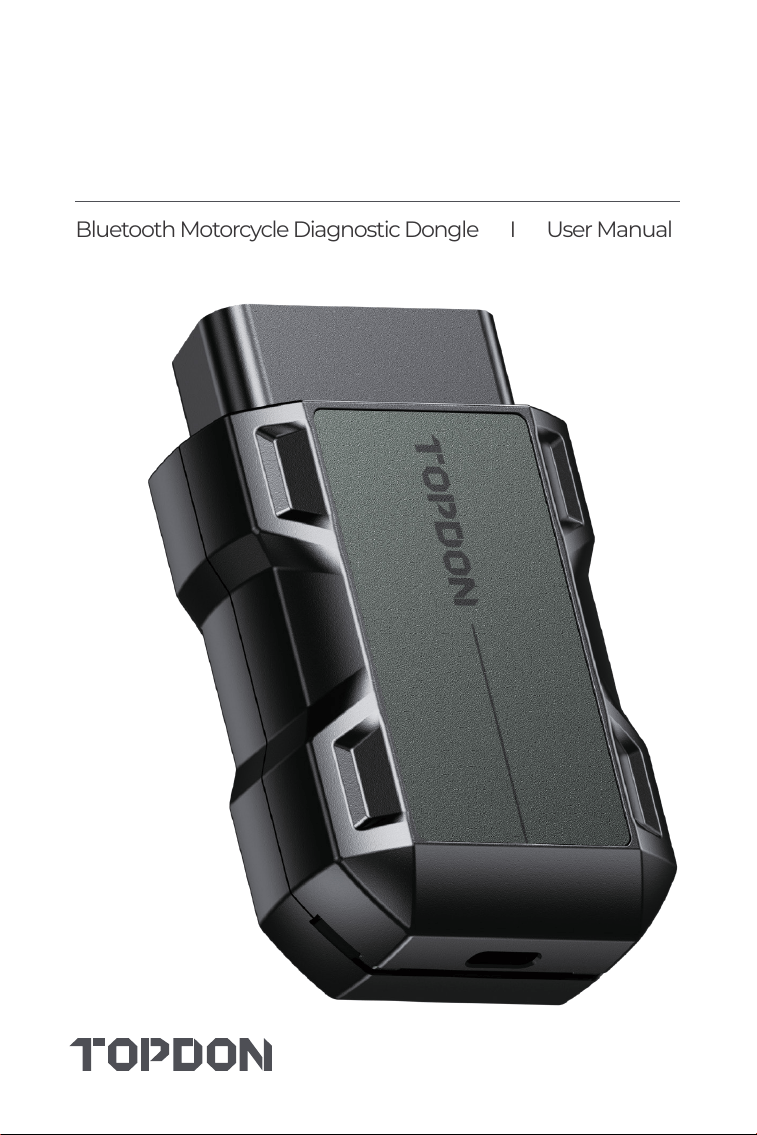
Bluetooth Motorcycle Diagnostic Dongle I User Manual
TopScan Moto


Safety Is Always the First Priority!
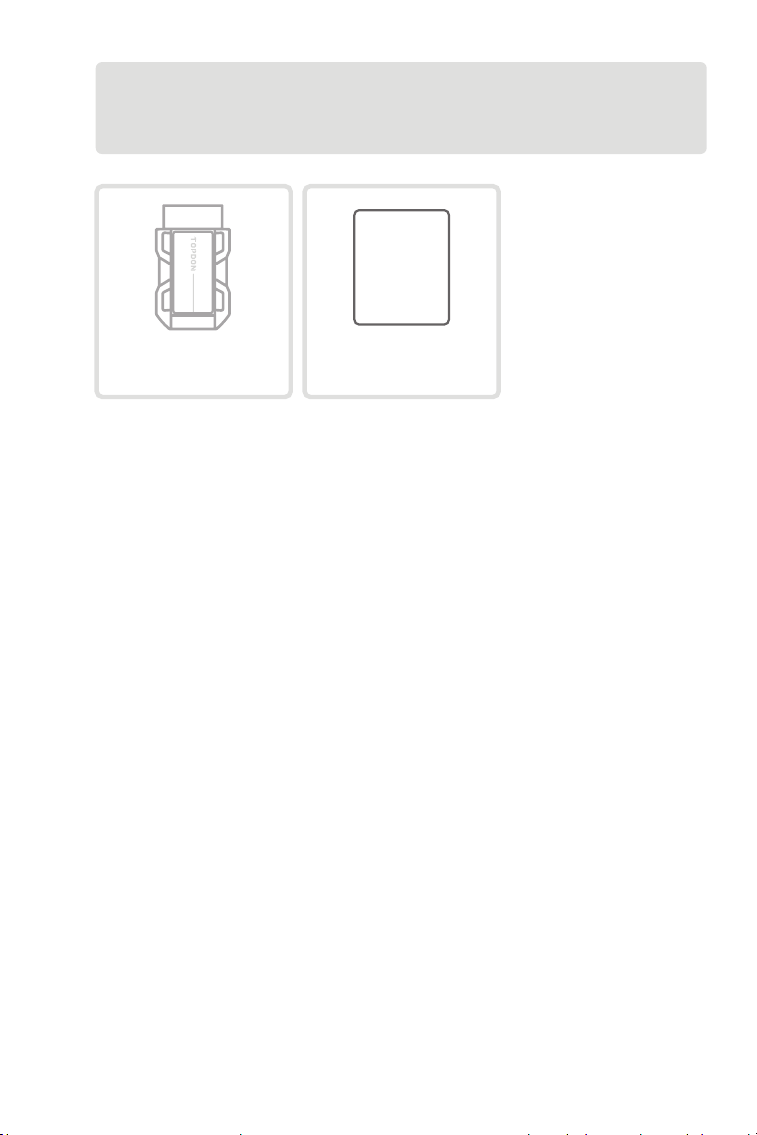
Section 1 What's in the Box?
Section 2 Product Overview
Section 3 Getting Started
Section 4 Using the TopScan Moto via the App
Section 5 Specications
Section 6 FAQ
Section 7 Warranty
Section 8 FCC
.......................................
.......................................
.......................................
.......................................
.......................................
.......................................
.......................................
.......................................
.......................................
Contents
4
5
6
8
14
48
49
50
51
4
For your safety, the safety of others, and to avoid any damage to
the product and your motorcycle, CAREFULLY READ AND MAKE
SURE YOU FULLY UNDERSTAND ALL THE SAFETY INSTRUCTIONS
AND MESSAGES ON THIS MANUAL BEFORE OPERATING. You must
also read the motorcycle's service manual, and observe the stated
precautions or instructions before and during any test or service
procedure.
Keep yourself, your clothing and other objects away from moving or
hot engine parts and avoid contact with electrical connections.
ONLY OPERATE THE MOTORCYCLE IN A WELL-VENTILATED AREA,
as the motorcycle produces carbon monoxide, a toxic and poisonous
gas, and particulate matter when the engine is running.
ALWAYS WEAR APPROVED SAFETY GOGGLES to prevent damage
from sharp objects and caustic liquids.
DO NOT SMOKE OR HAVE ANY FLAMES NEAR THE MOTORCYCLE
when testing. The fuel and battery vapors are highly ammable.
DO NOT ATTEMPT TO INTERACT WITH THE PRODUCT WHILE
DRIVING. Any distraction may cause an accident.
TURN THE IGNITION OFF BEFORE CONNECTING OR
DISCONNECTING THE PRODUCT FROM THE DATA LINK
CONNECTOR (DLC) to prevent causing damage to the product or
motorcycle's electronic components.
Safety Is Always the First Priority!
5
TopScan Moto
Quick
User
Guide
Quick User Guide
Section 1
What's in the Box?
6
Section 2
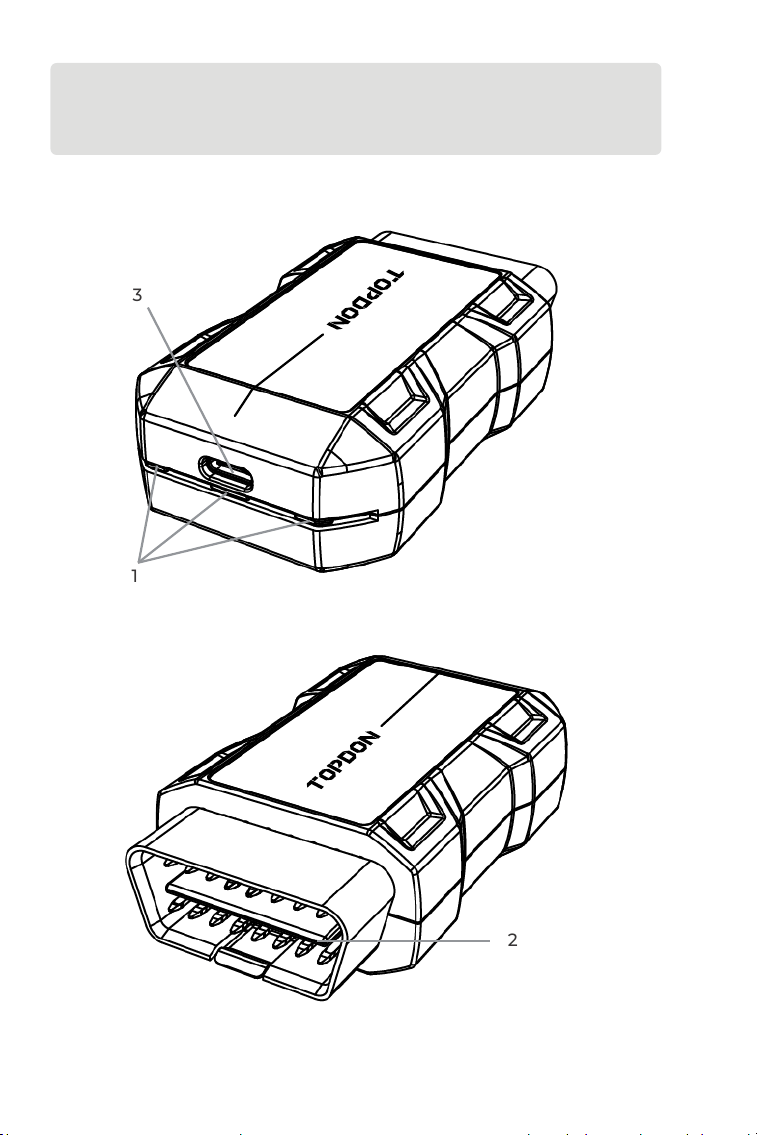
Product Overview
1
3
2
7
1. Indicators
2. OBD-II 16 Pin Connector
Connects the TopScan Moto to motorcycle's DLC.
Note:
Depending on the motorcycle model, additional adapter cables may
be required (not included).
3. USB Type-C Port
The TopScan Moto can be powered by an external power source
using a USB cable (not included).
The USB Type-C port is generally used for device activation and
rmware upgrades.
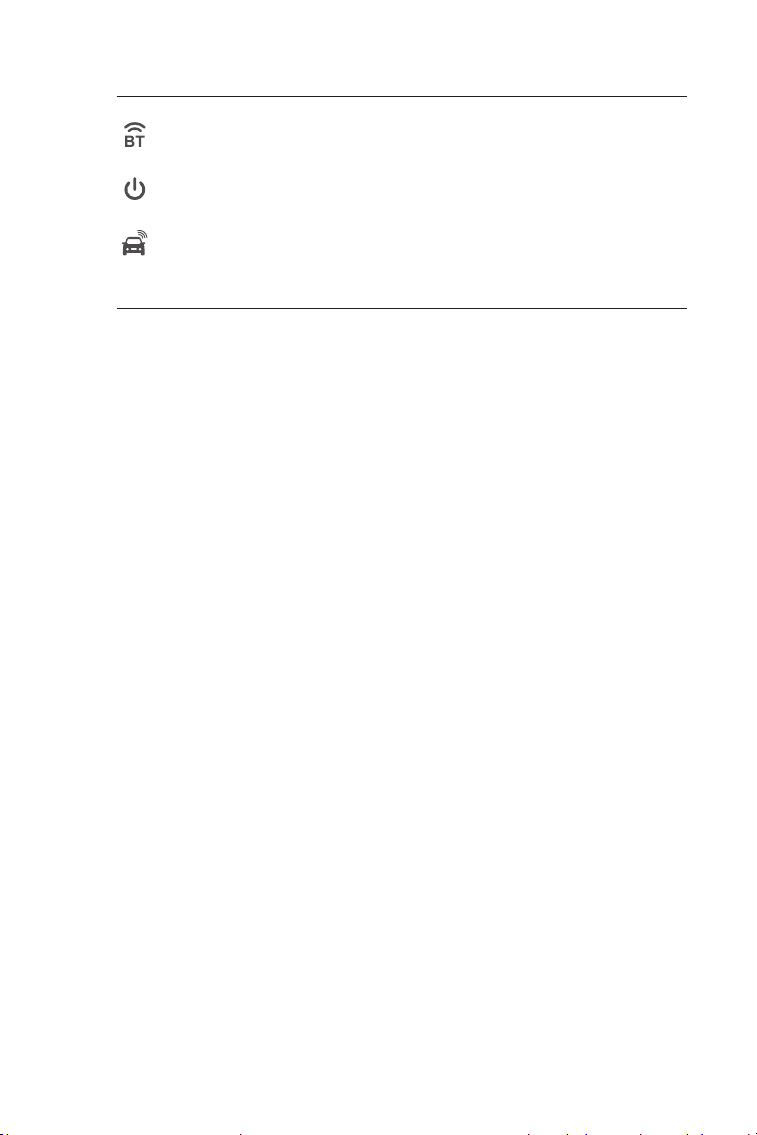
Solid Blue: Bluetooth
connected
Solid Red: power on
Flashing Green:
communicating with the
motorcycle
Bluetooth Connection
Indicator
Power Indicator
Communication
Indicator
8
Section 3
Getting Started
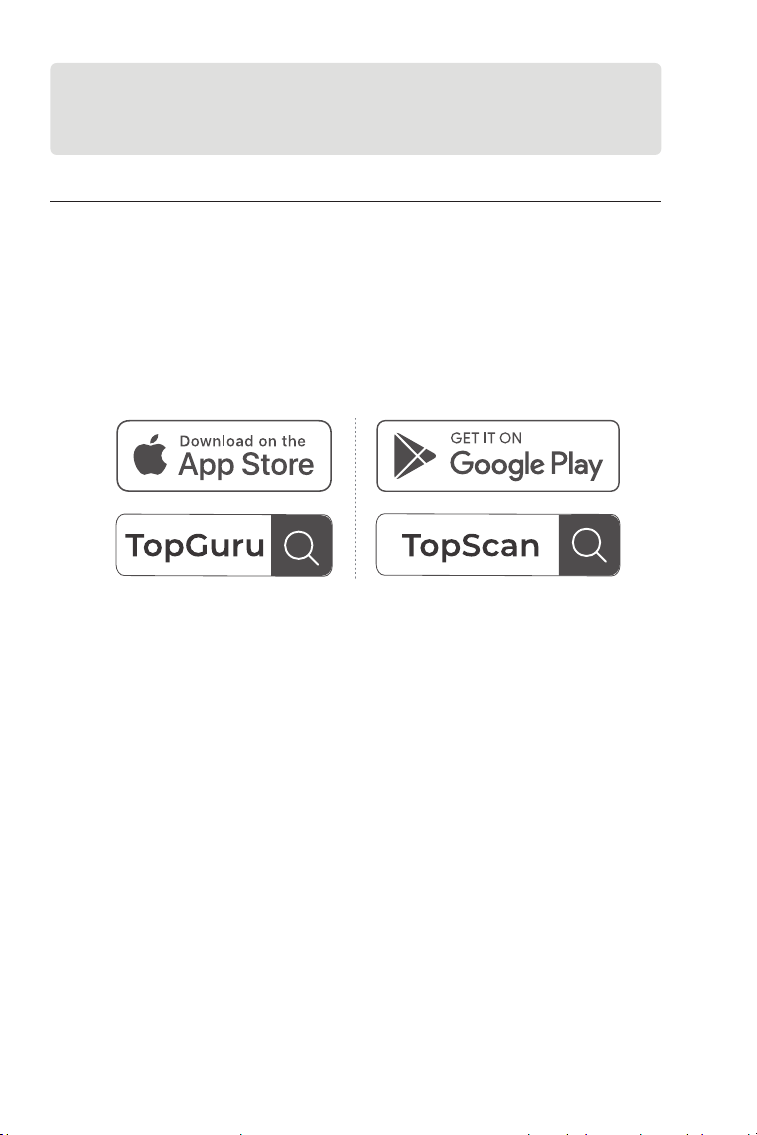
3.1 Download the App
For iOS: Search for "TopGuru" in App Store to download and install.
For Android: Search for "TopScan" in Google Play to download and
install.
Figure 3-1
Note:
This app is compatible with iOS 11.0 or later / Android 7.0 or later.
9
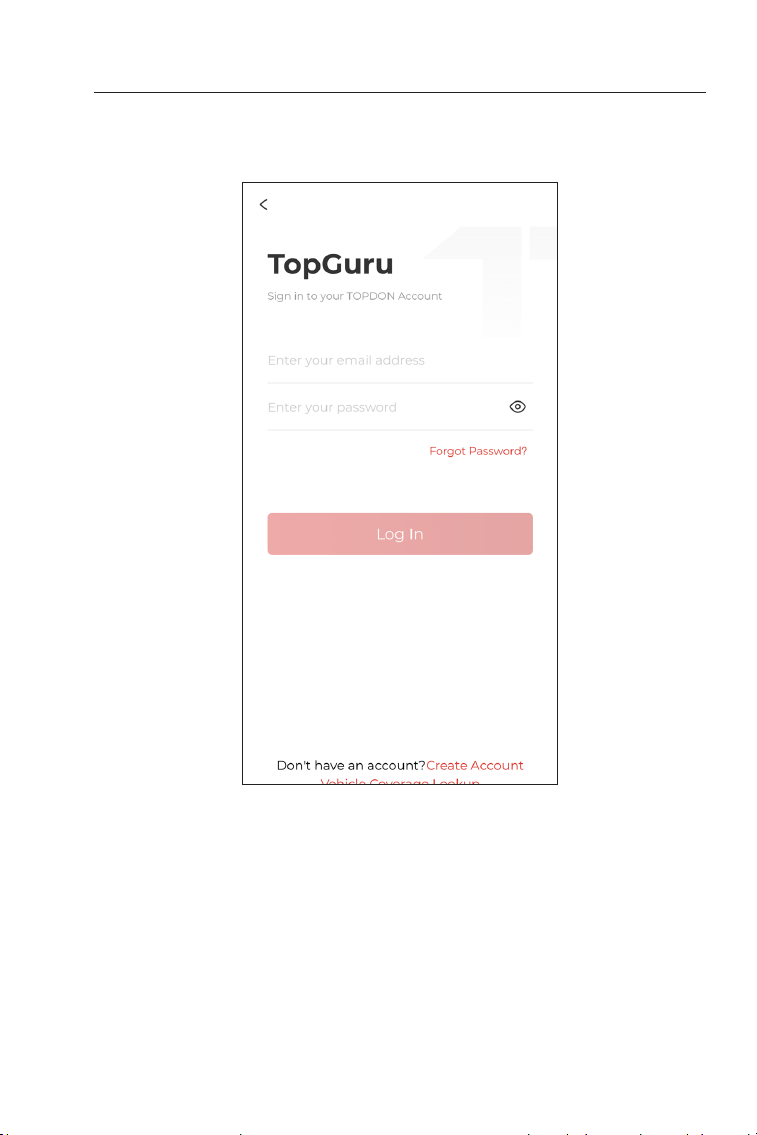
3.2 Register & Log In
Open the app and log in to your TOPDON account. (If you do not
have an account, please register with your email.)
Figure 3-2
10
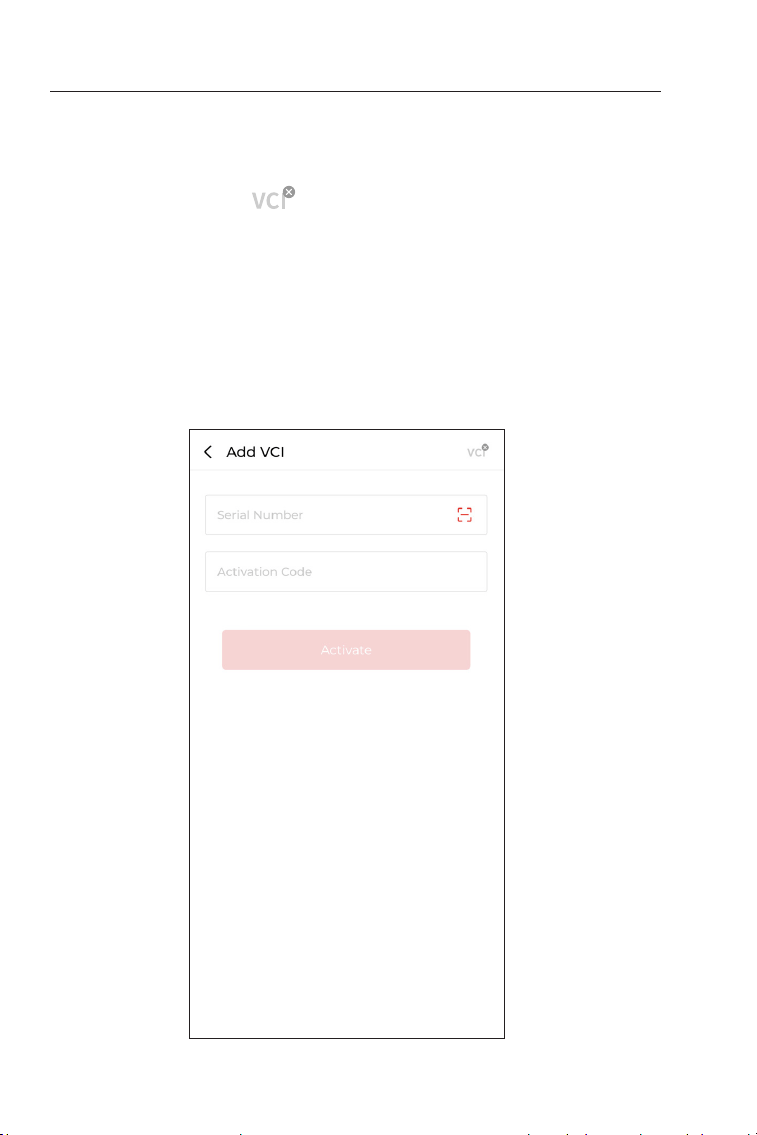
3.3 Bind the VCI
①
Tap Me > Device Management > Add VCI.
②
To get the serial number and activation code, please scan the QR
code on the product.
Alternatively, tap the icon at the top right of the activation
screen to establish a Bluetooth connection (see Figure 3-3). Once
the Bluetooth connection between the TopScan Moto and your
phone is established, the serial number and activation code will be
automatically obtained.)
Note:
The TopScan Moto should be connected to a power source via its
USB Type-C port or properly plugged into the motorcycle's DLC
before Bluetooth can be connected.
③
Then, tap Activate.
Figure 3-3
11
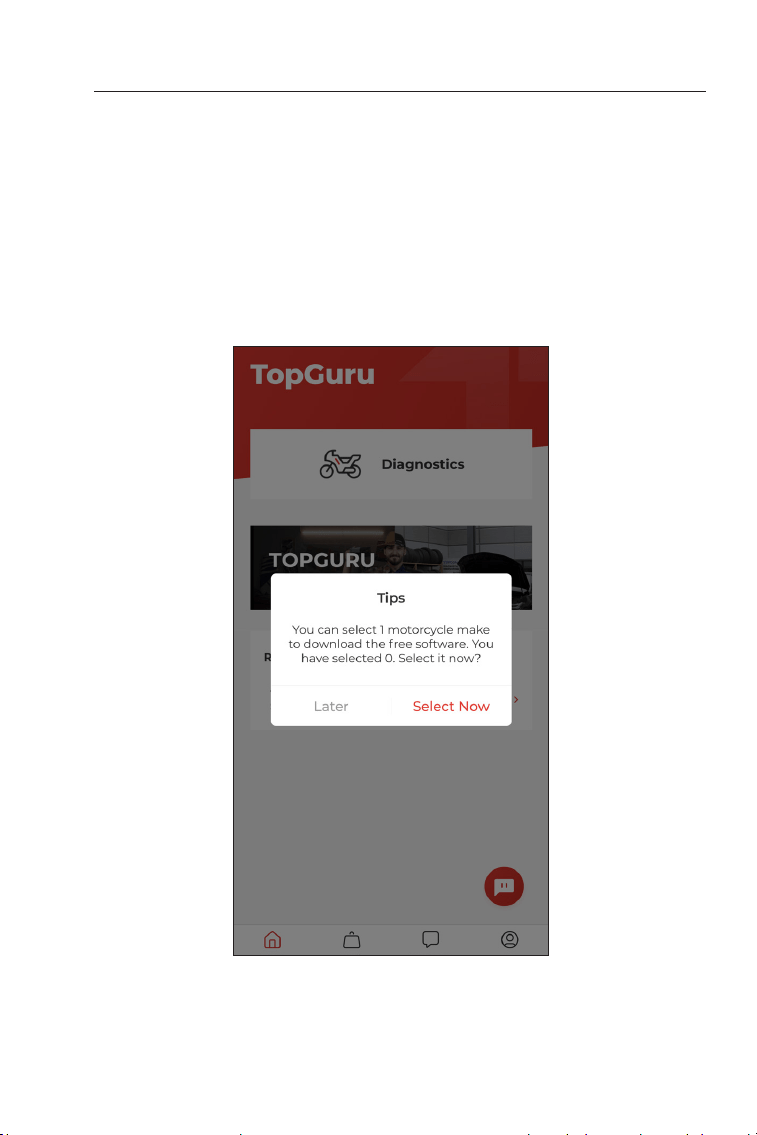
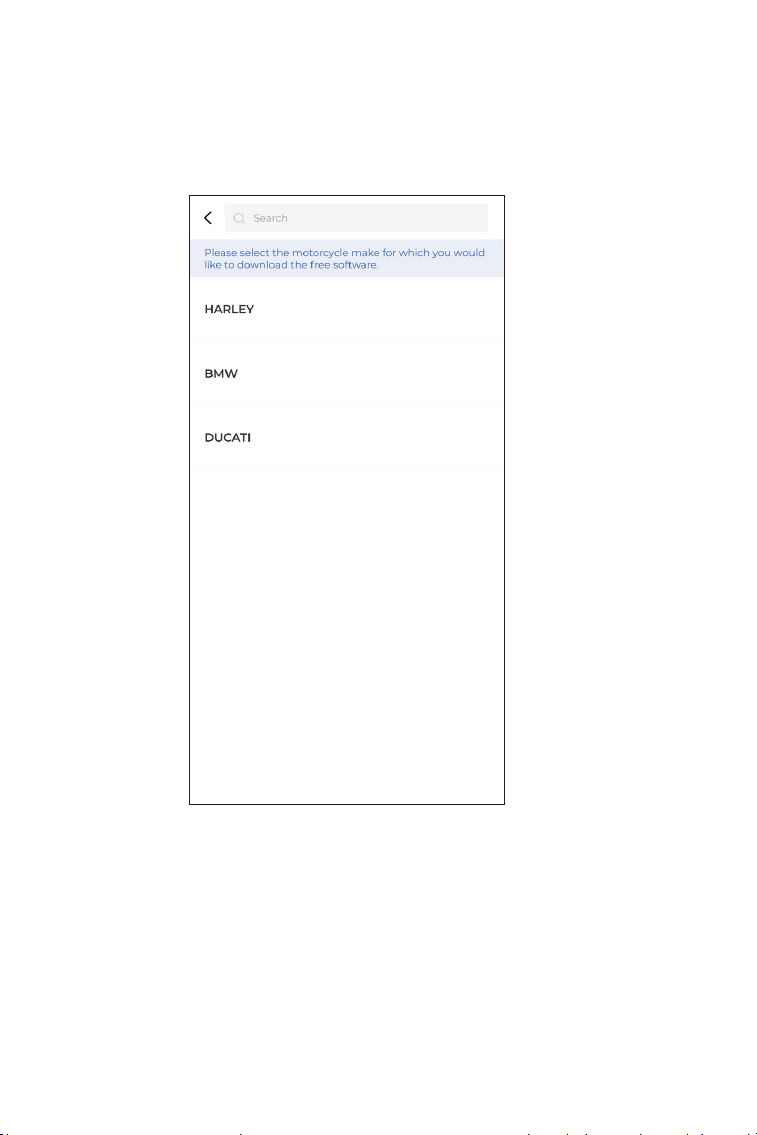
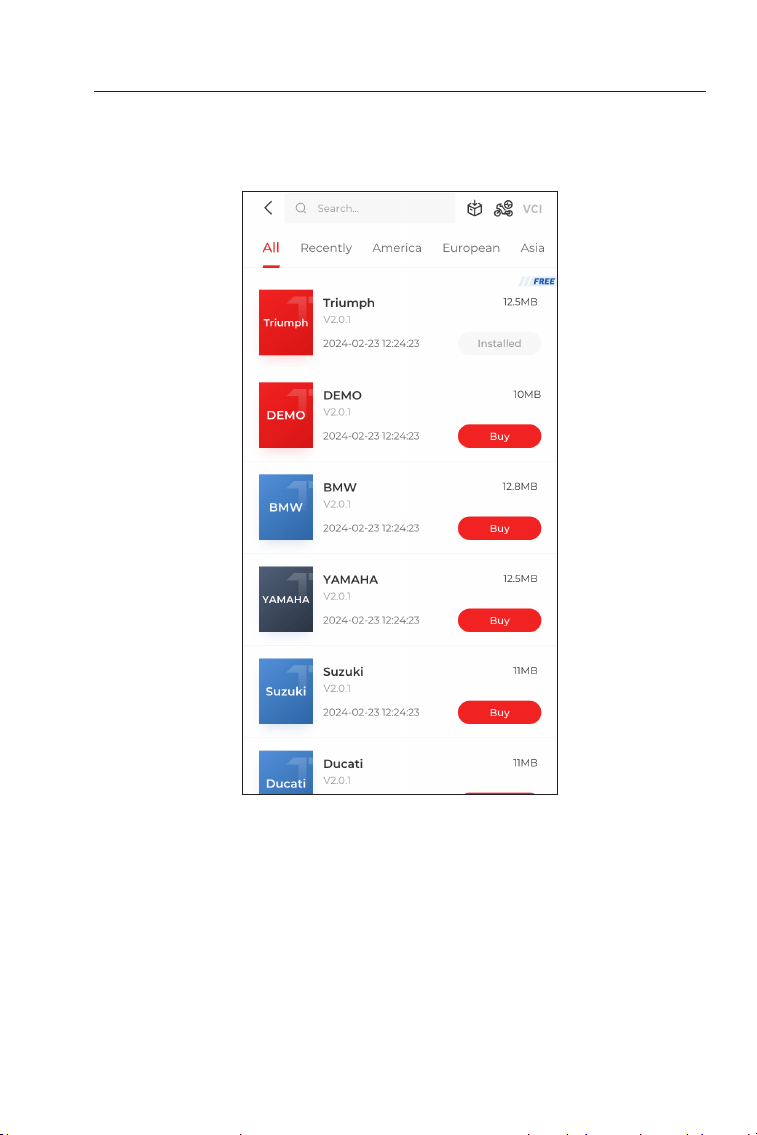
3.4 Select the free software
You will need to select a motorcycle make to download the free
software. Tap Select Now. Then select a motorcycle make and
conrm. (It cannot be changed once selected. Please select carefully.)
Figure 3-4
Note:
If you do not select the free software for a motorcycle make, you
will be redirected to the free software selection page each time
you select "Diagnostics".
12
Figure 3-5
13
Figure 3-6
3.5 Download the Diagnostic Software
The system will start downloading the selected software.
14
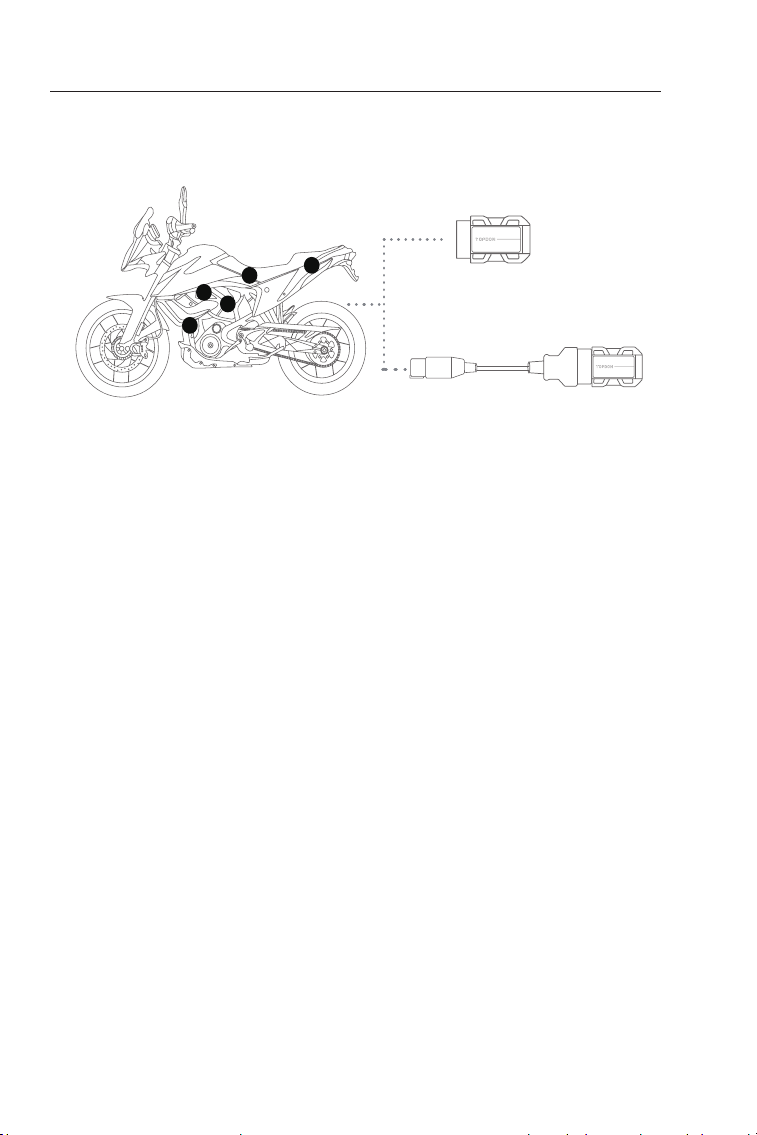
3.6 Plug the TopScan Moto into the DLC of your motorcycle
The Data Link Connector (DLC) of a motorcycle is typically located
under the seat or near the engine (See Figure 3-7).
Note:
Make sure the ignition is OFF before plugging in the unit.
Note:
If the DLC of your motorcycle is not an OBD-II port, an adapter
is required (not included) to connect the TopScan Moto to your
motorcycle.
Figure 3-7
A
C
D
E
B
(Not included)
15
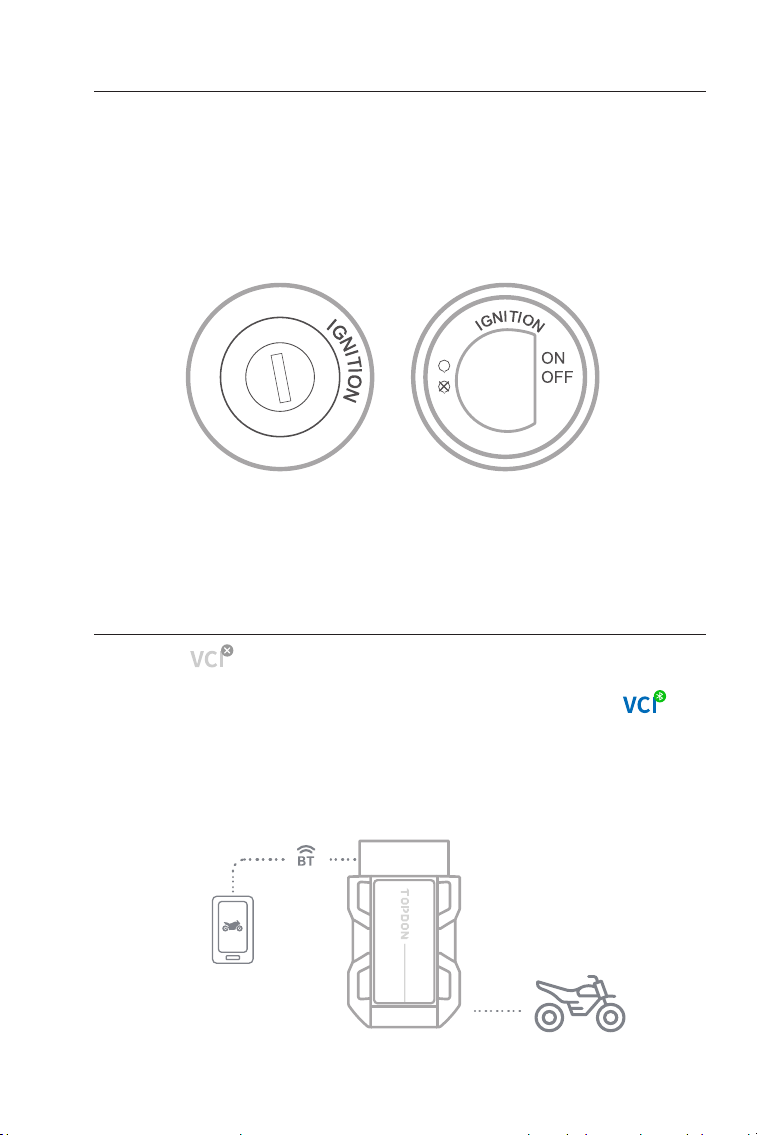
Note:
Before starting diagnostics, turn the ignition to the "ON" position.
3.7 Turn the Ignition to the "ON" Position (see Figure 3-8)
3.8 Bluetooth Connection
The method of ignition varies by motorcycle model. Refer to the
motorcycle's service manual for details.
Tap the icon at the top right of any screen with this icon to
establish Bluetooth connection with the TopScan Moto unit. After the
connection is successfully established, the icon changes to .
Once Bluetooth is successfully paired, the connection will be
automatically established when you open the app. If not connected,
manually tap the icon to reconnect.
Figure 3-8
Figure 3-9
Figure 3-9
Wireless
Bluetooth
16
Figure 4-1
Section 4
Using the TopScan Moto via the App
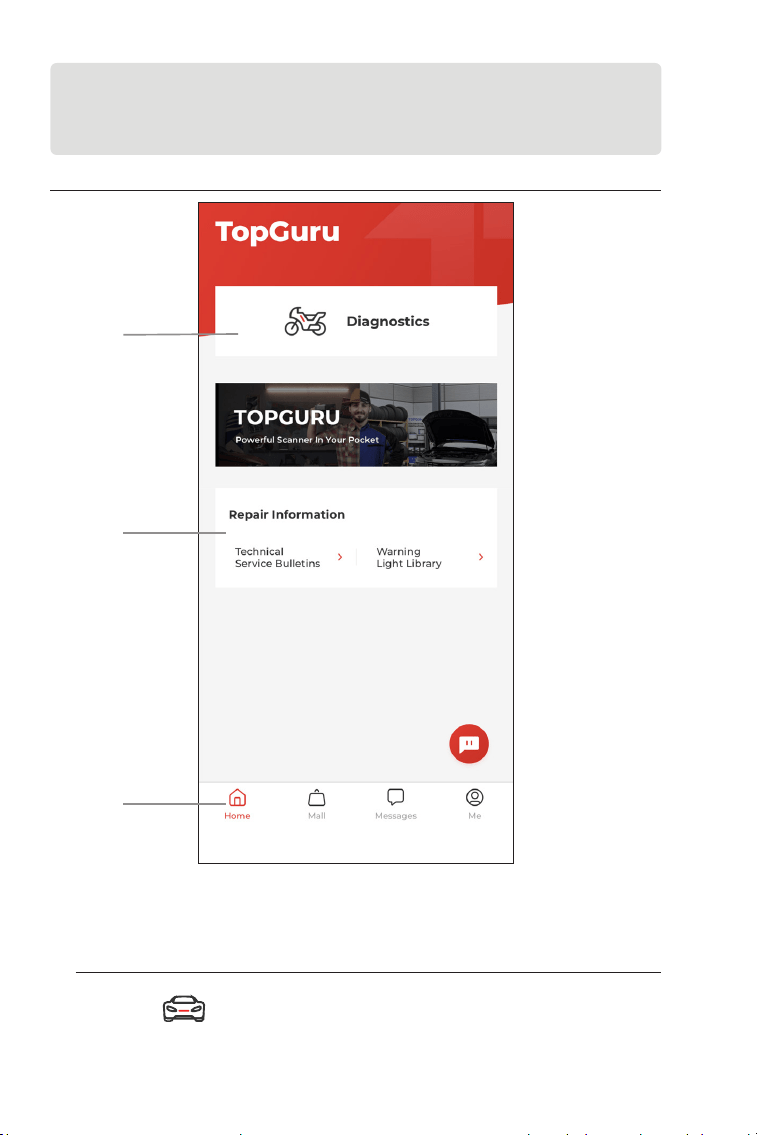
4.1 Home Screen
1
3
2
1. Main Functions
Swipe right or left to move through the functions.
Congures the TopScan Moto to
operate as a scan tool.
Diagnostics
17
2. Repair Information
Includes DTC Repair Guide and Warning Light Library, which
provides reference information on vehicle inspection, diagnostics,
and repair.
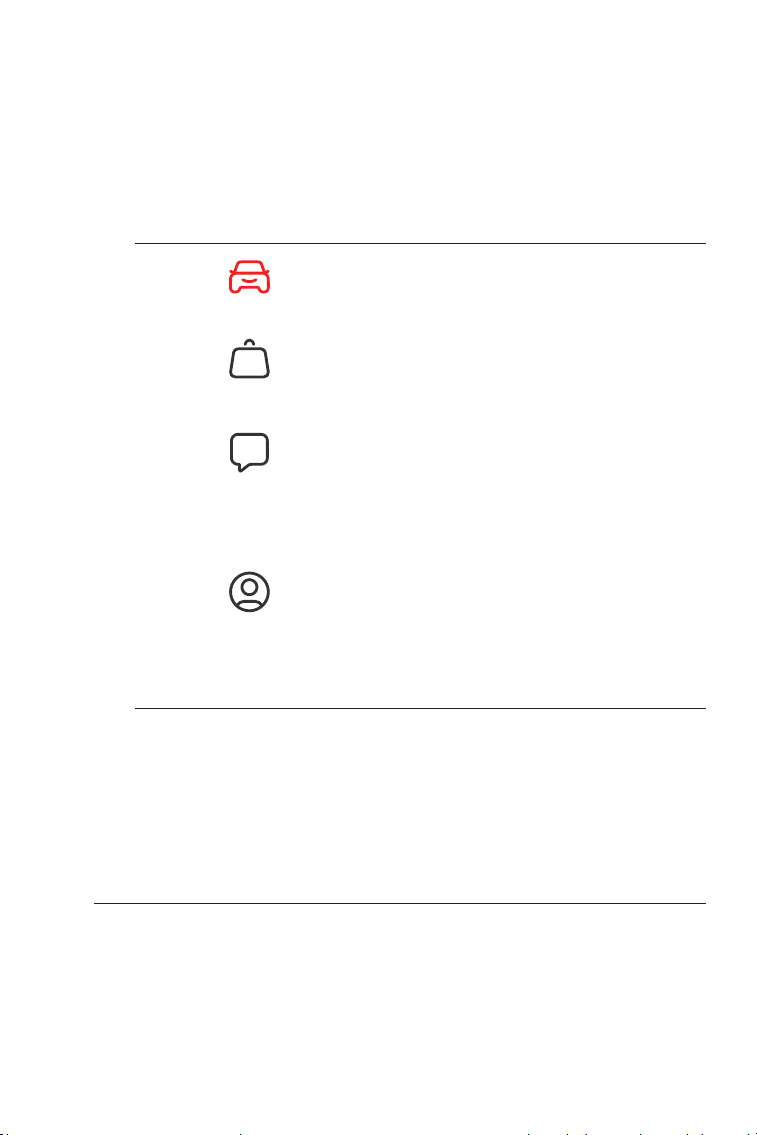
3. Toolbar
Selecting this icon returns you to the
home screen.
Selecting this icon opens the
message screen.
Allows you to purchase or renew
diagnostic software license.
Selecting this icon opens the Me
screen, which allows you to view the
account prole, saved data les, and
FAQ, manage the installed software
and connections to VCI, look up
vehicle coverage, check for rmware
updates, and access general settings.
Home
Messages
Mall
Me
4.2 Diagnostics
The Diagnostics module allows you to scan all supported motorcycle
systems at one time (Auto Scan) for Diagnostic Trouble Codes (DTCs)
or select an individual system to perform Read Trouble Code, Clear
Trouble Code, Read Data Stream, Read Version Information and
Active Test. You can also access Special Function and Diagnostic
Feedback through this module.
18
4.2.1 Auto Scan and Individual System Diagnostics
Identifying the Motorcycle
To perform Auto Scan or Individual System Diagnostics, you need
to identify your motorcycle rst.
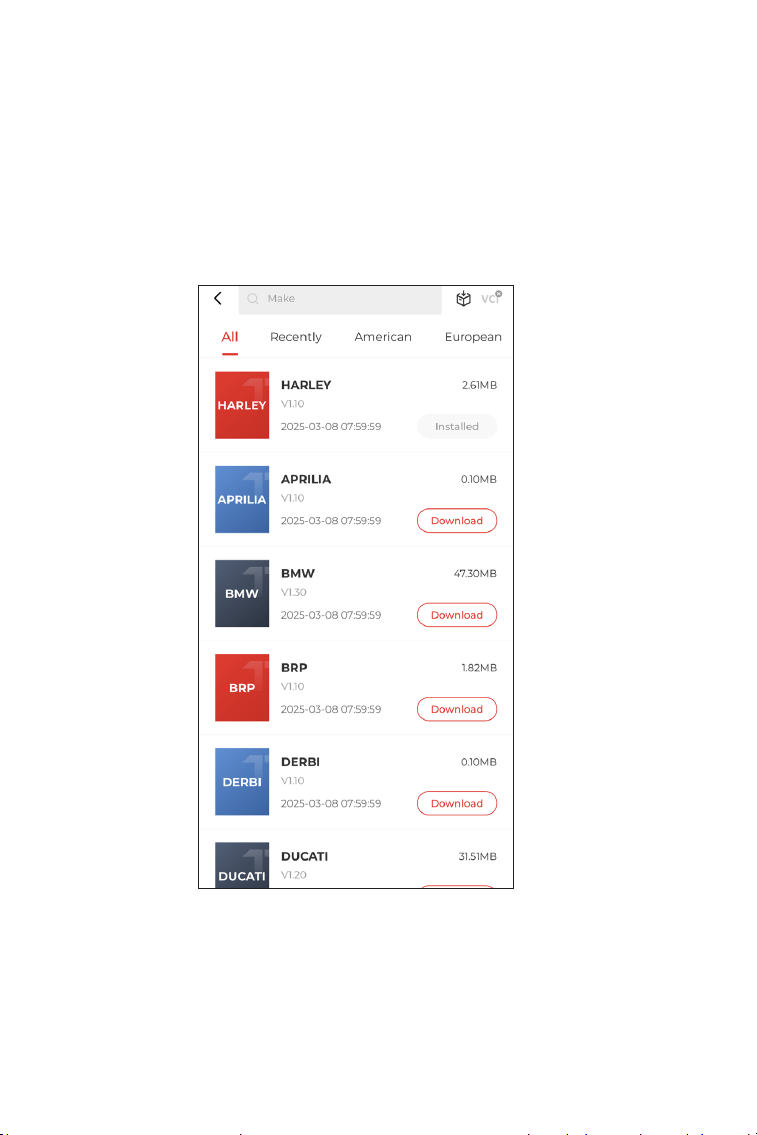
1. Tap Diagnostics from the home screen. A list of motorcycle-
specic diagnostic software will display.
Figure 4-2
2. Choose the software you need.
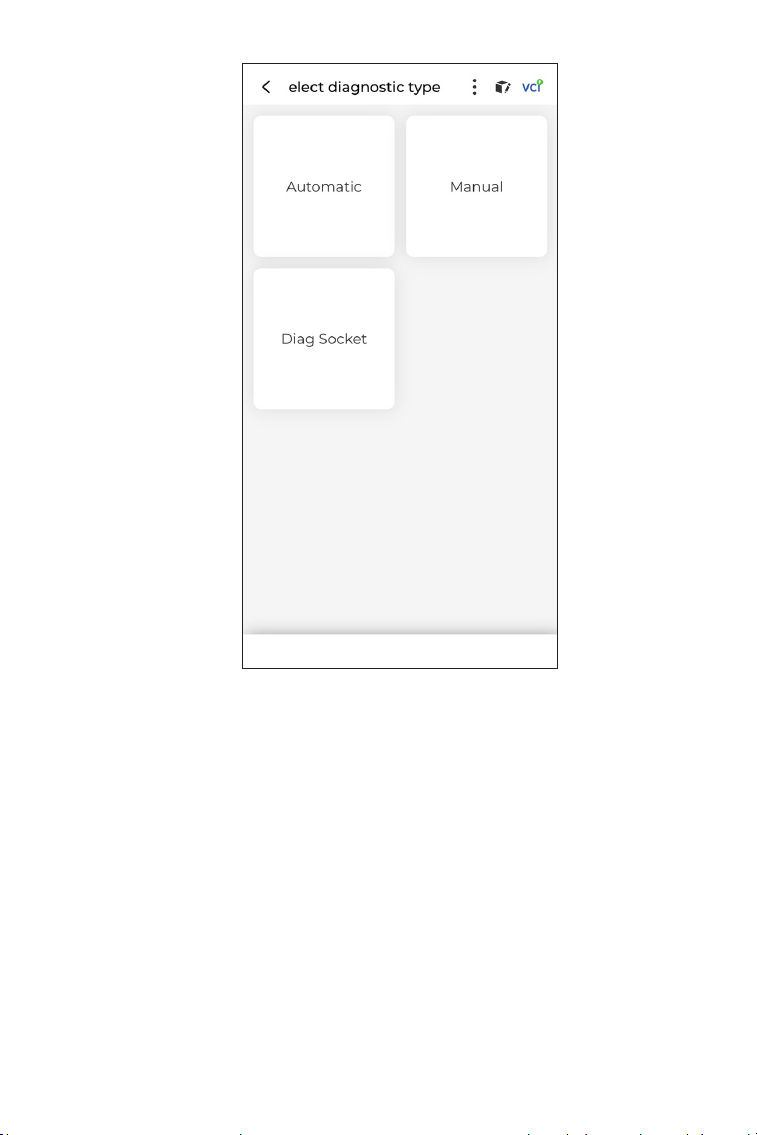
3. Select Automatic / Manual to identify the motorcycle.
19
Figure 4-3
Automatic
Manually enter Vehicle Identication Number (VIN) or tap Read
to acquire VIN, then tap Conrm. TopScan Moto will automatically
decode the VIN to identify the motorcycle.
Manual
Manually select the vehicle information to identify the motorcycle.
20
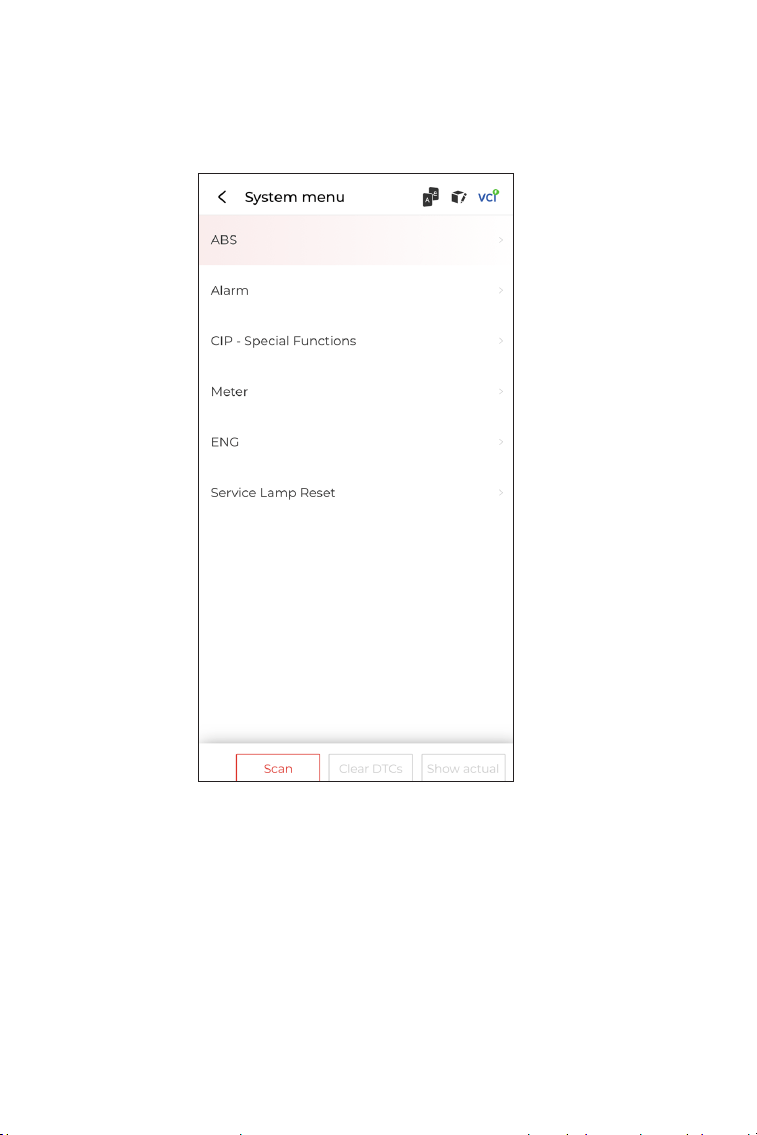
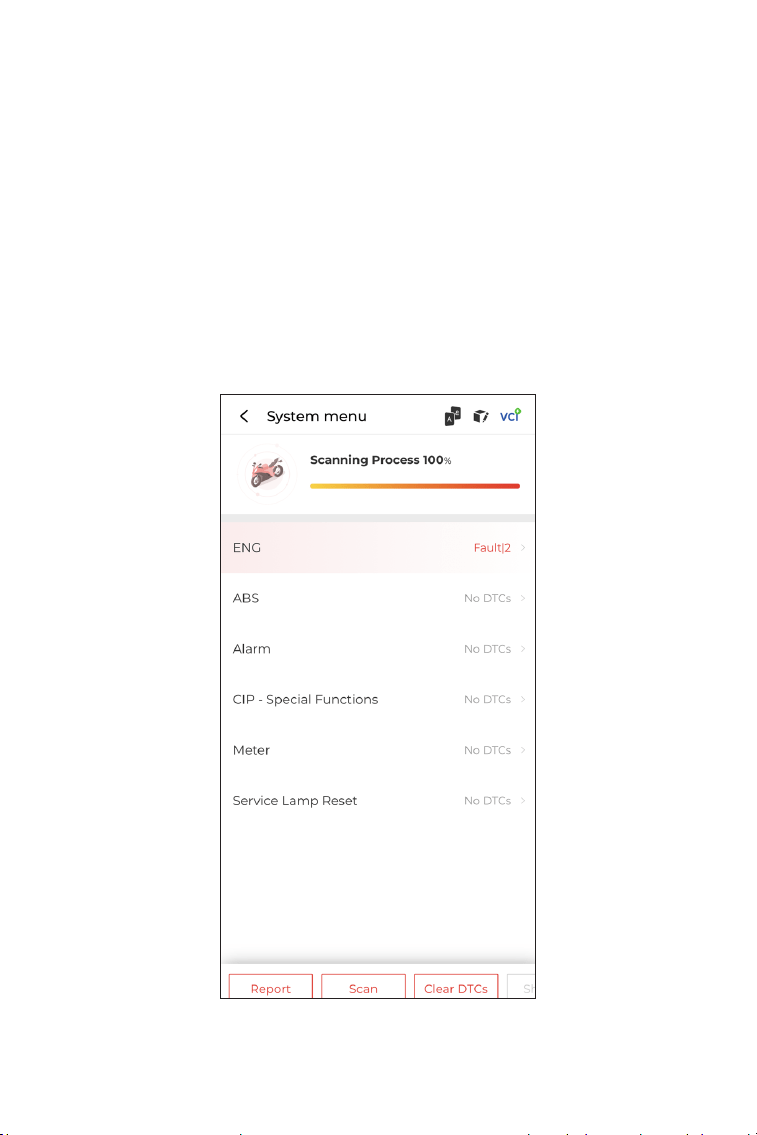
4. A system menu will display after the motorcycle is identied.
Note: Systems may vary by motorcycle make, model and year.
Figure 4-4
You can either select Scan or tap a motorcycle system to open the
function menu for that system.
21
Figure 4-5
Scan
Scan detects the systems supported by the motorcycle and
retrieves DTCs for all of these systems, providing a complete health
check of your motorcycle. Performing Scan before and after repair
could help in troubleshooting and validating repairs. Pre and
post scan reports can allow you to record the condition of the
motorcycle before and after repair for comparison.
To perform a Scan, tap the Scan button. The
TopScan will start scanning all the systems supported by the
motorcycle, and DTC retrieval will be automatically proceeded.
Results are displayed progressively as the systems are scanned.
22
Button Description
Report - tap to save the current scan results in report format. (To
view the saved reports, go to Me > Diagnostic Report.)
Clear DTCs - tap to clear all the DTCs retrieved.
Show All / Show Actual - tap to toggle between showing all
motorcycle systems and showing only the supported systems.
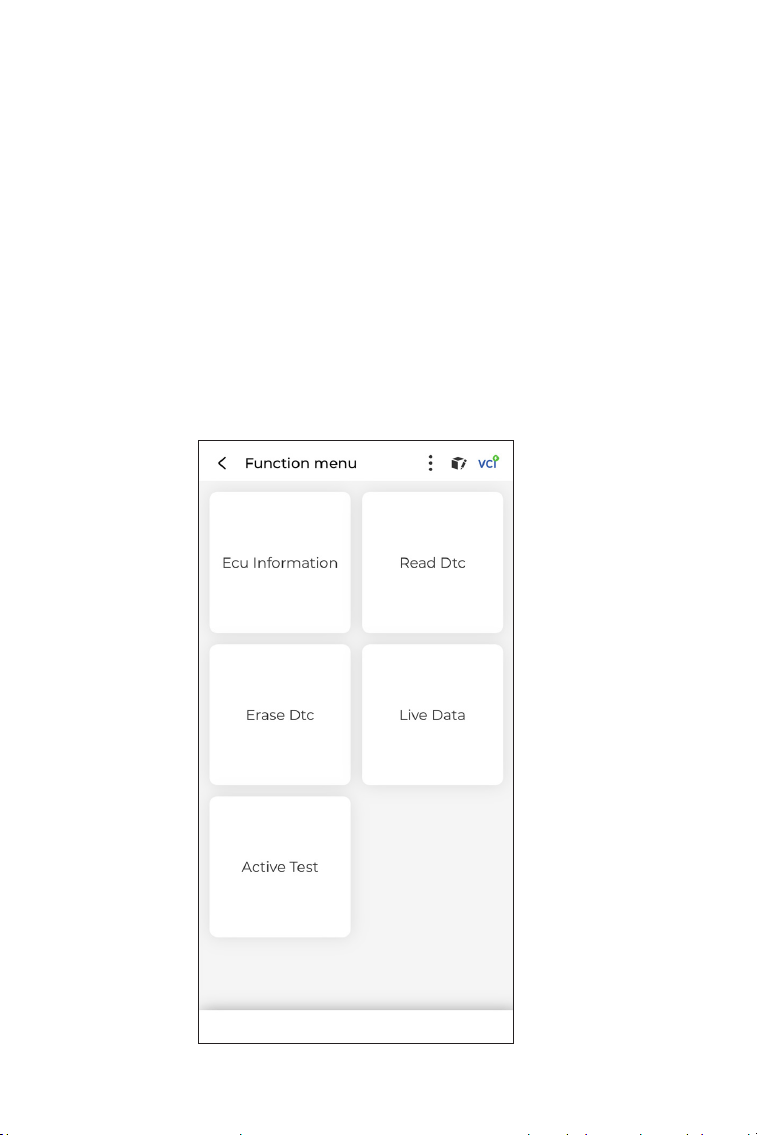
Performing Individual System Diagnostics
To access the function menu of a certain system:
From the system menu, select the desired motorcycle system.
Available function options for the system will be displayed. Select a
function to continue.
Figure 4-6
23
Read Version Information
Tap Information in the function menu. Then you
can view the version information of the Electronic Control Unit
(ECU) for the currently selected system.
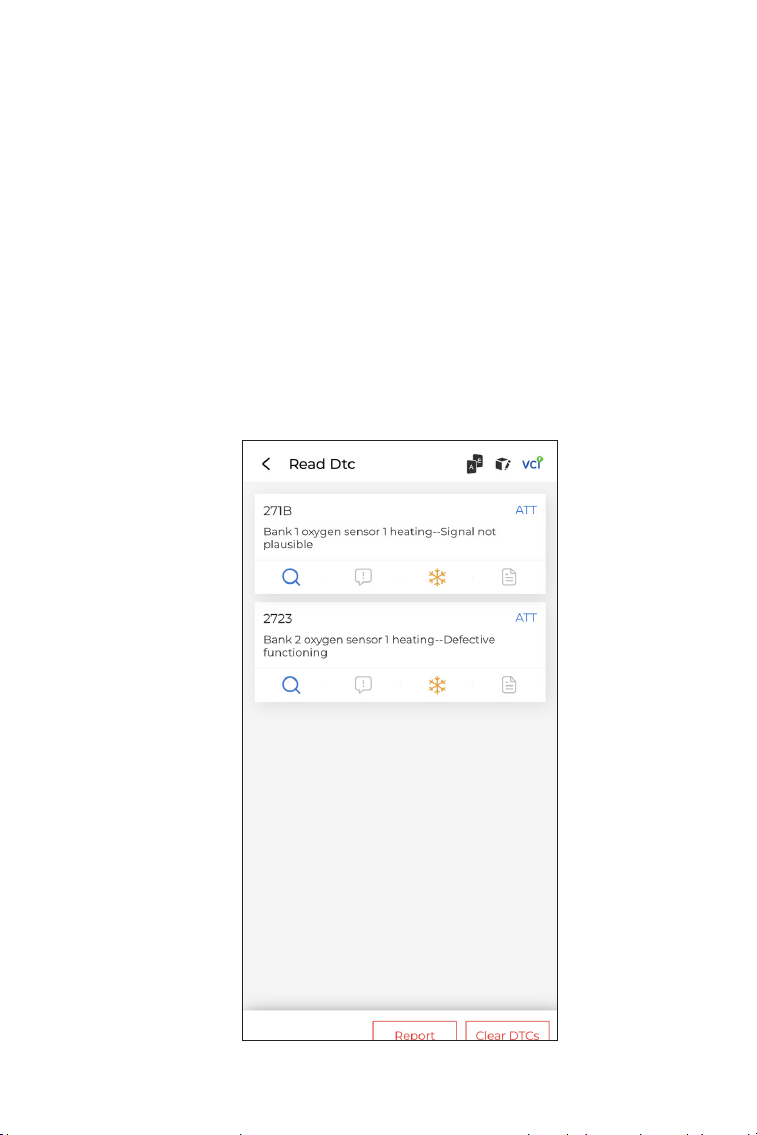
Read Trouble Code
To retrieve DTC for the currently selected system:
Tap Read Trouble Code in the function menu. TopScan Moto will
communicate with the ECU and retrieve and display DTCs for the
currently selected system.
Note: Depending on the motorcycle make, some functions may
not be available.
Figure 4-7
24
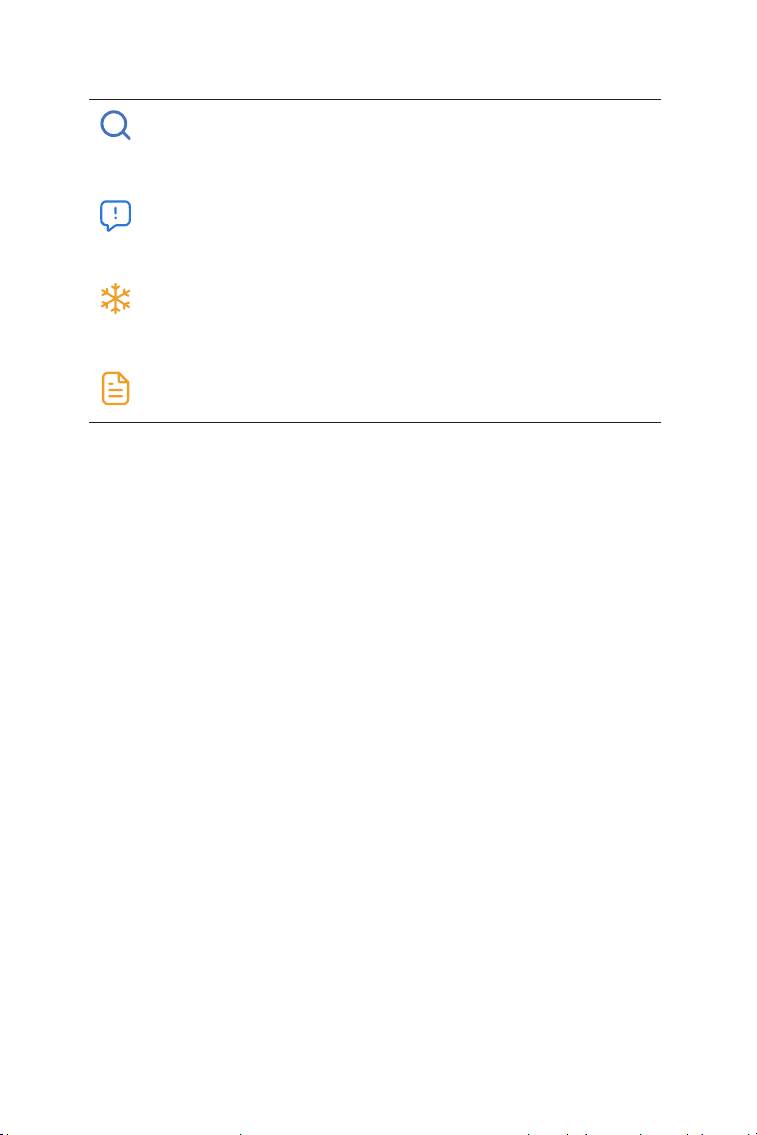
Icon Description
Button Description
Report - tap to save the results in report format. (To view the saved
reports, go to Me > Diagnostic Report.)
Clear DTCs - tap to clear all the DTCs retrieved.
Clear Trouble Code
To clear DTCs for the currently selected system:
1. Tap Erase DTC in the function menu.
2. Tap OK when the DTCs are cleared.
Note:
1. Procedure of clearing DTCs should be performed after the
required repair has been carried out. Once conrmed, DTCs and
freeze data stored in the ECU will be cleared.
2. DO NOT START UP THE ENGINE WHILE CLEARING DTCS.
Tap to open a window that allows you to search on Google
for more information about the DTC.
When the icon lights up, tap to view the detailed
description of the DTC.
When the icon lights up, tap to view the freeze frame
captured at the time when the DTC occurs.
When the icon lights up, tap to view the instructional
repair measures.
25
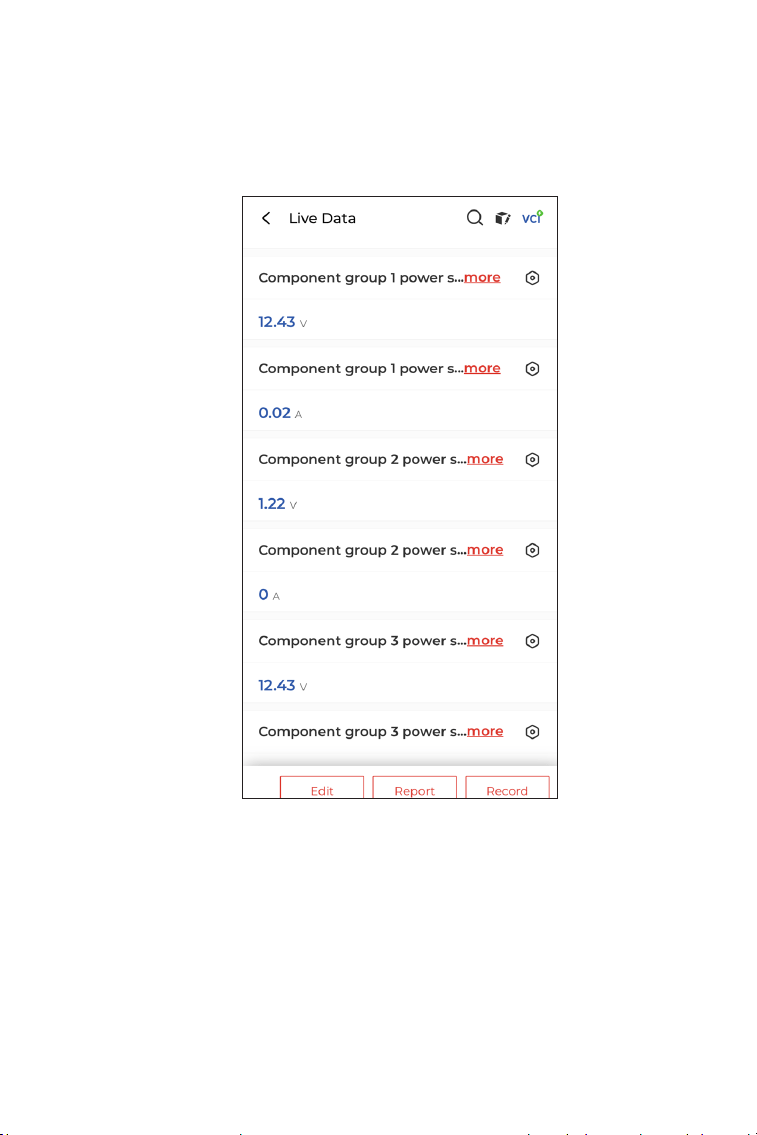
Read Data Stream
To view data stream for the currently selected system:
1. Tap Live Data in the function menu.
A data stream list displays.
Button Description
Edit - allows you to customize your data stream list. Select the
check box of the data stream you are interested in viewing and tap
Conrm.
Report - tap to save the current data stream values in report
format. To view the saved reports, go to Me > Diagnostic Report.
Figure 4-8
26
Record - allows you to record and save data stream information
for comparison and analysis. To view the saved data stream
information, go to Me > Data Stream.
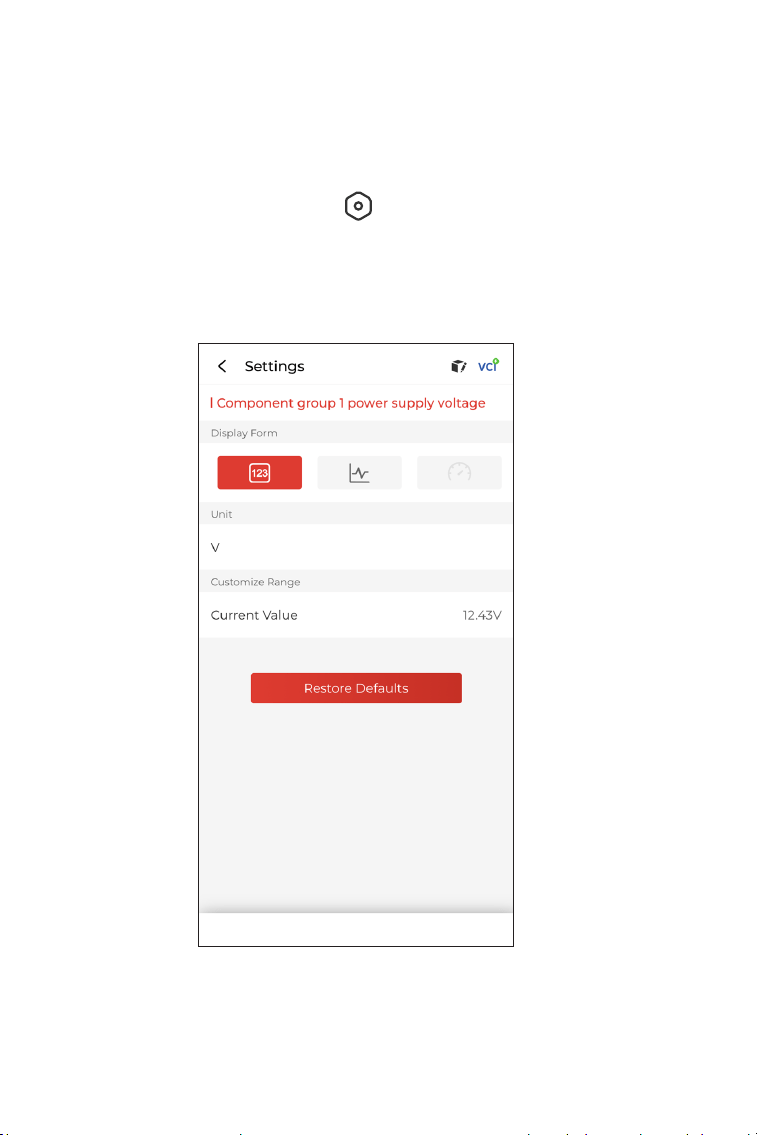
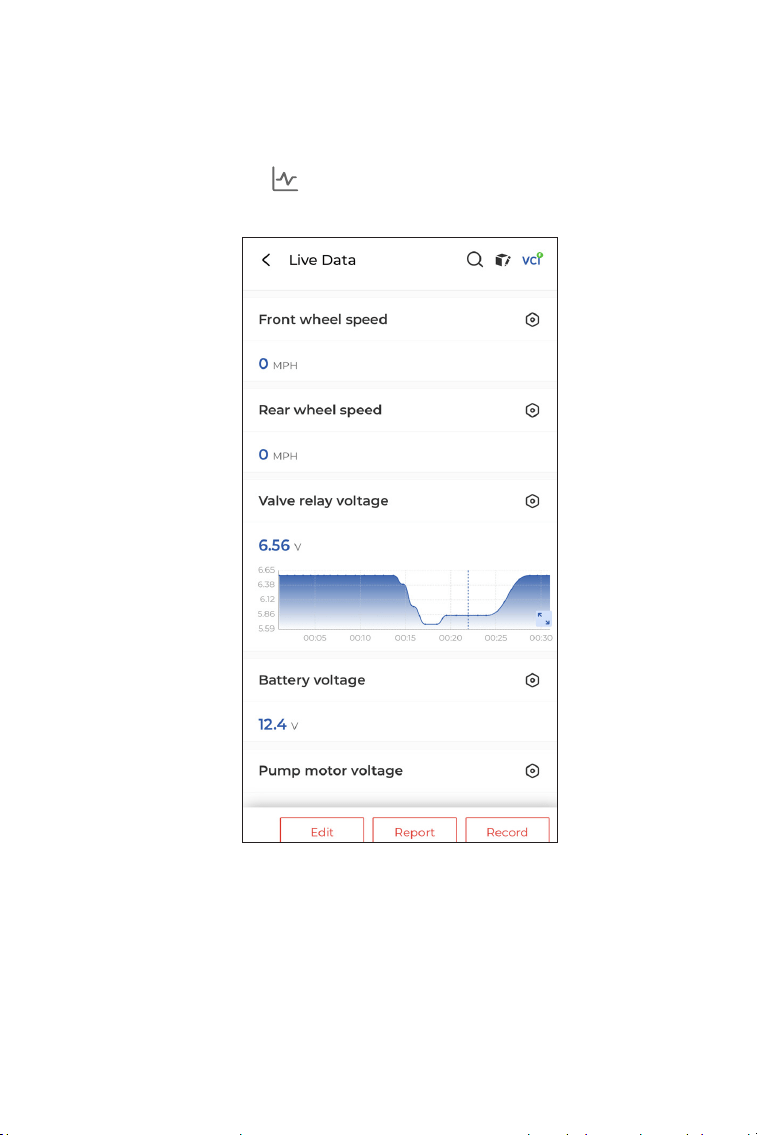
Each entry of the list shows the name and the current value of the
data stream. You can tap the icon at the side of each entry to
enter the setting screen. The data stream can be viewed in value,
graph, or gauge format (see Figure 4-9).
Figure 4-9
27
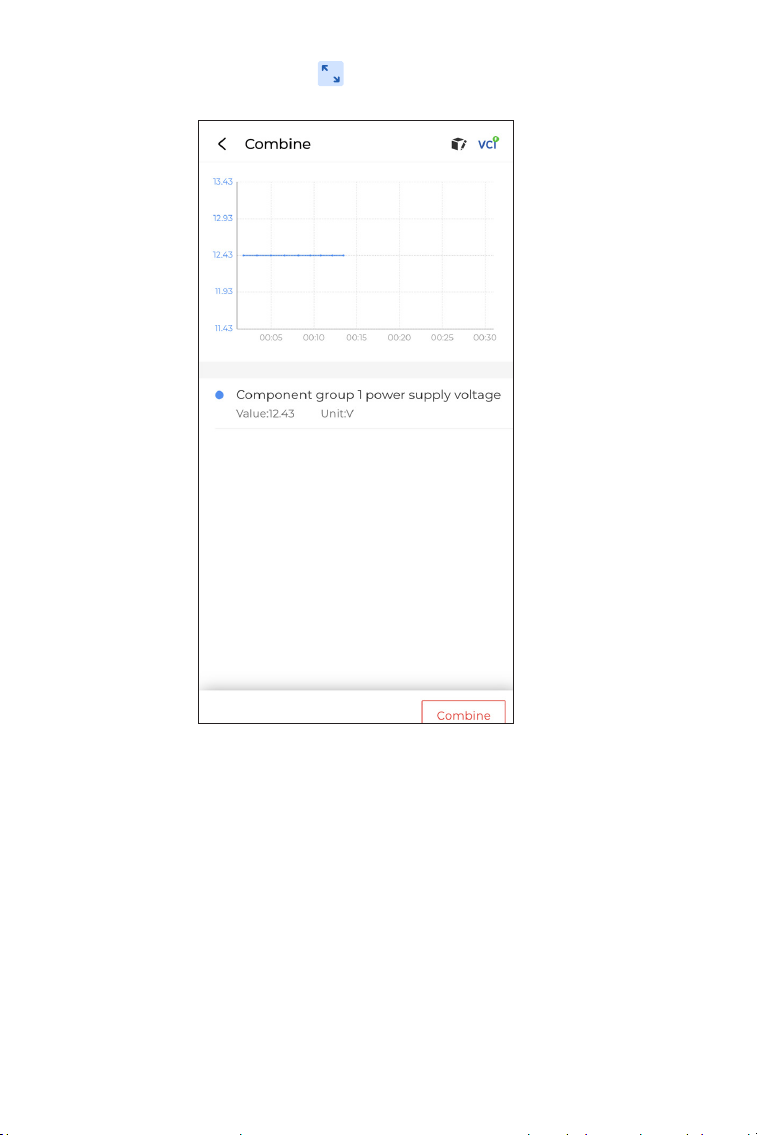
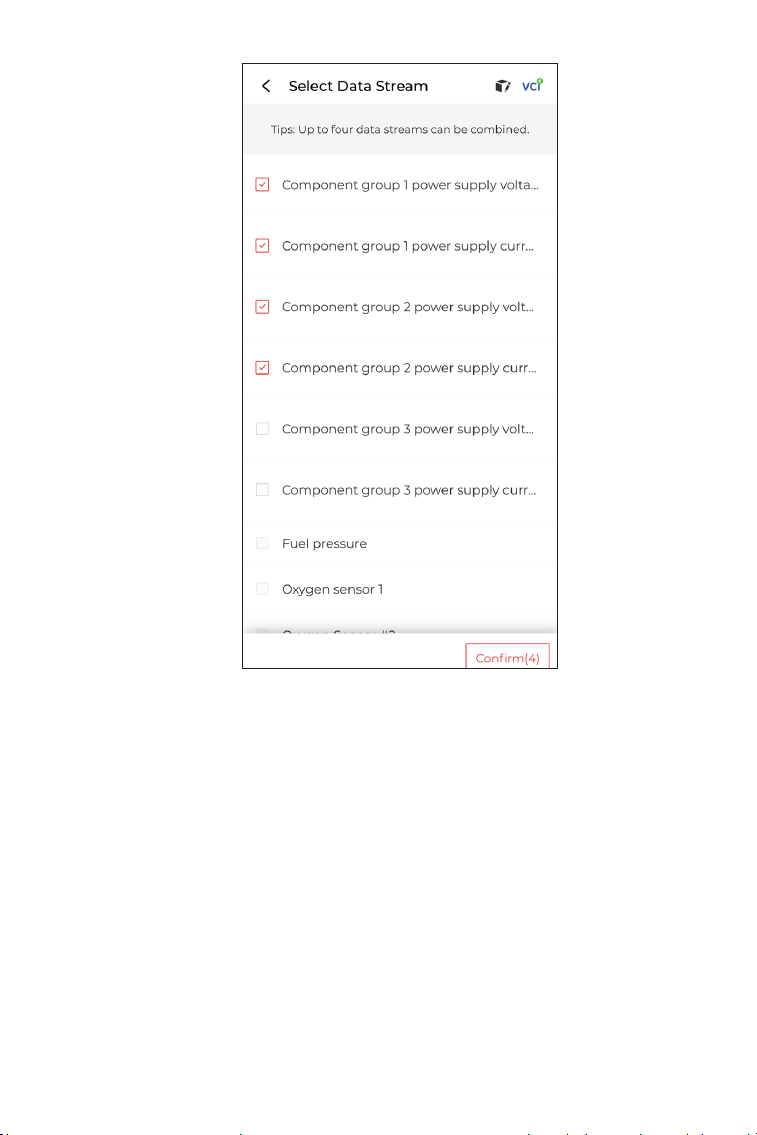
2. For ease of comparison and observation, the Combine function
is provided which allows up to 4 data streams to be viewed in one
graph.
To access the Combine function:
①
Tap the icon to change the display form, and go back to
the data stream screen.
Figure 4-10
28
②
Tap the full screen icon at the right side. The following
screen will appear.
③
Tap Combine, and select up to four data streams.
Figure 4-11
29
④
Tap Conrm. A combined graph will display.
Note:
IF THE MOTORCYCLE MUST BE DRIVEN TO VIEW THE LIVE DATA
STREAM, ALWAYS HAVE A SECOND PERSON HELPING YOU. DO
NOT WATCH THE DATA STREAM WHILE DRIVING.
Figure 4-12
30
Active Test
Special Function
- allows you to manually control certain component operations
directly from the app to verify the operations of components.
Note:
Available tests vary by motorcycle make, year and model.
The TopScan Moto supports common special functions such as
Oil Reset.
4.2.2 Diagnostic Feedback
The TopScan Moto allows you to instantly send diagnostic feedback
(with logs of diagnostic data automatically attached) while you are
encountering a software problem with the diagnostics operations.
To send diagnostic feedback:
1. Tap the icon located at the top right corner of any screen in
the Diagnostics module.
2. Select the type of problem.
3. Write a description of the problem.
4. Tap Submit to send the feedback.

31
4.3.1 Technical Service Bulletins
4.3.2 Warning Light Library
To view technical service bulletins:
Tap Repair Information > Technical Service Bulletins. Select
motorcycle make, model, year, system and subsystem, and tap
Next. A list of OEM technical service bulletins issued for the selected
motorcycle will display. Tap the desired option to view the full
content.
The Warning Light Library provides information on dashboard
warning lights, including light descriptions, impacts on driving,
typical causes, responsive measures and relevant FAQs.
To use the Warning Light Library:
Tap Repair Information > Warning Light Library. A list of warning
lights will display. Tap the desired option to view the details.
4.3 Repair Information
32
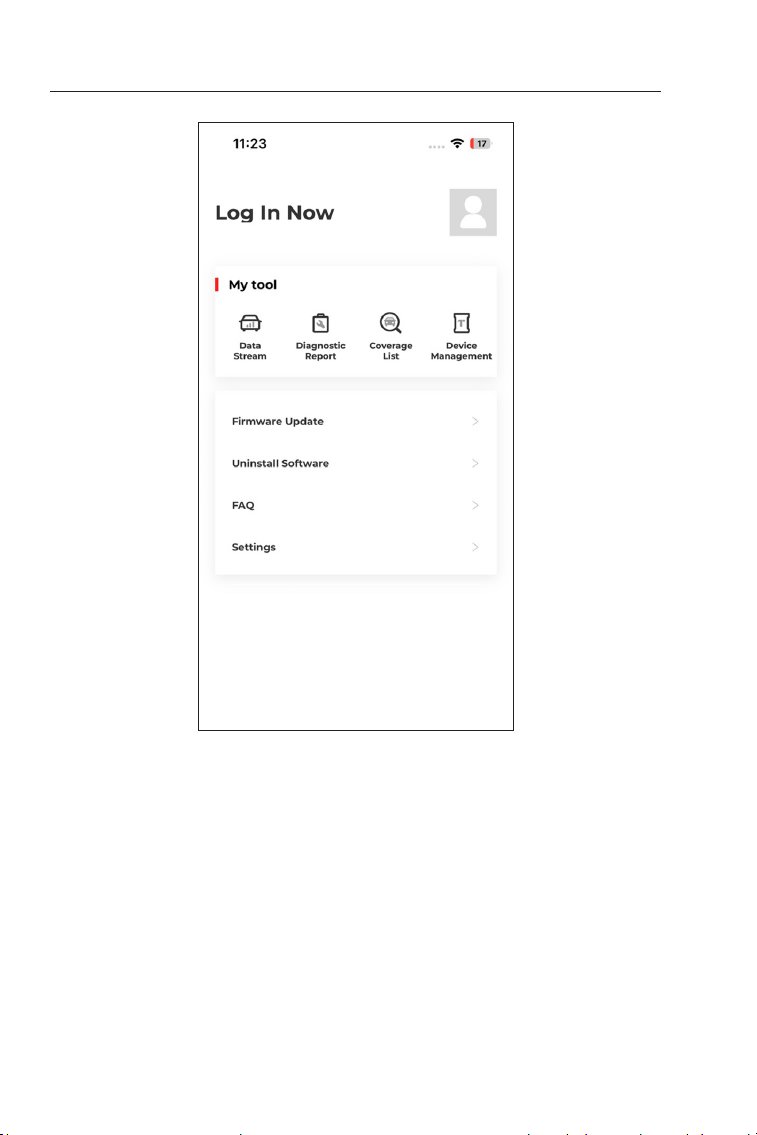
4.4.1 Account Prole
You can tap the prole photo to view and edit the prole information.
4.4.2 Data Stream
Allows you to view the saved data stream information.
4.4.3 Diagnostic Report
Allows you to view the saved diagnostic reports.
4.4 Me
Figure 4-23

33
4.4.4 Coverage List
Allows you to check whether the TopScan is applicable to your
motorcycle.
4.4.5 Device Management
Allows you to bind the VCI / T-Darts (sold separately) to your account.
4.4.6 Firmware Update
Allows you to update the VCI rmware if a new version is available.
4.4.7 Uninstall Software
Allows you to uninstall the motorcycle-specic Diagnostics software
.
4.4.8 Help and Feedback
Allows you to view the frequently asked questions and submit
feedback.
4.4.9 Settings
The Settings function provides general setting options including
language setting, unit setting and cache clearing, and allows you
to view the version information, terms of service, privacy policy and
third-party components of the app.

34
Section 5
Specications
Bluetooth
Operating System Supported
Storage Temperature
Working Temperature
Dimensions
Net Weight
Version: Bluetooth 5.0
Range: 33 feet (10 m)
iOS 11.0 or later
Android 7.0 or later
-4
℉
to 158
℉
(-20
℃
to 70
℃
)
14
℉
to 122
℉
(-10
℃
to 50
℃
)
84.1 × 50.4 × 27.2 mm (3.31 × 1.98 ×
1.07'')
78 g (2.75 oz)

35
Section 6
FAQ
What should I do if a communication error occurs?
Follow the steps below to identify the problem:
1) Check if the ignition is ON.
2) Check if the TopScan Moto is securely plugged into the
motorcycle's diagnostic port.
3) Turn the ignition off. Then, turn it on after 10 seconds and
continue the operation.
4) Check if the motorcycle’s control module is defective.
Why do I need to download the diagnostic software after
installing the TopScan app?
Since there are various vehicle manufacturers, different diagnostic
software is required for different brands.
Do I need to update the rmware before using it for the rst
time?
Yes. Firmware will automatically update to the latest version once
the TopScan is connected with your phone via Bluetooth. You can
also tap Me > Firmware Update to update the rmware manually.
Can multiple devices be bound to one TopScan app account?
Yes.
Q
Q
Q
Q
A
A
A
A
36
Section 7
Warranty
TOPDON's One Year Limited Warranty
TOPDON warrants to its original purchaser that the company's
products will be free from defects in material and workmanship for
12 months from the date of purchase (Warranty Period).
For the defects reported during the Warranty Period, TOPDON will
either repair or replace the defective part or product according to its
technical support analysis and conrmation.
TOPDON shall not be liable for any incidental or consequential
damages arising from the device's use, misuse, or mounting.
If there is any conict between the TOPDON warranty policy and
local laws, the local laws shall prevail.
This limited warranty is void under the following conditions:
• Misused, disassembled, altered or repaired by unauthorized stores
or technicians.
• Careless handling and/or improper operation.
Notice:
All information in this manual is based on the latest information
available at the time of publication and no warranty can be
made for its accuracy or completeness. TOPDON reserves the
right to make changes at any time without notice.

37
Section 8
FCC
Any changes or modications not expressly approved by the party
responsible for compliance could void the user's authority to operate
the equipment. This device complies with Part 15 of the FCC Rules.
Operation is subject to the following two conditions:
(1) this device may not cause harmful interference, and
(2) this device must accept any interference received, including
interference that may cause undesired operation.
Note: This equipment has been tested and found to comply with
the limits for a Class B digital device, pursuant to Part 15 of the FCC
Rules. These limits are designed to provide reasonable protection
against harmful interference in a residential installation. This
equipment generates, uses, and can radiate radio frequency energy,
and if not installed and used in accordance with the instructions,
may cause harmful interference to radio communications. However,
there is no guarantee that interference will not occur in a particular
installation. If this equipment does cause harmful interference to
radio or television reception, which can be determined by turning
the equipment off and on, the user is encouraged to try to correct
the interference by one or more of the following measures:
– Reorient or relocate the receiving antenna.
– Increase the separation between the equipment and receiver.
– Connect the equipment into an outlet on a circuit different from
that to which the receiver is connected.
– Consult the dealer or an experienced radio/TV technician for help.
38
Scan the QR code for more support!
X