ION Audio Tahiti™ Link User Guide 2
I
NTRODUCTION ......................................................................... 3
Box Contents ....................................................................................................... 3
Support ................................................................................................................. 4
S
ETUP .........................................................................................5
Assembly .............................................................................................................. 5
Use and Care ....................................................................................................... 6
Charging & Battery Information ..................................................................... 7
F
EATURES ................................................................................. 9
Front Panel .......................................................................................................... 9
Rear Panel .......................................................................................................... 10
O
PERATION ............................................................................... 11
Pairing a Bluetooth® Device ............................................................................ 11
Multi-Sync™ ......................................................................................................... 12
App Control ........................................................................................................ 13
T
ROUBLESHOOTING ............................................................... 14
A
PPENDIX ................................................................................. 15
Technical Specifications .................................................................................. 15
Trademarks & Licenses .................................................................................... 15
TABLE OF CONTENTS
ION Audio Tahiti™ Link User Guide 3
Thank
you for purchasing the Tahiti™ Link. At ION, your entertainment is as important to us as
it is to you. That’s why we design our products with one thing in mind—to make your life more
fun and more convenient.
Note: Before you first use the product, please fully charge the batteries. Your unit was
purposely shipped with a reduced battery charge to ensure safe transit. For optimal charging,
power o the speaker while charging.
Use the included USB-A to USB-C® charging cable to connect the unit to a 5V, 2A power
adapter (not included) connected to a power outlet and let it charge for up to 4 hours
(depending on the specifications of your adapter). This helps ensure the longest life for your
battery.
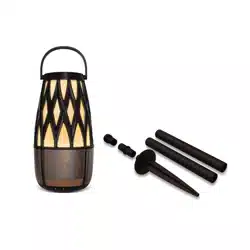
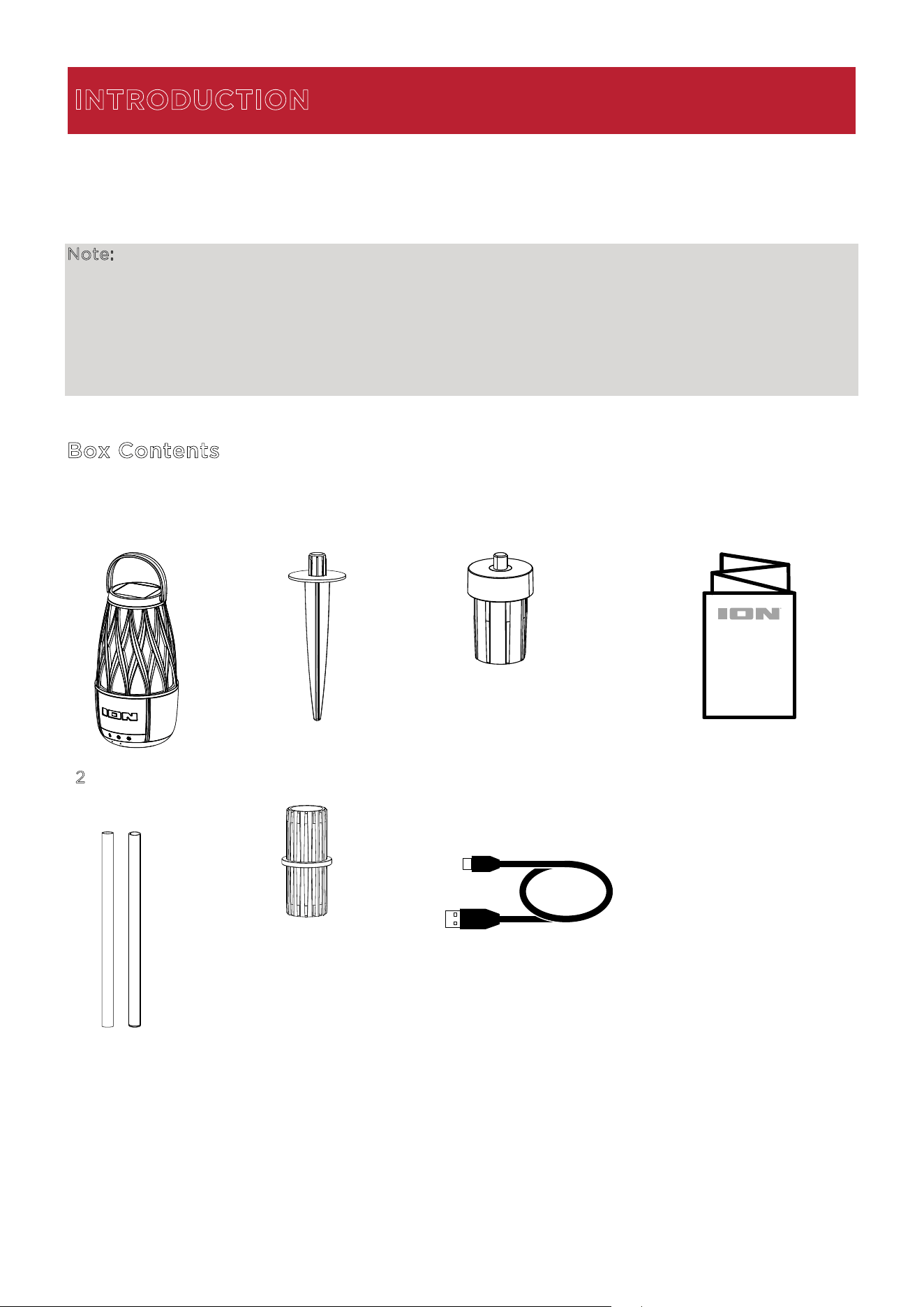
Box Contents
Tahiti™ Link Stake
Threaded Tube Cap Quickstart Guide
2
Pole Segments
(10” / 25 cm, each)
Pole Connector
USB-A to USB-C®
Charging Cable
(3.28 ft / 1 m)
INTRODUCTION

ION Audio Tahiti™ Link User Guide 5
Assembly
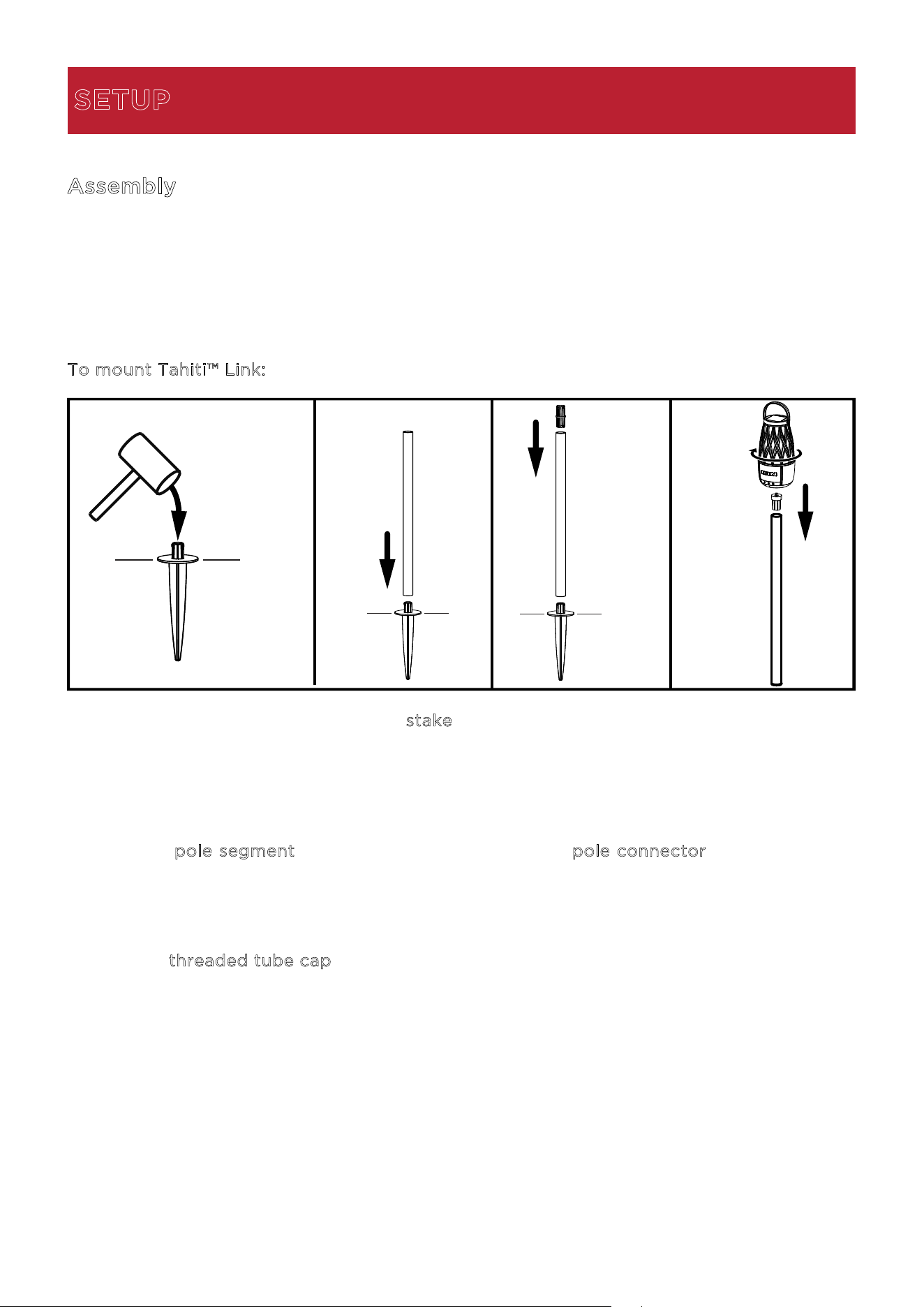
Tahiti™ Link may be used mounted using the included post; freestanding; or hanging using the
handle.
T
o mount Tahiti™ Link:
a. Drive the entire spike portion of the s
take into the ground where you would like to install
Tahiti™ Link.
If the ground is hard or tough, use a shovel to loosen the soil prior to driving the ground
stake. Do not directly strike it with a hammer; instead, we recommend using a rubber mallet
or using a flat object as a buer between the hammer and stake.
b. Attach a p
ole segment to the stake, and then attach a pole connector to the top of the
pole segment to add another segment.
To ensure stability, make sure all pieces are connected tightly. Do not apply downward
pressure to the poles to drive the stake into the ground.
c. Add the t
hreaded tube cap on the top of the last pole segement.
d. Place Tahiti™ Link so that the hole at the bottom of the speaker is in line with the threads
at the top of the pole mount. Gently screw Tahiti™ Link onto the threaded cap until it is
secure. Do not overtighten.
Before attempting to move Tahiti™ Link, always remove the speaker from the pole mount first.
Hold the top-most section of the pole with one hand and gently unscrew Tahiti™ Link until it
is separated from the pole mount.
Ground Level
Pole
Connector
Pole
Segment
Threaded
Cap
Stake
a. d.b.
c.
SETUP

ION Audio Tahiti™ Link User Guide 6
Use and Care
Though Tahiti
TM
Link is water-resistant and able to tolerate splashing water, please review the
tips below to get the best performance from your Tahiti
TM
Link:
• Bring Tahiti
TM
Link indoors during extreme weather.
• Please do not place Tahiti
TM
Link in standing water or puddles.
• Please do not attempt to charge Tahiti
TM
Link in a wet environment. Make sure the power
input, charging cable, power adapter, and power outlet are all completely dry before
making any connections.
• WARNING: Keep any non-water-resistant devices (phones, music players, etc.) in a dry
place where they will not be aected by water and cause a risk of electric shock.
ION Audio Tahiti™ Link User Guide 7
Charging & Battery Information
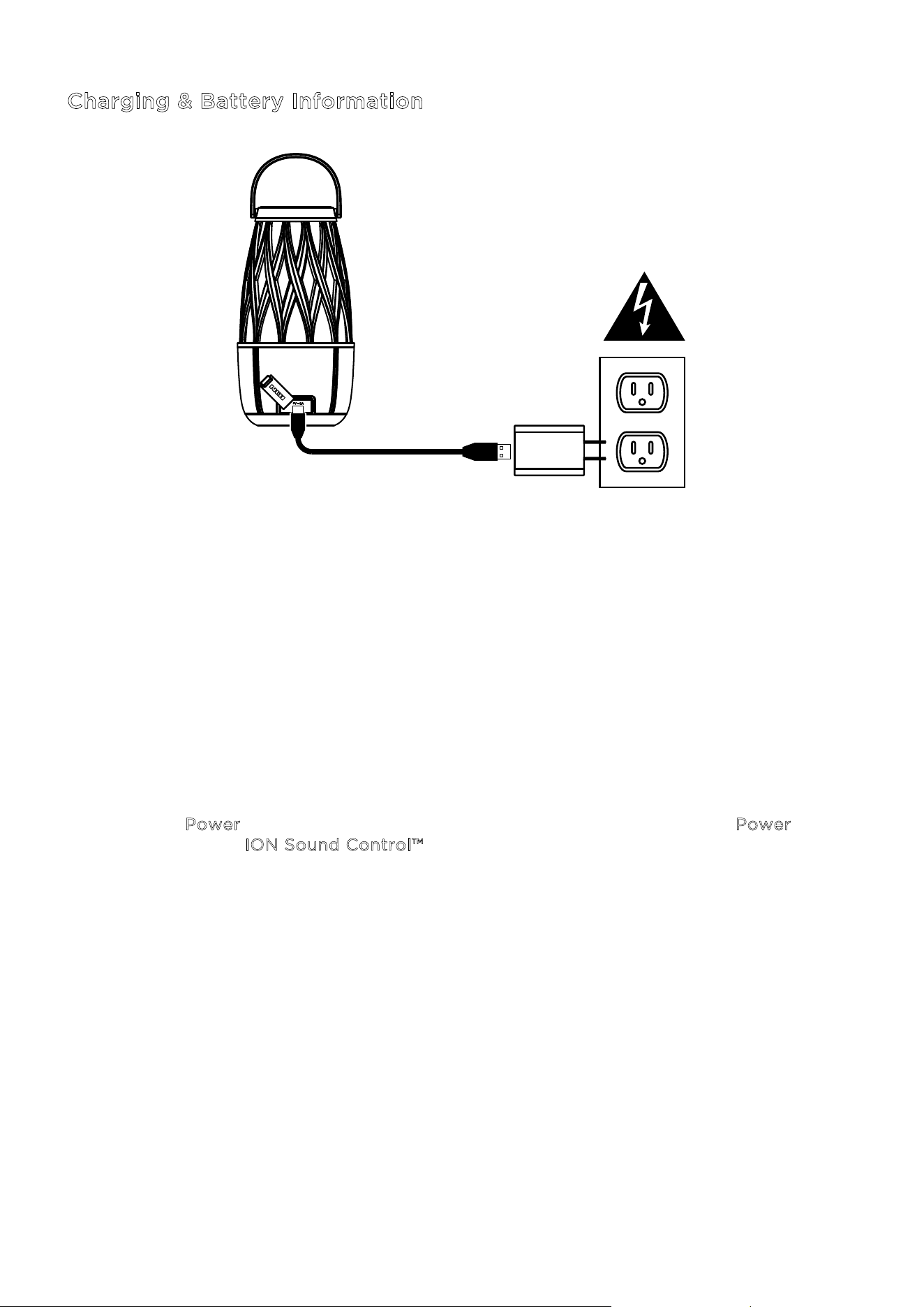
For the quickest charging time, power o Tahiti™ Link and use the included USB-A to USB-C®
charging cable to connect the USB-C® charging port on the rear panel of the speaker to a USB
power adapter (DC 5V, 2A; not included) connected to a power outlet, or your computer
(powered on). A full charge can take up to 4 hours, depending on the specifications of your
5V, 2A adapter.
Tahiti™ Link’s battery life can also be prolonged between charges using the solar panel on the
top of the speaker. For best results, place Tahiti™ Link in an area that receives at least 3 hours
or direct sunlight a day. The rate of charging depends on the amount of sunlight the solar
panel receives. The unit will charge slower when receiving indirect sunlight.
You can also put Tahiti
TM
Link in Standby Mode to save battery by quickly pressing and
releasing the P
ower button. To wake the unit, quickly press and release the Power button
again, or use the the I
ON Sound Control™ app.

ION Audio Tahiti™ Link User Guide 8
Here are some other recommendations for getting the longest life from the internal battery.
G
eneral Usage Fully charge the battery before using it.
Avoid full discharge of the battery if possible. Li-Ion batteries are
maintenance-free, and the battery will last longest when operating
between 30–80% charged.
Do not use the product while charging the battery.
Do not charge the battery in exceedingly hot (greater than 90°F/32°C) or
exceedingly cold (less than 32°F/0°C) temperatures.
S
torage For best product longevity, do not store at exceedingly hot (greater than
90°F/32°C) or exceedingly cold (less than 32°F/0°C) temperatures.
For best product longevity, store with a 50% battery charge.
If you leave the battery level low and do not charge it for 6 months, it may
permanently lose capacity.
R
epair If the battery fails to charge, contact ION Audio at ionaudio.com.
D
isposal Bring the unit to a recycling center or dispose of in accordance with local
ordinances.
ION Audio Tahiti™ Link User Guide 9
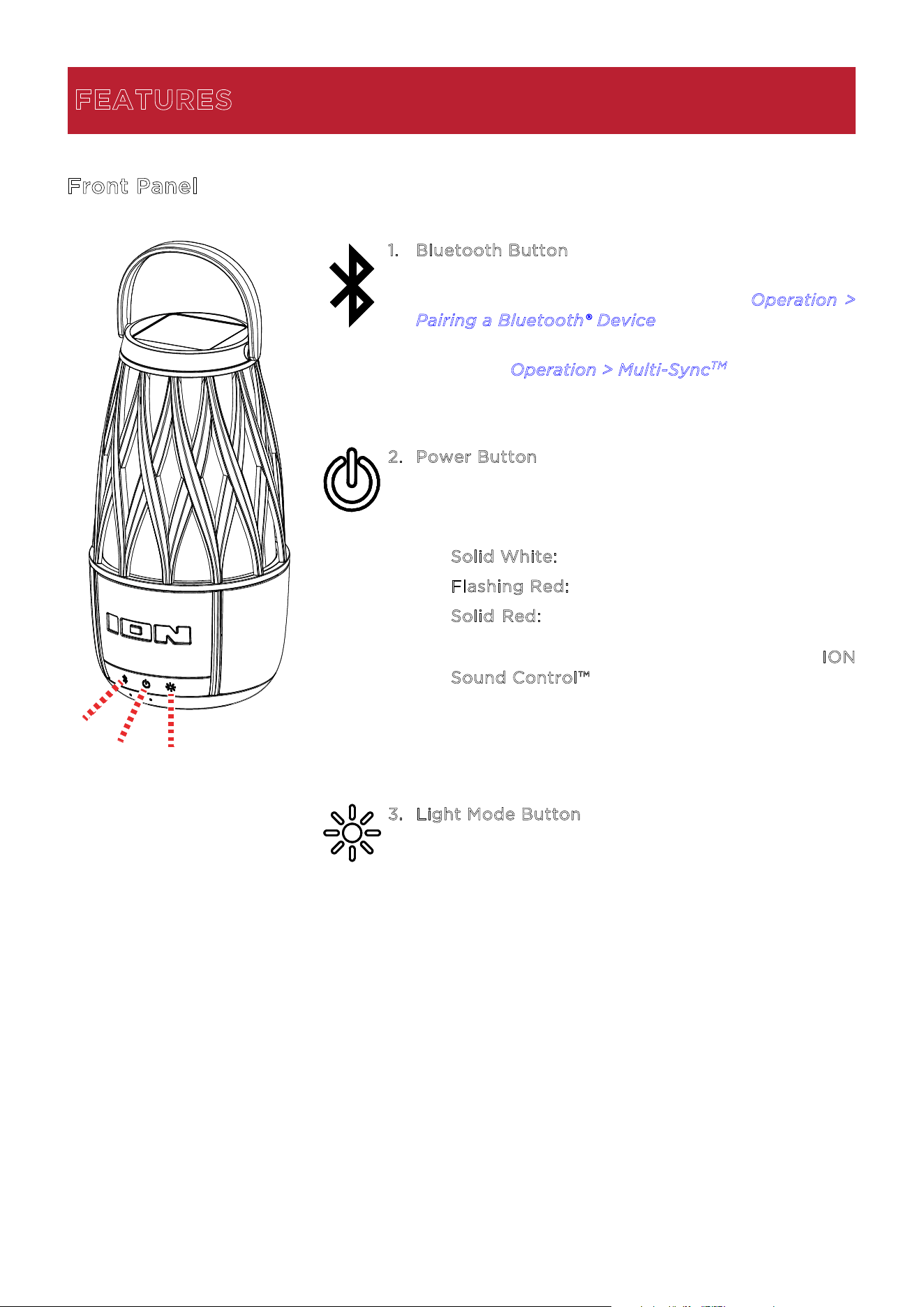
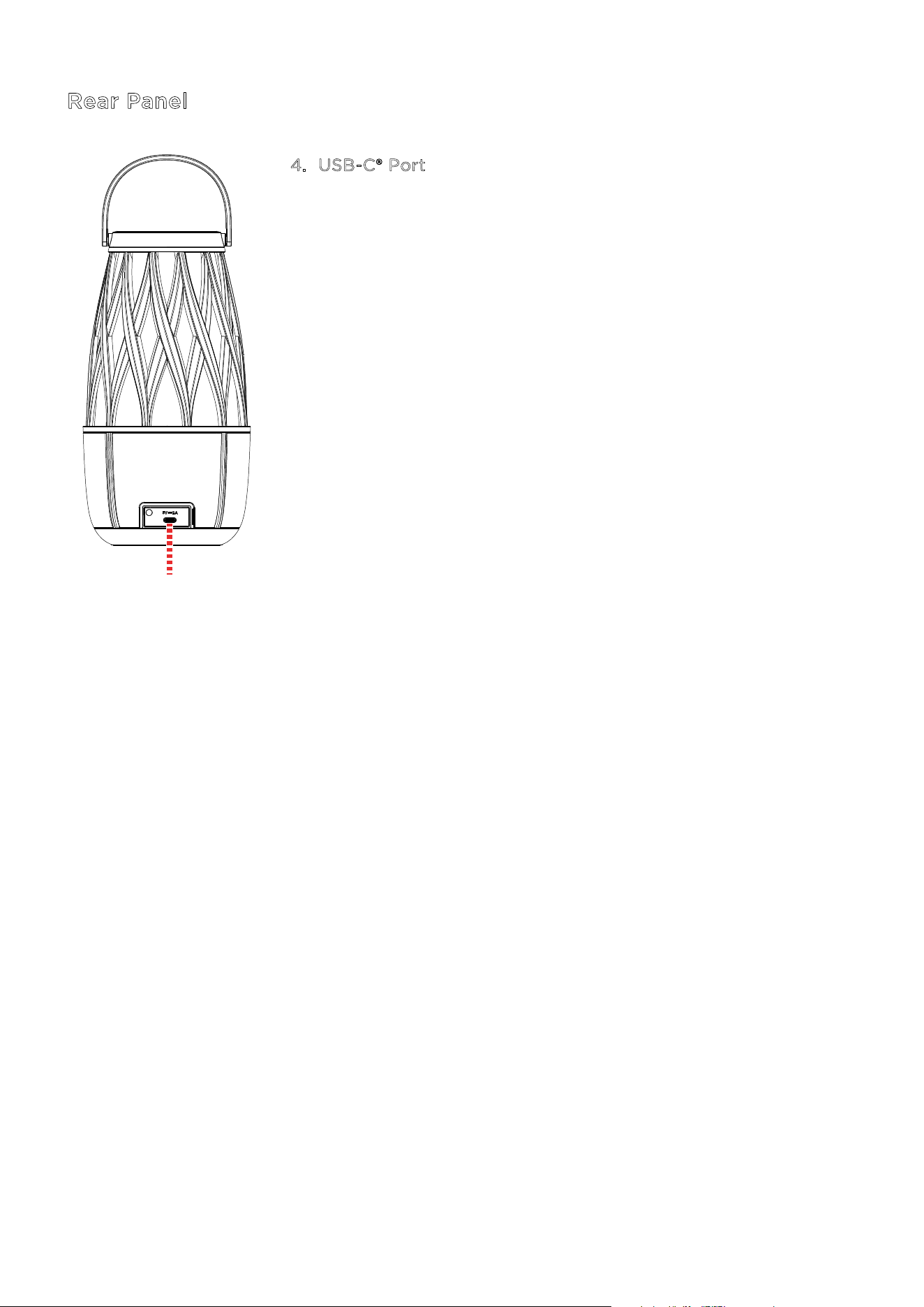
Front Panel
1
. Bluetooth Button
Press and hold this button to disconnect a Bluetooth
device and re-enter pairing mode. See O
peration >
P
airing a Bluetooth® Device to learn more.
Double-press this button to enter Multi-Sync
TM
mode. See O
peration > Multi-Sync
TM
to learn more.
2
. Power Button
Press and hold this button to power Tahiti™ Link on
and o. The LED next to this button will change
based on the current status of Tahiti™ Link:
• S
olid White: Power on.
• F
lashing Red: Low battery.
• S
olid Red: Charging. If the unit is powered o,
the LED will turn o once charging is complete.
Battery status can also be seen from the I
ON
S
ound Control™ app.
Quickly press and release this button to enter or exit
standby mode.
3
. Light Mode Button
Press this button to cycle through the four available
light modes, or to turn the lights o:
• Flicker
• Max Brightness (Solid)
• Medium Brightness (Solid)
• Low Brightness (Solid)
• O
FEATURES
1
3
2
1
3
2
ION Audio Tahiti™ Link User Guide 10
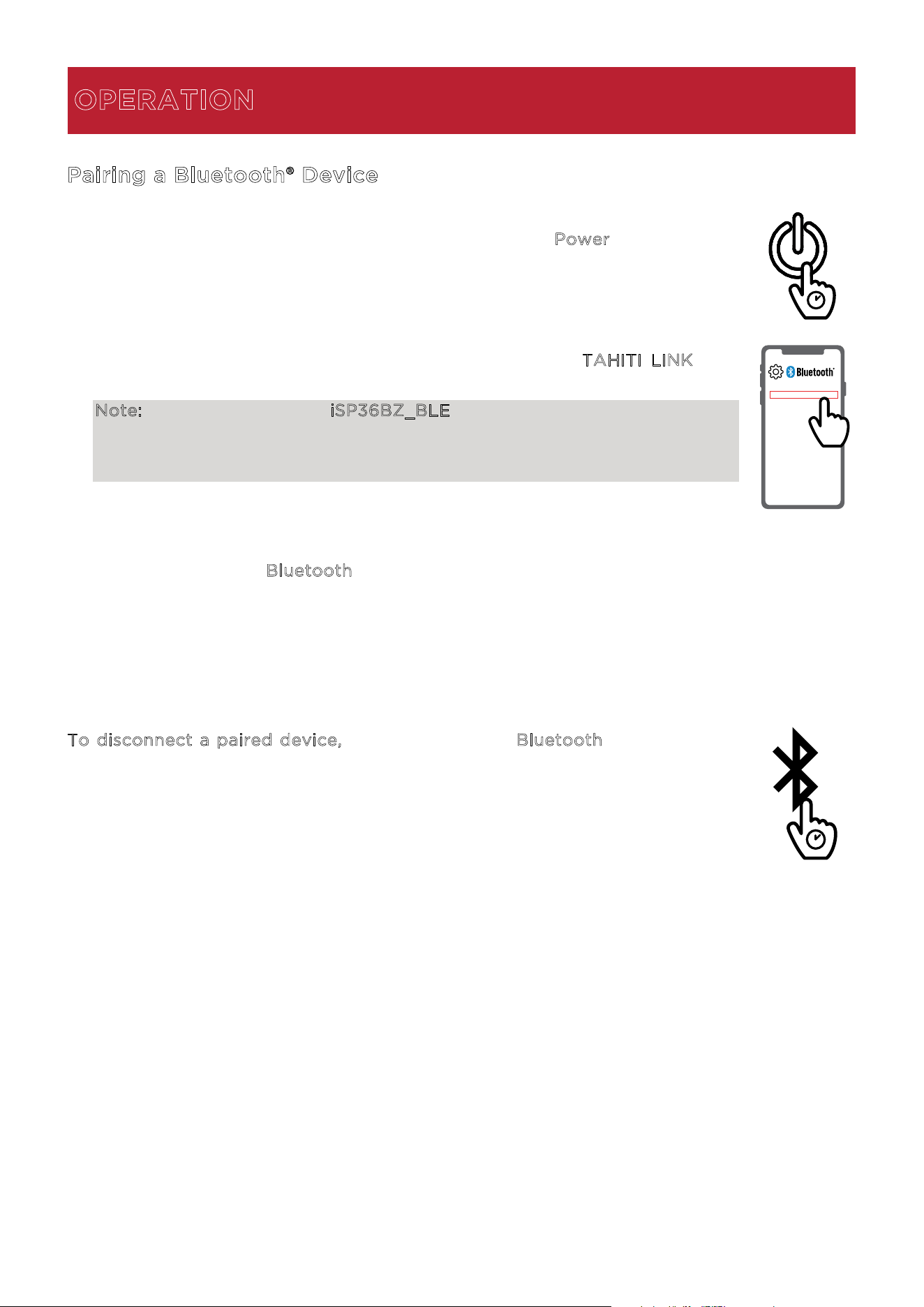
Rear Panel
4
. USB-C® Port
To charge Tahiti™ Link, connect the included USB-A to USB-C®
charging cable from this port to a USB power adapter (DC 5V,
2A; not included) connected to a power outlet.
4
ION Audio Tahiti™ Link User Guide 11
Pairing a Bluetooth® Device
1. Turn on Tahiti™ Link by pressing and holding the P
ower button. Upon
powering on, Tahiti™ Link will be available to pair, so make sure your
Bluetooth device is within range of the speaker, no more than 100 ft. (30.5
m).
2. Navigate to your device’s Bluetooth setup screen, find T
AHITI LINK, and
connect.
Note: Do not connect to iSP36BZ_BLE; this is reserved exclusively for
connecting to the ION Sound Control™ app. If you experience trouble in
connecting, select “Forget this Device” on your Bluetooth device and try to
connect again.
3. Once paired, you will hear “Connected” (if voice prompts are enabled), and
the LED next to the B
luetooth button will become solid blue.
4. You can now press play in your music player app of choice on your device.
To disconnect a paired device, press and hold the Bluetooth button, or turn
o Bluetooth from your device’s Bluetooth settings. The speaker will enter
Bluetooth pairing mode to make it available for another device. When you
disconnect a Bluetooth device, you will hear “Disconnected” if voice prompts
are enabled.
OPERATION
TAHITI
TM
LINK
ION Audio Tahiti™ Link User Guide 12
Multi-Sync™
T
o sync one or more secondary speakers together:
1. Turn on one Tahiti™ Link by pressing and holding the P
ower button. This
speaker will be your “primary” speaker.
2. Navigate to your device’s Bluetooth setup screen, find T
AHITI LINK, and
connect to the primary speaker. The B
luetooth LED will be lit solid blue.
3. Double-press the B
luetooth button on the primary speaker to enter
Multi-Sync
TM
mode. The Bluetooth LED will change from blue to solid
white, and you will hear “Multi-Sync
TM
primary speaker” if voice prompts
are enabled, or two tones if voice prompts are disabled.
4. Power on any secondary Tahiti™ Link or other Multi-Sync
TM
compatible
speakers. Visit i
onaudio.com to learn more about the full range of Multi-
Sync
TM
speakers.
5. Double-press the B
luetooth button on the secondary speaker to enter
Multi-Sync
TM
mode and initiate syncing. The Bluetooth LEDs on both
speakers will begin flashing green, and you will hear “Multi-Sync
TM
secondary speaker” if voice prompts are enabled, or two tones if voice
prompts are disabled.
Note: For best results, keep speakers within 50 ft. (15 m) with a clear line
of sight while syncing. It may take up to 1 minute to make the connection.
6. When the speakers have synced, the B
luetooth LEDs on both speakers
will be lit green, and you will hear “Synced” if voice prompts are enabled.
T
o disconnect, double-press the Bluetooth button on one of the two speakers.
Tips:
The Bluetooth range will be determined by the distance that your Bluetooth device is to the
primary speaker. See Technical Specifications for Bluetooth and Multi-Sync
TM
ranges.
It is recommended when using multiple speakers of the same type to rename the speakers in
your device’s Bluetooth list. This will allow easy identification between the primary and
secondary speakers when connecting through Bluetooth or the ION Sound Control™ app.
1
st
Speaker
2
nd
Speaker
TAHITI
TM
LINK
ION Audio Tahiti™ Link User Guide 13
App Control
IMPORTANT: To ensure the best possible experience with the app, use the most current
Android OS or iOS on your device.
F
ollow these steps to download the free app on your device:
1. Open the Apple App Store or Google Play on your device. Then, search for the I
ON Sound
C
ontrol™ app.
2. Follow the on-screen instructions to download and install the app. Once downloaded, the
I
ON Sound Control™ app will appear on your device's home screen.
3. Connect your device to Tahiti™ Link via Bluetooth. See O
peration > Pairing a Bluetooth®
D
evice to learn how to do this.
4. Open the ION Sound Control™ app. If prompted, allow the app to access your device's
Bluetooth and Location Services.
5. Follow the steps on screen to find and connect to your Tahiti™ Link. Once connected, you
can control various functions of the speaker, such as:
• V
olume: Adjust the speaker's volume.
• V
oice Prompts: Enable or disable the voice prompts (on by default).
• B
attery Life: Check the speaker’s battery life status.
• S
tandby Mode: Wake the speaker from standby mode.
• L
ights: Change the light modes.
• M
ulti-Sync™: Sync two or more Multi-Sync™ compatible speakers.
• S
upport: Visit ionaudio.com, contact Technical Support, and view Warranty information
and Frequently Asked Questions.
ION Audio Tahiti™ Link User Guide 14
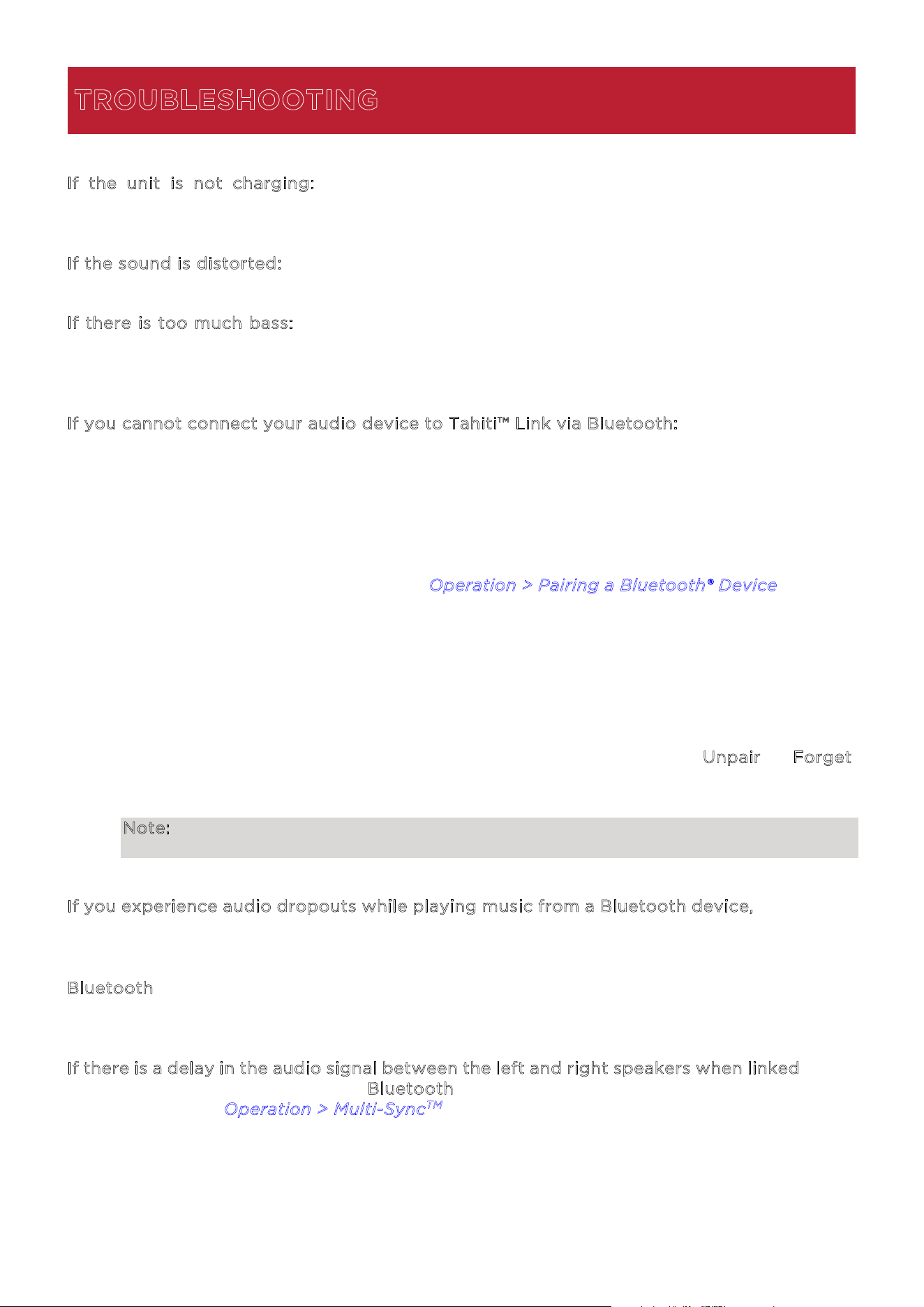
I
f the unit is not charging: Make sure the USB-A to USB-C® charging cable is properly
connected to the power input, the power adapter, and the power outlet.
I
f the sound is distorted: Try lowering the volume control of your sound source.
I
f there is too much bass: Try adjusting the tone or EQ control on your sound source or on
Tahiti™ Link via the ION Sound Control™ app to lower the bass level. This will allow you to play
the music louder before clipping (distortion) occurs.
I
f you cannot connect your audio device to Tahiti™ Link via Bluetooth:
• Have your audio device (e.g., smartphone or tablet) and Tahiti™ Link as close together
as possible while trying to connect. Make sure both the audio device and Tahiti™ Link
are unobstructed by walls, furniture, etc.
• Double-press the Bluetooth button to disconnect Tahiti™ Link from any other audio
device and restart the search process. If this does not work right away, power o Tahiti™
Link and then power it back on. See O
peration > Pairing a Bluetooth® Device for more
information.
• Reset the Bluetooth connection on your audio device by turning Bluetooth o and back
on. You can find this under the Bluetooth menu in the Settings for your phone or other
audio device.
If this does not work, and you have connected to Tahiti™ Link before, find Tahiti™ Link
in the list of available or previously connected devices in your audio device's Bluetooth
menu, tap the "gear" or “i” icon located next to it and then select U
npair or Forget.
Turn Tahiti™ Link o and back on and try pairing again once it reappears in your
available devices list.
Note: If Tahiti
TM
have been paired to another audio device recently that is still within
range, you may need to repeat this process with that audio device to fully disconnect.
If you experience audio dropouts while playing music from a Bluetooth device, this may be
happening because your unit is trying to link to another speaker. This can occur if you power
o a speaker that was linked to your unit or if you have just turned on your unit and it is in
Multi-Sync™ mode. To stop the audio dropouts, exit Multi-Sync™ mode by double-pressing the
B
luetooth button. Alternatively, you can wait for your unit to link to another speaker if there
is one within range.
I
f there is a delay in the audio signal between the left and right speakers when linked, break
the link by double-pressing the B
luetooth button, and pair them again following the
instructions in the O
peration > Multi-Sync
TM
section.
TROUBLESHOOTING
ION Audio Tahiti™ Link User Guide 15
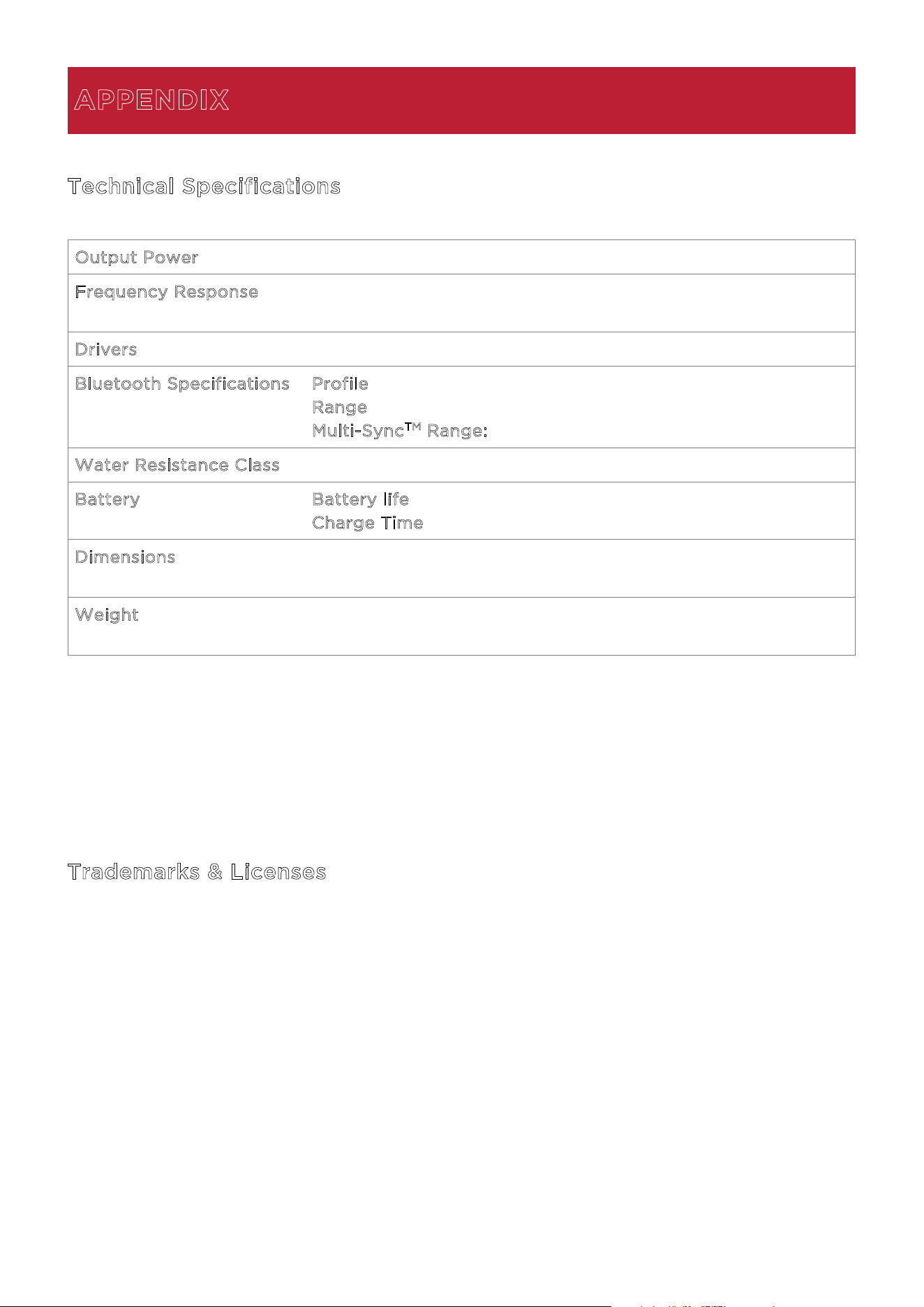
Technical Specifications
O
utput Power 10 W (peak)
Frequency Response 100 Hz – 17 kHz (-3 dB)
75 Hz – 20 kHz (-10 dB)
Drivers 3.0” (76 mm) with sound dispersion
Bluetooth Specifications Profile: A2DP, AVRCP
R
ange: Up to 100 feet (30.5 m) *
M
ulti-Sync
TM
Range: Up to 50 ft. (15 m) between speakers
Water Resistance Class IPX5
Battery Battery life: Up to 10 hours (at 50% volume, lights on) **
C
harge Time: Up to 4 Hours (using 5V, 2A USB power adapter)
Dimensions
(width x depth x height)
4.1" x 4.1" x 7.8”
105 x 105 x 197 mm
Weight 2.25 lbs.
1.02 kg
Specifications are subject to change without notice.
* Bluetooth and wireless reception and range are aected by walls, obstructions, and
movement. For optimal performance, place the product so it is unobstructed by walls or
furniture and is raised o the ground.
** Battery life may vary based on temperature, age, and volume usage of product.
Trademarks & Licenses
ION Audio is a trademark of inMusic Brands, Inc., registered in the U.S. and other countries.
The Bluetooth word mark and logos are owned by the Bluetooth SIG, Inc., and any use of such
marks by ION Audio is under license.
App Store is a trademark of Apple Inc., registered in the U.S. and other countries.
Android and Google Play are registered trademarks of Google Inc.
All other product names, company names, trademarks, or trade names are those of their
respective owners.
APPENDIX