
Contents
17
EN
1 Instructions 18
1.1 General instructions 18
1.2 This user manual 18
1.3 Declaration of conformity 19
1.4 Declaration art. 10.10 Directive 2014/53/EU 19
1.5 How to read the user manual 19
2 SmegConnect 20
2.1 Connectivity requirements 20
2.2 Installing the App 20
2.3 Product registration 20
2.4 Remote connection 25
2.5 Changing Access Point credentials 26
2.6 Front display 26
2.7 Connection information 27
2.8 Cancelling the registration 27
2.9 Software updates 28
2.10What to do if... 29
------------------------------------------------------------------------------------------------------------------------------------------------- ENGLISH ------------
Dear customer, we would like to thank you for your condence in us.
By choosing one of our products, you have opted for solutions where search for beauty
meets innovative technical design to provide unique objects which become pieces of
furniture.
We hope you get the most out of your household appliance.
Kindest regards.
SMEG S.p.A.
Apple, App Store and iOS are trademarks of Apple Inc.
Google Play Store and Android are trademarks of Google Inc.
Wi-Fi is a trademark of Wi-Fi Alliance.
The manufacturer reserves the right to make any changes deemed necessary for the im-
provement of its products without prior notice. The illustrations and descriptions contained
in this manual are therefore not binding and are merely indicative.
TRANSLATION OF THE ORIGINAL INSTRUCTIONS
We advise you to read this manual carefully, which contains all the instructions for main-
taining the appliance’s aesthetic and functional qualities.
For further information on the product: www.smeg.com
18
Instructions
1. Instructions
1.1 General instructions
• To use the App requires a
Wi-Fi network with an Internet
router via which the appliance
and the mobile device are
both connected.
• If the signal is too weak, install
a Wi-Fi repeater close to the
appliance.
• When outside the range of the
Wi-Fi network, it is assumed
that a data connection will be
available for the mobile device
in order to use the App.
WARNING: depending on
your mobile network operator
contract, additional costs may
be incurred.
• The appliance can operate
ofine as a “non-connected”
electrical domestic appliance
but cannot be controlled via
the App when the Wi-Fi or
data connection is disabled.
• In compliance with the provi-
sions regarding electromagnet-
ic compatibility, the appliance
belongs to group 2 and class
B (EN 55011).
• This appliance complies with
the current standards and
directives regarding safety and
electromagnetic compatibility.
However, it is recommended
that people who wear pace-
makers maintain a minimum
distance of 20-30 cm between
the pacemaker and the appli-
ance when the appliance is in
operation. Contact the pace-
maker manufacturer for further
information.
1.2 This user manual
This user manual is an integral
part of the appliance and must
therefore be kept in its entirety
and within the user’s reach for
the whole working life of the
appliance. Read this user manual
carefully before using the appli-
ance.
19
EN
Instructions
1.3 Declaration of conformity
The manufacturer SMEG de-
clares that this appliance,
equipped with Wi-Fi connectivity,
complies with directive
2014/53/EU.
• Technology:
Wi-Fi IEEE 802.11 b/g/n.
• Frequency: 2400-2497 MHz.
• Maximum output power:
+18.5 dBm.
• The appliance operates in the
ISM 2.4 GHz band.
• The maximum stand-by power
consumption of the appliance
connected to the mains is 2.0
W.
The full text of the EU declaration
of conformity is available at the
following Internet address:
www.smeg.com/smegconnect/
red_directive
1.4 Declaration art. 10.10
Directive 2014/53/EU
This radio equipment is
NOT subject to restrictions
applicable to putting into ser-
vice or existing requirements
regarding authorisation for use
in any EU Member State.
1.5 How to read the user
manual
This user manual uses the follow-
ing reading conventions:
Instructions
General information on
this user manual, on safe-
ty and nal disposal.
Use
Information on the use
of the appliance and its
accessories.
Information
20
SmegConnect
2 SmegConnect
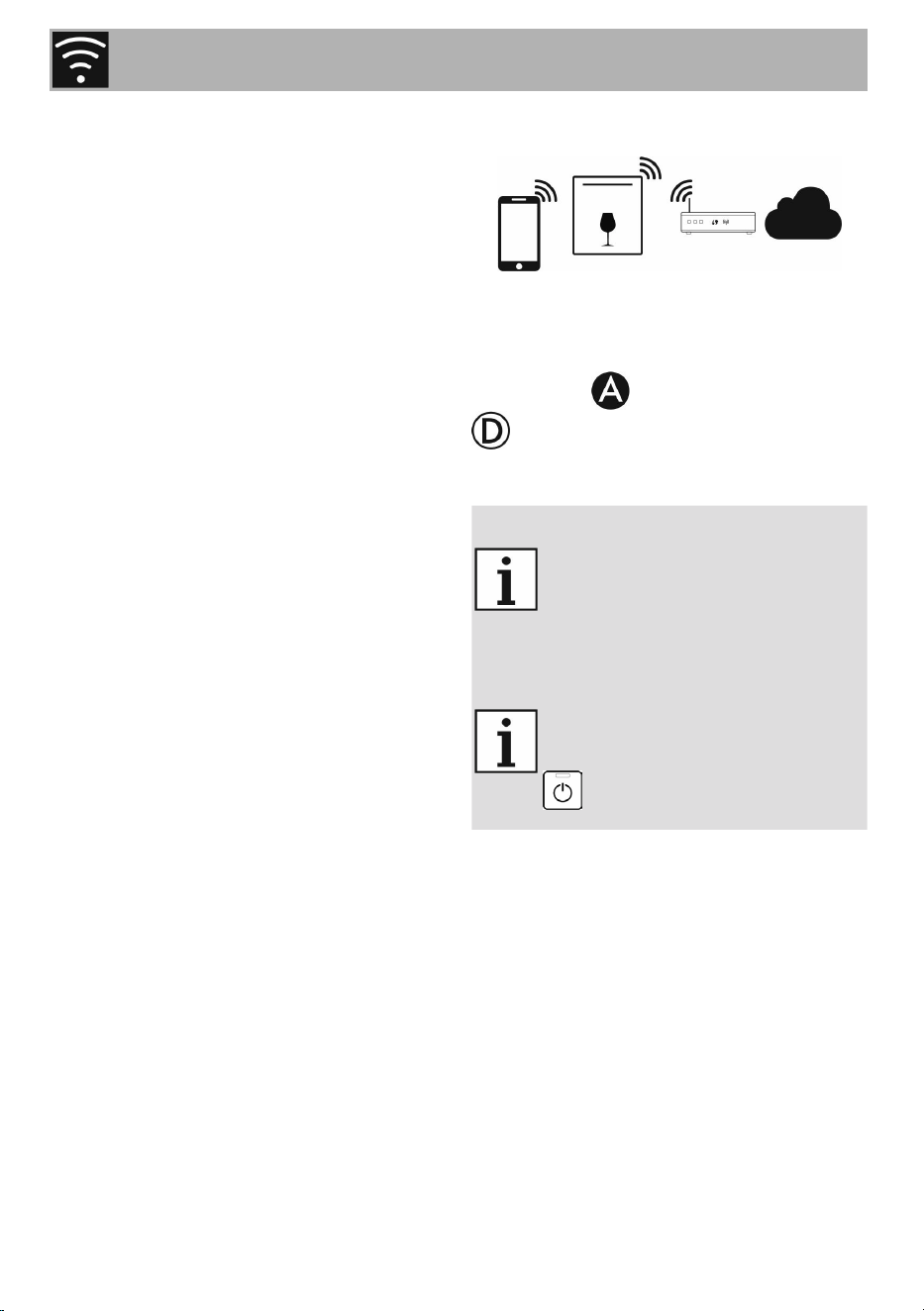
The appliance is equipped with Smeg-
Connect technology, which allows the
user to control the appliance via an
App on his/her smartphone or tablet
computer.
For further information, please refer to
the booklet provided and / or visit the
website
www.smeg.com
2.1 Connectivity requirements
• Smartphone or tablet running iOS
version 10.x or later or Android
version 5.1 or later.
• Wi-Fi network (2.4 GHz band,
WPA2-protected) active and availa-
ble in the place where the appliance
is installed.
• Internet connection.
• Name and password of the home
Wi-Fi network or WPS (Wi-Fi Protect-
ed Setup) mode available.
2.2 Installing the App
• Download the SmegConnect App
from the App Store (Apple devic-
es) or Google Play Store (Android
devices) to your smartphone or tablet
mobile device and install it.
2.3 Product registration
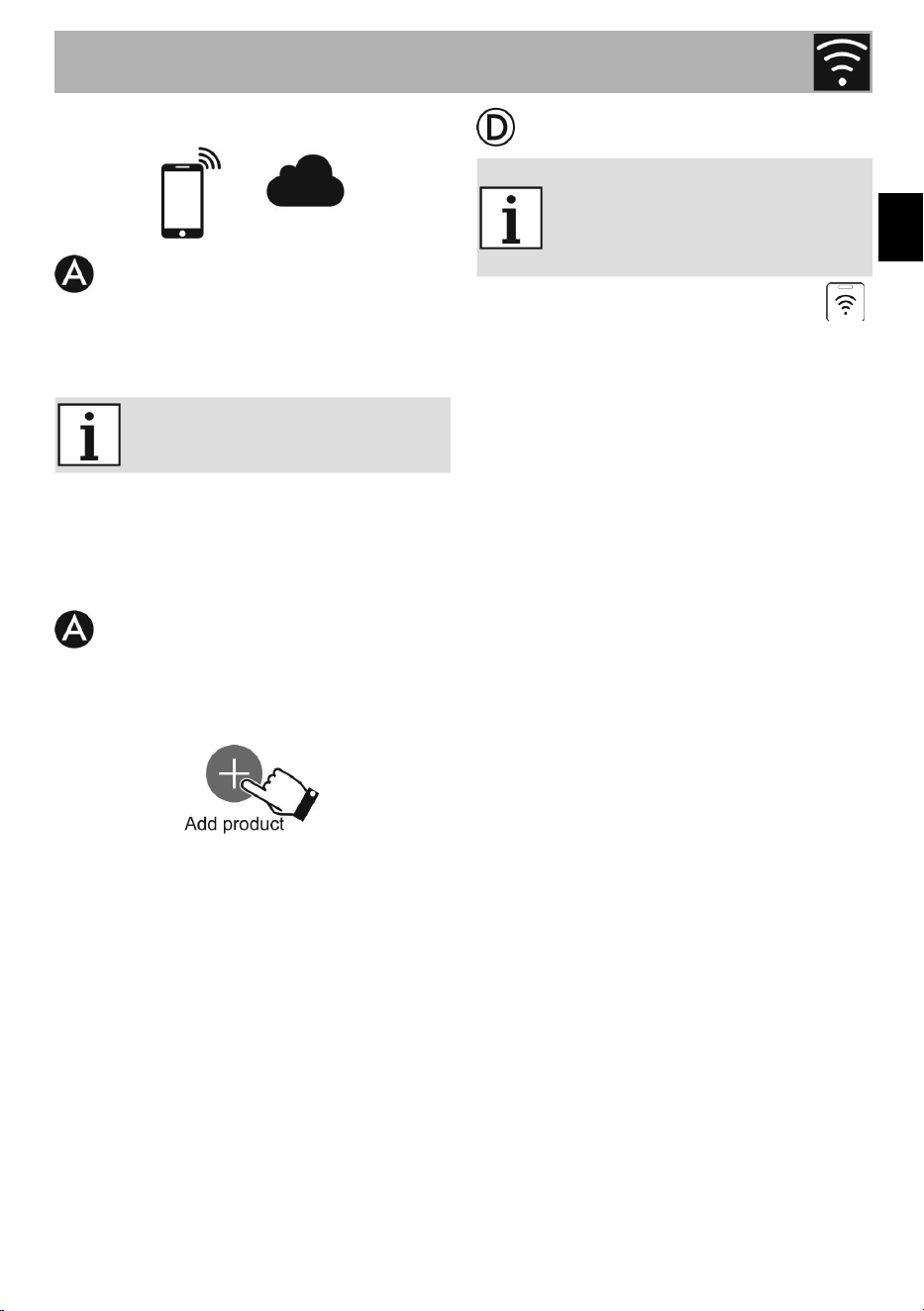
The registration process involves alter-
nating between carrying out operations
on the App and on the display
of the appliance.
Make sure that you are close to the
appliance.
If “CF” appears on the display
during the registration process,
it means that some steps of the
procedure were not carried out
correctly or it was interrupted.
The registration procedure can
be interrupted at any time by
pressing the ON/OFF button.
21
EN
SmegConnect
Creating an account
1. Launch the SmegConnect App.
2. Enter the information required in
order to register.
the elds marked with an aster-
isk “
*
” are mandatory.
3. A conrmation e-mail will be sent
to the address entered during the
registration procedure.
Connecting to the appliance
1. Log in.
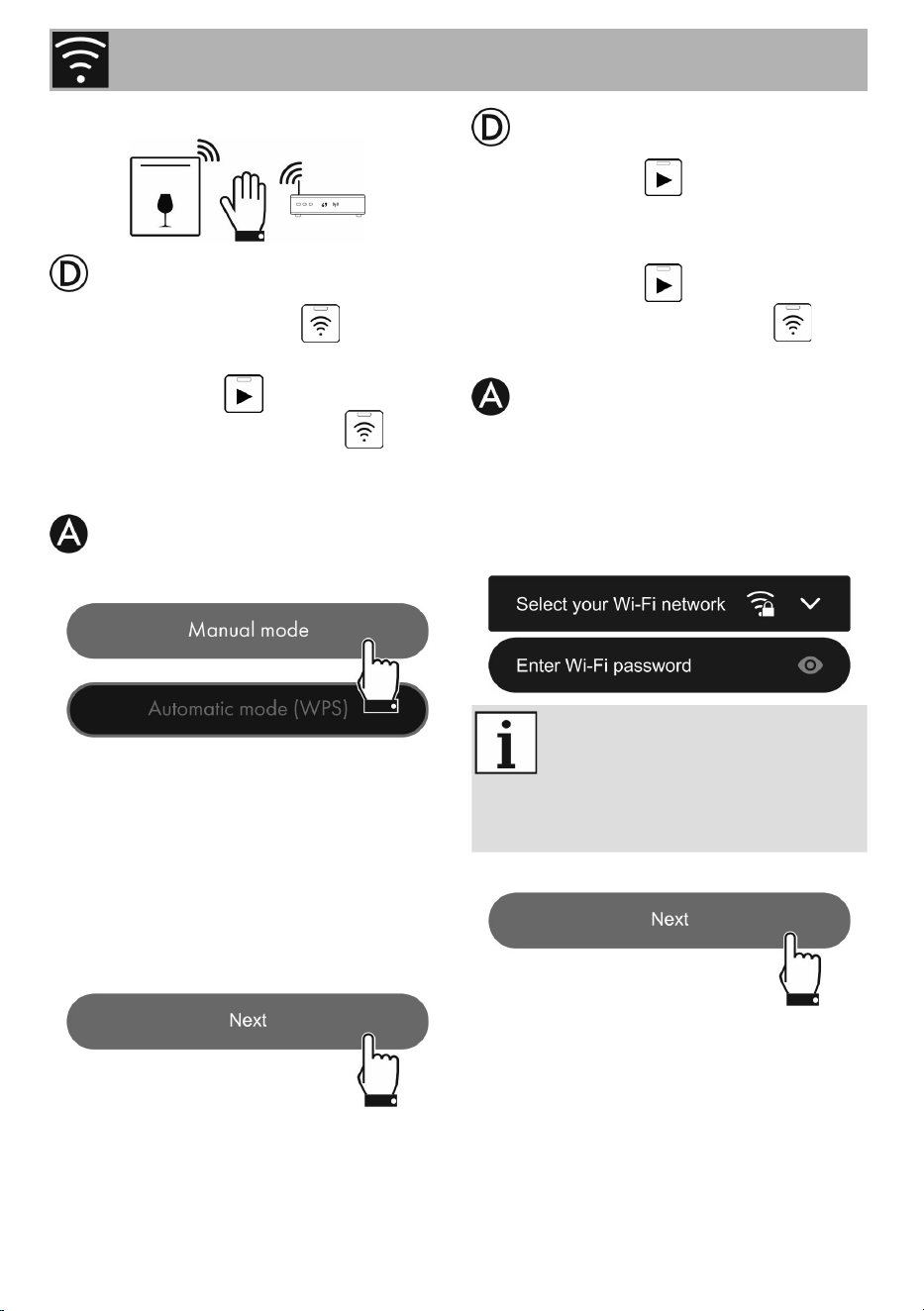
2. In the following Welcome User-
name eld, touch Add product.
3. In the following Add product
screen, select the type of product
that you wish to connect to (in this
case “dishwasher”).
There is no need to activate
the “Connectivity” setting on
the appliance beforehand. The
procedure starts automatically.
4. Press and hold the Wi-Fi button
for a few seconds until SCO ap-
pears on the display.
5. If the WPS option is available on
your router, follow the “Automatic
Mode” procedure; otherwise follow
the “Manual Mode” procedure.
Instructions
22
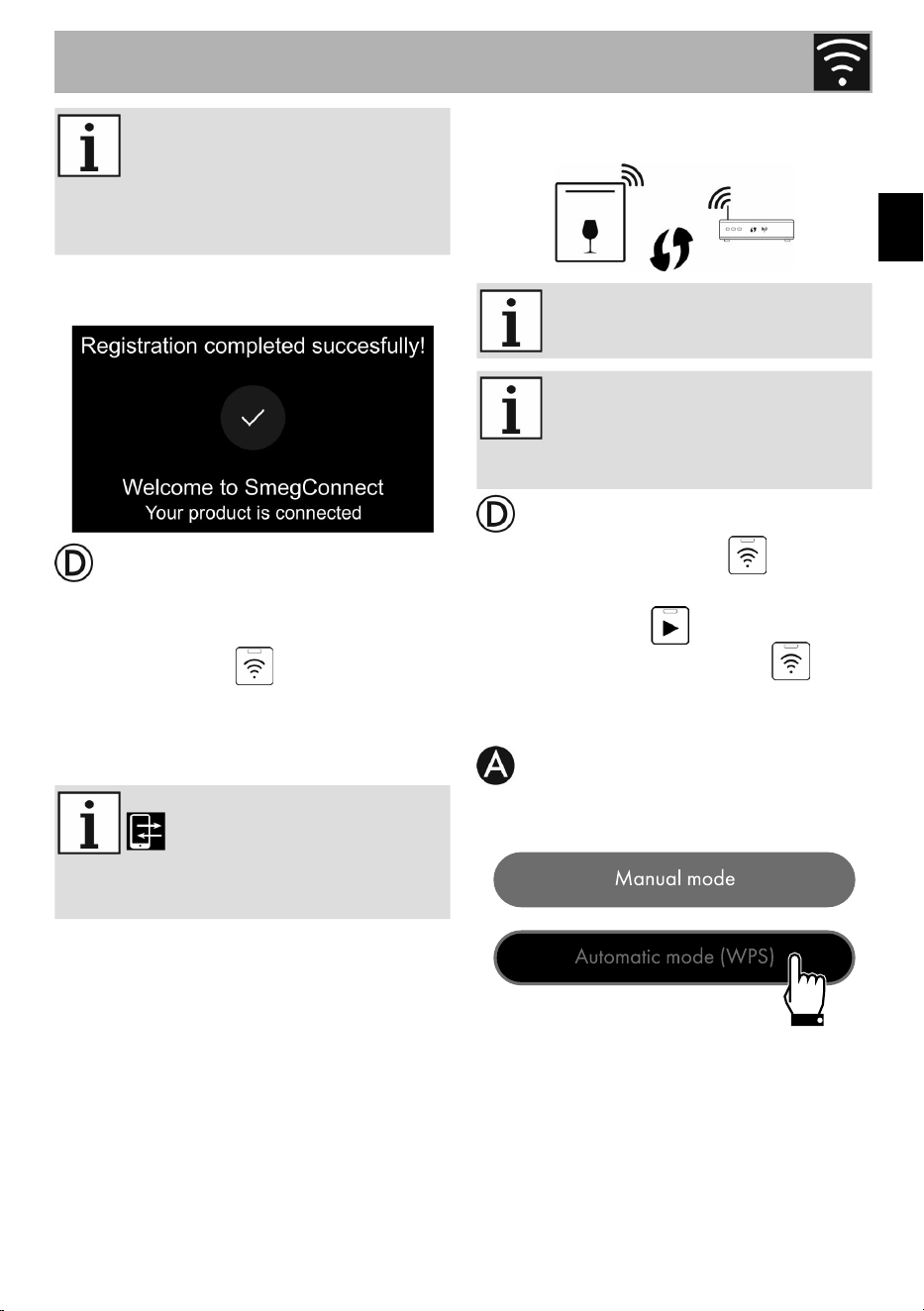
Manual mode
1. Press the Wi-Fi button repeated-
ly until SC1 appears on the display.
2. Press the Start button to start the
procedure. The Wi-Fi light will
start to ash. SC1 will remain on the
display.
3. Select Manual mode.
4. Go to the Wi-Fi settings on the
mobile device and select the “smeg-
connect” network.
5. Enter the password “smeg0001”
and wait for the connection to be
established.
6. Go back to the SmegConnect App
and press Next.
7. The Start light will begin to
ash. Press it to conrm that you are
in front of the appliance.
8. The Start light will turn on
steadily and the Wi-Fi light will
continue to ash.
9. Enter the Access Point information:
• Name of the home Wi-Fi network
(SSID).
• Wi-Fi password (key).
The appliance supports net-
work names (SSID) of up to 32
characters (spaces included)
and WPA2 security settings (not
WEP or WPA).
10. Touch Next and wait.
SmegConnect
23
EN
During this phase, the mobile
device reconnects automatically
to the Wi-Fi network or to the
original data network. No user
action is required
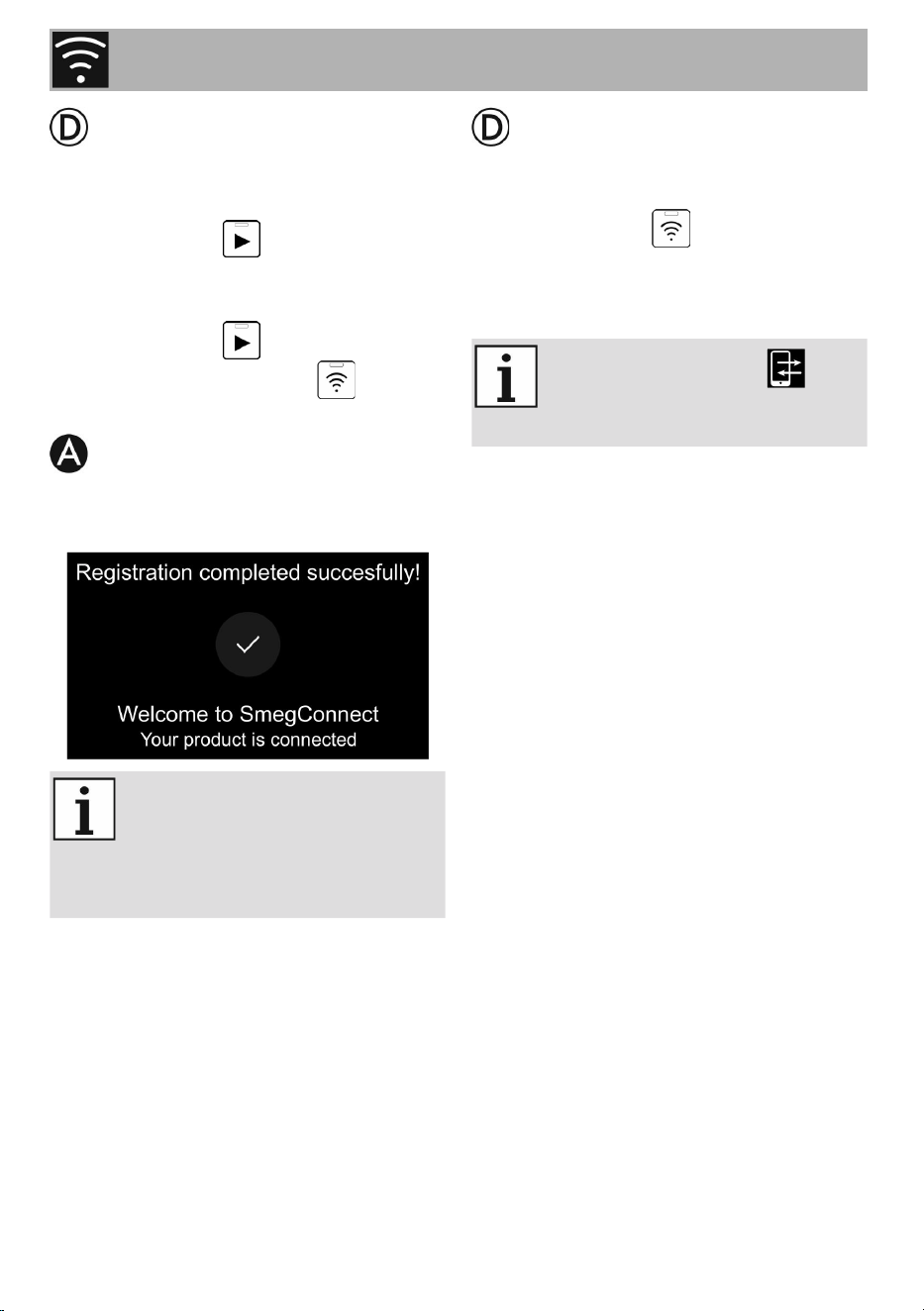
11. Wait for the welcome screen to
appear.
A beep will sound to indicate that the
procedure was completed successful-
ly. The Wi-Fi light will remain on
steadily to indicate that the connection
is active and SC1 will disappear from
the display.
Make sure that you activate
Remote Control in order
to control the appliance via the
App.
Automatic mode (WPS)
Make sure that the WPS option
is available on your router.
Make sure that the mobile de-
vice is connected to the same
Wi-Fi network to which the
product will be connected
1. Press the Wi-Fi button repeated-
ly until SC2 appears on the display.
2. Press the Start button to start the
procedure. The Wi-Fi light will
start to ash. SC2 will remain on the
display.
3. Select Automatic mode (WPS).
SmegConnect
Instructions
24
4. Within two minutes, press the WPS
button on your router.
5. The Start light will begin to
ash. Press it to conrm that you are
in front of the appliance.
6. The Start light will turn on stead-
ily and the Wi-Fi button will
continue to ash.
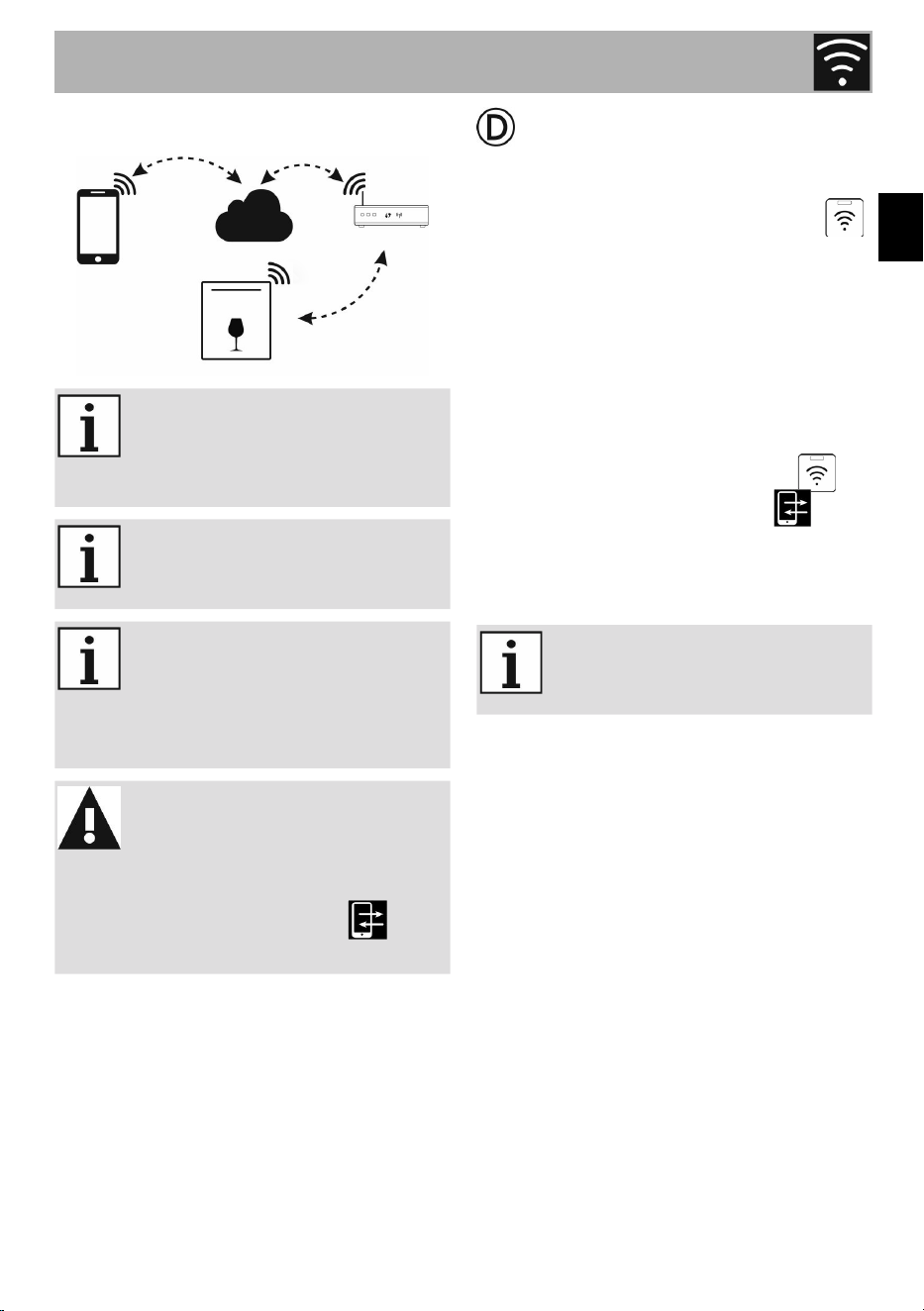
7. Wait for the welcome screen to
appear.
During this phase, the mobile
device reconnects automatically
to the Wi-Fi network or to the
original data network. No user
action is required.
A beep will sound to indicate that the
procedure was completed successful-
ly. The Wi-Fi light will remain on
steadily to indicate that the connection
is active and SC2 will disappear from
the display.
Make sure to activate
Remote Control in order to con-
trol the appliance via the App.
SmegConnect
25
EN
2.4 Remote connection
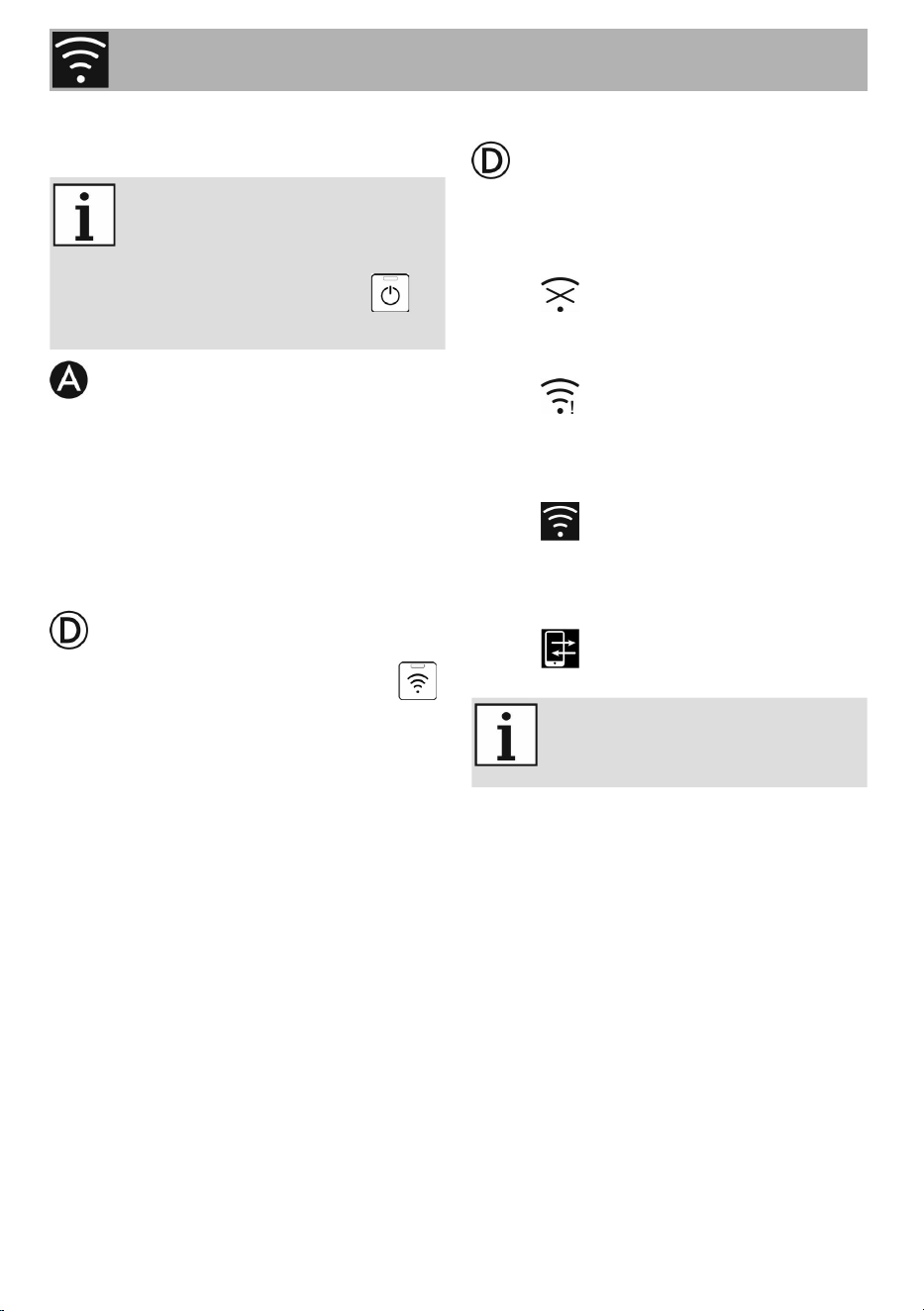
Once the appliance has been
registered, it can be connected
or disconnected from the Inter-
net at any time.
The remote connection is avail-
able only after the appliance
has been registered.
The remote connection is
already active when the reg-
istration procedure has been
completed. Remote Control on
the other hand is not enabled.
For safety reasons and in
compliance with current legis-
lation, the start cycle function
is only available via the App
when remote control is
active.
To connect the appliance:
1. Press and hold the Wi-Fi button
for 3 seconds until the light remains
on steadily. The connection status
will be shown on the front display.
To activate remote control:
After having connected the appliance
to the home Wi-Fi network (previous
step):
2. Briey press the Wi-Fi button ,
the light starts to ash. The sym-
bol appears on the front display to
indicate that remote control is active.
The remote control is disabled
if the door is opened and if the
appliance is switched off.
SmegConnect
Instructions
26
2.5 Changing Access Point
Credentials
The procedure for changing
Access Point credentials can be
interrupted at any time by press-
ing the ON/OFF button
To change your Access Point creden-
tials (network name or password):
1. Log in.
2. Go to the
Settings menu in the product pag-
es on the App and select Change
Access Point.
3. Press and hold the Wi-Fi button
for a few seconds until SCO ap-
pears on the display.
4. If the WPS option is available on
your router, follow the “Automatic
Mode” procedure; otherwise follow
the “Manual Mode” procedure (step
2.3).
2.6 Front display
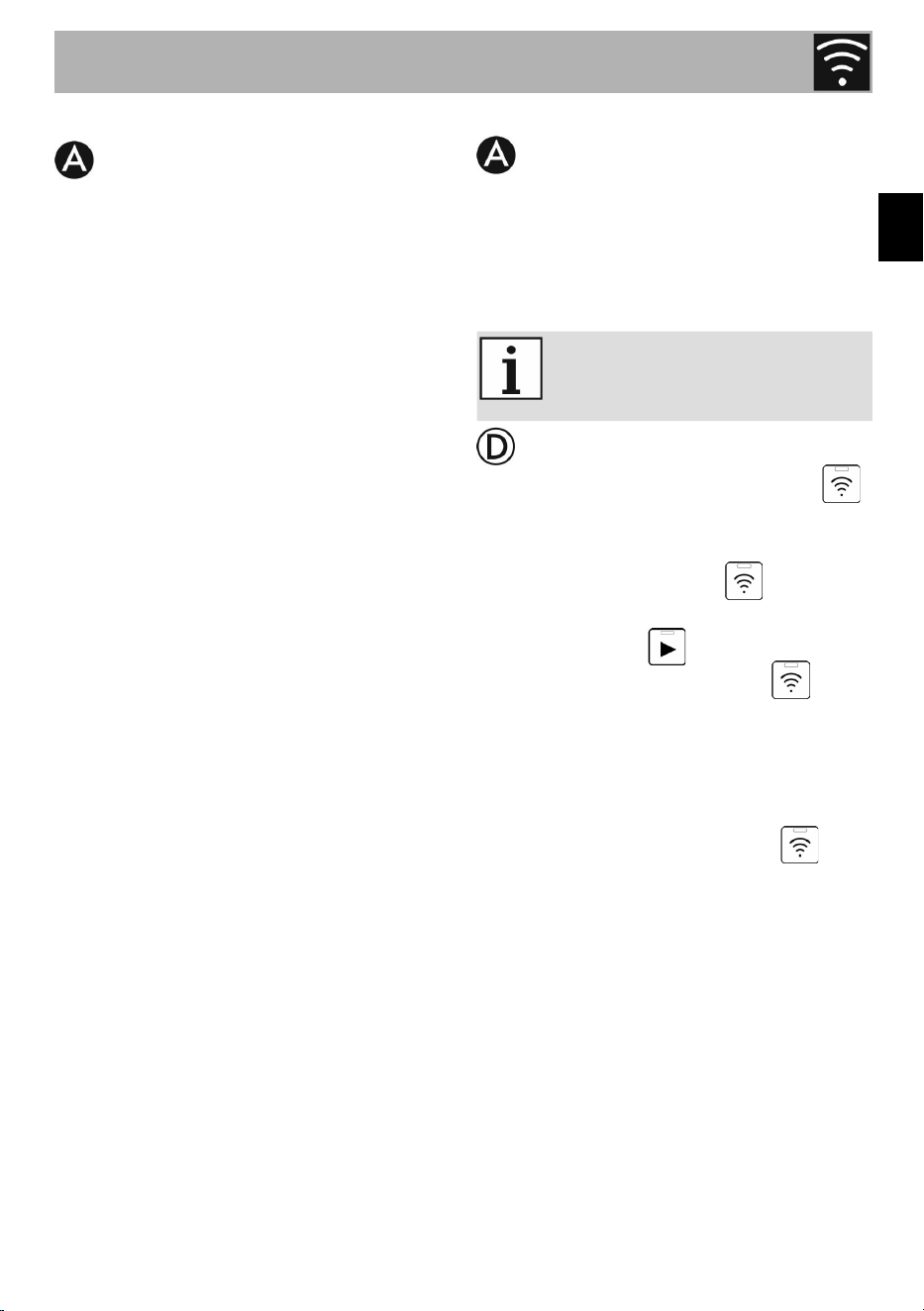
The front panel displays some informa-
tion that can help the user to check the
connection:
• The symbol indicates that the
appliance is unable to connect to
the home network router.
• The symbol indicates that the
appliance is connected to the home
network router but not connected to
the Cloud.
• The symbol indicates that
the appliance is connected to the
Cloud. It also indicates the strength
of the Wi-Fi signal.
• The symbol indicates that re-
mote control is active.
The connection status is also
shown when the appliance is
switched off.
SmegConnect
Contents
27
EN
2.7 Connection information
The following information about the
connection can be found in the settings
menu in the product pages of the App:
• appliance registration date
• network name
• Wi-Fi signal strength
• Mac address of the connectivity
card
• Firmware version of the connectivity
card
• IPv4 and IPv6 network addresses
• SW Compliance ID (identication
of compliance with the essential
requirements of the RED directive).
2.8 Cancelling the registration
To cancel the registration of the appli-
ance:
• Go to the settings menu in the prod-
uct pages of the App and follow the
instructions.
The product can be registered
again following the procedure
described above.
1. Press and hold the Wi-Fi button
for a few seconds until SCO ap-
pears on the display.
2. Press the Wi-Fi button repeated-
ly until SCC appears on the display.
3. Press the Start button to start the
procedure. The Wi-Fi light will
start to ash. SCC will remain on the
display.
4. A beep will sound to indicate that
the procedure was completed
successfully. The Wi-Fi light will
remain off to indicate that the con-
nection is not active and SCC will
disappear from the display.
SmegConnect
Instructions
28
You do not need to be con-
nected to the cloud in order to
cancel the registration on the
appliance.
The cancellation is only local.
Remember to cancel registration
on the App as well.
The product can be registered
again following the procedure
described above.
To cancel user registration:
• Go to the My account menu on
the App and follow the instructions
indicated in the privacy policy.
2.9 Software updates
This does not require any action
by the user.
Appliance connectivity software
(Firmware) updates are occasionally
released.
If the appliance is connected to the
home Wi-Fi network, updates are
downloaded and installed automatical-
ly.
The UPDATING icon appears on
the display to indicate that an update
is in progress which requires no action
by the user. The update will take a few
minutes.
The connectivity service is
temporarily suspended during
the software update. However,
the appliance will continue to
operate normally.
SmegConnect
Contents
29
EN
SmegConnect
2.10 What to do if...
The symbol appears and remains
on the front display:
• Make sure that the Wi-Fi router is
switched on.
• Make sure that the Wi-Fi router is not
too far away from the appliance.
• Check the Wi-Fi network (2.4 GHz
band).
• Unplug the appliance from the pow-
er socket and then switch it on again
after having made sure that it was
switched off.
The symbol appears and remains
on the front display:
• Check the Internet connection.
• Check the data connection, if the
mobile device uses it to access the
Internet.
• Make sure that the Wi-Fi router is not
too far away from the appliance.
• Check the Wi-Fi network (2.4 GHz
band).
• Unplug the appliance from the pow-
er socket and then switch it on again
after having made sure that it was
switched off.
CF (Connection Failed) error appears
on the display during the registration or
the change Access Point procedure:
• Make sure that the Wi-Fi router is
switched on.
• Make sure that the Wi-Fi router is not
too far away from the appliance.
• Check the Wi-Fi network (2.4 GHz
band).
• Make sure that WAP2 security set-
tings are available.
• Make sure that the name of the net-
work does not exceed 32 characters
(including spaces).
• Check the Internet connection.
• Check the data connection, if the
mobile device uses it to access the
Internet.
• Unplug the appliance from the pow-
er socket and then switch it on again
after having made sure that it was
switched off.
• Try the procedure again later.
For further information see:
• the Advice FAQ Connectivity
section in the App
• the web page www.smeg.it/faq/
smegconnect/