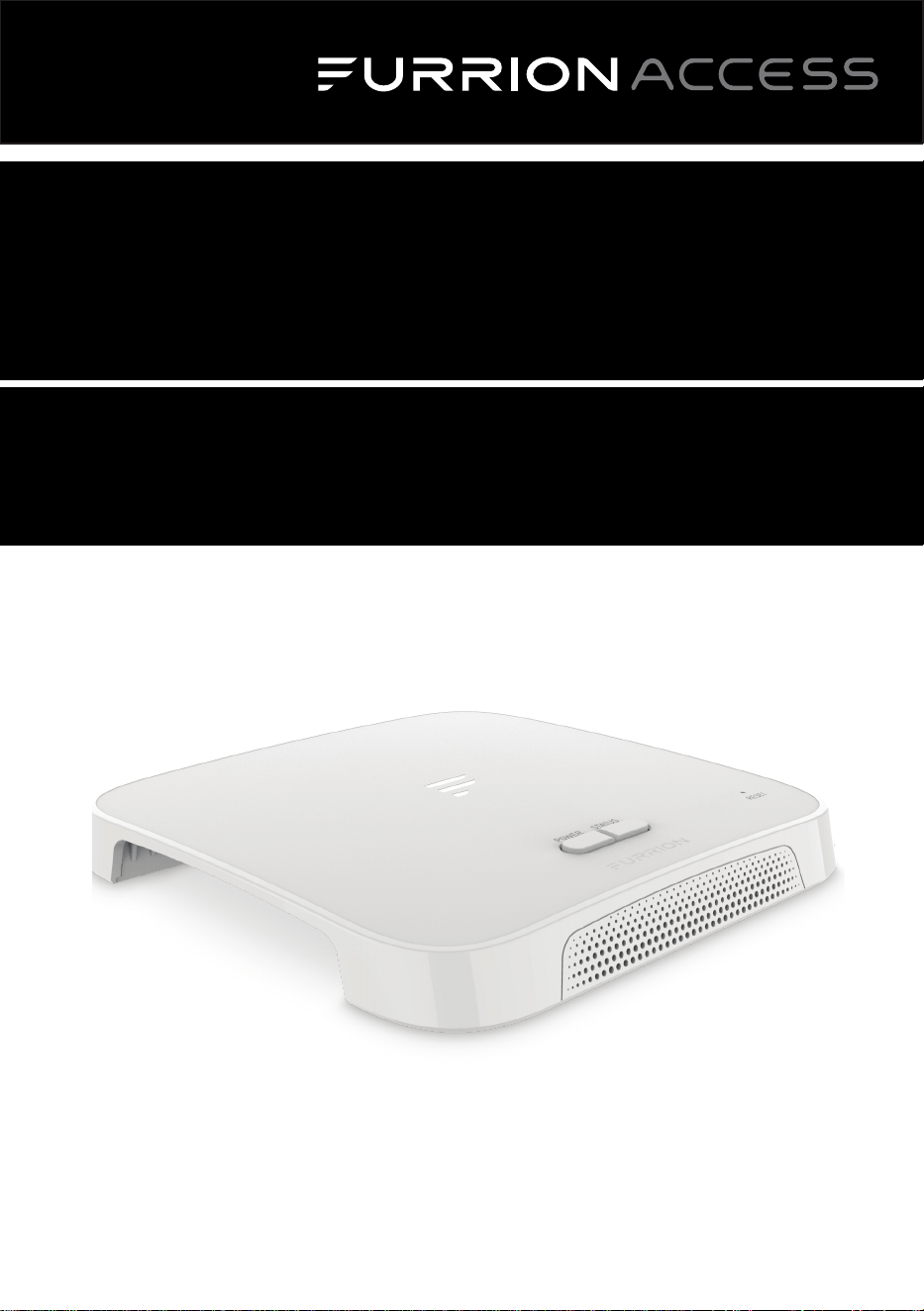
Wi-Fi Router
Routeur Wi-Fi
Enrutador Wi-Fi
Instruction Manual
Manuel d’instructions
Manual de instrucciones
Model/Modèle/Modelo: FAN17A82
CCD-0005549 Rev. 07.27.23

Thank you for purchasing the Furrion
®
Wi-Fi Router. Before operating your new
product, please read these instructions carefully. This will ensure safe use and
reduce the risk of injury. This instruction manual contains information for installation,
maintenance of the product and safe use.
Please keep this instruction manual in a safe place for future reference. Be sure to
pass on this manual to any new owners of this product.
The manufacturer does not accept responsibility for any damages due to not
observing these instructions.
If you have any questions regarding our products, please contact us at:
2
English
Welcome
CCD-0005549 Rev. 07.27.23

Welcome .................................................................................................. 2
Contents
..................................................................................................3
About your Product
...............................................................................4
Product Features ...................................................................................................................................4
FCC Statements
....................................................................................................................................4
IC Statement
............................................................................................................................................5
Product Overview ..................................................................................6
Installation
..............................................................................................7
What’s in the box ....................................................................................................................................7
Slide-in the Wi-Fi Router
....................................................................................................................7
Wi-Fi Router Configuration ..................................................................8
Power on Your Wi-Fi Router ............................................................................................................ 8
Connect to Your Wi-Fi Router for Wi-Fi Configuration........................................................ 8
Log in to the Configuration Interface
........................................................................................... 8
Quick Setup of your Wi-Fi Router.................................................................................................. 9
Advance Setting
.................................................................................................................................... 11
Internet Access through the Wi-Fi Router ....................................... 12
Maintenance
.........................................................................................13
Power off or Reboot Your Wi-Fi Router .....................................................................................13
Reset your Wi-Fi Router
...................................................................................................................13
Specifications ......................................................................................14
Troubleshooting
...................................................................................14
Warranty
................................................................................................ 15
3
English
Contents
CCD-0005549 Rev. 07.27.23

Furrion Wi-Fi Router supports such popular operating systems as Windows, Linux and
Mac, and smart devices like iOS and Android are compatible with this product too.
Please read this manual before using Furrion Wi-Fi Router for the first time.
Product Features
● Slide-in Design - Easy Installation
● Web/APP for configuration
● Auto detect web login/security check
● WPS supported
FCC Statements
Changes or modifications not expressly approved by the party responsible for
compliance could void the user’s authority to operate the equipment.
This equipment has been tested and found to comply with the limits for a Class
B digital device, pursuant to Part 15 of the FCC Rules. These limits are designed
to provide reasonable protection against harmful interference in a residential
installation. This equipment generates, uses and can radiate radio frequency
energy and, if not installed and used in accordance with the instructions, may cause
harmful interference to radio communications. However, there is no guarantee that
interference will not occur in a particular installation.
If this equipment does cause harmful interference to radio or television reception,
which can be determined by turning the equipment off and on, the user is encouraged
to try to correct the interference by one or more of the following measures:
− Reorient or relocate the receiving antenna.
− Increase the separation between the equipment and receiver.
− Connect the equipment into an outlet on a circuit different from that to which the
receiver is connected.
− Consult the dealer or an experienced radio/TV technician for help.
This equipment complies with FCC radiation exposure limits set forth for an
uncontrolled environment. This equipment should be installed and operated with
minimum distance 20cm between the radiator and your body. This transmitter must
not be co-located or operating in conjunction with any other antenna or transmitter.
4
English
About your Product
CCD-0005549 Rev. 07.27.23

IC Statement
This device contains licence-exempt transmitter(s)/receiver(s) that comply with
Innovation, Science and Economic Development Canada’s licence-exempt RSS(s).
Operation is subject to the following two conditions: (1) This device may not cause
interference. (2) This device must accept any interference, including interference that
may cause undesired operation of the device.
This equipment complies with FCC/IC RSS-102 radiation exposure limits set forth for
an uncontrolled environment. This equipment should be installed and operated with
minimum distance 20cm between the radiator and your body.
5
English
About your Product
CCD-0005549 Rev. 07.27.23
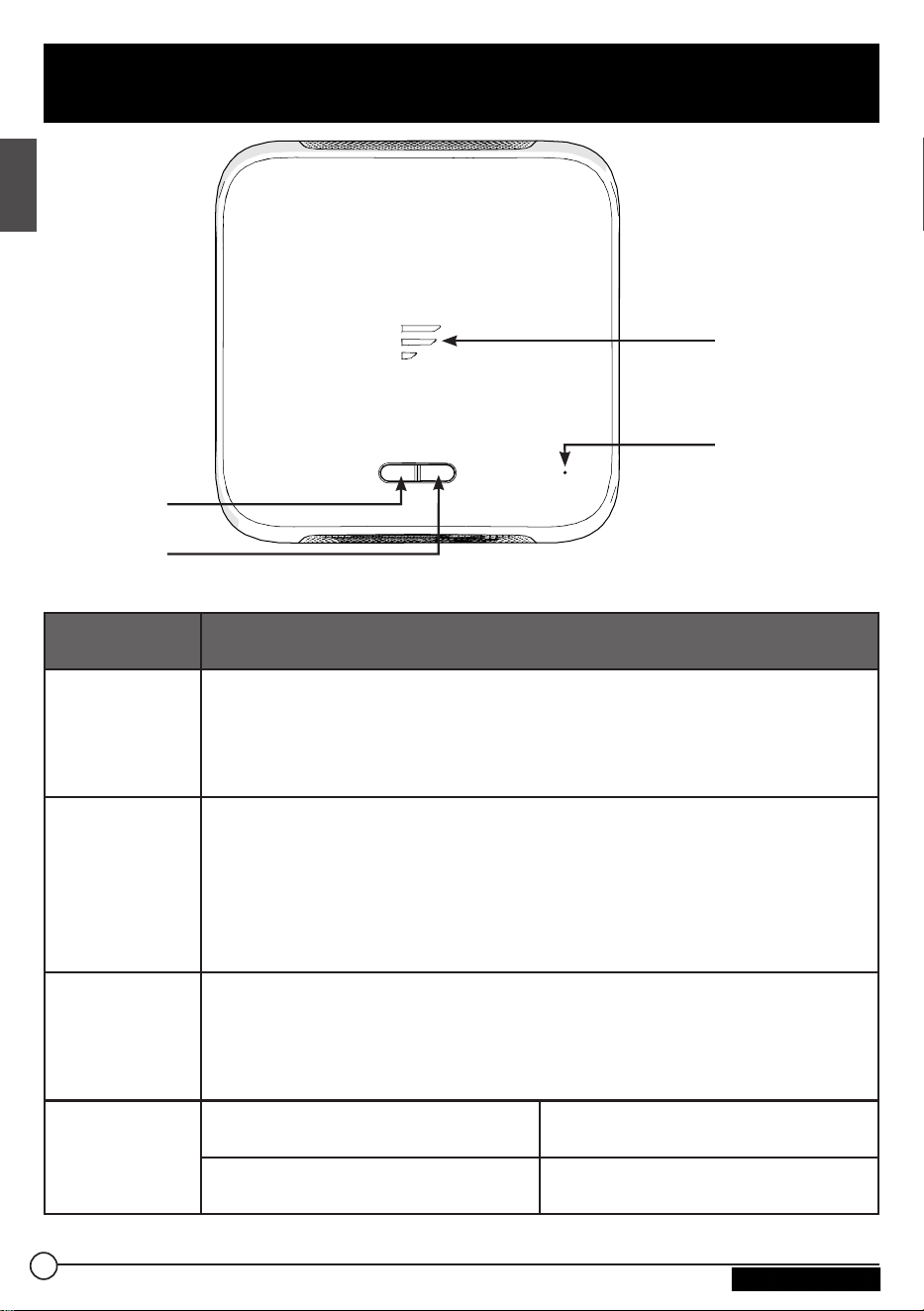
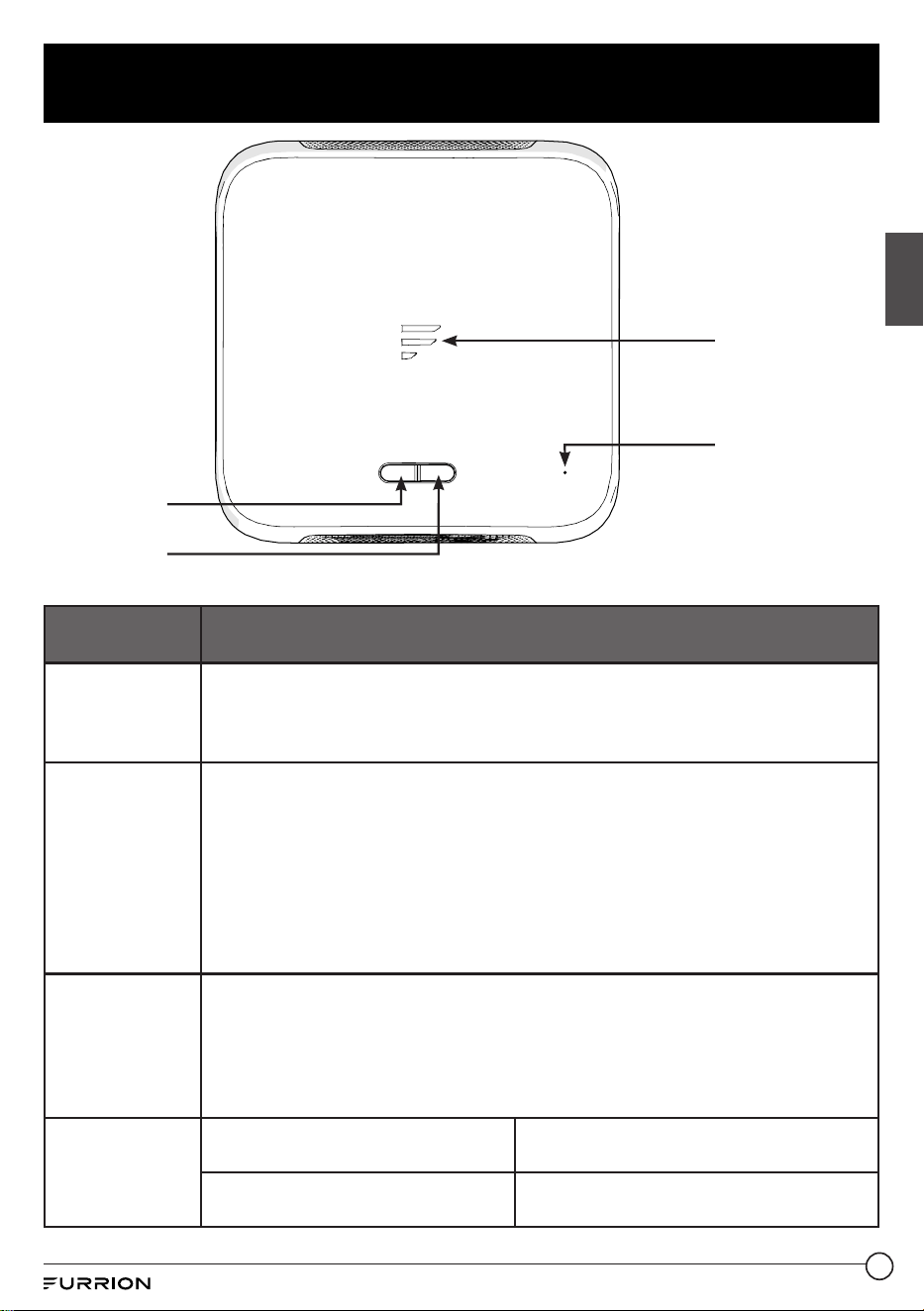
POWER STAT US
RESET
Status Indicator
Reset Button
Power Button
WPS/Status
Button
Button/
Indicator
Description
Power Button
● In OFF mode, press and hold the POWER button for about 4 seconds to
turn on the device. The Status Indicator LED will be illuminated and then
off.
● In ON mode, press and hold the POWER button for about 4 second to
turn off the device.
WPS/Status
Button
● Press and hold the WPS/Status button for 5 seconds to turn on the
WPS function. The default setting is 2.4G Wi-Fi.
● Briefly press the WPS/STATUS button to view the network status. The
network status LED will be illuminated for about 20 seconds.
NOTE: You can check the network status by enabling the Status LED
option on the router configuration web page. The network status LED
will be kept illuminated unless you disable the Status LED option.
Reset Button
● Press and hold the RESET button with a pointed object for 10 seconds
to reset the device to factory default settings. All the LEDs blink 3 times
indicates you have reset the device successfully.
● Briefly press the RESET button with a pointed object to reboot the
device.
Status
Indicator
Wi-Fi Network connected and
Internet ready
● Network status indicator ON.
No valid Wi-Fi connected or Internet
not ready
● Network status indicator ON and
blinking once per second.
6
English
Product Overview
CCD-0005549 Rev. 07.27.23
What’s in the box
Make sure you have the following items
included in the packaging. If any item
is damaged or missing, contact your
dealer.
● Wi-Fi Router x 1
● Device Identity Sticker x 1
● Warranty Card x 1
● Instruction Manual x 1
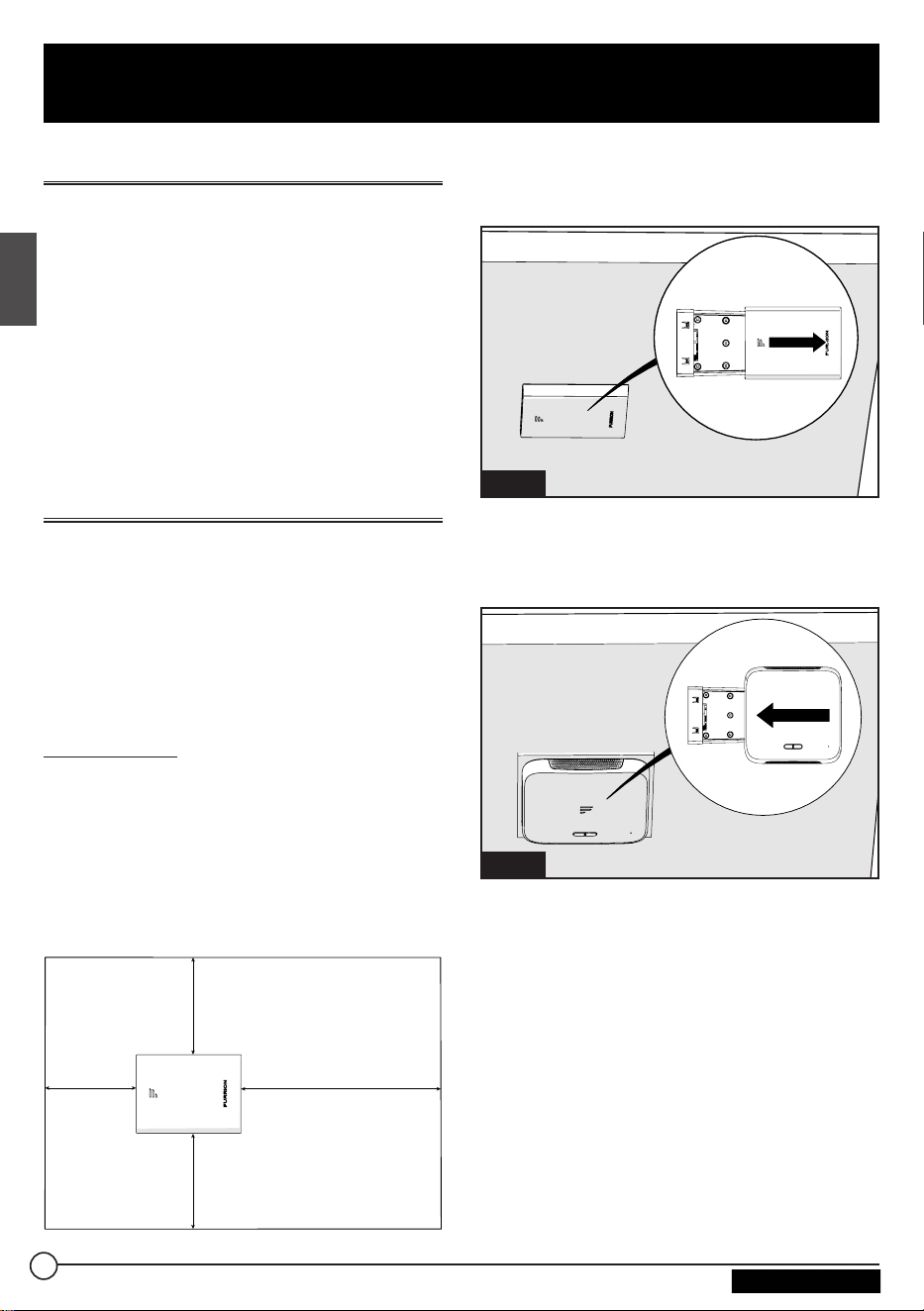
Slide-in the Wi-Fi Router
This Wi-Fi Router is designed for using
with Furrion rooftop antenna only. Refer
to the separate Furrion outdoor antenna
instruction manual about how to install it
onto the RV rooftop.
NOTE: A Furrion Rooftop Antenna with
mounting bracket (sold separately,
part#FAN73B7C) should already have
been installed on your RV rooftop. If not,
contact your RV dealer or visit
www.furrion.com to purchase it.
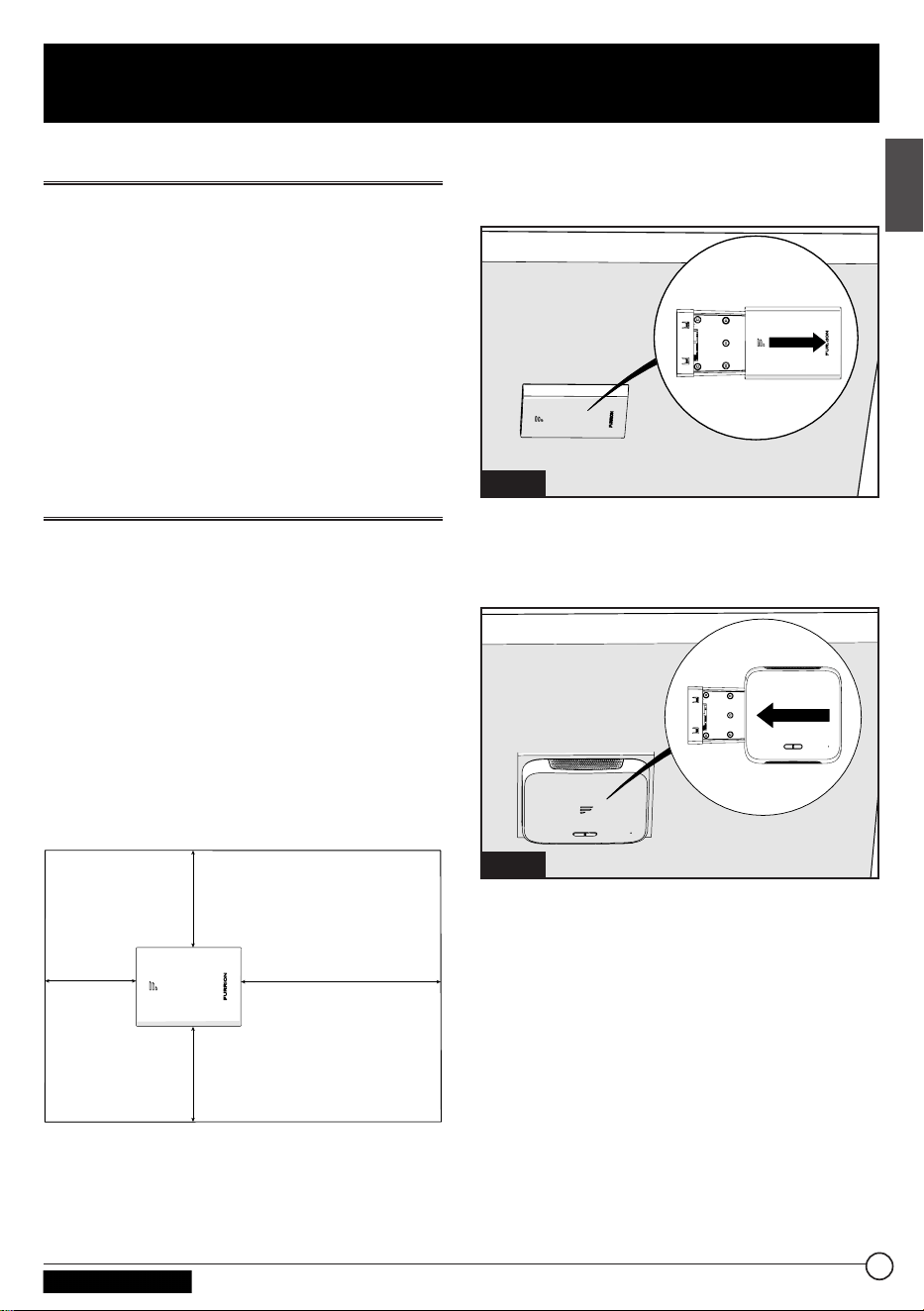
2” (50mm) Min.
2” (50mm) Min.
2” (50mm) Min.
7” (178mm) Min.
1. Pull to remove the cover attached
over the existing Ceiling Mount
Bracket. (Fig. 1)
RV Ceiling
Fig. 1
2. Slide the Wi-Fi Router into the
existing Ceiling Mount Bracket.
(Fig. 2)
RV Ceiling
Fig. 2
3. Your Wi-Fi Router is now fully
installed onto the RV ceiling.
7
English
Installation
CCD-0005549 Rev. 07.27.23
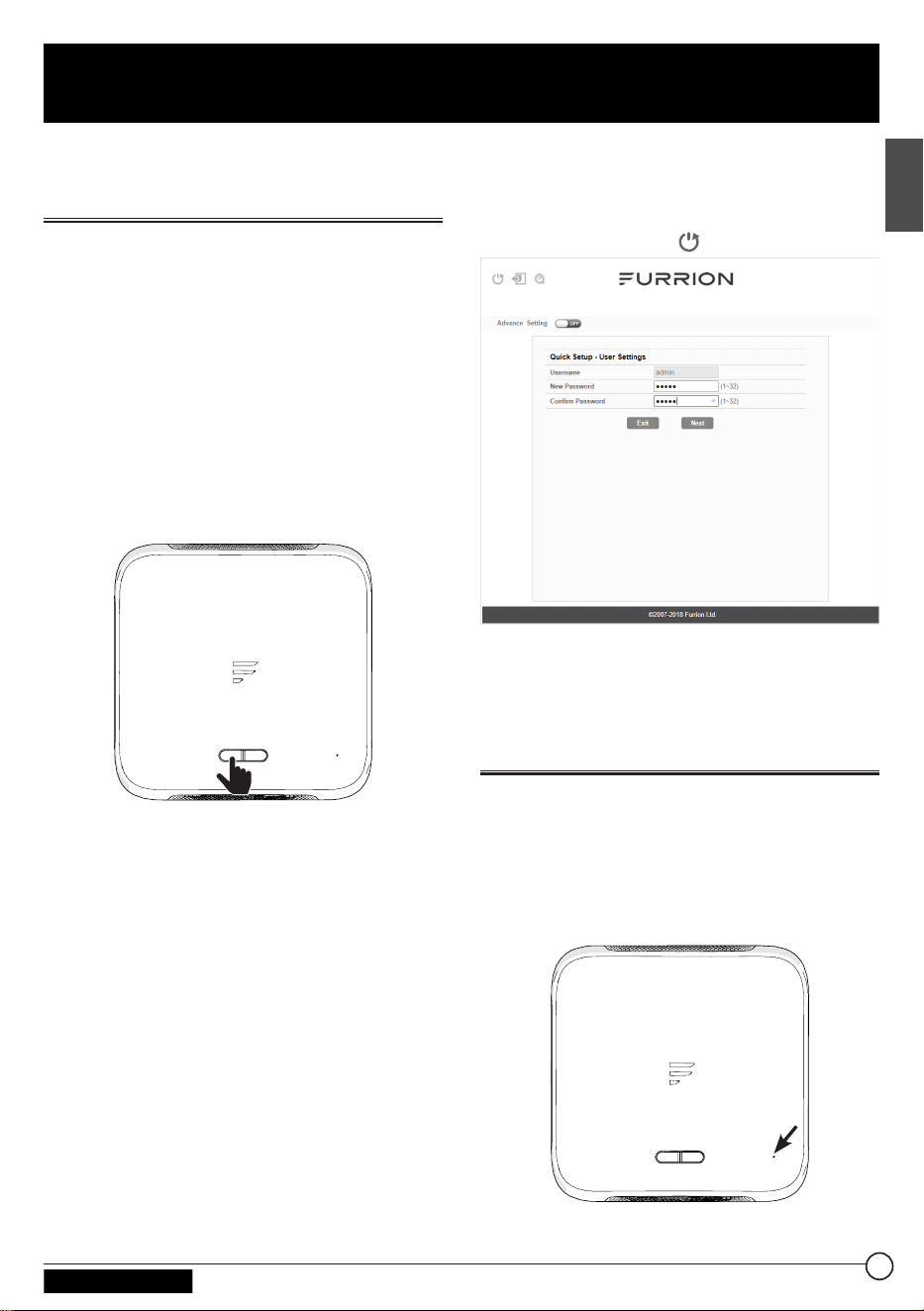
Power on Your Wi-Fi Router
Turn on the power connected to the
Ceiling Mount Bracket.
The Wi-Fi Router will be turned on
automatically upon receiving power.
NOTE: You may log in to the Wi-Fi
Router and disable the auto power-on
feature through the configuration
interface. The default setting is Enabled.
If the Wi-Fi Router is turned off, press
and hold the POWER button on the top
for about 4 seconds to turn it on.
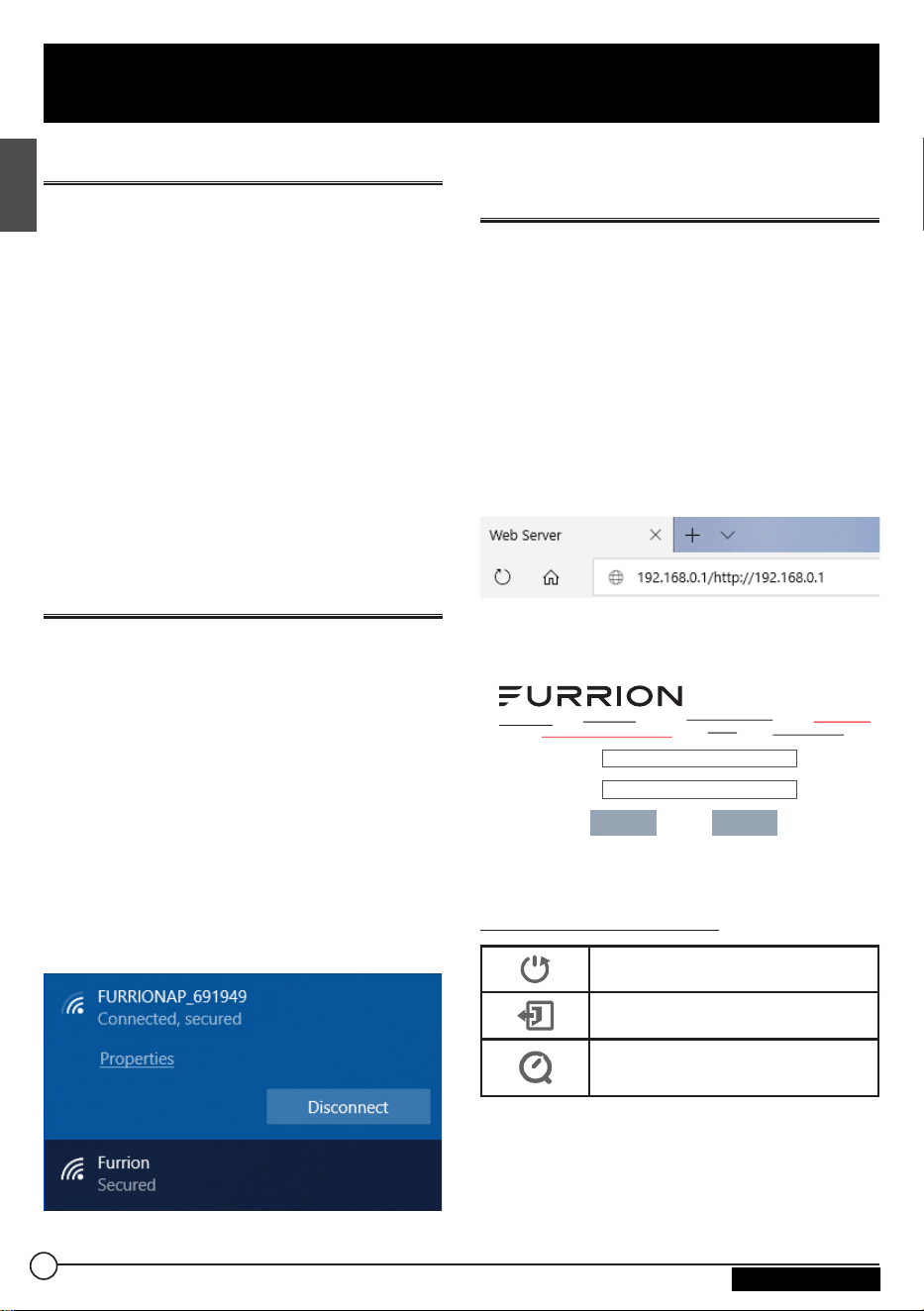
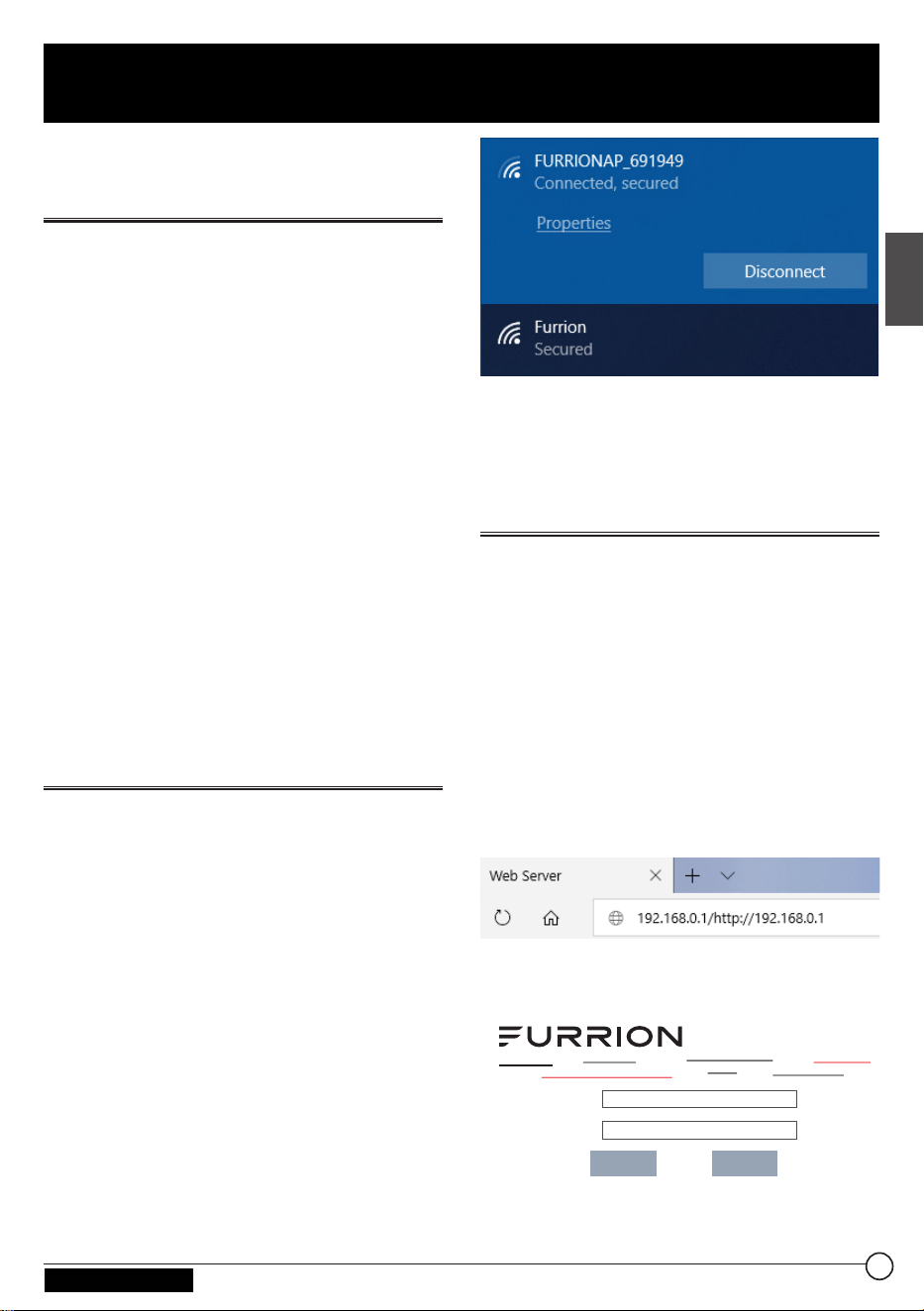
Connect to Your Wi-Fi Router
for Wi-Fi Configuration
1. Scan for wireless networks on your
mobile device or laptop. It may take
a few minutes for the network to
appear.
2. Select Local Wi-Fi network with
SSID: FURRIONAP_xxxxxx
Password: FAxxxxxx
The “xxxxxx” in the example above
corresponds to the last 6 characters
of the unique network ID address. The
default password can be found on the
SSID/WPA sticker.
3. Confirm and join the network.
Log in to the Configuration
Interface
The default IP of this Wi-Fi Router is
192.168.0.1 with subnet 255.255.255.0.
Make sure the smart device or PC
attached to this router is in the
same subnet and has an IP address
in the range between 192.168.0.2~
192.168.0.254.
1. Launch a web browser and enter
192.168.0.1 in the address bar, then
the login window will pop up.
2. Enter the default user name: admin
and password: admin.
Username:
Password:
Login
Cancel
3. Click Login.
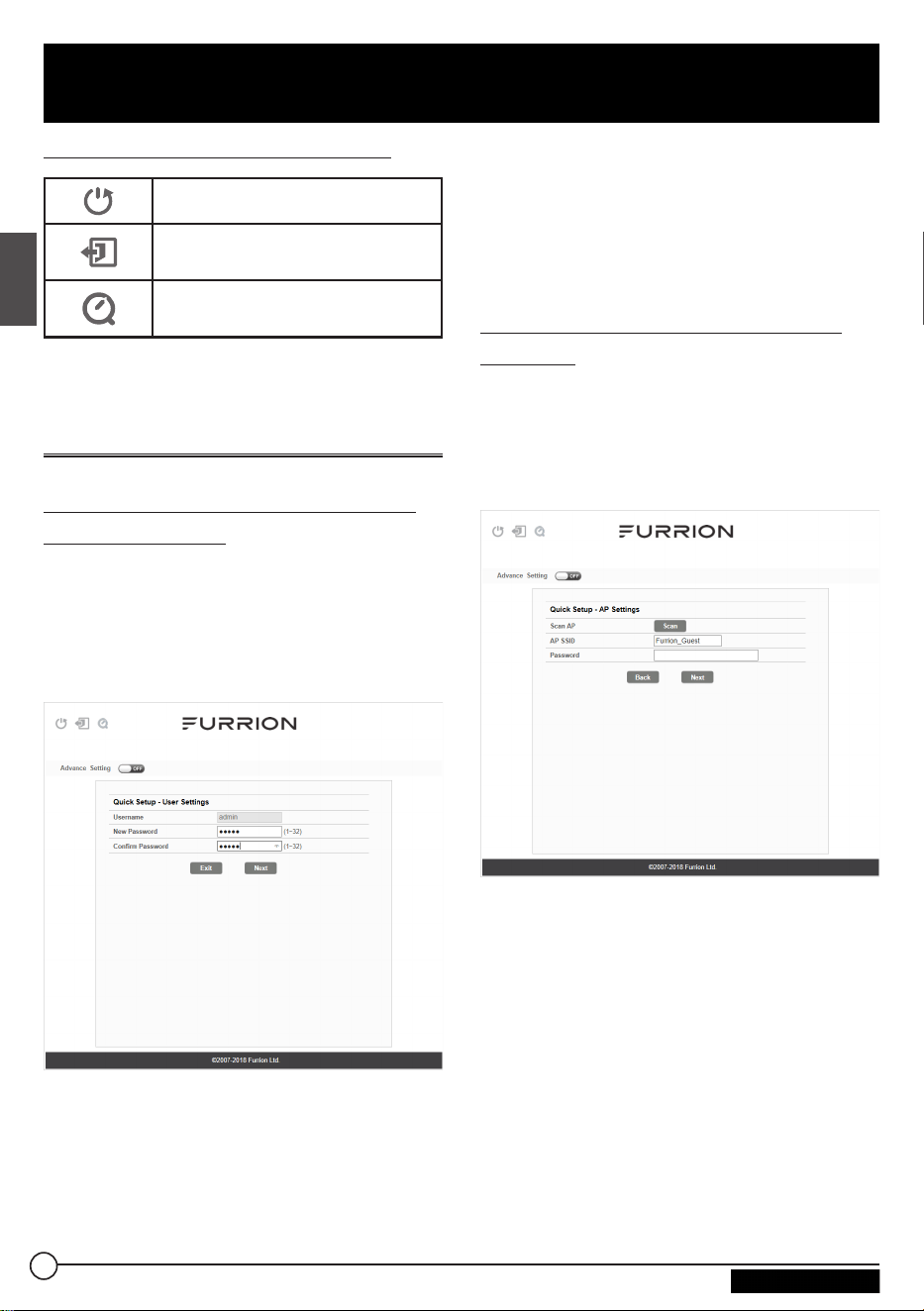
System Icon Definition
Reboot the system.
Click to logout of the system.
Click for quick setup of your
system.
8
English
Wi-Fi Router Configuration
CCD-0005549 Rev. 07.27.23
Quick Setup of your Wi-Fi
Router
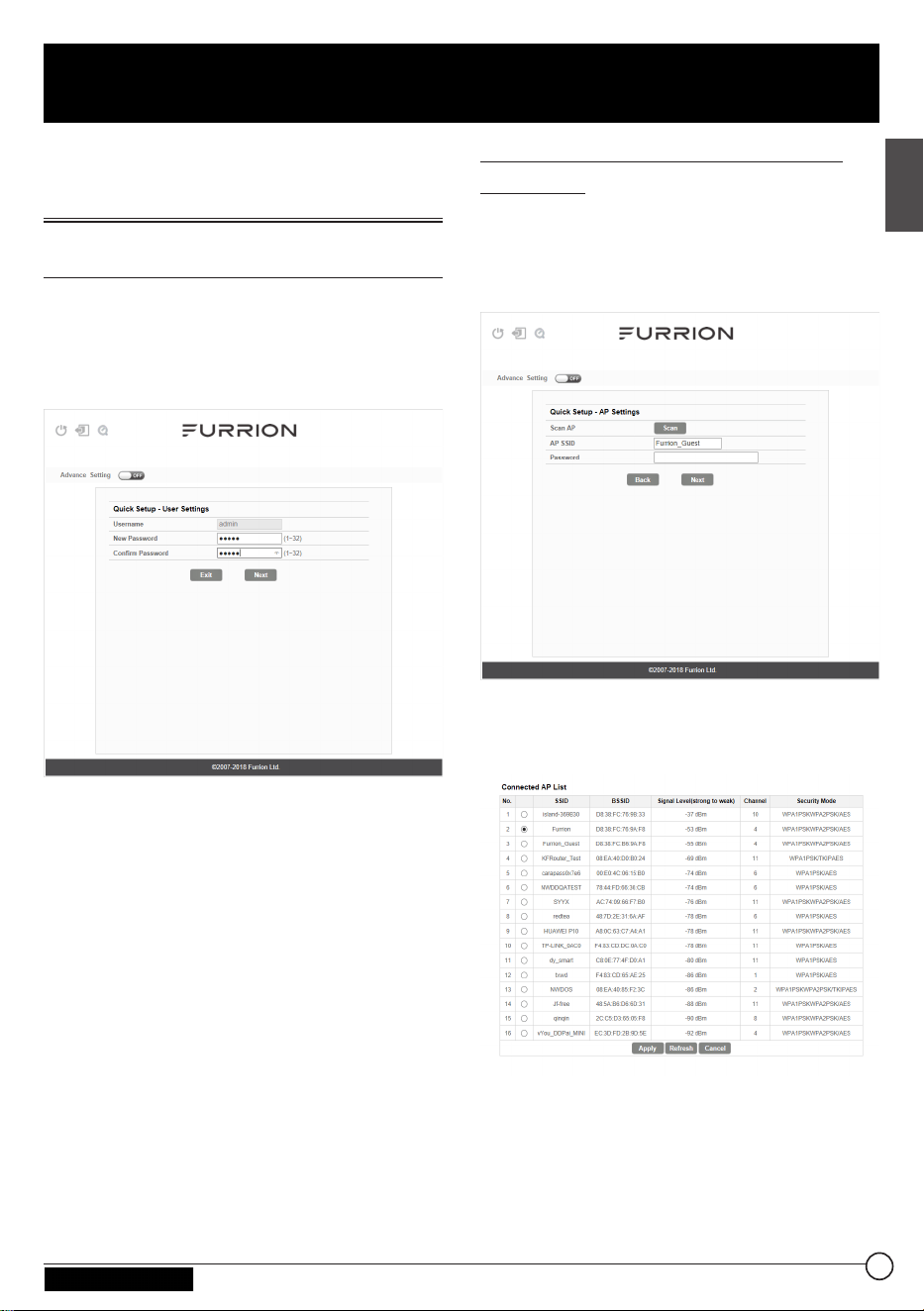
Change Administration Password
After successful login, the following
screen will appear and you will be required
to setup a new password for the “admin”
account for device management.
Username: Show the current user name.
New Password: You can enter
1-32characters as your new password.
Confirm Password: Enter the new
password again.
Click Next to go on to the next step.
Connect to an External Wi-Fi
Network
The following window will appear,
allowing you to select an available AP
(Access Point) for Internet access.
SCAN AP: Click SCAN to scan available
APs and the following window will appear:
Choose the AP you want to connect from
the pop-up window and click Apply to
apply the network settings.
9
English
Wi-Fi Router Configuration
CCD-0005549 Rev. 07.27.23
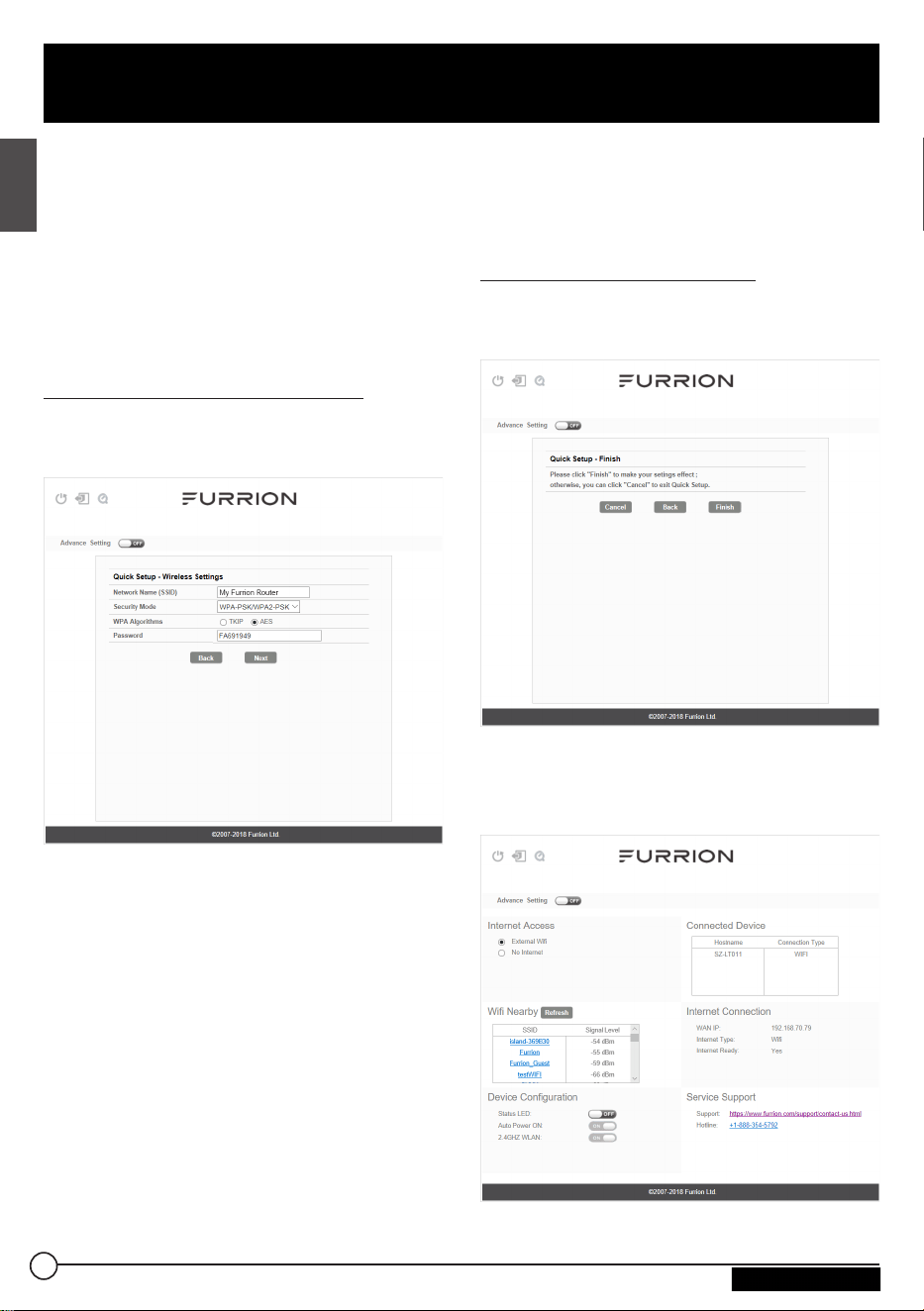
AP SSID: The SSID of the scanned and
applied AP will appear here. You can also
enter an available network SSID here
directly.
Password: Enter the password of the
selected AP.
Click Next to go on to the next step.
Change Wireless Settings
A new window will pop up, where you can
change wireless settings.
Network Name (SSID): Rename the
SSID of the Wi-Fi Router. For example,
rename it to My Furrion Router.
NOTE: Make sure that your SSID
is unique if there are other wireless
networks operating in your area.
Security Mode: Select a security mode:
No Encryption, WPA-PSK, WPA2-PSK,
or WPA-PSK/WPA2-PSK.
WPA Algorithms: TKIP or AES.
Password: Set the password for Internet
access through the Wi-Fi Router.
Click Next to go on to the next step.
Confirm Your Settings
In the pop-up window, click “Finish” to
save and finish the quick setup.
You should now be able to access
the Internet after the Wi-Fi Router
configuration is finished.
10
English
Wi-Fi Router Configuration
CCD-0005549 Rev. 07.27.23
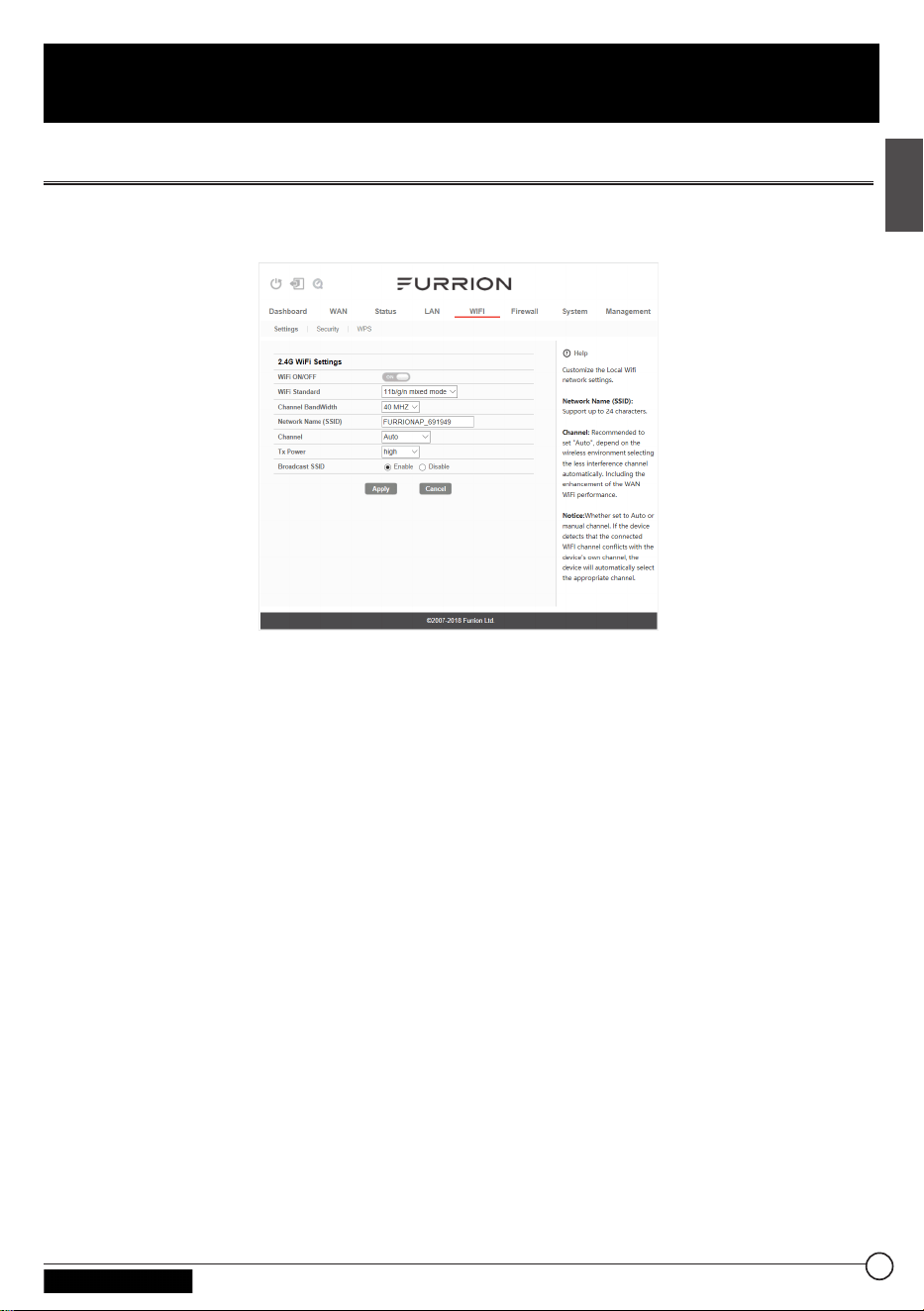
Advance Setting
Click Advance Setting to activate the advance setting page, where you can
configure advanced settings of WAN, LAN, Wi-Fi, Firewall etc.
11
English
Wi-Fi Router Configuration
CCD-0005549 Rev. 07.27.23
12
English
Internet Access through the Wi-Fi Router
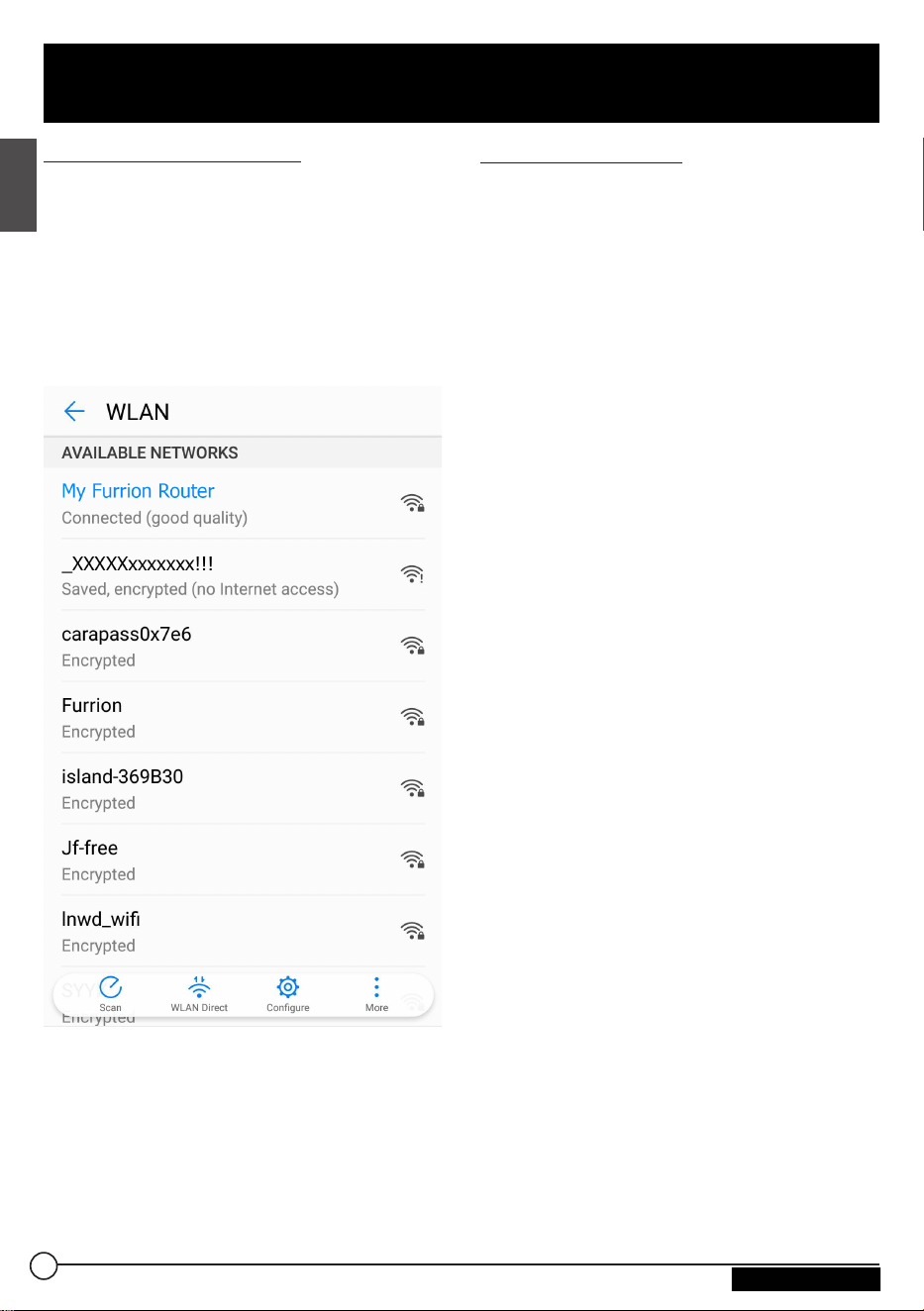
Wireless Connection
1. Scan for wireless networks on your
mobile device or laptop. It may take
a few minutes for the network to
appear.
2. Find the SSID you set for the Wi-
FiRouter, for example, MyFurrion
Router.
3. Confirm for connection to the Wi-Fi
Router.
− Now you can access to the
Internet through the Wi-Fi Router.
LAN Connection
For Internet access, you can also connect
your device (such as a laptop or smart
TV) to the LAN socket available on the
Ceiling Mount Bracket.
CCD-0005549 Rev. 07.27.23
Power off or Reboot Your
Wi-Fi Router
Note: Be careful the Wi-Fi Router might
be hot after operating for a long time.
You can power off or reboot it when
necessary.
To power off:
● Press and hold the POWER button
on top of the Wi-Fi Router for about
4seconds.
The Network Status LED will flash
and then turn off.
POWER STAT US
RESET
NOTE: It is recommended to wait
30seconds before turning on the
Wi-FiRouter after it is powered off.
To reboot:
● Log in to the configuration interface
(see “Login” section about how to log
in), then click the button.
● Or briefly press the RESET button
with a pointed object.
Reset your Wi-Fi Router
To restore the Wi-Fi Router to factory
default settings, press and hold the
RESET button using a pointed object for
about 10 seconds then release.
The LED will flash 3 times then disappear.
POWER STAT US
RESET
13
English
Maintenance
CCD-0005549 Rev. 07.27.23
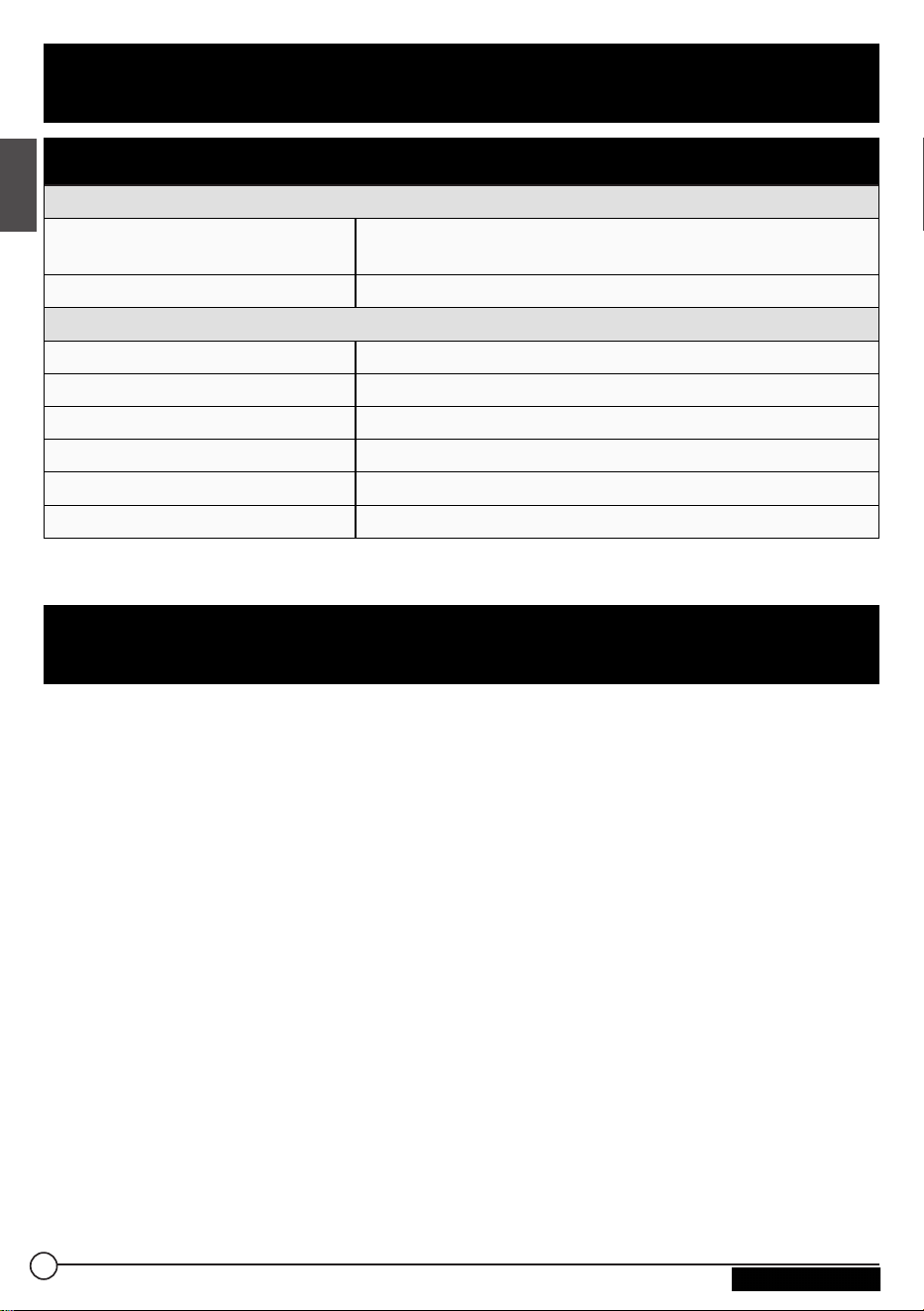
Technical Specifications
OPERATING CONDITIONS
FREQUENCY RANGE (WI-FI)
2412MHz to 2462MHz (802.11b/g/n (HT20))
2422MHz to 2452MHz (802.11n (HT40)
SUPPORTED SYSTEMS
Wi-Fi (LAN): 802.11b/g/n
ANTENNA GAIN
INTERNAL LAN WI-FI
2dBi
INTERNAL GPS/GLONASS
2dBi
TX POWER WI-FI (WAN / LAN)
2.4G Wi-Fi: 17.78dBm (max.)
WI-FI ROUTER
>400ft with >10Mbps throughput
POWER RATING
Typical: 12Vdc @ 500mA, Peak 1A
OPERATION TEMPERATURE
-20°C to 55°C / -4°F to 131°F
1. None of the LEDs are on when you turn on the router
Make sure you have power to the Ceiling Mount Bracket.
Check the connection between the Ceiling Mount Bracket and the Wi-Fi Router.
If the error persists, you may have a hardware problem. In this case you should
contact technical support.
2. You have forgotten your router login and/or password
Try the default login and password, found in the “Login” section. If this fails, you
can restore your router to its factory settings by pressing and holding the Reset
button on top of your router with a pointed object for 10 seconds or more. You will
be able to use the default login and password after the factory reset.
3. No access to the Internet
Check the external network access status and Wi-Fi connection.
14
English
Specifications
Troubleshooting
CCD-0005549 Rev. 07.27.23

FURRION WARRANTS FOR A PERIOD OF 1 YEAR FROM DATE OF RETAIL
PURCHASE BY THE ORIGINAL END-USE PURCHASER, THAT THIS PRODUCT,
WHEN DELIVERED TO YOU IN NEW CONDITION, IN ORIGINAL PACKAGING,
FROM A FURRION AUTHORIZED RESELLER AND USED IN NORMAL
CONDITIONS, IS FREE FROM ANY DEFECTS IN MANUFACTURING, MATERIALS,
AND WORKMANSHIP. IN CASE OF SUCH DEFECT, FURRION SHALL REPLACE
OR REPAIR THE PRODUCT AT NO CHARGE TO YOU. THIS WARRANTY DOES
NOT COVER: PRODUCTS WHERE THE ORIGINAL SERIAL NUMBERS HAVE
BEEN REMOVED, ALTERED OR CANNOT READILY BE DETERMINED; DAMAGE
OR LOSS CAUSED BY ACCIDENT, MISUSE, ABUSE, NEGLECT, PRODUCT
MODIFICATION, FAILURE TO FOLLOW INSTRUCTIONS IN INSTRUCTION
MANUAL, COMMERCIAL OR INDUSTRIAL USE; DAMAGE OR LOSS CAUSED
TO THE DECORATIVE SURFACE OF PRODUCT; TO ANY DATA, SOFTWARE
OR INFORMATION; AND NORMAL WEAR AND TEAR. THIS WARRANTY ONLY
PROTECTS THE ORIGINAL END-USER (“YOU”) AND IS NOT TRANSFERABLE;
ANY ATTEMPT TO TRANSFER THIS WARRANTY SHALL MAKE IT IMMEDIATELY
VOID. THIS WARRANTY IS ONLY VALID IN THE COUNTRY OF PURCHASE.
THIS WARRANTY AND REMEDIES SET FORTH ABOVE ARE EXCLUSIVE AND IN
LIEU OF ALL OTHER WARRANTIES, REMEDIES AND CONDITIONS, WHETHER
ORAL OR WRITTEN, EXPRESS OR IMPLIED. FURRION SPECIFICALLY DISCLAIMS
ANY AND ALL IMPLIED WARRANTIES, INCLUDING, WITHOUT LIMITATION,
WARRANTIES OF MERCHANTABILITY AND FITNESS FOR A PARTICULAR
PURPOSE. IF FURRION CANNOT LAWFULLY DISCLAIM IMPLIED WARRANTIES
UNDER THIS LIMITED WARRANTY, ALL SUCH WARRANTIES, INCLUDING
WARRANTIES OF MERCHANTABILITY AND FITNESS FOR A PARTICULAR
PURPOSE ARE LIMITED IN DURATION TO THE DURATION OF THIS WARRANTY.
No Furrion reseller, agent, or employee is authorized to make any modification,
extension, or addition to this warranty.
15
English
Warranty
CCD-0005549 Rev. 07.27.23

FURRION IS NOT RESPONSIBLE FOR DIRECT, INDIRECT, SPECIAL, INCIDENTAL
OR CONSEQUENTIAL DAMAGES RESULTING FROM ANY BREACH OF
WARRANTY OR CONDITION, OR UNDER ANY OTHER LEGAL THEORY,
INCLUDING BUT NOT LIMITED TO LOST PROFITS, DOWNTIME, GOODWILL,
DAMAGE TO OR REPLACEMENT OF ANY EQUIPMENT OR PROPERTY, ANY
COSTS OF RECOVERING, REPROGRAMMING, OR REPRODUCING ANY
PROGRAM OR DATA STORED IN OR USED WITH FURRION PRODUCTS.
FURRION’S TOTAL LIABILITY IS LIMITED TO THE REPAIR OR REPLACEMENT OF
THIS PRODUCT PURSUANT TO THE TERMS OF THIS WARRANTY.
SOME STATES DO NOT ALLOW THE EXCLUSION OR LIMITATION OF
INCIDENTAL OR CONSEQUENTIAL DAMAGES OR EXCLUSIONS OR LIMITATIONS
ON THE DURATION OF IMPLIED WARRANTIES OR CONDITIONS, SO THE ABOVE
LIMITATIONS OR EXCLUSIONS MAY NOT APPLY TO YOU. THIS WARRANTY
GIVES YOU SPECIFIC LEGAL RIGHTS, AND YOU MAY ALSO HAVE OTHER RIGHTS
THAT VARY BY STATE OR (WHERE APPLICABLE IN THE COUNTRIES WHERE
FURRION HAS NON-US/CANADIAN AUTHORIZED DEALERS) COUNTRY. NO
ACTION OR CLAIM TO ENFORCE THIS WARRANTY SHALL BE COMMENCED
AFTER THE EXPIRATION OF THE WARRANTY PERIOD.
Keep your receipt, delivery slip, or other appropriate payment record to establish the
warranty period. Service under this warranty must be obtained by contacting Furrion
Product features or specifications as described or illustrated are subject to change
without notice.
16
English
Warranty
CCD-0005549 Rev. 07.27.23

Nous vous remercions pour l'achat de ce routeur Wi-Fi Furrion
®
Avant d’utiliser votre
nouveau produit, veuillez lire attentivement les présentes consignes. Cela garantit
une utilisation en toute sécurité et réduit tout risque de blessures. Le présent manuel
d'instructions contient des informations sur l'installation, l'entretien et l'utilisation
sécurisée du produit.
Veuillez conserver le présent manuel d’instructions en lieu sûr afin de pouvoir vous
y référer ultérieurement. Veillez à transmettre ce manuel à d'éventuels nouveaux
propriétaires de ce produit.
Le fabricant décline toute responsabilité pour tous dommages résultant du non-
respect des présentes consignes.
Si vous avez des questions concernant nos produits, veuillez nous contacter à
l'adresse suivante: [email protected]
17
Français
Bienvenue
CCD-0005549 Rev. 07.27.23

Bienvenue.............................................................................................. 17
À propos de votre produit
...................................................................19
Caractéristiques du produit ............................................................................................................19
Déclarations FCC
................................................................................................................................19
Déclaration d’Industrie Canada (IC)
...........................................................................................20
Présentation du produit ...................................................................... 21
Installation
........................................................................................... 22
Contenu de l’emballage ...................................................................................................................22
Encastrer le routeur Wi-Fi
...............................................................................................................22
Configuration du routeur Wi-Fi ......................................................... 23
Mettre votre routeur Wi-Fi en marche .......................................................................................23
Vous connecter à votre routeur Wi-Fi pour la configuration Wi-Fi
..............................23
Vous connecter à l’interface de configuration
......................................................................23
Configuration rapide de votre routeur Wi-Fi
..........................................................................24
Paramètres avancés
.........................................................................................................................26
Accès Internet via le routeur Wi-Fi ....................................................27
Entretien
............................................................................................... 28
Redémarrer votre routeur Wi-Fi ou le mettre hors tension .............................................28
Réinitialiser votre routeur Wi-Fi....................................................................................................28
Caractéristiques.................................................................................. 29
Dépannage
........................................................................................... 29
Garantie
................................................................................................ 30
Contenu
18
Français
CCD-0005549 Rev. 07.27.23

Le routeur Wi-Fi Furrion prend en charge les principaux systèmes d'exploitation tels
que Windows, Linux et Mac. Les appareils intelligents comme iOS et Android sont
également compatibles avec ce produit.
Veuillez lire le présent manuel avant votre première utilisation du routeur Wi-Fi Furrion.
Caractéristiques du produit
● Conception encastrable pour une installation facile
● Configuration Web/APP
● Détection automatique de la connexion Web/vérification de sécurité automatique
● Prise en charge WPS
Déclarations FCC
Toute modification ou tout changement non expressément approuvé(e) par la partie
responsable de la conformité est susceptible d'engendrer une annulation du droit
d'utilisation de l'équipement par l'utilisateur.
Le présent équipement a été testé et déclaré conforme aux limitations pour appareils
numériques de classe B, aux termes de la Section 15 des règlements de la FCC.
Ces limitations sont conçues pour fournir une protection raisonnable contre les
interférences nocives dans un environnement domestique. Cet appareil génère, utilise
et peut émettre de l'énergie RF (radiofréquence) et peut, en cas d'installation ou
d'utilisation non conforme aux instructions, engendrer des interférences nuisibles au
niveau des communications radio. Rien ne garantit toutefois l'absence d'interférences
dans le cadre d'une installation particulière.
Si cet équipement produit des interférences perturbant la réception de la radio
ou de la télévision (ce que vous pouvez déterminer en éteignant et en allumant
l'équipement), nous vous recommandons d'essayer d'éliminer les interférences d'une
des façons suivantes:
− Réorientez ou déplacez l'antenne de réception.
− Augmentez l'espacement entre l'équipement et le récepteur.
− Branchez l'appareil sur une prise de courant située sur un circuit différent de celui
sur lequel le récepteur est branché.
− Consultez votre fournisseur ou un technicien radio/TV expérimenté.
19
Français
À propos de votre produit
CCD-0005549 Rev. 07.27.23

Cet équipement est conforme aux limitations prévues par la FCC concernant
l'exposition aux radiations dans le cadre d'un environnement d'accès libre. Le
présent équipement doit être installé et utilisé en ménageant une distance d'au
moins 20cm entre l'élément rayonnant et votre corps. Cet émetteur ne doit pas être
installé au même endroit qu'une autre antenne ou qu’un autre émetteur, ou être utilisé
conjointement à une autre antenne ou à un autre émetteur.
Déclaration d'Industrie Canada (IC)
Le présent appareil contient des émetteurs/récepteurs exempts de licence conformes au
Cahier des charges sur les normes radioélectriques (Radio Standard Specifications,
RSS) relatives aux appareils avec exemption de licence d'ISED Canada. La
fonctionnement est assujetti aux deux conditions suivantes: (1) Le présent appareil
ne doit pas causer d'interférences. (2) Le présent appareil doit accepter toutes les
interférences, y compris celles susceptibles de provoquer un fonctionnement non
souhaité de l'appareil.
Cet équipement est conforme aux limitations prévues par la Section 102 des
RSSFCC/IC concernant l'exposition aux radiations dans le cadre d'un environnement
d'accès libre. Le présent équipement doit être installé et utilisé en ménageant une
distance d'au moins 20cm entre l'élément rayonnant et votre corps.
20
Français
À propos de votre produit
CCD-0005549 Rev. 07.27.23
POWER STAT US
RESET
Indicateur de statut
Bouton Reset
Bouton Power
Bouton WPS/
Status
Bouton/
indicateur
Description
Bouton
Power
● En mode OFF, appuyez sur le bouton POWER pendant environ 4secondes
pour mettre l'appareil en marche. L'indicateur de statut LED s'allume puis s'éteint.
● En mode ON, appuyez sur le bouton POWER pendant environ 4secondes
pour désactiver l'appareil.
Bouton
WPS/Status
● Appuyez sur le bouton WPS/Status pendant 5secondes pour activer la
fonction WPS. Le paramétrage par défaut est 2,4G Wi-Fi.
● Appuyez brièvement sur le bouton WPS/STATUS pour afficher le statut
du réseau. L'indicateur LED de statut réseau reste allumé pendant environ
20secondes.
REMARQUE: Vous pouvez contrôler le statut du réseau en activant l'option
Status LED sur la page Web de configuration du routeur. L'indicateur
LED de statut réseau reste allumé jusqu'à ce que vous désactiviez l'option
StatusLED.
Bouton
Reset
● Appuyez sur le bouton RESET à l’aide d’un objet pointu pendant
10secondes pour réinitialiser l'appareil aux paramètres d'usine par défaut.
Un triple clignotement de l'ensemble des voyants LED vous indique que la
réinitialisation de l’appareil a été effectuée avec succès.
● Appuyez brièvement sur le bouton RESET à l’aide d’un objet pointu pour
redémarrer l'appareil.
Indicateur de
statut
Réseau Wi-Fi connecté et Internet
disponible
● Indicateur de statut du réseau sur ON.
Aucune connexion Wi-Fi valide ou
Internet non disponible
● Indicateur de statut de réseau sur ON
et clignotant une fois par seconde.
21
Français
Présentation du produit
CCD-0005549 Rev. 07.27.23
Contenu de l'emballage
Assurez-vous que les éléments suivants
sont présents dans l'emballage. Si un
élément est endommagé ou manquant,
contactez votre revendeur.
● Routeur Wi-Fi x 1
● Autocollant d'identification de
l'appareil x 1
● Fiche de garantie x 1
● Manuel d'instructions x 1
Encastrer le routeur Wi-Fi
Le présent routeur Wi-Fi est conçu
pour une utilisation exclusive avec
l'antenne de toit Furrion. Veuillez
vous référer au manuel d'instructions
de l'antenne extérieure Furrion pour
prendre connaissance des modalités
d'installation sur le toit de votre VR.
REMARQUE: Une antenne de toit
Furrion avec support de fixation (vendue
séparément, pièce n°FAN73B7C) doit
avoir été préalablement installée sur le
toit de votre VR. Si ce n'est pas le cas,
veuillez contacter votre revendeur ou
consulter le site www.furrion.com pour
en acheter une.
2po (50mm)
minimum
2po (50mm)
minimum
2po (50mm)
minimum
7po (178mm)
minimum
1. Tirez pour retirer le couvercle fixé
sur le support de fixation de plafond
existant. (Ill.1)
Plafond du VR
Ill.1
2. Encastrez le routeur Wi-Fi dans
le support de fixation de plafond
existant. (Ill.2)
Plafond du VR
Ill.2
3. Votre routeur Wi-Fi est désormais
complètement installé sur le plafond
de votre VR.
22
Français
Installation
CCD-0005549 Rev. 07.27.23
Mettre votre routeur Wi-Fi
en marche
Allumez l'alimentation connectée au
support de fixation de plafond.
Le routeur Wi-Fi est automatiquement
activé dès réception de l'énergie.
REMARQUE: Vous pouvez vous
connecter au routeur Wi-Fi et désactiver
la fonctionnalité de mise en marche
automatique via l'interface de
configuration. Le paramétrage par
défaut est Enabled (activé).
Si votre routeur Wi-Fi est éteint, appuyez
sur le bouton POWER situé sur le dessus
pendant environ 4secondes pour le
mettre en marche.
Vous connecter à votre
routeur Wi-Fi pour la
configuration Wi-Fi
1. Recherchez des réseaux sans fil sur
votre appareil mobile ou sur votre
ordinateur portable. L'apparition
du réseau peut prendre quelques
minutes.
2. Sélectionnez le réseau Wi-Fi local
avec SSID: FURRIONAP_xxxxxx
Mot de passe: FAxxxxxx
Dans l'exemple ci-dessus, «xxxxxx»
correspond aux 6 derniers caractères
de l'adresse d'identification réseau
unique. Le mot de passe par défaut
est inscrit sur l'autocollant SSID/
WPA.
3. Confirmez et rejoignez le réseau.
Vous connecter à l'interface
de configuration
L'IP par défaut du présent routeur
Wi-Fi est 192.168.0.1 (sous-réseau
255.255.255.0). Veillez à ce que l’appareil
intelligent ou le PC relié au présent
routeur soit sur le même sous-réseau
et ait une adresse IP comprise entre
192.168.0.2 et 192.168.0.254.
1. Lancez un navigateur Web et
saisissez 192.168.0.1 dans la barre
d'adresse. Une fenêtre de connexion
apparaît alors.
2. Saisissez le nom d'utilisateur (admin)
et le mot de passe (admin) par défaut.
Username:
Password:
Login
Cancel
3. Cliquez sur Login.
23
Français
Configuration du routeur Wi-Fi
CCD-0005549 Rev. 07.27.23
Définition des icônes du système
Redémarrez le système.
Cliquez pour vous
déconnecter du système.
Cliquez pour une configuration
rapide de votre système.
Configuration rapide de
votre routeur Wi-Fi
Modification du mot de passe
administrateur
Après une connexion réussie, l'écran
suivant apparaît et il vous est demandé
de configurer un nouveau mot de passe
pour le compte «admin» de gestion de
l'appareil.
Username (Nom d'utilisateur): Affiche
le nom d'utilisateur actuel.
New Password (Nouveau mot de
passe): Votre nouveau mot de passe
peut comporter entre 1 et 32caractères.
Confirm Password (Confirmer le mot
de passe): Saisissez à nouveau le mot
de passe.
Cliquez sur Next (Suivant) pour passer
à l'étape suivante.
Connexion à un réseau Wi-Fi
externe
La fenêtre suivante apparaît et vous
pouvez alors sélectionner un point
d'accès (PA) disponible pour accéder à
Internet.
24
Français
Configuration du routeur Wi-Fi
CCD-0005549 Rev. 07.27.23
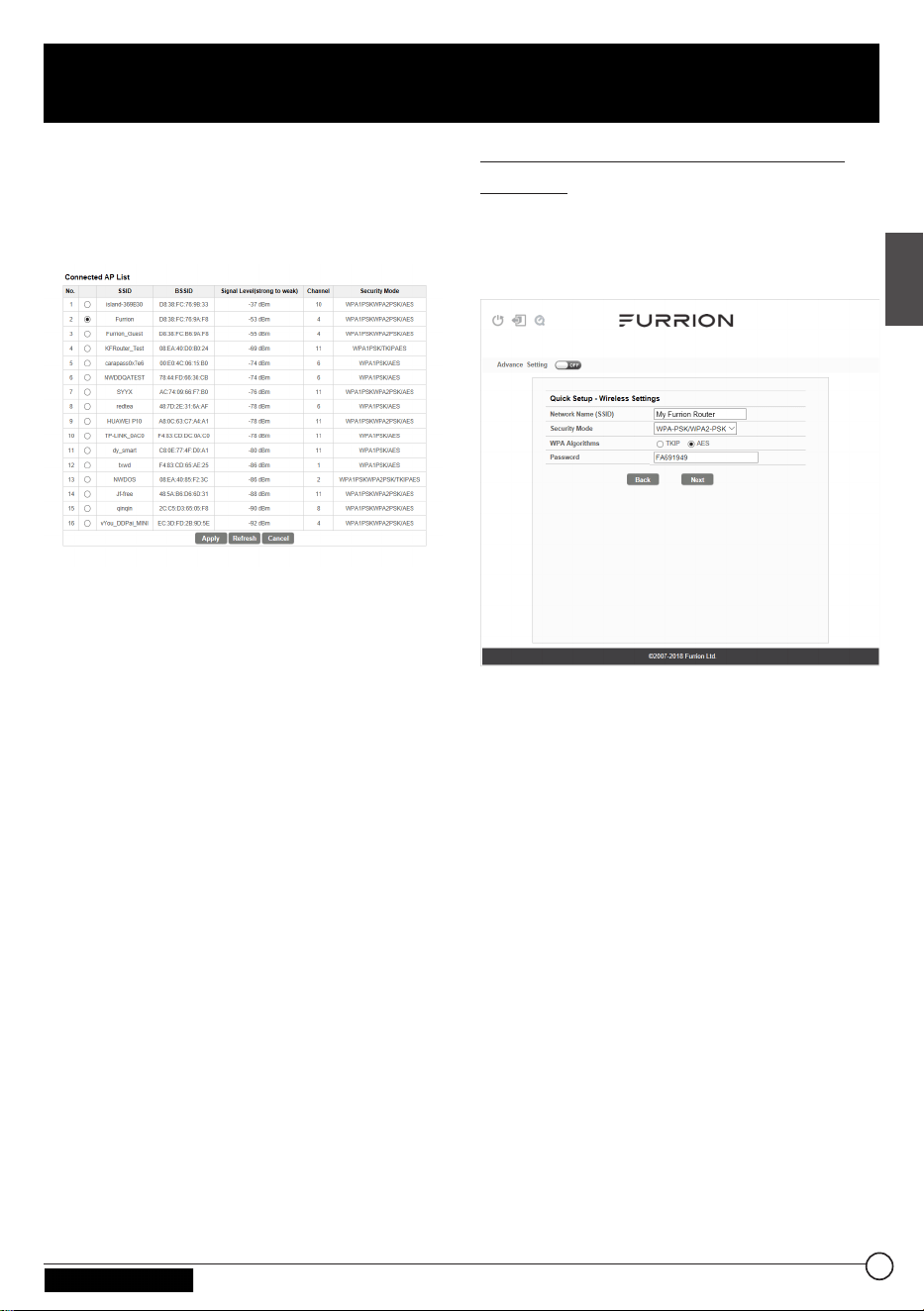
SCAN AP (RECHERCHE DES PA):
Cliquez sur SCAN pour rechercher les
PA disponibles, et la fenêtre suivante
apparaît:
Choisissez le PA à partir duquel vous
souhaitez vous connecter dans la
fenêtre contextuelle, puis cliquez sur
Apply (Appliquer) pour appliquer les
paramètres réseau.
AP SSID (SSID DU PA): Le SSID du PA
recherché et utilisé apparaît ici. Vous
pouvez également saisir directement un
SSID de réseau disponible ici.
Password (Mot de passe): Saisissez le
mot de passe du PA sélectionné.
Cliquez sur Next (Suivant) pour passer
à l'étape suivante.
Modification des paramètres
sans fil
Une nouvelle fenêtre apparaît, dans
laquelle vous pourrez modifier les
paramètres sans fil.
Network Name (SSID) (Nom du
réseau (SSID)): Renommez le SSID du
routeur Wi-Fi. Vous pouvez par exemple
le renommer «Mon routeur Furrion».
REMARQUE: Veillez à ce que votre SSID
soit unique si d'autres réseaux sans fil
sont utilisés à proximité.
Security Mode (Mode de sécurité):
Sélectionnez un mode de sécurité:
No Encryption (sans chiffrement),
WPA-PSK, WPA2-PSK, ou WPA-PSK/
WPA2-PSK.
WPA Algorithms (Algorithmes WPA):
TKIP ou AES
Password (Mot de passe): Définissez
le mot de passe de l'accès Internet via le
routeur Wi-Fi.
Cliquez sur Next (Suivant) pour passer
à l'étape suivante.
25
Français
Configuration du routeur Wi-Fi
CCD-0005549 Rev. 07.27.23
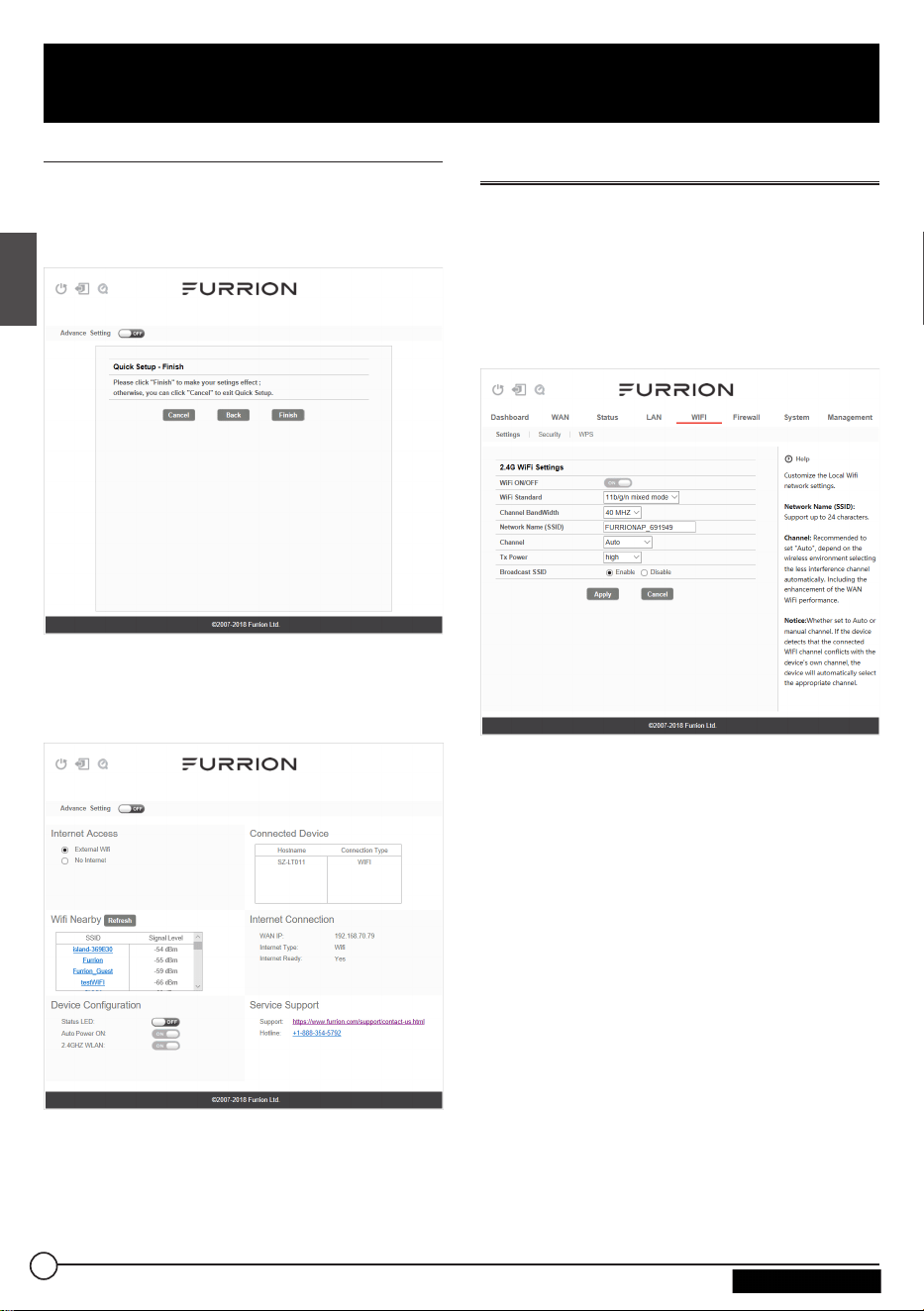
Confirmation de vos paramètres
Dans la fenêtre contextuelle, cliquez sur
«Finish (Terminer)» pour enregistrer
et terminer la configuration rapide.
Une fois la configuration du routeur Wi-Fi
terminée, vous devriez être en mesure
d'accéder à Internet.
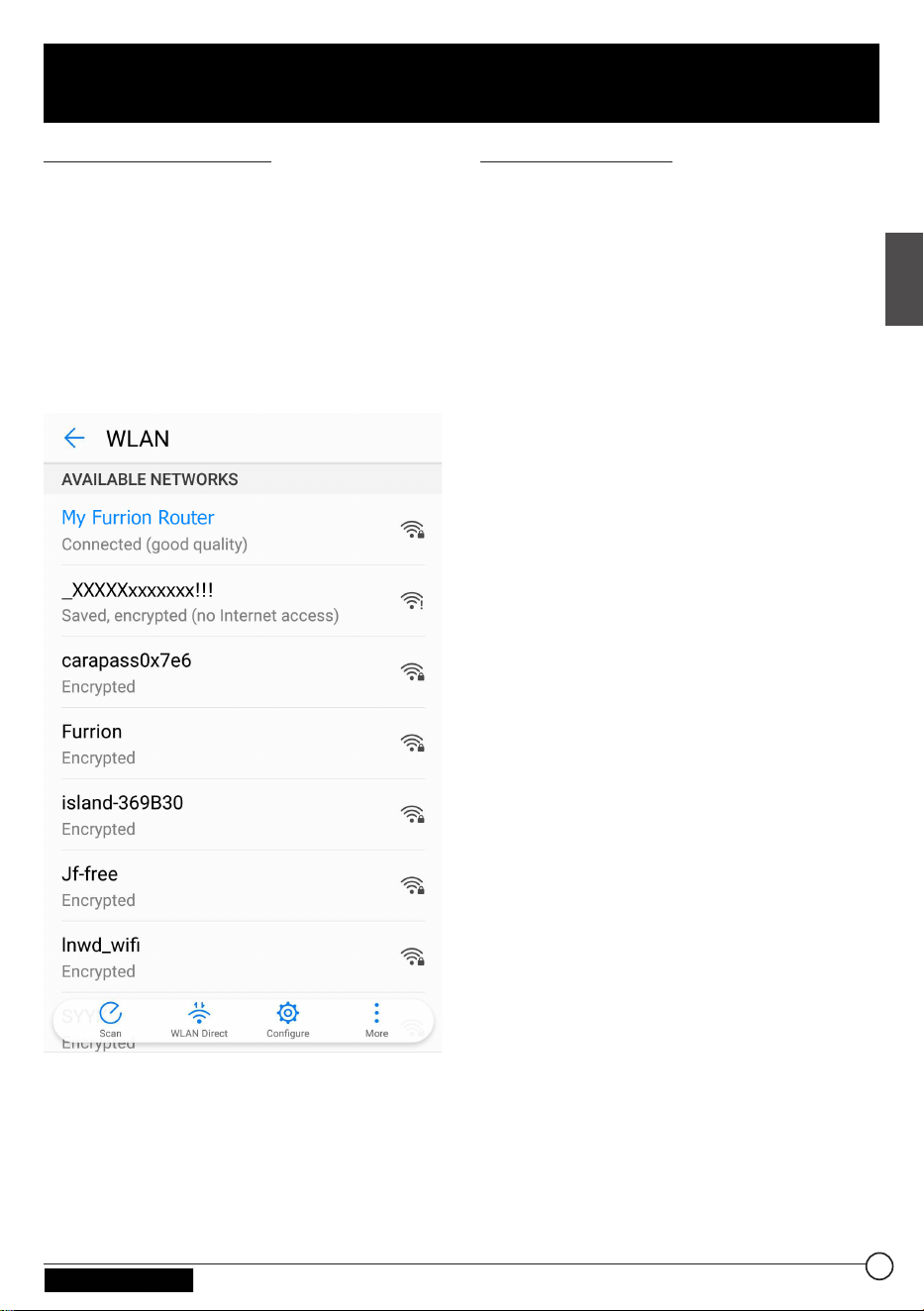
Paramètres avancés
Cliquez sur Advance Setting
(Paramètres avancés) pour activer
la page de paramétrage avancé, sur
laquelle vous pouvez configurer les
paramètres avancés pour le WAN, le
LAN, le Wi-Fi, le pare-feu, etc.
26
Français
Configuration du routeur Wi-Fi
CCD-0005549 Rev. 07.27.23
27
Français
Accès Internet via le routeur Wi-Fi
Connexion sans fil
1. Recherchez des réseaux sans fil sur
votre appareil mobile ou sur votre
ordinateur portable. L'apparition
du réseau peut prendre quelques
minutes.
2. Recherchez le SSID que vous avez
défini pour le routeur Wi-Fi, par
exemple My Furrion Router.
3. Confirmez pour vous connecter au
routeur Wi-Fi.
− Vous pouvez désormais accéder
à Internet par le biais de votre
routeur Wi-Fi.
Connexion LAN
Pour accéder à Internet, vous pouvez
également connecter votre appareil
(par exemple un ordinateur portable ou
une télévision intelligente) au port LAN
disponible sur le support de fixation de
plafond.
CCD-0005549 Rev. 07.27.23
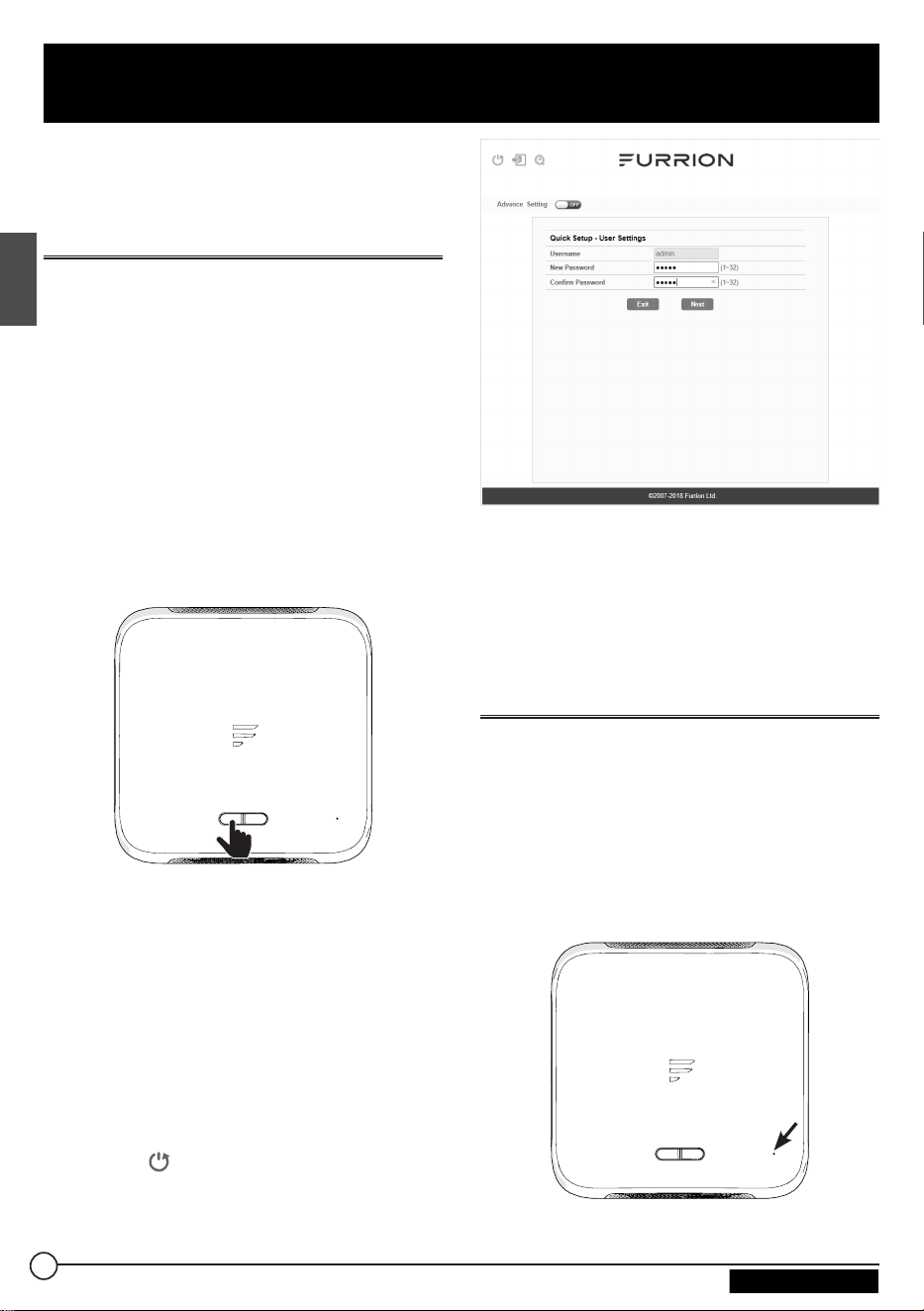
Redémarrer votre routeur
Wi-Fi ou le mettre hors
tension
Remarque: Soyez prudent, car votre
routeur Wi-Fi peut chauffer après un long
fonctionnement.
Vous pouvez le mettre hors tension ou le
redémarrer si nécessaire.
Pour le mettre hors tension:
● Appuyez pendant environ 4secondes
sur le bouton POWER situé en haut
du routeur Wi-Fi.
L'indicateur LED de statut du réseau
clignote alors, puis s'éteint.
POWER STAT US
RESET
REMARQUE: Après une mise hors
tension, il est recommandé d'attendre
30secondes avant de rallumer le routeur
Wi-Fi.
Pour le redémarrer:
● Connectez-vous à l'interface
de configuration (voir la section
«Connexion» pour les modalités de
connexion), puis cliquez sur le
bouton .
● Vous pouvez également appuyer
brièvement sur le bouton RESET à
l’aide d’un objet pointu.
Réinitialiser votre routeur
Wi-Fi
Pour ramener le routeur Wi-Fi aux
paramètres d'usine par défaut, appuyez
pendant environ 10secondes sur le
bouton RESET à l'aide d'un objet pointu,
puis relâchez.
Le voyant LED clignote alors 3fois avant
de s’éteindre.
POWER STAT US
RESET
28
Français
Entretien
CCD-0005549 Rev. 07.27.23
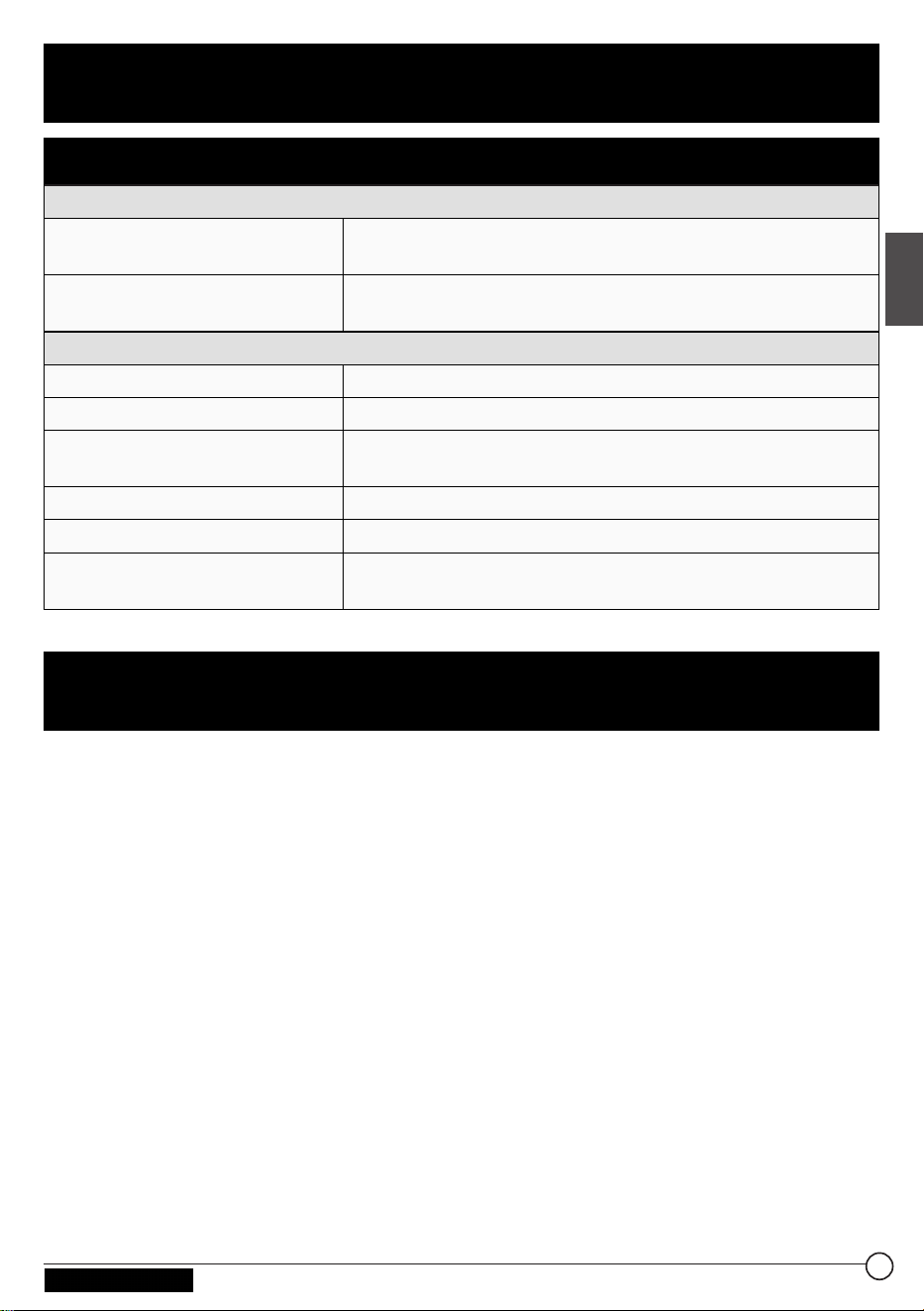
Caractéristiques techniques
CONDITIONS DE FONCTIONNEMENT
GAMME DE FRÉQUENCES
(WI-FI)
2412MHz à 2462MHz (802,11b/g/n (HT20))
2422MHz à 2452MHz (802,11n (HT40))
SYSTÈMES PRIS EN
CHARGE
Wi-Fi (LAN): 802,11b/g/n
GAIN D'ANTENNE
WI-FI LAN INTERNE
2dBi
GPS/GLONASS INTERNE
2dBi
TX POWER WI-FI (WAN/
LAN)
Wi-Fi 2,4G: 17,78dBm (max.)
ROUTEUR WI-FI
> 400pi (122m) avec débit >10Mbps
PUISSANCE NOMINALE
Générale: 12Vdc @ 500mA, pic à 1A
TEMPÉRATURE DE
FONCTIONNEMENT
-20°C à 55°C / -4°F à 131°F
1. Aucun des voyants LED ne s'allume lorsque vous mettez votre routeur Wi-Fi
sous tension
Assurez-vous que le support de fixation de plafond est raccordé à une source
d'alimentation.
Vérifiez la connexion entre le support de fixation de plafond et le routeur Wi-Fi.
Sil'erreur persiste, il est possible qu'il s'agisse d'un problème matériel. Dans ce cas,
veuillez contacter le service d'assistance technique.
2. Vous avez oublié l'identifiant de connexion et/ou le mot de passe de votre
routeur
Essayez l'identifiant et le mot de passe par défaut indiqués dans la section
«Connexion». En cas d'échec, vous pouvez réinitialiser votre routeur aux
paramètres d'usine en appuyant pendant 10secondes ou plus sur le bouton Reset
situé en haut du routeur à l'aide d'un objet pointu. Une fois cette réinitialisation
effectuée, vous pouvez utiliser l'identifiant de connexion et le mot de passe par
défaut.
3. Aucun accès à Internet
Vérifiez le statut de l'accès réseau externe et de la connexion Wi-Fi.
29
Français
Caractéristiques
Dépannage
CCD-0005549 Rev. 07.27.23

FURRION GARANTIT, PENDANT UNE PÉRIODE D’UN AN À PARTIR DE LA DATE
DE L’ACHAT AU DÉTAIL PAR L’UTILISATEUR FINAL INITIAL, QUE CE PRODUIT,
S’IL EST LIVRÉ À L’ÉTAT NEUF, DANS SON EMBALLAGE ORIGINAL, PAR UN
REVENDEUR FURRION AUTORISÉ ET UTILISÉ EN CONDITIONS NORMALES,
EST LIBRE DE TOUT DÉFAUT DE FABRICATION, DE MATÉRIEL ET DE MAIN-
D’ŒUVRE. EN CAS DE DÉFAUT, FURRION S’ENGAGE À REMPLACER OU
À RÉPARER LE PRODUIT GRATUITEMENT. CETTE GARANTIE EXCLUT
CE QUI SUIT : PRODUITS DONT LE NUMÉRO DE SÉRIE ORIGINAL A ÉTÉ
ENLEVÉ, MODIFIÉ OU RENDU ILLISIBLE, LES DOMMAGES OU LES PERTES
CAUSÉS PAR UN ACCIDENT, UNE MAUVAISE UTILISATION, LA NÉGLIGENCE,
LA MODIFICATION DU PRODUIT OU LE MANQUEMENT À SUIVRE LES
CONSIGNES DU GUIDE DE L’UTILISATEUR, L’UTILISATION COMMERCIALE OU
INDUSTRIELLE, LES DOMMAGES OU LES PERTES CAUSÉES À LA SURFACE
DÉCORATIVE DU PRODUIT, LES DOMMAGES CAUSÉS AUX DONNÉES,
LOGICIELS OU RENSEIGNEMENTS, AINSI QUE L’USURE NORMALE. LA
PRÉSENTE GARANTIE PROTÈGE UNIQUEMENT L’UTILISATEUR FINAL INITIAL
(«VOUS»), ET NE PEUT ÊTRE CÉDÉE À QUICONQUE. TOUTE TENTATIVE DE
CESSION DE LA PRÉSENTE GARANTIE AURA POUR EFFET SON ANNULATION
IMMÉDIATE. LA PRÉSENTE GARANTIE EST UNIQUEMENT VALIDE DANS LE
PAYS D’ACHAT.
LA PRÉSENTE GARANTIE ET LES RECOURS PRÉCÉDEMMENT DÉFINIS SONT
EXCLUSIFS ET REMPLACENT TOUTES LES AUTRES RECOURS, GARANTIES ET
CONDITIONS, QU’ILS SOIENT ORAUX OU ÉCRITS, EXPLICITES OU IMPLICITES.
FURRION DÉCLINE SPÉCIFIQUEMENT TOUTES LES GARANTIES IMPLICITES,
Y COMPRIS, SANS S’Y LIMITER, LES GARANTIES DE QUALITÉ MARCHANDE ET
D’ADÉQUATION À UN USAGE PARTICULIER. SI FURRION NE PEUT LÉGALEMENT
DÉCLINER LES GARANTIES IMPLICITES DÉCOULANT DE LA PRÉSENTE
GARANTIE LIMITÉE, TOUTES CES GARANTIES, Y COMPRIS LES GARANTIES DE
QUALITÉ MARCHANDE ET D’ADAPTATION À UN USAGE PARTICULIER, SONT
LIMITÉES À LA DURÉE DE VALIDITÉ DE LA PRÉSENTE GARANTIE.
Aucun revendeur, agent ou employé de furrion n’est autorisé à modifier, prolonger ou
élargir la présente garantie.
Garantie
30
Français
CCD-0005549 Rev. 07.27.23

FURRION DÉCLINE TOUTE RESPONSABILITÉ POUR TOUT PRÉJUDICE
DIRECT, INDIRECT, SPÉCIAL, ACCESSOIRE OU CONSÉCUTIF RÉSULTANT DE
TOUT MANQUEMENT DE GARANTIE OU DE CONDITION, OU RECONNU PAR
TOUTE THÉORIE JURIDIQUE, INCLUANT SANS LIMITATION LES PERTES DE
BÉNÉFICES, DE TEMPS DE FONCTIONNEMENT, DE BIENS INCORPORELS, LES
DOMMAGES À TOUT APPAREIL OU BIEN OU LE REMPLACEMENT DE TOUT BIEN
OU ÉQUIPEMENT, TOUT COÛT DE RÉCUPÉRATION, DE REPROGRAMMATION
OU DE REPRODUCTION DE TOUT PROGRAMME OU DE TOUTE DONNÉE
ENREGISTRÉ DANS LES PRODUITS FURRION OU UTILISÉS AVEC CEUX-CI. LA
RESPONSABILITÉ TOTALE DE FURRION SE LIMITE À LA RÉPARATION OU AU
REMPLACEMENT DE CE PRODUIT CONFORMÉMENT AUX CONDITIONS DE LA
PRÉSENTE GARANTIE.
CERTAINS ÉTATS N’AUTORISENT PAS LES EXCLUSIONS OU LES LIMITATIONS
DES PRÉJUDICES ACCESSOIRES OU CONSÉCUTIFS, NI LES EXCLUSIONS OU
LIMITATIONS DE LA DURÉE DES GARANTIES OU CONDITIONS IMPLICITES.
POUR CE MOTIF, LES LIMITES ET EXCLUSIONS PRÉCÉDEMMENT ÉNONCÉES
POURRAIENT NE PAS S’APPLIQUER À VOUS. LA PRÉSENTE GARANTIE VOUS
CONFÈRE CERTAINS DROITS JURIDIQUES SPÉCIFIQUES, QUI POURRAIENT
S’AJOUTER À D’AUTRES DROITS QUI VOUS SONT CONFÉRÉS PAR VOTRE
JURIDICTION (DANS LES PAYS OÙ FURRION COMPTE DES DÉTAILLANTS
AUTORISÉS HORS CANADA ET ETATS-UNIS). AUCUNE ACTION OU
RÉCLAMATION POUR FAIRE APPLIQUER LA PRÉSENTE GARANTIE NE POURRA
ÊTRE INITIÉE APRÈS L’ÉCHÉANCE DE LA PÉRIODE DE GARANTIE.
Conserver votre reçu d’achat, bon de livraison ou tout autre justificatif de paiement
pour établir la période de garantie. Les réparations aux termes de la présente garantie
doivent être réclamées auprès de Furrion: [email protected]
Les fonctionnalités et les détails techniques du produit tels qu’ils sont décrits ou
illustrés peuvent changer sans préavis.
Garantie
31
Français
CCD-0005549 Rev. 07.27.23

Gracias por comprar el enrutador Wi-Fi Furrion
®
. Antes de usar su nuevo producto, lea
atentamente estas instrucciones. Esto garantizará un uso seguro y reducirá el riesgo
de lesiones. Este manual de instrucciones contiene información relacionada con la
instalación, el mantenimiento y el uso seguro del producto.
Guarde este manual de instrucciones en un lugar seguro para usarlo como referencia
a futuro. Asegúrese de entregar este manual a los nuevos propietarios del producto,
en caso de cambiar de dueño.
El fabricante no acepta responsabilidad por daños provocados por no seguir estas
instrucciones.
Si tiene más preguntas sobre nuestros productos, contáctenos en:
32
Español
Bienvenido
CCD-0005549 Rev. 07.27.23

Bienvenido ........................................................................................... 32
Acerca de su producto
....................................................................... 34
Características del producto.........................................................................................................34
Declaraciones FCC
............................................................................................................................34
Declaración IC
......................................................................................................................................35
Resumen del producto ....................................................................... 36
Instalación
............................................................................................ 37
Contenido ...............................................................................................................................................37
Enrutador Wi-Fi deslizable
............................................................................................................. 37
Configuración del enrutador Wi-Fi ................................................... 38
Encienda su enrutador Wi-Fi .........................................................................................................38
Conéctese a su enrutador Wi-Fi para configurarlo
............................................................. 38
Inicie sesión en la interfaz de configuración.
..........................................................................38
Configuración rápida de su enrutador Wi-Fi
..........................................................................39
Configuración avanzada
..................................................................................................................41
Acceder a Internet mediante el enrutador Wi-Fi ........................... 42
Mantenimiento..................................................................................... 43
Apagar o reiniciar su enrutador Wi-Fi ........................................................................................43
Cómo restablecer su enrutador Wi-Fi
....................................................................................... 43
Especificaciones ................................................................................. 44
Resolución de problemas
.................................................................. 44
Garantía
................................................................................................ 45
Contenido
33
Español
CCD-0005549 Rev. 07.27.23
El enrutador Wi-Fi Furrion es compatible con los sistemas operativos más populares,
vale decir Windows, Linux y Mac, pero también con dispositivos inteligentes basados
en sistemas como iOS y Android.
Lea este manual antes de usar su enrutador Wi-Fi Furrion por primera vez.
Características del producto
● Diseño deslizable fácil de instalar
● Posibilidad de configuración Web/mediante aplicación
● Comprobación de seguridad/inicio de sesión Web con autodetección
● Compatibilidad WPS
Declaraciones FCC
Los cambios o modificaciones no aprobados expresamente por la parte responsable
del cumplimiento podrían anular la autoridad del usuario para operar este equipo.
Este equipo ha sido probado por cuanto a su cumplimiento con los límites de
un dispositivo digital Clase B, según la Parte15 de las Reglas FCC. Estos límites
están diseñados para ofrecer una protección razonable contra interferencia
dañina en una instalación residencial. Este equipo genera, utiliza e irradia energía
de radiofrecuencias; si no se instala según estas instrucciones, podría provocar
interferencias dañinas a las radiocomunicaciones. Sin embargo, no hay garantía de
que no ocurra interferencia en una instalación particular.
Si este equipo provoca interferencia dañina a la recepción de radio o televisión, lo cual
puede determinarse al apagar y encender el equipo, se recomienda al usuario intentar
corregir la interferencia aplicando una o más de las siguientes medidas:
− Reoriente o reubique la antena de recepción.
− Aumente la separación entre el equipo y el receptor.
− Conecte el equipo a una toma de corriente de un circuito distinto al del receptor.
− Consulte con el representante de ventas o con un técnico de radio/TV
experimentado para conseguir ayuda.
Este equipo cumple con los límites de exposición a radiación de la FCC establecidos
para un entorno no controlado. Este equipo debe instalarse y usarse con una distancia
mínima de 20cm entre el radiador y su cuerpo. Este transmisor no debe colocarse o
usarse en conjunto con otra antena o transmisor.
34
Español
Acerca de su producto
CCD-0005549 Rev. 07.27.23

Declaración IC
Este dispositivo contiene receptores/transmisores exentos de licencia que cumplen
con la exención de licencia RSS de Innovación, Ciencia y Desarrollo Económico de
Canadá. Su uso está sujeto a las siguientes dos condiciones: (1) Este dispositivo
no puede causar interferencia dañina. (2) Este dispositivo debe aceptar cualquier
interferencia, incluida interferencia que pueda provocar un funcionamiento no
deseado del dispositivo.
Este equipo cumple con los límites de exposición a radiación de radiofrecuencias de
la FCC/ICRSS-102 establecidos para un entorno no controlado. Este equipo debe
instalarse y usarse con una distancia mínima de 20cm entre el radiador y su cuerpo.
35
Español
Acerca de su producto
CCD-0005549 Rev. 07.27.23
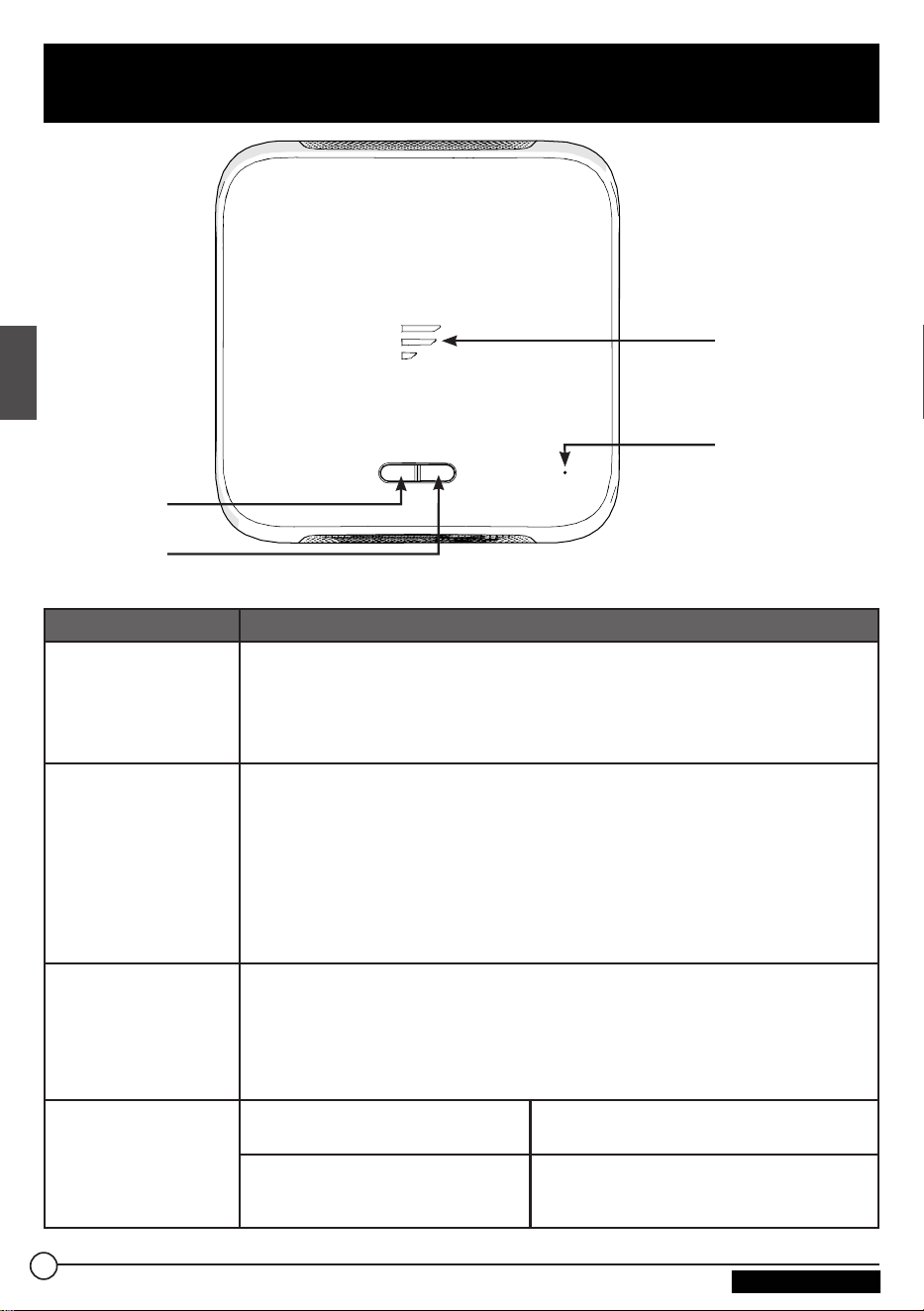
POWER STAT US
RESET
Indicador de
estado
Botón de
restablecimiento
Botón de
encendido
Botón WPS/
Status
Botón/indicador Descripción
Botón de
encendido
● En modo apagado, mantenga presionado el botón POWER durante cerca
de 4segundos para encender el dispositivo. El indicador LED Status se
encenderá y luego se apagará.
● En modo encendido, mantenga presionado el botón POWER durante cerca
de 4segundos para apagar el dispositivo.
Botón WPS/
Status
● Mantenga presionado el botón de WPS/Status durante cerca de
5segundos para activar la función WPS. El ajuste predeterminado es
Wi-Fi2.4G.
● Presione brevemente el botón WPS/STATUS para ver el estado de la red.
El LED de estado de la red se encenderá durante cerca de 20segundos.
NOTA: puede comprobar el estado de la red activando la opción Status
LED (LED de estado) en la página Web de configuración del enrutador.
ElLED de estado de la red seguirá encendido a menos que desactive la
opción Status LED.
Botón de
restablecimiento
● Para restablecer la unidad a los ajustes predeterminados de fábrica,
mantenga presionado el botón RESET (restablecer) con un objeto
puntiagudo durante 10segundos. Todos los LED parpadearán 3veces para
indicar que ha restablecido exitosamente el dispositivo.
● Para reiniciar el dispositivo, presione brevemente el botón RESET con un
objeto puntiagudo.
Indicador de
estado
Red Wi-Fi conectada e Internet
operativa
● Indicador de estado de la red
encendido.
Sin conexión Wi-Fi válida o
conexión a Internet inoperativa
● Indicador de estado de la red
encendido y parpadeando una vez por
segundo.
36
Español
Resumen del producto
CCD-0005549 Rev. 07.27.23
Contenido
Asegúrese de que los siguientes objetos
estén dentro de la caja. Si alguno de
estos elementos está dañado o no
viene incluido en el empaque, contacte
al punto de venta donde adquirió el
producto.
● 1Enrutador Wi-Fi
● 1Autoadhesivo de identificación del
dispositivo
● 1Tarjeta de garantía
● 1Manual de instrucciones
Enrutador Wi-Fi deslizable
Este enrutador Wi-Fi está diseñado
para usar únicamente la antena de
techo Furrion. Consulte el manual de
instrucciones de la antena para exteriores
Furrion para saber cómo instalarla en el
techo del vehículo recreativo.
NOTA: ya debe tener instalada una
antena para techos Furrion con
soporte de montaje (número de pieza
#FAN73B7C) en el techo de su vehículo
recreativo. De no ser así, contacte al
vendedor de su vehículo recreativo o
visite www.furrion.com para adquirir una.
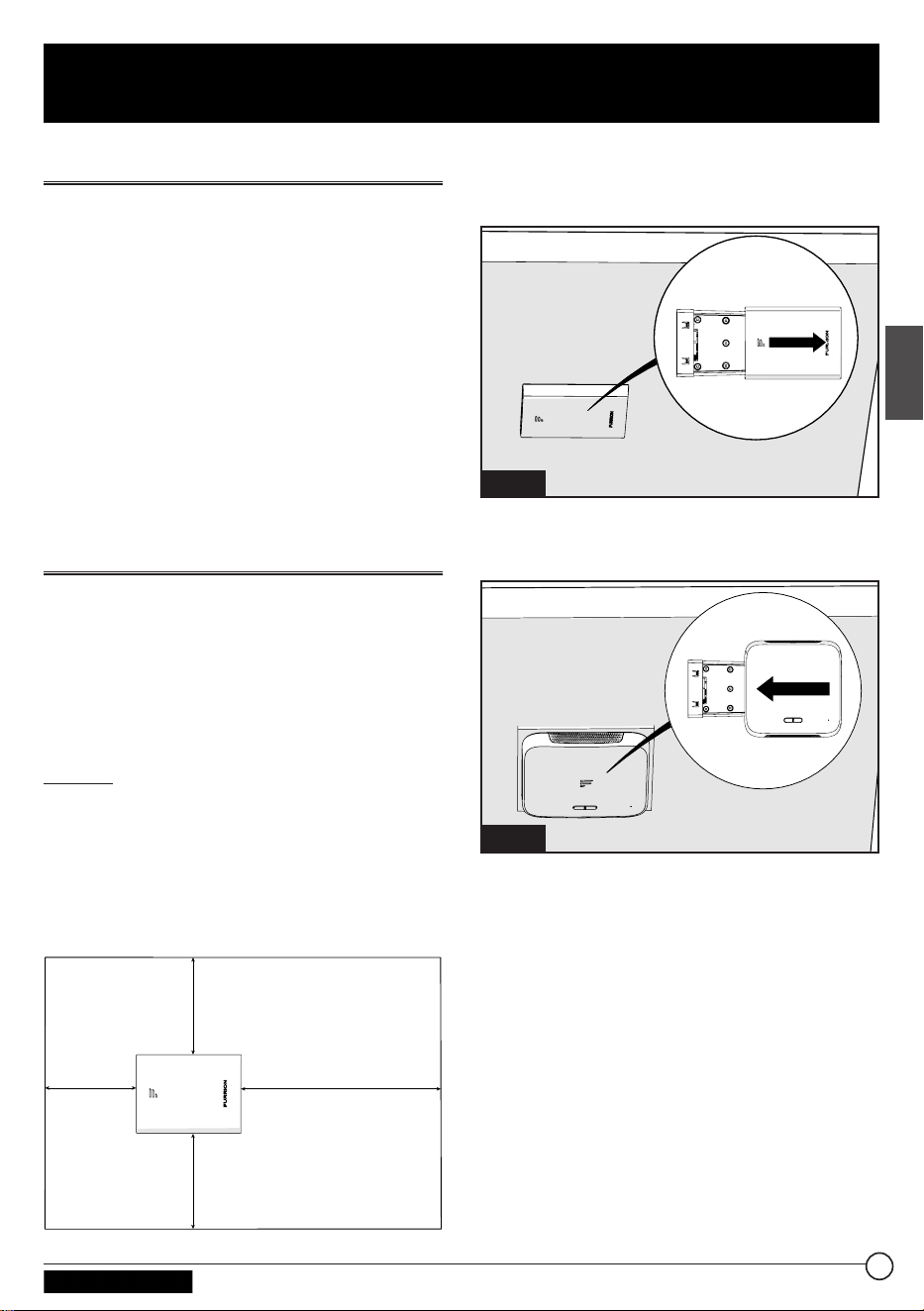
2” (50mm) mín.
2” (50mm) mín.
2” (50mm) mín.
7” (178mm) mín.
1. Tire para sacar la tapa fijada al
soporte de montaje de techo actual.
(Fig. 1)
Techo del
vehículo
Fig. 1
2. Deslice el enrutador Wi-Fi hacia el
soporte de montaje actual. (Fig. 2)
Techo del
vehículo
Fig. 2
3. Su enrutador Wi-Fi ya está
completamente instalado en el techo
del vehículo recreacional.
37
Español
Instalación
CCD-0005549 Rev. 07.27.23
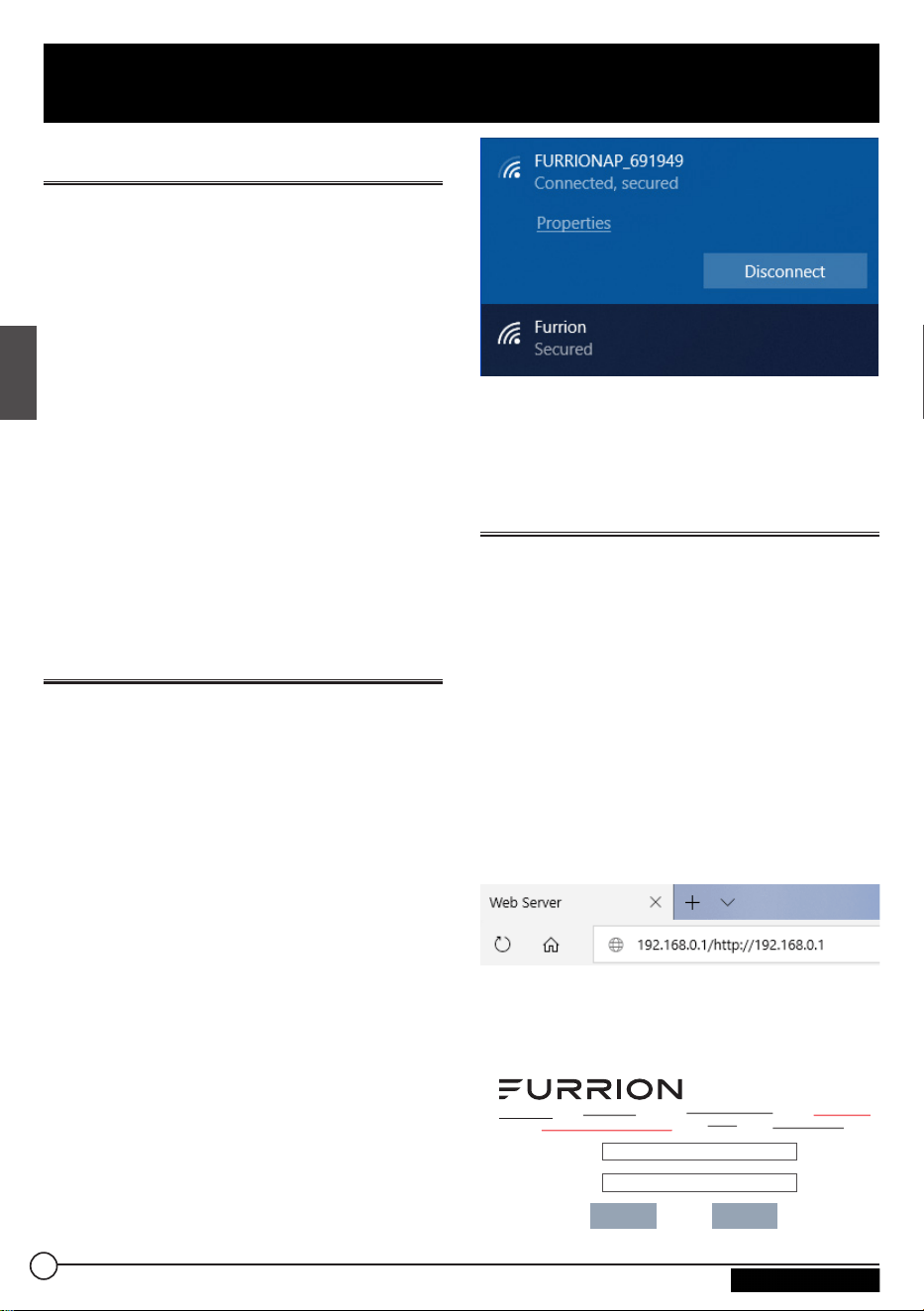
Encienda su enrutador Wi-Fi
Active el paso de energía conectado al
soporte de montaje del techo.
El enrutador Wi-Fi se encenderá
automáticamente al recibir energía.
NOTA: puede iniciar sesión en el
enrutador Wi-Fi y desactivar la opción
de encendido automático, desde la
interfaz de configuración. El ajuste
predeterminado es Enabled (activado).
Si el enrutador Wi-Fi se apaga, mantenga
presionado el botón POWER de la parte
superior durante unos 4segundos para
encenderlo.
Conéctese a su enrutador
Wi-Fi para configurarlo
1. Busque las redes inalámbricas
disponibles desde su dispositivo
móvil o computadora portátil. La red
podría tardar algunos minutos en
aparecer.
2. Seleccione Red Wi-Fi local con
SSID: FURRIONAP_xxxxxx
Password: FAxxxxxx
Las “xxxxxx” del ejemplo anterior
corresponden a los últimos
6caracteres de la dirección
identificadora única de la red. La
contraseña predeterminada está en
el autoadhesivo SSID/WPA.
3. Confirme y conéctese a la red.
Inicie sesión en la interfaz
de configuración.
La dirección IP predeterminada del
enrutador Wi-Fi es 192.168.0.1 y la
máscara de subred es 255.255.255.0.
Asegúrese de que el dispositivo
inteligente o PC conectado a este
enrutador esté en la misma subred y que
tenga una dirección IP en el rango de
192.168.0.2~ 192.168.0.254.
1. Abra un navegador Web y en la barra
de dirección escriba 192.168.0.1.
Luego, aparecerá la ventana de inicio
de sesión.
2. Ingrese el nombre de usuario
predeterminado: admin y la contraseña
predeterminada: admin.
Username:
Password:
Login
Cancel
38
Español
Configuración del enrutador Wi-Fi
CCD-0005549 Rev. 07.27.23
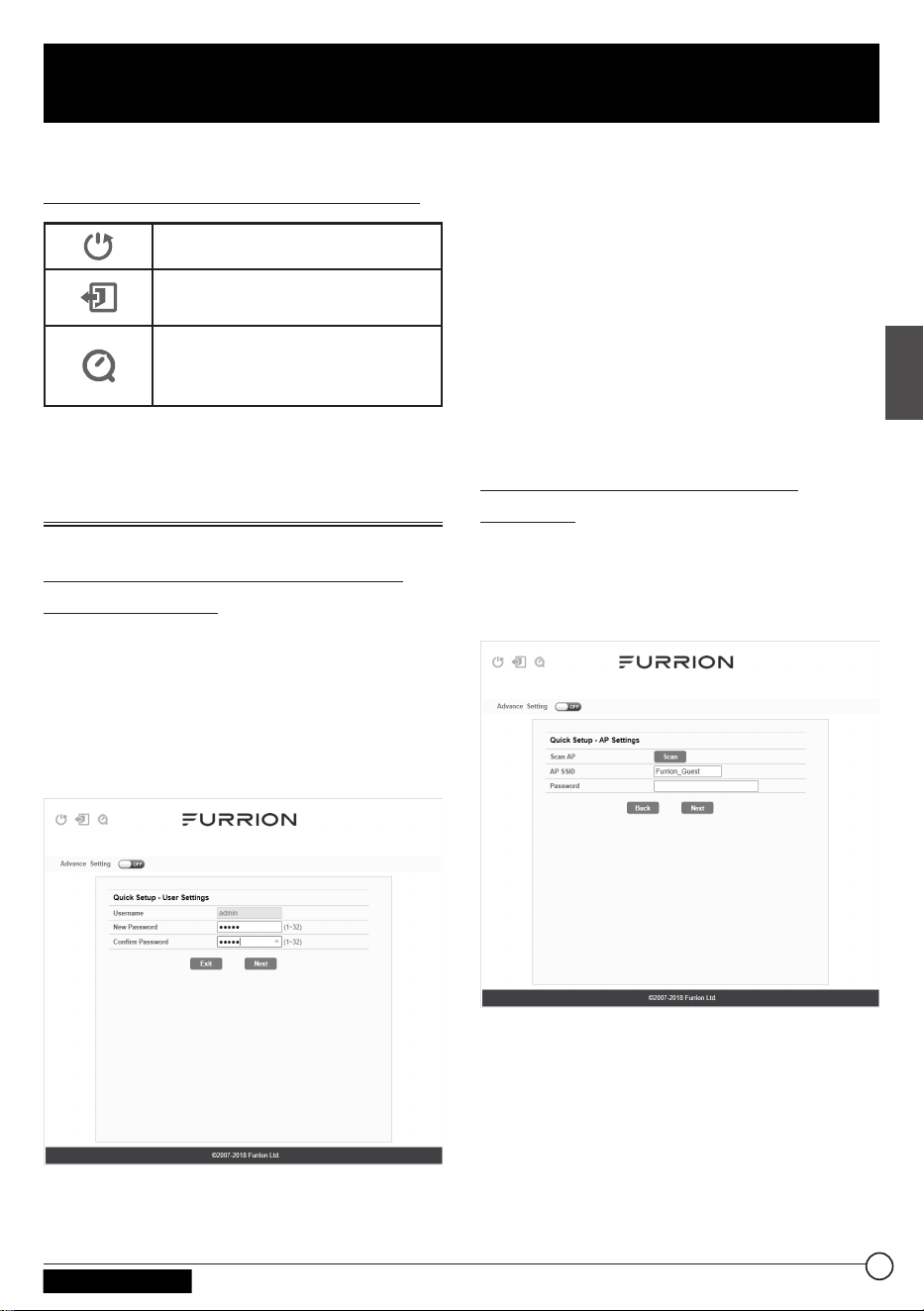
3. Haga clic en Login (iniciar sesión).
Definición de los iconos del sistema
Reinicia el sistema.
Haga clic para cerrar sesión en
el sistema.
Haga clic para acceder a la
configuración rápida de su
sistema.
Configuración rápida de su
enrutador Wi-Fi
Cambio de la contraseña del
administrador
Tras iniciar sesión exitosamente,
aparecerá la siguiente pantalla y
se le solicitará introducir una nueva
contraseña para la cuenta “admin” y así
poder gestionar la configuración del
dispositivo.
Username (nombre de usuario): indica el
nombre de usuario actual.
New Password (nueva contraseña):
puede ingresar de 1a 32caracteres en
su nueva contraseña.
Confirm Password (confirmar
contraseña): introduzca la nueva
contraseña una vez más.
Haga clic en Next (siguiente) para
avanzar al siguiente paso.
Conexión a una red Wi-Fi
externa
Aparecerá la siguiente ventana, donde
podrá seleccionar un AP (punto de acceso)
disponible para acceder a Internet.
39
Español
Configuración del enrutador Wi-Fi
CCD-0005549 Rev. 07.27.23
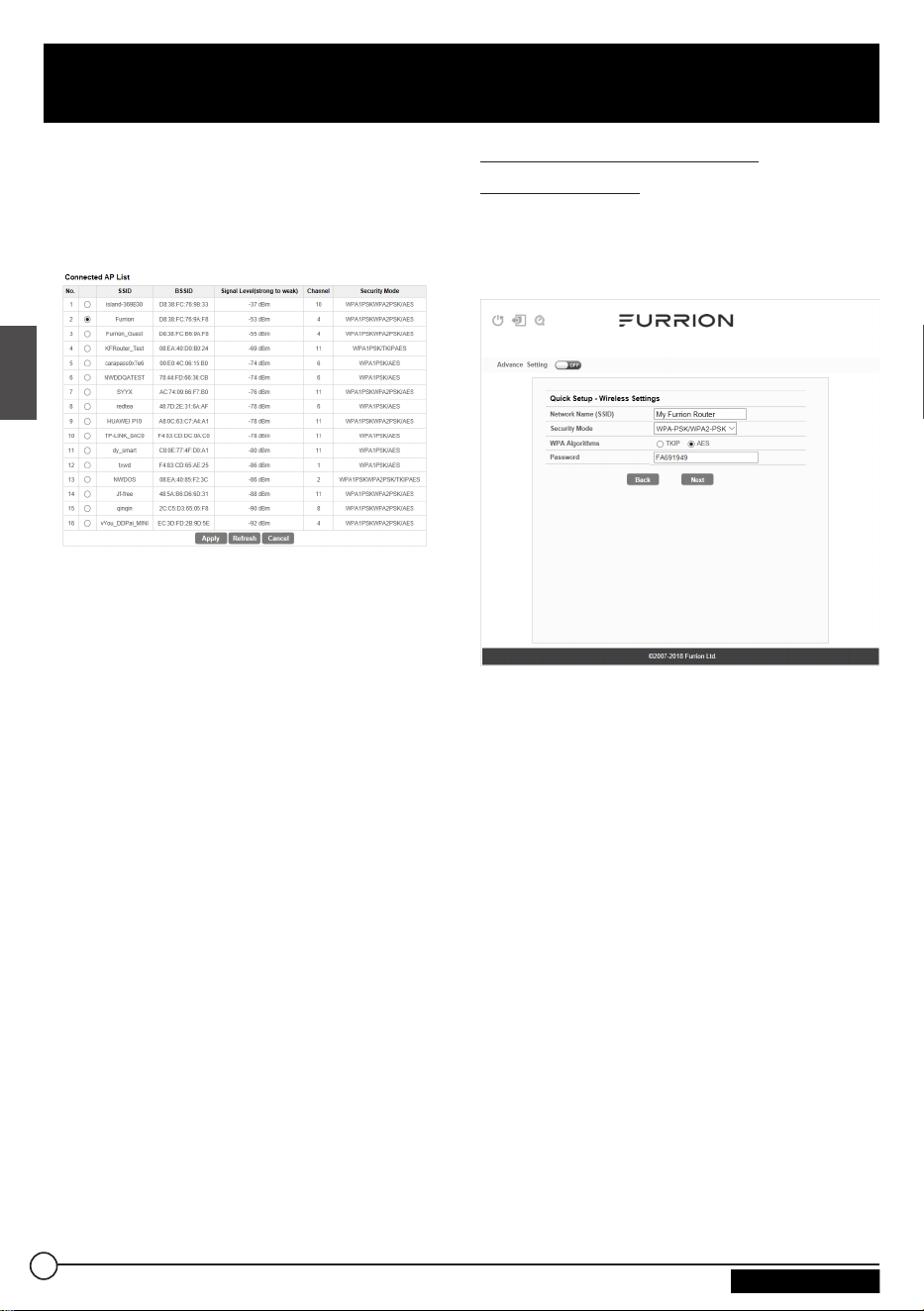
SCAN AP: (Buscar AP): haga clic
en SCAN (buscar) para buscar los
AP disponibles; luego, aparecerá la
siguiente ventana.
Elija el AP al que desee conectarse
desde la ventana emergente y haga
clic en Apply (aplicar) para aplicar los
ajustes de red.
AP SSID: el SSID del AP buscado y
aplicado aparecerá aquí. También puede
introducir un SSID de red disponible
directamente aquí.
Password: (contraseña): introduzca la
contraseña del AP seleccionado.
Haga clic en Next (siguiente) para
avanzar al siguiente paso.
Cambio de los ajustes
inalámbricos
Emergerá una nueva ventana, desde
la cual podrá cambiar los ajustes
inalámbricos.
Network Name (SSID) (nombre de la
red, SSID): permite cambiar el nombre
del SSID del enrutador Wi-Fi. En este
ejemplo, el nombre se cambió a My
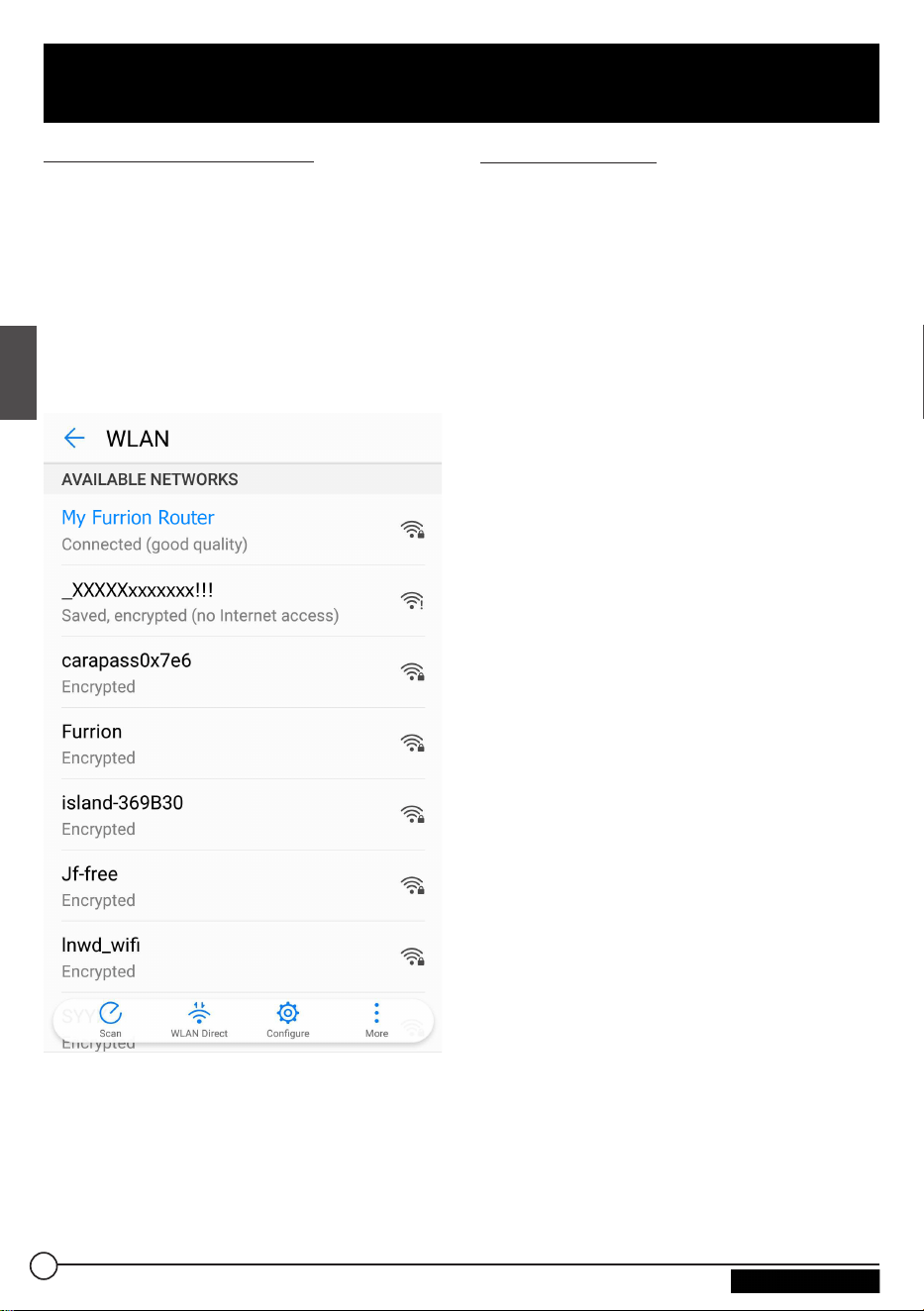
Furrion Router (mi enrutador Furrion).
NOTA: asegúrese de que su SSID sea
único en caso de que haya otras redes
inalámbricas en su área.
Security Mode: (modo de seguridad):
seleccione un modo de seguridad: No
Encryption (sin cifrado), WPA-PSK,
WPA2-PSK, o WPA-PSK/WPA2-PSK.
WPA Algorithms: (algoritmos WPA):
TKIP o AES.
Password: (contraseña): indique
la contraseña del acceso a Internet
mediante el enrutador Wi-Fi.
Haga clic en Next (siguiente) para
avanzar al siguiente paso.
40
Español
Configuración del enrutador Wi-Fi
CCD-0005549 Rev. 07.27.23
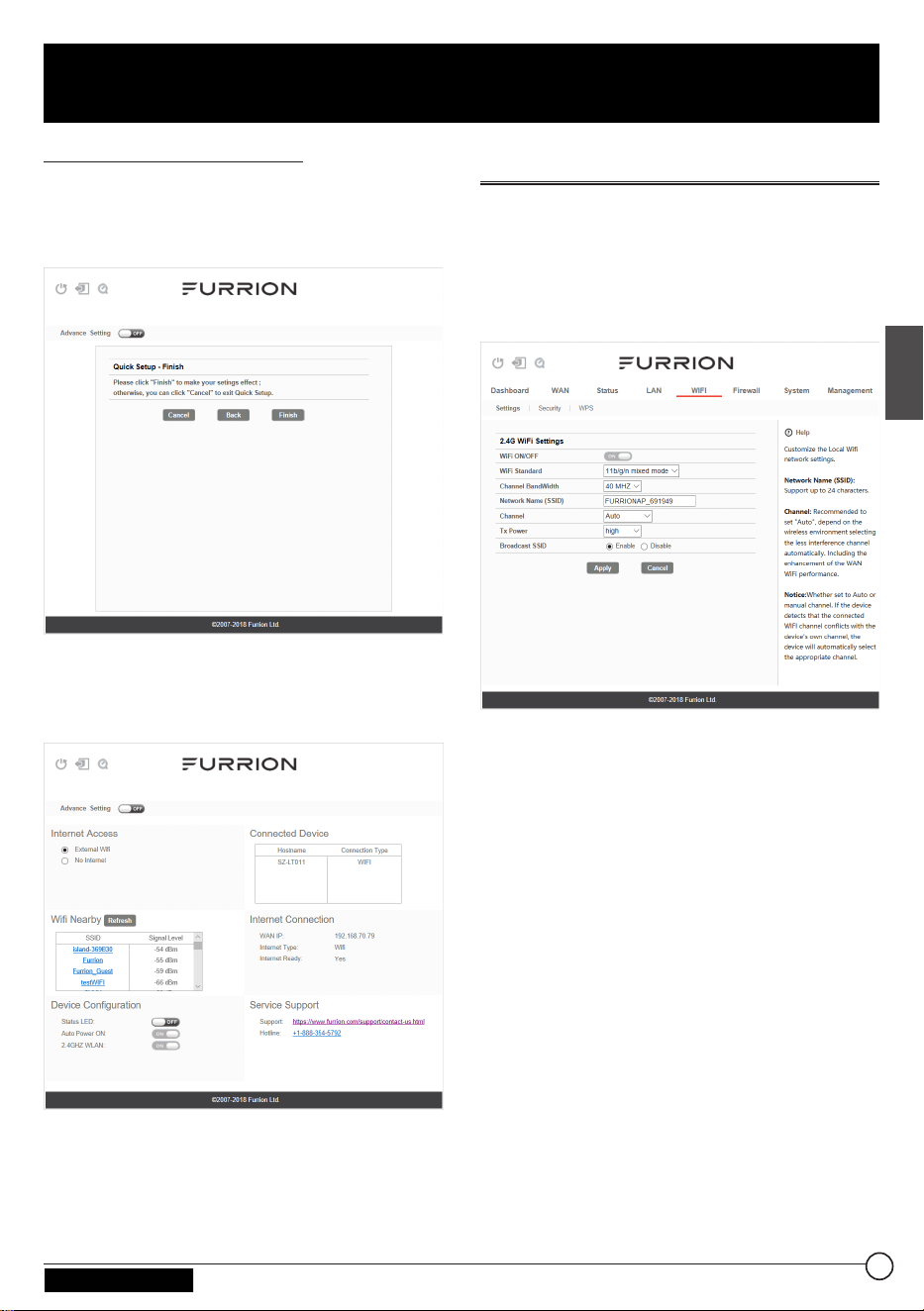
Confirme sus ajustes
En la ventana emergente, haga clic
en “Finish” (finalizar) para guardar y
concluir con la configuración rápida.
Una vez finalizada la configuración del
enrutador Wi-Fi, debería poder acceder
a Internet usándolo.
Configuración avanzada
Haga clic en Advance Setting (ajustes
avanzados) para activar la página de
configuración avanzada, en la cual podrá
configurar aún más los ajustes de WAN,
LAN, Wi-Fi, Firewall, etc.
41
Español
Configuración del enrutador Wi-Fi
CCD-0005549 Rev. 07.27.23
42
Español
Acceder a Internet mediante el enrutador Wi-Fi
Conexión inalámbrica
1. Busque las redes inalámbricas
disponibles desde su dispositivo
móvil o computadora portátil. La red
podría tardar algunos minutos en
aparecer.
2. Encuentre la SSID que configuró para
su enrutador Wi-Fi como, por ejemplo,
My Furrion Router.
3. Confirme para conectarse al
enrutador Wi-Fi.
− Ya puede entrar a Internet usando
su enrutador Wi-Fi.
Conexión LAN
También puede acceder a Internet en
sus dispositivos (como su computadora
o smart TV) usando el conector LAN
disponible en el soporte de montaje de
techo.
CCD-0005549 Rev. 07.27.23
Apagar o reiniciar su
enrutador Wi-Fi
Nota: tenga cuidado, ya que el enrutador
Wi-Fi podría calentarse después de
funcionar durante un largo periodo de
tiempo.
Puede apagarlo o reiniciarlo cuando sea
necesario.
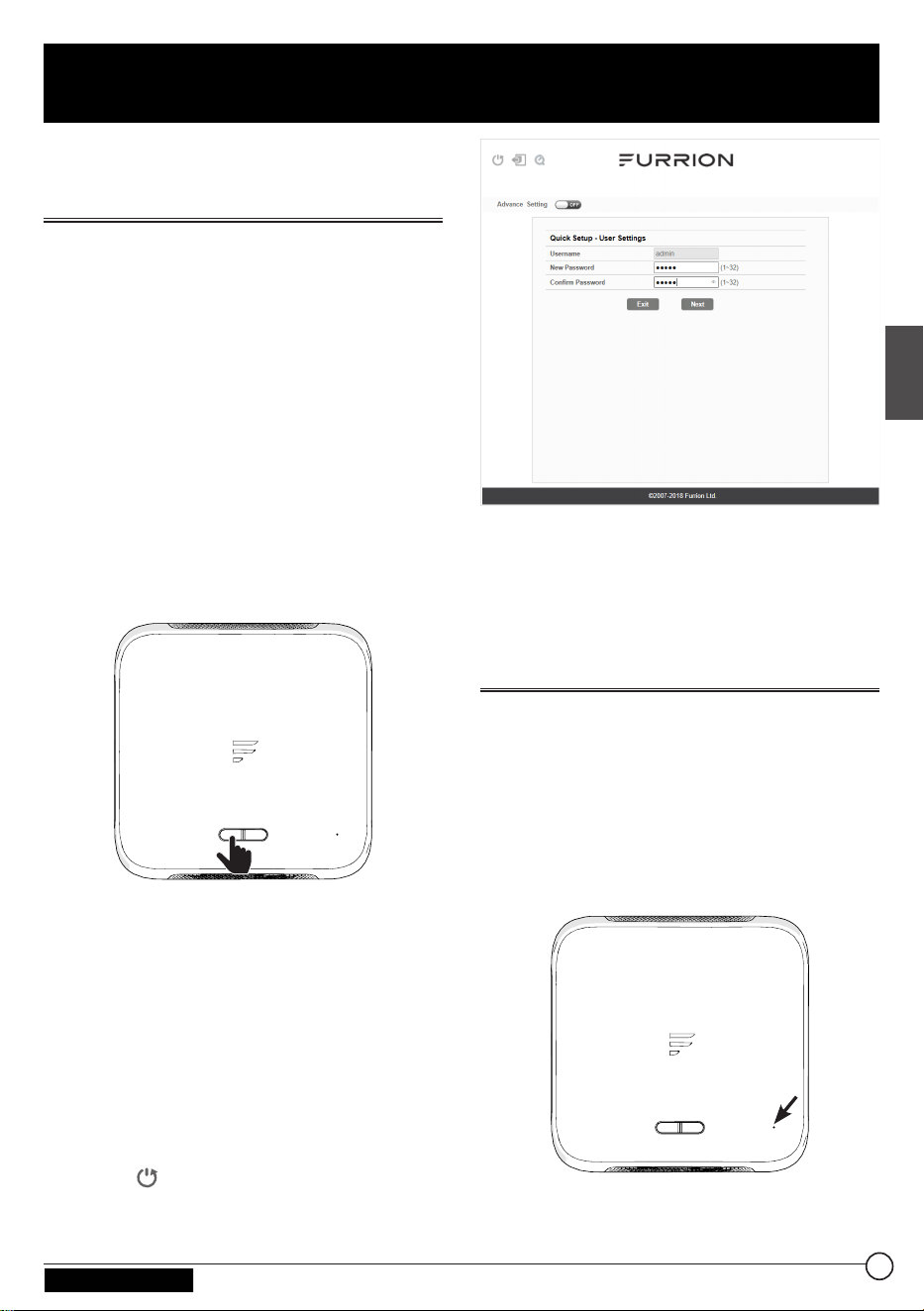
Para apagarlo:
● Mantenga presionado el botón
POWER de la parte superior del
enrutador Wi-Fi durante unos
4segundos.
El LED de estado de red parpadeará
y luego se apagará.
POWER STAT US
RESET
NOTA: se recomienda esperar
30segundos antes de encender el
enrutador Wi-Fi después de haberlo
apagado.
Para reiniciarlo:
● Inicie sesión en la interfaz de
configuración (consulte la sección
“Inicio de sesión” para ver cómo
acceder) y luego haga clic en el
botón .
● O bien presione brevemente el botón
RESET con un objeto puntiagudo.
Cómo restablecer su
enrutador Wi-Fi
Para restablecer su enrutador Wi-Fi a
los ajustes predeterminados de fábrica,
mantenga presionado el botón RESET
usando un objeto puntiagudo durante
unos 10segundos y luego suéltelo.
El LED parpadeará 3veces y luego se
apagará.
POWER STAT US
RESET
43
Español
Mantenimiento
CCD-0005549 Rev. 07.27.23
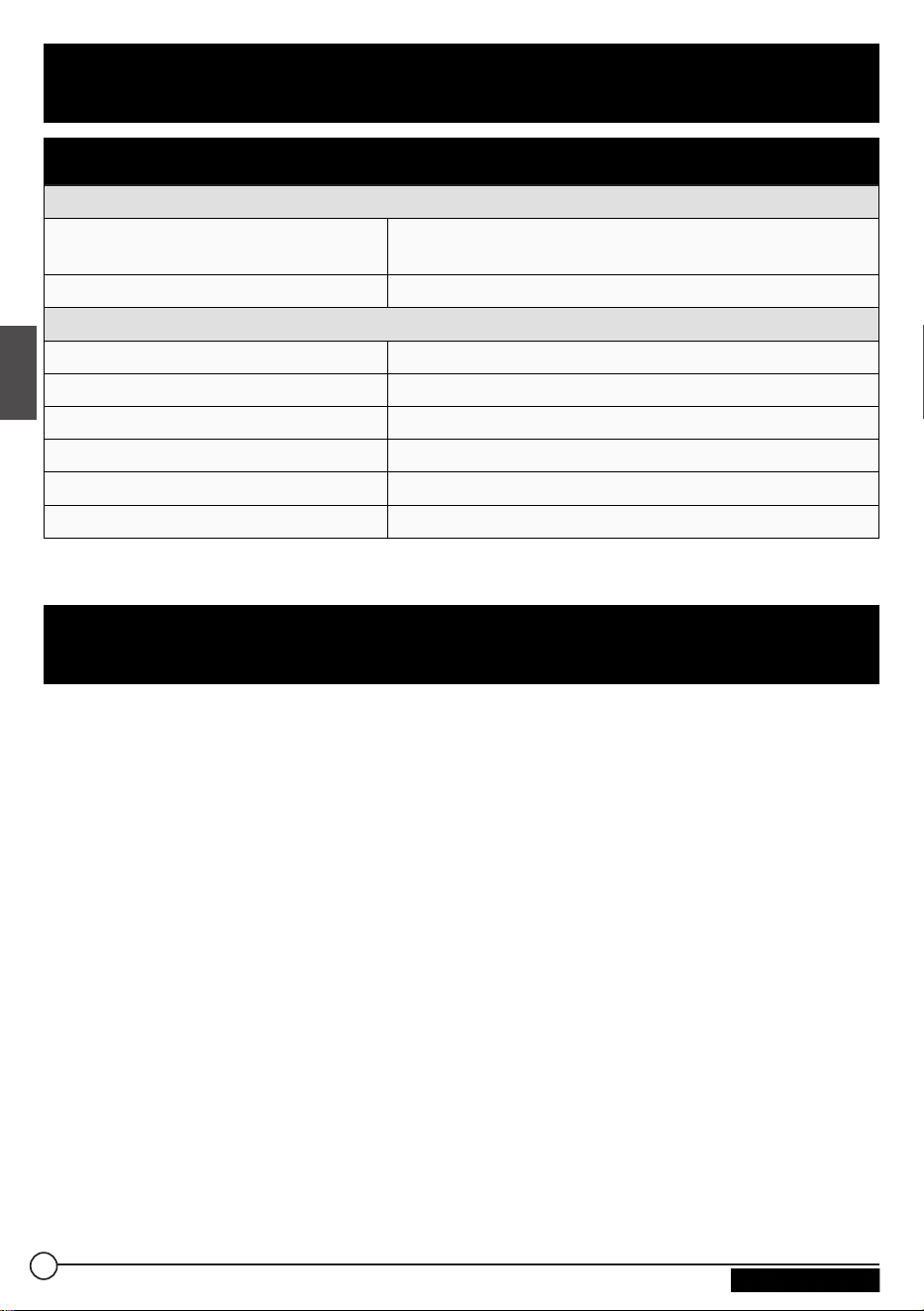
Especificaciones técnicas
CONDICIONES OPERATIVAS
RANGO DE FRECUENCIA (WI-FI)
2412MHz a 2462MHz (802.11b/g/n (HT20))
2422MHz a 2452MHz (802.11n (HT40)
SISTEMAS COMPATIBLES
Wi-Fi (LAN): 802.11b/g/n
GANANCIA DE LA ANTENA
LAN WI-FI INTERNA
2dBi
GPS/GLONASS INTERNO
2dBi
WI-FI TX POWER (WAN / LAN)
2.4G Wi-Fi: 17.78dBm (máx.)
ENRUTADOR WI-FI
>400pies con >10Mbps de rendimiento
POTENCIA NOMINAL
Típica: 12Vdc @ 500mA, pico de 1A
TEMPERATURA OPERATIVA
-20°C a 55°C / -4°F a 131°F
1. Ninguno de los LED se enciende al encender el enrutador
Asegúrese de que el soporte de montaje de techo esté recibiendo energía.
Revise la conexión entre el soporte de montaje de techo y el enrutador Wi-Fi. Si
el error persiste, tal vez tenga un problema de hardware. En este caso, deberá
contactar a soporte técnico.
2. Si olvidó el nombre de usuario o la contraseña de su enrutador
Intente usar el nombre de usuario y contraseña predeterminados, los que
aparecen en la sección “Inicio de sesión”. Si no resulta, puede restaurar su
enrutador a los ajustes predeterminados de fábrica manteniendo presionado el
botón Reset de la parte superior del enrutador, usando un objeto puntiagudo,
durante 10segundos o más. Podrá usar el nombre de usuario y contraseña
predeterminados tras realizar el restablecimiento de fábrica.
3. Sin acceso a Internet
Revise el estado de acceso externo a la red y la conexión Wi-Fi.
44
Español
Especificaciones
Resolución de problemas
CCD-0005549 Rev. 07.27.23

FURRION GARANTIZA POR UN PERÍODO DE UN AÑO A PARTIR DE LA FECHA
DE COMPRA REALIZADA POR EL COMPRADOR FINAL ORIGINAL, QUE
ESTE PRODUCTO, CUANDO SE ENTREGA COMO NUEVO, EN SU EMPAQUE
ORIGINAL, DE UN RESELLER AUTORIZADO DE FURRION Y UTILIZADO
BAJO CONDICIONES NORMALES, NO POSEE DEFECTOS DE FÁBRICA, DE
MATERIALES NI DE MANO DE OBRA. SI SE PRESENTAN DICHOS DEFECTOS,
FURRION DEBERÁ REEMPLAZAR O REPARAR EL PRODUCTO SIN CARGO
PARA USTED. ESTA GARANTÍA NO CUBRE: PRODUCTOS CUYOS NÚMEROS
DE SERIE ORIGINALES SE HAYAN ELIMINADO, ALTERADO O NO SE
PUEDAN DETERMINAR FÁCILMENTE; DAÑOS O PÉRDIDAS CAUSADOS POR
ACCIDENTES, MAL USO, ABUSO, DESCUIDO, MODIFICACIÓN DEL PRODUCTO,
INCUMPLIMIENTO DE LAS INSTRUCCIONES DEL MANUAL DEL PROPIETARIO,
USO COMERCIAL O INDUSTRIAL; DAÑOS O PÉRDIDAS CAUSADOS A LA
SUPERFICIE DECORATIVA DEL PRODUCTO; A CUALQUIER TIPO DE DATOS,
SOFTWARE O INFORMACIÓN; Y EL DESGATE NORMAL. ESTA GARANTÍA SOLO
PROTEGE AL USUARIO FINAL ORIGINAL (“USTED”) Y NO ES TRANSFERIBLE;
CUALQUIER INTENTO DE TRANSFERENCIA RESULTARÁ EN LA ANULACIÓN
INMEDIATA. ESTA GARANTÍA SOLO ES VÁLIDA EN EL PAÍS DONDE SE
REALIZÓ LA COMPRA.
ESTA GARANTÍA Y LOS RECURSOS ESTIPULADOS ANTERIORMENTE SON
EXCLUSIVOS Y REEMPLAZAN TODAS LAS DEMÁS GARANTÍAS, RECURSOS Y
CONDICIONES, YA SEAN VERBALES O ESCRITOS, EXPRESOS O IMPLÍCITOS.
FURRION RECHAZA ESPECÍFICAMENTE CUALQUIER GARANTÍA IMPLÍCITA,
INCLUSIVE, ENTRE OTRAS, LAS GARANTÍAS DE COMERCIABILIDAD E
IDONEIDAD PARA UN USO EN PARTICULAR. SI FURRION NO PUEDE RECHAZAR
LEGALMENTE LAS GARANTÍAS IMPLÍCITAS BAJO ESTA GARANTÍA LIMITADA,
DICHAS GARANTÍAS, INCLUIDAS LAS GARANTÍAS DE COMERCIABILIDAD
E IDONEIDAD PARA UN USO EN PARTICULAR, TENDRÁN UNA DURACIÓN
LIMITADA A LA DURACIÓN DE ESTA GARANTÍA.
Ningún revendedor, agente o empleado de Furrion está autorizado a realizar
modificaciones, extensiones o adiciones a esta garantía.
Garantía
45
Español
CCD-0005549 Rev. 07.27.23

Garantía
FURRION NO SE HACE RESPONSABLE DE LOS DAÑOS DIRECTOS, INDIRECTOS,
ESPECIALES, INCIDENTALES O DERIVADOS QUE PUEDAN SURGIR DE
CUALQUIER INCUMPLIMIENTO DE LA GARANTÍA O CONDICIÓN, O BAJO
CUALQUIER OTRA TEORÍA LEGAL, INCLUIDOS, ENTRE OTROS, PÉRDIDAS
DE GANANCIAS, TIEMPO DE INACTIVIDAD, FONDO DE COMERCIO, DAÑO O
REEMPLAZO DE CUALQUIER EQUIPO O PROPIEDAD, TODOS LOS COSTOS
DE RECUPERACIÓN, REPROGRAMACIÓN O REPRODUCCIÓN DE CUALQUIER
PROGRAMA O DATO ALMACENADO EN LOS PRODUCTOS DE FURRION O
USADO POR ESTOS. LA RESPONSABILIDAD TOTAL DE FURRION SE LIMITA
A LA REPARACIÓN O SUSTITUCIÓN DE ESTE PRODUCTO CONFORME A LOS
TÉRMINOS DE ESTA GARANTÍA.
ALGUNOS ESTADOS NO ADMITEN LA EXCLUSIÓN O LIMITACIÓN DE
RESPONSABILIDAD POR DAÑOS INCIDENTALES O DERIVADOS, O
EXCLUSIONES O LIMITACIONES SOBRE LA DURACIÓN DE LAS GARANTÍAS
IMPLÍCITAS O CONDICIONES, EN CUYO CASO LAS LIMITACIONES O
EXCLUSIONES ANTERIORES PODRÍAN NO APLICARSE A USTED. ESTA
GARANTÍA LE OTORGA DERECHOS LEGALES ESPECÍFICOS, Y PUEDE
QUE TENGA OTROS DERECHOS DEPENDIENDO DE CADA ESTADO O PAÍS
(SI SE APLICA EN LOS PAÍSES DONDE FURRION POSEE DISTRIBUIDORES
AUTORIZADOS CANADIENSES O NO ESTADOUNIDENSES). NINGUNA ACCIÓN O
RECLAMACIÓN PARA APLICAR ESTA GARANTÍA SE DEBE COMENZAR DESPUÉS
DEL VENCIMIENTO DEL PERÍODO DE GARANTÍA.
Conserve su recibo, comprobante de entrega u otro registro de pago adecuado para
establecer el período de garantía. El servicio bajo esta garantía se debe obtener por
medio de Furrion escribiendo a [email protected]
Las funciones o especificaciones del producto tal como se describen o se ilustran
están sujetas a cambios sin previo aviso.
46
Español
CCD-0005549 Rev. 07.27.23

CCD-0005549 Rev. 07.27.23

IM-FAV00049 V1.
0
Furrion Ltd. (Furrion) is a wholly owned subsidiary of Lippert Components, Inc. (Lippert)
Furrion Ltd.
(F
urrion) est une filiale en propriété exclusive de Lippert Components, Inc. (Lippert)
Furrion Ltd. (Furrion) es una filial propiedad de Lippert Components, Inc. (Lippert)
Furrion Innovation Center & Institute of Technology
Centre d’innovation et institut de technologie Furrion
Centro de Innovación e Instituto Tecnológico Furrion
● 22244 Innovation Drive, Elkha
rt, IN 46514-5514, USA
● Toll free/Numéro gratuit/Línea telefónica gratuita:1-800-789-3341
● Email/Courriel/Correo electrónico: [email protected]
©2007-2023 Furrion Ltd. Furrion®
and the Furrion logo are trademarks licensed for use by Furrion Ltd. and registered in the
U.S. and other countries.
©2007-2023 Furrion Ltd. Furrion® et le logo Furrion sont des marques commerciales utilisées sous licence par
Furrion Ltd. et
déposées aux États-Unis et dan
s d’autres pays.
©2007-2023 Furrion Ltd. Furrion® y el logotipo de Furrion son marcas registradas con licencia de uso de Furrion Ltd. y
registradas en EE. U. y en otros países.
FURRION.COM
For Patent Info: www.Lippert.com/patents
Pour des informations sur les brevets: www.Lippert.com/patents
Para obtener información sobre patentes: www.Lippert.com/patents
The contents of this manual are proprietary and copyright protected by Lippert. Lippert prohibits the copying or dissemination
of portions of this manual unless prior written consent from an authorized Lippert representative has been provided. Any
unauthorized use shall void any applicable warranty. The information contained in this manual is subject to change without
notice and at the sole discretion of Lippert. Revised editions are available for free download from lippert.com.
Please recycle all obsolete materials.
Les renseignements contenus dans le présent manuel peuvent seulement être distribués sous forme de document complet, à
moins de recevoir l’approbation explicite de Lippert Components pour distribuer desparties individuelles. Tous les
renseignements contenus dans le présent manuel peuvent être modifiés sans préavis. Les éditions révisées pourront être
téléchargées gratuitement sur le site lci1.com. Ces rensei-gnements sont considérés comme étant factuels jusqu’à ce qu’une
version révisée les rende désuets.
Veuillez recycler tout le matériel désuet.
El contenido de este manual es propiedad de Lippert y está protegido por derechos de autor. Lippert prohí-be la copia o difusión
de partes de este manual a menos que se cuente con el consentimiento previo por es-crito de un representante autorizado de
Lippert. Cualquier uso no autorizado anulará la garantía correspon-diente. La información que contiene este manual está sujeta
a cambios sin previo aviso y a sola discreción de Lippert. Las ediciones revisadas están disponibles para su descarga gratuita
desde lippert.com.
Recicle todos los materiales obsoletos.
For all concerns or questions, please contact Lippert.
Communiquer avec Lippert Components si vous avez des questions ou des préoccupations.
Si tiene dudas o preguntas, comuníquese con Lippert.
Ph: 432-LIPPERT (432-547-7378) | Web: lippert.com | Email: [email protected]
CCD-0005549
CCD-0005549 Rev. 07.27.23