
Mobile Data Terminal
About the Terminal
1. Press and hold the Power button until the options menu appears.
Press and hold the Power button for approximately 8 seconds
until it restarts.
You may need to restart the terminal to correct conditions where
an application stops responding to the system or the terminal
seems to be locked up.
2. Select Restart.
To restart the terminal if the touch panel display is unresponsive:
P600 Quick Start Guide
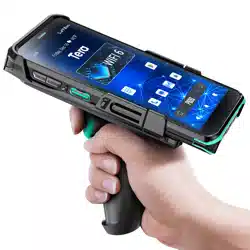
Introducing the Tera P600: A sleek, full-touch handheld terminal
designed to help businesses provide speed workflows such as in-
store merchandising, and order picking for in-store pickup or
delivery. Powered by the Android ™ 11 operating system and
equipped with a high-performance octa-core chipset, fast Wi-Fi,
and 4G LTE connectivity, the P600 offers a seamless user
experience.
Moreover, the P600 offers the added benefit of a warm swap
batter y feature and delivers real-time connectivity and advanced
data capture with Bluetooth wireless radio technology that
includes Bluetooth Low Energy, and integrated Near Field
Communication (NFC) technology. This broad spectrum of
capabilities makes it an ideal solution for applications spanning
logistics, warehousing, retail, and beyond.
Install Micro SD and SIM cards
The positions of the card slots are indicated as follows:
Note: Always power off the terminal before attempting to install
or remove a card.
About the battery
1. If you are storing the terminal for a few days (such as cover
the weekend), install a fully charged battery or connect the
terminal to a power source. If you are storing the terminal for a
longer period of time, remove and charge the battery. When the
batter y is done charging, store both the batter y and the terminal
in a cool location. If you store the battery for several months,
recharge the batter y periodically to keep it at peak performance.
2. Expected Battery Life: Under typical conditions, the battery
The terminal uses a rechargeable Li-ion battery as its main
power source. Several factors determine the life of the battery,
such as screen brightness, screen timeout, network option, and
extreme temperature.
3. As lithium-ion batteries chemically age, the amount of charge
they can hold diminishes, resulting in shorter amounts of time
before a device needs to be recharged.
can retain up to 80% of its original capacity after approximately
300 complete charge cycles. A charge cycle involves the process
of both charging and discharging the battery as needed for
device usage.
Caution:Improper batter y replacement or incompatible device
usage may result in risk of burns,fire, explosion, or other hazard.
Dispose of lithium-ion batteries according to local regulations.
Risk of fire and burns if improperly handled. Do not open, crush,
heat or incinerate..
1. Insert the charged battery pack into the battery
compartment. The bottom of the batter y must go in first.
2. Press the battery down into the battery compartment until the
batter y release latches snap into place.
3. Slide the batter y latch to the left.
4. For maximum batter y life, charge the battery at 20 °C (68°F) to
25°C (77°F) and store at 20°C (68°F) with a 30%-50% charge.
1. Press and hold the Power button until the options menu
appears.
2. Tap Power off.
The terminal will start charging automatically, and the LED
Indicator will display the current charge status. If the LED
indicator is solid red, it means that the terminal is charging; if
the LED indicator is solid green, it indicates that the terminal is
fully charged.
4. Remove the battery from the battery compartment.
You also have the option of using the original USB Type-A to USB
Type-C cable to charge the terminal from a host device, such as a
laptop or desktop computer. However, please ensure that the
connected host device can supply a minimum power output of
5V and 0.5A to the terminal.
Begin by connecting the USB cable to the power adapter, and
then connect it to the terminal.
3. Slide the batter y latch to the right. The battery ejects slightly.
This device comes with a USB Type-C port, and it is
recommended to charge the device using the provided original
USB cable and power adapter.
NFC tag reader/writer mode: The terminal reads and/or writes
digital information from or to an NFC tag.
NFC technology provides the ability for short-range, wireless
data transfer between the P600 and NFC tags or other NFC
enabled devices placed in close proximity to the back of the
terminal.
The P600 supports the following mode of operation:
To modify the scan profile or assess the scan engine's
performance, you must launch the BCScan application. Below is a
screenshot showcasing the application's primar y interface.
(Note: Avoid using third-party cables or adapters to charge the
terminal for optimal performance and safety.)
BCScan is a demonstration application designed to test scan
performance and manage the scan engine. Please be aware that
not all barcode symbologies are activated by default in the
BCScan app. If a barcode fails to scan, it is possible that the
correct symbology is not enabled.
Using the terminal while charging the battery increases the time
required to reach a full charge. If the mobile terminal is drawing
more current than supplied by the charging source, charging will
not take place.
In the Demo app, tap in the upper left corner of the screen to
obtain further information regarding each scan result.
The scan results will appear in the upper box and the related
information regarding the scanned barcode including symbology,
decoding time and message length will show up in the fields
underneath the box.
If you need to check scanning accuracy, please tap
previous scan and the current scan so as for the user to identify
In this screen, you will find two text boxes where will show the
if the scans are the same.
To set up the scan engine, please tap to access scanner settings
By default, the integrated scan engine is enabled for scanning. It
supports omni-directional barcode scanning, and an aiming beam is
provided to help assist with targeting barcodes.
If you require data format modifications such as adding a prefix or
suffix, or removing characters, please tap on the Label Formatting
option to access additional settings.
If you need to enable or disable symbologies, DPM Mode, or OCR
Mode, please tap on the Symbology Settings option to access further
settings.
If you have completed the setup process for a device and would like
to install the same configuration on another device, please follow
these steps:
• Locate the exported file and transfer it to the desired device.
• Tap , and choose the "Export Config" option
• Launch the BCScan app on the target device.
• Navigate to the scanner settings within the app.
• Select the "Import Config" option to load the previously exported
file.
Specifications
Mechanical
Terminal Features
Buttons and Description
Restart the terminal
Install the Battery
Remove the Battery
Charge the Terminal
About Near Field Communication (NFC)
About the BCScan Application.
The front, back and side view of the P600 are shown as follows:
System Architecture
Environmental
Connectivity
Data Collection
Need Support?
Issue with missing or damaged items?
info@tera-digital.com
https://www.tera-digital.com
+1(626)438-1404
Scan Engine Honeywell Scan Engine
NFC ISO 14443 Type A and B
WAN 2G/3G/4G
IEEE 802.11 a/b/g/n/ac/ax ready/d/e/h/i/j/
k/r/v/w(2.4G/5G Dual band WIFI)
WLAN
Bluetooth Bluetooth 5.1, Bluetooth Low Energy (BLE)
Operating
Temperature
-20℃ to 50℃/-4°F to 122°F
Storage
Temperature
-40℃ to 70℃/-40°F to 158°F
Humidity
5%RH - 95%RH (Non-condensing)
Sealing
IP67, IEC sealing standard
Drop Test
Multiple drops to concrete at room
temperature from 1.5m / 4.9 ft.
Electrostatic
Discharge (ESD)
+/-15 kV air discharge, +/-8 kV direct
discharge
CPU Qualcomm Snapdragon 662, Octa-core, 2.0GHz
Operating System Android 11
RAM 4GB
Interface USB Type-C
ROM 64GB
Storage Expansion Micro SD card
Dimensions 163 x 77.2 x 13 mm / 6.4 x 3.0 x 0.51 in.
Weight 259 g / 9.14 oz. (with battery)
Display 6-inch 2160 x 1080 FHD IPS
Backlight 450 Nits, LED
Buttons
User-defined button + Volume up/down
2 SCAN buttons + 1 Power button+1
buttons
5000 mAh removable li-ion battery
Standby: over 300 hours
Continuous use: over 12 hours (depending
on user environment)
Charge time: 2.5 hours (with the original
adaptor and USB cable, QC 3.0)
Battery
SIM Card Tray 2 slots for Nano SIM card, 1 slot for TF card
Audio 2 microphones, 1 speaker
Camera Rear 16MP autofocus camera; flash LED
Volume
Up/Down
Left Scan
Button
Power Button
Custom Button
Right Scan
Button
Speaker(Handset
Receiver)
Front
Camera
Indicator
Light Sensor and
Proximity
Sensor
Rear Camera
Scan Engine
NFC Antenna
Loudspeaker
Expansion
Ports
Battery Latch
SIM and TF
Card Slot
Battery
Compartment
T
SI M2
SI M1