

Model C3225TZ
Tizen 8.0
User Manual
Cello Electronics
Dovecot Hill,
South Church,
Bishop Auckland UK
DL14 6XW

1
Page Contents Summary
2. Setup Wizard
8. Home page
9. Home
11. Source
14. TV sengs
14. Picture
17. Sound
19. Connecons
21. Broadcasng
24. General & Privacy
31. Support
35. Specicaons
36. Safety Warnings
37. Maintenance
38. Waste & Recycling
NT72690&NT72691
2
Setup Wizard
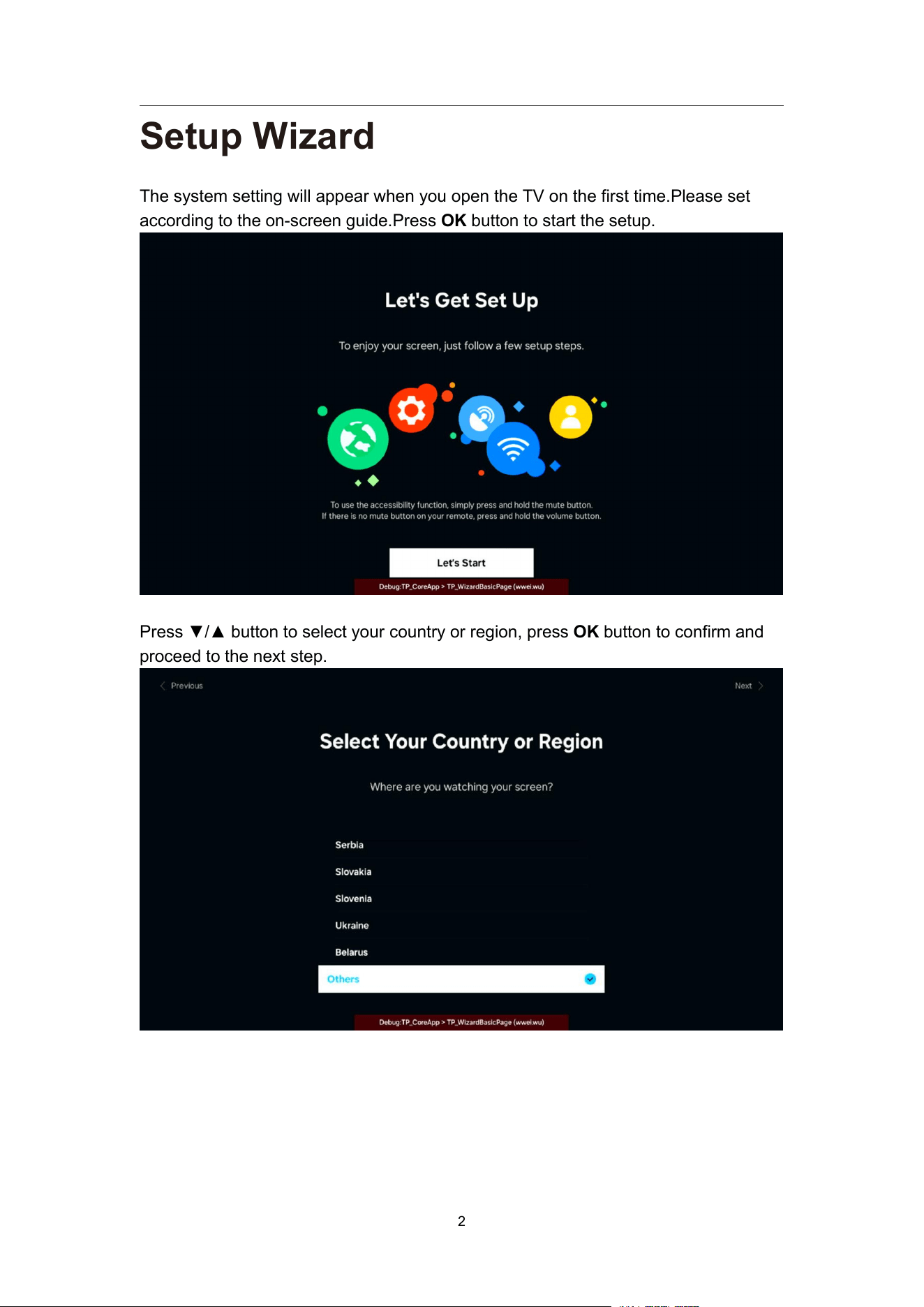
The system setting will appear when you open the TV on the first time.Please set
according to the on-screen guide.Press OK button to start the setup.
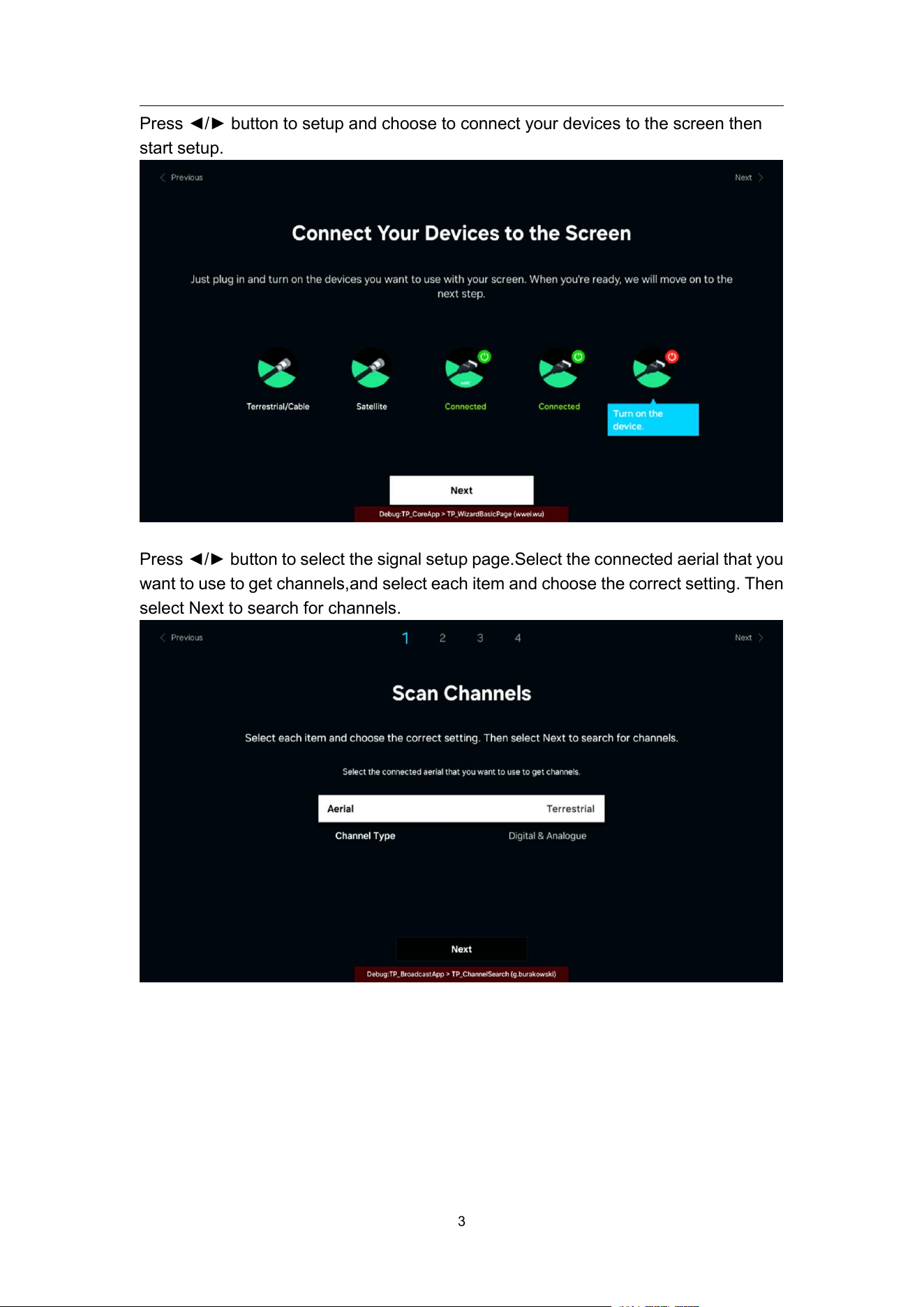
Press ▼/▲ button to select your country or region, press OK button to confirm and
proceed to the next step.
NT72690&NT72691
3
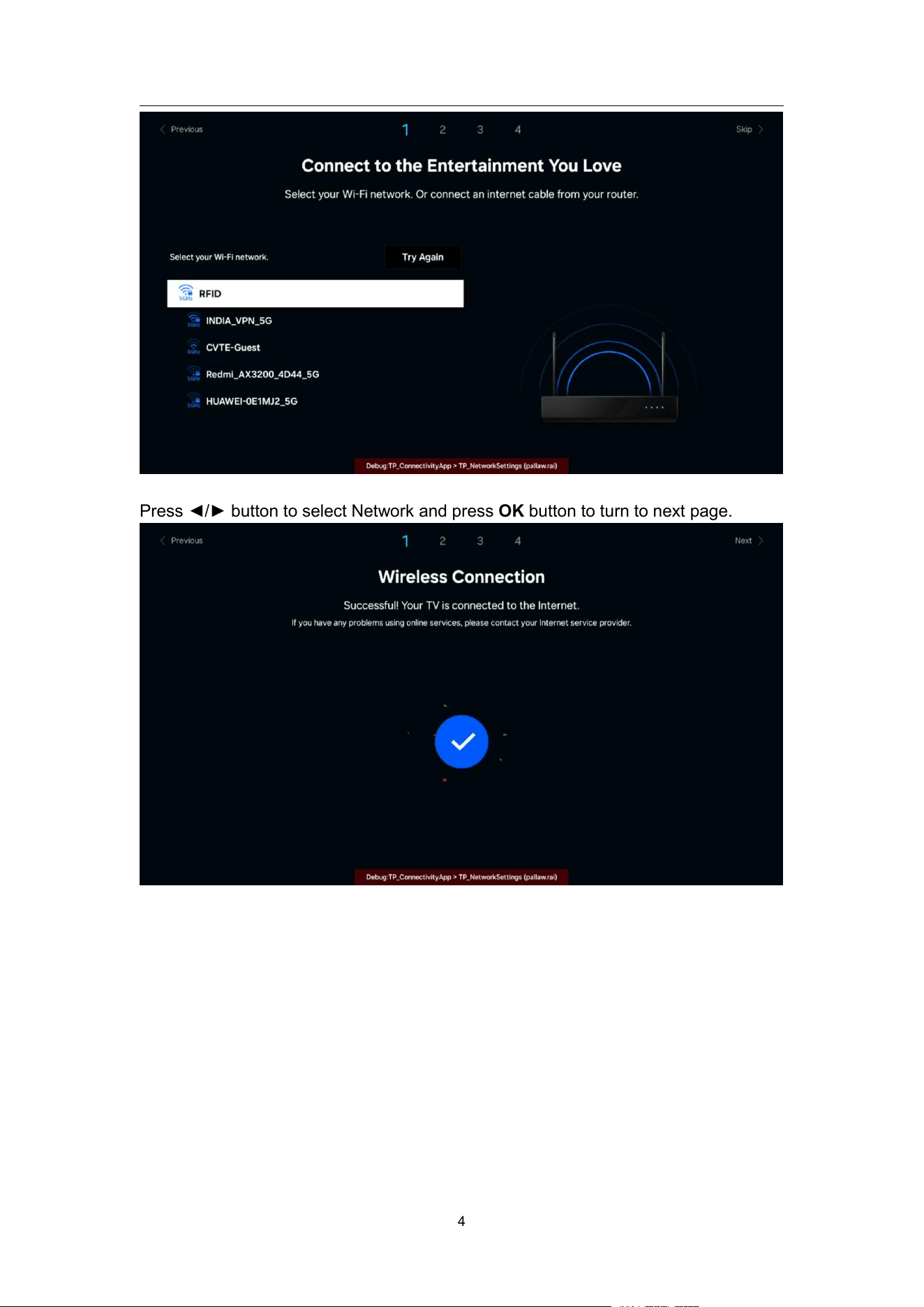
Press ◄/► button to setup and choose to connect your devices to the screen then
start setup.
Press ◄/► button to select the signal setup page.Select the connected aerial that you
want to use to get channels,and select each item and choose the correct setting. Then
select Next to search for channels.
NT72690&NT72691
4
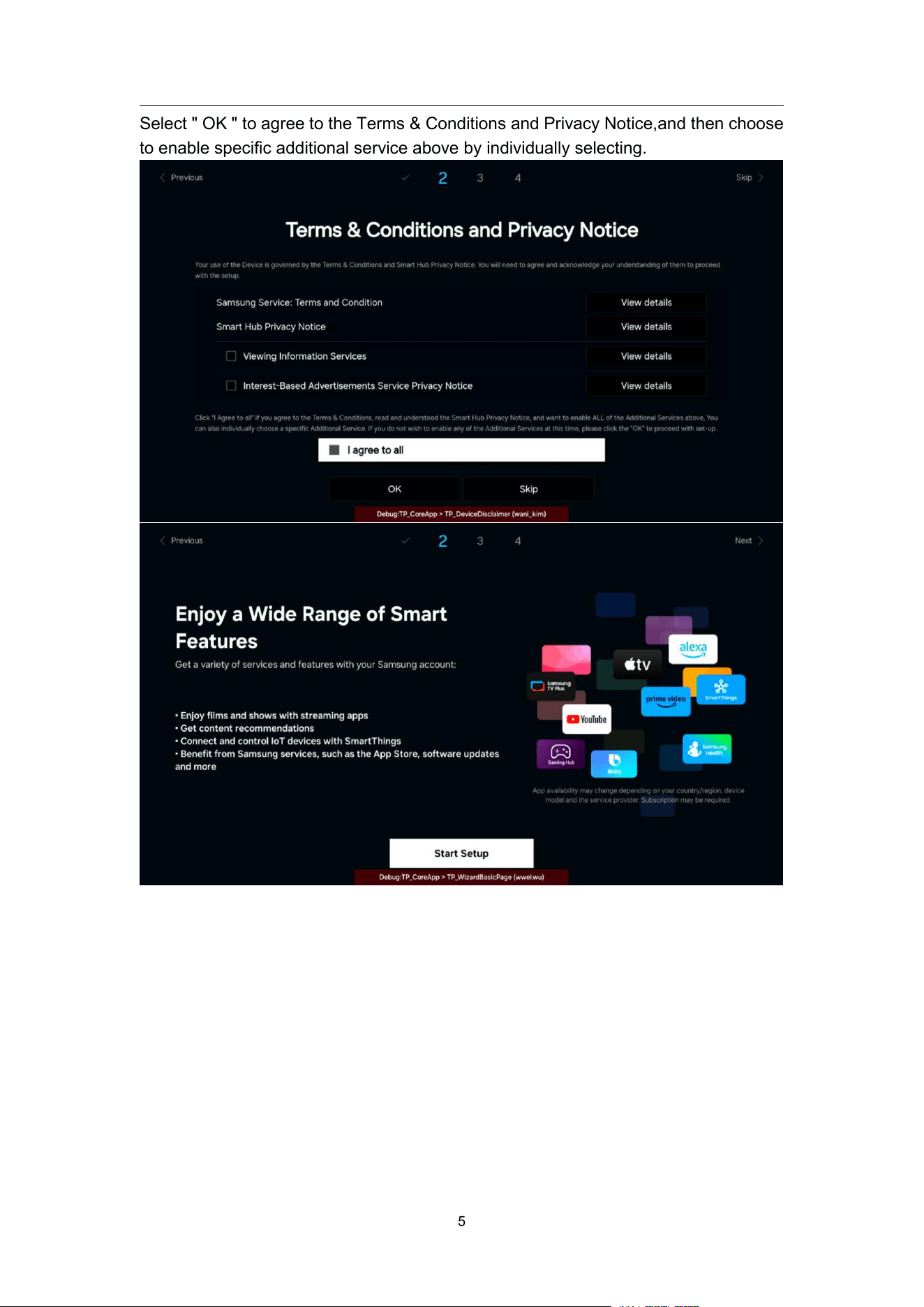
Press ◄/► button to select Network and press OK button to turn to next page.
NT72690&NT72691
5
Select " OK " to agree to the Terms & Conditions and Privacy Notice,and then choose
to enable specific additional service above by individually selecting.
NT72690&NT72691
6
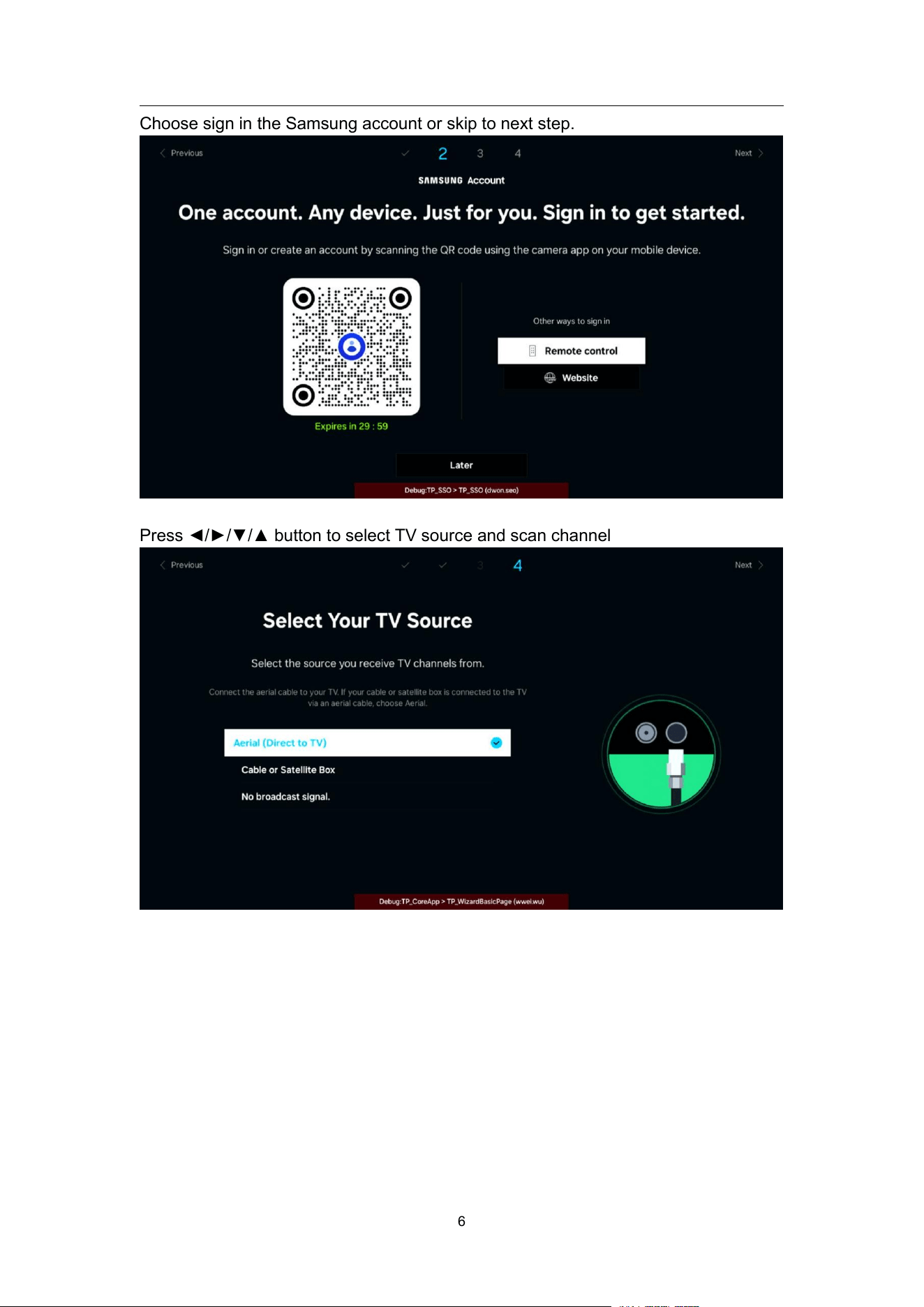
Choose sign in the Samsung account or skip to next step.
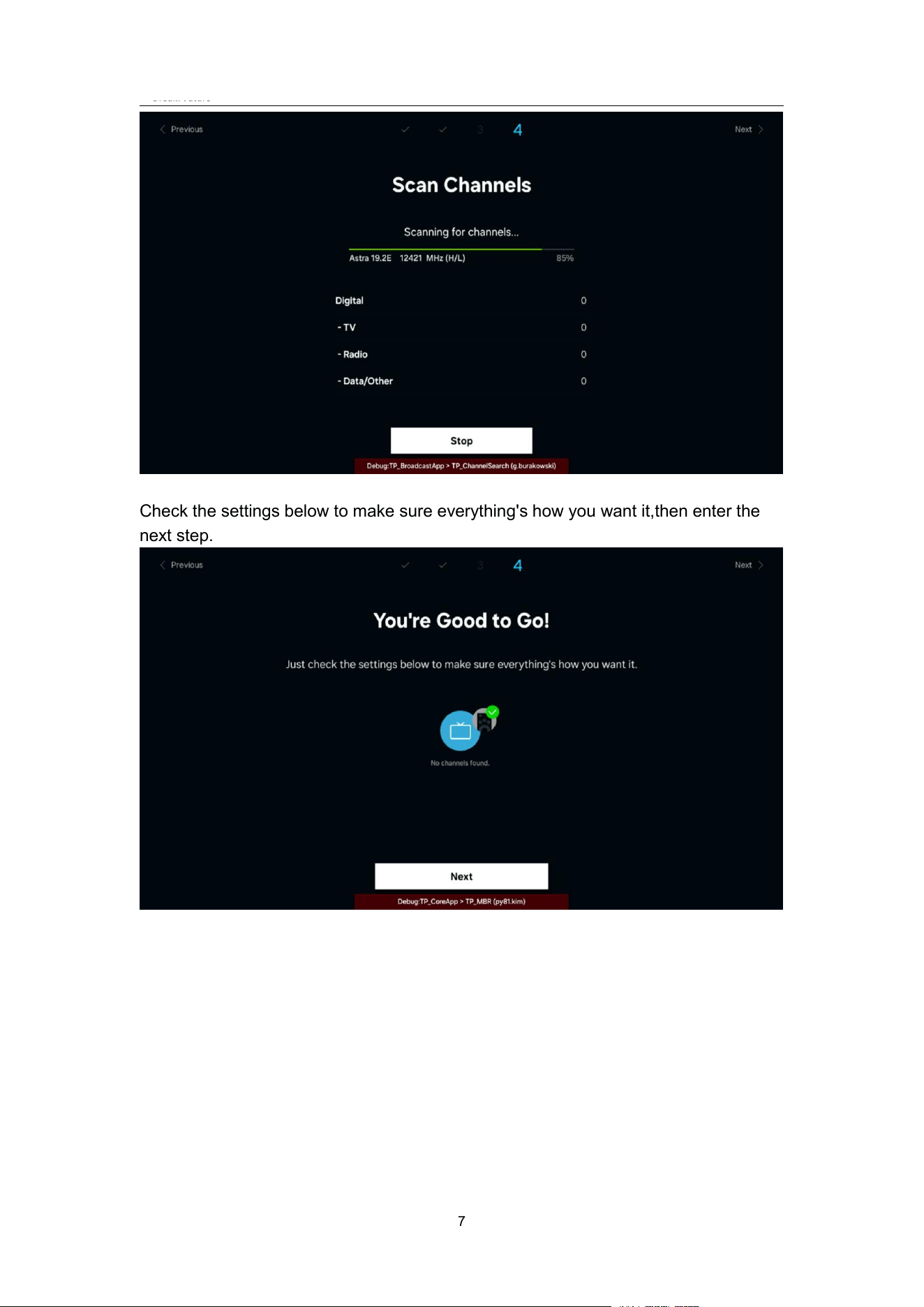
Press ◄/►/▼/▲ button to select TV source and scan channel
NT72690&NT72691
7
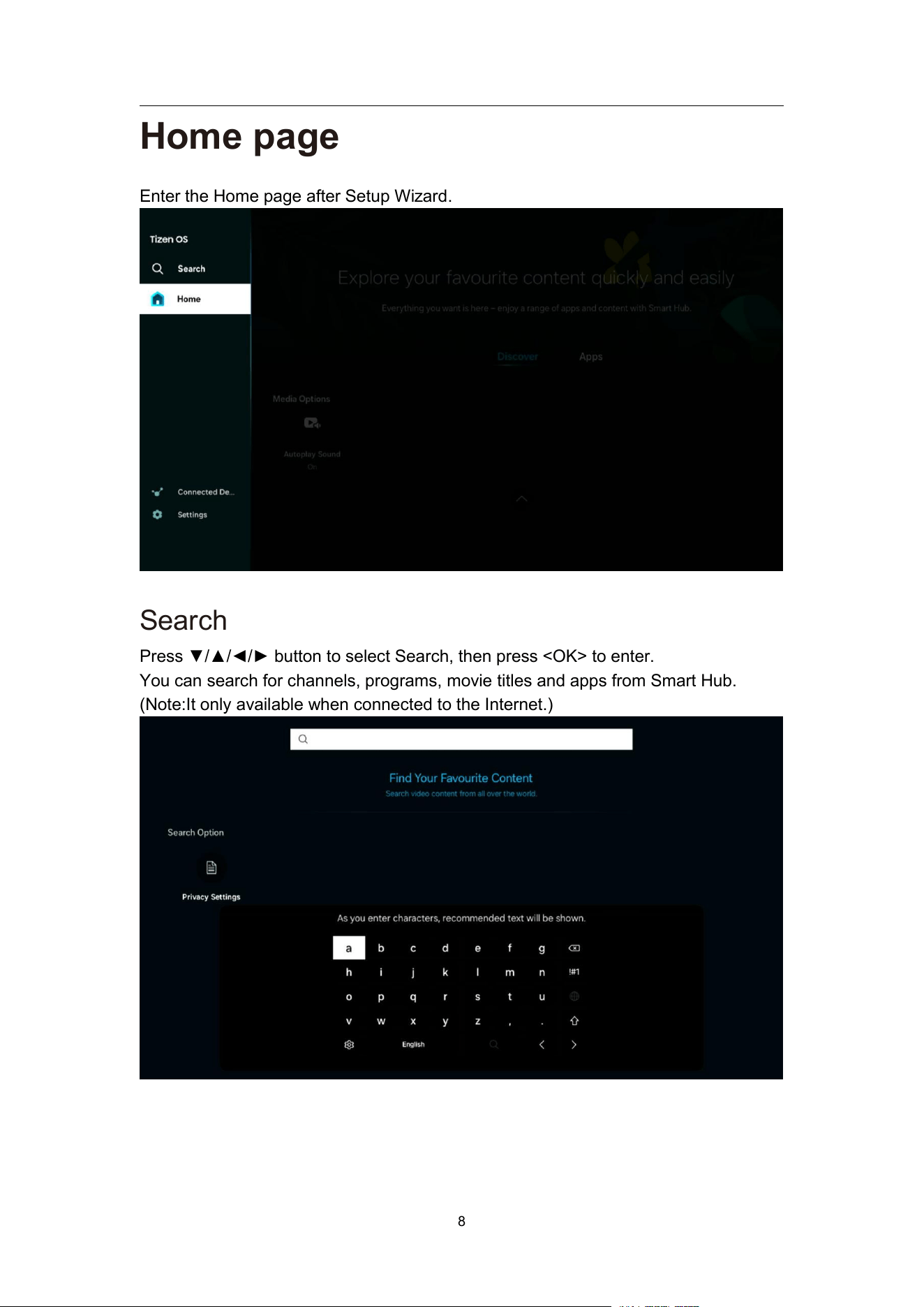
Check the settings below to make sure everything's how you want it,then enter the
next step.
NT72690&NT72691
8
Home page
Enter the Home page after Setup Wizard.
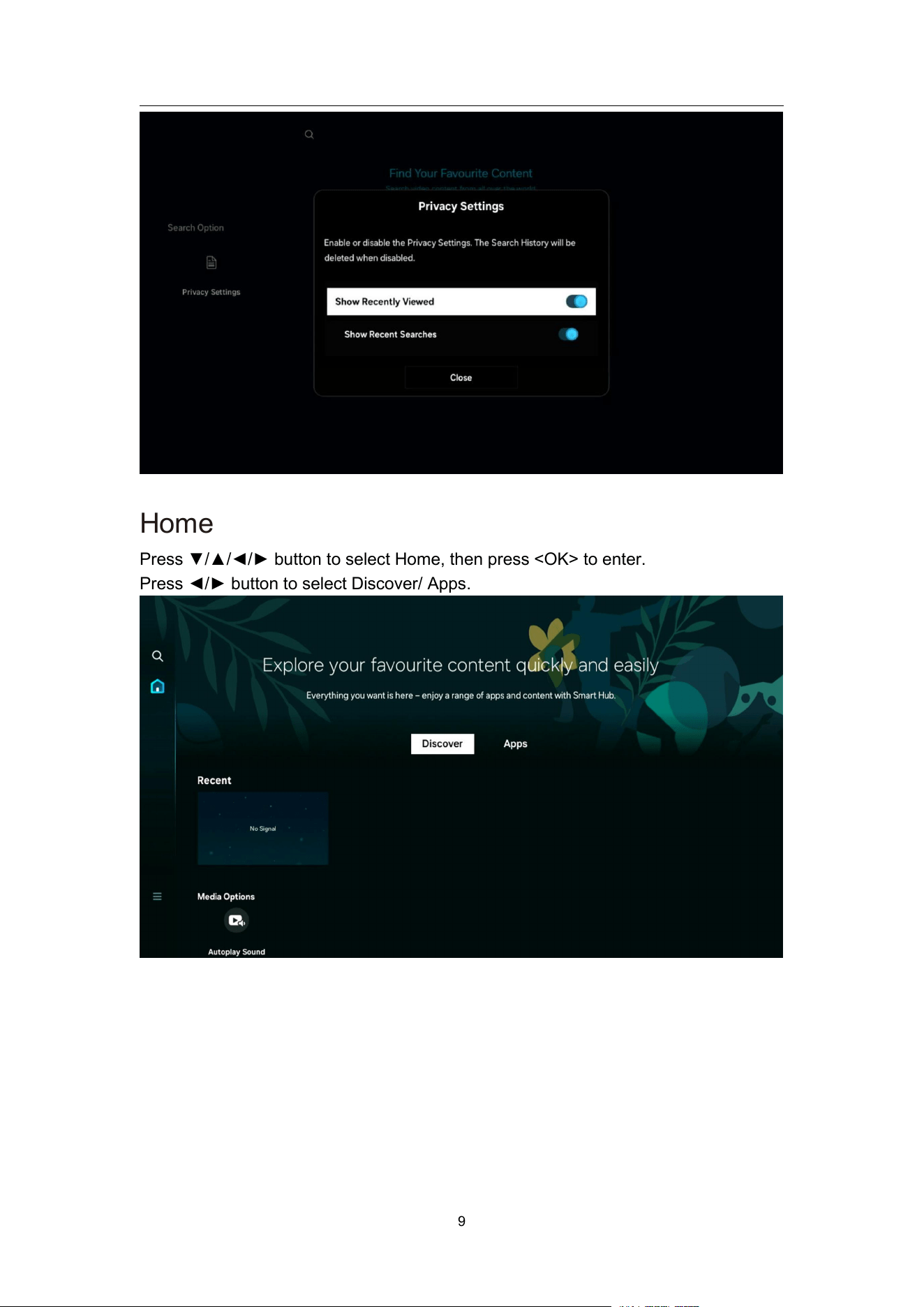
Search
Press ▼/▲/◄/► button to select Search, then press <OK> to enter.
You can search for channels, programs, movie titles and apps from Smart Hub.
(Note:It only available when connected to the Internet.)
NT72690&NT72691
9
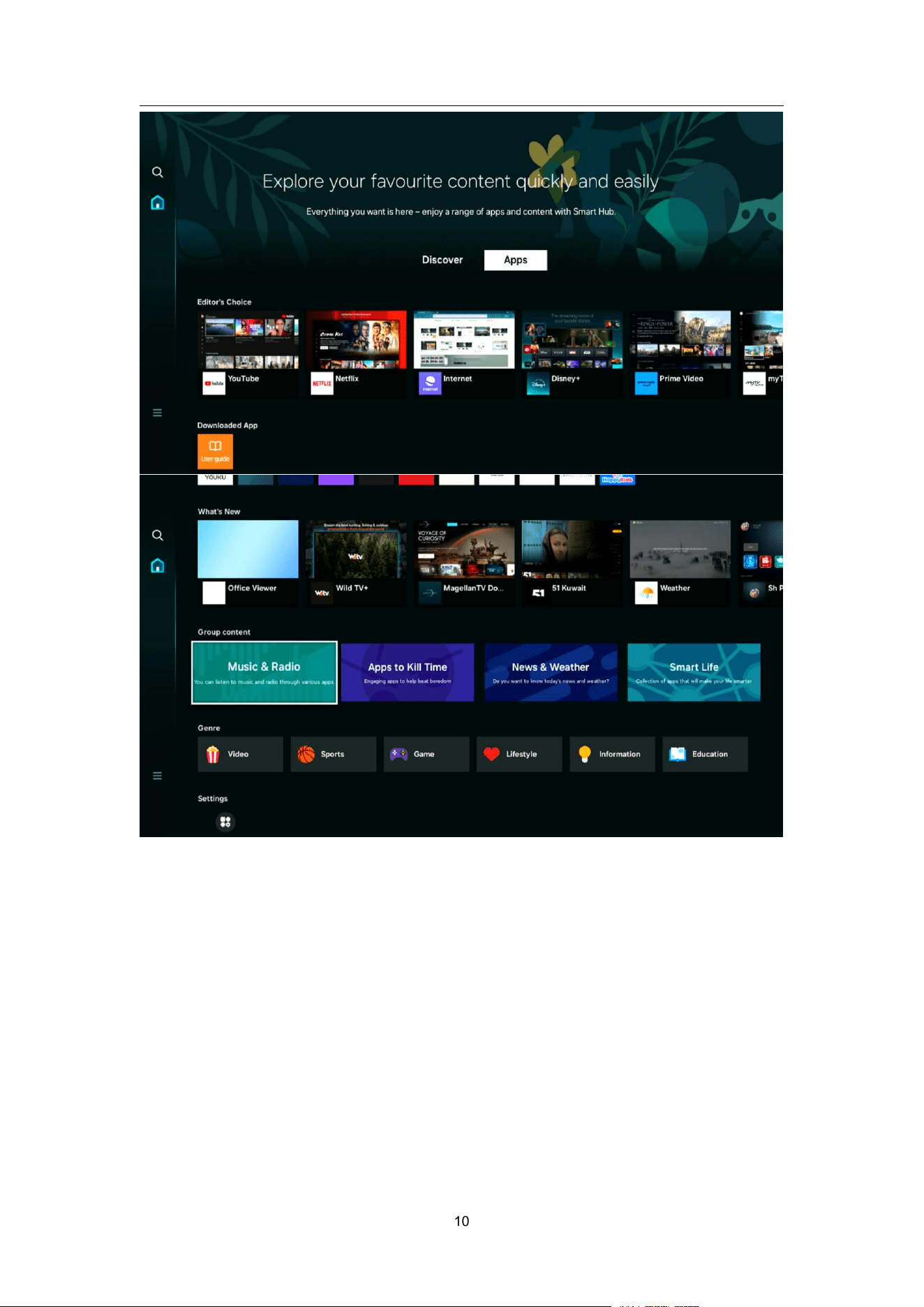
Home
Press ▼/▲/◄/► button to select Home, then press <OK> to enter.
Press ◄/► button to select Discover/ Apps.
NT72690&NT72691
10
NT72690&NT72691
11
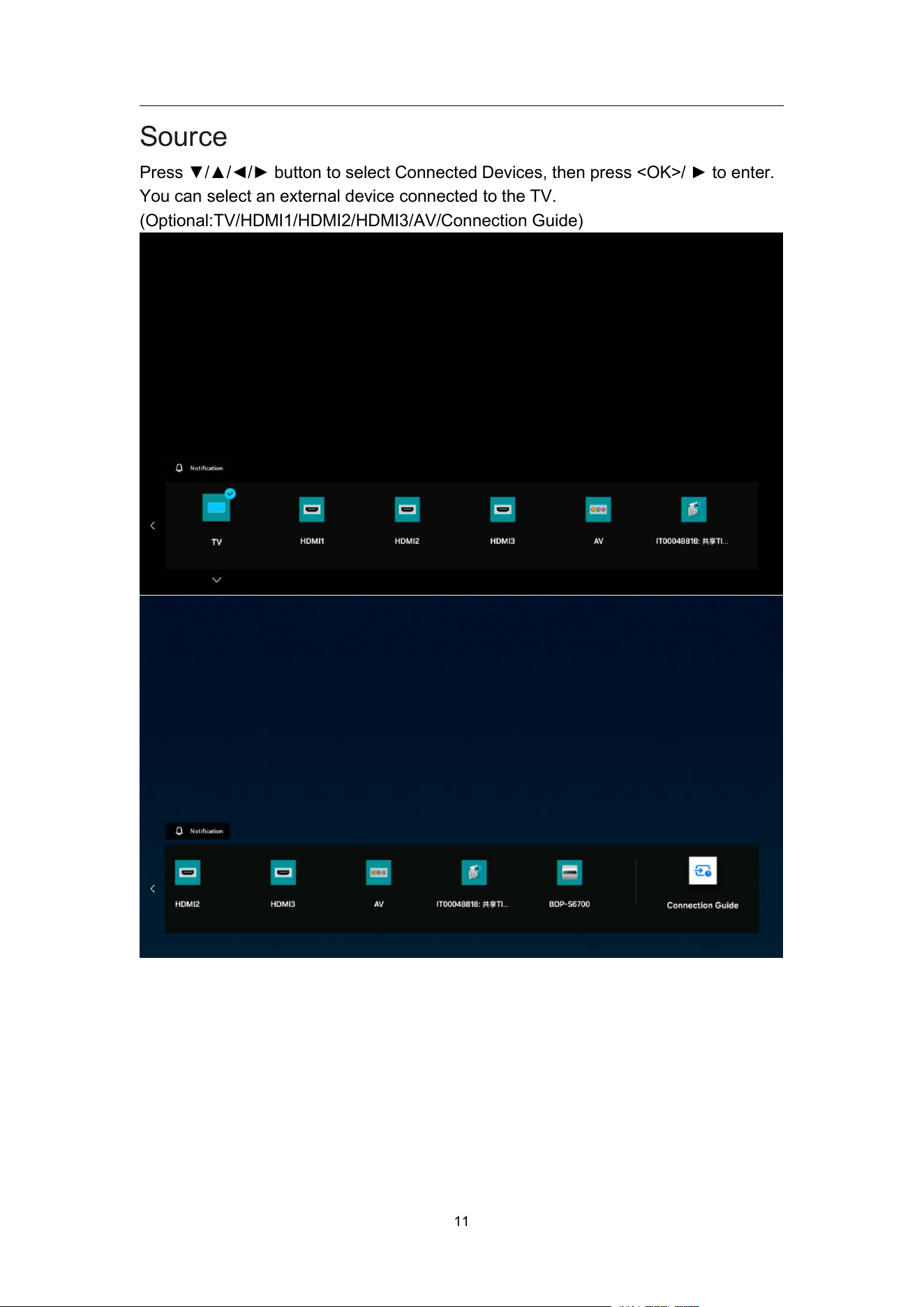
Source
Press ▼/▲/◄/► button to select Connected Devices, then press <OK>/ ► to enter.
You can select an external device connected to the TV.
(Optional:TV/HDMI1/HDMI2/HDMI3/AV/Connection Guide)
NT72690&NT72691
12
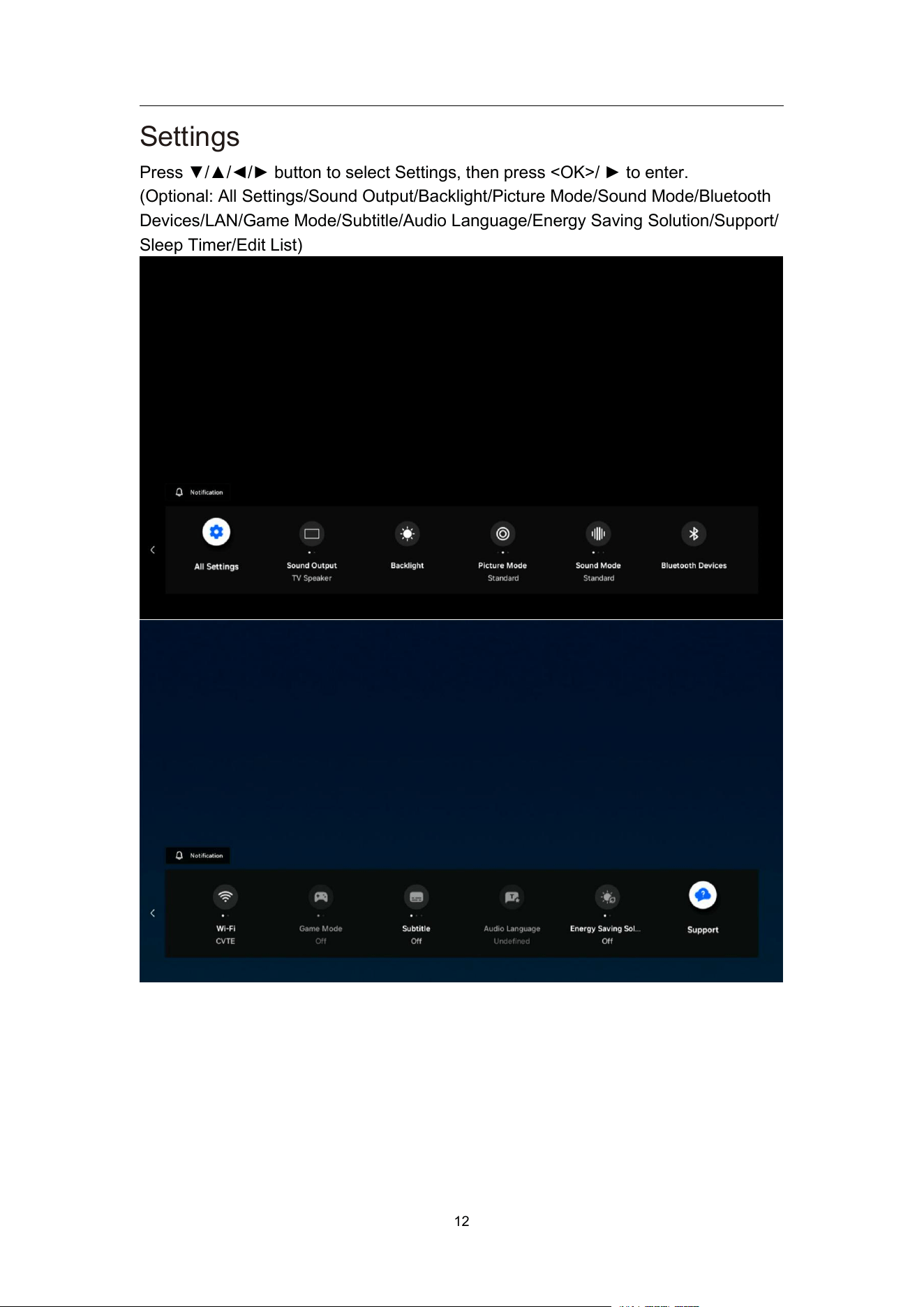
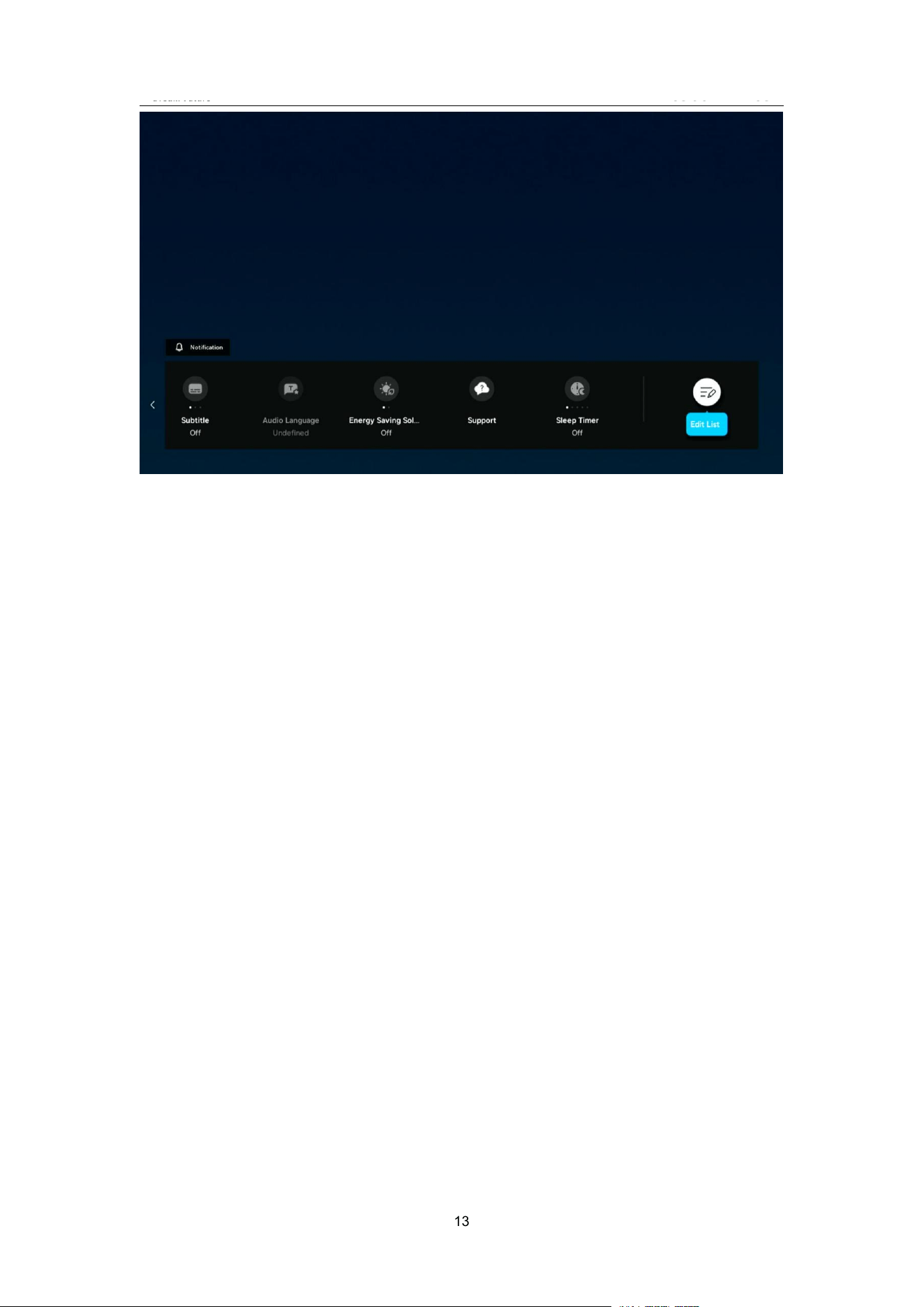
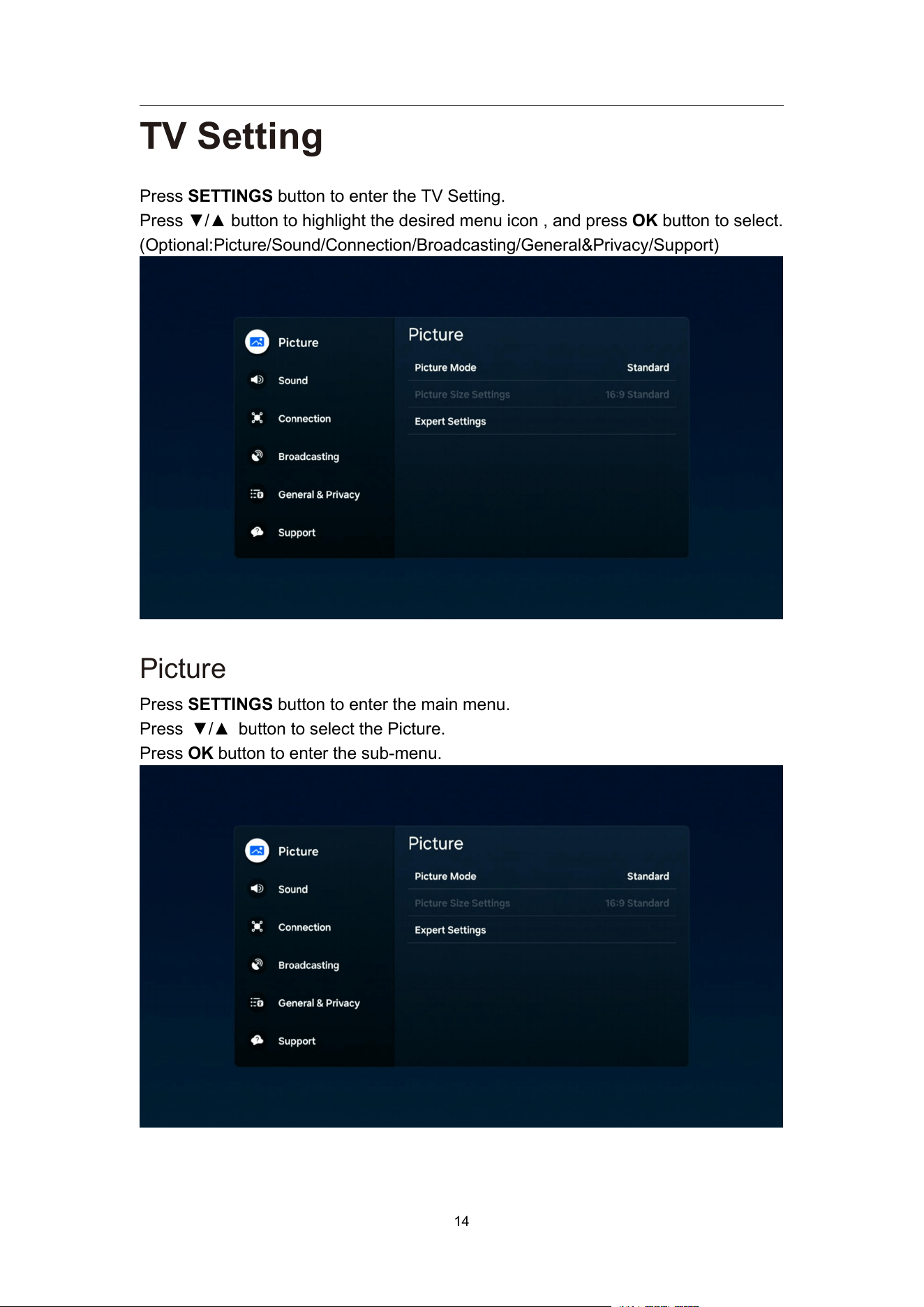
Settings
Press ▼/▲/◄/► button to select Settings, then press <OK>/ ► to enter.
(Optional: All Settings/Sound Output/Backlight/Picture Mode/Sound Mode/Bluetooth
Devices/LAN/Game Mode/Subtitle/Audio Language/Energy Saving Solution/Support/
Sleep Timer/Edit List)
NT72690&NT72691
13
NT72690&NT72691
14
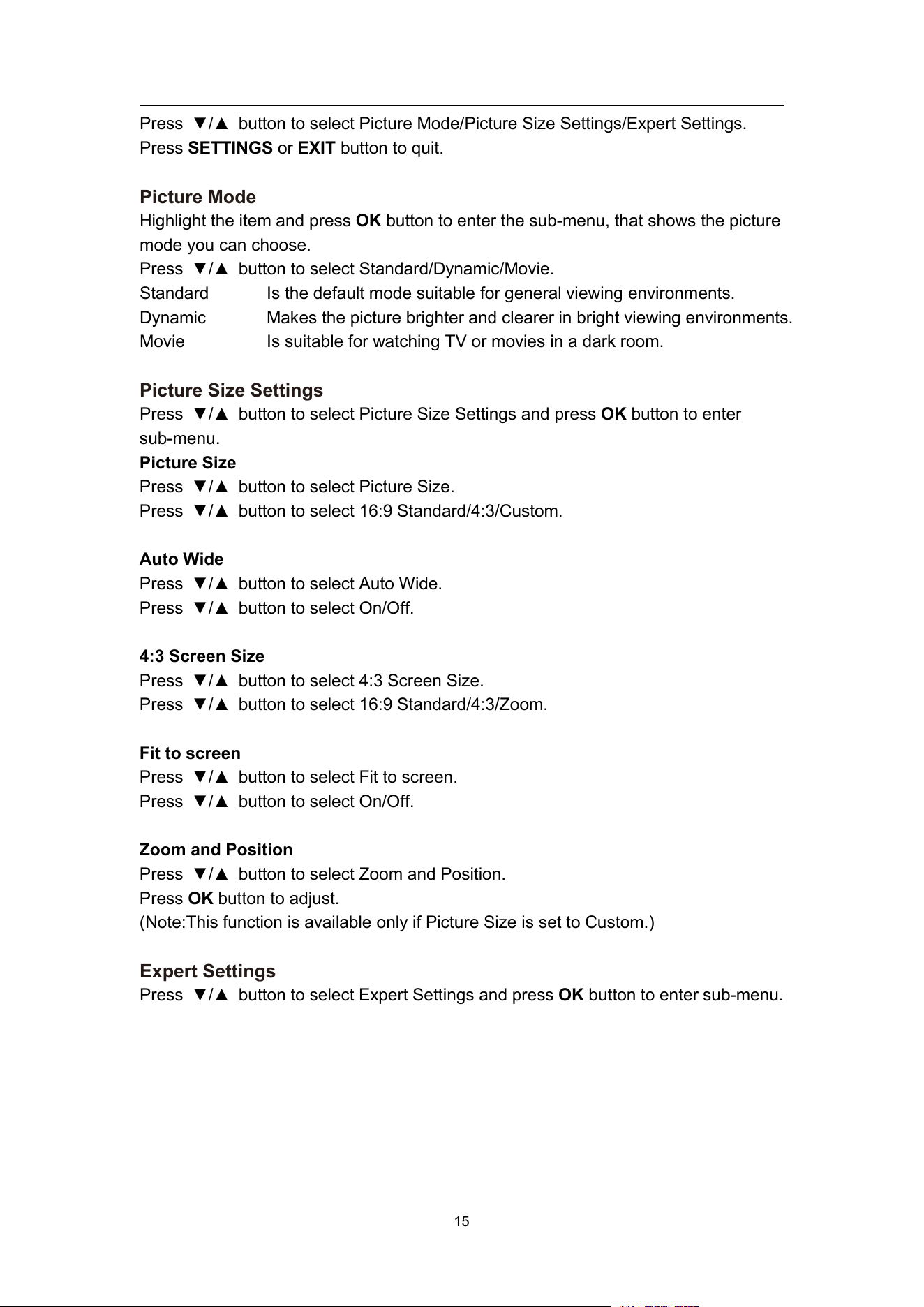
TV Setting
Press SETTINGS button to enter the TV Setting.
Press ▼/▲ button to highlight the desired menu icon , and press OK button to select.
(Optional:Picture/Sound/Connection/Broadcasting/General&Privacy/Support)
Picture
Press SETTINGS button to enter the main menu.
Press ▼/▲ button to select the Picture.
Press OK button to enter the sub-menu.
NT72690&NT72691
15
Press ▼/▲ button to select Picture Mode/Picture Size Settings/Expert Settings.
Press SETTINGS or EXIT button to quit.
Picture Mode
Highlight the item and press OK button to enter the sub-menu, that shows the picture
mode you can choose.
Press ▼/▲ button to select Standard/Dynamic/Movie.
Standard
Is the default mode suitable for general viewing environments.
Dynamic
Makes the picture brighter and clearer in bright viewing environments.
Movie
Is suitable for watching TV or movies in a dark room.
Picture Size Settings
Press ▼/▲ button to select Picture Size Settings and press OK button to enter
sub-menu.
Picture Size
Press ▼/▲ button to select Picture Size.
Press ▼/▲ button to select 16:9 Standard/4:3/Custom.
Auto Wide
Press ▼/▲ button to select Auto Wide.
Press ▼/▲ button to select On/Off.
4:3 Screen Size
Press ▼/▲ button to select 4:3 Screen Size.
Press ▼/▲ button to select 16:9 Standard/4:3/Zoom.
Fit to screen
Press ▼/▲ button to select Fit to screen.
Press ▼/▲ button to select On/Off.
Zoom and Position
Press ▼/▲ button to select Zoom and Position.
Press OK button to adjust.
(Note:This function is available only if Picture Size is set to Custom.)
Expert Settings
Press ▼/▲ button to select Expert Settings and press OK button to enter sub-menu.
NT72690&NT72691
16
Backlight/Contrast/Sharpness/Colour/Tint(G/R)
Press ▼/▲ button to select Backlight/Contrast/Sharpness/Colour/Tint(G/R).
Press ◄/► button to adjust.
Backlight
Adjust the Backlight of the image.
Contrast
Adjust the contrast of the image.
Sharpness
Adjust the edge sharpness of the image.
Colour
Adjust the colour intensity of the image.
Tint(G/R)
Adjust the ratio of green to red tint levels.
Apply Picture Settings
Press ▼/▲ button to select Apply Picture Settings.
Press ▼/▲ button to select All Sources/Current Source.
Noise Reduction
Press ▼/▲ button to select Noise Reduction.(Optional:Off/On)
Contrast Enhancer
Press ▼/▲ button to select Contrast Enhancer.
Press ▼/▲ button to select Off/Low/High.
Color Tone
Adjust the overall color of the image.
Press ▼/▲ button to select Color Tone.
Press ▼/▲ button to select Standard/Cool/Warm1/Warm2.
Cool
The picture is in favor of green-blue and less red.
The whole color is in favor of light. The picture is more fresh and
elegant.
Standard
The picture does not in favor of any color.The color is moderate.
Warm1
The picture is in favor of red-green and less blue to make the color
more vivid and soft.
Warm2
Warm2 is bluer than Warm1 and looks more vivid.
White Balance
Adjust the color temperature of the picture so that white objects appear brighter.
Press ▼/▲ button to select White Balance.
Press ▼/▲ button to select 2 Point/10 Point Settings,then press OK button to enter
sub-menu and press ▼/▲/◄/► to select and adjust.
Brightness
Press ▼/▲ button to select Brightness.
Press ◄/► button to adjust.
NT72690&NT72691
17
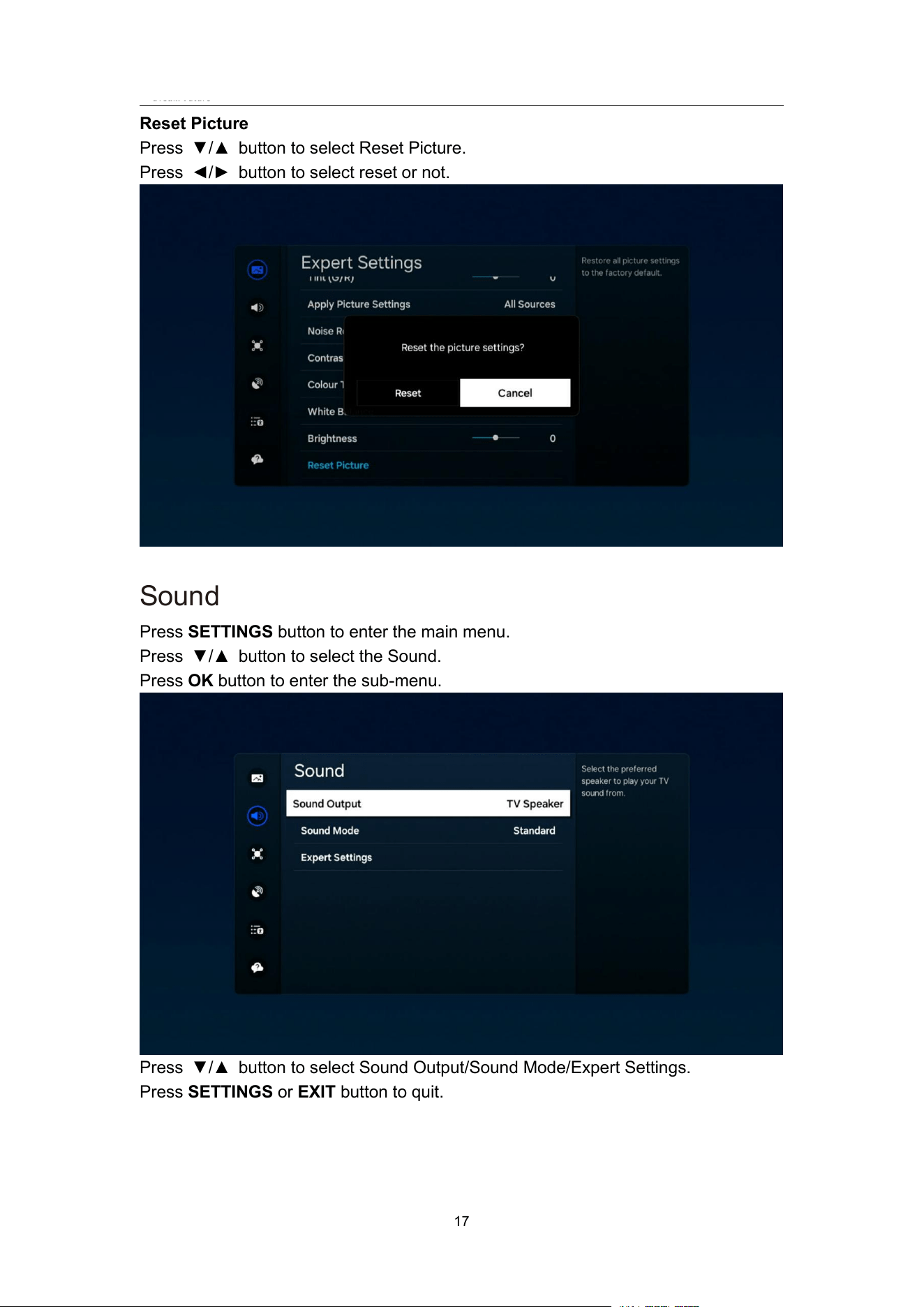
Reset Picture
Press ▼/▲ button to select Reset Picture.
Press ◄/► button to select reset or not.
Sound
Press SETTINGS button to enter the main menu.
Press ▼/▲ button to select the Sound.
Press OK button to enter the sub-menu.
Press ▼/▲ button to select Sound Output/Sound Mode/Expert Settings.
Press SETTINGS or EXIT button to quit.
NT72690&NT72691
18
Sound Output
Press ▼/▲ button to select Sound Output.
Press ▼/▲ button to select TV Speaker/Receiver(Optical)/Bluetooth Speaker List.
Sound Mode
Press ▼/▲ button to select Sound Mode.
Press ▼/▲ button to select Standard/Optimised/Amplify.
Expert Settings
Press ▼/▲ button to select Expert Settings and press OK button to enter sub-menu.
Balance
Balanced left and right channels.
Press ▼/▲ button to select Balance.
Press OK button to enter sub-menu then press ◄/► button to adjust.
Equaliser
Press ▼/▲ button on to select Equaliser.
Press OK button to enter sub-menu then press ◄/► button to adjust.
HDMI-eARC Mode
Press ▼/▲ button to select HDMI-eARC Mode.
Press OK button to enter sub-menu then press ▼/▲ button to select Auto/Off.
Digital Output Audio Format
Press ▼/▲ button to select Digital Output Audio Format.
Press OK button to enter sub-menu then press ▼/▲ button to select PCM/Auto/
Pass-through.
Digital Output Audio Delay
Press ▼/▲ button to select Digital Output Audio Delay.Press ◄/► button to adjust.
Auto Volume
Press ▼/▲ button to select Auto Volume. Press OK button to select On/Off.
Simultaneous Optical Output
Press ▼/▲ button to select Simultaneous Optical Output. Press OK button to select
On/Off.
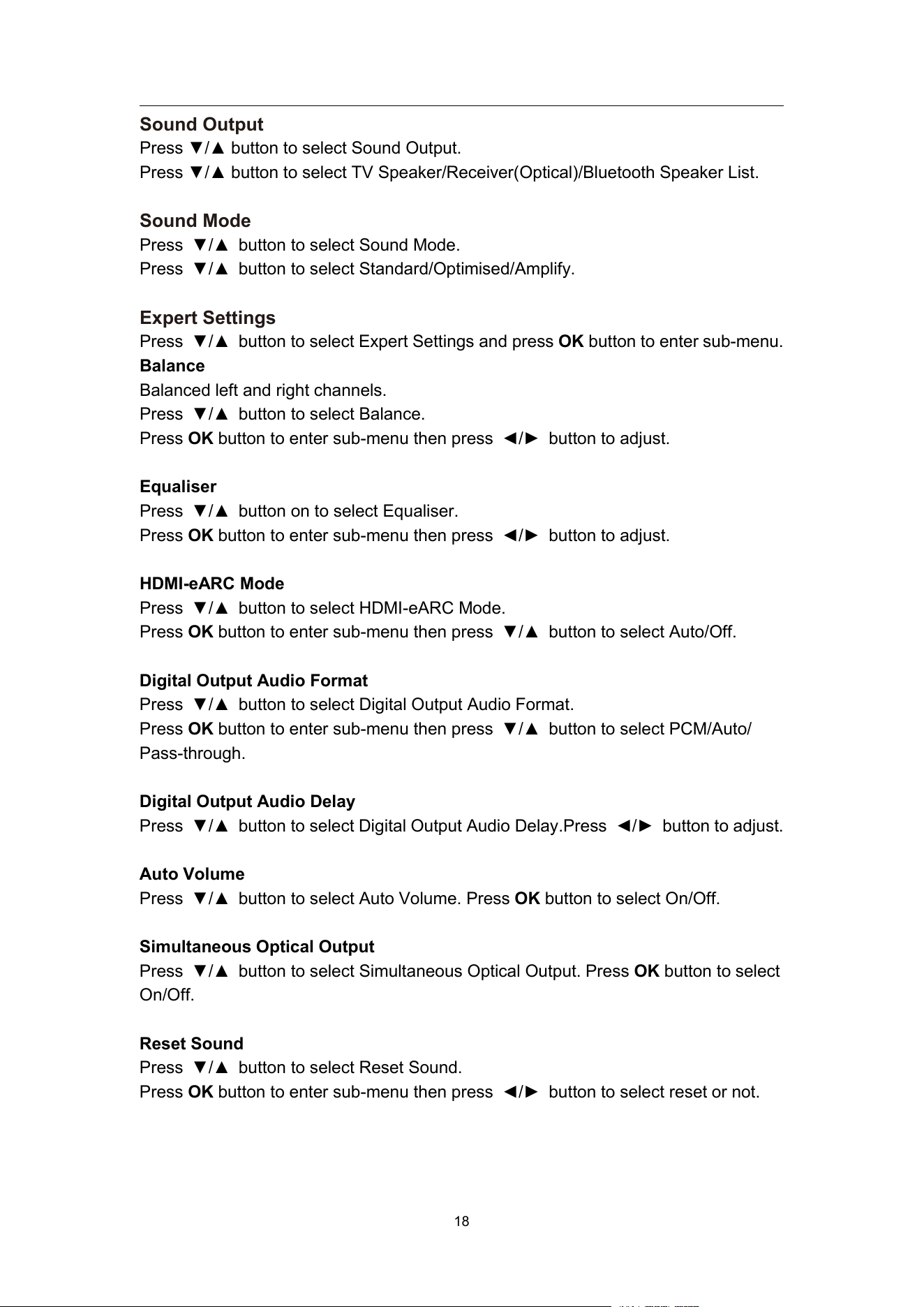
Reset Sound
Press ▼/▲ button to select Reset Sound.
Press OK button to enter sub-menu then press ◄/► button to select reset or not.
NT72690&NT72691
19
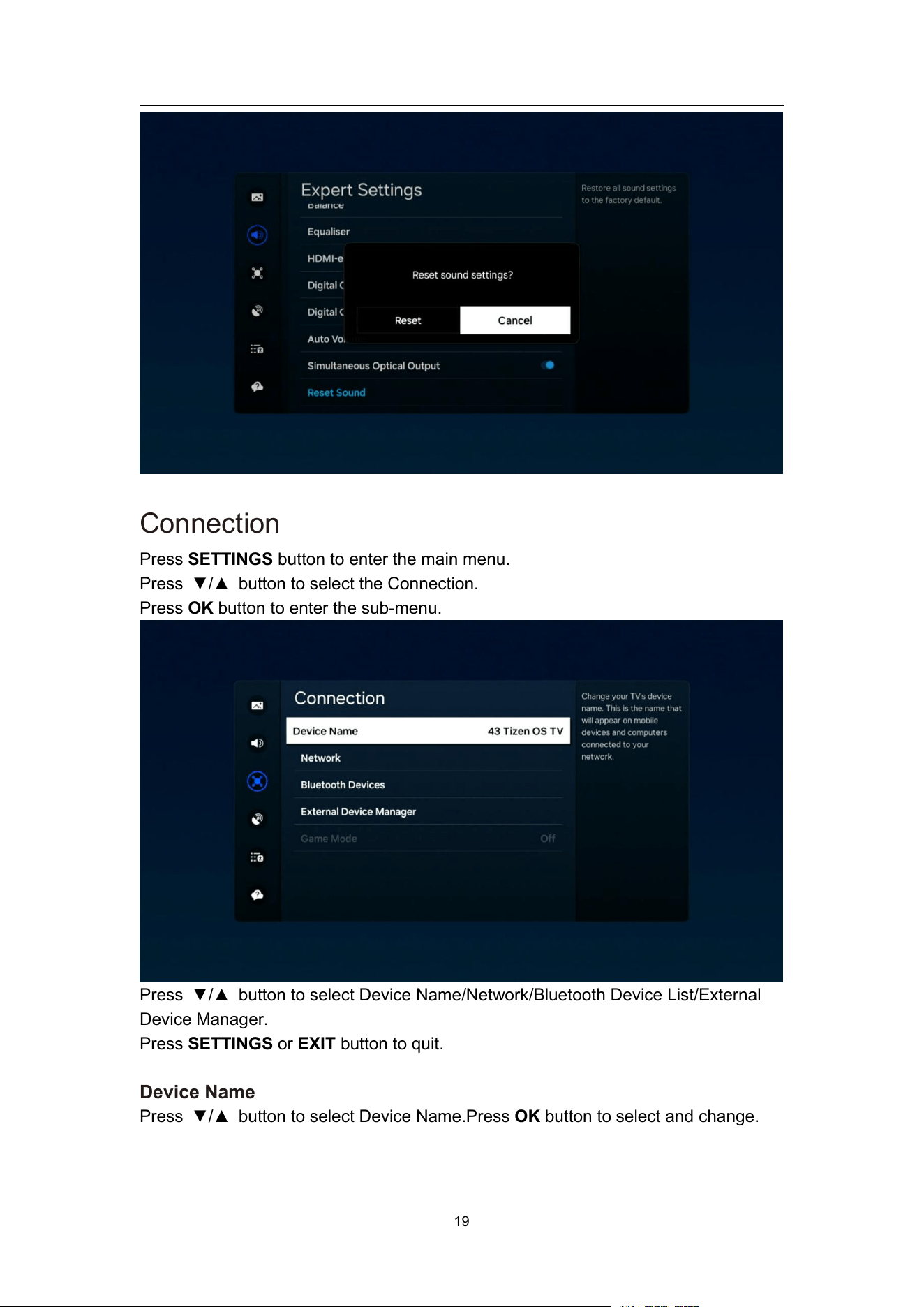
Connection
Press SETTINGS button to enter the main menu.
Press ▼/▲ button to select the Connection.
Press OK button to enter the sub-menu.
Press ▼/▲ button to select Device Name/Network/Bluetooth Device List/External
Device Manager.
Press SETTINGS or EXIT button to quit.
Device Name
Press ▼/▲ button to select Device Name.Press OK button to select and change.
NT72690&NT72691
20
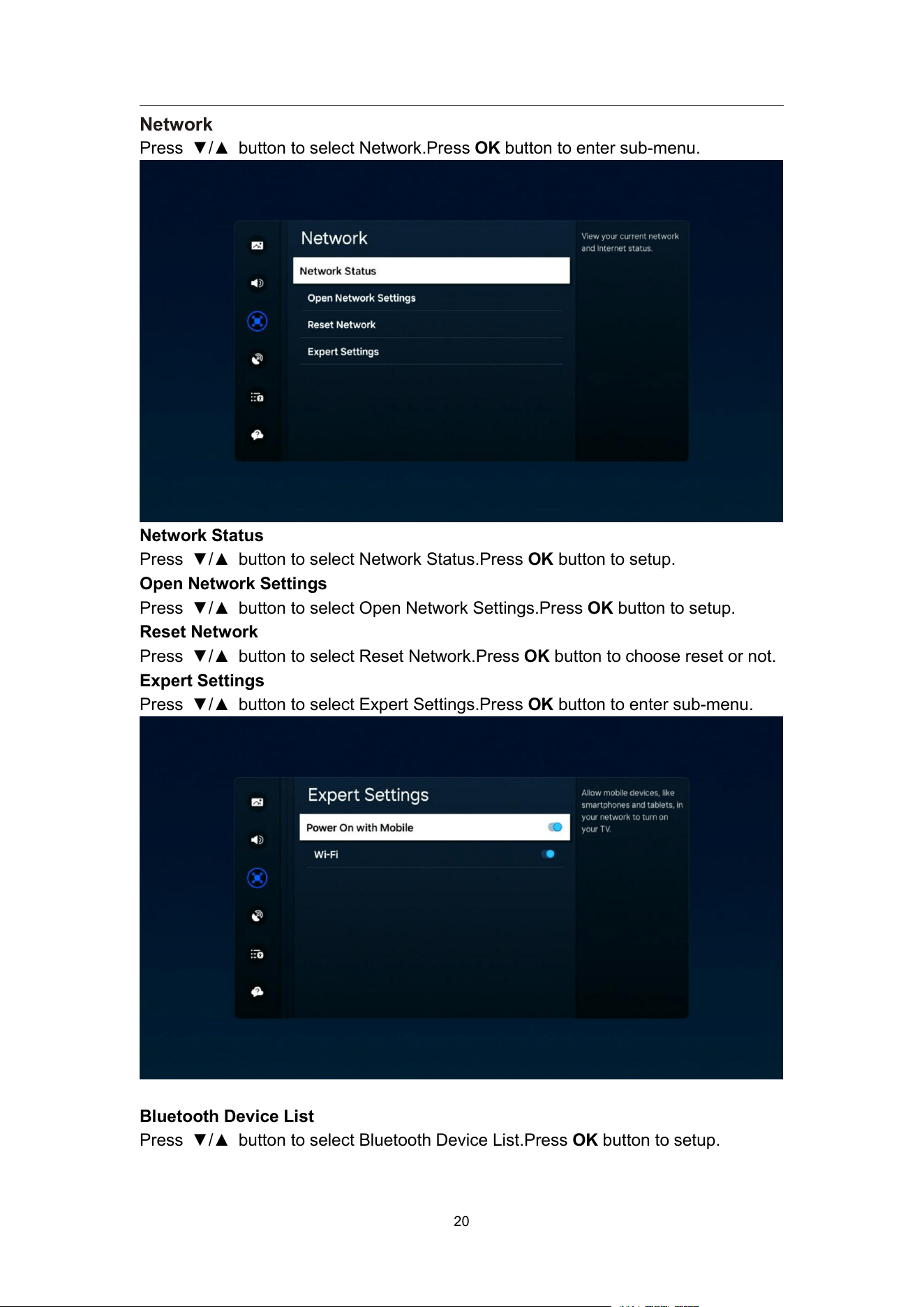
Network
Press ▼/▲ button to select Network.Press OK button to enter sub-menu.
Network Status
Press ▼/▲ button to select Network Status.Press OK button to setup.
Open Network Settings
Press ▼/▲ button to select Open Network Settings.Press OK button to setup.
Reset Network
Press ▼/▲ button to select Reset Network.Press OK button to choose reset or not.
Expert Settings
Press ▼/▲ button to select Expert Settings.Press OK button to enter sub-menu.
Bluetooth Device List
Press ▼/▲ button to select Bluetooth Device List.Press OK button to setup.
NT72690&NT72691
21
External Device Manager
Press ▼/▲ button to select External Device Manager.Press OK button to setup.
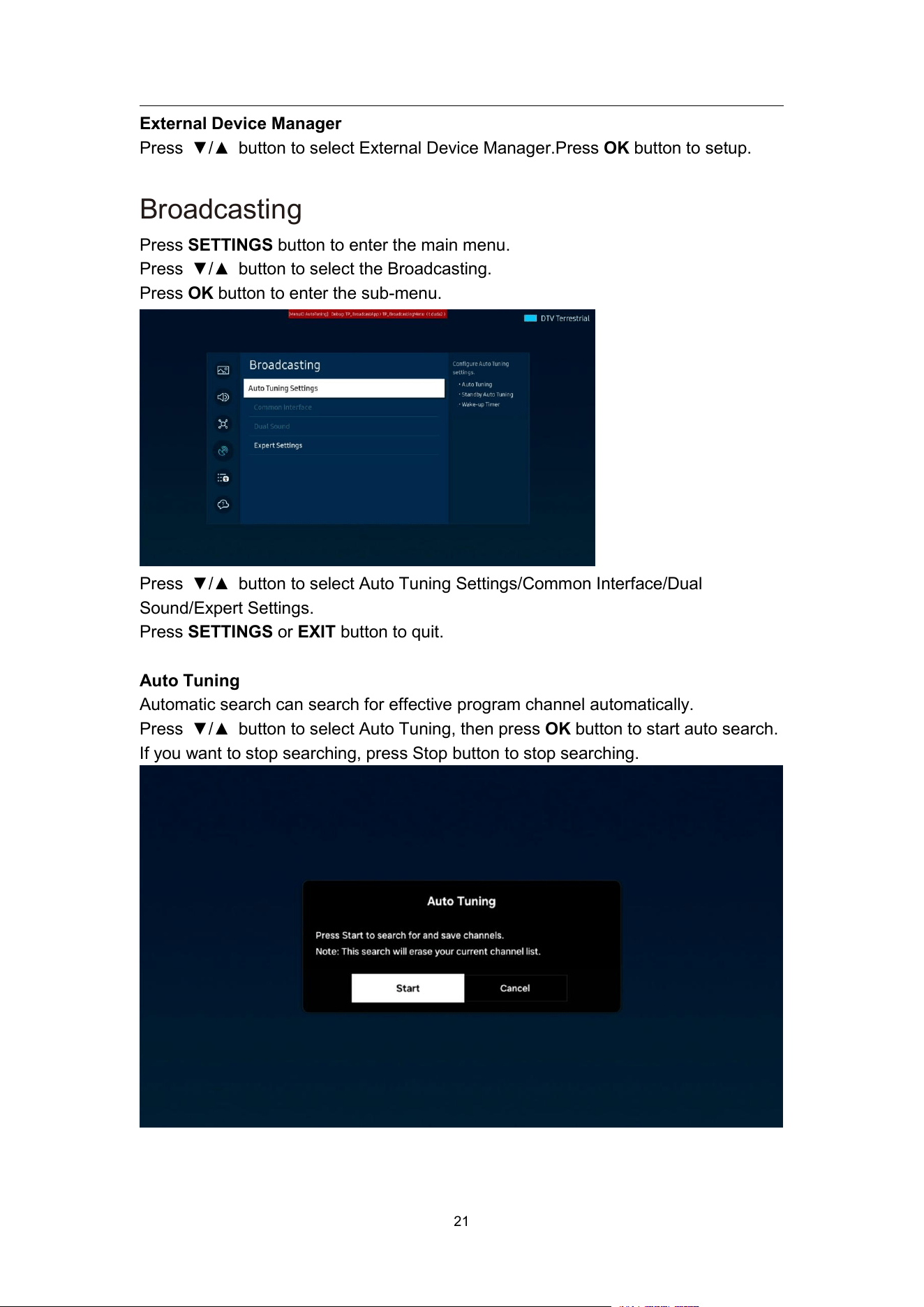
Broadcasting
Press SETTINGS button to enter the main menu.
Press ▼/▲ button to select the Broadcasting.
Press OK button to enter the sub-menu.
Press ▼/▲ button to select Auto Tuning Settings/Common Interface/Dual
Sound/Expert Settings.
Press SETTINGS or EXIT button to quit.
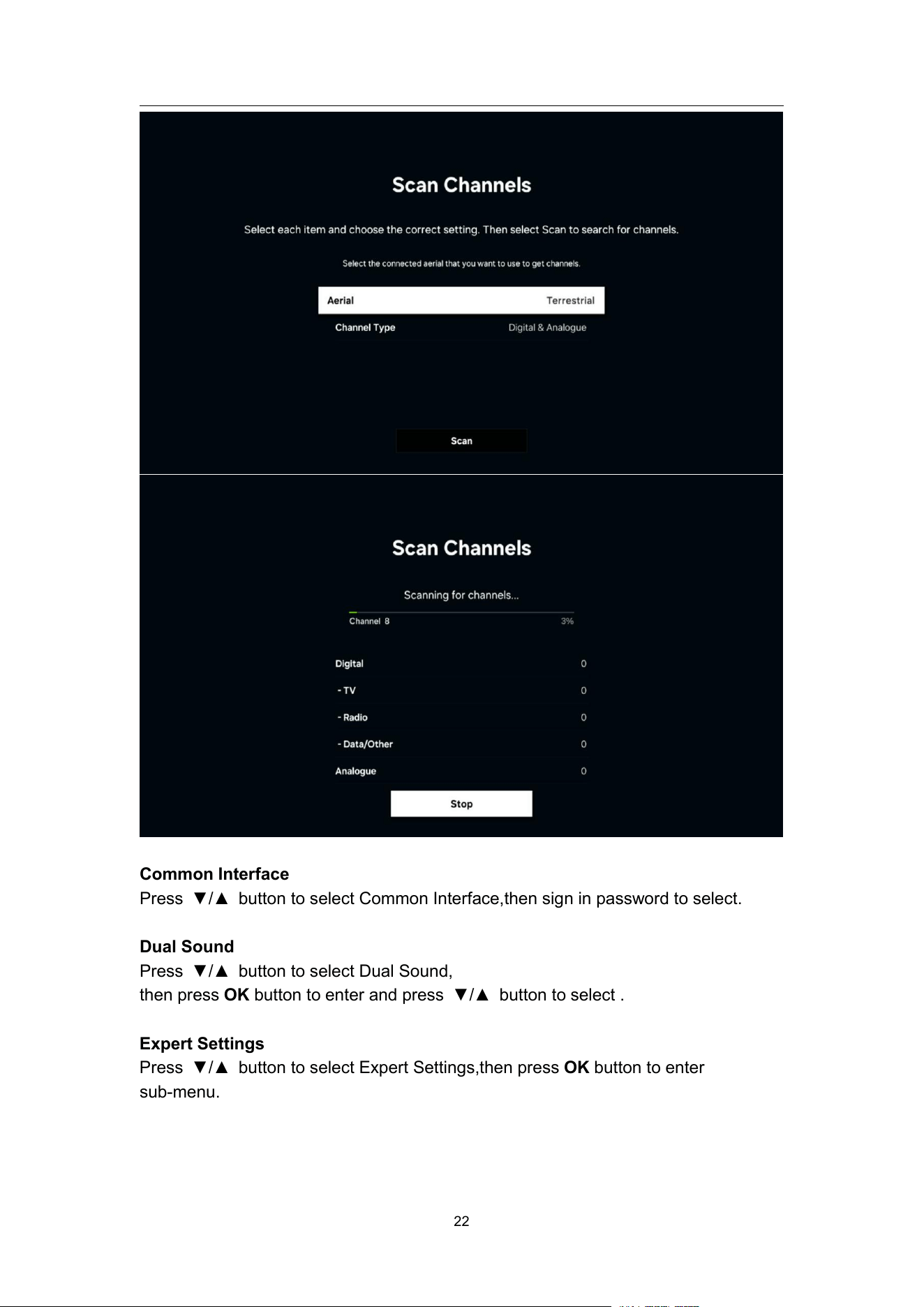
Auto Tuning
Automatic search can search for effective program channel automatically.
Press ▼/▲ button to select Auto Tuning, then press OK button to start auto search.
If you want to stop searching, press Stop button to stop searching.
NT72690&NT72691
22
Common Interface
Press ▼/▲ button to select Common Interface,then sign in password to select.
Dual Sound
Press ▼/▲ button to select Dual Sound,
then press OK button to enter and press ▼/▲ button to select .
Expert Settings
Press ▼/▲ button to select Expert Settings,then press OK button to enter
sub-menu.
NT72690&NT72691
23
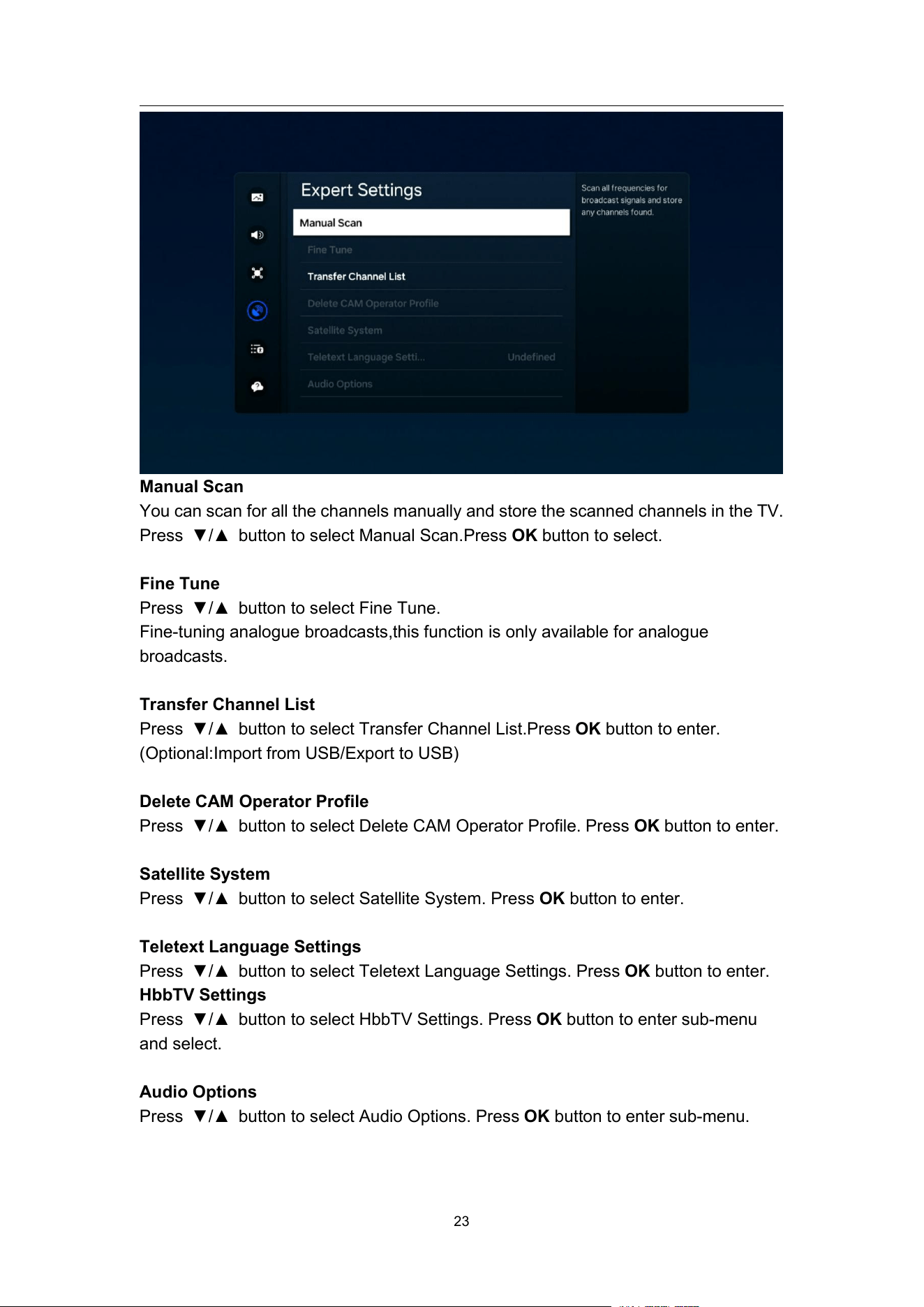
Manual Scan
You can scan for all the channels manually and store the scanned channels in the TV.
Press ▼/▲ button to select Manual Scan.Press OK button to select.
Fine Tune
Press ▼/▲ button to select Fine Tune.
Fine-tuning analogue broadcasts,this function is only available for analogue
broadcasts.
Transfer Channel List
Press ▼/▲ button to select Transfer Channel List.Press OK button to enter.
(Optional:Import from USB/Export to USB)
Delete CAM Operator Profile
Press ▼/▲ button to select Delete CAM Operator Profile. Press OK button to enter.
Satellite System
Press ▼/▲ button to select Satellite System. Press OK button to enter.
Teletext Language Settings
Press ▼/▲ button to select Teletext Language Settings. Press OK button to enter.
HbbTV Settings
Press ▼/▲ button to select HbbTV Settings. Press OK button to enter sub-menu
and select.
Audio Options
Press ▼/▲ button to select Audio Options. Press OK button to enter sub-menu.
NT72690&NT72691
24
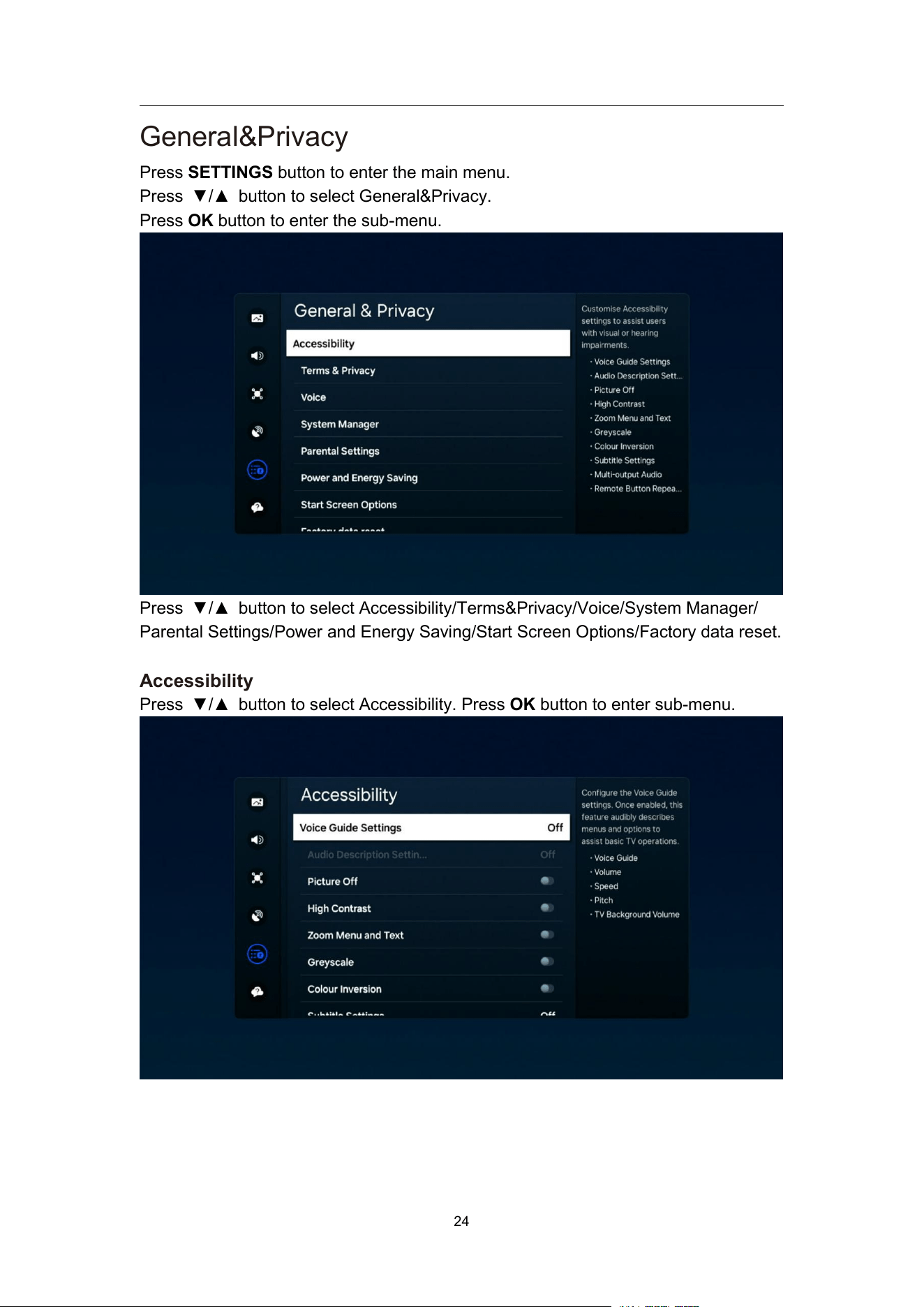
General&Privacy
Press SETTINGS button to enter the main menu.
Press ▼/▲ button to select General&Privacy.
Press OK button to enter the sub-menu.
Press ▼/▲ button to select Accessibility/Terms&Privacy/Voice/System Manager/
Parental Settings/Power and Energy Saving/Start Screen Options/Factory data reset.
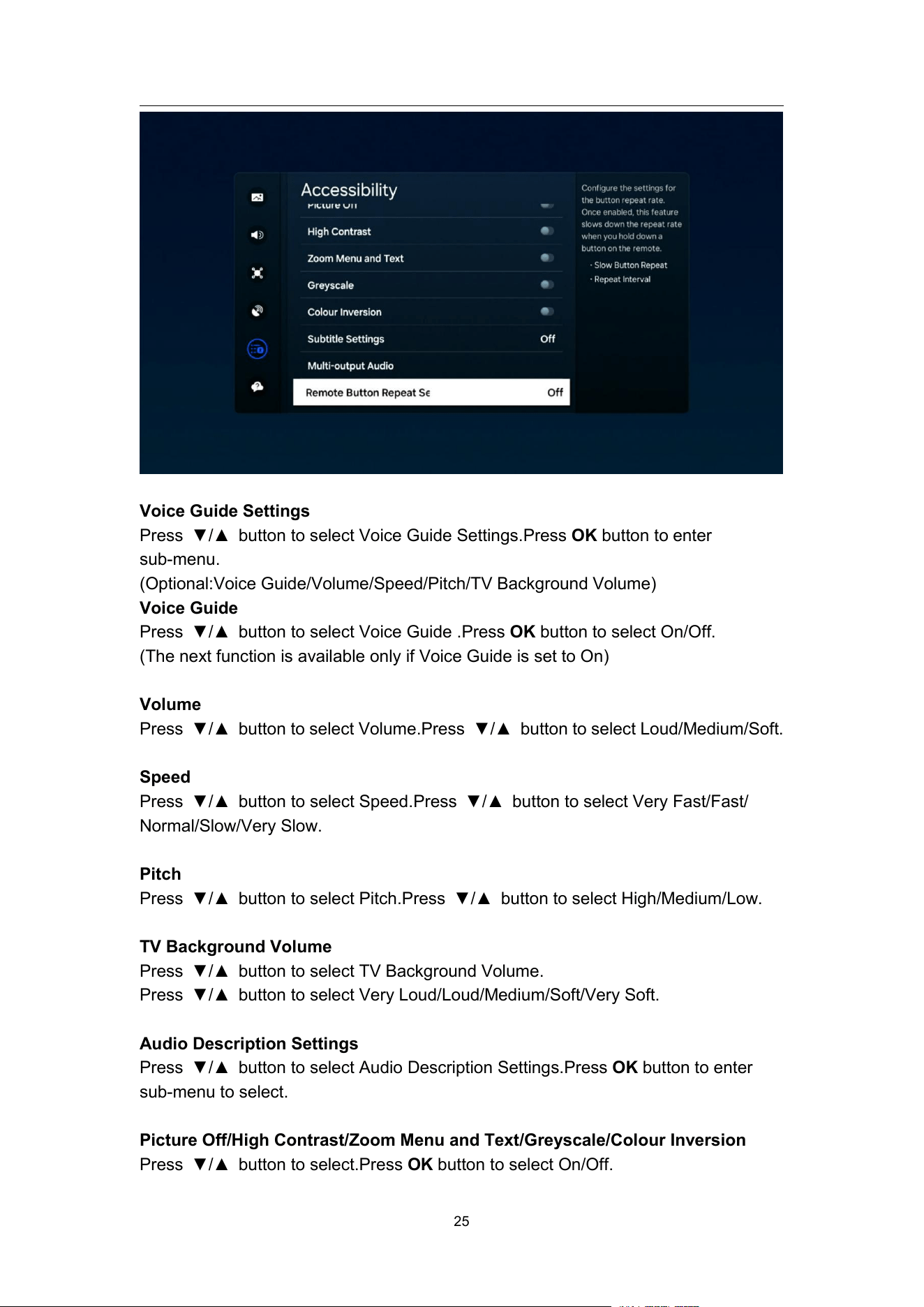
Accessibility
Press ▼/▲ button to select Accessibility. Press OK button to enter sub-menu.
NT72690&NT72691
25
Voice Guide Settings
Press ▼/▲ button to select Voice Guide Settings.Press OK button to enter
sub-menu.
(Optional:Voice Guide/Volume/Speed/Pitch/TV Background Volume)
Voice Guide
Press ▼/▲ button to select Voice Guide .Press OK button to select On/Off.
(The next function is available only if Voice Guide is set to On)
Volume
Press ▼/▲ button to select Volume.Press ▼/▲ button to select Loud/Medium/Soft.
Speed
Press ▼/▲ button to select Speed.Press ▼/▲ button to select Very Fast/Fast/
Normal/Slow/Very Slow.
Pitch
Press ▼/▲ button to select Pitch.Press ▼/▲ button to select High/Medium/Low.
TV Background Volume
Press ▼/▲ button to select TV Background Volume.
Press ▼/▲ button to select Very Loud/Loud/Medium/Soft/Very Soft.
Audio Description Settings
Press ▼/▲ button to select Audio Description Settings.Press OK button to enter
sub-menu to select.
Picture Off/High Contrast/Zoom Menu and Text/Greyscale/Colour Inversion
Press ▼/▲ button to select.Press OK button to select On/Off.
NT72690&NT72691
26
Subtitle Settings
Press ▼/▲ button to select Subtitle Settings.Press OK button to enter sub-menu to
select.
Multi-output Audio
Press ▼/▲ button to select Multi-output Audio.Press OK button to enter sub-menu.
Remote Button Repeat Settings
Press ▼/▲ button to select Remote Button Repeat Settings.Press OK button to
select On/Off.
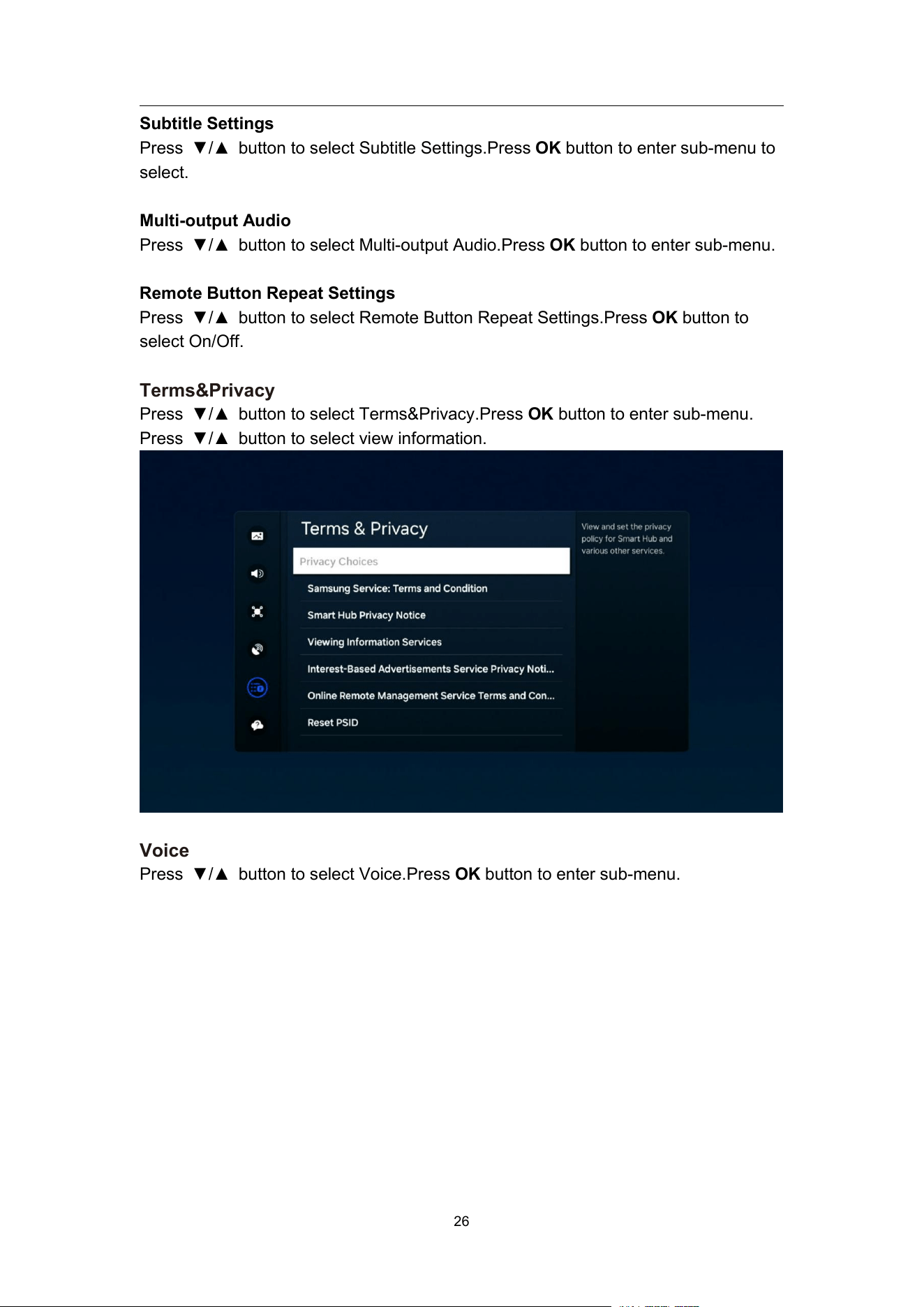
Terms&Privacy
Press ▼/▲ button to select Terms&Privacy.Press OK button to enter sub-menu.
Press ▼/▲ button to select view information.
Voice
Press ▼/▲ button to select Voice.Press OK button to enter sub-menu.
NT72690&NT72691
27
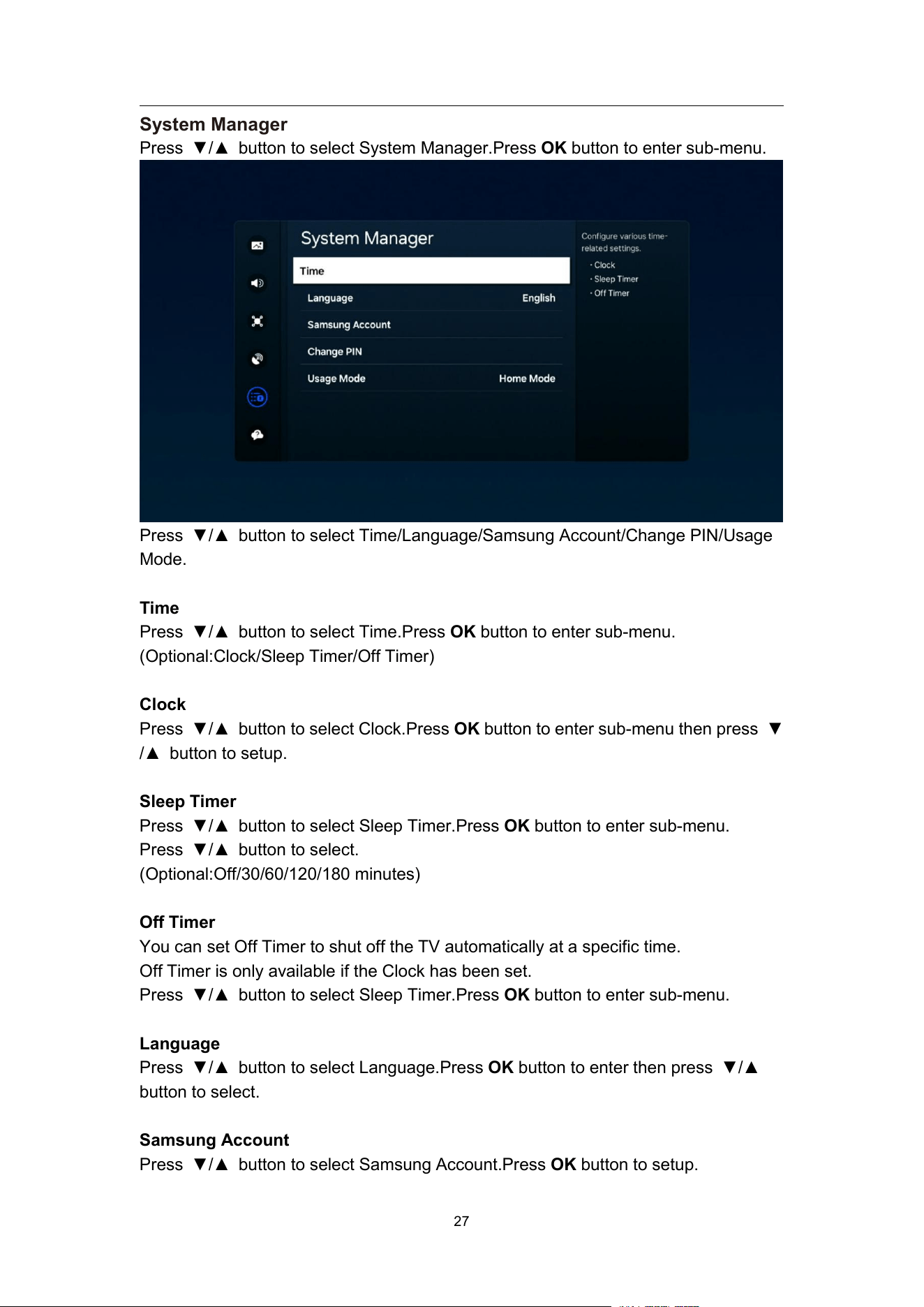
System Manager
Press ▼/▲ button to select System Manager.Press OK button to enter sub-menu.
Press ▼/▲ button to select Time/Language/Samsung Account/Change PIN/Usage
Mode.
Time
Press ▼/▲ button to select Time.Press OK button to enter sub-menu.
(Optional:Clock/Sleep Timer/Off Timer)
Clock
Press ▼/▲ button to select Clock.Press OK button to enter sub-menu then press ▼
/▲ button to setup.
Sleep Timer
Press ▼/▲ button to select Sleep Timer.Press OK button to enter sub-menu.
Press ▼/▲ button to select.
(Optional:Off/30/60/120/180 minutes)
Off Timer
You can set Off Timer to shut off the TV automatically at a specific time.
Off Timer is only available if the Clock has been set.
Press ▼/▲ button to select Sleep Timer.Press OK button to enter sub-menu.
Language
Press ▼/▲ button to select Language.Press OK button to enter then press ▼/▲
button to select.
Samsung Account
Press ▼/▲ button to select Samsung Account.Press OK button to setup.
NT72690&NT72691
28
Change PIN
Press ▼/▲ button to select Change PIN.Press OK button to set Password.
Usage Mode
Press ▼/▲ button to select Usage Mode.Press ▼/▲ button to select Home
Mode/Retail Mode.
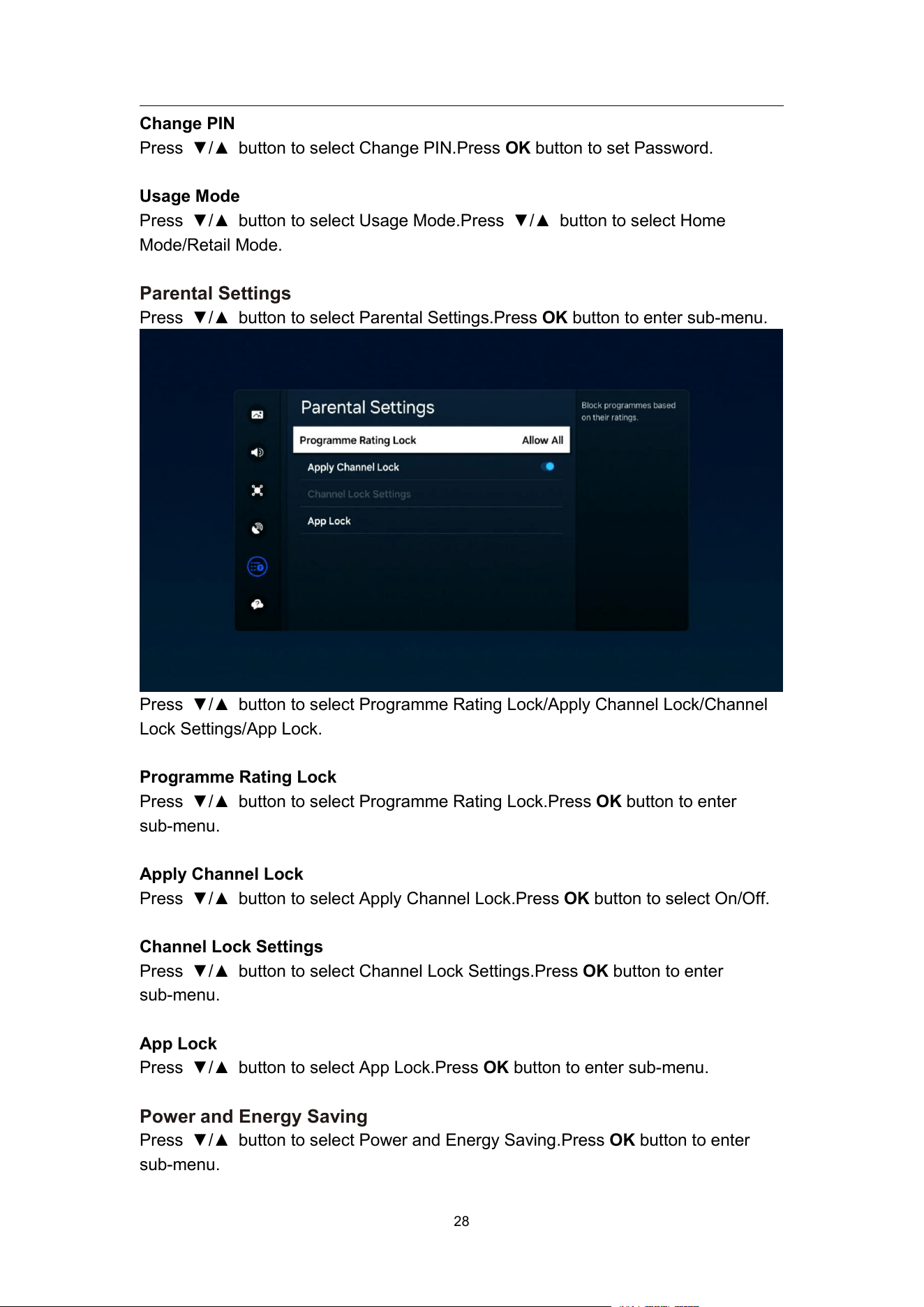
Parental Settings
Press ▼/▲ button to select Parental Settings.Press OK button to enter sub-menu.
Press ▼/▲ button to select Programme Rating Lock/Apply Channel Lock/Channel
Lock Settings/App Lock.
Programme Rating Lock
Press ▼/▲ button to select Programme Rating Lock.Press OK button to enter
sub-menu.
Apply Channel Lock
Press ▼/▲ button to select Apply Channel Lock.Press OK button to select On/Off.
Channel Lock Settings
Press ▼/▲ button to select Channel Lock Settings.Press OK button to enter
sub-menu.
App Lock
Press ▼/▲ button to select App Lock.Press OK button to enter sub-menu.
Power and Energy Saving
Press ▼/▲ button to select Power and Energy Saving.Press OK button to enter
sub-menu.
NT72690&NT72691
29
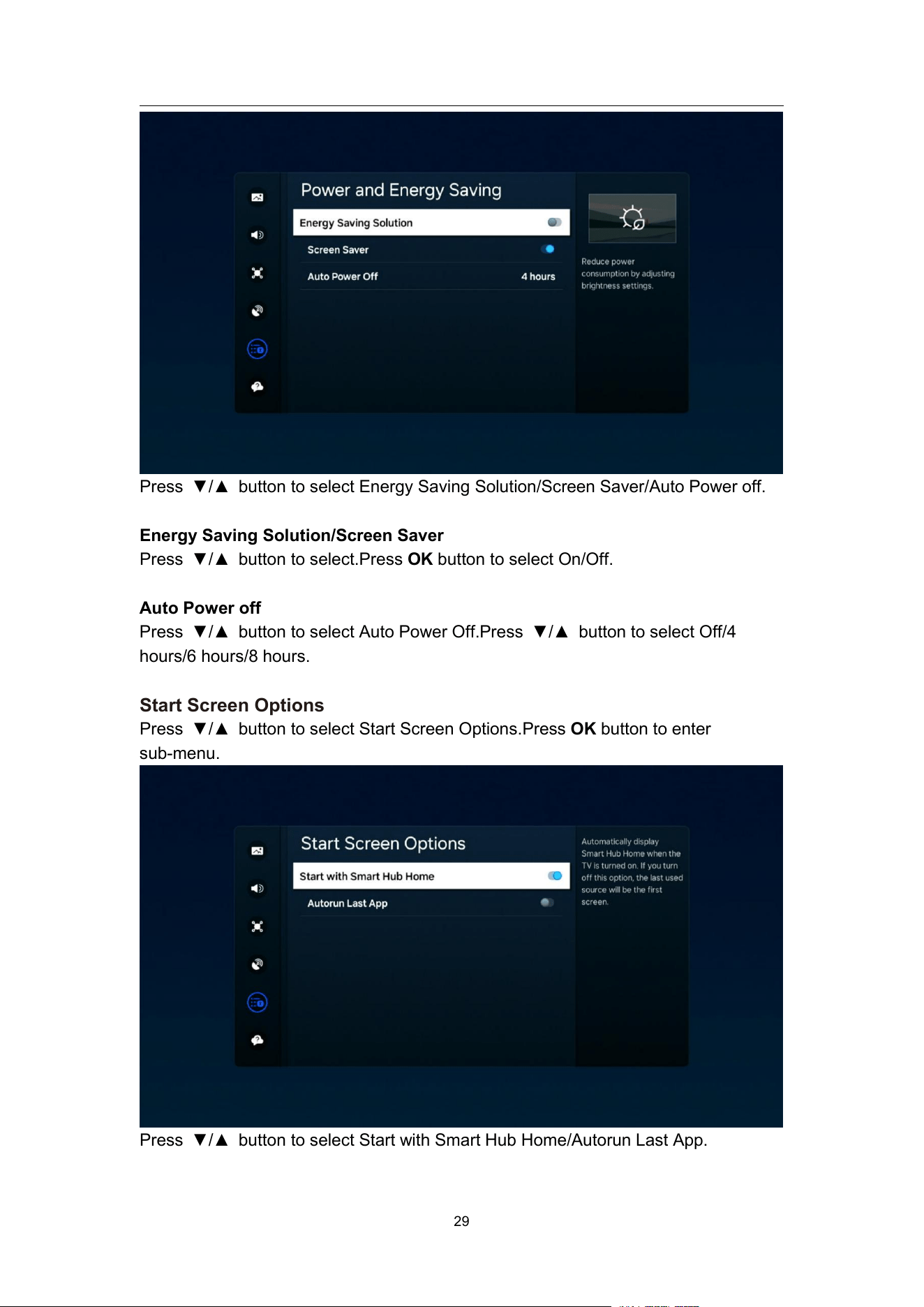
Press ▼/▲ button to select Energy Saving Solution/Screen Saver/Auto Power off.
Energy Saving Solution/Screen Saver
Press ▼/▲ button to select.Press OK button to select On/Off.
Auto Power off
Press ▼/▲ button to select Auto Power Off.Press ▼/▲ button to select Off/4
hours/6 hours/8 hours.
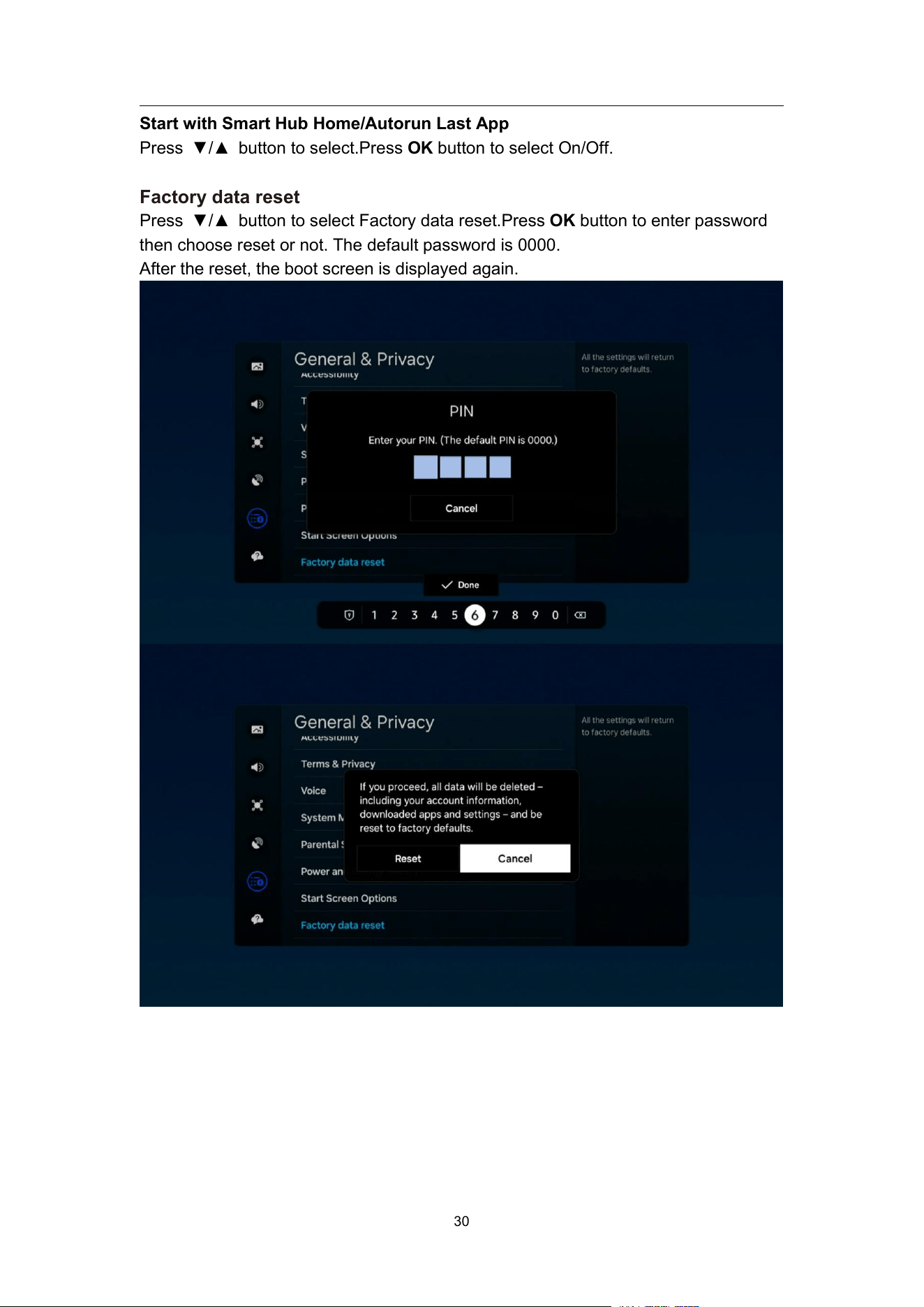
Start Screen Options
Press ▼/▲ button to select Start Screen Options.Press OK button to enter
sub-menu.
Press ▼/▲ button to select Start with Smart Hub Home/Autorun Last App.
NT72690&NT72691
30
Start with Smart Hub Home/Autorun Last App
Press ▼/▲ button to select.Press OK button to select On/Off.
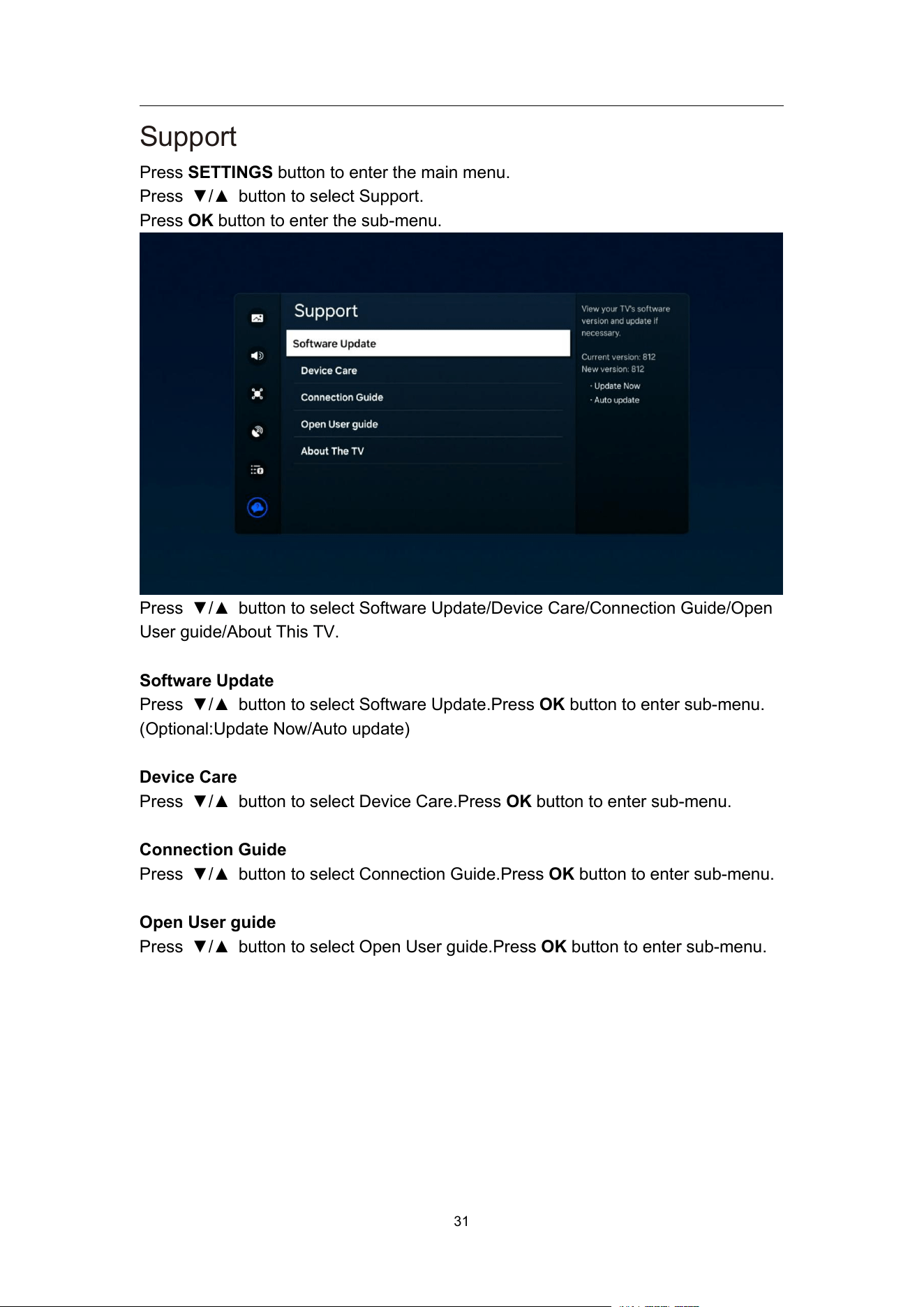
Factory data reset
Press ▼/▲ button to select Factory data reset.Press OK button to enter password
then choose reset or not. The default password is 0000.
After the reset, the boot screen is displayed again.
NT72690&NT72691
31
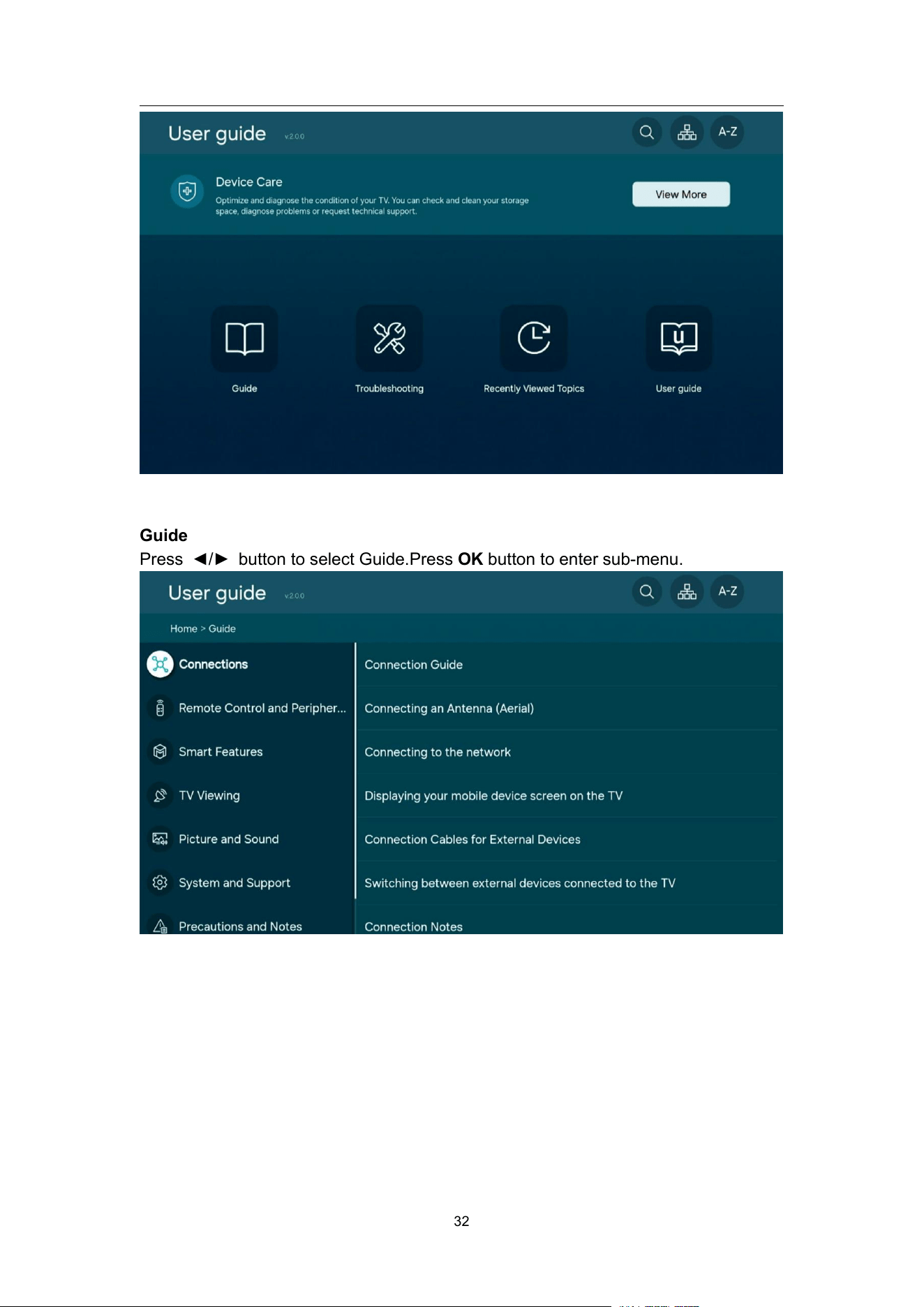
Support
Press SETTINGS button to enter the main menu.
Press ▼/▲ button to select Support.
Press OK button to enter the sub-menu.
Press ▼/▲ button to select Software Update/Device Care/Connection Guide/Open
User guide/About This TV.
Software Update
Press ▼/▲ button to select Software Update.Press OK button to enter sub-menu.
(Optional:Update Now/Auto update)
Device Care
Press ▼/▲ button to select Device Care.Press OK button to enter sub-menu.
Connection Guide
Press ▼/▲ button to select Connection Guide.Press OK button to enter sub-menu.
Open User guide
Press ▼/▲ button to select Open User guide.Press OK button to enter sub-menu.
NT72690&NT72691
32
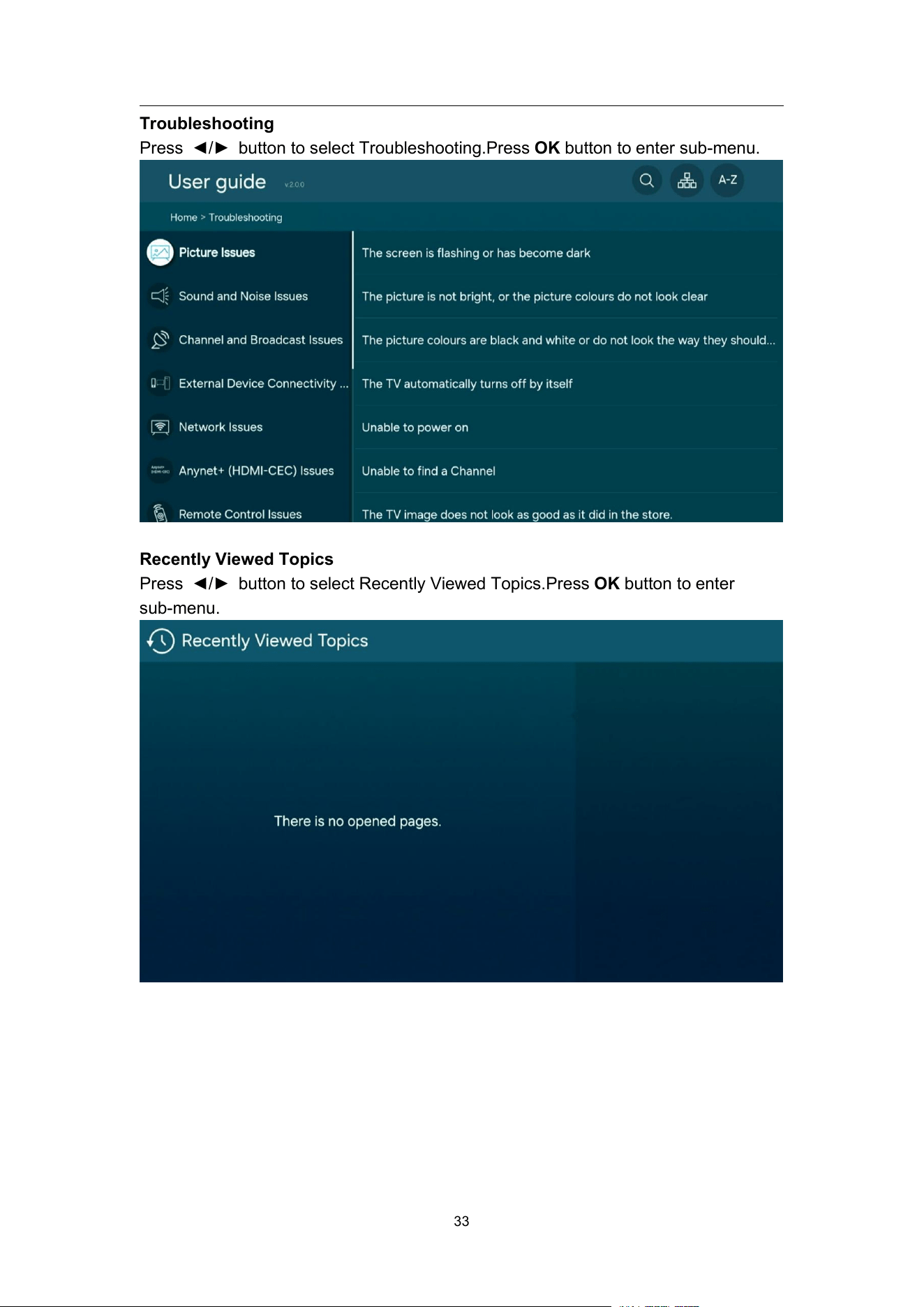
Guide
Press ◄/► button to select Guide.Press OK button to enter sub-menu.
NT72690&NT72691
33
Troubleshooting
Press ◄/► button to select Troubleshooting.Press OK button to enter sub-menu.
Recently Viewed Topics
Press ◄/► button to select Recently Viewed Topics.Press OK button to enter
sub-menu.
NT72690&NT72691
34
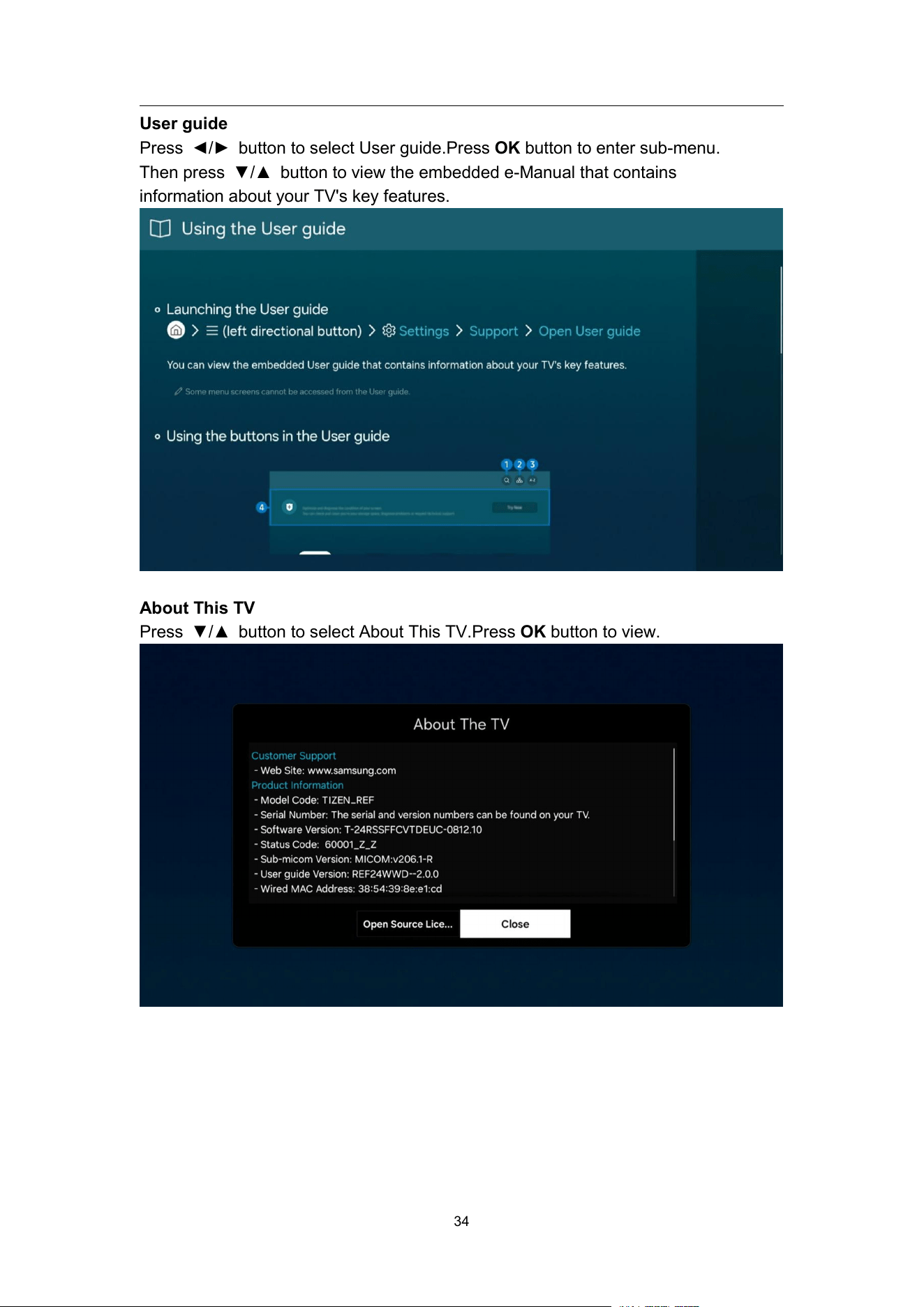
User guide
Press ◄/► button to select User guide.Press OK button to enter sub-menu.
Then press ▼/▲ button to view the embedded e-Manual that contains
information about your TV's key features.
About This TV
Press ▼/▲ button to select About This TV.Press OK button to view.

35
Specicaons
EAN
5060750404454
Model No.
C3225TZ
Max. Resolution
1366 x 768
HD Ready/ Full HD
HD Ready
Contrast Ratio
3500:1
Brightness(TYP cd/m2)
240
Display Colors
16.7M
Viewing Angle( L/R/U/D )
89/89/89/89(CR≥10)
Cabinet Color
Piano Black
Wall Mounting Support
200 x 200mm( M4 x 10 & ST4 x 10 )
TV System
DVB-T & DVB-C & DVB-S2 & DVBT2
Stereo System
Yes
Audio Output
2 x 6W
RF Antenna
1
HDMI
2 (ver1.4a)
CVBS
1 (Mini)
Digital Audio out
1
USB
2
CI
1
RJ45
1
System
Tizen OS
OSD Language
English, Deutsch, Francais, Espanol, Portugese,
Italian.
EPG (Electronic Program
Guide)
7 days
Automatic Tuning
YES
Sleep Timer
YES(240min)
Power Supply
AC 100V-240V~ 50Hz/60Hz
Operation Power
Consumption
26W
Max power Consumption
55W
Standby Power
Consumption
<0.5W
36
37
37
38