
Table of Contents
1. Important �����������������������������������������1
1.1 Safety precautions and
maintenance ...................................1
1.2 Notational Descriptions ................3
1.3 Disposal of product and packing
material .............................................4
2� Setting up the monitor ����������������5
2.1 Installation .......................................5
2.2 Operating the monitor .................8
2.3 Built-in Windows Hello™ pop-up
webcam ......................................... 14
2.4 MultiClient Integrated KVM ..... 16
2.5 Noise Cancelling .......................... 18
2.6 MultiView ...................................... 19
2.7 Remove the Base Assembly for
VESA Mounting ........................... 21
3� Image Optimization ������������������� 22
3.1 SmartImage .................................. 22
3.2 SmartContrast .............................. 24
3.3 LightSensor ................................... 24
3.4 HDR ................................................. 25
4� Thunderbolt
TM
docking display
introduction ��������������������������������� 26
4.1 Docking through Thunderbolt
TM
4 ....................................................... 26
5� Designs to prevent computer
vision syndrome (CVS) ��������������� 27
6� PowerSensor 2 ����������������������������� 28
7� Daisy-chain function ������������������ 30
8� Adaptive Sync ������������������������������ 31
9. TechnicalSpecications ������������ 32
9.1 Resolution & Preset Modes ...... 36
10� Power Management ������������������ 38
11� Customer care and warranty ��� 39
11.1 Philips’ Flat Panel Displays Pixel
Defect Policy ................................. 39
11.2 Customer Care & Warranty .... 42
12� Troubleshooting & FAQs ����������� 43
12.1 Troubleshooting ....................... 43
12.2 General FAQs ............................. 44
12.3 Multiview FAQs ......................... 47

1
1. Important
This electronic user’s guide is intended
for anyone who uses the Philips monitor.
Take time to read this user manual
before you use your monitor. It contains
important information and notes
regarding the operation of your monitor.
The Philips guarantee applies
provided that the product is handled
for its intended use, by its operating
instructions, and accompanied by the
presentation of the original invoice or
cash receipt that indicates the date of
purchase, dealer’s name and model, and
production number of the product.
1.1 Safety precautions and
maintenance
Warnings
The use of controls, adjustments, or
procedures other than those specied
in this document may result in exposure
to shock, electrical hazards, and/or
mechanical hazards.
Read and follow these instructions when
connecting and using your monitor.
Excessive sound pressure from earphones
and headphones can cause hearing loss.
Adjustment of the equalizer to maximum
capacity increases the earphones and
headphones output voltage; thereby
increasing the sound pressure level.
Operation
• Please keep the monitor out of
direct sunlight. Lengthy exposure to
this type of environment may result
in discoloration and damage to the
monitor.
• Keep the display away from oil. Oil
may damage the plastic cover of the
display and void the warranty.
• Remove any object that could fall
into ventilation holes or prevent
proper cooling of the monitor’s
electronics.
• Do not block the ventilation holes in
the cabinet.
• When positioning the monitor, make
sure the power plug and outlet are
easily accessible.
• If turning off the monitor by
detaching the power cable or DC
power cord, wait for 6 seconds
before attaching the power cable or
DC power cord before returning to
normal operation.
• Please use the approved power cord
provided by Philips all the times. If
your power cord is missing, please
contact your local service center.
(Please refer to the Service contact
information located in the Important
information manual.)
• Operate under the specified power
supply. Use of incorrect voltage will
cause malfunction and may cause fire
or electric shock.
• Protect the cable. Do not pull or bend
the power cable and signal cable.
Do not place the monitor or any
other heavy objects on the cables. If
damaged, the cables may cause fire
or electric shock.
• Do not subject the monitor to severe
vibration or high-impact conditions
during operation.
• To avoid potential damage, like
the panel peeling from the bezel,
ensure that the monitor does not tilt
downward by more than -5 degrees.
If the -5 degree downward tilt angle
maximum is exceeded, the monitor
damage will not be covered under
warranty.

2
• Do not knock or drop the
monitor during operation and/or
transportation.
• The USB Type-C port could only be
connected to specify equipment with
fire enclosure in compliance with IEC
62368-1 or IEC 60950-1.
• Excessive usage of the monitor
can cause eye discomfort. It’s
recommended to take shorter breaks
more often at your workstation than
longer breaks and less often. For
example, a 5-10 minute break after
50-60-minute continuous screen use
is likely to be better than a 15-minute
break every two hours. Prevent eye
strain while using the screen for a
constant period by :
• Looking at something varying
distances after a long period of
focusing on the screen.
• Conscious Blinking while you
work.
• Gently closing and rolling your
eyes to relax.
• Reposition your screen to the ap-
propriate height and angle.
• Adjust the brightness and con-
trast to an appropriate level.
• Adjust the environment light-
ing similar to that of your screen
brightness. Avoid uorescent
lighting and surfaces that don’t
reect too much light.
• Seeing a doctor if your symptoms
worsen.
Maintenance
• To protect your monitor from
possible damage, do not put
excessive pressure on the LCD panel.
When moving your monitor, grasp
the frame to lift; do not lift the
monitor by placing your hand or
fingers on the LCD panel.
• Oil-based cleaning solutions may
damage the plastic parts and void the
warranty.
• Unplug the monitor if you are not
going to use it for an extensive period.
• Unplug the monitor if you need to
clean it with a slightly damp cloth. The
screen may be wiped with a dry cloth
when the power is off. However, never
use organic solvents, such as alcohol
or ammonia-based liquids.
• To avoid the risk of shock or
permanent damage to the set, do
not expose the monitor to dust, rain,
water, or excessive moisture.
• If your monitor gets wet, wipe it with
a dry cloth as soon as possible.
• If a foreign substance or water gets in
your monitor, please turn the power
off immediately and disconnect the
power cord. Then, if damaged, send it
to the maintenance center.
• Do not store or use the monitor in
locations exposed to heat, direct
sunlight, or extreme cold.
• To maintain the best performance of
your monitor and use it for a longer
lifetime, please use the monitor in a
location that falls within the following
temperature and humidity ranges:
• Temperature: 0°C-40°C 32°F-104°F
• Humidity: 20%-80% RH
Important information for Burn-in/Ghost
image
• Always activate a moving screen
saver program when you leave your
monitor unattended. Always activate
a periodic screen refresh application if
your monitor will display unchanging
static content. Uninterrupted display
of still or static images over an
extended period may cause “burn-in”,

3
also known as “after-imaging” or
“ghost imaging”, on your screen.
• “Burn-in”, “after-imaging”, or
“ghost imaging” is a well-known
phenomenon in LCD panel
technology. In most cases, the
“burn-in”, “after-imaging” or “ghost
imaging” will disappear gradually
over some time after the power has
been switched off.
Warning
Failure to activate a screen saver, or a
periodic screen refresh application may
result in severe “burn-in” or “after-image”
or “ghost image” symptoms that will not
disappear and cannot be repaired. The
damage mentioned above is not covered
under your warranty.
Service
• The casing cover should be opened
only by qualified service personnel.
• If there is any need for any document
for repair or integration, please
contact your local service center.
(You can refer to the service contact
information listed in the important
information manual.)
• For transportation information,
please refer to “Technical
Specifications”.
• Do not leave your monitor in a car
under direct sunlight.
Note
Consult a service technician if the
monitor does not operate normally or
you are not sure what procedure to take
when the operating instructions given in
this manual.
1.2 Notational Descriptions
The following subsections describe the
notational conventions used in this
document.
Notes, Cautions, and Warnings
Throughout this guide, blocks of text may
be accompanied by an icon and printed
in bold or italic type. These blocks contain
notes, cautions, and/or warnings.
They are used as follows:
Note
This icon indicates important information
and tips that help you make better use of
your computer system.
Caution
This icon indicates information that
tells you how to avoid either potential
damage to the hardware or loss of data.
Warning
This icon indicates the potential for
bodily harm and tells you how to avoid
the problem.
Some warnings may appear in alternate
formats and may not be accompanied
by an icon. In such cases, the specic
presentation of the warning is mandated
by the relevant regulatory mechanism.

4
1.3 Disposal of product and
packing material
Waste Electrical and Electronic
Equipment-WEEE
This marking on the product or its
packaging illustrates that, under
European Directive 2012/19/EU
governing used electrical and electronic
appliances, this product may not be
disposed with normal household waste.
You are responsible for the disposal of
this equipment through a designated
waste electrical and electronic equipment
collection. To determine the locations
for dropping o such waste, contact
your local government oce, the waste
disposal organization that serves your
household, or the store at which you
purchased the product.
Your new monitor contains materials that
can be recycled and reused. Specialized
companies can recycle your product
to increase the number of reusable
materials and minimize the amount to be
disposed of.
All redundant packing material has been
omitted. We have done our utmost to
make the packaging easily separable into
mono materials.
Please nd out about the local
regulations on how to dispose of your
old monitor and packing from your sales
representative.
Taking back/Recycling Information for
Customers
Philips establishes technically and
economically viable objectives to
optimize the environmental performance
of the organization's products, services,
and activities.
From the planning, design, and
production stages, Philips emphasizes
the importance of making products
that can easily be recycled. At Philips,
end-of-life management primarily
entails participation in national take-
back initiatives and recycling programs
whenever possible, preferably in
cooperation with competitors, which
recycle all materials (products and
related packaging material) following
all Environmental Laws and taking back
programs with the contractor company.
Your display is manufactured with high-
quality materials and components which
can be recycled and reused.
To learn more about our recycling
program please visit:
http://www.philips.com/a-w/about/
sustainability.html
5
2. Setting up the
monitor
2.1 Installation
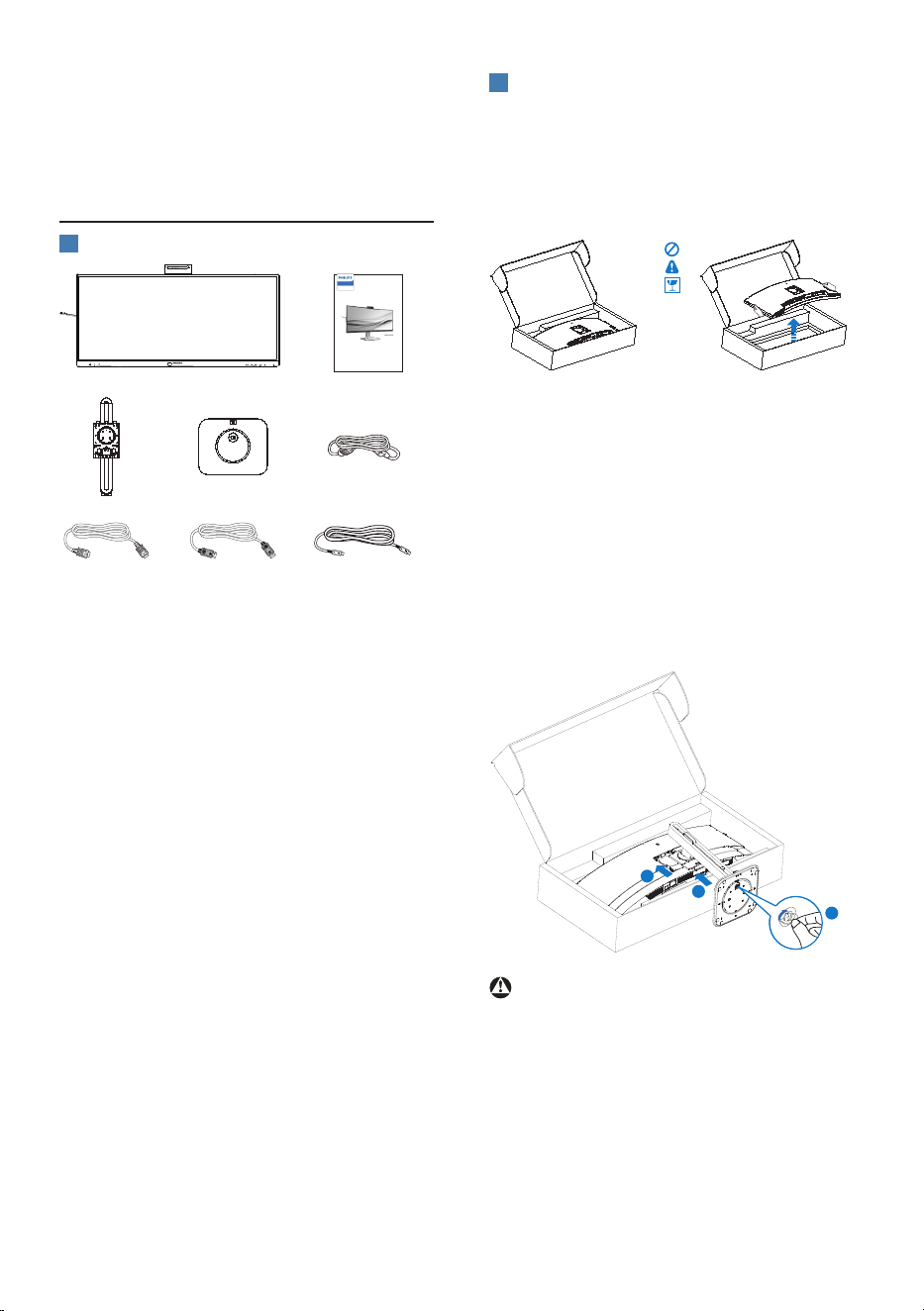
1
Package contents
*HDMI *DP
Power
*Thunderbolt
TM
4
Quick Start
Register your product and get support at www.philips.com/welcome
34B2U6603CH
Curved Business
Monitor
6000 Series
*Dierent according to region.
2
Install the base
1. To well protect this monitor and
avoid scratching or damaging of
the monitor, keep the monitor face
down in the cushion for the base
installation.
2. Hold the stand with both hands.
(1) Gently attach the base to the
stand.
(2) Use your ngers to tighten the
screw located at the bottom of
the base, and secure the base to
the stand tightly.
(3) Gently attach the stand to the
VESA mount area until the latch
locks the stand.
2
1
3
Warning
This product is a curve design. When
attaching/detaching the base, place the
protective material under the monitor
and do not press down on the monitor.
6
3
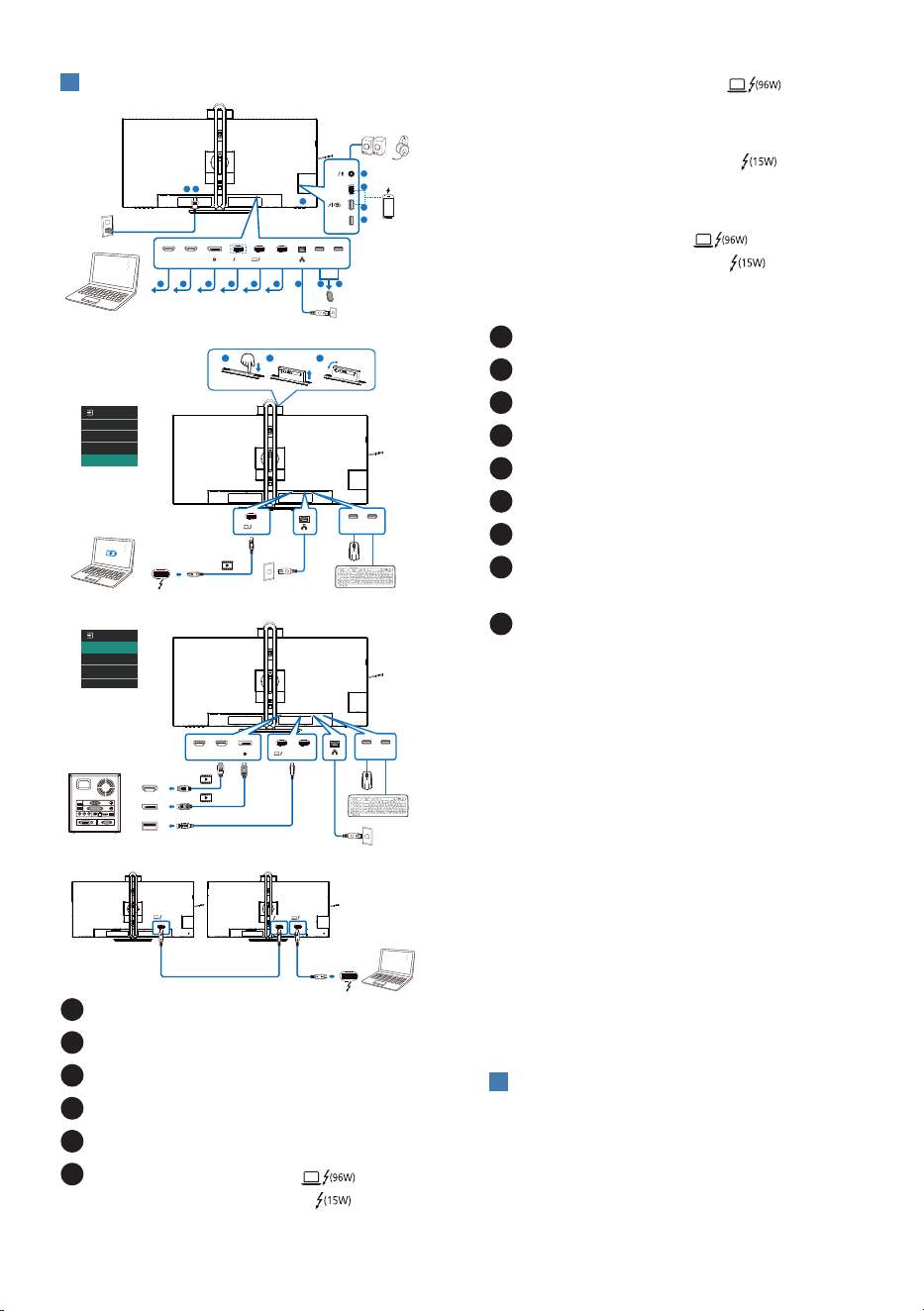
Connecting to your PC
1 2
3 4 5 6 7 8 9 10
11
12
13
14
15
Fast Charger
or
RJ45
6
HDMI 1 HDMI 2 USB C1 USB USB
USB
AUDIO
OUT
USB C2
(45W)
(15W)
(96W)
b
Thunderbolt
HDR Game
HDR Game
USB Type-A
DP
HDMI
USB-C
OR
HDMI 1 HDMI 2
USBC1
(96W)
(96W)
USB USB
USB USB
(15W)
(96W)
(96W)
Multi-stream transport
Thunderbolt
a
b
c
30°
-30°
1
Power Switch
2
AC power input
3
HDMI 1 input
4
HDMI 2 input
5
DisplayPort input
6
Thunderbolt
TM
4 input /
Thunderbolt
TM
4 output
• Thunderbolt
TM
4 input : Video
output (ALT mode DP 1�4), PD 96W,
data transfer�
• Thunderbolt
TM
4 output : PD 15W,
downstream�
• Thunderboltdaisychain:rstplugin
Thunderbolt input , then plug
in Thunderbolt output for signal
output�(Refer to chapter: Daisy-chain
function)
7
USB C1 upstream
8
RJ45 input
9
USB downstream
10
USB downstream
11
USB downstream
12
USB downstream/USB fast charger
13
USB C2 (PD 45W, downstream)
14
Audio (In/Out): audio out /
microphone in combo jack
15
Kensington anti-theft lock
Connect to PC
1. Connect the power cord to the back
of the display rmly.
2. Turn o your computer and unplug
its power cable.
3. Connect the monitor signal cable to
the video connector on the back of
your computer.
4. Plug the power cord of your
computer and your monitor into a
nearby outlet.
5. Turn on your computer and monitor.
If the monitor displays an image,
installation is complete.
4
RJ45 driver installation
You can find the “LAN Drivers” from
Philips website support page.
Please follow the steps for the
installation:
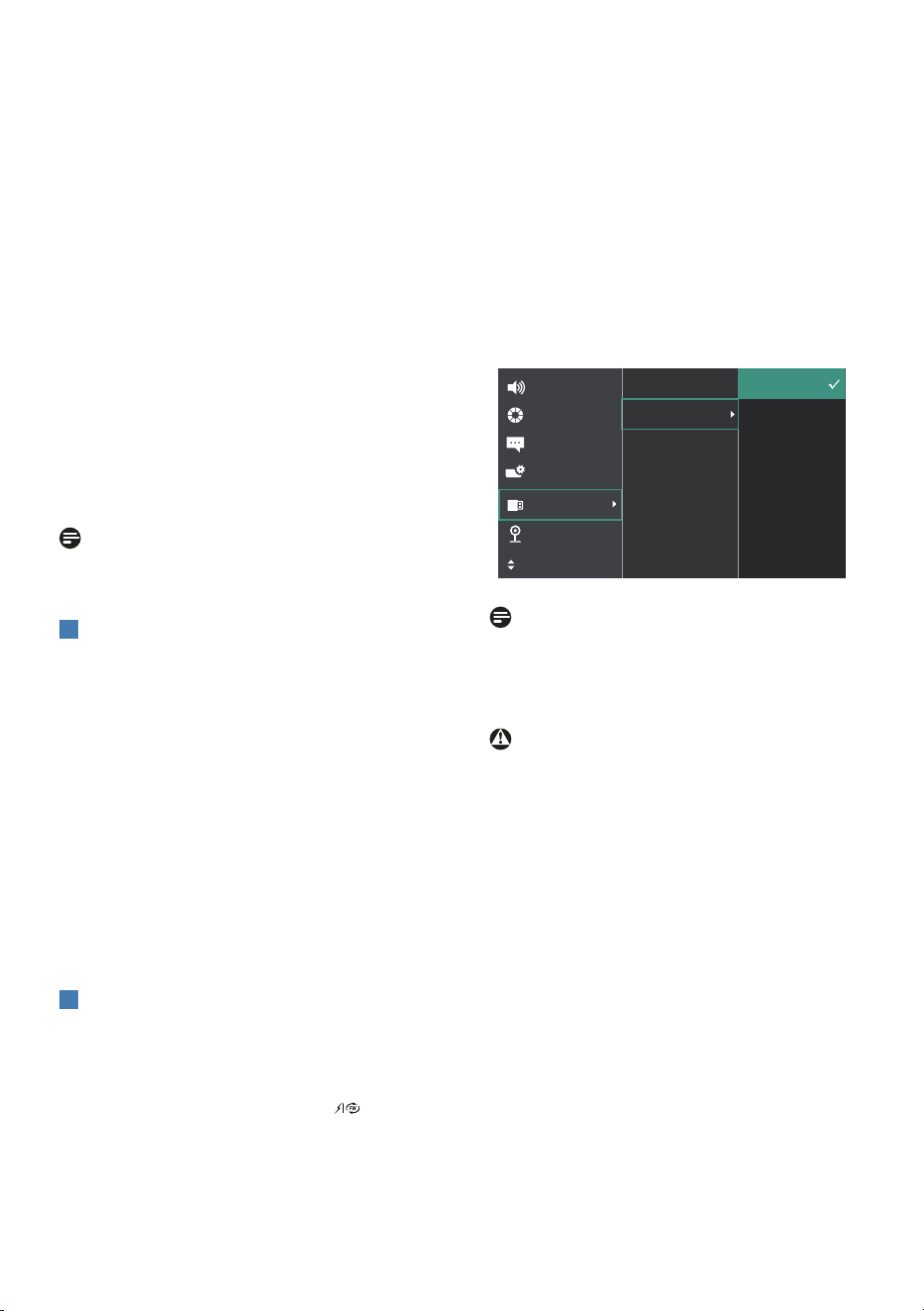
7
1. Install the LAN driver that matches
your system.
2. Double click driver to install, and
follow Window’s instructions to
proceed with installation.
3. It will show “success” when the
installation is nished.
4. You must reboot your computer
after the installation has completed.
5. Now you will be able to see “Realtek
USB Ethernet Network Adapter”
from your program installed list.
6. We recommend to periodically visit
the above web link to check for the
availability of the most updated
driver.
Note
Please contact Philips service hotline for
Mac address clone tool as necessary.
5
USB hub
To comply with International energy
standards, the USB hub/ports of this
monitor are disabled during Standby
and Off modes.
Connected USB devices will not work in
this state.
To permanently put the USB function in
the “ON” state, please go to OSD Menu,
then select “USB standby mode”, and
switch it to the “ON” state. Somehow
if your monitor resets to the factory
setting, ensure to select “USB standby
mode” to “ON” state in the OSD menu.
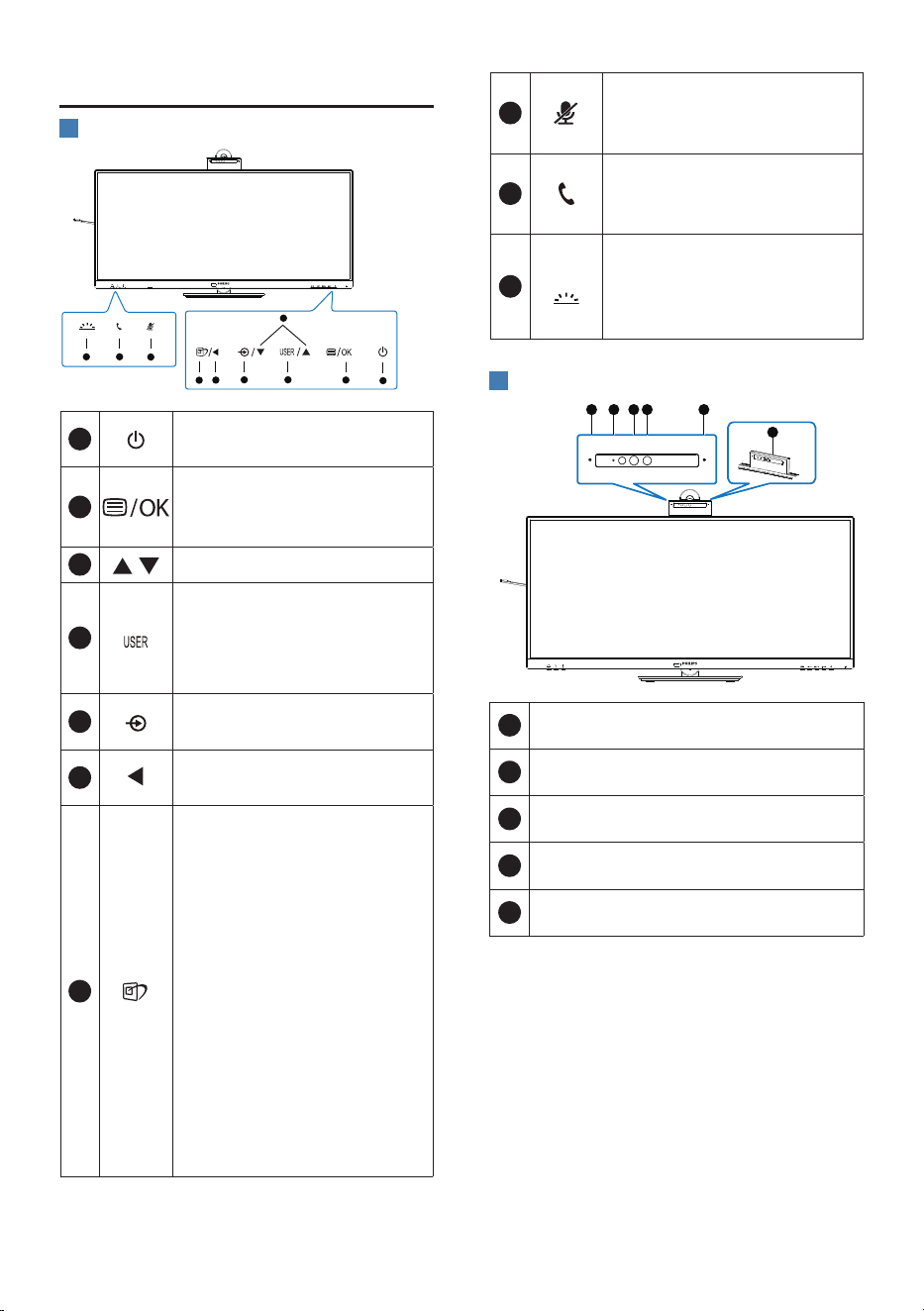
6
USB charging
This display has USB ports capable
of standard power output including
some with USB charging functions
(identifiable with power icon ). You
can use these ports to charge your
Smartphone or power your external
HDD, for example. The display must be
powered ON at all times to be able to
use this function.
Some selected Philips displays may not
Power or Charge your device when it
enters “Sleep/Standby” mode (White
power LED blinking). In that case, please
enter to OSD Menu and select “USB
Standby Mode”, then, turn the function
to “ON” mode (default=OFF). This will
then keep the USB power and charging
functions active even when the monitor
is in sleep/standby mode.
Note
If you Turn OFF your monitor via the
power switch at any given time, all the
USB ports will power OFF.
Warning
USB 2.4Ghz wireless devices, such
as wireless mice, keyboards, and
headphones, may result in decreased
eciency of radio transmission of USB
3.2 or higher version of devices. Should
this happen, please try the following
methods to help reduce the eects:
• Try to keep USB 2.0 receivers away
from a USB 3.2 or higher version of
connection port.
• Use a standard USB extension cable
or USB hub to increase the space
between your wireless receiver and
the USB 3.2 or higher version of
connection port.
8
2.2 Operating the monitor
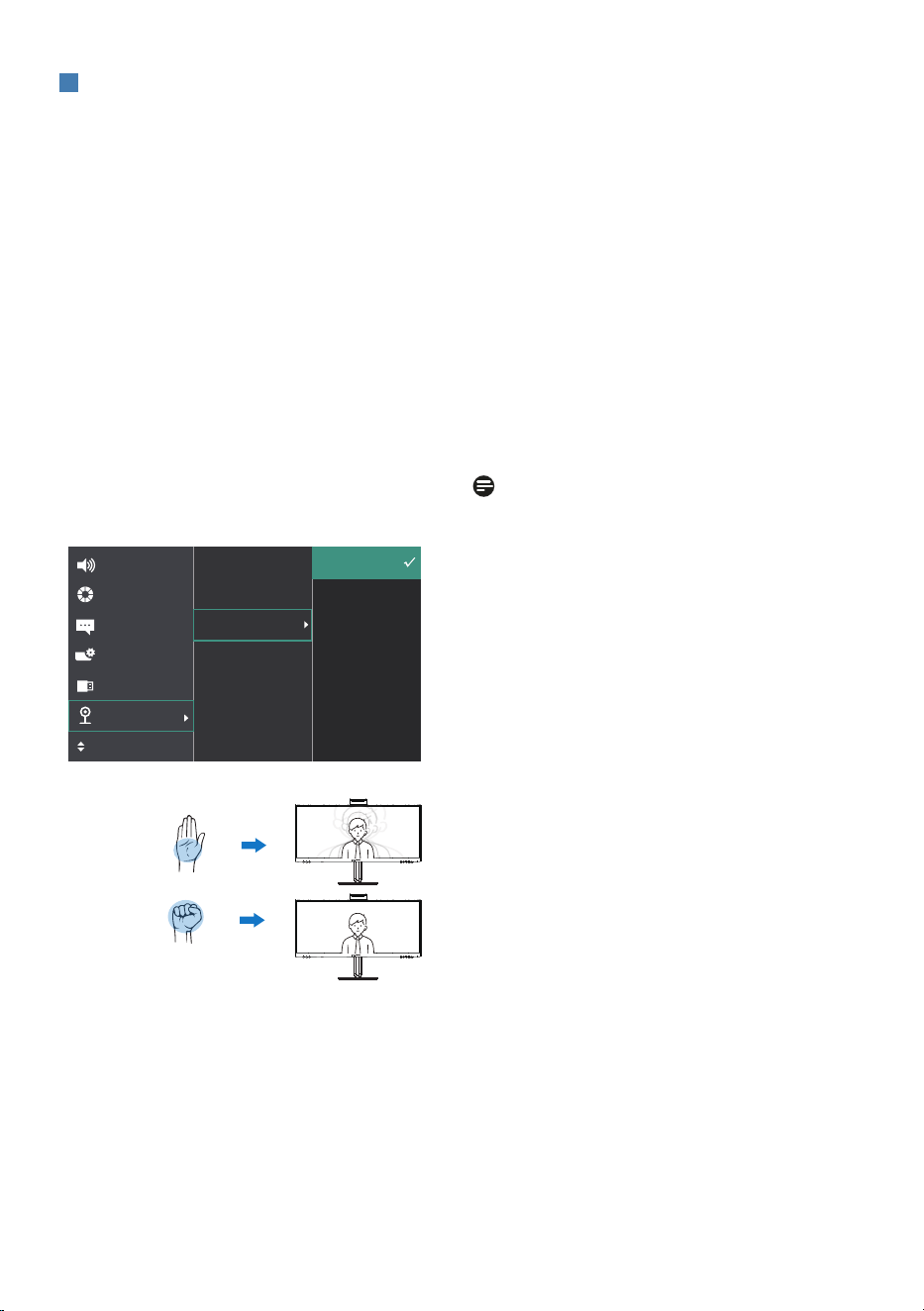
1
Description of the control buttons
5 4
3
2
1
7
6
8
10
9
1
Switch monitor’s power ON
or OFF.
2
Access the OSD menu
.
Conrm the OSD
adjustment.
3
Adjust the OSD menu.
4
User preference key.
Customize your own
preference function from
OSD to become the “user
key”.
5
Change the signal input
source.
6
Return to previous OSD
level.
7
SmartImage hot key. There
are multiple modes to
select: EasyRead, Oce,
Photo, Movie, Game,
Economy, LowBlue Mode,
SmartUniformity, O.
When the monitor receives
HDR signal, SmartImage
will show the HDR menu.
There are multiple
selections in this menu:
HDR Premium, HDR Movie,
HDR Photo, DisplayHDR
400, HDR HLG, HDR Basic,
O.
8
Mute hot key, Switch
Microphone Mute or
UnMute.
9
Accept or decline
an incoming invite
notication.
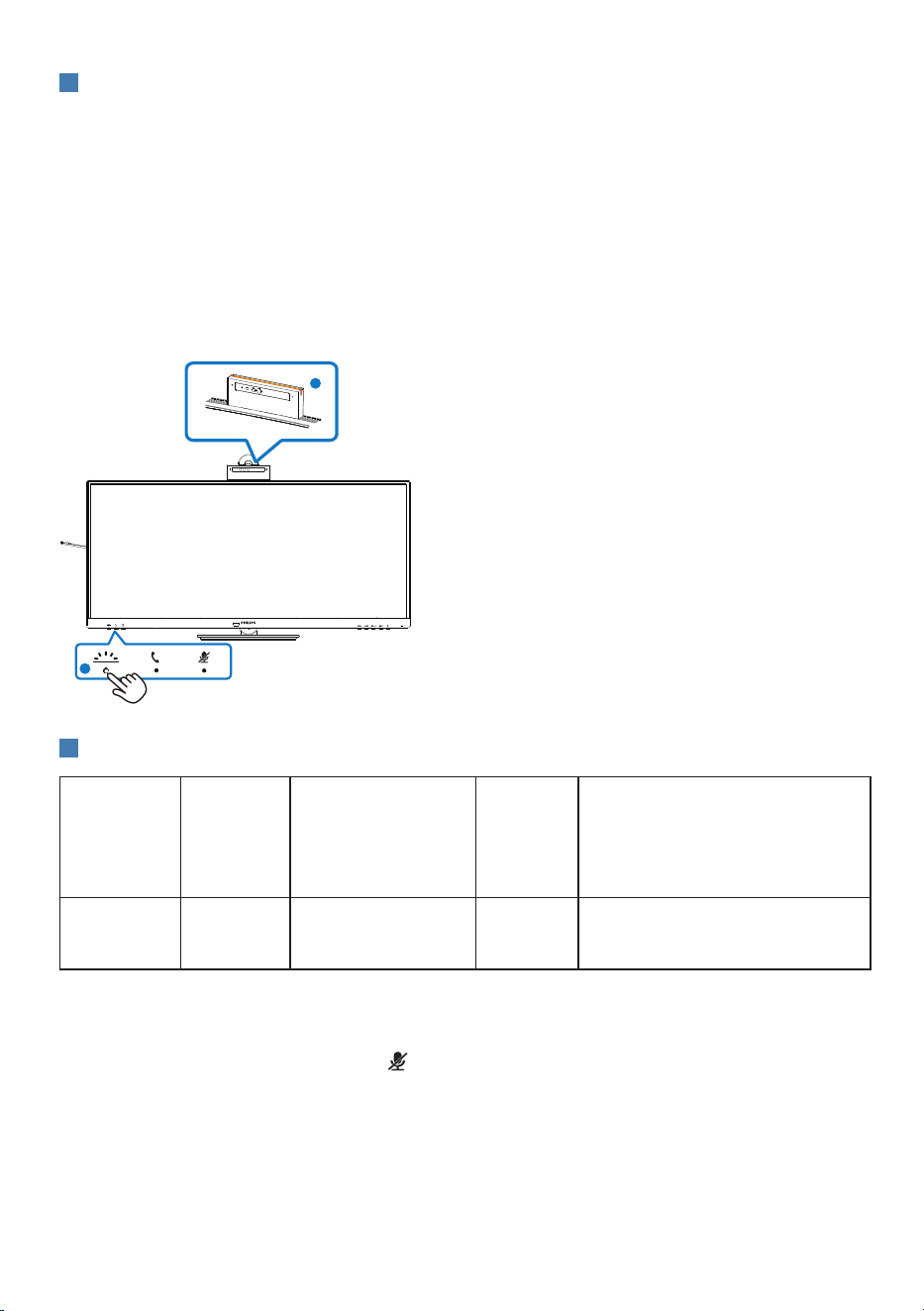
10
Turn the Busylight on and
o. This can help signal
to others that you are in a
busy oce setting.
2
Webcam
21 1
5
4 3
1
Microphone
2
Webcam activity light
3
5.0 Megapixel Webcam
4
IR of Face identication
5
Busylight
9
3
Webcam autoframing
1. What is it?
The webcam is equipped with a zoom in
and out function within a limited distance
when Webcam Autoframing feature is on.
2. Why do I need it?
The Webcam Autoframing feature is ideal
for dynamic video calls and long meetings
as well as calls involving multiple team
members.
3. How does it work?
Users can make an open-handed gesture
or a st to activate and deactivate the
Webcam Autoframing within the monitor's
webcam viewing range of 180cm. To
activate the Webcam Autoframing feature,
users need to switch the Gesture Control
function from O to On.
Webcam Autoframing
On
(zoom in/out)
Off
Mode
Single (default)
• In single mode, the monitor's webcam
will target and follow the user that is
closest to the webcam and zoom in/
out to adjust accordingly. When the
webcam detects a second person, the
Busylight on the webcam will blink to
notify the main user.
Multi
• In Multi mode, the monitor's webcam
will detect all the faces within its reach
and automatically zoom to adjust to
everyone within the frame: This is to
ensure that all members are shown
accurately.
Note
• When the Webcam Autoframing
feature is on, the pixel quality of the
webcam is at 2M. Alternatively, when
the feature is off, the pixel quality of
the webcam can reach up to 5M which
is based on user’s operation system
settings. In addition, please note that
the Webcam Autoframing feature
will detect and capture users from the
center to within a viewing angle of 75
degrees.
• The default setting for the Webcam
Autoframing is "Single".
10
4
Busylight button
Users are able to turn the Busylight on and o.
There are 2 kinds of functions for the Busylight button.
1. The Busylight will automatically turn on when you are on a call (for Microsoft® Teams
and Skype applications). In addition, the Busylight function can help signal to others
that you are in a busy oce setting.
2. To activate when not in a call, simply press the Busylight button and the light located
on the webcam will turn red to transmit to others that you are busy. Please note that
you may need to press the button again after answering and ending a call as the
Busylight automatically turns o after hanging up.
1
2
5
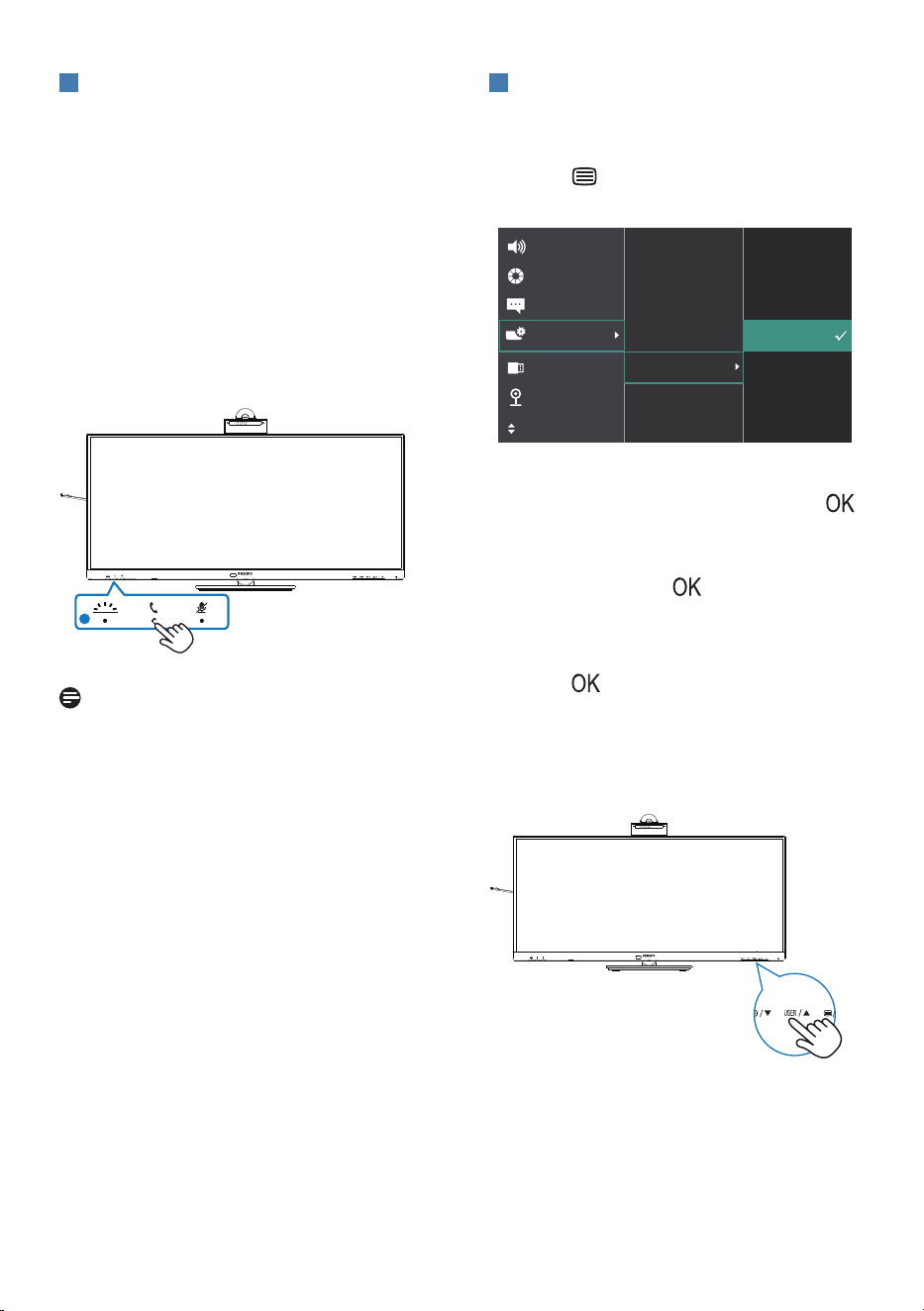
"mute" hot key
OSD Menu Teams app Lync app
(skype for business)
Zoom app Other communication
softwares
(Line, WeChat, Google meeting,
Blue Jeans, Cisco Webex, Goto
meeting, FaceTime, Slack�)
Microphone
Mute
■ ■
#
*
■
Mute function works with the operating system.
#
Mute function works with the operating system, if the monitor is certied by Zoom.
*
Mute function works by pressing button on the display,but the Mute Icon of
the operating system doesn't sync with the monitor. (Operating system will show as
unmuted.)
11
6
Hook button
For accepting or declining an incoming
invite notication.
This button links to Skype and
Microsoft® Teams accounts (for paid
subscriptions only). To accept an
incoming call, press the hook button
and it will automatically light up the
Busylight beacon. In addition, the LED
light located on the hook button will
turn white after you receive the call.
To end the call, press the hook button
when ready.
1
Note
This button only functions properly
when connected to a USB (data)
upstream cable from the monitor to
your PC. When using a DisplayPort or
HDMI input connection, you need to
use a USB-C/A cable and connect it to
the "USB-C1" or "Thunderbolt" port.
Alternatively, you can use a USB-C/C
cable and connect it to the "USB-C1"
or "Thunderbolt" port on the monitor,
which provides data, video transfer, and
power delivery to external devices.
7
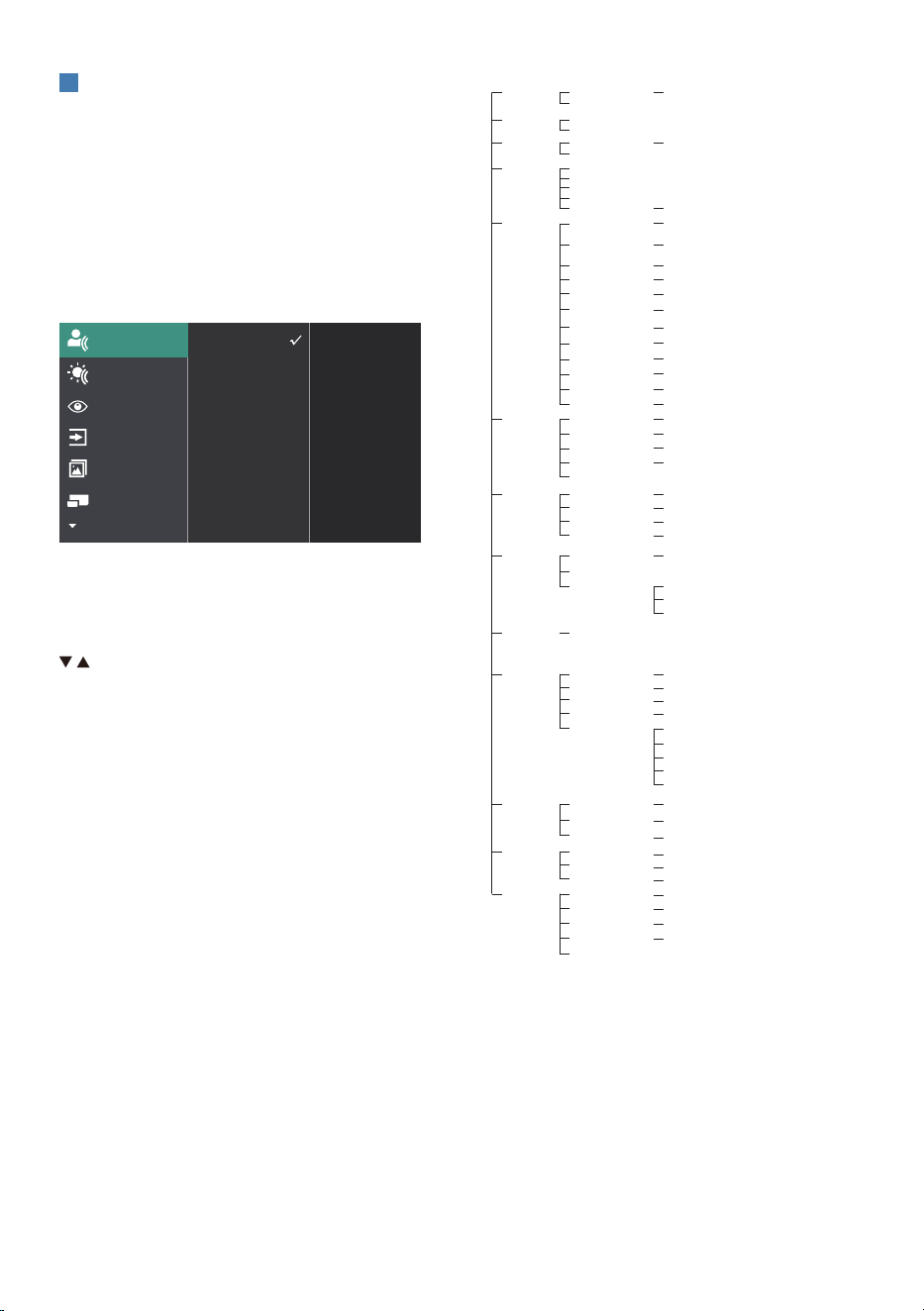
Customize your own “USER” key
This hot key allows you to setup your
favorite function key.
1. Press button on the front bezel
to enter OSD Menu Screen.
2. Press ▲ or ▼ button to select main
menu [OSD Settings], then press
button.
3. Press ▲ or ▼ button to select [User
Key], then press button.
4. Press ▲ or ▼ button to select your
preferred function.
5. Press button to conrm your
selection.
Now you can press the hotkey directly on
the front bezel. Only your pre-selected
function will appear for quick access.
12
8
Description of the On-Screen Display
What is On-Screen Display (OSD)?
On-Screen Display (OSD) is a feature in
all Philips LCD monitors. It allows an end
user to adjust screen performance or
select functions of the monitors directly
through an on-screen instruction
window. A user-friendly OSD interface is
shown below:
Basic and simple instructions on the
control keys
In the OSD shown above, you can press
buttons at the front bezel of the
monitor to move the cursor, and press
OK button to conrm the choice or
change.
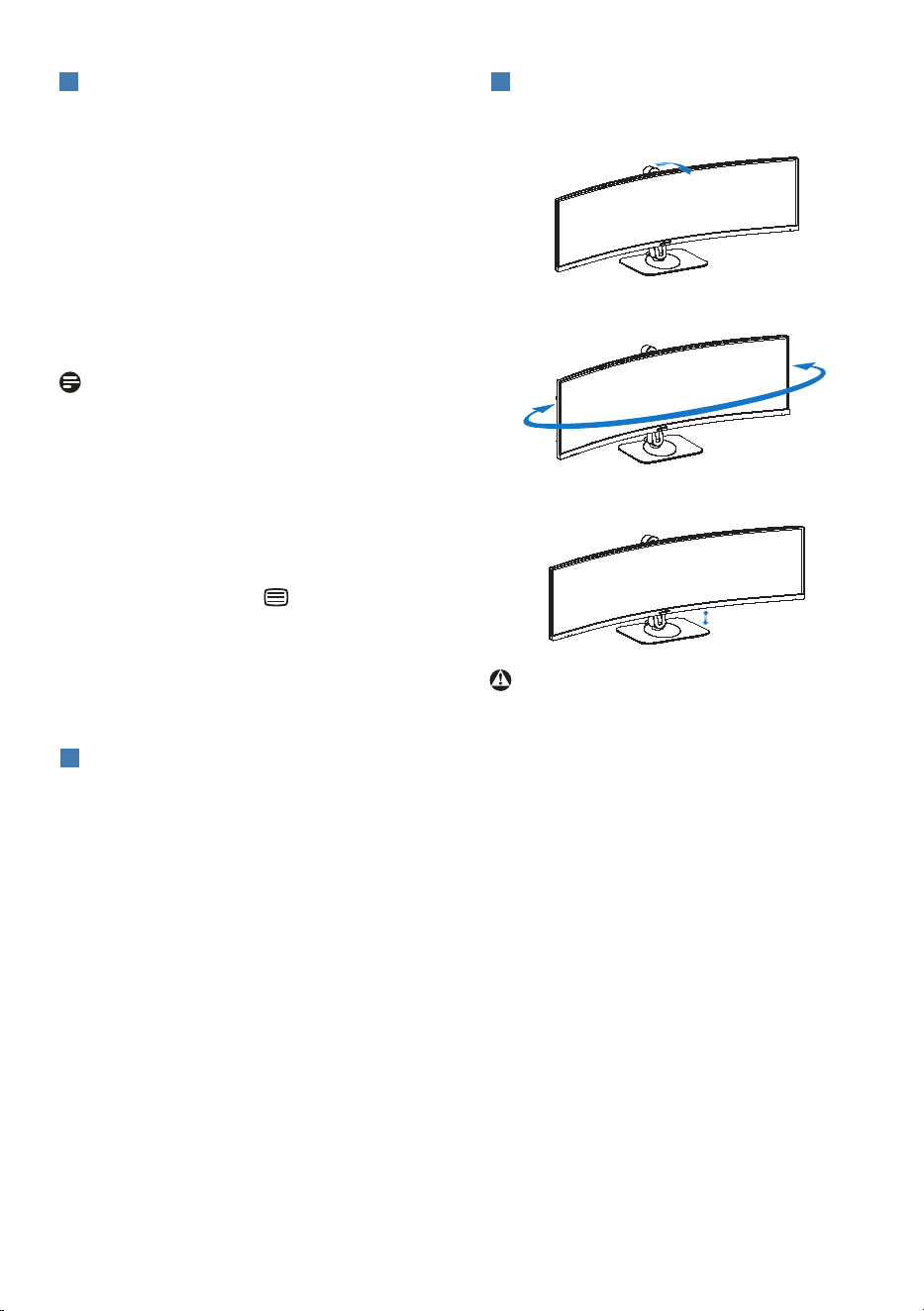
The OSD Menu
Below is an overall view of the structure
of the On-Screen Display. You can use
this as a reference when you want to
work your way around the dierent
adjustments later on.
Main menu Sub menu
OSD Setting
USB Setting
Setup
Language
Webcam
Horizontal
Vertical
Transparency
OSD Time Out
Resolution Notication
Power LED
User Key
USB-C Setting
USB Standby Mode
KVM
Busylight
ThunderBolt
Color
Audio
Color Temperature
sRGB
User Dene
Volume
Mute
Audio Source
Noise Cancelling
PIP/PBP
PIP / PBP Mode
Swap
PIP / PBP Input
SmartResponse
SmartContrast
Gamma
Pixel Orbiting
Contrast
Brightness
Picture
Input
0~100
0~100
O, 1, 2, 3, 4
5s, 10s, 20s, 30s, 60s
Native, 5000K, 6500K, 7500K, 8200K, 9300K, 11500K
Volume
MultiView
Brightness
KVM
PowerSensor
High Data Speed, High Resolution
On, O
Auto, Thunderbolt ,USB C
0, 1, 2, 3, 4
Focus
Single, Multi
Gesture Control
On, O
Red: 0~100
Green: 0~100
Blue: 0~100
HBR2, HBR3
0~100
On, O
0~100
On, O
O, Fast, Faster, Fastest
On, O
1.8, 2.0, 2.2, 2.4, 2.6
0~100
O, PIP, PBP
Sharpness
0~100
DisplayPort
Thunderbolt
Auto
On, O
Picture Format Wide screen, 4:3, 16:9, Movie 1, Movie 2, 1:1
Adaptive Sync On, O
SmartImage HDR HDR Premium, HDR Movie, HDR Photo,
DisplayHDR 400, HDR HLG, HDR Basic, O
SmartImage EasyRead, Oce, Photo, Movie, Game, Economy,
LowBlue Mode, SmartUniformity, O
On, O
0, 1, 2, 3, 4
English, Deutsch, Español, Ελληνική, Français, Italiano, Magyar, Nederlands,
Português, Português do Brasil, Polski , Русский, Svenska, Suomi, Türkçe,
Čeština, Українська, 简体中文, 繁體中文,日本語,한국어
LightSensor
O
On
PowerSensor
O
On 0, 1, 2, 3, 4, User
Over Scan On, O
PIP Size
1 HDMI 2.0, 2 HDMI2.0, DisplayPort, Thunderbolt
PIP Position
Small, Middle, Large
Top-Right, Top-Left, Bottom-Right, Bottom-Left
HDMI1, HDMI2, DisplayPort, Thunderbolt
On, O
1 HDMI 2.0
2 HDMI 2.0
Reset
Information
Yes, No
LowBlue Mode
O
On 1, 2, 3, 4
13
9
Resolution notication
This monitor is designed for optimal
performance at its native resolution:
3440 x 1440.
When the monitor is powered on at a
dierent resolution, an alert is displayed
on the screen as follows: Use 3440 x
1440 for best results.
Display of the native resolution alert can
be switched o from Setup in the OSD
(On Screen Display) menu.
Note
1. The USB hub default setting of USB C
input for this monitor is “High Data
Speed”. The maximum resolution
supported depends on your graphic
card capability.If your PC doesn’t
support HBR 3, select High Resolution
in USB Setting, then the maximum
resolution supported will be 3440 x
1440 @75Hz.Press button > USB
Setting > USB > High Resolution
2. If your Ethernet connection seems
slow, please enter OSD menu and
select High Data Speed which
supports the LAN speed to 1G.
10
Firmware
The over-the-air (OTA) rmware update
is through the SmartControl software
and is easily downloadable through the
Philips website. What does SmartControl
do? It is an additional software that
helps control the photo, audio, and the
other on-screen graphic settings of the
monitor.
In the “Setup” section, you can check
which rmware version you currently
have and if you need to upgrade or not.
In addition, it is important to note that
the rmware upgrades must be done
through the SmartControl software.
It is necessary to be connected to a
network when updating the rmware
on SmartControl over-the-air (OTA).
11
Physical Function
Tilt
30°
-5°
Swivel
-180°
+180°
Height adjustment
180mm
Warning
• To avoid potential screen damage,
such as panel peeling, ensure that
the monitor does not tilt downward
by more than -5 degrees.
• Do not press the screen while
adjusting the angle of the monitor.
Grasp only the bezel.
14
2.3 Built-in Windows Hello™
pop-up webcam
1
What is it?
Philips' innovative and secure webcam
pops up when you need it and securely
tucks back into the monitor when
you are not using it. The webcam is
also equipped with advanced sensors
for Windows Hello facial recognition,
which conveniently logs you into your
Windows devices in less than 2 seconds,
3 times faster than a password.
2
How to enable Windows Hello™
pop-up webcam
Philips monitor with Windows Hello
webcam can be enabled by simply
connecting your USB cable from your
PC to the “Thunderbolt input ”
port or “USB C1” port of this monitor,
then make a selection accordingly from
the “KVM” section of your OSD menu.
Now, the webcam with Windows Hello
is ready to work as long as the Windows
Hello setting in Windows11 is complete.
Refer to Windows official website for
the settings: https://support.microsoft.
com/help/4028017/windows-learn-
about-windows-hello-and-set-it-up
Please note that Windows 11 system
is required for setting up Windows
Hello: facial recognition; with an edition
lower than Windows 11 or Mac OS, the
webcam can work without the function
of facial recognition.
Operating
System
Webcam Windows hello
Win10 Yes Yes
Win11 Yes Yes
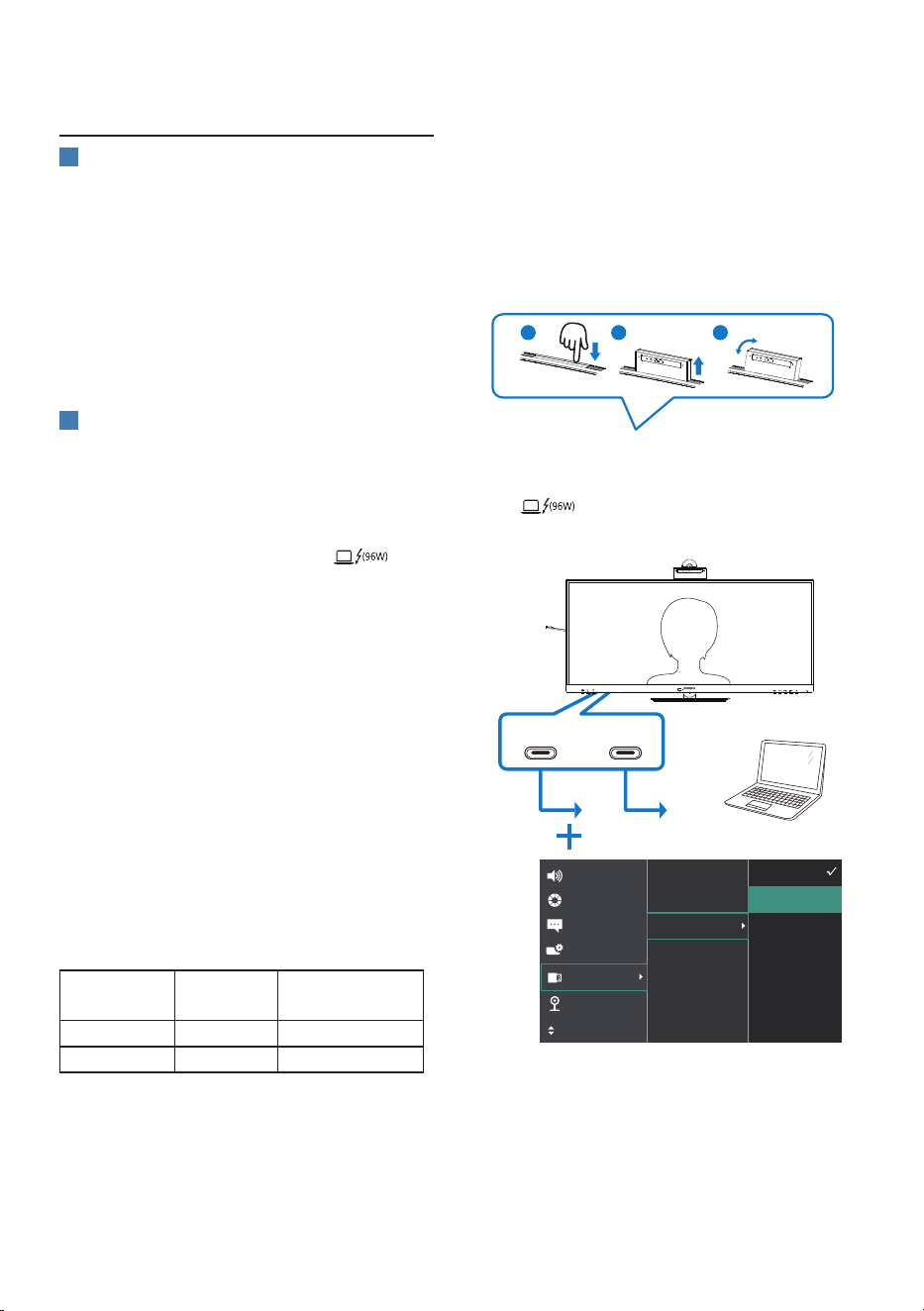
Please follow the steps for the setting:
1. Press the built-in webcam on the
top of this monitor, and turn it to
the front. This is adjustable webcam.
By adjusting the webcam back and
forward by 30 degrees, you can
now comfortably call and attend
meetings from any position that best
suits you.
a
b
c
30°
-30°
2. Simply connect the USB cable from
your PC to the “Thunderbolt input
” or “USB C1” port of this
monitor
+
Thunderbolt
or
USBC1
15
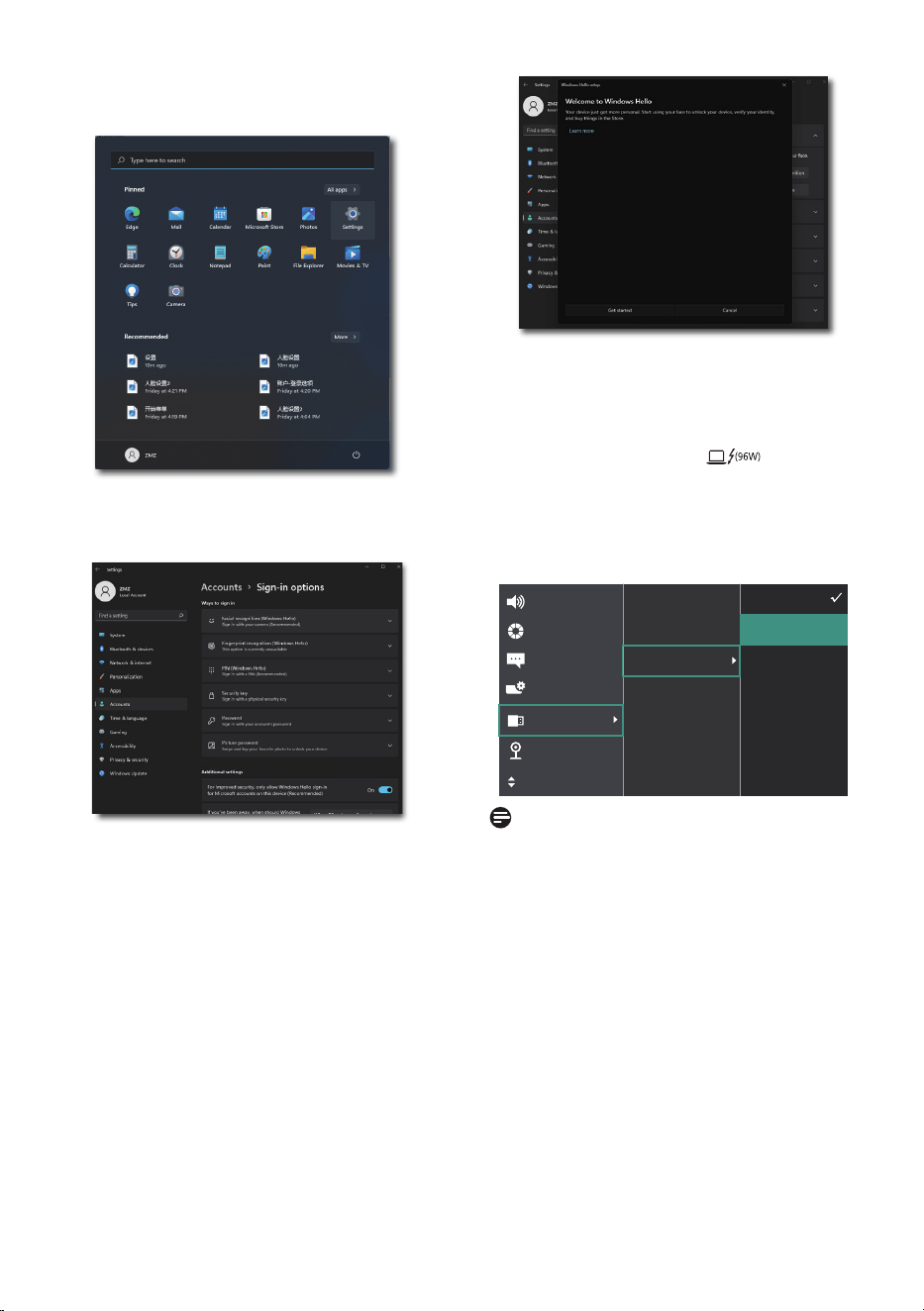
3. Setting in Windows11 for Windows
Hello
a. In the settings app click on
accounts.
b. Click on sign-in options in the
sidebar.
c. You need to set up a PIN code
before you're allowed to use
Windows Hello. Once you've
added this, the option for Hello
will unlock.
d. You'll now see which options
are available to set up under
Windows Hello.
e. Click on "Get started." The setting
is complete.
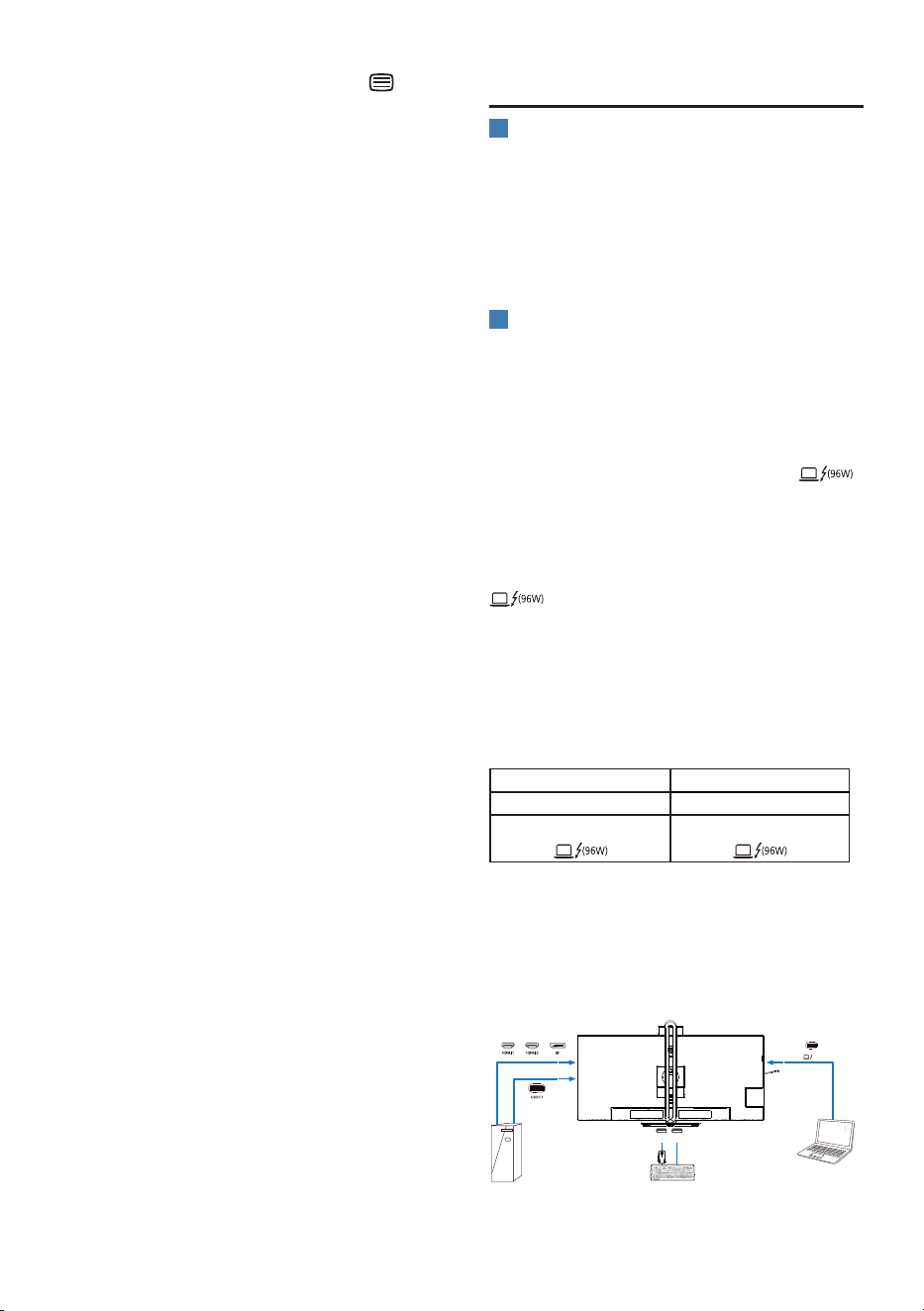
4. If you connect the USB cable from
“Thunderbolt input ” port of
this monitor, please enter OSD menu
to make a appropriate selection of
“Thunderbolt” under the “KVM”
layer.
Note
1. Please always go to Windows
ocial website to access the latest
information, the information in EDFU
is subject to change without further
notice.
2. Dierent regions have dierent
voltages, with inconsistent voltage
setting may cause water ripple when
using this webcam. Please make the
voltage setting same as the voltage
of your region.
3. This monitor has a webcam active
beacon that lights up when the
webcam is in use. There are four
brightness options, 0=OFF to 4=HI.
16
You can press the OSD button to
enter the on-screen display menu,
under Webcam>Webcam light, to
adjust the brightness level.
2.4 MultiClient Integrated KVM
1
What is it?
With the Multiclient Integrated
Keyboard Video Mouse (KVM) switch
feature, it is possible to control two
separate PCs with a one monitor/
keyboard/mouse setup.
2
How to Enable Multiclient Integrated
KVM
With the built-in Multiclient Integrated
KVM feature, it’s easy to switch
between each connected device via the
On-Screen Display (OSD) menu setting.
For the use of Thunderbolt input ,
HDMI and/or DP as input, use the USB-C
cable in the direction of USB Upstream.
Then, connect the upstream cables
from your PC to the Thunderbolt input
and USB C1 ports located on the
monitor. This process for each PC can
be done simultaneously. Please refer to
the table and graphic below for more
information.
This table explains each source to its
corresponding ports on the monitor.
Source USB Upstream
HDMI or DP USB C1
Thunderbolt input Thunderbolt input
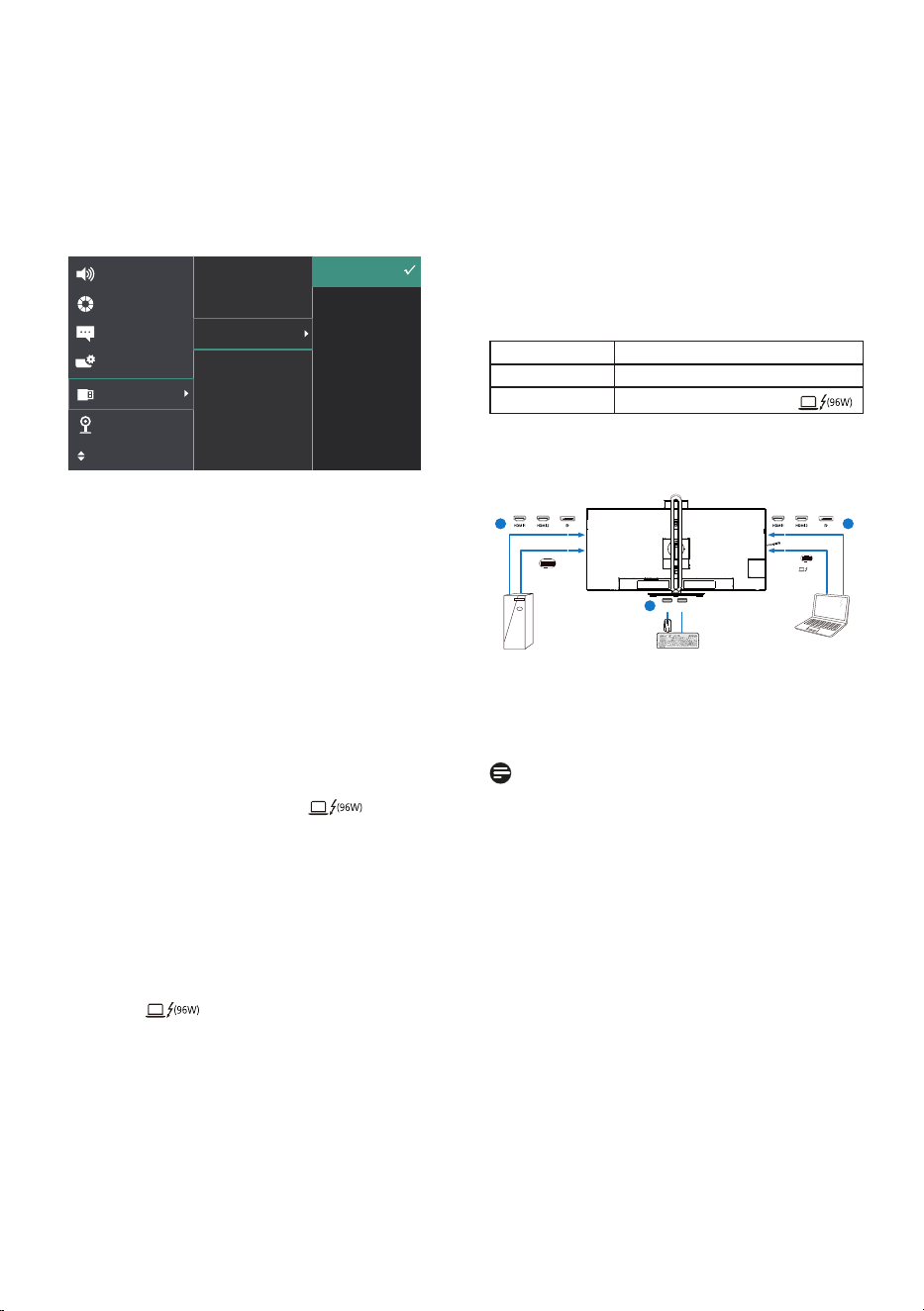
A Step-by-Step procedure:
1. Connect each cord from the
corresponding ports on the monitor,
as mentioned in the table above,
connect to each PC.
PC1 PC2
OR OR
USB A-C Cable
Thunderbolt
TM
4 Cable
OR
USB C-C Cable
(96W)
USB USB
17
2. Enter the On-Screen Display (OSD)
menu. Go to the KVM tab and select
“Auto”, “Thunderbolt”, or “USB C”
to switch the monitor view from
one device to another. To switch to
another monitor view, simply repeat
this step.
3. Go to the KVM tab and select “Auto”,
the KVM Smart function can be
used.
Users are now able to switch between
sources more easily with the latest
Smart KVM feature. To move sources,
simply click the “ctrl” three times. It
would be also available for swapping
the Main Picture and the Sub Picture on
PIP with Smart KVM.
If you would like to use a DP and/or
HDMI cord to input into your device,
use the Thunderbolt input and
USB C1 ports with the USB cord being in
direction USB upstream.
Please check out the following steps
for adjusting the settings for HDMI/DP
usage:
1. Connect the USB cable upstream
from the PC(s) to the “Thunderbolt
input ” and “USB C1” ports of
this monitor. This procedure can be
done at the same time, if desired.
The dual PC setup should look like this:
PC1: You can use a USB-C/A cable in
direction upstream and a HDMI
cable or a DP cable and connect
it to the HDMI or DP port on the
monitor for viewing video and
audio content.
PC2: You can use a USB-C/A cable in
direction upstream and a HDMI
cable or a DP cable and connect
it to the HDMI or DP port on the
monitor for viewing video and
audio content.
For your convenience. Please use the
table below as reference.
Source USB Upstream
HDMI or DP USB C1
DP or HDMI
Thunderbolt input
2. Connect peripherals to the USB
downstream port of this monitor.
1 1
2
PC1 PC2
OR OR OR OR
USB A-C Cable
USB C-C Cable
(96W)
USB USB
USB C1
3. Go to the On-Screen Display
(OSD) menu and follow the same
procedure with the KVM feature as
#2 in the previous section.
Note
• Please note that the connection of
the input source is not automatic
and it is necessary to go to the
On-Screen Display (OSD) to select
the input you are using.
• You can also ads Multiclient
Integrated KVM feature in Picture-
by-Picture (PBP) mode. When you
enable PBP, you are able to view
two different sources projected onto
the same screen. The MultiClient
Integrated KVM feature enhances
productivity by using one screen to
control two PCs via the On-Screen
Display (OSD) menu setting.
18
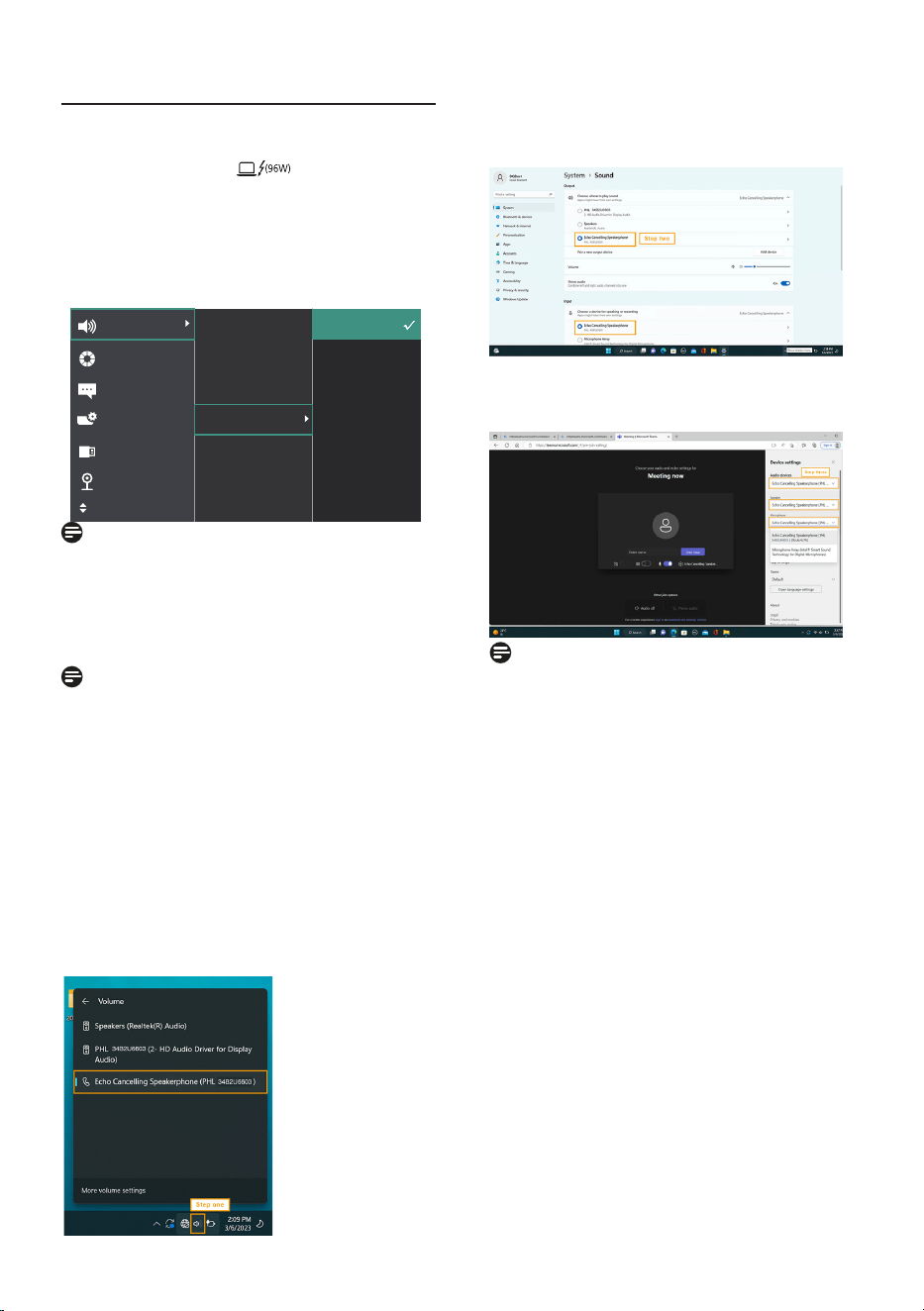
2.5 Noise Cancelling
This monitor has Noise Cancelling
functionality. When connected via
Thunderbolt input /USB C1 during
video conferencing, the monitor will
automatically lter for human sounds.
This function can be turned o in the
OSD menu, under Noise Cancelling
(default=ON).
Note
If multiple devices are connected to
the display, both may play through
the speaker at the same time. It is
recommended to disable the audio
output of the non-primary device.
Note
Generally the default setting is set on for
the noise-canceling speakerphone when
a device is connected to this monitor.
To check whether the noise cancelation
speakerphone setting is on or o, please
follow the below steps.
Step 1: Select the speaker icon at the
lower right section of the screen and
then, when the menu pops up, choose
the noise canceling option with your
monitor’s name.
Step 2: Go to your monitor’s system
settings, then go to the sound
menu. Select your monitor the noise
cancelation speakerphone.
Step 3: When entering meetings, select
this monitor with the noise cancelation
speakerphone as your sound source.
Note
It is important to use a USB-C to
USB-C cable or a USB-C to USB-A cable
connection for the noise cancelation
function to work properly.
19
2.6 MultiView
1
What is it?
Multiview enables active variety to
connect and view so that you can
work with multiple devices like PC and
Notebook side-by-side simultaneously,
thereby making complex multitasking
work a breeze.
2
Why do I need it?
With the ultra-high-resolution Philips
MultiView display, you can comfortably
experience a world of connectivity in
the office or at home. With this display,
you can conveniently enjoy multiple
content sources on one screen. For
example, You may want to keep an eye
on the live news video feed with audio
in the small window, while working on
your latest blog... or you may want to
edit an Excel file from your Ultrabook,
while logged into a secured company
intranet to access files from a desktop.
3
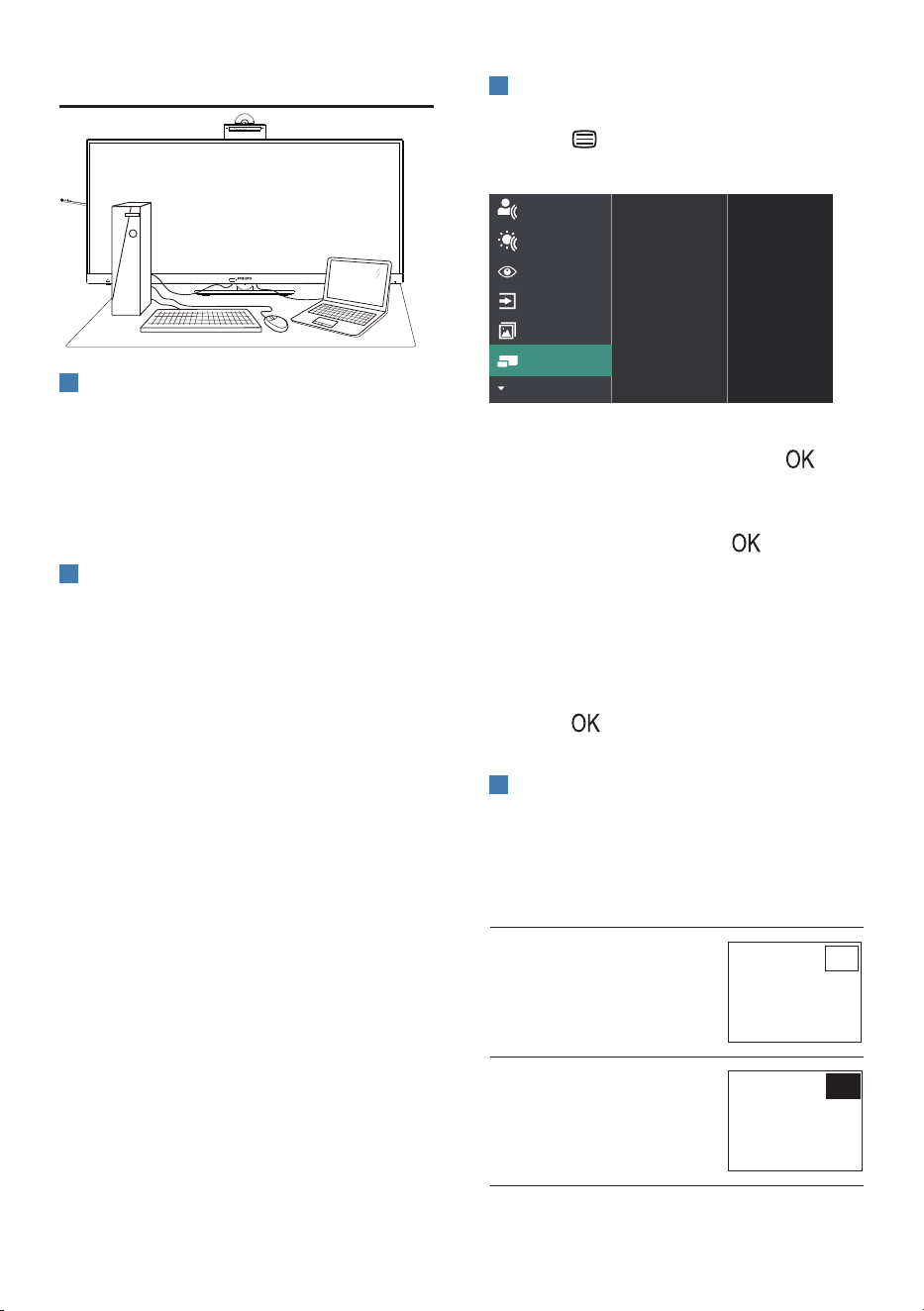
How to enable MultiView by OSD
menu?
1. Press button on the front bezel
to enter OSD Menu Screen.
PIP / PBP Input
PIP Position
Swap
PIP Size
Off
Thunderbolt
Small
Top-Right
PIP / PBP Mode
2. Press ▲ or ▼ button to select main
menu [PIP / PBP], then press
button.
3. Press ▲ or ▼ button to select [PIP /
PBP Mode], then press button.
4. Press ▲ or ▼ button to select [PIP]
or [PBP].
5. Now you can move backward to set
the [PIP / PBP Input], [PIP Size], [PIP
Position], or [Swap].
6. Press button to conrm your
selection.
4
MultiView in OSD menu
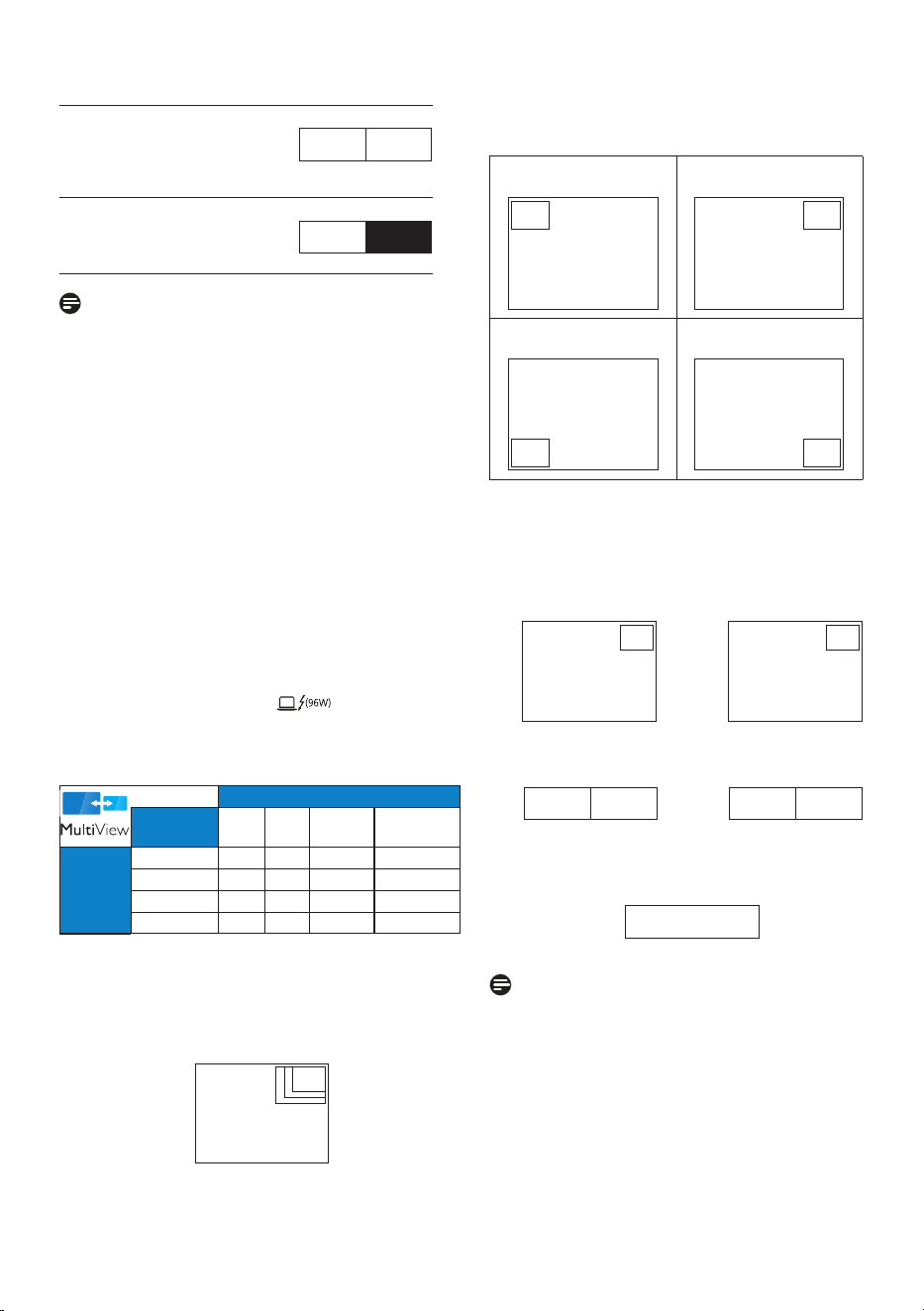
• PIP / PBP Mode: There are two
modes for MultiView: [PIP] and
[PBP].
[PIP]: Picture in Picture
Open up a sub-window
of another signal source.
B
A (main)
When the sub source is
not detected:
B
A (main)
20
[PBP]: Picture by Picture
Open up a sub-window
side-by-side of another
signal source.
A (main) B
When the sub source is
not detected:
A (main) B
Note
The black strip located on the top
and the bottom of the screen is for
measuring the correct aspect ratio when
in the PBP mode. If you expect to see full-
screen, adjust your device's resolutions
to pop-up attention resolution and you
will able to see 2 devices' source screen
project to this display without black
strips. It is important to note that the
analog signal is not supported on full
screen in PBP mode.
• PIP / PBP Input: There are different
video inputs to choose from as the
sub-display source: [1 HDMI 2.0],
[2 HDMI 2.0], [DisplayPort] and
[Thunderbolt input ].
Please refer to the table below for com-
patibility of the main/sub-input source.
SUB SOURCE POSSIBILITY (xl)
Inputs
HDMI 1 HDMI 2 DisplayPort Thunderbolt
TM
4
MAIN
SOURCE
(xl)
HDMI 1
● ● ● ●
HDMI 2
● ● ● ●
DisplayPort
● ● ● ●
Thunderbolt
TM
4
● ● ● ●
• PIP Size: When PIP is activated,
there are three sub-window sizes to
choose from [Small], [Middle], and
[Large].
B
A (main)
Small
Middle
Large
• PIP Position: When PIP is activated,
there are four sub-window positions
to choose from.
Top-Left Top-Right
B
A (main)
B
A (main)
Bottom-Left Bottom-Right
B
A
(main)
A (main)
B
• Swap: The main picture source and
the sub-picture source are
swapped on the display.
Swap A and B source in [PIP] mode:
B
A (main)
↔
B (main)
A
Swap A and B source in [PBP] mode:
A (main) B
↔
B (main) A
• O: Stop MultiView function.
A (main)
Note
When you activate the SWAP function,
the video and its audio source will swap
at the same time.
21
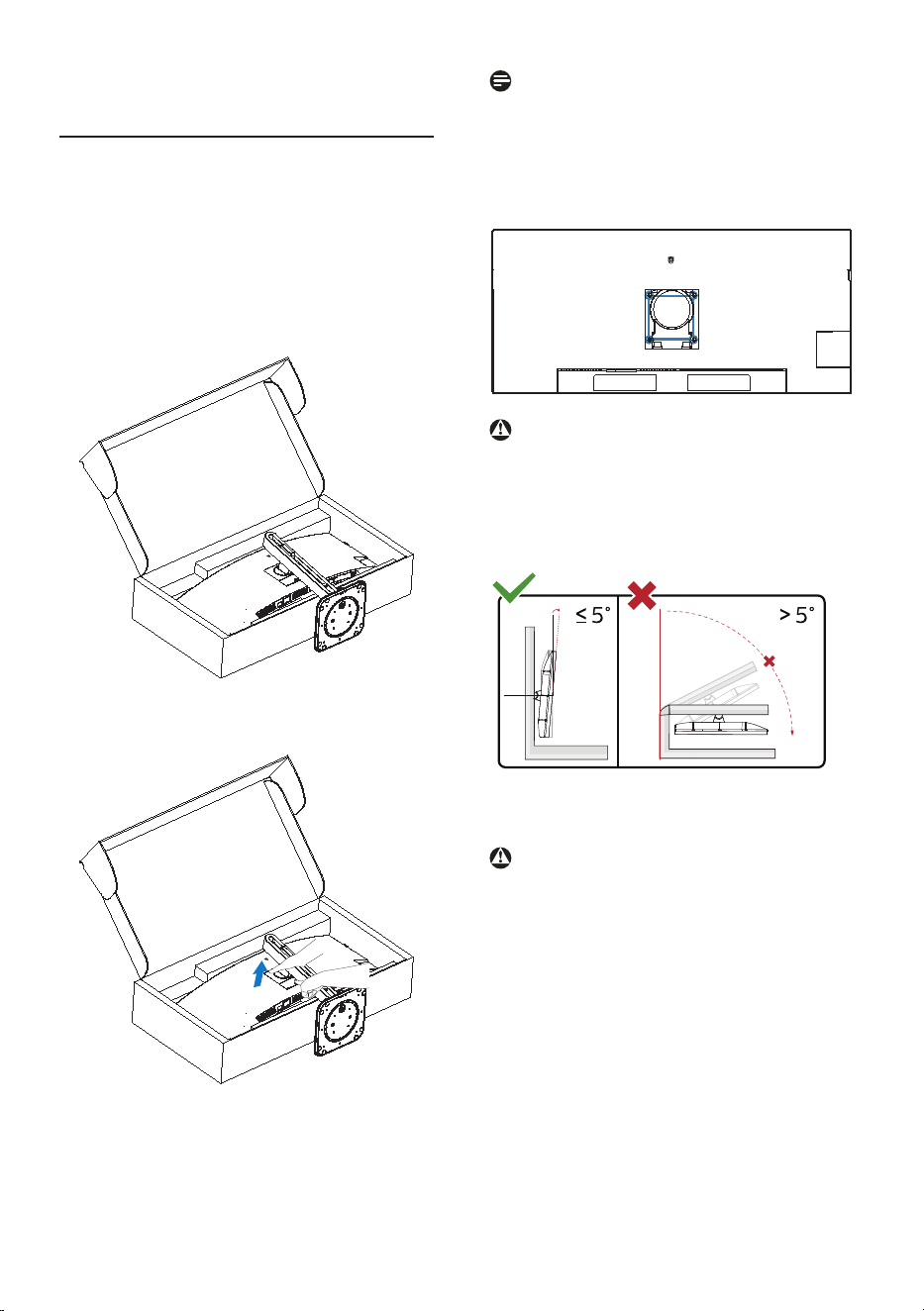
2.7 Remove the Base Assembly
for VESA Mounting
Before you start disassembling
the display base, please follow the
instructions below to avoid any possible
damage or injury.
1. Place the monitor face down on a
smooth surface. Pay attention not to
scratch or damage the screen. Then
lift the monitor stand.
2. While keeping the release button
pressed, tilt the base and slide it out.
Note
This monitor accepts a 100mm x 100mm
VESA-Compliant mounting interface.
VESA Mounting Screw M4. Always
contact the manufacturer for wall-
mount installation.
100mm
100mm
Warning
This product is a curve design, when
attaching/detaching the base, place the
protective material under the monitor
and, to avoid damage, do not press
down on the monitor.
-5°
0° 90°
* Display design may dier from those
illustrated in this manual.
Warning
• To avoid potential screen damage,
such as panel peeling, ensure that
the monitor does not tilt downward
by more than -5 degrees.
• Do not press the screen while
adjusting the angle of the monitor.
Grasp only the bezel.
22
3. Image Optimization
3.1 SmartImage
What is it?
SmartImage provides presets that
optimize display for dierent types
of content, dynamically adjusting
brightness, contrast, color, and sharpness
in real-time. Whether you're working
with text applications, displaying images,
or watching a video, Philips SmartImage
delivers great monitor performance.
Why do I need it?
It is ideal to have a monitor that delivers
an optimized display of all your favorite
types of content. Our SmartImage
software dynamically adjusts brightness,
contrast, color, and sharpness in real-
time to enhance your monitor viewing
experience.
How does it work?
SmartImage is an exclusive, leading-edge
Philips technology that analyzes the
content displayed on your screen. Based
on the scenario you select, SmartImage
dynamically enhances the contrast, color
saturation, and sharpness of images to
enhance the contents being displayed
- all in real time by the press of a single
button.
How to enable SmartImage?
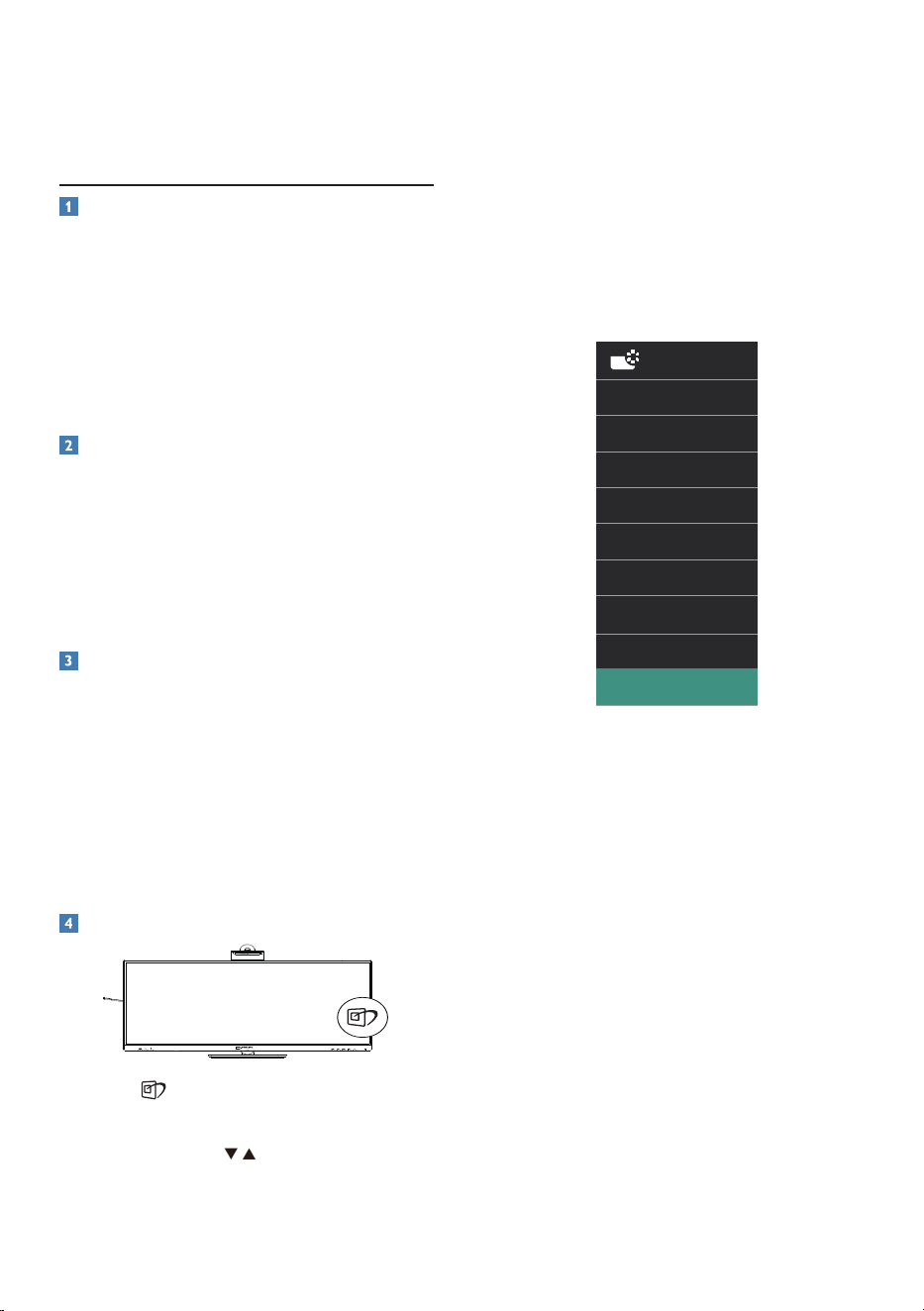
1. Press to launch the SmartImage
on-screen display.
2. Keep pressing to toggle among
EasyRead, Oce, Photo, Movie,
Game, Economy, LowBlue Mode,
SmartUniformity and O.
3. The SmartImage on-screen display
will remain on screen for 5 seconds,
or you can also press "OK" to make
conrmation.
There are multiple modes to select:
EasyRead, Oce, Photo, Movie,
Game, Economy, LowBlue Mode,
SmartUniformity and O.
• EasyRead: Helps improve reading
of text-based applications like PDF
ebooks. By using a special algorithm
that increases the contrast and
boundary sharpness of text content.
The display is optimized for a
stress-free reading by adjusting
the brightness, contrast, and color
temperature of the monitor.
• Office: Enhances text and dampens
brightness to increase readability
and reduce eye strain. This mode
significantly enhances readability
and productivity when you’re
working with spreadsheets, PDF files,
scanned articles or other general
office applications.
• Photo: This profile combines color
saturation, dynamic contrast and
23
sharpness enhancement to display
photos and other images with
outstanding clarity in vibrant colors -
all without artifacts and faded colors.
• Movie: Ramped up luminance,
deepened color saturation, dynamic
contrast, and razor sharpness displays
every detail in darker areas of your
videos without experiencing color
washout.
• Game: Turn on over drive circuit for
best response time, reduce jaggy
edges for fast moving objects on
screen, enhance contrast ratio for
bright and dark scheme, this profile
delivers the best gaming experience
for gamers.
• Economy: Under this profile,
brightness and contrast are adjusted
and backlighting is fine-tuned to
produce the right display for everyday
office applications.
• LowBlue Mode: LowBlue Mode for
easy on-the-eyes productivity Studies
have shown that just as ultra-violet
rays can cause eye damage, shortwave
length blue light rays from LED
displays can cause eye damage and
affect vision over time. Developed
for wellbeing, Philips LowBlue
Mode setting uses a smart software
technology to reduce harmful
shortwave blue light.
• SmartUniformity: Fluctuations in
brightness and color on different
parts of a screen are a common
phenomenon among LCD monitors.
Typical uniformity is measured
around 75-80%. By enabling Philips
SmartUniformity feature, display
uniformity is increased to above 95%.
This produces more consistent and
true images.
• Off: No optimization by SmartImage.
Note
Philips LowBlue mode, mode 2
compliance with TUV Low Blue Light
certication, you can have this mode by
simply press the hotkey , then press
▲
to select LowBlue Mode, see above
SmartImage selection steps.
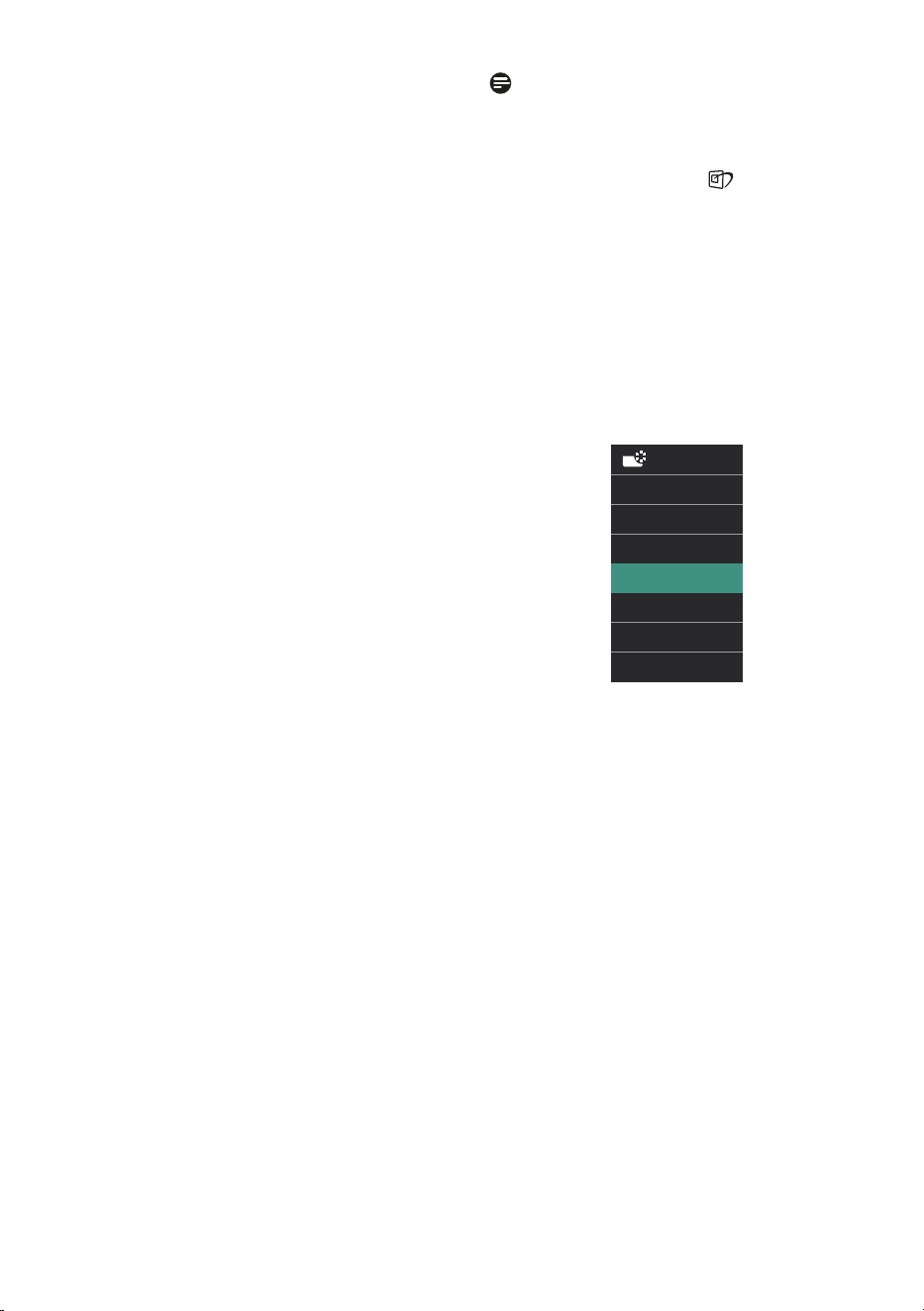
When this display receives an HDR signal
from the connected device, select a
picture mode that best ts your needs.
There are multiple selections: HDR
Premium, HDR Movie, HDR Photo,
DisplayHDR 400, HDR HLG, HDR Basic,
O.
• HDR Premium: Optimizes contrast
and brightness for the most vivid
and immersive visual experience.
• HDR Movie: Ideal setting for
watching HDR movies. Deliver better
contrast and brightness for a more
realistic and immersing viewing
experience.
• HDR Photo: Enhancing red, green,
and blue for true-to-life visuals.
• DisplayHDR 400: Meet VESA
DisplayHDR 400 standard.
• HDR HLG: Used for radio and
television's specific HDR format.
• HDR Basic: Basic HDR setting for HDR
content.
• Off: No optimization by SmartImage
HDR.
24
Note
To switch o the HDR function, please
disable the Input device and its content.
Inconsistent HDR settings between the
input device and monitor may cause
unsatisfying images.
3.2 SmartContrast
What is it?
It is a unique technology that
dynamically analyzes displayed content
and automatically optimizes a monitor's
contrast ratio for maximum visual clarity
and viewing enjoyment.
Why do I need it?
Because SmartContrast oers the best
visual clarity and viewing comfort for
every type of content. It dynamically
controls contrast and adjusts
backlighting for bright gaming and
video imagery. In addition, by reducing
your monitor's power consumption, you
save on energy costs and extend the
lifetime of your monitor.
How does it work?
When you activate SmartContrast, it will
analyze the content you are displaying
in real time to adjust colors and control
backlight intensity. This function will
dynamically enhance contrast for a great
entertainment experience when viewing
videos or playing games.
3.3 LightSensor
What is it?
Light Sensor is a unique and intelligent
way of optimizing picture quality by
measuring and analyzing the incoming
signal to automatically adjust picture
quality settings. Light Sensor uses a
sensor to adjust the picture brightness
depending on the room light conditions.
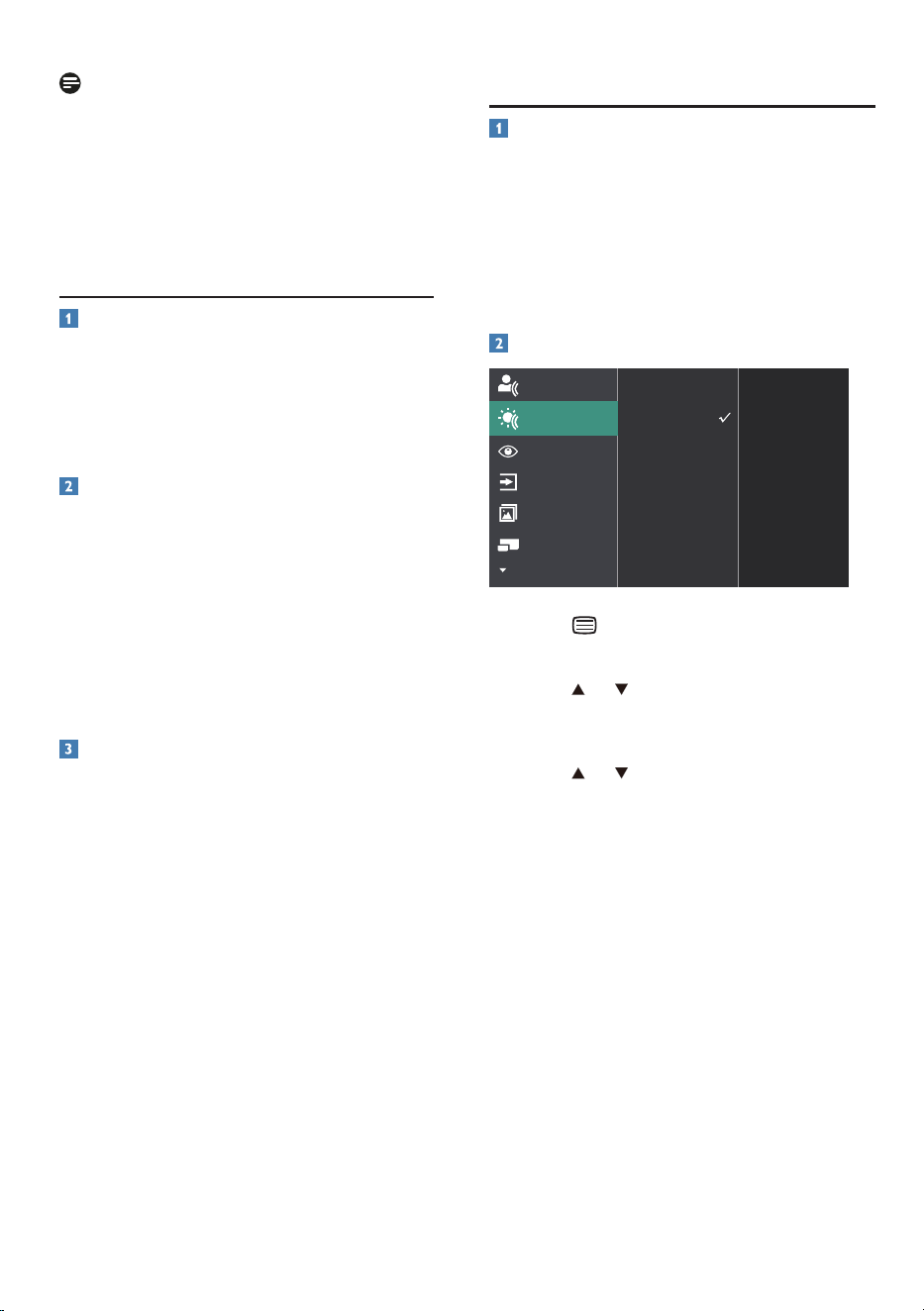
How to enable LightSensor?
1. Press button on the front bezel to
enter OSD menu screen.
2. Press or button to select main
menu [LightSensor], then press
button OK.
3. Press or button to turn on or o
the LightSensor.
25
3.4 HDR
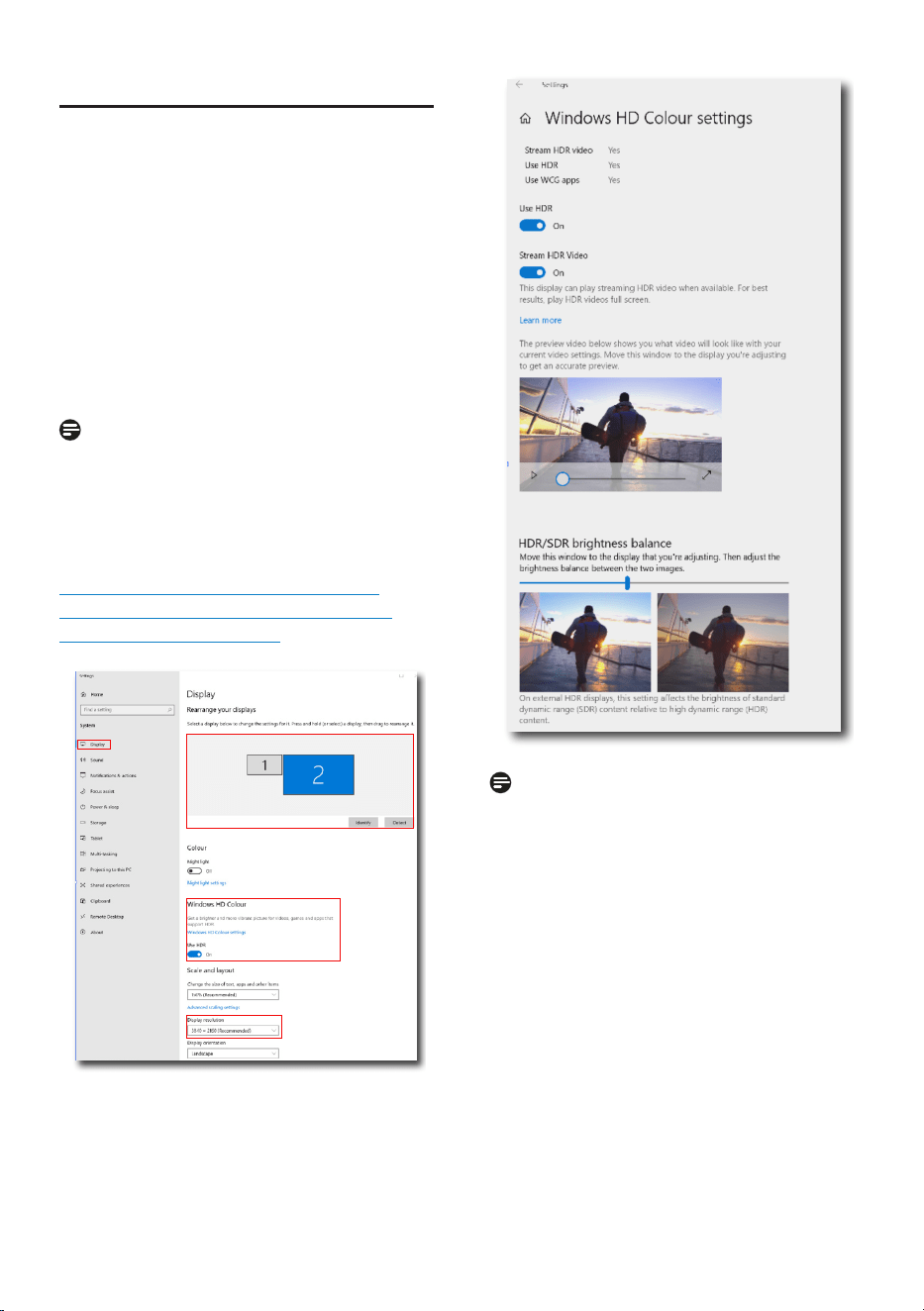
HDR Settings in Windows 11/10 system.
Steps
1. Right-click on the desktop, and enter
Display settings.
2. Select the display/monitor.
3. Select an HDR-capable display under
Rearrange your displays.
4. Select Windows HD Color settings.
5. Adjust Brightness for SDR content.
Note
Windows 11/10 edition is required.
Always upgrade to the most updated
version. The link below is for further
information from the Microsoft ocial
website.
https://support.microsoft.com/en-
au/help/4040263/windows-10-hdr-
advanced-color-settings
STEP 2
STEP 3
STEP 4
STEP 1
STEP 5
Note
To switch o the HDR function, please
disable it from an Input device and
its content. Inconsistent HDR settings
between the input device and monitor
may cause unsatisfying images.
26
4. Thunderbolt
TM
docking display
introduction
Philips Thunderbolt
TM
docking monitors
deliver universal port replication,
for a simple, clutter-free, notebook
connection.
Securely connect to networks, transmit
data, video and audio from laptop only
using a single cable.
4.1 Docking through Thunder-
bolt
TM
4
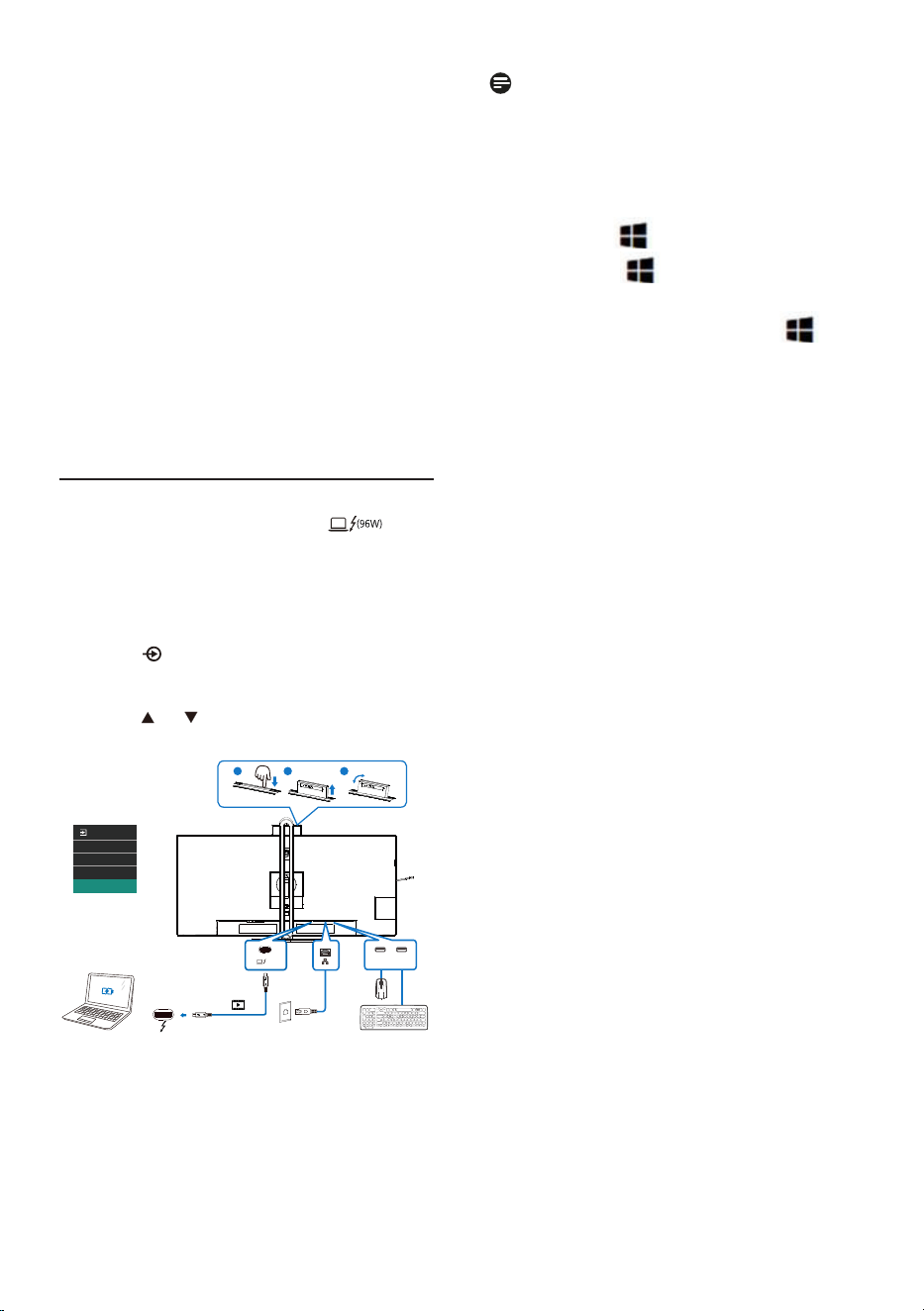
1. Connect the Thunderbolt
TM
4 cable
to the Thunderbolt input
port on the monitor and to your
PC. It can transmit video, audio,
data, network, power through
Thunderbolt
TM
cable.
2. Press at the rear of the monitor to
enter input menu screen.
3. Press or button to select
[Thunderbolt].
b
Thunderbolt
HDR Game
(96W)
USB USB
a
b
c
30°
-30°
Note
When connect your monitor to the PC
with Thunderbolt or USB C-A cable,
your monitor screen probably show
as the extend screen. To call out the
main screen on your monitor, hold the
Windows key and press P twice.
(Windows key + P + P) If you still
cannot see the main screen on your
monitor, hold the Windows key and
press P. All your options pop-up on the
right side, then select “PC screen only” or
“Duplicated”.

27
5. Designs to prevent
computer vision
syndrome (CVS)
Philips monitor is designed to prevent
eye strain caused by prolonged computer
use.
Follow the below instructions and
use a Philips monitor to efficiently
reduce fatigue and maximize working
productivity.
1. Appropriate environment lighting:
• Adjust the environment lighting
similar to that of your screen
brightness, avoid fluorescent
lighting, and surfaces that don’t
reflect too much light.
• Adjust the brightness and contrast
to the appropriate level.
2. Good working habits:
• Excessive usage of the monitor
can cause eye discomfort, it’s
better to take shorter breaks more
often at your workstation than
longer breaks and less often; for
example a 5-10 minute break after
50-60-minute continuous screen
use is likely to be better than a
15-minute break every two hours.
• Looking at something varying
distances after a long period of
focusing on the screen.
• Gently closing and rolling your eyes
to relax.
• Conscious blinking often while
working.
• Gently stretch your neck, and
slowly tilt your head forward,
backward, and side for pain relief.
3. Ideal working posture
• Reposition your screen to
the appropriate measurment
according to your own height.
4. Choose a Philips monitor for viewing
that is easy on the eyes.
• Anti-glare screen: This feature
efficiently reduces annoying and
distracting reflections that is
associated with eye fatigue.
• Flicker-free technology is
designed to regulate brightness
and reduce flicker for more
comfortable viewing.
• LowBlue mode: Blue light may
cause eye strains. Philips LowBlue
mode allows you to set different
blue light filter levels for variety
working situation.
• EasyRead mode for a paper-
like reading experience, giving
a more comfortable viewing
experience while dealing with
long documents on the screen.
28
6. PowerSensor 2
This monitor is equipped with the
PowerSensor 2 feature that reduces
energy consumption by detecting when
users move closer and further away
from the screen.
As both the PowerSensor and
PowerSensor 2 aim to save energy,
the main dierence is in the OSD
PowerSensor Sub menu’s “User”
setting. This mode gives PowerSensor
2 its ability to detect users within a
dened range and go into standby/
wake mode on both the PC and monitor
when the user walks away or returns,
respectively.
How does it work?
• PowerSensor works on the principle
of transmission and reception of
harmless “infrared” signals in order
to detect user presence.
• The sensor is located near the
bottom of the monitor's screen and
will detect users from the center
to a viewing angle of 30 degrees.
When the user is in front of the
monitor, the monitor operates at the
personalized brightness, contrast,
and color settings.
• Users can simply make a selection
from “0 to 4” based on the distance
they would like their monitor to
detect them from. Additionally,
as a newly developed function
customized for user preference, it
is possible to change this setting in
the OSD PowerSensor Sub menu’s
“User” setting.
• To provide an example of
PowerSensor 2’s power saving
function, if the monitor’s
brightness was set at 100 percent,
it will automatically reduce power
consumption by 80 percent when
the user leaves the field of view.
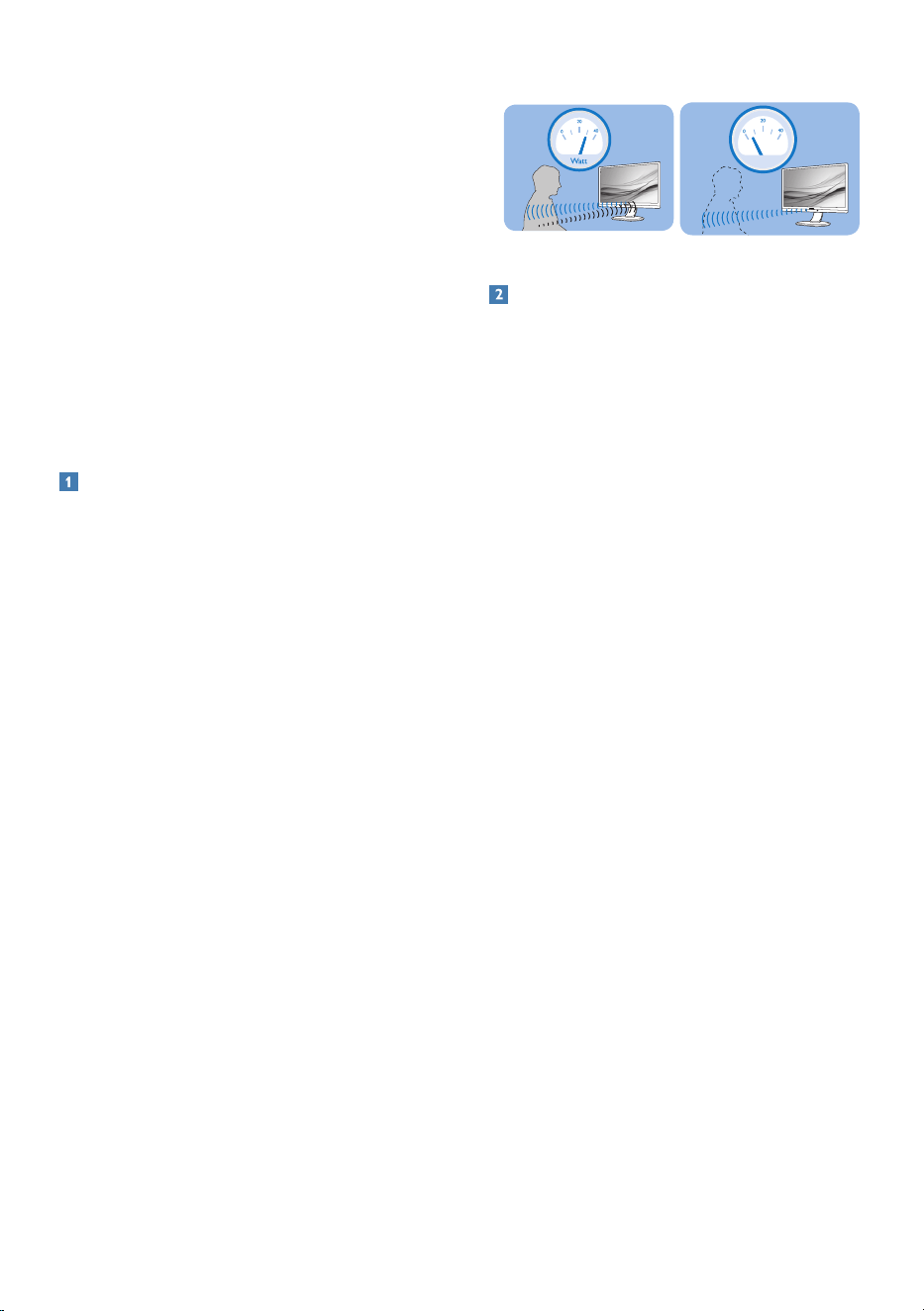
User present in front User not present
ttaW
Power consumption as illustrated above is for reference purpose only
How to I adjust the settings?
The PowerSensor 2 features is designed
to detect the presence of the user lo-
cated between 30 and 100 cm (12 and
40 inches) from the display and within
ve degrees from the left or right of the
monitor.
Custom settings
The selection of OSD “0, 1, 2, 3, 4”
If you prefer to be in a position outside
the detection zone listed above, you
can choose a higher strength signal for
optimal operating eciency: The higher
the setting, the stronger the detection
signal. For maximum PowerSensor
eciency and proper detection, please
position yourself directly in front of your
monitor.
• If you choose to position yourself
more than 100 cm or 40 inches from
the monitor, use signal setting 4
detection signal (120cm/40in).
• Since some dark-colored clothing
tends to absorb infrared signals,
even when the user is within 100
cm or 40 inches of the display, it
is important to step up the signal
strength when wearing black or
other dark clothes.
Hot key
(for selected models
only)
Sensor distance
3
Landscape/Portrait mode
ATTENTION
PowerSensor off
ATTENTION
PowerSensor off
Above illustrations are for reference purpose only, may not
reect the exact display of this model.
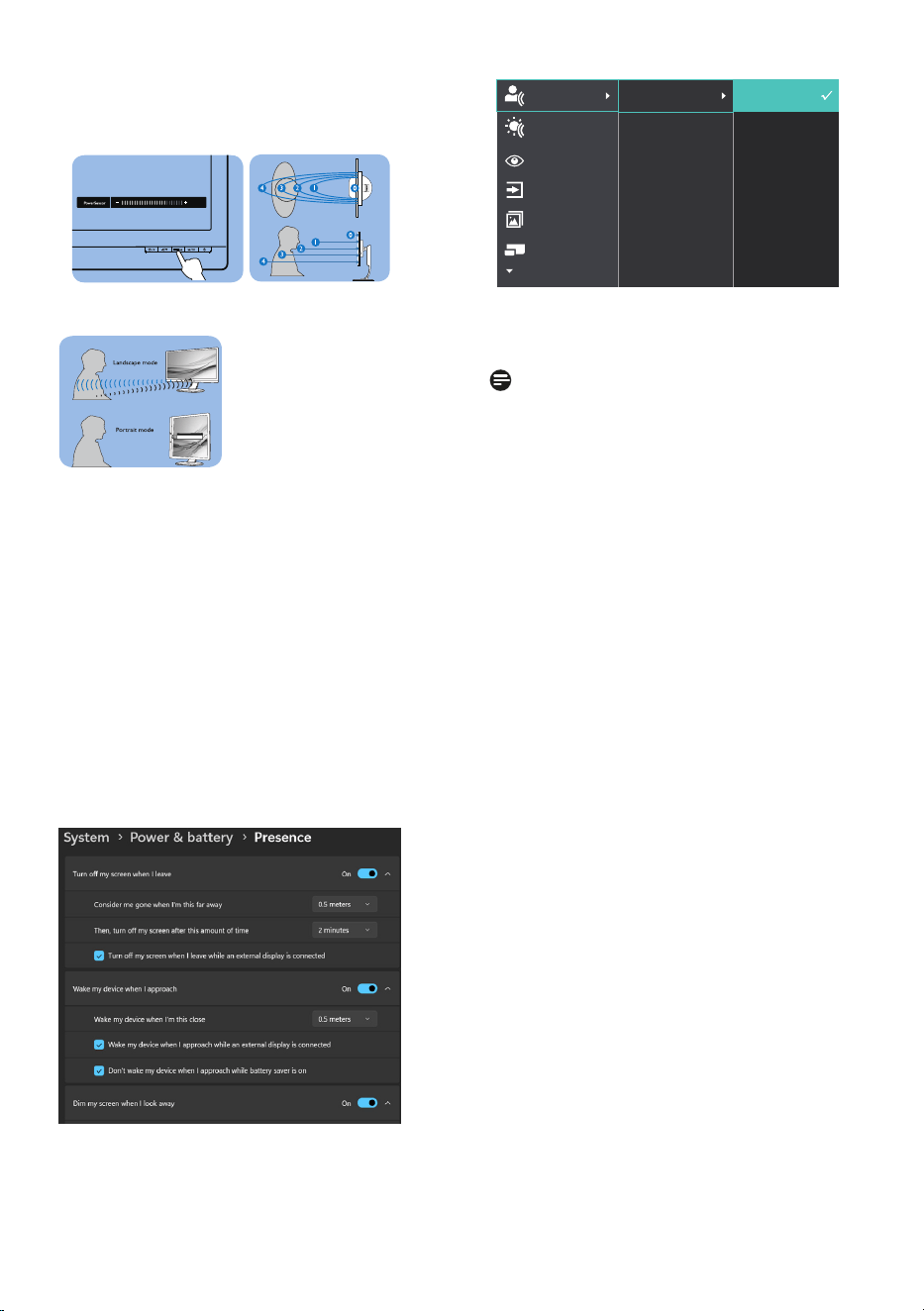
The selection of OSD PowerSensor Sub
menu “User”
For the computer, users need to select
the distance from the laptop’s system
menu. Under the section of System >
Power & battery > Presence. There are
three options for the distances: 50 cm,
75 cm, and 120 cm. Once the setting is
changed on the computer, users also
need to select “User” on the monitor’s
OSD PowerSensor section. After these
steps, the feature is activated.
This image shows the settings to change from the PC.
29
User present in front User not present
ttaW
Power consumption as illustrated above is for reference purpose only
How to I adjust the settings?
The PowerSensor 2 features is designed
to detect the presence of the user lo-
cated between 30 and 100 cm (12 and
40 inches) from the display and within
ve degrees from the left or right of the
monitor.
Custom settings
The selection of OSD “0, 1, 2, 3, 4”
If you prefer to be in a position outside
the detection zone listed above, you
can choose a higher strength signal for
optimal operating eciency: The higher
the setting, the stronger the detection
signal. For maximum PowerSensor
eciency and proper detection, please
position yourself directly in front of your
monitor.
• If you choose to position yourself
more than 100 cm or 40 inches from
the monitor, use signal setting 4
detection signal (120cm/40in).
• Since some dark-colored clothing
tends to absorb infrared signals,
even when the user is within 100
cm or 40 inches of the display, it
is important to step up the signal
strength when wearing black or
other dark clothes.
Hot key
(for selected models
only)
Sensor distance
3
Landscape/Portrait mode
ATTENTION
PowerSensor off
ATTENTION
PowerSensor off
Above illustrations are for reference purpose only, may not
reect the exact display of this model.
The selection of OSD PowerSensor Sub
menu “User”
For the computer, users need to select
the distance from the laptop’s system
menu. Under the section of System >
Power & battery > Presence. There are
three options for the distances: 50 cm,
75 cm, and 120 cm. Once the setting is
changed on the computer, users also
need to select “User” on the monitor’s
OSD PowerSensor section. After these
steps, the feature is activated.
This image shows the settings to change from the PC.
This image shows the settings to change from the monitor's
OSD menu.
Note
• A manually selected PowerSensor
mode will remain operational unless
and until it is readjusted. If you find
that the PowerSensor is excessively
sensitive to nearby motion, please
adjust to a lower signal strength.
Keep the sensor lens clean. If the
sensor lens is dirty, wipe it with
alcohol to avoid reducing the
PowerSensor’s effectiveness.
• The function of the PowerSensor
Sub menu “User” is only available
for computers equipped with a
Windows 11 operation system.For
more information, please refer to
Microsoft Presence Sensing page.
30
7. Daisy-chain function
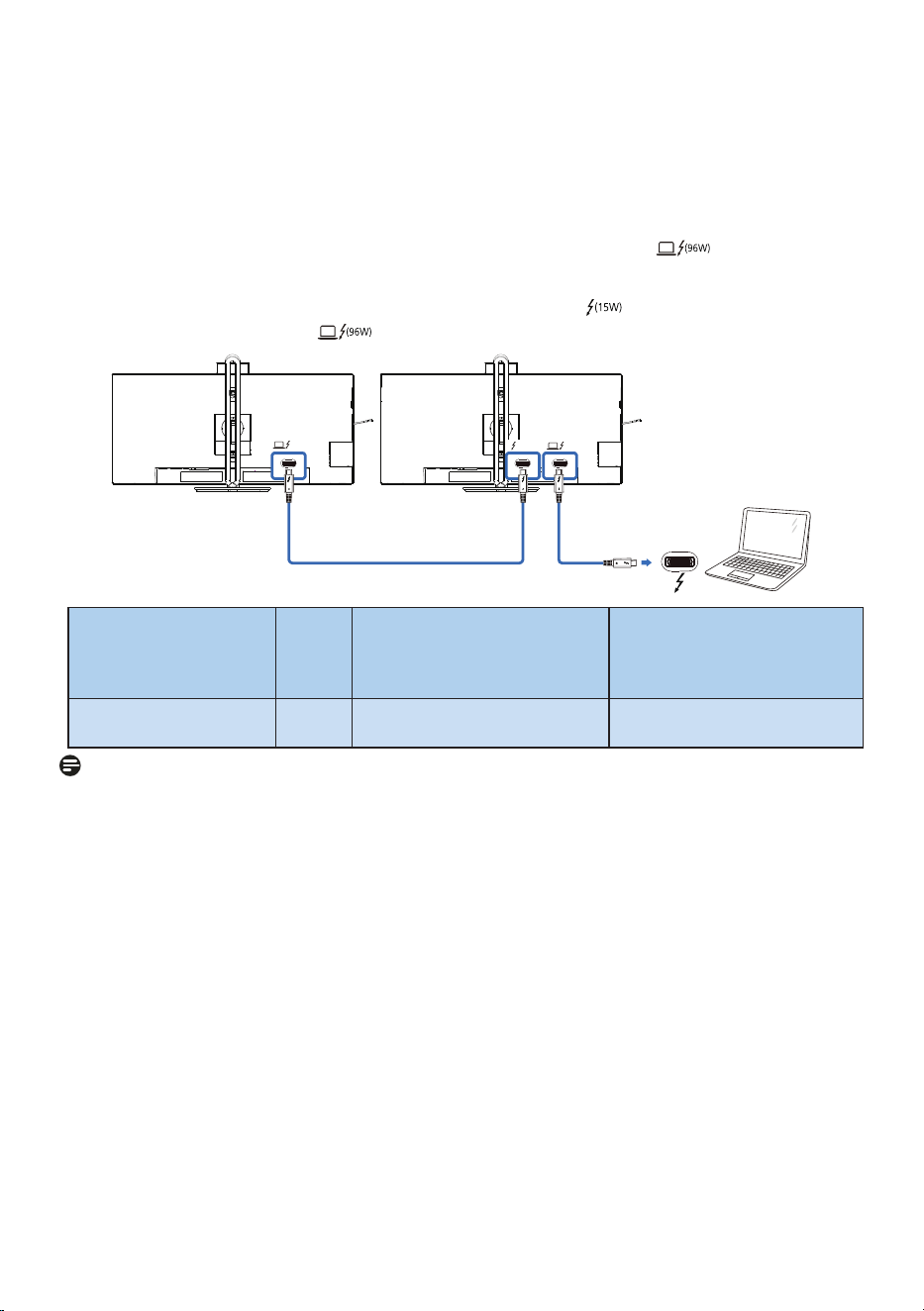
Thunderbolt™ 4 supports Daisy Chain. If your laptop /Desktop/Display Monitor
supports Thunderbolt™ 4, you can use Thunderbolt™ 4 for multi-screen connections
(Daisy Chain).
To daisy-chain monitors, rst to check below:
1. Connect the Thunderbolt™ 4 cable to the Thunderbolt input port on the first
monitor and to your PC.
2. Connect an another cable to the Thunderbolt output port on the first monitor
, and Thunderbolt input port on the secondary monitor.
(15W)
(96W)
(96W)
Thunderbolt
Thunderbolt 4 input
Link
Rate*1
Maximum number of
external monitors that can
be supported
Thunderbolt 4 Output
3440x1440@120Hz HBR3 1 3440x1440@120Hz(HBR3)
Note
• The maximum number of connectible monitors may vary depending on GPU
performance.
• To enable HDR on the monitor, make sure the connected monitor is in extended
mode from your PC.
• To turn on HDR function: Extend the display by choosing extended mode on the
setting of your laptop/PC.
Alternatively, duplicate the displays by selecting Clone mode on your laptop/PC.

31
8. Adaptive Sync
Adaptive Sync
PC gaming has long had an imperfect
experience because GPUs and monitors
update at dierent rates. Sometimes
a GPU can render many new pictures
during a single update of the monitor
and the monitor will show pieces of each
picture as a single image. This is called
“tearing.” Gamers can x tearing with
a feature called “v-sync,” but the image
can become jerky as the GPU waits on
the monitor to call for an update before
delivering new pictures.
The responsiveness of mouse input and
overall frames per second is reduced
with v-sync, too. AMD Adaptive Sync
technology eliminates all of these
problems by letting the GPU update
the monitor the moment a new picture
is ready. Therefore, this feature leaves
gamers with unbelievably smooth,
responsive, tearing-free gaming.
Followed by the graphic card that are
compatible.
• Operating system
• Windows 11/10
• Graphic Card: R9 290/300 Series &
R7 260 Series
• AMD Radeon R9 300 Series
• AMD Radeon R9 Fury X
• AMD Radeon R9 360
• AMD Radeon R7 360
• AMD Radeon R9 295X2
• AMD Radeon R9 290X
• AMD Radeon R9 290
• AMD Radeon R9 285
• AMD Radeon R7 260X
• AMD Radeon R7 260
• Processor A-Series Desktop and
Mobility APUs
• AMD A10-7890K
• AMD A10-7870K
• AMD A10-7850K
• AMD A10-7800
• AMD A10-7700K
• AMD A8-7670K
• AMD A8-7650K
• AMD A8-7600
• AMD A6-7400K
• AMD RX 6500 XT
• AMD RX 6600 XT
• AMD RX 6700 XT
• AMD RX 6750 XT
• AMD RX 6800
• AMD RX 6800 XT
• AMD RX 6900 XT
32
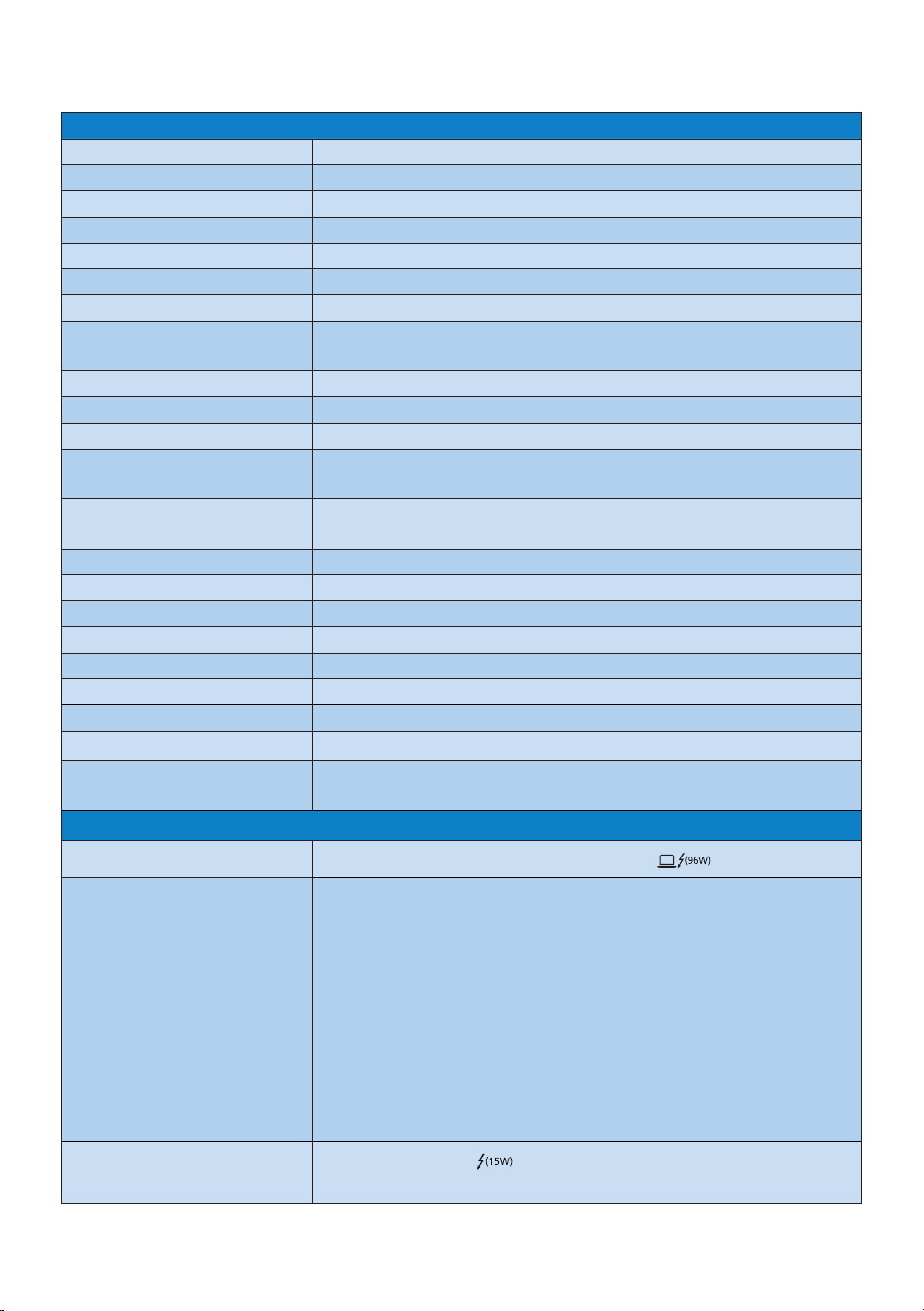
9. Technical Specifications
Picture/Display
Display Panel Type VA
Backlight W-LED
Panel Size 34" W (86.36 cm)
Aspect Ratio 21:9
Pixel Pitch 0.23175 (H) mm x 0.23175 (V) mm
Contrast ratio(typical) 4000:1
Native Resolution 3440 x 1440 @60Hz (HDMI/Thunderbolt™ 4/DP)
Maximum Resolution
3440 x 1440 @100Hz (HDMI)
3440 x 1440 @120Hz (Thunderbolt™ 4/DP)
Viewing Angle 178° (H) / 178° (V) @ C/R > 10 (Typ.)
Picture Enhancement SmartImage / SmartImage HDR
Display Colors 16.7M (8 bits)
Vertical Refresh Rate
HDMI : 48 Hz - 100 Hz
DP/Thunderbolt™ 4 : 48 Hz - 120 Hz
Horizontal Frequency
HDMI : 30 kHz - 160 kHz
DP/Thunderbolt™ 4 : 30 kHz - 190 kHz
sRGB YES
SmartUniformity YES
Delta E YES
LowBlue Mode YES
EasyRead YES
Flicker Free YES
Adaptive Sync YES
HDR VESA Certied DisplayHDR™ 400
Over-the-air rmware
update
YES
Connectivity
Signal Input source HDMI, DisplayPort, Thunderbolt™ 4
Connectors
2 x HDMI 2.0 (HDCP 1.4, HDCP 2.2)
1 x DisplayPort 1.4 (HDCP 1.4, HDCP 2.2)
2 x Thunderbolt™
4 (Thunderbolt input x1, Thunderbolt
output x1, HDCP 1.4, HDCP 2.2)
1 x USB-C1 (upstream)
1 x USB-C2 (downstream)
4 x USB-A (downstream)
1 x RJ45,Ethernet LAN (USB 2.0: 10M/100M; USB 3.2:
2.5G)
1 x Audio (In/Out): audio out / microphone in combo
jack
1
Signal output
Thunderbolt™
4
(Refer to Daisy-chain function)
33
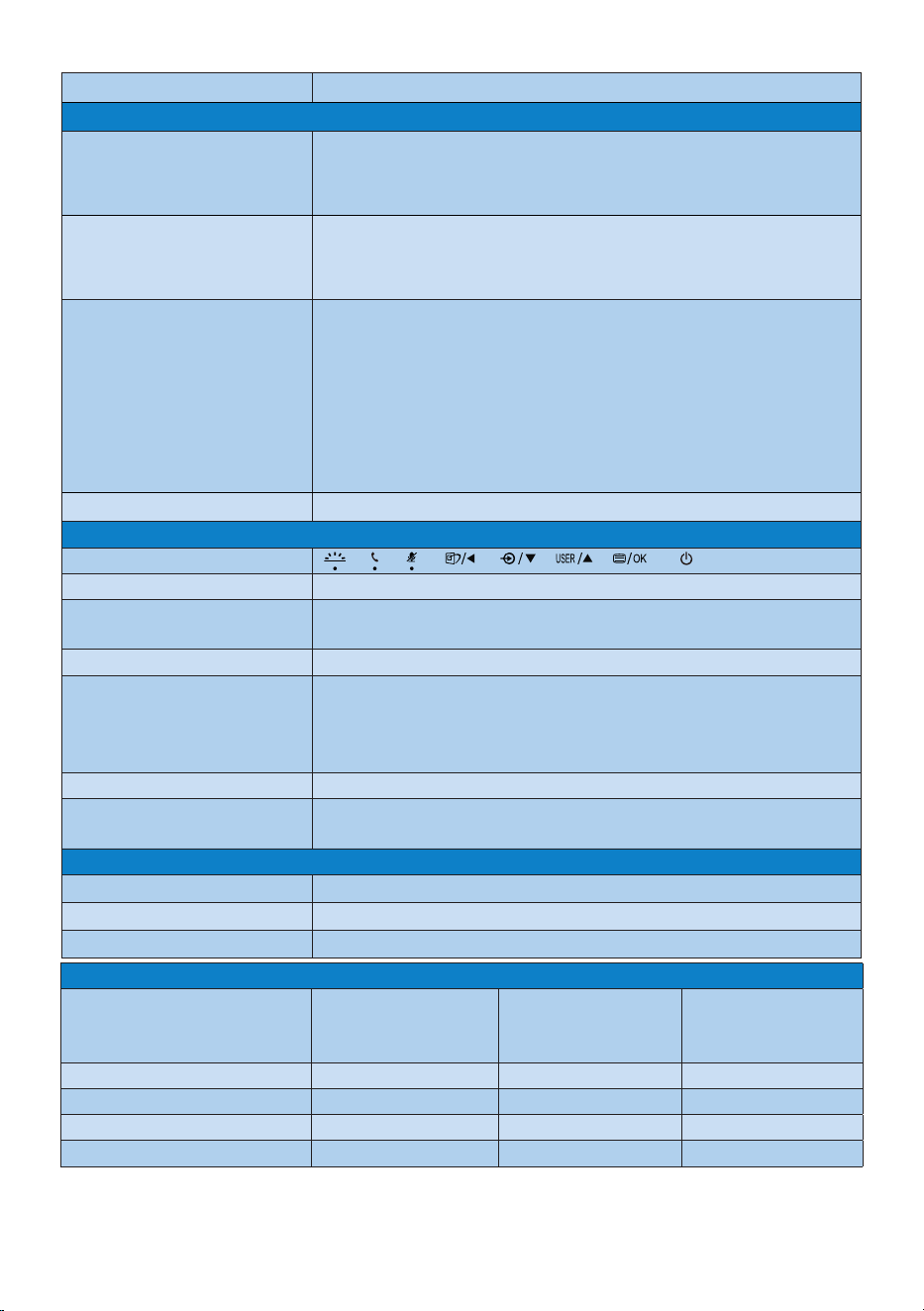
Sync input Separate Sync
USB
Thunderbolt™
Thunderbolt™
4 (input) (upstream, DisplayPort Alt mode,
HDCP 2.2/ HDCP 1.4, PD 96W)
Thunderbolt™
4 (output) (downstream, PD 15W)
USB Ports
USB-C1 x1 (upstream, DATA)
2
USB-C2 x1 (downstream, PD 45W)
3
USB-A x4 (downstream with x1 fast charge B.C 1.2)
Power Delivery
Thunderbolt™
4 (input): USB PD version 3.0, up to
96W (5V/3A, 7V/3A, 9V/3A, 10V/3A, 12V/3A, 15V/3A,
20V/4.8A)
4
Thunderbolt™
4 (output): Power supply up to 15W
(5V/3A)
USBC2: USB PD version 3.0, up to 45W (5V/3A, 7V/3A,
9V/3A, 10V/3A, 12V/3A, 15V/3A)
USB-A: x1 fast charge B.C 1.2, up to 7.5W (5V/1.5A)
USB SuperSpeed USB-C/USB-A: USB 3.2 Gen2, 10 Gbps
Convenience
USER convenience
Built-in speaker 5 W x 2
Built-in Webcam
5.0 megapixel webcam with 2 microphone and LED
indictor (for Windows Hello)
MultiView PIP/PBP mode, 2×devices
OSD Languages
English, German, Spanish, Greek, French, Italian,
Hungarian, Dutch, Portuguese, Brasil Portuguese, Polish,
Russian, Swedish, Finnish, Turkish, Czech, Ukranian,
Simplied Chinese, Traditional Chinese, Japanese, Korean
Other Convenience VESA mount(100×100mm), Kensington Lock
Plug & Play
Compatibility
DDC/CI, Mac OS X, sRGB, Windows 11/10
Stand
Tilt -5 / +30 degree
Swivel -180 / +180 degree
Height adjustment 180 mm
Power
Consumption
AC Input Voltage
at 100VAC , 50Hz
AC Input Voltage
at 115VAC , 60Hz
AC Input Voltage
at 230VAC ,
50Hz
Normal Operation 33.8 W (typ.) 33.5 W (typ.) 33.2 W (typ.)
Sleep (Standby mode) 0.4 W(typ.) 0.4 W(typ.) 0.4 W(typ.)
O mode 0.4 W(typ.) 0.4 W(typ.) 0.4 W(typ.)
O mode(AC switch) 0 W(typ.) 0 W(typ.) 0 W(typ.)
34
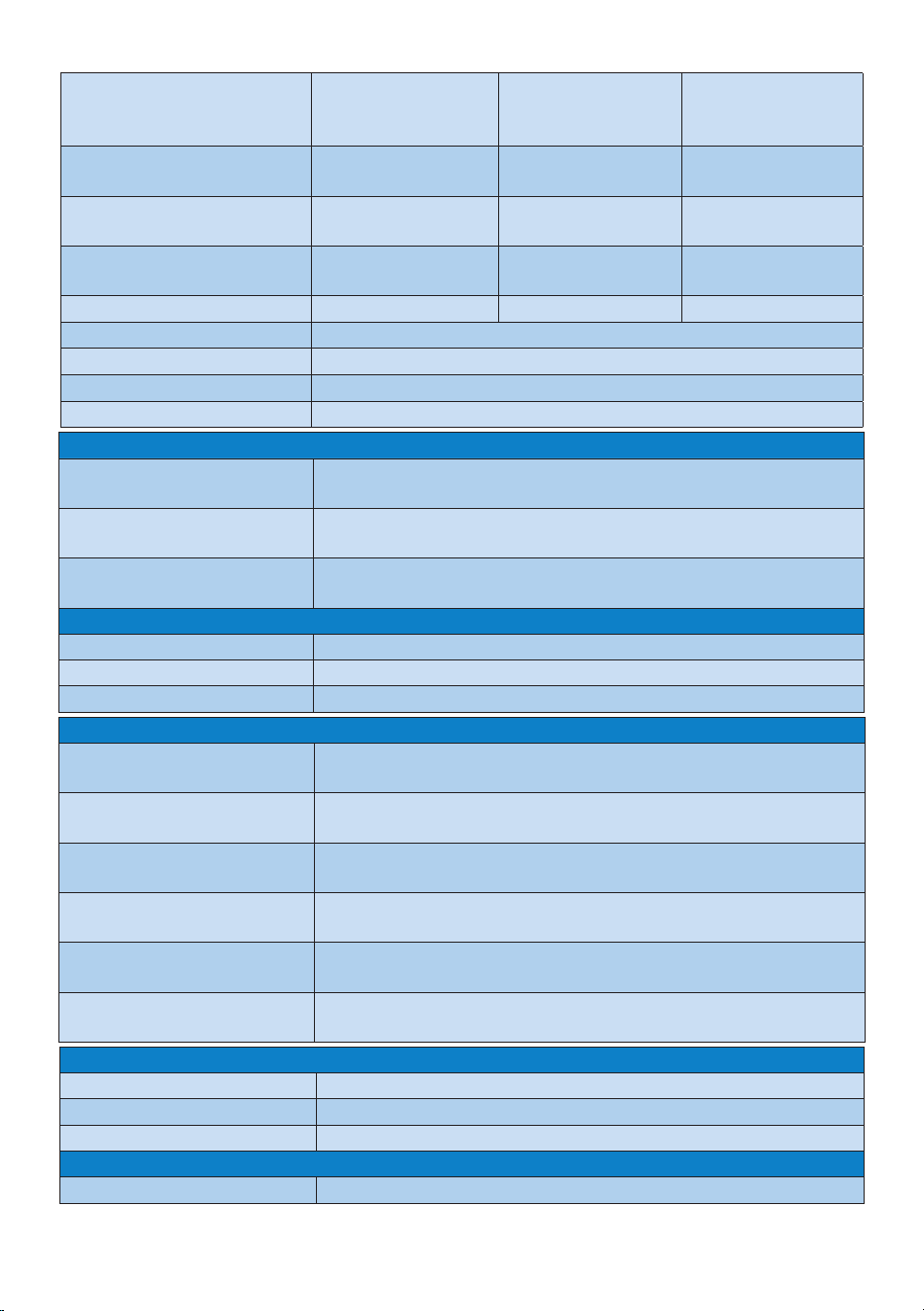
Heat Dissipation*
AC Input Voltage
at 100VAC , 50Hz
AC Input Voltage
at 115VAC , 60Hz
AC Input Voltage
at 230VAC ,
50Hz
Normal Operation
115.36 BTU/hr
(typ.)
114.33 BTU/hr
(typ.)
113.31 BTU/hr
(typ.)
Sleep (Standby mode) 1.37 BTU/hr(typ.) 1.37 BTU/hr(typ.)
1.37 BTU/
hr(typ.)
O mode 1.37 BTU/hr(typ.) 1.37 BTU/hr(typ.)
1.37 BTU/
hr(typ.)
O mode(AC switch) 0 BTU/hr(typ.) 0 BTU/hr(typ.) 0 BTU/hr(typ.)
On Mode(ECO mode) 26.6 W (typ.)
PowerSensor 7.0 W (typ.)
Power LED indicator On mode: White, Standby/Sleep mode: White (blinking)
Power Supply Built-in, 100-240V AC, 50/60Hz
Dimensions
Product with stand
(WxHxD)
807 x 575 x 281 mm
Product without stand
(WxHxD)
807 x 369 x 112 mm
Product with packaging
(WxHxD)
980 x 525 x 188 mm
Weight
Product with stand 10.61 kg
Product without stand 7.85 kg
Product with packaging 15.68 kg
Operating Condition
Temperature range
(operation)
0°C to 40 °C
Relative humidity
(operation)
20% to 80%
Atmospheric pressure
(operation)
700 to 1060hPa
Temperature range
(Non-operation)
-20°C to 60°C
Relative humidity
(Non-operation)
10% to 90%
Atmospheric pressure
(Non-operation)
500 to 1060hPa
Environmental and energy
ROHS YES
Packaging 100% recyclable
Specic Substances 100% PVC BFR free housing
Cabinet
Color Charcoal/Silver

35
Finish Texture
1
The headset also supports a microphone which comply CTIA and OMTP standard.
2
The USB-C1 port provides upstream data transfer only.
3
The USB-C2 port provides downstream and 45W of power.
4
The Thunderbolt port provides data, video transfer, and power delivery 96W (typical)
up to 100W depending on the device.
Note
1. The data mentioned in this section is subject to change without notice. Go to www.
philips.com/support to download the latest version of the leaet.
2. The Power delivery function is also based on the PCs capabilities.
3. SmartUniformity and Delta E information are included in the sheets located in the
box.
4. In order to update the monitor’s rmware to the latest version, Please download
the SmartControl software from Philips website. It is necessary to be connected to a
network when updating the rmware on SmartControl over-the-air (OTA).
36
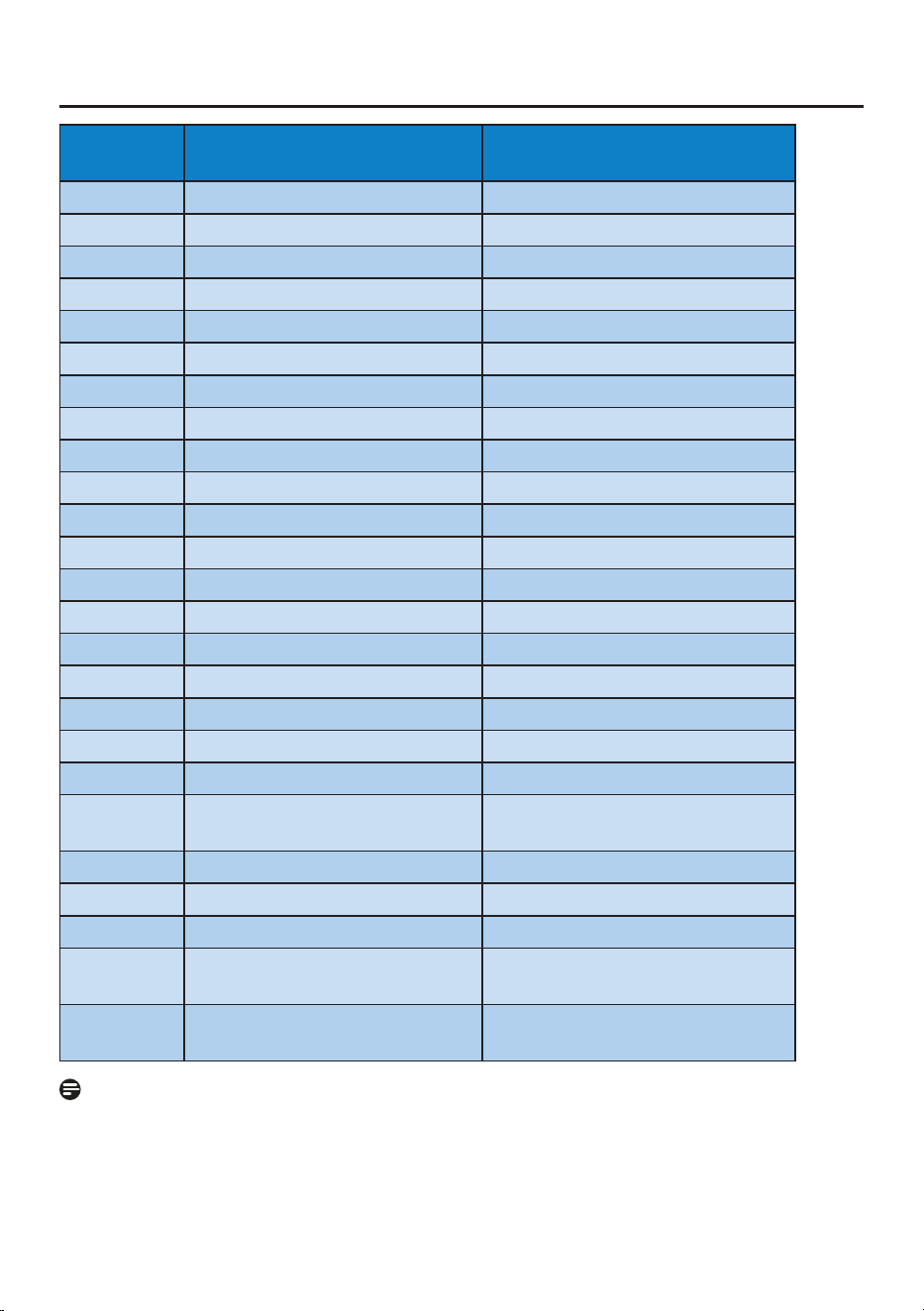
9.1 Resolution & Preset Modes
H.freq
(kHz)
Resolution V.freq(Hz)
31.47 720 x 400 70.09
31.47 640 x 480 59.94
35.00 640 x 480 66.67
37.86 640 x 480 72.81
37.50 640 x 480 75.00
35.16 800 x 600 56.25
37.88 800 x 600 60.32
48.08 800 x 600 72.19
46.88 800 x 600 75.00
47.73 832 x 624 74.55
48.36 1024 x 768 60.00
56.48 1024 x 768 70.07
60.02 1024 x 768 75.03
44.77 1280 x 720 59.86
60.00 1280 x 960 60.00
63.89 1280 x 1024 60.02
79.98 1280 x 1024 75.03
55.94 1440 x 900 59.89
67.50 1920 x 1080 60.00
89.48 1720 x 1440
PBP mode
59.93
44.43 3440 x 1440 30.00
88.86 3440 x 1440 60.00
149 3440 x 1440 100.00
182.99 2560 x 1440 120.00
(Thunderbolt
TM
4/DP)
181.2 3440 x 1440 120.00
(Thunderbolt
TM
4/DP)
Note
1. Please notice that your display works best at native resolution of 3440 x 1440 @
60Hz. For best display quality, please follow this resolution recommendation.
Recommended resolution HDMI 2.0/DP/Thunderbolt
TM
4:3440 x 1440 @ 60Hz If
your display is not on the native resolution when connecting to Thunderbolt
TM
4
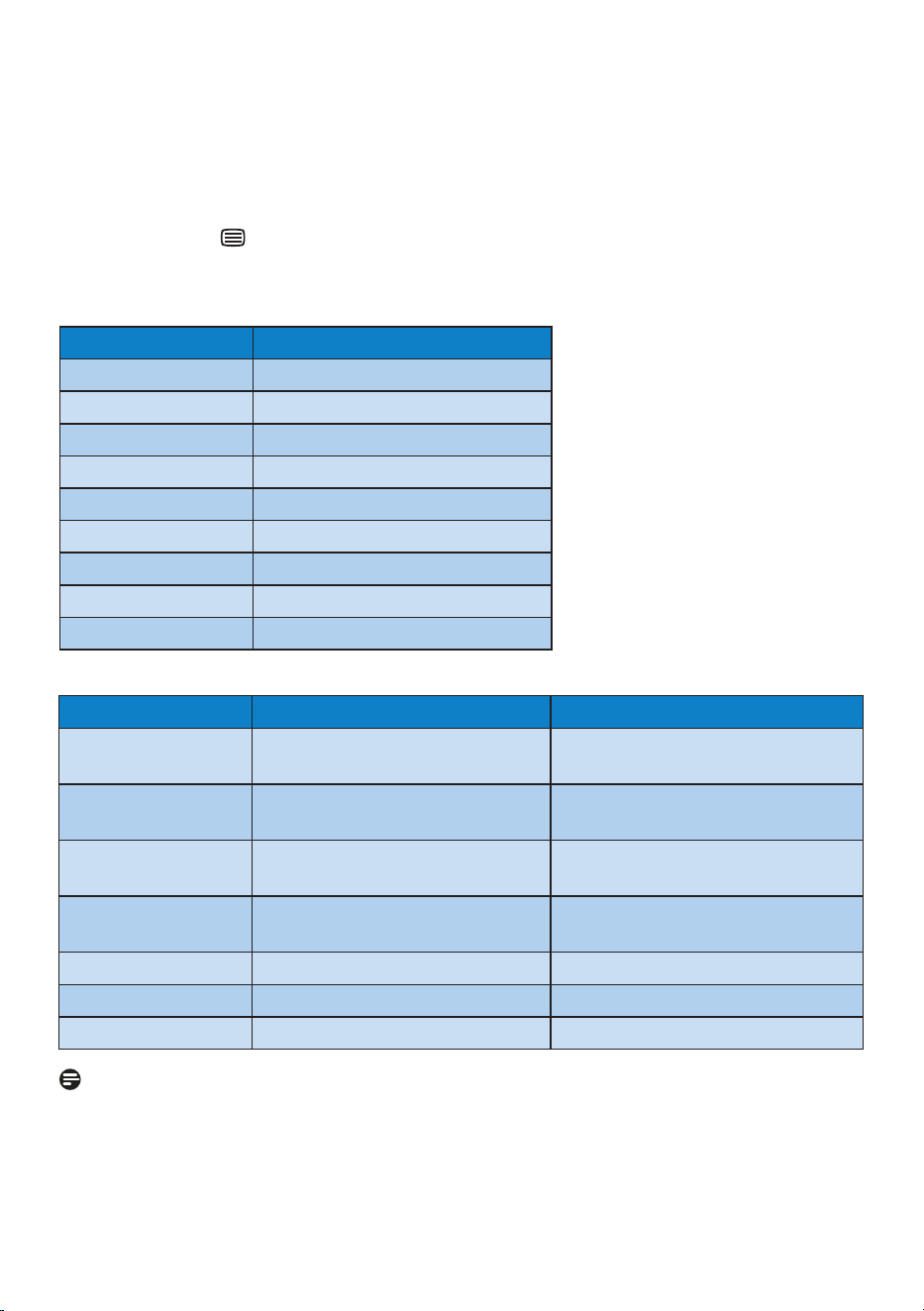
37
or DP port, please adjust resolution to the optimal state: 3440 x 1440 @60 Hz from
your PC.
2. The factory default setting HDMI supports to the resolution 3440 x 1440 @ 60Hz.
3. The USB hub default setting of Thunderbolt
TM
4/USB C1 input for this monitor is
“High Data Speed”. The maximum resolution supported depends on your graphic
card capability.If your PC doesn’t support HBR 3, select “High Resolution” in USB
Setting.Press button > USB Setting > USB > High Resolution
.
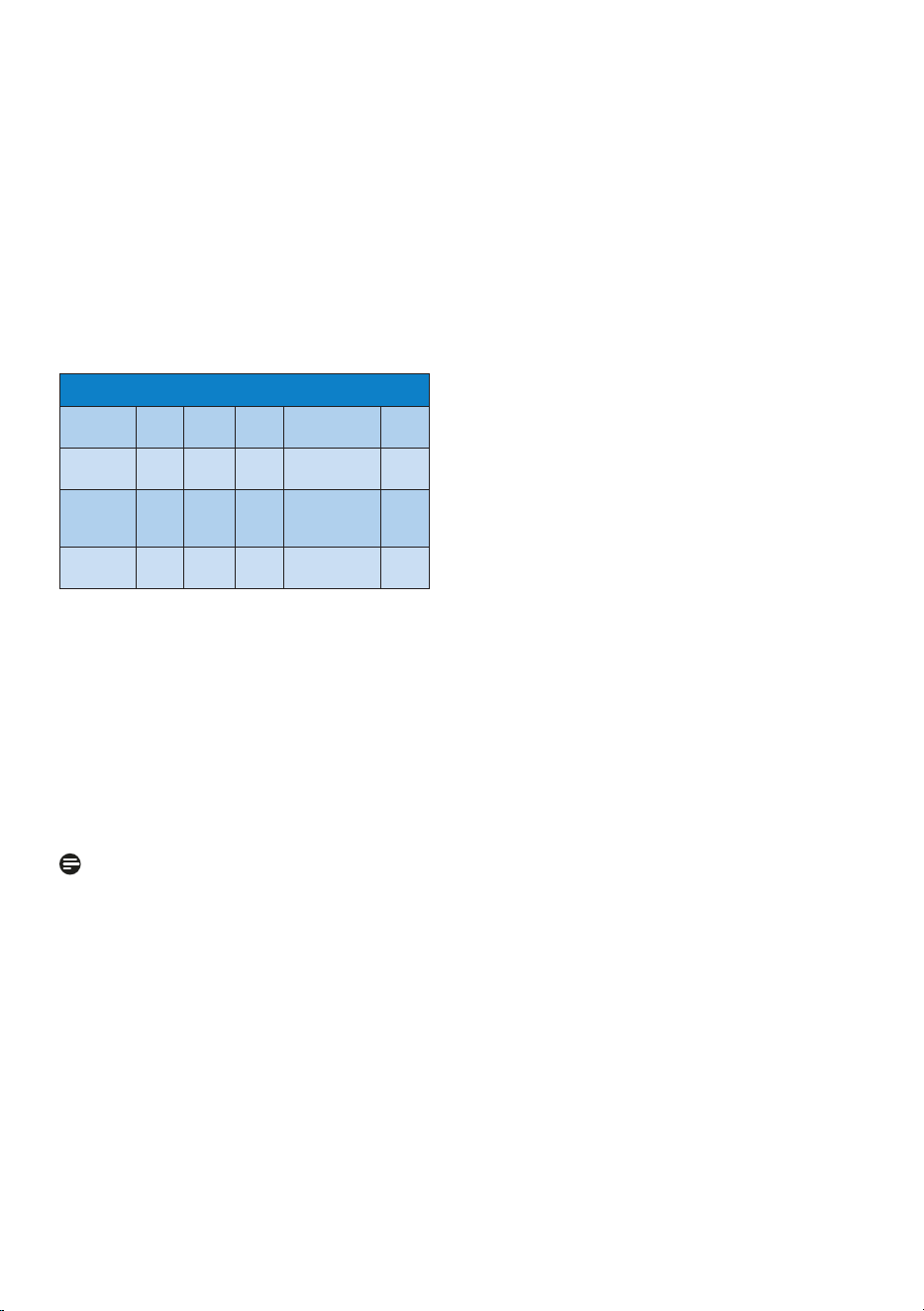
Display Input
Format.
VideoTiming
Resolution V.freq(Hz)
640 x 480 P 59.94/60Hz 4:3
720 x 576 P 50Hz 16:9
720 x 480 P 59.94/60Hz 16:9
1280 x 720 P 59.94/60Hz 16:9
1920 x 1080 P 59.94/60Hz 16:9
2560 x 1080 P 50Hz 64:27
2560 x 1080 P 60Hz 64:27
3840 x 2160 P 60Hz 16:9 (HDMI)
3840 x 2160 P 50Hz 16:9 (HDMI)
VideoBandwidth
Host Resolution USBspeed
Thunderbolt 4
Alt Mode DP1.4
3440 x 1440@120Hz USB 3.2 Gen1
Thunderbolt 4
Alt Mode DP1.4
3440 x 1440@60Hz USB 3.2 Gen2
Thunderbolt 3
Alt Mode DP1.4
3440 x 1440@120Hz USB 3.2 Gen1
Thunderbolt 3
Alt Mode DP1.2
3440 x 1440@60Hz USB 3.2 Gen2
HDMI 2.0 3440 x 1440@50Hz
DP 1.2 3440 x 1440@60Hz
DP 1.4 3440 x 1440@120Hz
Note
In order for the monitor to function properly with 3440 x 1440@120Hz, your PC’s
graphics card must support Display Stream Compression (DSC).
38
10. Power Management
If you have a VESA DPM compliance
display card or software installed on
your PC, the monitor can automatically
reduce its power consumption when
not in use. If an input from a keyboard,
mouse, or other input device is detected,
the monitor will 'wake up' automatically.
The following table shows the power
consumption and signaling of this
automatic power saving feature:
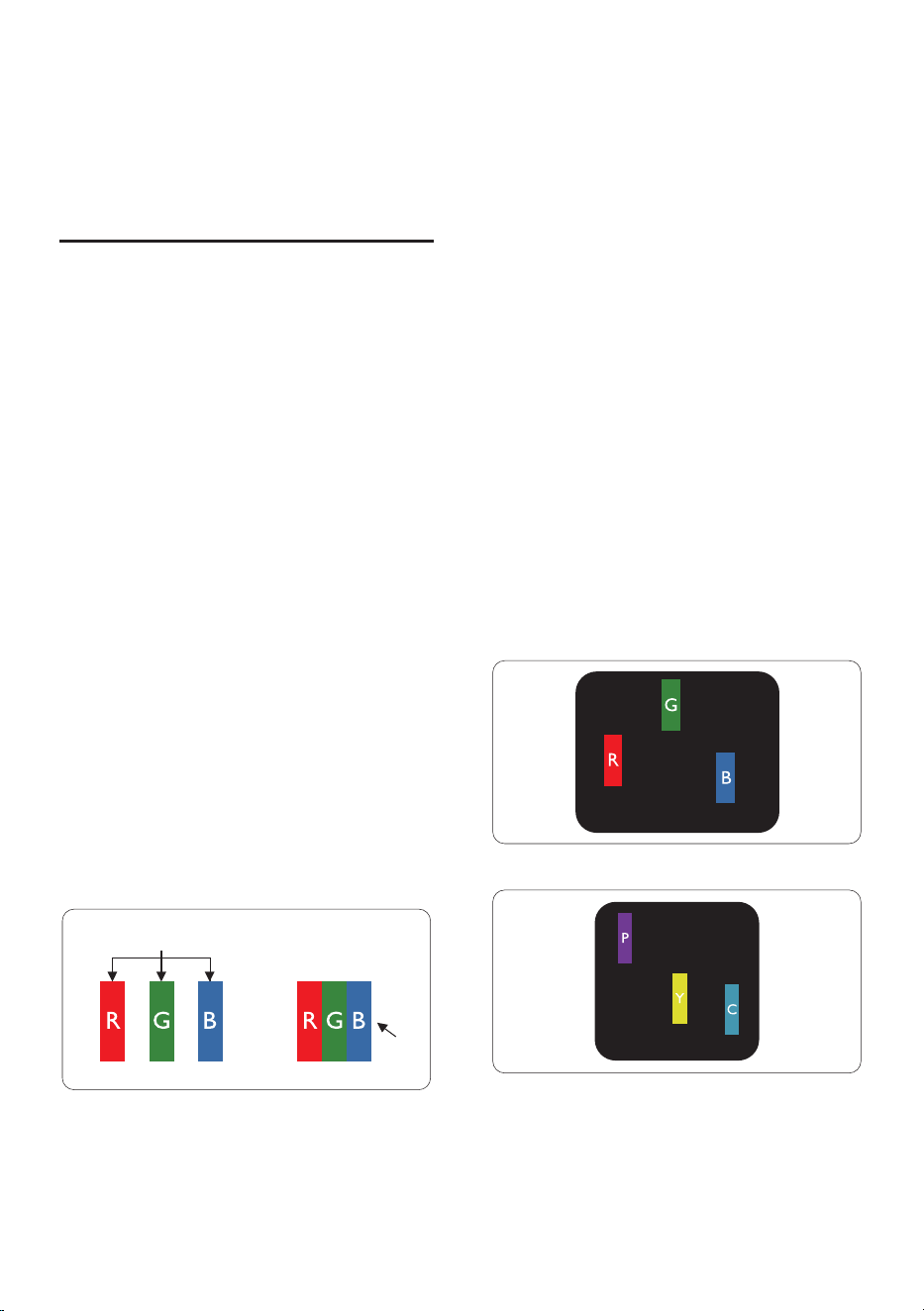
PowerManagementDenition
VESA
Mode
Video H-sync V-sync Power Used
LED
Color
Active ON Yes Yes
33.5 W (typ.)
303.1 W (max.)
White
Sleep
(Standby
mode)
OFF No No 0.4 W (typ.)
White
(blink)
O mode
(AC switch)
OFF - -
0W
(AC switch)
OFF
The following setup is used to measure
power consumption on this display.
• Native resolution: 3440 x 1440
• Contrast: 50%
• Brightness: 40%
• Color temperature: 6500k with full
white pattern
• Audio and USB Inactive (Off)
Note
This data is subject to change without
notice.
39
11. Customer care and
warranty
11.1 Philips’ Flat Panel Displays
Pixel Defect Policy
Philips strives to deliver the highest
quality products. We use some of the
industry's most advanced manufacturing
processes and practice stringent quality
control. However, pixel or sub-pixel
defects on the TFT Monitor panels used
in at panel monitors are sometimes
unavoidable. No manufacturer can
guarantee that all panels will be free
from pixel defects, but Philips guarantees
that any monitor with an unacceptable
number of defects will be repaired
and/or replaced under warranty. This
notice explains the dierent types of
pixel defects and denes acceptable
defect levels for each type. To qualify
for repair or replacement under
warranty, the number of pixel defects
on a TFT Monitor panel must exceed
these acceptable levels. For example,
no more than 0.0004% of the sub-
pixels on a monitor may be defective.
Furthermore, Philips sets even higher
quality standards for certain types or
combinations of pixel defects that are
more noticeable than others. This policy
is valid worldwide.
subpixel
pixel
Pixels and Sub pixels
A pixel, or picture element, is composed
of three sub-pixels in the primary colors
of red, green, and blue. Many pixels
together form an image. When all the
sub-pixels of a pixel are lit, the three
colored sub-pixels together appear as
a single white pixel. When all are dark,
the three colored sub-pixels together
appear as a single black pixel. Other
combinations of lit and dark sub-pixels
appear as single pixels of other colors.
Types of Pixel Defects
Pixel and sub-pixel defects appear on
the screen in dierent ways. There are
two categories of pixel defects and
several types of sub-pixel defects within
each category.
Bright Dot Defects
Bright dot defects appear as pixels or
sub-pixels that are always lit or 'on'.
Meaning, a bright dot is a sub-pixel
that stands out on the screen when the
monitor displays a dark pattern. There
are three types of bright dot defects:
One lit red, green, or blue sub-pixel.
One lit red, green or blue sub pixel.
Two adjacent lit sub-pixels:
- Red + Blue = Purple
- Red + Green = Yellow
- Green + Blue = Cyan (Light Blue)
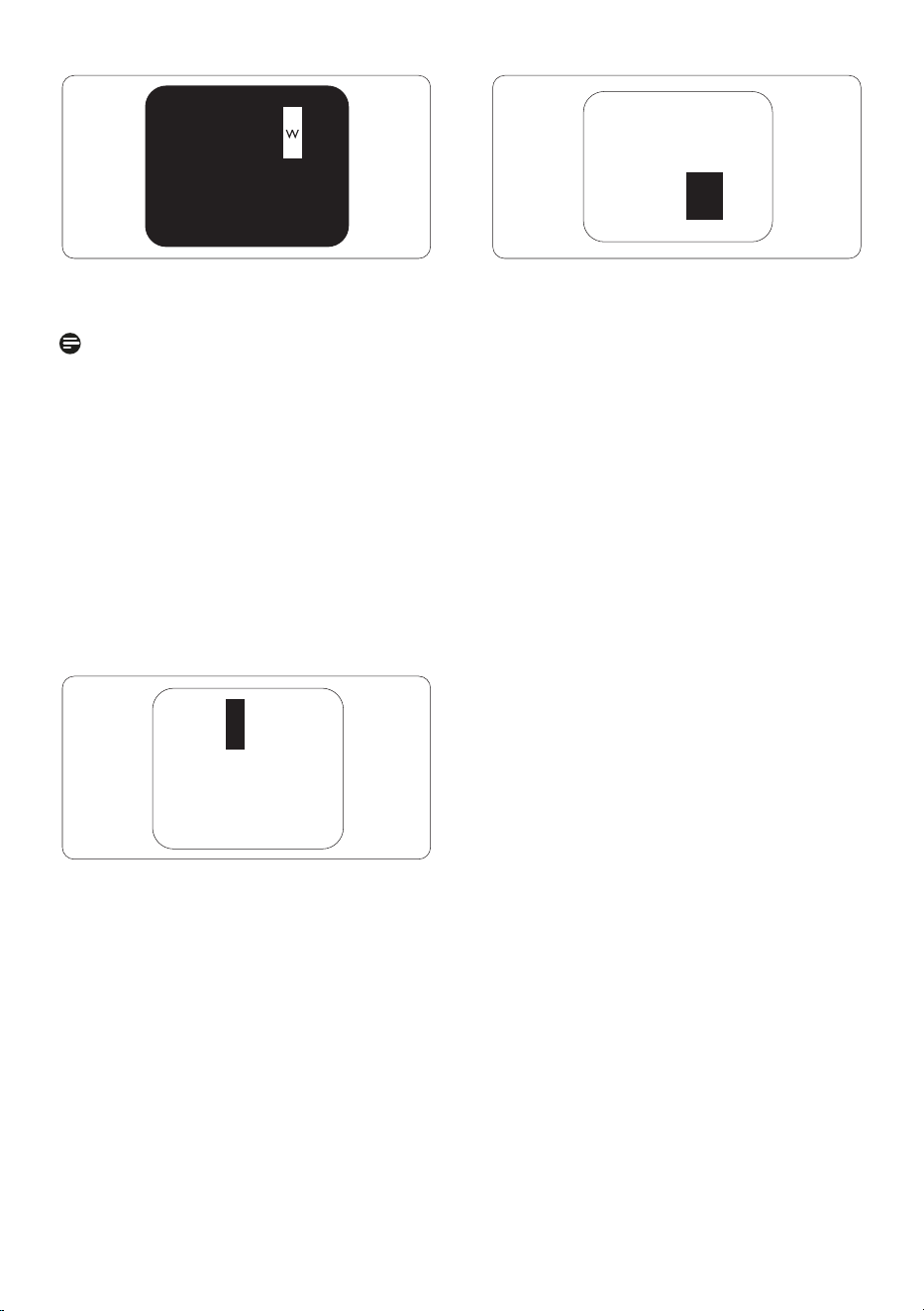
40
Three adjacent lit sub pixels (one white
pixel).
Note
A red or bright blue dot must be
more than 50 percent brighter than
neighboring dots, while a bright
green dot is 30 percent brighter than
neighboring dots.
Black Dot Defects
Black dot defects appear as pixels or
sub-pixels that are always dark or 'o'.
Meaning, a dark dot is a sub-pixel that
stands out on the screen when the
monitor displays a light pattern. These
are the types of black dot defects.
Proximity of Pixel Defects
Because pixel and sub pixels defects
of the same type that are near to one
another may be more noticeable,
Philips also species tolerances for the
proximity of pixel defects.
Pixel Defect Tolerances
To qualify for repair or replacement due
to pixel defects during the warranty
period, a TFT Monitor panel in a Philips
at panel monitor must have pixel
or sub-pixel defects exceeding the
tolerances listed in the following tables.
41
BRIGHT DOT DEFECTS ACCEPTABLE LEVEL
1 lit subpixel 2
2 adjacent lit subpixels 1
3 adjacent lit subpixels (one white pixel) 0
Distance between two bright dot defects* >15mm
Total bright dot defects of all types 2
BLACK DOT DEFECTS ACCEPTABLE LEVEL
1 dark subpixel 3 or fewer
2 adjacent dark subpixels 2 or fewer
3 adjacent dark subpixels 1
Distance between two black dot defects* >15mm
Total black dot defects of all types 3 or fewer
TOTAL DOT DEFECTS ACCEPTABLE LEVEL
Total bright or black dot defects of all types 5 or fewer
Note
1 or 2 adjacent sub pixel defects = 1 dot defect
42
11.2 Customer Care & Warranty
For warranty coverage information and additional support requirements valid for your
region, please visit www.philips.com/support website for details or contact your local
Philips Customer Care Center.
For the Warranty Period please refer to Warranty Statement in the Important
information manual.
For an extended warranty, if you would like to extend your general warranty period, an
Out of Warranty service package is oered via our Certied Service Center.
If you wish to make use of this service, please be sure to purchase the service within 30
calendar days of your original purchase date. During the extended warranty period, the
service includes pickup, repair, and return service, however, the user will be responsible
for all costs accrued.
If the Certied Service Partner cannot perform the required repairs under the oered
extended warranty package, we will nd alternative solutions for you, if possible, up to
the extended warranty period you have purchased.
Please contact our Philips Customer Service Representative or local contact center (by
Consumer care number) for more details.
Philips Customer Care Center number listed below.
• Local
Standard
Warranty
Period
• Extended Warranty
Period
• Total Warranty Period
• Depend on
dierent
Regions
• + 1 Year • Local Standard warranty period
+1
• + 2 Years • Local Standard warranty period
+2
• + 3 Years • Local Standard warranty period
+3
**Proof of original purchase and extended warranty purchase required.
Note
Please refer to the Important information manual for the regional service hotline,
which is available on the Philips website support page.

43
12. Troubleshooting &
FAQs
12.1 Troubleshooting
This page deals with problems that can
be corrected by a user. If the problem
persists after you have tried these
solutions, contact a Philips customer
service representative.
Common Problems
No Picture (Power LED not lit)
• Make sure the power cord is
plugged into the power outlet and
the back of the monitor.
• First, ensure that the power button
on the front of the display is in the
OFF position, then press it to the ON
position.
No Picture (Power LED is White)
• Make sure the computer is turned
on.
• Make sure the signal cable is
properly connected to your
computer.
• Make sure the monitor cable has no
bent pins on the connecting side. If
yes, repair or replace the cable.
• The Energy Saving feature may be
activated Screen says
• Make sure the display cable
is properly connected to your
computer. (Also refer to the Quick
Start Guide).
• Check to see if the display cable has
bent pins.
• Make sure the computer is turned
on.
Visible signs of smoke or sparks
• Do not perform any troubleshooting
steps
• Disconnect the monitor from the
mains power source immediately for
safety
• Contact Philips customer service
representative immediately.
Imaging Problems
The image appears blurred, indistinct, or
too dark
• Adjust the contrast and brightness
on On-Screen Display.
An "after-image", "burn-in" or "ghost
image" remains after the power has
been turned o.
• Uninterrupted display of still or
static images over an extended
period may cause "burn-in", also
known as "after-imaging" or "ghost
imaging", on your screen. "Burn-in ",
"after-imaging", or "ghost imaging"
is a well-known phenomenon in LCD
panel technology. In most cases, the
"burn-in" "after-imaging" or "ghost
imaging" will disappear gradually
over some time after the power has
been switched off.
• Always activate a moving screen
saver program when you leave your
display unattended.
• Always activate a periodic screen
refresh application if your LCD
display will display unchanging static
content.
• Failure to activate a screen saver, or
a periodic screen refresh application
may result in severe “burn-in”,
“after-imaging” or “ghost imaging”

44
symptoms that will not disappear
and cannot be repaired. The damage
mentioned above is not covered
under your warranty.
The image appears distorted or the text
is fuzzy or blurred.
• Set the PC’s display resolution to
the same mode as the monitor’s
recommended screen native
resolution.
Green, red, blue, dark, and white dots
appear on the screen
• The remaining dots are a normal
characteristic of the liquid crystal
used in today’s technology, Please
refer to the pixel policy for more
detail.
* The "power on" light is too strong and
is disturbing
• You can adjust the “power on” light
using the power LED Setup in OSD
Main Controls.
For further assistance, refer to the
Service contact information listed in
the Important information manual
and contact a Philips customer service
representative.
* Functionality is dierent according to
display.
12.2 General FAQs
Q1: When I install my display what
should I do if the screen shows
'Cannot display this video mode'?
Ans.: Recommended resolution for this
display: 3440 x 1440.
• Unplug all cables, then connect
your PC to the display that you used
previously.
• In the Windows Start Menu, select
Settings/Control Panel. In the
Control Panel Window, select the
Display icon. Inside the Display
Control Panel, select the 'Settings'
tab. Under the setting tab, in the
box labeled 'desktop area', move the
sidebar to 3440 x 1440 pixels.
• Open 'Advanced Properties' and set
the Refresh Rate to 60 Hz, then click
OK.
• Restart your computer and repeat
steps 2 and 3 to verify that your PC is
set at 3440 x 1440.
• Shut down your computer,
disconnect your old monitor, and
reconnect your Philips LCD monitor.
• Turn on your display and then turn
on your PC.
Q2: What is the recommended refresh
rate for an LCD monitor?
Ans.: Recommended refresh rate in
LCD monitors is 60 Hz, In case of
any disturbance on the screen,
you can set it up to 75 Hz to see if
that removes the disturbance.
Q3: What are the .inf and .icm les?
How do I install the drivers (.inf
and .icm)?
Ans.: These are the driver les for
your monitor. Your computer
may ask you for monitor drivers
(.inf and .icm les) when you
rst install your monitor. Follow
the instructions in your user
manual, and monitor drivers (.inf
and .icm les) will be installed
automatically.
Q4: How do I adjust the resolution?
Ans.: Your video card/graphic driver
and display together determine
the available resolutions. You
can select the desired resolution
under Windows
®
Control Panel
with the "Display properties".

45
Q5: What if I get lost when I am
making display adjustments via
OSD?
Ans.: Simply press button, then
select 'Setup' > 'Reset' to recall all
the original factory settings.
Q6: Is the LCD screen resistant to
scratches?
Ans.: In general it is recommended
that the panel surface is not
subjected to excessive shocks
and is protected from sharp or
blunt objects. When handling the
display, make sure that there is no
pressure or force applied to the
panel surface side. This may aect
your warranty conditions.
Q7: How should I clean the LCD
surface?
Ans.: For normal cleaning, use a clean,
soft cloth. For extensive cleaning,
please use isopropyl alcohol. Do
not use other solvents such as
ethyl alcohol, ethanol, acetone,
hexane, etc.
Q8: Can I change the color setting of
my display?
Ans.: Yes, you can change your color
setting through OSD control as
per the following procedures.
• Press "OK" to show the OSD (On
Screen Display) menu
• Press "Down Arrow" to select the
option "Color" then press "OK" to
enter the color setting, there are
three settings as below.
1. Color Temperature: The settings
are as follows. Native, 5000K,
6500K, 7500K, 8200K, 9300K,
and 11500K. With settings in
the 5000K range the panel
appears "warm, with a red-white
color tone", while a 11500K
temperature yields "cool, blue-
white toning".
2. sRGB: This is a standard setting for
ensuring the correct exchange of
colors between dierent devices
(e.g. digital cameras, monitors,
printers, scanners, etc).
3. User Dene: The user can choose
his/her preferred color setting
by adjusting red, green, and blue
colors.
Note
A measurement of the color of light
radiated by an object while it is being
heated. This measurement is expressed
in terms of absolute scale, (degrees
Kelvin). Lower Kevin temperatures such
as 2004K are red; higher temperatures
such as 9300K are blue. The neutral
temperature is white, at 6504K.
Q9: Can I connect my LCD monitor to
any PC, workstation, or Mac?
Ans.: Yes. All Philips LCD monitors are
fully compatible with standard
PCs, Macs, and workstations.
You may need a cable adapter
to connect the monitor to your
Mac system. Please contact your
Philips sales representative for
more information.
Q10: Are Philips LCD displays Plug-and-
Play?
Ans.: Yes, the displays are Plug-and-
Play compatible with Windows
11/10
Q11: What is Image Sticking, Image
Burn-in, After Image, or Ghost
Image in LCD panels?
Ans.: Uninterrupted display of still or
static images over an extended
period may cause "burn in", also
46
known as "after-imaging" or
"ghost imaging", on your screen.
"Burn-in", "after-imaging", or
"ghost imaging" is a well-known
phenomenon in LCD panel
technology. In most cases, the
"Burn-in" or "after-imaging" or
"ghost imaging" will disappear
gradually over a period of
time after the power has been
switched o.
Always activate a moving screen
saver program when you leave
your display unattended.
Always activate a periodic screen
refresh application if your LCD
display will display unchanging
static content.
Warning
Failure to activate a screen saver, or a
periodic screen refresh application may
result in severe “burn-in” “after-image”
or “ghost image” symptoms that will not
disappear and cannot be repaired. The
damage mentioned above is not covered
under your warranty.
Q12: Why is my Display not showing
sharp text, and is displaying
jagged characters?
Ans.: Your LCD monitor works best at
its native resolution of 3440 x
1440. For the best display, please
use this resolution.
Q13: How to unlock/lock my hotkey?
Ans.: To lock the OSD, press and hold
the button while the
monitor is o and then press
button to turn the monitor on.
To un-lock the OSD, press and
hold the button while the
monitor is o and then press
button to turn the monitor on.
Q14: Where can I nd the Important
information manual mentioned
in EDFU?
Ans.: Important information manual
can be downloaded on the
Philips website support page.
Q15: Why cannot detect my monitor’s
Windows Hello webcam, and also
Face Recognition option is greyed
out?
Ans: To x this issue, you need to
proceed following steps to detect
the webcam device again:
1. Press Crtl + Shift + ESC to launch
the Microsoft Windows Task
Manager.
2. Select ‘Services’ tag.
3. Scroll down and select ‘WbioSrvc’
(Windows Biometric Service). If
the status shows ‘Running’, right
click to stop the service rst, then
restart the service manually.
4. Then go back to sign-in options
menu to set up Window Hello
Webcam.

47
12.3 Multiview FAQs
Q1: Can I enlarge the PIP sub-
window?
Ans.: Yes, there are 3 sizes to select:
[Small], [Middle], [Large]. You can
press to enter the OSD menu.
Select your preferred [PIP Size]
option from the [PIP / PBP] main
menu.
Q2: How to listen to Audio,
independent of a video?
Ans.: Normally the audio source is
linked to the main picture source.
If you want to change audio-
source input, you can press
enter in the OSD menu. Select
your preferred [Audio Source]
option from the [Audio] main
menu.
Please note that the next time you
turn on your display, the display
will by default select the audio
source you chose last time. In case
you want to change it again, you
need to go through the above
steps to select your new preferred
audio source, which then will
become the “default” mode.
Q3: Why do the sub-windows icker
when I enable PIP/PBP?
Ans: It’s because the sub-windows
video source is interlace timing
(i-timing), please change the
sub-window signal source to
progressive timing (P-timing).

2024 © TOP Victory Investments Ltd. All rights reserved.
This product has been manufactured by and is sold under the responsibility of Top Victory Investments Ltd., and Top
Victory Investments Ltd. is the warrantor in relation to this product. Philips and the Philips Shield Emblem are registered
trademarks of Koninklijke Philips N.V. and are used under license.
Specications are subject to change without notice.
Version: 34B2U6603E1WWT