Manuals+
User Manuals Simplified.
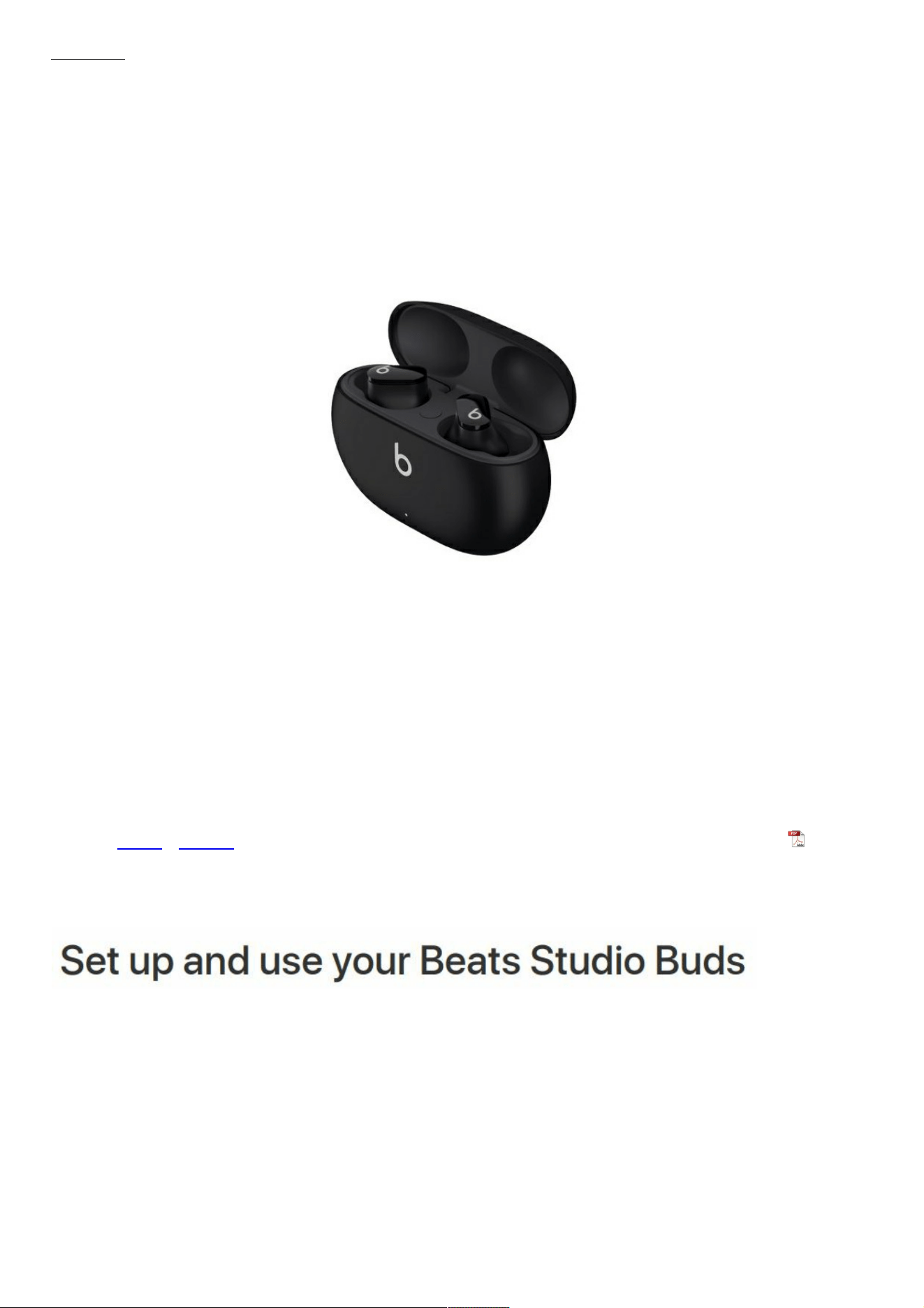
Beats MJ503LL True Wireless Noise Cancelling
Earphones User Guide
Home » BEATS » Beats MJ503LL True Wireless Noise Cancelling Earphones User Guide
Beats MJ503LL True Wireless Noise Cancelling
Earphones User Guide
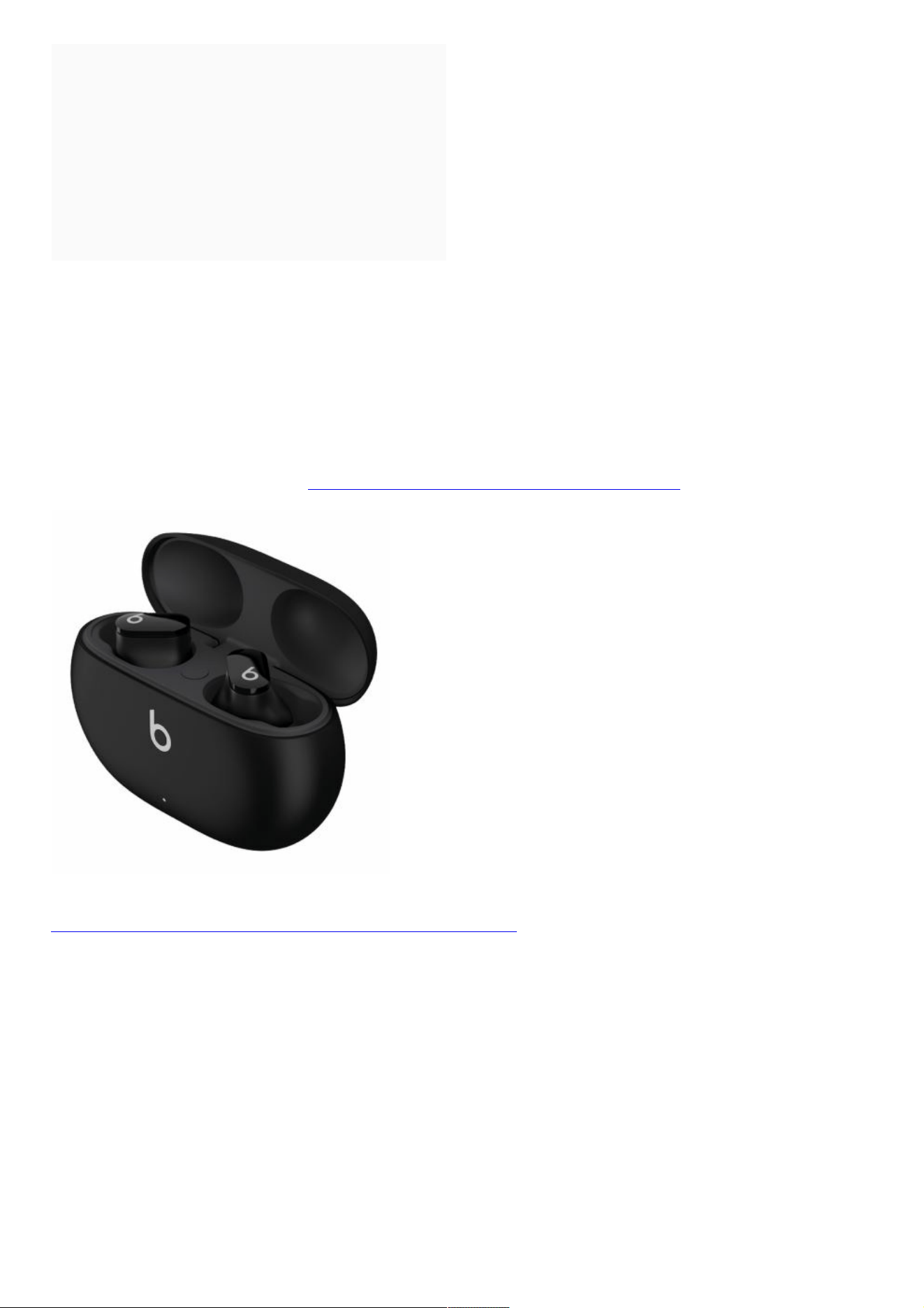
You can listen to music, make phone calls, use Siri, and more with your Beats Studio Buds.
Contents [ hide
1 Pair your Beats Studio Buds
2 Use your Beats Studio Buds
3 Start a discussion in Apple Support
Communities
4 Beats Support
5 File Downloads
6 References
7 Related Manuals
Pair your Beats Studio Buds
Learn how to pair your Beats Studio Buds with your device.
Pair with your iPhone, iPad, or iPod touch
1. Turn on Bluetooth on your iPhone, iPad, or iPod touch.
2. With the case lid open, hold your Beats Studio Buds next to
your unlocked iPhone, iPad, or iPod touch.
3. Follow the onscreen instructions. If you don’t see any
instructions, follow the steps to pair your Beats Studio Buds with another device.
Pair with an Android device
Pair your Beats Studio Buds using the Beats app for Android.
You can also use Fast Pair to pair your Beats Studio Buds with an Android device:
1. Make sure that your phone is using Android 6.0 or higher, and that it has Bluetooth and Location turned on.
2. With the case lid open, hold your Beats Studio Buds near your phone or tablet.
3. When you get a notification, tap “Tap to pair.” You’ll get a “Device connected” or “Pairing complete” notification.
O. If you need to set up your Beats Studio Buds, tap “Set up now.”
4. If you don’t get a notification, open the Bluetooth settings on your phone or tablet, and tap the device that you
want to pair.
Fast Pair requires your location to be enabled. Full access to features requires an Android 6.0 or newer device with
Google Play Services enabled and Google Account.
Pair with your Mac or with another device that uses Bluetooth
1. Turn on Bluetooth on your Mac or other device.
2. With the case lid open, hold your Beats Studio Buds next to your Mac or other device.
3. Press and hold the system button on the charging case until the LED blinks.
4. Open the Bluetooth menu on your Mac or other device. For example, on your Mac, choose Apple menu >
System Preferences, then click Bluetooth. V. In the list of discovered Bluetooth devices, tap or click your Beats
Studio Buds.
Use your Beats Studio Buds
When you take your Beats Studio Buds out of the charging case, they’re on and ready to use.
Play music
To control your music, you can use the Beats logo button on either earbud:
To pause or play audio, press the Beats logo button once.
To skip to the next track, press the Beats logo button twice.
To listen to the previous track, press the Beats logo button three times.
Change the volume
To change the volume, say “Hey Siri,” then say something like “Turn down the volume.” Or drag the volume slider in
the app you’re listening to, on the Lock screen, or in Control Center. You can also open Now Playing on your Apple
Watch and turn the Digital Crown to adjust the volume.
Siri might not be available in all languages or in all areas, and features might vary by area.
Answer phone calls
To control phone calls, use the Beats logo button on either earbud:
Press once to answer or end a call.
Press once to answer a second incoming call and put the first call on hold. When two calls are active, this
switches between calls.
Press and hold to reject an incoming call.
Press twice to stop listening through your earphones and send the call to your phone.
Use Active Noise Cancellation and Transparency mode
Beats Studio Buds let you control how much you hear your surroundings. Press and hold the Beats logo button on
either earbud to switch between Active Noise Cancellation, Transparency mode, and Off (to enable maximum
battery life).
You can select which modes the press-and-hold action switches between. While wearing your Beats Studio Buds, go
to Settings > Bluetooth > Beats Studio Buds > Press and Hold Beats Studio Buds.
Press and hold feature customization requires an iPhone, iPad, or iPod touch with iOS or iPad OS 14.6 or later, or an
Android device with the latest version of the Beats app installed.
Ask Siri
If you set up “Hey Siri” on your iPhone already, then “Hey Siri” is ready to use with your Beats Studio Buds. If you
haven’t set up “Hey Siri,” you’ll be guided through the setup.
To activate Siri, you can say “Hey Siri,” or press and hold the Beats logo button on either earbud. When you hear a
chime, say what you need. Learn what to do if Siri isn’t working.
Siri may not be available in all languages or in all areas, and features may vary by area.
Learn more
Learn how to charge your Beats Studio Buds.
To improve the comfort, stability, and sound quality of your Beats Studio Buds, you can change the ear tips.
Information about products not manufactured by Apple, or independent websites not controlled or tested by Apple, is
provided without recommendation or endorsement. Apple assumes no responsibility with regard to the selection,
performance, or use of third-party websites or products. Apple makes no representations regarding third-party
website accuracy or reliability. Contact the vendor for additional information.
Helpful?
Start a discussion in Apple Support Communities
See all questions on this article !
Beats Support
Learn about service and support options for your Beats products.
Back to Beats Support !
https://support.apple.com/en-us/HT212254
File Downloads
Beats User Guide
MJ503LL, True Wireless Noise Cancelling Earphones
Download [optimized]
Download
References
If "Hey Siri" isn't working on your iPhone or iPad - Apple Support
Choose Your Country or Region - Apple Support
Legal - Apple Privacy Policy - Apple
Legal - Website Terms of Use - Apple
Set up and use your Beats Studio Buds - Apple Support

Beats Studio Buds Active Noise Cancellation and Transparency mode - Apple Support
About your Beats eartips - Apple Support
Use the Beats app for Android - Apple Support
Site Map - Apple
Beats Support - Beats by Dre
Contact a third-party vendor - Apple Support
Sales Policies - Apple
Official Apple Support
Charge your Powerbeats Pro - Apple Support
Apple
Set up and use your Beats Studio Buds - Apple Community
Related Manuals
1. OPPO X19E7 Enco X True Wireless Noise Cancelling Earphones User Guide True Wireless Noise Cancelling
Earphones Quick start guide Overview and...
2. KEF Noise Cancelling True Wireless Earphones Mu3 User Manual Mu3 Noise Cancelling True Wireless Earphones
Sound by KEF. Design...
3. cleer ROAM NC True Wireless Noise Cancelling Headphone User Guide ROAM NC TRUE WIRELESS NOISE-
CANCELLING HEADPHONE ENGLISH Quick Start Guide...
4. PHILIPS TAT5505 Noise Cancelling True Wireless In Ear Headphones User Guide Headphones 5000 Series
TAT5505 www.philips.com/welcome http://headphone20.h.xenium.mobi/download Notice of compliance The...
5. kogan KAANCTW9BKA NC9 Active Noise Cancellation True Wireless Earphones User Guide
KAANCTW9BKA NC9 Active Noise Cancellation True Wireless Earphones NC9 ACTIVE...
6. cleer True Wireless Noise Cancelling Headphone User Manual ALLY PLUS II TRUE WIRELESS NOISE-
CANCELING HEADPHONE INTRODUCTION Box contents...