LED BACKLIGHT TV
OPERATION MANUAL
Please choose your favourite page from the content.
If you want to close the operation manual, press the
(HOME) button.
Also, if you want to return to the previously displayed page,
press the
(Back) button.
ENGLISH | 中文(台灣) | 中文(香港) | 中文 | FRANÇAIS | PORTUGUÊS | INDONESIA | ภาษาไทย | TIẾNG VIỆT | ﻲﺑرﻋ | РУССКИЙ | O'ZBEK TILIDA
>>

1. Introduction
1-1. Remote Control Unit
2. How to select the TV Mode
2-1. HOME screen
2-3. Settings
2-4. Chromecast built-in™ compatible
devices
3. Tool Operation
3-1. View Setting
3-1. Picture
3-4. Audio
4. Settings
4-1. General Settings
4-7. Personal
4-8. Network & Internet
4-8. Sleep Timer
5. Direct Button Operation
5-1. AD/MPX
5-2. EPG
6. Enjoying Photo/Music/Video Playback
6-1. Preparation
6-2. Selecting the Folders to Play Back
6-4. Playing Back Files on a USB Memory
Device
7. Using LINK Operation
7-1. Controlling HDMI Equipment Using
LINK Operation
8. Using a PC
8-1. Setting Audio Input
9. Using the Internet
9-1. Connecting to the Internet
9-3. Notes
9-4. Wireless LAN
10. Appendix
10-1. Troubleshooting
10-2. Troubleshooting - Error Message
10-3. Information on the Software License
for This Product
10-3. Trademarks
Contents
EN Contents
ENGLISH | 中文(台灣) | 中文(香港) | 中文 | FRANÇAIS | PORTUGUÊS | INDONESIA | ภาษาไทย | TIẾNG VIỆT | ﻲﺑرﻋ | РУССКИЙ | O'ZBEK TILIDA
>><<
Remote Control Unit
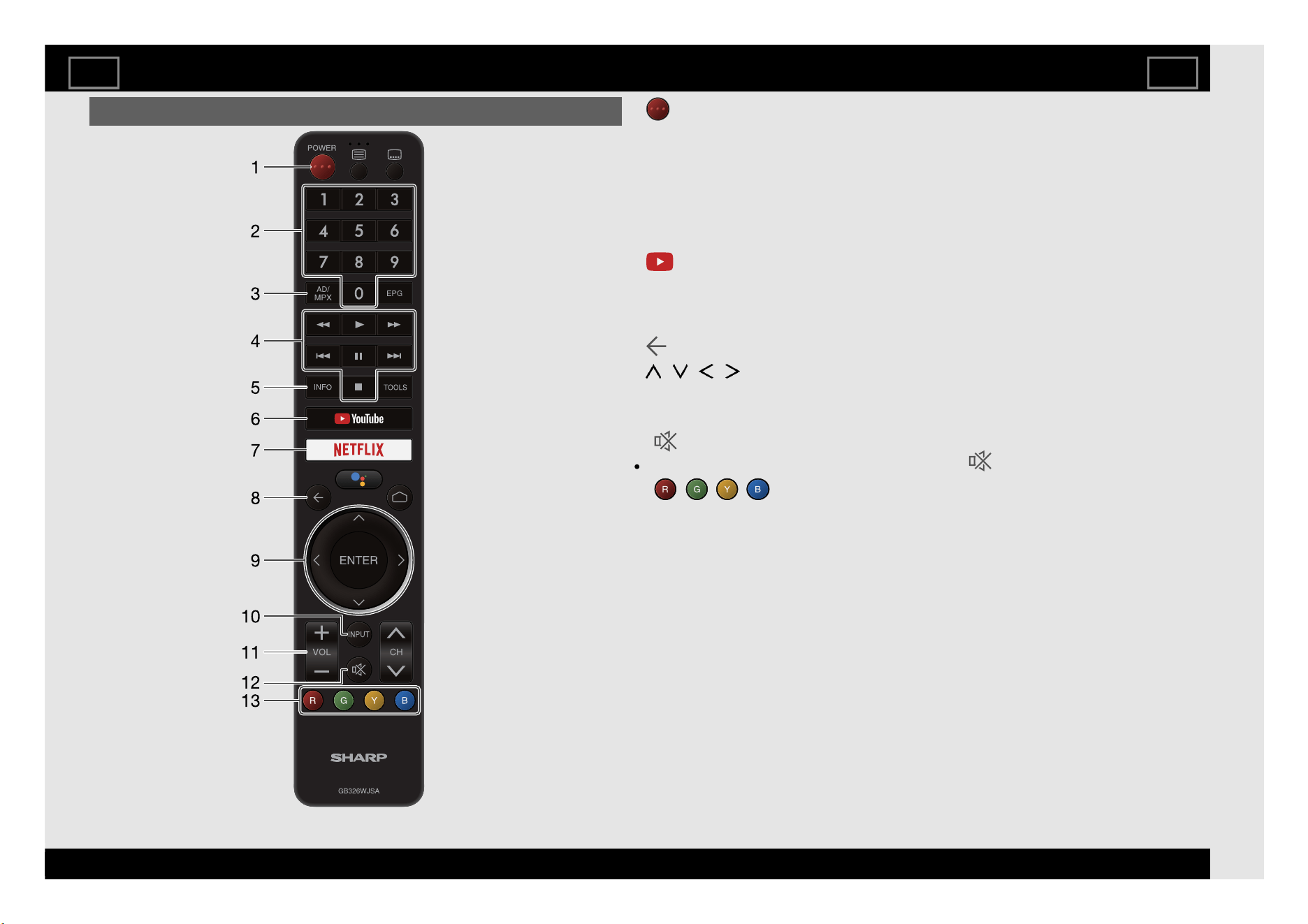
1 (POWER): Switch the TV power on or enter standby.
2 0-9: Set the channel.
3 AD/MPX: Select the sound multiplex mode and audio description.
4 External equipment operational buttons: Operate the external
equipment.
5 INFO
DTV: Display the programme information.
6 YouTube: Display the YouTube™ screen.
7 NETFLIX: Display the NETFLIX screen.
If you press the NETFLIX button when the TV is turned off, the TV turns on
and the NETFLIX screen is displayed.
8 (Back): Return to the previous screen.
9 / / / , ENTER: Select a desired item on the screen.
10 INPUT: Select an input source.
11 VOL+/-: Set the volume.
12 (Mute): Mute the sound.
Mute can be cancelled by pressing VOL +/- or .
13 , , , : The coloured buttons are correspondingly used to
select the coloured items on the screen.
Introduction
EN 1-1
ENGLISH | 中文(台灣) | 中文(香港) | 中文 | FRANÇAIS | PORTUGUÊS | INDONESIA | ภาษาไทย | TIẾNG VIỆT | ﻲﺑرﻋ | РУССКИЙ | O'ZBEK TILIDA
>><<
Remote Control Unit (Continue)
The Remote Control Unit illustration in this operation manual is for
explanation purpose and may vary slightly from the actual remote control
unit depending on the selected region.
Google Assistant is not available in certain languages and
countries. Availability of services varies by country and language.
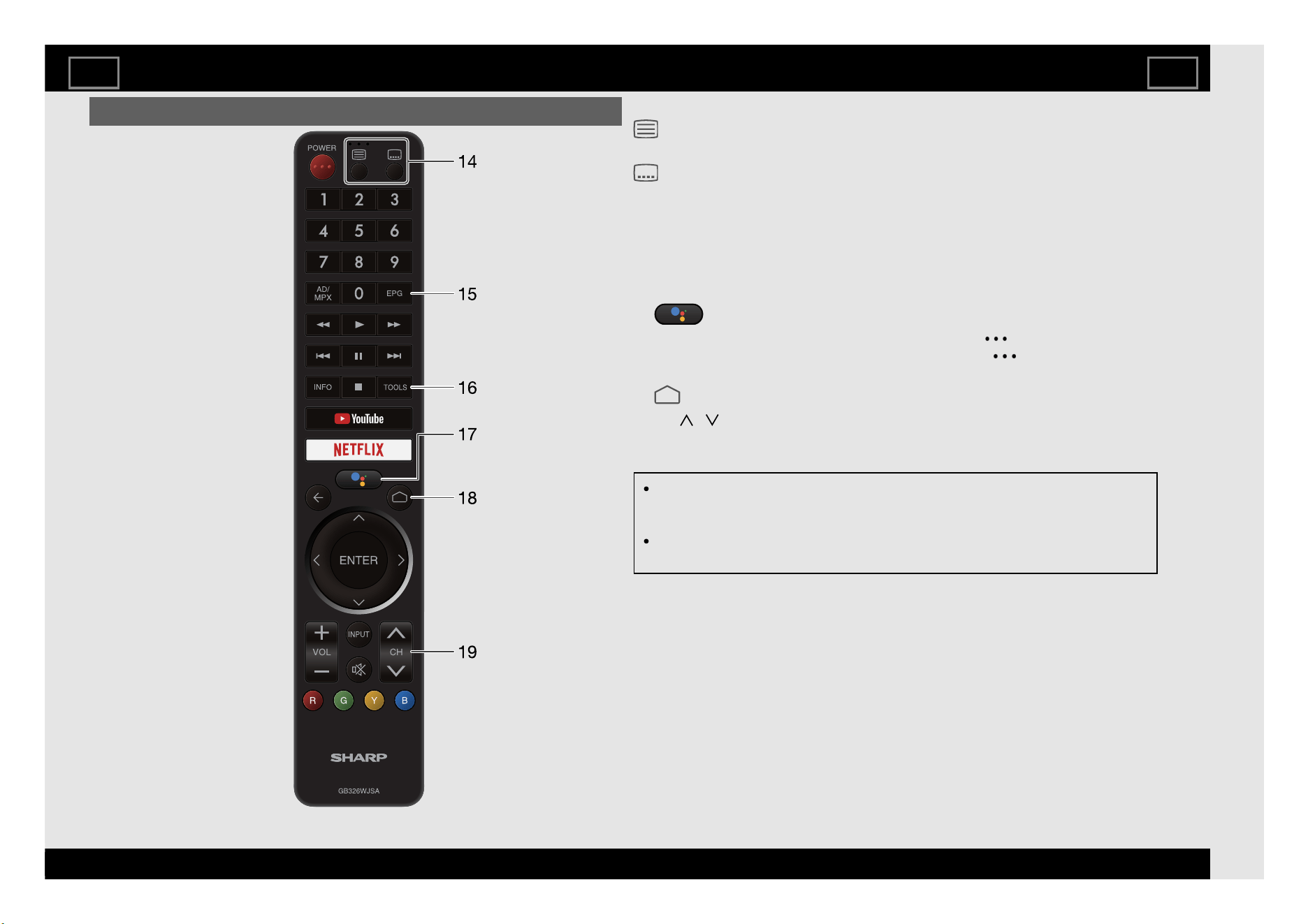
14 Buttons for useful operations
(Teletext)
Select the teletext mode.
(Subtitle)
Switch subtitle languages on/off.
15 EPG
DTV: Display the EPG screen.
16 TOOLS: Display the Tools screen.
You can access menu screen by pressing TOOLS while watching TV in "Live
TV" apps.
17
(Google Assistant or voice search)
Speak the word that you want to search for into the "
(Microphone)" at the
upper of the remote control. When you are using the "
(Microphone)", do
not cover this part with your hand.
18
(HOME): Display the HOME screen.
19 CH
/ : Select the channel.
Introduction
EN 1-2
ENGLISH | 中文(台灣) | 中文(香港) | 中文 | FRANÇAIS | PORTUGUÊS | INDONESIA | ภาษาไทย | TIẾNG VIỆT | ﻲﺑرﻋ | РУССКИЙ | O'ZBEK TILIDA
>><<
Remote Control Unit (Taiwan only)
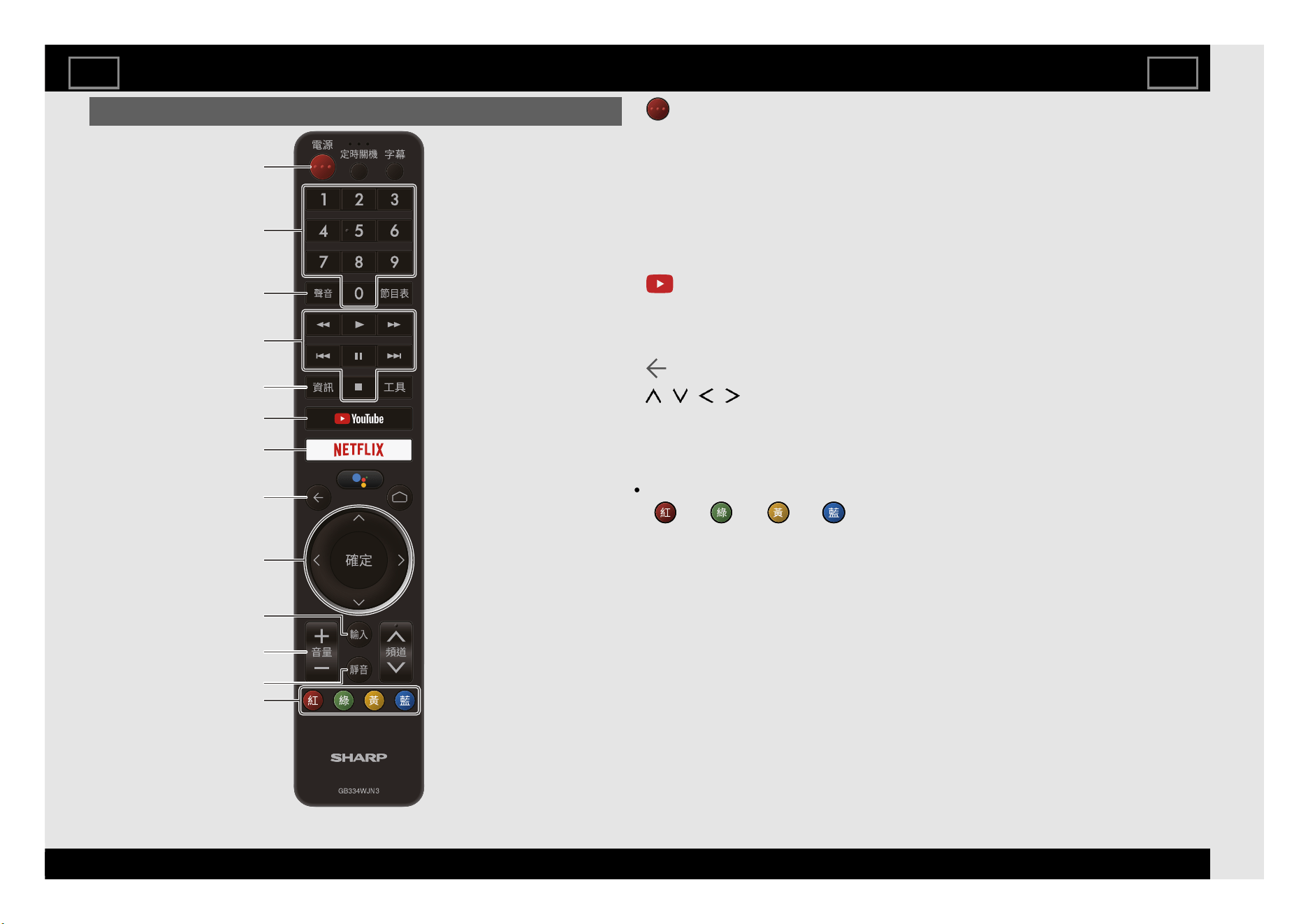
1
(電源) (POWER): Switch the TV power on or enter standby.
2 0-9: Set the channel.
3 聲音 (AUDIO): Selects the audio mode during multichannel audio
broadcasts.
4 External equipment operational buttons: Operate the external
equipment.
5 資訊 (INFO)
DTV: Display the programme information.
6
YouTube: Display the YouTube screen.
7 NETFLIX: Display the NETFLIX screen.
If you press the NETFLIX button when the TV is turned off, the TV turns on
and the NETFLIX screen is displayed.
8
(Back): Return to the previous screen.
9
/ / / , 確定 (ENTER): Select a desired item on the screen.
10 輸入 (INPUT): Select an input source.
11 音量+/- (VOL+/-): Set the volume.
12 静音 (MUTE): Mute the sound.
Mute can be cancelled by pressing 音量+/- (VOL+/-) or 静音 (MUTE).
13
(R), (G), (Y), (B): The coloured buttons are
correspondingly used to select the coloured items on the screen.
Introduction
1
2
4
3
5
6
7
8
11
13
10
9
12
EN 1-3
ENGLISH | 中文(台灣) | 中文(香港) | 中文 | FRANÇAIS | PORTUGUÊS | INDONESIA | ภาษาไทย | TIẾNG VIỆT | ﻲﺑرﻋ | РУССКИЙ | O'ZBEK TILIDA
>><<
Remote Control Unit (Taiwan only) (Continue)
The Remote Control Unit illustration in this operation manual is for
explanation purpose and may vary slightly from the actual remote control
unit depending on the selected region.
Google Assistant is not available in certain languages and
countries. Availability of services varies by country and language.
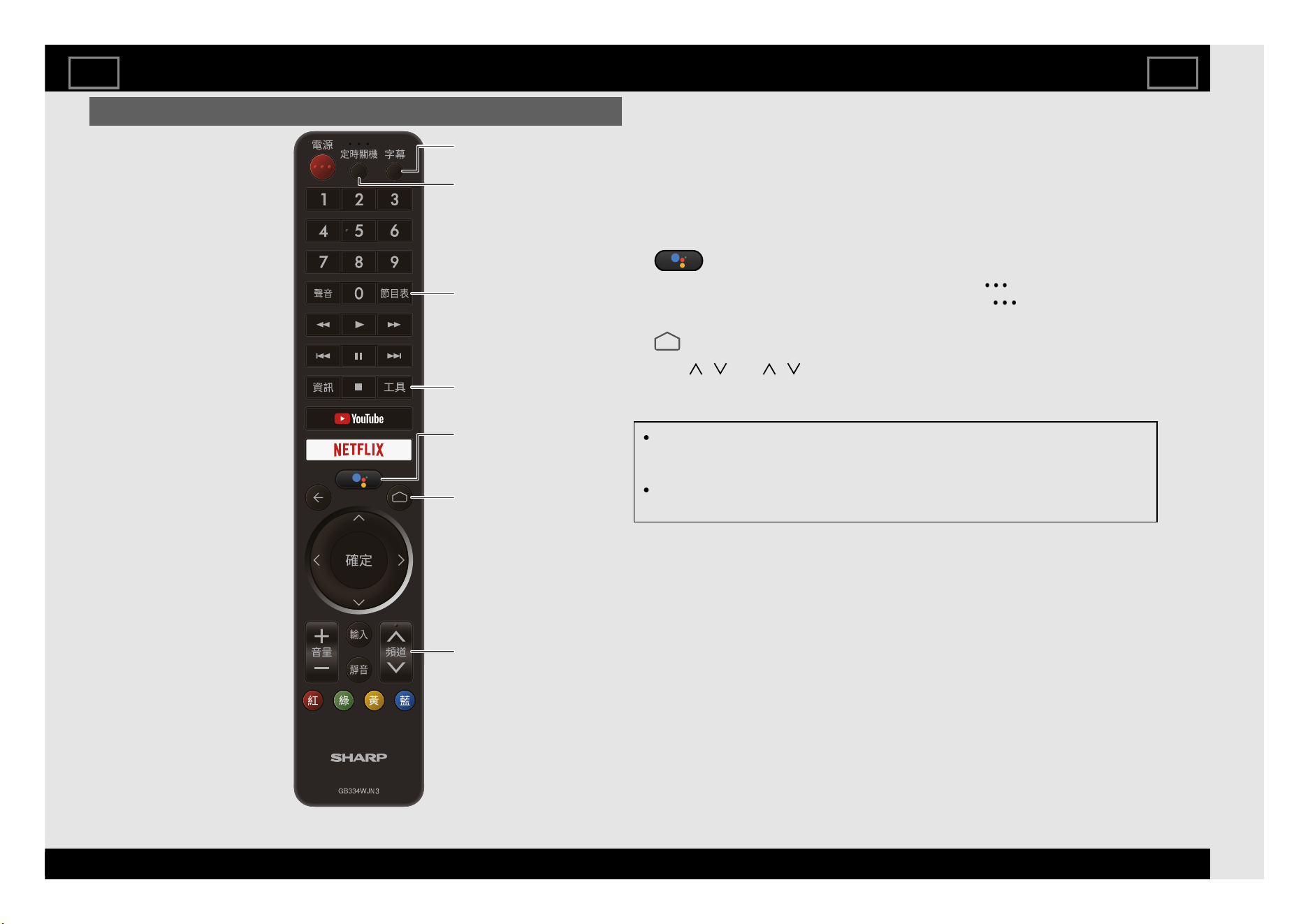
14 字幕 (Subtitle): Switch subtitle languages on / off.
15 定時關機 (SLEEP): Set the sleep timer.
16 節目表 (EPG)
DTV: Display the EPG screen.
17 工具 (TOOLS): Display the Tools screen.
You can access menu screen by pressing 工具 (TOOLS) while watching TV
in "Live TV" apps.
18
(Google Assistant or voice search)
Speak the word that you want to search for into the "
(Microphone)" at the
upper of the remote control. When you are using the "
(Microphone)", do
not cover this part with your hand.
19
(HOME): Display the HOME screen.
20 頻道
/ (CH / ): Select the channel.
Introduction
16
17
19
20
18
14
15
EN 1-4
ENGLISH | 中文(台灣) | 中文(香港) | 中文 | FRANÇAIS | PORTUGUÊS | INDONESIA | ภาษาไทย | TIẾNG VIỆT | ﻲﺑرﻋ | РУССКИЙ | O'ZBEK TILIDA
>><<
HOME screen
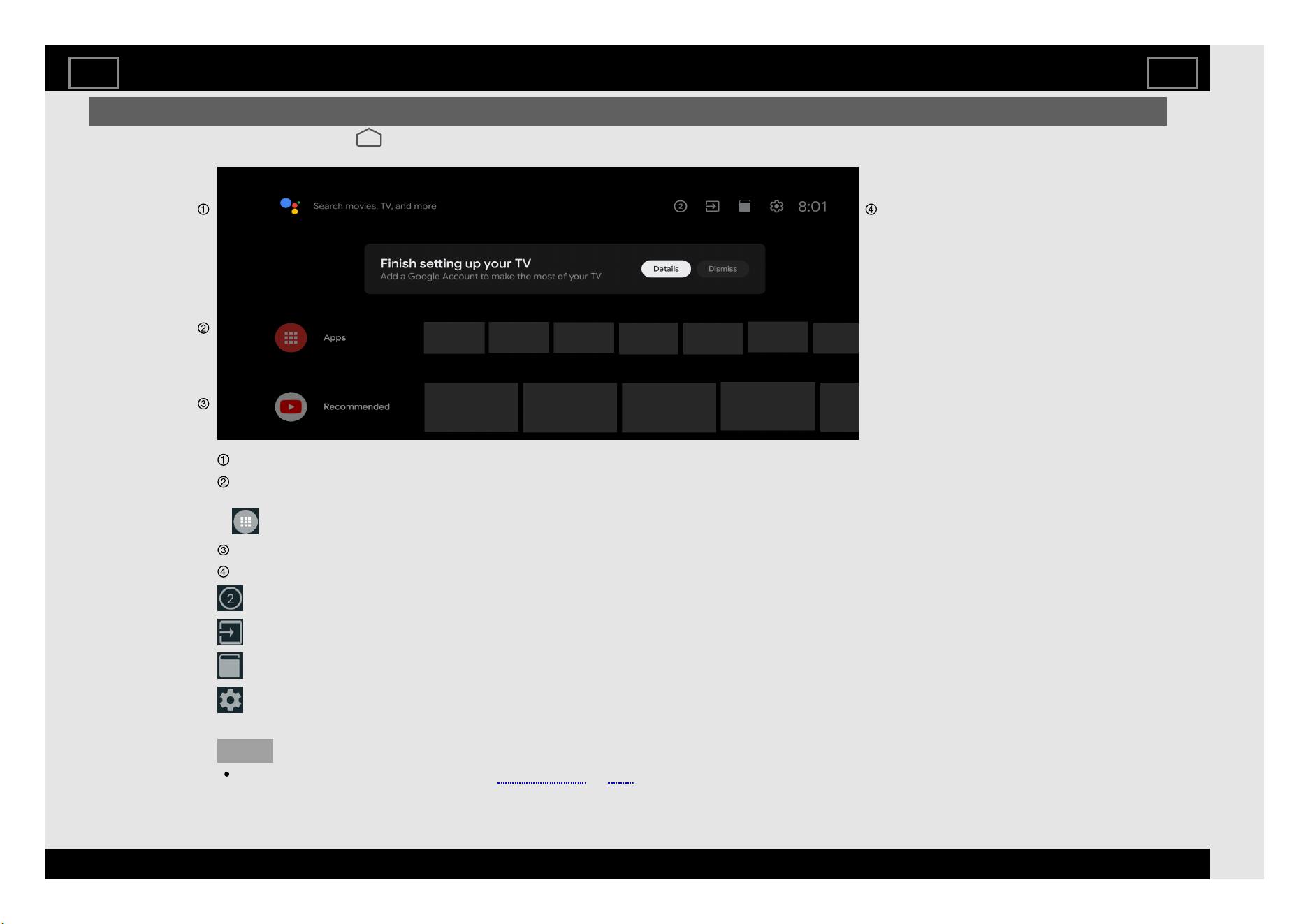
To display the HOME screen, press the (HOME) button on the remote control unit.
Example
Start a Search.
Among the applications installed on the TV, the icons for the favourite applications are shown inside here. (Favourite applications can
be added / deleted / changed its order by users.)
Apps : Click to jump to Apps screen where all the installed applications are listed.
The contents of the programmes that user is watching or watched are displays here.
Notifications: Display the notifications.
Inputs: Icon to select an input source.
Manual: Icon for the built-in operation manual.
Settings: Various settings can be configured here.
xxxxx xxxx For details on the settings, see the next explanation.
NOTE
When you are using the microphone, see page 1-2 or 1-4.
How to select the TV Mode
EN 2-1
ENGLISH | 中文(台灣) | 中文(香港) | 中文 | FRANÇAIS | PORTUGUÊS | INDONESIA | ภาษาไทย | TIẾNG VIỆT | ﻲﺑرﻋ | РУССКИЙ | O'ZBEK TILIDA
>><<
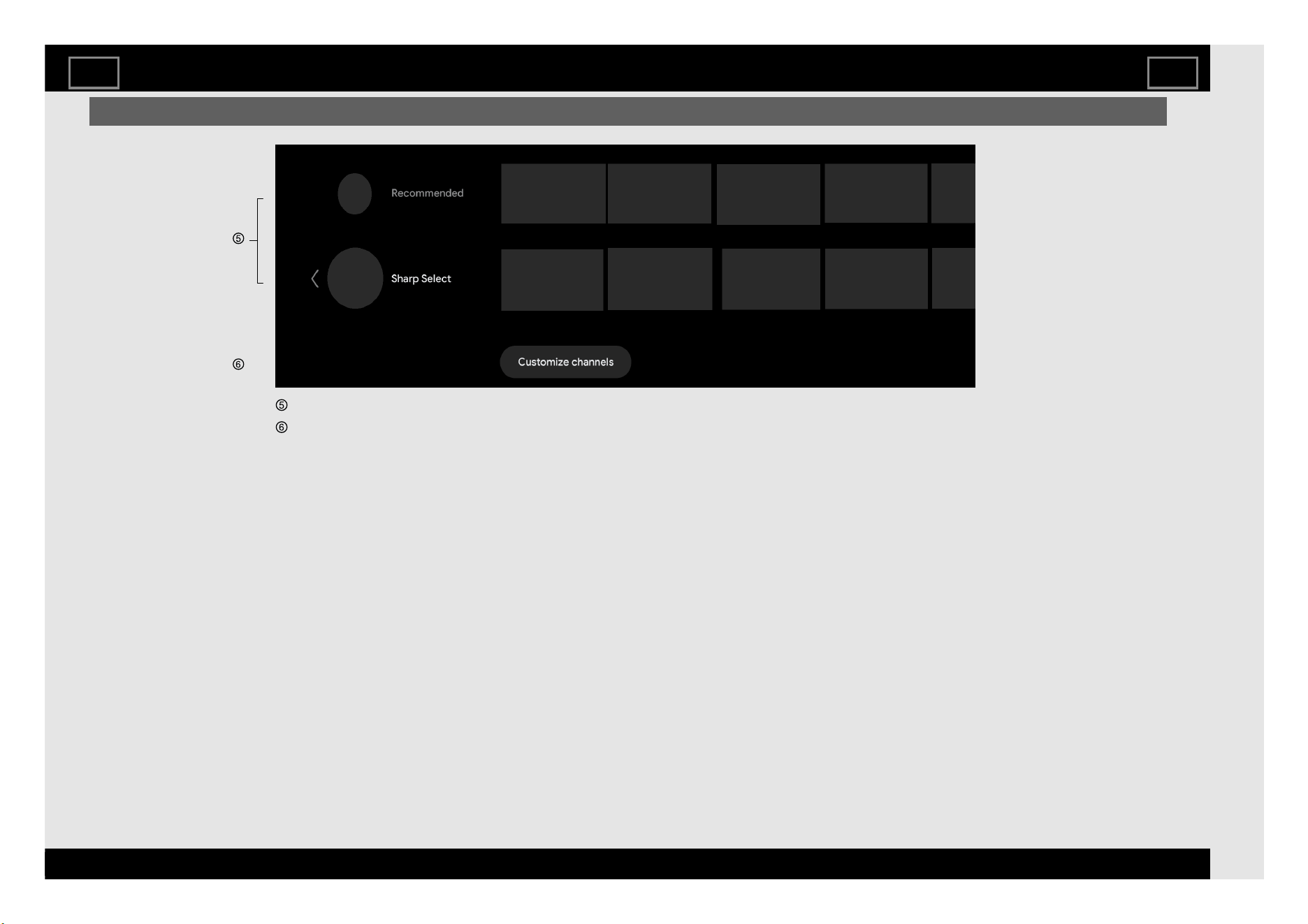
HOME screen (Continue)
Example
Channels served by install applications are displayed here. Channels can be changed the display order of channels by users.
Add or delete HOME screen channel.
How to select the TV Mode
EN 2-2
ENGLISH | 中文(台灣) | 中文(香港) | 中文 | FRANÇAIS | PORTUGUÊS | INDONESIA | ภาษาไทย | TIẾNG VIỆT | ﻲﺑرﻋ | РУССКИЙ | O'ZBEK TILIDA
>><<
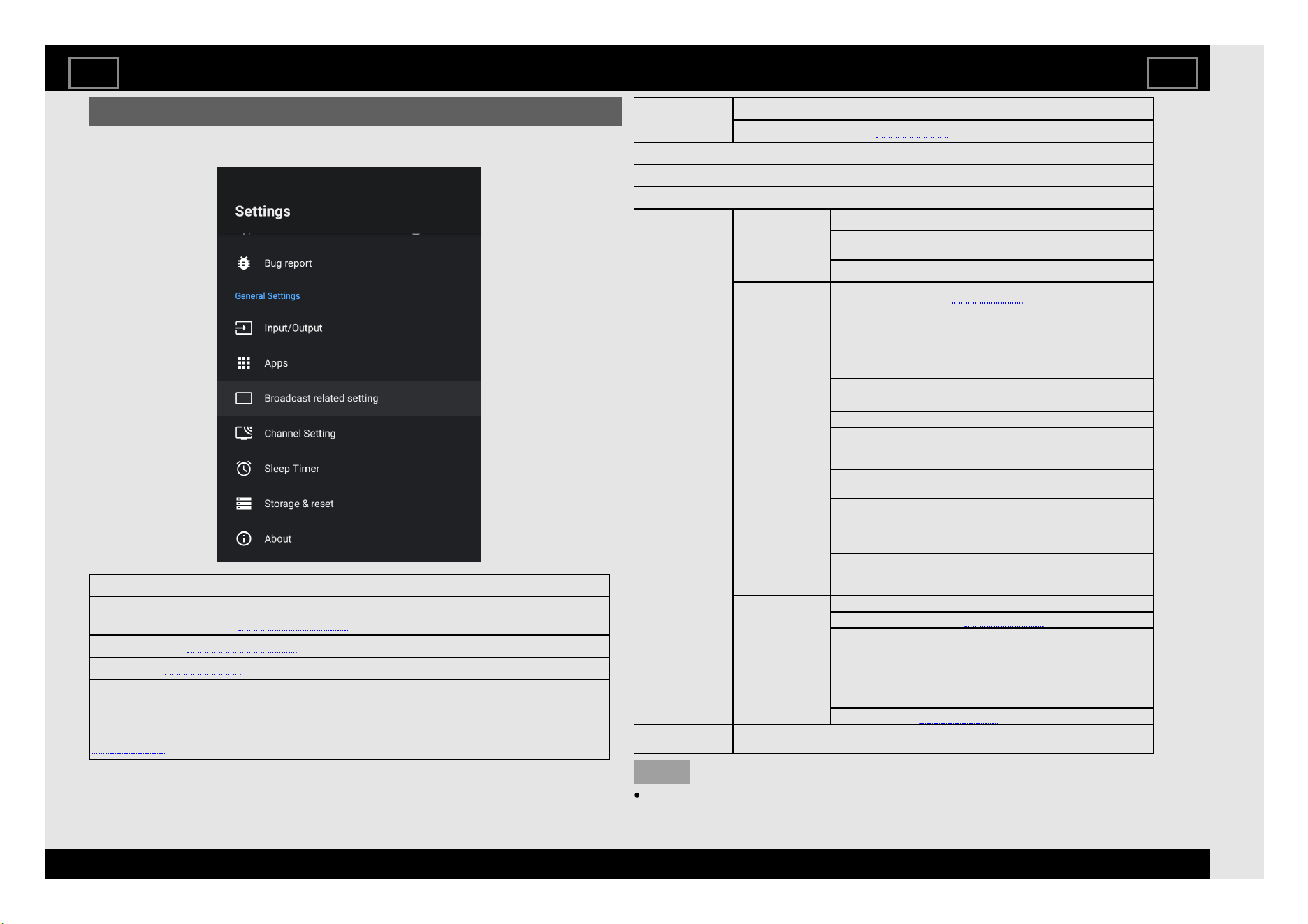
Settings
Various settings can be configured from Settings on the HOME screen. The
follow settings can be configured.
Input/Output:
See pages 4-3 to 4-4.
Apps: View a list of applications.
Broadcast related setting:
See pages 4-4 to 4-6
Channel Setting:
See pages 4-1 to 4-2
Sleep Timer:
See pages 4-8
Storage & reset: View the memory usage status or perform a reset.
When you perform a reset, the TV will be returned to the factory preset values, and the Google™
Accounts will also be deleted.
About: Check for system updates and view various information.
See page 4-6.
Network &
Internet
Network Settings: Configure the WiFi and Ethernet settings.
AQUOS Remote Control:
See page 4-8.
Bluetooth: Add accessory.
RC setting: Switch the Remote Control settings.
Date & time: Set the date and time.
Function
settings
TV
Sound : System sounds & Surround Sound.
Quick start: You can reduce the TV's start-up time after
turning on the power with the remote control unit.
Screen saver: Set the Screen saver.
Network &
Peripherals
Chromecast built-in:
See page 2-4.
System/Function Language: You can select a language. Select from among 13
languages.(English (UK), English (US), French, Indonesian,
Malay, Portuguese, Vietnamese, Russian, Arabic, Thai,
Simplified Chinese, Traditional Chinese (Taiwan) and
Traditional Chinese (Hong Kong))
Keyboard: Switch the keyboard setting.
Home screen: Home screen customise settings.
Google Assistant: Adjust Google Assistant settings.
Accessibility: Configure Caption, Talkback, and
SwitchAccess settings. Some of the Caption settings may not
be applied.
TV Location: Select "Home" or "Store" for the location where
you plan to install the TV.
Video Auto Play Demo: When "Store" is set to "ON", a
Demo Settings will appear and from this setting, there are 3
Demo features which are "USB Auto Play", "HDMI1 Auto
Change" and "Picture Refresh".
ePop Demo: When “Store” is set to “On”, after all the settings
are completed, the Feature demo screen is displayed if there
is no operation for 30 seconds.
Personal Location: Configure the location settings.
Security & restrictions:
See pages 4-7.
Usage & diagnostic: Help improve your Android TV™ by
automatically sending diagnostic and usage data to Google.
This information won't be used to identify you and helps
teams working on things like apps performance and new
Google features. Find out more at
http://google.com/AndroidUsageHelp.
Power Control:
See pages 4-8.
Accounts &
Sign-in
To sign in, enter your email address and password.
NOTE
The menu may be different depending on when you purchased the TV.
How to select the TV Mode
EN 2-3
ENGLISH | 中文(台灣) | 中文(香港) | 中文 | FRANÇAIS | PORTUGUÊS | INDONESIA | ภาษาไทย | TIẾNG VIỆT | ﻲﺑرﻋ | РУССКИЙ | O'ZBEK TILIDA
>><<
Chromecast built-in compatible devices
When you connect a device such as a Chromecast built-in compatible
smartphone or tablet to this TV, you can enjoy video and audio from the
device on the TV's large screen and speakers.
1 Configure the settings from " (HOME)" > "Settings" > "Function
settings" > "Chromecast built-in".
2 Enable the Chromecast built-in function on the Chromecast built-in
compatible device and connect to the TV.
(The TV screen changes according to the behavior of the device)
NOTE
When the TV is turned off or the connection is ended on the device, you
must connect the device again.
For details about the operation of the Chromecast built-in compatible
device, check the manual for that device.
How to select the TV Mode
EN 2-4
ENGLISH | 中文(台灣) | 中文(香港) | 中文 | FRANÇAIS | PORTUGUÊS | INDONESIA | ภาษาไทย | TIẾNG VIỆT | ﻲﺑرﻋ | РУССКИЙ | O'ZBEK TILIDA
>><<
View Setting
View Mode
You can select the screen size.
Normal: Keeps the original aspect ratio in a full screen display.
Full: For 16:9 squeeze pictures.
Cinema 16:9: For 16:9 letterbox pictures. Bars may appear on the top and
bottom with some programmes.
Cinema 14:9: For 14:9 letterbox pictures. Bars may appear on the top and
bottom with some programmes.
Zoom 14:9: For 14:9 letterbox pictures. A thin side bar appears on each
side, and you may also see bars on the top and bottom with some
programmes.
Underscan: Displays an image with the same number of pixels on the
screen when receiving HD signals only.
Dot by Dot: Detects the resolution of the signal and displays an image with
the same number of pixels on the screen.
NOTE
Some items do not appear depending on the type of received signal.
Picture
AV Mode (Changing Pic.Quality)
AV Mode gives you several viewing options to choose from to best match the
surrounding environment of the TV, which can vary due to factors like room
brightness, type of programme watched or the type of device connected.
These settings will be automatically saved on each input for convenience.
STANDARD: For a highly defined image in a normal lighting.
MOVIE: For a movie.
GAME: Lowers image brightness for easier viewing.
PC: For PC.
PHOTO: For a photo.
COMFORT: Reduce the blue light of the TV.
DYNAMIC:For a clear-cut image emphasizing high contrast, useful for
sports viewing.
DYNAMIC (FIXED): Changes the image and sound settings to the factory
preset values. No adjustments are allowed.
NOTE
When you play games, "GAME" is recommended for AV Mode.
OPC (Light Sensor)
Automatically adjusts the brightness of the screen.
Select from the following available settings.
OPC/Display/Max./Min.
NOTE
When set to "On", the Light Sensor senses the surrounding light and
automatically adjusts the backlight brightness. Make sure nothing
obstructs the Light Sensor, which could affect its ability to sense
surrounding light.
Tool Operation
EN 3-1
ENGLISH | 中文(台灣) | 中文(香港) | 中文 | FRANÇAIS | PORTUGUÊS | INDONESIA | ภาษาไทย | TIẾNG VIỆT | ﻲﺑرﻋ | РУССКИЙ | O'ZBEK TILIDA
>><<
Picture (Continue)
Configuring picture settings
Adjusts the picture to your preference with the following picture settings.
Selected item button button
Backlight The screen dims The screen brightens
Contrast For less contrast For more contrast
Brightness For less brightness For more brightness
Colour For less colour intensity For more colour intensity
Tint Skin tones become
reddish
Skin tones become
greenish
Sharpness For less sharpness For more sharpness
NOTE
"Backlight" is not available when you set "OPC" (Light Sensor) to "On".
Advanced
C.M.S. (Colour Management System)
Colour tone is managed using the six-colour adjustment setting.
C.M.S.-hue: This is a standard to adjust the colour either more reddish or
more bluish in tone.
A lower value makes the image darker.
C.M.S.-saturation: Increases or decreases the saturation of a selected
colour.
A lower value makes the image darker.
C.M.S.-value: A higher value makes the image brighter.
A lower value makes the image darker.
Colour temp. (Colour Temperature)
For a better white balance, use colour temperature correction.
High: White with bluish tone
Mid-High:
Middle:
Mid-Low:
Low: White with reddish tone
Resolution
Adjust the resolution feeling for each part of the image.
Advanced/ Standard
NOTE
When AV MODE is set to "PC", this function is not available.
Tool Operation
EN 3-2
ENGLISH | 中文(台灣) | 中文(香港) | 中文 | FRANÇAIS | PORTUGUÊS | INDONESIA | ภาษาไทย | TIẾNG VIỆT | ﻲﺑرﻋ | РУССКИЙ | O'ZBEK TILIDA
>><<
Picture (Continue)
Advanced (Continue)
Dynamic Range Enhancement
Enable local dimming to increase the dynamic range and provide better
contrast.
Select from the following available settings.
On/Off
NOTE
When AV MODE is set to "PC", "Dynamic Range Enhancement" is not
available.
Active Contrast
Automatically adjusts the image contrast according to the scene.
On: Produces higher contrast image in any scene.
Off: No adjustment.
NOTE
When AV MODE is set to "PC", this function is not available.
Gamma Adjustment
Adjusts the differences of picture tones between bright parts and dark parts.
The adjustment range of the gamma can be set to a maximum of +3 and a
minimum of -3 by pressing or .
HDR Gamma Adjustment
Emphasize the differences of picture tones between bright parts and dark
parts. The adjustment range of the gamma can be set to a maximum of +2
and a minimum of -2 by pressing or .
NOTE
"HDR Gamma Adjustment" is available only when receiving HDR signal.
Film Mode (3:2 pull-down)
This function provides high-quality playback of images originally encoded at
24 frames/second, such as films.
Select from the following available settings.
Advanced/Standard/Off
NOTE
"Film Mode" does not function depending on input signal type.
Digital Noise Reduction
Produces a clearer video image.
Auto: Automatically adjusts the level of noise reduction.
High/Middle/Low: You can select a desired level for viewing a clearer video
image.
Off: No adjustment.
NOTE
"Digital Noise Reduction" is not available when PC format is being input.
Living room view
For wider viewing from various angle.
Select from the following available settings.
On: The image is adjusted to suit a large number of people, such as in the
living room.
Off: No adjustment.
Reset Picture
Returns Picture Settings to their factory preset values. To reset, select "Yes"
and then press ENTER.
Tool Operation
EN 3-3
ENGLISH | 中文(台灣) | 中文(香港) | 中文 | FRANÇAIS | PORTUGUÊS | INDONESIA | ภาษาไทย | TIẾNG VIỆT | ﻲﺑرﻋ | РУССКИЙ | O'ZBEK TILIDA
>><<
Audio
Audio Mode
This function allows you to convert the audio quality.
Select from the following available settings.
STANDARD/DYNAMIC/CONCERT
Auto Volume
Different sound sources sometimes do not have the same loudness level,
such as a programme and its commercial breaks. The Auto Volume reduces
this problem by equalizing it.
On: Reduces the loudness gaps among different sound source. The result
is automatically adjusted according to the sound sources.
Off: No adjustment.
Configuring sound settings
You can adjust the sound quality to your preference with the following
settings.
Selected item button button
Treble For weaker treble For stronger treble
Bass For weaker bass For stronger bass
Balance Decrease audio from the
right speaker
Decrease audio from the
left speaker
NOTE
"Audio Mode" is not available when you set "Audio Out" to "Variable".
(See page 4-3.)
Tool Operation
EN 3-4
ENGLISH | 中文(台灣) | 中文(香港) | 中文 | FRANÇAIS | PORTUGUÊS | INDONESIA | ภาษาไทย | TIẾNG VIỆT | ﻲﺑرﻋ | РУССКИЙ | O'ZBEK TILIDA
>><<
Audio (Continue)
Surround Mode
This function allows you to select surround mode for surround on.
Select from the following available settings.
Living room/Cinema/Stadium/Off
Reset Audio
Returns Audio Settings to their factory preset values. To reset, select "Yes"
and then press ENTER.
Wall Mount Setup
This selects the optimal audio for the programme you are currently watching
even when the TV is mounted to a wall.
Clear Voice
This function emphasises speech against background noise for greater
clarity.
Select from the following available settings.
On/Off
NOTE
"Audio Mode" is not available when you set "Audio Out" to "Variable".
(See page 4-3.)
Audio Description Setting (DTV only)
This function allows you to enable output of audio description if the TV
receives a signal including audio description.
NOTE
The audio description sound is superimposed on the main audio when
you select a broadcast compatible with audio description.
This function is available only for DTV broadcasts.
The audio description sound is superimposed on the main audio only
when the sound is output on the speaker sound output, headphone sound
output and sound for audio out output. The sound is not output on the
digital audio output and the HDMI sound output.
This function is not available for the AQUOS Audio speaker system.
This function does not work during USB-recording playback.
Tool Operation
EN 3-5
ENGLISH | 中文(台灣) | 中文(香港) | 中文 | FRANÇAIS | PORTUGUÊS | INDONESIA | ภาษาไทย | TIẾNG VIỆT | ﻲﺑرﻋ | РУССКИЙ | O'ZBEK TILIDA
>><<
General Settings
Channel Setting
Auto installation
When the TV is powered on for the first time after purchase, the initial auto
installation wizard appears. Follow the menus and make the necessary
settings one after another.
Confirm the following before turning on the power
Is the antenna cable connected?
Is the AC cord plugged in?
1 Press POWER on the TV.
The initial auto installation wizard appears.
2 Setting the OSD language.
x Press / to select the desired language, and then press ENTER.
3 Press "Yes" or "No" to allow Android™ device (phone, tablet or other
x device) to setup TV.
4 Press / to select your Wi-Fi network.
5 Press / to sign in Google account.
6 Press / to view Google Terms of Service and Google Privacy
x Policy.
7 Press "Yes" or "No" to allow Google use your device location.
8 Press "Yes" or "No" to set permission for Google to use your TV diagnosis
x and usage data.
9 Press / to select desired TV name or to customize it.
10 Press / to install desired applications.
11 Setting the region.
xx Press / to select your region or area, and then press ENTER.
This setting screen only appears during the initial auto installation.
Auto installation will be executed.
NOTE
Digital (DVB-T/T2) broadcasting cannot be viewed in the area where
digital broadcasting is not yet launched.
DTV concerned menu may not displayed in some region.
12 Press / to view Sharp Terms of Use and Sharp Privacy Policy.
13 Selecting the location of the TV.
xx Press / to select where you will use this TV, and then press
xx ENTER.
Home:
Settings are optimised for normal home viewing and energy efficiency.
“STANDARD” will be the default value for the “AV Mode” setting.
Store:
Settings are designed for maximum impact in retail store displays.
“DYNAMIC (FIXED)” will be the default value for the “AV Mode” setting. If
the “AV Mode” is changed, the TV will automatically switch back to
“DYNAMIC (FIXED)” when there is no operation using the TV or remote
control unit for 30 minutes.
NOTE
Store: A demonstration image will be displayed after initial auto installation
is completed. If you have chosen “Store” by mistake, go to “HOME” >
“Settings” > “System/Function” > “TV location” > select “Home” again.
14 You have to follow the procedure shown to pair the remote control
xx unit with the TV.
15 Initial setup has finished.
16 After completing the initial setup, application introductions and tutorials
xx will be displayed.
Settings
EN 4-1
ENGLISH | 中文(台灣) | 中文(香港) | 中文 | FRANÇAIS | PORTUGUÊS | INDONESIA | ภาษาไทย | TIẾNG VIỆT | ﻲﺑرﻋ | РУССКИЙ | O'ZBEK TILIDA
>><<
General Settings (Continue)
Channel Setting
Channel Search
Auto-Searching digital (DVB-T/T2) and analogue broadcasting channels.
Channel Registration
You can add new channels from your installed 3rd party TV apps.
Once you've added new channels, you can watch 3rd party TV app channels
on [TV] input, which can be chosen from Home screen and Input menu.
Postcode (Indonesia only)
This function enable you to select your local postcode.
NOTE
"Postcode" will be appear only when region "Indonesia" is selected.
Time zone (Indonesia only)
This function enable you to select your local time zone.
NOTE
"Time Zone" will be appear only when region "Indonesia" is selected.
Channel Skip
You can select the channels to skip.
Programme Setup
You can tune channels manually and you can confirm DTV's signal level.
Digital Setting (DTV only)
You can reconfigure the DTV channel settings automatically or manually.
Manual Search
Add new services within a specified frequency band.
Enter the frequency using / buttons.
NOTE
The “Digital Setting” menu is available only for watching TV in DTV mode.
Antenna setup-DIGITAL
If you install a DTV antenna for the first time or relocate it, you should adjust
the alignment of the antenna to receive a good reception while checking the
antenna setup screen.
Analogue Setting
You can reconfigure the TV channel settings automatically or manually.
Frequency
Tune the frequency of the stored channel to your desired position.
Sound Sys.
Select the optimum sound system (Broadcasting system) to received (B/G,
D/K, I, M).
NOTE
The “Analogue Setting” menu is available only for watching TV in ATV
mode.
Settings
EN 4-2
ENGLISH | 中文(台灣) | 中文(香港) | 中文 | FRANÇAIS | PORTUGUÊS | INDONESIA | ภาษาไทย | TIẾNG VIỆT | ﻲﺑرﻋ | РУССКИЙ | O'ZBEK TILIDA
>><<
General Settings (Continue)
Input/Output
Consumer Electronic Control (CEC)
Change the label for an input terminal, and switch between HDMI CEC
Control Settings.
HDMI Type Selection
Sets the HDMI type for HDMI IN 1 and 2 terminals.
Set to "Full" when an HDMI 4K60P 4:4:4 device is connected, and set to
"Limited" when an HDMI 4:2:0 device is connected.
NOTE
When HDR video (HDMI 4K60P 4:4:4 signal) does not appear, please set
"HDMI Type Selection" to "Full".
Audio Out
Allows you to select what controls the audio output.
Variable: Sound via the AUDIO OUT terminal is adjusted with VOL+/- on
the remote control unit or on the TV.
When connected to the terminal, Sound via speaker is muted.
Fixed: Sound via speaker is adjusted with VOL+/- on the remote control unit
or on the TV.
Sound via the AUDIO OUT terminal is not adjustable and outputs at a
consistent level.
HDMI3 and HDMI4 support 8K signals.
The center and lower USB terminals support 8K video playback. In
addition, 5V/1.5A power can be supplied.
The upper USB terminal can supply 5V/0.5A power. Also, 8K video
playback is not supported.
Audio Select HDMI
This function sets the terminal to output the computer audio.
The adjustment items vary depending on the input source. Select the input
source corresponding to the terminal connected to the PC and then adjust the
desired item.
To perform the operation, refer to "HOME" > "Settings" > "Input/Output" >
"Audio Select HDMI".
HDMI 2
HDMI: Select this when the TV and PC are connected using an HDMI-
certified cable and audio is input via the same cable.
HDMI + AV Input: Select this when the TV and PC are connected using a
HDMI-certified cable and the audio is input via a Ø 3.5 mm stereo
minijack.
NOTE
When "Audio Select HDMI " is set to "HDMI + AV Input", sound will not be
produced if you use only an HDMI-certified cable to connect HDMI-
compatible equipment. To produce sound, you should make an analogue
audio connection.
If you want to connect HDMI-compatible equipment using only an HDMI-
certified cable, set "Audio Select HDMI" to "HDMI".
"Audio Select HDMI" can only be set for the HDMI IN 2.
Settings
EN 4-3
ENGLISH | 中文(台灣) | 中文(香港) | 中文 | FRANÇAIS | PORTUGUÊS | INDONESIA | ภาษาไทย | TIẾNG VIỆT | ﻲﺑرﻋ | РУССКИЙ | O'ZBEK TILIDA
>><<
General Settings (Continue)
Input/Output (Continue)
Digital Audio Output
You can output digital audio to an AV amplifier or similar device whose
DIGITAL AUDIO INPUT terminal is connected to the DIGITAL AUDIO OUT
terminal on the TV. Please select an audio output format compatible with the
audio format of the programme you are watching and the equipment
connected.
Select from the following available settings.
PCM/Dolby Digital/Bitstream
NOTE
Analogue channel audio, Video input audio, PC input audio and HDMI-
Analogue input audio are output in PCM mode even when "Bitstream" is
selected.
PCM digital input signals are output in PCM mode even when "Bitstream"
is selected.
Speaker Select (ARC)
You can select to listen to the TV sound only from the LINK-compatible audio
system.
Internal Speaker: The sound is output from the TV speaker.
External Devices: The sound from the TV speaker is muted and only the
sound from the LINK-compatible audio system is audible.
You can use VOL+/- and (Mute).
NOTE
ARC is with HDMI4.
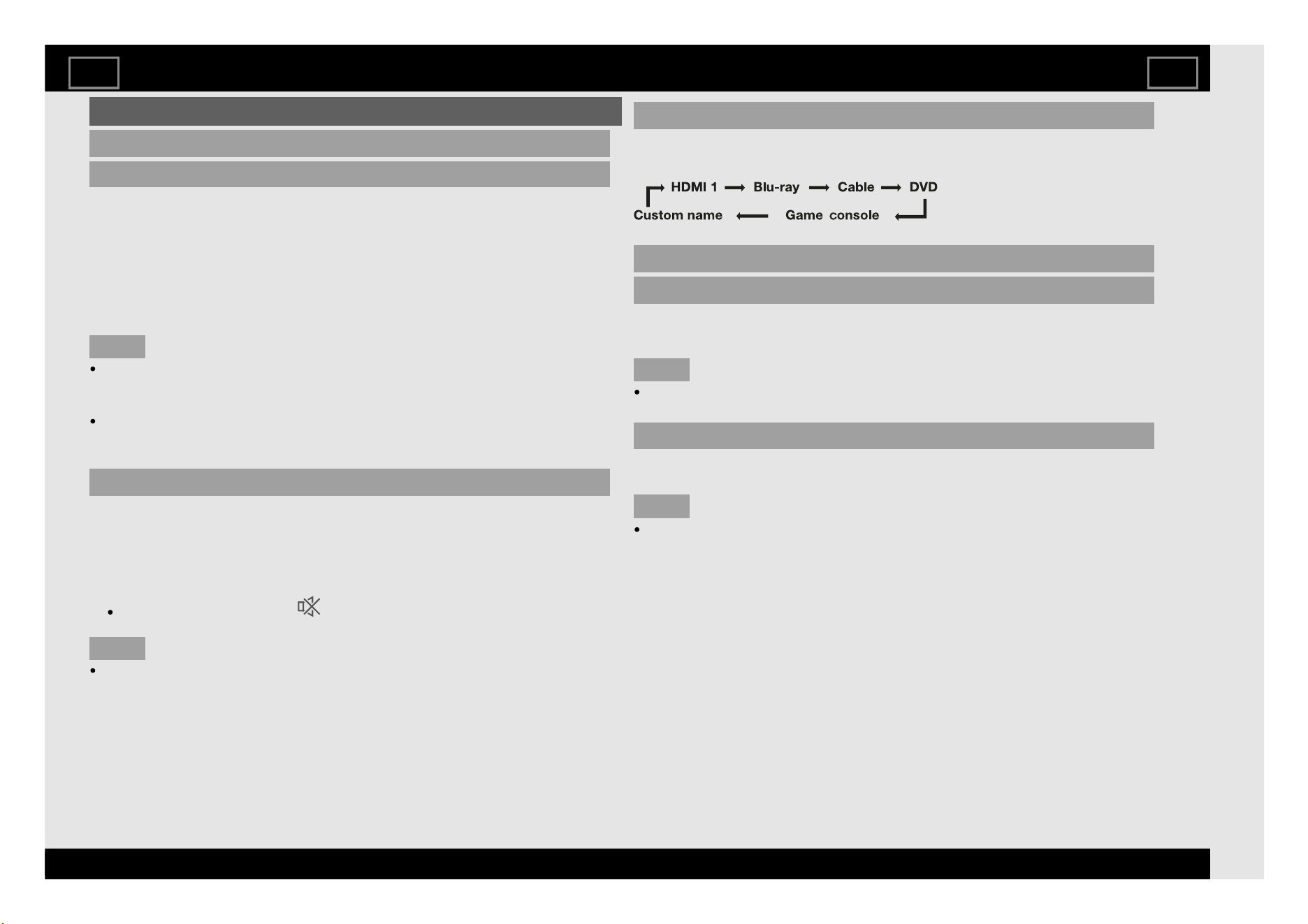
Input Label
This function allows you to change HDMI names individually.
Example: HDMI 1
Broadcast related setting
Programme Title Display
This function allows you to display programme information such as the title
and airtime by tuning a channel.
NOTE
This function is available only when the DTV mode is selected.
Auto Wide (DTV only)
The “Auto Wide” allows the TV to switch automatically among the different
picture size.
NOTE
Use “View Mode” if an image does not switch to the appropriate picture
size. When the broadcast signal contains no aspect ratio information, the
function will not work even if enabled.
Settings
EN 4-4
ENGLISH | 中文(台灣) | 中文(香港) | 中文 | FRANÇAIS | PORTUGUÊS | INDONESIA | ภาษาไทย | TIẾNG VIỆT | ﻲﺑرﻋ | РУССКИЙ | O'ZBEK TILIDA
>><<
General Settings (Continue)
Broadcast related setting (Continue)
Text Language
If Teletext information does not display correctly, perform the procedure
below.
Select from among six kinds of language tables: West Europe, East Europe,
Greek/Turkish, Cyrillic, Arabic and Farsi.
Each table is compatible with the Teletext languages listed below.
West Europe — English, French, Scandinavian, Turkish, German,
Spanish, Italian
East Europe — Polish, French, Scandinavian, Czech, German,
Slovenian/Croatian, Italian, Rumanian
Greek/Turkish — English, French, Scandinavian, Turkish, German,
Spanish, Italian, Greek
Cyrillic — English, Russian, Estonian, Czech, German,
Slovenian/Croatian, Ukrainian, Lettish
Arabic — English, French, Scandinavian, Turkish, German, Hebrew,
Italian, Arabic
Farsi — English, French, Scandinavian, Turkish, German, Hebrew, Italian,
Farsi
NOTE
Teletext can be displayed only when it is sent by a network. Not used to
convert between languages.
Initial Teletext Page (DTV only)
If you set the language of the initial page (this page is displayed for the first
time after pressing ) for teletext in DTV mode, it will start from the
selected language page.
NOTE
This function is available for teletext in DTV mode. This is not available for
teletext in ATV or external input mode.
If the initial teletext page of the selected language in this function is not
included in a received broadcast, the default initial page will be displayed.
Digital Audio Language (DTV only)
Switching the multi audio languages
Set up to two preferred multi audio languages to display if the audio
languages are available.
Each time you press AD/MPX on the remote control unit, the audio language
switches.
NOTE
This function depends on audio language information from broadcasters.
If audio for the selected language is not included in a received broadcast,
audio will not be output for that language.
Settings
EN 4-5
ENGLISH | 中文(台灣) | 中文(香港) | 中文 | FRANÇAIS | PORTUGUÊS | INDONESIA | ภาษาไทย | TIẾNG VIỆT | ﻲﺑرﻋ | РУССКИЙ | O'ZBEK TILIDA
>><<
General Settings (Continue)
Broadcast related setting (Continue)
Subtitle
Set up to two preferred subtitle languages (including subtitles for the hearing
impaired) to display if subtitles are available.
Selectable items
1st language
2nd language
For Hearing Impaired
Switching subtitle languages
Each time you press on the remote control unit, the subtitle switches.
Set “For Hearing Impaired” to “Yes”
Subtitles for the hearing impaired have priority over each of the subtitle
language settings
(e.g., “1st language”, “2nd language”, etc.).
NOTE
Subtitles will not be displayed when the programme does not contain
subtitle information.
Download Setting
Searching for updates
The TV automatically determines whether a new software version is available
when the TV is in standby mode.
Item
Enable
Automatically searches for new software updates available when
the TV is in standby mode.
Disable Does not search for update information.
Software Updates via Over-The-Air (OTA)
To search for new software updates, there are 2 ways to configure:
1) Settings Icon from Home Screen
xx "Settings" > "About" > "System update" > "Automatic software update".
2) TOOL button on the remote control unit
xx"Tools" > "System update" > "Automatic software update".
Select "Network update" if the TV is connected to Internet.
Select "USB update" if you have the software installed in your USB
devices. (for service only)
NOTE
Make sure your TV is connected to the internet when performing software
updates via OTA.
After finished downloading, please allow some time to apply the installed
updates.
During installation, please do not perform any operations, including power
off or unplug your TV.
Software updates performance is depending on internet connection.
For allowing software updates notification, select On under "Latest
software notification". (Default Setting is On)
To disable software updates notification, please select Off.
Settings
EN 4-6
ENGLISH | 中文(台灣) | 中文(香港) | 中文 | FRANÇAIS | PORTUGUÊS | INDONESIA | ภาษาไทย | TIẾNG VIỆT | ﻲﺑرﻋ | РУССКИЙ | O'ZBEK TILIDA
>><<
Personal
Security & restrictions
Parental control (DTV only)
Password
Allows you to use a Password to protect certain settings from being
accidentally changed.
Input Password:
Input the Password currently set.
Setting Password:
You can set and change the Password by using 0-9.
NOTE
As a precautionary measure, make a note of your Password and keep it in
a familiar place.
The TV Channel Setup and Parental Control will not be selectable from
the menu if you do not first configure your Password.
Rating (DTV only)
Used to enable or disable the parental control function. This function will not
be selectable from the menu if you do not first configure your password.
Rating (Guaranteed by SHARP)
Singapore
No limitation: No blocking.
G (General): Suitable for all ages.
PG (Parental Guidance): Suitable for all, but parents should guide their young.
PG13 (Parental Guidance 13): Suitable for persons ages 13 and above but
parental guidance is advised for children below 13.
NC16 (No Children Under 16): Suitable for persons aged 16 and above.
M18 (Mature): Suitable for persons aged 18 and above.
R21 (Restricted 21): Restricted to persons aged 21 and above.
Thailand
No limitation: No blocking.
P (Preschool): Suitable for preschool aged 3-5 years old.
C (Children): Suitable for children between 6-12 years old.
G (General): Suitable for all ages.
PG13 (Parental Guidance 13): Suitable for persons ages 13 and above but
parental guidance is advised for children below 13.
PG18 (Parental Guidance 18): Suitable for persons ages 18 and above but
parental guidance is advised for children below 18.
R (Adults): Unsuitable for children and youngsters.
Rating (Not Guaranteed by SHARP)
This is used in countries other than Singapore and Thailand.
Unknown sources
Allow installation of apps from sources other than the Play Store.
Verify apps
Disallow or warn before installation of apps that may cause harm.
Create restricted profile
Configure the restriction settings.
Settings
EN 4-7
ENGLISH | 中文(台灣) | 中文(香港) | 中文 | FRANÇAIS | PORTUGUÊS | INDONESIA | ภาษาไทย | TIẾNG VIỆT | ﻲﺑرﻋ | РУССКИЙ | O'ZBEK TILIDA
>><<
Personal (Continue)
Power Control
No operation off
When you enable this function, the TV automatically shuts down if no
operation is performed for more than 3 hours.
(30 minutes/1 hour/3 hours/Disable)
NOTE
When it is 5 minutes before the power shuts down, the remaining time will
start to keep appearing every minute.
No signal off
When this function is enabled, the TV automatically shuts down if no signal is
received for more than 15 minutes.
NOTE
When it is 5 minutes before the power shuts down, the remaining time will
start to keep appearing every minute.
When a TV programme finishes, this function may not operate.
Operation Lock Out
This function locks the operation buttons on the TV.
Button control lock: All buttons on the TV, except POWER, are locked.
Disable: No adjustment.
Network & Internet
Network Settings
Configure the WIFI and Ethernet settings.
AQUOS Remote Control
Set this function when operating the TV from equipment connected by LAN or
wireless LAN.
Remote Control App
When "Remote Control App" is selected, "Change" will be highlighted.
Press ENTER.
Detailed Settings
Make the detailed settings (Login ID, Password).
Follow the on-screen instructions to configure the settings.
Sleep Timer
Allows you to set a time when the TV automatically switches to standby.
The remaining time displays when the sleep timer has been set.
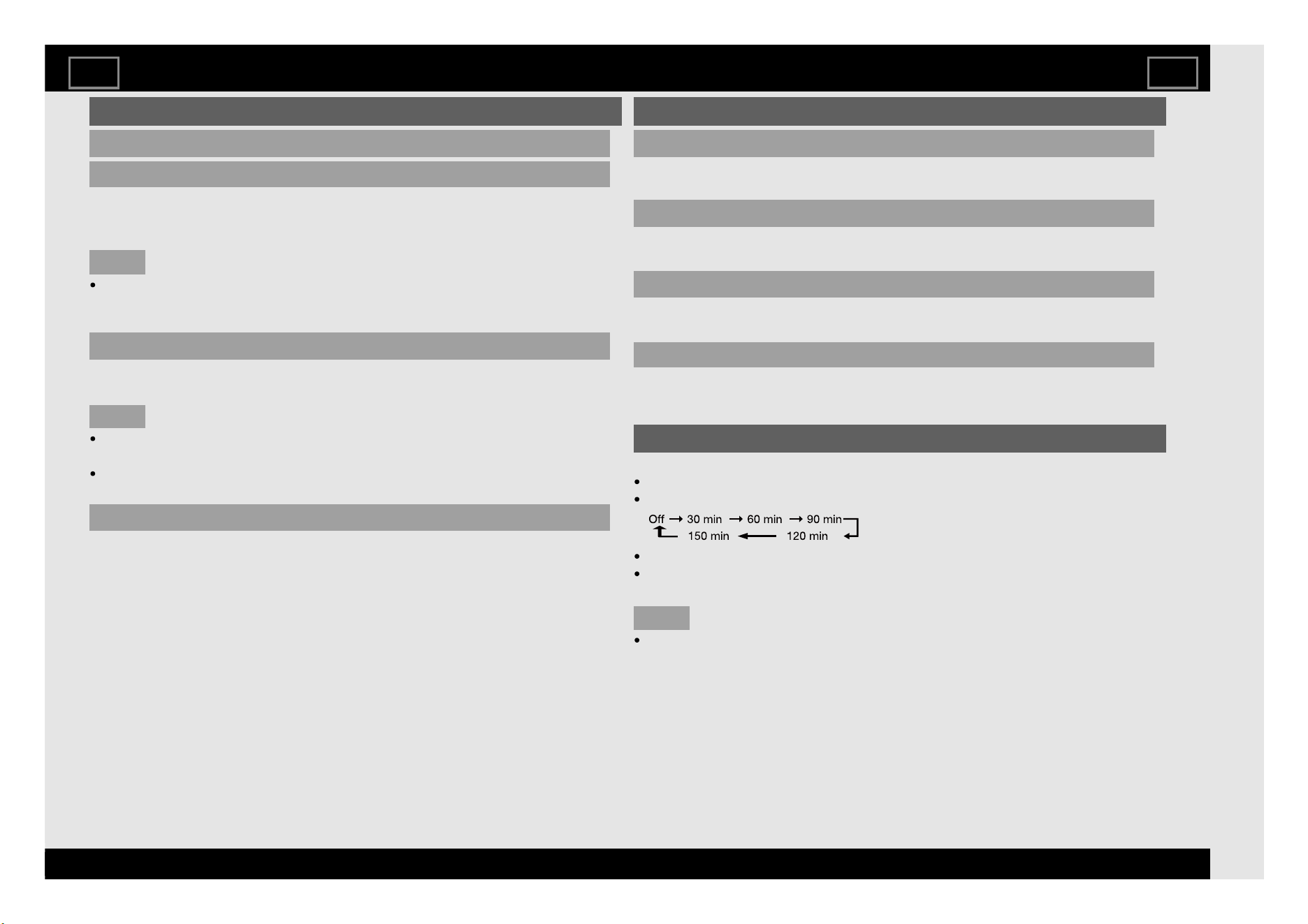
Set the Sleep Timer.
When set, the time automatically starts counting down.
When it is 5 minutes before the time expires, the remaining time will start
to keep appearing every minute.
NOTE
The TV will enter standby when the remaining time reaches 0.
Settings
EN 4-8
ENGLISH | 中文(台灣) | 中文(香港) | 中文 | FRANÇAIS | PORTUGUÊS | INDONESIA | ภาษาไทย | TIẾNG VIỆT | ﻲﺑرﻋ | РУССКИЙ | O'ZBEK TILIDA
>><<
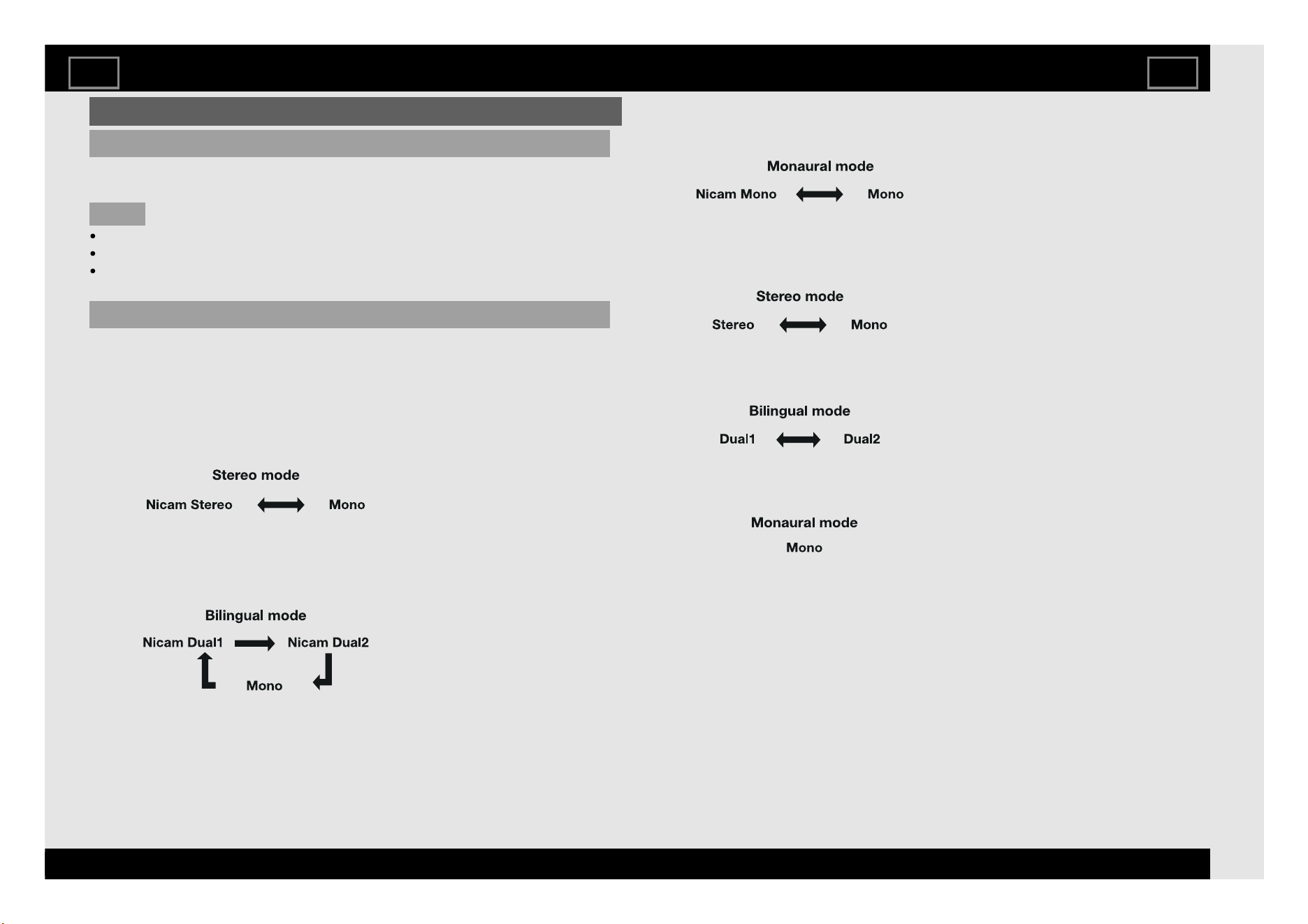
AD/MPX
Switching the digital audio format (DTV only)
If multi sound modes are received, each time you press AD/MPX the mode
switches.
NOTE
The sound mode screen disappears in six seconds.
Selectable items vary depending on the received broadcasts.
The audio description sound is selected depending on the main audio.
Switching the analogue audio format
You can switch between multiple audio modes when watching a multiple
audio or stereo broadcast programme.
In the NICAM TV broadcasts
When receiving a stereo signal
Each time you press AD/MPX, the mode switches between Nicam Stereo
and Mono.
When receiving a bilingual signal
Each time you press AD/MPX, the mode switches among Nicam Dual1,
Nicam Dual2 and Mono.
When receiving a monaural signal
Each time you press AD/MPX, the mode switches between Nicam Mono and
Mono.
In the TV mode of A2 TV broadcasts
When receiving a stereo signal
Each time you press AD/MPX, the mode switches between Stereo and Mono.
When receiving a bilingual signal
Each time you press AD/MPX, the mode switches among Dual1 and Dual2.
When receiving a monaural signal
When you press AD/MPX, “Mono” displays.
Direct Button Operation
EN 5-1
ENGLISH | 中文(台灣) | 中文(香港) | 中文 | FRANÇAIS | PORTUGUÊS | INDONESIA | ภาษาไทย | TIẾNG VIỆT | ﻲﺑرﻋ | РУССКИЙ | O'ZBEK TILIDA
>><<
EPG
What is an EPG?
An "EPG (Electronic Programme Guide)" is a programme schedule, which is
displayed on the TV screen. The EPG is broadcasted together with DTV. The
TV screen shows the EPG when the viewer presses EPG on the remote
control, provided that the TV is receiving the digital broadcasting signal. The
EPG enables you to search for a programme, do timer view the programme
schedule in detail.
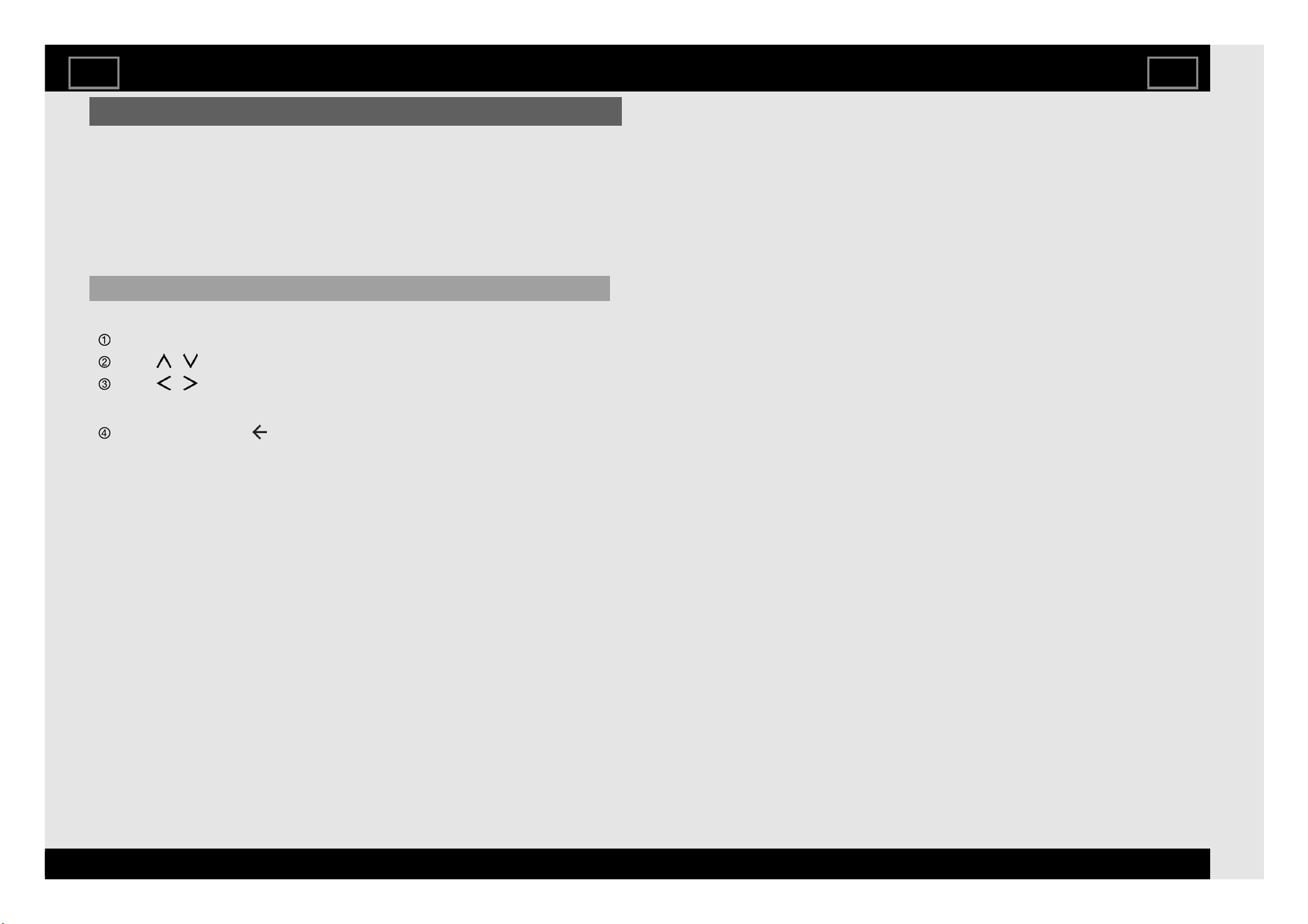
Basic Operation
Display the EPG screen
Press EPG.
Press / to select different programme time information.
Press / to change the day selection.
Close the EPG screen
Press EPG again or (Back) to exit.
Direct Button Operation
EN 5-2
ENGLISH | 中文(台灣) | 中文(香港) | 中文 | FRANÇAIS | PORTUGUÊS | INDONESIA | ภาษาไทย | TIẾNG VIỆT | ﻲﺑرﻋ | РУССКИЙ | O'ZBEK TILIDA
>><<
Preparation
You can connect the TV to a USB memory device, USB hard drive to enjoy viewing pictures, listening to music, and watching videos.
NOTE
Depending on the USB memory device/USB hard drive, the TV may not be able to recognise the recorded data.
It may take time to read the recorded data if the USB memory device/USB hard drive contains many files or folders.
Use only alphanumeric characters for naming files.
File names over 80 characters (may vary depending on character set) may not be displayed.
Connecting a USB Memory Device/USB Hard Drive
Insert the USB memory device with recorded photos, music or videos into the USB terminal on the TV.
When playback 8K videos, use the center and lower USB terminals. The upper USB terminal is not supported 8K video playback.
When connecting a USB hard drive, be sure to use a hard drive with an AC adapter.
Do not remove a USB memory device from the TV while transferring files, using the slide show function, or switching screens, or before you exit "Content
Player".
Do not insert and remove a USB memory device/USB hard drive to and from the TV repeatedly.
When using a card reader, be sure to insert a USB memory device first.
CAUTION
Do not use a USB extension cable when connecting a USB memory device to the USB terminal on the TV.
Using a USB extension cable with the USB memory device may prevent the TV from performing correctly.
Enjoying Photo/Music/Video Playback
EN 6-1
ENGLISH | 中文(台灣) | 中文(香港) | 中文 | FRANÇAIS | PORTUGUÊS | INDONESIA | ภาษาไทย | TIẾNG VIỆT | ﻲﺑرﻋ | РУССКИЙ | O'ZBEK TILIDA
>><<
Selecting the Folders to Play Back
To play back data on a USB memory device insert the USB memory
device on the TV.
1 Select "Open Contents Player" from the Devices screen, or launch the
Content Player app from HOME screen.
2 Press
/ to select "Video", "Audio" or "Photo", and then press ENTER.
3 Press
/ (or / ) to select the drive/server where you want to find
your file, and then press ENTER.
4 Press
/ to select the desired folder, and then press ENTER.
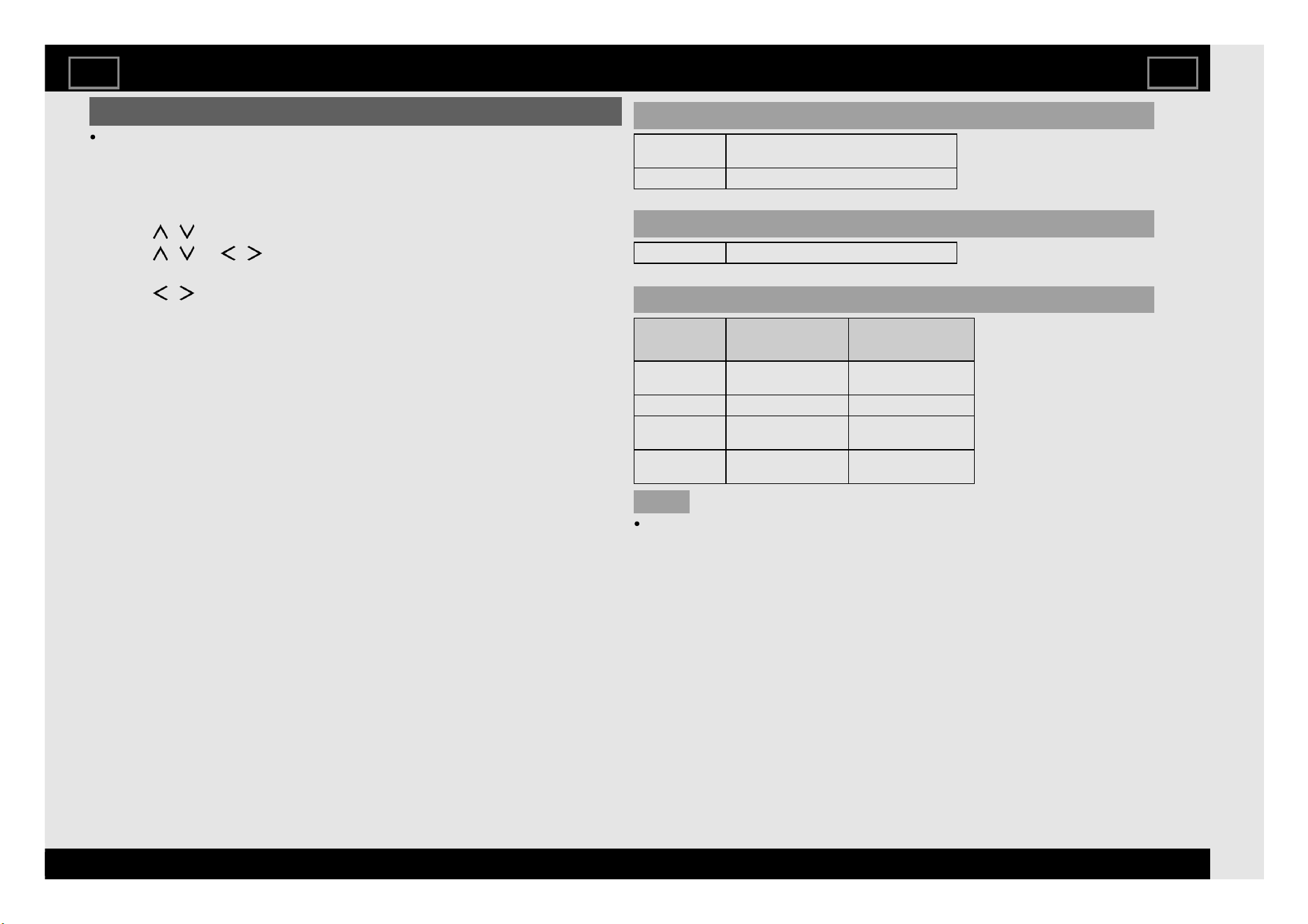
USB Device Compatibility
USB device USB Memory, USB card reader (Mass
Storage class), USB hard drive
File system FAT/FAT32/exFAT
Photo file format
Format JPEG, PNG, BMP
Music file format
Format Sampling rate
[KHz]
Bitrate
[Kbps]
MP3 8/11.025/12/16/
22.050/24/32/44.1/48
8~320
AAC 32/44.1/48 8~320
WMA 8/11.025/16/22.05/
32/44.1/48/64/88.2/96
8~384
WAV 8/11.025/12/16/
22.050/24/32/44.1/48
8~1024
NOTE
If the TV is turned off and then on again, the number assigned to the USB
may change.
Enjoying Photo/Music/Video Playback
EN 6-2
ENGLISH | 中文(台灣) | 中文(香港) | 中文 | FRANÇAIS | PORTUGUÊS | INDONESIA | ภาษาไทย | TIẾNG VIỆT | ﻲﺑرﻋ | РУССКИЙ | O'ZBEK TILIDA
>><<
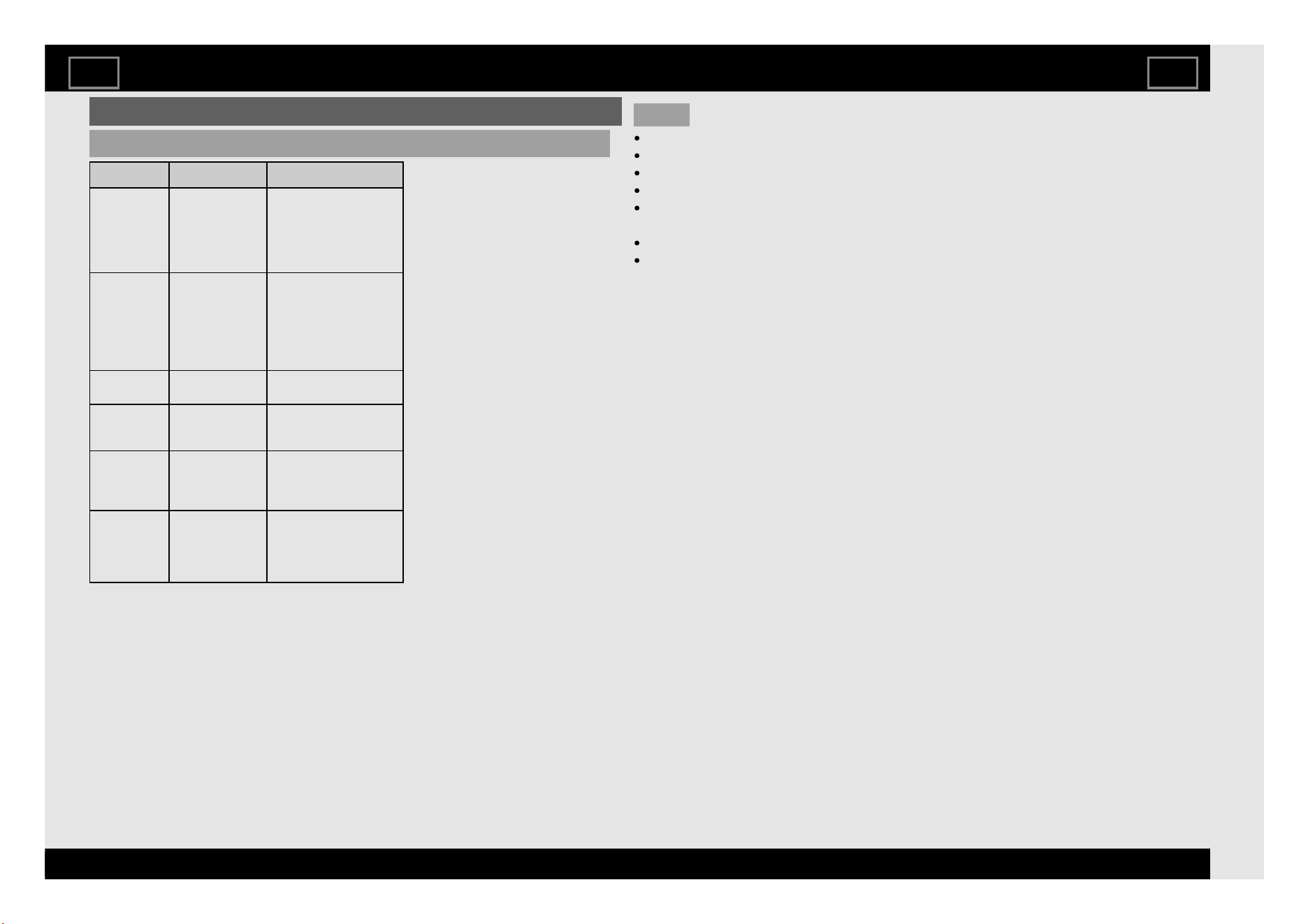
Selecting the Folders to Play Back(Continue)
Video file format
Container Video Audio
AVI
MPEG-1
MPEG-2
MPEG-4
H.264
PCM
MP2: MPEG-1 Layer2
MP3: MPEG-1 Layer3
AAC
AC3
WMA
MKV
MPEG-1
MPEG-2
MPEG-4
H.264
VP8
H.265(HEVC)
PCM
MP2: MPEG-1 Layer2
MP3: MPEG-1 Layer3
AAC
AC3
WMA
VORBIS
ASF
MPEG-4
VC1(WMV3)
MP3: MPEG-1 Layer3
WMA
PS
MPEG-1
MPEG-2
MP2: MPEG-1 Layer2
MP3: MPEG-1 Layer3
AC3
TS
MPEG-2
VC1(WMV3)
H.264
H.265(HEVC)
MP2: MPEG-1 Layer2
AAC
AC3
MP4
MPEG-4
H.264
H.265(HEVC)
VP8
VC1(WMV3)
MP2: MPEG-1 Layer2
MP3: MPEG-1 Layer3
AAC
NOTE
Progressive format jpeg files are not supported.
USB 1.1 devices may not be played properly.
Operation using USB hubs is not guaranteed.
Some video file formats may not be played depending on the file.
Some images may not be displayed in the appropriate aspect ratio
depending on the file format.
File extensions are not used to determine the file format.
Vertical video files are not supported.
Enjoying Photo/Music/Video Playback
EN 6-3
ENGLISH | 中文(台灣) | 中文(香港) | 中文 | FRANÇAIS | PORTUGUÊS | INDONESIA | ภาษาไทย | TIẾNG VIỆT | ﻲﺑرﻋ | РУССКИЙ | O'ZBEK TILIDA
>><<
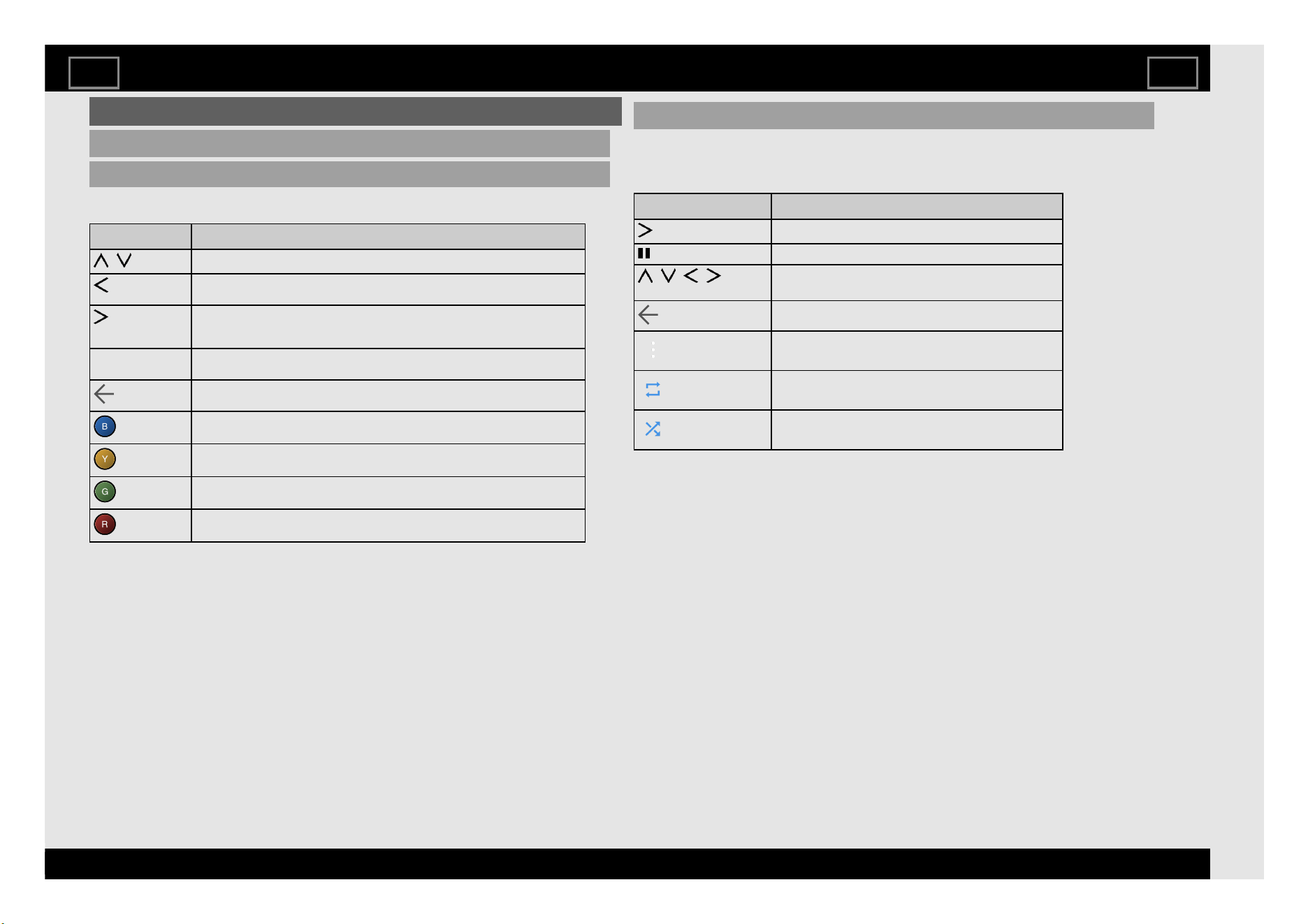
Playing Back Files on a USB Memory Device
Photo Mode
Viewing Thumbnails
Buttons for thumbnail/list operations
Buttons Description
/
Select a desired item.
In Thumbnail mode: Select a desired item.
In List mode. Return to the previous process.
In Thumbnail mode: Select a desired item.
In List mode, when selecting a folder icon: Enter this directory.
In List mode, when selecting a photo file: Enlarge the photo.
ENTER When selecting a folder icon: Enter this directory.
When selecting a photo file: Enlarge the photo.
(Back)
In Thumbnail mode: Return to the previous process.
In List mode. Exit application.
(blue)
Change Slideshow mode to ON/OFF.
(yellow)
Set whether to show the slideshow repeatedly OFF/ALL.
(green)
Change the way of photo selection Multi Select/ Select Release.
(red)
Change the way files is ordered Date/Name/Type.
Slide Show
The photos displayed on the thumbnail selection screen are displayed as a
slide show.
Buttons for slide show operation
Buttons Description
Play the Slide Show.
Pause the Slide Show.
/ / / ,
ENTER
Select the desired item.
(Back)
Return to the thumbnail selection screen.
Display the USB Menu screen.
Set whether to show the slideshow repeatedly.
Shuffle the image files within the folder and display as a
slideshow.
Enjoying Photo/Music/Video Playback
EN 6-4
ENGLISH | 中文(台灣) | 中文(香港) | 中文 | FRANÇAIS | PORTUGUÊS | INDONESIA | ภาษาไทย | TIẾNG VIỆT | ﻲﺑرﻋ | РУССКИЙ | O'ZBEK TILIDA
>><<
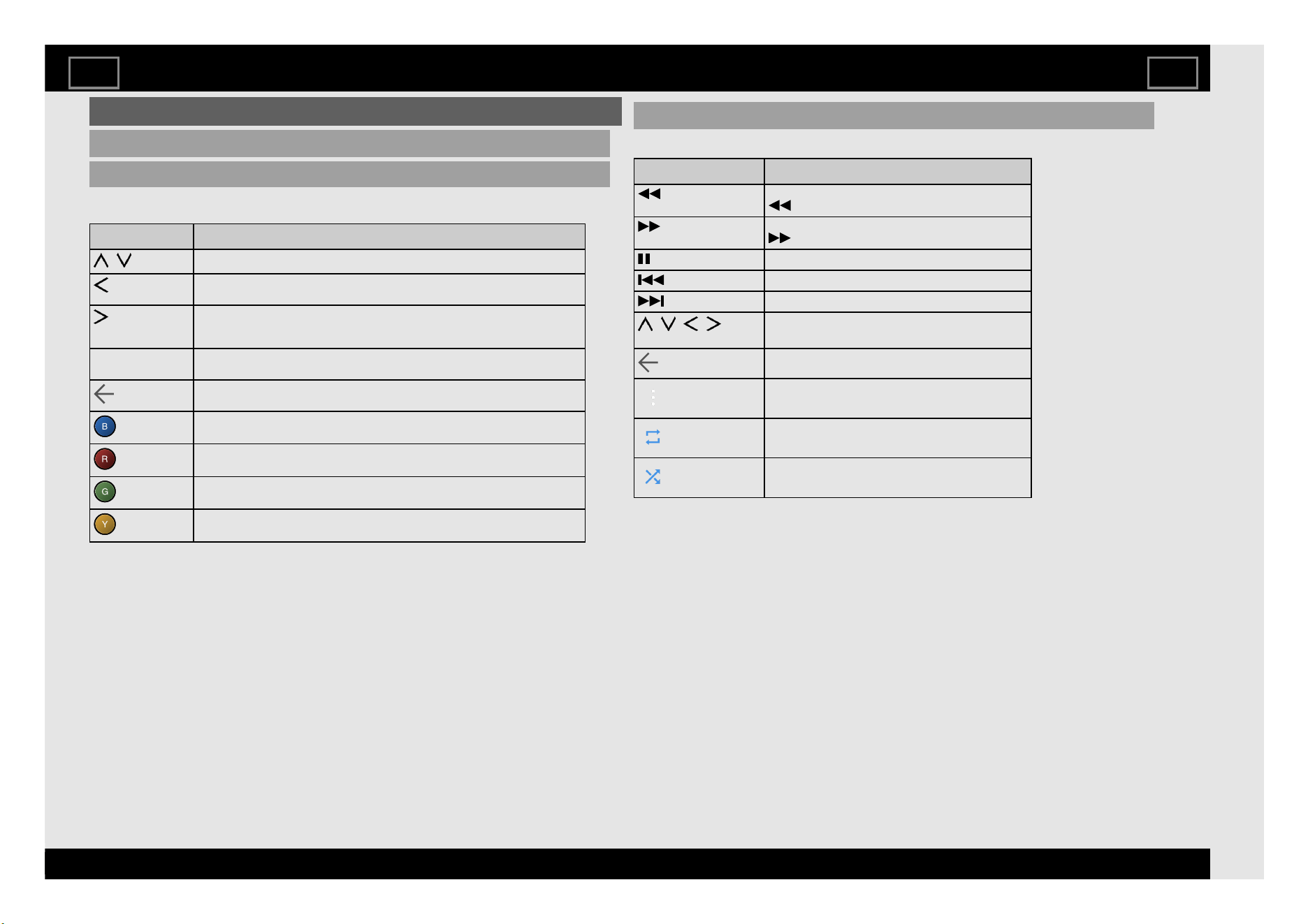
Playing Back Files on a USB Memory Device (Continue)
Audio Mode
Viewing Thumbnails
Buttons for thumbnail/list operations
Buttons Description
/
Select a desired item.
In Thumbnail mode: Select a desired item.
In List mode. Return to the previous process.
In Thumbnail mode:Select a desired item.
In List mode, when selecting a folder icon: Enter this directory.
In List mode, when selecting a music file: Play music.
ENTER When selecting a folder icon: Enter this directory.
When selecting a music file: Play music.
(Back)
In Thumbnail mode: Return to the previous process.
In List mode. Exit application.
(blue)
Shuffle the music within the folder OFF/ON.
(red)
Change the way files is ordered Artist/Album/Name.
(green)
Change the way of music selection Multi Select/ Select Release.
(yellow)
Set whether to show the slideshow repeatedly OFF/1/ALL
Playing Mode
Buttons for playing mode
Buttons Description
The fast reverse speed changes every time you press
.
The fast forward speed changes every time you press
.
Pause the music.
Go to the previous file.
Go to the next file.
/ / / ,
ENTER
Select a desired item.
(Back)
Return to the previous process.
Display the Menu screen.
Configure the repeat playback settings.
Shuffle the music within the folder.
Enjoying Photo/Music/Video Playback
EN 6-5
ENGLISH | 中文(台灣) | 中文(香港) | 中文 | FRANÇAIS | PORTUGUÊS | INDONESIA | ภาษาไทย | TIẾNG VIỆT | ﻲﺑرﻋ | РУССКИЙ | O'ZBEK TILIDA
>><<
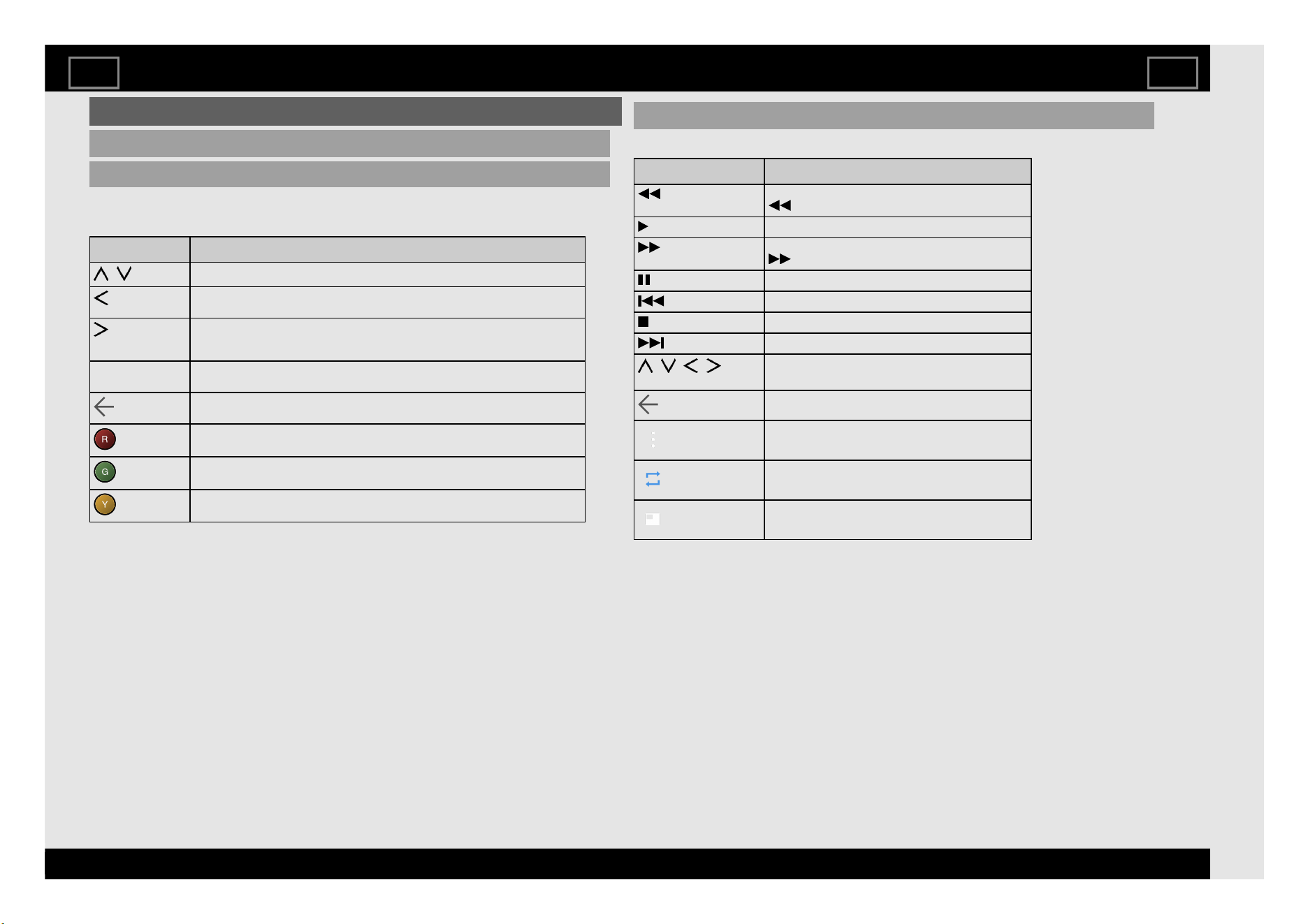
Playing Back Files on a USB Memory Device(Continue)
Video Mode
Viewing Thumbnails
Buttons for thumbnail/list operations
Buttons Description
/
Select a desired item.
In Thumbnail mode: Select a desired item.
In List mode. Return to the previous process.
In Thumbnail mode: Select a desired item.
In List mode, when selecting a folder icon: Enter this directory.
In List mode, when selecting a video file: Play the video file.
ENTER When selecting a folder icon: Enter this directory.
When selecting a video file: Play the video file.
(Back)
In Thumbnail mode: Return to the previous process.
In List mode. Exit application.
(red)
Change the way files is ordered Type/Date/Name.
(green)
Change the way of photo selection Multi Select/Select Release.
(yellow)
Set whether to show the slideshow repeatedly OFF/1/ALL.
Playing Mode
Buttons for playing mode
Buttons Description
The fast reverse speed changes every time you press
.
Play the video
The fast forward speed changes every time you press
.
Pause the video.
Go to the previous file.
Stop the video.
Go to the next file.
/ / / ,
ENTER
Select a desired item.
(Back)
Return to the previous process.
Display the USB Menu screen.
Configure the repeat playback settings.
Set the screen size.
Enjoying Photo/Music/Video Playback
EN 6-6
ENGLISH | 中文(台灣) | 中文(香港) | 中文 | FRANÇAIS | PORTUGUÊS | INDONESIA | ภาษาไทย | TIẾNG VIỆT | ﻲﺑرﻋ | РУССКИЙ | O'ZBEK TILIDA
>><<
Controlling HDMI Equipment Using LINK Operation
What’s LINK Operation?
Using the HDMI CEC (Consumer Electronics Control) protocol, with LINK
Operation you can interactively operate compatible system equipment
(Blu-ray disc equipment, AV amplifier, DVD).
One Touch Play
While the TV is in standby mode, it automatically turns on and plays back the
image from the HDMI source.
Single remote control
The LINK Operation automatically recognises the connected HDMI device
and you can control the TV and the devices as if using a universal remote
control.
Control the LINK-compatible audio system
Set the volume of LINK-compatible audio system.
NOTE
Video noise may occur depending on the type of HDMI cable used. Make
sure to use an HDMI-certified cable.
Up to 3 pieces of HDMI recording equipment and one AV amplifier can be
connected using this system.
If the equipment does not operate, turn on the equipment and select the
appropriate input source using (HOME).
The LINK feature may not operate properly when an HDMI splitter or AV
selector unit is used. These devices may cause interruptions to the image
and/or sound.
Using LINK Operation
EN 7-1
ENGLISH | 中文(台灣) | 中文(香港) | 中文 | FRANÇAIS | PORTUGUÊS | INDONESIA | ภาษาไทย | TIẾNG VIỆT | ﻲﺑرﻋ | РУССКИЙ | O'ZBEK TILIDA
>><<
Setting Audio Input
Audio Select HDMI
This function sets the terminal to output the computer audio.
The adjustment items vary depending on the input source. Select the input
source corresponding to the terminal connected to the PC and then adjust the
desired item.
To perform the operation, refer to " (HOME)" > "Settings" > "Input/Output"
> "Audio Select HDMI".
HDMI 2
HDMI: Select this when the TV and PC are connected using an HDMI-
certified cable and audio is input via the same cable.
HDMI + AV Input: Select this when the TV and PC are connected using a
HDMI-certified cable and the audio is input via a Ø 3.5 mm stereo
minijack.
NOTE
When "Audio Select HDMI" is set to "HDMI + AV Input", sound will not be
produced if you use only an HDMI-certified cable to connect HDMI-
compatible equipment. To produce sound, you should make an analogue
audio connection.
If you want to connect HDMI-compatible equipment using only an HDMI-
certified cable, set "Audio Select HDMI" to "HDMI".
"Audio Select HDMI" can only be set for the HDMI IN 2.
Using a PC
EN 8-1
ENGLISH | 中文(台灣) | 中文(香港) | 中文 | FRANÇAIS | PORTUGUÊS | INDONESIA | ภาษาไทย | TIẾNG VIỆT | ﻲﺑرﻋ | РУССКИЙ | O'ZBEK TILIDA
>><<
Connecting to the Internet
By connecting your TV to a broadband system, you can access the Internet from the TV.
You can enjoy a variety of streaming content and Internet applications.
It is necessary to configure the network settings in order to enjoy streaming content and internet applications.
These settings can be configured from " (HOME)" > "Settings" > "Network & Internet" > "Network Settings".
NOTE
To connect your TV to the Internet, you must have a broadband Internet connection.
If you do not have a broadband Internet connection, consult the store where you purchased your TV or ask your Internet service provider or telephone
company.
When an Internet connection is made, an Ethernet and wireless connection cannot be used at the same time. Use only one of the connection types.
Using an ETHERNET cable
Use an ETHERNET cable (commercially available) to connect the ETHERNET terminal on the TV to your broadband router (commercially available).
Using the wireless LAN
This TV is equipped with a wireless LAN function.
For a wireless LAN connection, you must use wireless setup to connect the access point and TV.
Using the Internet
EN 9-1
ENGLISH | 中文(台灣) | 中文(香港) | 中文 | FRANÇAIS | PORTUGUÊS | INDONESIA | ภาษาไทย | TIẾNG VIỆT | ﻲﺑرﻋ | РУССКИЙ | O'ZBEK TILIDA
>><<
Connecting to the Internet (Continue)
NOTE
This TV has a built-in wireless LAN function. Using a separate wireless USB LAN adapter may result in radio communications that do not comply with
regulations on radio communications. Therefore, do not use a separate wireless LAN adapter.
A wireless LAN connection and performance cannot be guaranteed for all residential environments. In the following cases, the wireless LAN signal may
be poor or drop, or the connection speed may become slower.
- When used in buildings made with concrete, reinforced steel, or metal
- When placed near objects that obstruct the signal
- When used with other wireless devices that emit the same frequency
- When used in the vicinity of microwave ovens and other devices that emit a magnetic field, electrostatic charge, or electromagnetic interference
When there is significant interference in the 2.4-GHz frequency (such as from other wireless LAN devices, Bluetooth® devices, 2.4-GHz cordless
telephones, and microwave ovens), it is recommended that you use a wireless LAN router/access point that supports IEEE802.11ac (5 GHz) and set the
access point to transmit at 5 GHz. For setup details, see the operation manual of your access point.
Operations cannot be guaranteed when used with access points that do not have Wi-Fi® certification.
A wireless LAN router/access point is required to connect the TV to the Internet using a wireless LAN. See the operation manual of your access point for
setup.
If your access point is set to a stealth mode (that prevents detection by other devices), you may not be able to establish a connection. In this case, disable
the stealth mode on the access point.
A stable connection speed is required to play back streaming content. Use an Ethernet connection if the wireless LAN speed is unstable.
Before transferring to a third party or disposal, be sure to initialize the wireless LAN settings.
Please follow the legislation in your region when using the wireless LAN outdoors.
If you have failed to connect to the Internet in the above operation, then an error message will appear. In this case, press (HOME) to exit from the
connected TV feature to make changes to the network settings.
If you still cannot connect to the Internet, please consult your Internet service provider or telephone company.
You cannot configure the settings from " (HOME)" > "Settings" > "Network & Internet" > "Network Settings" while using an application. If you must
configure your "Network" settings, press the (HOME) key to exit the function.
Using the Internet
EN 9-2
ENGLISH | 中文(台灣) | 中文(香港) | 中文 | FRANÇAIS | PORTUGUÊS | INDONESIA | ภาษาไทย | TIẾNG VIỆT | ﻲﺑرﻋ | РУССКИЙ | O'ZBEK TILIDA
>><<
Notes
DISCLAIMERS
This SHARP device facilitates the access to content and services provided by third parties. The content and services accessible via this device belong to
and may be proprietary to third parties. Therefore, any use of such third party content and services must be in accordance with any authorization or
terms of use provided by such content or service provider. SHARP shall not be liable to you or any third party for your failure to abide by such
authorization or terms of use. Unless otherwise specifically authorized by the applicable content or service provider, all third party content and services
provided are for personal and non-commercial use; you may not modify, copy, distribute, transmit, display, perform, reproduce, upload, publish, license,
create derivative works from, transfer or sell in any manner or medium any content or services available via this device.
SHARP is not responsible, nor liable, for customer service-related issues related to the third party content or services. Any questions, comments or
service-related inquiries relating to the third party content or service should be made directly to the applicable content or service provider.
You may not be able to access content or services from the device for a variety of reasons which may be unrelated to the device itself, including, but not
limited to, power failure, other Internet connection, or failure to configure your device properly. SHARP, its directors, officers, employees, agents,
contractors and affiliates shall not be liable to you or any third party with respect to such failures or maintenance outages, regardless of cause or
whether or not it could have been avoided.
ALL THIRD PARTY CONTENT OR SERVICES ACCESSIBLE VIA THIS DEVICE IS PROVIDED TO YOU ON AN "AS-IS" AND "AS AVAILABLE" BASIS
AND SHARP AND ITS AFFILIATES MAKE NO WARRANTY OR REPRESENTATION OF ANY KIND TO YOU, EITHER EXPRESS OR IMPLIED,
INCLUDING, WITHOUT LIMITATION, ANY WARRANTIES OF MERCHANTABILITY, NON-INFRINGEMENT, FITNESS FOR A PARTICULAR
PURPOSE OR ANY WARRANTIES OF SUITABILITY, AVAILABILITY, ACCURACY, COMPLETENESS, SECURITY, TITLE, USEFULNESS, LACK OF
NEGLIGENCE OR ERROR-FREE OR UNINTERRUPTED OPERATION OR USE OF THE CONTENT OR SERVICES PROVIDED TO YOU OR THAT
THE CONTENT OR SERVICES WILL MEET YOUR REQUIREMENTS OR EXPECTATIONS.
SHARP IS NOT AN AGENT OF AND ASSUMES NO RESPONSIBILITY FOR THE ACTS OR OMISSIONS OF THIRD PARTY CONTENT OR SERVICE
PROVIDERS, NOR ANY ASPECT OF THE CONTENT OR SERVICE RELATED TO SUCH THIRD PARTY PROVIDERS.
IN NO EVENT WILL SHARP AND/OR ITS AFFILIATES BE LIABLE TO YOU OR ANY THIRD PARTY FOR ANY DIRECT, INDIRECT, SPECIAL,
INCIDENTAL, PUNITIVE, CONSEQUENTIAL OR OTHER DAMAGES, WHETHER THE THEORY OF LIABILITY IS BASED ON CONTRACT, TORT,
NEGLIGENCE, BREACH OF WARRANTY, STRICT LIABILITY OR OTHERWISE AND WHETHER OR NOT SHARP AND/OR ITS AFFILIATES HAVE
BEEN ADVISED OF THE POSSIBILITY OF SUCH DAMAGES.
Using the Internet
EN 9-3
ENGLISH | 中文(台灣) | 中文(香港) | 中文 | FRANÇAIS | PORTUGUÊS | INDONESIA | ภาษาไทย | TIẾNG VIỆT | ﻲﺑرﻋ | РУССКИЙ | O'ZBEK TILIDA
>><<
Wireless LAN
Specification
Standard IEEE 802.11a/b/g/n/ac
Security
Static WEP (64/128 bit key index 1 only)
WPA-PSK (TKIP)
WPA2-PSK (AES)
Modulation
IEEE802.11b: DBPSK, DQPSK, CCK / DSSS HRDSSS
IEEE802.11a: BPSK, QPSK, 16QAM, DBPSK, DQPSK, CCK / OFDM
IEEE802.11g: BPSK, QPSK, 16QAM, DBPSK, DQPSK, CCK, PBCC / OFDM
IEEE802.11n: BPSK, QPSK, 16QAM, 64QAM / OFDM
IEEE802.11ac: BPSK, QPSK, 16QAM, 64QAM, 256QAM / OFDM
Throughput
IEEE802.11b: 1, 2.5, 5, 11Mbps
IEEE802.11a: 6, 9, 12, 18, 24, 36, 48, 54Mbps
IEEE802.11g: 6, 9, 12, 18, 24, 36, 48, 54Mbps
IEEE802.11n: ~300Mbps
IEEE802.11ac: ~866.6Mbps
Using the Internet
EN 9-4
ENGLISH | 中文(台灣) | 中文(香港) | 中文 | FRANÇAIS | PORTUGUÊS | INDONESIA | ภาษาไทย | TIẾNG VIỆT | ﻲﺑرﻋ | РУССКИЙ | O'ZBEK TILIDA
>><<
Troubleshooting
Problem Possible Solution
No power Check if you pressed POWER on the remote control unit.
Is the AC cord disconnected?
Has the power been turned on?
Unit cannot be
operated.
External influences such as lightning, static electricity, may cause improper
operation. In this case, operate the unit after first turning off the power of the
TV or unplugging the AC cord and replugging it in after 1 or 2 minutes.
Remote
control unit
does not
operate.
Is the equipment to be operated by the remote control unit set correctly?
Press TV to set the remote control unit to the setting for operating the TV.
Are batteries inserted with polarity (+, -) aligned?
Are batteries worn out? (Replace with new batteries.)
Are you using it under strong or fluorescent lighting?
Is a fluorescent light illuminated near the remote control sensor?
Picture is cut
off/with
sidebar
screen.
Are screen mode adjustments such as picture size made correctly?
Page 3-1
Strange
colour, light
colour, or
colour
misalignment
Adjust the picture tone.
Pages 3-1 to 3-4
Is the room too bright? The picture may look dark in a room that is too
bright.
Power is
suddenly
turned off.
Is the sleep timer set?
Page 4-8
Check the power control settings.
Page 4-8
The unit's internal temperature has increased. Remove any objects blocking
vent or clean.
Problem Possible Solution
No picture Is connection to other components correct?
If the PC image is not displayed, check the following:
- When connecting a laptop PC to the TV, check that display output mode
of the PC is set to external monitor.
For 4K60P signals applied to an HDMI input, the external device may not
be outputting signals correctly. Set "HDMI Type Selection" to "Limited".
Page 4-3
Picture quality of
HD programmes
is poor.
To enjoy HD images from external equipment, you are required to set up
HDMI connection or component connection.
If the programme content is not of HD quality, HD images cannot be
displayed. Check that the programme you are viewing provides HD
images.
The HD cable/satellite set-top box may need to be configured to output
HD images via cable/satellite.
The cable/satellite broadcast may not support a signal resolution of
1080p.
The TV
sometimes
makes a
cracking sound.
This is not a malfunction. This happens when the cabinet slightly
expands and contracts according to change in temperature. This does
not affect the TV's performance.
Appendix
EN 10-1
ENGLISH | 中文(台灣) | 中文(香港) | 中文 | FRANÇAIS | PORTUGUÊS | INDONESIA | ภาษาไทย | TIẾNG VIỆT | ﻲﺑرﻋ | РУССКИЙ | O'ZBEK TILIDA
>><<
Troubleshooting (Continue)
Problem Possible Solution
No sound Is connection to other components correct?
Is the volume too low?
Page 1-1 or 1-3
Is "Variable" selected in "Audio Out"?
Page 4-3
Have you pressed MUTE on the remote control unit?
Page 1-1 or 1-3
Check the audio output of the connected external equipment. Is
the volume too low or muted?
When external equipment is connected via an HDMI cable, you
may need to configure the audio to be output through the HDMI
cable.
When audio is not output from external equipment connected to
the HDMI IN 2 terminal, check the "Audio Select HDMI" setting.
Page 8-1
Even when external equipment is connected using an HDMI-
certified cable, an audio cable connection may be required
depending on the type of equipment and the media being played
back. In this case, in addition to connecting an HDMI-certified
cable to the HDMI IN 2 terminal, connect a Ø 3.5 mm stereo
minijack cable to the AUDIO IN terminal and set "Audio Select
HDMI" to "HDMI + AV Input".
Page 8-1
When connecting a PC via an HDMI-certified cable, check the
following:
- Is the audio output of the PC configured correctly? Check the
audio output settings and output audio format in Sound Properties
on the PC.
The audio formats compatible with this TV are PCM, Dolby
Digital. With other formats, audio cannot be output.
- Depending on the board, only video signals may be output. In
this case, in addition to connecting an HDMI-certified cable to the
HDMI IN 2 terminal, connect a Ø 3.5 mm stereo minijack cable to
the AUDIO IN terminal and set "Audio Select HDMI" to "HDMI +
AV Input".
Page 8-1
Problem Possible Solution
Chromecast built-in
image/ audio cannot be
output to the TV.
Check pairing.
Software updates via
Over-The-Air (OTA) is
not successful.
Make sure your internet connection is working.
If the TV is connected to Internet, but no connection available,
please disconnect the internet from your TV and then reconnect
again.
Troubleshooting - Error Message
The example of an
error message
displayed on a
screen
Possible Solution
No broadcast now. Check the antenna cable. Check that the antenna is correctly
setup.
Check the broadcast time in the programme guide.
An incompatible audio
signal has been
received. Check the
output device settings.
This message is displayed when an audio format other than
PCM, Dolby Digital is input.
- Set the audio output format of connected external HDMI
equipment to PCM, Dolby Digital.
- Refer to the operation manual of the external equipment for
setting details.
Appendix
EN 10-2
ENGLISH | 中文(台灣) | 中文(香港) | 中文 | FRANÇAIS | PORTUGUÊS | INDONESIA | ภาษาไทย | TIẾNG VIỆT | ﻲﺑرﻋ | РУССКИЙ | O'ZBEK TILIDA
>><<
Information on the Software License for This Product
Software License
You can read the software licenses in the on-screen display menu. Refer to "
(HOME)" > "Settings"> "About" > "Legal information" > "Open-source
licenses" .
Software composition
The software included in this product is comprised of various software
components whose individual copyrights are held by SHARP or by third
parties.
Cautions regarding use in high and low temperature environments
When the unit is used in a low temperature space (e.g. room, office),
the picture may leave trails or appear slightly delayed. This is not a
malfunction, and the unit will recover when the temperature returns to
normal.
Do not leave the unit in a hot or cold location. Also, do not leave the
unit in a location exposed to direct sunlight or near a heater, as this
may cause the cabinet to deform and the front panel to malfunction.
Storage temperature: -20°C to +60°C
Trademarks
Google, Android, Android TV, YouTube and other related marks and logos are
trademarks of Google LLC.
Google Assistant is not available in certain languages and countries.
Availability of services varies by country and language.
Appendix
EN 10-3
ENGLISH | 中文(台灣) | 中文(香港) | 中文 | FRANÇAIS | PORTUGUÊS | INDONESIA | ภาษาไทย | TIẾNG VIỆT | ﻲﺑرﻋ | РУССКИЙ | O'ZBEK TILIDA
>><<