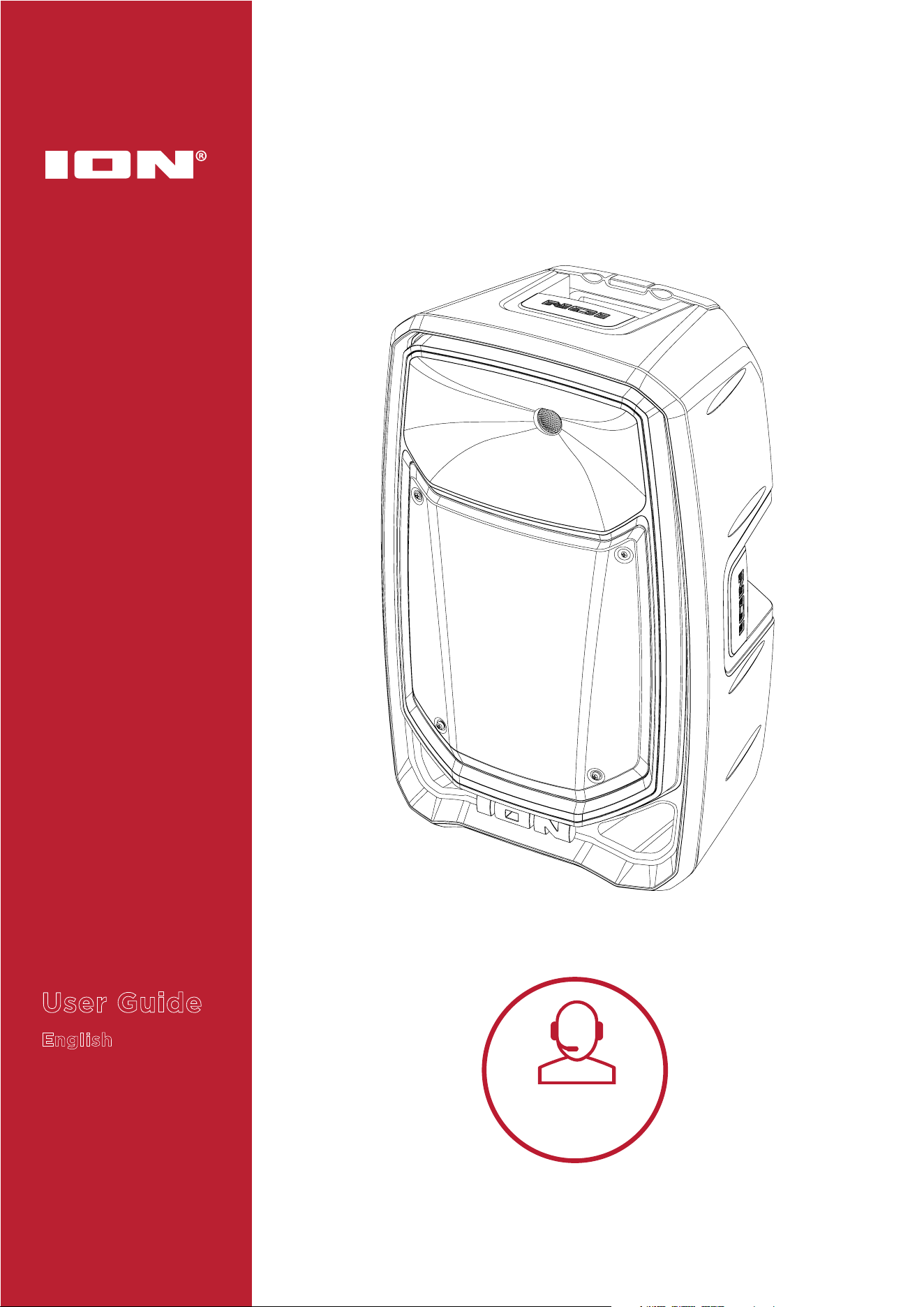
ION Audio Total PA™ Freedom User Guide 2
INTRODUCTION ........................................................................ 4
Box Contents ....................................................................................................... 4
Support ................................................................................................................. 4
Quick Start ........................................................................................................... 5
Balancing Your Levels....................................................................................... 5
SETUP ......................................................................................... 7
Speaker Stand Installation ............................................................................... 7
Connection Diagram ......................................................................................... 8
FEATURES ................................................................................. 9
Rear Panel ............................................................................................................ 9
OPERATION .............................................................................. 13
Installing Batteries Into the Wireless Mic .................................................... 13
Using the Wireless Mic ..................................................................................... 13
Using the Control Knob .................................................................................. 14
Pairing a Bluetooth® Device ............................................................................ 15
Linking Two Speakers ...................................................................................... 16
Light Modes ........................................................................................................ 17
USB Mode ............................................................................................................ 18
App Control ........................................................................................................ 19
TABLE OF CONTENTS

ION Audio Total PA™ Freedom User Guide 3
TROUBLESHOOTING .............................................................. 20
APPENDIX ................................................................................ 22
Technical Specifications ................................................................................. 22
Trademarks & Licenses ................................................................................... 23

ION Audio Total PA™ Freedom User Guide 4
Thank you for purchasing the Total PA™ Freedom. At ION, your entertainment is as important
to us as it is to you. That’s why we design our products with one thing in mind—to make your
life more fun and more convenient.
Box Contents
Total PA™ Freedom
Power Cable (5 ft. / 150 cm)
Wireless Microphone
Speaker Stand
Quickstart Guide
Support
For the latest information about this product (documentation, technical specifications, system
requirements, compatibility information, etc.) and product registration, visit
ionaudio.com.
For additional product support, visit
ionaudio.com/support.
INTRODUCTION

ION Audio Total PA™ Freedom User Guide 5
Quick Start
1. Make sure all items listed in the Box Contents are included in the box. Look in the box under
the foam sheet for the power cable and microphones.
2. Study the C
onnection Diagram.
3. Make sure all input devices (such as microphones, CD players, or digital media players) are
turned o with their volume settings set to “zero.”
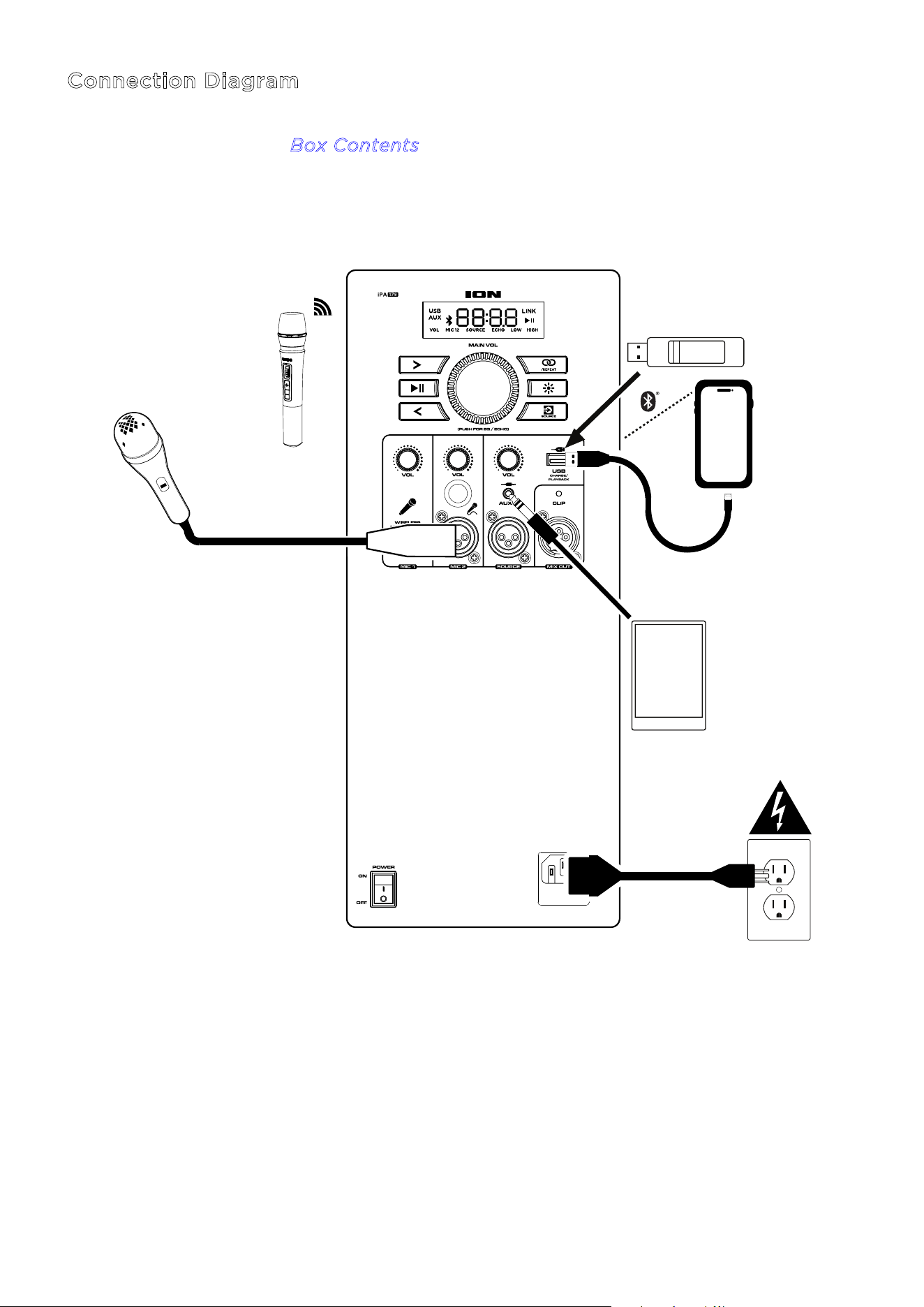
4. Connect all devices as shown in the C
onnection Diagram.
5. Switch everything on in the following order:
a. Audio input devices (e.g. microphones, instruments, CD players)
b. Total PA™ Freedom
6. Adjust the level of your connected devices. Turn audio source (microphone, instruments,
Bluetooth devices) volume all the way up. Then, adjust the S
ource Volume knob for the
selected channel on Total PA Freedom to an appropriate level. Finally, adjust the M
ain
V
olume on Total PA Freedom to an appropriate level. For a detailed step-by-step process
for setting your levels, please refer to the B
alancing Your Levels section on the following
page.
7. When you are finished using Total PA™ Freedom, switch everything o in the following
order:
a. Total PA™ Freedom
b. Audio input devices
ION Audio Total PA™ Freedom User Guide 6
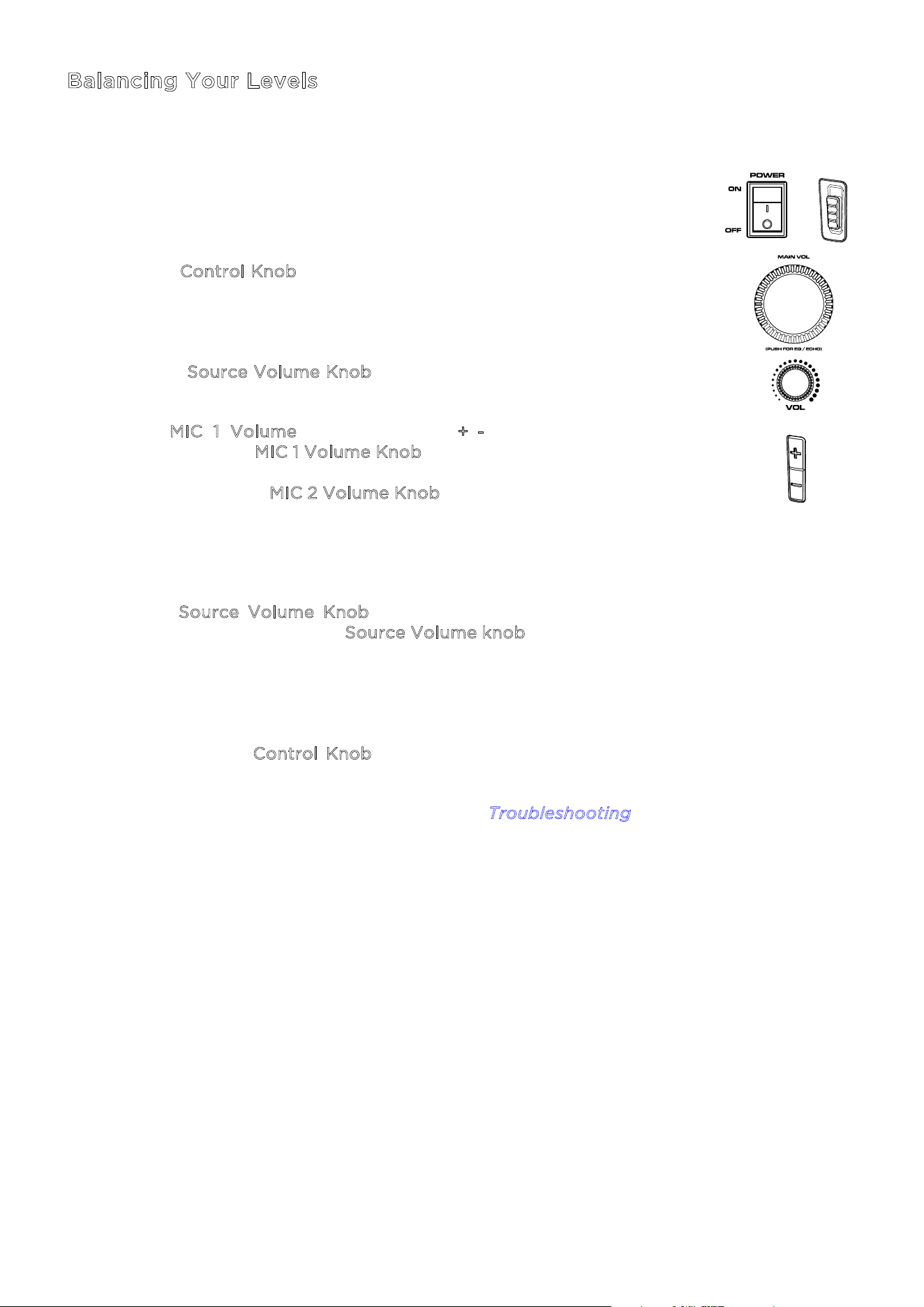
Balancing Your Levels
This process shows how you can quickly balance your microphone signal(s) and the signal from
your Source Device (Bluetooth, Aux, USB). Levels for the microphones, source, and main
volume can be set anywhere between 0 to 30.
1. Power on Total PA Freedom and the wireless microphone. Connect your
preferred Bluetooth, Aux device, or USB drive.
2. Using the C
ontrol Knob on the speaker, set the main volume to around
10 or lower while balancing your levels. This will allow you to set your
levels to a clear and audible level without being overpowering. You can
adjust it again later once a balance has been achieved.
3. Adjust the S
ource Volume Knob down to 0. We’ll turn this up in a later
step.
4. Set the M
IC 1 Volume using either the +/- volume control on the
microphone or the M
IC 1 Volume Knob on the speaker. Setting the level
to 25 is a good starting point if you're unsure. If using a second, wired
microphone, use the M
IC 2 Volume Knob to set the levels the same way
until both microphones are clearly audible.
5. Now, set the volume on your Aux or Bluetooth source device (phone,
tablet, etc.) to 100%. This will guarantee a strong signal.
6. With the S
ource Volume Knob still set to 0, start playback on your
device and slowly turn up the S
ource Volume knob on the speaker until
it reaches a clear and audible level. If you are using a microphone, set
the source volume level to where you can still hear the microphone
above the music.
7. Once the microphone and audio source are clearly audible and
balanced, use the C
ontrol Knob to set the overall output level of the
speaker to your desired volume.
For specific troubleshooting steps, please see the T
roubleshooting section.
ION Audio Total PA™ Freedom User Guide 7
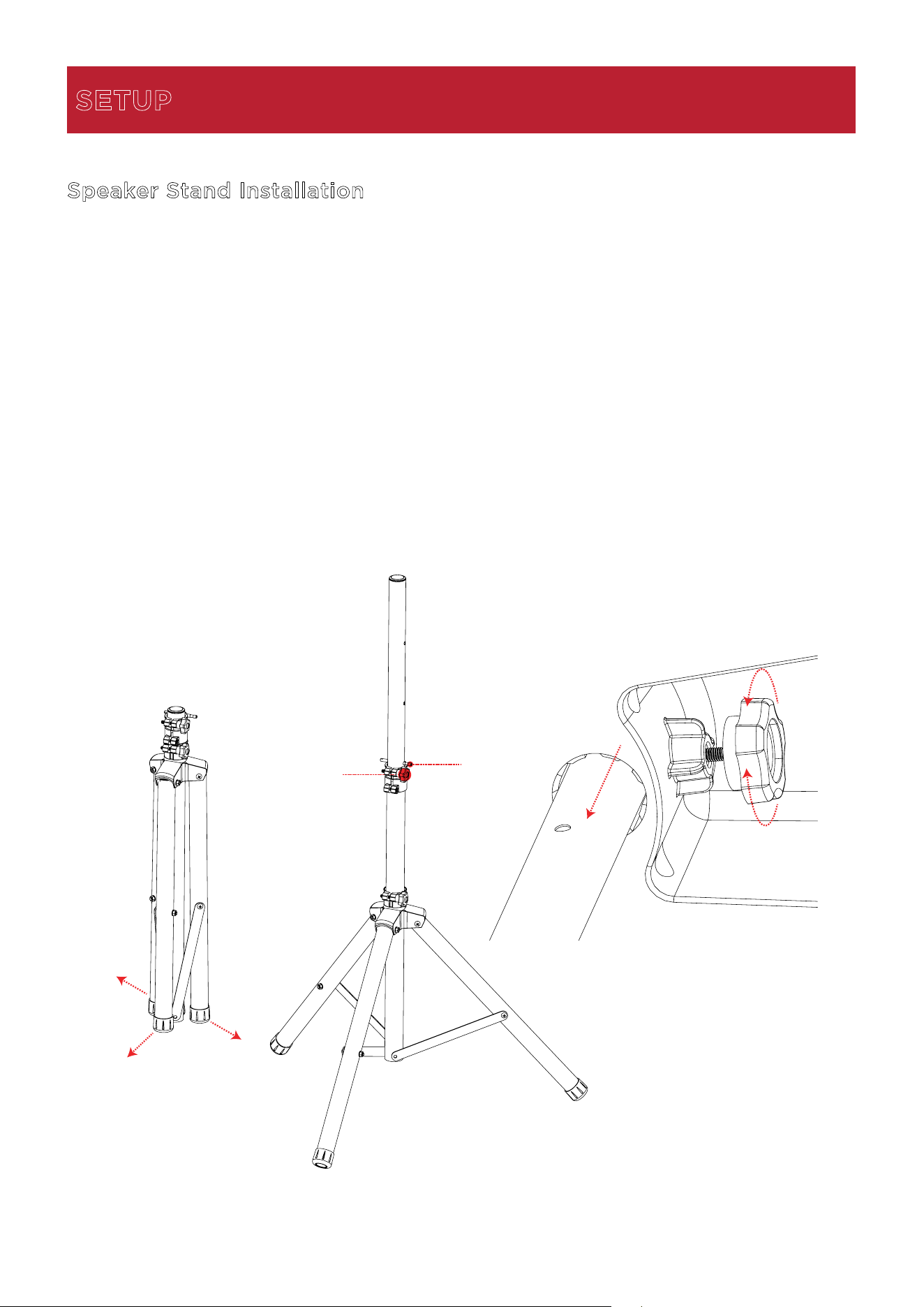
Speaker Stand Installation
1.
Fully extend the speaker stand tripod legs on a flat, stable surface.
2.
Raise the mounting pole up to the appropriate height needed and tighten the side
adjustment knob.
3.
Insert the pin into the bottom pin-hole so the mounting pole stays at your set height.
4.
On the Total PA™ Freedom, adjust the bottom knob counter-clockwise so the screw is not
blocking the opening.
5.
Line up the Total PA™ Freedom mounting hole with the speaker stand pole and place on
the pole.
6.
Tighten the mounting knob clockwise on Total PA™ Freedom to secure it to the pole.
SETUP
1
2
3
5
4
6
ION Audio Total PA™ Freedom User Guide 10
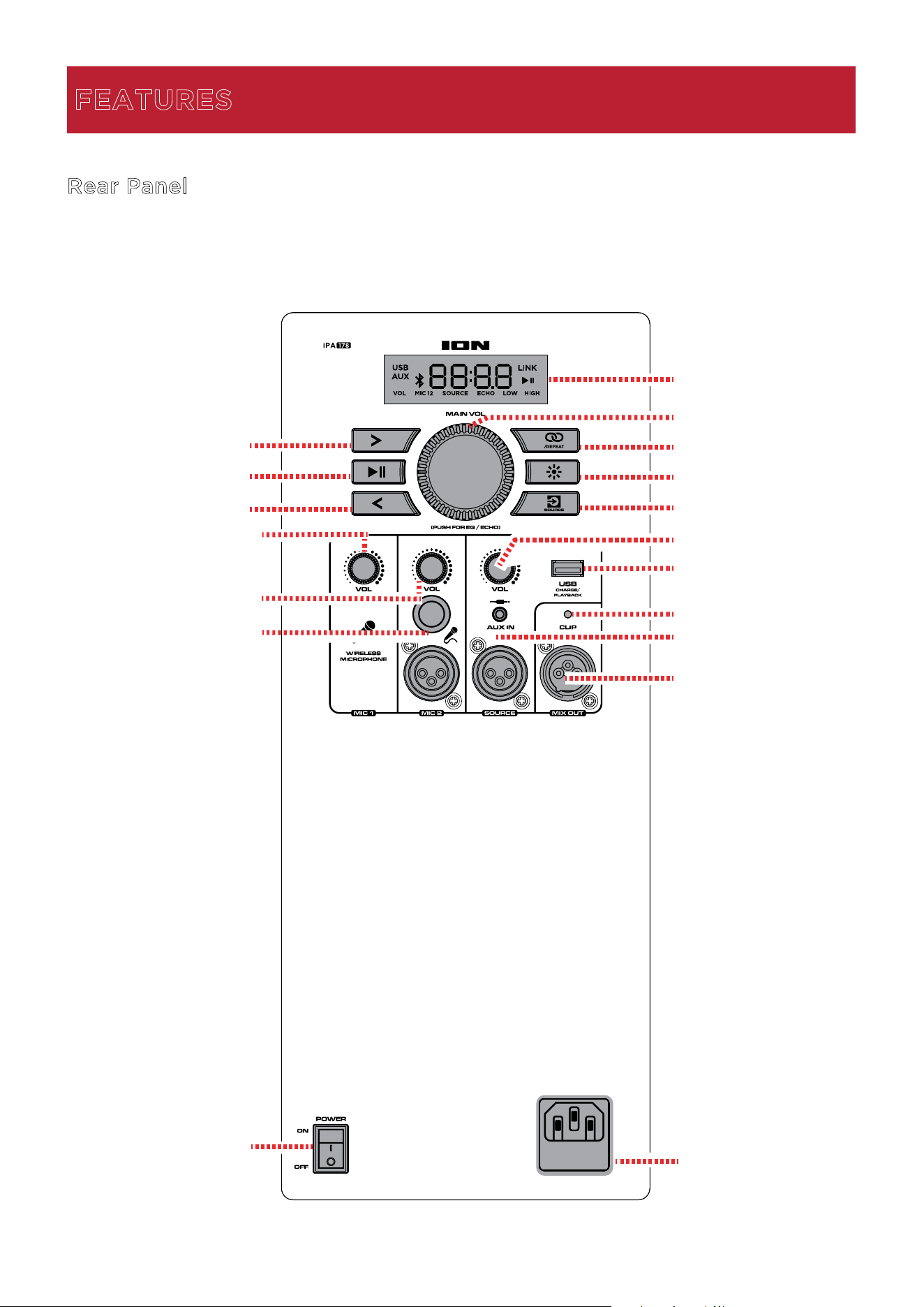
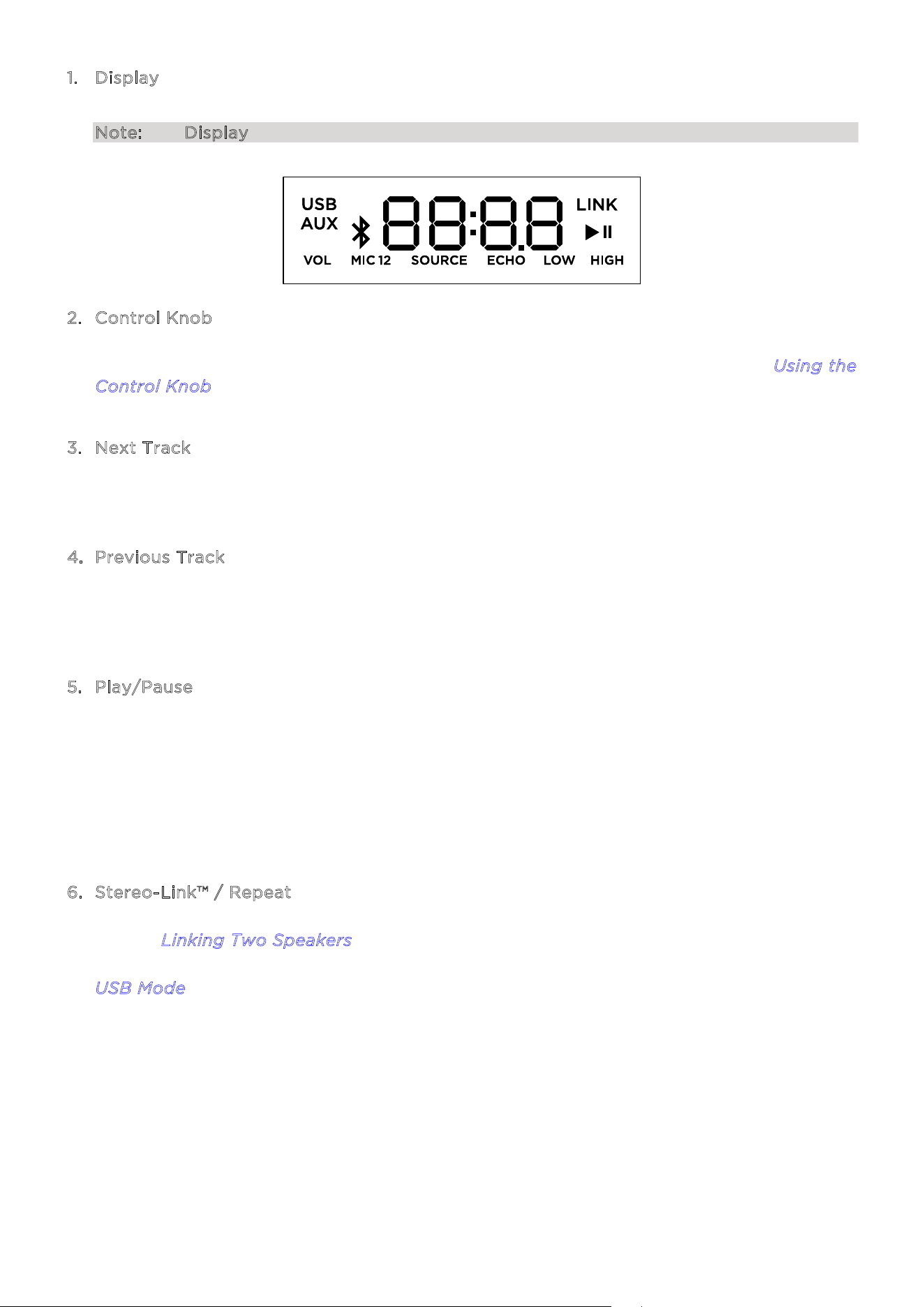
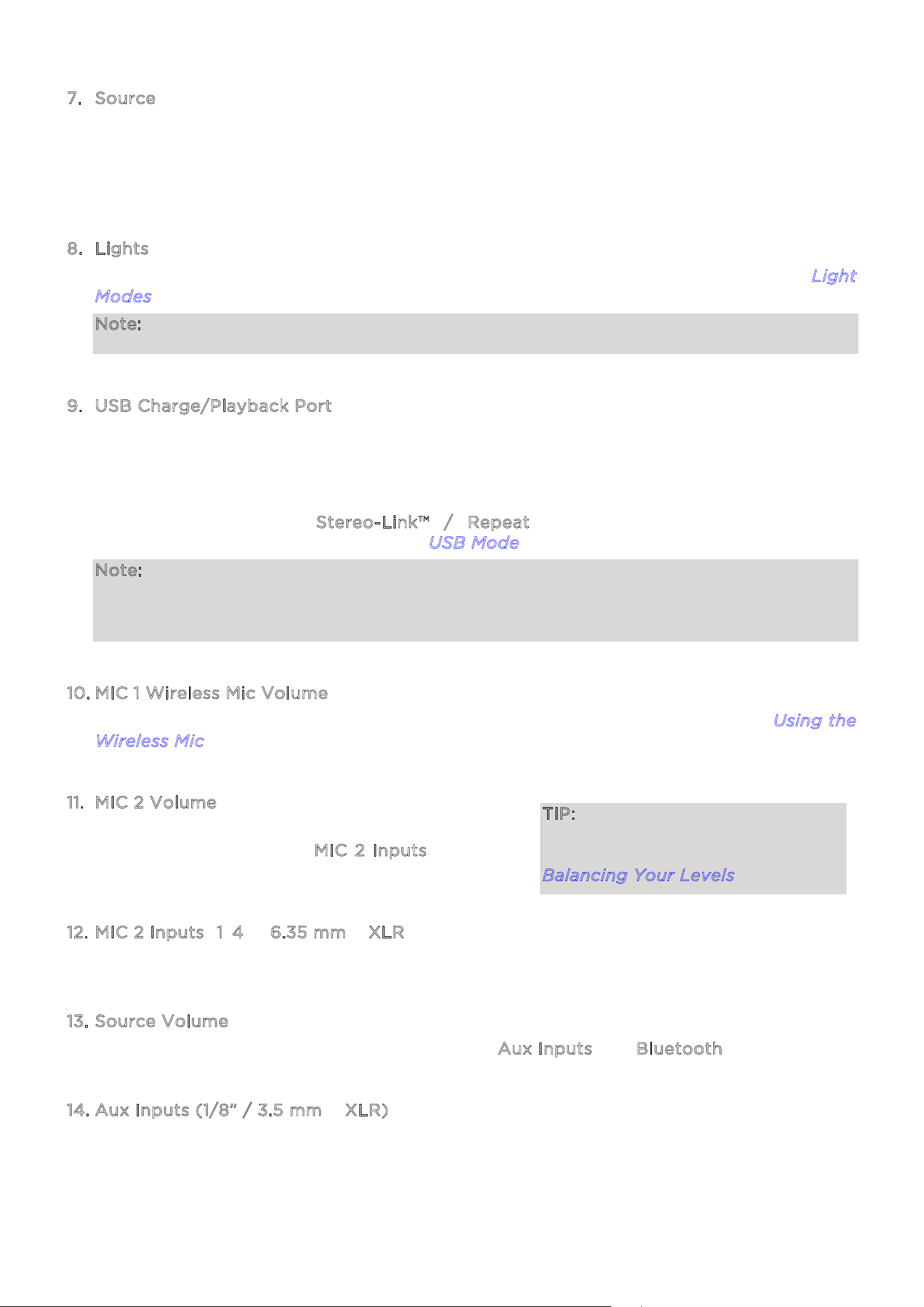
1. Display
This screen shows information relevant to Total PA™
Freedom’s current operation.
Note: The Display comes with a plastic protector on it. Remove this for optimal viewing.
2
. Control Knob
Turn this knob to adjust the Main Volume (overall output) of the loudspeaker. Press the
knob and turn to cycle through to select EQ or the Echo eect. See the section U
sing the
C
ontrol Knob for more details.
3
. Next Track
When USB or Bluetooth is selected as the audio source, press this button to go to the next
track in the playlist.
4
. Previous Track
When USB or Bluetooth is selected as the audio source, press this button to go to the
previous track in the playlist. Press the button again within one second to skip to the
previous track.
5
. Play/Pause
When USB is selected as the audio source, press this button to play/pause the currently
selected track. Double press this button to stop playback and return to the beginning of
the track list.
When Bluetooth is selected as the audio source, press this button to play/pause the
currently selected track.
Press and hold for 5 seconds to turn voice prompts on or o.
6
. Stereo-Link™ / Repeat
Press and hold this button to start stereo linking to another Total PA™ Freedom. See the
section L
inking Two Speakers for more details.
In USB mode, press this button to repeat a single track, folder, or all tracks. See the section
U
SB Mode for more details.
ION Audio Total PA™ Freedom User Guide 11
7
. Source
Press this button to select the audio source to use: USB, AUX, or Bluetooth. The default
source when powering on Total PA™ Freedom is Bluetooth. The USB source is only
selectable if a USB drive is plugged into Total PA™ Freedom; otherwise, the Source button
will toggle between Bluetooth and Aux.
8
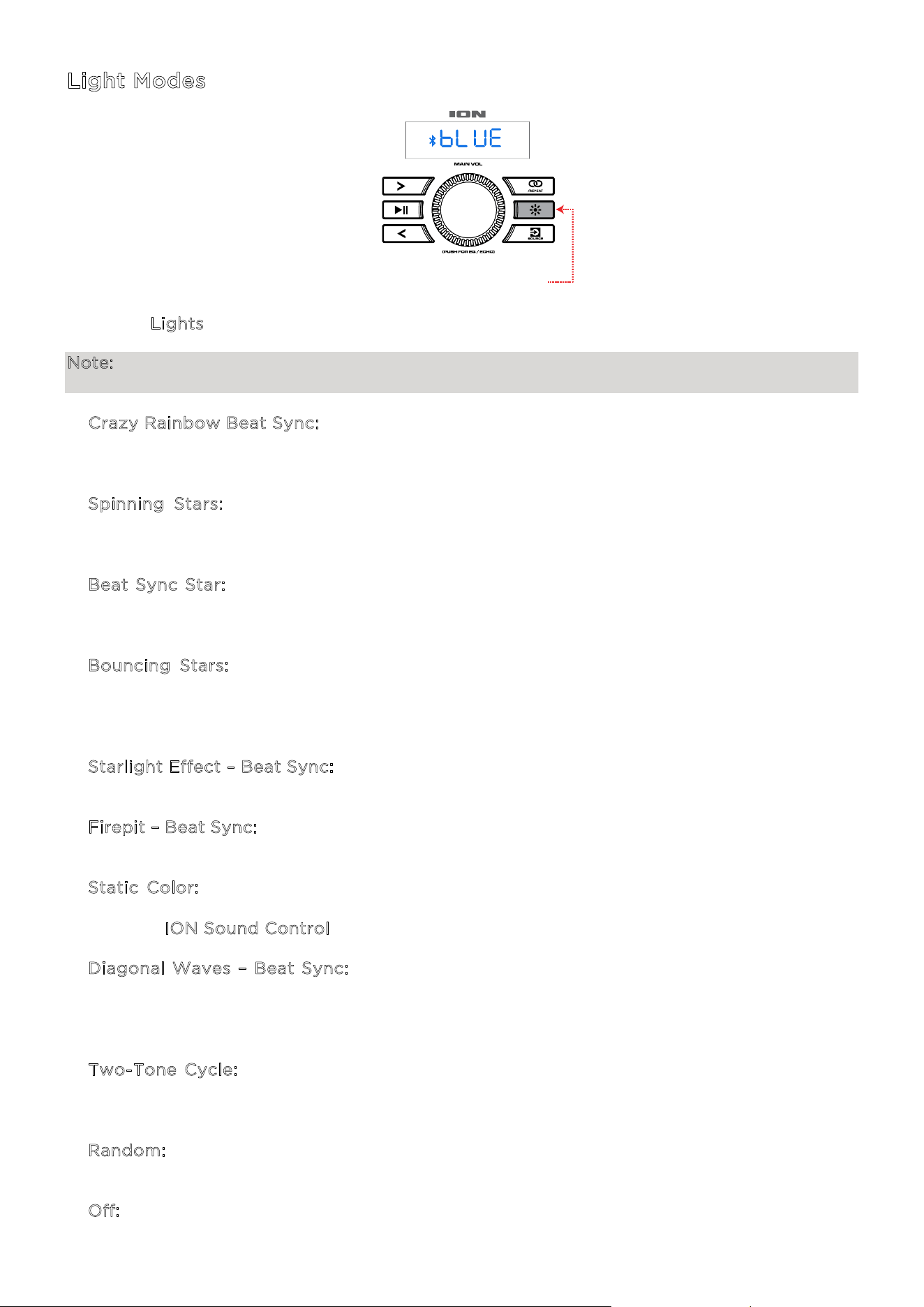
. Lights
Press this button to select how the lights on the front panel function. See the section L
ight
M
odes for more details.
Note: For the best lighting eect, you may need to adjust the volume of your device and/or
the Source volume.
9
. USB Charge/Playback Port
You can use this port for charging a USB device, such as a tablet or smartphone. To charge
a device that is streaming music via Bluetooth, pause the music first and then wait for it to
reconnect after the USB cable is inserted.
Connect your USB flash drive here to play music. Use the SOURCE Volume knob to adjust
the volume. Press the S
tereo-Link™ / Repeat button to cycle through the five
repeat/shue options. See the section U
SB Mode for more details.
Note: Your USB drive cannot be more than 16 GB and it must contain playable MP3 files in
order for its data to appear properly in the Display. When you connect a USB drive with
MP3 files, Total PA™ Freedom will order the files alphabetically by folder on the root
directory and then by track name in the folder.
1
0. MIC 1 Wireless Mic Volume
Adjust the volume of the included wireless mic using this knob. See the section U
sing the
W
ireless Mic for more details on setting up and turning on the microphone.
1
1. MIC 2 Volume
Adjust the volume of the microphone or mic-level
source connected to the M
IC 2 Inputs using this
knob.
1
2. MIC 2 Inputs (1/4” / 6.35 mm & XLR)
Connect a microphone or mic-level source to these inputs.
1
3. Source Volume
Adjust the volume of devices connected to the A
ux Inputs or a Bluetooth source.
1
4. Aux Inputs (1/8” / 3.5 mm & XLR)
Connect a CD player, MP3 player, or other audio source to these line-level inputs.
TIP: For proper audio level mixing
tips for MIC 1, MIC 2, and other
Source volumes, see the section
Balancing Your Levels.
ION Audio Total PA™ Freedom User Guide 12
1
5. Mix Out (XLR)
Connect this output to a speaker, mixer, or recorder.
1
6. Clip LED
The Clip LED will flash red if the signal from the input jacks or M
edia Panel audio source is
clipping (distortion from an overly loud signal). If this happens, decrease the setting of the
M
ain Volume or the volume for the Aux/Mic Input (if a loud device is plugged into either).
1
7. Power Switch
Flip this switch to toggle the speaker’s power on or o.
1
8. Power Cable Input (IEC)
Insert the included power cable here to power the unit.
ION Audio Total PA™ Freedom User Guide 13
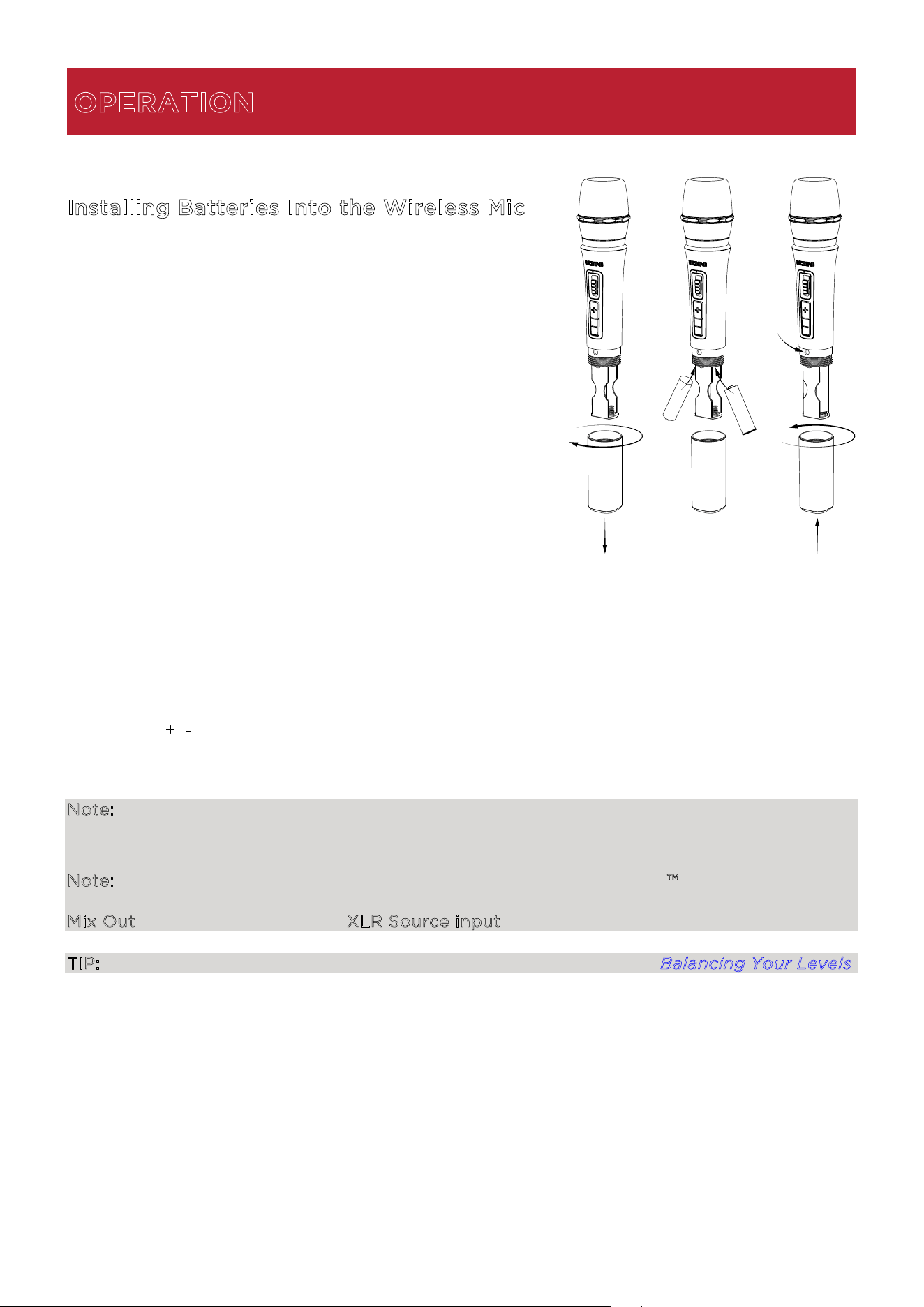
Installing Batteries Into the Wireless Mic
a. Remove battery compartment cover by turning it
clockwise.
b. Install two fresh AA batteries (not included) in the
orientation indicated in the compartment.
c. The microphone should pair automatically if Total PA
Freedom is powered on. If it does not, use a
straightened paper clip or similar object to press the
reset switch inside the compartment for 3 seconds.
d. Reattach battery cover by turning it counterclockwise.
Using the Wireless Mic
1. Power on the wireless microphone with the mic’s on/o switch.
2. Use the +
/- controls on the microphone or the MIC 1 Volume knob to adjust the mic level.
If you cannot hear the microphone over your audio source, you may need to decrease the
SOURCE Volume level or increase the microphone volume.
Note: If the wireless microphone becomes disconnected from the speaker, press the reset
switch inside the battery compartment for 3 seconds using a straightened paper clip or similar
object to reset the mic’s connection to the speaker.
Note: The wireless microphone will only connect to one Stereo-Linked™ speaker (the closest
speaker). If using two Total PA™ Freedom speakers you will need to connect the first speaker's
Mix Out to the second speaker's XLR Source input.
TIP: For more details on balancing your volume levels, see the section Balancing Your Levels.
OPERATION
a
b
c
d
b
ION Audio Total PA™ Freedom User Guide 14
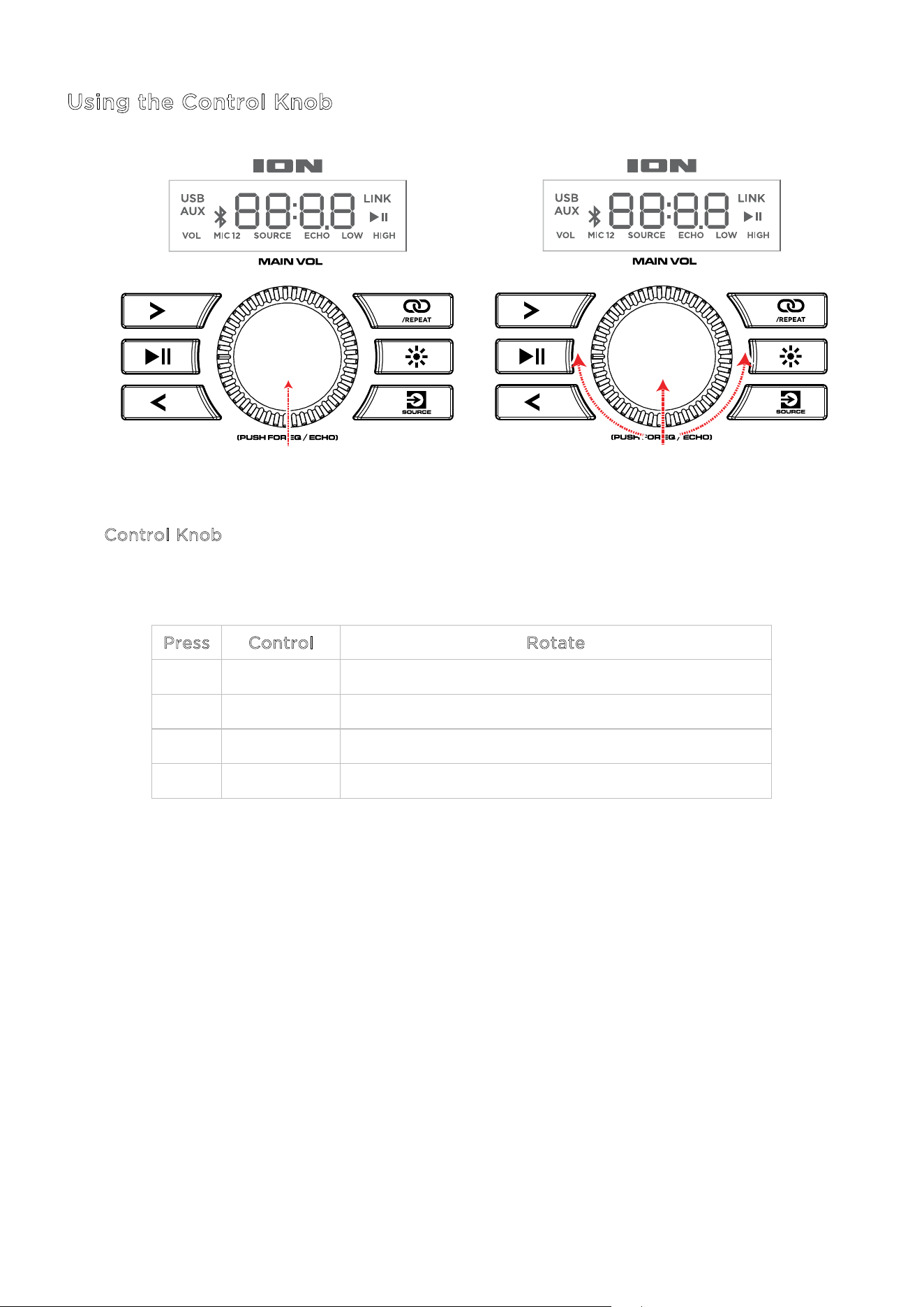
Using the Control Knob
The C
ontrol Knob defaults to controlling the Main Volume for all channels. Press the Control
Knob to toggle through dierent functions. Rotate the Control Knob to change the selected
setting:
P
ress Control Rotate
ohce cim tsujdA OHCE x1
QE wol tsujdA WOL x2
QE hgih tsujdA HGIH x3
4x VOL Adjust main volume
If there is no activity on the Control Knob for 5 seconds, the function will go back to Main
Volume.
To factory reset the speaker to default settings, hold down the Control Knob for 5 seconds.
The speaker will power cycle and the reset will be successful.
2
1- PRESS TO SELECT
ION Audio Total PA™ Freedom User Guide 15
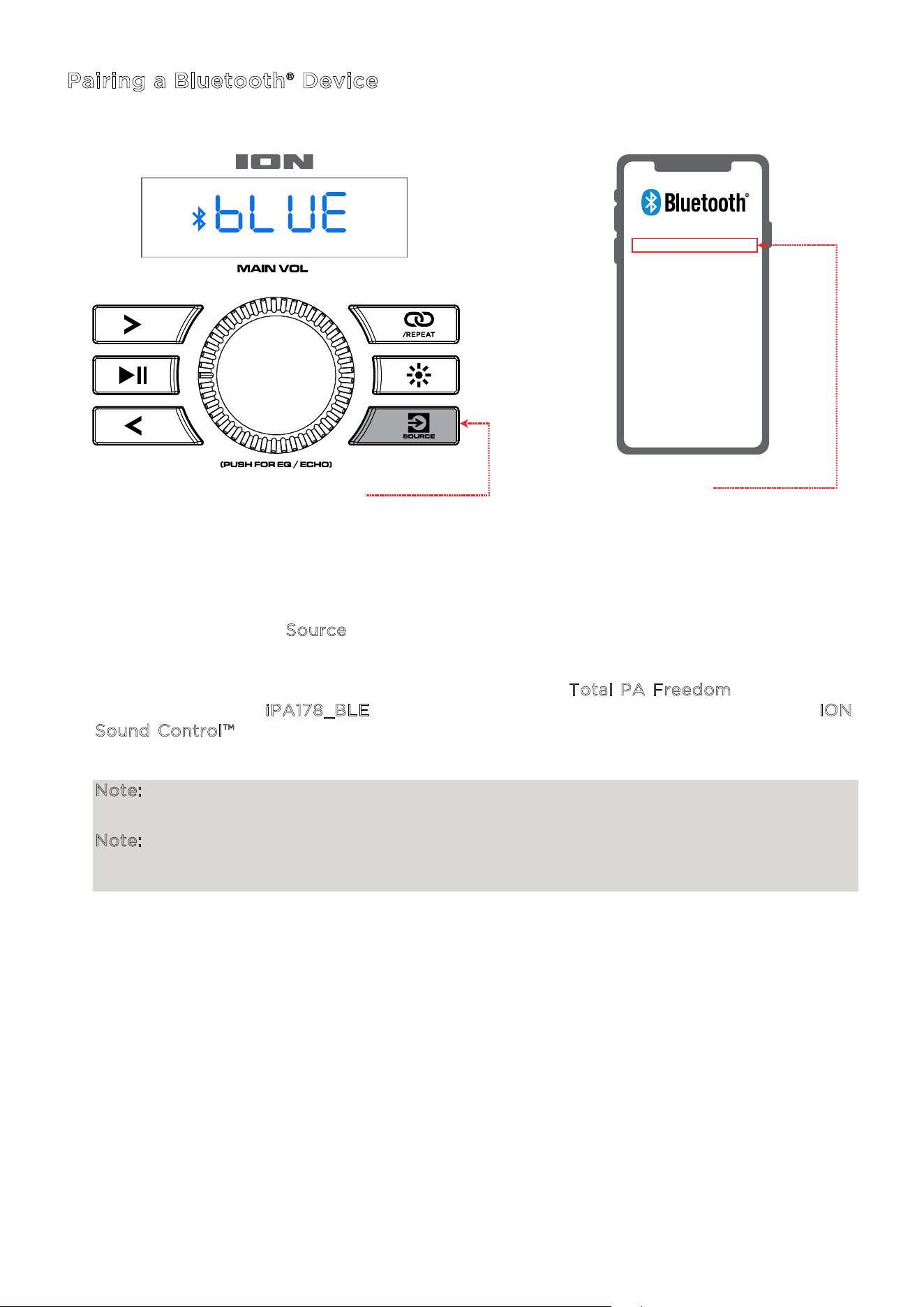
Pairing a Bluetooth® Device
1. Power on the Total PA™ Freedom by flipping the power switch on.
2. When the unit is first turned on, it will automatically enter Bluetooth pairing mode. If
necessary, press the S
ource button to select Bluetooth mode. If voice prompts are
enabled, you will hear “Bluetooth Pairing.”
3. Navigate to your device’s Bluetooth setup screen, find T
otal PA Freedom, and connect.
Do not connect to i
PA178_BLE; this is reserved exclusively for connecting to the ION
S
ound Control™ app. When connected, the Bluetooth icon on the display will flash and
you will hear “Bluetooth Connected”.
Note: If you experience trouble in connecting, select “Forget this Device” on your
Bluetooth device and try to connect again.
Note: The Volume of Total PA Freedom does not aect your Bluetooth device volume. For
the best sound quality, set your input source volume to 100% and use the Source and Main
Volume control of the speaker to adjust the volume.
To disconnect, turn o Bluetooth from your device’s Bluetooth settings.
1 - PRESS
2
TOTAL PA
TM
FREEDOM
ION Audio Total PA™ Freedom User Guide 16
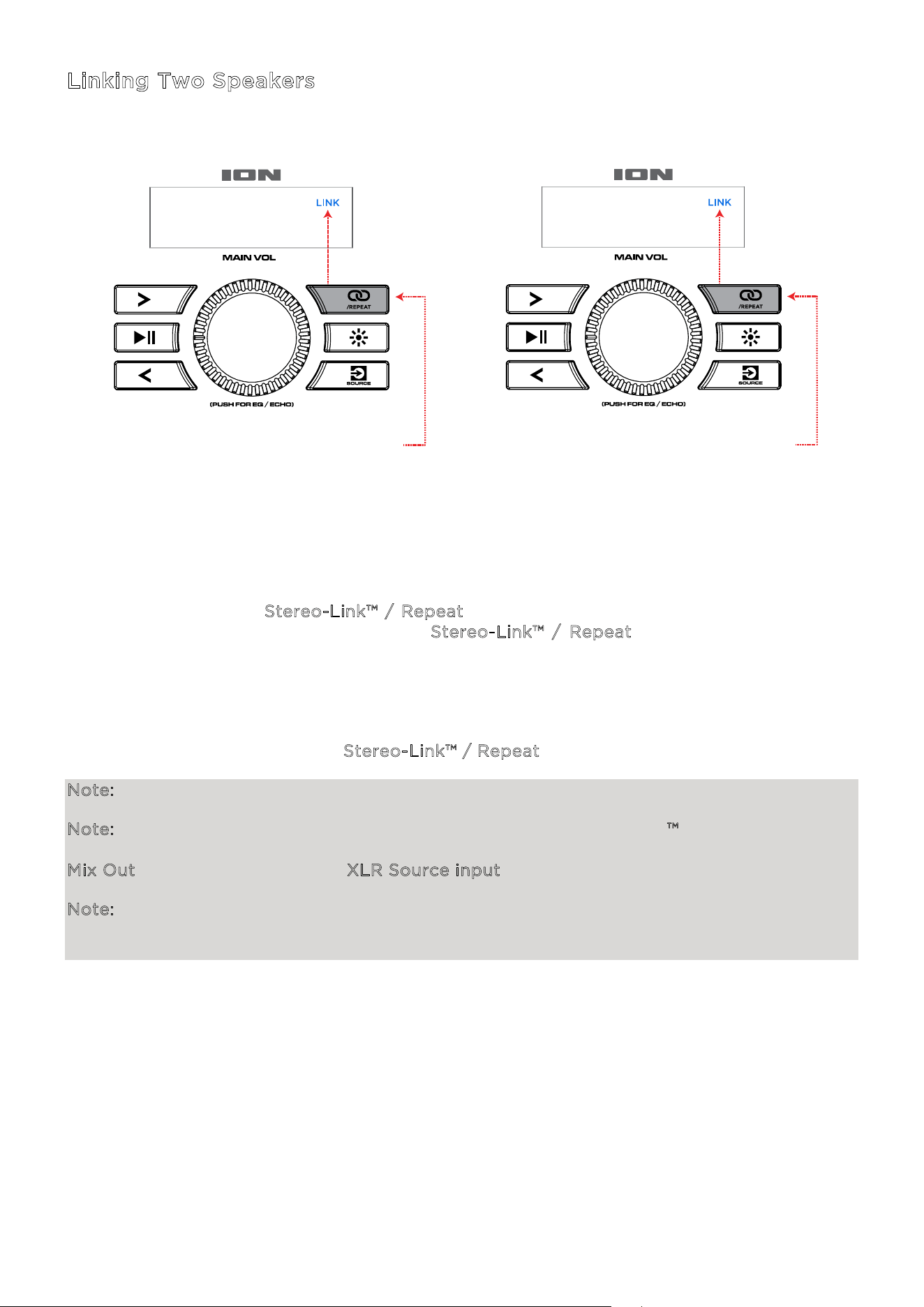
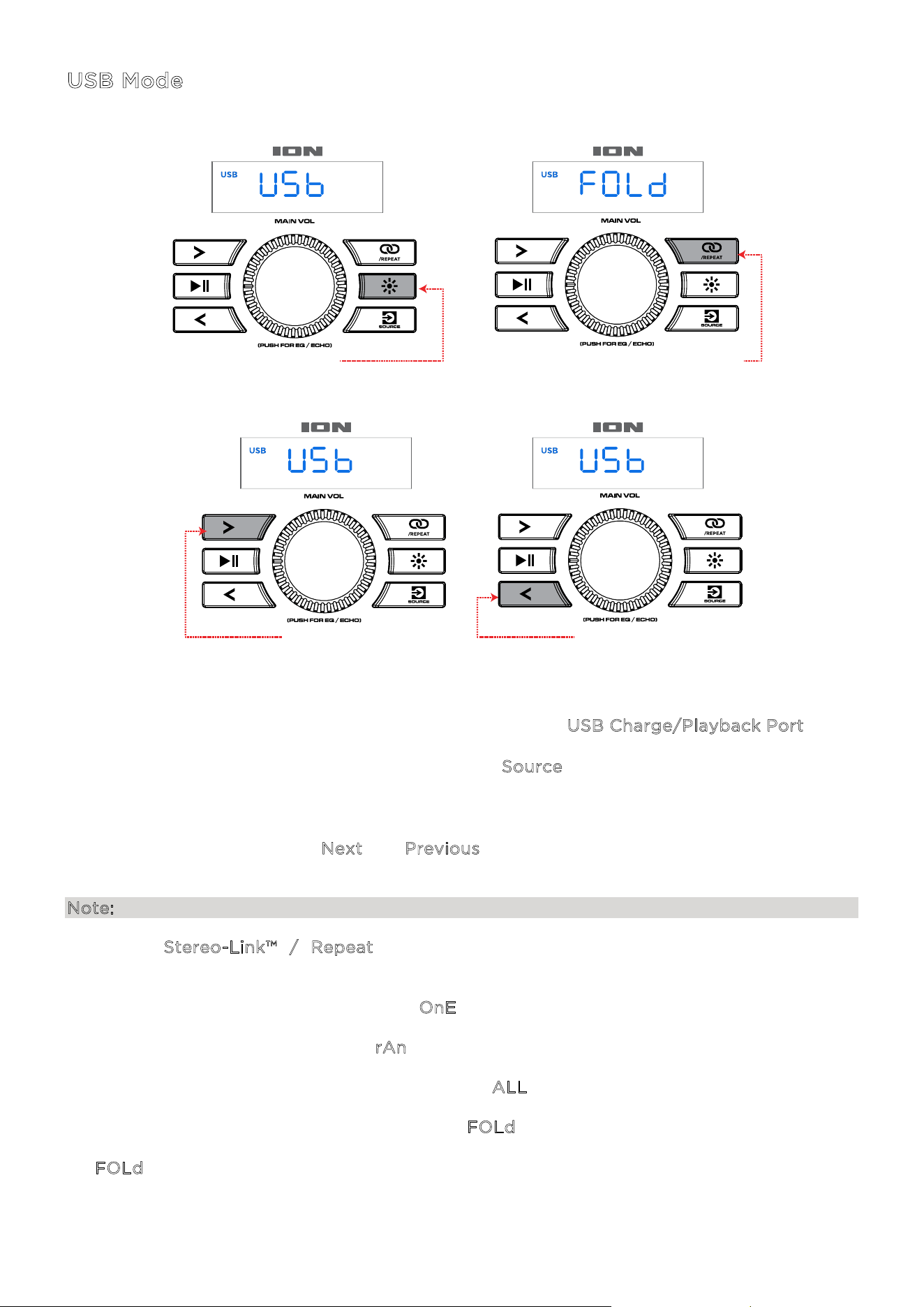
Linking Two Speakers
1. Power on both Total PA™ Freedom speakers by flipping the power switches on. Make sure
they are in Bluetooth pairing mode and not connected to a device.
2. Press and hold the S
tereo-Link™ / Repeat button on one speaker (the primary speaker
which will control both) and then the S
tereo-Link™ / Repeat button on the secondary
speaker to enter Stereo-Link™ mode. Once a link has been established, the word LINK will
appear on both speaker displays.
3. Connect to the primary speaker via Bluetooth.
To disconnect, double press the S
tereo-Link™ / Repeat button.
Note: The speakers should be within 85’ (29.5 m) of each other to properly link.
Note: The wireless microphone will only connect to one Stereo-Linked™ speaker (the closest
speaker). If using two Total PA™ Freedom speakers you will need to connect the first speaker's
Mix Out to the second speaker's XLR Source input.
Note: Total PA™ Freedom is not compatible with previous ION PA models. To link to a previous
model, you will need to use an XLR cable (not included). Connect the XLR cable to the MIX
Out XLR port on the Total PA™ Freedom to the XLR In port on the previous model.
1 - PRESS AND HOLD
(Speaker 1)
2 - PRESS AND HOLD
(Speaker 2)
ION Audio Total PA™ Freedom User Guide 17
Light Modes
Press the Lights button to toggle between ten modes for the LEDs on Total PA™ Freedom.
Note: For the best lighting eect, you may need to increase the volume of your connected
device or input source.
• C
razy Rainbow Beat Sync: A rainbow of colors will spin around the perimeter. The woofer
lights will match the bottom middle LED. The higher the music volume, the faster the speed
of the spinning rainbow pattern.
• S
pinning Stars: The LEDs will move around the perimeter and fade through the color
spectrum in a shooting star pattern. The woofer lights will pulse with the same color when
the perimeter LEDs reach the middle.
• B
eat Sync Star: A long shooting star pattern will circle the perimeter changing speed as
the song volume changes. The woofer lights will pulse to the beat of the song. The higher
the music volume, the faster the speed of the shooting star pattern.
• B
ouncing Stars: Light streaks will flow down the sides. When they meet at the middle
bottom part of the speaker, they will bounce back up to the top in the next color in the
spectrum and flow downward again. Woofer lights will pulse with the new color when the
light streaks bounce in the middle areas, repeating down the color spectrum.
• S
tarlight Effect – Beat Sync: Random LEDs will flash a random color and slowly fade away
according to the beat of the song. More LEDs will be illuminated based on the song volume.
• F
irepit – Beat Sync: The lights will flicker red, yellow, and orange and the side lights rise up
and down based on the volume of the music.
• S
tatic Color: All LEDs will stay the same color (the color can be adjusted from the ION
Sound Control
™
app). By default the color is blue. There are the 15 colors that can be selected
from the I
ON Sound Control™ app.
• D
iagonal Waves – Beat Sync: Three waves of one color will pass by and after they have
gone from the top left side to the bottom right side new waves in the next color with appear.
Waves will speed up or slow based on music volume. Woofer lights will pulse to the low
frequency's beat.
• T
wo-Tone Cycle: One side of the LEDs (including 2 from the prong light and 1 from the
edge glow light) will show one color while the other side of the LED will light up with a
nearby color on the full color spectrum.
• R
andom: The side LEDs cycle through the full color spectrum randomly, changing every 5-
7 seconds.
• O
ff: All LEDs are o.
PRESS TO CYCLE
ION Audio Total PA™ Freedom User Guide 18
USB Mode
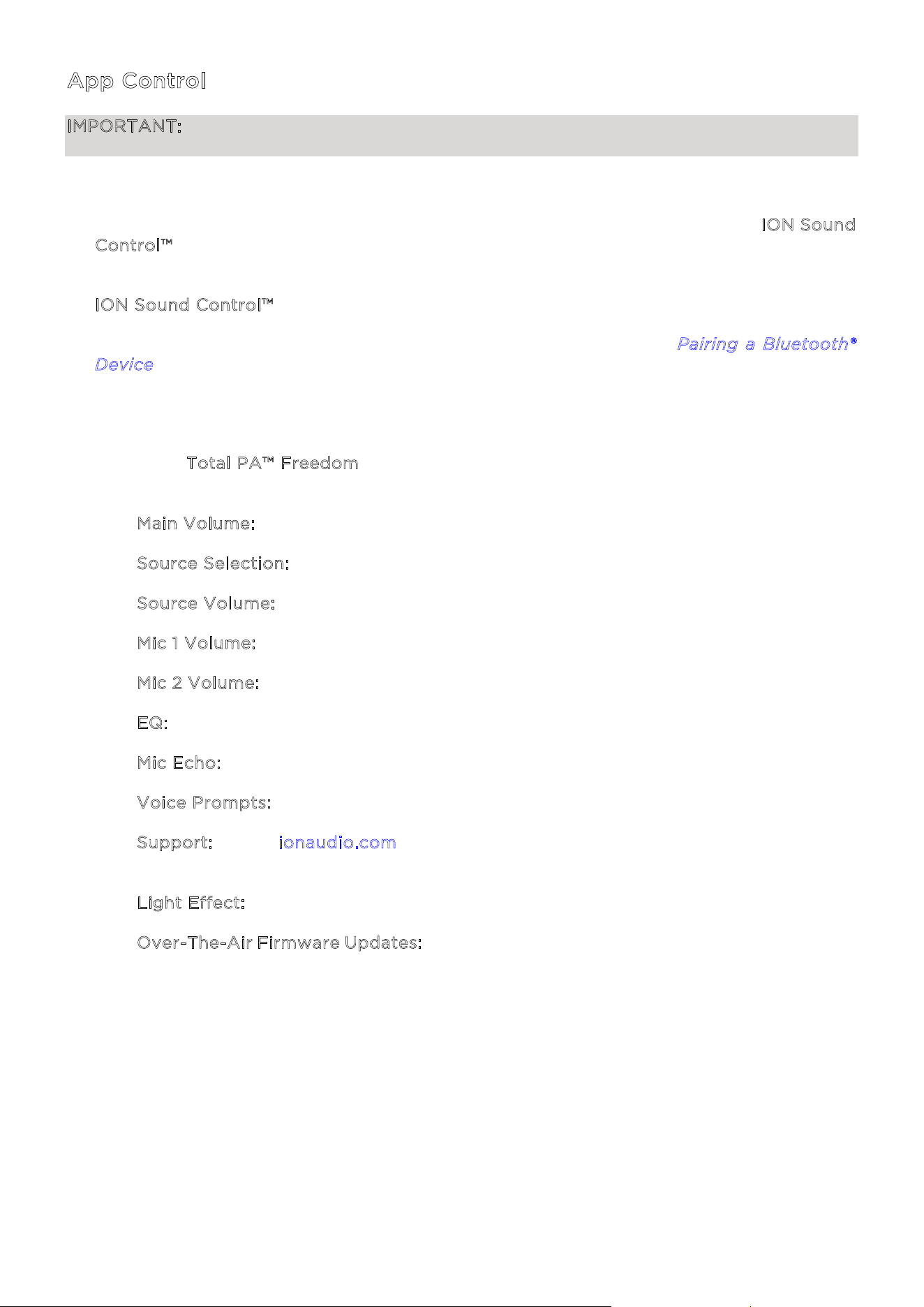
When a USB drive with compatible files is inserted into the U
SB Charge/Playback Port, Total
PA™ Freedom will automatically switch to USB mode. If the USB drive has already been
inserted and you are using another mode, press the S
ource button until USB mode is selected.
Total PA™ Freedom will automatically play the first compatible MP3 file. Files are played in
alphabetical order of what is on the root level, then alphabetical by folder, and then
alphabetical by track name. Media playback will stop when all media has been played on the
USB drive. Press and hold the N
ext and Previous buttons to fast forward or rewind within the
song.
Note: The USB drive must have playable MP3 files for it to appear on the media panel’s display.
Press the S
tereo-Link™ / Repeat button to cycle through the repeat shue options
(abbreviations will show on the display):
• Play the current USB track on repeat (O
nE). This is the default mode when powered on.
• Play the tracks in random order (r
An).
• Play all the tracks on the USB drive on repeat (A
LL).
• Play the current folder’s tracklist on repeat (F
OLd). The folder used is based on what song
is playing when it is activated. For instance, if a song playing is on the root level, selecting
F
OLd will repeat only songs at the root level. If a song is in folder “A”, then only songs in
folder “A” will be repeated.
1 - PRESS
PRESS
(NEXT)
PRESS
(PREVIOUS)
2 - PRESS TO CYCLE
(OFF, ALL, FOLDER, ONE, RANDOM)
ION Audio Total PA™ Freedom User Guide 19
App Control
IMPORTANT: To ensure the best possible experience with the app, use the most current
Android OS or iOS on your device.
Follow these steps to download the free app on your device:
1. Open the Apple App Store or Google Play on your device. Then, search for the I
ON Sound
C
ontrol™ app.
2. Follow the on-screen instructions to download and install the app. Once downloaded, the
I
ON Sound Control™ app will appear on your device's home screen.
3. Connect your device to Total PA™ Freedom via Bluetooth. See the P
airing a Bluetooth®
D
evice to learn how to do this.
4. Open the ION Sound Control™ app. If prompted, allow the app to access your device's
Bluetooth and Location Services.
5. Select the T
otal PA™ Freedom icon to go to the next screen, where you can use the app
to control various functions of the speaker such as:
• M
ain Volume: Adjust the main speaker output volume.
• S
ource Selection: Select the source to use: Bluetooth, USB, or Aux.
• S
ource Volume: Adjust the incoming volume for Bluetooth, USB, and Aux sources.
• M
ic 1 Volume:
Adjust the volume for the wireless mic.
• M
ic 2 Volume: Adjust the volume for the 1/4” / 6.35 mm and XLR microphone inputs.
• E
Q: Adjust the speaker's equalization.
• M
ic Echo: Turn the mic echo eect on/o.
• V
oice Prompts: Enable or disable the voice prompts.
• S
upport: Visit ionaudio.com, contact Technical Support, and view Warranty
information and Frequently Asked Questions.
• L
ight Effect: Choose the lighting eect.
• O
ver-The-Air Firmware Updates: Stay up to date with the latest firmware installation.
ION Audio Total PA™ Freedom User Guide 20
I
f the sound is distorted: You may need to adjust the levels of your sources and Total PA™
Freedom for proper mixing.
i. First, turn your source volume all the way up.
ii. Then, adjust the selected C
hannel Volume (VOL) knob on Total PA™ Freedom to an
appropriate level.
iii. Finally, adjust the M
ain Volume to an appropriate level.
If the sound is still distorted, try lowering the volume control of your sound source, then
lowering the C
hannel Volume (VOL) knob on Total PA™ Freedom of the channel in use.
I
hear a hum when cables are connected:
• Disconnect cables from the input jacks to see if it’s a faulty cable.
• Make sure the signal cables are not placed near power cables.
• Connect all audio equipment power cables to outlets which share a common ground.
I
f there is too much bass: Try adjusting the EQ control on your sound source or on Total PA™
Freedom to lower the bass level. This will allow you to play the music louder before clipping
(distortion) occurs.
W
hat does the wireless mic battery notification mean?: The light indicator will be blue+red
when the battery is low and will flash red when it is almost empty.
W
hat do I do if the wireless mic is not working?:
• Check to see that the batteries are properly installed.
• Install two fresh AA batteries (not included) in the orientation indicated in the
compartment. The microphone should pair automatically if Total PA Freedom is powered
on. If it does not, use a straightened paper clip or similar object to press the reset switch
inside the compartment for 3 seconds.
I
f there is a high-pitched whistling noise when using microphones: This is probably
feedback. Point the microphone away from the speaker.
I
f you can’t hear the microphone over the music volume:
i. First, turn down the volume from your source using the appropriate C
hannel Volume
(
VOL) knob on Total PA™ Freedom.
ii. Then, make sure your microphone volume is turned all the way up (if applicable), and
then turn up the appropriate C
hannel Volume (VOL) knob on Total PA™ Freedom where
the microphone is connected.
TROUBLESHOOTING
ION Audio Total PA™ Freedom User Guide 21
I
f you cannot connect your audio device to Total PA™ Freedom via Bluetooth:
• Have your audio device (e.g., smartphone or tablet) and Total PA™ Freedom as close
together as possible while trying to connect. Make sure both the audio device and Total
PA™ Freedom are unobstructed by walls, furniture, etc.
• Reset the Bluetooth connection on Total PA™ Freedom to disconnect Total PA™ Freedom
from any other audio device and restart the search process. If this does not work right
away, power o Total PA™ Freedom and then power it back on. See P
airing a Bluetooth®
D
evice for more information.
• Reset the Bluetooth connection on your audio device by turning Bluetooth o and back
on. You can find this under the Bluetooth menu in the Settings for your phone or other
audio device.
If this does not work, and you have connected to Total PA™ Freedom before, find Total
PA™ Freedom in the list of available or previously connected devices in your audio device's
Bluetooth menu, tap the "gear" or “i” icon located next to it and then select U
npair or
F
orget. Turn Total PA™ Freedom o and back on and try pairing again once it reappears
in your available devices list.
Note: If Total PA™ Freedom has been paired to another audio device recently that is still
within range, you may need to repeat this process with that audio device to fully
disconnect.
I
f you experience audio dropouts while playing music from a Bluetooth device, this may be
happening because your unit is trying to link to another speaker. This can occur if you power
o a speaker that was linked to your unit or if you have just turned on your unit and it is in
Stereo-Link
™
mode. To stop the audio dropouts, exit Stereo-Link
™
mode by double-pressing
the S
tereo-Link
™
/ Repeat button. Alternatively, you can wait for your unit to link to another
speaker if there is one within range.
ION Audio Total PA™ Freedom User Guide 22
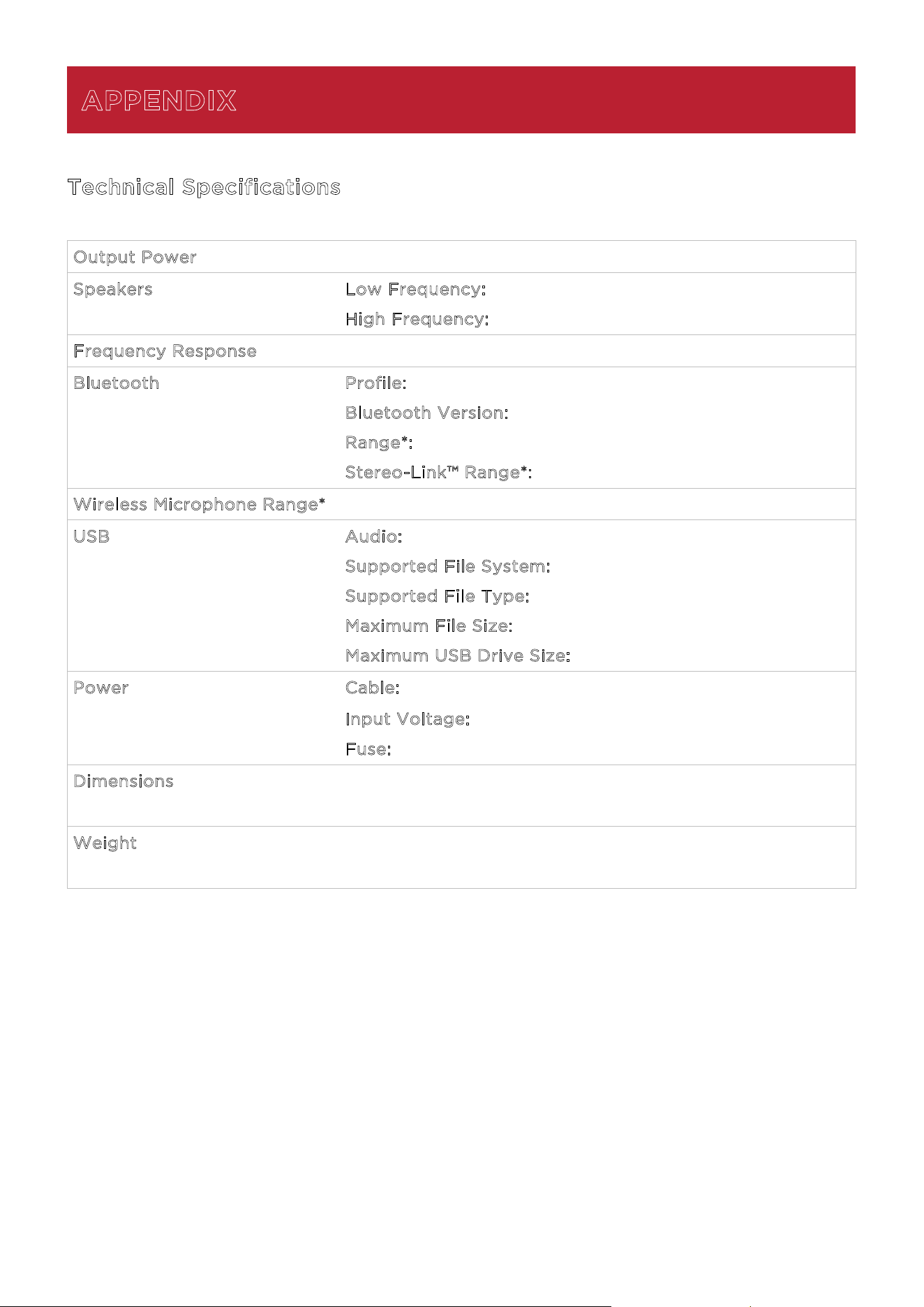
Technical Specifications
O
utput Power 650 W (peak)
Speakers Low Frequency: 12.0” (305 mm)
H
igh Frequency: 1.0” (25.4 mm)
Frequency Response 50 Hz – 20 kHz
Bluetooth Profile: A2DP, AVCTP
B
luetooth Version: Bluetooth 5.0
R
ange*: Up to 100 ft. (30.5 m)
S
tereo-Link™ Range*: 85 ft. (29.5 m)
Wireless Microphone Range* 100 ft. / 30.5 m
USB Audio: Music playback from USB drive
S
upported File System: FAT32
S
upported File Type: MP3
M
aximum File Size: 4 GB
M
aximum USB Drive Size: 128 GB
Power Cable: IEC 320 C13
I
nput Voltage: 100 – 120V~ 60 Hz, 320W
F
use: F5AL AC250V
Dimensions
(width x depth x height)
16.21” x 12.50” x 25.63”
412 x 318 x 651 mm
Weight 37.48 lbs.
17 kg
Specifications are subject to change without notice.
*Bluetooth and wireless reception and range are aected by walls, obstructions, and
movement. For optimal performance, place the product in the center of the room so it is
unobstructed by walls, furniture, etc.
APPENDIX

ION Audio Total PA™ Freedom User Guide 23
Trademarks & Licenses
ION Audio is a trademark of inMusic Brands, Inc., registered in the U.S. and other countries.
App Store is a trademark of Apple Inc., registered in the U.S. and other countries.
Android and Google Play are registered trademarks of Google Inc.
The Bluetooth word mark and logos are owned by the Bluetooth SIG, Inc. and any use of such
marks by ION Audio is under license.
All other product names, company names, trademarks, or trade names are those of their
respective owners.