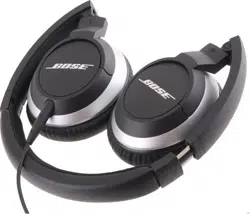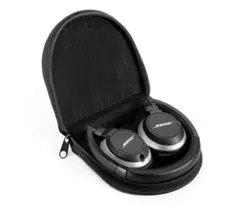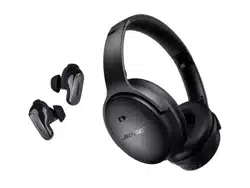
QUIETCOMFORT HEADPHONES
Cue the
music.
IMPORTANT SAFETY INSTRUCTIONS
2
|
ENG
Please read and keep all safety and use instructions.
Bose Corporation hereby declares that this product is in compliance with the essential requirements
and other relevant provisions of Directive 2014/53/EU and all other applicable EU directive
requirements. The complete declaration of conformity can be found at: www.Bose.com/compliancewww.Bose.com/compliance
This product conforms to all applicable Electromagnetic Compatibility Regulations 2016 and all other
applicable UK regulations. The complete declaration of conformity can be found at:
www.Bose.com/compliancewww.Bose.com/compliance
Bose Corporation hereby declares that this product is in compliance with the essential requirements
per Radio Equipment Regulations 2017 and all other applicable UK regulations. The complete
declaration of conformity can be found at: www.Bose.com/compliancewww.Bose.com/compliance
Important Safety Instructions
Do not use this apparatus near water.
Clean only with a dry cloth.
Refer all servicing to qualified personnel. Servicing is required when the apparatus has been damaged in any
way, such as power-supply cord or plug is damaged, liquid has been spilled or objects have fallen into the
apparatus, the apparatus has been exposed to rain or moisture, does not operate normally, or has
been dropped.
WARNINGS/CAUTIONS
• To avoid hearing damage, do not use your headphones at a high volume. Turn the volume down on your
product before placing the headphones in/on your ears, then turn the volume up gradually until you reach a
comfortable, moderate listening level.
• Use of these headphones while operating a vehicle is not recommended and may be prohibited by law in
some locations. Use caution and follow applicable laws regarding headphone use while operating a vehicle.
Stop using your headphones immediately if they interfere with your ability to remain aentive or if they
interfere with your ability to hear surrounding sounds, including alarms and warning signals, while operating
a vehicle.
• Use caution if using these headphones while performing any activity that requires your aention. Do not use
the headphones when the inability to clearly hear surrounding sounds may present a danger to yourself or
others, for example while riding a bicycle or walking in or near traic, a construction site, railroad, etc.
• Do NOT use the headphones if they emit any loud unusual noise. If this happens, turn the headphones o
and contact Bose customer service.
• Remove product immediately if you notice heat coming from the product.
Contains small parts which may be a choking hazard. Not suitable for children under age 3.
This product contains magnetic material. Consult your physician on whether this might aect your
implantable medical device.

REGULATORY INFORMATION
3
|
ENG
IMPORTANT SAFETY INSTRUCTIONS
• To reduce the risk of fire or electrical shock, do NOT expose this product to rain, dripping, splashing, or
moisture and do not place liquid filled objects such as vases, on or near the product.
• Keep the product away from fire and heat sources. Do NOT place naked flame sources, such as lighted
candles, on or near the product.
• Use this product only with an agency approved LPS power supply which meets local regulatory requirements
(e.g., UL, CSA, VDE, CCC).
• Do NOT make unauthorized alterations to this product.
• If the baery leaks, do not allow the liquid to come in contact with the skin or eyes. If contact is made, seek
medical advice.
• Do not expose products containing baeries to excessive heat (e.g. from storage in direct sunlight, fire
or the like).
• Do NOT wear while charging.
4
|
ENG
REGULATORY AND LEGAL INFORMATION
NOTE: This equipment has been tested and found to comply with the limits for a Class B digital device,
pursuant to Part 15 of the FCC Rules. These limits are designed to provide reasonable protection against
harmful interference in a residential installation. This equipment generates, uses, and can radiate radio
frequency energy and, if not installed and used in accordance with the instructions, may cause harmful
interference to radio communications. However, there is no guarantee that interference will not occur in a
particular installation. If this equipment does cause harmful interference to radio or television reception,
which can be determined by turning the equipment o and on, the user is encouraged to try to correct the
interference by one or more of the following measures:
• Reorient or relocate the receiving product or antenna.
• Increase the separation between the equipment and receiver.
• Connect the equipment into an outlet on a circuit dierent from that to which the receiver is connected.
• Consult the dealer or an experienced radio/TV technician for help.
Changes or modifications not expressly approved by Bose Corporation could void the user’s authority to
operate this equipment.
This device complies with part 15 of the FCC Rules and with ISED Canada license-exempt RSS standard(s).
Operation is subject to the following two conditions: (1) This device may not cause harmful interference, and
(2) this device must accept any interference received, including interference that may cause
undesired operation.
This device complies with FCC and ISED Canada radiation exposure limits set forth for general population.
This transmier must not be co-located or operating in conjunction with any other antenna or transmier.
Meets IMDA Requirements.
FCC ID: A94437310 | IC: 3232A-437310
CAN ICES-3(B)/NMB-3(B)
For Europe: Frequency band of operation 2400 to 2483.5 MHz. | Maximum transmit power less than
20 dBm EIRP.
This symbol means the product must not be discarded as household waste, and should be delivered to
an appropriate collection facility for recycling. Proper disposal and recycling helps protect natural
resources, human health and the environment. For more information on disposal and recycling of this
product, contact your local municipality, disposal service, or the shop where you bought this product.
Low-power Radio-frequency Devices Technical Regulations
Without permission granted by the NCC, any company, enterprise, or user is not allowed to change frequency,
enhance transmiing power or alter original characteristic as well as performance to a approved low power
radio-frequency devices. The low power radio-frequency devices shall not influence aircraft security and
interfere legal communications; If found, the user shall cease operating immediately until no interference is
achieved. The said legal communications means radio communications is operated in compliance with the
Telecommunications Management Act. The low power radio-frequency devices must be susceptible with the
interference from legal communications or ISM radio wave radiated devices.
DON’T aempt to remove the rechargeable lithium-ion baery from this product. Contact your local Bose
retailer or other qualified professional for removal.
Removal of the rechargeable lithium-ion baery in this product should be conducted only by a qualified
professional. Please contact your local Bose retailer or see products.bose.com/static/compliance/index.htmlproducts.bose.com/static/compliance/index.html
for further information.
Please dispose of used baeries properly, following local regulations. Do not incinerate.
REGULATORY INFORMATION
5
|
ENG
REGULATORY AND LEGAL INFORMATION
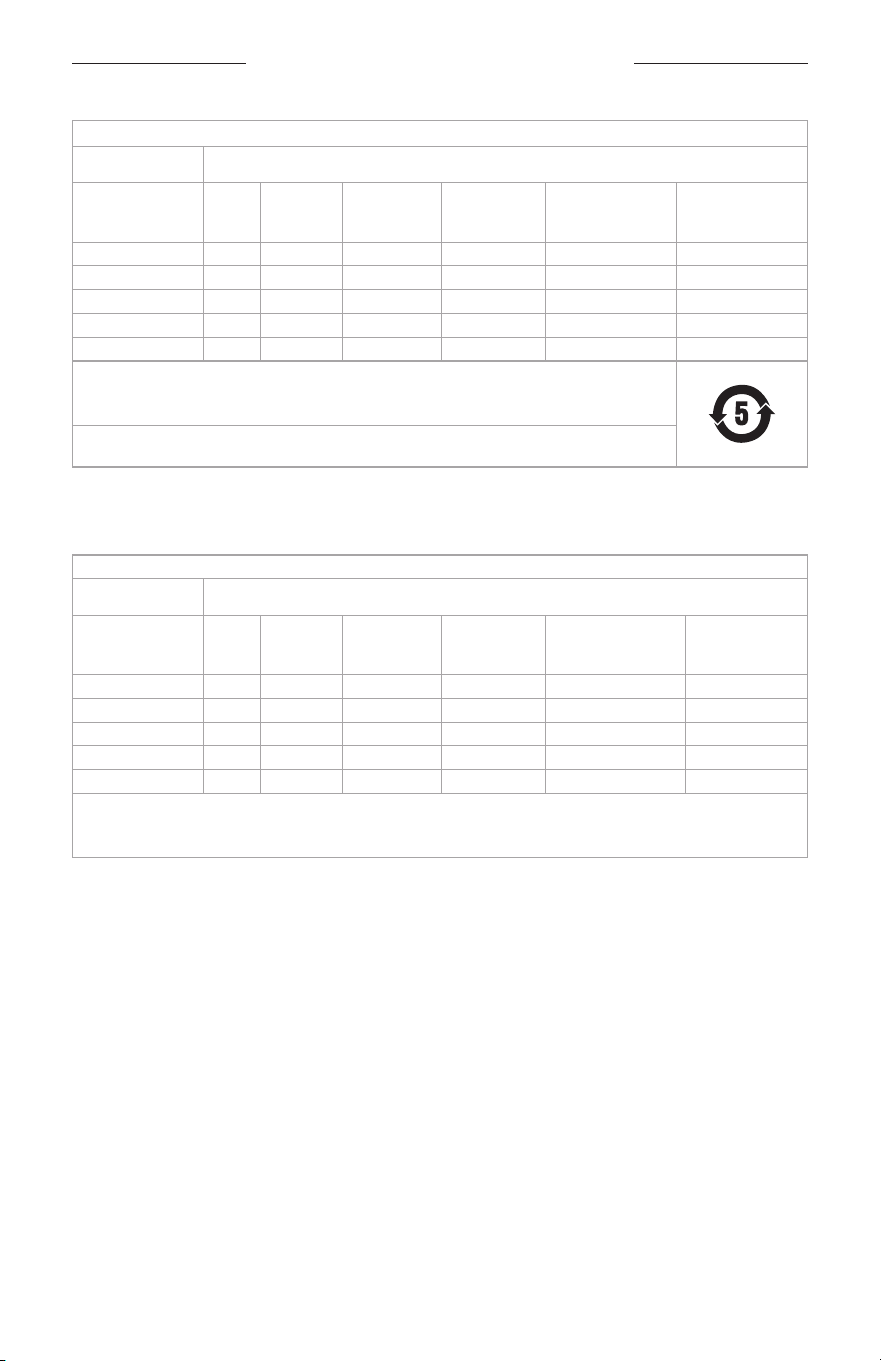
Names and Contents of Toxic or Hazardous Substances or Elements
Toxic or Hazardous Substances and Elements
Part Name
Lead
(Pb)
Mercury
(Hg)
Cadmium
(Cd)
Hexavalent
(CR(VI))
Polybrominated
Biphenyl
(PBB)
Polybrominated
diphenylether
(PBDE)
PCBs X O O O O O
Metal Parts X O O O O O
Plastic Parts O O O O O O
Speakers X O O O O O
Cables X O O O O O
This table is prepared in accordance with the provisions of SJ/T 11364.
O: Indicates that this toxic or hazardous substance contained in all of the homogeneous materials for
this part is below the limit requirement of GB/T 26572.
X: Indicates that this toxic or hazardous substance contained in at least one of the homogeneous
materials used for this part is above the limit requirement of GB/T 26572.
Equipment name: Bose QuietComfort Headphones Type designation: 442395
Restricted substances and its chemical symbols
Unit
Lead
(Pb)
Mercury
(Hg)
Cadmium (Cd)
Hexavalent
chromium
(Cr+6)
Polybrominated
biphenyls (PBB)
Polybrominated
diphenyl ethers
(PBDE)
PCBs -
b b b b b
Metal Parts -
b b b b b
Plastic Parts
b b b b b b
Speakers -
b b b b b
Cables -
b b b b b
Note 1: “b” indicates that the percentage content of the restricted substance does not exceed the percentage of reference
value of presence.
Note 2: The “−” indicates that the restricted substance corresponds to the exemption.
Date of Manufacture: The eighth digit in the serial number indicates the year of manufacture; “3” is 2013
or 2023.
Importers: Bose Electronics (Shanghai) Company Limited, Level 6, Tower D, No. 2337 Gudai Rd. Minhang
District, Shanghai 201100 | Bose Products B.V., Gorslaan 60, 1441 RG Purmerend, The Netherlands | Bose de
México S. de R.L. de C.V., Avenida Prado Sur #150, Piso 2, Interior 222 y 223, Colonia Lomas de Chapultepec V
Sección, Miguel Hidalgo, Ciudad de México, C.P. 11000 Phone Number: +5255 (5202) 3545 | Bose Limited (H.K.),
9F., No.10, Sec. 3, Minsheng E. Road, Zhongshan Dist. Taipei City 10480, Phone Number: +886-2-2514 7676 |
Bose Limited, Bose House, Quayside Chatham Maritime, Chatham, Kent, ME4 4QZ, United Kingdom
Input Rating: 5V p 0.5A | Charging Temperature Range: 32° F to 113° F (0° C to 45° C) |
Discharging Temperature Range: -4° F to 140° F (-20° C to 60° C)
The CMIIT ID is located inside the earcup under the scrim.
License Disclosures: To view the license disclosures that apply to the third-party software packages included
as components of the Bose QuietComfort Headphones, use the Bose app. You can access this information
from the Seings menu.

6
|
ENG
Apple, the Apple logo, iPad, and iPhone are trademarks of Apple Inc., registered in the U.S. and other countries.
App Store is a service mark of Apple Inc. The trademark “iPhone” is used in Japan with a license from
Aiphone K.K.
Use of the Made for Apple badge means that an accessory has been designed to connect specifically to the
Apple product(s) identified in the badge, and has been certified by the developer to meet Apple performance
standards. Apple is not responsible for the operation of this device or its compliance with safety and
regulatory standards.
The Bluetooth® word mark and logos are registered trademarks owned by Bluetooth SIG, Inc. and any use of
such marks by Bose Corporation is under license.
Google Play is a trademark of Google LLC.
This product incorporates Spotify software which is subject to third-party licenses found here:
www.spotify.com/connect/third-party-licenseswww.spotify.com/connect/third-party-licenses
Spotify is a registered trademark of Spotify AB.
USB Type-C® and USB-C® are registered trademarks of USB Implementers Forum.
Bose, the B logo, and QuietComfort are trademarks of Bose Corporation. | Bose Corporation Headquarters:
1-877-230-5639 | ©2024 Bose Corporation. No part of this work may be reproduced, modified, distributed, or
otherwise used without prior wrien permission.
Please complete and retain for your records
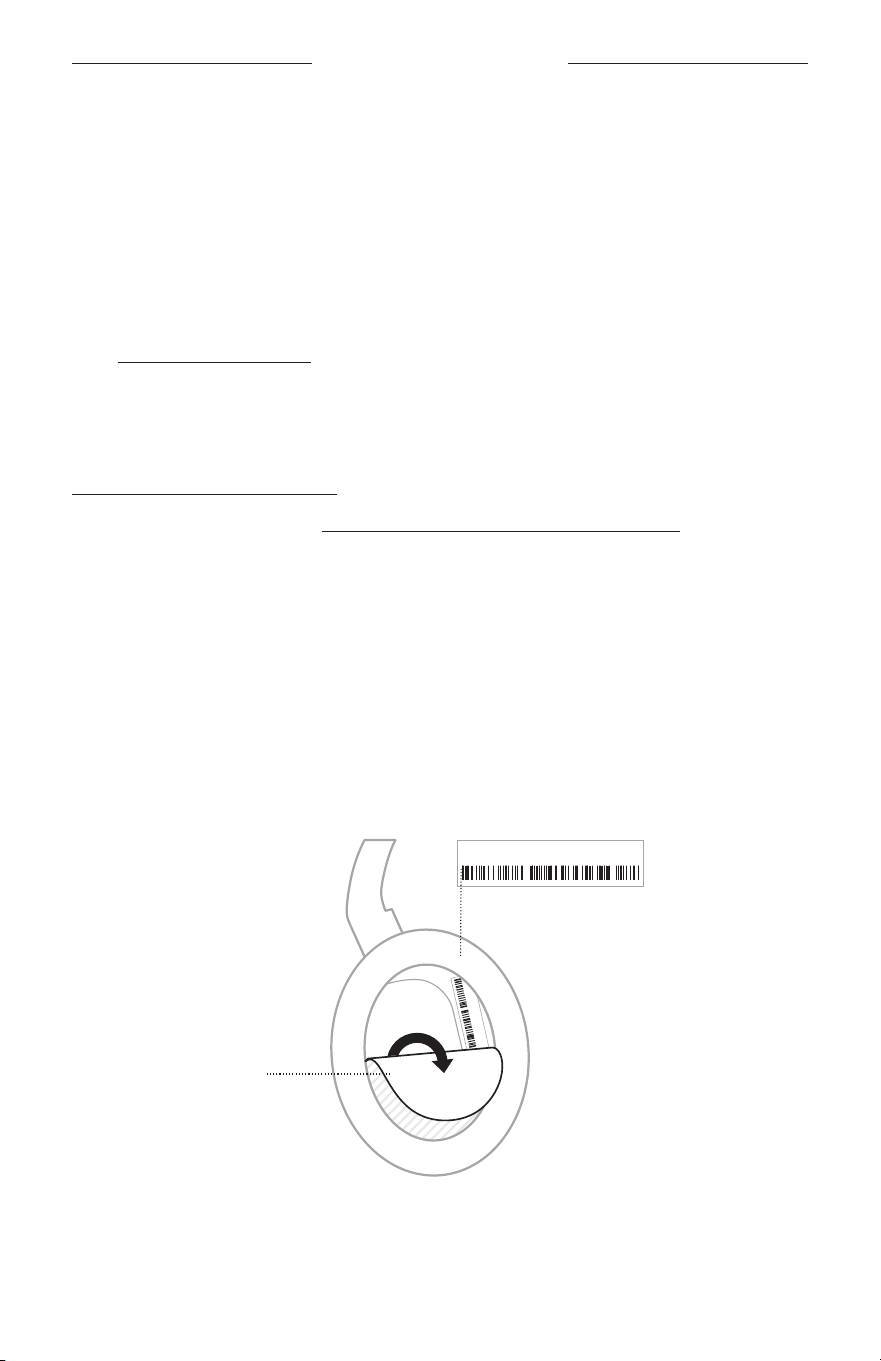
The serial and model numbers are located inside the earcup under the scrim.
Serial number: ___________________________________________________________________________
Model number: 437310
Please keep your receipt. Now is a good time to register your Bose product. You can easily do this by going to
worldwide.Bose.com/ProductRegistrationworldwide.Bose.com/ProductRegistration
REGULATORY AND LEGAL INFORMATION

CONTENTS
7
|
ENG
WHAT’S IN THE BOX
Contents ............................................................................................................................................................................. 10
BOSE APP
Download the Bose app ............................................................................................................................................... 11
HEADPHONE CONTROLS
Power on ............................................................................................................................................................................. 13
Power o ............................................................................................................................................................................. 14
Auto-o .................................................................................................................................................................... 14
Media playback and volume ....................................................................................................................................... 15
Phone calls ......................................................................................................................................................................... 16
Noise cancellation .......................................................................................................................................................... 17
Mobile device voice control ........................................................................................................................................ 18
SHORTCUTS
Use your shortcut ............................................................................................................................................................ 19
Change or disable your shortcut .............................................................................................................................. 19
NOISE CANCELLATION
Noise cancelling modes ............................................................................................................................................... 20
Change the noise cancelling mode ......................................................................................................................... 21
Noise cancellation while on a call ............................................................................................................................ 21
Use noise cancellation only ........................................................................................................................................ 22

CONTENTS
8
|
ENG
BLUETOOTH® CONNECTIONS
Connect using the Bose app ...................................................................................................................................... 23
Connect using the Bluetooth menu on your mobile device ......................................................................... 23
Disconnect a mobile device ....................................................................................................................................... 25
Reconnect a mobile device ........................................................................................................................................ 25
Connect another mobile device ............................................................................................................................... 25
Identify connected mobile devices ......................................................................................................................... 25
Switch between two connected mobile devices .............................................................................................. 26
Reconnect a previously connected device .......................................................................................................... 26
Clear the headphone device list ............................................................................................................................... 26
BATTERY
Charge the headphones ............................................................................................................................................... 27
Charging time ........................................................................................................................................................ 27
Hear the baery level.......................................................................................................................................... 27
HEADPHONE STATUS
Bluetooth status ............................................................................................................................................................. 28
Baery status .................................................................................................................................................................. 28
Charging status ............................................................................................................................................................... 29
Update and error status .............................................................................................................................................. 29
WIRED CONNECTION
Connect the audio cable and microphone .......................................................................................................... 30

CONTENTS
9
|
ENG
CONNECT BOSE PRODUCTS
Connect a Bose Smart Speaker or Soundbar ..................................................................................................... 31
Benefits .................................................................................................................................................................... 31
Compatible products .......................................................................................................................................... 31
Connect using the Bose app ........................................................................................................................... 32
Connect using the product controls ............................................................................................................ 33
Reconnect to a Bose Smart Speaker or Soundbar ........................................................................................... 34
CARE AND MAINTENANCE
Store the headphones .................................................................................................................................................. 35
Clean the headphones.................................................................................................................................................. 37
Replacement parts and accessories ...................................................................................................................... 37
Limited warranty .............................................................................................................................................................. 37
Serial number location .................................................................................................................................................. 37
TROUBLESHOOTING
Try these solutions first ................................................................................................................................................. 38
Other solutions................................................................................................................................................................. 38
Reset the headphones .................................................................................................................................................. 43
Restore the headphones to factory seings ....................................................................................................... 44
10
|
ENG
WHAT’S IN THE BOX
CONTENTS
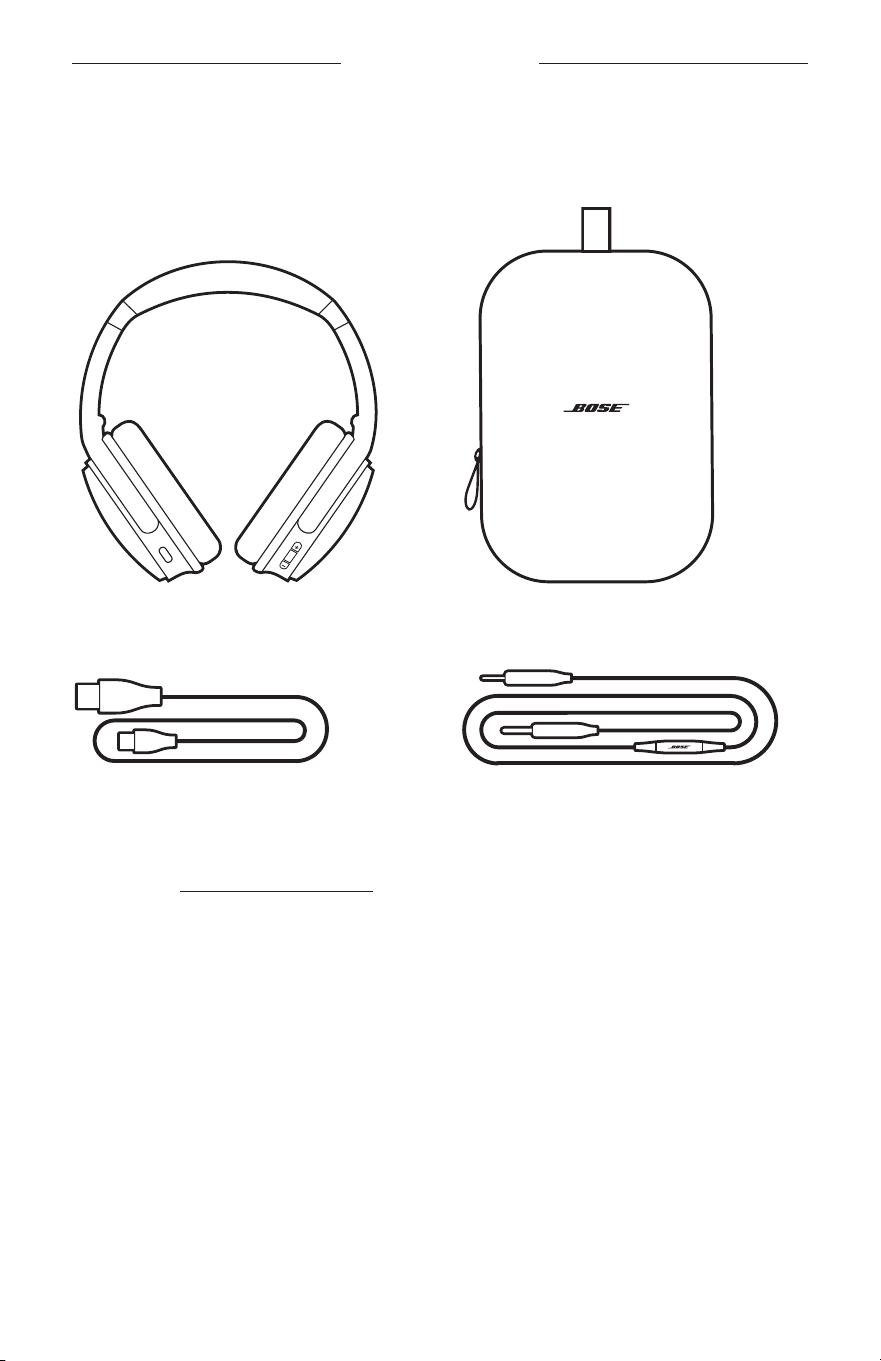
Confirm that the following parts are included:
Bose QuietComfort Headphones
Carry case
USB Type-A to USB Type-C® cable 3.5 mm to 2.5 mm audio cable
with microphone
NOTE: If any part of your product appears to be missing or damaged, don’t use it.
Visit support.Bose.com/QCsupport.Bose.com/QC for troubleshooting articles, videos, and
product repair or replacement.
11
|
ENG
BOSE APP
The Bose app lets you set up and control the headphones from any mobile device,
such as a smartphone or tablet.
Using the app, you can manage Bluetooth connections, manage headphone seings,
choose your voice prompt language, and get any future updates and new features
made available by Bose.
NOTE: If you’ve already downloaded the Bose app for another Bose product, you can
add the headphones from the product list screen.
DOWNLOAD THE BOSE APP
1. On your mobile device, download the Bose app.
BOSE
2. Follow the app instructions.
12
|
ENG
HEADPHONE CONTROLS
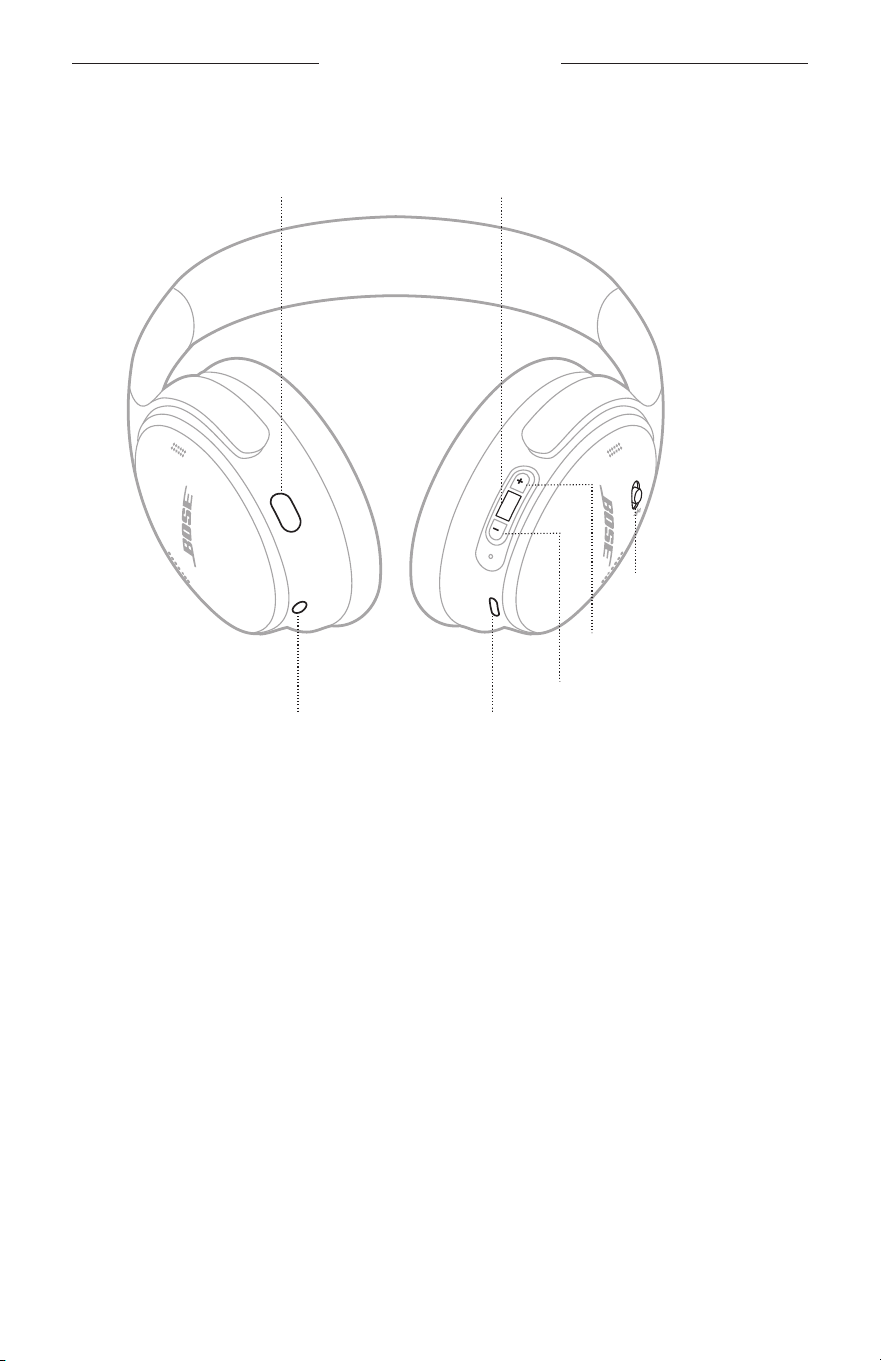
The headphone controls are located on the back of the earcups.
Multi-function buon
Action buon
USB-C® port2.5 mm audio port
Volume down
Volume up
Power/Bluetooth
switch
14
|
ENG
HEADPHONE CONTROLS
POWER OFF
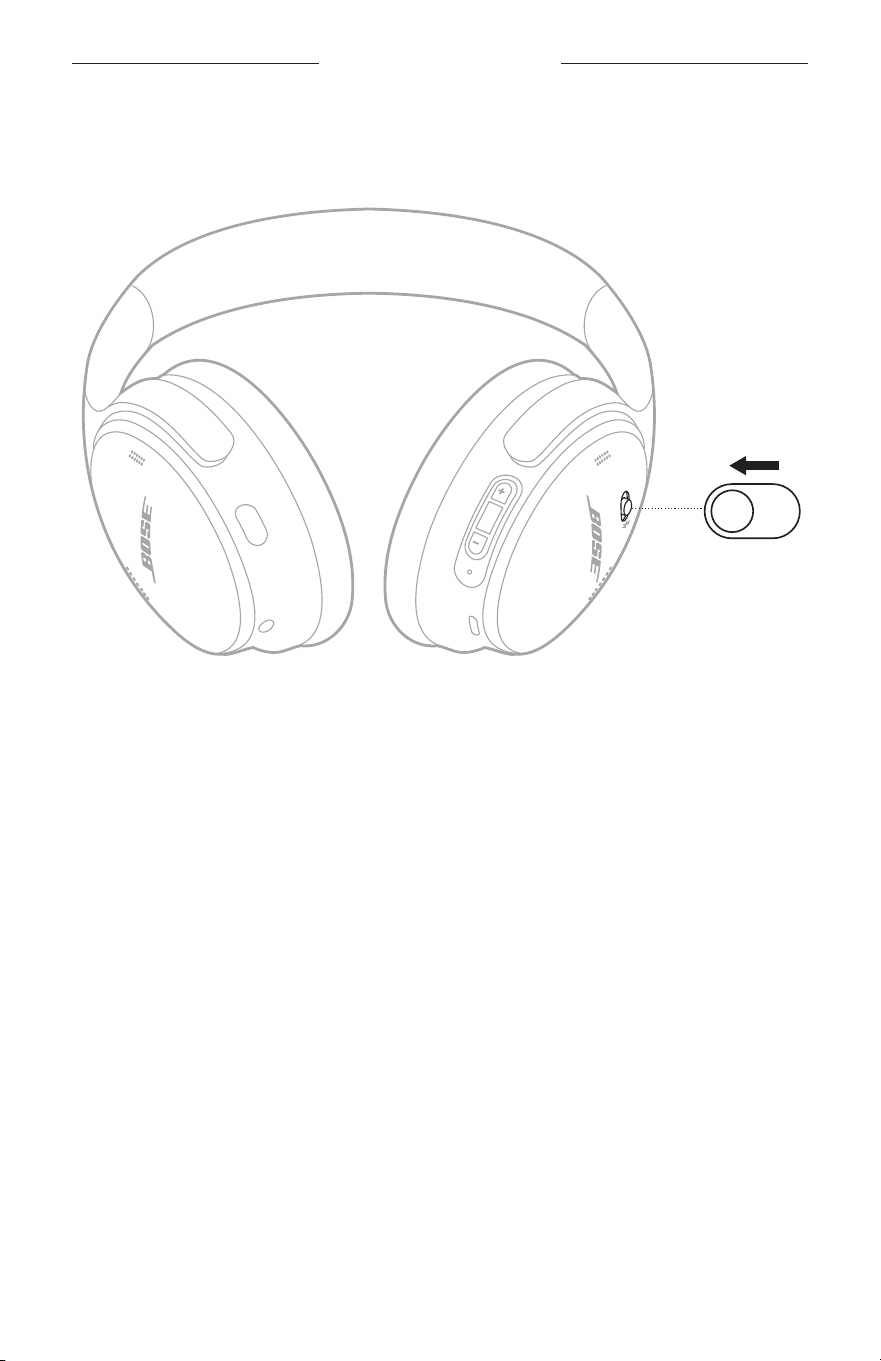
Slide the Power/Bluetooth switch to the left.
NOTE: When the headphones are powered o, noise cancellation is disabled.
Auto-off
Auto-o conserves the headphone baery when they aren’t in use.
To enable and customize the auto-o feature, use the Bose app. You can
access this option from the Seings menu.
WHAT’S IN THE BOX
15
|
ENG
HEADPHONE CONTROLS
MEDIA PLAYBACK AND VOLUME
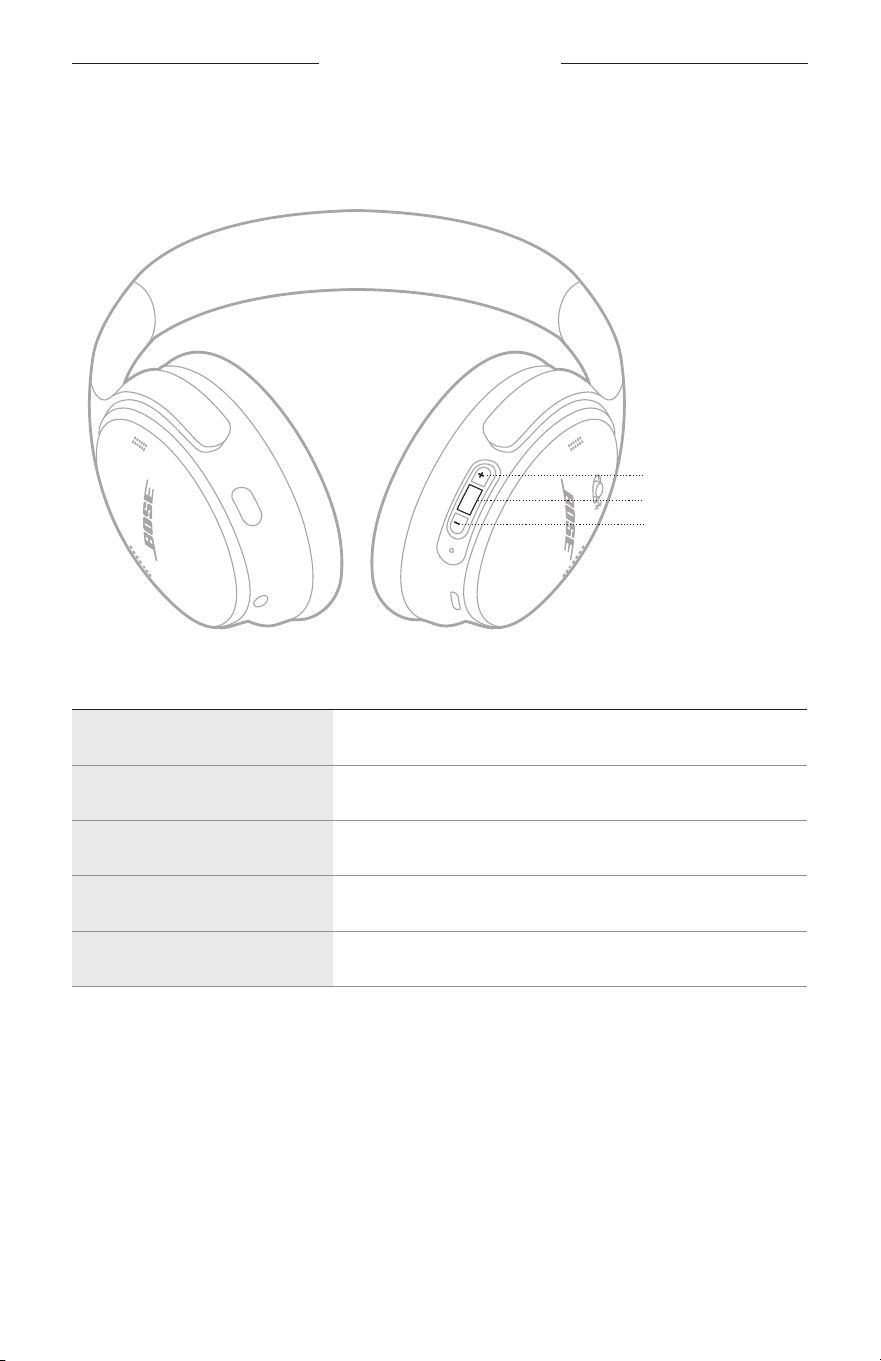
The Multi-function buon and volume buons control media playback and volume.
Volume up
Multi-function buon
Volume down
FUNCTION WHAT TO DO
Play/Pause Press the Multi-function buon.
Skip forward Double-press the Multi-function buon.
Skip backward Triple-press the Multi-function buon.
Volume up Press H.
Volume down Press z.
NOTES:
• To quickly increase the volume, press and hold H.
• To quickly decrease the volume, press and hold z.
16
|
ENG
HEADPHONE CONTROLS
PHONE CALLS
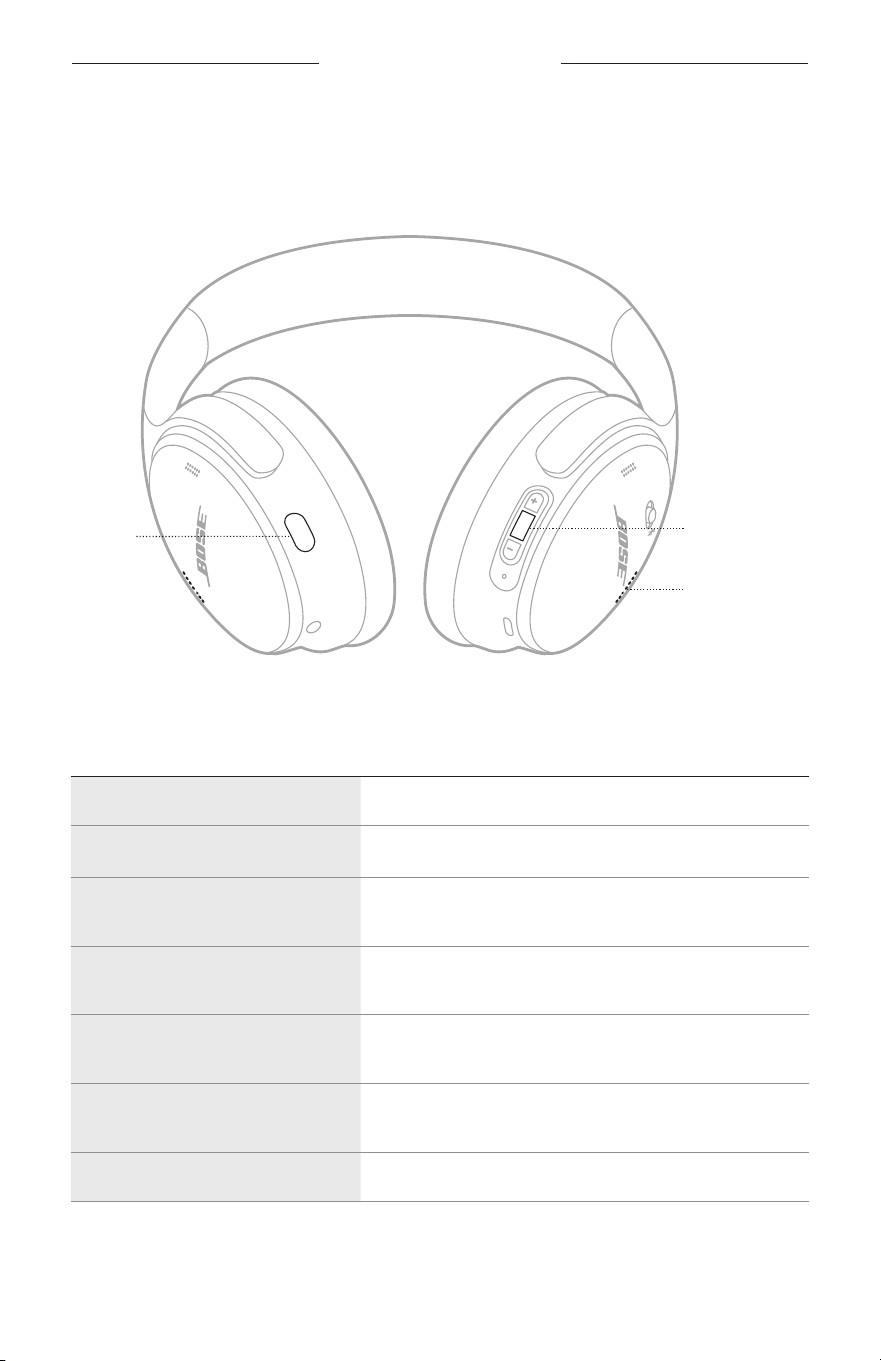
The Multi-function buon controls phone calls. The Action buon enables you to
mute the audio while on a call.
Action
buon
Multi-function
buon
Microphone
FUNCTION WHAT TO DO
Answer/End a call Press the Multi-function buon.
Decline an incoming call
Press and hold the Multi-function buon for 1 second.
Answer a second incoming call
and put the current call on hold
While on a call and a second incoming call is ringing,
press the Multi-function buon.
Decline a second incoming call
and stay on current call
While on a call and a second incoming call is ringing,
press and hold the Multi-function buon for 1 second.
Switch between two calls
While two calls are active, double-press the
Multi-function buon.
Create a conference call
While two calls are active, press and hold the
Multi-function buon for 3 seconds.
Mute/Unmute a call While on a call, double-press the Action buon.

18
|
ENG
HEADPHONE CONTROLS
MOBILE DEVICE VOICE CONTROL
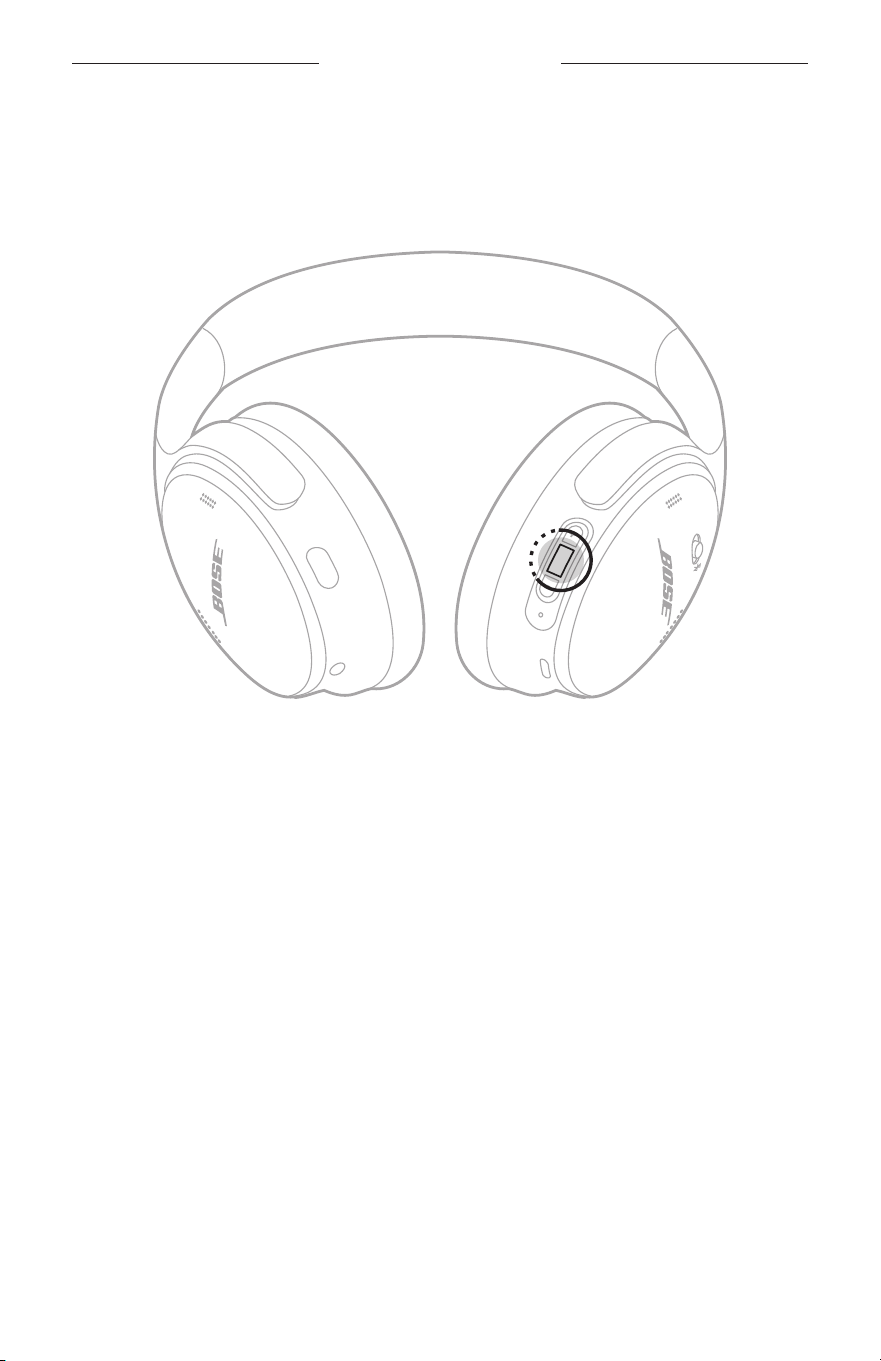
You can use the headphones to access voice control on your mobile device.
Press and hold the Multi-function buon.
NOTE: You can’t access voice control while on a call.
19
|
ENG
SHORTCUTS
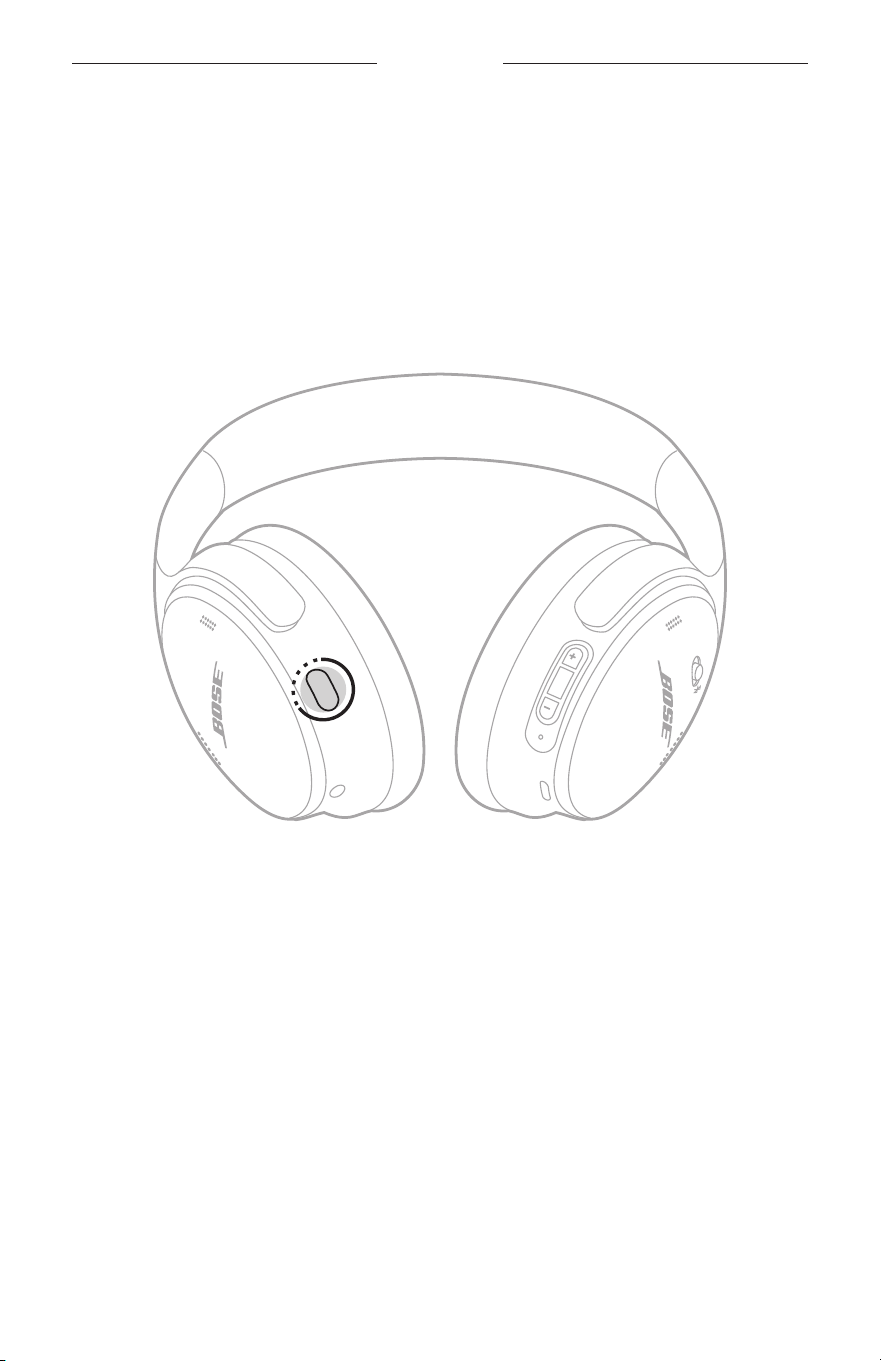
A shortcut enables you to quickly and easily access one of the following functions:
• Access Spotify
• Access baery level
NOTE: By default, accessing baery level is enabled.
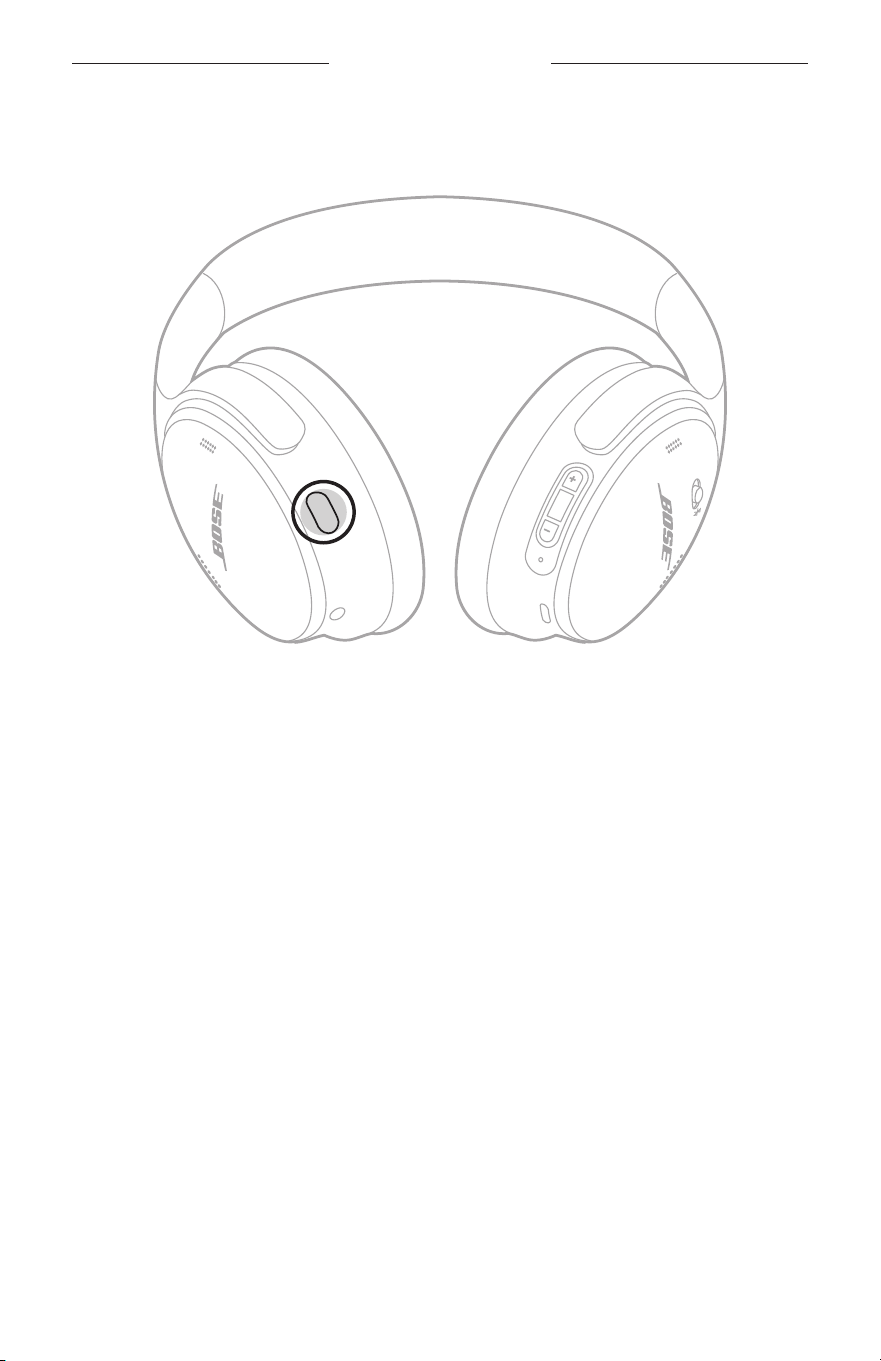
USE YOUR SHORTCUT
Press and hold the Action buon.
CHANGE OR DISABLE YOUR SHORTCUT
To change or disable your shortcut, use the Bose app. You can access this option from
the main screen.
20
|
ENG
Noise cancelling reduces unwanted noise, providing a clearer, more lifelike
audio performance.
You can choose between two pre-configured noise cancelling modes — Quiet or
Aware — or create up to two of your own custom modes.
Choose your noise cancelling mode based on your listening preferences
and environment.
NOISE CANCELLING MODES
MODE DESCRIPTION
Quiet
Full noise cancellation with Bose-optimized audio. Allows you to block
out distractions using the highest level of noise cancellation.
Aware
Full transparency with Bose-optimized audio. Allows you to hear your
surroundings while enjoying your audio.
Custom
Custom noise control (noise cancellation or wind block) based on your
listening preferences and environment.
NOTE: You can create up to two custom modes using the Bose app.
To access this option, tap Modes on the main screen.
NOTE: By default, the headphones power on in Quiet Mode. To set the headphones
to power on with the last mode used, use the Bose app. You can access this
option from the Seings menu.
NOISE CANCELLATION
WHAT’S IN THE BOX
21
|
ENG
NOISE CANCELLATION
CHANGE THE NOISE CANCELLING MODE
Press the Action buon.
A voice prompt announces the selected mode.
TIP: You can also change the mode using the Bose app. To access this option, tap
Modes on the main screen.
NOISE CANCELLATION WHILE ON A CALL
When you make or receive a call, the headphones remain at the current noise
cancellation seing and self voice is activated. Self voice helps you hear yourself
speak more naturally.
To adjust noise cancellation while on a call, change the mode (see “Change the noise
cancelling mode”).
NOTE: To adjust self voice, use the Bose app. You can access this option from the
Seings menu.

22
|
ENG
NOISE CANCELLATION
USE NOISE CANCELLATION ONLY
You can use noise cancellation only, without audio or interruptions from phone calls.
1. Do one of the following:
• Disconnect your mobile device (see page 25).
• Turn the Bluetooth feature o on your mobile device.
2. Press the Action buon to change the mode (see page 21).
NOTE: To reconnect your mobile device, select the headphones from the Bluetooth
list on your device.
23
|
ENG
BLUETOOTH CONNECTIONS
You can store up to eight devices in the headphone device list, and the headphones
can be actively connected to up to two devices at a time (multi-point connection).
You can play audio from only one device at a time.
NOTE: For the best experience, use the Bose app to set up and connect your mobile
device (see page 11).
CONNECT USING THE BOSE APP
To connect the headphones and manage Bluetooth seings using the Bose app, see
page 11.
CONNECT USING THE BLUETOOTH MENU ON YOUR
MOBILE DEVICE
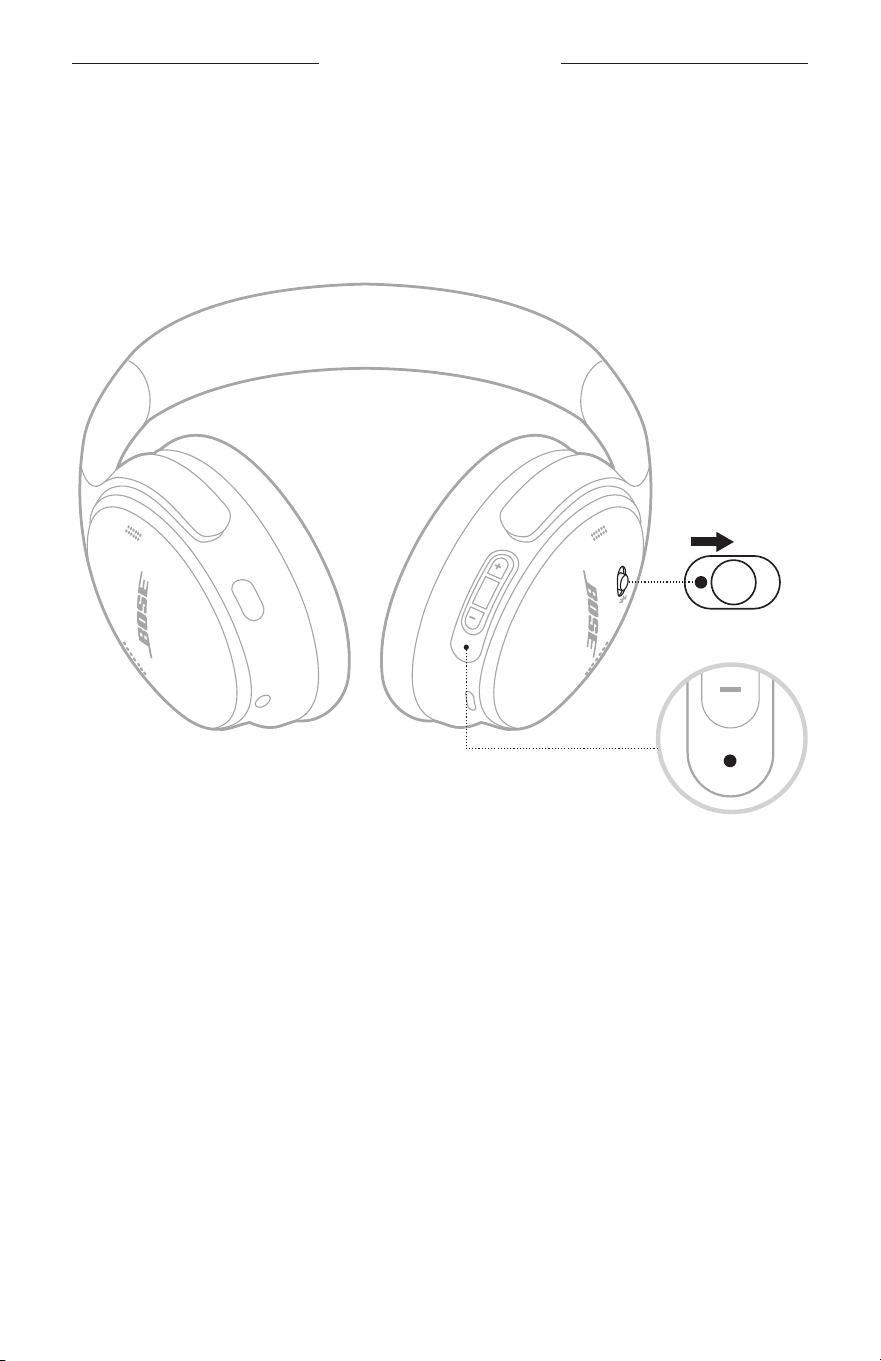
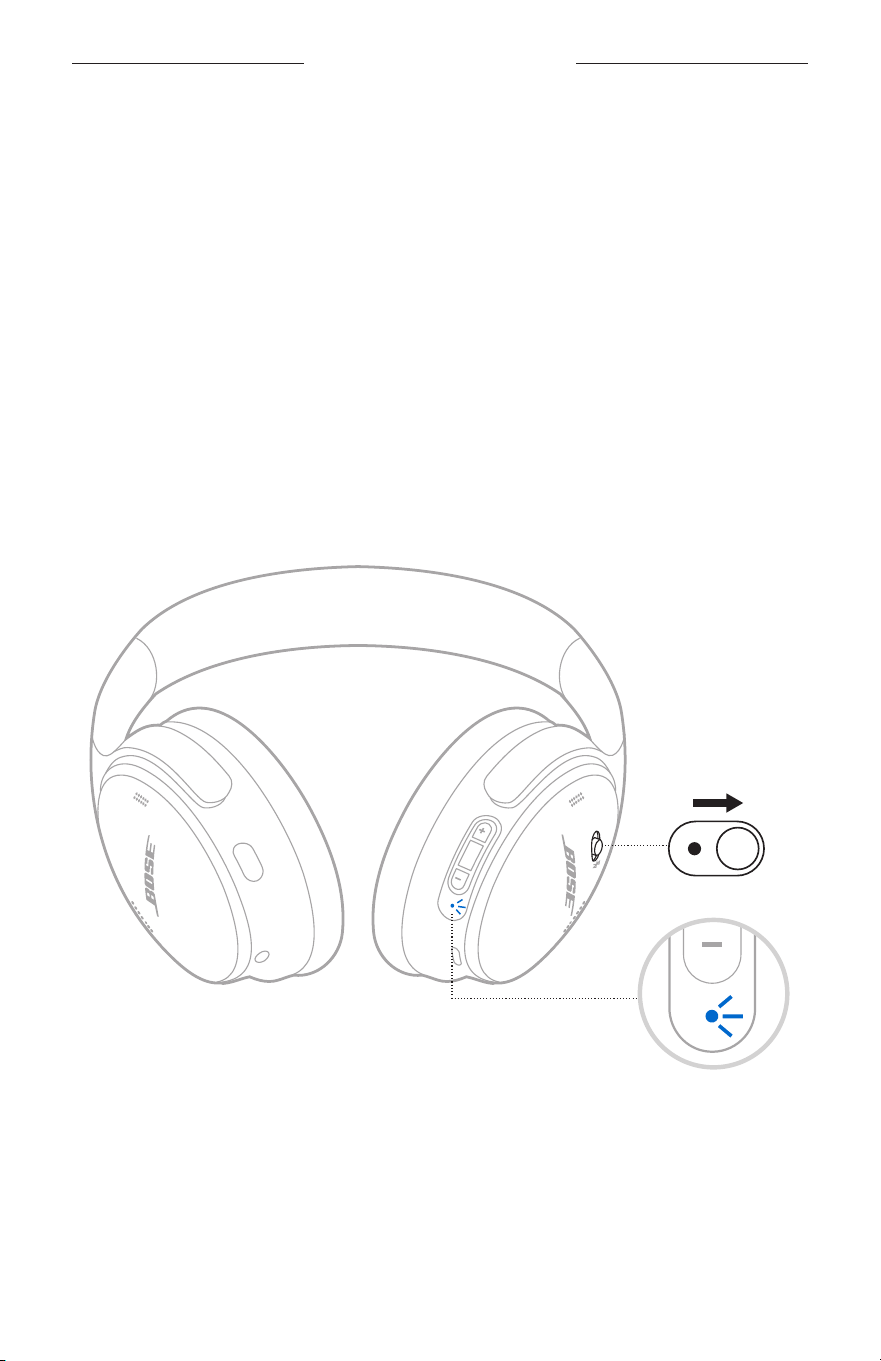
1. Slide the Power/Bluetooth switch to the right l and hold for 3 seconds until you
hear “Ready to connect” and the status light blinks blue.
WHAT’S IN THE BOX
24
|
ENG
BLUETOOTH CONNECTIONS
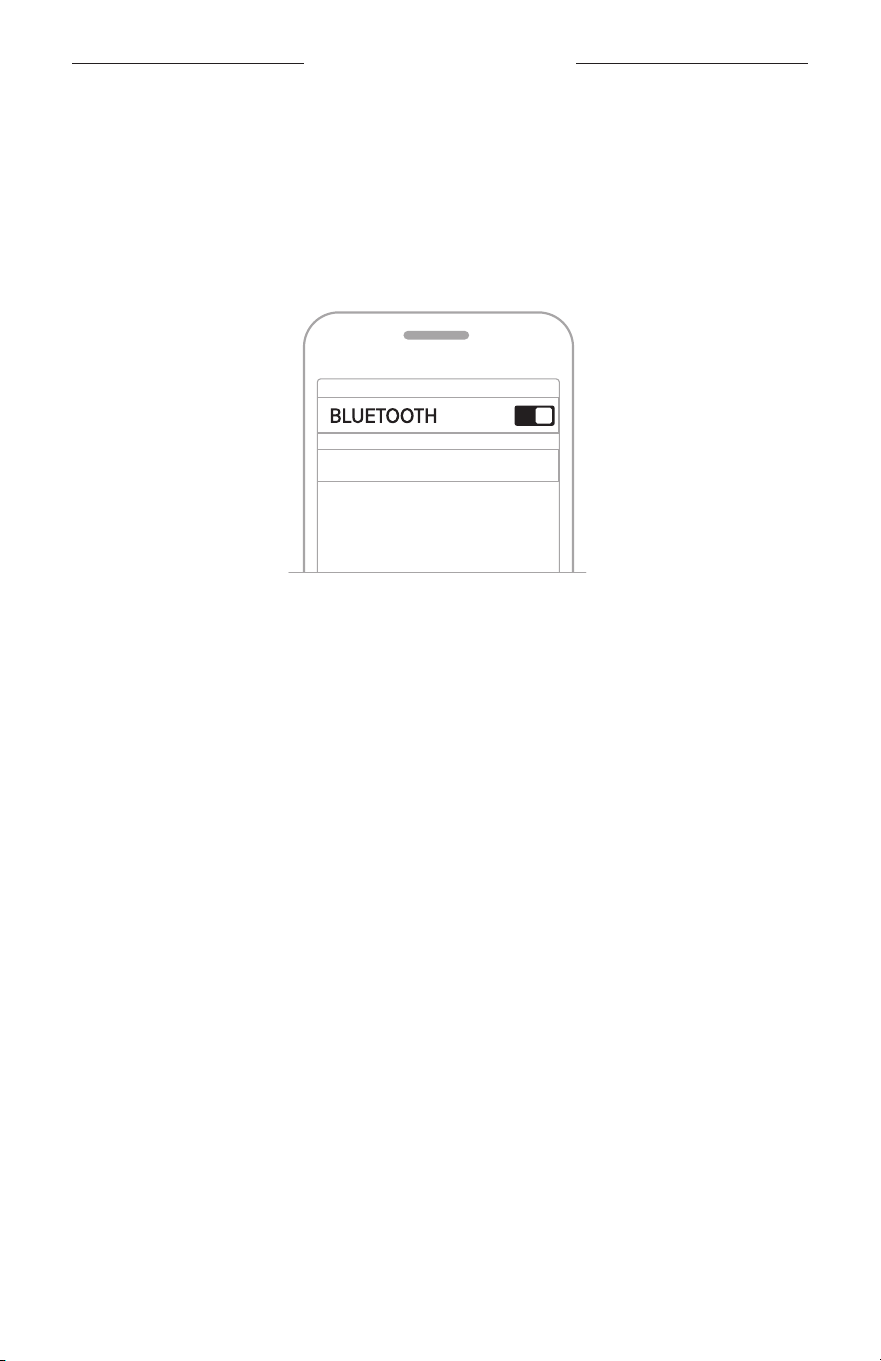
2. On your device, enable the Bluetooth feature.
NOTE: The Bluetooth feature is usually found in the Seings menu.
3. Select your headphones from the device list.
NOTE: Look for the name you entered for your headphones in the Bose app. If you
didn’t name your headphones, the default name appears.
Once connected, you hear “Connected to <device name>,” and the status light
glows solid blue for 10 seconds.
Bose QC Headphones

WHAT’S IN THE BOX
25
|
ENG
BLUETOOTH CONNECTIONS
DISCONNECT A MOBILE DEVICE
To disconnect your mobile device, use the Bose app.
TIP: You can also use Bluetooth seings on your mobile device to disconnect your
device. Disabling the Bluetooth feature disconnects all other devices.
RECONNECT A MOBILE DEVICE
When powered on, the headphones try to reconnect with the two most
recently-connected devices.
NOTES:
• The devices must be within range (30 ft or 9 m) and powered on.
• Make sure the Bluetooth feature is enabled on your mobile device.
• If the multi-point connection feature is disabled, the headphones try to reconnect
with the most recently-connected device.
CONNECT ANOTHER MOBILE DEVICE
The headphones can be actively connected to up to two devices at a time
(multi-point connection).
To connect another device, download the Bose app (see page 11) or use the
Bluetooth menu on your mobile device (see page 23).
NOTES:
• You can only play audio from one device at a time.
• To manage or disable the multi-point connection feature, use the Bose app. You
can access this option from the Seings menu.
• Disabling the multi-point connection feature disconnects the second
connected device.
IDENTIFY CONNECTED MOBILE DEVICES
Slide the Power/Bluetooth switch to the right l and release to hear which devices are
currently connected.

WHAT’S IN THE BOX
26
|
ENG
BLUETOOTH CONNECTIONS
SWITCH BETWEEN TWO CONNECTED MOBILE DEVICES
1. Pause audio on your first mobile device.
2. Play audio on your second mobile device.
NOTES:
• Your headphones receive phone calls from both devices, regardless of which
device is playing audio.
• You can also switch between two devices using the Bose app. You can access
this option from the Seings menu.
RECONNECT A PREVIOUSLY CONNECTED DEVICE
1. Slide the Power/Bluetooth switch to the right l and release to hear which devices
are connected.
2. Within 2 seconds, slide the Power/Bluetooth switch to the right l and release
again to hear the name of the next device in the headphone device list.
3. Repeat until you hear the correct device name.
You hear a tone that indicates when the device is connected.
4. Play audio on the connected mobile device.
NOTE: If two devices are already connected to the headphones, the newly-
connected device replaces the second device that was previously connected.
CLEAR THE HEADPHONE DEVICE LIST
1. Slide the Power/Bluetooth switch to the right l and hold for 15 seconds until you
hear “Bluetooth device list cleared. Ready to connect.”
2. Delete your headphones from the Bluetooth list on your mobile device.
All devices are cleared and the headphones are ready to connect.
27
|
ENG
BATTERY
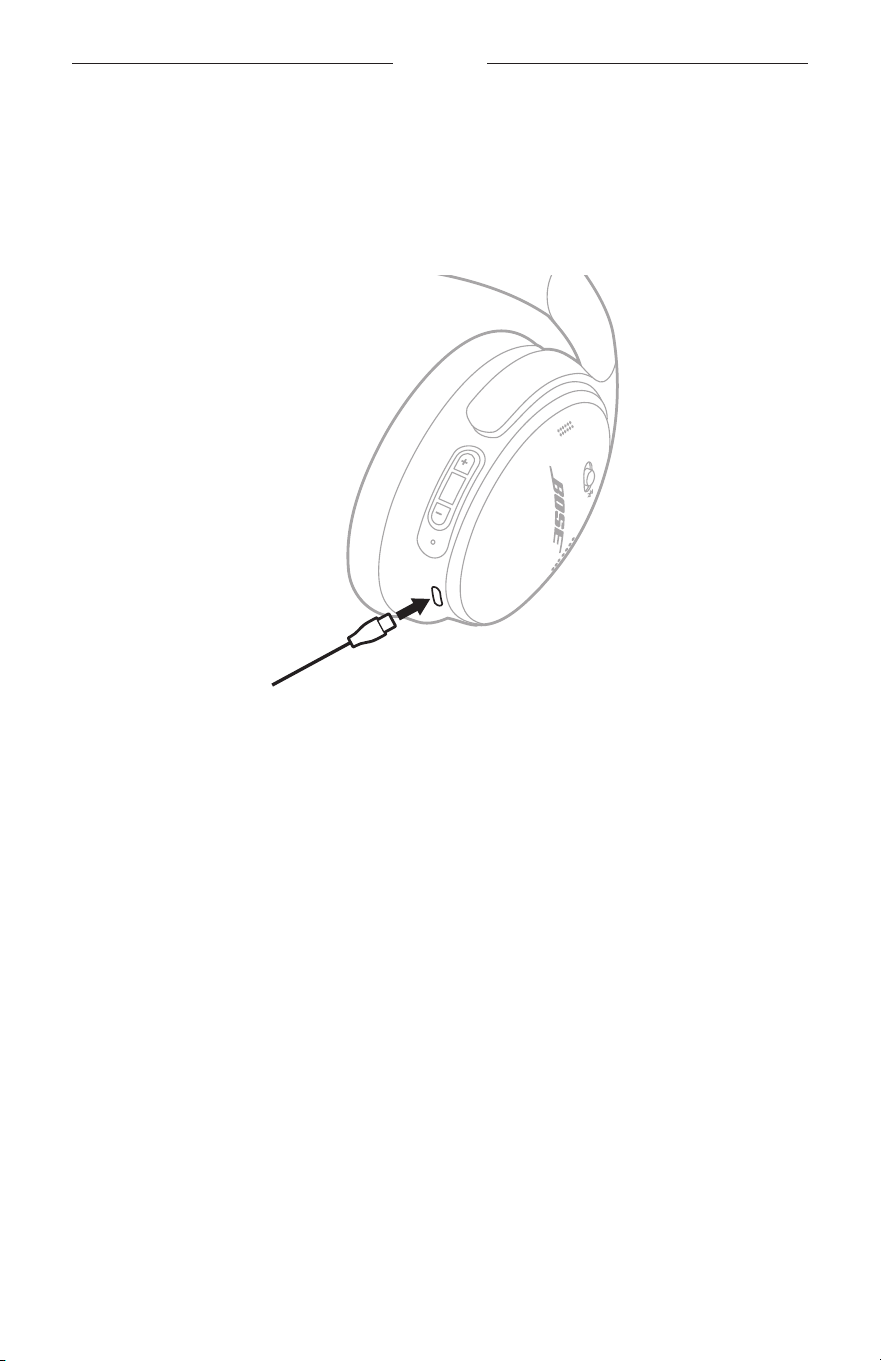
CHARGE THE HEADPHONES
1. Connect the small end of the USB cable into the USB-C port on the right earcup.
2. Connect the other end into a USB-A power source such as a computer or
wall charger.
The headphones begin charging, and the status light blinks white for 10 seconds.
When the headphones are fully charged, the status light glows solid white.
NOTE: The headphones don’t play and aren’t available in the Bose app while
charging.
Charging time
Allow up to 2.5 hours to fully charge the headphones.
A full charge powers the headphones for up to 24 hours.
Hear the battery level
Each time you power on the headphones, a voice prompt announces the baery level.
When the headphone baery is low, you hear “Baery low.”
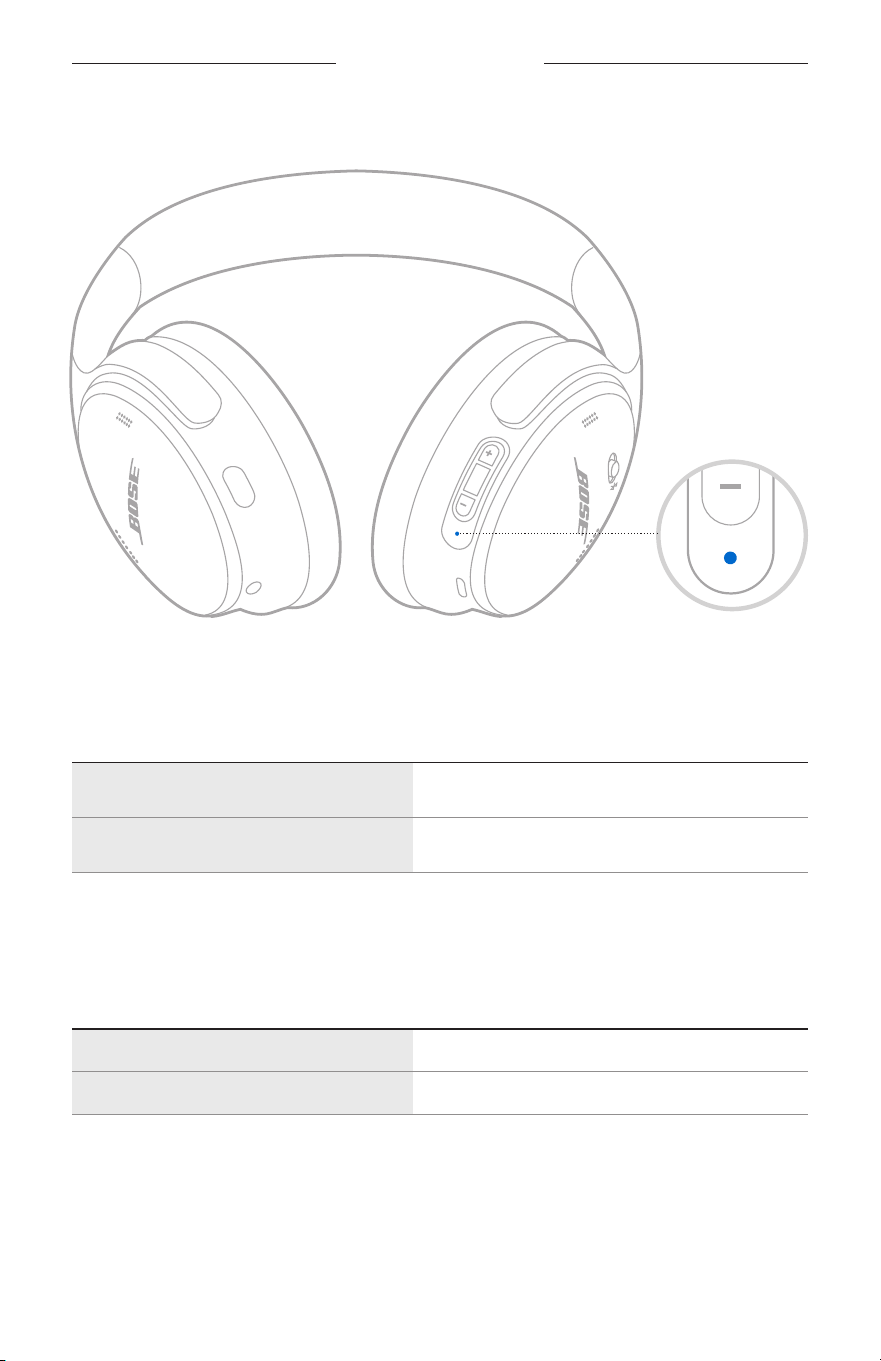
NOTE: To visually check the baery, see the status light l ocated on the right earcup.
For more information, see “Baery status” on page 28.
TIP: You can also hear the baery level using a shortcut. The baery level must be set
as a shortcut using the Bose app (see page 19).
28
|
ENG
HEADPHONE STATUS
The status light is located on the right earcup.
BLUETOOTH STATUS
Shows the Bluetooth connection status.
LIGHT ACTIVITY SYSTEM STATE
Blinking blue Ready to connect
Solid blue (10 seconds) Connected
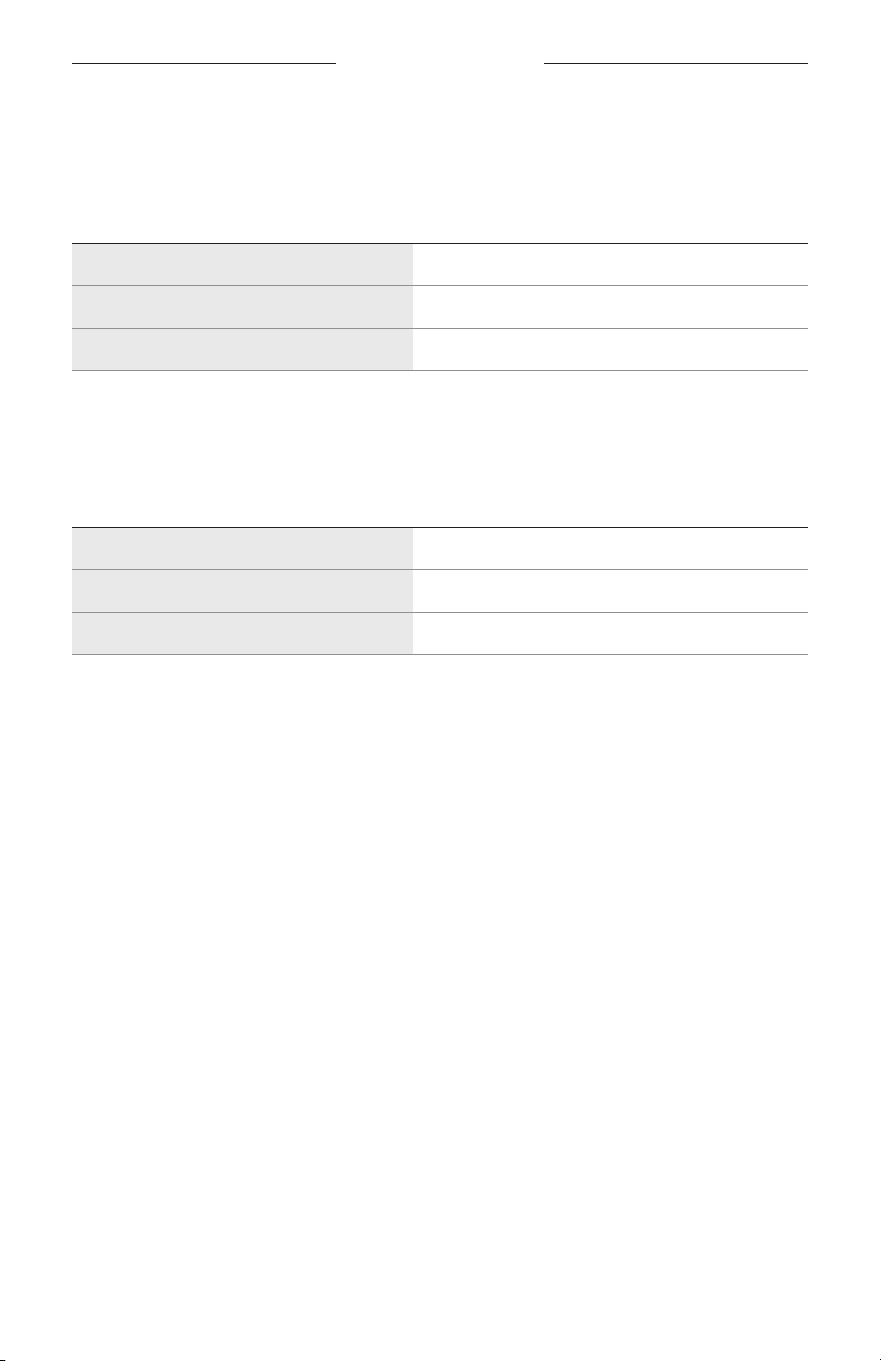
BATTERY STATUS
Shows the baery level.
LIGHT ACTIVITY SYSTEM STATE
Solid white Medium to full charge
Solid amber Low charge
TIP: You can also check the baery level using the Bose app or hear the baery level
using a shortcut. The baery level must be set as a shortcut using the Bose app
(see page 11).
WHAT’S IN THE BOX
29
|
ENG
HEADPHONE STATUS
CHARGING STATUS
Shows the charging status.
LIGHT ACTIVITY SYSTEM STATE
Blinks white 2 times Charging begins
Solid amber Charging
Solid white Full charge
UPDATE AND ERROR STATUS
Shows the update or error status.
LIGHT ACTIVITY SYSTEM STATE
Fast blinking white (10 seconds) Updating software (via USB)
Slow blinking white (30 to 60 seconds) Updating software (wirelessly)
Blinking amber and white Error - contact Bose customer service
30
|
ENG
WIRED CONNECTION
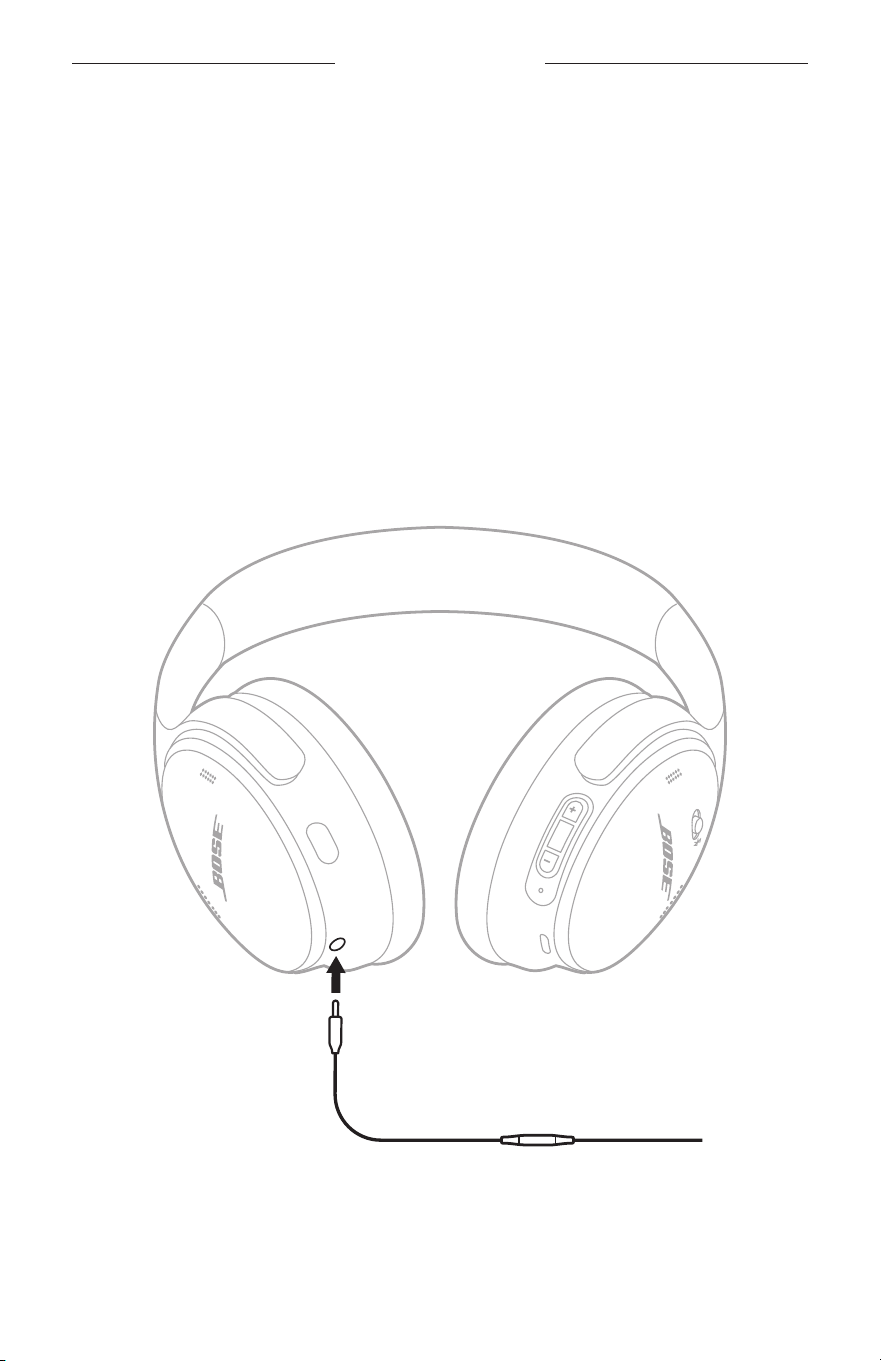
CONNECT THE AUDIO CABLE AND MICROPHONE
The 2.5 mm to 3.5 mm audio cable has a built-in microphone. You can use the audio
cable for phone calls or listening to audio on your source device when a Bluetooth
connection isn’t available, the headphone baery is depleted, or the headphones are
powered o.
NOTES:
• When the audio cable is connected, Bluetooth connection and the microphone
voice pick-up on the earcups are disabled.
• When the audio cable is connected and the headphone baery is depleted or the
headphones are powered o, the headphone controls are disabled. Phone calls and
media playback must be controlled on your source device.
• For the best experience, a Bluetooth connection is recommended.
1. Connect the cable to the 2.5 mm port on the left earcup.
2. Connect the other end of the cable to the 3.5 mm port on your source device.

31
|
ENG
CONNECT BOSE PRODUCTS
CONNECT A BOSE SMART SPEAKER OR SOUNDBAR
Using SimpleSync technology, you can connect the headphones to a
Bose Smart Soundbar or Bose Smart Speaker for a personal listening experience.
Benefits
• Use independent volume controls on each product to lower or mute your
Bose Smart Soundbar while keeping the headphones as loud as you like.
• Hear your music clearly from the next room by connecting the headphones to your
Bose Smart Speaker.
NOTE: SimpleSync technology has a Bluetooth range of up to 30 ft (9 m). Walls and
construction materials can aect reception.
Compatible products
You can connect the headphones to any Bose Smart Speaker or Bose
Smart Soundbar.
Popular compatible products include:
• Bose Smart Soundbar 900
• Bose Smart Soundbar 700/Bose Soundbar 700
• Bose Smart Soundbar 600
• Bose Smart Speaker 500/Bose Home Speaker 500
• Bose Home Speaker 300
• Bose Portable Smart Speaker/Bose Portable Home Speaker
New products are added periodically. For a complete list and more information,
visit: support.Bose.com/Groupssupport.Bose.com/Groups
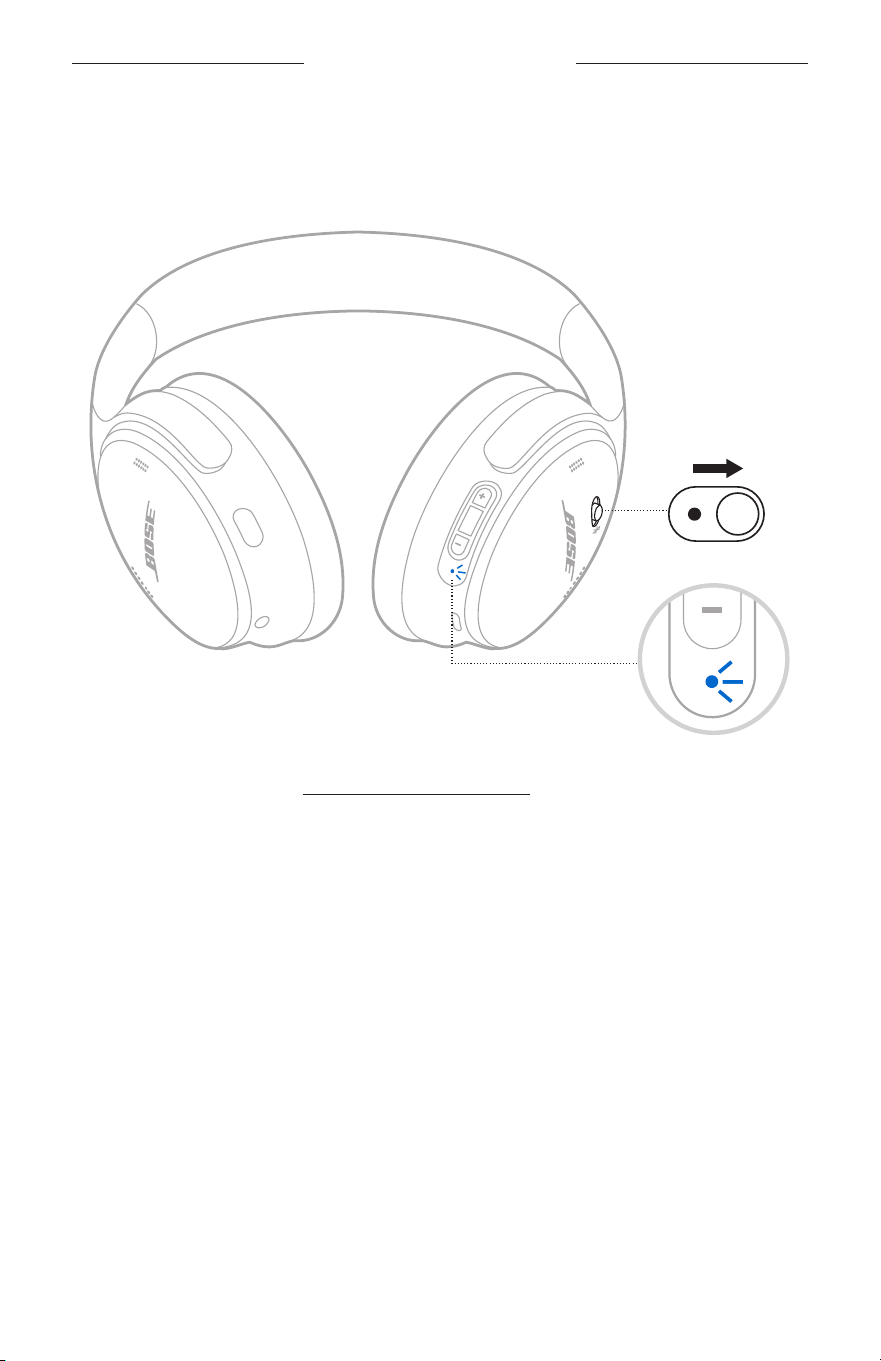
CONNECT BOSE PRODUCTS
32
|
ENG
Connect using the Bose app
1. Slide the Power/Bluetooth switch to the right l and hold for 3 seconds until you
hear “Ready to connect another device” and the status light blinks blue.
2. Use the Bose app to connect the headphones to a compatible Bose product. For
more information, visit: support.Bose.com/Groupssupport.Bose.com/Groups
NOTES:
• Make sure that the headphones are within 30 ft (9 m) of your soundbar or speaker.
• You can connect the headphones to only one product at a time.
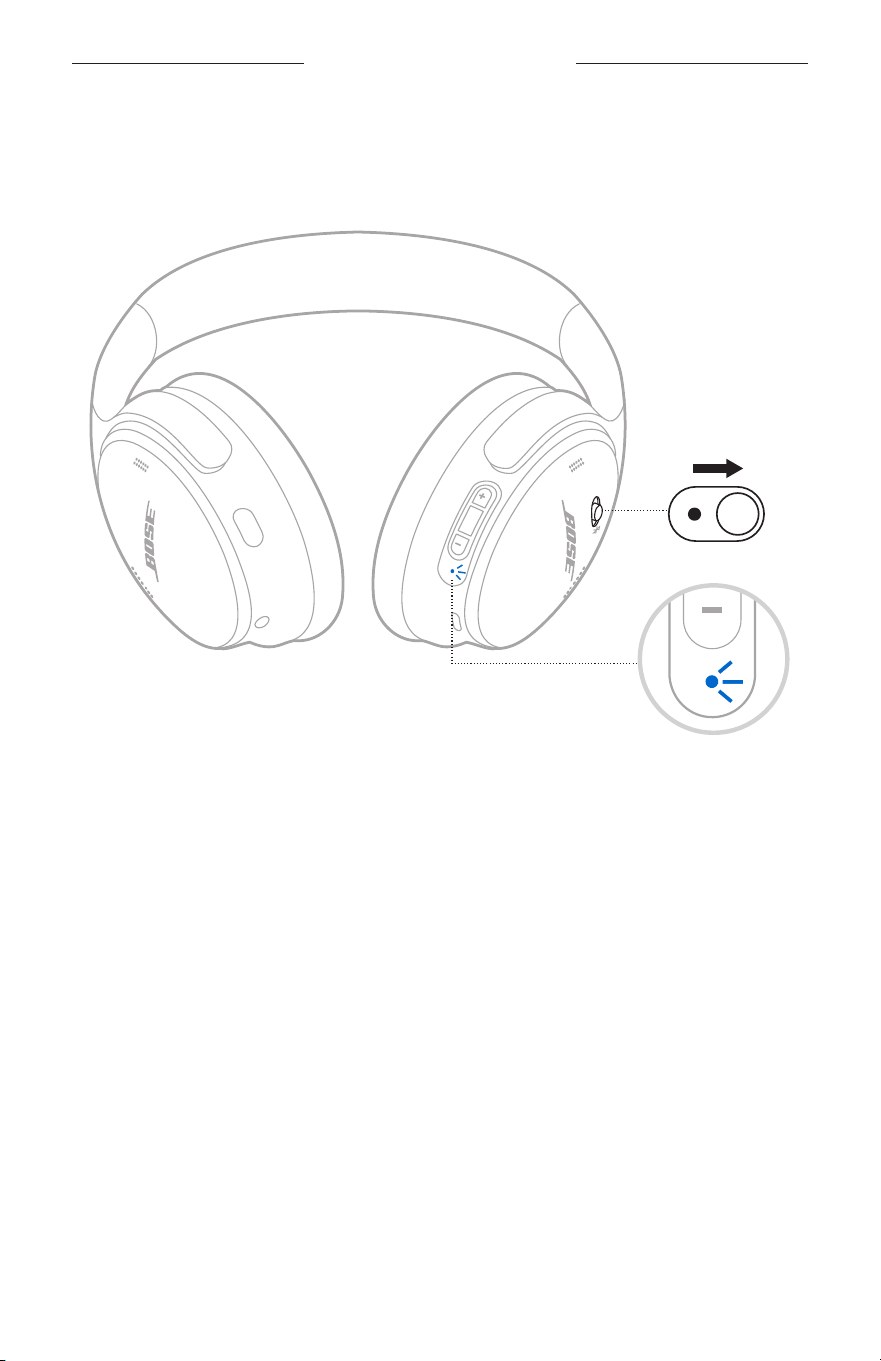
CONNECT BOSE PRODUCTS
33
|
ENG
Connect using the product controls
1. Slide the Power/Bluetooth switch to the right l and hold for 3 seconds until you
hear “Ready to connect another device” and the status light blinks blue.
2. On your soundbar remote or the top of your speaker, press and hold the Bluetooth
buon until the light bar or light ring pulses blue.
The headphones connect to your soundbar or speaker, and you hear the same
audio through both devices.
NOTES:
• Make sure that the headphones are within 30 ft (9 m) of your soundbar or speaker.
• You can connect the headphones to only one product at a time.

34
|
ENG
RECONNECT TO A BOSE SMART SPEAKER OR SOUNDBAR
Use the Bose app to reconnect the headphones to a previously-connected
compatible Bose product. For more information, visit: support.Bose.com/Groupssupport.Bose.com/Groups
NOTES:
• Your soundbar or speaker must be within range (30 ft or 9 m) and powered on.
• If the headphones don’t reconnect, see “Headphones don’t reconnect to a
previously-connected Bose Smart Soundbar or Speaker” on page 42.
CONNECT BOSE PRODUCTS
35
|
ENG
CARE AND MAINTENANCE
STORE THE HEADPHONES
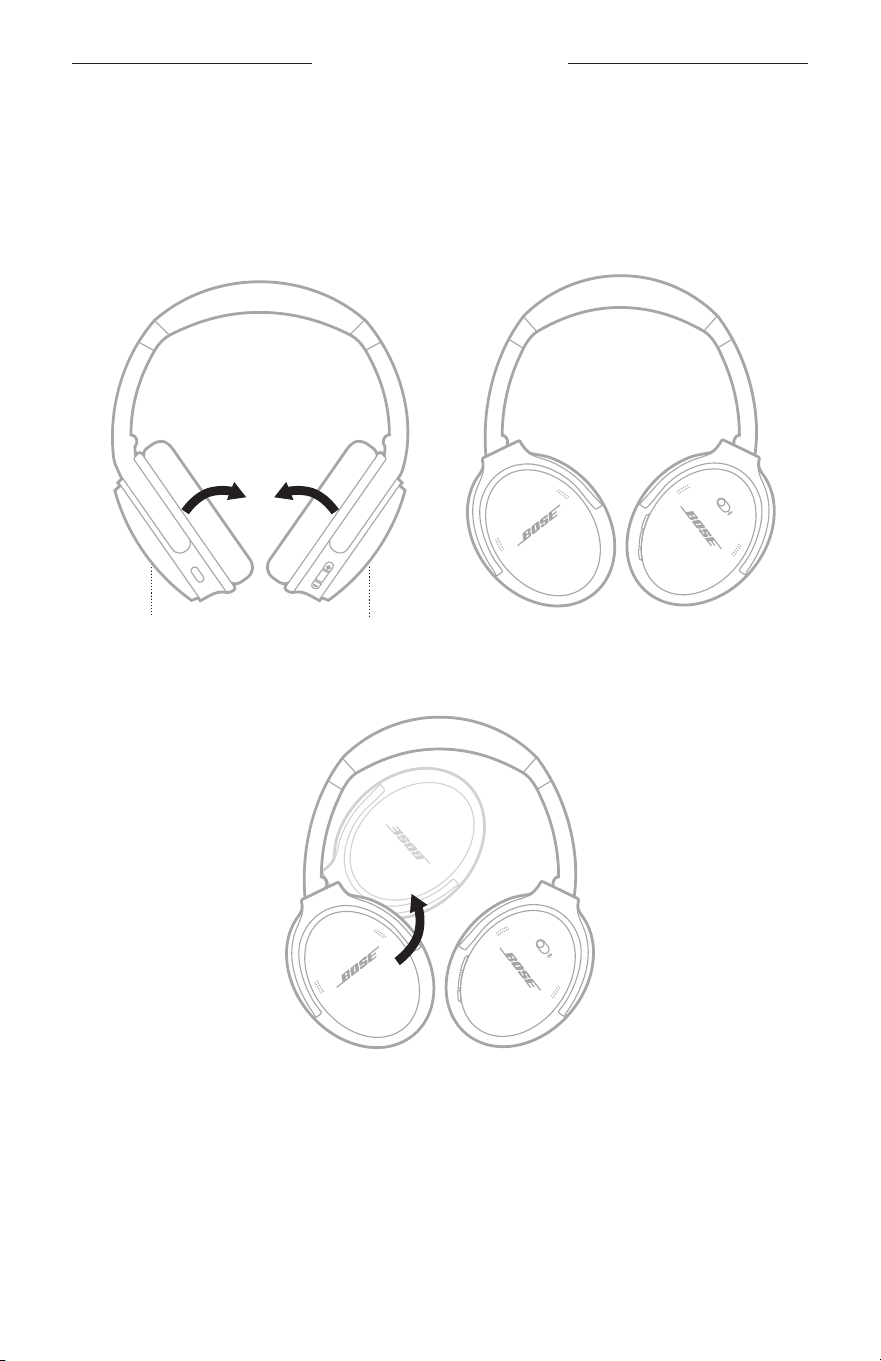
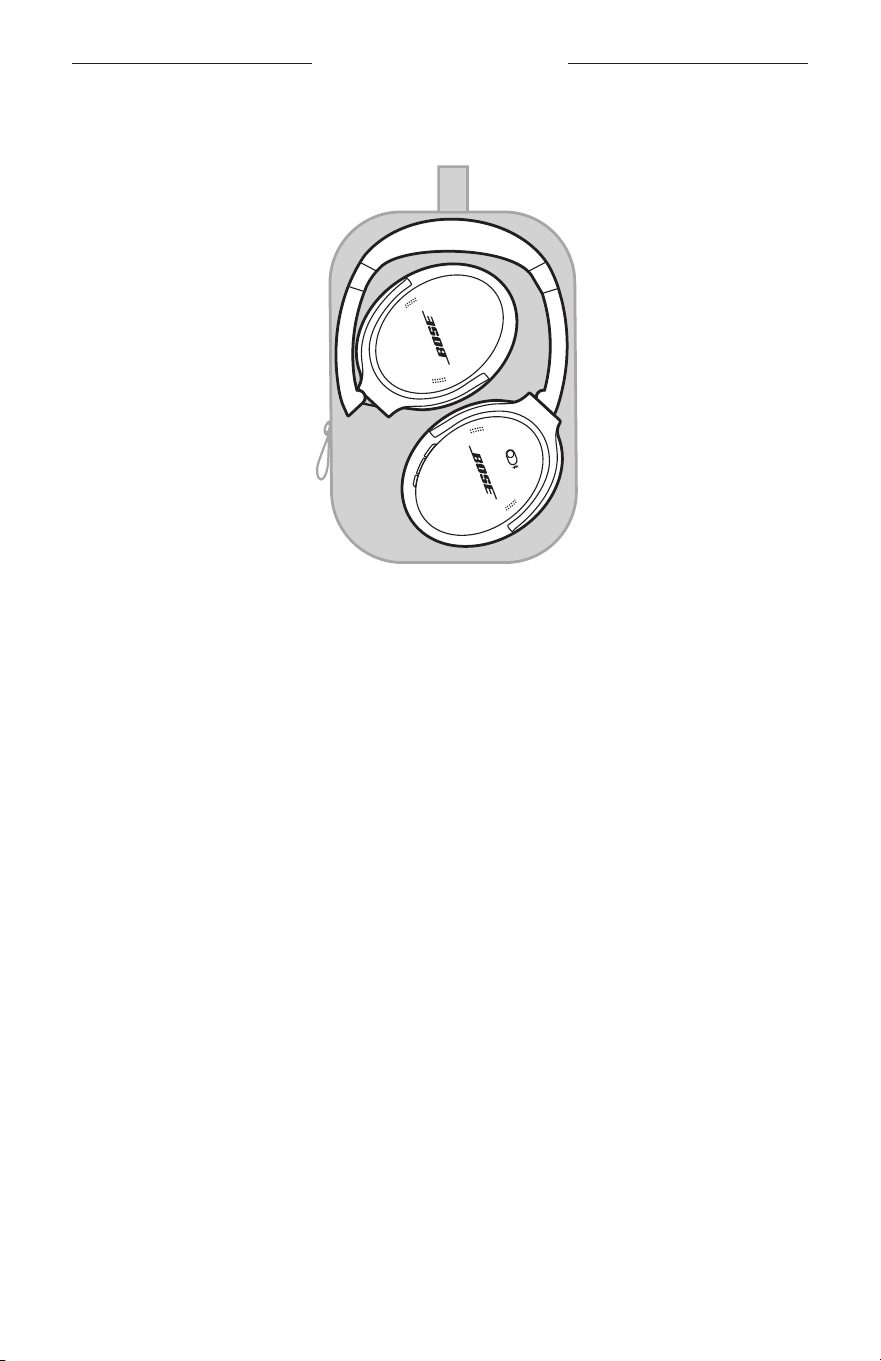
The earcups rotate for easy, convenient storage. Place the headphones flat into
the case.
1. Rotate both earcups inward so they lay flat.
Left earcup Right earcup
2. Fold the left earcup up toward the headband.
36
|
ENG
CARE AND MAINTENANCE
3. Place the headphones flat in the case.
NOTES:
• Make sure to power o the headphones when not in use.
• Before storing the headphones for more than a few months, make sure the baery
is fully charged.
37
|
ENG
CARE AND MAINTENANCE
CLEAN THE HEADPHONES
Wipe the outside surfaces with a soft, dry cloth.
Don’t allow moisture to get inside the earcups.
REPLACEMENT PARTS AND ACCESSORIES
Replacement parts and accessories can be ordered through Bose customer service.
Visit: support.Bose.com/QCsupport.Bose.com/QC
LIMITED WARRANTY
Your headphones are covered by a limited warranty. Visit our website at
worldwide.Bose.com/Warrantyworldwide.Bose.com/Warranty for details of the limited warranty.
To register your product, visit worldwide.Bose.com/ProductRegistrationworldwide.Bose.com/ProductRegistration for
instructions. Failure to register will not aect your limited warranty rights.
SERIAL NUMBER LOCATION
The serial number is located inside the right earcup under the scrim. The scrim is the
inner screen that covers and protects the components inside the earcup.
To view the serial number, grab the scrim at the top edge and gently peel it away.
CAUTION: Be careful not to press down on or remove any other components inside
the earcup as this could damage the headphones.
S/N: 011001000100010AE
S/N: 011001000100010AE
Scrim

38
|
ENG
TROUBLESHOOTING
TRY THESE SOLUTIONS FIRST
If you experience problems with your headphones:
• Charge the headphones (see page 27).
• Power on the headphones (see page 13).
• Check the headphones status light (see page 28).
• Make sure your mobile device supports Bluetooth connections (see page 23).
• Move your mobile device closer to the headphones (30 ft or 9 m) and away from
any interference or obstructions.
• Increase the volume on your headphones, mobile device, and music app.
• Connect another mobile device (see page 25).
If you couldn’t resolve your issue, see the table below to identify symptoms and
solutions to common problems. You can also access troubleshooting articles, videos,
and other resources at: support.Bose.com/QCsupport.Bose.com/QC
If you are unable to resolve your issue, contact Bose customer service.
Visit: worldwide.Bose.com/contactworldwide.Bose.com/contact
OTHER SOLUTIONS
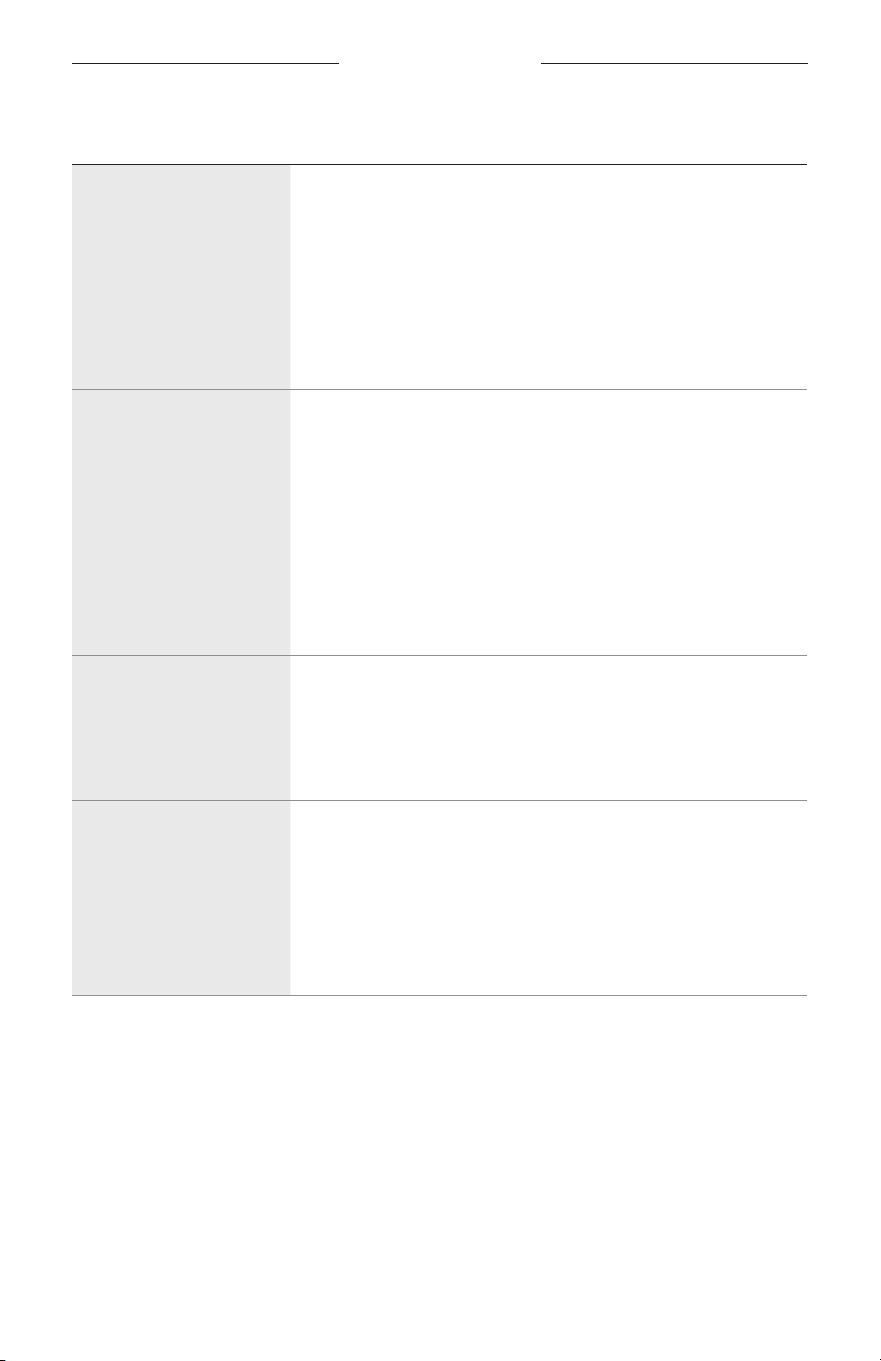
SYMPTOM SOLUTION
Headphones don’t
power on
Slide the Power/Bluetooth switch to the right l (see page 13).
Headphones don’t
connect with
mobile device
Power o the headphones, then power on again.
Disconnect the audio cable.
Disconnect the USB charging cable.
On your mobile device:
• Disable the Bluetooth feature and then re-enable.
• Delete your Bose QuietComfort Headphones from the
Bluetooth list on your device. Connect again.
Connect using the Bluetooth menu on your mobile device
(see page 23).
Clear the headphone device list (see page 26). Delete the
headphones from the Bluetooth list on your mobile device,
including any duplicate listings labeled LE (Low Energy).
Connect again (see page 23).
Visit support.Bose.com/QCsupport.Bose.com/QC to see how-to videos.
39
|
ENG
TROUBLESHOOTING
SYMPTOM SOLUTION
Headphones don’t
respond during
app setup
Uninstall the Bose app on your mobile device. Reinstall the app
(see page 11).
Make sure you’re using the Bose app for setup
(see page 11).
Make sure you have given the Bose app access to
Bluetooth connections in your mobile device Seings menu.
Make sure the Bluetooth feature is on in your mobile device
Seings menu.
Bose app can’t find
headphones
Uninstall the Bose app on your mobile device. Reinstall the app
(see page 11).
Make sure you have given the Bose app access to
Bluetooth connections in your mobile device Seings menu.
Connect using the Bluetooth menu on your mobile device
(see page 23).
Clear the headphone device list (see page 26). Delete the
headphones from the Bluetooth list on your mobile device,
including any duplicate listings labeled LE (Low Energy).
Connect again (see page 23).
Bose app doesn’t work
on mobile device
Make sure your mobile device is compatible with the Bose app
and meets minimum system requirements. For more
information, refer to the app store on your mobile device.
Uninstall the Bose app on your mobile device. Reinstall the app
(see page 11).
Headphones don’t
charge
Make sure both ends of the USB cable are securely connected
into the ports (see page 27).
Try a dierent USB-A wall charger, USB cable, or AC (mains)
power source.
If your headphones have been exposed to high or low
temperatures, let the headphones return to room temperature
and try charging again.

40
|
ENG
TROUBLESHOOTING
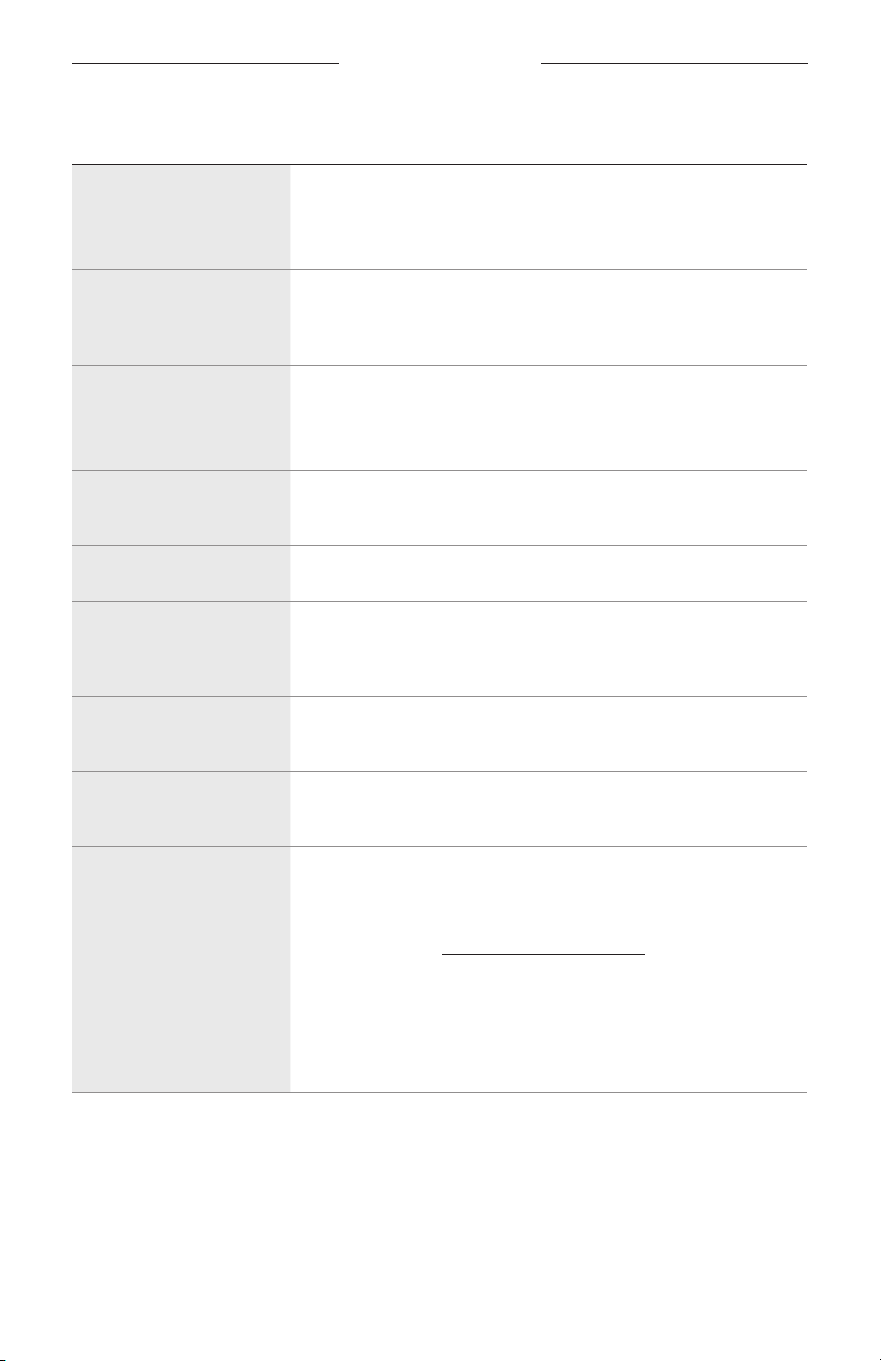
SYMPTOM SOLUTION
No sound
Make sure the volume is turned up (see page 15).
Slide the Power/Bluetooth switch to the right l and release to
hear the connected device. Make sure you are using the
correct device.
Press play on your mobile device to make sure audio is playing.
Play audio from a dierent application or music service.
Play audio from content stored directly on your device.
If two mobile devices are connected, pause your other
device first.
Restart your mobile device.
Reset the headphones (see page 43).
Poor sound quality
If in a windy environment, create a custom mode with wind
blocking enabled in the Bose app. To access this option, tap
Modes on the main screen (see page 20).
Make sure you’re using the Bose app for setup
(see page 11).
Clear the headphone device list (see page 26). Delete the
headphones from the Bluetooth list on your mobile device,
including any duplicate listings labeled LE (Low Energy).
Connect again (see page 23).
Play audio from a dierent application or music service.
Play audio from content stored directly on your device.
If two mobile devices are connected, disconnect the
second device.
Turn o any audio enhancement features on the device or
music app.
Visit support.Bose.com/QCsupport.Bose.com/QC to see how-to videos.
Reset the headphones (see page 43).
No sound from a
device connected by
the audio cable
Make sure both ends of the audio cable are securely connected
into the ports (see page 30).
Press play on your source device to make sure audio is playing.
Play audio from a dierent application or music service.
Play audio from content stored directly on your source device.
Increase the volume on the headphones, then increase the
volume on your source device.
Restart your source device.
41
|
ENG
TROUBLESHOOTING
SYMPTOM SOLUTION
Poor sound quality from
a device connected by
audio cable
Make sure both ends of the audio cable are securely connected
into the ports (see page 30).
Restart your source device.
Audio cable microphone
doesn’t work
Make sure your mobile device is compatible with the audio cable
(CTIA standard pin connection). Refer to your source device
owner’s guide.
Action button doesn’t
change the noise
cancelling mode
If the audio cable is connected, disconnect the cable.
Use the Bose app to change the mode. To access this
option, tap Modes on the main screen.
Headphones don’t
respond
Reset the headphones (see page 43).
Poor noise cancellation Check the mode (see page 20).
Difficulty hearing a
caller while on a
phone call
Increase the volume using your mobile device.
Try a dierent mode (see page 20).
Voice prompt language
isn’t correct
Change the voice prompt language using the Bose app. You can
access this option from the Seings menu.
Not receiving
call notifications
Make sure you have given the headphones access to your
contacts in your mobile device Bluetooth menu.
Headphones don’t
connect to a Bose
Smart Soundbar
or Speaker
Make sure you’re connecting using the Bose app
(see page 32).
Make sure you’re connecting to a compatible Bose product. For a
complete list visit: support.Bose.com/Groupssupport.Bose.com/Groups
Slide the Power/Bluetooth switch to the right l and hold for 3
seconds until you hear “Ready to connect another device” and
the Bluetooth light blinks blue.
Make sure that the headphones are within 30 ft (9 m) of your
soundbar or speaker.

42
|
ENG
TROUBLESHOOTING
SYMPTOM SOLUTION
Headphones don’t
reconnect to a
previously-connected
Bose Smart Soundbar
or Speaker
On the headphones, slide the Power/Bluetooth switch to the
right l and hold for 3 seconds until you hear “Ready to connect”
and the status light blinks blue. Use the Bose app to
connect the headphones to a compatible Bose product. For
more information, visit: support.Bose.com/Groupssupport.Bose.com/Groups
Delayed audio when
connected to a Bose
Smart Soundbar
or Speaker
Download the Bose app and run available software updates.
43
|
ENG
TROUBLESHOOTING
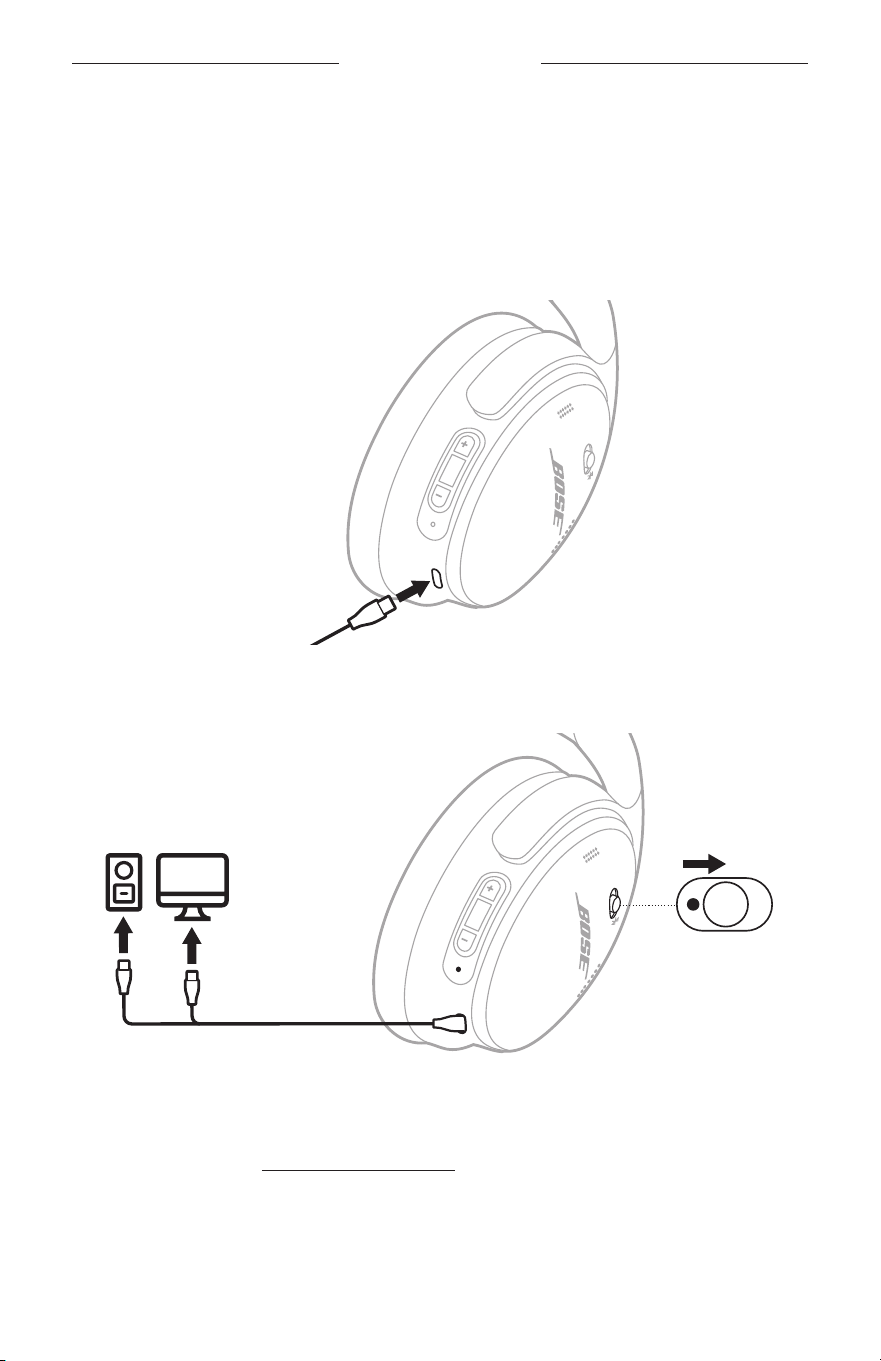
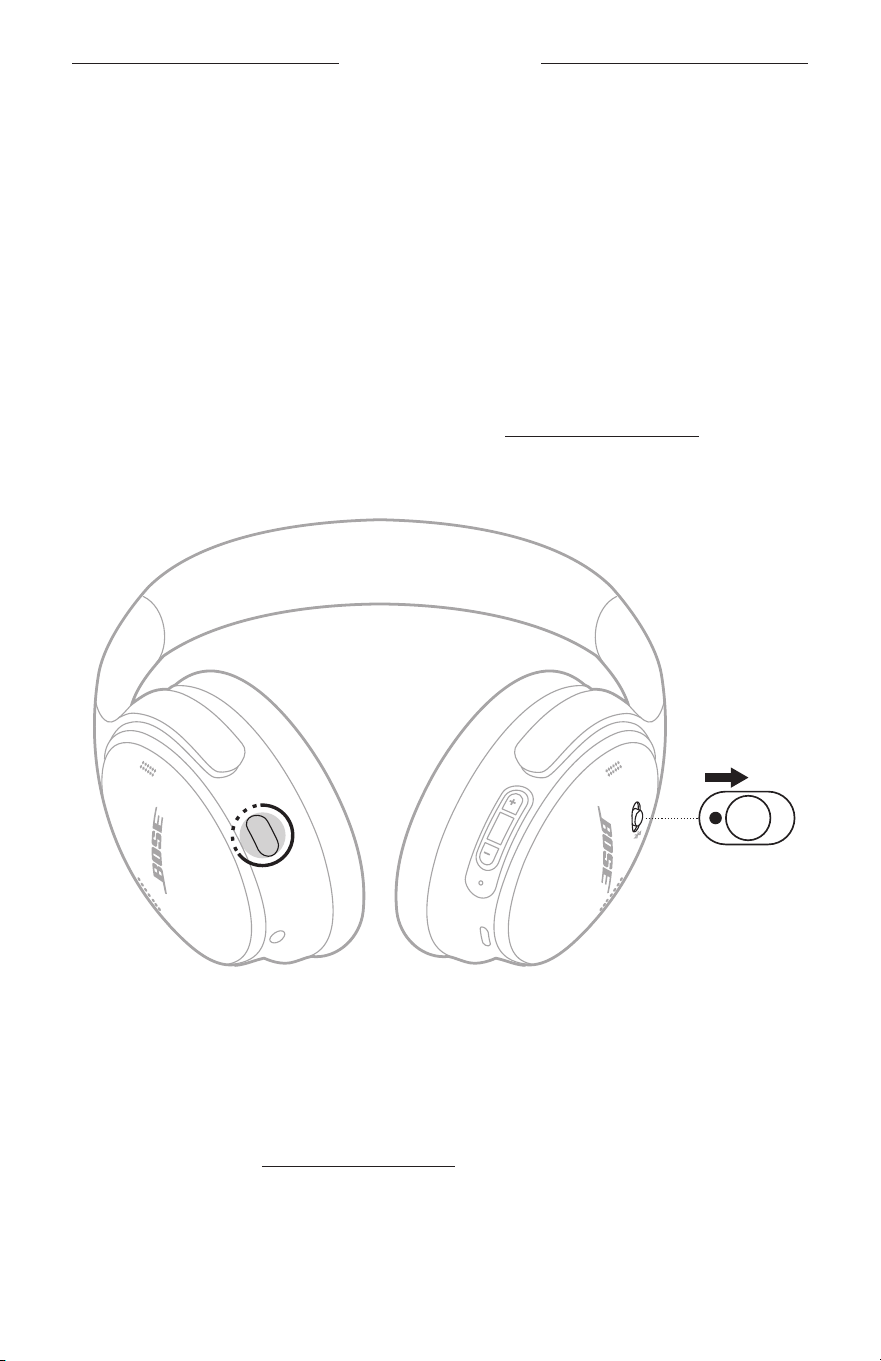
RESET THE HEADPHONES
If the headphones are unresponsive, you can reset them.
Reseing the headphones resets the product controls and reboots the headphones.
It doesn’t clear any device seings.
1. Connect the small end of the USB cable to the USB-C port on the left earcup.
2. Slide the Power/Bluetooth switch to the right l. At the same time, connect the
other end of the USB to a USB-A power source such as a computer or
wall charger.
When the reset is complete, the status light glows according to the current charge
level (see page 28).
NOTE: If you’re unable to resolve your issue, additional troubleshooting and support
is available at: support.Bose.com/QCsupport.Bose.com/QC
44
|
ENG
RESTORE THE HEADPHONES TO FACTORY SETTINGS
A restore to factory seings can clear all seings and return the headphones to their
original out-of-box state. After, the headphones can be configured as if they were
being set up for the first time.
Restoring to factory seings is only recommended if you are having issues with the
headphones, or you have been instructed to do so by Bose customer service.
1. Remove the headphones from the Bluetooth list on your device.
2. Remove the headphones from your Bose account using the Bose app.
NOTE: For more information about how to remove the headphones from your
Bose account using the Bose app, visit: support.Bose.com/QCsupport.Bose.com/QC
3. Slide the Power/Bluetooth switch to the right l and hold. At the same time, press
and hold the Action buon for 30 seconds.
The status light blinks white. After 30 seconds, the status light blinks amber to
indicate factory seings are being restored (2 to 3 seconds).
When the reset is complete, the status light slowly blinks blue. The headphones
are now in their original out-of-box state.
NOTE: If you’re unable to resolve your issue, additional troubleshooting and support
is available at: support.Bose.com/QCsupport.Bose.com/QC
TROUBLESHOOTING

©2024 Bose Corporation, 100 The Mountain Road, Framingham, MA 01701-9168 USA
AM885443-0010 Rev. 02