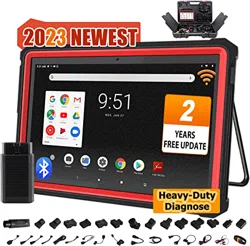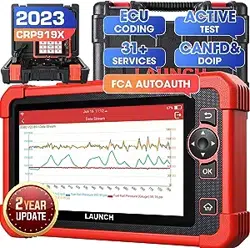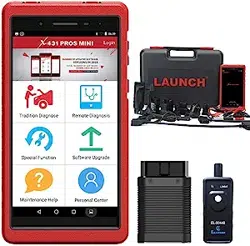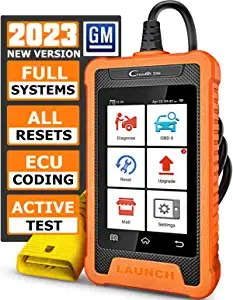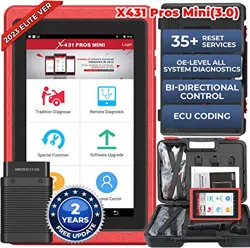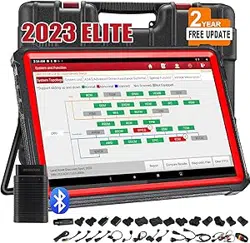

Display tablet
Register & Download Diagnostic Software
Tap the application icon on the home screen to launch it,and then tap
Login to enter the login interface of diagnosis software.
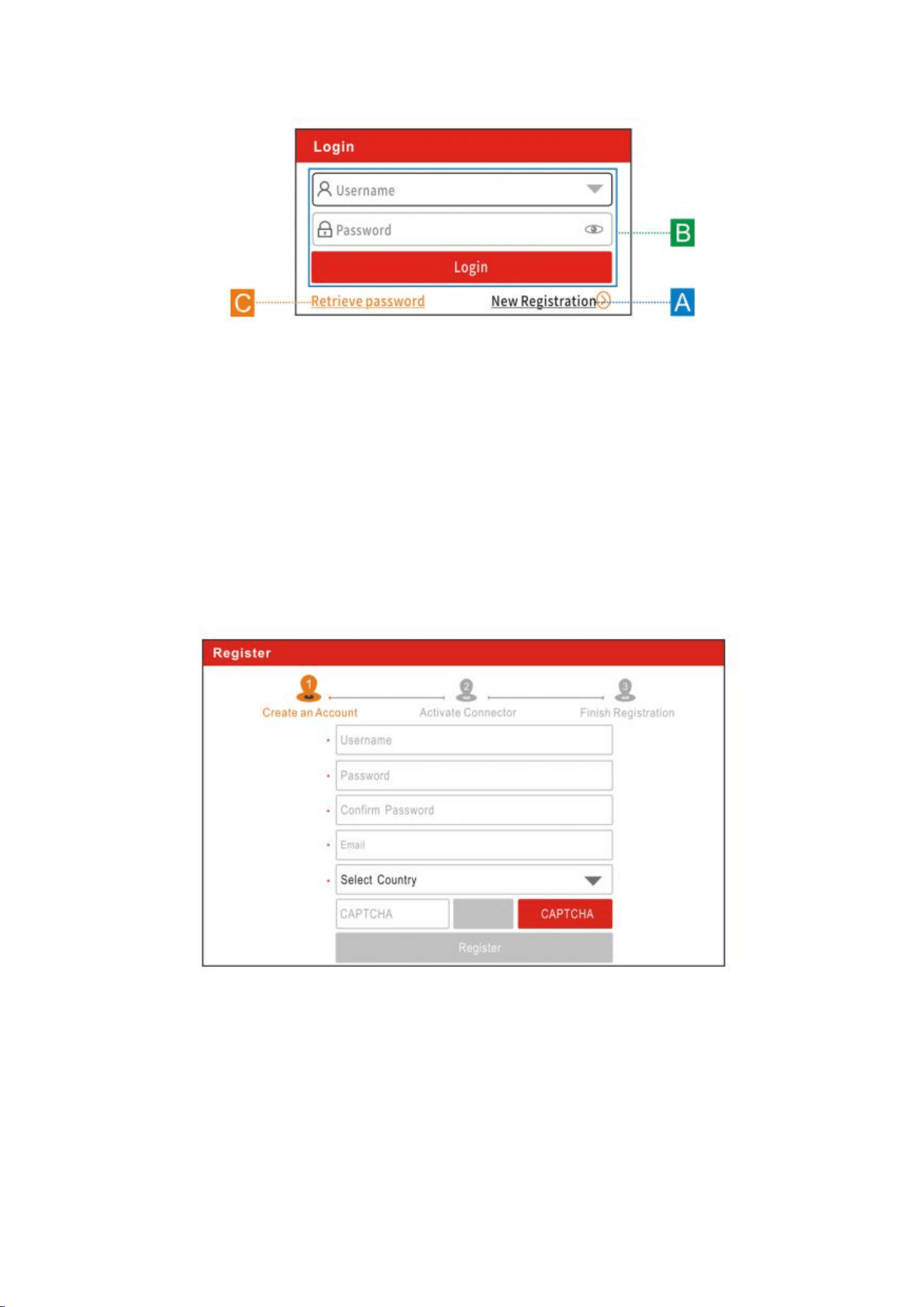
(If you are a new user, follow A to proceed.)
(If you have registered to be a member, go to B to login the system
directly.)
(In case you forgot password, refer to C to reset a new password.)
A. If you are a new user, tap New Registration to enter the sign-up
page.
In the above figure, fill in the information in each field (Items with * must
be filled).
After inputting, tap Register, the following screen will appear:
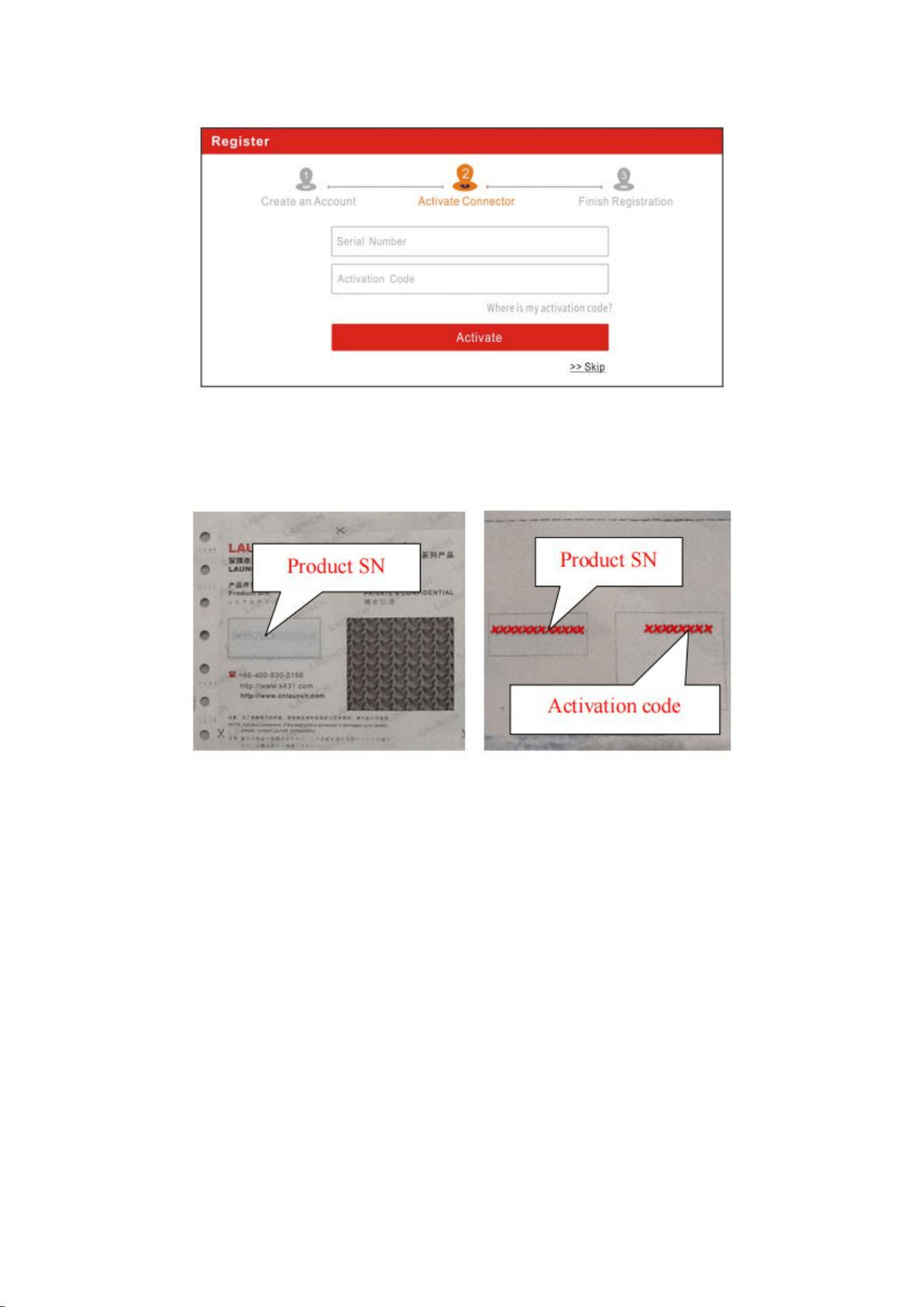
Input the Serial Number and Activation Code, which can be found in the
password envelope.
Vehicle connection (For Passenger Vehicle Configuration)
The method used to connect the VCI device to a vehicle’s DLC depends
on the
vehicle’s configuration as follows:
A vehicle equipped with an OBD II management system supplies both
communication and 12V power through a standardized DLC.
A vehicle not equipped with an OBD II management system supplies
communication through a DLC connection, and in some cases supplies
12V
power through the cigarette lighter receptacle or a connection to the
vehicle
battery.
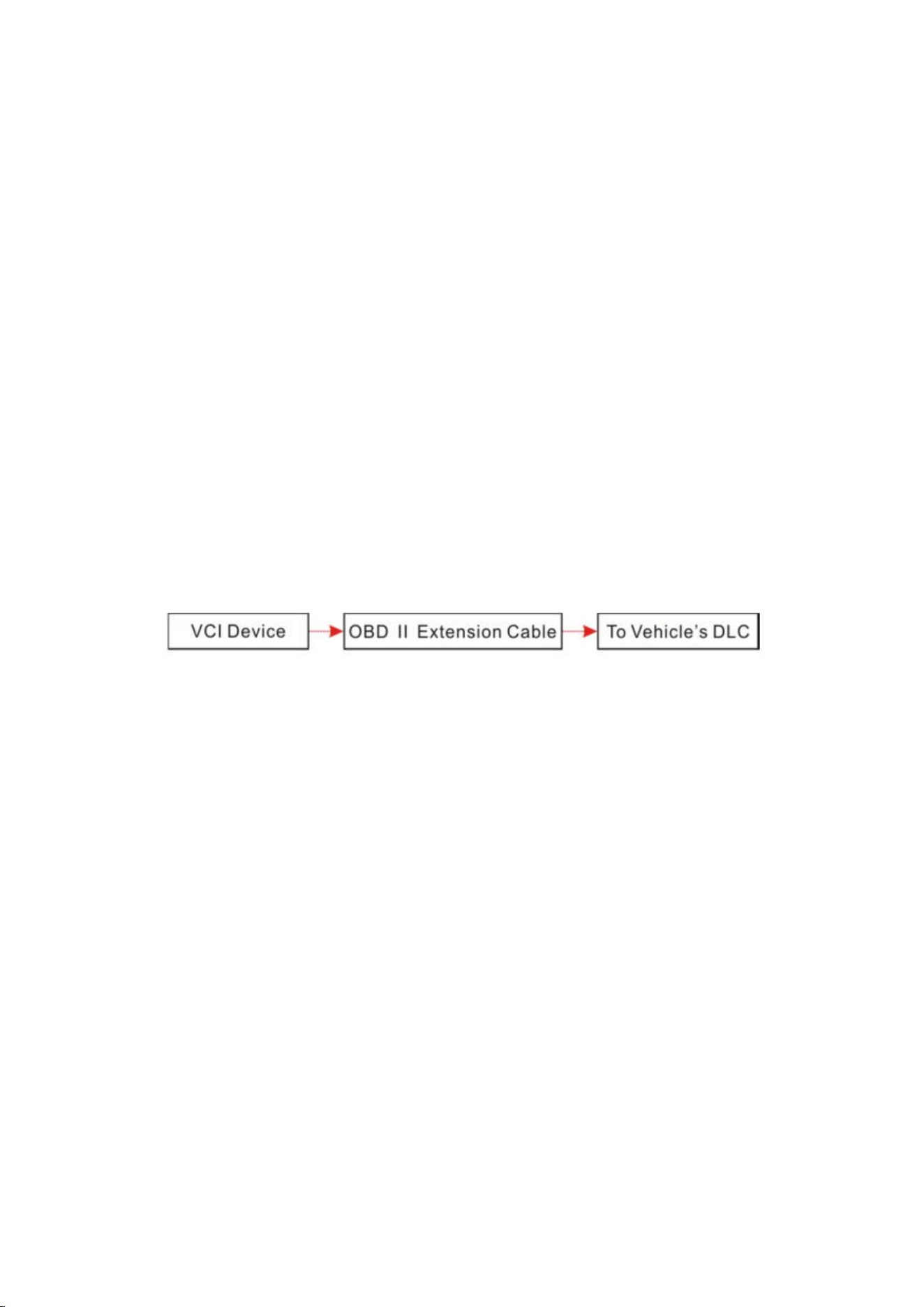
Follow the steps mentioned below to connect OBD II vehicle:
1. Locate vehicle’s DLC socket.
2. Plug the VCI device into the vehicle’s DLC socket (It is suggested to
use the
OBD II extension cable to connect the VCI device and DLC socket).
3. Choose one of the two ways to obtain power from:
A. Power adaptor: Connect one end of the included power adaptor to
charging port of the tablet, and the other end to AC outlet.
B. Internal battery pack
For non-OBDII vehicle, proceed as follows:
1. Locate vehicle’s DLC socket.
2. Select the corresponding non-16pin connector.
3. Plug the non-16pin end of the connector into the DLC socket, then
connect
the other end to the OBD I adaptor, and then tighten the captive screws.
4. Connect the other end of the adaptor to the included VCI device.
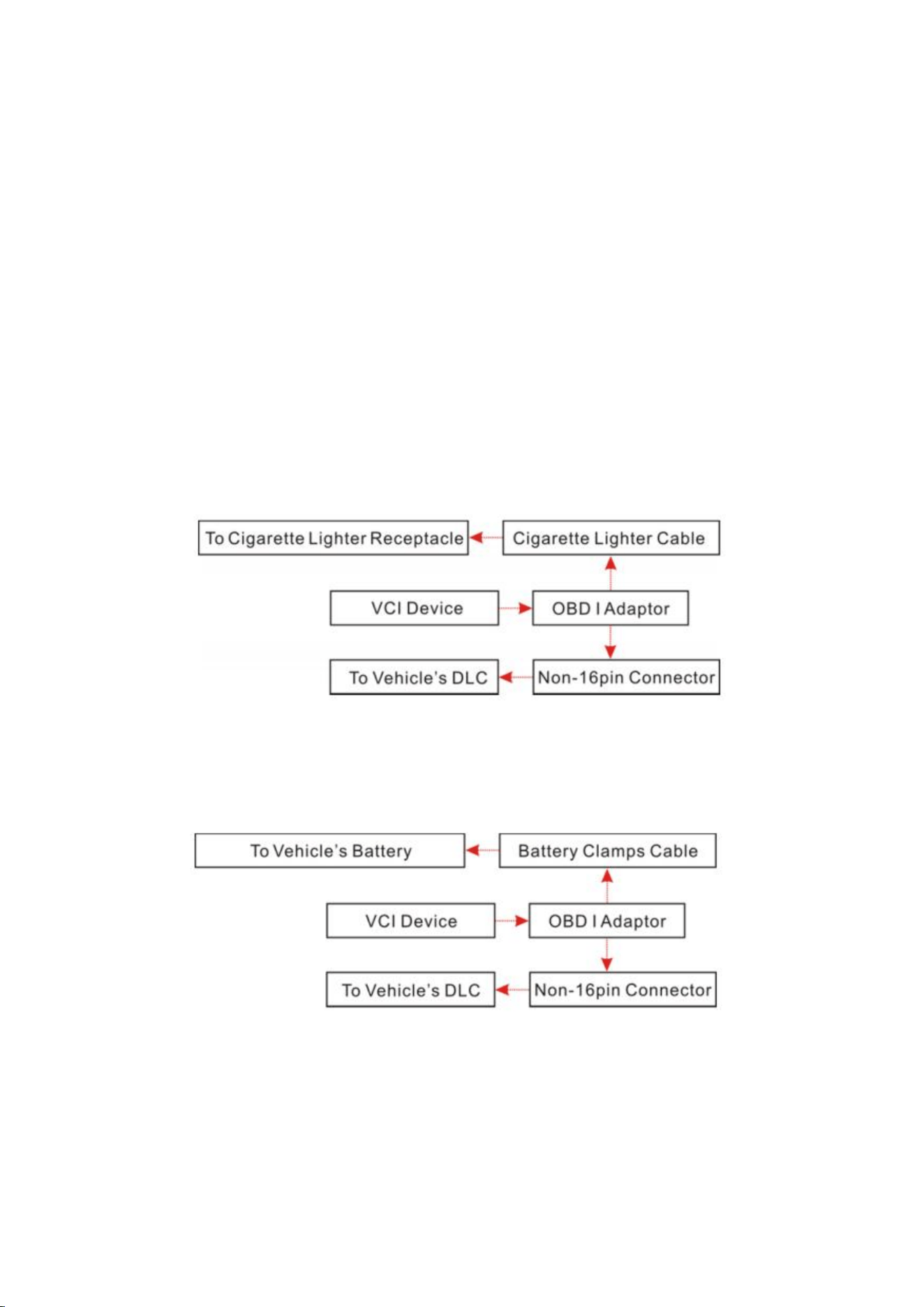
5. If the pin of the DLC is damaged or has insufficient power, please
follow the
either of the following methods to proceed:
A. Cigarette Lighter cable (optional): Connect one end of the cigarette
lighter
cable to vehicle’s cigarette lighter receptacle, and the other end to the
power
jack of OBD I adaptor.
B. Battery Clamps Cable: Connect one end of the battery clamps cable to
vehicle’s battery, and the other end to the power jack of OBD I adaptor.
Vehicle connection (Only for Diesel & Gasoline Configuration)
The method used to connect the VCI module to a vehicle’s DLC depends
on the
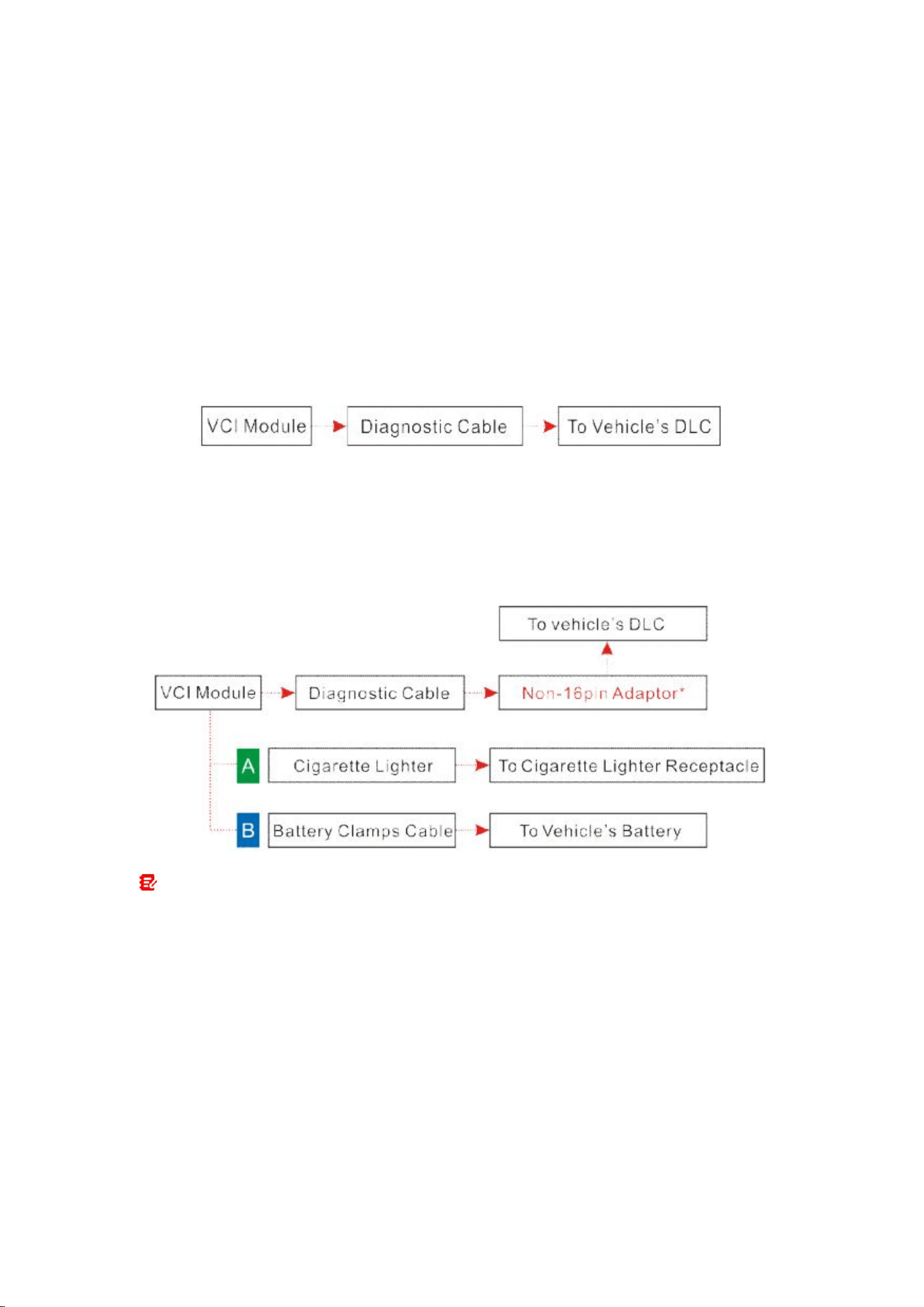
vehicle’s configuration as follows:
A. OBD II Vehicle Connection: Plug one end of the diagnostic cable into
the
vehicle’s DLC, and the other end into the diagnostic socket of the VCI
module,
and then tighten the captive screws.
B. Non-OBD II Vehicle Connection: For vehicles with non-OBD II
diagnostic
socket, a non-16pin connector (adaptor cable) is required.
Notes:
a). For commercial vehicles, refer to the above connection method to
proceed.
b). For passenger vehicles, replace the “Non-16pin connector” with
“OBD I adaptor” +
“non-16pin connector (for passenger vehicles)”. Other connections
shall also apply.
Change System Language
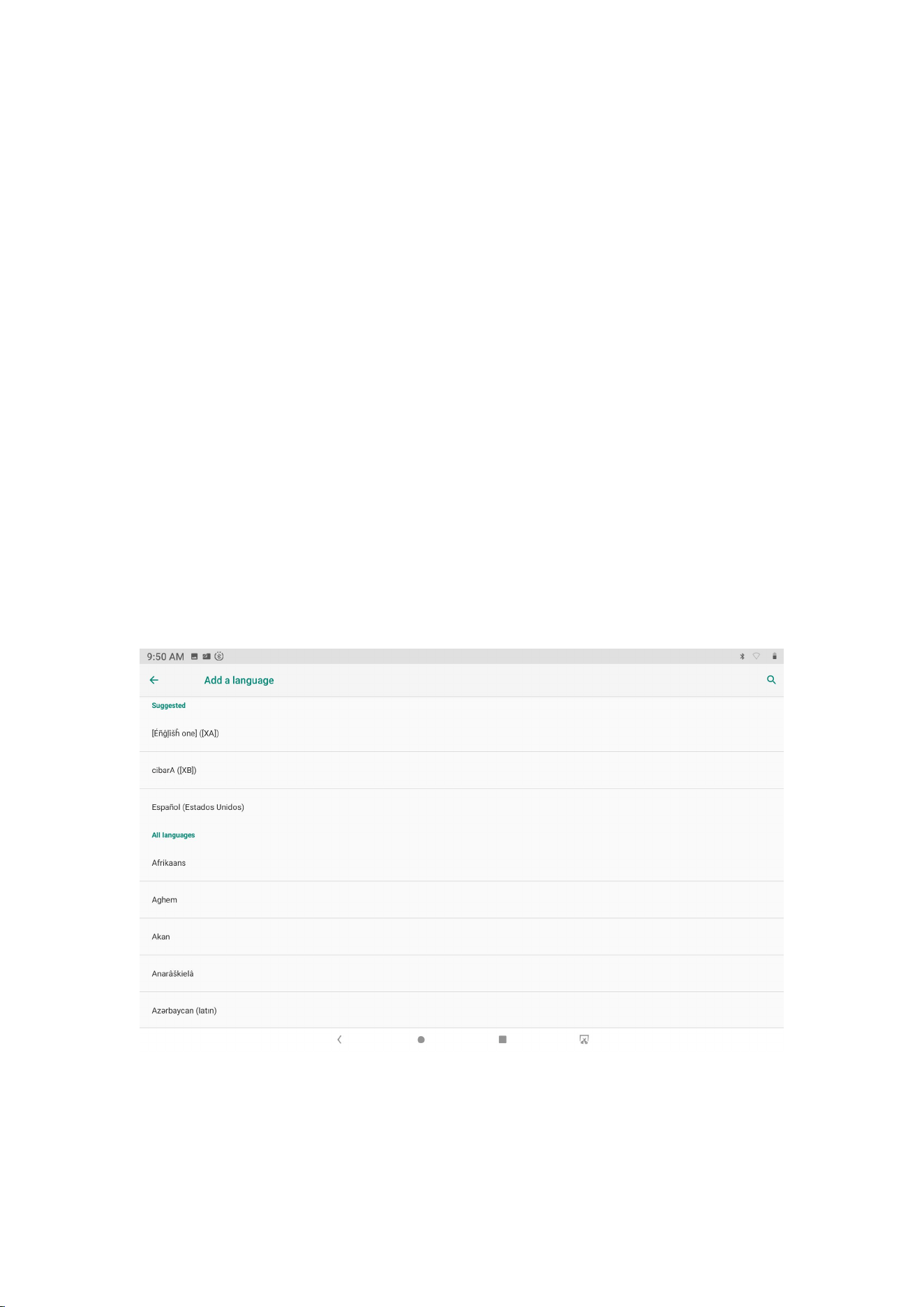
The tool supports multiple system languages. To change the language of
the tool, please do the following:
1. On the home screen, tap Settings -> System -> Language & input
->Languages.
2. Tap Add a language, and then choose the desired language from the
list.
3. Tap and hold the desired language and drag it to the top of the screen
and then release it, the system will change into the target language.