

About this Document
This manual is intended for administrators and users of the
AXIS Q6000-E PTZ Network Camera, and is applicable to rmware 6.40
and later. It includes instructions for using and managing the product
on your network. Previous experience of networking will be of use
when using this product. Some knowledge of UNIX or Linux-based
systems may also be benecial, for developing shell scripts and
applications. Later versions of this document will be posted to the Axis
website, as required. See also the product’s online help, available via
the web-based interface.
Legal considerations
Video surveillance can be regulated by laws that vary from country to
country. Check the laws in your local region before using this product
for surveillance purposes.
This product includes one (1) H.264 decoder license. To purchase
further licenses, contact your reseller.
Liability
Every care has been taken in the preparation of this document. Please
inform your local Axis ofce of any inaccuracies or omissions. Axis
Communications AB cannot be held responsible for any technical or
typographical errors and reserves the right to make changes to the
product and manuals without prior notice. Axis Communications AB
makes no warranty of any kind with regard to the material contained
within this document, including, but not limited to, the implied
warranties of merchantability and tness for a particular purpose. Axis
Communications AB shall not be liable nor responsible for incidental or
consequential damages in connection with the furnishing, performance
or use of this material. This product is only to be used for its intended
purpose.
Intellectual property rights
Axis AB has intellectual property rights relating to technology embodied
in the product described in this document. In particular, and without
limitation, these intellectual property rights may include one or more
of the patents listed at www.axis.com/patent.htm and one or more
additional patents or pending patent applications in the US and other
countries.
This product contains licensed third-party software. See the menu item
“About” in the product’s user interface for more information.
This product contains source code copyright Apple Computer,
Inc., under the terms of Apple Public Source License 2.0 (see
www.opensource.apple.com/apsl). The source code is available from
https://developer.apple.com/bonjour/
Equipment modications
This equipment must be installed and used in strict accordance with the
instructions given in the user documentation. This equipment contains
no user-serviceable components. Unauthorized equipment changes or
modications will invalidate all applicable regulatory certications
and approvals.
Trademark acknowledgments
AXIS COMMUNICATIONS, AXIS, ETRAX, ARTPEC and VAPIX are
registered trademarks or trademark applications of Axis AB in various
jurisdictions. All other company names and products are trademarks or
registered trademarks of their respective companies.
Apple, Boa, Apache, Bonjour, Ethernet, Internet Explorer, Linux,
Microsoft, Mozilla, Real, SMPTE, QuickTime, UNIX, Windows, Windows
Vista and WWW are registered trademarks of the respective holders.
Java and all Java-based trademarks and logos are trademarks or
registered trademarks of Oracle and/or its afliates. UPnP
TM
is a
certication mark of the UPnP
TM
Implementers Corporation.
SD, SDHC and SDXC are trademarks or registered trademarks of SD-3C,
LLC in the United States, other countries or both. Also, miniSD, microSD,
miniSDHC, microSDHC, microSDXC are all trademarks or registered
trademarks of SD-3C, LLC in the United States, other countries or both.
Regulatory information
Europe
This product complies with the applicable CE marking directives
and harmonized standards:
• Electromagnetic Compatibility (EMC) Directive 2014/30/EU. See
Electromagnetic Compatibility (EMC) on page 2 .
• Low Voltage (LVD) Directive 2014/35/EU. See Safety on page 2 .
• Restrictions of Hazardous Substances (RoHS) Directive 2011/65/EU.
See Disposal and recycling on page 3 .
A copy of the original declaration of conformity may be obtained from
Axis Communications AB. See Contact information on page 3 .
Electromagnetic Compatibility (EMC)
This equipment has been designed and tested to fulll applicable
standards for:
• Radio frequency emission when installed according to the
instructions and used in its intended environment.
• Immunity to electrical and electromagnetic phenomena when
installed according to the instructions and used in its intended
environment.
USA
This equipment has been tested using a shielded network cable (STP)
and found to comply with the limits for a Class A digital device,
pursuant to part 15 of the FCC Rules. These limits are designed to
provide reasonable protection against harmful interference when the
equipment is operated in a commercial environment. This equipment
generates, uses, and can radiate radio frequency energy and, if not
installed and used in accordance with the instruction manual, may
cause harmful interference to radio communications. Operation of this
equipment in a residential area is likely to cause harmful interference
in which case the user will be required to correct the interference at his
own expense.The product shall be connected using a shielded network
cable (STP) that is properly grounded.
Canada
This digital apparatus complies with CAN ICES-3 (Class A). The product
shall be connected using a shielded network cable (STP) that is
properly grounded. Cet appareil numérique est conforme à la norme
NMB ICES-3 (classe A). Le produit doit être connecté à l'aide d'un câble
réseau blindé (STP) qui est correctement mis à la terre.
Europe
This digital equipment fullls the requirements for RF emission
according to the Class A limit of EN 55022. The product shall be
connected using a shielded network cable (STP) that is properly
grounded. Notice! This is a Class A product. In a domestic environment
this product may cause RF interference, in which case the user may be
required to take adequate measures.
This product fullls the requirements for emission and immunity
according to EN 50121-4 and IEC 62236-4 railway applications.
This product fullls the requirements for immunity according
to EN 61000-6-1 residential, commercial and light-industrial
environments.
This product fullls the requirements for immunity according to
EN 61000-6-2 industrial environments.
This product fullls the requirements for immunity according to
EN 55024 ofce and commercial environments.
Australia/New Zealand
This digital equipment fullls the requirements for RF emission
according to the Class A limit of AS/NZS CISPR 22. The product shall
be connected using a shielded network cable (STP) that is properly
grounded. Notice! This is a Class A product. In a domestic environment
this product may cause RF interference, in which case the user may be
required to take adequate measures.
Japan
この装置は、クラスA情報技術装置です。この装置を家庭環
境で使⽤すると電波妨害を引き起こすことがあります。この
場合には使⽤者が適切な対策を講ずるよう要求されることが
あります。本製品は、シールドネットワークケーブル(STP)を
使⽤して接続してください。また適切に接地してください。
Korea
이 기기는 업무용(A급) 전자파적합기기로서 판매자 또는 사
용자는 이 점을 주의하시기 바라며, 가정외의 지역에서 사용
하는 것을 목적으로 합니다. 적절히 접지된 STP (shielded
twisted pair) 케이블을 사용하여 제품을 연결 하십시오.
Safety
This product complies with IEC/EN/UL 60950-1 and
IEC/EN/UL 60950-22, Safety of Information Technology

Equipment. The product shall be grounded either through a shielded
network cable (STP) or other appropriate method.
Battery
The Axis product uses a 3.0 V CR2032 lithium battery as the power
supply for its internal real-time clock (RTC). Under normal conditions
this battery will last for a minimum of ve years.
Low battery power affects the operation of the RTC, causing it to reset
at every power-up. When the battery needs replacing, a log message
will appear in the product’s server report. For more information about
the server report, see the product´s setup pages or contact Axis support.
The battery should not be replaced unless required, but if the battery
does need replacing, contact Axis support at www.axis.com/techsup for
assistance.
Lithium coin cell 3.0 V batteries contain 1,2-dimethoxyethane; ethylene
glycol dimethyl ether (EGDME), CAS no. 110-71-4.
WARNING
• Risk of explosion if the battery is incorrectly replaced.
• Replace only with an identical battery or a battery which is
recommended by Axis.
• Dispose of used batteries according to local regulations or
the battery manufacturer's instructions.
Disposal and recycling
When this product has reached the end of its useful life, dispose of
it according to local laws and regulations. For information about
your nearest designated collection point, contact your local authority
responsible for waste disposal. In accordance with local legislation,
penalties may be applicable for incorrect disposal of this waste.
Europe
This symbol means that the product shall not be disposed of
together with household or commercial waste. Directive 2012/19/EU
on waste electrical and electronic equipment (WEEE) is applicable in
the European Union member states. To prevent potential harm to
human health and the environment, the product must be disposed
of in an approved and environmentally safe recycling process. For
information about your nearest designated collection point, contact
your local authority responsible for waste disposal. Businesses should
contact the product supplier for information about how to dispose
of this product correctly.
This product complies with the requirements of Directive 2011/65/EU on
the restriction of the use of certain hazardous substances in electrical
and electronic equipment (RoHS).
China
This product complies with the requirements of the legislative
act Administration on the Control of Pollution Caused by Electronic
Information Products (ACPEIP).
Contact information
Axis Communications AB
Emdalavägen 14
223 69 Lund
Sweden
Tel: +46 46 272 18 00
Fax: +46 46 13 61 30
www.axis.com
Support
Should you require any technical assistance, please contact your Axis
reseller. If your questions cannot be answered immediately, your
reseller will forward your queries through the appropriate channels to
ensure a rapid response. If you are connected to the Internet, you can:
• download user documentation and software updates
• nd answers to resolved problems in the FAQ database. Search
by product, category, or phrase
• report problems to Axis support staff by logging in to your private
support area
• chat with Axis support staff
• visit Axis Support at www.axis.com/techsup/
Warranty information
For information about Axis’ product warranty and thereto related
information, go to www.axis.com/warranty/
Learn more!
Visit Axis learning center www.axis.com/academy/ for useful trainings,
webinars, tutorials and guides.

AXIS Q6000-E Mk II PTZ Network Camera
Table of Contents
Safety information . . . . . . . . . . . . . . . . . . . . . . . . . . . . . . . . . . . . . . . . . . 6
Hazard levels . . . . . . . . . . . . . . . . . . . . . . . . . . . . . . . . . . . . . . . . . . . . . . . . . . . 6
Other message levels . . . . . . . . . . . . . . . . . . . . . . . . . . . . . . . . . . . . . . . . . . . . . 6
Hardware overview . . . . . . . . . . . . . . . . . . . . . . . . . . . . . . . . . . . . . . . . . . 7
Access the product . . . . . . . . . . . . . . . . . . . . . . . . . . . . . . . . . . . . . . . . . . 8
Access from a Browser . . . . . . . . . . . . . . . . . . . . . . . . . . . . . . . . . . . . . . . . . . . 8
Access from the Internet . . . . . . . . . . . . . . . . . . . . . . . . . . . . . . . . . . . . . . . . . . 8
Set the Root Password . . . . . . . . . . . . . . . . . . . . . . . . . . . . . . . . . . . . . . . . . . . 9
Conguration . . . . . . . . . . . . . . . . . . . . . . . . . . . . . . . . . . . . . . . . . . . . . . . . . . 9
The Live View Page . . . . . . . . . . . . . . . . . . . . . . . . . . . . . . . . . . . . . . . . . . . . . . 12
Media Streams . . . . . . . . . . . . . . . . . . . . . . . . . . . . . . . . . . . . . . . . . . . . . 14
How to Stream H.264 . . . . . . . . . . . . . . . . . . . . . . . . . . . . . . . . . . . . . . . . . . . . 14
MJPEG . . . . . . . . . . . . . . . . . . . . . . . . . . . . . . . . . . . . . . . . . . . . . . . . . . . . . . . . 14
AXIS Media Control (AMC) . . . . . . . . . . . . . . . . . . . . . . . . . . . . . . . . . . . . . . . . 14
Alternative Methods of Accessing the Video Stream . . . . . . . . . . . . . . . . . . . . 15
Set Up the Product . . . . . . . . . . . . . . . . . . . . . . . . . . . . . . . . . . . . . . . . . . 17
Basic Setup . . . . . . . . . . . . . . . . . . . . . . . . . . . . . . . . . . . . . . . . . . . . . . . . . . . . 17
Video . . . . . . . . . . . . . . . . . . . . . . . . . . . . . . . . . . . . . . . . . . . . . . . . . . . . . 18
Set Up Video Streams . . . . . . . . . . . . . . . . . . . . . . . . . . . . . . . . . . . . . . . . . . . . 18
About stream proles . . . . . . . . . . . . . . . . . . . . . . . . . . . . . . . . . . . . . . . . . . . . 21
About ONVIF media proles . . . . . . . . . . . . . . . . . . . . . . . . . . . . . . . . . . . . . . . 21
Camera Settings . . . . . . . . . . . . . . . . . . . . . . . . . . . . . . . . . . . . . . . . . . . . . . . . 21
About overlays . . . . . . . . . . . . . . . . . . . . . . . . . . . . . . . . . . . . . . . . . . . . . . . . . . 23
About privacy masks . . . . . . . . . . . . . . . . . . . . . . . . . . . . . . . . . . . . . . . . . . . . . 24
Congure the Live View Page . . . . . . . . . . . . . . . . . . . . . . . . . . . . . . . . . 26
Default Viewer for Browsers . . . . . . . . . . . . . . . . . . . . . . . . . . . . . . . . . . . . . . . 26
Viewer Settings . . . . . . . . . . . . . . . . . . . . . . . . . . . . . . . . . . . . . . . . . . . . . . . . . 26
User Dened Links . . . . . . . . . . . . . . . . . . . . . . . . . . . . . . . . . . . . . . . . . . . . . . . 27
PTZ (Pan Tilt Zoom) . . . . . . . . . . . . . . . . . . . . . . . . . . . . . . . . . . . . . . . . . 28
Control Queue . . . . . . . . . . . . . . . . . . . . . . . . . . . . . . . . . . . . . . . . . . . . . . . . . . 28
About Remote Gatekeeper . . . . . . . . . . . . . . . . . . . . . . . . . . . . . . . . . . . . . . . . 28
How to create additional gatekeepers . . . . . . . . . . . . . . . . . . . . . . . . . . . . . . . 29
Detectors . . . . . . . . . . . . . . . . . . . . . . . . . . . . . . . . . . . . . . . . . . . . . . . . . . 30
About camera tampering . . . . . . . . . . . . . . . . . . . . . . . . . . . . . . . . . . . . . . . . . 30
How to congure tampering detection . . . . . . . . . . . . . . . . . . . . . . . . . . . . . . 30
How to congure an action rule for tampering alarm . . . . . . . . . . . . . . . . . . . 30
Shock Detection . . . . . . . . . . . . . . . . . . . . . . . . . . . . . . . . . . . . . . . . . . . . . . . . 30
Motion Detection . . . . . . . . . . . . . . . . . . . . . . . . . . . . . . . . . . . . . . . . . . . . . . . 30
Applications . . . . . . . . . . . . . . . . . . . . . . . . . . . . . . . . . . . . . . . . . . . . . . . 33
Application Licenses . . . . . . . . . . . . . . . . . . . . . . . . . . . . . . . . . . . . . . . . . . . . . 33
Upload Application . . . . . . . . . . . . . . . . . . . . . . . . . . . . . . . . . . . . . . . . . . . . . . 33
Application Considerations . . . . . . . . . . . . . . . . . . . . . . . . . . . . . . . . . . . . . . . . 33
Events . . . . . . . . . . . . . . . . . . . . . . . . . . . . . . . . . . . . . . . . . . . . . . . . . . . . 35
Set Up Action Rules . . . . . . . . . . . . . . . . . . . . . . . . . . . . . . . . . . . . . . . . . . . . . 35
Add Recipients . . . . . . . . . . . . . . . . . . . . . . . . . . . . . . . . . . . . . . . . . . . . . . . . . . 37
Create Schedules . . . . . . . . . . . . . . . . . . . . . . . . . . . . . . . . . . . . . . . . . . . . . . . . 38
Set Up Recurrences . . . . . . . . . . . . . . . . . . . . . . . . . . . . . . . . . . . . . . . . . . . . . . 38
Recordings . . . . . . . . . . . . . . . . . . . . . . . . . . . . . . . . . . . . . . . . . . . . . . . . . 40
Find Recordings . . . . . . . . . . . . . . . . . . . . . . . . . . . . . . . . . . . . . . . . . . . . . . . . . 40
Play Recording . . . . . . . . . . . . . . . . . . . . . . . . . . . . . . . . . . . . . . . . . . . . . . . . . . 40
Export Video Clip . . . . . . . . . . . . . . . . . . . . . . . . . . . . . . . . . . . . . . . . . . . . . . . . 41
Continuous Recording . . . . . . . . . . . . . . . . . . . . . . . . . . . . . . . . . . . . . . . . . . . . 41
Languages . . . . . . . . . . . . . . . . . . . . . . . . . . . . . . . . . . . . . . . . . . . . . . . . . 42
System Options . . . . . . . . . . . . . . . . . . . . . . . . . . . . . . . . . . . . . . . . . . . . . 43
Security . . . . . . . . . . . . . . . . . . . . . . . . . . . . . . . . . . . . . . . . . . . . . . . . . . . . . . . 43
Date & Time . . . . . . . . . . . . . . . . . . . . . . . . . . . . . . . . . . . . . . . . . . . . . . . . . . . . 45
PTZ Network Camera . . . . . . . . . . . . . . . . . . . . . . . . . . . . . . . . . . . . . . . . . . . . 46
Network . . . . . . . . . . . . . . . . . . . . . . . . . . . . . . . . . . . . . . . . . . . . . . . . . . . . . . . 47
Storage . . . . . . . . . . . . . . . . . . . . . . . . . . . . . . . . . . . . . . . . . . . . . . . . . . . . . . . 52
Maintenance . . . . . . . . . . . . . . . . . . . . . . . . . . . . . . . . . . . . . . . . . . . . . . . . . . . 55
Support . . . . . . . . . . . . . . . . . . . . . . . . . . . . . . . . . . . . . . . . . . . . . . . . . . . . . . . 55
4

AXIS Q6000-E Mk II PTZ Network Camera
Table of Contents
Advanced . . . . . . . . . . . . . . . . . . . . . . . . . . . . . . . . . . . . . . . . . . . . . . . . . . . . . . 56
Reset to factory default settings . . . . . . . . . . . . . . . . . . . . . . . . . . . . . . . . . . . 56
Troubleshooting . . . . . . . . . . . . . . . . . . . . . . . . . . . . . . . . . . . . . . . . . . . . 58
Check the Firmware . . . . . . . . . . . . . . . . . . . . . . . . . . . . . . . . . . . . . . . . . . . . . 58
Upgrade the Firmware . . . . . . . . . . . . . . . . . . . . . . . . . . . . . . . . . . . . . . . . . . . 58
Symptoms, Possible Causes and Remedial Actions . . . . . . . . . . . . . . . . . . . . . 58
Technical specications . . . . . . . . . . . . . . . . . . . . . . . . . . . . . . . . . . . . . . 62
LED Indicators . . . . . . . . . . . . . . . . . . . . . . . . . . . . . . . . . . . . . . . . . . . . . . . . . . 62
SD card slot . . . . . . . . . . . . . . . . . . . . . . . . . . . . . . . . . . . . . . . . . . . . . . . . . . . . 62
Buttons . . . . . . . . . . . . . . . . . . . . . . . . . . . . . . . . . . . . . . . . . . . . . . . . . . . . . . . 62
Connectors . . . . . . . . . . . . . . . . . . . . . . . . . . . . . . . . . . . . . . . . . . . . . . . . . . . . 62
Performance Considerations . . . . . . . . . . . . . . . . . . . . . . . . . . . . . . . . . . . . . . . 63
5

AXIS Q6000-E Mk II PTZ Network Camera
Safety information
Safety information
Hazard levels
DANGER
Indicates a hazardous situation which, if not avoided, will result in death or serious injury.
WARNING
Indicates a hazardous situation which, if not avoided, could result in death or serious injury.
CAUTION
Indicates a hazardous situation which, if not avoided, could result in minor or moderate injury.
NONO
NO
TICETICE
TICE
Indicates a situation which, if not avoided, could result in damage to property.
Other message levels
Important
Indicates signicant information which is essential for the product to function correctly.
Note
Indicates useful information which helps in getting the most out of the product.
6
AXIS Q6000-E Mk II PTZ Network Camera
Hardware overview
Hardware overview
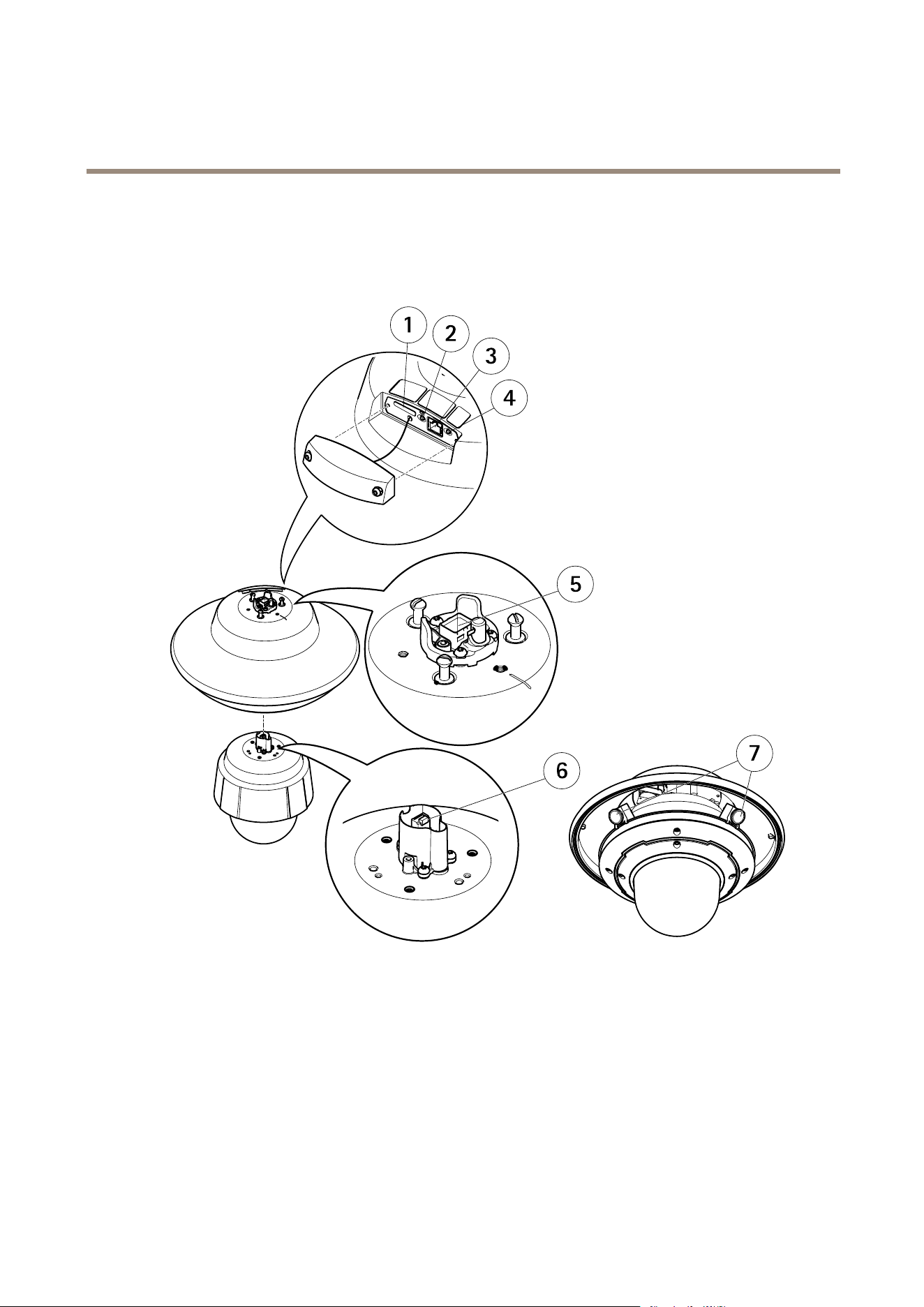
For specications of the hardware components, see Technical specications on page 62.
1
SD card slot
2
Restart button
3
Network connector (service port)
4
Control button
5
Network connector on AXIS Q6000-E Mk II
6
Network connector on PTZ camera
7
Camera heads
7

AXIS Q6000-E Mk II PTZ Network Camera
Access the product
Access the product
To install the Axis product, see the Installation Guide supplied with the product.
The product can be used with most operating systems and browsers. We recommend the following browsers:
• Internet Explorer
®
with Windows
®
• Safari
®
with OS X
®
• Chrome
TM
or Firefox
®
with other operating systems.
To view streaming video in Internet Explorer, allow installation of AXIS Media Control (AMC) when prompted.
The Axis product includes one (1) H.264 decoder license for viewing video streams. The license is automatically installed with AMC.
The administrator can disable the installation of the decoders to prevent installation of unlicensed copies.
Note
• QuickTime
TM
is also supported for viewing H.264 streams.
Access from a Browser
1. Start a web browser.
2. Enter the IP address or host name of the Axis product in the browser’s Location/Address eld.
To access the product from a Mac computer (OS X), go to Safari, click on Bonjour and select the product from the
drop-down list.
If you do not know the IP address, use AXIS IP Utility to locate the product on the network. For information about
how to discover and assign an IP address, see the document Assign an IP Address and Access the Video Stream on Axis
Support web at www.axis.com/techsup
Note
To show Bonjour as a browser bookmark, go to Safari > Preferences.
3. Enter your user name and password. If this is the rst time the product is accessed, the root password must rst be
congured. For instructions, see Set the Root Password on page 9 .
4. The product’s Live View page opens in your browser.
Note
The controls and layout of the Live View page may have been customized to meet specic installation requirements and
user preferences. Consequently, some of the examples and functions featured here may differ from those displayed in
your own Live View page.
Access from the Internet
Once connected, the Axis product is accessible on your local network (LAN). To access the product from the Internet you must
congure your network router to allow incoming data trafc to the product. To do this, enable the NAT-traversal feature, which
will attempt to automatically congure the router to allow access to the product. This is enabled from Setup > System Options >
Network > TCP/IP Advanced.
For more information, see NAT traversal (port mapping) for IPv4 on page 50. See also AXIS Internet Dynamic DNS Service at
www.axiscam.net
For Technical notes on this and other topics, visit the Axis Support web at www.axis.com/techsup
8

AXIS Q6000-E Mk II PTZ Network Camera
Access the product
Set the Root Password
To access the Axis product, you must set the password for the default administrator user root. This is done in the Congure Root
Password dialog, which opens when the product is accessed for the rst time.
To prevent network eavesdropping, the root password can be set via an encrypted HTTPS connection, which requires an HTTPS
certicate. HTTPS (Hypertext Transfer Protocol over SSL) is a protocol used to encrypt trafc between web browsers and servers. The
HTTPS certicate ensures encrypted exchange of information. See HTTPS on page 44.
The default administrator user name root is permanent and cannot be deleted. If the password for root is lost, the product must be
reset to the factory default settings. See Reset to factory default settings on page 56.
To set the password via a standard HTTP connection, enter it directly in the dialog.
To set the password via an encrypted HTTPS connection, follow these steps:
1. Click Use HTTPS.
A temporary certicate (valid for one year) is created, enabling encryption of all trafc to and from the product, and the
password can now be set securely.
2. Enter a password and then re-enter it to conrm the spelling.
3. Click OK. The password has now been congured.
Conguration
Note
If a PTZ camera has been mounted to the AXIS Q6000-E Solo variant, make sure to do a factory default reset, otherwise
the conguration windows will not appear, see Reset to factory default settings.
The rst time the product is connected to a network, a conguration is required. Do the following:
• Adjust the camera heads, for instructions see page 9
• Connect to the PTZ Network Camera, for instructions see page 10
• Calibrate the PTZ network camera , for instructions see page 11
Adjust the camera heads
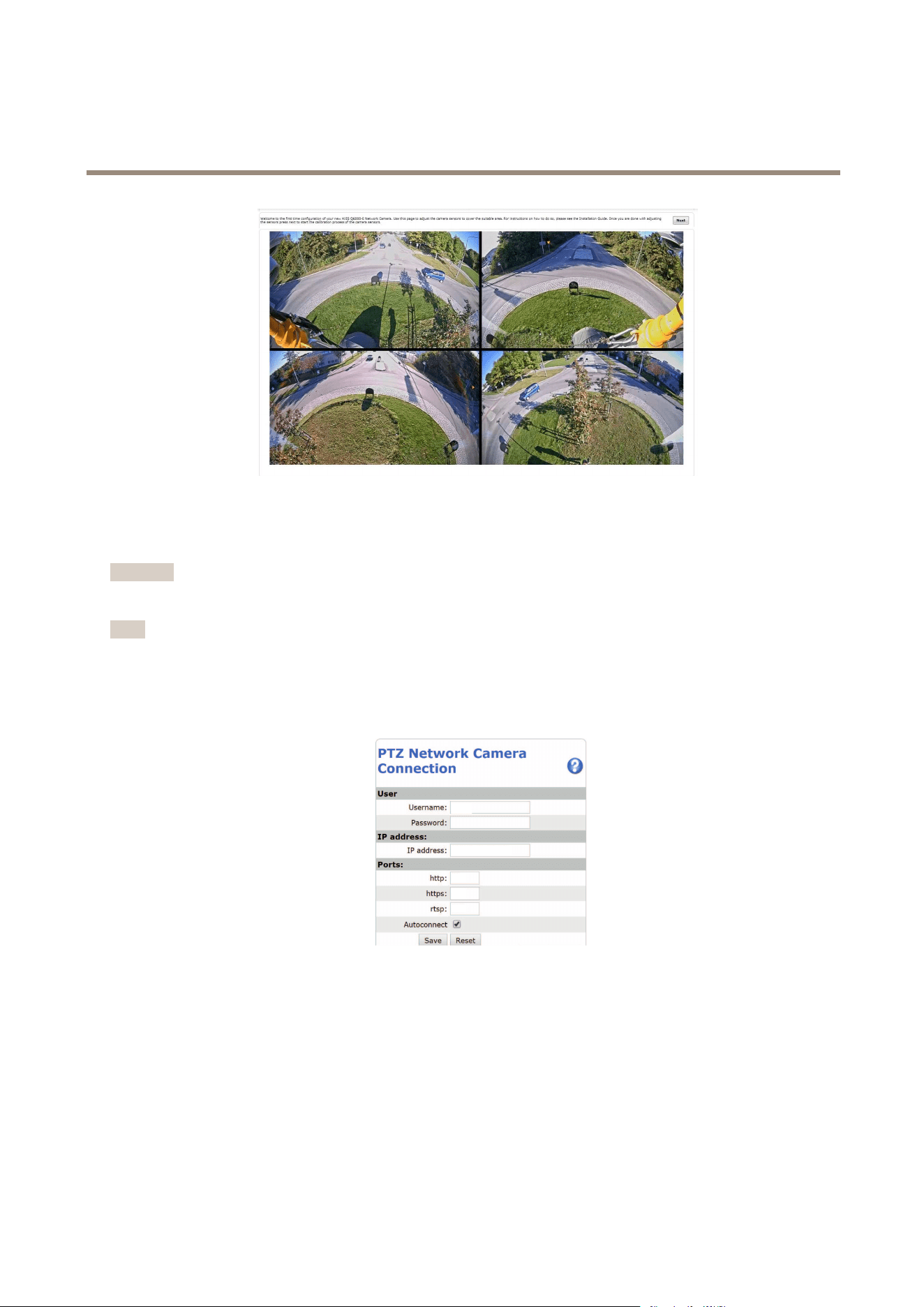
Using the quad view as reference, the camera heads can be moved along the rim and positioned to cover the area of interest.
See the Installation Guide for further instructions on how to mechanically adjust the camera heads along the rim.
To connect to the PTZ Network Camera, click Next.
9
AXIS Q6000-E Mk II PTZ Network Camera
Access the product
The quad view that appears before calibration.
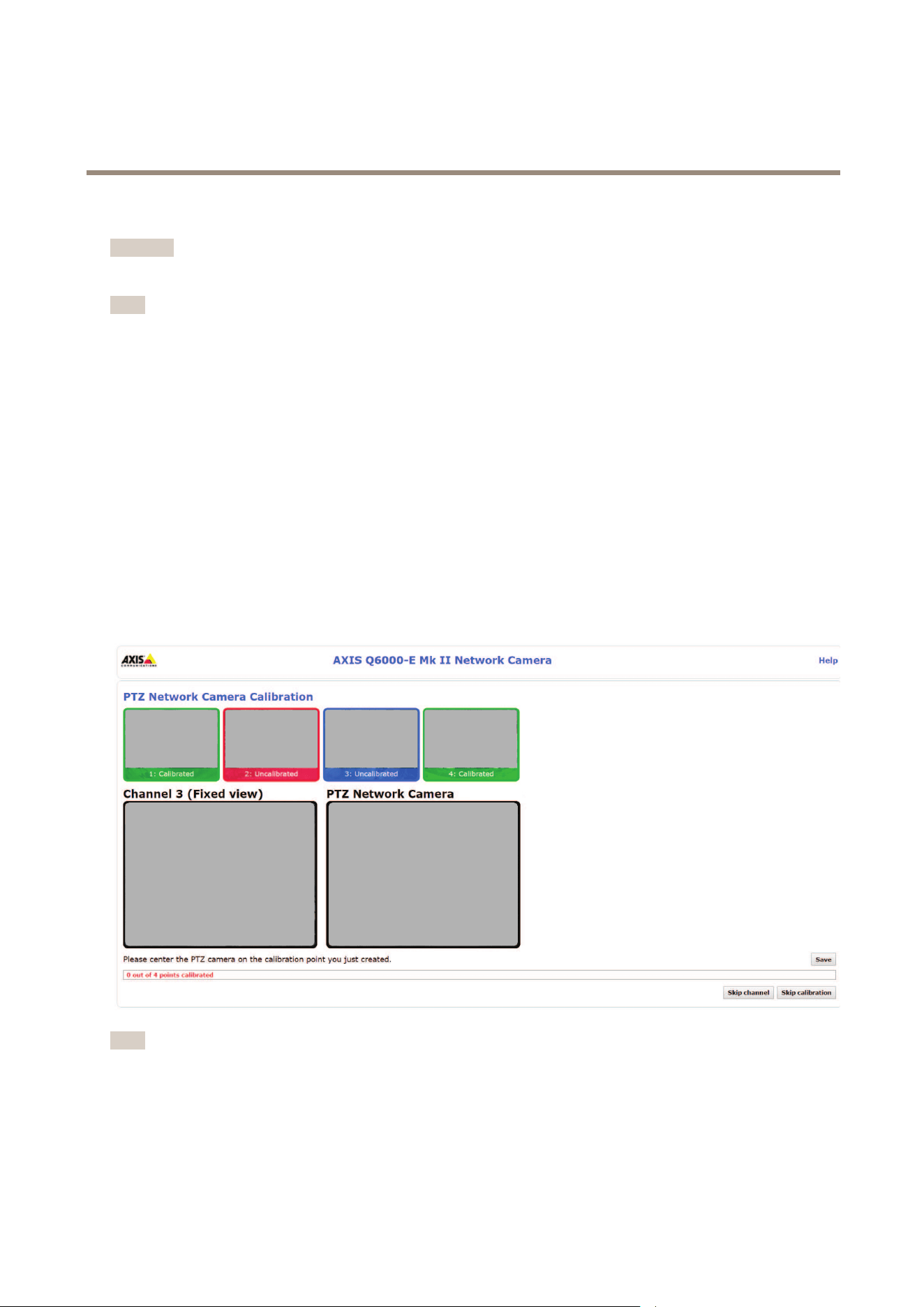
Connect to the PTZ Network Camera
Important
The user logged in to the PTZ camera must have access to the PTZ functions, see the User Manual for the PTZ camera.
Note
• Auto-Congure Link-Local Address must be enabled in the PTZ network camera for Autoconnect to work. This feature is
enabled by default in Axis products. It can also be enabled under System Options > Advanced TCP/IP Settings.
• The already saved password will not be changed if the password eld is left empty.
• The connection setup details must be re-entered if the product is reset to factory default.
User - Enter the login information for the PTZ network camera.
IP address - Enter the IP address for the PTZ network camera.
Ports - Enter the port number used for the communication with the PTZ network camera. Use the default values or modify as per
requirement.
Autoconnect - Check this box for the product to automatically connect to the PTZ network camera when network connection is
established. This may be useful if for example the product has restarted due to power failure.
To save the settings, click Save.
10
AXIS Q6000-E Mk II PTZ Network Camera
Access the product
Calibrate the PTZ network camera
Important
If PTZ camera and the camera heads are not calibrated, the PTZ functions will not work as expected.
Note
• If the Axis product loses connection with the PTZ camera, re-connect from System Options > PTZ Network Camera >
Connection.
• Click on PTZ Network Camera Connection OK to access the PTZ camera’s web pages.
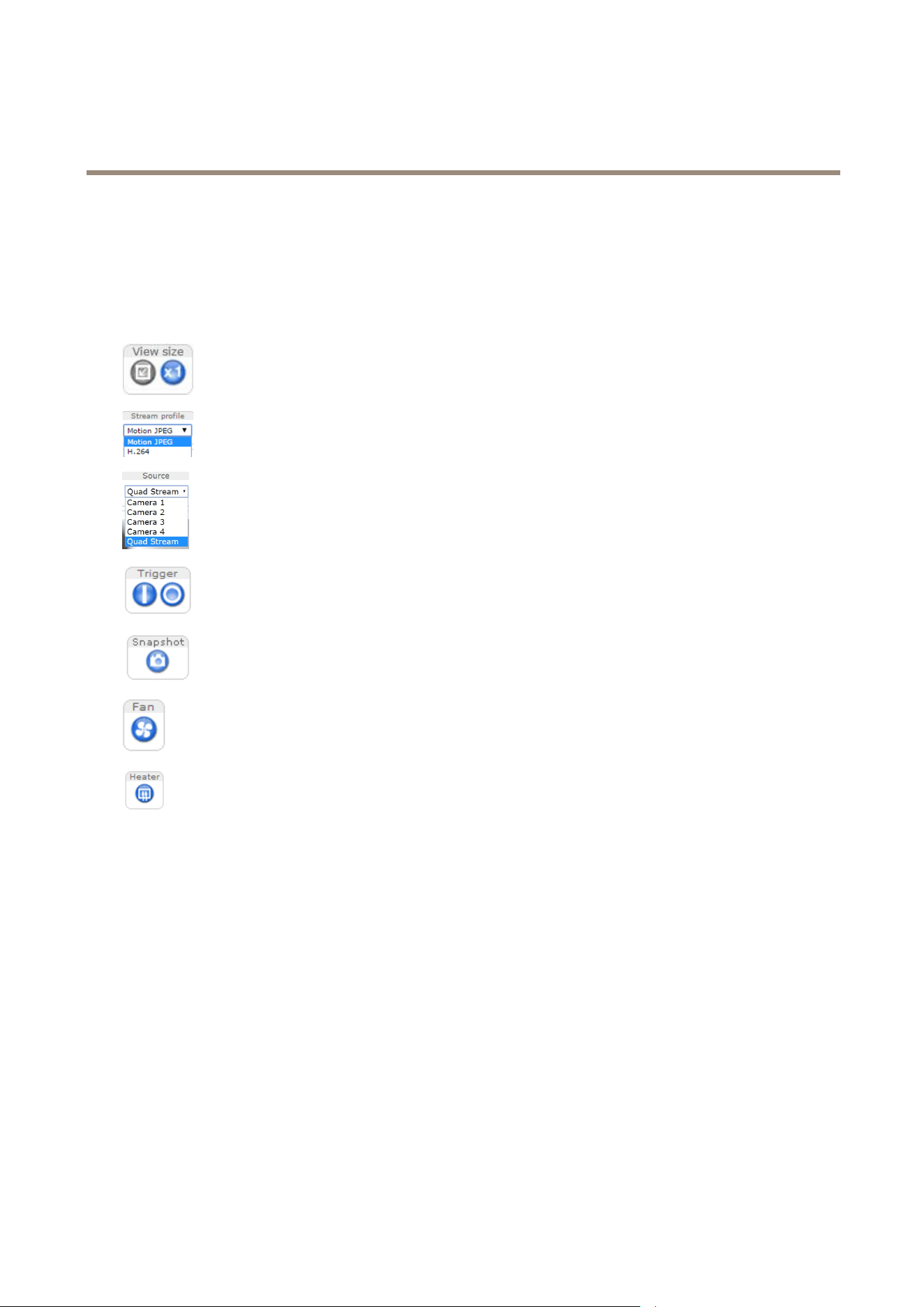
To calibrate the PTZ camera, do the following:
1. In the PTZ Network Camera Calibration page, select a channel to calibrate.
2. Add a calibration point in the selected channel then navigate the PTZ camera to nd the same point in the PTZ camera view.
3. Click Save.
4. Repeat steps 2-4 until there are four calibration points in the channel.
To improve calibration accuracy, make sure the 4 calibration points are spread evenly over the image and at least one
calibration point is closer to the center of the image. It is not recommended to add points near the edges of the image.
5. Repeat the same procedure for all channels.
6. Select Finish Calibration.
Note
If you repeatedly get an error message during calibration, lens and resolution changes may be the cause. You can skip the
affected channel and still be able to point and direct the PTZ camera in the calibrated channels.
11
AXIS Q6000-E Mk II PTZ Network Camera
Access the product
The Live View Page
The controls and layout of the Live View page may have been customized to meet specic installation requirements and user
preferences. Consequently, some of the examples and functions featured here may differ from those displayed in your own Live View
page. The following provides an overview of each available control.
Controls on the Live View Page
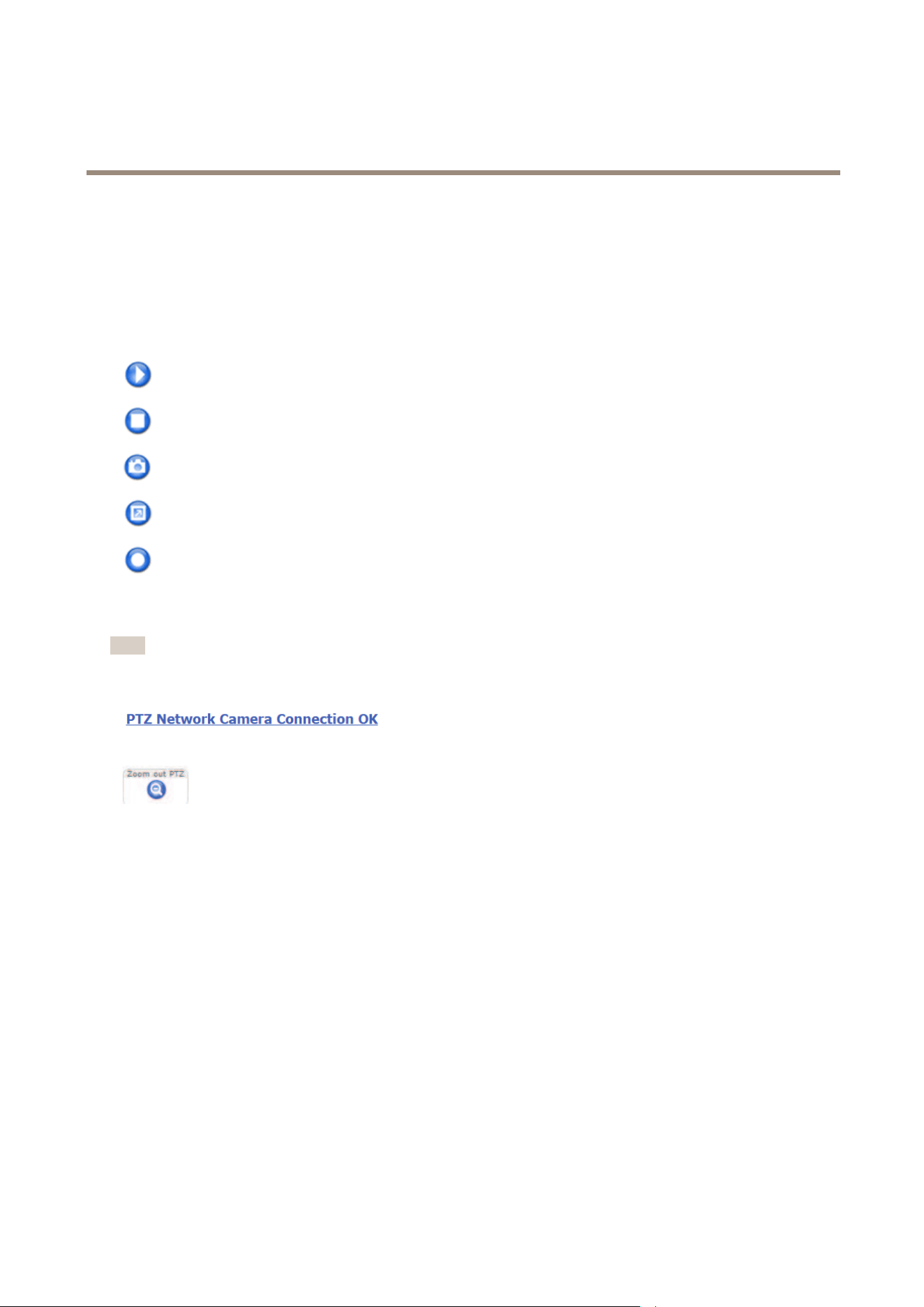
Click the View size buttons to show the image in full size (right button) or to scale down the image to
t the browser window (left button).
Select a stream prole for the Live View page from the Stream Prole drop-down list. For information
about how to congure stream proles, see page 21.
To view one of the cameras or the quad stream, use the Source drop-down list. To change the default
video source for Live View, go to Setup > Live View Cong.
Use the Manual Trigger button to trigger an action rule from the Live View page. For information about
how to congure and enable the button, see Manual Trigger on page 12.
Click Snapshot to save a snapshot of the video image. This button is primarily intended for use when
the AXIS Media Control viewer toolbar is not available. Enable this button from Live View Cong >
Action Buttons.
The product’s fan is controlled by the ambient temperature and is turned on and off automatically. If
required, the fan can be activated manually by clicking the Fan button. To show the button, go to
Setup > Live View Cong. Under Action Buttons, select Show fan button and specify the number of
minutes the fan should be activated.
The product’s heater is controlled by the ambient temperature and is turned on and off automatically.
If required, the heater can be activated manually by clicking the Heater button. To show the button,
go to Setup > Live View Cong. Under Action Buttons, select Show heater button and specify the
number of minutes the heater should be activated.
Manual Trigger
The Manual Trigger is used to trigger an action rule from the Live View page. The manual trigger can for example be used to
validate actions during product installation and conguration.
To congure the manual trigger:
1. Go to Setup > Events.
2. Click Add to add a new action rule.
3. From the Trigger drop-down list, select Input Signal.
4. From the second drop-down list, select Manual Trigger.
5. Select the desired action and congure the other settings as required.
For more information about action rules, see Events on page 35.
To show the manual trigger buttons in the Live View page:
12
AXIS Q6000-E Mk II PTZ Network Camera
Access the product
1. Go to Setup > Live View Cong.
2. Under Action Buttons, select Show manual trigger button.
AXIS Media Control viewer toolbar
The AXIS Media Control viewer toolbar is available in Internet Explorer only. See AXIS Media Control (AMC) on page 14 for more
information. The toolbar displays the following buttons:
The Play button connects to the Axis product and starts playing a media stream.
The Stop button stops the media stream.
The Snapshot button takes a snapshot of the video image.
Click the View Full Screen button and the video image will ll the entire screen. Press ESC (Escape) on the computer
keyboard to cancel full screen view.
The Record button is used to record the current video stream on your computer. The location where the recording is saved
can be specied in the AMC Control Panel. Enable this button from Live View Cong > Viewer Settings.
PTZ Controls
Note
If the Axis product loses connection with the PTZ camera, re-connect to the camera under System Options > PTZ Network
Camera > Connection.
In the Live View page, the PTZ camera link indicates if the
connection is established. Click on the link to go to the PTZ
camera’s web pages.
Click this button to zoom out the PTZ camera.
The administrator can enable/disable controls for specied users under System Options > Security > Users.
With the PTZ Control Queue enabled the time each user is in control of the PTZ settings is limited. Click the buttons to request or
release control of the PTZ controls. The PTZ Control Queue is set up under PTZ > Control Queue.
To zoom in at a specic part of the video stream, draw a rectangle on the area of interest any of the channels in quad view. The
connected PTZ camera will zoom in to cover this area. To zoom out, draw a larger rectangle, the camera will zoom out to cover
this area.
To direct the PTZ camera to a specic point of interest, click on a point anywhere in quad view.
Joystick
To connect a joystick, see the User Manual for the joystick.
To use the PTZ functions in the PTZ Network Camera with a connected joystick, do the following:
1. Open the quad view page and the PTZ camera page.
2. To direct the PTZ camera to a specic point of interest, click on a point anywhere in quad view.
3. Use the joystick controls to navigate in the PTZ camera live view.
13

AXIS Q6000-E Mk II PTZ Network Camera
Media Streams
Media Streams
The Axis product provides several video stream formats. Your requirements and the properties of your network will determine the
type you use.
The Live View page in the product provides access to H.264 and Motion JPEG video streams, and to the list of available stream
proles. Other applications and clients can access video streams directly, without going via the Live View page.
How to Stream H.264
H.264 can, without compromising image quality, reduce the size of a digital video le by more than 80% compared with the Motion
JPEG format and as much as 50% more than the MPEG-4 standard. This means that much less network bandwidth and storage space
are required for a video le. Or seen another way, much higher video quality can be achieved for a given bit rate.
Deciding which combination of protocols and methods to use depends on your viewing requirements, and on the properties of
your network. The available options in AXIS Media Control are:
Unicast RTP
This unicast method (RTP over UDP) is used
for live unicast video, especially when it is
important to have an up-to-date video stream,
even if some frames are dropped.
RTP over RTSP
This unicast method (RTP tunneled over RTSP)
is useful as it is relatively simple to congure
rewalls to allow RTSP trafc.
RTP over RTSP over HTTP
This unicast method can be used to traverse
rewalls. Firewalls are commonly congured to
allow the HTTP protocol, thus allowing RTP to
be tunneled.
Unicasting is used for video-on-demand
transmission so that there is no video trafc
on the network until a client connects and
requests the stream.
Note that there are a maximum of 10
simultaneous unicast connections.
Multicast RTP
This method (RTP over UDP) should be used for live multicast video. The video stream is always
up-to-date, even if some frames are dropped.
Multicasting provides the most efcient usage of bandwidth when there are large numbers of
clients viewing simultaneously. A multicast cannot however, pass a network router unless the
router is congured to allow this. It is not possible to multicast over the Internet, for example.
Note also that all multicast viewers count as one unicast viewer in the maximum total of 10
simultaneous connections.
AXIS Media Control negotiates with the Axis product to determine the transport protocol to use. The order of priority, listed in the
AMC Control Panel, can be changed and the options disabled, to suit specic requirements.
Note
H.264 is licensed technology. The Axis product includes one H.264 viewing client license. Installing additional unlicensed
copies of the client is prohibited. To purchase additional licenses, contact your Axis reseller.
MJPEG
This format uses standard JPEG still images for the video stream. These images are then displayed and updated at a rate sufcient
to create a stream that shows constantly updated motion.
The Motion JPEG stream uses considerable amounts of bandwidth, but provides excellent image quality and access to every image
contained in the stream. The recommended method of accessing Motion JPEG live video from the Axis product is to use the AXIS
Media Control in Internet Explorer in Windows.
AXIS Media Control (AMC)
AXIS Media Control (AMC) in Internet Explorer in Windows is the recommended method of accessing live video from the Axis product.
14
AXIS Q6000-E Mk II PTZ Network Camera
Media Streams
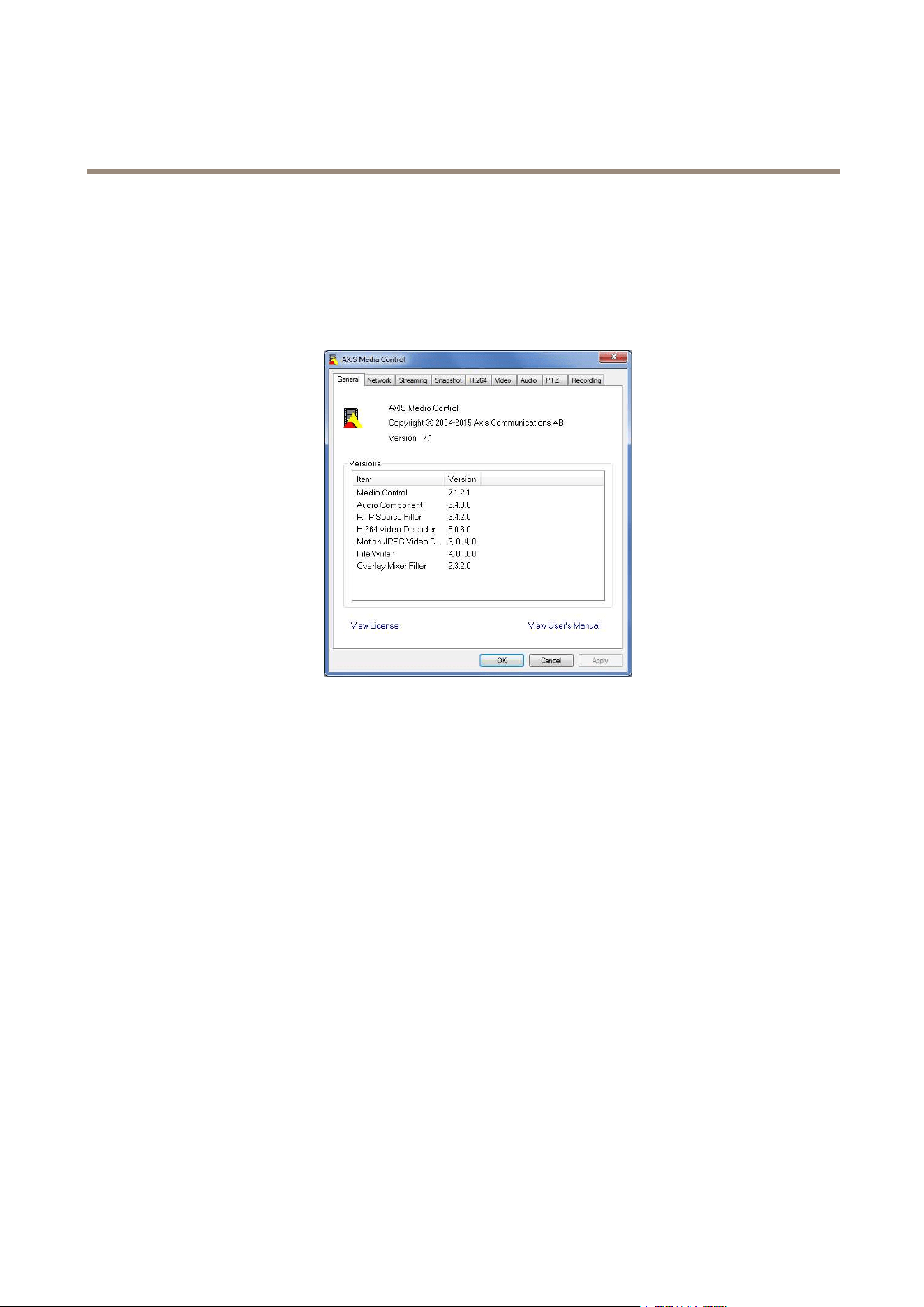
The AMC Control Panel can be used to congure various video settings. Please see the AXIS Media Control User’s Manual for more
information.
The AMC Control Panel is automatically installed on rst use, after which it can be congured. Open the AMC Control Panel from:
• Windows Control Panel (from the Start screen or Start menu)
• Alternatively, right-click the video image in Internet Explorer and click Settings.
Alternative Methods of Accessing the Video Stream
You can also access video and images from the Axis product in the following ways:
• Motion JPEG server push (if supported by the client, Chrome or Firefox, for example). This option maintains an open HTTP
connection to the browser and sends data as and when required, for as long as required.
• Still JPEG images in a browser. Enter the path http://<ip>/axis-cgi/jpg/image.cgi?camera=<source
no>
• Windows Media Player. This requires AXIS Media Control and the H.264 decoder to be installed. The following paths
can be used:
- Unicast via RTP: axrtpu://<ip>/axis-media/media.amp?camera=<source no>
- Unicast via RTSP: axrtsp://<ip>/axis-media/media.amp?camera=<source no>
- Unicast via RTSP, tunneled via HTTP: axrtsphttp://<ip>/axis-media/media.amp?camera=
<source no>
- Multicast: axrtpm://<ip>/axis-media/media.amp?camera=<source no>
• QuickTime
TM
. The following paths can be used:
- rtsp://<ip>/axis-media/media.amp?camera=<source no>
- rtsp://<ip>/axis-media/media.3gp?camera=<source no>
15

AXIS Q6000-E Mk II PTZ Network Camera
Media Streams
Note
• <ip>= IP address
• <source no> = 1/2/3/4/quad
• The Axis product supports QuickTime 6.5.1 and later.
• QuickTime may add latency to the video stream.
• It may be possible to use other players to view the H.264 stream using the paths above, although Axis does not guarantee
this.
16

AXIS Q6000-E Mk II PTZ Network Camera
Set Up the Product
Set Up the Product
The Axis product can be congured by users with administrator or operator rights. To open the product’s Setup pages, click Setup in
the top right-hand corner of the Live View page.
• Administrators have unrestricted access to all settings.
• Operators have restricted access to settings, see Users on page 43
See also the online help
.
Basic Setup
Basic Setup provides shortcuts to the settings that should be made before using the Axis product:
1. Users. See page 43.
2. TCP/IP. See page 47.
3. Date & Time. See page 45.
4. Video Stream. See page 18.
The Basic Setup menu can be disabled from System Options > Security > Users.
17

AXIS Q6000-E Mk II PTZ Network Camera
Video
Video
It is possible to congure the following video features in your Axis product:
• Video stream. See page 18.
• Stream proles. See page 21.
• ONVIF Media Proles. See page 21.
• Camera settings. See page 21.
• Overlay image. See page 23.
• Privacy mask. See page 24.
Set Up Video Streams
To set up the product’s video streams, go to Video > Video Stream.
The video stream settings are divided into the following tabs:
• Image. See page 18.
• H.264. See page 19.
• Zipstream. See page 20
• MJPEG. See page 21.
Note
Video stream can be congured for each channel, including quad stream.
Pixel Counter
The pixel counter shows the number of pixels in an area of the image. The pixel counter is useful in situations where there is
a specic size requirement, for example in face recognition.
The pixel counter can be used:
• When setting up a video stream, see Set Up Video Streams on page 18. Under Preview, click Open and select the Show
pixel counter option to enable the rectangle in the image. Use the mouse to move and resize the rectangle, or enter the
number of pixels in the Width and Height elds and click Apply.
• When accessing the Live View page in Internet Explorer with AXIS Media Control (AMC) in Windows. Right-click in the
image and select Pixel counter. Use the mouse to move and resize the rectangle.
Image
The default image settings can be congured under Video> Video Stream. Select the Image tab.
The following settings are available:
• Resolution. Select the default resolution.
• Compression. The compression level affects the image quality, bandwidth and le size of saved images; the lower the
compression, the higher the image quality with higher bandwidth requirements and larger le sizes.
• Rotate image. If required, the image can be rotated.
18

AXIS Q6000-E Mk II PTZ Network Camera
Video
• Maximum frame rate. To avoid bandwidth problems, the frame rate allowed to each viewer can be Limited to a xed
amount. Alternatively, the frame rate can be set as Unlimited, which means the Axis product always delivers the highest
frame rate possible under the current conditions.
• Overlay settings. See About overlay text on page 23.
Click Save to apply the new settings.
About H.264
H.264, also known as MPEG-4 Part 10/AVC, is a video compression standard that provides high quality video streams at low bitrates.
An H.264 video stream consists of different types of frames such as I-frames and P-frames. An I-frame is a complete image, whereas
P-frames only contain the differences from previous frames.
About GOP length
A Group of Pictures (GOP) contains one I-frame followed by a number of P-frames. The GOP length is the number of frames
between two I-frames.
If you set the GOP length and the frame rate equally you will get one GOP per second. If you change the GOP length to a higher
value you will get more small sized P-frames and less big sized I-frames while keeping the same frame rate. In other words, a high
GOP-length value saves bandwidth, but the video quality may decrease. A low GOP-length value increases the video quality
but needs more bandwidth.
About H.264 proles
The Axis product supports the following H.264 prole(s):
• Baseline: Use the Baseline prole if the client does not support CABAC entropy coding.
• Main: The Main prole uses CABAC and provides a better compression with maintained video quality. It requires a larger
amount of processing power to decode than the Baseline prole.
• High: The High prole provides a higher compression than both Main and Baseline proles, but requires more processing
power to decode. High prole supports 8x8 blocks, which reduces the bitrate further compared to the Main prole.
About bitrate control
Bitrate control is useful to make sure the video streaming does not take up too much bandwidth.
The built-in bitrate control can be combined with Zipstream, see About Zipstream on page 20. We recommend using a high bitrate
limit to enable the full potential of Zipstream.
About variable bitrate
Variable bitrate (VBR) adjusts the bitrate according to the image complexity. When the activity in the scene increases, VBR adjusts
the bitrate according to the complexity, using up more bandwidth for increased activity in the scene, and less for lower scene activity.
Variable bitrate is suitable if there is a surplus in bandwidth, where the increased bitrate may not be an issue.
About maximum bitrate
If you have limited bandwidth, we recommend Maximum bit rate (MBR). MBR allows you to set a target bitrate to control the
bandwidth consumption. The target value limits the bitrate, but it maintains a exibility to be able to prioritize a continuous video
stream. Consequently, the frame rate might need to go down and the image quality might decrease. To partly compensate for this,
you can select which variable shall be prioritized. Not setting a priority means that frame rate and image quality are equally affected.
How to set an H.264 prole
1. To change the settings for all H.264 streams that do not use a stream prole, go to Video > Video Stream > H.264.
19

AXIS Q6000-E Mk II PTZ Network Camera
Video
2. To increase or decrease the number of frames per GOP, set the GOP length.
3. Select one of the H.264 proles.
4. Select on of the following:
- Variable bit rate
- Maximum bit rate
5. If you select Maximum bit rate, select which variable to prioritize in the Priority drop-down list.
6. Click Save.
How to include current bitrate in a text overlay
1. Go to Video > Video Stream > Overlay Settings.
2. In the Include text eld enter #b.
3. Click Save.
About Zipstream
Axis’ Zipstream Technology is a bitrate reduction technology optimized for video surveillance. Zipstream reduces the average bitrate
in the H.264 stream by removing unnecessary data and makes it possible to allow higher resolutions, reduce storage cost or
to keep recordings for a longer time.
To reduce the bitrate, Zipstream reduces the number of bits in the areas of the image that are less interesting from a video
surveillance perspective, for example the background. Image details that are important for forensic video analysis, for example faces
and license plates, are preserved with enough number of bits.
Axis’ Zipstream Technology for H.264 conforms to the H.264 standard and is compatible with third-party clients and VMS solutions
that decode H.264 video.
Recommended use of bitrate reduction
Zipstream offers a number of bitrate reduction presets, from Low to Extreme. Low bitrate reduction is enabled by default and is
safe to use in all applications while still reducing the bitrate.
For cloud-connected cameras or cameras using edge storage that need to limit the bitrate for increased storage time it is
recommended to select the Extreme bitrate reduction. This setting is suitable to combine with motion detection triggering and
variable bitrate (VBR) where the bitrate is allowed to adapt to changes in complexity in the scene.
How to save bandwidth and storage using Zipstream
The bitrate controller built into the product can be combined with Zipstream to ensure a maximum bitrate (MBR) limit. We
recommend using VBR or MBR with a high bitrate limit to enable the full potential of Zipstream. For instance in railway surveillance
where at times there is a lot of movement in the scene and where it is important to capture details, such as facial features, the MBR
should be set to 10Mbit/s (for 1080p resolution at 30 fps).
To further save bandwidth go to Setup > Video > Video Stream and do one or more of the following:
• Go to the Image tab and set a low Maximum frame rate value.
• Go to the H.264 tab and set a high GOP length value.
• Go to the Zipstream tab and select Extreme H.264 bitrate reduction.
• Go to the Zipstream tab. Enable Dynamic GOP and set a high Max dynamic GOP length value.
• Go to the Zipstream tab and enable Dynamic FPS.
20

AXIS Q6000-E Mk II PTZ Network Camera
Video
Always verify that the video stream meets the quality requirements for your surveillance purposes after changing the video stream
settings.
MJPEG
Sometimes the image size is large due to low light or complex scenery. Adjusting the maximum frame size helps to control the
bandwidth and storage used by the Motion JPEG video stream in these situations. Setting the frame size to the Default setting
provides consistently good image quality at the expense of increased bandwidth and storage usage in low light. Limiting the frame
size optimizes bandwidth and storage usage, but may give poor image quality. To prevent increased bandwidth and storage usage,
the maximum frame size should be set to an optimal value.
About stream proles
A stream prole is a set of predened stream settings including resolution, compression, frame rate and overlay settings. Stream
proles can be used:
• When setting up recording using action rules. See Events on page 35.
• When setting up continuous recording. See Continuous Recording on page 41.
• In the Live View page – select the stream prole from the Stream prole drop-down list.
To create a new prole or modify an existing prole, go to Setup > Video > Stream Proles.
To select a default stream prole for the Live View page, go to Setup > Live View Cong.
About ONVIF media proles
An ONVIF media prole consists of a set of congurations that can be used to change media stream settings. ONVIF media proles
can be used by a client to congure media stream properties.
The ONVIF Media Proles page lists all precongured proles. These proles are included in the product for quick setup. You can
add, modify or remove ONVIF media proles from this page.
Camera Settings
The Video > Camera Settings page provides access to advanced image settings for the Axis product.
Image Appearance
To change Image Appearance go to the menus under Setup > Video > Camera Settings.
Increasing the Color level increases the color saturation. The value 100 gives maximum color saturation and the value 0 gives
minimum color saturation.
The image Brightness can be adjusted in the range 0–100, where a higher value produces a brighter image.
Increasing the Sharpness can increase bandwidth usage. A sharper image might increase image noise especially in low light
conditions. A lower setting reduces image noise, but the whole image will appear less sharp.
The Contrast changes the relative difference between light and dark. It can be adjusted using the slidebar.
Local Contrast applies contrast to a specic area of the image. Use the slider to adjust the contrast, where a higher value produces
an image with high contrast between the dark and light areas and is suitable for scenes with wide dynamic range.
White Balance
To change this setting go to Setup > Video > Camera Settings
21

AXIS Q6000-E Mk II PTZ Network Camera
Video
White balance is used to make colors in the image appear the same regardless of the color temperature of the light source. The Axis
product can be set to automatically identify the light source and compensate for its color. Alternatively, select the type of light
source from the drop-down list. For a description of each available setting, see the online help
.
The white balance window is enabled for the Automatic and Automatic outdoor options that appear in the White balance drop-down
list. Select one of the options from the drop-down list to set the white balance window properties. Select Automatic to use the
default settings for the Automatic and Automatic outdoor options (in the White balance drop-down list). Select Custom to manually
set a reference window for white balance in the view area.
Exposure Settings
Exposure is the amount of light the camera’s sensor captures for a scene. Too much light results in a washed out image and too
little light results in a dark image.
Exposure value - Use the Exposure value slider to adjust the overall brightness of the image.
Max exposure time - Shutter speed, also called ‘exposure time’, stands for the length of time the camera shutter is open, thereby
exposing the camera sensor to light. If shutter speed is fast it can freeze action effectively. If shutter speed is slow, it can cause
moving objects to appear blurred. Decreasing the exposure time will reduce motion blur.
Exposure zones - This setting determines which part of the image is used to calculate the exposure. For most situations, the Auto
setting can be used.
You can select a predened area by dening Include and Exclude windows within the image. Exclude windows exclude areas that are
too bright or dark, and Include windows include areas in the scene that have better lighting which will contribute to the exposure data.
There must be at least one Include window. There can be a total of ten Include and Exclude windows to tailor the exposure zone.
Note that an Exclude window is effective only when placed inside an include window.
Tip: If an area is extremely bright draw an Include window to cover the whole area and dene Exclude windows within it to
block out the bright areas.
Shutter & Gain
The shutter and gain settings affect the amount of motion blur and noise in the image. To adapt to different lighting, available
storage space and bandwidth, it is often necessary to prioritize either low motion blur or low noise. The Axis product allows different
prioritization in normal light and in low light.
Shutter speed is related to the amount of time the shutter is opened and is measured in seconds (s). A slow shutter speed allows
more light to reach the sensor and can help produce a brighter image in low light situations. On the other hand, a slow shutter
speed can cause moving objects to appear blurry.
Set Wide Dynamic Range to WDR Off and set Shutter to
• Auto to set the shutter speed automatically. If required, use Max shutter to limit the shutter speed to prevent the frame
rate from being reduced.
For example, to get 30 fps, set Max shutter to 1/30.
• Fixed to use a xed shutter speed.
Gain, measured in decibel (dB), is the amount of amplication applied to the image. A high gain may provide a better image in low
light situations but will increase the amount of image noise.
Set Gain to
• Auto to set the gain automatically. If required, use Max gain to limit the applied gain.
• Fixed to use a xed gain.
Example
If storage space or bandwidth is limited, try using a lower gain. This will reduce image noise and produce smaller image les.
22

AXIS Q6000-E Mk II PTZ Network Camera
Video
About overlays
Note
The overlay feature is not supported for the quad stream, only for the individual video streams.
Overlays are superimposed over the video stream. They are used to provide extra information during recordings, such as a timestamp,
or during product installation and conguration.
About overlay text
An overlay text can include the current date and time, or a text string. When using a text string, so-called modiers can be used to
display, for example, the current bit rate or the current frame rate.
You can choose between the following text overlay sizes:
Size
Text height Background height
Small
10 pixels 20 pixels
Medium 16 pixels 28 pixels
Large 21 pixels 36 pixels
It is also possible to display text when an action rule is triggered, see How to include overlay text in an action rule on page 23.
How to include overlay text
1. Go to Video > Video Stream and select the Image tab.
2. To include date and time, select Include date and Include time.
3. To include a text string, select Include text and enter the text in the eld. Modiers can be used, see File Naming &
Date/Time Formats in the online help
.
4. Select size, color, and placement of the text string.
5. Click Save.
To modify the date and time format, go to System Options > Date & Time. See Date & Time on page 45.
How to include overlay text in an action rule
Example
To display the text “Motion detected” when motion is detected, enter #D in the Include text eld and enter “Motion detected” in
the Text eld when setting up the action rule.
1. Go to Video > Video Stream and select the Image tab.
2. Under Overlay Settings, select Include text.
3. Enter the modier #D. When the rule is triggered, #D is replaced by the text specied in the action rule.
Additional text in this eld will be displayed also when the action rule is not active.
4. Go to Events > Action Rules and create your action rule.
5. From the Actions list, select Overlay Text.
6. Enter the text to display in the Text eld.
7. Specify the Duration. The text can be displayed while the rule is active or for a xed number of seconds.
23

AXIS Q6000-E Mk II PTZ Network Camera
Video
About overlay images
An overlay image is a static image superimposed over the video stream. The image, for example a company logo, is rst uploaded to
the Axis product and then used to provide extra information or to mask a part of the image.
Image specications:
• The uploaded image should be a Windows 24-bit BMP image with maximum 250 colors.
• The image width and height, in pixels, must be exactly divisible by four.
• The image cannot be larger than the maximum image resolution.
• If you combine a text overlay with and image overlay, the text overlay always takes presidence over the overlay image in
height. A text overlay always stretches across the whole video image which means you cannot shrink the overlay strip to
make room for an image. For information about the different text overlay heights, see About overlay text.
To always cover a selected part of the monitored area, use a privacy mask. See About privacy masks on page 24.
How to upload an overlay image
1. Go to Video > Overlay Image.
2. Click Browse and browse to the le.
3. Click Upload.
4. The Transparency Settings page is now displayed:
- To make a color in the overlay image transparent, select Use transparency and enter the RGB hexadecimal value
for the color. Example: To make white transparent, enter FFFFFF.
For more examples of hexadecimal values, see the online help
.
- To scale the image automatically, select Scale with resolution. The image will be scaled down to t the
resolution used by the Axis product.
5. Click Save.
How to include an overlay image
1. Go to Video > Overlay Image.
2. Select the image to use from the Use overlay image list and click Save.
3. Go to Video > Video Stream and select the Image tab.
4. Under Overlay Settings, select Include overlay image at the coordinates.
5. To control the image’s position, enter the X (horizontal) and Y (vertical) coordinates. The X=0 and Y=0 position is
the top left corner. If a part of the image is positioned outside the video image, the overlay image will be moved so
that the whole image is visible.
6. Click Save.
About privacy masks
A privacy mask is a user-dened area that covers parts of the monitored area. Privacy masks appear as blocks of solid color or
blurred image elements and are applied on the video stream. Privacy masks cannot be bypassed using the VAPIX® application
programming interface (API).
The Privacy Mask List (Video > Privacy Mask) shows all the masks that are currently congured in the Axis product and indicates
if they are enabled.
24

AXIS Q6000-E Mk II PTZ Network Camera
Video
You can add a new mask, re-size the mask with the mouse, choose a color for the mask, and give the mask a name.
For more information, see the online help
Important
Adding many privacy masks may affect the product’s performance.
Note
Privacy masks are not available for the quad stream. However, privacy masks congured on each channel show up in
the quad view.
25

AXIS Q6000-E Mk II PTZ Network Camera
Configure the Live View Page
Configure the Live View Page
You can customize the Live View page and alter it to suit your requirements. It is possible to dene the following features of
the Live View page.
• Default Live View Video. See .
• Stream Prole. See page 21.
• Default Viewer for Browser. See page 26.
• Viewer Settings. See page 26.
• Action Buttons. These are the buttons described in Controls on the Live View Page on page 12.
• User Dened Links. See page 27.
Default Viewer for Browsers
From Live View Cong > Default Viewer select the default method for viewing video images in your browser. The product attempts
to show the video images in the selected video format and viewer. If this is not possible, the product overrides the settings and
selects the best available combination.
Browser Viewer Description
AMC
Recommended viewer in Internet Explorer (H.264/Motion JPEG).
QuickTime
H.264.
Windows Internet Explorer
Still image Displays still images only. Click the Refresh button in your browser to view a
new image.
Server Push
Recommended viewer for other browsers (Motion JPEG).
QuickTime
H.264.
Other browsers
Still image Displays still images only. Click the Refresh button in your browser to view a
new image.
For more information, please see the online help .
Viewer Settings
To congure options for the viewer, go to Live View Cong > Viewer Settings.
• Select Show viewer toolbar to display the AXIS Media Control (AMC) or the QuickTime viewer toolbar under the video
image in your browser.
• H.264 decoder installation. The administrator can disable installation of the H.264 decoder included with AXIS Media
Control. This is used to prevent installation of unlicensed copies. Further decoder licenses can be purchased from your
Axis reseller.
• Select Show crosshair in PTZ joystick mode to enable a cross that will indicate the center of the image in PTZ joystick
mode.
• Select Use PTZ joystick mode as default to enable joystick mode. The mode can be changed temporarily from the
PTZ control panel.
• Select Enable recording button to enable recording from the Live View page. This button is available when using the
AMC viewer. The recordings are saved to the location specied in the AMC Control Panel. See AXIS Media Control
(AMC) on page 14.
26

AXIS Q6000-E Mk II PTZ Network Camera
Configure the Live View Page
User Dened Links
To display user-dened links in the Live View page, select the Show custom link option, give the link a name and then enter the URL
to link to. When dening a web link do not remove the 'http://' from the URL address. Custom links can be used to run scripts or
activate external devices connected to the product, or they can link to a web page. Custom links dened as cgi links will run the
script in the background, in a hidden frame. Dening the link as a web link will open the link in a new window.
27

AXIS Q6000-E Mk II PTZ Network Camera
PTZ (Pan Tilt Zoom)
PTZ (Pan Tilt Zoom)
Control Queue
Note
• The administrator can enable and disable PTZ controls for selected users.
• To identify different users in the viewer group, cookies must be enabled on the client.
• The Control queue polltime is measured in seconds. For more information see the online help
.
The administrator can set up a queue for PTZ controllers from PTZ > Control Queue. Once set up, the PTZ Control Queue buttons
appear in the Live View page offering one viewer exclusive control for a limited period of time. Other users will be placed in queue.
A user who belongs to a group (see Users on page 43) with a higher PTZ priority can go before other users in the queue and take
control of the product. The order of priority is as follows:
1. Administrator — An administrator takes over PTZ control regardless of who is rst in queue. The administrator will be
removed from the queue 60 seconds after the last PTZ control command.
2. Event — The Axis product can be congured to go to a preset position when triggered by an alarm (see Events on page 35).
The event will immediately be placed rst in the queue except when an administrator is in control.
3. Operator — Same as administrator but with lower priority
4. Viewer — Multiple viewers must wait for their turn. The viewer has 60 seconds PTZ control before control is passed
on to the next viewer in queue.
About Remote Gatekeeper
Gatekeeper monitors an area. When a motion detection triggers the Gatekeeper, the PTZ camera moves to a preset position.
About the Remote Gatekeeper setup
Only one gatekeeper can be created under Setup > PTZ > Remote Gatekeeper. Additional gatekeepers must be created as separate
action rules, see How to create additional gatekeepers on page 29.
If you re-congure Remote Gatekeeper, this overwrites the previous conguration.
There are three steps to set up a gatekeeper:
1. Set up preset positions for each channel. You can create and save up to a maximum of 9 preset positions per channel. A
minimum of one preset position is required for the gatekeeper to work. The presets congured for each channel will be
added on the connected PTZ camera. See How to set up preset positions on page 28
2. To dene where movement should trigger the gatekeeper for the channel, set up motion detection window. See How to
set up motion detection window on page 29
3. Congure the action rule. See How to congure the gatekeeper action rule on page 29
How to set up preset positions
1. Select channel.
2. Click in the Channel image to draw a rectangle for the preset position. The connected PTZ camera moves to this position.
3. To adjust the pan and tilt positions, click in the PTZ Network Camera image. For more adjustments, click Fine tune
remote PTZ by clicking here.
4. Enter a name in the Current position eld. This name appears in the Available positions drop-down list.
28

AXIS Q6000-E Mk II PTZ Network Camera
PTZ (Pan Tilt Zoom)
5. Click Add. The page reloads and resets the selected channel to channel 1.
Note
Before you click Next, make sure you have selected the correct channel.
How to remove a preset position in the Remote Gatekeeper setup
1. Go to Setup > PTZ > Remote Gatekeeper
2. Select channel.
3. Select a position in the drop-down list and click Remove. The screen reloads and resets the selected channel to channel 1.
How to set up motion detection window
1. Depending on if your browser uses AMC or the Java applet as default view, do one of the following:
- Select Congure Include Windows and click New .
- Click the Add Window button and select Include.
2. Click on the window bar to drag it to the desired location. To resize the window drag the bottom right corner.
3. Re-name the motion detection windows if required. This name appears in the drop-down list when creating action rules,
therefore a unique name is recommended.
4. Set the Object size, History and Sensitivity sliders for the window.
5. Click Save to save each motion detection window.
6. Click Next to continue.
To delete a motion detection window select the window and click Del.
How to congure the gatekeeper action rule
The attributes Name, Type and Control are precongured and not editable.
1. Select a schedule.
2. Select a motion detection window from the Event drop-down list.
3. Select a preset position from the Go to drop-down list.
4. Click Save to nalize the Remote Gatekeeper.
How to create additional gatekeepers
1. Go to Events > Action Rules.
2. Select the created gatekeeper action rule from the Actions Rule List and click Copy.
3. Write a Name for the action rule.
4. Select a motion detection window from the Trigger drop-down list.
5. Select a schedule.
6. Select a preset position from the Go to drop-down list.
7. Click OK.
29

AXIS Q6000-E Mk II PTZ Network Camera
Detectors
Detectors
About camera tampering
Camera Tampering can generate an alarm when the camera is repositioned, or when the lens is covered, spray-painted or severely
de-focused. To send an alarm, for example via email, an action rule must be set up.
How to congure tampering detection
1. Go to Detectors > Camera Tampering.
2. Set the Minimum duration, that is the time that must elapse before an alarm is generated. Increase time to prevent
false alarms for known conditions that affect the image.
3. Select Alarm for dark images if an alarm should be generated when lights are dimmed or turned off, or if the lens is
sprayed, covered, or rendered severely out of focus.
4. Click Save.
How to congure an action rule for tampering alarm
1. Go to Events > Action Rules.
2. Click Add to set up a new action rule.
3. Enter a Name for the action rule.
4. Under Condition, select Detectors from the Trigger list.
5. Select Tampering from the list of detectors.
6. Optionally, select a schedule and set additional conditions.
7. Select the action. Example: To send an email, select Send Notication and select a Recipient from the list of dened
recipients.
Note
The While the rule is active option under Duration cannot be used with camera tampering, since camera tampering does not
have a duration and once it has been triggered it will not automatically return to its untriggered state.
For more information on actions rules, see Events on page 35.
Shock Detection
Enable Shock Detection from the Detectors menu. Shock detection is used, for example, to generate an alarm if the product is hit
by an object or if the product is tampered with.
Use the Shock sensitivity slider to adjust the sensitivity level at which the product should send an alarm. Low sensitivity value
implies that the product will generate an alarm only if the hit is powerful. A high sensitivity value implies that the product will
generate an alarm even with mild tampering.
Motion Detection
Motion detection is used to generate an alarm whenever movement starts or stops in the camera view.
Motion detection is congured by dening up to 10 Include and Exclude windows:
• Include windows — dene areas where motion should be detected
30

AXIS Q6000-E Mk II PTZ Network Camera
Detectors
• Exclude windows — dene areas within an Include window that should be ignored (areas outside Include windows
are automatically ignored).
For instructions, see Set Up Motion Detection Windows on page 31.
To control the number of motion detection alarms, the parameters Object Size, History and Sensitivity can be adjusted. See
Motion Detection Parameters on page 31.
Note
• Using the motion detection feature may decrease the product’s overall performance.
• The position of the Motion Detection Window is relative to the orientation of the Camera. Changing the orientation of the
camera will also change the position of the Motion Detection Window.
Set Up Motion Detection Windows
To set up a motion detection Include Window, follow these instructions:
1. Select the Congure Included Windows option and click New. Select the new window in the list of windows and
enter a descriptive name.
2. Adjust the size (drag the bottom right-hand corner) and the position (click on the text at the top and drag to the desired
position) of the window.
3. Adjust the Object Size, History and Sensitivity prole sliders (see Motion Detection Parameters for details). Any detected
motion within an active window is indicated by red peaks in the Activity window.
4. Click Save.
To exclude parts of the include window, select the Congure Excluded Windows and position the exclude window within the
include window.
To delete an include or exclude window, select the window in the list of windows and click Del.
Motion Detection Parameters
The parameters controlling motion detection are described in the table below:
Parameter
Object Size
History
Sensitivity
Description
Object size relative to window
size.
Object memory length.
Difference in luminance
between background and
object.
High level (100%)
Only very large objects trigger
motion detection.
An object that appears in
the window triggers motion
detection for a long time
before it is considered as
non-moving.
Ordinary colored objects on
ordinary backgrounds trigger
motion detection.
Medium level (50%)
A large difference in luminance
is required to trigger motion
detection.
Low level (0%)
Even very small objects trigger
motion detection.
An object that appears in
the window triggers motion
detection only for a very short
time before it is considered as
non-moving.
Only very bright objects on
a dark background trigger
motion detection.
Recommended values
5–15% 60–90% 75–95%
Default values
15% 90% 90%
31

AXIS Q6000-E Mk II PTZ Network Camera
Detectors
Note
• To trigger on small objects or movements, use several small motion detection windows rather than one large window,
and select a low object size.
• To avoid triggering on small objects, select a high object size.
• While monitoring an area where moving objects are not expected, select a high history level. This will cause motion
detection to trigger as long as the object is present in the window.
• To only detect ashing light, select a low sensitivity. In other cases high sensitivity is recommended.
32

AXIS Q6000-E Mk II PTZ Network Camera
Applications
Applications
AXIS Camera Application Platform (ACAP) is an open platform that enables third parties to develop analytics and other applications
for Axis products. For information about available applications, downloads, trials and licenses, go to www.axis.com/applications
Note
• Several applications can run at the same time but some applications might not be compatible with each other. Certain
combinations of applications might require too much processing power or memory resources when run in parallel. Verify
that the applications work together before deployment.
Application Licenses
Some applications need a license to run. Licenses can be installed in two ways:
• Automatic installation — requires access to the Internet
• Manual installation — obtain the license key from the application vendor and upload the key to the Axis product
To request a license, the Axis product serial number (S/N) is required. The serial number can be found on the product label and under
System Options > Support > System Overview.
Upload Application
To upload and start an application:
1. Go to Setup > Applications.
2. Under Upload Application, click Browse. Locate the application le and click Upload Package.
3. Install the license (if applicable). For instructions, see the documentation provided by the application vendor.
4. Start the application. Go to page Applications, select the application in the list of installed applications and click Start.
5. Congure the application. For instructions, see the documentation provided by the application vendor.
Note
• Applications can be uploaded by product administrators.
• Applications and licenses can be installed on multiple products at the same time using AXIS Camera Management, version
3.10 and later.
To generate a log le for the application, go to Applications. Select the application and click Log.
Application Considerations
If an application is upgraded, application settings, including the license, will be removed. The license must be reinstalled and
the application recongured.
If the Axis product’s rmware is upgraded, uploaded applications and their settings will remain unchanged, although this is not
guaranteed by Axis Communications. Note that the application must be supported by the new rmware. For information about
rmware upgrades, see Upgrade the Firmware on page 58.
If the Axis product is restarted, running applications will restart automatically.
If the Axis product is restored, uploaded applications remain unchanged but must be restarted. To start the application, go to
Setup > Applications. Select the application in the list of installed applications and click Start. For information about restoring
the Axis product, see Maintenance on page 55.
33


AXIS Q6000-E Mk II PTZ Network Camera
Events
Events
The Event pages allow you to congure the Axis product to perform actions when different events occur. For example, the product
can start a recording or send an email notication when motion is detected. The set of conditions that denes how and when
the action is triggered is called an action rule.
Set Up Action Rules
An action rule denes the conditions that must be met for the product to perform an action, for example record video or send an
email notication. If multiple conditions are dened, all of them must be met to trigger the action.
For more information about available triggers and actions, see Triggers on page 35 and Actions on page 36.
The following example describes how to set up an action rule to record video to a network share if there is movement in the
camera’s eld of view.
Set up motion detection and add a network share:
1. Go to Detectors > Motion Detection and congure a motion detection window. See page 31.
2. Go to System Options > Storage and set up the network share. See page 54.
Set up the action rule:
1. Go to Events > Action Rules and click Add.
2. Select Enable rule and enter a descriptive name for the rule.
3. Select Detectors from the Trigger drop-down list.
4. Select Motion Detection from the drop-down list. Select the motion detection window to use.
5. Optionally, select a Schedule and Additional conditions. See below.
6. Under Actions, select Record Video from the Type drop-down list.
7. Select a Stream prole and congure the Duration settings as described below.
8. Select Network Share from the Storage drop-down list.
To use more than one trigger for the action rule, select Additional conditions and click Add to add additional triggers. When using
additional conditions, all conditions must be met to trigger the action.
To prevent an action from being triggered repeatedly, a Wait at least time can be set. Enter the time in hours, minutes and seconds,
during which the trigger should be ignored before the action rule can be activated again.
The recording Duration of some actions can be set to include time immediately before and after the event. Select Pre-trigger time
and/or Post-trigger time and enter the number of seconds. When While the rule is active is enabled and the action is triggered
again during the post-trigger time, the recording time will be extended with another post-trigger time period.
For more information, see the online help
.
Triggers
Available action rule triggers and conditions include:
• Applications – Use installed applications to trigger the rule. See Applications on page 33.
• Detectors
35

AXIS Q6000-E Mk II PTZ Network Camera
Events
- Live Stream Accessed – Trigger the rule when any stream is accessed and during edge storage playback.
This can for example be used to send notications.
- Motion Detection – Trigger the rule when motion is detected. See Motion Detection on page 30.
- Shock Detection – Trigger the rule when the Axis product detects it has been tilted or hit. See Shock Detection
on page 30.
- Tampering – Trigger the rule when tampering is detected. See About camera tampering on page 30.
• Hardware
- Fan – Trigger the rule if the fan is malfunctioning. This can for example be used to send maintenance
notications.
- Network – Trigger the rule if network connection is lost or restored. This can for example be used to start
recording to the SD card.
- Temperature – Trigger the rule if the temperature falls outside or inside the operating range of the product. This
can for example be used to send maintenance notications.
• Input Signal
- Manual Trigger – Trigger the rule using the Manual Trigger button in the Live View page. See Controls on
the Live View Page on page 12. This can for example be used to validate actions during product installation
and conguration.
- Virtual Inputs – can be used by a VMS (Video Management System) to trigger actions. Virtual inputs can, for
example, be connected to buttons in the VMS user interface.
• Storage
- Disruption – Trigger the rule if storage problems are detected, for example if the storage device is unavailable,
removed, full, locked or if other read or write problems occur. This can for example be used to send maintenance
notications.
- Recording – Triggers the rule when the Axis product records to the storage device. The recording status trigger
can be used to notify the operator, for example by ashing LED lights, if the product has started or stopped to
record to the storage device. Note that, this trigger can be used only for edge storage recording status.
• System
- System Ready – Trigger the rule when the product has been started and all services are running. This can for
example be used to send a notication when the product restarts.
• Time
- Recurrence – Trigger the rule periodically. See Set Up Recurrences on page 38. This can for example be used to
upload an image every 5 minutes.
- Use Schedule – Trigger the rule according to the selected schedule. See Create Schedules on page 38.
Actions
Available actions include:
• Overlay Text – Display an overlay text. See How to include overlay text in an action rule on page 23.
• Record Video – Record video to a selected storage.
• Send Images – Send images to a recipient.
• Send Notication – Send a notication message to a recipient.
36

AXIS Q6000-E Mk II PTZ Network Camera
Events
• Send SNMP Trap – Send an SNMP trap message to the operator. Make sure that SNMP is enabled and congured
under System Options > Network > SNMP.
• Send Video Clip – Send a video clip to a recipient.
Add Recipients
The product can send media les and messages to notify users about events. Before the product can send media les or notication
messages, you must dene one ore more recipients. For information about available options, see Recipient Types on page 37.
To add a recipient:
1. Go to Events > Recipients and click Add.
2. Enter a descriptive name.
3. Select a recipient Type.
4. Enter the information needed for the recipient type.
5. Click Test to test the connection to the recipient.
6. Click OK.
Recipient Types
The following recipients are available:
Recipient Use with action Notes
Email
Send Images
Send Notication
Send Video Clip
An email recipient can contain multiple email addresses.
FTP
Send Images
Send Video Clip
SFTP Send Images
Send Video Clip
Encrypted le transfer using SSH File Transport Protocol
(SFTP). SFTP is a more secure method than FTP but le
transfer might be slower, especially for large les such as high
resolution video.
Specify login information for the SFTP server and the server’s
public key MD5 ngerprint (32 hexadecimal digits).
The SFTP recipient supports SFTP servers using SSH-2 with
RSA and DSA host key types. RSA is the preferred method. To
use DSA, disable the RSA key on the SFTP server.
HTTP
Send Images
Send Notication
Send Video Clip
HTTPS Send Images
Send Notication
Send Video Clip
Encrypted le transfer using HyperText Transfer Protocol
Secure (HTTPS).
Specify login information for the HTTPS server and validate
the server’s certicate. If there is a proxy between the Axis
product and the HTTPS server, also specify the proxy settings.
37

AXIS Q6000-E Mk II PTZ Network Camera
Events
Network Share Send Images
Send Video Clip
A network share can also be used as a storage device for
recorded video. Go System Options > Storage to congure
a network share before setting up a continuous recording or
an action rule to record video. For more information about
storage devices, see Storage on page 52.
TCP Send Notication
Set Up Email Recipients
Email recipients can be congured by selecting one of the listed email providers, or by specifying the SMTP server, port and
authentication used by, for example, a corporate email server.
Note
Some email providers have security lters that prevent users from receiving or viewing large attachments, from receiving
scheduled emails and similar. Check the email provider’s security policy to avoid delivery problems and locked email accounts.
To set up an email recipient using one of the listed providers:
1. Go to Events > Recipients and click Add.
2. Enter a Name and select Email from the Type list.
3. Enter the email addresses to send emails to in the To eld. Use commas to separate multiple addresses.
4. Select the email provider from the Provider list.
5. Enter the user ID and password for the email account.
6. Click Test to send a test email.
To set up an email recipient using for example a corporate email server, follow the instructions above but select User dened as
Provider. Enter the email address to appear as sender in the From eld. Select Advanced settings and specify the SMTP server
address, port and authentication method. Optionally, select Use encryption to send emails over an encrypted connection. The server
certicate can be validated using the certicates available in the Axis product. For information on how to upload certicates, see
About certicates on page 45.
Create Schedules
Schedules can be used as action rule triggers or as additional conditions, for example to record video if motion is detected outside
ofce hours. Use one of the predened schedules or create a new schedule as described below.
To create a new schedule:
1. Go to Events > Schedules and click Add.
2. Enter a descriptive name and the information needed for a daily, weekly, monthly or yearly schedule.
3. Click OK.
To use the schedule in an action rule, select the schedule from the Schedule drop-down list in the Action Rule Setup page.
Set Up Recurrences
Recurrences are used to trigger action rules repeatedly, for example every 5 minutes or every hour.
To set up a recurrence:
1. Go to Events > Recurrences and click Add.
2. Enter a descriptive name and recurrence pattern.
38

AXIS Q6000-E Mk II PTZ Network Camera
Events
3. Click OK.
To use the recurrence in an action rule, rst select Time from the Trigger drop-down list in the Action Rule Setup page and then
select the recurrence from the second drop-down list.
To modify or remove recurrences, select the recurrence in the Recurrences List and click Modify or Remove.
39

AXIS Q6000-E Mk II PTZ Network Camera
Recordings
Recordings
• To access recordings, see Find Recordings on page 40.
• To play recordings, see Play Recording on page 40.
• To export a recording as a video clip, see Export Video Clip on page 41.
• To congure camera controlled storage, see Storage on page 52.
Find Recordings
Recordings stored on the SD card or network share can be accessed from the Recordings > List page. The page lists all recordings on
the storage device and shows each recording’s start date and time, duration and the event that triggered the recording.
Note
The recording’s start date and time is set according to the Axis product’s date and time settings. If the Axis product is
congured to use a time zone different from the local time zone, make sure to congure the Recording time lters according
to the product’s time zone. Date and time settings are congured under System Options > Date & Time, see Date & Time
on page 45.
To nd a recording, follow these steps:
1. Go to Recordings > List.
2. To reduce the number of recordings displayed, select the desired options under Filter:
Recording time – List recordings that started between the From and To times.
Event – List recordings that were triggered by a specic event. Select continuous to list continuous recordings.
Storage – List recordings from a specic storage device.
Sort – Specify how recordings should be sorted in the list.
Results – Specify the maximum number of recordings to display.
3. To apply the lters, click the Filter button. Some lters may take a long time to complete.
4. The recordings are displayed in the Recording list.
To play a recording, select the recording and click Play. See also Play Recording on page 40.
To view detailed information about a recording, select the recording and click Properties.
To export a recording or a part of a recording as a video clip, select the recording and click Export. See also Export Video Clip on
page 41.
To remove a recording from the storage device, select the recording and click Remove.
Play Recording
Recordings on the SD card or network share can be played directly from the Axis product’s webpages.
To play a recording, follow these steps:
1. Go to Recordings > List.
2. To reduce the number of recordings displayed, select the desired options under Filter and click the Filter button to
apply the lters. See also Find Recordings on page 40.
40

AXIS Q6000-E Mk II PTZ Network Camera
Recordings
3. Select the recording and click Play. The recording will be played in a new browser window.
Export Video Clip
Recordings on the SD card or network share can be exported as video clips. It is possible to export a complete recording or a
part of a recording.
Note
The exported recording is a Matroska video le (.mkv). To play the recording in Windows Media Player, AXIS Matroska File
Splitter must be installed. AXIS Matroska File Splitter can be downloaded from www.axis.com/techsup/software
To export a video clip, follow these steps:
1. Go to Recordings > List.
2. To reduce the number of recordings displayed, select the desired options under Filter and click the Filter button to
apply the lters. See also Find Recordings on page 40.
3. Select the recording and click Export. The Export Recording dialog opens.
4. By default, the complete recording is selected. To export a part of the recording, modify the start and stop times.
5. Optionally, enter a le name for the recording.
6. Click Export.
Note
Recordings can also be exported from the playback window.
Continuous Recording
The Axis product can be congured to continuously save video to a storage device. For information about storage devices, see Storage
on page 52. To prevent the disk from becoming full, it is recommended to congure the disk to automatically remove old recordings.
If a new stream prole is selected while a recording is ongoing, the recording will be stopped and saved in the recording list and a
new recording with the new stream prole will start. All previous continuous recordings will remain in the recording list until they
are removed manually or through automatic removal of old recordings.
To start a continuous recording, follow these steps:
1. Go to Recordings > Continuous.
2. Select Enabled.
3. Select the type of storage device from the Storage list.
4. Select a Stream prole to use for continuous recordings.
5. Click Save to save and start the recording.
41

AXIS Q6000-E Mk II PTZ Network Camera
Languages
Languages
Multiple languages can be installed in the Axis product. All web pages including the online help will be displayed in the selected
language. To switch languages, go to Setup > Languages and rst upload the new language le. Browse and locate the le and click
the Upload Language button. Select the new language from the list and click Save.
Note
• Resetting the product to factory default settings will erase any uploaded language les and reset the product language to
English.
• Clicking the Restore button on the Maintenance page will not affect the language.
• A rmware upgrade will not affect the language used. However if you have uploaded a new language to the product and
later upgrade the rmware, it may happen that the translation no longer matches the product's web pages. In this case,
upload an updated language le.
• A language already installed in the product will be replaced when a current or a later version of the language le is uploaded.
42

AXIS Q6000-E Mk II PTZ Network Camera
System Options
System Options
Security
Users
User access control is enabled by default and can be congured under System Options > Security > Users. An administrator can
set up other users by giving them user names and passwords. It is also possible to allow anonymous viewer login, which means
that anybody may access the Live View page.
The user list displays authorized users and user groups (access levels):
• Viewers have access to the Live View page
• Operators have access to all settings except:
- creating and modifying PTZ presets
- creating and modifying PTZ control settings
- creating and modifying privacy mask settings
- uploading applications and language les
- any of the settings included in the System Options
• Administrators have unrestricted access to all settings. The administrator can add, modify and remove other users.
Note
Note that when the option Encrypted & unencrypted is selected, the webserver will encrypt the password. This is the default
option for a new unit or a unit reset to factory default settings.
Under HTTP/RTSP Password Settings, select the type of password to allow. You may need to allow unencrypted passwords if there are
viewing clients that do not support encryption, or if you upgraded the rmware and existing clients support encryption but need
to log in again and be congured to use this functionality.
Under User Settings, select the Enable anonymous viewer login option to allow anonymous users access to the Live View page.
Deselect the Enable Basic Setup option to hide the Basic Setup menu. Basic Setup provides quick access to settings that should be
made before using the Axis product.
ONVIF
ONVIF (Open Network Video Interface Forum) is a global interface standard that makes it easier for end users, integrators, consultants,
and manufacturers to take advantage of the possibilities offered by network video technology. ONVIF enables interoperability
between different vendor products, increased exibility, reduced cost and future-proof systems.
By creating a user you automatically enable ONVIF communication. Use the user name and password with all ONVIF communication
with the product. For more information see www.onvif.org
IP Address Filter
IP address ltering is enabled on the System Options > Security > IP Address Filter page. Once enabled, the listed IP address are
allowed or denied access to the Axis product. Select Allow or Deny from the list and click Apply to enable IP address ltering.
The administrator can add up to 256 IP address entries to the list (a single entry can contain multiple IP addresses).
43

AXIS Q6000-E Mk II PTZ Network Camera
System Options
HTTPS
HTTPS (HyperText Transfer Protocol over Secure Socket Layer, or HTTP over SSL) is a web protocol providing encrypted browsing.
HTTPS can also be used by users and clients to verify that the correct device is being accessed. The security level provided by
HTTPS is considered adequate for most commercial exchanges.
The Axis product can be congured to require HTTPS when users from different user groups (administrator, operator, viewer) log in.
To use HTTPS, an HTTPS certicate must rst be installed. Go to System Options > Security > Certicates to install and manage
certicates. See About certicates on page 45.
To enable HTTPS on the Axis product:
1. Go to System Options > Security > HTTPS
2. Select an HTTPS certicate from the list of installed certicates.
3. Optionally, click Ciphers and select the encryption algorithms to use for SSL.
4. Set the HTTPS Connection Policy for the different user groups.
5. Click Save to enable the settings.
To access the Axis product via the desired protocol, in the address eld in a browser, enter https:// for the HTTPS protocol
and http:// for the HTTP protocol.
The HTTPS port can be changed on the System Options > Network > TCP/IP > Advanced page.
IEEE 802.1X
IEEE 802.1X is a standard for port-based Network Admission Control providing secure authentication of wired and wireless network
devices. IEEE 802.1X is based on EAP (Extensible Authentication Protocol).
To access a network protected by IEEE 802.1X, devices must be authenticated. The authentication is performed by an authentication
server, typically a RADIUS server, examples of which are FreeRADIUS and Microsoft Internet Authentication Service.
In Axis implementation, the Axis product and the authentication server identify themselves with digital certicates using EAP-TLS
(Extensible Authentication Protocol - Transport Layer Security). The certicates are provided by a Certication Authority (CA).
You need:
• a CA certicate to authenticate the authentication server.
• a CA-signed client certicate to authenticate the Axis product.
To create and install certicates, go to System Options > Security > Certicates. See About certicates on page 45.
To allow the product to access a network protected by IEEE 802.1X:
1. Go to System Options > Security > IEEE 802.1X.
2. Select a CA Certicate and a Client Certicate from the lists of installed certicates.
3. Under Settings, select the EAPOL version and provide the EAP identity associated with the client certicate.
4. Check the box to enable IEEE 802.1X and click Save.
Note
For authentication to work properly, the date and time settings in the Axis product should be synchronized with an NTP
server. See Date & Time on page 45.
44

AXIS Q6000-E Mk II PTZ Network Camera
System Options
About certicates
Certicates are used to authenticate devices on a network. Typical applications include encrypted web browsing (HTTPS), network
protection via IEEE 802.1X and secure upload of images and notication messages for example via email. Two types of certicates
can be used with the Axis product:
Server/Client certicates - To authenticate the Axis product. A Server/Client certicate can be self-signed or issued by a Certicate
Authority (CA). A self-signed certicate offers limited protection and can be used before a CA-issued certicate has been obtained.
CA certicates - To authenticate peer certicates, for example the certicate of an authentication server in case the Axis product is
connected to an IEEE 802.1X protected network. The Axis product is shipped with several preinstalled CA certicates.
Note
• If the product is reset to factory default, all certicates, except preinstalled CA certicates, will be deleted.
• If the product is reset to factory default, all preinstalled CA certicates that have been deleted will be reinstalled.
How to create a self-signed certicate
1. Go to Setup > System Options > Security > Certicates.
2. Click Create self-signed certicate and provide the requested information.
How to create and install a CA-signed certicate
1. Create a self-signed certicate, see How to create a self-signed certicate on page 45.
2. Go to Setup > System Options > Security > Certicates.
3. Click Create certicate signing request and provide the requested information.
4. Copy the PEM-formatted request and send to the CA of your choice.
5. When the signed certicate is returned, click Install certicate and upload the certicate.
How to install additional CA certicates
1. Go to Setup > System Options > Security > Certicates.
2. Click Install certicate and upload the certicate.
Date & Time
The Axis product’s date and time settings are congured under System Options > Date & Time.
Current Server Time displays the current date and time (24h clock). The time can be displayed in 12h clock in the text overlay (see
below).
To change the date and time settings, select the preferred Time mode under New Server Time:
• Synchronize with computer time – Sets date and time according to the computer’s clock. With this option, date and
time are set once and will not be updated automatically.
• Synchronize with NTP Server – Obtains date and time from an NTP server. With this option, date and time settings are
updated continuously. For information on NTP settings, see NTP Conguration on page 49.
If using a host name for the NTP server, a DNS server must be congured. See DNS Conguration on page 49.
• Set manually – Allows you to manually set date and time.
If using an NTP server, select your Time zone from the drop-down list. If required, check Automatically adjust for daylight saving
time changes.
45
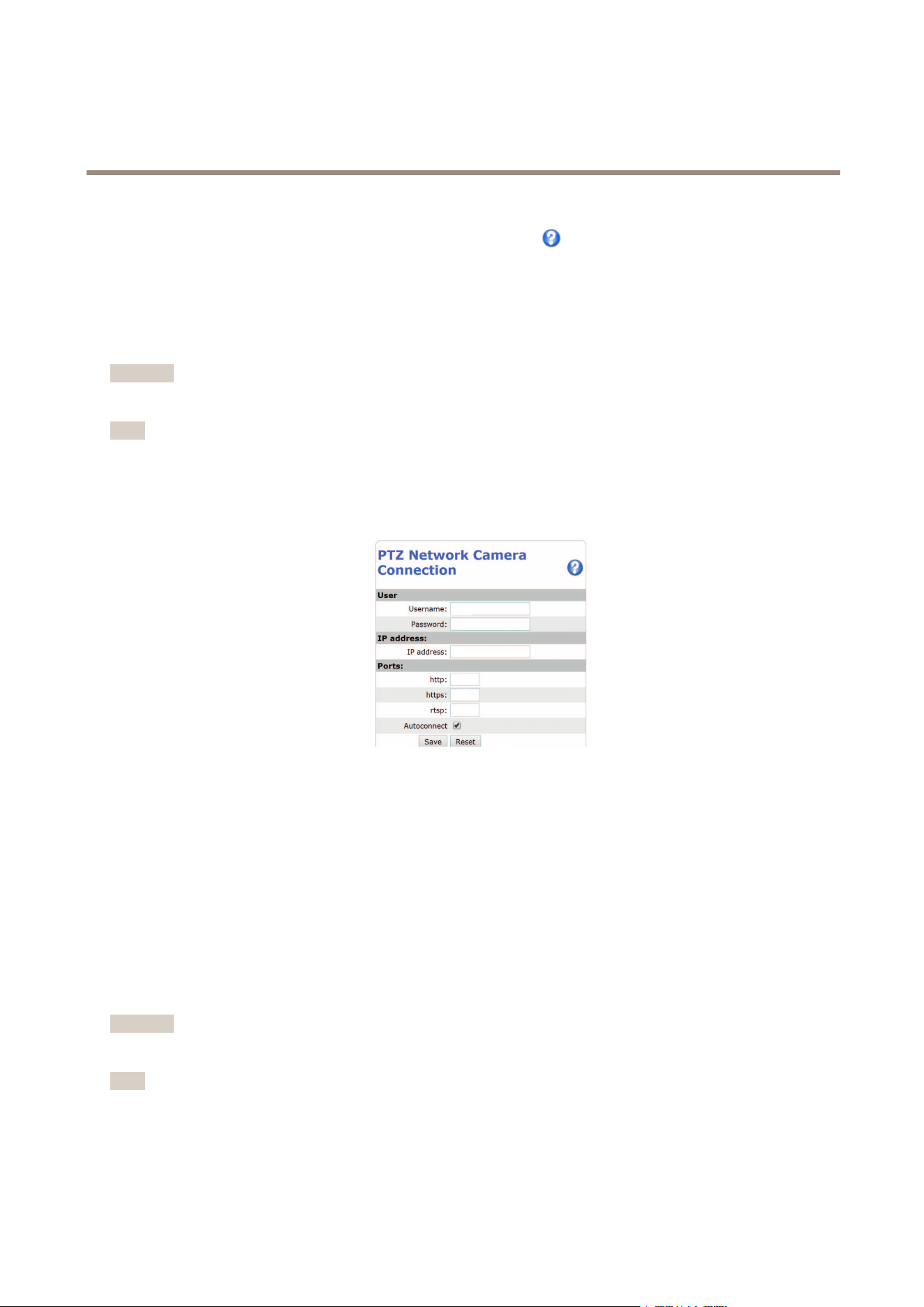
AXIS Q6000-E Mk II PTZ Network Camera
System Options
The Date & Time Format Used in Images is the date and time format displayed as a text overlay in the video stream. Use the
predened formats or see File Naming & Date/Time Formats in the online help
for information on how to create custom date and
time formats. To include date and time in the overlay text, go to Video and select Include date and Include time.
PTZ Network Camera
Connect to the PTZ Network Camera
Important
The user logged in to the PTZ camera must have access to the PTZ functions, see the User Manual for the PTZ camera.
Note
• Auto-Congure Link-Local Address must be enabled in the PTZ network camera for Autoconnect to work. This feature is
enabled by default in Axis products. It can also be enabled under System Options > Advanced TCP/IP Settings.
• The already saved password will not be changed if the password eld is left empty.
• The connection setup details must be re-entered if the product is reset to factory default.
User - Enter the login information for the PTZ network camera.
IP address - Enter the IP address for the PTZ network camera.
Ports - Enter the port number used for the communication with the PTZ network camera. Use the default values or modify as per
requirement.
Autoconnect - Check this box for the product to automatically connect to the PTZ network camera when network connection is
established. This may be useful if for example the product has restarted due to power failure.
To save the settings, click Save.
Calibrate the PTZ network camera
Important
If PTZ camera and the camera heads are not calibrated, the PTZ functions will not work as expected.
Note
• If the Axis product loses connection with the PTZ camera, re-connect from System Options > PTZ Network Camera >
Connection.
• Click on PTZ Network Camera Connection OK to access the PTZ camera’s web pages.
46
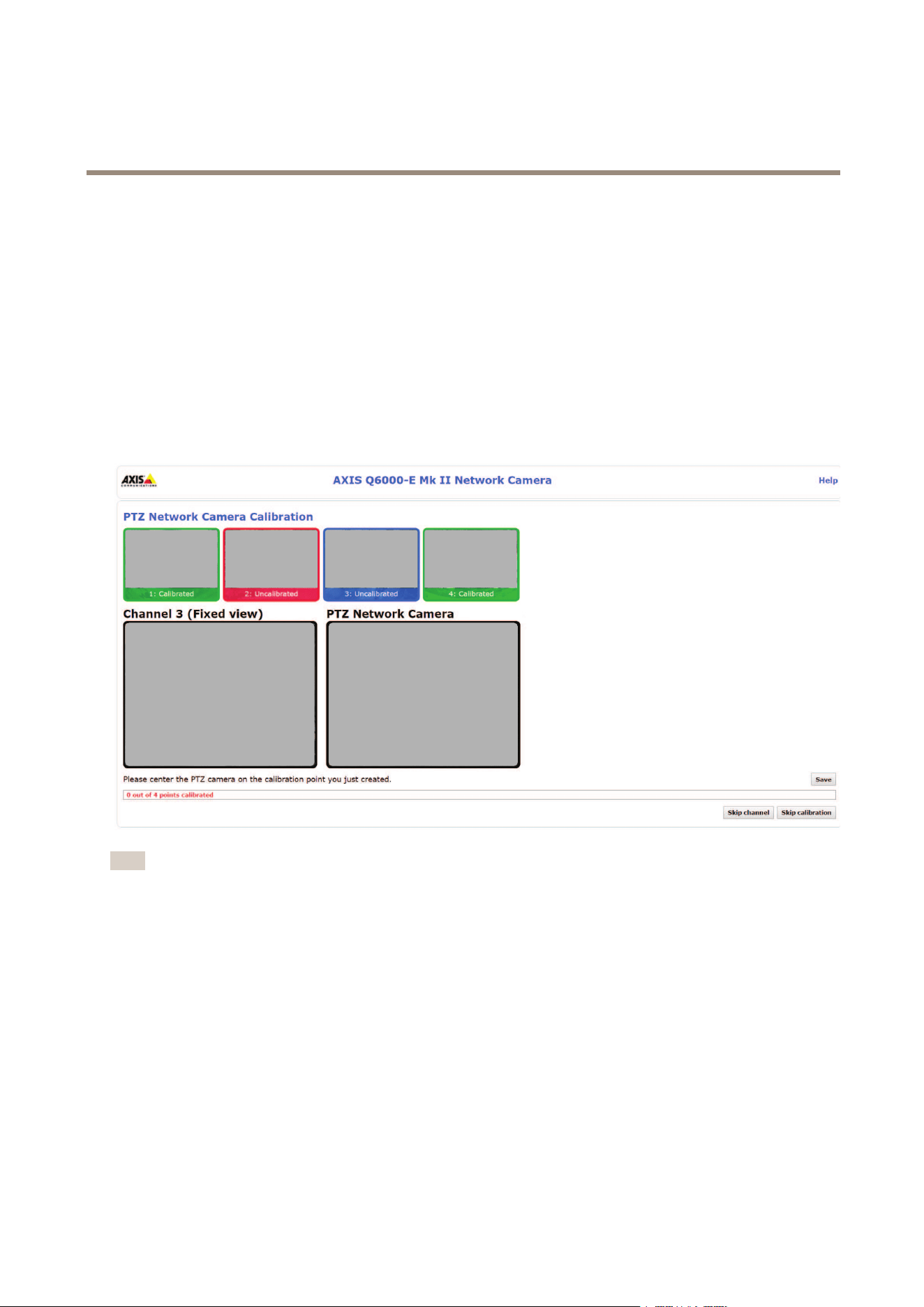
AXIS Q6000-E Mk II PTZ Network Camera
System Options
To calibrate the PTZ camera, do the following:
1. In the PTZ Network Camera Calibration page, select a channel to calibrate.
2. Add a calibration point in the selected channel then navigate the PTZ camera to nd the same point in the PTZ camera view.
3. Click Save.
4. Repeat steps 2-4 until there are four calibration points in the channel.
To improve calibration accuracy, make sure the 4 calibration points are spread evenly over the image and at least one
calibration point is closer to the center of the image. It is not recommended to add points near the edges of the image.
5. Repeat the same procedure for all channels.
6. Select Finish Calibration.
Note
If you repeatedly get an error message during calibration, lens and resolution changes may be the cause. You can skip the
affected channel and still be able to point and direct the PTZ camera in the calibrated channels.
Network
Basic TCP/IP Settings
The Axis product supports IP version 4 and IP version 6. Both versions can be enabled simultaneously, and at least one version
must always be enabled.
IPv4 Address Conguration
By default, the Axis product is set to use IPv4 (IP version 4) and to obtain the IP address automatically via DHCP. The IPv4 settings are
congured under System Options > Network > TCP/IP > Basic.
47

AXIS Q6000-E Mk II PTZ Network Camera
System Options
DHCP (Dynamic Host Conguration Protocol) allows network administrators to centrally manage and automate the assignment of
IP addresses. DHCP should only be enabled if using dynamic IP address notication, or if the DHCP can update a DNS server. It is
then possible to access the Axis product by name (host name).
If DHCP is enabled and the product cannot be accessed, run AXIS IP Utility to search the network for connected Axis products, or reset
the product to the factory default settings (see page 56) and then perform the installation again.
To use a static IP address, check Use the following IP address and specify the IP address, subnet mask and default router.
IPv6 Address Conguration
If IPv6 (IP version 6) is enabled, the Axis product will receive an IP address according to the conguration in the network router.
To enable IPv6, go to System Options > Network > TCP/IP > Basic. Other settings for IPv6 should be congured in the network router.
ARP/Ping
The product’s IP address can be assigned using ARP and Ping. For instructions, see Assign IP Address Using ARP/Ping on page 48.
The ARP/Ping service is enabled by default but is automatically disabled two minutes after the product is started, or as soon as an IP
address is assigned. To re-assign IP address using ARP/Ping, the product must be restarted to enable ARP/Ping for an additional
two minutes.
To disable the service, go to System Options > Network > TCP/IP > Basic and clear the option Enable ARP/Ping setting of IP address.
Pinging the product is still possible when the service is disabled.
Assign IP Address Using ARP/Ping
The product's IP address can be assigned using ARP/Ping. The command must be issued within 2 minutes of connecting power.
1. Acquire a free static IP address on the same network segment as the computer.
2. Locate the serial number (S/N) on the product label.
3. Open a command prompt and enter the following commands:
Linux/Unix syntax
arp -s <IP address> <serial number> temp
ping -s 408 <IP address>
Linux/Unix example
arp -s 192.168.0.125 00:40:8c:18:10:00 temp
ping -s 408 192.168.0.125
Windows syntax (this may require that you run the command prompt as an administrator)
arp -s <IP address> <serial number>
ping -l 408 -t <IP address>
Windows example (this may require that you run the command prompt as an administrator)
arp -s 192.168.0.125 00-40-8c-18-10-00
ping -l 408 -t 192.168.0.125
4. Check that the network cable is connected and then restart the product by disconnecting and reconnecting power.
5. Close the command prompt when the product responds with Reply from 192.168.0.125:... or similar.
6. Open a browser and type http://<IP address> in the Location/Address eld.
48

AXIS Q6000-E Mk II PTZ Network Camera
System Options
For other methods of assigning the IP address, see the document Assign an IP Address and Access the Video Stream on Axis Support
web at www.axis.com/techsup
Note
• To open a command prompt in Windows, open the Start menu and type cmd in the Run/Search eld.
• To use the ARP command in Windows 8/Windows 7/Windows Vista, right-click the command prompt icon and select
Run as administrator.
• To open a command prompt in Mac OS X, open the Terminal utility from Application > Utilities.
AXIS Video Hosting System (AVHS)
AVHS used in conjunction with an AVHS service, provides easy and secure Internet access to live and recorded video accessible from
any location. For more information and help to nd a local AVHS Service Provider go to www.axis.com/hosting
The AVHS settings are congured under System Options > Network > TCP IP > Basic. The possibility to connect to an AVHS service
is enabled by default. To disable, clear the Enable AVHS box.
One-click enabled - Press and hold the product’s control button (see Hardware overview on page 7 ) for about 3 seconds to connect to
an AVHS service over the Internet. Once registered, Always will be enabled and the Axis product stays connected to the AVHS service.
If the product is not registered within 24 hours from when the button is pressed, the product will disconnect from the AVHS service.
Always - The Axis product will constantly attempt to connect to the AVHS service over the Internet. Once registered the product will
stay connected to the service. This option can be used when the product is already installed and it is not convenient to use the
one-click installation.
AXIS Internet Dynamic DNS Service
AXIS Internet Dynamic DNS Service assigns a host name for easy access to the product. For more information, see www.axiscam.net
To register the Axis product with AXIS Internet Dynamic DNS Service, go to System Options > Network > TCP/IP > Basic. Under
Services, click the AXIS Internet Dynamic DNS Service Settings button (requires access to the Internet). The domain name currently
registered at AXIS Internet Dynamic DNS service for the product can at any time be removed.
Note
AXIS Internet Dynamic DNS Service requires IPv4.
Advanced TCP/IP Settings
DNS Conguration
DNS (Domain Name Service) provides the translation of host names to IP addresses. The DNS settings are congured under System
Options > Network > TCP/IP > Advanced.
Select Obtain DNS server address via DHCP to use the DNS settings provided by the DHCP server.
To make manual settings, select Use the following DNS server address and specify the following:
Domain name - Enter the domain(s) to search for the host name used by the Axis product. Multiple domains can be separated by
semicolons. The host name is always the rst part of a fully qualied domain name, for example, myserver is the host name in the
fully qualied domain name myserver.mycompany.com where mycompany.com is the domain name.
Primary/Secondary DNS server - Enter the IP addresses of the primary and secondary DNS servers. The secondary DNS server is
optional and will be used if the primary is unavailable.
NTP Conguration
NTP (Network Time Protocol) is used to synchronize the clock times of devices in a network. The NTP settings are congured under
System Options > Network > TCP/IP > Advanced.
Select Obtain NTP server address via DHCP to use the NTP settings provided by the DHCP server.
49

AXIS Q6000-E Mk II PTZ Network Camera
System Options
To make manual settings, select Use the following NTP server address and enter the host name or IP address of the NTP server.
Host Name Conguration
The Axis product can be accessed using a host name instead of an IP address. The host name is usually the same as the assigned DNS
name. The host name is congured under System Options > Network > TCP/IP > Advanced.
Select Obtain host name via IPv4 DHCP to use host name provided by the DHCP server running on IPv4.
Select Use the host name to set the host name manually.
Select Enable dynamic DNS updates to dynamically update local DNS servers whenever the Axis product’s IP address changes.
For more information, see the online help
.
Link-Local IPv4 Address
Link-Local Address is enabled by default and assigns the Axis product an additional IP address which can be used to access
the product from other hosts on the same segment on the local network. The product can have a Link-Local IP and a static
or DHCP-supplied IP address at the same time.
This function can be disabled under System Options > Network > TCP/IP > Advanced.
HTTP
The HTTP port used by the Axis product can be changed under System Options > Network > TCP/IP > Advanced. In addition to the
default setting, which is 80, any port in the range 1024–65535 can be used.
HTTPS
The HTTPS port used by the Axis product can be changed under System Options > Network > TCP/IP > Advanced. In addition to
the default setting, which is 443, any port in the range 1024–65535 can be used.
To enable HTTPS, go to System Options > Security > HTTPS. For more information, see HTTPS on page 44.
NAT traversal (port mapping) for IPv4
A network router allows devices on a private network (LAN) to share a single connection to the Internet. This is done by forwarding
network trafc from the private network to the “outside”, that is, the Internet. Security on the private network (LAN) is increased
since most routers are pre-congured to stop attempts to access the private network (LAN) from the public network (Internet).
Use NAT traversal when the Axis product is located on an intranet (LAN) and you wish to make it available from the other (WAN) side
of a NAT router. With NAT traversal properly congured, all HTTP trafc to an external HTTP port in the NAT router is forwarded to
the product.
NAT traversal is congured under System Options > Network > TCP/IP > Advanced.
Note
• For NAT traversal to work, this must be supported by the router. The router must also support UPnP
TM
.
• In this context, router refers to any network routing device such as a NAT router, Network router, Internet Gateway,
Broadband router, Broadband sharing device, or a software such as a rewall.
Enable/Disable - When enabled, the Axis product attempts to congure port mapping in a NAT router on your network, using UPnP
TM
.
Note that UPnP
TM
must be enabled in the product (see System Options > Network > UPnP).
Use manually selected NAT router - Select this option to manually select a NAT router and enter the IP address for the router in
the eld. If no router is specied, the product automatically searches for NAT routers on your network. If more than one router is
found, the default router is selected.
50

AXIS Q6000-E Mk II PTZ Network Camera
System Options
Alternative HTTP port - Select this option to manually dene an external HTTP port. Enter a port in the range 1024–65535. If the
port eld is empty or contains the default setting, which is 0, a port number is automatically selected when enabling NAT traversal.
Note
• An alternative HTTP port can be used or be active even if NAT traversal is disabled. This is useful if your NAT router does not
support UPnP and you need to manually congure port forwarding in the NAT router.
• If you attempt to manually enter a port that is already in use, another available port is automatically selected.
• When the port is selected automatically it is displayed in this eld. To change this, enter a new port number and click Save.
FTP
The FTP server running in the Axis product enables upload of new rmware, user applications, etc. The FTP server can be disabled
under System Options > Network > TCP/IP > Advanced.
Note
This FTP server has nothing to do with the product’s ability to transfer images via FTP to other locations and servers.
RTSP
The RTSP server running in the Axis product allows a connecting client to start an H.264 stream. The RTSP port number can be
changed under System Options > Network > TCP/IP > Advanced. The default port is 554.
Note
H.264 video streams will not be available if the RTSP server is disabled.
SOCKS
SOCKS is a networking proxy protocol. The Axis product can be congured to use a SOCKS server to reach networks on the other
side of a rewall or proxy server. This functionality is useful if the Axis product is located on a local network behind a rewall, and
notications, uploads, alarms, etc need to be sent to a destination outside the local network (for example the Internet).
SOCKS is congured under System Options > Network > SOCKS. For more information, see the online help
.
QoS (Quality of Service)
QoS (Quality of Service) guarantees a certain level of a specied resource to selected trafc on a network. A QoS-aware network
prioritizes network trafc and provides a greater network reliability by controlling the amount of bandwidth an application may use.
The QoS settings are congured under System Options > Network > QoS. Using DSCP (Differentiated Services Codepoint) values, the
Axis product can mark different types of trafc.
SNMP
The Simple Network Management Protocol (SNMP) allows remote management of network devices. An SNMP community is the
group of devices and management station running SNMP. Community names are used to identify groups.
AXIS Video MIB (Management Information Base) for video hardware can be used to monitor Axis-specic, hardware-related
issues that may need administrative attention. For more information about AXIS Video MIB and to download MIB les, go to
www.axis.com/techsup
To enable and congure SNMP in the Axis product, go to the System Options > Network > SNMP page.
Depending on the level of security required, select the version on SNMP to use.
Traps are used by the Axis product to send messages to a management system on important events and status changes. Check Enable
traps and enter the IP address where the trap message should be sent and the Trap community that should receive the message.
51

AXIS Q6000-E Mk II PTZ Network Camera
System Options
Note
If HTTPS is enabled, SNMP v1 and SNMP v2c should be disabled.
Traps for SNMP v1/v2 are used by the Axis product to send messages to a management system on important events and status
changes. Check Enable traps and enter the IP address where the trap message should be sent and the Trap community that
should receive the message.
The following traps are available:
• Cold start
• Warm start
• Link up
• Authentication failed
Note
All AXIS Video MIB traps are enabled when SNMP v1/v2c traps are enabled. It is not possible to turn on or off specic traps.
SNMP v3 provides encryption and secure passwords. To use traps with SNMP v3, an SNMP v3 management application is required.
To use SNMP v3, HTTPS must be enabled, see HTTPS on page 44. To enable SNMP v3, check the box and provide the initial user
password.
Note
The initial password can only be set once. If the password is lost, the Axis product must be reset to factory default, see
Reset to factory default settings on page 56.
UPnP
TM
The Axis product includes support for UPnP
TM
. UPnP
TM
is enabled by default and the product is automatically detected by operating
systems and clients that support this protocol.
UPnP
TM
can be disabled under System Options > Network > UPnP
RTP/H.264
The RTP port range and multicast settings are congured under System Options > Network > RTP.
The RTP port range denes the range of ports from which the video ports are automatically selected. For multicast streams, only
certain IP addresses and port numbers should be used.
Select Always Multicast Video to start multicast streaming without opening an RTSP session.
Bonjour
The Axis product includes support for Bonjour. Bonjour is enabled by default and the product is automatically detected by operating
systems and clients that support this protocol.
Bonjour can be disabled under System Options > Network > Bonjour.
Storage
SD Card
NONO
NO
TICETICE
TICE
To prevent data corruption, the SD card should be unmounted before removal.
52

AXIS Q6000-E Mk II PTZ Network Camera
System Options
Note
For SD card recommendations see www.axis.com
The Axis product supports SD/SDHC/SDXC cards.
The following SD card le systems are supported:
• ext4 — recommended due to its resilience against data loss if the card is ejected or if there is abrupt power loss. To access
data stored on the card from the Windows operating system, a third-party ext4 driver or application is required.
• vFAT — supported by most operating systems for personal computers.
The SD card is managed on the System Options > Storage page. Click SD Card to open Storage Management.
If the card’s status shows as failed, click Check disk to see if the problem can be found and then try Repair. This option is only
available for SD cards with ext4. For SD cards with vFAT, use a card reader or computer to troubleshoot the card.
To avoid lling the card, it is recommended to remove recordings continuously. Under General Settings, select Remove recordings
older than and select the number of days or weeks.
To stop writing to the card and protect recordings from being removed, select Lock under General Settings.
Mount and Unmount SD Card
NONO
NO
TICETICE
TICE
To prevent corruption of recordings, the SD card should always be unmounted before it is ejected.
The SD card is automatically mounted when the card is inserted into the Axis product or when the product is started. A manual
mount is only required if the card has been unmounted and not ejected and re-inserted.
To unmount the SD card:
1. Open the Axis product’s webpages and go to Setup > System Options > Storage.
2. Click SD Card.
3. Click Unmount.
4. The card can now be removed.
Format SD Card
NONO
NO
TICETICE
TICE
Formatting the SD card will remove all data and recordings stored on the card.
The Axis product can be congured to automatically format SD cards that are inserted into the product. If autoformat is enabled and
an SD card is inserted, the product will check if the SD card has the ext4 le system. If the card has a different le system, the
card will automatically be formatted to ext4.
Important
If autoformat is enabled, only use new or empty SD cards. Any data stored on the card will be lost when the card is inserted
into the Axis product.
To enable automatic formatting, follow these steps:
1. Open the Axis product’s webpages and go to Setup > System Options > Storage.
2. Click SD Card.
3. Under General Settings, select Autoformat to.
53

AXIS Q6000-E Mk II PTZ Network Camera
System Options
4. Click OK to save settings.
An SD card inserted into the product can be manually formatted to one of the supported le systems. To manually format the
SD card, follow these steps:
1. Insert the SD card in the SD card slot.
2. Open the Axis product’s webpages and go to Setup > System Options > Storage.
3. Click SD Card.
4. Click Format and select the desired le system.
5. Click OK to start formatting the card.
Encrypt SD Card Data
To prevent unauthorized individuals and systems from accessing recorded video, the SD card content can be encrypted. Encryption
can only be enabled when the card is unmounted. After enabling encryption, the SD card must be formatted so that no unencrypted
data remains on the card. The card must also be mounted before it can be used.
Note
If autoformat is enabled, the card will be formatted and mounted automatically when encryption is enabled. The format and
mount steps below should then be skipped.
To encrypt the SD card content:
1. Open the Axis product’s webpages and go to Setup > System Options > Storage.
2. Click SD Card to open Storage Management.
3. If the SD card is mounted, click Unmount to unmount the card.
4. Click Encrypt.
5. Select Enable SD card encryption and enter a passphrase.
6. Back in Storage Management, click Format to format the SD card.
7. Click Mount to mount the SD card.
It is possible to change the passphrase without reformatting the card. Open Storage Management, click Encrypt and enter the
old and new passphrases. The passphrase can only be changed when the card is mounted. Changing the passphrase does not
disrupt ongoing recordings.
To disable encryption, unmount the SD card and follow the steps above but clear the Enable SD card encryption option. The card
must be formatted and mounted when encryption has been disabled.
Network Share
Network share allows you to add network storage such as a NAS (network-attached storage). The NAS shall be dedicated for
recordings and data from the Axis products connected to the network. For information about reference NAS devices, go to
www.axis.com/products/axis-camera-companion/support-and-documentation
Note
For NAS recommendations see www.axis.com
To add a network share:
1. Go to System Options > Storage.
2. Click Network Share.
54

AXIS Q6000-E Mk II PTZ Network Camera
System Options
3. Enter the IP address, DNS or Bonjour name to the host server in the Host eld.
4. Enter the name of the share in the Share eld. Sub folders cannot be used.
5. If required, select The share requires login and enter the user name and password.
6. Click Connect.
To clear all recordings and data from the Axis product’s folder on the designated share, click Clear under Storage Tools.
To avoid lling the share, it is recommended to remove recordings continuously. Under Recording Settings, select Remove recordings
older than and select the number of days or weeks.
To stop writing to the share and protect recordings from being removed, select Lock under Recording Settings.
Maintenance
The Axis product provides several maintenance functions. These are available under System Options > Maintenance.
Click Restart to perform a correct restart if the Axis product is not behaving as expected. This will not affect any of the current
settings.
Note
A restart clears all entries in the Server Report.
Click Restore to reset most settings to the factory default values. The following settings are not affected:
• the boot protocol (DHCP or static)
• the static IP address
• the default router
• the subnet mask
• the system time
• the IEEE 802.1X settings
• uploaded applications are kept but must be restarted
Click Default to reset all settings, including the IP address, to the factory default values. This button should be used with caution. The
Axis product can also be reset to factory default using the control button, see Reset to factory default settings on page 56.
For information about rmware upgrade, see Upgrade the Firmware on page 58.
Support
Support Overview
The System Options > Support > Support Overview page provides information on troubleshooting and contact information,
should you require technical assistance.
See also Troubleshooting on page 58.
System Overview
To get an overview of the Axis product’s status and settings, go to System Options > Support > System Overview. Information that
can be found here includes rmware version, IP address, network and security settings, event settings, image settings and recent log
items. Many of the captions are links to the proper Setup page.
55

AXIS Q6000-E Mk II PTZ Network Camera
System Options
Logs & Reports
The System Options > Support > Logs & Reports page generates logs and reports useful for system analysis and troubleshooting. If
contacting Axis Support, please provide a valid Server Report with your query.
System Log - Provides information about system events.
Access Log - Lists all failed attempts to access the product. The Access Log can also be congured to list all connections to the
product (see below).
Server Report - Provides information about the product status in a pop-up window. The Access Log is automatically included
in the Server Report.
Parameter List - Shows the product's parameters and their current settings. This may prove useful when troubleshooting or
when contacting Axis Support.
Connection List - Lists all clients that are currently accessing media streams.
Crash Report - Generates an archive with debugging information. The report takes several minutes to generate.
Advanced
Scripting
Scripting allows experienced users to customize and use their own scripts.
NONO
NO
TICETICE
TICE
Improper use may cause unexpected behavior and loss of contact with the Axis product.
Axis strongly recommends that you do not use this function unless you understand the consequences. Axis Support does not provide
assistance for problems with customized scripts.
To open the Script Editor, go to System Options > Advanced > Scripting. If a script causes problems, reset the product to its
factory default settings, see page 56.
For more information, see www.axis.com/developer
File Upload
Files, for example webpages and images, can be uploaded to the Axis product and used as custom settings. To upload a le, go
to System Options > Advanced > File Upload.
Uploaded les are accessed through http://<ip address>/local/<user>/<file name> where <user> is the
selected user group (viewer, operator or administrator) for the uploaded le.
Plain Cong
Plain Cong is for advanced users with experience of Axis product conguration. Most parameters can be set and modied from
this page.
To open Plain Cong, go to System Options > Advanced > Plain Cong. Axis Support does not provide assistance.
Reset to factory default settings
Important
Reset to factory default should be used with caution. A reset to factory default will reset all settings, including the IP
address, to the factory default values.
56

AXIS Q6000-E Mk II PTZ Network Camera
System Options
Note
The installation and management software tools are available from the support pages on www.axis.com/techsup
For products with multiple IP addresses channel 1 will have the address 192.168.0.90, channel 2 will have the address
192.168.0.91 and so on.
To reset the product to the factory default settings:
1. Press and hold the control button and the restart button at the same time.
2. Release the restart button but continue to hold down the control button for 15–30 seconds until the status LED indicator
ashes amber.
3. Release the control button. The process is complete when the status LED indicator turns green. The product has been reset
to the factory default settings. If no DHCP server is available on the network, the default IP address is 192.168.0.90
4. Using the installation and management software tools, assign an IP address, set the password and access the video stream
It is also possible to reset parameters to factory default via the web interface. Go to Setup > System Options > Maintenance and
click Default.
57

AXIS Q6000-E Mk II PTZ Network Camera
Troubleshooting
Troubleshooting
Check the Firmware
Firmware is software that determines the functionality of network devices. One of your rst actions when troubleshooting a problem
should be to check the current rmware version. The latest version may contain a correction that xes your particular problem. The
current rmware version in the Axis product is displayed in the page Setup > Basic Setup and in Setup > About.
Upgrade the Firmware
Important
• Your dealer reserves the right to charge for any repair attributable to faulty upgrade by the user.
• Precongured and customized settings are saved when the rmware is upgraded (providing the features are available in the
new rmware) although this is not guaranteed by Axis Communications AB.
Note
• After the upgrade process has completed, the product will restart automatically. If restarting the product manually after the
upgrade, wait 10 minutes even if you suspect the upgrade has failed.
• When you upgrade the Axis product with the latest rmware from Axis website, the product receives the latest functionality
available. Always read the upgrade instructions and release notes available with each new release before upgrading
the rmware.
To upgrade the product’s rmware:
1. Download the latest rmware le to your computer, available free of charge at www.axis.com/techsup
2. Go to Setup > System Options > Maintenance in the product’s webpages.
3. Under Upgrade Server, click Browse and locate the le on your computer.
4. Click Upgrade.
5. Wait approximately 10 minutes while the product is being upgraded and restarted. Then access the product.
6. Go to Setup > Basic Setup to verify the rmware upgrade.
AXIS Camera Management can be used for multiple upgrades. See www.axis.com for more information.
Symptoms, Possible Causes and Remedial Actions
Problems upgrading the rmware
Firmware upgrade failure
If the rmware upgrade fails, the product reloads the previous rmware. Check the rmware
le and try again.
Problems setting the IP address
When using ARP/Ping
Try the installation again. The IP address must be set within two minutes after power has been
applied to the product. Ensure the Ping length is set to 408. For instructions, see Assign IP Address
Using ARP/Ping on page 48.
The product is located on a
different subnet
If the IP address intended for the product and the IP address of the computer used to access the
product are located on different subnets, you will not be able to set the IP address. Contact your
network administrator to obtain an IP address.
58

AXIS Q6000-E Mk II PTZ Network Camera
Troubleshooting
The IP address is being used
by another device
Disconnect the Axis product from the network. Run the Ping command (in a Command/DOS
window, type ping and the IP address of the product):
• If you receive: Reply from <IP address>: bytes=32; time=10...
this means that the IP address may already be in use by another device on the network.
Obtain a new IP address from the network administrator and reinstall the product.
• If you receive: Request timed out, this means that the IP address is available
for use with the Axis product. Check all cabling and reinstall the product.
Possible IP address conict
with another device on the
same subnet
The static IP address in the Axis product is used before the DHCP server sets a dynamic address.
This means that if the same default static IP address is also used by another device, there may
be problems accessing the product.
The product cannot be accessed from a browser
Cannot log in
When HTTPS is enabled, ensure that the correct protocol (HTTP or HTTPS) is used when attempting
to log in. You may need to manually type http or https in the browser’s address eld.
If the password for the user root is lost, the product must be reset to the factory default settings.
See Reset to factory default settings on page 56.
The IP address has been
changed by DHCP
IP addresses obtained from a DHCP server are dynamic and may change. If the IP address has
been changed, use AXIS IP Utility or AXIS Camera Management to locate the product on the
network. Identify the product using its model or serial number, or by the DNS name (if the name
has been congured).
If required, a static IP address can be assigned manually. For instructions, see the document Assign
an IP Address and Access the Video Stream on Axis Support web at www.axis.com/techsup.
Certicate error when using
IEEE 802.1X
For authentication to work properly, the date and time settings in the Axis product should be
synchronized with an NTP server. See Date & Time on page 45.
PTZ Network Camera
Connection Failed
Under System Options > PTZ Network Camera > Connection, check the following:
• That the user logged onto the PTZ network camera has PTZ controls enabled
• That the IP address and Ports are correct
PTZ Network Camera
Authorization Error
Make sure that the password for the user logged onto the PTZ network camera has not been
changed.
The product is accessible locally but not externally
Router conguration To congure your router to allow incoming data trafc to the Axis product, enable the NAT-traversal
feature which will attempt to automatically congure the router to allow access to the Axis
product, see NAT traversal (port mapping) for IPv4 on page 50. The router must support UPnP
TM
.
Firewall protection
Check the Internet rewall with your network administrator.
Default routers required
Check if you need to congure the router settings from System Options > Network > TCP/IP >
Basic.
Problems with streaming H.264
Problems with AXIS Media
Control (Internet Explorer
only)
To enable the updating of video images in Internet Explorer, set the browser to allow ActiveX
controls. Also, make sure that AXIS Media Control is installed on your computer.
No H.264 displayed in the
client
Check that the relevant H.264 connection methods and correct interface are enabled in the AMC
Control Panel (streaming tab). See AXIS Media Control (AMC) on page 14.
In the AMC Control Panel, select the H.264 tab and click Set to default H.264 decoder.
Check that RTSP is enabled under System Options > Network > TCP/IP > Advanced.
59

AXIS Q6000-E Mk II PTZ Network Camera
Troubleshooting
Multicast H.264 only
accessible by local clients
Check if your router supports multicasting, or if the router settings between the client and the
product need to be congured. The TTL (Time To Live) value may need to be increased.
No multicast H.264
displayed in the client
Check with your network administrator that the multicast addresses used by the Axis product
are valid for your network.
Check with your network administrator to see if there is a rewall preventing viewing.
Poor rendering of H.264
images
Ensure that your graphics card is using the latest driver. The latest drivers can usually be
downloaded from the manufacturer’s website.
Color saturation is different
in H.264 and Motion JPEG
Modify the settings for your graphics adapter. Refer to the adapter’s documentation for more
information.
Lower frame rate than
expected
See Performance Considerations on page 63.
Reduce the number of applications running on the client computer.
Limit the number of simultaneous viewers.
Check with the network administrator that there is enough bandwidth available.
Check in the AMC Control Panel (H.264 tag) that video processing is not set to Decode only
key frames.
Lower the image resolution.
Product does not start up
Product does not start up If the product does not start up keep the network cable connected and re-insert the power cable
to the midspan.
Video and image problems, general
Black image with text
indicating inadequate power
supply
Check cables and restart power sourcing equipment.
Image unsatisfactory
Check the video stream and camera settings under Setup > Video > Video Stream and Setup >
Video > Camera Settings.
Motion Detection triggers unexpectedly
Changes in luminance
Motion detection is based on changes in luminance in the image. This means that if there are
sudden changes in the lighting, motion detection may trigger mistakenly. Lower the sensitivity
setting to avoid problems with luminance.
Storage and disk management problems
Storage disruption
A storage disruption alarm is sent if a storage device is unavailable, removed, full, locked or if other
read or write problems occur. To identify the source of the problem, check the System Log under
System Options > Support > Logs & Reports. Depending on the problem, it might be necessary to
re-mount the storage device.
For information on how to set up a storage disruption alarm, see Events on page 35.
Video cannot be recorded
Check that the SD card is not write protected (that is, read only).
SD card cannot be mounted Reformat the SD card and then click Mount.
NONO
NO
TICETICE
TICE
Formatting the card will remove all content, including all recordings, from the SD card.
60

AXIS Q6000-E Mk II PTZ Network Camera
Troubleshooting
Condensation in dome
Blurred image Activate fan and heater to remove possible moisture from dome
Camera Calibration
Calibration does not work
properly
If using an https connection for your Axis product, make sure you use the same for the connected
PTZ camera as well. Otherwise the calibration page may not work properly. See Calibrate the PTZ
network camera on page 46.
61

AXIS Q6000-E Mk II PTZ Network Camera
Technical specifications
Technical specifications
You can nd the latest version of the technical specications at www.axis.com
LED Indicators
Status LED
Indication
Unlit
Connection and normal operation.
Green Shows steady green for 10 seconds for normal operation after startup completed.
Amber
Steady during startup. Flashes during rmware upgrade or reset to factory default.
Amber/Red Flashes amber/red if network connection is unavailable or lost.
SD card slot
NONO
NO
TICETICE
TICE
• Risk of damage to SD card. Do not use sharp tools, metal objects or excessive force when inserting or removing the
SD card. Use your ngers to insert and remove the card.
• Risk of data loss and corrupted recordings. Do not remove the SD card while the product is running. Disconnect power or
unmount the SD card from the Axis product’s webpages before removal.
This product supports SD/SDHC/SDXC cards (not included).
For SD card recommendations, see www.axis.com
Buttons
Control Button
For location of the control button, see Hardware overview on page 7 .
The control button is used for:
• Resetting the product to factory default settings. See page 56.
• Connecting to an AXIS Video Hosting System service. See page 49. To connect, press and hold the button for about 3
seconds until the Status LED ashes green.
• Connecting to AXIS Internet Dynamic DNS Service. See page 49. To connect, press and hold the button for about 3 seconds.
Restart button
Press the restart button to restart the product.
Connectors
Network connector
RJ45 Push-pull Connector (IP66) with High Power over Ethernet (High PoE).
RJ45 Ethernet service port.
62

AXIS Q6000-E Mk II PTZ Network Camera
Technical specifications
NONO
NO
TICETICE
TICE
The product shall be connected using a shielded network cable (STP). All cables connecting the product to the network shall
be intended for their specic use. Make sure that the network devices are installed in accordance with the manufacturer’s
instructions. For information about regulatory requirements, see Electromagnetic Compatibility (EMC) on page 2 .
NONO
NO
TICETICE
TICE
To comply with the IP66-rated design of the camera and maintain the IP66 protection, the supplied RJ45 Push-pull Connector
(IP66) shall be used. Alternatively, use the RJ45 IP66-rated cable with premounted connector which is available from your
Axis reseller. Do not remove the plastic network connector shield from the camera.
Performance Considerations
When setting up your system, it is important to consider how various settings and situations will affect performance. Some factors
affect the amount of bandwidth (the bit rate) required, others can affect the frame rate, and some affect both. If the load on the
CPU reaches its maximum, this will also affect the frame rate.
The following factors are among the most important to consider:
• High image resolution and/or lower compression levels result in images containing more data. Bandwidth affected.
• Access by large numbers of Motion JPEG and/or unicast H.264 clients. Bandwidth affected.
• Simultaneous viewing of different streams (resolution, compression) by different clients. Effect on frame rate and
bandwidth.
• Accessing Motion JPEG and H.264 video streams simultaneously. Frame rate and bandwidth affected.
• Heavy usage of event settings affect the product’s CPU load. Frame rate affected.
• Using HTTPS may reduce frame rate, in particular if streaming Motion JPEG.
• Heavy network utilization due to poor infrastructure. Bandwidth affected.
• Viewing on poorly performing client computers lowers perceived performance. Frame rate affected.
• Running multiple AXIS Camera Application Platform (ACAP) applications simultaneously may affect the frame rate and
the general performance.
63

User Manual Ver. M5.2
AXIS Q6000-E Mk II PTZ Network Camera Date: September 2016
© Axis Communications AB, 2016
Part No. 1601991