1
User Manual
2
Introduction to your Dash Cam
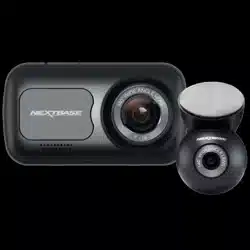
This range of Nextbase™ Dash Cams has been designed specifically with ease of use in mind;
it is recommended NOT to change the default settings, which have been carefully selected to give the
best performance for day to day use.
Please check the firmware version of the Dash Cam, the version can be found in the Setup menu
under System Info.
The latest versions are available to download from our website, where you can download and update
when necessary.
www.nextbase.com
FIRST TIME USE
Before you can use your Dash Cam, it is essential that it is fully charged. Connect your Dash Cam via
the USB port to a home power source such as a PC or home USB socket for approximately 2 hours.
Basic Operation
It is essential that a quality branded Class 10 or U1 type Micro SD card is used with this Dash Cam use to
the very large data rate generated by high resolution recording. For best results, we recommend using our
Nextbase™ branded SD cards with your Dash Cam.
Your Nextbase™ Dash Cam is set to record video, in files of just 1 minute in length. This means that each
video file is a manageable size should you need to download and send to your insurance company.
Eventually your MicroSD card will fill up with video files but don't worry, the camera automatically deletes
the oldest file to make space for new recordings. This way you never run out of space and have plenty
of driving data saved.
Typically a 16Gb card will store the last 1.5 hours of driving footage.
For summer months where the clocks are brought forward or for driving in other countries, adjust the
time in the Setup Menu (Time & Date) to account for the time difference from GMT by adding or
subtracting 1 hour as required.
There are 3 modes of camera operation - Video, Photo and Playback.
Press the MODE button on the Dash Cam to select required mode.
Video Mode: The default mode when the camera is turned on, for video recording.
Photo Mode: Allows you to take still photographs.
Playback Mode: Allows you to view recorded video or photographs upon the Dash Cam LCD screen.
Automatic Start / Stop Technology
The Dash Cam will automatically power on and be ready to use once power is available.
In some vehicles this will be when connections are made, for others the Dash Cam will power on
once the ignition has been turned on. When power is cut off, the Dash Cam will perform an
automatic shutdown process.
1. Tips for capturing best video footage:
1.1 Position the Dash Cam in the centre of the windscreen and ideally behind the rear view
mirror so it is not a distraction to the driver.
1.2 Ensure that the area on the windscreen that the Dash Cam is looking through is clear of dirt and
is within the wiper zone. This will ensure that your videos are as clear as possible.
1.3 Reduce the amount of sky in the picture, by angling the view of the camera towards the road.
Too much sky will make the road appear darker due to the automatic exposure compensation.
1.4 Remove unnecessary items from your dashboard. If objects are placed on your dashboard
these can cause reflections to be seen on the windscreen and these reflections may be
captured during recording.
1.5 To improve dash board glare, a Nextbase™ Polarising Filter can be purchased.
2. Tips for stable memory card performance:
2.1 Periodically format the memory card. Every 2-3 weeks we recommend that you format the
memory card. This will wipe any files from the card and set it up afresh for continued use with
your Dash Cam. Of course, you should only do this AFTER you've downloaded any files from
the card that you may want to keep, as formatting the card will remove all content.
2.2 Format your memory card using the Dash Cam. This will make sure that the card is
structured specifically for your camera. Press MENU twice and choose the Format Card option.
Follow the on-screen instructions accordingly.
2.3 Switch off the Dash Cam before removing the SD memory card, to prevent the chance of
damage being caused to the memory card or the files stored upon it.
Nextbase™ SD Cards
For best results, we strongly recommend using our Nextbase™ branded SD cards with your Dash Cam,
available to purchase online from nextbase.com, or your nearest retailer. A card that is not made
specifically for a Dash Cam may appear to work perfectly in the beginning, although failure tends to
happen after prolonged use, this could be days, weeks, or months. In a worst-case scenario, you may
only discover recording failure after your SD card fails to record a serious incident, therefore using a
suitable SD card is imperative.

3
Table of Contents
VIDEO MODE / PHOTO MODE / PLAYBACK MODE
PLAYBACK MODE MENUS - PROTECT & DELETE FUNCTIONS
MYNEXTBASE PLAYER™
MYNEXTBASE PLAYER™ - EDITING
MYNEXTBASE CLOUD™
PC CONNECTION / FIRMWARE UPDATE INFORMATION
NEXTBASE™ SD CARDS
FREQUENTLY ASKED QUESTIONS (PAGE 1)
FREQUENTLY ASKED QUESTIONS (PAGE 2)
CE MARK INFORMATION / SOFTWARE LICENSE AGREEMENT
WARRANTY / ONLINE & INTERNATIONAL PURCHASES
PRODUCT COMPLIANCE INFORMATION
MORE NEXTBASE™ PRODUCTS
DASH CAM FUNCTIONS
21
22
23
24
25
26
27
28
29
30
31
32 - 33
34
35
INTRODUCTION TO USING YOUR DASH CAM
TABLE OF CONTENTS
PRECAUTIONS / CAUTIONS ON USING THIS PRODUCT
PRODUCT WARNINGS
USAGE PRECAUTIONS / NOTICES / CANADA COMPLIANCE
PRODUCT SPECIFICATION
PACKAGE CONTENTS / PRODUCT FEATURES
CAMERA PARTS & CONTROLS
CAMERA PARTS & CONTROLS (CONT.)
IN VEHICLE INSTALLATION
POSITIONING YOUR DASH CAM / ACCESSORIES
MOUNT ATTACHMENT
FIRST TIME USE
MENU / VIDEO MENU OPTIONS
MENU / SETUP MENU OPTIONS
SETUP MENU OPTIONS
02
03
04
05
06
07
08
09
10
11 - 14
15
16
17
18
19
20

4
WARNING:
CAUTION:
LCD:
CHOKING
HAZARD:
Do not expose this product to rain, moisture or water under any circumstances,
doing so may result in the risk of electric shock or fire.
To reduce the risk of electric shock, do not perform any servicing other than
that contained in the instruction manual unless you are qualified to do so.
Have the unit serviced by a qualified service technician if;
The unit has been exposed to rain or water.
The unit does not seem to operate normally.
The unit exhibits a marked change in performance.
A Liquid Crystal Display (LCD) screen is a multilayer complex component, containing
311,040 pixels. Pixels can however fail during normal product life.
1 pixel = 0.000003% failure rate, and one pixel failure per year of operation is
considered normal and not a cause for concern.
Disposal of Waste Electrical and Electronic Equipment and/or Battery by users in
private households in the European Union. This symbol on the product or on the
packaging indicates that this cannot be disposed of as household waste. You must
dispose of your waste equipment and/or battery by handing it over to the applicable
take-back scheme for the recycling of electronic equipment and/or batteries.
Formore information please contact your local household waste disposal office.
Some Products may contain components that are small enough to be swallowed.
Please keep out of reach of children.
WEEE:
Please read this manual carefully before operation and keep it for future reference.
It will be helpful should you encounter any operational problem.
Distractions can lead to accidents, and the risk
of injury or death. Always keep your eyes on the
road, and keep aware of your surroundings.
Precautions
Cautions on Using this Product
1. Ensure that the windscreen is free of dirt or grease before placing mount upon it.
2. Do not obscure the view of the road ahead or impede the deployment of any airbags
in the event of an accident.
3. When not in use, please disconnect the car adaptor from both the 12/24Vdc outlet
in your vehicle and the Dash Cam itself.
4. Only clean the Dash Cam with a soft dry cloth, for tough dirt, apply some neutral
detergent diluted in 5 to 6 parts water to a soft cloth.
Please note that alcohol, thinner, benzene etc could cause damage to the paint or coatings.
5. Avoid making contact with the lenses as damage may be caused.
6. If required clean the glass lens carefully using spectacle lens cleaning fluid on a soft cloth only.
7. Before you can use your Dash Cam, it is essential that it is fully charged. Connect your Dash
Cam via the USB port to a home power source such as a PC or home USB socket for
approximately 2 hours.
8. You agree to use your Nextbase Dash Camera in compliance with all applicable laws,
including local laws of the country or region in which you reside or in which you use your
Nextbase Dash Camera. When you use your Nextbase Dash Camera, you do so at your own
initiative and you are responsible for compliance with any applicable laws, including but not
limited to applicable privacy and data collection laws, and laws prohibiting or restricting the
placement of objects on the windshield of a motor vehicle.
IT IS THE USER'S RESPONSIBILITY TO MOUNT THE DEVICE IN COMPLIANCE WITH ALL
APPLICABLE LAWS AND ORDINANCES. Portable Multimedia Limited trading as Nextbase is
not responsible if you access or use your Nextbase Dash Camera in any manner that
violates applicable law
9. The video recordings made by this Dash Cam are intended for personal use only.
10. Publication of the recordings on Youtube, the internet or other methods are subject to the
Data Protection Act and the requirements thereof must be adhered to. If the Dash Cam
is to be used within a commercial environment, i.e. truck use, then the CCTV regulation
apply also, in addition to the Protection Act regulations. This includes labelling to identify the use
of CCTV is taking place, the omission of Audio recording and informing the relevant authorities
of who controls the data.
11. Video playback upon the Dash Cam which is visible to the driver is prohibited
or restricted in some countries or States. Please adhere to these laws.
12. Whilst driving, do not adjust the controls of your Dash Cam as this is a distraction to driving.
5
Product Warnings
Failure to heed the following warnings could result in an accident or collision resulting in death or
serious injury.
Distraction Warning
This Dash Cam is intended to enhance the situational awareness when used properly. If used improperly,
you could become distracted by the display, which could lead to an accident causing serious personal
injury or death. DO NOT seek to access the information stored on the Dash Cam or change the device
settings whilst driving. Information stored on the Dash Cam should be reviewed only when your vehicle is
stationary, and you are parked in a safe place in compliance with local laws.
The Dash Cam settings should only be changed when your vehicle is stationary, and you are parked in a
safe place in compliance with local laws. Always maintain awareness of your surroundings and do not
stare at the display or become distracted by the display. Focusing on the display could cause you to miss
obstacles or hazards. Use the Dash Cam at your own risk.
Do not change settings, or access any functions requiring prolonged use of the Dash Cam controls while
driving. Pull over in a safe and legal manner before attempting such operations.
Video playback upon devices with displays which are visible to the driver, is prohibited or restricted in
some countries or states. Please adhere to these laws.
Vehicle Installation Warnings
When installing the Dash Cam in a vehicle, do not place the Dash Cam where it obstructs the driver's
view of the road or interferes with vehicle operating controls, such as the steering wheel, foot pedals, or
transmission levers. Do not place unsecured on the vehicle dashboard.
Do not place the Dash Cam in front of or above any airbag.
Battery Warnings
Lithium-ion batteries are used in most Nextbase™ Dash Cams. If these guidelines are not followed,
batteries may experience a shortened life span or may present a risk of damage to the Dash Cam, fire,
chemical burn, electrolyte leak, and/or injury.
- Do not disassemble, modify, remanufacture, puncture, or damage the Dash Cam or batteries.
- Do not remove or attempt to remove the non-user replaceable battery.
- Do not expose the Dash Cam to fire, explosion, or other hazard.
- Do not expose the Dash Cam to rain or water.
Magnet Warnings
Both the Dash Cam and its mount may contain magnets. Under certain circumstances, magnets may
cause interference with some internal medical devices, including pacemakers and insulin pumps.
Devices and mounts that contain magnets should be kept away from such medical devices. Magnets
may cause damage to some electronic devices, including hard drives in laptop computers and
bank / credit or membership cards. Use caution when devices and mounts that contain magnets are
near electronic devices or bank / credit or membership cards.
5

6
Usage Precautions
Failure to heed the following notices could result in personal injury or property damage, or negatively
impact the Dash Cam functionality.
Battery Precaution
- Do not immerse or expose the Dash Cam or batteries to rain, water or other liquids.
- Do not leave the Dash Cam exposed to a heat source or in a high-temperature location, such as in the sun
or in an unattended vehicle. To prevent the possibility of damage, remove the Dash Cam from the vehicle
or store it out of direct sunlight, such as in the glove box.
- Do not operate the Dash Cam outside of the following temperature range:
from -20° to 45°C (from -4° to 113°F).
- When storing the Dash Cam for an extended time period, store within the following
temperature range: from 0° to 25°C (from 32° to 77°F).
- Do not use a power and/or data cable that is not approved or supplied by Nextbase™.
- Contact your local waste disposal department to dispose of the Dash Cam/batteries in accordance with
applicable local laws and regulations.
Windshield Mounting Legal Restriction Precaution
Before using the Dash Cam on your windscreen, check the state and local laws and ordinances where you
drive. Some laws prohibit or restrict the placement of objects on the windshield of a motor vehicle.
IT IS THE USER'S RESPONSIBILITY TO MOUNT THE DEVICE IN COMPLIANCE WITH ALL APPLICABLE LAWS
AND ORDINANCES.
Always mount your Nextbase™ Dash Cam in a location that does not obstruct the driver's view of the road.
Nextbase™ does not assume any responsibility for any fines, penalties, or damages that may be incurred
as a result of any state or local law or ordinance relating to the use of your Nextbase™ Dash Cam.
Camera Legal Requirements Precaution
In some jurisdictions it could be considered an invasion of privacy rights to take or publicly display
photographs or videos of people or their vehicles using this product. It is your responsibility to know and
comply with applicable laws and rights to privacy in your jurisdiction and in any jurisdiction in which you
may use this device. Video recordings made by this Dash Cam should be for personal use only.
Publication of the recordings on YouTube, the internet or other methods is subject to the data protection
legislation and the requirements thereof must be adhered to. Such data protection legislation may
prohibit the use and dissemination by you of Dash Cam footage or may impose restrictions on it – we
recommend that you check the legal requirements with your legal advisor before disseminating any
Dash Cam footage.
If the Dash Cam is to be used within a UK commercial environment, i.e. truck use, then the CCTV
regulations apply in addition to the Data Protection Act regulations. This includes labelling to identify the
use of CCTV is taking place, the omission of Audio recording and informing the relevant authorities of who
controls the data. For use in a commercial environment in non-UK countries, please refer and adhere to
local regulations and requirements. For non-UK operation, specific legal requirements may apply where
Dash Cams are to be used in a commercial or employment context - again, we recommend that you check
the legal requirements with your legal advisors prior to commencing use of Dash Cams in commercial
or employment contexts.
Notices
G Sensor Notice
The G Sensor within the Dash Cam measures forces exerted upon it, with reference to one G which is
the nominal force exerted upon us when stationary on the earth's surface.
The G Sensor will also trigger to protect any recording currently in progress, if a pre-determined
threshold of force is exceeded.
The G Sensor protection will be adversely affected if the Dash Cam is NOT mounted in the vertical
direction i.e. with the lens pointing to or from the direction of travel.
G Force information derived from a G Sensor is not warranted to be totally accurate at all times, as it
is derived from the G Sensor through a sampling method over time. The precision of the G Sensor
value recorded depends upon when the acceleration took place at the instance of the sample taken.
The thresholds to trigger the video protection rely upon a trigger value being exceeded between two
successive samples, in any one of the three G Sensor axis.
If the Automatic G Sensor protection does NOT trigger during an event, then the Protect button
should be pressed, in order to protect the file. Protecting the file can also be performed using the
Playback function upon the Dash Cam, or through the MyNextbase Connect™ App for applicable
Wi-Fi enabled models.
Innovation, Science, and Economic Development Canada Compliance
This device complies with Innovation, Science and Economic Development Canada license-exempt
RSS standard(s).
Operation is subject to the following two conditions:
(1) this device may not cause interference, and
(2) this device must accept any interference, including interference that may cause undesired
operation of the device.
7
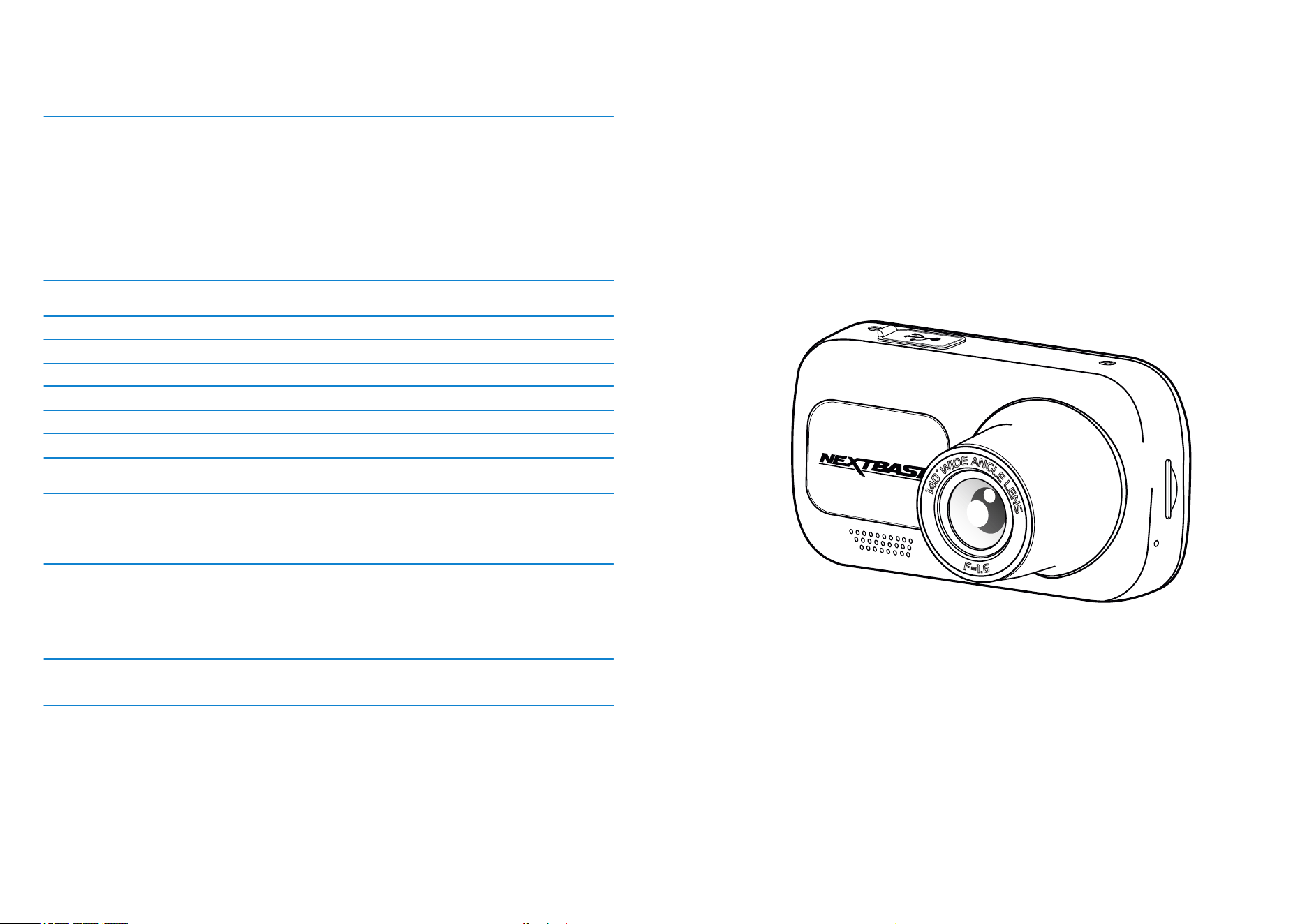
NBDVR222G
5V / 1.5A
12-24Vdc Car Power Cable (supplied)
Fuse Type: 32mm / 2A
Output: 5Vdc
Hardwire Kit also available to purchase for a hidden, permanent
power supply.
2.12M Pixel (1936 x 1097)
1920 x 1080 @30fps day & night
1920 x 1080
2.5"
732 (W) X 240 (H) pixels x RGB (720)
16:9
MicroSD, Class 10, U1 up to 128GB
8-128GB SDHC / SDXC, Class 10 (48mb/s)
For best results, use a recognized brand.
8GB MicroSD = 60 minutes of recording
16GB MicroSD = 120 minutes of recording
32GB MicroSD = 240 minutes of recording
64GB MicroSD = 480 minutes of recording
128GB MicroSD = 960 minutes of recording
MP4
Lithium-Polymer 3.7V / 280mAh (approx. 15 mins recording time)
Battery design allows the 'Auto Power Off' feature to
function in event of power loss within the vehicle. It is not
intended as an alternative power source to replace the
supplied car adaptor.
82 x 46 x 46
79g
Model Number / Name
Power Requirements
Power Supply
Sensor Resolution
Lens -
Type / Angle / Aperture
Recording Resolution
Photo Resolution
Screen Size
Screen Resolution
Screen Ratio
Card Reader
SD Card
(Recommended Type)
SD Card Recorded File
Capacity
(based on default settings)
Recording Format
Internal Battery
Unit Dimensions
Unit Weight
Product Specification
6G / 140° / F1.6
Mac is a registered trademarks of Apple Inc. in the United States and other countries.
Windows is a registered trademark of Microsoft Corporation in the United States and other countries.
MicroSD™ and the microSD logo are trademarks of SD-3C, LLC.
Other trademarks and trade names are those of their respective owners.
222G
8
Product appearance may differ slightly to that shown above.
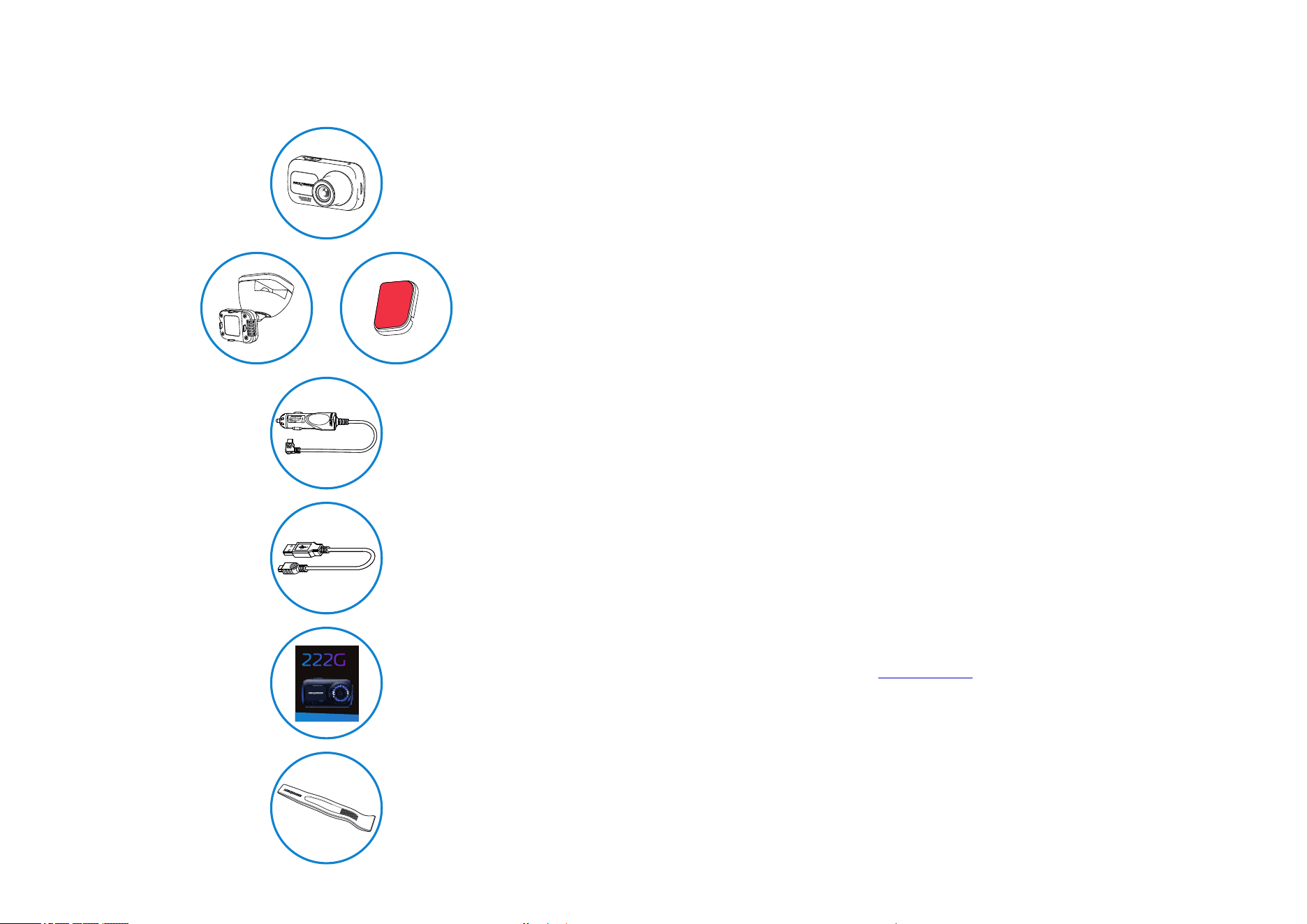
Package Contents
Please check the contents of your Nextbase Dash Cam product.
Product Features
Thank you for purchasing this Nextbase™ Dash Cam product, in this section we will outline some of
the features available with this dash cam.
HD Recording Capability
1080p HD recording at 30 fps, to record the road ahead.
HD Display
Bright, clear, high definition 2.5" screen with IPS technology for a wide viewing angle.
Click & Go Pro GPS Powered Mount
Our exclusive Click and Go Pro powered magnetic car mount to easily install and remove
your Dash Cam with just one hand.
G Sensor / File Protection
In the event of an impact the device will automatically 'protect' the recording, stopping the file from
being over-written. This can also be performed manually, by pressing the ‘protect’ button.
Individual files can also be 'protected' when viewed within playback mode.
Automatic Start / Stop Technology
As soon as the vehicle ignition is turned on, your Dash Cam will start to record automatically.
When the ignition is turned off, the Dash Cam will perform an automatic shutdown process.
Intelligent Parking Mode
Intelligent Parking Mode triggers recording automatically when motion is detected, keeping your
car safe when parked.
Built-in Microphone & Speaker
Record audio to compliment the video recordings.
Nextbase Cloud™ Service
View and share your footage online using the MyNextbase Cloud™ service. Upload your video to
the Nextbase™ server to get a shareable link to send to friends, insurers, and social media. Upload your
videos via the file upload area on . The uploaded file will be deleted after 30 days,Mynextbase.com
when the link will also expire.
Nextbase™ 222G Dash Cam
Car Power Cable (4m)
USB Connection Cable
222G Quick Start Guide
Cable Tidy Tool
Your Dash Cam to record the road ahead
Charge your Dash Cam in car
using the Car Power Cable
Connect your Dash Cam to a PC
Quickly get your Dash Cam up and
running using Quick Start Guide.
Use the Cable Tidy Tool to stow the
power cable within the lining of your car.
222G
Click & Go
Powered Mount
Adhesive 3M attachment
Quick Start Guide
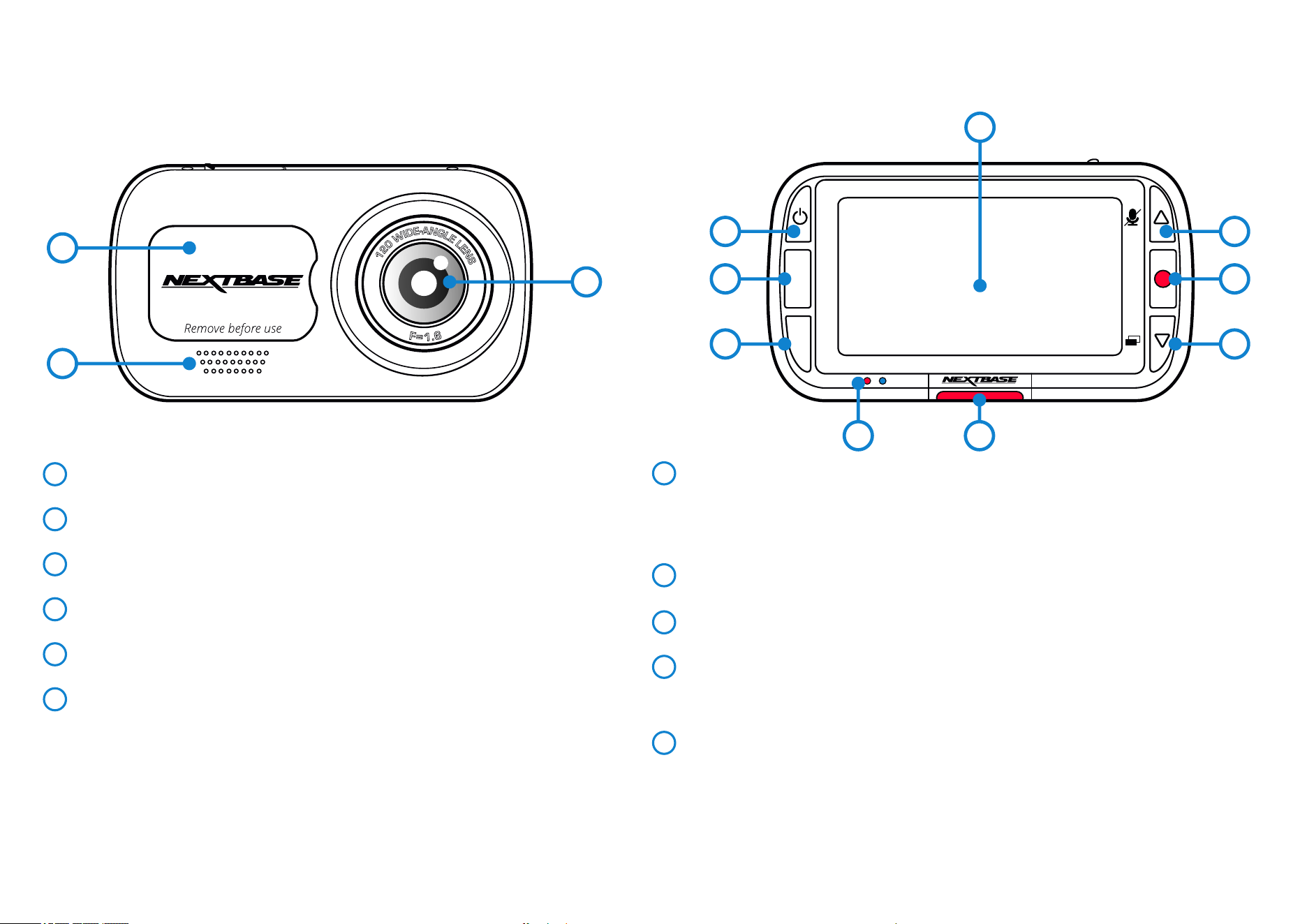
9
LEDs
Right: Blue
- The Blue LED will be on while the Dash Cam is charging. It will turn off when charging is complete,
even if the Dash Cam is still plugged in.
Left: Red
- The Red LED is permanently on while the Dash Cam is active. It will flash while recording.
Protect Button
Press whilst recording to protect the current file in event of an emergency situation.
Screen
2.5 Inch High Resolution Screen.
Record
Video Mode: Press to Start/Stop recording
Photo Mode: Press to take photo
In the Menus: Select/OK
Up/Down Buttons
In the Menus: Use to navigate the menus within the camera.
Video Mode: Up button toggles audio recording On/Off. Down button toggles screen On/Off
Playback Mode: Scroll through your videos/photos.
Camera Parts and Controls
See below to identify the parts and controls of your Dash Cam
Dust Cover
Mounting point located under the dust cover.
Speaker
Integrated speaker for audio playback.
Camera Lens
Wide angle 140º.
Power Button
Press and hold for 2 seconds to turn the Dash Cam On/Off.
Menu Button
Press to open the Dash Cam’s menu system.
Mode Button
Press to select video/photo/playback modes.
1
6
2
3
4
5
7
11
8
9
10
1
2
3
MODE
MENU
OK
4
5
6
7
9
10
11
8
11
10
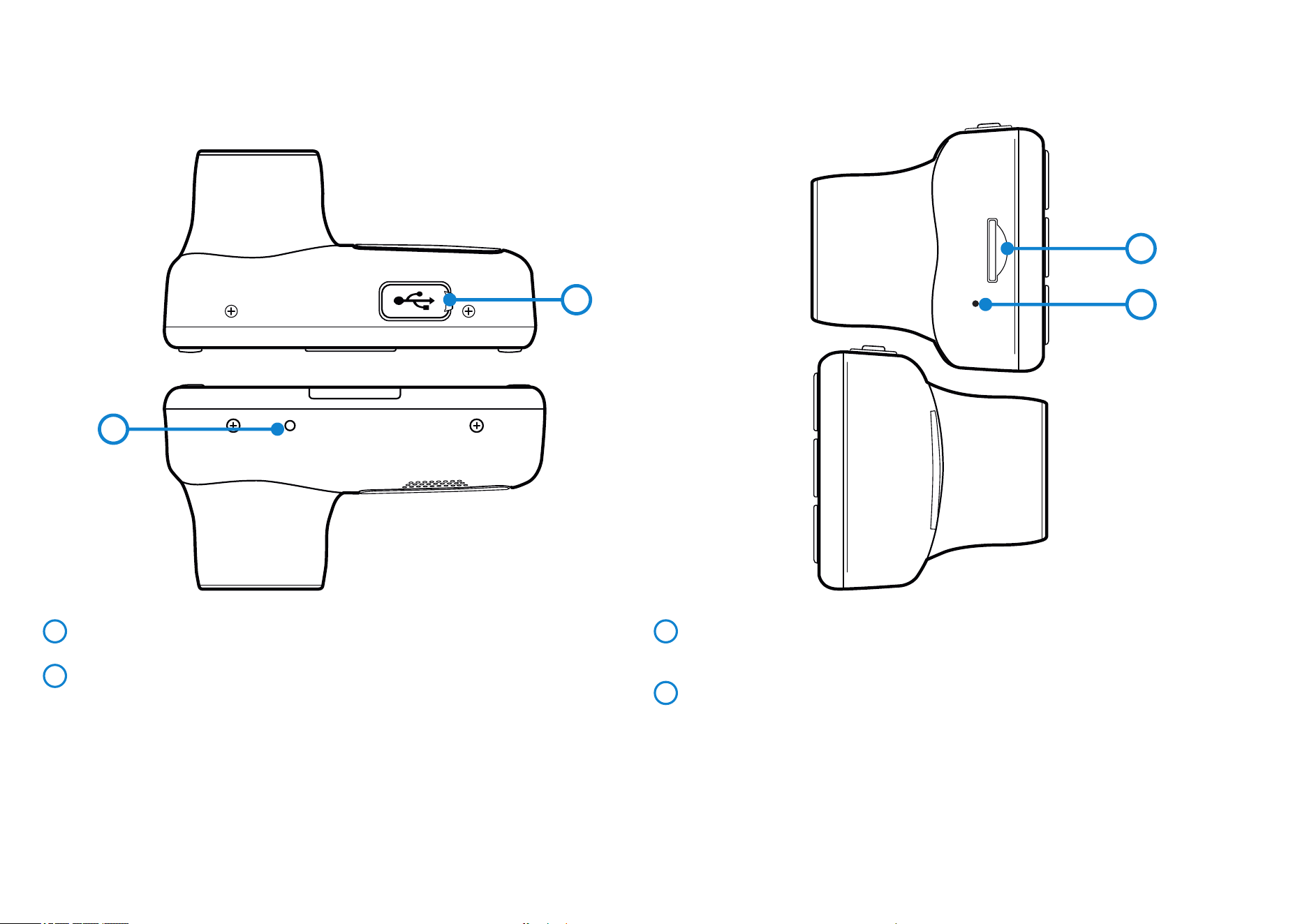
MicroSD Card Slot
Insert the MicroSD card here, taking care that the gold contacts are facing towards
the screen side of the Dash Cam.
Microphone
Built-in microphone to record audio for your videos.
Camera Parts and Controls (cont.)
See below to identify the parts and controls of your Dash Cam
14
15
USB Cover
USB-PC port located under the dust cover.
Reset Button
Press to force a hard restart of the Dash Cam.
12
13
14
15
12
13
222G
11
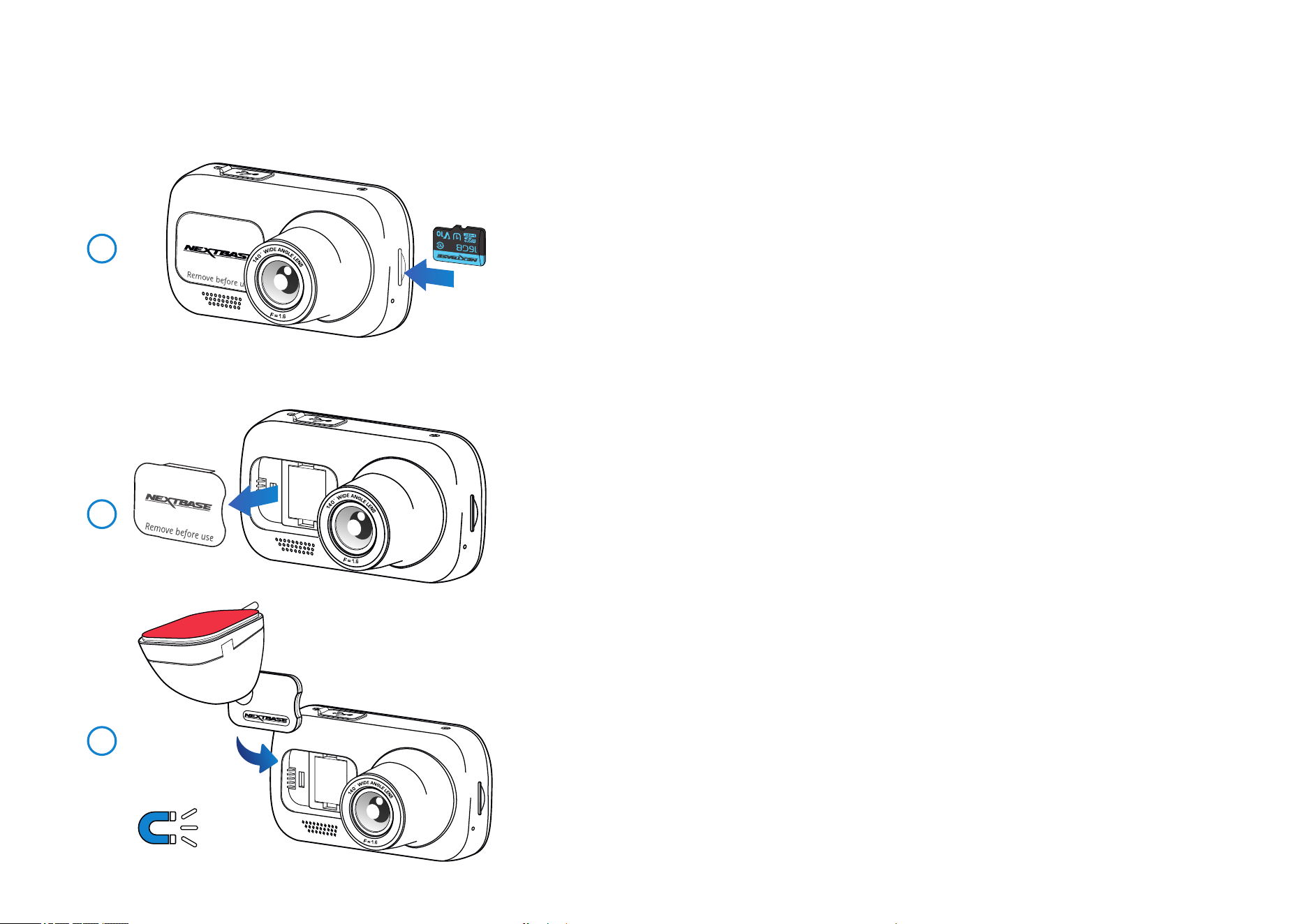
1 Insert MicroSD Card
Insert a suitable MicroSD card (Class 10, U1 minimum 48/Mbps) in to the Dash Cam, taking care that
the gold contacts are facing towards the LCD screen side of the Dash Cam.
Push the memory card until it clicks into place.
Note:
- Use the edge of a small coin (or similar object) to push the memory card in place if required.
Take care that card has 'clicked' into place, a second push inwards will release the memory card.
- For best results, we recommend using Nextbase™ branded SD cards.
- Do not remove or insert the memory card when the Dash Cam is turned on.
This may damage the memory card.
2 Remove dust cover from the Dash Cam
Remove the dust cover that is located on the front of the Dash Cam to gain access to
the mounting point.
To remove the dust cover, lift the cover away from the body of the Dash Cam.
Note:
- If the Dash Cam is not to be used for a period of time replace the dust cover to help keep
the components free of dust or other contaminants.
3 Attach the mount to the Dash Cam
Place the mount in space under the dust cover on the Dash Cam. Once in place, magnets within
the mount and camera will hold the two parts together.
See page 16 for more information on changing mounts attachments.
In Vehicle Installation
Please follow the instructions below for the first-time installation of the Dash Cam. For day to day use,
simply remove the camera from the mount as required.
222G
222G
222G
1
2
3
12
4
In Vehicle Installation (cont.)
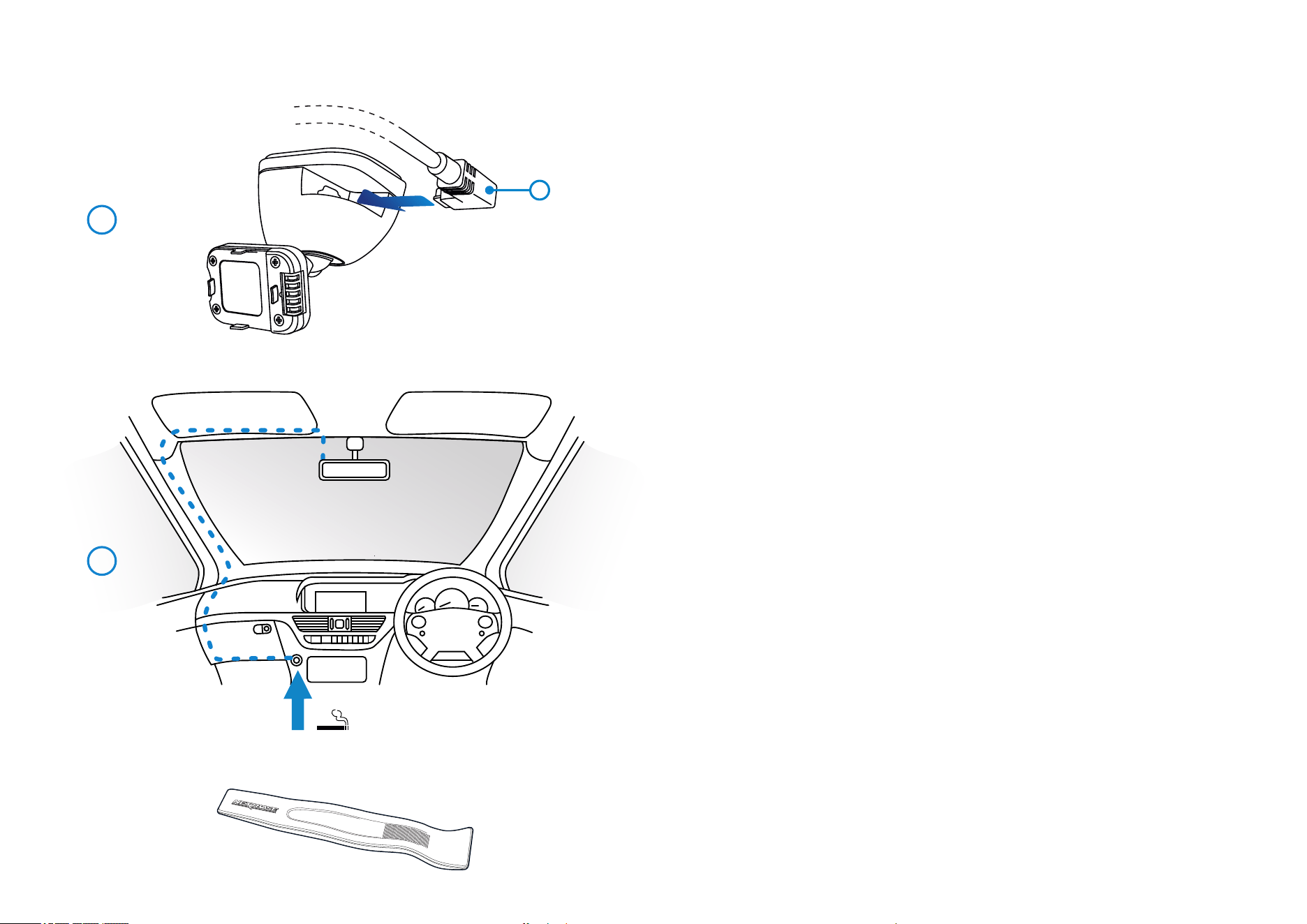
5 Plug the power cable into the 12-24Vdc outlet of your vehicle
The Dash Cam will automatically power on and start recording once power is available.
In some vehicles this will be when connections are made, for others the Dash Cam will power
on once the ignition has been turned on.
Also available to purchase is a Nextbase Hardwire Kit. This connects your Dash Cam directly to the
vehicle’s fusebox to power it leaving your 12Vdc outlet available for Phone / Sat Nav charging.
The Nextbase™ Hardwire Kit includes the necessary 12-24Vdc to 5Vdc convertor and battery
protection circuitry. See pages 9-10 of the Nextbase™ Accessories Manual for further information.
Route the power cable around the windshield to the 12-24Vdc socket, ensuring that your view is
not obstructed, and that the cable is not a distraction. Use the cable fitting tool (bottom, left) included
with your Dash Cam to more easily open the lining of your vehicle, within which you can stow the cable.
See page 15, ‘Positioning your Dashcam’ for more details.
Note:
- Do NOT wire the Dash Cam directly to a 12Vdc supply by cutting the cigarette plug off the end of
the cable, or permanent damage will result.
The above diagram is for illustration purposes only.
5
12-24Vdc
Cable Fitting Tool (included with your Dash Cam)
4 Connect car power cable
Connect the supplied car power cable to the Dash Cam Mount’s USB port.(1)
Do NOT connect the power cable to the USB port on the Dash Cam.
1
13
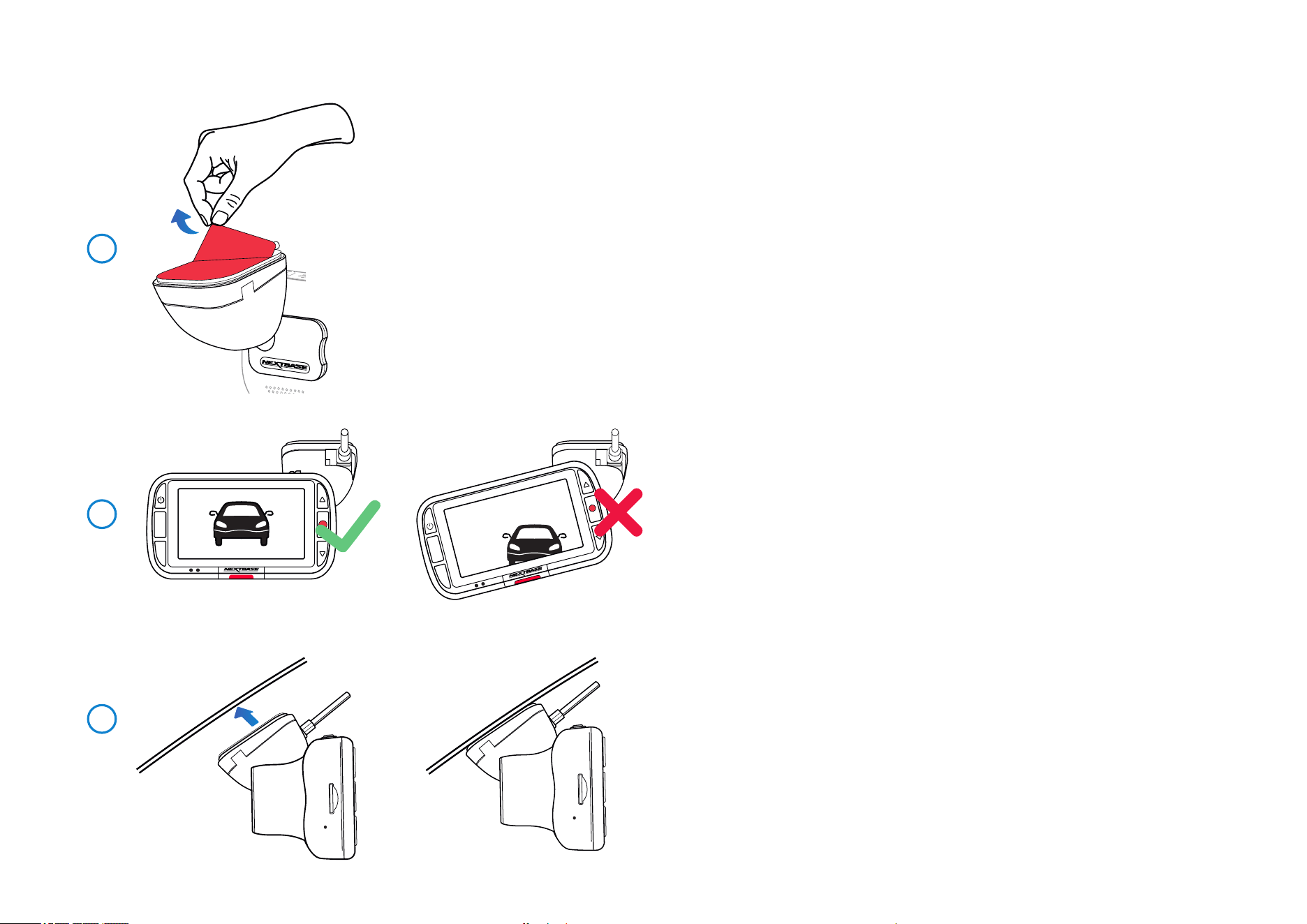
6 Remove the adhesive cover layer
Peel back the red cover layer to expose the adhesive surface, ready to mount on your windscreen.
7 Straighten the Dash Cam
Ensure that the Dash Cam is horizontal and faces straight out of the windscreen.
Ensure that objects on the Dash Cam display appear level, and adjust as required.
8 Attach the Dash Cam to the windscreen
When you are satisfied with the placement and orientation of the Dash Cam, firmly place the mount
on the windscreen.
6
7
8
In Vehicle Installation (cont.)
MENU
MODE
MENU
MODE
222G
222G
14
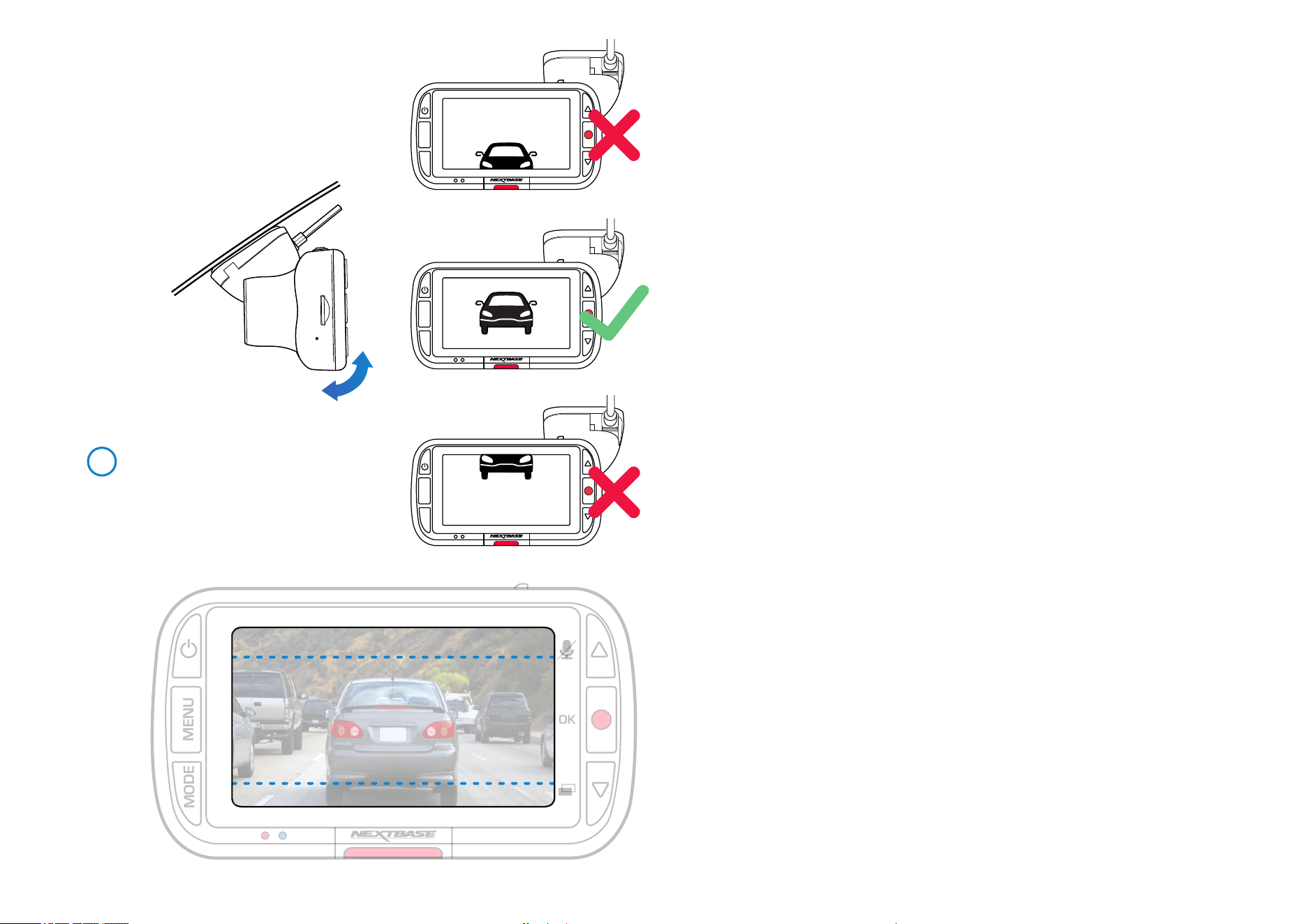
9 Adjusting the Dash Cam
With the mount attached to the windscreen, ensure that objects on the Dash Cam display are level
and adjust as required. Ensure that the road ahead is at the centre of the image, in the central third
of the display. If too much of the sky is visible it may risk underexposing details on the road; ensure
that the road ahead is clearly visible on the Dash Cam display.
Do NOT attempt to adjust the Dash Cam while driving.
9
In Vehicle Installation (cont.)
MENU
MODE
MENU
MODE
MENU
MODE
MOD
E
MENU
OK
222G
15
Notes On Positioning Your Dash Cam
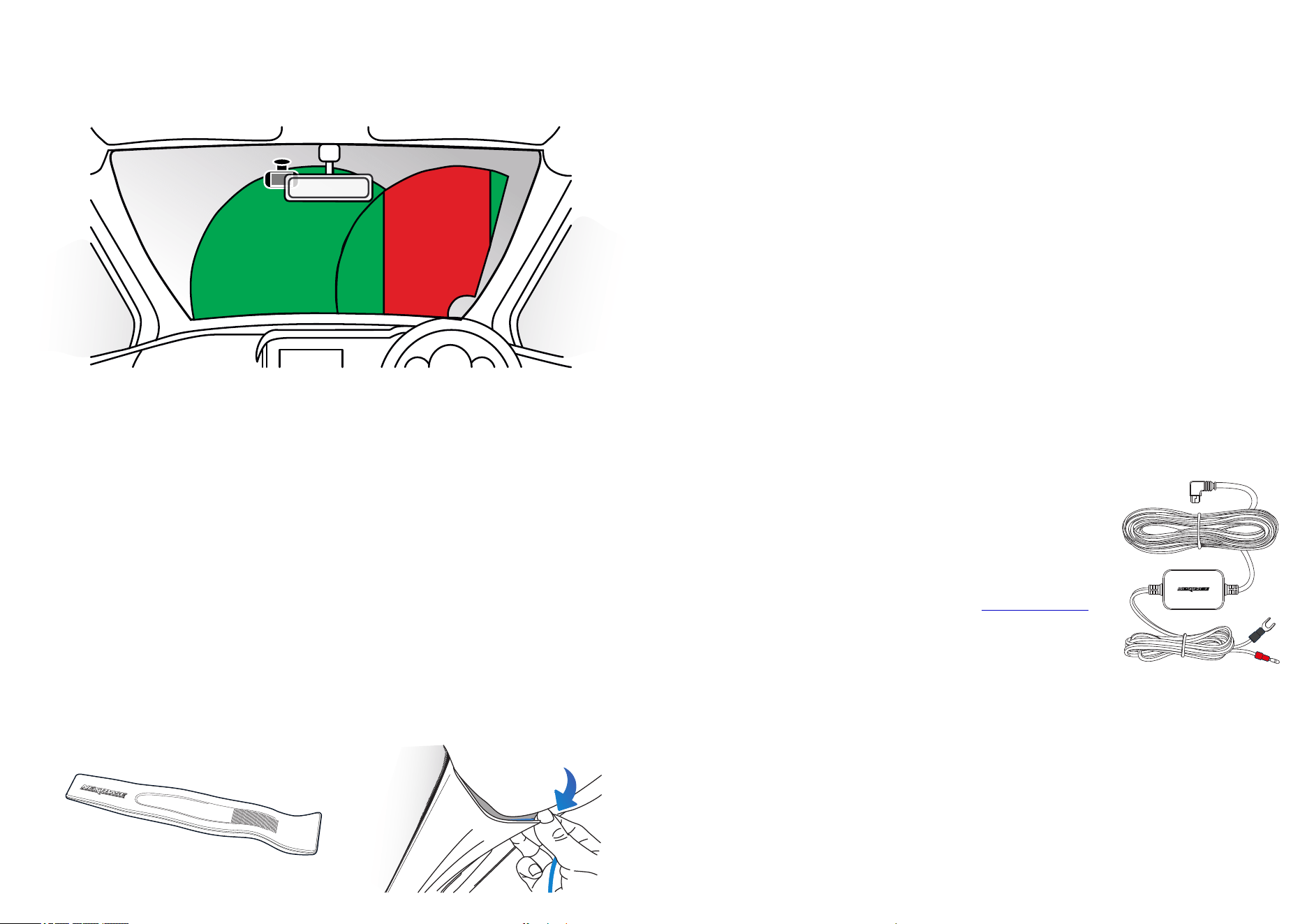
- Do NOT mount the Dash Cam in front of the driver, as depicted by the red area in the illustration
to the left of this page.
- When installing the Dash Cam in a vehicle, always place the device securely against the
windscreen and where possible conceal the power cable under trim.
- Make sure that the Dash Cam power cable does not interfere with the drivers operating controls,
such as the steering wheel, pedals or gear levers.
- Do NOT mount the Dash Cam in front of an airbag field of deployment or in a position to
obscure any mirrors.
- It is recommended NOT to operate the Dash Cam whilst driving. The automatic Start-Stop
technology incorporated within the device negates any need to operate the controls whilst driving.
- Adjust any settings or review recordings whilst stationery, not whilst driving.
- After the preliminary SETUP has been carried out upon the Dash Cam, adjust the Screen Saver
setting to ON; this will blank the screen automatically 30 seconds after starting the vehicle
and therefore the screen will NOT be a distraction in any way to the driver.
Accessories
Multiple accessories can be purchased for your Nextbase™ Dash Cam,
including a Hardwire Kit and Polarising Filter that can effect how best to
set up your Dash Cam.
For more information on how to position and use these products,
download the ‘Nextbase Accessories Manual’ PDF at www.nextbase.com
Positioning Your Dash Cam
Please read and follow the notes below for the safe operation of your Dash Cam within your vehicle.
Before installing the Dash Cam on your windscreen, check the state and local laws and ordinances where
you drive. Some laws prohibit or restrict the placement of objects on the windscreen of a motor vehicle.
IT IS THE USER'S RESPONSIBILITY TO MOUNT THE DEVICE IN COMPLIANCE WITH ALL APPLICABLE LAWS
AND ORDINANCES.
Always mount your Nextbase™ Dash Cam in a location that does not obstruct the driver's view of the road.
Nextbase™ does not assume any responsibility for any fines, penalties, or damages that may be incurred
as a result of any state or local law or ordinance relating to the use of your Nextbase™ Dash Cam.
As per the installation instructions, you must install the Dash Cam so it does NOT obstruct the driver’s view
of the road (red, above), preferably on the passenger side of the vehicle and behind the rear view mirror.
The Dash Cam needs to view through a clear section of windscreen in an area swept by the windscreen
wipers (green, above). However, the Dash Cam should be installed so as not to intrude significantly within
the wiped area. A 40mm intrusion into the green wiped area is the maximum permitted by UK law.
Hiding the Cable:
Make sure the hanging cable does not obstruct your view out of your rear window. Ensure that there are
no kinks in the cable as you are stowing it. If necessary, use the cable tidy tool supplied with your Dash Cam;
this can be used to help pry open the lining of your car (see illustration below, right).
16
Removing Adhesive Residue
If you wish to remove the adhesive mount from your windscreen, use hot soapy water or an alcohol
based solution to get rid of any sticky residue and ensure that your windscreen remains clean and clear.
Leaving residue on the windscreen for an extended period of time will make it harder to remove.
If hot water or an alcohol based solution proves ineffective, it may be necessary to use a small sharp
blade. If this is the case, protect your fingers and use the blade flat against the surface of the glass to
avoid causing scratches.
222G
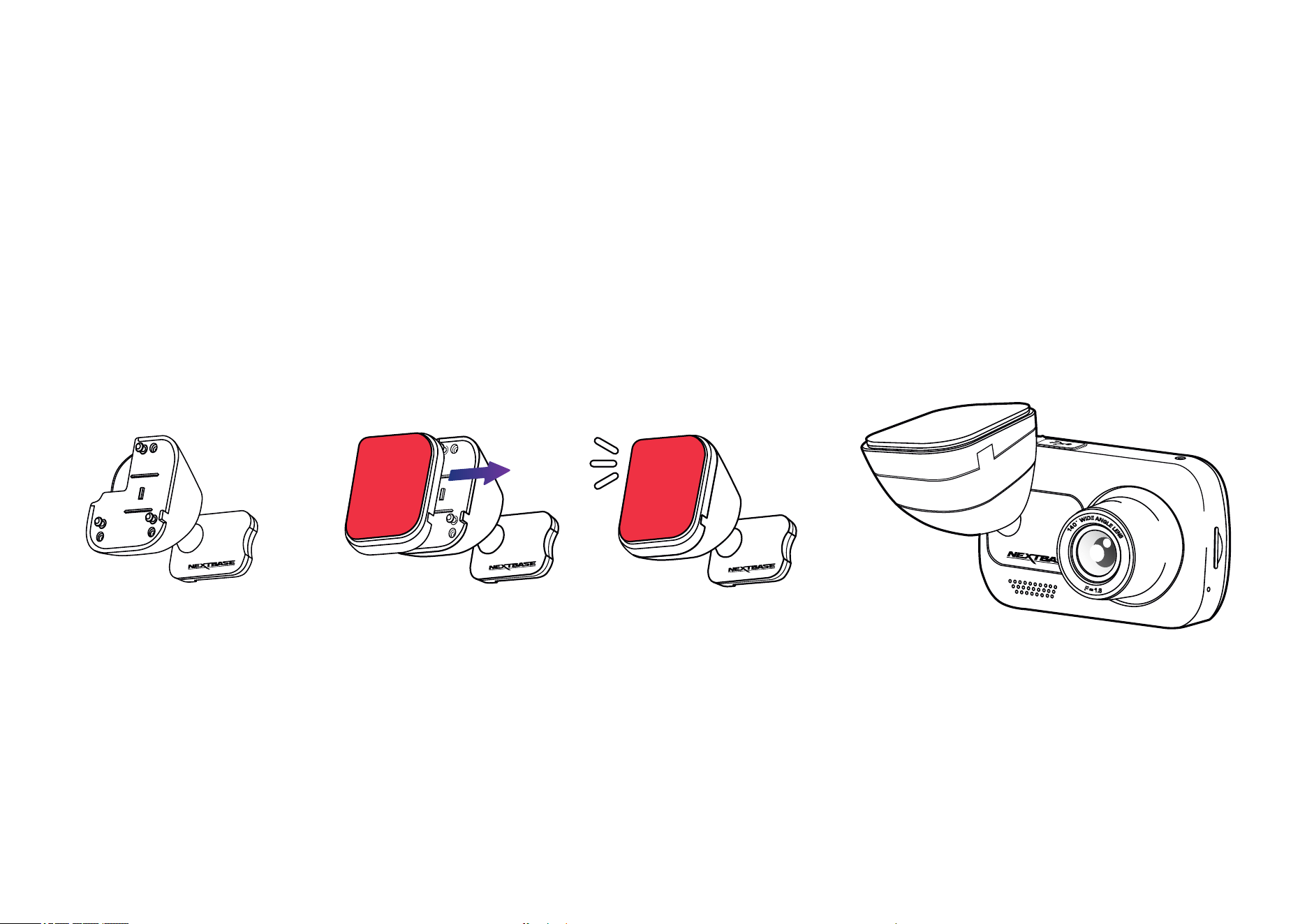
Mount Attachment
To attach the mount, align the pins on the mount with the holes on the adhesive attachment and slide
firmly to the right until you hear the pieces click into place. To remove the top, simply do the reverse,
slide it to the left until you can lift it off of the mounting pins.
Ensure the windshield is free of grease and dirt before mounting; if necessary, clean with a warm, clean cloth.
Ensure that the Mount and Dash Cam do not obstruct the driver’s view.
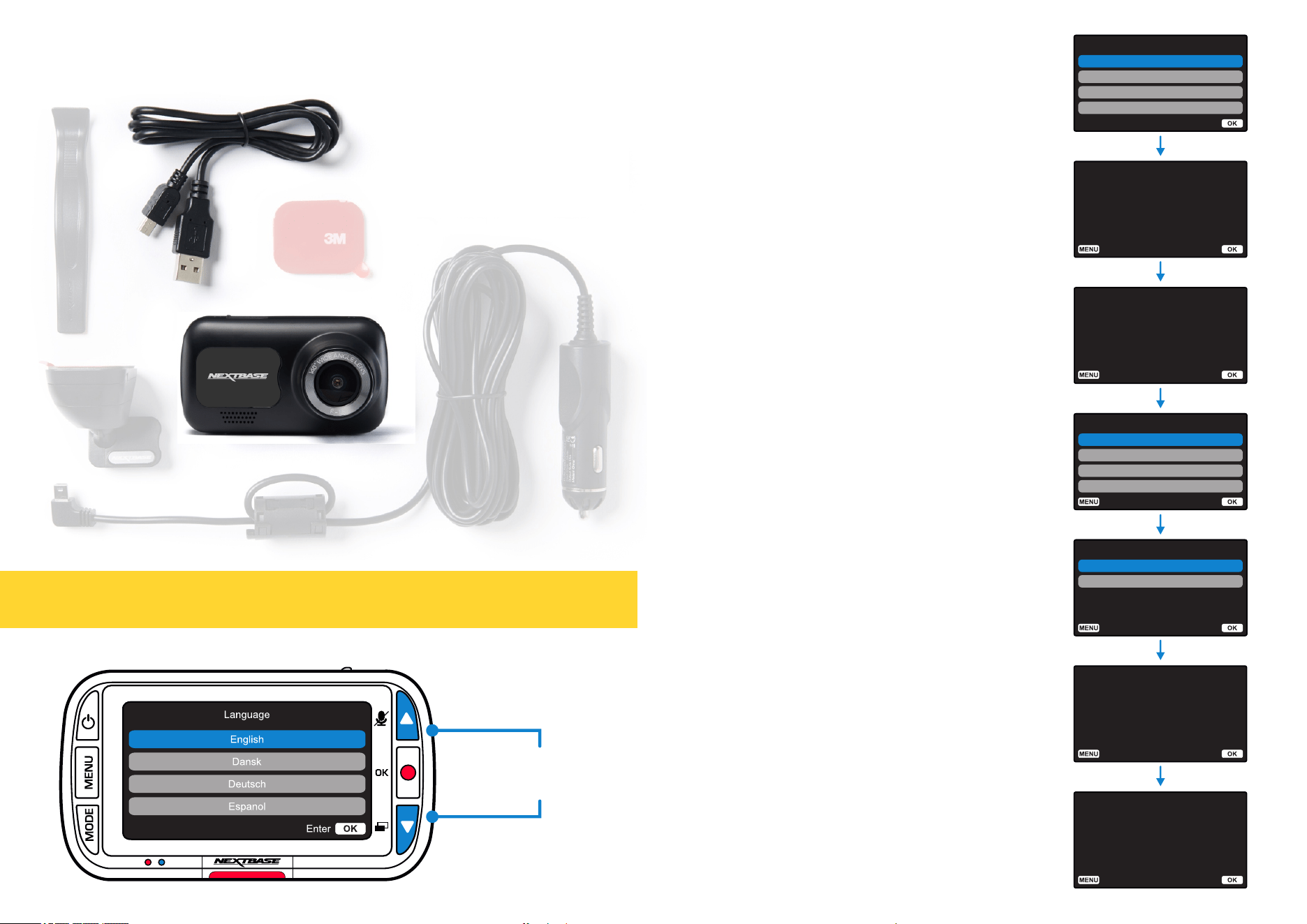
17
Setup Complete
The Dash Cam will automatically
set the time & date when a
satellite signal has been
received.
Back
Enter
Enter
Language
Espanol
Deutsch
Dansk
English
First Time Installation
Back
Enter
Please use the following
menus to adjust your Dash
Cam settings for:
Country and Speed Units.
First Time Installation
These settings will establish
your Timezone and Daylight
Savings Time (Summer Time)
as required.
Back
Enter
Enter
Country
Finland
Denmark
Belgium
UK & Ireland
Back
Enter
Select Speed Units
MPH
KMH
Back
Setup Complete
Your Dash Cam is now ready to use.
Please visit www.nextbase.com to
download the instruction manual
and playback software.
Back
Enter
To ensure the set up of this Dash Cam is as quick
and simple as possible, there is an easy to follow
‘First Time Use’ menu.
This menu is used to set Language, Time, and Date.
This menu will appear when:
1. The Dash Cam is first turned on.
2. There has been a Firmware Update applied to the
Dash Cam and ‘Keep User Settings’ has been
set to OFF. If It is set to ON, your Dash Cam will
start normally, with your settings intact.
3. After the Dash Cam’s settings have been reset,
by using the ‘Default Settings’ option in
the Setup Menu.
Follow the on-screen instruction to select the
Language, Time, and Date.
Note:
- The First Time Use menu is in place to get you up
and running quickly and smoothly.
The settings you choose during First Time Use can
be changed at any later time in the setup menus.
First Time Use
Use the UP and DOWN buttons
to select required function and
press OK to confirm selection.
Before you can use your Dash Cam, it is essential that it is fully charged. Connect your Dash Cam via
the USB port to a home power source such as a PC or home USB socket for approximately 2 hours.
18
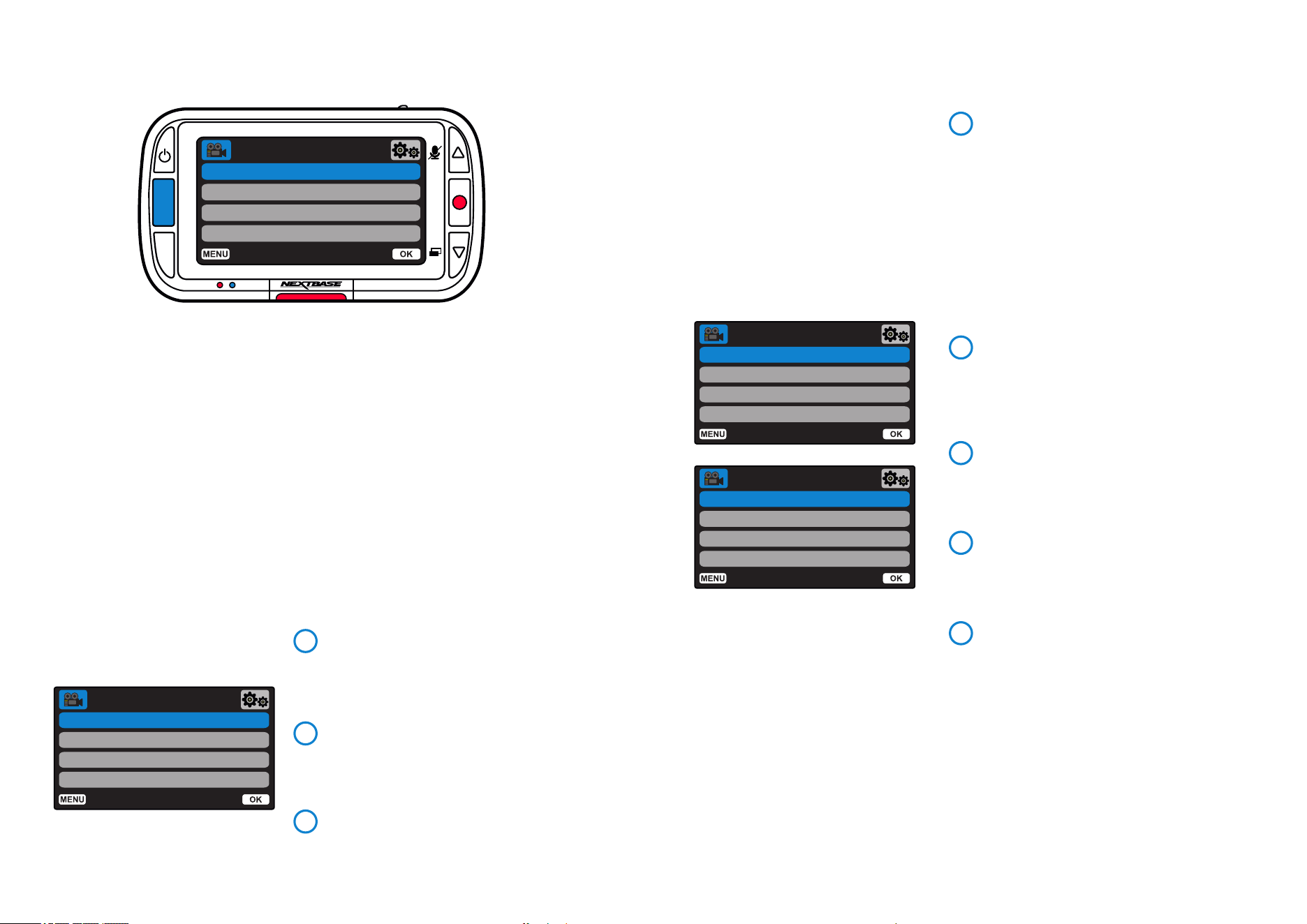
The default settings have been carefully selected to allow you to use your Dash Cam
without the need to change any settings. However, should you wish to change a setting then
please see below:
- Use the up and down buttons to highlight the function that you’d like to change and press the
OK button to enter the settings submenu.
- Once in the submenu, use the up and down buttons to highlight the required setting and then
press OK to confirm your selection and return to the Video Menu.
- Press the MENU button twice to return to video mode.
Notes:
- Menus are not accessible whilst the Dash Cam is recording.
- Within the Setup Menu which is accessed by pressing the MENU button twice, there is a ‘Default
Settings’ option to allow you to reset the Dash Cam to the factory defaults, if required.
Press the ‘Menu’ button to enter the Dash Cam’s ‘Video Menu’ system.
Video Length
Set the length of the individual recorded video files.
The Dash Cam will continue recording, filling the
memory card.
When the memory card becomes full, the oldest file
will be automatically deleted to make space for the
new recording.
Protected Files will not be overwritten. If the SDNote:
Card becomes full you will be prompted to format/clear
the SD Card.
Options: 1 minute, 2 minutes, 3 minutes
Default: 1 minute
Time & Date Stamp
Turn On / Off the time and date stamp shown at
the bottom of the screen on recorded files.
Options: On and Off
Default: On
Speed Stamp
Turn On / Off the speed stamp shown on recorded files.
Options: On and Off
Default: On
GPS Location Stamp
Turn On / Off the GPS stamp shown on recorded files.
Options: On and Off
Default: On
G Sensor
Turn off or adjust the sensitivity of the internal G Sensor.
The G Sensor detects forces which will protect the
current recording in the event of a collision. The higher
the G Sensor sensitivity, the less force will be needed
to trigger automatic file protection.
If you have a car with firm suspension you mayNote:
wish to adjust this to LOW. Likewise if you have soft
suspension you may wish to adjust this to HIGH
Options: Off, Low, Medium, High
Default: Medium
Resolution
Change your Dash Cam’s recording resolution.
Options: 1080pP, 720P, 720P @ 60FPS
Default: 1080P
Exposure
Adjust the exposure level for different lighting conditions.
Options: Values range from -6 to +6
Default: 0
Audio Recording
Turn On / Off the microphone for video recording.
Options: On and Off
Default: On
4
5
6
7
Menus
Resolution
Exposure
Audio Recording
Video Length
Video Menu
MODE
MENU
OK
Back
Enter
Video Menu Options
1
2
3
Resolution
Exposure
Audio Recording
Video Length
Video Menu
Back
Enter
Resolution
Exposure
Audio Recording
Video Length
Video Menu
Back
Enter
Time & Date Stamp
Speed Stamp
Video Menu
Back
Enter
GPS Location Stamp
G Sensor
8
19
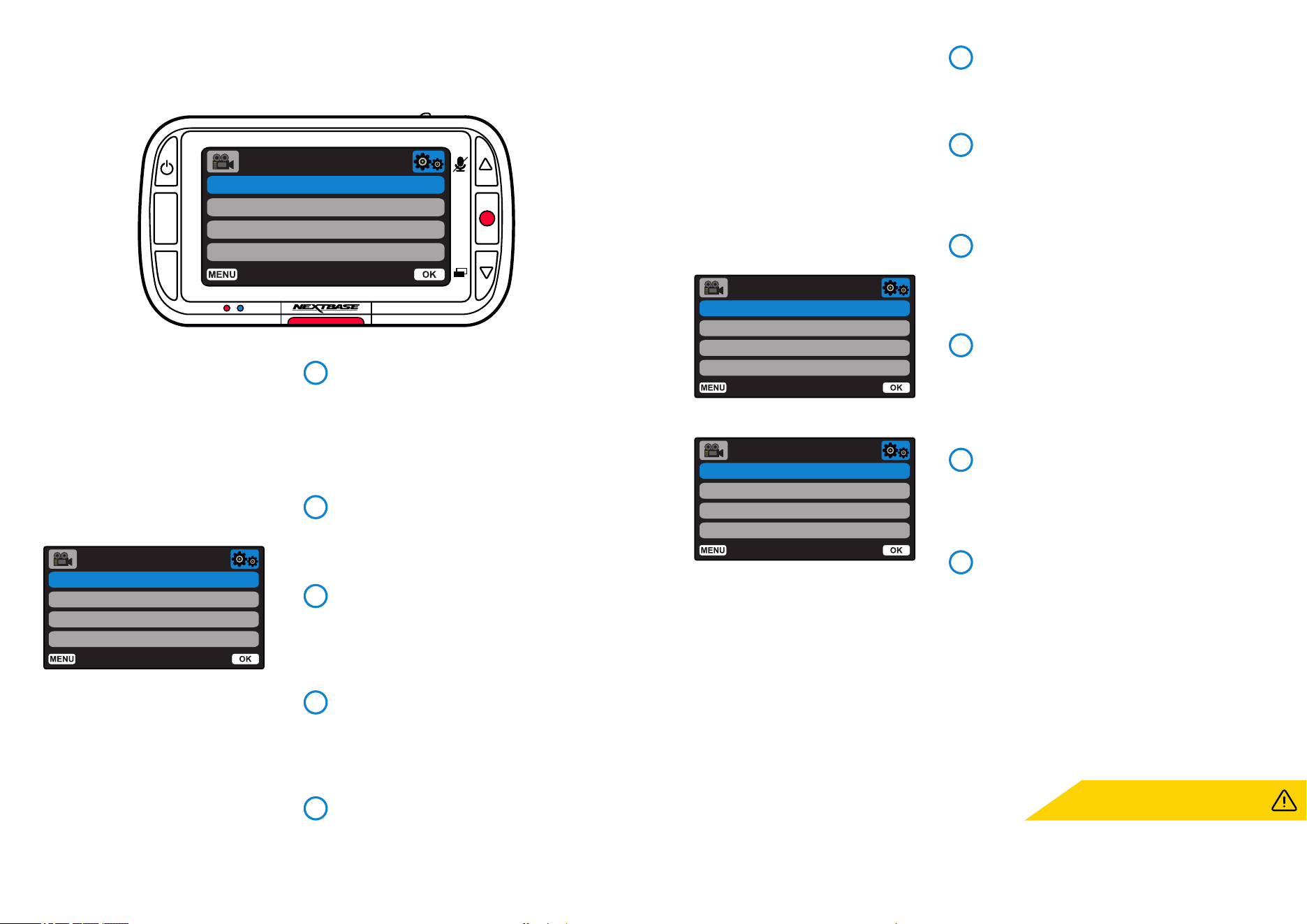
Setup Menu Options
Format SD Card
Time & Date
Time Zone / DST
Language
Setup Menu
Format SD Card
Time & Date
Time Zone / DST
Language
Setup Menu
MODE
MENU
OK
Press the ‘Menu’ button again when in ‘Video Menu’ to enter the Dash Cam’s ‘Setup Menu’ system.
Menus (cont.)
Back
Enter
Back
Enter
Format SD Card
Format the inserted SD card. This will delete
all content.
For stable performance, it is recommendedNote:
that you format the memory card every 2-3 weeks.
You should only do this AFTER you've backed up
any files from the card that you may want to keep.
Time & Date
Adjust the date / time as required using the OK
button to toggle through the fields and use the
up & down buttons to set the values.
Press MENU to exit and return to the Setup Menu.
Time Zone/DST
Manually adjust your time zone to adjust your Dash
Cam’s time display. Manually changing your time
zone will change your Country setting to Other.
Options: -12 to +12
Default: GMT / UTC
Language
Select your preferred language
Options: English, Danish, German, Spanish, French,
Italian, Dutch, Norwegian, Finnish, Swedish,
Polish, Romanian, Czech, Slovakian, Hungarian
Default: Follows your First Time Use selection.
Country
Select your country to adjust your Dash Cam’s
time display.
Options: EUR, USA, CAN, MEX, Other
Default: Follows your First Time Use selection.
1
2
3
4
5
Country
Speed Units
Screen Saver
Device Sounds
Setup Menu
Back
Enter
Auto Power Off
Number / License Plate
Parking Mode
Recording History
Setup Menu
Back
Enter
Speed Units
Choose between MPH and KMH
Options: MPH and KMH
Default: MPH
Screen Saver
Turn on the screen saver function to shut down
the screen after 30 seconds.
Options: On and Off
Default: Off
Device Sounds
Turn On/Off the beep that sounds when a button
is pressed. Start up sound is NOT muted.
Options: On and Off
Default: On
Auto Power Off
Adjust the timing of the Auto Power Off function,
this can be used to continue recording in event of
loss of power within in the vehicle.
Options: 10 seconds, 1 minute, 2 minutes
Default: 10 seconds
Number / License Plate
Enter the registration number for your vehicle, this
will then be shown on the recorded video files.
Use the OK button to toggle through the fields and
use the up & down buttons to set values.
Parking Mode
When Parking Mode has been turned on, the Dash
Cam enters standby mode when the 12Vdc supply has
been turned OFF (typically removing your ignition key).
The Dash Cam will also enter standby mode if no
physical movement is detected for 5 minutes, this is
designed to allow use of a permanent 12Vdc supply,
i.e hard-wire kit.
Should physical movement of the vehicle be detected,
the Dash Cam will power on and start recording a
30 second protected video. If no further physical
movement is detected then the Dash Cam will return
to standby mode, if physical movement is detected
subsequently, then the camera will continue to record
normally, i.e. driving once more.
Options: On and Off
Default: Off
8
7
6
9
10
11
Please note there will be a delay between
the trigger event and the start of the
recording while the Dash Cam turns on.
20
Setup Menu Options (cont.)
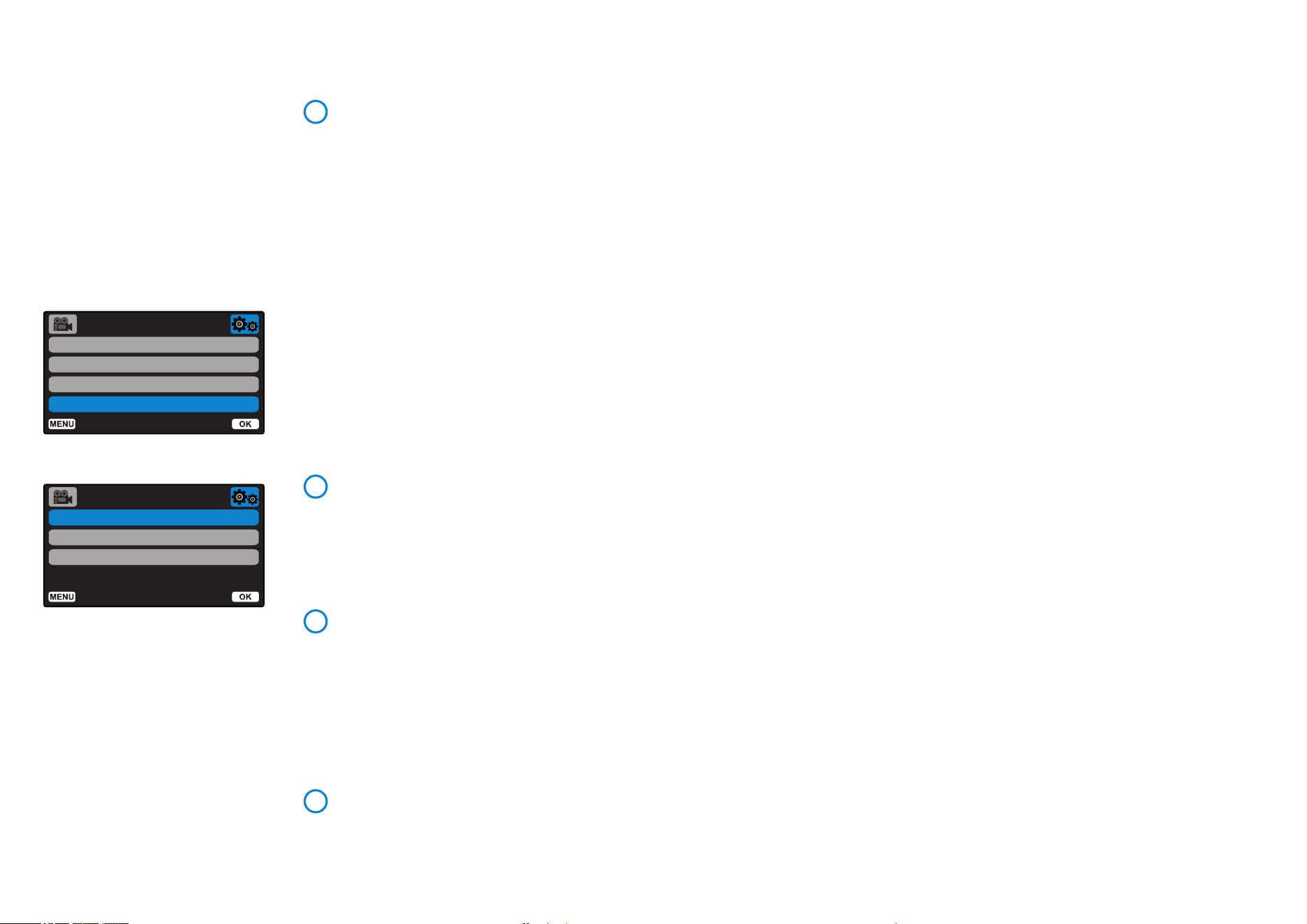
Recording History
In some territories, there are laws prohibiting the
amount of footage your Dash Cam can store.
The default is ‘Maximum’, where your Dash Cam
records and stores videos without restriction.
However, if ‘Minimum’ is selected, your Dash Cam
will be limited to storing only 4 files at a time.
When a new file is recorded it will overwrite the
oldest file, keeping the number of files stored
at a maximum of 4.
Note: When you select ‘Minimum’, you will be
asked to confirm that all files will be deleted.
Back up any files you wish to keep (including protected
files) before switching to ‘Minimum’ storage mode.
While recording, protected files do not contribute
towards the 4 video limit. These videos are assumed
to be of interest as they are protected either by
abnormal G Sensor activity or by a manual activation
of the protect function.
Options: Maximum and Minimum
Default: Maximum
System Info
information such as Dash Cam model, Battery
Status, Firmware version, and SD card data can
be found here.
This information covers multiple screens (pages),
press OK to scroll through as required.
Keep User Settings
Turn this On in order to keep your preferred
individual user settings during the Dash Cam
update process.
Select Off in order to clear all user settings and
return them to defaults during the Dash Cam
update process.
Options: On and Off
Default Setting: Off
Default Settings
Resets your Dash Cam to the default settings.
12
13
Auto Power Off
Number / License Plate
Parking Mode
Recording History
Setup Menu
Back
Enter
Setup Menu
Back
Enter
System Info
Keep User Settings
Default Settings
14
15
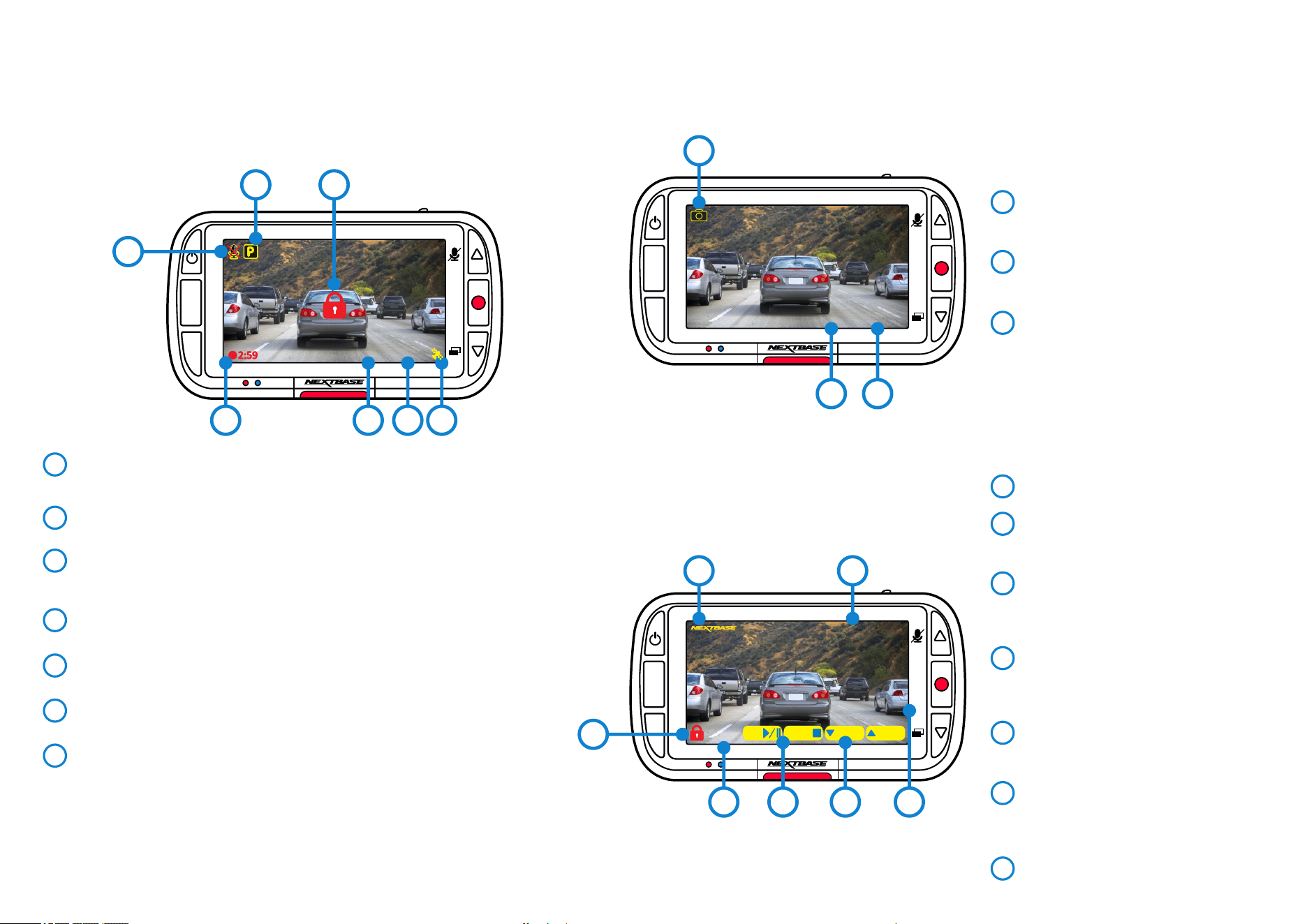
21
Audio Recording ON
Can be switched OFF in the Dash Cam Setup Menu.
Parking Mode ON
Can be switched OFF in the Dash Cam Setup Menu.
File is protected
This will appear either when the ‘protect’ button is manually pushed, or
when the G Sensor is triggered.
Recording Duration
Up to 3 minutes. Length can be changed in the Dash Cam Setup Menu. .
Time Display
Can be manually changed in the Dash Cam Setup Menu.
Date Display
Can be manually changed in the Dash Cam Setup Menu.
GPS Status
The satellite icon will flash whilst the iN-CAR CAM locates satellites. Once
a stable signal is received, the icon will stop flashing and remain on screen.
Photo Mode
The key below explains the various information displayed
on the screen when your Dash Cam is in Photo mode.
Playback Mode
The key below explains the various information displayed
on the screen when your Dash Cam is in Playback mode.
Video Mode
The key below explains the various information displayed on the screen when your
Dash Cam is in Video mode, some icons will only be displayed once the relevant function
has been selected within the Video menu, as described below.
1
2
3
4
5
6
Photo Mode
Press ‘Mode’ Buttton to toggle between Video,
Photo, and Playback.
Time Display
Can be manually changed in the Dash Cam
Setup Menu.
Date Display
can be manually changed in the Dash Cam
Setup Menu.
8
9
10
2
MODE
MENU
OK
5
1
64
3
8
16:04:37 01/02/2019
MODE
MENU
OK
9
10
11
MODE
MENU
OK
12
16:04:37
01/02/2019
160359_01022019_001.JPEG/MP4
1234 ABC 1234 ABC 00.000 000.00000
:PREV:NEXT
MODE:
OK:
13
14
16 1715
Nextbase Logo Stamp
File Name
Photos are saved as JPEGs.
Videos saved as .MP4.
Protected File Icon
File can be protected/unprotected by
pressing the Menu button while previewing
files in playback mode.
Info Stamps
License plate number, Dash Cam model,
Time & Date, GPS location. These can be
turned ON/OFF in the menus.
Playback options
Press Record to Play/Pause. Press Mode to
Stop and return to file navigation.
Navigation
Press the buttons on the right of the Dash
Cam to scroll through the photos and
videos stored on the SD card.
Time/Date Display
Can be manually changed in
Dash Cam Settings.
12
13
14
15
11
16
17
7
16:04:37 01/02/2019
7
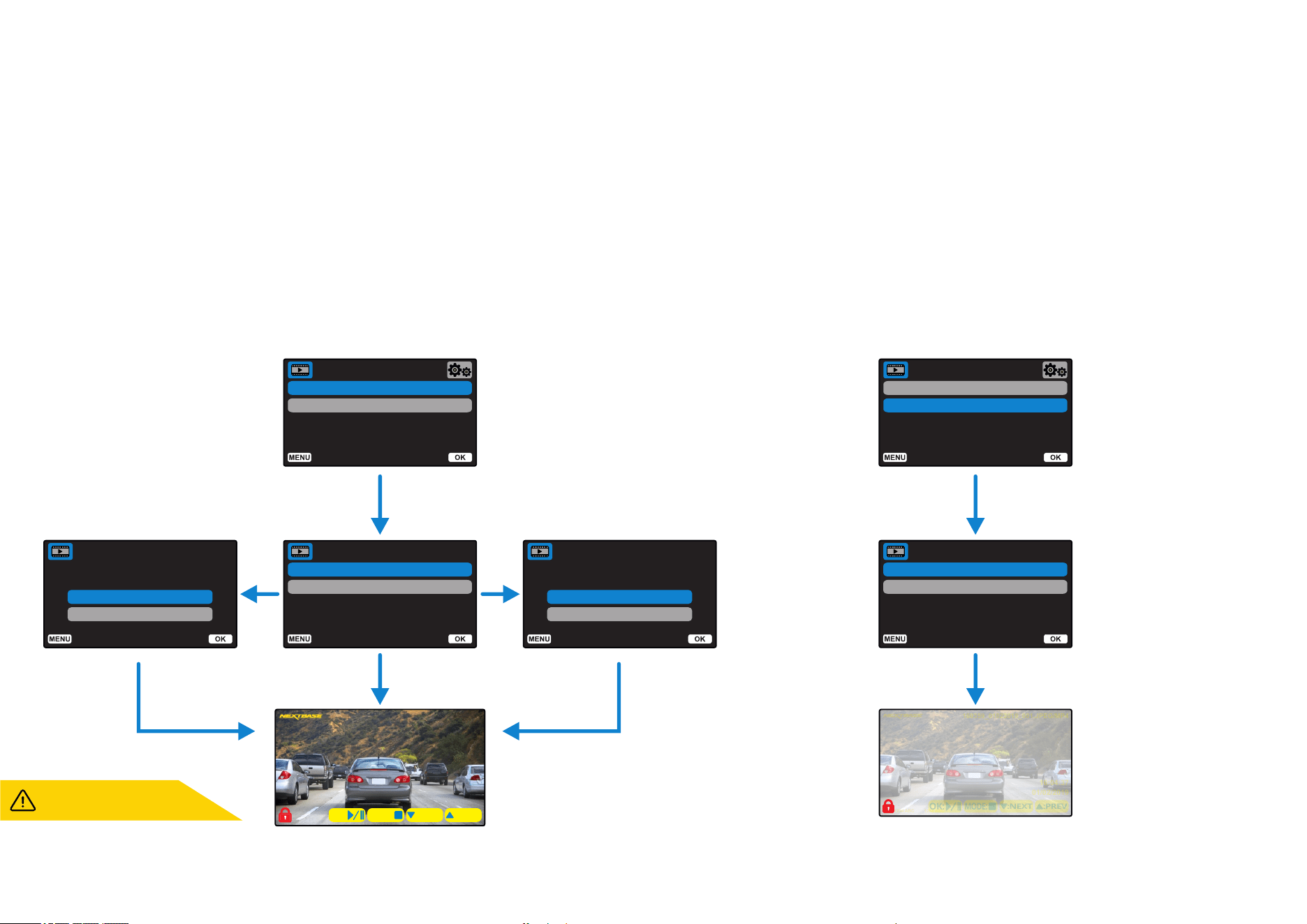
22
Delete Files
Protect Files
Playback Menu
Cancel
OK
Delete Files
Delete this file?
Cancel
OK
Delete Files
Delete ALL files?
Delete File
Delete ALL Files
Delete Files
16:04:37
01/02/2019
160359_01022019_001.JPEG/MP4
1234 ABC 1234 ABC
:PREV:NEXT
MODE:
OK:
16:04:37
01/02/2019
160359_01022019_001.JPEG/MP4
1234 ABC 1234 ABC
:PREV:NEXT
MODE:
OK:
Delete Files
Protect Files
Playback Menu
Protect File
Unprotect File
Delete Files
Protected Files cannot be deleted.
Unprotect a file first to delete it.
How to Protect/Unprotect Files Using the Up and Down arrows, select ‘Protect Files’
On the next page, you will be asked if you want to Protect or Unprotect
the file you are currently on.
You cannot protect a file that is already protected, and likewise cannot
unprotect a file that is already unprotected. This action will have no
effect and will divert back to the Playback display.
When you successfully protect or unprotect a file, a red padlock icon
will be added or removed, respectively. This will be visible on the
Playback display which you will be immediately diverted to, following
your selection.
Playback Mode Menus
If the Menu button is pressed while scrolling through your videos, you will open the Playback Menu,
giving you the option to protect, unprotect, or delete files. You can use the Menu button as a back button
while in the menu system.
How to Delete Files Using the Up and Down arrows, select ‘Delete Files’
On the next page, you will be asked if you want to ONLY delete the video/photo
you are on, or if you would like to delete all (unprotected) files.
Once you have made your selection, you will be asked to confirm your choice.
When your choice is confirmed, you will be redirected back to Playback Mode to
continue scrolling through your videos and photos.
The red padlock icon will be
added when you PROTECT
a video/photo.
The red padlock icon will be
removed when you UNPROTECT
a video/photo.
Back
Enter
Back
Enter
Back
Enter
Back
Enter
Back
Enter
Back
Enter
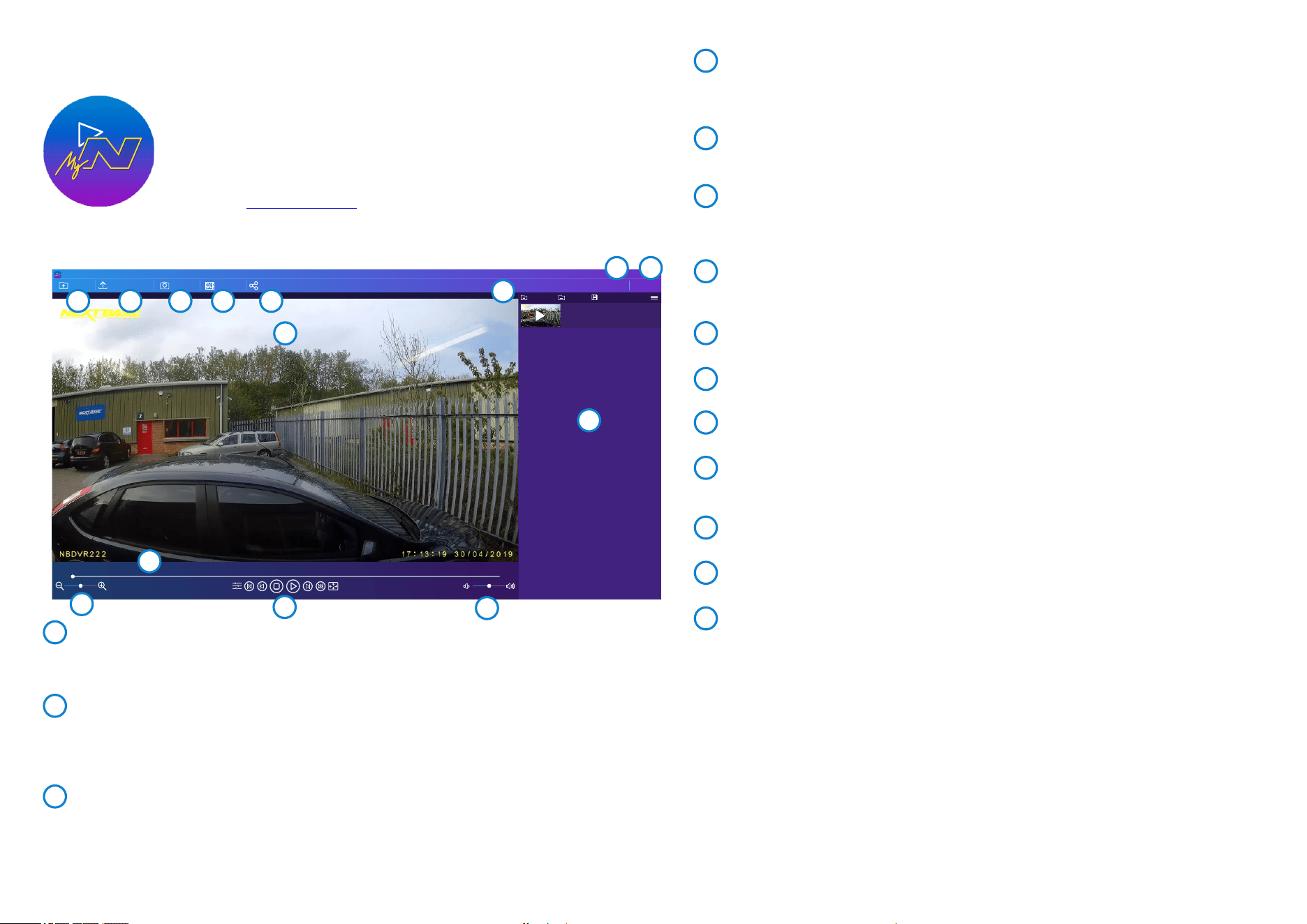
23
Help
Add Video Remove
Save
MyNextbase Player
Add Video
Update Dash Cam Snapshot
File List
Edit Video Share Video Settings
190430_111804_009.MP4
00:00 00:00
View, edit, and share your footage on your computer with the new easy to use free
PC/Mac software.
Connect your Dash Cam via USB (see ‘PC Connection’, page 26) or use an SD card
reader (integrated or external), and drag and drop your files into the MyNextbase
Player™ window. These will appear in the File List at the bottom right of the window.
MyNextbase Player™ can be downloaded for free from the ‘Support and Downloads’
page at: . www.nextbase.com
Please note that not all features of MyNextbase Player are available when importing
videos from the certain Dash Cams. For example, the 122 does not record GPS data, so features such as the map
and speedometer are not available. You are still able to view, edit, and share your videos.
12
13
14
10
11
8
9
76
5
1
2
3
4
Edit Video
Within the video editing process you can join multiple videos together, trim the clips, add
annotations and titles screens, and alter output settings.
See the next page (page 24) for more details.
Share Video
Allows you to easily share your Dash Cam videos with insurance companies and social media.
See page 25 for details on MyNextbase Cloud™.
Settings
Opens the settings tab for MyNextbase Player™. Options available include: language, speed units,
software update options, map provider (Google maps or Open Street Maps), connection tips,
error reports, and Nextbase™ special offers.
Help
Opens the Help menu for MyNextbase Connect™. Options available include: how to use, check
for updates, Nextbase™ website, help & support, send diagnostics, contact us, and about.
Playback Window
Displays Dash Cam videos playing in MyNextbase Connect™.
Zoom
Use to zoom in/out of the playback window. You can also use the scroll wheel on your mouse.
Video Timeline
Shows your playback position. Move the slider to move to a specific point in the video.
Video Playback Controls
Use to control playback of your videos. Includes colour adjustment, next/previous video,
next/previous frame, stop, play, pause.
Volume Controls
Control the volume of the audio on the currently playing video.
File Management Bar
Add, remove, save, and filter videos in your file list.
File List
Displays your video library, ready for playback and editing. This list can be filtered in a number
of ways, including by name, date, resolution, or whether the file is protected.
4
5
Add Video
Add a video to the file list, ready for you to view, edit, and share. Clicking this will open your default
file explorer; your Dash Cam/SD Card will appear as an external device. Once located, select the
file(s) you wish to import.
Update Dash Cam
You can update your Dash Cam’s firmware through MyNextbase Player™; please note that an internet
connection is required to access the latest firmware version. You can ONLY update your 222G Dash Cam
through MyNextbase Player™ if you are using a PC; this function will NOT work on Mac.
For more information, see page 26 (Firmware Updates).
Snapshot
During video playback, Pause the video on the frame you would like to capture. You can move
one frame at a time using the video controls beneath the playback timeline or the left/right
arrow keys. Clicking ’Snapshot’ will bring up a dialogue box with a ‘Save Image’ button. Click to save
the image as a PNG in a destination of your choice
1
2
3
6
8
9
10
11
12
13
14
MyNextbase Player - Playback Software
7
24
MyNextbase Player - Editing Videos
To use MyNextbase Player to edit your recorded files, you need to ensure that the file you wish to edit is™
currently playing in the Playback Window. You can do this by double clicking the file as it appears in the File
List window. When the file is playing, click on the ‘Edit’ button to begin the 6 step editing process.
1. Join Videos
The first step allows you to join multiple videos together. Your video will appear in the centre of the
screen, with buttons on either side to add additional videos before or after the chosen video file. Clicking
either of these buttons will open up the list of files in your library that can be added. Once added, these
will appear next to your original video file. You can only join videos that are of the same resolution.
The order of the video files can be altered by clicking and dragging a video. To remove a video, hover
over the chosen file and a ‘Remove Video’ option will appear. Click to remove this video.
Once you are happy with the video(s) selected, click on the continue button to move to step 2.
2. Trim Video
Trimming the video allows you to shorten your selected clip to only include the incident or event that
you are interested in. To the left of the Playback Timeline is a green marker, indicating the beginning of
your video. To the right of the Playback Timelime is a red marker, indicating the end of your video. These
can be dragged to a point on the Timeline of your choosing; when exporting, MyNextbase Player will™
create a single video file from the footage located between the markers. The white marker indicates your
current playback position.
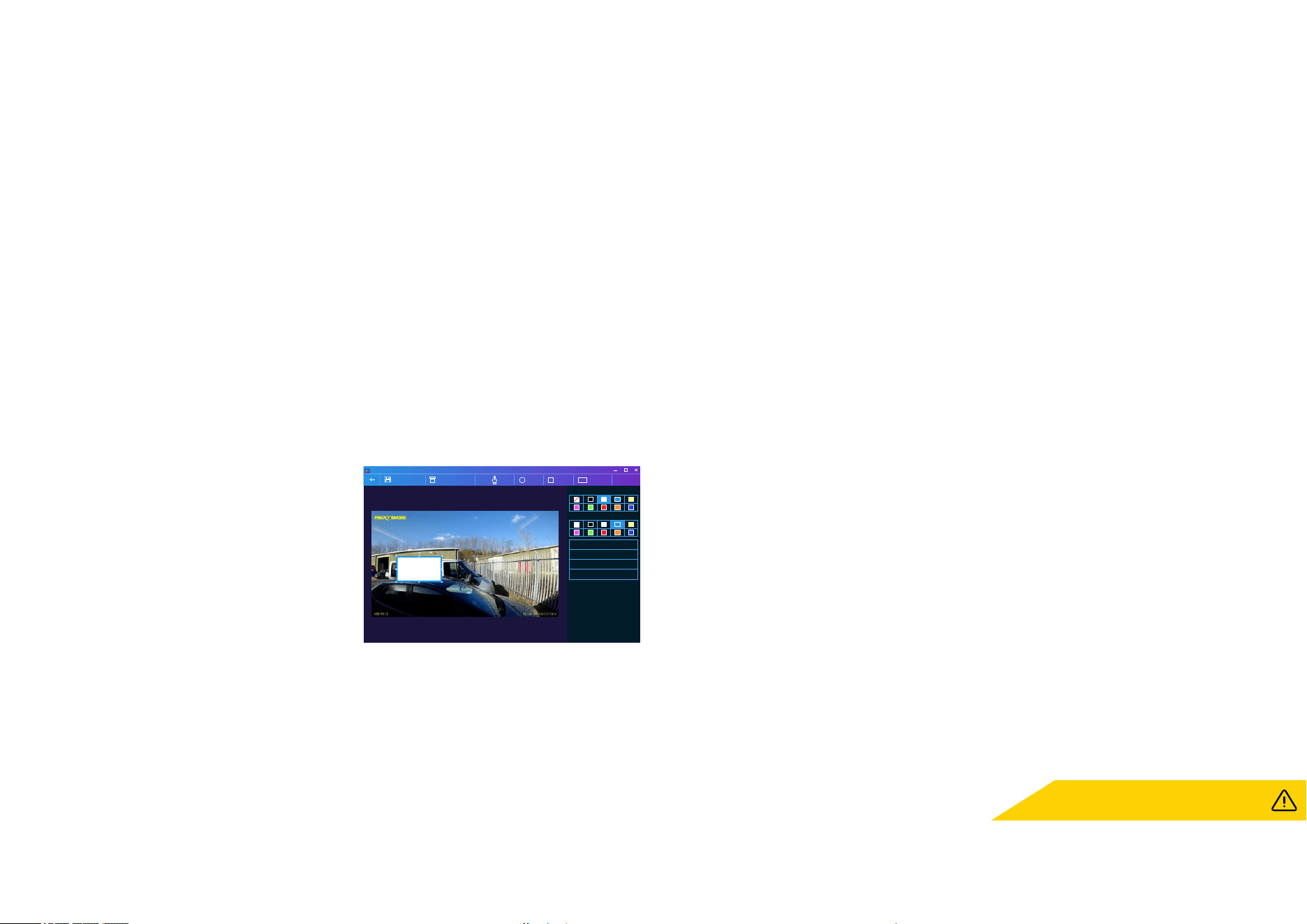
3. Annotate Video
During the video there may be an object or incident
that you wish to highlight, annotating you video will
allow you to do this. When you annotate a frame,
your video will pause at the specified frame and
display any annotations that you have added.
The video will resume after 4 seconds.
To begin adding annotations, find the frame you
wish to annotate (using the white marker, and
left/right arrows to scroll through frames), and click
on the ‘Add Annotation’ button to open the annotation
screen. Along the top of the annotation screen you will see the annotation tools -Draw, Circle, Square,
Rectangle, and Text. Clicking any of these options will add an editable annotation to that frame.
This shape/text can be moved, resized, and rotated using the handles on the sides and corners of the
selected annotation.
When you have finished your annotation, click ‘Save and Close’ to return to the Add Annotation screen,
where more annotations can be added. When you have finished adding annotations, press ‘Continue’
to proceed.
4. Add Title Screen
Add a title screen to your video. The title will be displayed for 4 seconds at the start of your video. To add
a title, click inside the white rectangle and type the desired title. Press ‘Continue’ to proceed.
5. Output Settings
The final step in the editing process allows you to specify the quality of your video file and the data
included.
The Video Resolution determines the quality of the video footage; by default the Video Resolution will
be set to output at the same quality as the original files. Lowering the Video Resolution will produce
lower resolution files but will also reduce the size of the file and lower the time it takes to produce the file.
You can also remove the audio from the video by ticking the corresponding box.
Once the data has been removed it cannot be added back into the edited video. This will not affect
the original file.
Lastly, you can specify the name of the file being created and the location that you would like it saved.
When you have chosen your output settings click on the ‘Confirm’ button and MyNextbase Player will™
begin processing your video.
6. Process Video
During step 6, MyNextbase Player will process your video clip(s) and edits, and produce a single file in™
the location specified. This can take some time and will depend on the number and length of video files
being joined and video resolution. Once the video has been processed, it will be added to your
MyNextbase Player file list.™
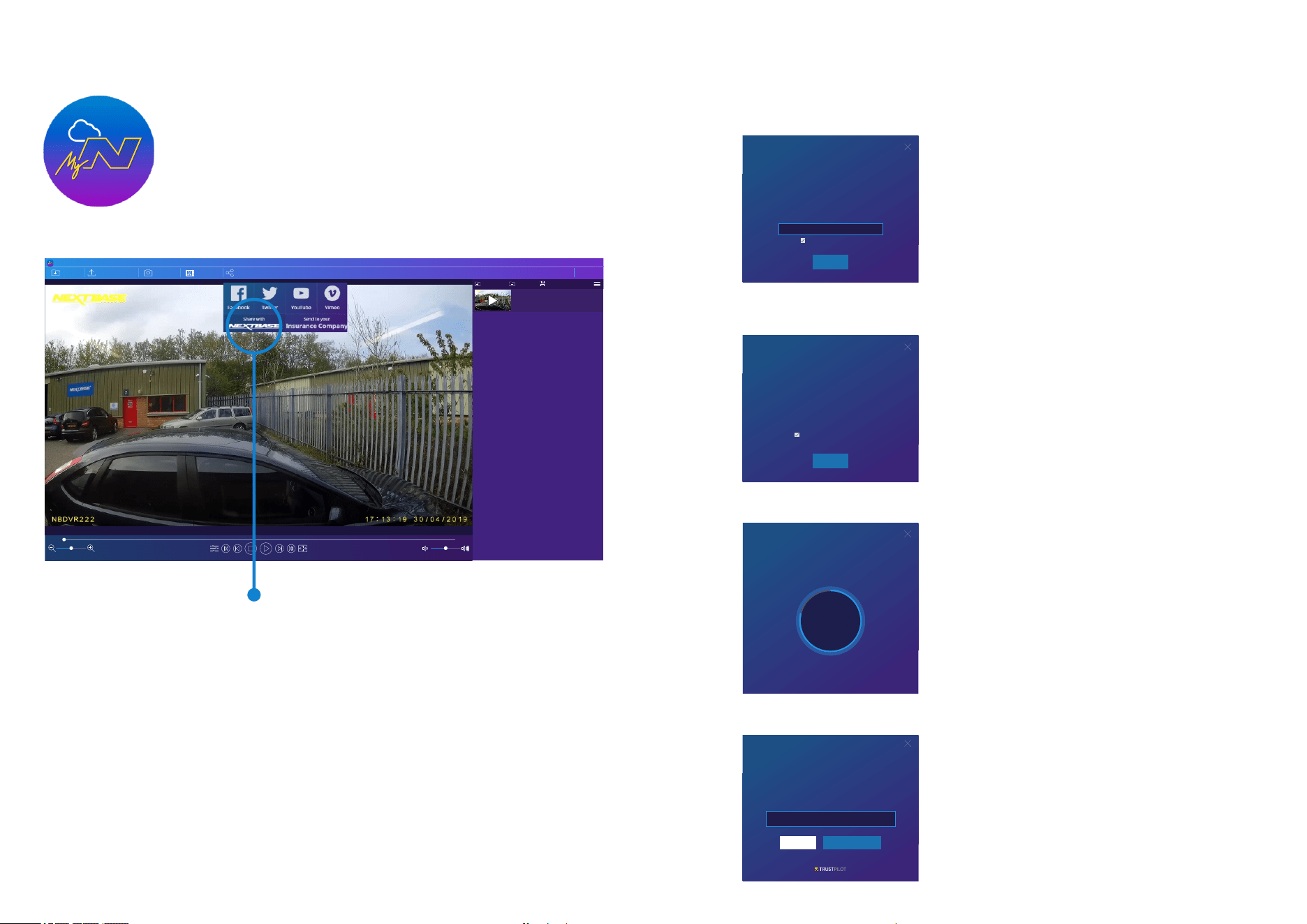
Video Sharing
Videos can be shared to social media and insurers through the ‘Share Video’ button. When a destination
is selected (i.e Facebook), the target web page will open in your default browser. You will then be asked
to sign into your account, and once you are logged in, the browser will close and a pop up will show your
upload’s progress. When the file is finished uploading you will see an option to view your uploaded file.
Videos can also be upload to the Nextbase server; you will be e-mailed a secure link to view or™
download your video. This link can be sent to your insurer, without the need to transfer a large video file.
Videos will be automatically deleted 30 days after upload.
Some functions, such as GPS data, are available
only on select models.
Annotation window
MyNextbase Player
Bring to Front
Fill Colour
Text
Bring Forwards
Bring Backwards
Send to Back
Abc
RectangleSquareCircleDrawDelete AnnotationSave and Close
Stroke Colour
Enter Text
25
MyNextbase Cloud™
Selecting ‘Share Video’ will allow you to choose where to
upload your video to. Select ‘Share with Nextbase™’ to
upload your video to MyNextbase Cloud™, and bring
up the upload window.
The upload window will guide you through the upload process;
next, you will be prompted to enter your e-mail.
You will have the option to protect your video with a password.
Once the setup of the video has been decided, the upload
will begin. Upload times are dependent on file size and
internet speed.
When the upload has completed, you will be given a unique
web address that will link to your video hosted on the
Nextbase™ server.
This link can be shared with others (including your insurer) so
that they too can view/download the video. When you first view
the video online you may see this message:
“This video was uploaded very recently, it may take up to half an
hour to generate the online preview however your video can be
downloaded immediately.” This is normal and the
preview will become available within half an hour.
Nextbase Secure Server is a free online video sharing service for
owners of Nextbase Dash Cams. Once your video has finished
uploading you will be e-mailed a secure link to watch your video
online or download it to your computer. Videos will be
automatically deleted 30 days after they are uploaded.
Remember my e-mail address
Continue
NEXTBASE Secure Server
Upload To
NEXTBASE Secure Server
Upload To
Videos uploaded to the Nextbase Secure Server can be viewed
by anyone you share the link with.
For an additional layer of security you can protect your video
with a password which must then be shared with alongside
the link.
Protect my video with a password
Continue
NEXTBASE Secure Server
Upload To
Uploading to Nextbase Secure Server...
Cancel
28.95 /
34.49 MB
84%
NEXTBASE Secure Server
Upload To
Upload Complete! You can now view your online or share it
with your insurer using the link below. Uploads will be
automatically deleted after 30 days, your video will expire on
01/01/2019
http://myvideo.netbase.co.uk/6PUJG
View on NextbaseCopy Link
Review us on
MyNextbase Cloud™ is our free online video sharing service where you can
safely and securely store your Dash Cam files.
Upload your file to the Nextbase™ Server using the ‘Share Video’ function on
either MyNextbase Player™, or the MyNextbase Connect™ app. Please note
that upload times are dependent on video file size. Once your video has
finished uploading you will be given a secure link to watch your video online
and/or download it to your computer/device. This link can be shared with
others (including your insurer) to view/download the video. Videos will be
automatically deleted 30 days after they are uploaded.
Help
Add Video Remove
Save
MyNextbase Player
Add Video
Update Dash Cam Snapshot
File List
Edit Video Share Video Settings
190430_111804_009.MP4
00:00 00:00
26
How to Check your Dash Cam’s current Firmware Version
Within the Setup Menu, on page 3, select ‘System Info’. Here you will find information relating to your
Dash Cam, including what firmware version is currently active (i.e R05.3).
Ways to Update Firmware on your Dash Cam
Connect your Dash Cam’s SD Card to PC or Mac using a card reader. This will open a file explorer drive,
(e.g) Removable Disk (E:) and show the contents of your SD Card. Go to the ‘Support & Downloads’ page
on nextbase.com and download the newest firmware version (i.e R05.4); this will download as .bin file.
Drag and drop the .bin file to the SD Card explorer.
Eject the SD card and insert it back into your Dash Cam. When you connect the power cable your Dash
Cam will turn on, and will automatically begin updating. While updating, both the Nextbase™ logo
beneath the screen and the red LED to the left of the screen will start flashing.
Once the update has been completed, the logo and LED will stop flashing, and your Dash Cam will
automatically restart.
If you have a PC, You can also update your Dash cam using the ‘Update Dash Cam’ function on
MyNextbase Player™. This function will NOT work on a Mac. Connect your Dash Cam to PC via USB, select
‘Firmware Update’ and open up MyNextbase Player™ (available to download for free from nextbase.com).
Select ‘Update Dash Cam’. A pop-up will appear on your PC describing your current firmware, and the
latest version available. When you select update, your Dash Cam will automatically begin updating.
While the Dash Cam is updating, both the Nextbase™ Logo below the screen, and the red LED will flash.
Please note that an internet connection is required for the Dash Cam to be updated.
If ‘Keep User Settings’ is turned ON in the Setup Menu, your Dash Cam will boot up normally,Notes:
straight into video live view mode, ready to use. If ‘Keep User Settings’ is turned OFF, after the update is
complete, the Dash Cam will boot up into the First Time Use menu, which must be completed before the
Dash Cam can be used.
Be sure to externally back up any files you want to keep before updating the firmware.
Your Dash Cam will show the following message: “Firmware Updating... Update takes
approx 2 mins. Do not disconnect power!”
www.nextbase.com
Upd ating ...
Firmware controls the basic functioning of the Dash Cam.
If your Dash Cam is not functioning correctly, you may
need to update the firmware.
Firmware updates may also be released to fix bugs, and
improve the general functionality of the Dash Cam.
In short, it’s important to keep the firmware on your
Dash Cam up to date so it can operate to it’s full capacity.
We recommend you regularly check for updates to get the
most from your new Dash Cam
Firmware Update Information
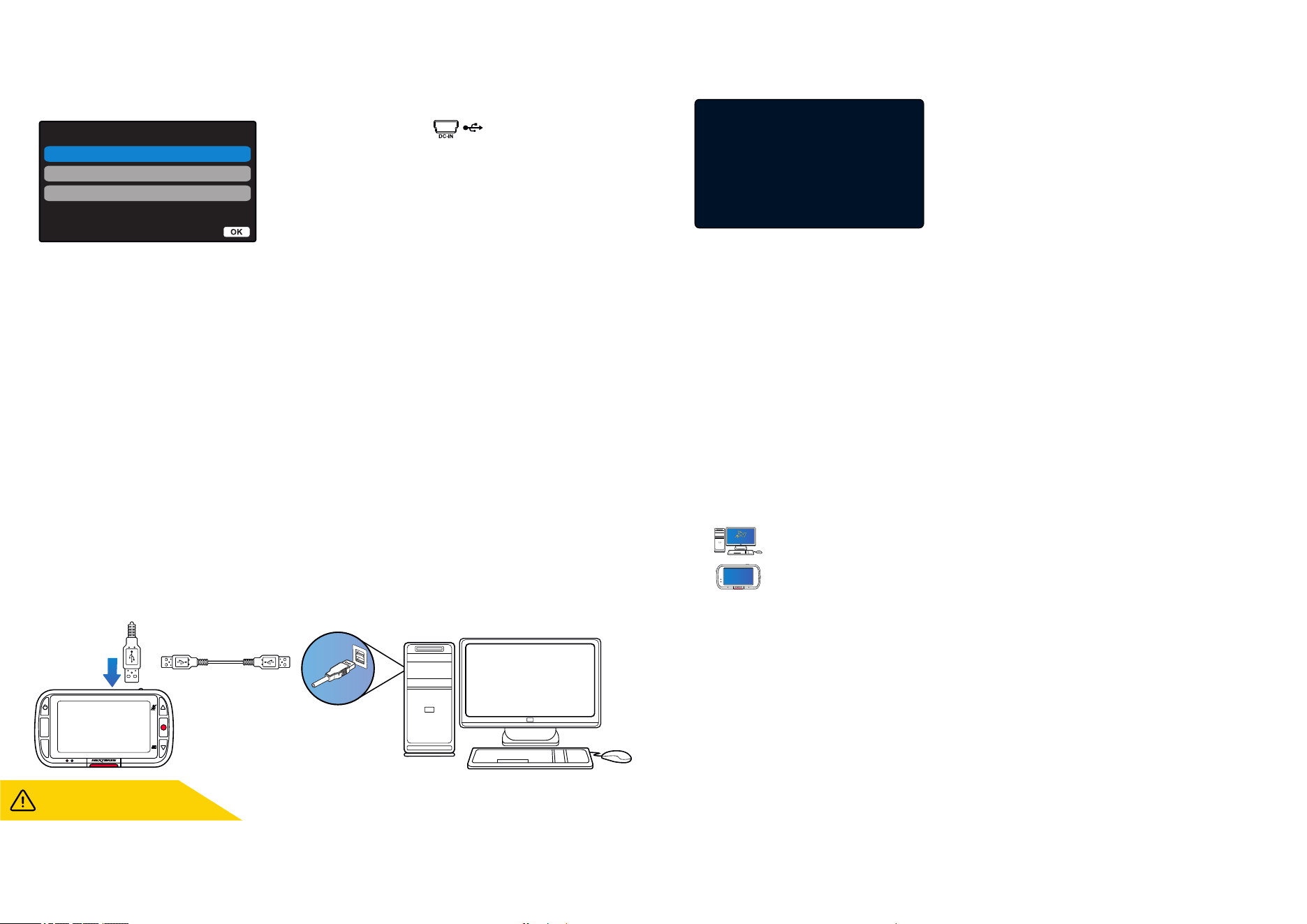
Use the supplied USB cable to connect the Dash Cam
directly to your PC via the socket on top of the
Dash Cam;
do NOT connect the USB cable to the Powered Mount.
Once connected the Dash Cam will turn on with two options
available; ‘Access Files’ and ‘ Power On ’, as described below.
Use the UP and DOWN buttons to select required function
and press OK to confirm selection.
Access Files (Windows)
When this option is selected, the Dash Cam will function as a card reader for your PC. An extra drive will
appear, e.g. NEXTBASE (D:) and you will be able to view / manage the stored files upon the MicroSD card
within the Dash Cam. You will be able to view your files using your system’s default media player.
The Dash Cam is a ‘read-only’ device, therefore uploading files to the SD card when in Mass Storage
mode is not possible. If you wish to add files to the SD card you can do this using a MicroSDcard reader.
Access Files (Mac)
When this option is selected, the Dash Cam will function as a card reader for your Mac. The 'Nextbase’
external USB disk icon will appear on your Mac and you will be able to view and/or manage stored files.
You will be able to view your files using your system’s default media player.
The Dash Cam is a ‘read-only’ device, therefore uploading files to the SD card when in Mass Storage
mode is not possible. If you wish to add files to the SD card you can do this using a MicroSd card reader.
Power On (Windows & Mac)
When this option is selected, the Dash Cam will power on with all functions available. This includes
charging of the internal battery; a full charge will take approximately 2 hours.
PC Connection
ALWAYS turn OFF the Dash Cam
before disconnecting from your PC/Mac.
Access Files
Power On
PC Connection
Firmware Update
MODE
MENU
OK
Enter
Use ‘MyNextbase Player’
to update your Dash Cam
Firmware, by selecting
‘’Update Dash Cam’’.
Firmware Update
27
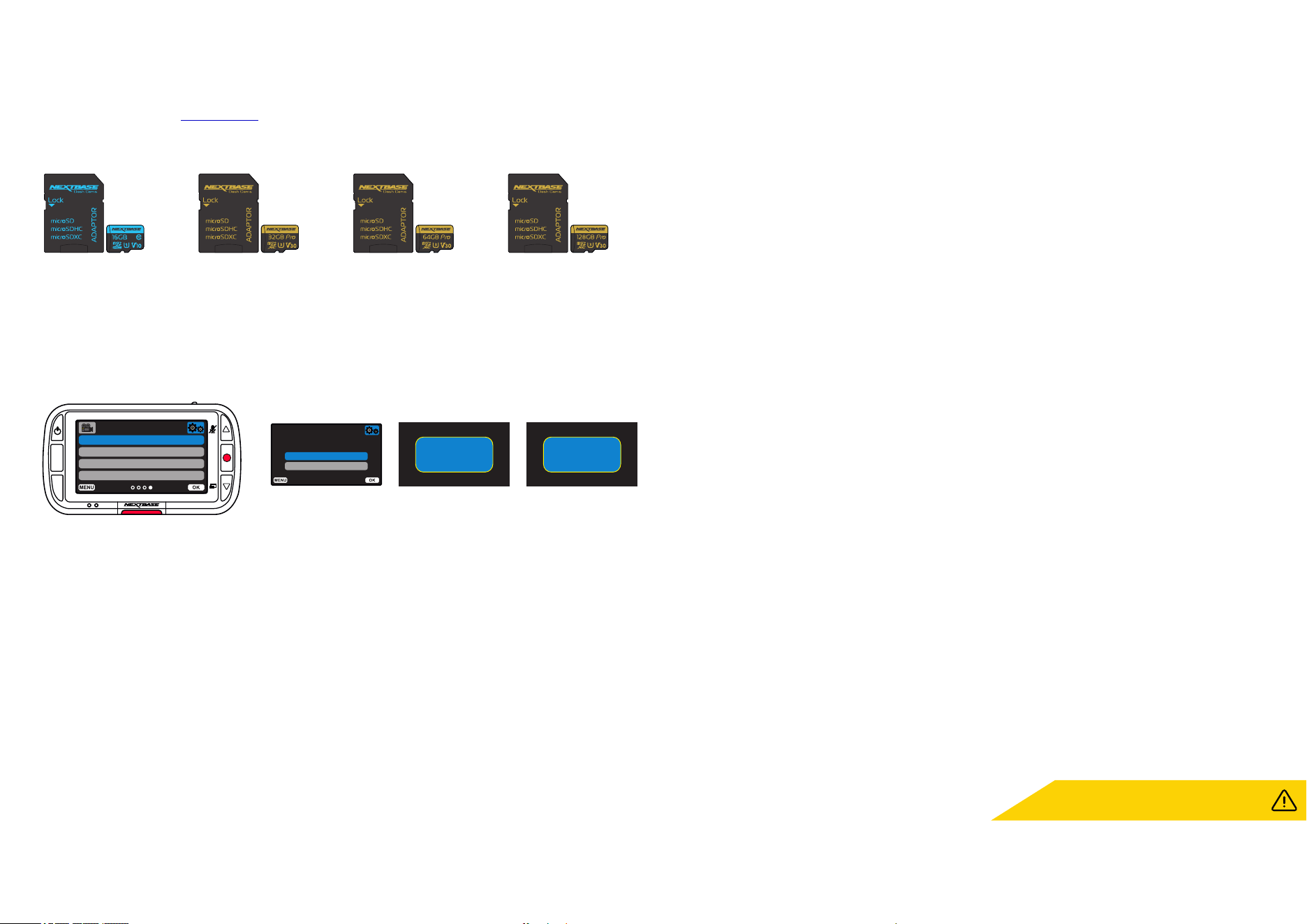
Format SD Card
Time & Date
Language
Screen Saver
Setup Menu
MODE
MENU
OK
Cancel
OK
Format SD Card
All data will be deleted!
Nextbase SD Cards™
For best results, we recommend using our Nextbase branded SD cards with your Dash Cam, available™
to purchase online from , or your nearest retailer.nextbase.com
We recommend formatting your SD Card every 2 weeks to ensure that there is enough space to record
and store new footage. When formatting, protected files WILL be deleted. If you wish to keep these
protected files, you must back then up externally, most commonly by saving files to a desktop computer,
or another secure storage point.
To clear your SD card, go to the ‘Format SD Card’ function in your Dash Cam’s Setup settings Menu and
follow the instructions on screen.
Which SD Card should I use in a Dash Cam ?
Nextbase have designed an SD card specifically to fulfill the needs of our Dash Cams. We work
directly with the factory to ensure consistency of the SD card quality. Nextbase have spent years
testing, trialling, and developing SD cards to optimise their performance with our Dash Cams.
Due to the differences in technology an SD card that works with a mobile phone or computer won’t
necessarily work well with a Dash Cam. The main differences and selling points between all SD cards
are the storage size (16GB, 32GB, 42GB, etc.) and the READ speed. READ speed isn’t too important
when it comes to Dash Cams, as a Dash Cam WRITES data to the SD card when recording. The ability to
maintain a high WRITE speed consistently is what Nextbase SD cards are designed to do better than any
other SD card. Any drop/fluctuation in WRITE speed within the SD card causes the Dash Cam footage
to buffer, and in some cases will stop the recording entirely. Years of research and design allows our SD
card controller and Firmware on the SD card to achieve the requirements of our Dash Cams, where
other SD cards cannot.
A large requirement our Dash Cams place on the SD card is the ability to re-WRITE over the oldest footage
when the SD memory becomes full. This means the Dash Cam is always Loop Recording - when the Dash
Cam is on it is always recording. From our experience most non-Nextbase SD cards struggle to do this as
effectively as our SD cards, this has caused footage to be missing and footage to fail to record in the
first place.
16GB 32GB 64GB 128GB
Approx 2 hours footage. Approx 4 hours footage. Approx 8 hours footage. Approx 16 hours footage.
Back
Enter
Back
Enter
Please wait ...
Format successful
SD Card Q&A
Q) “Why should I buy a Nextbase branded SD card? Can't I just use any card?”
A) Our cameras have different requirements to other recording devices; this is because they need to
keep recording when the SD card is full whilst overwriting the oldest unprotected files at the same time.
Q) “Why are Nextbase SD cards more expensive than other brands SD cards?”
A) Years of research and development have led to the creation of an SD card that has superior
capabilities to ensure it works with a Dash Cam, where other SD cards don't have such capabilities.
Dash Cams have greater technological requirements from an SD card than a mobile phone or
computer, for example, thus the larger price tag.
Q) “Do non-Nextbase SD cards work at all?”
A) A card that is not made for this purpose may appear to work perfectly in the beginning, although
failure tends to happen after prolonged use, this could be days, weeks, or months. In a worst-case
scenario, you may only discover recording failure after your SD card fails to record a serious incident,
therefore using a suitable card is imperative.
Q) I have a rear camera module as well as the Dash Cam, which SD card do I need?
A) If you are using a Rear Camera Module and a Dash Cam you need to ensure that a U3 SD card
is used inside the camera. It is important to note that our 32GB U3 microSD card will record
approximately 4 hours of HD footage before the Dash Cam overwrites the oldest recordings, or 2
hours if using a Rear Camera Module. The 64GB U3 microSD card will record 8 hours of HD footage,
or 4 hours if using a Rear Camera Module. The largest SD card you can use is our Nextbase 128GB
U3 microSD card can record 16 hours of HD footage, or 8 hours if using a Rear Camera Module.
Q) “What errors may I encounter using a faulty or incompatible SD card?”
A) You may experience any of the following:
· SD error messages
· Recording failure
· Automatic recording failure
· Frozen screen
· Gaps between recordings
· Corrupted or unplayable files
· Failure to startup and shutdown
· Inoperable buttons
If you experience any of the faults listed above, we strongly recommend that you replace your
SD card with a Nextbase one. All our dashcams are tested using Nextbase branded SD cards, therefore
we cannot attest to the compatibility of other manufactures products. For best results we always
recommend using Nextbase branded cards.
Best practice is still to Format the SD card
occasionally - for a heavy user this would be every
two weeks, for a light user this would be once a month.

28
Frequently Asked Questions
www.nextbase.com [email protected]
Problem Solution
No power to my Dash Cam but it works upon my computer.
The cigarette power cable is not working. Inspect the fuse in the Car Power Cable plug. Replacement fuse = 2A 32mm type. If the fuse is
found to be blown, inspect the power cable for damage which may have caused the fuse to blow.
Video Image is blurred.
Remove the protective lens cover, clean the lens, make sure the windshield is clean and clear of grease, dirt, and debris. Ensure that the Polarising
FIlter has been set properly; see the Accessories Manual (available from www.nextbase.com) for instructions on how to set up the Lens.
MicroSD cards are very small and require delicate use. Align the card with the diagram shown upon the Dash Cam and insert the card until
you feel a slight spring resistance. You now need to push the card, using your finger nail until you hear and feel a small click. Release
pressure and the card will stay retained within the Dash Cam. If you are having difficulty, use the edge of a small coin.
With the card installed, using your fingernail, you now need to push the card further inwards slightly, until you hear and feel a small click.
If you are having difficulty, use the edge of a small coin.
Release pressure and the MicroSD card will spring out far enough for you to take a hold of it.
I cannot insert the MicroSD card.
I cannot remove the MicroSD card.
The video files from the Dash Cam are in .MP4 format and may not be compatible with your PC if suitable playback software is not installed.
Video Files cannot be played on my computer.
Video File playback is jumpy.
Remove the SD card and format to remove non-contiguous files. For best recording use a branded class 10 type (48MB/s) or UHS type 1
micro SD card of 8 to 128GB recommended size. PC may not be sufficient for the playback task, try a different PC. Copy the recorded
video files onto the PC / Mac for playback directly rather than use the Dash Cam as a card reader, as the USB system on your PC may be
too slow for HD video playback.
The sound is not synchronised with video during playback.
The Codecs upon your PC may not be compatible or the latest standard. Download the latest Codecs from: .www.nextbase.com
Video has no sound.
Ensure that ‘Record Audio’ setting is turned ON within the Video Menu.
Photograph is blurred. Hold the camera still whilst taking the photo. Be aware that the photo is taken approximately 1 second after the shutter sound is heard.
I can only record a few minutes of video on my MicroSD card.
Change the recording size (Video Length function) to a smaller size. Increase the size of the MicroSD card. Max 128GB. In the Setup Menu,
ensure that Recording History is set to Maximum. Minimum limits the total number of recordings on your Dash Cam to 4.
Access Files does not work.
The Access Files function will work on both Windows and Mac. Restart the PC, as this may be required for the necessary driver to be loaded
correctly. Disconnect and reconnect the Dash Cam. Please bear in mind you cannot transfer files to the Dash Cam in ‘Access Files’. Files can be
transferred to the SD Card using an SD Card reader.
I cannot save files to the memory card when the Dash Cam is
connected to my computer under ‘Access Files’.
Correct, the Dash Cam is a ‘read-only’ device. It is not recommenced to save files from other sources to the same memory that you will use
for recording within the Dash Cam, as these may have a negative effect on the performance of the Dash Cam.
Either the battery has gone flat, there is no power to the Dash Cam and the Auto Power Off period has been triggered or Parking Mode has
been turned on and no vehicle movement has been detected for 5 minutes.
My Dash Cam shuts down by itself after a while.
I can’t delete files on my SD card within the Dash Cam. Check to see if these files are ‘protected’. If so please follow instructions to ‘un-protect’.

29
www.nextbase.com [email protected]
Frequently Asked Questions (page 2)
I have turned on ‘Parking Mode’ and now can’t stop the recording.
Reset the Dash Cam to the default settings within the Setup Menu and try again.
Should the problem persist call the UK helpline (02920) 866429 or call your local support centre, found at www.nextbase.com
Alternatively email: [email protected]
Problem
Unresolved Issues
Solution
The screen blanks after a few minutes upon my Dash Cam. The screen saver is set to ON. Change settings to OFF if required. Default setting is OFF.
I get the message:
“Cluster size wrong. Please format SD card” on screen.
The SD card has been formatted in another device and the Cluster size is not compatible. Use the Setup Menu to format the SD card
from within the SD card.
The battery will not charge.
Ensure the Dash Cam is connected to a reliable power source and that the supplied Car Power Cable is being used, with the blue LED lit.
The battery will only receive charge when the Dash Cam is connected to a power source,
Charging takes approximately 2 hours and a full charge is indicated when the blue LED on the Dash Cam goes out. To charge, take the
Dash Cam indoors and charge it for 2 hours; once fully charged, check to see if the problem persists.
If it persists, the car power supply may be causing the issue.
The battery only lasts 30 seconds.
The battery only lasts 10 - 15 minutes.
This is normal, the battery design allows the 'Auto Power Off' feature to function in event of power loss within the vehicle.
It is not intended as an alternative power source to replace the supplied car adaptor.
I get the message “SD Card Error” on screen.
The SD card has become unusable by the Dash Cam. Back up useful files to your PC and then Format your SD card from within
the Dash Cam setup menu.
I get the message “Card Full” on screen.
The SD card has become full as there are too many protected files which cannot be deleted to allow for further recording to take place.
Transfer useful files to your PC and delete unnecessary files, or Format the SD card from within the Dash Cam setup menu.
The Dash Cam will start a recording whenever motion is detected. To turn off Parking Mode firstly shutdown the Dash Cam
and remove the SD card, this will avoid recording being activated accidentally. Switch the Dash Cam On and within the Setup Menu,
turn off the 'Parking Mode'.
When I press the Menu button nothing happens.
This is normal during recording. Stop the recording before pressing the MENU button. If recording re-starts before you can press MENU,
then see the Parking Mode section above.
Downloading files from www.nextbase.com using Google Chrome
results in a Malicious Software message.
This is not a cause for concern, as this message will appear whenever new software is downloaded from the internet. Simply go to the settings
within Google Chrome and turn off the malicious software protection temporarily to download and install the playback software.
Reinstate previous Google Chrome settings afterwards.
There’s no PC Connection screen when connected to my computer.
Try multiple USB ports and an alternative mini USB cable (if possible).
Please ensure it is inserted into the USB port on the Dash Cam and not into the mount.
It is normal for the camera to feel warm during typical use, especially when it’s recording high definition video or communicating via Wi-Fi.My Camera feels warm when it is operating.
30
Software License Agreement
By using the device, you agree to be bound by the terms and conditions of the following
software licence agreement.
Nextbase™ grants to you for the period for which you possess the relevant device a non-exclusive,
non-transferrable (save in circumstances where you sell or transfer the relevant device to another
person – please see below for more details) a limited license to use the software embedded in this device
(the “Software”) in binary executable form in the normal operation of the product together with any
documentation and material (whether printed or on-line) made available by Nextbase™ in respect of the
Software (the “Documentation”). Title, ownership rights, and intellectual property rights in and to the
Software and the Documentation remain in Nextbase™ and/or its third-party providers.
You acknowledge that the Software and the documentation is the property of Nextbase™ and/or its
third-party providers and is protected throughout the world by intellectual property rights laws and
treaties, including the United States of America and international copyright treaties.
You further acknowledge that the structure, organization, and code of the Software, for which source
code is not provided, are valuable trade secrets of Nextbase™ and/or its third-party providers and that
the Software in source code form remains a valuable trade secret of Nextbase™ and/or its third-party
providers. You agree not to decompile, disassemble, modify, reverse assemble, reverse engineer, or
reduce to human readable form the Software or any part thereof or create any derivative works based on
the Software or the Documentation.
You agree not to copy, rent, lease, sub-license, loan, translate, merge, adapt, vary, alter or modify, the
whole or any part of the Software or Documentation nor permit the Software or any part of it to be
combined with, or become incorporated in, any other programs
You agree not to export or re-export the Software or Documentation to any country in violation
of the export control laws of the United States of America or the export control laws of any other
applicable country.
If you use MyNextbase Connect™ or MyNextbase Player™, you must comply with the applicable terms
of use and acceptable use policies, which can be found at www.Nextbase.com.
CE Mark Information (Conformité Europénne)
The CE (Conformité Européenne) mark is a symbol (below) printed on products to indicates it’s
conformity with health, safety, and environmental protection standards for products sold within
Europe. It is used on many products across many industries (for example, SD cards) as a mark of
compliance with European standards.
In recent years, many variations of this mark have appeared in the market. While similar, the mark
above is the only variant that is associated with, and declares compliance with European standards.
Other marks, like the ones below, do not guarantee that the product it is attached to or is compliant
with European standards for sale in the European Economic Area (EEA).
The main difference between a legitimate CE mark and a misused CE mark is the spacing of the
letters. The letters, C and E, tend to be formed identically, however the spacing between them is
what separates the real from the false. The images below show how the letters should be spaced.
There will never be additional markings such as a border or circle used on a legitimate CE Mark.
As products without the correct CE marking are not guaranteed to comply with European Health and
Safety standards, those products are potentially less reliable and could pose a safety risk.
Be aware of the CE marking when purchasing electrical products.
The descriptions above of false CE markings are not comprehensive; be aware that new variations
may appear on the market.
CE Mark False CE Mark
(too far)
False CE Mark
(too close)

31
Limited Warranty
This limited warranty gives you specific legal rights, and you may have other legal rights, which vary from
state to state (or by country or province). Nextbase™ does not exclude, limit or suspend other legal rights
you may have under the laws of your state (or country or province). For a full understanding of your
rights you should consult the laws of your state, country or province.
Nextbase™ Liability extends to the cost of the Dash Cam alone. Any recordings which have not taken
place or recoverable from the SD card for whatever reason are not covered by the product warranty. No
liability for costs incurred due to corrupt, missing, erased video recordings will be accepted. No claims for
additional costs outside the cost of the Dash Cam itself will be accepted.
Nextbase™ products are warranted to be free from defects in materials or workmanship for one year from
the date of purchase, with batteries warranted to be free from defects in materials or workmanship for six
months from the date of purchase. Within this period, Nextbase™ will, at its sole option, repair or replace
any components that fail in normal use. Such repairs or replacement will be made at no charge to the
customer for parts or labour, provided that the customer shall be responsible for any transportation cost.
This Limited Warranty does not apply to: (i) cosmetic damage, such as scratches, nicks and dents;
(ii) consumable parts, such as batteries, unless product damage has occurred due to a defect in materials
or workmanship; (iii) damage caused by accident, abuse, misuse, water, flood, fire, or other acts of nature
or external causes; (iv) damage caused by service performed by anyone who is not an authorised service
provider of Nextbase™; (v) damage to a product that has been modified or altered without the written
permission of Nextbase™, or (vi) damage to a product that has been connected to power and/or data
cables that are not supplied by Nextbase™, or (vii) damage to a product that has been connected to
12Vdc directly, having cut off the Cigarette Lighter plug which contains the 12/24Vdc to 5Vdc adaptor.
In addition, Nextbase™ reserves the light to refuse warranty claims against products or services that are
obtained and/or used in contravention of the laws of any country.
To the maximum extent permitted by applicable law, the warranties and remedies contained in this
limited warranty are exclusive and in lieu of, and Nextbase™ expressly disclaims, all other warranties
and remedies, whether express, implied, statutory, or otherwise, including without limitation any implied
warranty of merchantability or fitness for a particular purpose, statutory remedy or otherwise. This
limited warranty gives you specific legal rights, and you may have other legal rights, which vary from state
to state and from country to country. If implied warranties cannot be disclaimed under the laws of your
state or country, then such warranties are limited in duration to the duration of this limited warranty.
Some states (and countries and provinces) do not allow limitations on how long an implied warranty
lasts, so the above limitation may not apply to you.
In no event shall Nextbase™ be liable in a claim for breach of warranty for any incidental, special,
indirect or consequential damages, whether resulting from the use, misuse or inability to use this
product or from defects in the product. Some states (and countries and provinces) do not allow the
exclusion of incidental or consequential damages, so the above limitations may not apply to you.
If during the warranty period you submit a claim for warranty service in accordance with this Limited
Warranty, then Nextbase™ will, at its option: (i) repair the device using new parts or previously used parts
that satisfy Nextbase™'s quality standards, (ii) replace the device with a new device or a refurbished device
that meets Nextbase™'s quality standards. Such remedy shall be your sole and
Warranty (cont.)
exclusive remedy for any breach of warranty. Repaired or replaced devices have a 30 day warranty.
If the unit sent in is still under its original warranty, then the new warranty is 30 days or to the end of
the original 1 year warranty, whichever is longer.
Before seeking warranty service, please access and review the online help resources available on
. If your device is still not functioning properly after making use of these www.nextbase.com
resources, contact a Nextbase™ Authorised service facility in the original country of purchase or
follow the instructions on support at to obtain warranty service. www.nextbase.com
If you seek warranty service outside of the original country of purchase, Nextbase™ cannot
guarantee that the parts and products needed to repair or replace your product will be available
due to differences in product offerings and applicable standards, laws and regulations. In that
case, Nextbase™ may, in its sole discretion and subject to applicable laws, repair or replace your
product with comparable Nextbase™ products and parts, or require you to ship your product
to a Nextbase™ Authorised service facility in the country of original purchase or to a Nextbase™
Authorised service facility in another country that can service your product, in which case you will
be responsible for complying with all applicable import and export laws and regulations and for
paying all custom duties, V.A.T., shipping fees and other associated taxes and charges. In some
cases, Nextbase™ and its dealers may be unable to service your product in a country outside of
the original country of purchase or return a repaired or replaced product to you in that country
due to applicable standards, laws or regulations in that country.
Online Auction Purchases of Non-New Goods
Products purchased through online auctions are not eligible for Nextbase™ warranty coverage.
Online auction confirmations are not accepted for warranty verification. To obtain warranty
service, an original or copy of the sales receipt from the original retailer is required. Nextbase™
will not replace missing components from any package purchased through an online auction.
International Purchases
A separate warranty may be provided by international distributors for devices purchased outside
the United Kingdom depending on the country. If applicable, this warranty is provided by the
local in-country distributor and this distributor provides local service for your device. Distributor
warranties are only valid in the area of intended distribution.
Warranty
32
Product Compliance Information
ACMA RCM Notice to Users in Australia & New Zealand
Having had regard to documents submitted, our Authorised Agent (Global Approvals ACN/ARBN
25 497 357 455) is satisfied that the in-vehicle accessory product NBDVR222G complies with the
requirements of the relevant ACMA Standards made under the Radiocommunications Act 1992
and the Telecommunications Act 1997. The full compliance declaration, including the details of
the applicable standards and documents submitted can be found on our website at:
https://www.nextbase.com/certifications
Canadian ICES-003
This Class B digital apparatus complies with Canadian ICES-003.
NMB-003 du Canada
Cet appareil numérique de la classe B est conforme à la norme NMB-003 du Canada.
CE
EU declaration of conformity is available at the following internet address:
https://www.nextbase.co.uk/certifications/
UKCA
UK declaration of conformity is available at the following internet address:
https://www.nextbase.co.uk/certifications/
FCC Declaration of Conformity Statement
This device complies with Part 15 of the FCC Rules. Operation is subject to the following two conditions:
(1) this device may not cause harmful interference, and
(2) this device must accept any interference received, including interference that may cause
undesired operation.
Note
This equipment has been tested and found to comply with the limits for a Class B digital device,
pursuant to Part 15 of the FCC Rules. These limits are designed to provide reasonable protection
against harmful interference in a residential installation. This equipment generates, uses and can
radiate radio frequency energy and, if not installed and used in accordance with the instructions,
may cause harmful interference to radio communications. However, there is no guarantee that
interference will not occur in a particular installation. If this equipment does cause harmful
interference to radio or television reception, which can be determined by turning the equipment
off and on, the user is encouraged to try to correct the interference by one or more of the
following measures:
- Reorient or relocate the receiving antenna.
- Increase the separation between the equipment and receiver.
- Connect the equipment to an outlet on a circuit different from that to which the receiver is
connected.
- Consult the dealer or an experienced radio/TV technician for help.
- This appliance and its antenna must not be co-located or operated conjunction with any
other antenna or transmitter.
- A minimum separation distance of 20cm must be maintained between the antenna and the
person for this appliance to satisfy the RF exposure requirements.
FCC CAUTION
This product does not contain any user-serviceable parts. Repairs should
only be made by an authorised Nextbase™ service centre. Unauthorized repairs or
modifications could result in permanent damage to the equipment, and void your
warranty and your authority to operate this device under Part 15 regulations.
33
Product Compliance Information
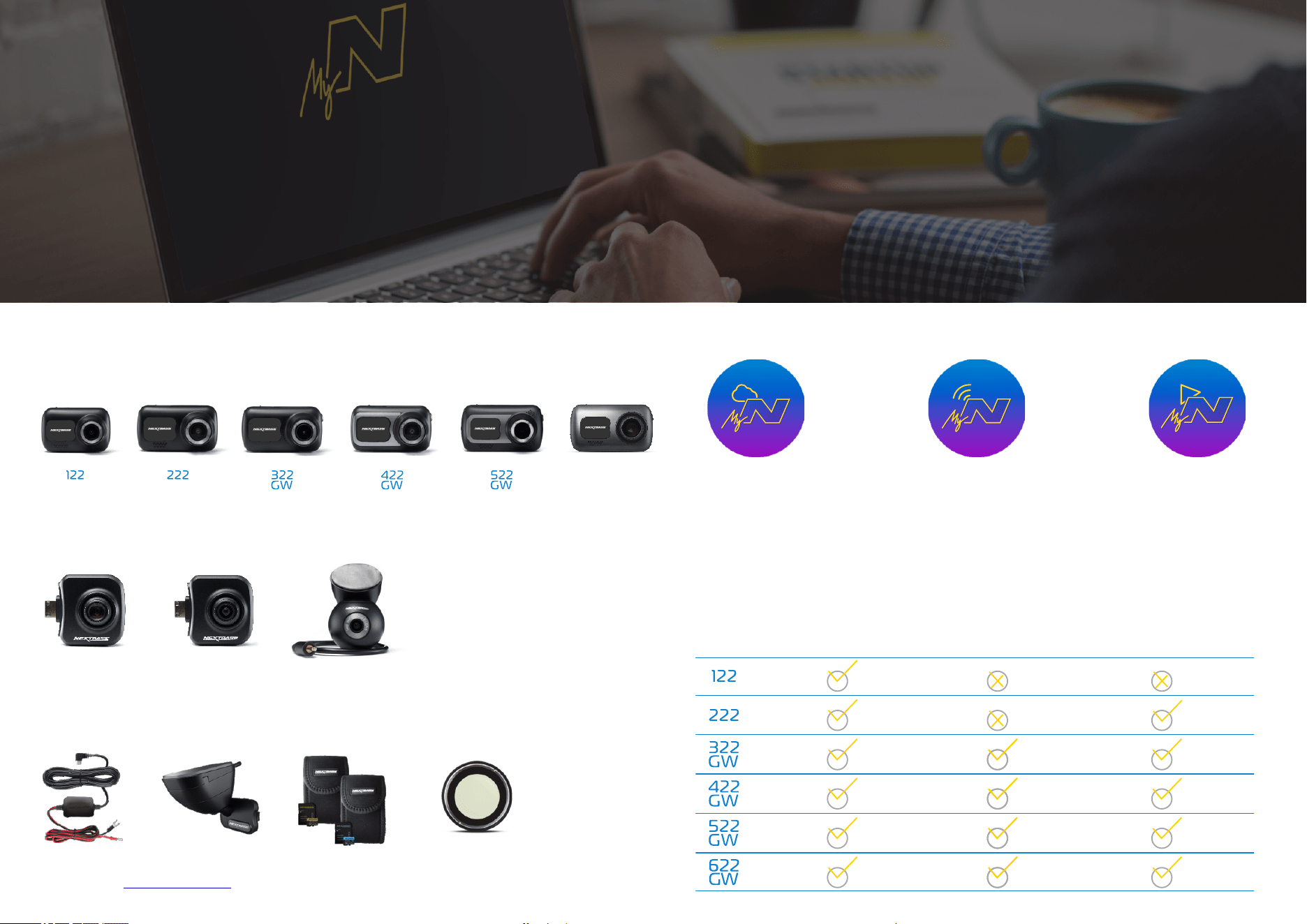
34
Dash Cam Services Compatibility
More Nextbase Products™
MyNextbase.com Cloud™
Access your footage
anywhere in the world
using the free online
web portal
(Internet connection
required).
MyNextbase Connect™
The new Nextbase App to
transfer, view, and edit footage
on your smart-phone or tablet.
MyNextbase Player™
View, edit, and share
your footage on your
computer with the new
easy to use free
PC/Mac software.
Nextbase™ Services and Software
Dash Cams
Eyes on the Road
Nextbase™ offers a wide range of Dash Cams to best suit your driving needs.
Rear View Cameras
Ready for the Drive
The new rear facing cameras offer views on the road behind as well as ahead, protecting you from all angles.
Accessories
Ready for the Drive
Everything you might need for video storage, Dash Cam protection, and more.
For more details on our full range of Dash Cams and Accessories, download the Nextbase™ Accessories Manual,
available from www.nextbase.com
MyNextbase Cloud™ MyNextbase Connect™ MyNextbase Player™
622
GW
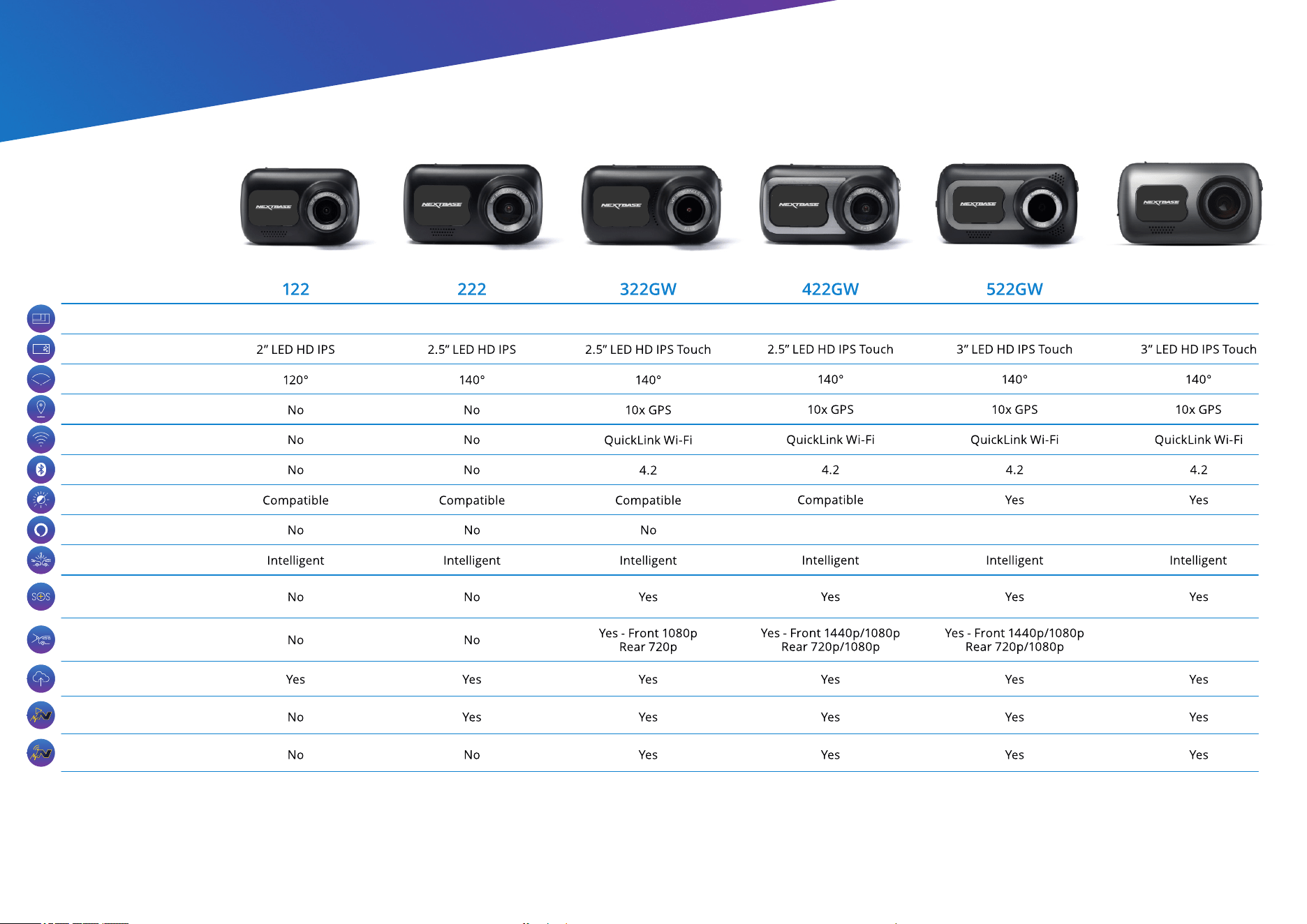
35
Dash Cam Functions
Nextbase Cloud™ Storage
Nextbase Module Cam Compatible
(Cabin View, Rear Facing, Night Vision)
Nextbase Emergency
Response
Parking Mode
Alexa Built-in
622GW
4K @ 30 FPS1440P @ 30 FPS1440P @ 30 FPS
Alexa Built-in Alexa Built-in Alexa Built-in
1080P @ 60 FPS1080P @ 30 FPS720P @ 30 FPS
Yes - Front 4K/1440p/1080p
Rear - 1080p
Polarising Filter
Bluetooth
Wi-Fi
GPS
Viewing Angle
Screen
Main Resolution
MyNextbase Player™
MyNextbase Connect™
36
NBDVR222G-ENG-R8