
Setting up a Linksys Mesh system using
Bluetooth on your mobile device
This article will teach you how you can set up the Linksys Mesh network in minutes
through the Linksys app using Bluetooth®.
Before you begin:
Download or update to the latest Linksys app.
Parent node - The parent node is the Linksys Mesh router or node that will
be connected to your modem or internet source.
o If you have a mix of Linksys MBE7000 and MX6200 nodes,
make sure that the Linksys MBE7000 is the parent node in
your network for better wireless performance.
Child node - The child node is another Linksys Mesh router or node that
you can add to extend your WiFi network.
Learn about the router’s light behavior below:
Overview of the status light on the Linksys Cognitive Mesh products
Understanding the light behavior of your Linksys Mesh WiFi system
Directions
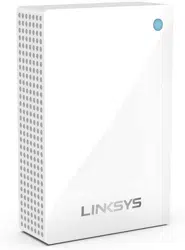
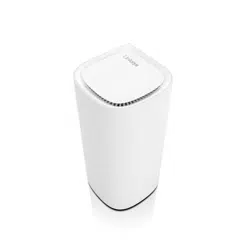
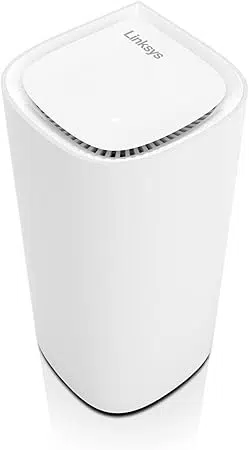
Note that a Linksys MBE7000 is being used in this article.
1. First, gather all your equipment.
If you have more than one Linksys Mesh node to set up, make sure to gather all your
equipment in the same room as the modem or internet source. You will be able to
relocate your child nodes after the setup process is complete.
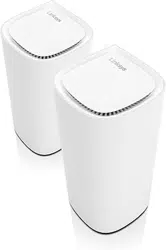
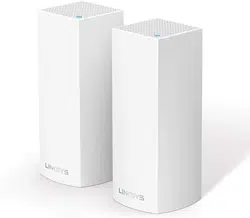
Your Linksys Mesh nodes
Power adapters for each node
One ethernet cable
2. Remove your existing WiFi router.

What are you currently using as your WiFi network?
a. I have a modem (non-WiFi) and a separate WiFi router or Mesh system:
Remove your existing WiFi router and/or all your devices from the old
Mesh system.
Power cycle your modem.
Wait until your modem has rebooted and go to the next step.
b. I have a WiFi router and modem in one device.
Go to the next step.
c. I don’t have any WiFi routers or existing Mesh systems.
Go to the next step.
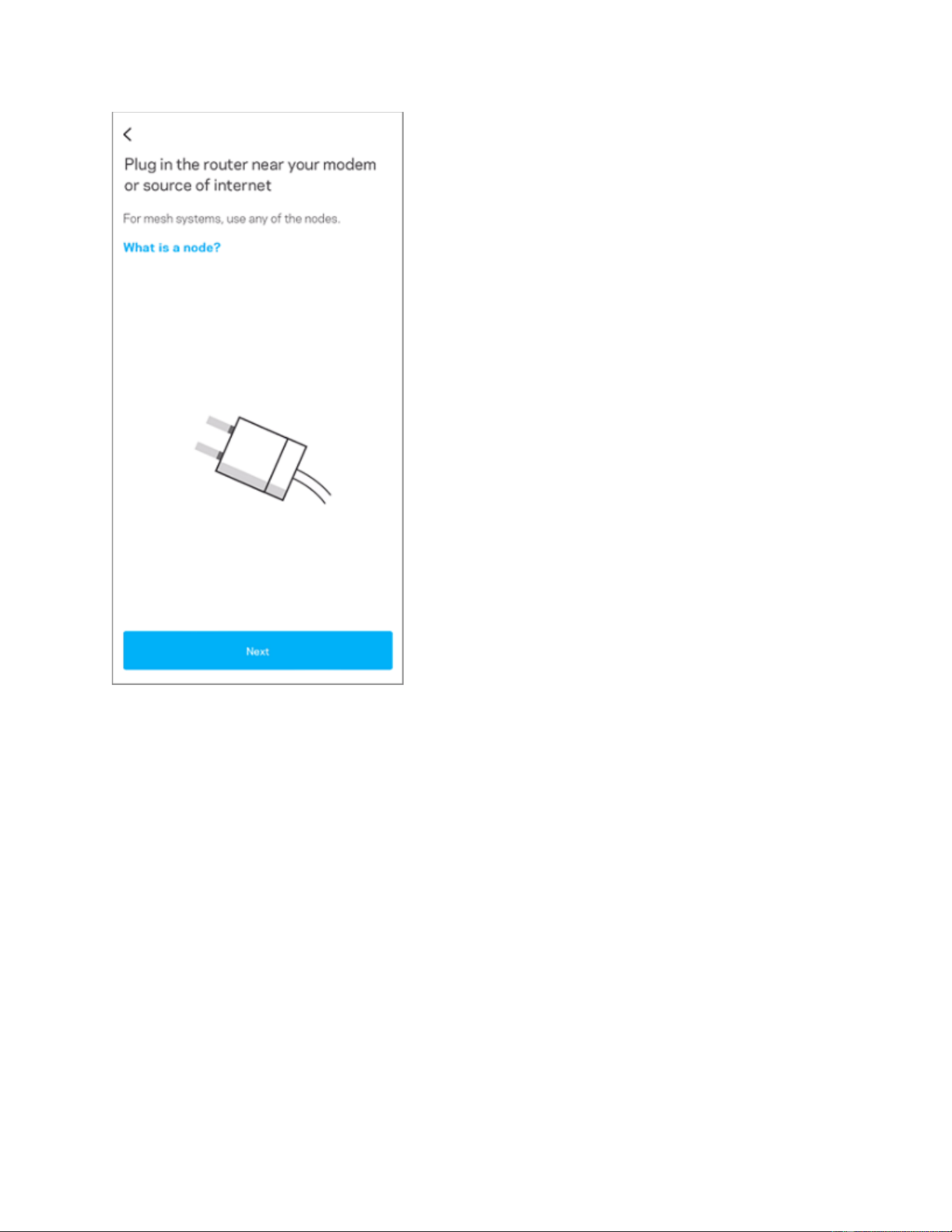
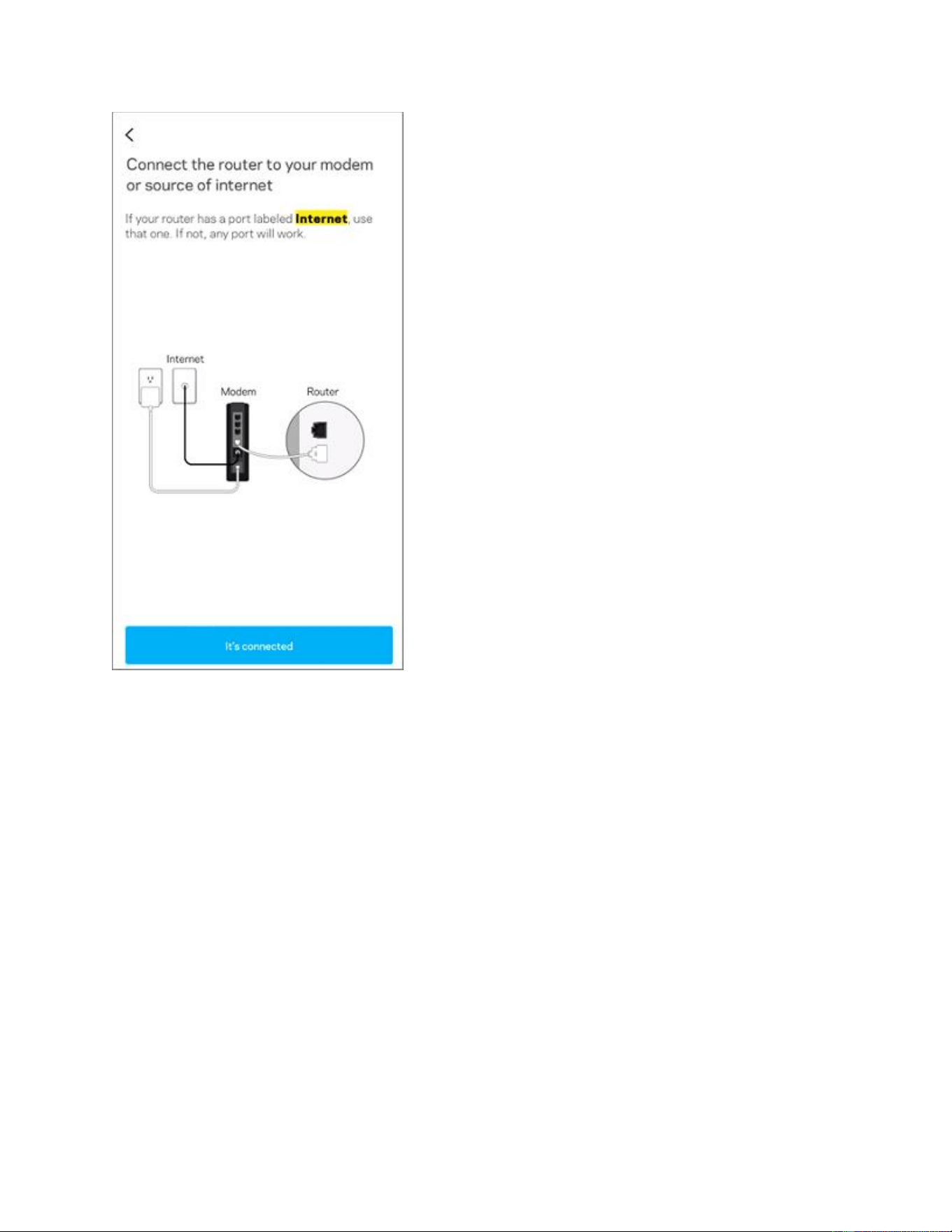
3. Connect and power on your parent node.
If you have more than one node, choose one node then connect your modem or internet
source to the Internet port on the node and power it ON.
If you have a Linksys WHW03 series, use one of the two ports. After setup, the port that
you use will become the designated Internet port.
If you have a mix of Linksys MBE7000 and MX6200 nodes, make sure that the Linksys
MBE7000 is the parent node in your network for better wireless performance.
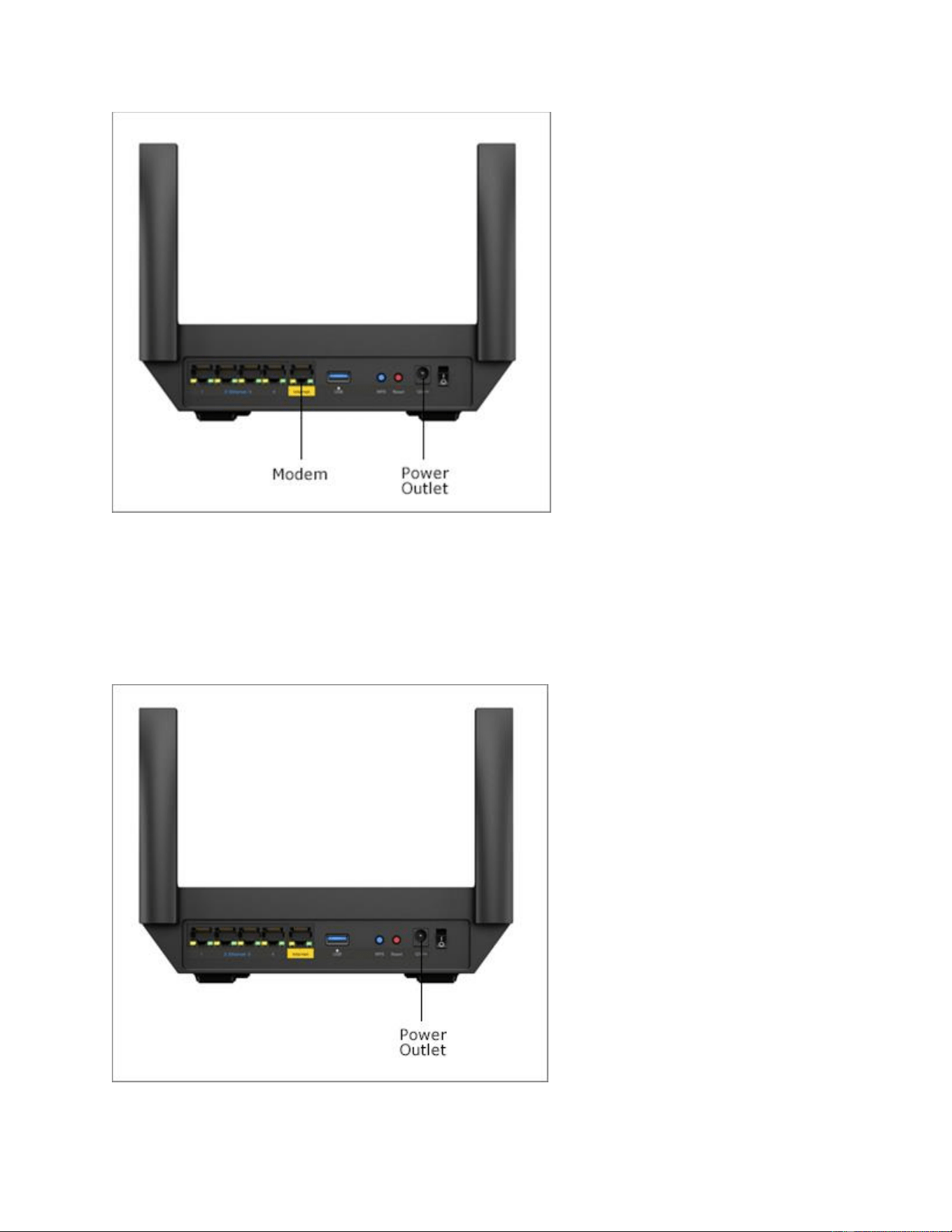
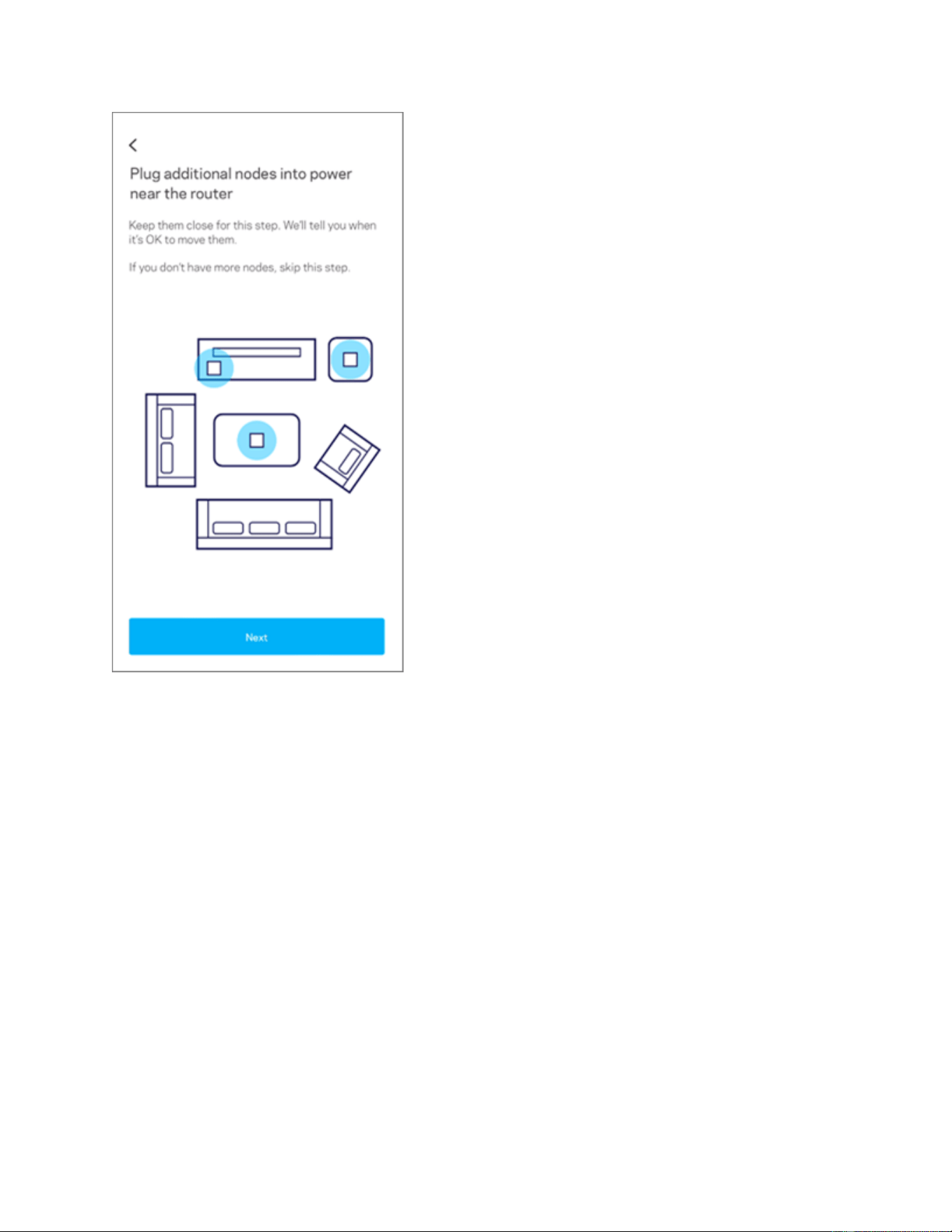
4. Power on your child nodes.
Power ON all your child nodes near the parent node. They should be no more than 10 ft
away or if possible, you can put them in the same room as the parent node. Make sure
that no other cables are connected to any of the ports on the child nodes during the
setup process besides the power adapter.
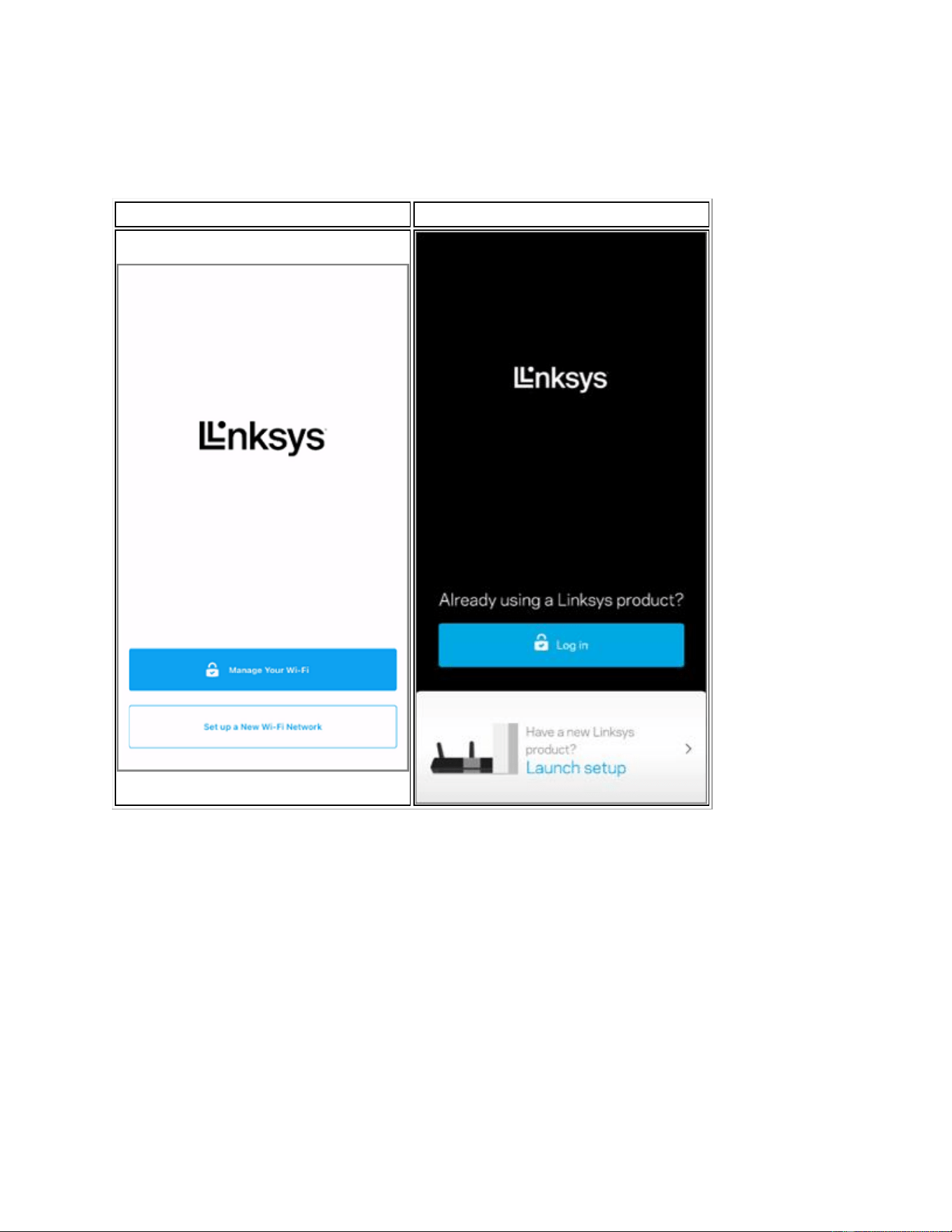
5. Make sure that your mobile device isn’t connected to an existing WiFi network. Then,
tap on Set up a New Wi-Fi Network (iOS) Launch setup (Android™).
iOS
Android
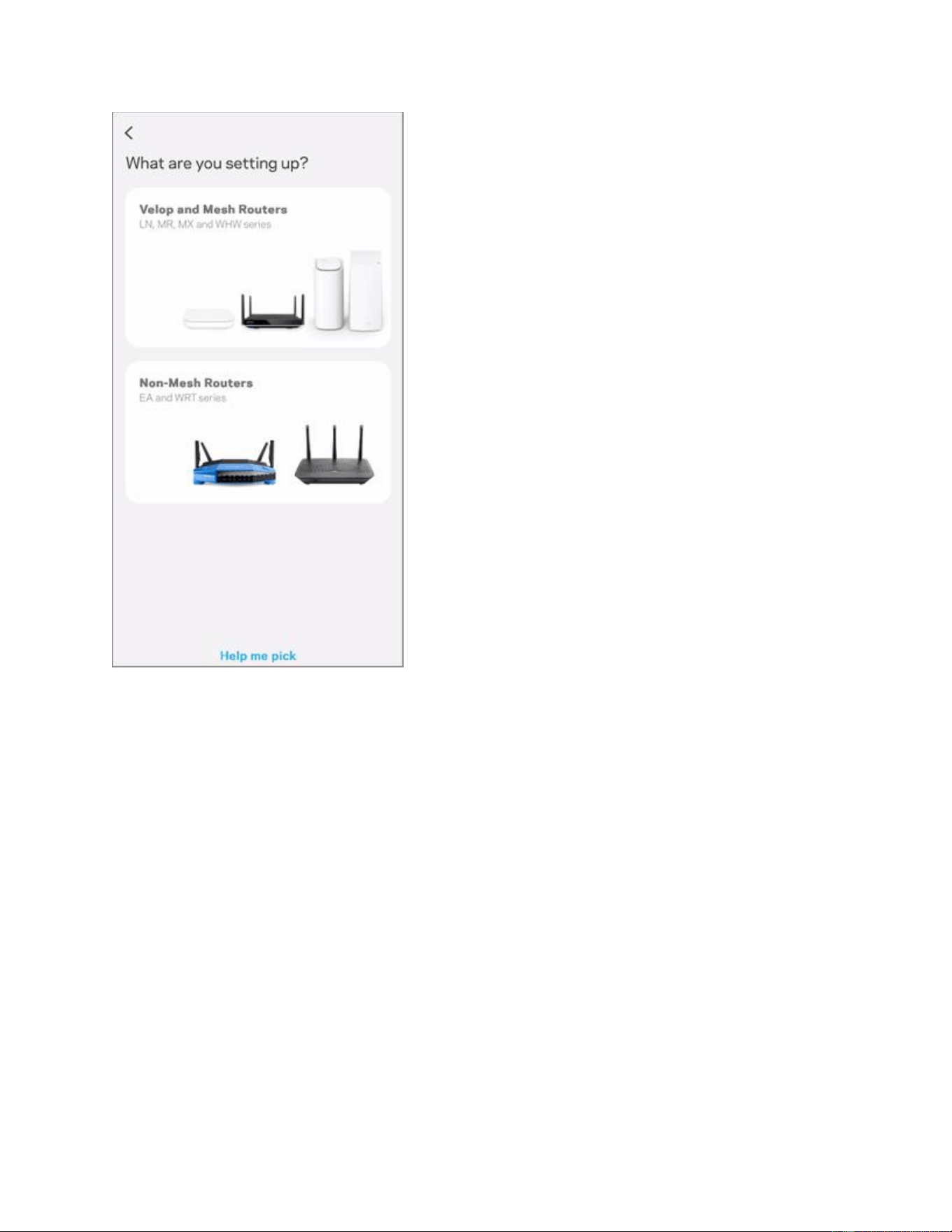
6. Tap on Velop and Mesh Routers.
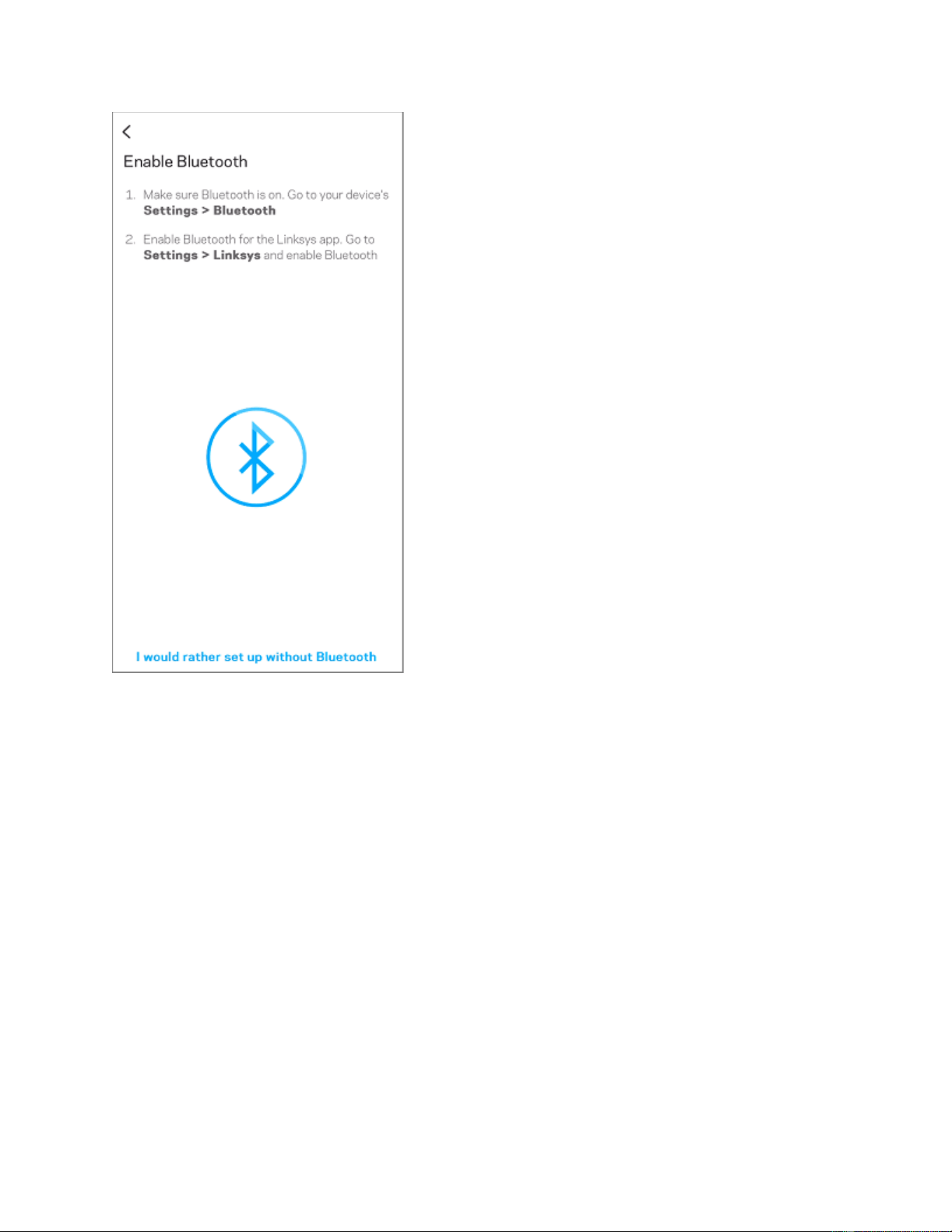
7. Turn ON Bluetooth on your mobile device (if prompted).
8. If you have already connected the parent node to the modem, tap Next and then tap
It’s connected.
If you haven’t done so, follow the wiring instructions and tap Next when you are ready.
9. If you have already powered ON your child nodes, tap Next.
If you haven’t done so, follow the wiring instructions and tap Next when you are ready.
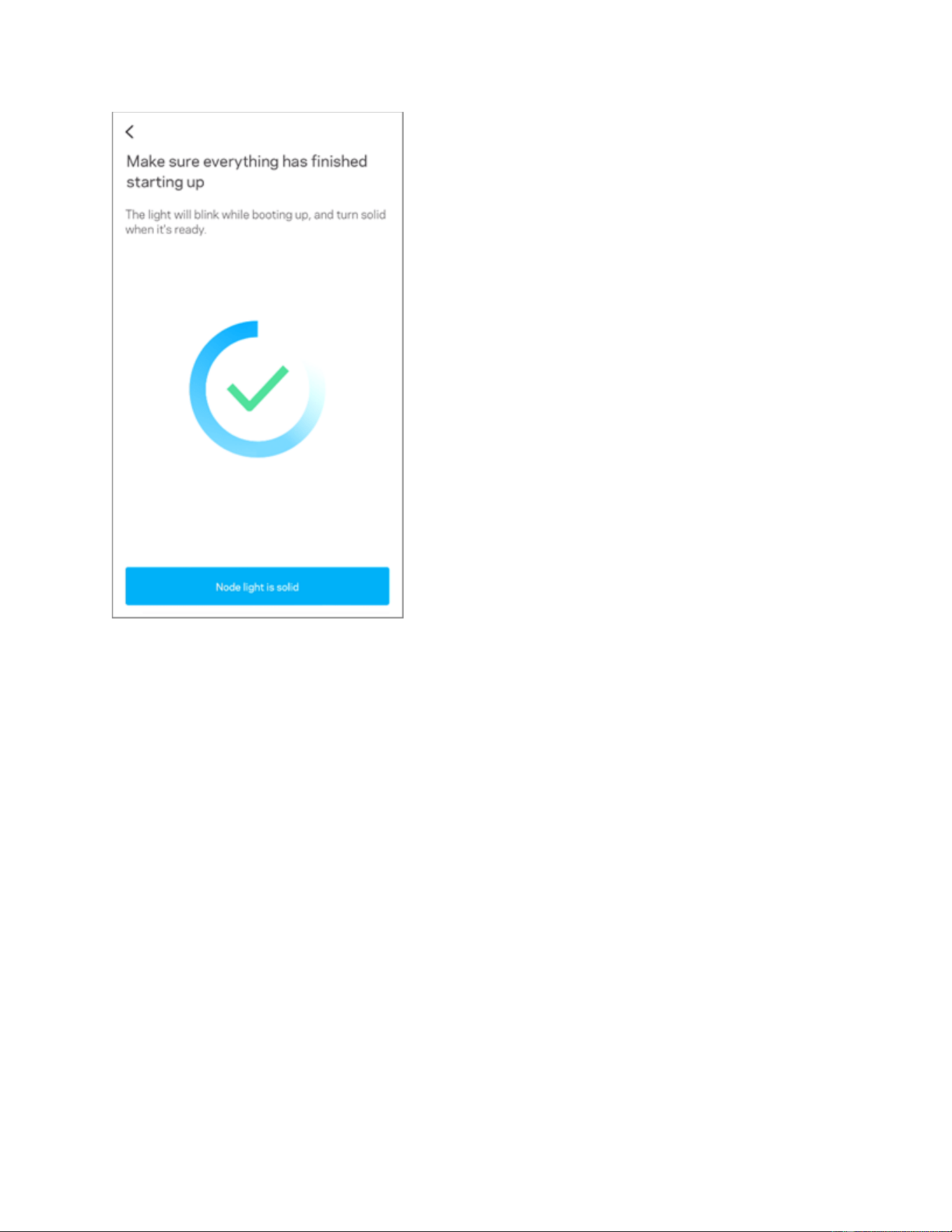
10. Make sure all your nodes have a solid blue light, then tap on Node light is solid.
Keep your mobile device near the nodes while they are being set up. Depending on the
model that you are setting up, the light will be either solid purple or solid blue.
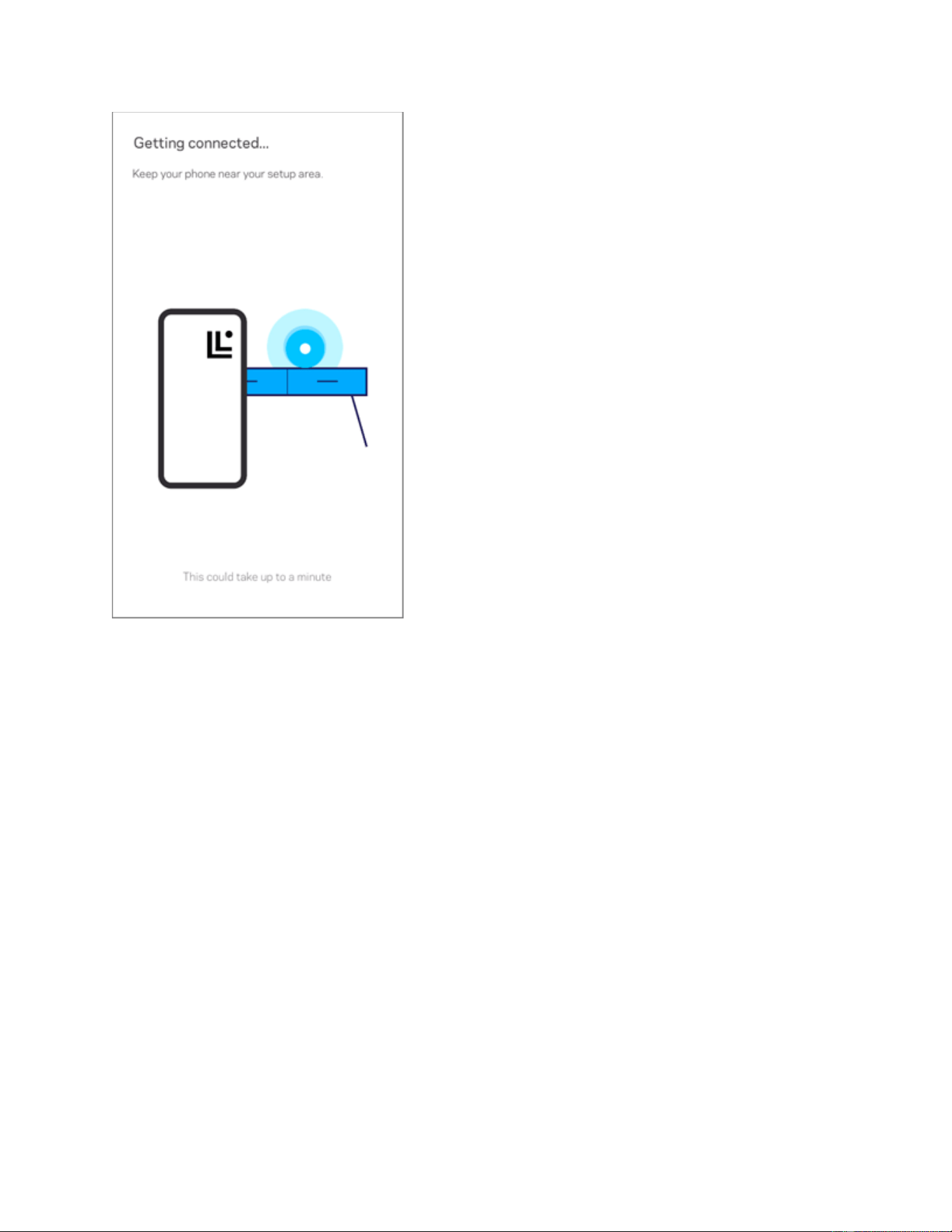
11. Internet checking will begin.
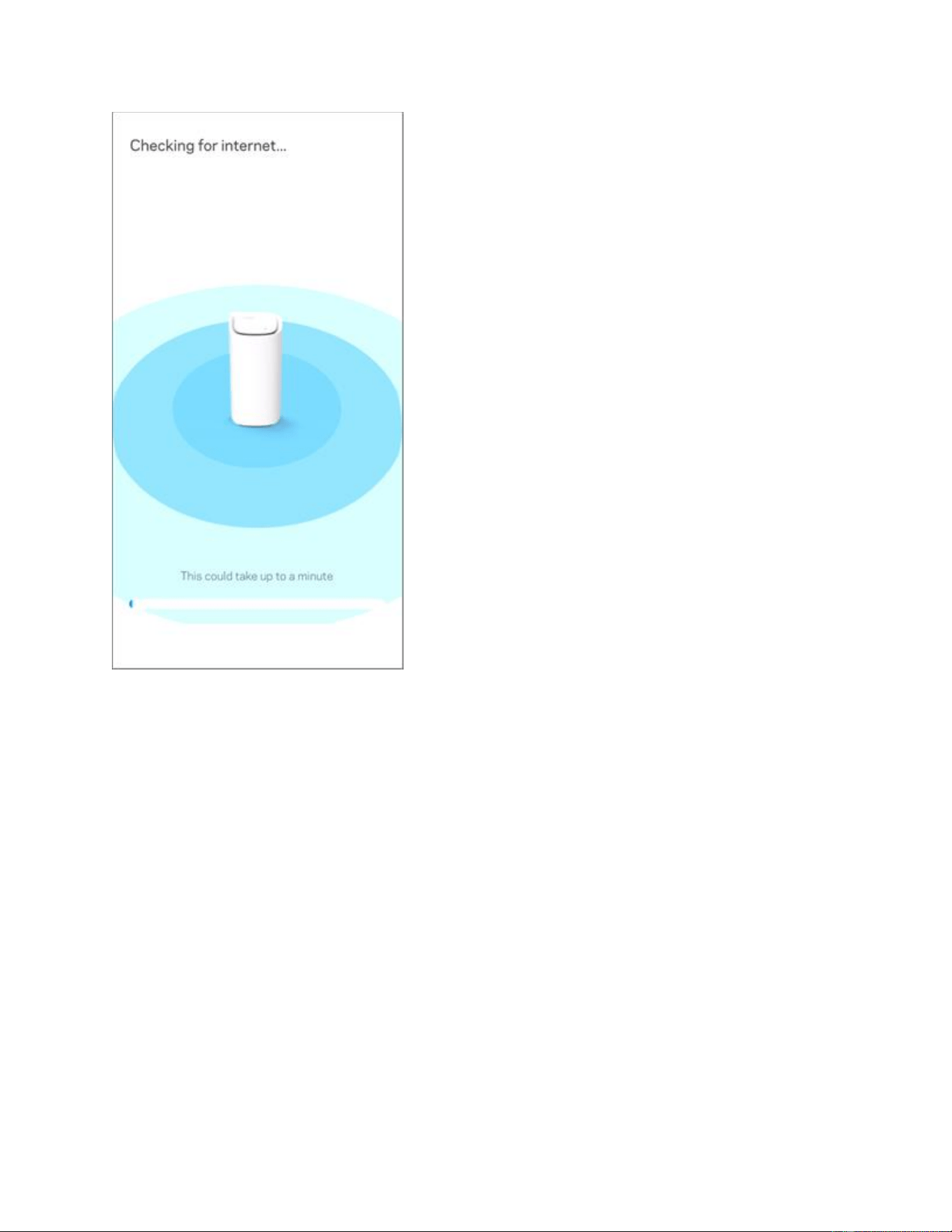
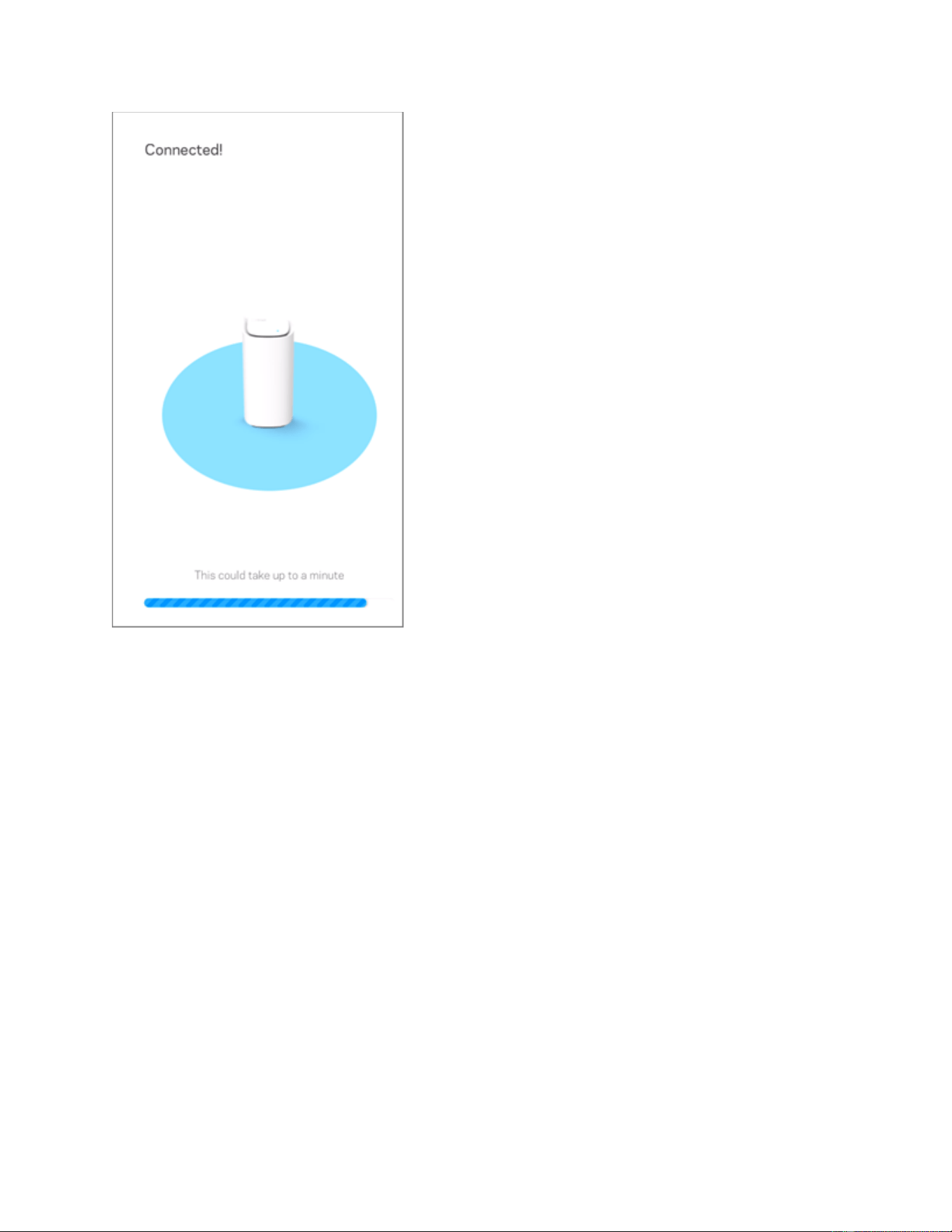
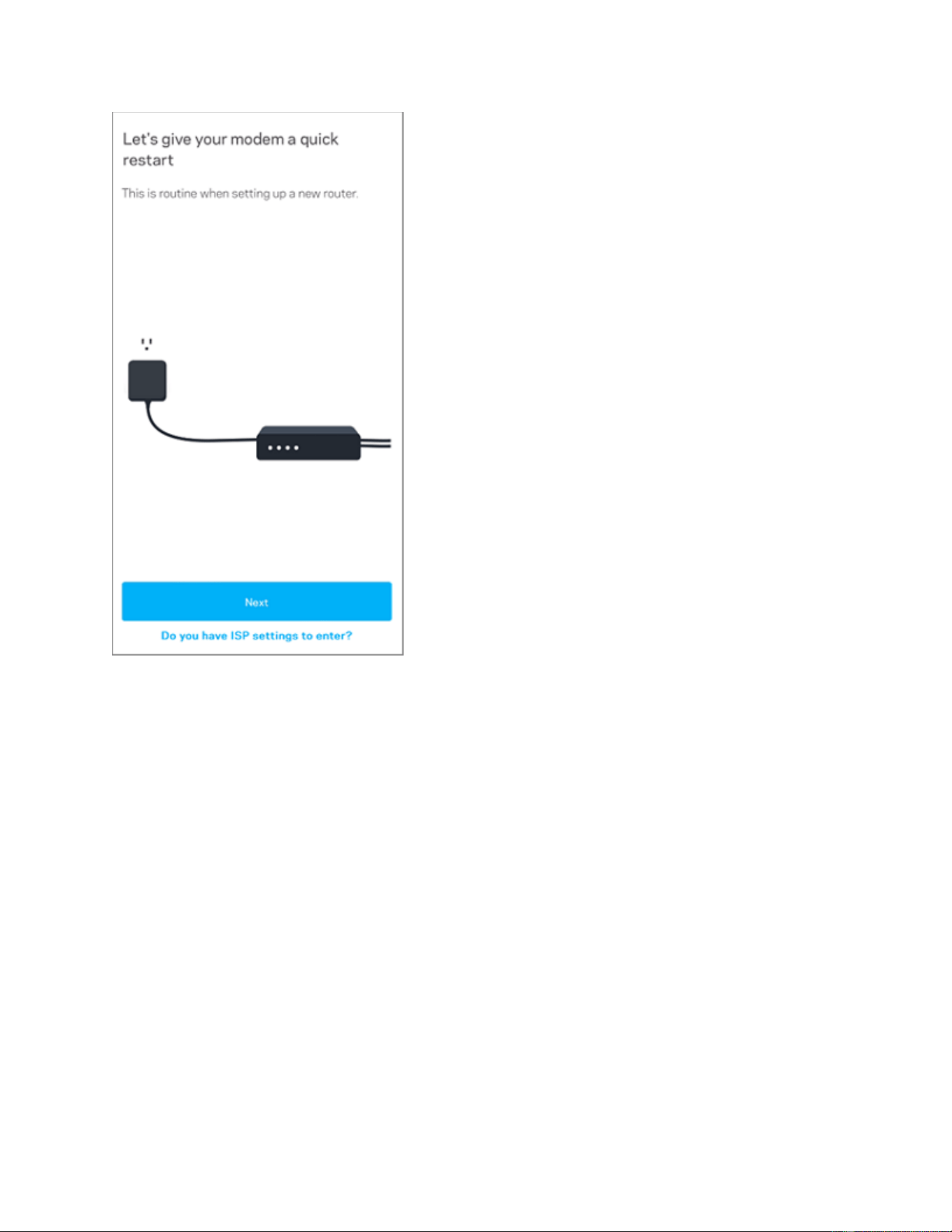
If an internet connection is not detected, you will come across the following screen. Tap
Next for instructions on restarting your modem.
If your internet connection requires your PPPoE settings or a static IP address, tap on
Do you have ISP settings to enter?, then select your internet connection type and
enter your settings.
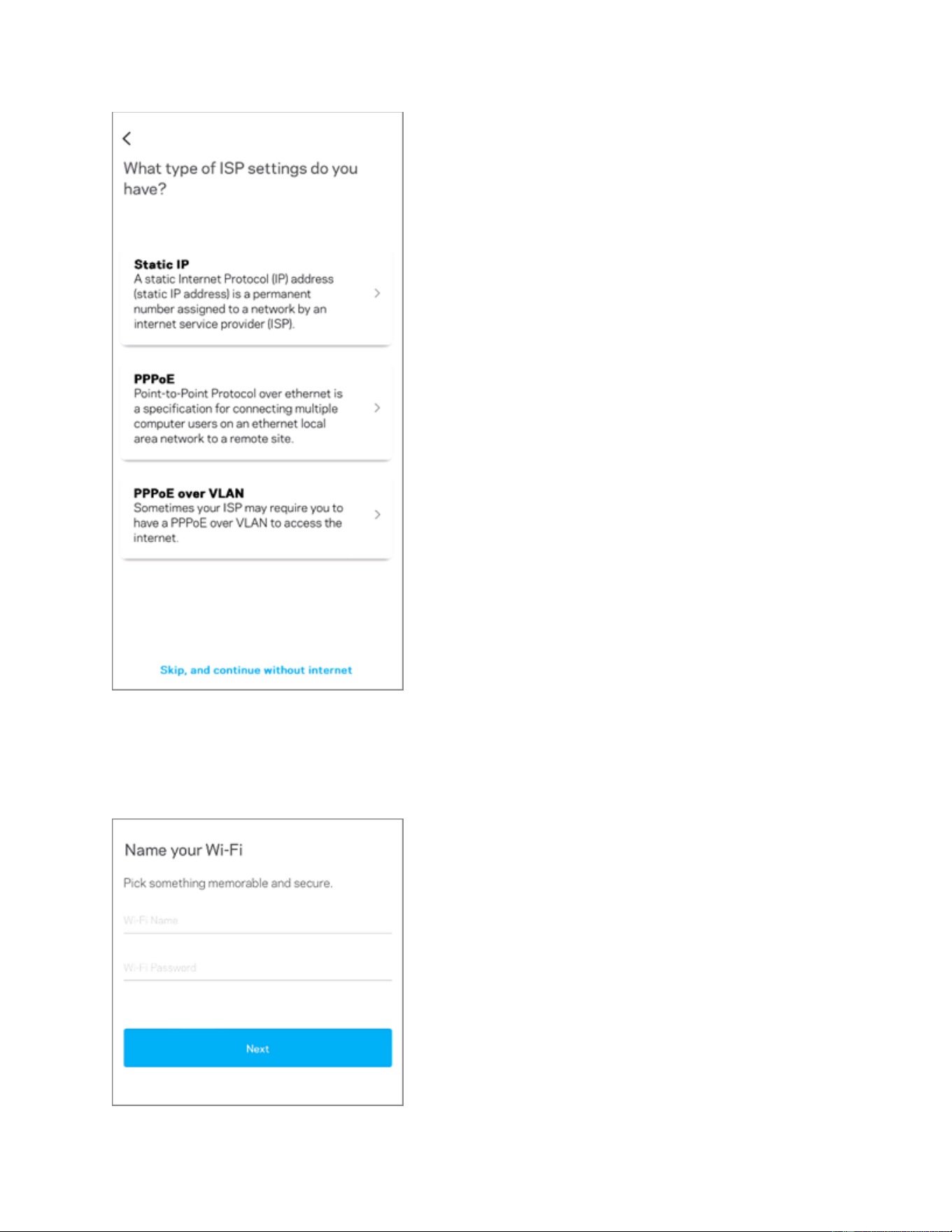
12. Name your Wi-Fi.
Customize your WiFi name and password, then tap Next. The WiFi password is case-
sensitive.
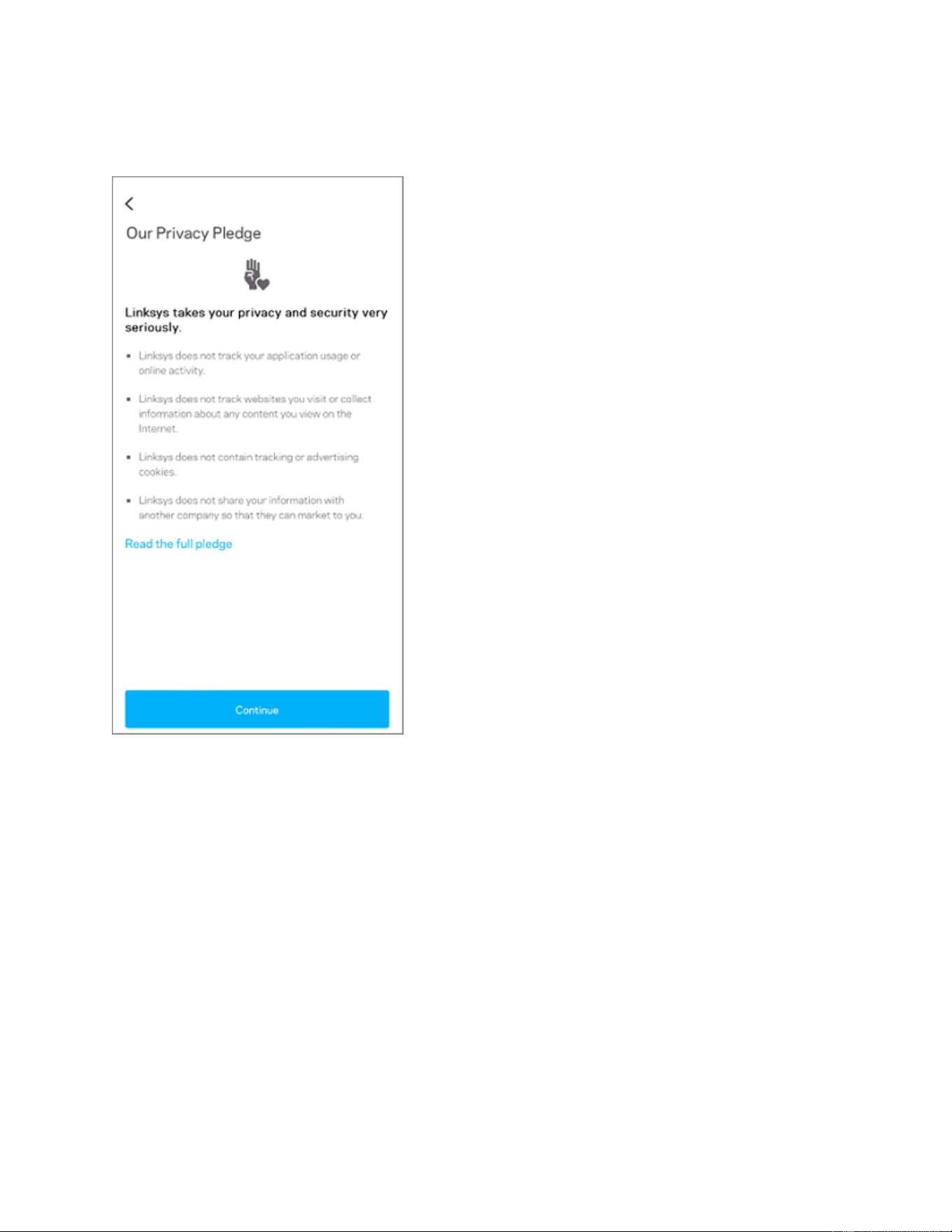
13. On the Privacy Pledge screen, tap Continue when ready.
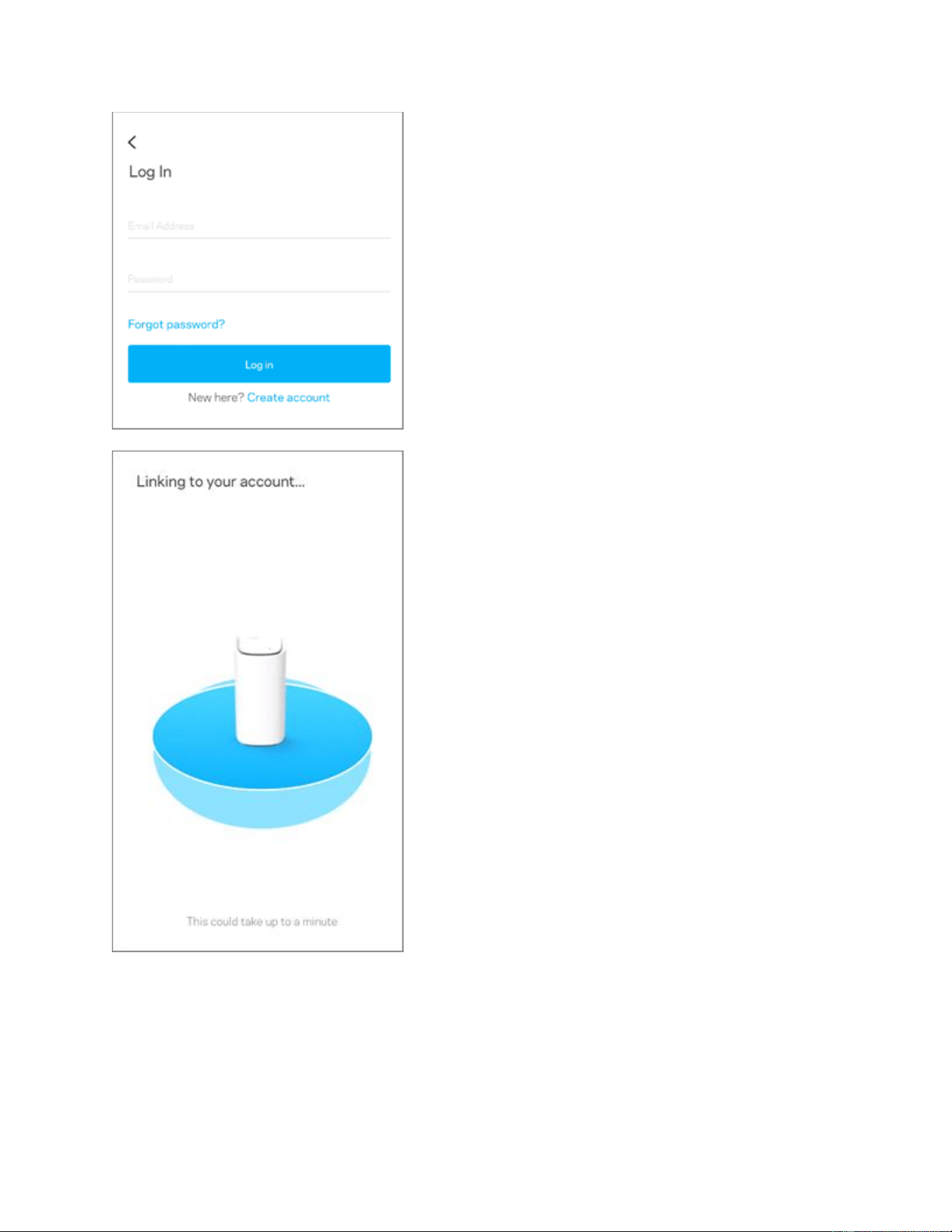
14. Log in with your Linksys cloud account.
Log in with your existing Linksys cloud account to access and manage your network
remotely. If you haven’t created one, tap on Create account and follow the on-screen
prompts to create an account.
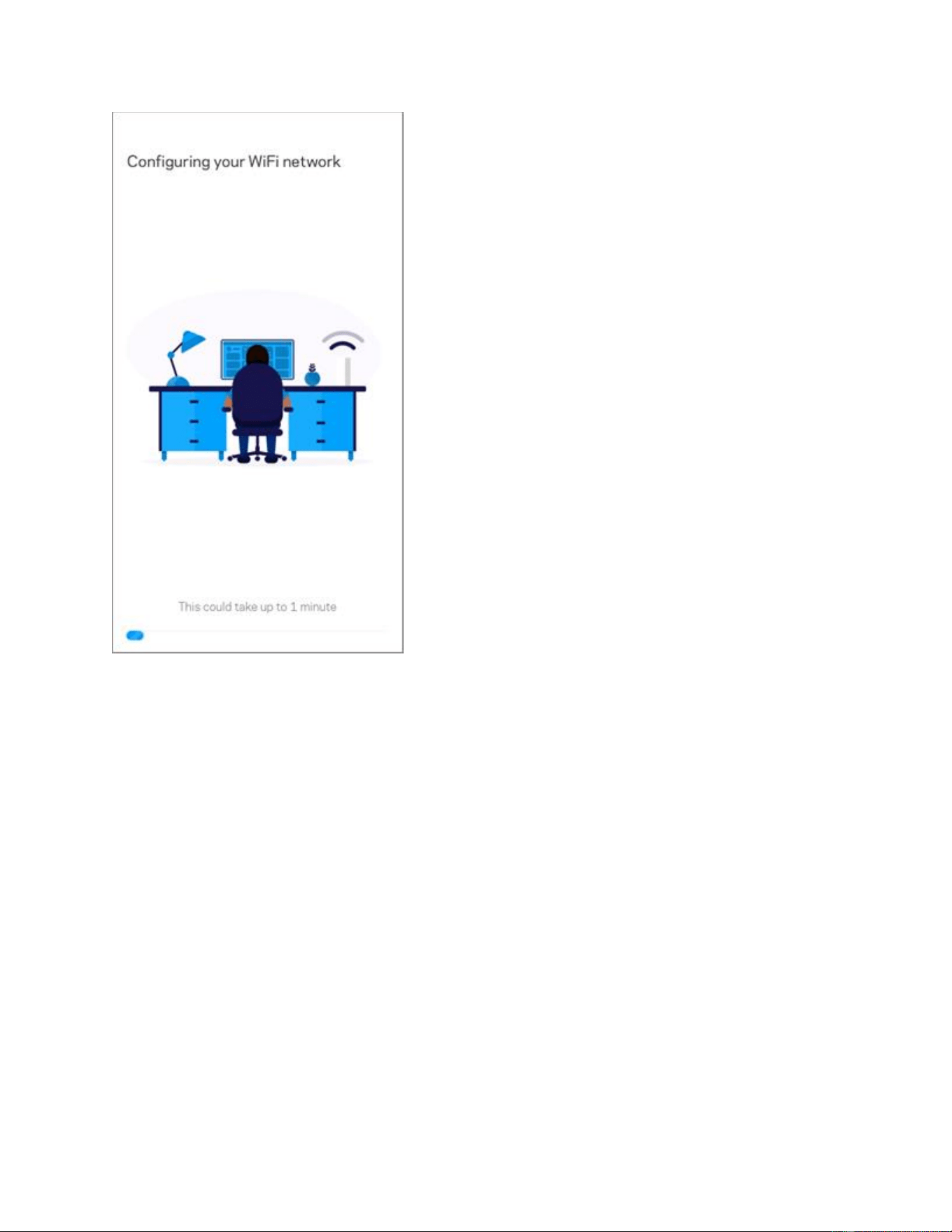
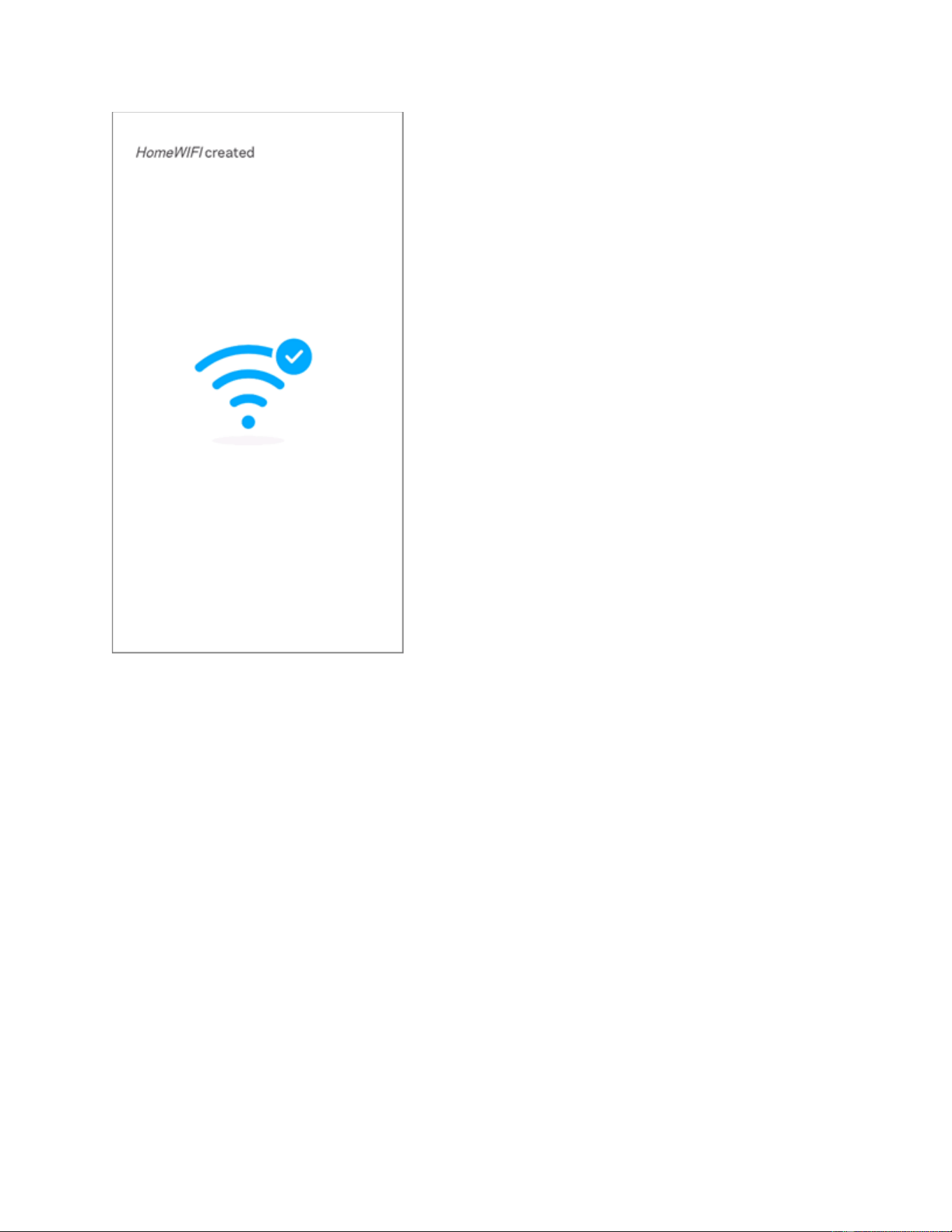
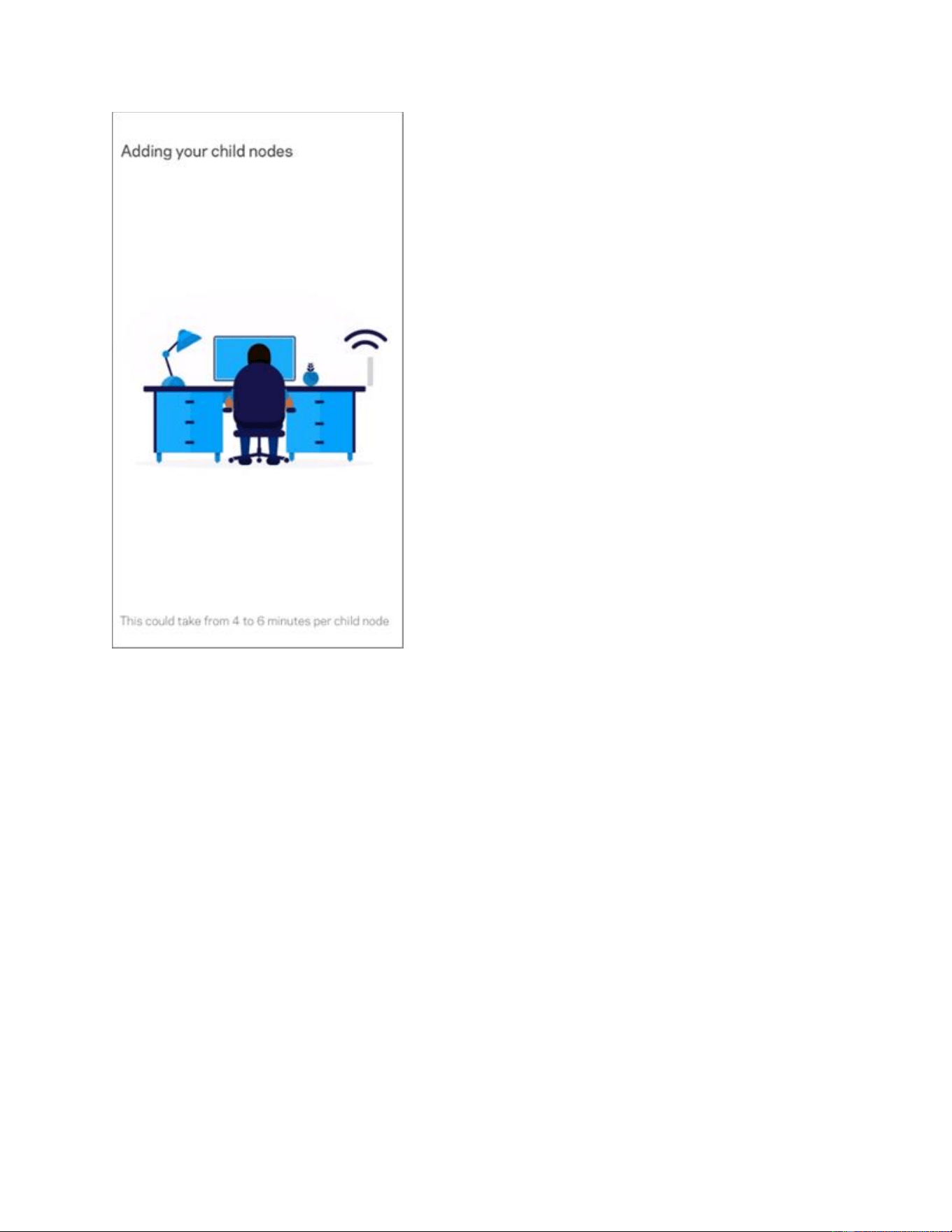
15. Configuration of your network is in progress. Your network and child nodes are
being configured.
16. Once all your nodes have been configured, the following screen will display the
number of nodes that were successfully detected and configured on your network. Tap
Next.
You can rename your nodes after you have set them up.
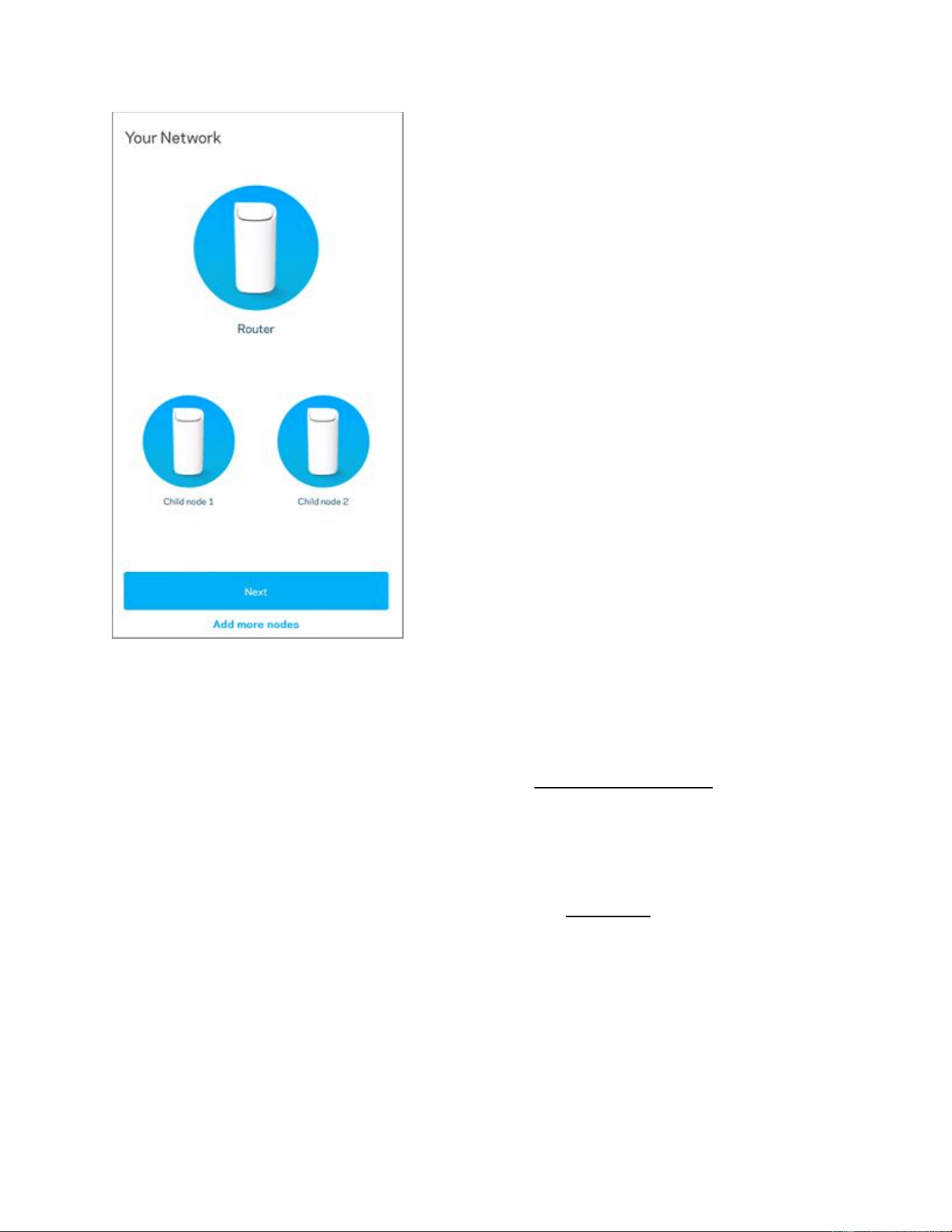
Missing a node?
If you have more nodes to add but forgot to turn them ON in the beginning
or if some of your child nodes were not detected, tap on Add more nodes
to try again. The app will guide you on how to add the nodes.
Make sure to move your node closer to the parent node. They should
be within 10 ft of the parent node or preferably in the same room as the
parent node.
You can also tap on Next to complete the setup process and add them
later.
If you receive any other error or message, this article has troubleshooting
tips on how to fix common issues when setting up a node.
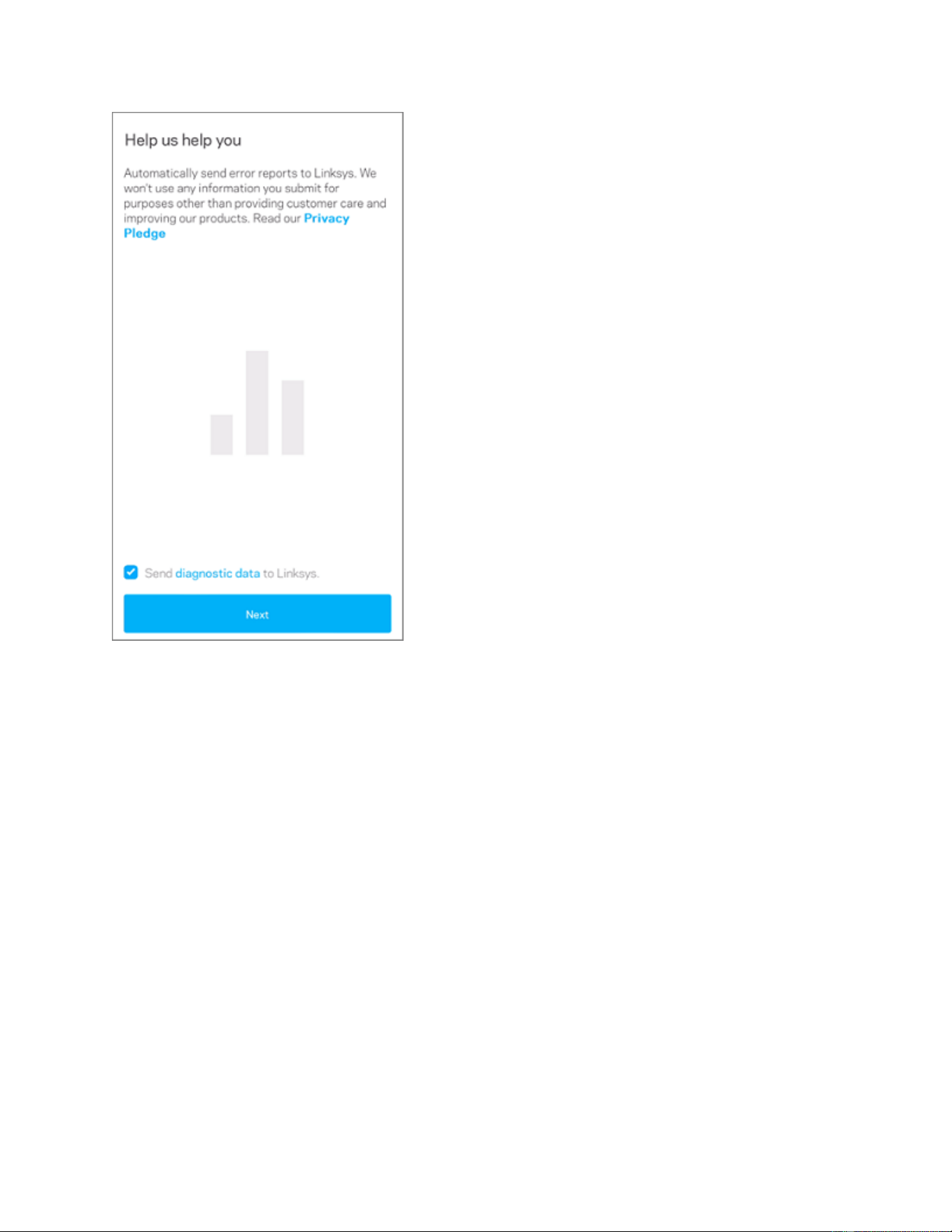
17. Tap Next.
18. You can now unplug and relocate your child nodes. Tap Finish.
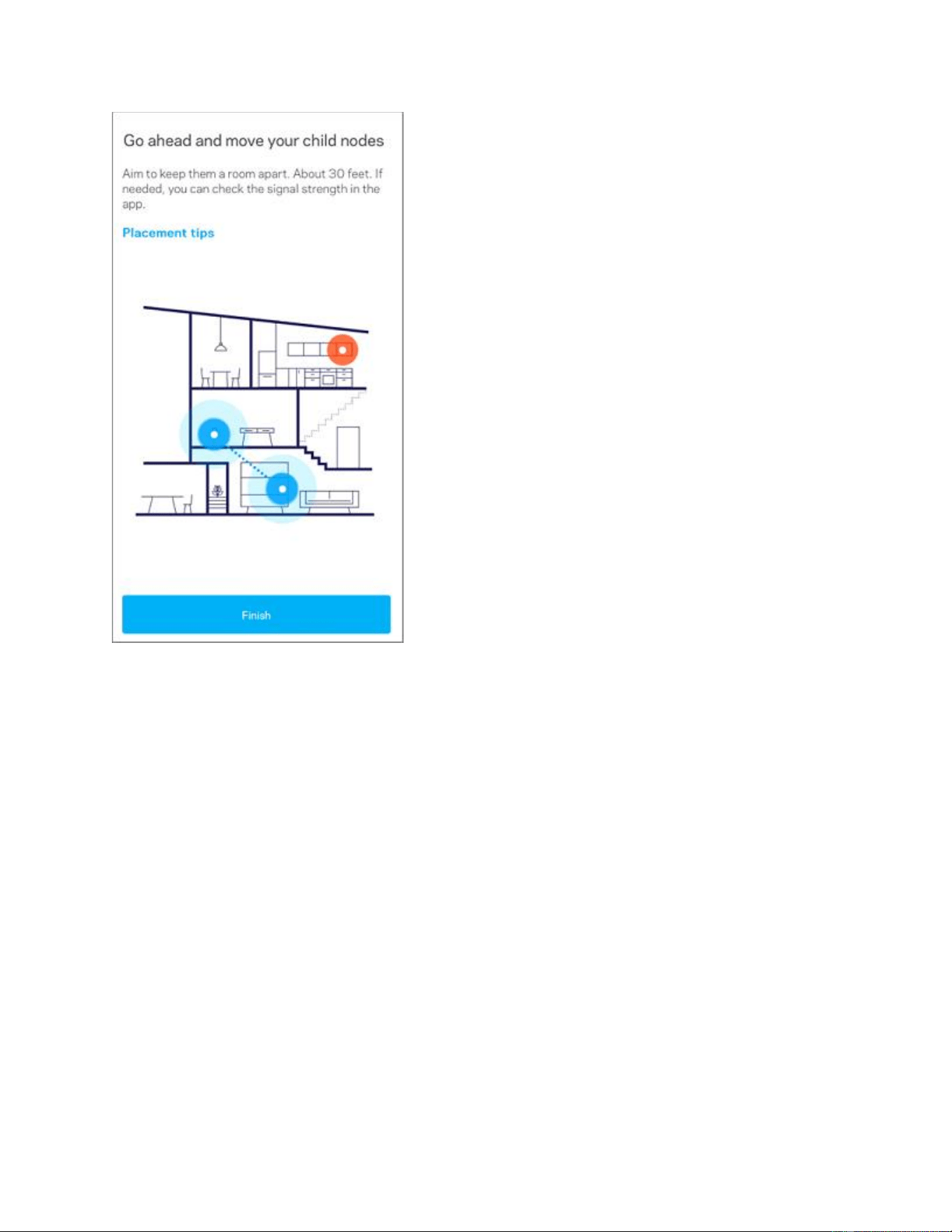
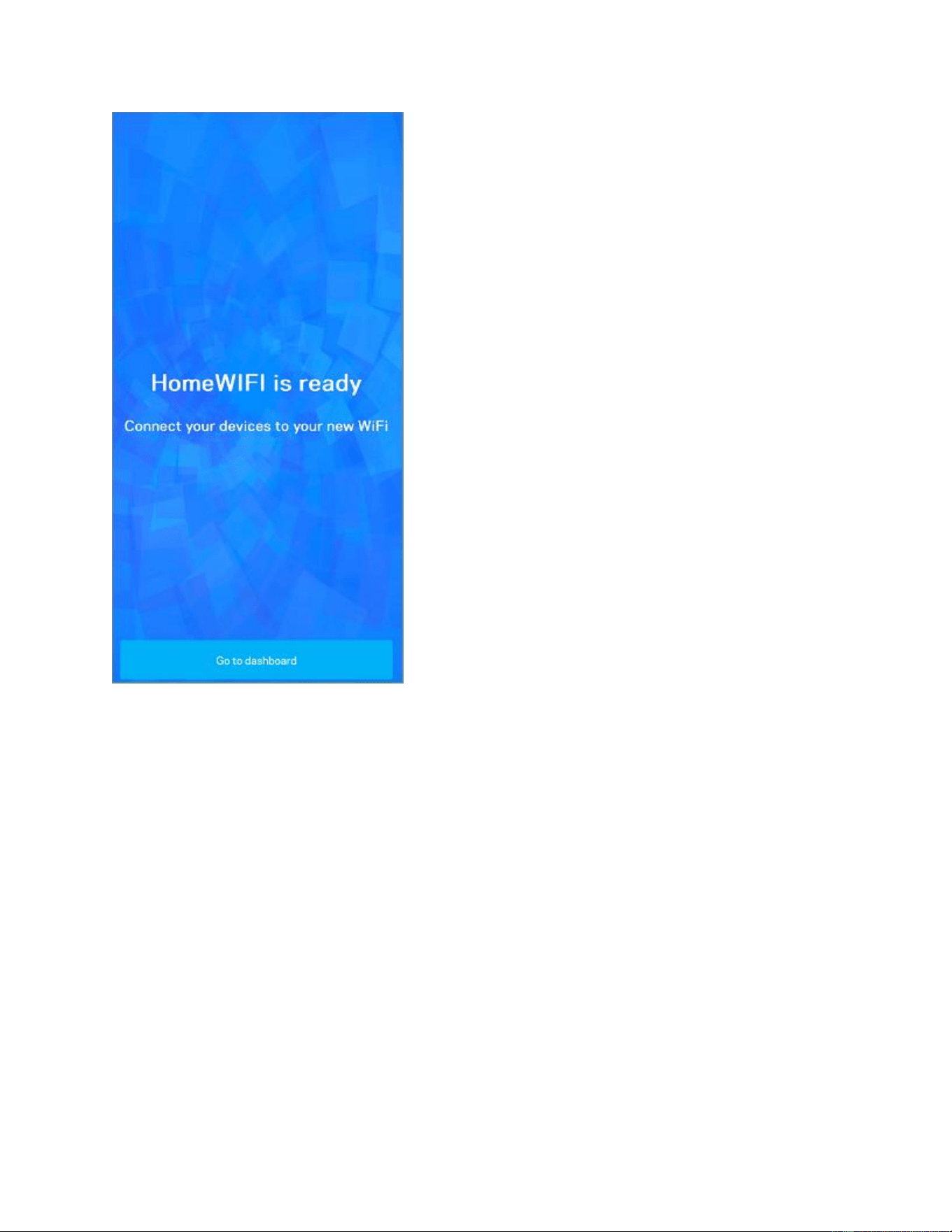
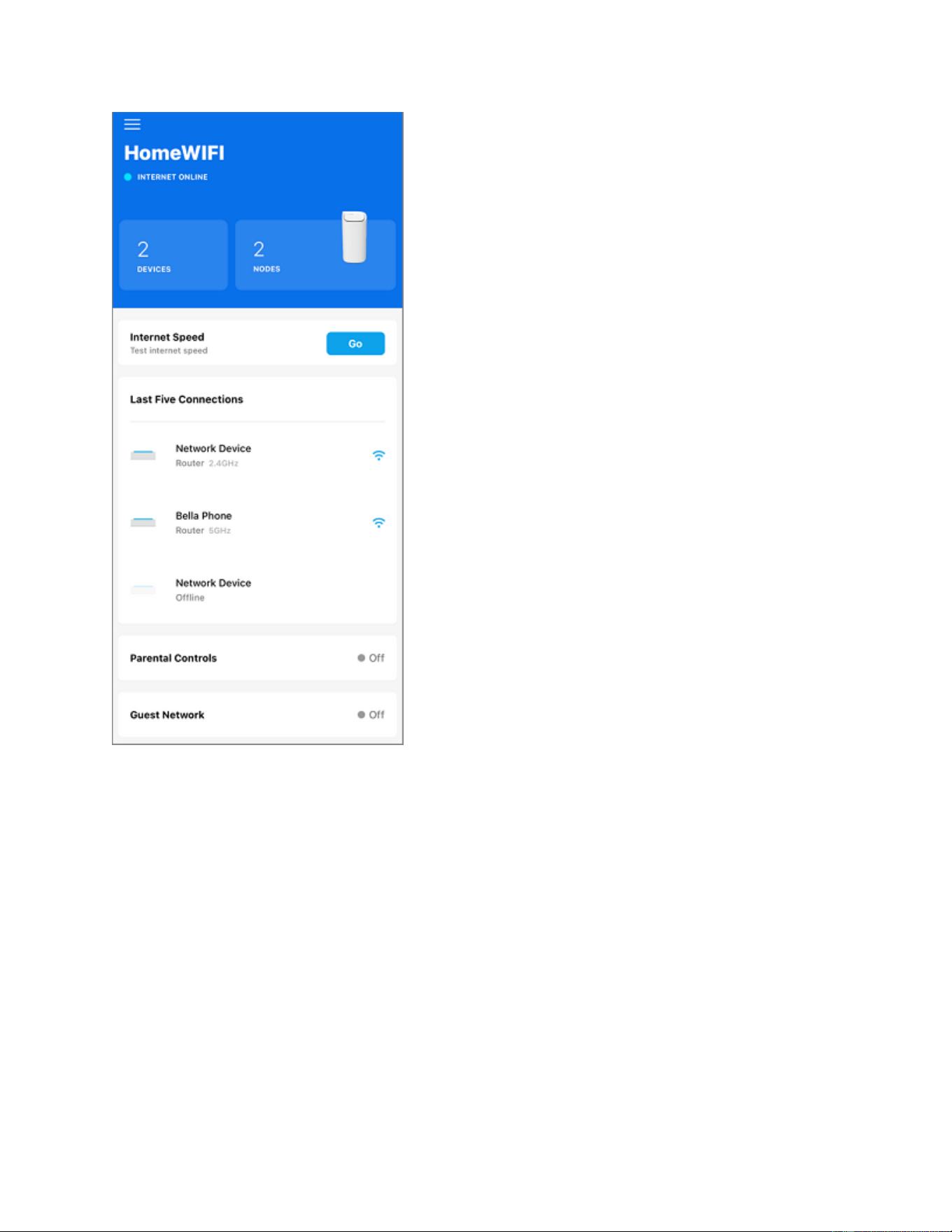
19. Your WiFi is ready. Tap on Go to dashboard.
Relocate your child nodes and power them back ON. The child nodes are ready once
they have a solid light. You can now connect your WiFi devices to your
network. Depending on the model of the child nodes, they will have either a solid white
light or a solid blue light.