EN
USER’S GUIDE
AP
-
S
200
AP
-
30
0
AP300/APS200-E-2A
Initial Setup
Preparing a Power
Supply
Turning the Power On/Off Using the Pedals Using Headphones
Playing the Digital Piano
Selecting a Tone Layering Two Tones
(Layer)
Splitting Left and Right
Keys (Split)
Using the Metronome
Changing Sound Reverberation and Ambiance Changing the Pitch
Using Sound Mode
Effects (Hall Simulator/
Reverb and Surround)
Using Chorus Adjusting the Sound
Characteristics of the
Acoustic Piano Presets
(Acoustic Simulator)
Changing the Pitch in
Semitone Steps
(Transpose)
Recording Performances in Real-Time
Connecting with a
Smart Device
Recording a Performance
with the MIDI Recorder
Recording a Performance
with the Audio Recorder
Using the Dedicated App
Cover

EN-1
Overview of the Digital Piano EN-6
Part Names and Functions . . . . . . . . . . . . . . . . . . . . . . . . . . . . . . . . . . . . . . . . . . . . . . . . . . . EN-6
Preparation Before Playing EN-8
Preparing a Power Supply . . . . . . . . . . . . . . . . . . . . . . . . . . . . . . . . . . . . . . . . . . . . . . . . . . . EN-8
Keyboard Cover . . . . . . . . . . . . . . . . . . . . . . . . . . . . . . . . . . . . . . . . . . . . . . . . . . . . . . . . . . . EN-9
Opening the Keyboard Cover . . . . . . . . . . . . . . . . . . . . . . . . . . . . . . . . . . . . . . . . . . . . . . . . . . . . . . . . EN-9
Closing the Keyboard Cover . . . . . . . . . . . . . . . . . . . . . . . . . . . . . . . . . . . . . . . . . . . . . . . . . . . . . . . . EN-10
Turning the Power On/Off . . . . . . . . . . . . . . . . . . . . . . . . . . . . . . . . . . . . . . . . . . . . . . . . . . . EN-11
Turning the Power On . . . . . . . . . . . . . . . . . . . . . . . . . . . . . . . . . . . . . . . . . . . . . . . . . . . . . . . . . . . . . EN-11
Turning the Power Off . . . . . . . . . . . . . . . . . . . . . . . . . . . . . . . . . . . . . . . . . . . . . . . . . . . . . . . . . . . . . EN-12
Adjusting the Volume . . . . . . . . . . . . . . . . . . . . . . . . . . . . . . . . . . . . . . . . . . . . . . . . . . . . . . EN-12
Using the Supplied Wireless MIDI & Audio Adaptor . . . . . . . . . . . . . . . . . . . . . . . . . . . . . . . EN-13
Using Headphones . . . . . . . . . . . . . . . . . . . . . . . . . . . . . . . . . . . . . . . . . . . . . . . . . . . . . . . . EN-14
Using the Music Stand . . . . . . . . . . . . . . . . . . . . . . . . . . . . . . . . . . . . . . . . . . . . . . . . . . . . . EN-15
The Top Panel of the Digital Piano (AP-300 only) . . . . . . . . . . . . . . . . . . . . . . . . . . . . . . . . EN-16
Opening the Top Panel of the Digital Piano . . . . . . . . . . . . . . . . . . . . . . . . . . . . . . . . . . . . . . . . . . . . EN-16
Closing the Top Panel of the Digital Piano . . . . . . . . . . . . . . . . . . . . . . . . . . . . . . . . . . . . . . . . . . . . . EN-17
Read This First (Basic Operations and Settings) EN-18
Notation in this Manual . . . . . . . . . . . . . . . . . . . . . . . . . . . . . . . . . . . . . . . . . . . . . . . . . . . . . EN-18
Touch Button Operation . . . . . . . . . . . . . . . . . . . . . . . . . . . . . . . . . . . . . . . . . . . . . . . . . . . . EN-19
Operation of the Touch Buttons Alone . . . . . . . . . . . . . . . . . . . . . . . . . . . . . . . . . . . . . . . . . . . . . . . . EN-20
Touch Button and Keyboard Combination Operation . . . . . . . . . . . . . . . . . . . . . . . . . . . . . . . . . . . . . EN-20
Notification Tones . . . . . . . . . . . . . . . . . . . . . . . . . . . . . . . . . . . . . . . . . . . . . . . . . . . . . . . . . EN-23
Notification Tone Types. . . . . . . . . . . . . . . . . . . . . . . . . . . . . . . . . . . . . . . . . . . . . . . . . . . . . . . . . . . . EN-23
Listening to the Demo Songs EN-24
Playing the Demo Songs. . . . . . . . . . . . . . . . . . . . . . . . . . . . . . . . . . . . . . . . . . . . . . . . . . . . EN-24
Operations Possible during Demo Song Playback . . . . . . . . . . . . . . . . . . . . . . . . . . . . . . . . . . . . . . . EN-24
Ending the Playback of Songs . . . . . . . . . . . . . . . . . . . . . . . . . . . . . . . . . . . . . . . . . . . . . . . EN-25
Playing EN-26
Selecting a Tone . . . . . . . . . . . . . . . . . . . . . . . . . . . . . . . . . . . . . . . . . . . . . . . . . . . . . . . . . . EN-26
Selecting a Single Tone . . . . . . . . . . . . . . . . . . . . . . . . . . . . . . . . . . . . . . . . . . . . . . . . . . . . . . . . . . . EN-27
Layering Two Tones (Layer) . . . . . . . . . . . . . . . . . . . . . . . . . . . . . . . . . . . . . . . . . . . . . . . . . . . . . . . . EN-28
Splitting Left and Right Keys (Split). . . . . . . . . . . . . . . . . . . . . . . . . . . . . . . . . . . . . . . . . . . . . . . . . . . EN-30
Splitting the Keyboard into Left and Right for Two-Person Performance (Duet). . . . . . . . . . EN-31
What is a Duet?. . . . . . . . . . . . . . . . . . . . . . . . . . . . . . . . . . . . . . . . . . . . . . . . . . . . . . . . . . . . . . . . . . EN-31
Using the Duet Function . . . . . . . . . . . . . . . . . . . . . . . . . . . . . . . . . . . . . . . . . . . . . . . . . . . . . . . . . . . EN-32
Changing the Pitch Range . . . . . . . . . . . . . . . . . . . . . . . . . . . . . . . . . . . . . . . . . . . . . . . . . . . . . . . . . EN-33
Using the Pedals. . . . . . . . . . . . . . . . . . . . . . . . . . . . . . . . . . . . . . . . . . . . . . . . . . . . . . . . . . EN-34
Using the Metronome EN-35
Metronome On/Off . . . . . . . . . . . . . . . . . . . . . . . . . . . . . . . . . . . . . . . . . . . . . . . . . . . . . . . . EN-35
Setting the Beat . . . . . . . . . . . . . . . . . . . . . . . . . . . . . . . . . . . . . . . . . . . . . . . . . . . . . . . . . . EN-36
Setting a Tempo . . . . . . . . . . . . . . . . . . . . . . . . . . . . . . . . . . . . . . . . . . . . . . . . . . . . . . . . . . EN-37
Adjusting the Volume . . . . . . . . . . . . . . . . . . . . . . . . . . . . . . . . . . . . . . . . . . . . . . . . . . . . . . EN-38
Contents

Contents
EN-2
Applying Effects to Sound EN-39
Using Sound Mode Effects (Hall Simulator/Reverb and Surround) . . . . . . . . . . . . . . . . . . . EN-39
Turning on/off Hall Simulator/Reverb and Surround . . . . . . . . . . . . . . . . . . . . . . . . . . . . . . . . . . . . . . EN-39
Selecting Hall Simulator/Reverb Presets . . . . . . . . . . . . . . . . . . . . . . . . . . . . . . . . . . . . . . . . . . . . . . EN-40
Adjusting Applied Hall Simulator/Reverb. . . . . . . . . . . . . . . . . . . . . . . . . . . . . . . . . . . . . . . . . . . . . . . EN-41
Using Chorus . . . . . . . . . . . . . . . . . . . . . . . . . . . . . . . . . . . . . . . . . . . . . . . . . . . . . . . . . . . . EN-42
Adjusting Brilliance . . . . . . . . . . . . . . . . . . . . . . . . . . . . . . . . . . . . . . . . . . . . . . . . . . . . . . . . EN-43
Adjusting the Sound Characteristics of the Acoustic Piano Presets (Acoustic Simulator) . . EN-44
Setting String Resonance . . . . . . . . . . . . . . . . . . . . . . . . . . . . . . . . . . . . . . . . . . . . . . . . . . . . . . . . . . EN-44
Setting Damper Resonance . . . . . . . . . . . . . . . . . . . . . . . . . . . . . . . . . . . . . . . . . . . . . . . . . . . . . . . . EN-45
Setting Damper Noise . . . . . . . . . . . . . . . . . . . . . . . . . . . . . . . . . . . . . . . . . . . . . . . . . . . . . . . . . . . . . EN-46
Setting Key On Action Noise . . . . . . . . . . . . . . . . . . . . . . . . . . . . . . . . . . . . . . . . . . . . . . . . . . . . . . . . EN-47
Setting Key Off Action Noise . . . . . . . . . . . . . . . . . . . . . . . . . . . . . . . . . . . . . . . . . . . . . . . . . . . . . . . . EN-48
Setting Lid Simulator (AP-300 only) . . . . . . . . . . . . . . . . . . . . . . . . . . . . . . . . . . . . . . . . . . . . . . . . . . EN-49
Adjusting Key Touch EN-50
Changing the Volume Made by the Strength of Pressure Placed on a Key
(Touch Response) . . . . . . . . . . . . . . . . . . . . . . . . . . . . . . . . . . . . . . . . . . . . . . . . . . . . . . . EN-50
Changing the Sensitivity of Touch Response . . . . . . . . . . . . . . . . . . . . . . . . . . . . . . . . . . . . . . . . . . .EN-51
Adjusting the Pitch of Sound EN-52
Changing the Pitch in Semitone Steps (Transpose) . . . . . . . . . . . . . . . . . . . . . . . . . . . . . . . EN-52
Transpose . . . . . . . . . . . . . . . . . . . . . . . . . . . . . . . . . . . . . . . . . . . . . . . . . . . . . . . . . . . . . . . . . . . . . . EN-52
Fine-tuning (A-tuning) . . . . . . . . . . . . . . . . . . . . . . . . . . . . . . . . . . . . . . . . . . . . . . . . . . . . . . EN-53
Tuning . . . . . . . . . . . . . . . . . . . . . . . . . . . . . . . . . . . . . . . . . . . . . . . . . . . . . . . . . . . . . . . . . . . . . . . . . EN-53
Shifting by Octaves (Octave Shift) . . . . . . . . . . . . . . . . . . . . . . . . . . . . . . . . . . . . . . . . . . . . EN-54
Shifting Upper1 Part by an Octave . . . . . . . . . . . . . . . . . . . . . . . . . . . . . . . . . . . . . . . . . . . . . . . . . . . EN-54
Shifting Upper2 Part by an Octave . . . . . . . . . . . . . . . . . . . . . . . . . . . . . . . . . . . . . . . . . . . . . . . . . . . EN-54
Changing the Scale Tuning (Temperament) of the Keyboard. . . . . . . . . . . . . . . . . . . . . . . . EN-55
Changing the Scale Tuning. . . . . . . . . . . . . . . . . . . . . . . . . . . . . . . . . . . . . . . . . . . . . . . . . . . . . . . . . EN-55
Setting the Scale Tuning Base Note . . . . . . . . . . . . . . . . . . . . . . . . . . . . . . . . . . . . . . . . . . . . . . . . . . EN-56
Switching Stretch Tuning On/Off . . . . . . . . . . . . . . . . . . . . . . . . . . . . . . . . . . . . . . . . . . . . . . . . . . . . . EN-56
Listening to Songs EN-57
Types of Data that Can Be Played Back. . . . . . . . . . . . . . . . . . . . . . . . . . . . . . . . . . . . . . . . EN-57
Playing MIDI Data . . . . . . . . . . . . . . . . . . . . . . . . . . . . . . . . . . . . . . . . . . . . . . . . . . . . . . . . . EN-57
Switching to MIDI Recorder. . . . . . . . . . . . . . . . . . . . . . . . . . . . . . . . . . . . . . . . . . . . . . . . . . . . . . . . . EN-58
Selecting Songs for Playback from the Music Library. . . . . . . . . . . . . . . . . . . . . . . . . . . . . . . . . . . . . EN-58
Selecting a MIDI Recorder Song for Playback . . . . . . . . . . . . . . . . . . . . . . . . . . . . . . . . . . . . . . . . . . EN-59
Selecting a USB Flash Drive Song for Playback. . . . . . . . . . . . . . . . . . . . . . . . . . . . . . . . . . . . . . . . . EN-59
Changing the Tempo. . . . . . . . . . . . . . . . . . . . . . . . . . . . . . . . . . . . . . . . . . . . . . . . . . . . . . . . . . . . . . EN-61
Selecting a Playback Part . . . . . . . . . . . . . . . . . . . . . . . . . . . . . . . . . . . . . . . . . . . . . . . . . . . . . . . . . . EN-62
Playing Audio Data (WAV, MP3). . . . . . . . . . . . . . . . . . . . . . . . . . . . . . . . . . . . . . . . . . . . . . EN-63
Data that Can be Played Back . . . . . . . . . . . . . . . . . . . . . . . . . . . . . . . . . . . . . . . . . . . . . . . . . . . . . . EN-63
Switching to Audio Recorder . . . . . . . . . . . . . . . . . . . . . . . . . . . . . . . . . . . . . . . . . . . . . . . . . . . . . . . . EN-63
Selecting a Song for Playback . . . . . . . . . . . . . . . . . . . . . . . . . . . . . . . . . . . . . . . . . . . . . . . . . . . . . . EN-64

Contents
EN-3
Recording a Performance EN-65
MIDI Recorder and Audio Recorder Features. . . . . . . . . . . . . . . . . . . . . . . . . . . . . . . . . . . . EN-65
Recording Features. . . . . . . . . . . . . . . . . . . . . . . . . . . . . . . . . . . . . . . . . . . . . . . . . . . . . . . . . . . . . . . EN-65
Playback Features. . . . . . . . . . . . . . . . . . . . . . . . . . . . . . . . . . . . . . . . . . . . . . . . . . . . . . . . . . . . . . . . EN-67
Recording a Performance with the MIDI Recorder . . . . . . . . . . . . . . . . . . . . . . . . . . . . . . . . EN-68
Main Content Recorded by the MIDI Recorder . . . . . . . . . . . . . . . . . . . . . . . . . . . . . . . . . . . . . . . . . . EN-68
Preparing to Use the MIDI Recorder . . . . . . . . . . . . . . . . . . . . . . . . . . . . . . . . . . . . . . . . . . . . . . . . . . EN-68
Recording . . . . . . . . . . . . . . . . . . . . . . . . . . . . . . . . . . . . . . . . . . . . . . . . . . . . . . . . . . . . . . . . . . . . . . EN-69
Erasing the Recording of a Track . . . . . . . . . . . . . . . . . . . . . . . . . . . . . . . . . . . . . . . . . . . . . . . . . . . . EN-72
Recording a Performance with the Audio Recorder . . . . . . . . . . . . . . . . . . . . . . . . . . . . . . . EN-73
Preparing to Use the Audio Recorder . . . . . . . . . . . . . . . . . . . . . . . . . . . . . . . . . . . . . . . . . . . . . . . . . EN-73
Recording Audio Recorder Songs (WAV) Directly to a USB Flash Drive . . . . . . . . . . . . . . . . . . . . . . EN-74
Recording to the Audio Recorder while Playing Back Data Recorded to the MIDI Recorder . . . . . . . EN-75
Deleting a Recorded File. . . . . . . . . . . . . . . . . . . . . . . . . . . . . . . . . . . . . . . . . . . . . . . . . . . . . . . . . . . EN-77
Using a USB Flash Drive EN-78
Using a Commercially Available USB Flash Drive – What You Can Do . . . . . . . . . . . . . . . . EN-78
Preparing a USB Flash Drive . . . . . . . . . . . . . . . . . . . . . . . . . . . . . . . . . . . . . . . . . . . . . . . . EN-79
Supported USB Flash Drives . . . . . . . . . . . . . . . . . . . . . . . . . . . . . . . . . . . . . . . . . . . . . . . . . . . . . . . EN-79
Types of Data that Can be Handled by this Digital Piano . . . . . . . . . . . . . . . . . . . . . . . . . . . . . . . . . . EN-79
Inserting/Removing a USB Flash Drive from the Digital Piano . . . . . . . . . . . . . . . . . . . . . . . EN-81
Formatting a USB Flash Drive . . . . . . . . . . . . . . . . . . . . . . . . . . . . . . . . . . . . . . . . . . . . . . . EN-82
Operations with a USB Flash Drive. . . . . . . . . . . . . . . . . . . . . . . . . . . . . . . . . . . . . . . . . . . . EN-84
Saving MIDI Recorder Songs to a USB Flash Drive . . . . . . . . . . . . . . . . . . . . . . . . . . . . . . . . . . . . . . EN-84
Loading USB Flash Drive Files into the Digital Piano . . . . . . . . . . . . . . . . . . . . . . . . . . . . . . . . . . . . . EN-85
Deleting USB Flash Drive Files . . . . . . . . . . . . . . . . . . . . . . . . . . . . . . . . . . . . . . . . . . . . . . . . . . . . . . EN-87
Copying MIDI Song Data to a USB Flash Drive Using a Computer . . . . . . . . . . . . . . . . . . . EN-89
Copying Audio Data (WAV, MP3) to a USB Flash Drive Using a Computer. . . . . . . . . . . . . EN-89
Connecting Wirelessly EN-90
Connecting the Digital Piano to External Devices Wirelessly . . . . . . . . . . . . . . . . . . . . . . . . EN-90
Wireless (Bluetooth) Connectivity Settings . . . . . . . . . . . . . . . . . . . . . . . . . . . . . . . . . . . . . . EN-90
Wireless Function On/Off . . . . . . . . . . . . . . . . . . . . . . . . . . . . . . . . . . . . . . . . . . . . . . . . . . . . . . . . . . EN-90
Adjusting the Notification Tone Volume for Wireless Connection/Disconnection . . . . . . . . . . . . . . . . EN-91
Bluetooth Low Energy MIDI Connectivity . . . . . . . . . . . . . . . . . . . . . . . . . . . . . . . . . . . . . . . EN-92
Bluetooth Audio Connectivity . . . . . . . . . . . . . . . . . . . . . . . . . . . . . . . . . . . . . . . . . . . . . . . . EN-93
Bluetooth Audio Pairing. . . . . . . . . . . . . . . . . . . . . . . . . . . . . . . . . . . . . . . . . . . . . . . . . . . . . . . . . . . . EN-93
Clearing Pairing Registration. . . . . . . . . . . . . . . . . . . . . . . . . . . . . . . . . . . . . . . . . . . . . . . . . . . . . . . . EN-95
Adjusting Wireless Audio Playback Volume . . . . . . . . . . . . . . . . . . . . . . . . . . . . . . . . . . . . . . . . . . . .EN-96
Using the Dedicated App EN-97
Downloading the App (CASIO MUSIC SPACE) for Smart Devices . . . . . . . . . . . . . . . . . . . EN-97

Contents
EN-4
Using with an External Device with a Cable Connection EN-99
Connecting to a Computer or Smart Device and Using MIDI . . . . . . . . . . . . . . . . . . . . . . . . EN-99
Computer Operating Environment. . . . . . . . . . . . . . . . . . . . . . . . . . . . . . . . . . . . . . . . . . . . . . . . . . . . EN-99
Connecting to a Computer . . . . . . . . . . . . . . . . . . . . . . . . . . . . . . . . . . . . . . . . . . . . . . . . . . . . . . . . EN-100
Smart Device Operating Environment. . . . . . . . . . . . . . . . . . . . . . . . . . . . . . . . . . . . . . . . . . . . . . . . EN-101
Connecting a Smart Device with USB MIDI . . . . . . . . . . . . . . . . . . . . . . . . . . . . . . . . . . . . . . . . . . . EN-101
Outputting the Digital Piano’s Sound to an Amplifier or Audio Equipment . . . . . . . . . . . . . EN-102
Connecting to Audio Equipment . . . . . . . . . . . . . . . . . . . . . . . . . . . . . . . . . . . . . . . . . . . . . . . . . . . . EN-102
Connecting to a Musical Instrument Amplifier. . . . . . . . . . . . . . . . . . . . . . . . . . . . . . . . . . . . . . . . . . EN-102
Changing Settings EN-103
Changing the Upper1 Part Settings . . . . . . . . . . . . . . . . . . . . . . . . . . . . . . . . . . . . . . . . . . EN-103
Adjusting the Upper1 Part Volume . . . . . . . . . . . . . . . . . . . . . . . . . . . . . . . . . . . . . . . . . . . . . . . . . . EN-103
Changing the Upper2 Part Settings . . . . . . . . . . . . . . . . . . . . . . . . . . . . . . . . . . . . . . . . . . EN-104
Adjusting the Upper2 Part Volume . . . . . . . . . . . . . . . . . . . . . . . . . . . . . . . . . . . . . . . . . . . . . . . . . . EN-104
Fine-Tuning the Upper2 Part (Upper2 Detune). . . . . . . . . . . . . . . . . . . . . . . . . . . . . . . . . . . . . . . . . EN-104
Enabling/Disabling Upper2 Part Damper Pedal Effect . . . . . . . . . . . . . . . . . . . . . . . . . . . . . . . . . . . EN-105
Changing the Lower Part Settings . . . . . . . . . . . . . . . . . . . . . . . . . . . . . . . . . . . . . . . . . . . EN-106
Adjusting the Lower Part Volume . . . . . . . . . . . . . . . . . . . . . . . . . . . . . . . . . . . . . . . . . . . . . . . . . . . EN-106
Fine-Tuning the Lower Part (Lower Detune) . . . . . . . . . . . . . . . . . . . . . . . . . . . . . . . . . . . . . . . . . . . EN-106
Enabling/Disabling Lower Part Damper Pedal Effect . . . . . . . . . . . . . . . . . . . . . . . . . . . . . . . . . . . . EN-107
Saving the Digital Piano Settings (Auto Resume). . . . . . . . . . . . . . . . . . . . . . . . . . . . . . . . EN-108
Restore Factory Defaults (Factory Reset). . . . . . . . . . . . . . . . . . . . . . . . . . . . . . . . . . . . . . EN-109
Adjusting Volume Balance . . . . . . . . . . . . . . . . . . . . . . . . . . . . . . . . . . . . . . . . . . . . . . . . . EN-110
Keyboard Volume . . . . . . . . . . . . . . . . . . . . . . . . . . . . . . . . . . . . . . . . . . . . . . . . . . . . . . . . . . . . . . . EN-110
MIDI Song Volume . . . . . . . . . . . . . . . . . . . . . . . . . . . . . . . . . . . . . . . . . . . . . . . . . . . . . . . . . . . . . . EN-111
Audio Song Playback Volume . . . . . . . . . . . . . . . . . . . . . . . . . . . . . . . . . . . . . . . . . . . . . . . . . . . . . . EN-111
Wireless Audio Playback Volume . . . . . . . . . . . . . . . . . . . . . . . . . . . . . . . . . . . . . . . . . . . . . . . . . . . EN-112
Center Cancel Function . . . . . . . . . . . . . . . . . . . . . . . . . . . . . . . . . . . . . . . . . . . . . . . . . . . EN-113
Changing MIDI Settings . . . . . . . . . . . . . . . . . . . . . . . . . . . . . . . . . . . . . . . . . . . . . . . . . . . EN-114
Local Control . . . . . . . . . . . . . . . . . . . . . . . . . . . . . . . . . . . . . . . . . . . . . . . . . . . . . . . . . . . . . . . . . . . EN-114
Keyboard Channel. . . . . . . . . . . . . . . . . . . . . . . . . . . . . . . . . . . . . . . . . . . . . . . . . . . . . . . . . . . . . . . EN-114
Hi-Res Velocity MIDI OUT. . . . . . . . . . . . . . . . . . . . . . . . . . . . . . . . . . . . . . . . . . . . . . . . . . . . . . . . . EN-115
Main Digital Piano Settings . . . . . . . . . . . . . . . . . . . . . . . . . . . . . . . . . . . . . . . . . . . . . . . . . EN-116
Power On Alert . . . . . . . . . . . . . . . . . . . . . . . . . . . . . . . . . . . . . . . . . . . . . . . . . . . . . . . . . . . . . . . . . EN-116
Auto Power Off . . . . . . . . . . . . . . . . . . . . . . . . . . . . . . . . . . . . . . . . . . . . . . . . . . . . . . . . . . . . . . . . . EN-116
Touch Button Luminosity. . . . . . . . . . . . . . . . . . . . . . . . . . . . . . . . . . . . . . . . . . . . . . . . . . . . . . . . . . EN-117
Left Panel Touch Button Sensitivity. . . . . . . . . . . . . . . . . . . . . . . . . . . . . . . . . . . . . . . . . . . . . . . . . . EN-117
Panel Lock. . . . . . . . . . . . . . . . . . . . . . . . . . . . . . . . . . . . . . . . . . . . . . . . . . . . . . . . . . . . . . . . . . . . . EN-118
Switching Panel Light Settings . . . . . . . . . . . . . . . . . . . . . . . . . . . . . . . . . . . . . . . . . . . . . . . . . . . . . EN-118
Notification Tone Volume . . . . . . . . . . . . . . . . . . . . . . . . . . . . . . . . . . . . . . . . . . . . . . . . . . . . . . . . . EN-119
Notification Tone Set Selection . . . . . . . . . . . . . . . . . . . . . . . . . . . . . . . . . . . . . . . . . . . . . . . . . . . . . EN-119
Volume Sync Equalizer . . . . . . . . . . . . . . . . . . . . . . . . . . . . . . . . . . . . . . . . . . . . . . . . . . . . . . . . . . . EN-120
Speaker Out . . . . . . . . . . . . . . . . . . . . . . . . . . . . . . . . . . . . . . . . . . . . . . . . . . . . . . . . . . . . . . . . . . . EN-120
Headphone Mode . . . . . . . . . . . . . . . . . . . . . . . . . . . . . . . . . . . . . . . . . . . . . . . . . . . . . . . . . . . . . . . EN-121

Contents
EN-5
Troubleshooting EN-122
Error Display List. . . . . . . . . . . . . . . . . . . . . . . . . . . . . . . . . . . . . . . . . . . . . . . . . . . . . . . . . EN-124
Other Information EN-128
Product Specifications. . . . . . . . . . . . . . . . . . . . . . . . . . . . . . . . . . . . . . . . . . . . . . . . . . . . . EN-128
Latest Support Information . . . . . . . . . . . . . . . . . . . . . . . . . . . . . . . . . . . . . . . . . . . . . . . . . EN-132
About the Contents of this Manual . . . . . . . . . . . . . . . . . . . . . . . . . . . . . . . . . . . . . . . . . . . EN-133
Trademarks and Registered Trademarks . . . . . . . . . . . . . . . . . . . . . . . . . . . . . . . . . . . . . . EN-133
Operating Precautions . . . . . . . . . . . . . . . . . . . . . . . . . . . . . . . . . . . . . . . . . . . . . . . . . . . . EN-134
Various Lists EN-136
Tone list. . . . . . . . . . . . . . . . . . . . . . . . . . . . . . . . . . . . . . . . . . . . . . . . . . . . . . . . . . . . . . . . EN-136
Demo Song List. . . . . . . . . . . . . . . . . . . . . . . . . . . . . . . . . . . . . . . . . . . . . . . . . . . . . . . . . . EN-137
Music Library List . . . . . . . . . . . . . . . . . . . . . . . . . . . . . . . . . . . . . . . . . . . . . . . . . . . . . . . . EN-137
Keyboard Function List . . . . . . . . . . . . . . . . . . . . . . . . . . . . . . . . . . . . . . . . . . . . . . . . . . . . EN-139
MIDI Implementation Chart . . . . . . . . . . . . . . . . . . . . . . . . . . . . . . . . . . . . . . . . . . . . . . . . . EN-145
Overview of the Digital Piano
EN-6
“4
Illustration of AP-300.
Overview of the Digital Piano
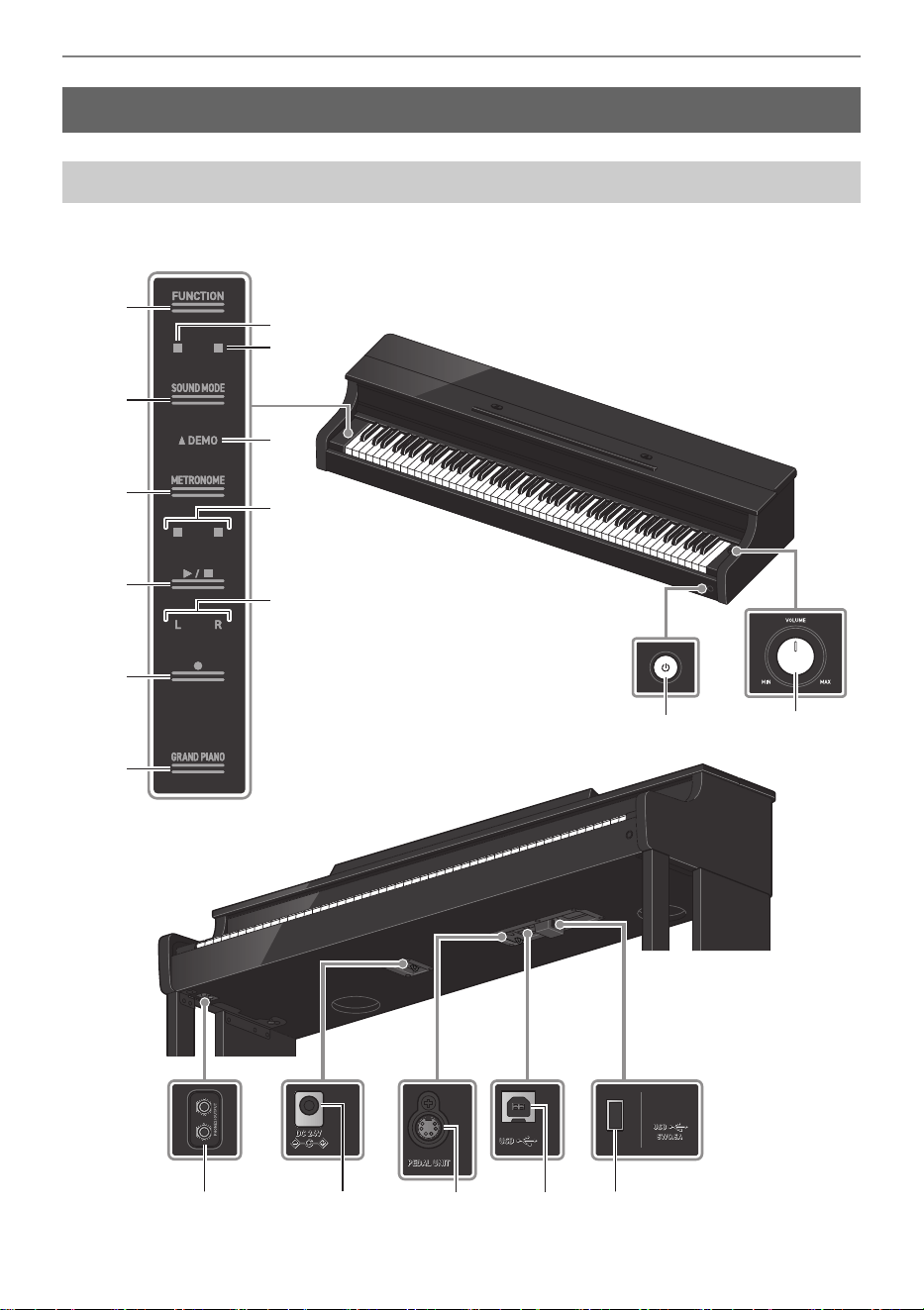
Part Names and Functions
bm bn
1
2
8
7
9
3
4
5
6
bk
bl
bs
bq
bpbo br
Bottom
Touch buttons

Overview of the Digital Piano
EN-7
1 FUNCTION button
Used for basic settings.
2 SOUND MODE button
Used to change settings such as [SOUND MODE].
3 METRONOME button
Used to turn the metronome On/Off.
4 a button
Used to play/stop a song.
5 0(REC) button
Used to record performances.
6 GRAND PIANO button
Sets the tone to <GRAND PIANO CONCERT>.
7 Hall Simulator/Reverb Indicator
Lights up when [Hall Simulator/Reverb] is set to <On>.
8 Surround Indicator
Lights up when [Surround] is set to <On>.
9 DEMO Indicator
Lights up when a demo song is playing.
bk Beat Indicator
The left side blinks on the first beat and the right side blinks on the remaining beats in time, such as
when a song is playing.
bl Track Indicator
During Record/Playback, “L” lights up to indicate the part of a track for the left hand, and “R” lights up to
indicate the part of a track for the right hand.
bm P(Power) button
Turns main power On/Off. The outer circumference of the button indicates Bluetooth
®
connection
status by the color of the light.
bn Volume knob
Adjusts the volume of the Digital Piano.
bo PHONES/OUTPUT jacks
bp Power supply terminal (DC 24V)
bq PEDAL UNIT jack
br USB Type B port
bs USB Type A port
Preparation Before Playing
EN-8
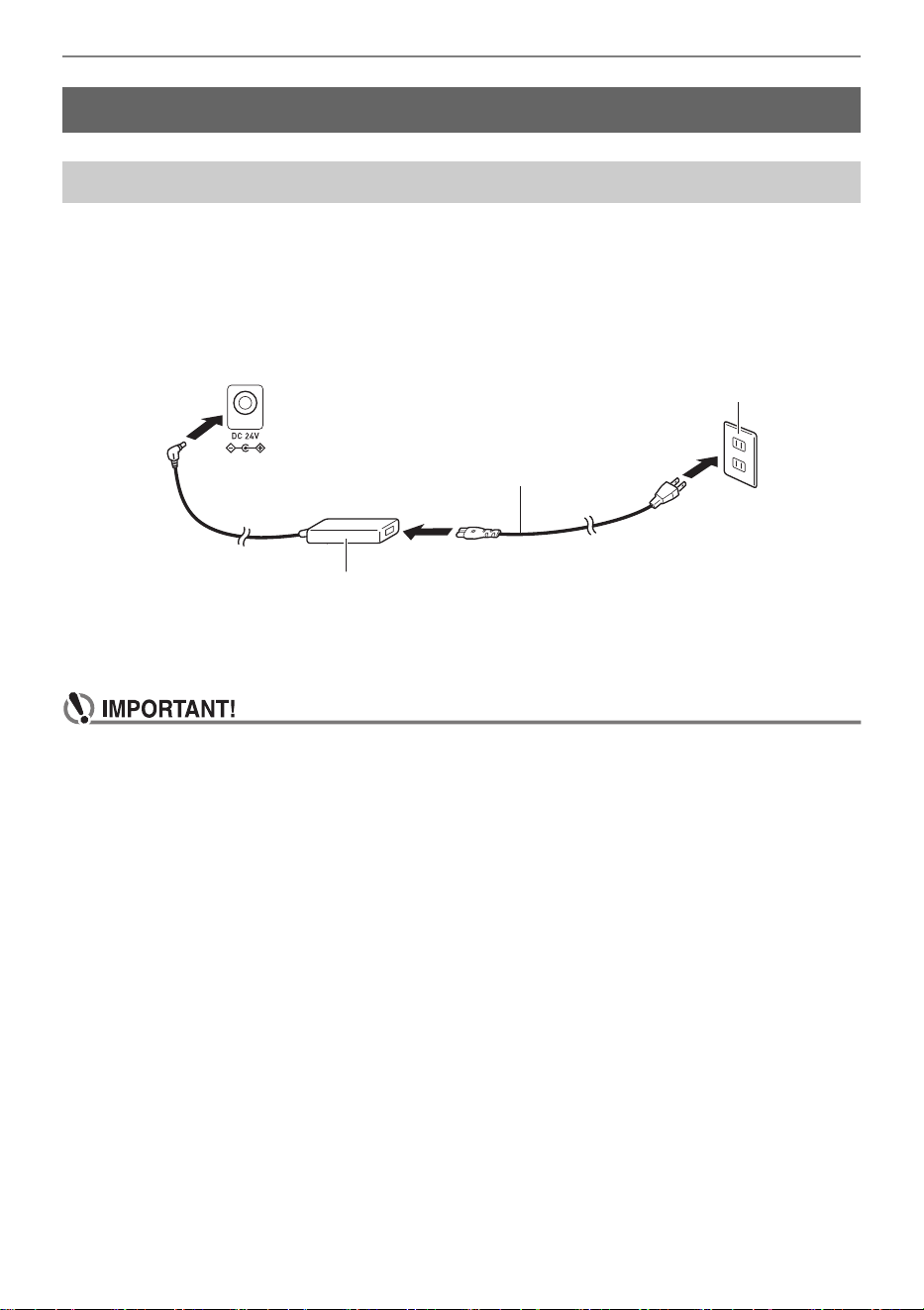
Use the AC adaptor (JEITA standard, with unified polarity plug) supplied with the Digital Piano. Use of
other AC adaptors may cause smoke or malfunction.
Model of AC adaptor included with the Digital Piano: AD-E24250LW
Connect in the order of
to
using the supplied power cord.
This AC adaptor cannot be repaired.
AC adaptor usage environment: Temperature 0 to 40°C, Humidity 10% to 90% RH
Output polarity: &
• Never connect the AC adaptor and power cord supplied with this Digital Piano to any other
device. Doing so may cause malfunction.
• Be sure to turn the power off before unplugging and plugging in the AC adaptor.
• The AC adaptor will heat up slightly after prolonged use, this is not a malfunction.
• Unplug the AC adaptor from the power outlet when not using the digital piano for a long
period of time.
Preparation Before Playing
Preparing a Power Supply
Household wall outlet
AC adaptor
Power supply terminal (DC 24V)
Power cord
Preparation Before Playing
EN-9
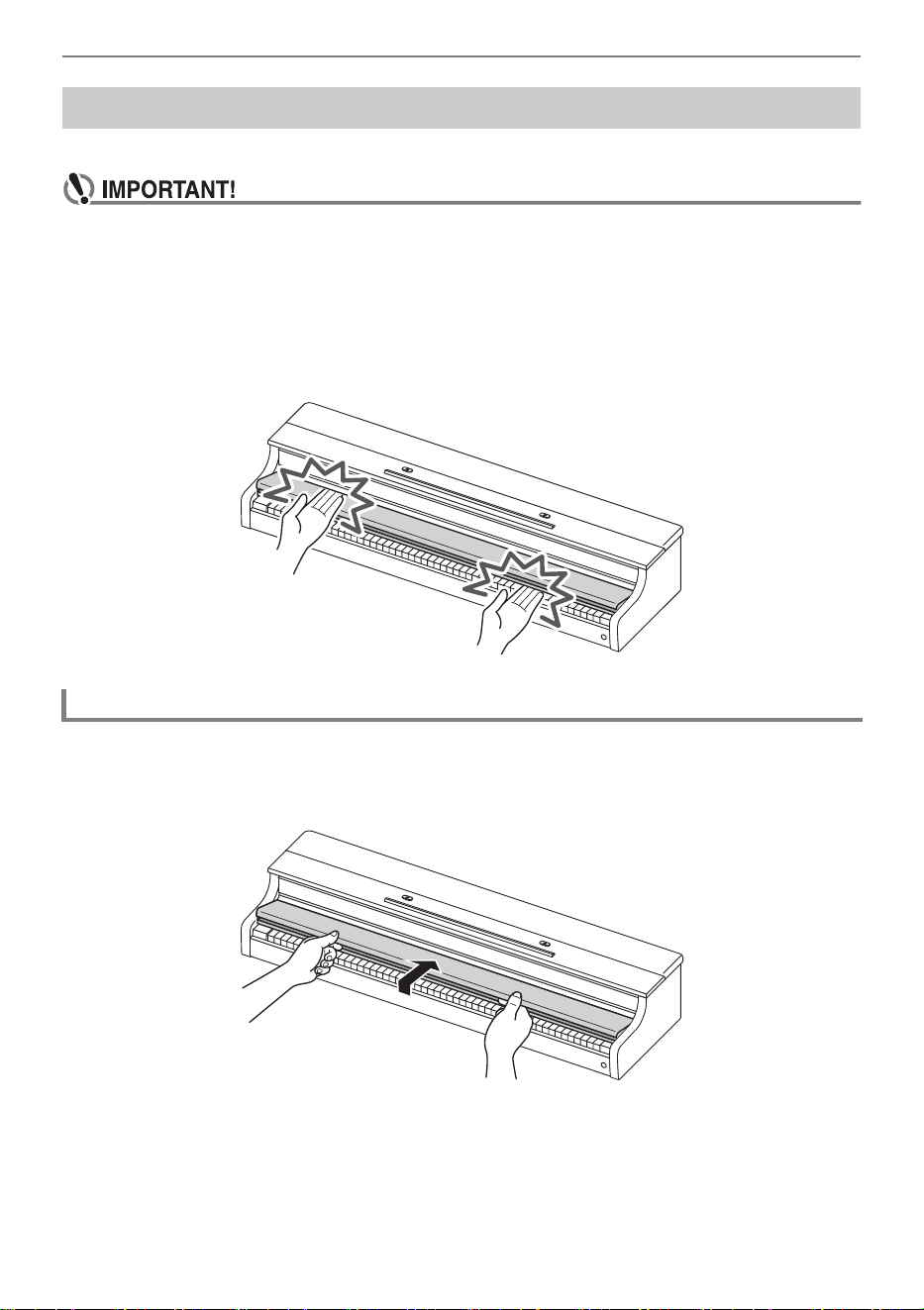
Be sure to open the keyboard cover completely before playing the Digital Piano.
• When opening and closing the keyboard cover, be careful not to get the hands or fingers of
yourself and others (especially children) caught in the keyboard cover.
• Do not let go of the keyboard cover with your hands or fingers when opening or closing it.
• Do not press down on the keyboard cover with your hand when closing it (your hand may get
caught in the gap of the keyboard cover).
• Do not place any objects on the keyboard cover. There is a risk that objects may get inside
the product when opening the keyboard cover.
• Do not play with the keyboard cover partially open.
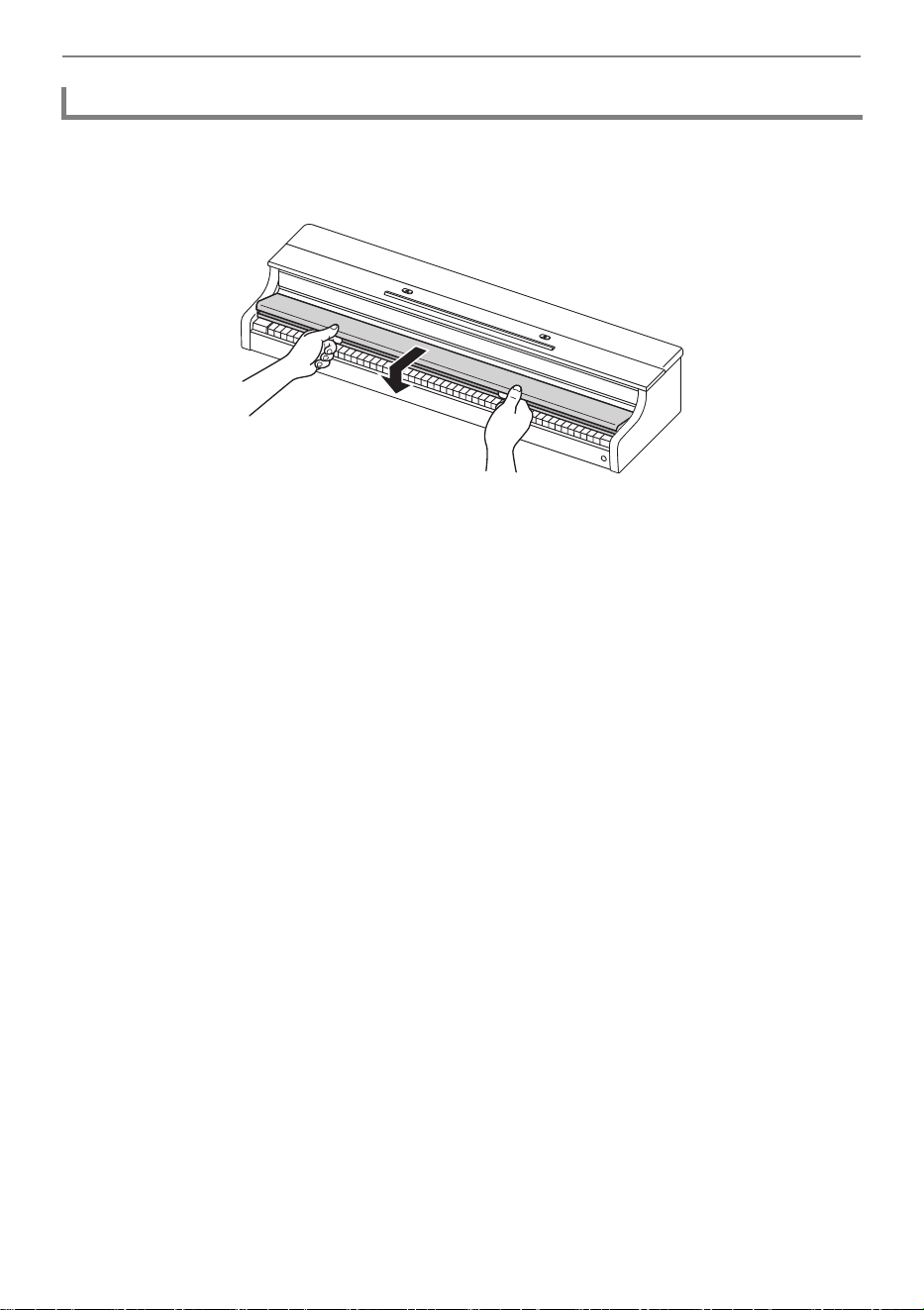
Place both hands in the recess of the keyboard cover, lift it up slightly, and push
it back.
Keyboard Cover
Opening the Keyboard Cover
Preparation Before Playing
EN-10
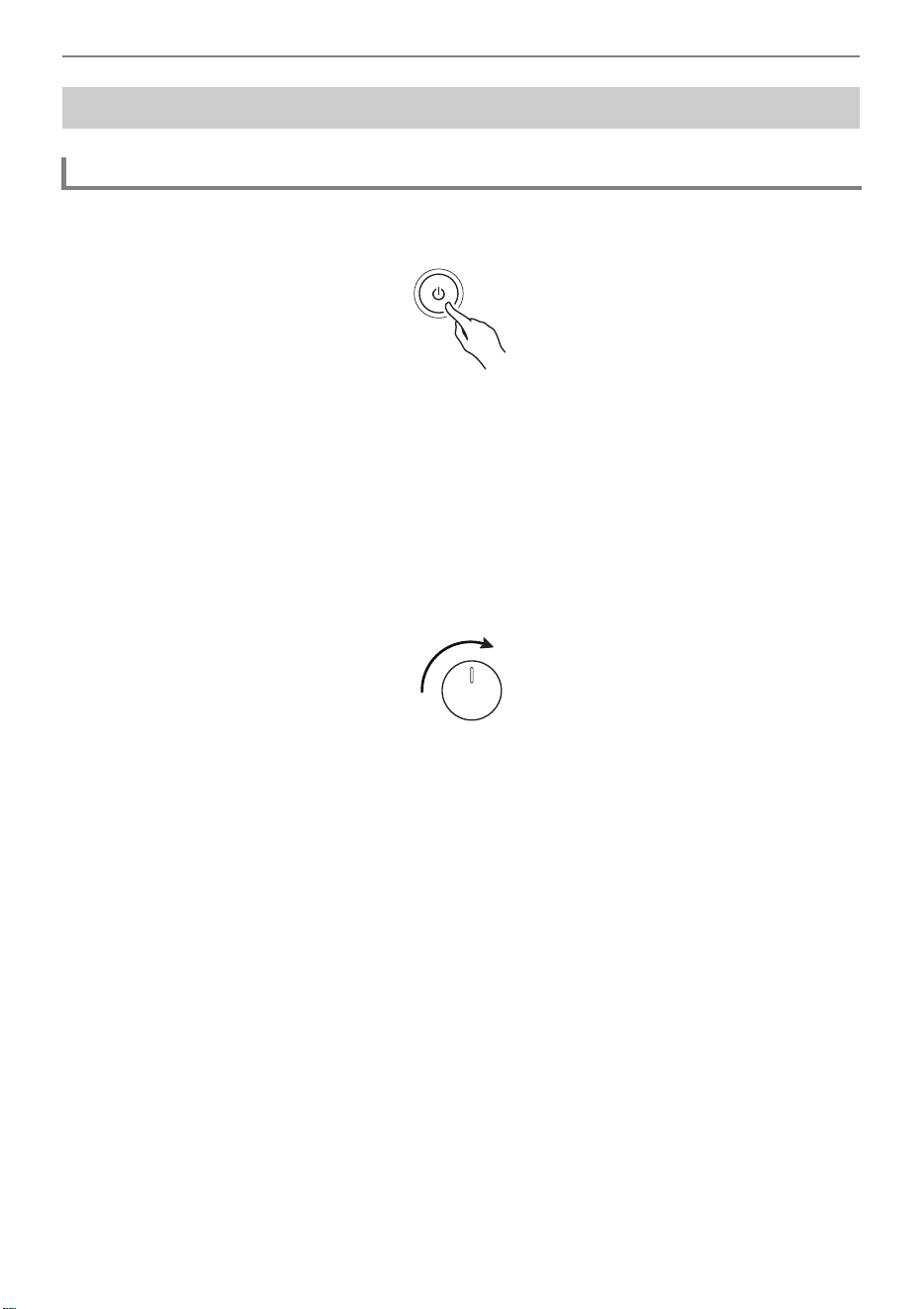
Place both hands in the recess of the keyboard cover and slowly pull it toward
you until it is completely closed.
Closing the Keyboard Cover
Preparation Before Playing
EN-11
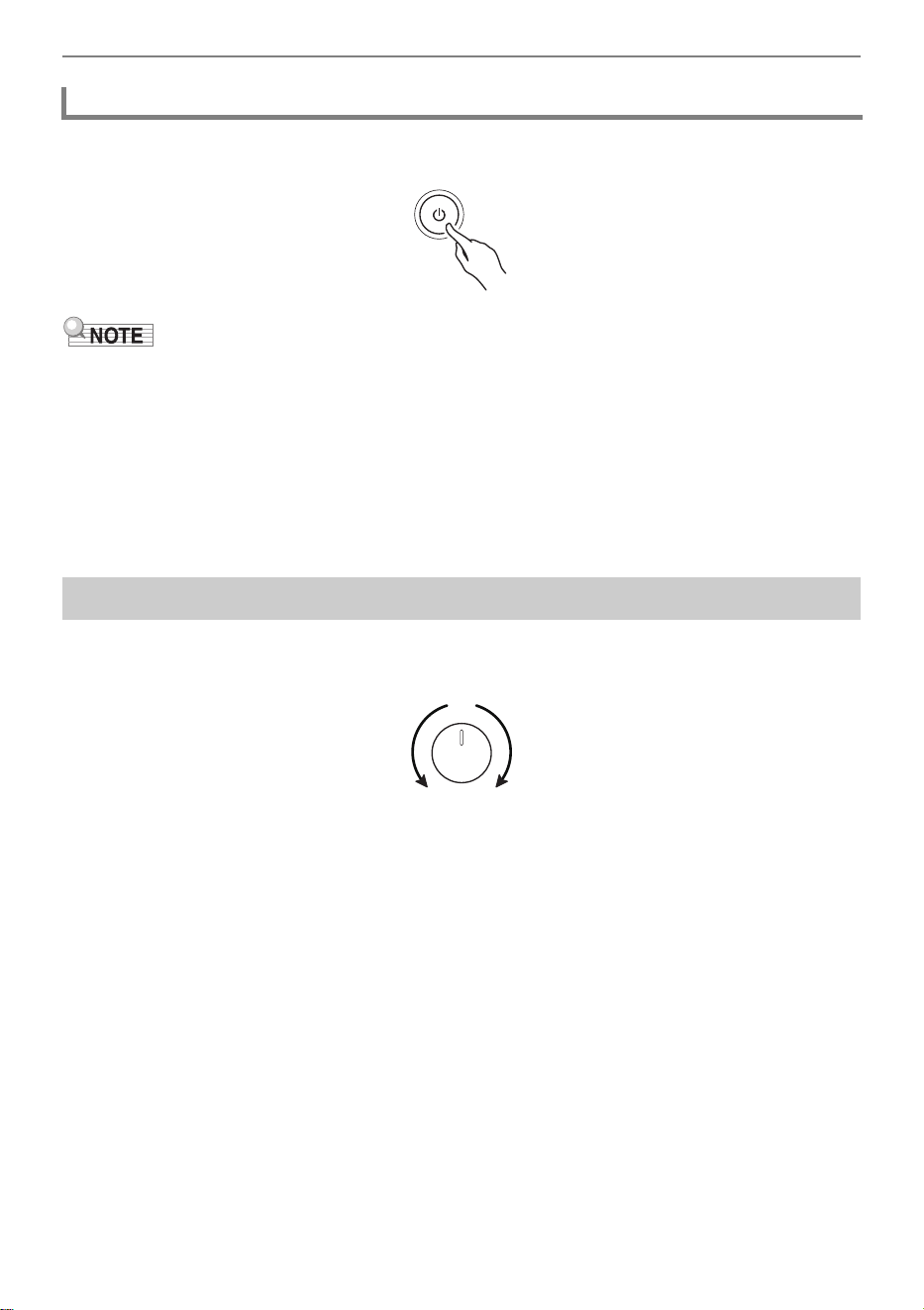
1.
Press the “P(Power)” button to turn the Digital Piano on.
• When the power is turned on, each touch button will blink while the Digital Piano is starting up.
When all touch buttons are lit up, the Digital Piano is ready for use.
• The power may not come on after pressing the “P(Power)” lightly, however, this is not a
malfunction. If this happens, firmly press the “P(Power)” button again.
• A pop may be heard when turning the power on and off, but this is not a malfunction.
• If the Digital Piano is turned on without the Wireless MIDI & audio adaptor attached, the outer
edge of the “P(Power)” button will flash blue to indicate that the Wireless MIDI & audio adaptor
is not attached.
2.
Once the power is turned on, use the volume knob to adjust the volume.
Auto Power Off Function
After approximately 20 minutes of inactivity, the power automatically turns off to prevent unnecessary
power consumption. To prevent the power turning off between performances at concerts, etc., set the
[Auto Power Off] to <Off>.
For more information, see “Auto Power Off”.
Power On Alert
After approximately 6 minutes without any operation, the “GRAND PIANO” button will turn lit and unlit at
5 second intervals to indicate that the power is still on. When an operation, such as touching a button or
pressing a key, is performed, the Digital Piano will return to its normal state (all buttons lit up). You can
switch the [Power On Alert] to operate or not.
For details, refer to “Power On Alert”.
Turning the Power On/Off
Turning the Power On
Preparation Before Playing
EN-12
Press and hold the “P(Power)” button for about 2 seconds.
• After the power is turned off using the “P(Power)” button, Digital Piano will still be in standby mode,
with a small current flowing through it. Always disconnect the AC adaptor from the power outlet when
you do not intend to use the Digital Piano for an extended period of time, or when there is a risk of a
lightning strike.
Saving Settings when the Power is Turned Off (Auto Resume)
When the Digital Piano is turned off, various settings such as tone numbers are reset. If [Auto Resume]
is set to <On>, most settings will be saved even when the power is turned off.
For more information, see “Saving the Digital Piano Settings (Auto Resume)”.
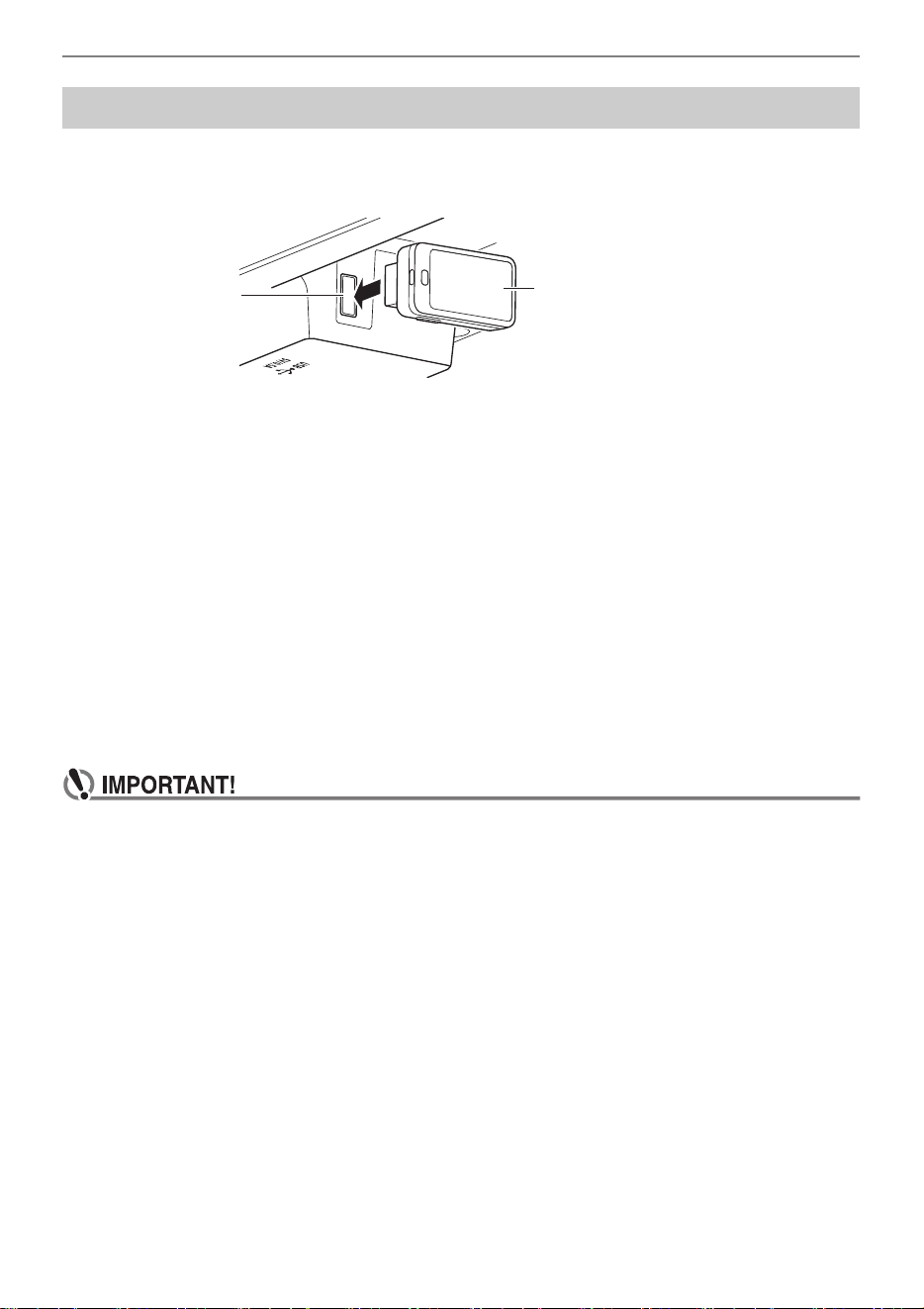
The volume of the entire Digital Piano is controlled by the volume knob.
Automatically Correcting Sound Quality According to the Volume (Volume Sync
Equalizer)
Automatically corrects the volume quality according to the volume output from the Digital Piano’s
speakers. You will be able to hear bass and treble clearly, even at low volumes.
For more information, see “Volume Sync Equalizer”.
Muting Sound from the Digital Piano’s Speakers (Speaker Out)
If the [Speaker Out] setting is set to <Off>, no sound will be output from the speakers.
For more information, see “Speaker Out”.
Turning the Power Off
Adjusting the Volume
Preparation Before Playing
EN-13
To connect the Digital Piano to an external device that supports Bluetooth
®
wireless technology, attach
the Wireless MIDI & audio adaptor to the USB Type A port.
Connecting to Bluetooth Audio-Enabled Devices
By making a Bluetooth audio connection between this Digital Piano and a smart device, you can play
sound from the smart device on this Digital Piano.
For more information, see “Bluetooth Audio Connectivity”.
Connecting to Bluetooth Low Energy MIDI-Enabled Devices
Bluetooth Low Energy MIDI connection
*
between this Digital Piano and a smart device enables you to
perform various operations using a dedicated app.
* Operation is not guaranteed if used with apps other than CASIO’s dedicated app.
For more information, see “Bluetooth Low Energy MIDI Connectivity”.
Using the Dedicated App (CASIO MUSIC SPACE)
Connect your smart device to the Digital Piano and use CASIO’s dedicated app.
For more information, see “Using the Dedicated App”.
• When removing the Wireless MIDI & audio adaptor, turn the Digital Piano’s power off.
Using the Supplied Wireless MIDI & Audio Adaptor
USB Type A port
Wireless MIDI & audio adaptor
Preparation Before Playing
EN-14
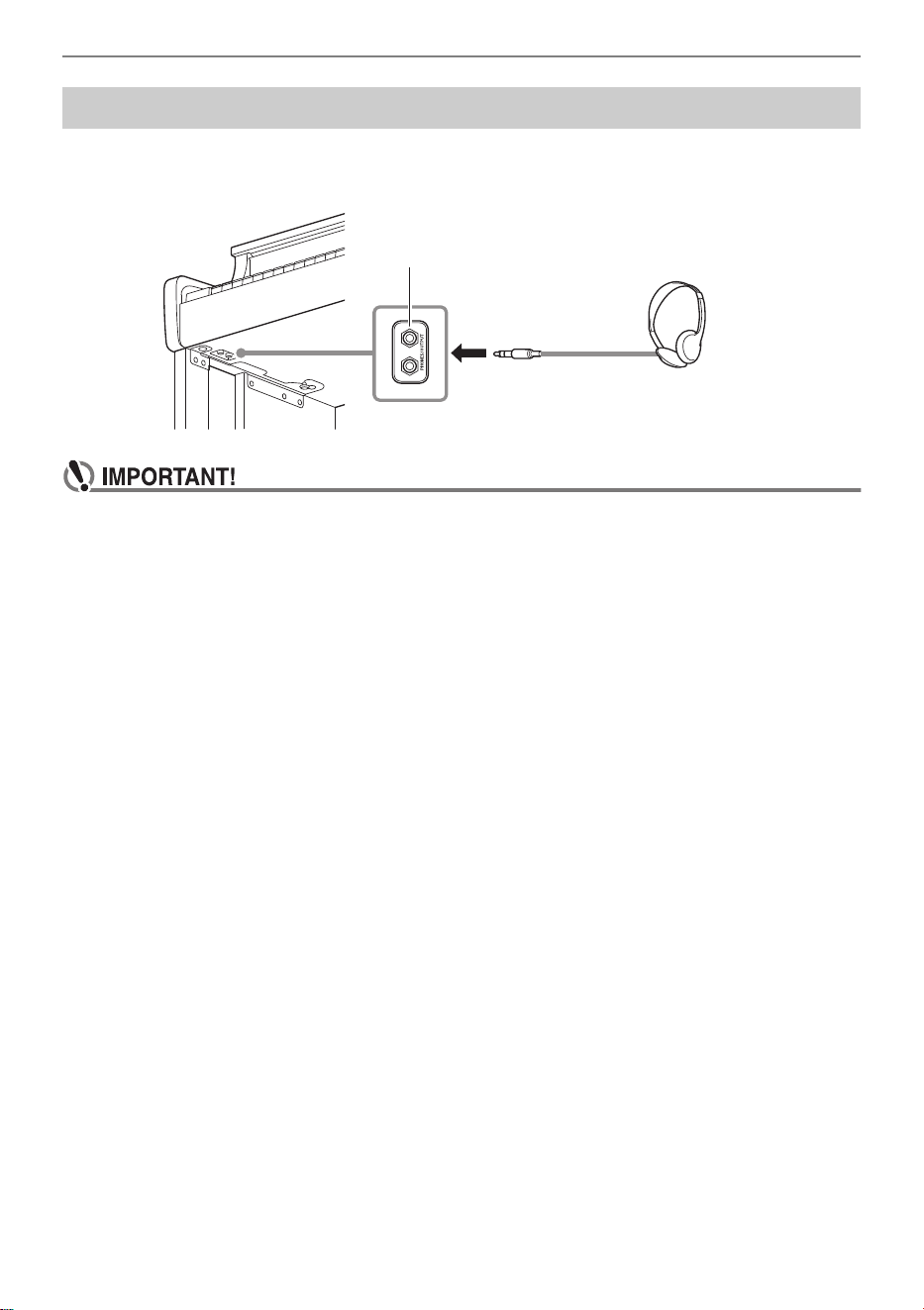
Headphones allow you to enjoy playing at night without worrying about your surroundings. Turn down
the volume on the Digital Piano before connecting headphones.
• Do not use headphones for long periods of time at high volume. This may result in hearing
impairment.
• If the headphone plug does not match the terminal, use a commercially available conversion
plug.
• When unplugging the headphone cord from the Digital Piano, be careful not to leave the
conversion plug in the Digital Piano. If the plug is left in place, no sound may be produced
when playing.
• Use headphones (commercially available) that meet the following standards:
Maximum input: 150 mW or more
Impedance: 32 Ω or more
Headphone Mode
When using headphones, this reproduces the natural sound that reaches your ears when you play an
acoustic piano.
For more information, see “Headphone Mode”.
Sound from Speakers While Headphones are Connected
When the [Speaker Out] setting is set to <On>, sound will come out of the speakers even if a plug is
inserted into the PHONES/OUTPUT jacks.
For more information, see “Speaker Out”.
Using Headphones
PHONES/OUTPUT jacks
Stereo standard phone jacks (TRS phone)
Preparation Before Playing
EN-15
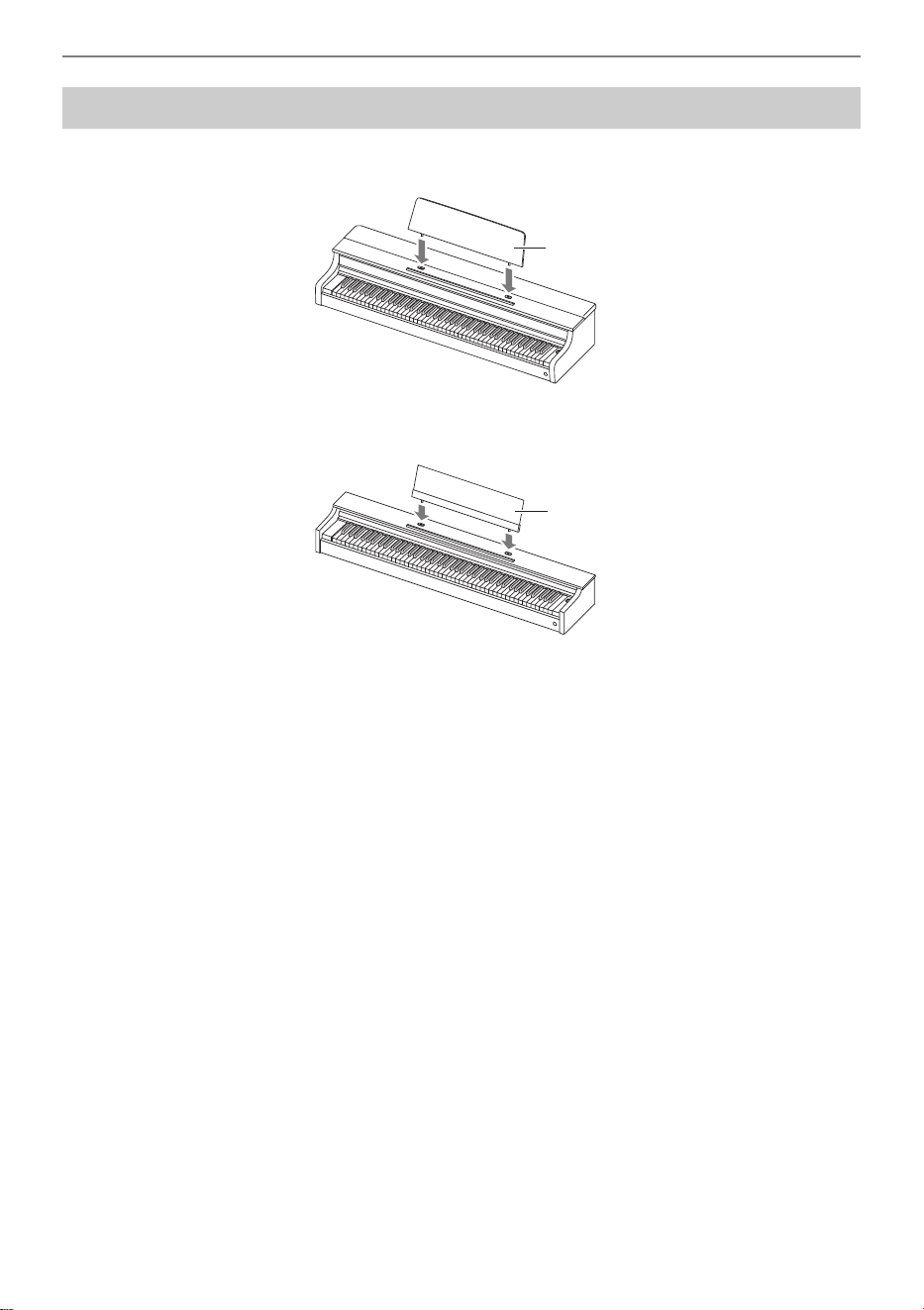
AP-300
Insert the music stand legs into the two holes on the top surface of the main Digital Piano housing.
AP-S200
Insert the music stand legs into the two holes on the top surface of the main Digital Piano housing.
Using the Music Stand
Music stand
Music stand
Preparation Before Playing
EN-16
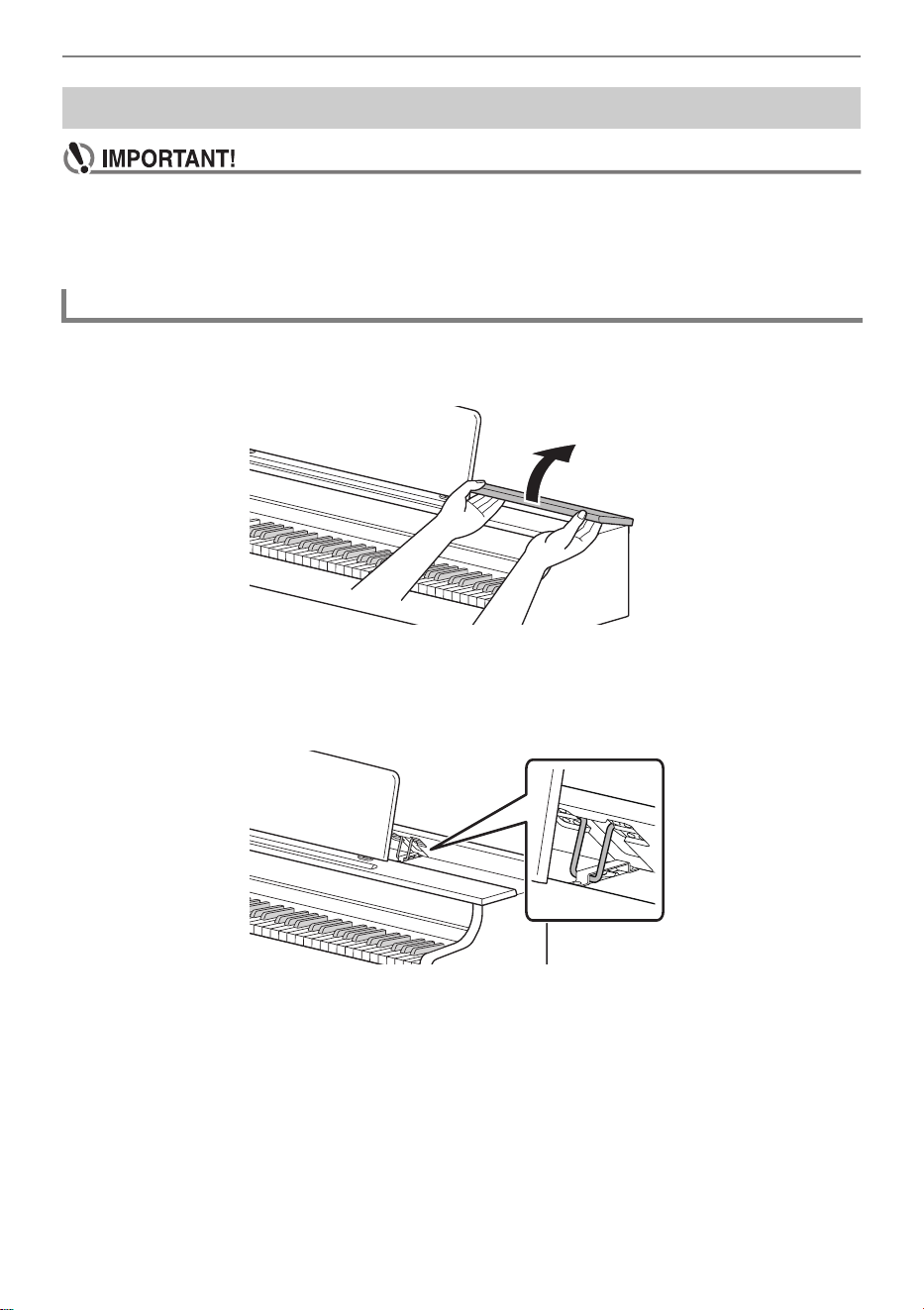
• Always open and close the top panel with both hands and be careful not to get your fingers
caught.
• Do not force the top panel to open further backward. This may cause damage.
• Stand to the right of the Digital Piano to open and close the top panel.
1.
Lift the top panel.
2.
Check that the metal fittings that support the top panel are upright inside the top
panel.
The Top Panel of the Digital Piano (AP-300 only)
Opening the Top Panel of the Digital Piano
Preparation Before Playing
EN-17
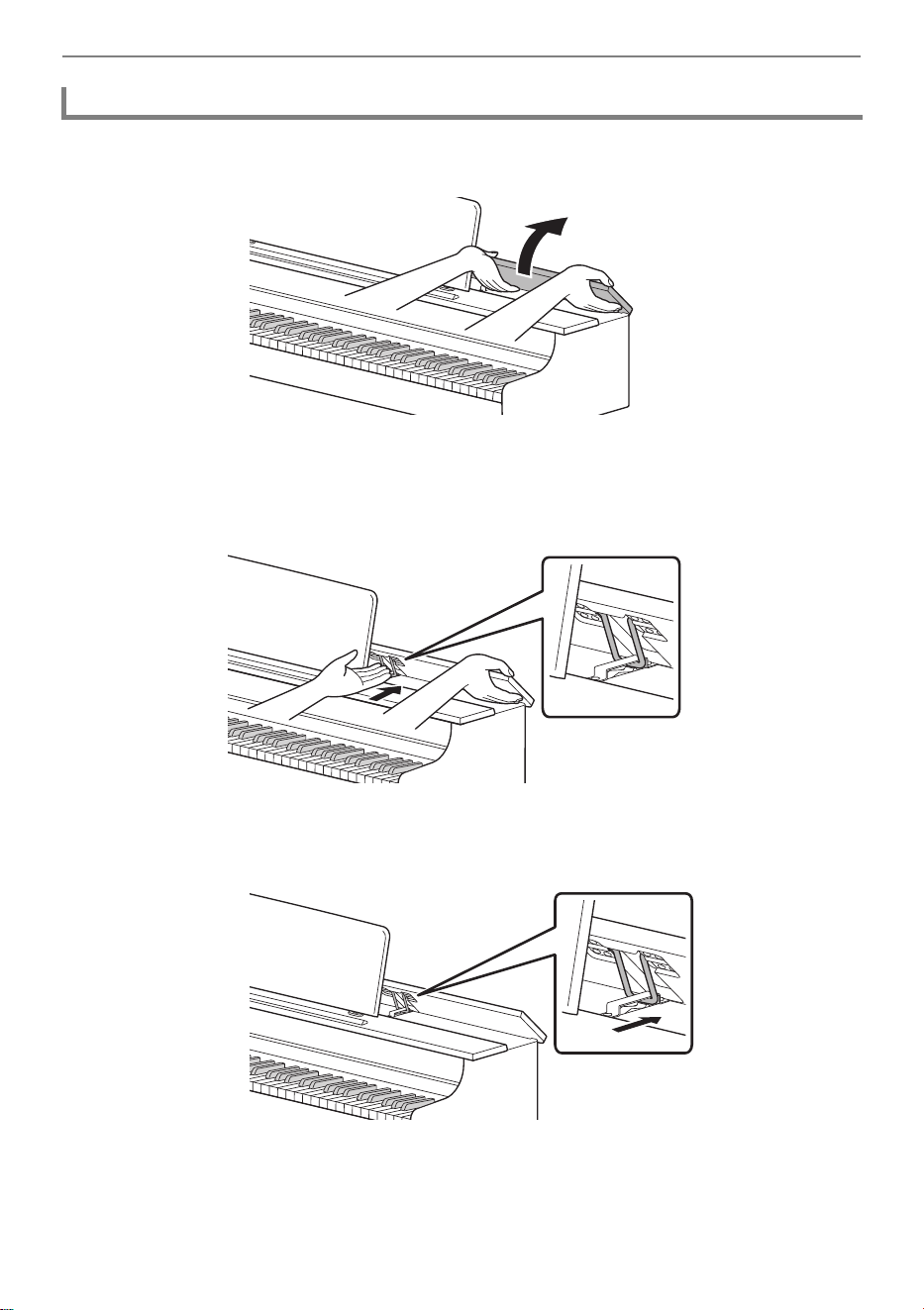
1.
Lift the top panel gently upward.
2.
Slowly lower the top panel while pushing the metal fittings supporting the top
panel backward with your fingers.
• To prevent the top panel from closing too vigorously, the metal fittings may temporarily stop in
the middle area. When this happens, once again slowly lower the top panel while pushing the
metal fittings backward with your fingers.
Closing the Top Panel of the Digital Piano
Read This First (Basic Operations and Settings)
EN-18
Notation of Function Names and their Setting Options
This manual describes how to make settings for the various functions. To make it easier to distinguish
between the names of functions and the setting options for those functions, the names of functions are
enclosed in [ ], and the setting options for those functions are enclosed in < >.
Example:
Switch the [Recorder] setting to <MIDI Recorder>.
• Recorder: Function Name
• MIDI Recorder: One of the options of the Recorder function
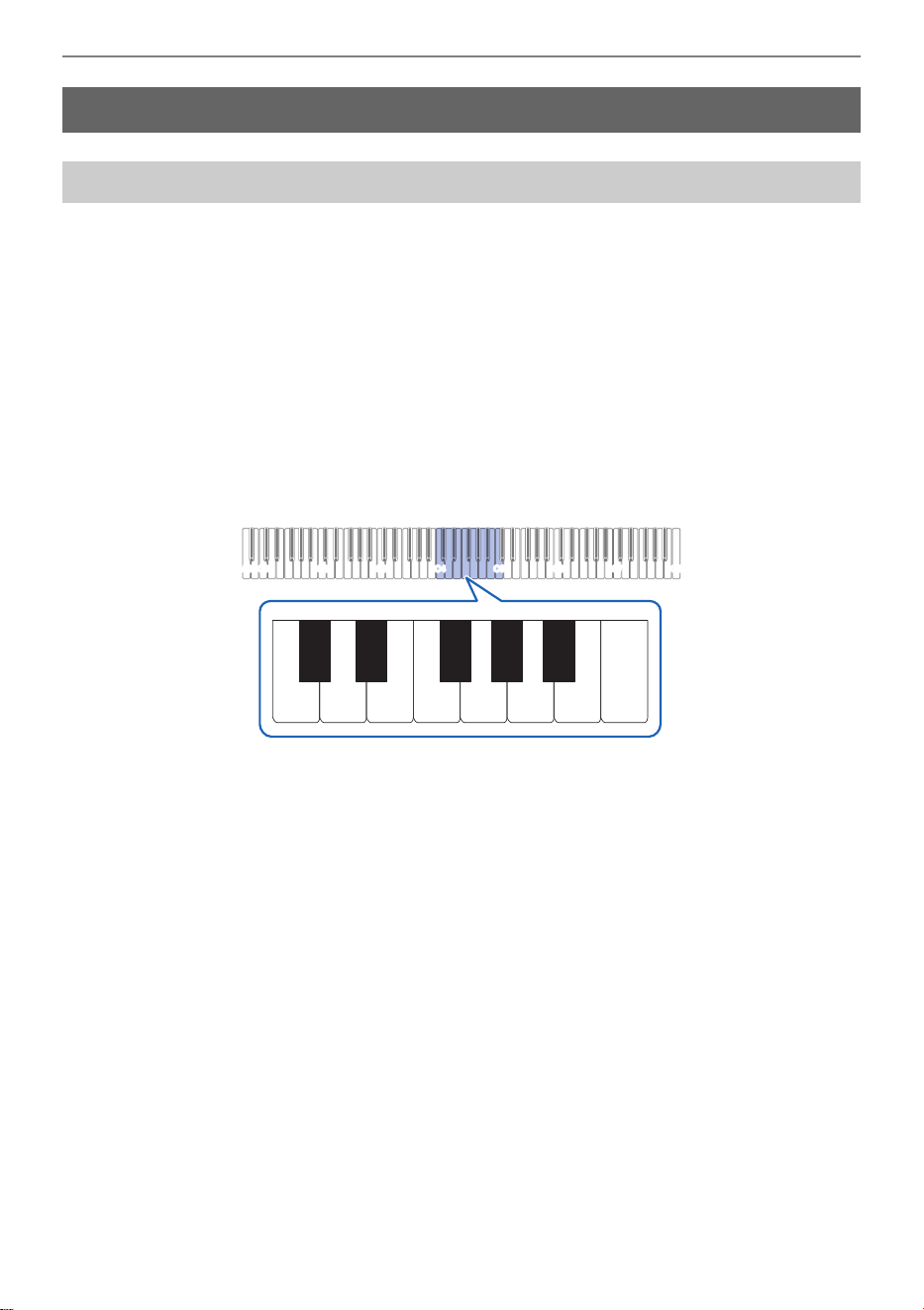
Notation of Note Names and Pitches on the Keyboard
Note names and pitches on the keyboard are indicated by the international representation
(Middle C = “C4”), with the lowest C key named “C1” and the highest C key named “C8”.
Read This First (Basic Operations and Settings)
Notation in this Manual
C1A0 C2 C3 C4 C5 C6 C7 C8
C4 D4 E4 F4 G4 A4 B4 C5
C{4E}4F{4A}4B}4
Read This First (Basic Operations and Settings)
EN-19
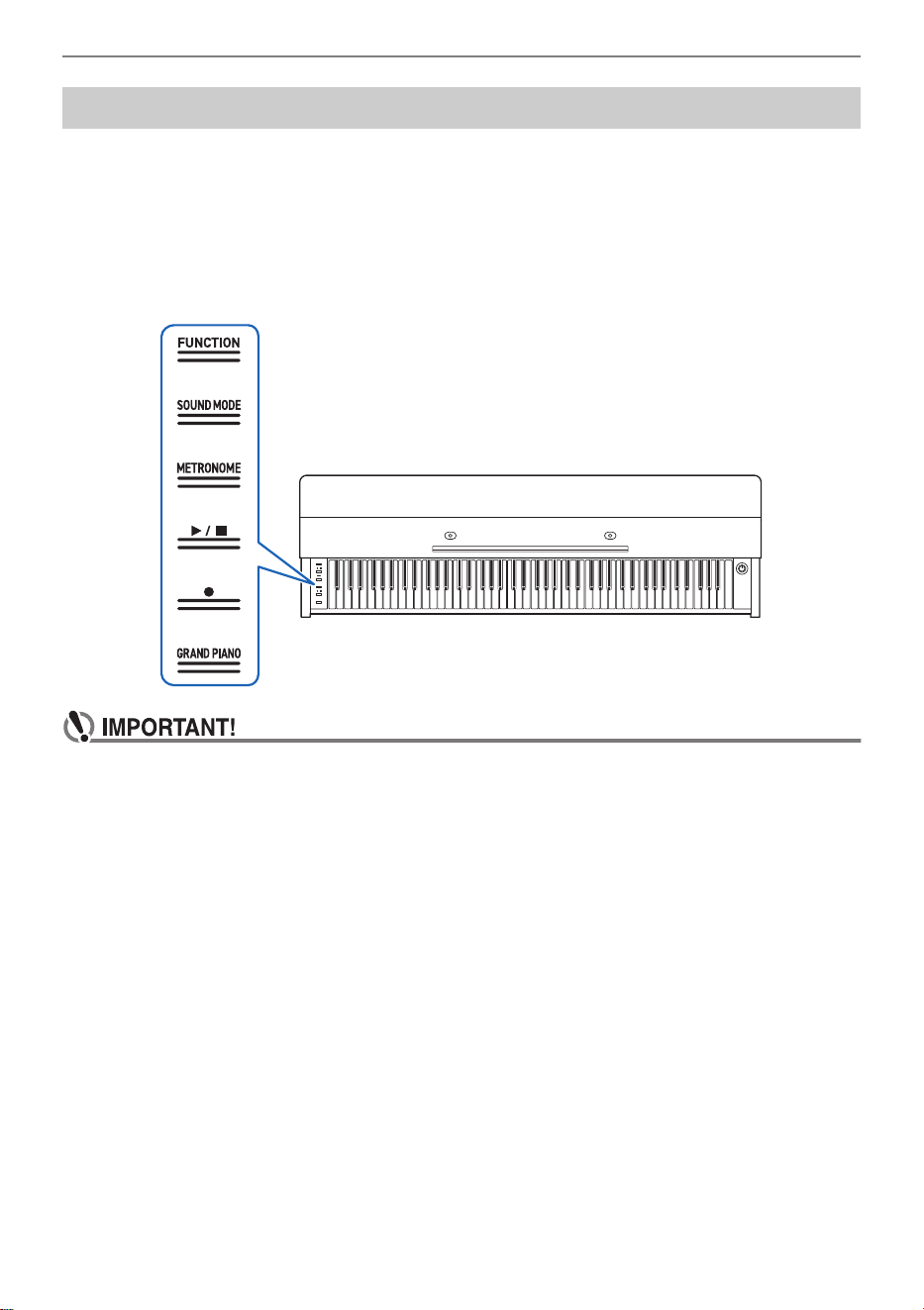
When the Digital Piano is turned on, the touch buttons on the left hand panel light up. After no operation
for 15 seconds, the lights on the left panel go off. When the lights are off, the touch buttons will light up
again if you touch the left panel.
You can change the number of seconds before the lights go off on the left panel or set up the lights to
not go off.
For more information, see “Switching Panel Light Settings”.
• When operating the touch buttons, touch them firmly with bare fingers. There is no response
to gloved fingers.
• Only the touch buttons that are active at the time will light up.
When Touch Buttons Do Not Respond
1.
Turn off the power to the Digital Piano.
2.
While pressing the C8 key (rightmost key), press the “P(Power)” button.
• Do not release the C8 key until the Digital Piano is turned on and the touch buttons start to blink.
You can release the “P(Power)” button.
• The sensitivity of the touch buttons is set to high.
Touch Button Operation
Left panel
Read This First (Basic Operations and Settings)
EN-20
Touching a button (touch firmly with fingertip and release immediately) will execute the function of that
button.
• The “FUNCTION” button only executes a function when used in combination with the keyboard or
with the “SOUND MODE” button. The “FUNCTION” button on its own does not execute any function.
By using the touch buttons (except for the “0(REC)” button) and the keyboard at the same time, you
can change various settings.
• The items to be set vary depending on the touch button pressed.
• The type of keyboard operation differs depending on the item you are setting.
• There are five operation types as set out below:
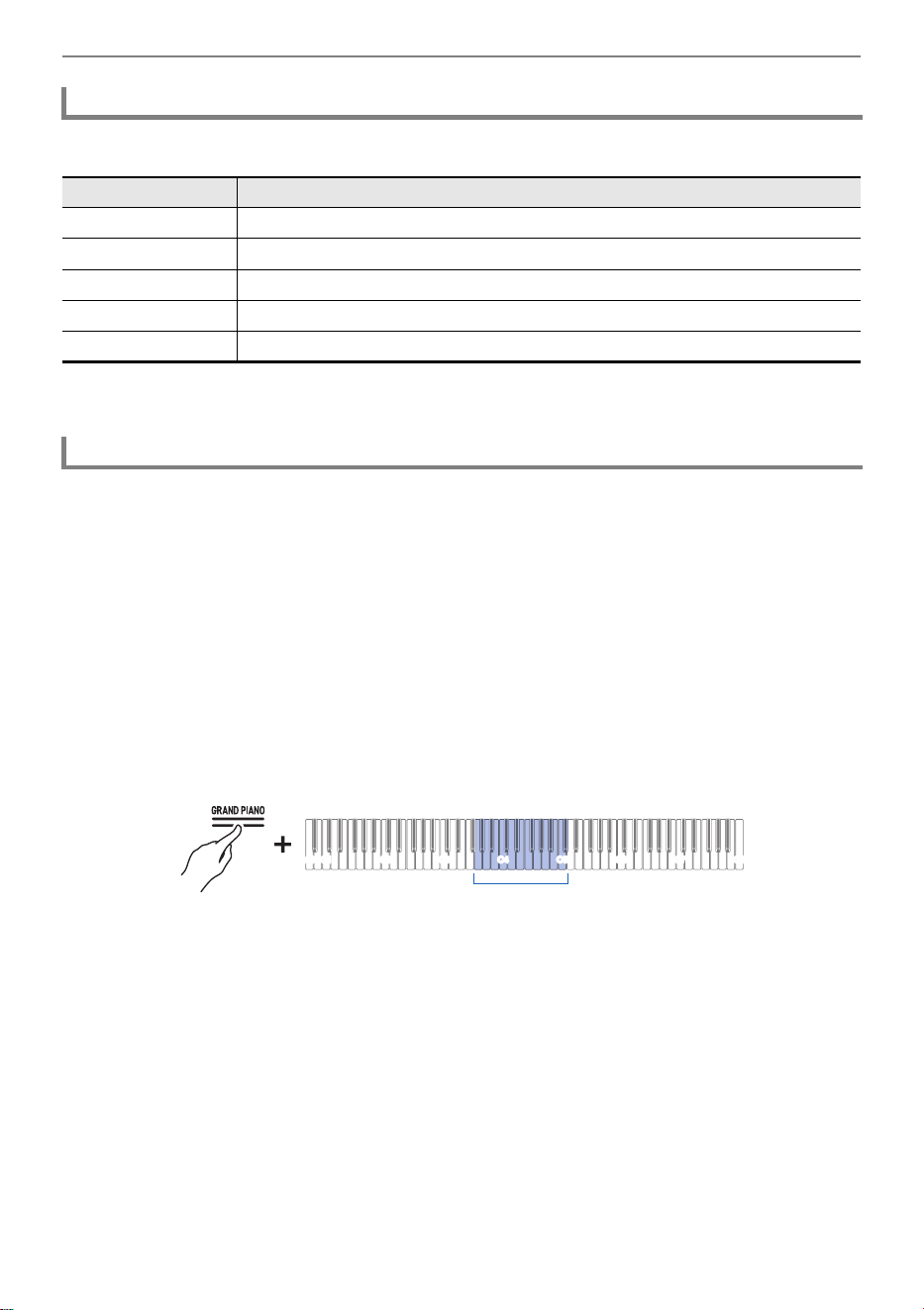
Selecting a Setting Value Directly (operation type A)
• Select the setting value assigned to the key.
Example: Selecting a tone
While holding down the “GRAND PIANO” button, press one of the G3 to C{5 keys
(Tone Selection).
•See “Tone list” for the tones available for each key.
Operation of the Touch Buttons Alone
Button Function
SOUND MODE Switches between <On> and <Off> for [Hall Simulator/Reverb] and [Surround].
METRONOME The metronome starts (or stops).
a Plays/Stops songs and recordings.
0(REC) Use to record performances.
GRAND PIANO Selects <GRAND PIANO CONCERT> tone.
Touch Button and Keyboard Combination Operation
C1A0 C2 C3 C4 C5 C6 C7 C8
G3 - C{5
Read This First (Basic Operations and Settings)
EN-21
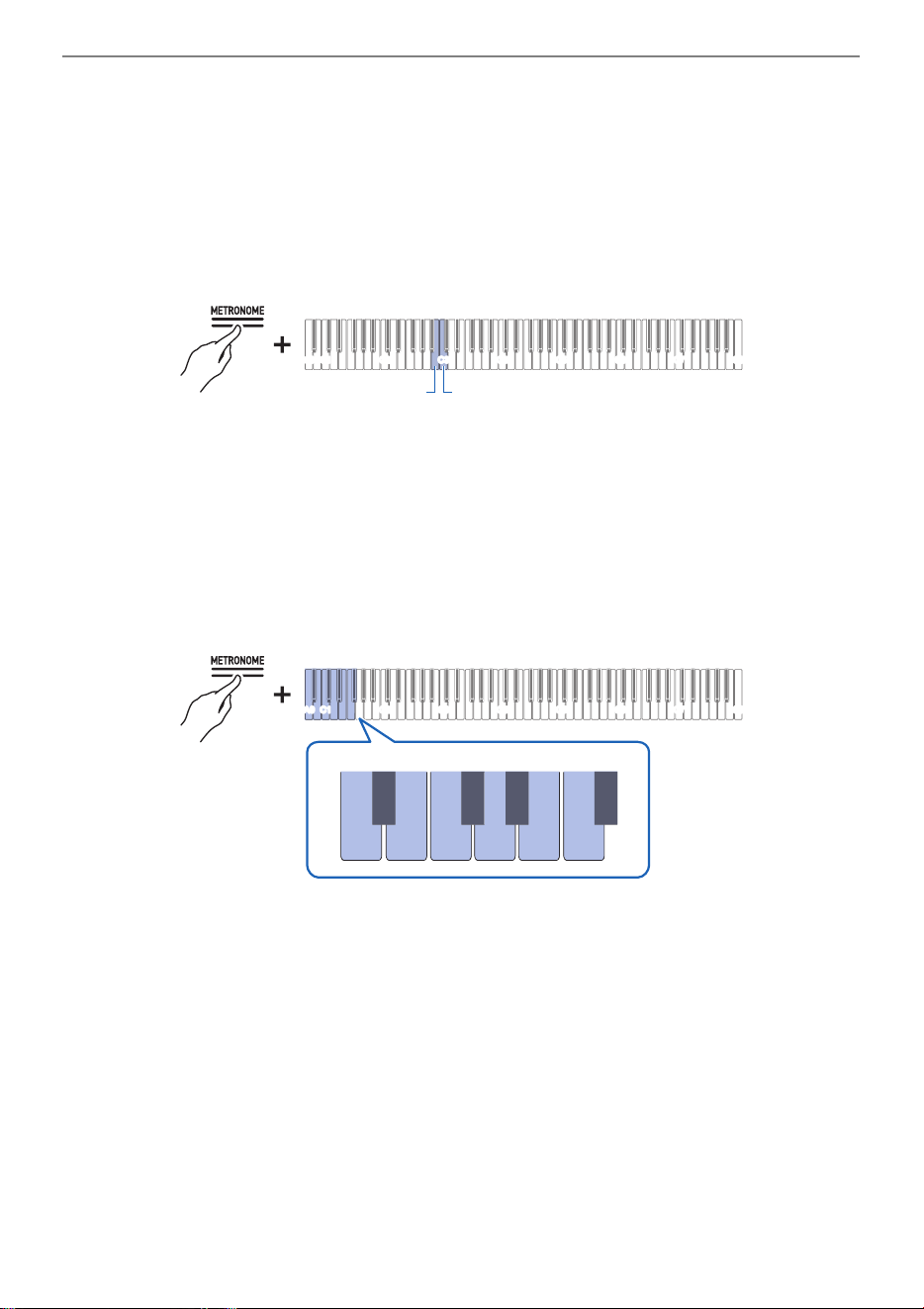
Using the +/– Keys to Raise or Lower the Setting Value by 1 (operation type B)
• Holding down a key changes the setting value continuously in increments.
• Pressing two keys together will return the value to the initial setting (default value).
Example: Setting the tempo
While holding down the “METRONOME” button, press the B2 key (tempo –)/C3
key (tempo +).
• This raises or lowers the tempo setting by 1.
Inputting Setting Values Using the Keys 0 to 9 (operation type C)
• For example, to enter “2”, press the “2” keyboard key. To enter “20”, press the “2” keyboard key
followed by the “0” keyboard key.
Example: Setting the tempo
While holding down the METRONOME button, press a key from A0 to F{1 (tempo
value setting).
• Sets the tempo in the range of 20 to 255 (beats per minute).
C1A0 C2 C3 C4 C5 C6 C7
C8
B2 C3
C1A0 C2 C3 C4 C5 C6 C7
C8
4
C{1
6
E}1
9
F{1
1
B}0
7
E1
3
C1
2
B0
0
A0
5
D1
8
F1
Read This First (Basic Operations and Settings)
EN-22
Switching On/Off or Changing Setting Values Using a Single Key (operation type D)
• Each time the key is pressed, the setting is changed.
• When the key is pressed, a sound is played according to the set value.
Example: Locking button operations
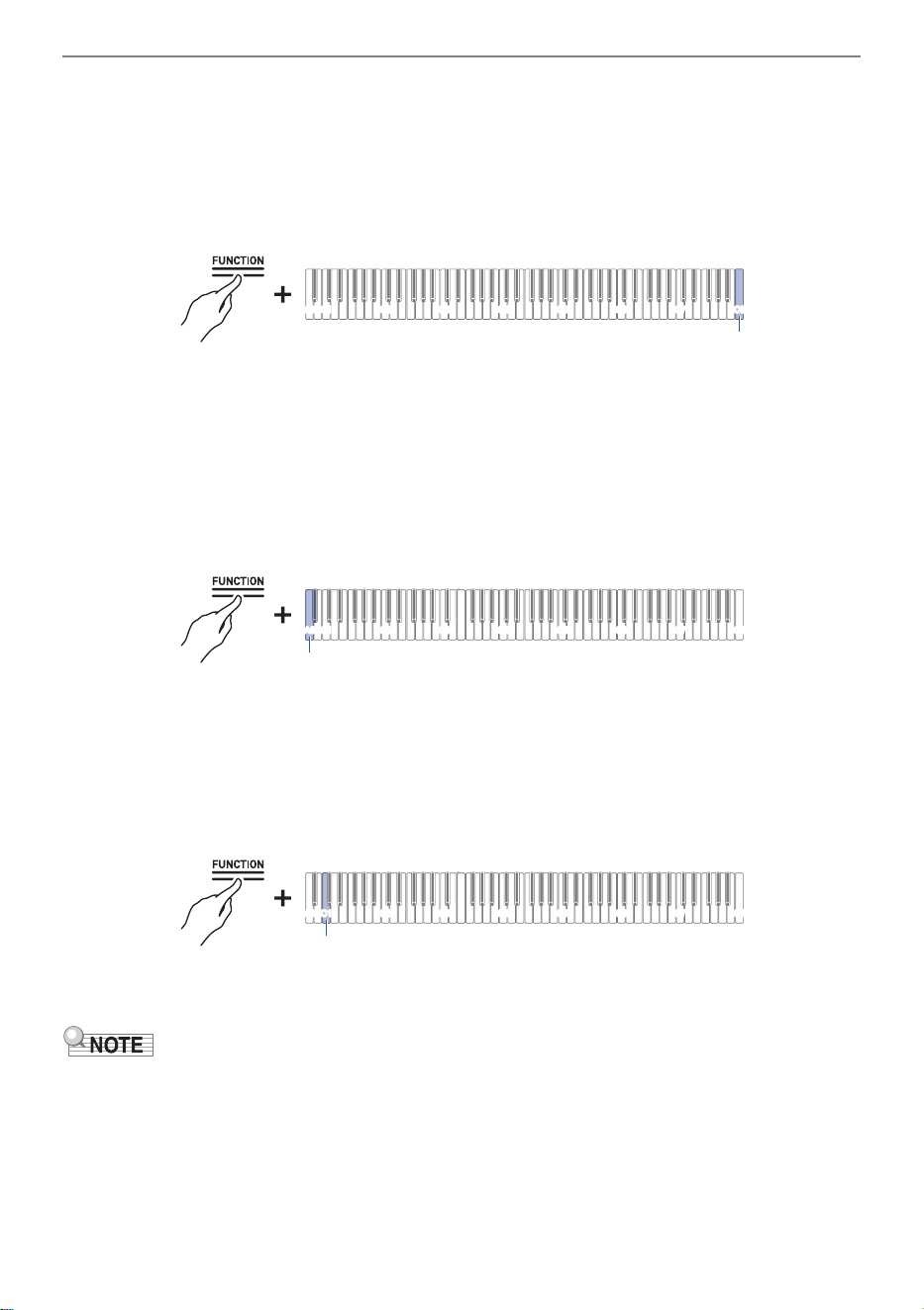
While holding down the “FUNCTION” button, press the C8 key (Panel Lock).
• For more information, see “Panel Lock”.
Putting in Standby Mode, and Executing on Next Key Press (operation type E)
Example: Performing a Factory Reset
1.
While holding down the “FUNCTION” button, press the A0 key (Factory Reset) to
enter standby mode.
• To execute the process, do not release the touch button, and perform the operation in step 2.
• If the touch button is released in standby mode, the function will not be executed (the operation
will be canceled).
2.
Hold down the “FUNCTION” button and press the C1 key (Execute) to execute the
process.
• After performing step 2, release the touch button.
• Processing may take some time. If so, wait until the process is complete.
• When a touch button and keyboard keys are operated in combination, a notification tone sounds to
inform the user of the result of the operation.
• For details, see “Notification Tones”.
C1A0 C2 C3 C4 C5 C6 C7 C8
C8
C1A0 C2 C3 C4 C5 C6 C7 C8
A0
C1A0 C2 C3 C4 C5 C6 C7 C8
C1
Read This First (Basic Operations and Settings)
EN-23
When the touch buttons and keyboard are operated in combination, a notification tone sounds when
the key is pressed to inform the user of the result of the operation.
Changing Notification Tone Settings
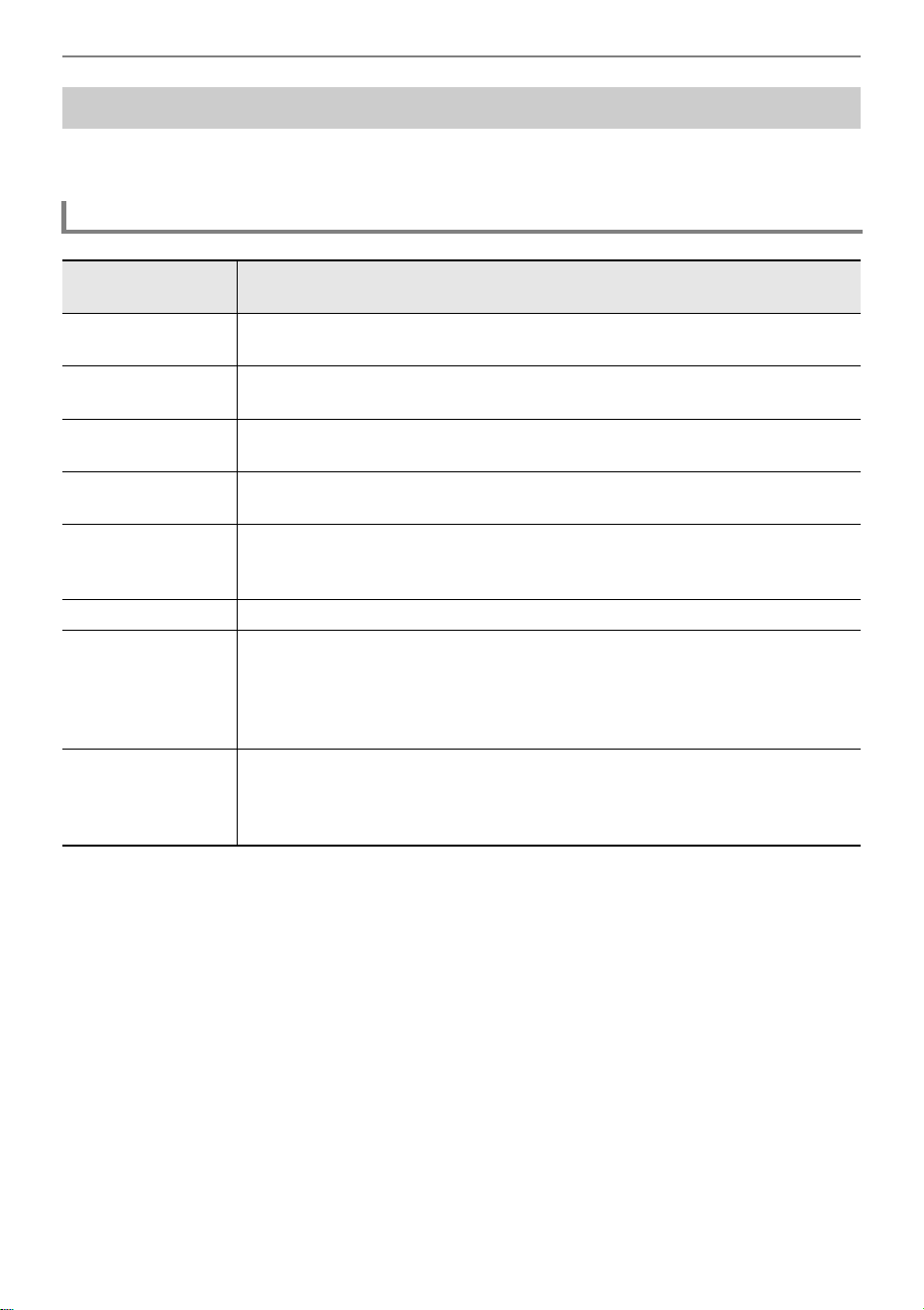
You can choose one of three different notification tone sets and adjust the volume of the notification
tones.
For more information, see “Notification Tone Set Selection” and “Notification Tone Volume”.
Notification Tones
Notification Tone Types
Notification Tone
Type
Details of Notification
Tone for Accept This is the sound made when a keyboard operation is accepted. Rings when
the setting is turned on for setting items that toggle between on and off.
Tone for Invalid This is the sound made when the wrong key is pressed. Keyboard operation is
invalid when this tone sounds.
Tone for Upper and
Lower Limits
This sound is made when the upper or lower limit of the set value is exceeded.
Keyboard operation is invalid when this tone sounds.
Tone for Default
Settings
This sound is made when the settings are returned to their default values. This
sounds when the + and – keys are pressed at the same time, for example.
Tone for number
notification
When one key is pressed continuously to toggle to a different setting value, the
current setting value is indicated by the number of times the notification tone
sounds.
Tone for Off This is the sound made when the setting is switched off.
Separator Tone This sound is made when the + or – key is used to increase or decrease a
setting value and the number reaches a multiple of that value. For whole
number-only settings a notification tone will sound each time the number is a
multiple of 10. For a setting with a decimal value (e.g., 440.2), a notification
tone sounds for whole numbers (e.g., 440 or 441).
Tone for Setting
Completion
If multiple key presses are required to complete a setting, this notification tone
will sound when the setting is complete. For example, when entering a 3-digit
tempo value, this notification tone will sound when the third digit key is pressed
and the setting is complete.
Listening to the Demo Songs
EN-24
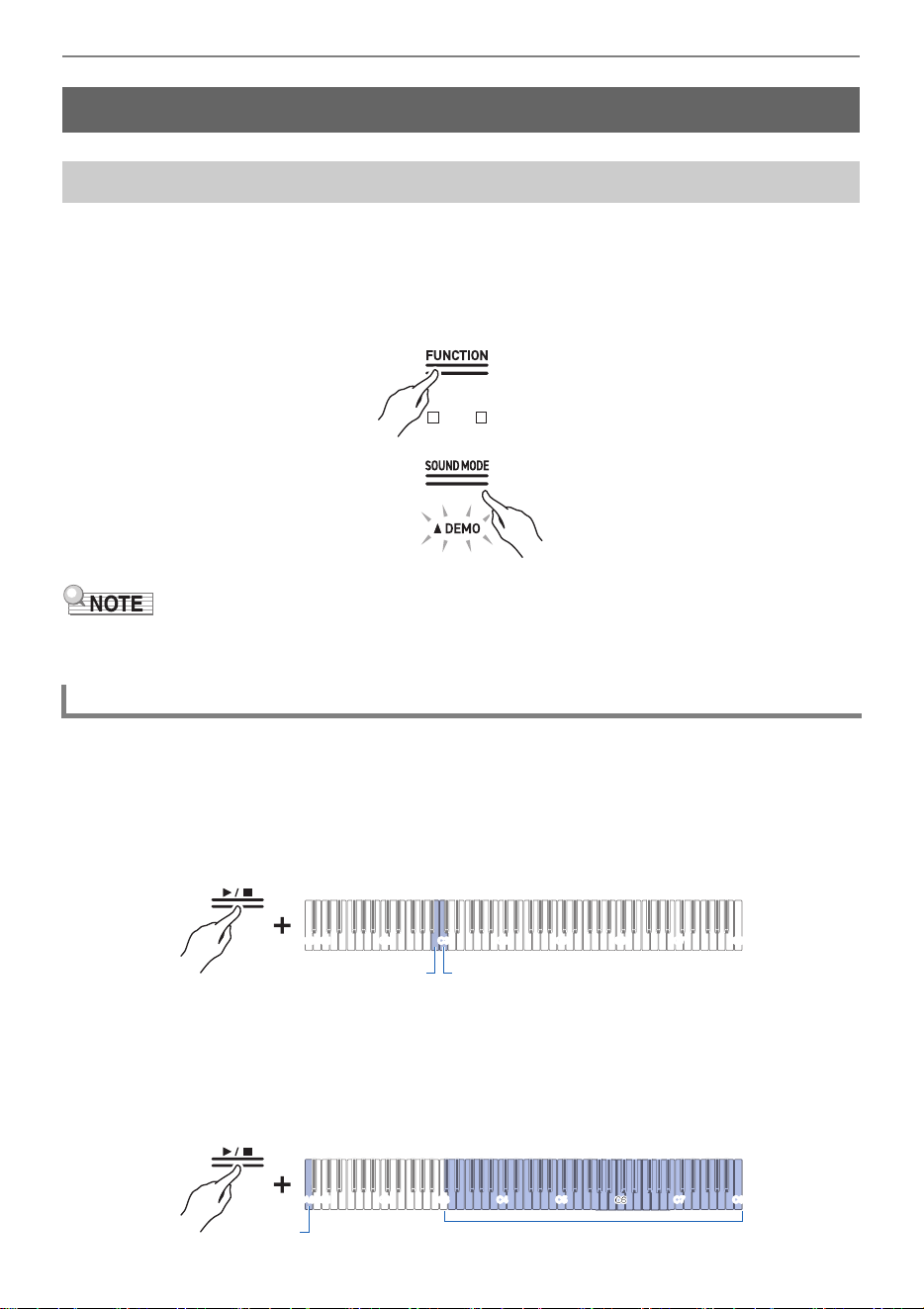
Hold down the “FUNCTION” button and press the “SOUND MODE” button.
• Playback of the demo song will start. Refer to the “Demo Song List” for a list of the songs.
• When the demo song end, songs from the Music Library will play continuously from the second
song onward. See “Music Library List” for song listings.
• While the [Auto Power Off] setting is <On>, the power will turn off within a certain period of time after
the entire demo performance.
You can change the song or [Sound Mode] Effects during demo song playback.
Skipping to Previous/Next Song
While holding down the “a” button, press the B2 key (Song Select –)/C3 key (Song Select +).
Using the +/– Keys to Raise or Lower the Setting Value by 1 (operation type B)
Skip to Specific Song
While holding down the “a” button, press the A0 key (demo song) or one of the C{3 to C8 keys
(Music Library Built-in Songs).
Selecting a Setting Value Directly (operation type A)
Listening to the Demo Songs
Playing the Demo Songs
Operations Possible during Demo Song Playback
C1A0 C2 C3 C4 C5 C6 C7
C8
B2 C3
C1A0 C2 C3 C4 C5 C6 C7
C8
A0
C{3 - C8

Listening to the Demo Songs
EN-25
Changing the Sound Mode Effects
You can switch between <On> and <Off> for [Hall Simulator/Reverb] and [Surround].
Using Sound Mode Effects (Hall Simulator/Reverb and Surround)
Touch the “a” button.
• Touch buttons that were unlit while the songs were playing will light again.
Ending the Playback of Songs
Playing
EN-26
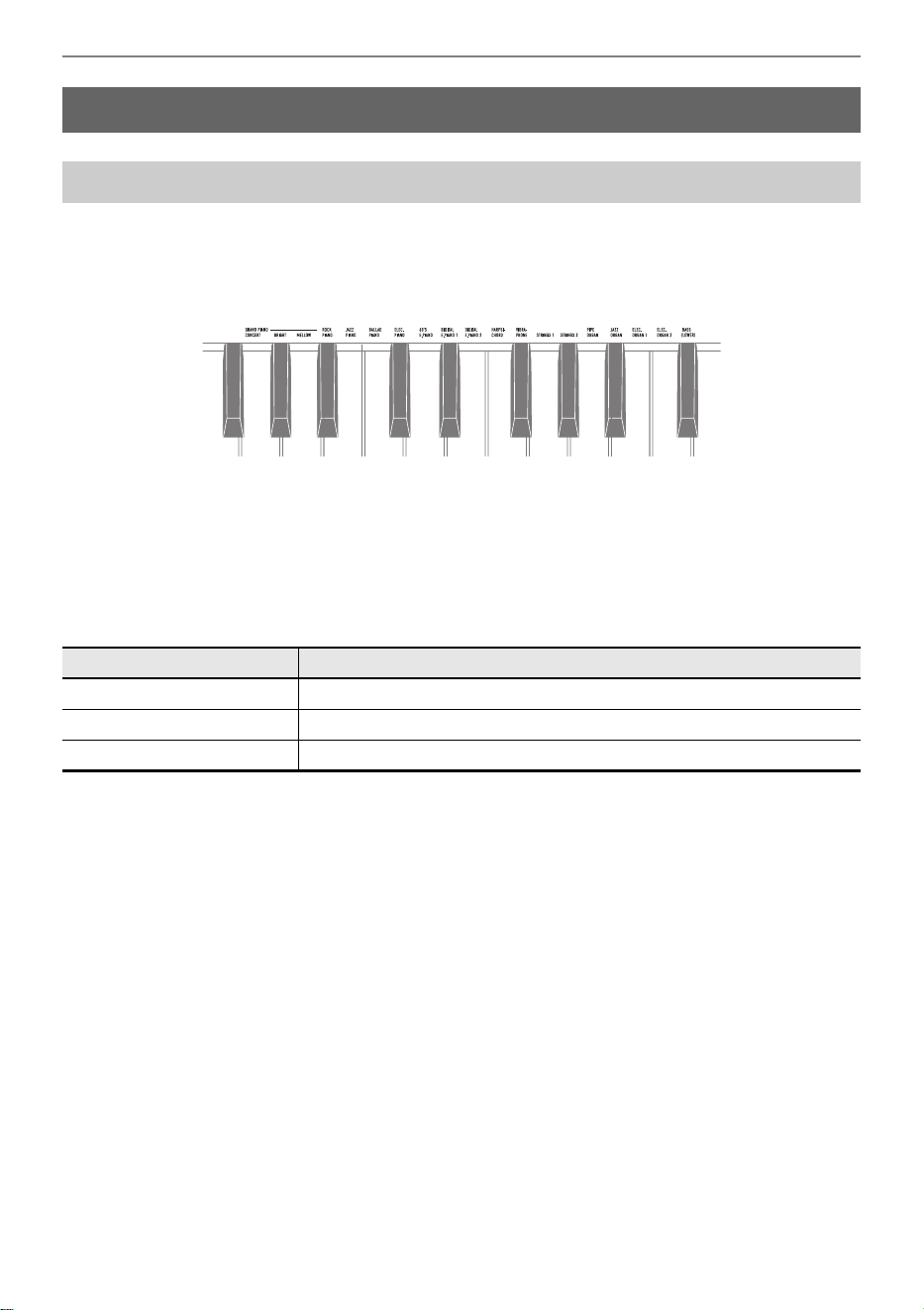
The Digital Piano has 18 built-in tones for all keys, including a grand piano tone scheme, and one bass
tone scheme dedicated to the bass section.
• The tone names are marked above the keys.
For more information, see “Using the Keyboard to Select a Tone”.
• In addition to selecting a single tone to play across the keyboard, two tones can be played on top of
each other (Layer), and the bass tone can be assigned to the bass section.
For details, see “Layering Two Tones (Layer)” and “Splitting Left and Right Keys (Split)”.
Grand Piano Tone Features
The list below shows grand piano tones. These tones are both powerful and strong, with a wide range
of dynamic expression, with an elegant and glossy sound that is loved by many pianists.
Playing
Selecting a Tone
Tone name Characteristic
GRAND PIANO CONCERT A full concert grand piano tone with dynamic and natural tone changes.
GRAND PIANO BRIGHT A bright and clear piano tone.
GRAND PIANO MELLOW A warm and calm piano tone.
Playing
EN-27
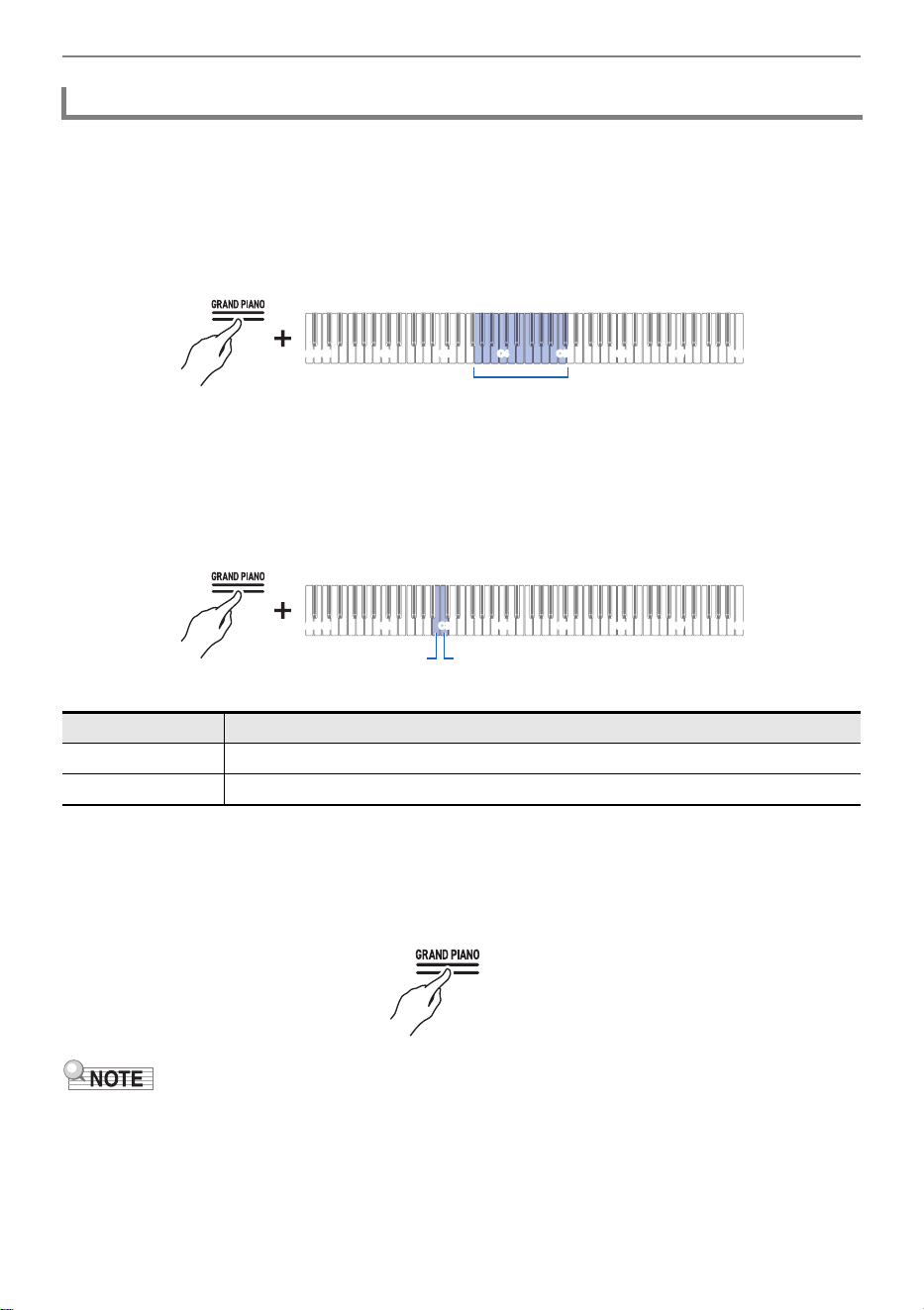
Using the Keyboard to Select a Tone
Hold down the “GRAND PIANO” button and press one of the G3 to C{5 keys.
Selecting a Setting Value Directly (operation type A)
•See “Tone list” for the tones available for each key.
Selecting Tones in the Order of the Tone List
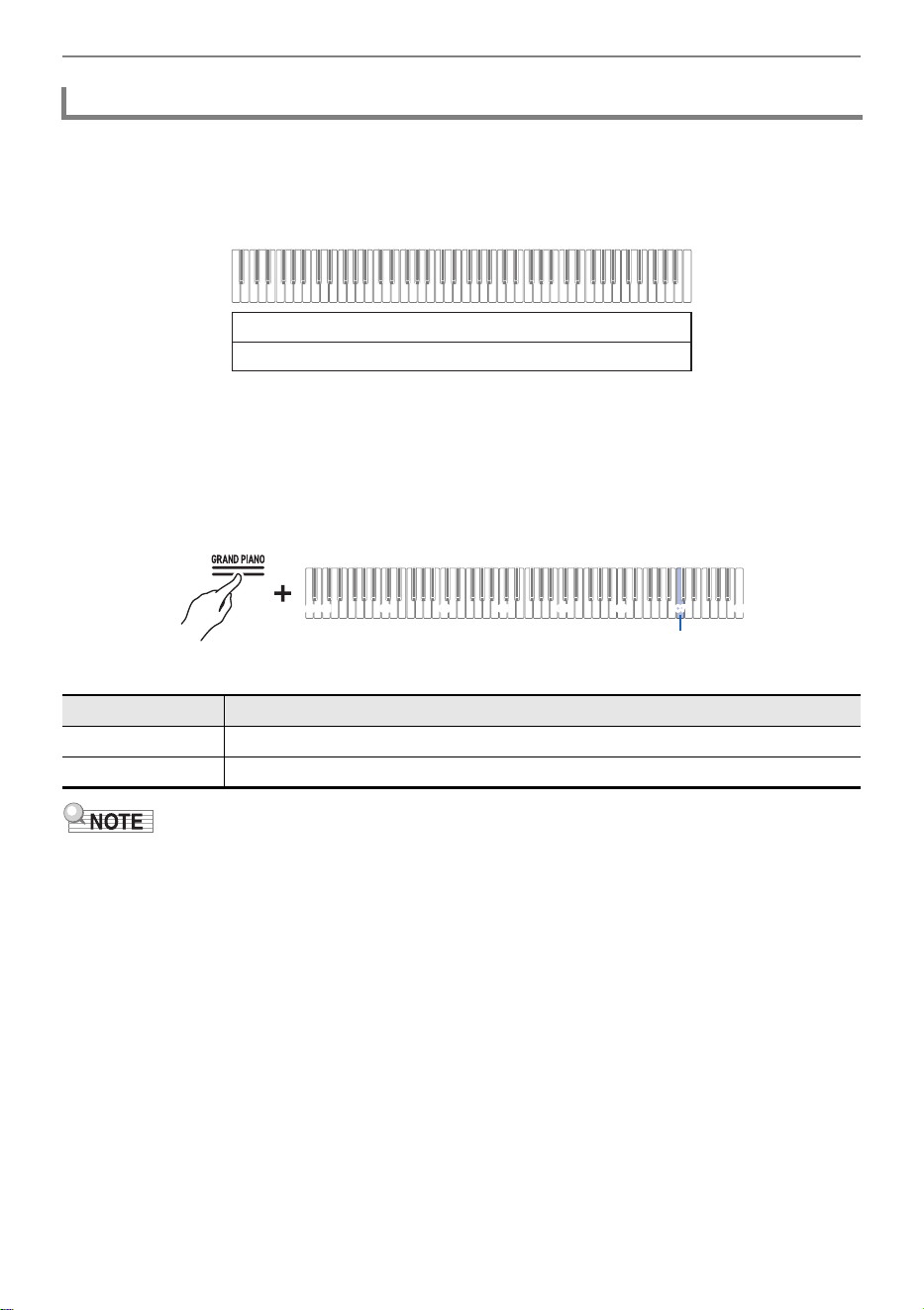
While holding down the “GRAND PIANO” button, press the B2 or C3 key.
Using the +/– Keys to Raise or Lower the Setting Value by 1 (operation type B)
Using the Touch Button to Select a Tone
Touch the “GRAND PIANO” button.
• The GRAND PIANO CONCERT tone is selected.
• Selecting a tone with this operation while [Layer] is <On> will result in [Layer] switching to <Off>.
Selecting a Single Tone
Key Setting
B2 Selects the previous tone (–)
C3 Selects the next tone (+)
C1A0 C2 C3 C4 C5 C6 C7 C8
G3 - C{5
C1A0 C2 C3 C4 C5 C6 C7 C8
B2 C3
Playing
EN-28
You can have two tones sounding simultaneously when playing the keyboard. Since the tones are
layered over each other, this feature is called Layer. The first tone selected is called the Upper1 part
tone and the second tone selected is called the Upper2 part tone. When [Layer] is set to <On>, Upper1
and Upper2 parts will both sound at the same time.
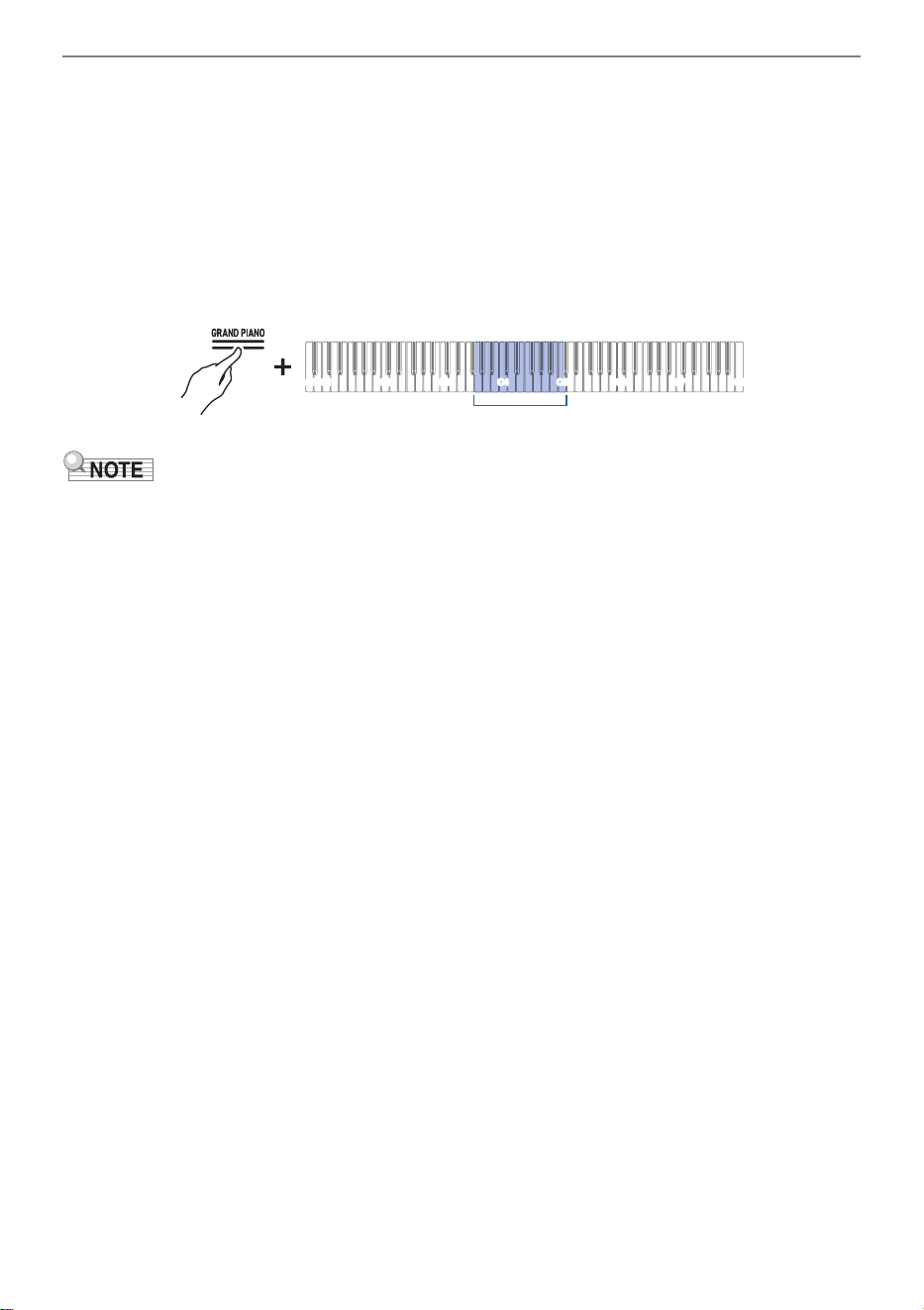
Turning Layer On/Off
While holding down the “GRAND PIANO” button, press the C7 key (Layer).
Switching On/Off or Changing Setting Values Using a Single Key (operation type D)
• Default value: Off
• You can also touch the “GRAND PIANO” button to turn [Layer] <Off>.
Layering Two Tones (Layer)
Setting Value Setting Details
Off Turns Layer off.
On Turns Layer on.
Upper1 part
Upper2 part
C1A0 C2 C3 C4 C5 C6 C7 C8
C7
Playing
EN-29
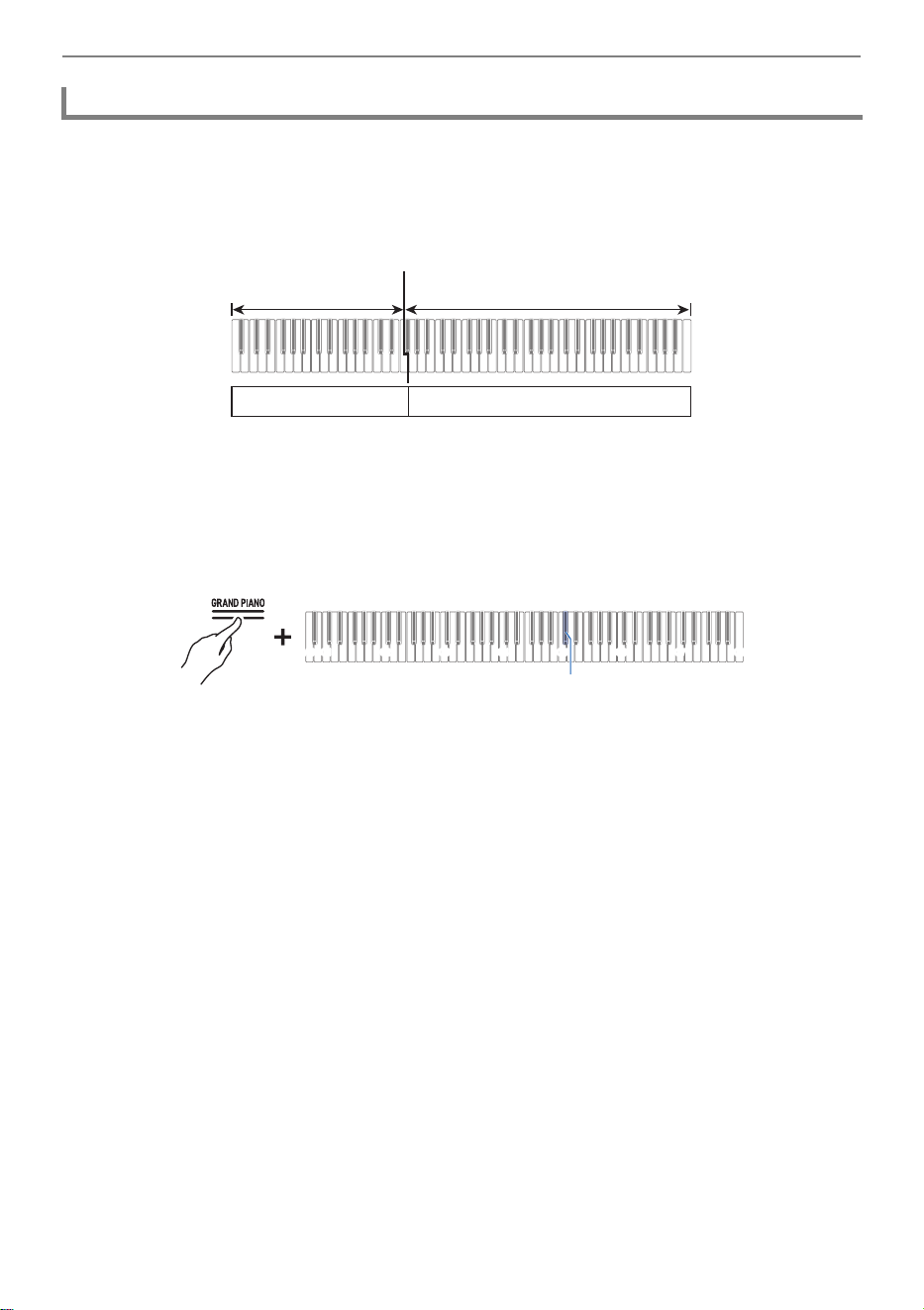
Selecting the Upper2 Part Tone
You can select the Upper2 part tone when [Layer] is set to <On>.
1.
Turn [Layer] <On>.
2.
While holding down the “GRAND PIANO” button, press one of the G3 to C5 keys
to select the tone for the Upper2 part.
Selecting a Setting Value Directly (operation type A)
• Upper1 Part tones can be selected when [Layer] is <Off>.
Changing the Upper1 Part Settings
You can adjust the Upper1 part volume and perform octave shift.
For details, see “Changing the Upper1 Part Settings” and “Shifting Upper1 Part by an Octave”.
Changing the Upper2 Part Settings
You can adjust the Upper2 part volume and perform octave shift.
For details, see “Changing the Upper2 Part Settings” and “Shifting Upper2 Part by an Octave”.
C1A0 C2 C3 C4 C5 C6 C7 C8
G3 - C5
Playing
EN-30
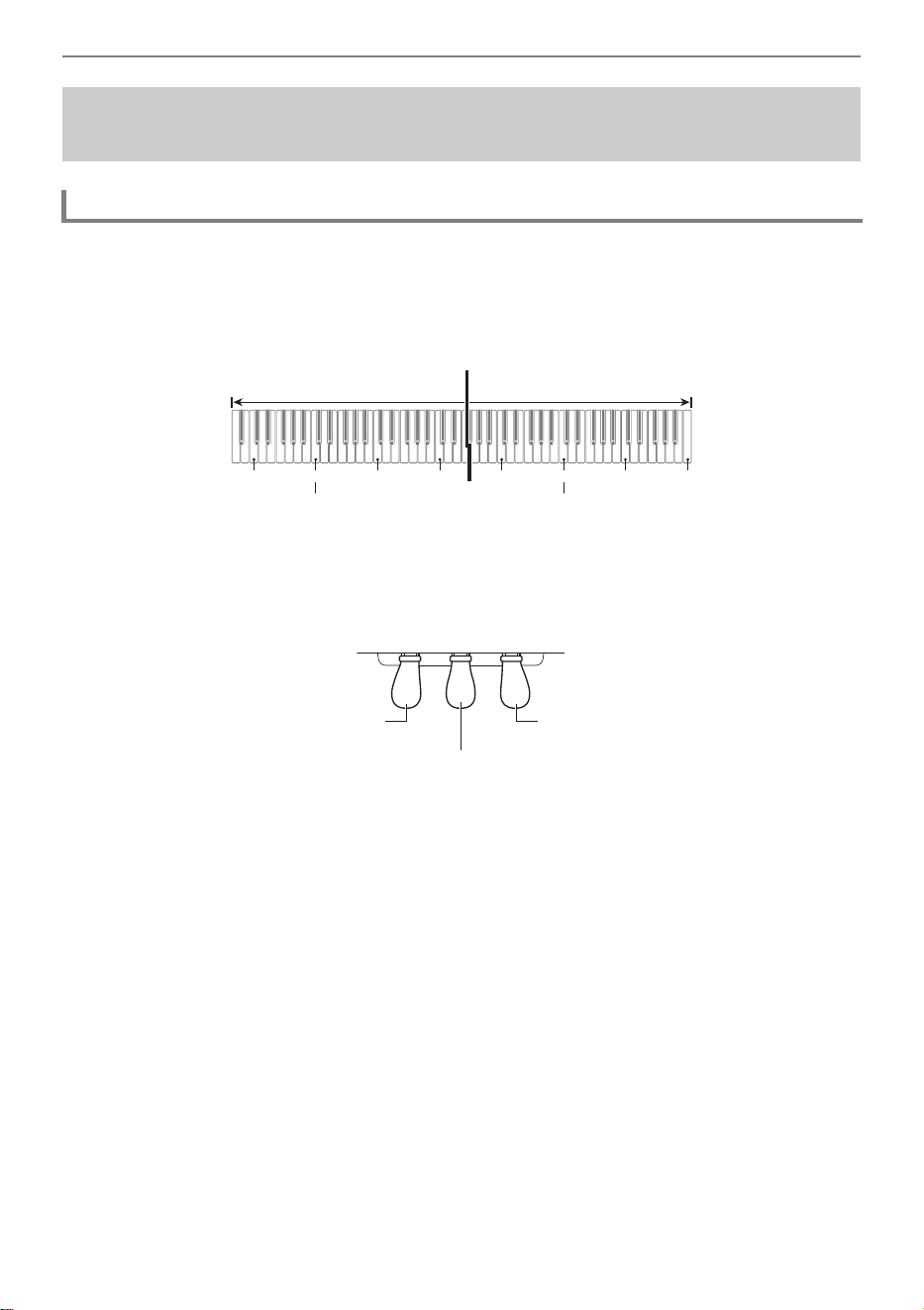
You can select a tone dedicated to the bass section <BASS (LOWER)> to play bass notes in the bass
section of the keyboard. This usage is called Split, since the entire keyboard is split into left and right.
The tone of the bass section is called Lower Tone Section, and the tone of the treble section is called
Upper1 Tone Section.
Selecting a Tone Exclusively for the Bass Section
While holding down the “GRAND PIANO” button, press the C{5 key (BASS).
Selecting a Setting Value Directly (operation type A)
• Only the bass section of the keyboard (left side) will have the BASS tone, while the treble
section (right side) will remain the same as the previously selected tone.
• Selecting a tone other than the BASS tone will cancel the split state.
Changing the Lower Part Settings
You can change the volume and other settings for the Lower Part.
For more information, see “Changing the Lower Part Settings”.
Changing the Upper1 Part Settings
You can adjust the volume and perform Upper1 octave shift.
For details, see “Changing the Upper1 Part Settings” and “Shifting Upper1 Part by an Octave”.
Splitting Left and Right Keys (Split)
Dividing line
Bass Section Treble Section
Lower Part Upper1 Part
C1A0 C2 C3 C4 C5 C6 C7 C8
C{5
Playing
EN-31
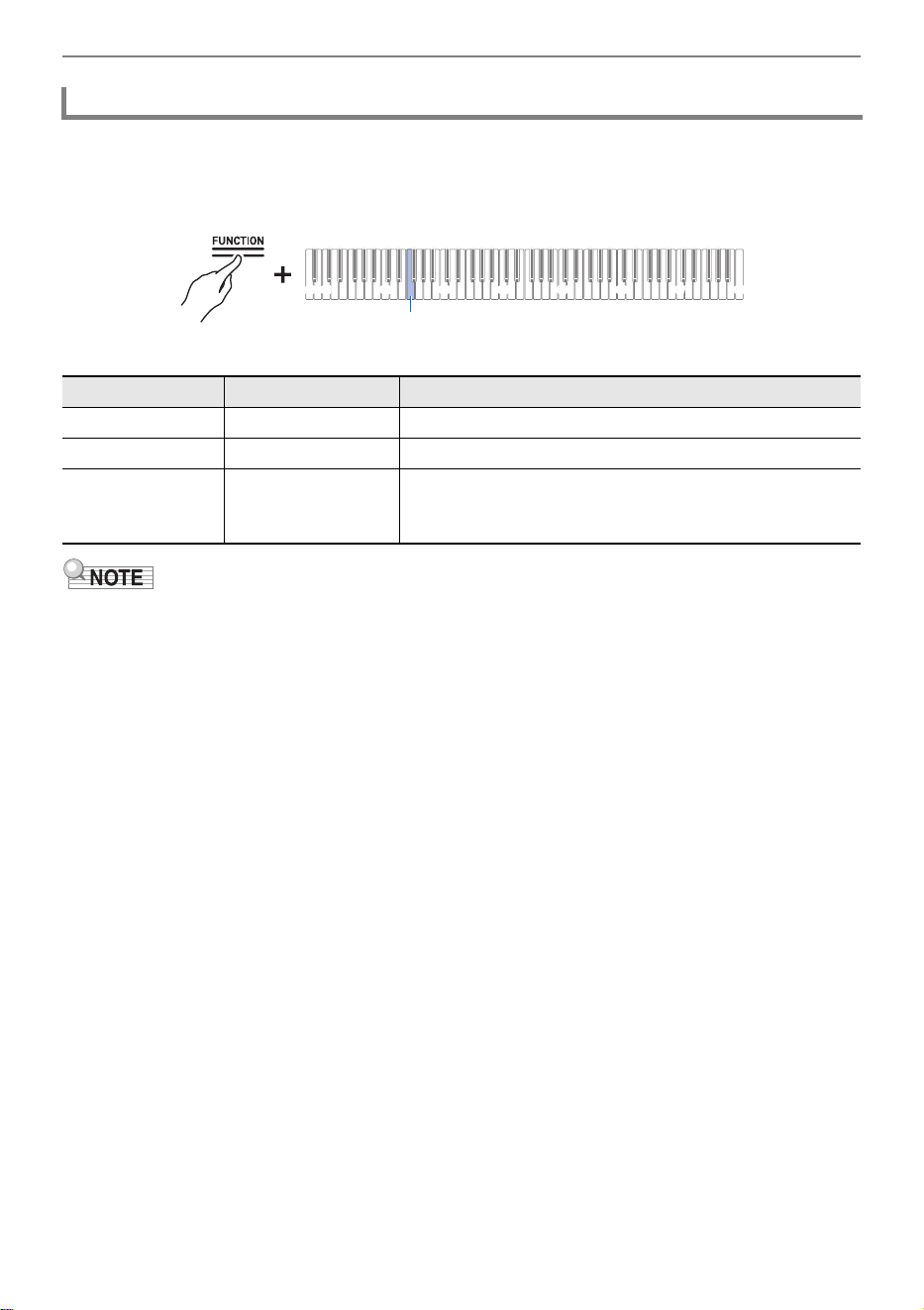
You can have the same pitch range on the right and left sides from the center of the keyboard. This can
be used when a teacher plays a model performance on the left side and the student plays the same
melody on the right side. In addition, you can change the pitch range of the left and right keys by
octaves.
Pedal Operation for Duets (On/Pan)
The pedals at both ends are damper pedals for the left and right keys respectively, and the center pedal
is a damper pedal for both the left and right keys.
Splitting the Keyboard into Left and Right for Two-Person
Performance (Duet)
What is a Duet?
C3 C4 C5 C6 C3 C4 C5
C6
Dividing line
Left Side Keyboard Right Side Keyboard
(Middle C) (Middle C)
Damper pedal for both left and right sides
Damper pedal for right side keysDamper pedal for left side keys
Playing
EN-32
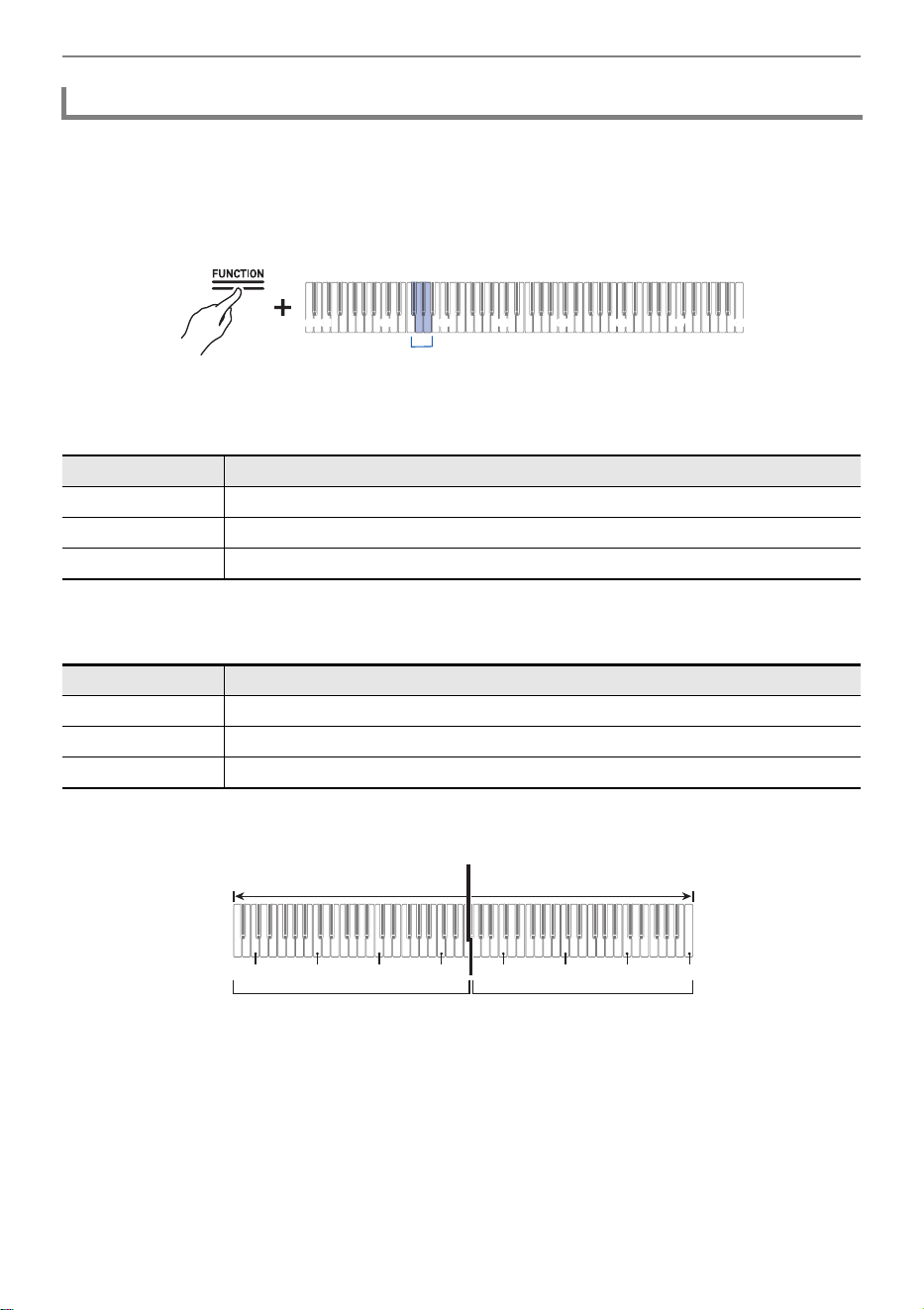
While holding down the “FUNCTION” button, press the F2 key (Duet Mode).
Switching On/Off or Changing Setting Values Using a Single Key (operation type D)
• Default value: Off
• Some settings cannot be changed while the [Duet] function is in use.
• When the [Duet] function is set to <Pan>, [Acoustic Simulator], [Hall Simulator/Reverb], [Surround]
and [Chorus] are not available.
Using the Duet Function
Setting Value Notification Tone Setting Details
Off Tone for Off Turns off Duet.
On 1 notification tone Turns on Duet.
Pan 2 notification tones The sound of the left keyboard is output from the left
speaker only, and the sound of the right keyboard is
output from the right speaker only.
C1A0 C2 C3 C4 C5 C6 C7 C8
F2
Playing
EN-33
For both the left and right keyboard, the range can be changed from –2 to +2 octaves.
While holding down the “FUNCTION” button, press the corresponding key.
Using the +/– Keys to Raise or Lower the Setting Value by 1 (operation type B)
Left-Side Keyboard Settings
• Setting value: –2 octaves to +2 octaves
• Default value: 0
Right Side Keyboard Setting
• Setting value: –2 octaves to +2 octaves
• Default value: 0
Example of Setting Range
When the G2 key is pressed once
Changing the Pitch Range
Key Setting
F{2 Lowers the range by one octave (–)
G2 Raises the range by one octave (+)
F{2 + G2 Resets the range to the default setting.
Key Setting
A}2 Lowers the range by one octave (–)
A2 Raises the range by one octave (+)
A}2 + A2 Resets the range to the default setting.
C1A0 C2 C3 C4 C5 C6 C7 C8
F{2 - A2
C4 C5 C6 C7 C3 C4 C5
C6
Left Side Keyboard Right Side Keyboard
One octave higher than
the initial setting
As initially set

Playing
EN-34
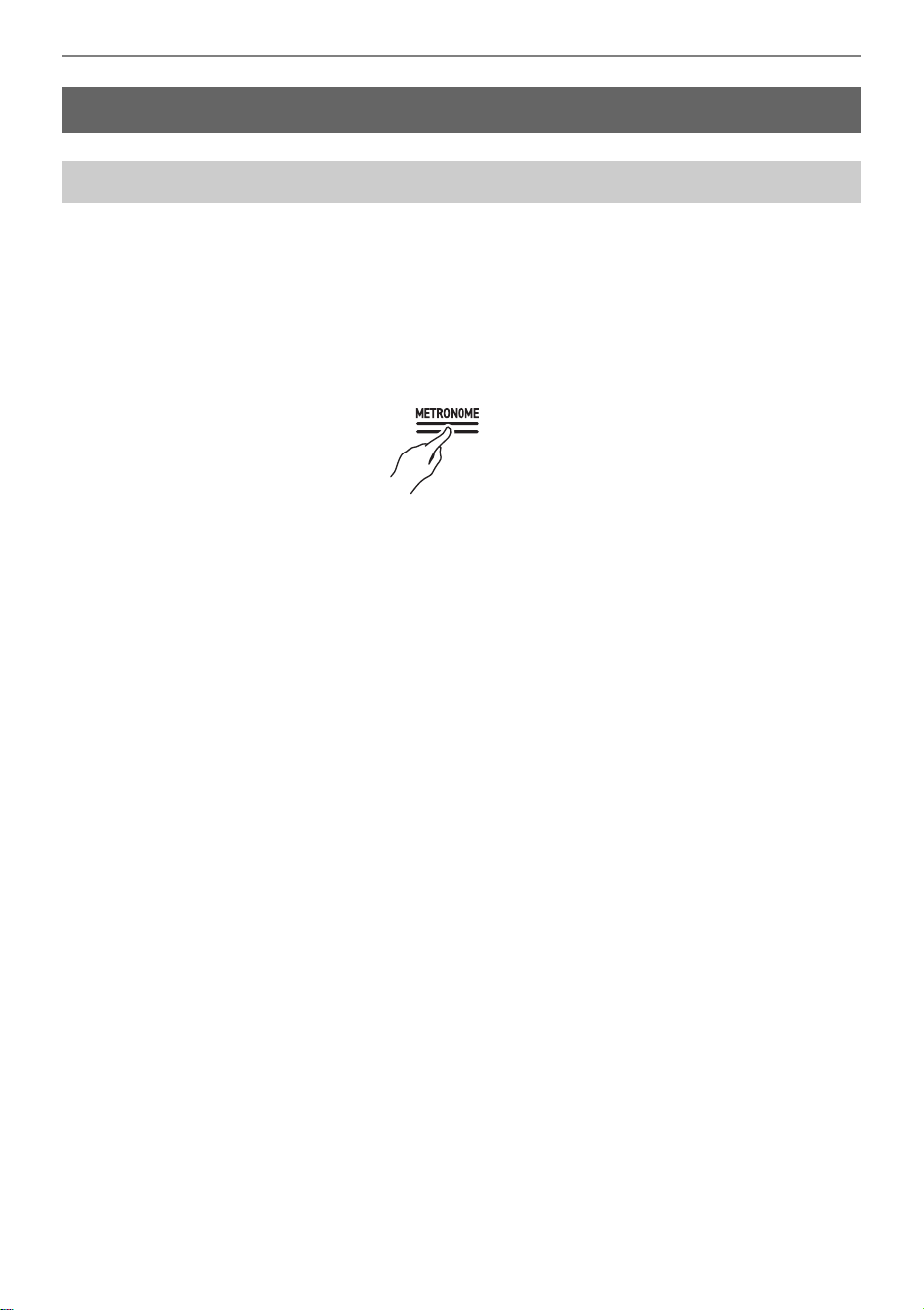
There are three pedals: Damper, Soft, and Sostenuto. You can enjoy expressive performances that feel
closer to that of a grand piano using the pedals.
Damper Pedal
Pressing the damper pedal while playing will cause the notes you play to be sustained.
When a grand piano tone is selected, you can also create a resonance effect (Damper Resonance)
similar to when using a damper pedal on an acoustic grand piano. The pedal also supports half-pedal
operation, so pressing the pedal part way applies only a partial damper effect.
Soft pedal
Pressing this pedal while playing suppresses notes played on the keyboard after the pedal was
pressed, and makes them sound softer. The AP-300 supports half-pedal operation.
Sostenuto Pedal
Only the notes of the keys that are depressed when this pedal is pressed are sustained, even if the
keyboard keys are released, until the pedal is released.
Using the Pedals
Sostenuto pedal
Damper pedal
Soft pedal
Using the Metronome
EN-35
The metronome beats at regular intervals. Using the metronome allows you to practice playing at a
constant tempo. As soon as the metronome starts, the beat indicators light up in time with the beat and
tempo.
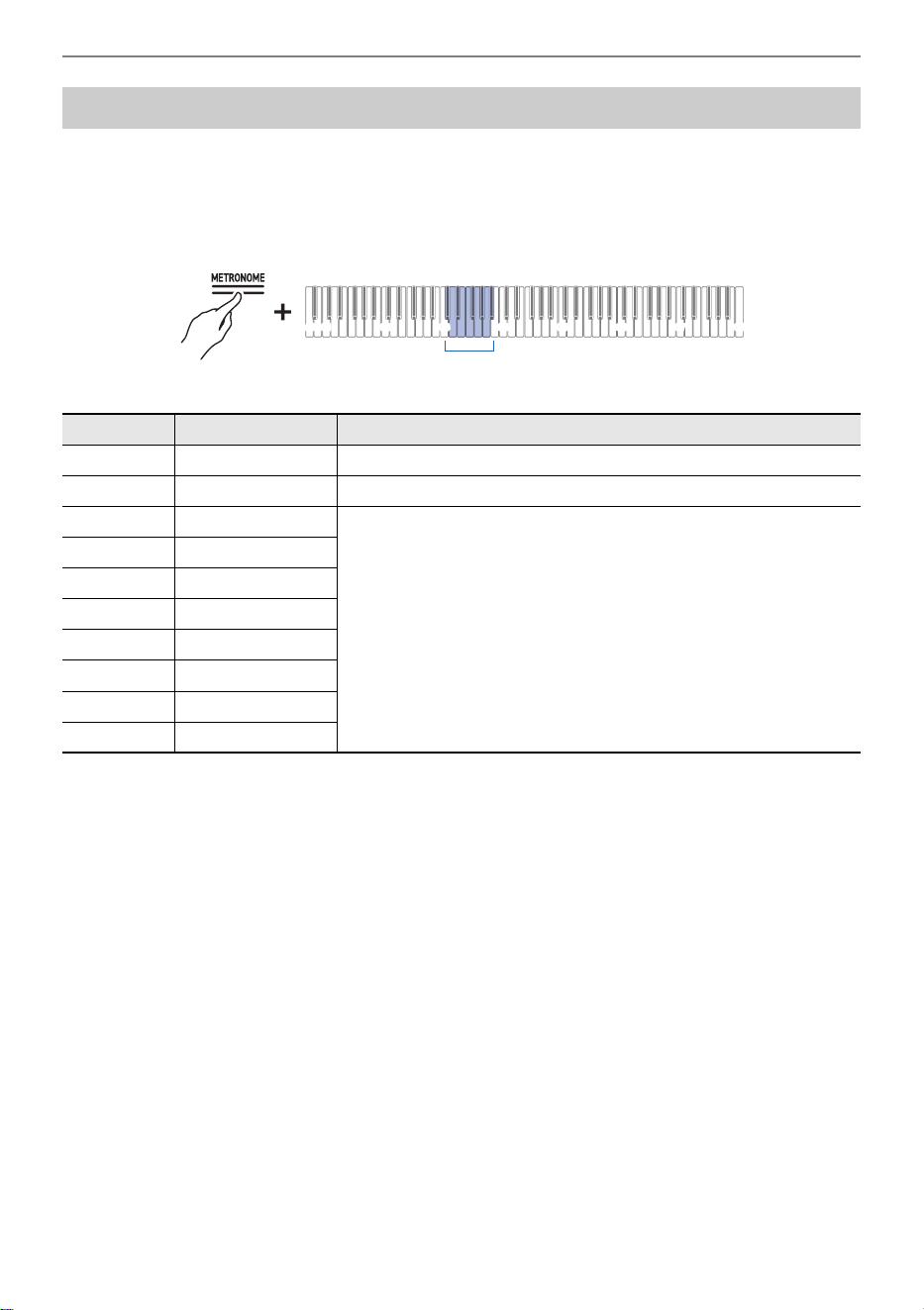
1.
Touch the “METRONOME” button. The metronome will start.
• The beat indicator lights up in time with the metronome beat (left side for the first beat, right side
for the remaining beats).
2.
To stop the metronome, touch the “METRONOME” button again.
Using the Metronome
Metronome On/Off
Using the Metronome
EN-36
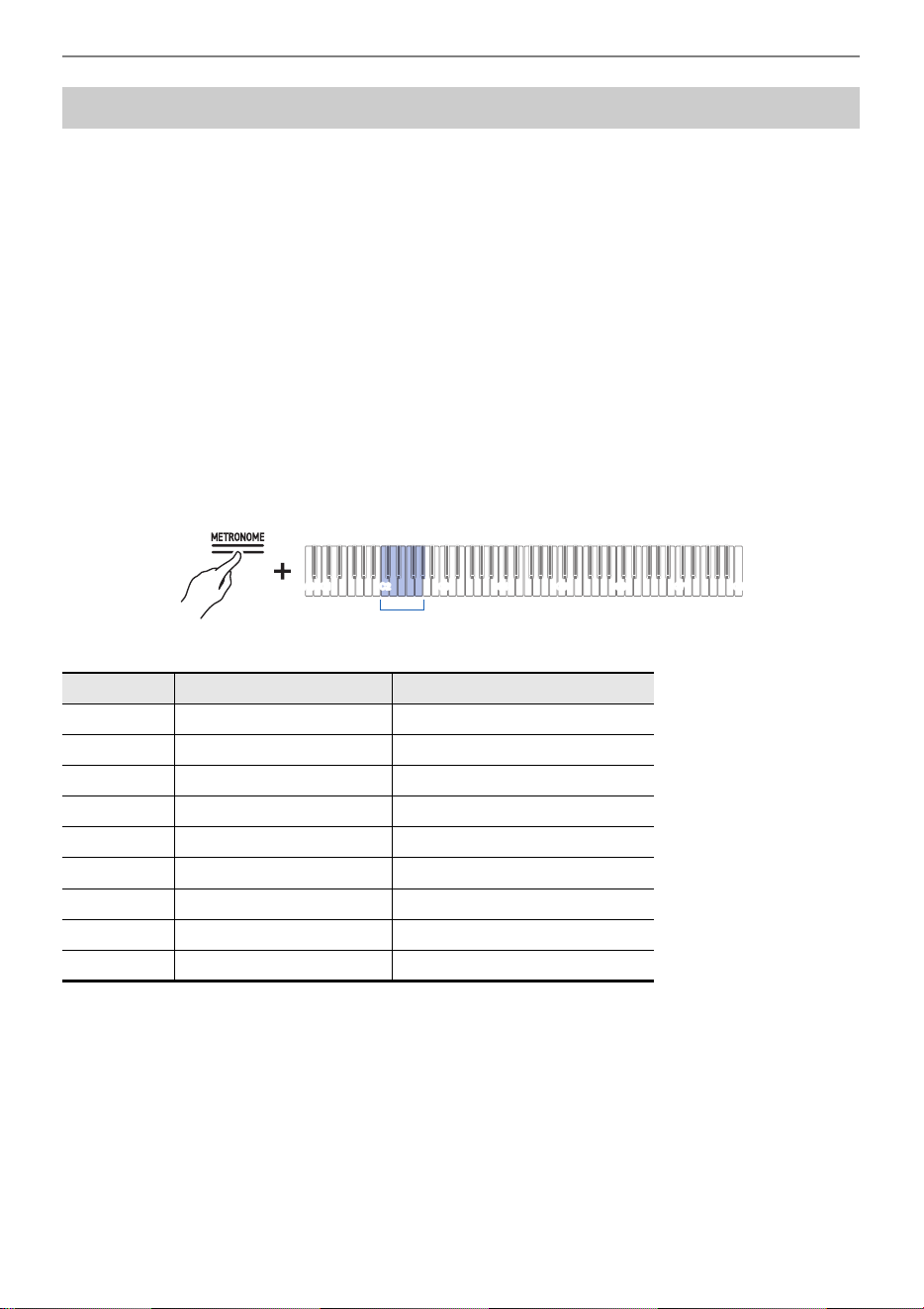
While holding down the “METRONOME” button, press any one of the C{3 to B}3
keys.
Selecting a Setting Value Directly (operation type A)
• Default value: 4
Setting the Beat
Key Setting Value Setting Details
C{3 Off Only a click sounds on each beat.
D3 1 A bell tone sounds on each beat.
E}3 2 Sets the number of beats per bar to between 2 and 9. A bell tone
sounds on the first beat, and a click sound is heard on each
remaining beat.
E3 3
F3 4
F{35
G3 6
A}37
A3 8
B}39
C1A0 C2 C3 C4 C5 C6 C7 C8
C{3 - B}3
Using the Metronome
EN-37
Entering Tempo as a Number
Set the tempo for the metronome or song playback within the range of 20 to 255 (beats per minute).
While holding down the METRONOME button, use the A0 to F{1 keys (tempo value setting) to enter
the tempo setting value.
Inputting Setting Values Using the Keys 0 to 9 (operation type C)
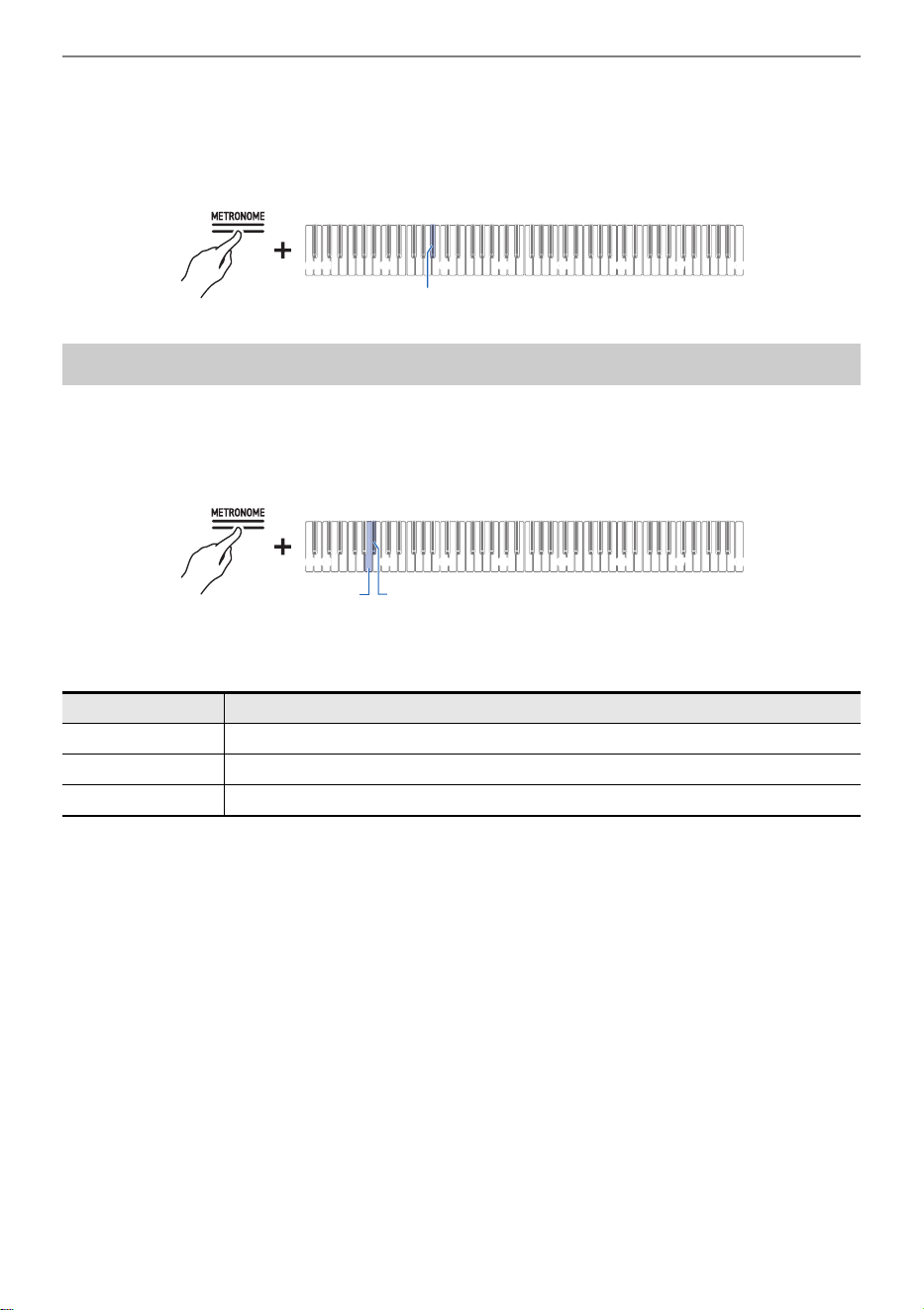
Raising or Lowering the Tempo Value by 1
While holding down the “METRONOME” button, press the B2 key (tempo –)/C3 key (tempo +).
Using the +/– Keys to Raise or Lower the Setting Value by 1 (operation type B)
Setting the Tempo from a Tempo Marking
Choose from a tempo marking such as Andante or Allegro.
While holding down the “METRONOME” button, press one of the C2 to A}2 keys (tempo marking
setting).
Selecting a Setting Value Directly (operation type A)
Setting a Tempo
Key Tempo Marking Setting Tempo (beats per minute)
C2 Largo 46
C{2 Lento 52
D2 Adagio 56
E}2 Andante 72
E2 Moderato 96
F2 Allegretto 108
F{2 Allegro 132
G2 Vivace 160
A}2 Presto 184
C1A0 C2 C3 C4 C5 C6 C7 C8
C2 - A}2
Using the Metronome
EN-38
Setting the Tempo Yourself by Tapping a Key (Tap Tempo)
While holding down the “METRONOME” button, press the B}2 key (Tap Tempo) two or more times in
succession.
• The tempo will be based on the interval between your key taps.
While holding down the “METRONOME” button, press the A1 or B}1 key.
Using the +/– Keys to Raise or Lower the Setting Value by 1 (operation type B)
• Setting value: 0 (silence) to 42 (maximum volume)
A separator tone sounds when the set value becomes a multiple of 10.
• Default value: 25
Adjusting the Volume
Key Setting
A1 Decreases volume by 1 (–)
B}1 Increases the volume by 1 (+)
A1 + B}1 Resets volume to default setting
C1A0 C2 C3 C4 C5 C6 C7 C8
B}2
C1A0 C2 C3 C4 C5 C6 C7 C8
B}1
A1
Applying Effects to Sound
EN-39
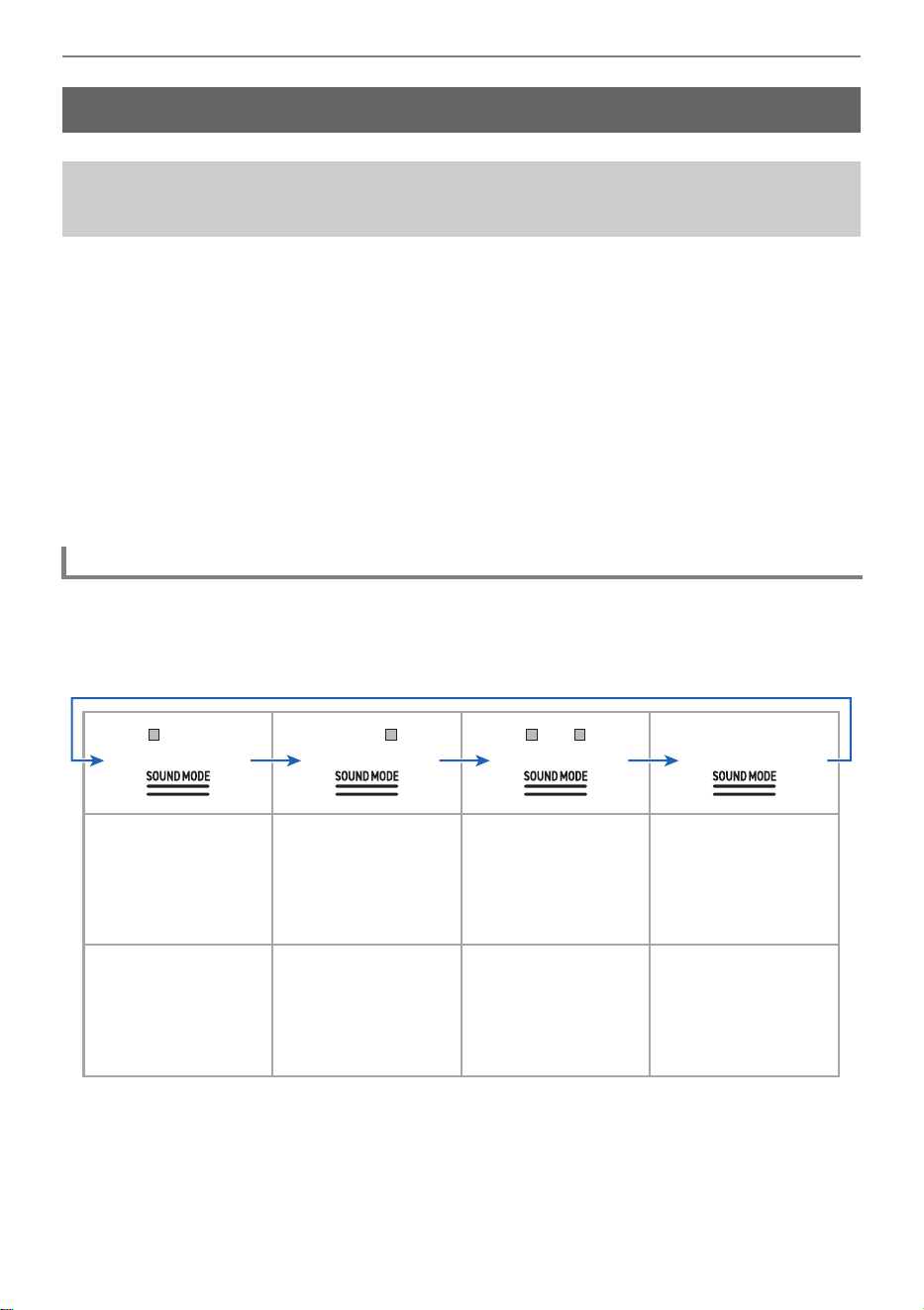
Each time the “SOUND MODE” button is touched, effects are switched on and off in turn.
Hall Simulator/Reverb
This effect adds reverberation to the sound.
Hall Simulator
This effect simulates the different acoustic characteristics of world-famous concert halls and buildings.
Reverb
This reproduces the reverberation of a given space, such as a room or a hall.
Surround
Surround sound (spread effect) is applied to the output sound from the Digital Piano speakers.
Touch the “SOUND MODE” button.
• Each time you touch the button, the indicators above the button will become lit or unlit as shown
below.
Applying Effects to Sound
Using Sound Mode Effects (Hall Simulator/Reverb and
Surround)
Turning on/off Hall Simulator/Reverb and Surround
Hall Simulator/Reverb
<ON>
Hall Simulator/Reverb
<OFF>
Hall Simulator/Reverb
<ON>
Hall Simulator/Reverb
<OFF>
Surround
<OFF>
Surround
<ON>
Surround
<ON>
Surround
<OFF>
Applying Effects to Sound
EN-40
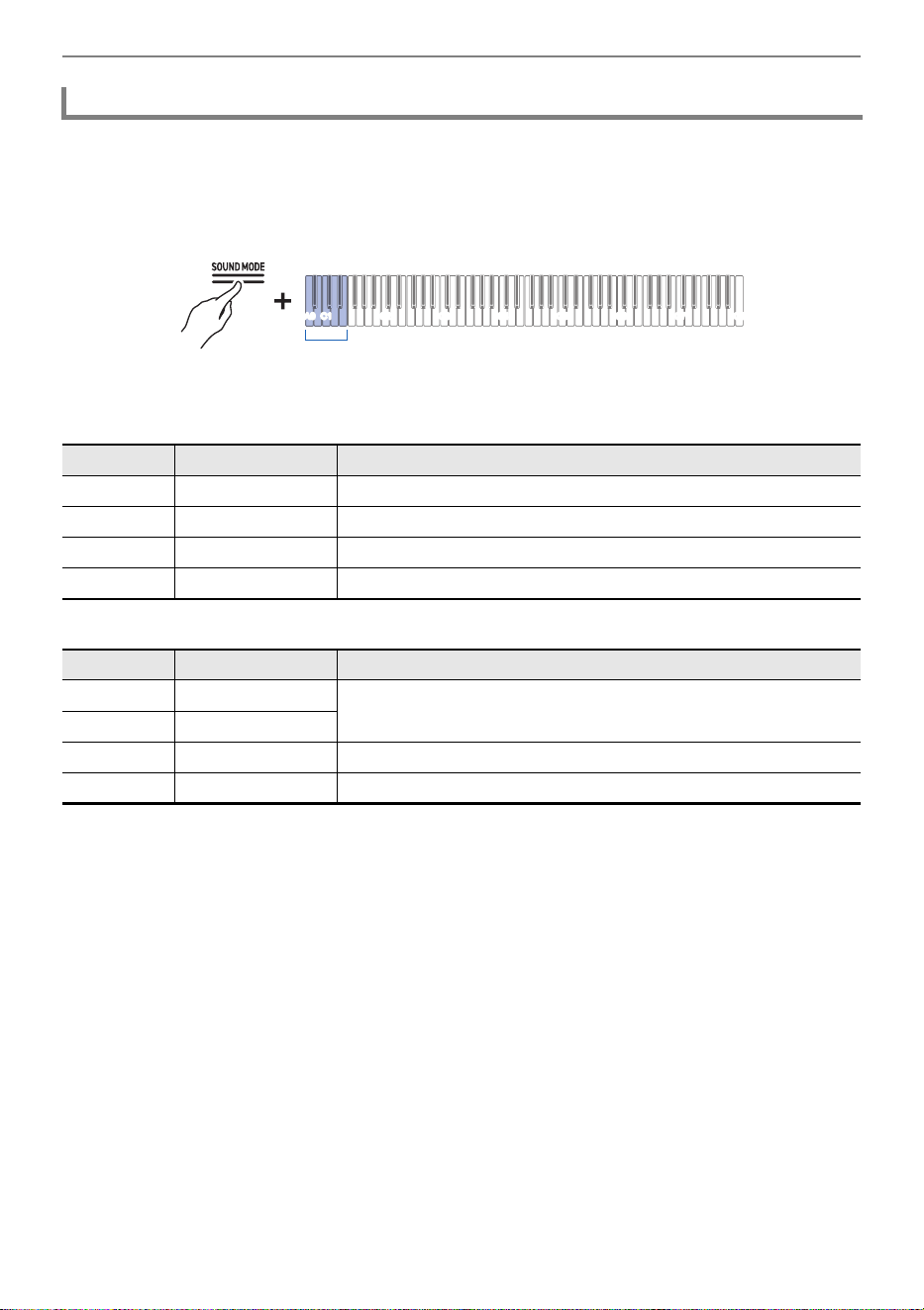
While holding down the “SOUND MODE” button, press any one of the A0 to E1
keys.
Selecting a Setting Value Directly (operation type A)
• Default value: Hall
Hall Simulator
Reverb
Selecting Hall Simulator/Reverb Presets
Key Type Setting Details
A0 N.Y. Club Music club in Manhattan
B}0 Opera Hall The uniquely shaped Sydney concert hall
B0 Berlin Hall An arena-style classical concert hall in Berlin
C1 British Stadium Large outdoor stadium in the outskirts of London
Key Type Setting Details
C{1 Room Reverb that gives a sense of reverberation within a room
D1 Large Room
E}1 Hall Reverb that emulates reverberation in a small hall
E1 Stadium Reverb that emulates reverberation within a stadium
C1A0 C2 C3 C4 C5 C6 C7 C8
A0 - E1
Applying Effects to Sound
EN-41
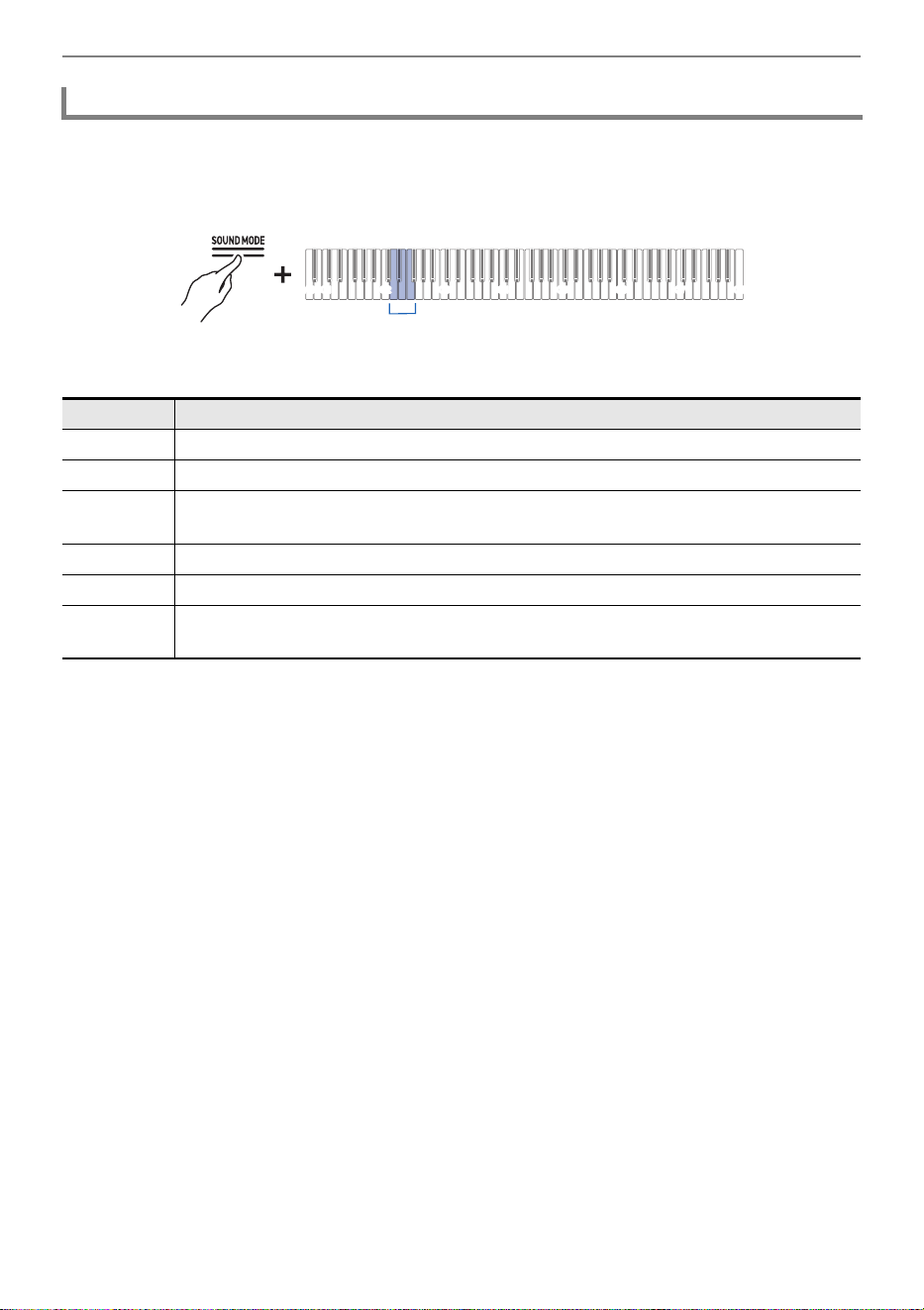
While holding down the “SOUND MODE” button, press the corresponding key.
Using the +/– Keys to Raise or Lower the Setting Value by 1 (operation type B)
• Setting value: 0 (no effect) to 42 (maximum depth)
A separator tone sounds when the set value becomes a multiple of 10.
Adjusting Applied Hall Simulator/Reverb
Key Setting
D2 Reduces the depth of effect applied to built-in sound sources by 1 (–)
E}2 Increases the depth of effect applied to built-in sound sources by 1 (+)
D2+E}2 Resets the depth of effect to the default setting for built-in sound sources (default
value: 21)
E2 Decreases the depth of effect on the wireless audio input signal by 1 (–)
F2 Increases the depth of effect on the wireless audio input signal by 1 (+)
E2+F2 Resets the depth of effect to the default setting for the wireless audio input signal
(default value: 0)
C1A0 C2 C3 C4 C5 C6 C7 C8
D2 - F2
Applying Effects to Sound
EN-42
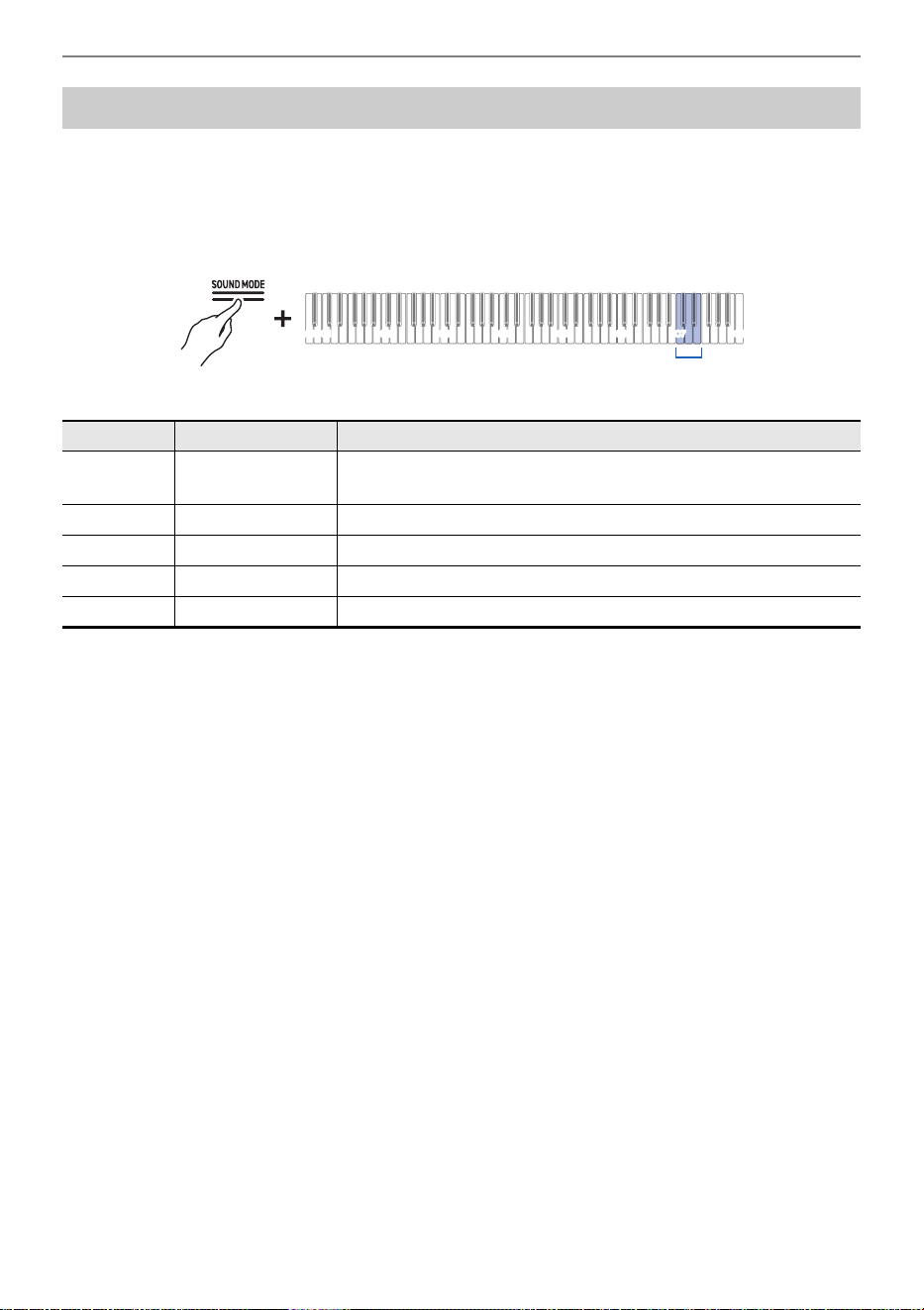
[Chorus] layers sounds to add depth.
While holding down the “SOUND MODE” button, press one of the C7 to E7 keys.
Selecting a Setting Value Directly (operation type A)
• Default value: Tone
Using Chorus
Key Setting Value Setting Details
C7 Tone Automatically selects the chorus type appropriate for the current
tone.
C{7 Light Chorus Applies a thin chorus effect.
D7 Chorus Applies a medium chorus effect.
E}7 Deep Chorus Applies a deep chorus effect.
E7 Flanger Applies a flanger (an effect that swells the sound).
C1A0 C2 C3 C4 C5 C6 C7 C8
C7 - E7
Applying Effects to Sound
EN-43
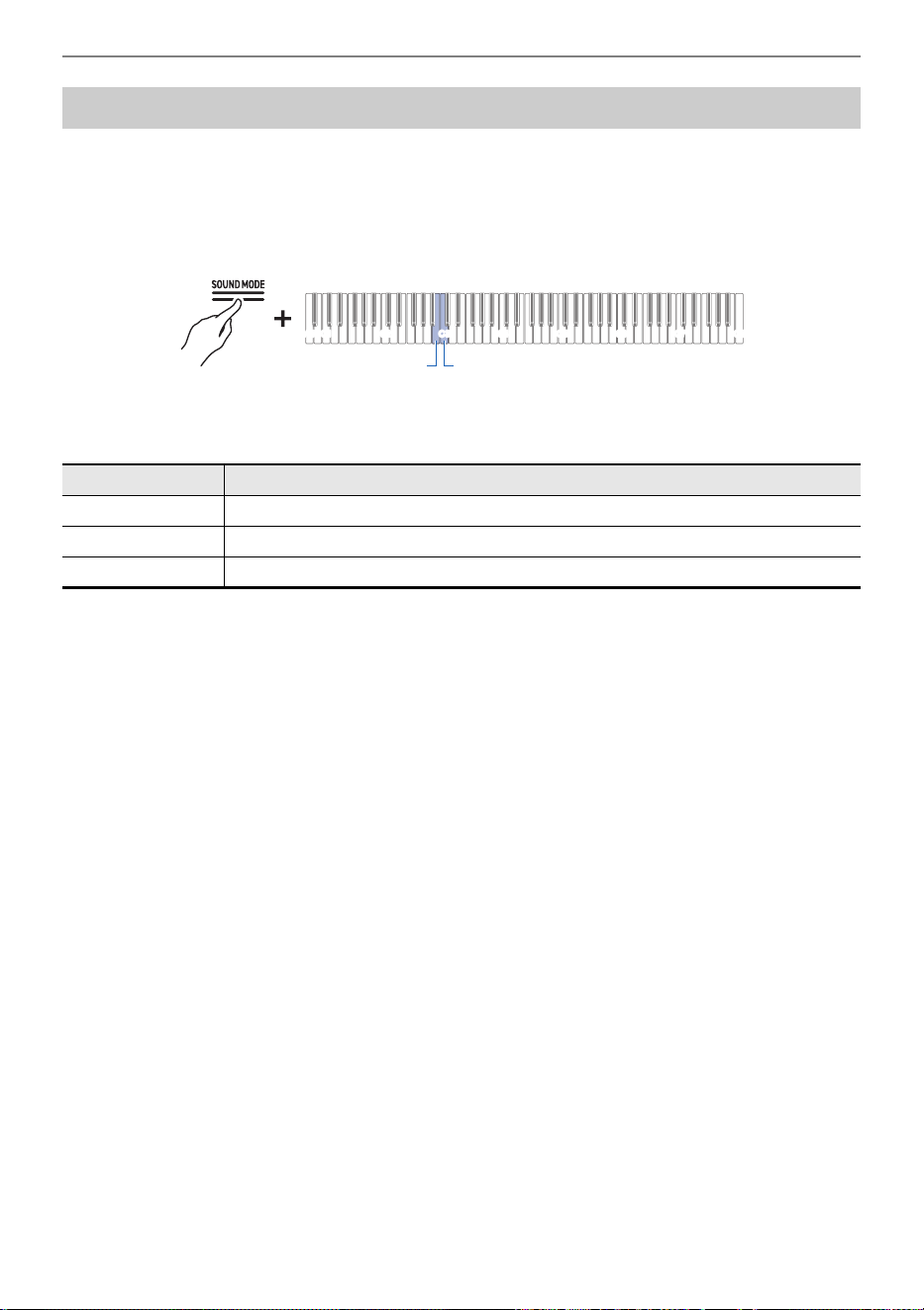
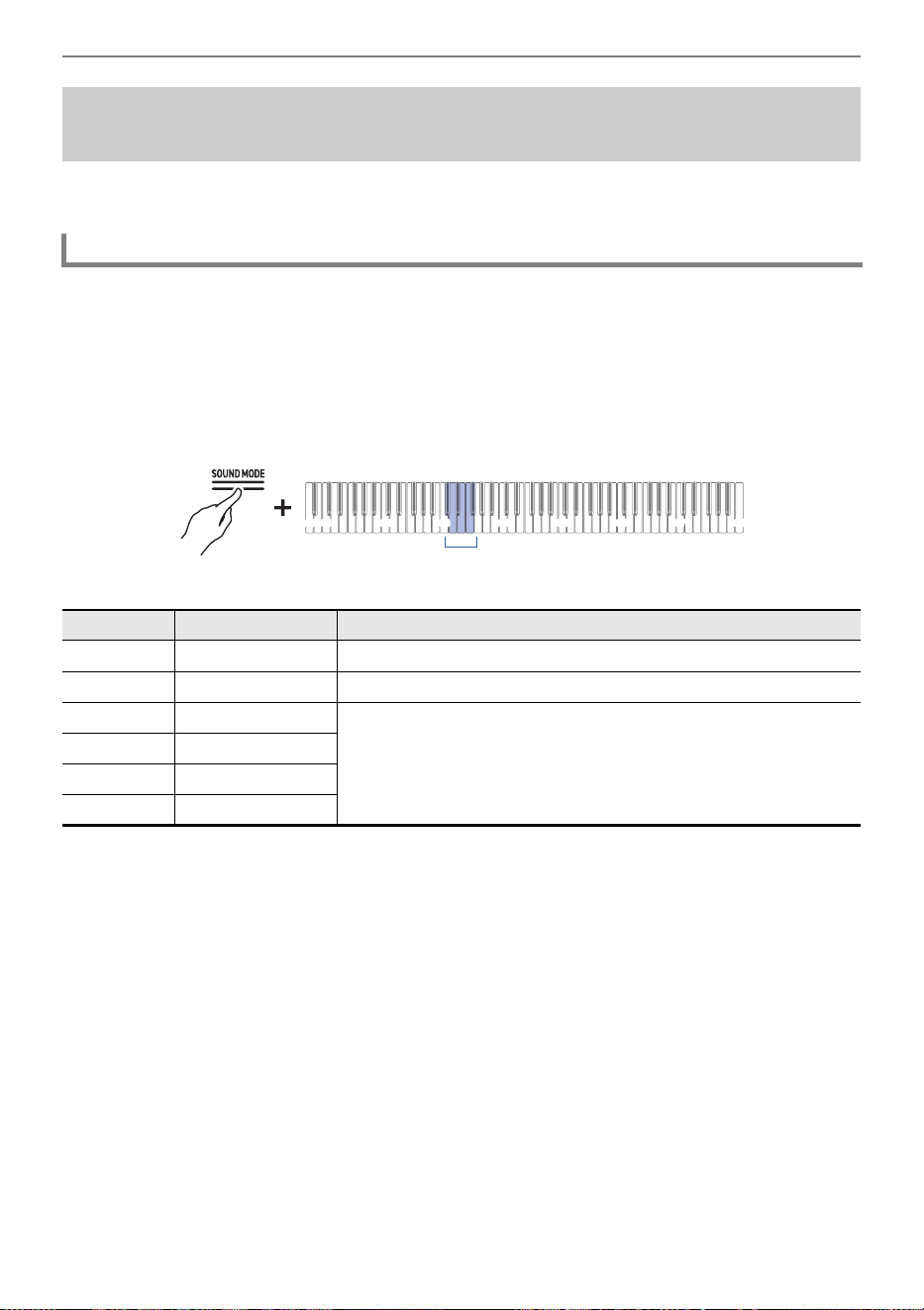
[Brilliance] allows you to adjust the brightness of the sound.
While holding down the “SOUND MODE” button, press the B2 or C3 key.
Using the +/– Keys to Raise or Lower the Setting Value by 1 (operation type B)
• Setting value: –12 to +12
When set to +1 or higher, the sound is brighter, and when set to –1 or lower, the sound is mellower.
• Default value: 0
Adjusting Brilliance
Key Setting
B2 Decreases the brilliance setting by 1 (–)
C3 Increases the brilliance setting by 1 (+)
B2+C3 Restores brilliance to default settings.
C1A0 C2 C3 C4 C5 C6 C7 C8
B2 C3
Applying Effects to Sound
EN-44
The piano tones of this Digital Piano have built-in elements that characterize the sound of an acoustic
piano. Each of the tone characteristics can be adjusted.
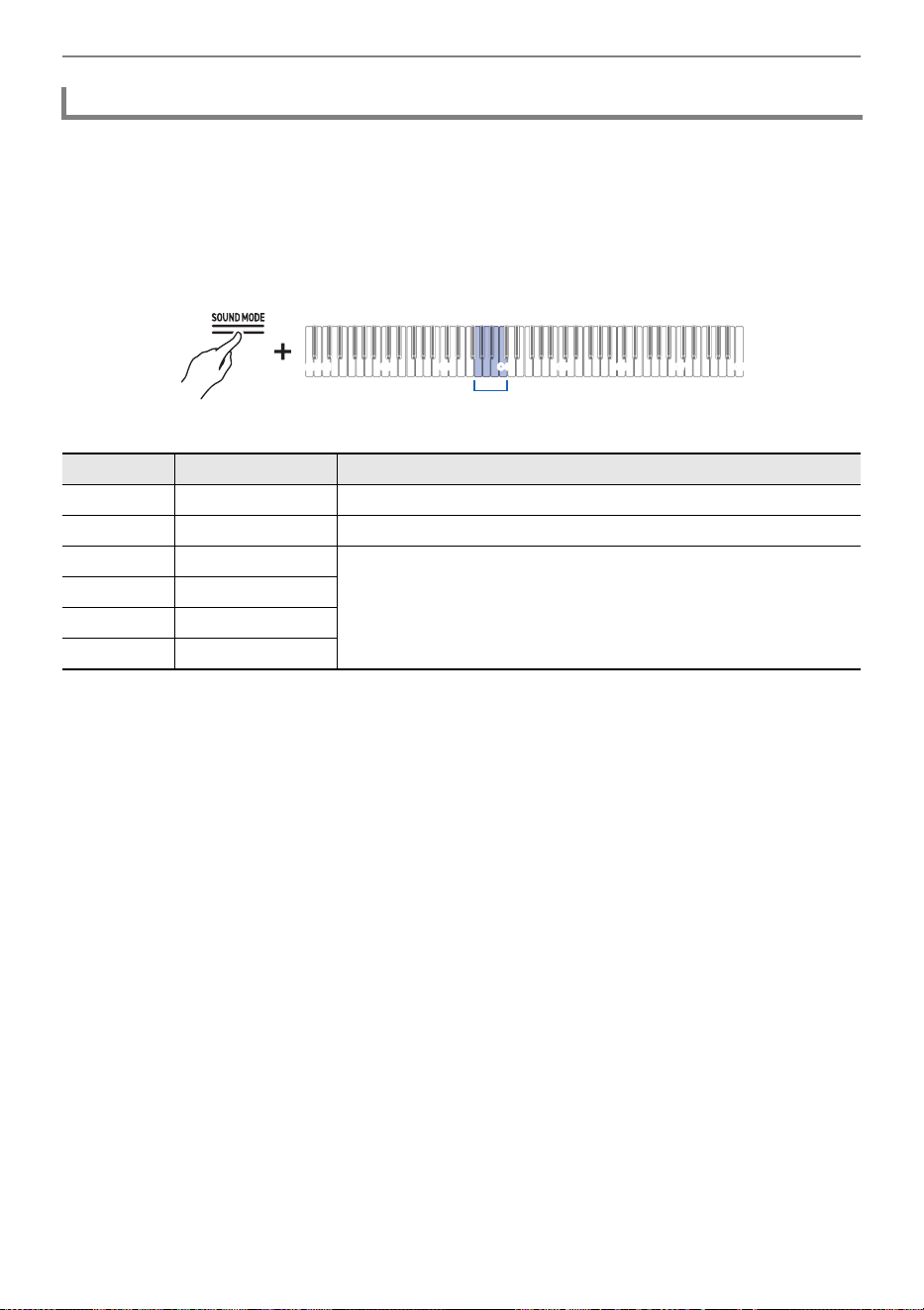
When playing acoustic piano, the strings, which are the overtones of the keys you play, resonate.
Adjust the resonance by setting [String Resonance].
While holding down the “SOUND MODE” button, press one of the C{3 to F{3
keys.
Selecting a Setting Value Directly (operation type A)
• Default value: Tone
Adjusting the Sound Characteristics of the Acoustic
Piano Presets (Acoustic Simulator)
Setting String Resonance
Key Setting Value Setting Details
C
{3 Tone Automatically sets a value appropriate for the current tone.
D3 Off Disables String Resonance.
E}3 1 The larger the number, the stronger String Resonance effect.
E3 2
F3 3
F{34
C1A0 C2 C3 C4 C5 C6 C7 C8
C{3 - F{3
Applying Effects to Sound
EN-45
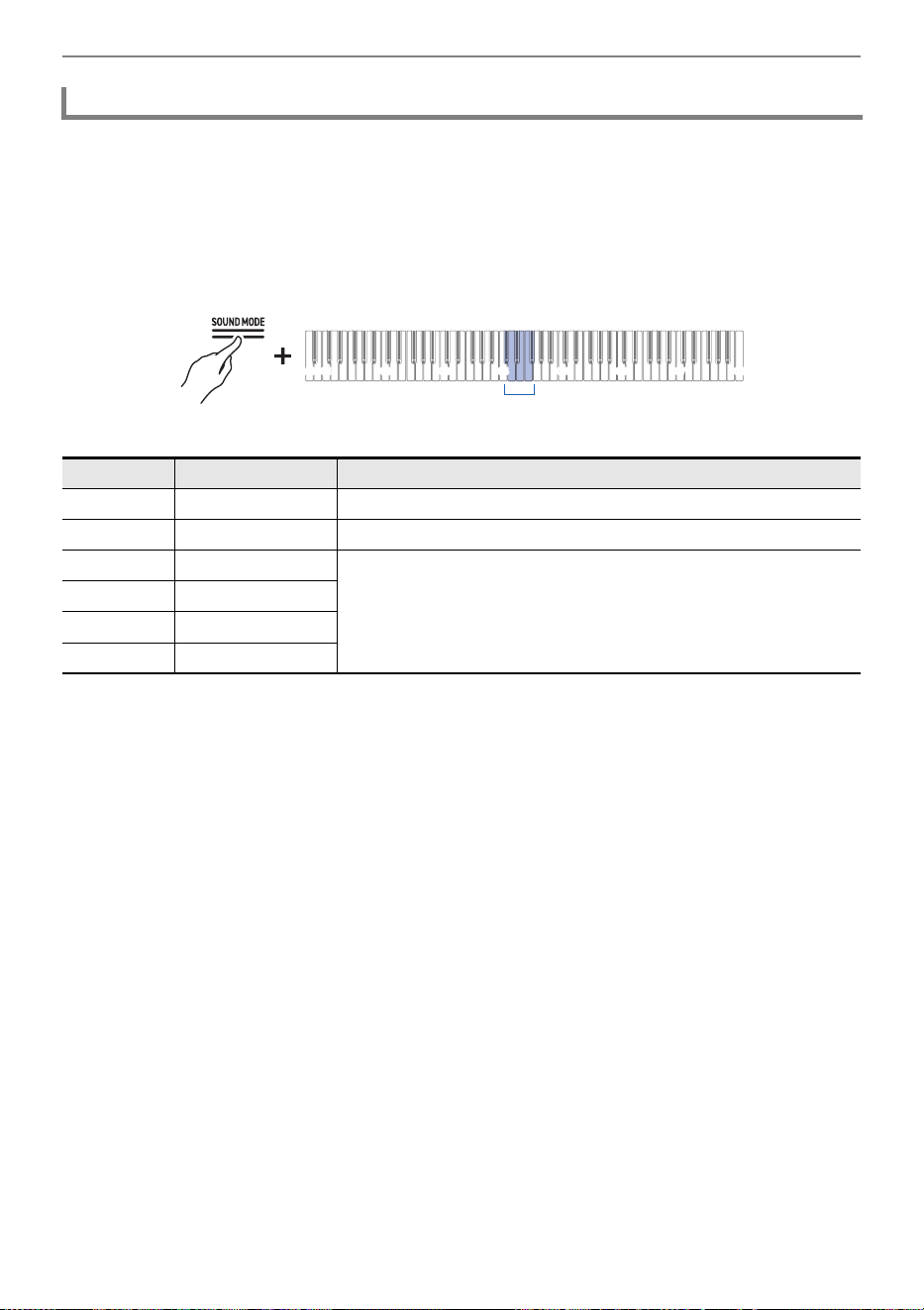
When pressing the damper pedal of an acoustic piano, the strings of all 88 keys are released, meaning
all the strings that are harmonics of the played keys resonate. Adjust the degree of resonance by
setting [Damper Resonance].
While holding down the “SOUND MODE” button, press one of the G3 to C4 keys.
Selecting a Setting Value Directly (operation type A)
• Default value: Tone
Setting Damper Resonance
Key Setting Value Setting Details
G3 Tone Automatically sets a value appropriate for the current tone.
A}3 Off Disables Damper Resonance.
A3 1 The larger the number, the stronger the Damper Resonance
effect.
B}32
B3 3
C4 4
C1A0 C2 C3 C4 C5 C6 C7 C8
G3 - C4
Applying Effects to Sound
EN-46
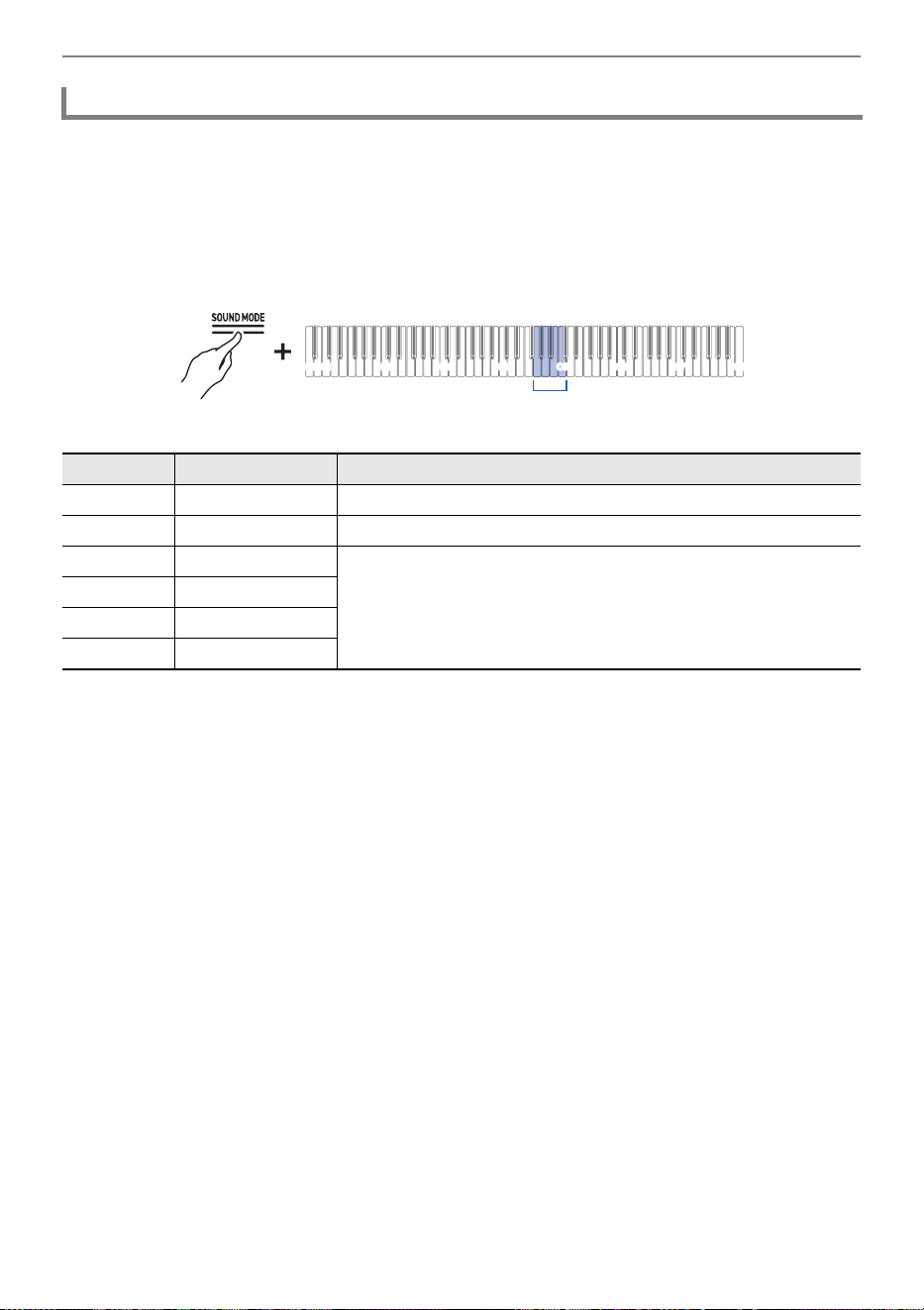
When pressing the damper pedal on an acoustic piano, a small noise is produced when the damper
moves away from the piano wire. Adjust the volume of the noise by setting [Damper Noise].
While holding down the “SOUND MODE” button, press one of the C{4 to F{4
keys.
Selecting a Setting Value Directly (operation type A)
• Default value: Tone
Setting Damper Noise
Key Setting Value Setting Details
C{4 Tone Automatically sets a value appropriate for the current tone.
D4 Off No Damper Noise is made.
E}4 1 The higher the number, the louder the noise.
E4 2
F4 3
F{44
C1A0 C2 C3 C4 C5 C6 C7 C8
C{4 - F{4
Applying Effects to Sound
EN-47
When playing the keys very softly on an acoustic piano, the hammers do not reach the strings and only
the mechanical action (noise) of the piano is heard. Adjust the volume of the noise by setting [Key On
Action Noise].
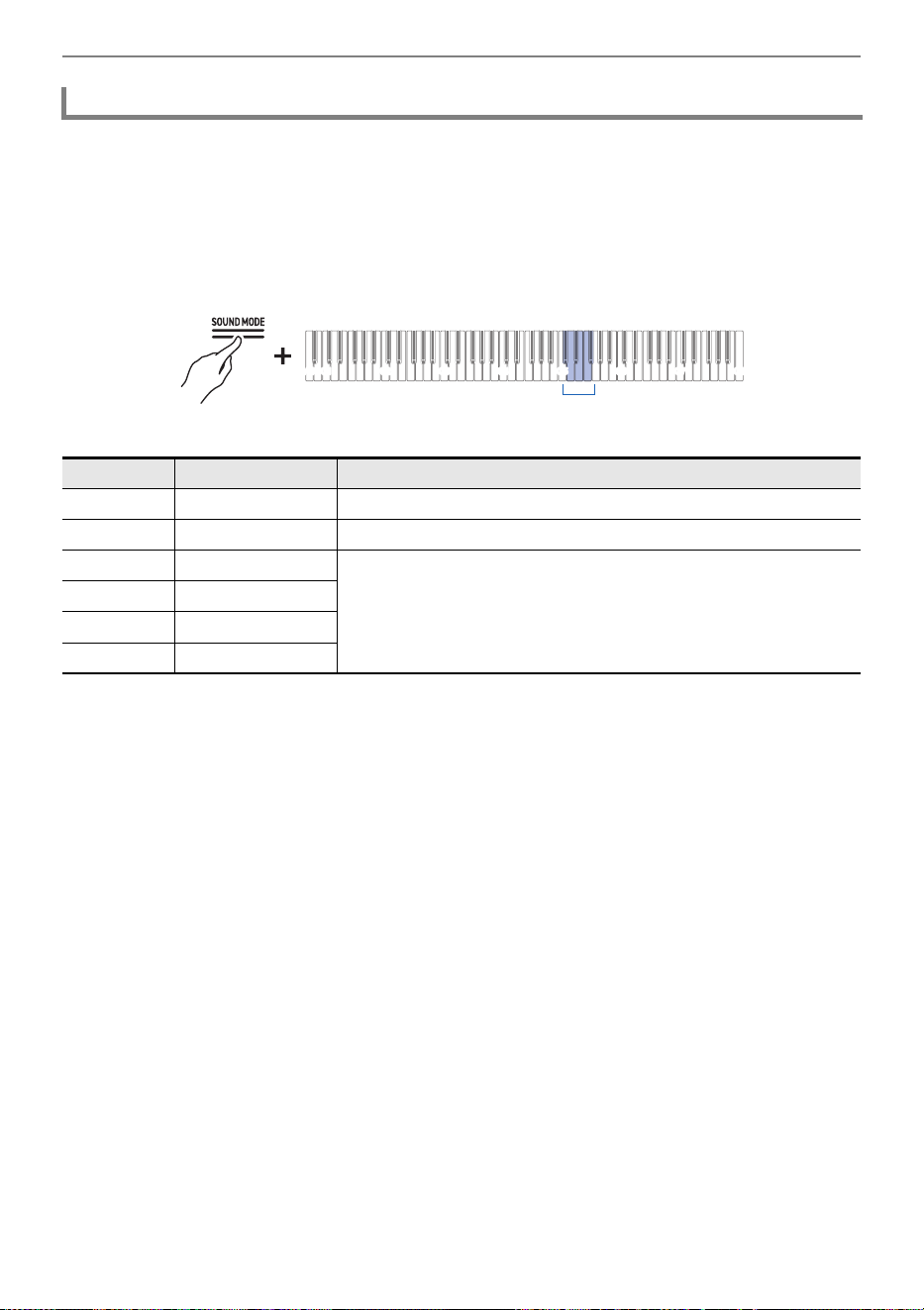
While holding down the “SOUND MODE” button, press one of the G4 to C5 keys.
Selecting a Setting Value Directly (operation type A)
• Default value: Tone
Setting Key On Action Noise
Key Setting Value Setting Details
G4 Tone Automatically sets a value appropriate for the current tone.
A}4 Off No Key On Action Noise made
A4 1 The higher the number, the louder the noise.
B}42
B4 3
C5 4
G4 - C5
C1A0 C2 C3 C4 C5 C6 C7 C8
Applying Effects to Sound
EN-48
When a finger is removed from the keyboard of an acoustic piano, this generates mechanical piano
action (noise). Adjust the volume of the noise by setting [Key Off Action Noise].
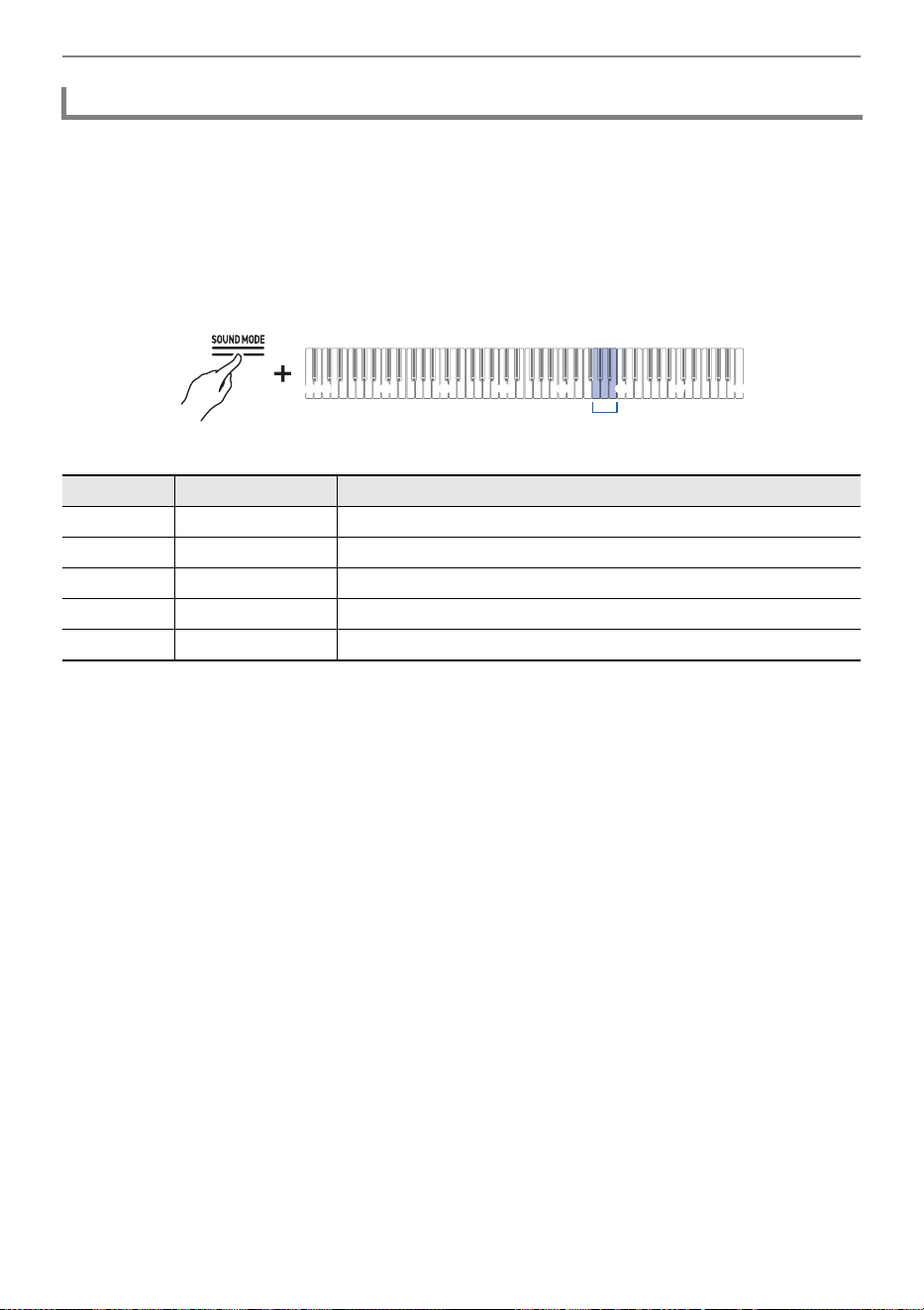
While holding down the “SOUND MODE” button, press one of the C{5 to F{5
keys.
Selecting a Setting Value Directly (operation type A)
• Default value: Tone
Setting Key Off Action Noise
Key Setting Value Setting Details
C{5 Tone Automatically sets a value appropriate for the current tone.
D5 Off No Key Off Action Noise is made.
E}5 1 The higher the number, the louder the noise.
E5 2
F5 3
F{54
C1A0 C2 C3 C4 C5 C6 C7 C8
C{5 - F{5
Applying Effects to Sound
EN-49
The sound of a grand piano changes depending on how open the lid is. With this Digital Piano, when
you adjust the opening of the lid using the [Lid Simulator], the change in sound is simulated using digital
processing. (The Lid Simulator is unrelated to the top panel opening/closing mechanism of the
housing.)
While holding down the “SOUND MODE” button, press one of the G5 to B5 keys.
Selecting a Setting Value Directly (operation type A)
• Default value: Tone
Setting Lid Simulator (AP-300 only)
Key Setting Value Setting Details
G5 Tone Automatically sets a value appropriate for the current tone.
A}5 Close The lid is closed.
A5 Semi The lid is slightly open.
B}5 Full The lid is fully open.
B5 Remove The lid is removed.
G5 - B5
C1A0 C2 C3 C4 C5 C6 C7 C8
Adjusting Key Touch
EN-50
The [Touch Response] function changes the volume according to the strength (speed) with which a
player presses a key. The [Touch Response] function enables the volume and sound quality to change
according to the strength (speed) with which a player presses a key, just like an acoustic piano,
enriching the expression of performances.
Adjusting Key Touch
Changing the Volume Made by the Strength of Pressure
Placed on a Key (Touch Response)
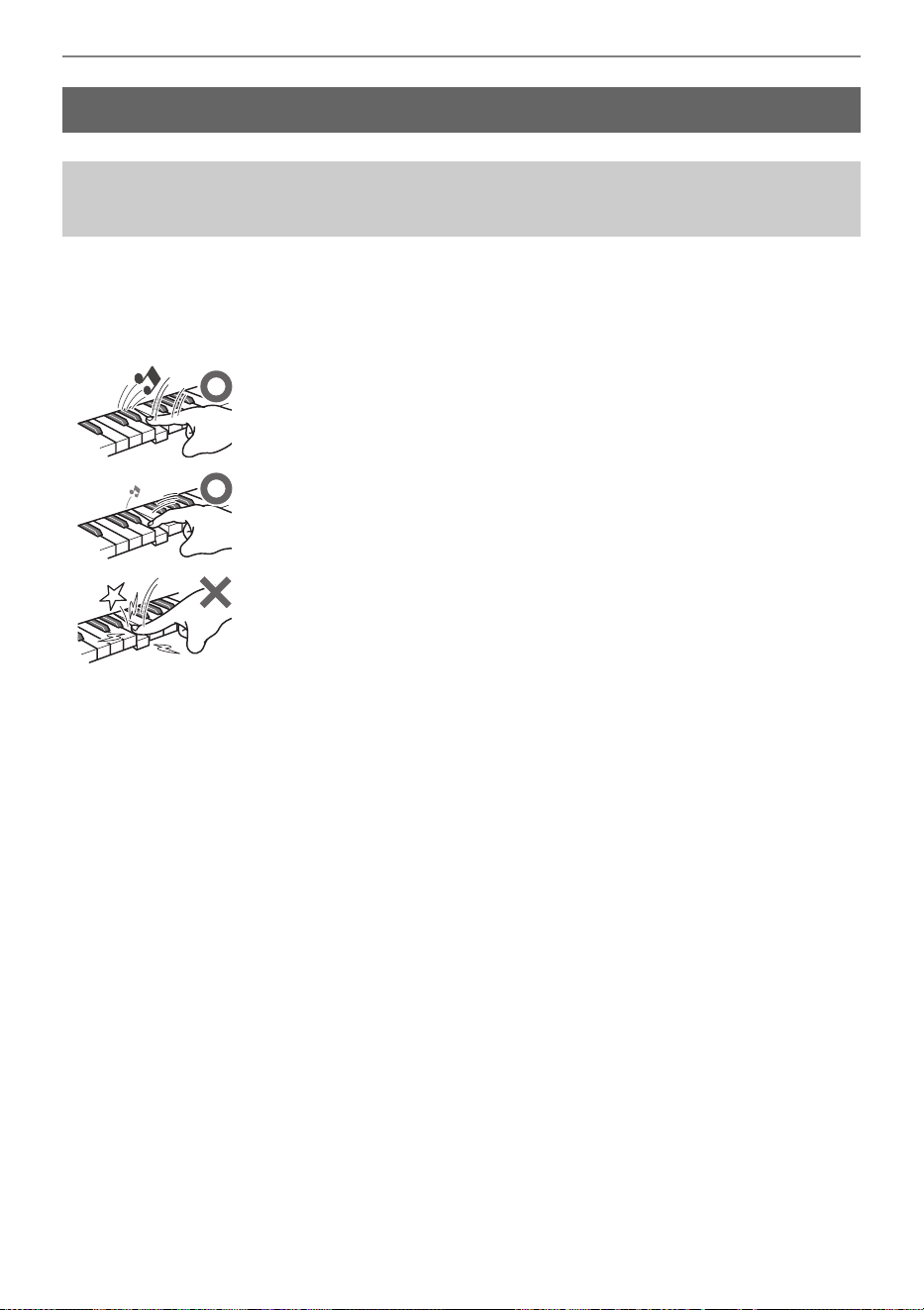
Press quickly to produce a loud sound.
Press slowly to produce a quiet sound.
Do not press too vigorously.
Adjusting Key Touch
EN-51
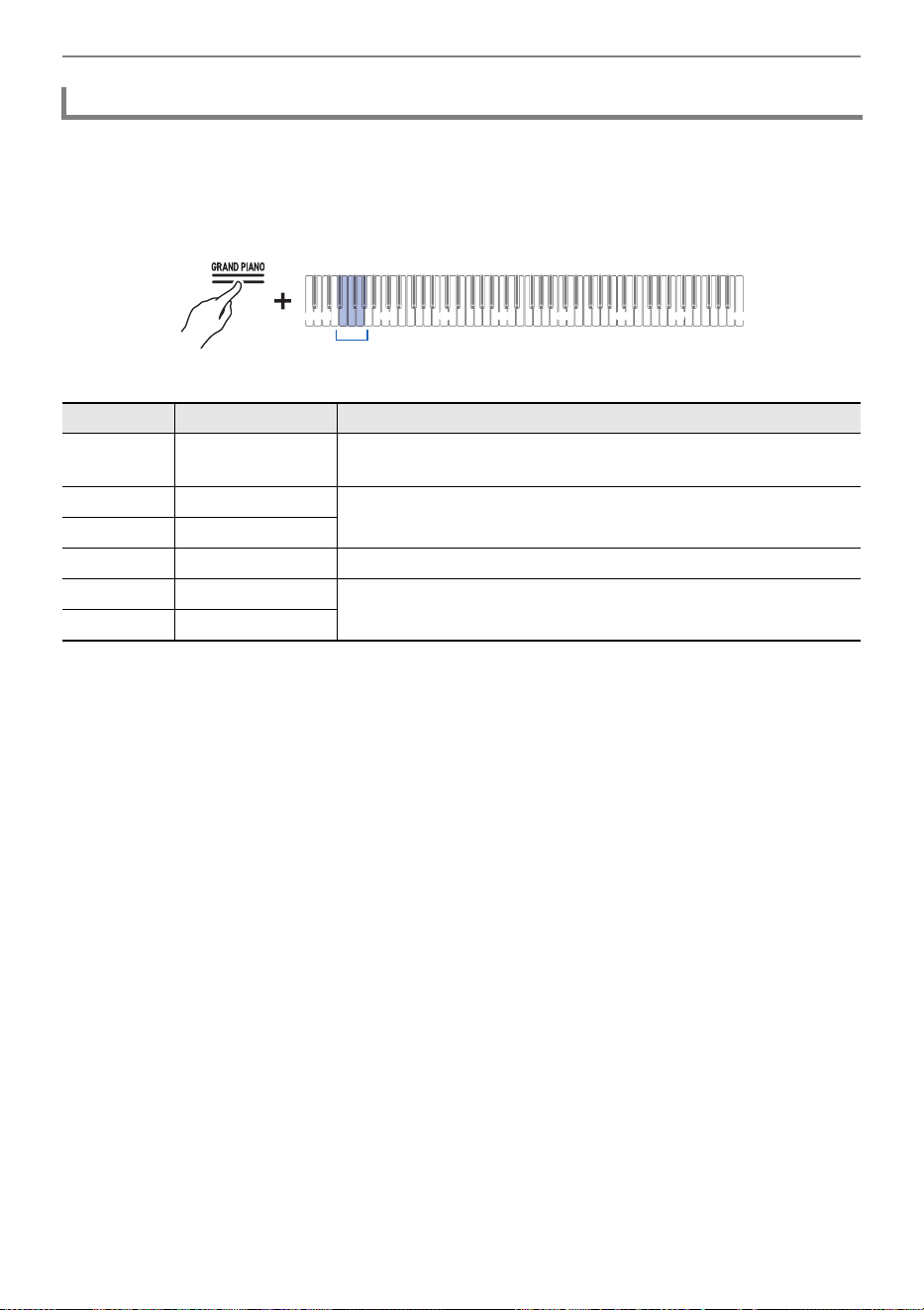
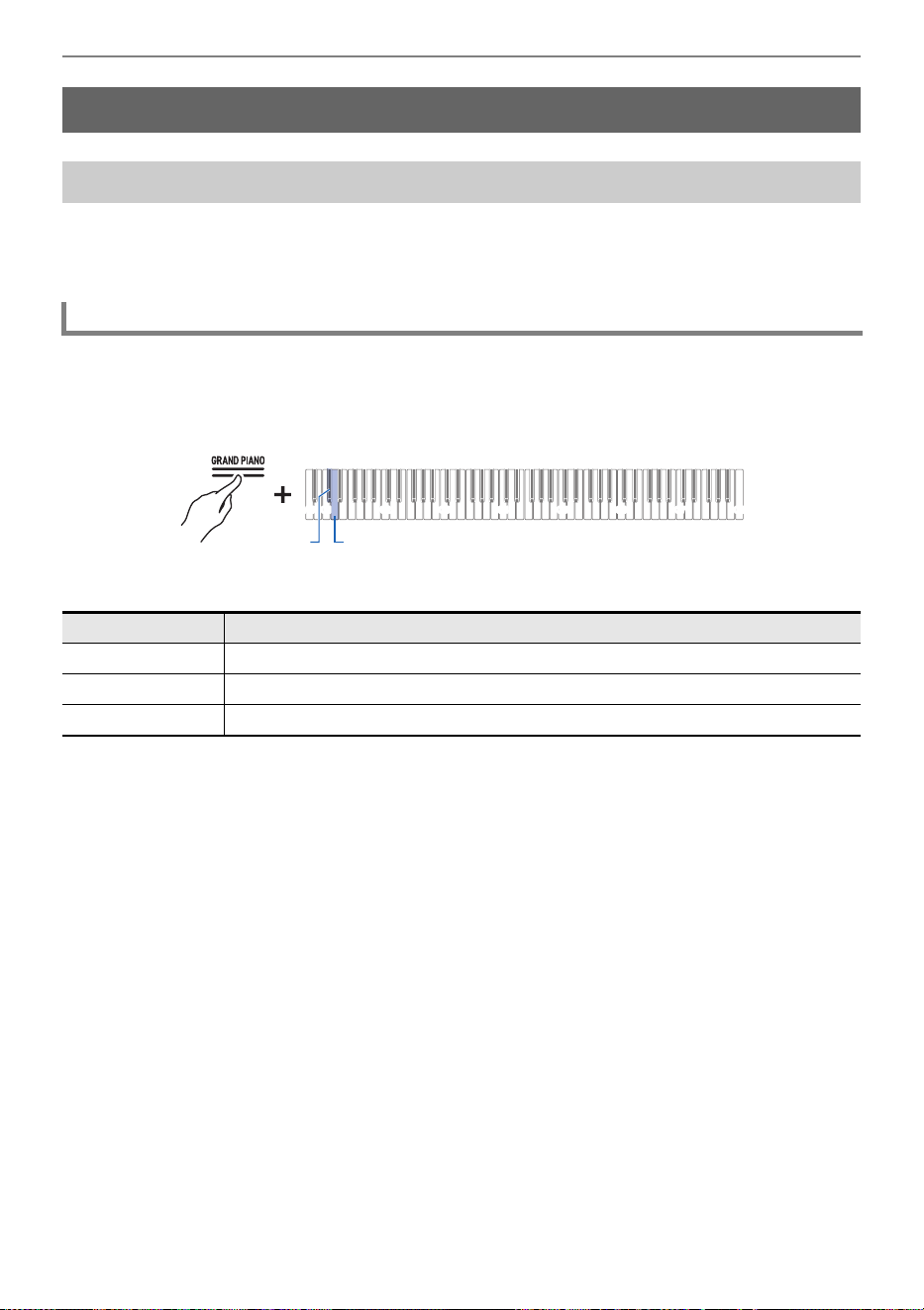
While holding down the “GRAND PIANO” button, press one of the E}1 to A}1
keys.
Selecting a Setting Value Directly (operation type A)
• Default value: 3
Changing the Sensitivity of Touch Response
Key Setting Value Setting Details
E}1 Off Cancels Touch Response. The volume remains constant even
when key pressing speed changes.
E1 1 (Light) This setting makes it easier to produce loud sounds, and the
touch feels lighter than “Normal”.
F1 2 (Medium light)
F{1 3 (Normal) Standard setting.
G1 4 (Medium heavy) This setting makes it difficult to produce loud sounds, and the
touch feels heavier than “Normal”.
A}15 (Heavy)
C1A0 C2 C3 C4 C5 C6 C7 C8
E}1 - A}1
Adjusting the Pitch of Sound
EN-52
Raise or lower the overall pitch of all notes in semitone steps. This is useful when you want to play a
difficult key in a familiar key, or when you want to raise or lower the key of the accompaniment to match
the pitch of a singer’s voice.
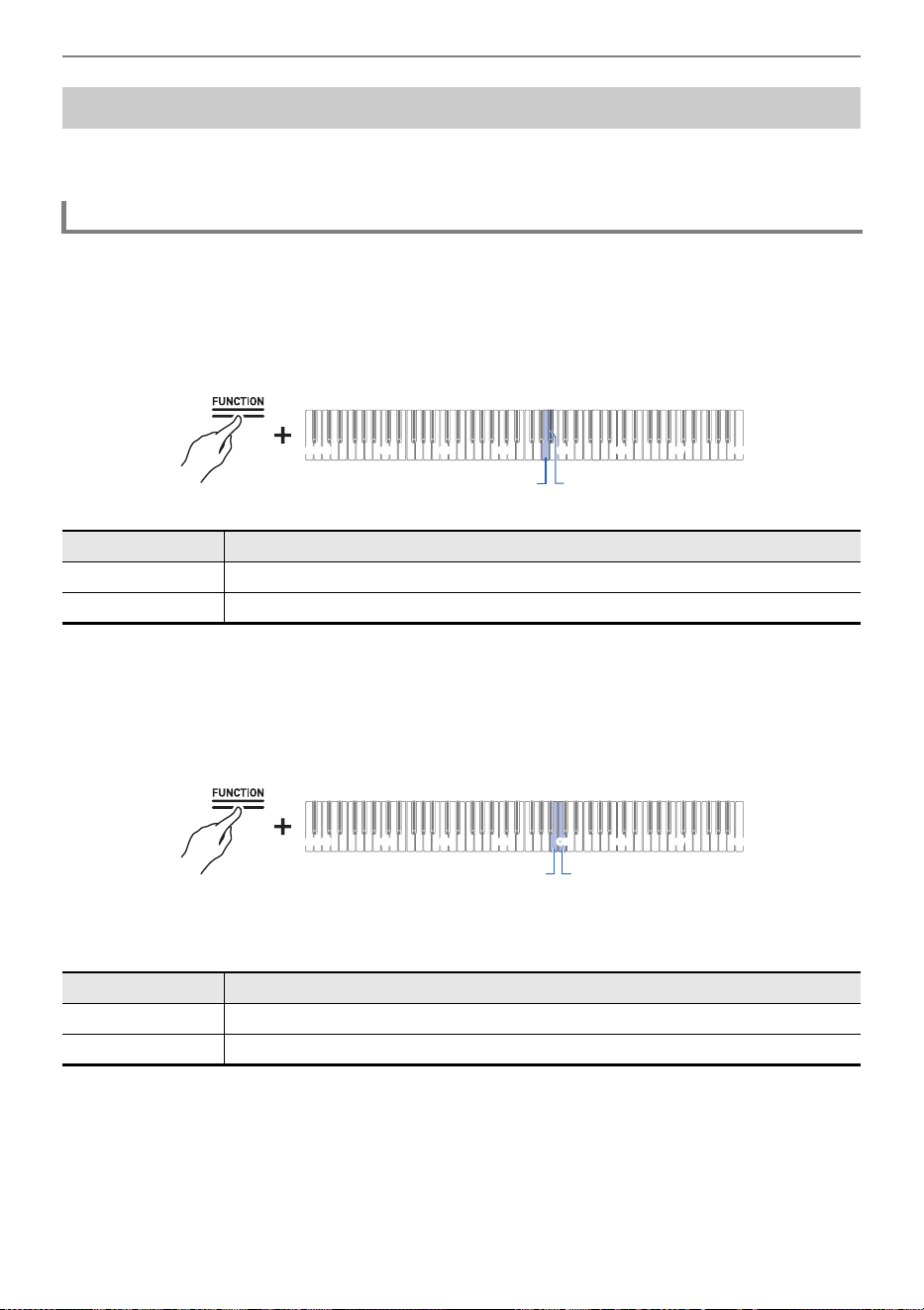
While holding down the “GRAND PIANO” button, press the C{1 or D1 key.
Using the +/– Keys to Raise or Lower the Setting Value by 1 (operation type B)
• Setting value: –12 to +12 semitones
• Default value: 0
Adjusting the Pitch of Sound
Changing the Pitch in Semitone Steps (Transpose)
Transpose
Key Setting
C{1 Lowers the pitch of all notes by a semitone (–)
D1 Raises the pitch of all notes by a semitone (+)
C{1 + D1 Resets the pitch of all notes to default setting
C1A0 C2 C3 C4 C5 C6 C7 C8
D1C{1
Adjusting the Pitch of Sound
EN-53
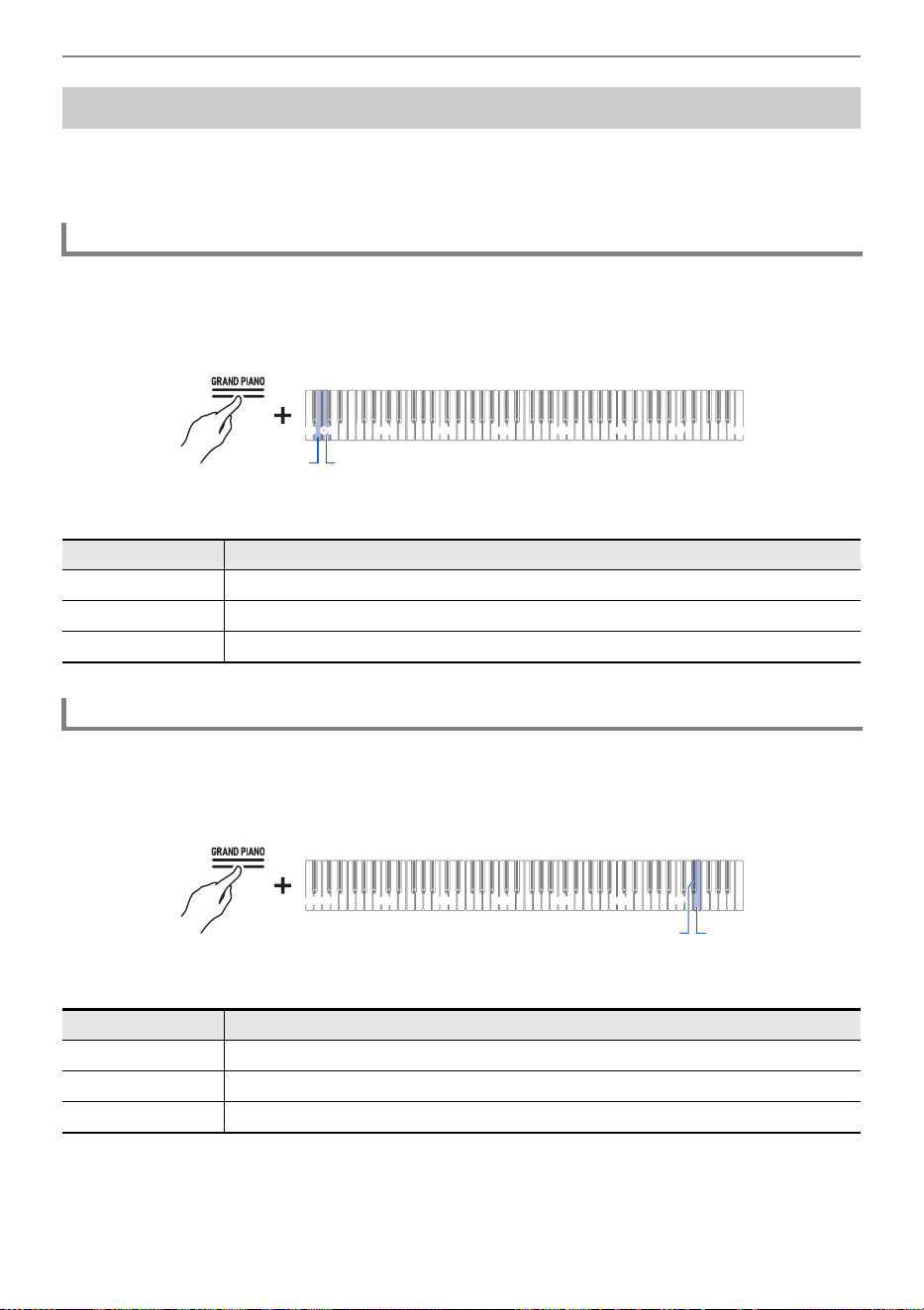
Shift the overall pitch of the instrument slightly. Set the frequency of the A4 note in the range of 415.5 to
465.9 Hz (default 440.0 Hz).
Select 440.0 Hz or 442.0 Hz
While holding down the “FUNCTION” button, press the A4 or B}4 key.
Selecting a Setting Value Directly (operation type A)
• Default value: 440.0 Hz
Changing in 0.1 Hz Increments
While holding down the “FUNCTION” button, press the B4 or C5 key.
Using the +/– Keys to Raise or Lower the Setting Value by 1 (operation type B)
• Set value: 415.5 to 465.9 Hz
A separator tone sounds when the frequency reaches a whole number (such as 440 or 441).
• Default value: 440.0 Hz
Fine-tuning (A-tuning)
Tuning
Key Setting
A4 Sets the frequency of the A4 note to 440.0 Hz
B}4 Sets the frequency of the A4 note to 442.0 Hz
Key Setting
B4 Decreases the frequency of the A4 note by 0.1 Hz (–)
C5 Raises the frequency of the A4 note by 0.1 Hz (+)
C1A0 C2 C3 C4 C5 C6 C7 C8
A4 B}4
C1A0 C2 C3 C4 C5 C6 C7 C8
B4 C5
Adjusting the Pitch of Sound
EN-54
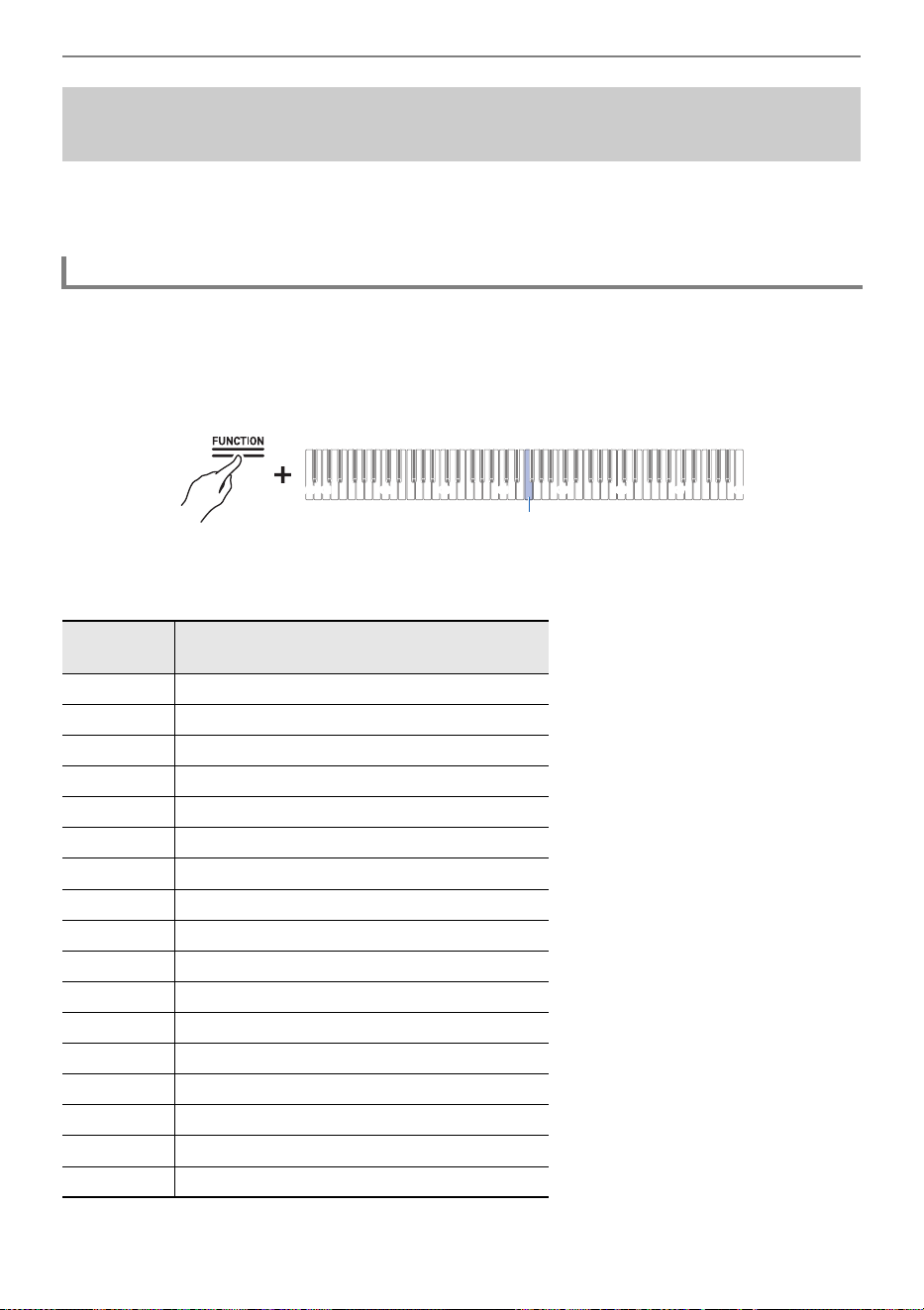
The pitch of the sound can be raised or lowered in octaves.
Each part (Upper1 and Upper2) can be set independently when using [Layer].
For more information about layers and their respective parts, see “Layering Two Tones (Layer)”.
While holding down the “GRAND PIANO” button, press the B0 or C1 key.
Using the +/– Keys to Raise or Lower the Setting Value by 1 (operation type B)
• Setting value: –2 to +2 octaves
• Default value: 0
While holding down the “GRAND PIANO” button, press the E}7 or E7 key.
Using the +/– Keys to Raise or Lower the Setting Value by 1 (operation type B)
• Setting value: –2 to +2 octaves
• Default value: 0
Shifting by Octaves (Octave Shift)
Shifting Upper1 Part by an Octave
Key Setting
B0 Lowers the pitch of the Upper1 part by one octave (–)
C1 Raises the pitch of the Upper1 part by one octave (+)
B0 + C1 Resets the Upper1 part pitch to the default setting
Shifting Upper2 Part by an Octave
Key Setting
E}7 Lowers the pitch of the Upper2 part by one octave (–)
E7 Raises the pitch of the Upper2 part by one octave (+)
E}7 + E7 Resets the Upper2 part pitch to the default setting
C1A0 C2 C3 C4 C5 C6 C7 C8
B0 C1
C1A0 C2 C3 C4 C5 C6 C7
E}7E7
Adjusting the Pitch of Sound
EN-55
By setting the scale of the keys, you can play music (Indian, Arabic, classical, etc.) that uses a scale
other than the regular temperament (12 equal temperament). You can choose your favorite scale from
17 preset scales.
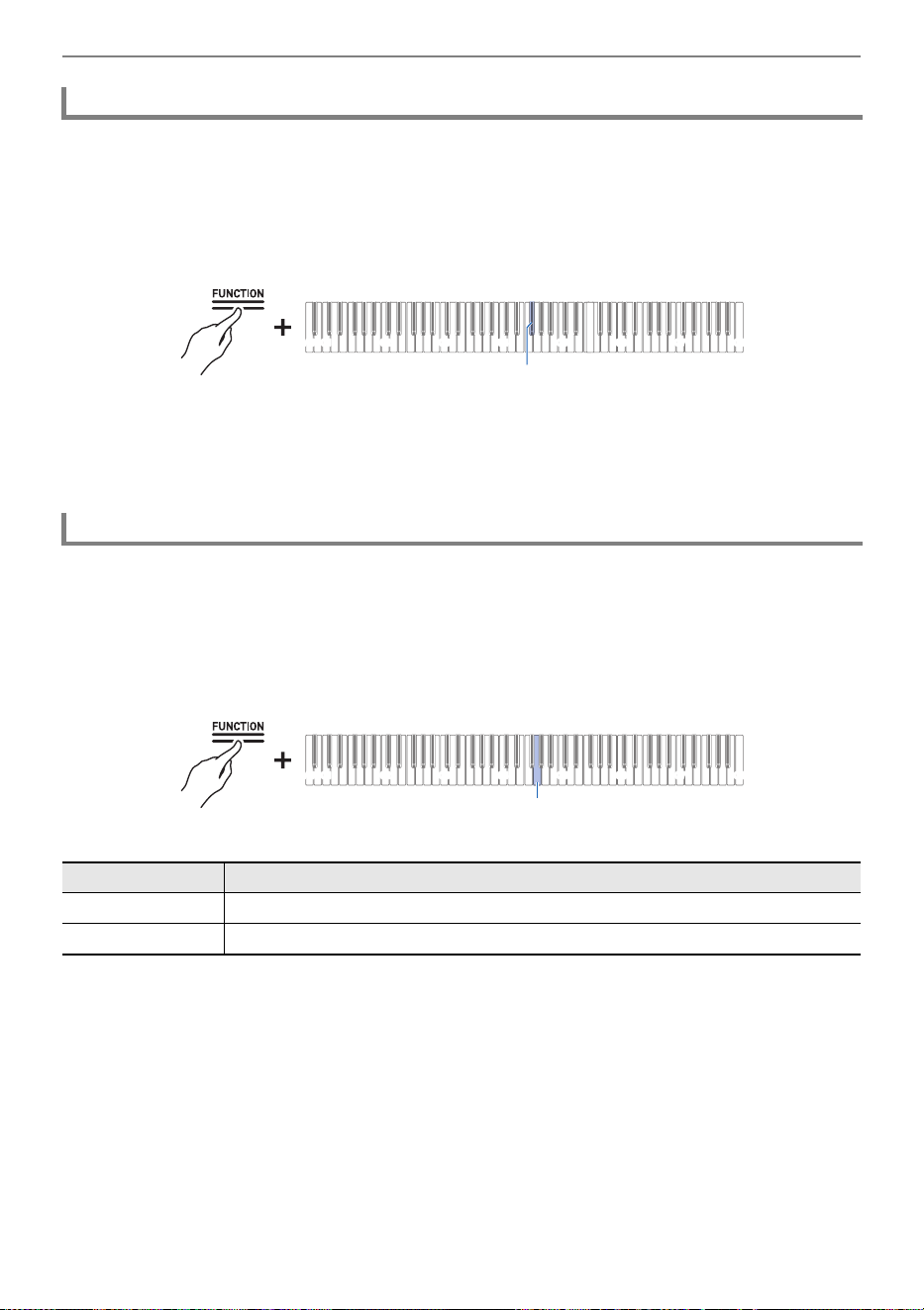
While holding down the “FUNCTION” button, press the F4 key (Scale Tuning
Selection).
Switching On/Off or Changing Setting Values Using a Single Key (operation type D)
• A tone for default setting sounds when the set value reaches 0, and a separator tone sounds when
the set value reaches 10.
• Default value: 0
Changing the Scale Tuning (Temperament) of the
Keyboard
Changing the Scale Tuning
Setting
Value
Scale (Temperament) name
0 Equal Temperament
1 Pure Major Temperament
2 Pure Minor Temperament
3 Pythagorean Temperament
4 Kirnberger 3 Temperament
5 Werckmeister Temperament
6 Mean-Tone Temperament
7Rast
8 Bayati
9Hijaz
10 Saba
11 Dashti
12 Chahargah
13 Segah
14 Gurjari Todi
15 Chandrakauns
16 Charukeshi
C1A0 C2 C3 C4 C5 C6 C7 C8
F4
Adjusting the Pitch of Sound
EN-56
1.
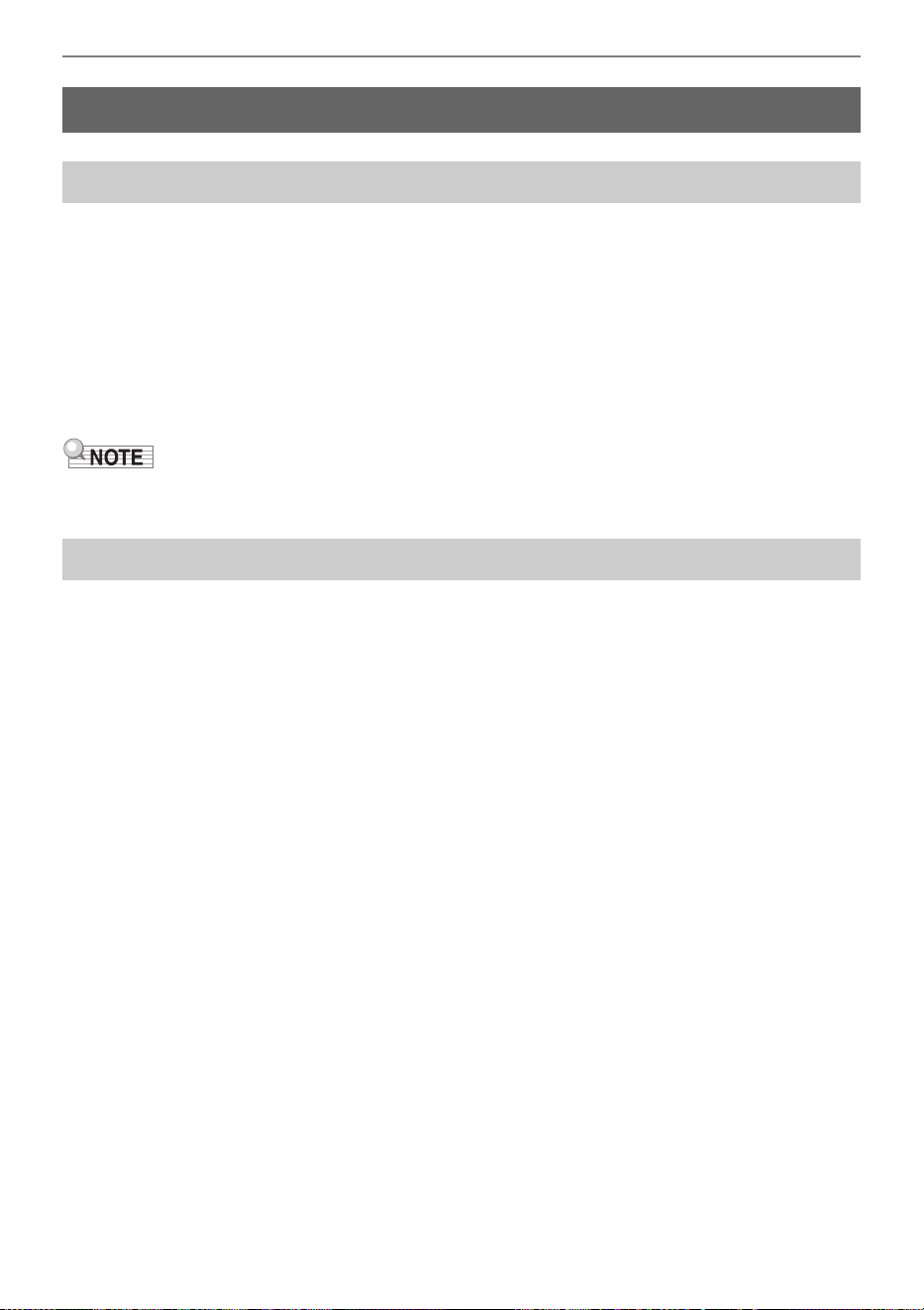
While holding down the “FUNCTION” button, press the F{4 key (Scale Tuning
base note).
Putting in Standby Mode, and Executing on Next Key Press (operation type E)
• Do not release the “FUNCTION” button until the next operation is complete.
2.
While holding down the “FUNCTION” button, specify the base note (C to B) you
wish to set on the keyboard.
• Specify the base note by pressing one of the 88 keys.
Generally, on a piano, the high notes are tuned higher and the low notes are tuned lower. This tuning is
called “Stretch Tuning”
.
While holding down the “FUNCTION” button, press the G4 key (Stretch Tuning).
Switching On/Off or Changing Setting Values Using a Single Key (operation type D)
• Default value: On
Setting the Scale Tuning Base Note
Switching Stretch Tuning On/Off
Setting Value Setting Details
Off Turns off Stretch Tuning.
On Turns on Stretch Tuning.
C1A0 C2 C3 C4 C5 C6 C7 C8
F{4
C1A0 C2 C3 C4 C5 C6 C7 C8
G4
Listening to Songs
EN-57
This Digital Piano is equipped to play MIDI data (including built-in songs) and audio data.
MIDI Data
You can playback MIDI data stored in the Digital Piano’s internal memory or USB flash drive.
For more information, see “Playing MIDI Data”.
Audio Data
You can playback audio data stored on USB flash drives.
For more information, see “Playing Audio Data (WAV, MP3)”.
• Depending on the type of data you want to playback, you need to switch the [Recorder] setting
between <MIDI Recorder> and <Audio Recorder>.
Music Library
Use the Music Library to listen to and practice famous piano pieces.
Built-in Songs
These are 60 built-in songs (No.1 to 60 in the Music Library).
See “Music Library List” for song listings.
User Songs
These are 10 songs (No.61 to 70 in the Music Library) saved to the Digital Piano’s internal memory
from an external source. Saving User Songs is executed using a smart device or via a USB flash drive
connected to the Digital Piano.
For details, see “Using the Dedicated App” and “Loading USB Flash Drive Files into the Digital Piano”.
MIDI Recorder Songs
These song are recorded with this Digital Piano’s MIDI Recorder.
For more information, see “Recording a Performance with the MIDI Recorder”.
USB Flash Drive Songs
A standard MIDI file (SMF format 0/1) or CASIO MIDI file (CMF format) song stored on a USB flash
drive. You can easily play these back without loading them into the unit.
For saving MIDI data that can be played on this unit to a USB flash drive, see “Copying MIDI Song Data
to a USB Flash Drive Using a Computer”.
Listening to Songs
Types of Data that Can Be Played Back
Playing MIDI Data
Listening to Songs
EN-58
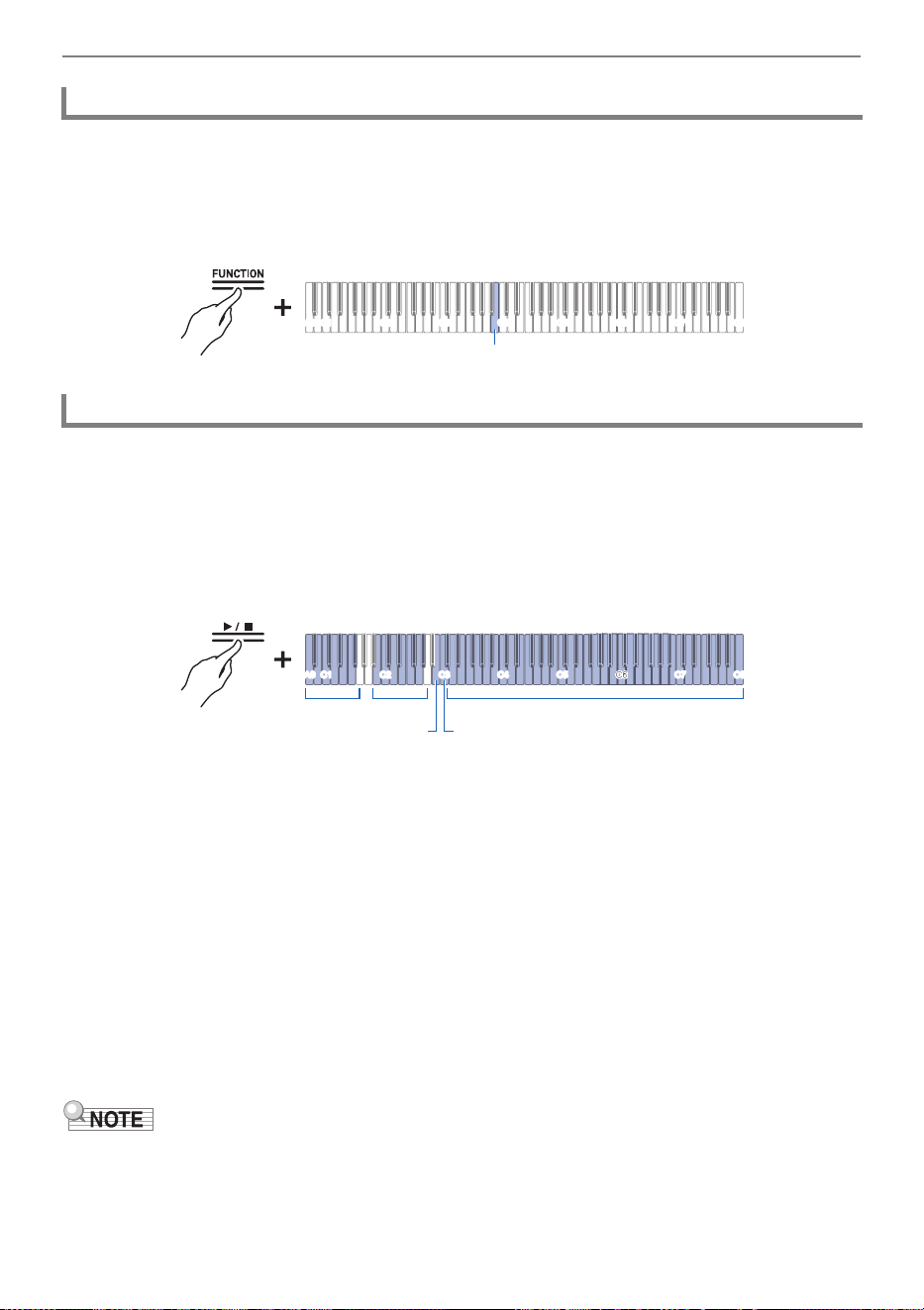
The default setting for [Recorder] on this Digital Piano is <MIDI Recorder>.
While holding down the “FUNCTION” button, press the B3 key (MIDI Recorder).
Selecting a Setting Value Directly (operation type A)
Operate with <MIDI Recorder>.
Switching to MIDI Recorder
1.
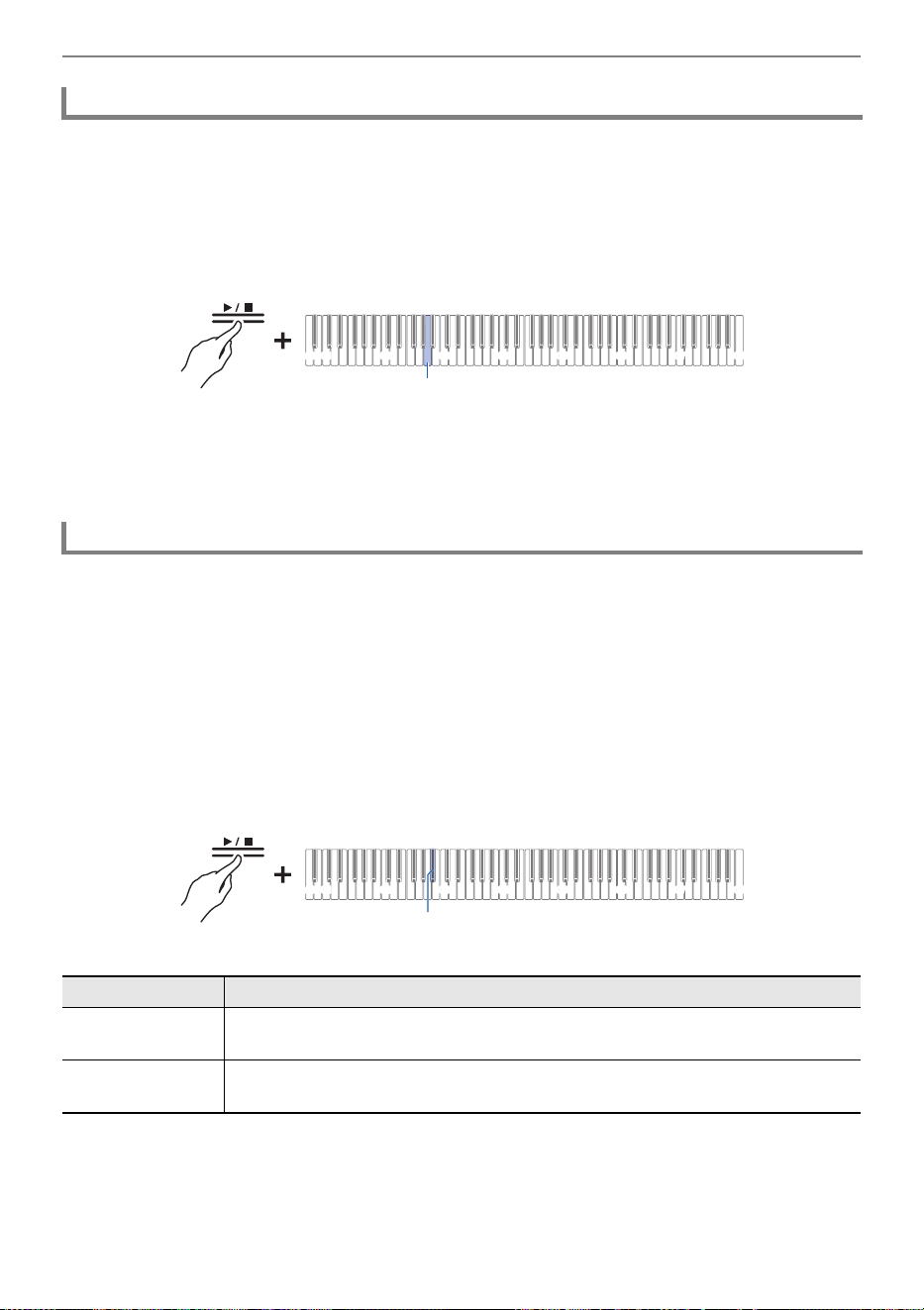
Hold down the “a” button and use the corresponding key to select a song.
Once you have made your selection, release the “a” button.
•See “Music Library List” for song listings.
• Select a song assigned to a key (Built-in Songs: C{3 to C8 keys, User Songs: B1 to A}2 keys)
Selecting a Setting Value Directly (operation type A)
• Specify song numbers (Built-in Songs: 1 to 60, User Songs: 61 to 70) using the A0 to F{1 keys
Inputting Setting Values Using the Keys 0 to 9 (operation type C)
• Use keys B2/C3 (Song Select – / Song Select +) to specify previous/next song (Built-in Songs,
User Songs, MIDI Recorder Songs)
Using the +/– Keys to Raise or Lower the Setting Value by 1 (operation type B)
2.
To start playback, touch the “a” button.
• To stop playback in the middle of a song, touch the “a” button again.
• The beat indicator lights up in time with the beat of the song (left side for the first beat, right side
for the remaining beats).
• Playback ends when the end of the song is reached.
• If a song selection is made, the appropriate settings for the selected song is automatically
implemented. Also, the playback settings return to default.
Switching to MIDI Recorder
Selecting Songs for Playback from the Music Library
C1A0 C2 C3 C4 C5 C6 C7 C8
B3
C1A0 C2 C3 C4 C5 C6 C7 C8
A0 - F{1 C{3 - C8B1 - A}2
B2 C3
Listening to Songs
EN-59
Operate with <MIDI Recorder>.
Switching to MIDI Recorder
1.
While holding down the “a” button, press the A2 key (MIDI Recorder Song).
Selecting a Setting Value Directly (operation type A)
2.
To start playing a song, touch the “a” button.
• To stop playback in the middle of a song, touch the “a” button again.
• Playback ends when the end of the song is reached.
Attach the USB flash drive containing the songs to the USB Type A port on the Digital Piano.
For information on using USB flash drives, see “Inserting/Removing a USB Flash Drive from the Digital
Piano”.
Operate with <MIDI Recorder>.
Switching to MIDI Recorder
1.
While holding down the “a” button, press the B}2 key (USB Flash Drive Song).
Switching On/Off or Changing Setting Values Using a Single Key (operation type D)
• Default value: Off
Selecting a MIDI Recorder Song for Playback
Selecting a USB Flash Drive Song for Playback
Setting Value Setting Details
Off Songs stored in the Digital Piano (Music Library songs, MIDI Recorder Song) are
eligible for song selection
On Songs stored on a USB flash drive (USB Flash Drive Songs) are eligible for song
selection
C1A0 C2 C3 C4 C5 C6 C7 C8
A2
C1A0 C2 C3 C4 C5 C6 C7 C8
B}2
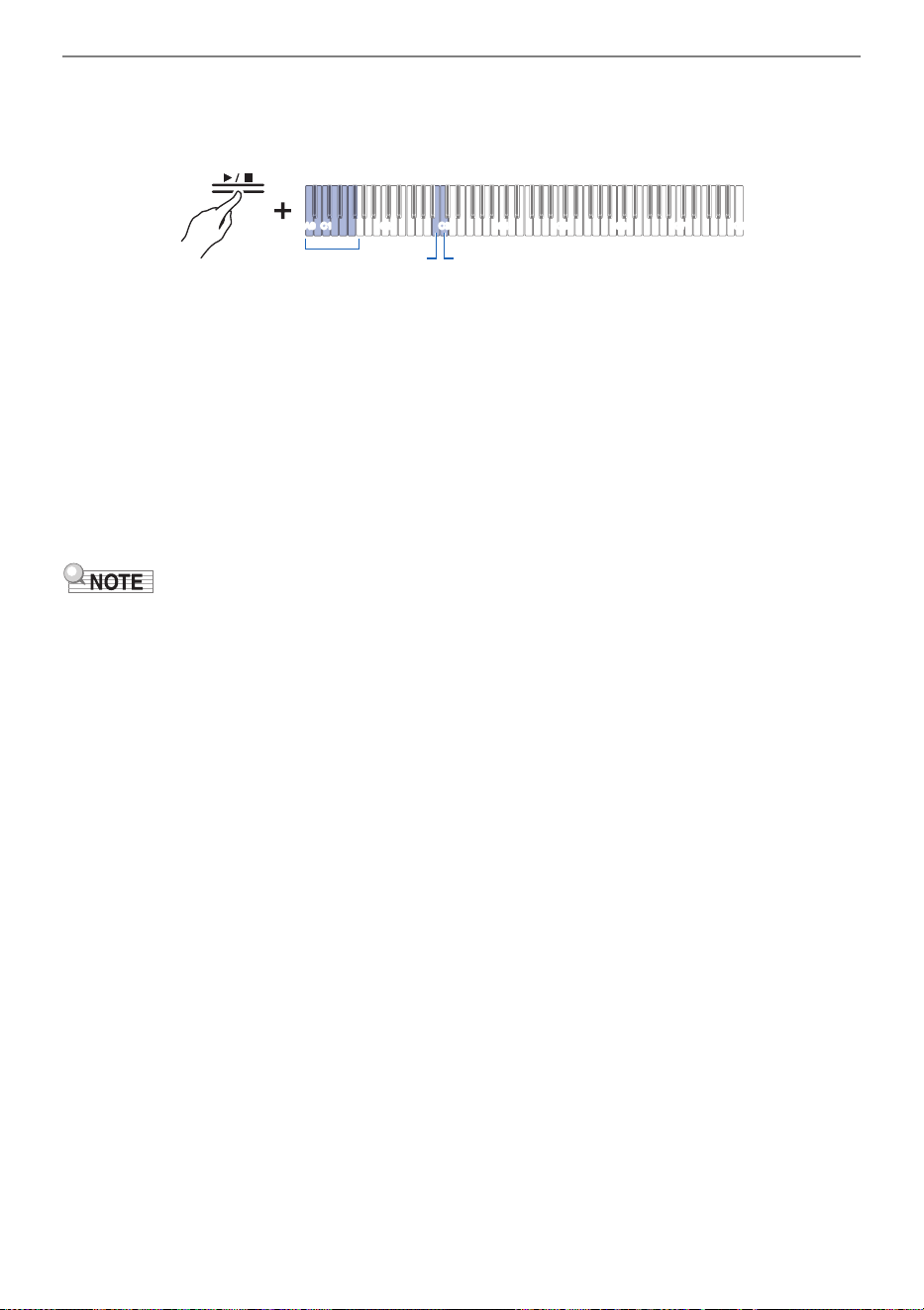
Listening to Songs
EN-60
2.
Hold down the “a” button and use the corresponding key to select a song.
After selecting a song, press the “a” button.
• Specify song numbers 0 to 99 using the A0 to F{1 keys (numbers 0 to 99 are automatically
assigned to each file in ascending order of the file name).
Inputting Setting Values Using the Keys 0 to 9 (operation type C)
• Use keys B2/C3 (Song Select – / Song Select +) to specify previous/next song number
Using the +/– Keys to Raise or Lower the Setting Value by 1 (operation type B)
3.
To start playback, touch the “a” button.
• To stop playback in the middle of a song, touch the “a” button again.
• The beat indicator lights up in time with the beat of the song (left side for the first beat, right side
for the remaining beats).
• Playback ends when the end of the song is reached.
• If the file of the specified song number does not exist, a tone will sound for invalid.
C1A0 C2 C3 C4 C5 C6 C7 C8
B2 C3
A0 - F{1
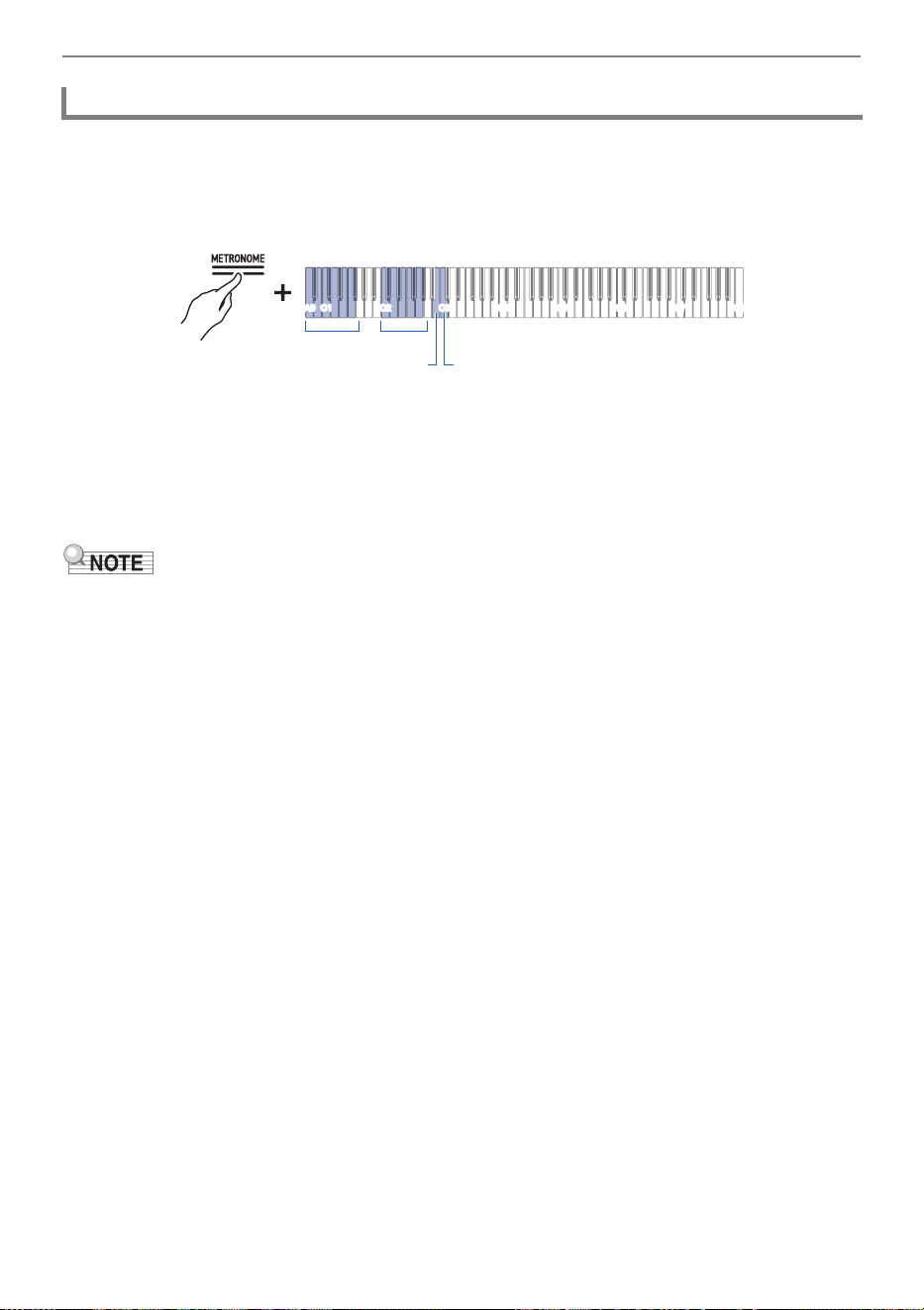
Listening to Songs
EN-61
Select the song to be played before changing the setting.
1.
While holding down the “METRONOME” button, press the corresponding key.
• Sets the tempo in the range of 20 to 255 (beats per minute).
Entering Tempo as a Number
Raising or Lowering the Tempo Value by 1
Setting the Tempo from a Tempo Marking
2.
To start playback, touch the “a” button.
• The tempo setting can be changed even during playback.
• In some songs, the tempo changes in the middle of the song for expression within the performance.
Changing the Tempo
C2 - A}2A0 - F{1
C1A0 C2 C3 C4 C5 C6 C7 C8
B2 C3
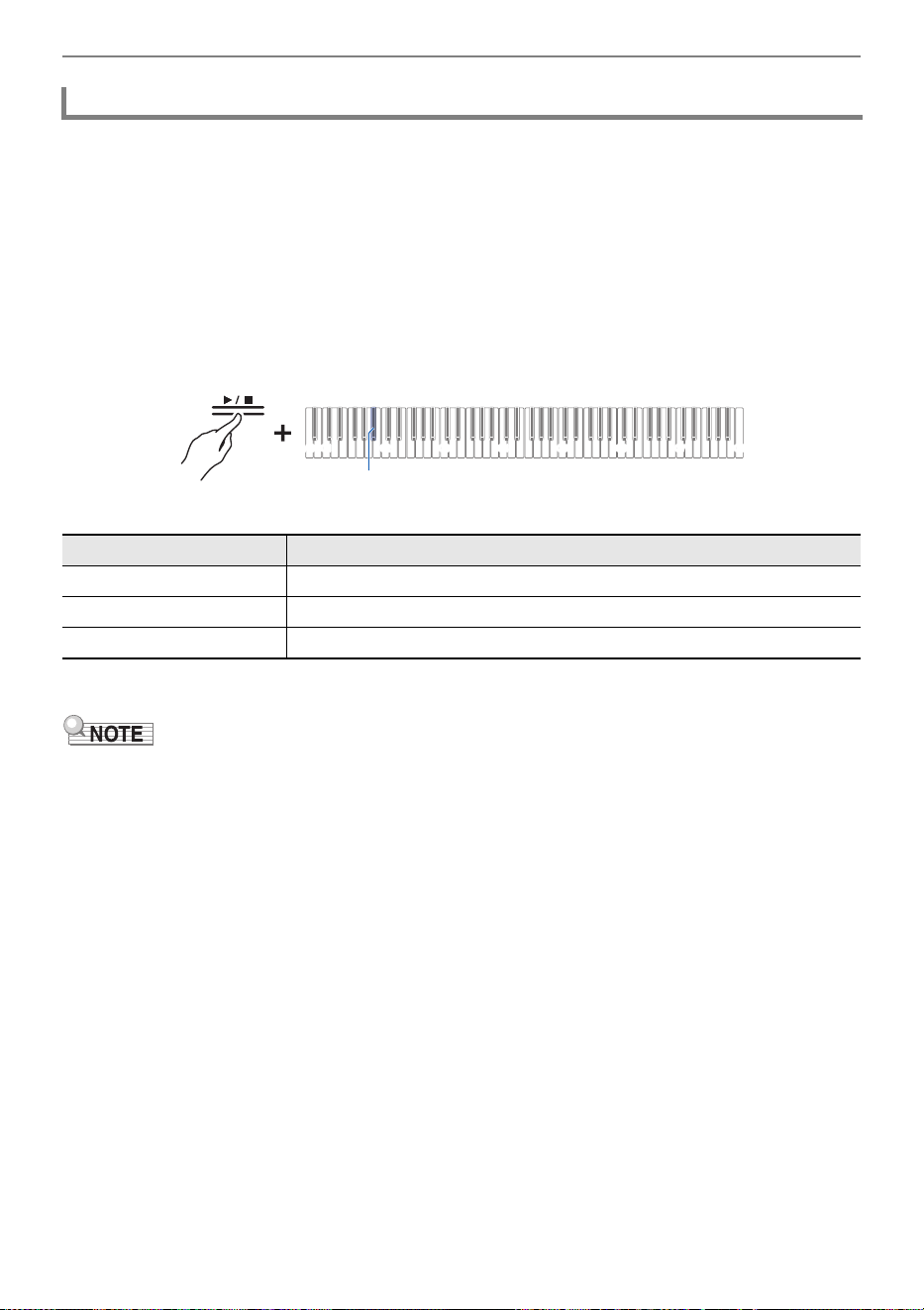
Listening to Songs
EN-62
You can mute the right-hand or left-hand part of a song and practice playing it yourself.
• Select the song to be played before changing the setting.
• Set the tempo as needed.
For more information, see “Changing the Tempo”.
1.
While holding down the “a” button, press the B}1 key (Song Playback Part
selection (LR/L/R)).
Switching On/Off or Changing Setting Values Using a Single Key (operation type D)
• The “L” and “R” track indicators light up respectively.
2.
To start playback, touch the “a” button.
• When playing a standard MIDI file (SMF format), ch3 will be the left-hand part and ch4 will be the
right-hand part.
Selecting a Playback Part
Track Indicator Setting Details
Only L lights up Plays the left-hand part and mutes the right-hand part.
Only R lights up Plays the right-hand part and mutes the left-hand part.
Both L & R light up Both left and right parts are played back.
C1A0 C2 C3 C4 C5 C6 C7 C8
B}1
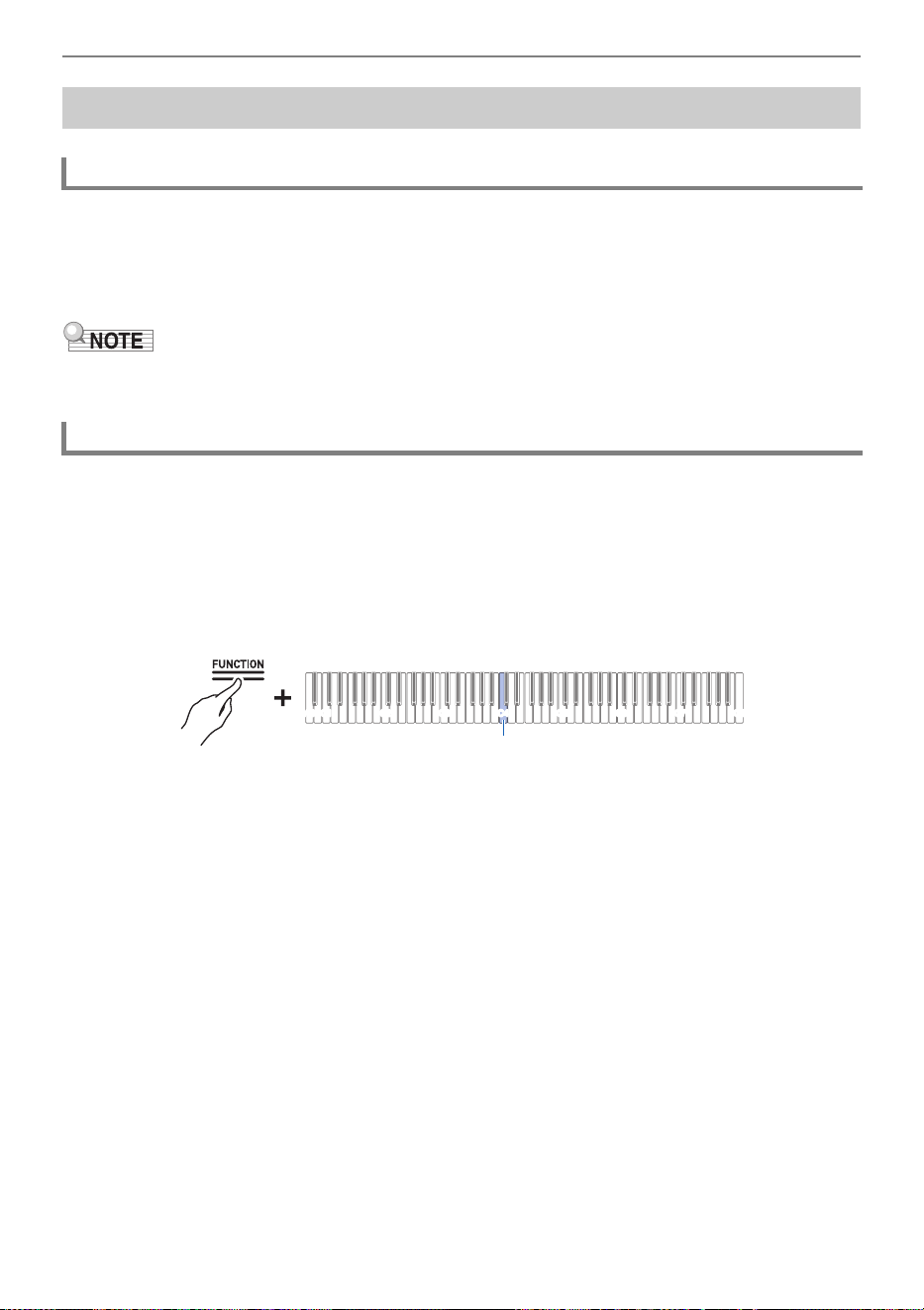
Listening to Songs
EN-63
Audio data in the AUDIOREC folder stored on a USB flash drive can be played back.
• WAV files (linear PCM, 16 bit, 44.1 kHz, stereo, extension: .WAV), file name “TAKE**.WAV” (** is
01-99)
• MP3 files (MPEG-1 Audio Layer3, 44.1 kHz/48 kHz, bit rate 32-320 kbps/variable bit rate (VBR)
supported, mono/stereo, extension: .MP3), file name “TAKE**.MP3” (** is 01-99)
• For saving audio data that can be played on this Digital Piano to a USB flash drive, see “Copying
Audio Data (WAV, MP3) to a USB Flash Drive Using a Computer”.
Attach the USB flash drive containing the songs to the USB Type A port on the Digital Piano.
For information on using USB flash drives, see “Inserting/Removing a USB Flash Drive from the Digital
Piano”.
While holding down the “FUNCTION” button, press the C4 key (Audio Recorder).
Selecting a Setting Value Directly (operation type A)
Playing Audio Data (WAV, MP3)
Data that Can be Played Back
Switching to Audio Recorder
C1A0 C2 C3 C4 C5 C6 C7 C8
C4
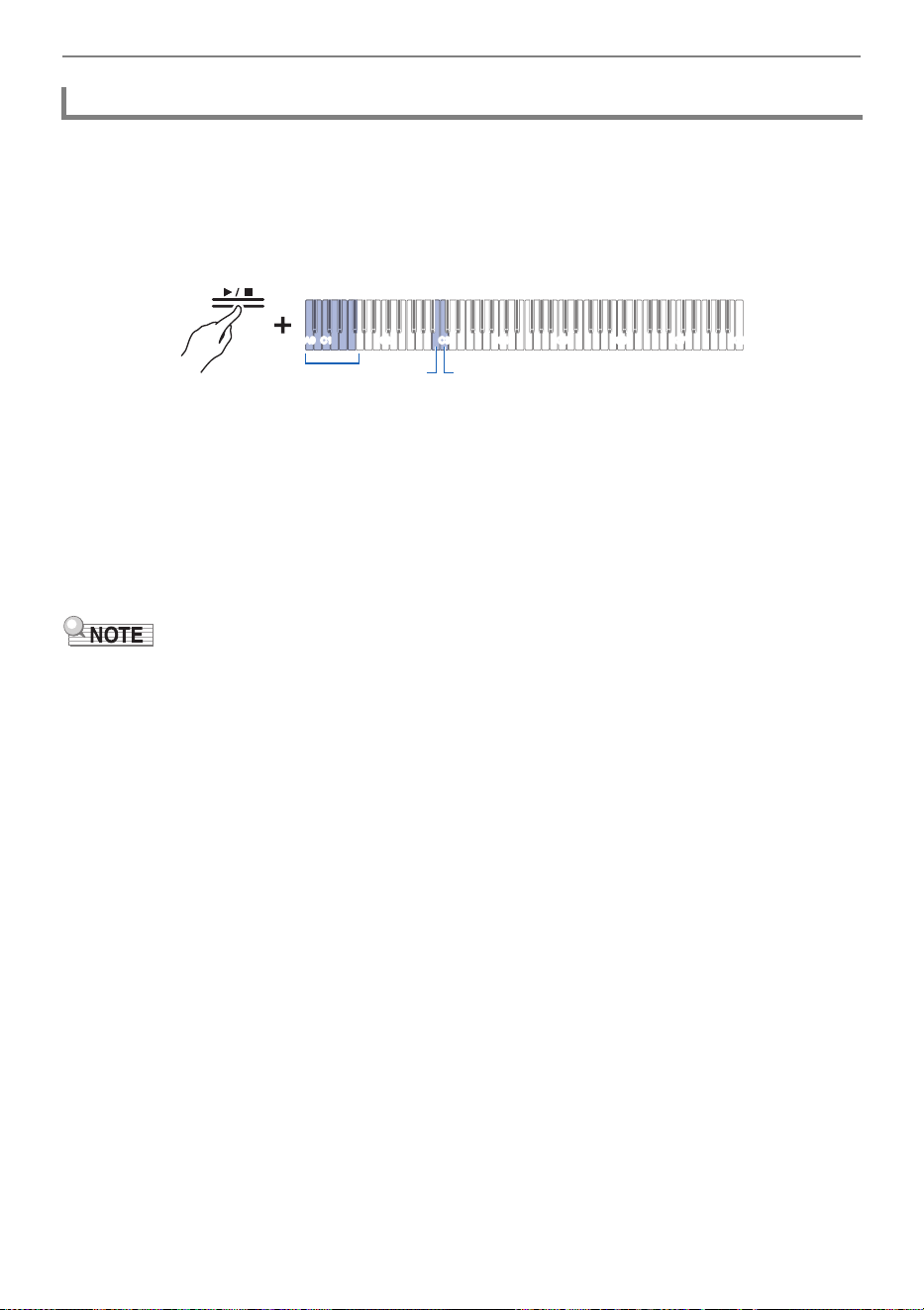
Listening to Songs
EN-64
Operate with <Audio Recorder>.
Switching to Audio Recorder
1.
Hold down the “a” button and use the corresponding key to select a song.
After selecting a song, release the “a” button.
• Specify the TAKE**.WAV or TAKE**.MP3 (where ** = 01-99) file using the A0 to F{1 keys
Inputting Setting Values Using the Keys 0 to 9 (operation type C)
• Use keys B2/C3 (Song Select –/Song Select +) to specify previous/next song number
Using the +/– Keys to Raise or Lower the Setting Value by 1 (operation type B)
2.
To start playback, touch the “a” button. To stop playback in the middle of a
song, touch the “a” button again.
• Playback ends when the end of the song is reached.
• If the file of the specified song number does not exist, a tone will sound for invalid.
• When the WAV file name “TAKE**.WAV” (** is 01-99) and the MP3 file name “TAKE**.MP3” (** is
01-99) are the same, the WAV file will play.
Selecting a Song for Playback
C1A0 C2 C3 C4 C5 C6 C7 C8
B2 C3
A0 - F{1
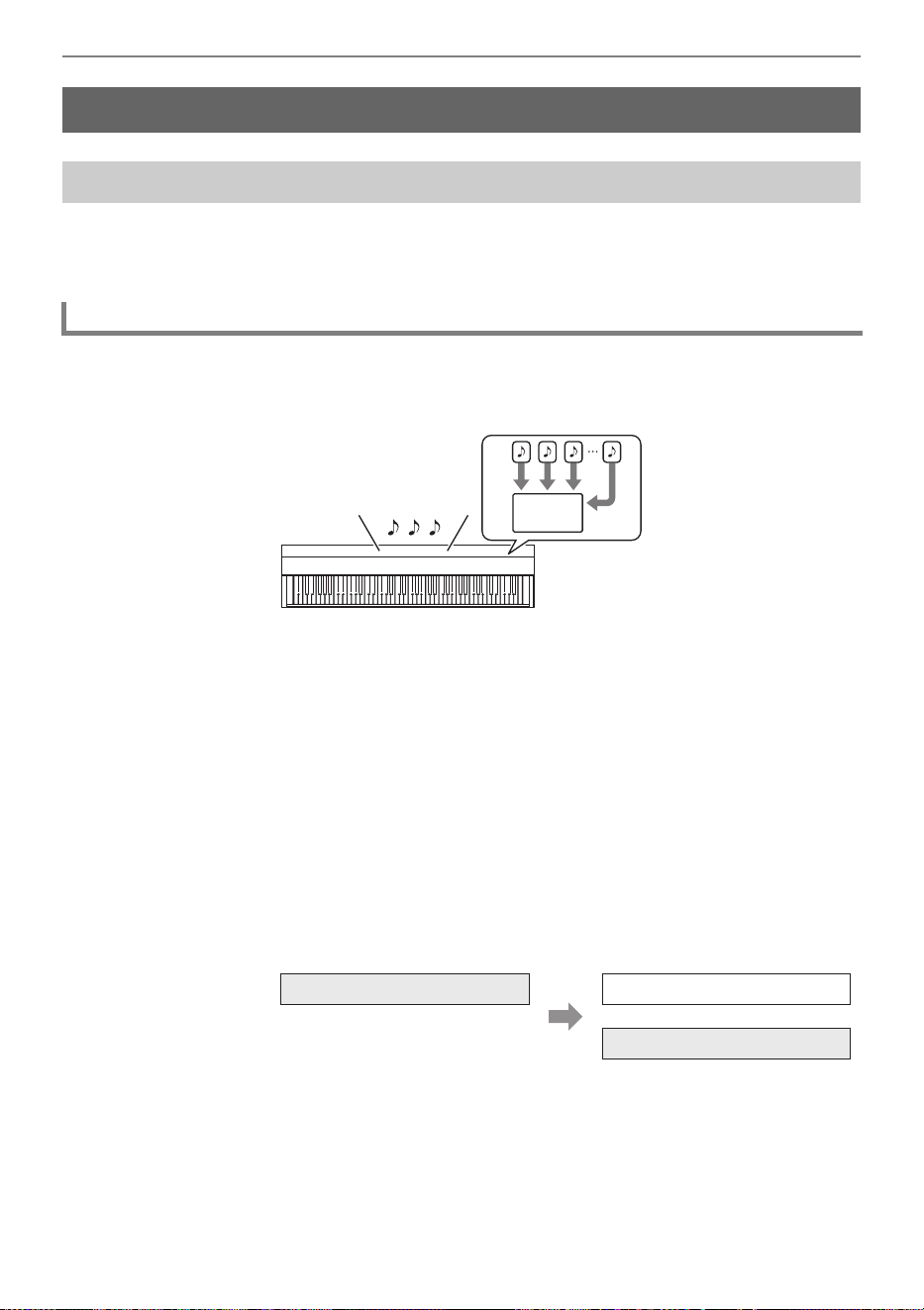
Recording a Performance
EN-65
The Digital Piano has two recording functions: a MIDI Recorder and an Audio Recorder. Depending on
the type of data you want to record or play back, you will need to switch the [Recorder] setting between
<MIDI Recorder> and <Audio Recorder>.
MIDI Recorder
Performances are converted to MIDI data
*
and recorded to two tracks (data domain where
performances are recorded) in the internal memory.
• Keyboard performance information (keys touched and released, touch strength, etc.) is recorded as
MIDI data.
• MIDI data has the benefit of being extremely small in size compared to audio data, and it can be
edited at a later date, e.g., on a computer.
• One song can be recorded. When a new recording is made, the previous recording is erased.
• The maximum number of notes that can be recorded in one song is approximately 10,000 notes as a
total for both tracks.
* MIDI
MIDI is an abbreviation for Musical Instrument Digital Interface. It is a unified standard that allows
performance information (keys pressed and released, touch strength, etc.) to be exchanged between
electronic musical instruments or between electronic musical instruments and computer equipment,
regardless of manufacturer. The performance information exchanged is called MIDI data.
You can also:
Record to the right-hand part track while playing the left-hand part track
Recording a Performance
MIDI Recorder and Audio Recorder Features
Recording Features
MIDI
Left-hand part track
Right-hand part track
Keyboard performance While playing back
Keyboard performance
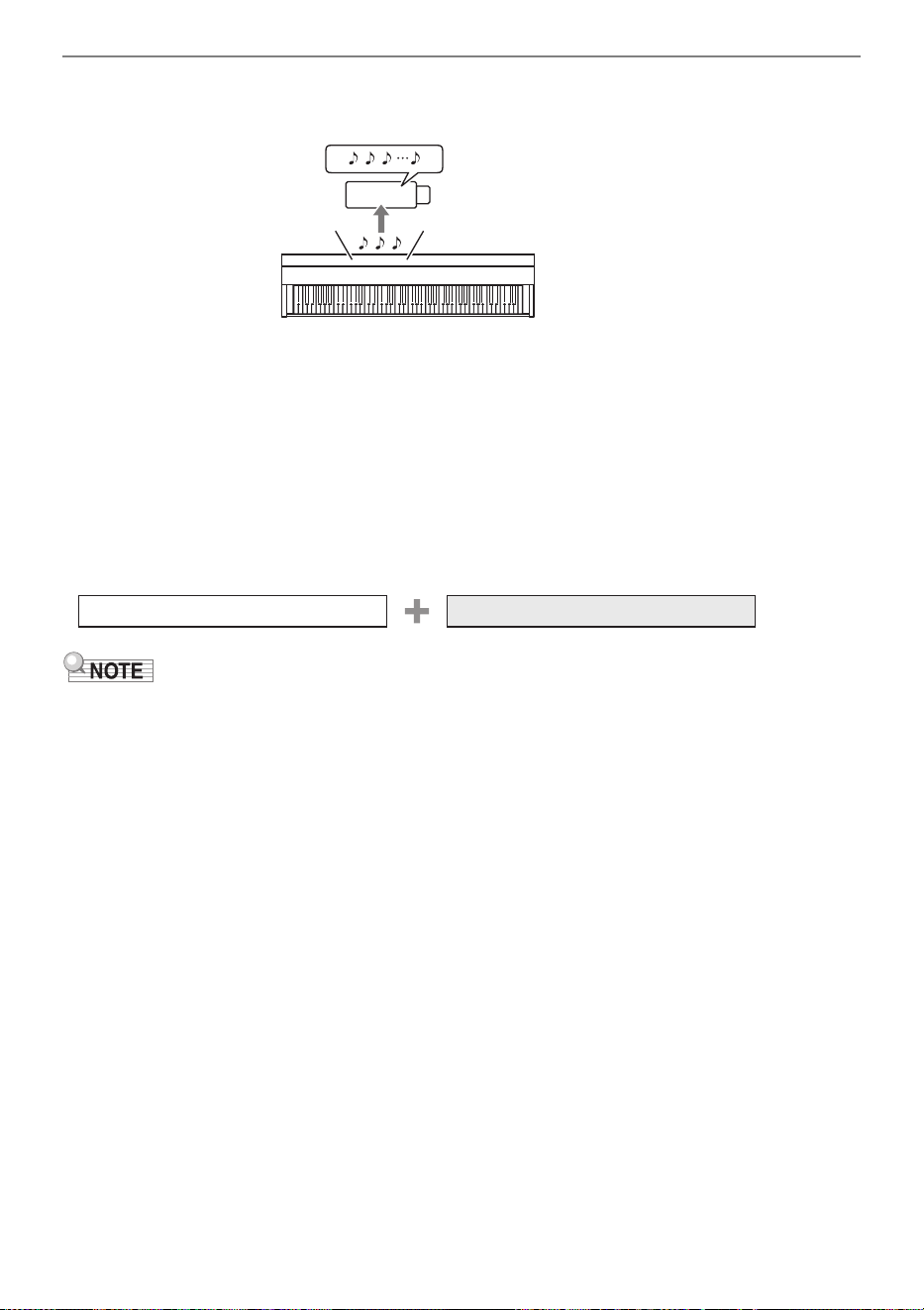
Recording a Performance
EN-66
Audio Recorder
Convert your performance into audio data
*
and record it to a USB Flash Drive.
• The sound itself is recorded as audio data, similar to recording on a portable music player or tape
recorder.
• Audio data files are extremely large in size compared to MIDI data. However, they have the
advantage of being easy to listen to on a computer or portable music player.
• Up to 25 minutes and up to 99 files can be recorded on a USB flash drive.
* Audio Data
Audio data recorded with this Digital Piano is saved in WAV file format (linear PCM, 16 bit, 44.1 kHz,
stereo).
You can also:
Record a performance while playing back a song recorded using the MIDI Recorder
• For information about data file formats that are supported by this Digital Piano, see “Types of Data
that Can be Handled by this Digital Piano”.
• Data recorded on the Digital Piano can be saved to a USB flash drive. See “Saving MIDI Recorder
Songs to a USB Flash Drive”.
USB
Play MIDI Recorder songs Keyboard performance
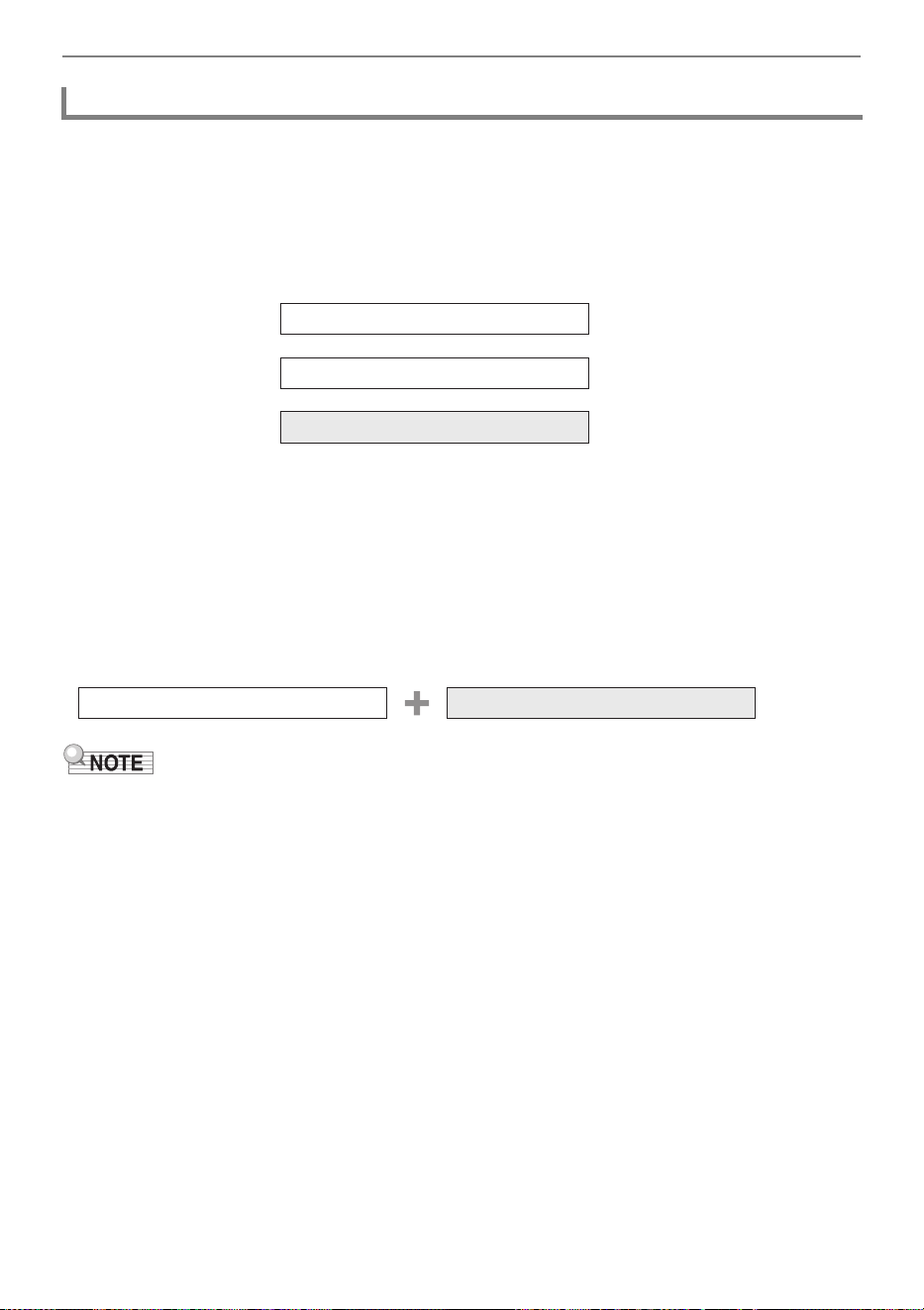
Recording a Performance
EN-67
MIDI Recorder
Play the left-hand part track and the right-hand part track (both or either).
• The MIDI Recorder automatically plays the internal sound source of this Digital Piano according to
the performance information recorded as MIDI data.
You can also:
Play the keyboard along with playback of the left-hand part track and the right-hand part track
Change the Tempo of a Recording
You can, for example, record at a slower tempo and play back at a faster tempo.
• The tempo set for the left-hand part track is applied to the right-hand part track.
Audio Recorder
Plays audio data from a USB flash drive.
• The Audio Recorder plays back the actual sound waveform, which is recorded as audio data.
You can also:
Perform on the keyboard while playing audio data
• For information about data file formats that are supported by this Digital Piano, see “Types of Data
that Can be Handled by this Digital Piano”.
Playback Features
Left-hand part track
Right-hand part track
While playing back
While playing back
Keyboard performance
Play back songs from a USB flash drive Keyboard Performance
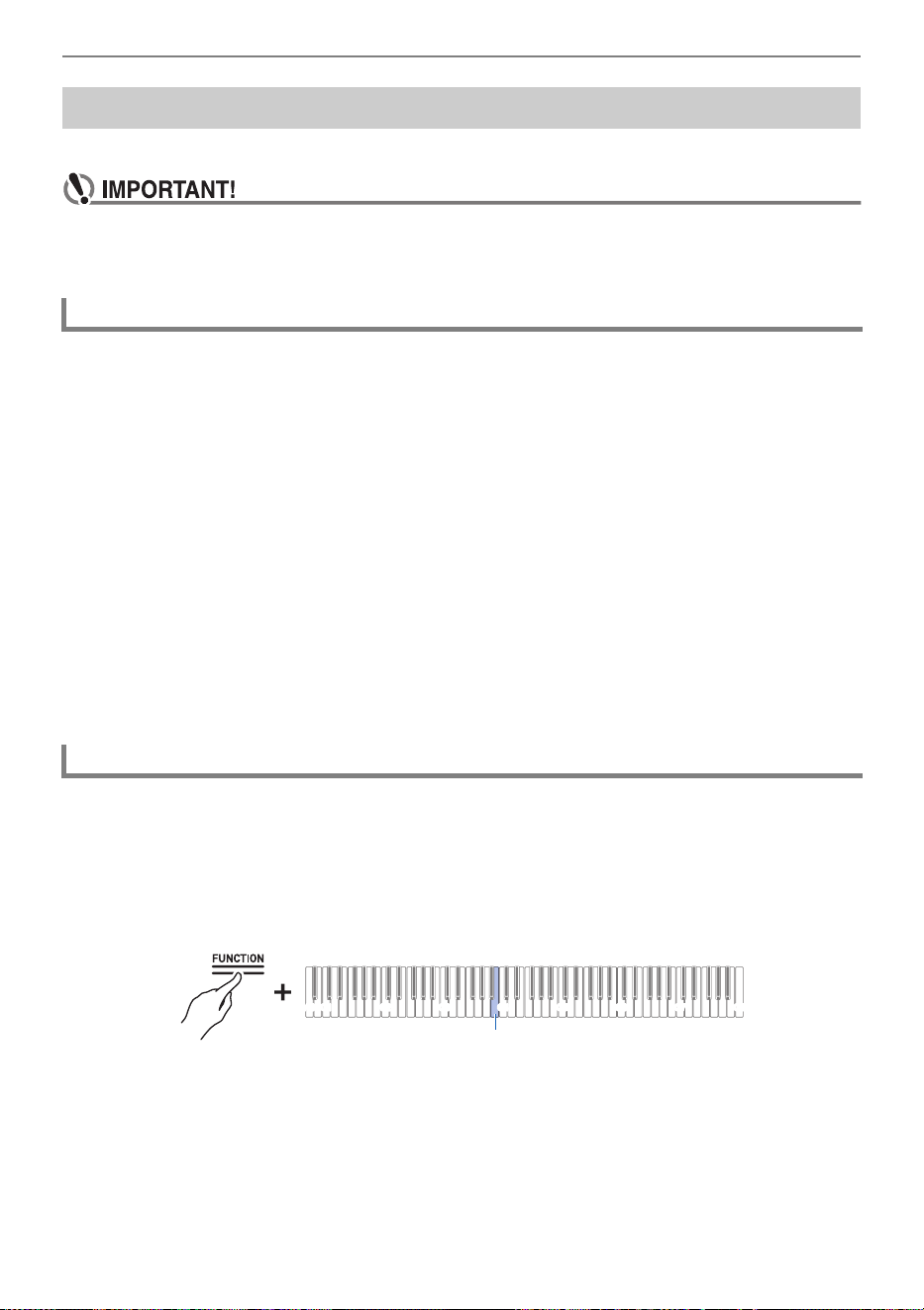
Recording a Performance
EN-68
Records keyboard performances and pedal usage as MIDI data.
• Be aware that we will not be responsible for any damages, lost profits, or any claims from
third parties arising from the deletion of recorded content due to malfunction or repair of this
Digital Piano.
When recording with the MIDI Recorder, the following operations and settings are recorded to the
Digital Piano’s internal memory.
• Keyboard and pedal play
•Tone
•Tempo
*
• Beat
*
• Keyboard volume
*
• Layer settings (left-hand part track only)
• Split settings (left-hand part track only)
• Duet (left-hand part track only)
• Sound Mode (Hall Simulator/Reverb Type, Hall Simulator/Reverb depth for built-in sound source),
Chorus, Brilliance
*
• Acoustic Simulator settings
*
• Scale Tuning
*
• Stretch Tuning
*
* Left-hand part track only. However, the setting is also applied to the right-hand part track during
playback.
Switch the [Recorder] setting to <MIDI Recorder>.
The default setting for [Recorder] on this Digital Piano is <MIDI Recorder>.
While holding down the “FUNCTION” button, press the B3 key (MIDI Recorder).
Selecting a Setting Value Directly (operation type A)
Recording a Performance with the MIDI Recorder
Main Content Recorded by the MIDI Recorder
Preparing to Use the MIDI Recorder
C1A0 C2 C3 C4 C5 C6 C7 C8
B3
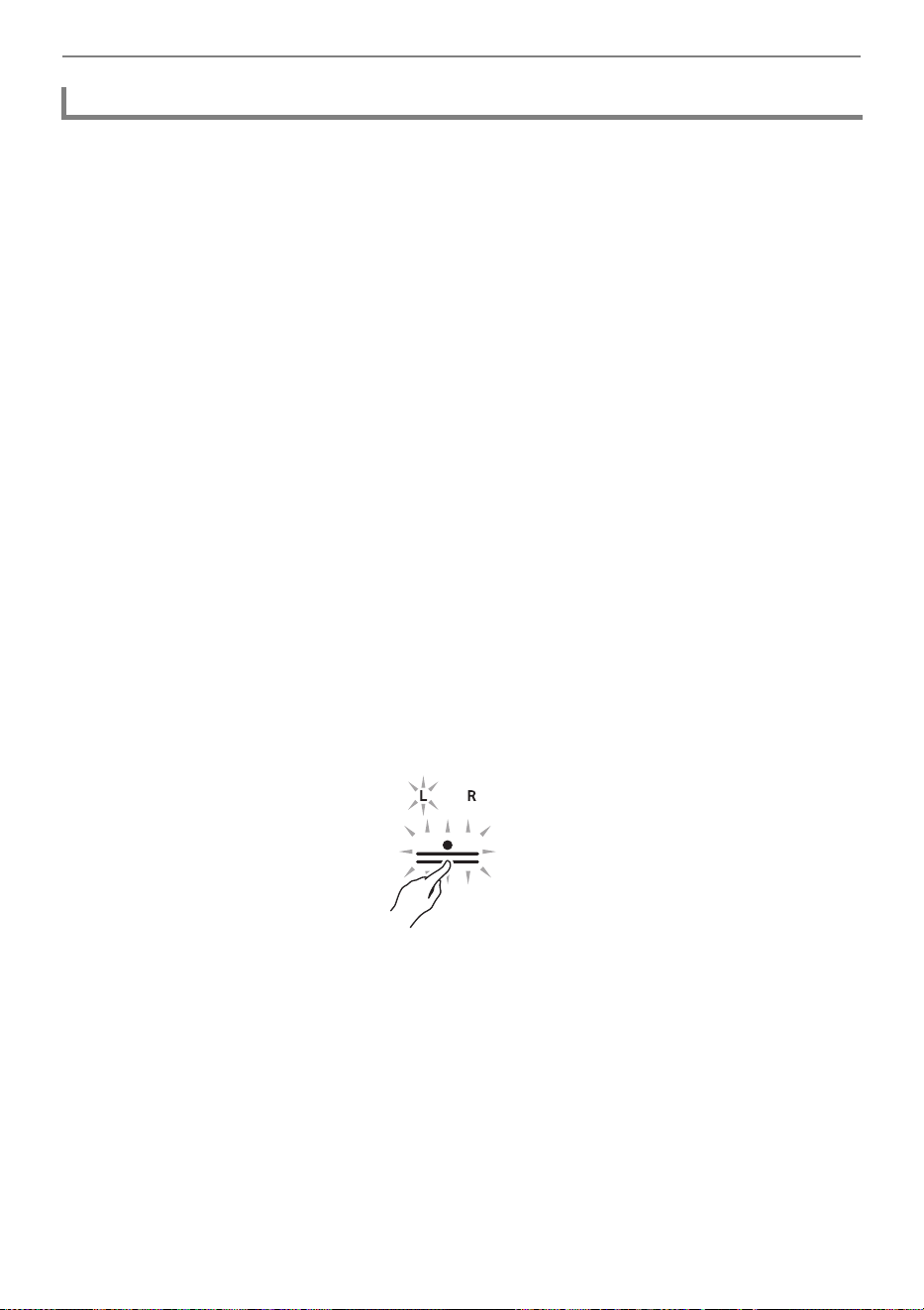
Recording a Performance
EN-69
Easy use of MIDI Recorder
1.
Touch the “0(REC)” button (lit white).
• The “0(REC)” button will start to blink red to indicate that recording is on standby.
2.
When you start to play, recording will begin automatically.
• The “0(REC)” button stops blinking red and changes to lit to indicate that recording is in
progress.
3.
To end recording, touch the “0(REC)” button.
• The “0(REC)” button will return to a white light.
4.
To play the current recording, touch the “a” button.
• To stop playback, touch the “a” button again.
Recording to the Left-Hand Part Track
Switch [Recorder] to <MIDI Recorder> for operation.
Preparing to Use the MIDI Recorder
1.
Set tones, effects, tempo, etc. for recording as necessary.
• For setting beat and tempo, see “Setting the Beat” and “Setting a Tempo”.
• For track-by-track recording details, see “Main Content Recorded by the MIDI Recorder”.
2.
Touch the “0(REC)” button (lit white).
• Recording goes to standby, and the “0(REC)” button blinks red.
• The “L” in the Track Indicator flashes.
• To stop the recording, touch the “0(REC)” button again.
3.
To sound the metronome while recording, touch the “METRONOME” button.
Recording
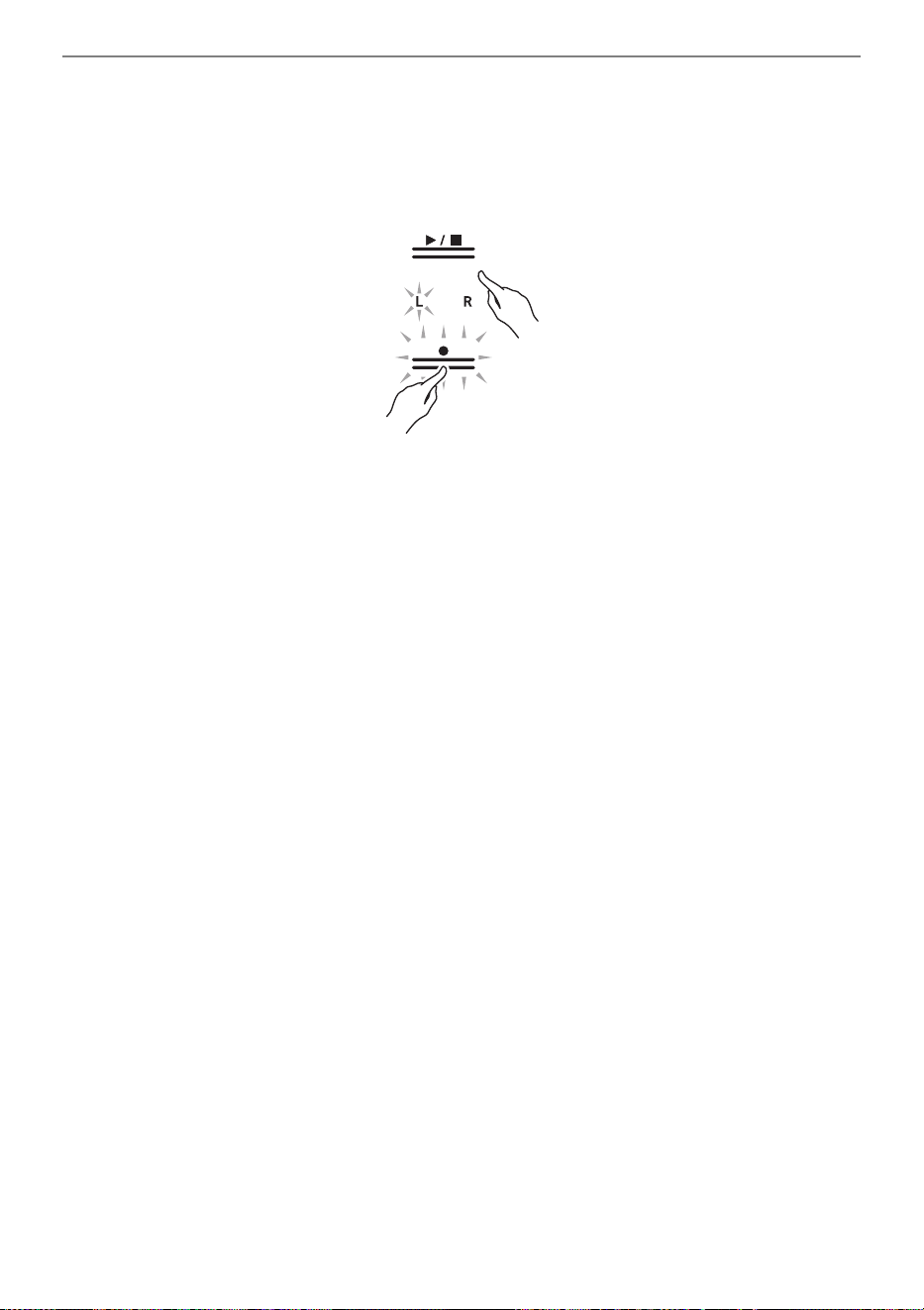
Recording a Performance
EN-70
4.
Recording will begin when you start playing.
• You can also start recording by holding down the “0(REC)” button and touching the “a”
button.
• The “0(REC)” button switches from a blink to a lit state, and the “a” button goes off.
• If you want to redo your recording, see “Starting over from the beginning during a recording”.
5.
To end recording, touch the “0(REC)” button.
• The “0(REC)” button will light up white again and the “a” button will light up.
• To play back the recording immediately, touch the “a” button.
Starting over from the beginning during a recording
If you want to redo the recording due to a performance error or other reason, hold down the “0(REC)”
button until it flashes during recording. The recorded data is discarded and the process returns to a
record standby state.
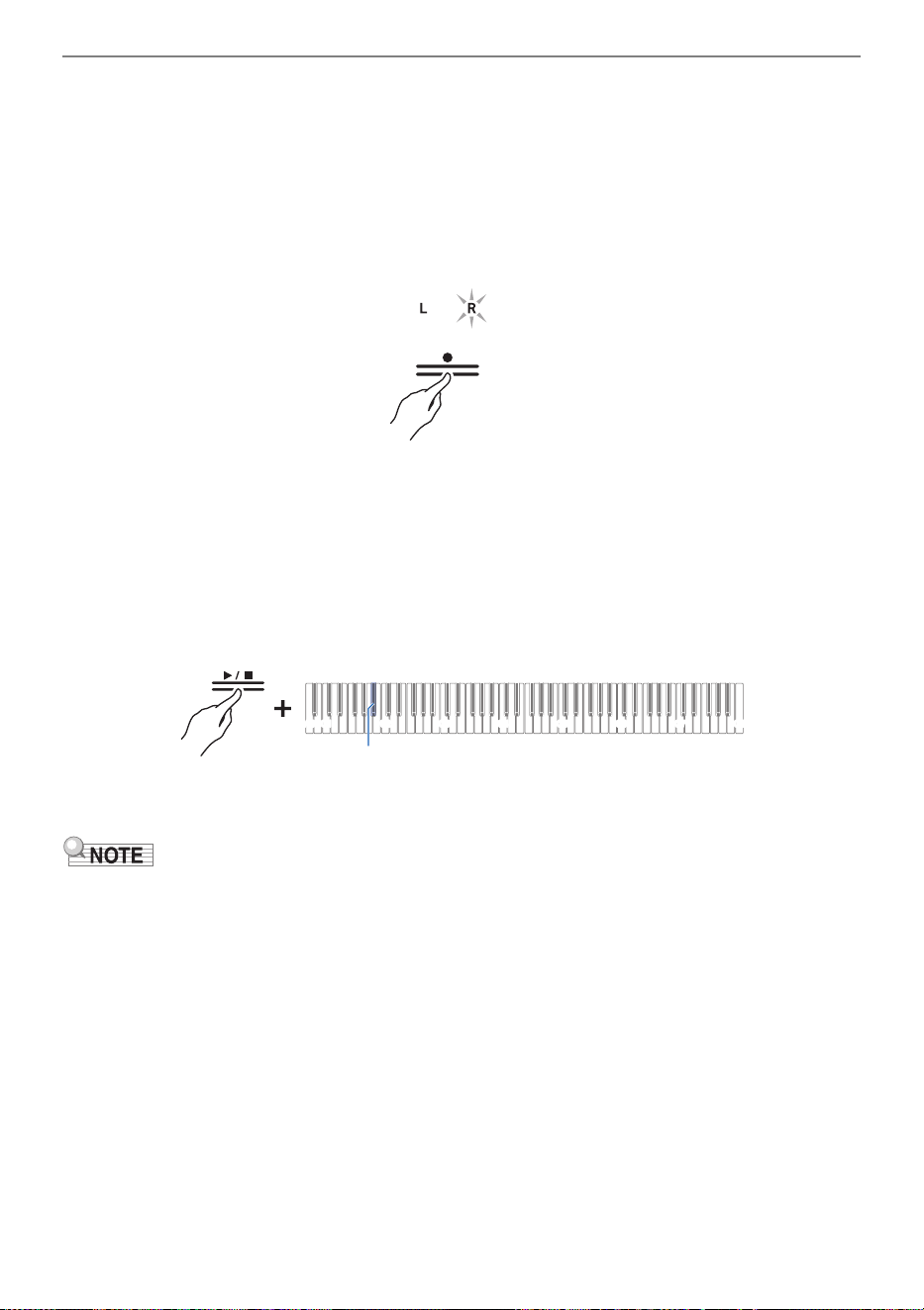
Recording a Performance
EN-71
Overdub Recording (record to the right-hand part track to layer over the recording
of the left-hand part track)
Use “Recording to the Left-Hand Part Track” to enter the record standby state before proceeding.
1.
Touch and hold the “0(REC)” button until the “R” in the track indicator flashes.
• The right-hand part track will be recorded.
• The “L” in the track indicator switches from a blink to lit.
2.
If you do not want the left-hand part track to play during recording, hold down the
“a” button and press the B}1 key (Song Playback Part selection).
Switching On/Off or Changing Setting Values Using a Single Key (operation type D)
• The “L” in the track indicator goes off.
• Each time B}1 key is pressed, the “L” in the track indicator switches between lit (Playback) and
unlit (No Playback).
3.
After this, operate from step 4, “Recording to the Left-Hand Part Track”.
• Some settings recorded for the left hand part track, including beat and tempo, are also applied to the
right hand part track recording.
C1A0 C2 C3 C4 C5 C6 C7 C8
B}1

Recording a Performance
EN-72
Operate with <MIDI Recorder>.
Preparing to Use the MIDI Recorder
1.
Touch the “0(REC)” button (lit white).
• Recording goes into standby and the “0(REC)” button blinks red.
• The “L” in the track indicator will blink, and the left-hand part track will be erased.
2.
To erase the right hand-part track, press and hold the “0(REC)” button until the
“R” in the track indicator blinks.
3.
While holding down the “0(REC)” button, touch the “a” button.
• The “0(REC)” button switches from a blink to lit.
4.
Hold down the “0(REC)” button until it blinks.
• The recording of the specified track will be erased.
5.
Touch the “0(REC)” button to exit record standby.
Erasing the Recording of a Track
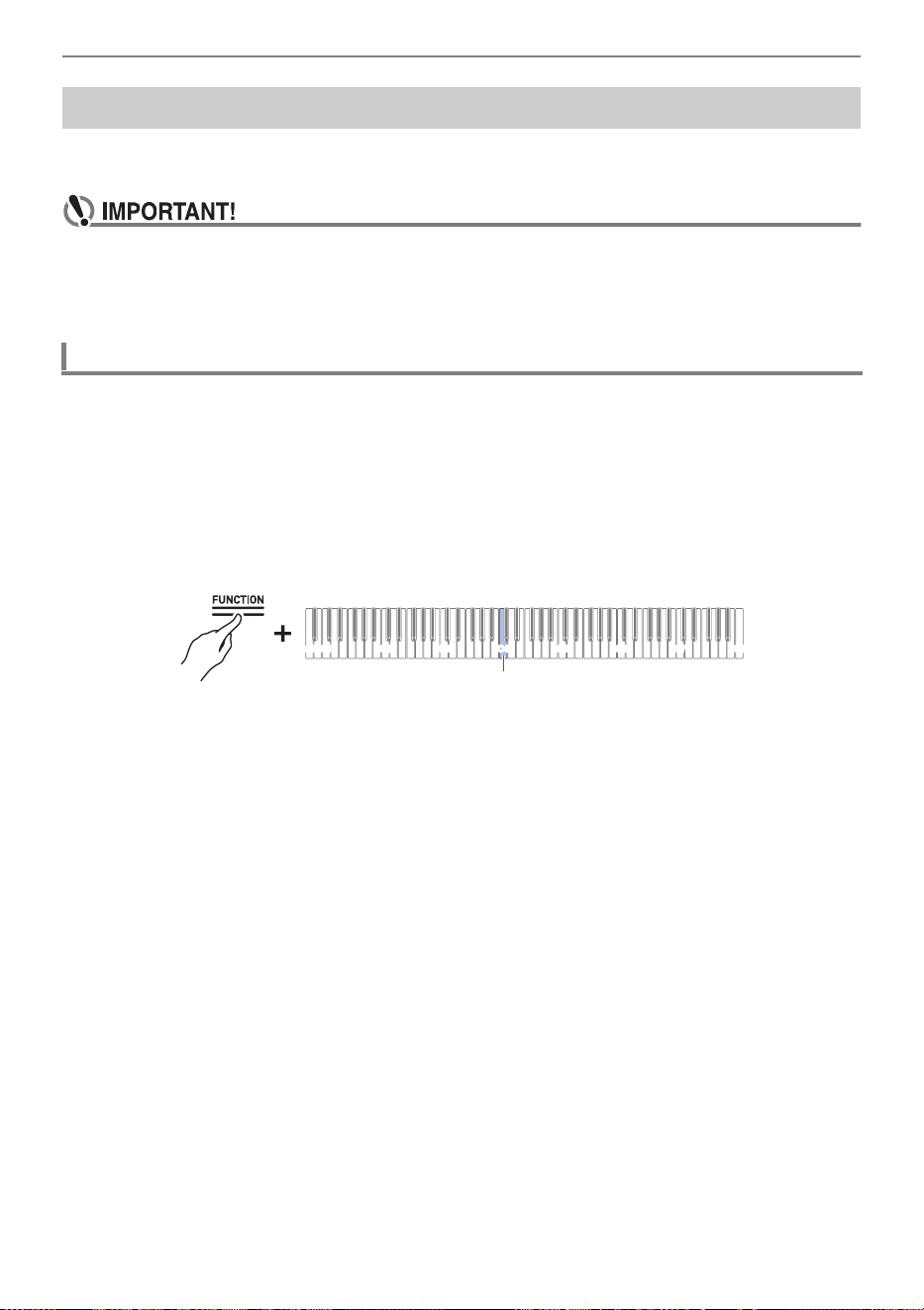
Recording a Performance
EN-73
Records keyboard performances and pedal usage as audio data. Recordings are saved in WAV file
format (linear PCM, 16 bit, 44.1 kHz, stereo) to a USB flash drive connected to the USB Type A port.
• Do not remove the USB flash drive during recording or playback on the Audio Recorder.
Doing so can corrupt the data on the USB flash drive and damage the USB Type A port.
• For more information on using USB flash drives, see “Using a USB Flash Drive”.
• For supported USB flash drive formats see “Supported USB Flash Drives”.
Connect a USB flash drive to the USB Type A port of the Digital Piano.
For information on using USB flash drives, see “Inserting/Removing a USB Flash Drive from the Digital
Piano”.
Switch the [Recorder] setting to <Audio Recorder>.
While holding down the “FUNCTION” button, press the C4 key (Audio Recorder).
Selecting a Setting Value Directly (operation type A)
Recording a Performance with the Audio Recorder
Preparing to Use the Audio Recorder
C1A0 C2 C3 C4 C5 C6 C7 C8
C4
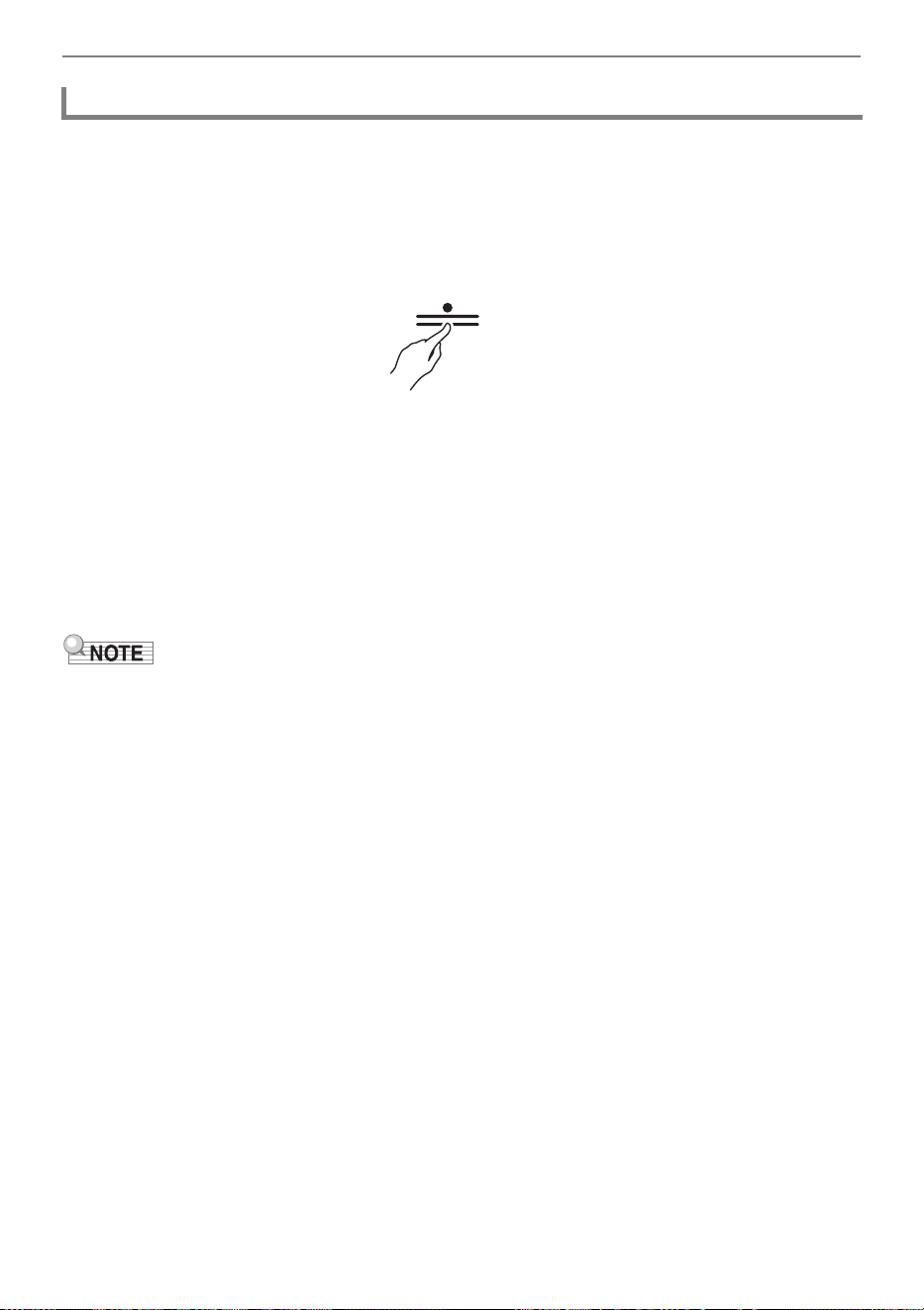
Recording a Performance
EN-74
Operate with <Audio Recorder>.
Preparing to Use the Audio Recorder
1.
Touch the “0(REC)” button (lit white).
• Recording goes into standby and the “0(REC)” button blinks red.
• To stop the recording, touch the “0(REC)” button again.
2.
Recording will begin when you start playing.
• You can also start recording by holding down the “0(REC)” button and touching the “a”
button.
• The “0(REC)” button switches from a blink to lit, and the “a” button goes off.
3.
To end recording, touch the “0(REC)” button.
• The “0(REC)” button will light up white again and the “a” button will light up.
4.
To play the recording, touch the “a” button.
• The maximum recording time available is approximately 25 minutes, after which recording will
automatically end. The “0(REC)” button will start blinking when there is limited time left available for
recording.
• Recordings are saved as WAV files on a USB flash drive. The files are named and saved
“TAKE01.WAV” to “TAKE99.WAV” in the order in which they were recorded.
• Files recorded by the Audio Recorder are saved with a filename that follows the last MP3 or WAV
audio file.
When you want to start over from the beginning during a recording
If you want to redo the recording due to a performance error or other reason, hold down the “0(REC)”
button until it flashes during recording. The recorded data is discarded and the process returns to a
record standby state.
Recording Audio Recorder Songs (WAV) Directly to a USB Flash Drive
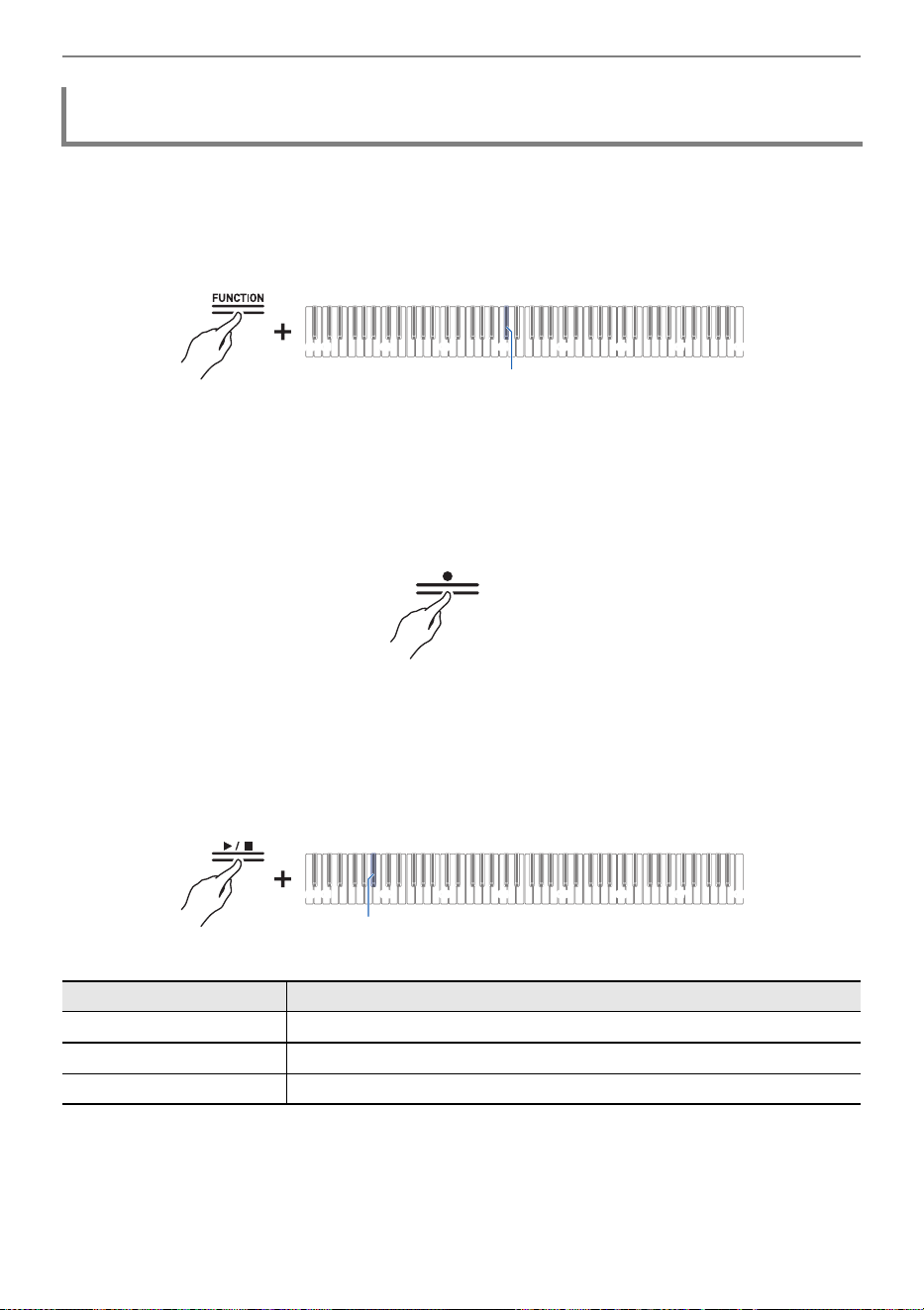
Recording a Performance
EN-75
1.
While holding down the “FUNCTION” button, press the C{4 key (Audio Rec with
MIDI playback).
Selecting a Setting Value Directly (operation type A)
2.
Attach the USB flash drive to the USB Type A port.
3.
Touch the “0(REC)” button (lit white).
• Recording goes into standby and the “0(REC)” button blinks red.
• The track indicator of the part being recorded with the MIDI Recorder will light up.
4.
To set the playback part, hold down the “a” button and press the B}1 key
(Song Playback Part selection).
Switching On/Off or Changing Setting Values Using a Single Key (operation type D)
• The “L” and “R” track indicators light up respectively.
Recording to the Audio Recorder while Playing Back Data Recorded to the
MIDI Recorder
Track Indicator Setting Details
Only L lights up Plays the left-hand part and mutes the right-hand part.
Only R lights up Plays the right-hand part and mutes the left-hand part.
Both L & R light up Both left and right parts are played back.
C1A0 C2 C3 C4 C5 C6 C7 C8
C{4
C1A0 C2 C3 C4 C5 C6 C7 C8
B}1

Recording a Performance
EN-76
5.
Recording will begin when you start playing.
• The MIDI Recorder Song will play as recording begins.
• You can also start recording by holding down the “0(REC)” button and touching the “a”
button.
• The beat indicator lights up in time with the beat.
• If you want to redo your recording, see “When you want to start over from the beginning during a
recording”.
6.
To end recording, touch the “0(REC)” button.
• The “0(REC)” button will light up white again and the “a” button will light up.
• To play the recording immediately, touch the “a” button.
• The maximum recording time available is approximately 25 minutes, after which recording will
automatically end. The “0(REC)” button will start blinking when there is limited time available for
recording.
• Recordings are saved as WAV files on a USB flash drive. The files are named and saved
“TAKE01.WAV” to “TAKE99.WAV” in the order in which they were recorded.
• Files recorded by the Audio Recorder are saved with a filename that follows the last MP3 or WAV
audio file.
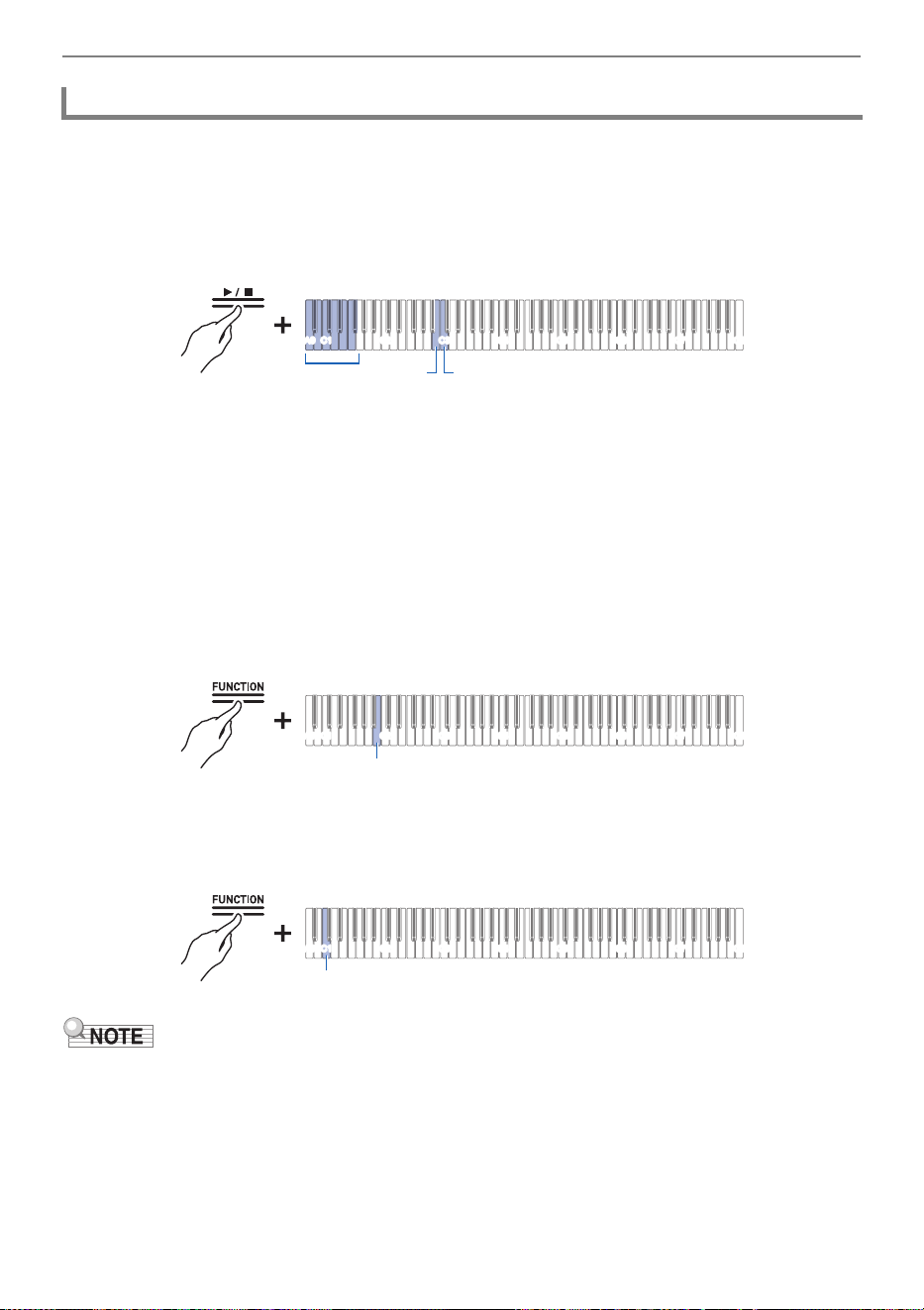
Recording a Performance
EN-77
Operate with <Audio Recorder>.
Preparing to Use the Audio Recorder
1.
Hold down the “a” button and select the file to be deleted with the
corresponding key.
• Use the A0 to F{1 keys to specify the TAKE**.WAV (** is 01-99) number
Inputting Setting Values Using the Keys 0 to 9 (operation type C)
• Use keys B2/C3 (Song Select –/Song Select +) to specify previous/next song number
Using the +/– Keys to Raise or Lower the Setting Value by 1 (operation type B)
2.
While holding down the “FUNCTION” button, press the B1 key (Delete SMF/MRF/
Audio).
Putting in Standby Mode, and Executing on Next Key Press (operation type E)
• Do not release the “FUNCTION” button until the next operation is complete.
3.
While holding down the “FUNCTION” button, press the C1 key (Execute).
• The file is deleted.
• The number specified for deletion applies to both WAV and MP3 files. If a WAV file and MP3 file
share the same number, they will both be deleted.
Deleting a Recorded File
C1A0 C2 C3 C4 C5 C6 C7 C8
B2 C3
A0 - F{1
C1A0 C2 C3 C4 C5 C6 C7 C8
B1
C1A0 C2 C3 C4 C5 C6 C7 C8
C1
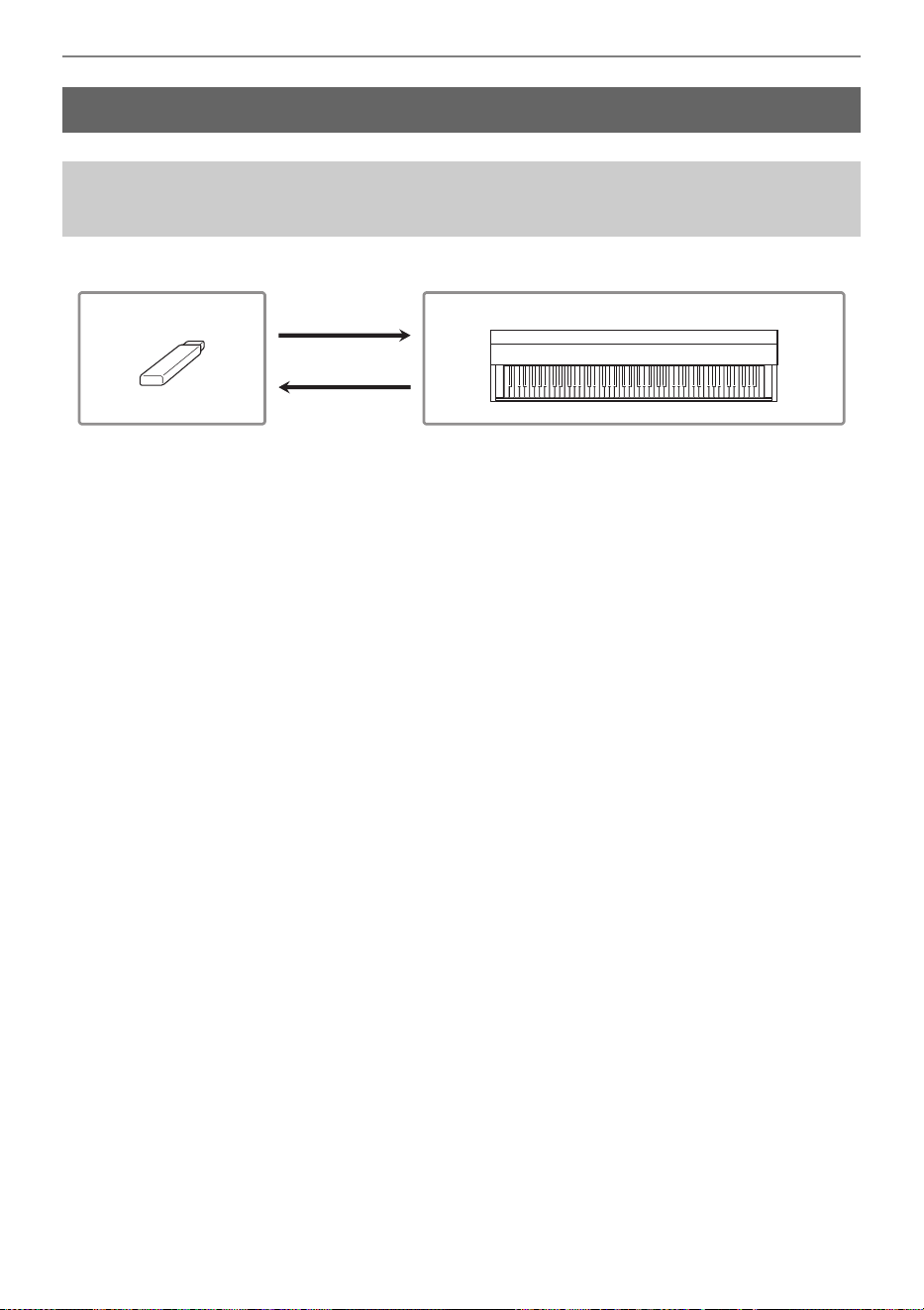
Using a USB Flash Drive
EN-78
You can do the following using a commercially available USB flash drive.
(1) Using a file on a USB flash drive with this Digital Piano
• Direct playback of audio files from a USB flash drive
For more information, see “Playing Audio Data (WAV, MP3)”.
• Direct playback of MIDI files on a USB flash drive
For more information, see “Playing MIDI Data”.
• Load compatible files from a USB flash drive into the Digital Piano
For more information, see “Loading USB Flash Drive Files into the Digital Piano”.
• Erase USB Flash Drive Files
See “Deleting USB Flash Drive Files”.
(2) Save data from the Digital Piano to a USB flash drive
• Record Audio Recorder songs (WAV) directly to a USB flash drive
For more information, see “Recording Audio Recorder Songs (WAV) Directly to a USB Flash Drive”.
• Save MIDI Recorder Songs to a USB Flash Drive
For more information, see “Saving MIDI Recorder Songs to a USB Flash Drive”.
Using a USB Flash Drive
Using a Commercially Available USB Flash Drive – What
You Can Do
(1)
(2)
USB Flash Drive This Digital Piano
Using a USB Flash Drive
EN-79
Use FAT32 or exFAT formatted USB flash drives.
• For USB flash drives with large capacities, mounting and formatting may take some time.
• Depending on the performance and characteristics of the USB flash drive, it may not be possible to
correctly perform recording/playback.
• It may not be possible to use USB flash drives that are recognized as multiple drives on a
computer.
• USB flash drives that are recognized as CD-ROMs on a computer cannot be used.
• USB flash drives with special functions, such as anti-virus or security features, cannot be
used.
Audio data
WAV format
A
standard audio file format used primarily in Windows. This Digital Piano is compatible with Linear
PCM, 16 bit, 44.1 kHz, stereo WAV files (extension: .WAV).
MP3 format
A common audio file format widely used for music distribution. This Digital Piano supports 44.1/48 kHz,
32–320 kbps bit rate, and variable bit rate (VBR) compatible MP3 files (extension: .MP3).
MIDI data
MRF format (CASIO’s original file format)
MIDI data recorded by the Digital Piano’s MIDI Recorder (extension: .MRF).
CMF format (CASIO’s original file format)
CASIO’s own MIDI data to which performance information is added (extension: .CMF).
SMF (Standard MIDI File) format, Format 0/1:
Standard MIDI file format compatible with MIDI equipment from other manufacturers (extension: .MID).
Preparing a USB Flash Drive
Supported USB Flash Drives
Types of Data that Can be Handled by this Digital Piano
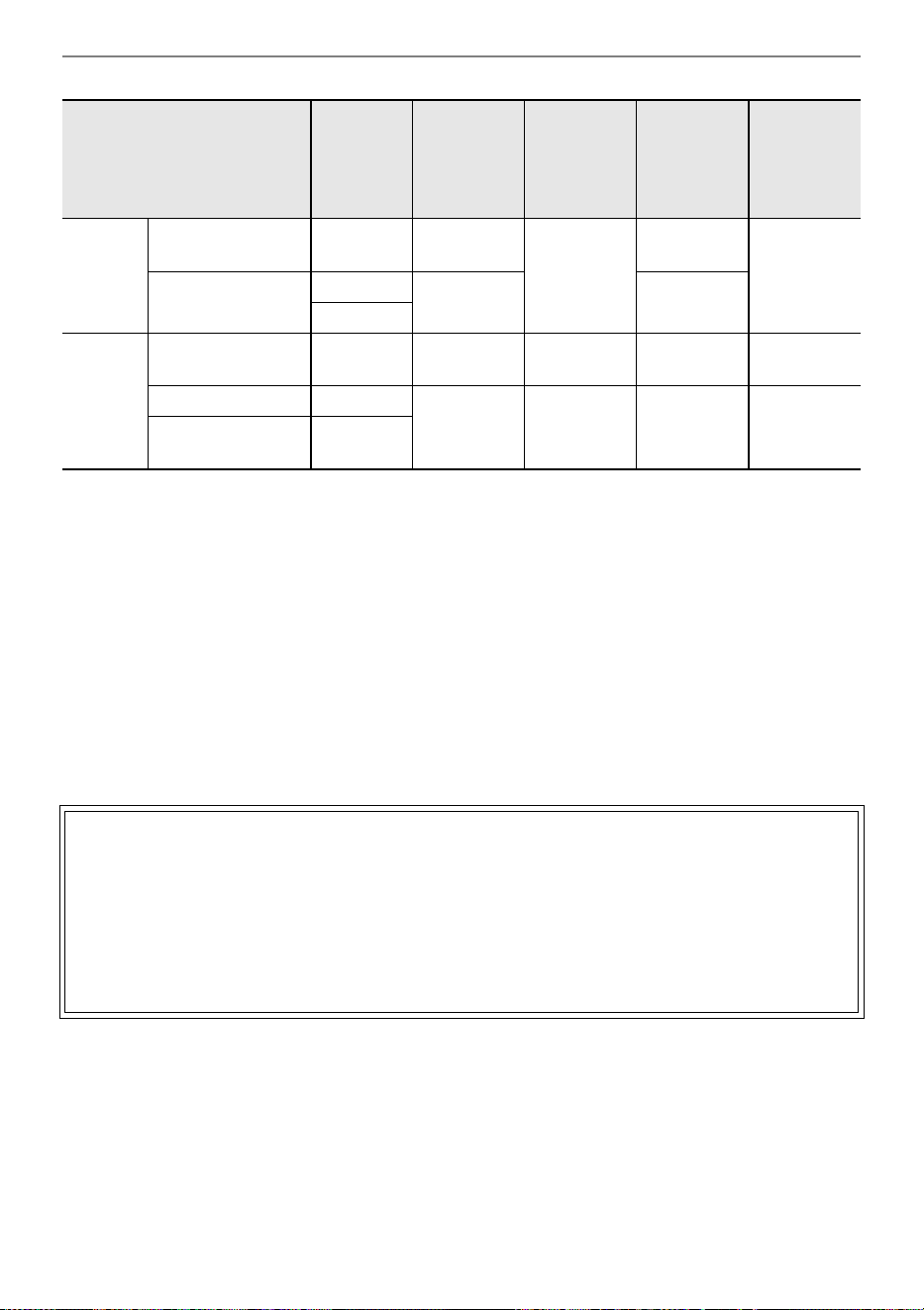
Using a USB Flash Drive
EN-80
*1 Can also be converted to a standard MIDI file (SMF format 0, extension: .MID) and saved.
• When saving in MRF format
Not only performance information, but also settings for functions specific to this Digital Piano (such
as Acoustic Simulator settings) are saved. When a file saved in this format is played back on the
Digital Piano, the original performance is reproduced. However, MRF files cannot be used with other
instruments.
• When saving in SMF format
Performance information is saved, but the settings for the unit-specific functions are not. Therefore,
even if a file saved in this format is played back on this Digital Piano, the unit-specific settings of the
unit’s functions are not restored to their original settings. However, files saved in this format can be
used with other SMF-compatible instruments. (It is not possible to reproduce the same performance
from this unit on other instruments.)
*2 Loaded as a User Song (song numbers 61-70). See “Loading USB Flash Drive Files into the Digital
Piano”.
Data Type Extension
Save
(Internal
memory →
USB flash
drive)
Load
(USB flash
drive →
internal
memory)
Direct
recording to
USB flash
drive
Playback
directly from
USB flash
drive
Audio Audio Recorder
Song File
.WAV
–
–
General Audio File .WAV
––
.MP3
MIDI MIDI Recorder
Song File
.MRF
*1
––
CASIO MIDI File .CMF
–
*2
–
Standard MIDI file
(SMF format)
.MID
Copyrights
You are allowed to use recordings for your own personal use. Any reproduction of an audio or
music format file, without the permission of its copyright holder, is strictly prohibited under
copyright laws and international treaties. Also, making such files available on the Internet or
distributing them to third parties, regardless of whether such activities are conducted with or
without compensation, is strictly prohibited under copyright laws and international treaties. CASIO
COMPUTER CO., LTD. shall not be held in any way liable for any use of this Digital Piano that is
illegal under copyright laws.
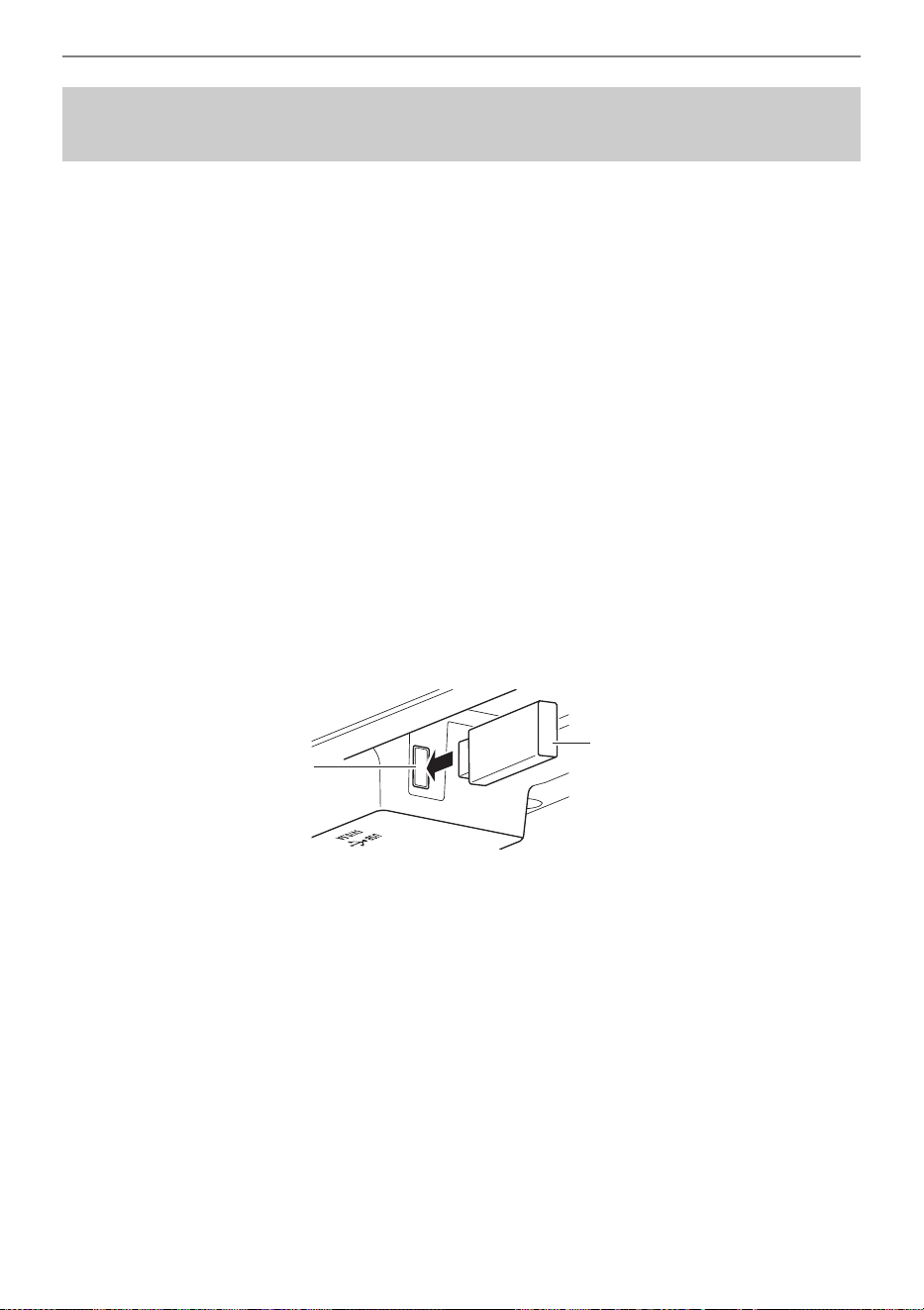
Using a USB Flash Drive
EN-81
• Follow the precautions in the instructions that are supplied with the USB flash drive.
• Avoid storing or using the product in the places outlined below. Data on the USB flash drive may be
corrupted.
Locations with high temperature, humidity, or corrosive conditions
Locations prone to strong static electricity or electrical noise
• Do not operate the Digital Piano or remove the USB flash drive while data is being saved or loaded.
Doing so can corrupt the data on the USB flash drive and damage the USB Type A port.
• Never insert devices other than those specified in this manual into the USB Type A port. Doing so
may cause malfunction.
• When operating a USB flash drive for the first time after it is inserted into the Digital Piano, or when
operating a USB flash drive for the first time after turning on the power, the Digital Piano may
become temporarily inoperable as the system prepares to exchange data with the USB flash drive
(mounting).
• Mounting is executed each time a USB flash drive is inserted into the Digital Piano.
• During mounting, the indicators above the “SOUND MODE” and “a” buttons will light up
sequentially. Do not operate the Digital Piano while it is mounting.
• It may take tens of seconds to several minutes for the monitoring system to complete mounting and
become operational.
Insertion
Insert the USB flash drive into the USB Type A port of the Digital Piano.
• Make sure to fully insert. Do not force insertion.
• The Digital Piano may malfunction if static electricity is transferred to the USB Type A port from
your hand or a USB flash drive. If this happens, turn the Digital Piano off and then back on
again.
Removal
Make sure that no data is being exchanged between the Digital Piano and the
USB flash drive, before unplugging and removing the USB flash drive.
• After prolonged use, the USB flash drive, which was removed, may be warm, but this is not a
malfunction.
Inserting/Removing a USB Flash Drive from the Digital
Piano
USB Flash Drive
USB Type A port
Using a USB Flash Drive
EN-82
When a USB flash drive is formatted in this Digital Piano, a folder named “CASIO” is created in the root
directory. This folder is always used when exchanging data between the Digital Piano and the USB
flash drive.
Diagram of the USB flash drive folder structure:
• Be sure to format the USB Flash Drive on the Digital Piano first.
• Formatting a USB flash drive will delete all data on the USB flash drive. Before formatting,
make sure that no important data is stored on the USB flash drive.
• The format operation performed by this Digital Piano is a “quick format”. To completely
delete data, perform a normal format on a computer or other device before formatting on this
Digital Piano.
• The exFAT format may limit the number of files that can be read if some files have long
names.
Formatting a USB Flash Drive
RECSONG.MRF
TAKE01.WAV
TAKE02.MP3
TAKE03.MP3
AAAA.MID
BBBB.CMF
\70
\62
\61
\CASIO
\MUSICLIB
\MIDIREC
\AUDIOREC
TAKE04.WAV
TAKE99.WAV
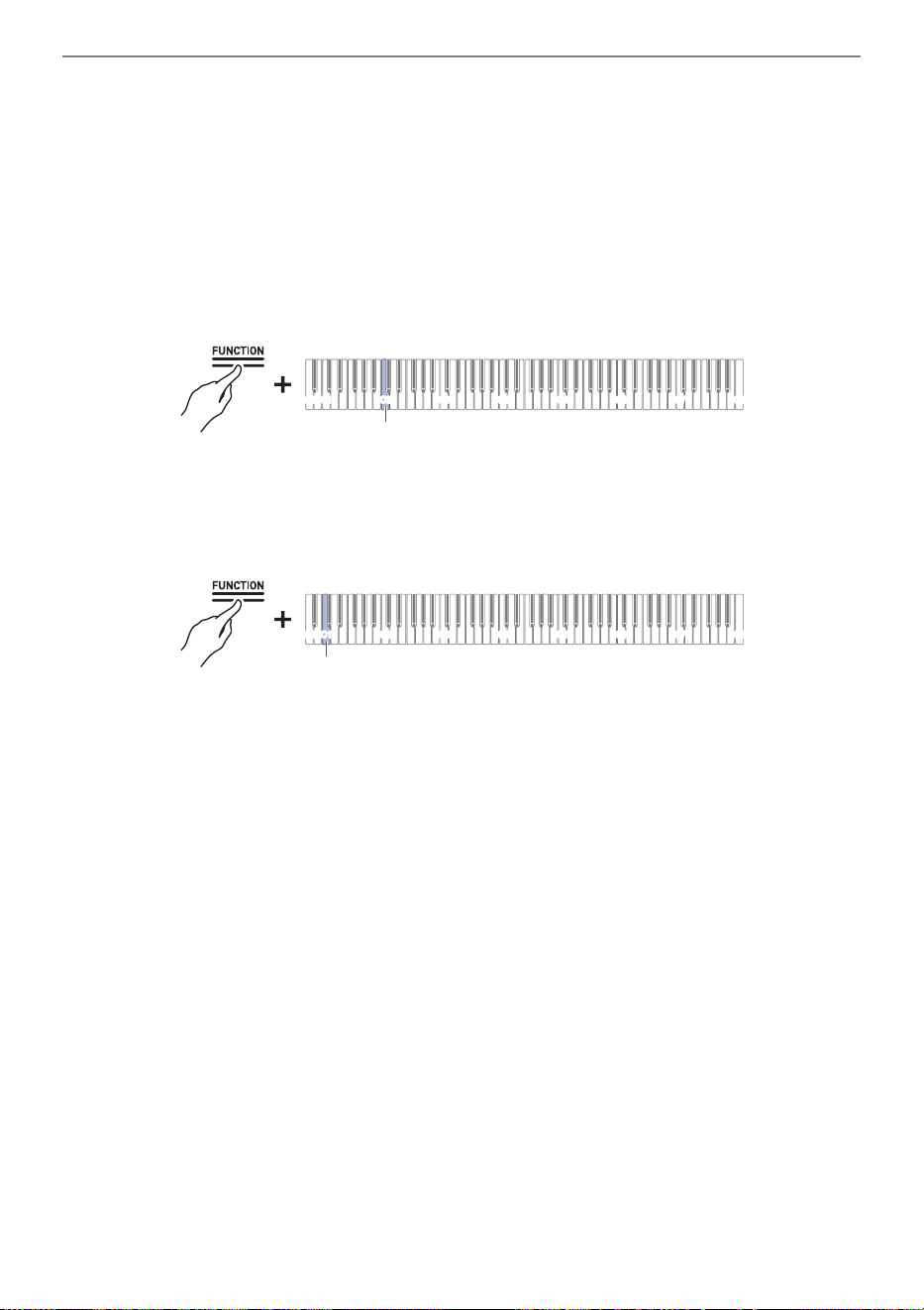
Using a USB Flash Drive
EN-83
1.
Insert the USB flash drive to be formatted into the USB Type A port on the Digital
Piano.
2.
Press and hold the “FUNCTION” button.
Putting in Standby Mode, and Executing on Next Key Press (operation type E)
• Do not release the “FUNCTION” button until step 4.
3.
Press the C2 key (Format).
• The right side of the beat indicator blinks and the Digital Piano enters the format standby state.
4.
Press the C1 key (Execute).
• Formatting will take place. During formatting, the indicators above the “SOUND MODE” and
“a” buttons will light up sequentially.
5.
Once formatting begins, release the “FUNCTION” button.
• When formatting is complete, the indicator returns to its original state.
C1A0 C2 C3 C4 C5 C6 C7 C8
C2
C1A0 C2 C3 C4 C5 C6 C7 C8
C1
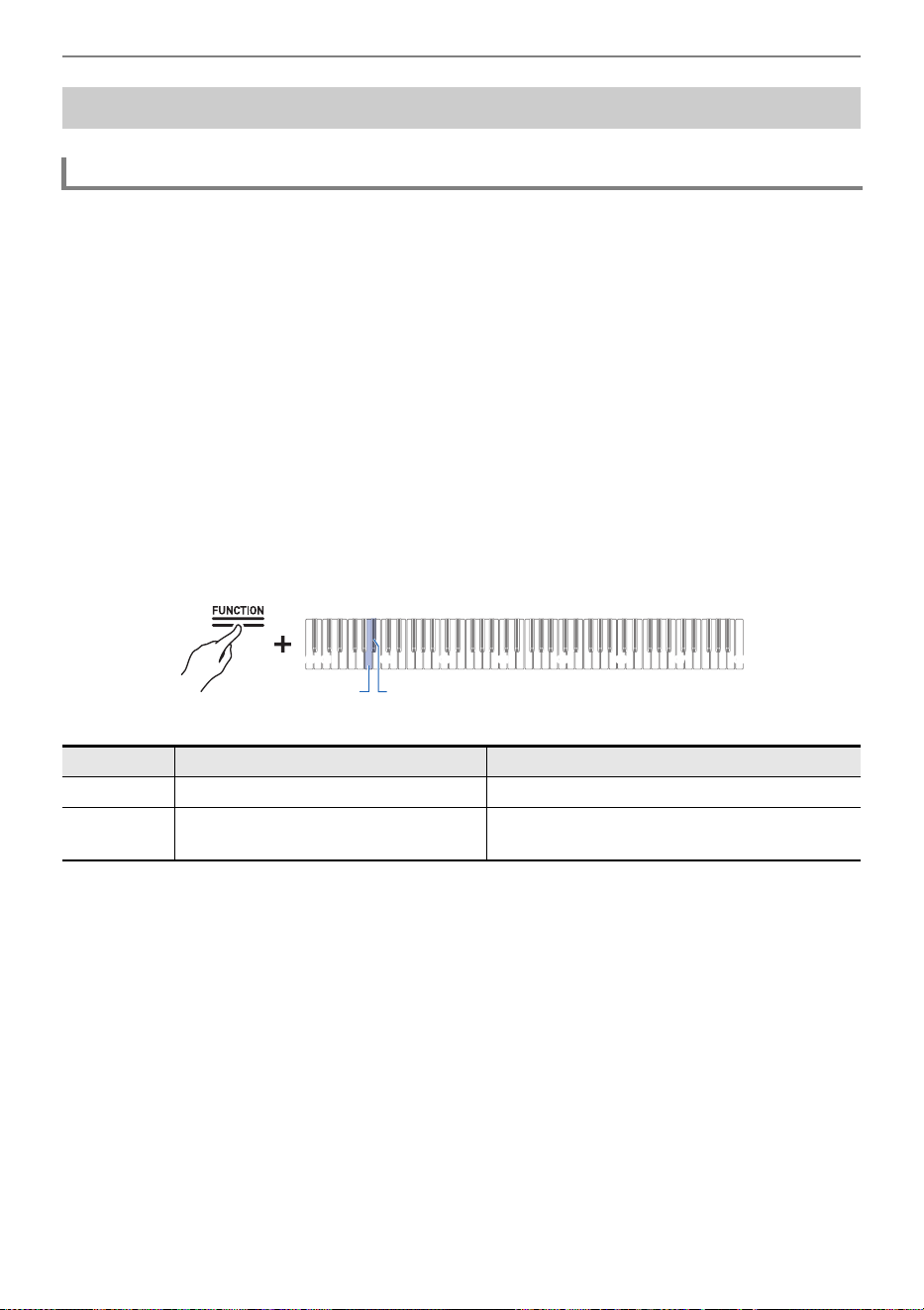
Using a USB Flash Drive
EN-84
1.
Insert the USB flash drive into the USB Type A port of the Digital Piano.
2.
To save in SMF format (.MID), do the following:
(1) Switch the Digital Piano to <MIDI Recorder>.
Switching to MIDI Recorder
(2) Select the User Song number that corresponds to the save destination folder (61-70).
While holding down the “a” button, press one of the A0 to F{1 keys.
Inputting Setting Values Using the Keys 0 to 9 (operation type C)
3.
Press and hold the “FUNCTION” button.
Putting in Standby Mode, and Executing on Next Key Press (operation type E)
• Do not release the “FUNCTION” button until step 5.
4.
Press either the A1 or B}1 key.
• The Hall Simulator/Reverb Indicator blinks and enters save standby.
Operations with a USB Flash Drive
Saving MIDI Recorder Songs to a USB Flash Drive
Key Setting Storage Location
A1 Saves in SMF format (.MID) Specified folder in MUSICLIB folder (61-70)
B}1 Saves in CASIO’s proprietary format
(.MRF)
MIDIREC Folder
C1A0 C2 C3 C4 C5 C6 C7 C8
A1 B}1
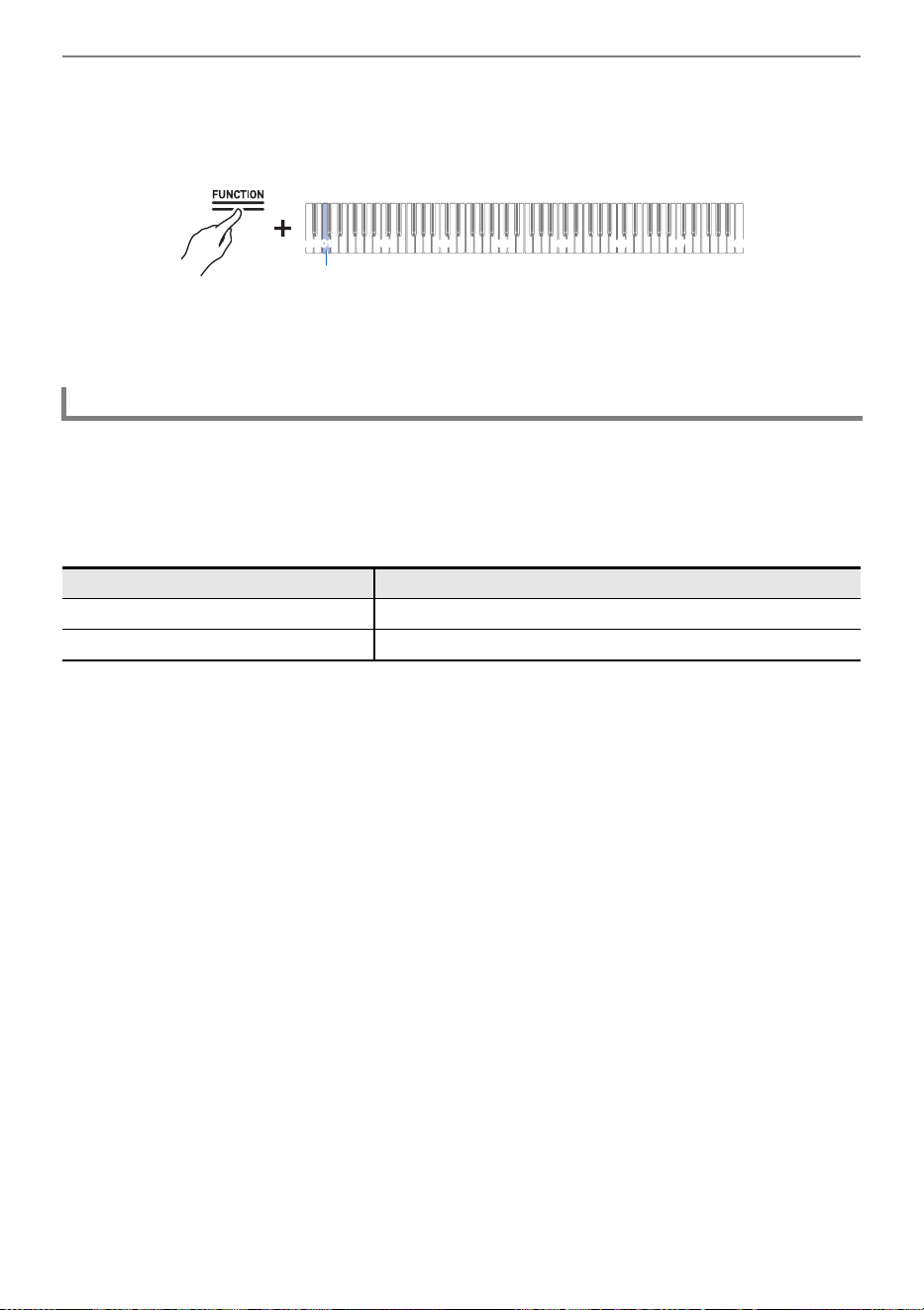
Using a USB Flash Drive
EN-85
5.
Press key C1 (Execute).
• Save is executed. During processing, the indicators above the “SOUND MODE” and “a”
buttons light up sequentially.
6.
Once saving begins, release the “FUNCTION” button.
• When saving is complete, the indicator returns to its original state.
1.
Copy the data to be loaded into the Digital Piano to the respective folders on the
USB flash drive.
• Only one song from each folder can be loaded. When there are multiple files, the first file in the
order of the file naming is loaded.
2.
Insert the USB flash drive into the USB Type A port of the Digital Piano.
3.
Switch the Digital Piano to <MIDI Recorder>.
Switching to MIDI Recorder
4.
Select the User Song (song numbers 61-70) or MIDI Recorder Song that
corresponds to the data to be loaded.
• To select a User Song, hold down the “a” button and press one of the A0 to F{1 keys.
Inputting Setting Values Using the Keys 0 to 9 (operation type C)
• To select a MIDI Recorder song, hold down the “a” button and press the A2 key.
Selecting a Setting Value Directly (operation type A)
Loading USB Flash Drive Files into the Digital Piano
Data Type Folder
User songs (CMF, MID) 61-70 in MUSICLIB folder
MIDI Recorder songs (MRF) MIDIREC Folder
C1A0 C2 C3 C4 C5 C6 C7 C8
C1
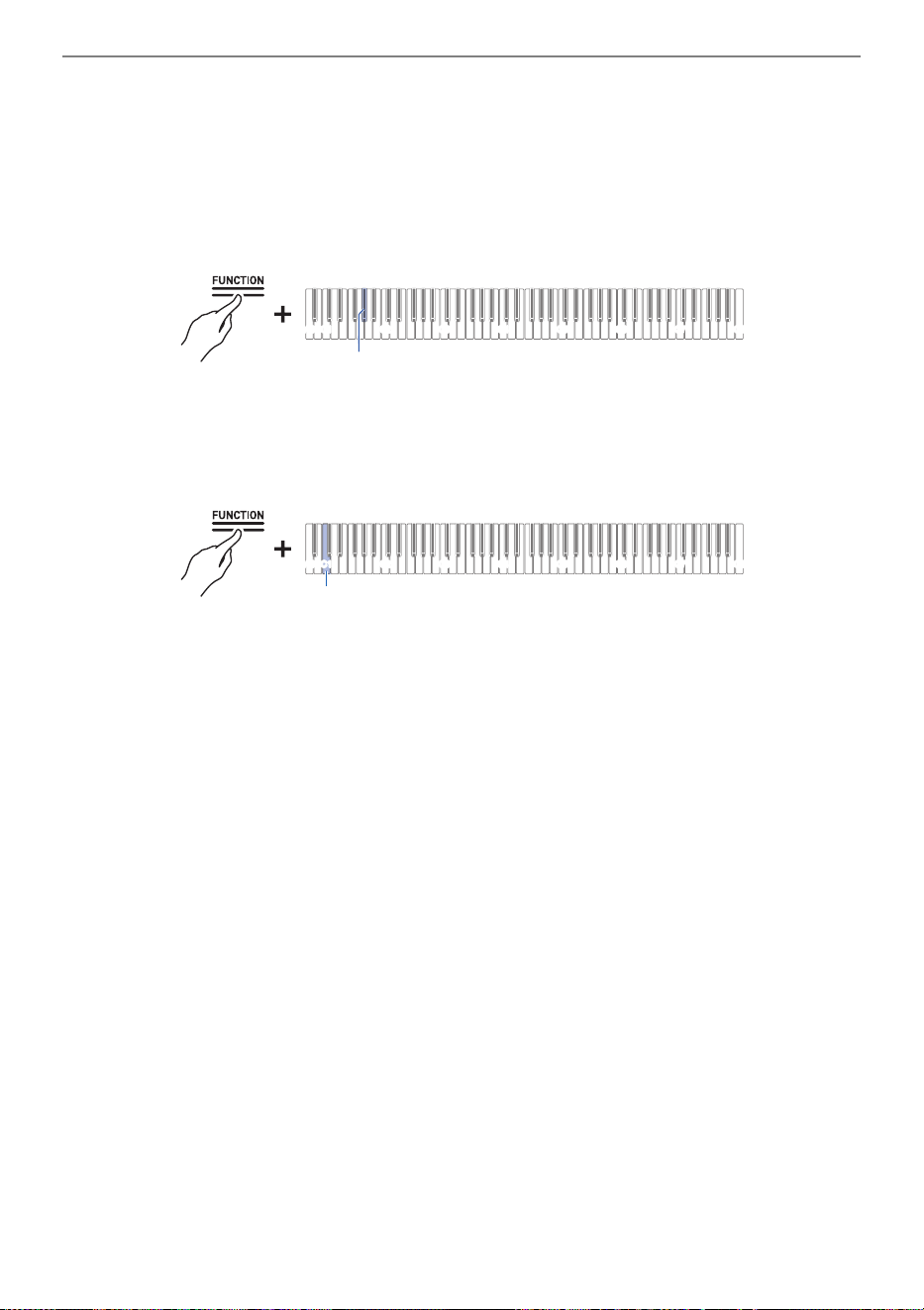
Using a USB Flash Drive
EN-86
5.
Press and hold the “FUNCTION” button.
Putting in Standby Mode, and Executing on Next Key Press (operation type E)
• Do not release the “FUNCTION” button until step 7.
6.
Press the A}1 key (Load SMF/MRF).
• The surround indicator will blink and enter load standby mode.
7.
Press key C1 (Execute).
• Loading is executed. During processing, the indicators above the “SOUND MODE” and “a”
buttons light up sequentially.
8.
Once loading begins, release the “FUNCTION” button.
• When loading is complete, the indicator returns to its original state.
C1A0 C2 C3 C4 C5 C6 C7 C8
A}1
C1A0 C2 C3 C4 C5 C6 C7 C8
C1

Using a USB Flash Drive
EN-87
Deletes the following data from the USB flash drive
• Songs stored in folders 61 to 70 in the MUSICLIB folder
• RECSONG.MRF stored in the MIDIREC folder
• TAKE
**
.WAV (
**
=01 - 99) or TAKE
**
.MP3 (
**
=01 - 99) audio song data stored in the AUDIOREC
folder
1.
Insert the USB flash drive into the USB Type A port of the Digital Piano.
2.
Select the data to be deleted.
• To delete a User Song or MIDI Recorder Song:
(1) Switch the Digital Piano to <MIDI Recorder>.
Switching to MIDI Recorder
(2) Select the User Song number or MIDI Recorder Song that corresponds to the data to be
deleted.
To select a User Song, hold down the “a” button and press one of the A0 to F{1 keys.
Inputting Setting Values Using the Keys 0 to 9 (operation type C)
To select a MIDI Recorder Song, hold down the “a” button and press the A2 key.
Selecting a Setting Value Directly (operation type A)
• To delete audio data:
(1) Switch the Digital Piano to <Audio Recorder>.
Switching to Audio Recorder
(2) Specify the TAKE**.WAV or TAKE**.MP3 (**=01 - 99) audio data to delete.
While holding down the “a” button, press one of the A0 to F{1 keys.
Inputting Setting Values Using the Keys 0 to 9 (operation type C)
3.
Press and hold the “FUNCTION” button.
Putting in Standby Mode, and Executing on Next Key Press (operation type E)
• Do not release the “FUNCTION” button until step 5.
Deleting USB Flash Drive Files
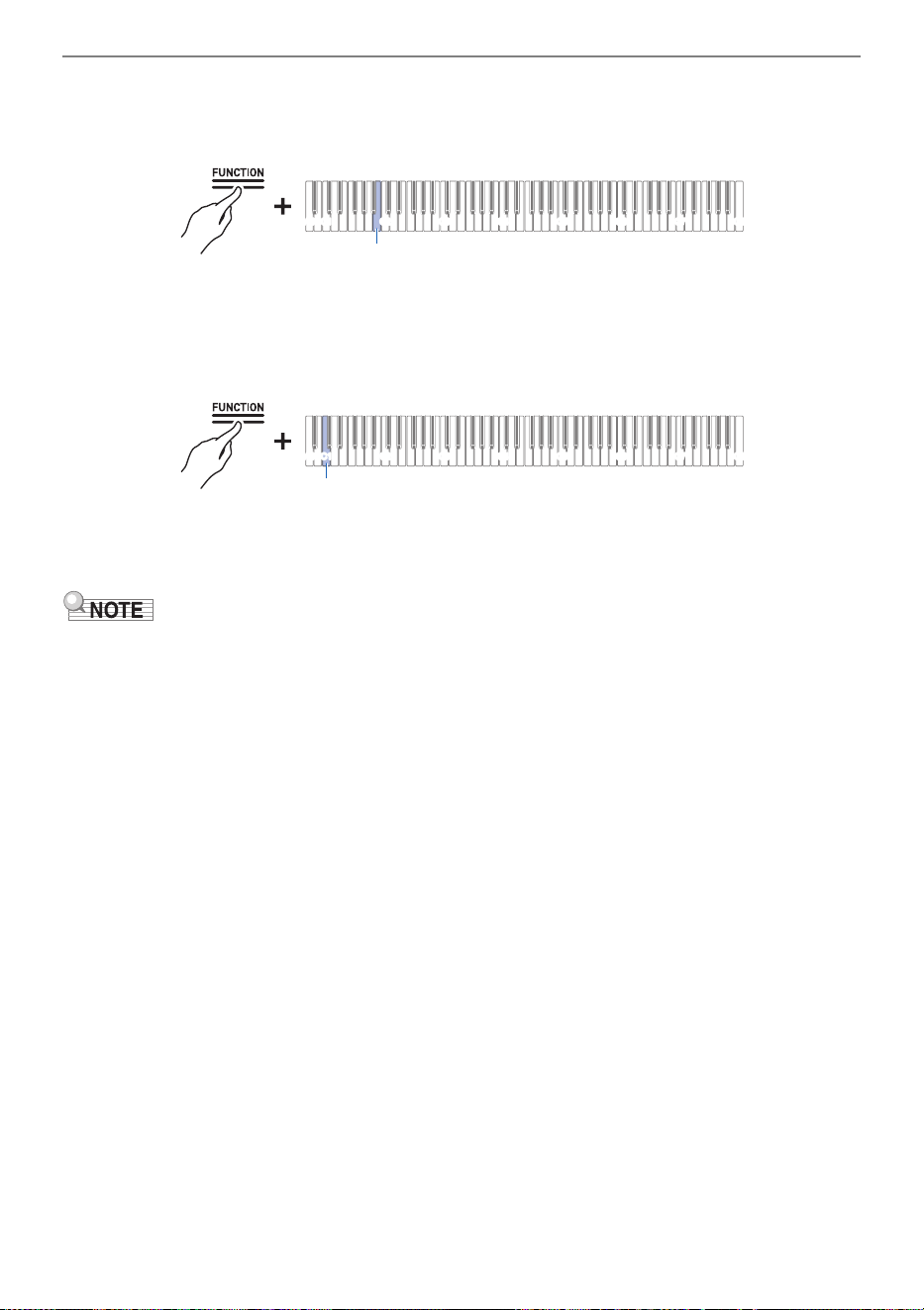
Using a USB Flash Drive
EN-88
4.
Press the B1 key (Delete SMF/MRF/Audio).
• The left side of the beat indicator blinks to indicate delete standby mode.
5.
Press key C1 (Execute).
• Deletion is executed. During processing, the indicators above the “SOUND MODE” and “a”
buttons light up sequentially.
6.
Once deletion begins release the “FUNCTION” button.
• When the deletion is complete, the indicator returns to its original state.
• If there are WAV and MP3 files with the same name, executing file deletion will delete both the WAV
and the MP3 files.
C1A0 C2 C3 C4 C5 C6 C7 C8
B1
C1A0 C2 C3 C4 C5 C6 C7 C8
C1

Using a USB Flash Drive
EN-89
You can save files in the following formats to the MUSICLIB folder in the CASIO folder created on a
USB flash drive and play them on this Digital Piano.
• Standard MIDI file (SMF format 0/1) or CASIO MIDI file (CMF format)
1.
Connect the USB flash drive to the computer.
2.
Create a CASIO folder in the root directory of the USB flash drive and create a
folder named MUSICLIB in the CASIO folder.
• If you already have a MUSICLIB folder, this step is not necessary.
3.
Copy the song data you want to play on the Digital Piano to the MUSICLIB folder
on the USB flash drive.
• For song data playback, see “Playing MIDI Data”.
When you record with this Digital Piano’s Audio Recorder, the recordings are stored in a WAV file
format under the AUDIOREC folder in the CASIO folder on the USB flash drive from “TAKE01.WAV” to
“TAKE99. WAV”, the number changing at the end of new file names each time a recording is made.
Connect a USB flash drive to your computer, change audio data file names to “TAKE
**
.WAV” (
**
is 01 -
99) or MP3 file names to “TAKE
**
.MP3” (
**
is 01 - 99), and save in the AUDIOREC folder to play the
files on this Digital Piano.
• WAV files (Linear PCM, 16 bit, 44.1 kHz, stereo, extension: .WAV)
• MP3 files (MPEG-1 Audio Layer 3, 44.1 kHz/48 kHz, bit rate 32 to 320 kbps/variable bit rate (VBR)
compatible, mono/stereo, extension: .MP3)
For information on audio data playback, see “Playing Audio Data (WAV, MP3)”.
Copying MIDI Song Data to a USB Flash Drive Using a
Computer
Copying Audio Data (WAV, MP3) to a USB Flash Drive
Using a Computer
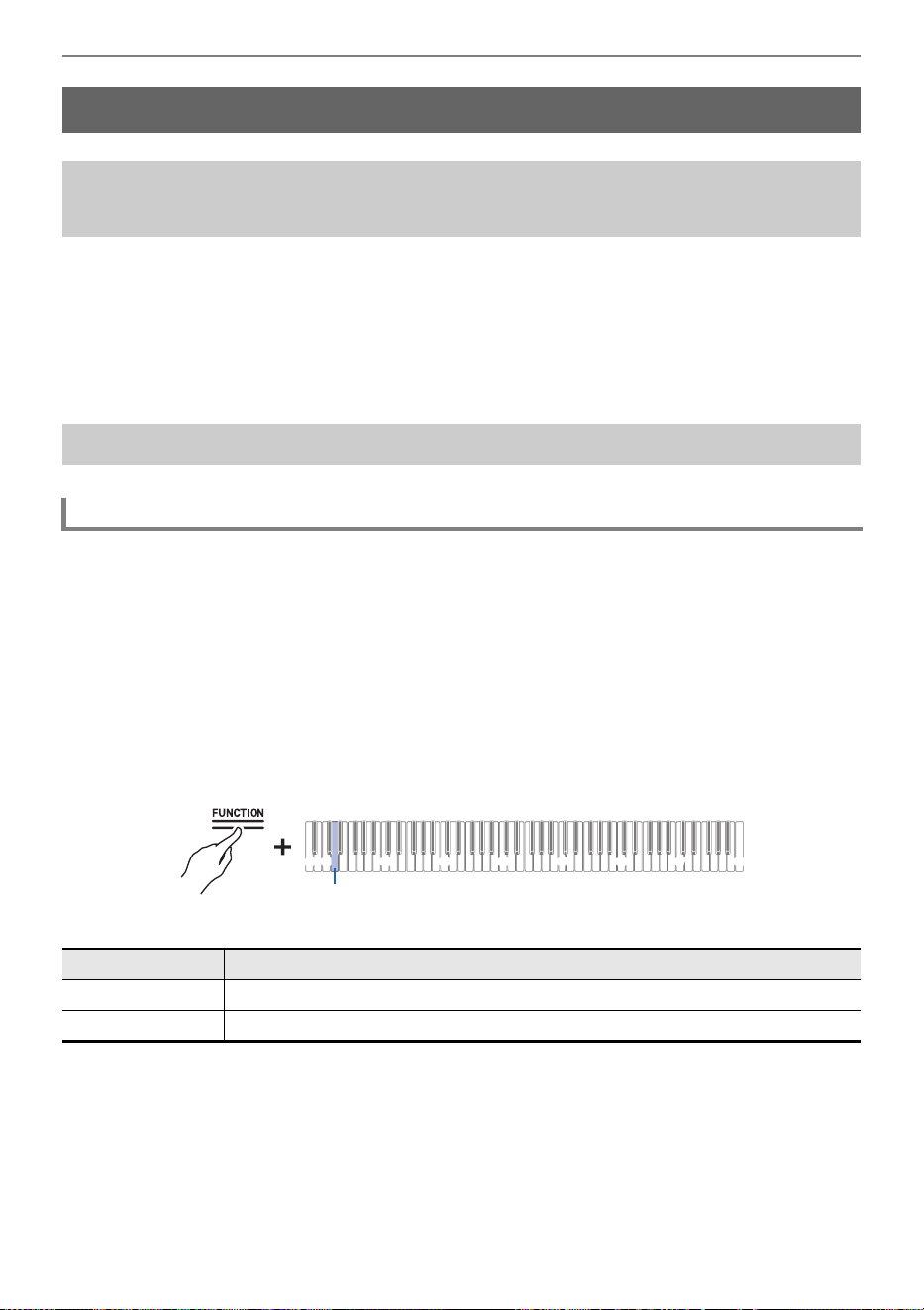
Connecting Wirelessly
EN-90
The supplied Wireless MIDI & audio adaptor can be used to connect the Digital Piano to external
devices wirelessly. This connection uses Bluetooth wireless technology, and the following two types of
connections are possible:
• Bluetooth Low Energy MIDI Connectivity
Sends and receives MIDI data between the Digital Piano and smart devices.
• Bluetooth audio connectivity
Plays the sound being played back from an external device on this Digital Piano.
The [Wireless Function] of the Digital Piano is set to <On> by default. When necessary, such as when
you want to stop the generation of radio waves, you can turn the [Wireless Function] <Off>.
1.
Insert the Wireless MIDI & audio adaptor into the USB Type A port on the Digital
Piano.
2.
While holding down the “FUNCTION” button, press the D1 key (Wireless
Function).
Switching On/Off or Changing Setting Values Using a Single Key (operation type D)
• Default value: On
Connecting Wirelessly
Connecting the Digital Piano to External Devices
Wirelessly
Wireless (Bluetooth) Connectivity Settings
Wireless Function On/Off
Setting Value Setting Details
Off Turns off the Wireless Function.
On Turns on the Wireless Function.
C1A0 C2 C3 C4 C5 C6 C7 C8
D1
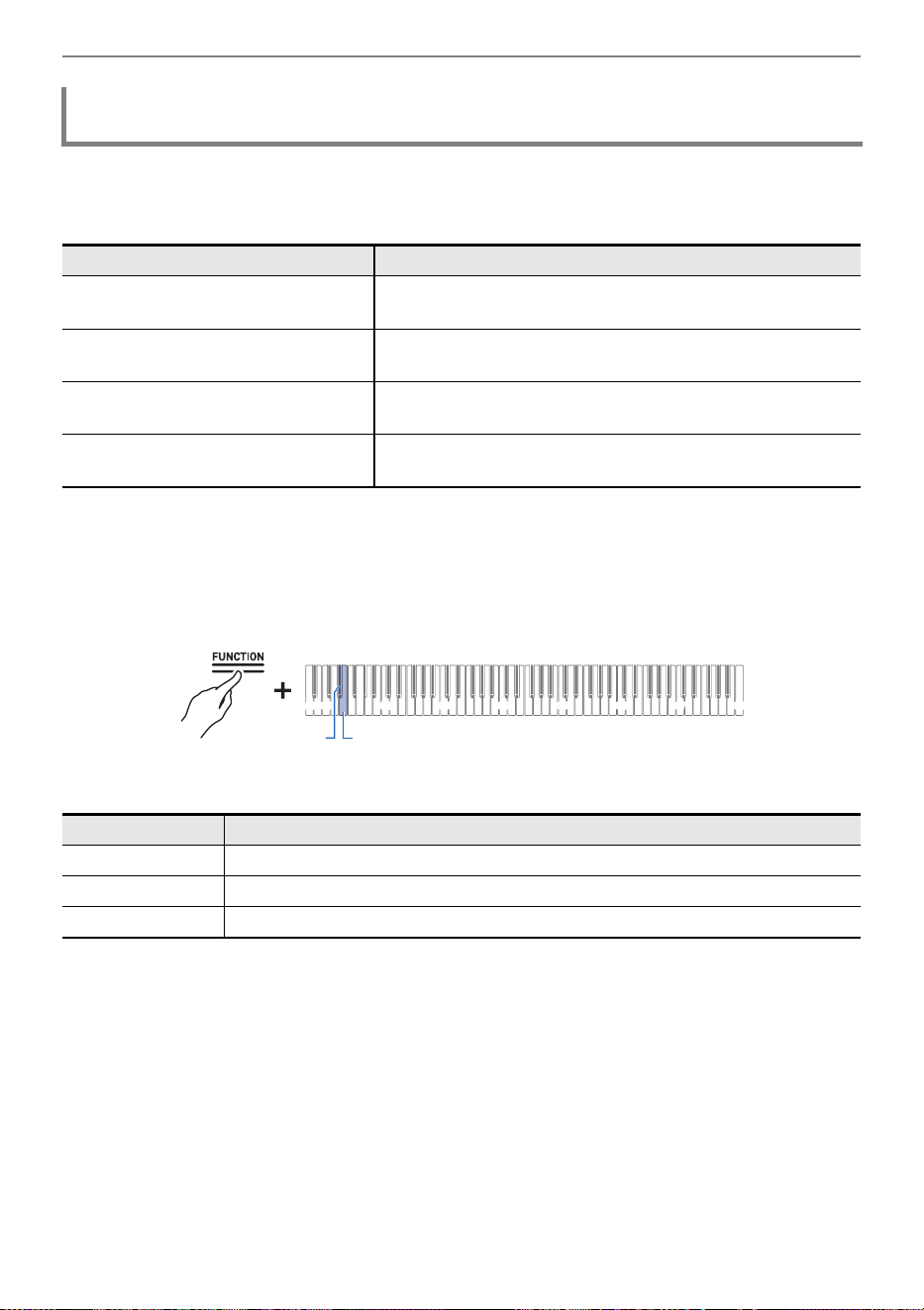
Connecting Wirelessly
EN-91
You can adjust the Notification Tone Volume that sounds when the wireless connection status
changes.
Notification Tones
Adjusting the Notification Tone Volume
While holding down the “FUNCTION” button, press the E}1 or E1 key.
Using the +/– Keys to Raise or Lower the Setting Value by 1 (operation type B)
• Setting value: 0 (silence) to 10 (maximum volume)
• Default value: 5
Adjusting the Notification Tone Volume for Wireless Connection/
Disconnection
Notification Details Notification Tone
Connected to Bluetooth audio-
enabled device
A piano tone with an ascending melody plays.
Disconnected from a Bluetooth audio-
enabled device
A piano tone with a descending melody plays.
Connected to a Bluetooth Low Energy
MIDI-enabled device
A vibraphone tone with a ascending melody plays.
Disconnected from a Bluetooth Low
Energy MIDI-enabled device
A vibraphone tone with a descending melody plays.
Key Setting
E}1 Lowers the volume of the connection notification tone by 1 (–)
E1 Raises the volume of the connection notification tone by 1 (+)
E}1 + E1 Resets the volume of the connection notification tone to its default setting
C1A0 C2 C3 C4 C5 C6 C7 C8
E}1E1
Connecting Wirelessly
EN-92
Bluetooth Low Energy MIDI connection between the Digital Piano and a smart device enables various
operations using a dedicated app. To connect with Bluetooth Low Energy MIDI, you need to install the
dedicated app on your smart device.
For more information about the dedicated app, see “Downloading the App (CASIO MUSIC SPACE) for
Smart Devices”.
1.
If the [Wireless Function] of the Digital Piano is <Off>, switch it to <On>.
• For more information, see “Wireless Function On/Off”.
2.
Insert the Wireless MIDI & audio adaptor into the USB Type A port on the Digital
Piano.
3.
Open the settings screen of the smart device and check the Bluetooth function is
on.
4.
On the settings screen of the dedicated app installed on the smart device, select
“WU-BT10 MIDI” and connect it to this Digital Piano.
• For details, see the dedicated app instruction manual.
• Do not operate the Digital Piano while it is waiting to connect to a smart device.
• When connected, the left side of the “P(Power)” button lights up blue.
• Each time the dedicated app is used with a Bluetooth Low Energy MIDI connection, the operation
described in step 4 above is required.
• Connecting this Digital Piano to Bluetooth Low Energy MIDI and Bluetooth audio from an external
device at the same time may result in unstable MIDI operation depending on the external device and
OS version. If this happens, disconnect the Bluetooth audio connection using the external device.
Bluetooth Low Energy MIDI Connectivity
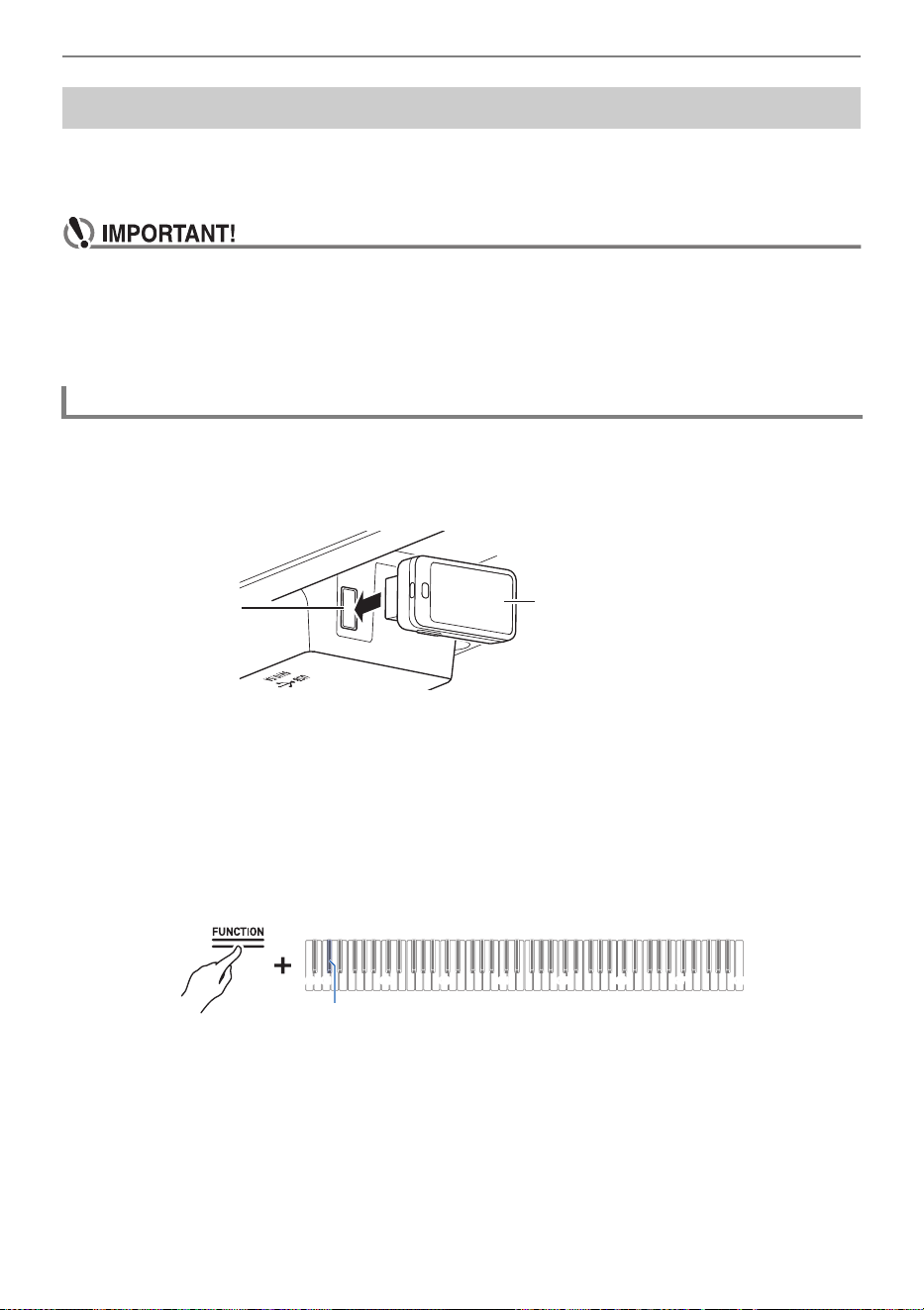
Connecting Wirelessly
EN-93
Using the supplied Wireless MIDI & audio adaptor, you can pair the Digital Piano with a Bluetooth
audio-enabled device (smart device) to play sound from an external device through the Digital Piano’s
speakers.
• When pairing, keep the volume of the Digital Piano and the external device turned down to a
low level.
• If the sound of an external device played by the Digital Piano sounds distorted, turn down the
volume of the external device.
• Due to the characteristics of Bluetooth, sound is delayed.
1.
Insert the Wireless MIDI & audio adaptor into the USB Type A port on the Digital
Piano.
2.
Open the settings screen of the external device and switch the Bluetooth
function to on if it is off.
3.
While holding down the “FUNCTION” button on the Digital Piano, press the C{1
key (Wireless Audio Pairing).
Selecting a Setting Value Directly (operation type A)
• The device enters pairing standby.
• The right side of the “P(Power)” button will flash blue to indicate that the device is standing by
for pairing.
4.
Select “WU-BT10 AUDIO” on the Bluetooth settings screen of the external device
and pair it with this Digital Piano.
• When connected, a notification tone will sound and the right side of the “P(Power)” button will
light up blue.
Bluetooth Audio Connectivity
Bluetooth Audio Pairing
USB Type A port
Wireless MIDI & audio adaptor
C1A0 C2 C3 C4 C5 C6 C7 C8
C{1
Connecting Wirelessly
EN-94
If the Bluetooth Audio Connection Does Not Work Properly
1.
Clear pairing registration.
• For more information, see “Clearing Pairing Registration”.
2.
If pairing registration information from this Digital Piano remains on the external
device, delete it.
• Delete “WU-BT10 AUDIO” from the Bluetooth settings screen of the external device. For how to
do this, see the external device’s instruction manual.
3.
Retry Bluetooth audio pairing.
• For more information, see “Bluetooth Audio Pairing”.
• The pairing information of the last external device connected via Bluetooth audio is registered in the
Wireless MIDI & audio adaptor. From then on, a Bluetooth audio connection is automatically
established without the need for Bluetooth audio pairing.
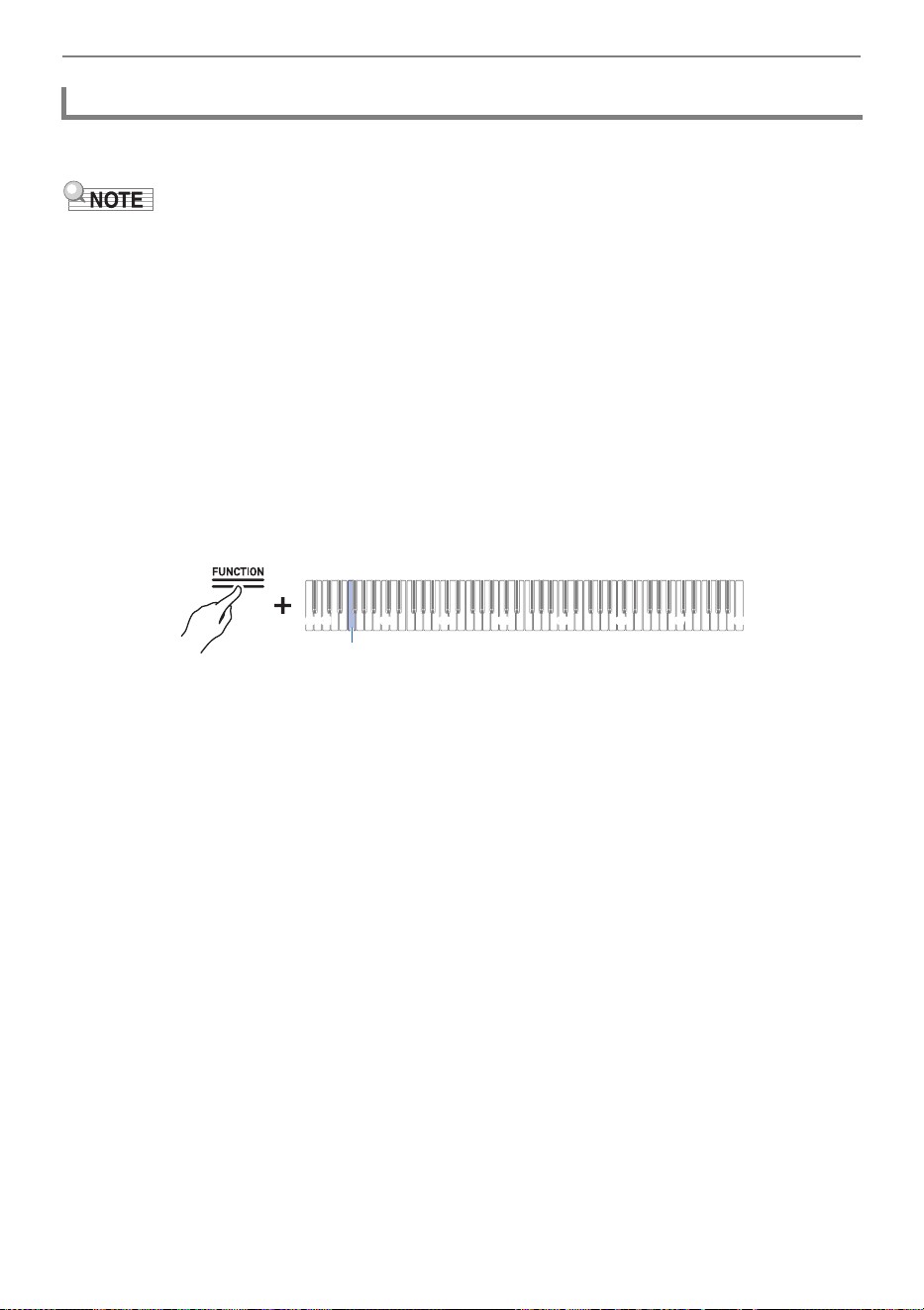
Connecting Wirelessly
EN-95
Delete pairing registrations between the Digital Piano and external devices connected via Bluetooth
audio.
• After executing the following operation, delete pairing registration information with this Digital Piano,
even for external devices that were connected to this Digital Piano via Bluetooth audio. Delete “WU-
BT10 AUDIO” from the Bluetooth settings screen of the external device. For how to do this, see the
external device’s instruction manual.
1.
Insert the Wireless MIDI & audio adaptor into the USB Type A port on the Digital
Piano.
2.
Press and hold the “FUNCTION” button.
Putting in Standby Mode, and Executing on Next Key Press (operation type E)
• Do not release the “FUNCTION” button until step 4.
3.
Press the F1 key (Delete Connection History).
4.
Press the C1 key (Execute) to clear pairing registrations.
5.
Release the “FUNCTION” button.
Clearing Pairing Registration
C1A0 C2 C3 C4 C5 C6 C7 C8
F1
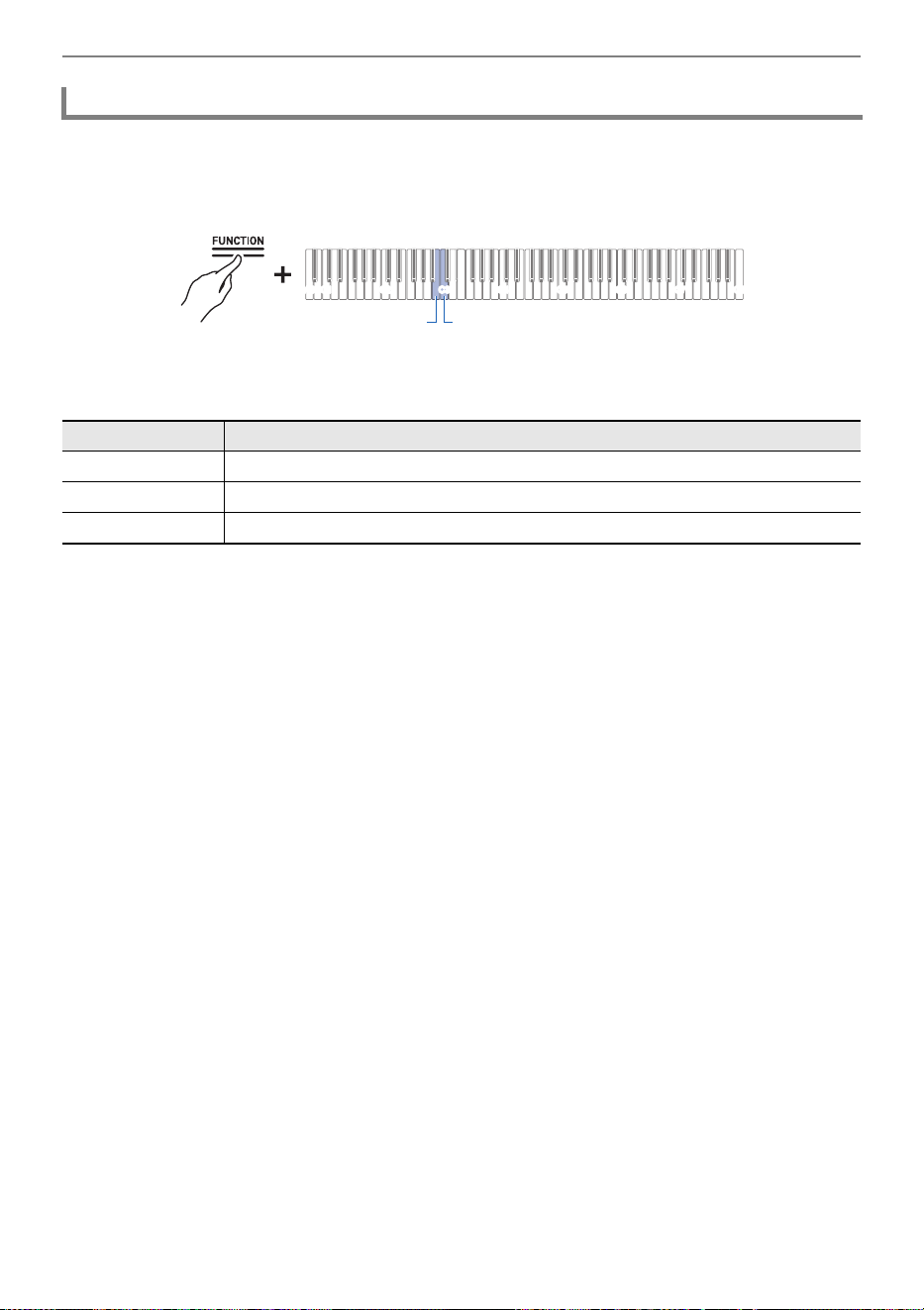
Connecting Wirelessly
EN-96
While holding down the “FUNCTION” button, press the B2 or C3 key.
Using the +/– Keys to Raise or Lower the Setting Value by 1 (operation type B)
• Setting value: 0 (silence) to 42 (maximum volume)
A separator tone sounds when the set value becomes a multiple of 10.
• Default value: 35
Adjusting Wireless Audio Playback Volume
Key Setting
B2 Lowers wireless audio playback volume by 1 (–)
C3 Raises wireless audio playback volume by 1 (+)
B2 + C3 Resets wireless audio playback volume to default setting
C1A0 C2 C3 C4 C5 C6 C7 C8
B2 C3
Using the Dedicated App
EN-97
When using the dedicated CASIO MUSIC SPACE app, you can enjoy numerous features linked to this
Digital Piano.
Main App Features
• Remote Controller
• Piano Roll
• Music Player
See the CASIO MUSIC SPACE instruction manual for details on each function and other features.
https://web.casio.com/app/en/music_space/manual/
1.
Installing CASIO MUSIC SPACE on Your Smart Device
• See “Downloads” at the following website.
AP-300
https://support.casio.com/global/en/emi/manual/AP-300/
AP-S200
https://support.casio.com/global/en/emi/manual/AP-S200/
Using the Dedicated App
Downloading the App (CASIO MUSIC SPACE) for Smart
Devices
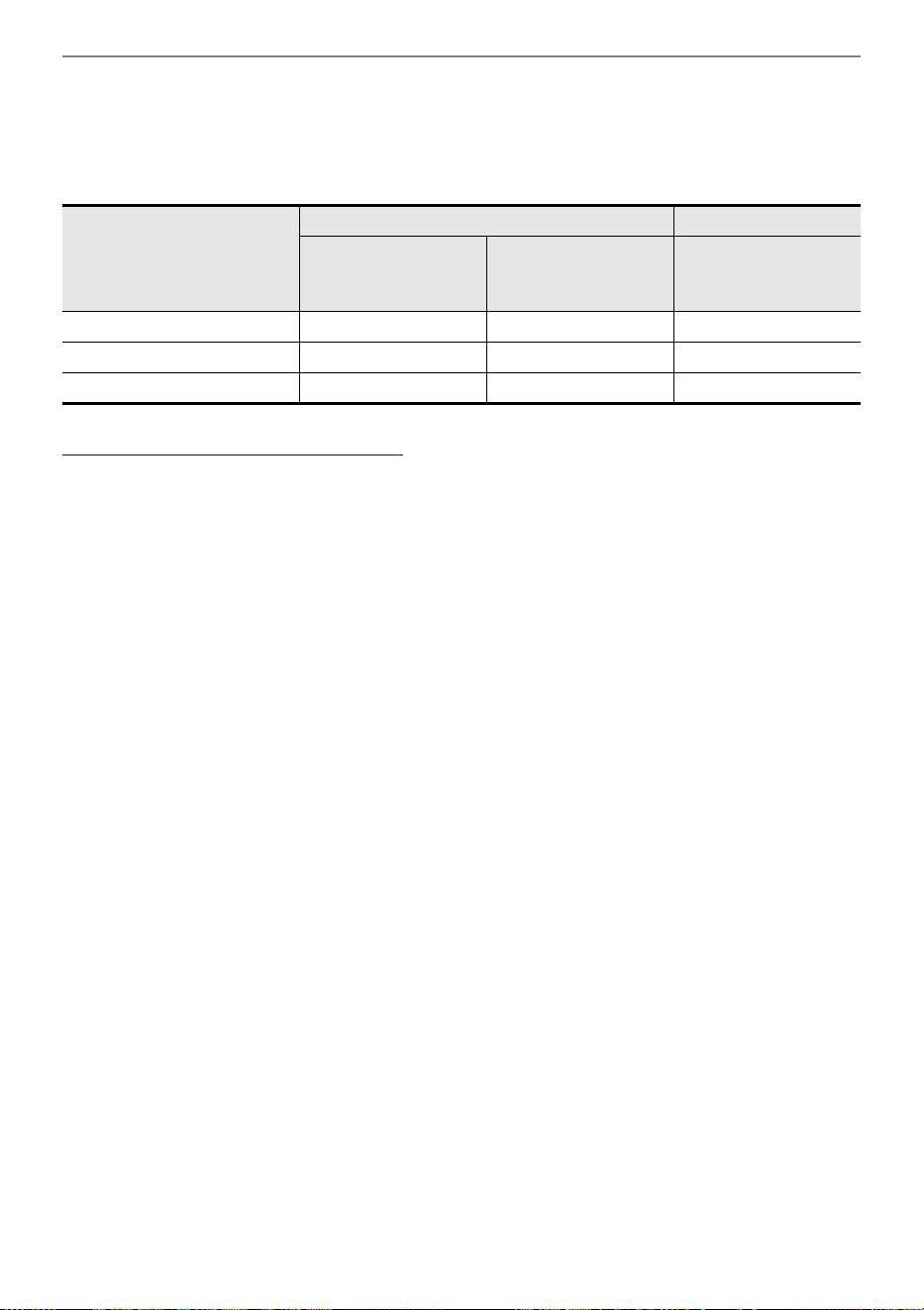
Using the Dedicated App
EN-98
2.
Connecting this Digital Piano to a Smart Device
• There are two types of connections: wireless and cable. Available features vary depending on
the connection method.
• Do not make Bluetooth Low Energy MIDI connections and USB MIDI connections at the same
time.
CASIO MUSIC SPACE website
https://web.casio.com/app/en/music_space/
*1 User Songs can be transferred to this Digital Piano using this function.
*2 See Bluetooth Low Energy MIDI Connectivity
*3 See Bluetooth Audio Connectivity
*4 See Connecting a Smart Device with USB MIDI
Main App Features
Wireless Connection Cable Connection
Bluetooth Low
Energy MIDI
Connection
*2
Bluetooth Audio
Connection
*3
USB MIDI
Connection
*4
Remote Controller –
Piano Roll
*1
–
Music Player – –
Using with an External Device with a Cable Connection
EN-99
You can send and receive performance information (MIDI data) by connecting this Digital Piano to a
computer or smart device. You can use music software on your computer or a smart device application
to record your performance on this Digital Piano, or send data from your computer or smart device to
this Digital Piano and play the sound.
• For detailed specifications and connection information on sending and receiving MIDI data with this
Digital Piano, see “Latest Support Information”.
• For MIDI-related settings, see “Changing MIDI Settings”.
The operating environment required to send and receive MIDI data is as follows: Always confirm the
environment of your computer in advance.
• USB port
• Supported OS
Windows 10
*
Windows 11
macOS 10.15, 11, 12, 13, 14
* Windows 10 (32-bit and 64-bit versions)
• For the latest information on supported OS, see “Latest Support Information”.
Using with an External Device with a Cable
Connection
Connecting to a Computer or Smart Device and Using
MIDI
Computer Operating Environment
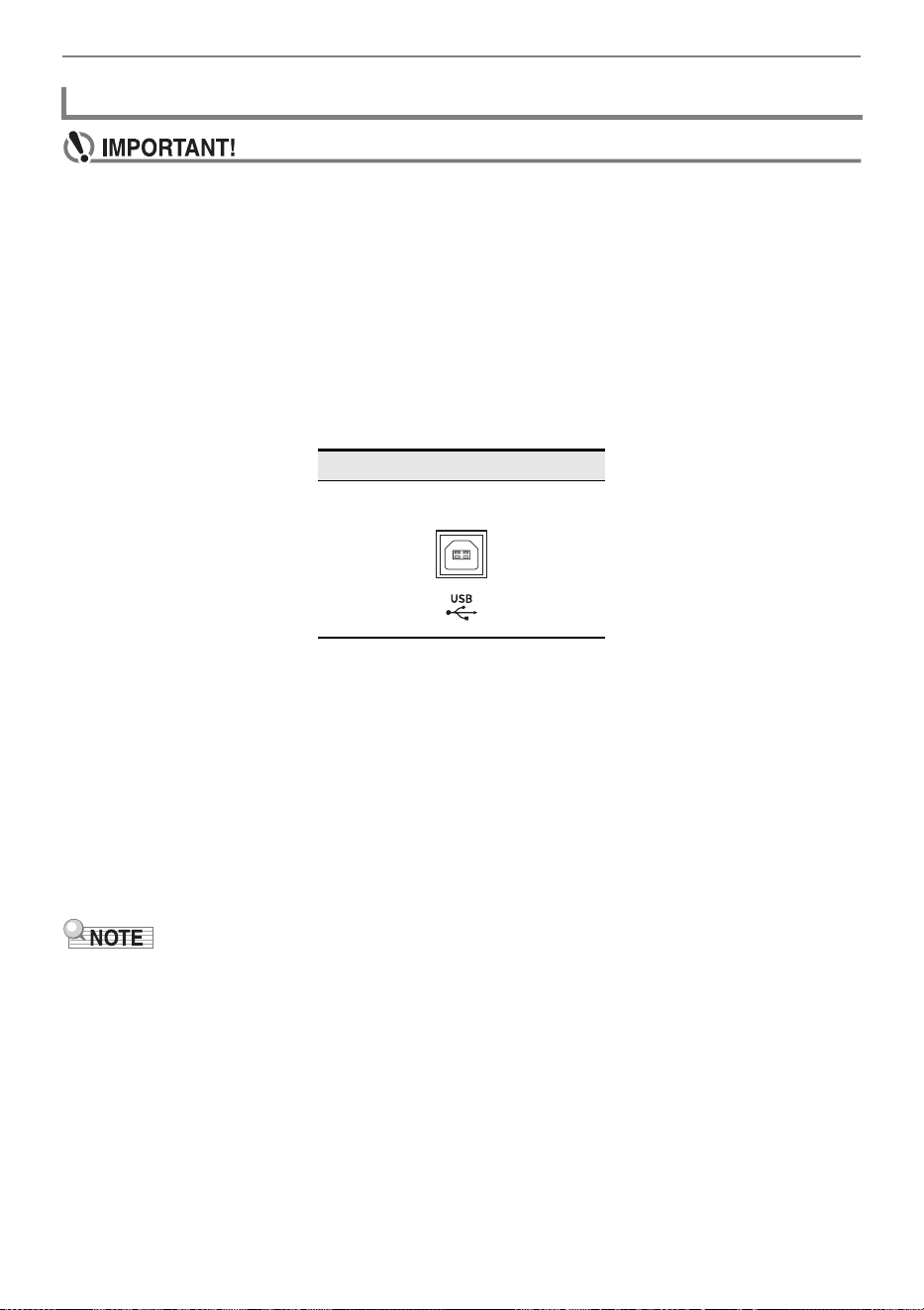
Using with an External Device with a Cable Connection
EN-100
• Failure to connect using the correct procedure may result in the inability to send and receive
data. Always follow the steps below to make a connection.
• After connecting, always turn on the Digital Piano before starting up music software on your
computer.
1.
Turn off the power to the Digital Piano and start up the computer.
• Do not start up any music software on your computer.
2.
Connect the computer and the Digital Piano using the USB Type B port of the
Digital Piano with a commercially available USB cable.
• Use a data transfer cable with the USB Type B (USB 1.1 or 2.0) connector.
3.
Turn on the Digital Piano’s power.
• When connecting for the first time, the driver required to send and receive data is automatically
installed on the computer.
4.
Start the music software (commercially available) on your computer.
5.
In the settings of your computer’s music software (commercially available),
select MIDI Device.
• The MIDI device name is “CASIO AP-300 USB” for AP-300, and “CASIO AP-S200 USB” for AP-
S200.
• See the manual of your music software for information on how to select a MIDI device.
• After one successful connection, the USB cable can be left connected and the computer or this
Digital Piano can be turned on and off.
Connecting to a Computer
Digital Piano port
USB Type B

Using with an External Device with a Cable Connection
EN-101
You can connect to smart devices and use apps that use MIDI standards.
See “Latest Support Information” for confirmed compatible devices.
• We recommend using the devices listed in the “Tested devices (USB-MIDI connection)” section.
• Operation confirmation results do not guarantee operation on that device.
• Depending on your environment, you may not be able to connect correctly.
• Even if the device has been tested, it may not work properly due to device or OS version upgrades,
etc.
• Use a cable that supports data communication.
• Charging cables are not compatible.
1.
Turn on the Digital Piano and the smart device.
2.
Connect the smart device to the USB Type B port of this Digital Piano using the
connection cable.
• For connection cables, see “Cable Connection (USB Cable)” at the website below.
https://web.casio.com/app/en/music_space/support/connect.html
3.
Launch the MIDI-compatible app on your smart device.
• When using CASIO’s dedicated app, if a successful connection is made, the message
“Connecting” will appear on the smart device screen, followed by the message “Connected”.
Smart Device Operating Environment
Connecting a Smart Device with USB MIDI
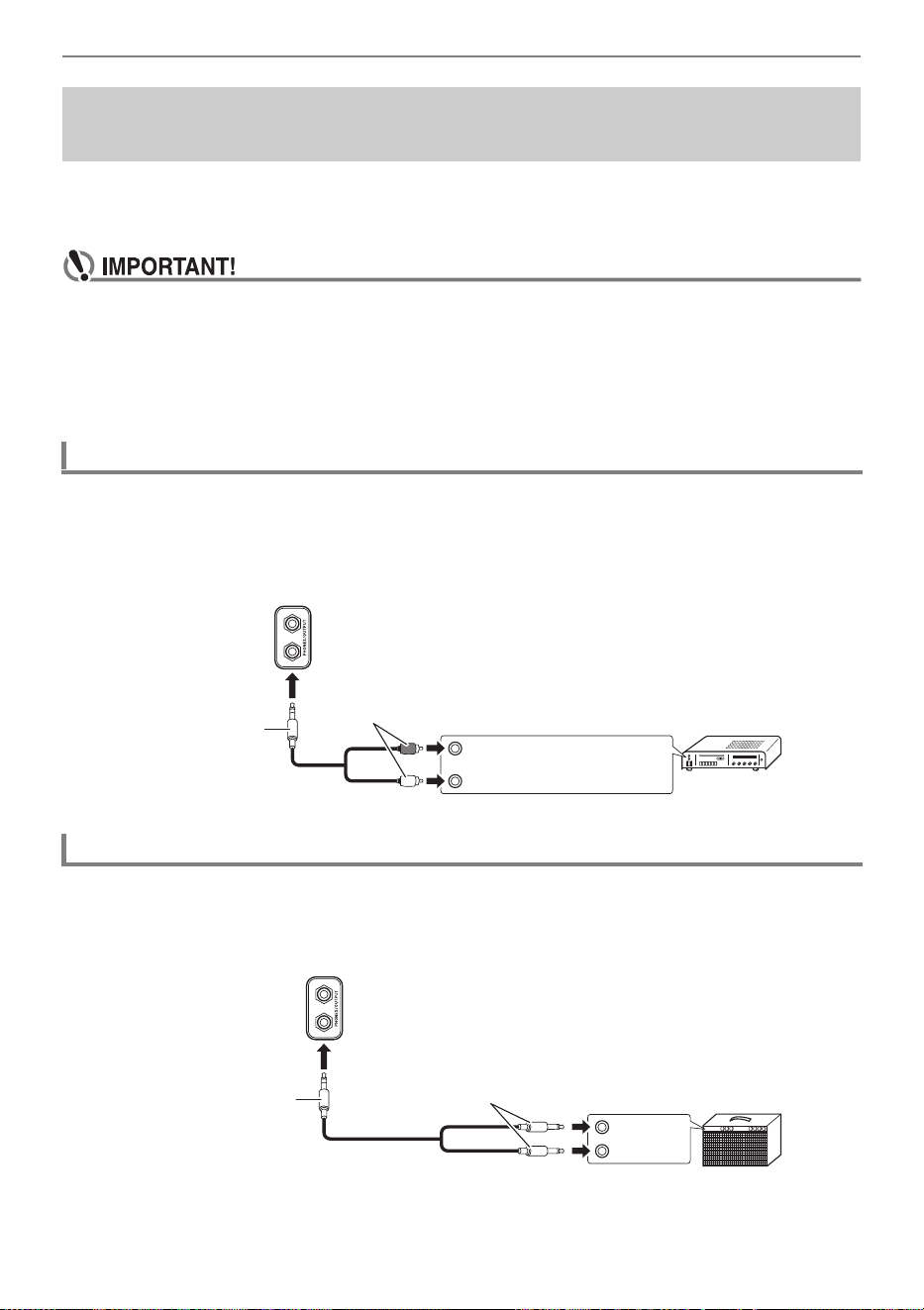
Using with an External Device with a Cable Connection
EN-102
When connected to an audio device or an amplifier for musical instruments, you can enjoy
performances with more powerful volume and sound quality in line with the speaker capabilities of
those devices. To make a connection, use a commercially available connection cord.
• Turn off all external devices when connecting. Also, keep the volume settings of the Digital
Piano and external devices turned down to minimum when turning the power On/Off.
• After connecting, turn on the power to the Digital Piano and the external device, in that order.
• If the sound of this Digital Piano played by an external device sounds distorted, turn down the
volume of the Digital Piano.
• Set [Headphone Mode] to <Off> when connecting to audio or an amplifier.
Use a commercially available connection cord and make a connection as shown in the diagram. Use a
stereo standard phone plug (TRS phone) to connect to the Digital Piano. A standard phone plug (TS
phone) only produces one side of stereo output. Normally, switch the input selector of your audio
device to the connected terminal (AUX IN etc.).
Depending on the device you are connecting to, use a commercially available connection cord to make
a connection as shown in the diagram. Make sure that the side connected to the amplifier receives both
left and right channel signals. If either is missing, only one side of the stereo output will be heard.
Outputting the Digital Piano’s Sound to an Amplifier or
Audio Equipment
Connecting to Audio Equipment
Connecting to a Musical Instrument Amplifier
RIGHT (red)
LEFT (white)
AUX IN of audio amplifier, etc.
Stereo standard phone plug
(TRS phone)
Pin plug
INPUT 2
INPUT 1
Stereo standard phone plug
(TRS phone)
Standard phone plug
(TS phone)
Guitar amplifier
Keyboard amplifier, etc.
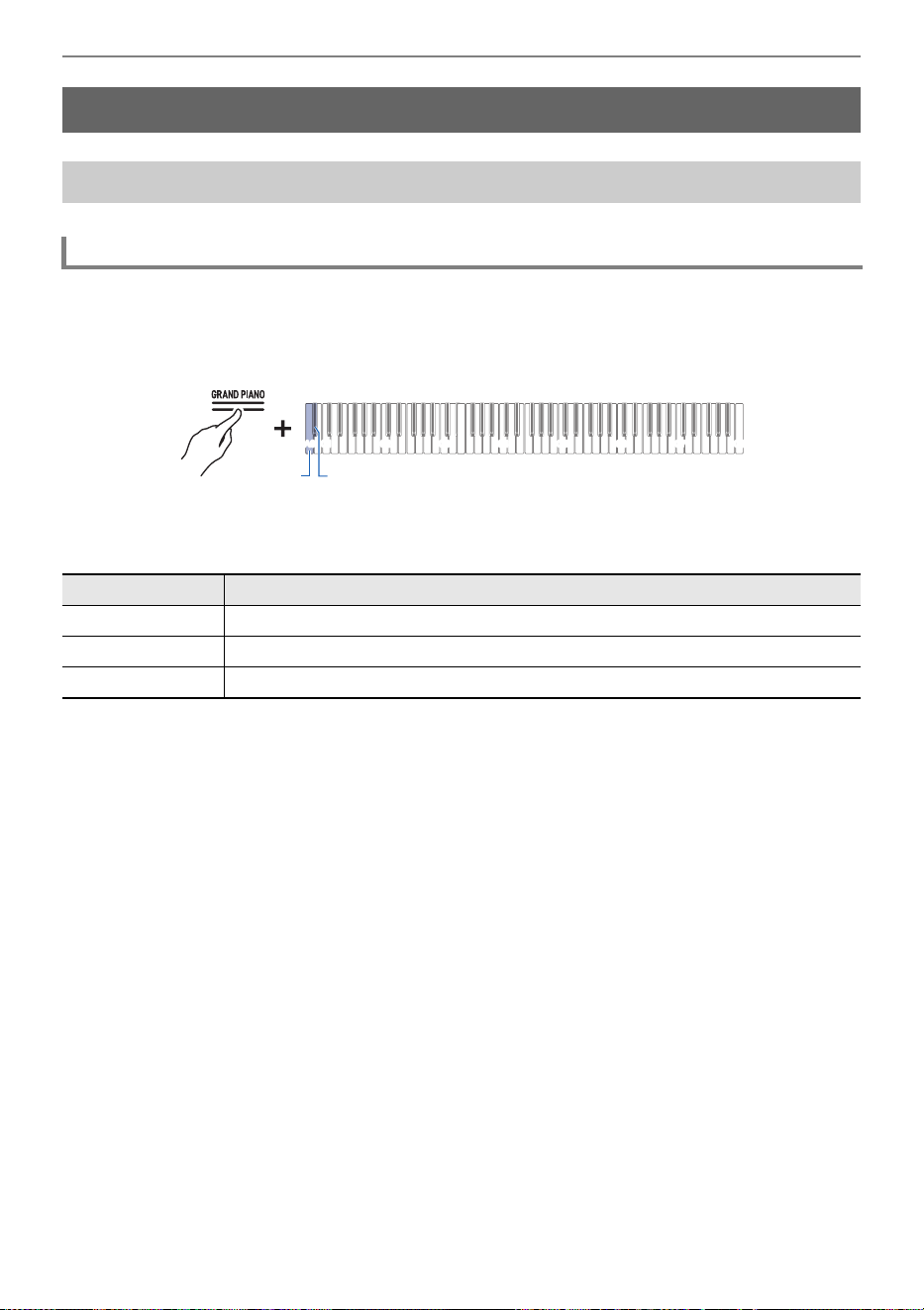
Changing Settings
EN-103
While holding down the “GRAND PIANO” button, press the A0 or B}0 key.
Using the +/– Keys to Raise or Lower the Setting Value by 1 (operation type B)
• Setting value: 0 (silence) to 42 (maximum volume)
A separator tone sounds when the set value becomes a multiple of 10.
• Default value: 42
Changing Settings
Changing the Upper1 Part Settings
Adjusting the Upper1 Part Volume
Key Setting
A0 Lowers the Upper1 part volume by 1 (–)
B}0 Raises the Upper1 part volume by 1 (+)
A0 + B}0 Resets the Upper1 part volume to the default setting
C1A0 C2 C3 C4 C5 C6 C7 C8
B}0A0
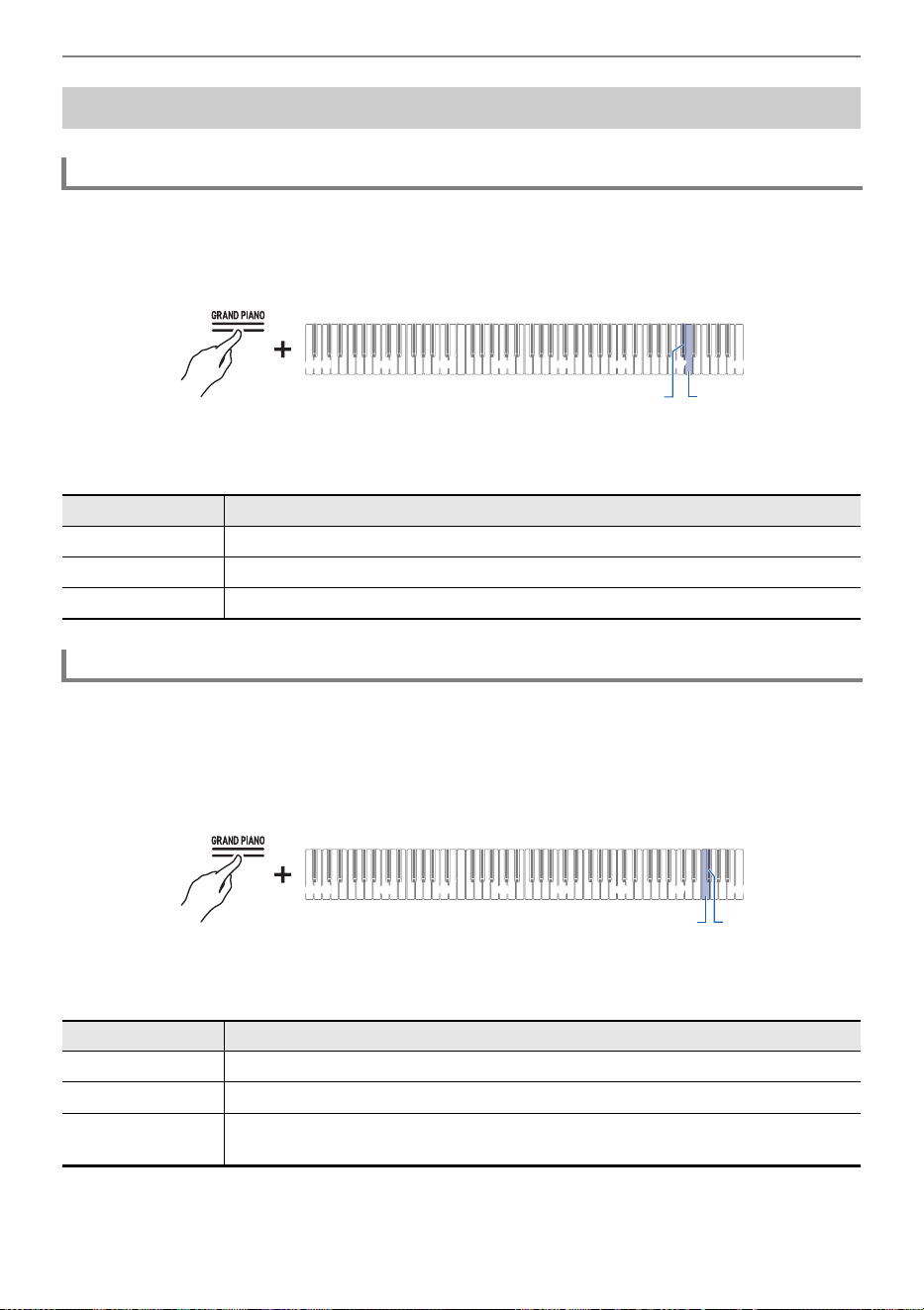
Changing Settings
EN-104
While holding down the “GRAND PIANO” button, press the C{7 or D7 key.
Using the +/– Keys to Raise or Lower the Setting Value by 1 (operation type B)
• Setting value: 0 (silence) to 42 (maximum volume)
A separator tone sounds when the set value becomes a multiple of 10.
• Default value: 26
Fine-tune the relative pitch of the Upper1 part to the Upper2 part.
While holding down the “GRAND PIANO” button, press the F7 or F{7 key.
Using the +/– Keys to Raise or Lower the Setting Value by 1 (operation type B)
• Setting value: –99 cents to +99 cents (100 cents = 1 semitone)
A separator tone sounds when the set value becomes a multiple of 10.
• Default value: 0 cents
Changing the Upper2 Part Settings
Adjusting the Upper2 Part Volume
Key Setting
C{7 Lowers the Upper2 part volume by 1 (–)
D7 Raises the Upper2 part volume by 1 (+)
C{7 + D7 Resets the Upper2 part volume to the default setting
Fine-Tuning the Upper2 Part (Upper2 Detune)
Key Setting
F7 Lowers the Upper2 part pitch by 1 cent (–)
F{7 Raises the Upper2 part pitch 1 cent (+)
F7 + F{7 Sets the pitch of the Upper2 part to the same pitch as the Upper1 part (default
setting)
C1A0 C2 C3 C4 C5 C6 C7 C8
C{7D7
C1A0 C2 C3 C4 C5 C6 C7 C8
F7 F{7
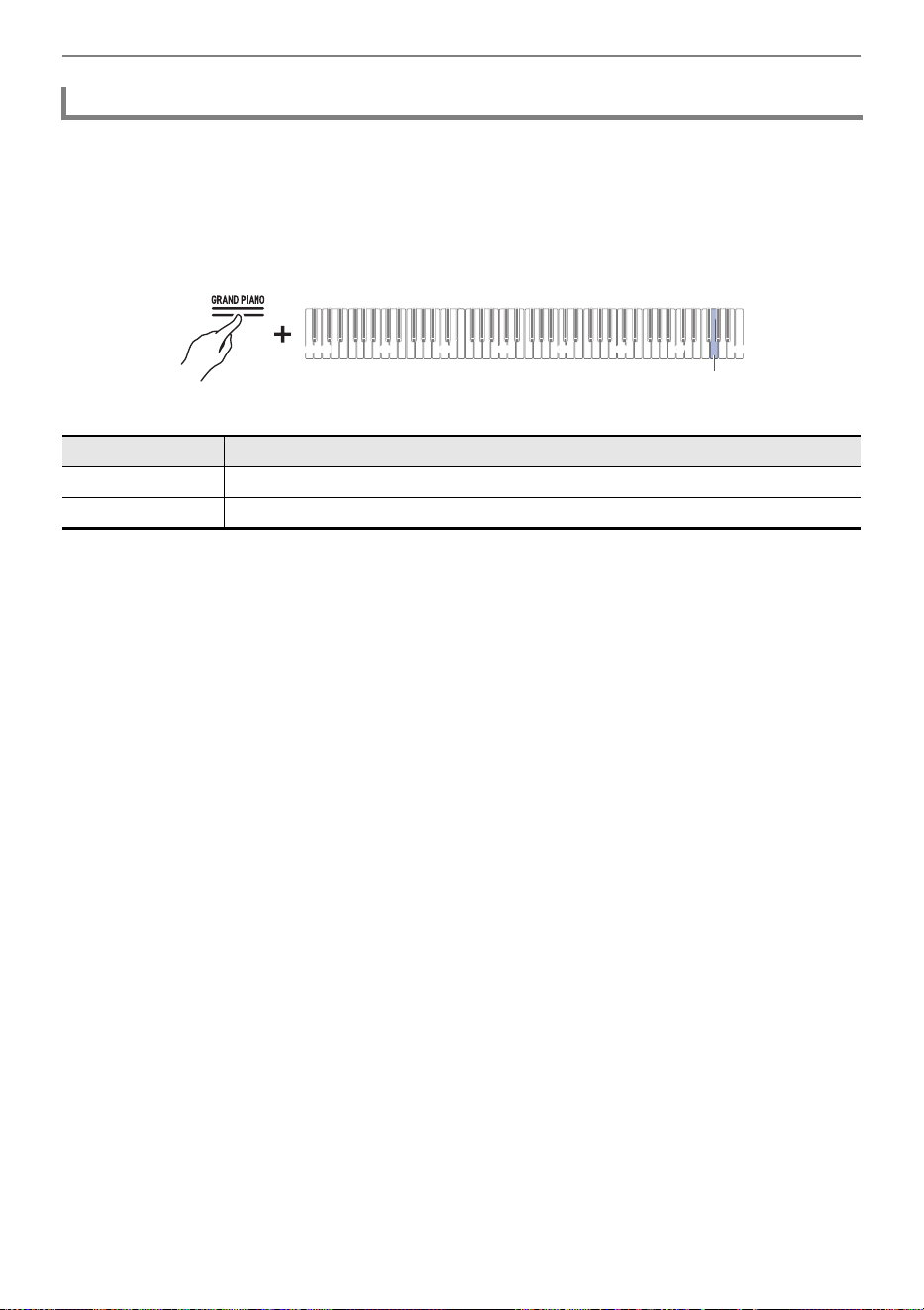
Changing Settings
EN-105
Sets whether the Upper2 part damper pedal effect is applied or not.
While holding down the “GRAND PIANO” button, press the G7 key (Upper2
Damper).
Switching On/Off or Changing Setting Values Using a Single Key (operation type D)
• Default value: Enable
Enabling/Disabling Upper2 Part Damper Pedal Effect
Setting Value Setting Details
Disable Disables the Damper Pedal effect.
Enable Enables the Damper Pedal effect.
C1A0 C2 C3 C4 C5 C6 C7 C8
G7
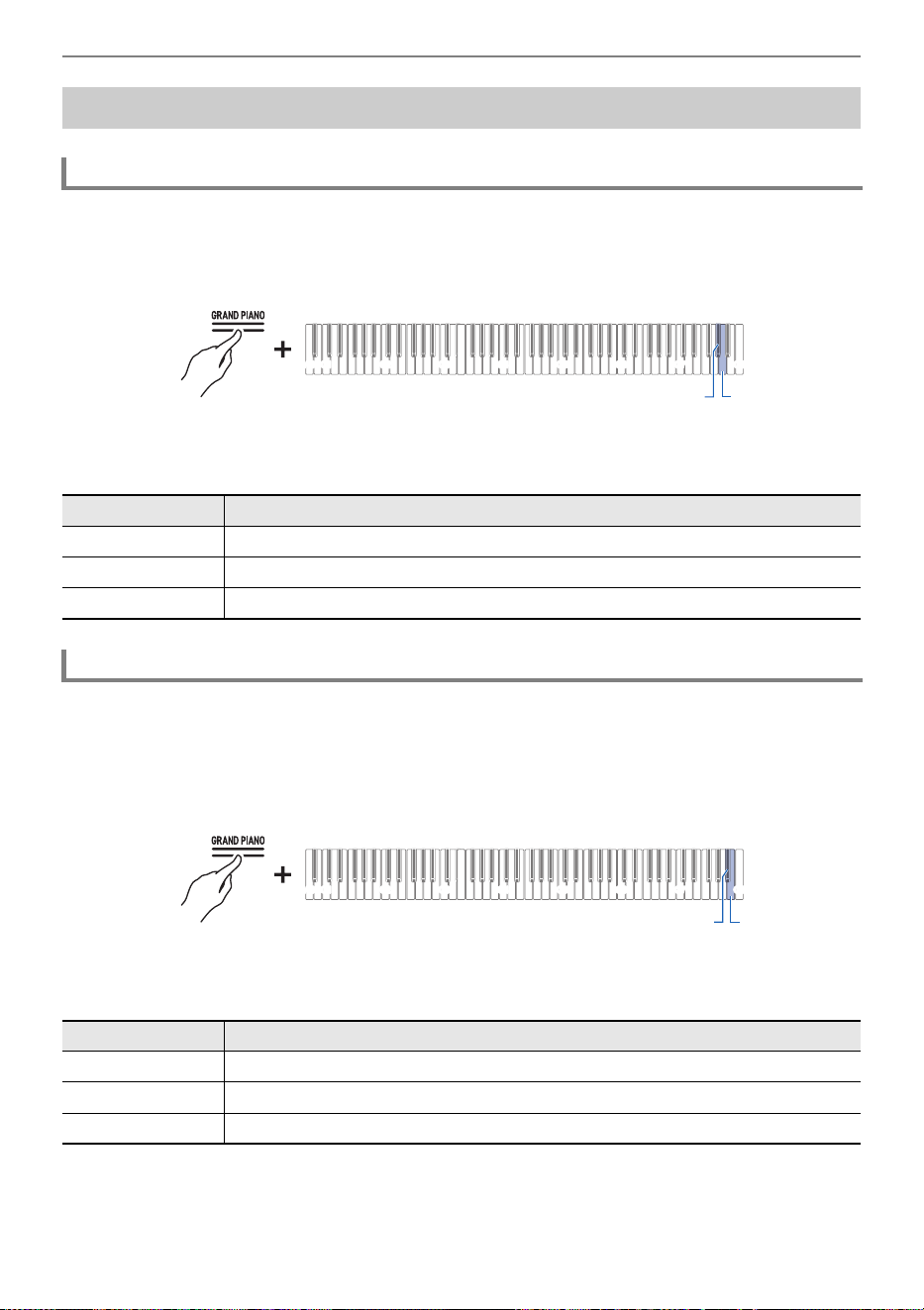
Changing Settings
EN-106
While holding down the “GRAND PIANO” button, press the A}7 or A7 key.
Using the +/– Keys to Raise or Lower the Setting Value by 1 (operation type B)
• Setting value: 0 (silence) to 42 (maximum volume)
A separator tone sounds when the set value becomes a multiple of 10.
• Default value: 42
Fine-tune the relative pitch of the Upper1 part to the Lower part.
While holding down the “GRAND PIANO” button, press the B}7 or B7 key.
Using the +/– Keys to Raise or Lower the Setting Value by 1 (operation type B)
• Setting value: –99 cents to +99 cents (100 cents = 1 semitone)
A separator tone sounds when the set value becomes a multiple of 10.
• Default value: 0 cents
Changing the Lower Part Settings
Adjusting the Lower Part Volume
Key Setting
A}7 Lowers the Lower part volume by 1 (–)
A7 Raises the Lower part volume by 1 (+)
A}7 + A7 Resets the Lower part volume to the default setting
Fine-Tuning the Lower Part (Lower Detune)
Key Setting
B}7 Lowers the Lower part pitch by 1 cent (–)
B7 Raises the Lower part pitch 1 cent (+)
B}7 + B7 Sets the pitch of the Lower part to the same as the Upper1 part (default setting)
C1A0 C2 C3 C4 C5 C6 C7 C8
A}7A7
C1A0 C2 C3 C4 C5 C6 C7 C8
B}7B7
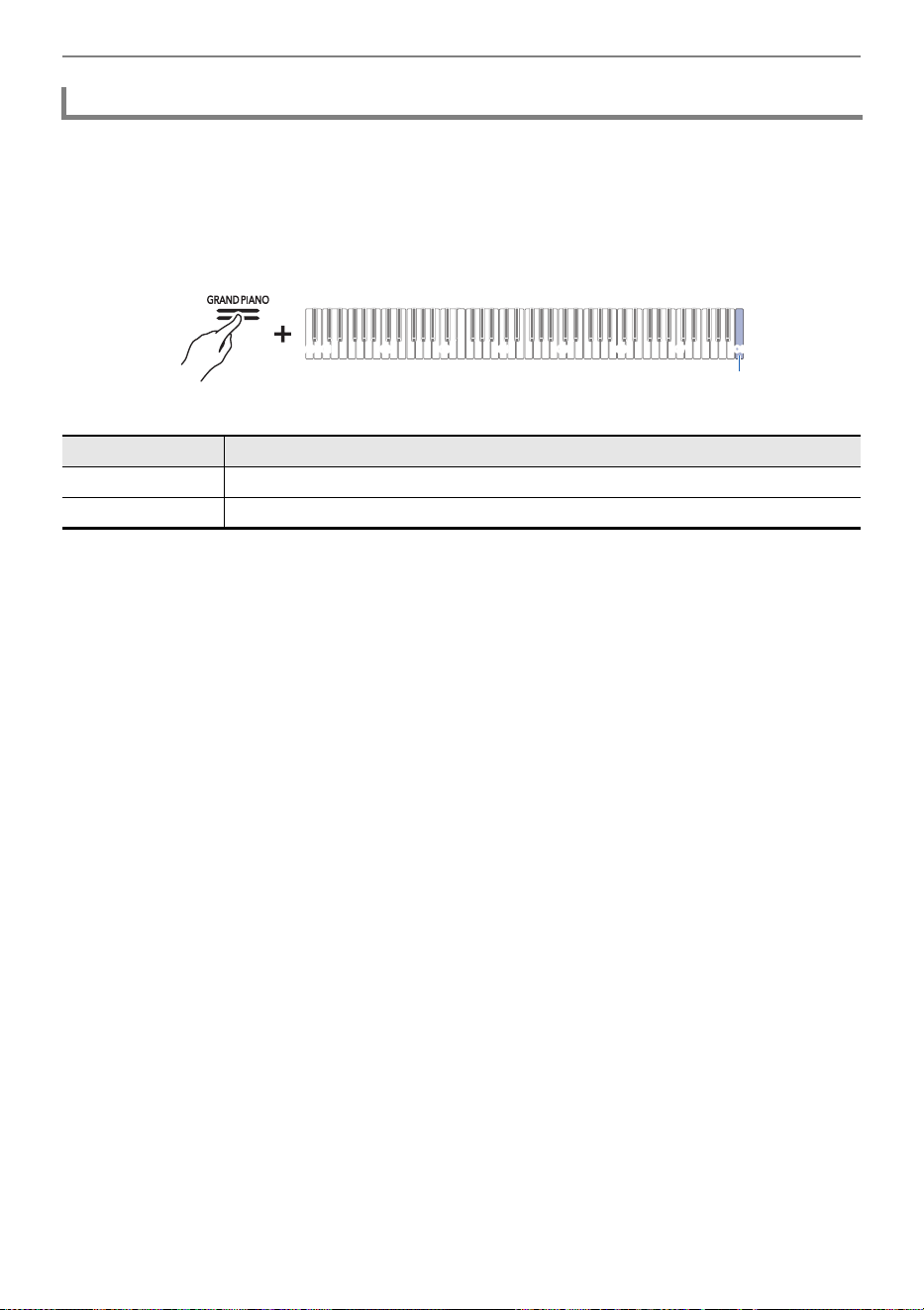
Changing Settings
EN-107
Sets whether the Lower part damper pedal effect is applied or not.
While holding down the “GRAND PIANO” button, press the C8 key (Lower
Damper).
Switching On/Off or Changing Setting Values Using a Single Key (operation type D)
• Default value: Disable
Enabling/Disabling Lower Part Damper Pedal Effect
Setting Value Setting Details
Disable Disables the Damper Pedal effect.
Enable Enables the Damper Pedal effect.
C1A0 C2 C3 C4 C5 C6 C7 C8
C8
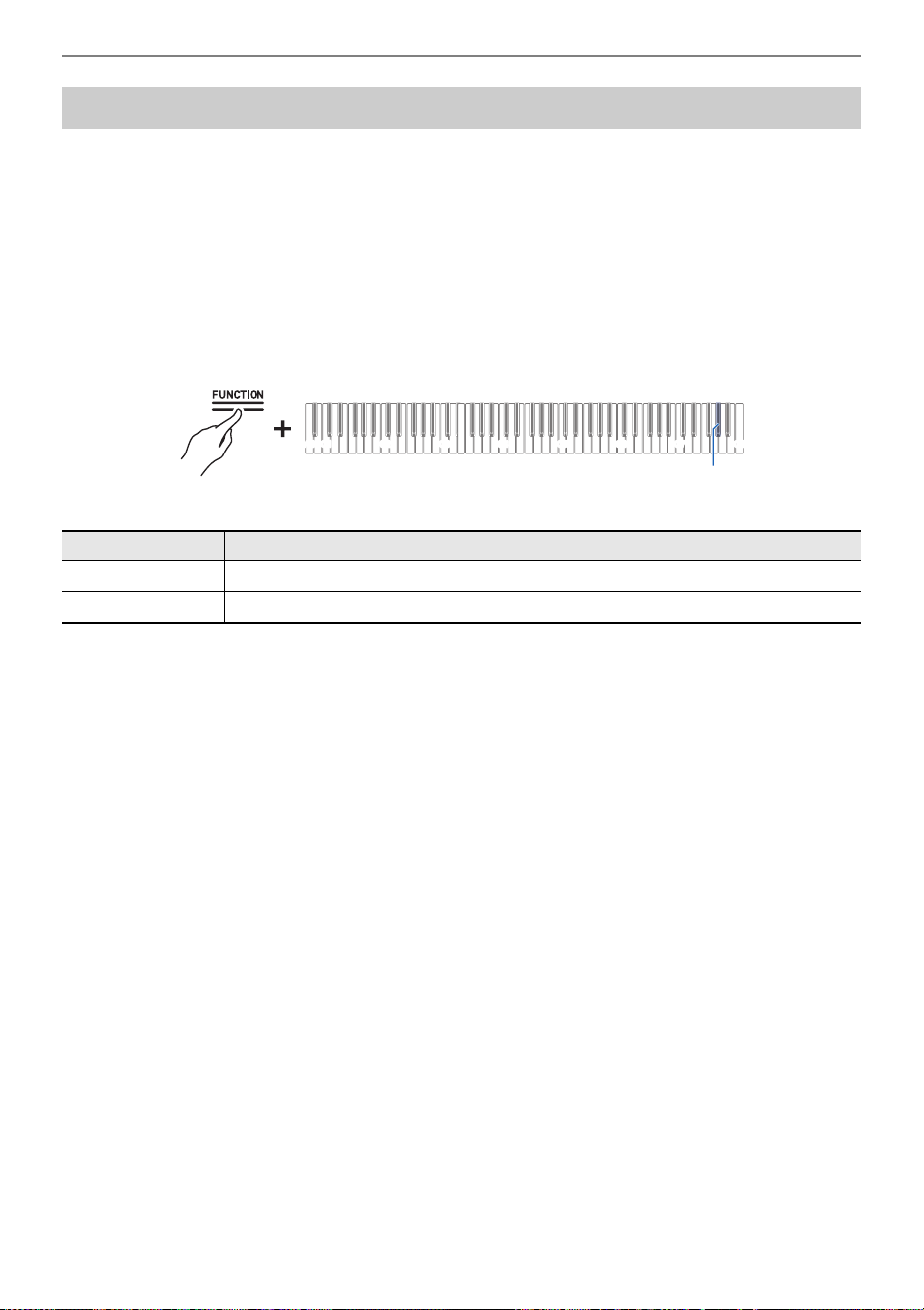
Changing Settings
EN-108
When [Auto Resume] is set to <On>, most settings are retained, even when the Digital Piano is turned
off.
• The settings that are retained regardless of whether [Auto Resume] is <Enable> or <Disable> are as
follows:
A-tuning setting, Wireless Connection notification tone volume, touch button settings, notification
tone settings, Auto Resume setting
While holding down the “FUNCTION” button, press the A}7 key (Auto Resume).
Switching On/Off or Changing Setting Values Using a Single Key (operation type D)
• Default value: Disable
Saving the Digital Piano Settings (Auto Resume)
Setting Value Setting Details
Disable Disables Auto Resume.
Enable Enables Auto Resume.
C1A0 C2 C3 C4 C5 C6 C7 C8
A}7
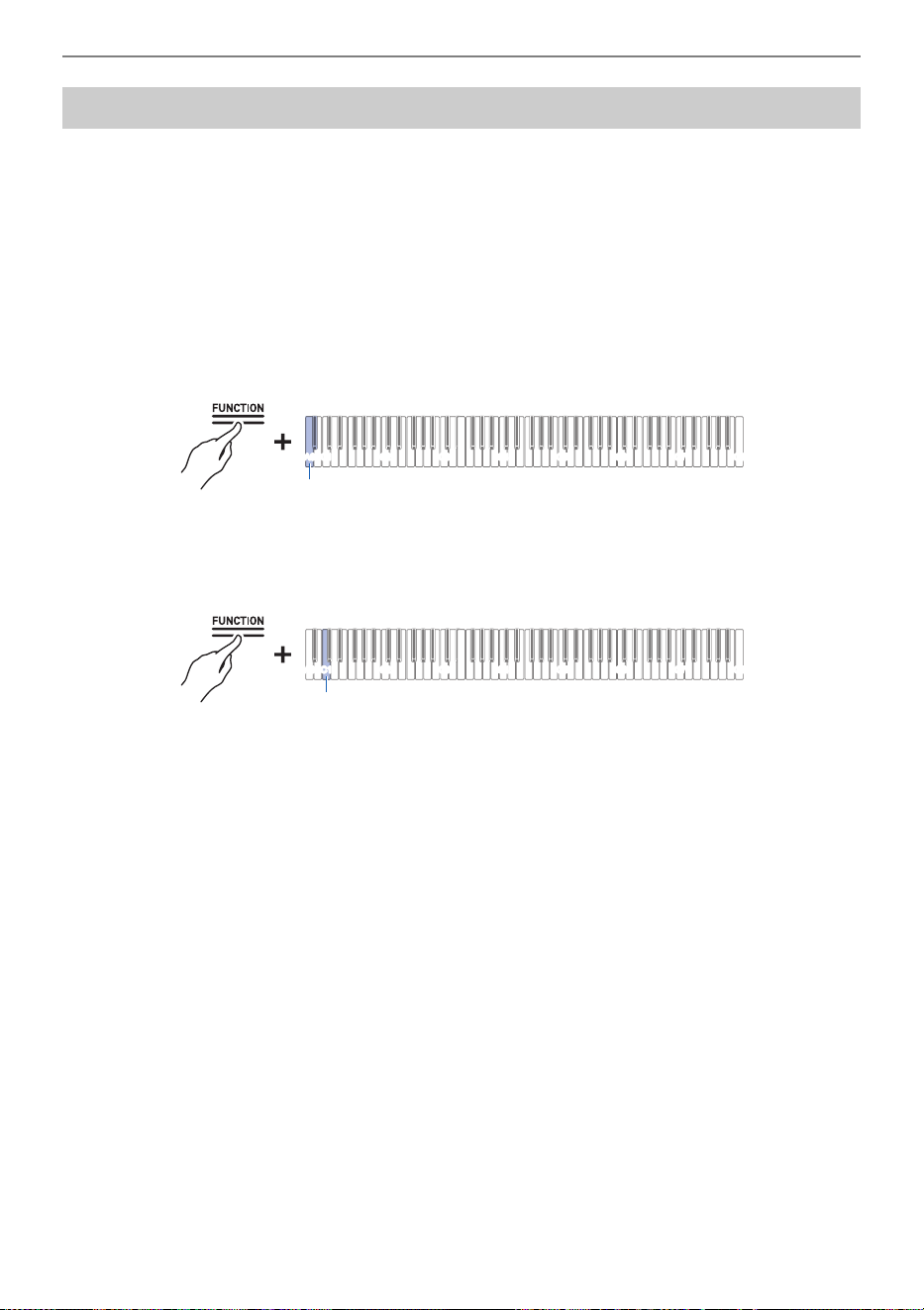
Changing Settings
EN-109
You can initialize all system content on this Digital Piano, such as data and settings, and return the
Digital Piano to the settings it had when it was shipped from the factory.
1.
Press and hold the “FUNCTION” button.
Putting in Standby Mode, and Executing on Next Key Press (operation type E)
2.
Press the A0 key (Factory Reset).
• The Digital Piano enters factory reset standby and the “FUNCTION” button blinks.
• Perform factory reset in the following way. To stop factory reset, release the “FUNCTION”
button at this point.
3.
To execute factory reset, press the C1 key (Execute).
• Factory reset starts.
4.
Release the “FUNCTION” button.
• Factory reset may take some time. Wait until completion. When factory reset is complete, all
touch buttons on the panel of the Digital Piano (FUNCTION to GRAND PIANO) will light up.
Restore Factory Defaults (Factory Reset)
C1A0 C2 C3 C4 C5 C6 C7 C8
A0
C1A0 C2 C3 C4 C5 C6 C7 C8
C1
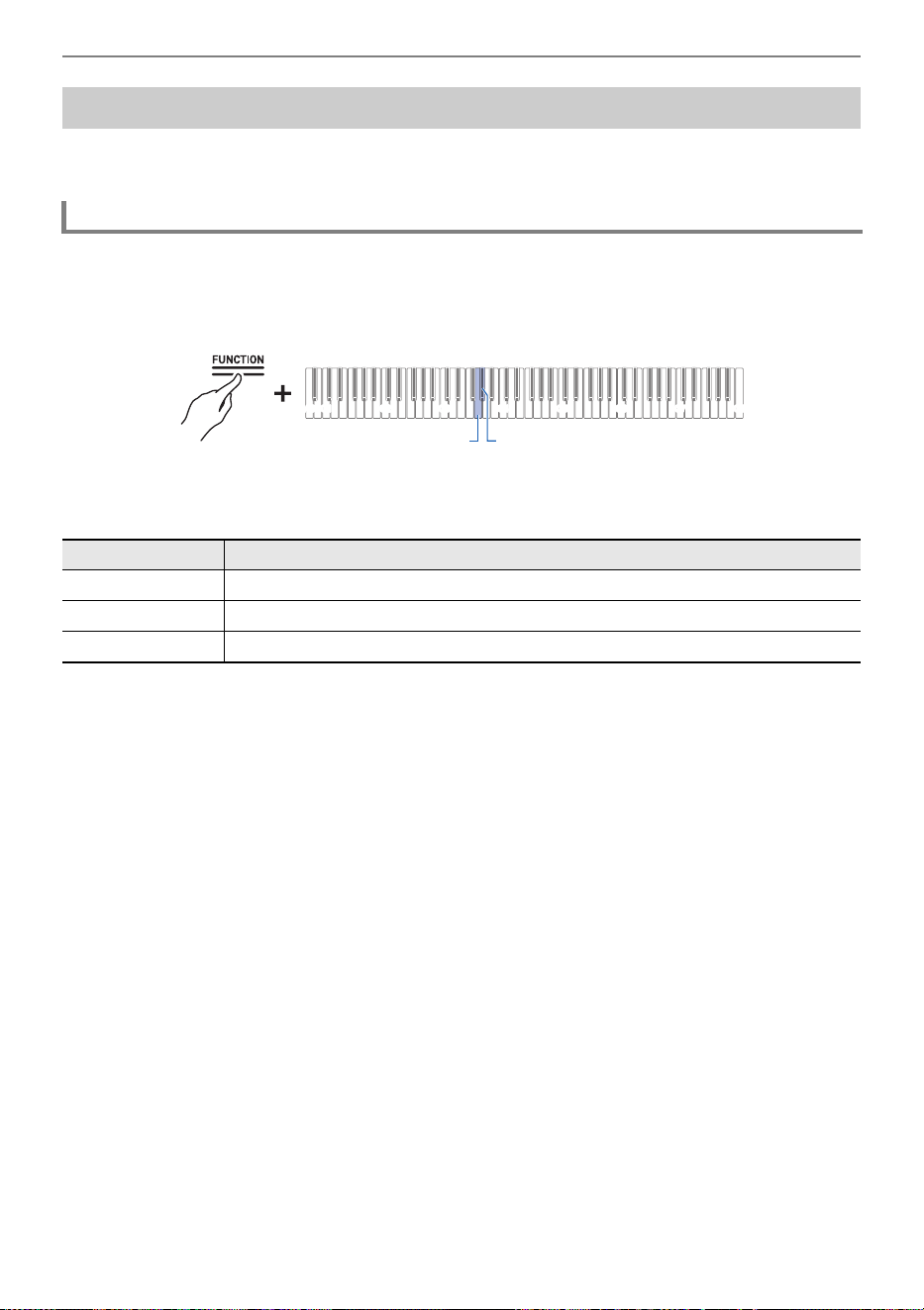
Changing Settings
EN-110
You can adjust the volume of keyboard performances, MIDI song playback, audio song playback, and
wireless audio playback individually, relative to the overall volume.
While holding down the “FUNCTION” button, press the G3 or A}3 key.
Using the +/– Keys to Raise or Lower the Setting Value by 1 (operation type B)
• Setting value: 0 (silence) to 42 (maximum volume)
A separator tone sounds when the set value becomes a multiple of 10.
• Default value: 42
Adjusting Volume Balance
Keyboard Volume
Key Setting
G3 Lowers Keyboard Volume by 1 (–)
A}3 Raises Keyboard Volume by 1 (+)
G3 + A}3 Resets Keyboard Volume to default setting
C1A0 C2 C3 C4 C5 C6 C7 C8
G3 A}3
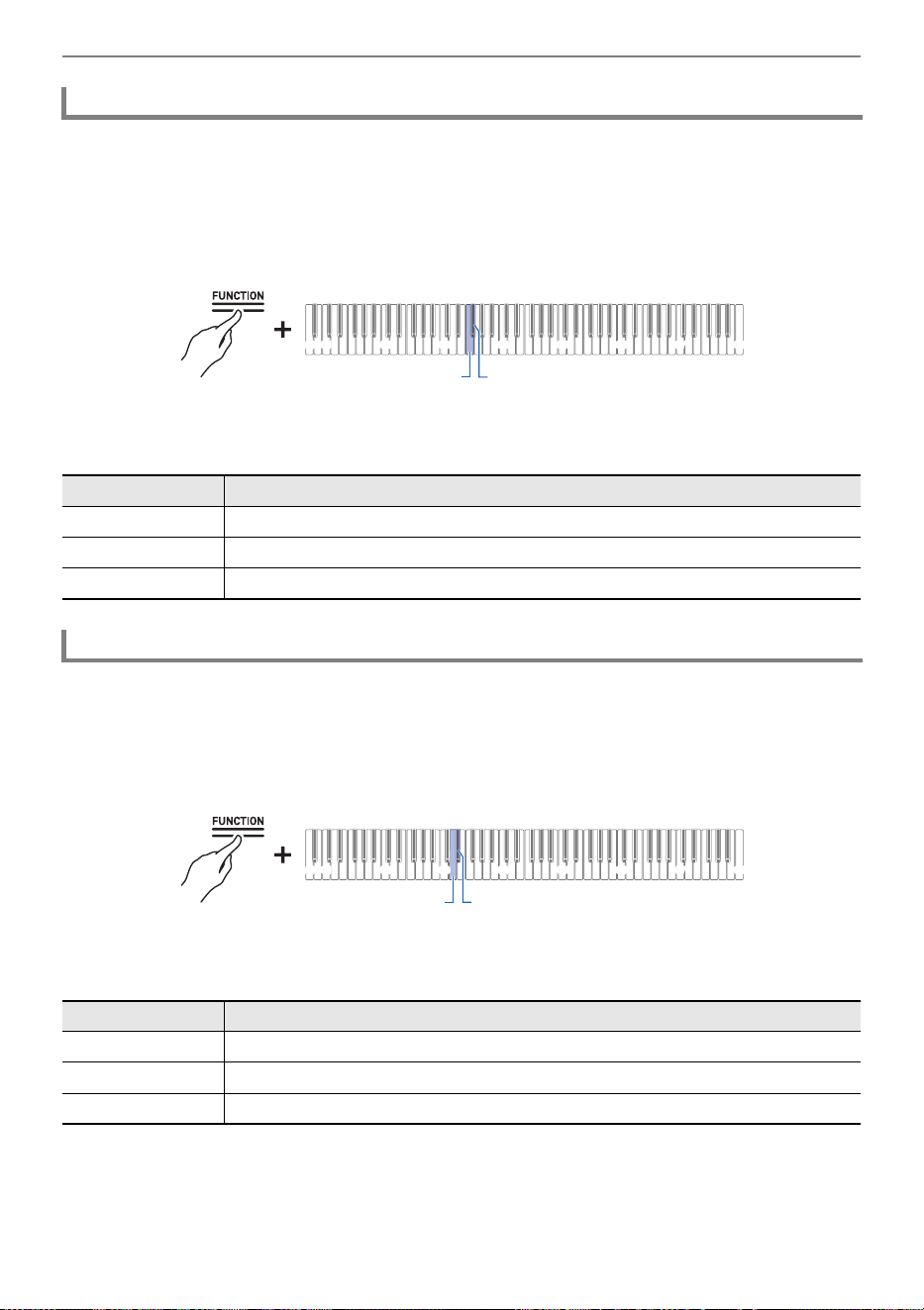
Changing Settings
EN-111
Adjusts the playback volume of built-in songs, user songs, MIDI Recorder songs, and USB flash drive
songs.
While holding down the “FUNCTION” button, press the F3 or F{3 key.
Using the +/– Keys to Raise or Lower the Setting Value by 1 (operation type B)
• Setting value: 0 (silence) to 42 (maximum volume)
A separator tone sounds when the set value becomes a multiple of 10.
• Default value: 42
Adjusts the playback volume of audio data (WAV and MP3 files) stored on USB flash drives.
While holding down the “FUNCTION” button, press the D3 or E}3 key.
Using the +/– Keys to Raise or Lower the Setting Value by 1 (operation type B)
• Setting value: 0 (silence) to 42 (maximum volume)
A separator tone sounds when the set value becomes a multiple of 10.
• Default value: 35
MIDI Song Volume
Key Setting
F3 Lowers the playback volume of MIDI songs by 1 (–)
F{3 Raises the playback volume of MIDI songs by 1 (+)
F3 + F{3 Resets the playback volume of MIDI songs to the default setting
Audio Song Playback Volume
Key Setting
D3 Lowers the playback volume of an audio song by 1 (–)
E}3 Raises the playback volume of audio songs by 1 (+)
D3 + E}3 Resets the playback volume of audio songs to the default setting
C1A0 C2 C3 C4 C5 C6 C7 C8
F3 F{3
C1A0 C2 C3 C4 C5 C6 C7 C8
D3 E}3
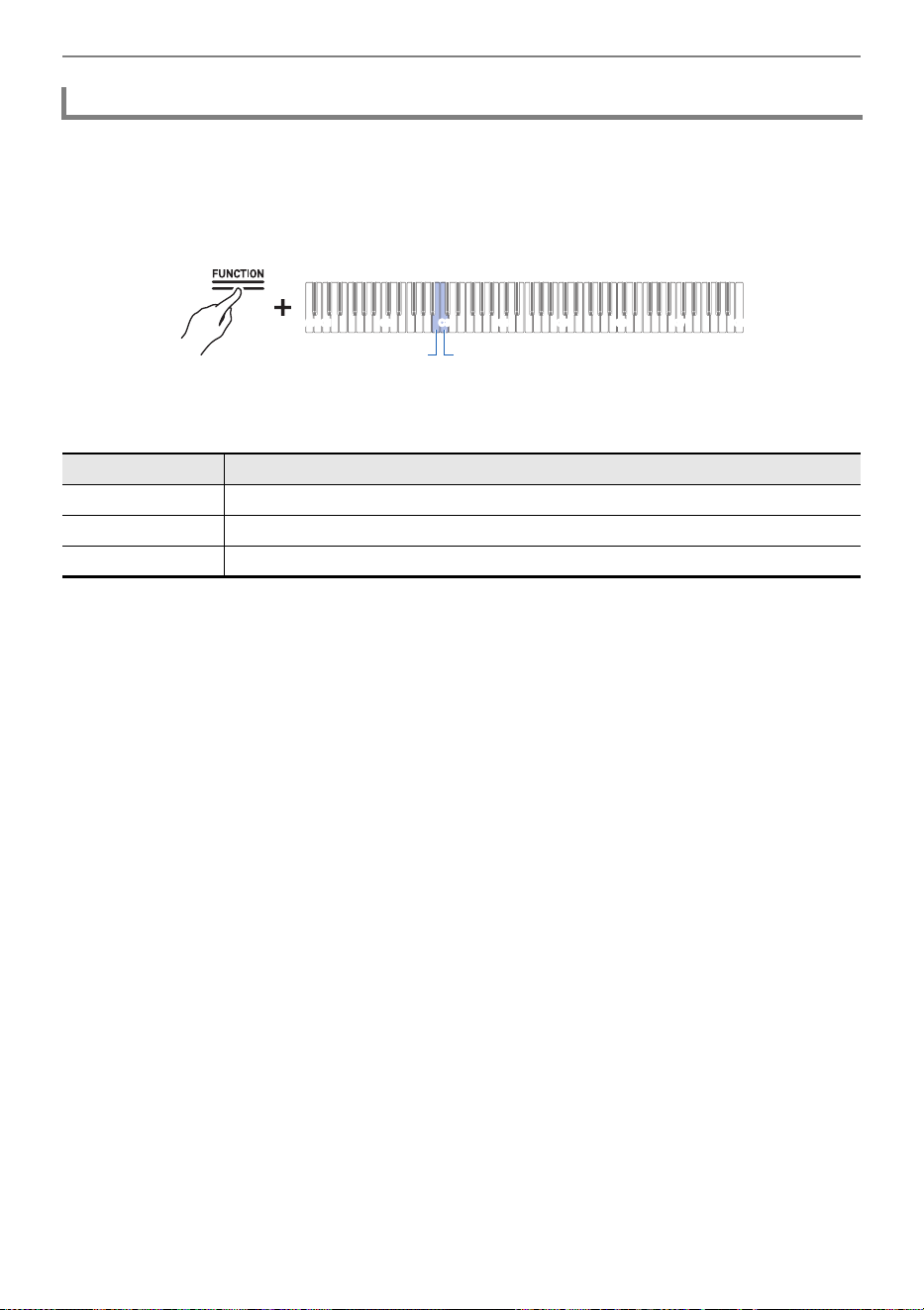
Changing Settings
EN-112
Adjusts the playback volume of wireless audio.
While holding down the “FUNCTION” button, press the B2 or C3 key.
Using the +/– Keys to Raise or Lower the Setting Value by 1 (operation type B)
• Setting value: 0 (silence) to 42 (maximum volume)
A separator tone sounds when the set value becomes a multiple of 10.
• Default value: 35
Wireless Audio Playback Volume
Key Setting
B2 Lowers wireless audio playback volume by 1 (–)
C3 Raises wireless audio playback volume by 1 (+)
B2 + C3 Resets wireless audio playback volume to default setting
C1A0 C2 C3 C4 C5 C6 C7 C8
B2 C3
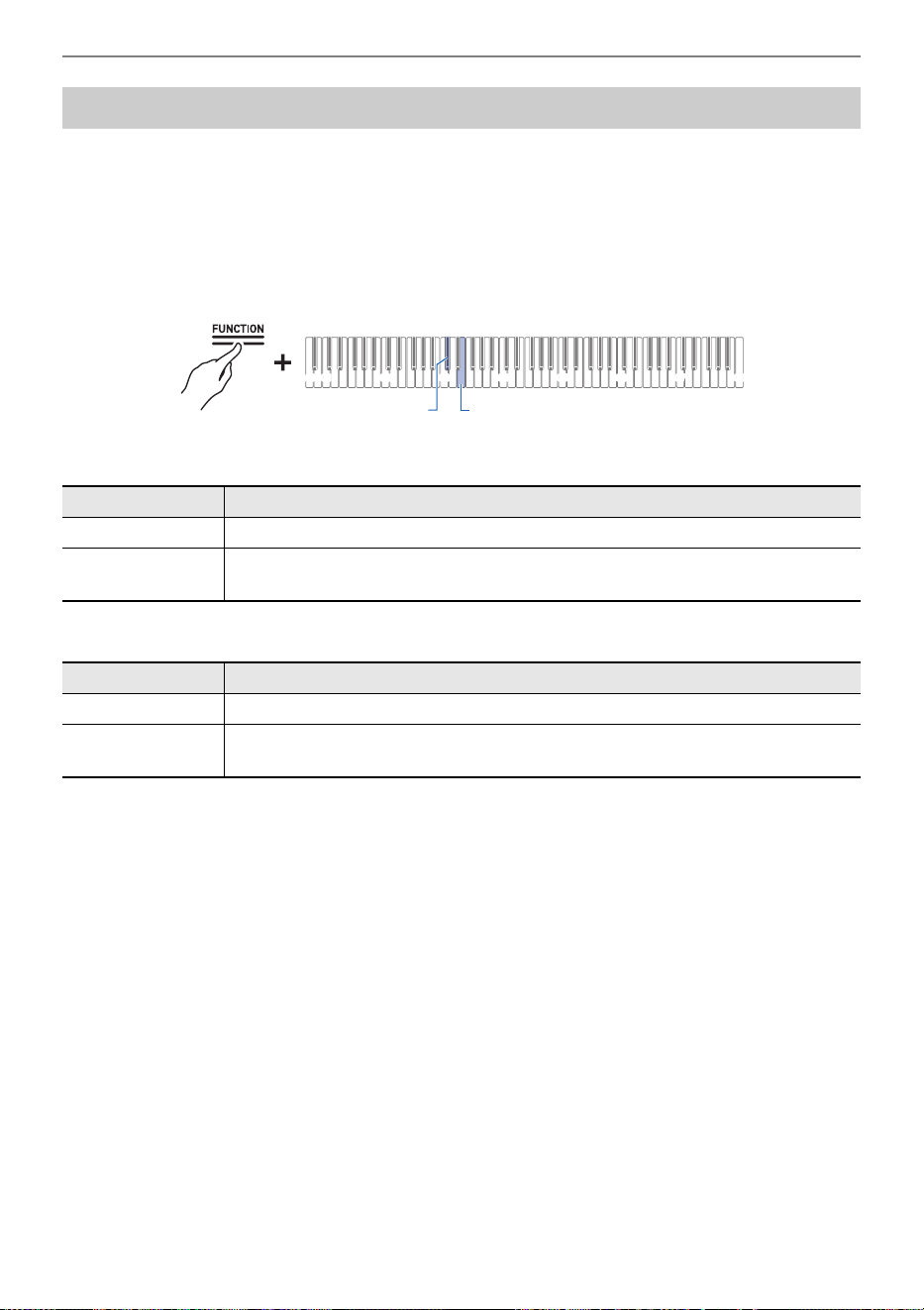
Changing Settings
EN-113
When [Center Cancel] is set to <On>, the vocals are cut from playback (cut or lowered). This function
cancels centrally positioned sounds, so sounds other than vocals may also be cut. The degree of the
effect depends on the audio data being played.
While holding down the “FUNCTION” button, press the C{3 or E3 key.
Switching On/Off or Changing Setting Values Using a Single Key (operation type D)
Wireless Audio Center Cancel (C{3 key)
• Default value: Off
Audio Song Center Cancel (E3 key)
• Default value: Off
Center Cancel Function
Setting Value Setting Details
Off Turns off Wireless Audio Center Cancel.
On Turns on Wireless Audio Center Cancel. Cancels the center-positioned sound of
the wireless audio.
Setting Value Setting Details
Off Turns off Audio Song Center Cancel.
On Turns on Audio Song Center Cancel. Cancels the center-positioned sound of the
audio song.
C1A0 C2 C3 C4 C5 C6 C7 C8
E3C{3
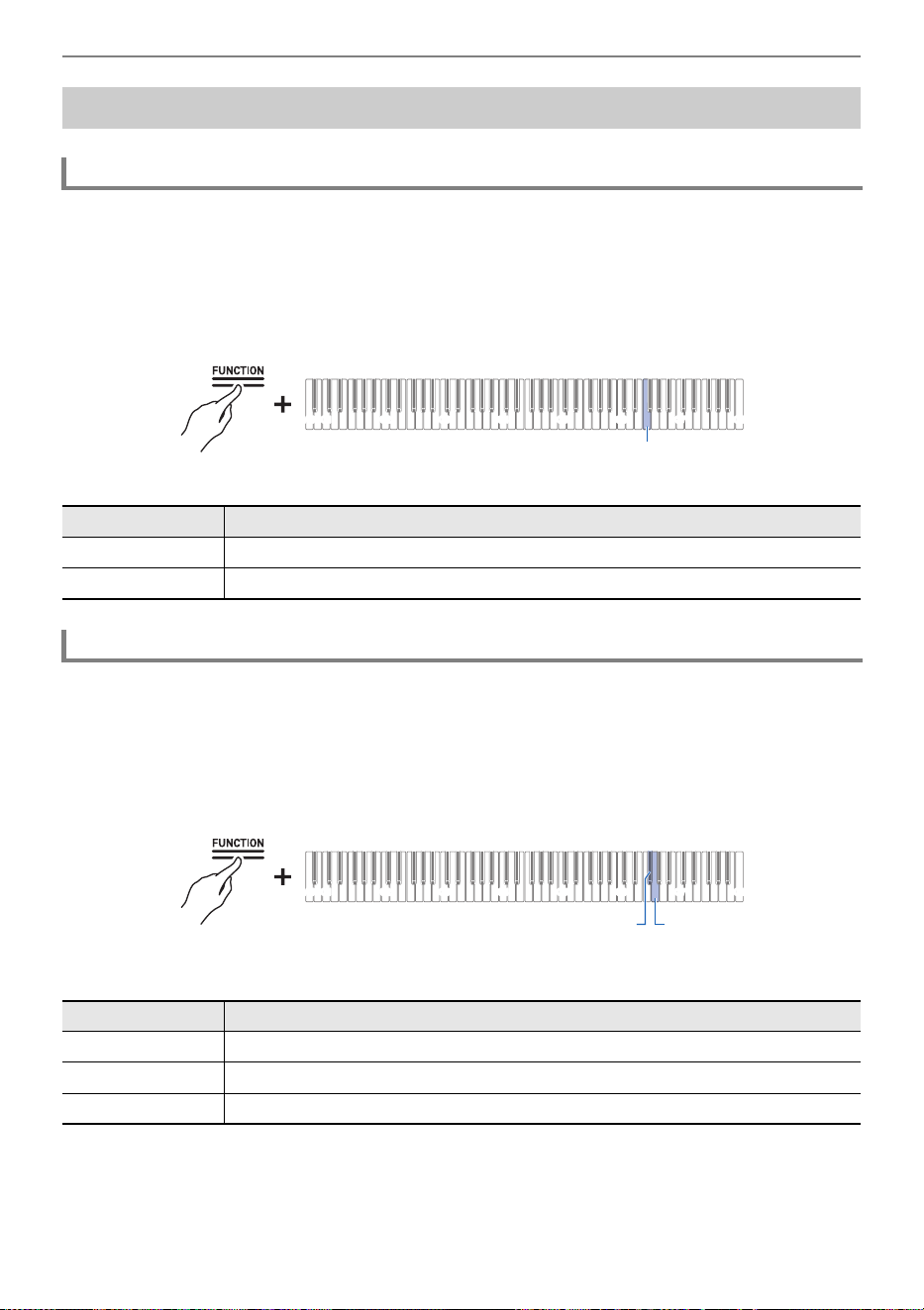
Changing Settings
EN-114
When [Local Control] is set to <Off>, MIDI data is output from this Digital Piano, but the Digital Piano
itself does not emit sound. This setting is for sending MIDI data to external devices only.
While holding down the “FUNCTION” button, press the F6 key (Local Control).
Switching On/Off or Changing Setting Values Using a Single Key (operation type D)
• Default value: On
Sets the MIDI channel to be used when sending keyboard performance information from this Digital
Piano to an external device.
While holding down the “FUNCTION” button, press the F{6 or G6 key.
Using the +/– Keys to Raise or Lower the Setting Value by 1 (operation type B)
• Setting value: 1ch to 16ch
• Default value: 1ch
Changing MIDI Settings
Local Control
Setting Value Setting Details
Off Turns off Local Control.
On Turns on Local Control.
Keyboard Channel
Key Setting
F{6 Lowers the Keyboard Channel by 1 (–)
G6 Raises the Keyboard Channel by 1 (+)
F{6 + G6 Resets the Keyboard Channel to the default setting
C1A0 C2 C3 C4 C5 C6 C7 C8
F6
C1A0 C2 C3 C4 C5 C6 C7 C8
G6F{6
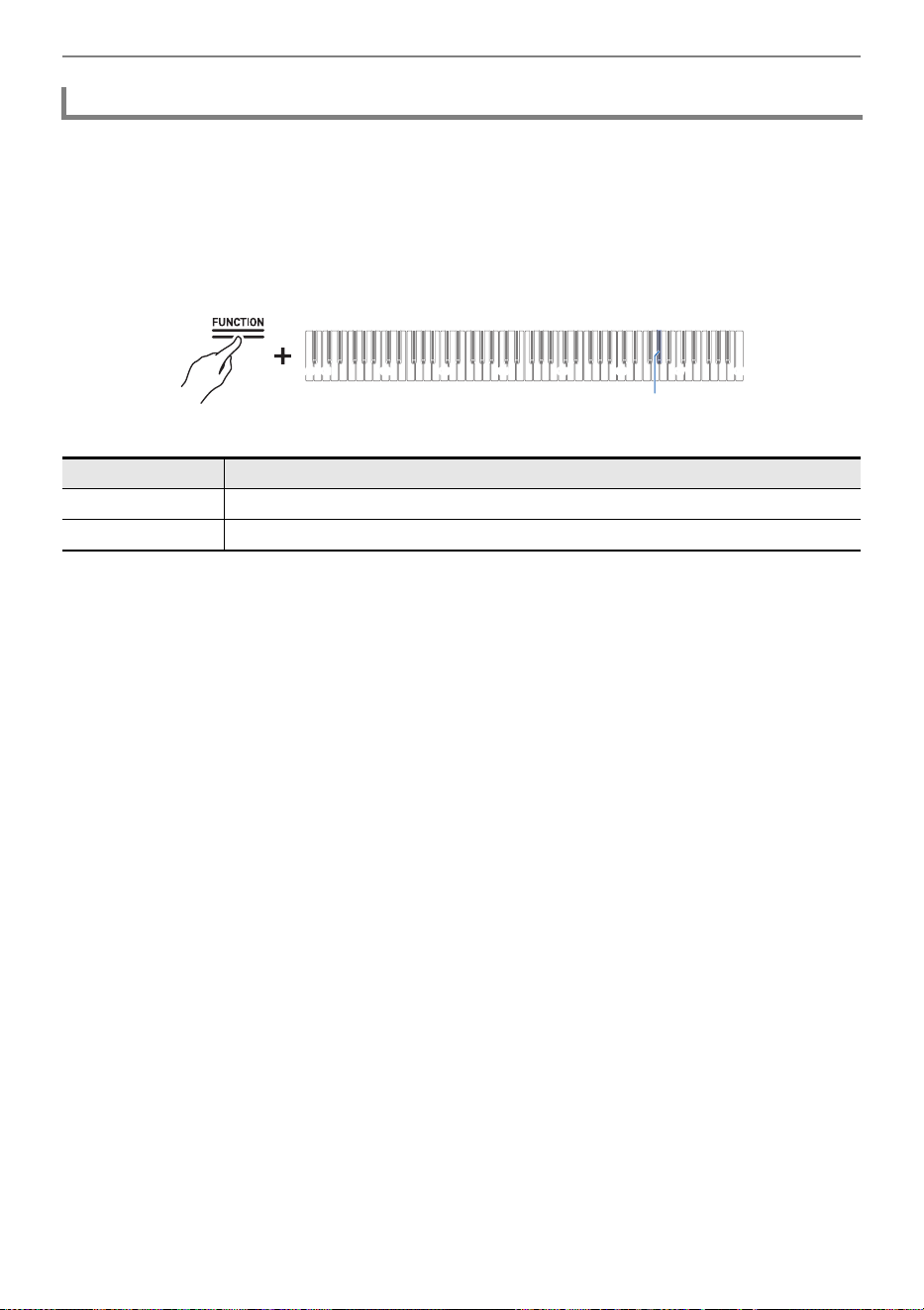
Changing Settings
EN-115
Set high-resolution MIDI output for touch strength (Velocity) to <Enable> or <Disable> when playing the
keyboard.
While holding down the “FUNCTION” button, press the A}6 key (Hi-Res Velocity
MIDI OUT).
Switching On/Off or Changing Setting Values Using a Single Key (operation type D)
• Default value: Disable
Hi-Res Velocity MIDI OUT
Setting Value Setting Details
Disable Disables Hi-Res Velocity MIDI OUT.
Enable Enables Hi-Res Velocity MIDI OUT.
C1A0 C2 C3 C4 C5 C6 C7 C8
A}6
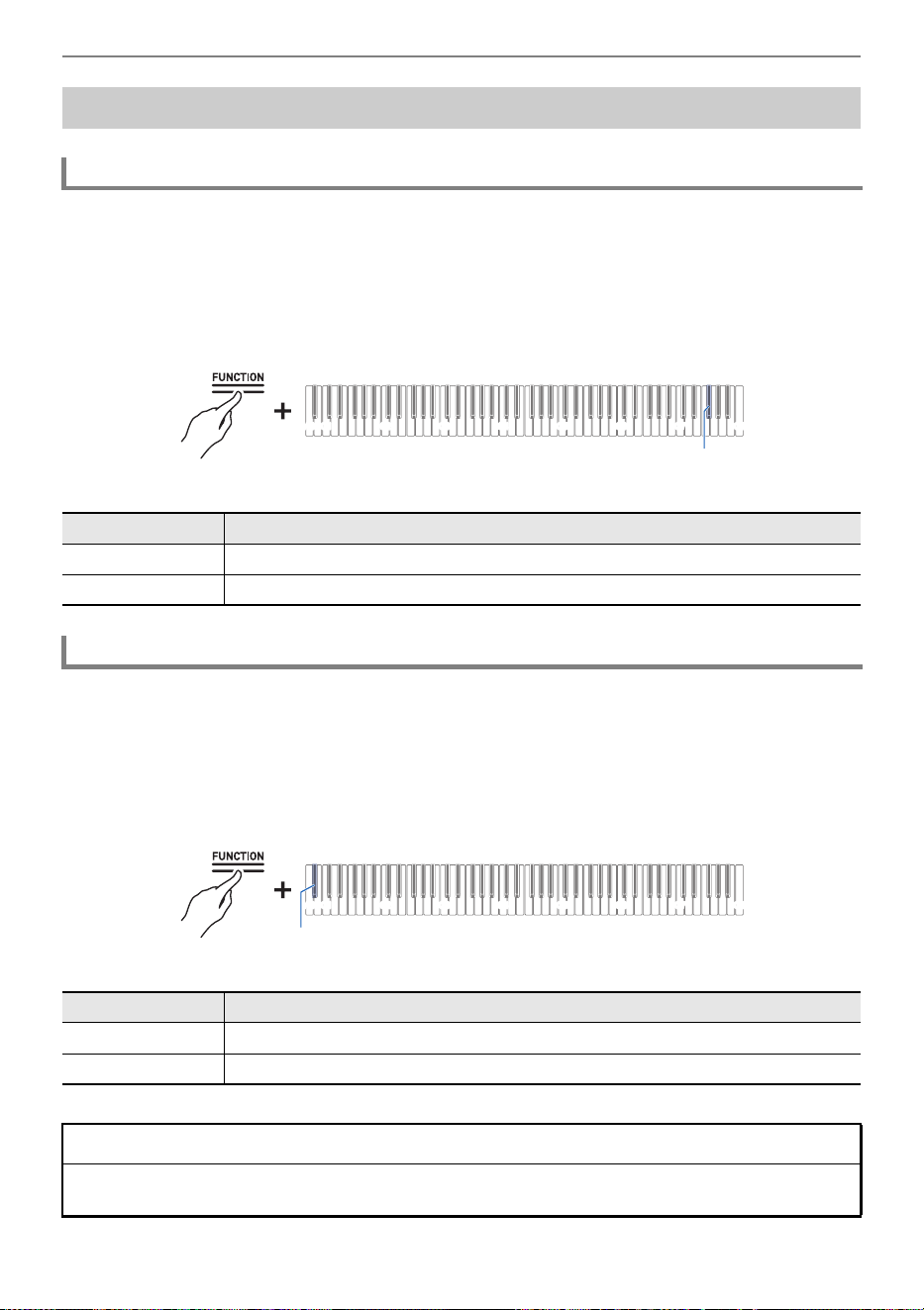
Changing Settings
EN-116
Set whether [Power On Alert] is <Enable> or <Disable>.
For more information, see “Power On Alert”.
While holding down the “FUNCTION” button, press the F{7 key (Power On Alert).
Switching On/Off or Changing Setting Values Using a Single Key (operation type D)
• Default value: Enable
Set whether [Auto Power Off] is <Enable> or <Disable>.
For more information, see “Auto Power Off Function”.
While holding down the “FUNCTION” button, press the B}0 key (Auto Power Off).
Switching On/Off or Changing Setting Values Using a Single Key (operation type D)
• Default value: Enable
Main Digital Piano Settings
Power On Alert
Setting Value Setting Details
Disable Disables Power On Alert.
Enable Enables Power On Alert.
Auto Power Off
Setting Value Setting Details
Disable Disables Auto Power Off.
Enable Enables Auto Power Off.
* WARNING
If [Auto Power Off] is set to <Disable>, the product does not automatically turn off and continues to
use power.
C1A0 C2 C3 C4 C5 C6 C7 C8
F{7
C1A0 C2 C3 C4 C5 C6 C7 C8
B}0
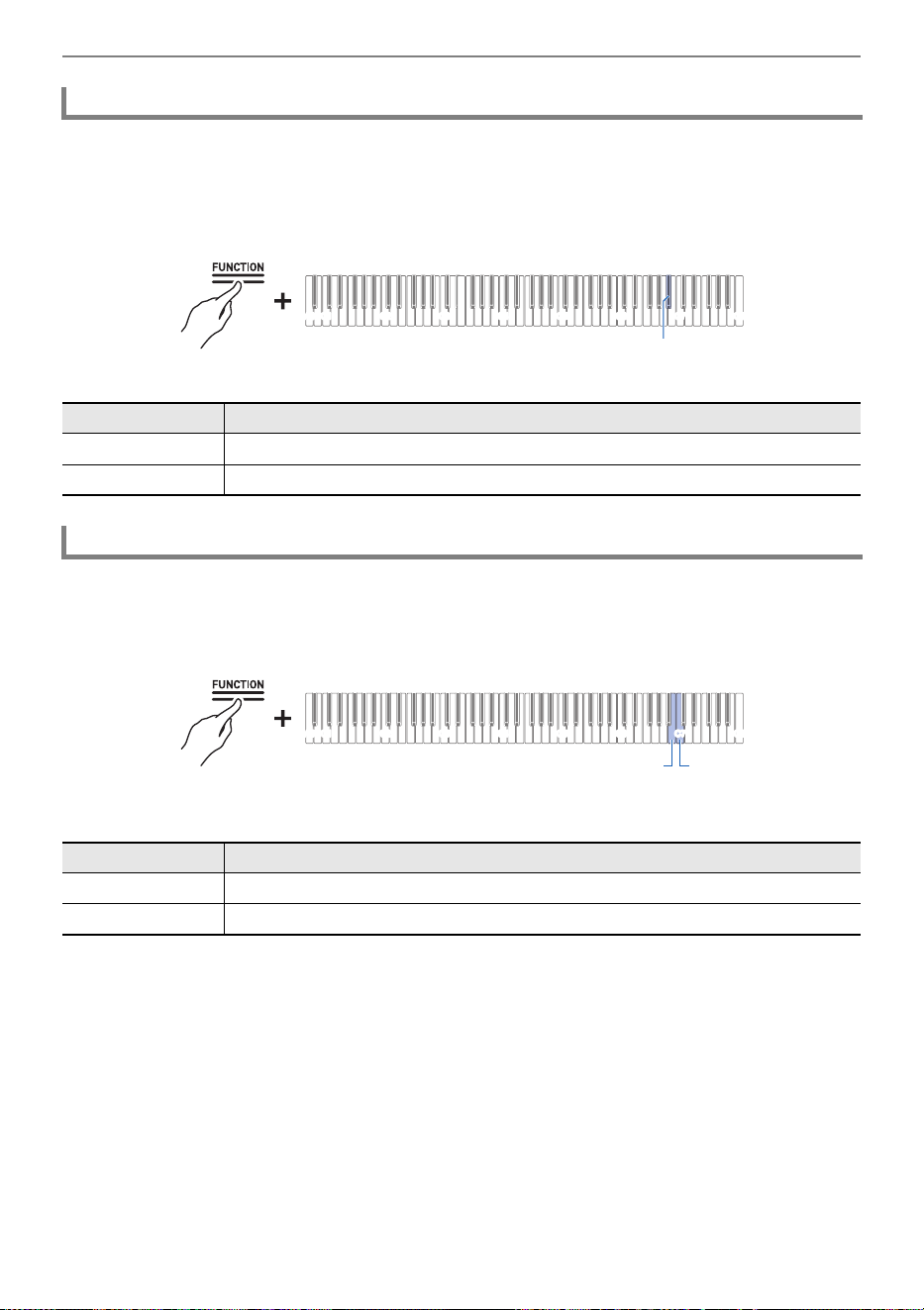
Changing Settings
EN-117
While holding down the “FUNCTION” button, press the B}6 key (Touch Button
Luminosity).
Switching On/Off or Changing Setting Values Using a Single Key (operation type D)
• Default value: 2
While holding down the “FUNCTION” button, press the B6 or C7 key.
Using the +/– Keys to Raise or Lower the Setting Value by 1 (operation type B)
• Setting value: –1 (low sensitivity) to 0 (standard) to +1 (high sensitivity)
• Default value: 0
Touch Button Luminosity
Setting Value Setting Details
1 Dims touch button luminosity.
2 Brightens touch button luminosity.
Left Panel Touch Button Sensitivity
Key Setting
B6 Lowers touch button sensitivity by 1 (–)
C7 Raises touch button sensitivity by 1 (+)
C1A0 C2 C3 C4 C5 C6 C7 C8
B}6
C1A0 C2 C3 C4 C5 C6 C7 C8
B6 C7
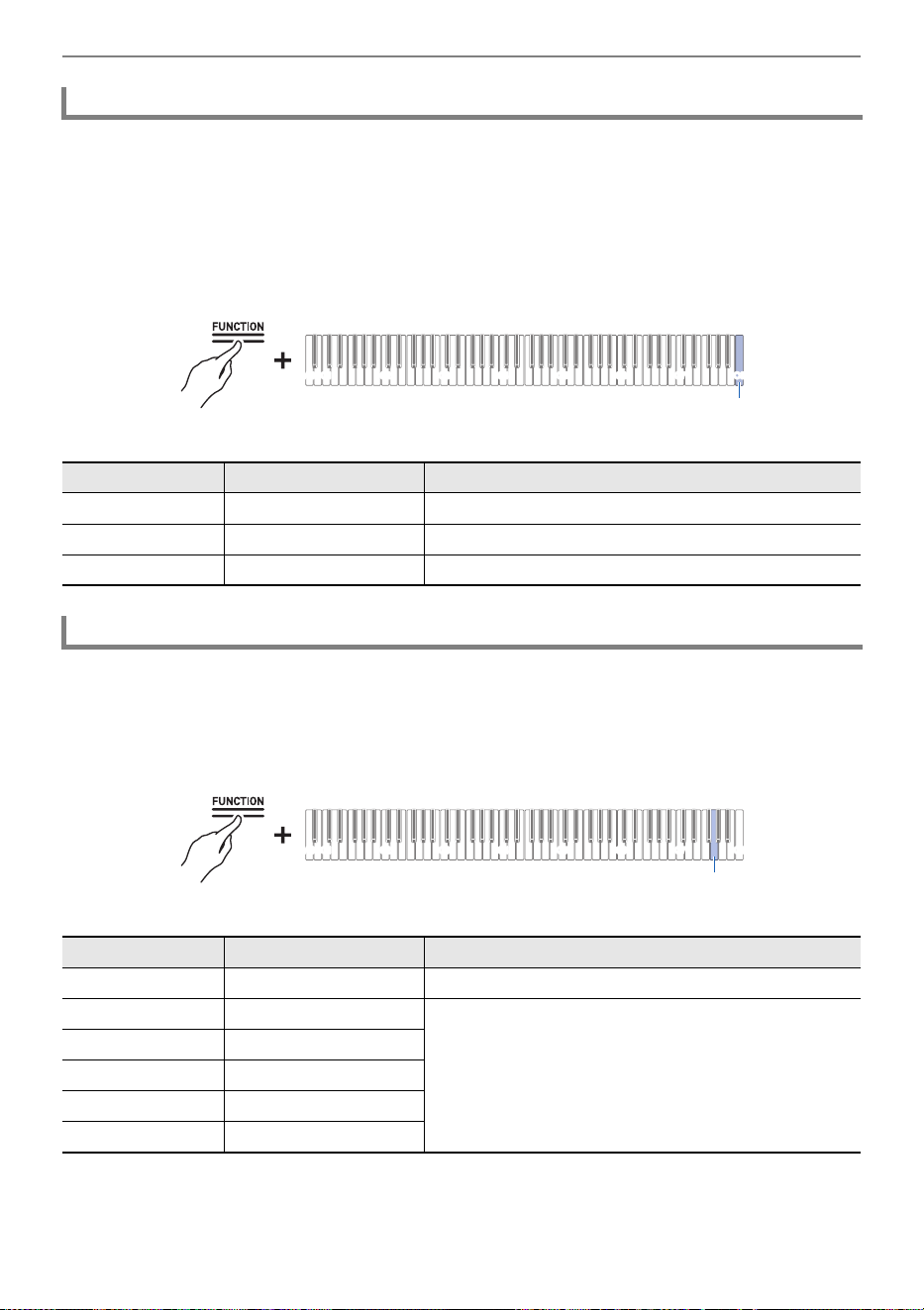
Changing Settings
EN-118
Setting [Panel Lock] to <Enable> locks button operations
*
. When set to <Auto>, operation is
automatically locked during performances only, preventing accidental operation during a performance.
* Excludes the power button and the unlocking of Panel Lock.
While holding down the “FUNCTION” button, press the C8 key (Panel Lock).
Switching On/Off or Changing Setting Values Using a Single Key (operation type D)
• Default value: Disable
While holding down the “FUNCTION” button, press the G7 key (Panel Light
setting).
Switching On/Off or Changing Setting Values Using a Single Key (operation type D)
• Default value: 15 sec.
Panel Lock
Setting Value Notification Tone Setting Details
Disable Tone for Off Unlocks panel lock.
Enable 1 notification tone Always locked operation.
Auto 2
notification tones Locks operation only during performances.
Switching Panel Light Settings
Setting Value Notification Tone Setting Details
Off Tone for Off Touch button light does not go off.
5 sec. 1 notification tone If the set time elapses without a left panel operation,
all touch buttons will turn off.
15 sec. 2 notification tones
30 sec. 3 notification tones
60 sec. 4 notification tones
120 sec. 5 notification tones
C8
C1A0 C2 C3 C4 C5 C6 C7 C8
C1A0 C2 C3 C4 C5 C6 C7 C8
G7
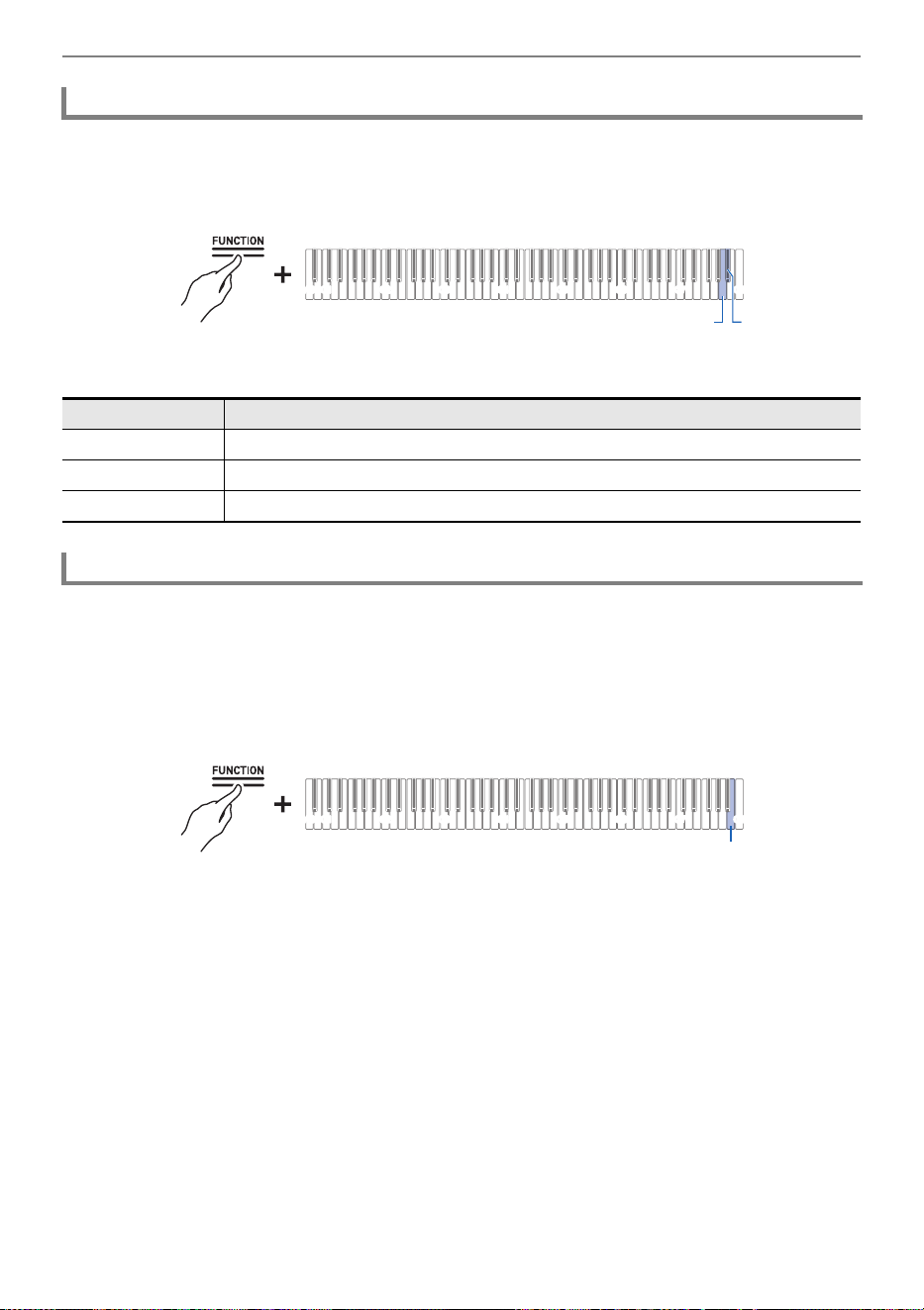
Changing Settings
EN-119
While holding down the “FUNCTION” button, press the A7 or B}7 key.
Using the +/– Keys to Raise or Lower the Setting Value by 1 (operation type B)
• Set value: 0 (silence) to 10 (maximum volume)
• Default value: 5
You can choose your favorite notification tones from three different notification tone sets.
While holding down the “FUNCTION” button, press the B7 key (Notification Tone
Set selection).
Switching On/Off or Changing Setting Values Using a Single Key (operation type D)
Notification Tone Volume
Key Setting
A7 Lowers the notification tone volume by 1 (–)
B}7 Raises the notification tone volume by 1 (+)
A7 + B}7 Resets the notification tone volume to the default setting
Notification Tone Set Selection
C1A0 C2 C3 C4 C5 C6 C7 C8
A7 B}7
C1A0 C2 C3 C4 C5 C6 C7 C8
B7
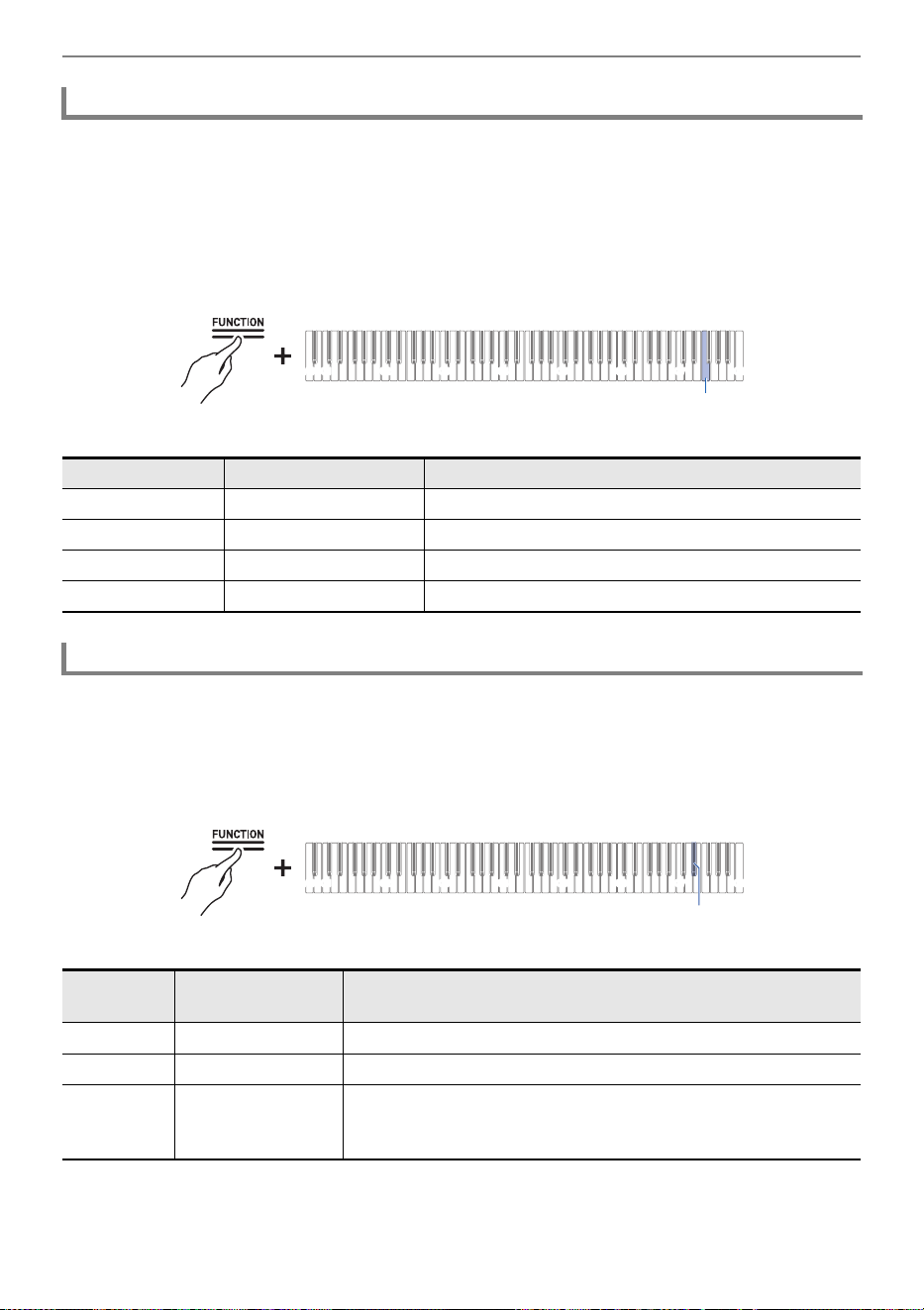
Changing Settings
EN-120
Automatically corrects the sound quality in response to the loud or quiet setting of the volume knob.
Bass and treble will be heard clearly even at low volumes.
While holding down the “FUNCTION” button, press the F7 key (Volume Sync
Equalizer).
Switching On/Off or Changing Setting Values Using a Single Key (operation type D)
• Default value: Medium
Set whether or not sound is emitted from the Digital Piano’s speakers.
While holding down the “FUNCTION” button, press the E}7 key (Speaker Out).
Switching On/Off or Changing Setting Values Using a Single Key (operation type D)
• Default value: Auto
Volume Sync Equalizer
Setting Value Notification Tone Setting Details
Off Tone for Off Does not compensate for sound quality.
Weak 1 notification tone Weakly compensates for sound quality.
Medium 2 notification tones Standard correction.
Strong 3 notification tones Strongly compensates for sound quality.
Speaker Out
Setting
Value
Notification Tone Setting Details
Disable Tone for Off No sound is emitted from the Digital Piano’s speakers.
Enable 1 notification tone Sound is emitted from the Digital Piano’s speakers.
Auto 2 notification tones When a plug is inserted into a PHONES/OUTPUT jack, no sound
is emitted from the Digital Piano’s speakers. When no plug is
inserted, sound is emitted from the Digital Piano.
C1A0 C2 C3 C4 C5 C6 C7 C8
F7
C1A0 C2 C3 C4 C5 C6 C7 C8
E}7
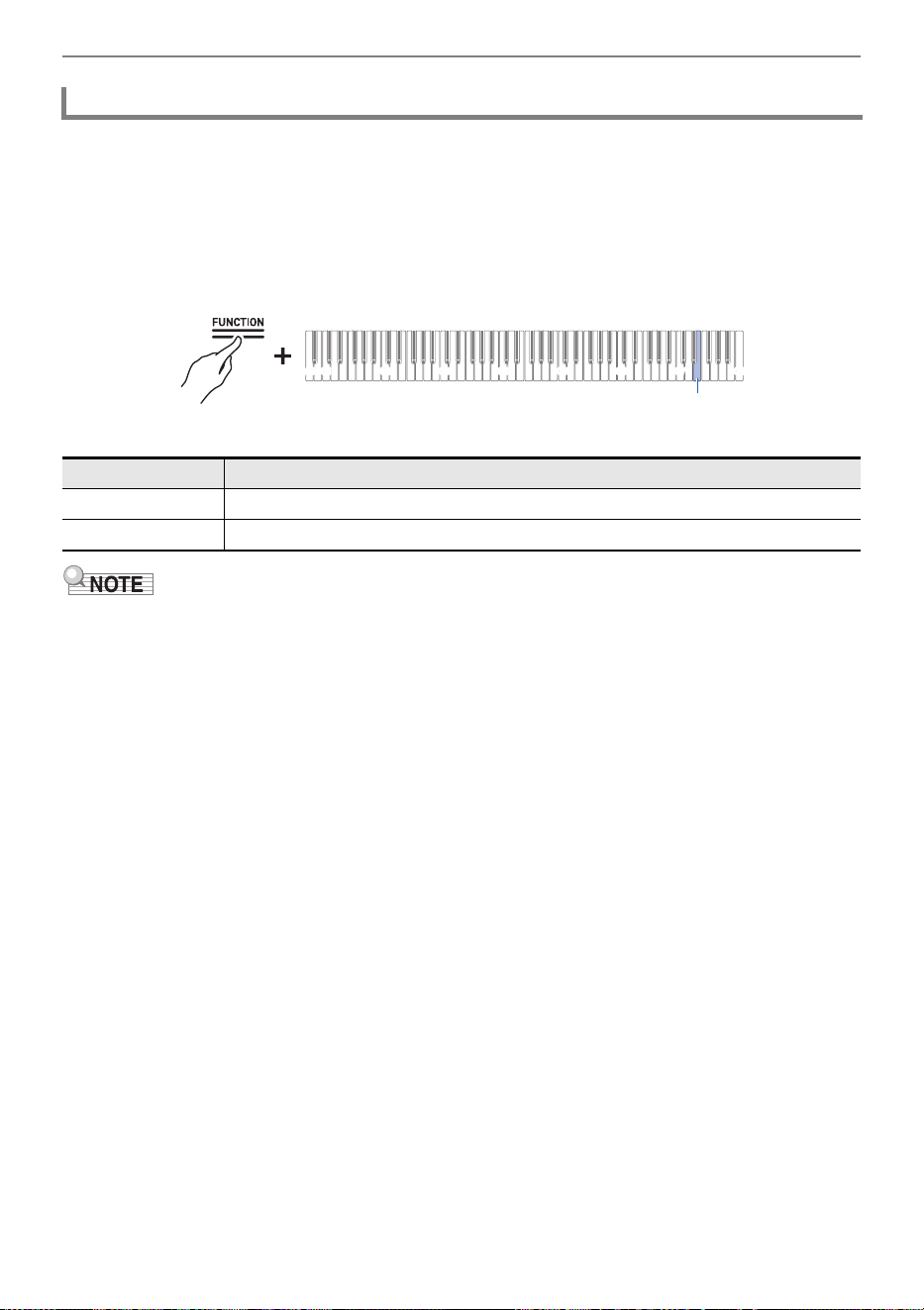
Changing Settings
EN-121
When using headphones, this reproduces the natural sound that reaches your ears when you play an
acoustic piano.
While holding down the “FUNCTION” button, press the E7 key (Headphone
Mode).
Switching On/Off or Changing Setting Values Using a Single Key (operation type D)
• Default value: On
• The Headphone Mode is turned On when a plug is inserted into one of the PHONES/OUTPUT jacks.
Headphone Mode
Setting Value Setting Details
Off Turns off Headphone Mode.
On Turns on Headphone Mode.
C1A0 C2 C3 C4 C5 C6 C7 C8
E7
Troubleshooting
EN-122
Touch buttons are not responding.
No sound is produced when the keys are pressed.
Sound is out of pitch.
Pressing the pedal has no effect.
Troubleshooting
Cause: a. Gloved hands, fingernails, a stylus, etc. were used to touch the buttons.
b. The touch button sensitivity setting is not appropriate.
Solution: a. Firmly touch the touch buttons with bare fingers.
b. Change the touch button sensitivity setting. For more information, see “When Touch
Buttons Do Not Respond”.
Cause: a. The volume is turned down with the volume knob.
b. Headphones are connected. Or, the headphone conversion plug is left in the
PHONES/OUTPUT jacks.
c. The [Local Control] setting is turned <Off>.
d. The [Speaker Out] setting is set to <Off>.
Solution: a. Turn the volume knob.
b. Unplug the headphones or conversion plug from the PHONES/OUTPUT jacks.
c. Set the [Local Control] setting to <On>. For more information, see “Local Control”.
d. Set the [Speaker Out] setting to <Auto> or <On>. For more information, see “Speaker
Out”.
Cause: a. The keyboard key tone (Transpose) has been changed from the default setting.
b. The fine tuning (Tuning) setting for sound pitch is set to a frequency other than
440.0 Hz.
c. Octave shift is set.
d. Scale Tuning is set to something other than the equal temperament.
Solution: a. Reset [Transpose] to the default setting. Or, turn the power off and then back on. For
details, see “Changing the Pitch in Semitone Steps (Transpose)”.
b. Set the [Tuning] setting to 440.0 Hz. Upper2 Detune: Lower Restore Detune to the
default setting. For details, see “Fine-tuning (A-tuning)” and “Fine-Tuning the Upper2
Part (Upper2 Detune)”, “Fine-Tuning the Lower Part (Lower Detune)” for more
information.
c. Set the Octave Shift setting to 0. For details, see “Shifting by Octaves (Octave Shift)”.
d. Set the Scale Tuning setting to equal Temperament.
Cause: The pedal cord is not properly connected to the PEDAL UNIT jack. Or, the plug connector
is not completely plugged in.
Solution: Check that the pedal cord is properly connected and that the plug is firmly inserted into
the jack.
Troubleshooting
EN-123
Sound does not become stronger or weaker when I change the way I play (touch).
The tone of the sound, effects, and so forth, do not change (i.e., the Digital Piano
does not return to its default settings), even after turning the power off and back on
again.
Cannot send or receive MIDI when connected to a computer.
Some tones have the same timbre but slightly different sound quality and volume
depending on keyboard position.
When pressing buttons, the sound that is being played is temporarily interrupted or
the sound quality sounds slightly different.
I don’t know how to delete a User Song.
I can’t play songs recorded directly to a USB Flash Drive.
Cause: [Touch Response] is set to <Off>.
Solution: Set [Touch Response] to a setting other than <Off>. For details, see “Changing the
Volume Made by the Strength of Pressure Placed on a Key (Touch Response)”.
Cause: [Auto Resume] is set to <Enable>.
Solution: Turn [Auto Resume] to <Disable> then turn the power off and back on again. For more
information, see “Saving the Digital Piano Settings (Auto Resume)”.
Solution: • Check that the Digital Piano is properly connected to the computer with a USB cable, or
that the correct is selected in the settings of the computer’s music software.
• Turn off the power to this Digital Piano and close the music software on your computer, then
turn on the power to this Digital Piano and restart the music software on your computer.
Cause: This is a boundary between sound ranges caused by electronic processing called digital
sampling
*
and is not a malfunction.
* This process records the original sound of the instrument in
multiple ranges, including
low,
mid, and high ranges, and creates a single tone in order to re
produce the sound
quality of each rang
e of the original instrument.
Cause: When using Layer, Duet, playing a Built-in Song, or using the recording function, multiple
parts sound simultaneously. If you press buttons in such a case, the tone-specific internal
effect settings will be automatically changed, and depending on the part, this
phenomenon may occur, but it is not a malfunction.
Solution: Deletion of User Songs can be executed from a smart device connected to the Digital
Piano. For details, see the instruction manual for the dedicated app.
https://web.casio.com/app/en/music_space/manual/
Solution: Try formatting the USB flash drive in exFAT format on your computer and then formatting
it on the instrument. For more information, see “Formatting a USB Flash Drive”.
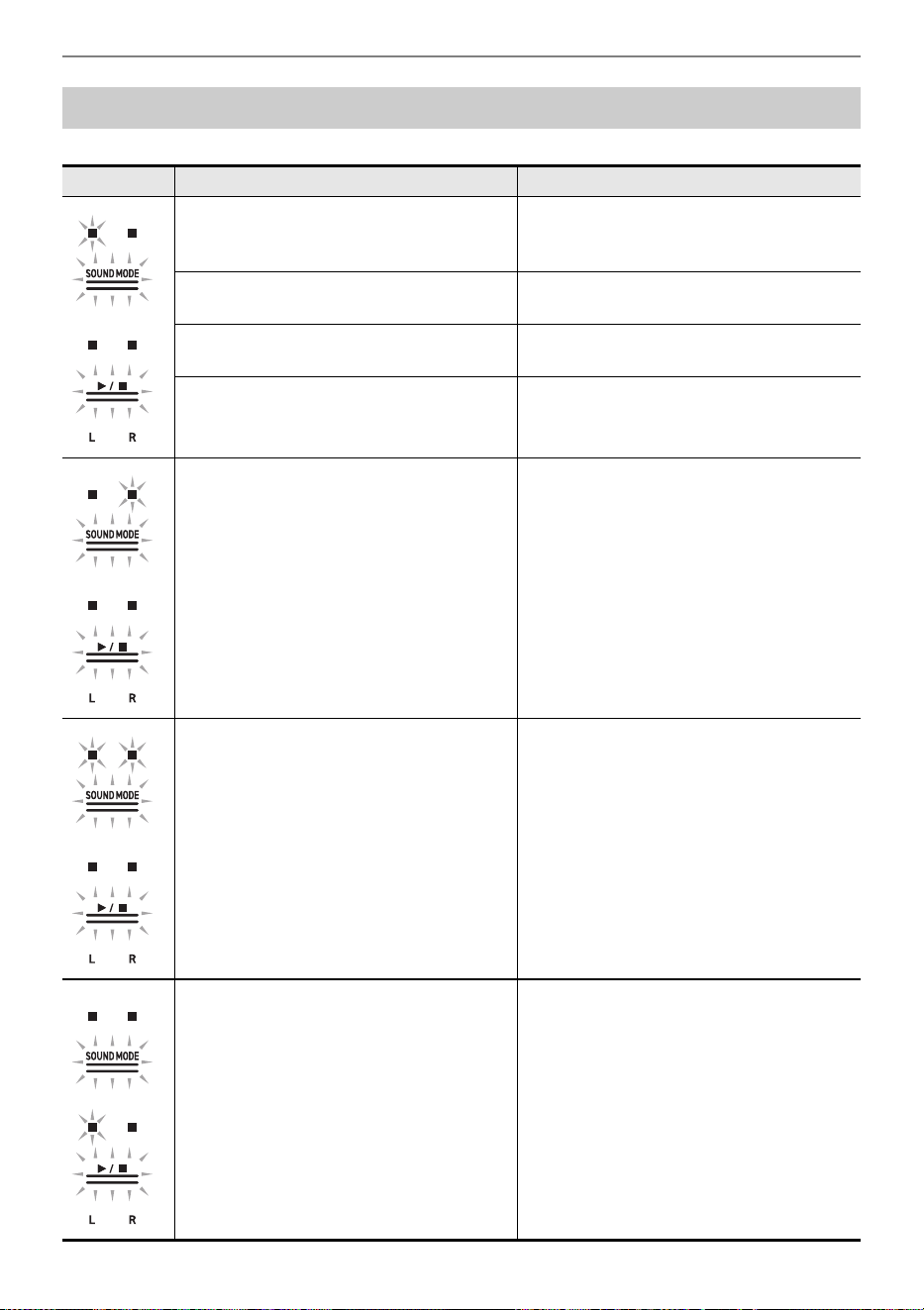
Troubleshooting
EN-124
The touch buttons and indicators blink as shown in the illustration below.
Error Display List
Display Cause Solution
A USB flash drive is not properly inserted
into the USB Type A port on the Digital
Piano.
Correctly insert a USB flash drive into the
USB Type A port.
A USB flash drive was removed or
inserted during operation.
Do not move USB flash drives while the
Digital Piano is in operation.
The USB flash drive is protected. Cancel the protection of the USB flash
drive.
The USB flash drive contains antivirus
software.
Use a USB flash drive that does not
contain antivirus software.
There are no files in the target folder that
can be read or played.
Move the file you want to load or play to
the target folder for loading. For more
information, see “Copying MIDI Song Data
to a USB Flash Drive Using a Computer”
and “Copying Audio Data (WAV, MP3) to
a USB Flash Drive Using a Computer”.
Tried to save data to a USB flash drive
when there was no recording data.
Record and then save.
You are trying to save different data using
the same name as a read-only file on the
USB flash drive.
• Rename the file on the USB flash drive
before saving.
• Remove the read-only attribute from the
file on the USB flash drive and overwrite
the file.
• Use a different USB flash drive.
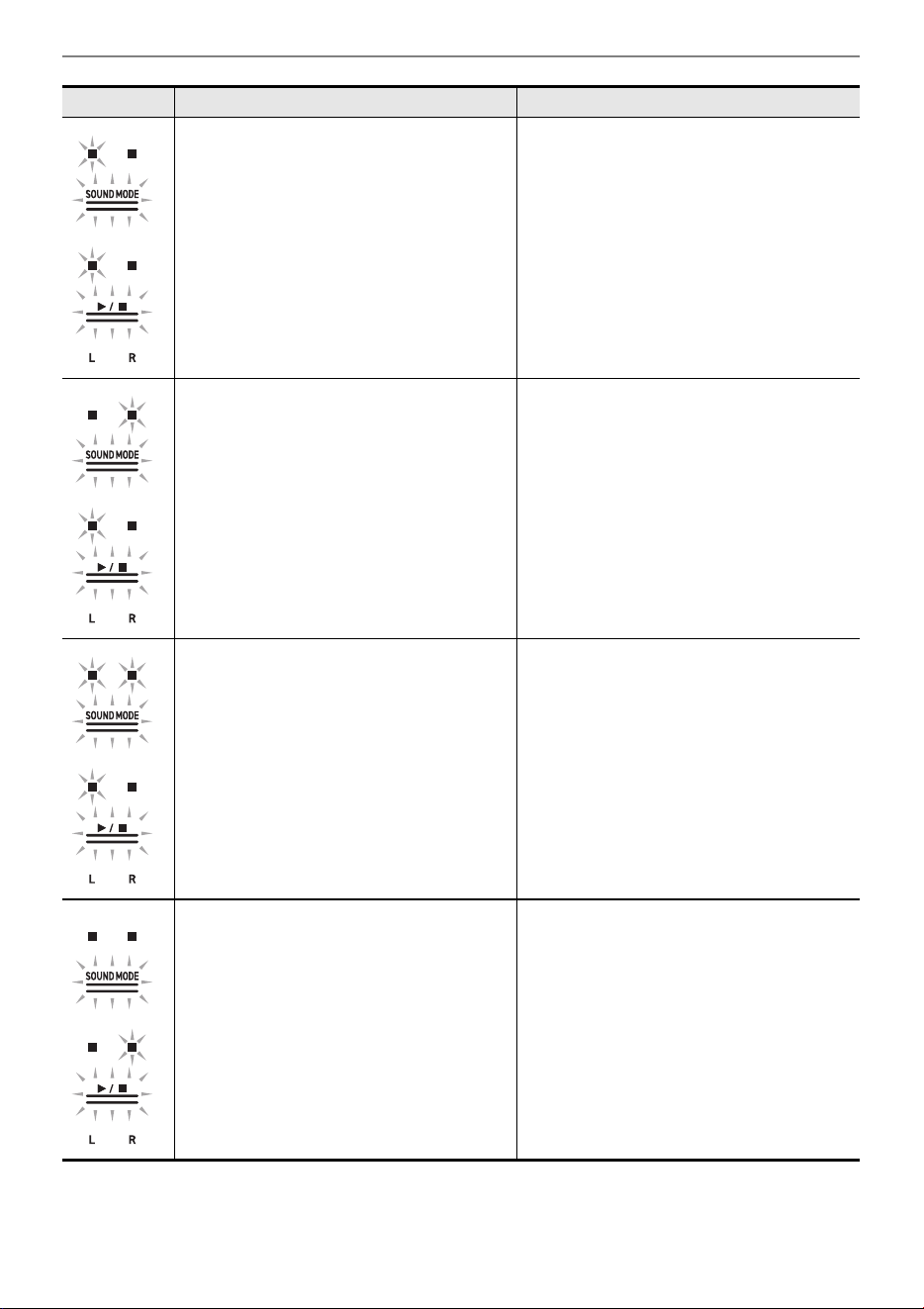
Troubleshooting
EN-125
Insufficient free space on USB flash drive. • Increase free space by deleting files
stored on the USB flash drive.
• Use a different USB flash drive.
You attempted to start recording beyond
the maximum number of songs (99) on the
Audio Recorder. TAKE99.WAV or
TAKE99.MP3 is already in the
AUDIOREC folder on the USB flash drive.
Using a computer, move
TAKE**.WAV(** = 01-99) or TAKE**.MP3
(** = 01-99) in the AUDIOREC folder of
the USB flash drive to another folder or
drive.
You attempted to load or play a file in SMF
format 2.
The SMF format that can be loaded and
played back by this Digital Piano is “0” or
“1”.
The size of the SMF on the USB flash
drive is too large to load into the Digital
Piano or play on the Digital Piano.
The maximum size of SMF that can be
loaded and played back by this Digital
Piano is approximately 100 KB.
Display Cause Solution
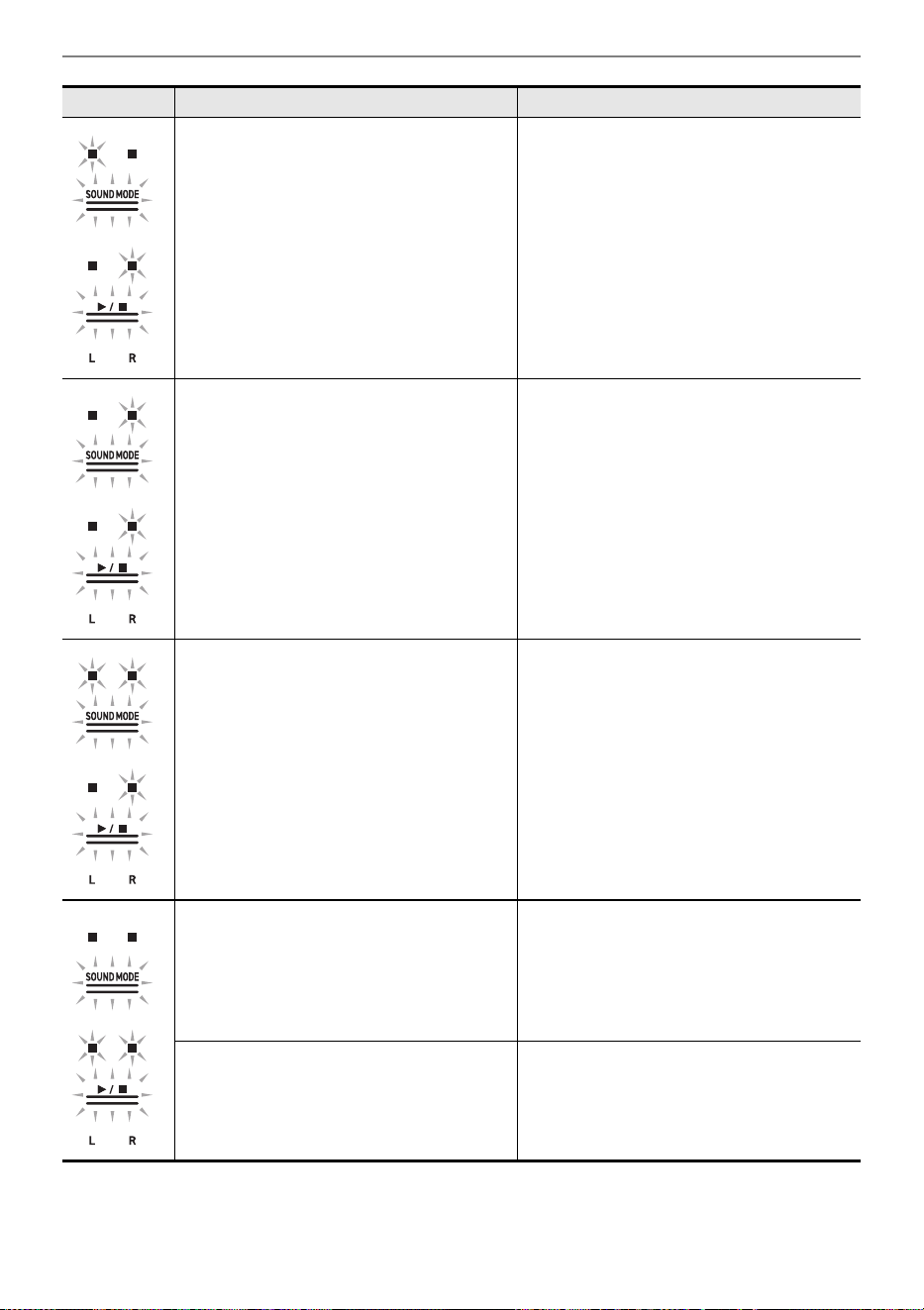
Troubleshooting
EN-126
Data on the USB flash drive is corrupted. –
There is insufficient free memory space in
the Digital Piano for converting MIDI
recorder songs to SMF and saving them to
a USB flash drive.
• Reduce the data size of the song.
• Erase data tracks that are not needed.
The version of the file on the USB flash
drive is not supported by the Digital Piano.
Prepare a version of the file that is
supported by the Digital Piano.
The format of the USB flash drive is not
compatible with this Digital Piano.
• Use a computer or other device to
change the USB flash drive to a format
compatible with this Digital Piano. For
more information, see “Formatting a
USB Flash Drive”.
• Use a different USB flash drive.
The USB flash drive is corrupted. Use a different USB flash drive.
Display Cause Solution
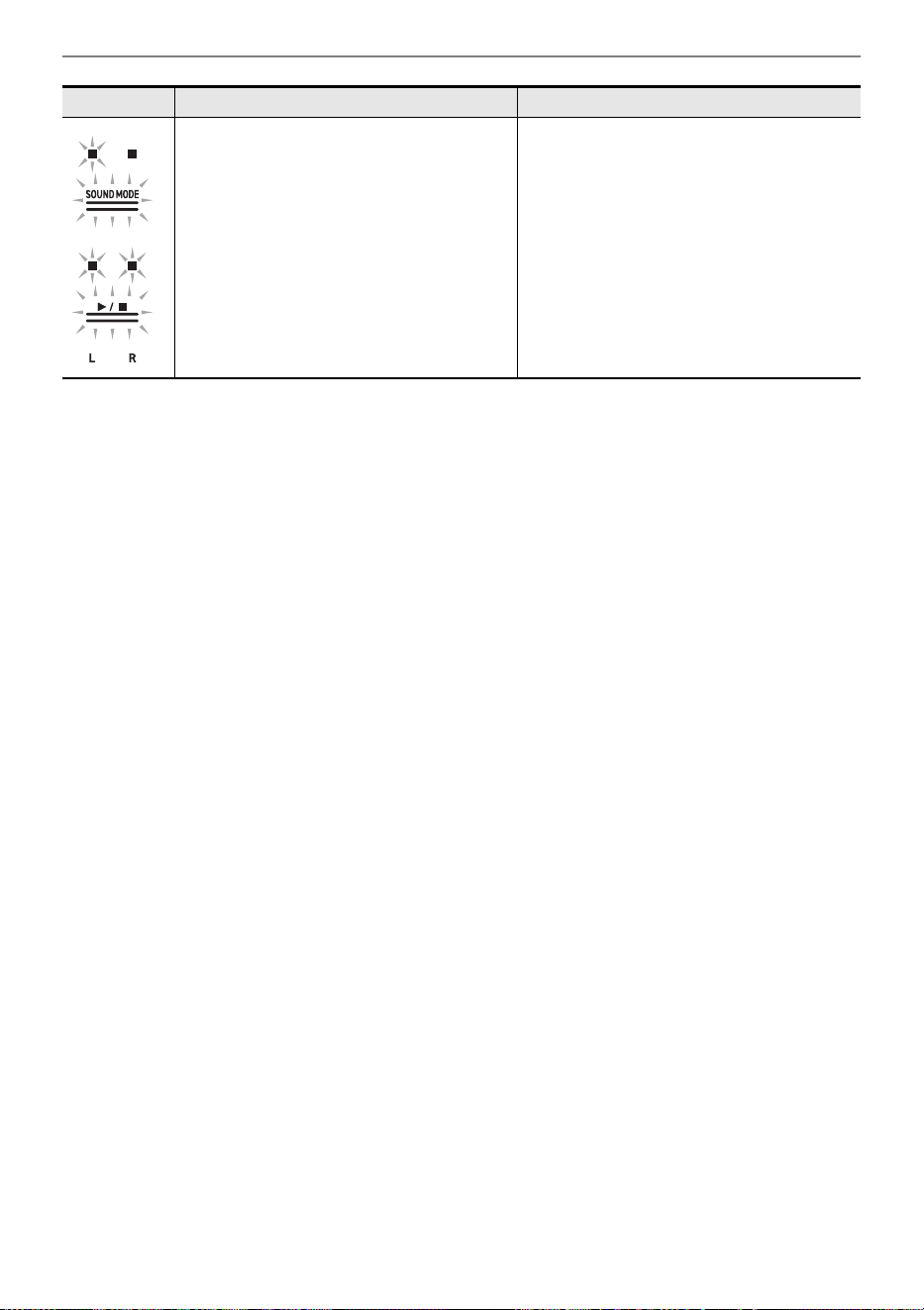
Troubleshooting
EN-127
The Wireless MIDI & audio adaptor is not
inserted into the USB Type A port.
Insert the Wireless MIDI & audio adaptor
into the USB Type A port.
Display Cause Solution
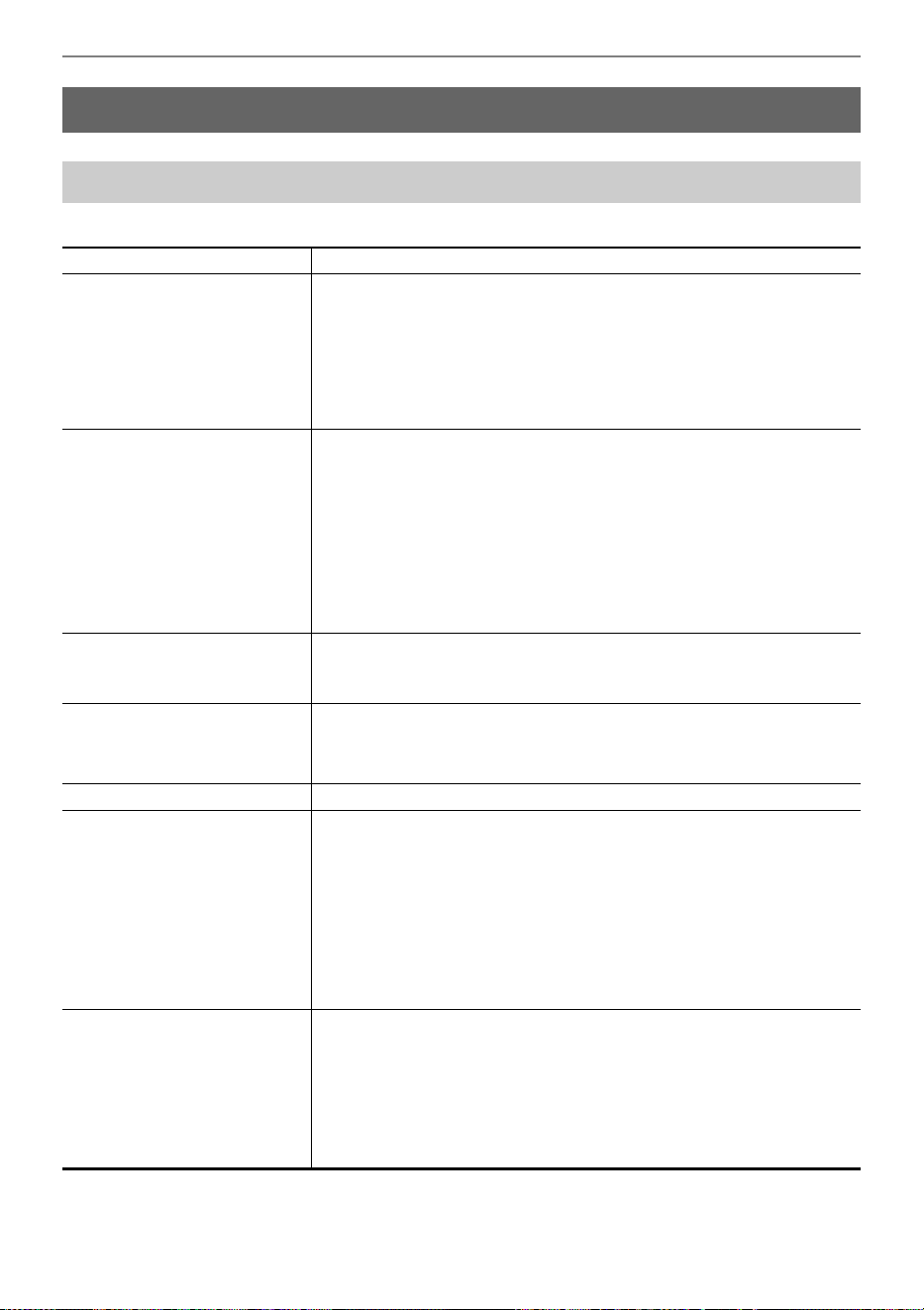
Other Information
EN-128
AP-300
Other Information
Product Specifications
Model AP-300BK/AP-300BN/AP-300WE
Keyboard 88 keys
Settings Hammer Response, Key Off Response (fixed according to the
selected tone)
Duet Changeable range (–2 to +2 octaves)
Transpose –12 to 0 to +12 semitones
Octave Shift –2 to 0 to +2 octaves
Sound source
Number of tones 19 (18 tones for all keys + 1 bass tone for the lower part)
• Layering possible (except for bass tone)
• Splitting possible (bass tone only for the lower part)
Maximum Polyphony 192 notes
Touch Response function 5 sensitivity settings, Off
Tuning 415.5 Hz to 440.0 Hz to 465.9 Hz (in 0.1 Hz increments)
Temperament Equal Temperament + 16 types
Acoustic Simulator String Resonance, Damper Resonance,
Damper Noise, Key On Action Noise, Key Off Action Noise,
Lid Simulator
Digital Effects
Sound Mode Effects Hall Simulator (4 types), Reverb (4 types), Surround (1 type)
Other Effects Chorus (4 types), Brilliance (–12 to 0 to +12), Headphone Mode
Demo songs 1 song
Music Library
Built-in Songs 60 songs
User Songs 10 songs (max. approx. 100 KB per song, approx. 1 MB for
10 songs)
*
.
* The stated capacity is the equivalent of 1 KB = 1024 bytes,
1 MB = 1024
2
bytes.
Song volume Adjustable (also used for recording function)
Part On/Off L, R
MIDI Recorder Real-time recording and playback as MIDI data
Number of songs 1 song
Number of recording tracks 2 tracks
Capacity Approximately 10,000 notes total
Recording Medium Built-in flash memory
Song volume Adjustable (also used for Music Library)
Other Information
EN-129
• For continued improvement, the specifications and design are subject to change without notice.
Audio Recorder Real-time recording and playback as audio data
Number of songs 99 songs (files)
File format Recording/Playback: WAV format (linear PCM, 16 bit, 44.1 kHz,
stereo)
Playback only: MP3 format (MPEG-1 Audio Layer 3, 32 to 320 kbps/
variable bit rate (VBR) supported, 44.1 kHz / 48 kHz, mono/stereo)
Maximum recording time Approximately 25 minutes per file
Recording Medium USB Flash Drive
Metronome
Beat bell Off, 1-9 (beats)
Tempo range 20 to 255
Tempo Markings 9 types
Volume Adjustable
Pedal Damper (Off, Half, On), Sostenuto (Off, On), Soft (Off, Half, On)
Other Functions • Auto Resume
• Panel Lock
• Notification Tone settings (switchable from set 1 to set 3,
adjustable volume)
MIDI 16 ch multi-timbre reception
Input-Output Jacks
PHONES/OUTPUT jacks Stereo standard phone jack (TRS phone) × 2
Power supply terminal DC 24V
USB ports Type A, Type B
Pedal Unit jack Special shape
Acoustics
Amplifier output 16W + 16W (maximum output 20W + 20W)
Speakers 12 cm × 2
Power AC adaptor AD-E24250LW
Auto Power Off Approx. 20 minutes, cancelable
Power Consumption 24V = 20W
Size Piano and Stand: 140.1 (W) × 44.0 (D) × 86.9 (H) cm
(55 3/16 × 17 5/16 × 34 3/16 inch)
Weight Piano, Stand and Music Stand: approx. 47.1 kg (103.8 lbs)
Other Information
EN-130
AP-S200
Model AP-S200BK/AP-S200BN/AP-S200WE
Keyboard 88 keys
Settings Hammer Response, Key Off Response (fixed according to the
selected tone)
Duet Changeable range (–2 to +2 octaves)
Transpose –12 to 0 to +12 semitones
Octave Shift –2 to 0 to +2 octaves
Sound source
Number of tones 19 (18 tones for all keys + 1 bass tone for the lower part)
• Layering possible (except for bass tone)
• Splitting possible (bass tone only for the lower part)
Maximum Polyphony 192 notes
Touch Response function 5 sensitivity settings, Off
Tuning 415.5 Hz to 440.0 Hz to 465.9 Hz (in 0.1 Hz increments)
Temperament Equal Temperament + 16 types
Acoustic Simulator String Resonance, Damper Resonance,
Damper Noise, Key On Action Noise, Key Off Action Noise
Digital Effects
Sound Mode Effects Hall Simulator (4 types), Reverb (4 types), Surround (1 type)
Other Effects Chorus (4 types), Brilliance (–12 to 0 to +12), Headphone Mode
Demo songs 1 song
Music Library
Built-in Songs 60 songs
User Songs 10 songs (max. approx. 100 KB per song, approx. 1 MB for
10 songs)
*
.
* The stated capacity is the equivalent of 1 KB = 1024 bytes,
1 MB = 1024
2
bytes.
Song volume Adjustable (also used for recording function)
Part On/Off L, R
MIDI Recorder Real-time recording and playback as MIDI data
Number of songs 1 song
Number of recording tracks 2 tracks
Capacity Approximately 10,000 notes total
Recording Medium Built-in flash memory
Song volume Adjustable (also used for Music Library)
Audio Recorder Real-time recording and playback as audio data
Number of songs 99 songs (files)
File format Recording/Playback: WAV format (linear PCM, 16 bit, 44.1 kHz,
stereo)
Playback only: MP3 format (MPEG-1 Audio Layer 3, 32 to 320 kbps/
variable bit rate (VBR) supported, 44.1 kHz / 48 kHz, mono/stereo)
Maximum recording time Approximately 25 minutes per file
Recording Medium USB Flash Drive
Other Information
EN-131
• For continued improvement, the specifications and design are subject to change without notice.
Metronome
Beat bell Off, 1-9 (beats)
Tempo range 20 to 255
Tempo Markings 9 types
Volume Adjustable
Pedal Damper (Off, Half, On), Sostenuto (Off, On), Soft (Off, On)
Other Functions • Auto Resume
• Panel Lock
• Notification Tone settings (switchable from set 1 to set 3,
adjustable volume)
MIDI 16 ch multi-timbre reception
Input-Output Jacks
PHONES/OUTPUT jacks Stereo standard phone jack (TRS phone) × 2
Power supply terminal DC 24V
USB ports Type A, Type B
Pedal Unit jack Special shape
Acoustics
Amplifier output 16W + 16W (maximum output 20W + 20W)
Speakers 12 cm × 2
Power AC adaptor AD-E24250LW
Auto Power Off Approx. 20 minutes, cancelable
Power Consumption 24V = 20W
Size Piano and Stand: 139.3 (W) × 29.9 (D) × 80.2 (H) cm
(54 13/16 × 11 3/4 × 31 9/16 inch)
Weight Piano, Stand and Music Stand: approx. 34.0 kg (75.0 lbs)
Other Information
EN-132
Optional Products
For more information on optional products, see “Latest Support Information”.
About Music Score data
You can download music score data as a PDF file from the CASIO website. You will then be able to
view music scores on your smart device. You can jump from the PDF file table of contents directly to
the music score you want, and you can print out scores as needed.
Refer to “Latest Support Information” for music score PDF files.
AP-300
https://support.casio.com/global/en/emi/manual/AP-300/
AP-S200
https://support.casio.com/global/en/emi/manual/AP-S200/
Latest Support Information

Other Information
EN-133
• Unauthorized copying of this manual, in whole or in part, is prohibited. Note that copyright law
prohibits the use of any other information without our permission, except for personal use.
• Be advised that we will not be liable for any loss, lost profits, or any claims from third parties resulting
from the use of this manual or this device.
• The contents of this manual are subject to change without notice.
• Illustrations in this manual may differ from the actual product.
• The Bluetooth
®
word mark and logos are registered trademarks owned by Bluetooth SIG, Inc. and
any use of such marks by CASIO COMPUTER CO., LTD. is under license. Other trademarks and
trade names are those of their respective owners.
• Company and product names used in this manual may be registered trademarks of others.
About the Contents of this Manual
Trademarks and Registered Trademarks

Other Information
EN-134
Environment
• Place the Digital Piano onto a stable and flat surface.
• To prevent the formation of mold, set up the product in a well-ventilated location where the
temperature and humidity ranges shown below are maintained.
– Recommended temperature range: 15 to 25°C
– Recommended humidity range: 40 to 60% RH
• Do not set up the product in locations subject to extreme variations in temperature and/or humidity.
Doing so can cause metal components to rust, coatings to degrade, and components to warp and
split.
User Maintenance
• Wipe the product with a soft, dry cloth. Do not use a tissue, which can cause scratching.
• When soiling is more serious, moisten a soft cloth with a weak solution of water and a mild neutral
detergent, wring out all excess moisture from the cloth, and then wipe the product. After that, wipe
again with a separate soft dry cloth.
• Do not use any cleaning agents, chlorine disinfectants, sanitizing wipes, or other items that include
benzene, organic solvents, alcohol, or other solvents for cleaning. Doing so can cause discoloration,
deformation, paint peeling, cracking, etc.
Sterilization and Disinfection
• After wiping the product two or three times with a non-alcohol sanitizing wipe, use a soft, dry cloth to
wipe it dry.
• Note that failure to wipe the product dry can cause streaks to remain.
• If the product is used by multiple parties, hand disinfection before each use is recommended.
Included and Optional Accessories
Use only accessories that are specified for use with this product. Use of unauthorized accessories
creates the risk of fire, electric shock, and personal injury.
Weld Lines
Lines may be visible on the exterior of the product. These are “weld lines” that result from the plastic
molding process. They are not cracks or scratches.
AC Adaptor Handling Precautions
• Never connect the AC adaptor (JEITA Standard, with unified polarity plug) that is specified with this
Digital Piano to any other device besides this Digital Piano.
Doing so creates the risk of malfunction.
• The AC adaptor cannot be repaired. If your AC adaptor malfunctions or becomes damaged, contact
your original retailer or a CASIO Service Center.
• AC adaptor operating environment: Temperature: 0 to 40°C
Humidity: 10% to 90% RH
• Output polarity: &
• Use of a different type AC adaptor can cause smoking or malfunction.
Operating Precautions
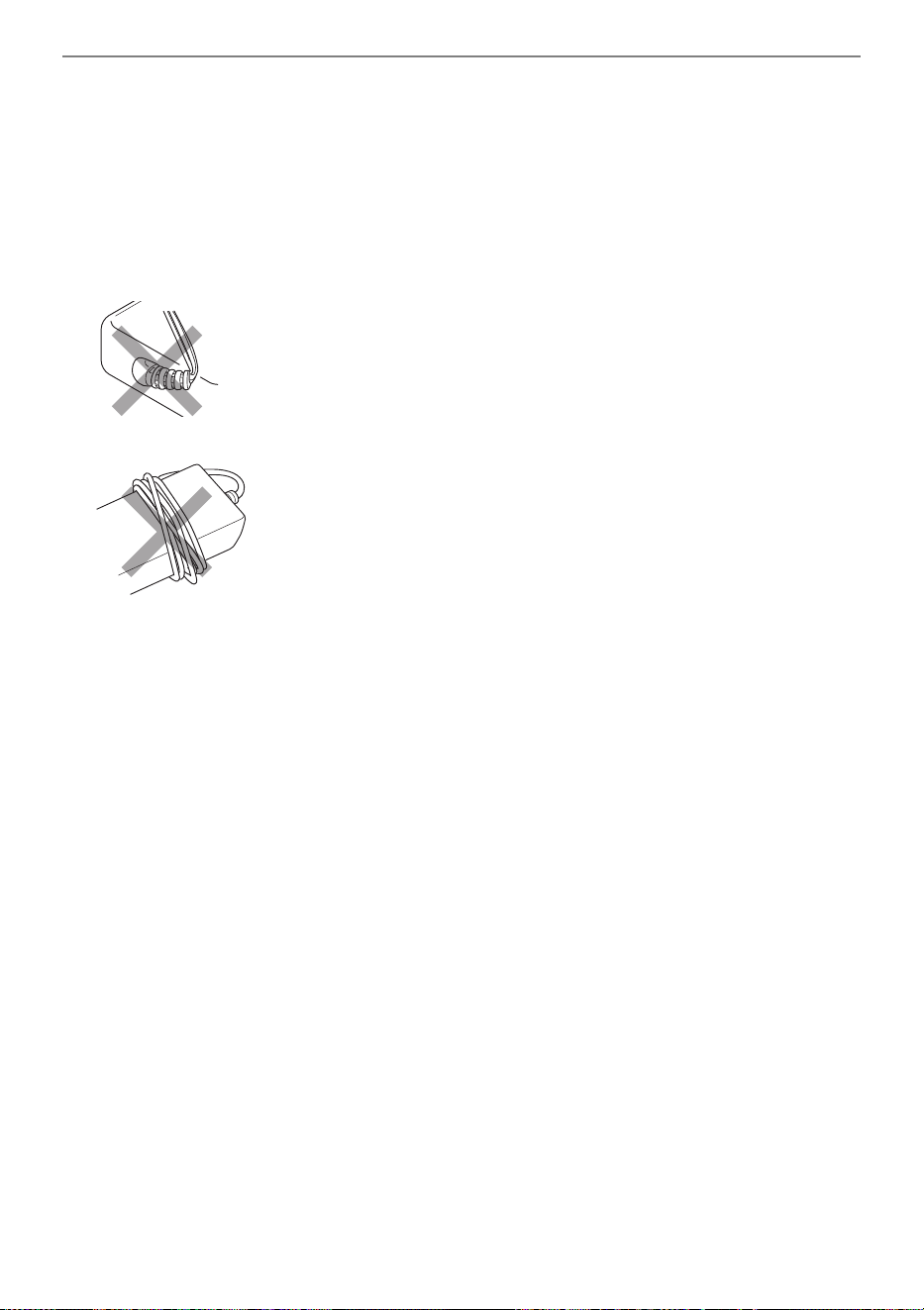
Other Information
EN-135
About the panel
Operating the panel when it is dusty or dirty may scratch it.
Gently wipe the panel with a soft, clean cloth to remove dust and dirt before use.
Use your fingers to operate the panel. Using fingernails or sharp objects may scratch the surface.
Disconnect Protection Precautions
(1) Never pull on the cord with excessive force.
(2) Never repeatedly pull on the cord.
(3) Never twist the cord at the base of the plug or connector.
(4) Loop and bundle the power cord, but never wind it around the AC adaptor.
(5) Before moving the Digital Piano, be sure to unplug the AC adaptor from the power outlet.
Locating the AC Adaptor for Use
• When using the AC adaptor, put in a location that satisfies the conditions below.
– A location free of splashing liquids.
The AC adaptor is designed for indoor use only. Do not put it in a location where it may become
wet and do not place a vase or any other container of liquid on top of it.
– A location that is not humid.
– A roomy, well ventilated location.
Do not cover the AC adaptor with newspaper, table cloth, curtain, or any other type of fabric.
– Use a power outlet that is located near the Digital Piano.
This will let you immediately unplug from the power outlet should any problem occur.
• When using the AC adaptor, place it on the floor with its label surface downwards. The AC adaptor
becomes prone to emitting electromagnetic waves when the label surface is facing upwards.
Various Lists
EN-136
• BASS (LOWER) is a tone dedicated to the bass section and cannot be sounded alone.
• BASS (LOWER) includes key ranges outside the range that can be played on the Digital Piano’s
keyboard. Keys outside the range can be sounded by external MIDI input.
Various Lists
Tone list
Timbre Name
Selection
Key
Name
Input-Output Input Only
Program
Change
Bank Select
MSB
Program
Change
Bank Select
MSB
GRAND PIANO CONCERT G3 0 16 0 0
GRAND PIANO BRIGHT A}3 1 16 1 0
GRAND PIANO MELLOW A3 2 16 0 1
ROCK PIANO B}3 3 16 1 1
JAZZ PIANO B3 4 16 0 2
BALLAD PIANO C4 5 16 0 4
ELEC.PIANO C{410 16 4 0
60’S E.PIANO D4 13 16 4 1
DIGITAL E.PIANO 1 E}411 16 5 0
DIGITAL E.PIANO 2 E4 12 16 5 1
HARPSICHORD F4 14 16 6 0
VIBRAPHONE F{4 15 16 11 0
STRINGS 1 G4 16 16 49 0
STRINGS 2 A}4 17 16 48 0
PIPE ORGAN A4 18 16 19 0
JAZZ ORGAN B}4 19 16 17 0
ELEC.ORGAN 1 B4 20 16 16 0
ELEC.ORGAN 2 C5 21 16 16 1
BASS (LOWER) C{5221632 0
BASS (LOWER) Key Map
Key Sound
C-1 – G{0 Ghost Note
A0 – C5 Normal Finger w/ Off Noise
C{5 – G9 Harmonics
Various Lists
EN-137
The length of a song may differ from its original.
AP-300
AP-S200
Demo Song List
Timbre Song Title
GRAND PIANO CONCERT Étude Op.10-1 / F.F.Chopin
Timbre Song Title
GRAND PIANO CONCERT Valse Op.42 / F.F.Chopin
Music Library List
Number
Selection
Key
Name
Song Title
1C{3 Nocturne Op.9-2
2 D3 Fantaisie-Impromptu Op.66
3E}3 Étude Op.10-3 “Chanson de l’adieu”
4 E3 Étude Op.10-5 “Black Keys”
5 F3 Étude Op.10-12 “Revolutionary”
6 F{3 Étude Op.25-9 “Butterflies”
7 G3 Prélude Op.28-7
8 A}3 Valse Op.64-1 “Petit Chien”
9 A3 Valse Op.64-2
10 B}3 Moments Musicaux 3
11 B3 Impromptu Op.90-2
12 C4 Marche Militaire 1 (Duet)
13 C{4 Frühlingslied [Lieder Ohne Worte Heft 5]
14 D4 Fröhlicher Landmann [Album für die Jugend]
15 E}4 Von fremden Ländern und Menschen [Kinderszenen]
16 E4 Träumerei [Kinderszenen]
17 F4 Tambourin
18 F{4 Menuet BWV Anh.114 [Clavierbüchlein der Anna Magdalena Bach]
19 G4 Inventio 1 BWV 772
20 A}4 Inventio 8 BWV 779
21 A4 Inventio 13 BWV 784
22 B}4 Praeludium 1 BWV 846 [Das Wohltemperierte Klavier 1]
23 B4 Le Coucou
24 C5 Gavotte
25 C{5 Sonatina Op.36-1 1st Mov.
26 D5 Sonatine Op.20-1 1st Mov.
27 E}5 Sonate K.545 1st Mov.
28 E5 Sonate K.331 3rd Mov. “Turkish March”
Various Lists
EN-138
29 F5 Rondo K.485
30 F{5 Für Elise
31 G5 Marcia alla Turca
32 A}5 Sonate Op.13 “Pathétique” 1st Mov.
33 A5 Sonate Op.13 “Pathétique” 2nd Mov.
34 B}5 Sonate Op.13 “Pathétique” 3rd Mov.
35 B5 Sonate Op.27-2 “Moonlight” 1st Mov.
36 C6 Rhapsodie 2
37 C{6 Waltz Op.39-15 (Duet)
38 D6 Liebesträume 3
39 E}6 Blumenlied
40 E6 La Prière d’une Vierge
41 F6 Csikos Post
42 F{6 Humoresque Op.101-7
43 G6 Melodie [Lyrische Stücke Heft 2]
44 A}6 Sicilienne Op.78
45 A6 Berceuse [Dolly] (Duet)
46 B}6 Arabesque 1
47 B6 La Fille aux Cheveux de Lin [Préludes]
48 C7 Passepied [Suite bergamasque]
49 C{7 Gymnopédie 1
50 D7 Je Te Veux
51 E}7 Salut d’Amour
52 E7 The Entertainer
53 F7 Maple Leaf Rag
54 F{7 L’arabesque [25 Etüden Op.100]
55 G7 La Styrienne [25 Etüden Op.100]
56 A}7 Ave Maria [25 Etüden Op.100]
57 A7 Le retour [25 Etüden Op.100]
58 B}7 La chevaleresque [25 Etüden Op.100]
59 B7 No.13 [Études de Mécanisme Op.849]
60 C8 No.26 [Études de Mécanisme Op.849]
Number
Selection
Key
Name
Song Title
Various Lists
EN-139
Make basic settings such as tuning
Hold down the “FUNCTION” button and select key.
Keyboard Function List
Note name Assigned Function
A0 Factory Reset
B}0 Auto Power Off disable/enable
B0
C1 Execution
C{1
Wireless MIDI & audio adaptor
Wireless Audio Pairing
D1 Wireless Function Off/On
E}1
Connection notification tone volume
(–)
E1 (+)
F1 Delete connection history
F{1
G1
A}1
USB Flash Drive
Load SMF/MRF
A1 Save SMF
B}1 Save MRF
B1 Delete SMF/MRF/Audio
C2 Format
C{2
D2
E}2
E2
F2
Duet
Duet Mode Off/On/Pan
F{2
Left-side keyboard Octave Shift
(–)
G2 (+)
A}2
Right-side keyboard Octave Shift
(–)
A2 (+)
B}2
B2
Mixer
Wireless Audio Volume
(–)
C3 (+)
C{3 Wireless Audio Center Cancel Off/On
D3
Audio Song Volume
(–)
E}3 (+)
E3 Audio Song Center Cancel Off/On
F3
MIDI Song Volume
(–)
F{3 (+)
G3
Keyboard Volume
(–)
A}3 (+)
A3
B}
3
B3
Recorder
MIDI Recorder
C4 Audio Recorder
C{4 Audio Rec with MIDI playback
D4
E}4
E4
F4
Tuning
Scale Tuning Selection
F{4 Scale Tuning base note
G4 Stretch tuning Off/On
A}4
A4
A-tuning
440.0 Hz
B}4 442.0 Hz
B4 –0.1 Hz
C5 +0.1 Hz
C{5
D5
E}5
E5
F5
F{5
G5
A}5
A5
B}5
B5
C6
C{6
D6
E}6
E6
F6
MIDI settings
Local Control Off/On
F{6
Keyboard Channel
(–)
G6 (+)
A}6 Hi-Res Velocity MIDI OUT disable/enable
A6
B}6 Touch Button Luminosity 1/2
B6
Left Panel Touch Button Sensitivity
(–)
C7 (+)
C{7
D7
E}7 Speaker Out disable/enable/Auto
E7 Headphone Mode Off/On
F7 Volume Sync Equalizer Off/Weak/Medium/Strong
F{7 Power On Alert disable/enable
G7 Panel Light setting Off/5 sec./15 sec./30 sec./60 sec./120 sec.
A}7 Auto Resume disable/enable
A7
Notification Tone Volume
(–)
B
}7 (+)
B7 Notification Tone Set selection 1/2/3
C8 Panel Lock disable/enable/Auto
A0
C1
C2
C3
C4
C5
C6
C7
C8
Various Lists
EN-140
Change Sound Mode Effects and other settings
Hold down the “SOUND MODE” button and select key.
Note name Assigned Function
A0
Sound Mode Effects
Hall Simulator Type
N.Y.Club
B}0 Opera Hall
B0 Berlin Hall
C1 British Stadium
C{1
Reverb Type
Room
D1 Large Room
E}1 Hall
E1 Stadium
F1
F{1
G1
A}1
A1
B}1
B1
C2
C{2
D2
Hall Simulator/Reverb depth
(–)
E}2 (+)
E2
Wireless Audio Hall Simulator/Reverb depth
(–)
F2 (+)
F{2
G2
A}2
A2
B}2
B2
Brilliance
(–)
C3 (+)
C{3
Acoustic Simulator
String Resonance
Tone
D3 Off
E}3 1
E3 2
F3 3
F{3 4
G3
Damper Resonance
Tone
A}3 Off
A3 1
B}3 2
B3 3
C4
4
C{4
Damper Noise
Tone
D4 Off
E}4 1
E4 2
F4 3
F{4 4
G4
Key On Action Noise
Tone
A}4 Off
A4 1
B}4 2
B4 3
C5 4
C{5
Key Off Action Noise
Tone
D5 Off
E}5 1
E5 2
F5 3
F{5 4
G5
Lid Simulator (AP-300 only)
Tone
A}5 Close
A5 Semi
B}5 Full
B5 Remove
C6
C{6
D6
E}6
E6
F6
F{6
G6
A}6
A6
B}6
B6
C7
Chorus
Tone
C{7 Light Chorus
D7 Chorus
E}7 Deep Chorus
E7 Flanger
F7
F{7
G7
A}7
A7
B}7
B7
C8
A0
C1
C2
C3
C4
C5
C6
C7
C8
Various Lists
EN-141
Change metronome and tempo settings
Hold down the “METRONOME” button and select key.
Note name Assigned Function
A0
Tempo setting (using a numerical value)
0
B}0 1
B0 2
C1 3
C{1 4
D1 5
E}1 6
E1 7
F1 8
F{1 9
G1
A}1
A1
Metronome Volume
(–)
B}1 (+)
B1
C2
Tempo setting (using tempo markings)
Largo
C{2 Lento
D2 Adagio
E}2 Andante
E2 Moderato
F2 Allegretto
F{2 Allegro
G2 Vivace
A}2 Presto
A2
B}2Tap Tempo
B2
Tempo Change
(–)
C3 (+)
C{3
Metronome beat bell sound
Off
D3 1 beat
E}3 2 beats
E3 3 beats
F3 4 beats
F{3 5 beats
G3 6 beats
A}3 7 beats
A3
8 beats
B}3 9 beats
B3
C4
C{4
D4
E}4
E4
F4
F{4
G4
A}4
A4
B}4
B4
C5
C{5
D5
E}5
E5
F5
F{5
G5
A}5
A5
B}5
B5
C6
C{6
D6
E}6
E6
F6
F{6
G6
A}6
A6
B}6
B6
C7
C{7
D7
E}7
E7
F7
F{7
G7
A}7
A7
B}7
B7
C8
A0
C1
C2
C3
C4
C5
C6
C7
C8
Various Lists
EN-142
Select a song
Hold down the “a” button and select key.
Note name Assigned Function
A0
Song selection using song number
0
B}01
B0 2
C1 3
C{14
D1 5
E}16
E1 7
F1 8
F{19
G1
A}1
A1
B}1 Song Playback Part selection LR/L/R
B1
Music Library (User Song)
61 User 1
C2 62 User 2
C{263User 3
D2 64 User 4
E}265User 5
E2 66 User 6
F2 67 User 7
F{268User 8
G2 69 User 9
A}270User 10
A2 MIDI Recorder Song
B}2 USB Flash Drive song
B2
Song Select
(–)
C3 (+)
C{3
Music Library (Built-in Song)
1 Nocturne Op.9-2
D3 2 Fantaisie-Impromptu Op.66
E}3 3 Étude Op.10-3 “Chanson de l’adieu”
E3 4 Étude Op.10-5 “Black Keys”
F3 5 Étude Op.10-12 “Revolutionary”
F{3 6 Étude Op.25-9 “Butterflies”
G3 7 Prélude Op.28-7
A}3 8 Valse Op.64-1 “Petit Chien”
A3 9 Valse Op.64-2
B}3 10 Moments Musicaux 3
B3 11 Impromptu Op.90-2
C4 12 Marche Militaire 1 (Duet)
C{4 13 Frühlingslied [Lieder Ohne Worte Heft 5]
D4 14 Fröhlicher Landmann [Album für die Jugend]
E}4 15 Von fremden Ländern und Menschen [Kinderszenen]
E4 16 Träumerei [Kinderszenen]
F4 17 Tambourin
F{4 18 Menuet BWV Anh.114 [Clavierbüchlein der Anna Magdalena Bach]
G4 19 Inventio 1 BWV 772
A}4 20 Inventio 8 BWV 779
A4 21 Inventio 13 BWV 784
B}4 22 Praeludium 1 BWV 846 [Das Wohltemperierte Klavier 1]
B4 23 Le Coucou
C5 24 Gavotte
C{5 25 Sonatina Op.36-1 1st Mov.
D5 26 Sonatine Op.20-1 1st Mov.
E}5 27 Sonate K.545 1st Mov.
E5 28 Sonate K.331 3rd Mov. “Turkish March”
F5 29 Rondo K.485
F{5 30 Für Elise
G5 31 Marcia alla Turca
A}5 32 Sonate Op.13 “Pathétique” 1st Mov.
A5 33 Sonate Op.13 “Pathétique” 2nd Mov.
B}5 34 Sonate Op.13 “Pathétique” 3rd Mov.
B5 35 Sonate Op.27-2 “Moonlight” 1st Mov.
C6 36 Rhapsodie 2
C{
6 37 Waltz Op.39-15 (Duet)
D6 38 Liebesträume 3
E}6 39 Blumenlied
E6 40 La Prière d’une Vierge
F6 41 Csikos Post
F{6 42 Humoresque Op.101-7
G6 43 Melodie [Lyrische Stücke Heft 2]
A}6 44 Sicilienne Op.78
A6 45 Berceuse [Dolly] (Duet)
B}6 46 Arabesque 1
B6 47 La Fille aux Cheveux de Lin [Préludes]
C7 48 Passepied [Suite bergamasque]
C{7 49 Gymnopédie 1
D7 50 Je Te Veux
E}7 51 Salut d’Amour
E7 52 The Entertainer
F7 53 Maple Leaf Rag
F{7 54 L’arabesque [25 Etüden Op.100]
G7 55 La Styrienne [25 Etüden Op.100]
A}7 56 Ave Maria [25 Etüden Op.100]
A7 57 Le retour [25 Etüden Op.100]
B}7 58 La chevaleresque [25 Etüden Op.100]
B7
59
No.13 [Études de Mécanisme Op.849]
C8 60 No.26 [Études de Mécanisme Op.849]
A0
C1
C2
C3
C4
C5
C6
C7
C8
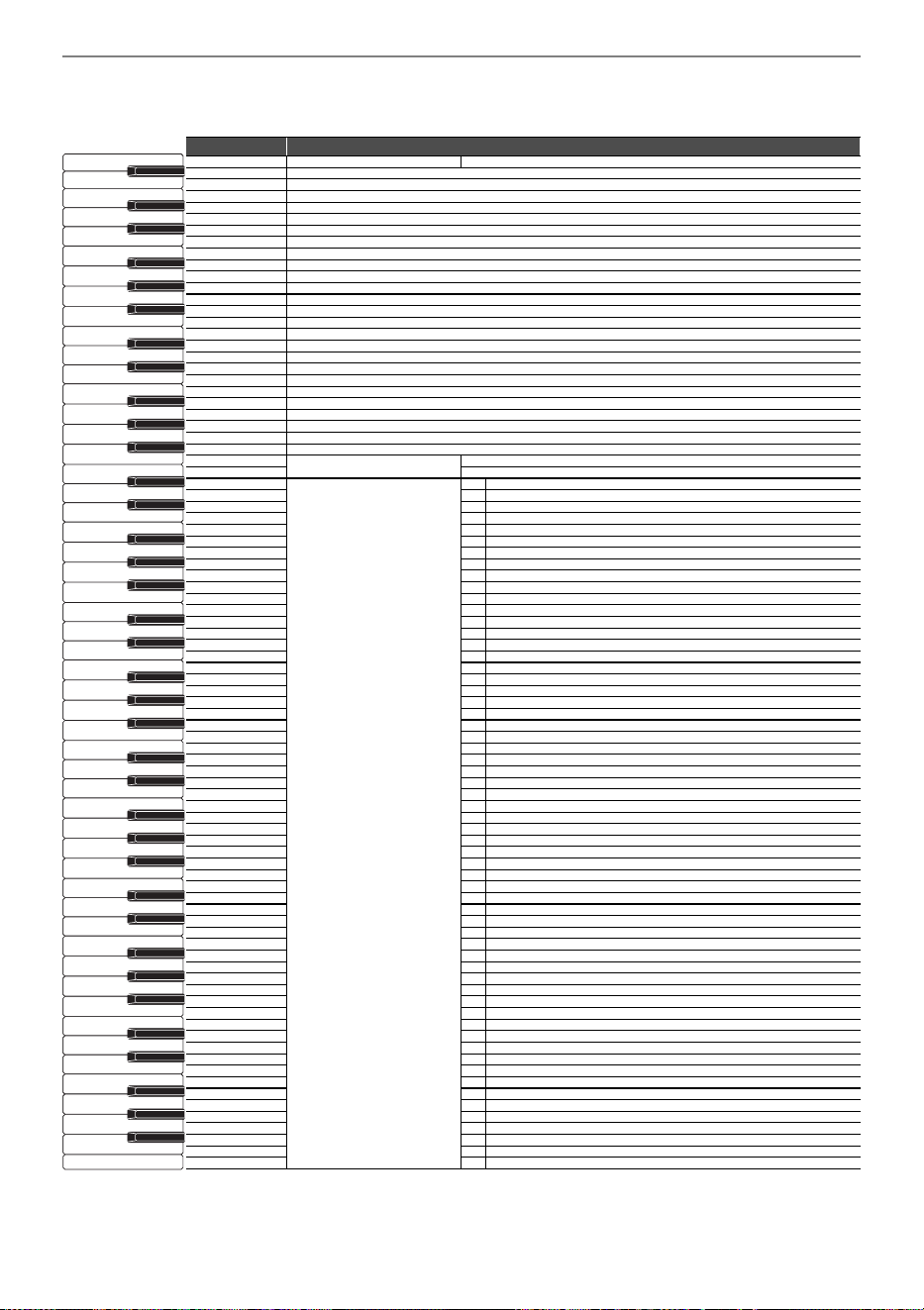
Various Lists
EN-143
Selecting Songs During Demo Playback
Hold down the “a” button and select key.
Note name Assigned Function
A0 Demo song 1
B}0
B0
C1
C{1
D1
E}1
E1
F1
F{1
G1
A}1
A1
B}1
B1
C2
C{2
D2
E}2
E2
F2
F{2
G2
A}2
A2
B}2
B2
Song Select
(–)
C3 (+)
C{3
Music Library (Built-in Song)
1 Nocturne Op.9-2
D3 2 Fantaisie-Impromptu Op.66
E}3 3 Étude Op.10-3 “Chanson de l’adieu”
E3 4 Étude Op.10-5 “Black Keys”
F3 5 Étude Op.10-12 “Revolutionary”
F{3 6 Étude Op.25-9 “Butterflies”
G3 7 Prélude Op.28-7
A}3 8 Valse Op.64-1 “Petit Chien”
A3 9 Valse Op.64-2
B}3 10 Moments Musicaux 3
B3 11 Impromptu Op.90-2
C4 12 Marche Militaire 1 (Duet)
C{4 13 Frühlingslied [Lieder Ohne Worte Heft 5]
D4 14 Fröhlicher Landmann [Album für die Jugend]
E}4 15 Von fremden Ländern und Menschen [Kinderszenen]
E4 16 Träumerei [Kinderszenen]
F4 17 Tambourin
F{4 18 Menuet BWV Anh.114 [Clavierbüchlein der Anna Magdalena Bach]
G4 19 Inventio 1 BWV 772
A}4 20 Inventio 8 BWV 779
A4 21 Inventio 13 BWV 784
B}4 22 Praeludium 1 BWV 846 [Das Wohltemperierte Klavier 1]
B4 23 Le Coucou
C5 24 Gavotte
C{5 25 Sonatina Op.36-1 1st Mov.
D5 26 Sonatine Op.20-1 1st Mov.
E}5 27 Sonate K.545 1st Mov.
E5 28 Sonate K.331 3rd Mov. “Turkish March”
F5 29 Rondo K.485
F{5 30 Für Elise
G5 31 Marcia alla Turca
A}5 32 Sonate Op.13 “Pathétique” 1st Mov.
A5 33 Sonate Op.13 “Pathétique” 2nd Mov.
B}5 34 Sonate Op.13 “Pathétique” 3rd Mov.
B5 35 Sonate Op.27-2 “Moonlight” 1st Mov.
C6 36 Rhapsodie 2
C{6 37 Waltz Op.39-15 (Duet)
D6 38 Liebesträume 3
E}6 39 Blumenlied
E6 40 La Prière d’une Vierge
F6 41 Csikos Post
F{6 42 Humoresque Op.101-7
G6 43 Melodie [Lyrische Stücke Heft 2]
A}6 44 Sicilienne Op.78
A6 45 Berceuse [Dolly] (Duet)
B}6 46 Arabesque 1
B6 47 La Fille aux Cheveux de Lin [Préludes]
C7 48 Passepied [Suite bergamasque]
C{7 49 Gymnopédie 1
D7 50 Je Te Veux
E}7 51 Salut d’Amour
E7 52 The Entertainer
F7 53 Maple Leaf Rag
F{7 54 L’arabesque [25 Etüden Op.100]
G7 55 La Styrienne [25 Etüden Op.100]
A}7 56 Ave Maria [25 Etüden Op.100]
A7 57 Le retour [25 Etüden Op.100]
B}7 58 La chevaleresque [25 Etüden Op.100]
B7
59
No.13 [Études de Mécanisme Op.849]
C8 60 No.26 [Études de Mécanisme Op.849]
A0
C1
C2
C3
C4
C5
C6
C7
C8
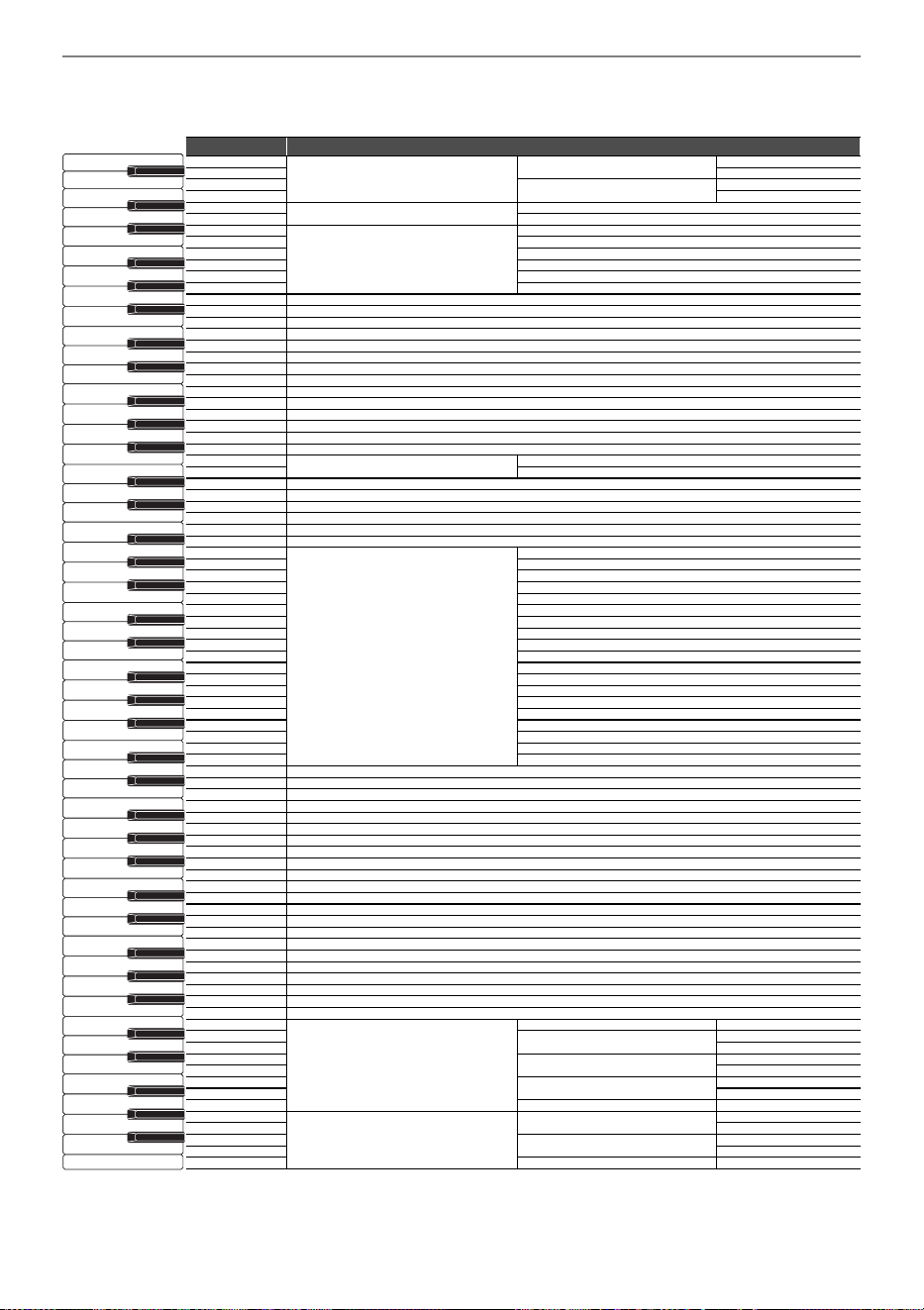
Various Lists
EN-144
Change tone and other settings
Hold down the “GRAND PIANO” button and select key.
Note name Assigned Function
A0
Upper1 settings
Upper1 Volume
(–)
B}0 (+)
B0
Upper1 Octave Shift
(–)
C1 (+)
C{1
Transpose
(–)
D1 (+)
E}1
Touch Response
Off
E1 Light
F1 Medium light
F{1 Normal
G1 Medium heavy
A}1 Heavy
A1
B}1
B1
C2
C{2
D2
E}2
E2
F2
F{2
G2
A}2
A2
B}2
B2
Tone Selection
(–)
C3 (+)
C{3
D3
E}3
E3
F3
F{3
G3
Tone Selection
GRAND PIANO CONCERT
A}3 GRAND PIANO BRIGHT
A3 GRAND PIANO MELLOW
B}3 ROCK PIANO
B3 JAZZ PIANO
C4 BALLAD PIANO
C{4 ELEC.PIANO
D4 60’S E.PIANO
E}4
DIGITAL E.PIANO 1
E4 DIGITAL E.PIANO 2
F4 HARPSICHORD
F{4 VIBRAPHONE
G4 STRINGS 1
A}4 STRINGS 2
A4 PIPE ORGAN
B}4 JAZZ ORGAN
B4 ELEC.ORGAN 1
C5 ELEC.ORGAN 2
C{5 BASS (LOWER)
D5
E}5
E5
F5
F{5
G5
A}5
A5
B}5
B5
C6
C{6
D6
E}6
E6
F6
F{6
G6
A}6
A6
B}6
B6
C7
Layer settings
Layer Off/On
C{7
Upper2 Volume
(–)
D7 (+)
E}7
Upper2 Octave Shift
(–)
E7 (+)
F7
Upper2 Detune
(–)
F{7 (+)
G7 Upper2 Damper disable/enable
A}7
Split settings
Lower Volume
(–)
A7 (+)
B}7
Lower Detune
(–)
B7 (+)
C8 Lower Damper disable/enable
A0
C1
C2
C3
C4
C5
C6
C7
C8
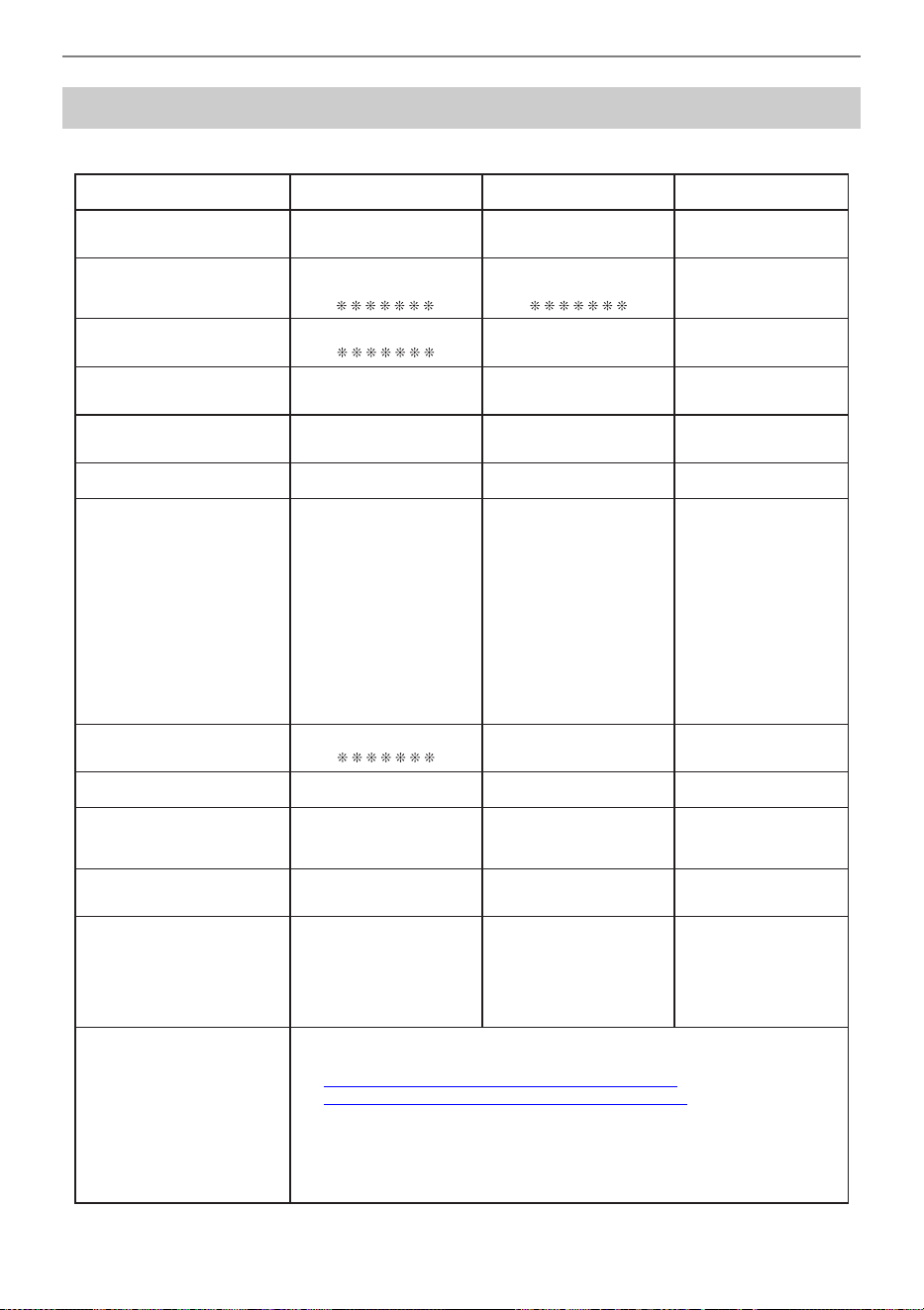
Various Lists
EN-145
MIDI Implementation Chart
Function Transmitted Recognized Remarks
Basic
Channel
1
1 - 16
1 - 16
1 - 16
Default
Changed
Note
Number
0 - 127
0 - 127
*
1
0 - 127
True voice
Program
Change True #
After
Touch
Control
Change
X
X
X
O
Pitch Bender
OX
Exclusive
O
Key’s
Ch’s
Velocity
O
9nH v = 1 - 127
O 9nH v = 0, 8nH v = 0 - 127
O 9nH v = 1 - 127
X
8nH v = 64
Note ON
Note OFF
Mode
Mode 3
X
Mode 3
X
Default
Messages
Altered
System
Common
X
X
X
X
X
X
Song Pos
Song Sel
Tune
Aux
Messages
Remarks
X
X
X
X
X
X
O
O
X
O
O
X
All sound off
Reset all controller
Local ON/OFF
All notes OFF
Active Sense
System Reset
System
Real Time
X
X
X
X
Clock
Commands
0, 32
1
5
6, 38
7
10
11
64
65
66
67
71
72
73
74
76
77
78
84
88
91
93
94
100, 101
Mode 1 : OMNI ON, POLY
Mode 3 : OMNI OFF
,
POLY
Mode 2 : OMNI ON, MONO
Mode 4 : OMNI OFF
,
MONO
O : Yes
X
: No
O
X
X
O
O
X
X
O
X
O
O
X
X
X
X
X
X
X
X
O
X
X
X
O
*
2
*
3
*
2
O
O
O
O
O
O
O
O
O
O
O
O
O
O
O
O
O
O
O
O
O
O
O
O
*
2
*
2
OO
0 - 127
Bank select LSB/MSB
Modulation
Portamento time
Data entry LSB/MSB
Channel Volume
Pan
Expression
Damper Pedal (Sustain)
Portamento On/Off
Sostenuto
Soft pedal
Filter resonance
Release time
Attack time
Filter Cutoff Frequency
Vibrato rate
Vibrato depth
Vibrato delay
Portamento control
High resolution velocity prefix
Reverb send level
Chorus send level
Delay send level
RPN LSB/MSB
*
2
O
*
2
Model: AP-300/AP-S200 Version : 1.0
*1: Depends on tone.
*
2: For details about RPN and system exclusive messages, see MIDI Implementation at
https://support.casio.com/global/en/emi/manual/AP-300/
https://support.casio.com/global/en/emi/manual/AP-S200/
*3: Note ON only
• The MIDI messages marked with “x” in the “Transmitted” column of the above chart
may be output along with certain operations.

MA2407-A
Published: 7/2024

