
DS-730N User's Guide


3
Contents
DS-730N User's Guide................................................................................................................................. 7
Scanner Basics............................................................................................................................................ 8
Using the Control Panel ....................................................................................................................... 8
Control Panel Buttons and Lights .................................................................................................... 9
The LCD Screen ....................................................................................................................... 10
Viewing Animations................................................................................................................... 10
Status Icon Information ............................................................................................................. 12
Adjusting the Screen Brightness.................................................................................................... 12
Changing LCD Screen Language.................................................................................................. 13
Selecting the Date and Time ......................................................................................................... 14
Changing the Keyboard Layout ..................................................................................................... 16
Selecting the Start-up Screen........................................................................................................ 16
Turning Off the Operation Time Out Setting .................................................................................. 17
Preventing PC Connection via USB .............................................................................................. 18
Setting Direct Power On ................................................................................................................ 19
Changing Regular Cleaning Alert Settings .................................................................................... 20
Changing Roller Replacement Alert Settings ................................................................................ 21
Setting a Password and Locking the Control Panel ....................................................................... 22
Scanner Parts Locations .................................................................................................................... 24
Scanner Parts................................................................................................................................ 24
User Replaceable Epson Scanner Parts ............................................................................................ 26
Using Power Saving Settings ............................................................................................................. 27
Changing the Sleep Timer Settings ............................................................................................... 27
Changing the Power Off Timer Settings ........................................................................................ 28
Loading Originals...................................................................................................................................... 30
Loading Originals in the Input Tray..................................................................................................... 30
Loading Multiple Sizes of Originals in the Input Tray ..................................................................... 37
Original Document Specifications.................................................................................................. 40
Loading Plastic and Laminated Cards in the Input Tray ..................................................................... 42
Plastic and Laminated Card Specifications ................................................................................... 46

4
Loading Special Originals................................................................................................................... 46
Special Original Specifications ...................................................................................................... 54
Wired Networking...................................................................................................................................... 56
Network Security Recommendations ................................................................................................. 56
Wired Network Setup ......................................................................................................................... 56
Connecting the Product to the Network.............................................................................................. 57
Determining the Scanner's IP Address .......................................................................................... 58
Accessing the Web Config Utility........................................................................................................ 58
Registering Presets or Quick Send Buttons................................................................................... 59
Scanning .................................................................................................................................................... 60
Starting a Scan................................................................................................................................... 60
Scanning Using the Product Control Panel ................................................................................... 60
Setting the Operation Mode on the Product Control Panel........................................................ 61
Scanning Using the Quick Send Buttons .................................................................................. 61
Scanning Using Presets............................................................................................................ 62
Scanning Originals to the Computer ......................................................................................... 62
Scanning Using Web Services for Devices (WSD) - Windows.................................................. 63
Adding and Assigning Scan Jobs with Document Capture Pro - Windows ............................... 64
Adding and Assigning Scan Jobs with Document Capture - Mac.............................................. 67
Starting a Scan Using the Epson Scan 2 Icon ............................................................................... 68
Starting a Scan from a Scanning Program..................................................................................... 70
Scanning with Simple Scan in Document Capture Pro - Windows ..................................................... 72
Scanning with Job Scan in Document Capture Pro - Windows .......................................................... 73
Scanning with Document Capture - Mac ............................................................................................ 74
Scanning in Epson Scan 2 ................................................................................................................. 78
Additional Scanning Settings - Main Settings Tab ......................................................................... 82
Additional Scanning Settings - Advanced Settings Tab................................................................. 83
Scanning Settings for Special Documents..................................................................................... 84
Image Format Options................................................................................................................... 85
Scan Resolution Guidelines ............................................................................................................... 86
Scanning Special Projects.................................................................................................................. 86
Scanning Two Originals onto One Sheet (Stitching Images) - Windows ....................................... 87
Scanning Multi-Page Originals as Separate Files - Windows ........................................................ 90

5
Saving Scanned Documents as a Searchable PDF Using Epson Scan 2 ..................................... 92
Saving a Scan as an Office Format File - Windows ....................................................................... 94
Scanning to a SharePoint Server or Cloud Service - Windows...................................................... 95
Scanning to a SharePoint Server or Cloud Service - Mac ............................................................. 97
Cleaning and Transporting Your Scanner............................................................................................... 99
Cleaning Your Scanner ...................................................................................................................... 99
Cleaning Inside Your Scanner............................................................................................................ 99
Checking the Scanner Roller Counter .............................................................................................. 110
Replacing the Scanner Rollers......................................................................................................... 111
Resetting the Scanner Roller Counter ......................................................................................... 116
Transporting Your Scanner .............................................................................................................. 117
Solving Problems .................................................................................................................................... 119
Product Status Messages ................................................................................................................ 119
Solving Scanning Problems ............................................................................................................. 120
Scanner Does Not Turn On or Turns Off Unexpectedly............................................................... 120
Scanner Button Does Not Work as Expected .............................................................................. 121
Scanning Software Does Not Operate Correctly ......................................................................... 121
Cannot Start Epson Scan 2 ......................................................................................................... 122
Original Feeds Incorrectly in Scanner.......................................................................................... 123
Original Jams in Scanner............................................................................................................. 124
Scanning is Slow ......................................................................................................................... 126
Cannot Scan Over a Network ...................................................................................................... 126
Solving Scanned Image Quality Problems ....................................................................................... 127
Back of Original Image Appears in Scanned Image .................................................................... 128
Scanned Characters are Blurry ................................................................................................... 128
Characters are not Recognized During Conversion to Editable Text (OCR) ............................... 129
Ripple Patterns Appear in an Image ............................................................................................ 129
Spots or Lines Appear in All Scanned Images............................................................................. 130
Scanned Image is Cropped ......................................................................................................... 130
Resetting the Epson Scan 2 Settings .............................................................................................. 131
Uninstall Your Scanner Software...................................................................................................... 131
Uninstalling Scanner Software - Windows................................................................................... 131
Uninstalling Scanner Software - Mac........................................................................................... 132

6
Where to Get Help (U.S. and Canada) ............................................................................................. 133
Where to Get Help (Latin America)................................................................................................... 134
Technical Specifications ........................................................................................................................ 136
Windows System Requirements ...................................................................................................... 136
Mac System Requirements .............................................................................................................. 137
General Specifications ..................................................................................................................... 137
Dimension Specifications ................................................................................................................. 139
Electrical Specifications ................................................................................................................... 139
Environmental Specifications ........................................................................................................... 140
Network Interface Specifications ...................................................................................................... 140
Safety and Approvals Specifications ................................................................................................ 141
Notices ..................................................................................................................................................... 142
Important Safety Instructions............................................................................................................ 142
Restrictions on Copying ................................................................................................................... 144
Default Delay Times for Power Management for Epson Products.................................................... 145
Binding Arbitration and Class Waiver ............................................................................................... 145
Trademarks...................................................................................................................................... 148
Copyright Notice............................................................................................................................... 149
libTIFF Software Acknowledgment.............................................................................................. 149
A Note Concerning Responsible Use of Copyrighted Materials................................................... 150
Copyright Attribution.................................................................................................................... 150


8
Scanner Basics
See these sections to learn about the basic features of your scanner.
Using the Control Panel
Scanner Parts Locations
User Replaceable Epson Scanner Parts
Using Power Saving Settings
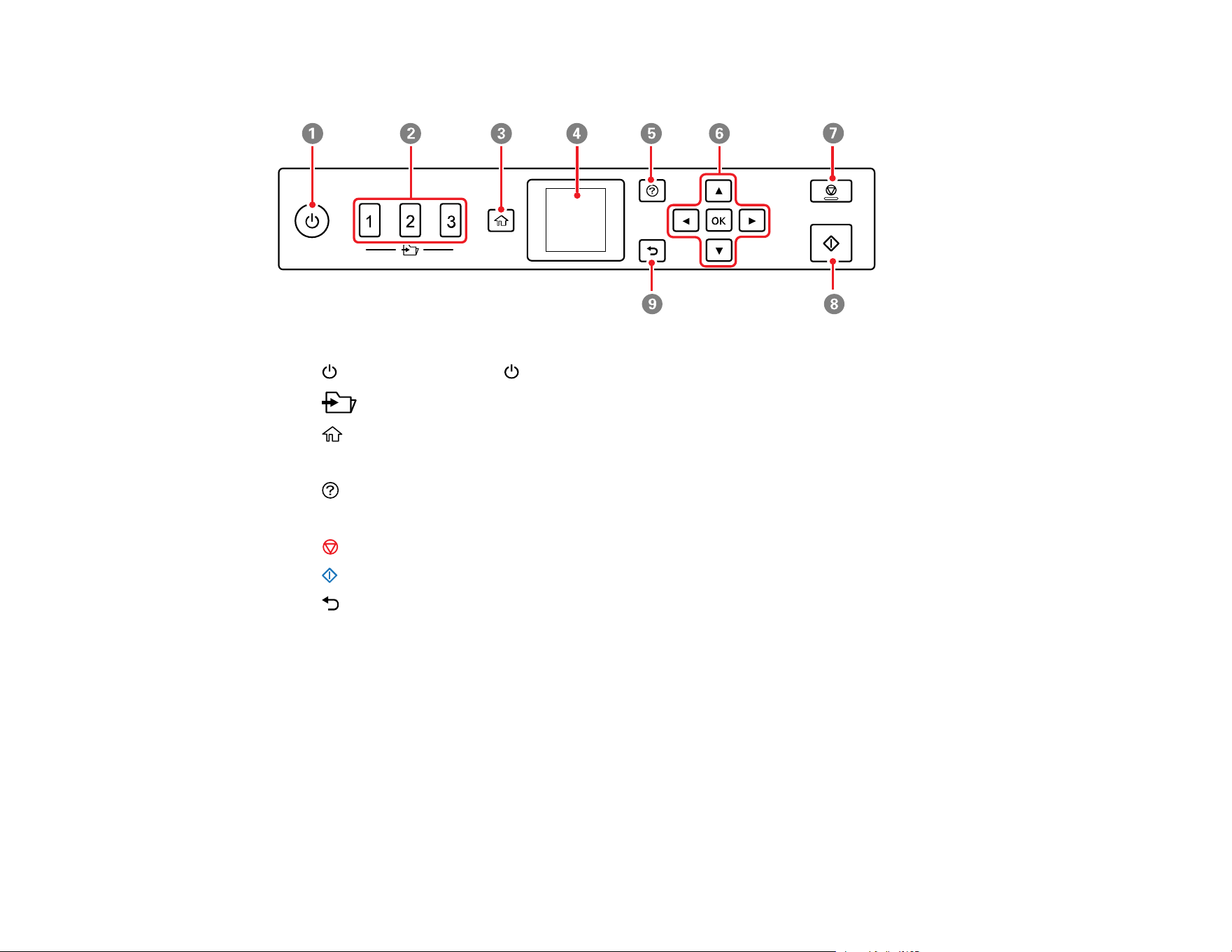
Using the Control Panel
See these sections to learn about the control panel and select control panel settings.
Control Panel Buttons and Lights
Adjusting the Screen Brightness
Changing LCD Screen Language
Selecting the Date and Time
Changing the Keyboard Layout
Selecting the Start-up Screen
Turning Off the Operation Time Out Setting
Preventing PC Connection via USB
Setting Direct Power On
Changing Regular Cleaning Alert Settings
Changing Roller Replacement Alert Settings
Setting a Password and Locking the Control Panel
Parent topic: Scanner Basics
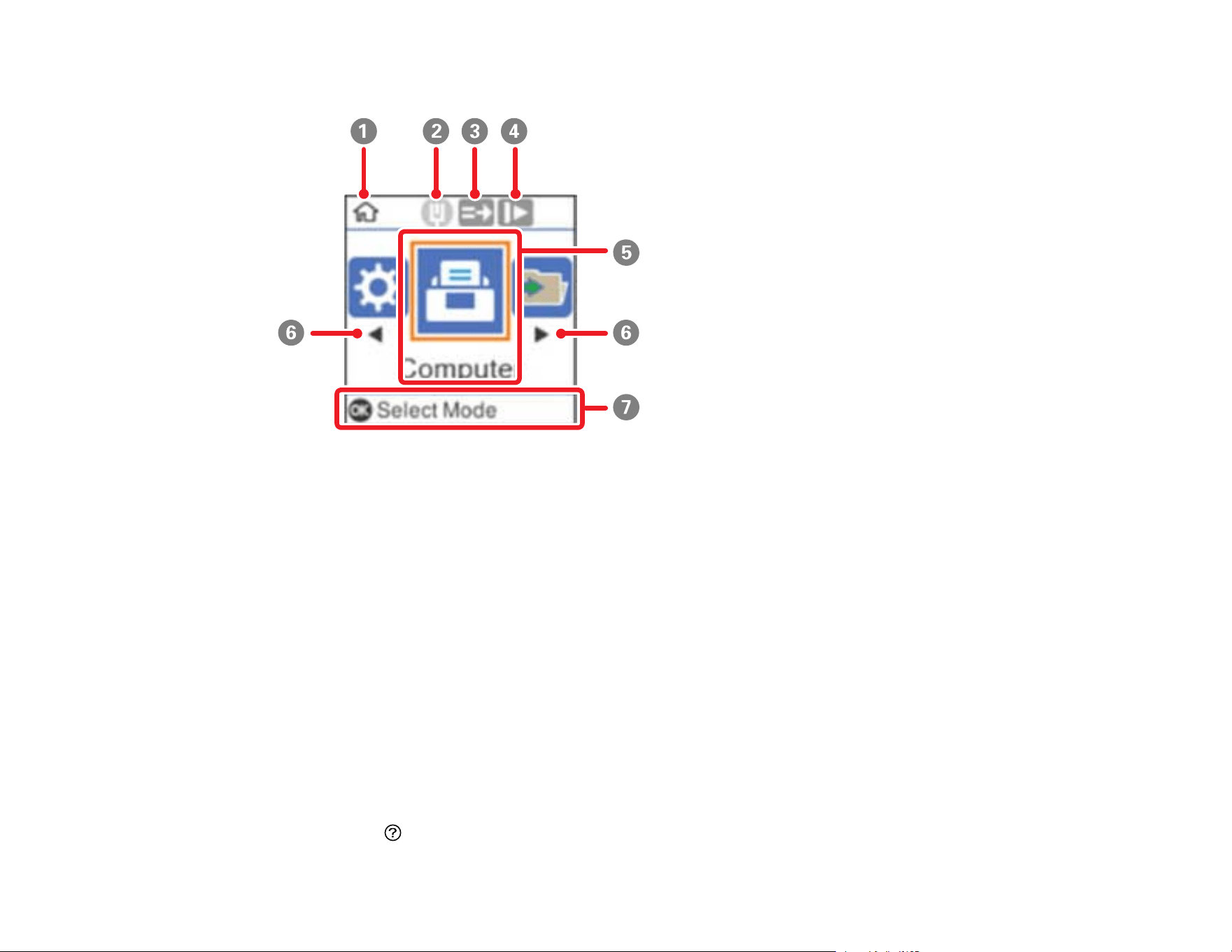
10
The LCD Screen
1 Home screen indicator
2 Displays the network connection status
3 Double Feed Detection Skip (DFDS) is enabled (blue) or disabled. Select the DFDS Function
option in the Scanner Settings menu to change the setting.
4 Slow mode is enabled (blue) or disabled. Select the Slow option in the Scanner Settings menu to
change the setting.
5 Displays available menus
6 Press the arrow button to scroll through available menus
7 Displays available button actions
Parent topic: Control Panel Buttons and Lights
Viewing Animations
You can view animations on the LCD screen to help guide you with a procedure or to troubleshoot a
problem.
1. Press the help button to display the Help screen.

11
You see a screen like this:
2. Select Troubleshooting if you are experiencing a problem or How To to view instructions on
common procedures.
3. Select a topic from the list of available topics and follow the on-screen instructions.
While viewing the topics, you may see screens like this:
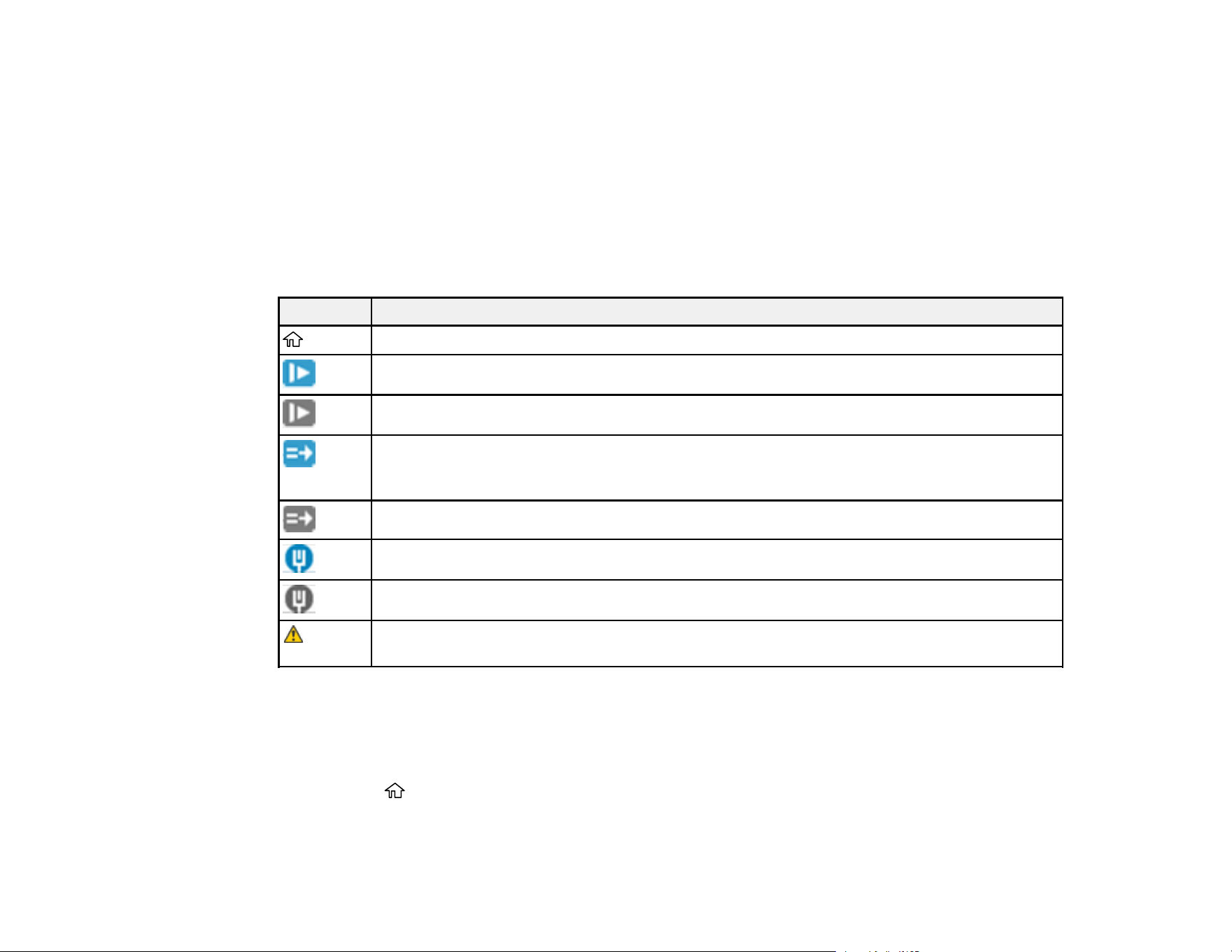
12
1 Indicates your overall progress through the animation
2 Press the left arrow button to view the previous step
3 Displays the current step number and the total number of steps
4 Press the right arrow button to view the next step
Parent topic: Control Panel Buttons and Lights
Status Icon Information
Your product displays status icons on the LCD screen for certain product status conditions.
Icons Description
Indicates that you are on the home screen.
Slow mode is enabled. Paper feeding speed is reduced during scanning.
Slow mode is disabled.
Double Feed Detection Skip (DFDS) is enabled. Double feed detection is skipped once
during scanning. (Enable DFDS to scan originals, such as plastic cards or envelopes, that
are detected as double feeds.)
Double Feed Detection Skip (DFDS) is disabled.
Network connection enabled.
Network connection disabled.
There is a problem with the indicated setting. See the Device Information menu to resolve
the problem.
Parent topic: Control Panel Buttons and Lights
Adjusting the Screen Brightness
You can adjust the brightness of the LCD screen.
1. Press the home button, if necessary.
2. Use the arrow buttons to select Settings and press the OK button.
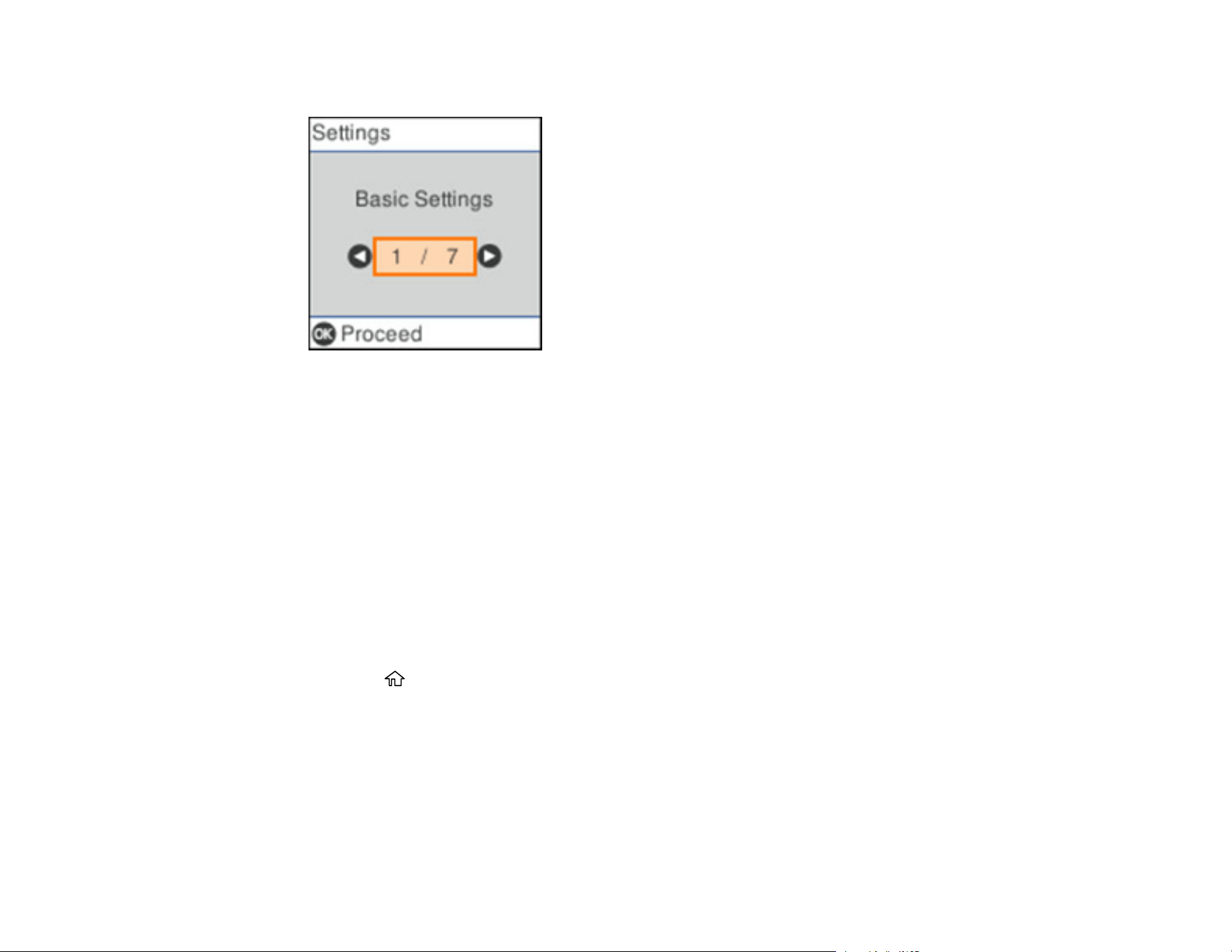
13
You see a screen like this:
3. Press the OK button.
4. Use the arrow buttons to select LCD Brightness and press the OK button.
5. Use the arrow buttons to decrease or increase the brightness.
6. Press the OK button to exit.
Parent topic: Using the Control Panel
Changing LCD Screen Language
You can change the language used on the LCD screen.
Note: This setting can be locked by an administrator. If you cannot access or change this setting,
contact your administrator for assistance.
1. Press the home button, if necessary.
2. Use the arrow buttons to select Settings and press the OK button.
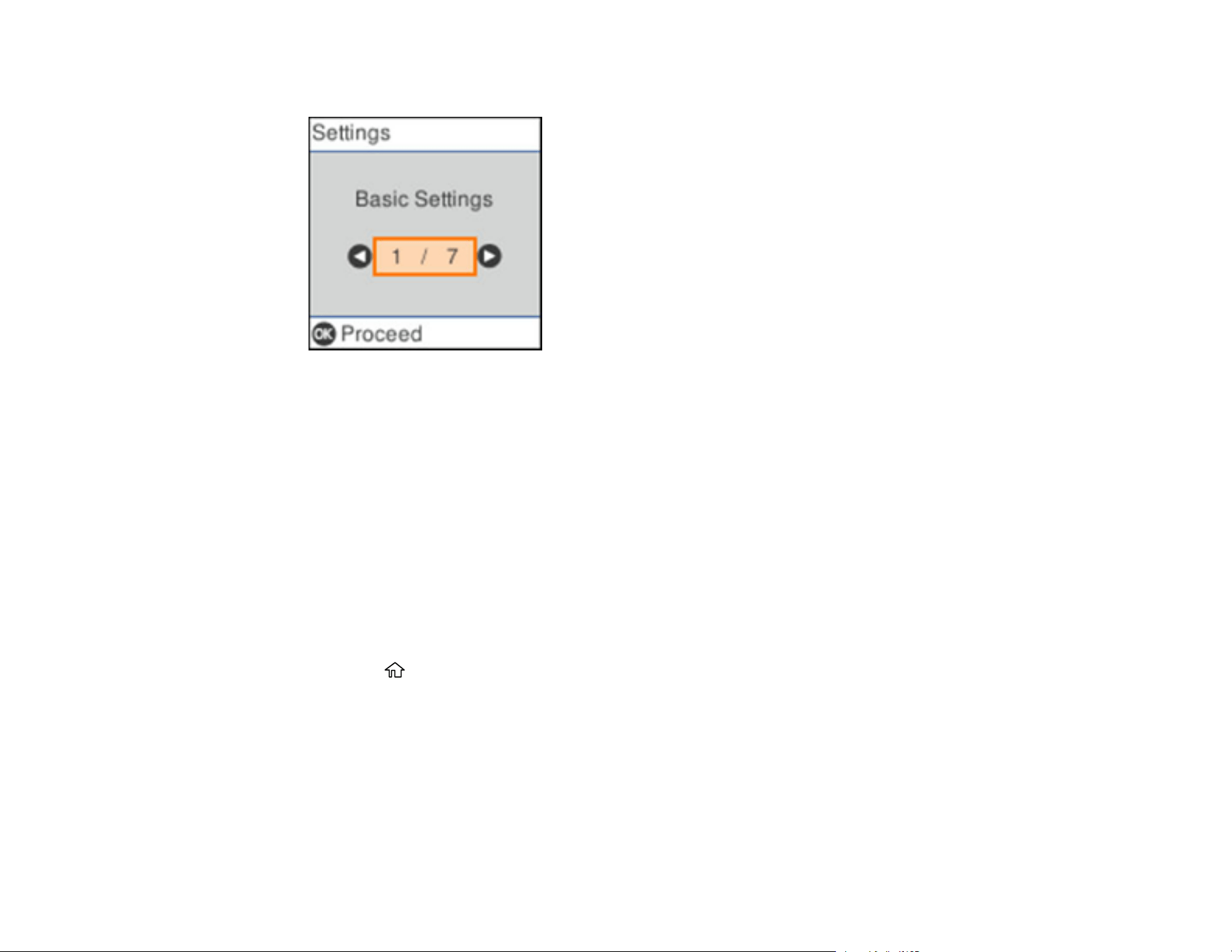
14
You see a screen like this:
3. Press the OK button.
4. Use the arrow buttons to select Language and press the OK button.
5. Select a language and press the OK button to exit.
Parent topic: Using the Control Panel
Selecting the Date and Time
Before using your product, select the current date, time, and daylight saving phase in your area, and
choose your preferred date and time format.
Note: This setting can be locked by an administrator. If you cannot access or change this setting,
contact your administrator for assistance.
1. Press the home button, if necessary.
2. Use the arrow buttons to select Settings and press the OK button.
15
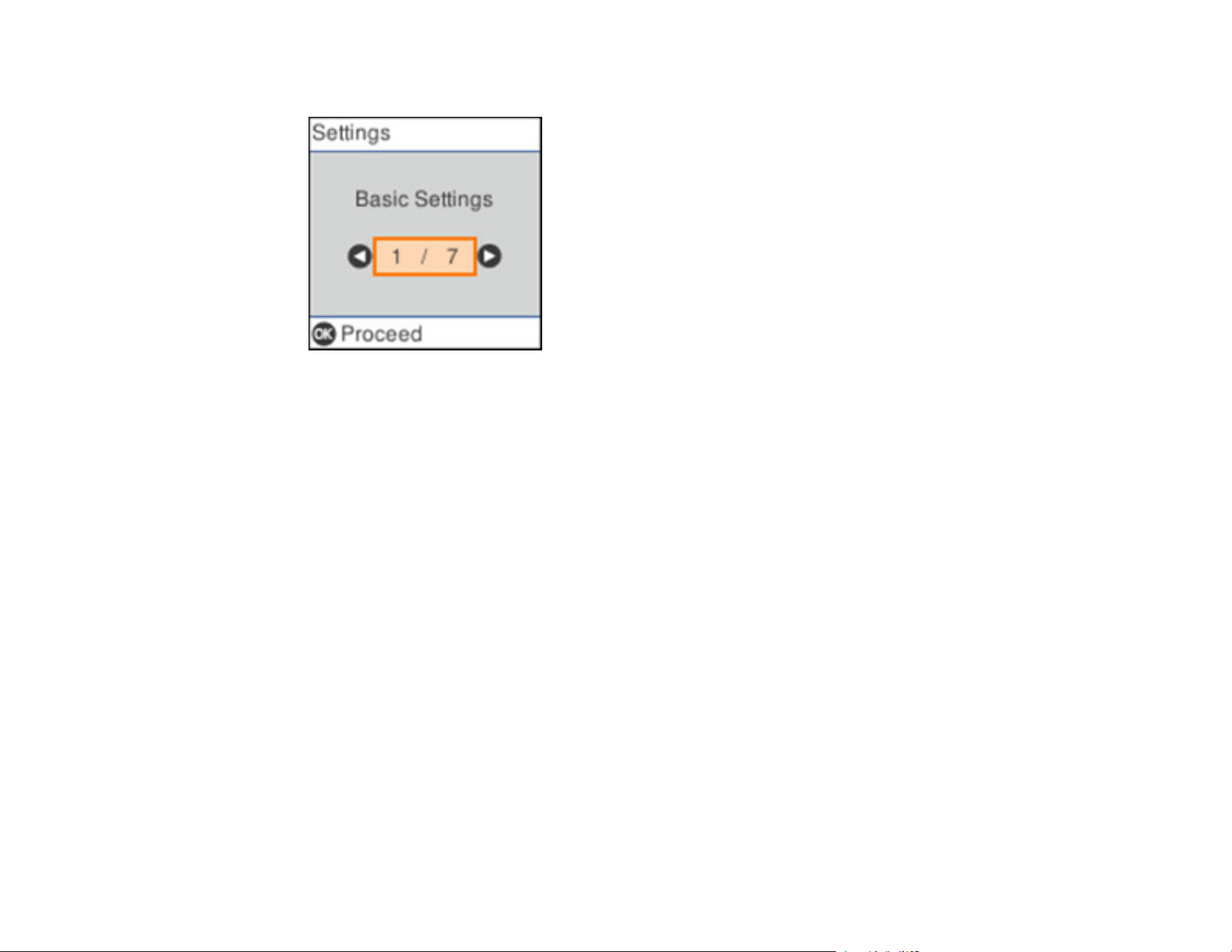
You see a screen like this:
3. Press the OK button.
4. Use the arrow buttons to select Date/Time Settings and press OK.
5. Press the OK button to select Date/Time.
6. Use the arrow buttons to select the date format you want to use.
7. Use the arrow buttons to enter the current date and press OK.
8. Use the arrow buttons to select the time format you want to use and press OK.
9. Use the arrow buttons to enter the current time and press OK.
10. Use the arrow buttons to select Daylight Saving Time and press OK.
11. Select the setting that applies to your area:
• Winter: it is winter or your region does not use Daylight Saving Time (DST)
• Summer: it is spring or summer and your region uses Daylight Saving Time (DST)
Note: If your region uses Daylight Saving Time (DST), you must change this setting to match the
season. When you change from Winter to Summer, your product automatically sets its clock ahead
one hour. When you change from Summer to Winter, it sets its clock back one hour.
12. Use the arrow buttons to select Time Difference and press OK.
13. Use the arrow buttons to enter the time difference between your local time and UTC (Coordinated
Universal Time) and press OK.

16
Parent topic: Using the Control Panel
Changing the Keyboard Layout
You can change the layout of the keyboard on the control panel.
1. Press the home button, if necessary.
2. Use the arrow buttons to select Settings and press the OK button.
You see a screen like this:
3. Press the OK button.
4. Use the arrow buttons to select Keyboard and press the OK button.
5. Select the layout you want to use and press the OK button to exit.
Parent topic: Using the Control Panel
Selecting the Start-up Screen
You can choose the initial menu that displays on the LCD screen when the scanner is turned on and
Operation Time Out is enabled.
Note: This setting can be locked by an administrator. If you cannot access or change this setting,
contact your administrator for assistance.
1. Press the home button, if necessary.
17
2. Use the arrow buttons to select Settings and press the OK button.
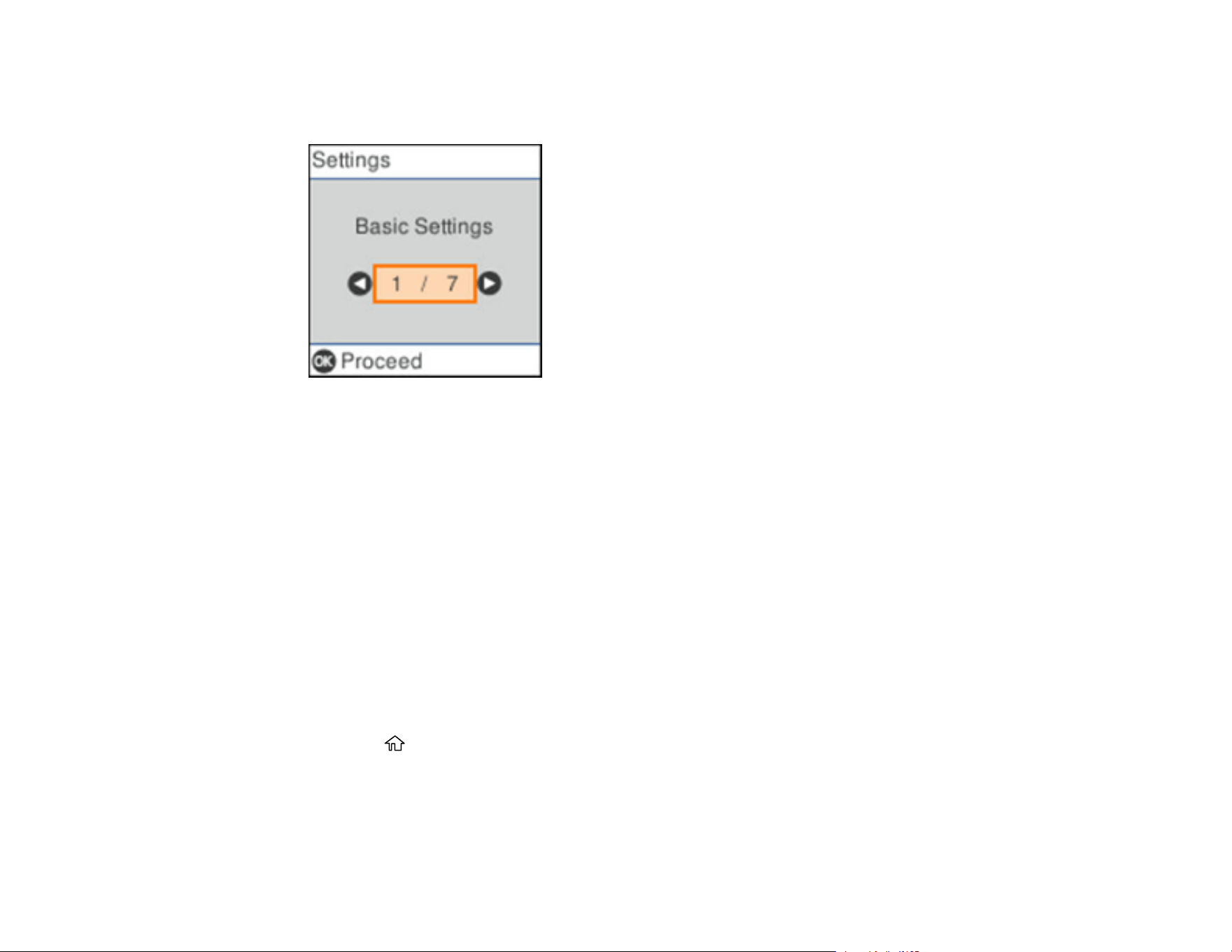
You see a screen like this:
3. Press the OK button.
4. Use the arrow buttons to select Start-up Screen and press the OK button.
5. Use the arrow buttons to select the menu you want to see on the LCD screen (Home, Quick Send,
or Presets) when the scanner is powered on.
6. Press the OK button to exit.
Parent topic: Using the Control Panel
Turning Off the Operation Time Out Setting
The Operation Time Out setting causes the LCD screen to return to the Home screen after a few minutes
of inactivity. This feature is enabled by default, but you can turn it off.
Note: This setting can be locked by an administrator. If you cannot access or change this setting,
contact your administrator for assistance.
1. Press the home button, if necessary.
2. Use the arrow buttons to select Settings and press the OK button.
18
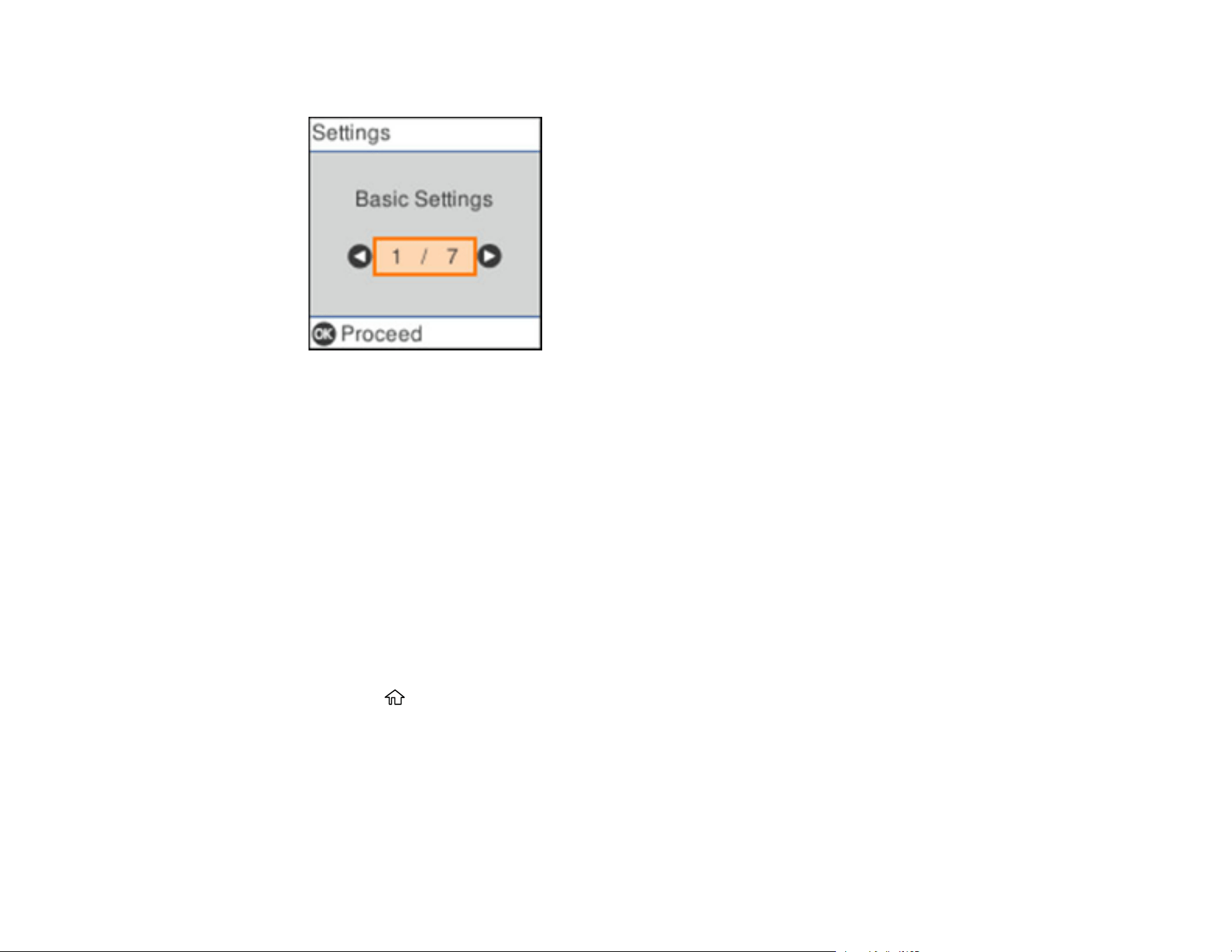
You see a screen like this:
3. Press the OK button.
4. Use the arrow buttons to select Operation Time Out and press the OK button.
5. Select Modify and press the OK button.
6. Select Off and press the OK button.
Parent topic: Using the Control Panel
Preventing PC Connection via USB
You can disable access from a USB-connected computer. This restricts non-network access to the
product and protects the security of confidential scanned documents.
Note: This setting can be locked by an administrator. If you cannot access or change this setting,
contact your administrator for assistance.
1. Press the home button, if necessary.
2. Use the arrow buttons to select Settings and press the OK button.
19
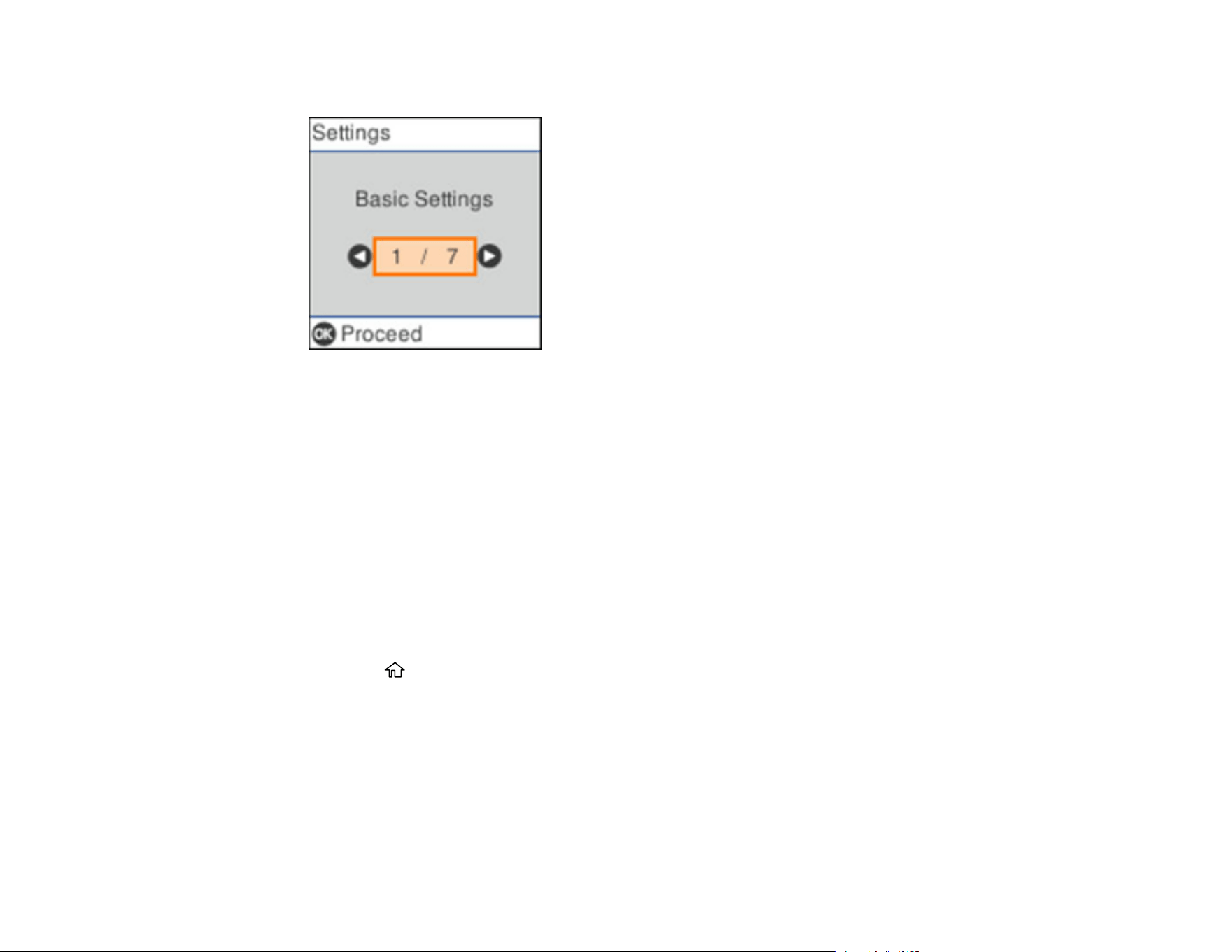
You see a screen like this:
3. Press the OK button.
4. Select PC Connection via USB.
5. Select Disable.
Parent topic: Using the Control Panel
Setting Direct Power On
You can turn on the scanner directly when the scanner is connected to the power source, without
pressing the power button.
Note: This setting can be locked by an administrator. If you cannot access or change this setting,
contact your administrator for assistance.
1. Press the home button, if necessary.
2. Use the arrow buttons to select Settings and press the OK button.
20
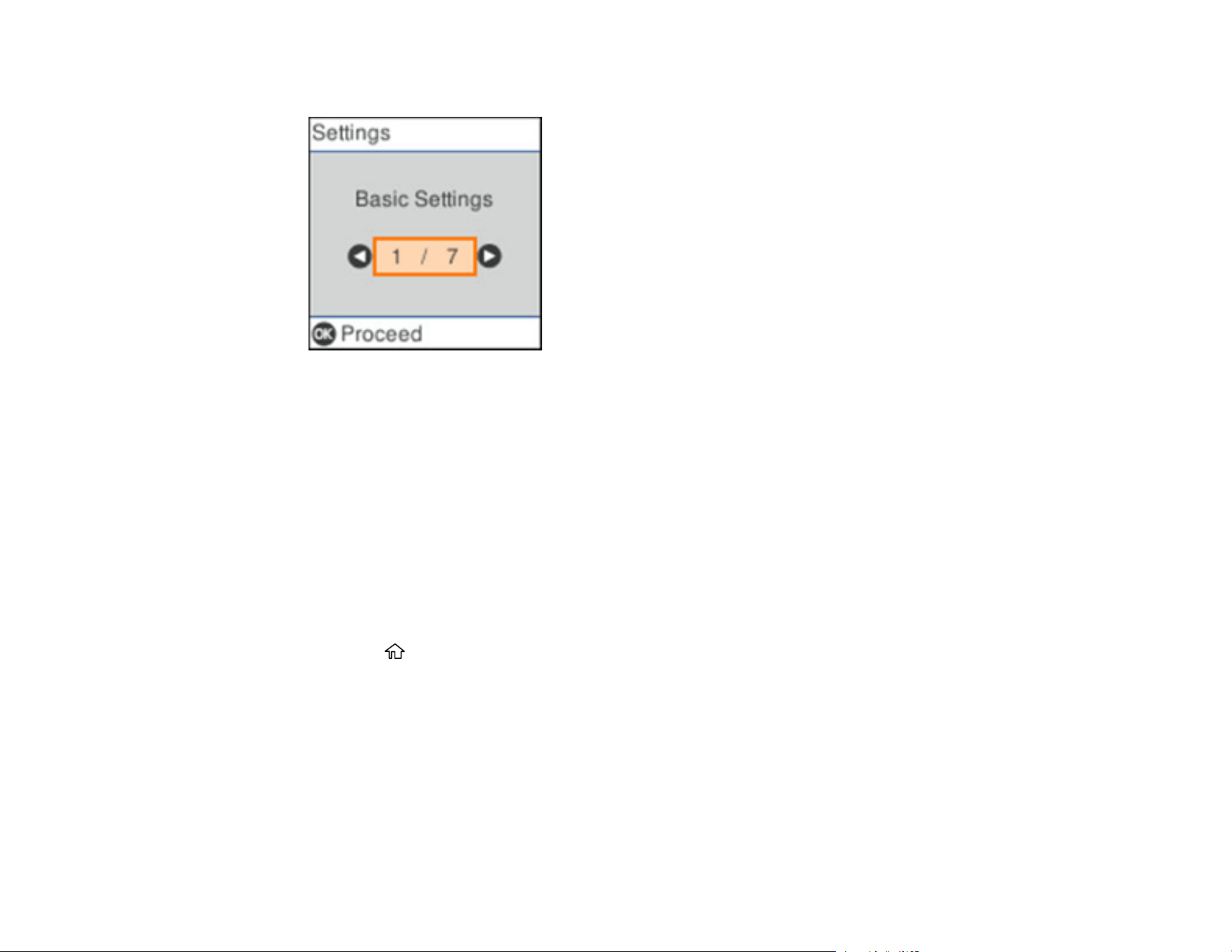
You see a screen like this:
3. Press the OK button.
4. Use the arrow buttons to select Direct Power On and press the OK button.
5. Select On and press the OK button to exit.
Parent topic: Using the Control Panel
Changing Regular Cleaning Alert Settings
You can set an alert to appear to remind you to perform regular cleaning after a certain number of scans.
Note: This setting can be locked by an administrator. If you cannot access or change this setting,
contact your administrator for assistance.
1. Press the home button, if necessary.
2. Use the arrow buttons to select Settings and press the OK button.
21
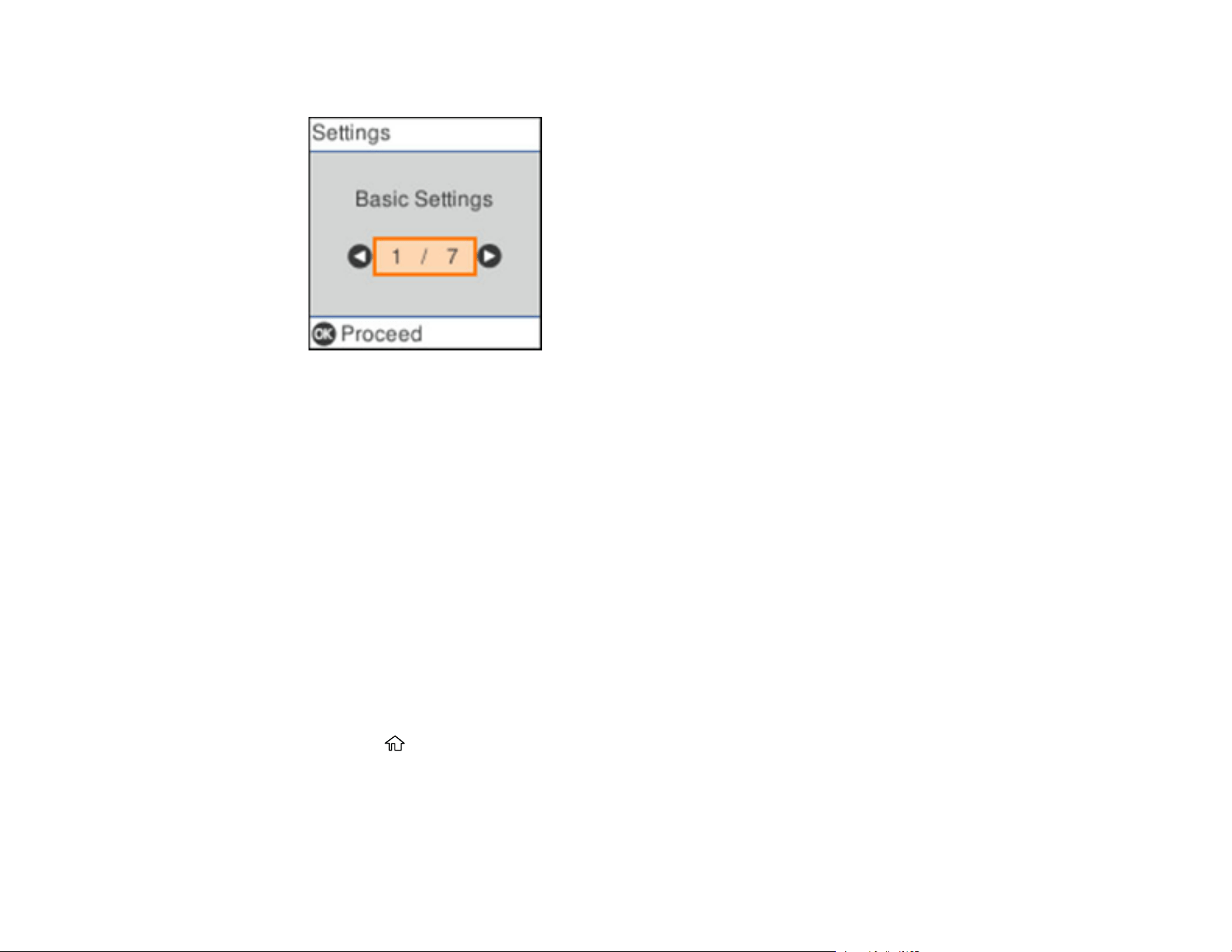
You see a screen like this:
3. Use the arrow buttons to select Regular Cleaning Alert Settings and press the OK button.
4. Do the following:
• Set the Warning Alert Setting to On to receive a notification when it is time to clean inside the
scanner.
• On the Count Alert Setting screen, use the arrow buttons to change the number of scans before
the notification appears.
5. Press the OK button to exit.
Parent topic: Using the Control Panel
Changing Roller Replacement Alert Settings
You can set an alert to appear to remind you to replace the roller after a certain number of scans.
Note: This setting can be locked by an administrator. If you cannot access or change this setting,
contact your administrator for assistance.
1. Press the home button, if necessary.
2. Use the arrow buttons to select Settings and press the OK button.

22
You see a screen like this:
3. Use the arrow buttons to select Roller Replacement Alert Settings and press the OK button.
4. Use the arrow buttons to change the number of scans before the notification appears.
5. Press the OK button to exit.
Parent topic: Using the Control Panel
Setting a Password and Locking the Control Panel
You can set an administrator password to lock the following settings and prevent them from being
changed:
Note: You should set an administrator password and keep it in a safe place. You must know the
administrator password in order to change or delete it. If you forget the password or inadvertently set it,
the product will need to be sent to Epson for service.
• Network settings
• Web Service settings
• Scanner settings
• System Administration settings
• Web Config settings
• EpsonNet Config settings
23
Note: For more information on administration settings, see the Administrator's Guide.
1. Press the home button, if necessary.
2. Use the arrow buttons to select Settings and press the OK button.
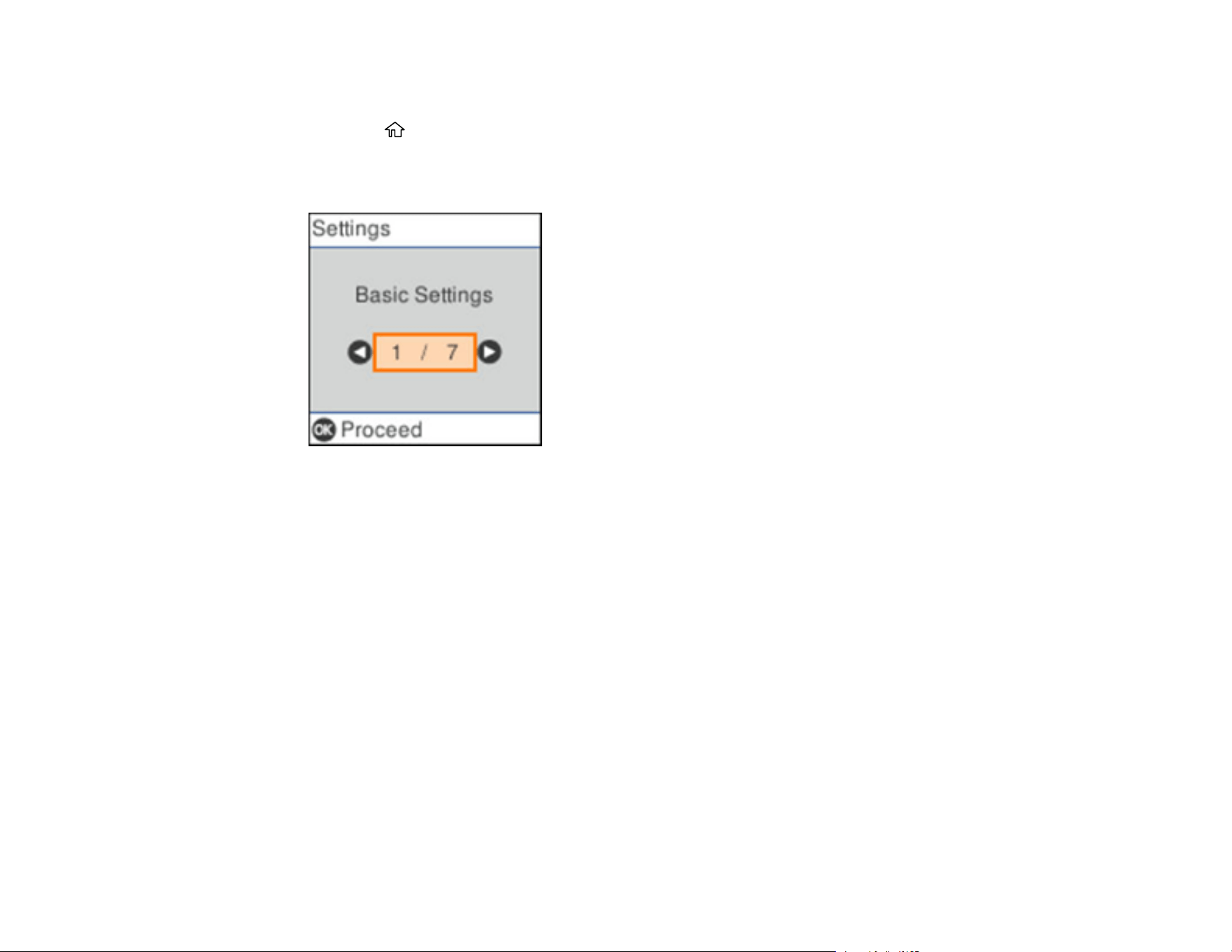
You see a screen like this:
3. Press the OK button.
4. Use the arrow buttons to select System Administration and press the OK button.
5. Select Admin Settings and press the OK button.
6. Select Admin Password > Register.
7. Use the displayed keyboard to enter a password and press OK.
8. Enter your password again to confirm.
Note: Keep a copy of your password in a safe place.
9. Press the OK button to exit.
When the control panel is locked, you must enter the password to access any of the locked settings. You
can change or delete the administrator password by entering the password and selecting Change or
Reset on the Admin Password screen.
Parent topic: Using the Control Panel


25
6 Output tray
7 Output tray extensions
8 Stopper
1 Kensington security slot
2 USB port
3 LAN port

26
4 Power inlet
1 Scanner cover
2 Pickup roller
3 Separation roller
Parent topic: Scanner Parts Locations
User Replaceable Epson Scanner Parts
U.S. and Canada: You can purchase genuine Epson accessories at epson.com (U.S. sales) or
epson.ca (Canadian sales). You can also purchase accessories from an Epson authorized reseller. To
find the nearest one, call 800-GO-EPSON (800-463-7766) in the U.S. or 800-807-7766 in Canada.
Latin America: You can purchase optional accessories and replacement parts from an Epson
authorized reseller. To find the nearest reseller, go to latin.epson.com. Or you can contact your nearest
sales office as described in "Where to Get Help".
Note: Availability of accessories varies by country.

27
Part Part number
Carrier sheet (5) B12B819051
Roller assembly kit B12B819671
Cleaning kit B12B819291
Parent topic: Scanner Basics
Using Power Saving Settings
Your scanner enters sleep mode automatically and turns off the LCD screen if it is not used for a period
of time. You can make the time period shorter to save energy and resources.
Changing the Sleep Timer Settings
Changing the Power Off Timer Settings
Parent topic: Scanner Basics
Changing the Sleep Timer Settings
You can adjust the time period before your product enters sleep mode and turns off the LCD screen.
Note: This setting can be locked by an administrator. If you cannot access or change this setting,
contact your administrator for assistance.
1. Press the home button, if necessary.
2. Use the arrow buttons to select Settings and press the OK button.
28
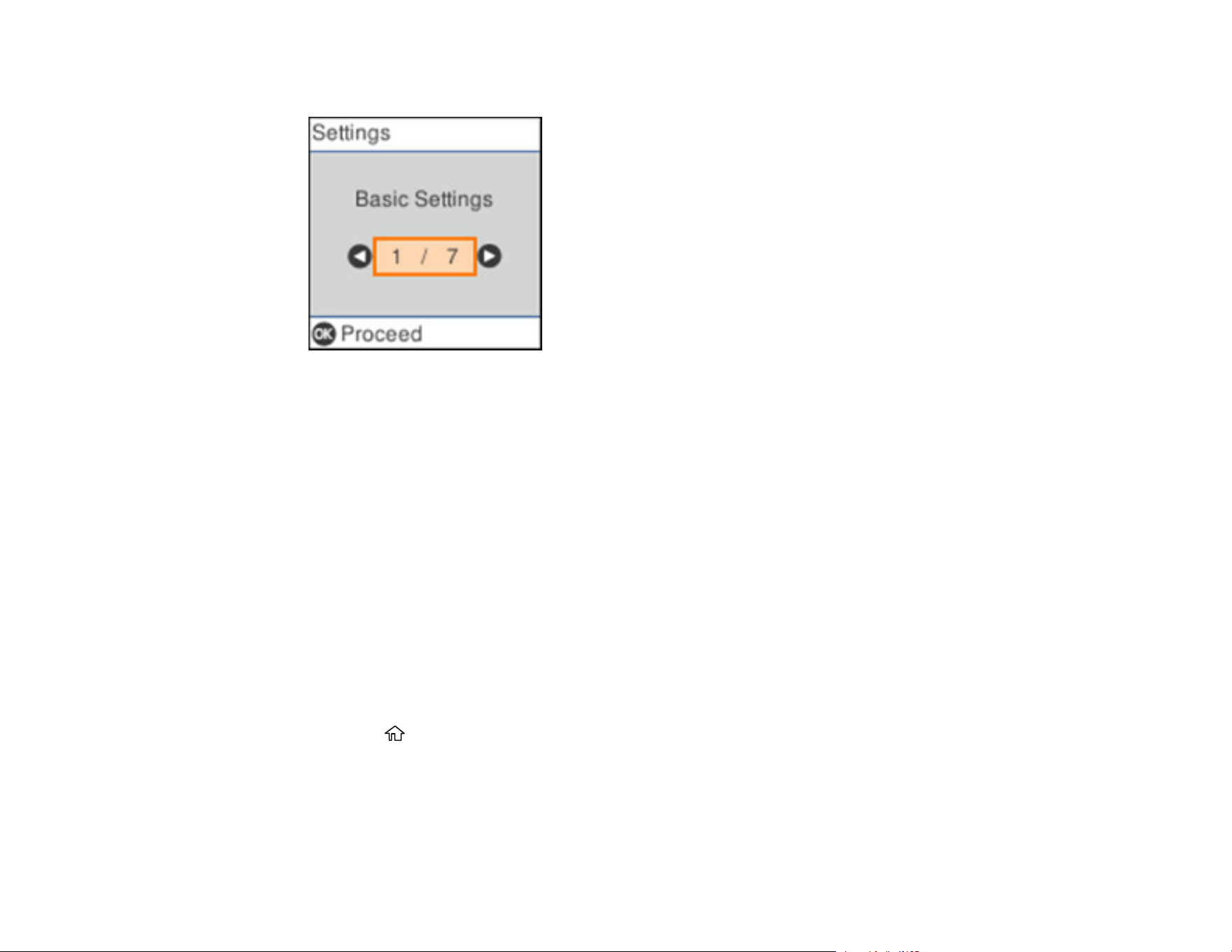
You see a screen like this:
3. Press the OK button.
4. Use the arrow buttons to select Sleep Timer and press the OK button.
5. Do one of the following:
• Press the up or down arrow buttons to decrease or increase the number of minutes.
• Press the left and right arrow buttons to move to the previous or next character.
6. Press the OK button to exit.
Parent topic: Using Power Saving Settings
Changing the Power Off Timer Settings
You can have the product turn off automatically if it is not used for a specified period of time.
Note: This setting can be locked by an administrator. If you cannot access or change this setting,
contact your administrator for assistance.
1. Press the home button, if necessary.
2. Use the arrow buttons to select Settings and press the OK button.


30
Loading Originals
Follow the instructions here to load your originals into the scanner.
Loading Originals in the Input Tray
Loading Plastic and Laminated Cards in the Input Tray
Loading Special Originals
Loading Originals in the Input Tray
You can load originals that meet the document specifications in the input tray.
Caution: Do not load photos, or valuable original documents or artwork, directly into the input tray. This
may wrinkle or damage the original. Load these originals using an optional carrier sheet.
Note: Photos scanned using a document scanner may not have the same color depth as the original.
Use a flatbed photo scanner to achieve the best color reproduction of photos.
The steps below describe loading originals of the same size. To load originals of multiple sizes at once,
see the link at the end of these steps.
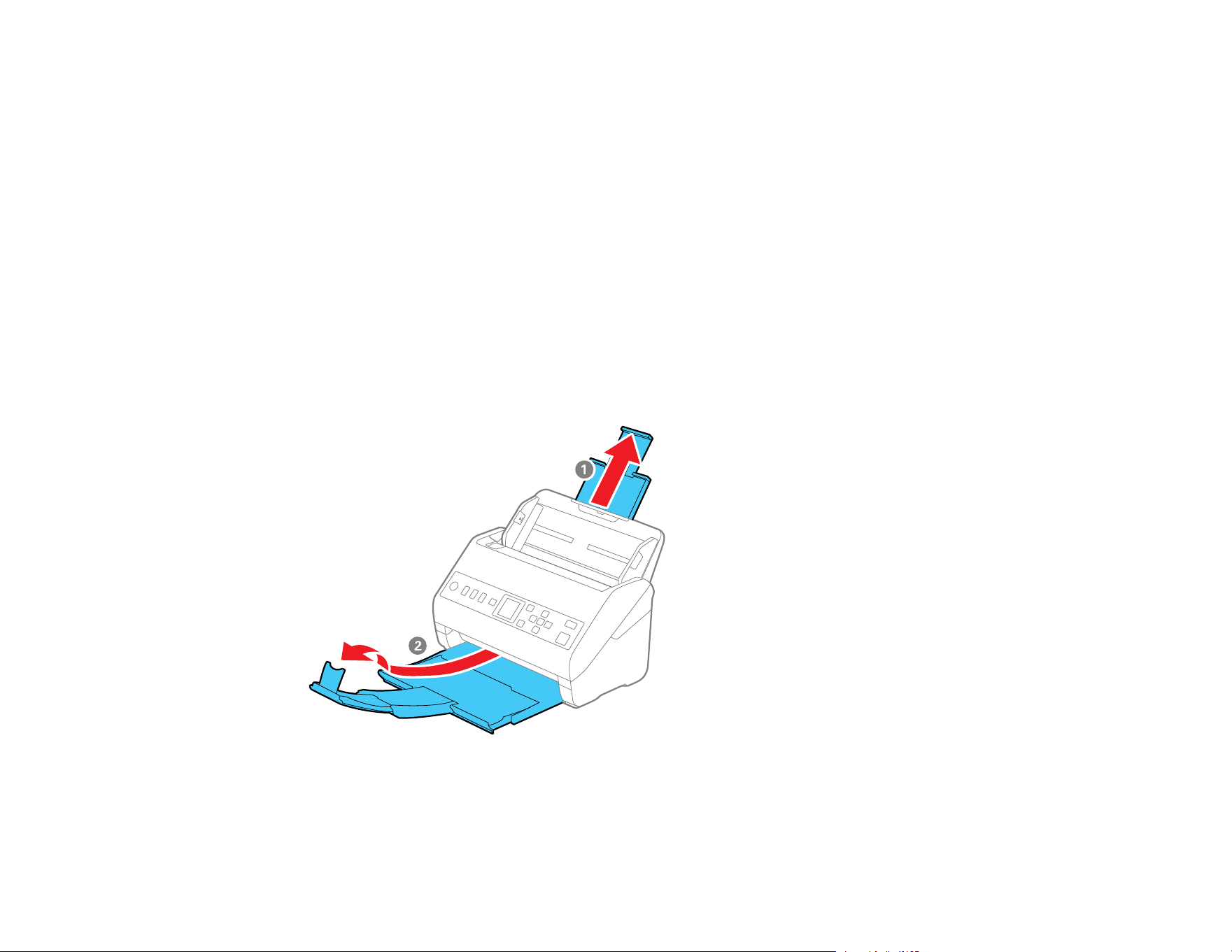
1. Pull up the input tray extension.

31
2. Pull out the output tray and its extension, and open the stopper.
Note: If you are loading an original that is 15.5 inches (393.8 mm) or longer, do not pull out the input
or output tray extensions and do not open the stopper.
32
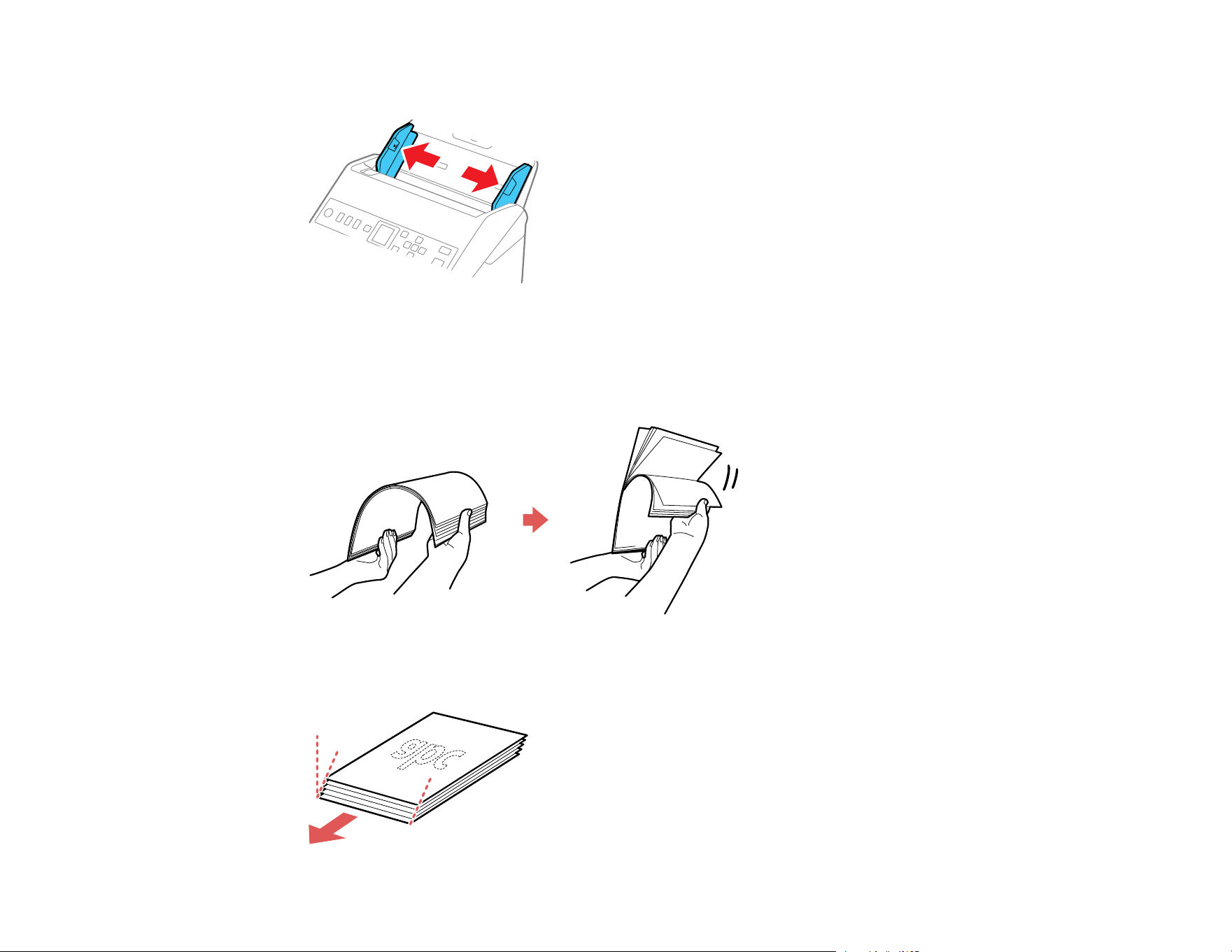
3. Slide the input tray edge guides all the way out.
4. If you are loading a multi-page original, fan your stack of originals.
Note: If you are loading an original that is 15.5 inches (393.8 mm) or longer, load only one sheet at a
time.
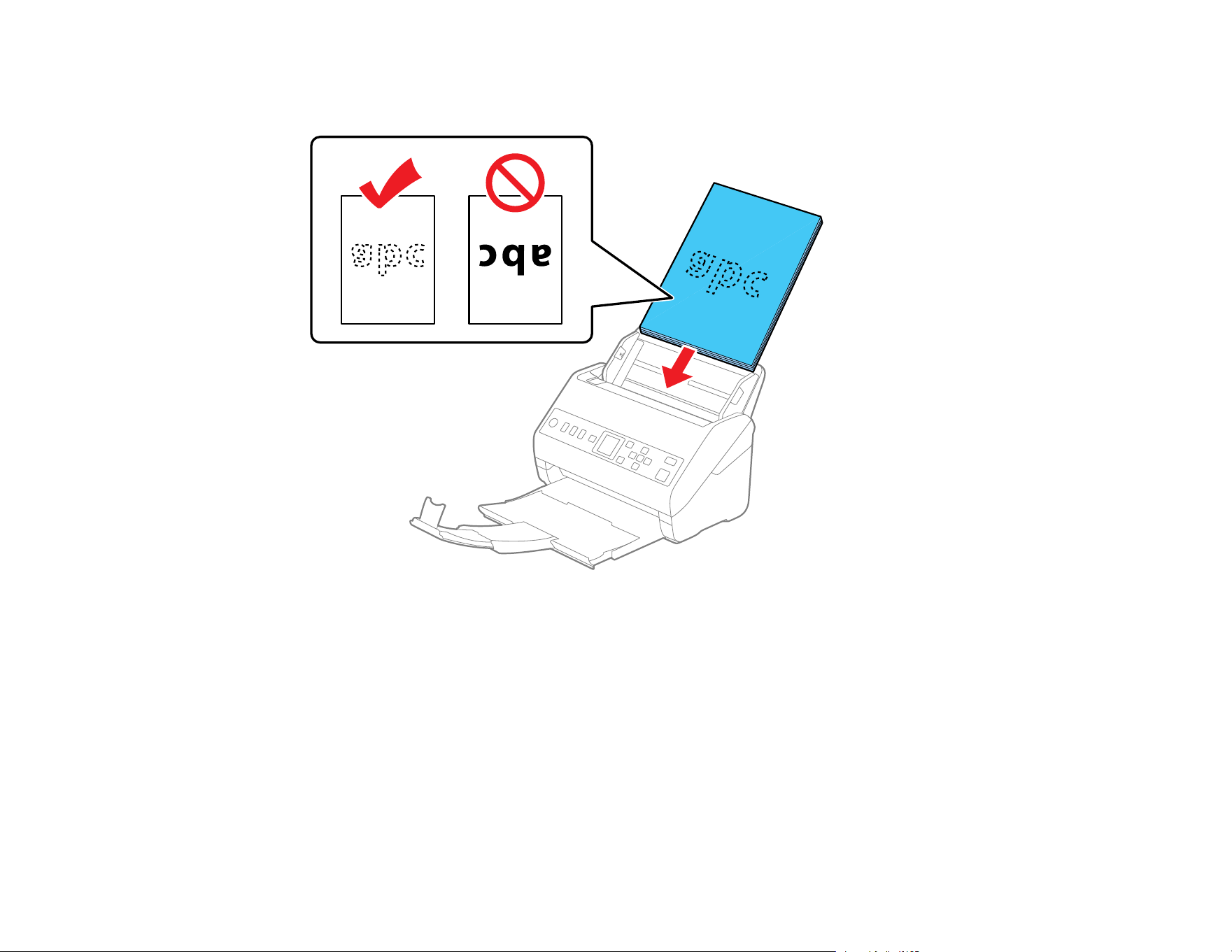
5. Stack the originals with the printed side facing down and slide the stack so the leading edge is at an
angle as shown.
33
6. Load standard originals into the input tray printed side down and top edge first, and guide them in
until they meet resistance.
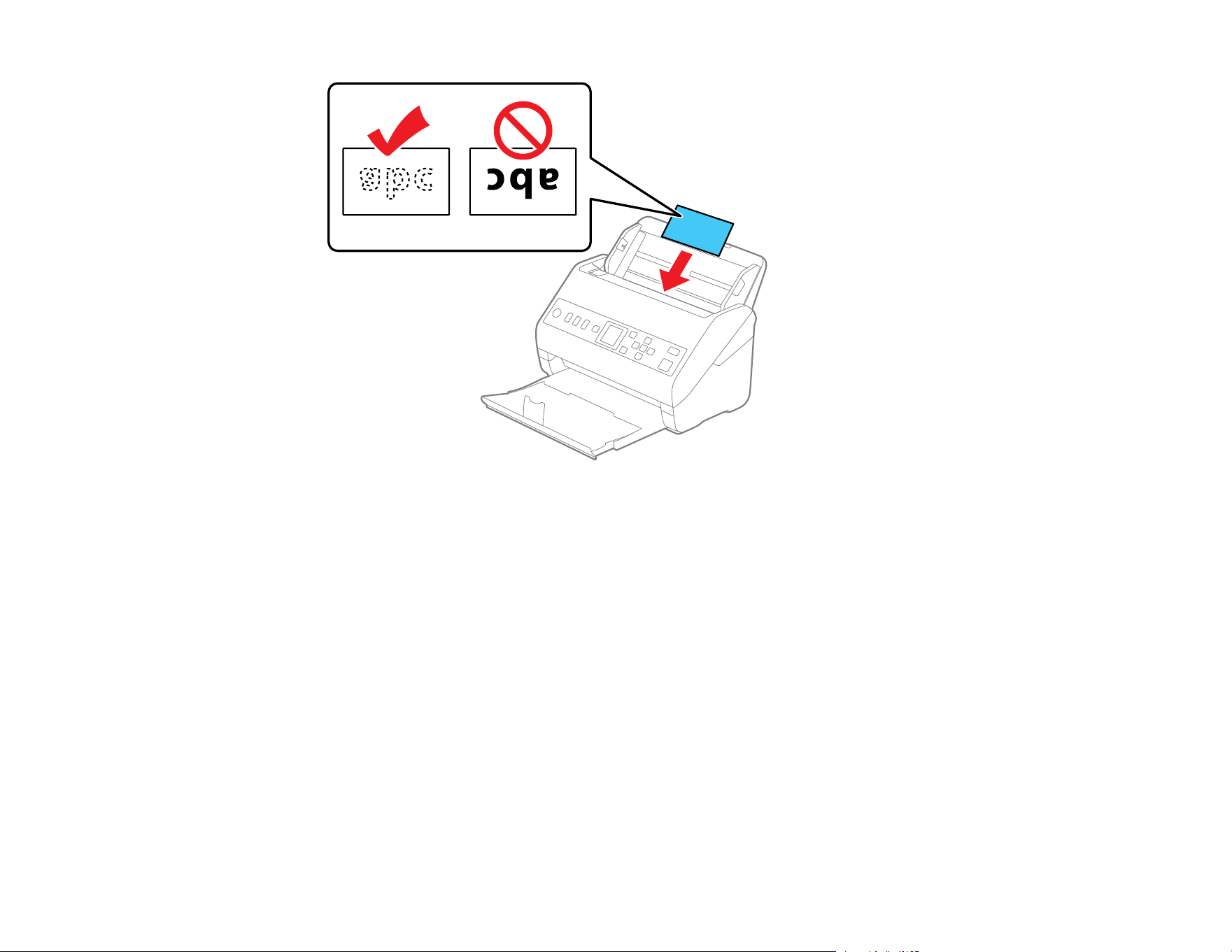
• If you are loading paper business cards, load up to 30 cards (printed side down and long edge
first) into the input tray horizontally, and slide them in until they meet resistance.
34
35
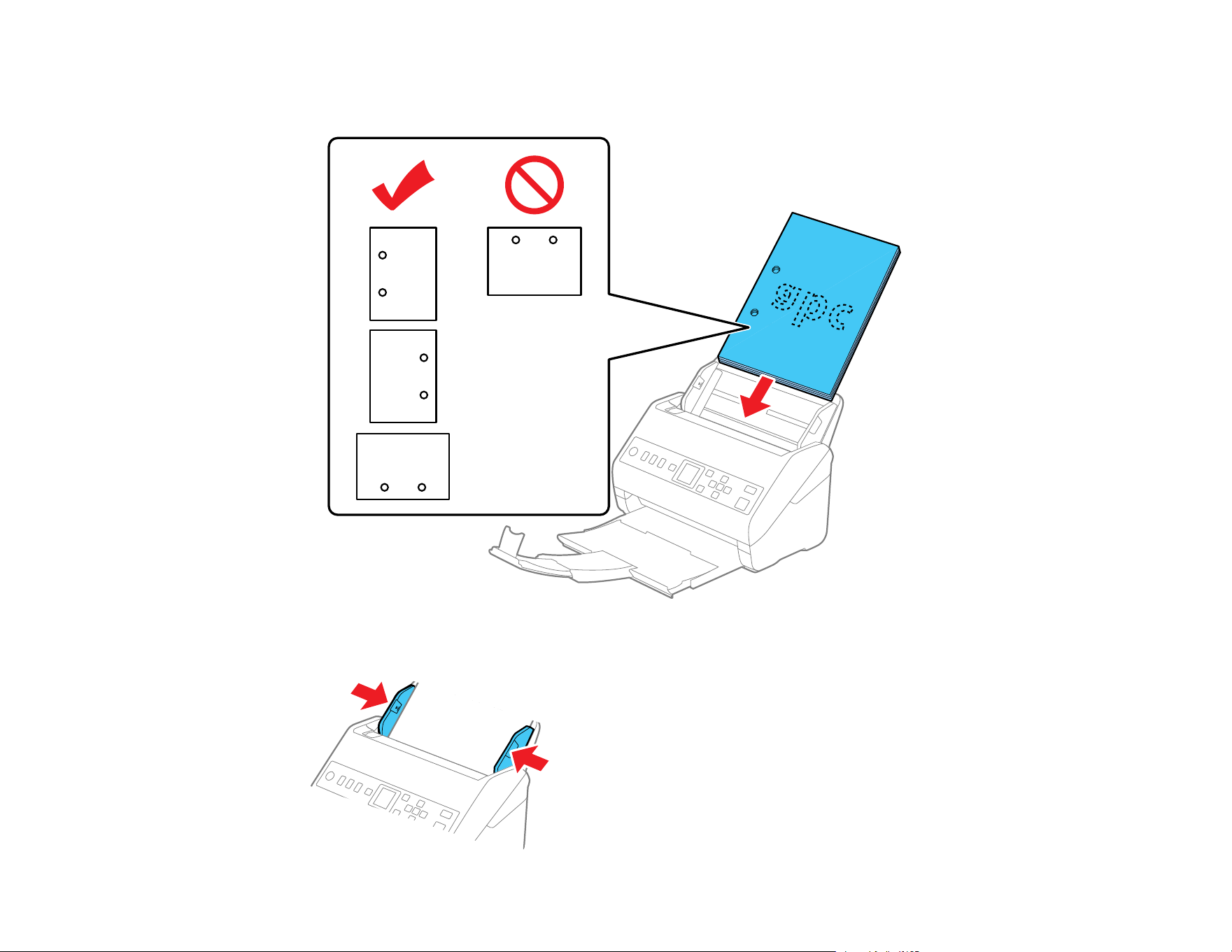
• If you are loading hole-punched originals, load them with the holes facing down or to the side as
shown. The holes must be within 1.2 inches (30 mm) of the edge of the originals.
7. Slide the edge guides against the edges of the original.

36
Note: If you are scanning originals that are 15.5 inches (393.8 mm) or longer, support the original as
it enters into and ejects from the scanner as shown and use the following resolutions:
• 11.6 to 53 inches (393.8 to 1346.2 mm): 301 to 600 dpi
• 53 to 215 inches (1346.3 to 5461 mm): 201 to 300 dpi
• 215 to 240 inches (5461.1 to 6096 mm): 50 to 200 dpi
8. If necessary during scanning, adjust the position of the stopper on the output tray extension to fit the
ejected originals.
Note: If thicker paper does not eject properly or falls from the output tray, push in the output tray and
allow the originals to eject freely onto the surface below the scanner. If the scanned images are
affected by the originals ejecting below the scanner, try placing the scanner on the edge of a table
where the ejected originals can drop freely.
37
If scanning thin or wrinkled paper causes paper jams, slow down the feeding speed by selecting
Settings > Scanner Settings > Slow > On on the LCD screen.
Loading Multiple Sizes of Originals in the Input Tray
Original Document Specifications
Parent topic: Loading Originals
Loading Multiple Sizes of Originals in the Input Tray
You can load originals of different sizes, paper types, and thicknesses at one time in the input tray. Just
make sure they meet the original document specifications.
Caution: Do not load photos, or valuable original documents or artwork, directly into the input tray. This
may wrinkle or damage the original. Load these originals using an optional carrier sheet.
1. Pull up the input tray extension.
2. Pull out the output tray and its extension, and open the stopper.

38
Note: If you are loading originals that are 15.5 inches (393.8 mm) or longer, do not pull out the input
or output tray extensions and do not open the stopper.
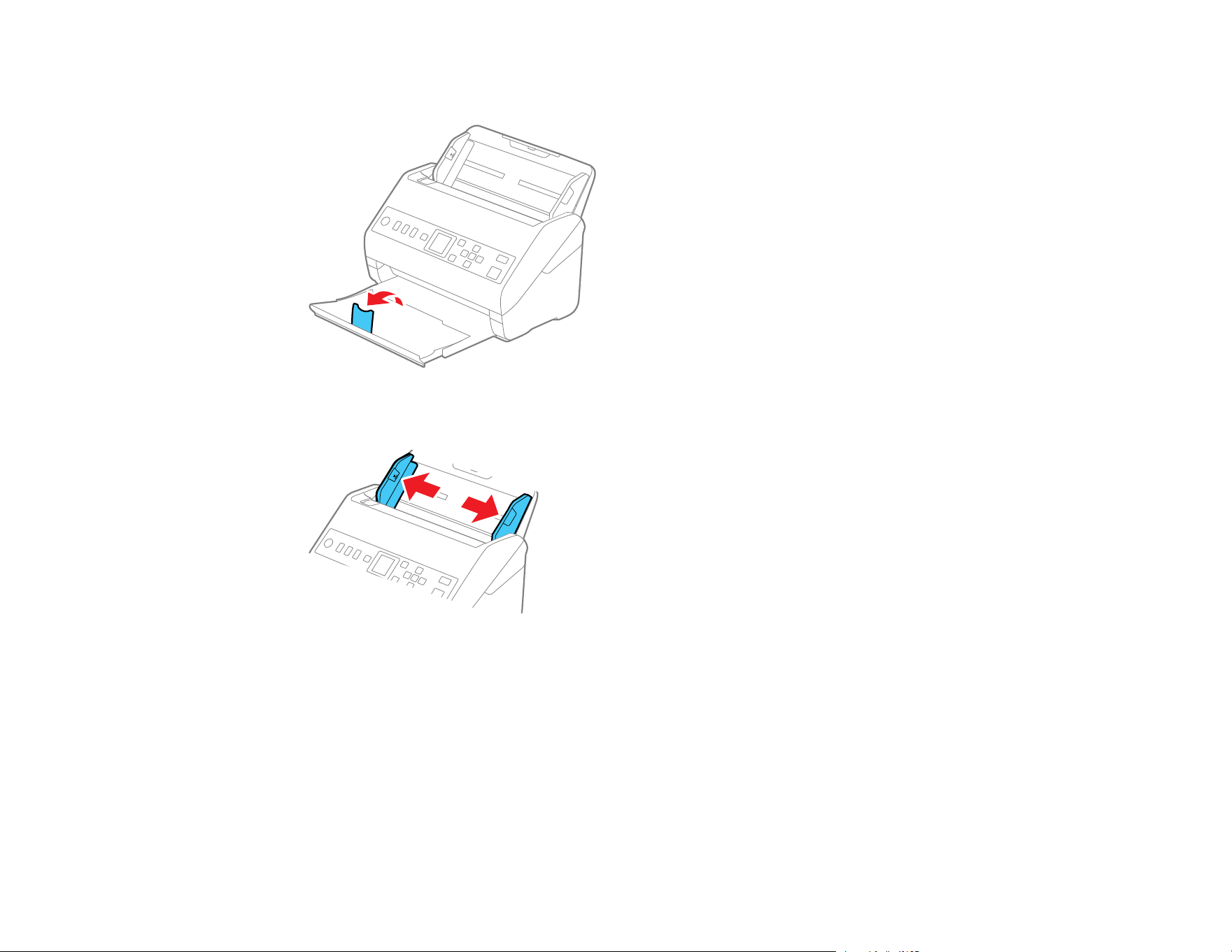
3. Slide the input tray edge guides all the way out.
39
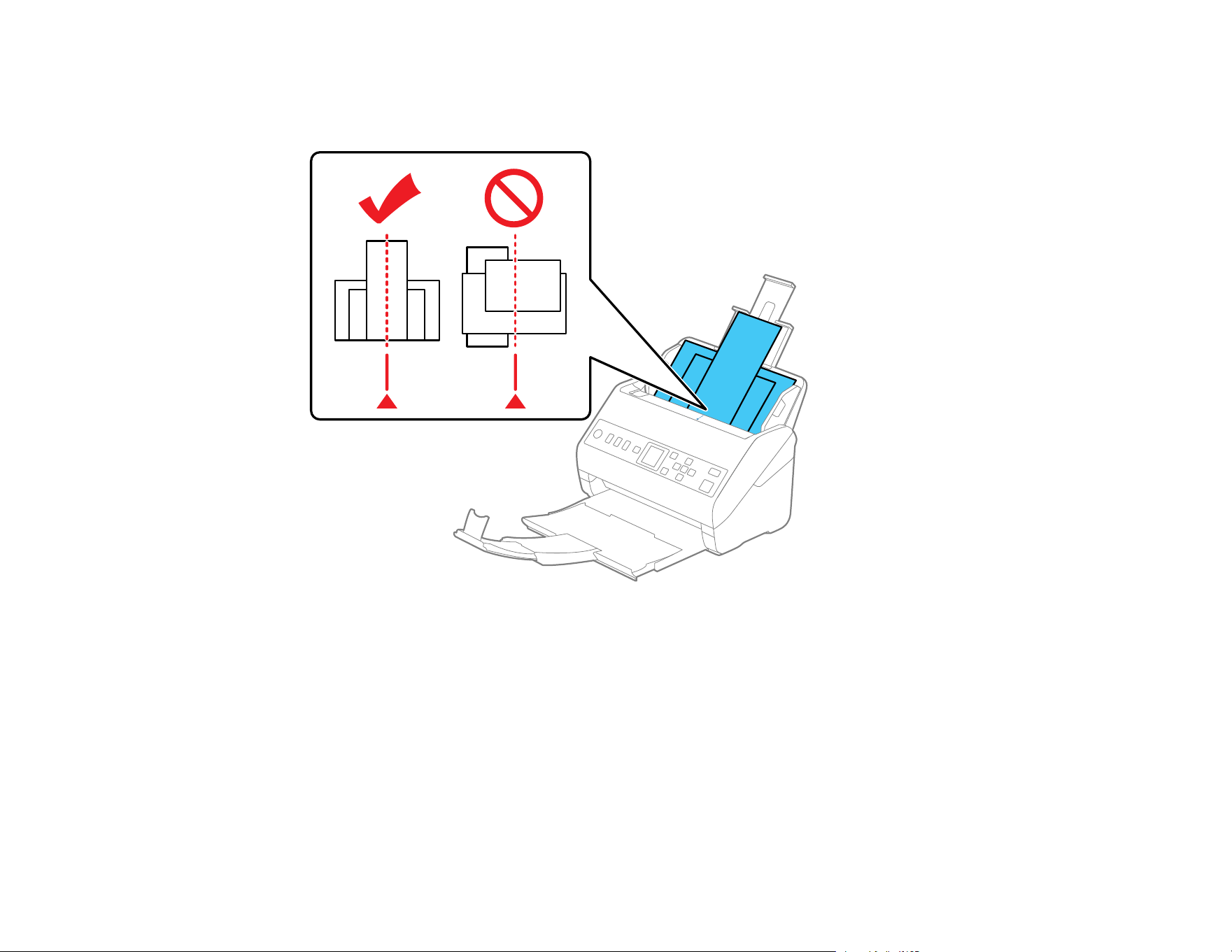
4. Load the originals in the center of the input tray in descending order of paper size with the widest at
the back and the narrowest at the front. Slide them in until they meet resistance. Make sure the
printed sides are facedown and the top edges are slightly angled in the input tray.
5. Slide the edge guides against the edges of the widest original.
6. If necessary during scanning, adjust the position of the stopper on the output tray extension to fit the
ejected originals.
Note: If thicker paper does not eject properly or falls from the output tray, push in the output tray and
allow the originals to eject freely onto the surface below the scanner. If the scanned images are
affected by the originals ejecting below the scanner, try placing the scanner on the edge of a table
where the ejected originals can drop freely.
If scanning thin or wrinkled paper causes paper jams, slow down the feeding speed by selecting
Settings > Scanner Settings > Slow > On on the LCD screen.
40
You can also scan originals of multiple sizes by loading them one by one using the Automatic Feeding
Mode setting in Epson Scan 2.
Parent topic: Loading Originals in the Input Tray
Original Document Specifications
You can load original documents that meet these specifications in your scanner.
Paper type Paper size Paper weight Loading capacity
Plain paper
Fine paper
Recycled paper
Letter (8.5 × 11 inches
[216 × 279 mm])
7 to 110 lb
(27 to 413 g/m²)
21 lb (80 g/m²): 100
sheets
24 lb (90 g/m²): 86 sheets
28 lb (104 g/m²): 74
sheets
34 lb (127 g/m²): 62
sheets
42 lb (157 g/m²): 50
sheets
56 lb (209 g/m²): 38
sheets
68 lb (256 g/m²): 30
sheets
110 lb (413 g/m²): 18
sheets
Loading capacity may
vary depending on the
paper type.
A4 (8.3 × 11.7 inches
[210 × 297 mm])
A5 (5.8 × 8.2 inches
[148 × 210 mm])
A6 (4.1 × 5.8 inches
[105 × 148 mm])
B5 (7.2 × 10.1 inches
[182 × 257 mm])
B6 (5 × 7.2 inches
[128 × 182 mm])
A8 (2.1 × 2.9 inches
[52 × 74 mm])
34 to 110 lb
(127 to 413 g/m²)
Width: 2.0 to 8.5 inches (50.8
to 215.9 mm)
Height: 15.5 to 240 inches
(393.8 to 6096 mm)
13 to 35 lb
(50 to 130 g/m²)
1 sheet

41
Paper type Paper size Paper weight Loading capacity
Plain paper
Fine paper
Recycled paper
Legal (8.5 × 14 inches
[216 × 356 mm])
7 to 110 lb
(27 to 413 g/m²)
21 lb (80 g/m²): 80 sheets
24 lb (90 g/m²): 69 sheets
28 lb (104 g/m²): 59
sheets
34 lb (127 g/m²): 50
sheets
42 lb (157 g/m²): 40
sheets
56 lb (209 g/m²): 30
sheets
68 lb (256 g/m²): 24
sheets
110 lb (413 g/m²): 14
sheets
Loading capacity may
vary depending on the
paper type.
Paper business cards Business cards Up to 56 lb
(210 g/m²)
30 cards loaded
horizontally
Note: You can load originals of different sizes, paper types, and thicknesses up to this size: Letter
(8.5 × 11 inches [216 × 279 mm]).
The following types of originals may not be successfully scanned or may require special attention:
• Originals with uneven surfaces, such as embossed documents or letterhead
• Originals with wrinkles or fold lines
• Perforated originals
• Originals with labels or stickers
• Carbonless paper
• Curled originals
• Coated paper

42
Note: Lightly wrinkled paper may scan better if you slow down the feeding speed during scanning or
smooth out the wrinkles before loading. Use a carrier sheet to scan delicate originals or originals that are
easily wrinkled. To scan originals that are incorrectly detected as double feeds, set the DFDS Function
(Double Feed Detection Skip Function) to On on the control panel before you resume scanning, or set
the Detect Double Feed setting to Off on the Main Settings tab in the Epson Scan 2 window.
Caution: Do not load the following types of originals directly in the scanner, or they may be damaged or
may damage the scanner:
• Photos
• Originals that are bound
• Passports
• Thermal paper
• Fabric or other non-paper originals
• Originals containing staples or paper clips
• Originals with wet ink or glue
• Ripped originals
• Heavily wrinkled or curled originals
• Originals with holes on the bottom of them
• Transparencies
• Originals with carbon paper backing
• Originals with sticky notes attached
• Glossy originals
Parent topic: Loading Originals in the Input Tray
Loading Plastic and Laminated Cards in the Input Tray
You can load plastic and laminated cards that meet the card specifications in the input tray.
Note: For best results, make sure Edge Fill is set to None in the scanner software.
43
1. Pull out the output tray and open the stopper. Do not pull out the extensions.
2. Slide the input tray edge guides all the way out.
44
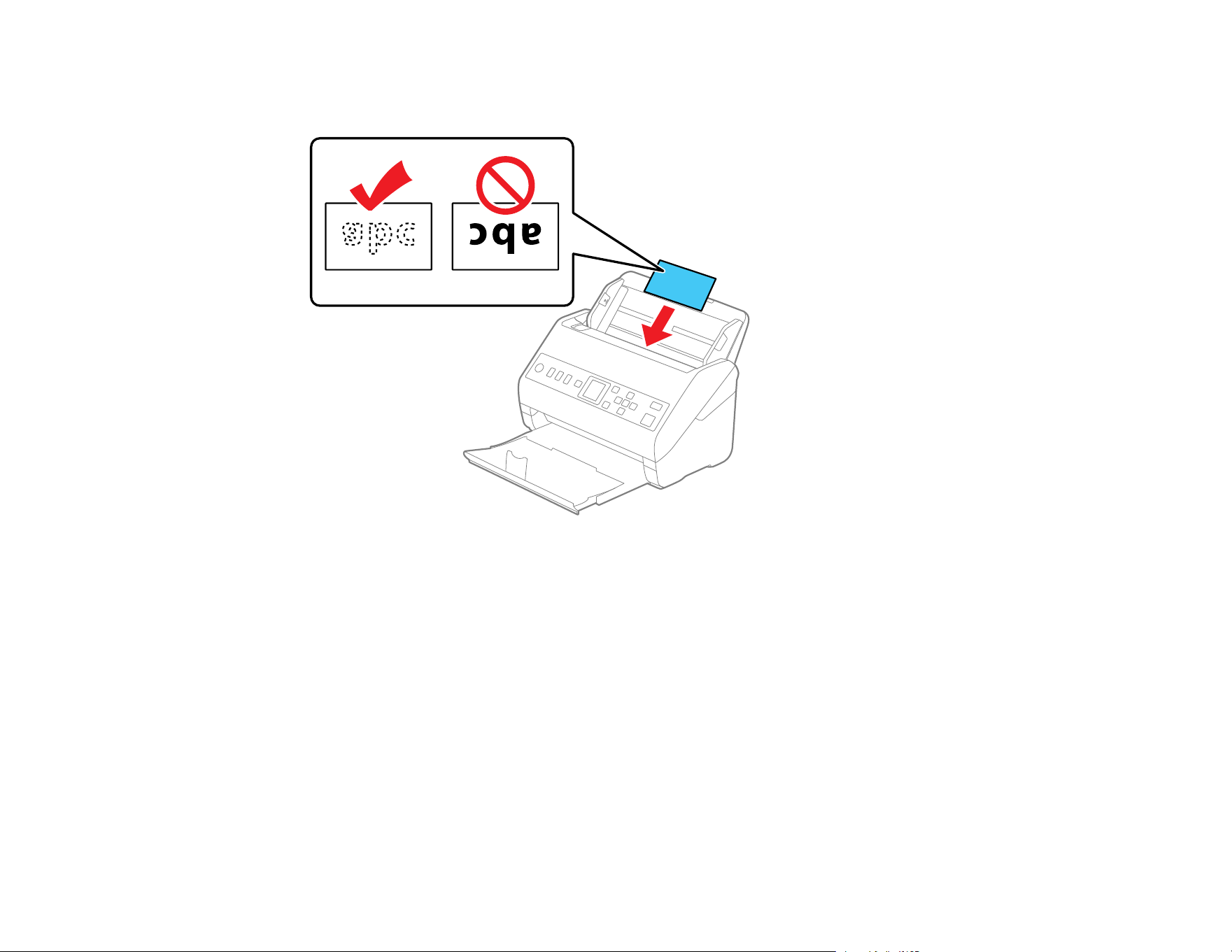
3. Load plastic or laminated cards (printed side down and long edge first) into the input tray
horizontally, and slide them in until they meet resistance.

45
Note: Do not load plastic cards vertically.
4. Slide the edge guides against the edges of the card.
46
5. Turn off the Detect Double Feed setting on the Main Settings tab in Epson Scan 2 when scanning
the cards.
Note: If you do not disable the Detect Double Feed setting and a double feed error occurs, remove
the plastic or laminated card from the input tray and reload it. Press the down arrow button on the
control panel, and select DFDS Function > On to disable the Detect Double Feed setting for the
next scan. The DFDS Function setting only disables the Detect Double Feed setting for one scan.
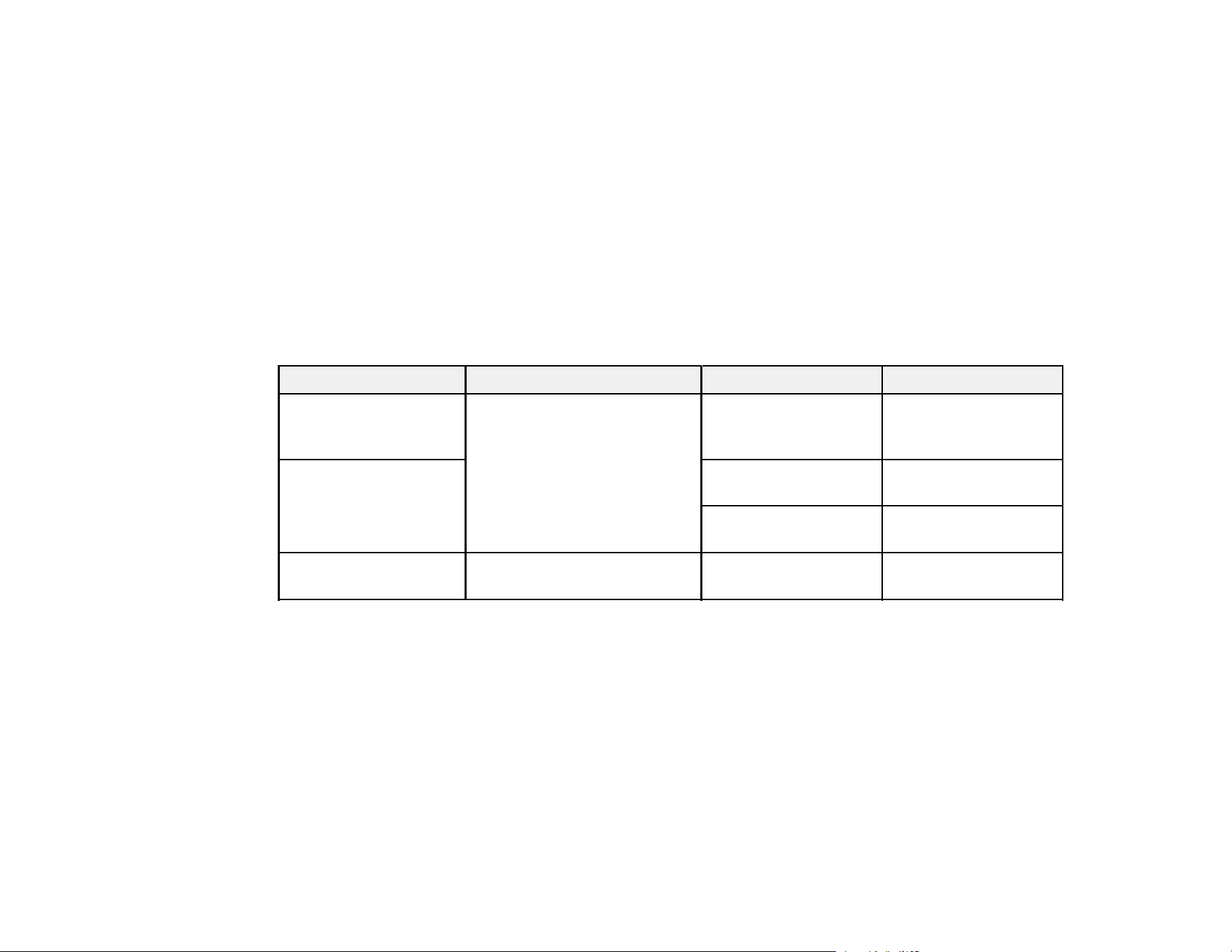
Plastic and Laminated Card Specifications
Parent topic: Loading Originals
Plastic and Laminated Card Specifications
You can load original plastic and laminated cards that meet these specifications in your scanner.
Paper type Paper size Paper thickness Loading capacity
Plastic cards,
embossed (ISO 7810
ID-1 compliant)
2.1 × 3.3 inches
(54 × 85.6 mm)
0.05 inch (1.24 mm)
maximum
1 card (horizontal)
Plastic cards, standard
(ISO 7810 ID-1
compliant)
0.03 inch (0.76 mm) to
0.04 inch (1.1 mm)*
5 cards (horizontal)
smaller than 0.03 inch
(0.76 mm)
5 cards (horizontal)
Laminated cards 4.7 × 5.9 inches (120
× 150 mm) or smaller
0.03 inch (0.76 mm)
maximum
1 card
* Resolution must be 300 dpi or less and slow mode disabled
Note: Plastic cards with glossy surfaces may not scan properly.
Parent topic: Loading Plastic and Laminated Cards in the Input Tray
Loading Special Originals
You can load photos or large, thick, or folded originals in the input tray using one or more carrier sheets.
You can also load envelopes. Make sure the originals meet the specifications for special originals before
loading them.
47
Note: Photos scanned using a document scanner may not have the same color depth as the original.
Use a flatbed photo scanner to achieve the best color reproduction of photos.
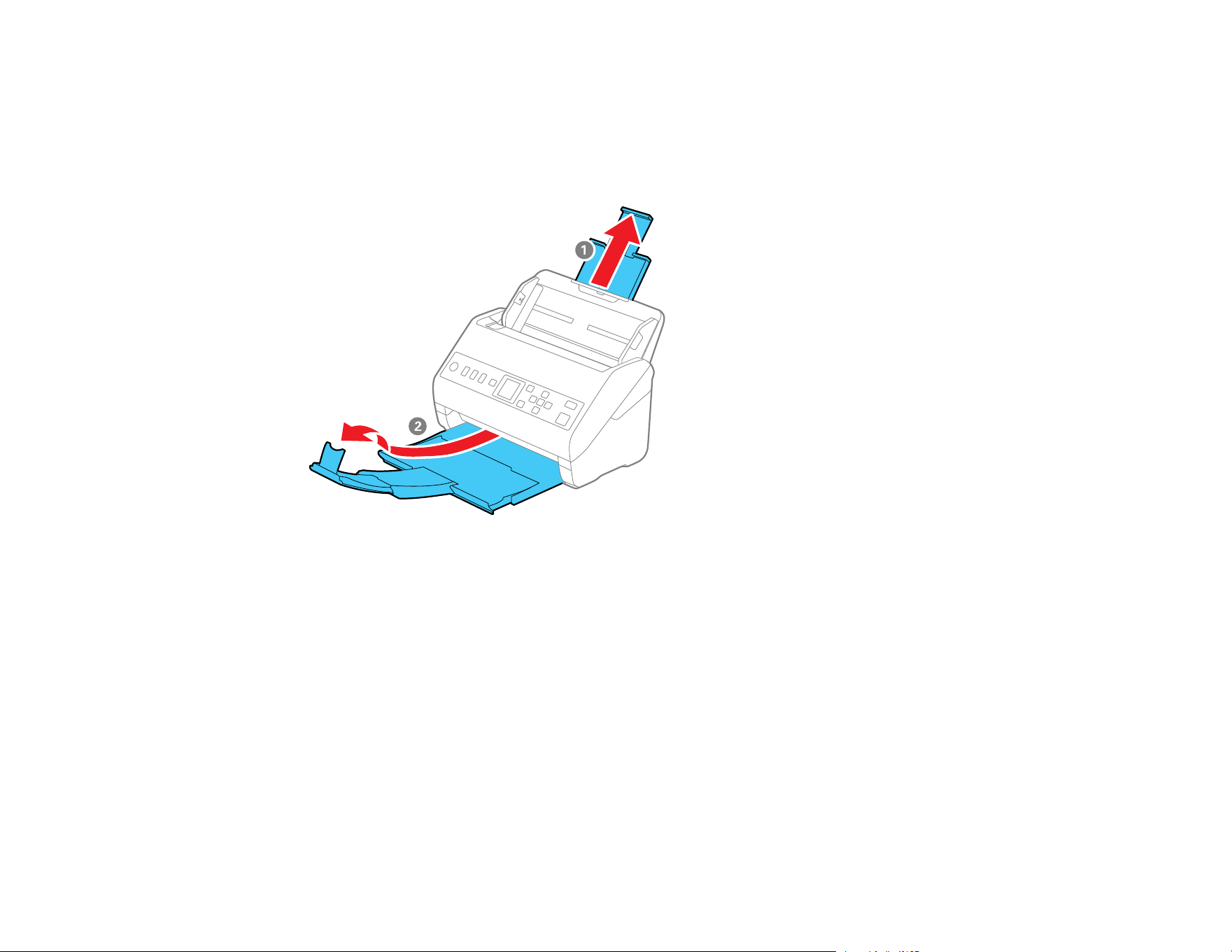
1. Pull up the input tray extension.
2. Pull out the output tray and its extension, and open the stopper.
48
Note: If you are loading originals that are 15.5 inches (393.8 mm) or longer, do not pull out the input
or output tray extensions and do not open the stopper.
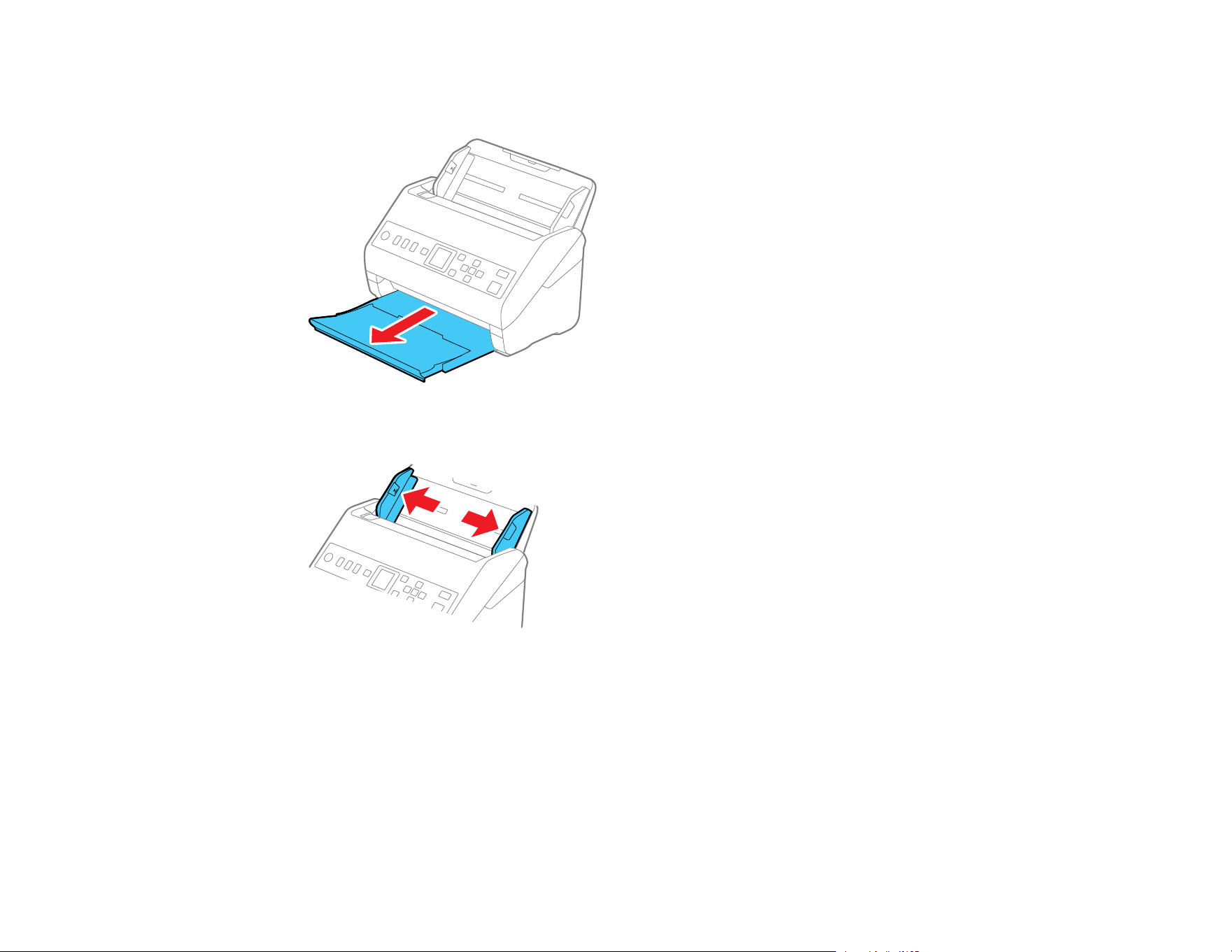
3. Slide the input tray edge guides all the way out.

49
4. Load envelopes vertically in the input tray with the printed side down and the flap facing as shown.
Slide in the envelopes until they meet resistance. Skip to step 7.
5. Do one of the following to load photos, or folded or irregularly shaped originals using a carrier sheet:
Note: Use only the carrier sheet designed for your scanner. The carrier sheet is automatically
recognized by the scanner by the two small rectangular holes on the front edge, as shown. Keep the
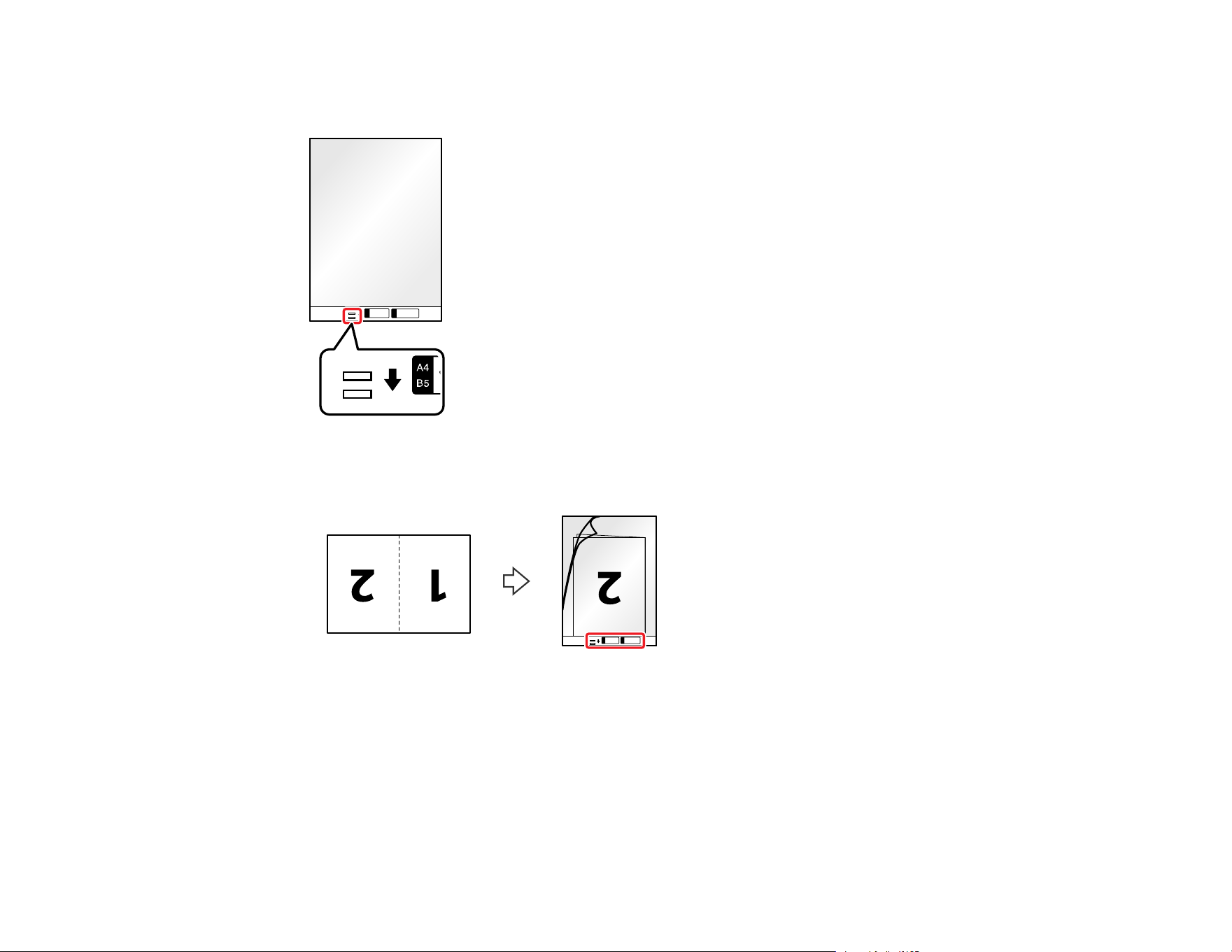
50
holes clean and not covered. Do not load a carrier sheet that has scratches on it or one that has
been scanned more than 3,000 times.
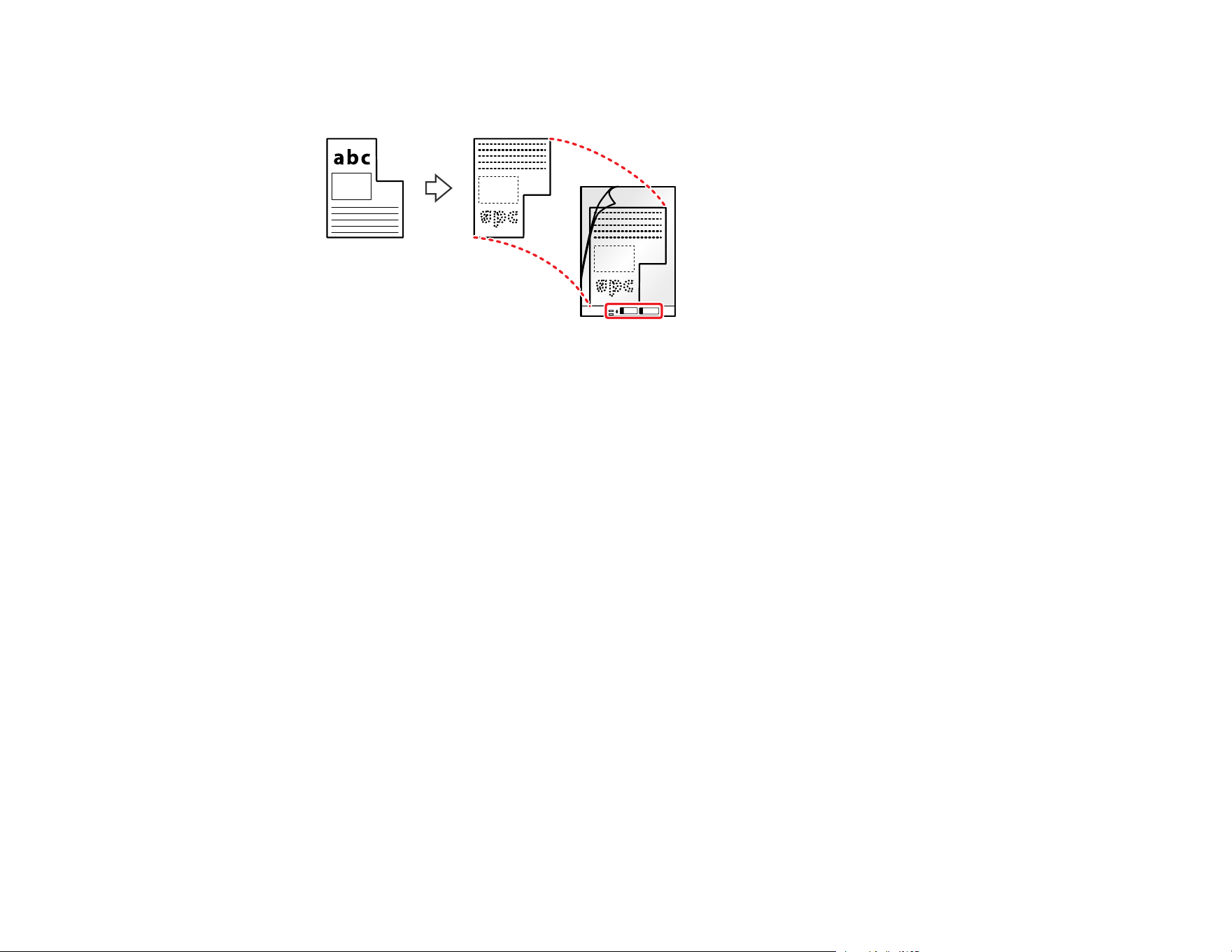
• For a Letter- or A4-size or larger original, fold it as shown and place it in the center of an optional
carrier sheet. Make sure the illustration on the front edge of the carrier sheet is facing up.
To scan both sides and stitch them together, set the appropriate setting in Epson Scan 2 or
Document Capture Pro (Windows).
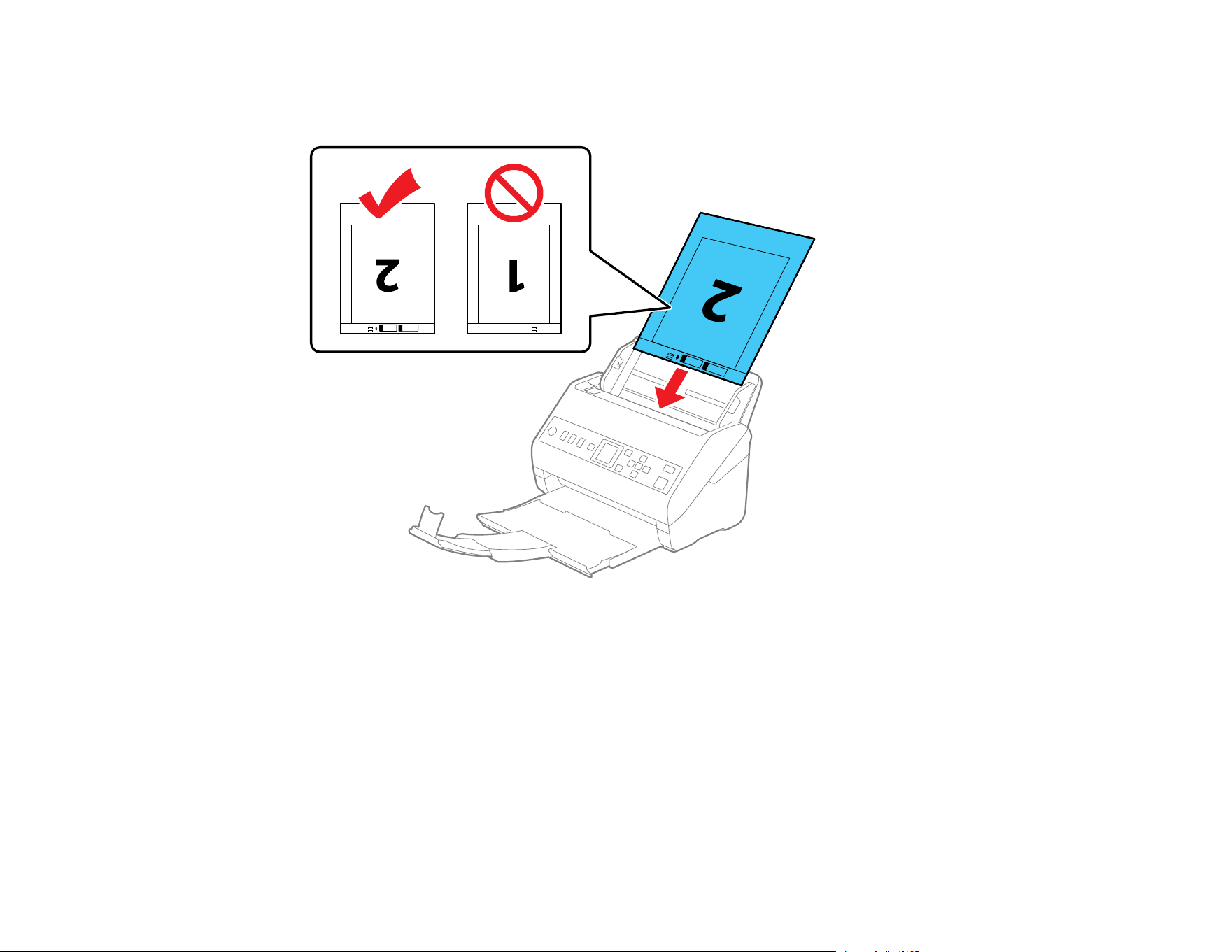
• For a photo or an irregularly shaped original, load it in the center of an optional carrier sheet with
the printed side face down. Make sure the illustration on the front edge of the carrier sheet is
facing up. If you are loading originals that are 11.7 inches (297 mm) or shorter, place the leading
51
edge of the original against the binding of the carrier sheet, as shown. Otherwise, the scanner
may not detect the correct length of the original.
Note: Photos scanned using a document scanner may not have the same color depth as the
original. Use a flatbed photo scanner to achieve the best color reproduction of photos.
52
6. Load the carrier sheet in the input tray as shown until it meets resistance.
Folded original

53
Photo or irregularly shaped original
7. Slide the edge guides against the edges of the envelope or carrier sheet.

54
8. Turn off the Detect Double Feed setting on the Main Settings tab in Epson Scan 2 when scanning
special originals.
Note: If the Document Size setting on the Main Settings tab in Epson Scan 2 is set to Auto Detect,
Paper Skew is automatically selected as the Correct Document Skew setting.
9. If necessary during scanning, adjust the position of the stopper on the output tray extension to fit the
ejected originals.
Note: If thicker paper does not eject properly or falls from the output tray, push in the output tray and
allow the originals to eject freely onto the surface below the scanner. If the scanned images are
affected by the originals ejecting below the scanner, try placing the scanner on the edge of a table
where the ejected originals can drop freely.
Special Original Specifications
Parent topic: Loading Originals
Special Original Specifications
You can load photos, envelopes, or large, thick, or folded originals that meet these specifications in your
scanner.
Note: Photos scanned using a document scanner may not have the same color depth as the original.
Use a flatbed photo scanner to achieve the best color reproduction of photos.
Paper type Paper size Paper thickness Loading capacity
Large originals (plain
paper, fine paper, or
recycled paper)
(load only in a carrier
sheet)
Up to this size: A3 (11.7 × 16.5
inches [297 × 420 mm])
0.012 inch (0.3 mm)
maximum
(excluding the
thickness of the carrier
sheet)
10 carrier sheets
Photos
(load only in a carrier
sheet)
Up to this size: A4 (8.3 × 11.7
inches [210 × 297 mm])
0.012 inch (0.3 mm)
maximum
(excluding the
thickness of the carrier
sheet)
10 carrier sheets

55
Paper type Paper size Paper thickness Loading capacity
Envelopes 4.49 × 6.38 inches (114
× 162 mm)
4.33 × 8.66 inches (110
× 220 mm)
0.015 inch (0.38 mm)
maximum
10 envelopes
Irregularly shaped
originals
(load only in a carrier
sheet)
Up to this size: A4 (8.3 × 11.7
inches [210 × 297 mm])
0.012 inch (0.3 mm)
maximum
(excluding the
thickness of the carrier
sheet)
10 carrier sheets
Note: Originals that are wider than 8.5 inches (215.9 mm) need to be folded in half.
Parent topic: Loading Special Originals

56
Wired Networking
See these sections to use your product on a wired network.
Network Security Recommendations
Wired Network Setup
Connecting the Product to the Network
Accessing the Web Config Utility
Network Security Recommendations
To help deter unauthorized access to your product over a network, you should protect your network
environment using appropriate security measures.
Security measures such as these can help deter threats such as loss of user data, use of telephone and
fax lines, and other intrusions:
• Connect your product only to a network protected by a firewall
Connecting your product directly to the Internet may leave it vulnerable to security threats. Instead,
connect it to a router or other network connection protected by a firewall. Your router may already
have a firewall set up by your Internet service provider; check with your ISP for confirmation. For best
results, set up and use a private IP address for your network connection.
• Change the default administrator password on your product
If your product has an option to set an administrator password, change the default administrator
password to deter access by unauthorized users to personal data stored on your product, such as IDs,
passwords, and contact lists.
Parent topic: Wired Networking
Wired Network Setup
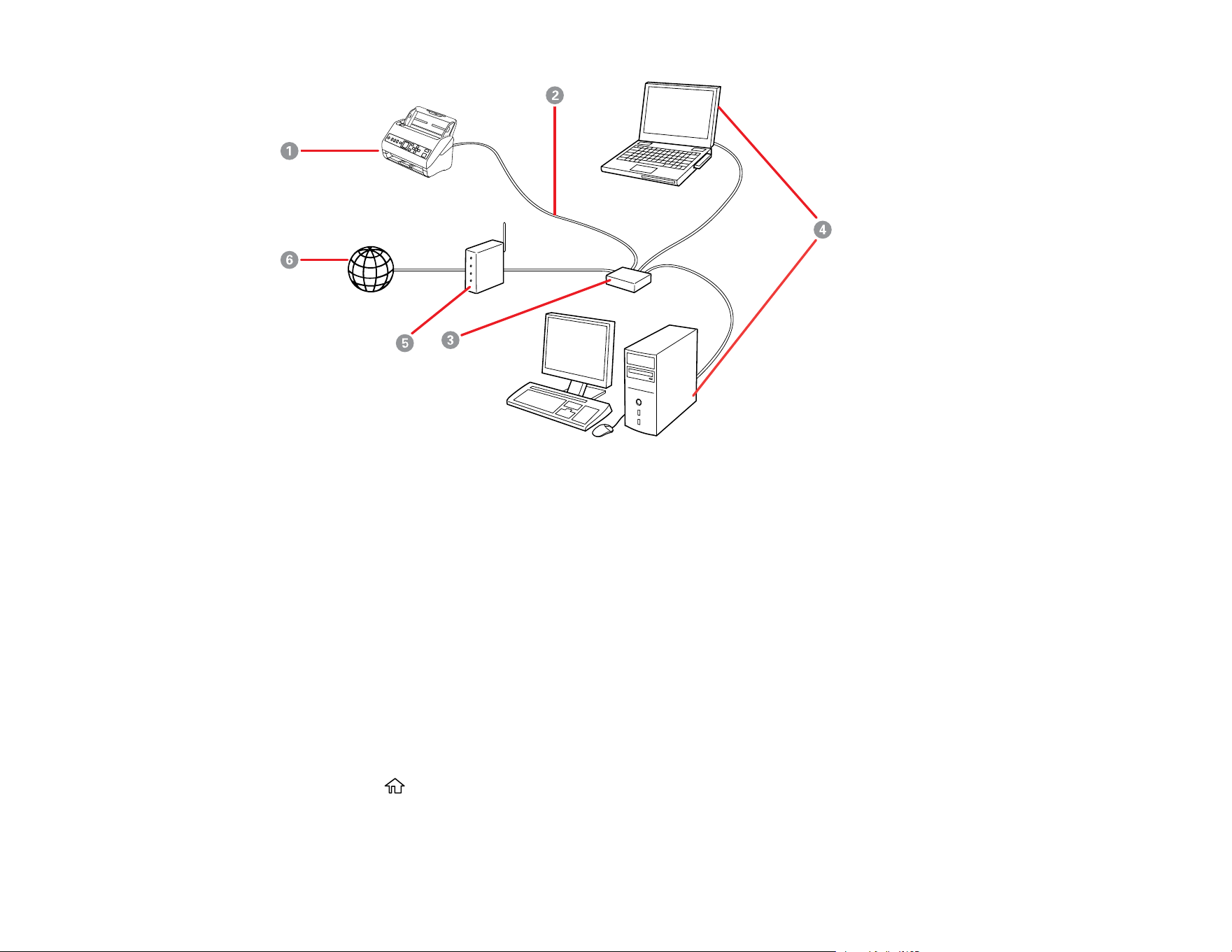
You can set up your scanner to communicate with your computer over a wired network by connecting it
to the router or hub using an Ethernet cable.
57
1 Epson scanner
2 Ethernet cable
3 Ethernet hub/switch
4 Computers with a wired network interfaces
5 Router
6 Internet
Parent topic: Wired Networking
Connecting the Product to the Network
To install your product on a network, follow the instructions on the Start Here sheet and install the
necessary software by downloading it from the Epson website. The installer program guides you through
network setup. You can check the network status using your product's control panel.
1. Press the home button, if necessary.
2. Use the arrow buttons to select Settings and press OK.
3. Use the arrow buttons to select Network Status and press OK.

58
Determining the Scanner's IP Address
Parent topic: Wired Networking
Determining the Scanner's IP Address
If you have multiple scanners on your network, you need to know the IP address of the scanner when
setting up network scanning.
1. Do one of the following to start EpsonNet Config:
• Windows 10: Click > EpsonNet > EpsonNet Config.
• Windows 8.x: Navigate to the Apps screen and select EpsonNet Config.
• Windows (other versions): Click or Start, and select All Programs or Programs. Select
EpsonNet > EpsonNet Config > EpsonNet Config.
• Mac: Open the Applications folder and select Epson Software > EpsonNet > EpsonNet Config
> EpsonNet Config.
2. Locate your scanner in the list and write down the IP address.
Parent topic: Connecting the Product to the Network
Accessing the Web Config Utility
You can select your product's network settings and confirm its operating status using a web browser.
You do this by accessing your product's built-in Web Config utility from a computer or other device that is
connected to the same network as your product.
Note: For more information on administration settings, see the Administrator's Guide.
1. Check your network status.
2. Note your product's IP address.
3. On a computer or other device connected to the same network as your product, open a web
browser.
4. Enter your product's IP address into the address bar.
You see the available Web Config utility options.
Registering Presets or Quick Send Buttons
Parent topic: Wired Networking

59
Registering Presets or Quick Send Buttons
You can register up to 12 frequently used scanning settings as Presets. Settings registered to preset
numbers 1 through 3 are assigned to the Quick Send buttons on the product.
Note: For more information on administration settings, see the Administrator's Guide.
1. Access the Web Config Utility
2. Login as an administrator to change the scanner settings.
Note: If Administrator Logout is displayed at the top-right of the screen, you are already logged in
as an administrator.
3. Select Presets on the Scan tab.
4. Select the Presets number you want to configure, and click Edit.
5. Select Type, and click Next.
6. Enter the name you want to display, and then click Select from Contacts or Enter Destination to
set the destination information. You can enter the email address manually to add to the destination.
7. Select the scan settings, as necessary.
8. Click OK to apply the settings.
Parent topic: Accessing the Web Config Utility

60
Scanning
You can scan your originals and save them as digital files.
Starting a Scan
Scanning with Simple Scan in Document Capture Pro - Windows
Scanning with Job Scan in Document Capture Pro - Windows
Scanning with Document Capture - Mac
Scanning in Epson Scan 2
Scan Resolution Guidelines
Scanning Special Projects
Starting a Scan
After placing your originals on your product for scanning, start scanning using one of these methods.
Note: You can also scan using Document Capture Pro (Windows) or Document Capture (Mac).
Scanning Using the Product Control Panel
Starting a Scan Using the Epson Scan 2 Icon
Starting a Scan from a Scanning Program
Parent topic: Scanning
Scanning Using the Product Control Panel
You can use the following methods to save scanned images from the product's control panel.
• Quick Send buttons or Presets
You can save the scanned image to a network folder, or send the image by e-mail using the
Quick Send buttons or Presets. (You can configure the settings in Web Config.)
• Computer
You can save the scanned image to a computer connected to the scanner.
• Web Services for Devices (WSD)
You can use the WSD feature to save the scanned image to a computer connected to the scanner.
Setting the Operation Mode on the Product Control Panel

61
Scanning Using the Quick Send Buttons
Scanning Using Presets
Scanning Originals to the Computer
Scanning Using Web Services for Devices (WSD) - Windows
Adding and Assigning Scan Jobs with Document Capture Pro - Windows
Adding and Assigning Scan Jobs with Document Capture - Mac
Parent topic: Starting a Scan
Setting the Operation Mode on the Product Control Panel
Before scanning, set the operation mode on the control panel.
1. Make sure you installed the product software and connected the product to your computer or
network.
2. Press the home button, if necessary.
3. Use the arrow buttons to select Settings and press OK.
4. Select Document Capture Pro and press OK.
5. Select Operation Mode and press OK.
6. Choose from the following options:
• Select Client Mode if your product is connected to the network with Document Capture Pro or
Document Capture software running on a Windows or macOS Client PC.
• Select Server Mode if your product is connected to the network with Document Capture Pro
Server (DCPS) running on a Microsoft-based Server OS. You need to enter the server address in
this mode.
7. Press OK to return to the Settings menu.
Parent topic: Scanning Using the Product Control Panel
Scanning Using the Quick Send Buttons
You can use the Quick Send buttons to save the scanned image to a network folder, or send the
image by email using pre-configured settings.
1. Make sure you installed the product software and connected the product to your computer or
network.
2. Place your original on the product for scanning.
3. Press any of the Quick Send buttons.

62
The Quick Send screen is displayed, and configured destinations are listed.
Note: You can also display the Quick Send screen by selecting Quick Send on the home screen.
4. Press the Quick Send button for the destination to which you want to send your scans.
Parent topic: Scanning Using the Product Control Panel
Scanning Using Presets
You can register up to 12 frequently used scanning settings and use them to scan images.
1. Make sure you installed the product software and connected the product to your computer or
network.
2. Place your original on the product for scanning.
3. Press the home button, if necessary.
4. Use the arrow buttons to select Preset and press OK.
5. Use the arrow buttons to select the preset you want to use and press OK.
6. Press the start button to start scanning using the selected preset.
Parent topic: Scanning Using the Product Control Panel
Scanning Originals to the Computer
You can scan an original from the control panel using jobs created in Document Capture Pro or
Document Capture. Set the operation mode on the control panel before scanning.
1. Make sure you installed the product software and connected the product to your computer or
network.
Note: Restart your computer after installing the product software to enable scanning from the control
panel.
2. Place your original on the product for scanning.
3. Press the home button, if necessary.
4. Use the arrow buttons to select Computer and press OK.
5. Select the computer on which you created the jobs in Document Capture Pro or Document Capture.
Note: If the scanner is connected via USB or the operation mode is set to Server, you do not need
to select a computer.

63
6. On the Select Job screen, use the arrow buttons to select the job you want to use.
7. If you want to change the scan settings, press the down arrow and use the arrow buttons to select
from the following options:
• To slow down the scanning speed, set the Slow setting to On.
• To skip double feed detection when scanning originals such as envelopes or plastic cards, set the
DFDS Function setting to On.
• To stop scanning when a double feed is detected, select Double Feed Stop Timing and press
OK. Use the arrow buttons to select a timing option.
• To stop scanning when a paper feed error is detected or the original is fed askew, select Paper
Protection and press OK. Use the arrow buttons to select the setting you want to use.
Note: Turning this function on will not always prevent damage to your originals.
• To detect dirt on the glass surface inside the product, select Detect Glass Dirt and press OK. Use
the arrow buttons to select the setting you want to use.
• To detect a double feed error when scanning multiple originals, set the Ultrasonic Double Feed
Detection setting to On.
• To set a timeout when using the Automatic Feeding Mode, select Automatic Feeding Mode
Timeout and select the settings you want to use.
Note: This setting is available when you scan from the Quick Send buttons or Presets.
8. Press the OK button to view the job settings.
9. Use the arrow buttons to scroll through the job settings and make any desired changes.
Note: If Disable job setting changes on control panel is set to On in Document Capture Pro or
Document Capture, you cannot change the settings.
10. Press the start button to start scanning.
Parent topic: Scanning Using the Product Control Panel
Scanning Using Web Services for Devices (WSD) - Windows
You can scan originals to a computer from the product control panel using WSD (Web Services for
Devices). The Computer (WSD) function lets you manage network scanning in Windows 10, Windows
8.x, or Windows 7.

64
Note: To use this feature on Windows 7, you must first set up WSD on the computer. See Windows help
for instructions.
1. Make sure you installed the product software and connected the product to your computer or
network.
2. Place your original on the product for scanning.
3. Press the home button, if necessary.
4. Use the arrow buttons to select WSD and press OK.
5. Select a computer.
6. Press the start button to start scanning.
The scanned image is transferred to the selected computer.
Parent topic: Scanning Using the Product Control Panel
Adding and Assigning Scan Jobs with Document Capture Pro - Windows
You can add scan jobs that contain specific scan settings and use the jobs when you scan from your
product control panel or the Job Scan option in Document Capture Pro. You can save up to 30 scan
jobs.
Note: Settings may vary depending on the software version you are using. Click the Help icon in
Document Capture Pro at any time for more information.
1. Do one of the following to start Document Capture Pro:
• Windows 10: Click and select Epson Software > Document Capture Pro.
• Windows 8.x: Navigate to the Apps screen and select Document Capture Pro.
• Windows (other versions): Click or Start, and select All Programs or Programs. Select
Epson Software > Document Capture Pro.
You see the Document Capture Pro window.
2. Select the Job Scan tab.

65
You see a window like this:
3. Click the Job Settings button.
You see a window like this:
4. To add a scan job, click the New Job icon.
66
5. Enter a name for the new job, and select any settings as necessary from the following options:
• Scan: select the size, color, or resolution
• Save: select the file name, file type, or destination folder
• Index: enable the index setting and choose output options for an index file
• Send: select the destination for the scanned file, or choose to email or print the file
• Confirm/Test: select the job button icon and color, choose display settings, and run a test scan if
necessary
6. Click Save when you are finished.
The new job appears in the Job Scan window.
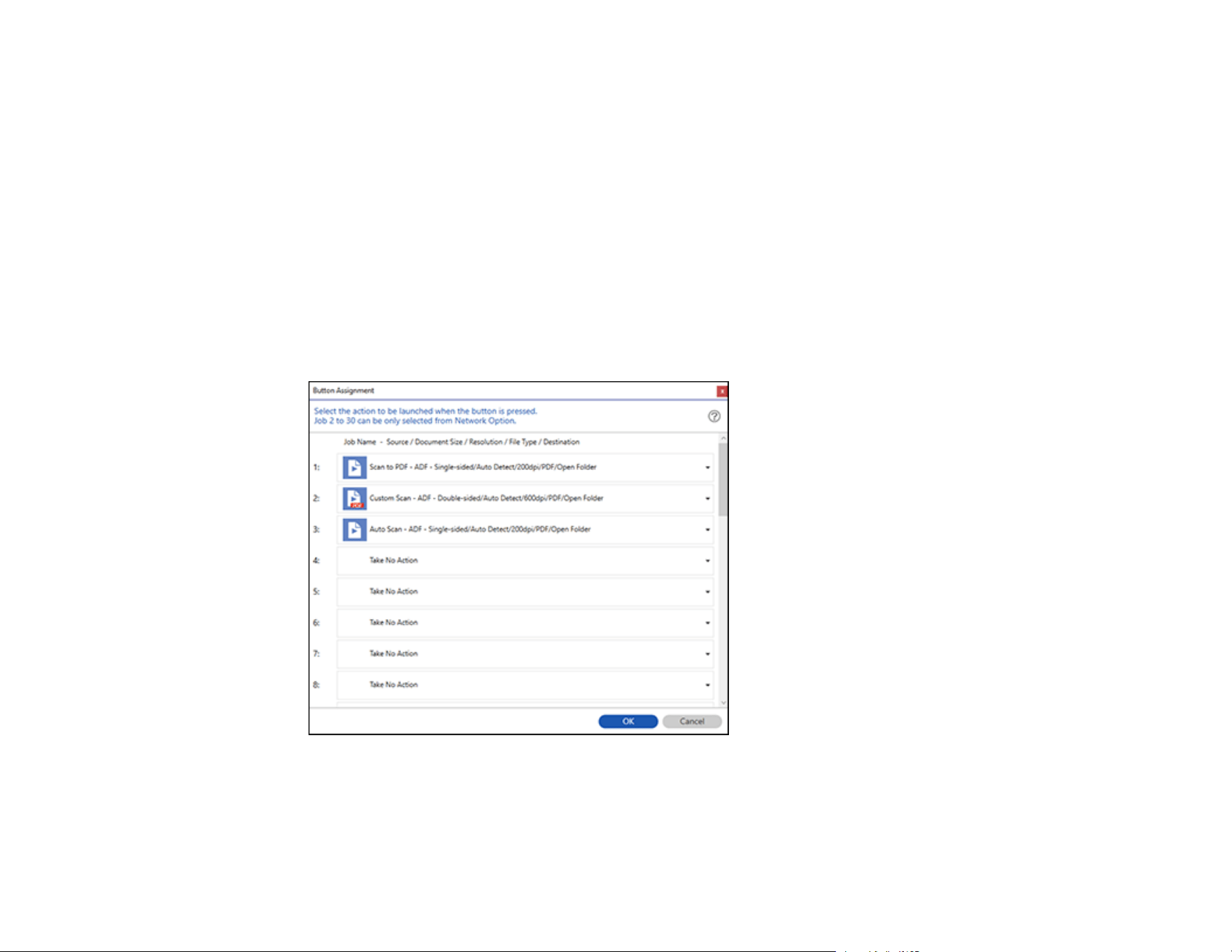
7. To assign a scan job to the product control panel, click the Button Assignment icon.
You see a screen like this:

67
8. Select the jobs that you want to assign to the product control panel using any of the pull-down
menus.
Note: The number of pull-down menus available may vary, depending on your product and any
connected options.
9. Click OK, then click Back.
You can now use the added scan jobs when you scan from the product control panel.
Parent topic: Scanning Using the Product Control Panel
Adding and Assigning Scan Jobs with Document Capture - Mac
You can add scan jobs that contain specific scan settings and use the jobs when you scan from your
product control panel or Document Capture. You can save up to 30 scan jobs.
Note: Settings may vary depending on the software version you are using. See the Help menu in
Document Capture at any time for more information.
1. Start Document Capture on a computer connected to the product.
2. Click the Manage Job icon from the toolbar at the top of the window.
You see a window showing the current scan job list.
3. To add a scan job, click the + icon, enter a name for the new job, select settings as necessary, and
click OK.
You can now use the new scan job when you scan with Document Capture.
4. To assign a scan job to the product control panel, click the settings icon at the bottom of the
window and click Event Settings.
5. Select the jobs that you want to assign to the product control panel using any of the pull-down
menus.
Note: The number of pull-down menus available may vary, depending on your product and any
connected options.
6. Click OK, then click OK again.
You can now use the added scan jobs when you scan from the product control panel.
Parent topic: Scanning Using the Product Control Panel

68
Starting a Scan Using the Epson Scan 2 Icon
You can start the Epson Scan 2 program to select scan settings, scan, and save the scanned image to a
file.
Note: If you are using your Epson product with the Windows 10 S operating system, you cannot use the
software described in this section. You also cannot download and install any Epson product software
from the Epson website for use with Windows 10 S; you must obtain software only from the Windows
Store.
• Windows 10: Click and select EPSON > Epson Scan 2.
• Windows 8.x: Navigate to the Apps screen and select Epson Scan 2.
• Windows (other versions): Click or Start, and select All Programs or Programs. Select EPSON
> Epson Scan 2 > Epson Scan 2.
• Mac: Open the Applications folder, open the Epson Software folder, and select Epson Scan 2.
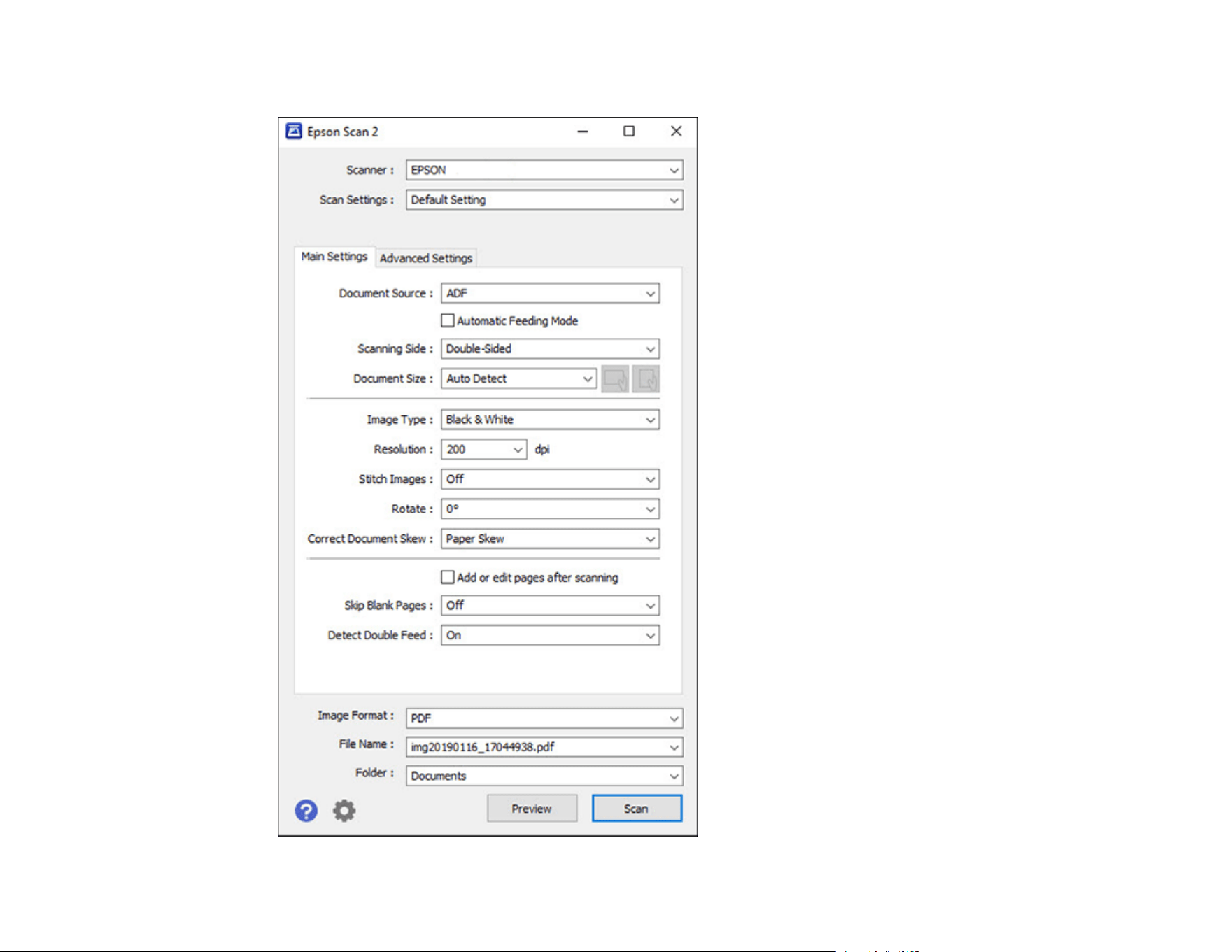
69
You see an Epson Scan 2 window like this:

70
Parent topic: Starting a Scan
Starting a Scan from a Scanning Program
You can start Epson Scan 2 from a TWAIN-compliant scanning program to select scan settings, scan,
and open the scanned image in the program.
Note: If you are using your Epson product with the Windows 10 S operating system, you cannot use the
software described in this section. You also cannot download and install any Epson product software
from the Epson website for use with Windows 10 S; you must obtain software only from the Windows
Store.
1. Open your scanning program and select its scanning option. (See your scanning program help for
instructions.)
2. Select your product.
Note: In certain programs, you may need to select your product as the "source" first. If you see a
Select Source option, choose it and select your product. With Windows, do not select a WIA option
for your product; not all scan functions will be available.
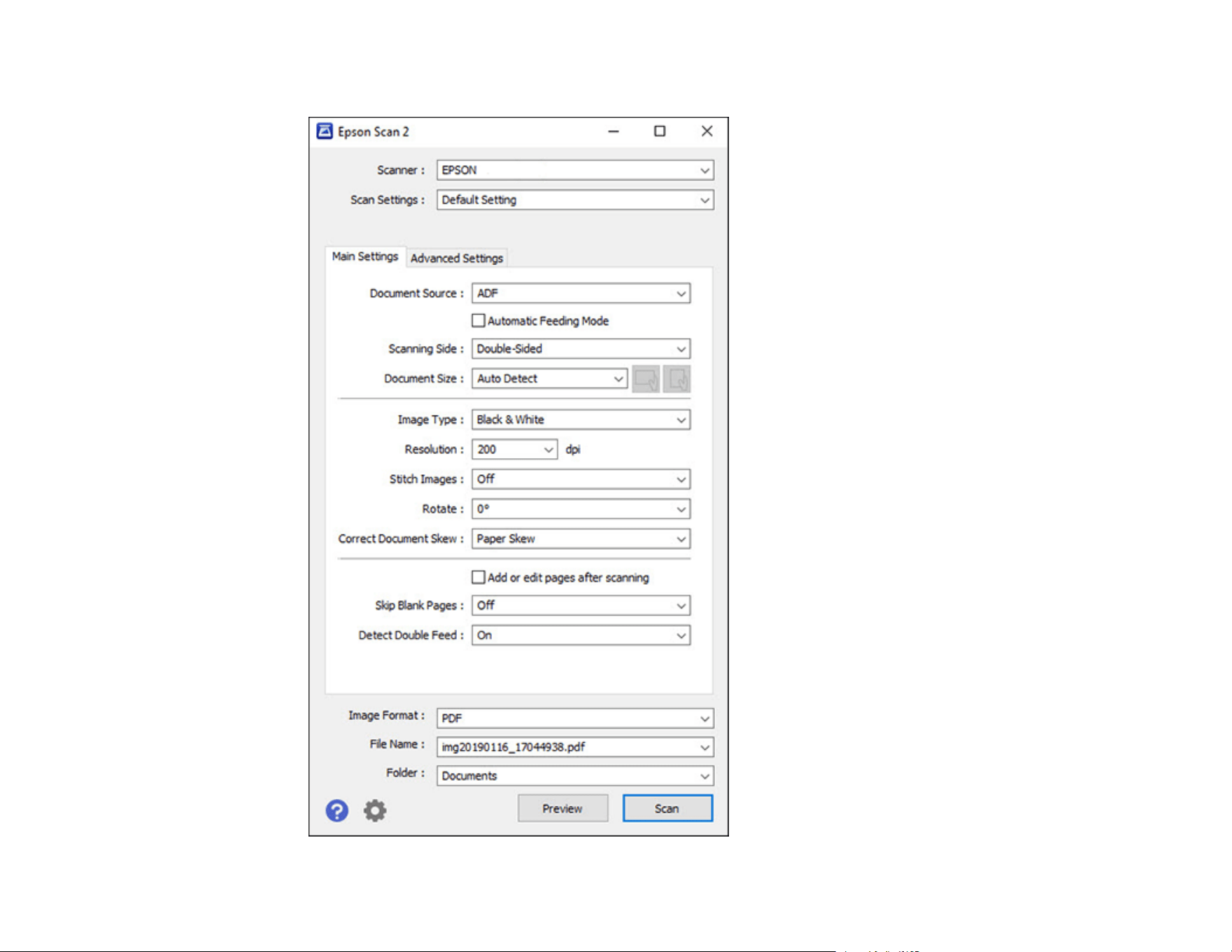
71
You see an Epson Scan 2 window like this:
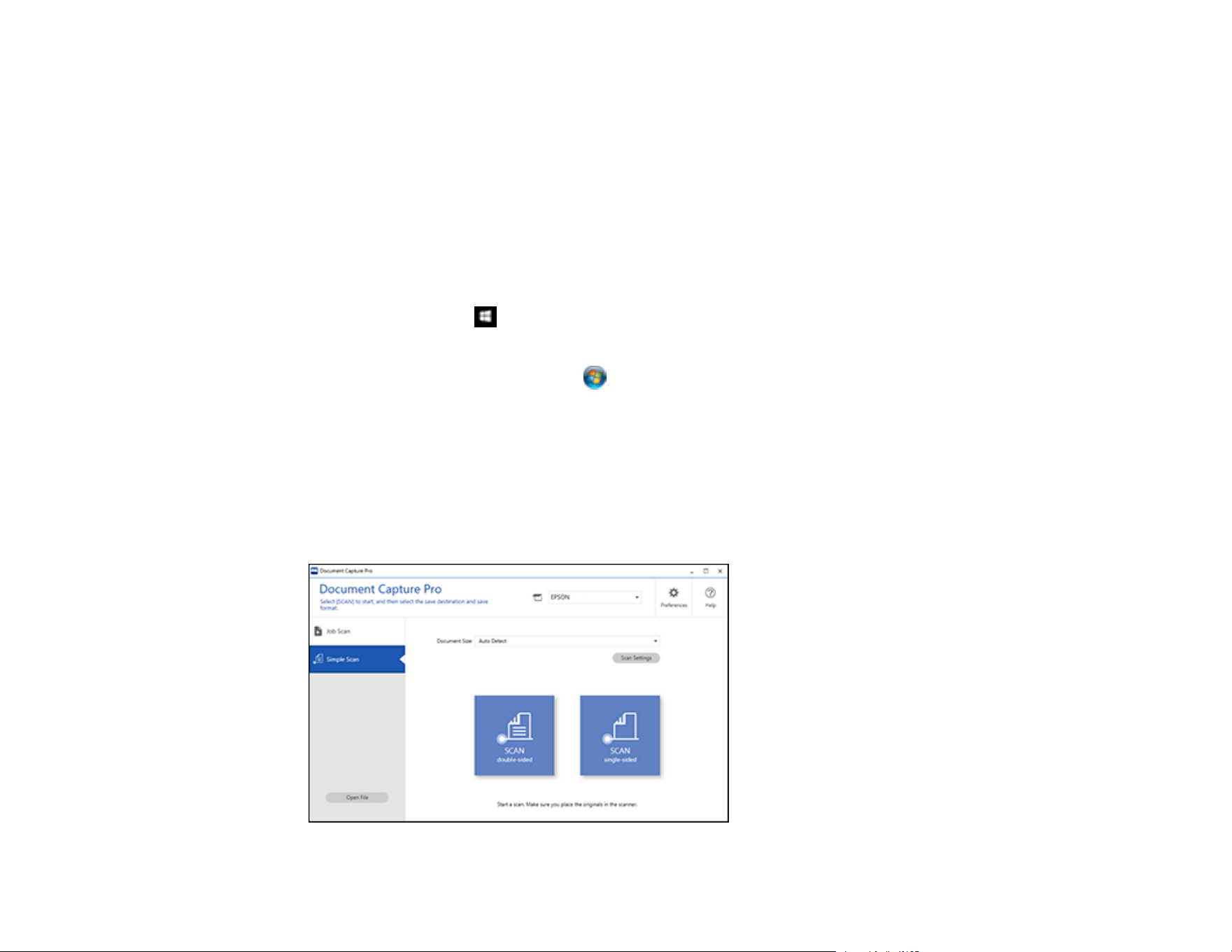
72
Parent topic: Starting a Scan
Scanning with Simple Scan in Document Capture Pro - Windows
You can use the Simple Scan option in Document Capture Pro to quickly scan an original.
Note: Settings may vary depending on the software version you are using. Click the Help icon in
Document Capture Pro at any time for more information.
1. Load your original in the product.
2. Do one of the following to start Document Capture Pro:
• Windows 10: Click and select Epson Software > Document Capture Pro.
• Windows 8.x: Navigate to the Apps screen and select Document Capture Pro.
• Windows (other versions): Click or Start, and select All Programs or Programs. Select
Epson Software > Document Capture Pro.
You see the Document Capture Pro window.
Note: You may need to select your scanner from the list, if necessary.
3. Select the Simple Scan tab.
You see a window like this:

73
4. Select the size of your original from the Document Size menu.
5. If you want to change specific settings for the scan, click the Scan Settings button. Change any of
the settings as necessary and click OK. For additional settings, click the Detailed Settings button
on the Scan Settings screen.
6. Do one of the following:
• To scan the front side of an original, select SCAN single-sided.
• To scan both sides of an original, select SCAN double-sided.
Your product scans the original and the image appears in the Edit Scanned Results window.
7. Review and edit the scanned image as necessary and click Next when you are finished.
8. Select a destination for the scanned image, change any settings as necessary, and click Complete.
Note: If you are sending the scanned image to a server or cloud destination, you need to enter your
login information.
Parent topic: Scanning
Scanning with Job Scan in Document Capture Pro - Windows
You can create scan jobs in Document Capture Pro and use them to quickly scan originals and save
them to various destinations.
Note: Settings may vary depending on the software version you are using. Click the Help icon in
Document Capture Pro at any time for more information.
1. Load your original in the product.
2. Do one of the following to start Document Capture Pro:
• Windows 10: Click and select Epson Software > Document Capture Pro.
• Windows 8.x: Navigate to the Apps screen and select Document Capture Pro.
• Windows (other versions): Click or Start, and select All Programs or Programs. Select
Epson Software > Document Capture Pro.
You see the Document Capture Pro window.
Note: You may need to select your scanner from the list, if necessary.
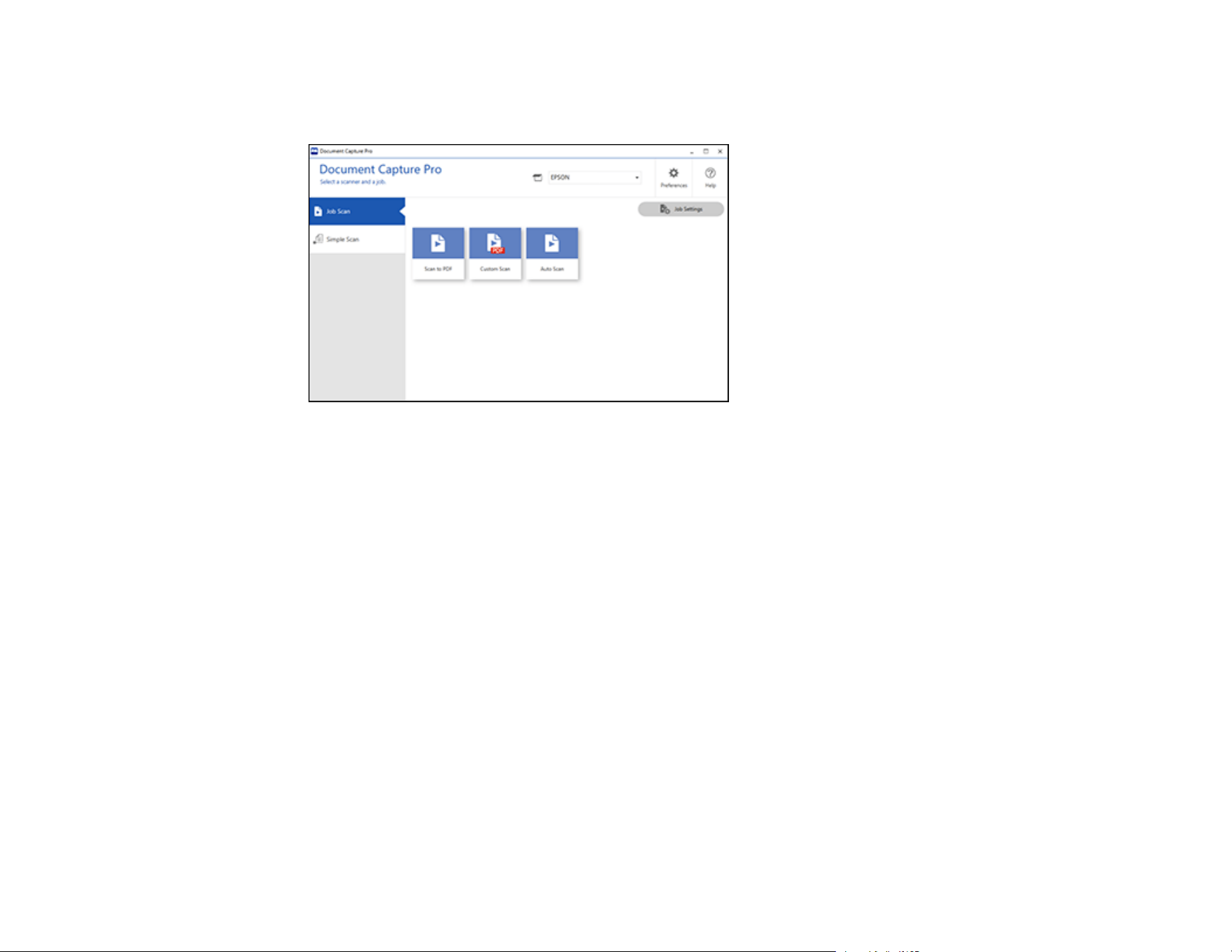
74
3. Select the Job Scan tab.
You see a window like this:
4. Select one of the scan jobs (or click Job Settings to create a new scan job).
The product scans the loaded original and saves it according to the job settings.
5. Depending on the settings for the scan job you selected, you may be able to view and edit the pages
before saving them. If so, click Complete when finished.
The scanned image is saved according to the job settings.
Parent topic: Scanning
Scanning with Document Capture - Mac
When you scan with Document Capture, the program automatically saves your scanned file on your
computer in the folder you specify. You can select settings, preview, and change the scanned file
settings as necessary.
Note: Settings may vary depending on the software version you are using. See the Help menu in
Document Capture at any time for more information.
1. Load your original in the product.
2. Open the Applications folder, open the Epson Software folder, and select Document Capture.
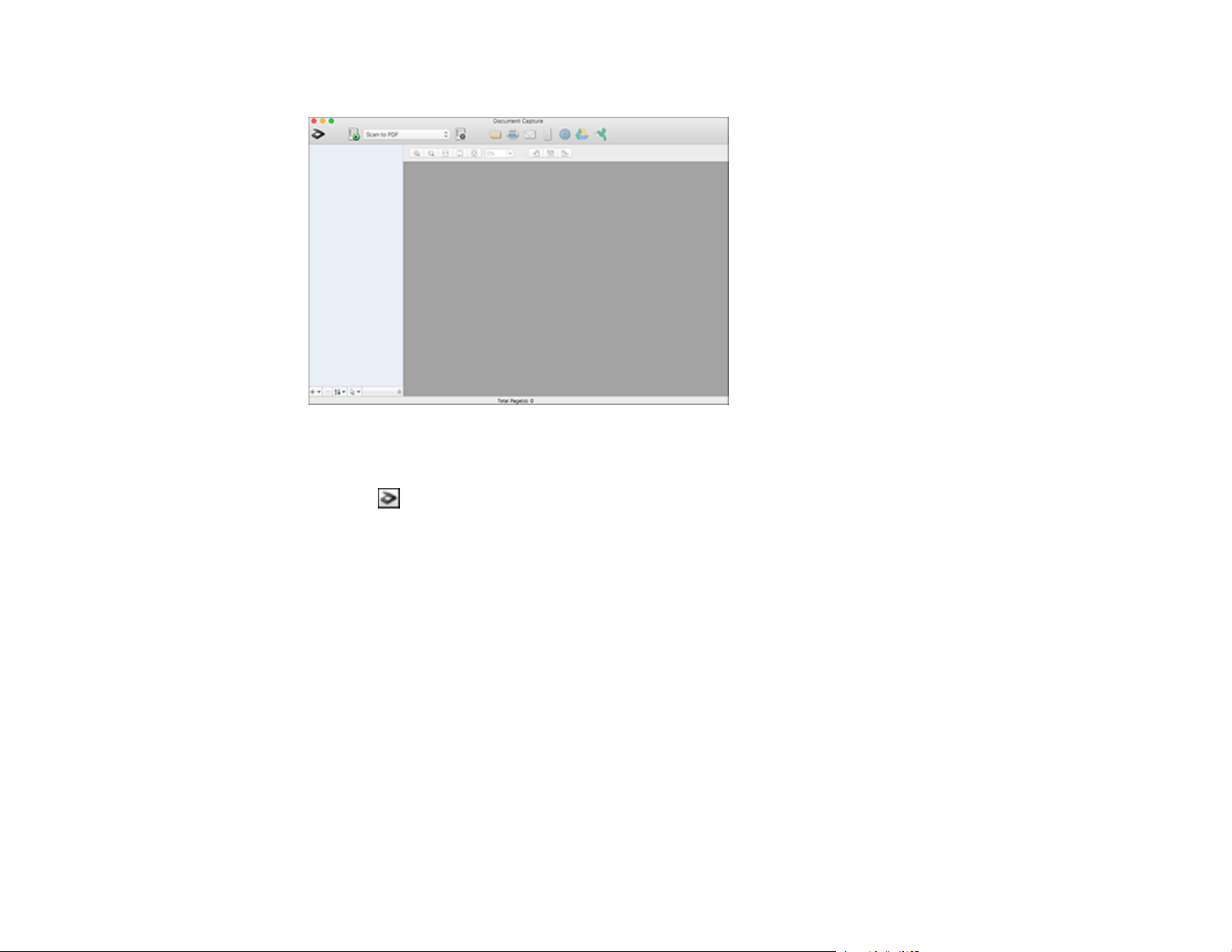
75
You see a window like this:
Note: You may need to select your scanner from the scanner list.
3. Click the scan icon.
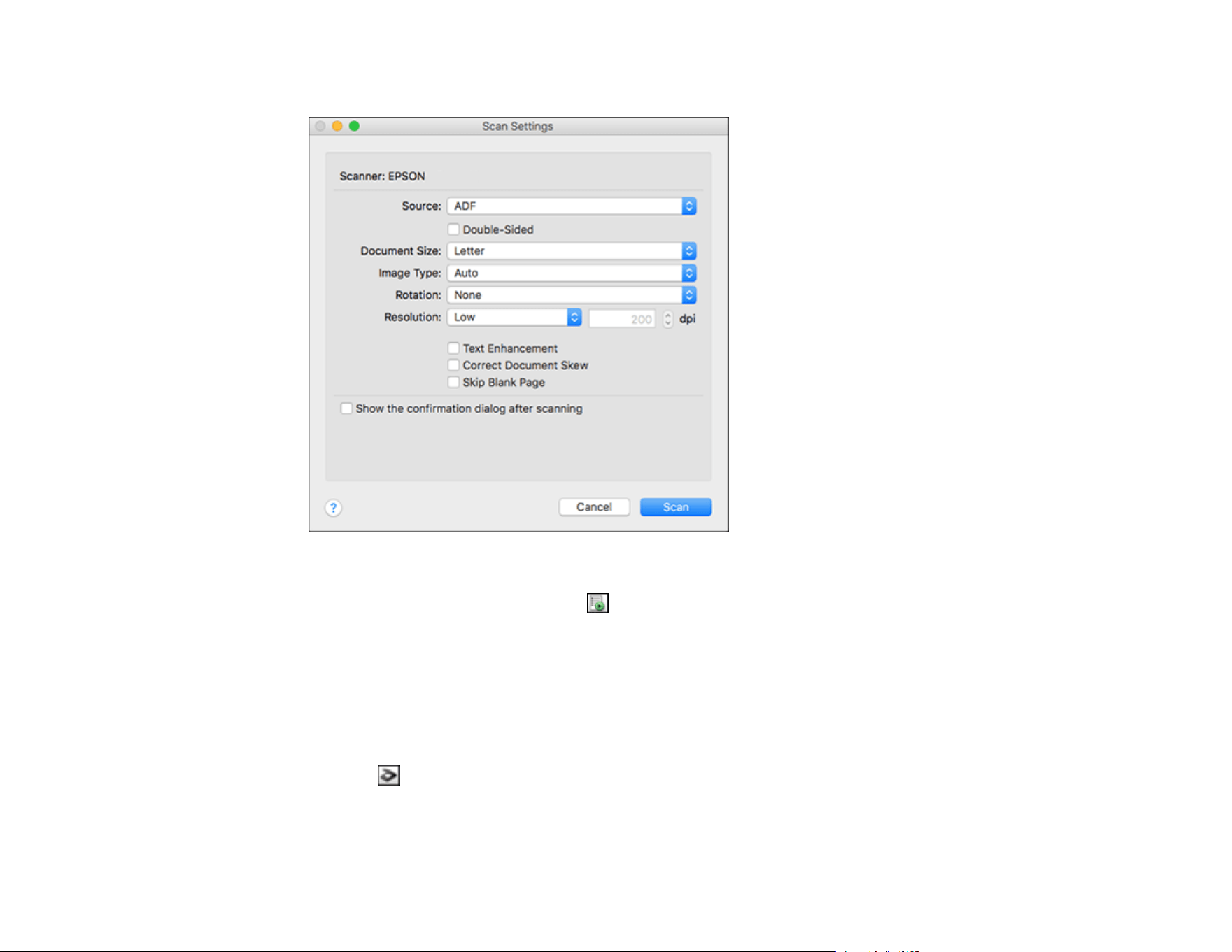
76
You see a window like this:
Note: If you want to use a scan job that you created instead, select it from the Job list in the
Document Capture window, click the Start Job button, and skip the rest of these steps.
4. Select any displayed scan settings you want to use.
Note: See the Help information in Document Capture for details.
5. If you want to select detailed scan settings, close the Scan Settings window, open the Scan menu at
the top of the Mac desktop, and select Displays the EPSON Scan Setup Screen.
6. Click the Scan icon and select any detailed scan settings you want to use from the Epson Scan 2
window.
7. Click Scan.
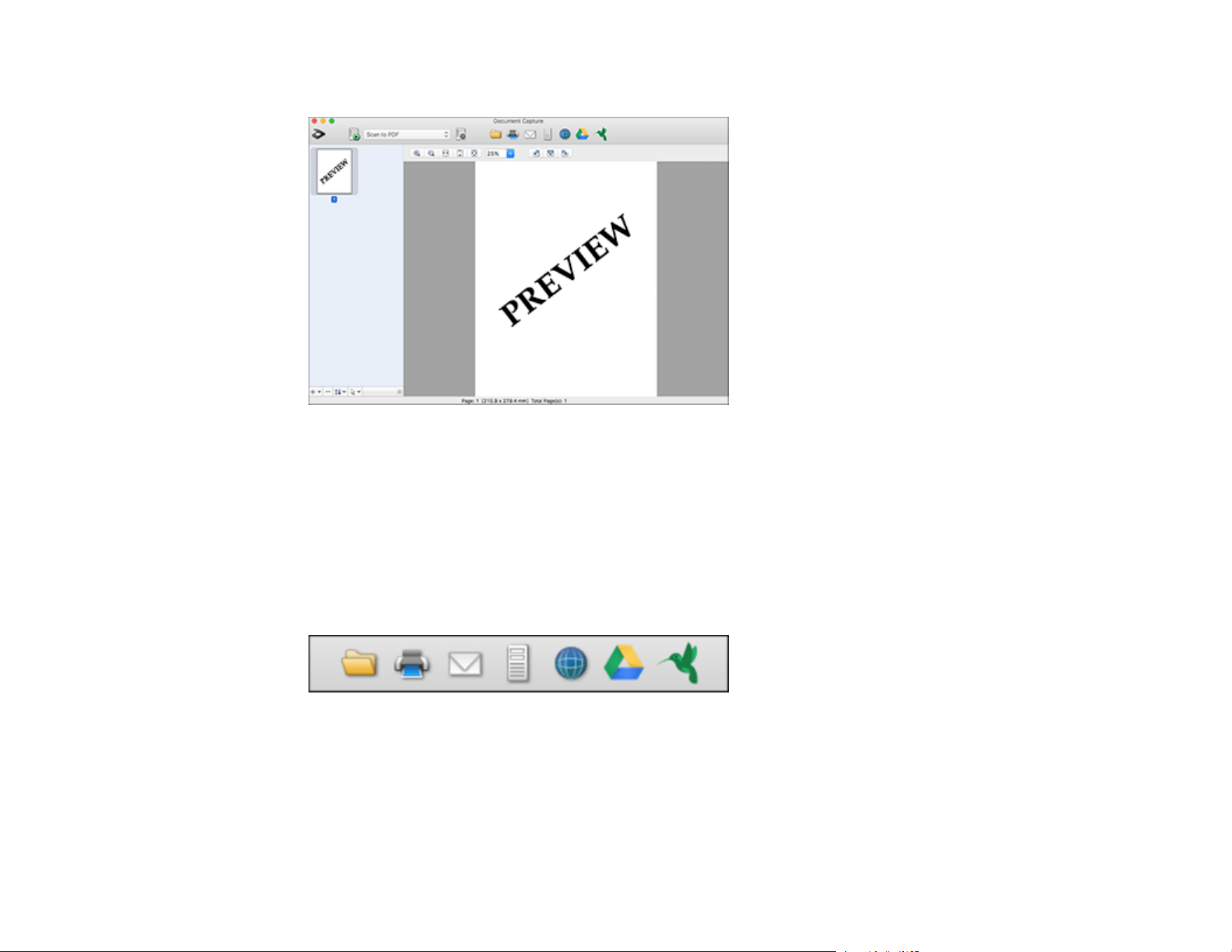
77
You see a preview of your scan in the Document Capture window.
Note: You may have to close the Epson Scan 2 window to view your scan in the Document Capture
window.
8. If you would like to scan additional originals and add them to the current captured images, click the +
icon, select Acquire from Scanner, and repeat the previous steps.
9. Check the scanned images and edit them as necessary.
10. Click one of the destination icons to choose where to send your scanned files. (If you cannot see all
of the icons below, click the arrow next to the icons.) Change any settings as necessary.
Note: If you are sending the scanned image to a server or cloud destination, you need to enter your
login information.
11. Depending on the destination you chose, click OK or Send to complete the operation.
Parent topic: Scanning

78
Related tasks
Loading Originals in the Input Tray
Scanning in Epson Scan 2
Scanning in Epson Scan 2
Epson Scan 2 gives you access to basic and advanced scanning features. You can scan your document
and save the scanned image in various file formats in your operating system's Documents or My
Documents folder, or open it in your scanning program. You can preview the scanned image and select
or change settings as necessary.
1. Load your original in the product.
2. Start Epson Scan 2.
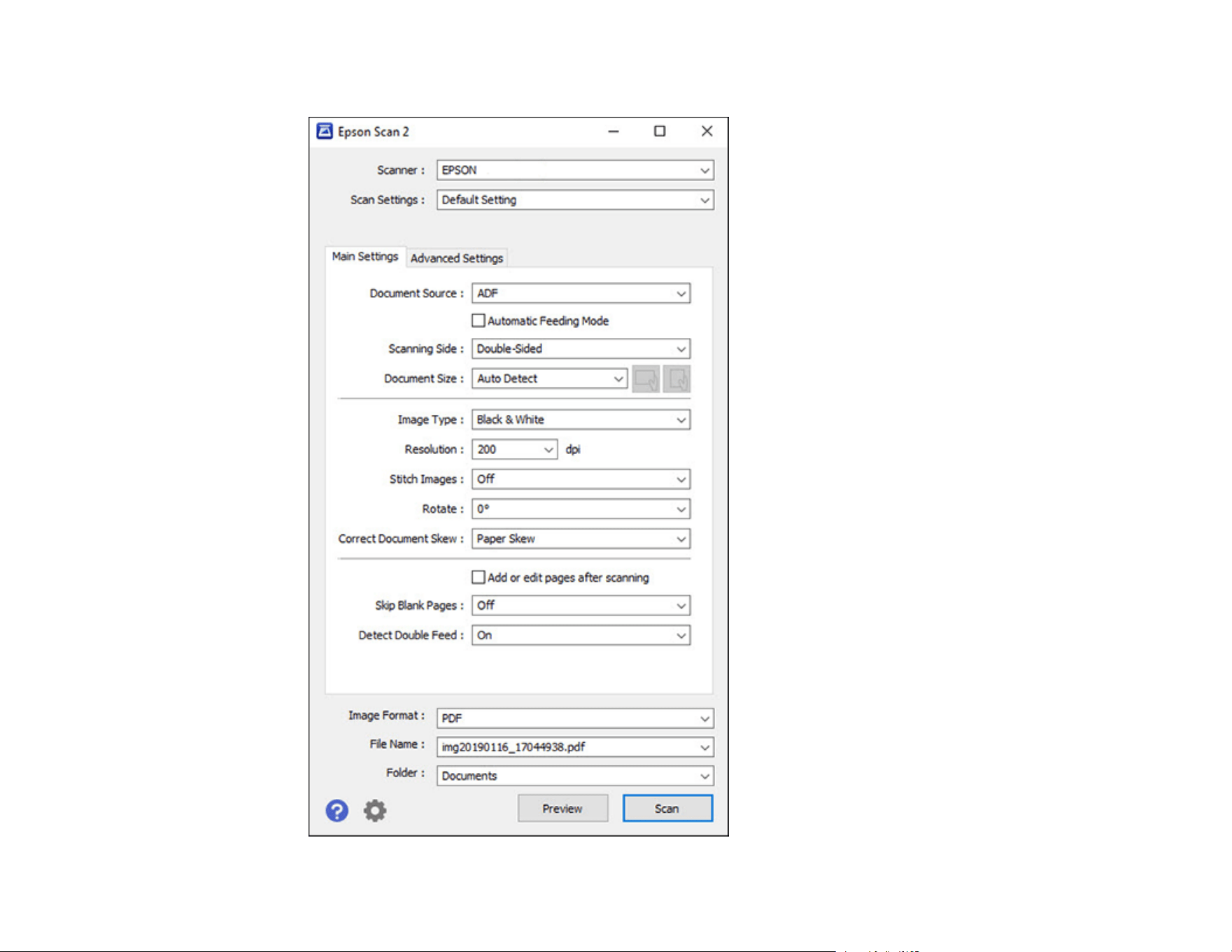
79
You see this window:

80
Note: The Document Source setting is automatically set to ADF for your product.
3. If you want to scan different size originals by loading them into the ADF one by one, check the
Automatic Feeding Mode checkbox and click Scan. Scanning begins as soon as you load each
original.
4. Select the Scanning Side setting that matches the sides of the original that you want to scan.
5. Select the Document Size setting that matches the size of your original, or select Auto Detect to
have Epson Scan 2 automatically detect the size. You can select Customize to enter a custom size,
if necessary.
6. Click on one of the orientation icons, if applicable.
7. Select your original image type and how you want it scanned as the Image Type setting, or select
Auto to have Epson Scan 2 automatically detect the image type.
8. Select the Resolution setting you want to use for your scan.
9. Select any of the additional settings that you want to use on the Main Settings tab.
10. Click the Advanced Settings tab and select any settings that you want to use.
11. To see a preview of your scan with the settings you selected, click the Preview button.
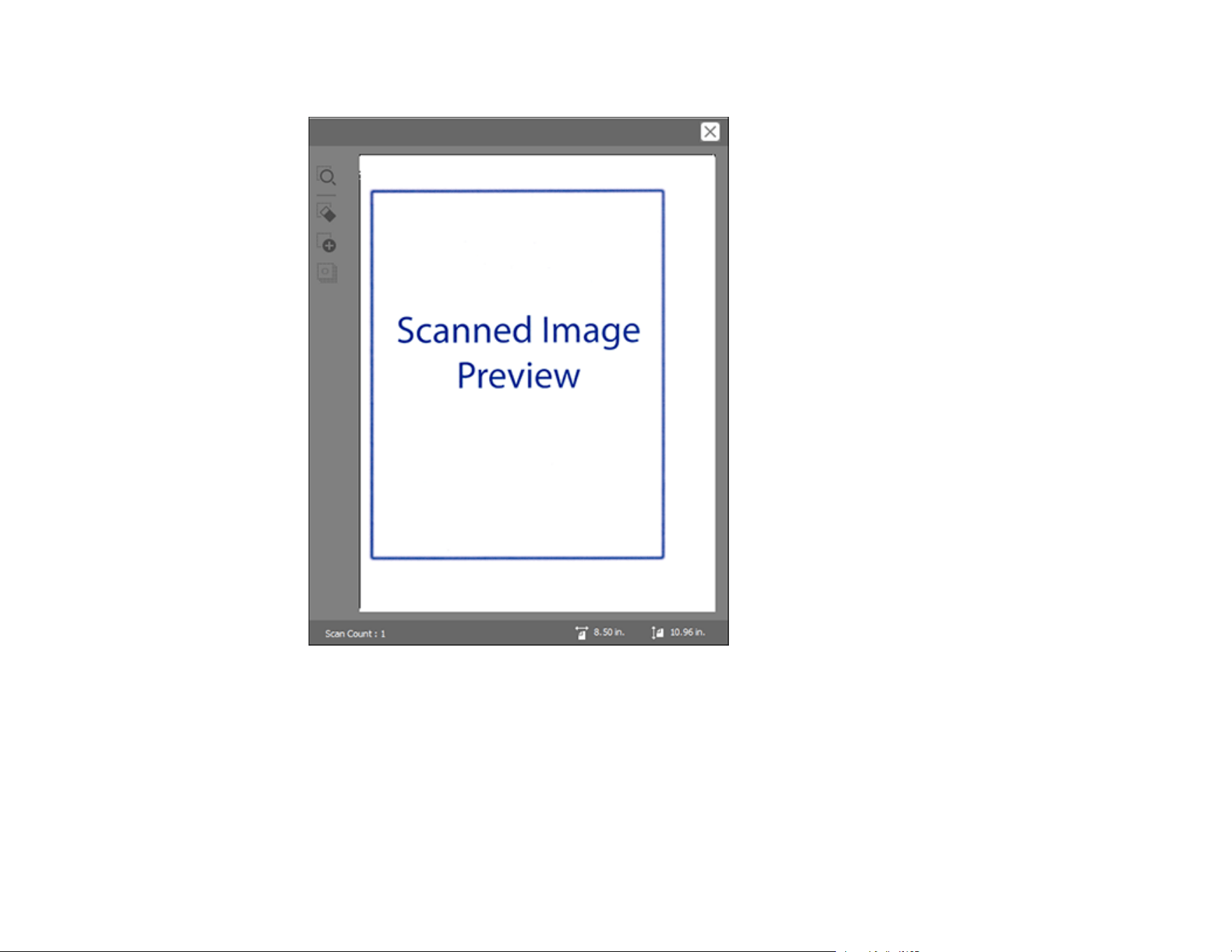
81
Epson Scan 2 previews your original and displays the results in the Epson Scan 2 window.
12. Reinsert your original into the ADF.
13. If scanning an original in a carrier sheet or other special original, see the link below for other setting
requirements for special documents.
14. Select the format in which you want to save your scanned file as the Image Format setting. If
necessary, select Options and select any desired format options.
15. Select Settings to modify the file name settings. Enter the file name for your scanned file in the File
Name field.

82
16. Select the location in which you want to save your scanned file as the Folder setting. If necessary,
select Select to choose an alternate folder or create a new folder.
17. Click Scan.
The product scans your original and saves the scanned file in the location you specified.
18. If you selected the Automatic Feeding Mode setting, place your next original in the ADF for
scanning. When you finish scanning originals, click Finish.
Additional Scanning Settings - Main Settings Tab
Additional Scanning Settings - Advanced Settings Tab
Scanning Settings for Special Documents
Image Format Options
Parent topic: Scanning
Related tasks
Loading Originals in the Input Tray
Additional Scanning Settings - Main Settings Tab
You can select these additional scanning settings on the Epson Scan 2 Main Settings tab.
Stitch Images
When scanning double-sided originals, lets you lay out images from both sides of the original onto
one scanned page.
Rotate
Rotates the original image clockwise to the desired angle before scanning it. Select Auto to allow
your product to automatically rotate the image based on the orientation of the text (may take longer to
scan).
Correct Document Skew
Corrects skewed originals, image contents, or both.
Add or edit pages after scanning
Lets you add, remove, or edit the pages in a scan, including rotating pages and changing the page
order.
Note: To save multiple pages in a single file, you must select a file format that supports multiple
pages such as PDF or Multi-TIFF. If you select another file format, each scanned image or page is
saved as a separate file.

83
Skip Blank Pages
If the scanner detects marks from the other side of a blank page and adds the marks to the scanned
image, adjust this setting to prevent this.
Detect Double Feed
Detects a double-feed paper error in the ADF. If you are scanning an original envelope or plastic card,
select Off.
Parent topic: Scanning in Epson Scan 2
Additional Scanning Settings - Advanced Settings Tab
You can select these additional scanning settings on the Epson Scan 2 Advanced Settings tab. Not all
adjustment settings may be available, depending on other settings you have chosen.
Unsharp Mask
Makes the edges of certain image areas clearer. Turn off this option to leave softer edges.
Descreening
Removes the ripple pattern that might appear in subtly shaded image areas, such as skin tones. This
option improves results when scanning magazines or newspapers. (The results of descreening do not
appear in the preview image, only in your scanned image.)
Remove Background
Removes the background of the originals.
Text Enhancement
Sharpens the appearance of letters in text documents.
Auto Area Segmentation
Makes black and white images clearer and text recognition more accurate by separating the text from
the graphics.
Dropout
The scan will not pick up the color you select. This setting is available only if you select Grayscale or
Black & White as the Image Type setting.
Color Enhance
Enhances the shades of the color you select in the scanned image. This setting is available only if you
select Grayscale or Black & White as the Image Type setting.
Brightness
Adjusts the overall lightness and darkness of the scanned image.
Contrast
Adjusts the difference between the light and dark areas of the overall scanned image.

84
Gamma
Adjusts the midtone density of the scanned image.
Threshold
Adjusts the level at which black areas in text and line art are delineated, improving text recognition in
OCR (Optical Character Recognition) programs.
Edge Fill
Corrects shadowing around the edges of the image by filling the shadows with black or white.
Remove Punch Holes
Removes the shadows caused by holes on the edges of the original.
Dual Image Output
Scans the original image twice using different output settings (Windows only).
Watermark
Adds text to the background of the scanned image.
Parent topic: Scanning in Epson Scan 2
Scanning Settings for Special Documents
You need to select specific options on the Main Settings tab in Epson Scan 2 when scanning special
originals.
Type of original Required settings
Envelope Select Off as the Detect Double Feed setting.
Plastic cards Select Plastic Card (Landscape) as the Document Size
setting and Off as the Detect Double Feed setting.
Carrier sheet If you select Auto Detect as the Document Size setting,
paper skew is automatically corrected even if the Correct
Document Skew setting is set to Off.
If you select a setting other than Auto Detect as the
Document Size setting, you can only use Contents Skew
as the Correct Document Skew setting. As paper skew is
not applied in this case, only contents skew is corrected
when you select the Paper and Contents Skew setting.
Large originals If the Document Size list does not contain the document
size you want to scan, select Customize to create a custom
size.
85
Type of original Required settings
Long paper If the Document Size list does not contain the document
size you want to scan, select Auto Detect (Long Paper) or
select Customize to create a custom document size.
Laminated cards To scan any transparent areas around the edges of the
card, select Settings as the Document Size setting and
either select the Scan laminated card checkbox or create a
custom size.
Parent topic: Scanning in Epson Scan 2
Image Format Options
You can select different image formats and related options. For details on available options, click the ?
icon on the Epson Scan 2 Image Format Options window. Not all image formats have options.
BITMAP (*.bmp)
A standard image file format for most Windows programs.
JPEG (*.jpg)
An image format that lets you highly compress image data. However, the higher the compression, the
lower the image quality. (The TIFF format is recommended when you need to modify or retouch your
scanned image.)
PNG (*.png)
An image format that does not lose quality during editing.
TIFF (*.tif)
A file format created for exchanging data between many programs, such as graphic and DTP
software.
Multi-TIFF (*.tif)
A TIFF file format when multiple pages are saved to the same file, allowing you to edit the images
using a compatible program.
PDF (*.pdf)
A document format that is readable by Windows and Mac systems using Adobe Reader, Acrobat, or
other programs. You can save multi-page documents in one PDF file.
Searchable PDF (*.pdf)
A document format that is readable by Windows and Mac systems using Adobe Reader, Acrobat, or
other programs. You can save multi-page documents in one PDF file. Recognized text in the scanned
document can be searched.

86
Note: If you do not see the Searchable PDF option, run the Epson Software Updater and install the
EPSON Scan OCR Component/Pro.
Parent topic: Scanning in Epson Scan 2
Scan Resolution Guidelines
The resolution setting in your scanning software, measured in dpi (dots per inch), controls the amount of
detail captured in your scans. Increasing the resolution raises the amount of detail captured but comes
with the following disadvantages:
• Larger file sizes
• It takes longer to scan your originals, send/receive your scans by email or fax, and to print your scans
• The image may become too large to fit on your display or print on paper
• The maximum length you can scan is reduced
If you plan to enlarge a scanned image so you can print it at a larger size, you may need to increase the
resolution from the default resolution set by the software. Follow these guidelines to determine the
resolution setting you need:
• You will scan the image at its original size but enlarge it later in an image-editing program.
Increase the resolution setting in your scanning software. Increase the resolution by the same amount
you will increase the image size to retain a high image quality. For example, if the resolution is 300 dpi
(dots per inch) and you will double the image size later, change the resolution setting to 600 dpi.
• You will scan the image at 100% or smaller size.
Select the resolution setting based on how you will use the scanned image:
• Email/view on a computer screen/post on the web: 96 to 200 dpi
• Print/fax/convert to editable text (OCR)/create searchable PDF: 200 to 300 dpi
Parent topic: Scanning
Scanning Special Projects
Your product's scanning software offers various options to help you quickly complete special scan
projects.
Scanning Two Originals onto One Sheet (Stitching Images) - Windows
Scanning Multi-Page Originals as Separate Files - Windows
Saving Scanned Documents as a Searchable PDF Using Epson Scan 2

87
Saving a Scan as an Office Format File - Windows
Scanning to a SharePoint Server or Cloud Service - Windows
Scanning to a SharePoint Server or Cloud Service - Mac
Parent topic: Scanning
Scanning Two Originals onto One Sheet (Stitching Images) - Windows
You can scan both sides of a double-sided or folded original in Document Capture Pro and combine
them into a single image with the Epson Scan 2 Stitch Images setting (not available for all products).
Note: Settings may vary depending on the software version you are using. Click the Help icon in
Document Capture Pro at any time for more information.
1. Load your original in the product.
Note: If an optional carrier sheet is included with your product, use it when scanning a folded original
or damage to the original may occur. Place the original into the carrier sheet with the folded edge
against the right side of the carrier sheet. Make sure to insert the carrier sheet into your product with
the white edge facing down.
2. Do one of the following to start Document Capture Pro:
• Windows 10: Click and select Epson Software > Document Capture Pro.
• Windows 8.x: Navigate to the Apps screen and select Document Capture Pro.
• Windows (other versions): Click or Start and select All Programs or Programs. Select
Epson Software > Document Capture Pro.
3. Select the Simple Scan tab.
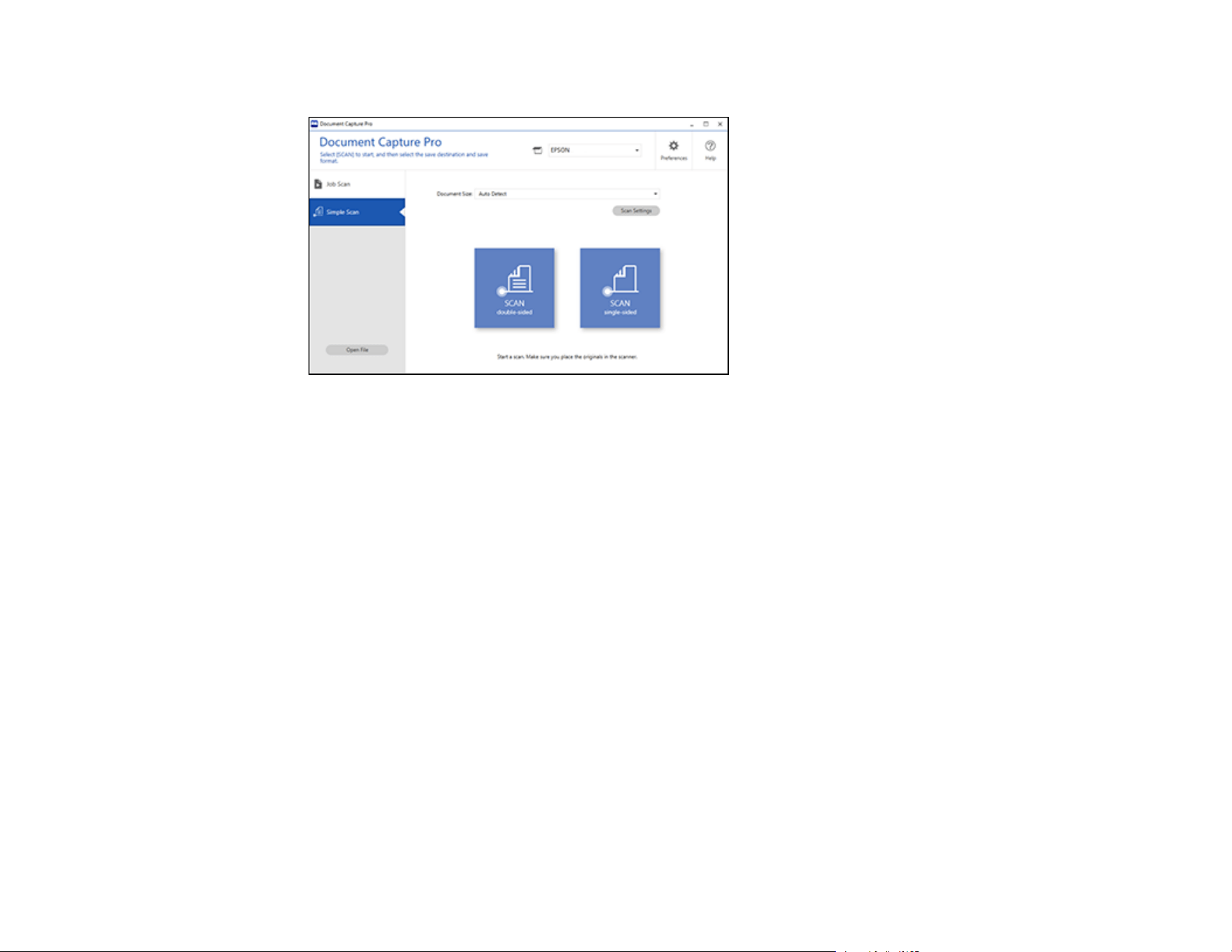
88
You see a window like this:
4. Click Scan Settings > Detailed Settings.

89
You see an Epson Scan 2 window like this:

90
5. Select Double-Sided as the Scanning Side setting.
6. Select the original document size or Auto Detect as the Document Size setting.
7. Select one of the following as the Stitch Images setting:
• Top & Bottom: Places the scanned images one above the other.
• Left & Right: Places the scanned images side by side.
8. Select the Advanced Settings tab and verify that the Edge Fill setting is set to None.
9. Click Save.
10. Click OK.
11. Click SCAN double-sided.
Your product scans the original and the image appears in the Edit Scanned Results window.
Note: If the scanned images are not stitched together in the correct orientation, click Scanning Side
on the Epson Scan 2 window, select Settings, set the Binding Edge to Left or Top, and rescan the
document.
12. Review and edit the scanned pages as necessary and click Next when you are finished.
13. Select a destination and any settings as necessary and click Complete.
Parent topic: Scanning Special Projects
Scanning Multi-Page Originals as Separate Files - Windows
You can use Document Capture Pro to scan multi-page originals as separate scanned files. You can
indicate how the separate files are created by defining a maximum page count per file or by inserting
blank pages, barcodes, or characters that can be detected by the software as separation markers.
Note: Settings may vary depending on the software version you are using. Click the Help icon in
Document Capture Pro at any time for more information.
1. Load your multi-page original in the product.
2. Do one of the following to start Document Capture Pro:
• Windows 10: Click and select Epson Software > Document Capture Pro.
• Windows 8.x: Navigate to the Apps screen and select Document Capture Pro.
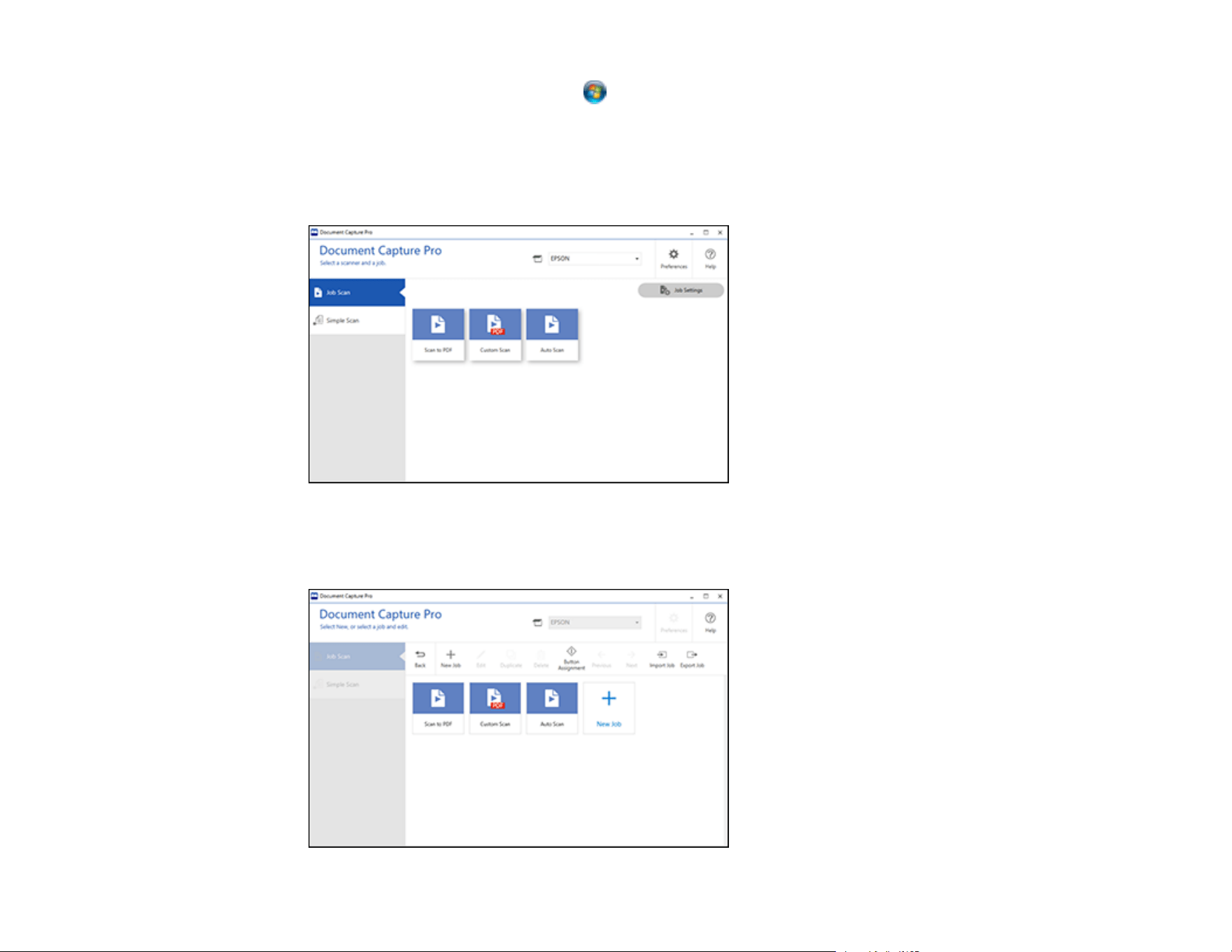
91
• Windows (other versions): Click or Start, and select All Programs or Programs. Select
Epson Software > Document Capture Pro.
You see the Document Capture Pro window.
3. Select the Job Scan tab.
You see a window like this:
4. Click the Job Settings button.
You see a window like this:
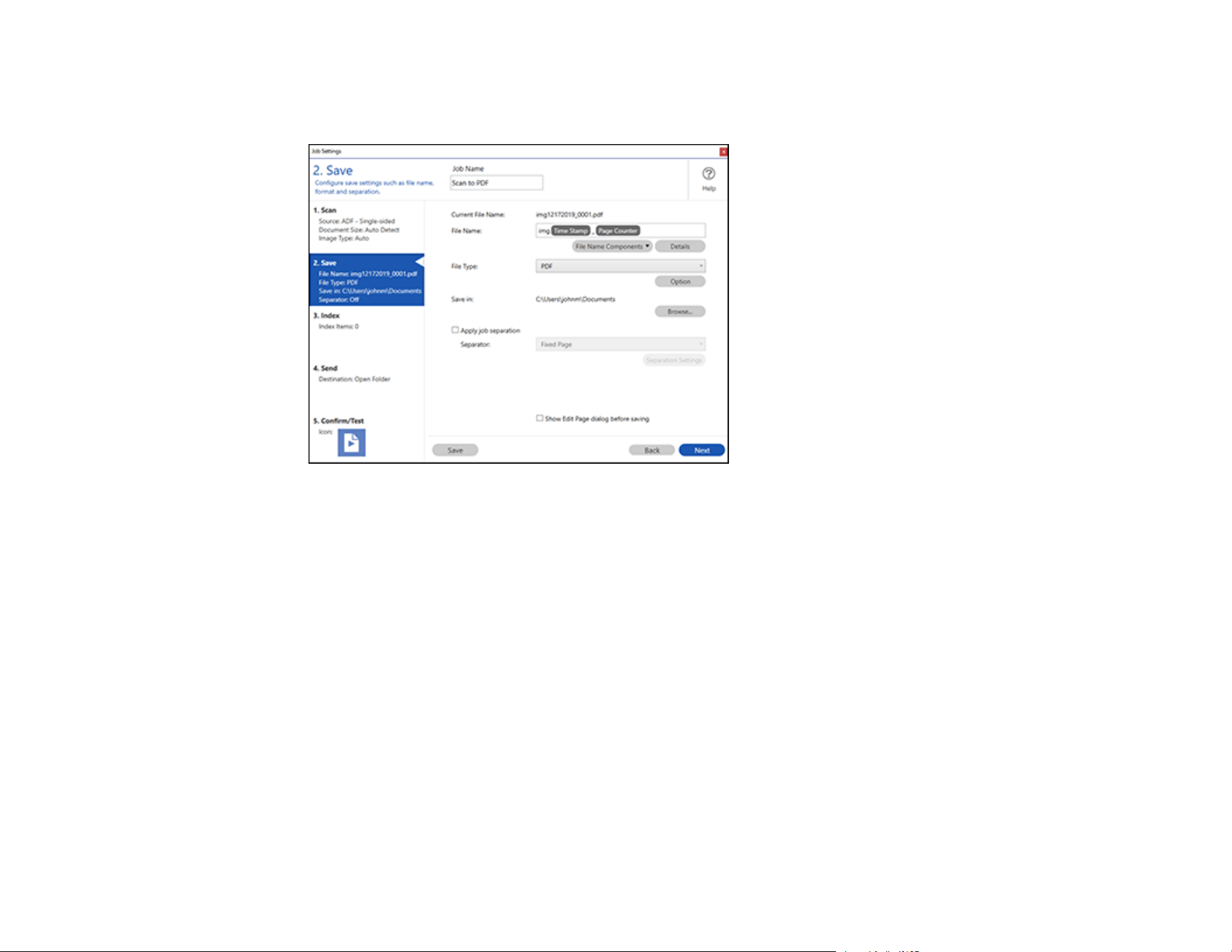
92
5. Select New Job and select the scan settings. Click Next when finished.
You see a window like this:
6. Select the Apply job separation checkbox.
7. Select the method you want to use to separate the originals as the Separator setting. Click
Separation Settings to specify the settings for the selected option.
8. Finish creating the new scan job and click Save.
9. Click Back on the Job Settings screen.
Your originals are saved into separate files and folders as specified when the job is run.
Parent topic: Scanning Special Projects
Saving Scanned Documents as a Searchable PDF Using Epson Scan 2
You can scan a document and save the text in a searchable PDF. In a searchable PDF, text is
recognized using Optical Character Recognition (OCR) and then embedded in the scanned original.
Note: The required Epson Scan 2 OCR Component is installed automatically when you install your
product software. If you install your scanner software programs individually, be sure to also install this
component if you want to perform OCR.
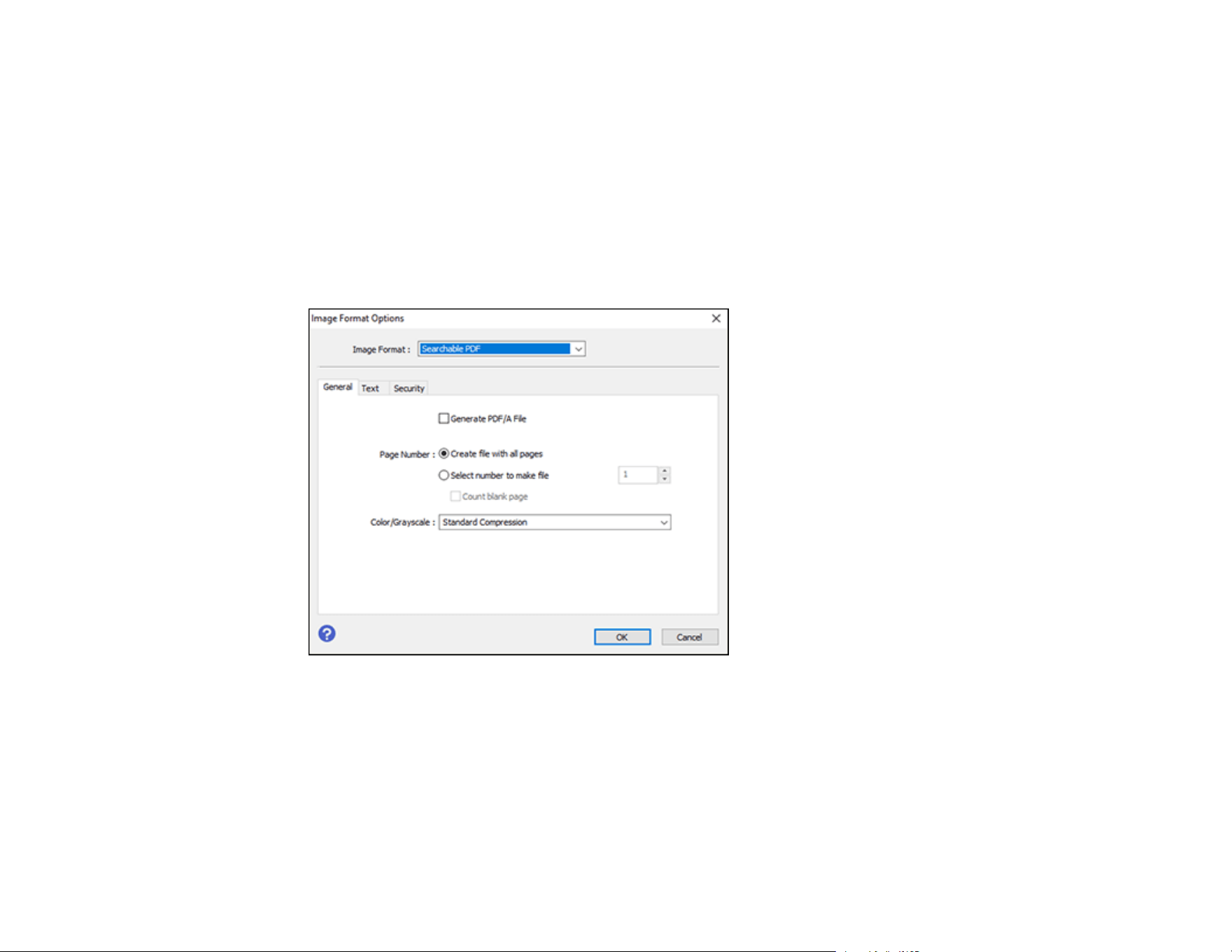
93
1. Load your original in the product for scanning.
2. Start Epson Scan 2.
3. Select your scan settings.
4. Click Preview and adjust the area you want to scan, if necessary.
5. Reload the ejected original in the scanner.
6. Select Searchable PDF as the Image Format setting.
7. Select Options from the Image Format list.
You see this window:
8. Select any of the options on the General tab.
9. Select the Text tab.
10. Make sure the language used in the document text is selected as the Text Language setting.
11. Select the Security tab if you want to add a password to the PDF or protect printing or editing
properties.
12. Click OK.
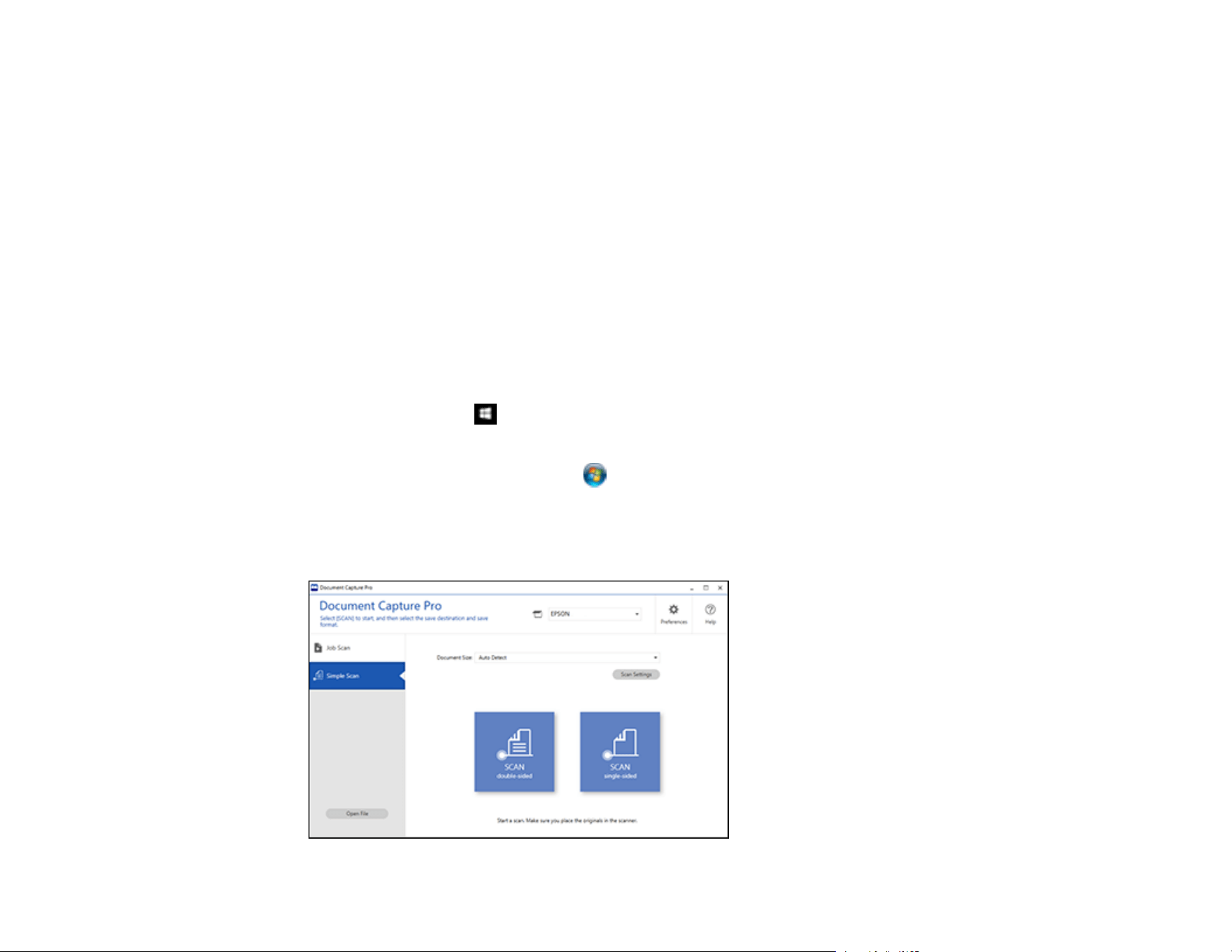
94
13. Confirm the File Name setting and select a Folder setting for your document.
14. Click Scan.
The scanned image is saved as a searchable PDF.
Parent topic: Scanning Special Projects
Saving a Scan as an Office Format File - Windows
You can use Document Capture Pro (Windows) to save your scans in one of the following Microsoft
Office file formats: Microsoft Word (.docx), Microsoft Excel (.xlsx), or Microsoft PowerPoint (.pptx).
Note: The settings may vary, depending on the software version you are using. See the help information
in Document Capture Pro for details.
1. Load your original in the product.
2. Do one of the following to start Document Capture Pro:
• Windows 10: Click and select Epson Software > Document Capture Pro.
• Windows 8.x: Navigate to the Apps screen and select Document Capture Pro.
• Windows (other versions): Click or Start, and select All Programs or Programs. Select
Epson Software > Document Capture Pro.
3. Select the Simple Scan tab.
You see a window like this:

95
4. If you want to select specific scan settings for the scan, click the Scan Settings button, select any
displayed settings you want to use, and click OK.
Note: See the help information in Document Capture Pro for details.
5. Do one of the following:
• To scan the front side of an original, select SCAN single sided.
• To scan both sides of an original,select SCAN double sided.
Your product starts scanning and you see the Edit Scanned Results window.
6. View and edit the scanned pages as necessary and click Next when you are finished.
Note: See the help information in Document Capture Pro for details.
7. Click one of the destination icons (except Print) to choose where to send your scanned files. You
see the settings window.
8. Select the Office format file you want to use from the File Type drop-down list.
9. Click Option to display additional settings.
10. Select any additional settings as necessary and click OK.
Note: See the help information in Document Capture Pro for details.
11. Confirm your settings and click Complete.
Your originals are saved in the Office file format you selected.
Parent topic: Scanning Special Projects
Scanning to a SharePoint Server or Cloud Service - Windows
You can use Document Capture Pro to upload scanned images to a SharePoint server or a cloud
service.
Note: The settings may vary, depending on the software version you are using. See the help information
in Document Capture Pro for details.
1. Load your original in the product.
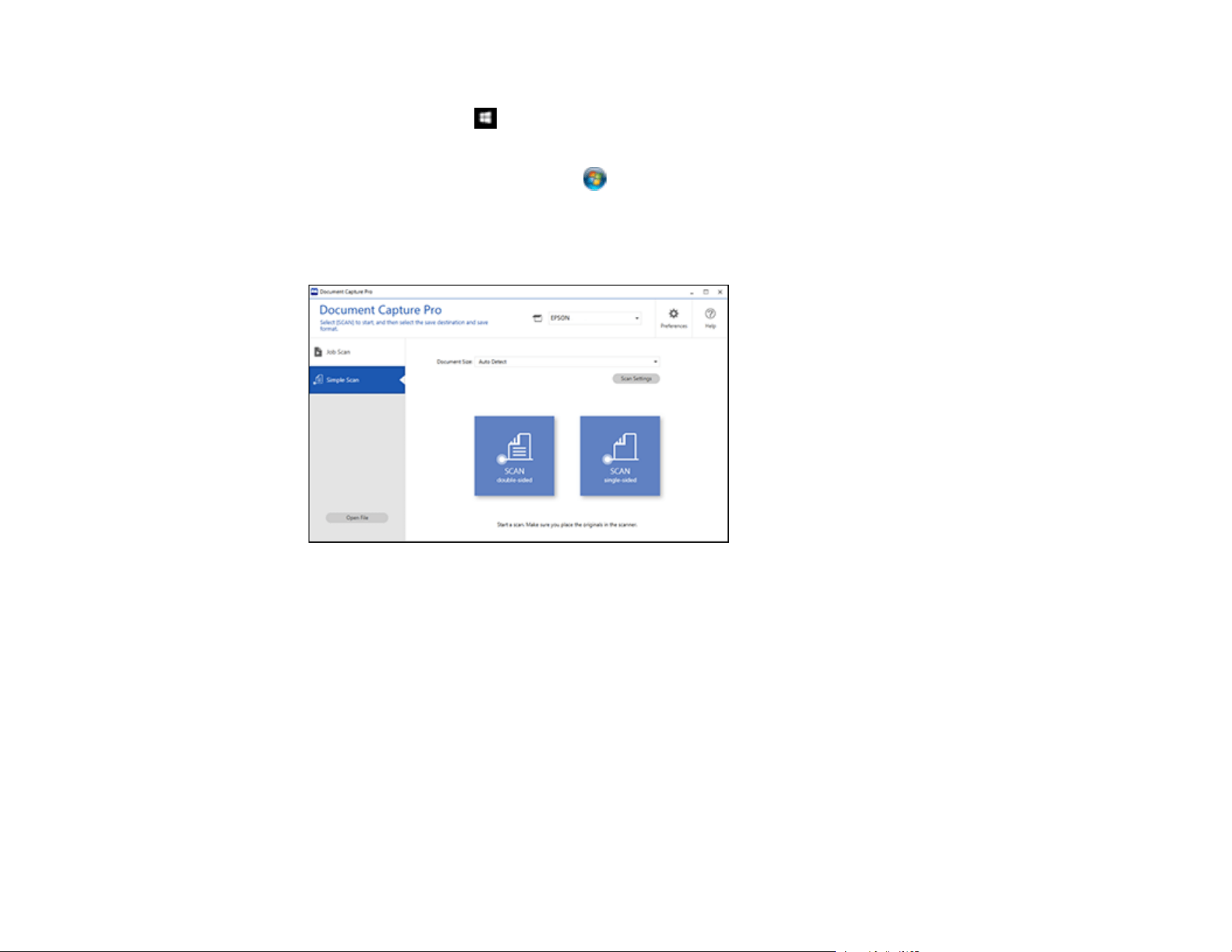
96
2. Do one of the following to start Document Capture Pro:
• Windows 10: Click and select Epson Software > Document Capture Pro.
• Windows 8.x: Navigate to the Apps screen and select Document Capture Pro.
• Windows (other versions): Click or Start, and select All Programs or Programs. Select
Epson Software > Document Capture Pro.
3. Select the Simple Scan tab.
You see a window like this:
4. If you want to select specific scan settings for the scan, click the Scan Settings button, select any
displayed settings you want to use, and click OK.
Note: See the help information in Document Capture Pro for details.
5. Do one of the following:
• To scan the front side of an original, select SCAN single sided.
• To scan both sides of an original,select SCAN double sided.
Your product starts scanning and you see the Edit Scanned Results window.

97
6. View and edit the scanned pages as necessary and click Complete when you are finished.
Note: See the help information in Document Capture Pro for details.
7. Click one of the cloud server or service destination icons. You see the settings window.
8. Enter any required information to set up the destination. You may need to log in to your cloud service
to authenticate the connection and allow Document Capture Pro to access the cloud service.
9. Adjust any settings and click Complete.
Note: See the help information in Document Capture Pro for details.
Your originals are uploaded to the indicated server or cloud service.
Parent topic: Scanning Special Projects
Scanning to a SharePoint Server or Cloud Service - Mac
You can use Document Capture to upload scanned images to a SharePoint server or a cloud service.
1. Open the Applications folder, open the Epson Software folder, and select Document Capture.
You see a window like this:
Note: You may need to select your scanner from the scanner list.

98
2. Click the scan icon.
3. Select any displayed scan settings you want to use.
Note: See the Help information in Document Capture for details.
4. Click Scan.
You see a preview of your scan in the Document Capture window.
5. Click one of the cloud service Destination icons to choose where to save your scanned file. (If you
cannot see all of the icons, the service software may not be installed, the service may not be
available on your platform, or you need to click the arrow next to the icons.)
You see the Transfer Settings window.
6. Enter any required information to set up the destination. You may need to log in to your cloud service
to authenticate the connection and allow Document Capture to access the cloud service. If you have
previously created a saved setting for the destination, select it from the drop-down list.
7. Adjust any save settings, then click OK or Send, depending on the destination.
Your originals are scanned and uploaded to the indicated server or cloud service.
Parent topic: Scanning Special Projects
Related tasks
Loading Originals in the Input Tray

99
Cleaning and Transporting Your Scanner
See these sections if you need to clean or transport your scanner.
Cleaning Your Scanner
Cleaning Inside Your Scanner
Checking the Scanner Roller Counter
Replacing the Scanner Rollers
Transporting Your Scanner
Cleaning Your Scanner
To keep your product working at its best, you should clean it several times a year.
Caution: Do not use a hard brush, alcohol, or paint thinner to clean the product or you may damage it.
Do not use oil or other lubricants inside the product or let water get inside it. Do not open the product's
outer case.
1. Turn off the scanner and unplug the AC adapter.
2. Disconnect any connected cables.
3. Clean the outer case with a soft, dry cloth. Do not use liquid or chemical cleansers.
Note: If the outer case still requires additional cleaning, use a slightly damp cloth to wipe the outer
case. Then wipe the case with a soft, dry cloth.
4. Clean the LCD screen with a soft, dry cloth.
Parent topic: Cleaning and Transporting Your Scanner
Cleaning Inside Your Scanner
Clean your scanner regularly to make sure that no dust builds up on the glass scanning surfaces. Dust
can cause spots or lines in your scanned images.
Caution: Do not use a hard brush, alcohol, or paint thinner to clean the product or you may damage it.
Do not use oil or other lubricants inside the product or let water get inside it.
1. Turn off the scanner and unplug the AC adapter.

100
2. Disconnect any connected cables.
3. Pull down on the cover open lever and open the scanner cover.
4. Use a genuine Epson cleaning kit or a soft, moist cloth to wipe off any dust or dirt on the glass
scanning surfaces and the rollers inside the scanner cover. If the glass surface is stained with
grease or some other hard-to-remove material, use a genuine Epson cleaning kit. Use a small
amount of cleaner on the cleaning cloth to remove the stains. Be sure to wipe off all remaining liquid.
Caution: Do not spray glass cleaner directly on the scanning surfaces. Be careful not to place too
much force on the glass.
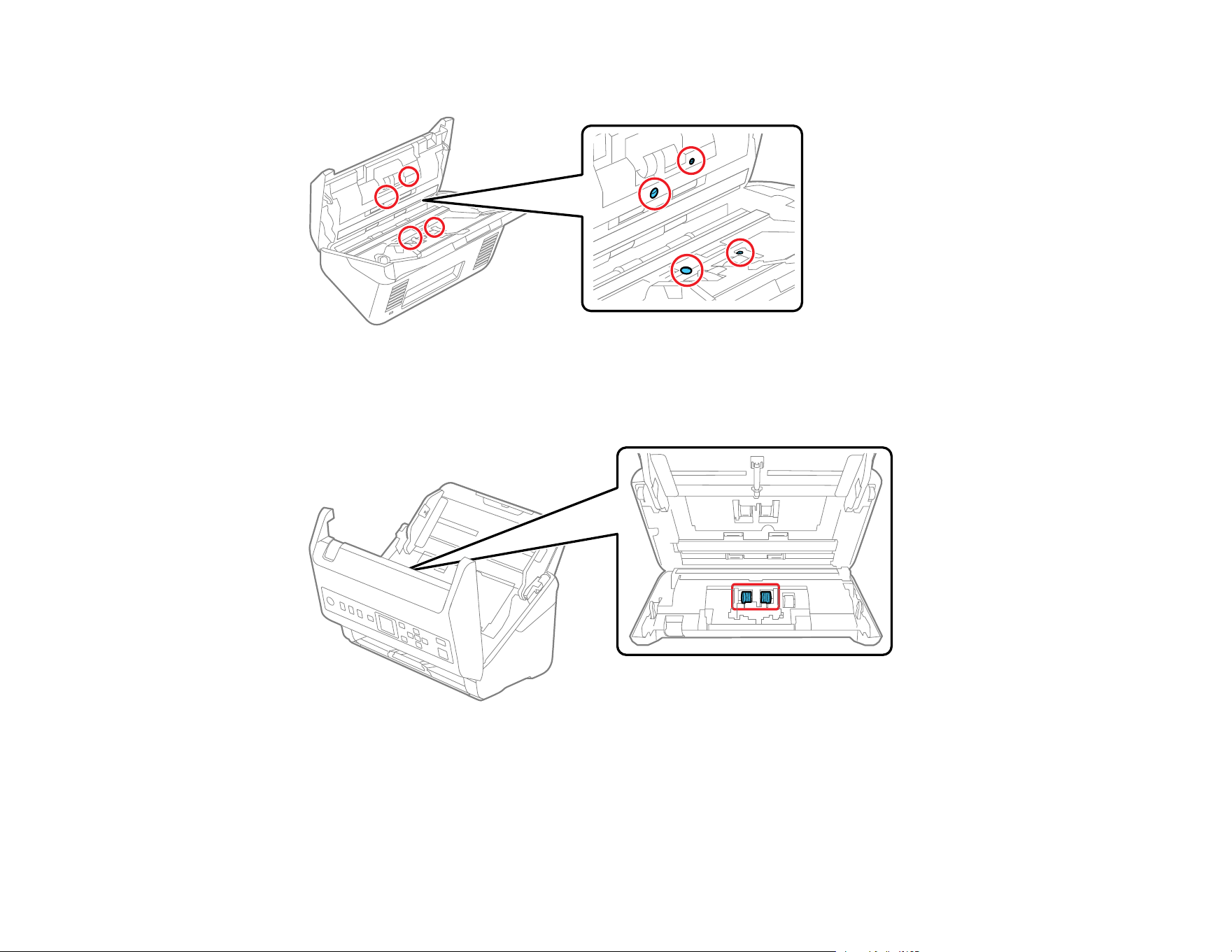
101
5. Use a cotton swab to wipe off any dust or dirt on the sensors shown here.
Caution: Do not use liquid or glass cleaner on the cotton swab.
6. Locate the separation roller.
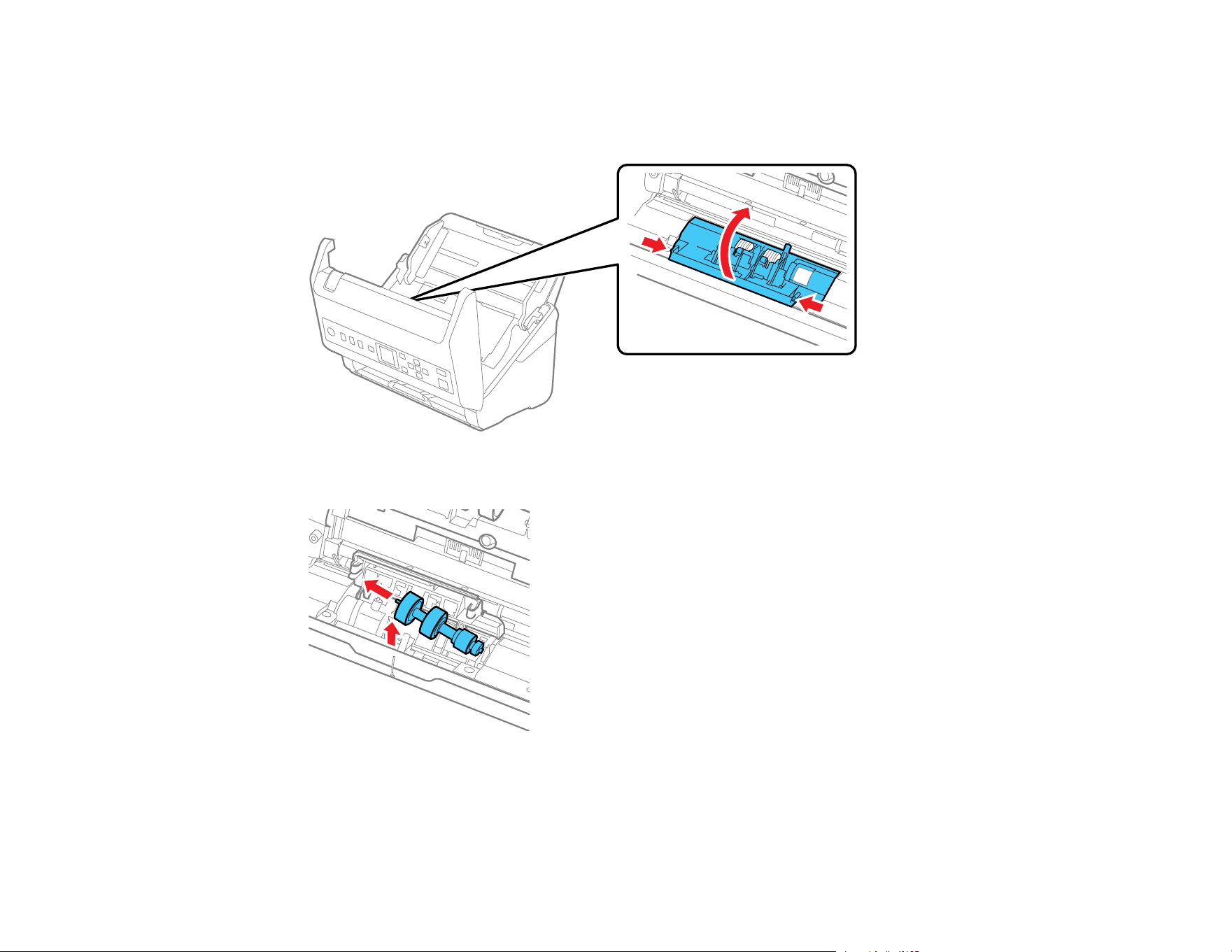
102
7. Squeeze the tabs on the sides of the separation roller cover and open the cover.
Caution: Be careful not to apply too much force when opening the cover.
8. Slide the separation roller to the left and remove it.
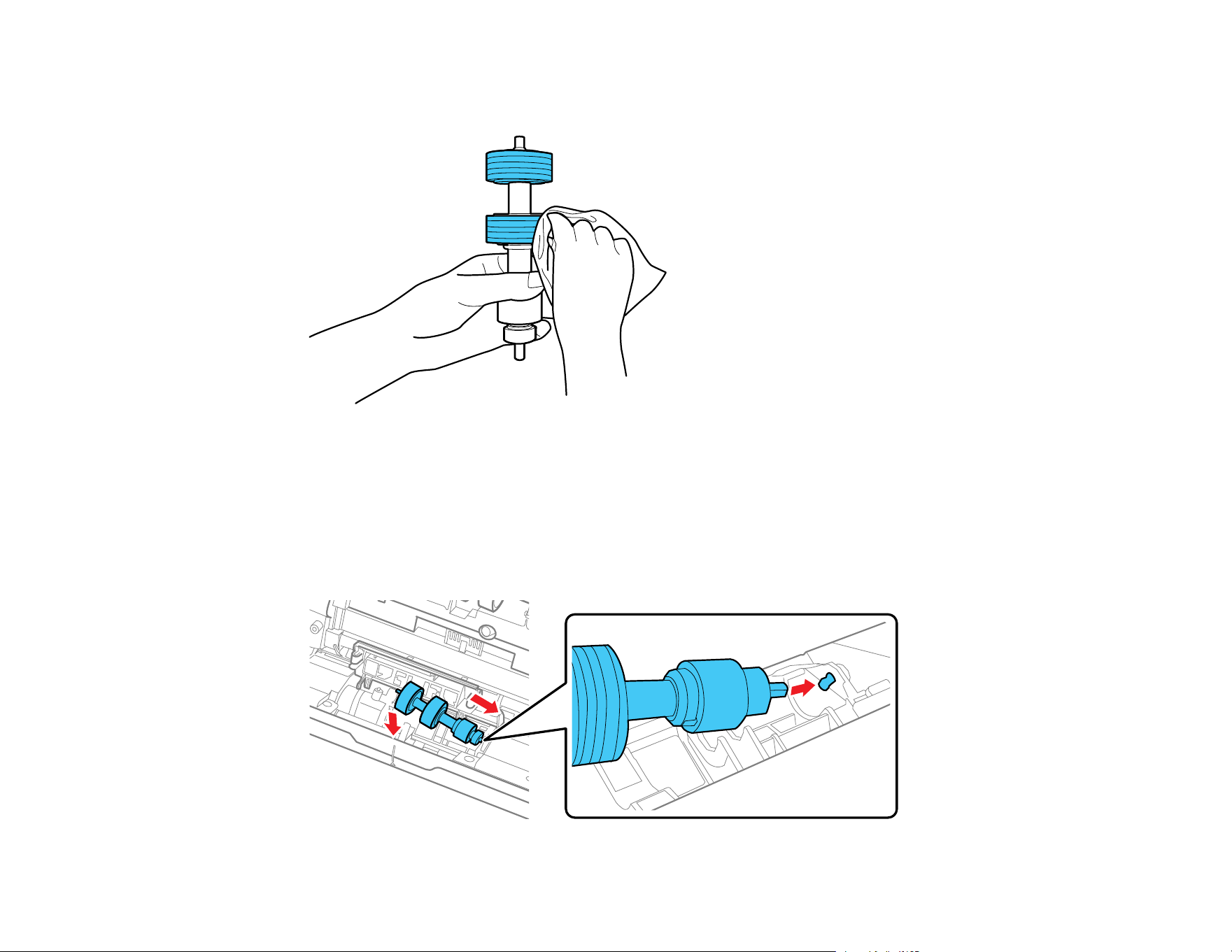
103
9. Wipe off any dust or dirt on the separation roller using a genuine Epson cleaning kit or a soft, moist
cloth.
Caution: Use only a genuine Epson cleaning kit or soft, moist cloth to clean the roller; using a dry
cloth may damage the surface of the roller. Do not spray cleaners directly inside the product; always
spray cleaners on a cleaning cloth to slightly dampen the cloth. Wipe off any excess cleaner with a
dry, lint-free cloth.
10. To replace the separation roller, insert the end of the roller into the hole on the right side and lower
the other end of the roller into place.

104
11. Close the separation roller cover until you hear it click into place.
Note: If you are not able to close the cover, the roller is not installed correctly. Remove the roller and
reinstall it, then try to close the cover again.
12. Locate the pickup roller.
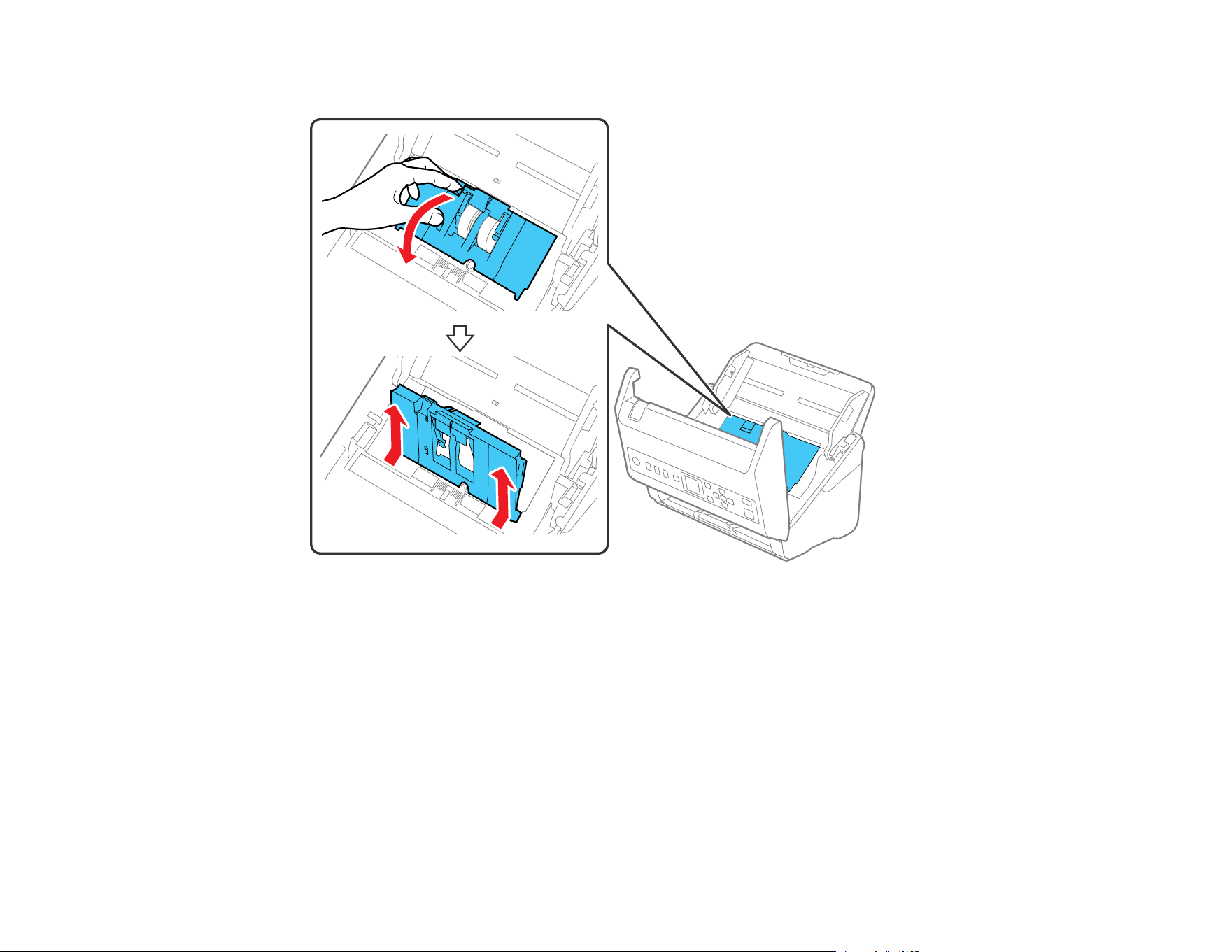
105
13. Press down on the pickup roller cover latch and pull up the cover to remove it.
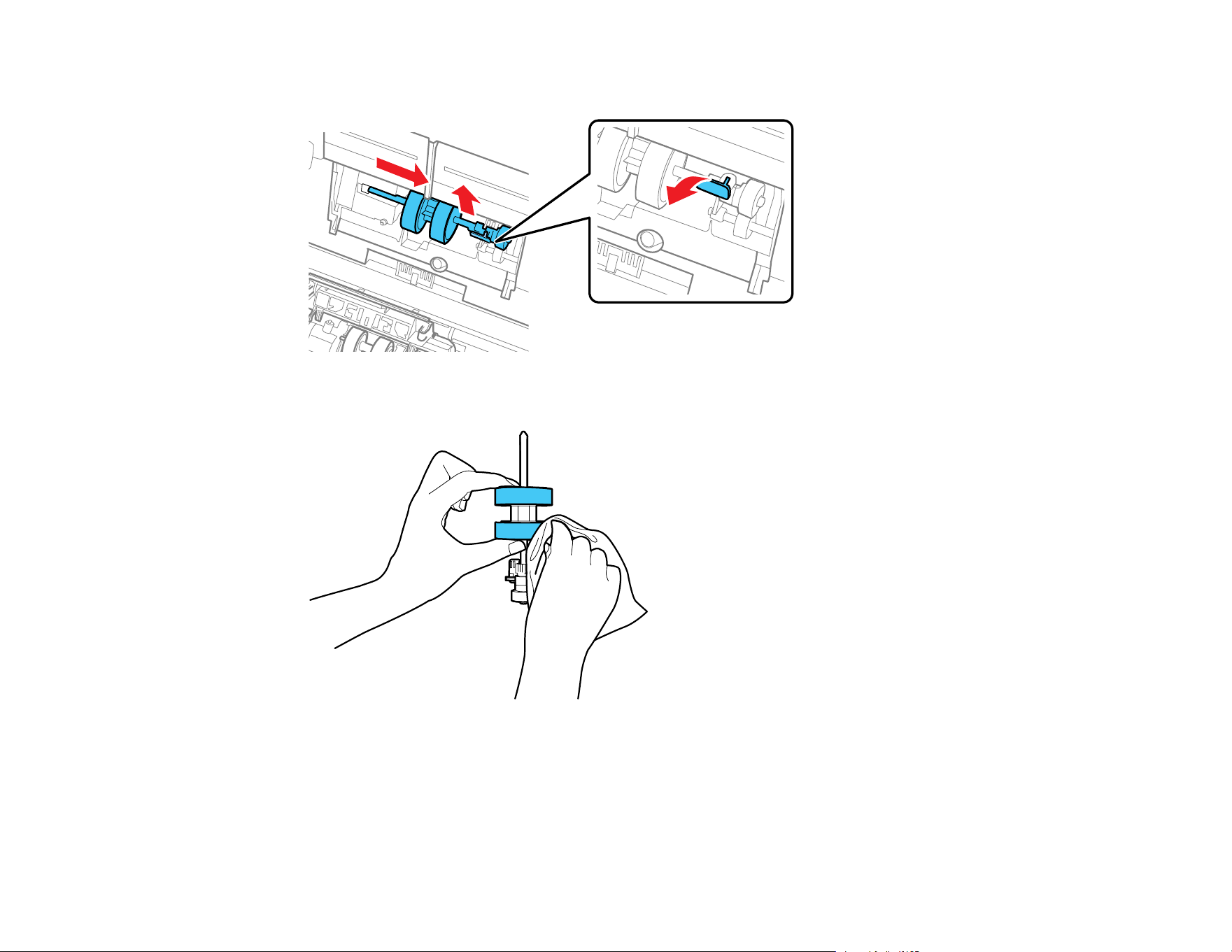
106
14. Pull down the tab on the pickup roller and slide the roller to the right to remove it.
15. Wipe off any dust or dirt on the pickup roller using a genuine Epson cleaning kit or a soft, moist cloth.
Caution: Use only a genuine Epson cleaning kit or soft, moist cloth to clean the roller; using a dry
cloth may damage the surface of the roller.
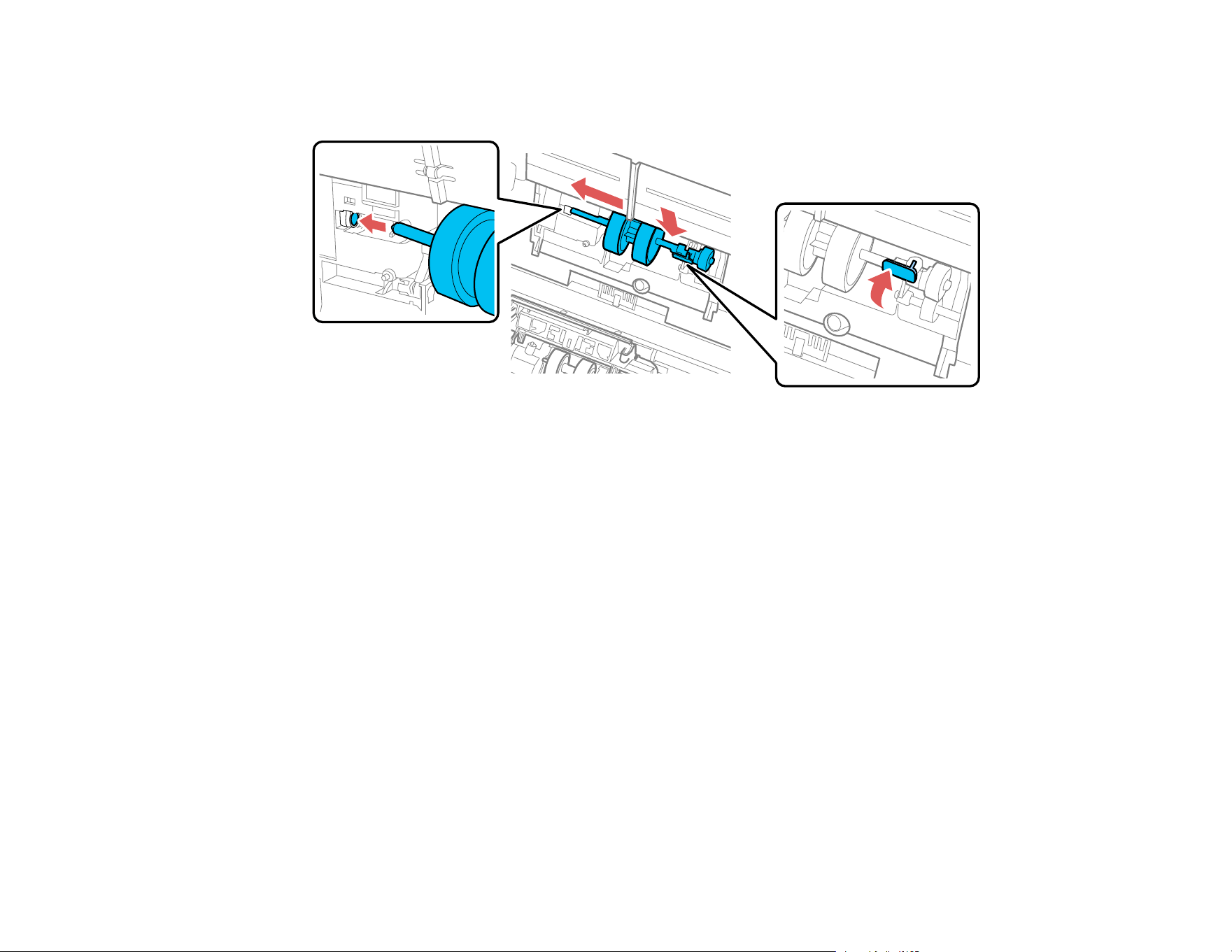
107
16. To replace the pickup roller, align the notches on the roller unit and slide it to the left. Press up on the
tab to secure the roller.
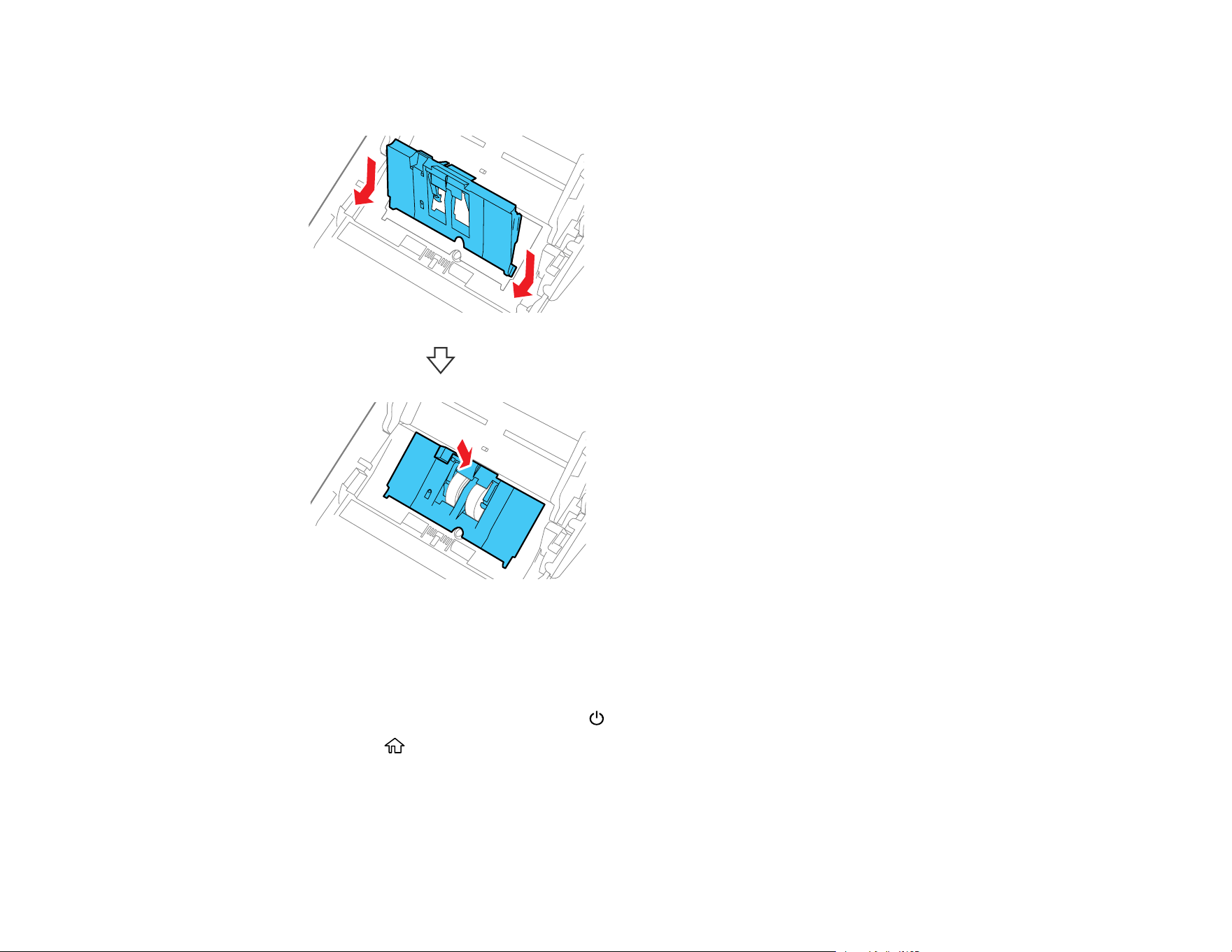
108
17. Align the bottom edge of the pickup roller cover into the notches as shown and press it down until it
clicks into place.
Note: If you are not able to close the cover, the roller is not installed correctly. Remove the roller unit
and reinstall it, then try to close the cover again.
18. Close the scanner cover.
19. Plug in the AC adapter and press the power button to turn on the scanner.
20. Press the home button, if necessary.
21. Use the arrow buttons to select Scanner Maintenance and press OK.
22. Press OK to select Roller Cleaning.
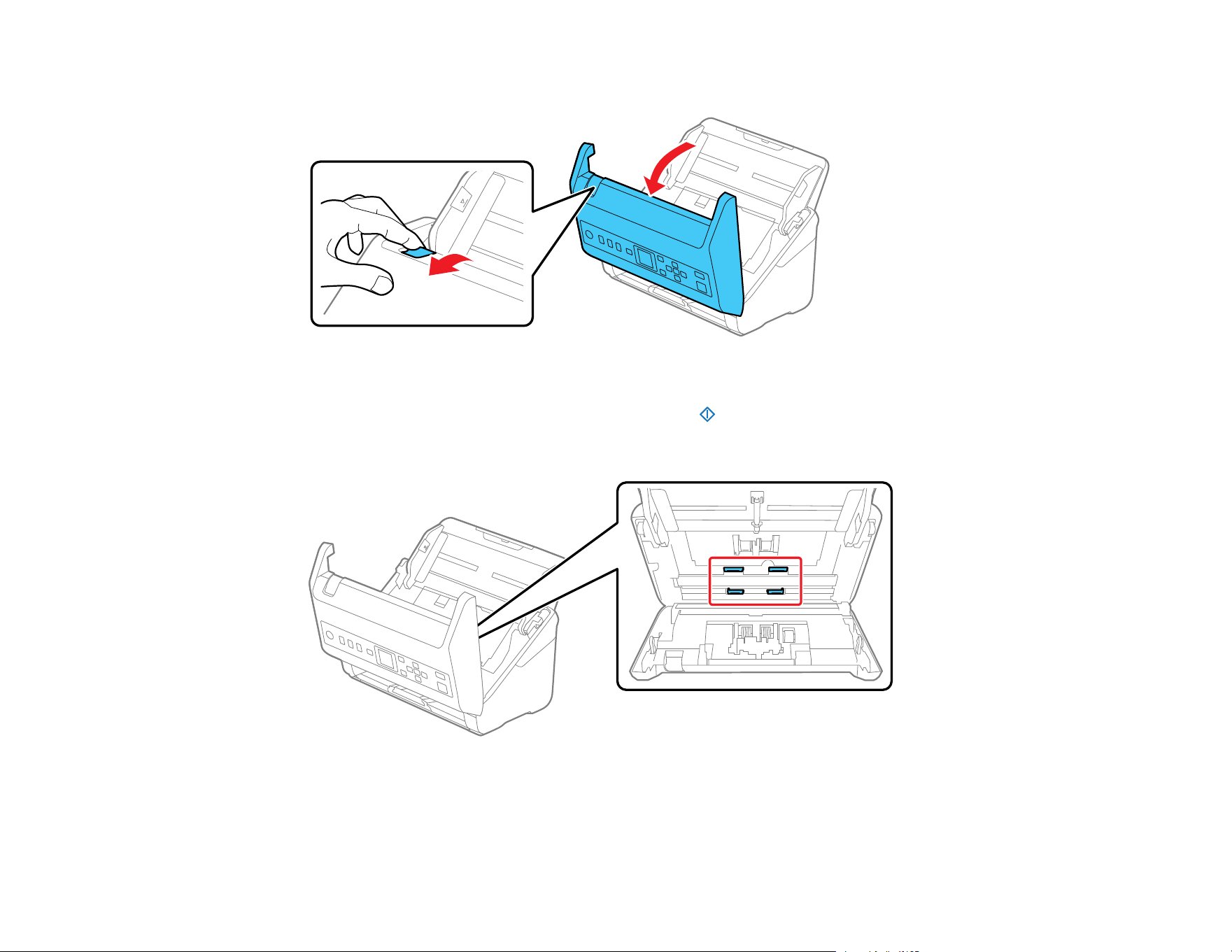
109
23. Pull down on the cover open lever and open the scanner cover.
The scanner enters roller cleaning mode.
24. Slowly rotate the rollers shown here by pressing the start button. Use a genuine Epson cleaning
kit or a soft, moist cloth to wipe off any dust or dirt on the rollers as they rotate. Repeat this step until
the rollers are clean.
Caution: Be careful not to get your hands or hair caught in the rollers as they rotate.
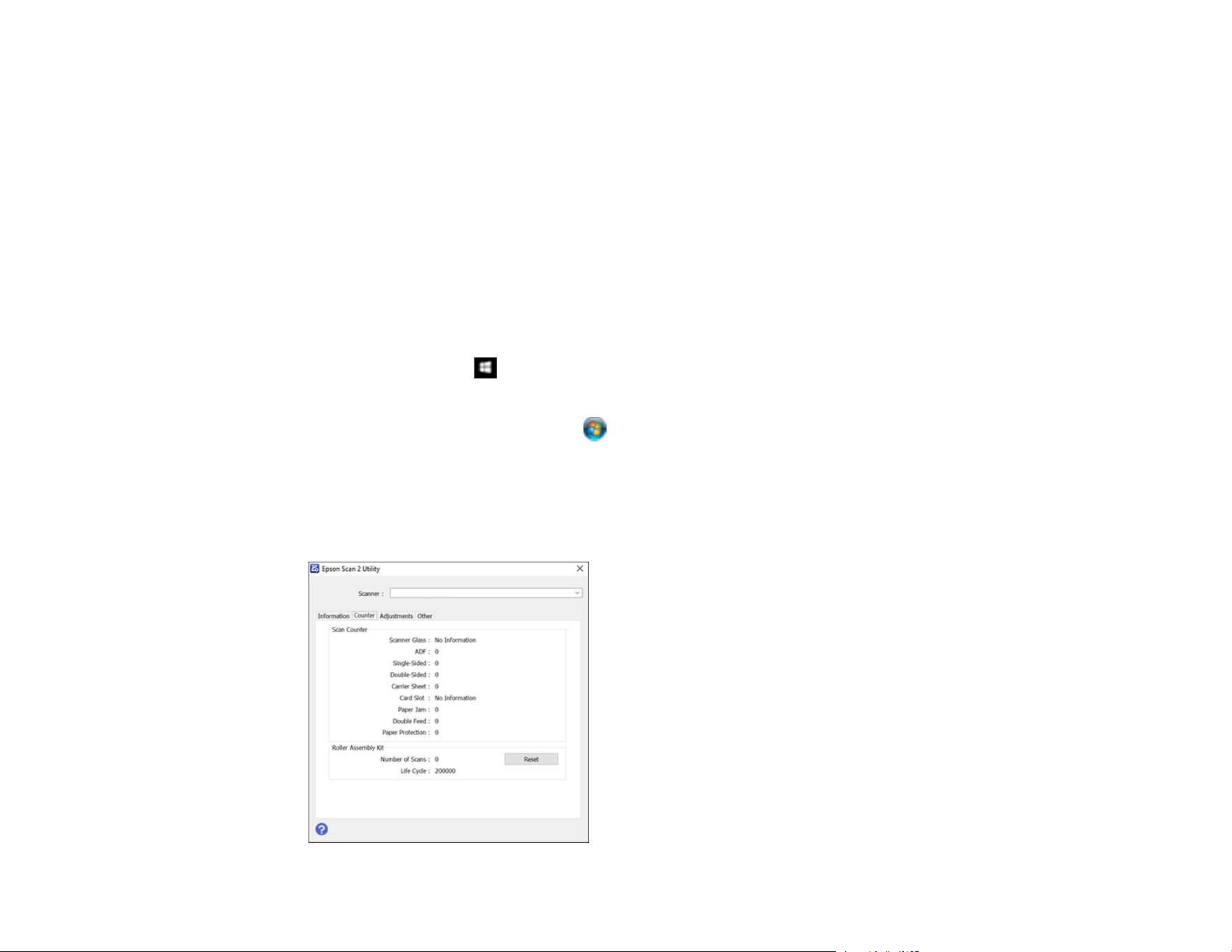
110
Note: Do not spray cleaners directly inside the product; always spray cleaners on a cleaning cloth to
slightly dampen the cloth. Wipe off any excess cleaner with a dry, lint-free cloth.
25. Close the scanner cover.
Parent topic: Cleaning and Transporting Your Scanner
Checking the Scanner Roller Counter
Check the scanner roller counter to determine when your rollers need to be replaced. When you replace
the scanner rollers, reset the scanner roller counter so you know when you may need to replace the
rollers again.
1. Make sure the scanner is turned on and connected to your computer.
2. Do one of the following to open the Epson Scan 2 Utility:
• Windows 10: Click and select EPSON > Epson Scan 2 Utility.
• Windows 8.x: Navigate to the Apps screen and select Epson Scan 2 Utility.
• Windows (other versions): Click or Start > All Programs or Programs > EPSON > Epson
Scan 2 > Epson Scan 2 Utility.
• Mac: Open the Applications folder, click Epson Software, and click Epson Scan 2 Utility.
3. Click the Counter tab.
You see a screen like this:
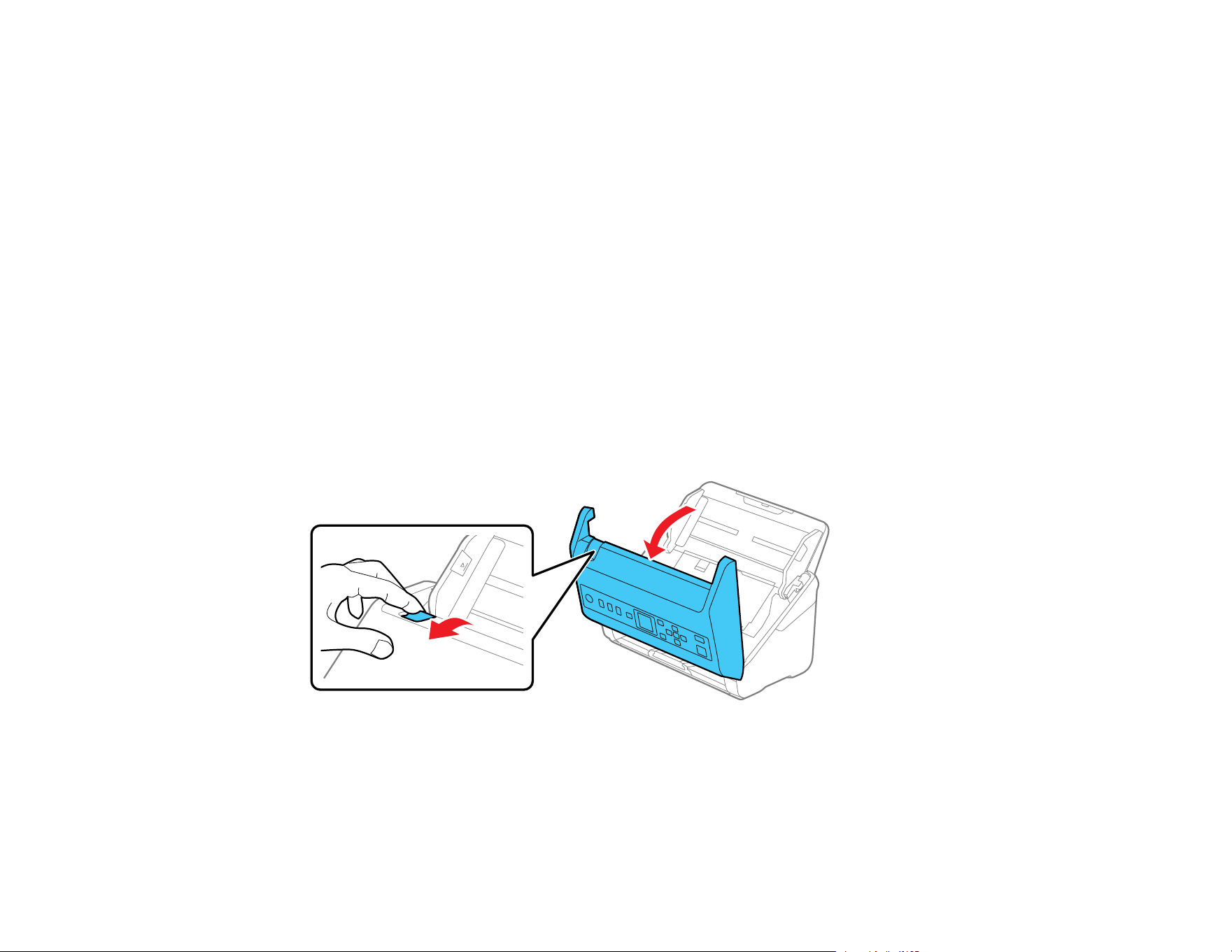
111
4. If the number in the Number of Scans field exceeds the number displayed as the Life Cycle of the
rollers, it is time to replace the rollers.
5. Close the Epson Scan 2 Utility.
Parent topic: Cleaning and Transporting Your Scanner
Replacing the Scanner Rollers
Replace the scanner rollers when the number of scans exceeds the life cycle of the rollers. Check the
scanner roller counter to see when you need to replace the rollers.
Note: Frequent use of textured media may cause premature wear on the rollers. If frequent paper jams
occur before the life cycle of the rollers is exceeded, try cleaning the rollers. In some cases, the rollers
may need to be replaced before the number of scans exceeds the life cycle of the rollers.
1. Turn off the scanner.
2. Unplug the AC adapter.
3. Disconnect any connected cables.
4. Pull down on the cover open lever and open the scanner cover.
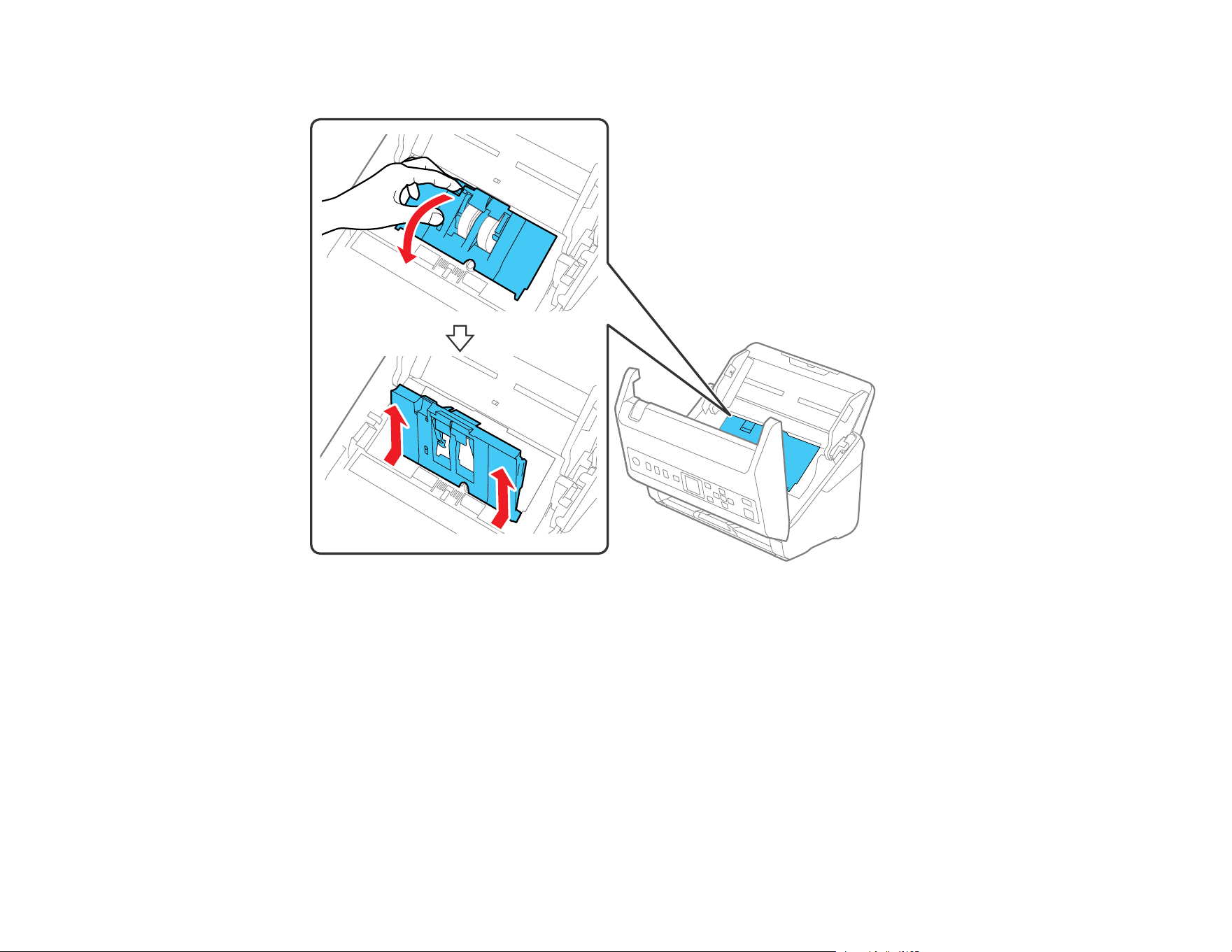
112
5. Press down on the pickup roller cover latch and pull up the cover to remove it.
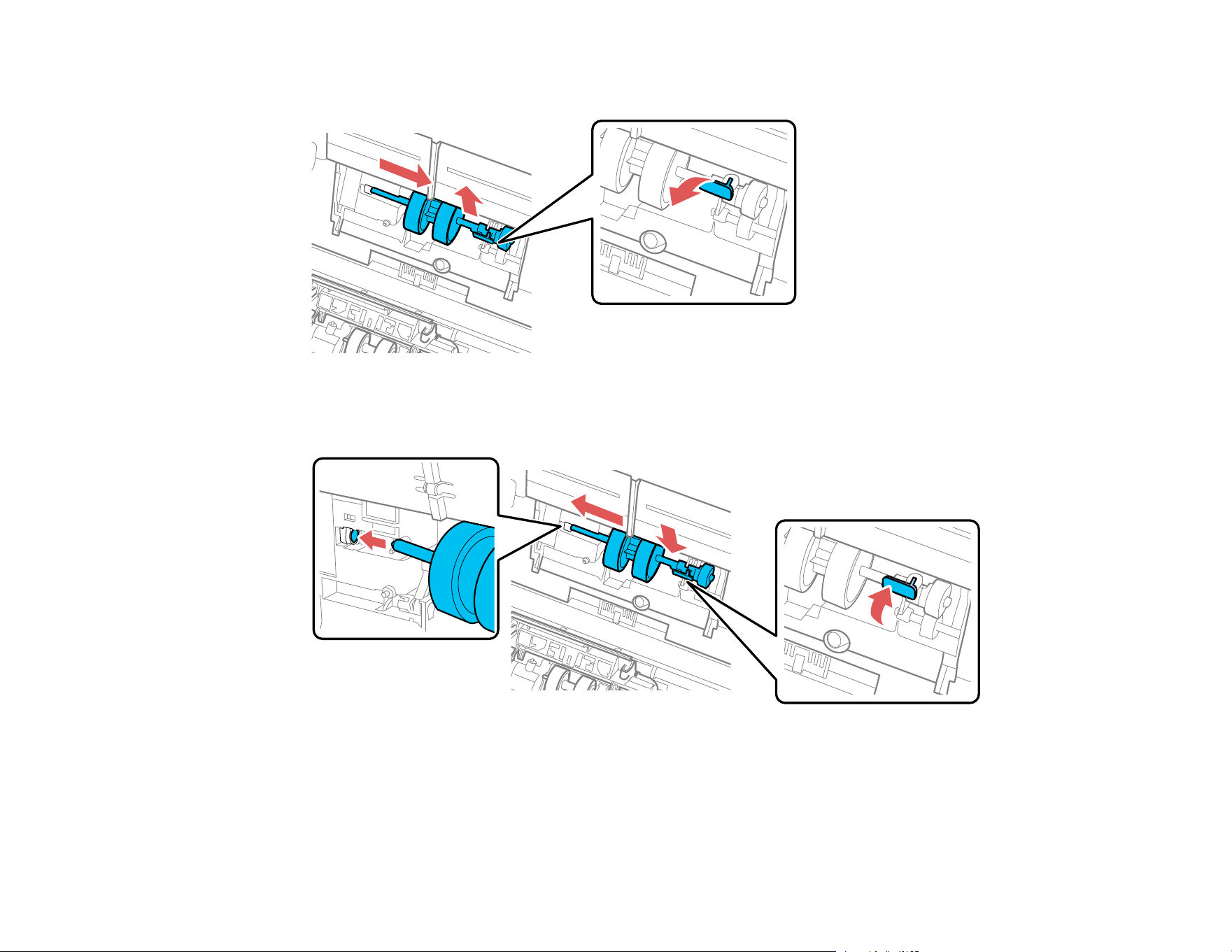
113
6. Pull down the tab on the pickup roller and slide the roller to the right to remove it.
7. To install the new pickup roller, align the notches on the roller unit and slide it to the left. Press up on
the tab to secure the roller.
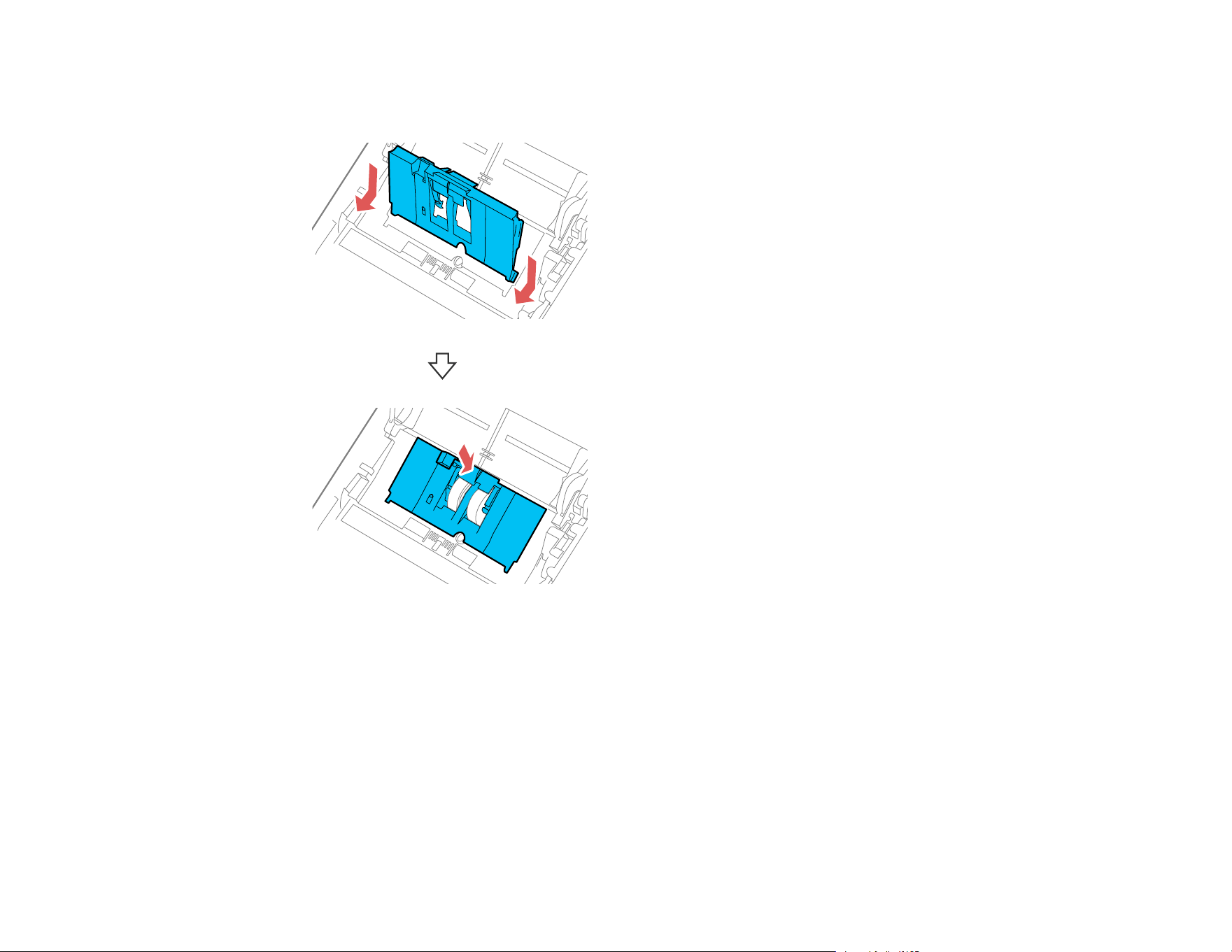
114
8. Align the bottom edge of the pickup roller cover into the notches as shown and press it down until it
clicks into place.
Note: If you are not able to close the cover, the pickup roller is not installed correctly. Remove the
roller unit and reinstall it, then try to close the cover again.
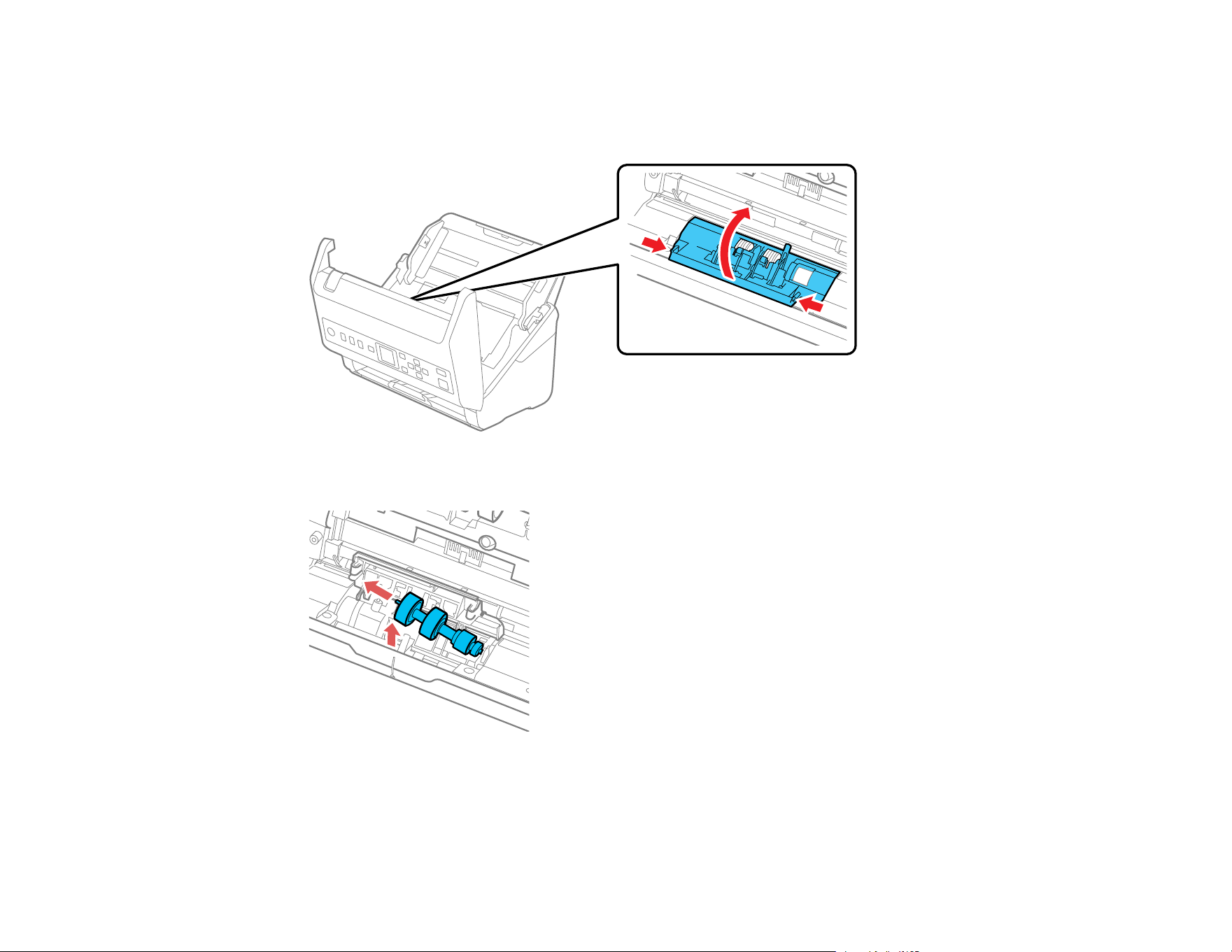
115
9. Squeeze the tabs on the sides of the separation roller cover and open the cover.
Caution: Be careful not to apply too much force when opening the cover.
10. Slide the separation roller to the left and remove it.
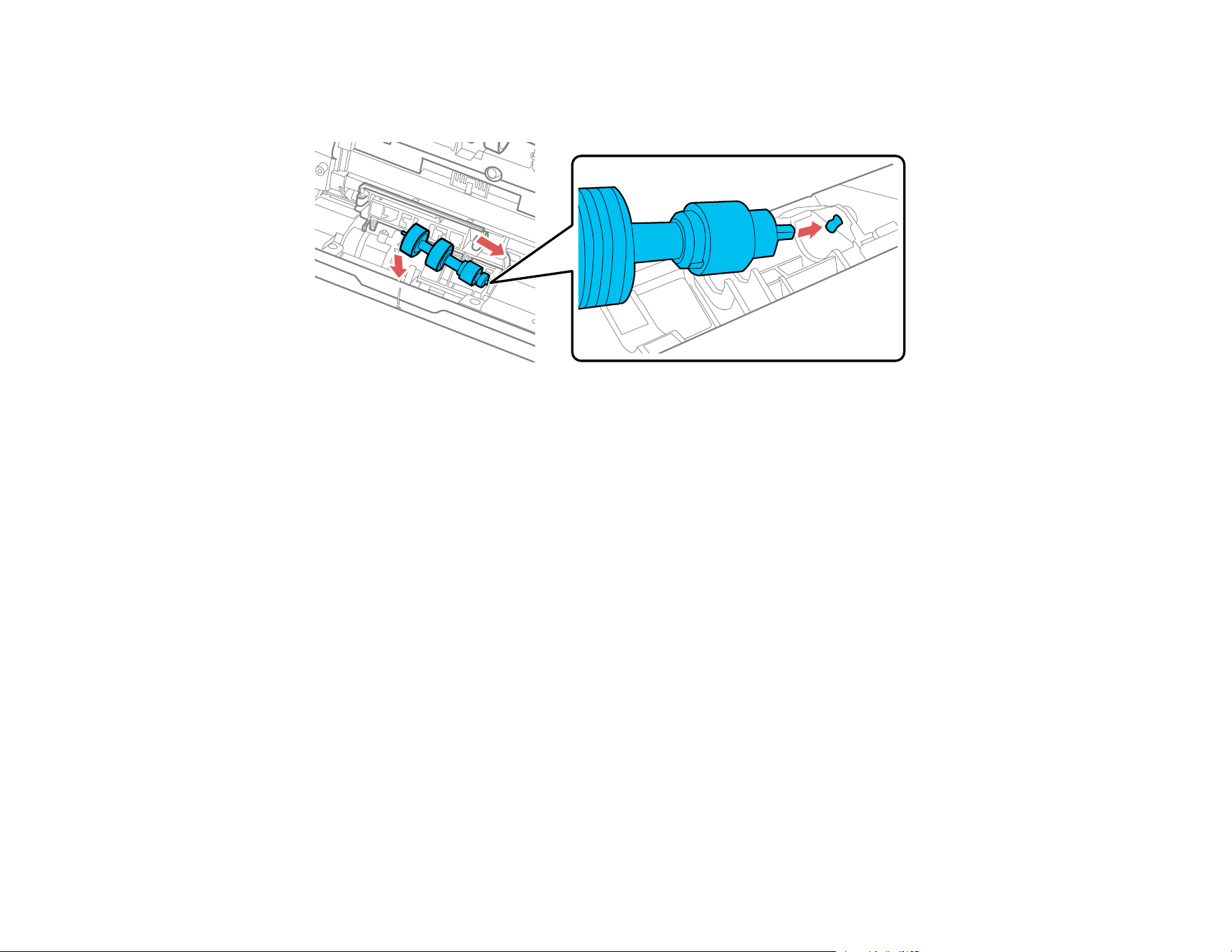
116
11. To install a new separation roller, insert the end of the roller into the hole on the right side and lower
the other end of the roller into place.
12. Close the separation roller cover until you hear it click into place.
Note: If you are not able to close the cover, the roller is not installed correctly. Remove the roller and
reinstall it, then try to close the cover again.
13. Close the scanner cover.
14. Connect any disconnected cables.
15. Plug in the AC adapter and turn on the scanner.
16. Reset the roller counter.
Resetting the Scanner Roller Counter
Parent topic: Cleaning and Transporting Your Scanner
Resetting the Scanner Roller Counter
When you replace the scanner rollers, reset the scanner roller counter so you know when you may need
to replace the rollers again.
1. Press the OK button, if necessary.
2. Use the arrow buttons to select Scanner Maintenance and press OK.
3. Use the arrow buttons to select Roller Replacement and press OK.
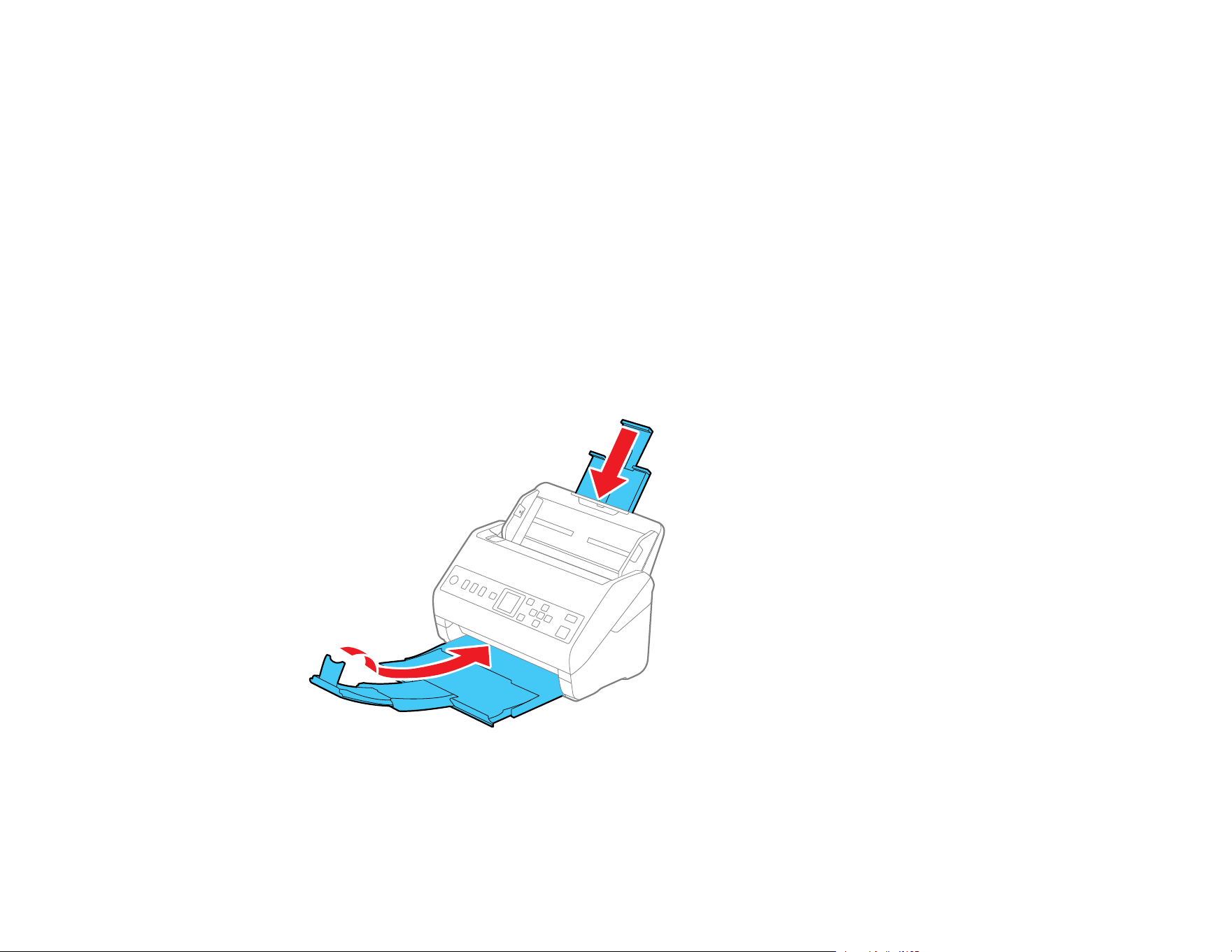
117
4. Follow the on-screen instructions to replace the rollers.
5. Press the down arrow to select Reset Counter and press OK.
Note: You can also reset the roller counter from your computer using the Epson Scan 2 Utility.
Select the Counter tab and click Reset.
Parent topic: Replacing the Scanner Rollers
Transporting Your Scanner
If you need to ship your product, transport it a long distance, or store it for an extended period, prepare it
for transportation as described here.
1. Turn off the scanner and unplug the AC adapter.
2. Disconnect any connected cables.
3. Close the input tray extension and the output tray.
Note: Make sure the output tray is securely closed.
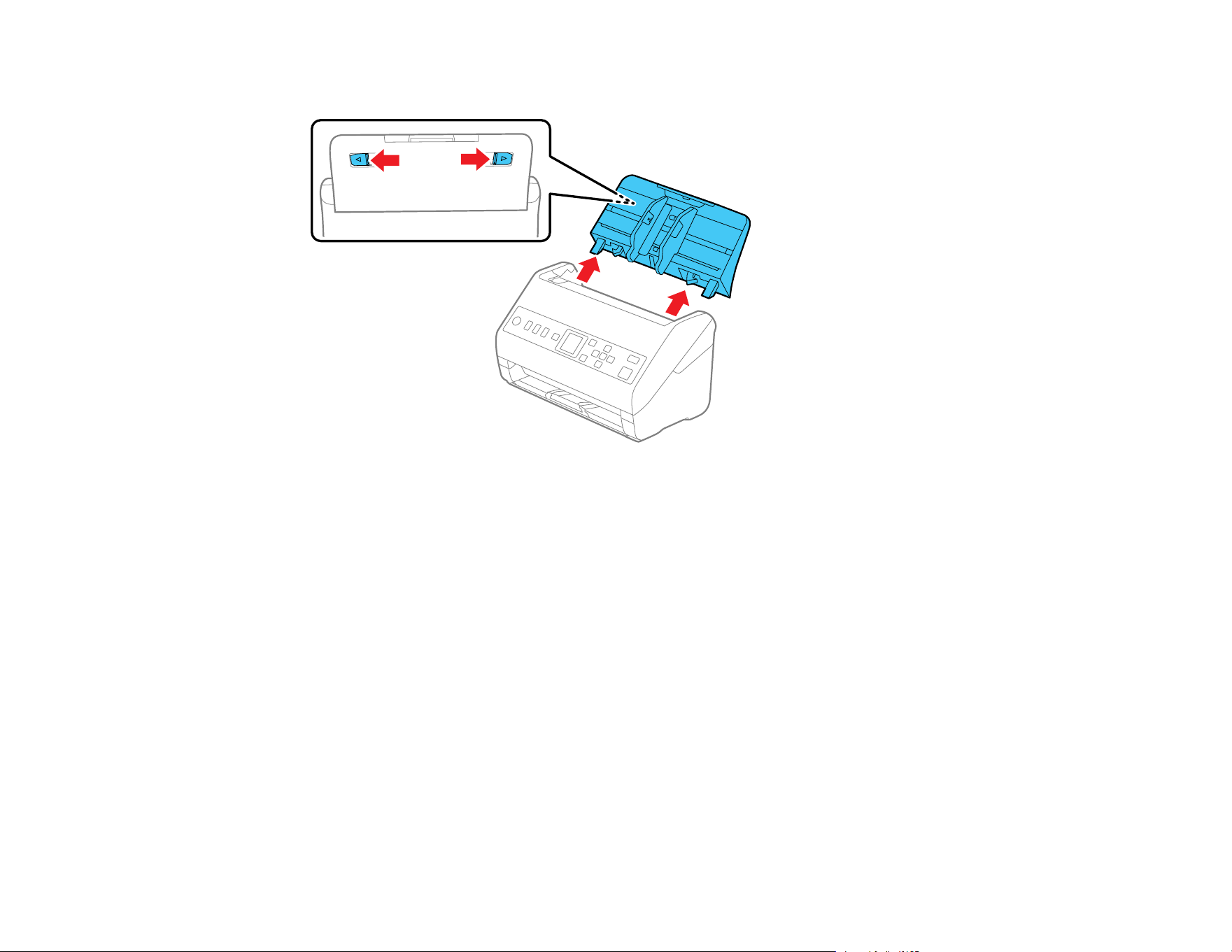

119
Solving Problems
Check these sections for solutions to problems you may have using your product.
Product Status Messages
Solving Scanning Problems
Solving Scanned Image Quality Problems
Resetting the Epson Scan 2 Settings
Uninstall Your Scanner Software
Where to Get Help (U.S. and Canada)
Where to Get Help (Latin America)
Product Status Messages
You can often diagnose problems with your product by checking the messages and status icons on its
LCD screen.
Note: If the LCD screen is dark, press the screen to wake the product from sleep mode.
LCD screen message Condition/solution
Computer not found. For details, see
your documentation.
Try the following:
• Make sure the scanner is connected and correctly configured.
• Install Epson Scan 2 and Document Capture Pro (Windows),
or Document Capture (Mac) on your computer.
• Install the latest version of the application.
• Make sure the AC adapter is securely connected to the
scanner and an electrical outlet. Check that the outlet is
working properly by plugging another electrical device into it.
• Check the firewall settings for Epson software.
• Make sure the Group setting is the same for the computer and
the scanner.
• Search for the computer again.
Scanner error. For details, see your
documentation.
Turn the power off and on again. If the error continues, contact
Epson.
120
LCD screen message Condition/solution
Recovery mode An error has occurred during firmware updating. Connect your
product using a USB cable and try downloading the Firmware
Update from the Epson support site. If you still need help,
contact Epson for support.
Parent topic: Solving Problems
Solving Scanning Problems
Check these solutions if you have problems scanning with your product.
Scanner Does Not Turn On or Turns Off Unexpectedly
Scanner Button Does Not Work as Expected
Scanning Software Does Not Operate Correctly
Cannot Start Epson Scan 2
Original Feeds Incorrectly in Scanner
Original Jams in Scanner
Scanning is Slow
Cannot Scan Over a Network
Parent topic: Solving Problems
Scanner Does Not Turn On or Turns Off Unexpectedly
If the scanner does not turn on or if it turns off unexpectedly, try these solutions:
• Make sure the AC adapter is securely connected to the scanner and to a working electrical outlet.
• If the scanner turns off unexpectedly, you may need to adjust the setting in the Epson Scan 2 Utility.
• You may need to adjust the Sleep Timer and Power Off Timer settings on the control panel.
Parent topic: Solving Scanning Problems
Related tasks
Changing the Sleep Timer Settings
Changing the Power Off Timer Settings

121
Scanner Button Does Not Work as Expected
If the scanner button does not start the correct program or perform the correct action, try these solutions:
• Check the USB cable connection between the computer and scanner if you are connecting via USB.
• In Windows, be sure that the scanner is listed under Imaging Devices in the Device Manager.
• Make sure Document Capture Pro (Windows) or Document Capture (Mac) is installed correctly. If
necessary, uninstall and reinstall it.
• Make sure you have assigned the correct job to the scanner button and change it, if necessary.
• Check the status of the lights and make sure the scanner is ready to scan.
• Make sure Epson Scan 2 and other applications are installed correctly. If necessary, uninstall and
reinstall it.
Parent topic: Solving Scanning Problems
Scanning Software Does Not Operate Correctly
If your scanning software does not operate correctly, try these solutions:
• Make sure your computer has adequate memory and meets the system requirements for your
operating system.
• Make sure your computer is not running in a power-saving mode, such as sleep or standby. If so,
wake your system and restart your scanning software.
• Make sure the scanner is turned on.
• Make sure the connection between the scanner and your computer is secure.
• If you upgraded your operating system but did not reinstall your scanning software, try reinstalling it.
• In Windows, be sure that the scanner is listed under Imaging Devices in the Device Manager.
• Check that the correct scanner is selected using the Epson Scan 2 Utility.
• Check that the correct setting is assigned to the scanner button in Document Capture Pro (Windows)
or Document Capture (Mac).
• Make sure the scanning software is installed.
• Connect the scanner directly to the computer. The scanner may not work properly when connected
through a USB hub.
• Document Capture Pro (Windows) does not support Windows Vista or Windows server, so use Epson
Scan 2 for scanning instead.

122
• If you are using a TWAIN-compliant program, make sure that the correct product is selected as the
Scanner or Source setting.
• Make sure the PC Connection via USB setting is not disabled on the control panel.
• If you are using the scanner over a network, make sure the network cable is securely connected.
Parent topic: Solving Scanning Problems
Related concepts
Uninstall Your Scanner Software
Related references
Windows System Requirements
Mac System Requirements
Cannot Start Epson Scan 2
If you cannot start Epson Scan 2, try these solutions:
• Make sure your scanner appears in the Epson Scan 2 Utility.
• Make sure your scanner is turned on and any interface cables are securely connected at both ends.
• Make sure your computer is not running in a power-saving mode, such as sleep or standby. If so,
wake your system and restart Epson Scan 2.
• Connect the scanner directly to the computer. The scanner may not work properly when connected
through a USB hub.
• If you connected the scanner using a USB cable, make sure it is connected directly to your computer
or through only one USB hub.
• If you are using the scanner over a network, make sure the network cable is securely connected.
• If you are using the scanner over a network, make sure your scanner is displayed in the Scanner
Settings screen. If your scanner is not displayed in the list, click Enable Editing and click Add. Add
your scanner on the Add Network Scanner screen.
• Make sure the PC Connection via USB setting is not disabled on the control panel.
• If you upgraded your operating system but did not reinstall Epson Scan 2, try reinstalling it.
• If you are using a TWAIN-compliant program, make sure that the correct product is selected as the
Scanner or Source setting.
Parent topic: Solving Scanning Problems

123
Related concepts
Uninstall Your Scanner Software
Related references
Windows System Requirements
Mac System Requirements
Original Feeds Incorrectly in Scanner
If you have problems feeding originals in your scanner, try these solutions:
• If multiple pages feed at once, try the following:
• Remove the originals, fan the edges to separate the sheets, if necessary, and reload them.
• Load fewer originals at a time.
• Load only originals that meet the specifications for your scanner.
• Clean inside the scanner and replace the roller assembly kit, if necessary.
• Check the pickup rollers and clean, if necessary.
• Scan the originals one by one using the Automatic Feeding Mode setting in Epson Scan 2.
• Select Slow on the scanner control panel to slow down the scanning speed.
• Use Automatic Feeding Mode in Epson Scan 2 and scan originals one at a time.
• Use the optional carrier sheet for thin, folded, or irregularly shaped originals.
• If you see a double feed error in the Epson Scan 2 window or the Document Capture Pro window, start
Epson Scan 2, select the Main Settings tab, select the Detect Double Feed setting, and select Off.
Parent topic: Solving Scanning Problems
Related references
User Replaceable Epson Scanner Parts
Related tasks
Cleaning Inside Your Scanner
Related topics
Loading Originals
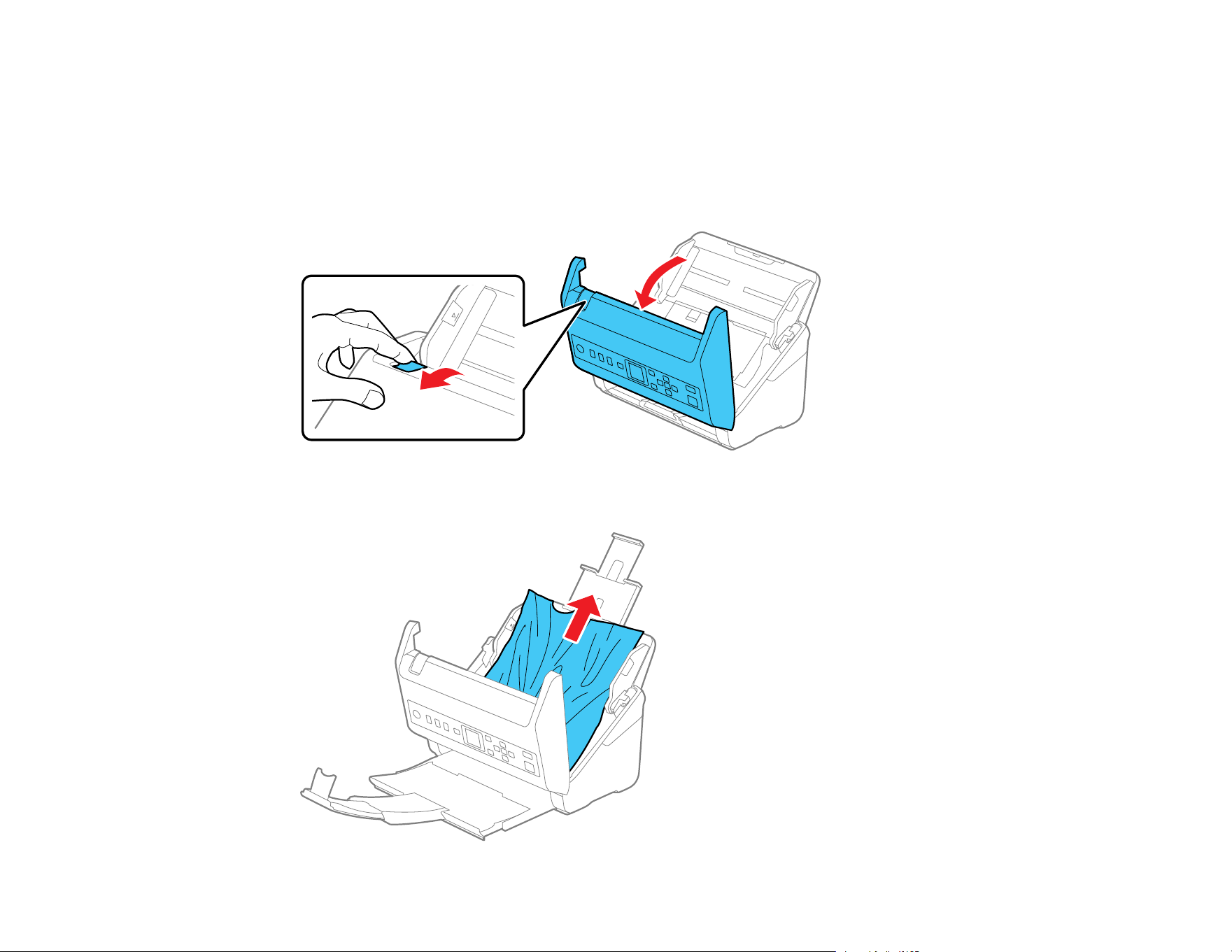
124
Original Jams in Scanner
If an original has jammed inside the scanner, follow these steps:
1. Turn off your scanner.
2. Remove all originals from the input tray.
3. Pull down the cover open lever and open the scanner cover.
4. Gently pull out any jammed originals from inside the scanner.
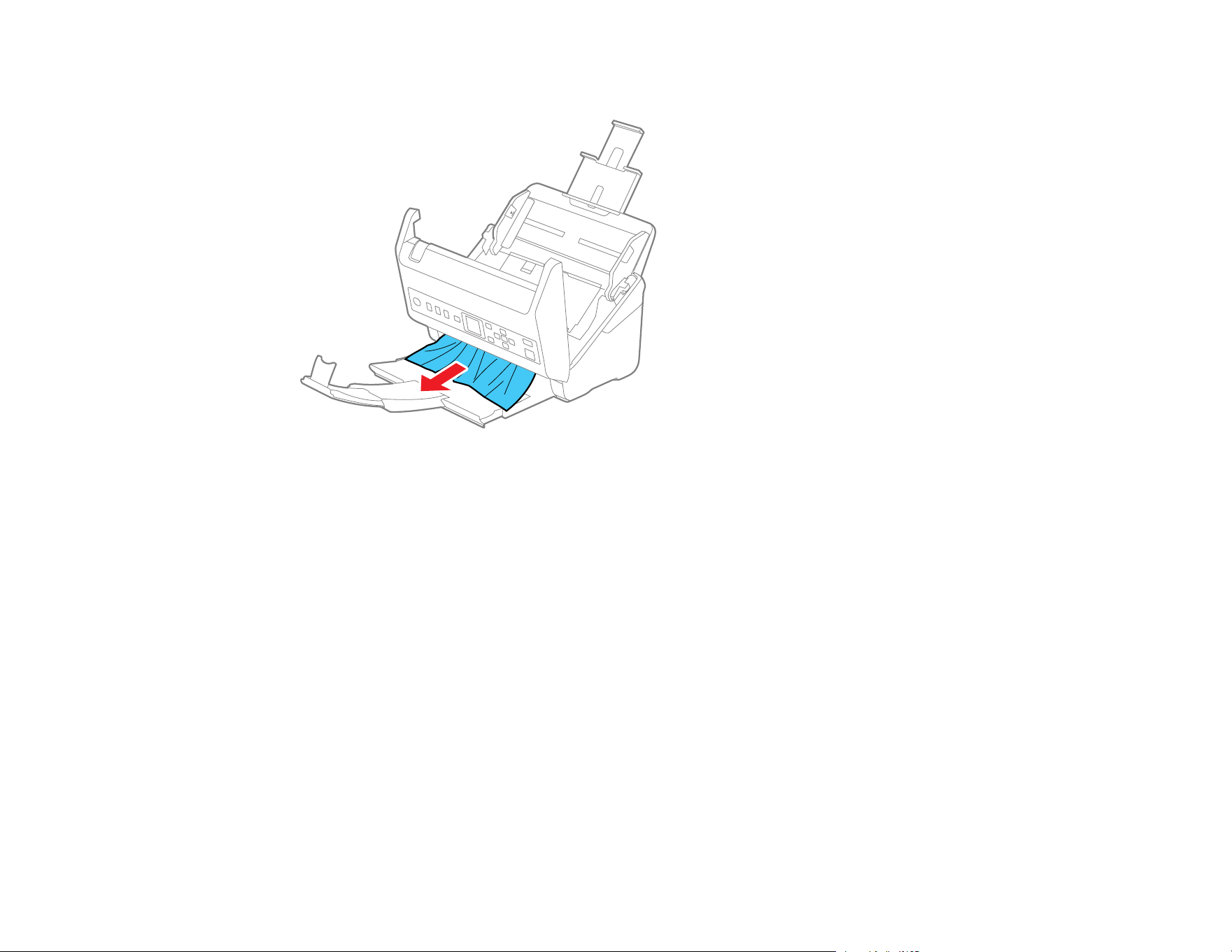
125
5. Gently pull out any jammed originals from the output tray.
6. Close the scanner cover.
7. Carefully follow all loading instructions when you reload originals.
If originals jam in the scanner frequently, try the following:
• Select on the scanner control panel to slow down the scanning speed.
• Select on the scanner control panel to slow down the scanning speed.
• Clean inside the scanner and clean the rollers.
• Close the output tray and let the originals fall freely onto the surface below the scanner.
Parent topic: Solving Scanning Problems
Related tasks
Cleaning Inside Your Scanner
Related topics
Loading Originals

126
Scanning is Slow
If scanning becomes slow, try these solutions:
• Scan your original at a lower resolution, if possible.
• Make sure your system meets the requirements for your operating system. If you are scanning a high-
resolution image, you may need more than the minimum requirements. If necessary, increase your
system's memory or reduce the resolution.
• If scanning becomes slower after scanning continuously with the ADF for a long time, the scanner may
have automatically slowed down to protect the scanner mechanism from overheating or becoming
damaged. Let the scanner rest with the power on for 30 minutes, then try scanning again.
• Make sure Slow is set to Off on the scanner control panel.
• If you are running virus protection or other security software, exclude the TWAIN.log files from
monitoring or set the TWAIN.log file as read only. See your virus protection or security software
instructions for details. The TWAIN.log file is saved in C:\Users\(user name)\AppData\Local\Temp.
Note: You may need to unhide system folders to view files in that location.
• If you are scanning over a network, factors such as interference, network traffic, or weak signal
strength may affect your scanning speed.
• Computers with USB 3.0 (SuperSpeed) or USB 2.0 (Hi-Speed) ports can scan faster than those with
USB 1.1 ports. If you are using a USB 3.0 or 2.0 port with the scanner, make sure it meets the system
requirements.
Parent topic: Solving Scanning Problems
Related references
Windows System Requirements
Mac System Requirements
Cannot Scan Over a Network
If you have problems scanning over a network, try these solutions:
• Restart the scanner and check the IP address on the scanner control panel.
• Make sure the Ethernet hub is turned on.
• Restart the Ethernet hub, wait for approximately one minute after restarting, then check the
connection again.

127
• The order in which the Ethernet hub and scanner are turned on may cause a temporary connection
error. Restart the scanner, wait for approximately one minute after restarting, then check the
connection again.
• If network communication was interrupted while starting Epson Scan 2, exit Epson Scan 2, wait a few
seconds, and restart it. If Epson Scan 2 cannot restart, turn off your scanner, turn it back on, and try
starting Epson Scan 2 again.
• Check the network connection setting in the Epson Scan 2 Utility.
• Make sure the Ethernet cable is connected securely. If the connection status light on the Ethernet hub
is off, check the light status by connecting the Ethernet cable to another port or changing the Ethernet
cable. If this does not solve the problem, replace the Ethernet hub.
• If you see a message telling you the product is not available, there may be a communication error
between the scanner and computer. Restart the scanner.
• If your network uses a firewall, the scanner may not be discovered by the Epson Scan 2 Utility. Open
the Epson Scan 2 Utility, enter the IP address for your scanner, and click Add.
• If there is an IP address conflict, the network connection may become unavailable. Check the IP
address for each device and assign unique IP addresses.
• Make sure the scanner and Ethernet hub connection modes match. You can change the connection
modes using EpsonNet Config. See the Administrator's Guide for details.
• Restart the computer.
Parent topic: Solving Scanning Problems
Solving Scanned Image Quality Problems
Check these sections if a scanned image on your computer screen has a quality problem.
Note: For solutions when using Document Capture Pro (Windows) or Document Capture (Mac)
software, see the Document Capture Pro (Windows) or Document Capture (Mac) help utility.
Back of Original Image Appears in Scanned Image
Scanned Characters are Blurry
Characters are not Recognized During Conversion to Editable Text (OCR)
Ripple Patterns Appear in an Image
Spots or Lines Appear in All Scanned Images
Scanned Image is Cropped
Parent topic: Solving Problems

128
Back of Original Image Appears in Scanned Image
If an image from the back of a thin original appears in your scanned image, make sure you selected the
correct Image Type setting for your original and select the Text Enhancement setting in Epson Scan 2.
You can also select the Remove Background setting in Epson Scan 2.
Note: If you select Color as the Image Type setting, you can change the level from Standard to High to
remove more of the background.
Parent topic: Solving Scanned Image Quality Problems
Related references
Image Format Options
Related tasks
Scanning in Epson Scan 2
Scanned Characters are Blurry
If characters in your scanned images are blurry, try these solutions:
• Make sure you do not move the scanner or original while scanning.
• Operate the scanner on a flat, stable surface.
• Adjust these Epson Scan 2 settings (if available) and try scanning again:
• Select the Text Enhancement setting.
• If the Image Type setting is Black & White, adjust the Threshold setting.
• Increase the Resolution setting.
• Set the Image Type to Grayscale.
• If you are scanning in JPEG format, change the compression level. Click Options in the Image
Format menu and change the Image Quality setting.
Parent topic: Solving Scanned Image Quality Problems
Related references
Image Format Options
Related tasks
Scanning in Epson Scan 2

129
Characters are not Recognized During Conversion to Editable Text (OCR)
If characters in your scanned images are not recognized during OCR conversion, try these solutions:
• Make sure your original is loaded straight on your product.
• Use an original with clear text.
• Adjust these Epson Scan 2 settings (if available) and try scanning again:
• Select the correct Image Type setting.
• If the Image Type is set to Black & White, select Text Enhancement. If the Image Type is set to
Color or Grayscale, change the Text Enhancement setting to High.
• Select or adjust the Text Enhancement setting.
• If the Image Type is set to Black & White, adjust the Threshold setting.
• Set the Image Type to Grayscale.
• Set the scanning resolution between 200 and 600 dpi.
• If the original document is in landscape mode, set the Rotate setting to Auto in Epson Scan 2.
• If you are using OCR software, check the manual for any additional adjustments.
• Scan thermal paper receipts as soon as possible. They may deteriorate due to age or friction.
• When saving to Microsoft Office or Searchable PDF files, check that the correct languages are
selected. Check the language in each save setting window.
Parent topic: Solving Scanned Image Quality Problems
Related references
Image Format Options
Related tasks
Scanning in Epson Scan 2
Ripple Patterns Appear in an Image
You may see a ripple pattern (called a moiré) in scanned images of printed documents. This is caused
by interference from differing pitches in the scanner's screen and your original's halftone screen. To
reduce this effect, adjust these Epson Scan 2 settings (if available) and try scanning again:
• Select the Descreening setting on the Advanced Settings tab.
• Select a lower Resolution setting.
Parent topic: Solving Scanned Image Quality Problems

130
Related references
Image Format Options
Related tasks
Scanning in Epson Scan 2
Spots or Lines Appear in All Scanned Images
If spots or lines appear in all your scanned images, try these solutions:
• Make sure the surface of your original is clean.
• Make sure there is no debris or dirt inside the ADF.
• Disconnect any connected cables and clean inside the scanner.
• Check the rollers and clean, if necessary.
• Enable the Detect Glass Dirt setting on the control panel. (Press the home button, select Settings
> Scanner Settings > Detect Glass Dirt, and select On-Low, if the alert displays a misdetection, or
On- High if dirt is not detected.) When an alert displays on the control panel, clean the glass scanning
surfaces inside your scanner using a genuine Epson cleaning kit or a soft, moist cloth.
Note: If there are scratches on the glass surface, the alert screen may continue to appear even after
cleaning the glass. Contact Epson for information about replacing the glass.
• Avoid scanning in direct sunlight.
Parent topic: Solving Scanned Image Quality Problems
Scanned Image is Cropped
If the edges of a scanned image are cropped, try the following solutions:
• Select Auto Detect as the Document Size setting in Epson Scan 2, Document Capture Pro.
• In Epson Scan 2, select the Main Settings tab. Select Document Size > Settings and adjust the
cropping area shown in the Crop Margins for Size "Auto" setting. In Document Capture Pro, select
Detailed Settings from the Scan window. Click Configuration and select the Document tab. Adjust
the cropping area shown in the Crop Margins for Size "Auto" setting.
• In Epson Scan 2, select the Advanced Settings tab. Make sure the Edge Fill setting is set to None.
• Document Capture Pro (Windows): Select Scan Settings > Detailed Settings from the Scan
window. Select Document Size and then select the Auto Detect setting.

131
• Document Capture (Mac): Click the Scan button and select Main Settings from the Scan
window. Select Document Size and then adjust the cropping area shown in the Crop Margins for
Size "Auto" setting.
Parent topic: Solving Scanned Image Quality Problems
Resetting the Epson Scan 2 Settings
If you continue to experience image quality problems after trying all possible solutions, you may need to
reset the Epson Scan 2 settings using the Epson Scan 2 Utility.
1. Do one of the following to start the Epson Scan 2 Utility:
• Windows 10: Click > EPSON > Epson Scan 2 Utility.
• Windows 8.x: Navigate to the Apps screen and select Epson Scan 2 Utility.
• Windows (other versions): Click or Start, and select All Programs or Programs. Select
EPSON > Epson Scan 2 Utility.
• Mac: Open the Applications folder, open the Epson Software folder, and select Epson Scan 2
Utility.
2. Click the Other tab.
3. Click Reset.
Note: If resetting the Epson Scan 2 settings does not solve your problem, uninstall your scanner
software and re-install it.
Parent topic: Solving Problems
Uninstall Your Scanner Software
If you have a problem that requires you to uninstall and re-install your software, follow the instructions for
your operating system.
Uninstalling Scanner Software - Windows
Uninstalling Scanner Software - Mac
Parent topic: Solving Problems
Uninstalling Scanner Software - Windows
You can uninstall and then re-install your scanner software to solve certain problems.

132
1. Exit all applications currently running on your computer.
2. Turn off the scanner.
3. Disconnect any interface cables.
4. Do the following to uninstall each of your scanning software programs and follow any on-screen
instructions:
• Windows 10: Click and select (Settings) > Apps > Apps & features. Select the scanner
software program and click Uninstall.
• Windows 8.x: Navigate to the Apps screen and select Control Panel > Programs > Programs
and Features. Select the scanner software program and click Uninstall/Change.
• Windows 7: Open the Windows Control Panel utility. Select Programs and Features. (In
Classic view, select Programs and click Uninstall a program.) Select the scanner software
program and click Uninstall/Change.
5. Restart your computer, then see the Start Here sheet to re-install your software.
Note: If you find that re-installing your scanner software does not solve a problem, contact Epson.
Parent topic: Uninstall Your Scanner Software
Uninstalling Scanner Software - Mac
In most cases, you do not need to uninstall your scanner software before re-installing it. However, you
can download the Uninstaller utility from the Epson support website to uninstall your scanner software as
described here.
1. To download the Uninstaller utility, visit epson.com/support (U.S.), epson.ca/support (Canada), or
latin.epson.com/support (Caribbean) and select your product.
2. Follow the instructions on the screen to install the Uninstaller utility.
3. Quit all applications currently running on your Mac.
4. Double-click the Uninstaller icon.
5. In the Epson Uninstaller screen, select the checkbox for each software program you want to
uninstall.
6. Click Uninstall.
7. Follow the on-screen instructions to uninstall the software.
8. To reinstall your scanner software, see the Start Here sheet for instructions.

133
Note: If you find that re-installing your scanner software does not solve a problem, contact Epson.
Parent topic: Uninstall Your Scanner Software
Where to Get Help (U.S. and Canada)
If you need to contact Epson for technical support services, use the following support options.
Internet Support
Visit Epson's support website at epson.com/support (U.S.) or epson.ca/support (Canada) and select
your product for solutions to common problems with your product. You can download utilities and
documentation, get FAQs and troubleshooting advice, or e-mail Epson with your questions.
Speak to a Support Representative
Before you call Epson for support, please have the following information ready:
• Product name
• Product serial number (located on a label on the product)
• Proof of purchase (such as a store receipt) and date of purchase
• Computer configuration
• Description of the problem
Then call:
• U.S.: (562) 276-4300, 6 AM to 8 PM, Pacific Time, Monday through Friday, and 7 AM to 4 PM, Pacific
Time, Saturday
• Canada: (905) 709-3839, 6 AM to 8 PM, Pacific Time, Monday through Friday, and 7 AM to 4 PM,
Pacific Time, Saturday
Days and hours of support are subject to change without notice. Toll or long distance charges may
apply.
Note: For help using any other software on your system, see the documentation for that software for
technical support.
Purchase Supplies and Accessories
You can purchase genuine Epson accessories at epson.com (U.S. sales) or epson.ca (Canadian sales).
You can also purchase accessories from an Epson authorized reseller. To find the nearest one, call 800-
GO-EPSON (800-463-7766) in the U.S. or 800-807-7766 in Canada.
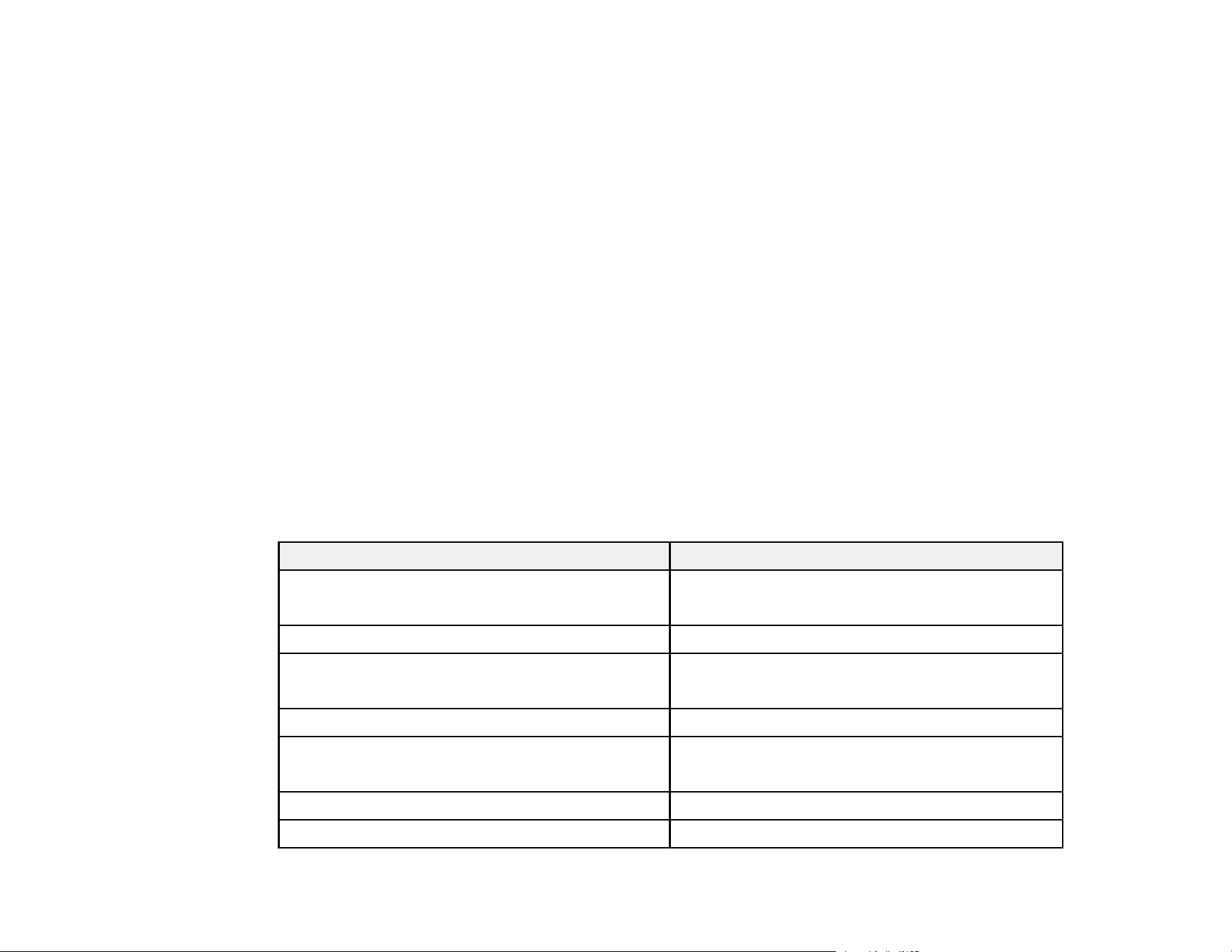
134
Parent topic: Solving Problems
Where to Get Help (Latin America)
If you need additional help with your Epson product, contact Epson.
Epson provides these technical support services:
Internet Support
Visit Epson's support website at latin.epson.com/support and select your product for solutions to
common problems. You can download drivers and documentation, get FAQs and troubleshooting
advice, or e-mail Epson with your questions.
Speak to a Support Representative
Before you call Epson for support, please have the following information ready:
• Product name
• Product serial number (located on a label on the product)
• Proof of purchase (such as a store receipt) and date of purchase
• Computer configuration
• Description of the problem
Then call:
Country Telephone
Argentina (54 11) 5167-0300
0800-288-37766
Bolivia* 800-100-116
Brazil State capitals and metropolitan areas: 3004-6627
Other areas: 0800-377-6627 / 0800-EPSONBR
Chile (56 2) 2484-3400
Colombia Bogota: (57 1) 592-2200
Other cities: 018000-915235
Costa Rica 800-377-6627
Ecuador* 1-800-000-044
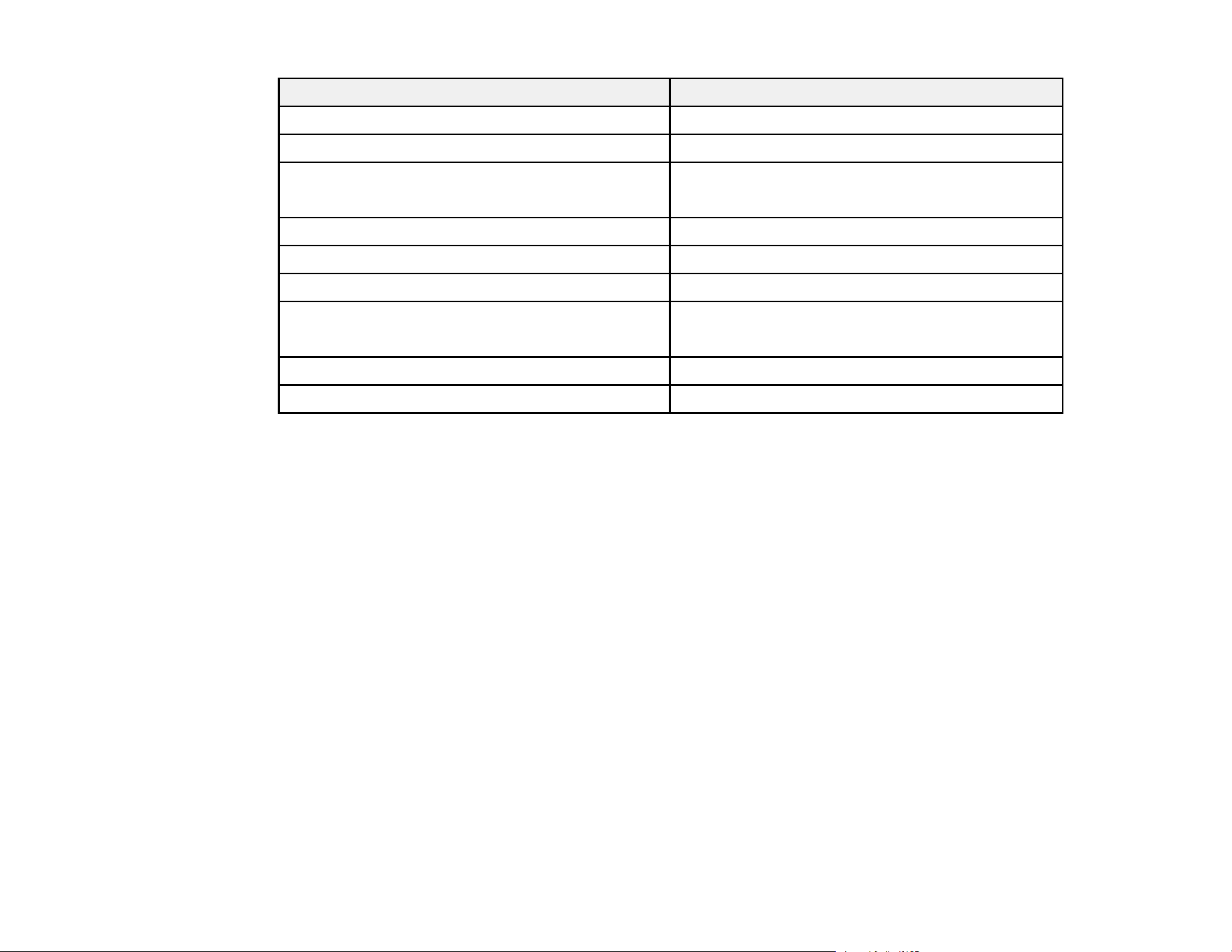
135
Country Telephone
El Salvador* 800-6570
Guatemala* 1-800-835-0358
Mexico Mexico City: (52 55) 1323-2052
Other cities: 01-800-087-1080
Nicaragua* 00-1-800-226-0368
Panama* 00-800-052-1376
Paraguay 009-800-521-0019
Peru Lima: (51 1) 418-0210
Other cities: 0800-10-126
Uruguay 00040-5210067
Venezuela (58 212) 240-1111
* Contact your local phone company to call this toll-free number from a mobile phone.
If your country does not appear in the list, contact the sales office in the nearest country. Toll or long
distance charges may apply.
Purchase Supplies and Accessories
You can purchase genuine Epson accessories from an Epson authorized reseller. To find the nearest
reseller, visit latin.epson.com/support or call your nearest Epson sales office.
Parent topic: Solving Problems

136
Technical Specifications
These sections list the technical specifications for your scanner.
Note: Epson offers a recycling program for end of life Epson products. Please go to this site (U.S) or this
site (Canada) for information on how to return your Epson products for proper disposal.
Windows System Requirements
Mac System Requirements
General Specifications
Dimension Specifications
Electrical Specifications
Environmental Specifications
Network Interface Specifications
Safety and Approvals Specifications
Windows System Requirements
To use your product and its software, your computer should use one of these Microsoft operating
systems:
• Windows 10
• Windows 8.x
• Windows 7
• Windows Vista (not supported by Document Capture Pro 2.0 or later)
• Windows XP Professional x64 Edition (not supported by Document Capture Pro 2.0 or later)
• Windows XP SP3 (not supported by Document Capture Pro 2.0 or later)
• Windows Server 2016
• Windows Server 2012R2
• Windows Server 2012
• Windows Server 2008R2
• Windows Server 2008
• Windows Server 2003R2

137
• Windows Server 2003 SP2
Note: For the latest product software available for your operating system, visit the Epson support site at
epson.com/support (U.S.), epson.ca/support (Canada), or latin.epson.com/support (Caribbean), select
your product, and select Downloads.
Parent topic: Technical Specifications
Mac System Requirements
To use your product and its software, your Mac should use one of these operating systems:
• macOS 11.x
• macOS 10.15.x
• macOS 10.14.x
• macOS 10.13.x
• macOS 10.12.x
• OS X 10.11.x
• OS X 10.10.x
• OS X 10.9.x
• OS X 10.8.x
• OS X 10.7.5
Note: The UNIX File System (UFS) for OS X and Fast User Switching on OS X is not supported.
For the latest product software available for your operating system, visit the Epson support site at
epson.com/support (U.S.), epson.ca/support (Canada), or latin.epson.com/support (Caribbean), select
your product, and select Downloads.
Parent topic: Technical Specifications
General Specifications
Scanner type Sheet feed, one pass duplex, color
Photoelectric device CIS

138
Effective pixels 5100 × 9300 pixels at 600 dpi
2550 × 64,500 pixels at 300 dpi
Document size Maximum: 8.5 × 240 inches (215.9 × 6096 mm)
Minimum: 2 × 2 inches (50.8 × 50.8 mm)
Paper input Facedown loading
Paper output Facedown ejection
Paper capacity 100 sheets of paper at 21 lb (80 g/m
2
) weight
Scanning resolution 600 dpi (main scan)
600 dpi (sub scan)
Output resolution 50 to 1200 dpi in 1 dpi increments
53 inches (1346.0 mm) or less: up to 600 dpi
215 inches (5461.0 mm) or less: up to 300 dpi
220 inches (6096.0 mm) or less: up to 200 dpi
Color Depth Color:
30 bits per pixel internal (10 bits per pixel per color)
24 bits per pixel external (8 bits per pixel per color)
Grayscale:
10 bits per pixel internal
8 bits per pixel external
Black-and-white:
10 bits per pixel internal
1 bit per pixel external
Interface Hi-speed USB
Note: You cannot use a USB connection when using the Document
Capture Pro Server Authenticate Edition.
Light source RGB LED
Parent topic: Technical Specifications

139
Dimension Specifications
Height 6.6 inches (167 mm)
Width 11.7 inches (296 mm)
Depth 6.7 inches (169 mm)
Weight 7.9 lb (3.6 kg)
Note: Dimensions do not include projecting parts.
Parent topic: Technical Specifications
Electrical Specifications
Scanner
Note: Check the label on the scanner and the AC adapter for voltage information. Power consumption
varies depending on operating conditions or whether an option is installed.
Rated DC input power supply
voltage
24 V DC
Rated DC input current 1 A
Power consumption USB Connection:
Operating: 13 W (approximate)
Ready mode: 5.9 W (approximate)
Sleep mode: 1.2 W (approximate)
Power off mode: 0.1 W (approximate)
Ethernet Connection:
Operating: 14 W (approximate)
Ready mode: 5.9 W (approximate)
Sleep mode: 1.5 W (approximate)
Power off mode: 0.1 W (approximate)

140
AC Adapter
AC adapter model 100 to 240 V AC model: A461H
Rated input current 1 A
Rated frequency range 50 to 60 Hz
Rated output power supply
voltage
24 V DC
Rated output current 1 A
Parent topic: Technical Specifications
Environmental Specifications
Temperature Operating: 41 to 95 °F (5 to 35 °C)
Storage: –13 to 140 °F (–25 to 60 °C)
Humidity
(non-condensing)
Operating: 15 to 80% RH
Storage: 15 to 85% RH
Operating conditions Ordinary office or home conditions
Note: Avoid operating the scanner in direct sunlight, near a strong light source, or in extremely dusty
conditions.
Parent topic: Technical Specifications
Network Interface Specifications
Standards IEEE802.3i (10BASE-T)*
IEEE802.3u (100BASE-TX)*
IEEE802.3ab (1000BASE-T)*
IEEE802.3az (Energy Efficient Ethernet); connected device should
be IEEE802.3az compliant
Communication mode Auto, 10 Mbps Full duplex, 10Mbps Half duplex, 100 Mbps Full
Duplex, 100 Mbps Half duplex

141
Connector RJ-45
* Use a category 5e or higher STP (Shielded twisted pair) cable to prevent risk of radio interference.
Parent topic: Technical Specifications
Safety and Approvals Specifications
Scanner
United States EMC: FCC part 15 Subpart B class B
Canada EMC: CAN ICES-3 (B)/NMB-3 (B)
AC Adapter (A471H)
United States Safety: UL60950-1
EMC: FCC part 15 Subpart B class B
Canada Safety: CAN/CSA C22.2 No. 60950-1
EMC: CAN ICES-3 (B)/NMB-3 (B)
Parent topic: Technical Specifications

142
Notices
Check these sections for important notices about your scanner.
Note: Epson offers a recycling program for end of life Epson products. Please go to this site (U.S) or this
site (Canada) for information on how to return your Epson products for proper disposal.
Important Safety Instructions
Restrictions on Copying
Default Delay Times for Power Management for Epson Products
Binding Arbitration and Class Waiver
Trademarks
Copyright Notice
Important Safety Instructions
Follow these safety instructions when setting up and using the scanner:
• Read all these instructions, and follow all warnings and instructions marked on the scanner.
• Place the scanner close enough to the computer for the interface cable to reach it easily.
• Do not use with wet hands.
• When connecting this product to a computer or other device with a cable, ensure the correct
orientation of the connectors. Each connector has only one correct orientation. Inserting a connector
in the wrong orientation may damage both devices connected by the cable.
• Do not insert objects into any opening as they may touch dangerous voltage points or short out parts.
Beware of electrical shock hazards.
• Place the product on a flat, stable surface that extends beyond the base of the product in all directions.
If you place the product by the wall, leave at least 3.9 inches (10 cm) between the back of the product
and the wall.
• After replacing consumable parts, dispose of them correctly following the rules of your local authority.
Do not disassemble them.
• Do not place or store the scanner outdoors, in a car, near excessive dirt or dust, water, heat sources,
or in locations subject to shocks, vibrations, condensation, high temperature or humidity, direct
sunlight, strong light sources, or rapid changes in temperature or humidity.

143
• Never disassemble, modify, or attempt to repair the scanner or a scanner option by yourself except as
specifically explained in this guide.
AC Adapter
• Do not place or store the AC adapter outdoors, in a car, near excessive dirt or dust, water, heat
sources, or in locations subject to shocks, vibrations, condensation, high temperature or humidity,
direct sunlight, strong light sources, or rapid changes in temperature or humidity.
• Place the scanner and the AC adapter near an electrical outlet where the adapter can be easily
unplugged.
• The AC power cord should be placed to avoid abrasions, cuts, fraying, crimping, and kinking.
• Do not place objects on top of the AC power cord and do not allow the AC adapter or the power cord
to be stepped on or run over. Be particularly careful to keep the AC power cord straight at the end and
the point where it enters the AC adapter.
• Use only the AC adapter that comes with your scanner. Using any other adapter could cause fire,
electrical shock, or injury.
• The AC adapter is designed for use with the scanner with which it was included. Do not attempt to use
it with other electronic devices unless specified.
• Use only the type of power source indicated on the AC adapter's label, and always supply power
directly from a standard domestic electrical outlet with the AC adapter that meets the relevant local
safety standards.
• Avoid using outlets on the same circuit as photocopiers or air control systems that regularly switch on
and off.
• If you use an extension cord with the scanner, make sure the total ampere rating of the devices
plugged into the extension cord does not exceed the cord's ampere rating. Also, make sure the total
ampere rating of all devices plugged into the wall outlet does not exceed the wall outlet's ampere
rating.
• Never disassemble, modify, or attempt to repair the AC adapter by yourself except as specifically
explained in the scanner's guides.
• If damage occurs to the plug, replace the cord set or consult a qualified electrician. If there are fuses in
the plug, make sure you replace them with fuses of the correct size and rating.
• Unplug the scanner and the AC adapter, and refer servicing to qualified service personnel under the
following conditions: The AC adapter or plug is damaged; liquid has entered the scanner or the AC
adapter; the scanner or the AC adapter has been dropped or the case has been damaged; the
scanner or the AC adapter does not operate normally or exhibits a distinct change in performance. (Do
not adjust controls that are not covered by the operating instructions.)

144
• Unplug the scanner and the AC adapter before cleaning. Clean with a damp cloth only. Do not use
liquid or aerosol cleaners.
• If you are not going to use the scanner for a long period, be sure to unplug the AC adapter from the
electrical outlet.
LCD Screen
• The LCD screen may have uneven brightness or a few small bright or dark spots. This is normal and
does not indicate damage.
• Use only a dry, soft cloth to clean the LCD screen. Do not use liquid or chemical cleansers.
• If the LCD screen is damaged, contact Epson. If the liquid crystal solution gets on your hands, wash
them thoroughly with soap and water. If the liquid crystal solution gets into your eyes, flush them
immediately with water. If discomfort or vision problems remain after a thorough flushing, see a doctor
immediately.
• Do not press too hard on the LCD screen or subject it to heavy impacts.
• Do not use a pointy or sharp object, such as a pen or your fingernail, to operate the LCD screen.
• If the LCD screen chips or cracks, do not touch or attempt to remove the broken pieces; contact Epson
for support.
• Do not subject your product to sudden changes in temperature or humidity; this may cause
condensation to develop inside the LCD screen and degrade its performance.
Parent topic: Notices
Restrictions on Copying
Observe the following restrictions to ensure responsible and legal use of your scanner.
Copying of the following items is prohibited by law:
• Bank bills, coins, government-issued marketable securities, government bond securities, and
municipal securities
• Unused postage stamps, pre-stamped postcards, and other official postal items bearing valid postage
• Government-issued revenue stamps, and securities issued according to legal procedure
Exercise caution when copying the following items:
• Private marketable securities (stock certificates, negotiable notes, checks, etc.), monthly passes,
concession tickets, etc.
• Passports, driver's licenses, warrants of fitness, road passes, food stamps, tickets, etc.

145
Note: Copying these items may also be prohibited by law.
Restriction on disassembling and decompiling
You may not disassemble, decompile, or otherwise attempt to derive the source code of any software
included with this product.
Parent topic: Notices
Default Delay Times for Power Management for Epson Products
This product will enter sleep mode after a period of nonuse. This is to ensure that the product meets
Energy Star standards of energy efficiency. More energy savings can be achieved by setting the time to
sleep to a shorter interval.
Parent topic: Notices
Binding Arbitration and Class Waiver
1. DISPUTES, BINDING INDIVIDUAL ARBITRATION, AND WAIVER OF CLASS ACTIONS AND
CLASS ARBITRATIONS
1.1 Disputes. The terms of this Section 1 shall apply to all Disputes between you and Epson. The term
"Dispute" is meant to have the broadest meaning permissible under law and includes any dispute, claim,
controversy or action between you and Epson arising out of or relating to this Agreement, Epson
branded products (hardware and including any related software), or other transaction involving you and
Epson, whether in contract, warranty, misrepresentation, fraud, tort, intentional tort, statute, regulation,
ordinance, or any other legal or equitable basis. "DISPUTE" DOES NOT INCLUDE IP CLAIMS, or more
specifically, a claim or cause of action for (a) trademark infringement or dilution, (b) patent infringement,
(c) copyright infringement or misuse, or (d) trade secret misappropriation (an "IP Claim"). You and Epson
also agree, notwithstanding Section 1.6,that a court, not an arbitrator, may decide if a claim or cause of
action is for an IP Claim.
1.2 Binding Arbitration. You and Epson agree that all Disputes shall be resolved by binding arbitration
according to this Agreement. ARBITRATION MEANS THAT YOU WAIVE YOUR RIGHT TO A JUDGE
OR JURY IN A COURT PROCEEDING AND YOUR GROUNDS FOR APPEAL ARE LIMITED.
Pursuant to this Agreement, binding arbitration shall be administered by JAMS, a nationally recognized
arbitration authority, pursuant to its code of procedures then in effect for consumer related disputes, but
excluding any rules that permit joinder or class actions in arbitration (for more detail on procedure, see
Section 1.6 below). You and Epson understand and agree that (a) the Federal Arbitration Act (9 U.S.C.
§1, et seq.) governs the interpretation and enforcement of this Section 1, (b) this Agreement
memorializes a transaction in interstate commerce, and (c) this Section 1 shall survive termination of this
Agreement.

146
1.3 Pre-Arbitration Steps and Notice. Before submitting a claim for arbitration, you and Epson agree to
try, for sixty (60) days, to resolve any Dispute informally. If Epson and you do not reach an agreement to
resolve the Dispute within the sixty (60) days), you or Epson may commence an arbitration. Notice to
Epson must be addressed to: Epson America, Inc., ATTN: Legal Department, 3840 Kilroy Airport Way,
Long Beach, CA 90806 (the "Epson Address"). The Dispute Notice to you will be sent to the most recent
address Epson has in its records for you. For this reason, it is important to notify us if your address
the Dispute shall include the sender's name, address and contact information, the facts giving rise to the
Dispute, and the relief requested (the "Dispute Notice"). Following receipt of the Dispute Notice, Epson
and you agree to act in good faith to resolve the Dispute before commencing arbitration.
1.4 Small Claims Court. Notwithstanding the foregoing, you may bring an individual action in the small
claims court of your state or municipality if the action is within that court's jurisdiction and is pending only
in that court.
1.5 WAIVER OF CLASS ACTIONS AND CLASS ARBITRATIONS. YOU AND EPSON AGREE THAT
EACH PARTY MAY BRING DISPUTES AGAINST THE OTHER PARTY ONLY IN AN INDIVIDUAL
CAPACITY, AND NOT AS A PLAINTIFF OR CLASS MEMBER IN ANY CLASS OR
REPRESENTATIVE PROCEEDING, INCLUDING WITHOUT LIMITATION FEDERAL OR STATE
CLASS ACTIONS, OR CLASS ARBITRATIONS. CLASS ACTION LAWSUITS, CLASS-WIDE
ARBITRATIONS, PRIVATE ATTORNEY-GENERAL ACTIONS, AND ANY OTHER PROCEEDING
WHERE SOMEONE ACTS IN A REPRESENTATIVE CAPACITY ARE NOT ALLOWED.
ACCORDINGLY, UNDER THE ARBITRATION PROCEDURES OUTLINED IN THIS SECTION, AN
ARBITRATOR SHALL NOT COMBINE OR CONSOLIDATE MORE THAN ONE PARTY'S CLAIMS
WITHOUT THE WRITTEN CONSENT OF ALL AFFECTED PARTIES TO AN ARBITRATION
PROCEEDING.
1.6 Arbitration Procedure. If you or Epson commences arbitration, the arbitration shall be governed by
the rules of JAMS that are in effect when the arbitration is filed, excluding any rules that permit arbitration
on a class or representative basis (the "JAMS Rules"), available at http://www.jamsadr.com or by calling
1-800-352-5267, and under the rules set forth in this Agreement. All Disputes shall be resolved by a
single neutral arbitrator, and both parties shall have a reasonable opportunity to participate in the
selection of the arbitrator. The arbitrator is bound by the terms of this Agreement. The arbitrator, and not
any federal, state or local court or agency, shall have exclusive authority to resolve all disputes arising
out of or relating to the interpretation, applicability, enforceability or formation of this Agreement,
including any claim that all or any part of this Agreement is void or voidable. Notwithstanding this broad
delegation of authority to the arbitrator, a court may determine the limited question of whether a claim or
cause of action is for an IP Claim, which is excluded from the definition of "Disputes" in Section 1.1
above. The arbitrator shall be empowered to grant whatever relief would be available in a court under
law or in equity. The arbitrator may award you the same damages as a court could, and may award
declaratory or injunctive relief only in favor of the individual party seeking relief and only to the extent
necessary to provide relief warranted by that party's individual claim. In some instances, the costs of

147
arbitration can exceed the costs of litigation and the right to discovery may be more limited in arbitration
than in court. The arbitrator's award is binding and may be entered as a judgment in any court of
competent jurisdiction.
You may choose to engage in arbitration hearings by telephone. Arbitration hearings not conducted by
telephone shall take place in a location reasonably accessible from your primary residence, or in Orange
County, California, at your option.
a) Initiation of Arbitration Proceeding. If either you or Epson decides to arbitrate a Dispute, both parties
agree to the following procedure:
(i) Write a Demand for Arbitration. The demand must include a description of the Dispute and the amount
of damages sought to be recovered. You can find a copy of a Demand for Arbitration at
http://www.jamsadr.com ("Demand for Arbitration").
(ii) Send three copies of the Demand for Arbitration, plus the appropriate filing fee, to: JAMS, 500 North
State College Blvd., Suite 600 Orange, CA 92868, U.S.A.
(iii) Send one copy of the Demand for Arbitration to the other party (same address as the Dispute
Notice), or as otherwise agreed by the parties.
b) Hearing Format. During the arbitration, the amount of any settlement offer made shall not be disclosed
to the arbitrator until after the arbitrator determines the amount, if any, to which you or Epson is entitled.
The discovery or exchange of non-privileged information relevant to the Dispute may be allowed during
the arbitration.
c) Arbitration Fees. Epson shall pay, or (if applicable) reimburse you for, all JAMS filings and arbitrator
fees for any arbitration commenced (by you or Epson) pursuant to provisions of this Agreement.
d) Award in Your Favor. For Disputes in which you or Epson seeks $75,000 or less in damages exclusive
of attorney's fees and costs, if the arbitrator's decision results in an award to you in an amount greater
than Epson's last written offer, if any, to settle the Dispute, Epson will: (i) pay you $1,000 or the amount
of the award, whichever is greater; (ii) pay you twice the amount of your reasonable attorney's fees, if
any; and (iii) reimburse you for any expenses (including expert witness fees and costs) that your attorney
reasonably accrues for investigating, preparing, and pursuing the Dispute in arbitration. Except as
agreed upon by you and Epson in writing, the arbitrator shall determine the amount of fees, costs, and
expenses to be paid by Epson pursuant to this Section 1.6d).
e) Attorney's Fees. Epson will not seek its attorney's fees and expenses for any arbitration commenced
involving a Dispute under this Agreement. Your right to attorney's fees and expenses under Section
1.6d) above does not limit your rights to attorney's fees and expenses under applicable law;
notwithstanding the foregoing, the arbitrator may not award duplicative awards of attorney's fees and
expenses.
1.7 Opt-out. You may elect to opt-out (exclude yourself) from the final, binding, individual
arbitration procedure and waiver of class and representative proceedings specified in this

148
Agreement by sending a written letter to the Epson Address within thirty (30) days of your assent
to this Agreement (including without limitation the purchase, download, installation of the
Software or other applicable use of Epson Hardware, products and services) that specifies (i)
your name, (ii) your mailing address, and (iii) your request to be excluded from the final, binding
individual arbitration procedure and waiver of class and representative proceedings specified in
this Section 1. In the event that you opt-out consistent with the procedure set forth above, all
other terms shall continue to apply, including the requirement to provide notice prior to litigation.
1.8 Amendments to Section 1. Notwithstanding any provision in this Agreement to the contrary, you
and Epson agree that if Epson makes any future amendments to the dispute resolution procedure and
class action waiver provisions (other than a change to Epson's address) in this Agreement, Epson will
obtain your affirmative assent to the applicable amendment. If you do not affirmatively assent to the
applicable amendment, you are agreeing that you will arbitrate any Dispute between the parties in
accordance with the language of this Section 1 (or resolve disputes as provided for in Section 1.7, if you
timely elected to opt-out when you first assented to this Agreement).
1.9 Severability. If any provision in this Section 1 is found to be unenforceable, that provision shall be
severed with the remainder of this Agreement remaining in full force and effect. The foregoing shall not
apply to the prohibition against class or representative actions as provided in Section 1.5. This
means that if Section 1.5 is found to be unenforceable, the entire Section 1 (but only Section 1)
shall be null and void.
Parent topic: Notices
Trademarks
EPSON
®
is a registered trademark and EPSON Exceed Your Vision is a registered logomark of Seiko
Epson Corporation.
Windows is a registered trademark of Microsoft Corporation in the United States and/or other countries.
Apple, macOS, and OS X are trademarks of Apple Inc., registered in the U.S. and other countries.
General Notice: Other product names used herein are for identification purposes only and may be
trademarks of their respective owners. Epson disclaims any and all rights in those marks.
Parent topic: Notices

149
Copyright Notice
All rights reserved. No part of this publication may be reproduced, stored in a retrieval system, or
transmitted in any form or by any means, electronic, mechanical, photocopying, recording, or otherwise,
without the prior written permission of Seiko Epson Corporation. The information contained herein is
designed only for use with this Epson product. Epson is not responsible for any use of this information as
applied to other products.
Neither Seiko Epson Corporation nor its affiliates shall be liable to the purchaser of this product or third
parties for damages, losses, costs, or expenses incurred by purchaser or third parties as a result of:
accident, misuse, or abuse of this product or unauthorized modifications, repairs, or alterations to this
product, or (excluding the U.S.) failure to strictly comply with Seiko Epson Corporation's operating and
maintenance instructions.
Seiko Epson Corporation shall not be liable for any damages or problems arising from the use of any
options or any consumable products other than those designated as Original Epson Products or Epson
Approved Products by Seiko Epson Corporation.
Seiko Epson Corporation shall not be held liable for any damage resulting from electromagnetic
interference that occurs from the use of any interface cables other than those designated as Epson
approved Products by Seiko Epson Corporation.
This information is subject to change without notice.
libTIFF Software Acknowledgment
A Note Concerning Responsible Use of Copyrighted Materials
Copyright Attribution
Parent topic: Notices
libTIFF Software Acknowledgment
Copyright © 1988-1997 Sam Leffler
Copyright © 1991-1997 Silicon Graphics, Inc.
Permission to use, copy, modify, distribute, and sell this software and its documentation for any purpose
is hereby granted without fee, provided that (I) the above copyright notices and this permission notice
appear in all copies of the software and related documentation, and (ii) the names of Sam Leffler and
Silicon Graphics may not be used in any advertising or publicity relating to the software without the
specific, prior written permission of Sam Leffler and Silicon Graphics.
THE SOFTWARE IS PROVIDED "AS-IS" AND WITHOUT WARRANTY OF ANY KIND, EXPRESS,
IMPLIED OR OTHERWISE, INCLUDING WITHOUT LIMITATION, ANY WARRANTY OF
MERCHANTABILITY OR FITNESS FOR A PARTICULAR PURPOSE.

150
IN NO EVENT SHALL SAM LEFFLER OR SILICON GRAPHICS BE LIABLE FOR ANY SPECIAL,
INCIDENTAL, INDIRECT OR CONSEQUENTIAL DAMAGES OF ANY KIND, OR ANY DAMAGES
WHATSOEVER RESULTING FROM LOSS OF USE, DATA OR PROFITS, WHETHER OR NOT
ADVISED OF THE POSSIBILITY OF DAMAGE, AND ON ANY THEORY OF LIABILITY, ARISING OUT
OF OR IN CONNECTION WITH THE USE OR PERFORMANCE OF THIS SOFTWARE.
Parent topic: Copyright Notice
A Note Concerning Responsible Use of Copyrighted Materials
Epson encourages each user to be responsible and respectful of the copyright laws when using any
Epson product. While some countries' laws permit limited copying or reuse of copyrighted material in
certain circumstances, those circumstances may not be as broad as some people assume. Contact your
legal advisor for any questions regarding copyright law.
Parent topic: Copyright Notice
Copyright Attribution
© 2020 Epson America, Inc.
10/20
CPD-58844
Parent topic: Copyright Notice