
9935
LogW are II
Real-Time Data Acquisition Software
User’ s Guide
9935____ugeng0000
051001
Hart Scientific
1.888.610.7664 sales@GlobalTestSupply.com
Fluke-Direct.com

Fluke Corporation, Hart S
cientific Division (Hart) warrants this product to be free
from defects in material and workmanship under normal use and service for a pe
-
riod as stated in our current product catalog from the date of shipment. This war
-
ranty extends only to the original purchaser and shall not apply to any product
which, in Hart’s sole opinion, has been subject to misuse, alteration, abuse or abnor
-
mal conditions of operation or handling.
Software is warranted to operate in accordance with its programmed instructions on
appropriate Hart products. It is not warranted to be error free.
Hart’s obligation under this warranty is limited to repair or replacement of a product
which is returned to Hart within the warranty period and is determined, upon exam
-
ination by Hart, to be defective. If Hart determines that the defect or malfunction
has been caused by misuse, alteration, abuse or abnormal conditions or operation or
handling, Hart will repair the product and bill the purchaser for the reasonable cost
of repair.
To exercise this warranty, the purchaser must forward the product after calling or
writing Hart for authorization. Hart assumes NO risk for in-transit damage.
For service or assistance, please contact the manufacturer.
THE FOREGOING WARRANTY IS PURCHASER’S SOLE AND EXCLUSIVE
REMEDY AND IS IN LIEU OF ALL OTHER WARRANTIES, EXPRESS OR IM-
PLIED, INCLUDING BUT NOT LIMITED TO ANY IMPLIED WARRANTY OR
MERCHANTABILITY, OR FITNESS FOR ANY PARTICULAR PURPOSE OR
USE. HART SHALL NOT BE LIABLE FOR ANY SPECIAL, INDIRECT, INCI-
DENTAL, OR CONSEQUENTIAL DAMAGES OR LOSS WHETHER IN CON-
TRACT, TORT, OR OTHERWISE.
Microsoft, MS-DOS, Windows, Window for Workgroups, and Windows 95, 98,
ME, NT, 2000, XP, and VISTA are either registered trademarks or trademarks of
Microsoft Corporation.
Subject to change without notice. Copyright © 2008 Printed in USA
1.888.610.7664 sales@GlobalTestSupply.com
Fluke-Direct.com

Table of Contents
1 Introduction . . . . . . . . . . . . . . . . . . . . . . . . . . . . 1
1.1 What is LogWare . . . . . . . . . . . . . . . . . . . . . . . . . . . 1
1.2 License agreement . . . . . . . . . . . . . . . . . . . . . . . . . . 2
1.3 Features . . . . . . . . . . . . . . . . . . . . . . . . . . . . . . . . 2
1.4 Requirements . . . . . . . . . . . . . . . . . . . . . . . . . . . . . 4
1.4.1 Communications requirements. . . . . . . . . . . . . . . . . . . . . . . . . . 4
1.4.2 Computer hardware requirements . . . . . . . . . . . . . . . . . . . . . . . . 4
1.4.3 Computer software requirements. . . . . . . . . . . . . . . . . . . . . . . . . 5
1.4.4 Firmware requirements. . . . . . . . . . . . . . . . . . . . . . . . . . . . . . 5
1.5 Installation . . . . . . . . . . . . . . . . . . . . . . . . . . . . . . 6
1.6 Running LogWare . . . . . . . . . . . . . . . . . . . . . . . . . . 6
1.6.1 Getting started . . . . . . . . . . . . . . . . . . . . . . . . . . . . . . . . . . 6
1.7 Using LogWare . . . . . . . . . . . . . . . . . . . . . . . . . . . . 8
1.7.1 LogWare main display . . . . . . . . . . . . . . . . . . . . . . . . . . . . . . 9
1.8 LogWare options . . . . . . . . . . . . . . . . . . . . . . . . . . 11
2 Real-time logging . . . . . . . . . . . . . . . . . . . . . . . . . 13
2.1 File menu . . . . . . . . . . . . . . . . . . . . . . . . . . . . . . 13
2.1.1 New . . . . . . . . . . . . . . . . . . . . . . . . . . . . . . . . . . . . . . . 13
2.1.2 Open. . . . . . . . . . . . . . . . . . . . . . . . . . . . . . . . . . . . . . . 13
2.1.3 Save as . . . . . . . . . . . . . . . . . . . . . . . . . . . . . . . . . . . . . 14
2.2 Datalog menu . . . . . . . . . . . . . . . . . . . . . . . . . . . . 15
2.2.1 Setup . . . . . . . . . . . . . . . . . . . . . . . . . . . . . . . . . . . . . . 15
2.2.2 Start . . . . . . . . . . . . . . . . . . . . . . . . . . . . . . . . . . . . . . . 15
2.2.3 Stop . . . . . . . . . . . . . . . . . . . . . . . . . . . . . . . . . . . . . . . 15
2.2.4 Close . . . . . . . . . . . . . . . . . . . . . . . . . . . . . . . . . . . . . . 16
2.2.5 Mute all alarms . . . . . . . . . . . . . . . . . . . . . . . . . . . . . . . . . 16
2.3 Log session settings dialog . . . . . . . . . . . . . . . . . . . . . 16
2.3.1 Thermometer tab . . . . . . . . . . . . . . . . . . . . . . . . . . . . . . . . 19
2.3.2 Log Session tab . . . . . . . . . . . . . . . . . . . . . . . . . . . . . . . . . 22
2.3.3 Channels tab. . . . . . . . . . . . . . . . . . . . . . . . . . . . . . . . . . . 24
2.3.4 Delayed Start Date/Time dialog . . . . . . . . . . . . . . . . . . . . . . . . 26
2.3.5 Alarm Settings dialog . . . . . . . . . . . . . . . . . . . . . . . . . . . . . . 27
2.3.6 Statistics Settings dialog . . . . . . . . . . . . . . . . . . . . . . . . . . . . 30
2.4 Real-time log session . . . . . . . . . . . . . . . . . . . . . . . . 31
2.4.1 Channels grid . . . . . . . . . . . . . . . . . . . . . . . . . . . . . . . . . . 33
2.4.2 Statistics list . . . . . . . . . . . . . . . . . . . . . . . . . . . . . . . . . . . 35
2.4.3 Graph . . . . . . . . . . . . . . . . . . . . . . . . . . . . . . . . . . . . . . 35
2.4.4 Current Alarm Settings dialog . . . . . . . . . . . . . . . . . . . . . . . . . 37
2.4.5 Output file . . . . . . . . . . . . . . . . . . . . . . . . . . . . . . . . . . . . 37
i
1.888.610.7664 sales@GlobalTestSupply.com
Fluke-Direct.com

2.4.6 Alarm log file . . . . . . . . . . . . . . . . . . . . . . . . . . . . . . . . . . 37
2.4.7 Trace color dialog . . . . . . . . . . . . . . . . . . . . . . . . . . . . . . . . 38
2.4.8 File Viewer window. . . . . . . . . . . . . . . . . . . . . . . . . . . . . . . 39
2.4.9 Statistics dialog . . . . . . . . . . . . . . . . . . . . . . . . . . . . . . . . . 40
2.5 Previous log session . . . . . . . . . . . . . . . . . . . . . . . . . 40
2.5.1 Channels . . . . . . . . . . . . . . . . . . . . . . . . . . . . . . . . . . . . 42
2.5.2 Statistics list . . . . . . . . . . . . . . . . . . . . . . . . . . . . . . . . . . . 43
2.5.3 Graph . . . . . . . . . . . . . . . . . . . . . . . . . . . . . . . . . . . . . . 44
2.5.4 Graph zooming . . . . . . . . . . . . . . . . . . . . . . . . . . . . . . . . . 45
3 Downloading logged data . . . . . . . . . . . . . . . . . . . . 47
3.1 Download menu . . . . . . . . . . . . . . . . . . . . . . . . . . . 47
3.1.1 Download logged data . . . . . . . . . . . . . . . . . . . . . . . . . . . . . 47
3.1.2 Log status . . . . . . . . . . . . . . . . . . . . . . . . . . . . . . . . . . . . 47
3.2 Select Model dialog . . . . . . . . . . . . . . . . . . . . . . . . . 48
3.3 Download options dialogs. . . . . . . . . . . . . . . . . . . . . . 50
3.3.1 1523 Handheld download options dialog . . . . . . . . . . . . . . . . . . . . 50
3.3.2 1524 Handheld download options dialog . . . . . . . . . . . . . . . . . . . . 51
3.3.3 1529 Chub-E4 download options dialog . . . . . . . . . . . . . . . . . . . . 53
3.3.4 1560 Black Stack download options dialog. . . . . . . . . . . . . . . . . . . 55
3.3.5 1575A Super-Thermometer download options dialog . . . . . . . . . . . . . 57
3.3.6 1590 Super-Thermometer II download options. . . . . . . . . . . . . . . . . 58
3.4 Log status dialogs . . . . . . . . . . . . . . . . . . . . . . . . . . 60
3.4.1 1523 Handheld log status dialog . . . . . . . . . . . . . . . . . . . . . . . . 60
3.4.2 1524 Handheld log status dialog . . . . . . . . . . . . . . . . . . . . . . . . 61
3.4.3 1529 Chub-E4 log status dialog. . . . . . . . . . . . . . . . . . . . . . . . . 62
3.4.4 1560 Black Stack log status dialog . . . . . . . . . . . . . . . . . . . . . . . 62
4 Tools . . . . . . . . . . . . . . . . . . . . . . . . . . . . . . . . 65
4.1 Tools menu . . . . . . . . . . . . . . . . . . . . . . . . . . . . . 65
4.1.1 Synchronize date/time . . . . . . . . . . . . . . . . . . . . . . . . . . . . . 65
4.1.2 Logging labels. . . . . . . . . . . . . . . . . . . . . . . . . . . . . . . . . . 66
4.1.3 Thermometer settings . . . . . . . . . . . . . . . . . . . . . . . . . . . . . . 66
4.2 Select Model dialog . . . . . . . . . . . . . . . . . . . . . . . . . 67
4.3 Logging labels dialogs . . . . . . . . . . . . . . . . . . . . . . . 69
4.3.1 1523 Handheld logging label dialog . . . . . . . . . . . . . . . . . . . . . . 69
4.3.2 1524 Handheld logging labels dialog. . . . . . . . . . . . . . . . . . . . . . 70
4.3.3 1529 Chub-E4 logging labels . . . . . . . . . . . . . . . . . . . . . . . . . . 71
4.4 Thermometer settings dialogs . . . . . . . . . . . . . . . . . . . . 72
4.4.1 1523/1524 Handheld Settings. . . . . . . . . . . . . . . . . . . . . . . . . . 72
4.4.1.1 Sampling tab . . . . . . . . . . . . . . . . . . . . . . . . . . . . . . . . . . . . . . 74
4.4.1.2 Channels tab . . . . . . . . . . . . . . . . . . . . . . . . . . . . . . . . . . . . . . 75
4.4.1.3 Calibration tab . . . . . . . . . . . . . . . . . . . . . . . . . . . . . . . . . . . . . 76
4.4.1.4 Misc tab . . . . . . . . . . . . . . . . . . . . . . . . . . . . . . . . . . . . . . . . . 77
4.4.1.5 1523/1524 PRT/thermistor channel settings dialog . . . . . . . . . . . . . . . . . . 78
4.4.1.5.1 Probe tab . . . . . . . . . . . . . . . . . . . . . . . . . . . . . . . . . . . . . . . . . . 79
4.4.1.5.2 Misc tab . . . . . . . . . . . . . . . . . . . . . . . . . . . . . . . . . . . . . . . . . . . 80
4.4.1.6 1523/1524 thermocouple channel settings dialog . . . . . . . . . . . . . . . . . . . 81
ii
1.888.610.7664 sales@GlobalTestSupply.com
Fluke-Direct.com

4.4.1.6.1 Probe tab . . . . . . . . . . . . . . . . . . . . . . . . . . . . . . . . . . . . . . . . . . 82
4.4.1.6.2 Misc tab . . . . . . . . . . . . . . . . . . . . . . . . . . . . . . . . . . . . . . . . . . . 84
4.4.2 1529 Chub-E4 settings dialog. . . . . . . . . . . . . . . . . . . . . . . . . . 84
4.4.2.1 Filtering tab . . . . . . . . . . . . . . . . . . . . . . . . . . . . . . . . . . . . . . . 86
4.4.2.2 Sampling tab . . . . . . . . . . . . . . . . . . . . . . . . . . . . . . . . . . . . . . 87
4.4.2.3 Measurement tab . . . . . . . . . . . . . . . . . . . . . . . . . . . . . . . . . . . .88
4.4.2.4 Channels Tab . . . . . . . . . . . . . . . . . . . . . . . . . . . . . . . . . . . . . . 88
4.4.2.5 Misc tab . . . . . . . . . . . . . . . . . . . . . . . . . . . . . . . . . . . . . . . . . 89
4.4.2.6 1529 Chub-E4 PRT/thermistor channel settings dialog . . . . . . . . . . . . . . . . 90
4.4.2.6.1 Probe tab . . . . . . . . . . . . . . . . . . . . . . . . . . . . . . . . . . . . . . . . . . 91
4.4.2.6.2 Calibration tab. . . . . . . . . . . . . . . . . . . . . . . . . . . . . . . . . . . . . . . . 93
4.4.2.7 1529 Chub-E4 thermocouple channel settings . . . . . . . . . . . . . . . . . . . . . 94
4.4.2.7.1 Probe tab . . . . . . . . . . . . . . . . . . . . . . . . . . . . . . . . . . . . . . . . . . 95
4.4.2.7.2 Calibration tab. . . . . . . . . . . . . . . . . . . . . . . . . . . . . . . . . . . . . . . . 96
4.4.3 1560 Black Stack settings dialog . . . . . . . . . . . . . . . . . . . . . . . . 96
4.4.3.1 Filtering tab . . . . . . . . . . . . . . . . . . . . . . . . . . . . . . . . . . . . . . . 98
4.4.3.2 Sampling tab . . . . . . . . . . . . . . . . . . . . . . . . . . . . . . . . . . . . . . 99
4.4.3.3 Measurement tab . . . . . . . . . . . . . . . . . . . . . . . . . . . . . . . . . . . 100
4.4.3.4 Modules tab . . . . . . . . . . . . . . . . . . . . . . . . . . . . . . . . . . . . . . 101
4.4.3.5 2560 SPRT Module Settings Dialog . . . . . . . . . . . . . . . . . . . . . . . . . 101
4.4.3.5.1 General tab. . . . . . . . . . . . . . . . . . . . . . . . . . . . . . . . . . . . . . . . . 103
4.4.3.5.2 Channels tab . . . . . . . . . . . . . . . . . . . . . . . . . . . . . . . . . . . . . . . . 103
4.4.3.5.3 Calibration tab . . . . . . . . . . . . . . . . . . . . . . . . . . . . . . . . . . . . . . . 104
4.4.3.6 2561 HPRT Module Settings dialog. . . . . . . . . . . . . . . . . . . . . . . . . . 105
4.4.3.6.1 General tab. . . . . . . . . . . . . . . . . . . . . . . . . . . . . . . . . . . . . . . . . 106
4.4.3.6.2 Channels tab . . . . . . . . . . . . . . . . . . . . . . . . . . . . . . . . . . . . . . . . 106
4.4.3.6.3 Calibration tab . . . . . . . . . . . . . . . . . . . . . . . . . . . . . . . . . . . . . . . 107
4.4.3.7 2562 PRTS Module Settings dialog . . . . . . . . . . . . . . . . . . . . . . . . . . 108
4.4.3.7.1 General tab. . . . . . . . . . . . . . . . . . . . . . . . . . . . . . . . . . . . . . . . . 109
4.4.3.7.2 Channels tab . . . . . . . . . . . . . . . . . . . . . . . . . . . . . . . . . . . . . . . . 110
4.4.3.7.3 Calibration tab . . . . . . . . . . . . . . . . . . . . . . . . . . . . . . . . . . . . . . . 110
4.4.3.8 2563 STHR Module Settings dialog . . . . . . . . . . . . . . . . . . . . . . . . . 111
4.4.3.8.1 General tab. . . . . . . . . . . . . . . . . . . . . . . . . . . . . . . . . . . . . . . . . 113
4.4.3.8.2 Channels tab . . . . . . . . . . . . . . . . . . . . . . . . . . . . . . . . . . . . . . . . 113
4.4.3.8.3 Calibration tab . . . . . . . . . . . . . . . . . . . . . . . . . . . . . . . . . . . . . . . 114
4.4.3.9 2564 THRS Module Settings dialog . . . . . . . . . . . . . . . . . . . . . . . . . 115
4.4.3.9.1 General tab. . . . . . . . . . . . . . . . . . . . . . . . . . . . . . . . . . . . . . . . . 116
4.4.3.9.2 Channels tab . . . . . . . . . . . . . . . . . . . . . . . . . . . . . . . . . . . . . . . . 117
4.4.3.9.3 Calibration tab . . . . . . . . . . . . . . . . . . . . . . . . . . . . . . . . . . . . . . . 117
4.4.3.10 2565 PTC Module Settings dialog . . . . . . . . . . . . . . . . . . . . . . . . . . 118
4.4.3.10.1 Channels tab . . . . . . . . . . . . . . . . . . . . . . . . . . . . . . . . . . . . . . . . 120
4.4.3.10.2 Calibration tab . . . . . . . . . . . . . . . . . . . . . . . . . . . . . . . . . . . . . . . 121
4.4.3.11 2566 TCS Module Settings dialog . . . . . . . . . . . . . . . . . . . . . . . . . . 122
4.4.3.11.1 Channels tab . . . . . . . . . . . . . . . . . . . . . . . . . . . . . . . . . . . . . . . . 123
4.4.3.11.2 Calibration tab . . . . . . . . . . . . . . . . . . . . . . . . . . . . . . . . . . . . . . . 124
4.4.3.11.2.1 Inputs 1 to 6 tab . . . . . . . . . . . . . . . . . . . . . . . . . . . . . . 125
4.4.3.11.2.2 Inputs 7 to 12 tab . . . . . . . . . . . . . . . . . . . . . . . . . . . . . 126
4.4.3.12 2567 RTD Module Settings dialog . . . . . . . . . . . . . . . . . . . . . . . . . . 126
4.4.3.12.1 General tab. . . . . . . . . . . . . . . . . . . . . . . . . . . . . . . . . . . . . . . . . 128
4.4.3.12.2 Channels tab . . . . . . . . . . . . . . . . . . . . . . . . . . . . . . . . . . . . . . . . 128
4.4.3.12.3 Calibration tab . . . . . . . . . . . . . . . . . . . . . . . . . . . . . . . . . . . . . . . 129
4.4.3.13 2568 RTDS Module Settings . . . . . . . . . . . . . . . . . . . . . . . . . . . . . 130
4.4.3.13.1 General tab. . . . . . . . . . . . . . . . . . . . . . . . . . . . . . . . . . . . . . . . . 131
4.4.3.13.2 Channels tab . . . . . . . . . . . . . . . . . . . . . . . . . . . . . . . . . . . . . . . . 132
4.4.3.13.3 Calibration tab . . . . . . . . . . . . . . . . . . . . . . . . . . . . . . . . . . . . . . . 132
4.4.3.14 1560 Black Stack PRT/Thermistor Channel Settings dialog . . . . . . . . . . . . . 133
4.4.3.14.1 Probe tab . . . . . . . . . . . . . . . . . . . . . . . . . . . . . . . . . . . . . . . . . . 134
4.4.3.15 1560 Black Stack Thermocouple Channel Settings dialog . . . . . . . . . . . . . . 135
4.4.3.15.1 Probe tab . . . . . . . . . . . . . . . . . . . . . . . . . . . . . . . . . . . . . . . . . . 136
4.4.4 1575A Super-Thermometer Settings . . . . . . . . . . . . . . . . . . . . . 137
4.4.4.1 Filtering tab . . . . . . . . . . . . . . . . . . . . . . . . . . . . . . . . . . . . . . 139
4.4.4.2 Sampling tab. . . . . . . . . . . . . . . . . . . . . . . . . . . . . . . . . . . . . . 140
4.4.4.3 Measurement tab . . . . . . . . . . . . . . . . . . . . . . . . . . . . . . . . . . . 142
4.4.4.4 Channels tab . . . . . . . . . . . . . . . . . . . . . . . . . . . . . . . . . . . . . . 143
4.4.4.5 Calibration tab . . . . . . . . . . . . . . . . . . . . . . . . . . . . . . . . . . . . . 145
4.4.4.6 1575A Super Thermometer/2575 Mighty Mux Channel Settings . . . . . . . . . . 146
4.4.4.6.1 Probe tab . . . . . . . . . . . . . . . . . . . . . . . . . . . . . . . . . . . . . . . . . . 147
4.4.5 1590 Super-Thermometer II Settings dialog . . . . . . . . . . . . . . . . . 148
4.4.5.1 Filtering tab . . . . . . . . . . . . . . . . . . . . . . . . . . . . . . . . . . . . . . 150
4.4.5.2 Sampling tab. . . . . . . . . . . . . . . . . . . . . . . . . . . . . . . . . . . . . . 151
iii
1.888.610.7664 sales@GlobalTestSupply.com
Fluke-Direct.com

4.4.5.3 Measurement tab . . . . . . . . . . . . . . . . . . . . . . . . . . . . . . . . . . . 153
4.4.5.4 Channels tab . . . . . . . . . . . . . . . . . . . . . . . . . . . . . . . . . . . . . . 154
4.4.5.5 Calibration tab . . . . . . . . . . . . . . . . . . . . . . . . . . . . . . . . . . . . . 156
4.4.5.6 1590 Super-Thermometer II/2590 ‘Mighty Mux II’ Channel Settings dialog . . . . 157
4.4.5.6.1 Probe tab . . . . . . . . . . . . . . . . . . . . . . . . . . . . . . . . . . . . . . . . . . 158
4.4.6 1594A/1595A Hart Super-Thermometer Settings dialog . . . . . . . . . . . 159
4.4.6.1 Filtering tab . . . . . . . . . . . . . . . . . . . . . . . . . . . . . . . . . . . . . . 161
4.4.6.2 Display tab. . . . . . . . . . . . . . . . . . . . . . . . . . . . . . . . . . . . . . . 162
4.4.6.3 4.4.6.3 Timing tab. . . . . . . . . . . . . . . . . . . . . . . . . . . . . . . . . . . 163
4.4.6.4 Scanning tab . . . . . . . . . . . . . . . . . . . . . . . . . . . . . . . . . . . . . . 164
4.4.6.5 Channel Setup tab . . . . . . . . . . . . . . . . . . . . . . . . . . . . . . . . . . . 165
4.4.6.6 1594A/1595A Hart Super-Thermometer Probe Settings dialog . . . . . . . . . . . 166
4.4.6.7 1594A/1595A Hart Super-Thermometer Channel Settings dialog . . . . . . . . . . 168
4.4.6.8 1594A/1595A Hart Super-Thermometer Rs Settings dialog . . . . . . . . . . . . . 170
5 Menus . . . . . . . . . . . . . . . . . . . . . . . . . . . . . . 173
5.1 File menu. . . . . . . . . . . . . . . . . . . . . . . . . . . . . . 173
5.1.1 New . . . . . . . . . . . . . . . . . . . . . . . . . . . . . . . . . . . . . . 173
5.1.2 Open . . . . . . . . . . . . . . . . . . . . . . . . . . . . . . . . . . . . . . 173
5.1.3 Save as . . . . . . . . . . . . . . . . . . . . . . . . . . . . . . . . . . . . . 174
5.1.4 Print . . . . . . . . . . . . . . . . . . . . . . . . . . . . . . . . . . . . . . 175
5.1.4.1 Readings . . . . . . . . . . . . . . . . . . . . . . . . . . . . . . . . . . . . . . . . 175
5.1.4.2 Graph . . . . . . . . . . . . . . . . . . . . . . . . . . . . . . . . . . . . . . . . . 175
5.1.5 Exit. . . . . . . . . . . . . . . . . . . . . . . . . . . . . . . . . . . . . . . 175
5.2 Datalog menu . . . . . . . . . . . . . . . . . . . . . . . . . . . 175
5.2.1 Setup . . . . . . . . . . . . . . . . . . . . . . . . . . . . . . . . . . . . . . 175
5.2.2 Start . . . . . . . . . . . . . . . . . . . . . . . . . . . . . . . . . . . . . . 176
5.2.3 Stop . . . . . . . . . . . . . . . . . . . . . . . . . . . . . . . . . . . . . . 176
5.2.4 Close . . . . . . . . . . . . . . . . . . . . . . . . . . . . . . . . . . . . . . 176
5.2.5 Mute all alarms . . . . . . . . . . . . . . . . . . . . . . . . . . . . . . . . 176
5.3 Download menu . . . . . . . . . . . . . . . . . . . . . . . . . . 177
5.3.1 Download logged data . . . . . . . . . . . . . . . . . . . . . . . . . . . . . 177
5.3.2 Log status . . . . . . . . . . . . . . . . . . . . . . . . . . . . . . . . . . . 177
5.4 View menu . . . . . . . . . . . . . . . . . . . . . . . . . . . . . 178
5.4.1 Toolbar . . . . . . . . . . . . . . . . . . . . . . . . . . . . . . . . . . . . . 178
5.4.2 Status bar. . . . . . . . . . . . . . . . . . . . . . . . . . . . . . . . . . . . 178
5.4.3 Alarm settings . . . . . . . . . . . . . . . . . . . . . . . . . . . . . . . . . 178
5.4.4 Show trace . . . . . . . . . . . . . . . . . . . . . . . . . . . . . . . . . . . 179
5.4.5 Alarm log . . . . . . . . . . . . . . . . . . . . . . . . . . . . . . . . . . . 179
5.4.6 Readings history . . . . . . . . . . . . . . . . . . . . . . . . . . . . . . . . 179
5.4.7 Open previously logged data file . . . . . . . . . . . . . . . . . . . . . . . 179
5.4.8 MRU list . . . . . . . . . . . . . . . . . . . . . . . . . . . . . . . . . . . . 179
5.5 Graph menu . . . . . . . . . . . . . . . . . . . . . . . . . . . . 180
5.5.1 Graph settings dialog . . . . . . . . . . . . . . . . . . . . . . . . . . . . . 180
5.5.1.1 Titles tab . . . . . . . . . . . . . . . . . . . . . . . . . . . . . . . . . . . . . . . . 180
5.5.1.2 Axis tab . . . . . . . . . . . . . . . . . . . . . . . . . . . . . . . . . . . . . . . . 183
5.5.1.3 Fonts tab . . . . . . . . . . . . . . . . . . . . . . . . . . . . . . . . . . . . . . . . 185
5.5.1.4 Trends tab . . . . . . . . . . . . . . . . . . . . . . . . . . . . . . . . . . . . . . . 186
5.5.1.5 Background tab . . . . . . . . . . . . . . . . . . . . . . . . . . . . . . . . . . . . 189
5.5.1.6 Legend tab . . . . . . . . . . . . . . . . . . . . . . . . . . . . . . . . . . . . . . . 190
5.5.2 Restore default settings . . . . . . . . . . . . . . . . . . . . . . . . . . . . 191
5.5.3 Trace color . . . . . . . . . . . . . . . . . . . . . . . . . . . . . . . . . . . 191
5.5.4 Zoom in . . . . . . . . . . . . . . . . . . . . . . . . . . . . . . . . . . . . 191
iv
1.888.610.7664 sales@GlobalTestSupply.com
Fluke-Direct.com

5.5.5 Restore . . . . . . . . . . . . . . . . . . . . . . . . . . . . . . . . . . . . . 191
5.5.6 Print graph . . . . . . . . . . . . . . . . . . . . . . . . . . . . . . . . . . . 192
5.6 Tools menu . . . . . . . . . . . . . . . . . . . . . . . . . . . . . 192
5.6.1 Synchronize date/time . . . . . . . . . . . . . . . . . . . . . . . . . . . . . 192
5.6.2 Logging labels . . . . . . . . . . . . . . . . . . . . . . . . . . . . . . . . . 192
5.6.3 Thermometer settings . . . . . . . . . . . . . . . . . . . . . . . . . . . . . 193
5.6.4 Options. . . . . . . . . . . . . . . . . . . . . . . . . . . . . . . . . . . . . 193
5.6.4.1 General tab. . . . . . . . . . . . . . . . . . . . . . . . . . . . . . . . . . . . . . . 194
5.6.4.2 Folders tab . . . . . . . . . . . . . . . . . . . . . . . . . . . . . . . . . . . . . . . 197
5.6.4.3 Tools tab . . . . . . . . . . . . . . . . . . . . . . . . . . . . . . . . . . . . . . . . 198
5.6.4.4 Admin. Passcode tab . . . . . . . . . . . . . . . . . . . . . . . . . . . . . . . . . 199
5.7 Window menu . . . . . . . . . . . . . . . . . . . . . . . . . . . 202
5.7.1 Cascade . . . . . . . . . . . . . . . . . . . . . . . . . . . . . . . . . . . . 202
5.7.2 Tile horizontal . . . . . . . . . . . . . . . . . . . . . . . . . . . . . . . . . 202
5.7.3 Tile vertical . . . . . . . . . . . . . . . . . . . . . . . . . . . . . . . . . . 202
5.7.4 Arrange icons . . . . . . . . . . . . . . . . . . . . . . . . . . . . . . . . . 202
5.7.5 Window list . . . . . . . . . . . . . . . . . . . . . . . . . . . . . . . . . . 202
5.8 Help menu . . . . . . . . . . . . . . . . . . . . . . . . . . . . . 203
5.8.1 LogWare help . . . . . . . . . . . . . . . . . . . . . . . . . . . . . . . . . 203
5.8.2 Technical support . . . . . . . . . . . . . . . . . . . . . . . . . . . . . . . 203
5.8.3 About LogWare . . . . . . . . . . . . . . . . . . . . . . . . . . . . . . . . 203
6 How to . . . . . . . . . . . . . . . . . . . . . . . . . . . . . . 205
6.1 Setting up and starting a real-time log session . . . . . . . . . . . 205
6.2 Starting a real-time log session unattended (delayed start) . . . . 205
6.3 Stopping a real-time log session automatically . . . . . . . . . . 206
6.4 Opening a configuration file automatically on start-up . . . . . . 207
6.5 Changing thermometer and probe settings. . . . . . . . . . . . . 209
6.6 Importing logged data into a spreadsheet . . . . . . . . . . . . . 210
6.7 Synchronizing the thermometer readout’s clock to the computer . 214
6.8 Protecting calibration parameters and probe conversion settings . 215
6.9 Setting up an administrator passcode . . . . . . . . . . . . . . . 216
6.10 Viewing remaining memory for logging data . . . . . . . . . . . 218
6.11 Downloading logged data from the memory of a thermometer readout
218
6.12 Saving probe coefficients to a configuration file. . . . . . . . . . 219
6.13 Using an IR dongle with LogWare . . . . . . . . . . . . . . . . . 220
6.14 Changing logging label names . . . . . . . . . . . . . . . . . . . 221
6.15 Unlocking a demo version of LogWare . . . . . . . . . . . . . . 222
6.16 Setting up LogWare to read multiple scales . . . . . . . . . . . . 223
7 Files . . . . . . . . . . . . . . . . . . . . . . . . . . . . . . . 227
7.1 Configuration files . . . . . . . . . . . . . . . . . . . . . . . . . 227
v
1.888.610.7664 sales@GlobalTestSupply.com
Fluke-Direct.com

7.1.1 Log session configuration file . . . . . . . . . . . . . . . . . . . . . . . . . 227
7.1.2 Alarm configuration file . . . . . . . . . . . . . . . . . . . . . . . . . . . 228
7.1.3 Conversion configuration files. . . . . . . . . . . . . . . . . . . . . . . . . 228
7.2 Data files . . . . . . . . . . . . . . . . . . . . . . . . . . . . . . 229
7.2.1 Output file . . . . . . . . . . . . . . . . . . . . . . . . . . . . . . . . . . . 229
7.2.2 Download file . . . . . . . . . . . . . . . . . . . . . . . . . . . . . . . . . 231
7.2.3 Alarm Log File . . . . . . . . . . . . . . . . . . . . . . . . . . . . . . . . 231
8 Download process . . . . . . . . . . . . . . . . . . . . . . . . 233
8.1 1523/1524 Handheld and 1529 Chub-E4 download process . . . 233
8.2 1560 Black Stack download process . . . . . . . . . . . . . . . . 234
8.3 1575A Super-Thermometer download process . . . . . . . . . . 235
8.4 1590 Super-Thermometer II download process . . . . . . . . . . 236
9 Conversion settings dialogs . . . . . . . . . . . . . . . . . . . 239
9.1 ITS-90 Settings dialog . . . . . . . . . . . . . . . . . . . . . . . 239
9.1.1 Low Range tab. . . . . . . . . . . . . . . . . . . . . . . . . . . . . . . . . 240
9.1.2 High Range tab . . . . . . . . . . . . . . . . . . . . . . . . . . . . . . . . 240
9.2 IPTS-68 settings dialog . . . . . . . . . . . . . . . . . . . . . . 242
9.3 Callendar-Van Dusen Settings dialog . . . . . . . . . . . . . . . 243
9.4 PT100 Settings dialog . . . . . . . . . . . . . . . . . . . . . . . 244
9.5 High-Temperature PRT Settings dialog . . . . . . . . . . . . . . 245
9.6 Polynomial Settings dialog. . . . . . . . . . . . . . . . . . . . . 246
9.7 W(T90) Settings dialog . . . . . . . . . . . . . . . . . . . . . . 247
9.8 Thermistor Settings dialog . . . . . . . . . . . . . . . . . . . . . 247
9.8.1 Thermistor T(R) Settings dialog. . . . . . . . . . . . . . . . . . . . . . . . 248
9.8.2 Thermistor R(T) Settings dialog. . . . . . . . . . . . . . . . . . . . . . . . 249
9.9 Thermocouple Polynomial Settings dialog . . . . . . . . . . . . 250
9.10 Thermocouple Table Settings dialog. . . . . . . . . . . . . . . . 251
9.11 Thermocouple Type Settings dialog . . . . . . . . . . . . . . . . 252
9.12 Thermocouple Type Polynomial Settings dialog . . . . . . . . . 254
10 Troubleshooting . . . . . . . . . . . . . . . . . . . . . . . . . 257
10.1 Technical support . . . . . . . . . . . . . . . . . . . . . . . . . 257
10.2 Troubleshooting common problems . . . . . . . . . . . . . . . . 259
10.3 Communication error . . . . . . . . . . . . . . . . . . . . . . . 261
vi
1.888.610.7664 sales@GlobalTestSupply.com
Fluke-Direct.com

vii
Figures and Tables
Figure 1 9935 LogWare II Main Display . . . . . . . . . . . . . . . . . . . . . . 9
Figure 2 File Toolbar . . . . . . . . . . . . . . . . . . . . . . . . . . . . . . . 10
Figure 3 Datalog Toolbar . . . . . . . . . . . . . . . . . . . . . . . . . . . . . 10
Figure 4 Graph Toolbar . . . . . . . . . . . . . . . . . . . . . . . . . . . . . . 10
Figure 5 Tools Toolbar. . . . . . . . . . . . . . . . . . . . . . . . . . . . . . . 11
Figure 6 Help Toolbar . . . . . . . . . . . . . . . . . . . . . . . . . . . . . . . 11
Figure 7 File Menu . . . . . . . . . . . . . . . . . . . . . . . . . . . . . . . . 13
Figure 8 Datalog Menu . . . . . . . . . . . . . . . . . . . . . . . . . . . . . . 15
Figure 9 Log Session Settings dialog . . . . . . . . . . . . . . . . . . . . . . . 17
Figure 10 Log Session Settings - Thermometer tab. . . . . . . . . . . . . . . . . 19
Figure 11 Log Session Settings - Log Session tab . . . . . . . . . . . . . . . . . 22
Figure 12 Log Session Settings - Channels Tab . . . . . . . . . . . . . . . . . . 24
Figure 13 Delayed Start Date/Time Dialog . . . . . . . . . . . . . . . . . . . . . 26
Figure 14 Alarm Settings dialog . . . . . . . . . . . . . . . . . . . . . . . . . . 27
Figure 15 Statistics Settings dialog . . . . . . . . . . . . . . . . . . . . . . . . . 30
Figure 16 Real-time log session window . . . . . . . . . . . . . . . . . . . . . . 31
Figure 17 Channels popup menu . . . . . . . . . . . . . . . . . . . . . . . . . . 34
Figure 18 Graph popup menu . . . . . . . . . . . . . . . . . . . . . . . . . . . . 36
Figure 19 Current Alarm Settings dialog . . . . . . . . . . . . . . . . . . . . . . 37
Figure 20 Trace color dialog . . . . . . . . . . . . . . . . . . . . . . . . . . . . 38
Figure 21 File Viewer window . . . . . . . . . . . . . . . . . . . . . . . . . . . 39
Figure 22 Statistics dialog. . . . . . . . . . . . . . . . . . . . . . . . . . . . . . 40
Figure 23 Previous Log Session window . . . . . . . . . . . . . . . . . . . . . . 41
Figure 24 Channels popup menu . . . . . . . . . . . . . . . . . . . . . . . . . . 43
Figure 25 Graph popup menu . . . . . . . . . . . . . . . . . . . . . . . . . . . . 44
Figure 26 Graph zooming. . . . . . . . . . . . . . . . . . . . . . . . . . . . . . 45
Figure 27 Download menu . . . . . . . . . . . . . . . . . . . . . . . . . . . . . 47
Figure 28 Select Model dialog . . . . . . . . . . . . . . . . . . . . . . . . . . . 48
Figure 29 1523 Download Options dialog . . . . . . . . . . . . . . . . . . . . . 50
Figure 30 1524 Download Options dialog . . . . . . . . . . . . . . . . . . . . . 52
Figure 31 1529 Chub-E4 Download Options dialog . . . . . . . . . . . . . . . . 54
Figure 32 1560 Black Stack Download Options dialog. . . . . . . . . . . . . . . 55
Figure 33 1575A ‘Super Thermometer’ Download Options dialog . . . . . . . . 57
Figure 34 1590 Super-Thermometer II Download Options dialog . . . . . . . . . 59
Figure 35 1523 Log Status dialog. . . . . . . . . . . . . . . . . . . . . . . . . . 60
Figure 36 1524 Log Status dialog. . . . . . . . . . . . . . . . . . . . . . . . . . 61
Figure 37 1529 Chub-E4 Log Status dialog . . . . . . . . . . . . . . . . . . . . 62
Figure 38 1560 Black Stack Log Status dialog . . . . . . . . . . . . . . . . . . . 63
Figure 39 Tools menu . . . . . . . . . . . . . . . . . . . . . . . . . . . . . . . . 65
Figure 40 Select Model dialog . . . . . . . . . . . . . . . . . . . . . . . . . . . 67
1.888.610.7664 sales@GlobalTestSupply.com
Fluke-Direct.com

viii
Figure 41 1523 Logging Label dialog . . . . . . . . . . . . . . . . . . . . . . . 69
Figure 42 1524 Logging Labels dialog . . . . . . . . . . . . . . . . . . . . . . . 70
Figure 43 1529 Chub-E4 Logging Labels dialog . . . . . . . . . . . . . . . . . . 71
Figure 44 1523/1524 Settings dialog . . . . . . . . . . . . . . . . . . . . . . . . 73
Figure 45 1523/1524 Settings – Sampling tab . . . . . . . . . . . . . . . . . . . 74
Figure 46 1523/1524 Settings – Channels tab . . . . . . . . . . . . . . . . . . . 75
Figure 47 1523/1524 Settings – Calibration tab . . . . . . . . . . . . . . . . . . 76
Figure 48 1523/1524 Settings – Misc tab . . . . . . . . . . . . . . . . . . . . . . 77
Figure 49 1523/1524 PRT/Thermistor Channel Settings dialog . . . . . . . . . . 78
Figure 50 1523/1524 PRT/Thermistor Channel Settings – Probe tab. . . . . . . . 79
Figure 51 1523/1524 PRT/Thermistor Channel Settings – Misc tab . . . . . . . . 80
Figure 52 1523/1524 Thermocouple Channel Settings dialog . . . . . . . . . . . 81
Figure 53 1523/1524 Thermocouple Channel Settings – Probe tab . . . . . . . . 82
Figure 54 1523/1524 Thermocouple Channel Settings – Misc tab . . . . . . . . . 84
Figure 55 1529 Chub-E4 Settings dialog . . . . . . . . . . . . . . . . . . . . . . 85
Figure 56 1529 Chub-E4 Settings - Filtering tab . . . . . . . . . . . . . . . . . . 86
Figure 57 1529 Chub-E4 Settings - Sampling tab . . . . . . . . . . . . . . . . . 87
Figure 58 1529 Chub-E4 Settings - Measurement Tab . . . . . . . . . . . . . . . 88
Figure 59 1529 Chub-E4 Settings - Misc tab . . . . . . . . . . . . . . . . . . . . 89
Figure 60 1529 Chub-E4 Settings - Channels tab. . . . . . . . . . . . . . . . . . 89
Figure 61 1529 Chub-E4 PRT/thermistor channel settings dialog . . . . . . . . . 90
Figure 62 1529 Chub-E4 PRT/thermistor channel settings - Probe tab . . . . . . . 91
Figure 63 1529 Chub-E4 PRT/thermistor channel settings - Calibration tab . . . . 93
Figure 64 1529 Chub-E4 Thermocouple channel settings dialog. . . . . . . . . . 94
Figure 65 1529 Chub-E4 thermocouple channel settings - Probe tab . . . . . . . 95
Figure 66 1529 Chub-E4 thermocouple channel settings - Probe tab . . . . . . . 96
Figure 67 1560 Black Stack Settings dialog . . . . . . . . . . . . . . . . . . . . 97
Figure 68 1560 Black Stack settings - Filtering tab. . . . . . . . . . . . . . . . . 98
Figure 69 1560 Black Stack Settings – Sampling tab. . . . . . . . . . . . . . . . 99
Figure 70 1560 Black Stack settings - Measurement tab . . . . . . . . . . . . . 100
Figure 71 1560 Black Stack settings - Modules tab . . . . . . . . . . . . . . . . 101
Figure 72 2560 SPRT Module Settings dialog . . . . . . . . . . . . . . . . . . 102
Figure 73 2560 SPRT Module Settings - General tab . . . . . . . . . . . . . . . 103
Figure 74 2560 SPRT Module Settings - Channels tab . . . . . . . . . . . . . . 103
Figure 75 2560 SPRT Module Settings - Calibration tab . . . . . . . . . . . . . 104
Figure 76 2561 HPRT Module Settings dialog . . . . . . . . . . . . . . . . . . 105
Figure 77 2561 HPRT Module Settings - General tab . . . . . . . . . . . . . . . 106
Figure 78 2561 HPRT Module Settings - Channels tab . . . . . . . . . . . . . . 106
Figure 79 2561 HPRT Module Settings - Calibration tab . . . . . . . . . . . . . 107
Figure 80 2562 ‘PRTS’ Module Settings dialog . . . . . . . . . . . . . . . . . . 108
Figure 81 2562 PRTS Module Settings - General tab . . . . . . . . . . . . . . . 109
Figure 82 2562 ‘PRTS’ Module Settings - Channels tab . . . . . . . . . . . . . 110
Figure 83 2562 ‘PRTS’ Module Settings - Calibration tab . . . . . . . . . . . . 110
Figure 84 2563 STHR Module Settings dialog . . . . . . . . . . . . . . . . . . 111
Figure 85 2563 STHR Module Settings - General tab. . . . . . . . . . . . . . . 113
1.888.610.7664 sales@GlobalTestSupply.com
Fluke-Direct.com

ix
Figure 86 2563 STHR Module Settings - Channels tab . . . . . . . . . . . . . . 113
Figure 87 2563 STHR Module Settings - Calibration tab . . . . . . . . . . . . . 114
Figure 88 2564 THRS Module Settings dialog . . . . . . . . . . . . . . . . . . 115
Figure 89 2564 THRS Module Settings - General tab. . . . . . . . . . . . . . . 116
Figure 90 2564 THRS Module Settings - Channels tab . . . . . . . . . . . . . . 117
Figure 91 2564 THRS Module Settings - Calibration tab . . . . . . . . . . . . . 117
Figure 92 2565 PTC Module Settings dialog . . . . . . . . . . . . . . . . . . . 119
Figure 93 2565 PTC Module Settings - Channels tab . . . . . . . . . . . . . . . 120
Figure 94 2565 PTC Module Settings - Calibration tab . . . . . . . . . . . . . . 121
Figure 95 2566 TCS Module Settings dialog . . . . . . . . . . . . . . . . . . . 122
Figure 96 2566 TCS Module Settings - Channels tab . . . . . . . . . . . . . . . 123
Figure 97 2566 TCS Module Settings - Calibration tab . . . . . . . . . . . . . . 124
Figure 98 2566 TCS Module Settings - Inputs 1 to 6 tab . . . . . . . . . . . . . 125
Figure 99 2566 TCS Module Settings - Inputs 7 to 12 tab . . . . . . . . . . . . 126
Figure 100 2567 RTD Module Settings dialog . . . . . . . . . . . . . . . . . . . 127
Figure 101 2567 RTD Module Settings - General tab . . . . . . . . . . . . . . . 128
Figure 102 2567 RTD Module Settings - Channels tab . . . . . . . . . . . . . . . 128
Figure 103 2567 RTD Module Settings - Calibration tab. . . . . . . . . . . . . . 129
Figure 104 2568 RTDS Module Settings dialog . . . . . . . . . . . . . . . . . . 130
Figure 105 2568 RTDS Module Settings - General tab . . . . . . . . . . . . . . . 131
Figure 106 2568 RTDS Module Settings - Channels tab . . . . . . . . . . . . . . 132
Figure 107 2568 RTDS Module Settings - Calibration tab . . . . . . . . . . . . . 132
Figure 108 1560 Black Stack PRT/Thermistor Channel Settings dialog . . . . . . 133
Figure 109 1560 Black Stack PRT/Thermistor Channel Settings - Probe tab . . . 134
Figure 110 1560 Black Stack Thermocouple Channel Settings dialog . . . . . . . 135
Figure 111 1560 Black Stack PRT/Thermistor Channel Settings - Probe tab . . . 136
Figure 112 1575A Super-Thermometer Settings dialog . . . . . . . . . . . . . . 137
Figure 113 1575A Super-Thermometer Settings - Filtering tab . . . . . . . . . . 139
Figure 114 1575A Super-Thermometer Settings - Sampling tab . . . . . . . . . . 140
Figure 115 1575A Super-Thermometer Settings - Measurement tab . . . . . . . . 142
Figure 116 1575A Super-Thermometer Settings - Channels tab . . . . . . . . . . 144
Figure 117 1575A Super-Thermometer Settings - Calibration tab . . . . . . . . . 145
Figure 118 1575A Super Thermometer/2575 Mighty Mux Channel
Settings dialog . . . . . . . . . . . . . . . . . . . . . . . . . . . . . 146
Figure 119 1575A Super-Thermometer/2575 Mighty Mux Channel
Settings - Probe tab . . . . . . . . . . . . . . . . . . . . . . . . . . . 147
Figure 120 1590 Super-Thermometer II Settings dialog . . . . . . . . . . . . . . 149
Figure 121 1590 Super-Thermometer II Settings - Filtering tab . . . . . . . . . . 150
Figure 122 1590 Super-Thermometer II Settings - Sampling tab. . . . . . . . . . 151
Figure 123 1590 Super-Thermometer II Settings - Measurement tab . . . . . . . 153
Figure 124 1590 Super-Thermometer II Settings - Channels tab . . . . . . . . . . 155
Figure 125 1590 Super-Thermometer II Settings - Calibration tab . . . . . . . . . 156
Figure 126 1590 Super-Thermometer II/2590 ‘Mighty Mux II’ Channel
Settings dialog . . . . . . . . . . . . . . . . . . . . . . . . . . . . . 157
1.888.610.7664 sales@GlobalTestSupply.com
Fluke-Direct.com

x
Figure 127 1590 Super-Thermometer II/2590 ‘Mighty Mux II’ Channel
Settings - Probe tab . . . . . . . . . . . . . . . . . . . . . . . . . . . 158
Figure 128 1594A/1595A Hart Super-Thermometer settings . . . . . . . . . . . 160
Figure 129 1594A/1595A Hart Super-Thermometer Filtering tab . . . . . . . . . 161
Figure 130 1594A/1595A Hart Super-Thermometer Display tab . . . . . . . . . 162
Figure 131 1594A/1595A Hart Super-Thermometer Timing tab . . . . . . . . . . 163
Figure 132 1594A/1595A Hart Super-Thermometer Scanning tab . . . . . . . . . 164
Figure 133 1594A/1595A Hart Super-Thermometer Channel setup tab . . . . . . 165
Figure 134 1594A/1595A Hart Super-Thermometer Probe settings dialog . . . . 166
Figure 135 1594A/1595A Hart Super-Thermometer Channel settings . . . . . . . 168
Figure 136 1594A/1595A Hart Super-Thermometer Rs1 settings . . . . . . . . . 170
Figure 137 File menu . . . . . . . . . . . . . . . . . . . . . . . . . . . . . . . . 173
Figure 138 Datalog menu . . . . . . . . . . . . . . . . . . . . . . . . . . . . . . 175
Figure 139 Download Menu . . . . . . . . . . . . . . . . . . . . . . . . . . . . 177
Figure 140 View Menu . . . . . . . . . . . . . . . . . . . . . . . . . . . . . . . 178
Figure 141 Graph Menu. . . . . . . . . . . . . . . . . . . . . . . . . . . . . . . 180
Figure 142 Graph Settings - Titles tab . . . . . . . . . . . . . . . . . . . . . . . 181
Figure 143 Graph Settings - Axis tab . . . . . . . . . . . . . . . . . . . . . . . . 183
Figure 144 Graph Settings - Fonts tab . . . . . . . . . . . . . . . . . . . . . . . 185
Figure 145 Graph Settings - Trends tab. . . . . . . . . . . . . . . . . . . . . . . 186
Figure 146 Graph Settings - Background tab . . . . . . . . . . . . . . . . . . . . 189
Figure 147 Graph Settings - Legend tab . . . . . . . . . . . . . . . . . . . . . . 190
Figure 148 Tools Menu . . . . . . . . . . . . . . . . . . . . . . . . . . . . . . . 192
Figure 149 LogWare Options Dialog . . . . . . . . . . . . . . . . . . . . . . . . 193
Figure 150 LogWare Options - General tab. . . . . . . . . . . . . . . . . . . . . 194
Figure 151 LogWare Options - Folders tab . . . . . . . . . . . . . . . . . . . . . 197
Figure 152 LogWare Options - Tools tab . . . . . . . . . . . . . . . . . . . . . . 198
Figure 153 LogWare Options - Admin. Passcode tab. . . . . . . . . . . . . . . . 199
Figure 154 Enter Passcode dialog. . . . . . . . . . . . . . . . . . . . . . . . . . 200
Figure 155 Change Passcode dialog . . . . . . . . . . . . . . . . . . . . . . . . 201
Figure 156 Window menu . . . . . . . . . . . . . . . . . . . . . . . . . . . . . 202
Figure 157 Help menu . . . . . . . . . . . . . . . . . . . . . . . . . . . . . . . 203
Figure 158 About LogWare dialog . . . . . . . . . . . . . . . . . . . . . . . . . 203
Figure 159 Excel XP Text Import Wizard – Step 1 of 3 . . . . . . . . . . . . . . 211
Figure 160 Excel XP data . . . . . . . . . . . . . . . . . . . . . . . . . . . . . . 212
Figure 161 Excel XP Text Import Wizard – Step 2 of 3 . . . . . . . . . . . . . . 212
Figure 162 Excel XP Chart Wizard – Step 1 of 4 – Chart Type . . . . . . . . . . 213
Figure 163 Excel XP graph . . . . . . . . . . . . . . . . . . . . . . . . . . . . . 214
Figure 164 IR dongle . . . . . . . . . . . . . . . . . . . . . . . . . . . . . . . . 220
Figure 165 Unlock Code dialog. . . . . . . . . . . . . . . . . . . . . . . . . . . 223
Figure 166 Output file example . . . . . . . . . . . . . . . . . . . . . . . . . . . 230
Figure 167 Download file example . . . . . . . . . . . . . . . . . . . . . . . . . 231
Figure 168 Alarm log file example . . . . . . . . . . . . . . . . . . . . . . . . . 232
Figure 169 Downloaded Files dialog . . . . . . . . . . . . . . . . . . . . . . . . 234
Figure 170 ITS-90 Settings dialog . . . . . . . . . . . . . . . . . . . . . . . . . 239
1.888.610.7664 sales@GlobalTestSupply.com
Fluke-Direct.com

xi
Figure 171 ITS-90 Settings – Low Range tab . . . . . . . . . . . . . . . . . . . 240
Figure 172 ITS-90 Settings – High Range tab . . . . . . . . . . . . . . . . . . . 241
Figure 173 IPTS-68 Settings dialog. . . . . . . . . . . . . . . . . . . . . . . . . 242
Figure 174 Callendar-Van Dusen Settings dialog . . . . . . . . . . . . . . . . . . 243
Figure 175 PT100 Settings dialog . . . . . . . . . . . . . . . . . . . . . . . . . 244
Figure 176 High-Temp PRT Settings dialog . . . . . . . . . . . . . . . . . . . . 245
Figure 177 Polynomial Settings dialog . . . . . . . . . . . . . . . . . . . . . . . 246
Figure 178 W(T90) Settings dialog . . . . . . . . . . . . . . . . . . . . . . . . . 247
Figure 179 Thermistor T(R) Settings dialog . . . . . . . . . . . . . . . . . . . . 248
Figure 180 Thermistor R(T) Settings dialog . . . . . . . . . . . . . . . . . . . . 249
Figure 181 Thermocouple Polynomial Settings dialog . . . . . . . . . . . . . . . 250
Figure 182 Thermocouple Table Settings dialog . . . . . . . . . . . . . . . . . . 251
Figure 183 Thermocouple Polynomial Settings dialog . . . . . . . . . . . . . . . 252
Figure 184 Thermocouple Type Polynomial Settings dialog . . . . . . . . . . . . 254
Table 1 Troubleshooting Common Problems . . . . . . . . . . . . . . . . . . 259
1.888.610.7664 sales@GlobalTestSupply.com
Fluke-Direct.com

1 Introduction
1.1 What is Log
Ware
The 9935 LogWare II Software (LogWare) is a real-time data acquisition, stor
-
age and analysis program designed specifically for use with the following Hart
Scientific’s multi-channel digital thermometer readouts:
•
1523 and 1524 Handheld Thermometer readouts
•
1529, 1529-R, 1529-T Chub-E4 Thermometer readouts
•
1560 Black Stack Thermometer readout
♦
2560 SPRT Module
♦
2561 HTPRT Module
♦
2562 PRTS Module
♦
2563 STHR Module
♦
2564 THRS Module
♦
2565 PTC Module
♦
2566 TCS Module
♦
2567 RTD Module
♦
2568 RTDS Module
♦
3560 Communication Module
• 1575 Super Thermometer readout (real-time logging only!)
♦
2575 Mighty Mux Multiplexer
•
1575A Super Thermometer readout
♦
2575 Mighty Mux Multiplexer
•
1590 Super Thermometer II readout
♦
Up to five 2590 Mighty Mux II Multiplexers
•
1594A/1595A Super-Thermometer Readout
♦
Up to 2 Model 2590 Mighty Mux II Multiplexers
LogWare also provides utilities for:
•
Downloading data that has been logged to the thermometer readout’s logs
or memory.
•
Setting logging labels in the thermometer readout (for thermometer read
-
outs that support this feature).
•
Synchronizing thermometer readout’s clock to the computer’s clock.
1
1 Introduction
What is LogWare
1.888.610.7664 sales@GlobalTestSupply.com
Fluke-Direct.com

•
Viewing and editing many thermometer readout, module and probe set
-
tings including probe coefficients.
This manual is intended to document the use and features of LogWare. To en
-
sure correct results, verify that the thermometer readout is properly configured
before collecting data. Refer to the individual thermometer readout’s User’s
Guide for specifics pertaining to the instrument. Follow all warnings and cau
-
tions documented in the readout’s User’s Guide.
1.2 License agreement
For information and details regarding the software End User License Agree
-
ment (EULA), refer to the online help file's License Agreement topic.
1.3 Features
LogWare provides an easy-to-use Windows® interface to acquire, store and an
-
alyze data from Hart Scientific’s multi-channel digital thermometer readouts.
LogWare also provides a method to download readings that are stored in the
logs or memory of thermometer readouts. After being acquired or downloaded,
the readings are written to a file that can be opened by LogWa re, a spreadsheet
or other analysis software.
LogWare’s data logging features include:
• Quick and easy configuration
• Ability to save and open configuration files
• Selectable sample interval from 1 second to 60 hours (depending on ther-
mometer readout)
•
Selectable scan sequence interval from 1 minute to 60 hours
•
Selectable delayed start date/time for off-hours logging
•
Selectable end log options (to stop session after specified time or number
of readings)
•
Acquires readings to ASCII text files which can be opened, graphed and
printed
•
Graphs readings as they are being acquired
•
Ability to acquire data in multiple scales simultaneously
•
Maintains statistical data for all channels
•
Selectable high and low alarm settings with user defined events
♦
Can be configured to play .WAV file or launch an application (such as
pager software) when an alarm trips
•
User-customizable graph settings including titles, legend, grid lines and
statistical and trend lines
User’s Guide
2
1.888.610.7664 sales@GlobalTestSupply.com
Fluke-Direct.com

LogWare‘s data analysis features include:
•
Can open both real-time log files and downloaded files
•
Spreadsheet-style grid to view all acquired readings
•
Graph zooming capability
•
User-customizable graph settings including titles, legend, grid lines and
statistical and trend lines
•
Printing graph and acquired readings
•
Can have multiple windows open simultaneously
•
Can superimpose up to 10 sets of data on the same graph
LogWare also provides utilities that allow access to the following digital ther
-
mometer readout features (as applicable):
•
Downloading data stored in the thermometer readout’s logs and/or mem
-
ory
• Viewing log status and clearing log data
• Synchronizing thermometer readout's date/time with computer’s clock
• Changing thermometer readout-specific parameters (filtering, sampling,
measurement, calibration constants, etc.)
• Changing probe-specific parameters (serial numbers, conversion type and
coefficients, calibration dates, cold junction settings, etc.)
New Features in Version 1.3
Version 1.3 has added support for Models 1594A and 1595A Super-Thermom-
eter readouts. Features supported by these new thermometer readouts include:
•
Real-Time logging
•
Thermometer settings
•
Synchronize Date/Time
Version 1.2
Version 1.2 has added support for Models 1523 and 1524 Handheld Thermom
-
eter readouts. Also, previously logged data files containing more than one data
set (up to a maximum of 10 data sets) can now be opened.
Version 1.1
A list of features and enhancements in Version 1.1 follows
•
Simultaneous Logging of All Channels in Real Time - A feature has
been added to allow readings to be taken on all enabled channels of a
real-time log session simultaneously (as fast as possible).
3
1 Introduction
Features
1.888.610.7664 sales@GlobalTestSupply.com
Fluke-Direct.com
•
Download Logged Data from Serial Port on 3560 Communication
Module - A feature has been added to allow logged readings to be down
-
loaded to the serial port on the Model 3560 Communication Module on a
Model 1560 Black Stack thermometer readout.
•
Write All Real-Time Data to a Single File - A new feature has been
added to allow data from all channels of a real-time log session to be writ
-
ten to the same output file. In these output files, a new column has been
added for the channel number.
Note: Although LogWare is still able to open these files, it does not sepa
-
rate the data for each channel. All readings are plotted on the graph as if
all data was from a single channel.
•
Branding/Logo change - The logos and graphics displayed in LogWare
have been updated.
Also, various features have been added to the software to aid in troubleshooting
issues related to real-time log sessions and downloading logged data.
1.4 Requirements
LogWare is designed to work with Hart Scientific’s multi-channel digital ther-
mometer readouts. Refer to Section 1.1, What is LogWare, for a complete list
of supported thermometer readouts.
1.4.1 Communications requirements
The thermometer readout being used with LogWare must be connected to an
RS-232 serial port (COM port) on a computer using a “null modem” cable. For
more information on this type of cable, refer to the thermometer readout’s
User's Guide. The baud rate of the thermometer readout must be set to match
the baud rate selected in LogWare.LogWare supports a wide choice of baud
rate settings, depending on the thermometer readout being used.
Selected features of LogWare can also utilize an IR dongle with thermometer
readouts that have an IR port for wireless communications.
1.4.2 Computer hardware requirements
The following minimum computer configuration is required to use LogWare:
•
IBM Compatible 486 PC or better with 8MB RAM (Pentium® class pro
-
cessor with 16MB RAM or more recommended)
•
VGA monitor or better
•
CD-ROM drive for installation
•
1 - RS-232 serial (COM) port
•
Optional - IR dongle
User’s Guide
4
1.888.610.7664 sales@GlobalTestSupply.com
Fluke-Direct.com
•
Minimum of about 25MB of disk space for installation (additional space
is required as data is acquired or downloaded)
1.4.3 Computer software requirements
Note: To use LogWare, Windows login accounts must be granted full ac
-
cess to the folder to which the software is installed and all subfolders. If
the folder has read-only access, errors will occur when LogWare attempts
to access its configuration files.
The LogWare Software requires one of the following operating systems:
•
Windows® 95/98/ME
•
Windows® NT with Service Pack 4 or later installed
•
Windows® 2000
•
Windows® XP
• Windows® Vista
1.4.4 Firmware requirements
The thermometer readouts supported by LogWare must have a certain firmware
version installed to use the Thermometer Settings option in the Tools menu and
the Download Logged Data option in the Download menu. Prior versions of
firmware do not fully support these features. Real-time logging can be per-
formed with any firmware version. The required firmware versions are indi-
cated below:
•
Model 1523 and 1524 – Requires firmware version 1.0 or later
•
Model 1529, 1529-R and 1529-T Chub-E4 – Requires firmware version
1.35 or later
•
Model 1560 Black Stack – Requires firmware version 1.31 or later
•
Model 1575 Super-Thermometer – NOT SUPPORTED BY TOOLS
FEATURES!
•
Model 1575A Super-Thermometer – Requires firmware version 5.03n or
5.03o or later
•
Model 1590 Super-Thermometer II – Requires firmware version 2.03n or
2.03o or later
•
Model 1594A, 1595A – Requires firmware version 1.0 or later
5
1 Introduction
Requirements
1.888.610.7664 sales@GlobalTestSupply.com
Fluke-Direct.com
1.5 Installation
Note: Before installing LogWare, be sure to read the License Agreement
and Warranty.
A backup should always be made of your hard disk drive and registry before in
-
stalling any software, and all running applications should be closed.
Note: To successfully install LogWare, you must be logged into Windows
as an Administrator.
Installing LogWare
1. Insert the LogWare CD-ROM into your CD-ROM drive. The Setup pro
-
gram should run automatically.
2. Follow the on-screen instructions to install LogWare.
3. When prompted, enter the product serial number. The serial number is
provided on a sticker typically located on the CD pouch on the inside
back cover of the LogWare User's Guide.
4. After all files have been installed, a program group is created with icons
for the software, the Help file, the README.TXT file, and an icon to
uninstall the software. The installation process is complete.
5. The README.TXT file can be displayed by checking the appropriate
check box before the setup program finishes. Read this file for important
information that was not available when the User Guide was printed.
Uninstalling LogWare
To uninstall the software, use the Windows® Add/Remove Programs icon in
the Control Panel. Follow the instructions given. The program files that were
installed to your system are removed. Any files that were created or saved by
users will not be removed from the system. These files, along with the folders
that these files are in, must be manually deleted using Windows® Explorer to
remove them from your system.
1.6 Running Log
Ware
The following sections describe how to get LogWare up and running quickly.
1.6.1 Getting started
The following information is intended to provide a brief overview on how to
get LogWare up and running quickly.
User’s Guide
6
1.888.610.7664 sales@GlobalTestSupply.com
Fluke-Direct.com

To use this software:
1. Click the Start button, then locate and click the icon created by the setup
process.
2. The software will start with the Log Session Settings dialog displayed. If
the Log Session Settings dialog is not displayed when the software starts,
select the Setup option in the Datalog menu to display the Log Session
Settings dialog.
Note: In order to make the Log Session Settings dialog appear automati
-
cally every time LogWare starts, check the “Show Log Session Settings di
-
alog on start-up” check box on the General tab of the Options dialog. The
Options dialog can be displayed by selecting the Options option in the
Tools menu. Please refer to Section 5.6.4, Options, for more details.
3. To start a log session, fill in the information on the Log Session Settings
dialog. The following information must be entered before a log session
can start:
Thermometer:
• Select the model of the thermometer readout to use, enter the serial num-
ber and select the session temperature scale from the available choices.
The reading resolution may also be selected.
• Select the COM port that the thermometer readout is connected to and
choose the baud rate to use.
• Power up the thermometer readout and make sure it is connected to the
selected COM port and set to the selected baud rate. Click the Test Com
-
munication button to make sure LogWare can communicate with the ther
-
mometer readout.
Log session:
•
Select the interval between readings.
•
Optional - Enable and select the interval between scan sequences.
•
To set a delayed start date/time, click the Delayed Start button and choose
the appropriate date and time for the log session to start. Otherwise, the
log session will begin when the Start button is clicked.
•
Choose the appropriate end log session option and set the other end log
settings as required.
Channels:
•
Query the channels from the thermometer readout by clicking the Query
Channels button.
7
1 Introduction
Running LogWare
1.888.610.7664 sales@GlobalTestSupply.com
Fluke-Direct.com

•
Enable or disable each channel as needed by selecting each channel in the
Channels list and checking or unchecking the Acquire data from this
channel box.
•
Optional - To customize the statistical data for each channel, click the
Statistics Settings button.
•
Optional - To configure alarms for each channel, click the Alarm Settings
button.
•
Enter the channel name, output filename, and select the trace color for
each channel.
These settings can be saved to a configuration file by clicking the Save As but
-
ton. To open the current configuration file every time the software runs, click
the Set as Default button.
After entering this information, click the Start button to start the real-time log
session.
1.7 Using Log
Ware
The following sections describe some of the main features of LogWare.
User’s Guide
8
1.888.610.7664 sales@GlobalTestSupply.com
Fluke-Direct.com
1.7.1 Log
Ware
main display
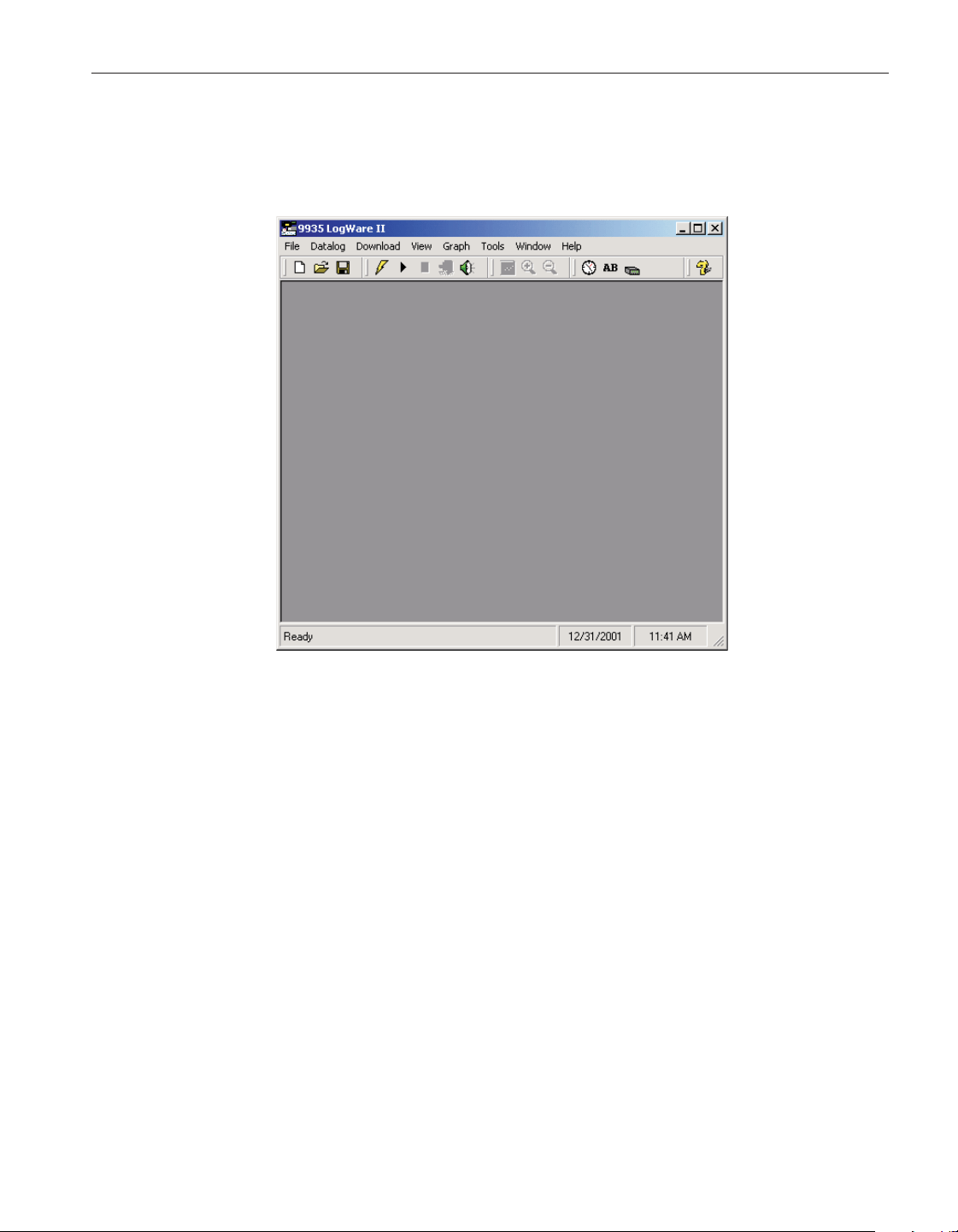
The main display consists of the menus, toolbar, a workspace area and a status
bar.
The menus allow access to the various features of the software. A general de
-
scription of the options in each menu is given below. These menus are de
-
scribed in more detail in Section 5, Menus:
•
File - Open and save configuration files, print options and exit the soft
-
ware.
•
Datalog - Setup, Start, Stop and Close real-time log sessions.
•
Download - Download logged readings and view log status.
•
View - View alarm log, reading history and open previously logged data
files.
•
Graph - Change graph settings, zoom in and out, and print the current
graph.
•
Tools - Synchronize thermometer readout date/time, access logging la
-
bels, configure thermometer readout and probe settings, change LogWare
options.
•
Window - Rearrange and switch between open windows.
•
Help - Display help topics and About dialog.
9
1 Introduction
Using LogWare
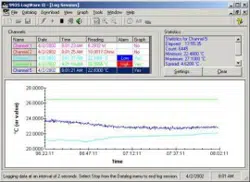
Figure 1 9935 LogWare II Main Display
1.888.610.7664 sales@GlobalTestSupply.com
Fluke-Direct.com
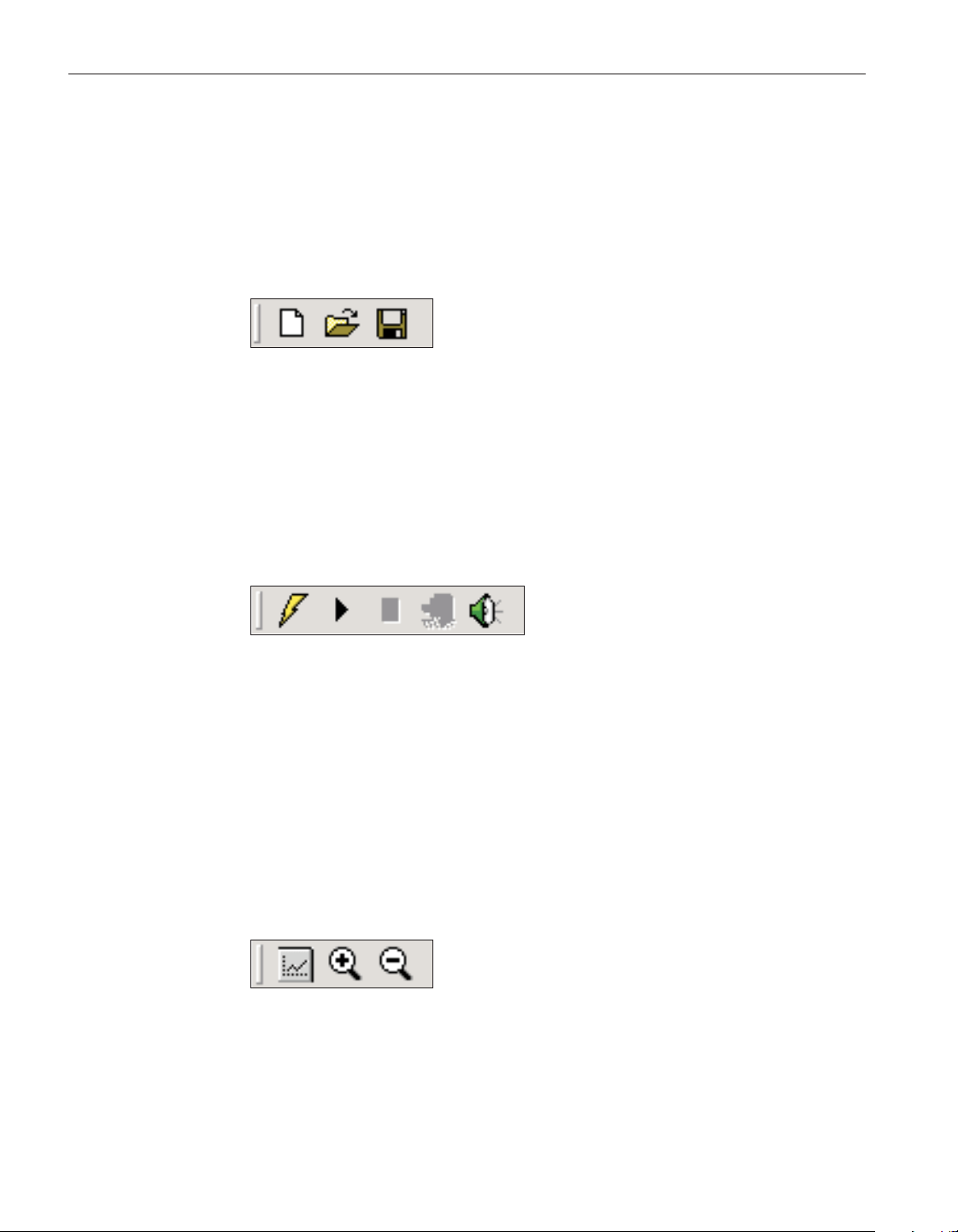
The toolbar allows quick access to the most common menu functions. The
toolbar is divided into sections that correspond to related functions. Toolbar
sections may be rearranged as desired by clicking on the vertical bar on the left
side of the section and dragging it to the desired location.
The following toolbars are available:
File Toolbar
New - Create a new real-time log session configuration
Open - Open a real-time log session configuration file
Save As - Save the current real-time log session configuration to a configura
-
tion file
Datalog Toolbar
Setup - Display the Log Session Settings dialog to configure a real-time log
session
Start - Start a real-time log session
Stop - Stop a real-time log session
Close - Close the real-time log session window
Mute All Alarms - Mute/unmute all audible real-time log session alarms
Graph Toolbar
Graph Settings - Change graph settings, add trend lines, alarm lines, titles,
captions, etc.
Zoom In - Zoom in to view a section of the graph
Restore (Zoom Out) - Restore the graph to its original zoom setting
User’s Guide
10
Figure 2 File Toolbar
Figure 3 Datalog Toolbar
Figure 4 Graph Toolbar
1.888.610.7664 sales@GlobalTestSupply.com
Fluke-Direct.com
Tools Toolbar
Synchronize Date/Time - Synchronize thermometer readout’s date/time with
computer
Logging Labels - View/change logging labels
Thermometer Settings - View/change thermometer readout settings
Help Toolbar
Help - Open the LogWare Help file
Status Bar
The status bar indicates the function that the software is currently performing
as well as the current system date and time.
Note: The date and time displayed are based on the computer’s clock set
-
tings and can be modified through the Windows® Control Panel.
1.8 Log
Ware
options
LogWare has many features and settings that can be customized by the user to
allow LogWare to operate in certain ways. Many of these settings can also be
protected by an administrator passcode to prevent unauthorized persons from
changing these settings. For more information on these options, please refer to
Section 5.6.4, Options.
11
1 Introduction
LogWare options
Figure 5 Tools Toolbar
Figure 6
Help Toolbar
1.888.610.7664 sales@GlobalTestSupply.com
Fluke-Direct.com
2 Real-time logging
The main purpose of LogWare is to perform real-time data acquisition from
Hart Scientific multi-channel digital thermometer readouts. This section de
-
scribes in detail how to configure, start and stop a real-time log session. This
section also describes the features available during a real-time log session.
2.1 File menu
The File menu contains some options for creating a new real-time log session
and for opening and saving real-time log session configuration files.
2.1.1 New
The New menu option can be used to clear the current real-time log session set-
tings and display the Log Session Settings dialog.
The button on the toolbar corresponds to the New menu option.
When selecting the New option, a prompt is displayed to confirm that the cur
-
rent real-time log session settings (if any) will be reset. To abort resetting the
current real-time log session settings, click the No button. Otherwise, click the
Yes button to reset the current log session settings. The Log Session Settings
dialog will be displayed. Please refer to Section 2, Real-Time Logging, for
more information on configuring a real-time log session.
2.1.2 Open
The Open option allows a real-time log session configuration file to be opened.
If the same basic configuration is frequently used to perform real-time logging,
saving the log session settings to a configuration file can greatly reduce the
time it takes to configure and start a real-time log session.
The button on the toolbar corresponds to the Open menu option.
13
2 Real-time logging
File menu
Figure 7 File Menu
1.888.610.7664 sales@GlobalTestSupply.com
Fluke-Direct.com

Note: When opening a configuration file, LogWare attempts to communi
-
cate with the thermometer readout to verify that the settings saved in the
configuration file are compatible with the current thermometer readout
configuration. Therefore, it is necessary to have the thermometer readout
connected and powered on in order to successfully open a configuration
file.
When selecting the Open option, the Windows® Open dialog is displayed. The
\Config folder should be selected by default (or the folder that is specified for
configuration files on the LogWare Options dialog). Real-time log session con
-
figuration files should have a .rls extension. To cancel opening a configuration
file, click the Cancel button. Otherwise, select the configuration file to open
and click the Open button. For more details about the real-time log session con
-
figuration file, refer to Section 7.1.1, Log Session Configuration File. Real-time
log session configuration files can also be opened by clicking the Open button
on the Log Session Settings dialog.
LogWare then reads the log session settings from the configuration file and ver-
ifies that the configuration of the currently connected thermometer readout is
compatible with the log session settings. If there are any conflicts, or if
LogWare is unable to communicate with the thermometer readout, appropriate
messages are displayed.
Once the configuration file has been read in, the Log Session Settings dialog is
displayed. If LogWare was unable to communicate with the thermometer read-
out or any other error occurred, the log session settings may be incomplete.
2.1.3 Save as
The Save As option allows the current real-time log session settings to be saved
to a configuration file. If the same basic configuration is frequently used to per
-
form real-time logging, saving the log session settings to a configuration file
can greatly reduce the time it takes to configure and start a real-time log ses
-
sion. Before attempting to save a real-time log session configuration, use the
Log Session Settings dialog to configure the log session.
The button on the toolbar corresponds to the Save As menu option.
When selecting the Save As option, the Windows® Save As dialog is dis
-
played. The \Config folder should be selected by default (or the folder that is
specified for configuration files on the LogWare Options dialog). Real-time log
session configuration files are saved with a .rls extension. To cancel saving a
configuration file, click the Cancel button. Otherwise, enter the filename for the
configuration file and click the Save button. For more details about the
real-time log session configuration file, refer to Section 7.1.1, Log Session
Configuration File. Real-time log session configuration files can also be saved
by clicking the Save As button on the Log Session Settings dialog.
User’s Guide
14
1.888.610.7664 sales@GlobalTestSupply.com
Fluke-Direct.com
2.2 Datalog menu
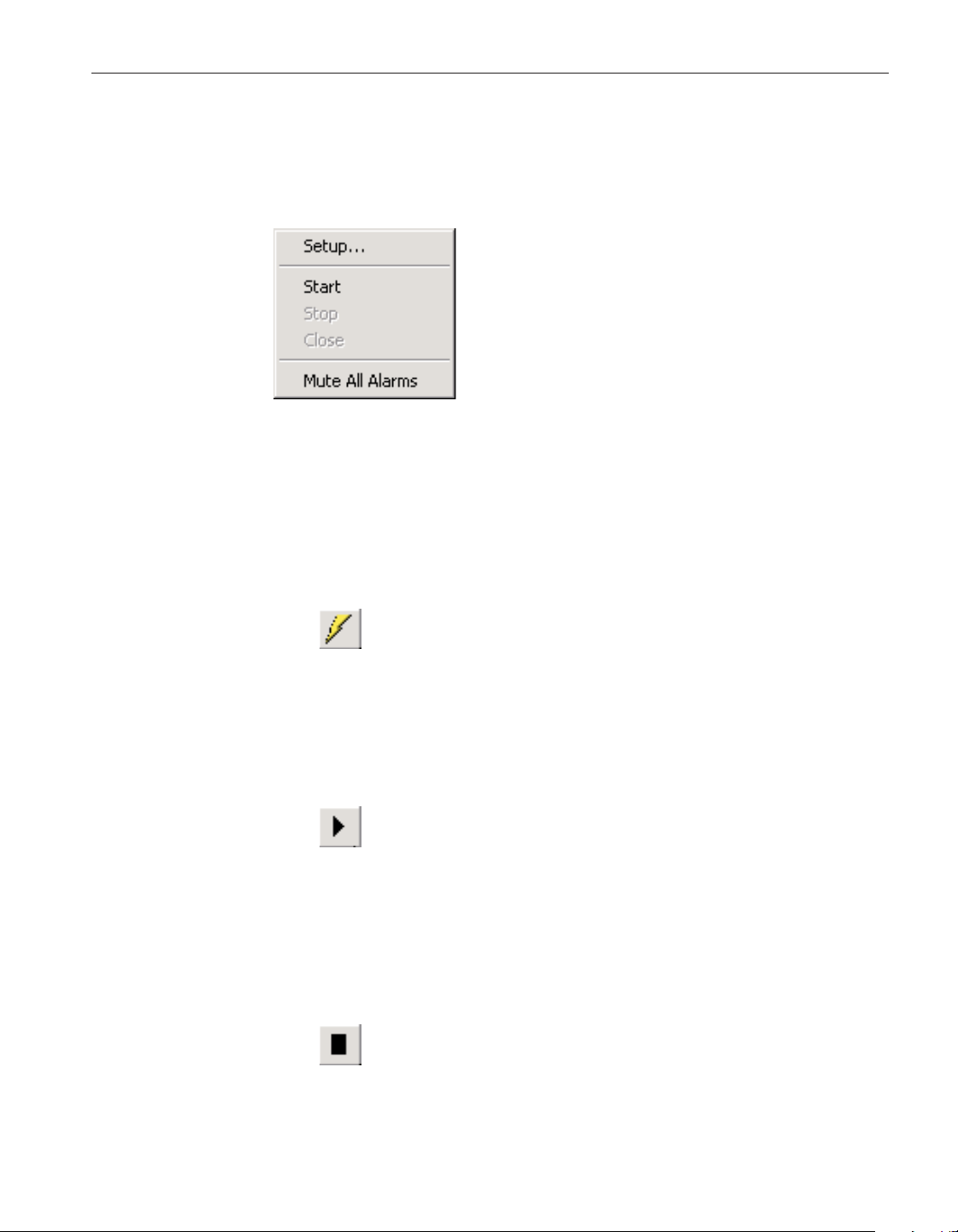
The Datalog menu is used to access the Log Session Settings dialog, to start,
stop and close the real-time log session and to mute audible alarms.
2.2.1 Setup
The Setup option displays the Log Session Settings dialog. This dialog is used
to configure a real-time log session. If a log session has already been config-
ured or a real-time log session configuration file has already been opened, this
dialog displays the current log session settings.
The button on the toolbar corresponds to the Setup menu option.
Please refer to Section 2.3, Log Session Settings Dialog, for more details on
configuring a real-time log session.
2.2.2 Start
The Start option starts a real-time log session. This option is disabled until a
log session has been completely configured.
The button on the toolbar corresponds to the Start menu option.
Please refer to Section 2, Real-Time Logging, for more details on a real-time
log session.
2.2.3 Stop
The Stop option stops the current real-time log session. This option is only en
-
abled when a real-time log session is running. A log session may be stopped at
any time by selecting this option.
The button on the toolbar corresponds to the Stop menu option.
When selecting the Stop option, a message is displayed to confirm stopping the
log session.
15
2 Real-time logging
Datalog menu
Figure 8 Datalog Menu
1.888.610.7664 sales@GlobalTestSupply.com
Fluke-Direct.com
2.2.4 Close
The Close option closes the current real-time log session window. This option
is only enabled once the real-time log session has stopped and the log session
window is still open.
The button on the toolbar corresponds to the Close menu option.
2.2.5 Mute all alarms
The Mute All Alarms option can be used to mute any audible alarms associated
with the current real-time log session. When the alarms are muted, a check
mark appears next to this option. Muting the alarms does not prevent alarm
events from happening.
The button on the toolbar corresponds to the Mute All Alarms menu
option.
When alarms are muted, the toolbar button appears as .
2.3 Log session settings dialog
The Log Session Settings dialog is used to configure the real-time log session
settings. These settings include the thermometer readout to acquire data from,
communications settings, log session sample interval and start and end options,
and thermometer readout channel configuration. This dialog can be displayed
by selecting the Setup option in the Datalog menu or by clicking the
User’s Guide
16
1.888.610.7664 sales@GlobalTestSupply.com
Fluke-Direct.com

button on the toolbar. This dialog is also displayed after opening a log session
configuration file.
Note: This dialog displays the current real-time log session settings.
Clicking the Close button on this dialog does not cause these settings to be
lost. To display this dialog again, select the Setup option in the Datalog
menu.
This dialog has three tabs: Thermometer, Log Session and Channels. All of the
information on each of these tabs must be configured before a real-time log
session can be started. The following sections describe in detail each of the set
-
tings on these tabs.
Once the log session has been completely configured, the settings can be saved
to a configuration file by clicking the Save As button. If these same settings
may be used again at a later date, saving the settings to a configuration file
greatly reduces the amount of time required to get a log session started.
When clicking the Save As button, the Windows® Save As dialog is displayed.
The \Config folder should be selected by default (or the folder that is specified
for configuration files on the LogWare Options dialog). Real-time log session
configuration files are saved with a .rls extension. To cancel saving a configu
-
ration file, click the Cancel button. Otherwise, enter the filename for the config
-
uration file and click the Save button. For more details about the real-time log
session configuration file, refer to Section 7.1.1, Log Session Configuration
File. Real-time log session configuration files can also be saved by selecting the
Save As option in the File menu.
17
2 Real-time logging
Log session settings dialog
Figure 9 Log Session Settings dialog
1.888.610.7664 sales@GlobalTestSupply.com
Fluke-Direct.com
A log session settings configuration file that has been saved previously can be
opened by clicking the Open button.
Note: When opening a configuration file, LogWare attempts to communi
-
cate with the thermometer to verify that the settings saved in the configu
-
ration file are compatible with the current thermometer configuration.
Therefore, it is necessary to have the thermometer connected and powered
on in order to successfully open a configuration file.
When clicking the Open button, the Windows® Open dialog is displayed. The
\Config folder should be selected by default (or the folder that is specified for
configuration files on the LogWare Options dialog). Real-time log session con
-
figuration files should have a .rls extension. To cancel opening a configuration
file, click the Cancel button. Otherwise, select the configuration file to open
and click the Open button. For more details about the real-time log session con
-
figuration file, refer to Section 7.1.1, Log Session Configuration File. Real-time
log session configuration files can also be opened by selecting the Open option
in the File menu.
LogWare then reads the log session settings from the configuration file and ver-
ifies that the configuration of the currently connected thermometer readout is
compatible with the log session settings. If there are any conflicts, or if
LogWare is unable to communicate with the thermometer readout, appropriate
messages are displayed.
If LogWare was unable to communicate with the thermometer readout or any
other error occurred, the log session settings may be incomplete.
LogWare has a feature which allows a log session configuration file to be de-
fined as the default configuration file. The default configuration file is automat-
ically loaded every time LogWare is started. To set the current configuration as
the default configuration, select the Set as Default button. If the current config
-
uration has not been saved yet, a prompt is displayed indicating that the config
-
uration must be saved to a file before it can be set as the default. The next time
LogWare is started, the default configuration file will be loaded.
Note: Real-time log session configuration files contain information about
the current thermometer readout configuration. If the thermometer read
-
out configuration changes, the configuration file needs to be updated also.
Once the log session settings are complete, click the Start button to start a log
session. Please refer to Section 2.4, Real-Time Log Session, for more details on
a real-time log session.
If the log session does not need to be started yet, click the Close button. The
Log Session Settings dialog is closed but all settings are retained. To display
the Log Session Settings dialog again, select the Setup option in the Datalog
menu or click the button on the toolbar.
User’s Guide
18
1.888.610.7664 sales@GlobalTestSupply.com
Fluke-Direct.com
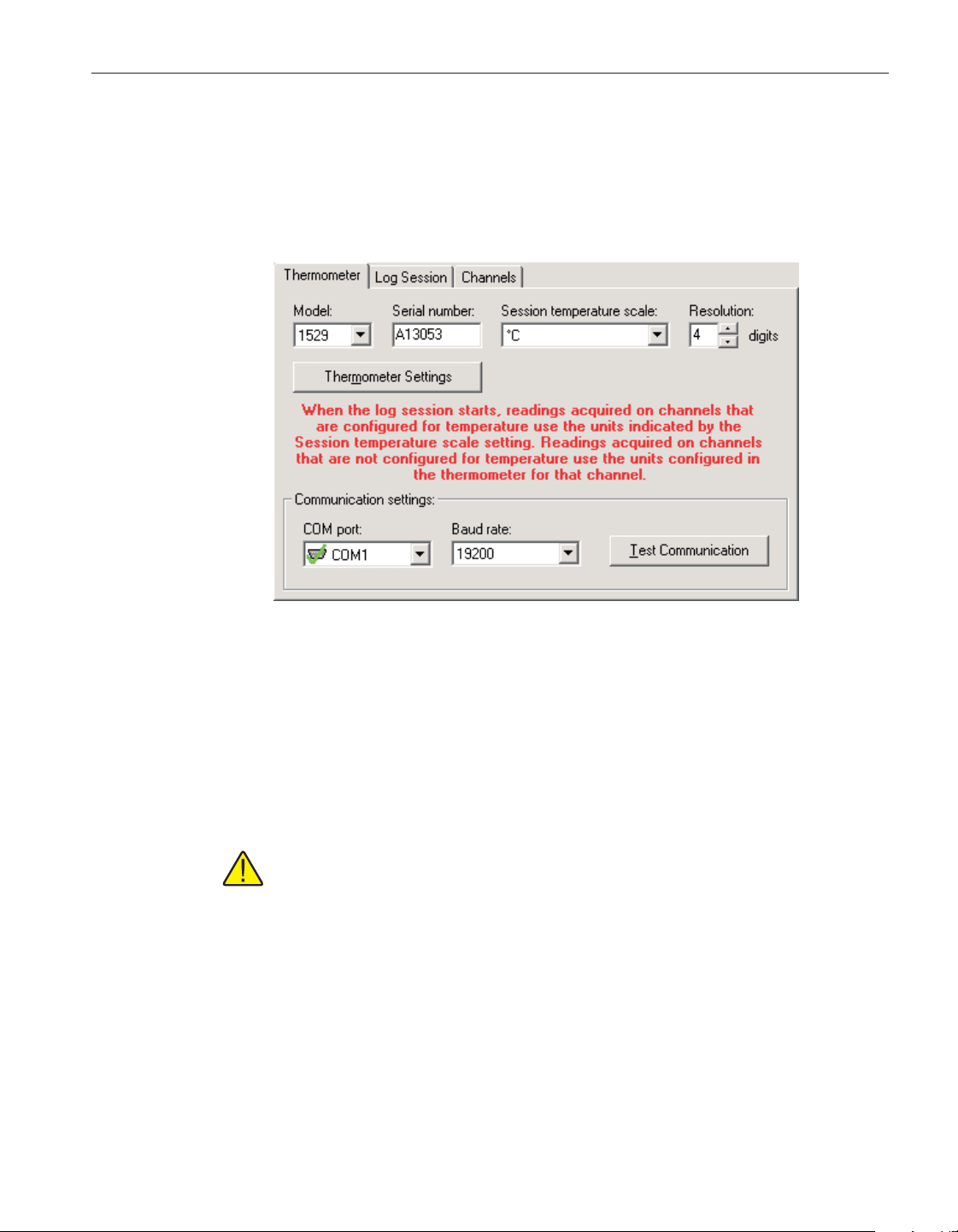
Click the Help button to display the appropriate help topic for this dialog.
2.3.1 Thermometer tab
The Thermometer tab allows the thermometer readout that will be used to ac
-
quire data to be identified and configured.
Use the Model drop-down list to select the type of thermometer readout to use
to acquire data. All other controls on this tab will be disabled until a valid
model is selected.
Enter the serial number of the thermometer readout to use in the Serial number
box. The thermometer readout’s serial number should be located on a label,
generally on the back or bottom of the thermometer readout.
Note: Optionally, you may use the Thermometer Settings button to auto
-
matically determine the serial number of the thermometer readout and fill
in this box.
Select the scale of the readings to be acquired from channels that are config
-
ured to read temperature using the Session temperature scale drop-down list.
LogWare supports the following temperature scales:
•
°C
•
°F
•
K (Kelvin)
19
2 Real-time logging
Log session settings dialog
Figure 10 Log Session Settings - Thermometer tab
1.888.610.7664 sales@GlobalTestSupply.com
Fluke-Direct.com
When a log session starts, LogWare will automatically set the thermometer
readout’s system units to use the selected scale. However, if the <keep exist
-
ing> option is selected, LogWare will query the thermometer readout to deter
-
mine the current system units.
Note: When starting a log session, LogWare checks the conversion setting
for each enabled channel. If a channel is configured to read temperature,
the units that were selected in the Session temperature scale drop-down
list are used. If a channel is not configured to read temperature (i.e. resis
-
tance or voltage), LogWare automatically determines the non-temperature
units for that channel.
Enter the resolution (number of digits after the decimal point) that LogWare
should use to format all of the measurements acquired. This setting is common
to all channels from which measurements are acquired. Where applicable,
LogWare will automatically set the thermometer readout’s resolution to this set
-
ting when a log session starts. Where not applicable, LogWare will round more
precise measurements or add 0’s to less precise measurements to obtain the de-
sired format.
Note: The resolution setting should be set prior to configuring the alarm
settings for each channel since the alarm values will also use this resolu-
tion. Changing the resolution setting after configuring the alarms does not
reformat the alarm values!!
Select the COM port on the computer to which the thermometer readout is con-
nected using the COM port drop-down list. Only COM ports that the operating
system reports as being available can be used. The following symbols are used
to show the status of each COM port:
•
- Indicates a COM port that is currently available.
•
- Indicates the COM port that is currently selected by LogWare.
•
- Indicates a COM port that is currently being used by another appli
-
cation.
•
- Indicates an IR port (virtual COM port) that is currently available.
•
- Indicates an IR port (virtual COM port) that is currently selected by
LogWare .
•
- Indicates an IR port (virtual COM port) that is currently being used
by another application.
Note: For a real-time log session, LogWare requires the use of one COM
port. An IR port (virtual COM port) cannot be selected as the port to use.
User’s Guide
20
1.888.610.7664 sales@GlobalTestSupply.com
Fluke-Direct.com
Select the baud rate that the computer should use to communicate over the
COM port with the thermometer readout using the Baud rate drop-down list.
The baud rate setting of the thermometer readout must be set to the same value
as this setting. For best results, use the maximum allowable baud rate setting
when possible.
After the model, COM port and baud rate settings are configured, click the Test
Communication button to make sure LogWare is able to communicate with the
thermometer readout. At this time, the thermometer readout must be connected
to the COM port on the computer using a null modem cable. For more informa
-
tion, please refer to the thermometer readout’s User's Guide.
When testing communications with the thermometer readout, there are three
possible results:
•
The thermometer readout is communicating at the correct baud rate on the
selected COM port.
•
The thermometer readout is communicating, but possibly at the wrong
baud rate or the thermometer readout model does not match the selected
model.
• The thermometer readout failed to communicate at all. Check the COM
port and baud rate settings, make sure the cable is a null modem cable,
and make sure the thermometer readout is plugged in and turned on.
Optional: The Thermometer Settings button may be clicked at this time to gain
access to various thermometer readout settings as applicable to the selected
thermometer readout. This feature is provided solely as a convenience to check
the thermometer readout configuration and/or to configure each channel of the
thermometer readout with appropriate conversion settings and probe coeffi-
cients. The Test Communication button should be clicked prior to clicking the
Thermometer Settings button to make sure the thermometer readout is commu
-
nicating successfully.
Warning: When using the Thermometer Settings tool, make sure that the
thermometer readout is not currently in any menu. Using the thermometer
readout's menus while using the Thermometer Settings tool may cause the
thermometer readout to fail to accept new settings.
Note: When starting a log session, LogWare will override many of the
current thermometer readout settings as needed to acquire data from the
configured channels using the specified log session settings!!
Note: If the serial number and session temperature scale settings have not
been configured prior to clicking the Thermometer Settings button, these
settings will be configured automatically after successfully viewing the
thermometer readout settings dialog.
21
2 Real-time logging
Log session settings dialog
1.888.610.7664 sales@GlobalTestSupply.com
Fluke-Direct.com
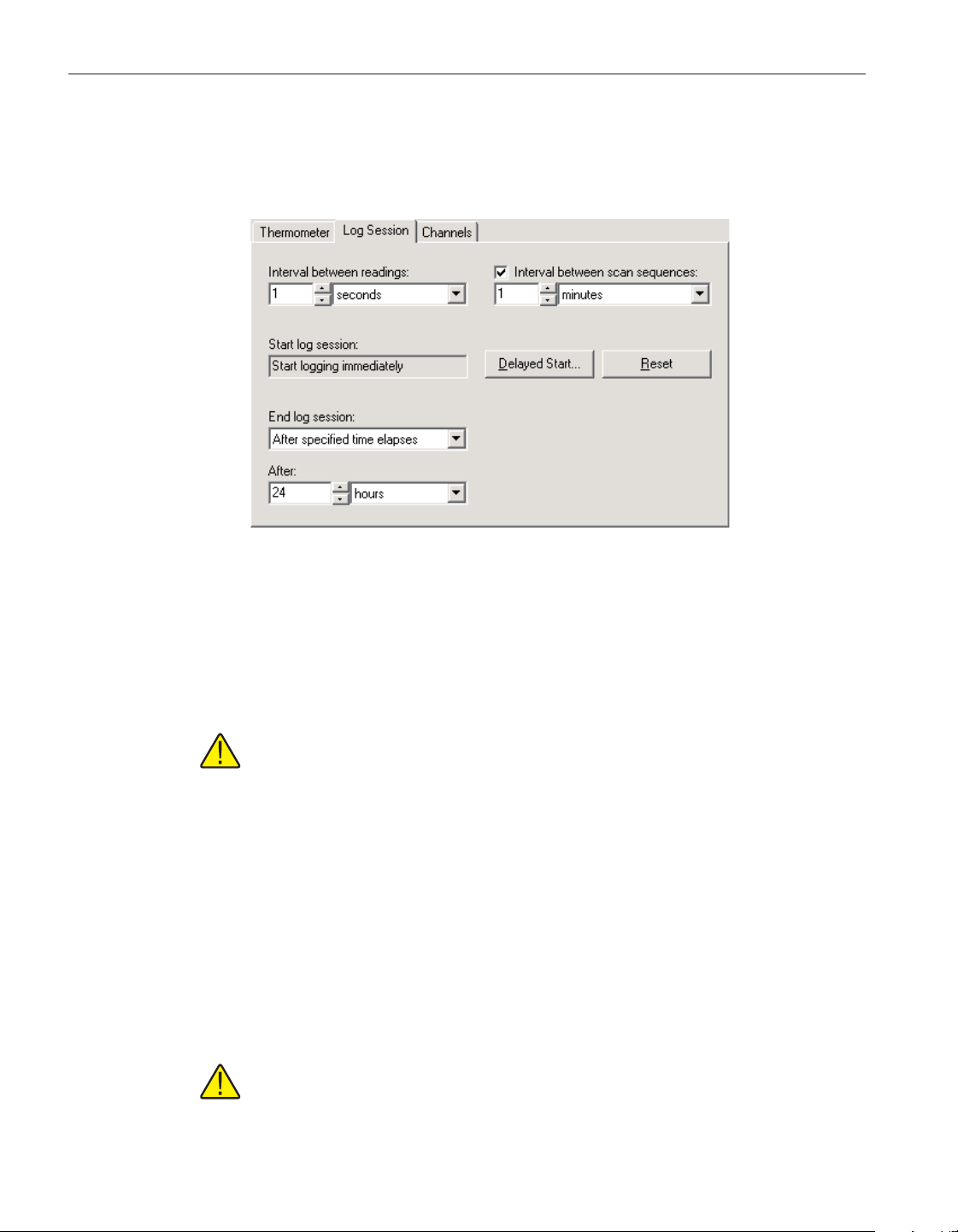
2.3.2 Log Session tab
After the thermometer readout and communication settings are configured, the
log session settings may be configured.
Select the interval at which LogWa re should take readings on subsequent chan-
nels using the Interval between readings settings. The range of possible settings
is limited by the capabilities of the selected thermometer readout. For most
Hart Scientific multi-channel digital thermometer readouts, the minimum sam-
ple interval is 2 seconds.
Note: Due to the latency inherent in the measurement process, a thermom
-
eter readout may not be able to take readings at the exact selected interval
(i.e. the 1560 thermometer readout allows a minimum interval of 2 sec
-
onds, but actually takes about 2.3 seconds to make one measurement). For
this reason, using the minimum interval supported by the thermometer
readout may cause some duplicate readings to be taken. To avoid this
problem, see the Wait until new measurement is ready (when applicable)
option on the LogWare Options dialog. Please refer to Seciton 5.6.4, Op
-
tions, for more details.
If this interval is set to a value of 0, LogWare will attempt to take simultaneous
readings on all enabled channels of the thermometer readout. If this feature is
used, you should use the Interval between scan sequences setting to limit how
often all channels are sampled.
Note: when using this feature, the Wait until new measurement is ready
option on the General tab of the Options dialog MUST be disabled (un
-
checked).
User’s Guide
22
Figure 11 Log Session Settings - Log Session tab
1.888.610.7664 sales@GlobalTestSupply.com
Fluke-Direct.com
Typically, LogWare is used to take continuous measurements on all enabled
channels. However, LogWare has a feature that allows one measurement to be
taken on each enabled channel at a set interval. For example, LogWare could be
used to monitor the gradients in a liquid bath using 10 probes at various loca
-
tions in the bath. To measure gradients, readings should be taken simulta
-
neously, or at least as close together as possible, but maybe a set of readings
only needs to be taken once every minute, or once every five minutes. This can
be accomplished using LogWare by enabling the Interval between scan se
-
quences option. The Interval between scan sequences settings are then enabled.
A scan sequence is defined by LogWare as taking a single reading on each en
-
abled channel. Select the interval to use. LogWare allows this interval to be set
anywhere between 1 minute and 60 hours at 1 minute or 1 hour increments.
Leaving this feature disabled causes LogWare to begin a new scan sequence
immediately following completion of the previous scan sequence.
The Start log session box indicates the current setting for starting a log session.
By default, this setting is configured to start a log session immediately after the
Start button is clicked. LogWare may optionally be configured to start a log ses
-
sion unattended on any date at any time. To set the start date and time, click the
Delayed Start button. The Delayed Start Date/Time dialog is displayed. Please
refer to Section 2.3.4, Delayed Start Date/Time Dialog, for details on using this
dialog.
Clicking the Reset button resets the start date/time setting. The log session will
start immediately after the Start button is clicked.
The End log session settings allow the log session to be configured to automati-
cally stop logging at a certain time or after a certain number of readings. By de-
fault, a log session will continue until manually stopped by the user. Select the
method to use to end the log session using the drop-down list. Choices are:
•
By user (default)
•
After specified number of readings
•
After specified time elapses
If the After specified number of readings or After specified time elapses option
is selected, the end log criteria must be selected. Enter either the number of
readings to acquire on each channel or the desired elapsed time setting. The
range of choices is from 1 to 1,000,000 readings (10,000 default) or 1 second
to 480 hours (1 hour default).
Note: If either the After specified number of readings or After specified
time elapses option is selected and the Interval between scan sequences
feature is enabled, the log session will stop automatically when the end
log criteria is met and the current scan sequence is complete.
23
2 Real-time logging
Log session settings dialog
1.888.610.7664 sales@GlobalTestSupply.com
Fluke-Direct.com
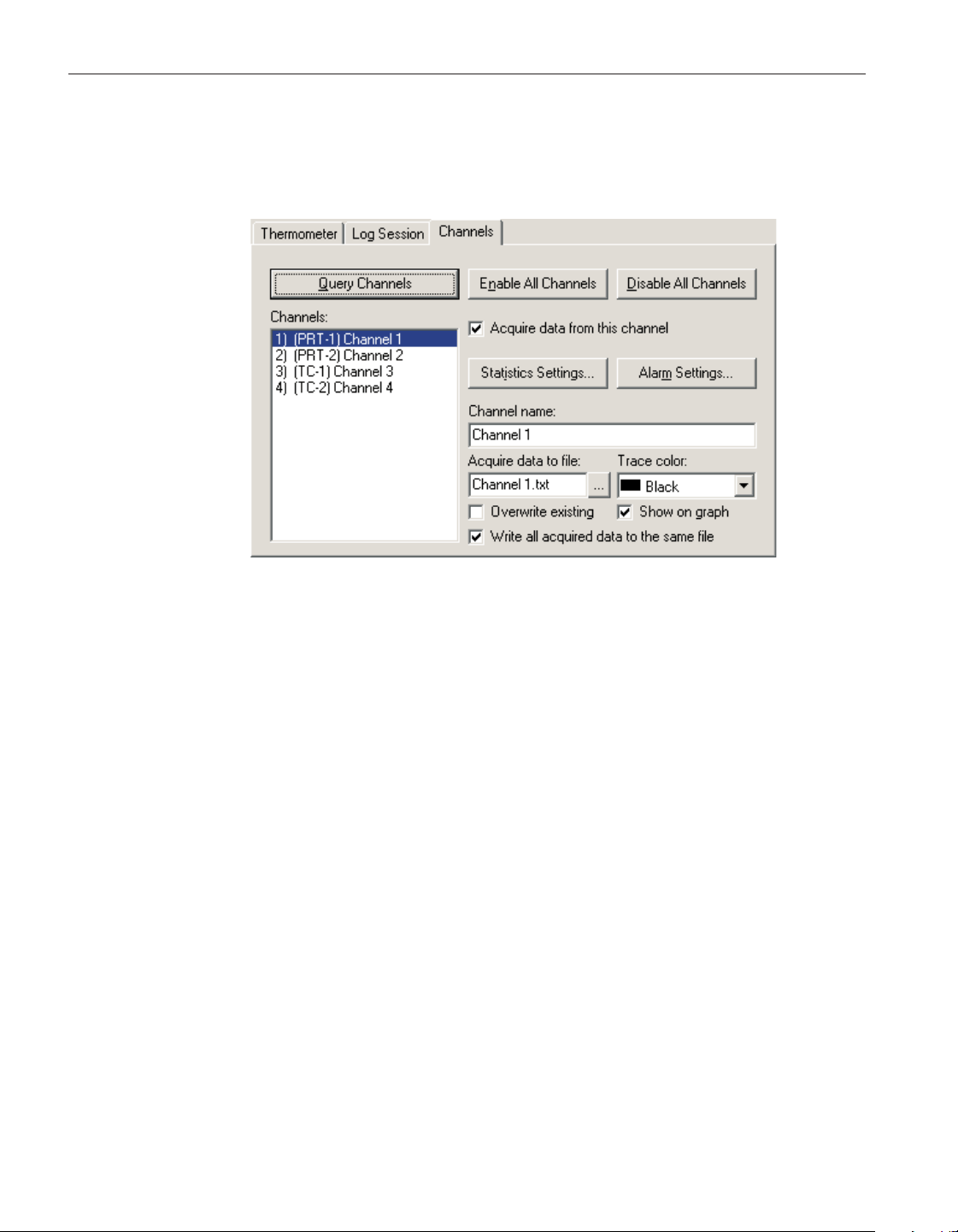
2.3.3 Channels tab
After the thermometer readout and communication settings are configured, the
channels to acquire data from may be configured.
All controls on the Channels tab (with the exception of the Query Channels
button) are disabled until the channel information has been queried from the
thermometer readout.
Click the Query Channels button to allow LogWa re to communicate with the
thermometer readout to collect as much information regarding the current chan
-
nel configuration as possible.
After querying the thermometer readout for channel information, the Channels
list displays one item for each channel on the thermometer readout. The chan
-
nel number, module name, module channel number and currently assigned
channel name are displayed in the list.
By default, all channels are enabled, meaning data should be acquired from all
channels. The Enable All Channels and Disable All Channels buttons can be
used to enable or disable acquiring data from all channels of the thermometer
readout respectively.
To configure a channel, select the channel from the Channels list. The selected
channel’s settings are displayed in the other controls on this tab.
To acquire data from the selected channel, make sure the Acquire data from
this channel box is checked. If this box is not checked, all other channel con
-
trols are disabled and data will not be acquired for this channel.
User’s Guide
24
Figure 12 Log Session Settings - Channels Tab
1.888.610.7664 sales@GlobalTestSupply.com
Fluke-Direct.com
Click the Statistics Settings button to display the Statistics Settings dialog. This
dialog is used to specify which statistics are to be maintained and displayed for
the selected channel. Please refer to Section 2.3.6, Statistics Settings Dialog,
for more details on the Statistics Setting dialog. By default, the statistics that
are enabled are: Minimum, Maximum, Spread, Average and Standard
deviation.
Note: Statistics are maintained for each channel independent of all other
channels. As a result, each channel has its own settings which must be
configured separately.
Each channel can be configured to trip an alarm if the reading on that channel
ever exceeds specific low and/or high values. To enable alarms for the selected
channel, click the Alarm Settings button. The Alarm Settings dialog is dis
-
played. This dialog is used to specify the alarm values and the actions associ
-
ated with each alarm. Please refer to Section 2.3.5, Alarm Settings Dialog, for
more details on the Alarm Settings dialog. By default, alarms are disabled.
Note: The alarm settings for each channel are independent of all other
channels. As a result, each channel must be configured separately.
Enter the name for the selected channel in the Channel name box. The channel
name should be something unique that identifies the purpose, location or other
information about the data being acquired on that channel. When a channel
name is changed, the Channels list is updated to reflect the change. By default
each channel is assigned the generic name ‘Channel n’(wheren is the channel
number). This name appears in the Channels grid on the real-time log session
window while the log session is running.
Enter the filename to which the data acquired from this channel is to be written
using the Acquire data to file box. The default filename for each channel is
Channel n.txt (where n is the channel number). The file is saved to the \Output
folder or the folder specified for output files on the LogWare Options dialog.
The location for this file can be changed by selecting the “…” (Browse) button.
Check the Overwrite existing check box to allow LogWare to automatically
overwrite an existing file of the same name in the same folder. If this box is not
checked and a file of the same name exists, a prompt is displayed and the op
-
tion to overwrite the existing file or choose another filename is given.
If you want to write the acquired data for all enabled channels to the same out
-
put file, check the Write all acquired data to the same file option. If this option
is checked, LogWare will use the filename and path of the first enabled channel
for all channels. The header of the output file will then contain information for
all enabled channels, and an additional column is added to the file for the chan
-
nel number for each reading.
25
2 Real-time logging
Log session settings dialog
1.888.610.7664 sales@GlobalTestSupply.com
Fluke-Direct.com
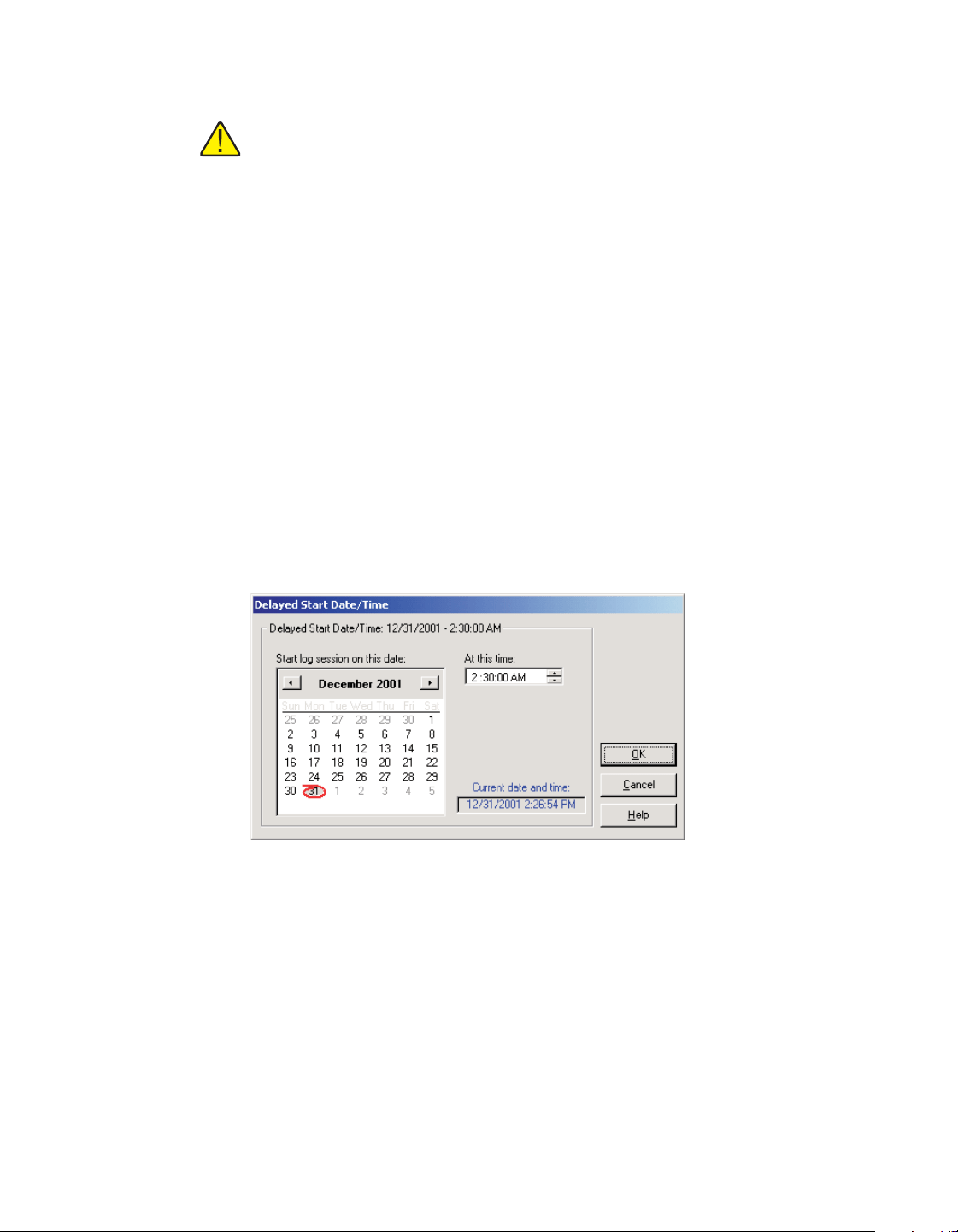
Note: This feature should typically only be used if you are using other
software to sort and analyze the logged data. The output file created when
using this feature can still be opened by LogWare and displayed
on-screen, however all readings are displayed on the graph as if they
came from the same channel (single trace).
Select the color to use for this channel’s trace on the graph using the Trace
color drop-down list. LogWare supports 15 different trace colors. By default,
each channel is assigned one of the 15 colors.
If the trace for the selected channel is to be shown on the graph, check the
Show on graph check box. Once the log session starts, each channel can be
shown or hidden at any time. This setting only determines which channels are
shown initially when the log session starts.
Continue configuring the other channels as needed by selecting the next chan
-
nel in the list and following this process again.
2.3.4 Delayed Start Date/Time dialog
The Delayed Start Date/Time dialog allows the real-time log session to be
scheduled to start at a future date and/or time.
Select the date on which the log session should start by clicking on the appro
-
priate date in the calendar. Today’s date is indicated by the red outline circle.
The currently selected date is indicated by a gray filled circle. Use the left and
right arrow buttons at the top of the calendar to scroll through the months and
years.
Enter the time at which the log session should start using the At this time box.
User’s Guide
26
Figure 13 Delayed Start Date/Time Dialog
1.888.610.7664 sales@GlobalTestSupply.com
Fluke-Direct.com
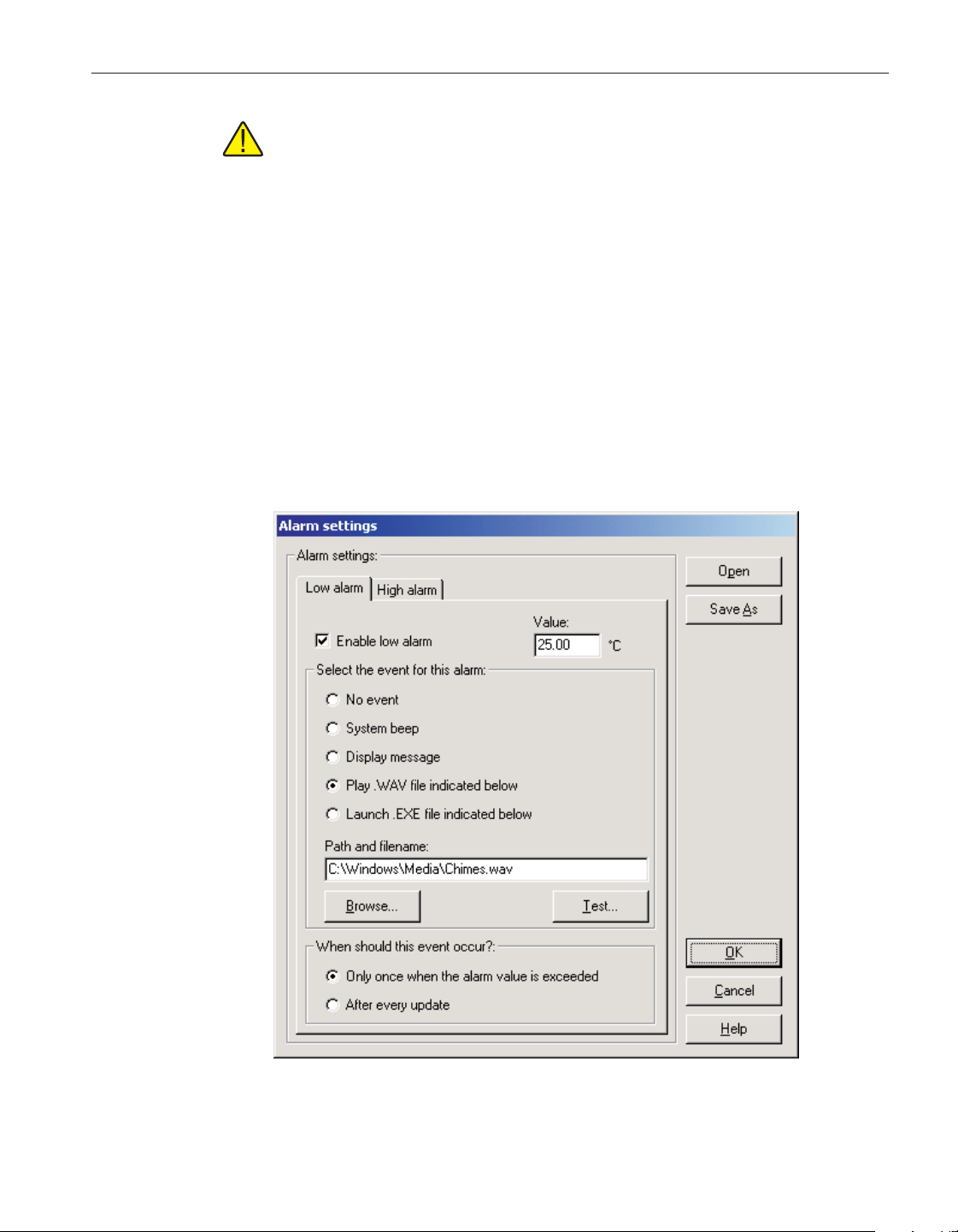
Note: When using the Delayed Start feature, make sure the Prompt to syn
-
chronize real-time log session option on the LogWare Options dialog is not
checked! Otherwise the log session will not start as expected! Please refer
to Section 5.6.4, Options, for more information.
Once the start date and/or time have been selected, click the OK button to close
this dialog.
To cancel setting the delayed start date and/or time, click the Cancel button.
Click the Help button to display the appropriate help topic for this dialog.
2.3.5 Alarm Settings dialog
The Alarm Settings dialog is used to configure low and/or high alarms. The
current low alarm or high alarm settings can be changed by selecting the Low
alarm or High alarm tab respectively. Low and high alarms are independent of
each other and must be configured independently.
27
2 Real-time logging
Log session settings dialog
Figure 14 Alarm Settings dialog
1.888.610.7664 sales@GlobalTestSupply.com
Fluke-Direct.com
The Low alarm tab and High alarm tab indicate the current low alarm and high
alarm settings for the selected channel respectively.
To enable an alarm for the selected channel, check the Enable alarm check box
on the appropriate tab. If this check box is unchecked, all other settings on the
tab are disabled.
Enter the value to be used for this alarm in the Value box. The low alarm will
be tripped if the reading on the selected channel meets or drops below the value
on the Low alarm tab. The high alarm will be tripped if the reading on the se
-
lected channel meets or exceeds the value on the High alarm tab.
Select the event that should occur when each alarm is tripped. The choices are:
•
No event
•
System beep
•
Display message
•
Play .WAV file indicated below
• Launch .EXE file indicated below
If either the Play .WAV file indicated below or Launch .EXE file indicated be-
low option is selected, the Path and filename box and Browse button are en-
abled and the appropriate file must be entered or selected. Use the Browse
button to browse for the file. The Test button is enabled once a file has been en-
tered. Select the Test button to make sure the selected file can be played or
launched.
Note: The file entered in the Path and filename box MUST exist! When the
OK button is clicked, a search is performed to locate the file. If the file is
not found, a warning message is displayed. If the selected file resides on a
network resource, the resource must be available and properly connected
when the alarm event occurs!
LogWare ships with a few sample .WAV files that can be used. These files are
located in the \Config folder.
The Launch .EXE file indicated below option can be used to launch any appli
-
cation such as pager software which could be configured to dial a phone num
-
ber automatically and transmit a fixed message to a pager indicating that an
alarm has tripped.
User’s Guide
28
1.888.610.7664 sales@GlobalTestSupply.com
Fluke-Direct.com

Note: It is not recommended that the Launch .EXE file indicated below
option be used (especially in conjunction with the After every update op
-
tion) until the user is familiar with how this feature works. Unless the
.EXE file terminates itself automatically (or is limited to a single in
-
stance), this software will continue to launch new instances of the .EXE
file every time the alarm trips, possibly causing the computer to run out of
resources.
Select when the specified event for each alarm should occur. The choices are:
•
Only once when the alarm value is exceeded
•
After every update
If the Only once when the alarm value is exceeded option is selected, the cho
-
sen event will occur on the first reading that trips the alarm. Subsequent read
-
ings that also exceed the alarm value will not cause the event to occur again
until one or more readings are taken that are back within the alarm value (alarm
reset).
If the After every update option is selected, every reading that is taken that ex-
ceeds the alarm value causes the event to happen again.
The alarm settings can be saved to a configuration file. If the same alarm set-
tings are to be used on multiple channels, this provides a method to quickly
configure the alarms on subsequent channels.
When clicking the Save As button, the Windows® Save As dialog is displayed.
The \Config folder should be selected by default (or the folder that is specified
for configuration files on the LogWare Options dialog). Alarm configuration
files are saved with a .alm extension. To cancel saving a configuration file,
click the Cancel button. Otherwise, enter the filename for the configuration file
and click the Save button. For more details about the alarm configuration file,
refer to Section 7.1.2, Alarm Configuration File.
An alarm configuration file that has been saved previously can be opened by
clicking the Open button.
When clicking the Open button, the Windows® Open dialog is displayed. The
\Config folder should be selected by default (or the folder that is specified for
configuration files on the LogWare Options dialog). Alarm configuration files
should have a .alm extension. To cancel opening a configuration file, click the
Cancel button. Otherwise, select the configuration file to open and click the
Open button. For more details about the alarm configuration file, refer to Sec
-
tion 7.1.2, Alarm Configuration File.
Once the alarm settings are complete, click the OK button to save these settings
and close this dialog.
Click the Cancel button to discard any changes you have made and close this
dialog.
29
2 Real-time logging
Log session settings dialog
1.888.610.7664 sales@GlobalTestSupply.com
Fluke-Direct.com
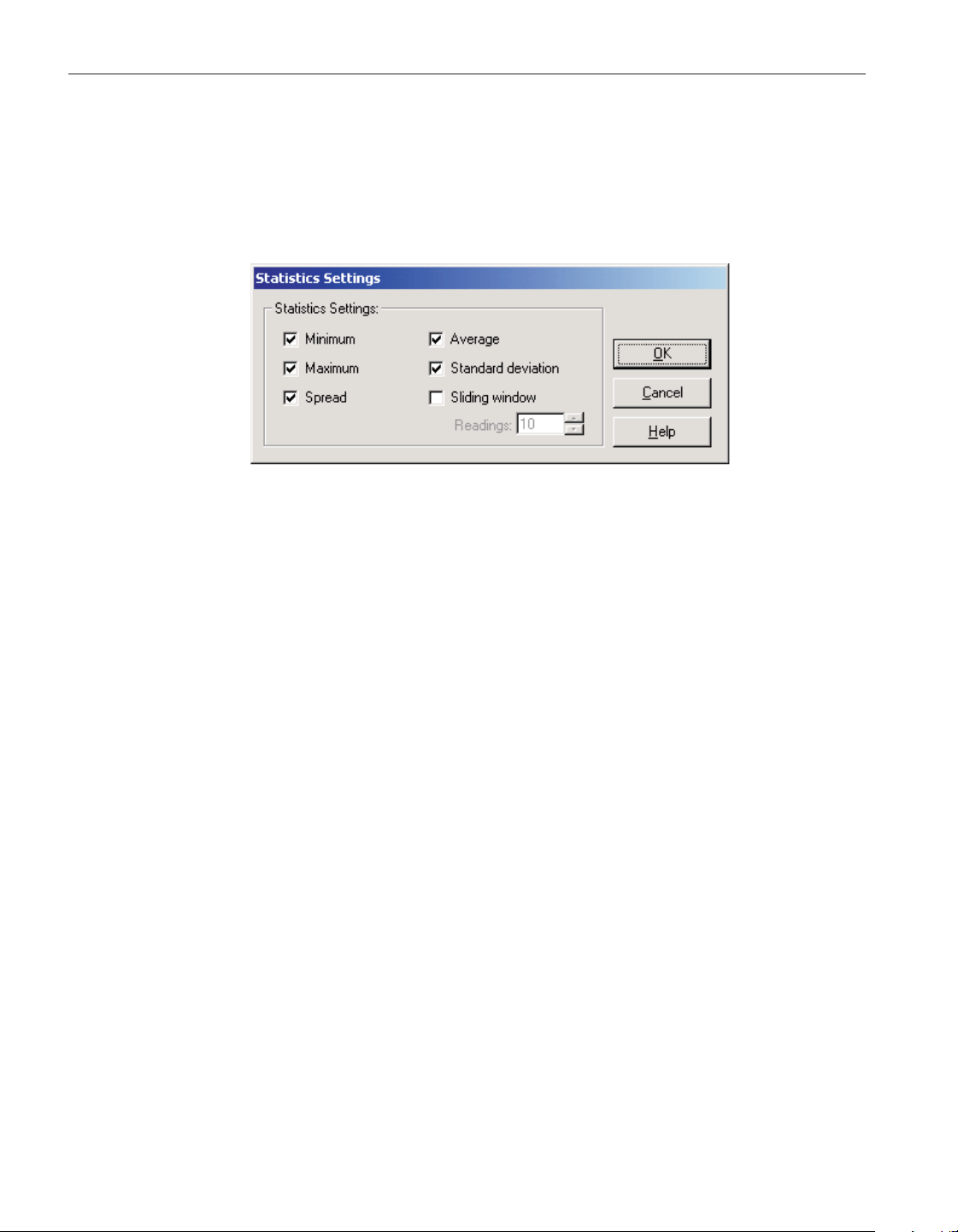
Click the Help button to display the appropriate help topic for this dialog.
2.3.6 Statistics Settings dialog
The Statistics Settings dialog allows specific statistical functions to be enabled
or disabled for the selected channel.
To enable a statistical function for the selected channel, check the box next to
the appropriate function.
The statistical functions supported are:
• Minimum
• Maximum
• Spread
• Average
•
Standard deviation
•
Sliding window
If the Sliding window function is enabled, a value must be entered into the
Readings box. All other statistical values are calculated based on the most re
-
cent n measurements as indicated by the value in the Readings box. The read
-
ings setting can be set to any value between 10 and 1,000.
If the Sliding window function is disabled, the statistical values are calculated
based on all readings since the last reset was performed.
Once the statistics settings are complete, click the OK button to save these set
-
tings and close this dialog.
Click the Cancel button to discard any changes you have made and close this
dialog.
Click the Help button to display the appropriate help topic for this dialog.
User’s Guide
30
Figure 15 Statistics Settings dialog
1.888.610.7664 sales@GlobalTestSupply.com
Fluke-Direct.com
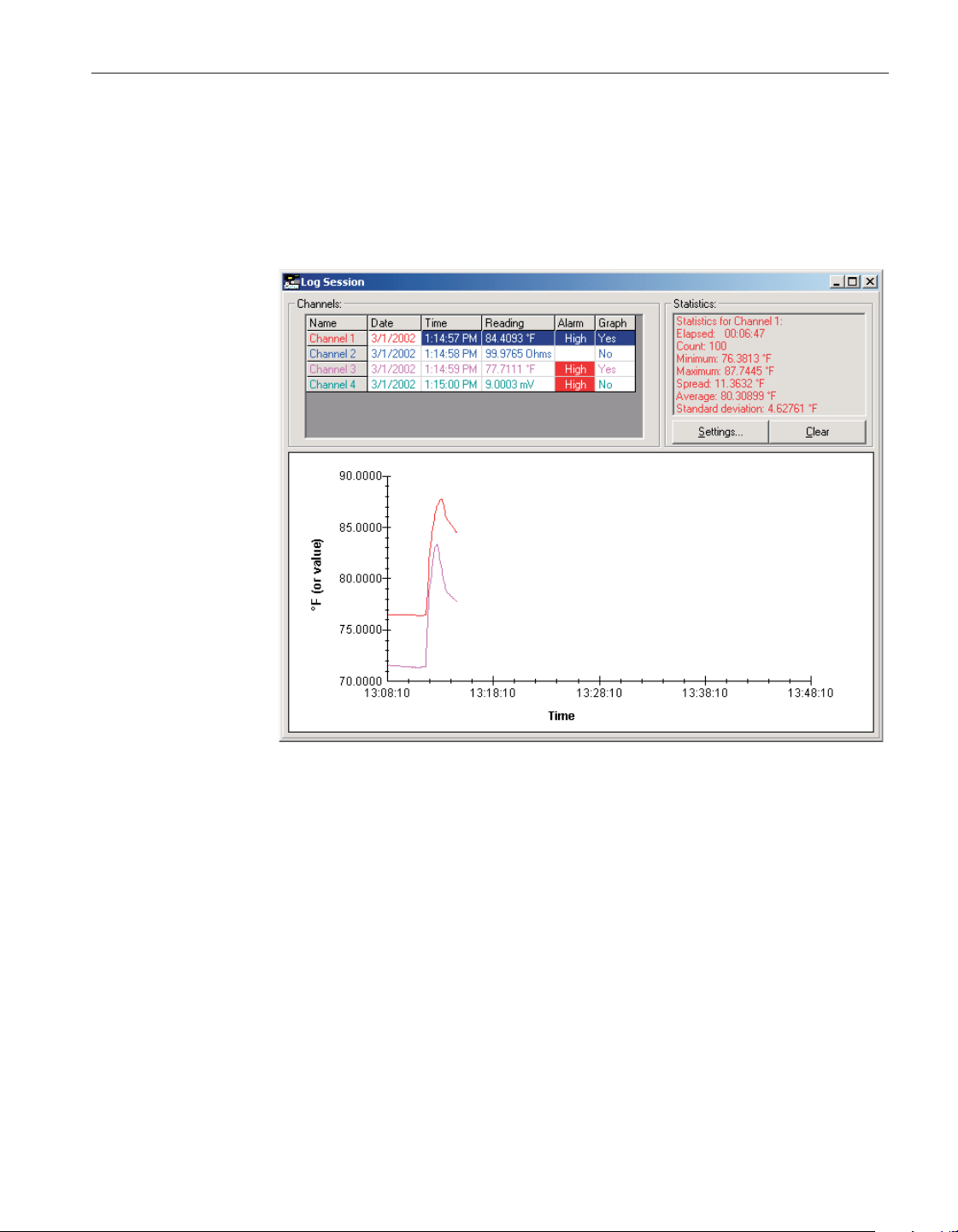
2.4 Real-time log session
The Log Session window is displayed when a real-time log session starts. This
window is divided into three main sections: channels grid, statistics and graph.
These three sections can be resized by dragging the bars that divide the sections
with the mouse.
LogWare was designed to communicate with only one thermometer readout at a
time. Therefore, only one real-time log session can be running at a time. In or
-
der to optimize data acquisition, many menu options are disabled during a
real-time log session.
When a log session is started, LogWare prepares to acquire data from the en
-
abled channels. The current conversion settings for each channel and system
units are determined at this time. The scale of the readings for each channel de
-
pends on the conversion setting for each channel and the session temperature
scale as set on the Log Session Settings dialog.
LogWare attempts to create the output file for each enabled channel. If
LogWare is unable to create an output file, or if there is an existing file of the
same name and the overwrite option was not selected, a prompt is displayed
and a new path and/or filename may be entered for the output file.
31
2 Real-time logging
Real-time log session
Figure 16 Real-time log session window
1.888.610.7664 sales@GlobalTestSupply.com
Fluke-Direct.com

If a delayed start time was selected, a dialog appears indicating the time that the
log session will begin. Otherwise, a dialog appears indicating that the log ses
-
sion will begin momentarily while LogWare initializes the thermometer readout
and finishes preparing to start the log session.
Note: If a delayed start time was selected and the Prompt to synchronize
real-time log session option is selected on the LogWare Options dialog, a
prompt is displayed asking if the synchronize feature should be disabled. If
the synchronize feature is not disabled, the log session will not start as ex
-
pected! For more details, please refer to Section 5.6.4, Options.
Once logging starts, one measurement is taken on each enabled channel at the
interval specified on the Log Session Settings dialog. If the Interval between
scan sequences feature was enabled, LogWare then waits the specified time and
repeats this process. Otherwise, this process is repeated without delay.
Note: Be aware that selecting any menu option while a real-time log ses-
sion is running may cause the measurement process to halt temporarily
until the menu is closed or the dialog that is displayed is closed! Also,
running other applications on the computer while logging real-time data,
especially those that require a lot of processing time or that access the
disk frequently, may cause the measurement process to halt temporarily
while the other application is busy. It is recommended that, once a
real-time log session is started, the software and the computer be left
alone to log the data without interruption.
If the log session was configured to stop logging at a specified time or after a
specific number of readings, LogWare continues to acquire data until the end
log criteria is met. The log session can be stopped manually at any time by se
-
lecting the Stop option in the Datalog menu or by clicking the button
on the toolbar.
When a log session is stopped manually, a prompt is displayed asking if the log
session window should be closed. The log session window may be closed at
this time or left open. In order to start a new log session, the current log session
window must be closed. Select Yes to close the log session window immedi
-
ately or select No to leave the window open.
To close the real-time log session window, select the Close option in the
Datalog menu or click the button on the toolbar. If the Show Log Ses
-
sion Settings dialog after closing log session option on the LogWare Options
dialog is checked, the Log Session Settings dialog is automatically displayed.
To prevent LogWare from displaying the Log Session Settings dialog after the
log session window is closed, uncheck this option. For more details, please re
-
fer to Section 5.6.4, Options.
User’s Guide
32
1.888.610.7664 sales@GlobalTestSupply.com
Fluke-Direct.com

Once the log session has been stopped, the output file which contains all of the
acquired readings can be opened by selecting the Open Previously Logged Data
File option in the View menu. For more details on opening previously logged
data files, please refer to Section 5.4.7, Open Previously Logged Data File.
2.4.1 Channels grid
The Channels grid is located in the upper left corner of the log session window
and displays the most recent data for each enabled channel. This data includes
the channel name, date, time and value and scale of the most recent reading, the
current alarm state and whether or not the trace for the channel is currently dis
-
played on the graph. The color of the data in the Channels grid matches the se
-
lected trace color for that channel. The currently selected channel is
highlighted.
The first column in the Channels grid indicates the channel names as entered on
the Log Session Settings dialog. The second and third columns indicate the
date and time that the last reading was taken on each channel. The fourth col
-
umn indicates the last reading value and scale on each channel. The fifth col-
umn indicates the current alarm state and the sixth column indicates whether
the trace for each channel is currently shown on the graph. Each of these col-
umns may be resized as desired by dragging the lines that separate each column
with the mouse.
The current alarm state is determined by comparing the most recent reading on
each channel to that channel’s alarm settings. If the low and/or high alarms
have been configured, the reading is compared to the alarm values. If the low
alarm is enabled and the reading is less than or equal to the low alarm value,
the Alarm box in the Channel grid flashes Low to indicate the low alarm has
“tripped”. If the high alarm is enabled and the reading is greater than or equal
to the high alarm value, the Alarm box flashes High to indicate the high alarm
has “tripped”. If the reading falls between the low and high alarm values or if
the alarms are not enabled, the Alarms box remains blank (alarm reset).
Double-clicking on a row in the Channels grid toggles the state of the trace on
the graph. The current state for each channel is indicated in the Graph column.
Right-clicking on the Channels grid displays a popup menu. This menu consists
of some of the more common options for working with channels during a
33
2 Real-time logging
Real-time log session
1.888.610.7664 sales@GlobalTestSupply.com
Fluke-Direct.com

real-time log session. The menu options apply only to the currently selected
channel.
The alarm settings for the selected channel can be viewed by selecting the
Alarm Settings option in the popup menu, or by selecting the Alarm Settings
option in the View menu. If the selected channel does not have any alarms con-
figured, this menu option is disabled. Selecting the Alarm Settings option dis-
plays the Current Alarm Settings dialog. Please refer to Section 2.4.4, Current
Alarm Settings Dialog, for more information on this dialog.
The graph trace color for the selected channel can be changed while the log
session is running by selecting the Trace Color option in the popup menu, or by
selecting the Trace Color option in the Graph menu. Please refer to Section
2.4.7, Trace Color Dialog, for more details on using the Trace Color dialog.
The color of the channel in the Channels grid, statistics list and the graph trace
are all updated to the new color.
The Show Trace option in the popup menu indicates whether the trace for this
channel is currently shown on the graph. A check appears next to this menu op
-
tion is the trace is visible. The Graph column of the Channels grid also indi
-
cates whether the trace is currently shown on the graph. To toggle showing the
trace for the selected channel on the graph, select the Show Trace option in the
popup menu, or select the Show Trace option in the View menu.
The View Alarm Log option in the popup menu displays the alarm log file for
this log session. Every time an alarm is tripped or reset, an entry is written to
the alarm log file. This file is named “alarms.log” and is located in the default
output folder. The alarm log file can also be viewed by selecting the Alarm Log
option in the View menu. The alarm log file is displayed in the File Viewer
window. Please refer to Section 7.2.3, Alarm Log File, for more information on
the contents of the alarm log file. Please refer to Section 2.4.8, File Viewer
Window, for more information on using the File Viewer window.
User’s Guide
34
Figure 17 Channels popup menu
1.888.610.7664 sales@GlobalTestSupply.com
Fluke-Direct.com

Note: When viewing the alarm log file while a real-time log session is
running, the File Viewer window displays only the information that had
been written to the file at the time the file was opened. Click the Refresh
button on the File Viewer window to update the file. The alarm log file can
also be printed by clicking the Print button on the File Viewer window.
The output file for each channel can be opened and viewed by selecting the
View Readings History option in the popup menu or be selecting the Readings
History option in the View menu. The output file contains all of the data that
has been logged for the selected channel during the current log session. The
output file is displayed in the File Viewer window. Please refer to Section 7.2.1,
Output File, for more information on the contents of the output file. Please re
-
fer to Section 2.4.8, File Viewer Window, for more information on using the
File Viewer window.
Note: If the data is being acquired using the Write all acquired data to the
same file option, the View Readings History feature displays all readings
for all channels!
Note: When viewing the output file while a real-time log session is run-
ning, the File Viewer window displays only the information that had been
written to the file at the time the file was opened. Click the Refresh button
on the File Viewer window to update the file. To see the statistics for the
output file, click the Statistics button on the File Viewer window. The out-
put file can also be printed by clicking the Print button on the File Viewer
window or by selecting the Print | Readings option in the File menu.
2.4.2 Statistics list
The Statistics list is located in the upper right corner of the log session window
and displays statistical information for the currently selected channel. The color
of the statistics data matches the trace color for the selected channel. Each of
the statistical settings can be enabled or disabled by clicking the Settings but
-
ton. Only the enabled statistics are displayed in the Statistics list. Please refer to
Section 2.3.6, Statistics Settings Dialog, for more information on the Statistics
Settings dialog.
Clicking the Clear button resets all statistical values for the selected channel
and begins calculating the statistical data again starting with the next reading
acquired on the selected channel.
2.4.3 Graph
The graph is located at the bottom of the log session window. The graph gives a
visual representation of the readings on all enabled channels.
The trace for each enabled channel can be toggled on or off. The Graph column
in the Channels grid indicates the current state of the trace for each channel. To
35
2 Real-time logging
Real-time log session
1.888.610.7664 sales@GlobalTestSupply.com
Fluke-Direct.com

show or hide the trace for the selected channel, either double-click on the chan
-
nel, or right-click on the Channels grid and select the Show Trace option in the
popup menu or select the Show trace option in the View menu.
The Y-axis of the graph is always labeled in the session temperature scale that
was selected on the Log Session Settings dialog. The Y-axis is automatically
scaled to keep the entire visible portion of all traces within the graph bounds.
As traces are shown and/or hidden, the graph should automatically rescale to
maximize the resolution.
Note: For readings on all channels that are configured for non-tempera
-
ture units (i.e. Ohms or mV), the units of the Y-axis are assumed to be in
the appropriate units for that channel.
The X-axis of the graph displays the current time according to the computer’s
clock. As the traces reach the right side of the graph, the traces shift to the left
and the left-most part of the traces are pushed off the graph. The graph is set to
display 600 readings on the X-axis at a time. This setting is fixed and cannot be
changed.
Gridlines can be automatically displayed on the graph by checking the Show
gridlines on graphs option of the General tab of the LogWare Options dialog.
Please refer to Section 5.6.4.1, General Tab, for more details.
Right-clicking on the graph displays a popup menu. This menu is identical to
the Graph menu and consists of options for working with the graph during a
real-time log session. Some of the menu options apply only to the currently se-
lected channel.
There are many customizable settings for the graph such as titles, a legend,
background and text colors, grid lines and trend lines. All of these features can
be accessed by selecting the Graph Settings option in the popup menu or in the
Graph menu. The default graph settings can be restored by selecting the Re
-
store Default Settings option in the popup menu or in the Graph menu. For
more details on customizing the graph settings, please refer to Section 5.5.1,
Graph Settings Dialog.
User’s Guide
36
Figure 18 Graph popup menu
1.888.610.7664 sales@GlobalTestSupply.com
Fluke-Direct.com

The Zoom In and Restore options are not applicable to a real-time log session
and are disabled.
The graph may be printed at any time by selecting the Print Graph option in the
popup menu or in the Graph menu, or by selecting the Print | Graph option in
the File menu.
2.4.4 Current Alarm Settings dialog
The Current Alarm Settings dialog displays the current alarm settings.
The Low alarm box indicates the current low alarm value and units. If the low
alarm is not enabled, the Low alarm box is disabled and no value is displayed.
The High alarm box indicates the current high alarm value and units. If the
high alarm is not enabled, the High alarm box is disabled and no value is
displayed.
Click the Close button to close this dialog.
2.4.5 Output file
The data that is acquired during a real-time log session is written to a file,
called an output file. This file contains information about the thermometer read
-
out used to acquire the data, alarm settings (if applicable), and the date, time,
value, scale and alarm state for each reading.
To view the contents of an output file during a real-time log session, select the
Readings History option in the View menu, or right-click on the Channels grid
and select the View Readings History option in the popup menu.
The output file is described in detail in Section 7.2.1, Output File.
2.4.6 Alarm log file
During a real-time log session, a log of all alarm activity is recorded in a file
call the alarm log. This file contains alarm setting information for each channel
37
2 Real-time logging
Real-time log session
Figure 19 Current Alarm Settings dialog
1.888.610.7664 sales@GlobalTestSupply.com
Fluke-Direct.com
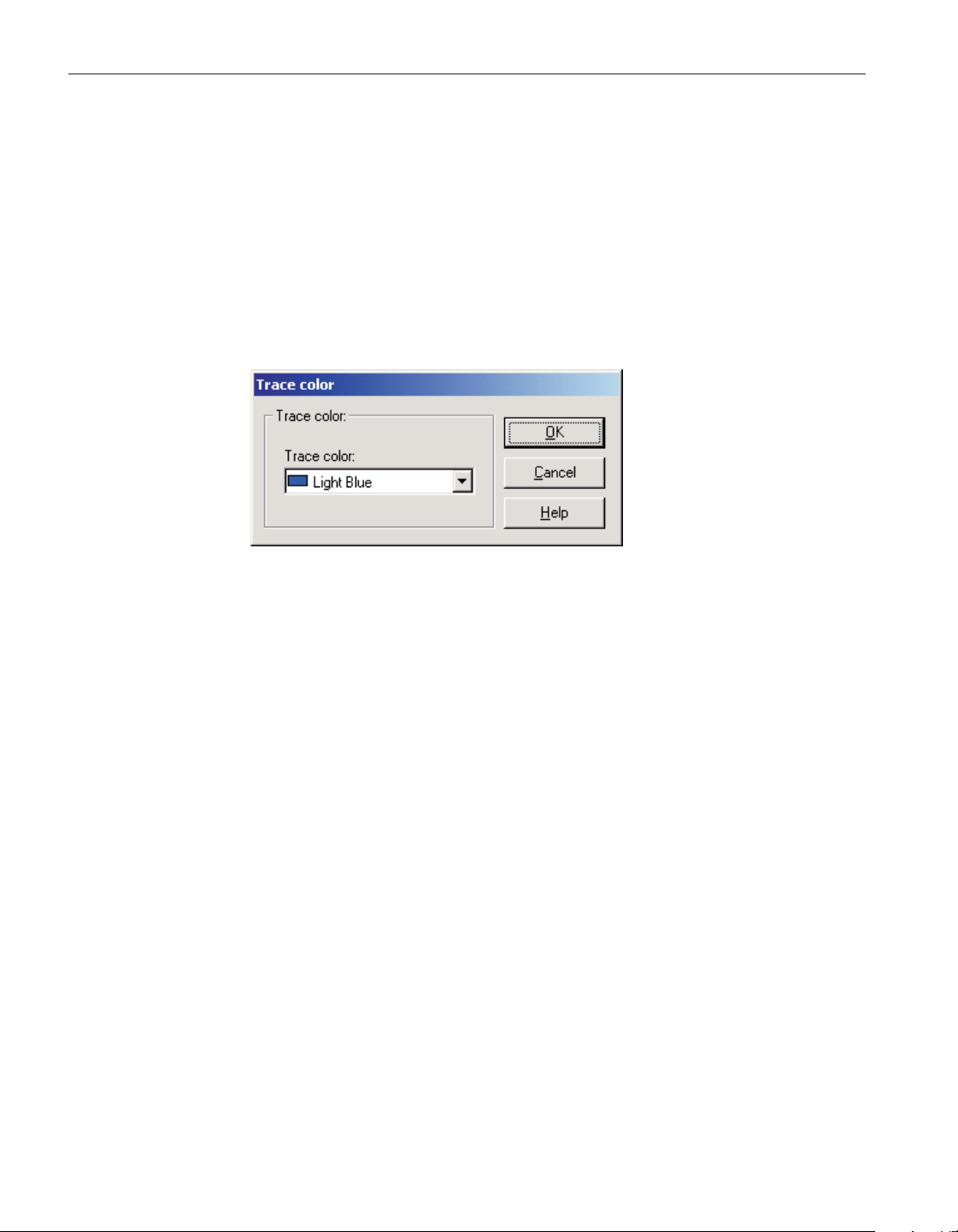
and the date, time, value, scale and alarm state for each time an alarm tripped
or reset.
To view the contents of the alarm log file during a real-time log session, select
the Alarm Log option in the View menu, or right-click on the Channels grid
and select the View Alarm Log option in the popup menu.
The alarm log file is described in detail in Section 7.2.3, Alarm Log File.
2.4.7 Trace color dialog
The Trace Color dialog allows a new color to be selected for the graph trace.
The current trace color is selected when the dialog is displayed. Select the new
color using the Trace color drop-down list.
Click the OK button to save the settings you have selected and to close the
dialog.
Click the Cancel button to discard any changes and close the dialog.
Click the Help button to display the appropriate help topic for this dialog.
User’s Guide
38
Figure 20 Trace color dialog
1.888.610.7664 sales@GlobalTestSupply.com
Fluke-Direct.com
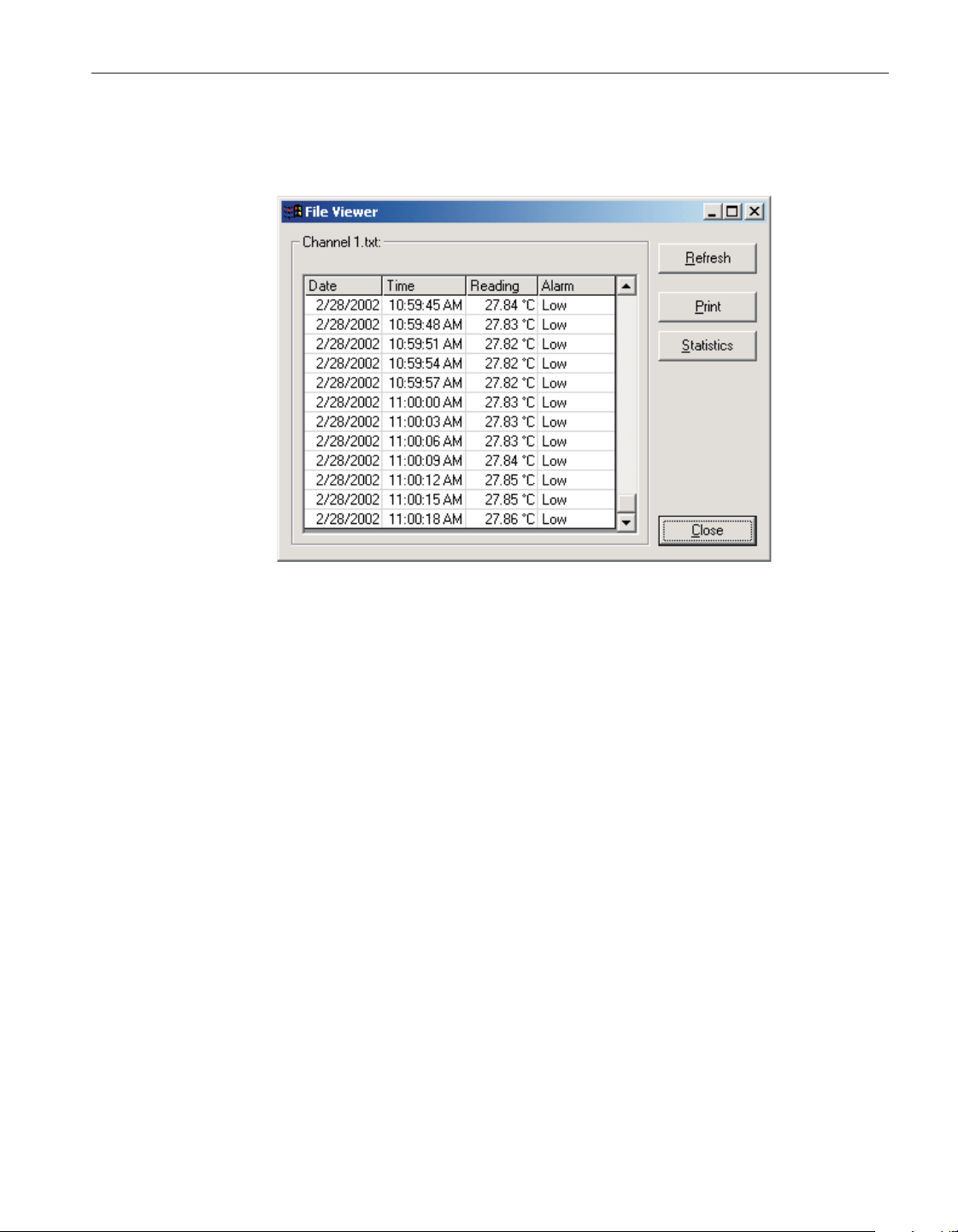
2.4.8 File Viewer window
The File Viewer window displays the contents of the indicated file.
The data grid displays the contents of the file at the time the viewer window is
displayed. The data displayed in the data grid will vary depending on the con-
tents of the file being viewed.
To update the data in the data grid, click the Refresh button. The contents of
file will be read in again and the data grid is updated.
To print the contents of the indicated file to the default printer, click the Print
button.
The Statistics button is shown if there is statistical data associated with the dis
-
played data. To see the statistical data, click the Statistics button. The Statistics
dialog is displayed. Please refer to Section 2.4.9, Statistics Dialog, for more de
-
tails on this dialog.
The Close button closes this window.
39
2 Real-time logging
Real-time log session
Figure 21 File Viewer window
1.888.610.7664 sales@GlobalTestSupply.com
Fluke-Direct.com
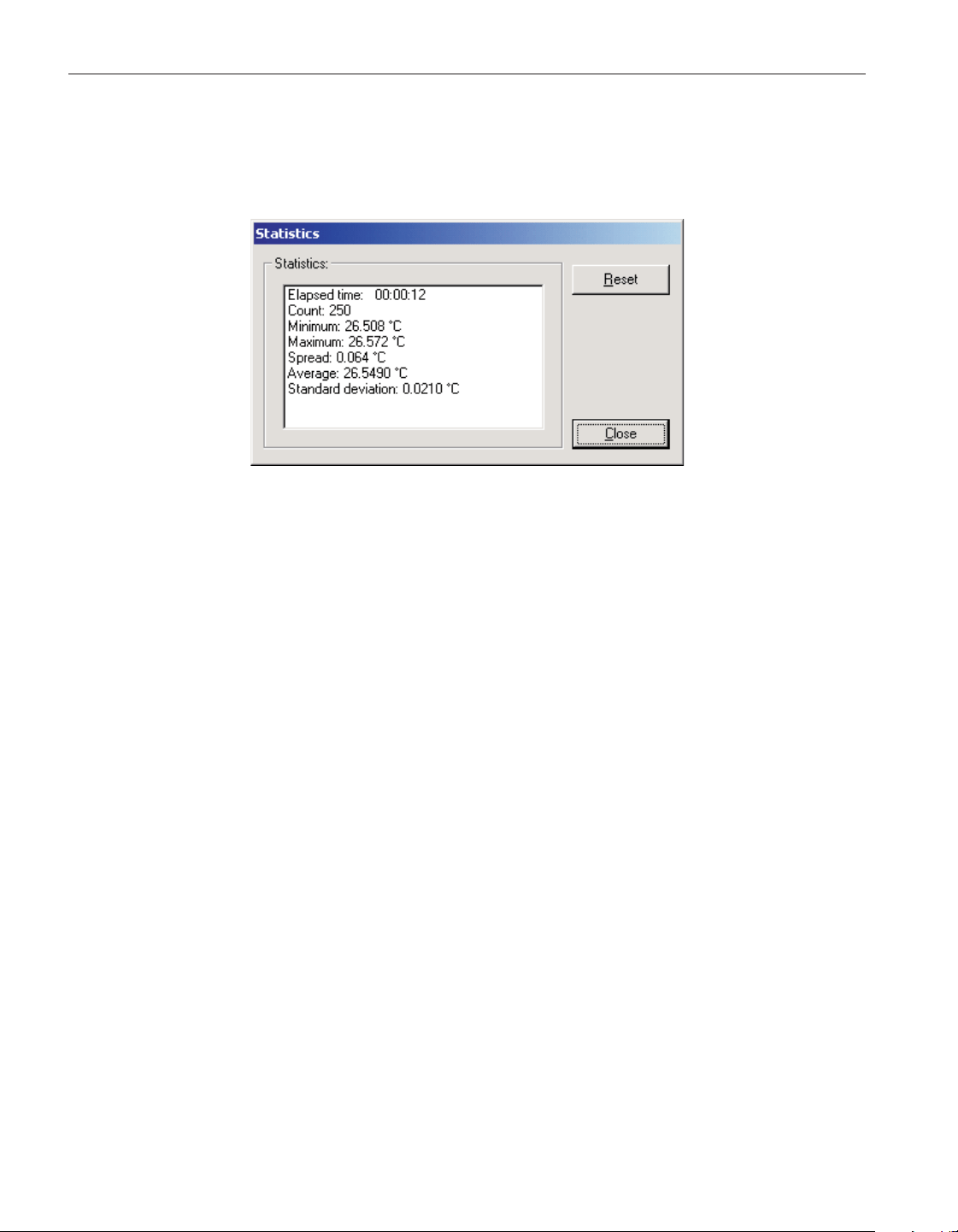
2.4.9 Statistics dialog
The Statistics dialog displays the current statistical values. Only the values for
the enabled statistics are displayed.
If the Sliding window statistical setting is enabled, the statistical values are
based on the number of readings specified for the sliding window. Otherwise,
the statistical values are based on all readings since the statistics were last reset.
Click the Reset button to reset the statistical values.
Click the Close button to close this dialog.
2.5 Previous log session
The Previous Log Session window allows multiple output files or download
files to be opened and viewed. This window is divided into three main sections:
User’s Guide
40
Figure 22 Statistics dialog
1.888.610.7664 sales@GlobalTestSupply.com
Fluke-Direct.com
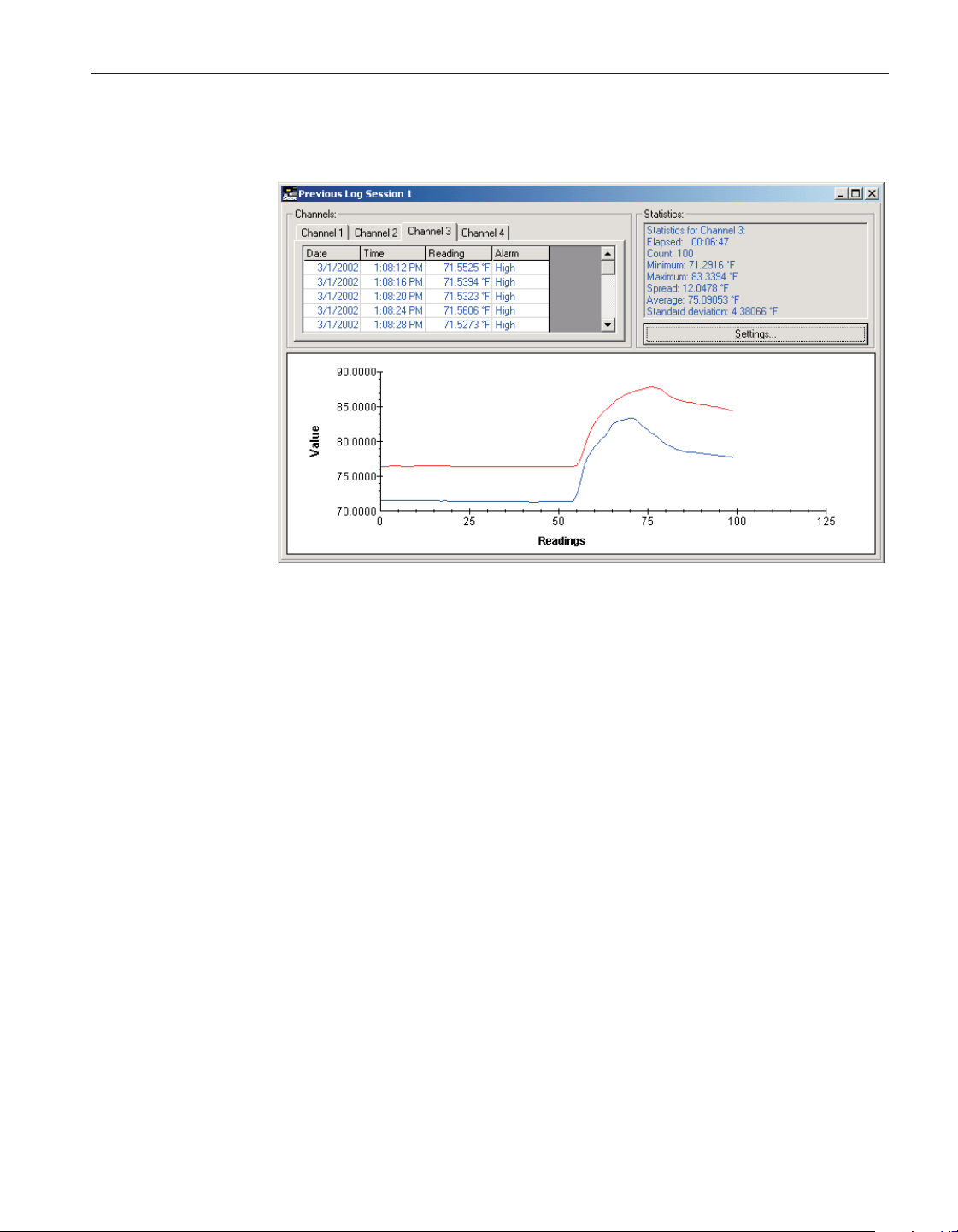
channels, statistics and graph. These three sections can be resized by dragging
the bars that divide the sections with the mouse.
A Previous Log Session window can be opened by selecting the Open Previ-
ously Logged Data File option in the View menu or by selecting one of the files
in the Most Recently Used (MRU) section at the bottom of the View menu. Up
to 8 Previous Log Session windows can be open at a time.
When selecting the Open Previously Logged Data File option, the Windows®
Open dialog is displayed. The \Config folder should be selected by default (or
the folder that is specified for configuration files on the LogWare Options dia
-
log). Both output files and download files can be opened in the Previous Log
Session window. These files should have a .txt extension. To cancel opening a
file, click the Cancel button. Otherwise, select up to 10 files to open and click
the Open button. If more than 10 files are selected, only the first 10 files are
opened and the rest are ignored. For more details about output files, please re
-
41
2 Real-time logging
Previous log session
Figure 23 Previous Log Session window
1.888.610.7664 sales@GlobalTestSupply.com
Fluke-Direct.com
fer to Section 7.2.1, Output file. For more details about download files, please
refer to Section 7.2.2, Download file.
Note:To open an output file that was created when using the Write all ac
-
quired data to the same file option (multiple data sets in the same file),
you must not select more than one file on the Windows® Open dialog. If
the file contains data from more than 10 channels, only the data from the
first 10 channels will be displayed. Data sets from each channel are sepa
-
rated into individual files and may be opened in another window if de
-
sired. A message is displayed if the selected file contains more than 10
data sets and indicates the names and path where the files are located.
A progress dialog is displayed as each of the selected files are read in and ana
-
lyzed. As each of the files is read in, a tab is created in the Channels section of
the window and statistical data is calculated. Each channel is automatically as
-
signed a trace color that can be changed at any time. The X-axis of the graph
automatically grows to accommodate the file with the most readings. The
Y-axis of the graph is automatically scaled to display all traces on the graph.
Note: The graph allows a maximum of 32,767 readings per channel. If
any one file contains more readings than that, the first 32,767 readings are
read in and the rest are ignored. The graph also limits the total number of
data points to 128,000 for all channels. So, for 10 channels, a maximum of
12,800 readings per channel can be displayed.
To close the Previous Log Session window, click the button in the title
bar.
2.5.1 Channels
The Channels section is located in the upper left corner of the previous log ses
-
sion window and displays one tab for each file that was opened. Each tab is
given the name of the file and the grid on the tab contains all of the data that
was read in from the file. Depending on the type of file being opened, this data
can include but is not necessarily limited to, the date, time, value and scale of
each reading as well as the alarm state at the time that reading was taken.
Note: When opening files that contain data that was downloaded from
some of the thermometers supported by LogWare, no date or time informa
-
tion is available. Download files never contain alarm information.
Selecting a tab in the Channels section displays the data associated with that
channel. The color of the data in the grid matches the graph trace color as
-
signed to this channel.
Right-clicking on any of the channel tabs displays a popup menu. This menu
User’s Guide
42
1.888.610.7664 sales@GlobalTestSupply.com
Fluke-Direct.com
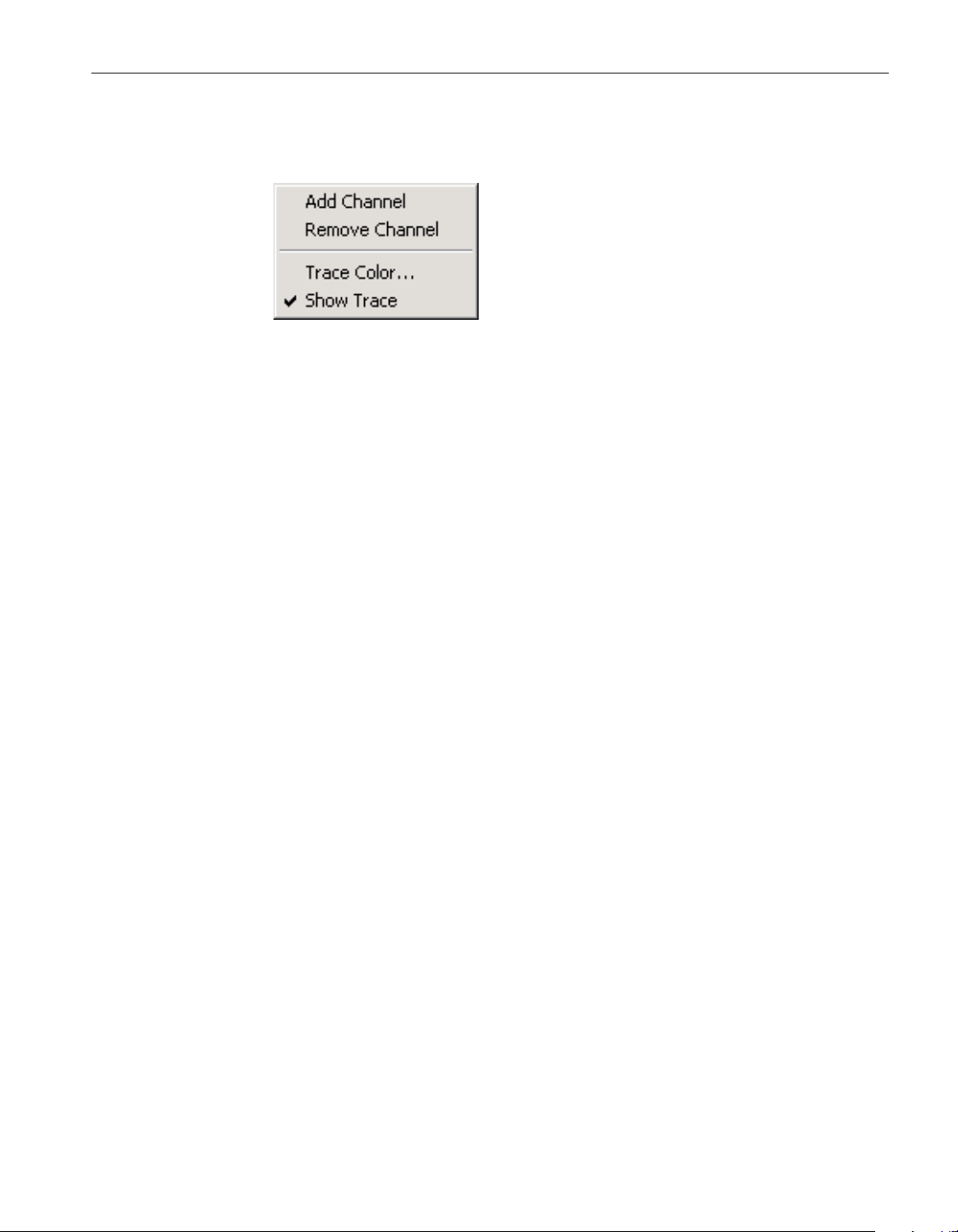
allows channels to be added to or removed from this session, and also allows
the trace color to be changed, or the trace can be hidden.
LogWare is capable of opening up to 10 files (channels) in the same Previous
Log Session window. To add another channel to the window, select the Add
Channel option in the popup menu. The Windows® Open dialog is displayed.
The \Config folder should be selected by default (or the folder that is specified
for configuration files on the LogWare Options dialog). To cancel opening a
file, click the Cancel button. Otherwise, select up to 9 more files to open and
click the Open button. Since LogWare only allows a total of 10 files to be
opened, any additional files are ignored. The Add Channel option is disabled if
the log session already has 10 channels open.
To remove a channel from the Previous Log Session window, select the tab for
the channel and select the Remove Channel option in the popup menu. Any
channel can be removed except the first channel. The first channel cannot be
removed. When a channel is removed, the corresponding tab, grid and graph
trace are also removed and the graph Y-axis is rescaled as needed.
To change the color of the trace on the graph for any channel, select the tab for
the channel and select the Trace Color option in the popup menu, or by select
-
ing the Trace Color option in the Graph menu. The Trace Color dialog is dis
-
played. Please refer to Section 2.4.7, Trace Color Dialog, for more information
on this dialog.
The Show Trace option in the popup menu indicates whether the trace for the
selected channel is currently shown on the graph. A check appears next to this
option if the trace is visible. The trace on the graph for any channel can be tog
-
gled on or off at any time. To toggle the trace for any channel, select the tab for
the channel and select the Show Trace option in the popup menu or select the
Show trace option in the View menu. If a check appears next to this option, the
trace is currently shown. If no check appears, the trace is hidden.
2.5.2 Statistics list
The Statistics list is located in the upper right corner of the Previous Log Ses
-
sion window and displays statistical information for the currently selected
channel. The statistics are calculated when the data is read in from the file. The
color of the statistics data matches the trace color for the selected channel.
43
2 Real-time logging
Previous log session
Figure 24 Channels popup
menu
1.888.610.7664 sales@GlobalTestSupply.com
Fluke-Direct.com
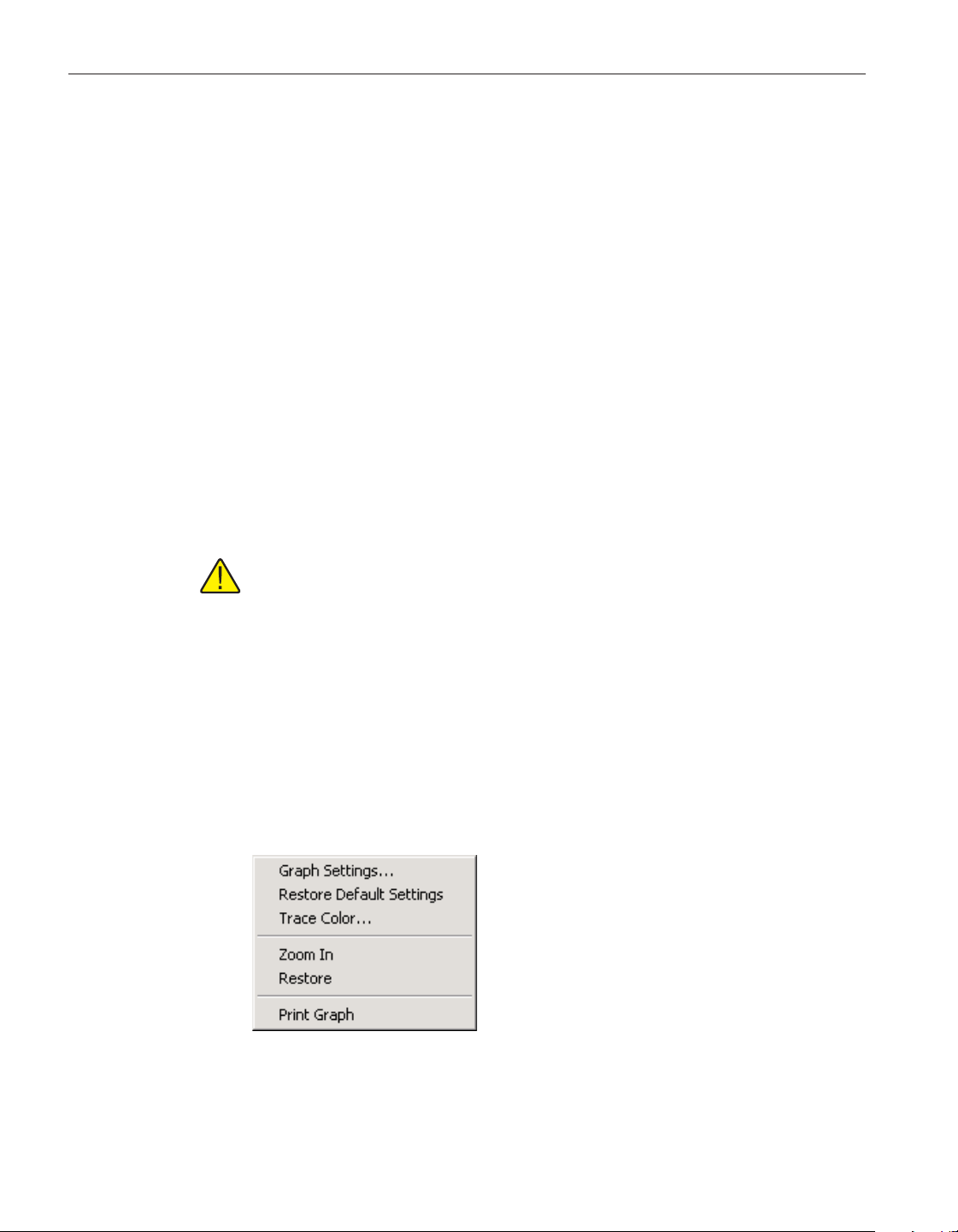
Each of the statistical settings can be enabled or disabled by clicking the Set
-
tings button. Only the enabled statistics are displayed in the Statistics list.
Please refer to Section 2.3.6, Statistics Settings Dialog, for more information
on the Statistics Settings dialog.
2.5.3 Graph
The graph is located at the bottom of the Previous Log Session window. The
graph gives a visual representation of the readings on all channels.
The trace for each channel can be toggled on or off. To show or hide the trace
for the selected channel, right-click on the tab in the Channels grid and select
the Show Trace option in the popup menu or select the Show Trace option in
the View menu.
The Y-axis of the graph is automatically scaled to display all visible traces in
their entirety. The Y-axis is labeled Value by default and the resolution of the
values is extracted from the data read in from the channels. The X-axis of the
graph grows automatically to display the entire trace of the channel with the
most readings. The X-axis is labeled Readings by default and is numbered ac-
cording to the number of readings in each file.
Note: The graph allows a maximum of 32,767 readings per channel. If
any one file contains more readings than that, the first 32,767 readings are
read in and the rest are ignored. The graph also limits the total number of
data points to 128,000 for all channels. So, for 10 channels, a maximum of
12,800 readings per channel can be displayed.
Gridlines can be automatically displayed on the graph by checking the show
gridlines on graphs option of the General tab of the LogWare Options dialog.
Please refer to Section 5.6.4.1, General Tab, for more details.
Right-clicking on the graph displays a popup menu. This menu is identical to
the Graph menu and allows quick access to graph-related functions. Some of
the options apply only to the currently selected channel.
User’s Guide
44
Figure 25 Graph popup menu
1.888.610.7664 sales@GlobalTestSupply.com
Fluke-Direct.com
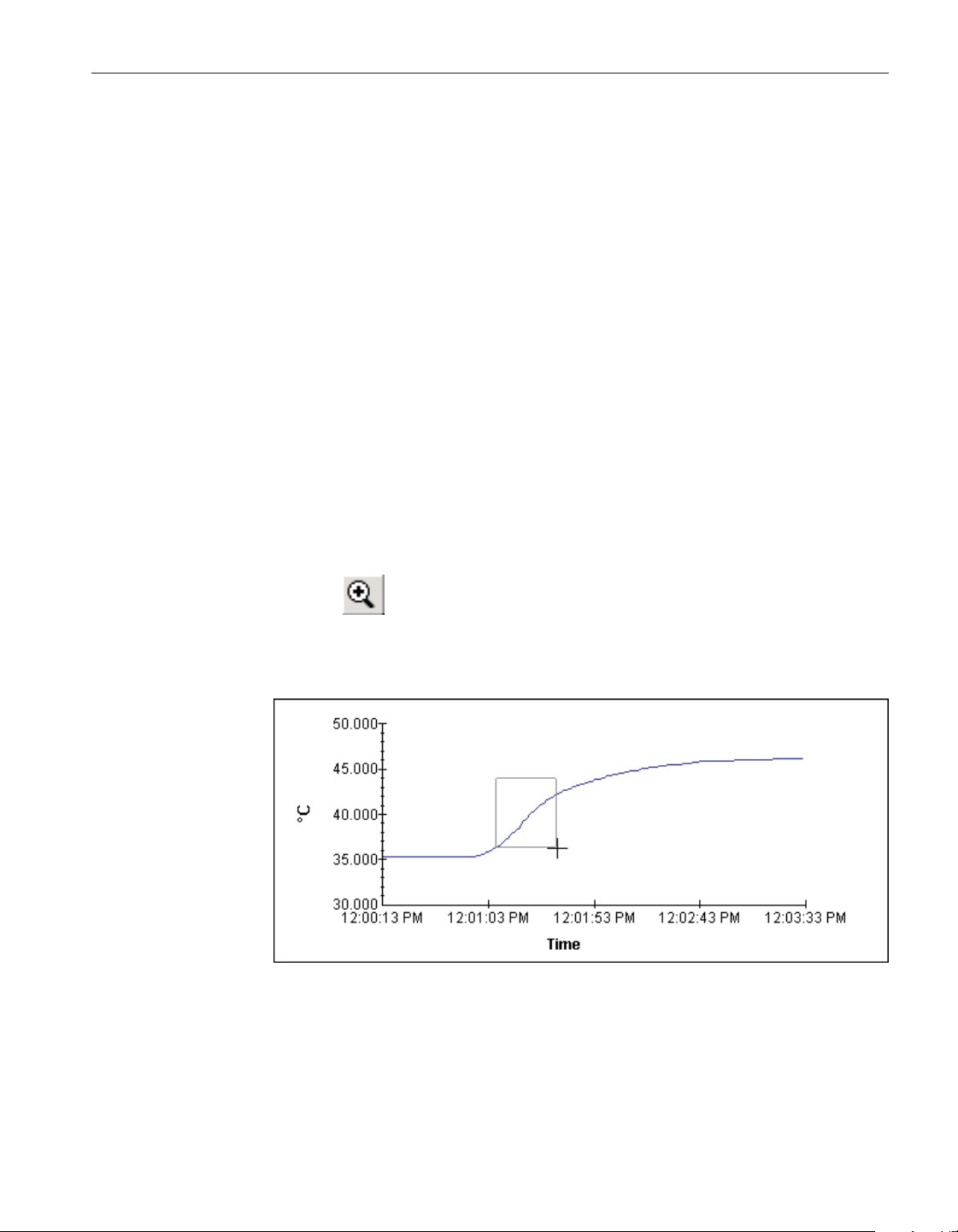
There are many customizable settings for the graph such as titles, a legend,
background and text colors, grid lines and trend lines. All of these features can
be accessed by selecting the Graph Settings option in the popup menu or in the
Graph menu. The default graph settings can be restored by selecting the Re
-
store Default Settings option in the popup menu or in the Graph menu. For
more details on customizing the graph settings, please refer to Section 5.5.1,
Graph Settings Dialog.
The Zoom In and Restore options are can be used to zoom in to a small section
of the graph and to restore the graph to its default state respectively. Please re
-
fer to Section 2.5.4, Graph Zooming, for more details on using the graph zoom
-
ing feature.
The graph may be printed at any time by selecting the Print Graph option in the
popup menu or in the Graph menu, or by selecting the Print | Graph option in
the File menu.
2.5.4 Graph zooming
LogWare allows the graph in the Previous Log Session window to be zoomed
to view a small section of the graph in more detail. The zoom feature can be en-
abled by selecting the Zoom In option in the Graph menu, or by right-clicking
on the graph and selecting the Zoom In option in the popup menu, or by click-
ing the button on the toolbar. When the zoom feature is enabled, the
mouse pointer turns into a crosshair when positioned over the graph, the
toolbar button remains depressed and a check mark appears next to the Zoom
In option indicating that the graph is now in “zoom mode”.
To zoom in to a portion of the graph, use the mouse to select the portion of the
graph to zoom by clicking the left mouse button and holding it down while
dragging the mouse to draw a rectangular box around the desired area. Releas
-
45
2 Real-time logging
Previous log session
Figure 26 Graph zooming
1.888.610.7664 sales@GlobalTestSupply.com
Fluke-Direct.com

ing the mouse button causes the graph to zoom in to the selected area. Repeat
this process to zoom in closer and closer.
To restore the graph to its normal state, select the Restore option in the Graph
menu, or right-click on the graph and select the Restore option in the popup
menu, or click the button on the toolbar. The check mark is then re
-
moved in the Zoom In option and the Zoom In toolbar button no longer appears
depressed.
User’s Guide
46
1.888.610.7664 sales@GlobalTestSupply.com
Fluke-Direct.com

3 Downloading logged data
LogWare provides tools to download data that has been logged to the thermom
-
eter readout’s memory or logs and to view the current status of the thermometer
readout’s logs or memory. These tools are accessible by selecting options in the
Download menu. The following sections describe the download and log status
dialogs for each of the thermometer readouts supported by LogWare .
3.1 Download menu
The Download menu contains options for downloading logged data from the
thermometer readout’s memory or logs and viewing the current status of the
thermometer readout’s logs or memory.
3.1.1 Download logged data
The Download Logged Data option can be used to download data that has been
logged to the thermometer readout’s logs or memory. All thermometer readouts
supported by LogWare support logging of some type. Please refer to Section
1.4.4, Firmware Requirements, for more information.
When selecting the Download Logged Data option, the Select Model dialog is
displayed. LogWare needs to know the model of the thermometer readout in or
-
der to display appropriate options dialog. Please refer to Section 3.2, Select
Model Dialog, for more details.
After the thermometer readout model and communication settings have been
selected, the appropriate Download Options dialog for the selected thermome
-
ter readout is displayed. The Download Options dialogs are described in more
detail in Section 3.3, Download Options Dialogs.
3.1.2 Log status
The Log Status option can be used to view the current status of the thermome
-
ter readout’s logs or memory. This feature is only supported by some of the
thermometer readouts supported by LogWare.
When selecting the Log Status option, the Select Model dialog is displayed.
LogWare needs to know the model of the thermometer readout in order to dis
-
play appropriate status dialog. Please refer to Section 3.2, Select Model Dialog,
for more details on the Select Model dialog.
47
3 Downloading logged data
Download menu
Figure 27 Download menu
1.888.610.7664 sales@GlobalTestSupply.com
Fluke-Direct.com
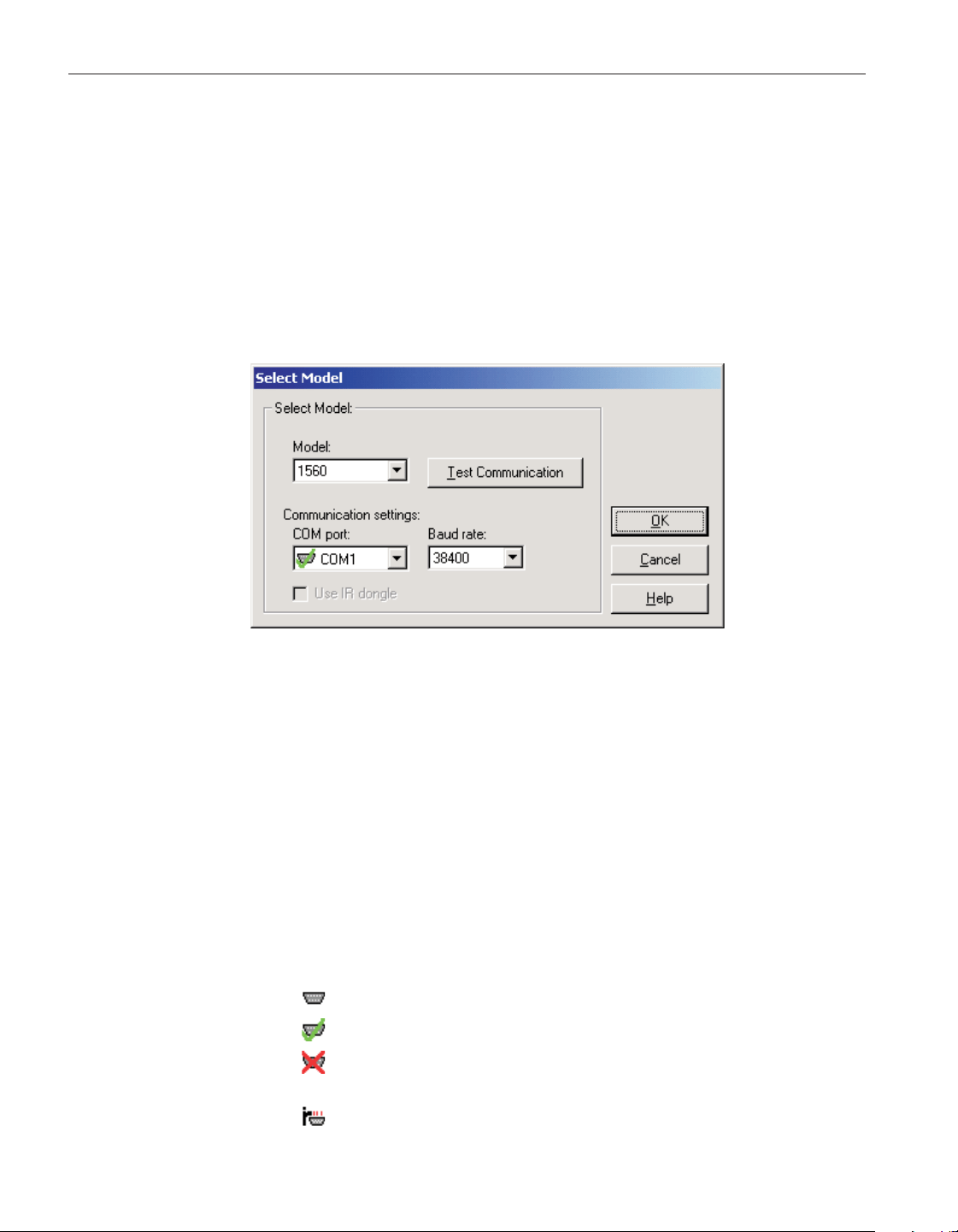
After the thermometer readout model and communication settings have been
selected, the appropriate Log Status dialog for the selected thermometer read
-
out is displayed. The Log Status dialogs are described in more detail in Section
3.4, Log Status Dialogs.
3.2 Select Model dialog
When any of the Download menu options is selected, the Select Model dialog
is displayed. LogWare needs to know the model of the thermometer readout to
interface with.
If this dialog has been used previously to select a thermometer readout model
and communication settings, the previous settings are restored.
Use the Model drop-down list to select the type of thermometer readout being
used. All other controls on this dialog are disabled until a model is selected.
The list of available thermometer readouts depends on the Download menu op
-
tion selected. Only thermometer readouts that support the selected feature are
listed.
Select the COM port on the computer to which the thermometer readout is con
-
nected using the COM port drop-down list. Only COM ports that the operating
system reports as being available can be used. The following symbols are used
to show the status of each COM port:
•
- Indicates a COM port that is currently available.
•
- Indicates the COM port that is currently selected by LogWare.
•
- Indicates a COM port that is currently being used by another appli
-
cation.
•
- Indicates an IR port (virtual COM port) that is currently available.
User’s Guide
48
Figure 28 Select Model dialog
1.888.610.7664 sales@GlobalTestSupply.com
Fluke-Direct.com

•
- Indicates an IR port (virtual COM port) that is currently selected by
LogWare .
•
- Indicates an IR port (virtual COM port) that is currently being used
by another application.
Select the baud rate that the computer should use to communicate over the
COM port with the thermometer readout using the Baud rate drop-down list.
The baud rate setting of the thermometer readout must be set to the same value
as this setting. For best results, use the maximum allowable baud rate setting
when possible.
Check the Use IR dongle option to use the thermometer readout’s IR port in
-
stead of an RS-232 cable. This option is only enabled when the selected ther
-
mometer readout has an IR port and the selected download feature allows using
the IR port to communicate with the thermometer readout. For more informa
-
tion on using the IR dongle, please refer to Section 6.13, Using an IR Dongle
with LogWa re.
After the model, COM port, baud rate and/or IR settings are configured, click
the Test Communication button to make sure communication with the ther-
mometer readout is successful. At this time, the thermometer readout must be
connected to the COM port on the computer using a null modem cable or, if the
IR dongle is being used, the IR dongle must be connected to the selected COM
port and the dongle must be aligned with the thermometer readout’s IR port.
For more information, please refer to the thermometer’s User's Guide.
When testing communication with the thermometer readout, there are three
possible results:
• The thermometer readout is communicating at the correct baud rate on the
selected COM port.
•
The thermometer readout is communicating, but possibly at the wrong
baud rate or the thermometer readout model does not match the selected
model.
•
The thermometer readout failed to communicate at all. Check the COM
port and baud rate settings, make sure the cable is a null modem cable,
and make sure the thermometer readout is plugged in and turned on. If us
-
ing the IR dongle, make sure the dongle is connected to the selected COM
port and the dongle is aligned properly with the thermometer readout’s IR
port.
After all of the settings on this dialog are configured and communication with
the thermometer readout is successful, click the OK button to accept the set
-
tings and continue.
Click the Cancel button close this dialog and abort using the selected feature.
Click the Help button to display the appropriate help topic for this dialog.
49
3 Downloading logged data
Select Model dialog
1.888.610.7664 sales@GlobalTestSupply.com
Fluke-Direct.com
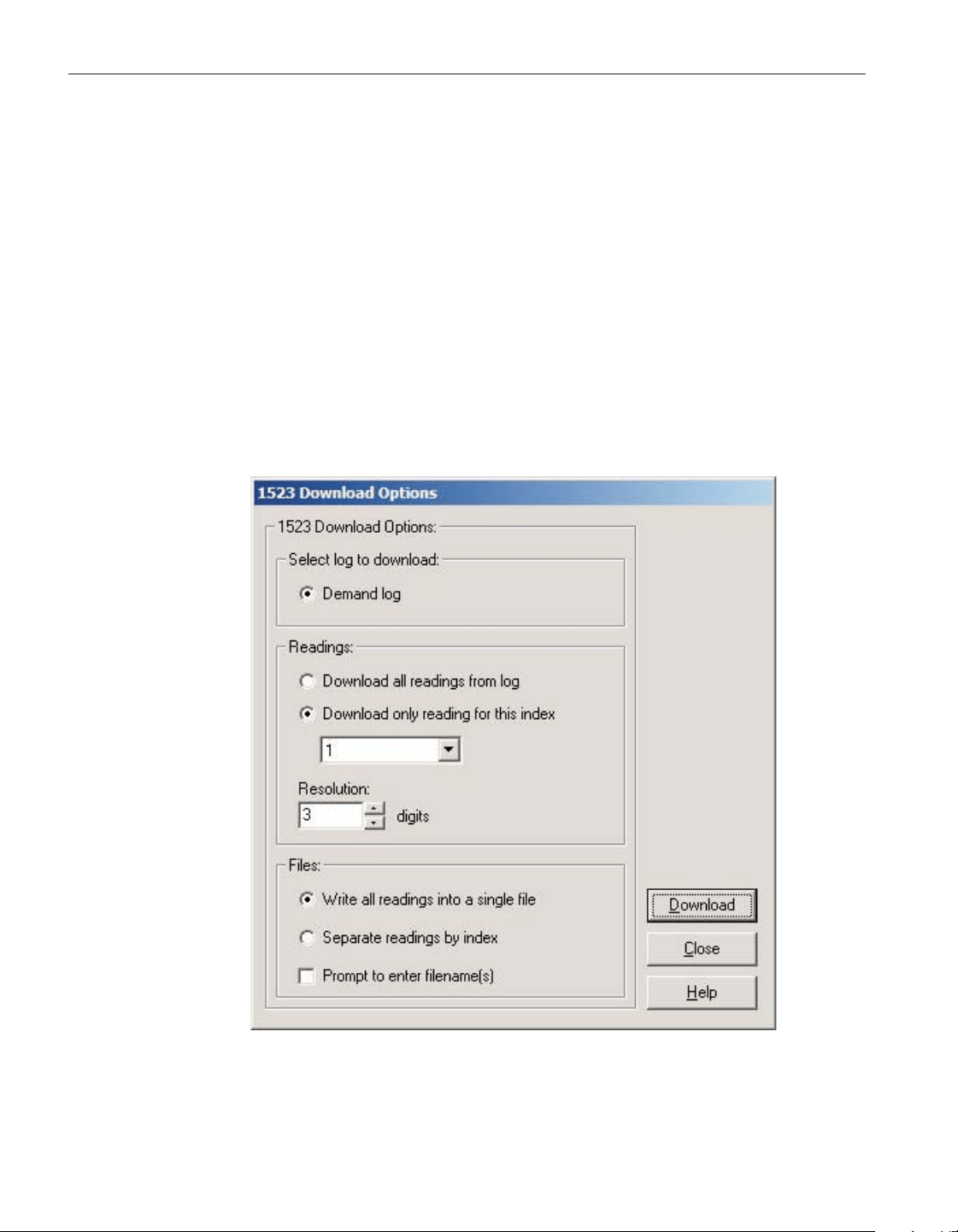
3.3 Download options dialogs
LogWare provides a tool to download data from the thermometer readout’s
memory or logs. This tool is accessible by selecting the Download Logged
Data option in the Download menu. The following sections describe the dialogs
for each of the thermometer readouts that support this feature.
3.3.1 1523 Handheld download options dialog
The Model 1523 Handheld Thermometer readout can store readings in a log,
called the demand log. LogWare can download the readings from this log and
write the readings into download files. For more information on download files,
please refer to Section 7.2.2, Download File on page 231. When the Download
Logged Data option in the Download menu is selected and the 1523
Thermometer readout is selected on the Select Model dialog, the 1523 Down
-
load Options dialog is displayed.
User’s Guide
50
Figure 29 1523 Download Options dialog
1.888.610.7664 sales@GlobalTestSupply.com
Fluke-Direct.com

The demand log stores up to 25 readings. For more details on the demand log,
see the 1523 User’s Guide.
The Readings section allows the readings to be downloaded to be specified.
Selecting the Download all readings from log option indicates that all of the
readings in the selected log should be downloaded.
Selecting the Download only reading for this index option allows only the read
-
ing at the selected index (1 to 25) to be downloaded. If this option is selected,
use the drop-down list to select the appropriate index of the reading to
download.
Select the resolution to use to format the readings when they are written to the
download file. This value can be set between 0 and 3 digits (places after deci
-
mal point).
Select the method to use when writing the downloaded readings to a file using
the options in the Files section.
Selecting the Write all readings into a single file option causes all of the down
-
loaded readings to be written to one file.
Selecting the Separate readings by index option causes one file to be created for
each index for which there is a reading available. Each file will contain a single
reading.
If the Prompt to enter filename(s) check box is checked, a prompt is displayed
after the data is downloaded for each file that needs to be created, depending on
the other selections above. If this option is not checked, the default filenames
are used.
After selecting the appropriate options on this dialog, click the Download but-
ton to start the download process. For more details on the download process,
please refer to Section 8, Download Process.
To close this dialog, click the Close button.
Click the Help button to display the appropriate help topic for this dialog.
3.3.2 1524 Handheld download options dialog
The Model 1524 Handheld Thermometer readout can store readings in any of
two logs: demand log and auto log. LogWare can download the readings from
these logs and write the readings into download files. For more information on
download files, please refer to Section 7.2.2, Download File. When the Down
-
load Logged Data option in the Download menu is selected and the 1524
51
3 Downloading logged data
Download options dialogs
1.888.610.7664 sales@GlobalTestSupply.com
Fluke-Direct.com
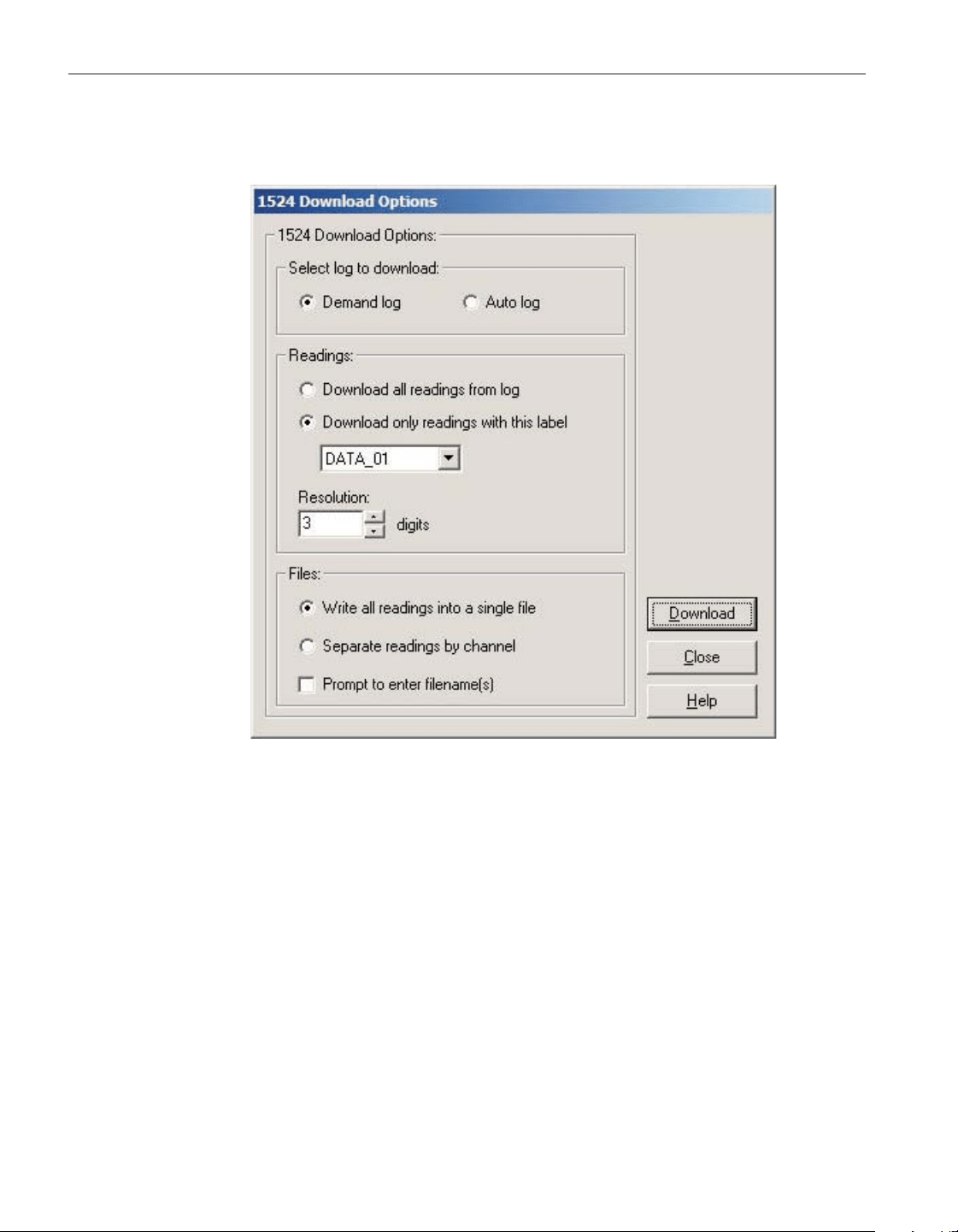
Thermometer readout is selected on the Select Model dialog, the 1524 Down
-
load Options dialog is displayed.
The Select log to download section allows the log to be specified. The 1524
Handheld Thermometer readout has two logs: demand log and auto log. The
demand log stores up to 25 readings while the auto log stores up to 15,000
readings. For more details on the demand and auto logs, see the 1524 User’s
Guide.
The Readings section allows the readings to be downloaded to be specified.
Selecting the Download all readings from log option indicates that all of the
readings in the selected log should be downloaded.
Selecting the Download only readings with this label option allows only read
-
ings that are assigned the label indicated below to be downloaded from the se
-
lected log. If this option is selected, a list of current labels is read in from the
thermometer readout. Use the drop-down list to select the appropriate label.
User’s Guide
52
Figure 30 1524 Download Options dialog
1.888.610.7664 sales@GlobalTestSupply.com
Fluke-Direct.com

Select the resolution to use to format the readings when they are written to the
download file. This value can be set between 0 and 3 digits (places after deci
-
mal point).
Select the method to use when writing the downloaded readings to a file using
the options in the Files section.
Selecting the Write all readings into a single file option causes all of the down
-
loaded readings to be written to one file.
Selecting the Separate readings by channel option causes all of the downloaded
readings to be separated according to the channel that each reading was taken
from and written into separate files.
If the Prompt to enter filename(s) check box is checked, a prompt is displayed
after the data is downloaded for each file that needs to be created, depending on
the other selections above. If this option is not checked, the default filenames
are used.
After selecting the appropriate options on this dialog, click the Download but
-
ton to start the download process. For more details on the download process,
please refer to Section 8, Download Process.
To close this dialog, click the Close button.
Click the Help button to display the appropriate help topic for this dialog.
3.3.3 1529 Chub-E4 download options dialog
The Model 1529 Chub-E4 Thermometer readout (including models 1529,
1529-R and 1529-T) can store readings in any of two logs: demand log and
auto log. LogWare can download the readings from these logs and write the
readings into download files. For more information on download files, please
refer to Section 7.2.2, Download File. When the Download Logged Data option
in the Download menu is selected and the 1529 thermometer readout is selected
on the Select Model dialog, the 1529 Chub-E4 Download Options dialog is dis
-
played (Figure 31).
The Select log to download section allows the log to be specified. The 1529
Chub-E4 Thermometer readout has two logs: demand log and auto log. The de
-
mand log stores up to 100 readings while the auto log stores up to 8,160 read
-
ings. For more details on the demand and auto logs, see the 1529 Chub-E4
Thermometer readout User's Guide.
The Readings section allows the number of readings to be downloaded to be
specified.
Selecting the Download all readings from log option indicates that all of the
readings in the selected log should be downloaded.
Selecting the Download only readings with this label option allows only read
-
ings that are assigned the label indicated below to be downloaded from the se
-
lected log. If this option is selected, a list of current labels is read in from the
thermometer readout. Use the drop-down list to select the appropriate label.
53
3 Downloading logged data
Download options dialogs
1.888.610.7664 sales@GlobalTestSupply.com
Fluke-Direct.com
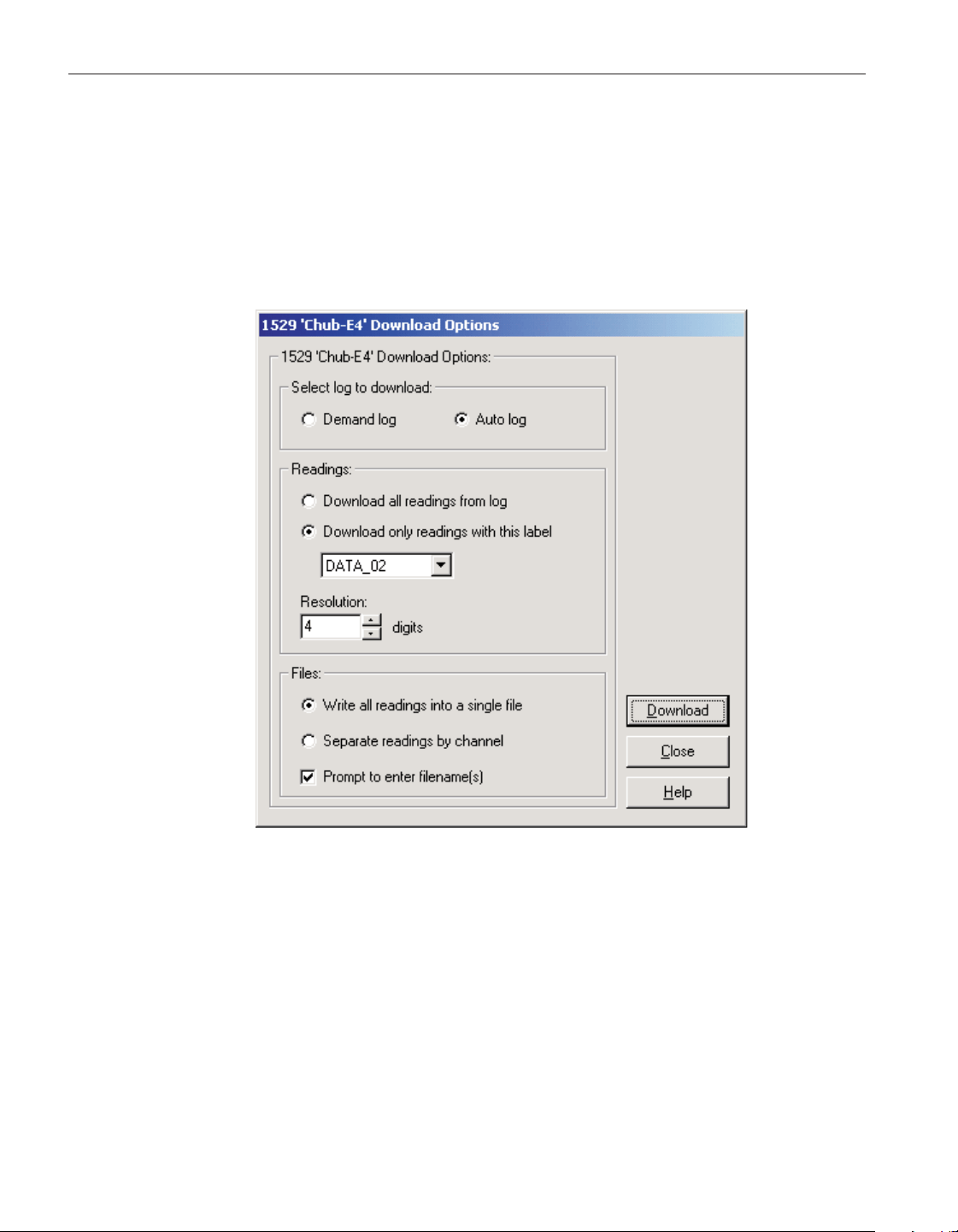
Enter the resolution to use to format the readings when they are written to the
download file in the Resolution box. This value can be set between 0 and 4 dig
-
its (places after decimal point).
Select the method to use when writing the downloaded readings to a file using
the options in the Files section.
Selecting the Write all readings into a single file option causes all of the down
-
loaded readings to be written to one file.
Selecting the Separate readings by channel option causes all of the downloaded
readings to be separated according to the channel that each reading was taken
from and written into separate files.
If the Prompt to enter filename(s) check box is checked, a prompt is displayed
after the data is downloaded for each file that needs to be created, depending on
the other selections above. If this option is not checked, the default filenames
are used.
After selecting the appropriate options on this dialog, click the Download but
-
ton to start the download process. For more details on the download process,
please refer to Section 8, Download Process.
User’s Guide
54
Figure 31 1529 Chub-E4 Download Options dialog
1.888.610.7664 sales@GlobalTestSupply.com
Fluke-Direct.com
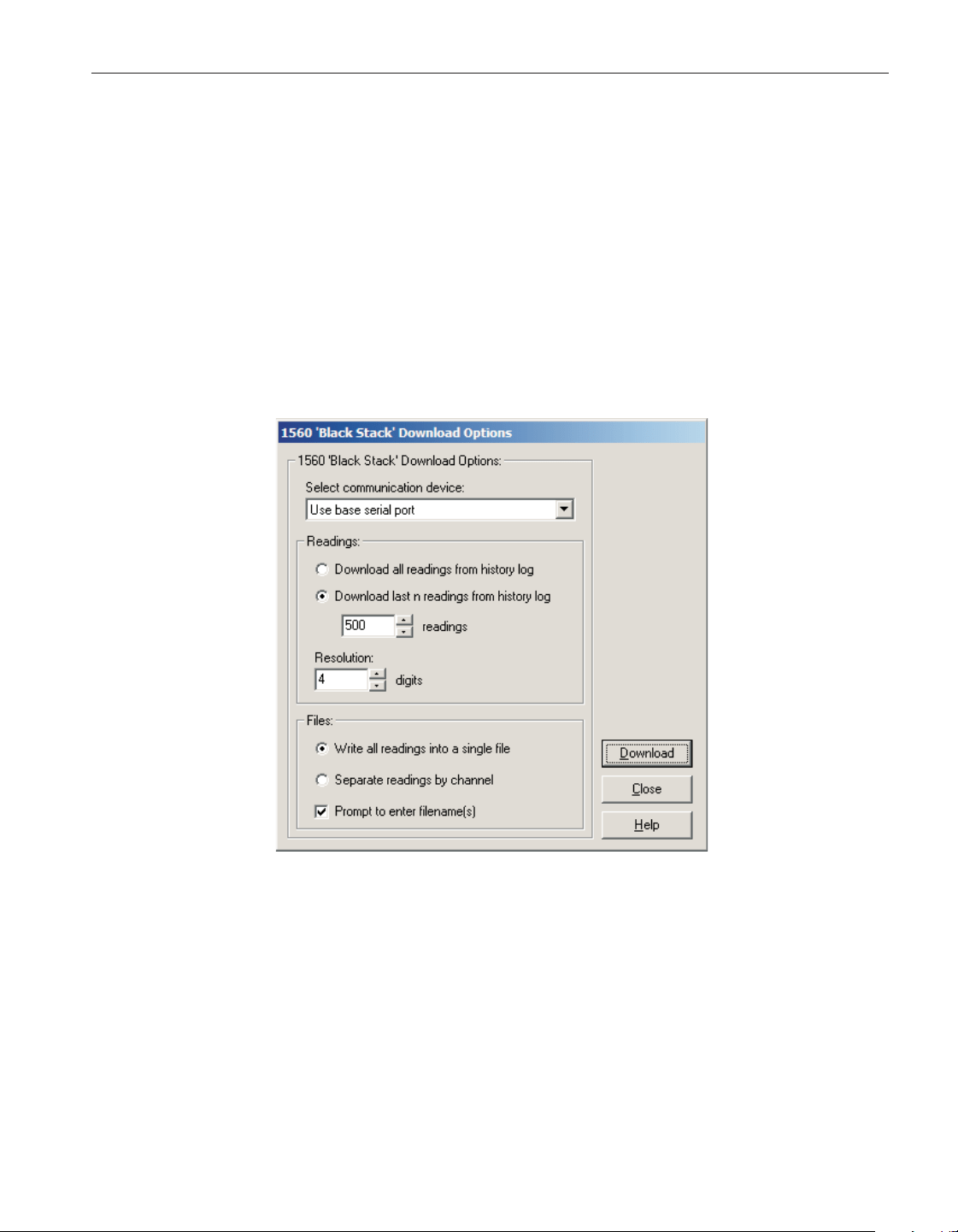
To close this dialog, click the Close button.
Click the Help button to display the appropriate help topic for this dialog.
3.3.4 1560 Black Stack download options dialog
The Model 1560 Black Stack Thermometer readout stores the values of up to
the last 1,000 readings taken in the thermometer readout’s memory, and is re
-
ferredtobyLogWare as the history log. LogWa re can download the readings
from the history log and write the readings into download files. For more infor
-
mation on download files, please refer to Section 7.2.2, Download File. When
the Download Logged Data option in the Download menu is selected and the
1560 Black Stack Thermometer readout is selected on the Select Model dialog,
the 1560 Black Stack Download Options dialog is displayed.
The Select communication device setting determines the device (serial port) to
which the readings will be downloaded.
•
Use base serial port - Select this option if the serial cable is connected to
the serial port on the base unit of the 1560 (immediately behind the dis
-
play).
•
Use communication module serial port - Select this option if the serial
cable is connected to the serial port on the Model 3560 Communication
Module.
55
3 Downloading logged data
Download options dialogs
Figure 32 1560 Black Stack Download Options dialog
1.888.610.7664 sales@GlobalTestSupply.com
Fluke-Direct.com
The Readings section allows the number of readings to be downloaded to be
specified. The history log can contain up to 1,000 readings.
Note: The actual number of readings in the history log depends on the
number of channels on the thermometer readout. Typically, the history log
can hold 1,000 readings as long as there are not more than 63 total input
channels on the thermometer readout. For every channel over 63, the num
-
ber of readings that the history log can hold decreases by approximately
16.
Selecting the Download all readings from history log option indicates that the
entire history log should be downloaded.
Selecting the Download last n readings from history log option allows a spe
-
cific number of readings to be downloaded from the history log. If this option
is selected, enter the number of readings to download in the readings box. This
value can be set between 1 and the total number of readings in the history log.
Enter the resolution to use to format the readings when they are written to the
download file in the Resolution box. This value can be set between 0 and 12
digits (places after decimal point).
Select the method to use when writing the downloaded readings to a file using
the options in the Files section.
Selecting the Write all readings into a single file option causes all of the down-
loaded readings to be written to one file.
Selecting the Separate readings by channel option causes all of the downloaded
readings to be separated according to the channel that each reading was taken
from and written into separate files.
If the Prompt to enter filename(s) check box is checked, a prompt is displayed
after the data is downloaded for each file that needs to be created, depending on
the other selections above. If this option is not checked, the default filenames
are used.
Note: When downloading data from the 1560, the measurement process in
the thermometer readout is halted until downloading is complete!
After selecting the appropriate options on this dialog, click the Download but
-
ton to start the download process. For more details on the download process,
please refer to Section 8, Download Process.
To close this dialog, click the Close button.
Click the Help button to display the appropriate help topic for this dialog.
User’s Guide
56
1.888.610.7664 sales@GlobalTestSupply.com
Fluke-Direct.com
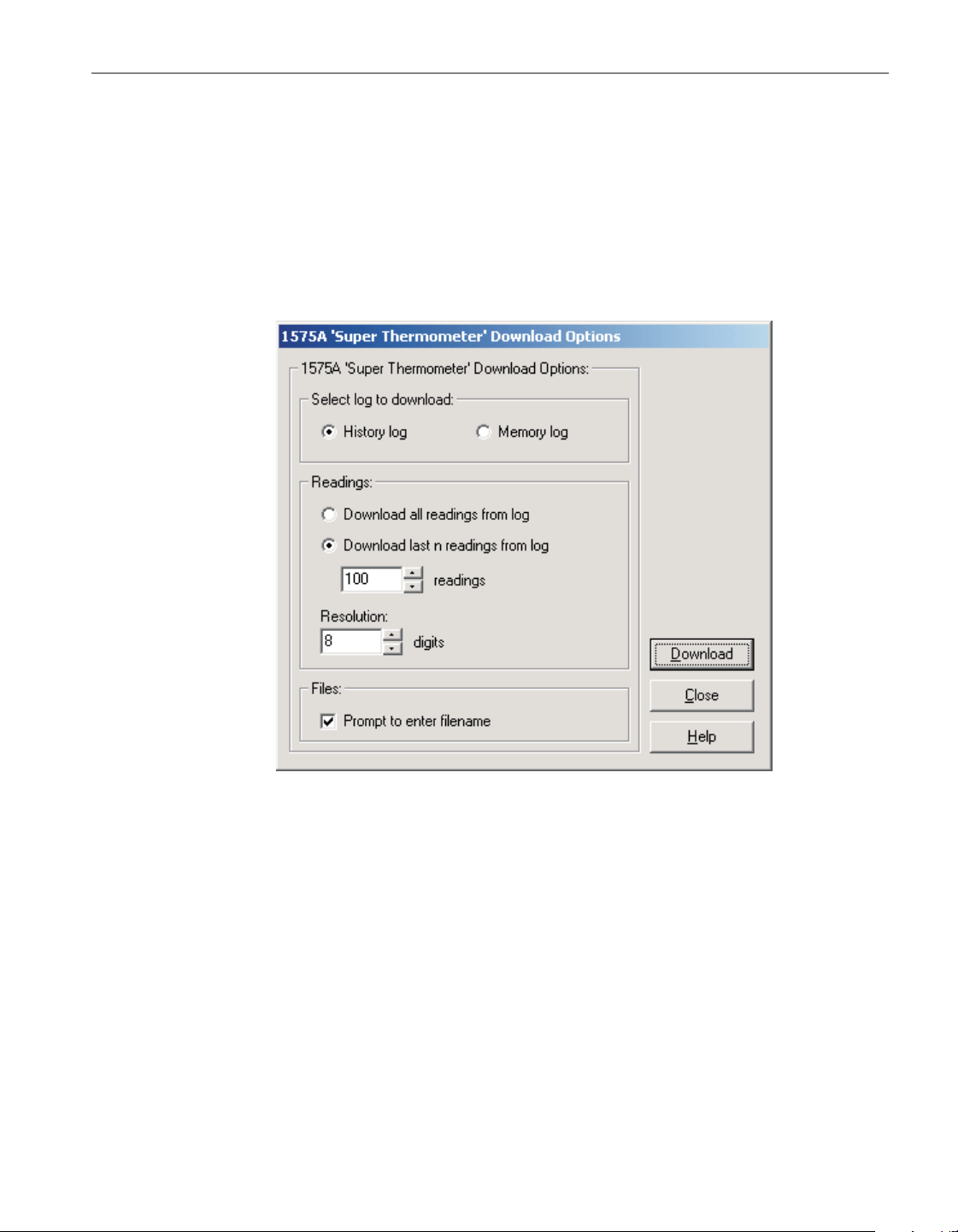
3.3.5 1575A Super-Thermometer download options dialog
The Model 1575A Super-Thermometer readout can store readings in any of
two logs: history log and memory log. LogWare can download the readings
from these logs and write the readings into download files. For more informa
-
tion on download files, please refer to Section 7.2.2, Download File. When the
Download Logged Data option in the Download menu is selected and the
1575A Super-Thermometer readout is selected on the Select Model dialog, the
1575A Super-Thermometer Download Options dialog is displayed.
The Select log to download section allows the log to be specified. The 1575A
Super-Thermometer readout has two logs: history log and memory log. The
history log stores the most recent 100 readings taken by the thermometer read
-
out. The memory log can be used to store up to 100 readings manually. For
more details on the history and memory logs, see the 1575A Super-Thermome
-
ter readout User’s Guide.
The Readings section allows the number of readings to be downloaded to be
specified.
Selecting the Download all readings from log option indicates that all of the
readings in the selected log should be downloaded.
Selecting the Download last n readings from log option allows a specific num
-
ber of readings to be downloaded from the selected log. If this option is se
-
57
3 Downloading logged data
Download options dialogs
Figure 33 1575A ‘Super Thermometer’ Download Options dialog
1.888.610.7664 sales@GlobalTestSupply.com
Fluke-Direct.com

lected, enter the number of readings to download in the readings box. This
value can be set between 1 and 100.
Note: It is not possible for LogWare to determine exactly how many read
-
ings are currently stored in the memory log. Therefore, memory locations
that do not have a value stored in them always return a value of 0 °C.
Enter the resolution to use to format the readings when they are written to the
download file in the Resolution box. This value can be set between 0 and 8 dig
-
its (places after decimal point).
Select the options regarding the file to create in the Files section.
If the Prompt to enter filename check box is checked, a prompt is displayed af
-
ter the data is downloaded for the file that needs to be created. If this option is
not checked, the default filename is used.
After selecting the appropriate options on this dialog, click the Download but
-
ton to start the download process. For more details on the download process,
please refer to Section 8, Download Process.
To close this dialog, click the Close button.
Click the Help button to display the appropriate help topic for this dialog.
3.3.6 1590 Super-Thermometer II download options
The Model 1590 Super-Thermometer II readout can store readings in any of
two logs: history log and memory log. LogWare can download the readings
from these logs and write the readings into download files. For more informa-
tion on download files, please refer to Section 7.2.2, Download File. When the
Download Logged Data option in the Download menu is selected and the 1590
Super-Thermometer II readout is selected on the Select Model dialog, the 1590
Super-Thermometer II Download Options dialog is displayed (Figure 34).
The Select log to download section allows the log to be specified. The 1590
Super-Thermometer II readout has two logs: history log and memory log. The
history log stores the most recent 100 readings taken by the thermometer read
-
out. The memory log can be used to store up to 100 readings manually. For
more details on the history and memory logs, see the 1590 Super-Thermometer
II readout User’s Guide.
The Readings section allows the number of readings to be downloaded to be
specified.
Selecting the Download all readings from log option indicates that all of the
readings in the selected log should be downloaded.
Selecting the Download last n readings from log option allows a specific num
-
ber of readings to be downloaded from the selected log. If this option is se
-
lected, enter the number of readings to download in the readings box. This
value can be set between 1 and 100.
User’s Guide
58
1.888.610.7664 sales@GlobalTestSupply.com
Fluke-Direct.com
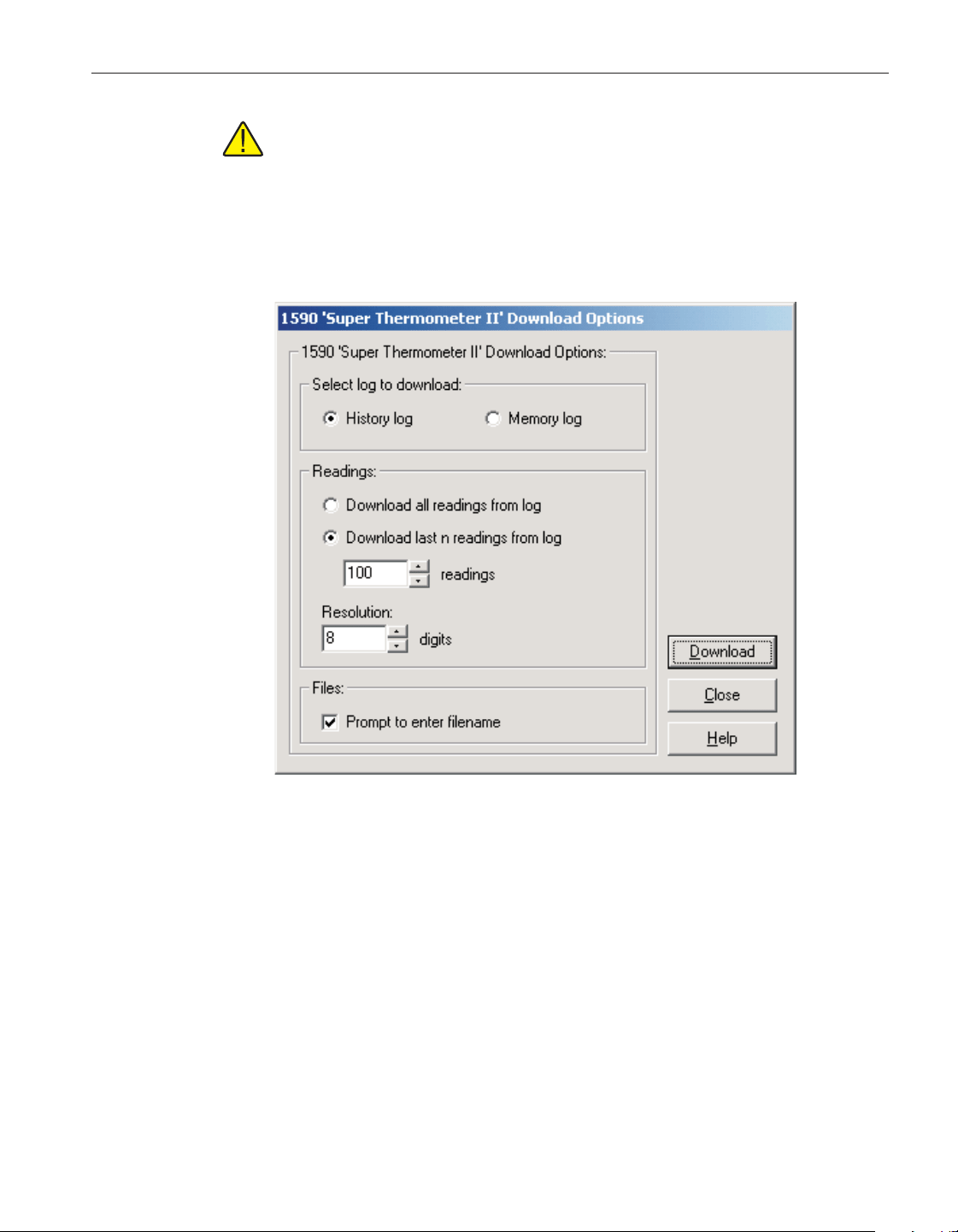
Note: It is not possible for LogWare to determine exactly how many read
-
ings are currently stored in the memory log. Therefore, memory locations
that do not have a value stored in them always return a value of 0 °C.
Enter the resolution to use to format the readings when they are written to the
download file in the Resolution box. This value can be set between 0 and 8 dig
-
its (places after decimal point).
Select the options regarding the file to create in the Files section.
If the Prompt to enter filename check box is checked, a prompt is displayed af
-
ter the data is downloaded for the file that needs to be created. If this option is
not checked, the default filename is used.
After selecting the appropriate options on this dialog, click the Download but
-
ton to start the download process. For more details on the download process,
please refer to Section 8, Download Process.
To close this dialog, click the Close button.
Click the Help button to display the appropriate help topic for this dialog.
59
3 Downloading logged data
Download options dialogs
Figure 34 1590 Super-Thermometer II Download Options dialog
1.888.610.7664 sales@GlobalTestSupply.com
Fluke-Direct.com

3.4 Log status dialogs
LogWare provides a tool to view the status of the thermometer readout’s mem
-
ory or logs. This tool is accessible by selecting the Log Status option in the
Download menu. The only thermometer readouts supported by LogWare that
have this feature are the 1529 Chub-E4 Thermometer readout and the 1560
Black Stack Thermometer readout. The following section describes the dialogs
for viewing the log status for each supported thermometer readout.
3.4.1 1523 Handheld log status dialog
The Model 1523 Handheld Thermometer readout can store readings in a log,
called the demand log. LogWare can display the current status of this log and
provides a way to clear all readings from the log. When the Log Status option
in the Download menu is selected and the 1523 Thermometer readout is se
-
lected on the Select Model dialog, the 1523 Log Status dialog is displayed.
The Demand log progress bar indicates the current state of the demand log. The
demand log in the 1523 Handheld Thermometer readout holds up to 25
readings.
To clear all readings from the demand log, click the Clear Demand Log button.
To refresh the log status information on this dialog, click the Refresh button.
The log status is read in from the thermometer readout again and the dialog is
updated.
To close this dialog, click the Close button.
Click the Help button to display the appropriate help topic for this dialog.
User’s Guide
60
Figure 35 1523 Log Status dialog
1.888.610.7664 sales@GlobalTestSupply.com
Fluke-Direct.com
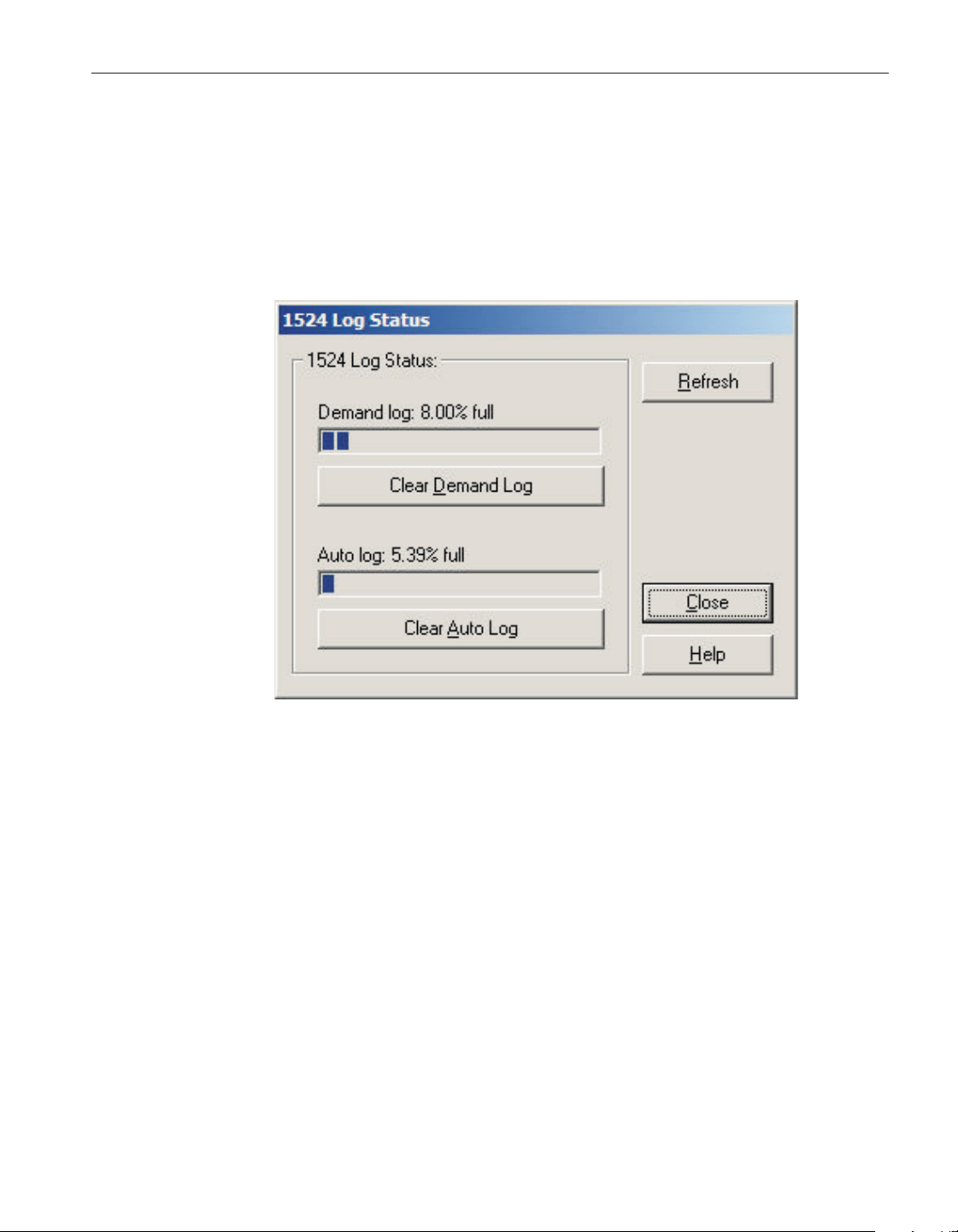
3.4.2 1524 Handheld log status dialog
The Model 1524 Handheld Thermometer readout can store readings in any of
two logs: demand log and auto log. LogWare can display the current status of
these logs and provides a way to clear all readings from these logs. When the
Log Status option in the Download menu is selected and the 1524 Thermome
-
ter readout is selected on the Select Model dialog, the 1524 Log Status dialog is
displayed.
The Demand log progress bar indicates the current state of the demand log. The
demand log in the 1524 Handheld Thermometer readout holds up to 25
readings.
To clear all readings from the demand log, click the Clear Demand Log button.
The Auto log progress bar indicates the current state of the auto log. The auto
log in the 1524 Handheld Thermometer readout holds up to 15,000 readings.
To clear all readings from the auto log, click the Clear Auto Log button.
To refresh the log status information on this dialog, click the Refresh button.
The log status is read in from the thermometer readout again and the dialog is
updated.
To close this dialog, click the Close button.
Click the Help button to display the appropriate help topic for this dialog.
61
3 Downloading logged data
Log status dialogs
Figure 36 1524 Log Status dialog
1.888.610.7664 sales@GlobalTestSupply.com
Fluke-Direct.com
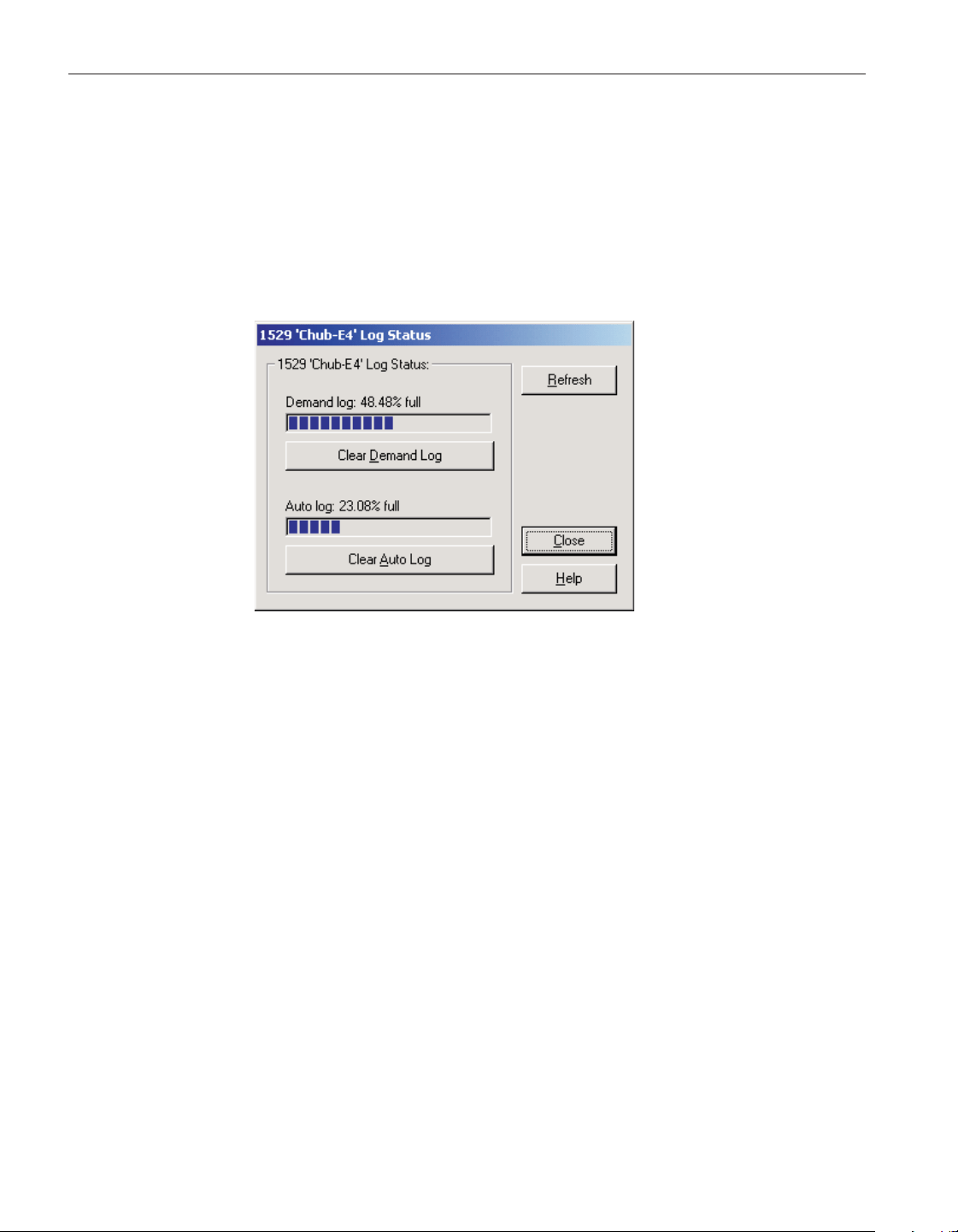
3.4.3 1529 Chub-E4 log status dialog
The Model 1529 Chub-E4 Thermometer readout (including models 1529,
1529-R and 1529-T) can store readings in any of two logs: demand log and
auto log. LogWare can display the current status of these logs and provides a
way to clear all readings from these logs. When the Log Status option in the
Download menu is selected and the 1529 Chub-E4 Thermometer readout is se
-
lected on the Select Model dialog, the 1529 Chub-E4 Log Status dialog is dis
-
played.
The Demand log progress bar indicates the current status of the demand log.
The demand log in the 1529 Chub-E4 Thermometer readout can hold up to 100
readings.
To clear all readings from the demand log, click the Clear Demand Log button.
The Auto log progress bar indicates the current state of the auto log. The auto
log in the 1529 Chub-E4 Thermometer readout can hold up to 8,160 readings.
To clear all readings from the auto log, click the Clear Auto Log button.
To refresh the log status information on this dialog, click the Refresh button.
The log status is read in from the thermometer readout again and the dialog is
updated.
To close this dialog, click the Close button.
Click the Help button to display the appropriate help topic for this dialog.
3.4.4 1560 Black Stack log status dialog
The Model 1560 Black Stack Thermometer readout stores the values of up to
the last 1,000 readings taken in the thermometer’s memory, and is referred to
by LogWare as the history log. LogWa re can display the current status of the
User’s Guide
62
Figure 37 1529 Chub-E4 Log Status dialog
1.888.610.7664 sales@GlobalTestSupply.com
Fluke-Direct.com
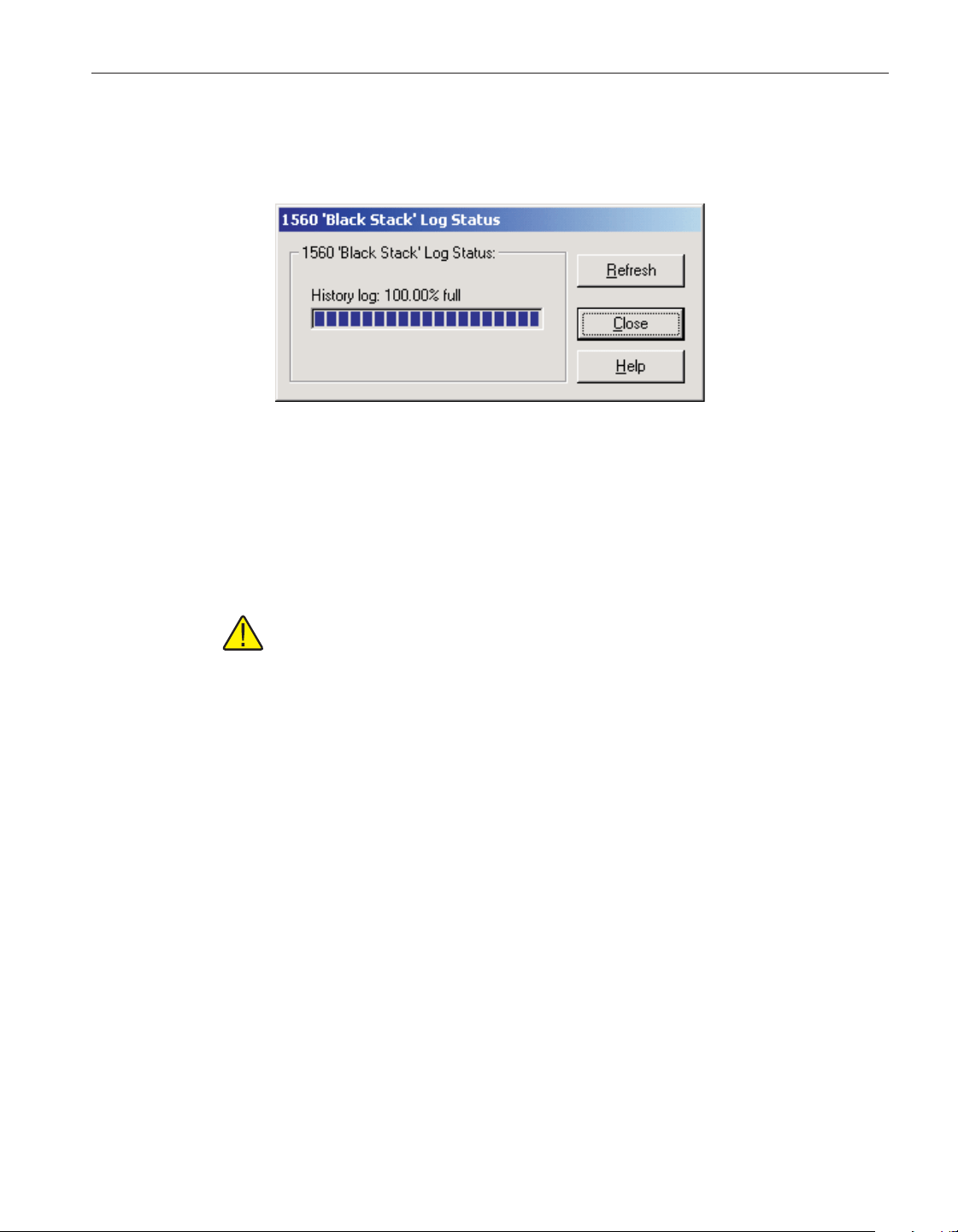
history log. When the Log Status option in the Download menu is selected and
the 1560 Black Stack Thermometer readout is selected on the Select Model dia
-
log, the 1560 Black Stack Log Status dialog is displayed.
The history log progress bar indicates the current state of the history log. The
history log in the 1560 Black Stack Thermometer readout stores the values of
up to the last 1,000 readings taken. The history log of the 1560 Black Stack
Thermometer readout will nearly always indicate 100% full. It is not possible
for LogWare to clear the history log.
Note: The actual number of readings in the history log depends on the
number of channels on the thermometer readout. Typically, the history log
can hold 1,000 readings as long as there are not more than 63 total input
channels on the thermometer readout. For every channel over 63, the num-
ber of readings that the history log can hold decreases by approximately
16.
To refresh the log status information on this dialog, click the Refresh button.
The log status is read in from the thermometer readout again and the dialog is
updated.
To close this dialog, click the Close button.
Click the Help button to display the appropriate help topic for this dialog.
63
3 Downloading logged data
Log status dialogs
Figure 38 1560 Black Stack Log Status dialog
1.888.610.7664 sales@GlobalTestSupply.com
Fluke-Direct.com
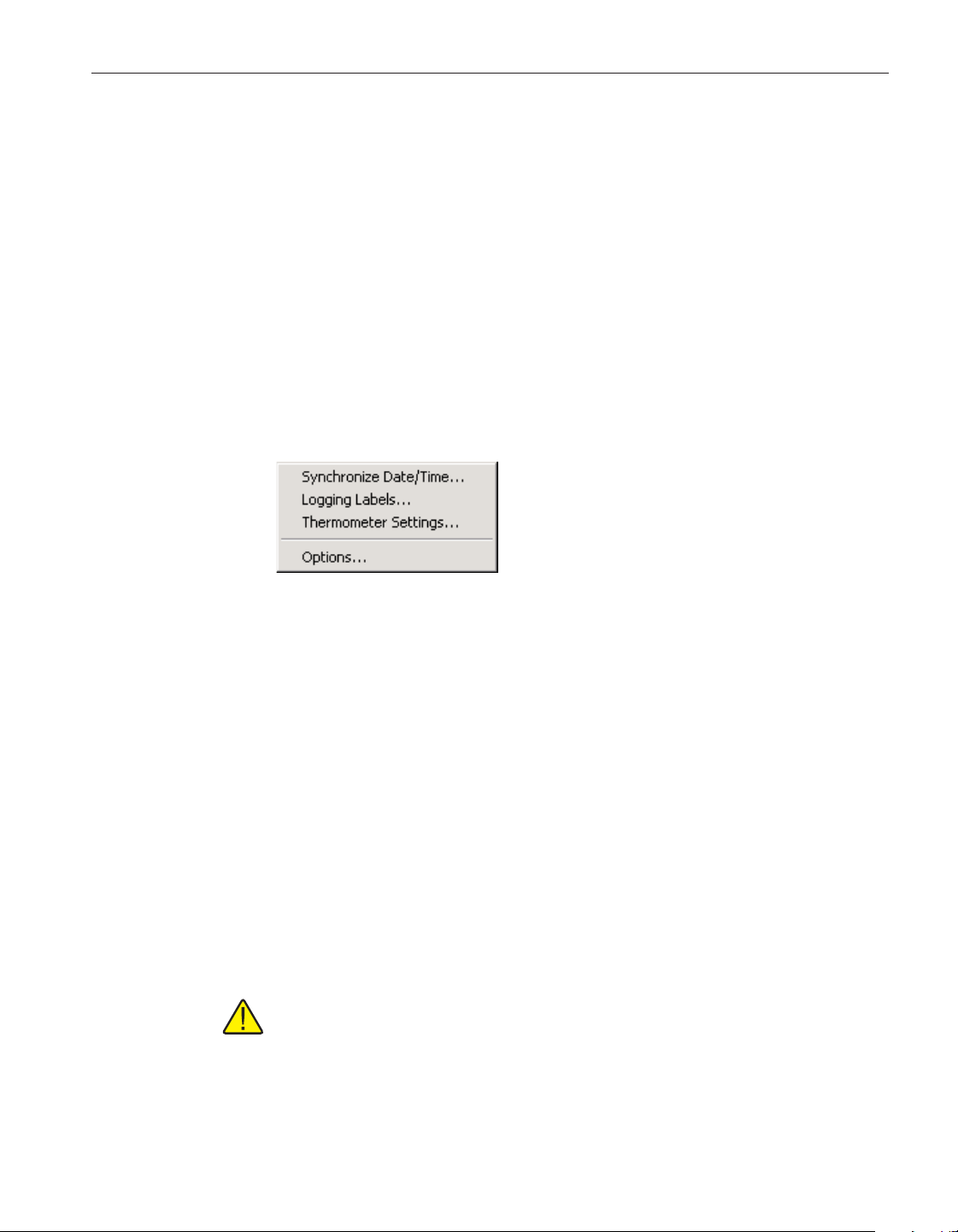
4 Tools
LogWare provides tools to synchronize the thermometer readout’s clock,
view/modify logging labels and view/modify various thermometer readout set
-
tings including filtering, sampling, measurement, calibration, module, channel
and probe settings. These tools are accessible by selecting options in the Tools
menu. The following sections describe the dialogs for these tools for each of
the thermometer readouts supported by LogWare .
4.1 Tools menu
The Tools menu contains options for synchronizing the thermometer readout’s
clock, viewing/modifying logging labels and viewing/modifying thermometer
readout settings.
4.1.1 Synchronize date/time
The Synchronize Date/Time option can be used to synchronize the thermometer
readout’s clock to the computer’s clock. All thermometer readouts supported by
LogWare support this feature.
When selecting the Synchronize Date/Time option, the Select Model dialog is
displayed. LogWare needs to know the model of the thermometer readout in or
-
der to send the proper commands to synchronize the thermometer readout’s
clock. Please refer to Section 4.2, Select Model Dialog, for more details on the
Select Model dialog.
After the thermometer readout model and communication settings have been
selected, the appropriate commands are sent to the thermometer readout to up
-
date its date and time settings (as applicable to the selected thermometer read
-
out). After the commands have been sent, a message is displayed indicating
that the thermometer readout’s clock has been updated.
Note: Before synchronizing the thermometer readout’s clock, make sure
the computer’s clock is accurate. Use the Windows® Control Panel to ad
-
just the date and time as necessary.
65
4 Tools
Tools menu
Figure 39 Tools menu
1.888.610.7664 sales@GlobalTestSupply.com
Fluke-Direct.com
Note: The thermometer readout's display may not immediately reflect the
updated time.
4.1.2 Logging labels
The Logging Labels option can be used to view and/or modify the labels that
the thermometer readout assigns to readings that are stored in the thermometer
readout’s log(s). This feature is only supported by the 1529 Chub-E4 Ther
-
mometer readout.
When selecting the Logging Labels option, the Select Model dialog is dis
-
played. LogWare needs to know the model of the thermometer readout. Please
refer to Section 4.2, Select Model Dialog, for more details on the Select Model
dialog.
After the thermometer readout model and communication settings have been
selected, the Logging Labels dialog for the selected thermometer readout is dis
-
played. The Logging Labels dialog is described in more detail in Section 4.3,
Logging Labels Dialogs.
4.1.3 Thermometer settings
The Thermometer Settings option can be used to view and/or modify many
thermometer readout, module, and probe settings including filtering, sampling,
measurement, calibration, and conversion settings. All thermometer readouts
supported by LogWare support this feature. Please refer to Section 1.4.4, Firm-
ware Requirements, for more information.
When selecting the Thermometer Settings option, the Select Model dialog is
displayed. LogWare needs to know the model of the thermometer readout in or-
der to display the appropriate thermometer readout settings dialogs. Please re
-
fer to Section 4.2, Select Model Dialog, for more details on the Select Model
dialog.
After the thermometer readout model and communication settings have been
selected, the appropriate Thermometer Settings dialog for the selected ther
-
mometer readout is displayed. The Thermometer Settings dialogs are described
in more detail in Section 4.4, Thermometer Settings Dialogs.
Warning: When using the Thermometer Settings tool, make sure that the
thermometer readout is not currently in any menu. Using the thermometer
readout's menus while using the Thermometer Settings tool may cause the
thermometer readout to fail to accept new settings.
User’s Guide
66
1.888.610.7664 sales@GlobalTestSupply.com
Fluke-Direct.com
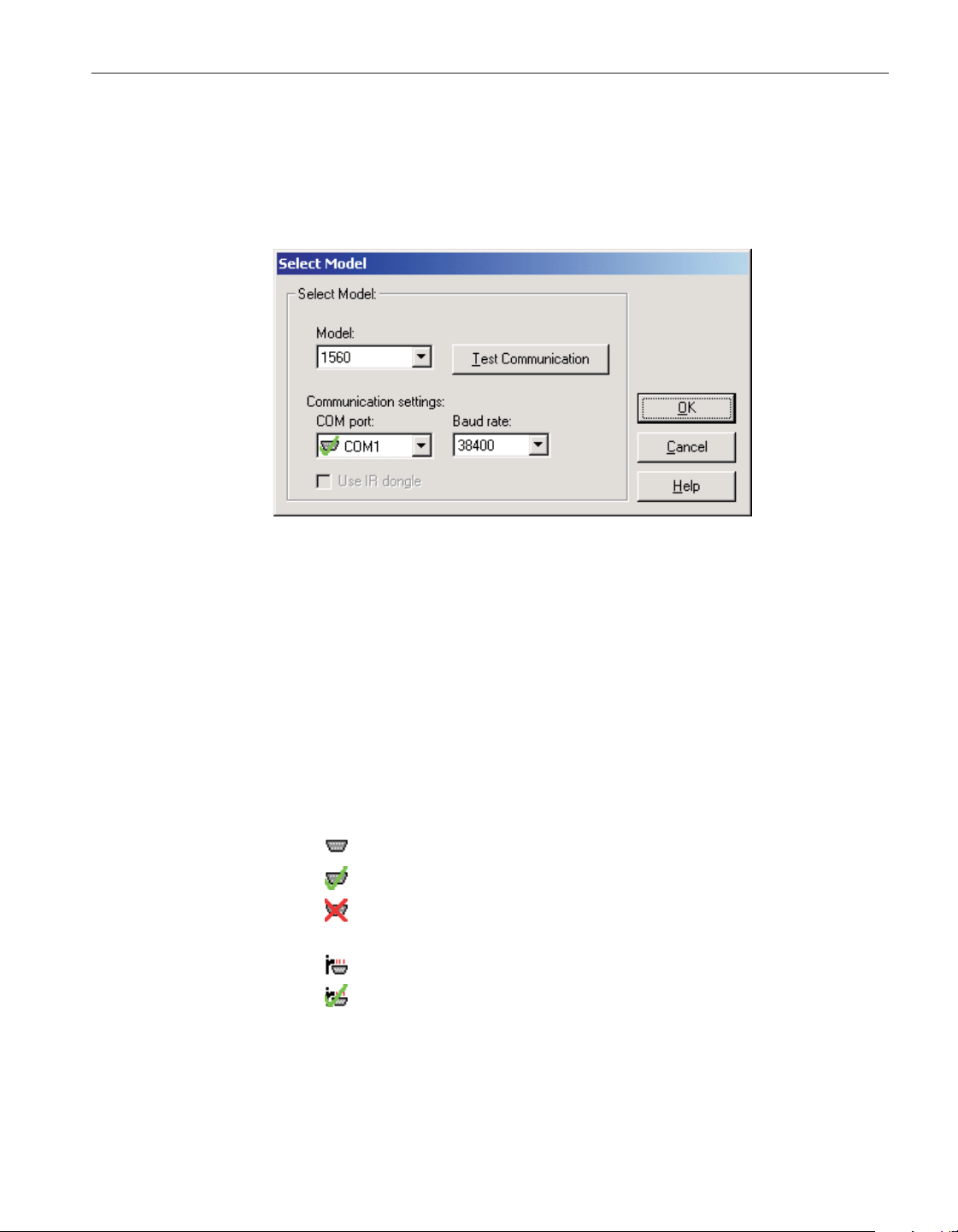
4.2 Select Model dialog
When any of the Tools menu options is selected, the Select Model dialog is dis
-
played. LogWare needs to know the model of the thermometer readout to inter
-
face with.
If this dialog has been used previously to select a thermometer readout model
and communication settings, the previous settings are restored.
Use the Model drop-down list to select the type of thermometer readout being
used. All other controls on this dialog are disabled until a model is selected.
The list of available thermometer readouts depends on the Tools menu option
selected. Only thermometer readouts that support the selected feature are listed.
Select the COM port on the computer to which the thermometer readout is con
-
nected using the COM port drop-down list. Only COM ports that the operating
system reports as being available can be used. The following symbols are used
to show the status of each COM port:
•
- Indicates a COM port that is currently available.
•
- Indicates the COM port that is currently selected by LogWare.
•
- Indicates a COM port that is currently being used by another appli
-
cation.
•
- Indicates an IR port (virtual COM port) that is currently available.
•
- Indicates an IR port (virtual COM port) that is currently selected by
LogWare .
67
4 Tools
Select Model dialog
Figure 40 Select Model dialog
1.888.610.7664 sales@GlobalTestSupply.com
Fluke-Direct.com

•
- Indicates an IR port (virtual COM port) that is currently being used
by another application.
Select the baud rate that the computer should use to communicate over the
COM port with the thermometer readout using the Baud rate drop-down list.
The baud rate setting of the thermometer readout must be set to the same value
as this setting. For best results, use the maximum allowable baud rate setting
when possible.
Check the Use IR dongle option to use the thermometer readout’s IR port in
-
stead of an RS-232 cable. This option is only enabled when the selected ther
-
mometer readout has an IR port and the selected feature allows using the IR
port to communicate with the thermometer readout. For more information on
using the IR dongle, please refer to Section 6.13, Using an IR Dongle with
LogWare.
After the model, COM port, baud rate and/or IR settings are configured, click
the Test Communication button to make sure communication with the ther
-
mometer readout is successful. At this time, the thermometer readout must be
connected to the COM port on the computer using a null modem cable or, if the
IR dongle is being used, the IR dongle must be connected to the selected COM
port and the dongle must be aligned with the thermometer readout’s IR port.
For more information, please refer to the thermometer readout’s User’s Guide.
When testing communication with the thermometer readout, there are three
possible results:
• The thermometer readout is communicating at the correct baud rate on the
selected COM port.
• The thermometer readout is communicating, but possibly at the wrong
baud rate or the thermometer readout model does not match the selected
model.
•
The thermometer readout failed to communicate at all. Check the COM
port and baud rate settings, make sure the cable is a null modem cable,
and make sure the thermometer readout is plugged in and turned on. If us
-
ing the IR dongle, make sure the dongle is connected to the selected COM
port and the dongle is aligned properly with the thermometer readout’s IR
port.
After all of the settings on this dialog are configured and communication with
the thermometer readout is successful, click the OK button to accept the set
-
tings and continue.
Click the Cancel button close this dialog and abort using the selected feature.
Click the Help button to display the appropriate help topic for this dialog.
User’s Guide
68
1.888.610.7664 sales@GlobalTestSupply.com
Fluke-Direct.com
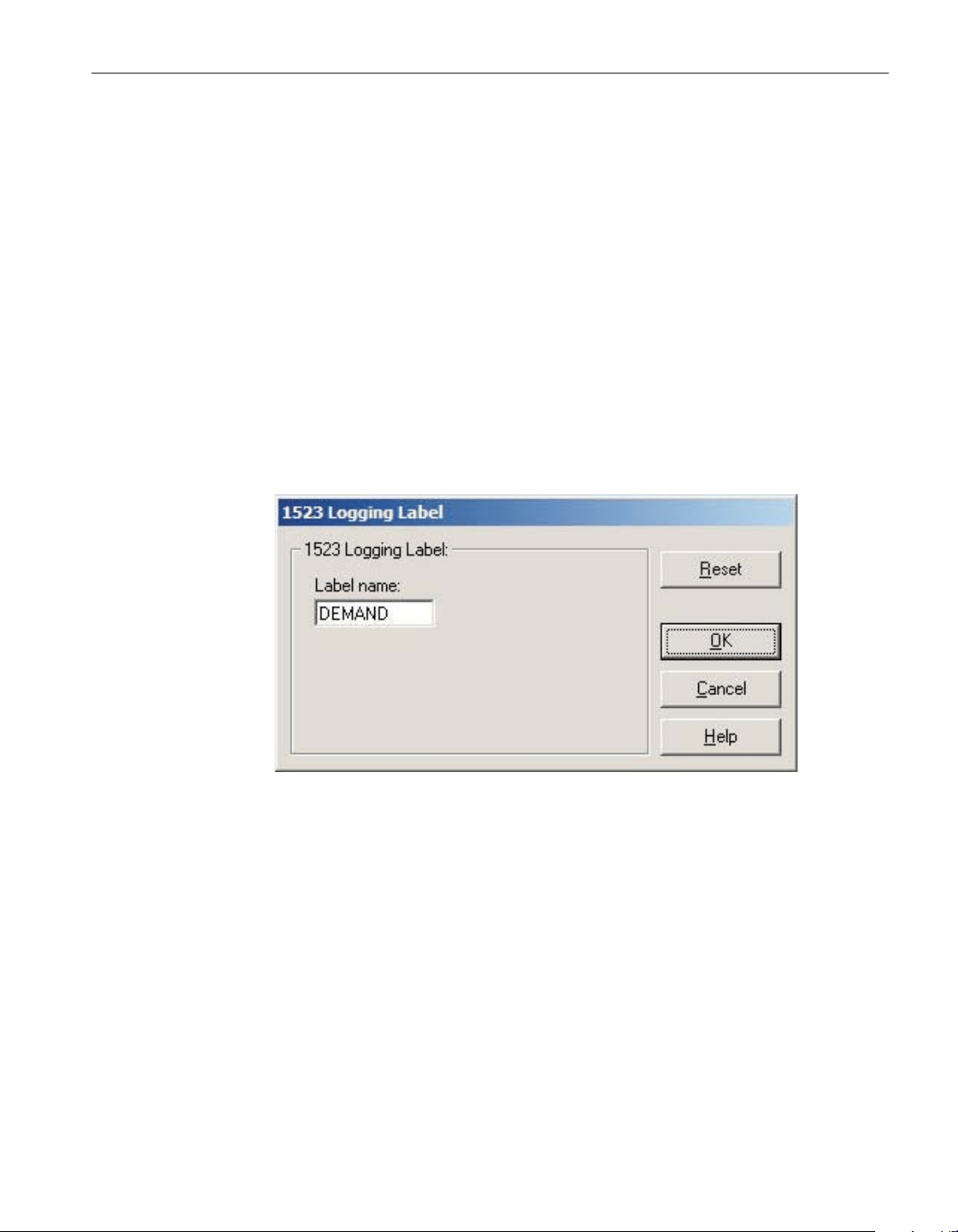
4.3 Logging labels dialogs
LogWare provides a tool to view and/or modify the labels that the thermometer
readout assigns to readings that are stored in the thermometer readout’s log(s).
This tool is accessible by selecting the Logging Labels option in the Tools
menu. The following sections describe the dialogs for each of the thermometer
readouts that support this feature.
4.3.1 1523 Handheld logging label dialog
The Model 1523 Handheld Thermometer readout can store readings into a log,
called the demand log. When readings are stored in the log, a label can be as
-
signed to each reading to indicate the reason, purpose or to otherwise identify
the reading(s). LogWare provides a tool that can be used to view and/or modify
the current logging label. When the Logging Labels option in the Tools menu is
selected and the 1523 Thermometer readout is selected on the Select Model di
-
alog, the 1523 Logging Label dialog is displayed.
When the 1523 Logging Label dialog is displayed, the current label name is
read in from the thermometer readout.
The 1523 Handheld Thermometer readout has a single logging label for the de
-
mand log. The Label name box indicates the current name for this label. Enter
the new name for the demand log label.
After the label has been modified as needed, click the OK button to write the
new label name to the thermometer readout. A progress dialog is displayed
while the new label name is being written to the thermometer readout.
If the label was not modified, or to close this dialog without writing the new la
-
bel name to the thermometer readout, click the Close button.
Click the Help button to display the appropriate help topic for this dialog.
69
4 Tools
Logging labels dialogs
Figure 41 1523 Logging Label dialog
1.888.610.7664 sales@GlobalTestSupply.com
Fluke-Direct.com
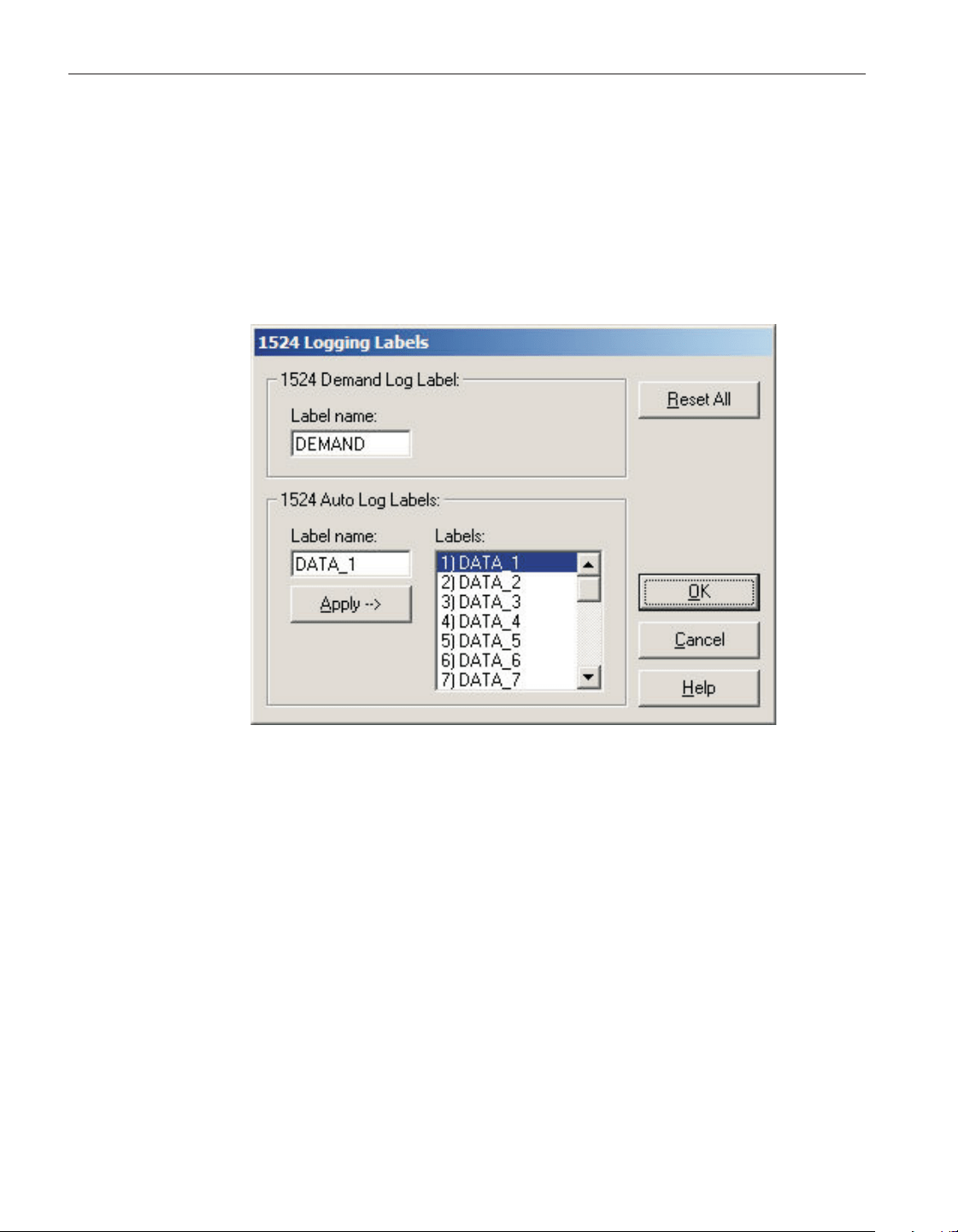
4.3.2 1524 Handheld logging labels dialog
The Model 1524 Handheld Thermometer readout can store readings into logs.
When readings are stored in a log, a label can be assigned to each reading or set
of readings to indicate the reason, purpose or to otherwise identify the read
-
ing(s). LogWare provides a tool that can be used to view and/or modify the cur
-
rent logging label settings. When the Logging Labels option in the Tools menu
is selected and the 1524 Thermometer readout is selected on the Select Model
dialog, the 1524 Logging Labels dialog is displayed.
When the 1524 Logging Labels dialog is displayed, all of the current label
names are read in from the thermometer readout. The label used for the demand
log is displayed in the 1524 Demand Log Label section. The labels used for the
auto log are displayed in the 1524 Auto Log Labels section.
The 1524 Handheld Thermometer readout has a single logging label for the de
-
mand log. The Label name box indicates the current name for this label. Enter
the new name for the demand log label.
The Labels list in the 1524 Auto Log Labels section indicates the current
names of all auto log labels. The 1524 Handheld Thermometer readout has 25
logging labels for the auto log.
To modify any of one of the labels, click on the appropriate label in the Labels
list. The Label name box indicates the name of the label that is currently se
-
lected. Enter the new name for the selected label and press the Enter key or
click the Apply —> button. The Labels list is updated to reflect the change. If
User’s Guide
70
Figure 42 1524 Logging Labels dialog
1.888.610.7664 sales@GlobalTestSupply.com
Fluke-Direct.com
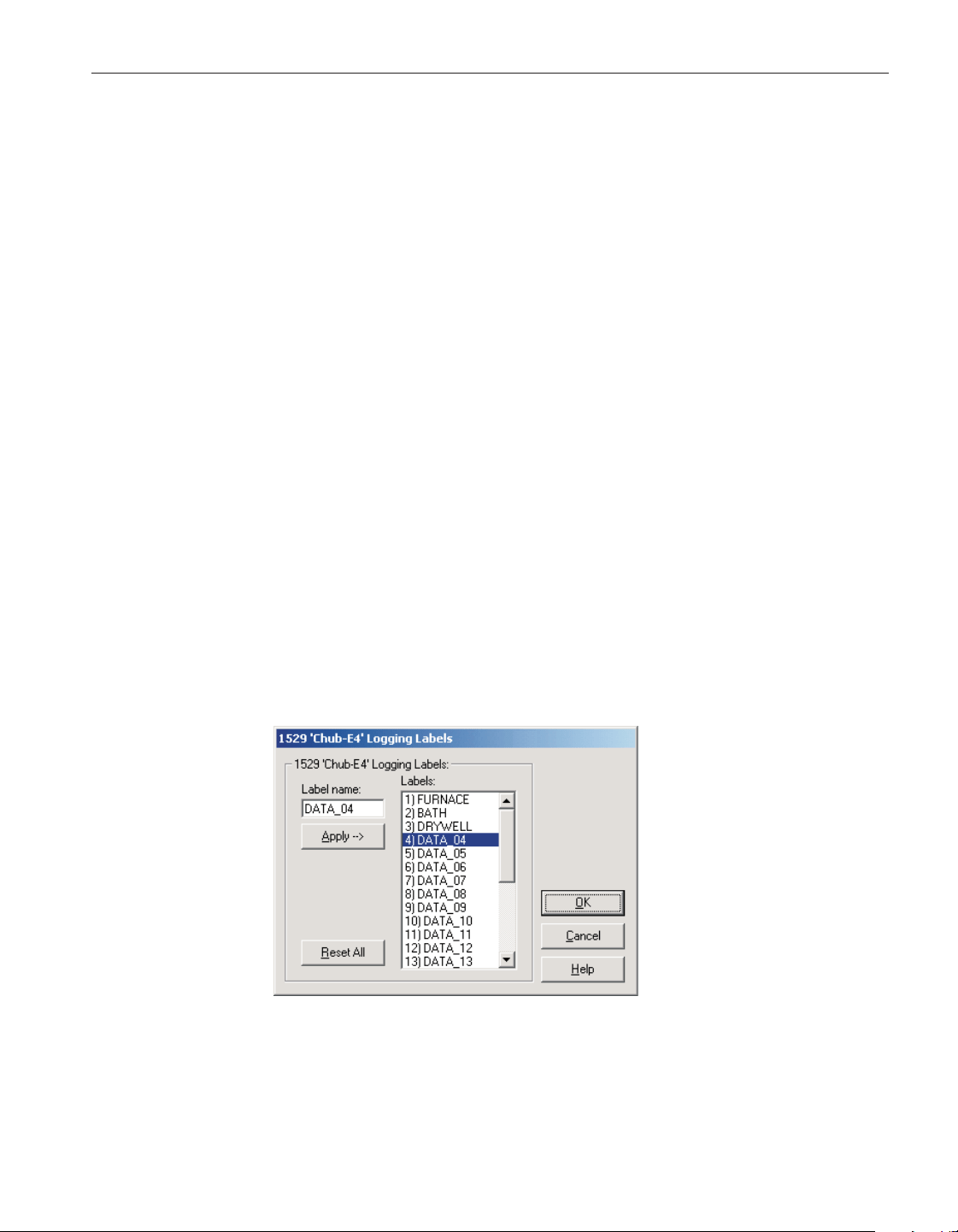
the Enter key was pressed, the next label in the list will automatically be se
-
lected and the name of the next label can be entered in the Label name box.
Repeat this process for all labels that need to be modified.
To reset all labels to their default names, click the Reset All button. The Labels
list is updated to show the default names for all labels.
The 1524 Handheld Thermometer readout has a single logging label for the de
-
mand log. The Demand Log Label box indicates the current name for this label.
Enter the new name for the demand log label.
After all labels have been modified as needed, click the OK button to write the
new label names to the thermometer readout. A progress dialog is displayed
while the new label names are being written to the thermometer readout.
If no labels were modified, or to close this dialog without writing the new label
names to the thermometer readout, click the Close button.
Click the Help button to display the appropriate help topic for this dialog.
4.3.3 1529 Chub-E4 logging labels
The Model 1529 Chub-E4 Thermometer readout (including models 1529,
1529-R and 1529-T) can store readings into logs. When readings are stored in a
log, a label can be assigned to each reading or set of readings to indicate the
reason, purpose or to otherwise identify the reading(s). LogWare provides a
tool that can be used to view and/or modify the current logging label settings.
When the Logging Labels option in the Tools menu is selected and the 1529
Chub-E4 Thermometer readout is selected on the Select Model dialog, the 1529
Chub-E4 Logging Labels dialog is displayed.
When the Logging Labels dialog is displayed, the current logging labels are
read in from the thermometer readout. The Labels list indicates the current log
-
ging labels. The 1529 Chub-E4 Thermometer readout has 25 logging labels.
71
4 Tools
Logging labels dialogs
Figure 43 1529 Chub-E4 Logging Labels dialog
1.888.610.7664 sales@GlobalTestSupply.com
Fluke-Direct.com

To modify any of one of the labels, click on the appropriate label in the Labels
list. The Label name box indicates the name of the label that is currently se
-
lected. Enter the new name for the selected label and press the Enter key or
click the Apply --> button. The Labels list is updated to reflect the change. If
the Enter key was pressed, the next label in the list will automatically be se
-
lected and the name of the next label can be entered in the Label name box.
Repeat this process for all labels that need to be modified.
To reset all labels to their default names, click the Reset All button. The Labels
list is updated to show the default names for all labels.
After all labels have been modified as needed, click the OK button to write the
new label names to the thermometer readout. A progress dialog is displayed
while the new label names are being written to the thermometer readout.
If no labels were modified, or to close this dialog without writing the new label
names to the thermometer readout, click the Close button.
Click the Help button to display the appropriate help topic for this dialog.
4.4 Thermometer settings dialogs
LogWare provides tools to view and/or modify various thermometer readout
settings including filtering, sampling, measurement, calibration, module, chan-
nel, and probe settings. These tools are accessible by selecting the Thermome-
ter Settings option in the Tools menu. The following sections describe the
dialogs for each of the thermometer readouts that support this feature.
4.4.1 1523/1524 Handheld Settings
The 1523/1524 Settings dialog displays information about the thermometer
readout including model number, serial number, identification information and
User’s Guide
72
1.888.610.7664 sales@GlobalTestSupply.com
Fluke-Direct.com
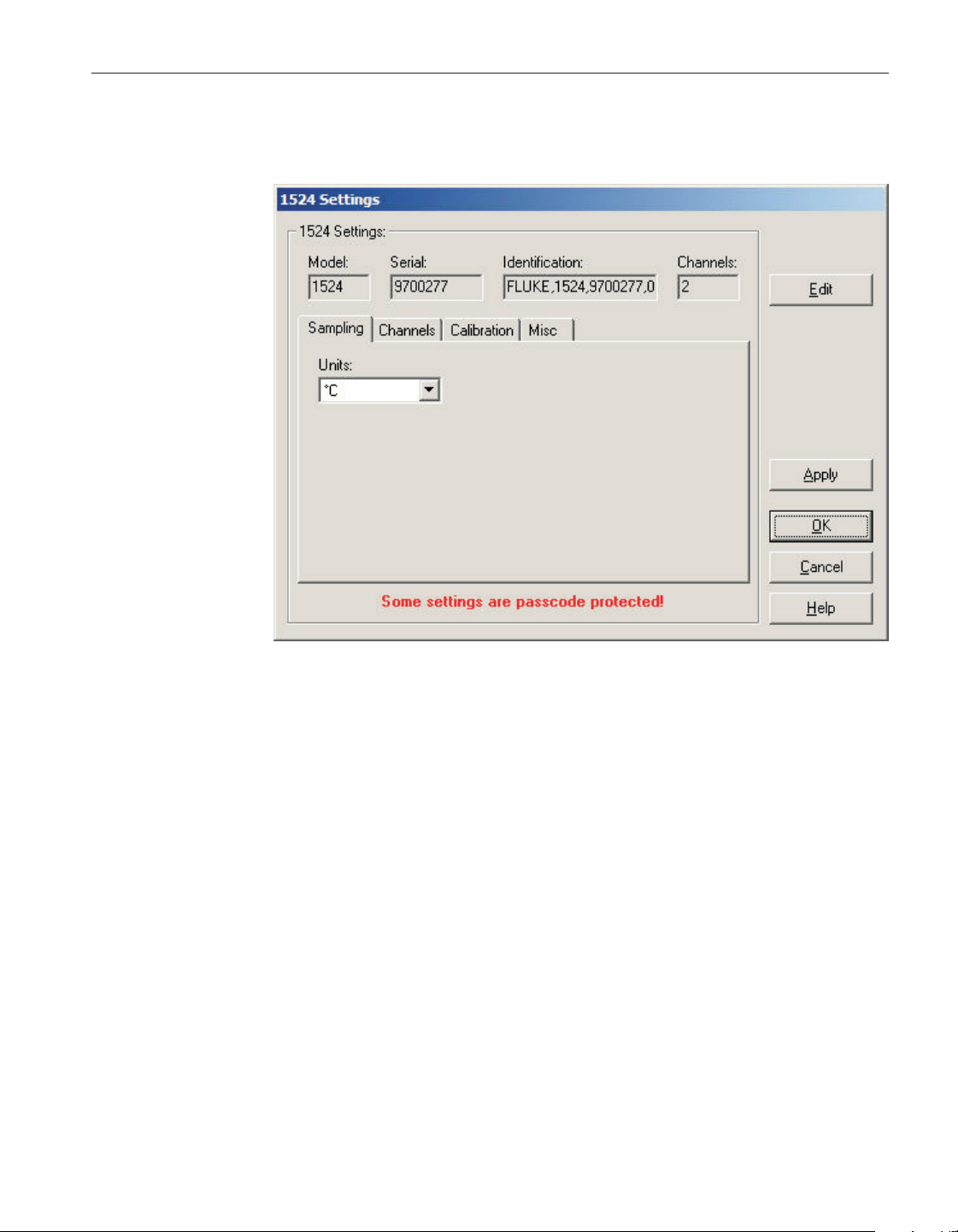
the total number of channels. It also allows many thermometer readout settings
to be viewed and modified.
The 1523/1524 Handheld Thermometer readout must be connected to an avail-
able COM port and the communication settings must be properly configured so
that this information can be read in from the thermometer readout. If communi
-
cation with the thermometer readout is not successful, an error message is dis
-
played and this dialog is blank.
The Model box indicates the model number of the thermometer readout. The
Serial box indicates the serial number assigned to this thermometer readout.
The Identification box indicates the manufacturer name, model number, serial
number and firmware version installed in this thermometer readout. The Chan
-
nels box indicates the total number of input channels on this thermometer
readout.
The sampling settings can be viewed and modified by selecting the Sampling
tab. The Channels tab displays a list of channels and allows access to channel
and probe settings dialogs. The thermometer readout’s calibration settings can
be viewed and modified by selecting the Calibration tab. Other settings can be
viewed and modified by selecting the Misc tab.
Some of the settings on the 1523/1524 Settings dialog may be passcode pro
-
tected. If they are, a message appears at the bottom of the dialog and the Edit
button is displayed. The controls for the passcode protected settings are dis
-
73
4 Tools
Thermometer settings dialogs
Figure 44 1523/1524 Settings dialog
1.888.610.7664 sales@GlobalTestSupply.com
Fluke-Direct.com

abled. To edit the protected settings, click the Edit button and enter the currentabled. To edit the protected settings, click the Edit button and enter the current
passcode for the thermometer readout. If the correct passcode is entered, the
controls are enabled and the values may be changed. The controls remain en
-
abled until this dialog is closed or until the current changes are applied by
clicking the Apply button.
After modifying any of the settings on this dialog, click the Apply or OK but
-
ton to write the new settings to the thermometer readout. If the Apply button is
clicked, this dialog remains open. If the OK button is clicked, this dialog closes
after writing the settings.
LogWare has a feature that causes all of the thermometer readout settings to be
read back in from the thermometer readout after the Apply button is clicked
and the new settings have been written to the thermometer readout. This feature
can be useful to verify that the desired settings were properly applied to the
thermometer readout. To enable or disable this feature, see Section 5.6.4,
Options.
To close this dialog without writing the settings to the thermometer readout,
click the Cancel button.
Click the Help button to open the appropriate help topic for this dialog.
4.4.1.1 Sampling tab
Select the Sampling tab to view and/or modify sampling settings.
Select the units to use when displaying readings in temperature using the Units
drop-down list. Temperature readings can be displayed in either °C or °F. This
setting applies to all channels that are configured to display readings in
temperature.
User’s Guide
74
Figure 45 1523/1524 Settings – Sampling tab
1.888.610.7664 sales@GlobalTestSupply.com
Fluke-Direct.com
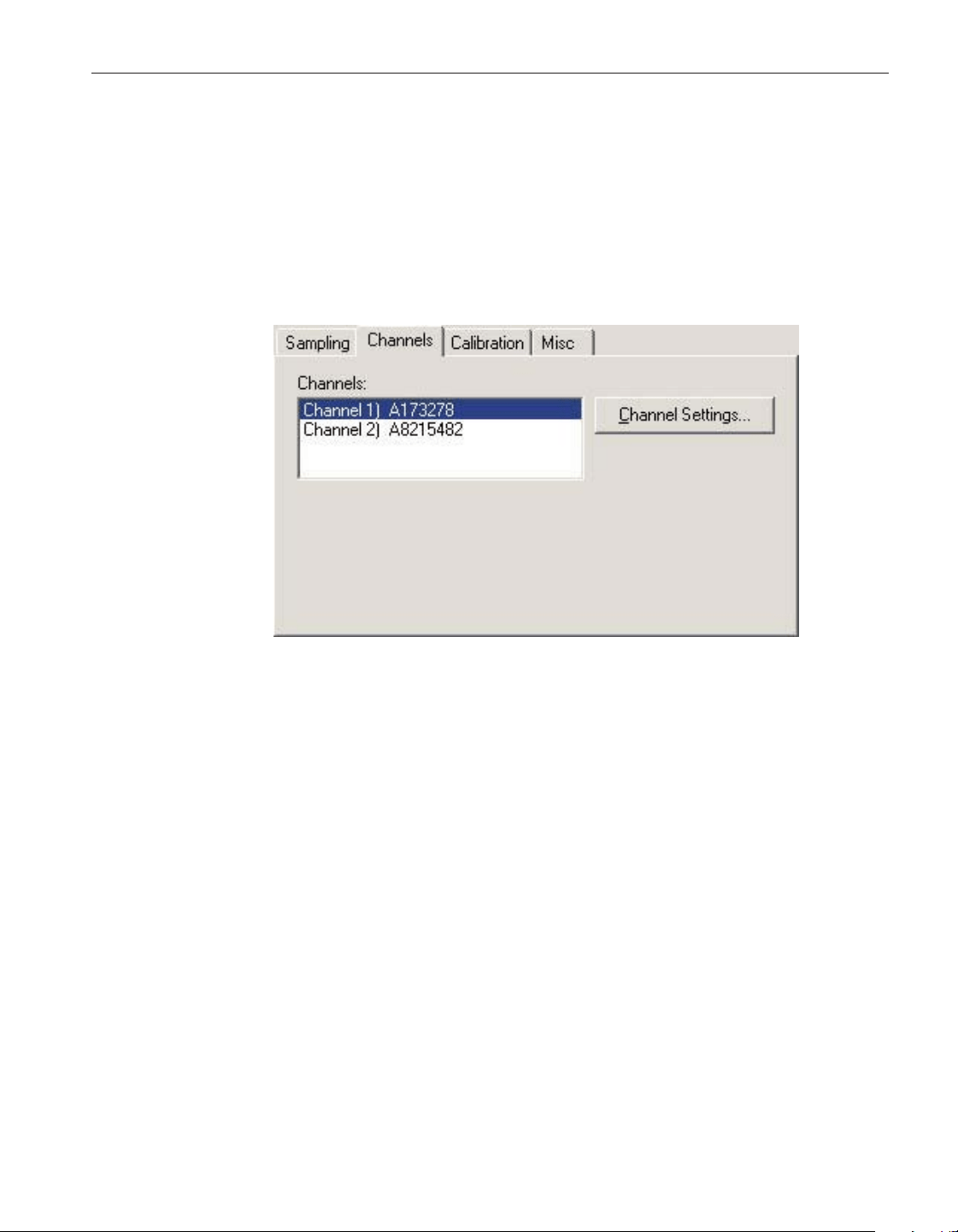
Select the Channels tab to view a list of channels and to access the channel and
probe settings dialogs to view and/or modify channel and probe specific
settings.
4.4.1.2 Channels tab
Select the channel to view or modify from the Channels list. This list indicates
the channel number, channel type and the serial number of the probe on each
channel.
Click the Channel Settings button to display the appropriate channel settings di-
alog. When this button is clicked, the settings for the selected channel and
probe are read in from the thermometer readout.
75
4 Tools
Thermometer settings dialogs
Figure 46 1523/1524 Settings – Channels tab
1.888.610.7664 sales@GlobalTestSupply.com
Fluke-Direct.com
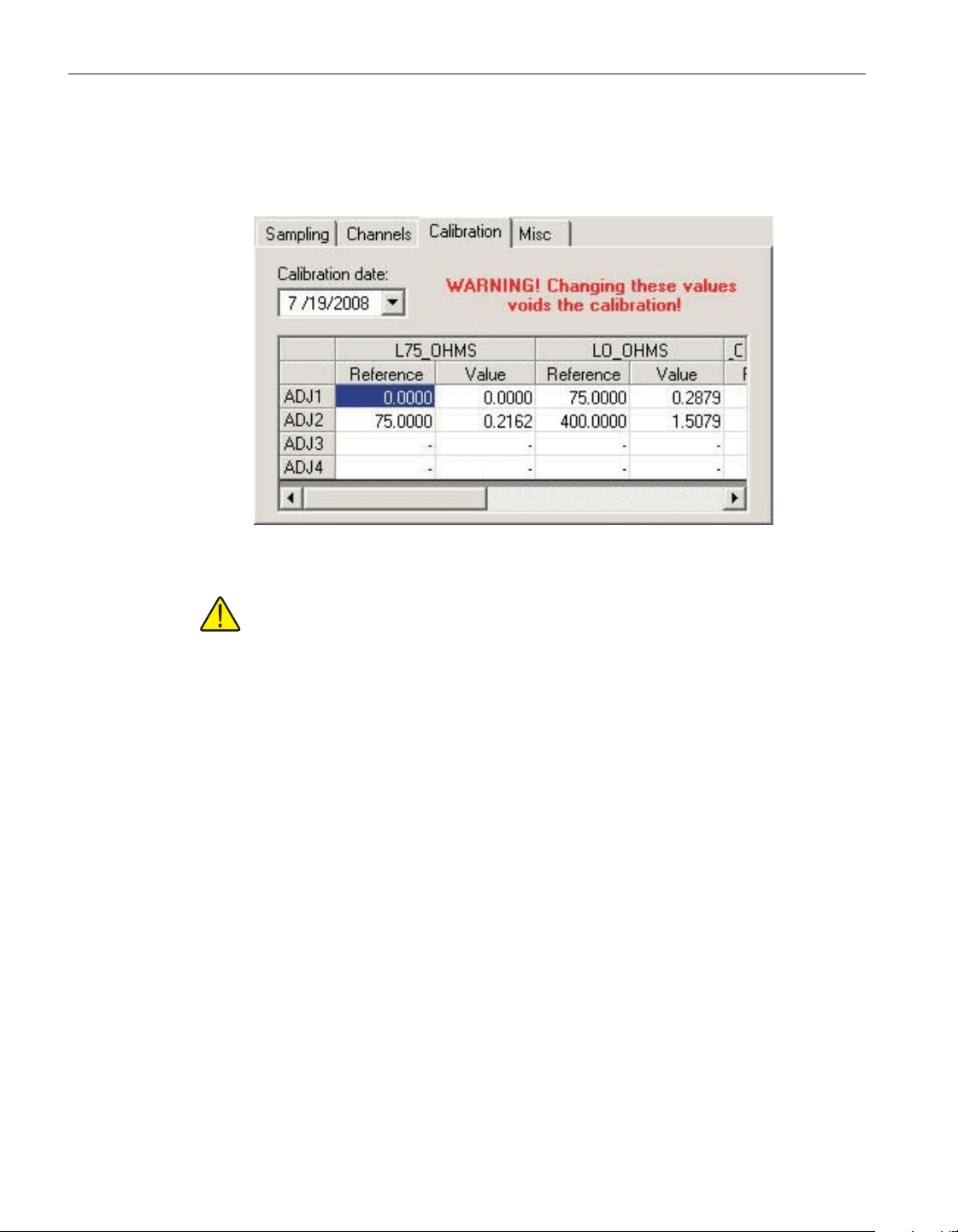
4.4.1.3 Calibration tab
Select the Calibration tab to view and/or modify the thermometer readout’s cal
-
ibration settings.
CAUTION!! DO NOT CHANGE THESE VALUES UNLESS THIS READ-
OUT HAS BEEN RECALIBRATED OR UNLESS THESE VALUES DO
NOT MATCH THE VALUES LOCATED ON THE LATEST REPORT OF
CALIBRATION! CHANGING THESE VALUES VOIDS THE CURRENT
CALIBRATION!
Select the date this readout was last calibrated using the drop-down calendar or
by entering the date. This date should be located on the Report of Calibration.
Enter the reference and offset values for each calibration range in the grid. The
calibration ranges are indicated in the first row of the grid. Each calibration
range can have up to 4 adjustment pairs consisting of a reference and an offset
value. Reference and offset values for unused adjustment pairs must be left
blank. These values can be found on the Report of Calibration for the readout
only if this readout received an accredited calibration.
User’s Guide
76
Figure 47 1523/1524 Settings – Calibration tab
1.888.610.7664 sales@GlobalTestSupply.com
Fluke-Direct.com
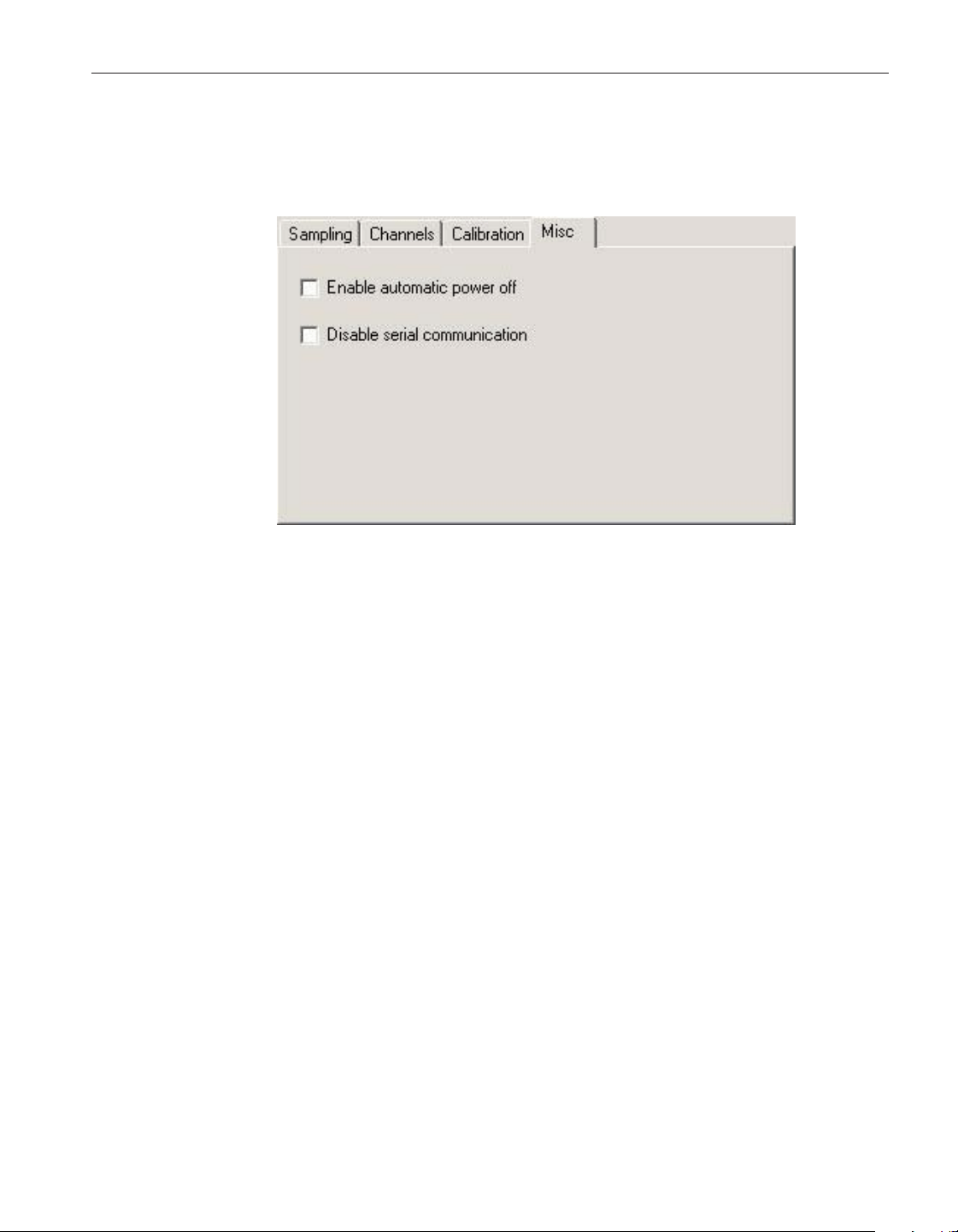
4.4.1.4 Misc tab
Select the Misc tab to view and/or modify other miscellaneous thermometer
readout settings.
The Enable automatic power off setting determines whether the thermometer
readout will automatically shut itself off after a specific amount of time. By
checking this option, the time period is set to 30 minutes.
The Disable serial communication setting determines whether the serial port of
the thermometer readout is enabled. Disabling the serial port increases battery
life. If the serial port is disabled, it can only be re-enabled using the thermome
-
ter readout’s SETUP menu.
77
4 Tools
Thermometer settings dialogs
Figure 48 1523/1524 Settings – Misc tab
1.888.610.7664 sales@GlobalTestSupply.com
Fluke-Direct.com
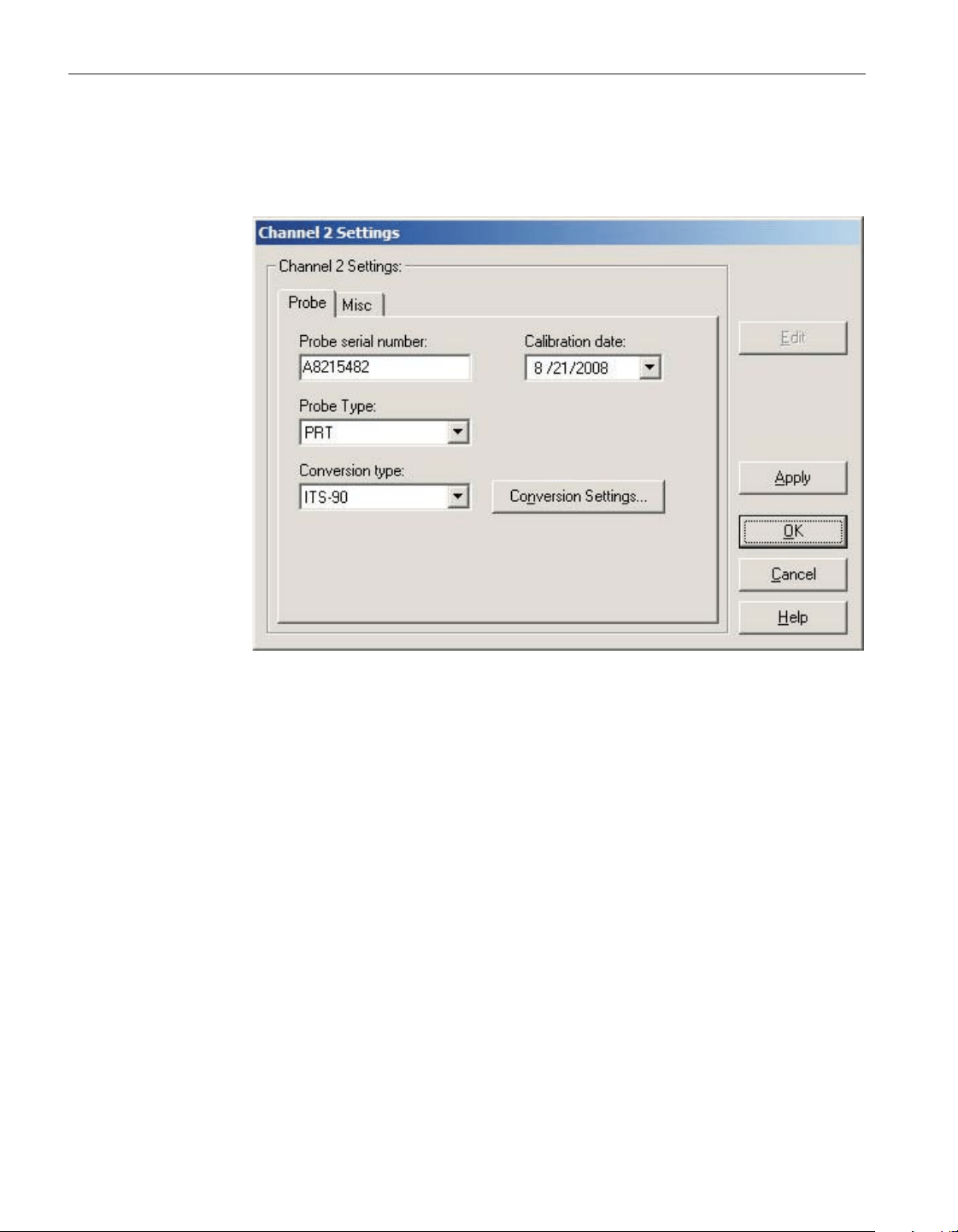
4.4.1.5 1523/1524 PRT/thermistor channel settings dialog
The 1523/1524 PRT/Thermistor Channel Settings dialog displays information
about the selected channel.
Some or all of the settings on this dialog may be passcode protected. If so, a
message appears at the bottom of the Probe tab and the Edit button is dis
-
played. The protected controls are disabled. To edit the protected settings, click
the Edit button and enter the current passcode for the thermometer readout. If
the correct passcode is entered, the protected controls are enabled and the val
-
ues may be changed. The controls remain enabled until this dialog is closed or
until the current changes are applied by clicking the Apply button.
After modifying any of the settings on this dialog, click the Apply or OK but
-
ton to write the new settings to the thermometer readout. If the Apply button is
clicked, this dialog remains open. If the OK button is clicked, this dialog closes
after writing the settings.
LogWare has a feature that causes all of the channel settings to be read back in
from the thermometer readout after the Apply button is clicked and the new set
-
tings have been written to the thermometer readout. This feature can be useful
to verify that the desired settings were properly applied to the thermometer
readout. To enable or disable this feature, see Section 5.6.4, Options.
To close this dialog without writing the channel settings to the thermometer
readout, click the Cancel button.
User’s Guide
78
Figure 49 1523/1524 PRT/Thermistor Channel Settings dialog
1.888.610.7664 sales@GlobalTestSupply.com
Fluke-Direct.com
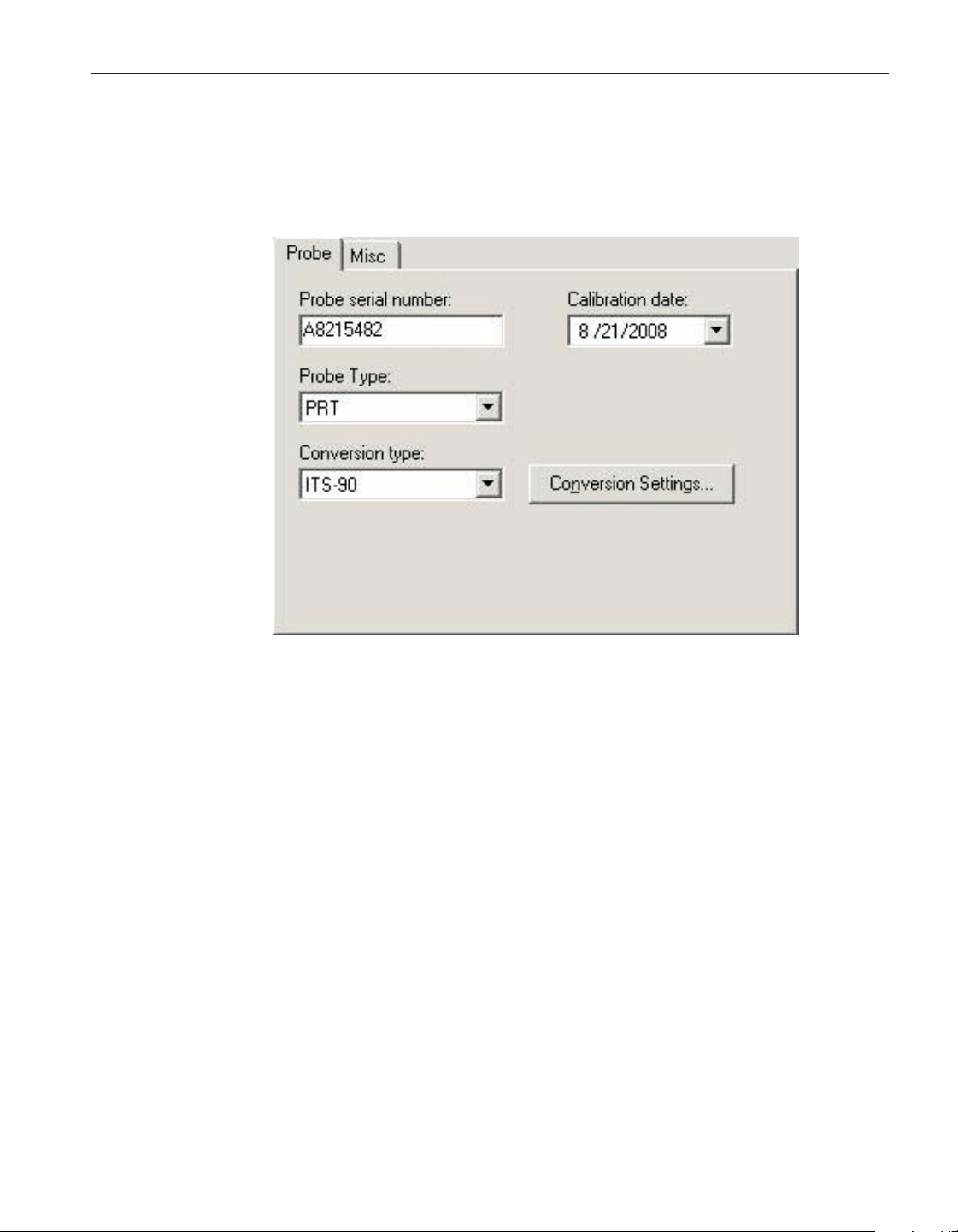
Click the Help button to open the appropriate help topic for this dialog.
4.4.1.5.1 Probe tab
Select the Probe tab to view and/or modify probe settings.
Enter the serial number of the probe attached to this channel in the probe serial
number box. The serial number can be any combination of numbers and/or let
-
ters up to 8 characters in length. The underscore “_“ character can also be used
in serial numbers.Select the date this probe was last calibrated using the
drop-down calendar or by entering the date. This date should be located on the
Report of Calibration for the probe.
Select the appropriate probe type for this probe using the Probe Type
drop-down list. The choices are PRT or Thermistor.
Select the conversion type to use for the probe on this channel. The conversion
types available in the drop-down list are dependent on the Probe Type selection.
For PRT probe types, the available conversion types are:
•
ITS-90
•
ITS-90 Subrange 5
•
PT100
•
Callendar-Van Dusen
•
Ohms
79
4 Tools
Thermometer settings dialogs
Figure 50 1523/1524 PRT/Thermistor Channel Settings – Probe tab
1.888.610.7664 sales@GlobalTestSupply.com
Fluke-Direct.com
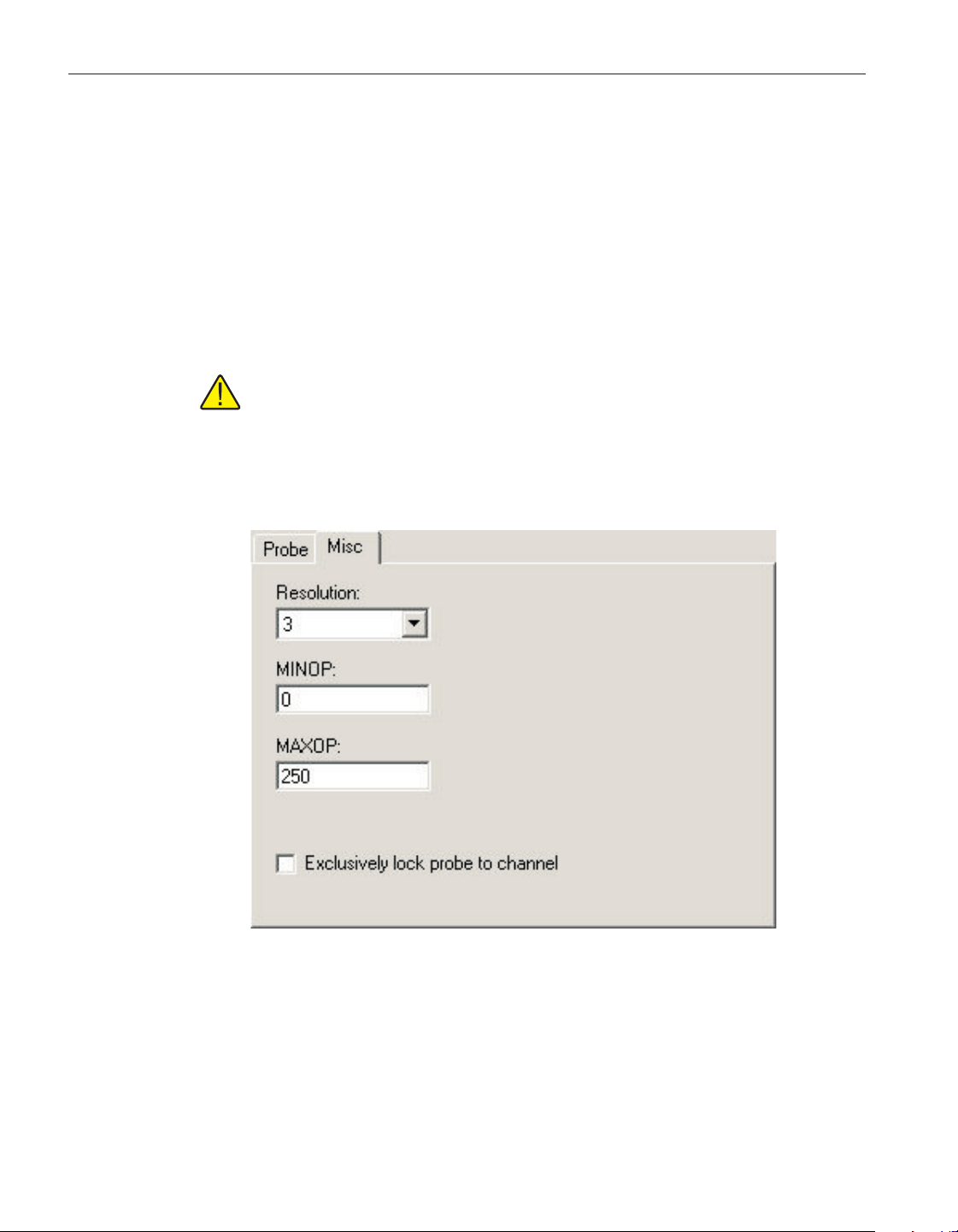
For Thermistor probe types, the available conversion types are:
•
R(T)
•
Ohms
Refer to the Report of Calibration for the probe for information on the conver
-
sion type that the probe was calibrated for.
If the selected conversion type requires coefficients or other settings, the Con
-
version Settings button is enabled. Click the Conversion Settings button to dis
-
play the dialog for the selected conversion type. Otherwise, the Conversion
Settings button is disabled.
Note: The conversion settings are not written to the thermometer readout
until the Apply or OK button is clicked on this dialog!
4.4.1.5.2 Misc tab
Select the Misc tab to view and/or modify other probe settings.
Select the resolution for the readings for this probe using the Resolution
drop-down list. The resolution can be set to any value between 0 and 3, or
Auto.
User’s Guide
80
Figure 51 1523/1524 PRT/Thermistor Channel Settings – Misc tab
1.888.610.7664 sales@GlobalTestSupply.com
Fluke-Direct.com
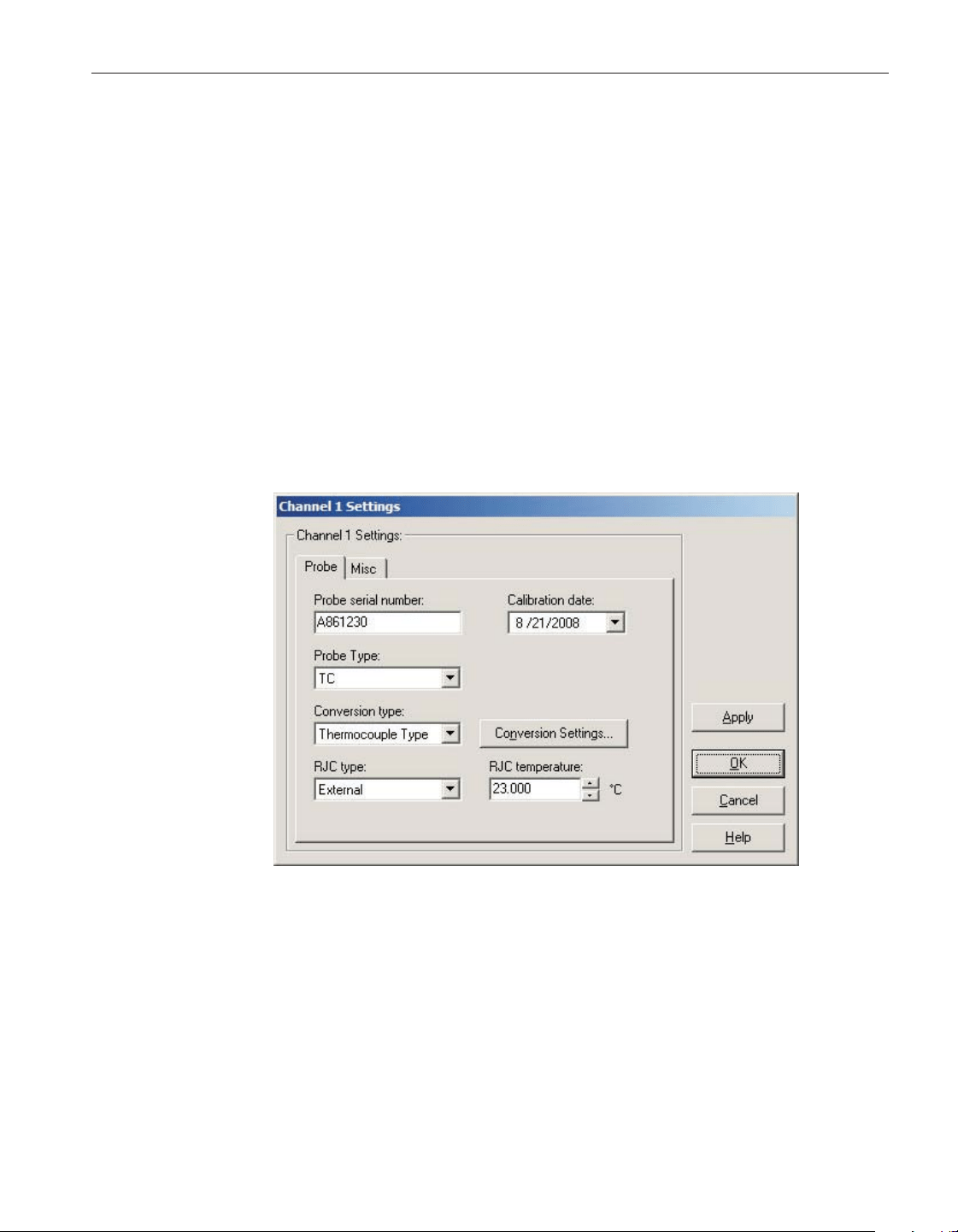
Enter the minimum operating temperature for this probe in the MINOP box. If
the temperature measured by the thermometer readout is less than this setting,
the display indicates an overload condition (OL).
Enter the maximum operating temperature for this probe in the MAXOP box. If
the temperature measured by the thermometer readout is greater than this set
-
ting, the display indicates an overload condition (OL).
To exclusively lock the connected probe to this channel, check the Exclusively
lock probe to channel checkbox. Locking a probe to a channel prevents any
other probe from being used on this channel, and also prevents this probe from
being used on any other channel, including channels of other thermometer
readouts.
4.4.1.6 1523/1524 thermocouple channel settings dialog
The Channel Settings dialog for thermocouple probes displays information
about the selected channel.
Some or all of the settings on this dialog may be passcode protected. If so, a
message appears at the bottom of the Probe tab and the Edit button is dis
-
played. The protected controls are disabled. To edit the protected settings, click
the Edit button and enter the current passcode for the thermometer readout. If
the correct passcode is entered, the protected controls are enabled and the val
-
ues may be changed. The controls remain enabled until this dialog is closed or
until the current changes are applied by clicking the Apply button.
After modifying any of the settings on this dialog, click the Apply or OK but
-
ton to write the new settings to the thermometer readout. If the Apply button is
81
4 Tools
Thermometer settings dialogs
Figure 52 1523/1524 Thermocouple Channel Settings dialog
1.888.610.7664 sales@GlobalTestSupply.com
Fluke-Direct.com
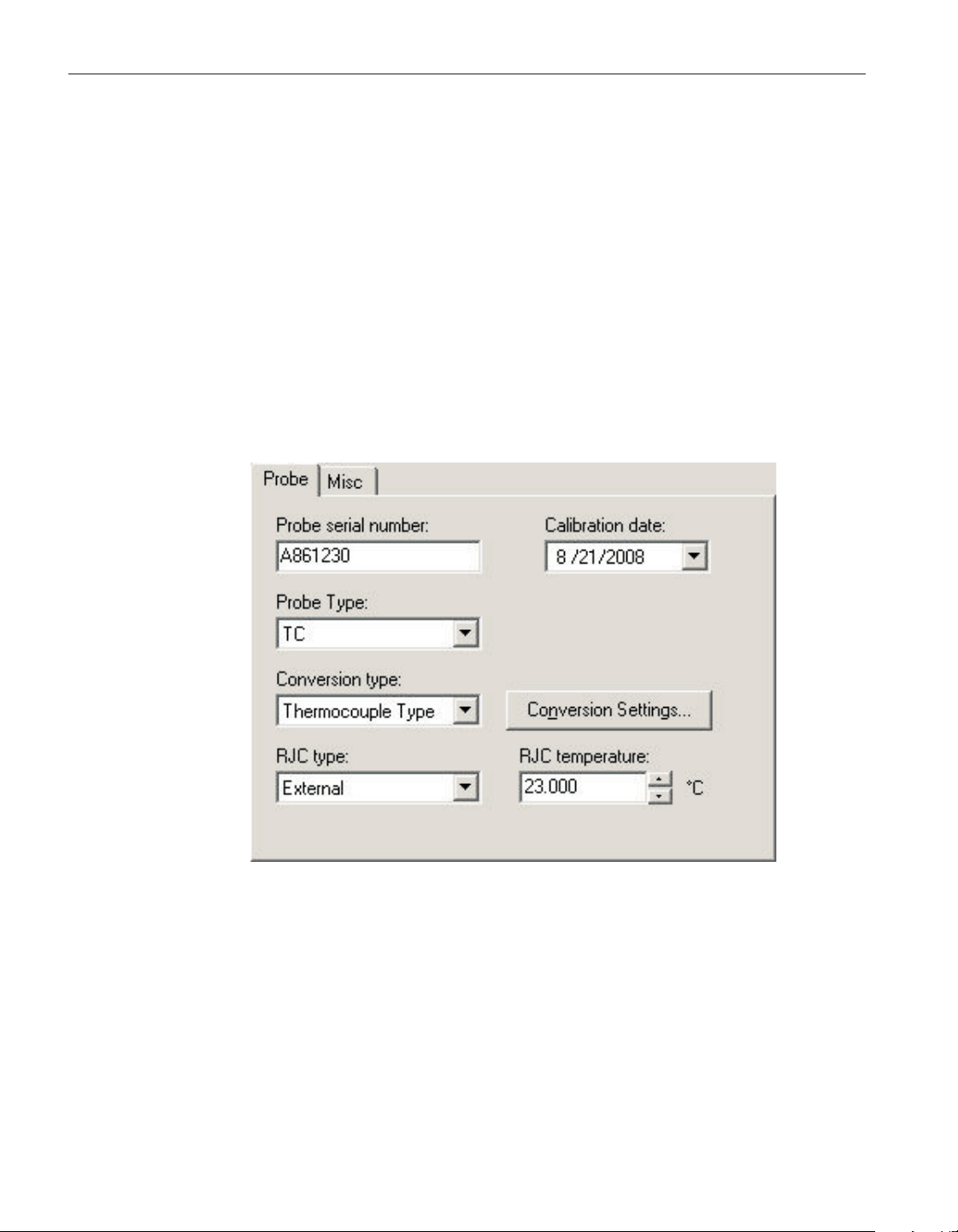
clicked, this dialog remains open. If the OK button is clicked, this dialog closes
after writing the settings.
LogWare has a feature that causes all of the channel settings to be read back in
from the thermometer readout after the Apply button is clicked and the new set
-
tings have been written to the thermometer readout. This feature can be useful
to verify that the desired settings were properly applied to the thermometer
readout. To enable or disable this feature, see Section 5.6.4, Options.
To close this dialog without writing the channel settings to the thermometer
readout, click the Cancel button.
Click the Help button to open the appropriate help topic for this dialog.
4.4.1.6.1 Probe tab
Select the Probe tab to view and/or modify probe settings.
Enter the serial number of the probe attached to this channel in the probe serial
number box. The serial number can be any combination of numbers and/or let
-
ters up to 8 characters in length. The underscore “_“ character can also be used
in serial numbers.Select the date this probe was last calibrated using the
drop-down calendar or by entering the date. This date should be located on the
Report of Calibration for the probe.
Select the appropriate probe type for this probe using the Probe Type
drop-down list. Currently, the only choice is TC.
User’s Guide
82
Figure 53 1523/1524 Thermocouple Channel Settings – Probe tab
1.888.610.7664 sales@GlobalTestSupply.com
Fluke-Direct.com
Select the conversion type to use for the probe on this channel. For TC probe
types, the available conversion types are:
•
Thermocouple Type
•
Volts
Refer to the Report of Calibration for the probe for information on the conver
-
sion type that the probe was calibrated for.
If the selected conversion type requires coefficients or other settings, the Con
-
version Settings button is enabled. Click the Conversion Settings button to dis
-
play the dialog for the selected conversion type. Otherwise, the Conversion
Settings button is disabled.
Note: The conversion settings are not written to the thermometer readout
until the Apply or OK button is clicked on this dialog!
Select the type of reference junction compensation to use on this channel using
the RJC type drop-down list. Available choices are Internal and External. If Ex-
ternal is chosen as the RJC type, the external RJC temperature must be entered
in the RJC temperature box.
Enter the external RJC temperature value in the RJC temperature box. This box
is disabled if the RJC type is set to Internal.
Note: The RJC temperature value must always be in °C!
83
4 Tools
Thermometer settings dialogs
1.888.610.7664 sales@GlobalTestSupply.com
Fluke-Direct.com
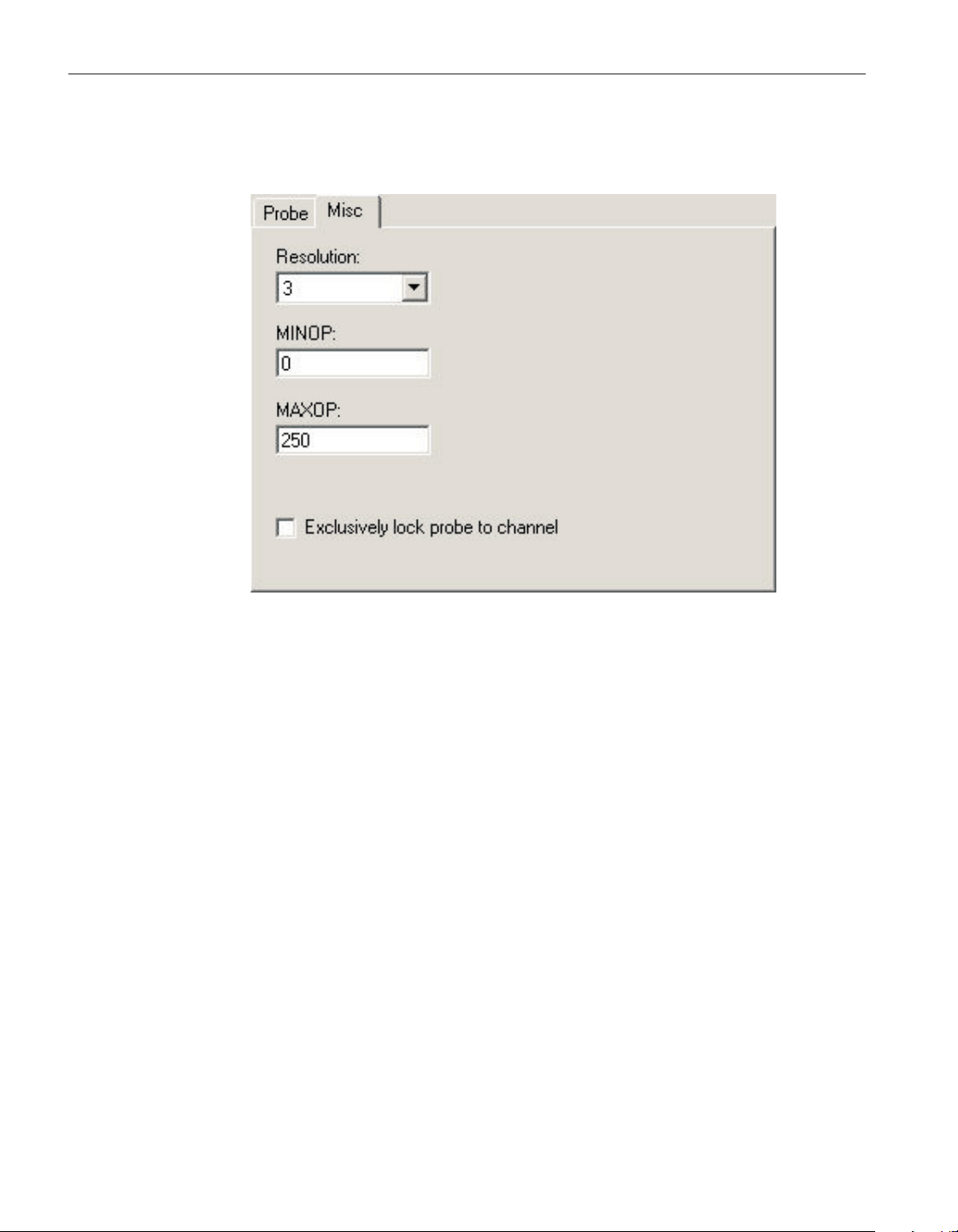
4.4.1.6.2 Misc tab
Select the Misc tab to view and/or modify other probe settings.
Select the resolution for the readings for this probe using the Resolution
drop-down list. The resolution can be set to any value between 0 and 3, or
Auto.
Enter the minimum operating temperature for this probe in the MINOP box. If
the temperature measured by the thermometer readout is less than this setting,
the display indicates an overload condition (OL).
Enter the maximum operating temperature for this probe in the MAXOP box. If
the temperature measured by the thermometer readout is greater than this set
-
ting, the display indicates an overload condition (OL).
To exclusively lock the connected probe to this channel, check the Exclusively
lock probe to channel checkbox. Locking a probe to a channel prevents any
other probe from being used on this channel, and also prevents this probe from
being used on any other channel, including channels of other thermometer
readouts.
4.4.2 1529 Chub-E4 settings dialog
The 1529 Chub-E4 Settings dialog displays information about the thermometer
readout including model number, serial number, identification information, and
User’s Guide
84
Figure 54 1523/1524 Thermocouple Channel Settings – Misc tab
1.888.610.7664 sales@GlobalTestSupply.com
Fluke-Direct.com
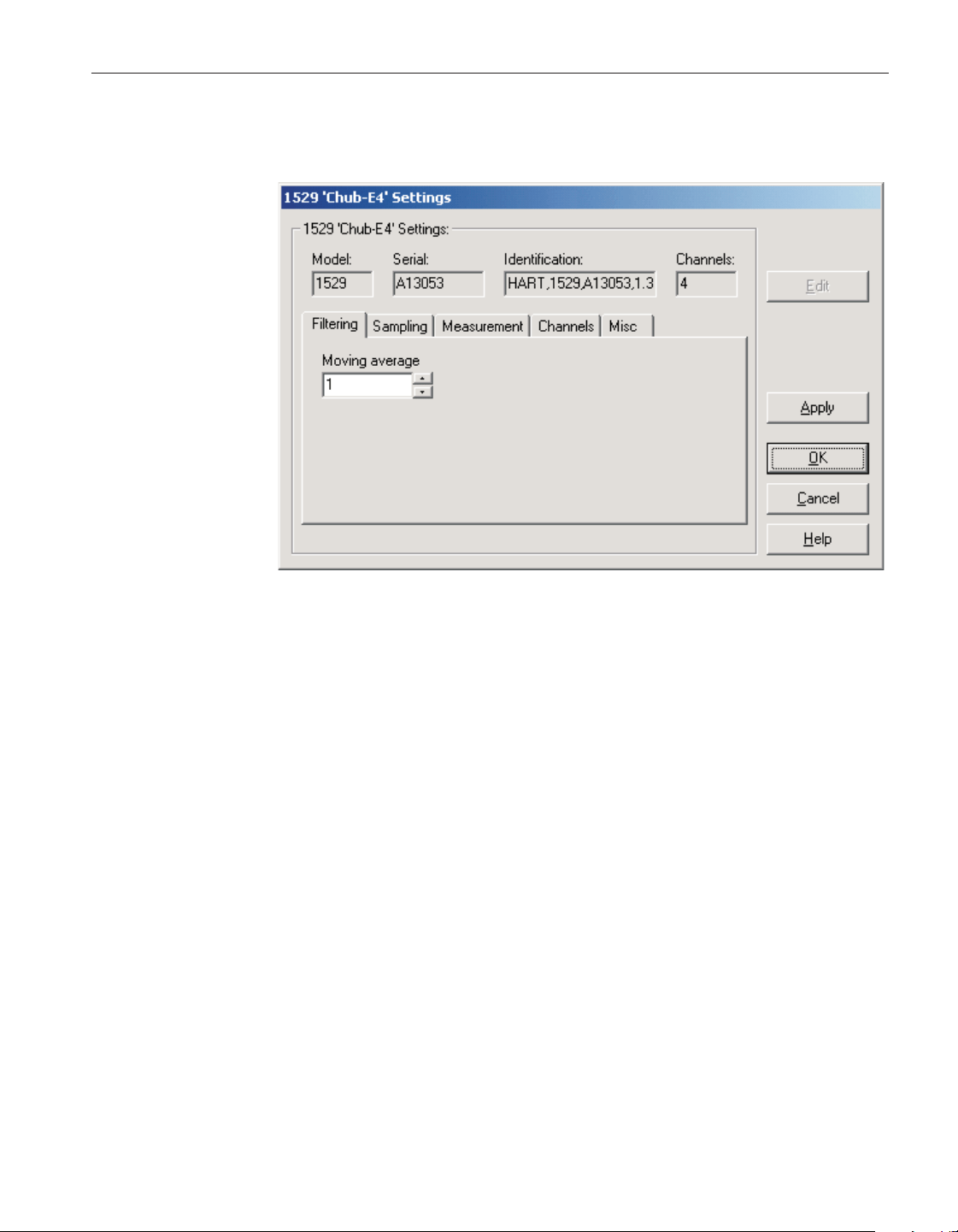
the total number of channels. It also allows many thermometer readout settings
to be viewed and/or modified.
The 1529 Chub-E4 must be connected to an available COM port or IR dongle
and the communication settings must be properly configured so that this infor-
mation can be read in from the thermometer readout. If communication with
the thermometer readout is not successful, an error message is displayed and
this dialog is blank. A progress dialog is displayed while the current thermome
-
ter readout settings are being read in.
The Model box indicates the model number of the thermometer readout. The
Serial box indicates the serial number assigned to this thermometer readout.
The Identification box indicates the manufacturer name, model number, serial
number, and firmware version installed in this thermometer readout. The Chan
-
nels box indicates the total number of input channels on this thermometer
readout.
The filtering settings can be viewed and modified by selecting the Filtering tab.
The sampling settings can be viewed and modified by selecting the Sampling
tab. The measurement settings can be viewed and modified by selecting the
Measurement tab. The Channels tab displays a list of channels and allows ac
-
cess to channel and probe settings dialogs. The settings on each of these tabs
are described in detail in the following sections. For more details on these set
-
tings, please refer to the thermometer readout’s User's Guide.
Some of the settings on the 1529 Chub-E4 Settings dialog may be passcode
protected. If they are, a message appears at the bottom of the dialog and the
Edit button is displayed. The controls for the passcode protected settings are
85
4 Tools
Thermometer settings dialogs
Figure 55 1529 Chub-E4 Settings dialog
1.888.610.7664 sales@GlobalTestSupply.com
Fluke-Direct.com
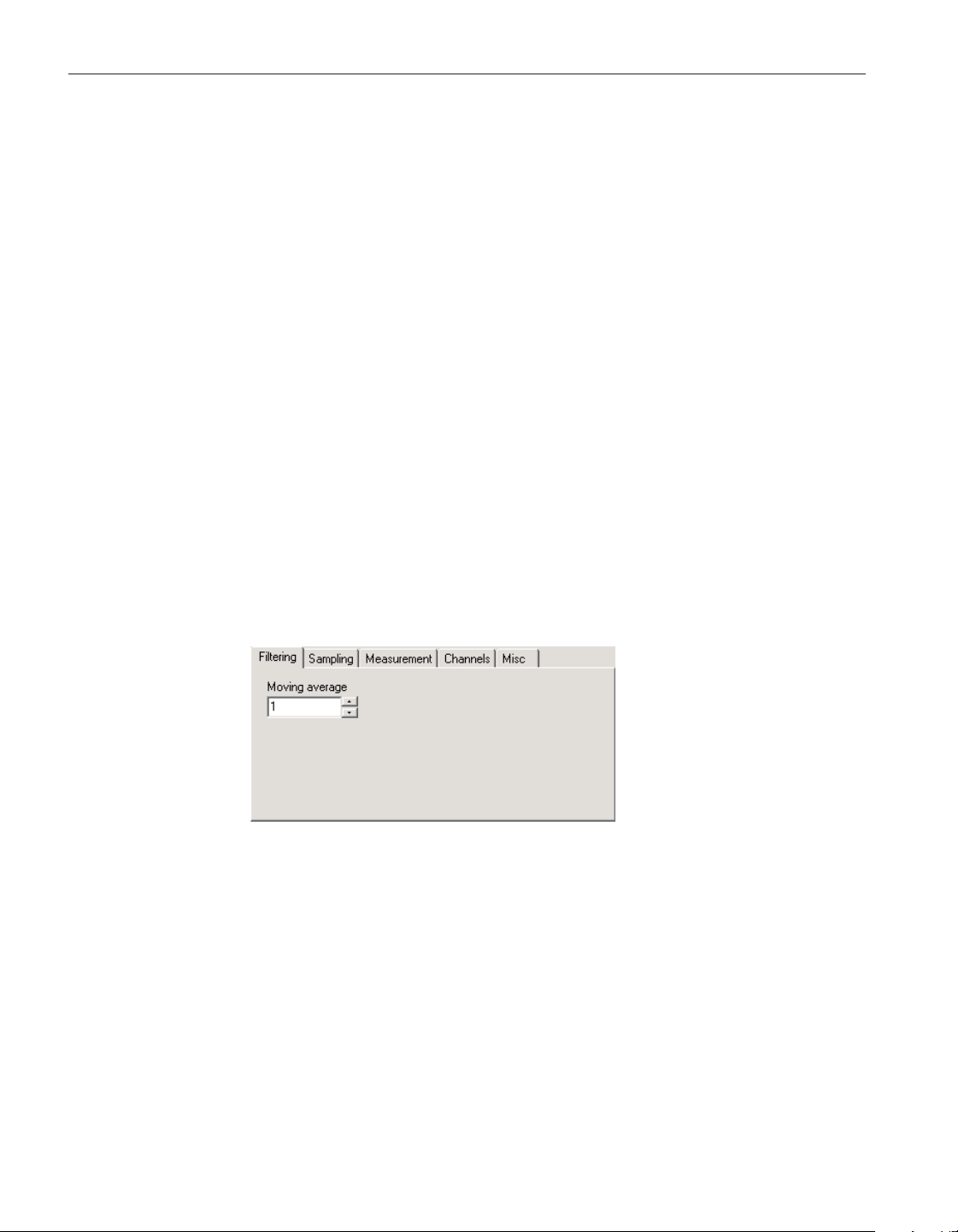
disabled. To edit the protected settings, click the Edit button and enter the cur
-
rent passcode for the thermometer readout. If the correct passcode is entered,
the controls are enabled and the values may be changed. The controls remain
enabled until this dialog is closed or until the current changes are applied by
clicking the Apply button.
After modifying any of the settings on this dialog, click the Apply or OK but
-
ton to write the new settings to the thermometer readout. If the Apply button is
clicked, this dialog remains open. If the OK button is clicked, this dialog closes
after writing the settings.
LogWare has a feature that causes all of the thermometer readout settings to be
read back in from the thermometer readout after the Apply button is clicked
and the new settings have been written to the thermometer readout. This feature
can be useful to verify that the desired settings were properly applied to the
thermometer readout. To enable or disable this feature, see Section 5.6.4,
Options.
To close this dialog without writing the settings to the thermometer readout,
click the Cancel button.
Click the Help button to open the appropriate help topic for this dialog.
4.4.2.1 Filtering tab
Select the Filtering tab to view and/or modify the filter settings.
The Moving average setting is sometimes also called a sliding window filter.
Enter the number of readings to average (size of window) in the box provided.
Setting this option to any value other than 1 causes the thermometer readout to
display the average of the last n readings on a specific channel as the current
reading for that channel. If the moving average is set to 1, the most recent mea
-
surement on each channel is displayed as the current reading. The moving aver
-
age can be set to any value between 1 and 10.
User’s Guide
86
Figure 56 1529 Chub-E4 Settings - Filtering tab
1.888.610.7664 sales@GlobalTestSupply.com
Fluke-Direct.com
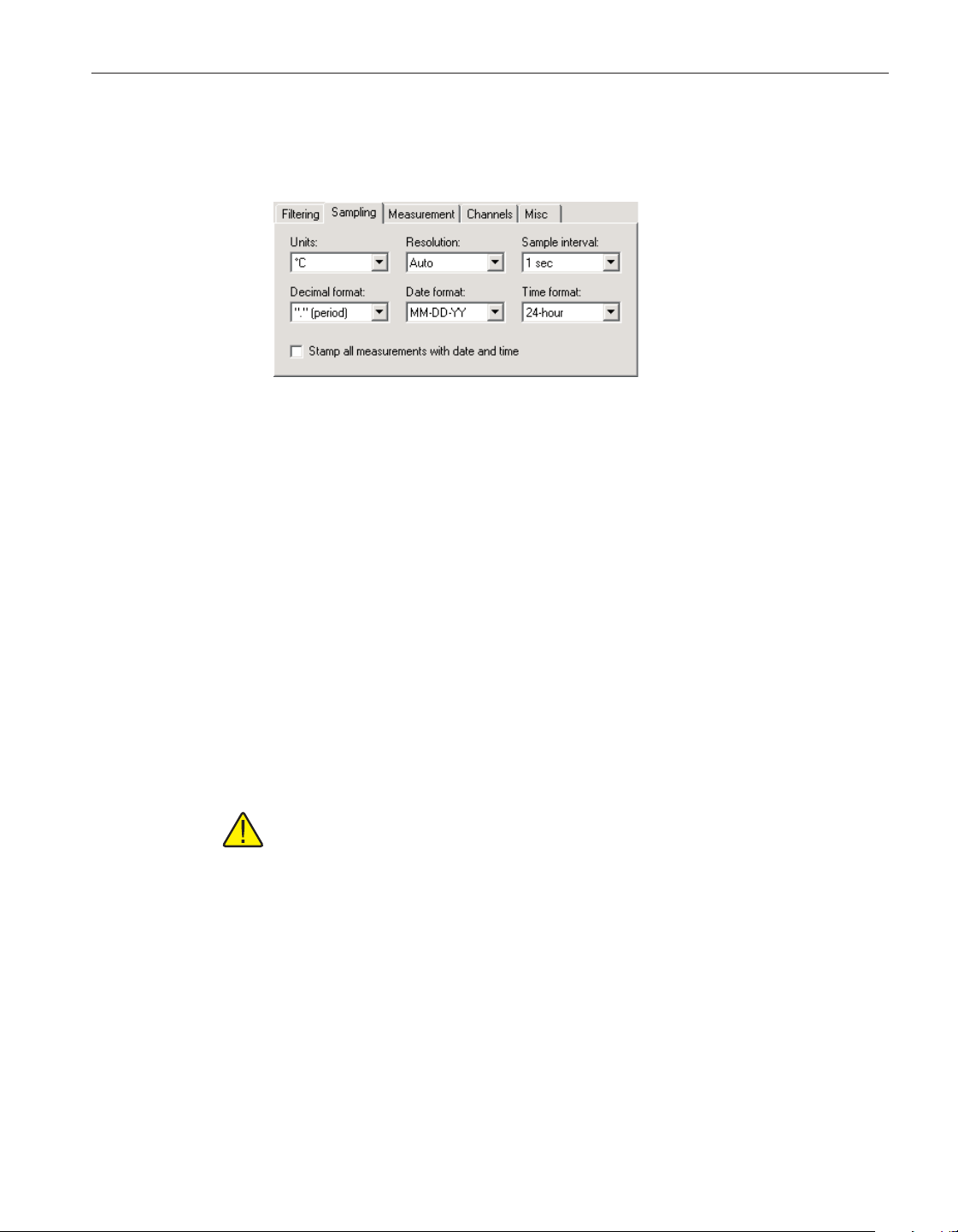
4.4.2.2 Sampling tab
Select the Sampling tab to view and/or modify sampling settings.
Select the units to use when displaying readings in temperature using the Units
drop-down list. Temperature readings can be displayed in either °C, °F or K.
This setting applies to all channels that are configured to display readings in
temperature.
Select the resolution for the readings using the Resolution drop-down list. The
resolution can be set to any value between 0 and 4, or Auto.
Select the time interval between subsequent measurements using the Sample in-
terval drop-down list. The sample interval can be set to any one of the follow-
ing settings:
• 0.1, 0.2 or 0.5 seconds
• 1, 2, 5, 10 or 30 seconds
•
1, 2, 5, 10 or 30 minutes
•
1 hour
Note: Setting the sample interval to 0.1 or 0.2 seconds causes the 1529 to
enter a special “fast” sampling mode. Please refer to the 1529 Chub-E4
User’s Guide for more information on using sample interval settings of
less than 0.5 seconds.
Select the decimal format character using the Decimal format drop-down list.
The 1529 Chub-E4 Thermometer readout supports using either the period (.) or
comma (,) as the decimal separator.
Select the date format using the Date format drop-down list. The 1529 Chub-E4
Thermometer readout supports displaying the date in one of four formats:
•
MM-DD-YY
•
MM-DD-YYYY
•
DD/MM/YY
87
4 Tools
Thermometer settings dialogs
Figure 57 1529 Chub-E4 Settings - Sampling tab
1.888.610.7664 sales@GlobalTestSupply.com
Fluke-Direct.com
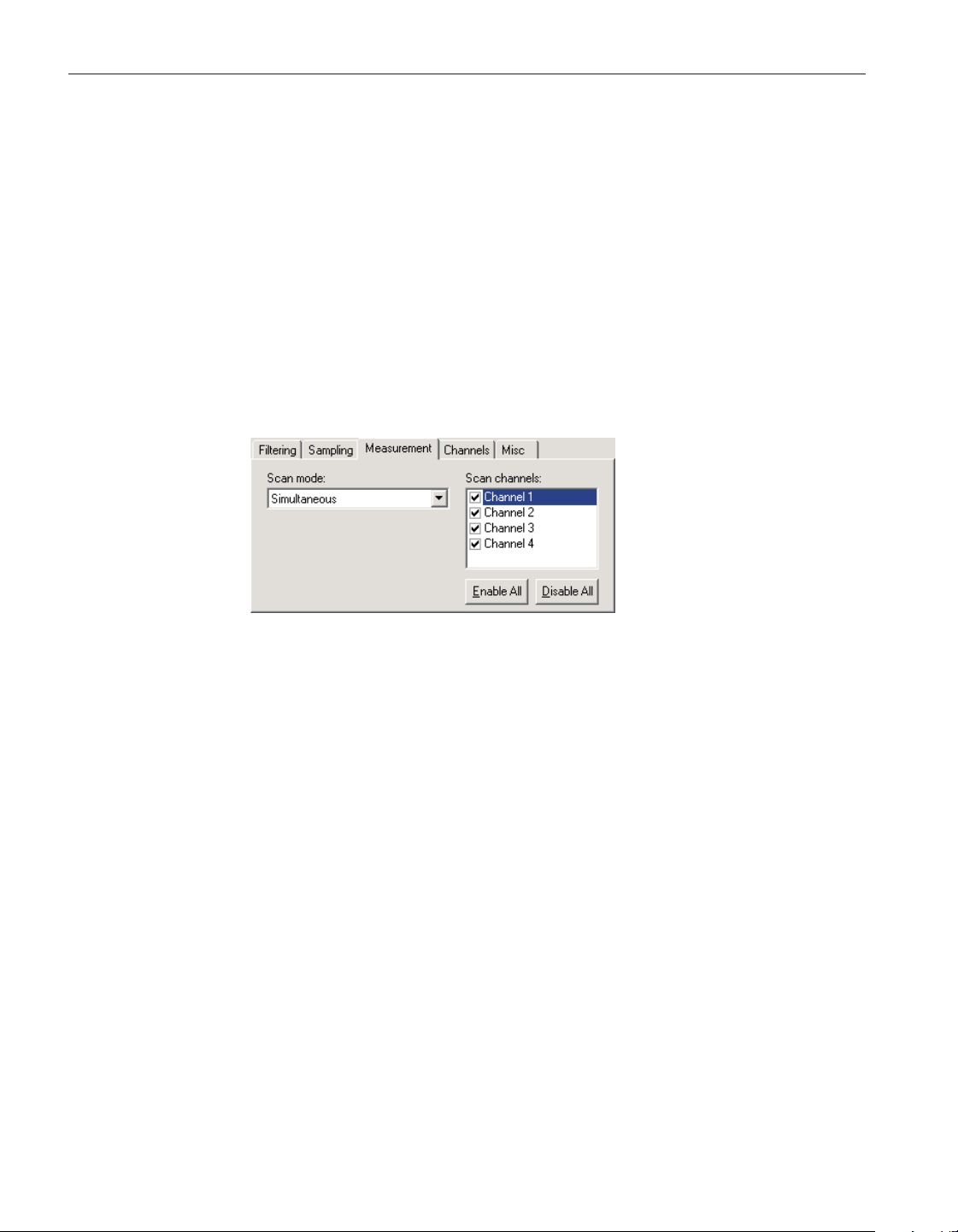
•
DD/MM/YYYY
Select the time format using the Time format drop-down list. The 1529
Chub-E4 Thermometer readout supports displaying the time in either 12-hour
or 24-hour format.
Checking the Stamp all measurements with date and time option causes the
1529 Chub-E4 Thermometer readout to always send date and time information
with the measurement when querying measurements using an RS-232, IR, or
IEEE interface.
4.4.2.3 Measurement tab
Select the Measurement tab to view and/or modify measurement related set
-
tings.
Select the scan mode for the 1529 Chub-E4 Thermometer readout using the
Scan mode drop-down list. The scan mode can be set to one of the following
options:
•
Scan
•
Simultaneous
Select the channels that the thermometer readout should measure. Each channel
can be enabled or disabled by checking or unchecking the box next to the chan
-
nel number independent of all other channels.
To enable all channels, click the Enable All button. This causes the box next to
every channel to be checked.
To disable all channels, click the Disable All button. This causes the box next
to every channel to be unchecked.
4.4.2.4 Channels Tab
Select the Channels tab to view a list of channels and to access the channel and
User’s Guide
88
Figure 58 1529 Chub-E4 Settings - Measurement
Ta b
1.888.610.7664 sales@GlobalTestSupply.com
Fluke-Direct.com
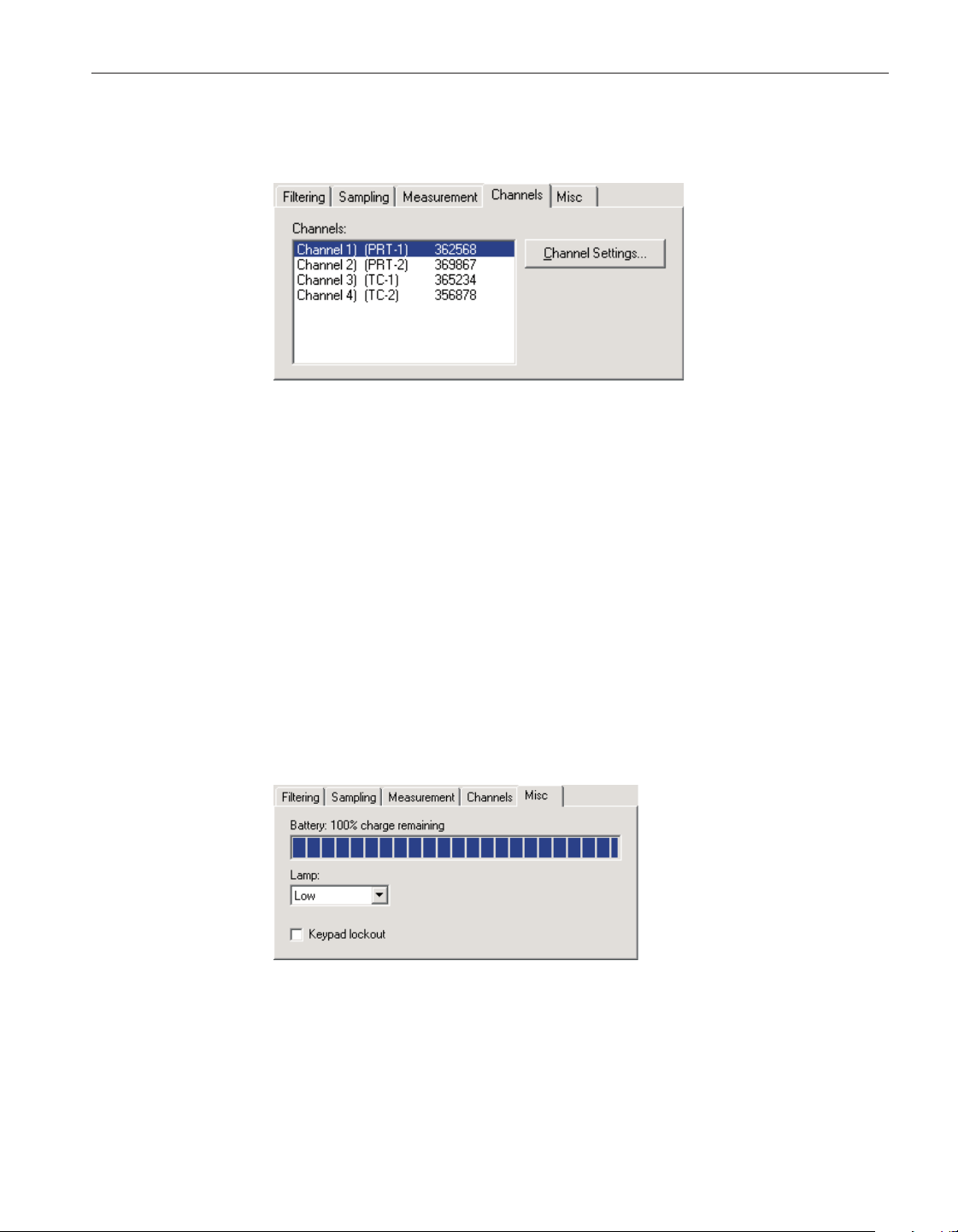
probe settings dialogs to view and/or modify channel and probe specific set
-
tings.
Select the channel to view and/or modify from the Channels list. This list indi
-
cates the channel number, channel type and the serial number of the probe on
each channel.
Click the Channel Settings button to display the appropriate Channel Settings
dialog. When this button is clicked, the settings for the selected channel and
probe are read in from the thermometer readout. The Channel Settings dialogs
are described in detail in Section 4.4.2.6, 1529 Chub-E4 PRT/Thermistor Chan-
nel Settings Dialog and Section 4.4.2.7, 1529 Chub-E4 Thermocouple Channel
Settings Dialog.
4.4.2.5 Misc tab
Select the Misc tab to view and/or modify other miscellaneous thermometer
readout settings.
The Battery indicator displays the remaining charge available in the battery.
Select the setting for the lamp on the thermometer readout’s display using the
Lamp drop-down list. The lamp can be set to one of the following settings:
•
Off
89
4 Tools
Thermometer settings dialogs
Figure 59 1529 Chub-E4 Settings - Misc tab
Figure 60 1529 Chub-E4 Settings - Channels tab
1.888.610.7664 sales@GlobalTestSupply.com
Fluke-Direct.com
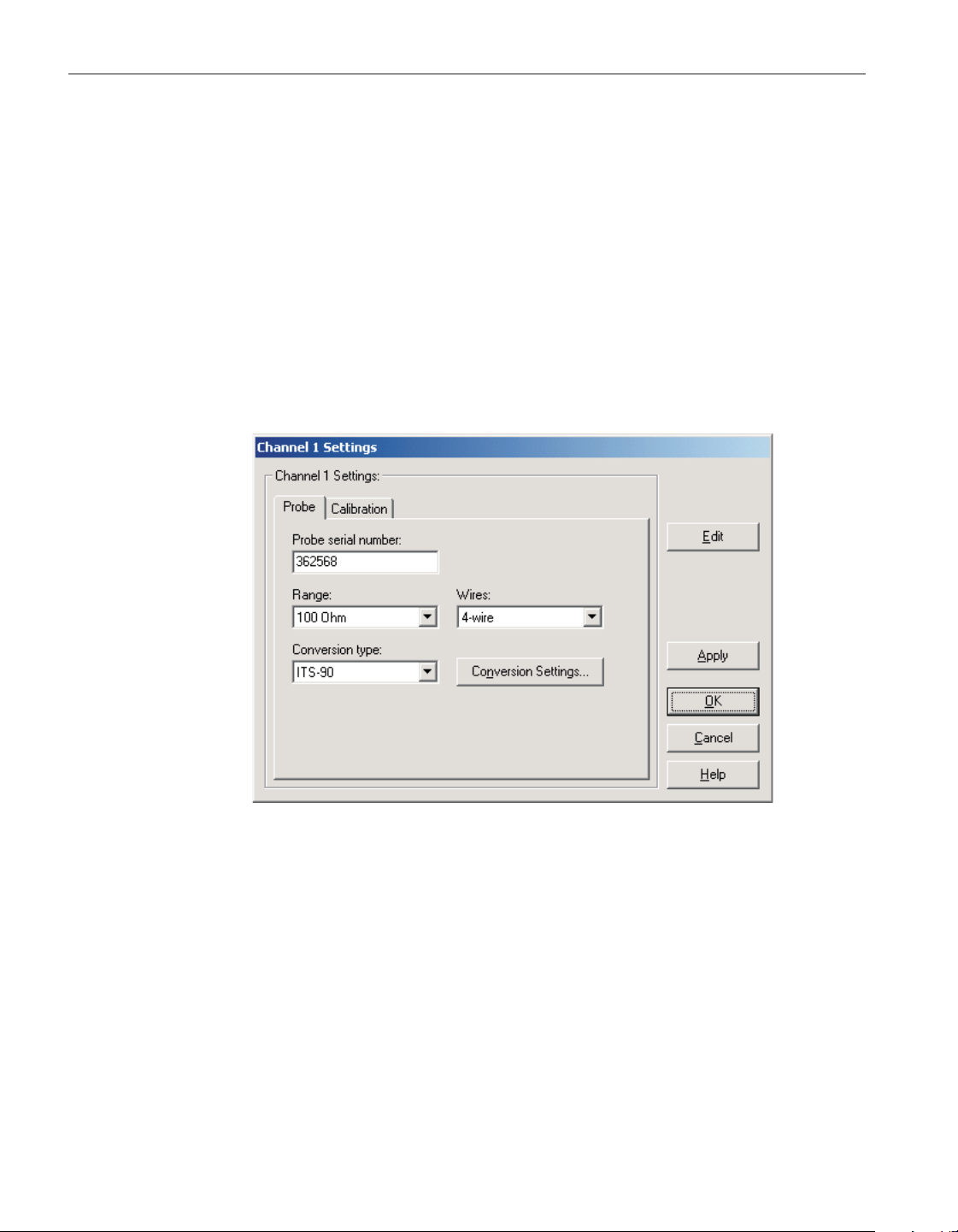
•
Low
•
Medium
•
High
To prevent the buttons on the front panel of the thermometer readout from be
-
ing used to view and/or modify thermometer readout settings, check the Key
-
pad lockout box. Leaving this box unchecked allows the buttons on the front
panel to be used to view and/or modify thermometer readout settings.
4.4.2.6 1529 Chub-E4 PRT/thermistor channel settings dialog
The 1529 Chub-E4 PRT/Thermistor Channel Settings dialog displays informa
-
tion about the selected PRT/Thermistor channel.
Some or all of the settings on this dialog may be passcode protected. If so, a
message appears at the bottom of the Probe tab and/or Calibration tab and the
Edit button is displayed. The protected controls are disabled. To edit the pro
-
tected settings, click the Edit button and enter the current passcode for the ther
-
mometer readout. If the correct passcode is entered, the protected controls are
enabled and the values may be changed. The controls remain enabled until this
dialog is closed or until the current changes are applied by clicking the Apply
button.
After modifying any of the settings on this dialog, click the Apply or OK but
-
ton to write the new settings to the thermometer readout. If the Apply button is
User’s Guide
90
Figure 61 1529 Chub-E4 PRT/thermistor channel settings dialog
1.888.610.7664 sales@GlobalTestSupply.com
Fluke-Direct.com
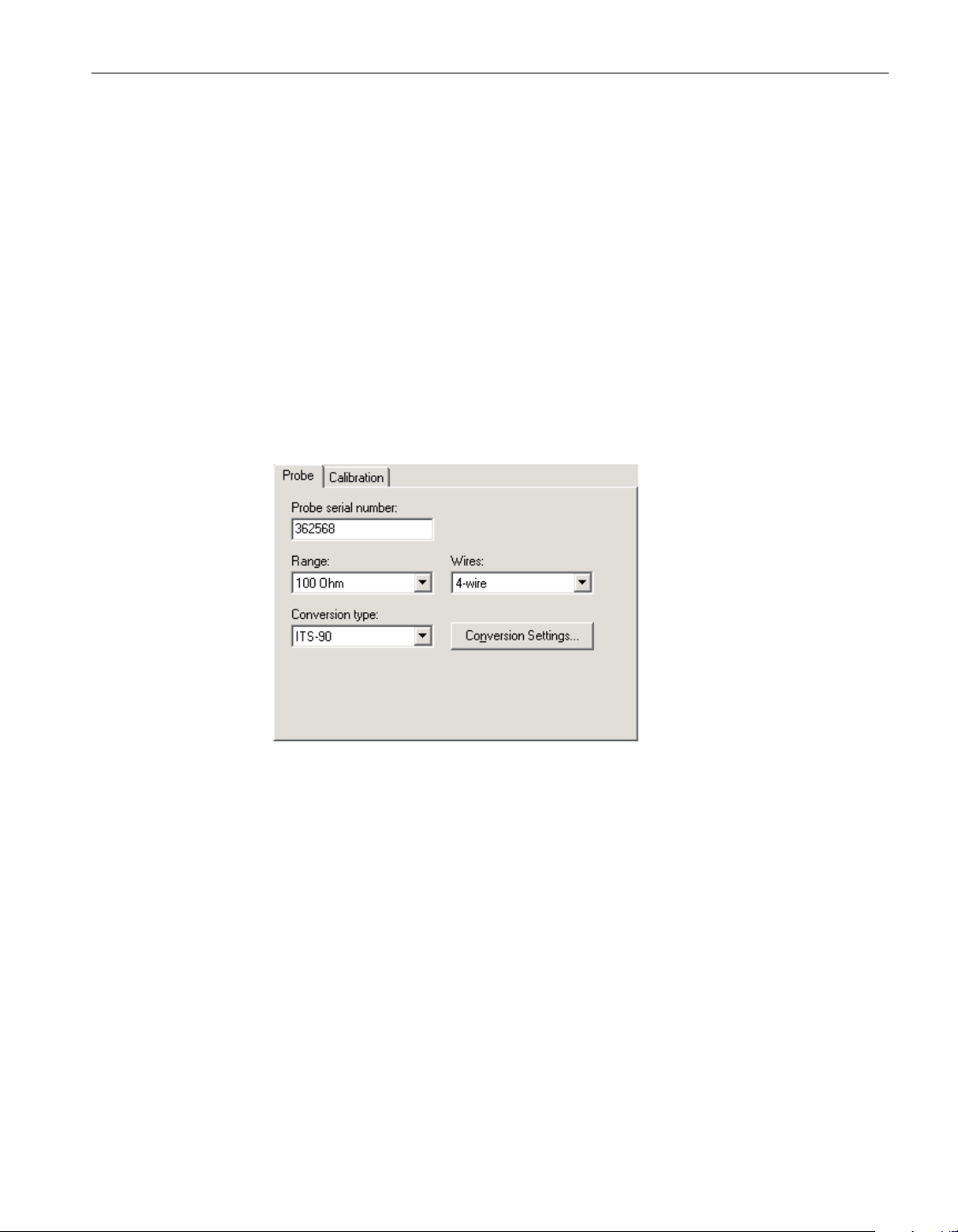
clicked, this dialog remains open. If the OK button is clicked, this dialog closes
after writing the settings.
LogWare has a feature that causes all of the channel settings to be read back in
from the thermometer readout after the Apply button is clicked and the new set
-
tings have been written to the thermometer readout. This feature can be useful
to verify that the desired settings were properly applied to the thermometer
readout. To enable or disable this feature, see Section 5.6.4, Options.
To close this dialog without writing the channel settings to the thermometer
readout, click the Cancel button.
Click the Help button to open the appropriate help topic for this dialog.
4.4.2.6.1 Probe tab
Select the Probe tab to view and/or modify probe settings.
Enter the serial number of the probe attached to this channel in the Probe serial
number box. The serial number can be any combination of numbers and/or let
-
ters up to 8 characters in length. The underscore “_” character can also be used
in serial numbers.
Select the resistance range for this channel using the Range drop-down list. The
choices for the resistance range are 100 Ohm or 10K Ohm.
Select the wires for this channel using the Wires drop-down list. The choices
for the wires setting are 2-wire, 3-wire or 4-wire.
Select the conversion type to use for the probe on this channel. The Model
1529 Chub-E4 Thermometer readout supports the following conversion types:
•
ITS-90
91
4 Tools
Thermometer settings dialogs
Figure 62 1529 Chub-E4 PRT/thermistor channel
settings - Probe tab
1.888.610.7664 sales@GlobalTestSupply.com
Fluke-Direct.com
•
ITS-SR5 (ITS-90 subrange 5 only)
•
CVD (Callendar-Van Dusen)
•
PT100
•
R(T)
•
T(R)
•
YSI-400
•
Ohms
Refer to the Report of Calibration for the probe for information on the conver
-
sion type that the probe was calibrated for.
If the selected conversion type requires coefficients or other settings, the Con
-
version Settings button is enabled. Click the Conversion Settings button to dis
-
play the dialog for the selected conversion type. Otherwise, the Conversion
Settings button is disabled. Please refer to Section 9, Conversion Settings
Dialogs, for a detailed description of the Conversion Settings dialogs.
Note: The conversion settings are not written to the thermometer readout
until the Apply or OK button is clicked on this dialog!
User’s Guide
92
1.888.610.7664 sales@GlobalTestSupply.com
Fluke-Direct.com
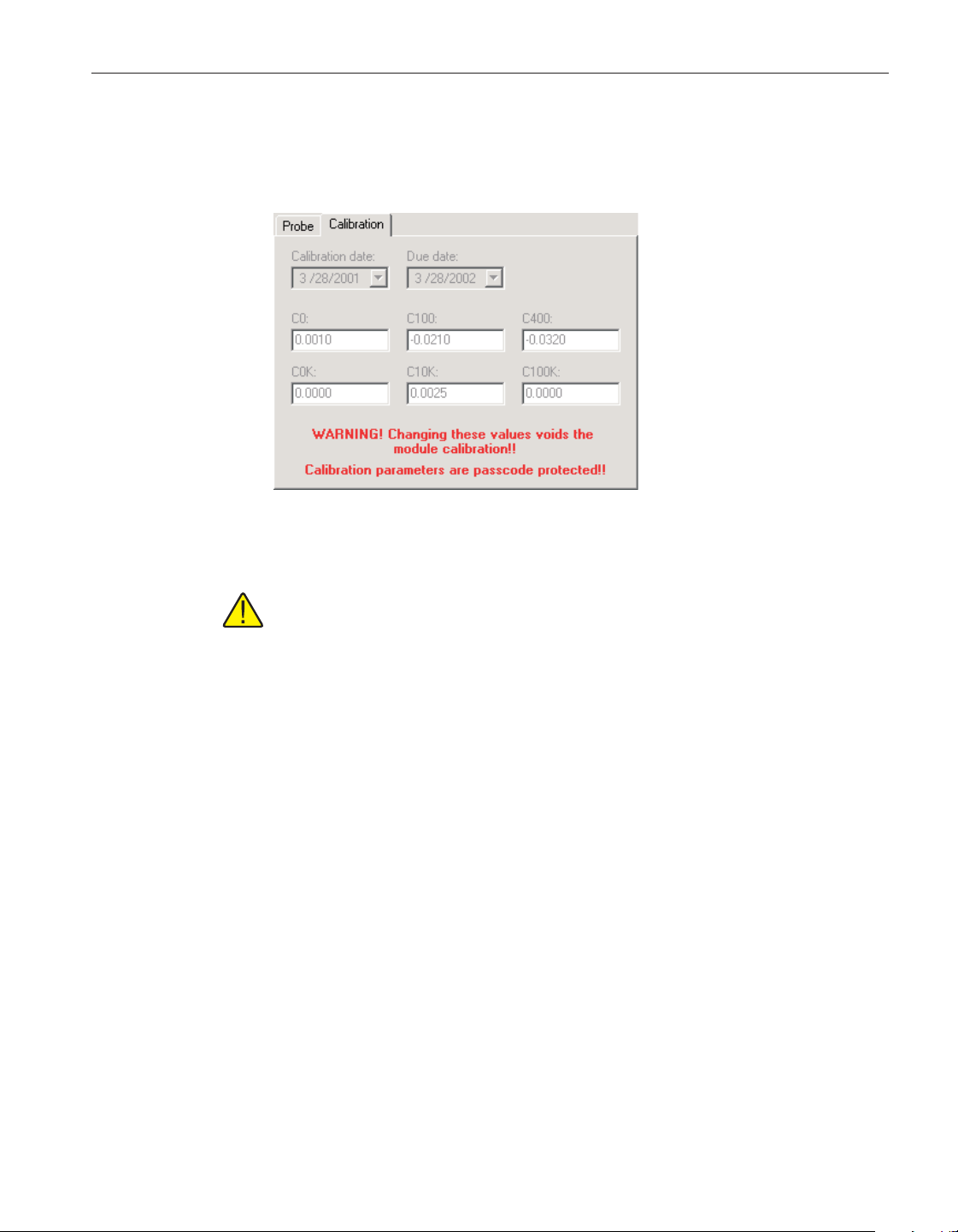
4.4.2.6.2 Calibration tab
Select the Calibration tab to view and/or modify channel calibration informa
-
tion.
Caution: Do not change these values unless this channel has been
recalibrated or unless these values do not match the values located on the
latest Report of Calibration for this channel! Changing these values voids
the current calibration!
Select the date this channel was last calibrated using the drop-down calendar or
by entering the date. This date should be located on the Report of Calibration
for this channel.
Select the date this channel is due for recalibration using the drop-down calen
-
dar or by entering the date.
Enter the values for the calibration constants in the boxes provided. The cali
-
bration constants required by a PRT/Thermistor channel are: C0, C100, C400,
C0K, C10K and C100K. The values of these constants should be located on the
Report of Calibration for this channel.
93
4 Tools
Thermometer settings dialogs
Figure 63 1529 Chub-E4 PRT/thermistor channel
settings - Calibration tab
1.888.610.7664 sales@GlobalTestSupply.com
Fluke-Direct.com
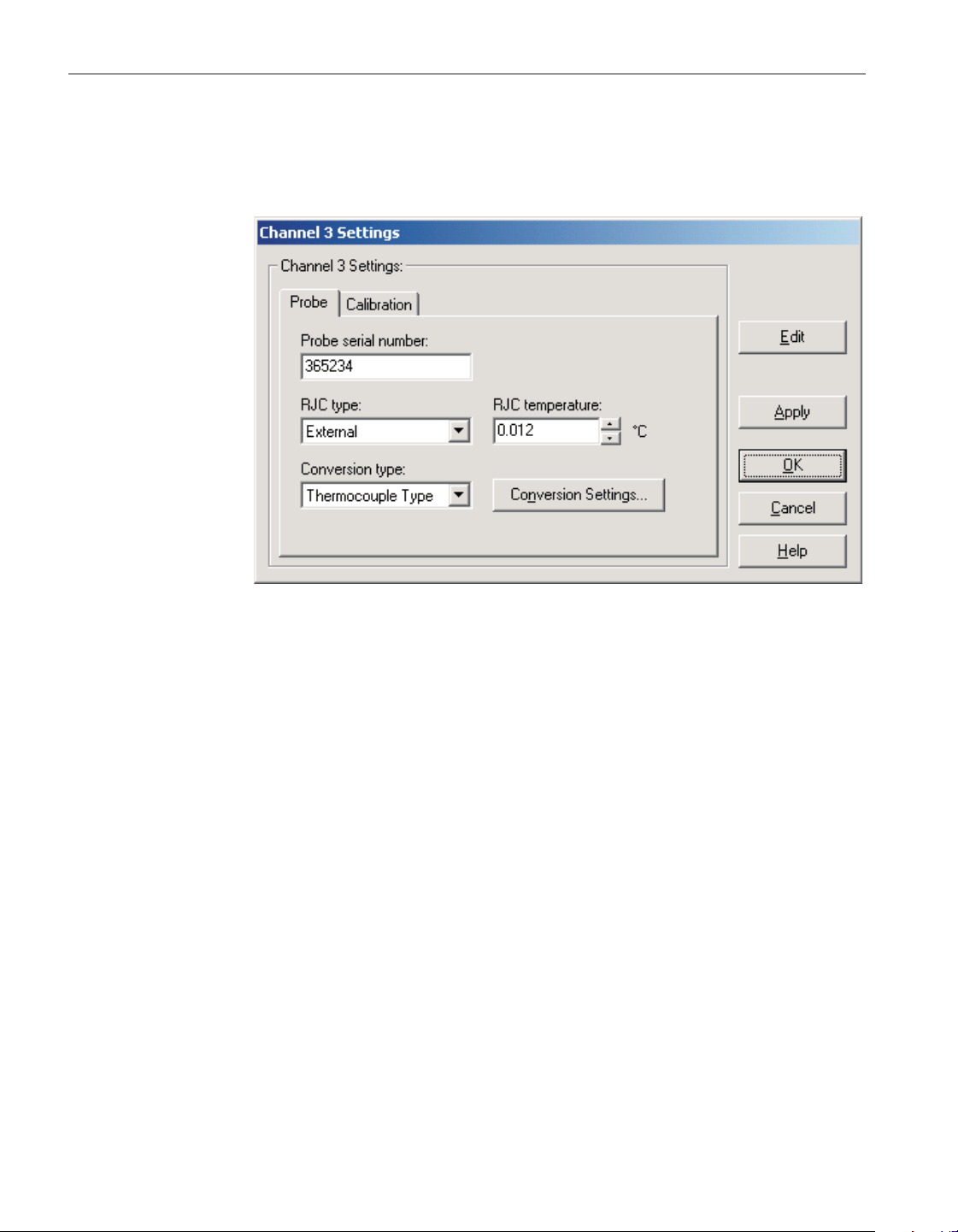
4.4.2.7 1529 Chub-E4 thermocouple channel settings
The 1529 Chub-E4 Thermocouple Channel Settings dialog displays informa
-
tion about the selected thermocouple channel.
Some or all of the settings on this dialog may be passcode protected. If so, a
message appears at the bottom of the Probe tab and/or Calibration tab and the
Edit button is displayed. The protected controls are disabled. To edit the pro-
tected settings, click the Edit button and enter the current passcode for the ther
-
mometer readout. If the correct passcode is entered, the protected controls are
enabled and the values may be changed. The controls remain enabled until this
dialog is closed or until the current changes are applied by clicking the Apply
button.
After modifying any of the settings on this dialog, click the Apply or OK but
-
ton to write the new settings to the thermometer readout. If the Apply button is
clicked, this dialog remains open. If the OK button is clicked, this dialog closes
after writing the settings.
LogWare has a feature that causes all of the channel settings to be read back in
from the thermometer readout after the Apply button is clicked and the new set
-
tings have been written to the thermometer readout. This feature can be useful
to verify that the desired settings were properly applied to the thermometer
readout. To enable or disable this feature, see Section 5.6.4, Options.
To close this dialog without writing the channel settings to the thermometer
readout, click the Cancel button.
Click the Help button to open the appropriate help topic for this dialog.
User’s Guide
94
Figure 64 1529 Chub-E4 Thermocouple channel settings dialog
1.888.610.7664 sales@GlobalTestSupply.com
Fluke-Direct.com
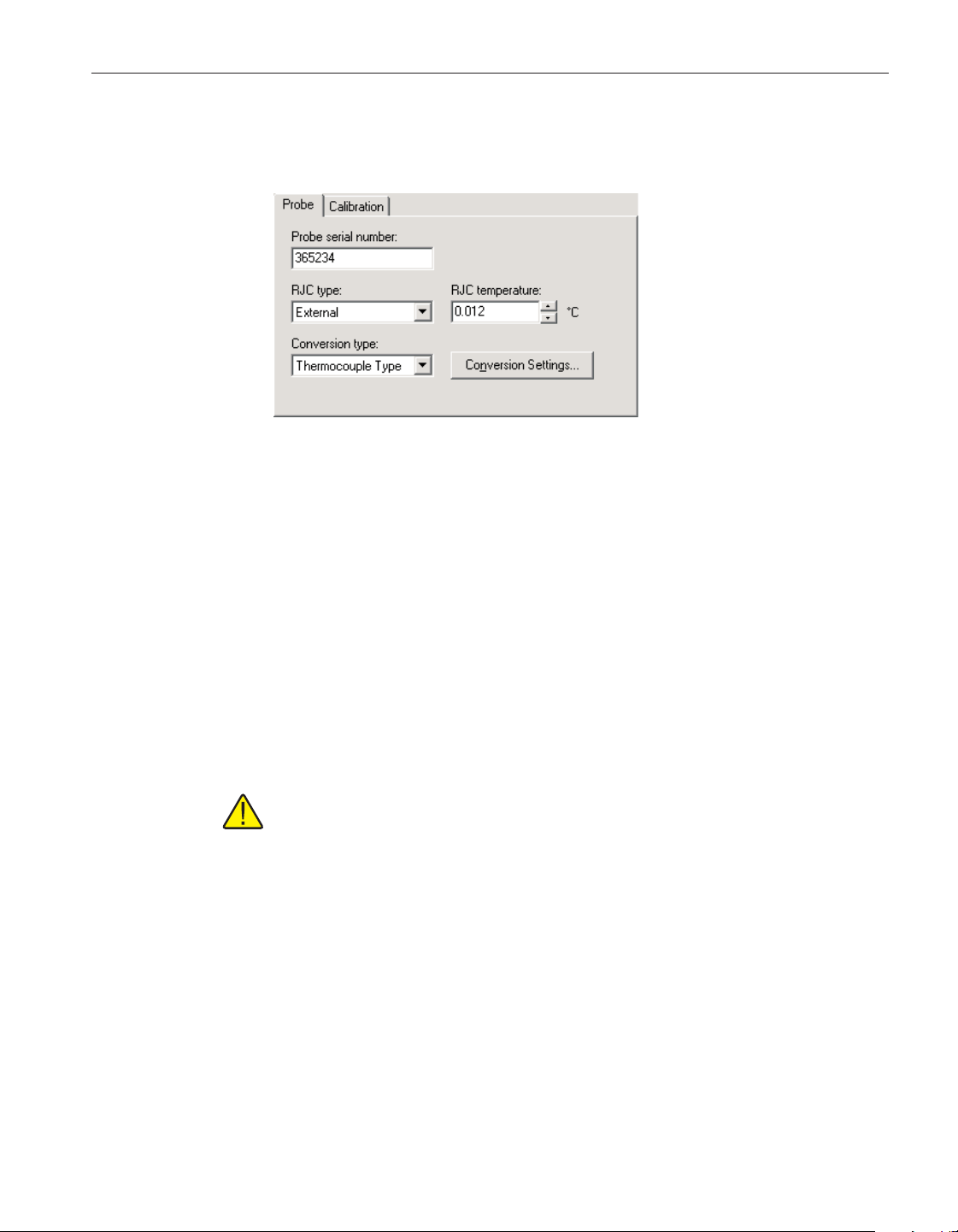
4.4.2.7.1 Probe tab
Select the Probe tab to view and/or modify probe settings.
Enter the serial number of the probe attached to this channel in the Probe serial
number box. The serial number can be any combination of numbers and/or let-
ters up to 8 characters in length. The underscore “_” character can also be used
in serial numbers.
Select the type of reference junction compensation to use on this channel using
the RJC type drop-down list. Available choices are Internal and External. If Ex-
ternal is chosen as the RJC type, the external RJC temperature must be entered
in the RJC temperature box.
Enter the external RJC temperature value in the RJC temperature box. This box
is disabled if the RJC type is set to Internal.
Note: The RJC temperature value must always be in °C!
Select the conversion type to use for the probe on this channel. The Model
1529 Chub-E4 Thermometer readout supports the following conversion types:
•
Polynomial
•
Thermocouple Type (B, E, J, K, N, R, S, T or AuPt)
•
Volts
Refer to the Report of Calibration for the probe for information on the conver
-
sion type that the probe was calibrated for.
If the selected conversion type requires coefficients or other settings, the Con
-
version Settings button is enabled. Click the Conversion Settings button to dis
-
play the dialog for the selected conversion type. Otherwise, the Conversion
95
4 Tools
Thermometer settings dialogs
Figure 65 1529 Chub-E4 thermocouple channel
settings - Probe tab
1.888.610.7664 sales@GlobalTestSupply.com
Fluke-Direct.com
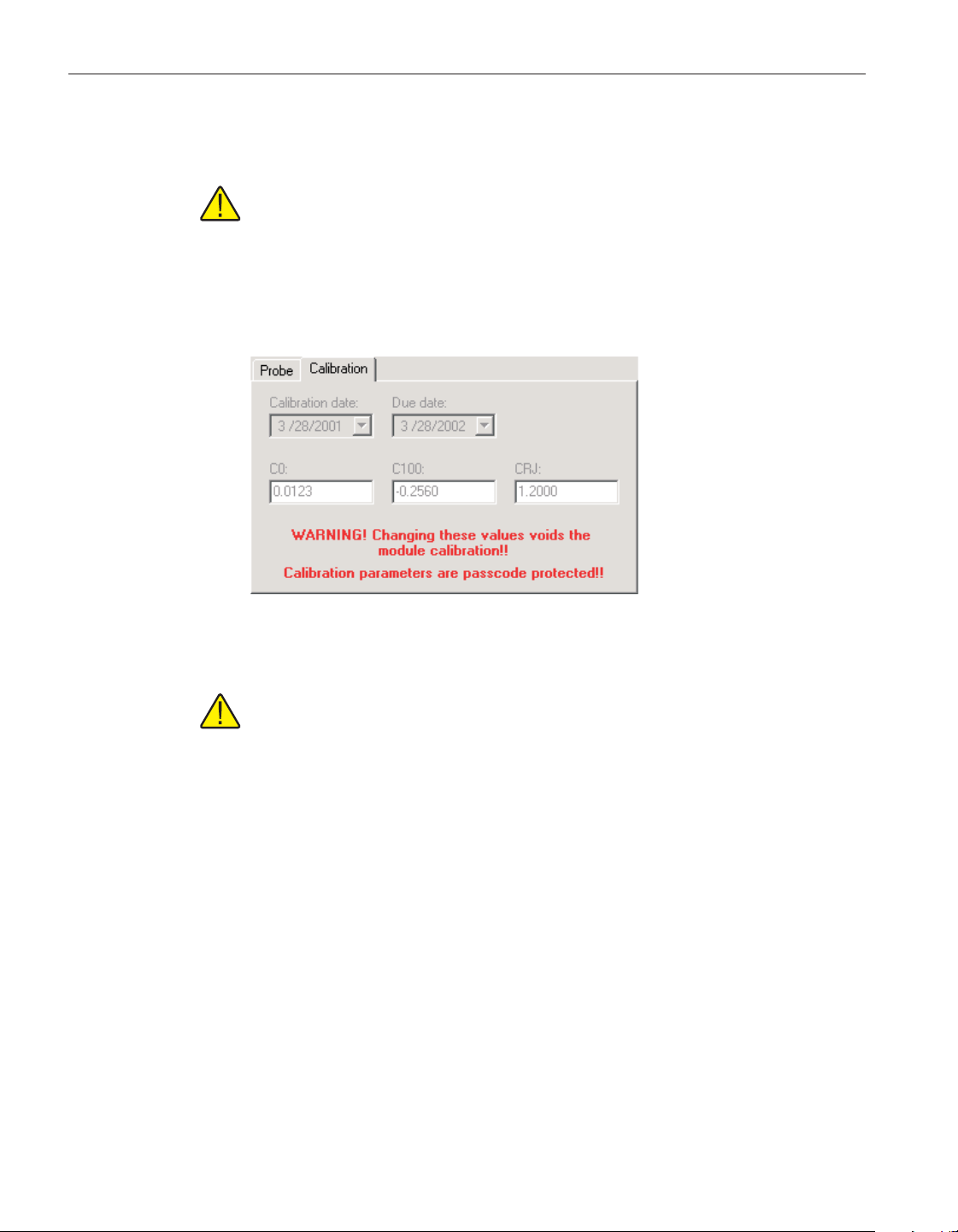
Settings button is disabled. Please refer to Section 9, Conversion Settings
Dialogs, for a detailed description of the Conversion Settings dialogs.
Note: The conversion settings are not written to the thermometer readout
until the Apply or OK button is clicked on this dialog!
4.4.2.7.2 Calibration tab
Select the Calibration tab to view and/or modify channel calibration informa
-
tion.
Caution: Do not change these values unless this channel has been
recalibrated or unless these values do not match the values located on the
latest Report of Calibration for this channel! Changing these values voids
the current calibration!
Select the date this channel was last calibrated using the drop-down calendar or
by entering the date. This date should be located on the Report of Calibration
for this channel.
Select the date this channel is due for recalibration using the drop-down calen
-
dar or by entering the date.
Enter the values for the calibration constants in the boxes provided. The cali
-
bration constants required by a Thermocouple channel are: C0, C100 and CRJ.
The values of these constants should be located on the Report of Calibration for
this channel.
4.4.3 1560 Black Stack settings dialog
The 1560 Black Stack Settings dialog displays information about the thermom
-
eter readout including model number, serial number, identification information,
User’s Guide
96
Figure 66 1529 Chub-E4 thermocouple channel
settings - Probe tab
1.888.610.7664 sales@GlobalTestSupply.com
Fluke-Direct.com
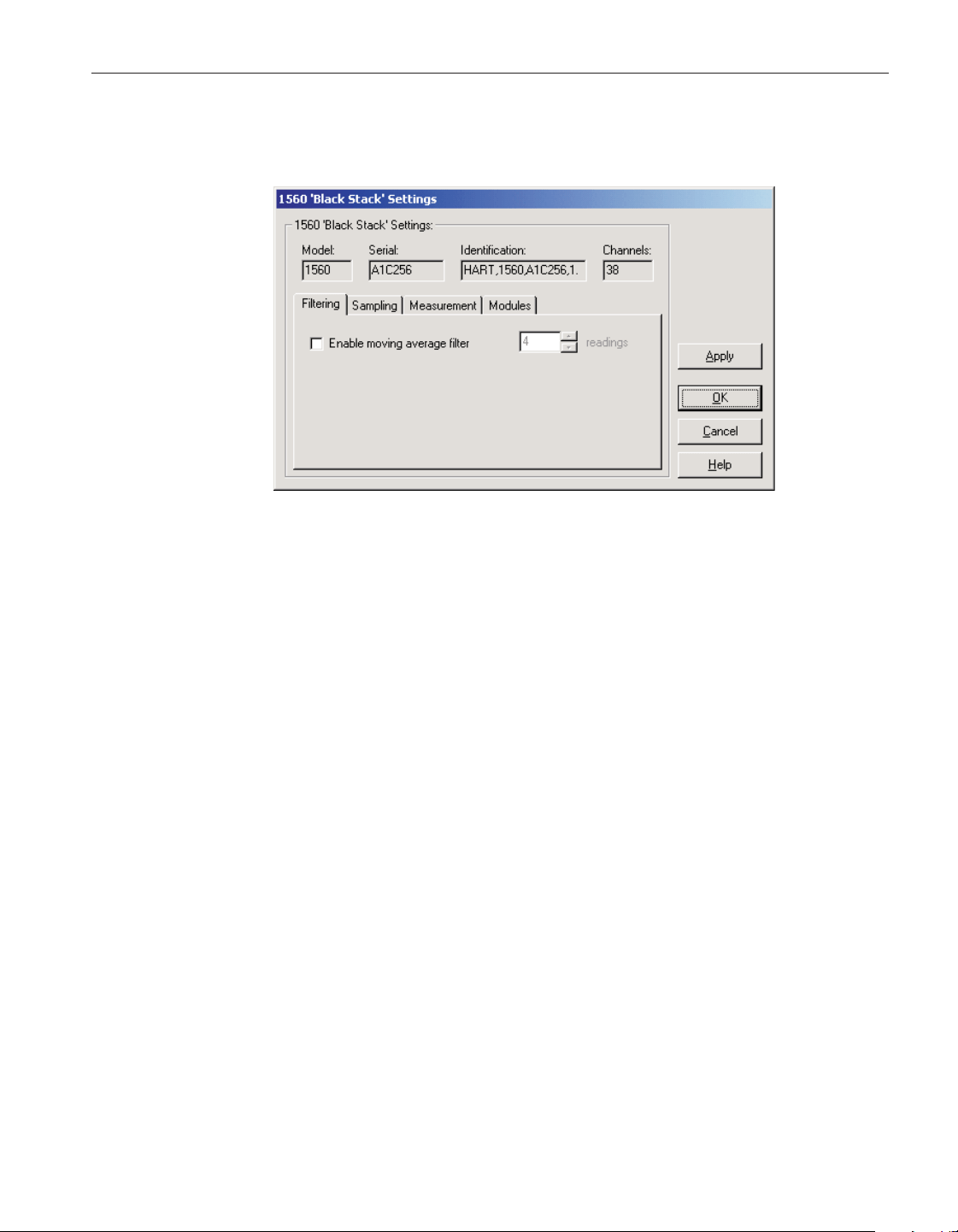
and the total number of channels. It also allows many thermometer readout set
-
tings to be viewed and/or modified.
The 1560 Black Stack must be connected to an available COM port and the
communication settings must be properly configured so that this information
can be read in from the thermometer readout. If communication with the ther-
mometer readout is not successful, an error message is displayed and this dia-
log is blank. A progress dialog is displayed while the current thermometer
readout settings are being read in.
The Model box indicates the model number of the thermometer readout. The
Serial box indicates the serial number assigned to this thermometer readout.
The Identification box indicates the manufacturer name, model number, serial
number, and firmware version installed in this thermometer readout. The Chan
-
nels box indicates the total number of input channels on this thermometer
readout.
The filtering settings can be viewed and/or modified by selecting the Filtering
tab. The sampling settings can be viewed and/or modified by selecting the Sam
-
pling tab. The measurement settings can be viewed and/or modified by select
-
ing the Measurement tab. The Modules tab displays a list of modules currently
attached to this thermometer readout and allows access to module settings
dialogs. The settings on each of these tabs are described in detail in the follow
-
ing sections. For more details on these settings, please refer to the thermometer
readout’s User’s Guide.
After modifying any of the settings on this dialog, click the Apply or OK but
-
ton to write the new settings to the thermometer readout. If the Apply button is
clicked, this dialog remains open. If the OK button is clicked, this dialog closes
after writing the settings.
97
4 Tools
Thermometer settings dialogs
Figure 67 1560 Black Stack Settings dialog
1.888.610.7664 sales@GlobalTestSupply.com
Fluke-Direct.com
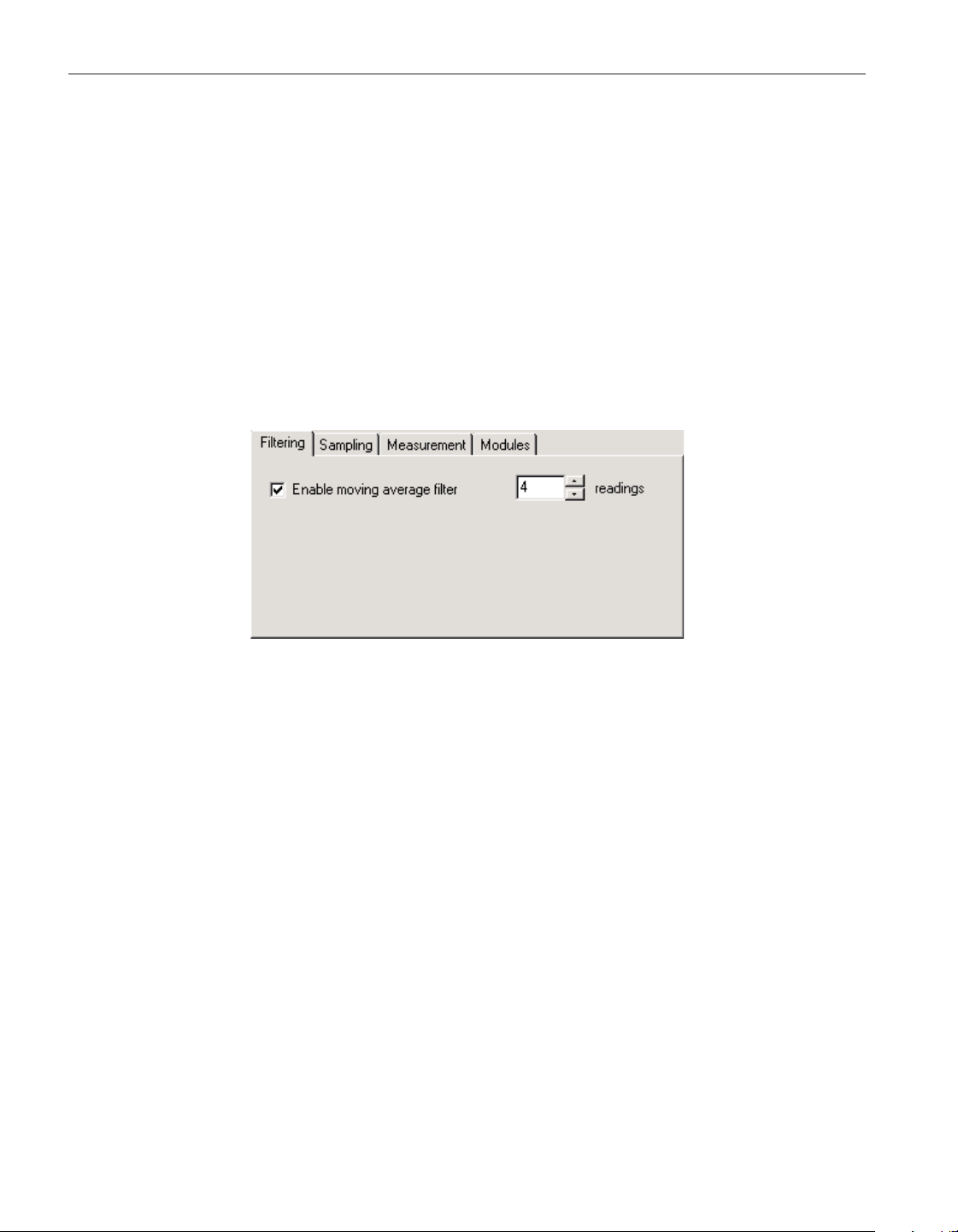
LogWare has a feature that causes all of the thermometer readout settings to be
read back in from the thermometer readout after the Apply button is clicked
and the new settings have been written to the thermometer readout. This feature
can be useful to verify that the desired settings were properly applied to the
thermometer readout. To enable or disable this feature, see Section 5.6.4,
Options.
To close this dialog without writing the settings to the thermometer readout,
click the Cancel button.
Click the Help button to open the appropriate help topic for this dialog.
4.4.3.1 Filtering tab
Select the Filtering tab to view and/or modify the filter settings.
Check the Enable moving average filter box to enable the moving average filter.
This filter is sometimes also called a sliding window filter. When this box is
checked, the number of readings to average (size of window) must be entered
in the box provided. Enabling this option causes the thermometer readout to
display the average of the last n readings on a specific channel as the current
reading for that channel. If this feature is disabled, the most recent measure
-
ment on each channel is displayed as the current reading. The moving average
filter can be set to any value between 1 and 10.
User’s Guide
98
Figure 68 1560 Black Stack settings - Filtering tab
1.888.610.7664 sales@GlobalTestSupply.com
Fluke-Direct.com
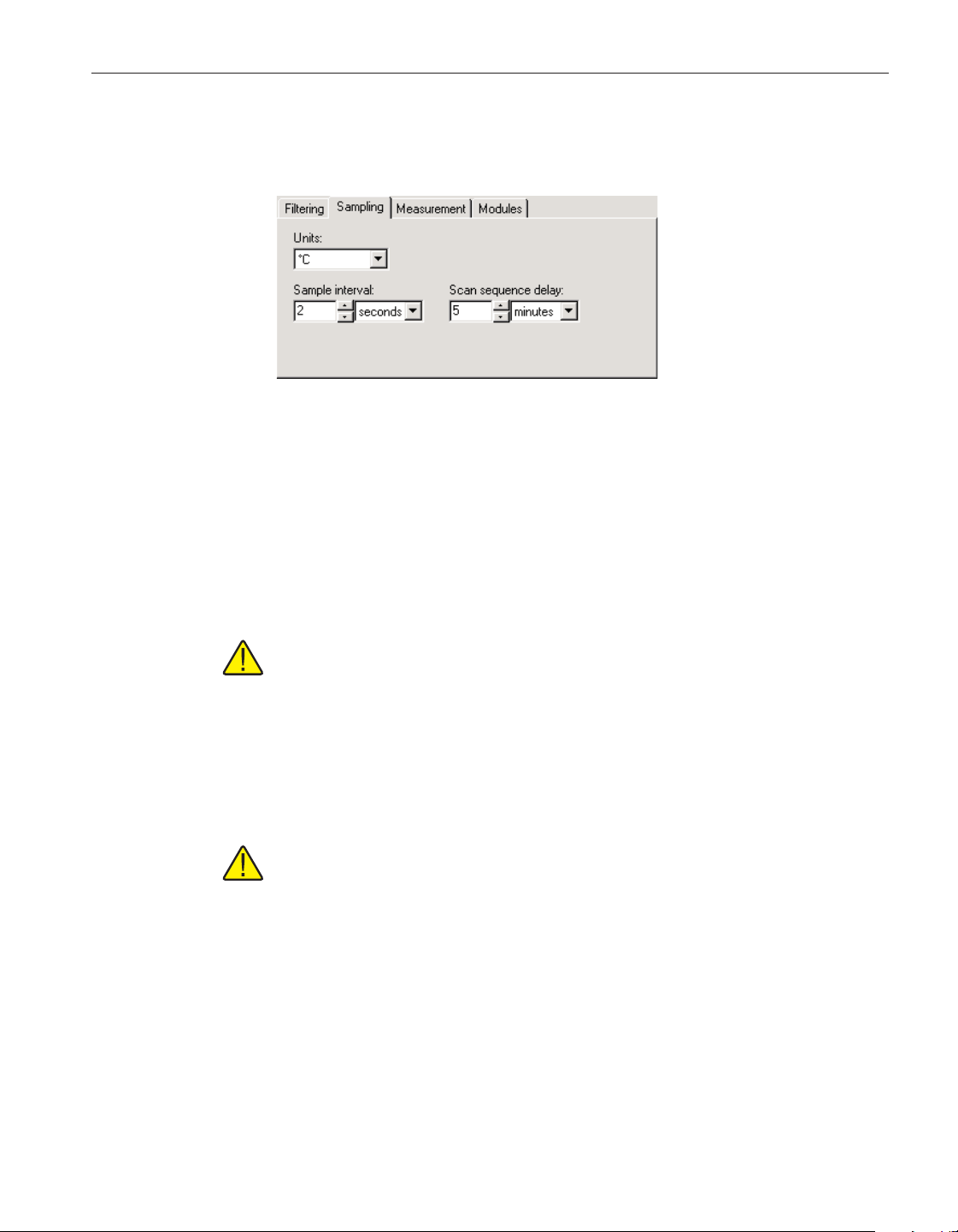
4.4.3.2 Sampling tab
Select the Sampling tab to view and/or modify sampling settings.
Select the units to use when displaying readings in temperature using the Units
drop-down list. Temperature readings can be displayed in either °C, °F or K.
This setting applies to all channels that are configured to display readings in
temperature.
Select the time interval between subsequent measurements using the Sample in-
terval controls. The sample interval can be set to any value from 0 to 32,767
seconds (0 to 546 minutes or 0 to 9 hours).
Note: Setting the sample interval to 0 seconds or 1 second is equivalent to
setting it to 2 seconds because the 1560 Black Stack cannot sample at a
rate faster than once every 2 seconds. This is the default behavior of the
1560 Black Stack Thermometer readout.
Select the time interval between subsequent scans through a scan sequence us
-
ing the Scan sequence delay controls. The scan sequence delay can be set to
any value from 0 to 10,000 seconds (0 to 166 minutes or 0 to 2 hours).
Note: Setting the scan sequence delay to an interval of less than the set
-
ting of the sample interval multiplied by the number of channels in the
scan sequence effectively disables the scan sequence delay feature.
99
4 Tools
Thermometer settings dialogs
Figure 69 1560 Black Stack Settings – Sampling tab
1.888.610.7664 sales@GlobalTestSupply.com
Fluke-Direct.com
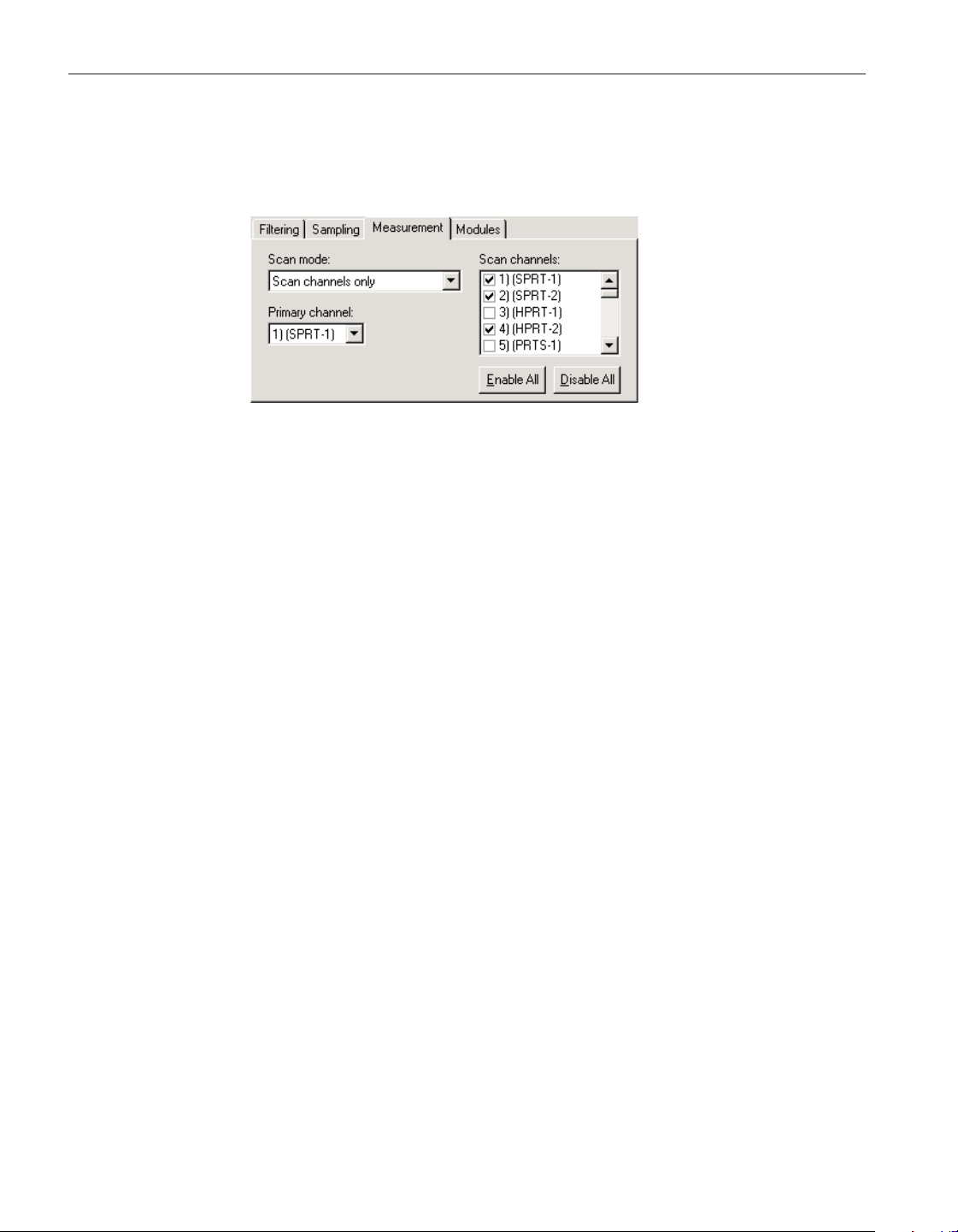
4.4.3.3 Measurement tab
Select the Measurement tab to view and/or modify measurement related set
-
tings.
Select the scan mode for the 1560 Black Stack Thermometer readout using the
Scan mode drop-down list. The scan mode can be set to one of the following
options:
• Primary channel only
• Alternate scan/primary channels
• Scan channels only
If the Primary channel only option is selected, the thermometer readout will be
set to measure only the channel selected in the Primary channel drop-down list
below.
If the Alternate scan/primary channels option is selected, the thermometer read
-
out will be set to alternate measurements on the primary channel and each of
the enabled scan channels.
If the Scan channels only option is selected, the thermometer readout will be
set to scan through each of the enabled channels in the Scan channels list.
Select the channel to set as the primary channel using the Primary channel
drop-down list. This list indicates the channel number, module name and mod
-
ule input number for all channels on the thermometer readout. The primary
channel setting is only enabled if the scan mode setting is set to the Primary
channel only or the Alternate scan/primary channels option.
Select the channels to include in the thermometer readout’s scan sequence. The
Scan channels list indicates the channel number, module name and module in
-
put number for all channels on the thermometer readout. Each channel can be
enabled or disabled by checking or unchecking the box next to the channel
number independent of all other channels. The Scan channels list is only en
-
User’s Guide
100
Figure 70 1560 Black Stack settings - Measurement tab
1.888.610.7664 sales@GlobalTestSupply.com
Fluke-Direct.com
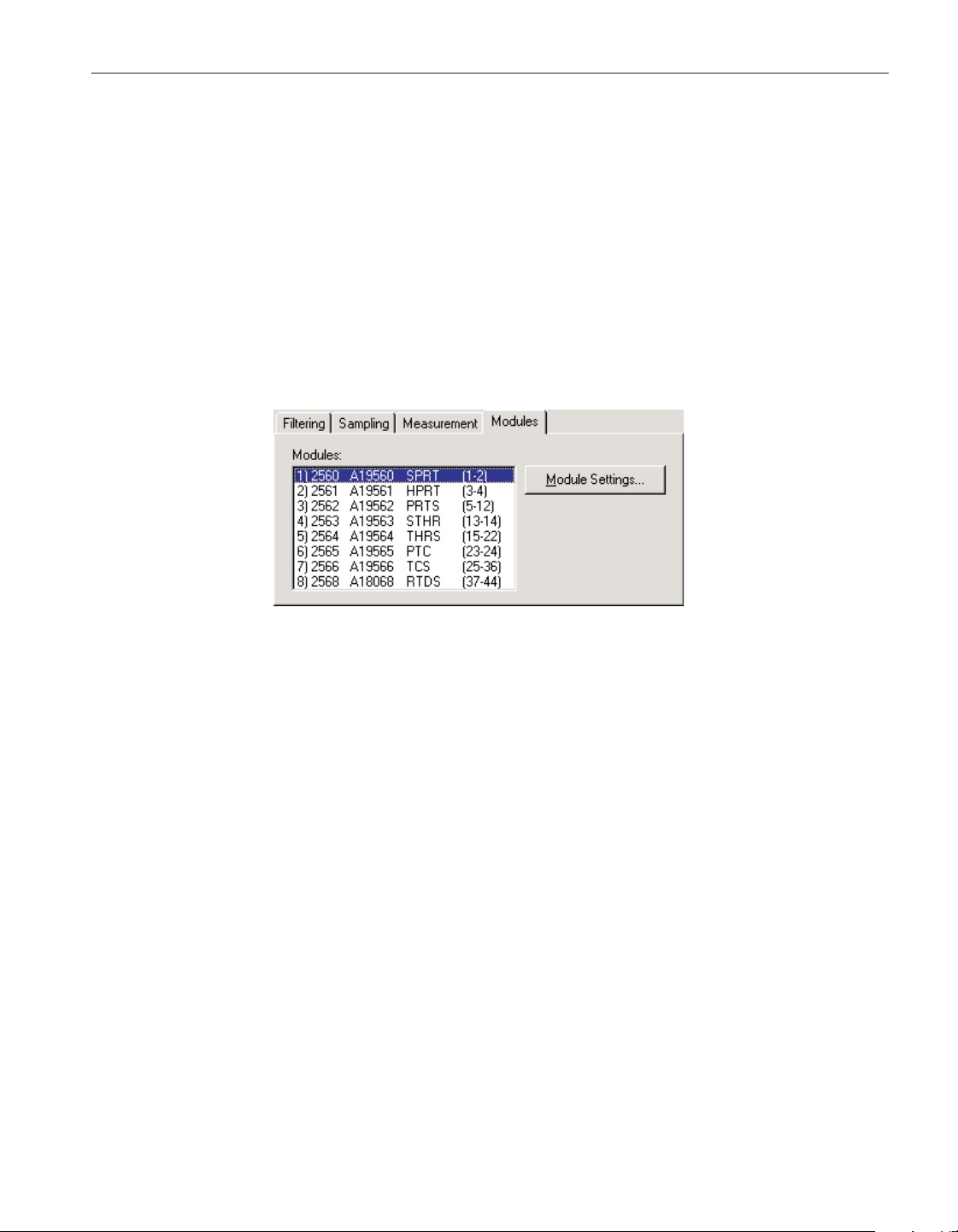
abled if the scan mode setting is set to either the Alternate scan/primary chan
-
nels or the Scan channels only option.
To include all channels in the scan sequence, click the Enable All button. This
causes the box next to every channel to be checked.
To exclude all channels from the scan sequence, click the Disable All button.
This causes the box next to every channel to be unchecked.
4.4.3.4 Modules tab
Select the Modules tab to view a list of modules currently attached to the 1560
Black Stack and to access the Module Settings dialogs to view and/or modify
module specific settings.
Select the module to view and/or modify from the Modules list. This list indi-
cates the module positions, model numbers, serial numbers, module names and
the range of channels on each module.
Click the Module Settings button to display the appropriate Module Settings di
-
alog. When this button is clicked, the settings for the selected module are read
in from the thermometer readout. The Module Settings dialogs are described in
detail in the following sections.
4.4.3.5 2560 SPRT Module Settings Dialog
The 2560 Module Settings dialog displays information about the 2560 module
including model number, serial number, identification information and the
101
4 Tools
Thermometer settings dialogs
Figure 71 1560 Black Stack settings - Modules tab
1.888.610.7664 sales@GlobalTestSupply.com
Fluke-Direct.com
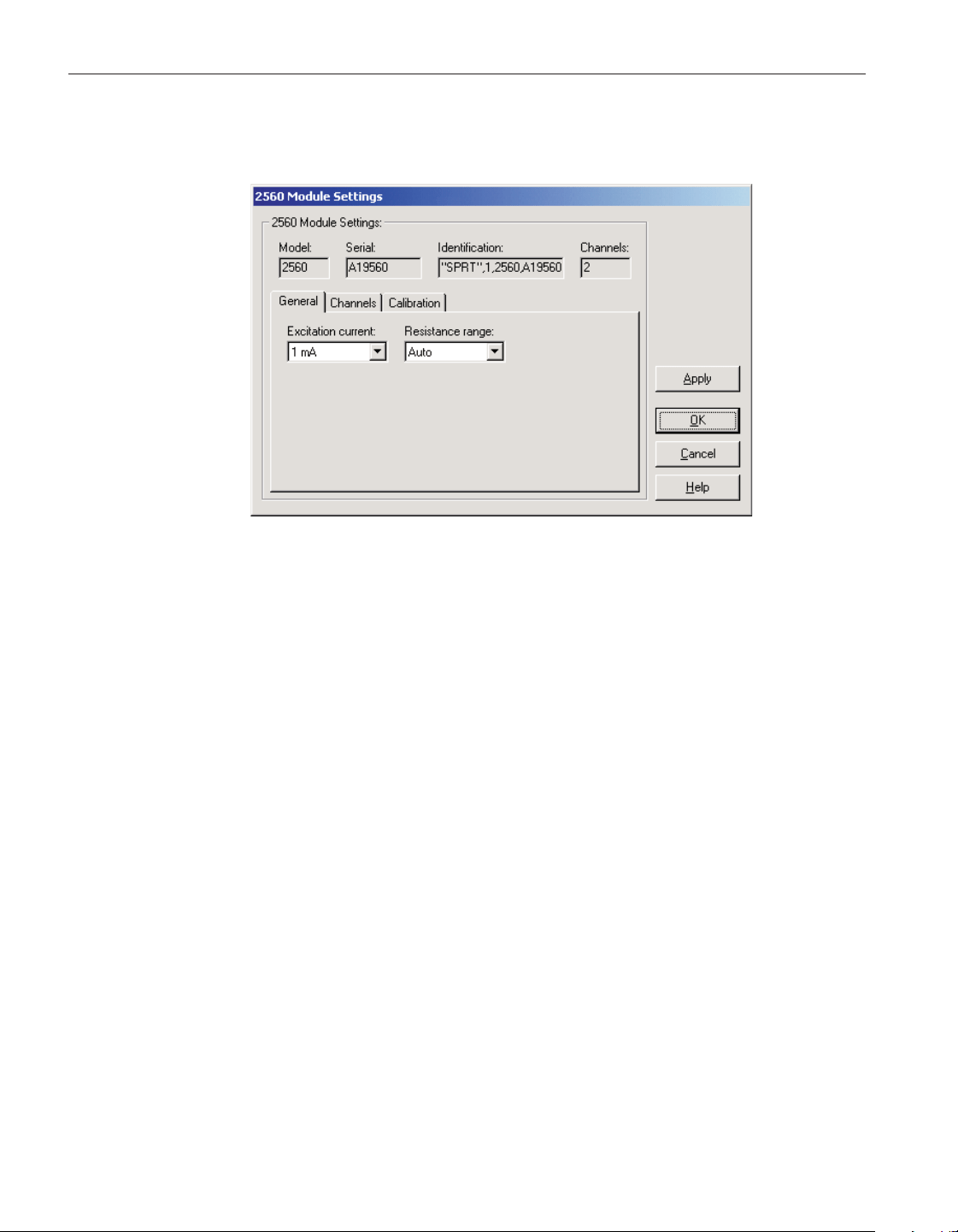
number of channels on this module. It also allows many module specific set
-
tings to be viewed and/or modified.
The Model box indicates the model number of this module. The Serial box in-
dicates the serial number assigned to this module. The Identification box indi-
cates the module name, number of devices, model number, serial number and
firmware version installed in this module. The Channels box indicates the num-
ber of input channels on this module.
General module settings can be viewed and modified by selecting the General
tab. The Channels tab displays a list of the channels on this module and allows
access to channel settings dialogs. The module calibration information can be
viewed and modified by selecting the Calibration tab.
After modifying any of the settings on this dialog, click the Apply or OK but
-
ton to write the new module settings to the thermometer readout. If the Apply
button is clicked, this dialog remains open. If the OK button is clicked, this dia
-
log closes after writing the settings.
LogWare has a feature that causes all of the module settings to be read back in
from the thermometer readout after the Apply button is clicked and the new set
-
tings have been written to the thermometer readout. This feature can be useful
to verify that the desired settings were properly applied to the thermometer
readout. To enable or disable this feature, see Section 5.6.4, Options.
To close this dialog without writing the module settings to the thermometer
readout, click the Cancel button.
Click the Help button to open the appropriate help topic for this dialog.
User’s Guide
102
Figure 72 2560 SPRT Module Settings dialog
1.888.610.7664 sales@GlobalTestSupply.com
Fluke-Direct.com
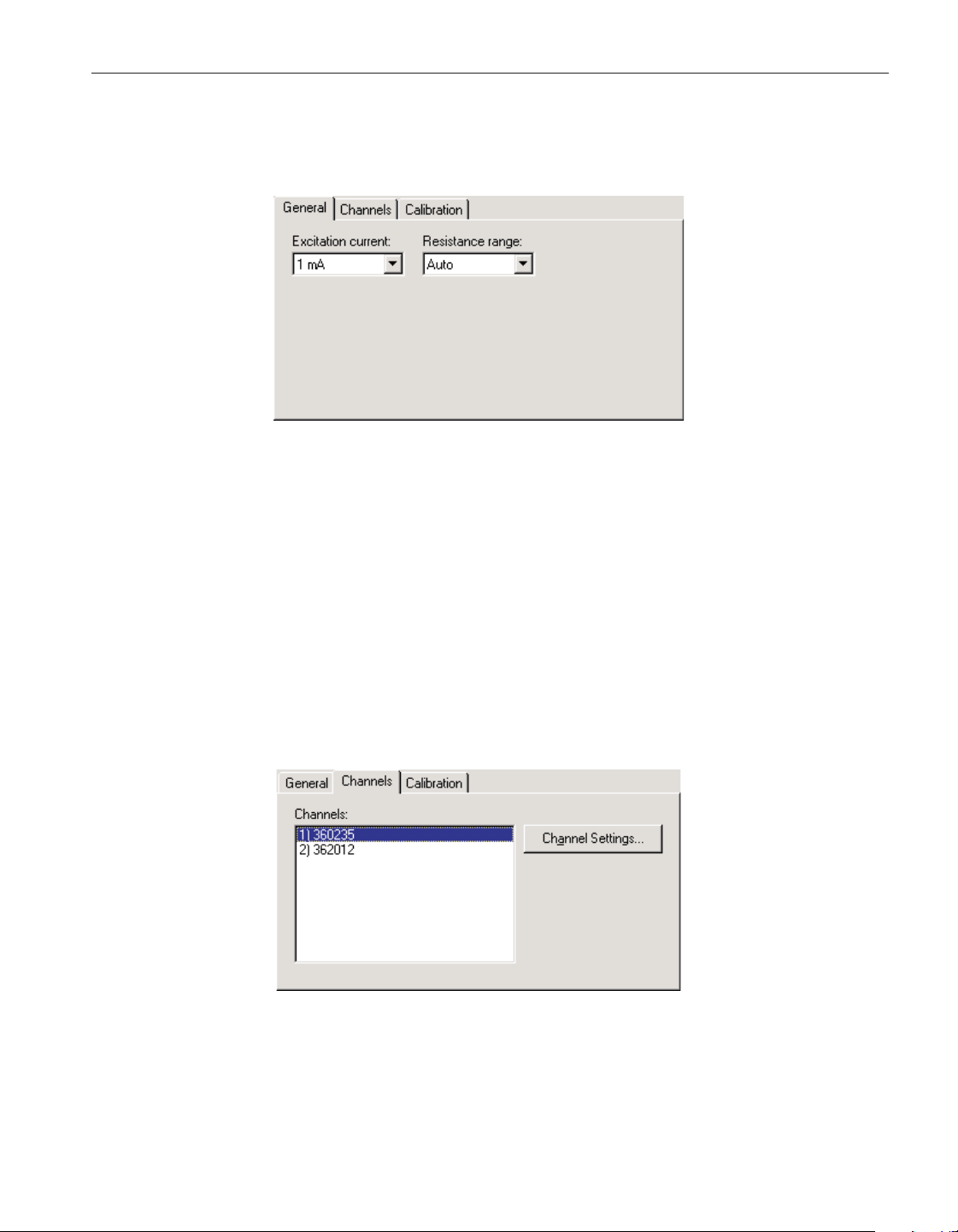
4.4.3.5.1 General tab
Select the General tab to view and/or modify general module settings.
Select the excitation current for this module using the Excitation current
drop-down list. The 2560 module can use either a 1 mA or a 1.414 mA excita-
tion current. This setting applies to all channels on this module.
Select the resistance range for this module using the Resistance range
drop-down list. The 2560 module allows the selection of either Auto, High or
Low. This setting applies to all channels on this module.
4.4.3.5.2 Channels tab
Select the Channels tab to view a list of channels on this module and to access
the channel settings dialogs to view and/or modify channel specific settings.
Select the channel to view and/or modify from the Channels list. This list indi
-
cates the channel number (with respect to this module) and the serial number of
the probe on each channel.
103
4 Tools
Thermometer settings dialogs
Figure 73 2560 SPRT Module Settings - General tab
Figure 74 2560 SPRT Module Settings - Channels tab
1.888.610.7664 sales@GlobalTestSupply.com
Fluke-Direct.com
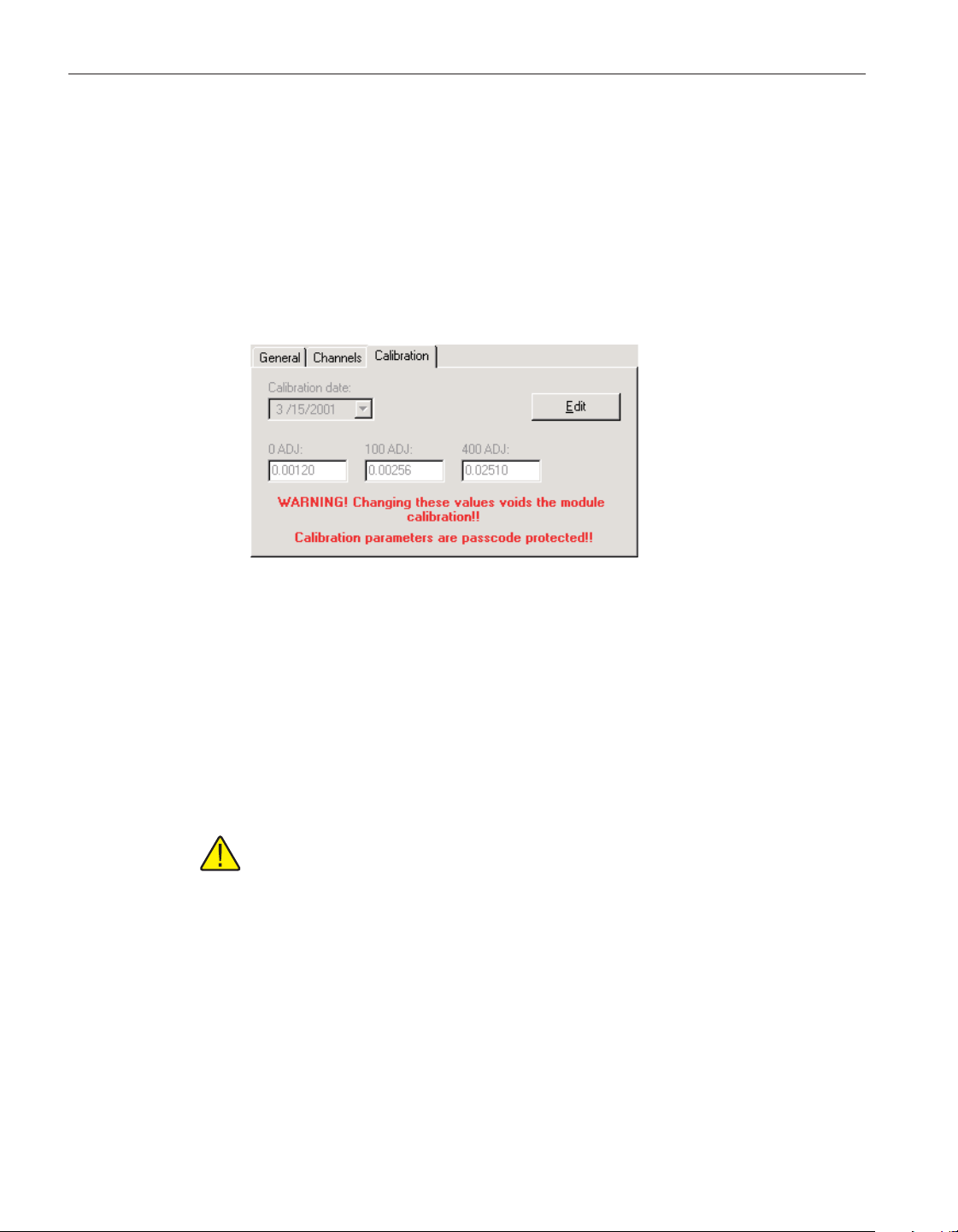
Click the Channel Settings button to display the appropriate Channel Settings
dialog. When this button is clicked, the settings for the selected channel are
read in from the thermometer readout. The Channel Settings dialog is described
in detail in Section 4.4.3.14, 1560 Black Stack PRT/Thermistor Channel Set
-
tings Dialog.
4.4.3.5.3 Calibration tab
Select the Calibration tab to view and/or modify module calibration informa
-
tion.
The settings on the Calibration tab may be passcode protected. If they are, a
message appears at the bottom of the Calibration tab and the Edit button is dis-
played. The other controls on this tab are disabled. To edit the calibration pa-
rameters, click the Edit button and enter the current passcode for the
thermometer readout. If the correct passcode is entered, the calibration parame
-
ter controls are enabled and the values may be changed. The controls remain
enabled until this dialog is closed or until the current changes are applied by
clicking the Apply button.
Caution: Do not change these values unless this module has been
recalibrated or unless these values do not match the values located on the
latest Report of Calibration for this module! Changing these values voids
the current calibration!
Select the date this module was last calibrated using the drop-down calendar or
by entering the date. This date should be located on the Report of Calibration
for this module.
Enter the values for the calibration constants in the boxes provided. The cali
-
bration constants required by the 2560 module are: 0 ADJ, 100 ADJ and 400
ADJ. The values of these constants should be located on the Report of Calibra
-
tion for this module.
User’s Guide
104
Figure 75 2560 SPRT Module Settings - Calibration tab
1.888.610.7664 sales@GlobalTestSupply.com
Fluke-Direct.com
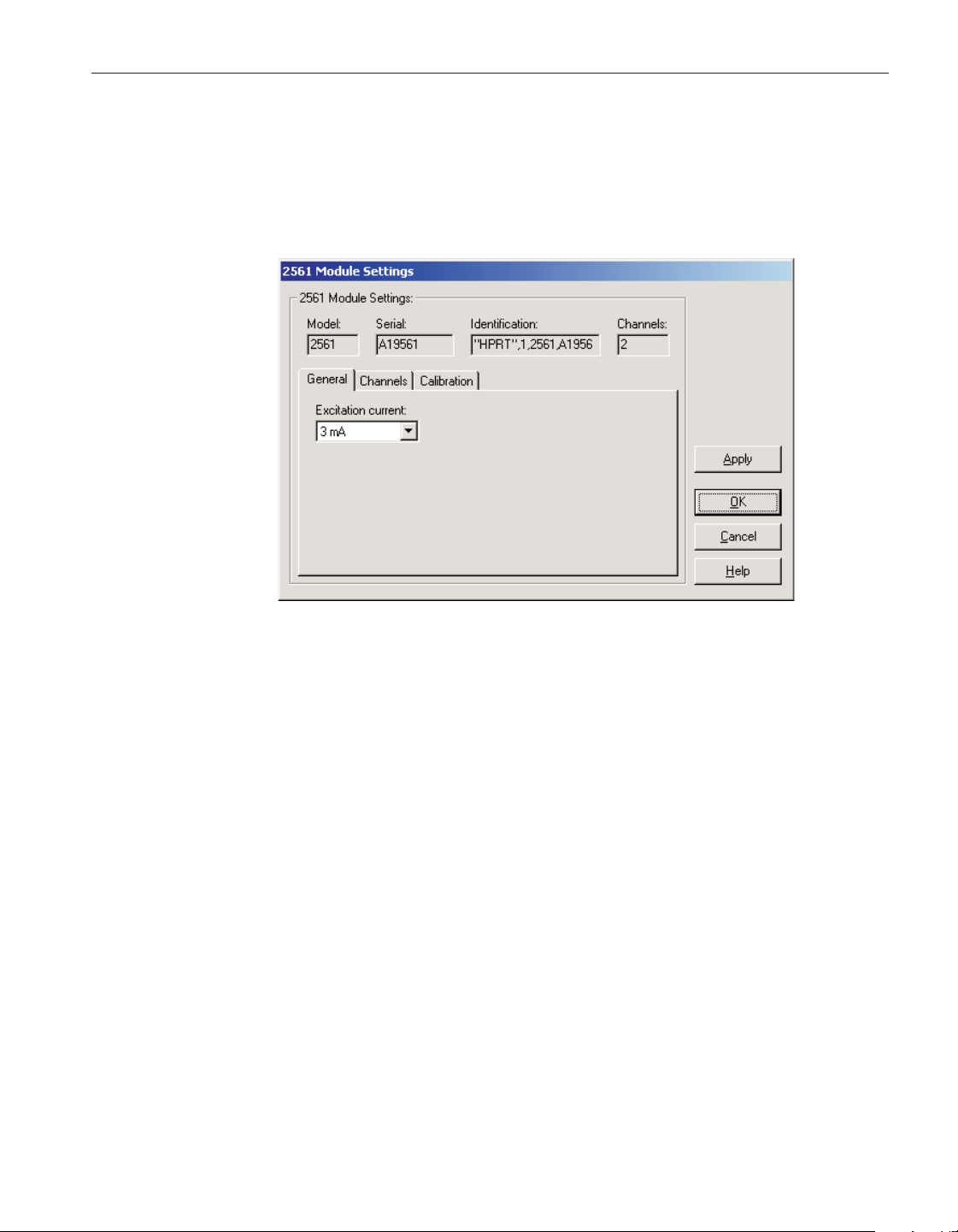
4.4.3.6 2561 HPRT Module Settings dialog
The 2561 Module Settings dialog displays information about the 2561 module
including model number, serial number, identification information and the
number of channels on this module. It also allows many module specific set
-
tings to be viewed and/or modified.
The Model box indicates the model number of this module. The Serial box in-
dicates the serial number assigned to this module. The Identification box indi-
cates the module name, number of devices, model number, serial number and
firmware version installed in this module. The Channels box indicates the num
-
ber of input channels on this module.
General module settings can be viewed and modified by selecting the General
tab. The Channels tab displays a list of the channels on this module and allows
access to channel settings dialogs. The module calibration information can be
viewed and modified by selecting the Calibration tab.
After modifying any of the settings on this dialog, click the Apply or OK but
-
ton to write the new module settings to the thermometer readout. If the Apply
button is clicked, this dialog remains open. If the OK button is clicked, this dia
-
log closes after writing the settings.
LogWare has a feature that causes all of the module settings to be read back in
from the thermometer readout after the Apply button is clicked and the new set
-
tings have been written to the thermometer readout. This feature can be useful
to verify that the desired settings were properly applied to the thermometer
readout. To enable or disable this feature, see Section 5.6.4, Options.
105
4 Tools
Thermometer settings dialogs
Figure 76 2561 HPRT Module Settings dialog
1.888.610.7664 sales@GlobalTestSupply.com
Fluke-Direct.com
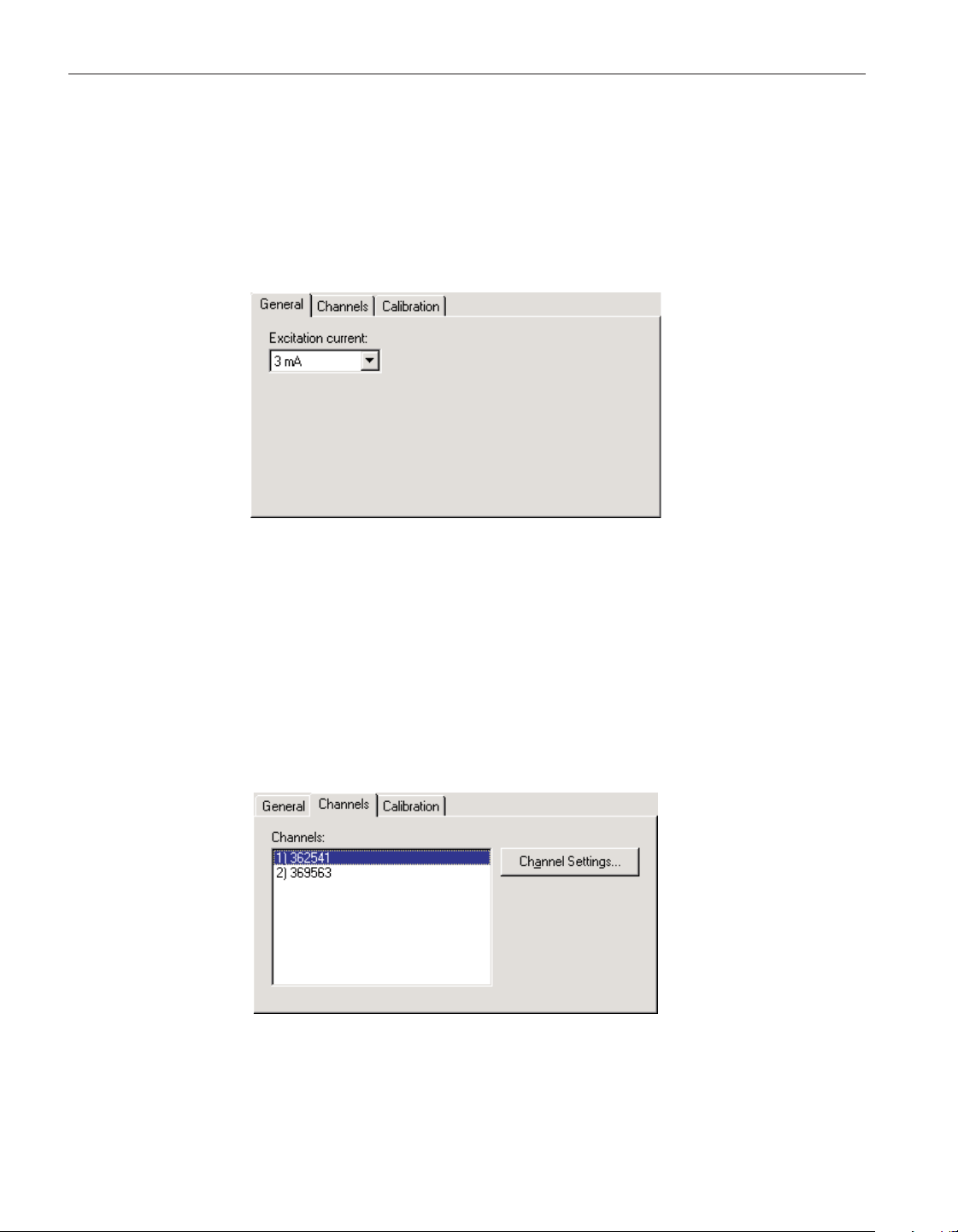
To close this dialog without writing the module settings to the thermometer
readout, click the Cancel button.
Click the Help button to open the appropriate help topic for this dialog.
4.4.3.6.1 General tab
Select the General tab to view and/or modify general module settings.
Select the excitation current for this module using the Excitation current
drop-down list. The 2561 module can use either a 3 mA or a 5 mA excitation
current. This setting applies to all channels on this module.
4.4.3.6.2 Channels tab
Select the Channels tab to view a list of channels on this module and to access
the channel settings dialogs to view and/or modify channel specific settings.
User’s Guide
106
Figure 77 2561 HPRT Module Settings - General tab
Figure 78 2561 HPRT Module Settings - Channels tab
1.888.610.7664 sales@GlobalTestSupply.com
Fluke-Direct.com
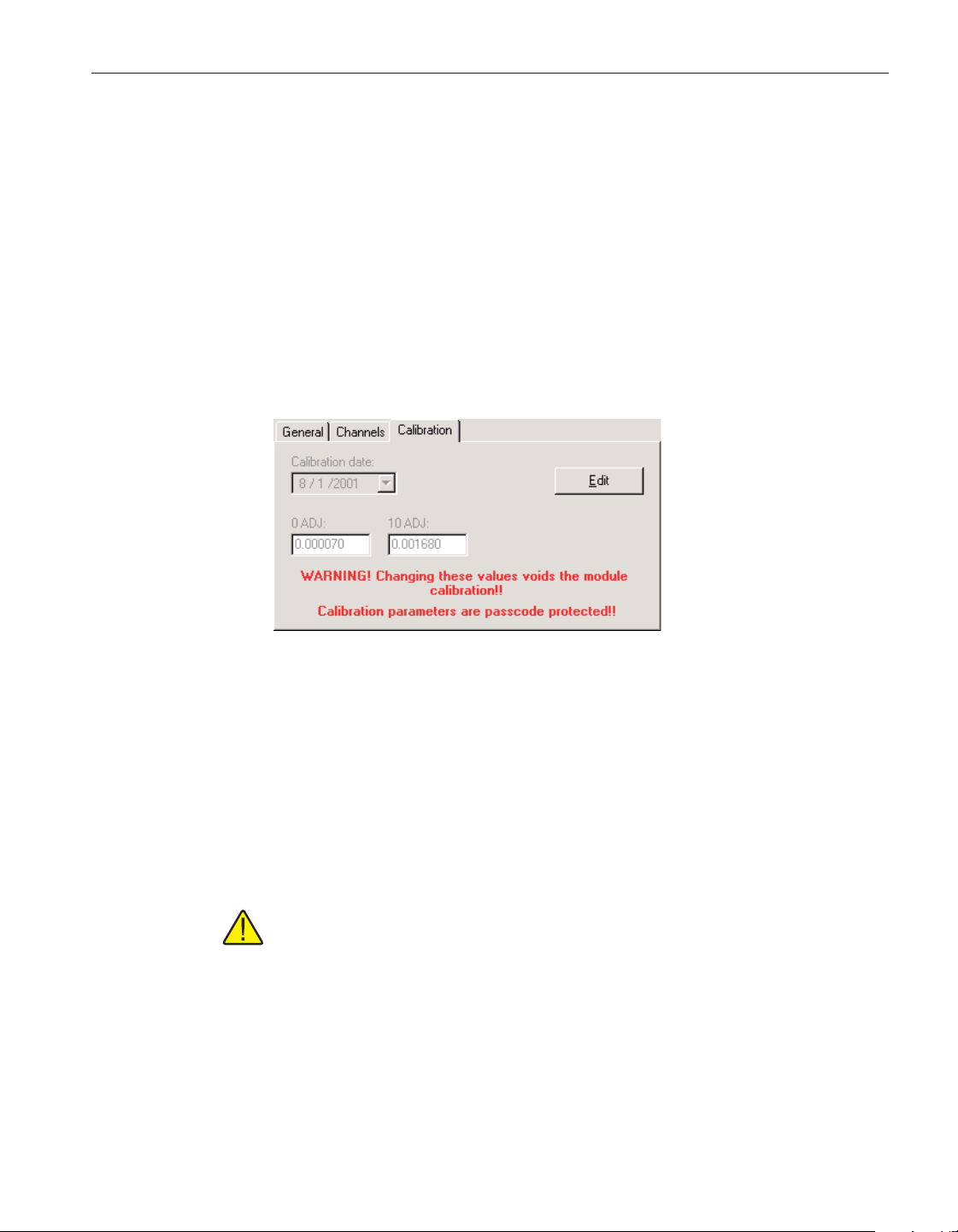
Select the channel to view and/or modify from the Channels list. This list indi
-
cates the channel number (with respect to this module) and the serial number of
the probe on each channel.
Click the Channel Settings button to display the appropriate Channel Settings
dialog. When this button is clicked, the settings for the selected channel are
read in from the thermometer readout. The Channel Settings dialog is described
in detail in Section 4.4.3.14, 1560 Black Stack PRT/Thermistor Channel Set
-
tings Dialog.
4.4.3.6.3 Calibration tab
Select the Calibration tab to view and/or modify module calibration informa
-
tion.
The settings on the Calibration tab may be passcode protected. If they are, a
message appears at the bottom of the Calibration tab and the Edit button is dis
-
played. The other controls on this tab are disabled. To edit the calibration pa
-
rameters, click the Edit button and enter the current passcode for the
thermometer readout. If the correct passcode is entered, the calibration parame
-
ter controls are enabled and the values may be changed. The controls remain
enabled until this dialog is closed or until the current changes are applied by
clicking the Apply button.
Caution: Do not change these values unless this module has been
recalibrated or unless these values do not match the values located on the
latest Report of Calibration for this module! Changing these values voids
the current calibration!
Select the date this module was last calibrated using the drop-down calendar or
by entering the date. This date should be located on the Report of Calibration
for this module.
Enter the values for the calibration constants in the boxes provided. The cali
-
bration constants required by the 2561 module are: 0 ADJ and 10 ADJ. The
107
4 Tools
Thermometer settings dialogs
Figure 79 2561 HPRT Module Settings - Calibration tab
1.888.610.7664 sales@GlobalTestSupply.com
Fluke-Direct.com
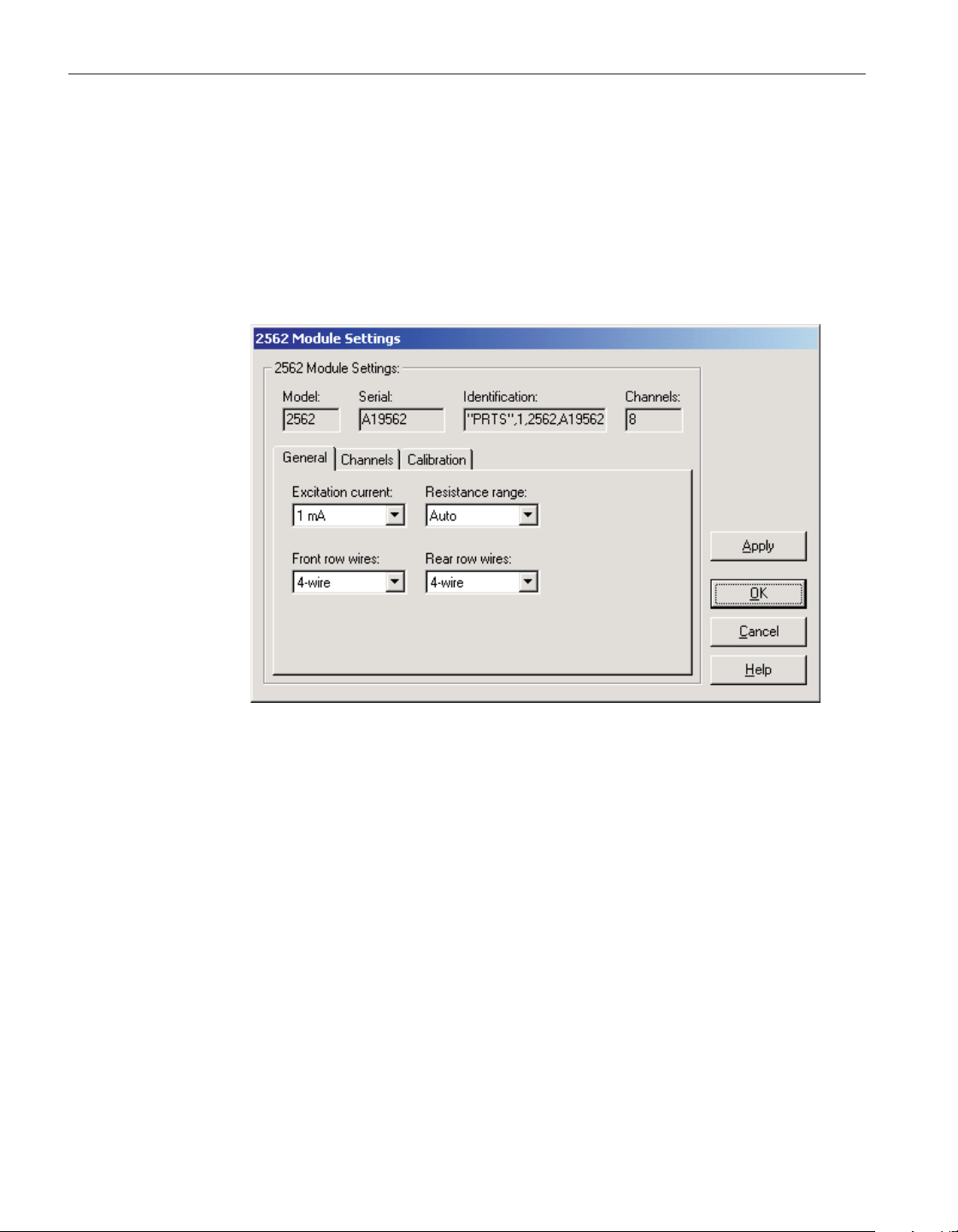
values of these constants should be located on the Report of Calibration for this
module.
4.4.3.7 2562 PRTS Module Settings dialog
The 2562 Module Settings dialog displays information about the 2562 module
including model number, serial number, identification information and the
number of channels on this module. It also allows many module specific set
-
tings to be viewed and/or modified.
The Model box indicates the model number of this module. The Serial box in
-
dicates the serial number assigned to this module. The Identification box indi
-
cates the module name, number of devices, model number, serial number, and
firmware version installed in this module. The Channels box indicates the num
-
ber of input channels on this module.
General module settings can be viewed and modified by selecting the General
tab. The Channels tab displays a list of the channels on this module and allows
access to channel settings dialogs. The module calibration information can be
viewed and modified by selecting the Calibration tab.
After modifying any of the settings on this dialog, click the Apply or OK but
-
ton to write the new module settings to the thermometer readout. If the Apply
button is clicked, this dialog remains open. If the OK button is clicked, this dia
-
log closes after writing the settings.
LogWare has a feature that causes all of the module settings to be read back in
from the thermometer readout after the Apply button is clicked and the new set
-
User’s Guide
108
Figure 80 2562 ‘PRTS’ Module Settings dialog
1.888.610.7664 sales@GlobalTestSupply.com
Fluke-Direct.com
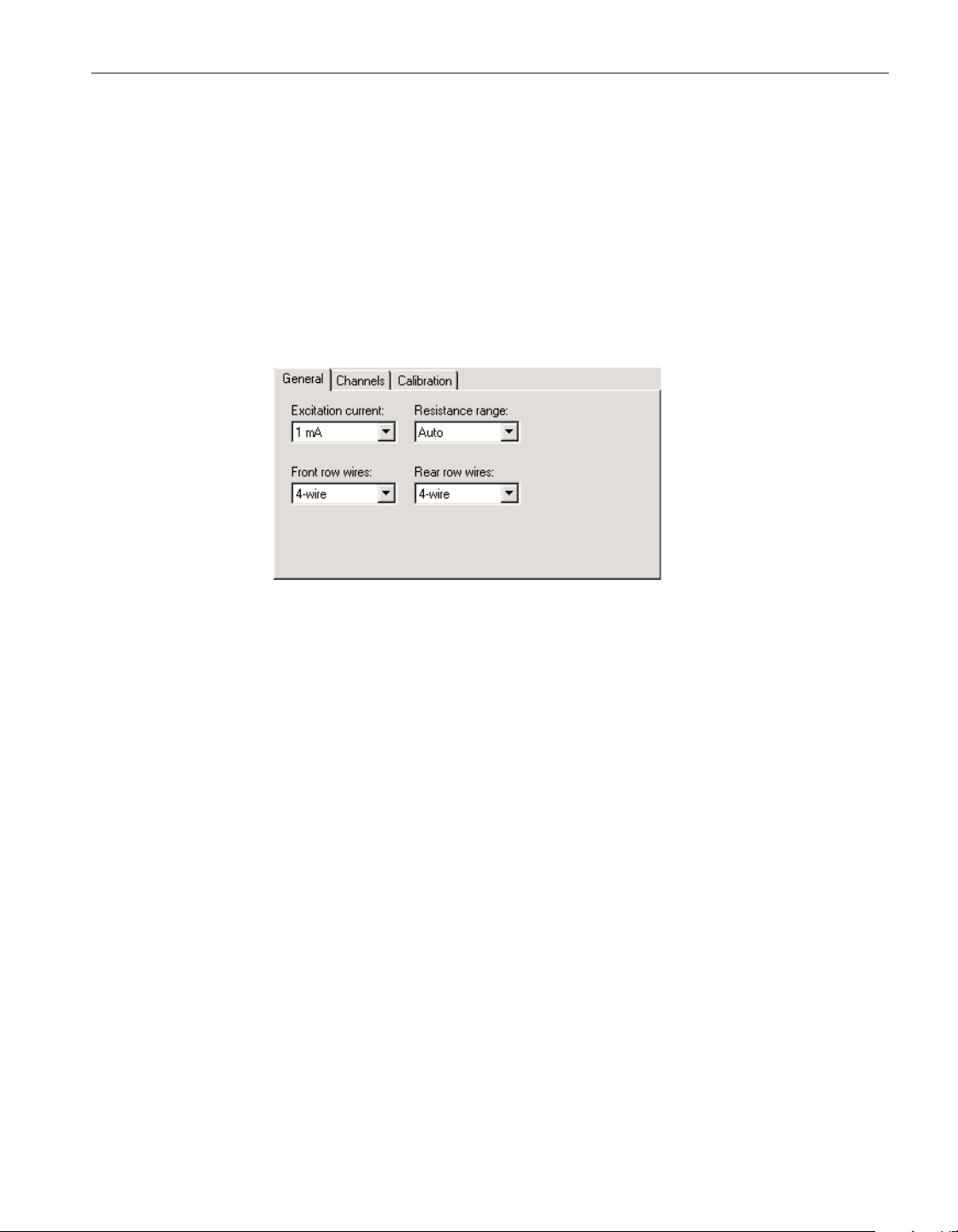
tings have been written to the thermometer readout. This feature can be useful
to verify that the desired settings were properly applied to the thermometer
readout. To enable or disable this feature, see Section 5.6.4, Options.
To close this dialog without writing the module settings to the thermometer
readout, click the Cancel button.
Click the Help button to open the appropriate help topic for this dialog.
4.4.3.7.1 General tab
Select the General tab to view and/or modify general module settings.
Select the excitation current for this module using the Excitation current
drop-down list. The 2562 module can use either a 1 mA or a 1.414 mA excita-
tion current. This setting applies to all channels on this module.
Select the resistance range for this module using the Resistance range
drop-down list. The 2562 module allows the selection of either Auto, High or
Low. This setting applies to all channels on this module.
Select the front row wires option for this module using the Front row wires
drop-down list. The 2562 module allows the selection of either 4-wire or
3-wire. This setting applies only to the four channels on the front row of this
module.
Select the rear row wires option for this module using the Rear row wires
drop-down list. The 2562 module allows the selection of either 4-wire or
3-wire. This setting applies only to the four channels on the rear row of this
module.
109
4 Tools
Thermometer settings dialogs
Figure 81 2562 PRTS Module Settings - General tab
1.888.610.7664 sales@GlobalTestSupply.com
Fluke-Direct.com
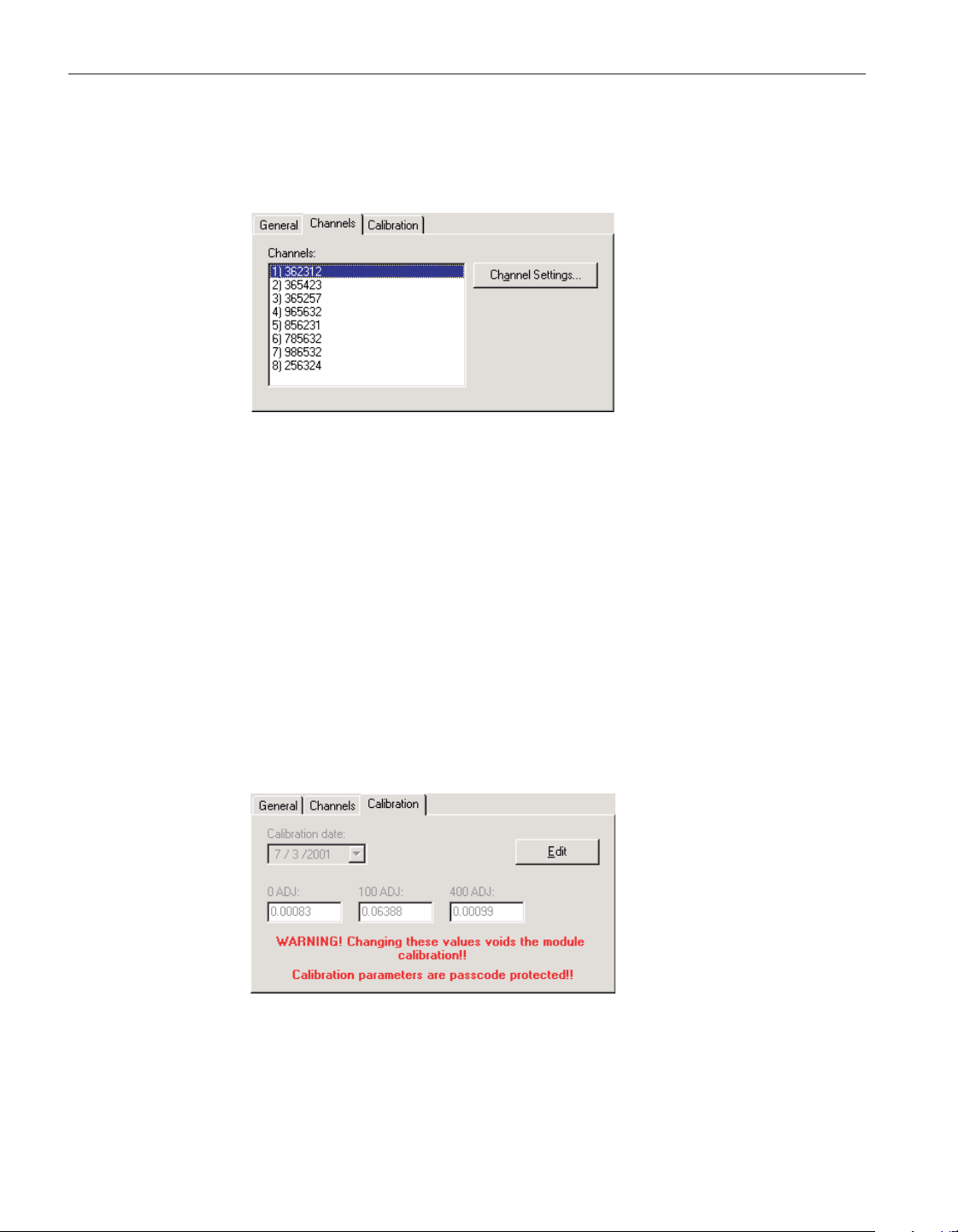
4.4.3.7.2 Channels tab
Select the Channels tab to view a list of channels on this module and to access
the channel settings dialogs to view and/or modify channel specific settings.
Select the channel to view and/or modify from the Channels list. This list indi-
cates the channel number (with respect to this module) and the serial number of
the probe on each channel.
Click the Channel Settings button to display the appropriate Channel Settings
dialog. When this button is clicked, the settings for the selected channel are
read in from the thermometer readout. The Channel Settings dialog is described
in detail in Section 4.4.3.14, 1560 Black Stack PRT/Thermistor Channel Set-
tings Dialog.
4.4.3.7.3 Calibration tab
Select the Calibration tab to view and/or modify module calibration informa
-
tion.
The settings on the Calibration tab may be passcode protected. If they are, a
message appears at the bottom of the Calibration tab and the Edit button is dis
-
User’s Guide
110
Figure 82 2562 ‘PRTS’ Module Settings - Channels
tab
Figure 83 2562 ‘PRTS’ Module Settings - Calibration
tab
1.888.610.7664 sales@GlobalTestSupply.com
Fluke-Direct.com
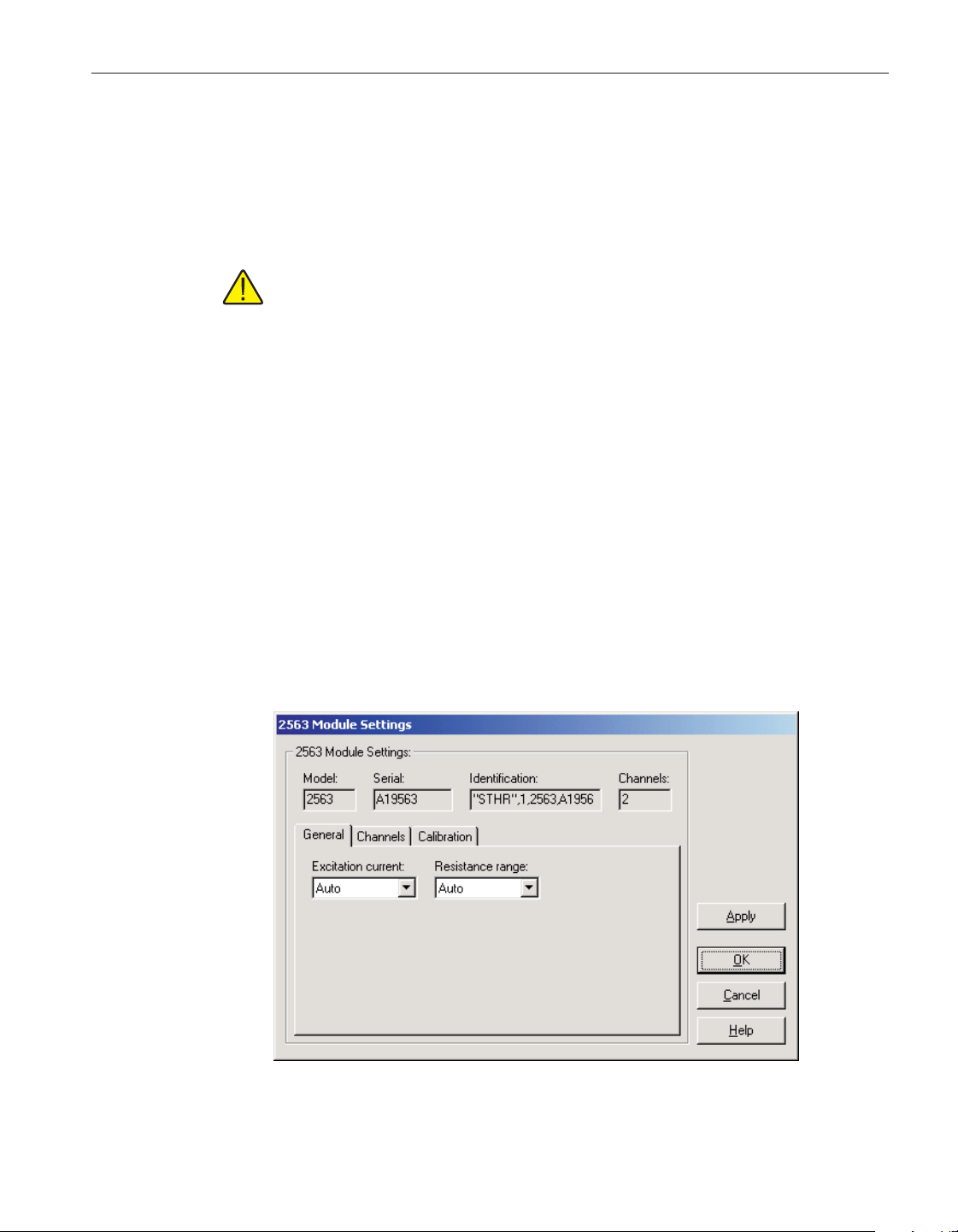
played. The other controls on this tab are disabled. To edit the calibration pa
-
rameters, click the Edit button and enter the current passcode for the
thermometer readout. If the correct passcode is entered, the calibration parame
-
ter controls are enabled and the values may be changed. The controls remain
enabled until this dialog is closed or until the current changes are applied by
clicking the Apply button.
Caution: Do not change these values unless this module has been
recalibrated or unless these values do not match the values located on the
latest Report of Calibration for this module! Changing these values voids
the current calibration!
Select the date this module was last calibrated using the drop-down calendar or
by entering the date. This date should be located on the Report of Calibration
for this module.
Enter the values for the calibration constants in the boxes provided. The cali
-
bration constants required by the 2562 module are: 0 ADJ, 100 ADJ and 400
ADJ. The values of these constants should be located on the Report of Calibra-
tion for this module.
4.4.3.8 2563 STHR Module Settings dialog
The 2563 Module Settings dialog displays information about the 2563 module
including model number, serial number, identification information and the
number of channels on this module. It also allows many module specific set-
tings to be viewed and/or modified.
111
4 Tools
Thermometer settings dialogs
Figure 84 2563 STHR Module Settings dialog
1.888.610.7664 sales@GlobalTestSupply.com
Fluke-Direct.com

The Model box indicates the model number of this module. The Serial box in
-
dicates the serial number assigned to this module. The Identification box indi
-
cates the module name, number of devices, model number, serial number and
firmware version installed in this module. The Channels box indicates the num
-
ber of input channels on this module.
General module settings can be viewed and modified by selecting the General
tab. The Channels tab displays a list of the channels on this module and allows
access to channel settings dialogs. The module calibration information can be
viewed and modified by selecting the Calibration tab.
After modifying any of the settings on this dialog, click the Apply or OK but
-
ton to write the new module settings to the thermometer readout. If the Apply
button is clicked, this dialog remains open. If the OK button is clicked, this dia
-
log closes after writing the settings.
LogWare has a feature that causes all of the module settings to be read back in
from the thermometer readout after the Apply button is clicked and the new set
-
tings have been written to the thermometer readout. This feature can be useful
to verify that the desired settings were properly applied to the thermometer
readout. To enable or disable this feature, see Section 5.6.4, Options.
To close this dialog without writing the module settings to the thermometer
readout, click the Cancel button.
User’s Guide
112
1.888.610.7664 sales@GlobalTestSupply.com
Fluke-Direct.com
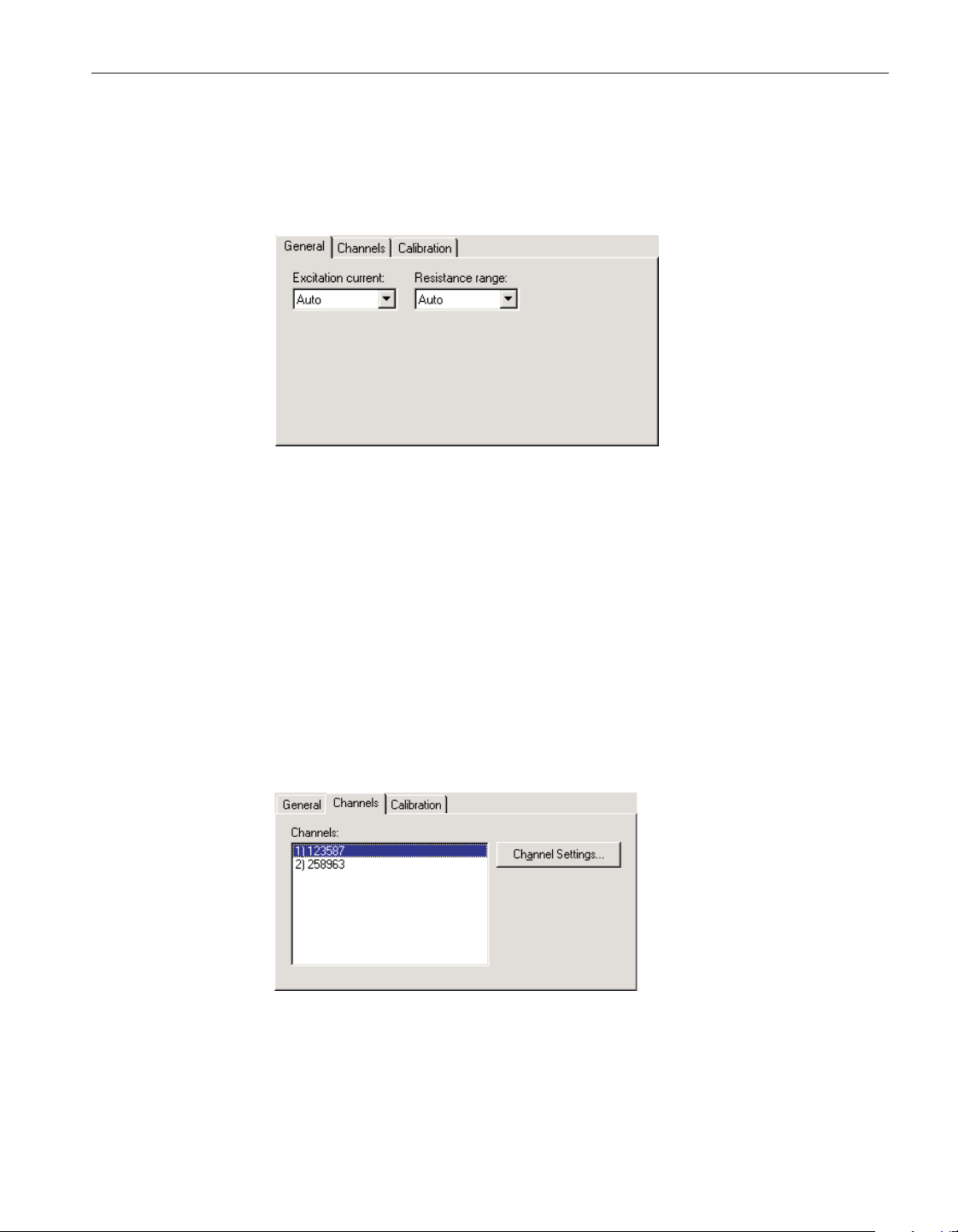
Click the Help button to open the appropriate help topic for this dialog.
4.4.3.8.1 General tab
Select the General tab to view and/or modify general module settings.
Select the excitation current for this module using the Excitation current
drop-down list. The 2563 module can use either a 2 µA or a 10 µA excitation
current, or Auto. This setting applies to all channels on this module.
Select the resistance range for this module using the Resistance range
drop-down list. The 2563 module allows the selection of either Auto, High or
Low. This setting applies to all channels on this module.
4.4.3.8.2 Channels tab
Select the Channels tab to view a list of channels on this module and to access
the channel settings dialogs to view and/or modify channel specific settings.
Select the channel to view and/or modify from the Channels list. This list indi
-
cates the channel number (with respect to this module) and the serial number of
the probe on each channel.
113
4 Tools
Thermometer settings dialogs
Figure 85 2563 STHR Module Settings - General tab
Figure 86 2563 STHR Module Settings - Channels
tab
1.888.610.7664 sales@GlobalTestSupply.com
Fluke-Direct.com
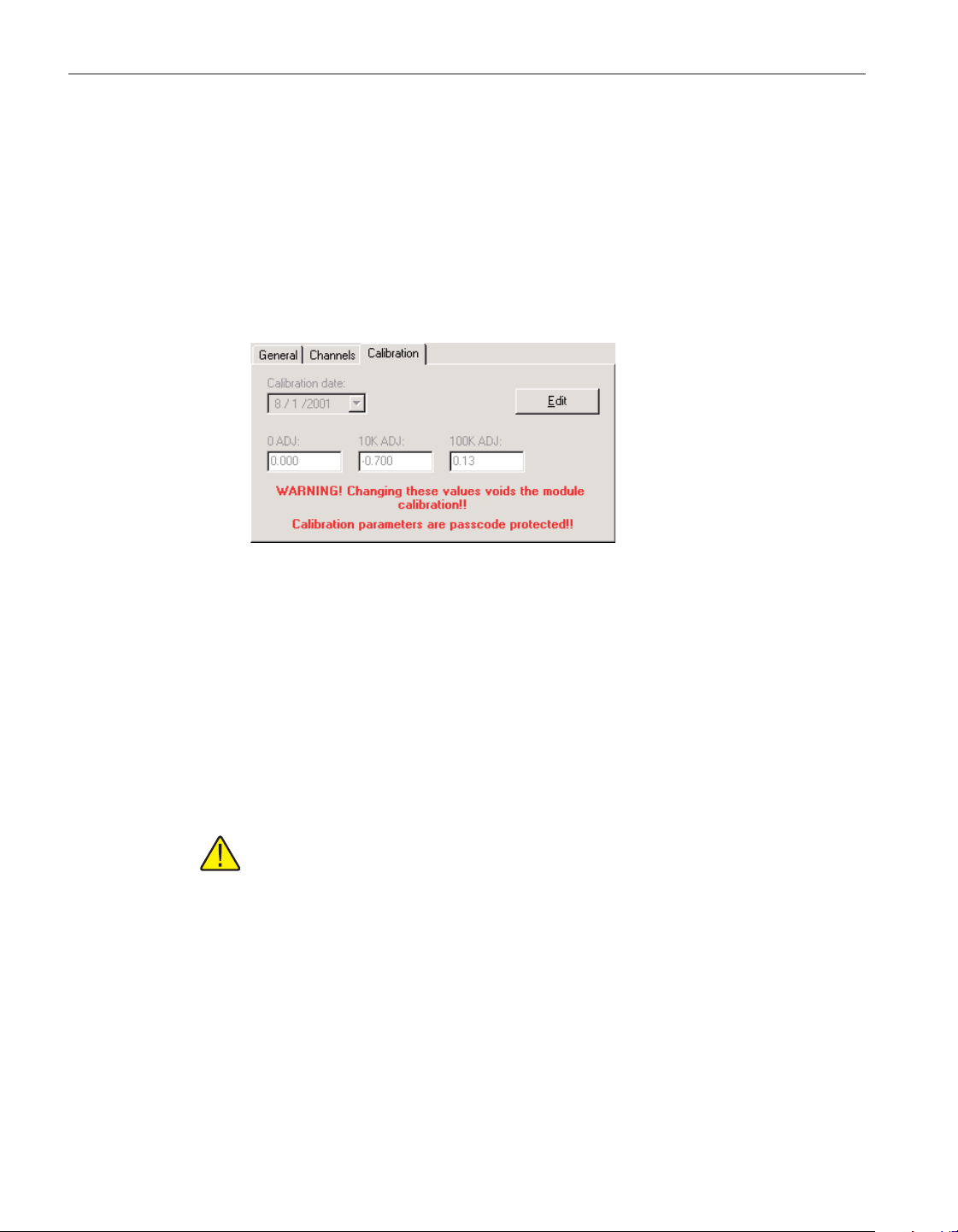
Click the Channel Settings button to display the appropriate channel settings di
-
alog. When this button is clicked, the settings for the selected channel are read
in from the thermometer readout. The Channel Settings dialog is described in
detail in Section 4.4.3.14, 1560 Black Stack PRT/Thermistor Channel Settings
Dialog.
4.4.3.8.3 Calibration tab
Select the Calibration tab to view and/or modify module calibration informa
-
tion.
The settings on the Calibration tab may be passcode protected. If they are, a
message appears at the bottom of the Calibration tab and the Edit button is dis-
played. The other controls on this tab are disabled. To edit the calibration pa-
rameters, click the Edit button and enter the current passcode for the
thermometer readout. If the correct passcode is entered, the calibration parame
-
ter controls are enabled and the values may be changed. The controls remain
enabled until this dialog is closed or until the current changes are applied by
clicking the Apply button.
Caution: Do not change these values unless this module has been
recalibrated or unless these values do not match the values located on the
latest Report of Calibration for this module! Changing these values voids
the current calibration!
Select the date this module was last calibrated using the drop-down calendar or
by entering the date. This date should be located on the Report of Calibration
for this module.
Enter the values for the calibration constants in the boxes provided. The cali
-
bration constants required by the 2563 module are: 0 ADJ, 10K ADJ and 100K
ADJ. The values of these constants should be located on the Report of Calibra
-
tion for this module.
User’s Guide
114
Figure 87 2563 STHR Module Settings - Calibration
tab
1.888.610.7664 sales@GlobalTestSupply.com
Fluke-Direct.com
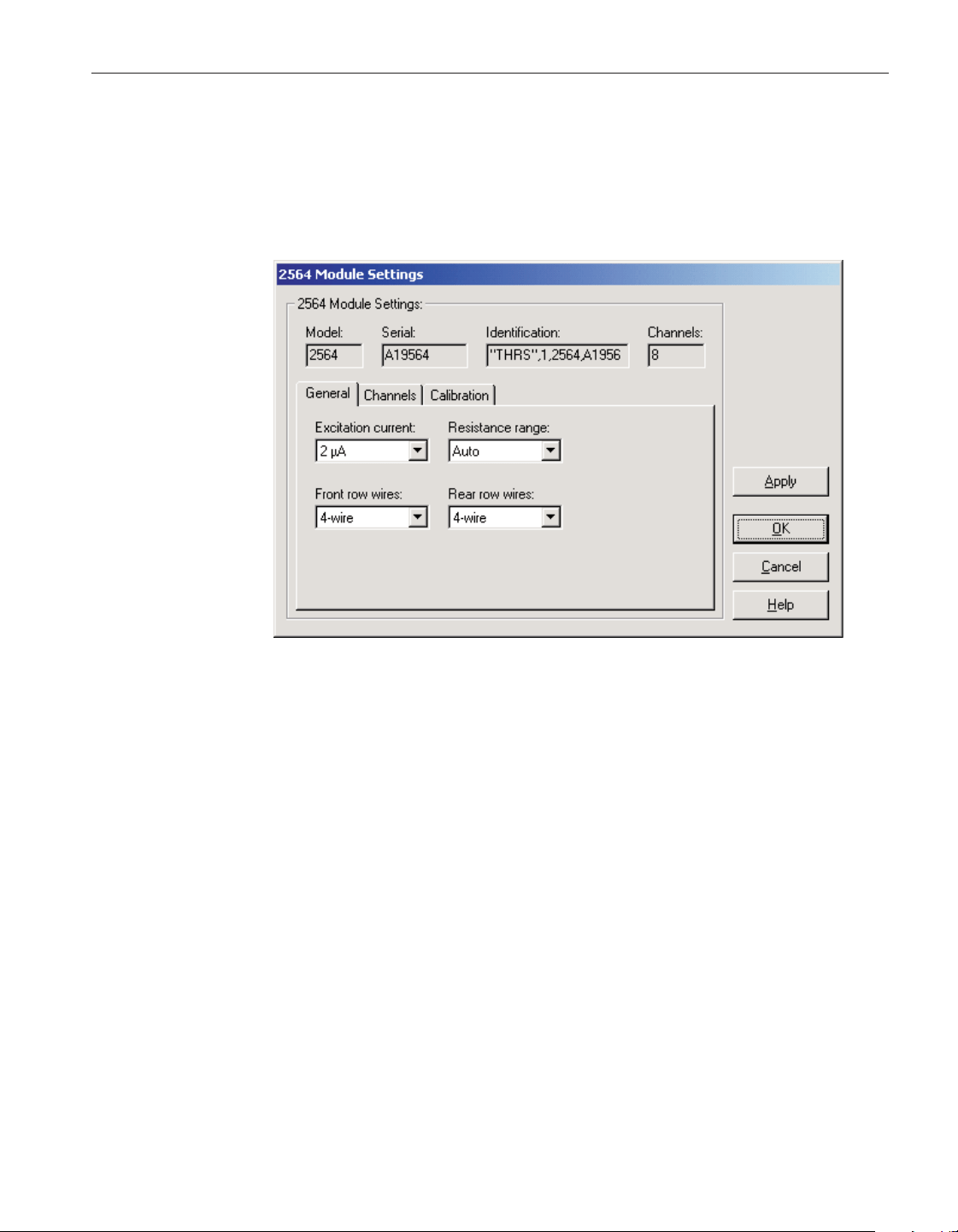
4.4.3.9 2564 THRS Module Settings dialog
The 2564 Module Settings dialog displays information about the 2564 module
including model number, serial number, identification information and the
number of channels on this module. It also allows many module specific set
-
tings to be viewed and/or modified.
The Model box indicates the model number of this module. The Serial box in-
dicates the serial number assigned to this module. The Identification box indi
-
cates the module name, number of devices, model number, serial number and
firmware version installed in this module. The Channels box indicates the num
-
ber of input channels on this module.
General module settings can be viewed and modified by selecting the General
tab. The Channels tab displays a list of the channels on this module and allows
access to channel settings dialogs. The module calibration information can be
viewed and modified by selecting the Calibration tab.
After modifying any of the settings on this dialog, click the Apply or OK but
-
ton to write the new module settings to the thermometer readout. If the Apply
button is clicked, this dialog remains open. If the OK button is clicked, this dia
-
log closes after writing the settings.
LogWare has a feature that causes all of the module settings to be read back in
from the thermometer readout after the Apply button is clicked and the new set
-
tings have been written to the thermometer readout. This feature can be useful
to verify that the desired settings were properly applied to the thermometer
readout. To enable or disable this feature, see Section 5.6.4, Options.
115
4 Tools
Thermometer settings dialogs
Figure 88 2564 THRS Module Settings dialog
1.888.610.7664 sales@GlobalTestSupply.com
Fluke-Direct.com
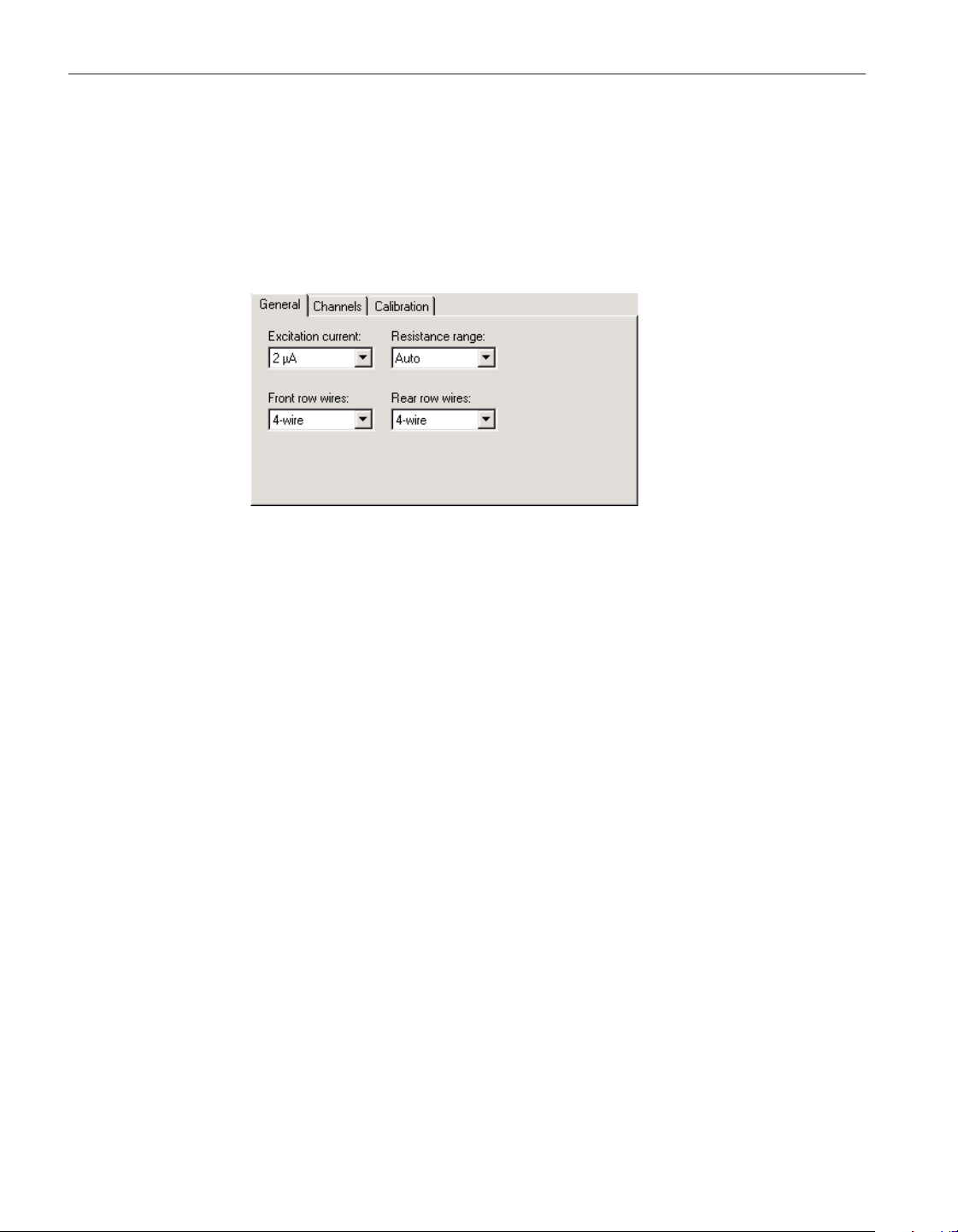
To close this dialog without writing the module settings to the thermometer
readout, click the Cancel button.
Click the Help button to open the appropriate help topic for this dialog.
4.4.3.9.1 General tab
Select the General tab to view and/or modify general module settings.
Select the excitation current for this module using the Excitation current
drop-down list. The 2564 module can use either a 2 µA or a 10 µA excitation
current, or Auto. This setting applies to all channels on this module.
Select the resistance range for this module using the Resistance range
drop-down list. The 2564 module allows the selection of either Auto, High or
Low. This setting applies to all channels on this module.
Select the front row wires option for this module using the Front row wires
drop-down list. The 2564 module allows the selection of either 4-wire or
3-wire. This setting applies only to the four channels on the front row of this
module.
Select the rear row wires option for this module using the Rear row wires
drop-down list. The 2564 module allows the selection of either 4-wire or
3-wire. This setting applies only to the four channels on the rear row of this
module.
User’s Guide
116
Figure 89 2564 THRS Module Settings - General tab
1.888.610.7664 sales@GlobalTestSupply.com
Fluke-Direct.com
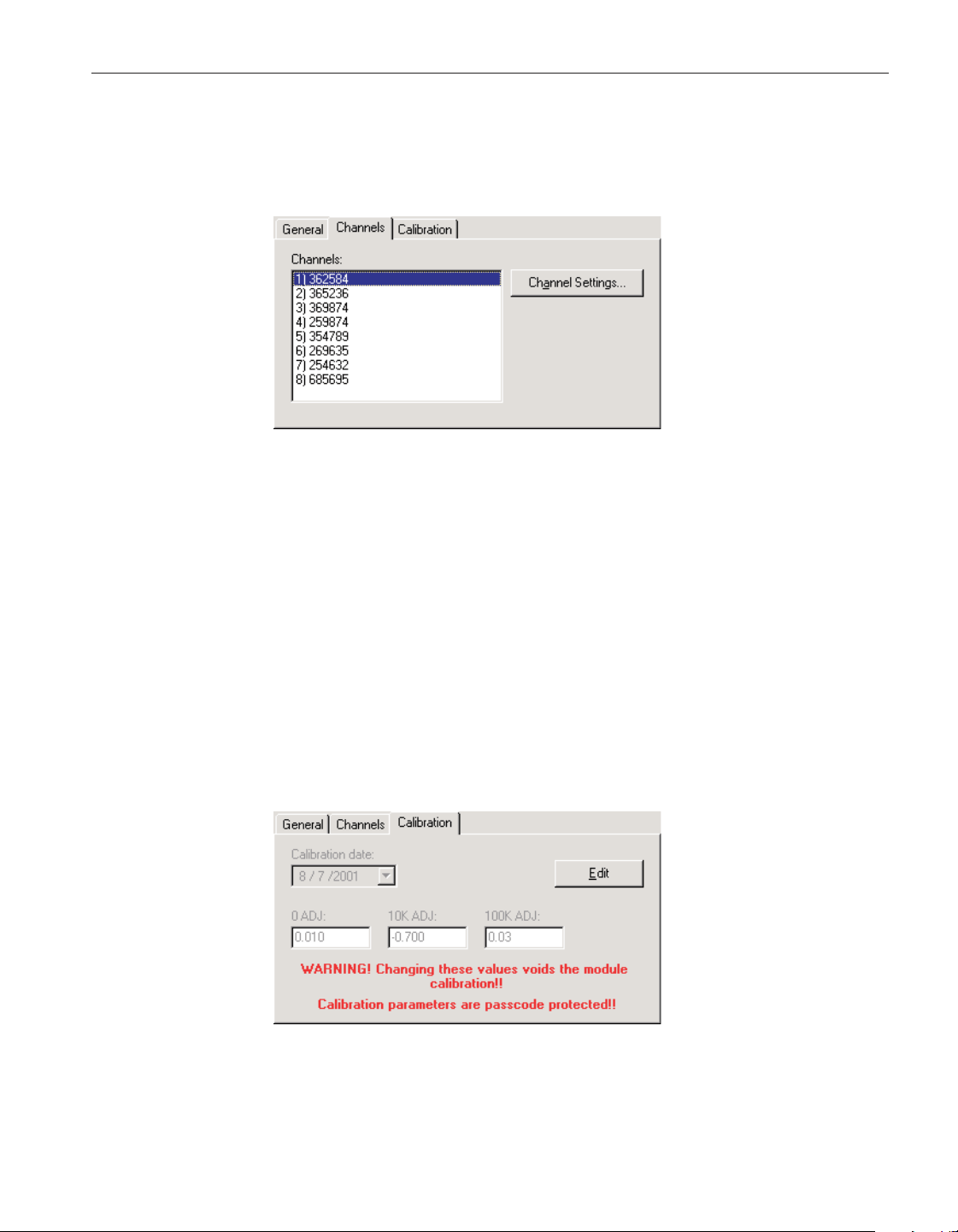
4.4.3.9.2 Channels tab
Select the Channels tab to view a list of channels on this module and to access
the channel settings dialogs to view and/or modify channel specific settings.
Select the channel to view and/or modify from the Channels list. This list indi-
cates the channel number (with respect to this module) and the serial number of
the probe on each channel.
Click the Channel Settings button to display the appropriate channel settings di-
alog. When this button is clicked, the settings for the selected channel are read
in from the thermometer readout. The Channel Settings dialog is described in
detail in Section 4.4.3.14, 1560 Black Stack PRT/Thermistor Channel Settings
Dialog.
4.4.3.9.3 Calibration tab
Select the Calibration tab to view and/or modify module calibration informa
-
tion.
117
4 Tools
Thermometer settings dialogs
Figure 90 2564 THRS Module Settings - Channels tab
Figure 91 2564 THRS Module Settings - Calibration tab
1.888.610.7664 sales@GlobalTestSupply.com
Fluke-Direct.com
The settings on the Calibration tab may be passcode protected. If they are, a
message appears at the bottom of the Calibration tab and the Edit button is dis
-
played. The other controls on this tab are disabled. To edit the calibration pa
-
rameters, click the Edit button and enter the current passcode for the
thermometer readout. If the correct passcode is entered, the calibration parame
-
ter controls are enabled and the values may be changed. The controls remain
enabled until this dialog is closed or until the current changes are applied by
clicking the Apply button.
Caution: Do not change these values unless this module has been
recalibrated or unless these values do not match the values located on the
latest Report of Calibration for this module! Changing these values voids
the current calibration!
Select the date this module was last calibrated using the drop-down calendar or
by entering the date. This date should be located on the Report of Calibration
for this module.
Enter the values for the calibration constants in the boxes provided. The cali-
bration constants required by the 2564 module are: 0 ADJ, 10K ADJ and 100K
ADJ. The values of these constants should be located on the Report of Calibra-
tion for this module.
4.4.3.10 2565 PTC Module Settings dialog
The 2565 Module Settings dialog displays information about the 2565 module
including model number, serial number, identification information and the
User’s Guide
118
1.888.610.7664 sales@GlobalTestSupply.com
Fluke-Direct.com
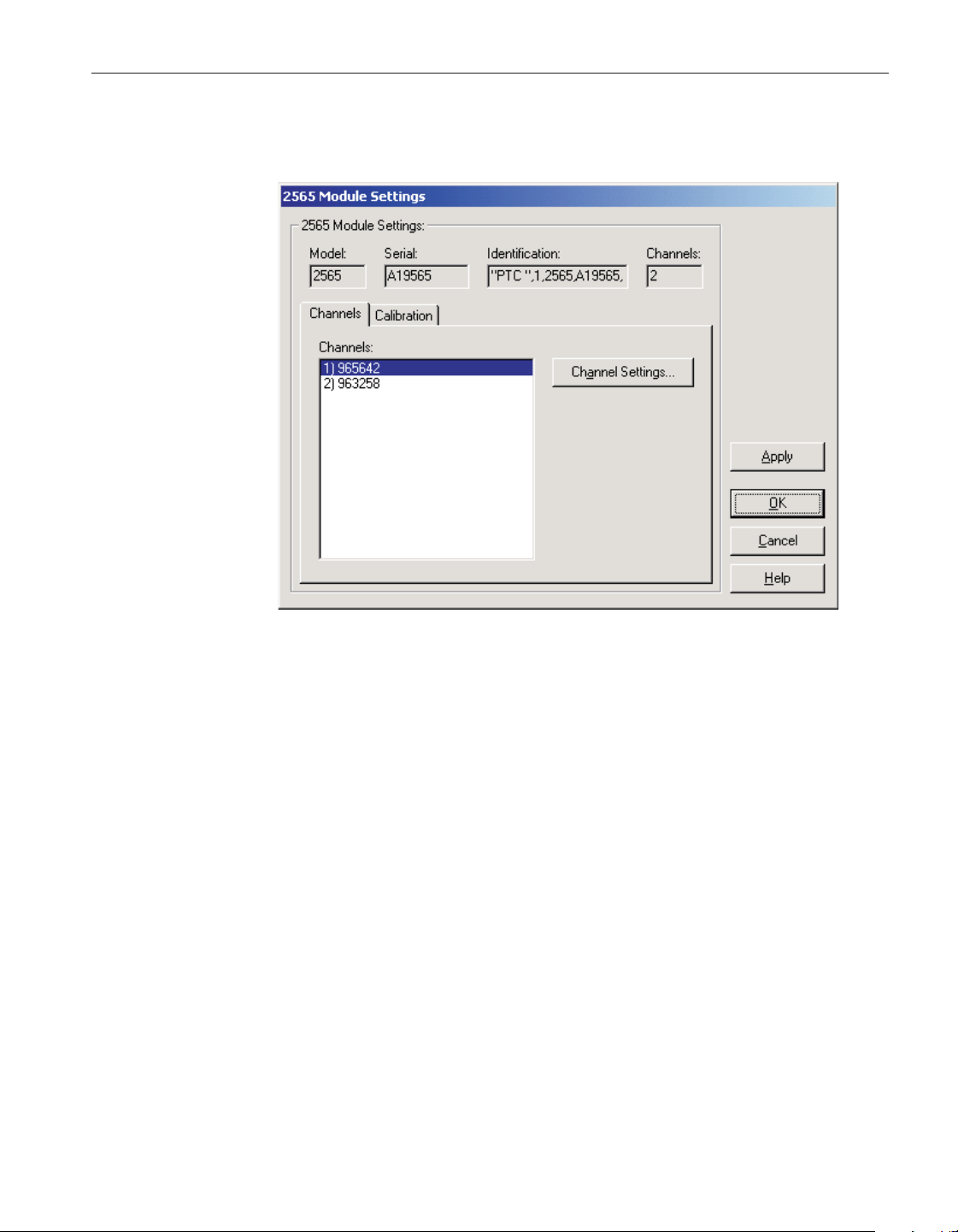
number of channels on this module. It also allows many module specific set
-
tings to be viewed and/or modified.
The Model box indicates the model number of this module. The Serial box in-
dicates the serial number assigned to this module. The Identification box indi-
cates the module name, number of devices, model number, serial number and
firmware version installed in this module. The Channels box indicates the num
-
ber of input channels on this module.
The Channels tab displays a list of the channels on this module and allows ac
-
cess to channel settings dialogs. The module calibration information can be
viewed and modified by selecting the Calibration tab.
After modifying any of the settings on this dialog, click the Apply or OK but
-
ton to write the new module settings to the thermometer readout. If the Apply
button is clicked, this dialog remains open. If the OK button is clicked, this dia
-
log closes after writing the settings.
LogWare has a feature that causes all of the module settings to be read back in
from the thermometer readout after the Apply button is clicked and the new set
-
tings have been written to the thermometer readout. This feature can be useful
to verify that the desired settings were properly applied to the thermometer
readout. To enable or disable this feature, see Section 5.6.4, Options.
To close this dialog without writing the module settings to the thermometer
readout, click the Cancel button.
119
4 Tools
Thermometer settings dialogs
Figure 92 2565 PTC Module Settings dialog
1.888.610.7664 sales@GlobalTestSupply.com
Fluke-Direct.com
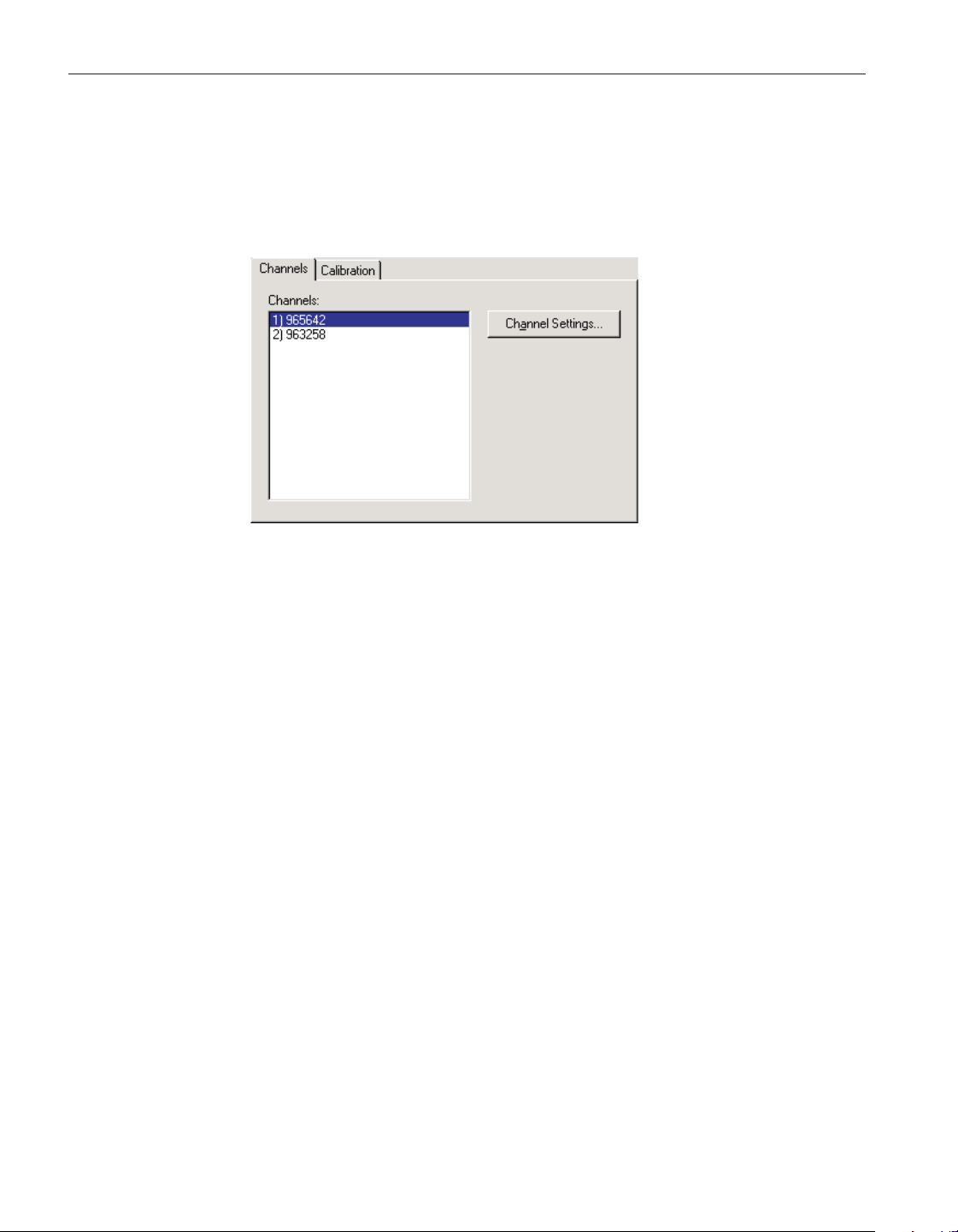
Click the Help button to open the appropriate help topic for this dialog.
4.4.3.10.1 Channels tab
Select the Channels tab to view a list of channels on this module and to access
the channel settings dialogs to view and/or modify channel specific settings.
Select the channel to view and/or modify from the Channels list. This list indi-
cates the channel number (with respect to this module) and the serial number of
the probe on each channel.
Click the Channel Settings button to display the appropriate channel settings di-
alog. When this button is clicked, the settings for the selected channel are read
in from the thermometer readout. The Channel Settings dialog is described in
detail in Section 4.4.3.15, 1560 Black Stack Thermocouple Channel Settings
Dialog.
User’s Guide
120
Figure 93 2565 PTC Module Settings - Channels tab
1.888.610.7664 sales@GlobalTestSupply.com
Fluke-Direct.com
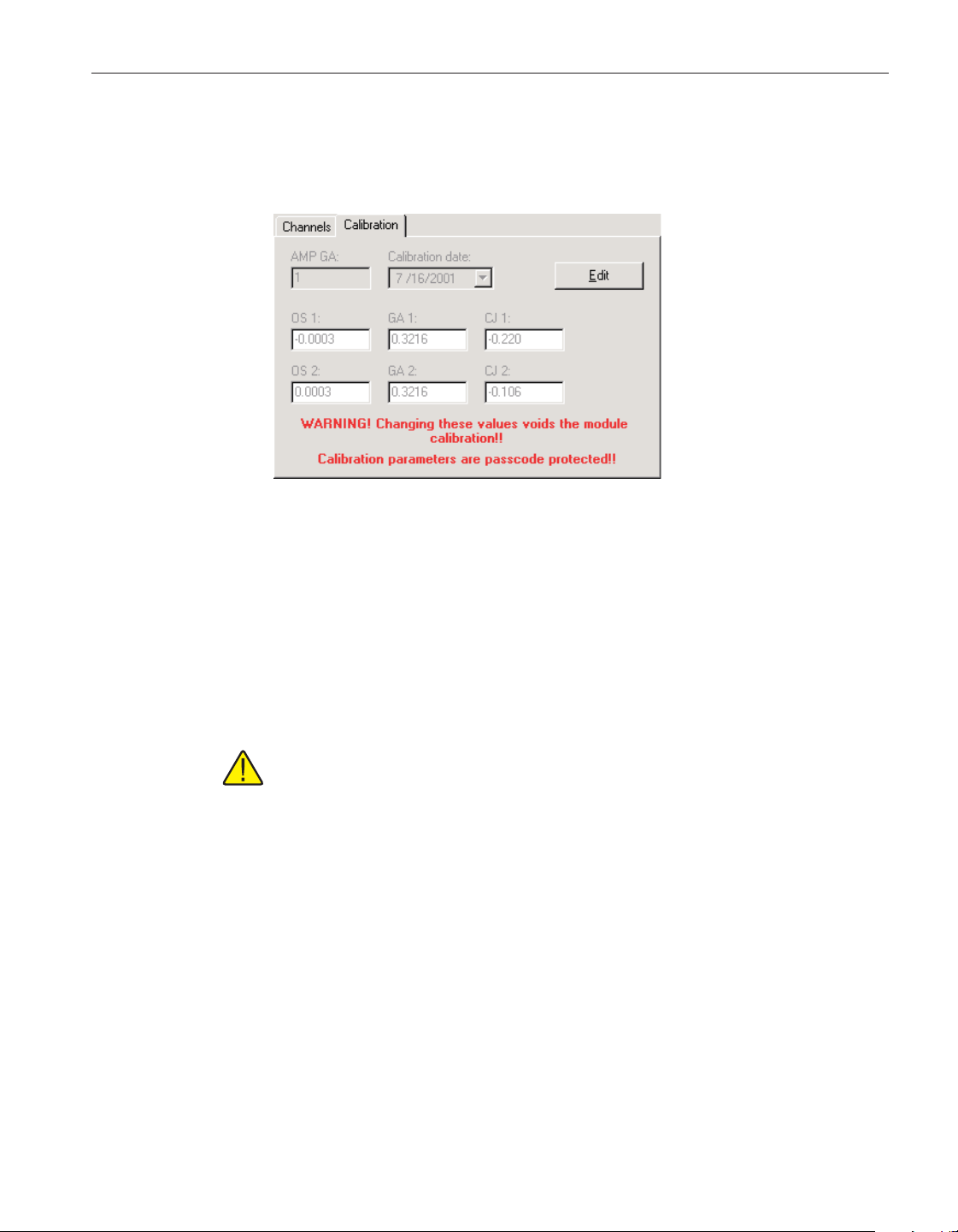
4.4.3.10.2 Calibration tab
Select the Calibration tab to view and/or modify module calibration informa
-
tion.
The settings on the Calibration tab may be passcode protected. If they are, a
message appears at the bottom of the Calibration tab and the Edit button is dis-
played. The other controls on this tab are disabled. To edit the calibration pa-
rameters, click the Edit button and enter the current passcode for the
thermometer readout. If the correct passcode is entered, the calibration parame-
ter controls are enabled and the values may be changed. The controls remain
enabled until this dialog is closed or until the current changes are applied by
clicking the Apply button.
Caution: Do not change these values unless this module has been
recalibrated or unless these values do not match the values located on the
latest Report of Calibration for this module! Changing these values voids
the current calibration!
The AMP GA constant should always be set to 1 and cannot be changed.
Select the date this module was last calibrated using the drop-down calendar or
by entering the date. This date should be located on the Report of Calibration
for this module.
Enter the values for the calibration constants in the boxes provided. The cali
-
bration constants required by the 2565 module are: OS 1, GA 1 and CJ 1 (for
channel 1) and OS 2, GA 2 and CJ 2 (for channel 2). The values of these con
-
stants should be located on the Report of Calibration for this module.
121
4 Tools
Thermometer settings dialogs
Figure 94 2565 PTC Module Settings - Calibration tab
1.888.610.7664 sales@GlobalTestSupply.com
Fluke-Direct.com
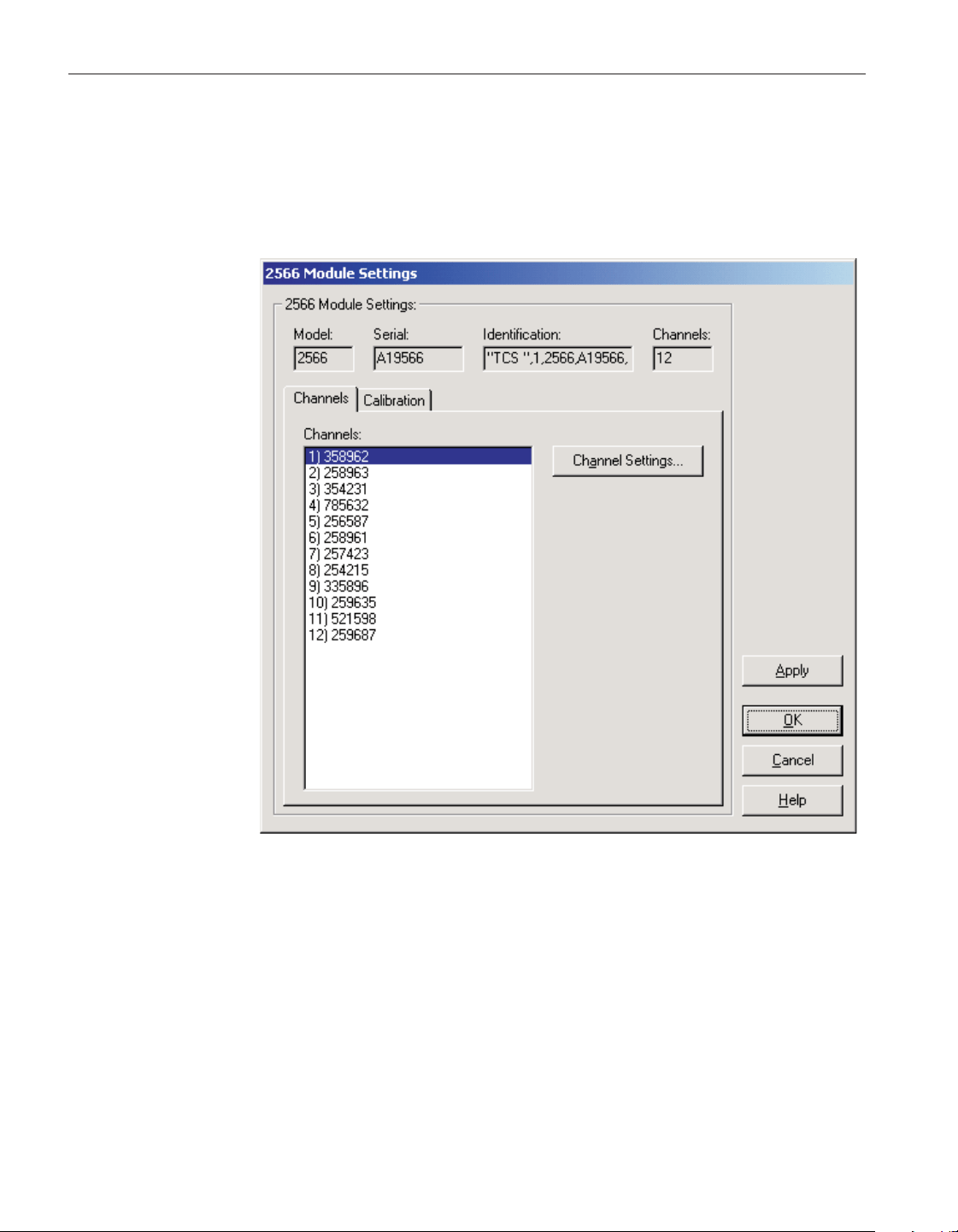
4.4.3.11 2566 TCS Module Settings dialog
The 2566 Module Settings dialog displays information about the 2566 module
including model number, serial number, identification information and the
number of channels on this module. It also allows many module specific set
-
tings to be viewed and/or modified.
The Model box indicates the model number of this module. The Serial box in
-
dicates the serial number assigned to this module. The Identification box indi
-
cates the module name, number of devices, model number, serial number and
firmware version installed in this module. The Channels box indicates the num
-
ber of input channels on this module.
The Channels tab displays a list of the channels on this module and allows ac
-
cess to channel settings dialogs. The module calibration information can be
viewed and/or modified by selecting the Calibration tab.
After modifying any of the settings on this dialog, click the Apply or OK but
-
ton to write the new module settings to the thermometer readout. If the Apply
User’s Guide
122
Figure 95 2566 TCS Module Settings dialog
1.888.610.7664 sales@GlobalTestSupply.com
Fluke-Direct.com
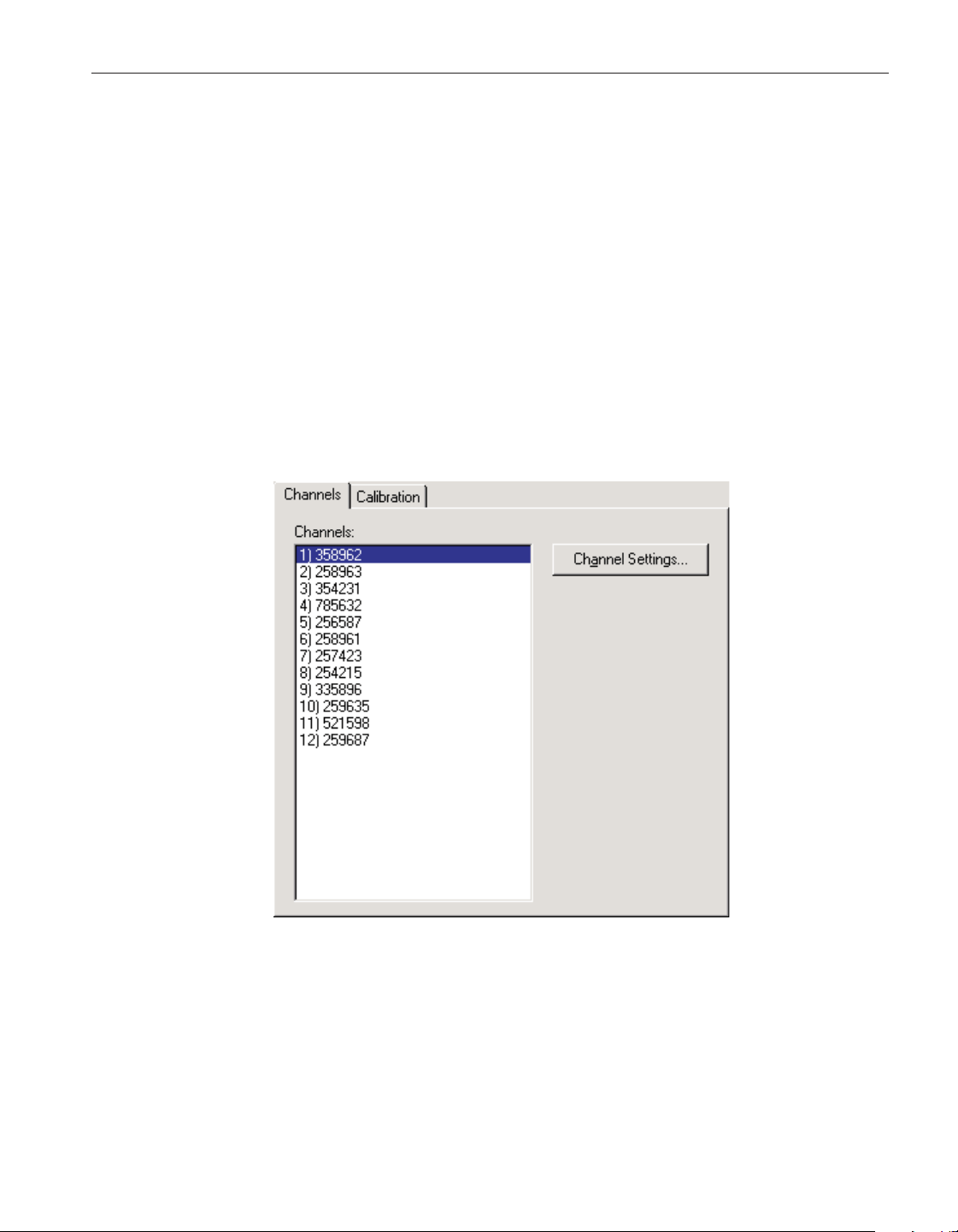
button is clicked, this dialog remains open. If the OK button is clicked, this dia
-
log closes after writing the settings.
LogWare has a feature that causes all of the module settings to be read back in
from the thermometer readout after the Apply button is clicked and the new set
-
tings have been written to the thermometer readout. This feature can be useful
to verify that the desired settings were properly applied to the thermometer
readout. To enable or disable this feature, see Section 5.6.4, Options.
To close this dialog without writing the module settings to the thermometer
readout, click the Cancel button.
Click the Help button to open the appropriate help topic for this dialog.
4.4.3.11.1 Channels tab
Select the Channels tab to view a list of channels on this module and to access
the channel settings dialogs to view and/or modify channel specific settings.
Select the channel to view and/or modify from the Channels list. This list indi
-
cates the channel number (with respect to this module) and the serial number of
the probe on each channel.
Click the Channel Settings button to display the appropriate channel settings di
-
alog. When this button is clicked, the settings for the selected channel are read
123
4 Tools
Thermometer settings dialogs
Figure 96 2566 TCS Module Settings - Channels tab
1.888.610.7664 sales@GlobalTestSupply.com
Fluke-Direct.com
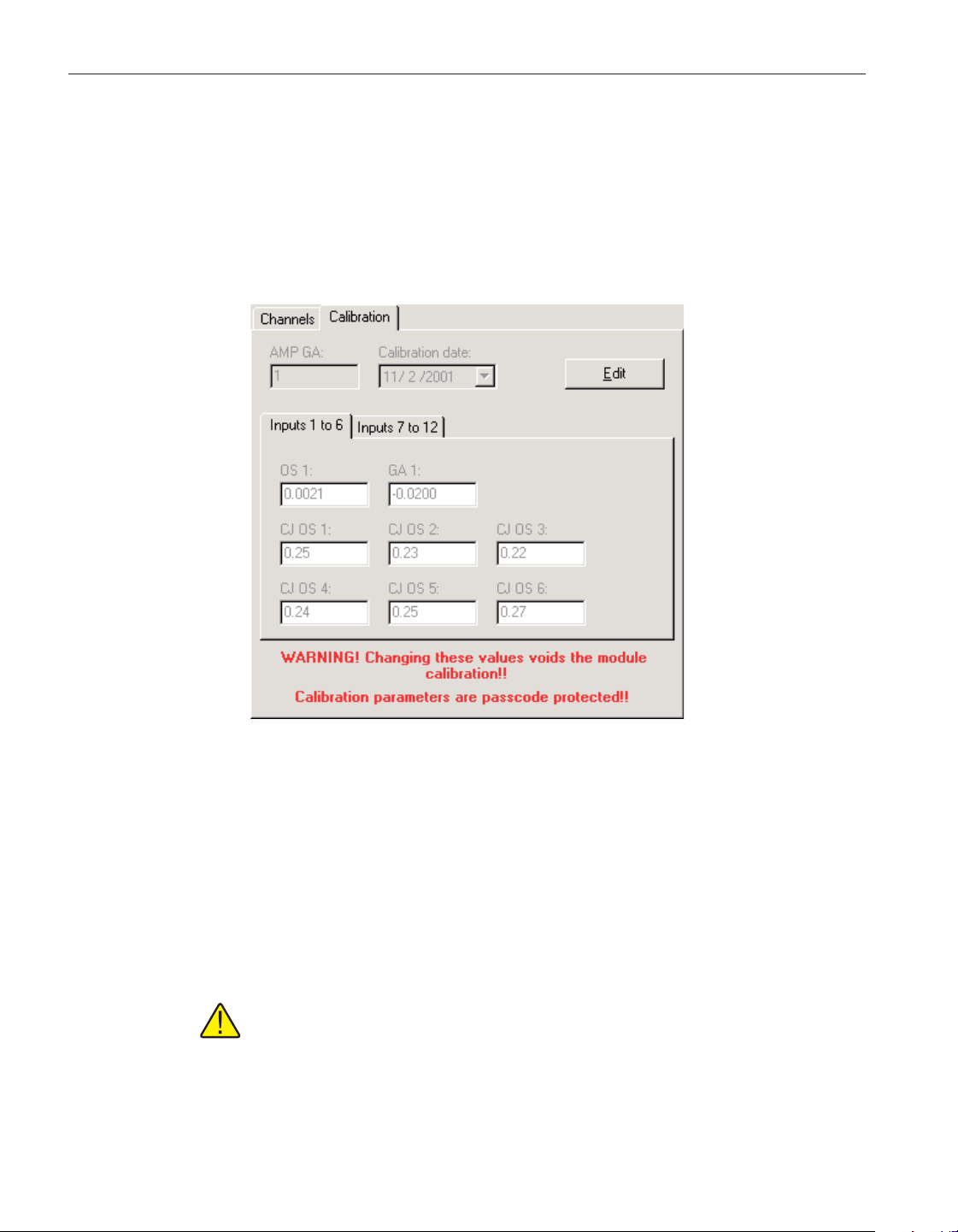
in from the thermometer readout. The Channel Settings dialog is described in
detail in Section 4.4.3.15, 1560 Black Stack Thermocouple Channel Settings
Dialog.
4.4.3.11.2 Calibration tab
Select the Calibration tab to view and/or modify module calibration informa
-
tion.
The settings on the Calibration tab may be passcode protected. If they are, a
message appears at the bottom of the Calibration tab and the Edit button is dis
-
played. The other controls on this tab are disabled. To edit the calibration pa
-
rameters, click the Edit button and enter the current passcode for the
thermometer readout. If the correct passcode is entered, the calibration parame
-
ter controls are enabled and the values may be changed. The controls remain
enabled until this dialog is closed or until the current changes are applied by
clicking the Apply button.
Caution: Do not change these values unless this module has been
recalibrated or unless these values do not match the values located on the
latest Report of Calibration for this module! Changing these values voids
the current calibration!
The AMP GA constant should always be set to 1 and cannot be changed.
User’s Guide
124
Figure 97 2566 TCS Module Settings - Calibration tab
1.888.610.7664 sales@GlobalTestSupply.com
Fluke-Direct.com
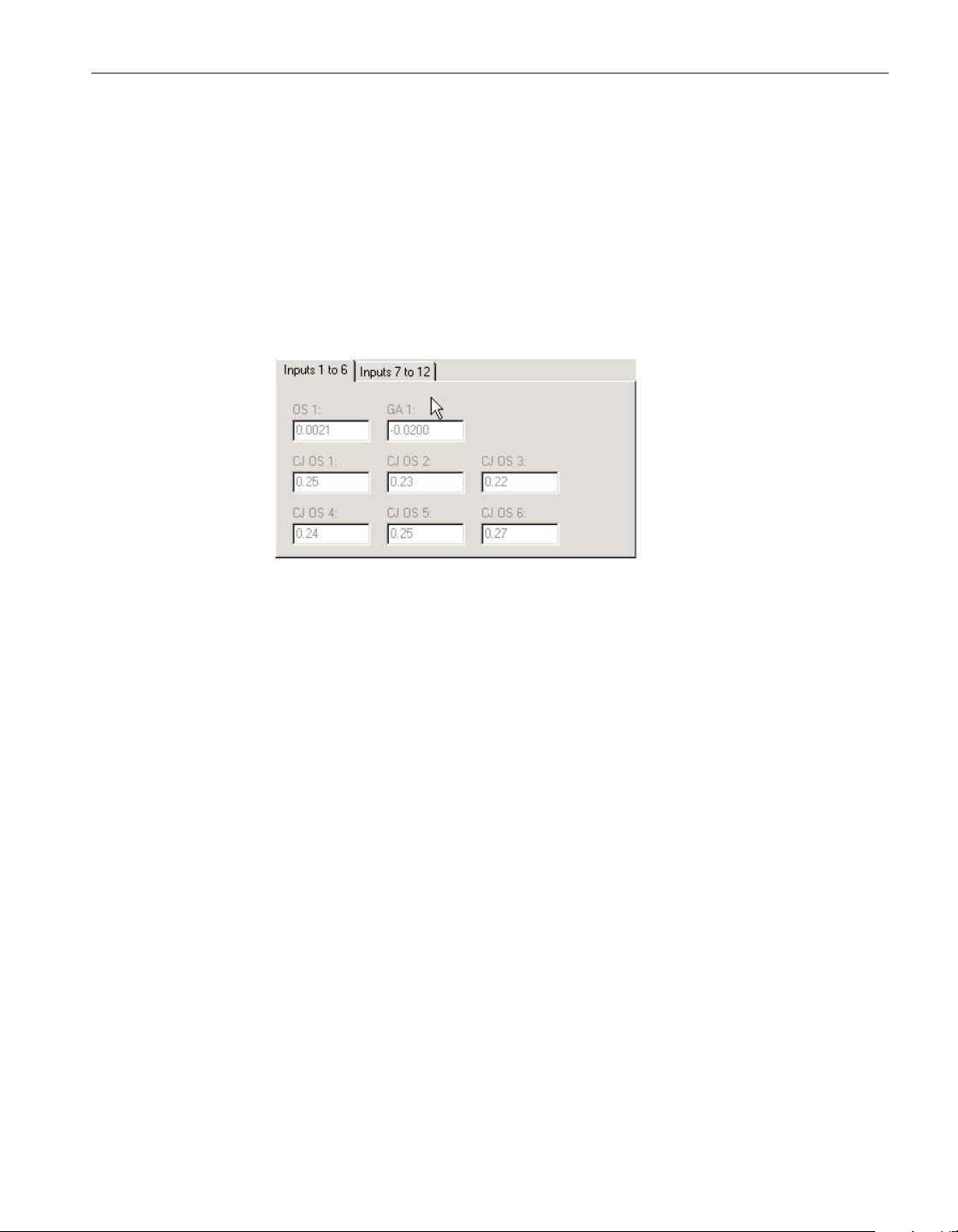
Select the date this module was last calibrated using the drop-down calendar or
by entering the date. This date should be located on the Report of Calibration
for this module.
The calibration constants for this module are divided onto two tabs: Inputs 1 to
6 and Inputs 7 to 12.
4.4.3.11.2.1
Inputs 1 to 6 tab
Select the Inputs 1 to 6 tab to view and/or modify the calibration constants for
inputs (channels) 1 to 6 (front row) of this module.
Enter the values for the calibration constants for inputs 1 to 6 in the boxes pro-
vided. The calibration constants required by the 2566 module are: OS 1, GA 1,
CJ OS 1, CJ OS 2, CJ OS 3, CJ OS 4, CJ OS 5 and CJ OS 6. The values of
these constants should be located on the Report of Calibration for this module.
125
4 Tools
Thermometer settings dialogs
Figure 98 2566 TCS Module Settings - Inputs 1 to 6
tab
1.888.610.7664 sales@GlobalTestSupply.com
Fluke-Direct.com
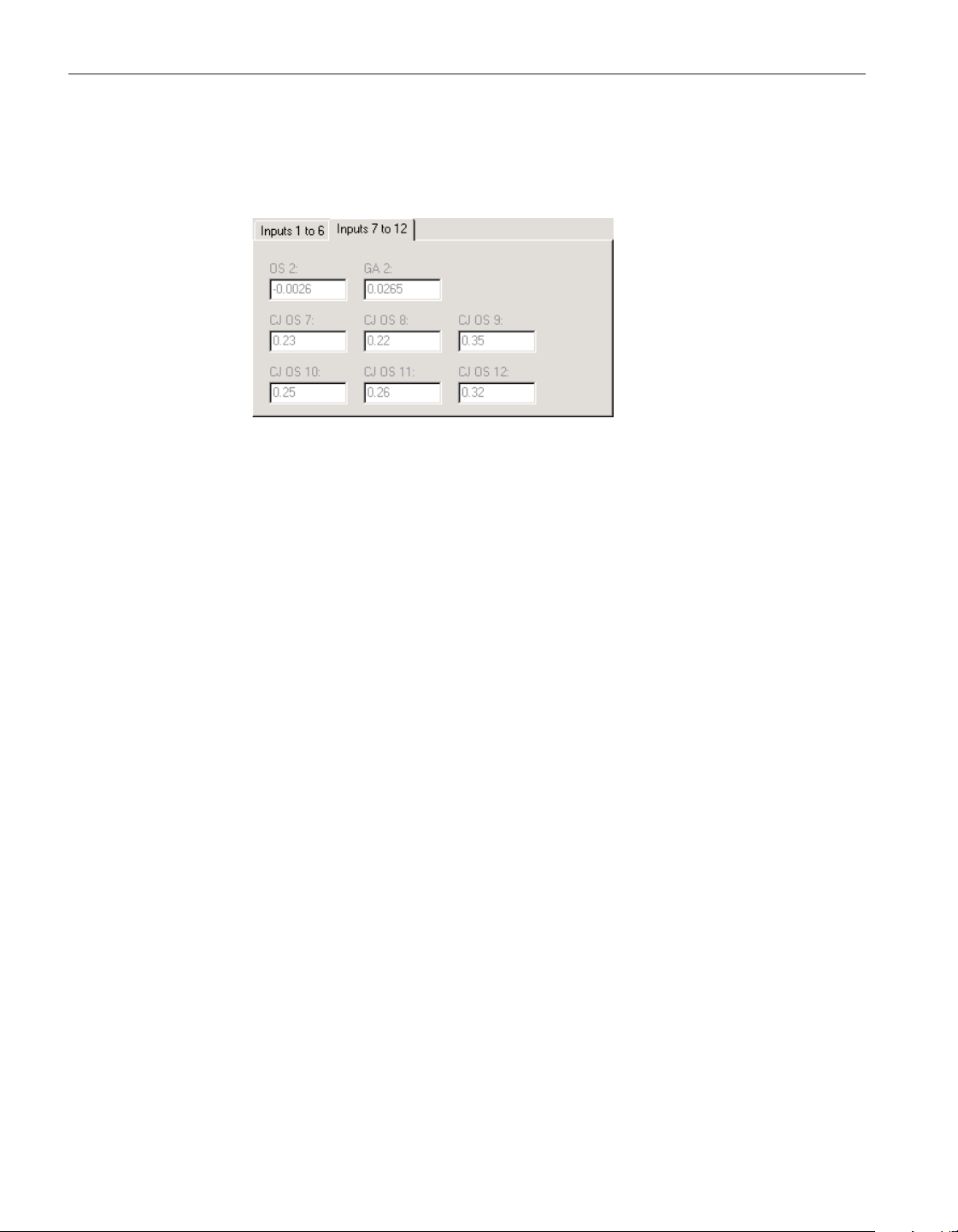
4.4.3.11.2.2
Inputs 7 to 12 tab
Select the Inputs 7 to 12 tab to view and/or modify the calibration constants for
inputs (channels) 7 to 12 (rear row) of this module.
Enter the values for the calibration constants for inputs 7 to 12 in the boxes pro-
vided. The calibration constants required by the 2566 module are: OS 2, GA 2,
CJ OS 7, CJ OS 8, CJ OS 9, CJ OS 10, CJ OS 11 and CJ OS 12. The values of
these constants should be located on the Report of Calibration for this module.
4.4.3.12 2567 RTD Module Settings dialog
The 2567 Module Settings dialog displays information about the 2567 module
including model number, serial number, identification information and the
User’s Guide
126
Figure 99 2566 TCS Module Settings - Inputs 7 to
12 tab
1.888.610.7664 sales@GlobalTestSupply.com
Fluke-Direct.com

number of channels on this module. It also allows many module specific set
-
tings to be viewed and/or modified.
The Model box indicates the model number of this module. The Serial box in-
dicates the serial number assigned to this module. The Identification box indi-
cates the module name, number of devices, model number, serial number and
firmware version installed in this module. The Channels box indicates the num
-
ber of input channels on this module.
General module settings can be viewed and/or modified by selecting the Gen
-
eral tab. The Channels tab displays a list of the channels on this module and al
-
lows access to channel settings dialogs. The module calibration information can
be viewed and/or modified by selecting the Calibration tab.
After modifying any of the settings on this dialog, click the Apply or OK but
-
ton to write the new module settings to the thermometer readout. If the Apply
button is clicked, this dialog remains open. If the OK button is clicked, this dia
-
log closes after writing the settings.
LogWare has a feature that causes all of the module settings to be read back in
from the thermometer readout after the Apply button is clicked and the new set
-
tings have been written to the thermometer readout. This feature can be useful
to verify that the desired settings were properly applied to the thermometer
readout. To enable or disable this feature, see Section 5.6.4, Options.
To close this dialog without writing the module settings to the thermometer
readout, click the Cancel button.
127
4 Tools
Thermometer settings dialogs
Figure 100 2567 RTD Module Settings dialog
1.888.610.7664 sales@GlobalTestSupply.com
Fluke-Direct.com
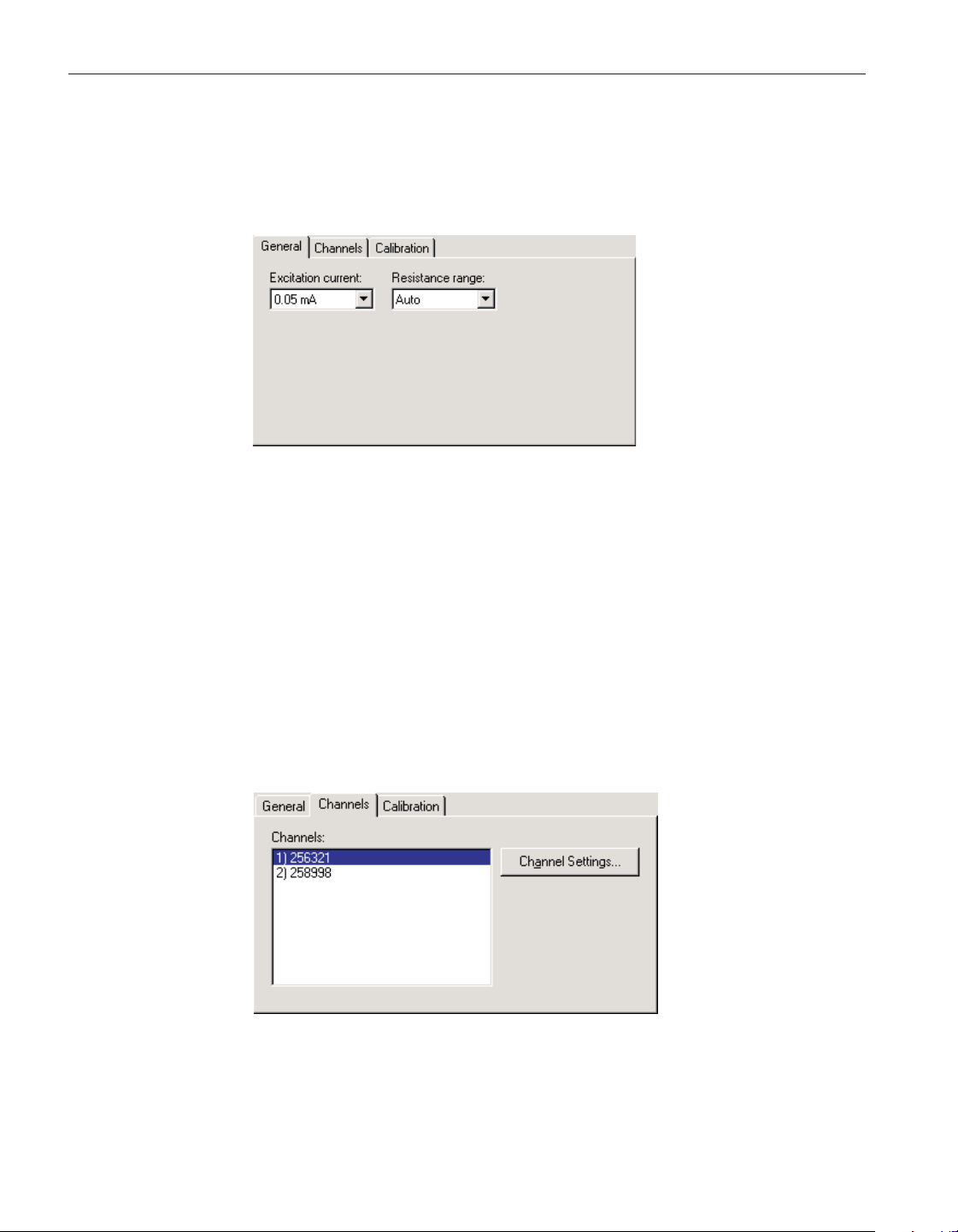
Click the Help button to open the appropriate help topic for this dialog.
4.4.3.12.1 General tab
Select the General tab to view and/or modify general module settings.
Select the excitation current for this module using the Excitation current
drop-down list. The 2567 module can use either a 0.05 mA or a 0.1 mA excita-
tion current. This setting applies to all channels on this module.
Select the resistance range for this module using the Resistance range
drop-down list. The 2567 module allows the selection of either Auto, High or
Low. This setting applies to all channels on this module.
4.4.3.12.2 Channels tab
Select the Channels tab to view a list of channels on this module and to access
the channel settings dialogs to view and/or modify channel specific settings.
User’s Guide
128
Figure 101 2567 RTD Module Settings - General tab
Figure 102 2567 RTD Module Settings - Channels tab
1.888.610.7664 sales@GlobalTestSupply.com
Fluke-Direct.com
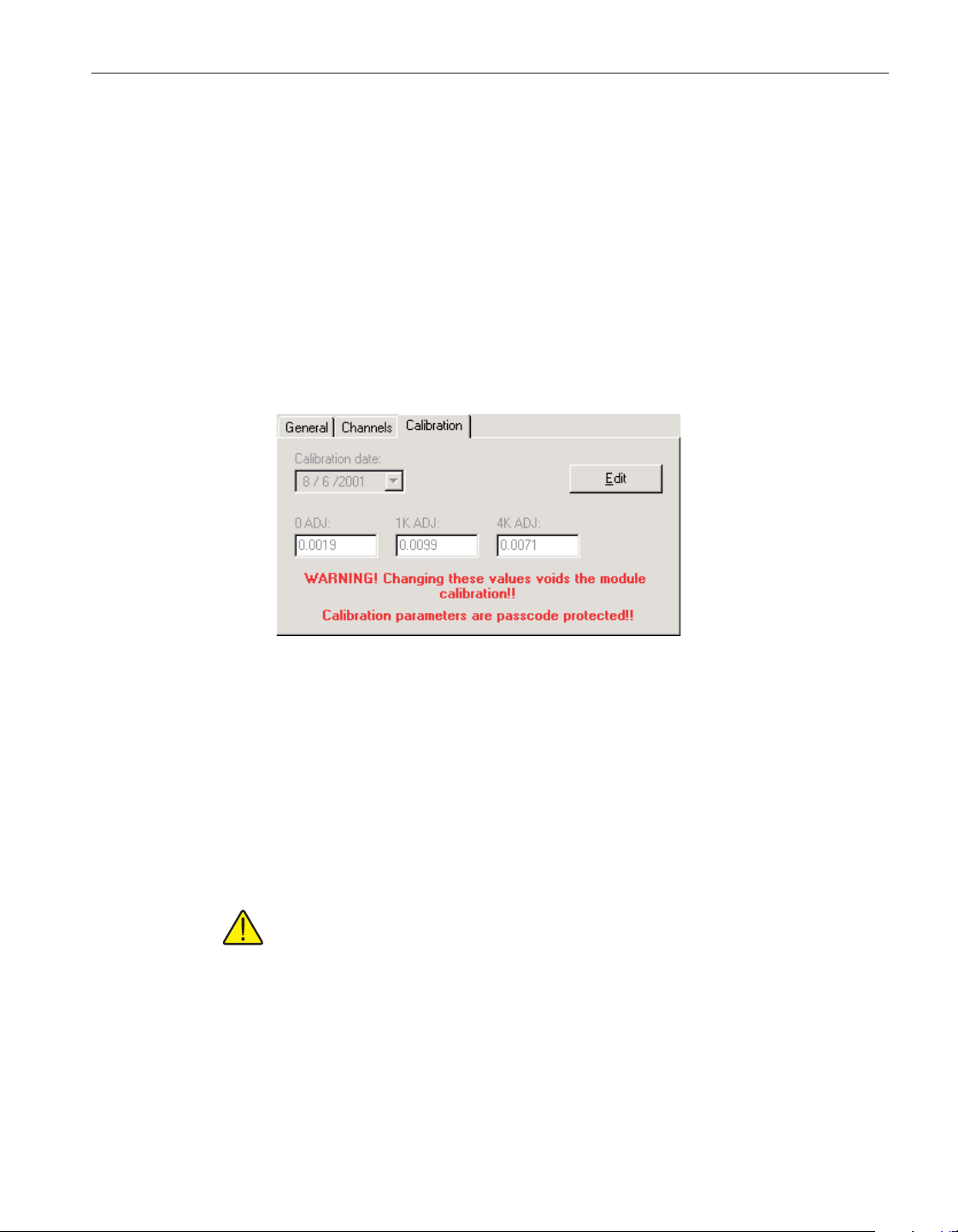
Select the channel to view and/or modify from the Channels list. This list indi
-
cates the channel number (with respect to this module) and the serial number of
the probe on each channel.
Click the Channel Settings button to display the appropriate channel settings di
-
alog. When this button is clicked, the settings for the selected channel are read
in from the thermometer readout. The Channel Settings dialog is described in
detail in Section 4.4.3.14, 1560 Black Stack PRT/Thermistor Channel Settings
Dialog.
4.4.3.12.3 Calibration tab
Select the Calibration tab to view and/or modify module calibration informa
-
tion.
The settings on the Calibration tab may be passcode protected. If they are, a
message appears at the bottom of the Calibration tab and the Edit button is dis
-
played. The other controls on this tab are disabled. To edit the calibration pa
-
rameters, click the Edit button and enter the current passcode for the
thermometer readout. If the correct passcode is entered, the calibration parame
-
ter controls are enabled and the values may be changed. The controls remain
enabled until this dialog is closed or until the current changes are applied by
clicking the Apply button.
Caution: Do not change these values unless this module has been
recalibrated or unless these values do not match the values located on the
latest Report of Calibration for this module! Changing these values voids
the current calibration!
Select the date this module was last calibrated using the drop-down calendar or
by entering the date. This date should be located on the Report of Calibration
for this module.
Enter the values for the calibration constants in the boxes provided. The cali
-
bration constants required by the 2567 module are: 0 ADJ, 1K ADJ and 4K
129
4 Tools
Thermometer settings dialogs
Figure 103 2567 RTD Module Settings - Calibration tab
1.888.610.7664 sales@GlobalTestSupply.com
Fluke-Direct.com
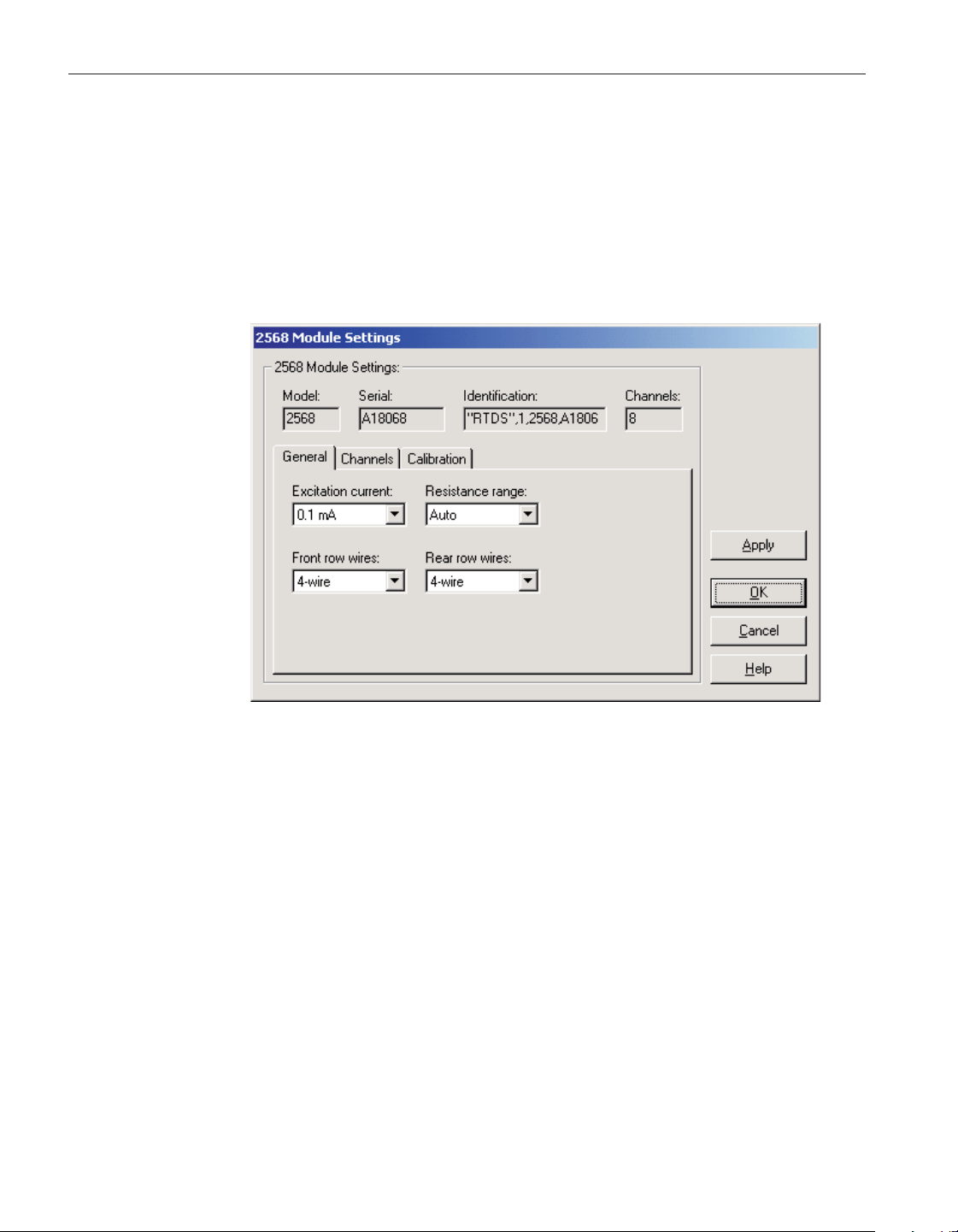
ADJ. The values of these constants should be located on the Report of Calibra
-
tion for this module.
4.4.3.13 2568 RTDS Module Settings
The 2568 Module Settings dialog displays information about the 2568 module
including model number, serial number, identification information and the
number of channels on this module. It also allows many module specific set
-
tings to be viewed and/or modified.
The Model box indicates the model number of this module. The Serial box in
-
dicates the serial number assigned to this module. The Identification box indi
-
cates the module name, number of devices, model number, serial number, and
firmware version installed in this module. The Channels box indicates the num
-
ber of input channels on this module.
General module settings can be viewed and/or modified by selecting the Gen
-
eral tab. The Channels tab displays a list of the channels on this module and al
-
lows access to channel settings dialogs. The module calibration information can
be viewed and/or modified by selecting the Calibration tab.
After modifying any of the settings on this dialog, click the Apply or OK but
-
ton to write the new module settings to the thermometer readout. If the Apply
button is clicked, this dialog remains open. If the OK button is clicked, this dia
-
log closes after writing the settings.
LogWare has a feature that causes all of the module settings to be read back in
from the thermometer readout after the Apply button is clicked and the new set
-
tings have been written to the thermometer readout. This feature can be useful
User’s Guide
130
Figure 104 2568 RTDS Module Settings dialog
1.888.610.7664 sales@GlobalTestSupply.com
Fluke-Direct.com
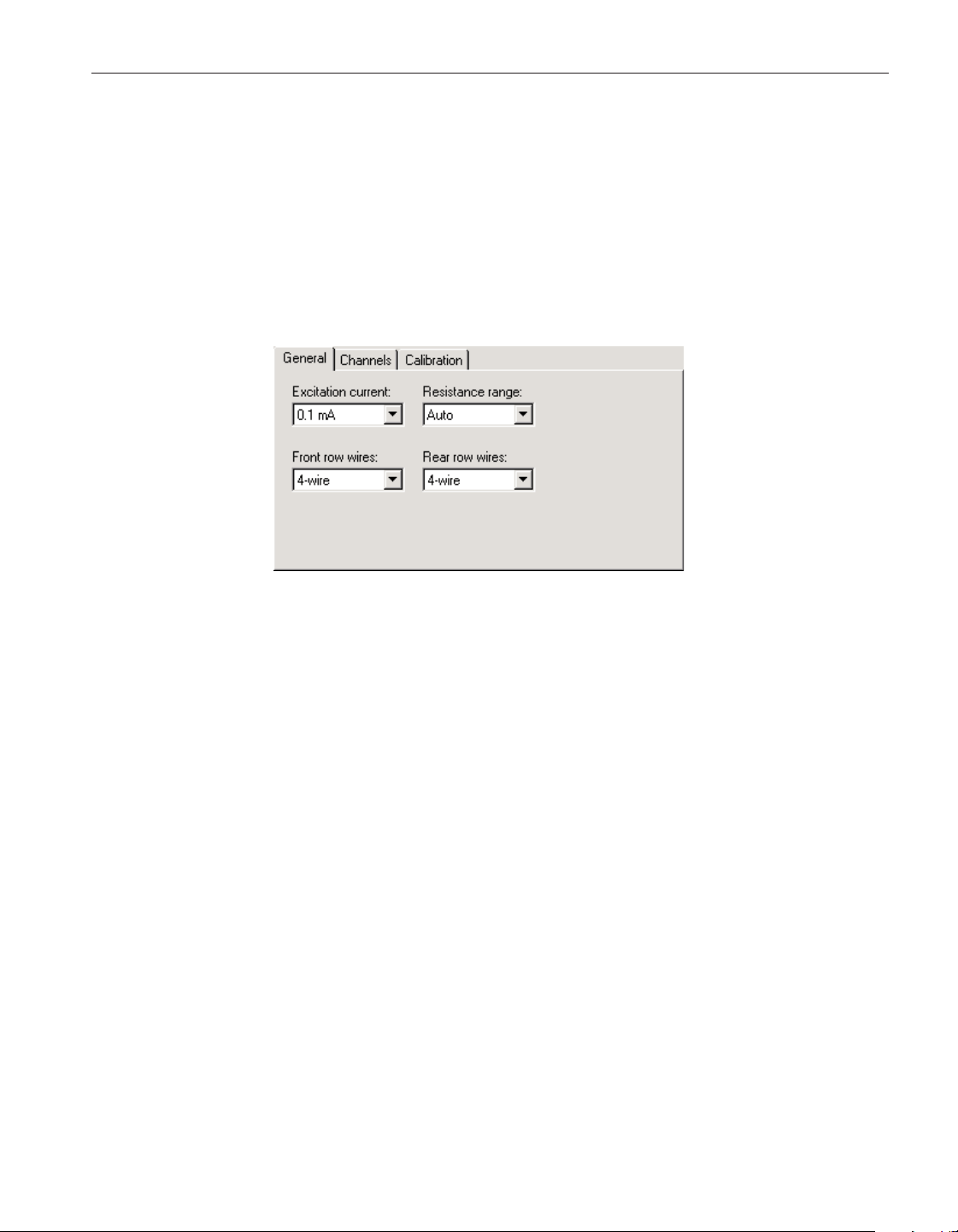
to verify that the desired settings were properly applied to the thermometer
readout. To enable or disable this feature, see Section 5.6.4, Options.
To close this dialog without writing the module settings to the thermometer
readout, click the Cancel button.
Click the Help button to open the appropriate help topic for this dialog.
4.4.3.13.1 General tab
Select the General tab to view and/or modify general module settings.
Select the excitation current for this module using the Excitation current
drop-down list. The 2568 module can use either a 0.05 mA or a 0.1 mA excita-
tion current. This setting applies to all channels on this module.
Select the resistance range for this module using the Resistance range
drop-down list. The 2568 module allows the selection of either Auto, High or
Low. This setting applies to all channels on this module.
Select the front row wires option for this module using the Front row wires
drop-down list. The 2568 module allows the selection of either 4-wire or
3-wire. This setting applies only to the four channels on the front row of this
module.
Select the rear row wires option for this module using the Rear row wires
drop-down list. The 2568 module allows the selection of either 4-wire or
3-wire. This setting applies only to the four channels on the rear row of this
module.
131
4 Tools
Thermometer settings dialogs
Figure 105 2568 RTDS Module Settings - General tab
1.888.610.7664 sales@GlobalTestSupply.com
Fluke-Direct.com
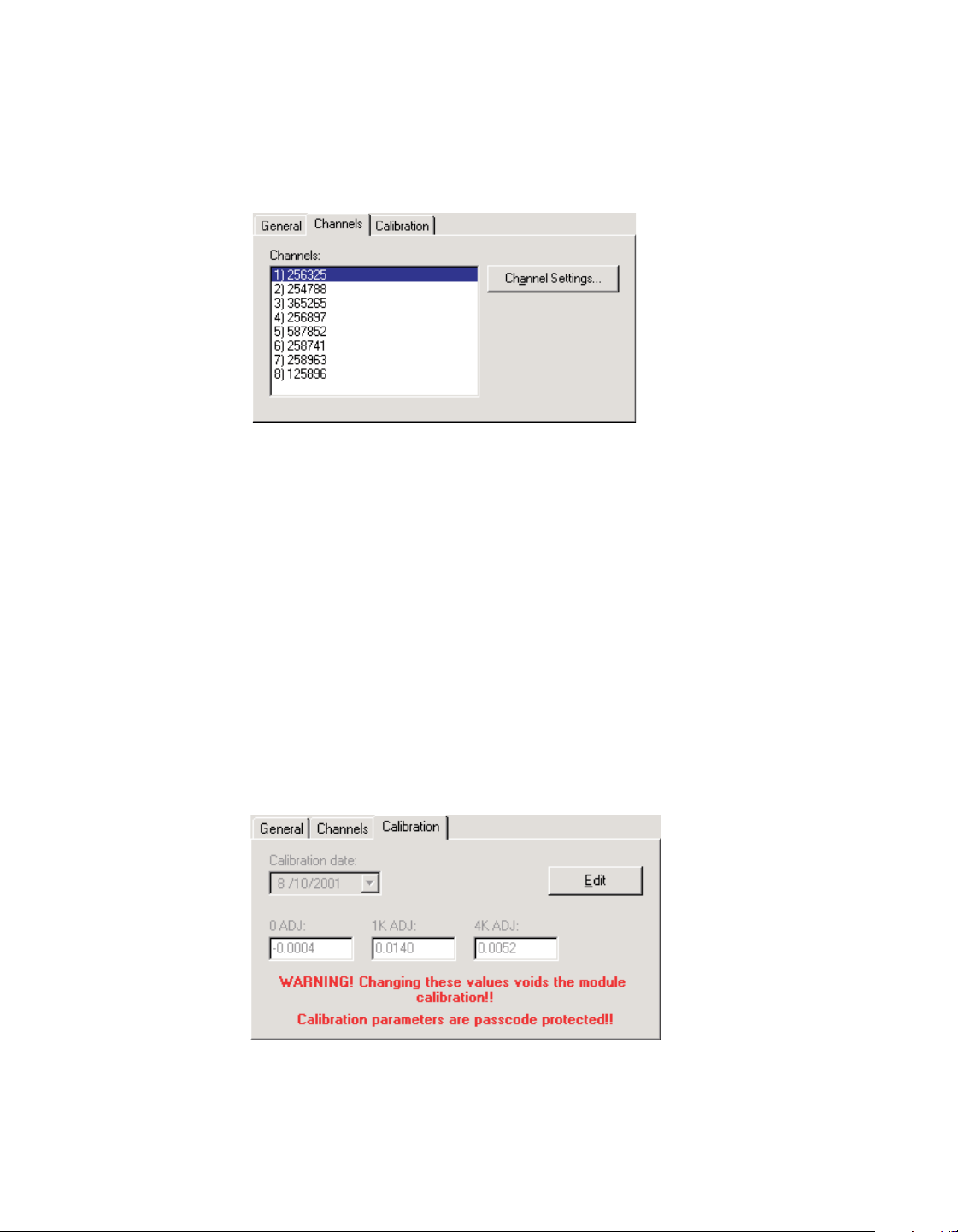
4.4.3.13.2 Channels tab
Select the Channels tab to view a list of channels on this module and to access
the channel settings dialogs to view and/or modify channel specific settings.
Select the channel to view and/or modify from the Channels list. This list indi-
cates the channel number (with respect to this module) and the serial number of
the probe on each channel.
Click the Channel Settings button to display the appropriate channel settings di-
alog. When this button is clicked, the settings for the selected channel are read
in from the thermometer readout. The Channel Settings dialog is described in
detail in Section 4.4.3.14, 1560 Black Stack PRT/Thermistor Channel Settings
Dialog.
4.4.3.13.3 Calibration tab
Select the Calibration tab to view and/or modify module calibration informa
-
tion.
User’s Guide
132
Figure 106 2568 RTDS Module Settings - Channels tab
Figure 107 2568 RTDS Module Settings - Calibration tab
1.888.610.7664 sales@GlobalTestSupply.com
Fluke-Direct.com
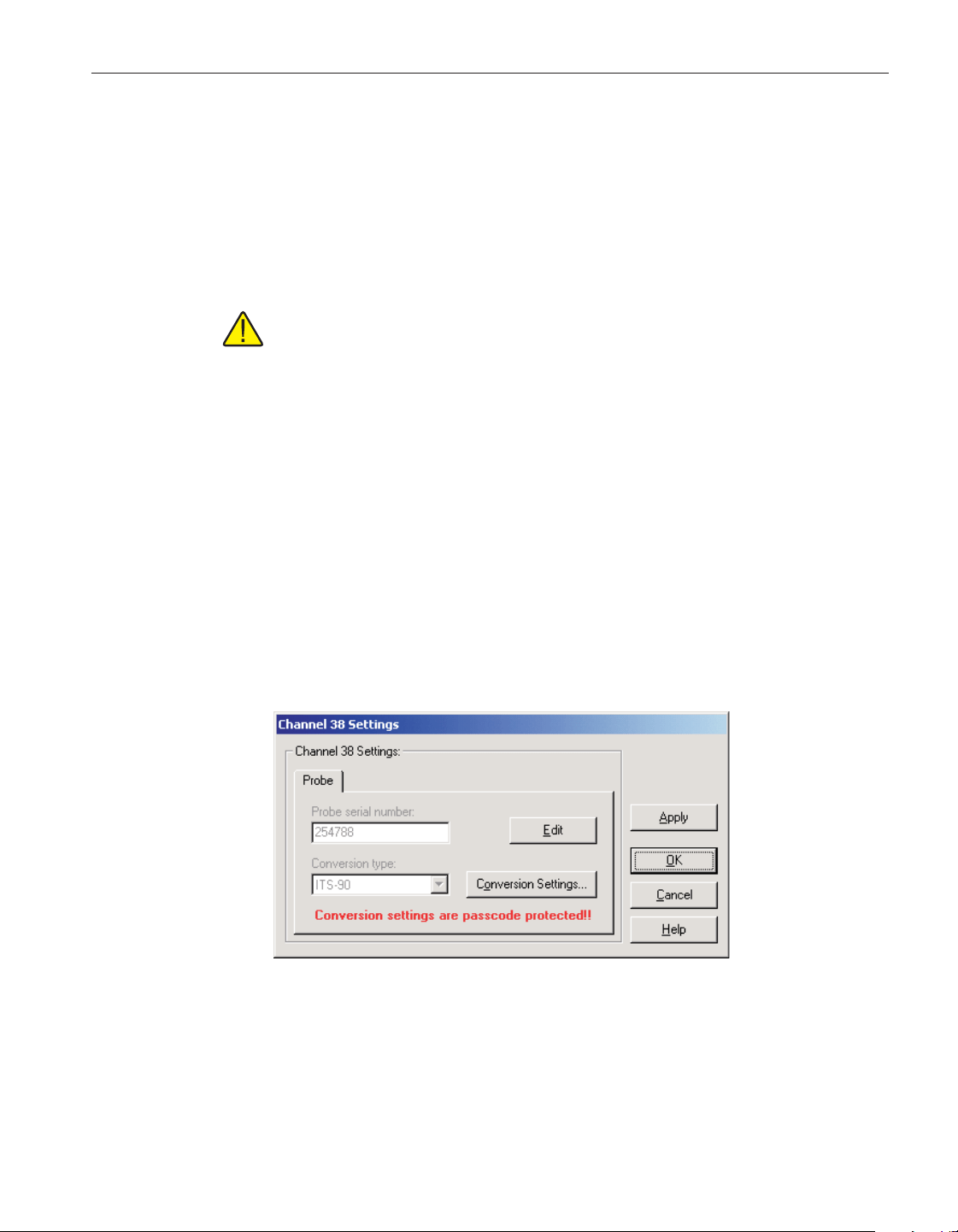
The settings on the Calibration tab may be passcode protected. If they are, a
message appears at the bottom of the Calibration tab and the Edit button is dis
-
played. The other controls on this tab are disabled. To edit the calibration pa
-
rameters, click the Edit button and enter the current passcode for the
thermometer readout. If the correct passcode is entered, the calibration parame
-
ter controls are enabled and the values may be changed. The controls remain
enabled until this dialog is closed or until the current changes are applied by
clicking the Apply button.
Caution: Do not change these values unless this module has been
recalibrated or unless these values do not match the values located on the
latest Report of Calibration for this module! Changing these values voids
the current calibration!
Select the date this module was last calibrated using the drop-down calendar or
by entering the date. This date should be located on the Report of Calibration
for this module.
Enter the values for the calibration constants in the boxes provided. The cali-
bration constants required by the 2568 module are: 0 ADJ, 1K ADJ and 4K
ADJ. The values of these constants should be located on the Report of Calibra-
tion for this module.
4.4.3.14 1560 Black Stack PRT/Thermistor Channel Settings dialog
The 1560 Black Stack PRT/Thermistor Channel Settings dialog displays infor-
mation about the selected channel.
After modifying any of the settings on this dialog, click the Apply or OK but
-
ton to write the new settings to the thermometer readout. If the Apply button is
clicked, this dialog remains open. If the OK button is clicked, this dialog closes
after writing the settings.
133
4 Tools
Thermometer settings dialogs
Figure 108 1560 Black Stack PRT/Thermistor Channel Settings
dialog
1.888.610.7664 sales@GlobalTestSupply.com
Fluke-Direct.com
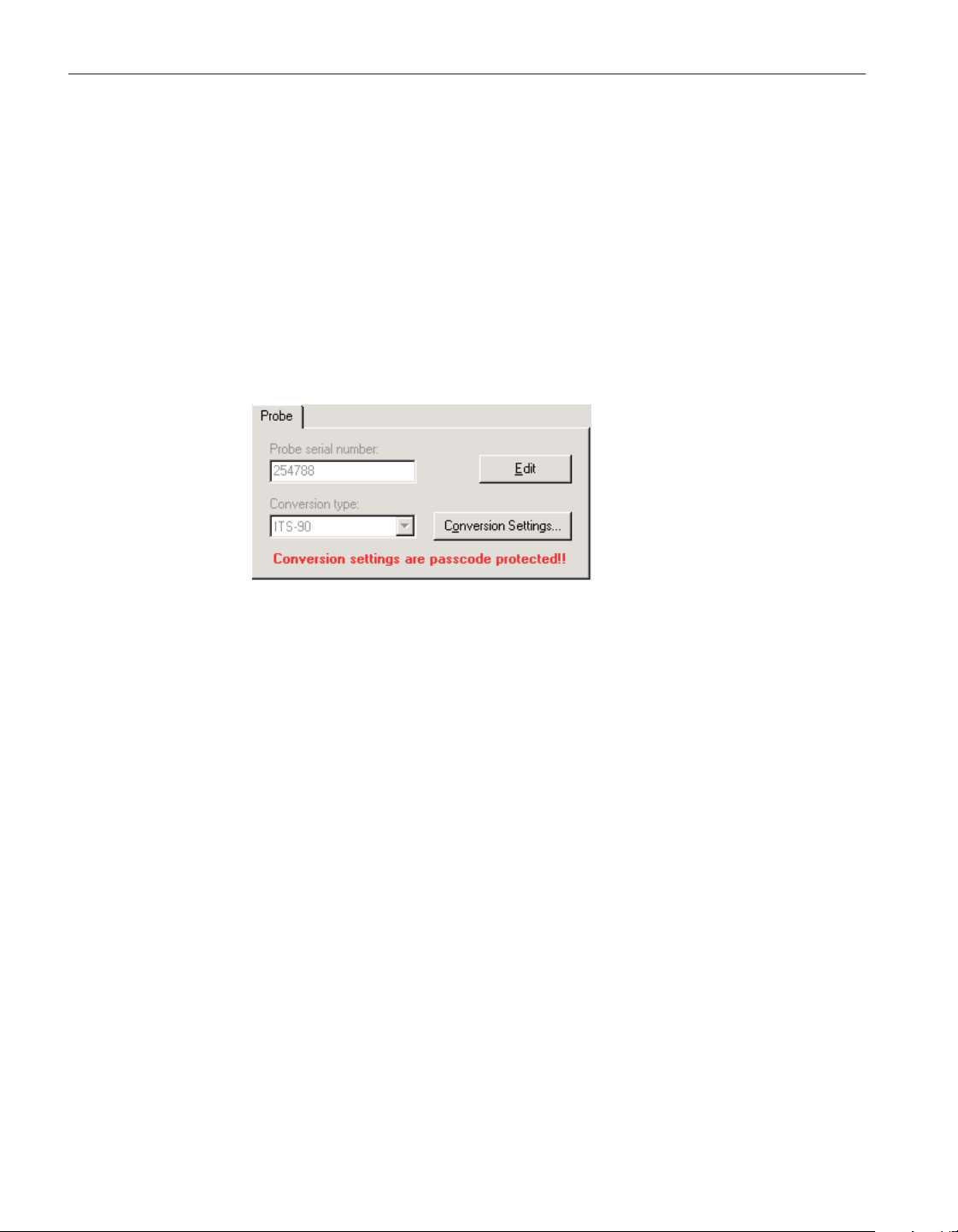
LogWare has a feature that causes all of the channel settings to be read back in
from the thermometer readout after the Apply button is clicked and the new set
-
tings have been written to the thermometer readout. This feature can be useful
to verify that the desired settings were properly applied to the thermometer
readout. To enable or disable this feature, see Section 5.6.4, Options.
To close this dialog without writing the channel settings to the thermometer
readout, click the Cancel button.
Click the Help button to open the appropriate help topic for this dialog.
4.4.3.14.1 Probe tab
Select the Probe tab to view and/or modify probe settings.
The settings on the Probe tab may be passcode protected. If they are, a message
appears at the bottom of the Probe tab and the Edit button is displayed. The
other controls on this tab are disabled except the Conversion Settings button. If
the selected conversion type does not have any settings, this button should also
be disabled. To edit the probe settings, click the Edit button and enter the cur
-
rent passcode for the thermometer readout. If the correct passcode is entered,
the probe setting controls are enabled and the values may be changed. The con
-
trols remain enabled until this dialog is closed or until the current changes are
applied by clicking the Apply button.
Enter the serial number of the probe attached to this channel in the Probe serial
number box. The serial number can be any combination of numbers and/or let
-
ters up to 8 characters in length. The dash “-“ character can also be used in se
-
rial numbers.
Select the conversion type to use for the probe on this channel. Available con
-
version types will vary depending on the module that this channel belongs to.
Refer to the Report of Calibration for the probe attached to this channel for in
-
formation on the conversion type that the probe was calibrated for.
If the selected conversion type requires coefficients or other settings, the Con
-
version Settings button is enabled. Click the Conversion Settings button to dis
-
play the dialog for the selected conversion type. Otherwise, the Conversion
User’s Guide
134
Figure 109 1560 Black Stack PRT/Thermistor
Channel Settings - Probe tab
1.888.610.7664 sales@GlobalTestSupply.com
Fluke-Direct.com
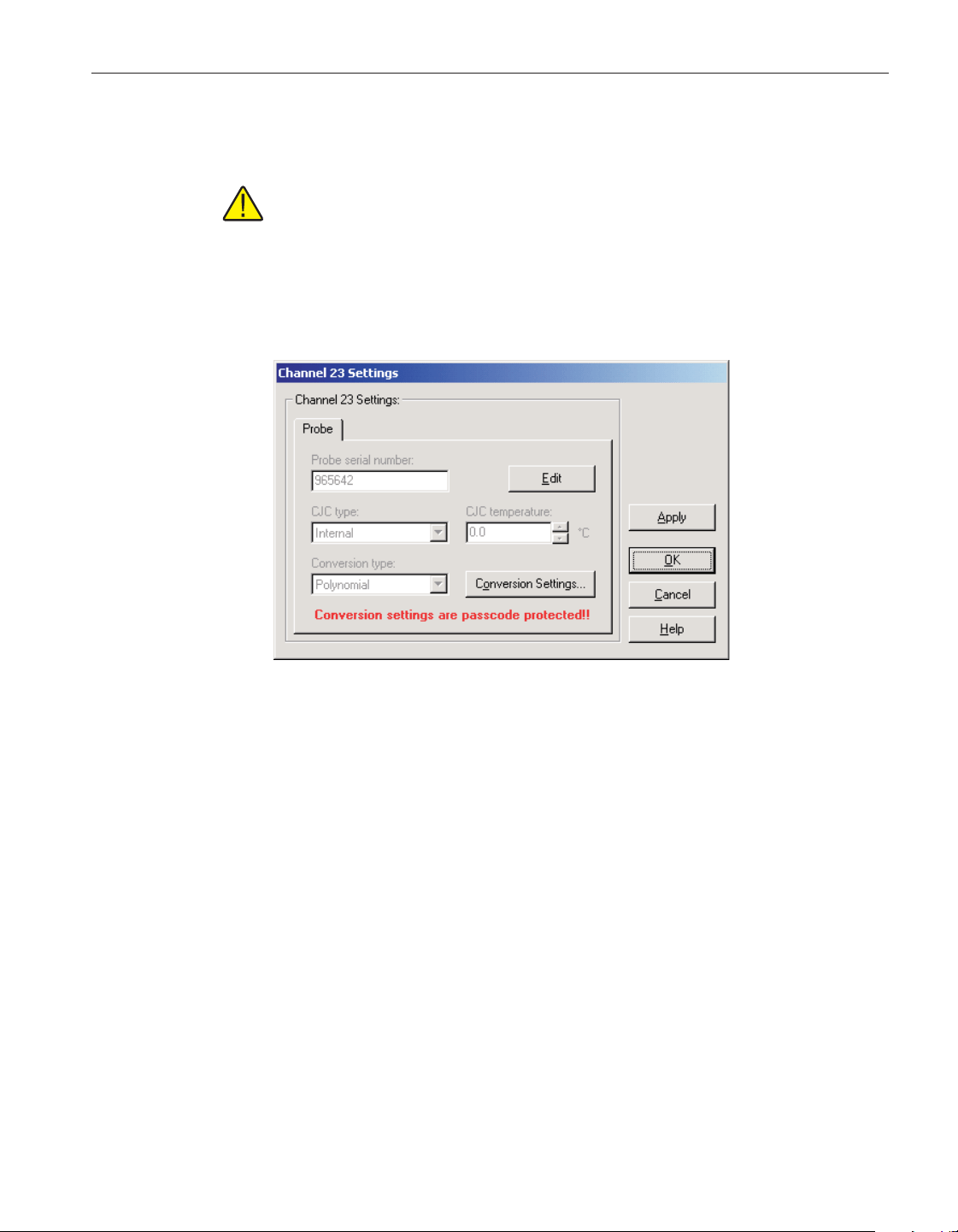
Settings button is disabled. Please refer to Section 9, Conversion Settings
Dialogs, for a detailed description of the Conversion Settings dialogs.
Note: The conversion settings are not written to the thermometer readout
until the Apply or OK button is clicked on this dialog!
4.4.3.15 1560 Black Stack Thermocouple Channel Settings dialog
The 1560 Black Stack Thermocouple Channel Settings dialog displays infor
-
mation about the selected channel.
After modifying any of the settings on this dialog, click the Apply or OK but
-
ton to write the new settings to the thermometer readout. If the Apply button is
clicked, this dialog remains open. If the OK button is clicked, this dialog closes
after writing the settings.
LogWare has a feature that causes all of the channel settings to be read back in
from the thermometer readout after the Apply button is clicked and the new set
-
tings have been written to the thermometer readout. This feature can be useful
to verify that the desired settings were properly applied to the thermometer
readout. To enable or disable this feature, see Section 5.6.4, Options.
To close this dialog without writing the channel settings to the thermometer
readout, click the Cancel button.
Click the Help button to open the appropriate help topic for this dialog.
135
4 Tools
Thermometer settings dialogs
Figure 110 1560 Black Stack Thermocouple Channel Settings
dialog
1.888.610.7664 sales@GlobalTestSupply.com
Fluke-Direct.com
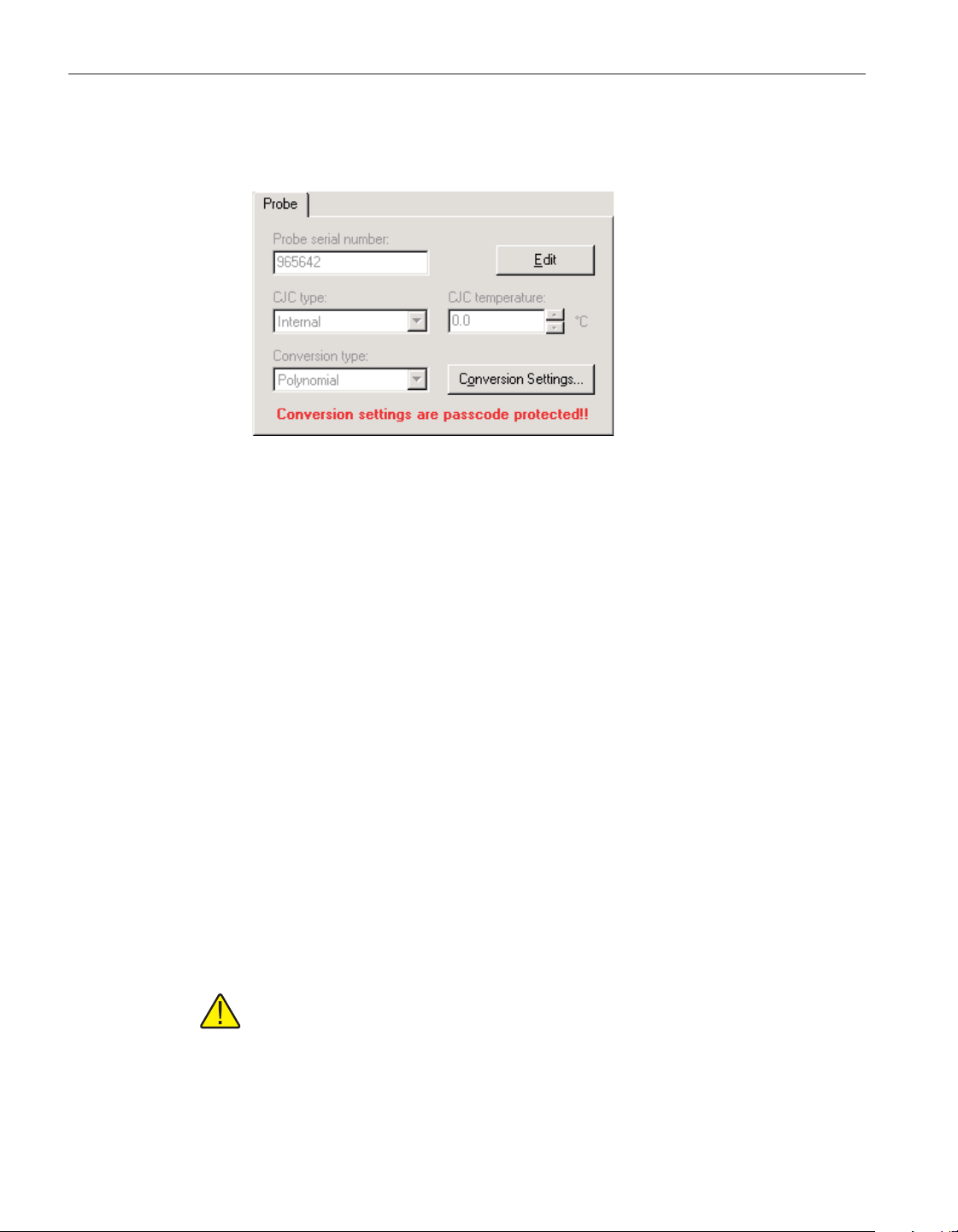
4.4.3.15.1 Probe tab
Select the Probe tab to view and/or modify probe settings.
The settings on the Probe tab may be passcode protected. If they are, a message
appears at the bottom of the Probe tab and the Edit button is displayed. The
other controls on this tab are disabled except the Conversion Settings button. If
the selected conversion type does not have any settings, this button should also
be disabled. To edit the probe settings, click the Edit button and enter the cur-
rent passcode for the thermometer readout. If the correct passcode is entered,
the probe setting controls are enabled and the values may be changed. The con-
trols remain enabled until this dialog is closed or until the current changes are
applied by clicking the Apply button.
Enter the serial number of the probe attached to this channel in the probe serial
number box. The serial number can be any combination of numbers and/or let
-
ters up to 8 characters in length. The dash “-“ character can also be used in se
-
rial numbers.
Select the type of cold junction compensation to use on the selected channel us
-
ing the CJC type drop-down list. Available choices are Internal and External. If
External is chosen as the CJC type, the external CJC temperature must be en
-
tered in the CJC temperature box.
Enter the external CJC temperature value in the CJC temperature box. This box
is disabled if the CJC type is set to Internal.
Note: The CJC temperature value must always be in °C!
Select the conversion type to use for the probe on this channel. Available con
-
version types will vary depending on the module that this channel belongs to.
Refer to the Report of Calibration for the probe attached to this channel for in
-
formation on the conversion type that the probe was calibrated for.
User’s Guide
136
Figure 111 1560 Black Stack PRT/Thermistor
Channel Settings - Probe tab
1.888.610.7664 sales@GlobalTestSupply.com
Fluke-Direct.com
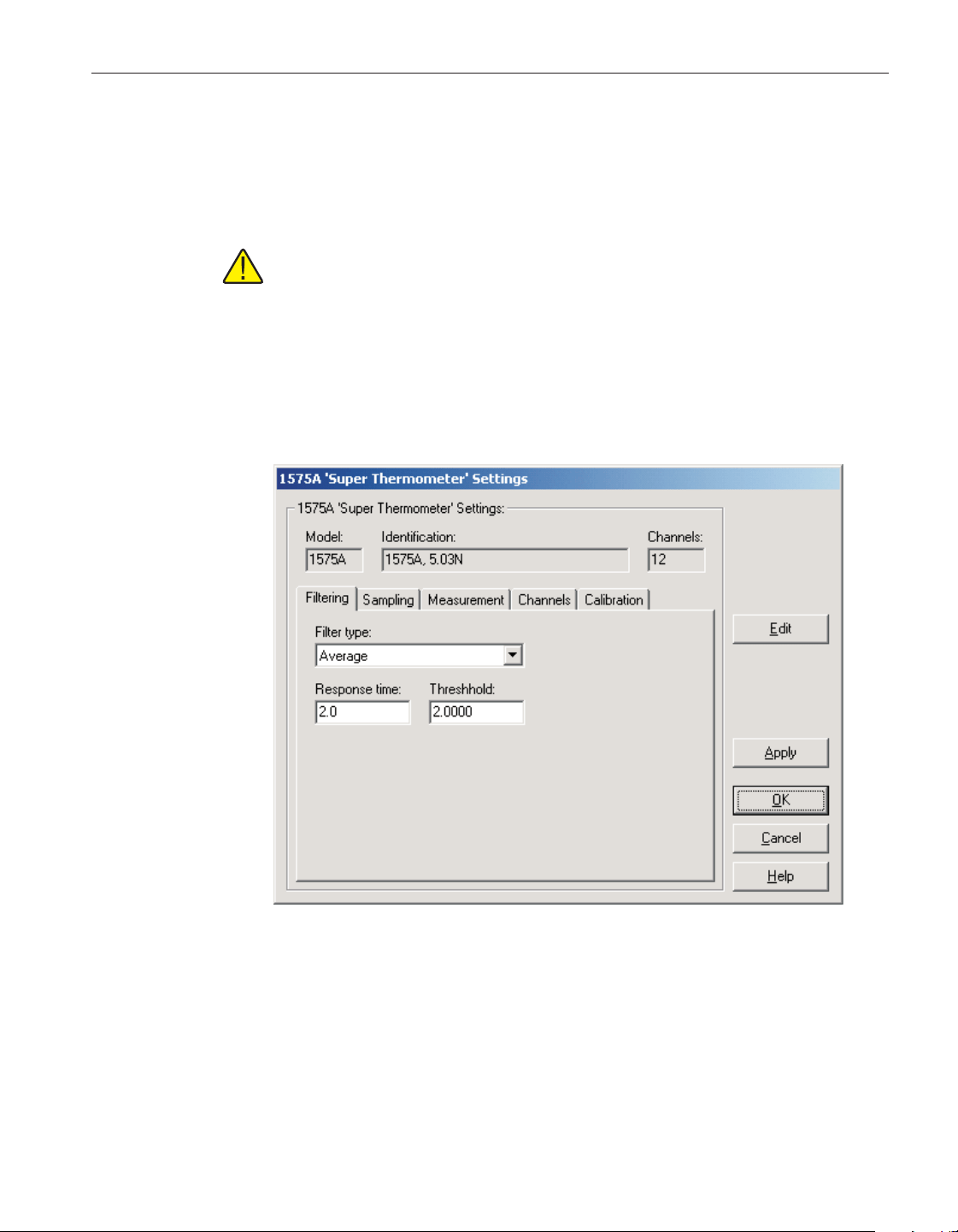
If the selected conversion type requires coefficients or other settings, the Con
-
version Settings button is enabled. Click the Conversion Settings button to dis
-
play the dialog for the selected conversion type. Otherwise, the Conversion
Settings button is disabled. Please refer to Section 9, Conversion Settings
Dialogs, for a detailed description of the Conversion Settings dialogs.
Note: The conversion settings are not written to the thermometer readout
until the Apply or OK button is clicked on this dialog!
4.4.4 1575A Super-Thermometer Settings
The 1575A Super-Thermometer Settings dialog displays information about the
thermometer readout including model number, identification information and
the total number of channels. It also allows many thermometer readout settings
to be viewed and/or modified.
The 1575A Super-Thermometer readout must be connected to an available
COM port and the communication settings must be properly configured so that
this information can be read in from the thermometer readout. If communica
-
tion with the thermometer readout is not successful, an error message is dis
-
played and this dialog is blank. A progress dialog is displayed while the current
thermometer readout settings are being read in.
137
4 Tools
Thermometer settings dialogs
Figure 112 1575A Super-Thermometer Settings dialog
1.888.610.7664 sales@GlobalTestSupply.com
Fluke-Direct.com

The Model box indicates the model number of the thermometer readout. The
Identification box indicates the model number and firmware version installed in
this thermometer readout. The Channels box indicates the total number of input
channels on this thermometer readout.
The filtering settings can be viewed and modified by selecting the Filtering tab.
The sampling settings can be viewed and/or modified by selecting the Sam
-
pling tab. The measurement settings can be viewed and/or modified by select
-
ing the Measurement tab. The Channels tab displays a list of channels and
allows access to channel settings dialogs. The thermometer readout calibration
information can be viewed and/or modified by selecting the Calibration tab.
The settings on each of these tabs are described in detail in the following sec
-
tions. For more details on these settings, please refer to the thermometer read
-
out’s User’s Guide.
If any of the settings on the 1575A Super-Thermometer Settings dialog are
passcode protected, a message appears at the bottom of the appropriate tab and
the Edit button is displayed. The controls for the passcode protected settings
are disabled. To edit the protected settings, click the Edit button and enter the
current passcode for the thermometer readout. If the correct passcode is en-
tered, the controls are enabled and the values may be changed. The controls re-
main enabled until this dialog is closed or until the current changes are applied
by clicking the Apply button.
After modifying any of the settings on this dialog, click the Apply or OK but-
ton to write the new settings to the thermometer readout. If the Apply button is
clicked, this dialog remains open. If the OK button is clicked, this dialog closes
after writing the settings.
LogWare has a feature that causes all of the thermometer readout settings to be
read back in from the thermometer readout after the Apply button is clicked
and the new settings have been written to the thermometer readout. This feature
can be useful to verify that the desired settings were properly applied to the
thermometer readout. To enable or disable this feature, see Section 5.6.4,
Options.
To close this dialog without writing the settings to the thermometer readout,
click the Cancel button.
Click the Help button to open the appropriate help topic for this dialog.
User’s Guide
138
1.888.610.7664 sales@GlobalTestSupply.com
Fluke-Direct.com
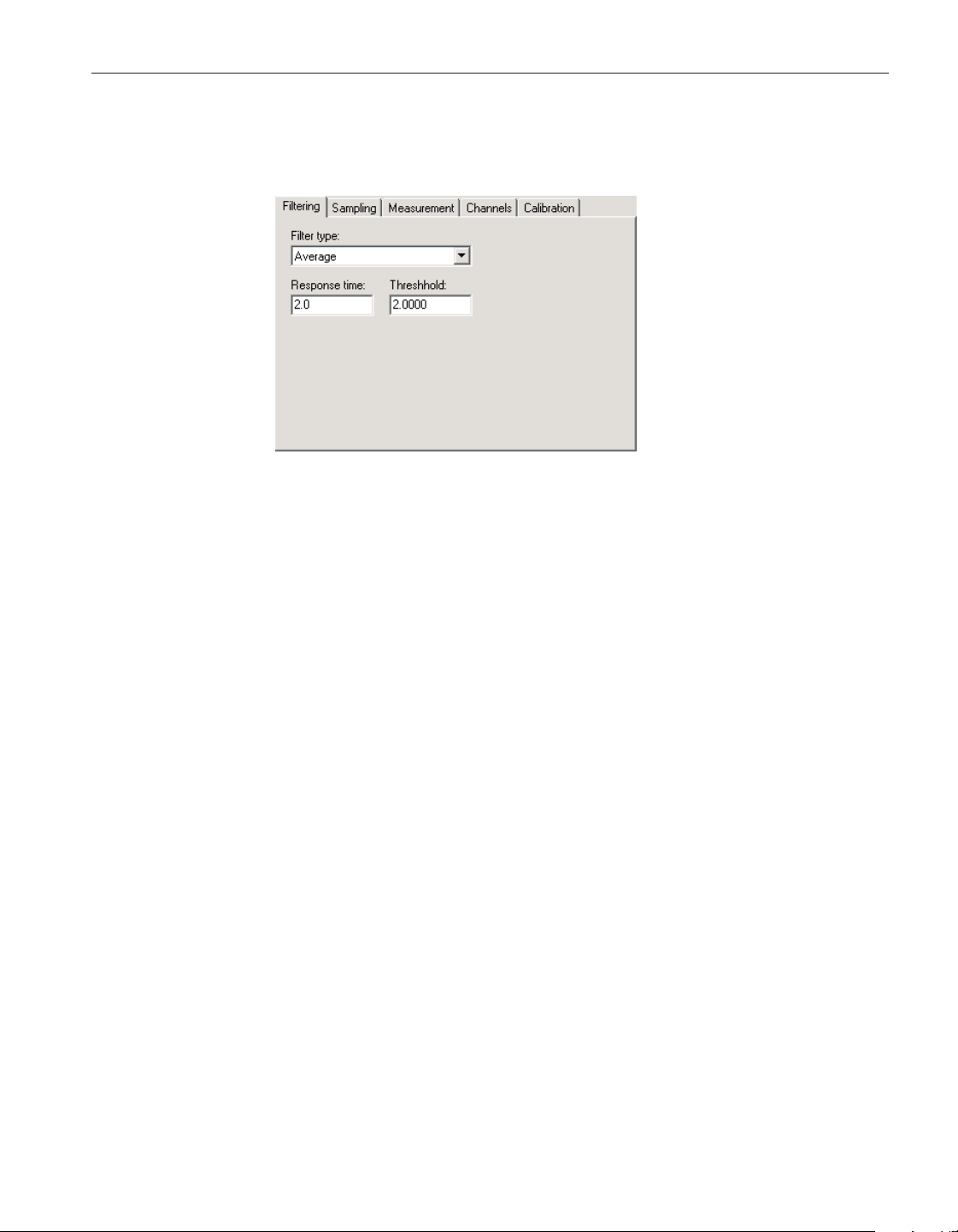
4.4.4.1 Filtering tab
Select the Filtering tab to view and/or modify the filter settings.
Use the Filter type drop-down list to select the type of filtering to use. The filter
type can be set to one of the following options:
• None
• Average
• Exponential
If the filter type is set to None, the Response time and Threshold settings are
not applicable and are disabled. If the filter type is set to Average or Exponen-
tial, the Response time and Threshold settings are enabled.
Enter the response time for the filter in the Response time box. The response
time can be set to any value between 2 and 200 seconds.
Enter the threshold to use for the selected filter in the Threshold box. The
threshold can be set to any value between .0001 and 1,000,000.
139
4 Tools
Thermometer settings dialogs
Figure 113 1575A Super-Thermometer Settings -
Filtering tab
1.888.610.7664 sales@GlobalTestSupply.com
Fluke-Direct.com
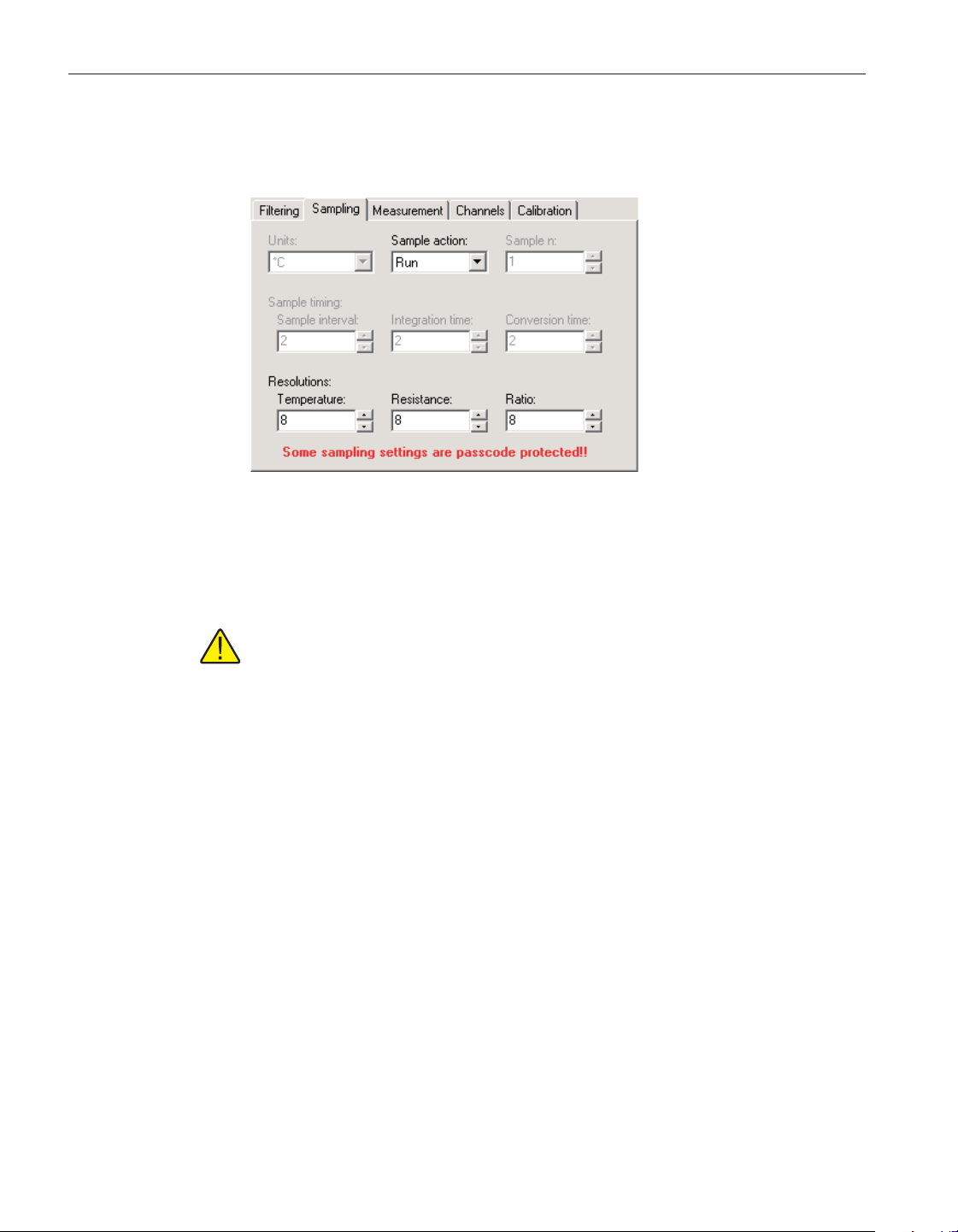
4.4.4.2 Sampling tab
Select the Sampling tab to view and/or modify sampling settings.
Select the units using the Units drop-down list. Readings can be displayed in
either °C, °F, K, Ohms, Ratio or W.
Note: This setting may override the selected conversion type for each
channel. Please refer to the thermometer readout’s User’s Guide for more
information on setting the system units.
Select the sample action from the Sample action drop-down list. The sample
action can be set to one of the following options:
•
Run
•
Stop
•
Sample n
If the sample action is set to Run or Stop, the Sample n setting is not applicable
and is disabled. If the filter type is set to Sample n,theSamplen setting is
enabled.
If the sample action is set to Sample n, enter the number of samples in the Sam
-
ple n box. The Sample n setting can be set to any value between 1 and 32,000.
The Sample timing controls allow the thermometer readout’s sample timing set
-
tings to be viewed and/or modified. The sample timing settings include the
Sample interval, Integration time and Conversion time.
Enter the sample interval value in the Sample interval box provided or use the
up/down buttons. The sample interval can be set to any value between 2 and
99,999 seconds.
User’s Guide
140
Figure 114 1575A Super-Thermometer Settings -
Sampling tab
1.888.610.7664 sales@GlobalTestSupply.com
Fluke-Direct.com
Note: The sample interval must be greater than or equal to the integration
time, which in turn must be greater than or equal to the conversion time. If
the sample interval is set to a value that is less than the current integration
time, the integration time and conversion time settings are automatically
set to match the sample interval setting!
Enter the integration time value in the Integration time box provided or use the
up/down buttons. The integration time can be set to any value between 2 and
9,999 seconds.
Note: The integration time must be greater than or equal to the conver
-
sion time. If the integration time is set to a value that is less than the cur
-
rent conversion time, the conversion time setting is automatically set to
match the integration time setting!
Enter the conversion time value in the Conversion time box provided or use the
up/down buttons. The conversion time can be set to any value between 2 and 10
seconds.
The Resolutions controls allow the thermometer readout’s resolution settings to
be viewed and/or modified. The resolution settings include the Temperature,
Resistance and Ratio settings.
Enter the resolution for temperature readings in the Temperature box provided
or use the up/down buttons. The temperature resolution can be set to any value
between 0 and 8 digits (places after decimal point).
Enter the resolution for resistance readings in the Resistance box provided or
use the up/down buttons. The resistance resolution can be set to any value be-
tween 0 and 8 digits (places after decimal point).
Enter the resolution for ratio readings in the Ratio box provided or use the
up/down buttons. The ratio resolution can be set to any value between 0 and 8
digits (places after decimal point).
141
4 Tools
Thermometer settings dialogs
1.888.610.7664 sales@GlobalTestSupply.com
Fluke-Direct.com
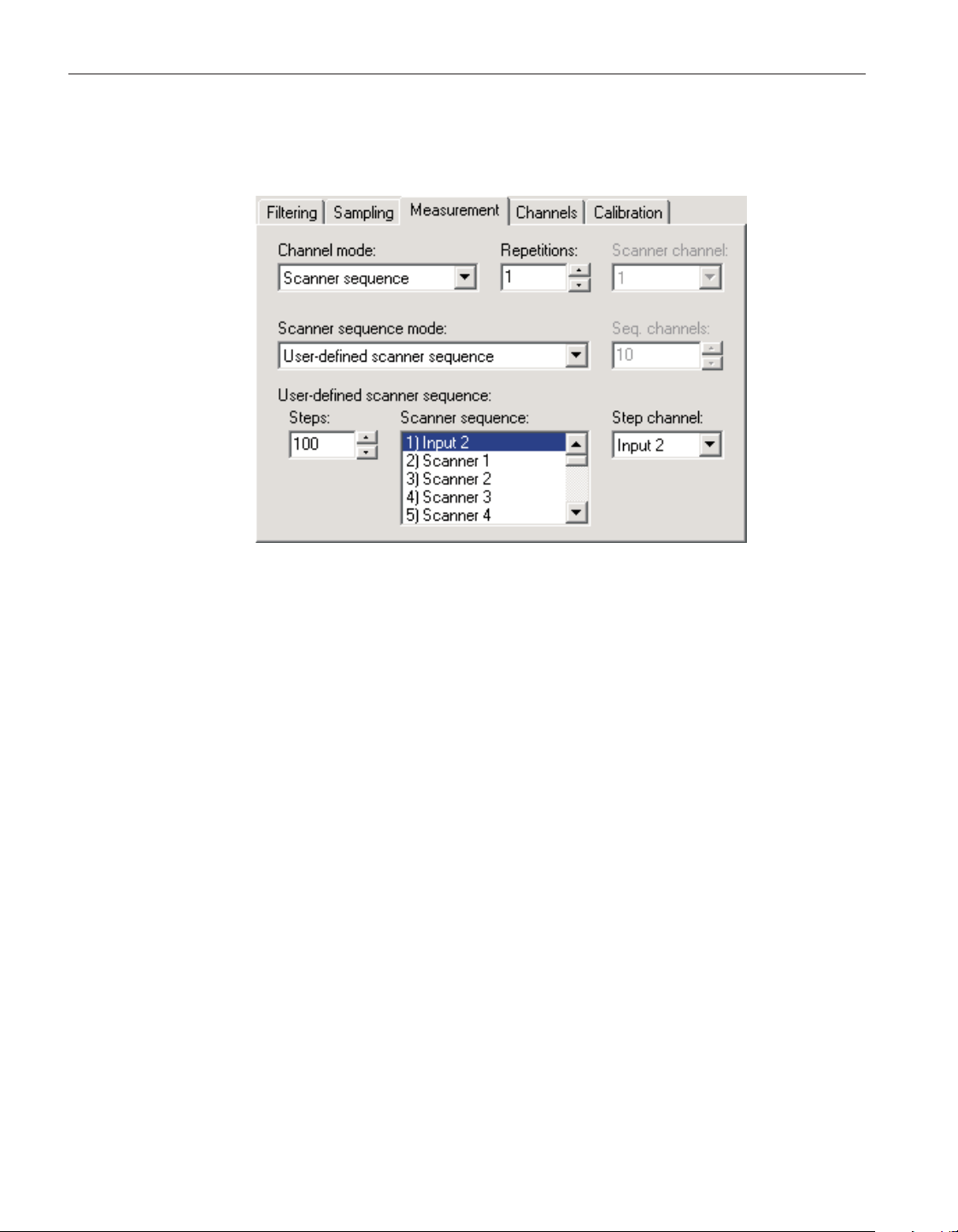
4.4.4.3 Measurement tab
Select the Measurement tab to view and/or modify measurement settings.
Use the Channel mode drop-down list to select the channels to take measure-
ments from. The channel mode can be set to one of the following options:
• Alternate input 1/input 2
• Input 1
•
Input 2
•
Scanner channel (only if Model 2575 Mighty Mux Multiplexer is con
-
nected)
•
Scanner sequence (only if Model 2575 Mighty Mux Multiplexer is
connected)
If the channel mode is set to Alternate input 1/input 2, Input 1 or Input 2, the
scanner channel and scanner sequence mode settings are not applicable and are
disabled. If the channel mode is set to Scanner channel, the Scanner channel
setting is enabled. If the channel mode is set to Scanner sequence, the scanner
sequence mode setting is enabled.
Enter the repetitions setting in the Repetitions box provided or use the up/down
buttons. The repetitions can be set to any value between 1 and 32,000 readings.
If the channel mode is set to Scanner channel, select the scanner channel to ac
-
tivate using the Scanner channel drop-down list.
User’s Guide
142
Figure 115 1575A Super-Thermometer Settings - Measurement tab
1.888.610.7664 sales@GlobalTestSupply.com
Fluke-Direct.com

If the channel mode is set to Scanner sequence, select the scanner sequence
mode using the Scanner sequence mode drop-down list. The scanner sequence
mode can be set to on of the following options:
•
Scanner channels only
•
Input 2 and scanner channels
•
Alternate input 2/scanner channels
•
Alternate scanner channel 1/scanner channels
•
User-defined scanner sequence
If the scanner sequence mode is set to Scanner channels only, Input 2 and scan
-
ner channels, Alternate input 2/scanner channels or Alternate scanner channel
1/scanner channels, the Seq. channels setting must be set and is enabled. If the
scanner sequence mode is set to User-defined scanner sequence, the user-de
-
fined scanner sequence settings must be set and are enabled.
If the scanner sequence mode is set to Scanner channels only, Input 2 and scan
-
ner channels, Alternate input 2/scanner channels or Alternate scanner channel
1/scanner channels, enter the number of scanner channels to include in the
scanner sequence in the Seq. channels box provided or use the up/down
buttons.
If the scanner sequence mode is set to User-defined scanner sequence, the
user-defined scanner sequence can be configured using the Steps, Scanner se-
quence and Step channel controls.
Enter the number of steps in the user-defined scanner sequence in the Steps box
provided or use the up/down buttons. The number of steps in a user-defined
scanner sequence can be set to any value between 1 and 100.
The Scanner sequence list indicates the current channel assignments for each
step in the user-defined scanner sequence. To change the current channel as
-
signed to a step, select the step in the list. The current channel assignment ap
-
pears in the Step channel control.
Select the channel assignment for the currently selected step using the Step
Channel drop-down list.
4.4.4.4 Channels tab
Select the Channels tab to view a list of channels on the 1575A Super-Ther
-
143
4 Tools
Thermometer settings dialogs
1.888.610.7664 sales@GlobalTestSupply.com
Fluke-Direct.com
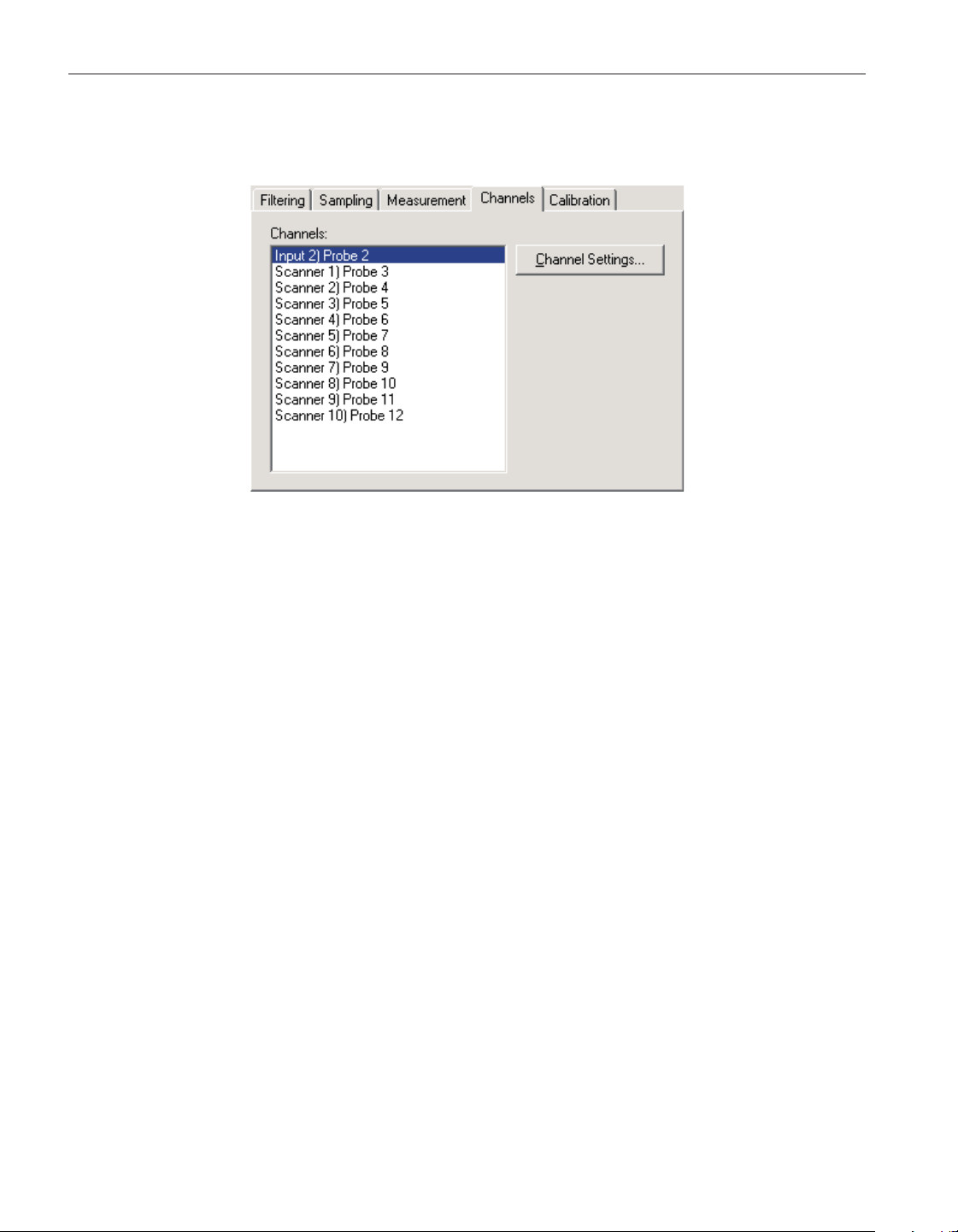
mometer readout and to access the channel settings dialogs to view and/or
modify channel specific settings.
Select the channel to view and/or modify from the Channels list. This list indi-
cates the channel number and the current probe that is assigned to each
channel.
Click the Channel Settings button to display the appropriate channel settings di-
alog. When this button is clicked, the settings for the selected channel are read
in from the thermometer readout. The Channel Settings dialog is described in
detail in Section 4.4.4.6, 1575A Super-Thermometer/2575 Mighty Mux Chan
-
nel Settings Dialog.
User’s Guide
144
Figure 116 1575A Super-Thermometer Settings - Channels
tab
1.888.610.7664 sales@GlobalTestSupply.com
Fluke-Direct.com
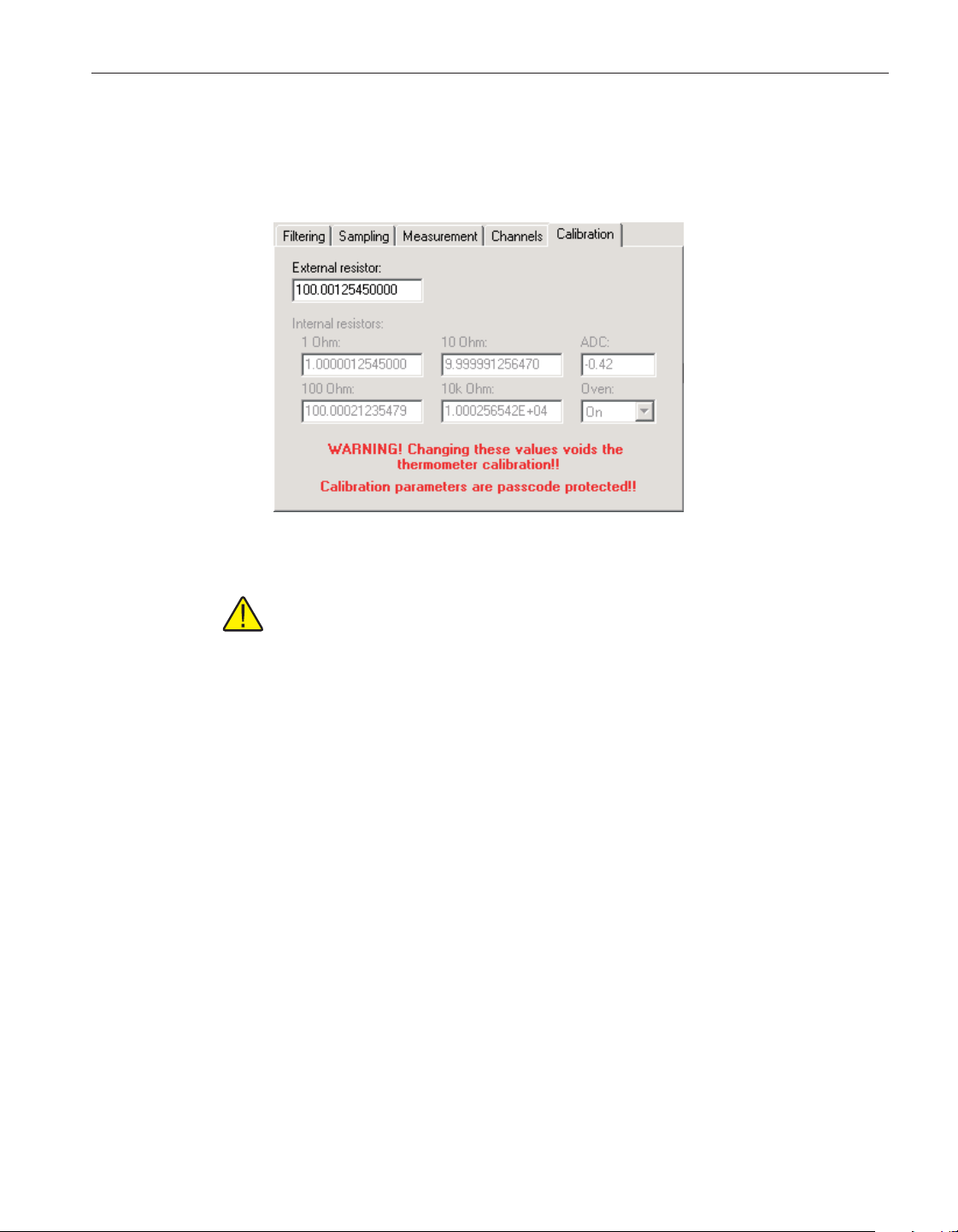
4.4.4.5 Calibration tab
Select the Calibration tab to view and/or modify thermometer readout calibra
-
tion information.
Caution: Do not change these values unless this thermometer readout has
been recalibrated or unless these values do not match the values located
on the latest Report of Calibration for this thermometer readout! Chang-
ing these values voids the current calibration!
Enter the value of the external reference resistor in the External resistor box
provided. If no external reference resistor is being used, the value in this box is
ignored by the thermometer readout.
Enter the values for the internal reference resistors in the boxes provided. The
Model 1575A Super-Thermometer readout has four internal reference resistors:
1 Ohm, 10 Ohm, 100 Ohm and 10K Ohm. The values of these reference resis
-
tors as well as the ADC constant value should be located on the Report of Cali
-
bration for this thermometer readout.
Select the state of the internal reference resistor oven using the Oven
drop-down list. The oven can either be turned On or Off. Typically, the oven
should be set On.
145
4 Tools
Thermometer settings dialogs
Figure 117 1575A Super-Thermometer Settings -
Calibration tab
1.888.610.7664 sales@GlobalTestSupply.com
Fluke-Direct.com
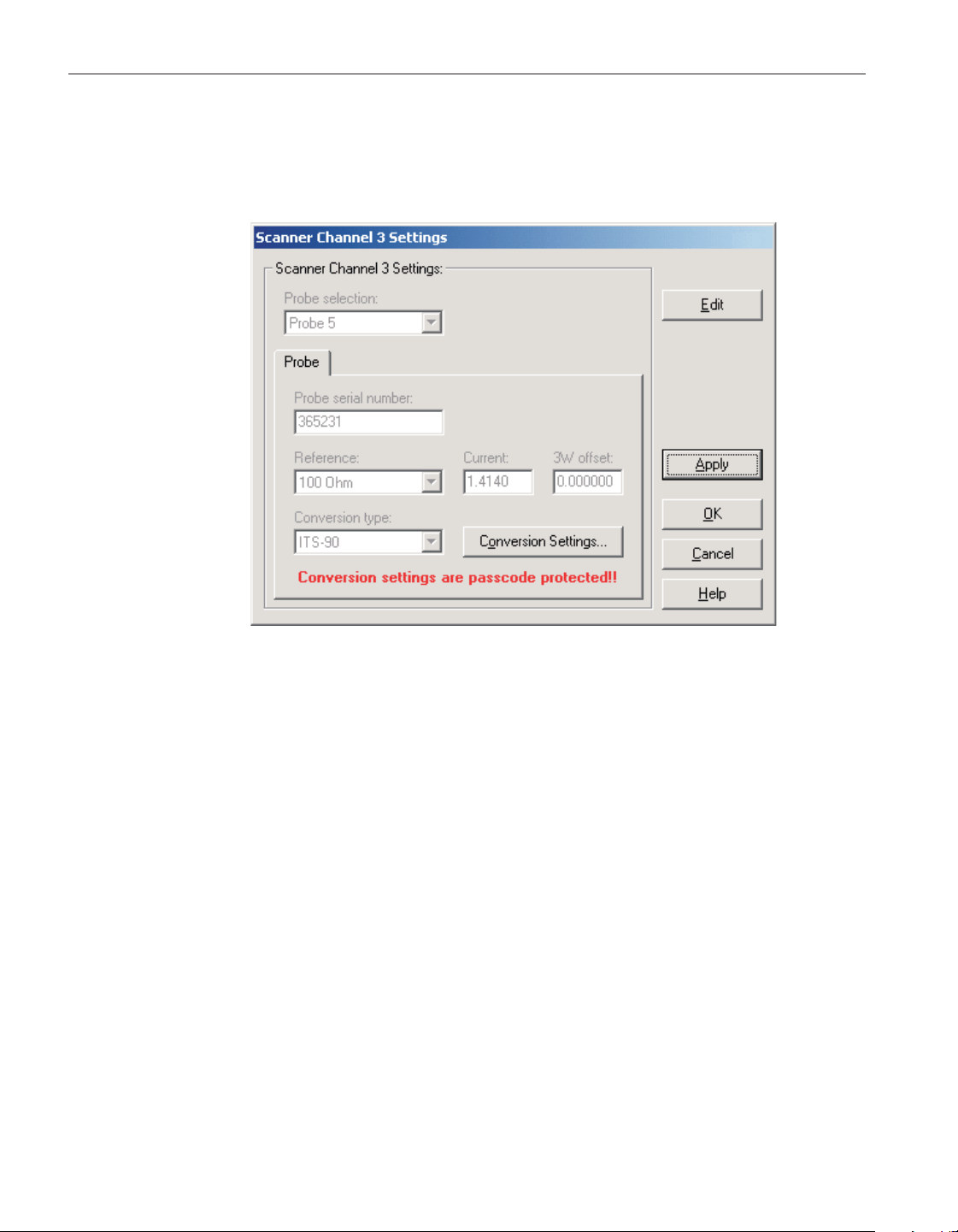
4.4.4.6 1575A Super Thermometer/2575 Mighty Mux Channel Settings
The 1575A‘Super Thermomete’/2575 Mighty Mux Channel Settings dialog
displays information about the selected PRT/Thermistor channel.
Some or all of the settings on this dialog may be passcode protected. If so, a
message appears at the bottom of the Probe tab and/or Calibration tab and the
Edit button is displayed. The protected controls are disabled. To edit the pro
-
tected settings, click the Edit button and enter the current passcode for the ther
-
mometer readout. If the correct passcode is entered, the protected controls are
enabled and the values may be changed. The controls remain enabled until this
dialog is closed or until the current changes are applied by clicking the Apply
button.
Select the probe to be assigned to this channel using the Probe selection
drop-down list. The Model 1575A Super-Thermometer readout can hold infor
-
mation for up to 16 probes simultaneously. Any one of these probes can then be
assigned to any channel.
When a new probe is selected, the current settings for that probe are read in
from the thermometer readout. A progress dialog is displayed while the probe
settings are being read in.
After modifying any of the settings on this dialog, click the Apply or OK but
-
ton to write the new settings to the thermometer readout. If the Apply button is
clicked, this dialog remains open. If the OK button is clicked, this dialog closes
after writing the settings.
User’s Guide
146
Figure 118 1575A Super Thermometer/2575 Mighty Mux Channel Settings
dialog
1.888.610.7664 sales@GlobalTestSupply.com
Fluke-Direct.com
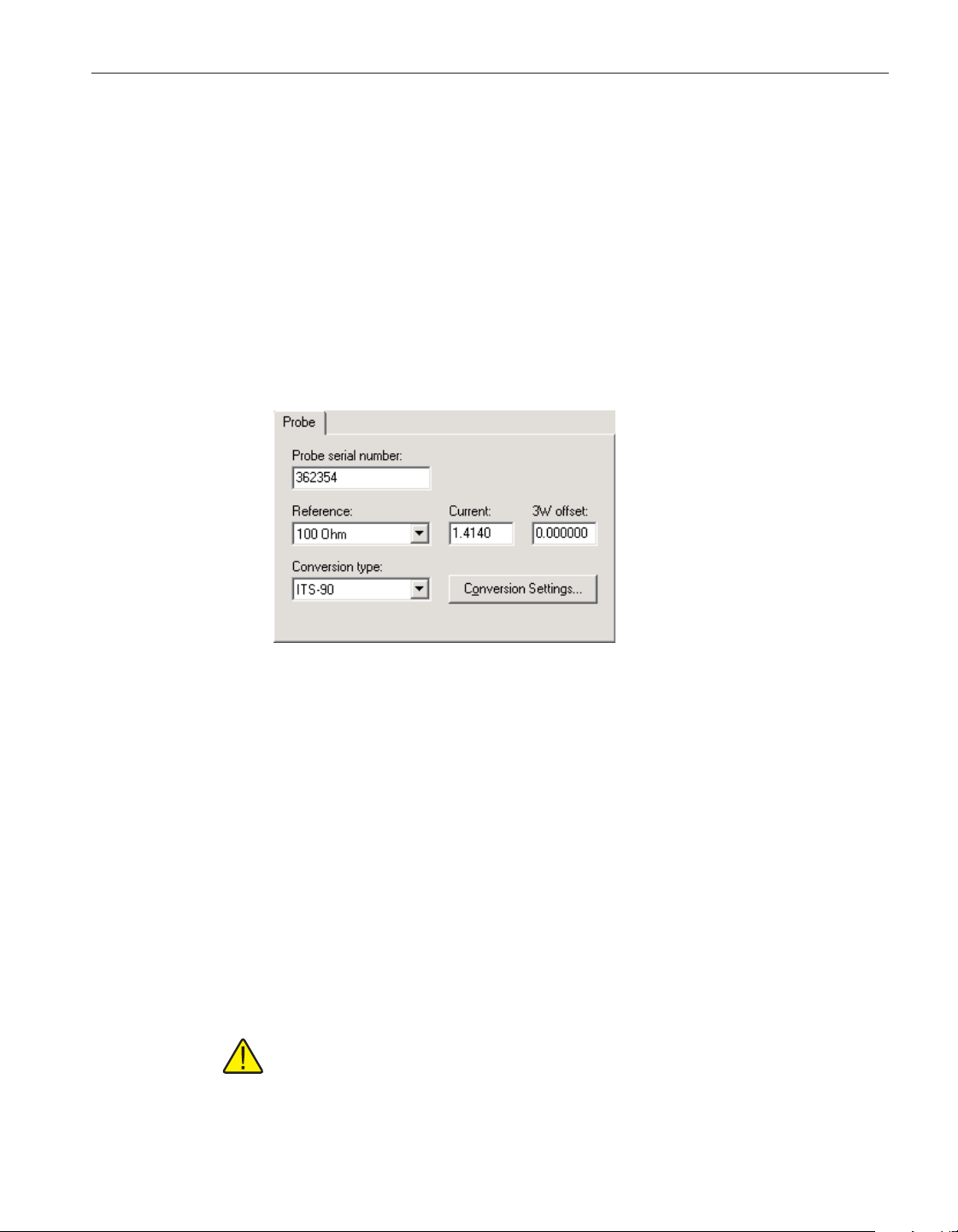
LogWare has a feature that causes all of the channel settings to be read back in
from the thermometer readout after the Apply button is clicked and the new set
-
tings have been written to the thermometer readout. This feature can be useful
to verify that the desired settings were properly applied to the thermometer
readout. To enable or disable this feature, see Section 5.6.4, Options.
To close this dialog without writing the channel settings to the thermometer
readout, click the Cancel button.
Click the Help button to open the appropriate help topic for this dialog.
4.4.4.6.1 Probe tab
Select the Probe tab to view and/or modify probe settings.
Enter the serial number of the selected probe in the Probe serial number box.
The serial number can be any combination of numbers and/or letters up to 8
characters in length. The dash “-“ character can also be used in serial numbers.
Select the reference resistor for the selected probe using the Reference
drop-down list. The choices for the reference resistor are:
•
External resistor
•
1 Ohm
•
10 Ohm
•
100 Ohm
•
10K Ohm
Note: The External resistor option is not available for Input 2 because the
external reference resistor must be connected to Input 2!
147
4 Tools
Thermometer settings dialogs
Figure 119 1575A Super-Thermometer/2575
Mighty Mux Channel Settings - Probe tab
1.888.610.7664 sales@GlobalTestSupply.com
Fluke-Direct.com
Enter the excitation current for the selected probe in the Current box provided.
The excitation current can be set to any value between 0.0001 and 21.0 mA.
Enter the 3-wire offset value for the selected probe in the 3W offset box pro
-
vided. The 3-wire offset can be set to any value between 0 and 1,000,000 ohms.
Select the conversion type to use for the selected probe. The Model 1575A
Super-Thermometer readout supports the following conversion types:
•
ITS-90
•
IPTS-68
•
CVD (Callendar-Van Dusen)
•
W(T90)
•
R(T)
•
T(R)
•
Polynomial
• Ohms
• Ratio
Refer to the Report of Calibration for the selected probe for information on the
conversion type that the probe was calibrated for.
If the selected conversion type requires coefficients or other settings, the Con-
version Settings button is enabled. Otherwise, the Conversion Settings button is
disabled. Click the Conversion Settings button to display the dialog for the se-
lected conversion type. Please refer to Section 9, Conversion Settings Dialogs,
for a detailed description of the Conversion Settings dialogs.
Note: The conversion settings are not written to the thermometer readout
until the Apply or OK button is clicked on this dialog!
4.4.5 1590 Super-Thermometer II Settings dialog
The 1590 Super-Thermometer II Settings dialog displays information about the
thermometer readout including model number, identification information and
User’s Guide
148
1.888.610.7664 sales@GlobalTestSupply.com
Fluke-Direct.com
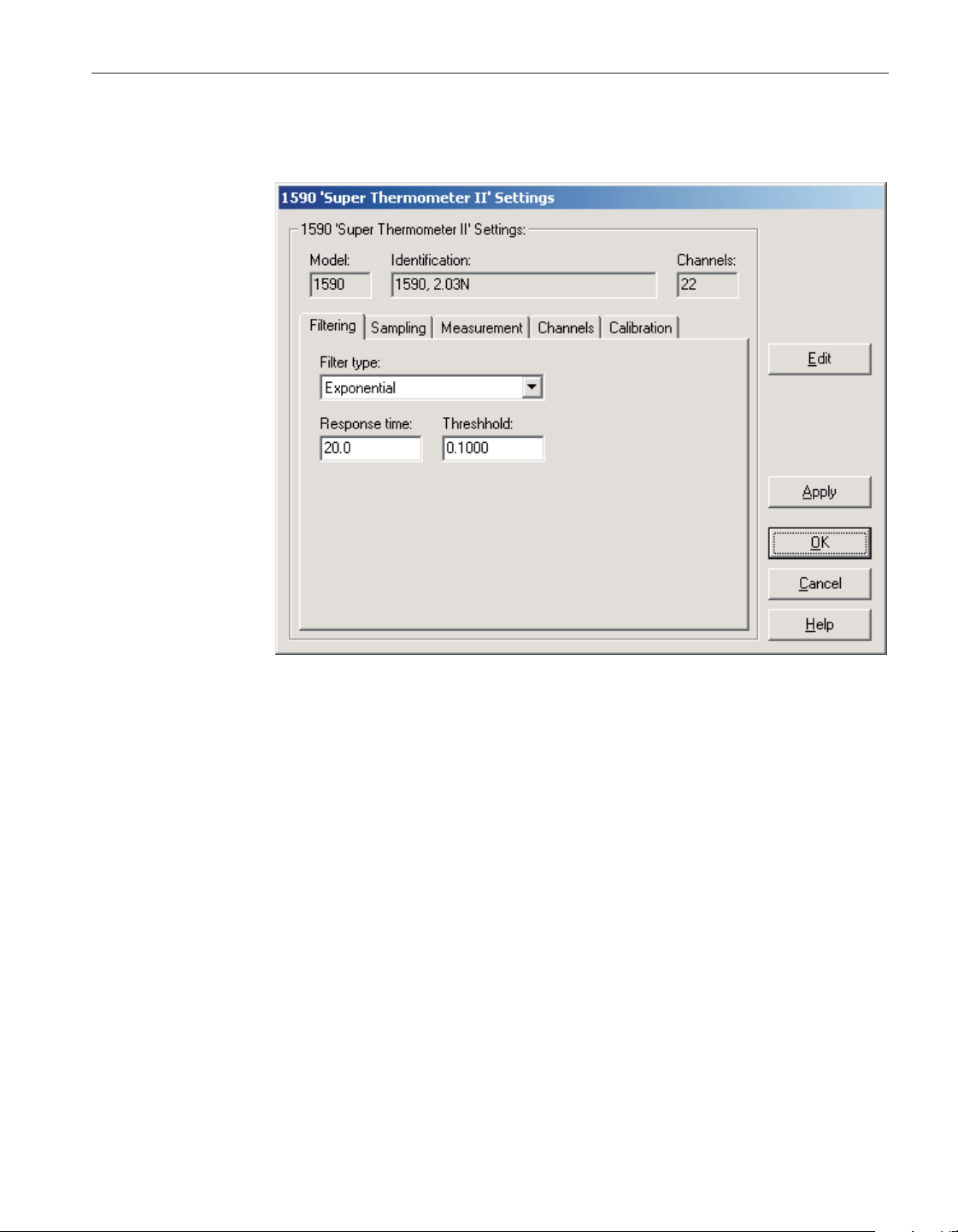
the total number of channels. It also allows many thermometer readout settings
to be viewed and/or modified.
The 1590 Super-Thermometer II readout must be connected to an available
COM port and the communication settings must be properly configured so that
this information can be read in from the thermometer readout. If communica
-
tion with the thermometer readout is not successful, an error message is dis
-
played and this dialog is blank. A progress dialog is displayed while the current
thermometer readout settings are being read in.
The Model box indicates the model number of the thermometer readout. The
Identification box indicates the model number and firmware version installed in
this thermometer readout. The Channels box indicates the total number of input
channels on this thermometer readout.
The filtering settings can be viewed and/or modified by selecting the Filtering
tab. The sampling settings can be viewed and/or modified by selecting the Sam
-
pling tab. The measurement settings can be viewed and/or modified by select
-
ing the Measurement tab. The Channels tab displays a list of channels and
allows access to channel settings dialogs. The thermometer readout calibration
information can be viewed and/or modified by selecting the Calibration tab.
The settings on each of these tabs are described in detail in the following sec
-
149
4 Tools
Thermometer settings dialogs
Figure 120 1590 Super-Thermometer II Settings dialog
1.888.610.7664 sales@GlobalTestSupply.com
Fluke-Direct.com

tions. For more details on these settings, please refer to the thermometer read
-
out’s User’s Guide.
If any of the settings on the 1590 Super-Thermometer II Settings dialog are
passcode protected, a message appears at the bottom of the appropriate tab and
the Edit button is displayed. The controls for the passcode protected settings
are disabled. To edit the protected settings, click the Edit button and enter the
current passcode for the thermometer readout. If the correct passcode is en
-
tered, the controls are enabled and the values may be changed. The controls re
-
main enabled until this dialog is closed or until the current changes are applied
by clicking the Apply button.
After modifying any of the settings on this dialog, click the Apply or OK but
-
ton to write the new settings to the thermometer readout. If the Apply button is
clicked, this dialog remains open. If the OK button is clicked, this dialog closes
after writing the settings.
LogWare has a feature that causes all of the thermometer readout settings to be
read back in from the thermometer readout after the Apply button is clicked
and the new settings have been written to the thermometer readout. This feature
can be useful to verify that the desired settings were properly applied to the
thermometer readout. To enable or disable this feature, see Section 5.6.4,
Options.
To close this dialog without writing the settings to the thermometer readout,
click the Cancel button.
Click the Help button to open the appropriate help topic for this dialog.
4.4.5.1 Filtering tab
Select the Filtering tab to view and/or modify the filter settings.
User’s Guide
150
Figure 121 1590 Super-Thermometer II Settings - Filtering tab
1.888.610.7664 sales@GlobalTestSupply.com
Fluke-Direct.com
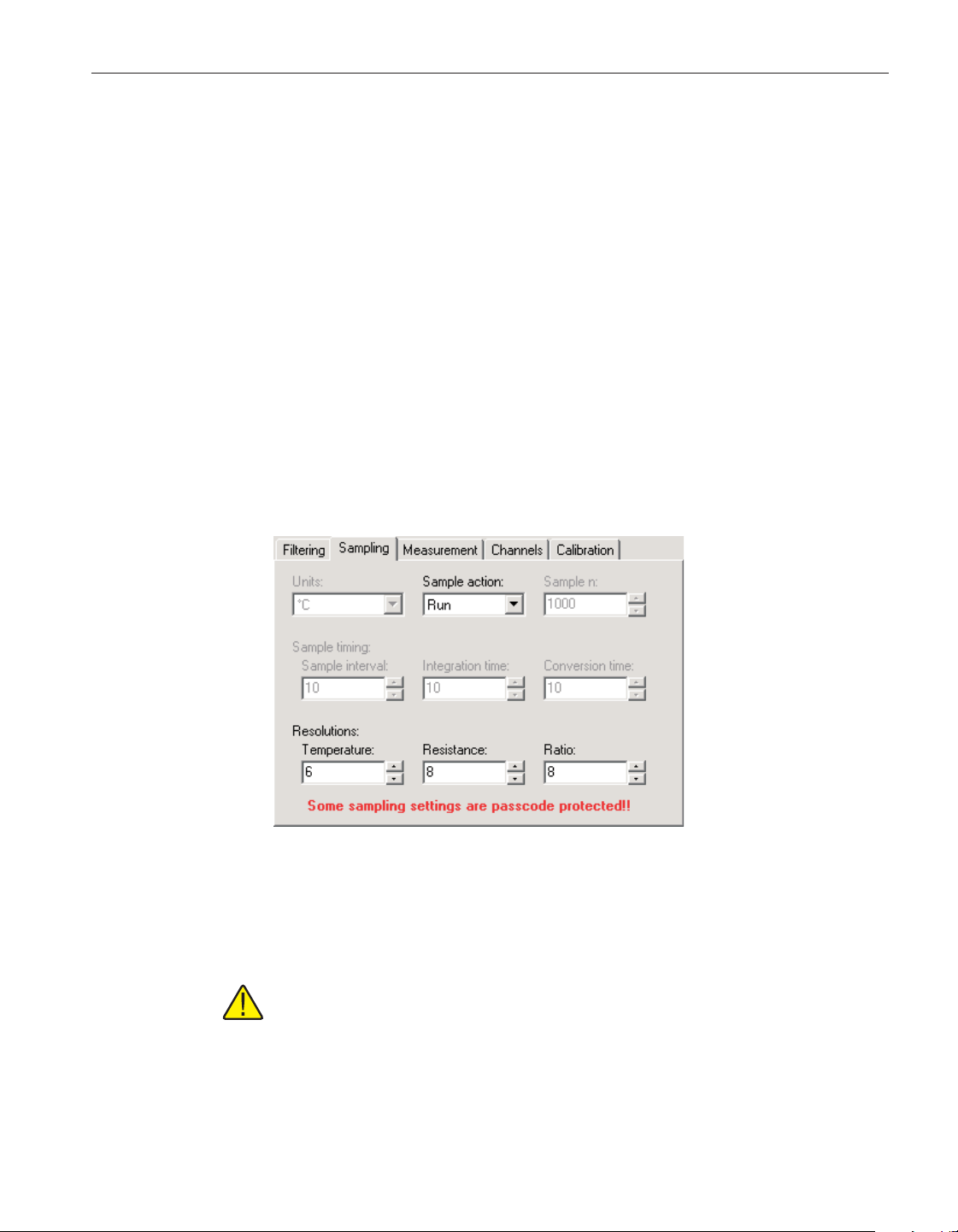
Use the Filter type drop-down list to select the type of filtering to use. The filter
type can be set to one of the following options:
•
None
•
Average
•
Exponential
If the filter type is set to None, the Response time and Threshold settings are
not applicable and are disabled. If the filter type is set to Average or Exponen
-
tial, the Response time and Threshold settings are enabled.
Enter the response time for the filter in the Response time box. The response
time can be set to any value between 2 and 200 seconds.
Enter the threshold to use for the selected filter in the Threshold box. The
threshold can be set to any value between .0001 and 1,000,000.
4.4.5.2 Sampling tab
Select the Sampling tab to view and/or modify sampling settings.
Select the units using the Units drop-down list. Readings can be displayed in
either °C, °F, K, Ohms, Ratio or W.
Note: This setting may override the selected conversion type for each
channel. Please refer to the thermometer readout’s User’s Guide for more
information on setting the system units.
Select the sample action from the Sample action drop-down list. The sample
action can be set to one of the following options:
151
4 Tools
Thermometer settings dialogs
Figure 122 1590 Super-Thermometer II Settings -
Sampling tab
1.888.610.7664 sales@GlobalTestSupply.com
Fluke-Direct.com
•
Run
•
Stop
•
Sample n
If the sample action is set to Run or Stop, the Sample n setting is not applicable
and is disabled. If the filter type is set to Sample n,theSamplen setting is
enabled.
If the sample action is set to Sample n, enter the number of samples in the Sam
-
ple n box. The Sample n setting can be set to any value between 1 and 32,000.
The Sample timing controls allow the thermometer readout’s sample timing set
-
tings to be viewed and/or modified. The sample timing settings include the
Sample interval, Integration time and Conversion time.
Enter the sample interval value in the Sample interval box provided or use the
up/down buttons. The sample interval can be set to any value between 2 and
99,999 seconds.
Note: The sample interval must be greater than or equal to the integration
time, which in turn must be greater than or equal to the conversion time. If
the sample interval is set to a value that is less than the current integration
time, the integration time and conversion time settings are automatically
set to match the sample interval setting!
Enter the integration time value in the Integration time box provided or use the
up/down buttons. The integration time can be set to any value between 2 and
9,999 seconds.
Note: The integration time must be greater than or equal to the conver
-
sion time. If the integration time is set to a value that is less than the cur
-
rent conversion time, the conversion time setting is automatically set to
match the integration time setting!
Enter the conversion time value in the Conversion time box provided or use the
up/down buttons. The conversion time can be set to any value between 2 and 10
seconds.
The Resolutions controls allow the thermometer readout’s resolution settings to
be viewed and/or modified. The resolution settings include the Temperature,
Resistance and Ratio settings.
Enter the resolution for temperature readings in the Temperature box provided
or use the up/down buttons. The temperature resolution can be set to any value
between 0 and 8 digits (places after decimal point).
User’s Guide
152
1.888.610.7664 sales@GlobalTestSupply.com
Fluke-Direct.com
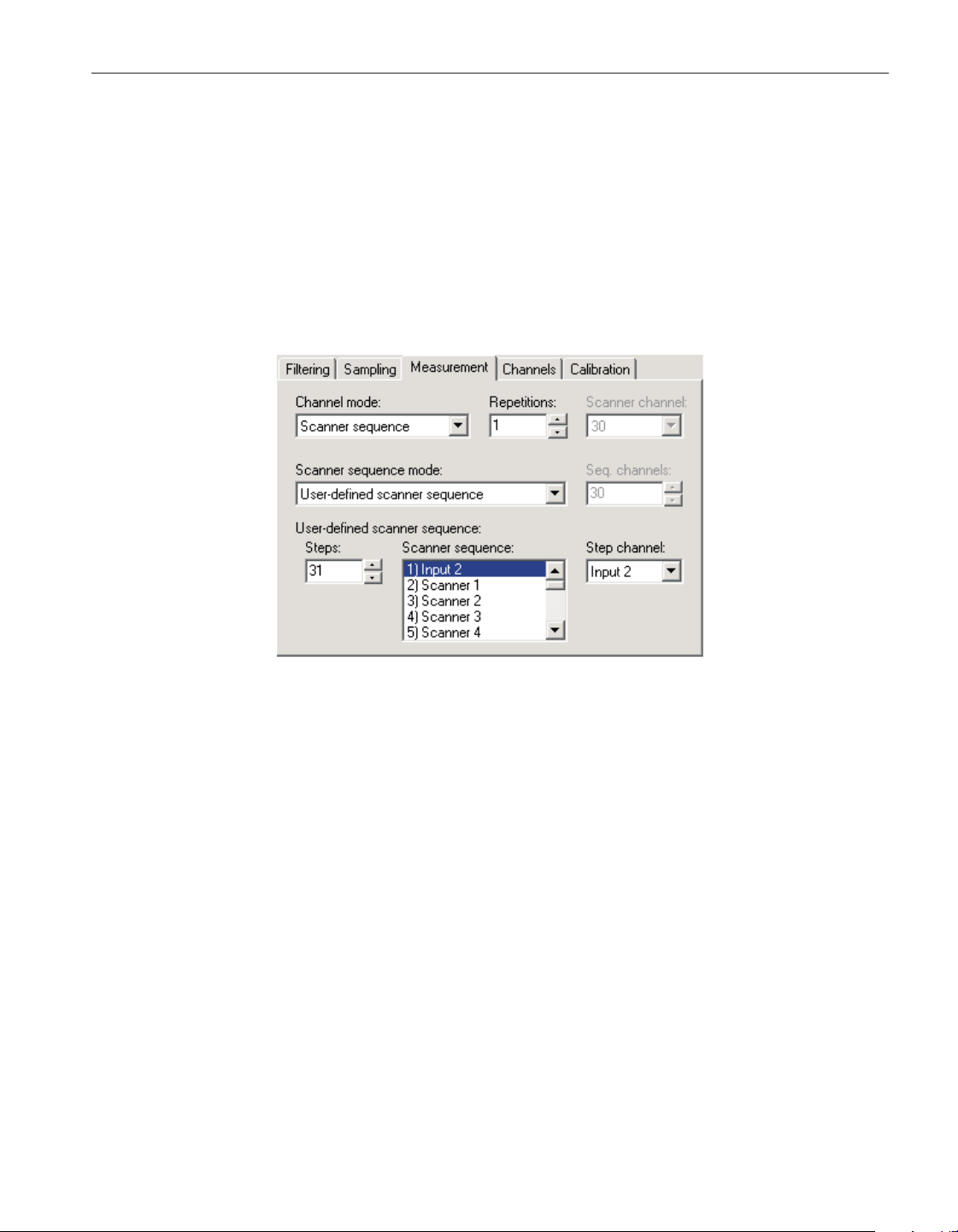
Enter the resolution for resistance readings in the Resistance box provided or
use the up/down buttons. The resistance resolution can be set to any value be
-
tween 0 and 8 digits (places after decimal point).
Enter the resolution for ratio readings in the Ratio box provided or use the
up/down buttons. The ratio resolution can be set to any value between 0 and 8
digits (places after decimal point).
4.4.5.3 Measurement tab
Select the Measurement tab to view and/or modify measurement settings.
Use the Channel mode drop-down list to select the channels to take measure
-
ments from. The channel mode can be set to one of the following options:
•
Alternate input 1/input 2
•
Input 1
•
Input 2
•
Scanner channel (only if Model 2590 ‘Mighty Mux II’ Multiplexer(s)
is/are connected)
•
Scanner sequence (only if Model 2590 ‘Mighty Mux II’ Multiplexer(s)
is/are connected)
If the channel mode is set to Alternate Input 1/Input 2, Input 1 or Input 2, the
scanner channel and scanner sequence mode settings are not applicable and are
disabled. If the channel mode is set to Scanner channel, the Scanner channel
setting is enabled. If the channel mode is set to Scanner sequence, the scanner
sequence mode setting is enabled.
153
4 Tools
Thermometer settings dialogs
Figure 123 1590 Super-Thermometer II Settings -
Measurement tab
1.888.610.7664 sales@GlobalTestSupply.com
Fluke-Direct.com

Enter the repetitions setting in the Repetitions box provided or use the up/down
buttons. The repetitions can be set to any value between 1 and 32,000 readings.
If the channel mode is set to Scanner channel, select the scanner channel to ac
-
tivate using the Scanner channel drop-down list.
If the channel mode is set to Scanner sequence, select the scanner sequence
mode using the Scanner sequence mode drop-down list. The scanner sequence
mode can be set to on of the following options:
•
Scanner channels only
•
Input 2 and scanner channels
•
Alternate input 2/scanner channels
•
Alternate scanner channel 1/scanner channels
•
User-defined scanner sequence
If the scanner sequence mode is set to Scanner channels only, Input 2 and scan
-
ner channels, Alternate input 2/scanner channels or Alternate scanner channel
1/scanner channels, the Seq. channels setting must be set and is enabled. If the
scanner sequence mode is set to User-defined scanner sequence, the user-de-
fined scanner sequence settings must be set and are enabled.
If the scanner sequence mode is set to Scanner channels only, Input 2 and scan-
ner channels, Alternate input 2/scanner channels or Alternate scanner channel
1/scanner channels, enter the number of scanner channels to include in the
scanner sequence in the Seq. channels box provided or use the up/down
buttons.
If the scanner sequence mode is set to User-defined scanner sequence, the
user-defined scanner sequence can be configured using the Steps, Scanner se
-
quence, and Step channel controls.
Enter the number of steps in the user-defined scanner sequence in the Steps box
provided or use the up/down buttons. The number of steps in a user-defined
scanner sequence can be set to any value between 1 and 100.
The Scanner sequence list indicates the current channel assignments for each
step in the user-defined scanner sequence. To change the current channel as
-
signed to a step, select the step in the list. The current channel assignment ap
-
pears in the Step channel control.
Select the channel assignment for the currently selected step using the Step
Channel drop-down list.
4.4.5.4 Channels tab
Select the Channels tab to view a list of channels on the 1590 Super-Thermom
-
User’s Guide
154
1.888.610.7664 sales@GlobalTestSupply.com
Fluke-Direct.com
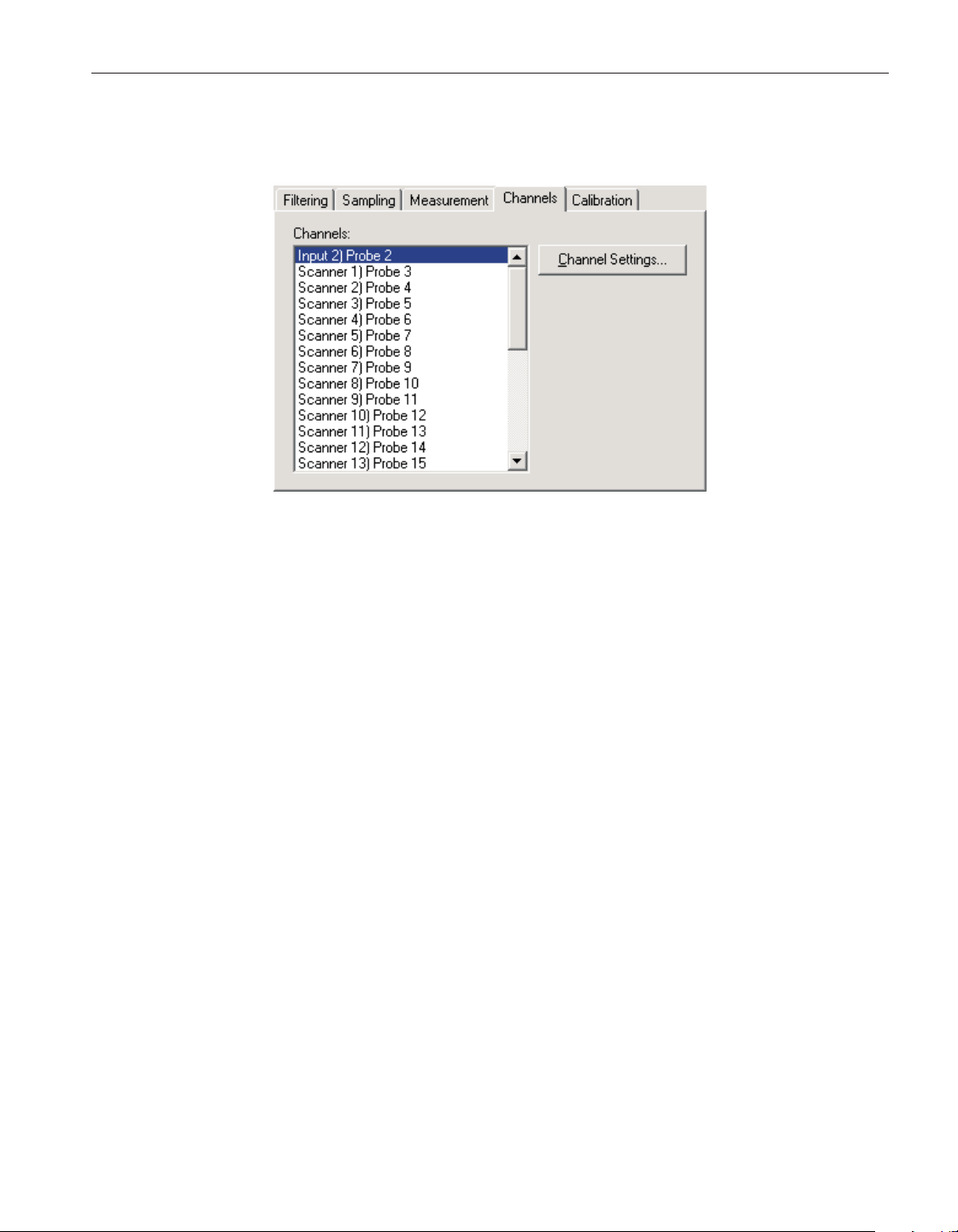
eter II readout and to access the channel settings dialogs to view and/or modify
channel specific settings.
Select the channel to view and/or modify from the Channels list. This list indi-
cates the channel number and the current probe that is assigned to each
channel.
Click the Channel Settings button to display the appropriate channel settings di-
alog. When this button is clicked, the settings for the selected channel are read
in from the thermometer readout. The Channel Settings dialog is described in
detail in Section 4.4.5.6, 1590 Super-Thermometer II/2590 ‘Mighty Mux II’
Channel Settings Dialog.
155
4 Tools
Thermometer settings dialogs
Figure 124 1590 Super-Thermometer II Settings - Channels
tab
1.888.610.7664 sales@GlobalTestSupply.com
Fluke-Direct.com
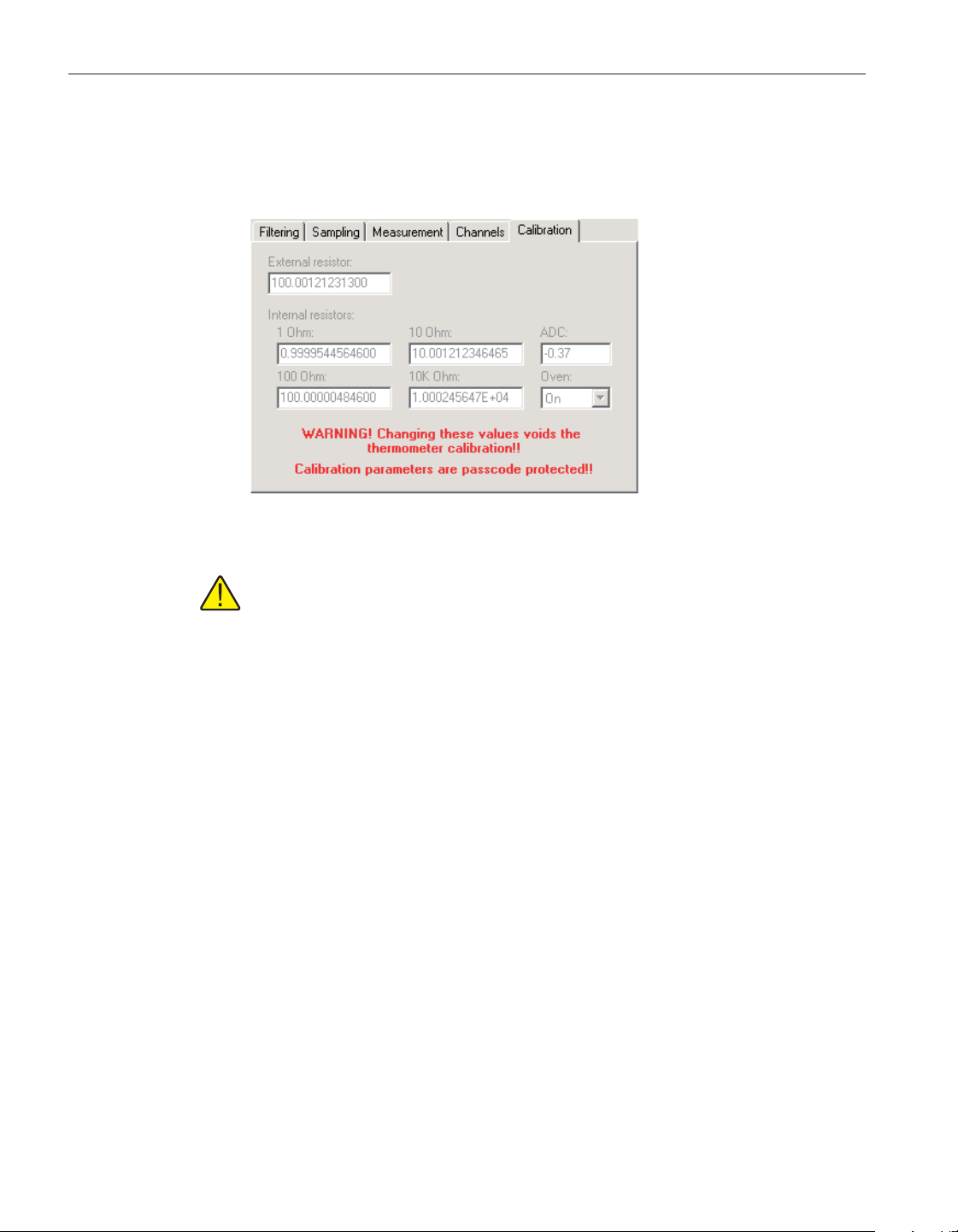
4.4.5.5 Calibration tab
Select the Calibration tab to view and/or modify thermometer readout calibra
-
tion information.
Caution: Do not change these values unless this thermometer readout has
been recalibrated or unless these values do not match the values located
on the latest Report of Calibration for this thermometer readout! Chang-
ing these values voids the current calibration!
Enter the value of the external reference resistor in the External resistor box
provided. If no external reference resistor is being used, the value in this box is
ignored by the thermometer readout.
Enter the values for the internal reference resistors in the boxes provided. The
Model 1590 Super-Thermometer II readout has four internal reference resis
-
tors: 1 Ohm, 10 Ohm, 100 Ohm and 10K Ohm. The values of these reference
resistors as well as the ADC constant value should be located on the Report of
Calibration for this thermometer readout.
Select the state of the internal reference resistor oven using the Oven
drop-down list. The oven can either be turned On or Off. Typically, the oven
should be set On.
User’s Guide
156
Figure 125 1590 Super-Thermometer II Settings -
Calibration tab
1.888.610.7664 sales@GlobalTestSupply.com
Fluke-Direct.com
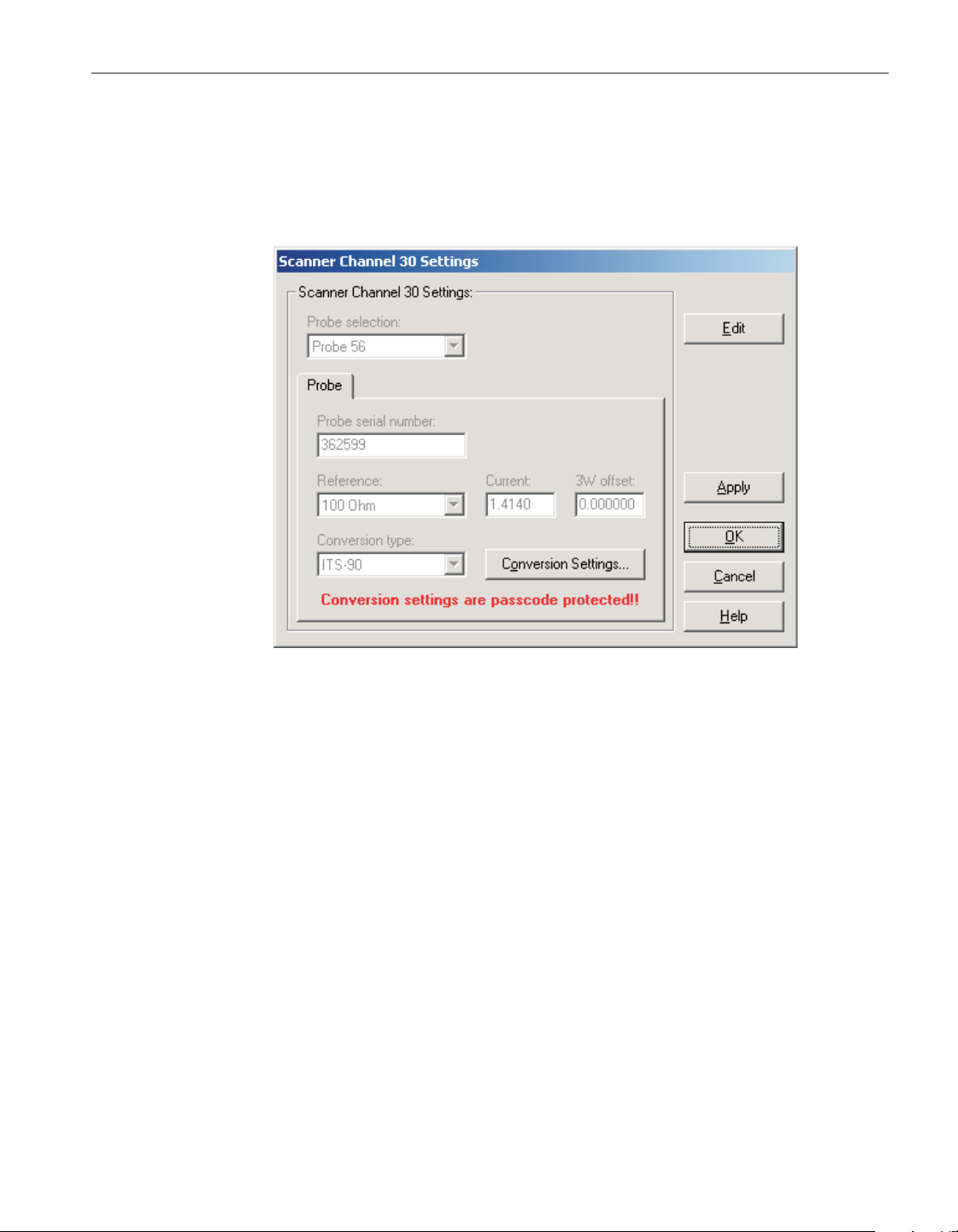
4.4.5.6 1590 Super-Thermometer II/2590 ‘Mighty Mux II’ Channel Settings di
-
alog
The 1590 Super-Thermometer II/2590 ‘Mighty Mux II’ Channel Settings dia
-
log displays information about the selected PRT/Thermistor channel.
Some or all of the settings on this dialog may be passcode protected. If so, a
message appears at the bottom of the Probe tab and/or Calibration tab and the
Edit button is displayed. The protected controls are disabled. To edit the pro
-
tected settings, click the Edit button and enter the current passcode for the ther
-
mometer readout. If the correct passcode is entered, the protected controls are
enabled and the values may be changed. The controls remain enabled until this
dialog is closed or until the current changes are applied by clicking the Apply
button.
Select the probe to be assigned to this channel using the Probe selection
drop-down list. The Model 1590 Super-Thermometer II readout can hold infor
-
mation for up to 56 probes simultaneously. Any one of these probes can then be
assigned to any channel.
When a new probe is selected, the current settings for that probe are read in
from the thermometer readout. A progress dialog is displayed while the probe
settings are being read in.
After modifying any of the settings on this dialog, click the Apply or OK but
-
ton to write the new settings to the thermometer readout. If the Apply button is
157
4 Tools
Thermometer settings dialogs
Figure 126 1590 Super-Thermometer II/2590 ‘Mighty Mux II’ Channel
Settings dialog
1.888.610.7664 sales@GlobalTestSupply.com
Fluke-Direct.com
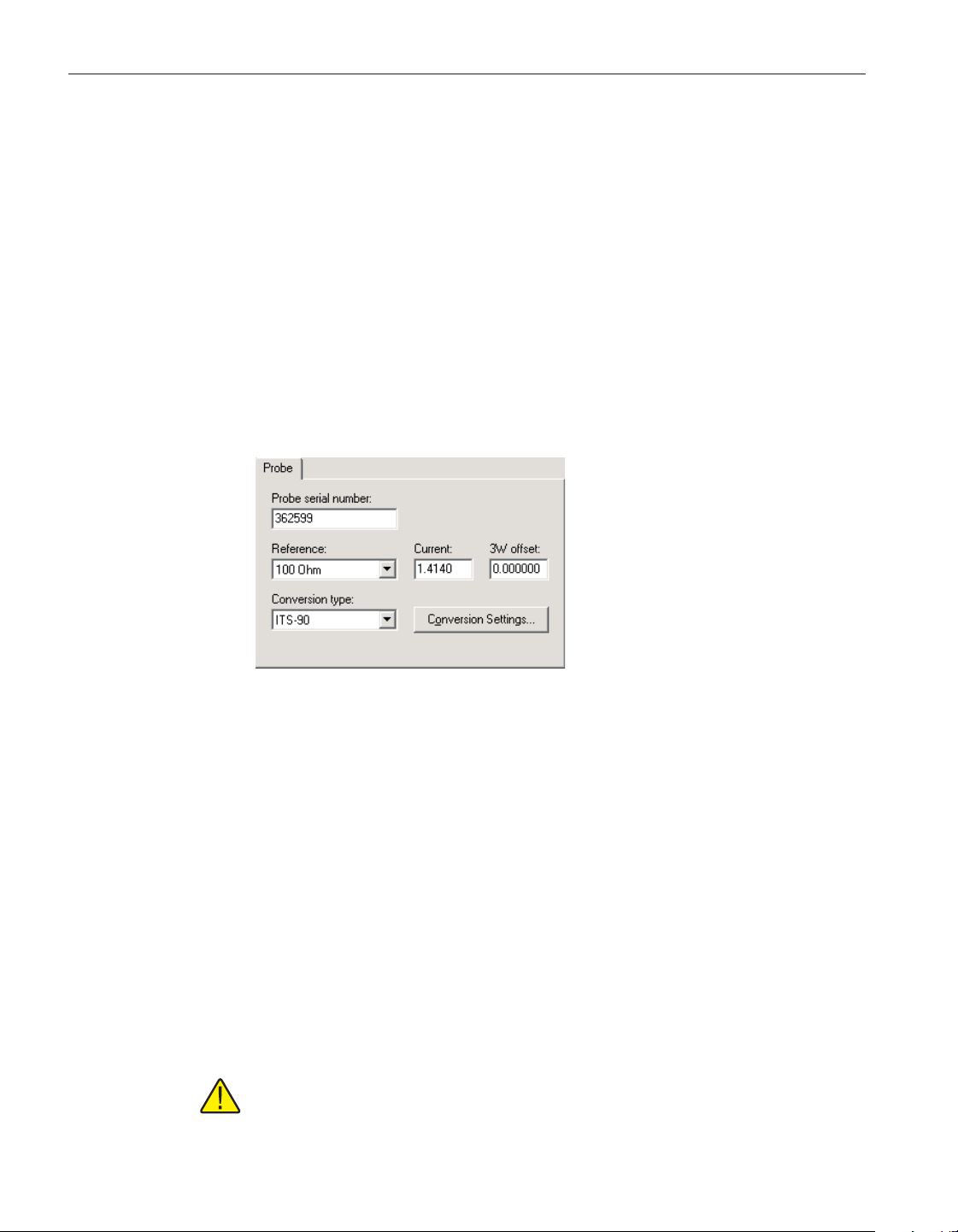
clicked, this dialog remains open. If the OK button is clicked, this dialog closes
after writing the settings.
LogWare has a feature that causes all of the channel settings to be read back in
from the thermometer readout after the Apply button is clicked and the new set
-
tings have been written to the thermometer readout. This feature can be useful
to verify that the desired settings were properly applied to the thermometer
readout. To enable or disable this feature, see Section 5.6.4, Options.
To close this dialog without writing the channel settings to the thermometer
readout, click the Cancel button.
Click the Help button to open the appropriate help topic for this dialog.
4.4.5.6.1 Probe tab
Select the Probe tab to view and/or modify probe settings.
Enter the serial number of the selected probe in the Probe serial number box.
The serial number can be any combination of numbers and/or letters up to 8
characters in length. The dash “-“ character can also be used in serial numbers.
Select the reference resistor for the selected probe using the Reference
drop-down list. The choices for the reference resistor are:
•
External resistor
•
1 Ohm
•
10 Ohm
•
100 Ohm
•
10K Ohm
Note: The External resistor option is not available for Input 2 because the
external reference resistor must be connected to Input 2!
User’s Guide
158
Figure 127 1590 Super-Thermometer II/2590
‘Mighty Mux II’ Channel Settings - Probe tab
1.888.610.7664 sales@GlobalTestSupply.com
Fluke-Direct.com
Enter the excitation current for the selected probe in the Current box provided.
The excitation current can be set to any value between 0.0001 and 21.0 mA.
Enter the 3-wire offset value for the selected probe in the 3W offset box pro
-
vided. The 3-wire offset can be set to any value between 0 and 1,000,000 ohms.
Select the conversion type to use for the selected probe. The Model 1590
Super-Thermometer II readout supports the following conversion types:
•
ITS-90
•
IPTS-68
•
CVD (Callendar-Van Dusen)
•
W(T90)
•
R(T)
•
T(R)
•
Polynomial
• Ohms
• Ratio
Refer to the Report of Calibration for the selected probe for information on the
conversion type that the probe was calibrated for.
If the selected conversion type requires coefficients or other settings, the Con-
version Settings button is enabled. Otherwise, the Conversion Settings button is
disabled. Click the Conversion Settings button to display the dialog for the se-
lected conversion type. Please refer to Section 9, Conversion Settings Dialogs,
for a detailed description of the Conversion Settings dialogs.
Note: The conversion settings are not written to the thermometer readout
until the Apply or OK button is clicked on this dialog!
4.4.6 1594A/1595A Hart Super-Thermometer Settings dialog
The 1594A/1595A Hart Super-Thermometer Settings dialog displays informa
-
tion about the thermometer readout including model number, identification in
-
159
4 Tools
Thermometer settings dialogs
1.888.610.7664 sales@GlobalTestSupply.com
Fluke-Direct.com
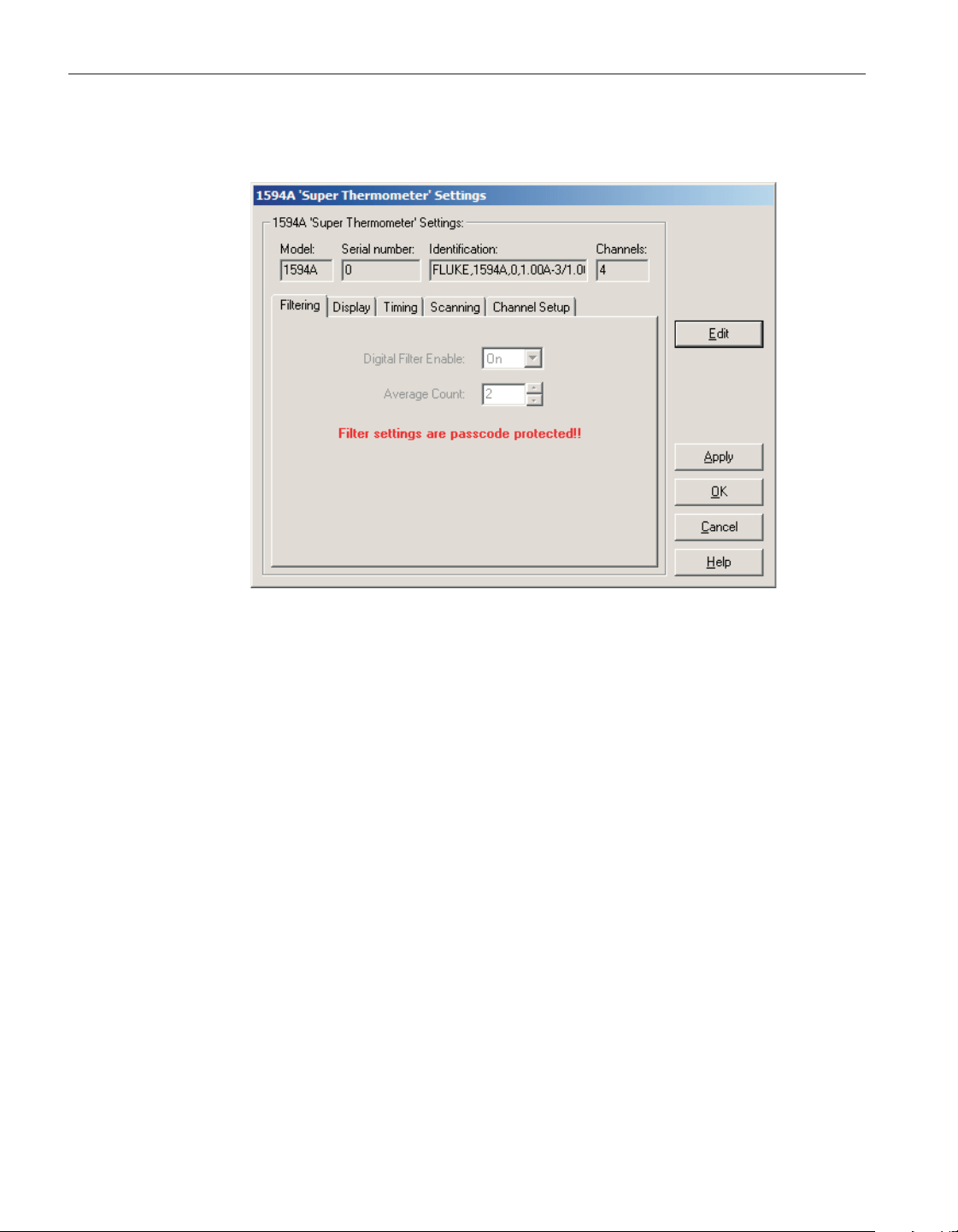
formation and the total number of channels. It also allows many thermometer
readout settings to be viewed and modified.
The 1594A/1595A Hart Super-Thermometer readout must be connected to an
available COM port and the communication settings must be properly config-
ured so that this information can be read in from the thermometer readout. If
communication with the thermometer readout is not successful, an error mes
-
sage is displayed and this dialog is blank. A progress dialog is displayed while
the current thermometer readout settings are being read in.
The Model box indicates the model number of the thermometer readout. The
Serial number box indicates the serial number assigned to this thermometer
readout. The Identification box indicates the model number, serial number and
firmware version installed in this thermometer readout. The Channels box indi
-
cates the total number of input channels on this thermometer readout.
The filtering settings can be viewed and modified by selecting the Filtering tab.
The display settings can be viewed and modified by selecting the Display tab.
The timing settings can be viewed and modified by selecting the Timing tab.
The scan settings can be viewed and modified by selecting the Scanning tab.
The Channel Setup tab displays a list of channels and allows access to probe
settings and channel settings dialogs. The settings on each of these tabs are de
-
scribed in detail in the following sections. For more detail on these settings,
please refer to the thermometer readout's User's Guide.
User’s Guide
160
Figure 128 1594A/1595A Hart Super-Thermometer settings
1.888.610.7664 sales@GlobalTestSupply.com
Fluke-Direct.com
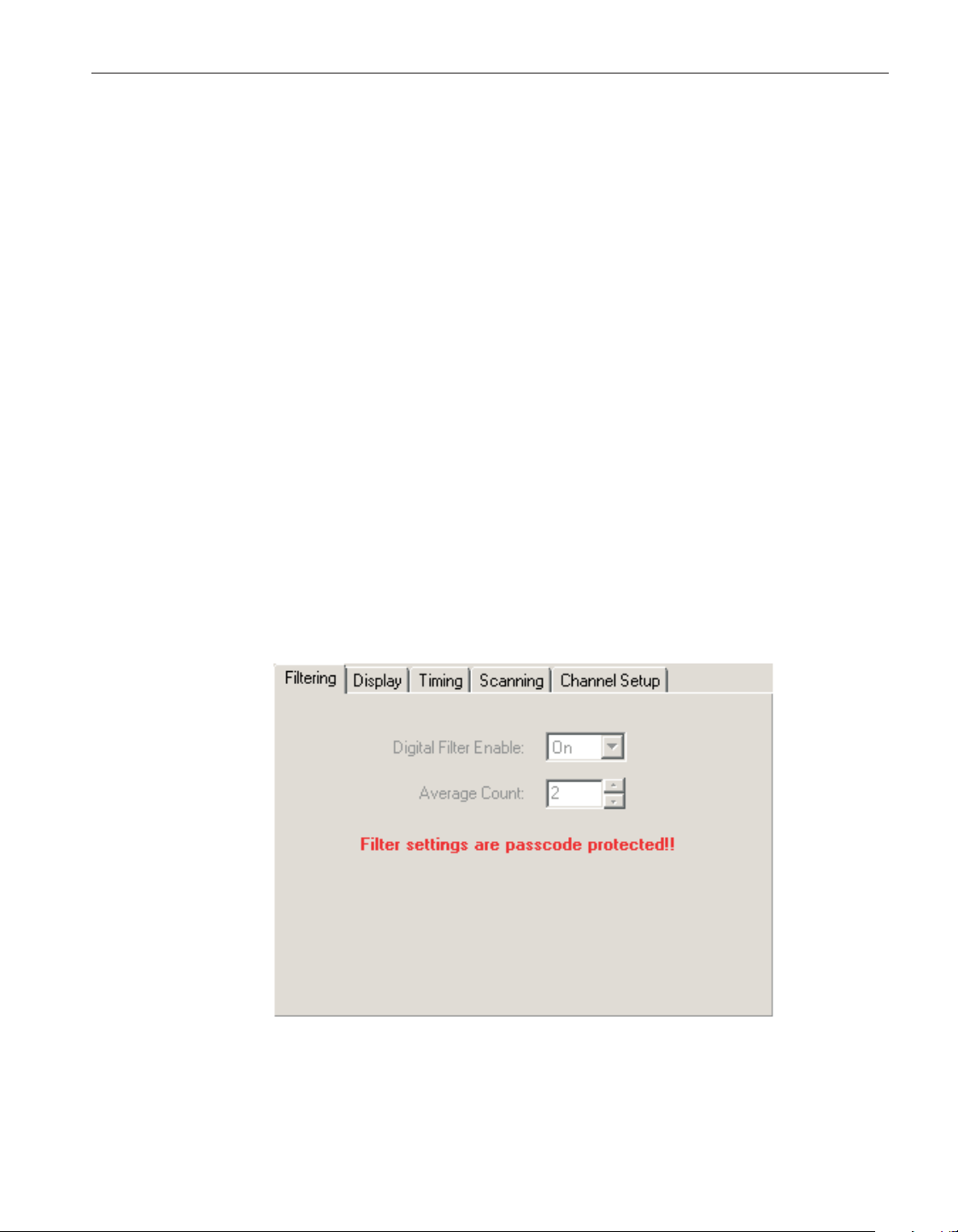
If any of the settings on the 1594A/1595A Hart Super-Thermometer Settings
dialog are passcode protected, a message appears at the bottom of the appropri
-
ate tab and the Edit button is displayed. The controls for the passcode protected
settings are disabled. To edit the protected settings, click the Edit button and
enter the current passcode for the thermometer readout. If the correct passcode
is entered, the controls are enabled and the values may be changed.
After modifying any of the settings on this dialog, click the Apply or OK but
-
ton to write the new settings to the thermometer readout. If the Apply buttons
clicked, this dialog remains open. If the OK button is clicked, this dialog closes
after writing the settings.
LogWare has a feature that causes all of the thermometer readout settings to be
read back in from the thermometer readout after the Apply button is clicked
and the new settings have been written to the thermometer readout. This feature
can be useful to verify that the desired settings were properly applied to the
thermometer readout. To enable or disable this feature, see Section 5.6.4,
Options.
To close this dialog without writing the settings to the thermometer readout,
click the Cancel button.
Click the Help button to open the appropriate help topic for this dialog.
4.4.6.1 Filtering tab
Select the Filtering tab to view and/or modify the filter settings.
161
4 Tools
Thermometer settings dialogs
Figure 129 1594A/1595A Hart Super-Thermometer Filtering tab
1.888.610.7664 sales@GlobalTestSupply.com
Fluke-Direct.com
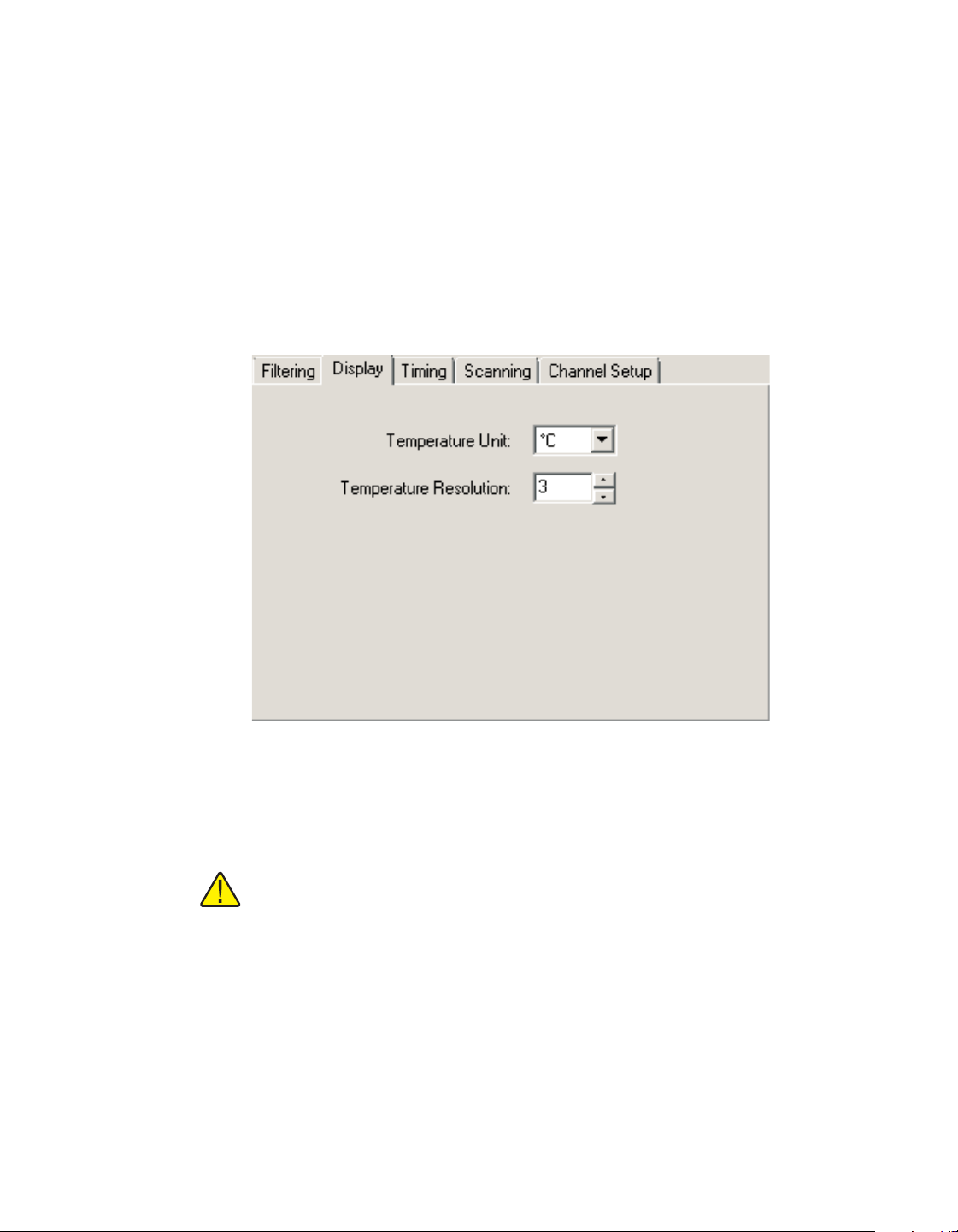
Use the Digital Filter Enable drop-down list to select whether the digital filter
is enabled (On) or disabled (Off). If the setting is Off, the Average Count set
-
ting is not applicable and is disabled.
The Average Count set the number of Display Interval measurements that are
averaged by the digital filter. Possible values are between 2 and 100. If the Dig
-
ital Filter Enable is Off, this settings is not applicable and is disabled.
4.4.6.2 Display tab
Select the Display tab to view and/or modify display settings.
Select the units using the Units drop-down list. Readings can be displayed in
either °C, °F or K.
Note: This setting may be overridden depending on the selected probe
conversion type and channel settings for each channel. Please refer to the
thermometer readout's User's Guide for more information on setting the
system units.
Enter the resolution for temperature readings in the Temperature Resolution
box provided or click the up/down buttons. The temperature resolution can be
set to any value between 0 and 6 digits (places after decimal point).
User’s Guide
162
Figure 130 1594A/1595A Hart Super-Thermometer Display tab
1.888.610.7664 sales@GlobalTestSupply.com
Fluke-Direct.com
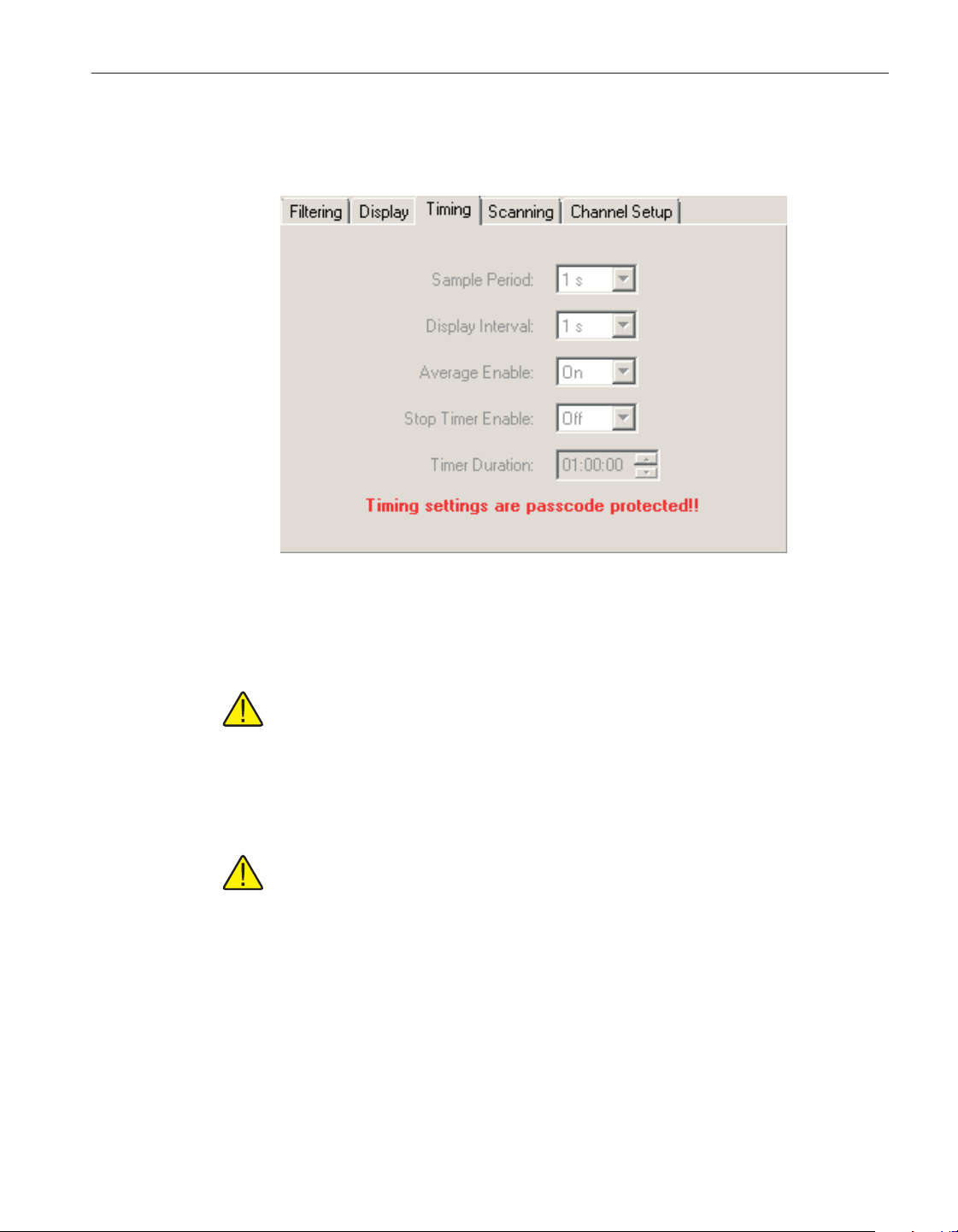
4.4.6.3 4.4.6.3 Timing tab
Select the Timing tab to view and/or modify timing settings.
Use the Sample Period drop-down list to select the length of time required to
obtain an individual measurement. Possible values are 1 s, 2 s, 5 s and 10 s.
Note: Changing this setting may affect the Display Interval setting, as
Sample Period cannot be greater than Display Interval.
Use the Display Interval drop-down list to select how often the instrument's dis
-
play, statistics fields, memory and communications ports are updated. Possible
valuesare1s,2s,10s,30sand60s.
Note: Changing this setting may affect the Sample Period setting, as Sam
-
ple Period cannot be greater than Display Interval.
Use the Average Enable drop-down list to select whether averaging is enabled
(On) or disabled (Off). If the setting is On, all measurements acquired at the
Sample Period rate are averaged prior to updating the instrument's display. If
the setting is Off, the latest measurement acquired at the Sample Period rate is
used to update the instrument's display.
Use the Stop Timer Enable drop-down list to select whether the stop timer is
enabled (On) or disabled (Off). If the setting is On, a timer begins counting
down when a measurement is started and stops the measurement automatically
163
4 Tools
Thermometer settings dialogs
Figure 131 1594A/1595A Hart Super-Thermometer Timing tab
1.888.610.7664 sales@GlobalTestSupply.com
Fluke-Direct.com
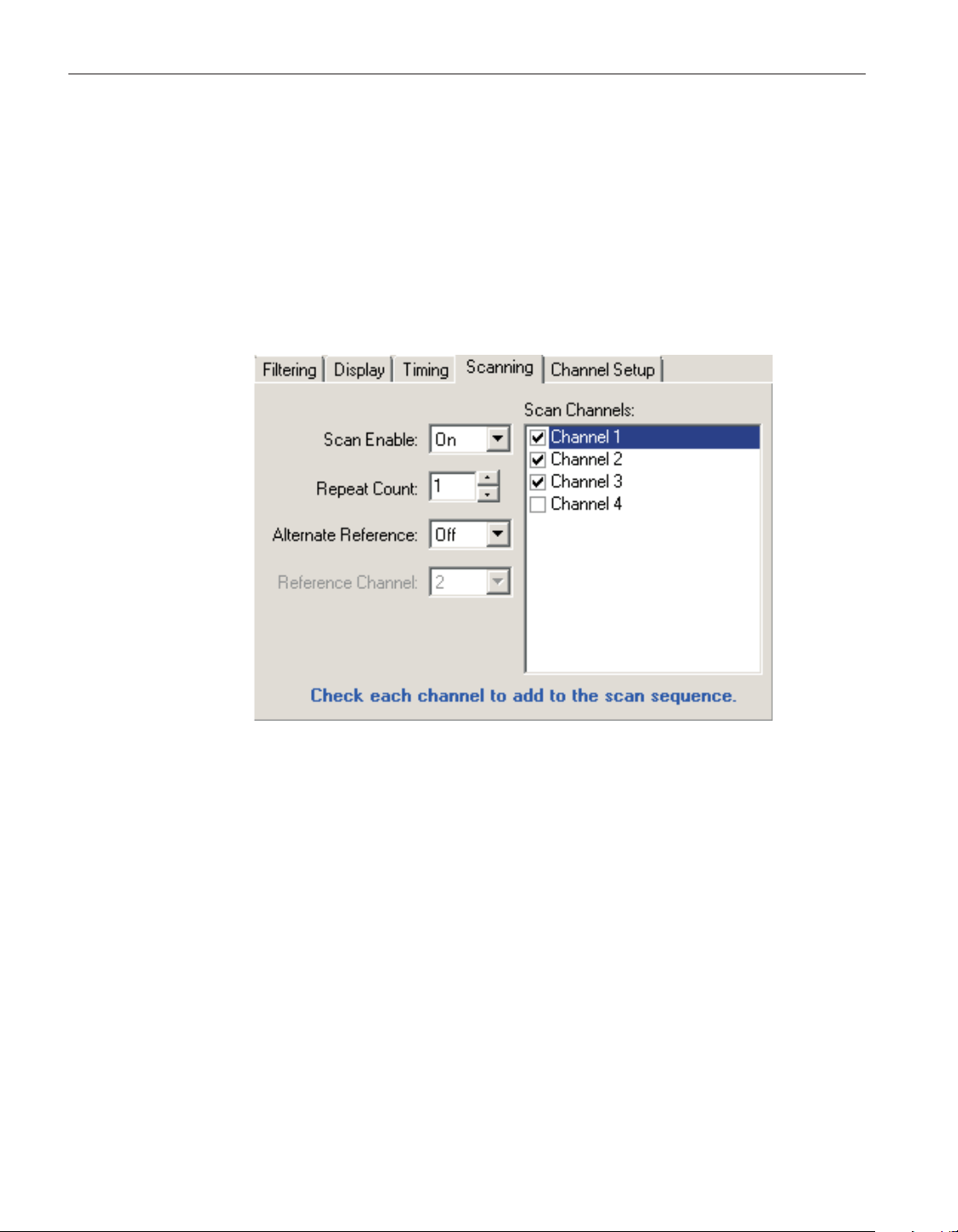
when the timer elapses. If the setting is Off, the Timer Duration is not applica
-
ble and is disabled.
The Timer Duration determines the amount of time a measurement runs. If the
Stop Timer Enable is Off, this setting is not applicable and is disabled. The
timer duration can be set to any time between 00:00:01 and 23:59:59 with the
time format set as hh:mm:ss.
4.4.6.4 Scanning tab
Select the Scanning tab to view and/or modify scan settings.
Use the Scan Enable drop-down list to select whether scanning is enabled (On)
or disabled (Off). If Scan Enable is Off, Repeat Count, Alternate Reference and
Reference Channel are not applicable and are disabled and only one channel
can be selected in the Scan Channels list.
The Repeat Count determines how many times a channel is measured before
the instrument continues to the next channel to be measured. If Scan Enable is
Off, this setting is not applicable and is disabled.
Use the Alternate Reference drop-down list to select whether the reference
channel is automatically measured after each individual channel is measured. If
this setting is Off, the Reference Channel is not applicable and is disabled. If
Scan Enable is Off, this setting is not applicable and is disabled.
When the Alternate Reference is enabled (On), this setting determines which
channel shall be used for the reference. If Scan Enable or Alternate Reference
is Off, this setting is not applicable and is disabled.
User’s Guide
164
Figure 132 1594A/1595A Hart Super-Thermometer Scanning tab
1.888.610.7664 sales@GlobalTestSupply.com
Fluke-Direct.com
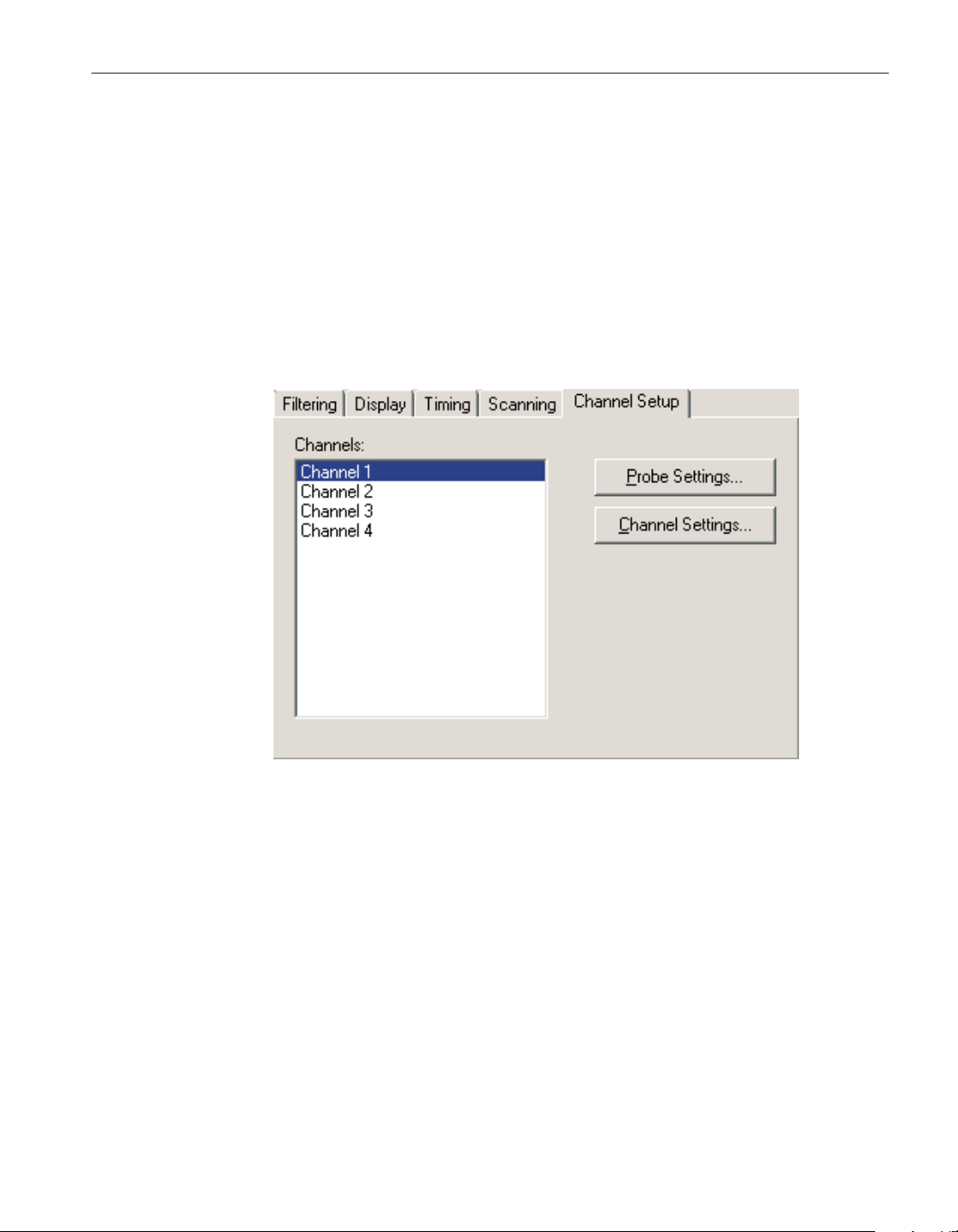
The Scan Channels list shows all available channels in 1594A/1595A Hart
Super-Thermometer readout. If Scan Enable is Off, a check next to a channel
indicates the measurement channel. Click the checkbox next to a channel to
change the measurement channel. If Scan Enable is On, a check next to a chan
-
nel indicates the channel is part of the instrument's scan sequence. Click the
checkbox next to a channel to change the scan sequence.
4.4.6.5 Channel Setup tab
Select the Channel Setup tab to view a list of channels on the 1594A/1595A
Hart Super-Thermometer readout and to access the channel and probe settings
for each channel.
The Channels list shows all available channels in 1594A/1595A Hart
Super-Thermometer readout. Select a channel to view or modify the channel or
probe settings.
Click the Probe Settings button to display the appropriate probe settings for the
selected channel. When this button is clicked, the probe settings are read in
from the thermometer readout.
Click the Channel Settings button to display the appropriate channel settings
for the selected channel. When this button is clicked, the channel settings are
read in from the thermometer readout.
165
4 Tools
Thermometer settings dialogs
Figure 133 1594A/1595A Hart Super-Thermometer Channel setup tab
1.888.610.7664 sales@GlobalTestSupply.com
Fluke-Direct.com
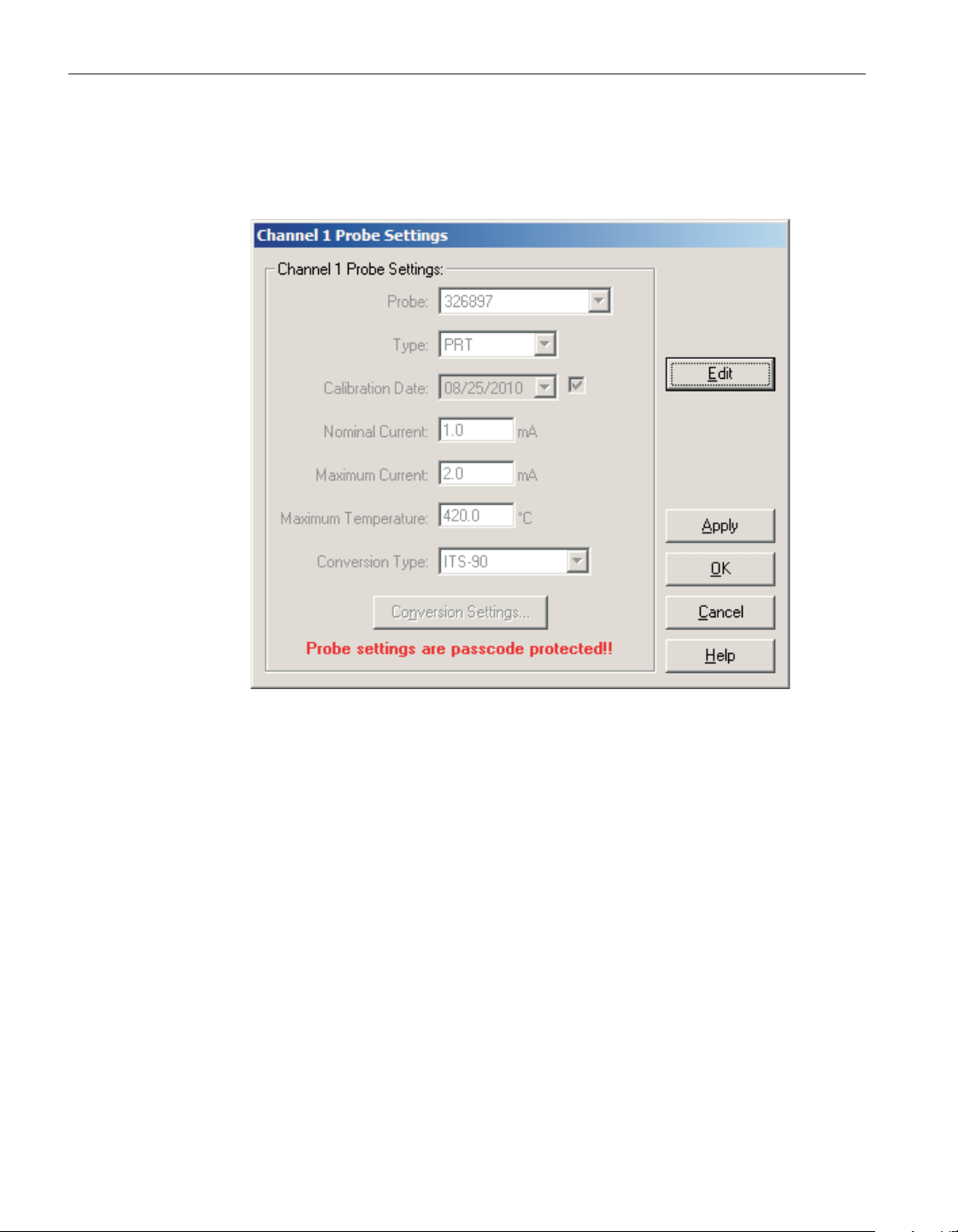
4.4.6.6 1594A/1595A Hart Super-Thermometer Probe Settings dialog
The 1594A/1595A Hart Super-Thermometer probe settings dialog displays
probe information pertaining to the current channel selection.
The settings on the Probe Settings dialog may be passcode protected. If so, a
message appears at the bottom of the dialog and the Edit button is displayed.
The controls on this dialog are disabled when the settings are protected. To edit
the probe settings, click the Edit button and enter the current passcode for the
thermometer readout. If the correct passcode is entered, the controls are en
-
abled and the values may be changed.
Select the probe to be assigned to this channel using the Probe selection
drop-down list. The Model 1594A/1595A Hart Super-Thermometer readout
can hold information for up to 100 probes. Any one of these probes can then be
assigned to any channel.
When a new probe is selected, the current settings for that probe are read in
from the thermometer readout. A progress dialog is displayed while the probe
settings are being read in.
After modifying any of the settings on this dialog, click the Apply or OK but
-
ton to write the new settings to the thermometer readout. If the Apply button is
User’s Guide
166
Figure 134 1594A/1595A Hart Super-Thermometer Probe settings dialog
1.888.610.7664 sales@GlobalTestSupply.com
Fluke-Direct.com

clicked, this dialog remains open. If the OK button is clicked, this dialog closes
after writing the settings.
To close this dialog without writing the channel settings to the thermometer
readout, click the Cancel button.
Click the Help button to open the appropriate help topic for this dialog.
Use the Type drop-down list to select the probe type for the selected probe.
Possible probe types are PRT, Thermistor or Resistor.
The Calibration Date may be used to record the date the probe was calibrated.
The calibration date is an optional parameter. The checkbox next to the calibra
-
tion date field indicates whether the probe's calibration date is saved in the in
-
strument. If the checkbox is checked, the calibration date is saved in the
instrument. If the checkbox is unchecked, the probe's calibration date is set to
zeros in the instrument.
The Nominal Current is the usual sensing current that should be used to mea
-
sure the resistance of the probe. Possible values depend on the probe type
selected.
• PRT probe can be set to any value between 0.01 and 20.0 mA
• Thermistor probe can be set to any value between 0.001 and 0.1 mA
• Resistor probe can be set to any value between 0.001 and 20 mA.
The Maximum Current sets a limit for the probe's sensing current. Possible val-
ues depend on the probe type selected.
• PRT probe can be set to any value between 0.01 and 20.0 mA
• Thermistor probe can be set to any value between 0.001 and 0.1 mA
•
Resistor probe can be set to any value between 0.001 and 20 mA.
The Maximum Temperature sets the temperature limit for the probe. Possible
values depend on the probe type selected.
•
PRT probe can be set to any value between 25.0 and 2000.0 °C
•
Thermistor probe can be set to any value between 25.0 and 1000.0 °C
•
Maximum temperature is not available for a resistor probe.
Select the conversion type to use for the selected probe. The Model
1594A/1595A Hart Super-Thermometer readout supports the following conver
-
sion types:
•
ITS-90
•
CVD-ALPHA
•
CVD-ABC
•
PT-100
•
R(T)
•
T(R)
167
4 Tools
Thermometer settings dialogs
1.888.610.7664 sales@GlobalTestSupply.com
Fluke-Direct.com
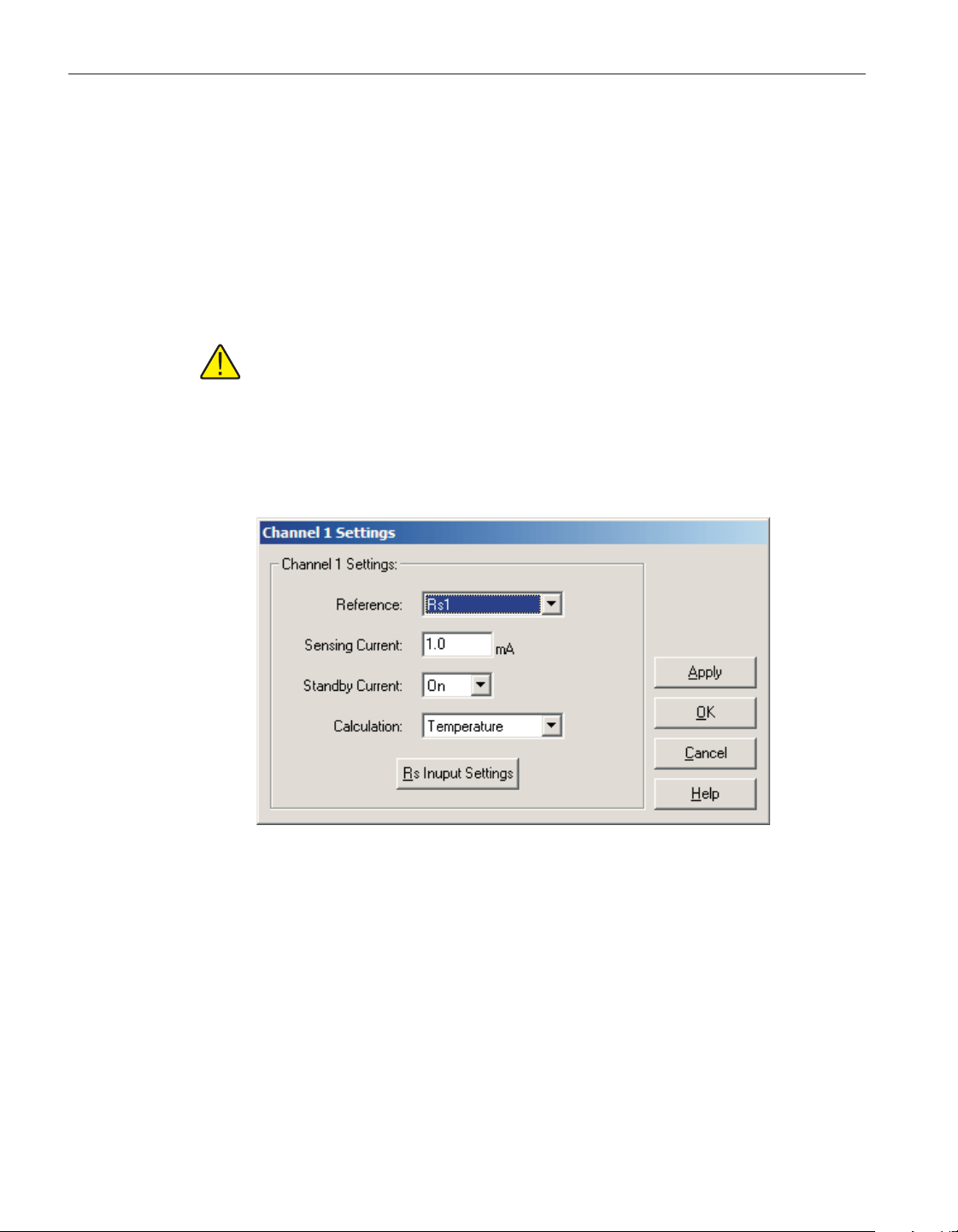
•
Polynomial
•
Ohms
Refer to the Report of Calibration for the selected probe for information on the
conversion type that the probe was calibrated for.
If the selected conversion type requires coefficients or other settings, the Con
-
version Settings button is enabled. Click the Conversion Settings button to dis
-
play the dialog for the selected conversion type. Otherwise, the Conversion
Settings button is disabled.
Note: The conversion settings are not written to the thermometer readout
until the Apply or OK button is clicked on this dialog!
4.4.6.7 1594A/1595A Hart Super-Thermometer Channel Settings dialog
The 1594A/1595A Hart Super-Thermometer channel settings dialog displays
information pertaining to the current channel selection.
After modifying any of the settings on this dialog, click the Apply or OK but
-
ton to write the new settings to the thermometer readout. If the Apply button is
clicked, this dialog remains open. If the OK button is clicked, this dialog closes
after writing the settings.
To close this dialog without writing the channel settings to the thermometer
readout, click the Cancel button.
Click the Help button to open the appropriate help topic for this dialog.
Use the Reference drop-down list to select the reference resistor for the se
-
lected channel. Possible internal reference resistor values are 1 ohm, 10 ohm,
User’s Guide
168
Figure 135 1594A/1595A Hart Super-Thermometer Channel settings
1.888.610.7664 sales@GlobalTestSupply.com
Fluke-Direct.com

25 ohm, 100 ohm and 10,000 ohm. In addition, an external reference resistor
connected to Rs1, Rs2, CH2 or CH4 can be selected.
Sensing Current
Sensing Current the sensing current used with the channel and probe. Possible
values depend on the reference resistor selected.
•
1 ohm and 10 ohm internal reference can have the sensing current set to
any value between 0.0001 and 20.0 mA
•
25 ohm internal reference can have the sensing current set to any value
between 0.0001 and 10.0 mA
•
100 ohm internal reference can have the sensing current set to any value
between 0.0001 and 5.0 mA
•
10,000 ohm internal reference can have the sensing current set to any
value between 0.0001 and 0.1 mA
•
The external reference can have the sensing current set to any value be
-
tween 0.0001 and 20.0 mA
The sensing current is also limited by the probe's or reference resistor's maxi-
mum current value.
Use the Standby Current drop-down list to select whether the standby current is
enabled (On) or disabled (Off) for the selected channel.
Use the Calculation drop-down list to determine the type of measurement cal-
culation that is performed for the selected channel. Possible options are Ratio,
Resistance and Temperature.
The Temperature option is not available if any of the following are true:
•
The probe assignment for the selected channel is Undefined
•
The probe conversion type is set to None
•
The probe type is set to Resistor
•
The reference resistor is set to Variable Resistance
The Resistance option is not available if the reference resistor is set to Variable
Resistance.
If the selected reference is an external resistor, the Rs Input Settings button is
enabled. Click the Rs Input Settings button to display the dialog for the refer
-
ence channel. Otherwise, the Rs Input Settings button is disabled.
169
4 Tools
Thermometer settings dialogs
1.888.610.7664 sales@GlobalTestSupply.com
Fluke-Direct.com
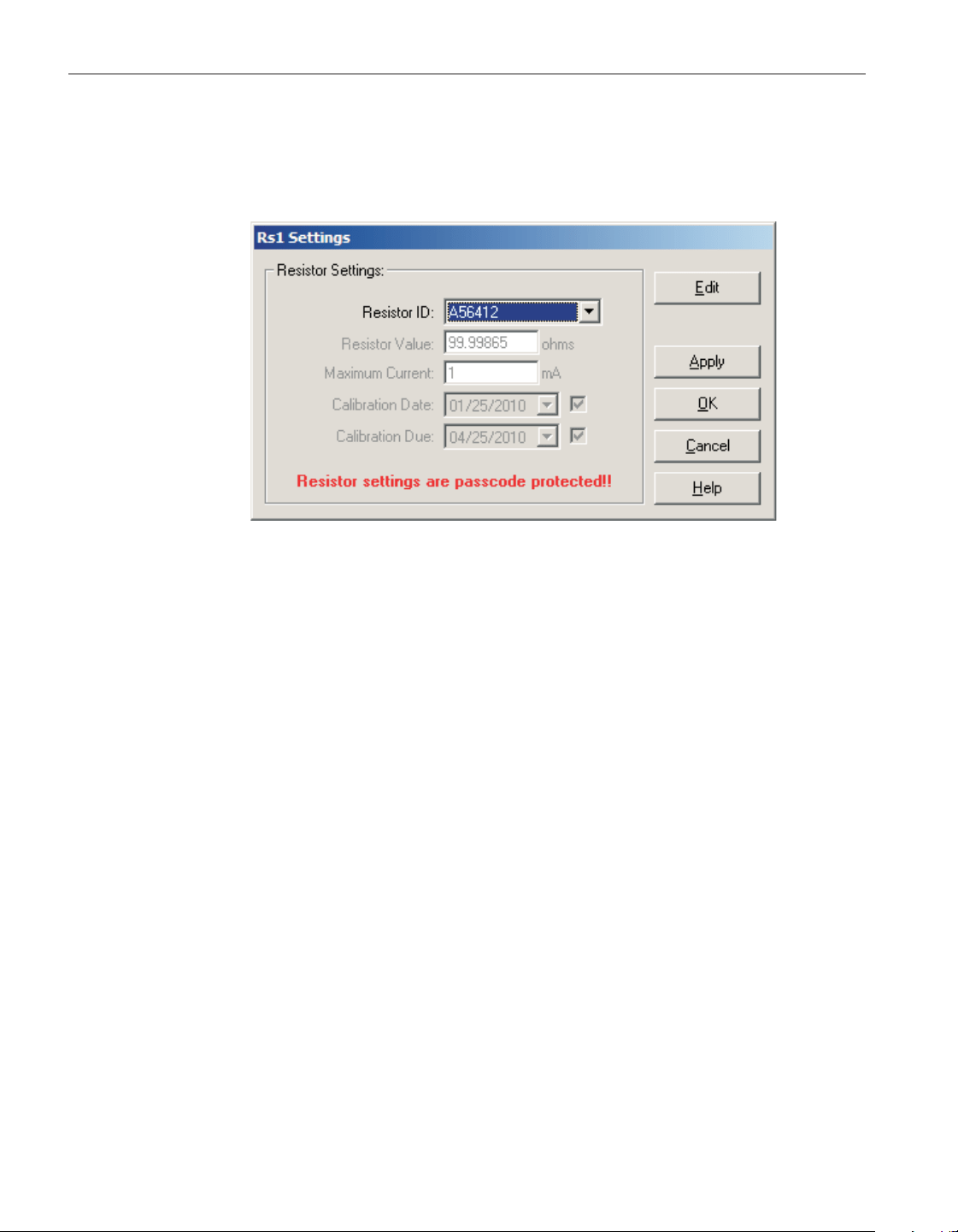
4.4.6.8 1594A/1595A Hart Super-Thermometer Rs Settings dialog
The 1594A/1595A Hart Super-Thermometer Rs Settings dialog displays refer
-
ence resistor information pertaining to the current channel selection.
The settings on the Rs Settings dialog may be passcode protected. If they are, a
message appears at the bottom of the dialog and the Edit button is displayed.
The controls on this dialog are disabled, except the Resistor ID. To edit the re-
sistor settings, click the Edit button and enter the current passcode for the ther-
mometer readout. If the correct passcode is entered, the controls are enabled
and the values may be changed.
Select the resistor to be assigned to this Rs channel using the Resistor ID selec
-
tion drop-down list. The Model 1594A/1595A Hart Super-Thermometer read
-
out can hold information for up to 50 resistors. Any one of these resistors can
then be assigned to any Rs channel.
When a different resistor is selected, the current settings for that resistor are
read in from the thermometer readout. A progress dialog is displayed while the
probe settings are being read in.
After modifying any of the settings on this dialog, click the Apply or OK but
-
ton to write the new settings to the thermometer readout. If the Apply button is
clicked, this dialog remains open. If the OK button is clicked, this dialog closes
after writing the settings.
To close this dialog without writing the channel settings to the thermometer
readout, click the Cancel button.
Click the Help button to open the appropriate help topic for this dialog.
Use the Type drop-down list to select the probe type for the selected probe.
Possible probe types are PRT, Thermistor or Resistor.
User’s Guide
170
Figure 136 1594A/1595A Hart Super-Thermometer Rs1 settings
1.888.610.7664 sales@GlobalTestSupply.com
Fluke-Direct.com

The Resistor Value is the calibrated resistance of the resistor.
The Maximum Current sets a limit for the resistor's sensing current. Possible
values are any value between 0.01 and 20.0 mA.
The Calibration Date may be used to record the date the resistor was calibrated.
The calibration date is an optional parameter. The checkbox next to the calibra
-
tion date field indicates whether the resistor's calibration date is saved in the in
-
strument. If the checkbox is checked, the resistor's calibration date is saved in
the instrument. If the checkbox is unchecked, the resistor's calibration date is
set to zeros in the instrument.
The Calibration Due date may be used to record the date the resistor is due for
recalibration. The calibration due date is an optional parameter. The checkbox
next to this field indicates whether the resistor's calibration due date is saved in
the instrument. If the checkbox is checked, the resistor's calibration due date is
saved in the instrument. If the checkbox is unchecked, the resistor's calibration
due date is set to zeros in the instrument.
171
4 Tools
Thermometer settings dialogs
1.888.610.7664 sales@GlobalTestSupply.com
Fluke-Direct.com
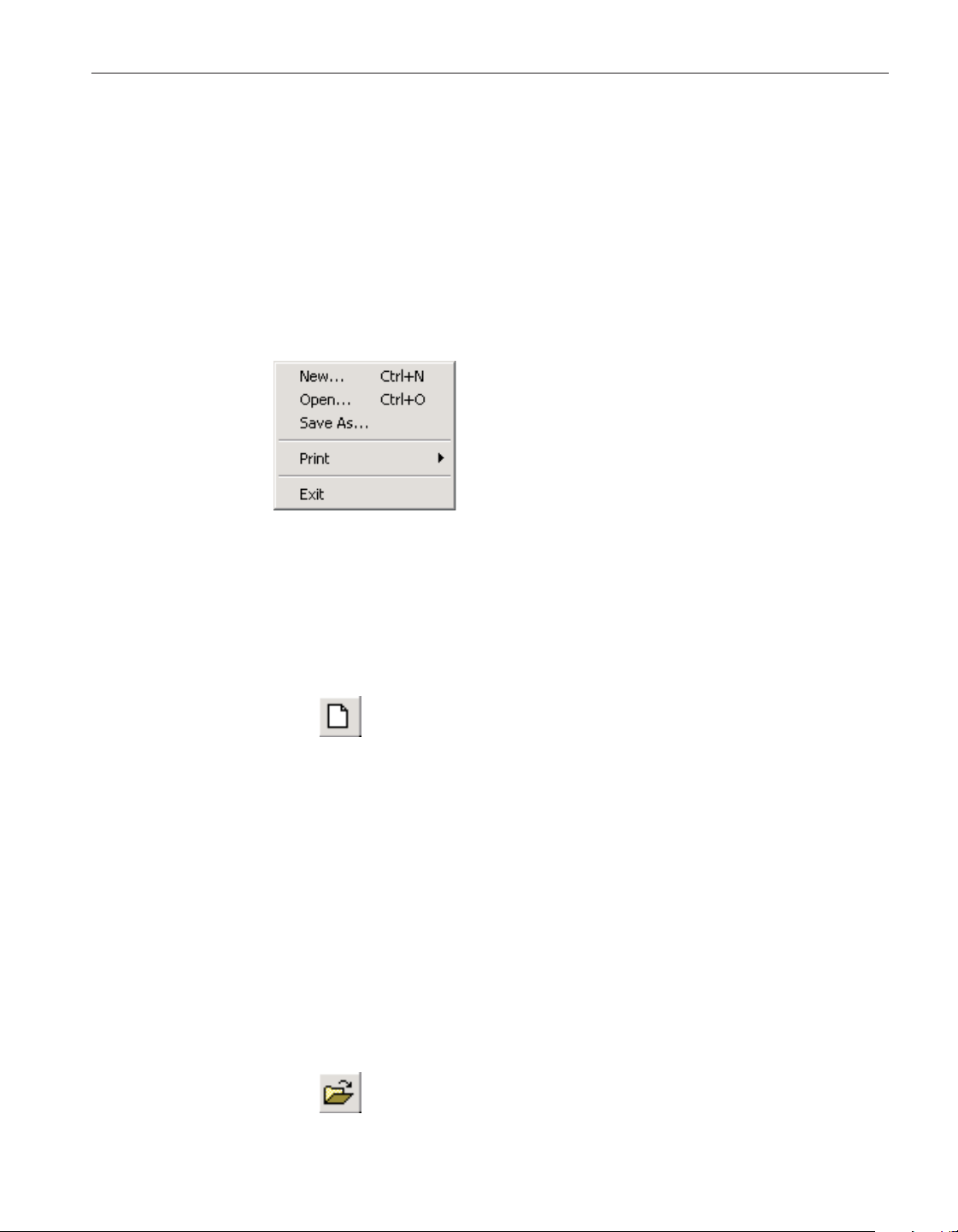
5 Menus
LogWare’s features and tools are all accessible through menu options. This sec
-
tion describes each of LogWa re’s menus.
5.1 File menu
The File menu provides options for creating a new real-time configuration,
opening and saving real-time configuration files, printing and exiting LogWare.
5.1.1 New
The New option can be used to clear the current real-time log session settings
and display the Log Session Settings dialog.
The button on the toolbar corresponds to the New option.
When selecting the New option, a prompt is displayed to confirm that the cur
-
rent real-time log session settings (if any) will be reset. To abort resetting the
current real-time log session settings, click the No button. Otherwise, click the
Yes button to reset the current log session settings. The Log Session Settings
dialog will be displayed. Please refer to Section 2.3, Log Session Settings Dia
-
log, for more information on configuring a real-time log session.
The New option and toolbar button are disabled while a real-time log session
window is open.
5.1.2 Open
The Open option allows a real-time log session configuration file to be opened.
If the same basic configuration is frequently used to perform real-time logging,
saving the log session settings to a configuration file can greatly reduce the
time it takes to configure and start a real-time log session.
The button on the toolbar corresponds to the Open option.
173
5 Menus
File menu
Figure 137 File menu
1.888.610.7664 sales@GlobalTestSupply.com
Fluke-Direct.com
Note: When opening a configuration file, LogWare attempts to communi
-
cate with the thermometer readout to verify that the settings saved in the
configuration file are compatible with the current thermometer readout
configuration. Therefore, it is necessary to have the thermometer readout
connected and powered on in order to successfully open a configuration
file.
When selecting the Open option, the Windows® Open dialog is displayed. The
\Config folder should be selected by default (or the folder that is specified for
configuration files on the LogWare Options dialog). Real-time log session con
-
figuration files should have a .rls extension. To cancel opening a configuration
file, click the Cancel button. Otherwise, select the configuration file to open
and click the Open button. For more details about the real-time log session con
-
figuration file, refer to Section 7.1.1, Log Session Configuration File. Real-time
log session configuration files can also be opened by selecting the Open button
on the Log Session Settings dialog.
LogWare then reads the log session settings from the configuration file and ver-
ifies that the configuration of the currently connected thermometer readout is
compatible with the log session settings. If there are any conflicts, or if
LogWare is unable to communicate with the thermometer readout, appropriate
messages are displayed.
Once the configuration file has been read in, the Log Session Settings dialog is
displayed. If LogWare was unable to communicate with the thermometer read-
out or any other error occurred, the log session settings may be incomplete.
The Open option and toolbar button are disabled while a real-time log session
window is open.
5.1.3 Save as
The Save As option allows the current real-time log session settings to be saved
to a configuration file. If the same basic configuration is frequently used to per
-
form real-time logging, saving the log session settings to a configuration file
can greatly reduce the time it takes to configure and start a real-time log ses
-
sion. Before attempting to save a real-time log session configuration, use the
Log Session Settings dialog to configure the log session.
The button on the toolbar corresponds to the Save As option.
When selecting the Save As option, the Windows® Save As dialog is dis
-
played. The \Config folder should be selected by default (or the folder that is
specified for configuration files on the LogWare Options dialog). Real-time log
session configuration files are saved with a .rls extension. To cancel saving a
configuration file, click the Cancel button. Otherwise, enter the filename for the
configuration file and click the Save button. For more details about the
real-time log session configuration file, refer to Section 7.1.1, Log Session
Configuration File. Real-time log session configuration files can also be saved
by selecting the Save As button on the Log Session Settings dialog.
User’s Guide
174
1.888.610.7664 sales@GlobalTestSupply.com
Fluke-Direct.com
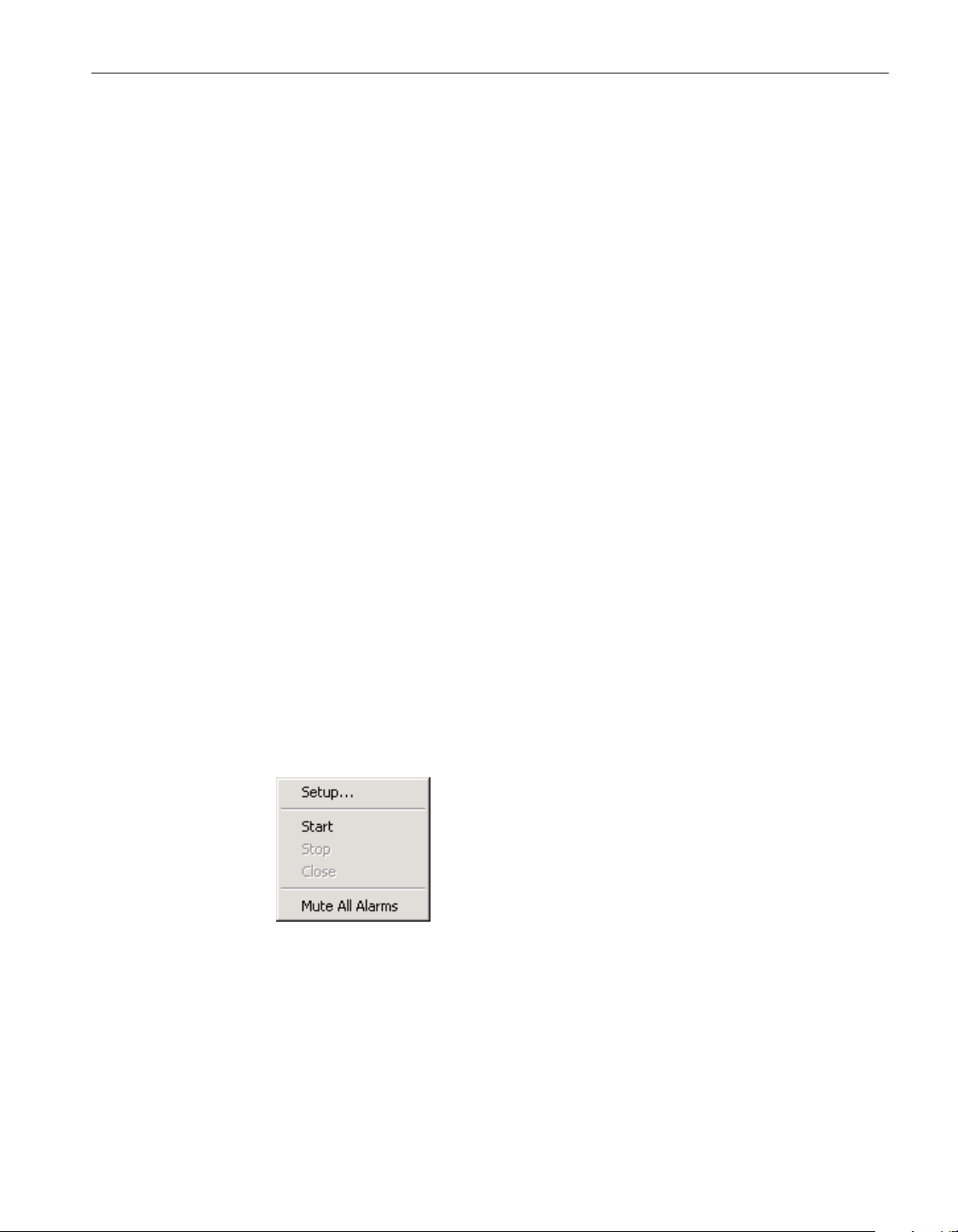
The Save As option and toolbar button are disabled while a real-time log ses
-
sion window is open.
5.1.4 Print
The Print option allows the current graph or log file to be printed. The Print op
-
tion has 2 submenu options: Readings and Graph. The submenu options are
disabled if there is no real-time or previous log session window open.
5.1.4.1 Readings
The Readings option allows the output file for the currently selected channel to
be printed. This option applies to both real-time and previous log sessions.
5.1.4.2 Graph
The Graph option allows the graph in the currently selected window to be
printed. This option applies to both real-time and previous log sessions.
The graph can also be printed by selecting the Print Graph option in the Graph
menu.
5.1.5 Exit
The Exit option closes the LogWare Software.
The Exit option is disabled while a real-time log session window is open.
5.2 Datalog menu
The Datalog menu provides options for working with configuring, starting,
stopping and closing a real-time log session.
5.2.1 Setup
The Setup option displays the Log Session Settings dialog. This dialog is used
to configure a real-time log session. If a log session has already been config
-
ured or a real-time log session configuration file has already been opened, this
dialog displays the current log session settings.
175
5 Menus
Datalog menu
Figure 138 Datalog
menu
1.888.610.7664 sales@GlobalTestSupply.com
Fluke-Direct.com

The button on the toolbar corresponds to the Setup option.
Please refer to Section 2.3, Log Session Settings Dialog, for more details on
configuring a real-time log session.
This option is disabled while a real-time log session window is open.
5.2.2 Start
The Start option starts a real-time log session. This option is disabled until a
log session has been completely configured.
The button on the toolbar corresponds to the Start option.
Please refer to Section 2.4, Real-Time Log Session, for more details on a
real-time log session.
5.2.3 Stop
The Stop option stops the current real-time log session. This option is only en-
abled when a real-time log session is running. A log session may be stopped at
any time by selecting this option.
The button on the toolbar corresponds to the Stop option.
When selecting the Stop option, a message is displayed to confirm stopping the
log session.
5.2.4 Close
The Close option closes the current real-time log session window. This option
is only enabled once the real-time log session has stopped and the log session
window is still open.
The button on the toolbar corresponds to the Close option.
5.2.5 Mute all alarms
The Mute All Alarms option can be used to mute any audible alarms associated
with the current real-time log session. When the alarms are muted, a check
mark appears next to this option. Muting the alarms does not prevent alarm
events from happening.
The button on the toolbar corresponds to the Mute All Alarms option.
When alarms are muted, the toolbar button appears as .
User’s Guide
176
1.888.610.7664 sales@GlobalTestSupply.com
Fluke-Direct.com
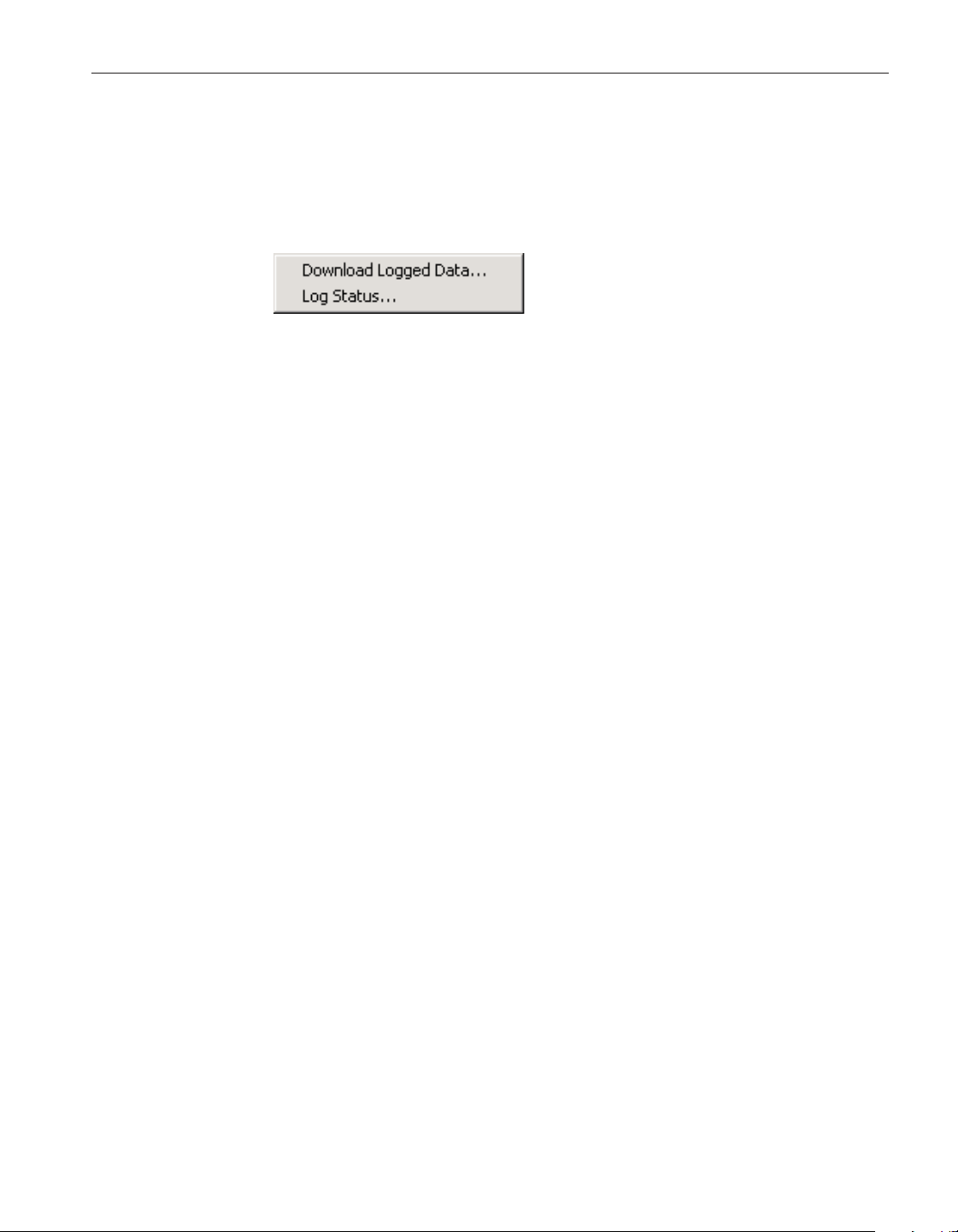
5.3 Download menu
The Download menu contains options for downloading logged data from the
thermometer readout’s memory or logs and viewing the current status of the
thermometer readout’s logs or memory.
5.3.1 Download logged data
The Download Logged Data option can be used to download data that has been
logged to the thermometer readout’s logs or memory. All thermometer readouts
supported by LogWare support logging of some type. Please refer to Section
1.4.4, Firmware Requirements, for more information.
When selecting the Download Logged Data option, the Select Model dialog is
displayed. LogWare needs to know the model of the thermometer readout in or-
der to display appropriate options dialog. Please refer to Section 3.2, Select
Model Dialog, for more details on the Select Model dialog.
After the thermometer readout model and communication settings have been
selected, the appropriate Download Options dialog for the selected thermome-
ter readout is displayed. The Download Options dialogs are described in more
detail in Section 3.3, Download Options Dialogs.
This option is disabled while a real-time log session is running.
5.3.2 Log status
The Log Status option can be used to view the current status of the thermome
-
ter readout’s logs or memory. This feature is only supported by some of the
thermometer readouts supported by LogWare.
When selecting the Log Status option, the Select Model dialog is displayed.
LogWare needs to know the model of the thermometer readout in order to dis
-
play appropriate status dialog. Please refer to Section 3.2, Select Model Dialog,
for more details on the Select Model dialog.
After the thermometer readout model and communication settings have been
selected, the appropriate Download Options dialog for the selected thermome
-
ter readout is displayed. The Log Status dialogs are described in more detail in
Section 3.4, Log Status Dialogs.
This option is disabled while a real-time log session is running.
177
5 Menus
Download menu
Figure 139 Download Menu
1.888.610.7664 sales@GlobalTestSupply.com
Fluke-Direct.com
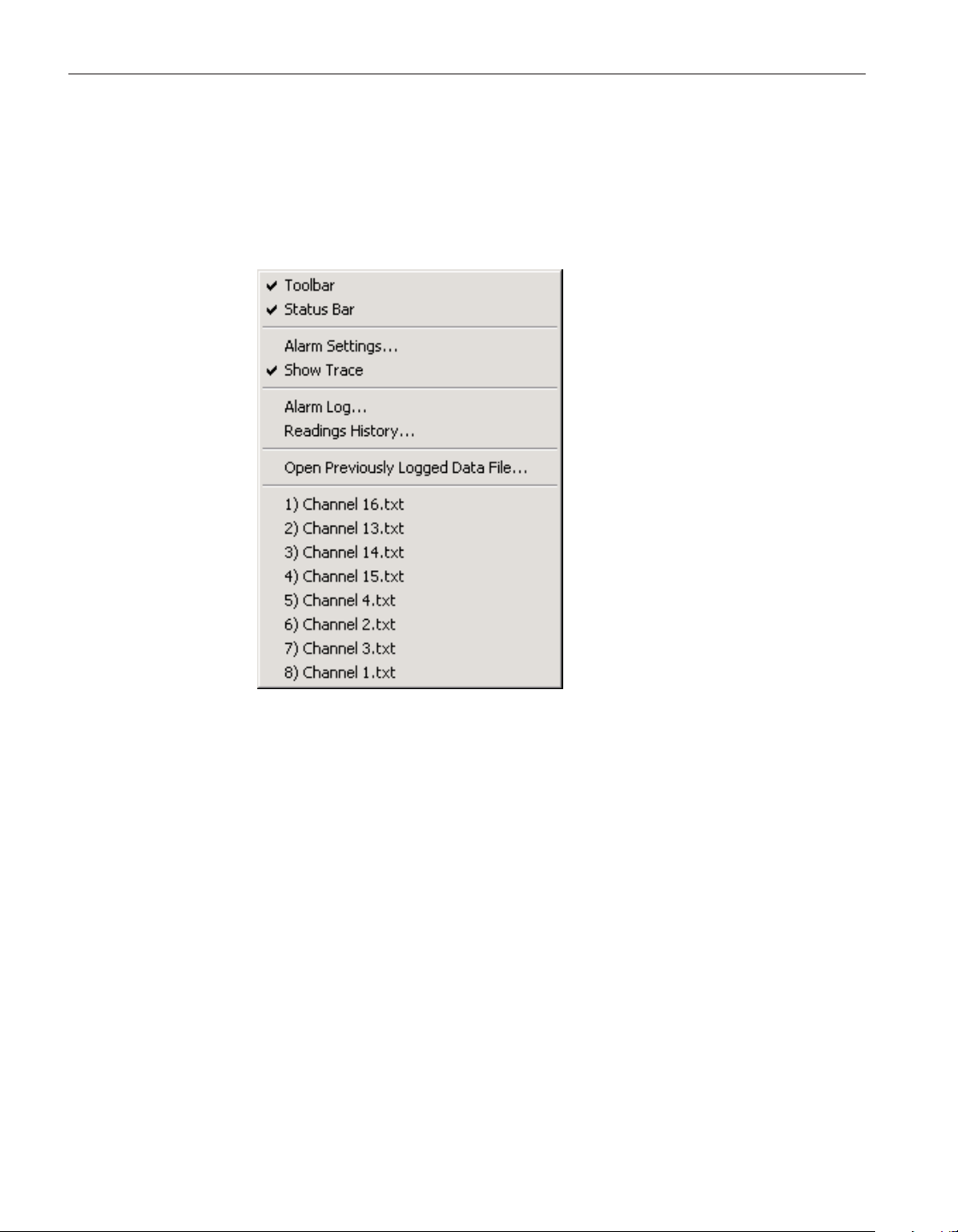
5.4 View menu
The View menu provides options for showing or hiding the toolbar and status
bar, viewing current alarm settings, showing or hiding graph traces, viewing
output and alarm log files, and for opening download files or output files from
previous log sessions.
5.4.1 Toolbar
The Toolbar option toggles the display of the toolbar at the top of the main
window. A check mark appears next to this option if the toolbars are currently
displayed.
5.4.2 Status bar
The Status bar option toggles the display of the status bar at the bottom of the
main window. A check mark appears next to this option if the status bar is cur
-
rently displayed.
5.4.3 Alarm settings
The Alarm Settings option displays the current alarm settings for the selected
channel. This option only applies to channels in a real-time log session.
If no alarms were configured for the selected channel, this option is disabled.
User’s Guide
178
Figure 140 View Menu
1.888.610.7664 sales@GlobalTestSupply.com
Fluke-Direct.com

5.4.4 Show trace
The Show Trace option toggles displaying the trace on the graph for the se
-
lected channel. This option applies to both real-time and previous log session
windows. A check mark appears next to this option if the trace for the selected
channel is currently displayed.
This option is only enabled when a real-time or previous log session window is
displayed.
5.4.5 Alarm log
The Alarm Log option displays the alarm log for the current real-time log ses
-
sion. Please refer to Section 7.2.3, Alarm Log File, for more details on alarm
log files.
This option is only enabled while a real-time log session window is open.
5.4.6 Readings history
The Readings History option displays the output file for the selected channel of
a real-time log session. Please refer to Section 7.2.1, Output File, for more de-
tails on output files.
This option is only enabled while a real-time log session window is open.
5.4.7 Open previously logged data file
The Open Previously Logged Data File option allows file(s) containing logged
or downloaded data to be opened. Please refer to Section 2.5, Previous Log
Session, for more information on opening previous log session files.
When selecting the Open Previously Logged Data File option, the Windows®
Open dialog is displayed. The \Config folder should be selected by default (or
the folder that is specified for configuration files on the LogWare Options dia
-
log). Both output files and download files can be opened in the Previous Log
Session window. These files should have a .txt extension. To cancel opening a
file, click the Cancel button. Otherwise, select up to 10 files to open and click
the Open button. If more than 10 files are selected, only the first 10 files are
opened and the rest are ignored. For more details about output files, please re
-
fer to Section 7.2.1, Output File. For more details about download files, please
refer to Section 7.2.2, Download File.
5.4.8 MRU list
The View menu MRU list indicates up to the last 8 output or download files
that were opened in a Previous Log Session window. Click on an item to open
that file in a new Previous Log Session window.
179
5 Menus
View menu
1.888.610.7664 sales@GlobalTestSupply.com
Fluke-Direct.com
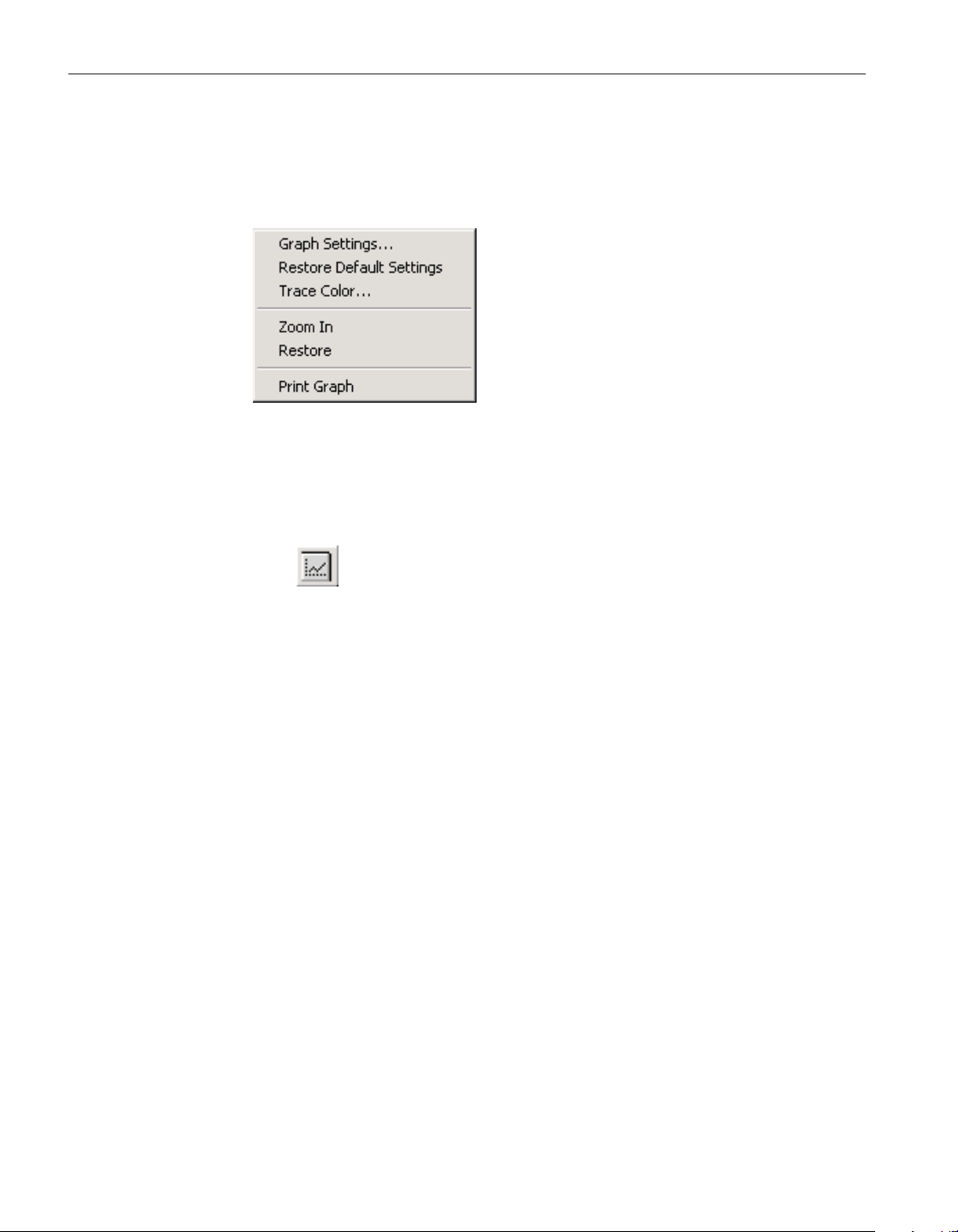
5.5 Graph menu
The Graph menu provides options for customizing graph settings, changing the
graph trace colors, accessing graph zooming features and printing the graph.
5.5.1 Graph settings dialog
The Graph Settings option displays the Graph Settings dialog.
The button on the toolbar corresponds to the Graph Settings option.
The Graph Settings dialog allows many of the graph settings to be changed in-
cluding titles, axis settings, grids, colors, trend lines and legends. The Graph
Settings option applies to the current log session window.
The Graph Settings option and toolbar button are only enabled if a real-time or
previous log session window is open.
The following sections describe in detail each of the customizable graph
settings.
After modifying any of the settings on this dialog, click the Apply Now or OK
button to apply the new settings to the graph. If the Apply Now button is
clicked, this dialog remains open. If the OK button is clicked, this dialog
closes.
To close this dialog without saving new settings, click the Cancel button.
Click the Help button to open the appropriate help topic for this dialog.
5.5.1.1 Titles tab
User’s Guide
180
Figure 141 Graph Menu
1.888.610.7664 sales@GlobalTestSupply.com
Fluke-Direct.com
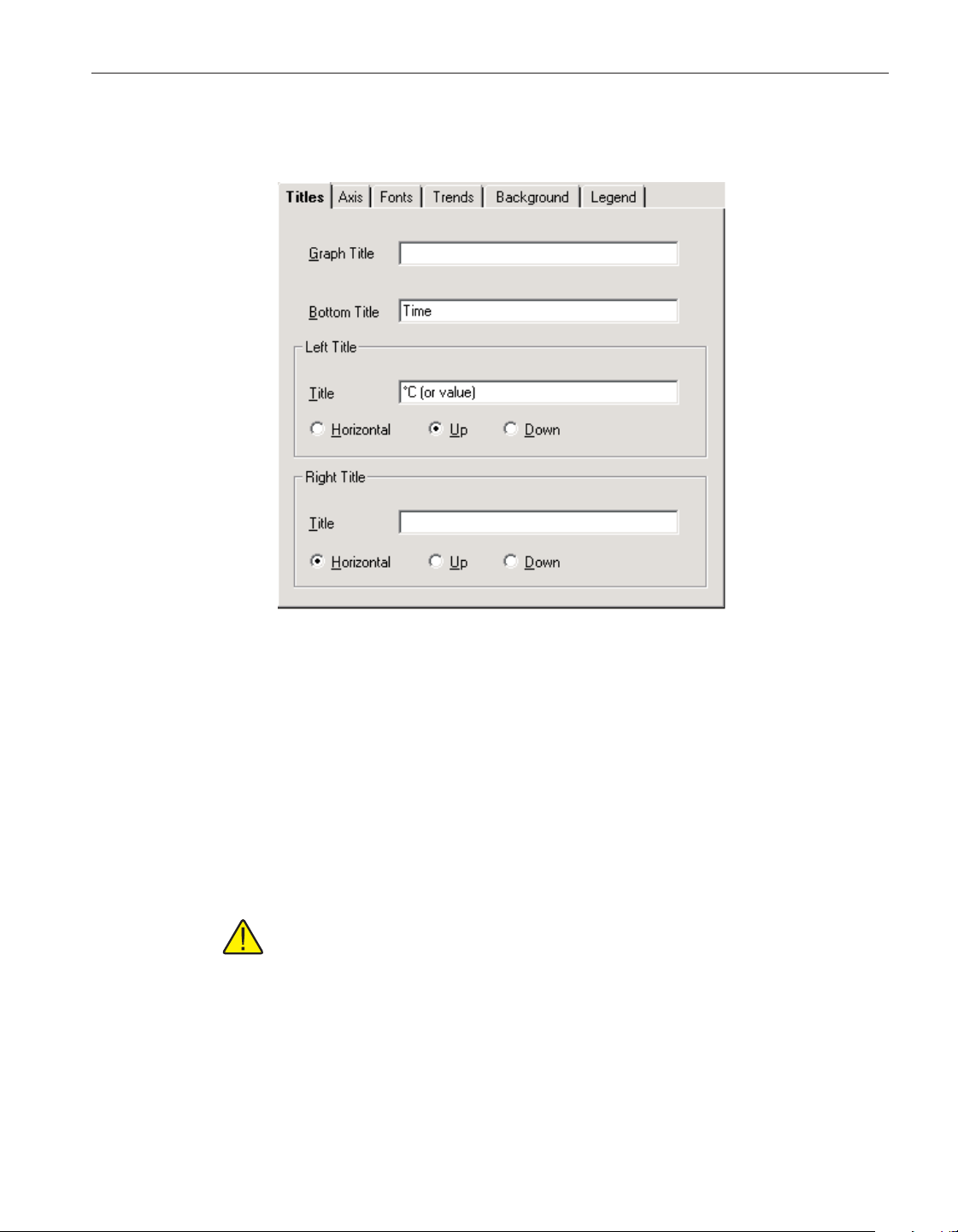
The Titles tab can be used to enter the titles to appear on the top, bottom, left
and right sides of the graph.
When you enter text for a title, the Graph control adjusts the rest of the graph-
ing window to provide space—either redrawing the graph and associated ob-
jects at a smaller size or decreasing the space between objects. When you clear
the text box for a title, you disable it and provide more space for the rest of the
graph.
If you enter a title that’s too long to appear in a single line, the Graph control
automatically word-wraps it. If a title doesn’t display at all, it’s because the
Graph control can’t make the font small enough to fit all the text in the space
provided. Increase the size of the graphing window to make the title appear.
Note: To restore the titles to their default settings, select the Restore De
-
fault Settings option in the Graph menu.
Enter the top title for the graph in the Graph Title box. The graph title can con
-
tain up to 80 characters. This title appears centered at the top of the graph. By
default, the graph title is blank.
Enter the bottom title for the graph in the Bottom Title box. The bottom title
can contain up to 80 characters. This title appears centered at the bottom of the
181
5 Menus
Graph menu
Figure 142 Graph Settings - Titles tab
1.888.610.7664 sales@GlobalTestSupply.com
Fluke-Direct.com
graph and is generally used to denote the scale of the X-axis. By default, this ti
-
tle is set to “Time”.
Enter the title for the left Y-axis of the graph in the Left Title box. The left title
can contain up to 80 characters. This title appears centered vertically on the left
side of the graph and is generally used to denote the scale of the Y-axis. The ti
-
tle can be displayed horizontally or vertically running up or down. By default,
this title is set to the Readings Scale with the Up orientation option selected.
Enter the title for the right Y-axis of the graph in the Right Title box. The right
title can contain up to 80 characters. This title appears centered vertically on
the right side of the graph and is generally used to denote the scale of a second
-
ary Y-axis. The title can be displayed horizontally or vertically running up or
down. By default, the right title is blank.
Note: LogWare only supports on Y-axis, on the left side of the graph.
However, a title can still be placed on the right side of the graph.
User’s Guide
182
1.888.610.7664 sales@GlobalTestSupply.com
Fluke-Direct.com
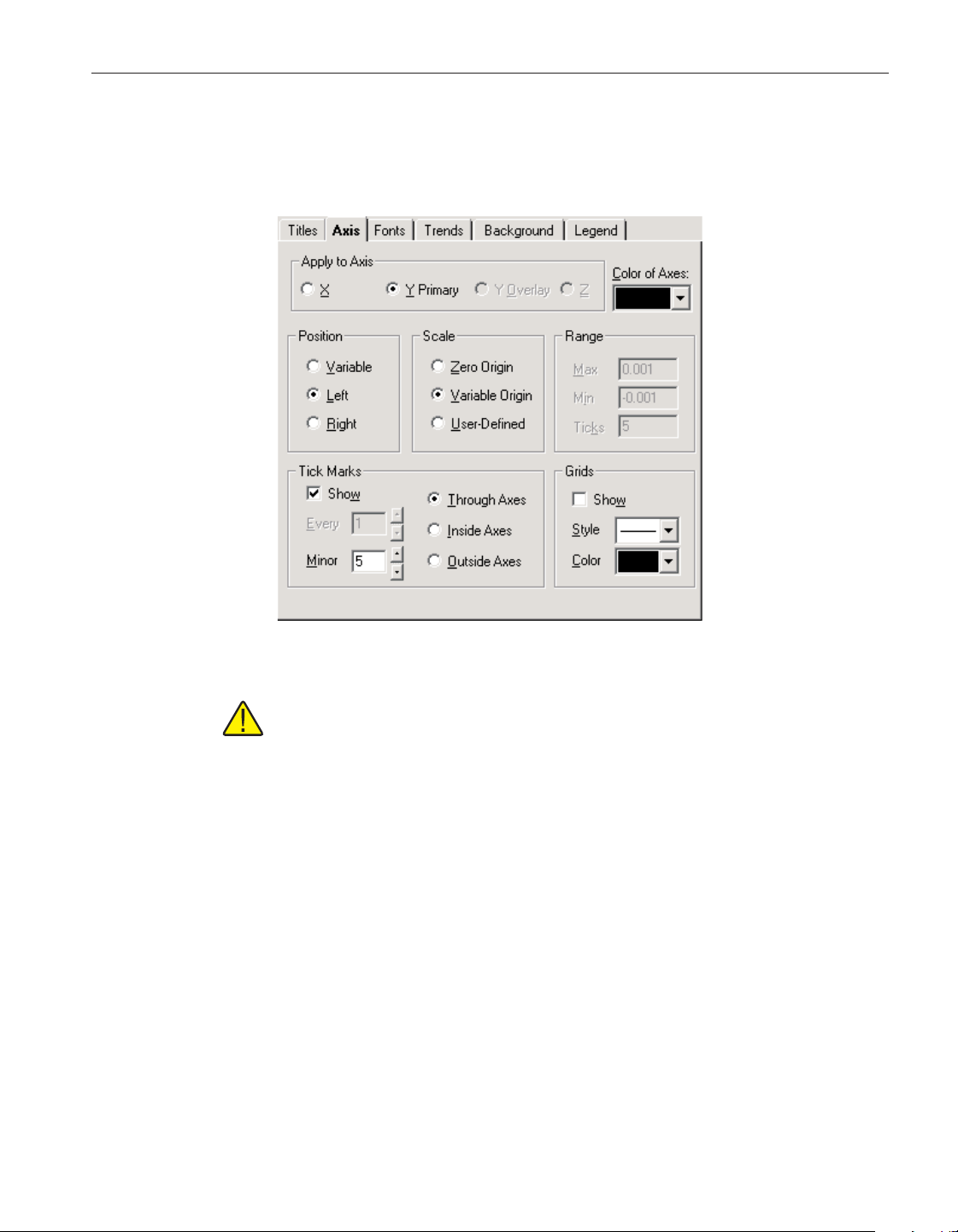
5.5.1.2 Axis tab
The Axis tab can be used to customize the graph’s X- and Y-axis settings, col
-
ors, ticks and gridlines.
Note: To restore the axes to their default settings, select the Restore De-
fault Settings option in the Graph menu.
Select the axis for which changes are to be made using the Apply to Axis op
-
tion. The other controls on this tab change to reflect the current settings of the
selected axis. By default, the Y Overlay and Z axes options do not apply to the
graph and are not enabled.
Select the color for the X-and Y-axes by selecting a color bar from the Color of
Axes drop-down list. This setting applies to both axes and is therefore inde
-
pendent of the current Apply to Axis setting. By default, this option is set to
black.
The Position options allow the X-axis to be positioned on either the top or bot
-
tom of the graph and the Y-axis to be positioned on either the left or right side
of the graph. Selecting the Variable option allows the graph itself to determine
whether to position the axes on the top, bottom, left or right side.
By default, the X-axis is set to Bottom and the Y-axis is set to Left.
The Scale options allow the user to determine the minimum and maximum val
-
ues for an axis. Each option is described below:
183
5 Menus
Graph menu
Figure 143 Graph Settings - Axis tab
1.888.610.7664 sales@GlobalTestSupply.com
Fluke-Direct.com
•
Zero Origin - This option draws the selected axis including the origin
(zero) and extending far enough in the positive and negative directions to
include all of the graph’s values
•
Variable Origin - Select this option to have the axis “zoom in” on the
range of the graph’s actual values, whether or not that range includes
zero.
•
User-Defined - This option allows the user to set values for the minimum,
maximum, and number of ticks for the axis. When this option is selected,
the settings in the Range group are enabled
By default, the X-axis and Y-axis are both set to Variable Origin.
Note: Changing the Scale settings (especially for the X-axis) while ac
-
quiring real-time data could possibly cause graphing problems to occur.
Therefore, it is recommended that these settings NOT be changed by the
user when acquiring real-time data.
The Range options are only enabled if the User-Defined option is selected in
the Scale options for the selected axis. Enter the Maximum and Minimum val-
ues for the selected axis. The selected axis is rescaled to the settings entered.
The Ticks option allows the user to determine how many major tick marks
should be displayed between the minimum and maximum values on the se-
lected axis. Each major tick mark is labeled with the appropriate value. The tick
marks themselves are only displayed if the Show check box in the Tick Marks
controls is checked.
By default, these settings are not used by the software because of the default
Scale settings.
The Tick Marks options allow the user to specify whether or not to show tick
marks on the selected axis. To show tick marks, check the Show check box. If
this check box is not checked, the tick marks are not shown on the selected
axis. Valid settings are between 1 and 1,000.
The Every option is only enabled for the X-axis. This option determines how
often major tick marks appear on the X-axis. When acquiring real-time data,
the graph displays the most recent 600 readings acquired. The Every option is
set to 150 meaning that a major tick mark appears every 150 readings, or 600
divided by 150 = 4 major tick marks appear on the X-axis. When analyzing
previously acquired data, the Every option is calculated by the software de
-
pending on the number of readings being displayed. The X-axis must end with
a tick mark. If you set an Every value that doesn’t include the last value on the
axis, the graph will extend the X-axis so that it ends on a tick mark.
The Minor option allows the user to determine how many minor tick marks ap
-
pear between each major tick mark. By default, the X-axis and Y-axis are set to
display 5 minor tick marks between major tick marks. Valid settings are be
-
tween 0 and 100.
User’s Guide
184
1.888.610.7664 sales@GlobalTestSupply.com
Fluke-Direct.com
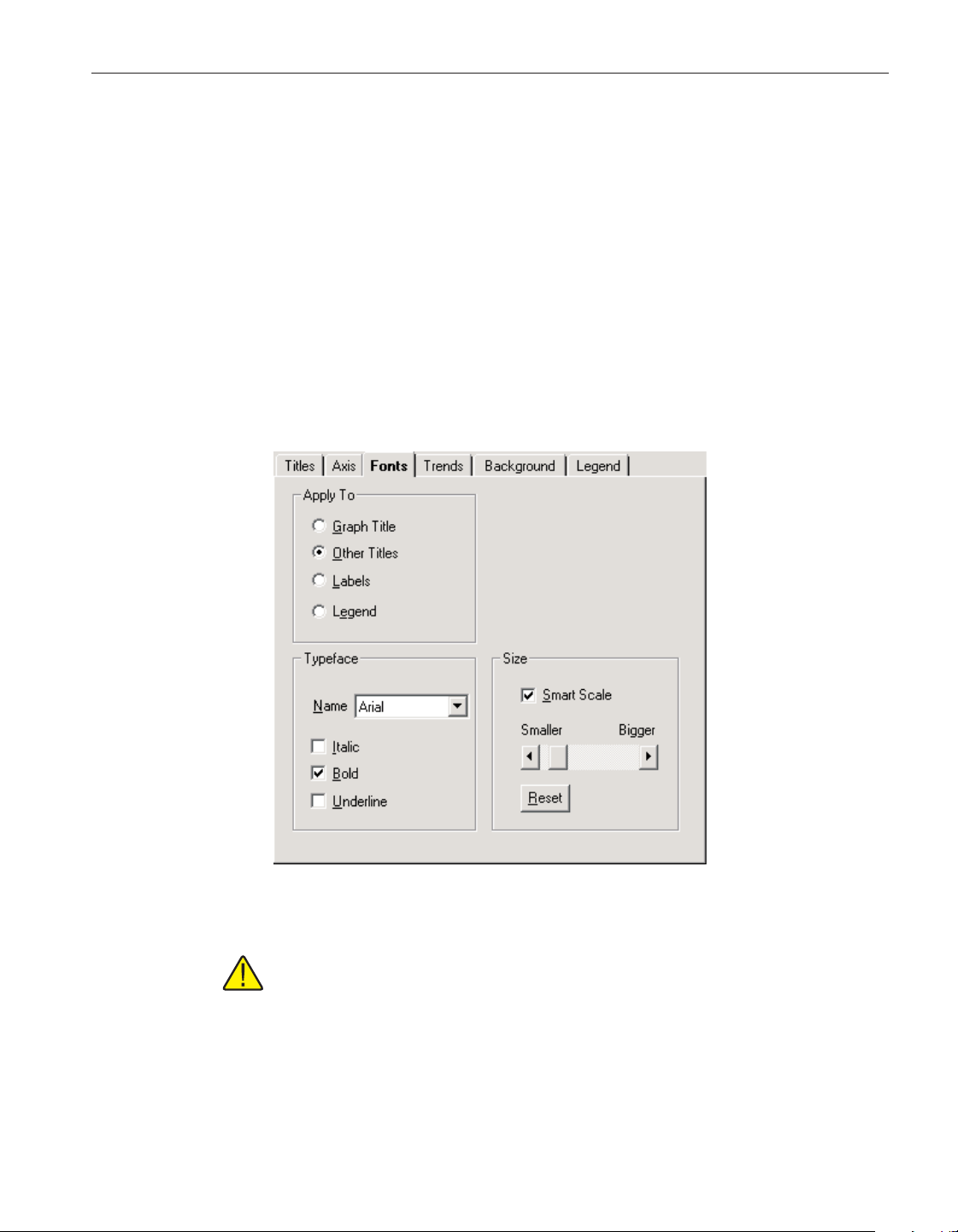
The Through Axes, Inside Axes and Outside Axes options allow the user to
specify how the tick marks should be drawn on the axis. By default, both the
X-axis and Y-axis are set to Through Axes.
The Grids options allow the user to specify whether or not to display grid lines
on the graph. To show the grid lines for the selected axis, check the Show
check box. Select the list Style and Color for the grid lines. Both axes are set to
the same style and color, but each axis can be set to show or hide grid lines in
-
dependent of the other.
By default, grid lines are not shown on the graph.
5.5.1.3 Fonts tab
The Fonts tab can be used to change the typefaces and sizes of fonts used on
the graph.
Note: To restore the fonts to their default settings, select the Restore De
-
fault Settings option in the Graph menu.
Select the title, label or legend option to which the font settings are to be ap
-
plied using the Apply To option. The Typeface and Size controls display the
current settings for the selected option.
185
5 Menus
Graph menu
Figure 144 Graph Settings - Fonts tab
1.888.610.7664 sales@GlobalTestSupply.com
Fluke-Direct.com
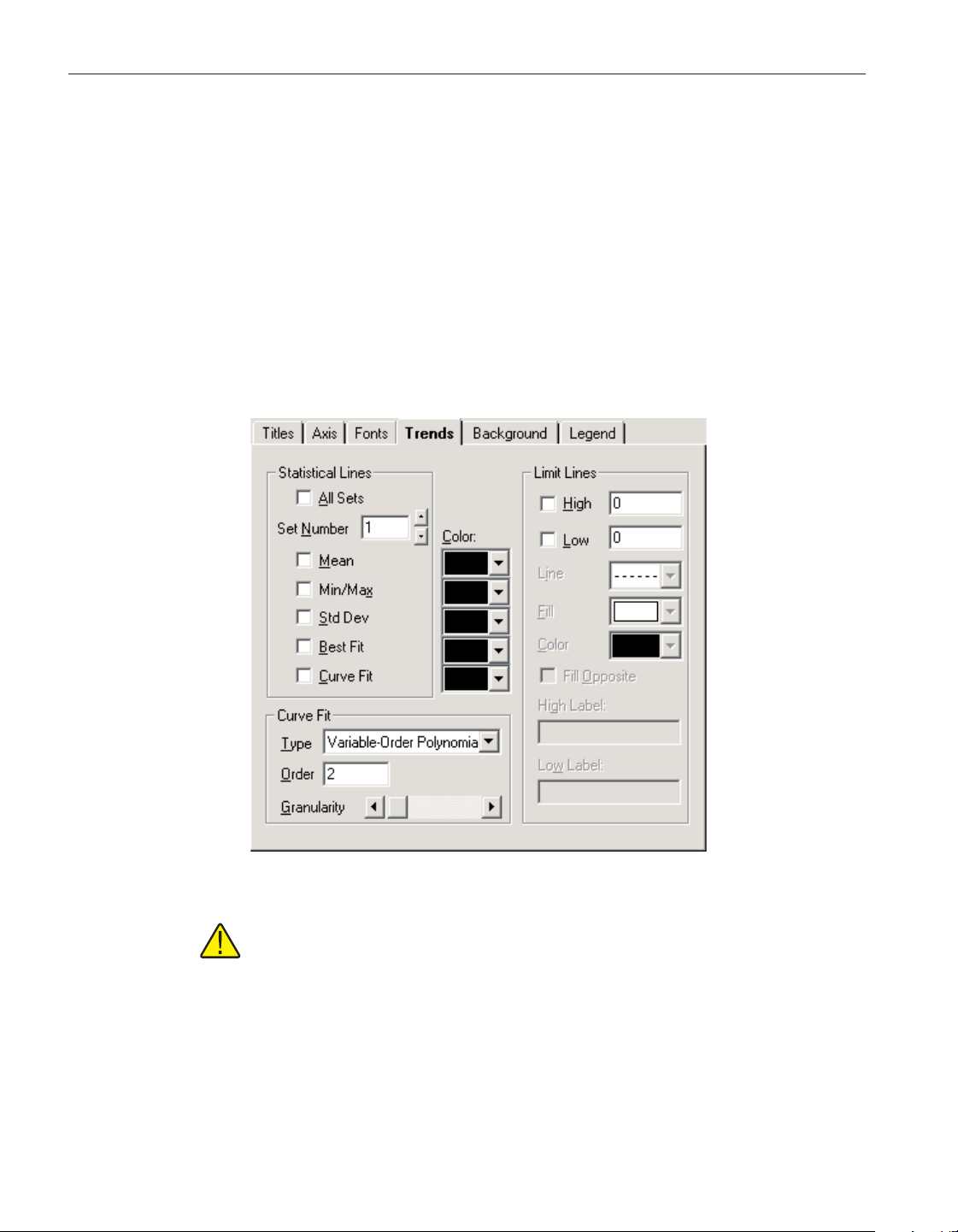
Select the font name from the Typeface drop-down list and choose the styles to
apply to the selected title, label or legend.
Select the font size to apply to the selected title, label, or legend by clicking on
the scroll bar or dragging the scroll bar’s thumb. Selecting the Smart Scale op
-
tion allows the graph to automatically reduce the size of the selected font if the
dimensions of the graph become too small to display the title, label or legend in
the selected font size. Click the Reset button to restore the size to its default
setting.
5.5.1.4 Trends tab
The Trends tab can be used to superimpose trend lines (Min, Max, Average,
etc.), curve fit and limit (alarm) lines on the graph.
Note: To restore the trend settings to their default settings, select the Re
-
store Default Settings option in the Graph menu.
The Statistical Lines options allow the user to specify which statistical lines
should be displayed on the graph.
Check the All Sets option to apply the statistical lines settings to all of the sets
(traces) on the graph. When this check box is checked, the Set Number controls
are disabled.
User’s Guide
186
Figure 145 Graph Settings - Trends tab
1.888.610.7664 sales@GlobalTestSupply.com
Fluke-Direct.com
The Set Number box allows the user to select which set (trace) to which to ap
-
ply the statistical lines settings. This setting can only be changed if the All Sets
check box is not checked.
Note: This software only has one set of data. When acquiring real-time
data, this set is the data being acquired. When analyzing previously ac
-
quired data, this set is the data which was previously acquired.
Check the Mean check box to enable a mean line, which is drawn horizontally
through the average value of all data points in the selected set.
Check the Min/Max check box to enable min and max lines, which are drawn
horizontally through the lowest and highest data points in the selected set.
Check the Std Dev check box to enable a pair of standard-deviation lines,
which are drawn horizontally through the standard deviation from the mean (in
both the positive and negative directions) for the selected set.
Check the Best Fit check box to enable a best-fit line, which is a straight line
indicating the trend of data points (a first-order polynomial curve) for the se-
lected set.
Check the Curve Fit check box if you want to fit a curve through your data
points for the selected set. You can choose the type, order and granularity of the
curve in the Curve Fit options below. These settings will apply to all curve fit
lines drawn on the graph.
By default, no trend lines are enabled.
Select the Curve Fit options for the curve fit statistical line. The following op-
tions are available:
Curve type Description/formula
Variable-Order Polynomial Polynomial curve of variable order
Logarithmic y = a + b * log(x)
Exponential 1 y = a * exp(b * x)
Exponential 2 y = a * x * exp(-b * x)
Power y = a * (x ^ b)
Inverse1 y=a+b/x
Inverse 2 y = a / (b + x)
Inverse 3 y = 1 / (a + b * x)
Inverse 4 y = x / (a * x + b)
Inverse 5 y = 1 / (a + b * x) ^ 2
Spline Spline fit through all points
Moving Average Mid Moving average plotted at midpoint of averaged group
Moving Average End Moving average plotted at end point of averaged group
187
5 Menus
Graph menu
1.888.610.7664 sales@GlobalTestSupply.com
Fluke-Direct.com

The Order option applies only to three curve types:
•
For variable-order polynomial curves, Order is the order of the polyno
-
mial used in curve fitting. A setting of 1 produces a straight line (the same
as a best-fit line); a setting one less than the number of points produces a
curve that passes through every point.
•
For moving-average mid and moving-average end curves, Order is the
range of data points over which moving averages are averaged, beginning
with the first point.
The Granularity scroll bar sets the granularity of all curve types except mov
-
ing-average. The granularity is the number of “steps,” or straight line segments,
making up the curve. Higher values create smoother curves, but require more
drawing time. The default Granularity setting is 50 curve steps, which generally
creates a smooth-looking curve at a high drawing speed. Each click to the left
decreases the number of steps by 2 (to a minimum of 10), and each click to the
right increases the number of steps by 2 (to a maximum of 1000). With spline
curves, you generally need higher granularities than normal—up to 10 times
the number of points in the graph.
Select the colors for each of the statistical lines to display on the graph using
the Color drop-down lists. The selected color for each statistical line applies to
that statistical line for all sets of data.
Select the limit (alarm) lines options to display on the graph using the Limit
Lines options. To display the high alarm line, check the High check box. To
display the low alarm line, check the Low check box.
Note: Changing the low and high limit line settings on this dialog DOES
NOT change the low and high alarm settings entered on the Alarm Set-
tings dialog and therefore does not affect the alarm events options. These
settings are only used to display the alarm lines on the graph. Only
change these settings if absolutely necessary.
Select the line style for the limit (alarm) lines using the Line drop-down list. A
fill pattern can also be selected using the Fill drop-down list. Select the color of
the limit (alarm) lines and the fill pattern using the Color drop-down list.
Select the Fill Opposite check box to fill the area between the High and Low
limit (alarm) lines with the selected pattern. If this option is not checked, the ar
-
eas above the High limit value and below the Low limit value are filled in with
the selected pattern.
Enter the text to appear as a label on the High and Low limit (alarm) lines in
the High Label and Low Label boxes. By default, these labels are set to “High
Alarm” and “Low Alarm” respectively.
Note: Unlike statistical lines, the graph can only display one set of limit
(alarm) lines for all sets of data (traces).
User’s Guide
188
1.888.610.7664 sales@GlobalTestSupply.com
Fluke-Direct.com
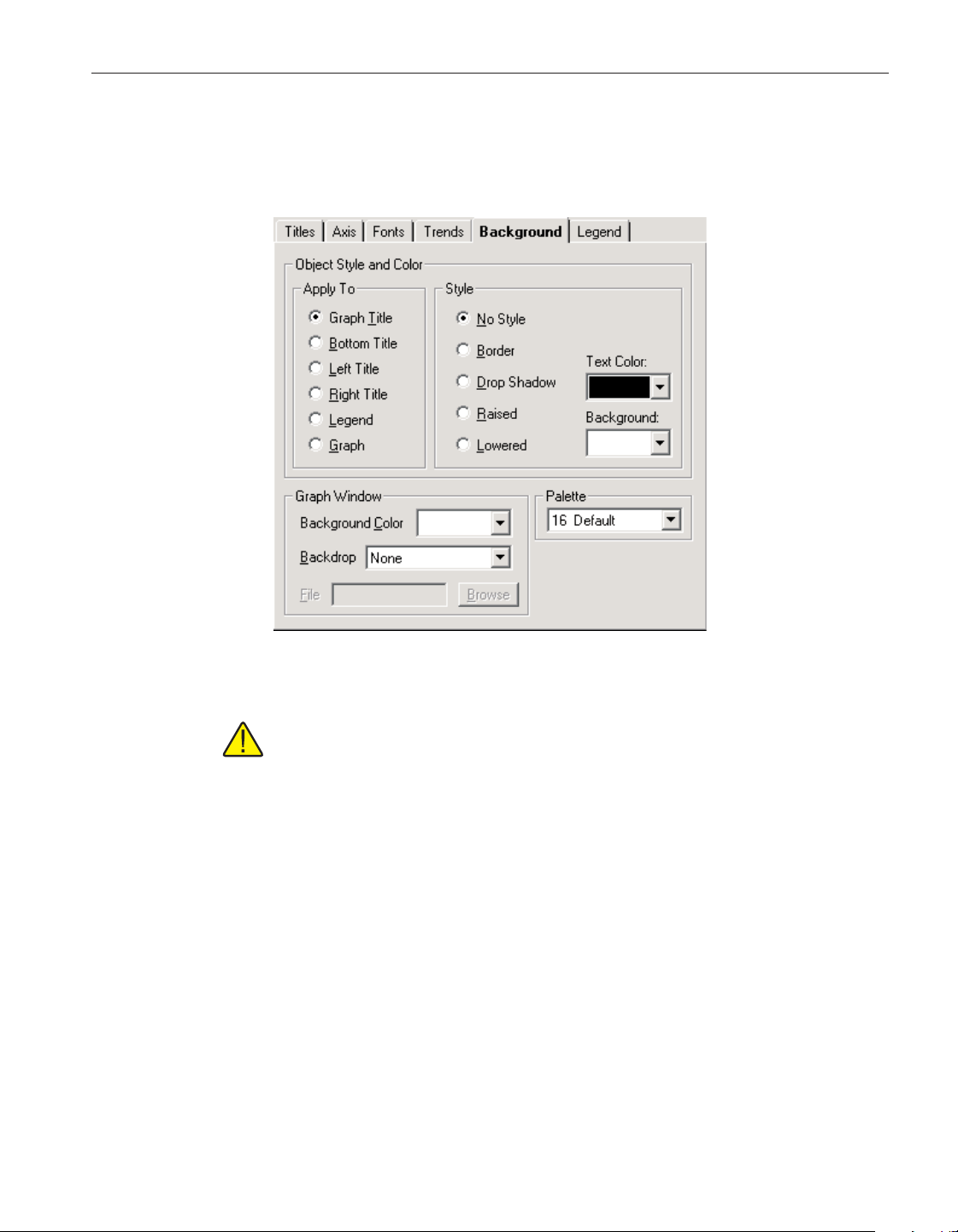
5.5.1.5 Background tab
The Background tab can be used to set the background colors of titles, the leg
-
end and the graph itself.
Note: To restore the background settings to their default settings, select
the Restore Default Settings option in the Graph menu.
Select the title, legend, or graph option to which the background settings are to
be applied using the Apply To options. The other controls on this tab change to
show the current settings for the selected item.
Select the background style options to apply to the selected title, legend or
graph using the Style options. Select the text and background color for the se
-
lected item using the drop-down lists provided.
Select the background options for the graph window using the Graph Window
options. Use the Background Color drop-down list to select the background
color for the plotting area of the graph.
The Backdrop option can be used to display a graphic (.BMP or .WMF) file
such as a company logo or texture pattern behind the graph. If any other option
except “None” is selected, the File and Browse button controls are enabled. En
-
ter the name of the file or browse for the filename using the Browse button.
189
5 Menus
Graph menu
Figure 146 Graph Settings - Background tab
1.888.610.7664 sales@GlobalTestSupply.com
Fluke-Direct.com
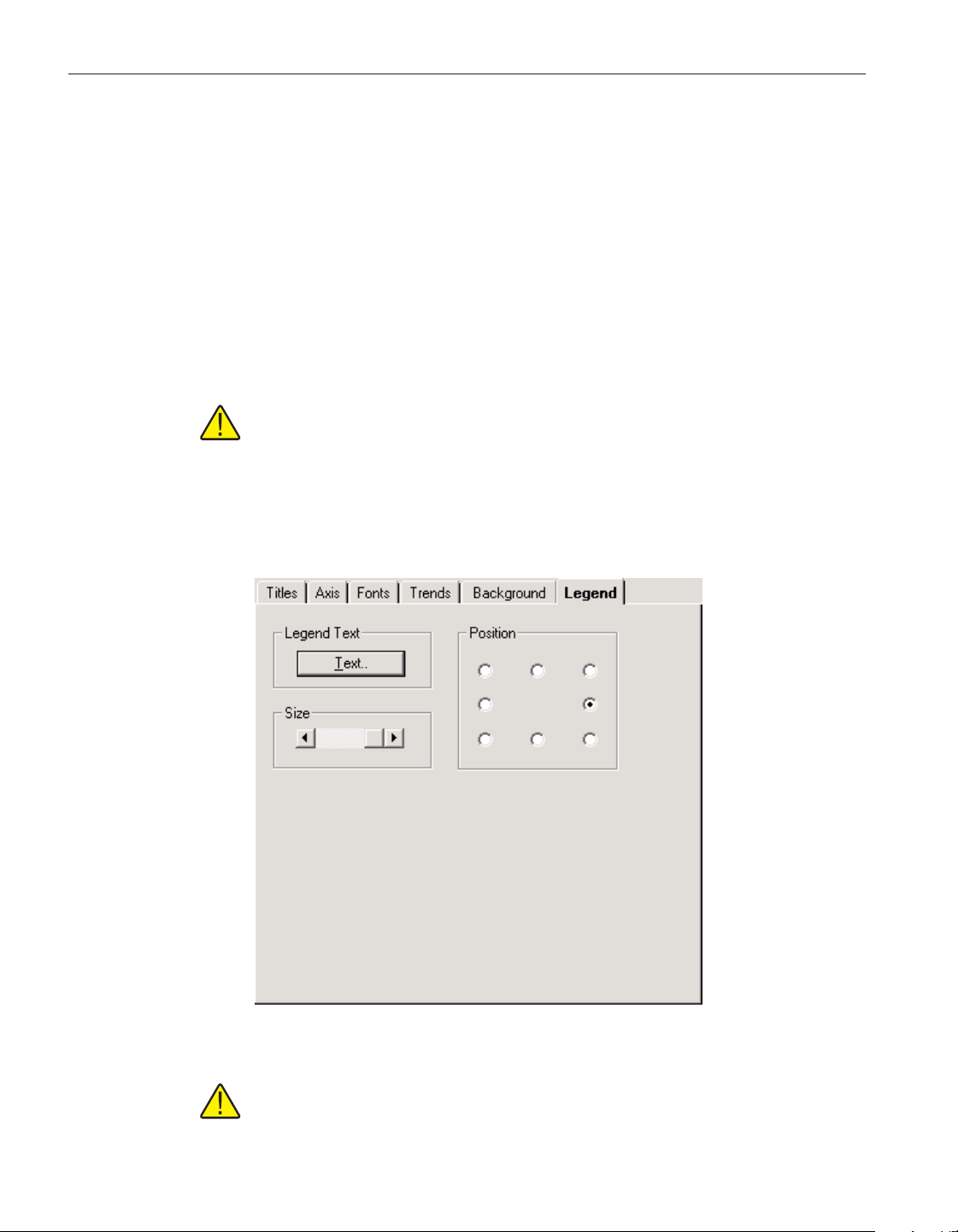
Select the color palette to use using the Palette drop-down list. Using this
drop-down list, choose a 16-color or 128-color palette for the screen. All of the
Color drop-down lists for the graph settings use this palette to determine the
available choices.
•
16-color palettes consist of 16 differentiated colors—default, pastel, or
grayscale
•
128-color palettes always consist of the 16 colors from the default palette,
followed by 96 colors that vary according to the palette you select. The
graph reserves 16 additional colors for special graphic needs. These col
-
ors cannot be selected
By default, the “16 Default” palette is selected.
Note: Selecting any other palette will invalidate the Trace Color option on
the Log Session Settings dialog. The Palette option should NOT be
changed.
5.5.1.6 Legend tab
The Legend tab can be used to add a legend to the graph.
Note: To restore the legend settings to their default settings, select the Re
-
store Default Settings option in the Graph menu.
User’s Guide
190
Figure 147 Graph Settings - Legend tab
1.888.610.7664 sales@GlobalTestSupply.com
Fluke-Direct.com
Click the Text button to enter the labels for each set (trace) of data on the
graph. By entering text into the boxes provided, the legend will automatically
appear on the graph. To hide the legend, remove the text from all of the boxes.
By default, all of the legend text boxes are empty causing the legend to be
hidden.
Select the position with respect to the graph to place the legend using the Posi
-
tion options.
Select the size of the legend using the Size options. To change the font or style
that the legend uses, see the Fonts tab. To set the legend colors, see the Back
-
ground tab.
5.5.2 Restore default settings
The Restore Default Settings option restores the graph to its default settings
and applies to the current log session window.
The Restore Default Settings option and toolbar button are only enabled if a
real-time or previous log session window is open.
5.5.3 Trace color
The Trace Color option allows the trace color for the selected channel to be
changed. Please refer to Section 2.4, Real-Time Log Session, for more details
on changing the trace color for real-time log sessions and Section 2.5, Previous
Log Session, for more details on changing the trace color for previous log
sessions.
The Trace Color option is only enabled if a real-time or previous log session
window is open.
5.5.4 Zoom in
The Zoom In option allows the graph to be zoomed in.
The button on the toolbar corresponds to the Zoom In option. Please
refer to Section 2.5.4, Graph Zooming, for more details on using this feature.
The Zoom In option and toolbar button are only enabled if a previous log ses
-
sion window is open.
5.5.5 Restore
The Restore option restores the graph to its default zoom state.
The button on the toolbar corresponds to the Restore option. Please re
-
fer to Section 2.5.4, Graph Zooming, for more details on using this feature.
The Restore option and toolbar button are only enabled if a previous log ses
-
sion window is open.
191
5 Menus
Graph menu
1.888.610.7664 sales@GlobalTestSupply.com
Fluke-Direct.com
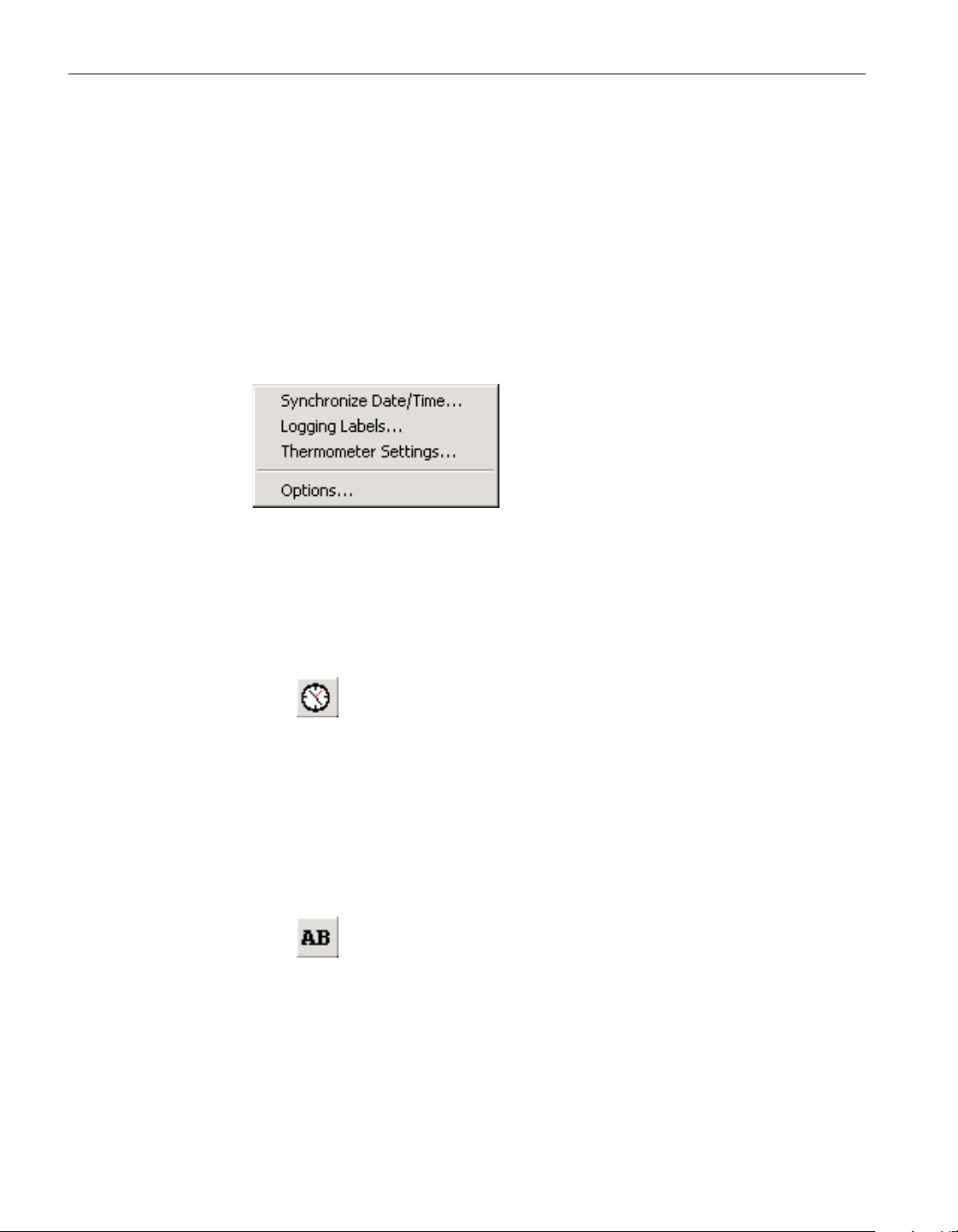
5.5.6 Print graph
The Print Graph option prints the current graph on the selected printer.
The graph can also be printed by selecting the Print | Graph option in the File
menu.
5.6 Tools menu
The Tools menu provides options for synchronizing the thermometer readout’s
clock, viewing and/or modifying logging labels, viewing and/or modifying
thermometer readout settings and configuring LogWare’s options.
5.6.1 Synchronize date/time
The Synchronize Date/Time option provides a utility to synchronize the ther-
mometer readout’s clock to the computer’s clock.
The button on the toolbar corresponds to the Synchronize Date/Time
option. Please refer to Section 4.1.1, Synchronize Date/Time, for a description
of this feature.
The Synchronize Date/Time option and toolbar button are disabled while a
real-time log session is running.
5.6.2 Logging labels
The Logging Labels option provides a utility to view and/or modify logging
labels.
The button on the toolbar corresponds to the Logging Labels option.
Please refer to Section 4.3, Logging Labels Dialogs, for a description of this
feature.
The Logging Labels option and toolbar button are disabled while a real-time
log session is running.
User’s Guide
192
Figure 148 Tools Menu
1.888.610.7664 sales@GlobalTestSupply.com
Fluke-Direct.com
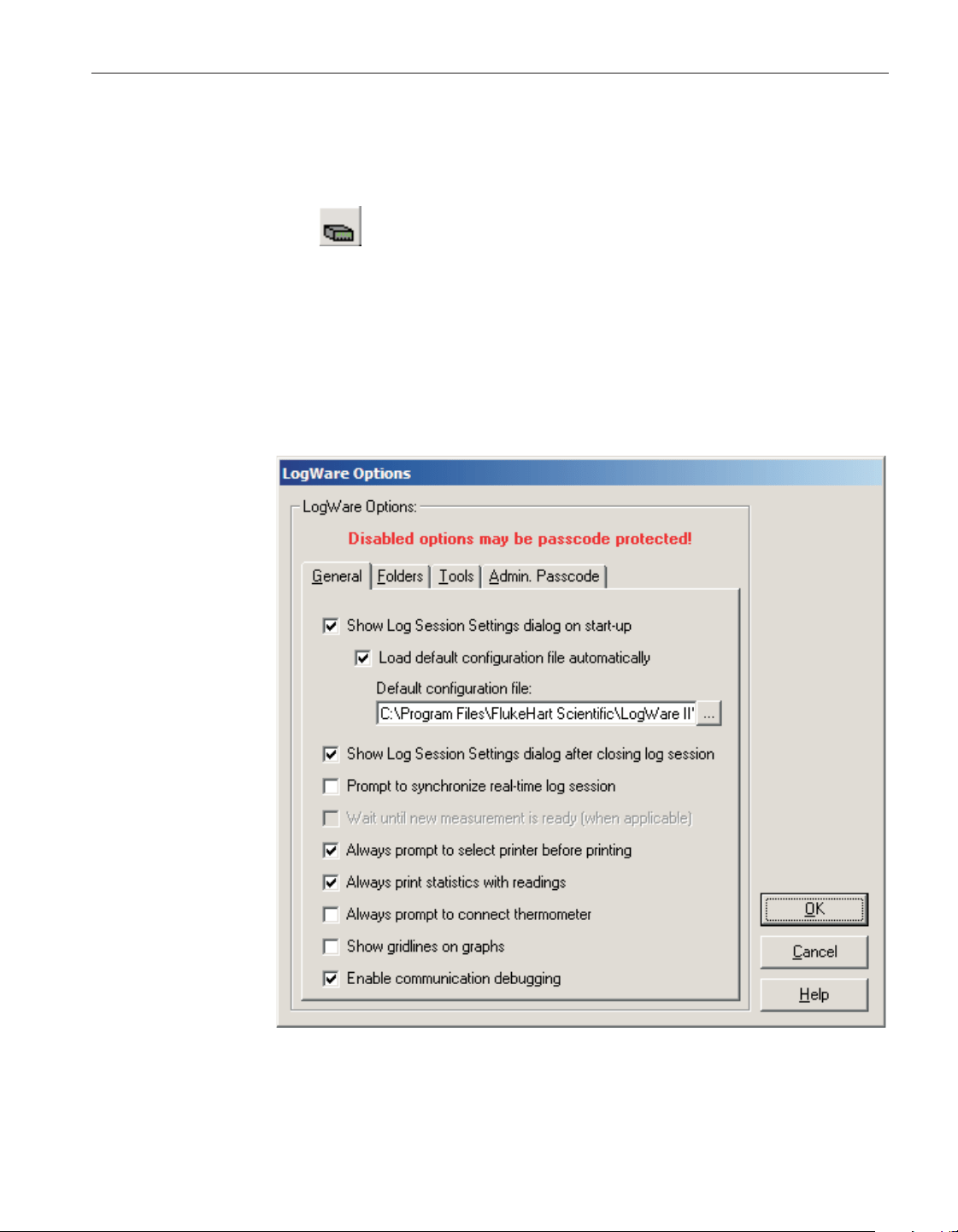
5.6.3 Thermometer settings
The Thermometer Settings option provides a utility to access the thermometer
readout settings dialogs.
The button on the toolbar corresponds to the Thermometer Settings op
-
tion. Please refer to Section 4.4, Thermometer Settings Dialogs, for a descrip
-
tion of these dialogs.
The Thermometer Settings option and toolbar button are disabled while a
real-time log session is running.
5.6.4 Options
The Options option displays the LogWare Options dialog to view and/or mod
-
ify LogWare’s default settings.
The Options option is disabled while a real-time log session is running.
193
5 Menus
Tools menu
Figure 149 LogWare Options Dialog
1.888.610.7664 sales@GlobalTestSupply.com
Fluke-Direct.com
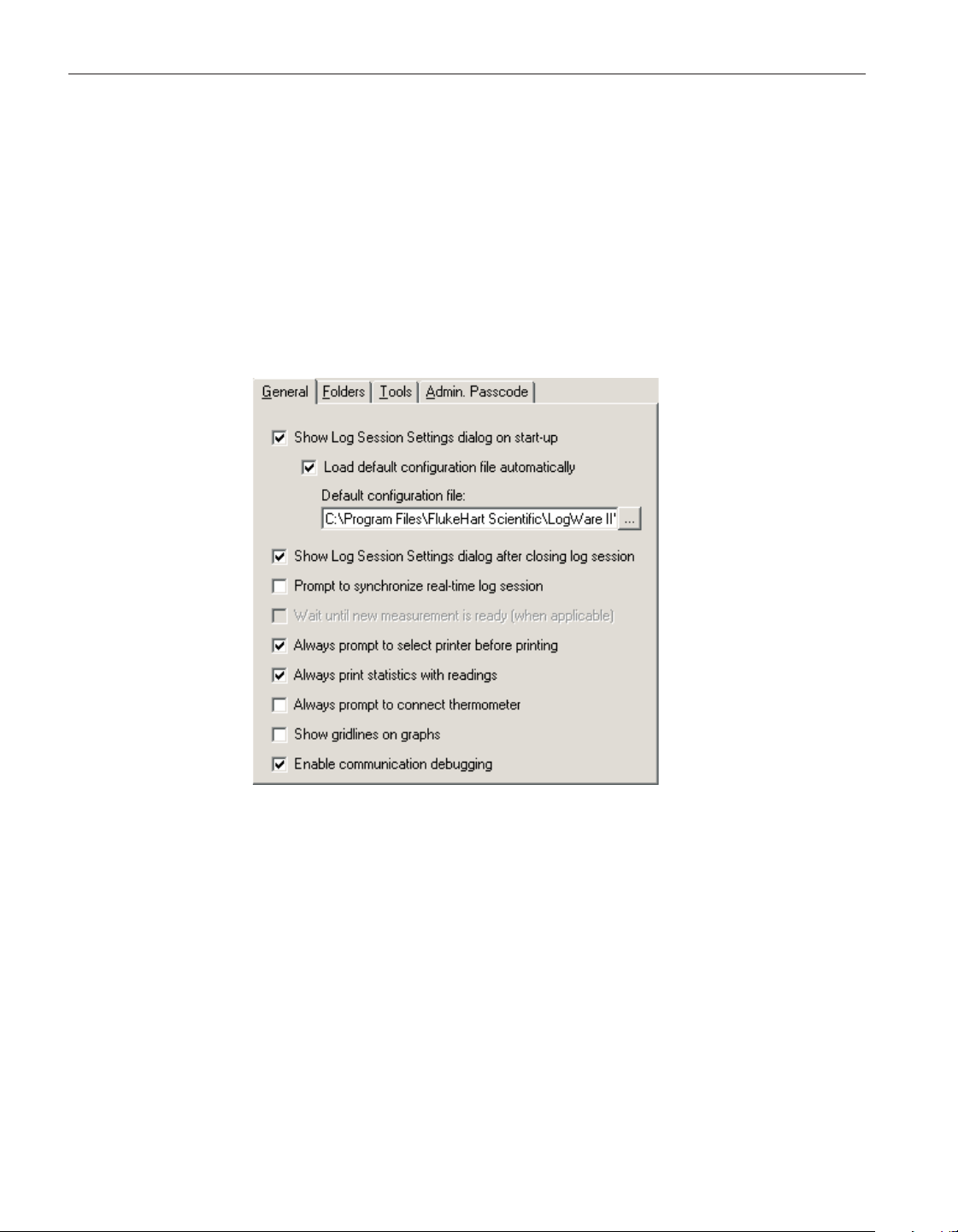
The following sections describe in detail each of the LogWare Options settings.
After modifying any of the settings on this dialog, click the OK button to save
the new settings and close the dialog.
To close this dialog without saving new settings, click the Cancel button.
Click the Help button to open the appropriate help topic for this dialog.
5.6.4.1 General tab
The General tab displays options pertaining to the behavior of the LogWare
software in general.
The Show Log Session Settings dialog on start-up option causes LogWare to
automatically display the Log Session Settings dialog every time LogWare
starts up. If checked, the Log Session Settings dialog is displayed immediately
after LogWare starts up. If not checked, LogWare does not display the Log Ses
-
sion Settings dialog on start-up and the other options on this tab are disabled.
The Load default configuration file automatically option allows LogWare to au
-
tomatically load the specified configuration file every time LogWare starts up.
This option is useful if the same hardware configuration is used repeatedly to
perform real-time log sessions. When this option is checked, the configuration
file to load must be specified.
The Default configuration file box indicates the configuration file that will be
loaded automatically every time LogWare starts up. The configuration file will
User’s Guide
194
Figure 150 LogWare Options - General tab
1.888.610.7664 sales@GlobalTestSupply.com
Fluke-Direct.com
only be loaded if the Show Log Session Settings dialog on start-up and Load
default configuration file automatically options are both checked. Use the “…”
(Browse) button to locate the configuration file to be used as the default config
-
uration file.
The Show Log Session Settings dialog after closing log session option deter
-
mines whether the Log Session Settings dialog is displayed after the real-time
log session window is closed. All real-time log session settings are still active
in LogWare after a log session is closed. To access the Log Session Settings di
-
alog, select the Setup option in the Datalog menu. If this option is not checked,
this dialog is not displayed when the log session window is closed.
The Prompt to synchronize real-time log session option determines whether or
not a prompt is displayed when the real-time log session is initialized and ready
to start acquiring data. This prompt can be used to facilitate synchronizing
LogWare with another process or application. If this option is not checked,
LogWare begins acquiring data immediately after initialization of the session is
complete.
Note: When using the delayed start feature of LogWare to start a log ses-
sion unattended, make sure this setting is not checked! Otherwise, the log
session may not start as expected!
The Wait until new measurement is ready (when applicable) option determines
whether LogWare should always wait until the thermometer readout indicates a
new measurement is ready on the current channel before querying the measure-
ment during a real-time log session. If this option is not checked, LogWare al-
ways queries the last measurement taken on the current channel.
Not all thermometers supported by LogWare support waiting until a new mea-
surement is ready. For these thermometer readouts, LogWare always queries the
last measurement taken on the current channel.
Note: This option is protected by the administrator passcode. To change
this setting, the correct administrator passcode must be entered. For more
information, see Section 5.6.4.4, Admin. Passcode Tab.
The Always prompt to select printer before printing option determines whether
the Print Setup dialog is displayed when printing. The Print Setup dialog allows
the printer to be selected as well as the paper size, source and orientation set
-
tings (as supported by the selected printer driver). If this option is not checked,
LogWare always prints to the default printer using that printer’s default settings.
The Always print statistics with readings option determines whether LogWa re
appends statistical data to the end of the readings when printing an output file.
If this option is checked, the statistical data is printed.
195
5 Menus
Tools menu
1.888.610.7664 sales@GlobalTestSupply.com
Fluke-Direct.com
Note: LogWare allows the readings history to be printed with or without
statistics while a real-time log session is running. However, when printing
the readings history during a real-time log session, be aware that the sta
-
tistical values may not exactly match the printed readings, since the statis
-
tics may get updated after the readings have already been printed. For
best results, only print the readings AFTER the real-time log session has
stopped.
The Always prompt to connect thermometer option determines whether
LogWare displays a prompt before attempting to communicate with the ther
-
mometer readout. These prompts are intended to be a reminder to the user to
connect the thermometer readout so that the software can communicate with it.
If the thermometer readout is frequently disconnected from the computer, this
option may be left checked. If the thermometer readout is always connected to
the computer, these prompts may become bothersome. In this case, uncheck
this option so that the prompts are not displayed.
The Show gridlines on graphs option determines whether gridlines are enabled
on the real-time log session and previous log session graphs by default. The
gridlines can be enabled or disabled for a specific graph at any time using the
Grids controls on the Axis tab of the Graph Settings dialog. Please refer to
Section 5.5.1.2, Axis Tab, for more details.
The Enable communication debugging option is used to enable debugging fea-
tures in LogWa re. This option should remain unchecked unless otherwise di-
rected by a Customer Service representative.
User’s Guide
196
1.888.610.7664 sales@GlobalTestSupply.com
Fluke-Direct.com
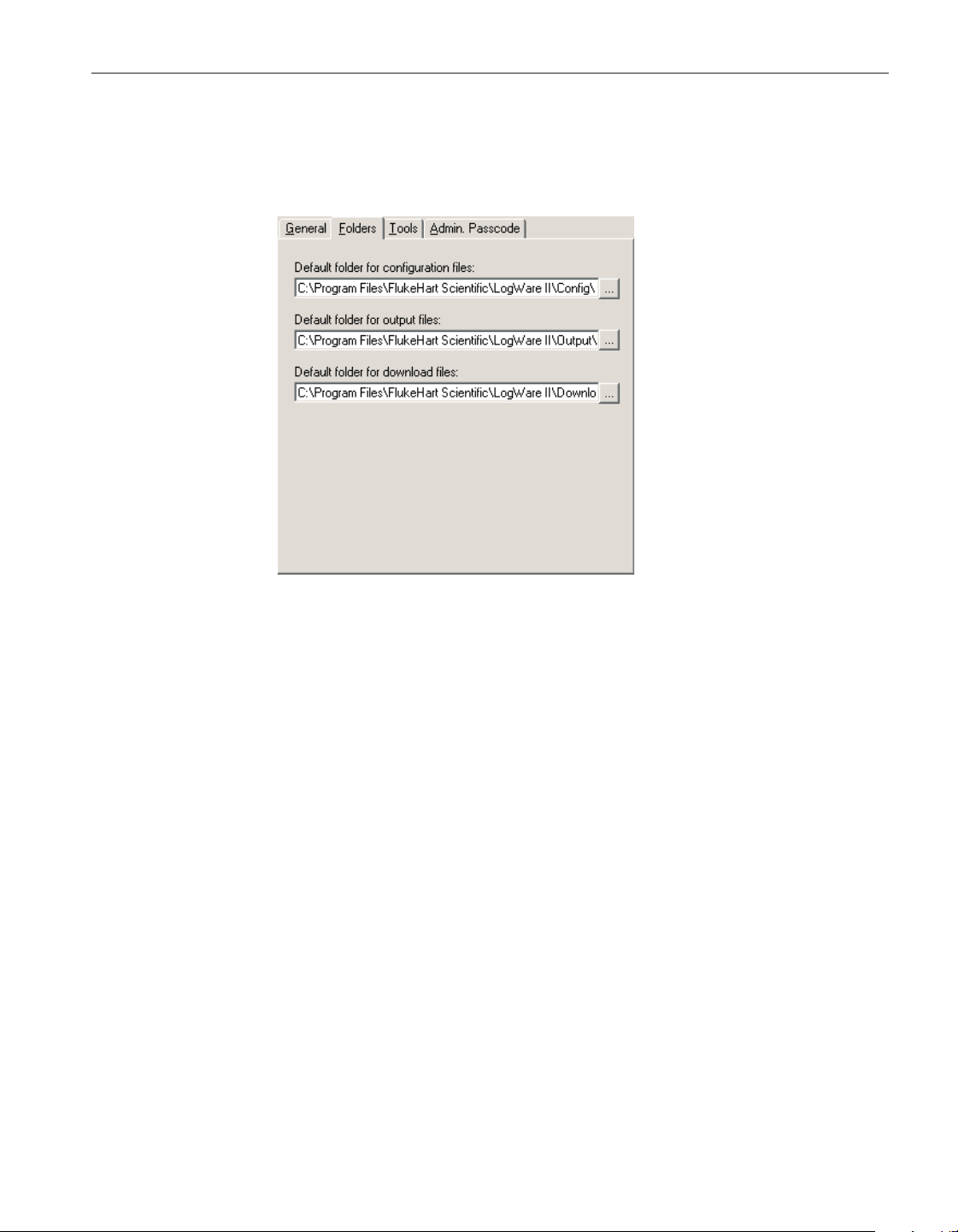
5.6.4.2 Folders tab
The Folders tab displays options pertaining to the default folders to which
LogWare saves various types of files.
The Default folder for configuration files option allows the default folder to
which configuration files are saved to be specified. LogWa re allows many types
of configuration files to be saved including real-time log session (.rls), alarm
(.alm) and conversion types (.i90, .i68, .cvd, .ply, .hpt, .w90, .thr, .tcp, .tct,
.tcx). Use the “…” (Browse) button to select an existing path.
The Default folder for output files option allows the default folder to which
output files are saved to be specified. Output files are the files created by a
real-time log session and typically have the extension .txt.Usethe“…”
(Browse) button to select an existing path.
The Default folder for download files option allows the default folder to which
download files are saved to be specified. Download files are the files created
when data is downloaded from the memory or log(s) of a thermometer readout
and typically have the extension .txt. Use the “…” (Browse) button to select an
existing path.
197
5 Menus
Tools menu
Figure 151 LogWare Options - Folders tab
1.888.610.7664 sales@GlobalTestSupply.com
Fluke-Direct.com
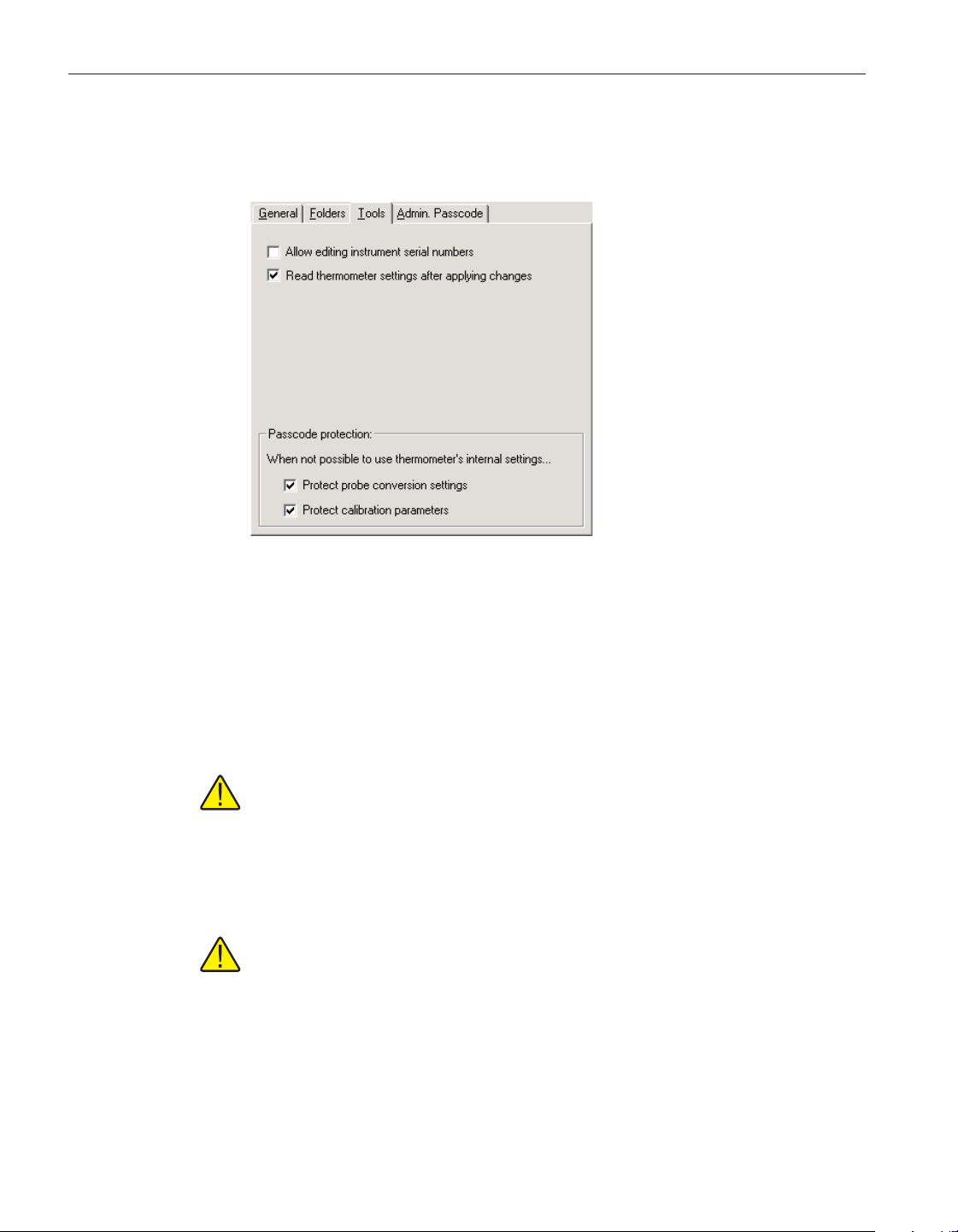
5.6.4.3 Tools tab
The Tools tab displays options pertaining to the Tools menu options.
The Allow editing instrument serial numbers option determines whether
LogWare will allow the serial number of the thermometer readouts to be
changed using the Thermometer Settings option in the Tools menu. If this op-
tion is checked, the Serial number boxes on the thermometer settings dialogs
are enabled (where applicable) and the serial number of the thermometer read-
out can be changed.
Note: Many Hart Scientific thermometer readouts save the thermometer
readout’s serial number in its memory. However, many thermometer read
-
outs still have their serial number set to 0. This option can be used to al
-
low the thermometer readout’s serial number to be set. Once the serial
number is set, this option should always be left off to prevent the serial
number from being changed to an incorrect setting.
Note: This option is protected by the administrator passcode. To change
this setting, the correct administrator passcode must be entered. For more
information, see Section 5.6.4.4, Admin. Passcode Tab.
The Read thermometer settings after applying changes option determines
whether LogWare will query the thermometer readout for current settings after
new settings have been applied. This option is used on the thermometer settings
dialogs which are accessible from the Thermometer Settings option.
User’s Guide
198
Figure 152 LogWare Options - Tools tab
1.888.610.7664 sales@GlobalTestSupply.com
Fluke-Direct.com
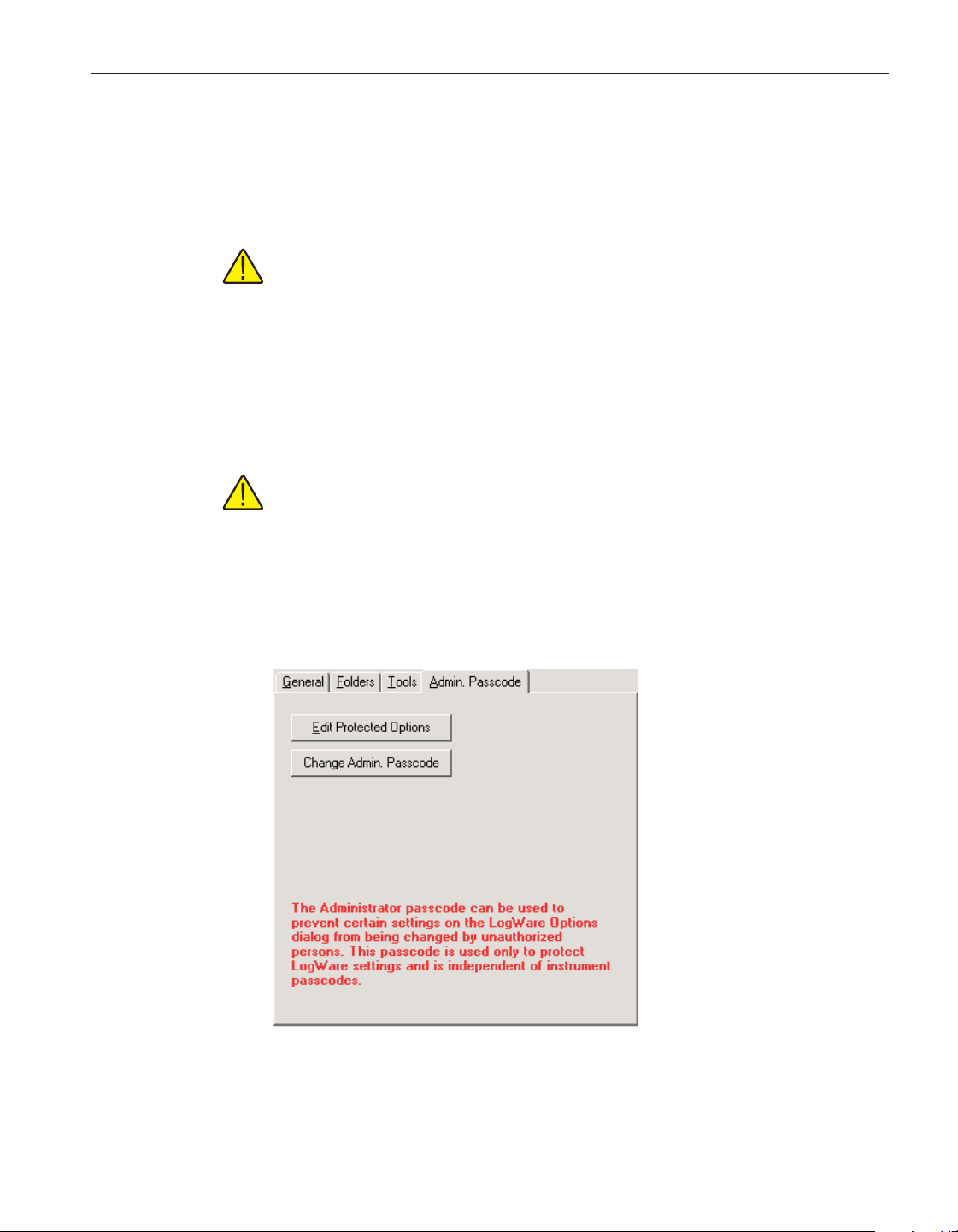
The Protect probe conversion settings option determines whether probe conver
-
sion settings (including coefficients) should be passcode protected if LogWare
is unable to determine the protection settings of the thermometer readout or if
the thermometer readout does not support passcode protection. The thermome
-
ter readout’s protection settings are always used where possible.
Note: This option is protected by the administrator passcode. To change
this setting, the correct administrator passcode must be entered. For more
information, see Section 5.6.4.4, Admin. Passcode Tab.
The Protect thermometer calibration parameters option determines whether
thermometer readout calibration parameters should be passcode protected if
LogWare is unable to determine the protection settings of the thermometer
readout or if the thermometer readout does not support passcode protection.
The thermometer readout’s protection settings are always used where possible.
Note: This option is protected by the administrator passcode. To change
this setting, the correct administrator passcode must be entered. For more
information, see Section 5.6.4.4, Admin. Passcode Tab.
5.6.4.4 Admin. Passcode tab
The Admin. Passcode tab allows options pertaining to the administrator
passcode to be selected.
The Edit Protected Options button allows the user to change the settings of the
passcode protected options. This button is disabled if an administrator passcode
199
5 Menus
Tools menu
Figure 153 LogWare Options - Admin. Passcode tab
1.888.610.7664 sales@GlobalTestSupply.com
Fluke-Direct.com
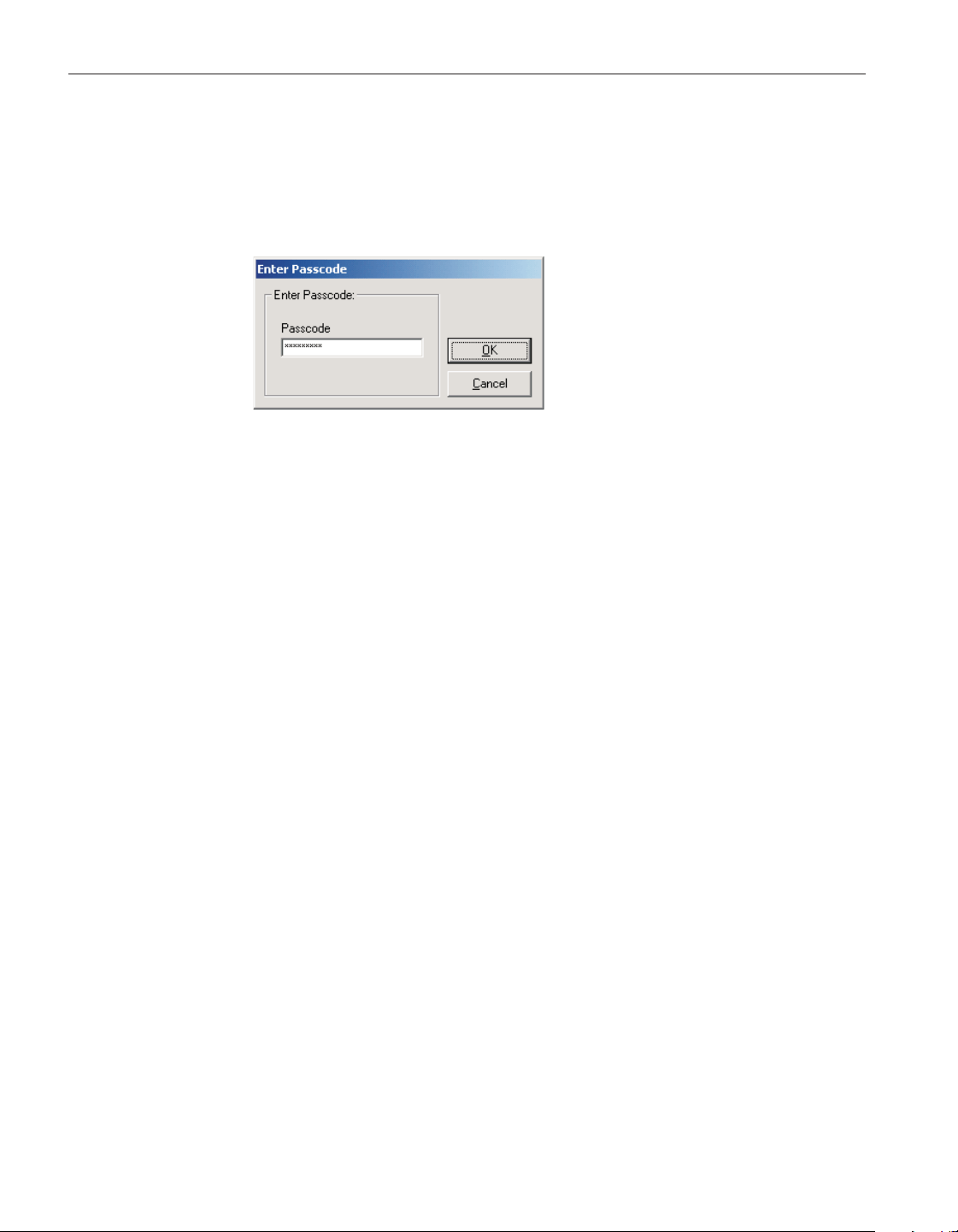
has not been setup or if the correct passcode has been entered since the
LogWare Options dialog was displayed.
Clicking the Edit Protected Options button displays the Enter Passcode dialog.
The current administrator passcode must be entered to enable changing the pro
-
tected options.
Enter the current administrator passcode and click the OK button to continue. If
the passcode entered does not match the current administrator passcode, a mes-
sage is displayed and access is denied. Otherwise, if the correct passcode is en-
tered, the Edit Protected Options button becomes disabled and all passcode
protected options on the LogWare Options dialog become enabled. These op-
tions remain enabled until the LogWa re Options dialog is closed or until the
user attempts to change the administrator passcode.
User’s Guide
200
Figure 154 Enter Passcode dialog
1.888.610.7664 sales@GlobalTestSupply.com
Fluke-Direct.com
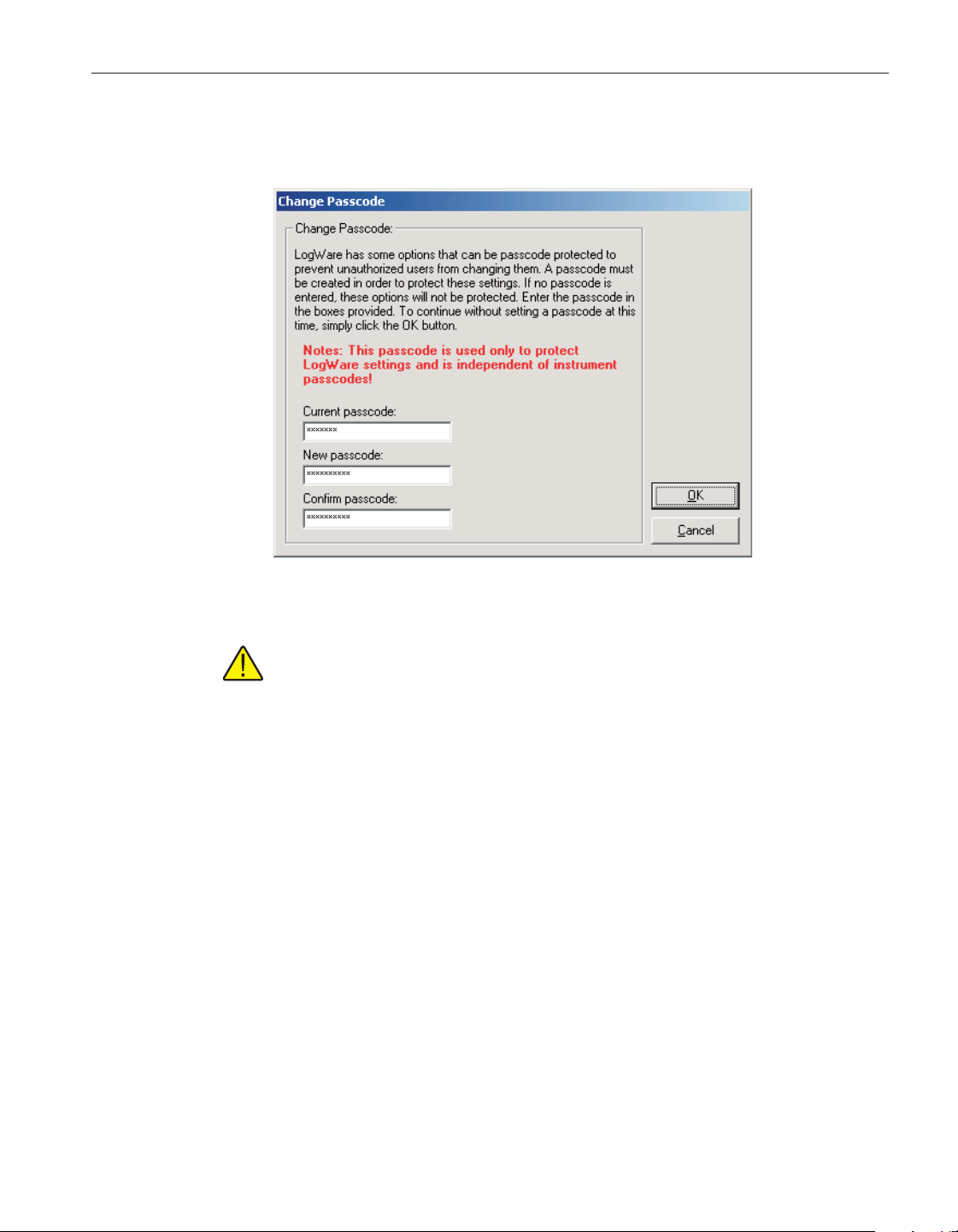
The Change Admin. Passcode button allows the administrator passcode to be
setup or changed.
Note: The administrator passcode in LogWare is completely independent
of the thermometer readout passcodes. The administrator passcode is used
by LogWare to protect certain LogWare options and default settings on the
LogWare Options dialog only! Thermometer readout passcodes are spe
-
cific to the thermometer readout being used and are required to change
certain settings in the thermometer readout itself.
If an administrator passcode has already been setup, the current passcode is re
-
quired to gain access to the Change Passcode dialog and clicking the Change
Admin. Passcode button displays the Enter Passcode dialog first. The current
administrator passcode must be entered to enable changing the administrator
passcode. Enter the current administrator passcode and click the OK button to
continue. If the passcode entered does not match the current administrator
passcode, a message is displayed and access is denied. Otherwise, if the correct
passcode is entered, the Change Passcode dialog is displayed.
To change the current administrator passcode, enter the new passcode in the
New passcode box. Then confirm the new passcode by entering the passcode
again in the Confirm passcode box. Click the OK button to save the new
passcode. To disable passcode protection, simply leave the New passcode and
Confirm passcode boxes blank and click the OK button. To cancel changing the
current passcode, click the Cancel button.
201
5 Menus
Tools menu
Figure 155 Change Passcode dialog
1.888.610.7664 sales@GlobalTestSupply.com
Fluke-Direct.com
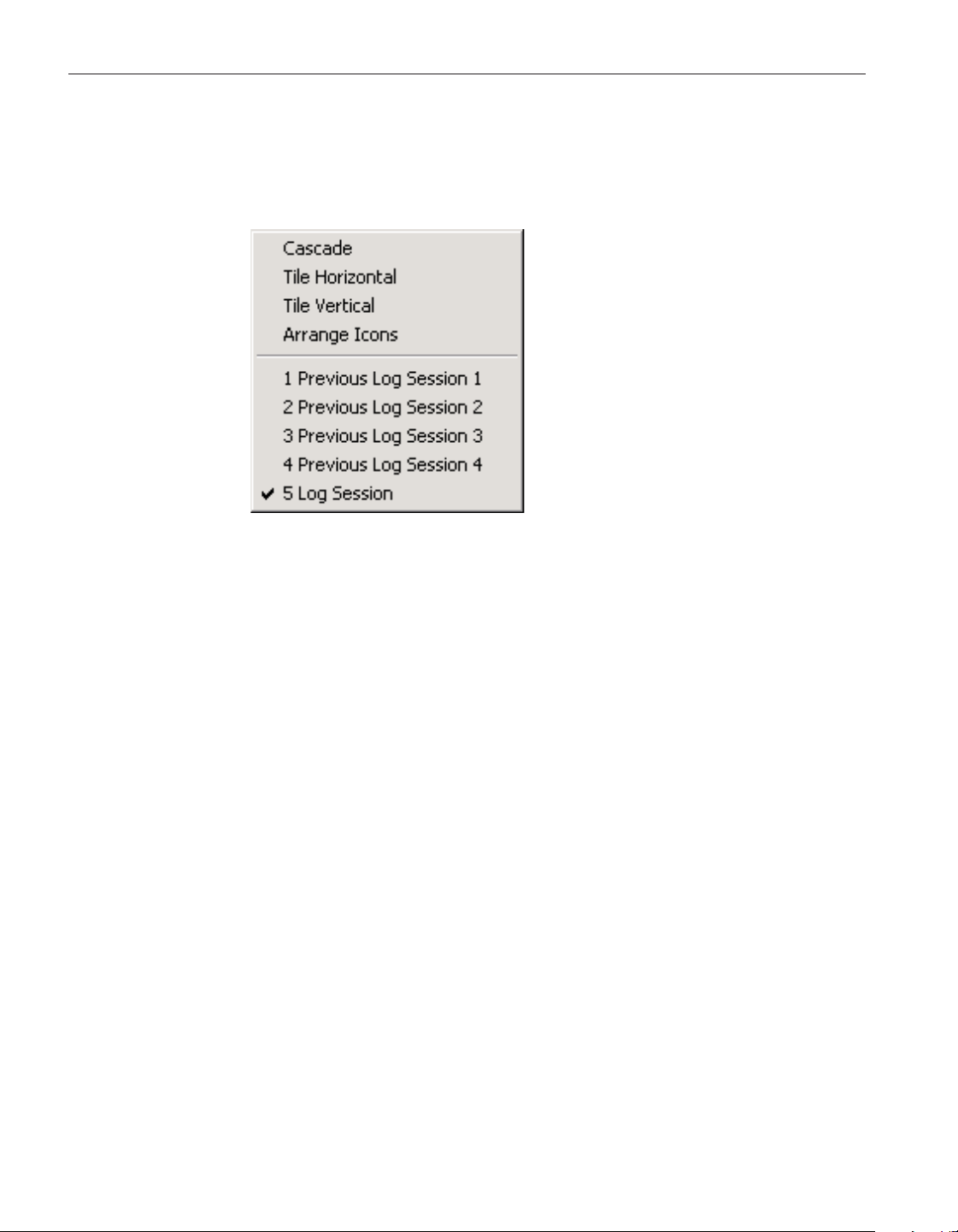
5.7 Window menu
The Window menu provides options for arranging the open log session win
-
dows and for switching between open log session windows.
5.7.1 Cascade
The Cascade option cascades all open windows.
5.7.2 Tile horizontal
The Tile Horizontal option tiles all open windows horizontally.
5.7.3 Tile vertical
The Tile Vertical option tiles all open windows vertically.
5.7.4 Arrange icons
The Arrange Icons option arranges the icons for all minimized windows along
the bottom of LogWare‘s main display.
5.7.5 Window list
This is a list of all currently open windows. To switch to a window, click on the
appropriate item in the window list. A check mark appears next to the currently
selected window.
User’s Guide
202
Figure 156 Window menu
1.888.610.7664 sales@GlobalTestSupply.com
Fluke-Direct.com
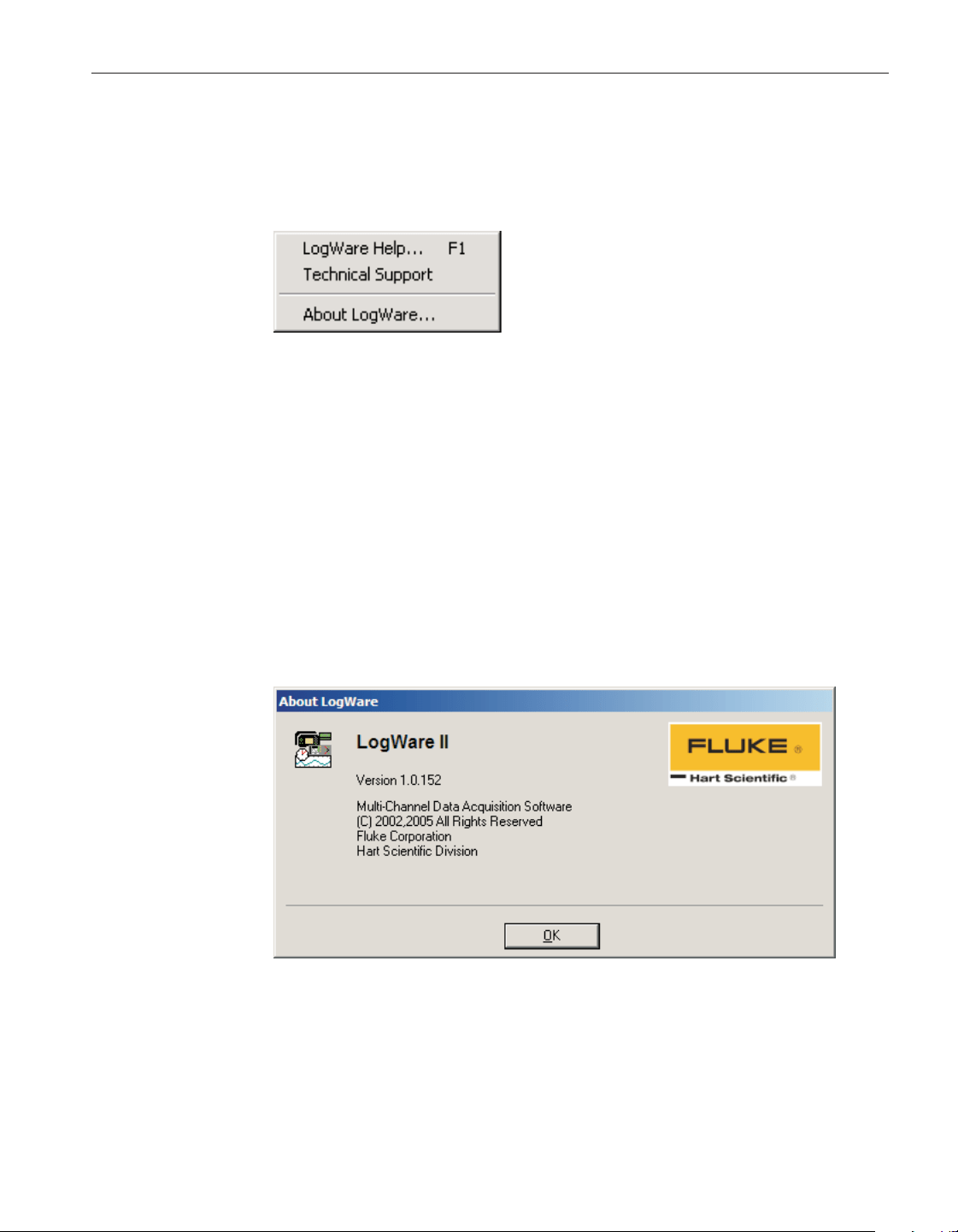
5.8 Help menu
The Help menu provides options for opening the LogWare’s online help and for
displaying information about LogWare.
5.8.1 Log
Ware
help
The LogWare Help option opens the LogWare help file.
5.8.2 Technical support
The Technical Support option opens the LogWare help file to the Technical
Support topic. For technical support information, please refer to Section 10.1,
Technical Support.
5.8.3 About Log
Ware
The About LogWare option displays the About LogWare dialog.
The About LogWare dialog displays specific information about the currently
installed version of LogWare. The software’s name, version, build, and copy
-
right information are displayed.
203
5 Menus
Help menu
Figure 157 Help menu
Figure 158 About LogWare dialog
1.888.610.7664 sales@GlobalTestSupply.com
Fluke-Direct.com

6 How to
The following sections describe in detail how to perform certain tasks using
LogWare.
6.1 Setting up and starting a real-time log session
The main purpose of LogWare is to perform real-time data acquisition. In order
to do this, LogWa re must be configured to acquire data on the channels of the
thermometer readout to be used. LogWare needs to know what data to acquire,
when to acquire it and when to stop.
To configure a real-time log session:
1. Select the New option in the File menu.
2. This will clear any current log session settings and display the Log Ses
-
sion Settings dialog.
3. Configure the Thermometer, Log Session and Channels settings accord-
ing to the needs of this session.
4. Once configured, either click the Start button on the Log Session Set-
tings dialog or click the Close button, then select the Start option in the
Datalog menu or click the button on the toolbar. This will start
the real-time log session and the Log Session window is displayed.
5. If a delayed start time was selected, the real-time log session will begin
at the selected time. Otherwise, the log session will start immediately.
Please refer to Section 2, Real-Time Logging, for more information.
6.2 Starting a real-time log session unattended
(delayed start)
The main purpose of LogWare is to perform real-time data acquisition. Many
times, the technician is present when a log session starts. However, sometimes
it is necessary or desirable to start a real-time log session at off hours when the
technician is out.
By default, a real-time log session starts immediately when the Start button on
the Log Session Settings dialog is clicked or when the Start option in the
Datalog menu is selected. However, LogWare has a feature called the Delayed
Start which allows a real-time log session to start at a predefined date and time.
To set the delayed start date and time:
1. Select the Setup option in the Datalog menu.
2. The Log Session Settings dialog is displayed.
205
6 How to
Setting up and starting a real-time log session
1.888.610.7664 sales@GlobalTestSupply.com
Fluke-Direct.com
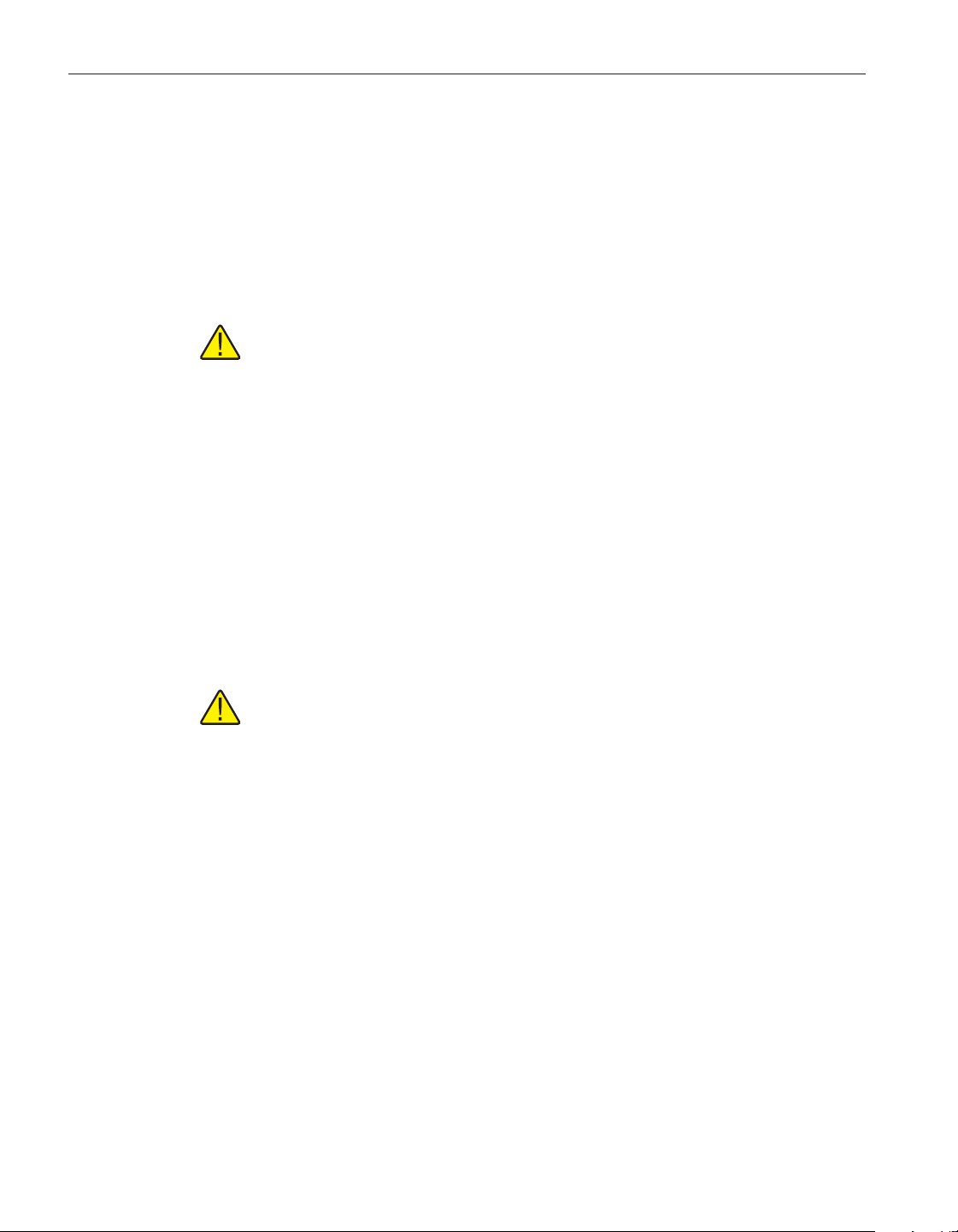
3. Select the Log Session tab.
4. Click the Delayed Start button.
5. The Delayed Start Date/Time dialog is displayed.
6. Choose the date and time that the real-time log session should start.
Since the computer’s clock will be used to determine when the log ses
-
sion starts, make sure the computer’s clock is accurate. Click the OK but
-
ton to accept the selected date and time.
Note: To cause the real-time log session to start immediately when click
-
ing the Start button after having set a delayed start date and time, click the
Reset button.
7. Click the Start button on the Log Session Settings dialog to start the log
session.
8. LogWare displays a message indicating the date and time the real-time
log session will start.
9. To cancel the delayed start, click the Cancel button at any time.
After a real-time log session ends, the delayed start time is reset so that the next
real-time log session will start immediately when the Start button on the Log
Session Settings dialog is clicked or when the Start option in the Datalog menu
is selected. To set a new delayed start time for the next real-time log session,
follow the steps above.
Note: Every effort has been made to make the real-time log session take
its first reading at the selected date and time. However, LogWare may or
may not be able to do so depending on the processor speed of the com
-
puter, amount of available memory, free hard disk space, other running
applications, etc.
Please refer to Section 2, Real-Time Logging, for more information.
6.3 Stopping a real-time log session automatically
The main purpose of LogWare is to perform real-time data acquisition. Many
times, the technician is present when a log session needs to be stopped. How
-
ever, sometimes it is necessary or desirable to stop a real-time log session when
the technician is busy with another task, or at off hours when the technician is
out.
The End Log feature of LogWare provides three methods for stopping a
real-time log session:
•
By user
•
After specified number of readings
User’s Guide
206
1.888.610.7664 sales@GlobalTestSupply.com
Fluke-Direct.com

•
After specified time elapses
The first method, By user, is the default setting.
To stop the real-time log session automatically:
1. Select the Setup option in the Datalog menu
2. The Log Session Settings dialog is displayed.
3. Select the Log Session tab.
4. Select the method to use to stop the real-time log session using the End
log drop-down list:
•
By user – Log session stops when the Stop option in the Datalog menu is
selected.
•
After specified number of readings – Log session stops automatically
when number of readings specified have been acquired on each channel.
• After specified time elapses – Log session stops automatically after the
specified time has elapsed.
5. Specify the End Log criteria:
• If the After specified number of readings option was selected, enter the
number of readings to be acquired on each channel in the After box.
• If the After specified time elapses option was selected, enter the amount
of time to elapse in the After box.
6. Click the Start button on the Log Session Settings dialog to start the log
session.
7. When the selected end log criteria are met, logging will stop
automatically.
Please refer to Section 2, Real-Time Logging, for more information.
6.4 Opening a configuration file automatically on
start-up
LogWare is designed to be flexible in the thermometer readouts that it can use
and the features it supports. However, most users of LogWare will probably al
-
ways use the same thermometer readout, scale and communication settings to
do all or most of their data acquisition.
For this reason, LogWare allows the real-time log session settings to be saved
to a configuration file. Opening the configuration file restores the settings,
therefore eliminating the need to manually configure LogWa re every time a
new log session is started.
207
6 How to
Opening a configuration file automatically on start-up
1.888.610.7664 sales@GlobalTestSupply.com
Fluke-Direct.com

Configuration files save the following information about a real-time log
session:
•
Thermometer readout model, serial number, session temperature scale and
resolution settings
•
Communications COM port and baud rate settings
•
Interval between readings and interval between scan sequences
•
Start log session and End log session settings
•
Channel configurations including statistical and alarm settings
In addition to allowing configuration files to be saved and opened, LogWa re
optionally allows one configuration file to be opened automatically every time
LogWare runs. This configuration file can be specified in one of two ways: us
-
ing the LogWare Options dialog or using the Log Session Settings dialog.
To specify the default configuration file using the LogWare Options dialog:
1. Select the Options option in the Tools menu.
2. The LogWare Options dialog is displayed.
3. Select the General tab.
4. Check the Show Log Session Settings dialog on start-up check box.
5. Check the Open default configuration file automatically check box.
6. Click the “…” (Browse) button to select the configuration file to open or
type the path and filename in the Default configuration file box.
7. Click the OK button to save the changes.
Note: The real-time log session settings must already be saved to a config
-
uration file in order to accomplish these steps.
To specify the default configuration file using the Log Session Settings dialog:
1. Select the Setup option in the Datalog menu.
2. The Log Session Settings dialog is displayed.
3. Fill in all of the information on this dialog.
4. Click the Set as Default button. A prompt is displayed indicating that the
current settings must be saved to a configuration file. Click the Yes but
-
ton to save the current settings to a configuration file.
5. The Windows® Save As dialog is displayed to save the current settings
to a configuration file. Enter the filename for this configuration file and
click the OK button to save the settings to the file.
User’s Guide
208
1.888.610.7664 sales@GlobalTestSupply.com
Fluke-Direct.com
6. A prompt is then displayed indicating that this configuration file will be
made the default configuration file. Click the Yes button to set this con
-
figuration file as the default. A message is displayed indicating the cur
-
rent configuration is now set as the default.
7. Click the Close button to close the Log Session Settings dialog.
Test this feature to make sure it works properly by closing LogWare and run
-
ning it again. The thermometer readout must be connected and powered on
when opening a configuration file so that LogWare can verify that the informa
-
tion in the configuration file matches the thermometer readout configuration.
The Log Session Settings dialog should be displayed with all of the configura
-
tion information filled in.
To disable opening the configuration file on start-up, uncheck the Open default
configuration file automatically check box on the LogWare Options dialog.
Please refer to Section 5.6.4, Options, for more information.
6.5 Changing thermometer and probe settings
LogWare provides a feature which allows many of the thermometer readout and
probe settings to be read in, viewed, modified and written back out to the ther-
mometer readout. These settings vary from thermometer readout to thermome-
ter readout but include:
• Filtering (averaging)
• Resolution
• Calibration and recalibration dates
• Calibration constants
•
Probe serial number
•
Probe wires and excitation current
•
Probe calibration and recalibration dates
•
Probe conversion type and calibration coefficients
Note: In order to use this feature of LogWare, the thermometer readout
must have a recent firmware version. If your thermometer readout does
not have a recent firmware version, it may be upgraded. For more details,
contact Hart Scientific Technical Support. Please refer to Section 1.4.4,
Firmware Requirements, for more details.
To view, modify and write thermometer and probe settings:
1. Select the Thermometer Settings option in the Tools menu.
2. The Select Model dialog is displayed. Select the thermometer readout
model. Also, select the COM port to which the thermometer readout is
connected and the baud rate to use. Make sure LogWare can communi
-
209
6 How to
Changing thermometer and probe settings
1.888.610.7664 sales@GlobalTestSupply.com
Fluke-Direct.com
cate with the thermometer readout by clicking the Test Communication
button. Click the OK button when communication is successful.
3. The thermometer readout settings are then read in and displayed in the
thermometer settings dialog. The thermometer settings dialog is specific
to the selected thermometer readout.
4. If applicable, to view the settings for a specific module, select the mod
-
ule from the Modules list and click the Module Settings button.
5. To view the settings for a specific channel, select the channel from the
Channels list and click the Channel Settings button.
6. The settings can be modified at this time. Some settings may be passcode
protected. Passcode protected settings can be viewed, but can only be
modified after entering the correct passcode.
a. Click the Edit button.
b. The Enter Passcode dialog is displayed. Enter the passcode for the con
-
nected thermometer readout and click the OK button.
c. If the correct passcode was entered, the passcode protected settings are
enabled and may be modified.
7. To write the changes that have been made to the thermometer readout,
click the OK button on any and/or all dialogs.
8. To close the dialogs without writing the new settings to the thermometer
readout, click the Cancel button on any of the dialogs.
Note: The passcode for the thermometer readout is completely independ-
ent of the administrator passcode in LogWare. The administrator passcode
is used by LogWare to protect certain LogWare options and default set
-
tings on the LogWare Options dialog only! Thermometer passcodes are
specific to the thermometer readout being used and are required to change
certain settings in the thermometer readout itself. Please refer to Section
4.4, Thermometer Settings Dialogs, for more information.
6.6 Importing logged data into a spreadsheet
The data logged by LogWare is saved into ASCII text files referred to as output
files. These files can be opened and graphed by LogWare by selecting the Open
Previously Logged Data File option in the View menu.
However, these files may also be imported into spreadsheet software such as
Microsoft® Excel for graphing or analysis.
User’s Guide
210
1.888.610.7664 sales@GlobalTestSupply.com
Fluke-Direct.com

To import an output file into Excel:
Note: This example uses Microsoft® Excel XP. These steps may or may
not apply if using a different version of Excel or another spreadsheet soft
-
ware package.
1. In Excel, select the Open option in the File menu to display the Open
dialog.
2. In the Files of type box at the bottom of the open dialog, select the Text
Files (*.prn;*.txt;*.csv) option.
3. Navigate to the folder where the output file is located. Select the output
file to open and click the Open button.
4. The Text Import Wizard – Step 1 of 3 dialog appears.
5. Make sure the Original data type option is set to Delimited. If the ther
-
mometer and probe information is not needed, set the Start import at row
option to the first row containing the logged readings (row 9 in this ex
-
ample). Set the File Origin option to Windows (ANSI) and click the Next
button.
211
6 How to
Importing logged data into a spreadsheet
Figure 159 Excel XP Text Import Wizard – Step 1 of 3
1.888.610.7664 sales@GlobalTestSupply.com
Fluke-Direct.com
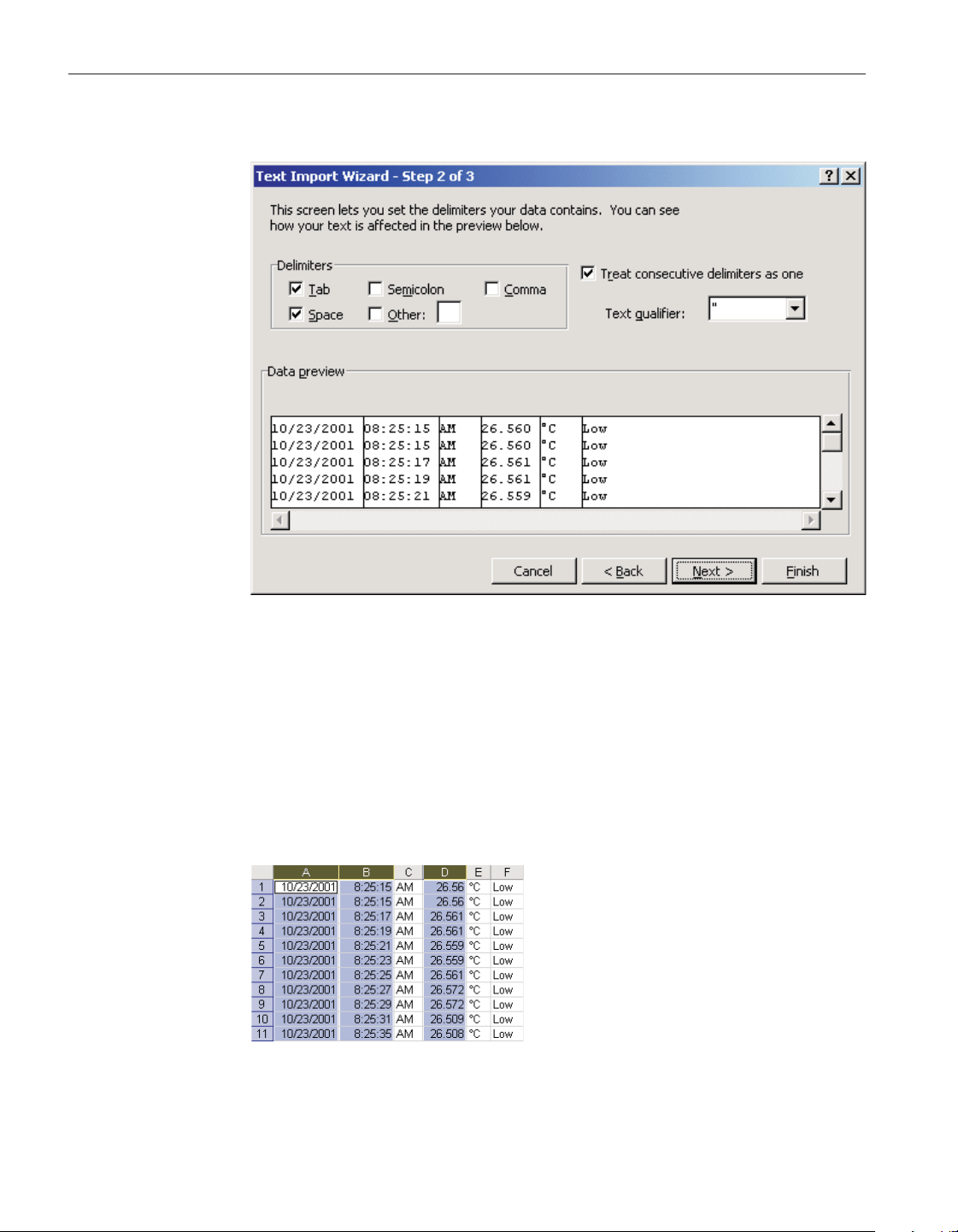
6. The Text Import Wizard – Step 2 of 3 dialog appears.
7. In the Delimiters box, select the Tab and Space options. Make sure the
Treat consecutive delimiters as one check box is checked and click the
Finish button.
8. The output file is displayed in the spreadsheet. Resize the columns so the
contents of each cell are visible.
9. Select the Date, Time, and Reading columns by clicking on the gray col
-
umn headers while holding down the control key labeled A, B and D, as
shown below:
User’s Guide
212
Figure 160 Excel XP data
Figure 161 Excel XP Text Import Wizard – Step 2 of 3
1.888.610.7664 sales@GlobalTestSupply.com
Fluke-Direct.com
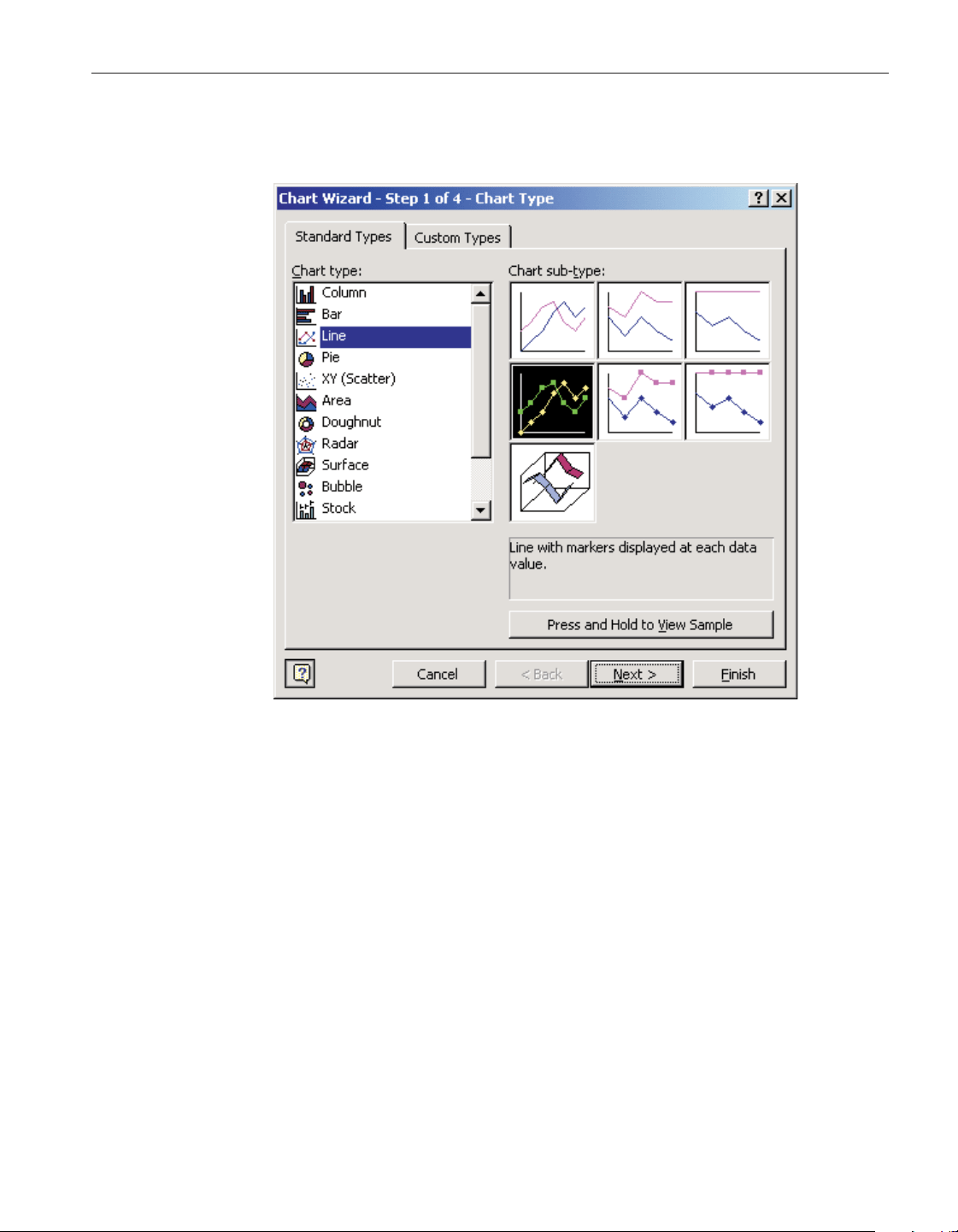
10. In the Insert menu of Excel, select the Chart option. The Chart Wizard –
Step 1 of 4 – Chart Type dialog is displayed.
11.
In the Chart type list, select Line and click the Finish button.
213
6 How to
Importing logged data into a spreadsheet
Figure 162 Excel XP Chart Wizard – Step 1 of 4 – Chart Type
1.888.610.7664 sales@GlobalTestSupply.com
Fluke-Direct.com
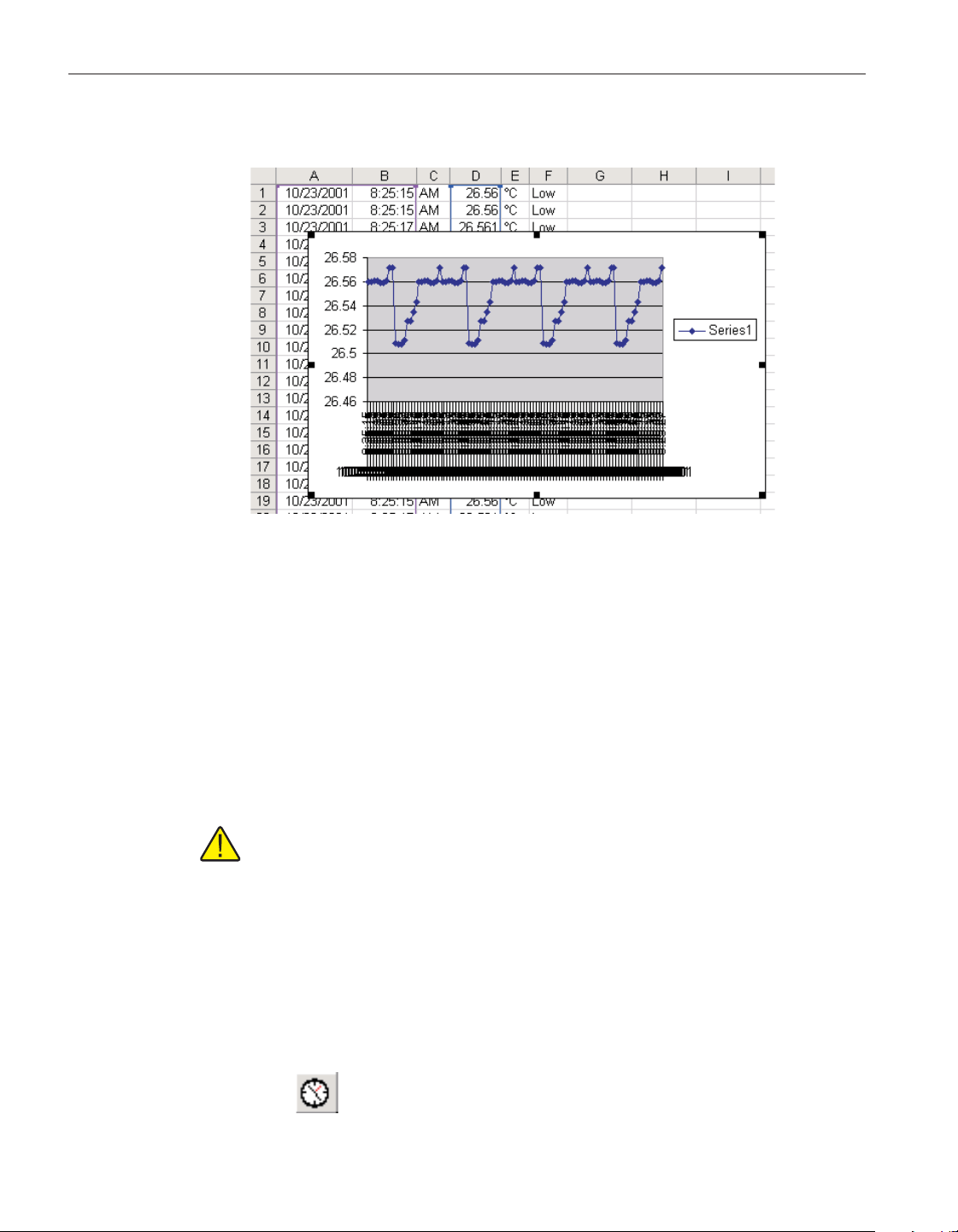
12. The graph should be displayed as shown below:
13.
Format and size the graph as desired.
6.7 Synchronizing the thermometer readout’s clock
to the computer
The thermometer readouts supported by LogWare have an internal clock.
LogWare provides a utility to synchronize the thermometer readout’s clock
with the clock on the computer.
Note: LogWare itself does not use the clock on the thermometer readout at
all. All dates and times associated with readings acquired by LogWare use
the computer’s clock.
Before synchronizing the thermometer readout’s clock, make sure the com
-
puter’s clock is accurate. Use the Windows® Control Panel to adjust the date
and time as necessary.
To synchronize the thermometer readout’s clock with the computer’s
clock:
1. Select the Synchronize Date/Time option in the Tools menu or click the
button on the toolbar.
User’s Guide
214
Figure 163 Excel XP graph
1.888.610.7664 sales@GlobalTestSupply.com
Fluke-Direct.com
2. The Select Model dialog is displayed. Select the thermometer readout
model. Also, select the COM port to which the thermometer readout is
connected and the baud rate to use. Make sure LogWare can communi
-
cate with the thermometer readout by clicking the Test Communication
button. Click the OK button when communication is successful.
3. LogWare attempts to set the thermometer readout’s clock to match the
clock on the computer.
Please refer to Section 4.1.1, Synchronize Date/Time, for more information.
6.8 Protecting calibration parameters and probe
conversion settings
Some of the thermometer readouts supported by LogWare have built-in
passcode protection for calibration parameters and/or probe conversion settings
(including probe characterization coefficients). These settings are typically pro
-
tected because altering their values changes the calibration and/or readout accu
-
racy of the thermometer readout. Some thermometer readouts, however, lack
this protection.
LogWare includes a feature that allows these settings to be passcode protected
(for thermometer readouts that do not inherently include this protection) using
an administrator passcode to prevent unauthorized users from changing the cur-
rent values.
To protect calibration parameters and probe conversion settings:
1. Select the Options option in the Tools menu.
2. The LogWare Options dialog is displayed.
3. Select the Tools tab. The Tools tab contains options that pertain to the
thermometer settings dialogs.
4. In the Passcode Protection section there are two options:
•
Protect probe conversion settings
•
Protect calibration parameters
Note: If these settings are disabled, an administrator passcode has been
setup. The administrator passcode is required to change these settings. For
more information on gaining access to the options protected by the admin
-
istrator passcode, see Section 6.9, Setting up an administrator passcode.
215
6 How to
Protecting calibration parameters and probe conversion
settings
1.888.610.7664 sales@GlobalTestSupply.com
Fluke-Direct.com
Note: The administrator passcode in LogWare is completely independent
of the thermometer readout passcodes. The administrator passcode is used
by LogWare to protect certain LogWare options and default settings on the
LogWare Options dialog only! Thermometer readout passcodes are spe
-
cific to the thermometer readout being used and are required to change
certain settings in the thermometer readout itself.
5. To passcode protect probe conversion settings, check the Protect probe
conversion settings box.
6. To passcode protect thermometer readout calibration parameters, check
the Protect calibration parameters check box.
Note: These options only apply to thermometer readouts that do not have
built-in passcode protection for these features. For thermometer readouts
that do have built-in passcode protection, the thermometer readouts set
-
tings override these settings.
Please refer to Section 5.6.4, Options, for more information.
6.9 Setting up an administrator passcode
LogWare allows the user to setup an administrator passcode to protect some of
the features and options of the LogWare software. Some of these features
include:
• Ability to set thermometer readout and/or module serial numbers
•
Ability to specify passcode protection settings
•
Real-time measurement process settings
The administrator passcode can be setup or changed at any time by following
the process below.
Note: The administrator passcode in LogWare is completely independent
of the thermometer readout passcodes. The administrator passcode is used
by LogWare to protect certain LogWare options and default settings on the
LogWare Options dialog only! Thermometer readout passcodes are spe
-
cific to the thermometer readout being used and are required to change
certain settings in the thermometer readout itself.
To setup or change the administrator passcode:
1. Select the Options option in the Tools menu.
2. The LogWare Options dialog is displayed.
3. Select the Admin. Passcode tab.
User’s Guide
216
1.888.610.7664 sales@GlobalTestSupply.com
Fluke-Direct.com
4. Click the Change Admin. Passcode button to setup or change the admin
-
istrator passcode.
5. If a passcode has already been setup, the current passcode is required
and must be entered. The Enter Passcode dialog is displayed. Enter the
current administrator passcode in the Passcode box and click OK to
continue.
6. The Change Passcode dialog is displayed. Enter the new administrator
passcode in the New passcode box. Enter the passcode again in the Con
-
firm passcode box. Click the OK button to accept the new passcode or
click Cancel to abort setting the new passcode.
Note: DO NOT FORGET THE ADMINISTRATOR PASSCODE! Write
it down and keep it in a safe place. Only reveal the passcode to users who
are authorized to change the protected settings!
Once an administrator passcode has been configured, certain features and set
-
tings are disabled and can only be changed after the administrator passcode has
been entered.
To gain access to passcode protected settings:
1. Select the Options option in the Tools menu.
2. The LogWare Options dialog is displayed.
3. Select the Admin. Passcode tab.
4. Click the Edit Protected Options button to enter the administrator
passcode.
5. The Enter Passcode dialog is displayed. Enter the current administrator
passcode in the Passcode box and click the OK button to continue.
6. If the entered passcode is correct, the features and settings on the
LogWare Options dialog are enabled and may be changed. These settings
are only enabled until this dialog is closed.
The administrator passcode can also be removed from LogWare, which permits
anyone to change any of LogWare’s options.
To remove the administrator passcode:
1. Select the Options option in the Tools menu.
2. The LogWare Options dialog is displayed.
3. Select the Admin. Passcode tab.
4. Click the Change Admin. Passcode button to setup or change the admin
-
istrator passcode.
217
6 How to
Setting up an administrator passcode
1.888.610.7664 sales@GlobalTestSupply.com
Fluke-Direct.com

5. The Enter Passcode dialog is displayed. Enter the current administrator
passcode in the Passcode box and click the OK button to continue.
6. The Change Passcode dialog is displayed. Leave the New passcode box
Confirm passcode boxes empty. Click the OK button. A message is dis
-
played warning that passcode protection is about to be disabled. Confirm
disabling passcode protection by clicking the Yes button.
Please refer to Section 5.6.4, Options, for more information.
6.10 Viewing remaining memory for logging data
Some thermometer readouts that are supported by LogWare allow readings to
be logged to the memory of the thermometer readout. LogWare provides a fea
-
ture that indicates how much of the thermometer readout’s memory is already
used.
To view the status of the thermometer readout’s log(s):
1. Select the Log Status option in the Download menu.
2. The Select Model dialog is displayed. Select the thermometer readout
model. Also, select the COM port to which the thermometer readout is
connected and the baud rate to use. Make sure LogWare can communi-
cate with the thermometer readout by clicking the Test Communication
button. Click the OK button when communication is successful.
3. The Log Status dialog for the selected thermometer readout is displayed
indicating how much of the thermometer readout’s memory is already
used. This dialog is specific to the selected thermometer readout.
4. Click the Close button to close the Log Status dialog when finished.
Refer to Section 3.4, Log Status Dialogs, for more information.
6.11 Downloading logged data from the memory of a
thermometer readout
The thermometer readouts that are supported by LogWare allow readings to be
logged to the memory of the thermometer readout. LogWare provides a feature
to download the logged readings from the memory of the thermometer readout
and save them to a text file (or files) on the computer.
To download readings from the memory of a thermometer readout to a
text file:
1. Select the Download Logged Data option in the Download menu.
2. The Select Model dialog is displayed. Select the thermometer readout
model. Also, select the COM port to which the thermometer readout is
connected and the baud rate to use. Make sure LogWare can communi
-
User’s Guide
218
1.888.610.7664 sales@GlobalTestSupply.com
Fluke-Direct.com

cate with the thermometer readout by clicking the Test Communication
button. Click the OK button when communication is successful.
3. The Download Options dialog is displayed. This dialog is specific to the
selected thermometer readout.
4. Select the appropriate download options and click the Download button
to download the readings.
5. Click the Close button to close the Download Options dialog when
finished.
Please refer to Section 3, Downloading Logged Data, for more information.
6.12 Saving probe coefficients to a configuration file
LogWare provides a feature that allows probe coefficients to be saved to a con
-
figuration file.
To save probe coefficients to a configuration file:
1. Select the Thermometer Settings option in the Tools menu.
2. The Select Model dialog is displayed. Select the thermometer readout
model. Also, select the COM port where the thermometer readout is con-
nected and the baud rate to use. Make sure LogWare can communicate
with the thermometer readout by clicking the Test Communication but-
ton. Click the OK button when communication is successful.
3. The thermometer readout settings are then read in and displayed in the
Thermometer Settings dialog. This dialog is specific to the selected ther-
mometer readout.
4. If applicable, to view the settings for a specific module, select the mod
-
ule from the Modules list and click the Module Settings button.
5. To view the settings for a specific channel, select the channel from the
Channels list and click the Channel Settings button.
6. To view the coefficients for the probe on the selected channel, select the
Conversion Settings button.
7. The conversion settings dialog for the selected conversion type is
displayed.
8. Click the Save As button on the conversion settings dialog to save the co
-
efficients for the selected channel to a configuration file.
9. The Windows® Save As dialog is displayed. Enter a filename and click
the OK button to save the coefficients.
Please refer to Section 9, Conversion Settings Dialogs, for more information.
219
6 How to
Saving probe coefficients to a configuration file
1.888.610.7664 sales@GlobalTestSupply.com
Fluke-Direct.com
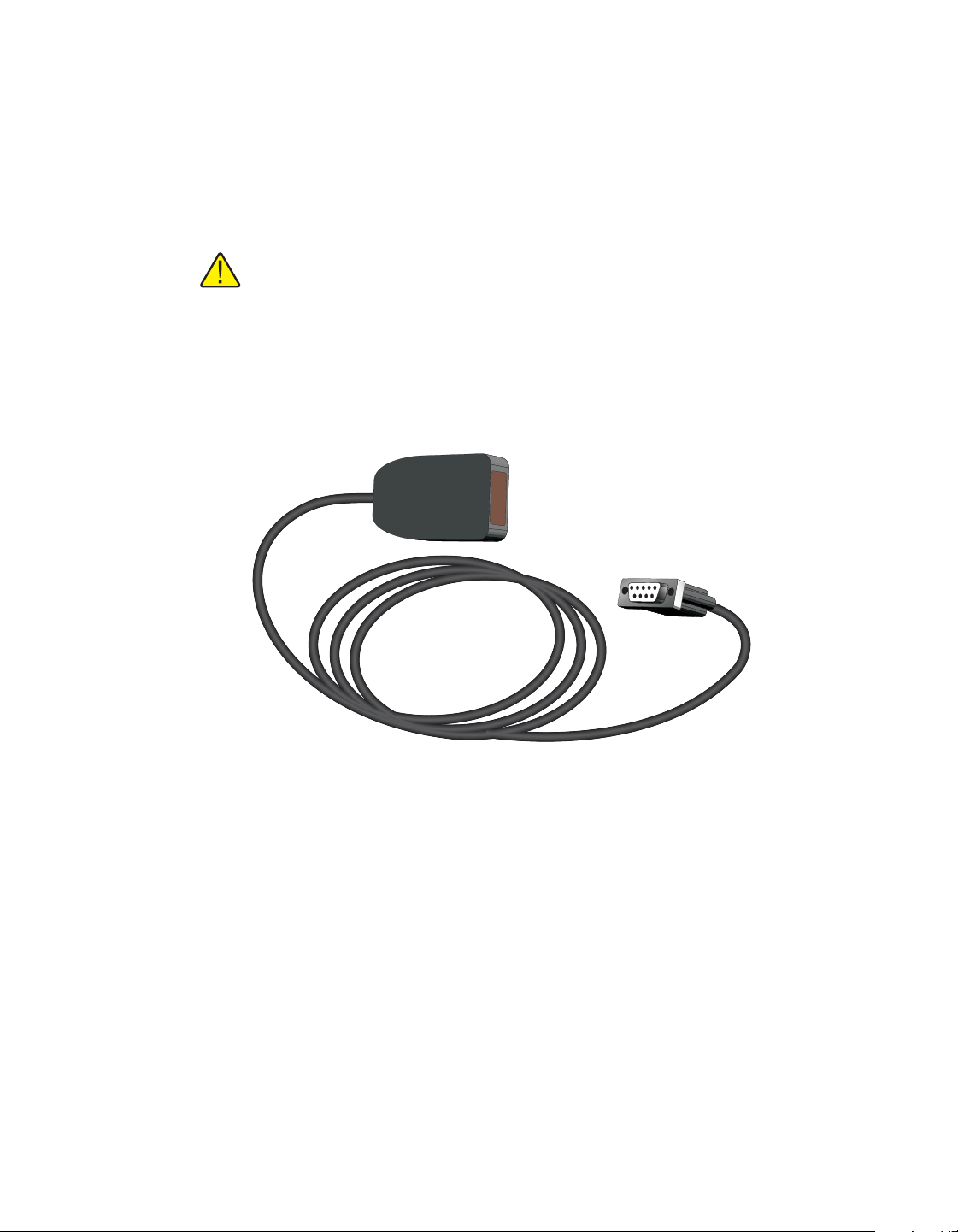
6.13 Using an IR dongle with Log
Ware
Some of the features of LogWare allow an IR dongle to be used to communi
-
cate with thermometer readouts that have an IR port instead of using an RS-232
cable.
Note: Hart Scientific thermometer readouts with an IR port use a propri
-
etary protocol for communication. Because of this proprietary protocol,
LogWare is not able to use IR ports that are built into a computer. Instead,
LogWare requires the use of an IR dongle which can be connected to a
standard RS-232 port on the computer. No special software or drivers are
required to use the IR dongle. All necessary communication protocols and
drivers are built into the LogWare software. To purchase an IR dongle,
contact Hart Scientific Technical Support.
LogWare provides support for communicating over an IR port with these ther
-
mometer readouts. However, the support is limited to the following features:
•
Downloading logged data from the thermometer readout
•
Checking the thermometer readout’s log status
•
Writing the thermometer readout’s logging labels
•
Synchronizing the thermometer readout’s date and time to the computer’s
clock
•
Accessing the thermometer readout’s settings
LogWare does not support using the IR port for performing real-time log
sessions.
User’s Guide
220
Figure 164 IR dongle
1.888.610.7664 sales@GlobalTestSupply.com
Fluke-Direct.com

To use an IR dongle with LogWare:
1. Locate a 9-pin or 25-pin COM (RS-232) port on the computer. Connect
the IR dongle to the COM port. If the COM port has a 25-pin connector,
use a 9-25 pin adapter to connect the IR dongle.
2. Select the appropriate menu option for the feature of LogWa re to use.
3. When selecting one of these menu options, the Select Model dialog
appears.
4. Select the model of the thermometer readout to use and the COM port to
which the IR dongle is connected.
5. If the selected feature and the selected thermometer readout model sup
-
port using the IR dongle, the Use IR dongle check box is enabled. Check
the Use IR dongle check box.
6. Before continuing, make sure the thermometer readout’s IR port and the
IR dongle are in close proximity and the path between them is unob
-
structed. For more details on placement of the IR dongle, refer to the
thermometer readout’s User’s Guide.
7. Click the Test Communication button on the Select Model dialog. If
LogWare succeeds in communicating with the thermometer readout us-
ing the IR dongle, a success message is displayed. Otherwise, a failure
message is displayed. In case of failure, check the following:
♦
The dongle is connected to the selected COM port.
♦
The thermometer readout is powered up and operating.
♦
The dongle is within the required range of the thermometer readout’s
IR port.
♦
The path between the thermometer readout’s IR port and the IR dongle
is not obstructed.
♦
The thermometer readout’s IR baud rate matches the baud rate setting
on the Select Model dialog.
♦
The thermometer readout’s IR mode is set properly to send/receive
commands (see thermometer readout User’s Guide).
♦
Shut the thermometer readout’s power off, then back on again.
6.14 Changing logging label names
Some of the thermometer readouts supported by LogWare have labels that can
be assigned to data that is logged in the thermometer readout’s memory.
LogWare provides a utility to view and/or change the names of these logging
labels.
221
6 How to
Changing logging label names
1.888.610.7664 sales@GlobalTestSupply.com
Fluke-Direct.com

To view and/or modify the thermometer readout’s logging labels:
1. Select the Logging Labels option in the Tools menu or click the
button on the toolbar.
2. The Select Model dialog is displayed. Select the thermometer readout
model. Also, select the COM port where the thermometer readout is con
-
nected and the baud rate to use. Make sure LogWare can communicate
with the thermometer readout by clicking the Test Communication but
-
ton. Click the OK button when communication is successful.
3. LogWare displays the Logging Labels dialog and attempts to read in the
current logging label settings. This dialog is specific to the selected ther
-
mometer readout.
4. Modify the labels as desired on the Logging Labels dialog.
5. To write the new logging label settings to the thermometer readout, click
the OK button.
Please refer to Section 4.3, Logging Labels Dialogs, for more information.
6.15 Unlocking a demo version of Log
Ware
When LogWare is purchased, a serial number is supplied on a sticker typically
located on the CD pouch on the inside back cover of the LogWare User’s
Guide. When LogWare is installed, a dialog appears and asks for the serial
number. If a valid serial number is entered, LogWare is installed as a “full
working” version. If an invalid serial number is entered, LogWare is installed as
a demo version.
The demo version of LogWare never “expires”. The demo version is identical
to the “full working” version with the following exceptions:
•
Performs real-time log session, but does not write acquired data to file(s).
•
Downloads data from thermometer readout log(s), but does not write
downloaded data to file(s).
•
Allows thermometer readout settings to be viewed, but does not write new
settings to thermometer readout.
•
Allows logging labels to be viewed, but does not write new logging labels
to thermometer readout.
•
Some example data files are installed to provide examples of the files that
demo version does not write to.
The demo version of LogWare may be freely distributed and installed and is
available for download on Hart Scientific’s website for no charge.
The demo version may be “unlocked” at any time after obtaining a valid serial
number from Hart Scientific Technical Support without having to reinstall the
software.
User’s Guide
222
1.888.610.7664 sales@GlobalTestSupply.com
Fluke-Direct.com
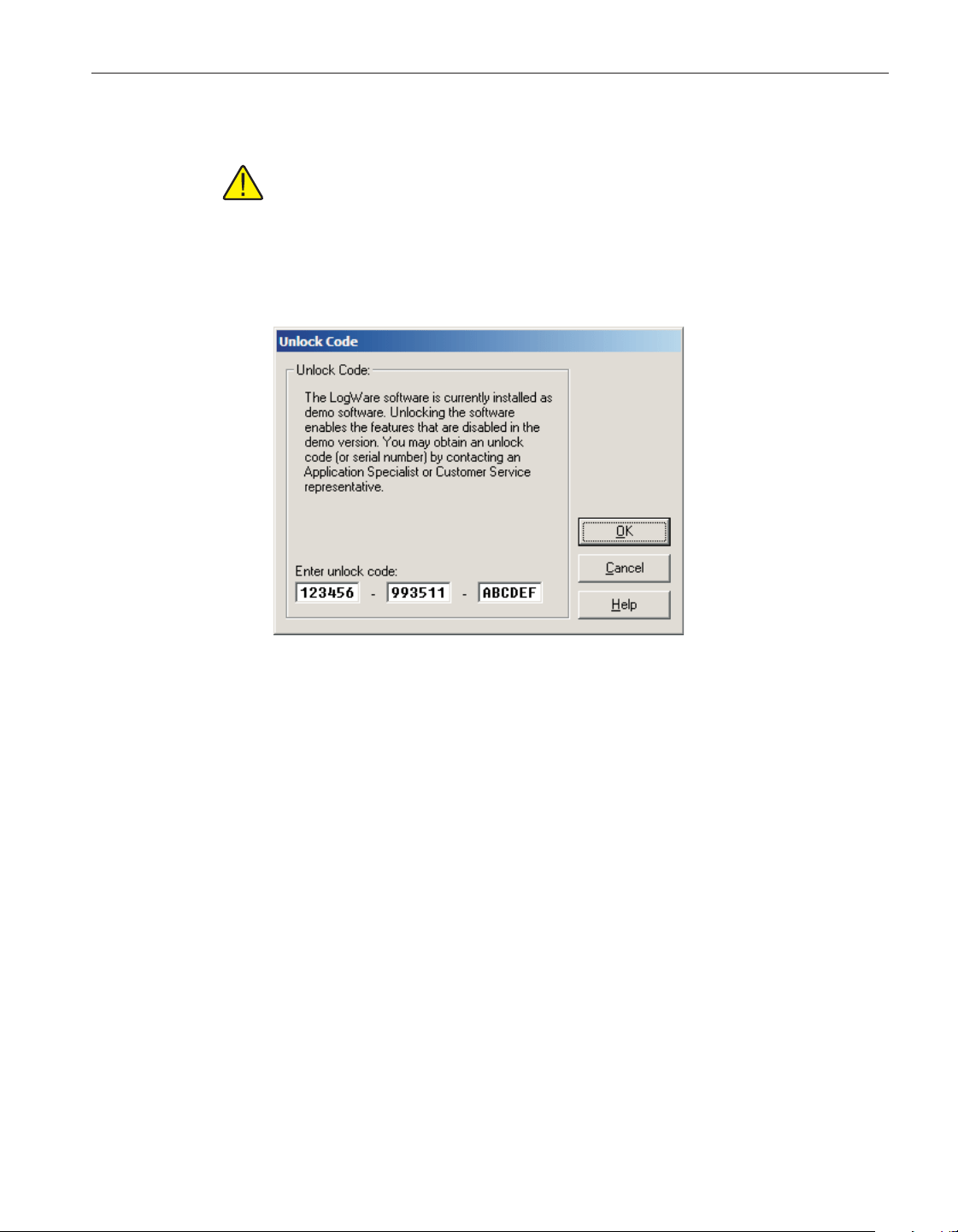
To “unlock” a demo version of LogWare:
Note: To successfully unlock a demo version of LogWare, you must be
logged into Windows as an Administrator.
1. Select the Unlock option in the Help menu. The Unlock option only ap
-
pears in the Help menu for the demo version of LogWare. The Unlock
Code dialog appears.
2.
Enter the serial number provided in the Enter unlock code boxes at the
bottom of the dialog. The serial number must have the format:
XXXXXX - 9935XX - XXXXXX.
3. Click the OK button to accept the unlock code. If the serial number en
-
tered is a valid serial number, a message is displayed indicating LogWare
has been unlocked. LogWare MUST be closed and restarted at this point!
4. If the serial number entered is invalid, LogWare will NOT be unlocked.
5. Click the Cancel button to close this dialog without unlocking the demo
verison.
6.16 Setting up Log
Ware
to read multiple scales
LogWare was designed primarily to acquire temperature readings from digital
thermometer readouts. However, LogWare is capable of acquiring temperature,
resistance, and voltage readings simultaneously. This can be accomplished by
configuring each channel on the thermometer readout to read in the desired
units prior to starting a real-time log session.
223
6 How to
Setting up LogWare to read multiple scales
Figure 165 Unlock Code dialog
1.888.610.7664 sales@GlobalTestSupply.com
Fluke-Direct.com
To configure a thermometer readout to read different units on each
channel:
1. Select the Setup option in the Datalog menu to display the Log Session
Settings dialog.
2. Select the Thermometer tab.
3. Select the thermometer readout model using the Model drop-down list.
4. Select the COM port, and baud rate using the drop-down lists in the
Communication settings section.
5. Click the Thermometer Settings button to display the Thermometer Set
-
tings dialog for the selected thermometer readout.
6. On the Thermometer Settings dialog, select the desired system units us
-
ing the Units drop-down list. Click the Apply button to write the new
system units setting to the thermometer readout.
Note: If a non-temperature setting is selected for the system units (i.e.
Ohms, Volts, Ratio, or W), this setting will override any conversion type
setting for all channels that would otherwise cause reading to be dis-
played in temperature!! Therefore, it is recommended that the system units
be set to a temperature setting (i.e. °C, °F, K, etc.) and the conversion type
be used to configure channels that are to read non-temperature values.
7. On the Thermometer Settings dialog, navigate to the first channel to
configure.
a. For thermometer readouts that support modules, select the Modules tab,
select the module from the Modules list that the desired channel is on and
click the Module Settings button. The Module Settings dialog is displayed.
Continue with step b. below.
b. Select the Channels tab, select the desired channel from the Channels
list and click the Channel Settings button. The Channel Settings dialog is
displayed.
8. To configure the selected channel to read temperature, set the Conversion
type to the desired setting and enter the coefficients to use (as applicable)
to convert the readings on that channel to temperature by clicking the
Conversion Settings button.
9. To configure the selected channel to read resistance, voltage, ratio or W,
set the Conversion type appropriately. Refer to the thermometer read
-
out’s User’s Guide for more details on the conversion types supported by
the thermometer readout.
10. Click the OK button on the Channel Settings dialog to write the new set
-
tings to the thermometer readout.
11. Repeat steps 3 to 6 for the other channels that need to be configured.
User’s Guide
224
1.888.610.7664 sales@GlobalTestSupply.com
Fluke-Direct.com

12. Click the OK button on the Thermometer Settings dialog when finished.
13. Note that the Serial number and Session temperature scale boxes are
filled in automatically when returning to the Log Session Settings dialog.
14. Set the Session temperature scale to <keep existing> using the
drop-down list.
15. Finish setting up the remainder of the settings on the Log Session Set
-
tings dialog for this log session.
16. When the log session starts, LogWare will query the thermometer read
-
out to determine the system temperature units (Session temperature
scale) and the conversion setting of each enabled channel. The system
temperature units are then automatically applied to all channels that are
configured to read temperature. All other channels use the appropriate
scale depending on their conversion type setting.
Please refer to Section 2, Real-Time Logging, for more information.
225
6 How to
Setting up LogWare to read multiple scales
1.888.610.7664 sales@GlobalTestSupply.com
Fluke-Direct.com
7 Files
This section describes all of the files that LogWare creates and/or uses. The first
section describes LogWare’s configuration files and the second section de
-
scribes LogWare’s data files.
7.1 Configuration files
Configuration files are intended to facilitate the configuration process. By de
-
fault, all configuration files are saved to the \Config folder (or the folder that is
specified for configuration files on the LogWare Options dialog). LogWare sup
-
ports many types of configuration files:
•
Real-Time Log Session configuration files
•
Alarm configuration files
•
Conversion configuration files
Warning: Do not attempt to manually modify the contents of any configu-
ration file! Files that have been modified may not be able to be read by
LogWare!
7.1.1 Log session configuration file
The log session configuration file is used to save the current real-time log ses-
sion settings.
Warning: Do not attempt to manually modify the contents of any configu
-
ration file! Files that have been modified may not be able to be read by
LogWare!
A log session configuration file contains ALL configuration information re
-
quired to start a real-time log session. This information includes the thermome
-
ter information, communication settings, sample interval settings, start and end
log session settings, channel, statistics and alarm settings.
Log session configuration files must always have an extension of .rls and can
be saved and opened from any of the following locations:
•
Open and Save As buttons on the Log Session Settings dialog
•
Open and Save As options in the File menu
•
Open and Save As buttons on the toolbar
Note: Opening a log session configuration file overwrites ALL current log
session settings!
227
7 Files
Configuration files
1.888.610.7664 sales@GlobalTestSupply.com
Fluke-Direct.com
For more information on opening and saving real-time log session files, see
Section 2, Real-Time Logging.
7.1.2 Alarm configuration file
The alarm configuration file is used to save the current alarm settings of a sin
-
gle channel.
Warning: Do not attempt to manually modify the contents of any configu
-
ration file! Files that have been modified may not be able to be read by
LogWare!
An alarm configuration file contains configuration information for low and
high alarms on a single channel. This information includes the alarm state (en
-
abled or disabled), alarm values, events, and other options.
Alarm configuration files must always have an extension of .alm and can be
saved and opened from the Alarm Settings dialog.
Note: Opening an alarm configuration file overwrites the current alarm
settings!
7.1.3 Conversion configuration files
Conversion configuration files are useful for saving probe coefficients to a file.
Conversion configuration files contain information concerning a single conver-
sion type including coefficients and any other information specific to that con-
version type.
Conversion configuration files have an extension that matches the type of con
-
version as described below:
Conversion Type File Extension
Callendar-Van Dusen .cvd
High Temperature PRT .hpt
IPTS-68 .i68
ITS-90 .i90
W(T90) .w90
Polynomial .ply
Thermistor .thr
Thermocouple Polynomial .tcp
Thermocouple Table .tct
Thermocouple Type .tcx
User’s Guide
228
1.888.610.7664 sales@GlobalTestSupply.com
Fluke-Direct.com
Note: Opening a configuration file overwrites the current conversion set
-
tings.
Conversion configuration files can be opened and/or saved from the appropriate
conversion settings dialog. For more information on conversion settings
dialogs, please refer to Section 9, Conversion Settings Dialogs.
7.2 Data files
Data files are created by LogWare either during a real-time log session or when
data is downloaded from a thermometer readout. LogWare creates the following
types of data files:
•
Output files – Created during real-time log session and contains acquired
data for a single channel
•
Alarm Log file – Created during real-time log session and contains infor
-
mation about alarms
• Download files – Created when data is downloaded from a thermometer
readout
Warning: Do not attempt to manually modify the contents of any data file!
Files that have been modified may not be able to be read by LogWare!
7.2.1 Output file
LogWare saves the readings acquired during a real-time log session to an out-
put file. Output files also contain information about the thermometer readout,
probe, and alarm settings that were configured for the log session.
During a real-time log session, the acquired readings are displayed in the Chan
-
nels grid and graphed on the real-time graph. The output file can be viewed
during a real-time log session by selecting the Readings History option in the
View menu or by right-clicking on the Channels grid on the real-time Log Ses
-
sion window and selecting the View Readings History option in the popup
menu.
After a real-time log session has been stopped and/or closed, the output file can
be opened by selecting the Open Previously Logged Data File option in the
View menu. All of the readings that were acquired are displayed in a spread
-
sheet-style grid and on the graph. Output files can also be opened in other anal
-
ysis software packages such as spreadsheets and text editors.
229
7 Files
Data files
1.888.610.7664 sales@GlobalTestSupply.com
Fluke-Direct.com
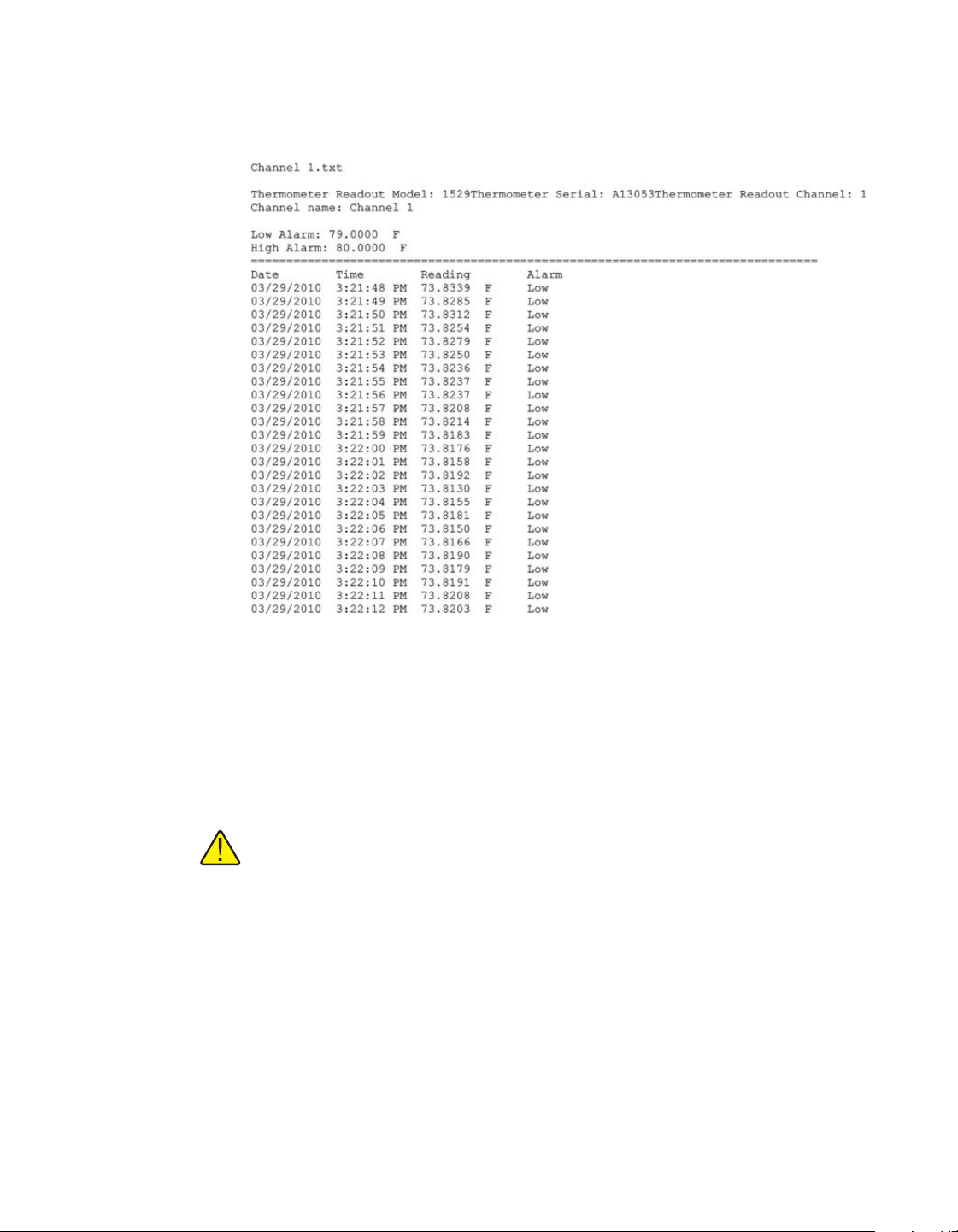
The following is an example of an output file created by LogWare :
The output file contains a header indicating the filename, thermometer readout
and sessioin temperature scale information, the channel name and alarm set-
tings (if any).
The data is formatted into columns and consist of the date, time, reading value
and alarm state.
Note: If the output file was created using the Write all acquired data to
the same file option, the header of the output file will then contain infor
-
mation for all enabled channels, and an additional column is added to the
file for the channel number for each reading. This feature should typically
only be used if you are using other software to sort and analyze the logged
data. The output file created when using this feature can still be opened by
LogWare and displayed on-screen, however all readings are displayed on
the graph as if they came from the same channel (single trace).
Optionally, the statistical data for the readings may be appended to the end of
the file when the output file is printed. Statistics are only appended if this fea
-
ture is enabled on the LogWa re Options dialog. Please refer to Section 5.6.4,
Options, for more details.
User’s Guide
230
Figure 166 Output file example
1.888.610.7664 sales@GlobalTestSupply.com
Fluke-Direct.com

7.2.2 Download file
LogWare includes a feature that allows readings that are stored in the memory
of thermometer readouts that support this feature to be downloaded and written
into text files, called download files.
To download readings from the memory of a thermometer readout, see the
Download Logged Data option in the Download menu.
Download files can be opened by this software by selecting the Open Previ
-
ously Logged Data Files option in the View menu. They can also be opened in
other analysis software packages such as spreadsheets and text editors.
The format of a download file is very similar to and follows the same general
format as an output file. The actual content of a download file, however, will
vary slightly depending on the thermometer readout that the data was down
-
loaded from. See the example below:
The download file contains a header indicating the filename, thermometer read-
out model and channel (optional). The data is formatted into columns and con
-
sist of the date, time, reading value, label and/or channel information.
7.2.3 Alarm Log File
When a real-time log session is started, LogWare creates a file called
“alarms.log”. This file is located in the \Output folder by default. The purpose
of this file is to maintain a history of readings that caused the alarms to trip or
reset.
The alarm log file can be viewed during a real-time log session by selecting the
Alarm Log menu option in the View menu or by right-clicking on the Channels
grid on the real-time Log Session window and selecting the View Alarm Log
option in the popup menu.
231
7 Files
Data files
Figure 167 Download file example
1.888.610.7664 sales@GlobalTestSupply.com
Fluke-Direct.com
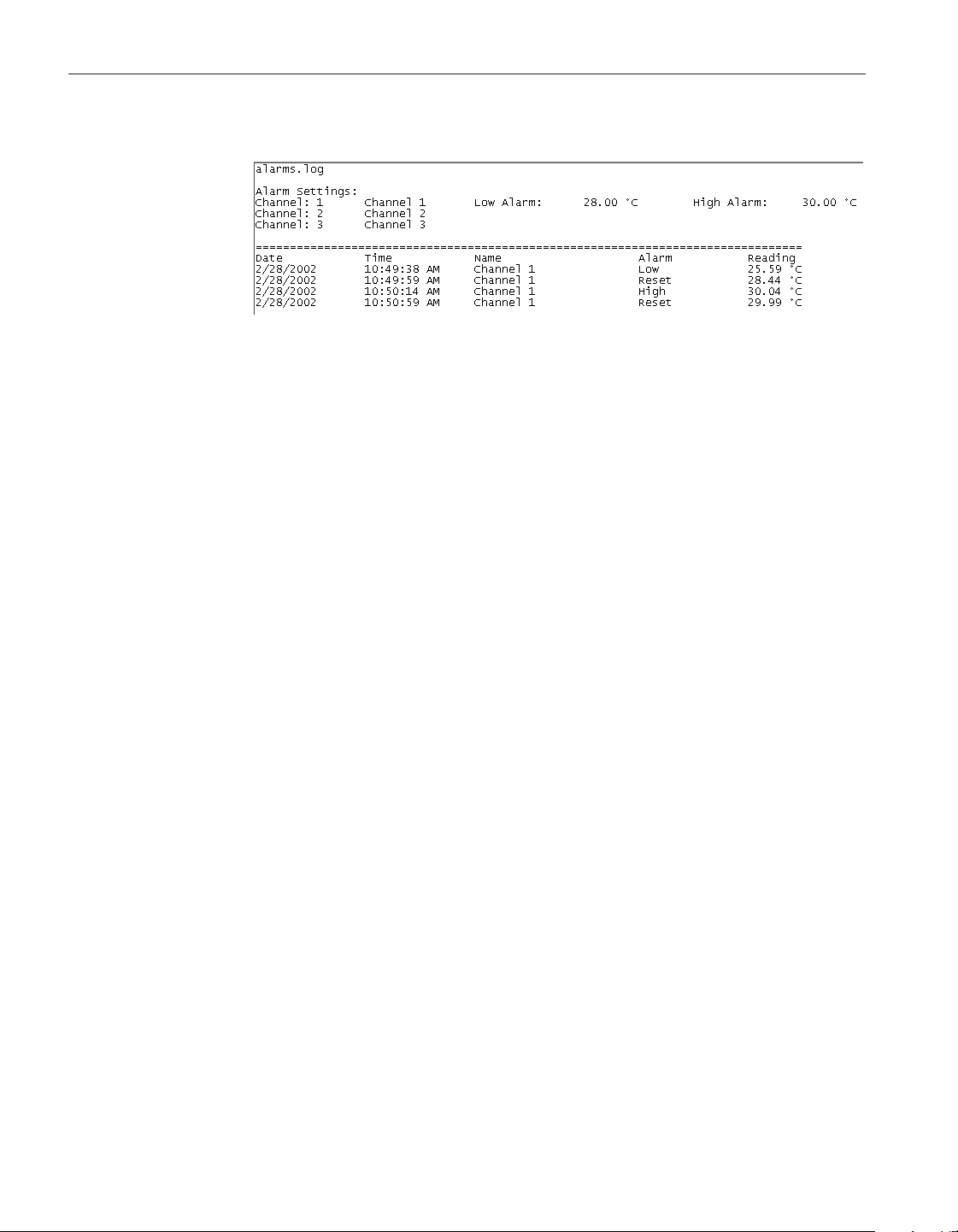
The following is an example of an alarm log file created by LogWare:
The alarm log file contains a header indicating the filename and alarm settings
for all enabled channels.
The data is formatted into columns and consist of the date, time, channel name,
alarm state and reading value.
User’s Guide
232
Figure 168 Alarm log file example
1.888.610.7664 sales@GlobalTestSupply.com
Fluke-Direct.com

8 Download process
The following sections describe in detail the download process for each of the
thermometer readouts supported by LogWare.
8.1 1523/1524 Handheld and 1529 Chub-E4
download process
The download process for the 1523/1524 Handheld and 1529 Chub-E4 Ther
-
mometer readouts consists of 3 main steps:
1. Download the data from the thermometer readout
2. Parse the data
3. Write the data to download file(s)
When the download process starts, a progress dialog appears to indicate the
download progress. To abort downloading the data from the thermometer read-
out, click the Cancel button on the progress dialog.
If the Prompt to enter filename(s) option was selected, the Windows® Save As
dialog is displayed to get the name of the file(s) that the data should be saved to
once all of the data has been downloaded. The \Download folder should be se-
lected by default (or the folder that is specified for download files on the
LogWare Options dialog).
• If the Write all readings into a single file option was selected, all readings
will be written to the specified file. By default, the filename is “down-
load.txt”.
•
If the Separate readings by channel option was selected, a prompt appears
for every channel. By default, the filenames are “downloadn.txt” where n
is the channel number.
Accept the default filename(s) or enter new filename(s) and click the Save but
-
ton to continue. If a file with the selected filename already exists, confirm over
-
writing the existing file or enter a new filename. Clicking the Cancel button on
the Windows® Save As dialog aborts the download process.
If the Prompt to enter filename(s) option was not selected, the data is saved to
file(s) with the default filename(s).
233
8 Download process
1523/1524 Handheld and 1529 Chub-E4 download
process
1.888.610.7664 sales@GlobalTestSupply.com
Fluke-Direct.com
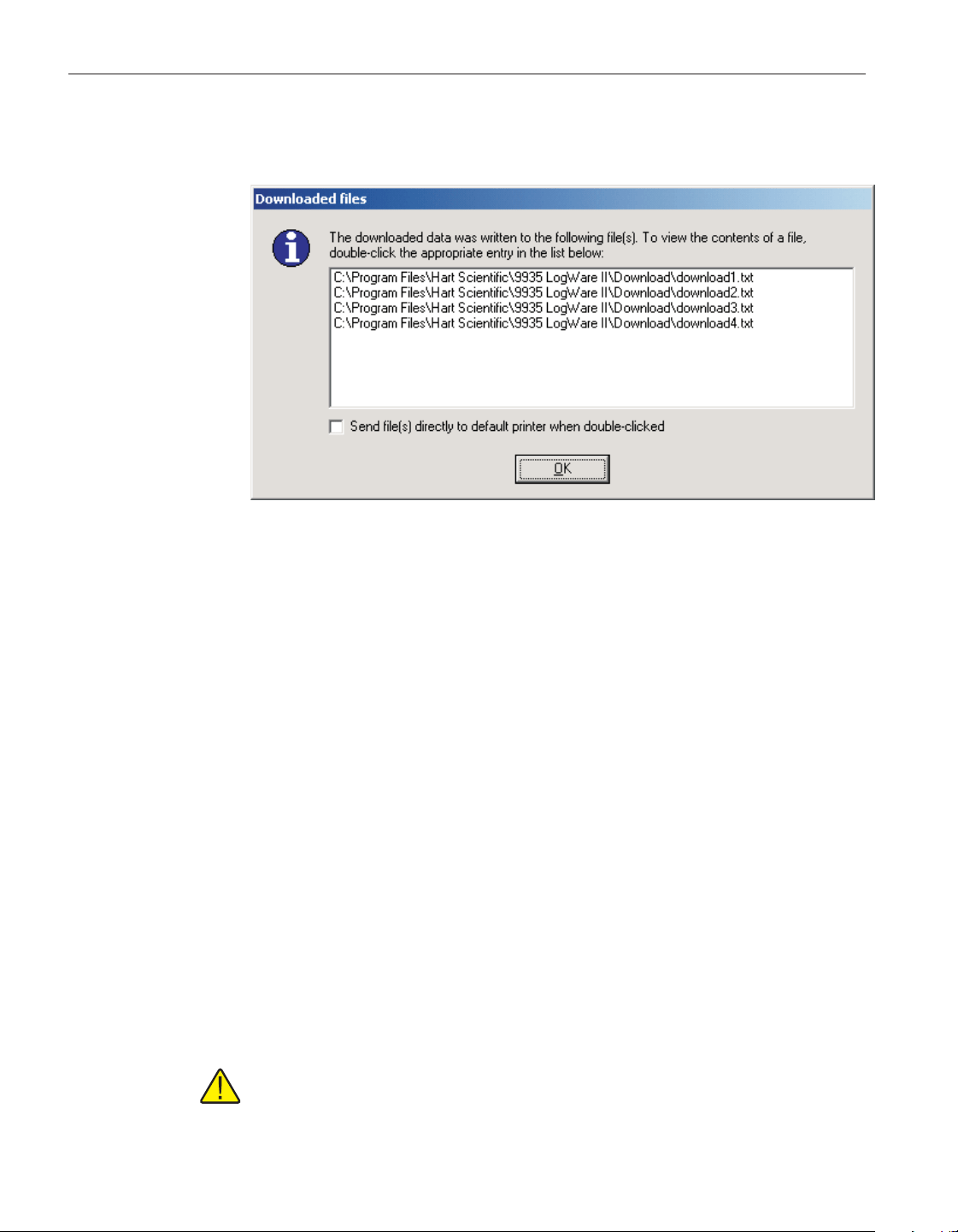
Once all of the downloaded data has been saved into the specified file(s), the
names of all of the files are displayed on the Downloaded Files dialog.
To open a file that downloaded data was written to, double-click the appropriate
entry in the list. The file will be opened in the File Viewer window. For more
details on the File Viewer window, please refer to Section 2.4.8, File Viewer
Window.
To print a file, check the Send file(s) directly to default printer when dou-
ble-clicked option. Double-clicking an entry in the list will then cause the file
to be sent to the current default printer.
Click the OK button to close this dialog.
8.2 1560 Black Stack download process
The download process for the 1560 Black Stack Thermometer readout consists
of3mainsteps:
1. Download the data from the thermometer readout
2. Parse the data
3. Write the data to download file(s)
When the download process starts, a progress dialog appears to indicate the
download progress. To abort downloading the data from the thermometer read
-
out, click the Cancel button on the progress dialog.
Note: When downloading data from the 1560, the measurement process in
the thermometer readout is halted until downloading is complete!
User’s Guide
234
Figure 169 Downloaded Files dialog
1.888.610.7664 sales@GlobalTestSupply.com
Fluke-Direct.com

If the Prompt to enter filename(s) option was selected, the Windows® Save As
dialog is displayed to get the name of the file(s) that the data should be saved to
once the data has been downloaded. The \Download folder should be selected
by default (or the folder that is specified for download files on the LogWare
Options dialog).
•
If the Write all readings into a single file option was selected, all readings
will be written to the specified file. By default, the filename is “down
-
load.txt”.
•
If the Separate readings by channel option was selected, a prompt appears
for every channel. By default, the filenames are “downloadn.txt” where n
is the channel number.
Accept the default filename(s) or enter new filename(s) and click the Save but
-
ton to continue. If a file with the selected filename already exists, confirm over
-
writing the existing file or enter a new filename. Clicking the Cancel button on
the Windows® Save As dialog aborts the download process.
If the Prompt to enter filename(s) option was not selected, the data is saved to
file(s) with the default filename(s).
Once all of the downloaded data has been saved into the specified file(s), the
names of all of the files are displayed on the Downloaded Files dialog (see Fig-
ure 169 on page 233).
To open a file that downloaded data was written to, double-click the appropriate
entry in the list. The file will be opened in the File Viewer window. For more
details on the File Viewer window, please refer to Section 2.4.8, File Viewer
Window.
To print a file, check the Send file(s) directly to default printer when dou
-
ble-clicked option. Double-clicking an entry in the list will then cause the file
to be sent to the current default printer.
Click the OK button to close this dialog.
8.3 1575A Super-Thermometer download process
The download process for the 1575A Super-Thermometer readout consists of 3
main steps:
1. Download the data from the thermometer readout
2. Parse the data
3. Write the data to download file
When the download process starts, a progress dialog appears to indicate the
download progress. To abort downloading the data from the thermometer read
-
out, click the Cancel button on the progress dialog.
235
8 Download process
1575A Super-Thermometer download process
1.888.610.7664 sales@GlobalTestSupply.com
Fluke-Direct.com

If the Prompt to enter filename option was selected, the Windows® Save As di
-
alog is displayed to get the name of the file that the data should be saved to
once the data has been downloaded. The \Download folder should be selected
by default (or the folder that is specified for download files on the LogWare
Options dialog). Accept the default filename or enter new filename and click
the Save button to continue. If a file with the selected filename already exists,
confirm overwriting the existing file or enter a new filename. Clicking the Can
-
cel button on the Windows® Save As dialog aborts the download process.
If the Prompt to enter filename option was not selected, the data is saved to a
file with the default filename ‘download.txt’.
Once all of the downloaded data has been saved into the specified file, the file
-
name is displayed on the Downloaded Files dialog (see Figure 169 on page
233).
To open the file that downloaded data was written to, double-click the entry in
the list. The file will be opened in the File Viewer window. For more details on
the File Viewer window, please refer to Section 2.4.8, File Viewer Window.
To print a file, check the Send file(s) directly to default printer when dou-
ble-clicked option. Double-clicking an entry in the list will then cause the file
to be sent to the current default printer.
Click the OK button to close this dialog.
8.4 1590 Super-Thermometer II download process
The download process for the 1590 Super-Thermometer II readout consists of 3
main steps:
1. Download the data from the thermometer readout
2. Parse the data
3. Write the data to download file
When the download process starts, a progress dialog appears to indicate the
download progress. To abort downloading the data from the thermometer read
-
out, click the Cancel button on the progress dialog.
If the Prompt to enter filename option was selected, the Windows® Save As di
-
alog is displayed to get the name of the file that the data should be saved to
once the data has been downloaded. The \Download folder should be selected
by default (or the folder that is specified for download files on the LogWare
Options dialog). Accept the default filename or enter new filename and click
the Save button to continue. If a file with the selected filename already exists,
confirm overwriting the existing file or enter a new filename. Clicking the Can
-
cel button on the Windows® Save As dialog aborts the download process.
If the Prompt to enter filename option was not selected, the data is saved to a
file with the default filename ‘download.txt’.
User’s Guide
236
1.888.610.7664 sales@GlobalTestSupply.com
Fluke-Direct.com

Once all of the downloaded data has been saved into the specified file, the file
-
name is displayed on the Downloaded Files dialog (see Figure 169 on page
233).
To open the file that downloaded data was written to, double-click the entry in
the list. The file will be opened in the File Viewer window. For more details on
the File Viewer window, please refer to Section 2.4.8, File Viewer Window.
To print a file, check the Send file(s) directly to default printer when dou
-
ble-clicked option. Double-clicking an entry in the list will then cause the file
to be sent to the current default printer.
Click the OK button to close this dialog.
237
8 Download process
1590 Super-Thermometer II download process
1.888.610.7664 sales@GlobalTestSupply.com
Fluke-Direct.com
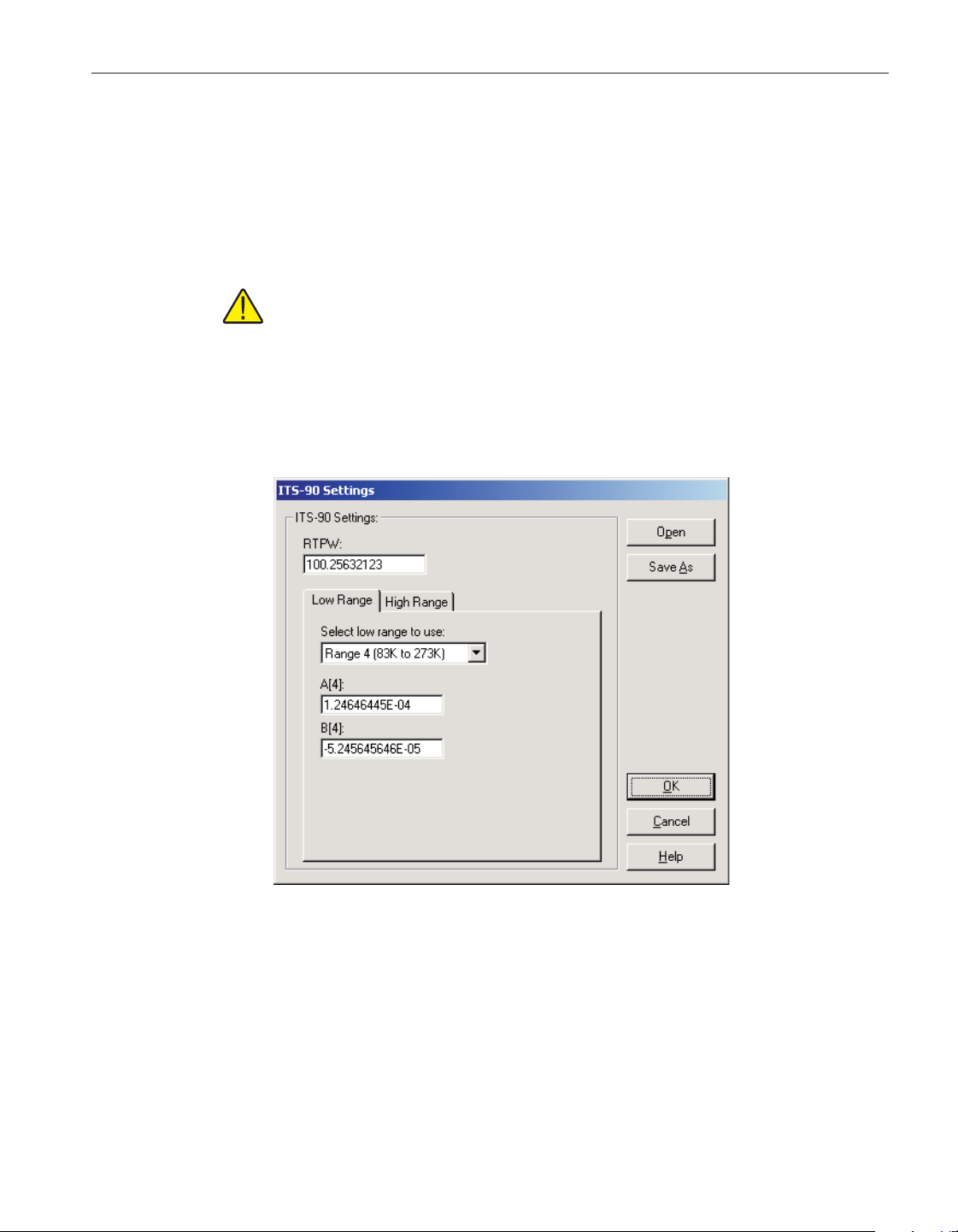
9 Conversion settings dialogs
The following sections describe in detail the conversion settings dialogs sup
-
ported by LogWare. Each of these dialogs may appear slightly different de
-
pending on the features and settings supported by the thermometer readout
being used.
Note: Some conversion type settings do not have an associated dialog (i.e.
Ohms, Volts, Ratio, W, etc.).
9.1 ITS-90 Settings dialog
The ITS-90 Settings dialog allows the RTPW, Low Range, and High Range co
-
efficients to be entered.
If the ITS-90 coefficients were read in from the thermometer readout, the boxes
are filled with the current coefficient values.
Enter the RTPW coefficient in from the Report of Calibration in the RTPW
box. This box must contain a valid value.
Select the Low Range tab to select the low range and enter low range coeffi
-
cients. Select the High Range tab to select the high range and enter high range
coefficients.
239
9 Conversion settings dialogs
ITS-90 Settings dialog
Figure 170 ITS-90 Settings dialog
1.888.610.7664 sales@GlobalTestSupply.com
Fluke-Direct.com
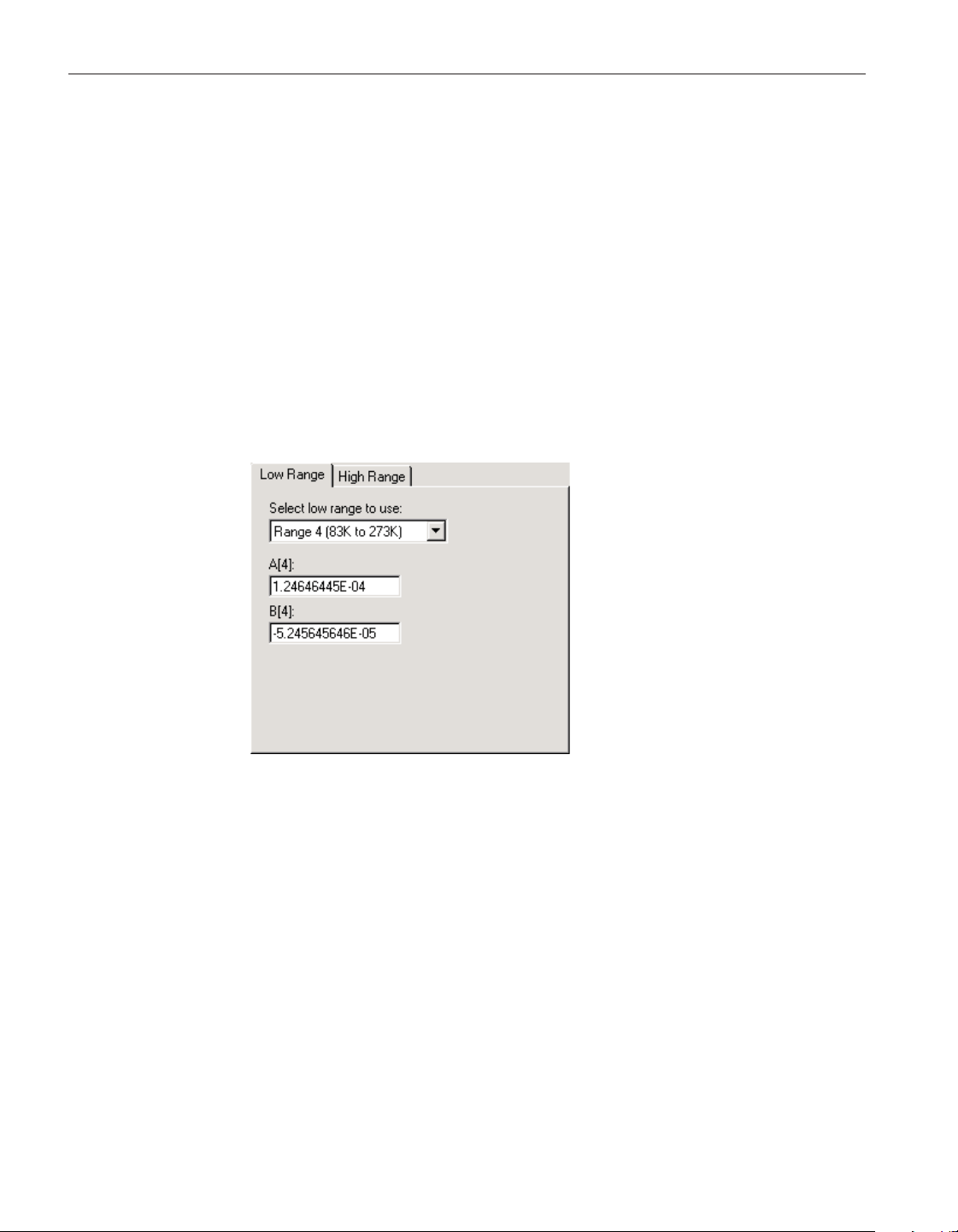
Select the Open button to display the Windows® Open dialog to open a previ
-
ously saved configuration file which contains ITS-90 coefficients. Select the
Save As button to display the Windows® Save As dialog to save the current
ITS-90 coefficients to a configuration file.
Click the OK button to accept the current coefficients and close this dialog.
Click the Cancel button to discard any changes you have made and close this
dialog.
Click the Help button to display the appropriate help topic for this dialog.
9.1.1 Low Range tab
Select the Low Range tab to select the low range and enter low range coeffi
-
cients. If the thermometer readout being used does not support ITS-90 low
ranges, this tab is not displayed.
Select the low range to use from the Select low range to use drop-down list.
Low range choices include Range 1 to Range 5 but may be limited depending
on the thermometer readout being used.
Enter the low range coefficients from the Report of Calibration in the boxes
provided. The boxes displayed depend on the currently selected low range. If a
coefficient is not used, set its value to 0.0.
9.1.2 High Range tab
Select the High Range tab to select the high range and enter high range coeffi
-
User’s Guide
240
Figure 171 ITS-90 Settings – Low Range tab
1.888.610.7664 sales@GlobalTestSupply.com
Fluke-Direct.com
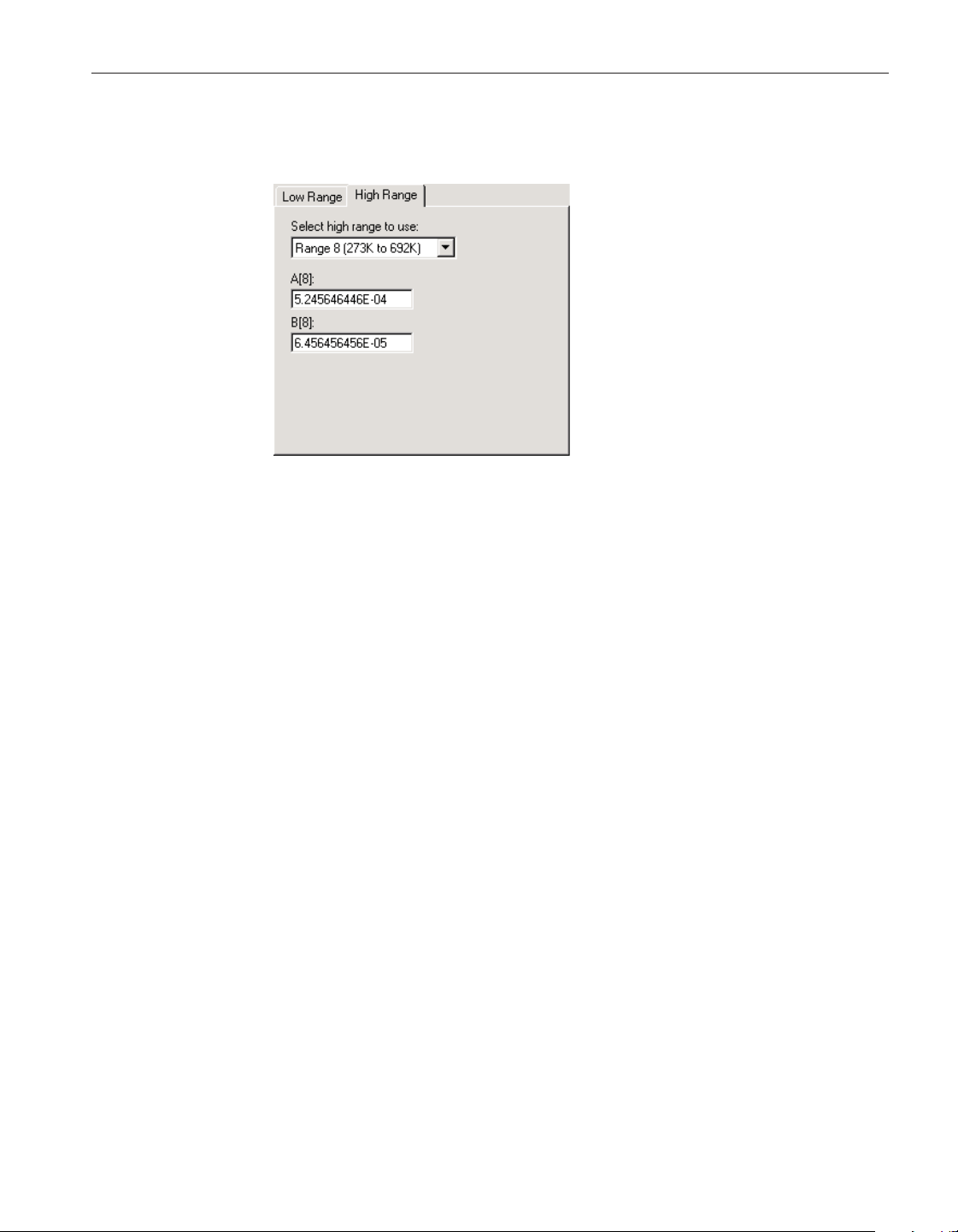
cients. If the thermometer readout being used does not support ITS-90 high
ranges, this tab is not displayed.
Select the high range to use from the Select high range to use drop-down list.
High range choices include Range 6 to Range 11 but may be limited depending
on the thermometer readout being used.
Enter the high range coefficients from the Report of Calibration in the boxes
provided. The boxes displayed depend on the currently selected high range. If a
coefficient is not used, set its value to 0.0.
241
9 Conversion settings dialogs
ITS-90 Settings dialog
Figure 172 ITS-90 Settings – High Range
tab
1.888.610.7664 sales@GlobalTestSupply.com
Fluke-Direct.com
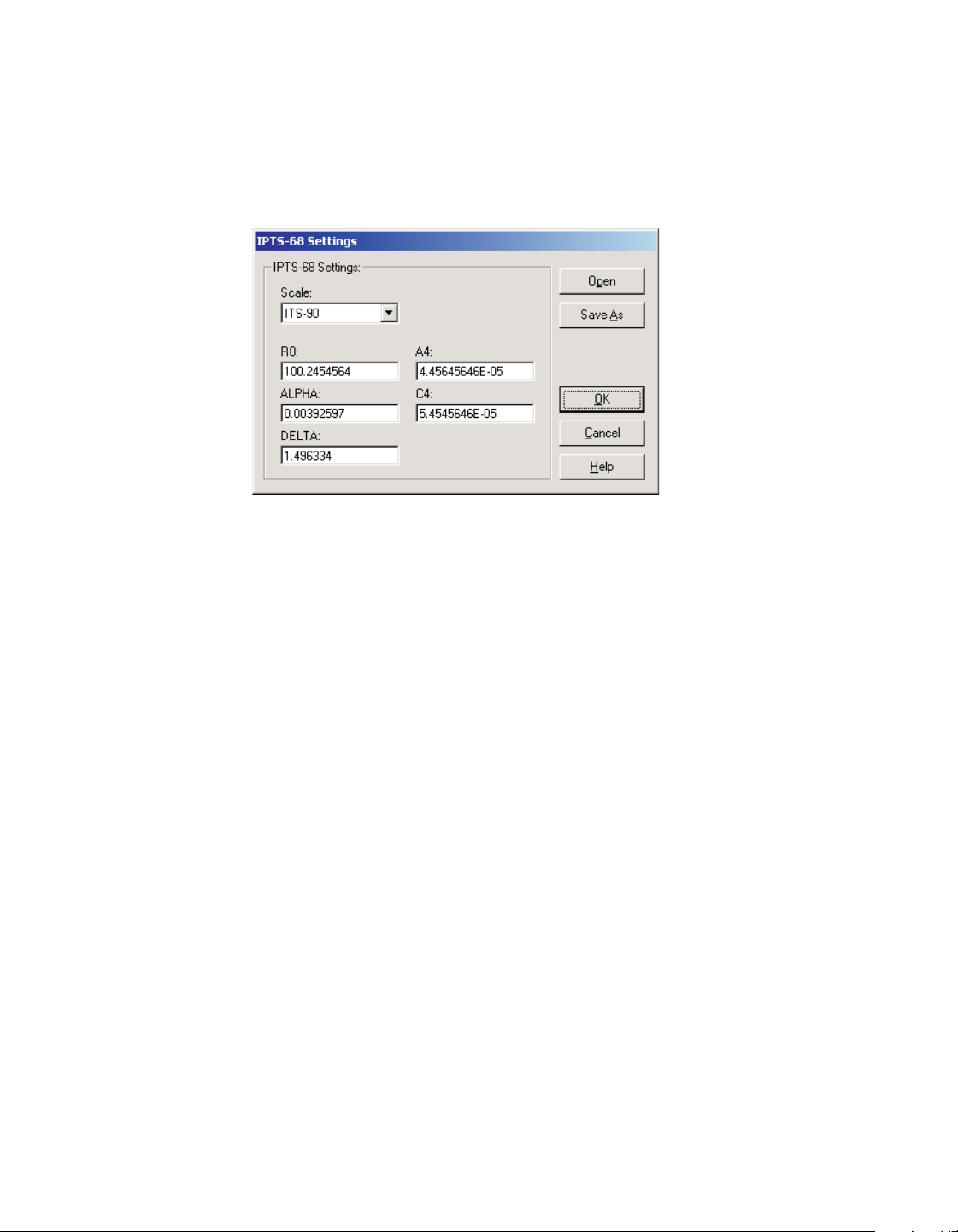
9.2 IPTS-68 settings dialog
The IPTS-68 Settings dialog allows the Scale, R0, ALPHA, DELTA, A4 and
C4 coefficients to be entered.
If the IPTS-68 coefficients were read in from the thermometer readout, the
boxes are filled with the current coefficient values.
Select the scale to use from the Scale drop-down list. Scale choices include
IPTS-68 and ITS-90. If the thermometer readout being used does not support
the Scale setting, this drop-down list is not displayed.
Enter the R0, ALPHA, DELTA, A4, and C4 coefficients from the Report of
Calibration in the boxes provided. All boxes must contain valid values.
Select the Open button to display the Windows® Open dialog to open a previ
-
ously saved configuration file which contains IPTS-68 coefficients. Select the
Save As button to display the Windows® Save As dialog to save the current
IPTS-68 coefficients to a configuration file.
Click the OK button to accept the current coefficients and close this dialog.
Click the Cancel button to discard any changes you have made and close this
dialog.
Click the Help button to display the appropriate help topic for this dialog.
User’s Guide
242
Figure 173 IPTS-68 Settings dialog
1.888.610.7664 sales@GlobalTestSupply.com
Fluke-Direct.com
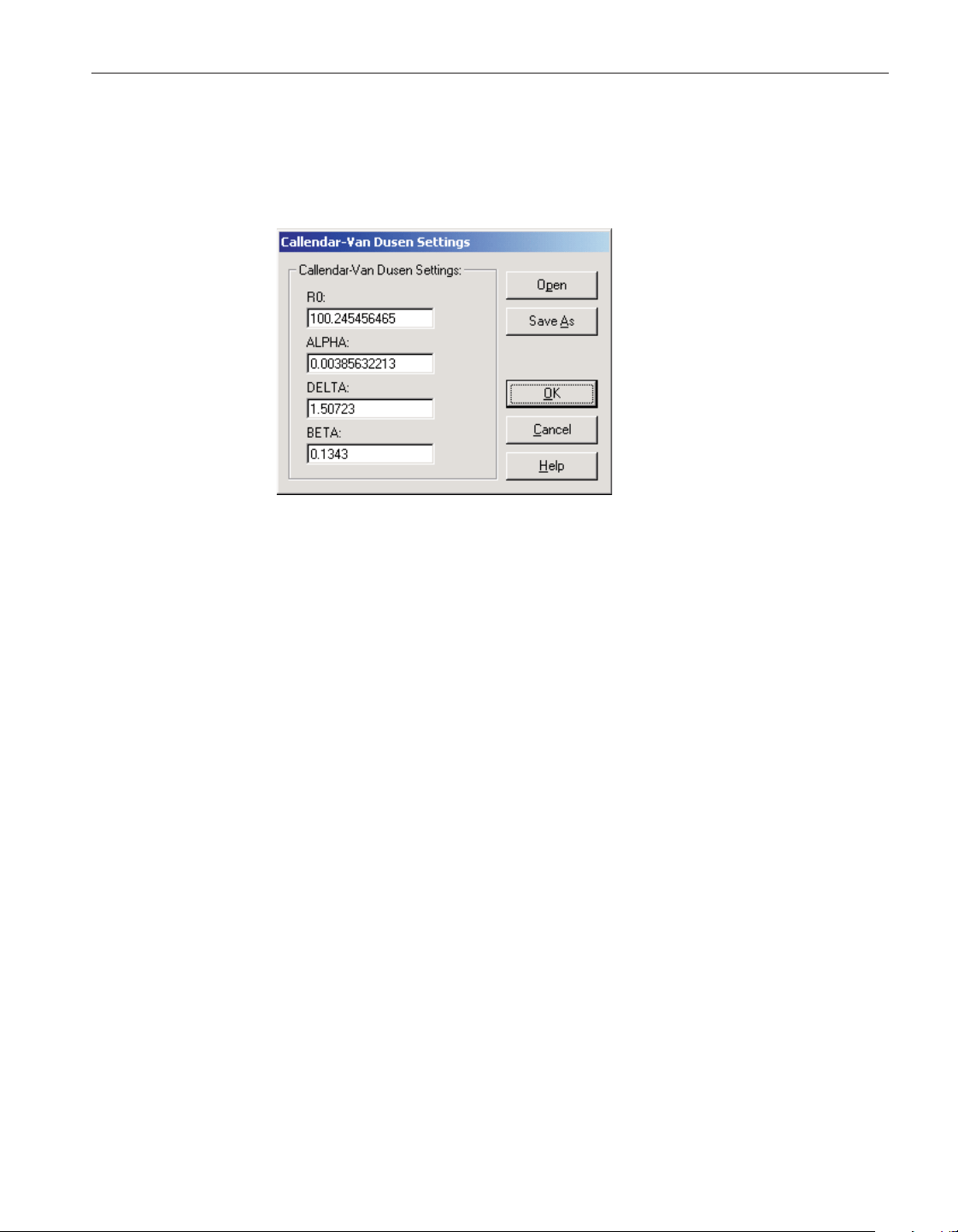
9.3 Callendar-Van Dusen Settings dialog
The Callendar-Van Dusen Settings dialog allows the R0, ALPHA, DELTA, and
BETA coefficients to be entered.
If the Callendar-Van Dusen coefficients were read in from the thermometer
readout, the boxes are filled with the current coefficient values.
Enter the R0, ALPHA, DELTA, and BETA coefficients from the Report of Cal-
ibration. All boxes must contain valid values.
Select the Open button to display the Windows® Open dialog to open a previ-
ously saved configuration file which contains Callendar-Van Dusen coeffi-
cients. Select the Save As button to display the Windows® Save As dialog to
save the current Callendar-Van Dusen coefficients to a configuration file.
Click the OK button to accept the current coefficients and close this dialog.
Click the Cancel button to discard any changes you have made and close this
dialog.
Click the Help button to display the appropriate help topic for this dialog.
243
9 Conversion settings dialogs
Callendar-Van Dusen Settings dialog
Figure 174 Callendar-Van Dusen Settings dialog
1.888.610.7664 sales@GlobalTestSupply.com
Fluke-Direct.com
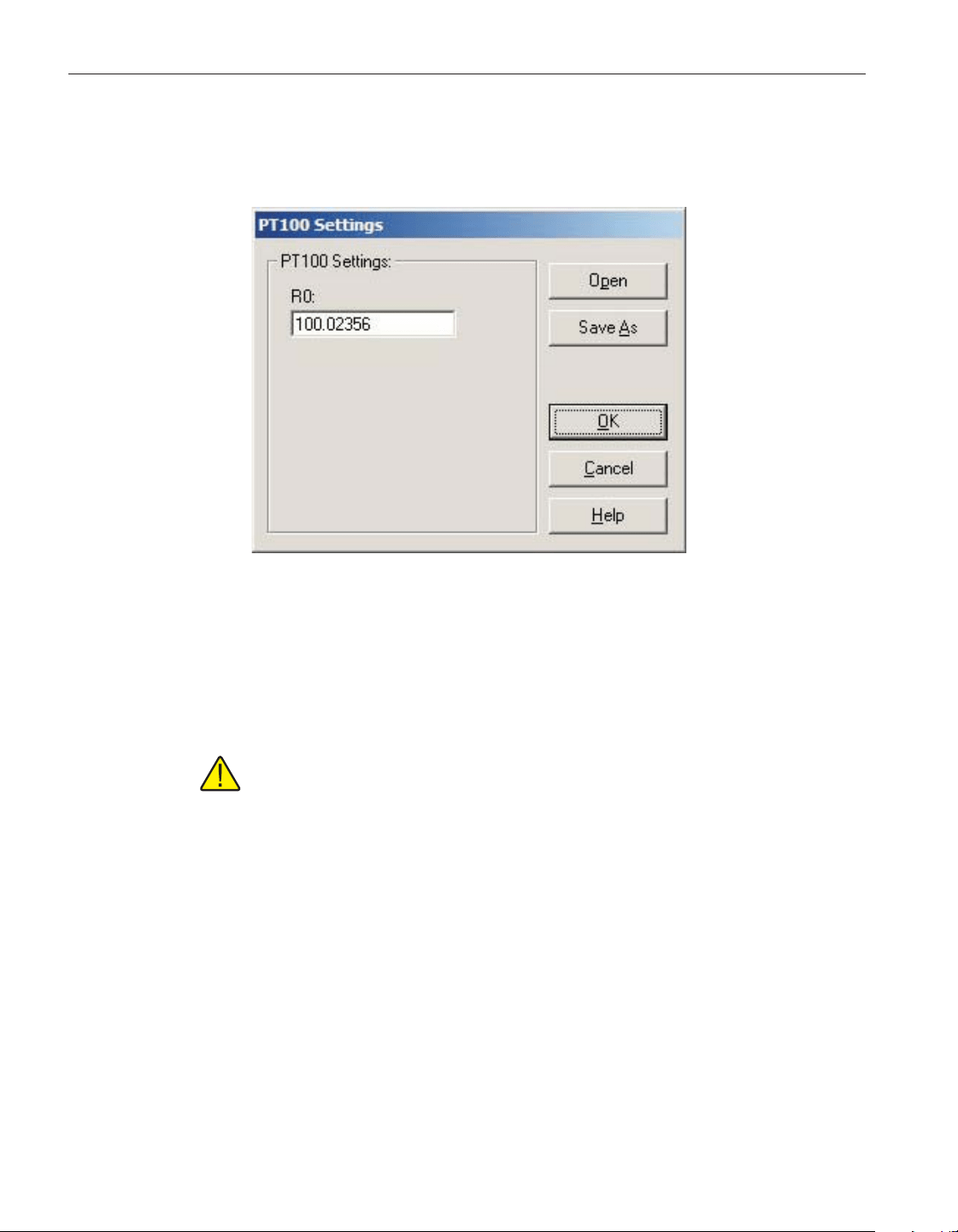
9.4 PT100 Settings dialog
The PT100 Settings dialog allows the R0 coefficient to be entered.
If the PT100 coefficient was read in from the thermometer, the box is filled
with the current coefficient value.
Enter the R0 coefficient from the Report of Calibration. The box must contain a
valid value.
Note: Not all thermometer readouts that support the PT100 conversion
type allow the R0 coefficient to be entered. This option is only available if
the selected thermometer readout supports it.
Click the Open button to display the Windows® Open dialog to open a previ
-
ously saved configuration file which contains a PT100 coefficient. Click the
Save As button to display the Windows® Save As dialog to save the current
PT100 coefficient to a configuration file.
Click the OK button to accept the current coefficients and close this dialog.
Click the Cancel button to discard any changes you have made and close this
dialog.
Click the Help button to display the appropriate help topic for this dialog.
User’s Guide
244
Figure 175 PT100 Settings dialog
1.888.610.7664 sales@GlobalTestSupply.com
Fluke-Direct.com
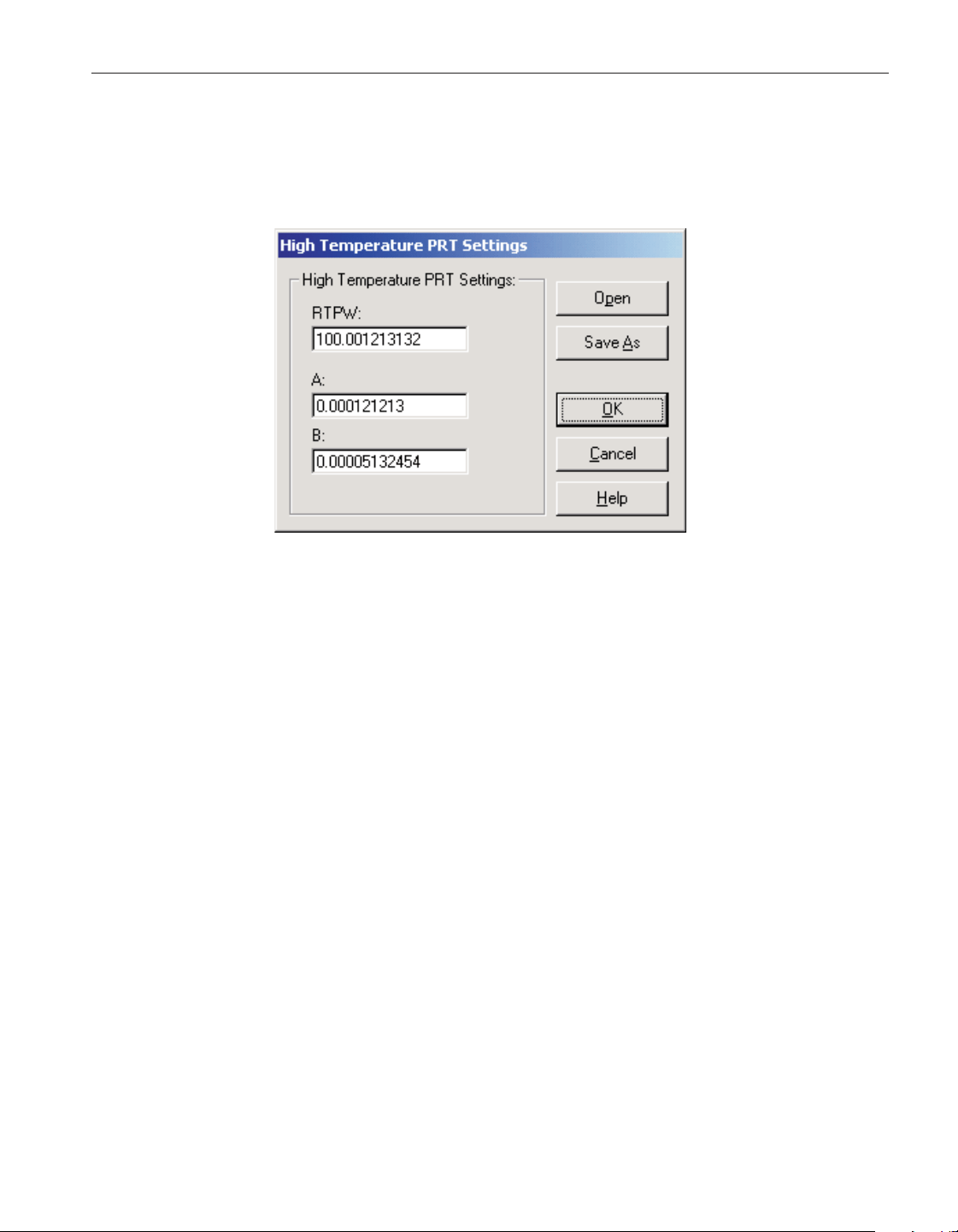
9.5 High-Temperature PRT Settings dialog
The High Temperature PRT Settings dialog allows the RTPW, A and B coeffi
-
cients to be entered.
If the High Temperature PRT coefficients were read in from the thermometer
readout, the boxes are filled with the current coefficient values.
Enter the RTPW coefficient from the Report of Calibration in the RTPW box.
This box must contain a valid value.
Enter the values for the A and B coefficients from the Report of Calibration in
the boxes provided.
Select the Open button to display the Windows® Open dialog to open a previ
-
ously saved configuration file which contains High Temperature PRT coeffi
-
cients. Select the Save As button to display the Windows® Save As dialog to
save the current High Temperature PRT coefficients to a configuration file.
Click the OK button to accept the current coefficients and close this dialog.
Click the Cancel button to discard any changes you have made and close this
dialog.
Click the Help button to display the appropriate help topic for this dialog.
245
9 Conversion settings dialogs
High-Temperature PRT Settings dialog
Figure 176 High-Temp PRT Settings dialog
1.888.610.7664 sales@GlobalTestSupply.com
Fluke-Direct.com
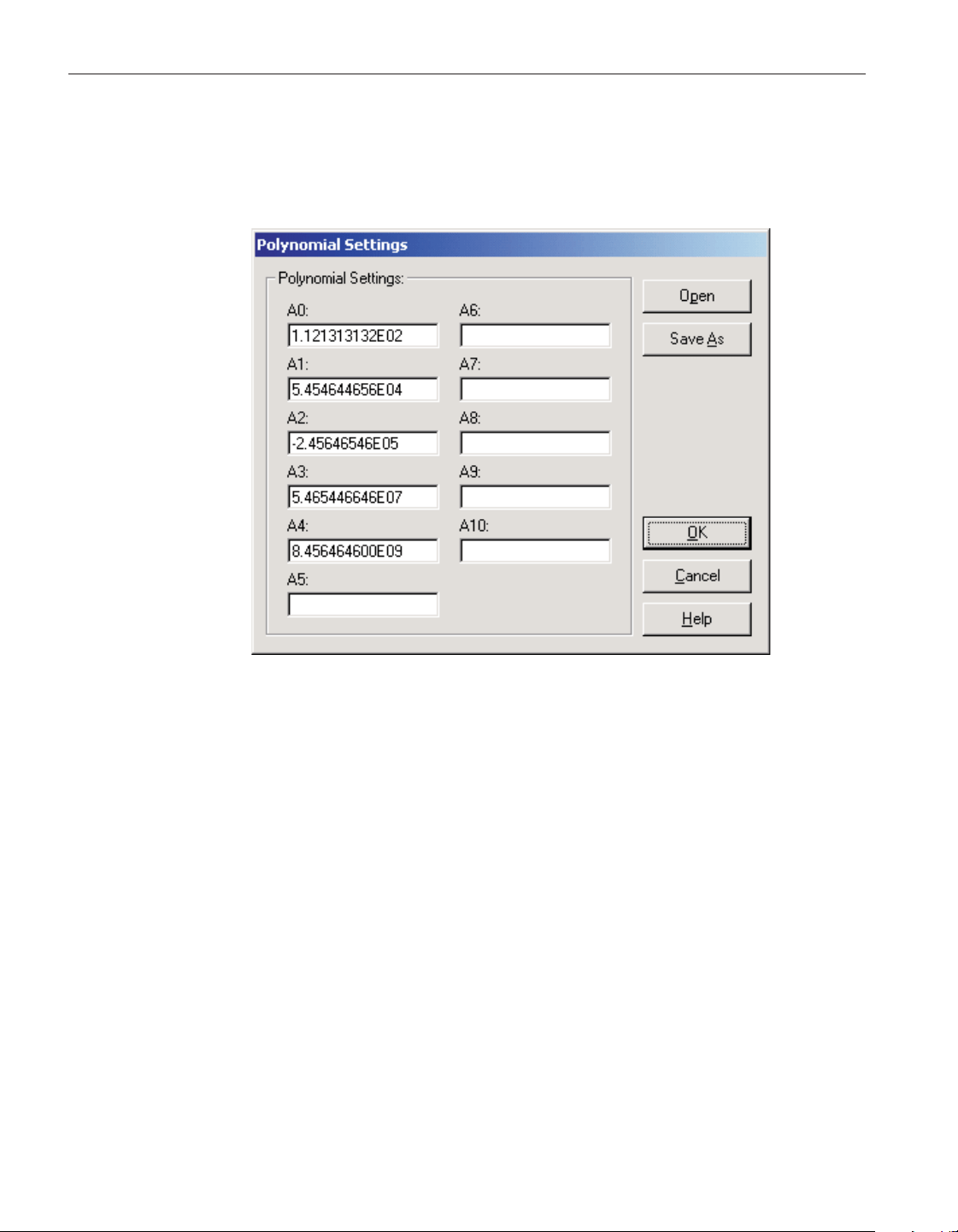
9.6 Polynomial Settings dialog
The Polynomial Settings dialog allows the A0, A1, A2,… A10 coefficients to
be entered.
If the Polynomial coefficients were read in from the thermometer readout, the
boxes are filled with the current coefficient values.
Enter the values for all polynomial coefficients from the Report of Calibration
in the boxes provided. If any coefficients are not used, leave the boxes blank or
set the values to 0.0. The actual number of boxes displayed depends on the
thermometer readout being used.
Select the Open button to display the Windows® Open dialog to open a previ
-
ously saved configuration file which contains Polynomial coefficients. Select
the Save As button to display the Windows® Save As dialog to save the current
Polynomial coefficients to a configuration file.
Click the OK button to accept the current coefficients and close this dialog.
Click the Cancel button to discard any changes you have made and close this
dialog.
Click the Help button to display the appropriate help topic for this dialog.
User’s Guide
246
Figure 177 Polynomial Settings dialog
1.888.610.7664 sales@GlobalTestSupply.com
Fluke-Direct.com
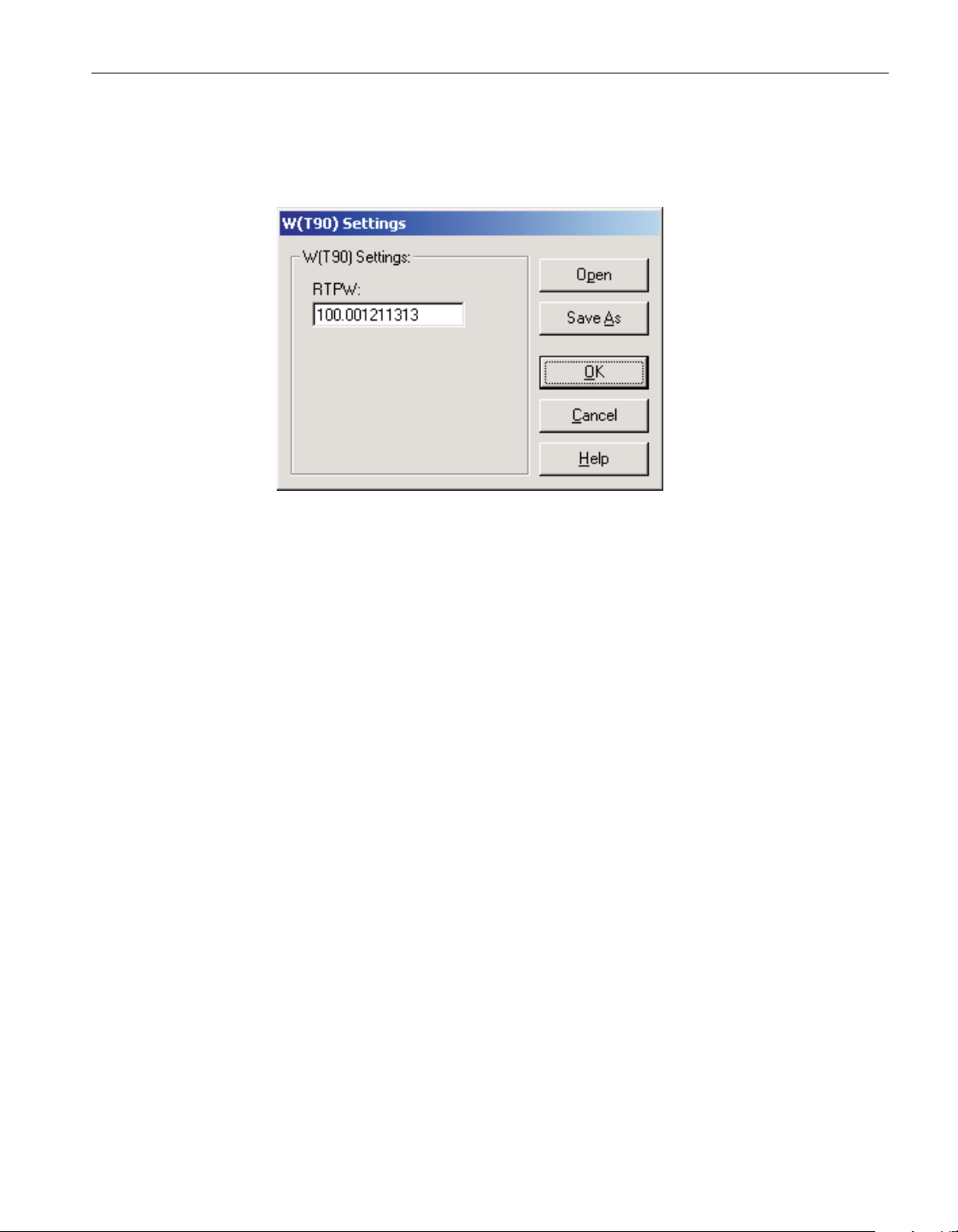
9.7 W(T90) Settings dialog
The W(T90) Settings dialog allows the RTPW coefficient to be entered.
If the W(T90) coefficients were read in from the thermometer readout, the
boxes are filled with the current coefficient values.
Enter the RTPW coefficient from the Report of Calibration in the RTPW box.
This box must contain a valid value.
Select the Open button to display the Windows® Open dialog to open a previ-
ously saved configuration file which contains W(T90) coefficients. Select the
Save As button to display the Windows® Save As dialog to save the current
W(T90) coefficients to a configuration file.
Click the OK button to accept the current coefficients and close this dialog.
Click the Cancel button to discard any changes you have made and close this
dialog.
Click the Help button to display the appropriate help topic for this dialog.
9.8 Thermistor Settings dialog
The Thermistor Settings dialog allows the Thermistor T(R) or Thermistor R(T)
coefficients to be entered.
If the Thermistor coefficients were read in from the thermometer readout, the
boxes are filled with the current coefficient values.
Select the Open button to display the Windows® Open dialog to open a previ
-
ously saved configuration file which contains Thermistor coefficients. Select
the Save As button to display the Windows® Save As dialog to save the current
Thermistor coefficients to a configuration file.
247
9 Conversion settings dialogs
W(T90) Settings dialog
Figure 178 W(T90) Settings dialog
1.888.610.7664 sales@GlobalTestSupply.com
Fluke-Direct.com
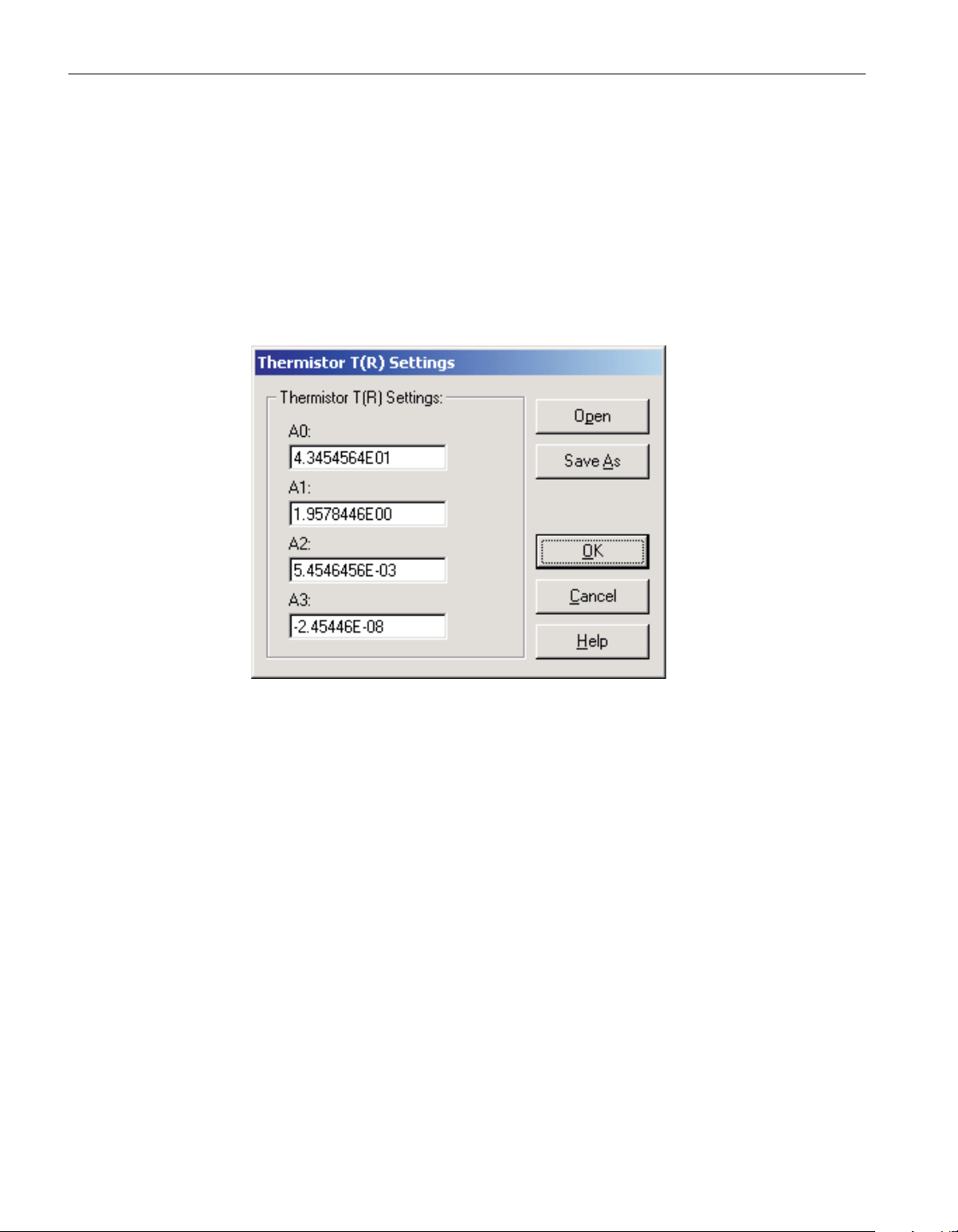
Click the OK button to accept the current coefficients and close this dialog.
Click the Cancel button to discard any changes you have made and close this
dialog.
Click the Help button to display the appropriate help topic for this dialog.
9.8.1 Thermistor T(R) Settings dialog
If the selected conversion type is T(R), the Thermistor T(R) Settings dialog is
displayed.
Enter the values for all Thermistor T(R) coefficients from the Report of Cali
-
bration in the boxes provided. If any coefficients are not used, leave the boxes
blank or set the values to 0.0.
User’s Guide
248
Figure 179 Thermistor T(R) Settings dialog
1.888.610.7664 sales@GlobalTestSupply.com
Fluke-Direct.com
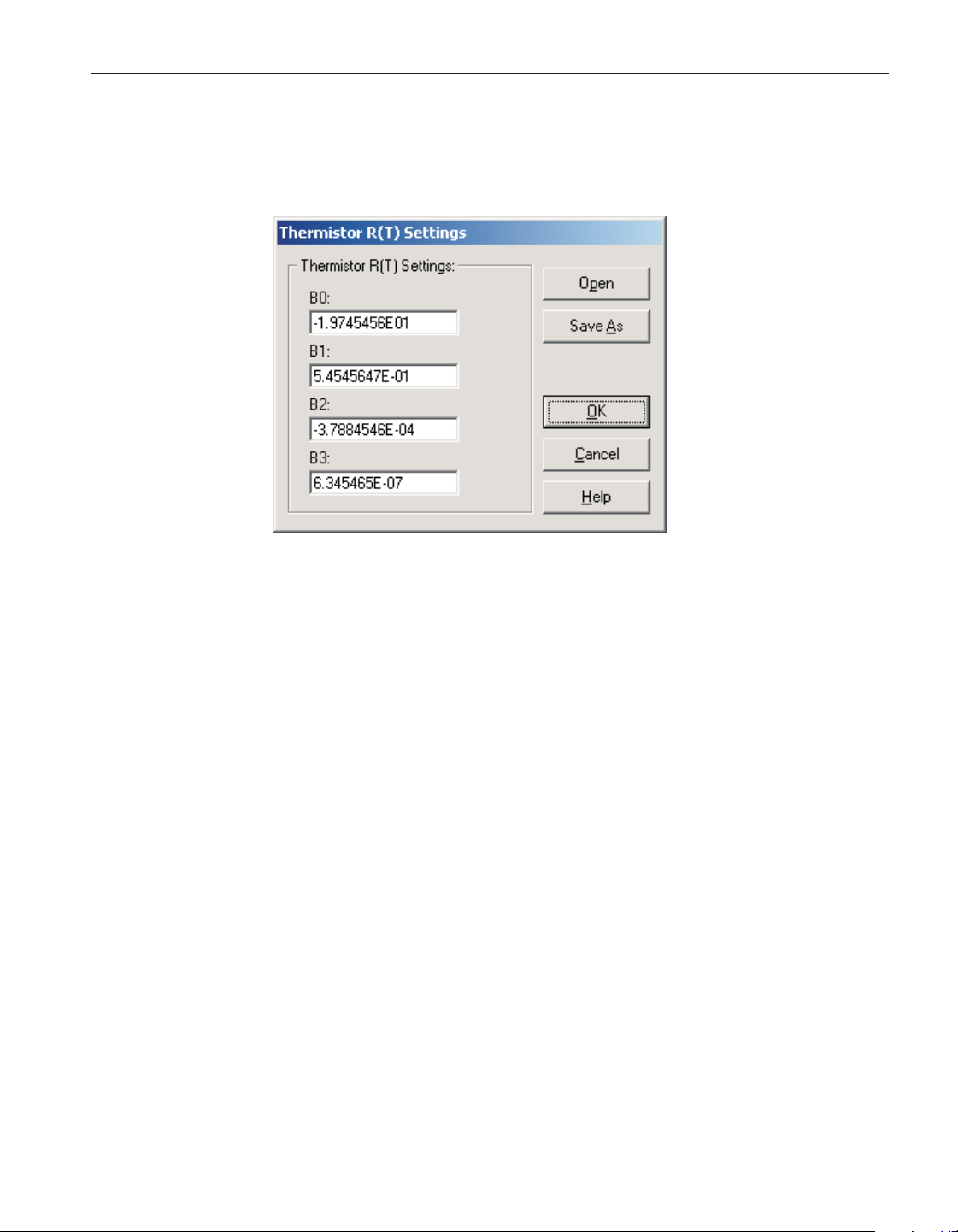
9.8.2 Thermistor R(T) Settings dialog
If the selected conversion type is R(T), the Thermistor R(T) Settings dialog is
displayed.
Enter the values for all Thermistor R(T) coefficients from the Report of Cali-
bration in the boxes provided. If any coefficients are not used, leave the boxes
blank or set the values to 0.0.
249
9 Conversion settings dialogs
Thermistor Settings dialog
Figure 180 Thermistor R(T) Settings dialog
1.888.610.7664 sales@GlobalTestSupply.com
Fluke-Direct.com
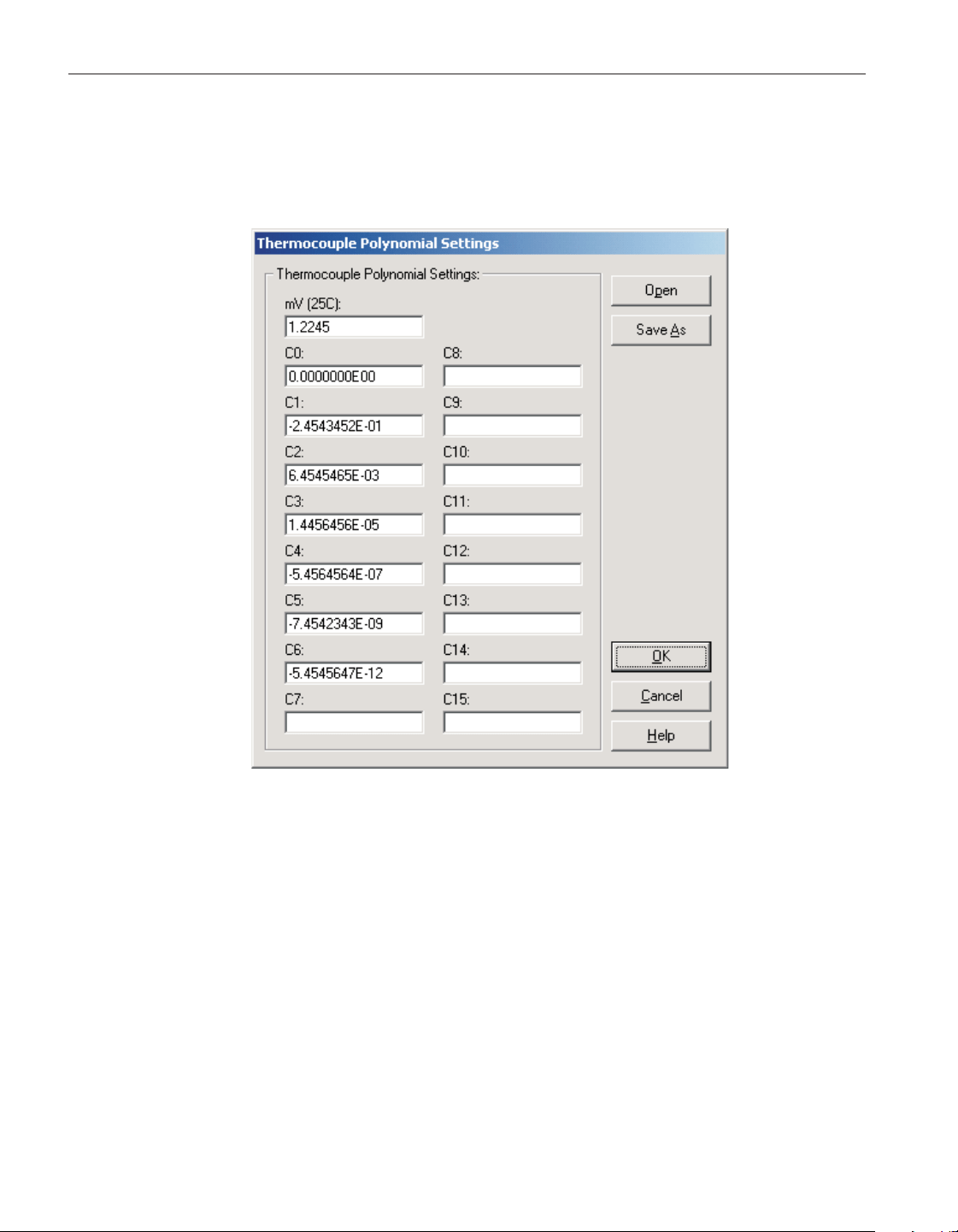
9.9 Thermocouple Polynomial Settings dialog
The Thermocouple Polynomial Settings dialog allows the mV (25C), C0, C1,
C2,… C15 coefficients to be entered.
If the Thermocouple Polynomial coefficients were read in from the thermome
-
ter readout, the boxes are filled with the current coefficient values.
Enter the voltage of the thermocouple probe (in millivolts) at 25°C from the
Report of Calibration in the mV (25C) box. If this value is not applicable to the
thermometer readout, this box is disabled.
Enter the values for all thermocouple polynomial coefficients from the Report
of Calibration in the boxes provided. If any coefficients are not used, leave the
boxes blank or set the values to 0.0. The actual number of boxes displayed de
-
pends on the thermometer readout being used.
Select the Open button to display the Windows® Open dialog to open a previ
-
ously saved configuration file which contains Thermocouple Polynomial coeffi
-
User’s Guide
250
Figure 181 Thermocouple Polynomial Settings dialog
1.888.610.7664 sales@GlobalTestSupply.com
Fluke-Direct.com
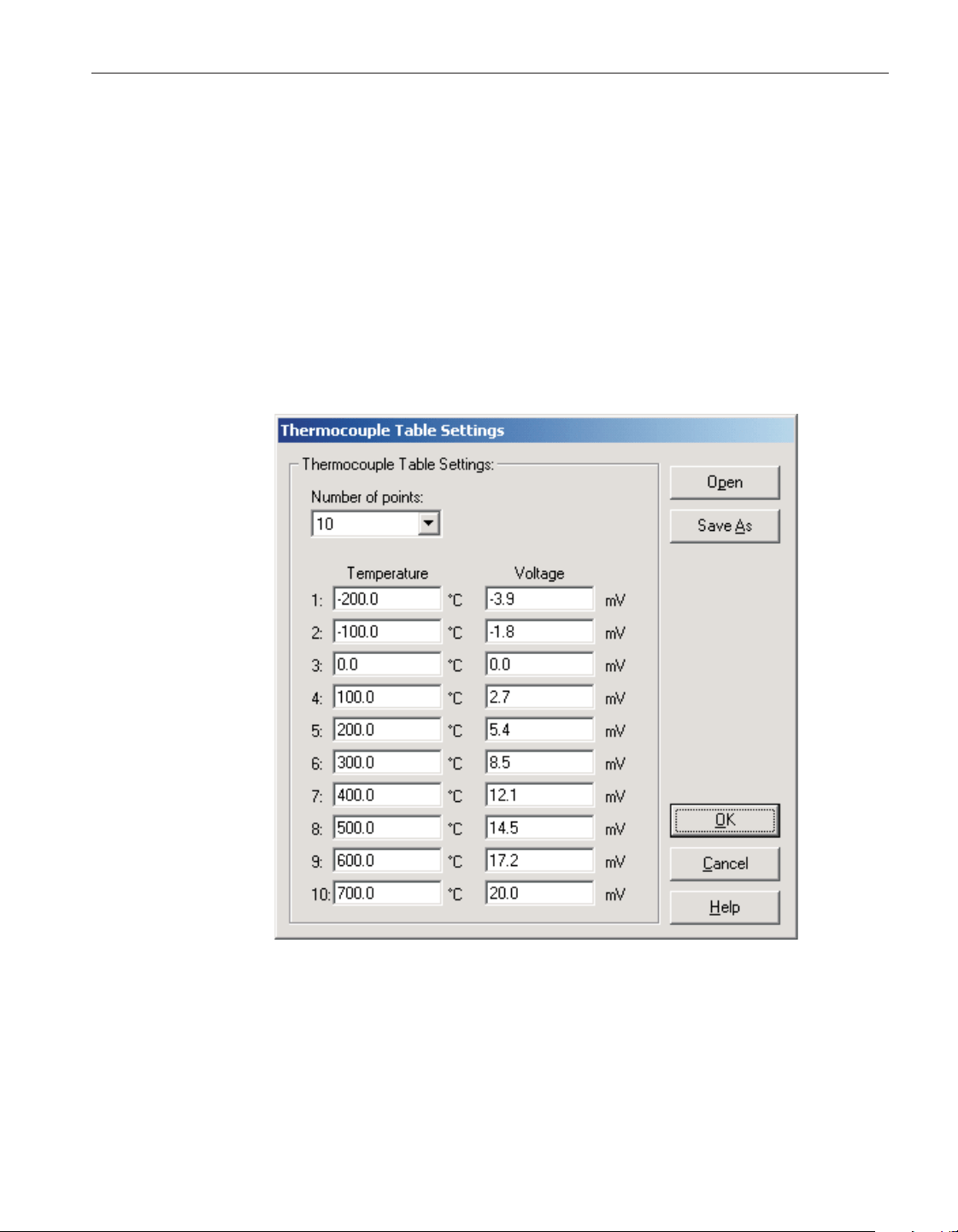
cients. Select the Save As button to display the Windows® Save As dialog to
save the current Thermocouple Polynomial coefficients to a configuration file.
Click the OK button to accept the current coefficients and close this dialog.
Click the Cancel button to discard any changes you have made and close this
dialog.
Click the Help button to display the appropriate help topic for this dialog.
9.10 Thermocouple Table Settings dialog
The Thermocouple Table Settings dialog allows the Number of points and Tem
-
perature and Voltage values to be entered.
If the Thermocouple Table coefficients were read in from the thermometer
readout, the boxes are filled with the current coefficient values.
251
9 Conversion settings dialogs
Thermocouple Table Settings dialog
Figure 182 Thermocouple Table Settings dialog
1.888.610.7664 sales@GlobalTestSupply.com
Fluke-Direct.com
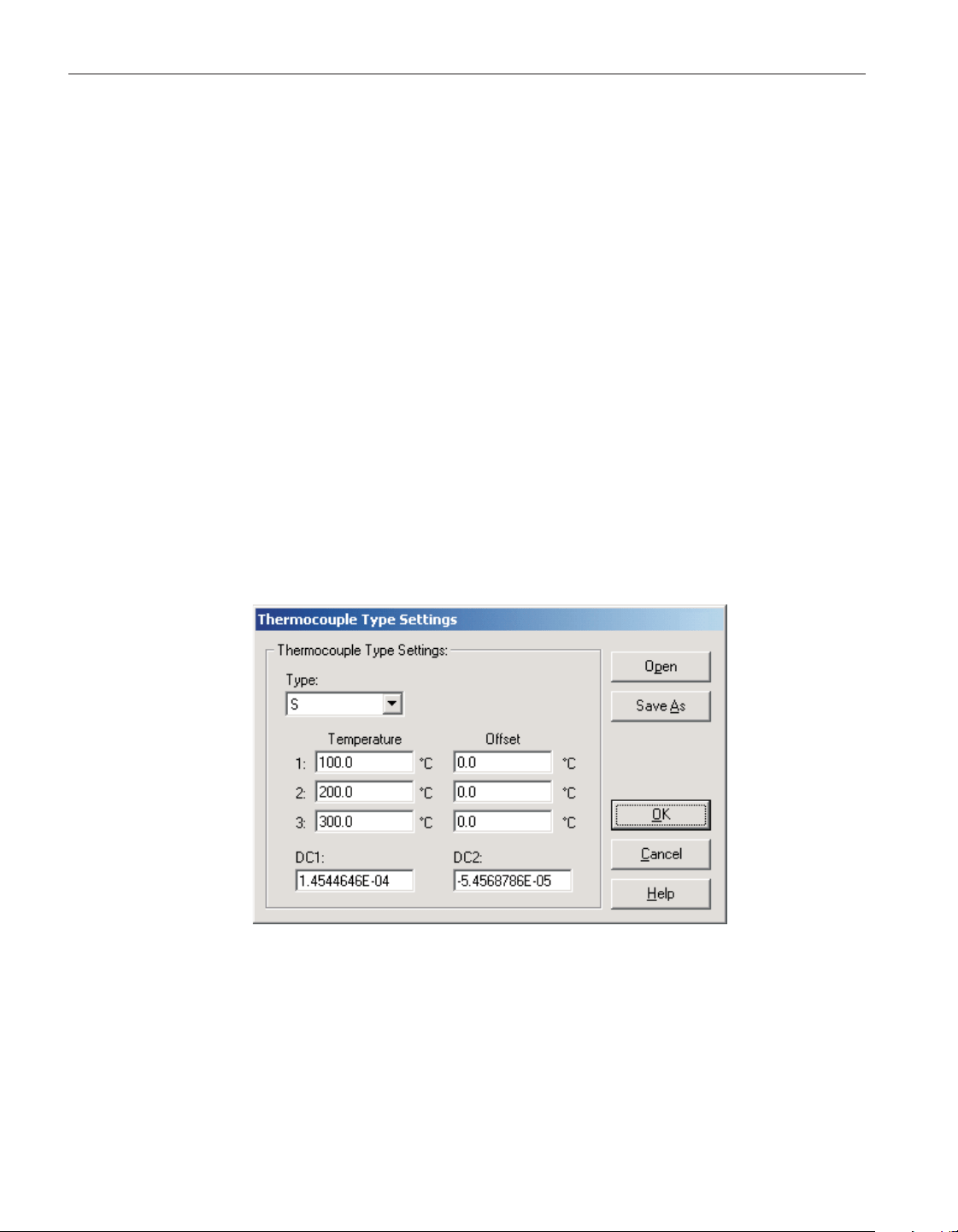
Select the number of points to use for the Temperature/Voltage table using the
Number of points drop-down list. The choices are from 1 to 10 but may be lim
-
ited depending on the thermometer readout being used.
Up to ten Temperature/Voltage pairs can be entered. Enter the temperature and
voltage values at each temperature in the boxes provided. The units for the tem
-
perature and voltage values are indicated next to each box.
Select the Open button to display the Windows® Open dialog to open a previ
-
ously saved configuration file which contains Thermocouple Table coefficients.
Select the Save As button to display the Windows® Save As dialog to save the
current Thermocouple Table coefficients to a configuration file.
Click the OK button to accept the current coefficients and close this dialog.
Click the Cancel button to discard any changes you have made and close this
dialog.
Click the Help button to display the appropriate help topic for this dialog.
9.11 Thermocouple Type Settings dialog
The Thermocouple Type Settings dialog allows the Type, Temperature and Off-
set values, and DC1 & DC2 coefficients to be entered.
If the Thermocouple Type coefficients were read in from the thermometer read
-
out, the boxes are filled with the current coefficient values and settings.
The Type drop-down list allows the standard thermocouple type to be selected.
Thermocouple types include: B, E, J, K, N, R, S, T and AuPt. The choices in
User’s Guide
252
Figure 183 Thermocouple Polynomial Settings dialog
1.888.610.7664 sales@GlobalTestSupply.com
Fluke-Direct.com
the list may be limited depending on the thermocouple types supported by the
thermometer readout being used.
The Temperature and Offset boxes provide a method to use an offset table with
this thermocouple type. Up to three Temperature/Offset pairs can be entered. If
no offset table is to be used, make sure the values in the Offset boxes are all set
to 0.0.
Note: If any one of the temperature values is set to 0°C, that point is ig
-
nored because the voltage on a thermocouple at 0°C is always assumed to
be 0mV.
If the selected thermocouple type is type S or type R, the DC1 and DC2 boxes
are displayed. The DC1 and DC2 values are delta (Δ) values for the standard
C1 and C2 polynomial coefficients. Enter the values for DC1 and DC2. These
values should be located on the Report of Calibration.
Select the Open button to display the Windows® Open dialog to open a previ
-
ously saved configuration file which contains Thermocouple Type coefficients.
Select the Save As button to display the Windows® Save As dialog to save the
current Thermocouple Type coefficients to a configuration file.
Click the OK button to accept the current coefficients and close this dialog.
Click the Cancel button to discard any changes you have made and close this
dialog.
Click the Help button to display the appropriate help topic for this dialog.
253
9 Conversion settings dialogs
Thermocouple Type Settings dialog
1.888.610.7664 sales@GlobalTestSupply.com
Fluke-Direct.com
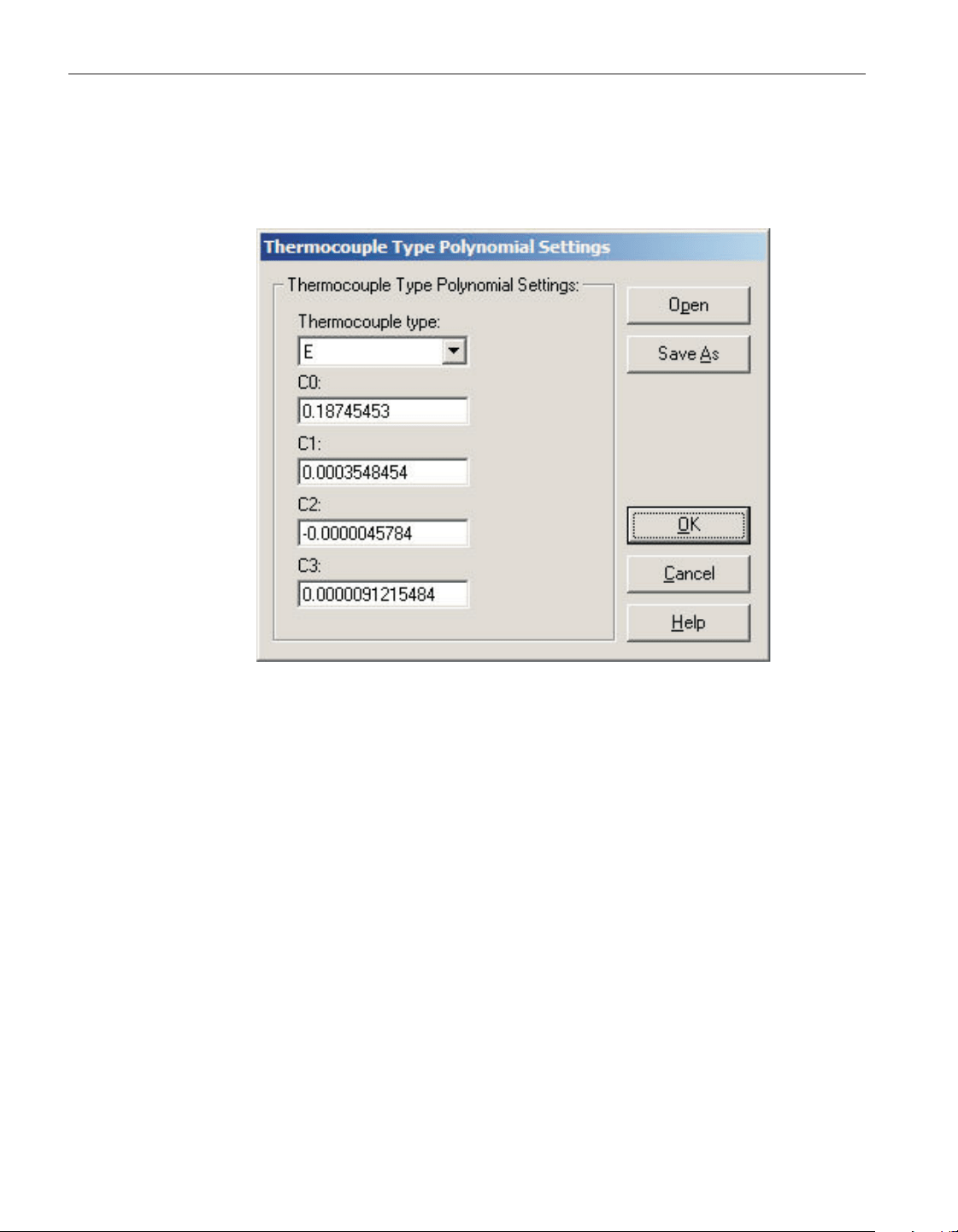
9.12 Thermocouple Type Polynomial Settings dialog
The Thermocouple Type Polynomial Settings dialog allows the standard ther
-
mocouple type and the C0, C1, C2 and C3 coefficients to be entered.
If the Thermocouple Type coefficients were read in from the thermometer, the
boxes are filled with the current coefficient values.
The Thermocouple Type drop-down list allows the standard thermocouple type
to be selected. Thermocouple types include: B, C, E, J, K, L, M, N, R, S, T and
U. The choices in the list may be limited depending on the thermocouple types
supported by the thermometer being used.
Enter the values for all thermocouple polynomial coefficients from the Report
of Calibration. If any coefficients are not used, leave the boxes blank or set the
values to 0.0. The actual number of boxes displayed depends on the thermome
-
ter being used.
Click the Open button to display the Windows® Open dialog to open a previ
-
ously saved configuration file which contains Thermocouple Type Polynomial
coefficients. Click the Save As button to display the Windows® Save As dialog
to save the current Thermocouple Type Polynomial coefficients to a configura
-
tion file.
Click the OK button to accept the current coefficients and close this dialog.
User’s Guide
254
Figure 184 Thermocouple Type Polynomial Settings dialog
1.888.610.7664 sales@GlobalTestSupply.com
Fluke-Direct.com

Click the Cancel button to discard any changes you have made and close this
dialog.
Click the Help button to display the appropriate help topic for this dialog.
255
9 Conversion settings dialogs
Thermocouple Type Polynomial Settings dialog
1.888.610.7664 sales@GlobalTestSupply.com
Fluke-Direct.com

10 Troubleshooting
The following sections describe in detail some troubleshooting topics, possible
causes, and solutions.
10.1 Technical support
Please contact one of the following authorized Service Centers to coordinate
service on your product:
Fluke Corporation, Hart Scientific Division
257
10 Troubleshooting
Technical support
1.888.610.7664 sales@GlobalTestSupply.com
Fluke-Direct.com

Check our website on the Internet regularly for answers to Frequently Asked
Questions, software updates, and Service Releases.
Before calling for Technical Support, check the Help file or User Guide topics
listed below to see if the problem you are having is described there:
• Requirements
• Installation
• Running LogWare
• How do I... topics
When calling or sending a fax, please send or have the following information
ready:
• Name of Software (LogWare II)
• Software version and build as found on the About LogWare dialog
• Detailed description of the problem
• What you were doing when the problem arose
• The exact wording of any error message you received
• Any other information that may help to solve the problem
User’s Guide
258
1.888.610.7664 sales@GlobalTestSupply.com
Fluke-Direct.com
10.2 Troubleshooting common problems
The following table outlines some possible problems that may arise when using
LogWare and some possible solutions to those problems:
Problem Possible Cause Solution
Communication Problems
Cannot select correct COM port Another application is using the COM port Close all other applications that use COM
ports (including Hot Sync manager, modem
software, etc.)
COM port is not enabled or configured
correctly
Use Windows® Device Manager to check
COM port settings
Unable to communicate with thermometer
readout using RS-232 cable
Wrong COM port selected Make sure the RS-232 cable is connected to
the correct COM port
Wrong type of RS-232 cable being used Make sure the RS-232 cable is a “null mo-
dem” cable
Wrong baud rate setting Make sure the thermometer readout is set to
the correct baud rate
Bad RS-232 cable Try using another RS-232 cable
Thermometer readout is not turned on Connect power to thermometer readout and
turn it on
Unable to communicate with thermometer
readout using IR dongle
Wrong COM port selected Make sure the IR dongle is connected to the
selected COM port
Incompatible IR dongle being used Contact an Applications Specialist or Cus
-
tomer Service representative to purchase a
compatible IR dongle
Built-in IR port being used Log
Ware
is not designed to use built-in IR
ports; A dongle must be used
Obstructed path between IR dongle and IR
window on thermometer readout
Make sure the path between the IR dongle
and IR window on the thermometer readout
is unobstructed
Distance between IR dongle and IR window
too great
Place IR dongle as close to IR window as
possible
Real-Time Logging Problems
Log
Ware
beeps and the reading on a single
channel is always 0.0
Poor communication See Communication Problems above
Bad probe connection Make sure the probe on the channel exhibit
-
ing this problem is properly connected
Probe coefficients not correct If attempting to read temperature, make sure
the conversion coefficients for the probe have
been properly into the correct channel
259
10 Troubleshooting
Troubleshooting common problems
Table 1 Troubleshooting Common Problems
1.888.610.7664 sales@GlobalTestSupply.com
Fluke-Direct.com
Problem Possible Cause Solution
Log
Ware
beeps and the reading on a random
channel is always 0.0
Poor communication See Communication Problems above
Computer may be too slow or not have
enough resources available
Upgrade computer to faster processor, add
more memory and/or free up some hard drive
space; optionally, reduce the rate at which
Log
Ware
acquires data
Log
Ware
beeps and the reading on all chan
-
nelsisalways0.0
Poor communication See Communication Problems above
Log
Ware
gets duplicate readings on a
channel
Sample rate too fast Reduce the sample rate (Interval between
channels) setting
Cannot zoom or scroll graph By design Log
Ware
does not allow the real-time graph
to be zoomed or scrolled by the user
Cannot print the readings or graph Printer not installed Make sure a printer driver is installed for the
printer to print to
Printer not connected or online Make sure the printer is connected, turned
on and ready; fill the paper tray if necessary;
Print a test page from the printer’s Property
pages to make sure it is working
Scale of readings on one or more channels is
incorrect
Channel(s) not configured properly prior to
starting log session
Make sure each channel is configured to
read the proper units/scale before starting
the log session
Previous Log Session Problems
Unable to successfully open output or down-
load file
File is corrupt There is no solution to this problem
File has been modified Make sure the file follows the required format;
NEVER MANUALLY MODIFY THESE
FILES!!
File is too large
Cannot print the readings or graph Printer not installed Make sure a printer driver is installed for the
printer to print to
Printer not connected or online Make sure the printer is connected, turned
on and ready; fill the paper tray if necessary;
Print a test page from the printer’s Property
pages to make sure it is working
Downloading Problems
Unable to download readings Poor communication See Communication Problems above
No readings in memory or selected log Make sure the memory or selected log has
one or more readings in it
User’s Guide
260
1.888.610.7664 sales@GlobalTestSupply.com
Fluke-Direct.com

10.3 Communication error
If LogWare is unable to communicate with the thermometer readout for any
reason, a communication error occurs. To resolve the communication error,
please check the following:
If you are using an RS-232 cable:
•
Is the COM port in use? – Make sure that the COM port is not currently
being used by another application. If there is a hot sync adapter for a PDA
connected to your computer, make sure the software that uses the adapter
is closed or that it is not trying to use the same COM port.
•
Is the correct COM port selected? – Make sure that the communication
cable is connected to the selected COM port on the computer.
•
Is the thermometer readout set to the right baud rate? – Make sure that the
thermometer readout’s baud rate matches the baud rate selected in
LogWare . Refer to the thermometer readout’s User’s Guide for more de
-
tails on how to set the thermometer readout’s baud rate.
• Is the right type of cable being used? – LogWare requires that a “null mo-
dem” cable be used to communicate with thermometer readouts. Refer to
the Digital Communication section of the thermometer readout’s User’s
Guide for more details on the correct type of cable to use.
• Is the thermometer readout turned on? – Make sure that the thermometer
is turned on. Use the buttons on the front panel of the thermometer to exit
from any open menu.
• Is the correct model selected? – Make sure that the selected thermometer
readout model matches the model of the thermometer readout being used.
Each thermometer has its own set of commands and some thermometer
readouts do not recognize the commands for other thermometer readouts.
If using the IR dongle:
•
Is the IR dongle connected to the correct COM port? – Make sure that the
IR dongle is connected to the selected COM port.
•
Is the correct type of IR dongle being used? – Make sure the correct type
of IR dongle is being used. LogWare cannot use IR ports that are built
into the computer. Refer to Using an IR dongle with LogWare for more
details.
•
Is the path between the IR dongle and the IR window of the thermometer
readout unobstructed? – Make sure that the IR dongle is placed in close
proximity of the thermometer readout’s IR window and that there are no
objects between them that could obstruct the signal. Refer to the IR com
-
munication section of the thermometer readout’s User’s Guide for more
details on the placement of the IR dongle.
•
Is the thermometer readout’s IR communication mode set properly? – The
IR port on some thermometer readouts can be configured to operate in
different modes. LogWare requires that the IR port be set to operate in
261
10 Troubleshooting
Communication error
1.888.610.7664 sales@GlobalTestSupply.com
Fluke-Direct.com

COMMAND mode. Refer to the IR communication section of the ther
-
mometer readout’s User’s Guide for more details on IR modes supported
by the thermometer readout.
User’s Guide
262
1.888.610.7664 sales@GlobalTestSupply.com
Fluke-Direct.com

Index
!
.alm file 29, 197, 228
.cvd file 197, 228
.exe file 28
.hpt file 197, 228
.i68 file 197, 228
.i90 file 197, 228
.ply file 197, 228
.rls file 14, 17, 174, 197, 227
.tcp file 197, 228
.tct file 197, 228
.tcx file 197, 228
.thr file 197, 228
.txt file 41, 179, 197
.w90 file 197, 228
.wav file 2, 28
3-wire offset 148, 159
A
Add Channel 43
Alarm Log 38, 179, 231
Apply 70, 72, 74, 78, 81, 86, 90, 94, 97, 102,
105, 107 - 108, 111 - 112, 114 - 115, 118 - 119,
121 - 122, 124, 127, 129 - 130, 133 - 136, 138,
146, 148, 150, 157, 159, 180
Apply to Axis 183
Arrange Icons 202
Average 30, 139, 151
Axis 183
B
Backdrop 189
Background 189
Best Fit 187
Bottom Title 181
C
CJC 136
COM port 20, 48, 67, 73, 221 - 222, 261
Calibration 76, 93, 96, 104, 107, 110, 114, 117,
121, 124, 129, 132, 145, 156
Callendar-Van Dusen Settings 243
Callendar-Van Dusen coefficients 243
Cascade 202
Change Passcode 201, 217
Channel Settings 75, 81, 89 - 90, 94, 104, 107,
110, 114, 117, 120, 123, 129, 132 - 133, 135,
144, 146, 155, 157, 210, 219, 224
Channel mode 142, 153
Chart Wizard 213
ColorofAxes 183
Conversion Settings 31, 80, 83, 92, 95, 134, 137,
148, 159, 199, 215, 219, 224, 239
Conversion configuration files 228
Current Alarm Settings 37
Curve Fit 187
D
Datalog Toolbar 10
Datalog menu 9, 15, 175, 195
Delayed Start Date/Time 23, 26, 206
Download Logged Data 47, 50 - 51, 55, 177,
218, 231
Download Options 47, 50, 52, 177, 219
Download menu 9, 47, 177
Downloaded Files 234 - 237
Index
263
1.888.610.7664 sales@GlobalTestSupply.com
Fluke-Direct.com

E
Edit 85, 90, 94, 104, 107, 111, 114, 118, 121,
124, 129, 133 - 134, 136, 138, 146, 150, 157
Edit Protected Options 217
End Log 206
Enter Passcode 200, 210, 217
Exit 175
Exponential 139, 151
F
File Toolbar 10
File Viewer window 35, 39, 234 - 235, 237
File menu 9, 13, 173
Filter type 139, 151
Filtering 86, 98, 139, 150
Fonts 185
G
General 103, 106, 109, 113, 116, 128, 131, 194
Granularity 188
Graph Settings 36, 45, 180
Graph Title 181
Graph Toolbar 10
Graph menu 9, 180
H
Help Toolbar 11
Help menu 9, 203
High Range 239 - 240
High Temperature PRT Settings 245
High Temperature PRT coefficients 245
I
IPTS-68 Settings 242
IPTS-68 coefficients 242
IR dongle 4, 49, 68, 220 - 221, 261
IR port 20, 49, 68, 220 - 221, 261
ITS-90 Settings 239
ITS-90 coefficients 240
Interval between readings 22
Interval between scan sequences 23, 32
K
Keypad lockout 90
L
Left Title 182
Legend tab 190
Limit Lines 188
Log Session Settings 7, 13, 15 - 16, 18, 31 - 33,
173, 175, 194 - 195, 205, 207 - 208, 224
Log Session window 16, 31 - 33, 176
Log Status 47 - 48, 60 - 61, 177, 218
LogWare Options 193, 208, 215 - 217
Logging Labels 65 - 66, 69 - 70, 192, 222
Low Range 239 - 240
M
Maximum 30
Mean 187
Measurement 88, 100, 142, 153
Microsoft® Excel 211
Min/Max 187
Minimum 30
Misc 89
Module Settings 101, 105, 108, 111, 115, 118,
122, 126, 130, 210, 219, 224
Mute All Alarms 16
Index
264
1.888.610.7664 sales@GlobalTestSupply.com
Fluke-Direct.com

N
New 13, 173
O
Offset 253
Ohms 224
Open 18, 29, 41, 43, 173, 240, 242 - 247, 250,
252 - 254
Open Previously Logged Data File 33, 41, 179,
229, 231
Options 11, 13, 193, 215 - 216
Order 188
Oven 145, 156
P
PT100 Settings 244
Polynomial Settings 246
Polynomial coefficients 246
Previous Log Session 40
Primary channel 100
Print 35, 39, 175
Print Graph 37, 45, 175, 192
Print Setup 195
Probe Type 79, 82
Probe selection 146, 157
Q
Query Channels 24
R
RJC 83, 95
Range 184
Readings History 35, 37, 179, 196
Refres 61
Refresh 35, 39, 60, 63
Remove Channel 43
Restore 37, 45 - 46, 191
Restore Default Settings 36, 45, 181, 183, 185 -
186, 189 - 191
Right Title 182
S
Sample timing 140, 152
Sampling 73 - 74, 87, 99, 140, 151
Save As 14, 17, 29, 174, 240, 242 - 244, 246 -
247, 251 - 252, 254
Scan sequence delay 99
Scanner sequence mode 143, 154
Select Model 47 - 48, 53, 55, 57 - 58, 62 - 63, 65
- 67, 71, 209, 215, 218 - 219, 221 - 222
Seq. channels 143, 154
Set as Default 208
Setup 15, 17 - 18, 175, 195
Show Trace 34, 36, 43 - 44, 179
Spread 30
Standard deviation 30
Statistics Settings 25, 30, 35
Std Dev 187
Step channel 143, 154
Steps 143, 154
Synchronize Date/Time 65, 192, 214
T
Technical Support 203
Test Communication 21, 49, 68, 210, 221
Text Import Wizard 211
Thermistor R(T) Settings 249
Thermistor R(T) coefficients 249
Thermistor Settings 247
Thermistor T(R) Settings 248
Index
265
1.888.610.7664 sales@GlobalTestSupply.com
Fluke-Direct.com

Thermistor T(R) coefficients 248
Thermistor coefficients 247
Thermocouple Polynomial Settings 250
Thermocouple Polynomial coefficients 250
Thermocouple Table Settings 251
Thermocouple Table coefficients 252
Thermocouple Type Polynomial Settings 254
Thermocouple Type Settings 252
Thermocouple Type coefficients 253
Thermometer Settings 19, 21, 65 - 66, 72, 193,
198, 209, 219
Tick Marks 184
Ticks 184
Tile Horizontal 202
Tile Vertical 202
Titles 181
Tools Toolbar 11
Tools menu 9, 65, 67, 192
Trends 186
Typeface 186
U
Unlock 223
Unlock Code 223
V
View Alarm Log 34, 38, 231
View Readings History 35, 37, 229
View menu 9, 178
Volts 224
W
W(T90) Settings 247
W(T90) coefficients 247
Window menu 9, 202
X
X-axis 36, 42, 44, 182 - 183
Y
Y-axis 36, 42 - 44, 182 - 183
Z
Zoom In 37, 45, 191
A
about LogWare 203
accredited calibration 76
administrator passcode 11, 195, 198 - 201, 210,
215 - 217
alarm configuration file 29, 228
alarm log file 34, 38, 179, 231
alarm settings 25, 27, 33 - 34, 37, 178
alarms 25
alarms.log 34, 231
auto log 51, 53, 61 - 62, 70
B
background style 189
battery 77, 89
baud rate 4, 21, 49, 68, 261
C
calibration constants 93, 96, 104, 107, 111, 114,
118, 121, 125, 129, 133, 199, 215
channel name 25, 33
channels 7, 24, 31, 41 - 42, 73, 75, 85, 88, 97,
102 - 103, 105 - 106, 108, 110, 112 - 113, 115,
117, 119 - 120, 122 - 123, 127 - 128, 130, 132,
137 - 138, 143, 149, 154
Index
266
1.888.610.7664 sales@GlobalTestSupply.com
Fluke-Direct.com

clear 35, 60 - 63
clock 65, 192, 206, 214
close 16, 32, 39 - 40, 62, 176
coefficients 92, 95, 240 - 249, 251 - 254
cold junction compensation 136
color palette 190
communication error 261
communications 4, 16
configuration file 197, 207, 219, 227, 244, 254
constants 93, 96, 104, 107, 111, 114, 118, 121,
125, 129, 133, 145, 156
conversion time 141, 152
conversion type 80, 83, 91, 95, 134, 136, 148,
159, 224, 228
D
data files 227, 229
date 93, 96, 104, 107, 111, 114, 118, 121, 125,
133
date format 87
decimal format 87
default configuration file 18, 194
default printer 195, 234 - 237
delayed start 23, 27, 32, 195, 205
demand log 50 - 51, 53, 60 - 62, 69 - 70
demo version 222
download 50 - 51
download files 40, 51, 53 - 58, 179, 231, 233,
235 - 236
download process 234 - 236
E
error 259, 261
event 28 - 29
excitation current 103, 106, 109, 113, 116, 128,
131, 148, 159
external reference resistor 145, 156
F
features 2
firmware requirements 5
firmware version 5, 85, 97, 102, 105, 108, 112,
115, 119, 122, 127, 130, 138, 149, 209
folders 197
front row wires 109, 116, 131
G
getting started 6
graph 31, 33 - 35, 41, 44, 181
grid lines 185, 196
H
hardware 4
high alarm 27, 33, 37, 188
history log 55 - 58, 62 - 63
how to 205
I
import 211
index 51
integration time 141, 152
internal reference resistors 145, 156
interval 22, 32, 87, 99, 140, 152
L
label 52
labels 53, 66, 71, 186, 221
labels 70
lamp 89
latency 22
legend 186, 189
lock probe 81, 84
Index
267
1.888.610.7664 sales@GlobalTestSupply.com
Fluke-Direct.com

log 50, 60, 69
log session 22, 174
log session configuration file 13 - 15, 17 - 18,
173 - 175, 227
logs 47, 50 - 51, 60 - 62, 70, 177
low alarm 27, 33, 37, 188
M
maximum operating temperature 81, 84
memory 47, 50, 55, 60, 62, 177, 198, 218, 221,
231
memory log 57 - 59
menus 9, 173
minimum operating temperature 81, 84
model 19, 48, 67, 72, 85, 97, 101, 105, 108, 112,
115, 119, 122, 127, 130, 137 - 138, 148 - 149
moving average 86, 98
N
non-temperature units 20, 36
null modem 4, 21, 68, 261
O
offset 76
operating systems 5
orientation 195
output files 25, 31, 33, 35, 37, 40, 179, 195, 210,
229
overload 81, 84
overwrite 25, 31
P
pager software 28
paper size 195
passcode 73, 78, 81, 85, 90, 94, 104, 107, 110,
114, 118, 121, 124, 129, 133 - 134, 136, 138,
146, 150, 157, 195, 198, 200 - 201, 210, 215 -
216
polynomial 254
position 183, 191
printer 195
probe 80, 82, 91, 95, 134, 136, 146 - 147, 157 -
158
probe coefficients 219
R
ratio 141, 153, 224
real-time log session 13
rear row wires 109, 116, 131
reference 76
reference junction compensation 83, 95
reference resistor 147, 158
repetitions 142, 154
requirements 4
reset 23, 29, 38, 40, 71 - 72, 186
resistance 20, 141, 153, 223
resistance range 91, 103, 109, 113, 116, 128, 131
resolution 20, 51, 53 - 54, 56, 58 - 59, 80, 84, 87,
141, 152
response time 139, 151
S
sample action 140, 151
sample interval 16, 87, 99, 140, 152
scale 19, 31, 33, 37 - 38, 183
scan mode 88, 100
scan sequence 100
serial number 19, 72, 79, 82, 85, 91, 95, 97, 101,
105, 108, 112, 115, 119, 122, 127, 130, 134, 136,
147, 158, 198, 222 - 223
serial port 77
Index
268
1.888.610.7664 sales@GlobalTestSupply.com
Fluke-Direct.com

session temperature scale 19, 31, 225
size 191
sliding window 30, 40, 86, 98
start 15, 18, 23, 176, 205
statistical lines 186
statistics 25, 30 - 31, 35, 39 - 41, 43, 195
status bar 11, 178
stop 15, 32, 176
supported thermometers 1
synchronize 27, 32, 65, 192, 214
system units 20, 31, 224
T
temperature 74, 141, 152, 223, 253
thermocouple 254
thermocouple type 253 - 254
thermometer 1, 7, 16, 19, 32, 48, 67
thermometer passcodes 201, 210, 216
threshold 139, 151
time format 88
title 186, 189
toolbar 10, 178
tools 3, 65, 198
trace color 26, 33 - 35, 38, 42 - 43, 191
troubleshooting 257, 259
U
units 74, 87, 99, 140, 151
utilities 1, 3, 65
V
version 203
voltage 20, 223
W
wires 91, 116, 131
Z
zoom mode 45
Index
269
1.888.610.7664 sales@GlobalTestSupply.com
Fluke-Direct.com