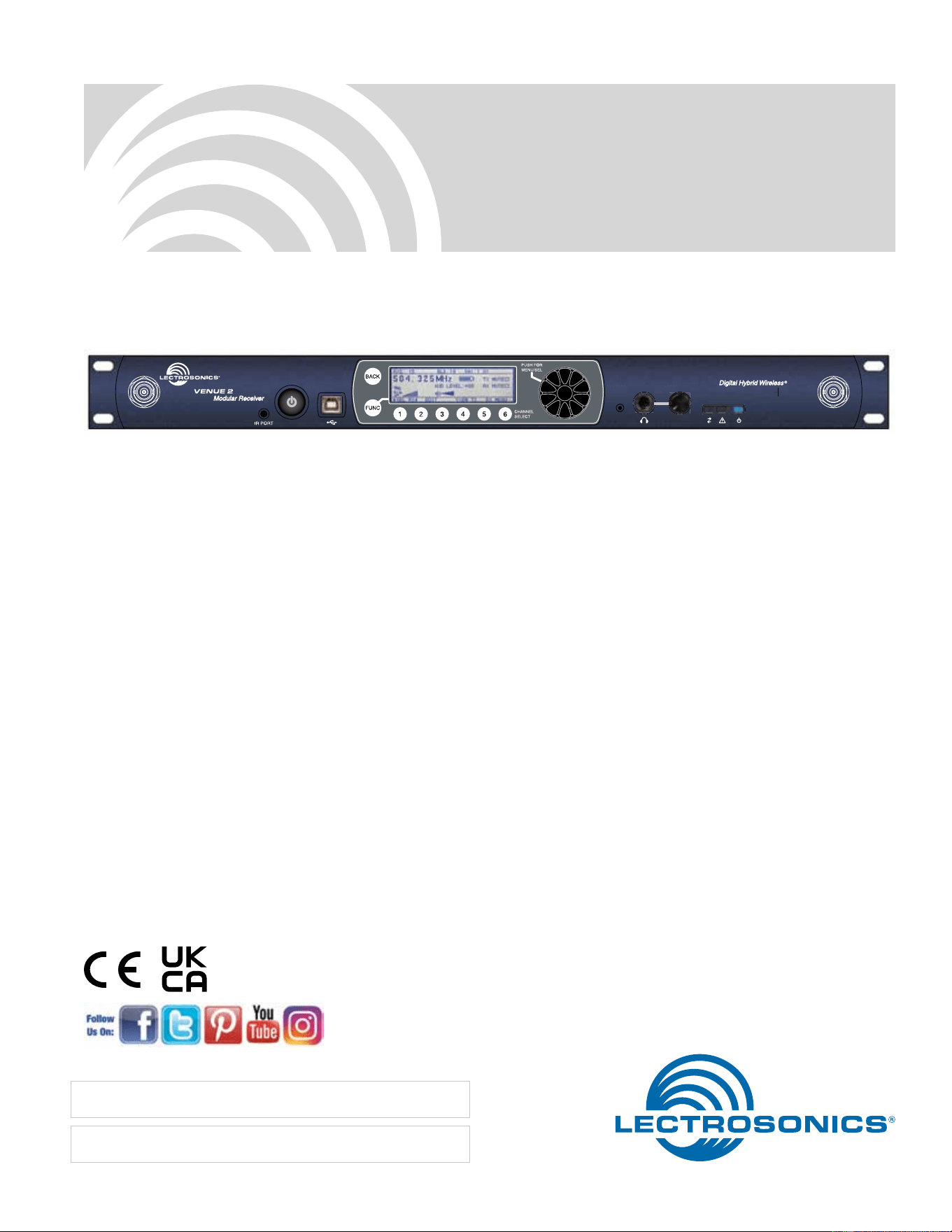
Venue 2 Modular Receiver
INSTALLATION GUIDE
Rio Rancho, NM, USA
www.lectrosonics.com
Fill in for your records:
Serial Number:
Purchase Date:
Hardware/Software Installation and Conguration
Essential Setup Steps for Operation
1) Install receiver modules, connect antennas and power supply
2) Install transmitter batteries and antennas
3) Identify and set operating frequencies on the receiver using
Smart Tune
TM
and set frequencies on the transmitters
4) Attach microphones and adjust transmitter input gain
5) Verify operation with a walk test through the area where the
system will be used
Two versions available:
VRM2WBL tunes bands A1, B1, B2 and C1 in tuning range 470.100 to 691.175 MHz
VRM2WBM tunes bands B1, B2, C1 and C2 in tuning range 537.600 to 716.700 MHz
Venue 2 Wideband Receiver
LECTROSONICS, INC.
2

Digital Hybrid Wireless
®
Modular Receiver System
Rio Rancho, NM, USA
3
FCC Notice:
Note: This equipment has been tested and found to comply with the limits for a Class B
digital device, pursuant to part 15 of the FCC Rules. These limits are designed to provide
reasonable protection against harmful interference in a residential installation. This equip-
ment generates, uses, and can radiate radio frequency energy and, if not installed and
used in accordance with the instructions, may cause harmful interference to radio com-
munications. However, there is no guarantee that interference will not occur in a particular
installation. If this equipment does cause harmful interference to radio or television recep-
tion, which can be determined by turning the equipment o and on, the user is encour-
aged to try to correct the interference by one or more of the following measures:
• Reorient or relocate the receiving antenna.
• Increase the separation between the equipment and receiver.
• Connect the equipment into an outlet on a circuit dierent from that to which the
receiver is connected.
• Consult the dealer or an experienced radio/TV technician for help.
Table of Contents
Introduction ...........................................................................4
Important Safety Instructions .............................................5
Front Panel ............................................................................ 6
Rear Panel ............................................................................. 7
Hardware Installation ...........................................................8
Receiver Modules ..............................................................8
Rack Installation ................................................................8
Audio Outputs .................................................................... 8
Connections for Computer Interface and Serial Control .9
LCD Interface ......................................................................10
Top Menu ..........................................................................10
Rx Menu ...........................................................................10
Tx Menu ............................................................................10
Navigating the Menus ........................................................10
Using Setup Screens .......................................................... 11
Setup Details .......................................................................12
Direct Access to Receiver Setup ....................................12
Audio Output Levels Setup .............................................12
Diversity Pairing ............................................................... 13
Talkback Setup ................................................................14
Group Tuning ....................................................................14
About Active Alerts ..........................................................14
Top Menu SYSTEM INFO ................................................15
LOCALE Switch ................................................................15
Resetting to Factory Defaults ...........................................15
IR Transmitter Setup ..........................................................15
Smart Tune
TM
....................................................................... 16
Manual Scanning ................................................................16
Firmware Update ................................................................17
System Restore ..................................................................17
Wireless Designer Software and USB Driver ................... 18
Wireless Designer Software and USB Driver ................... 19
TOP MENU .......................................................................20
Menu Map ...........................................................................20
RX MENU .........................................................................22
Connecting to a Network ...................................................23
Multi-channel System Checkout .......................................24
Antennas .............................................................................25
Use and Placement ..........................................................25
Using Remote Antennas .................................................. 25
Front Mounted Antennas ...................................................26
Accessories and Common Replacement Parts ...............28
Remote Antennas ............................................................28
Coaxial Cable ................................................................... 28
Coaxial RF Amplifier ........................................................28
Common Replacement Parts ..........................................28
USB Cable ........................................................................ 28
Software Installer .............................................................28
Specications .....................................................................29
Service and Repair .............................................................30
Returning Units for Repair ...............................................30
Venue 2 Wideband Receiver
LECTROSONICS, INC.
4
Introduction
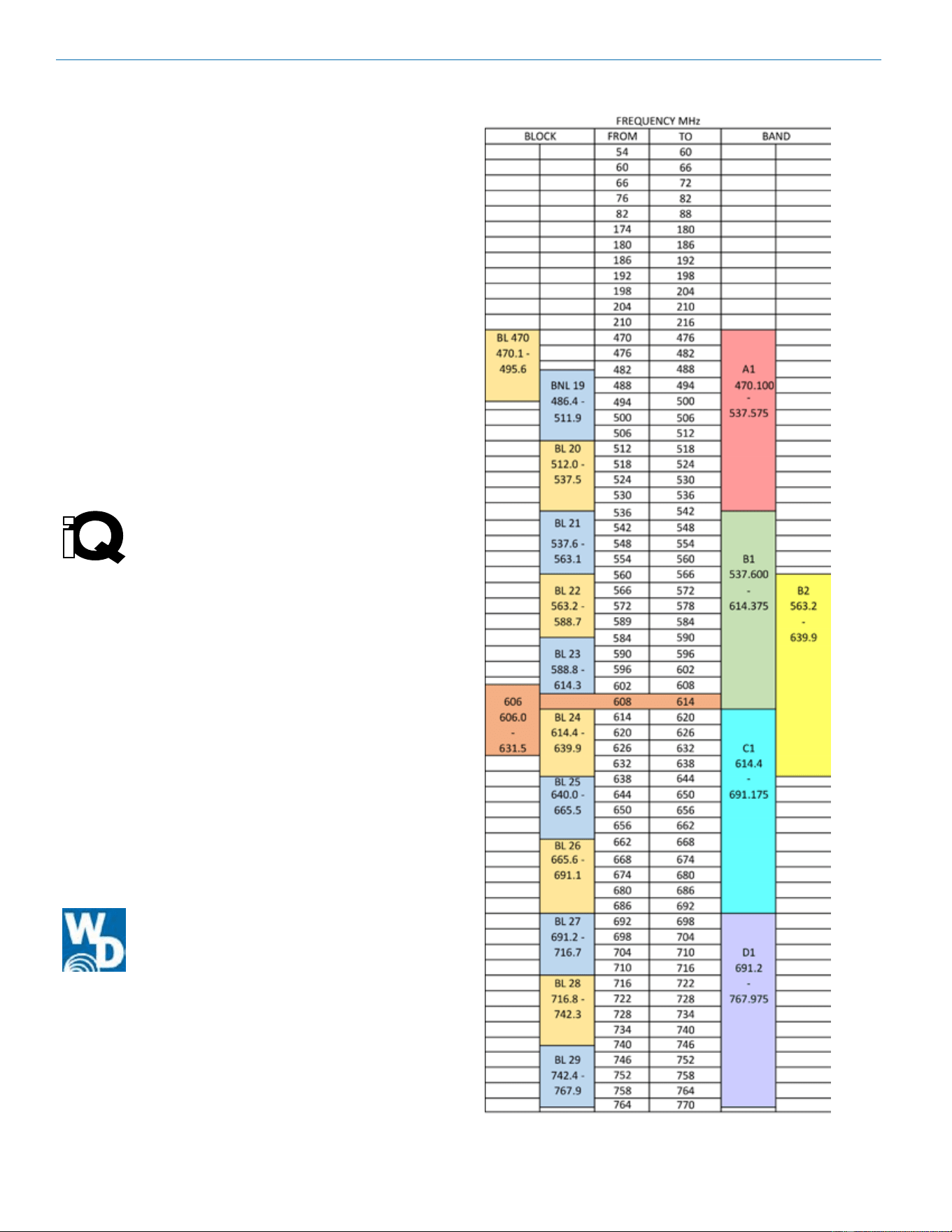
The Venue 2 Wideband receiver is a modular rack
mount design for use with a wide variety of transmitters
from Lectrosonics and other manufacturers. The VRM
host assembly covers three frequency bands, and the
VRT modules covers a single band (three Lectrosonics
blocks) as shown at right. VRT modules can be installed
in any combination or sequence within the three band
range of the host mainframe.
The Host Assembly
The Venue 2 mainframe assembly houses the power
supply, the antenna and RF distribution, the user inter-
face and control ports for up to six receiver modules.
With the modules sharing these resources, a signicant-
ly lower cost per channel is realized with no sacrice
in performance or quality. The built-in RF multicoupler
allows up to three mainframes to operate from a single
pair of antennas, for an additional cost savings in a
multi-channel system.
iQ Front-end Filtering
TM
Each receiver module features a tracking
front-end lter that travels across the
spectrum to stay centered on the selected
operating frequency. Under certain condi-
tions, the lter parameters change automatically to
minimize IM (intermodulation).
When the incoming RF signal is strong, the iQ lter
switches to a narrowband mode with greater loss for
additional suppression of signals above and below the
operating frequency. This mode is especially useful
in applications such as a live stage production where
transmitters are generally close to the receiver anten-
nas. In these conditions, IM is prevalent, but the signals
that generate it are signicantly reduced by the narrow-
band lter mode.
When the incoming RF signal level weakens, the lter
switches to a wider bandwidth mode for maximum sen-
sitivity and extended operating range. The lter tracks in
ne incremental steps so that it is accurately centered
on the operating frequency.
Wireless Designer Software
The software provides an overall view of the
system, including all mainframes connected.
The display is scalable to t and screen size
and several color themes are provided.
Frequency coordination is fast and thorough.
Scan data may be imported and used in the coordina-
tion. When individual carriers are moved manually, com-
patibility is instantly recalculated and displayed.
* Windows is a registered trademark of Microsoft Corp.
Vista is a trademark of Microsoft Corp.
Tuning Range Designation
Digital Hybrid Wireless
®
Modular Receiver System
Rio Rancho, NM, USA
5
This symbol, wherever it appears, alerts
you to the presence of uninsulated
dangerous voltage inside the enclosure --
voltage that may be sucient to consti-
tute a risk of shock.
This symbol, wherever it appears, alerts
you to important operating and mainte-
nance instructions in the accompanying
literature. Please read the manual.
When using your telephone equipment, basic safety
precautions should always be followed to reduce the
risk of re, electrick shock and injury to persons, includ-
ing the following:
1) Read these instructions.
2) Keep these instructions.
3) Heed all warnings.
4) Follow all instructions.
5) Do not use this apparatus near water.
6) Clean only with a dry cloth.
7) Do not block any ventilation openings. Install in
accordance with the manufacturer’s instructions.
8) Do not install near any heat sources such as ra-
diators, heat registers, stoves, or other apparatus
(including ampliers) that produce heat.
9) Do not defeat the safety purpose of the polarized
or grounding-type plug. A polarized plug has two
blades with one wider than the other. A ground-
ing type plug has two blades and third ground-
ing prong. The wider blade or the third prong are
provided for your safety. If the provided plug does
not t into your outlet, consult an electrician for
replacement of the obsolete outlet.
10) Protect the power cord from being walked on or
pinched particularly at plugs, convenience re-
ceptacles, and the point where they exit from the
apparatus.
11) Only use attachments/accessories specied by
the manufacturer.
12) Use only with the cart, stand,
tripod, bracket, or table specied
by the manufacturer, or sold with
the apparatus. When a cart is
used, use caution when moving
the cart/apparatus combination to
avoid injury from tip-over.
Important Safety Instructions
13) Unplug this apparatus during lightning storms or
when unused for long periods of time.
14) Refer all servicing to qualied service person-
nel. Servicing is required when the apparatus has
been damaged in any way, such as power-supply
cord or plug is damaged, liquid has been spilled
or objects have fallen into the apparatus, the
apparatus has been exposed to rain or moisture,
does not operate normally, or has been dropped.
15) WARNING -- TO REDUCE THE RISK OF FIRE
OR ELECTRIC SHOCK, DO NOT EXPOSE THIS
APPARATUS TO RAIN OR MOISTURE.
16) The AC mains plug, or appliance coupler shall
be readily available to the operator as a means of
power disconnection, if applicable.
17) Unit shall be connected to a MAINS socket out-
let with a protective earthing connection.
18) Do not use this product near water for example,
near a bathtub, washbowl, kitchen sink or laundry
tub, in a wet basement or near a swimming pool.
19) Avoid using a telephone (other than a cordless
type) during an electrical storm. There may be a
remote risk of electric shock from lightning.
20) Do not use the telephone to report a gas leak in
the vicinity of the leak.
21) Use only the power cord and batteries indicated
in this manual. Do not dispose of batteries in a
re. They may explode. Check with local codes
for possible special disposal instructions.
22) “CAUTION: To reduce the risk of re, use only
No. 26 AWG or larger (e.g., 24 AWG) UL Listed or
CSA Certied Telecommunication Line Cord”
SAVE THESE INSTRUCTIONS
Venue 2 Wideband Receiver
LECTROSONICS, INC.
6
Front Panel
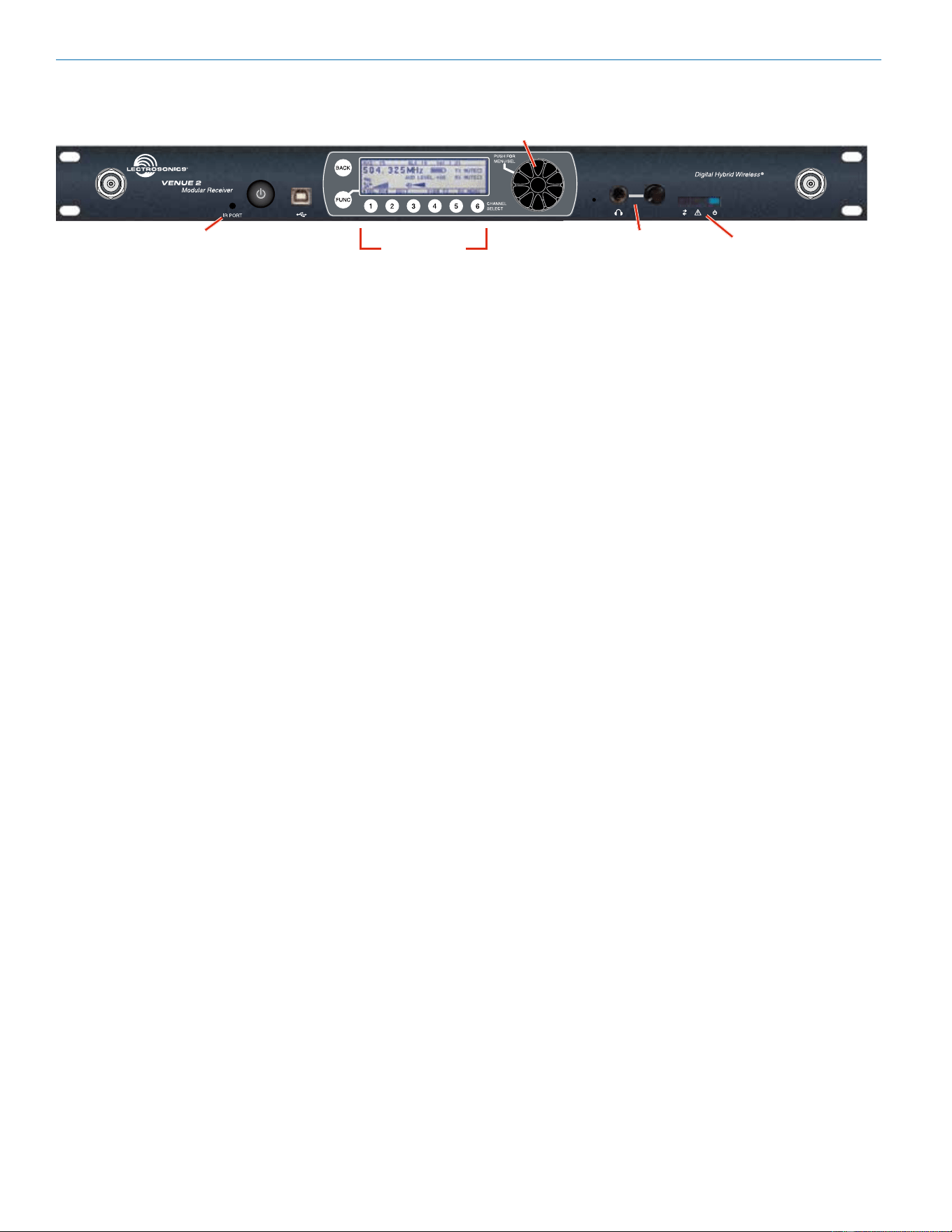
Receiver select
buttons
Rotary encoder
Alert indicators
Headphone
monitor
Infrared port
The Venue 2 receiver mainframe (VRM2) serves as a
“host assembly” for up to six receiver modules. The
tracking receiver module (VRT2) can be mixed and
matched in the assembly in any combination to suit the
needs of various applications.
The mainframe front panel provides an LCD for system
setup, monitoring and troubleshooting. During normal
operation, the LCD shows RF and audio levels, diversity
status, pilot tone status (where applicable) and transmit-
ter battery status (in certain modes) for all six receivers
at the same time. Individual screens for each receiver
provide additional information and adjustments.
A built-in analyzer scans the tunable spectrum of the
receiver to assist in nding clear operating frequencies.
The spectrum scan data is presented in a graphical for-
mat on the LCD.
POWER Button
Turns the power on and o. A brief press also clears
the spectrum scan data after the spectrum analyzer has
been used. Press and hold the button for a few seconds
to turn the unit o.
Function Button
Used for various functions in selected Setup Screens as
labeled on the LCD.
BACK Button
The Back Button is used to return to the previous menu
or setup screen.
LCD Screen
The LCD is a backlit, graphics-type Liquid Crystal Dis-
play used to set up and monitor system operation.
Receiver Select Buttons
The six Receiver Select Buttons are used to select indi-
vidual installed receiver modules, for monitoring via the
PHONES jack and for setup and adjustment.
PUSH FOR MENU/SELECT Rotary Control
This control, called the MENU/SELECT control for
short, is a pushbutton switch and rotary knob used for
navigating and selecting setup menus and screens,
and for selecting parameters within the setup screens.
PHONES Jack and LEVEL Control
The LEVEL control is used to adjust the output level
of the front panel PHONES jack for individual chan-
nel monitoring. It does not aect the output levels at
the rear panel XLR jacks. Only the audio from a single
receiver (or a diversity pair) selected via the Receiver
Select Buttons will be present at this jack.
The PHONES jack can also be used as an audio output
for recording when using the Walk Test Recorder fea-
ture in Wireless Designer.
For more information on the Walk Test Recorder, see
our tutorial at: https://tinyurl.com/yo7q34wr.
Digital Hybrid Wireless
®
Modular Receiver System
Rio Rancho, NM, USA
7
Rear Panel
( )
( )
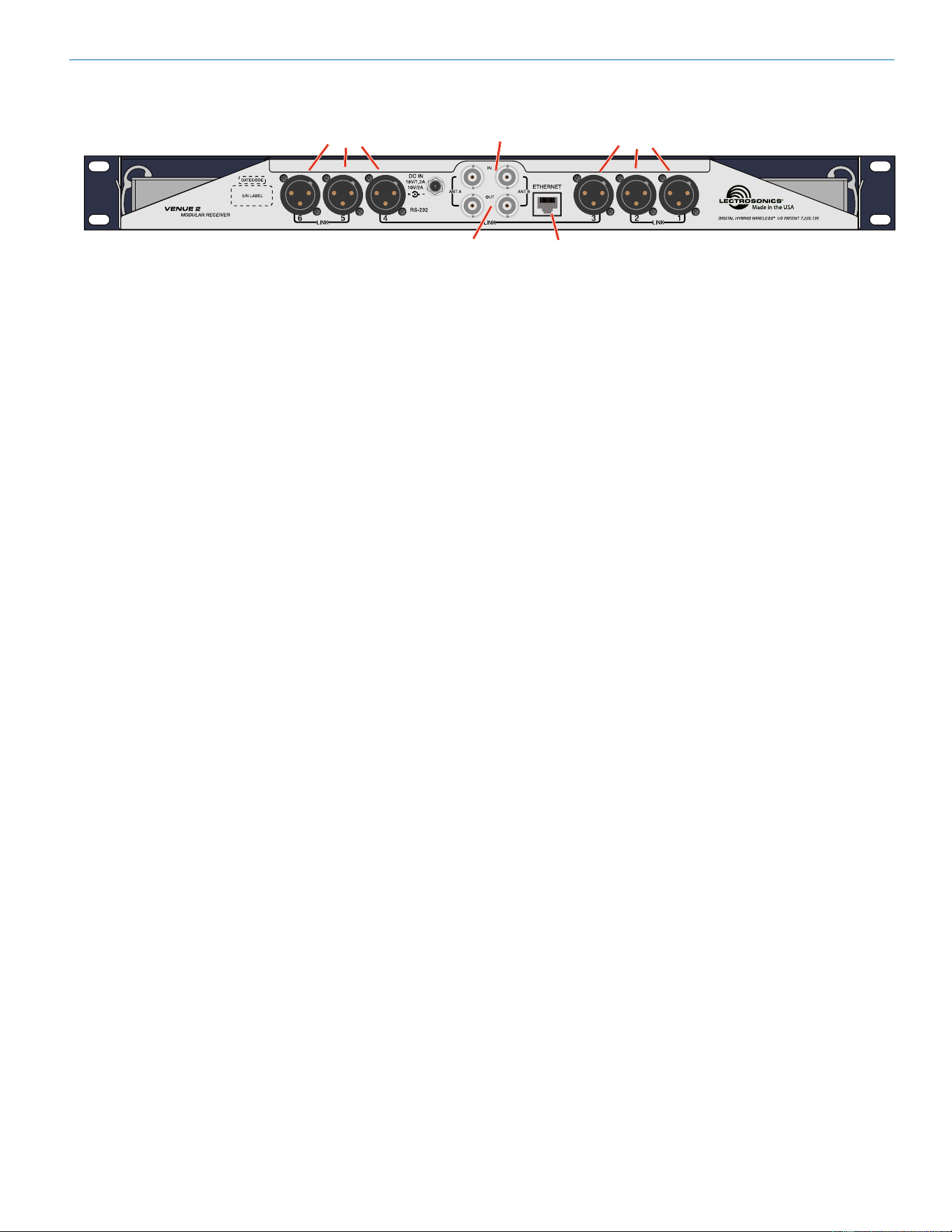
Antenna inputs
Antenna outputs
(loop thru)
Network control
interface
Balanced audio
outputs
Balanced audio
outputs
The rear panel provides six balanced XLR audio outputs,
antenna inputs, “loop thru” antenna outputs from an
internal multicoupler, a power jack with a locking con-
nector, plus USB and RS-232 serial ports for setup and
control.
Receiver Modules
Up to six receiver modules can be installed in each main-
frame. Spring tensioned clips retain the receiver modules
to maintain secure connections with the host assembly.
Audio Outputs
Six balanced XLR audio output jacks connect the Venue
receiver to external equipment. By default, pin 2 is audio
pos (+). The polarity of each output can be reversed in
the LCD setup menus or with the software.
Power Input
The receiver is powered from +10 VDC to +18 VDC, with
the center pin of the connector positive (+). The input is
diode protected to prevent damage if the power is ac-
cidentally applied with reversed polarity. The connector
includes a threaded locking sleeve.
RS-232 Port
A serial RS-232 interface is provided for setup and con-
trol of a Venue 2 system from computers or other devices
using industry standard RS-232 communication links.
Antenna Inputs
The two outermost BNC connectors are provided for
use with right-angle whip antennas, cables from re-
mote antennas, or cables from another Venue receiver.
DC voltage can be supplied on these connectors from
an internal source to power remote RF ampliers. The
power is enabled via the front panel menu.
See the section on Antenna Use and Placement for
details.
Multicoupler Outputs
The built-in antenna multicoupler provides RF distribu-
tion for the six receiver modules and a “loop thru” out-
put at the same level to deliver the RF signal to another
Venue 2 receiver. The second receiver can then feed a
third receiver and so on, to create a “stack” that oper-
ates with a single pair of antennas. The result is very
ecient use of rack space and a cost savings by not
having to purchase a separate antenna multicoupler.
USB Port
Standard USB Version 1.1 port for setup and control of
the receiver from computer systems using
Windows® Vista
TM
, Windows 7/8/10 or Mac OSX oper-
ating systems.
Venue 2 Wideband Receiver
LECTROSONICS, INC.
8
slot in the side panel.
3. Pull outward on the module to release the con-
nector and then lift it upward out of the chassis.
Holes in the underside of the chassis allow you to
grip the module on the top and bottom.
Rack Installation
1. Mount the receiver modules in the desired rack
location(s). There are no special ventilation re-
quirements.
2. Connect the antennas or coaxial cables to the
antenna upper input connectors on the rear panel.
Note: The frequency bandwidth of the
antennas must cover the range of the modules
in use.
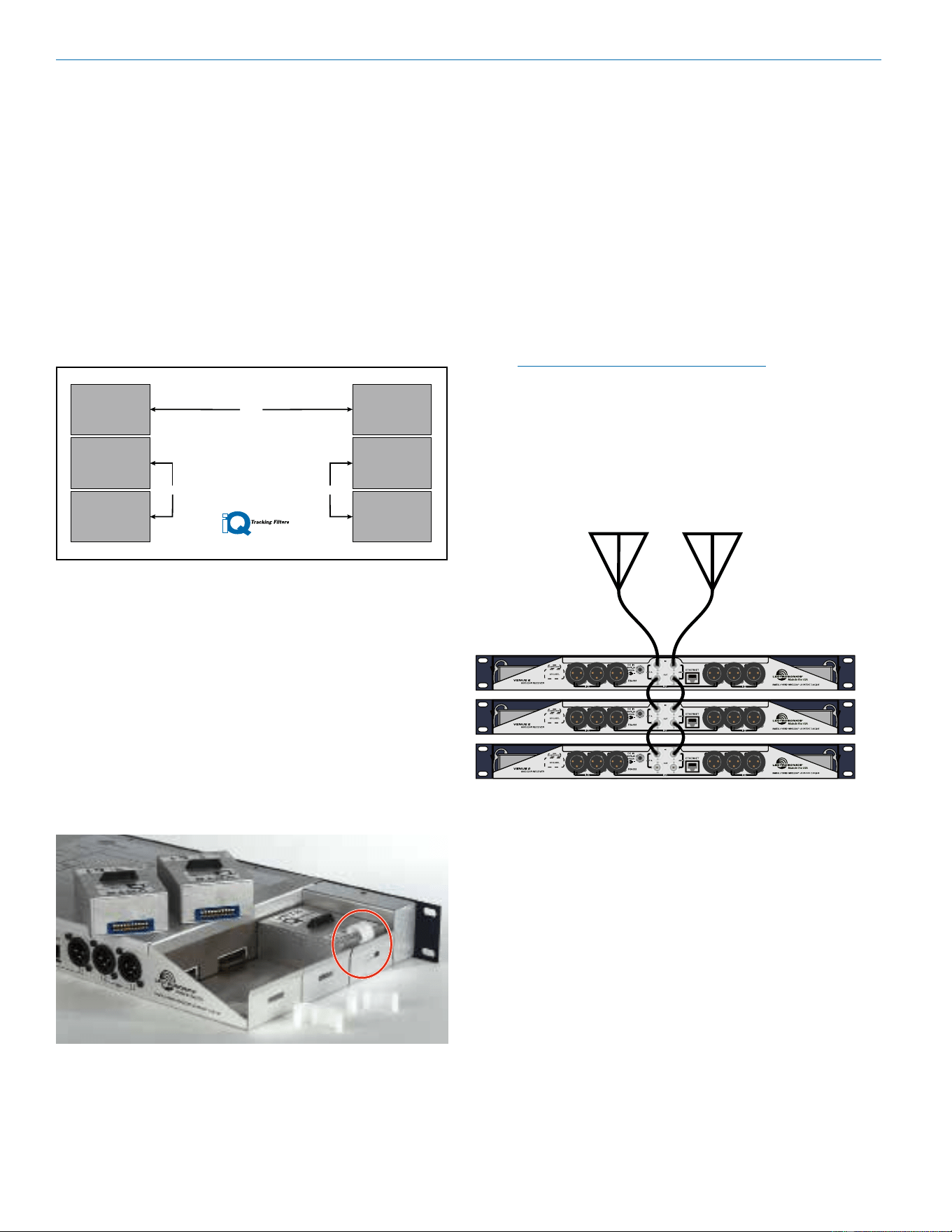
3. For multiple unit installations, a “loop thru” is
available to feed two or three receivers from a
single antenna pair. Connect coaxial cables from
the multicoupler outputs on the rst receiver to
the antenna inputs on the next receiver in the
stack.
( )
( )
( )
( )
( )
( )
The upper connectors are the inputs connected
to the antennas on the rst unit in the stack. The
lower connectors are the outputs that feed the
next assembly in the rack.
4. Plug the power supply into a suitable outlet and
plug the power connector into the Power Input
Jack.
5. Turn down the audio inputs on all the externally
connected equipment, then connect cables to the
appropriate Audio Output XLR Jacks.
Hardware Installation
Receiver Modules
All modules must be within the frequency passband of
the host assembly. Frequency bands are marked on the
receiver modules.
When a module is set for Smart Diversity (antenna
phase switching), receiver modules can be installed in
any position in the mainframe chassis.
For ratio diversity operation, the module pair must be
on the same frequency band and positioned adjacent
to one another in the assembly as shown in the diagram
on top of the mainframe chassis. This will enable Opti-
Blend
TM
panning to mix the audio from the two modules.
TM
Ratio Diversity Opti-Blend
TM
Channel Pairing
LINK
LINK
4
5
6
3
2
1
LINK
Installing Receiver Modules
Turn the power o.
The receiver modules interface with the main assembly
through multi-pin connectors on either side of the chas-
sis. Insert the module straight down and then slide it to-
ward the main housing to insert the connector pins. The
module should sit ush against the side of the housing.
Caution: Make sure the connectors align correctly. Do
not force the module onto the tab. Excessive force may
damage the connectors.
Align the ridge on the retaining clip with the slot in the
chassis and press the clip downward until the ridge
snaps into the slot in the side panel.
Removing Receiver Modules
1. Turn the power o.
2. Gently pull outwards on the side panel and push
the top of the clip sideways to release it from the
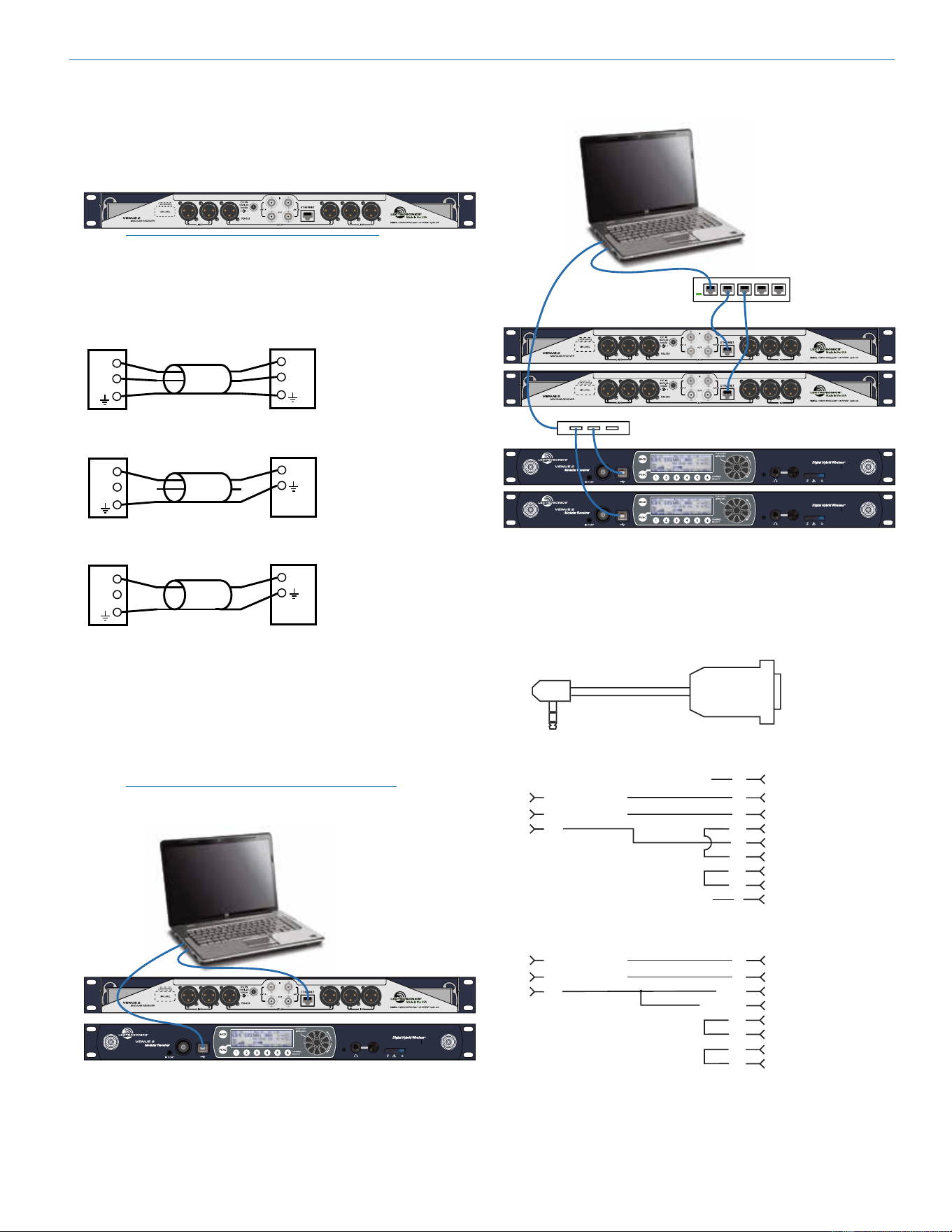
Digital Hybrid Wireless
®
Modular Receiver System
Rio Rancho, NM, USA
9
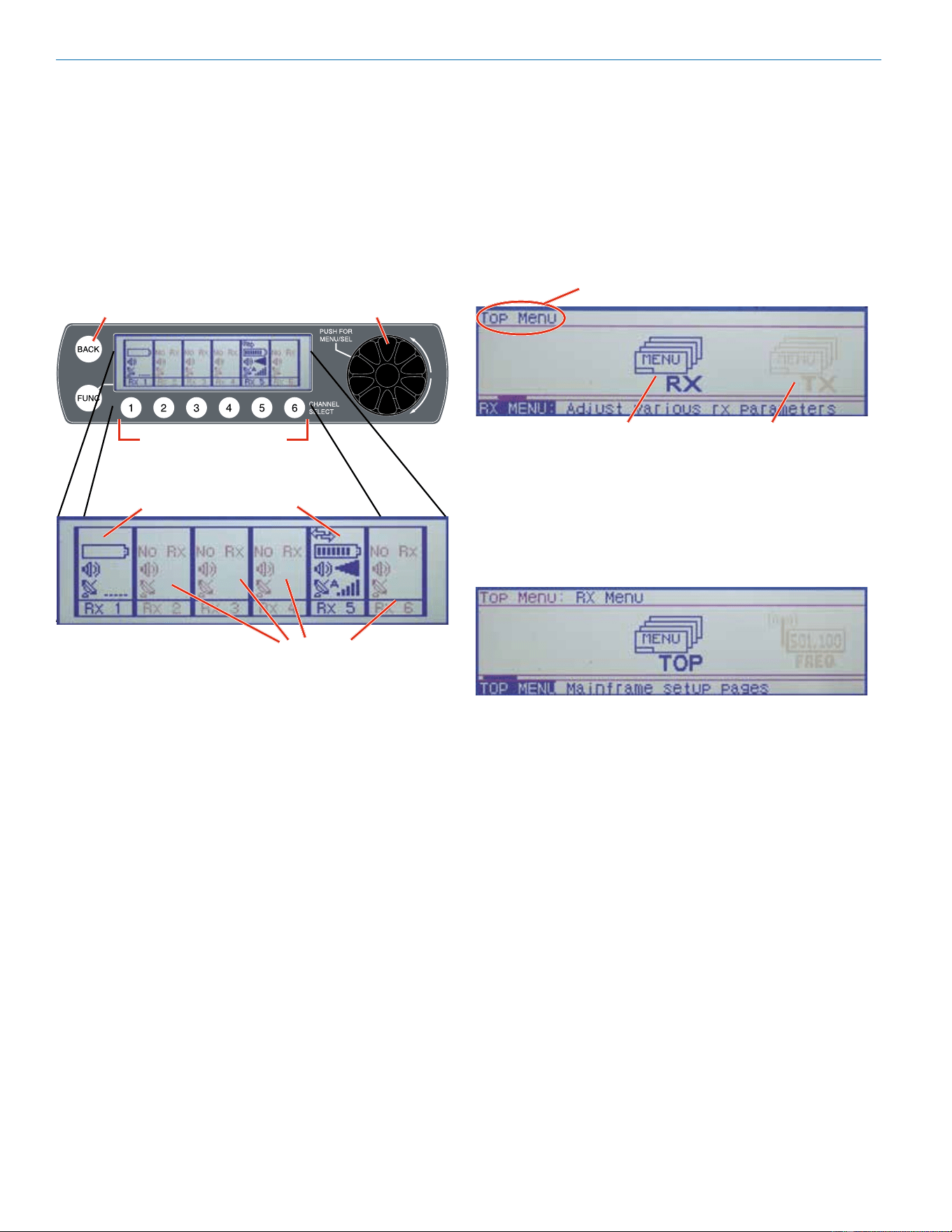
Audio Outputs
Balanced XLR audio outputs on the rear panel can be
used to drive balanced or unbalanced inputs at line level
on any type of mixer, recorder or other type of audio
equipment.
( )
( )
Note: When the modules are paired for
diversity operation, the audio will appear at
both XLR jacks associated with the module
pair.
(+)
1
(-)
SHIELD
SHIELD
(+)
(-)
2
3
(+)
1
(-)
SHIELD
SHIELD
(+)
2
3
(+)
1
(-)
SHIELD
SHIELD
(+)
2
3
Venue
Output
Audio
Input
Balanced with 3-wire cable
Unbalanced with 3-wire cable
Unbalanced with 2-wire cable
Connections for Computer Interface and
Serial Control
USB and Ethernet
Connection to a computer is normally made via the USB
or Ethernet ports. Multiple units are easily connected
using a USB hub or a network switch.
NOTE: Audio is not passed through these
ports. They are used only for setup and control.
( )
( )
Ethernet
USB
( )
( )
( )
( )
Router/Switch
USB hub
RS-232
A computer or control interface can also be made via
the RS-232 serial port on the rear panel. The connector
is a 3.5 mm TRS type. Wiring to 9-pin and 25-pin D-Sub
connectors is as follows:
S
R
T
Wiring Diagram, 9 Pin D-Sub
N/C CD
LecNet Device Transmit
RX
Tip
LecNet Device Receive
TX
Ring
Gnd
Gnd
Slee
ve
DTR
DSR
RTS
CTS
Wiring Diagram, 25 Pin D-Sub
N/CRI
LecNet Device Transmit
RX
Tip
LecNet Device Receive
TX
Ring
Gnd
Chassis Gnd
Slee
ve
Sig Gnd
RTS
CTS
DSR
DTR
LecNet Port
9 or 25 Pin Female
D - Subminiature
1
2
3
4
5
6
7
8
9
3
2
7
1
4
5
6
20
Host
Serial
Port
(PC)
Host
Serial
Port
(PC)
LecNet Port
3.5 MM
Stereo Plug
LecNet Device to PC
Venue 2 Wideband Receiver
LECTROSONICS, INC.
10
LCD Interface
When the receiver is turned on, LCD will show the mod-
el number, rmware version and serial number during
the boot sequence. When the sequence is completed,
the Main Window will display the status and activity of
the installed receivers.
Setup and monitoring can be done directly on the front
panel keypad interface. It is worthwhile to become fa-
miliar with the front panel controls even if you only use it
for monitoring and to check settings.
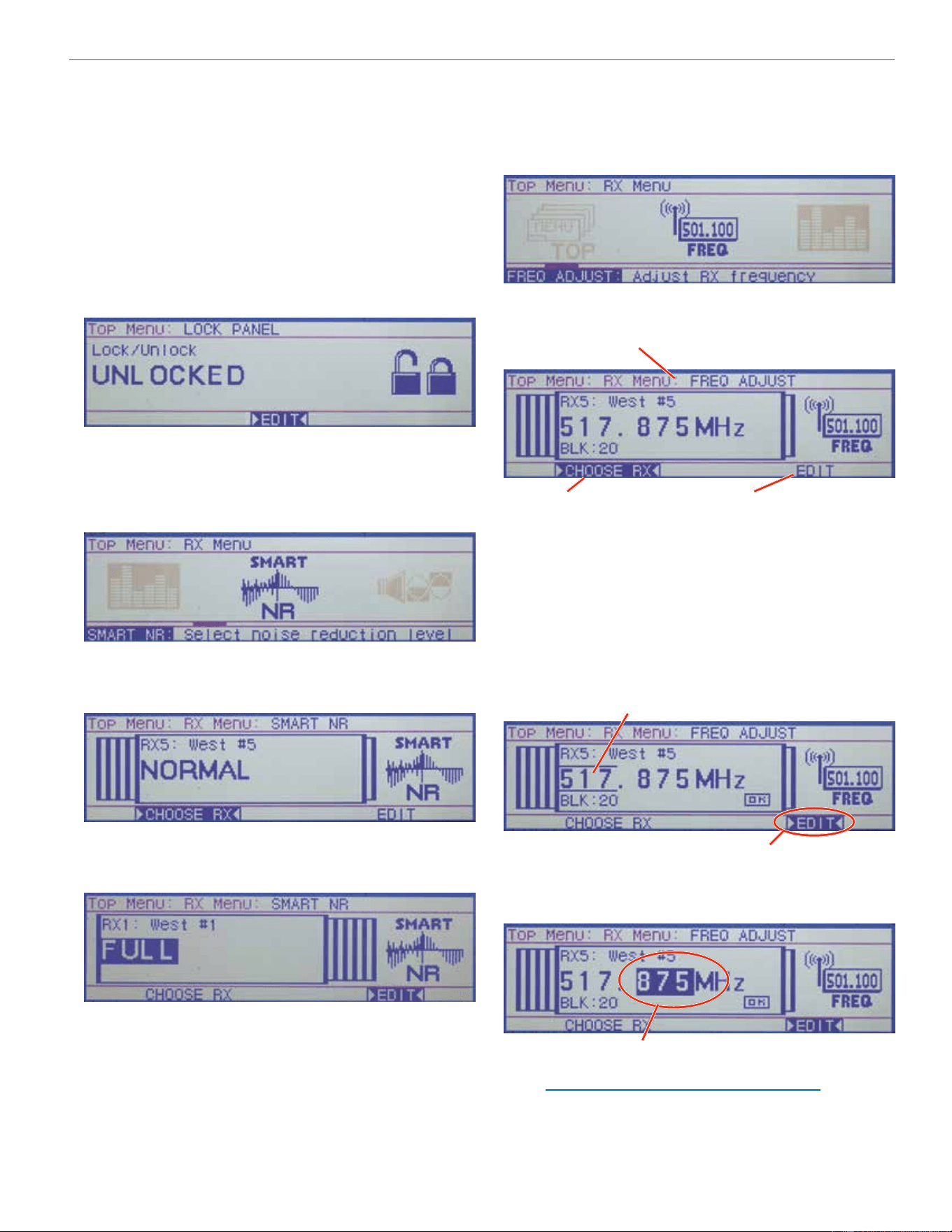
Receiver select buttons
Receiver
installed,
no Tx active
Receiver
installed,
Tx active
No receivers installed
BACK button
Rotary encoder
The menu structure is comprehensive but easy to
navigate. Three menus provide easy access to setup
screens and monitoring.
Top Menu
These are the system level settings that are common to
all channels.
Rx Menu
Each receiver module has unique settings
Tx Menu
The settings for transmitters with IR ports can be cong-
ured in the receiver and then transferred to the transmit-
ters via the IR ports.
Navigating the Menus
Three menus are provided for complete system setup:
• Top Menu for overall system settings
• RX Menu for setup of the receiver modules
• TX Menu for setup of the transmitters
Press the rotary encoder to enter the menu system. The
rst screen that appears is the Top Menu with links to
the RX (receiver) and TX (transmitter) menus.
Selected menu is shown at top left
Link to RX Menu
Link to TX Menu
Turn the rotary encoder to navigate through the avail-
able items. The selected item appears highlighted in
the center of the LCD. Press the rotary encoder to enter
the setup screen for the selected item, or navigate to
another menu.
The rst item that appears in the RX and TX menus is a
link back to the top menu.
Refer to the Menu Map on the following pages for a list-
ing and descriptions of all menu items.
Digital Hybrid Wireless
®
Modular Receiver System
Rio Rancho, NM, USA
11
Using Setup Screens
When a menu item is selected, a setup screen will open
to enable adjustments and settings to be made. The
setup screen may be for a simple, two-state setting
like Lock/Unlock, or may provide a display that allows
scrolling through the available receiver modules and
options, or include multiple settings. Examples of the
various screen types are presented below.
The Lock/Unlock screen is typical of the single item
screens. Simply press the encoder to highlight EDIT,
then rotate the encoder to select the value or setting.
Press the rotary encoder to highlight the EDIT function and
rotate the encoder to change the value.
Multiple item setup screens like the Smart NR (Smart
Noise Reduction) example below allow scrolling through
the options in a “stacked” arrangement.
In this example, rotate the encoder to point at CHOOSE
RX, then press the encoder to highlight it. Rotate the
encoder to select the desired receiver.
After selecting the receiver, press the encoder and ro-
tate it to select EDIT. The noise reduction mode will be
highlighted. Rotate the encoder to the desired mode.
NOTE: The RX and TX Menus present multiple
item setup screens like the above example,
where the same setting can be made on
multiple channels. Some setup screens in the
Top Menu allow scrolling through multiple
parameters in the same manner as the above
example.
The FREQ ADJUST setup screen in the RX Menu
shown here is another type of a multiple module setup
screen. The dierence from the previous example is that
this type presents multiple settings within each receiver
setup screen.
When the setup screen opens, a “stack” of the installed
modules will be presented.
Top bar lists the current menu and screen
CHOOSE RX allows scroliing
through receiver “stack”
EDIT allows frequency to be
changed on selected receiver
Rotate the encoder to select CHOOSE RX and press
the encoder to highlight it. Rotate the encoder to select
the desired receiver module.
After the module is selected, press the encoder and ro-
tate it to select EDIT and press the encoder to highlight
it. Rotate the encoder to select the item to be edited
within the selected module.
The item to be edited is
enclosed in brackets
EDIT function highlighted
After the item is selected (brackets) press the encoder
to highlight it and rotate the encoder to adjust the set-
ting or value.
Item is highlighted for adjustment
NOTE: For frequencies above 607.950, see
Locale Switch section on Page 14.
Venue 2 Wideband Receiver
LECTROSONICS, INC.
12
Setup Details
Direct Access to Receiver Setup
Basic adjustments to each receiver can be made in a
single screen available with the numbered Receiver
Select button below the frame of each receiver. These
buttons operate only from the Main Window.
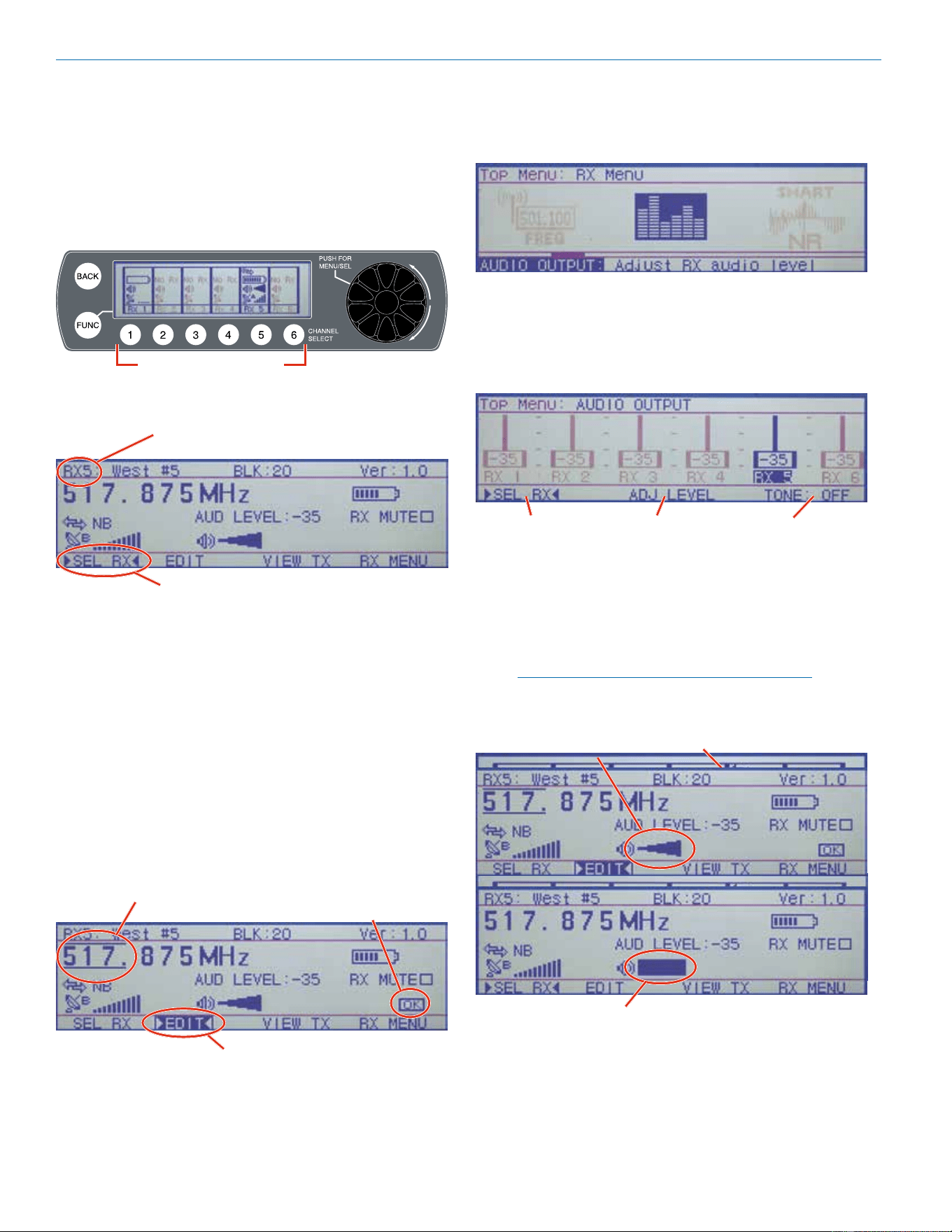
Receiver select buttons
A setup screen opens for that channel, with RF and
audio settings displayed.
Selected item indicated by brackets
Selected receiver
Rotate the Rotary Encoder to select the function at the
bottom of the screen, then press the encoder to enable
it.
• SEL RX highlights the function name, allowing the
selected receiver to be changed by rotating the
rotary encoder
• EDIT enables the items on the screen to be
changed. Rotate the encoder to select the item,
then press the encoder to highlight it and change
the value. Press the encoder again to deselect it
and navigate to other items
• VIEW TX displays the transmitter settings
• RX MENU switches the display to the receiver
setup menu
Function is highlighted
Press OK to
save settings
Ruled lines over and
under selected item
Press the encoder or BACK to deselect the item.
Audio Output Levels Setup
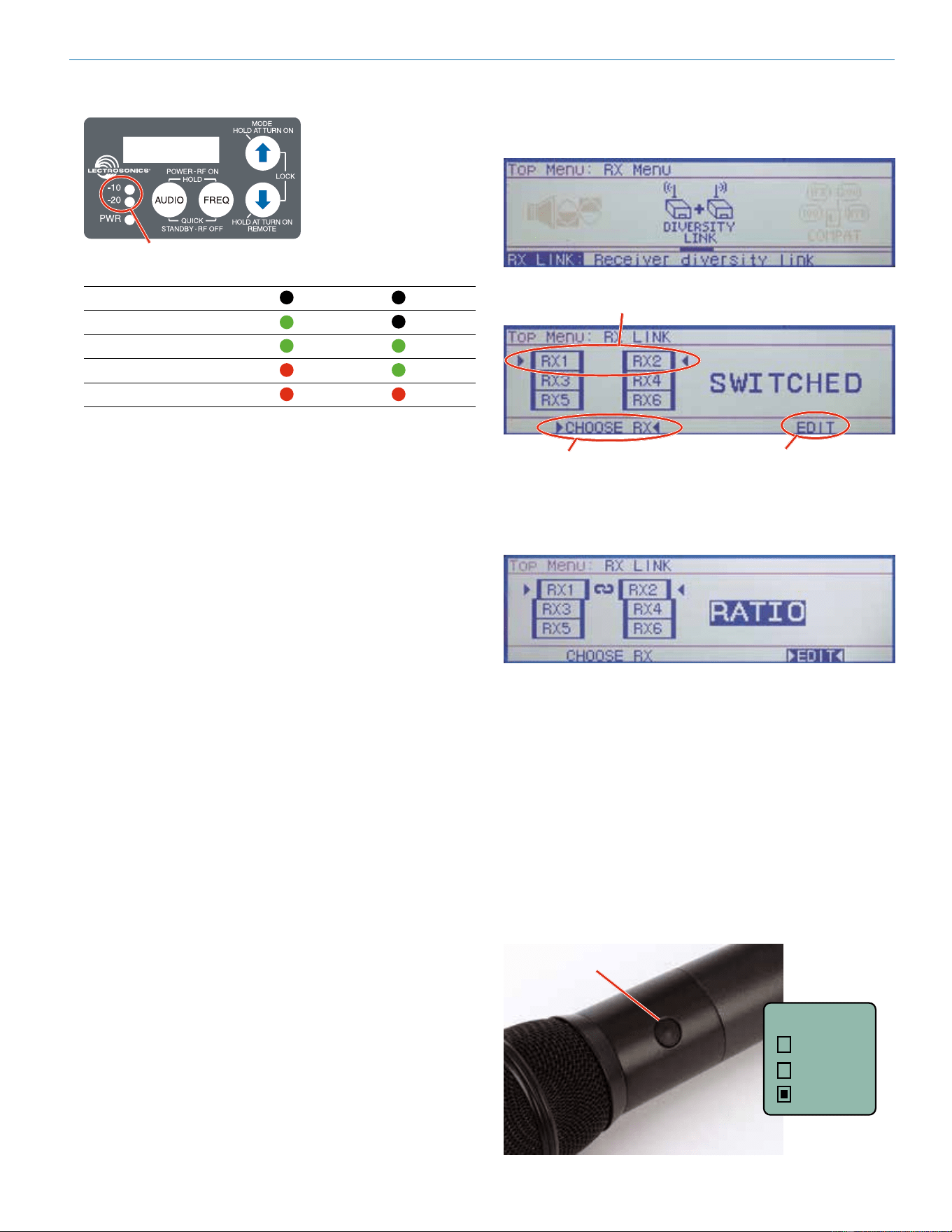
The output level of the installed receiver modules can be
adjusted in a single setup screen in the RX Menu.
Icons representing “sliders” are presented for level
adjustments. The level shown for each channel is ex-
pressed in dBu.
The items at the bottom of the screen are used for ad-
justment of the module output and for adjustment of the
mixer, recorder, etc. that is connected to the receiver.
Selects the receiver
to be adjusted
Allows adjustment
when highlighted
Tone output for
adjustment of
external device
When TONE is enabled, a 1 kHz tone is produced at the
output of the selected module. The tone simulates the
audio level that will be produced when the transmitter
on this channel is fully modulated.
The modulation level of the transmitter is displayed in
the Main Window and in the receiver setup screen.
NOTE: The tone will not generate the displays
shown below, since it is turned off when the
AUDIO OUTPUT setup screen is exited.
Modulation (audio level)
Full modulation (onset of limiting)
Modulation (audio level)
Full modulation (onset of limiting)
Digital Hybrid Wireless
®
Modular Receiver System
Rio Rancho, NM, USA
13
Transmitters also have modulation indicators such as
the LEDs on the SM Series models.
Modulation LEDs (audio level)
Signal Level -20 LED -10 LED
Less than -20 dB O O
-20 dB to -10 dB Green O
-10 dB to +0 dB Green Green
+0 dB to +10 dB Red Green
Greater than +10 db Red Red
Full modulation is achieved when the -20 LED rst turns
red. The output level of the receiver reaches maximum
at this point, when the limiter in the transmitter begins to
operate.
The output level control on the receiver is basically an
attenuator, so the signal to noise ratio changes very little
across the entire adjustment range.
Optimizing the Signal to Noise Ratio
Given the information above, the optimum signal to
noise ratio is achieved when the least amount of gain
is applied to the signal, since gain (amplication) is the
source of noise buildup.
The transmitter input preamp is the low noise gain stage
at the beginning of the signal chain. The ideal setup is to
have this be the only gain stage, and subsequent stages
be at unity (zero gain/loss). Attenuation (loss) in a subse-
quent stage is OK unless it requires another gain stage
to compensate for it.
1) Set the transmitter gain so that full modulation is
achieved on louder peaks in the audio
2) Set the receiver output level as high as possible
without overloading the connected device it is
feeding (mixer, recorder, etc.). Use a line level in-
put on the connected device whenever it is avail-
able. This minimizes the gain needed in the device
and maximizes the signal to noise ratio.
Diversity Pairing
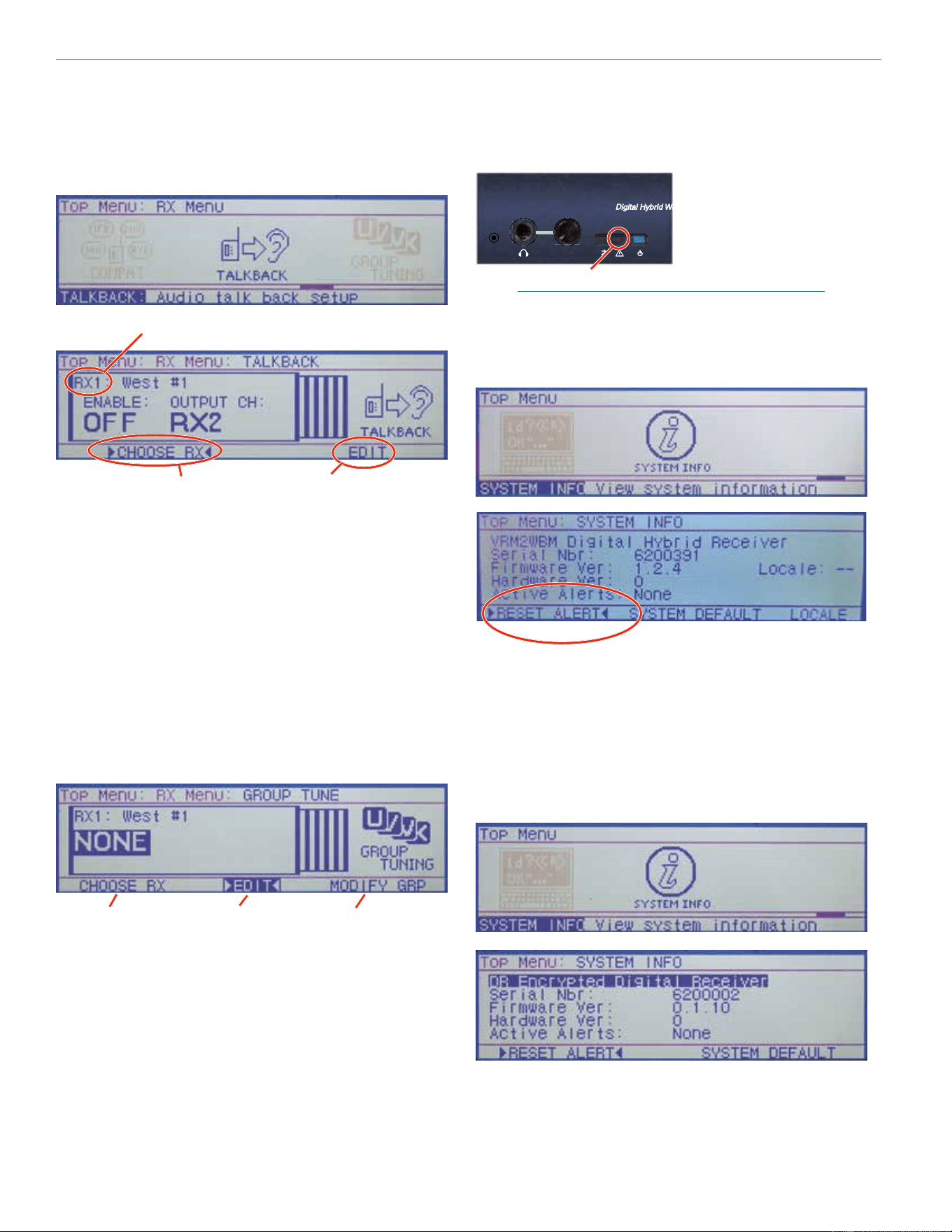
Navigate to the DIVERSITY LINK screen in the RX Menu.
Press the encoder to open the setup screen.
Highlight to select
receiver pair
Highlight to set diversity mode
of selected receiver pair
Selected receiver pair
marked by brackets
Select CHOOSE RX on the bottom of the screen and
rotate the encoder to select the desired pair. Highlight
EDIT and rotate the encoder to make the setting.
The receiver icons are arranged so that adjacent units
are paired when the RATIO mode is set. When the
SWITCHED mode is set, the units operate independent
of one another.
Talkback Setup
Talkback is a special function that re-directs the audio
output of the transmitter in use to a dierent receiver
module when a button is pressed on the transmitter.
The normal use is to provide a “com” channel so the
person using the transmitter can have a direct line to the
crew or production sta. The HH hand held transmitter
provides a programmable switch on the housing that
can be congured for this function. The switch function
is congured from the LCD menu on the transmitter.
Button
(none)
Mute
Ta lkBk
Programmable button
Venue 2 Wideband Receiver
LECTROSONICS, INC.
14
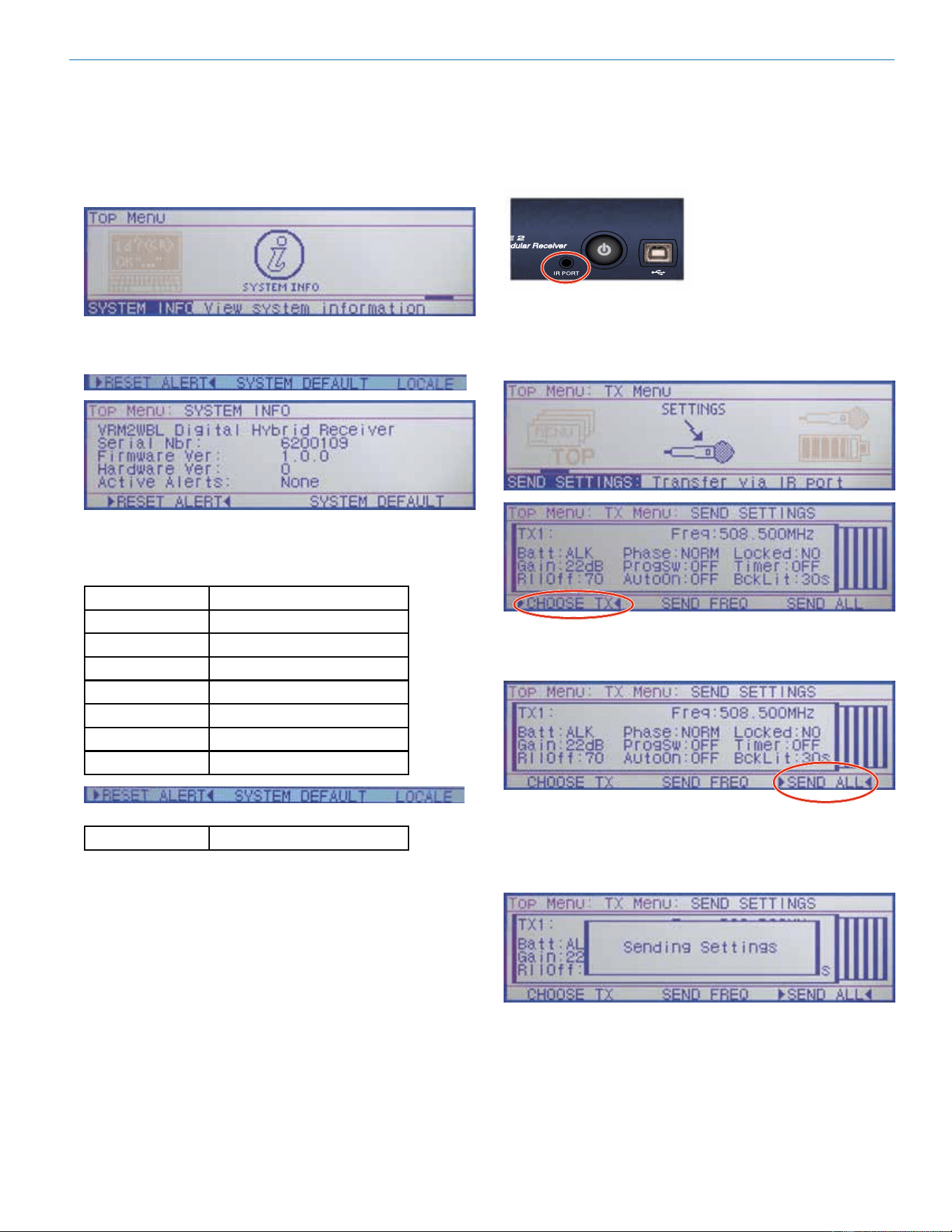
As long as the button is held in, the audio will appear at
the designated talkback channel rather than the channel
used for program audio. A simple setup screen in the
Venue 2 receiver makes it easy to designate channels
with this function enabled and which output will deliver
the talkback audio.
Selected receiver
(channel)
Highlight to select
the receiver
Highlight to
change settings
If multiple channels have talkback enabled and share
the same talkback channel, the audio outputs from all of
them will appear simultaneously (mixed) at the talkback
output channel if multiple buttons are pressed at the
same time.
Group Tuning
Up to 32 frequencies can be stored in each of four
groups labeled U, V, W and X. The groups are com-
monly used to make setup easier for specic locations
and purposes.
A setup screen is provided to assign each receiver to a
particular group. The group frequencies can be edited
by selecting MODIFY GRP.
Select the
receiver
Assign the
receiver to
group
Change frequencies
within a group
About Active Alerts
When a system fault occurs, such as a short in an an-
tenna input when antenna power is turned on, the alert
LED on the front panel will start blinking.
Alert LED
NOTE: In the case of shorted antenna input, the
antenna power will also be turned off.
When the Alert LED is blinking, navigate to the SYSTEM
INFO screen on the LCD to read and reset the alert
message.
A description of the fault will appear in the display. If
there is more than one fault, the highest priority ot most
recent will appear. When it is reset, the next one in the
list will appear.
Top Menu SYSTEM INFO
Firmware and hardware versions and the serial number
of the unit is listed in the SYSTEM INFO screen.
Digital Hybrid Wireless
®
Modular Receiver System
Rio Rancho, NM, USA
15
Resetting to Factory
Defaults
Navigate to SYSTEM INFO in the Top Menu and press
the encoder to enter the screen.
Highlight SYSTEM DEFAULT and press the encoder.
Highlight OK in the next pop-up screen and press the
encoder to restore the factory default settings.
The default settings are as follows:
Level +00 dBu
Phase NORMAL
TxBatt AA ALK
SmartNR NORMAL
Compat Dig. Hybrid
Tuning NORMAL MODE
DivMode Switched
LockSet NOT LOCKED
RxCh 8, 0
IR Transmitter Setup
The IR (infrared) port simplies transmitter setup by
sending the settings saved in the receiver to an IR en-
abled transmitter. The IR port is located on the receiver
front panel next to the power switch.
The transfer is initiated by the receiver. Navigate to the
SETTINGS item in the TX MENU and press the encoder
to open the setup screen. Select the desired transmitter
channel.
After the transmitter channel is selected, choose either
SEND FREQ to send only the frequency or SEND ALL
to send all settings that appear on the LCD.
Select either SEND FREQ or SEND ALL
Hold the transmitter with its IR port facing the receiver
front panel within two feet or so. Press the encoder to
start the transfer. The receiver LCD will display a mes-
sage during the transfer.
Conrmation that the transfer has been completed will
be displayed on the transmitter LCD.
Venue 2 Wideband Receiver
LECTROSONICS, INC.
16
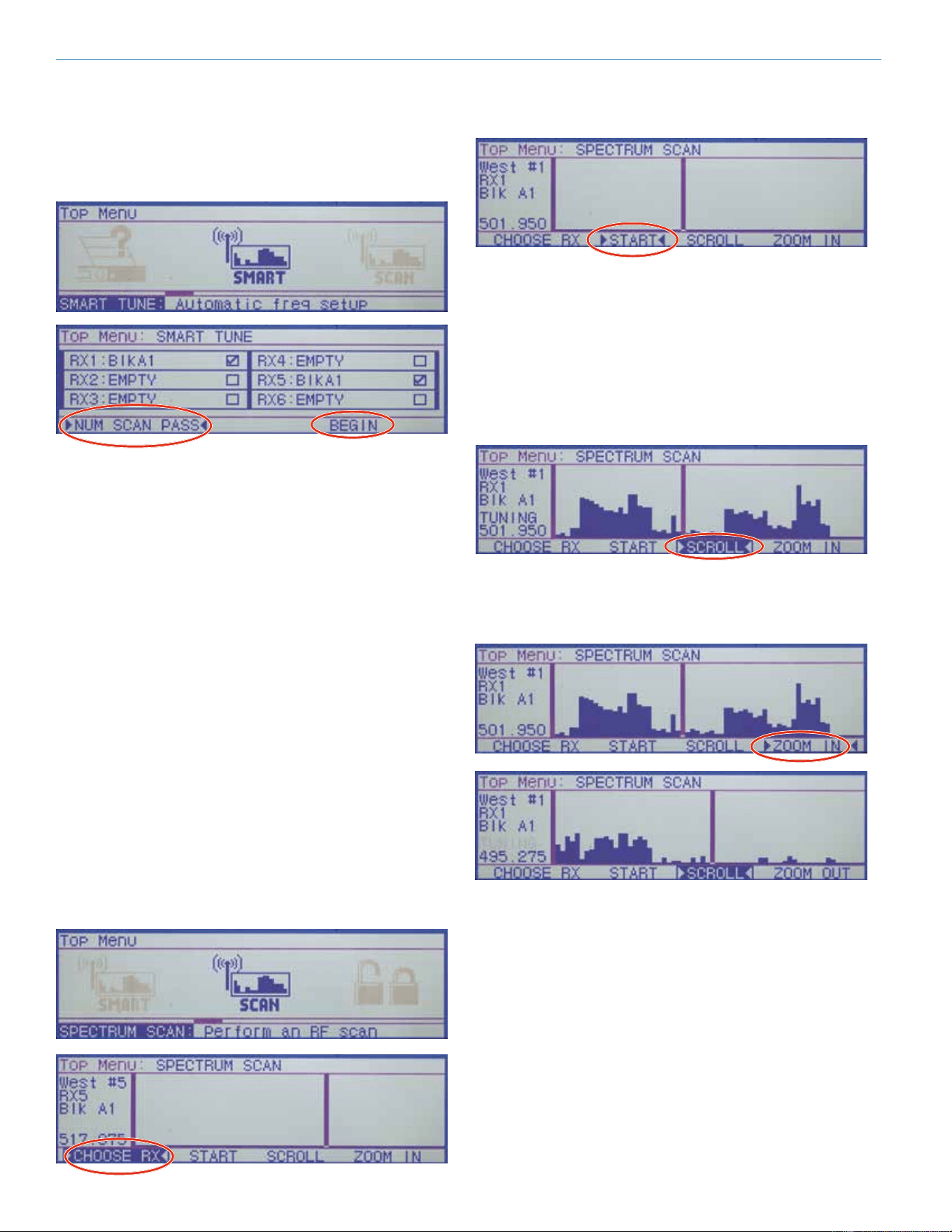
Smart Tune
TM
Clear frequencies can be discovered automatically us-
ing the SmartTune
TM
utility. Navigate to SMART TUNE in
the TOP MENU and press the encoder. A listing of the
installed receiver modules will appear.
The number of scan passes can be set from 1 to 10. A
single pass will identify xed RF signals such as televi-
sion broadcasts. Multiple passes stand a better chance
of catching intermittent signals or those that uctuate
in strength fairly often. Of course, multiple scans takes
more time, but it is a good idea if there is time for it.
Use the 6 buttons under the LCD to select the channels
to be included in the scans. Press each button to check
the corresponding box in the display (enable the chan-
nel) and press the button again to remove the check
mark (disable the channel).
Select BEGIN and press the encoder to start the scan-
ning process. RX1 (channel 1) will be scanned rst, and
when a clear frequency is identied, a pop up screen
will appear displaying the results and a prompt to turn
on a transmitter on the newly discovered frequency. An
option to send the settings to an
IR enabled transmitter is also presented on the
pop up screen.
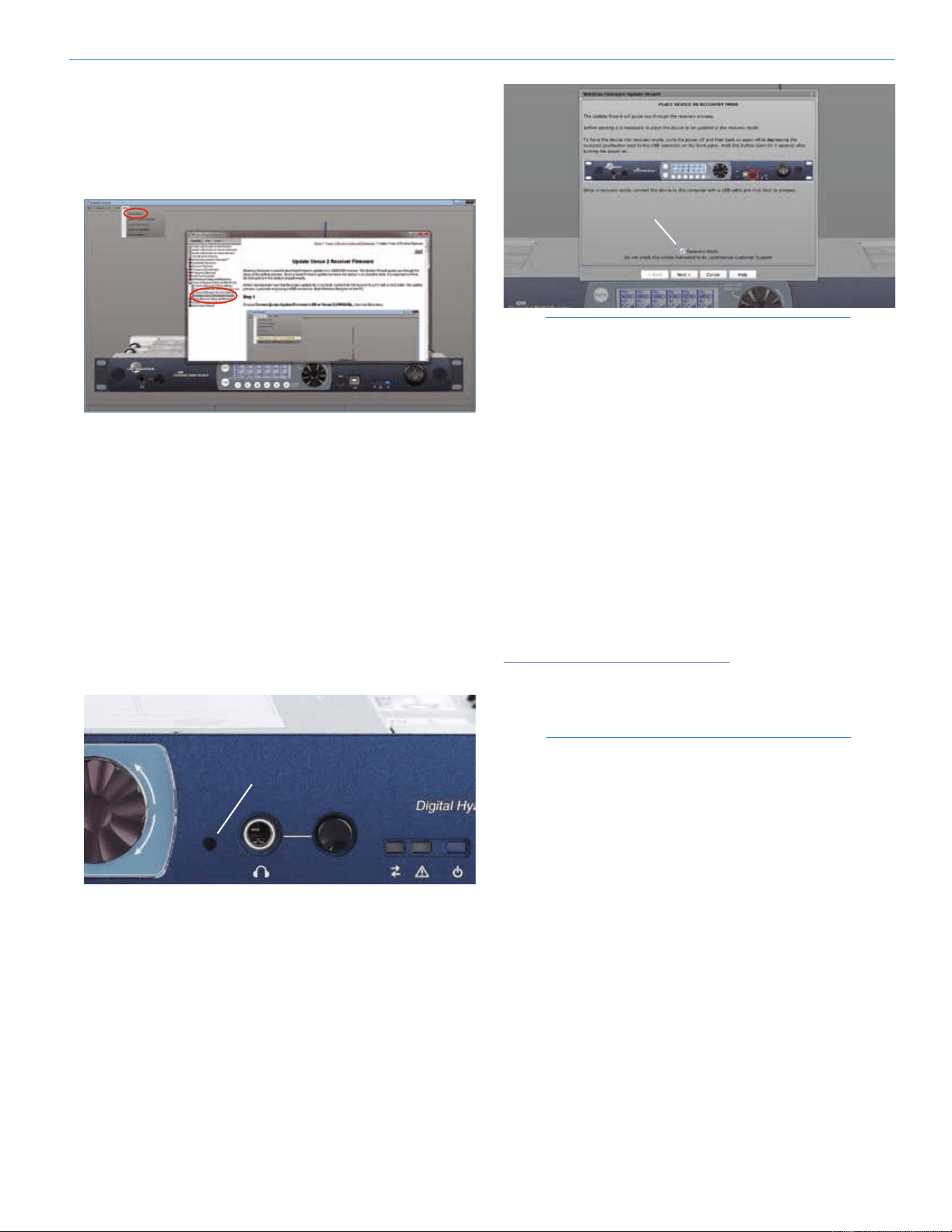
Manual Scanning
Spectrum scanning can be conducted manually to
research RF activity. Navigate to the SCAN item in the
TOP MENU and press the encoder. Then select the
receiver to use for the scan the icon shown below.
After selecting the receiver to use for the scan, select
START and press the encoder. The START item will
change to STOP while the scanning is taking place.
The scanning will build a graphical representation of the
RF activity within the tuning range of the receivers. The
scanning will take place from left to right and continue
repeating until STOP is selected and the encoder is
pressed, and the scanning is paused.
While paused, the spectrum can be manually explored
by scrolling through the display. Select and highlight
SCROLL and rotate the encoder to move the cursor
through the scan results.
For a closer view of the scan data, deselect SCROLL,
then select ZOOM IN and press the encoder. The dis-
play with magnify the scan results and the screen can
be scrolled in a close-up view.
To select a clear frequency, scroll to an area in the spec-
trum with little or no RF energy and press the BACK
button on the front panel. A pop up display will appear
prompting for a choice of OLD or NEW. Select NEW
to change the receiver to the frequency shown on the
display. The display with then return to the SCAN menu
item.
Digital Hybrid Wireless
®
Modular Receiver System
Rio Rancho, NM, USA
17
Firmware Update
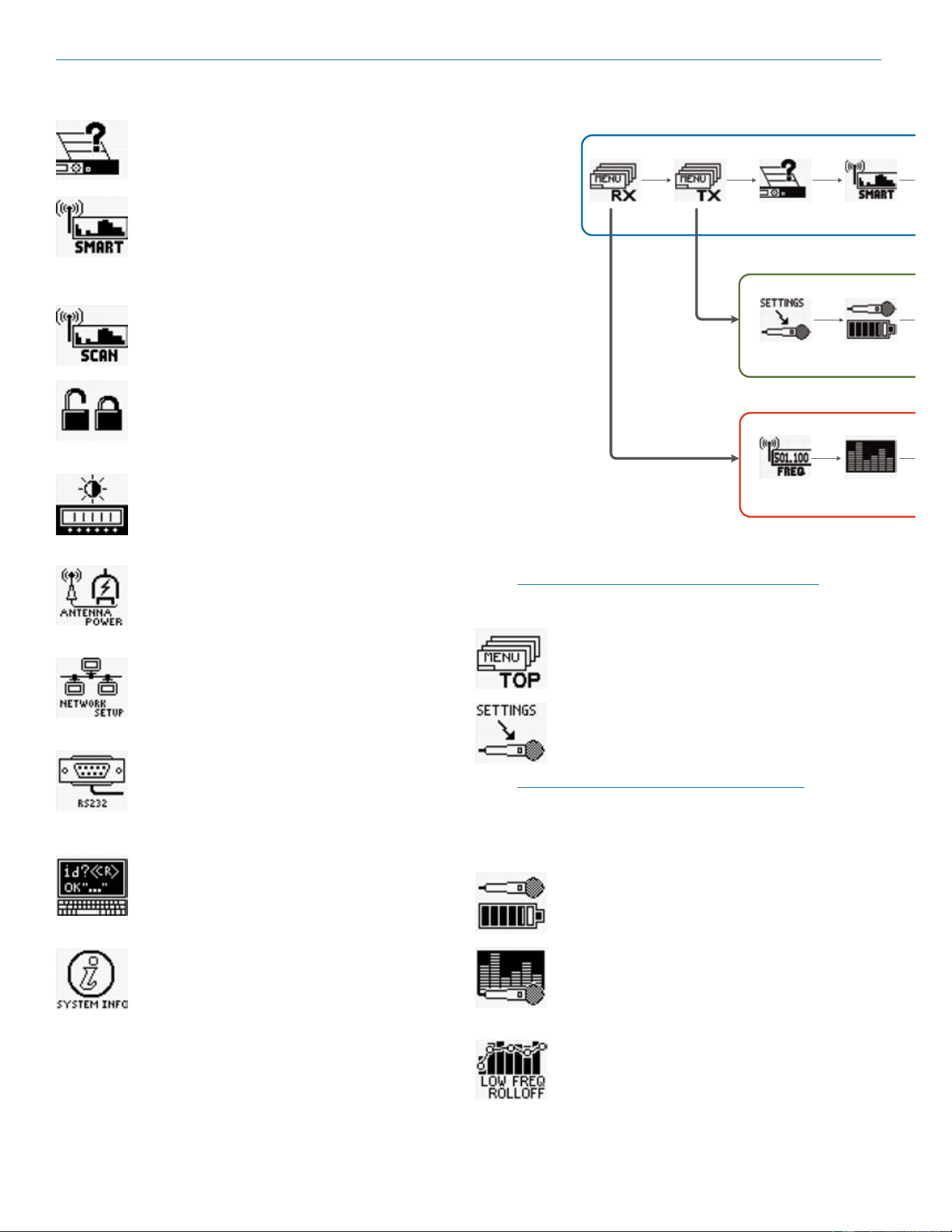
Firmware updates are detailed in the Wireless Designer
software help le. Launch the software and click on On-
line Help, then on Venue2 Receiver Setup and Monitor-
ing, then on the item for updating rmware.
System Restore
If a rmware update fails, the receiver will need to be
restored with the following procedure. Review the
Firmware Update Procedure in the online help before
proceeding.
1) Remove power from the VRM2 - you have to actu-
ally remove the DC power cable on the rear panel
of the unit.
2) Using a paper clip, or similar object, depress the
small, white, unmarked button recessed into the
front panel to the left of the headphone jack. This
is the Recovery Mode button.
Recovery Mode button
3) While keeping the Recovery Mode button de-
pressed, plug in the DC power jack to the rear of
the unit. The LCD will light up but be blank.
4) The unit will now be in the “Recovery Mode.”
Release the Recovery Mode button.
5) Open Wireless Designer, and proceed to update
the rmware using the normal steps, EXCEPT
be sure to click and mark the “Recovery Mode”
check box at the bottom of the screen.
Recovery Mode check box
NOTE: The sample image above shows the DR
receiver front panel, with a different location of
the Recovery Mode button
6) Follow the on-screen instructions. If the rmware
update is successful, an on-screen message will
appear as conrmation.
When the process is complete, turn the receiver
o and then back on again to verify that the unit
is operational.
Wireless Designer
Software
Download the Wireless Designer software installer from
the web sites under the SUPPORT tab at:
http://www.lectrosonics.com/US
Wireless Designer only needs to be installed the rst
time the software is used. Once the software is installed,
updates are available by simply clicking on an item in
the Help Menu.
NOTE: If Wireless Designer is already installed,
you must uninstall it before attempting to install
a new copy.
Firmware Update
Instructions
Firmware updates are made with a file downloaded
from the web site and the Venue 2 connected via USB.
The USB port on requires a micro-B male plug on the
connecting cable. The other end of the cable would
normally be a USB A-Type male connectorto fit the
most common type of USB jack used on computers.
Refer to Help in Wireless Designer software for the
procedure.
Venue 2 Wideband Receiver
LECTROSONICS, INC.
18
Menu Map
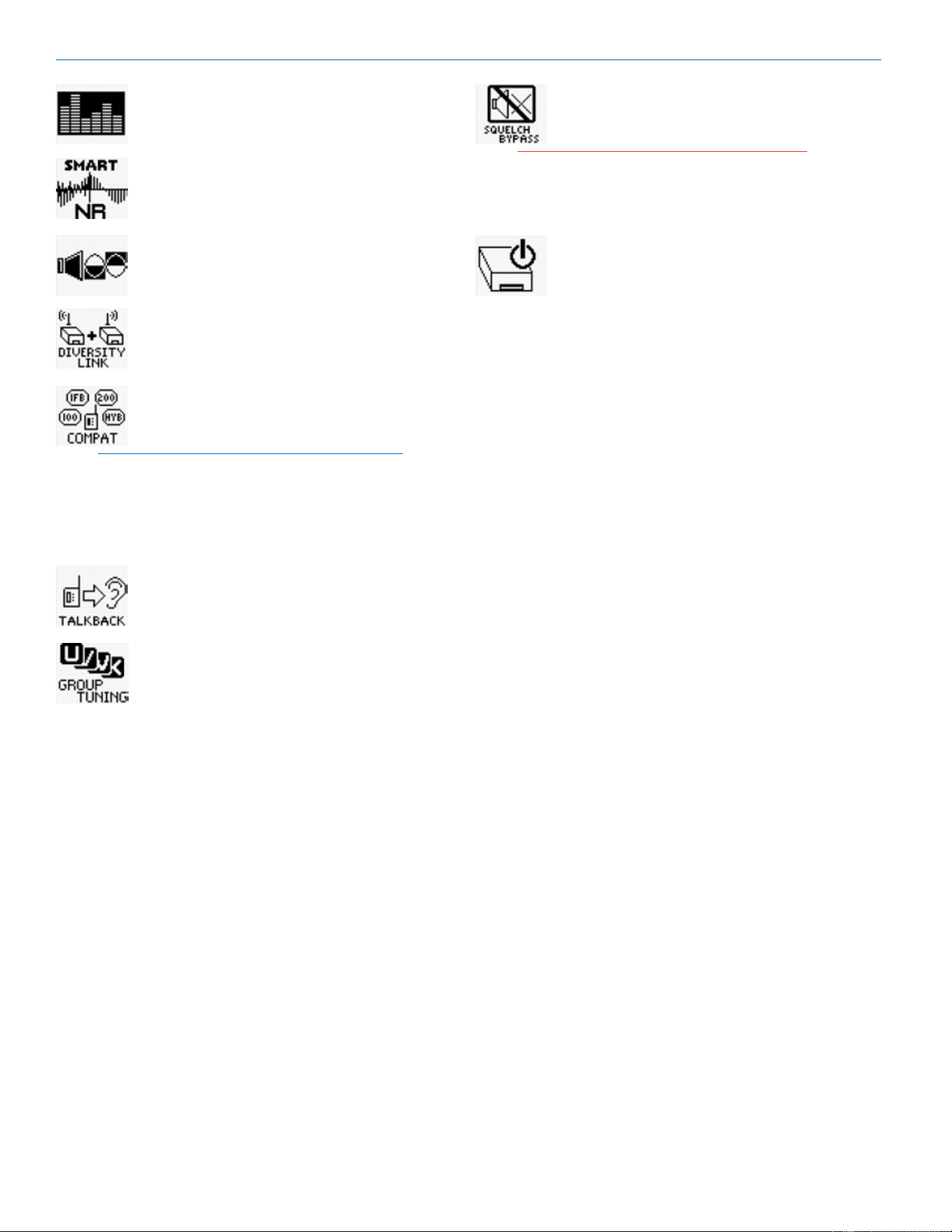
DETECT SMART
TUNE
TX BATTERY
FREQ ADJUSTAUDIO LEVEL
TOP MENU
TX MENU
RX MENU
SETTINGS
TOP MENU
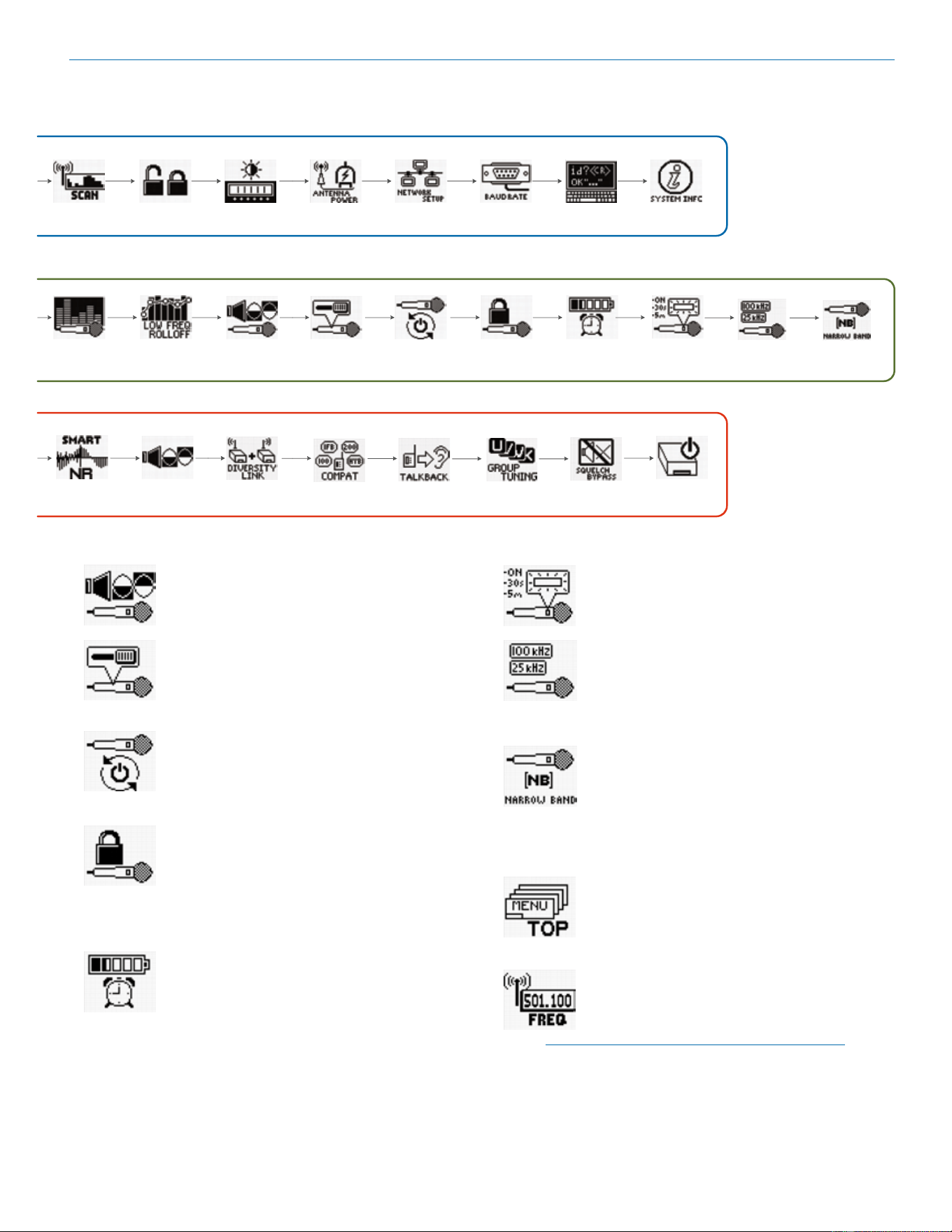
DETECT takes an inventory of the receiver
modules installed in the mainframe and
displays the results in an on-screen table.
SMART TUNE is an automatic process that
scans the tuning range of all modules and
automatically nds clear frequencies. The
screen prompts the operator to set up
transmitters one at a time to the newly discovered
frequencies and turn them on before proceeding.
SPECTRUM SCAN launches a manual
scanning procedure where each receiver
module is scanned one at a time, with the
results presented in a graphical display.
LOCK PANEL prevents changes from being
made with the front panel controls.
BACK LIGHT adjusts the brightness of the
LCD. Four dierent levels are available.
ANTENNA POWER turns the DC bias power
on the antenna inputs o and on. The DC
bias is used to power remote ampliers used
at the antenna end of long coaxial cable
runs.
NETWORK SETUP provides screens to
dene the parameters for network protocol
and connections.
RS232 SETUP provides a screen where the
baud rate can be set from 9600 to 115200.
COMMAND VIEW opens a screen that
displays the commands received from a
remote control device or computer and the
replies sent back by the receiver.
SYSTEM INFO displays the receiver serial
number, hardware and rmware revisions,
and the active alerts. Active alerts shown on
this screen are error messages that list the
details of faults in the receiver. When a fault occurs, the
white LED on the right side of the front panel will blink,
prompting the operator to view this screen.
TX MENU
NOTE: Some items in this menu work only with
Lectrosonics transmitters.
TOP MENU links back to the Top Menu for
overall system setup.
SETTINGS is used to get settings from and
send settings to a Lectrosonics transmitter
on each channel. The LCD shows a listing of
the frequency and nine conguration settings
on a single screen.
NOTE: The transmitter settings can be made
in the receiver and then transferred via IR
(infrared) to the transmitter if it is so equipped.
Later model Lectrosonics transmitters offer this
feature.
TX BATTERY selects the battery type used in
each transmitter.
TX AUDIO GAIN adjusts the input gain of
each channel to match the microphone or
instrument level delivered to the transmitter
to optimize the signal to noise ratio and
minimize distortion.
LF ROLLOFF adjusts the low frequency
roll-o point of each transmitter to suppress
subsonic noise or to suit individual prefer-
ences.
Digital Hybrid Wireless
®
Modular Receiver System
Rio Rancho, NM, USA
19
TX PHASE selects the polarity (phase) of the
audio signal in each transmitter.
PROG SWITCH denes the function of a
programmable switch present on some
Lectrosonics transmitter models. The switch
function can be congured as audio mute,
power on/o, talkback or no function.
AUTO ON enables the transmitter to turn
back on automatically when a battery is
replaced, eliminating the need to manually
turn it back on. The function can be enabled
or disabled.
TX PANEL LOCK locks out the membrane
switch panel to prevent inadvertent changes
being made. In the locked mode, the pro-
grammable switch (if available) is still opera-
tional, so it can still be used to turn power o and on. To
unlock the panel, navigate to the Locked item in the
menu and select No.
BATT TIMER is a function in the receiver that
monitors the accumulated operating time of
each transmitter. Rechargeable batteries
maintain almost a constant voltage across
the discharge cycle, so monitoring the voltage drop
provides only very short notice near the end of life
before the battery stops working. The best way to
monitor rechargeable batteries is to run a test to deter-
mine how long it will run the transmitter, then use the
timer to assess the remaining time.
TX BACKLIGHT sets how long the backlight
on the transmitter LCD will stay turned on.
The options may vary between dierent
transmitter models.
STEP SIZE sets the increments for frequency
adjustment at 100 or 25 kHz.
NARROW BAND is used to restrict the
scanning and tuning adjustments on the
receiver to a single block when used with a
single block transmitter.
(see next page)
RX MENU
TOP MENU links back to the Top Menu for
overall system setup.
FREQ ADJUST opens a setup screen to
manually select the frequency of each
receiver module.
NOTE: The setting for 100 or 25 kHz frequency
increments is in the TX Menu under STEP SIZE,
selectable on a per channel basis.
SMART NR
PHASE
RX LINK
TX AUDIO
GAIN
LF ROLLOFF
TX PHASE
SPECTRUM
SCAN
LOCK PA NEL
BACK LIGHT
COMPAT MODE
ANTENNA
POWER
NETWORK
SETUP
RS232 SETUP
COMMAND
VIEW
SYSTEM INFO
PROG SWITCH
AUTO ON
TX PANEL
LOCK
BATT TIMER
TX BACKLIGHT
MODULE
POWER
TALKBACK GROUP
TUNING
SQUELCH BP
STEP SIZE NARROW BAND
Venue 2 Wideband Receiver
LECTROSONICS, INC.
20
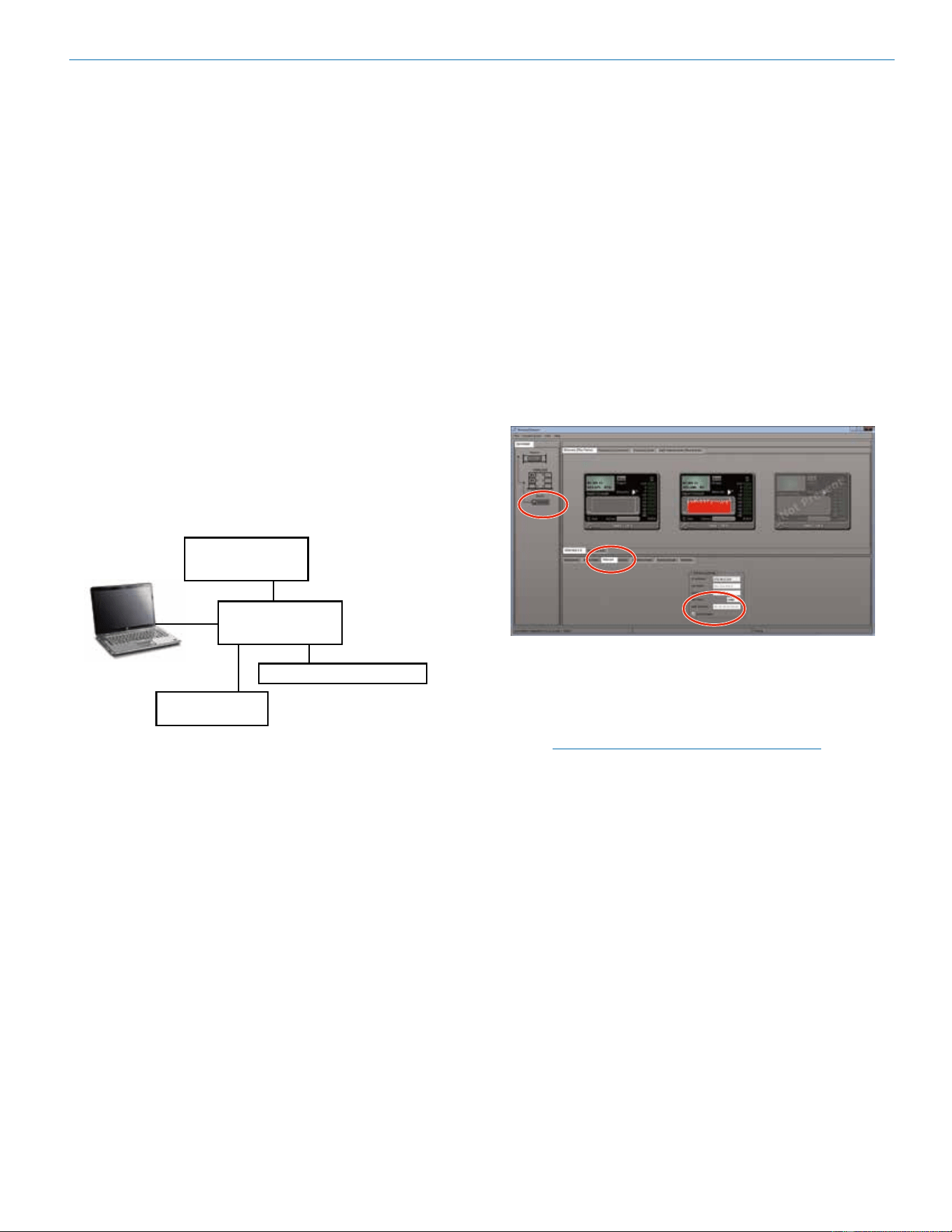
AUDIO LEVEL is used to adjust the output
level of each receiver. The built-in tone
generator is also enabled in this screen.
SMART NR sets the desired noise reduction
mode for each channel: NORMAL, FULL or
OFF.
PHASE sets the polarity (phase) of each
output to the desired value: NORMAL or
INVERTED.
RX LINK (DIVERSITY LINK) selects adjacent
receivers to be paired for Ratio Diversity
operation, or to be operated individually with
Antenna Phase Switching Diversity.
COMPAT MODE sets the DSP-based com-
patibility mode for each channel.
NOTE: If your Lectrosonics Transmitter is set to
Nu Hybrid Compatibility Mode, set the receiver
to Nu Hybrid Wireless
®
(NU HYBR). The same
for Euro Digital Hybrid Wireless
®
Compatibility
Mode. Make certain the COMPAT mode is
set to match the mode in the transmitter for
optimum audio quality.
TALKBACK enables the Talkback Mode on
the desired channels and selects the output
channel for the talkback audio.
GROUP TUNING opens setup and editing
screens to select and modify user dened
frequency groups U, V, W and X, or NONE
for each receiver module.
SQUELCH BP bypasses the squelch (mut-
ing) function on a per module basis for
diagnostic purposes.
CAUTION: Reduce the gain or volume level
of the sound system or recorder before
bypassing the squelch. Very loud noise will be
present at the bypassed channel.
MODULE POWER turns the power ON or
OFF on each receiver module. Normally used
to prolong operating time when the receiver
is powered by battery.
Digital Hybrid Wireless
®
Modular Receiver System
Rio Rancho, NM, USA
21
Connecting to a Network
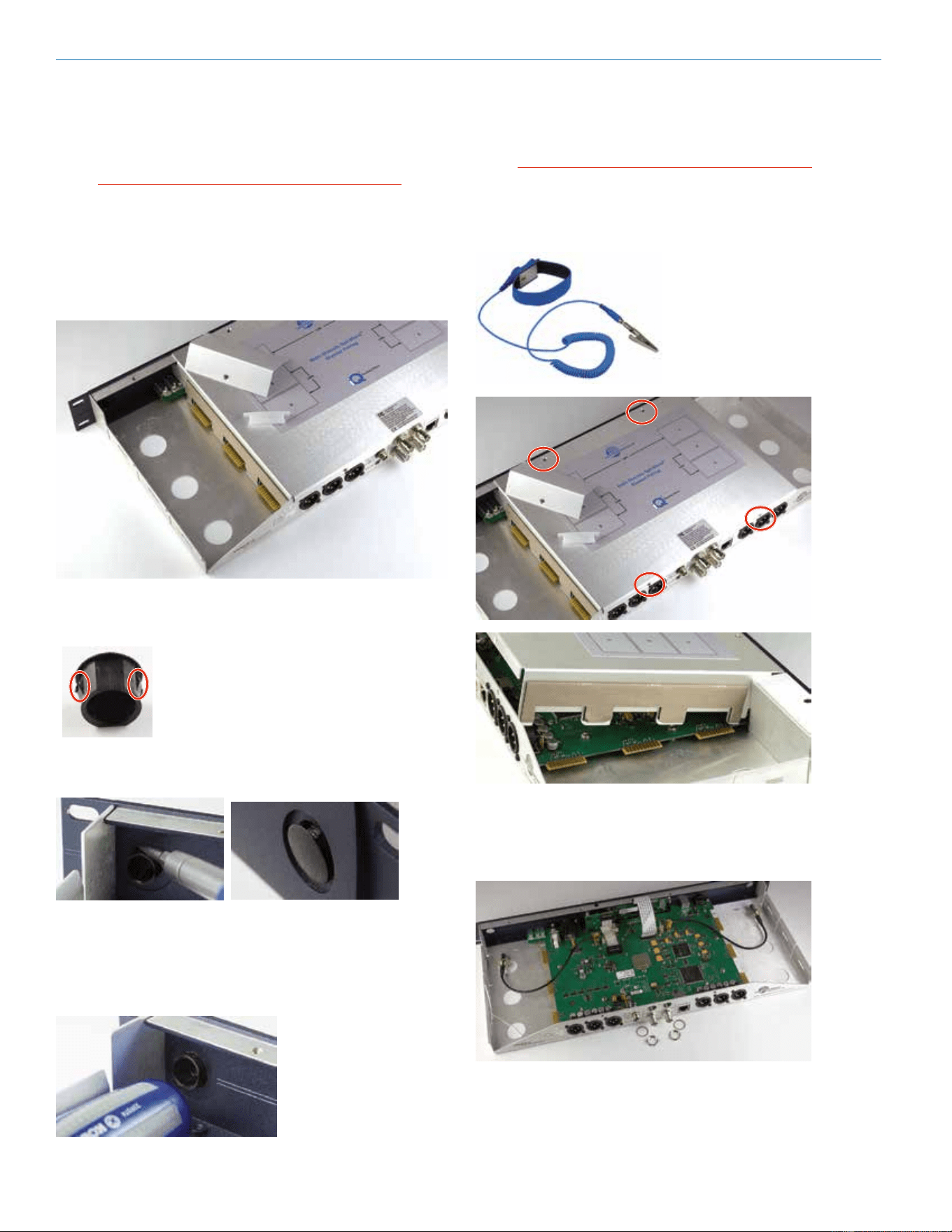
A basic network is composed of several devices:
• Router or server
• Ethernet switch
• Client devices
An example of a simple network is a modem used in a
home for internet access via a telephone or cable TV
connection. There are actually three dierent devices
built into the box that is typically called the “modem.”
• Modem - connects to the ISP (Internet Service
Provider) via telephone or cable TV service
• Router - creates the network; identies and or-
ganizes the connected devices and allows partici-
pation in the network
• Ethernet switch - synchronizes the network
trac between multiple devices; usually 4 cabled
connections and one WiFi wireless connection in a
typical home modem
A network connection from a computer to the Venue 2
receiver can be made via a network using Wireless De-
signer
TM
software.
Ethernet Switch
Router/Server
Venue 2 Receiver
Other Devices
Each device in the network is identied with an IP ad-
dress registered with the router or server. Assignment
of the IP address is the first step in connecting the
Venue 2 to a network.
IP Address Assignment
An IP address for the Venue 2 receiver can be assigned
by a network administrator, or obtained from the server
or router automatically using DHCP enable in the re-
ceiver.
Enable DHCP with the LCD interface:
Press the rotary encoder and navigate to the Top Menu
then to NETWORK SETUP. Press the encoder and
highlight SELECT PARAMETER. Navigate to the DHCP
Enable item. Highlight EDIT and rotate the encoder
to select YES on the display. Press the BACK button
several times to return to the main window.
Enable DHCP with With Wireless Designer and a
USB connection:
Connect the computer to the Venue 2 receiver via
the USB port. Launch Wireless Designer. Turn on the
Venue 2 receiver, or turn it o and back on if it’s already
turned on. Wait for the receiver to fully boot up (the
main window appears).
In Wireless Designer, click on Connect (Live) in the
upper left corner of the screen, then on Connect via
USB... A dialog box opens and the receiver will appear
with its serial number. Click on the receiver and then on
OK to open the control panel.
Click on Settings, then Network, then click in the
checkbox next to DHCP Enable to make sure a check
mark appears.
Disconnect Wireless Designer from the receiver. Click
on Connect (Live)... in the top left of the control panel,
then click on Disconnect From and then on the re-
ceiver name that appears.
Connect to a Network
NOTE: Make sure an IP address has been
assigned to the receiver before trying to
connect to a network.
Connect the network cable to the ethernet port on the
receiver, then cycle the receiver power o and back on.
The IP address will be assigned to the receiver by the
router/server when the receiver boots up.
Look at the IP address in the LCD screen where you
enabled DHCP, or you can re-connect to the receiver
via USB and view the IP address on the software
control panel screen where you enabled DHCP in the
check box. Jot down the IP address.
Open Wireless Designer and click on Connect via
Network... Enter the IP address and click on Search.
When the receiver appears in the dialog box, click on
OK to enter the control panel.

Venue 2 Wideband Receiver
LECTROSONICS, INC.
22
Multi-channel System
Checkout
Interference can result from a wide variety of sources
including TV station signals, other wireless equipment
in use nearby, or from intermodulation within a multi-
channel wireless system itself. Regardless of how the
frequencies were coordinated, a nal checkout proce-
dure is always a good idea.
Scanning with the RF spectrum analyzer built into the
Venue 2 system will identify external RF signals, but
it does not address the compatibility of the selected
frequencies.
Wireless Designer software provides an excellent fre-
quency coordination function that integrates scan data
and carriers into the calculations. The results are highly
reliable, but if time allows, it is also a good idea to con-
duct a nal test with the following procedure.
1. Set up the system for testing.
Place antennas in the position in which they will
be used and connect to the receivers. Place
transmitters about 3 to 5 feet apart, about 25 to
30 feet from the receiver antennas. If possible,
have all other equipment on the set, stage or
location turned on as well, especially any mixing
or recording equipment that will be used with the
wireless system.
2. Set all receivers on clear channels.
Turn on all receivers, but leave the transmitters
o. Observe at the RF signal strength indicator
for each receiver module. If a signal is present,
change the frequency to a clear channel where no
signal is indicated. If a completely clear channel
cannot be found, select the frequency with the
lowest RF level indication. Once all receiver mod-
ules are on clear channels, go to step 3.
3. Turn each transmitter on one at a time.
Start with all transmitters turned o. As you turn
on each one, look at the matching receiver to
verify a strong RF signal is received. Then, look at
the other receivers and see if one of them is also
picking up the signal. Only the matching receiver
should indicate a signal. Change frequencies on
either system slightly until all channels pass this
test, then check again to see that all channels are
still clear as done in step 2.
4. Turn each transmitter o one at a time.
With all transmitters and receivers turned on, turn
each transmitter o one at a time, in turn, and
look at the RF level indicator on the matching
receiver module. The RF level should disappear
or drop to a very low level. If it does not, change
frequency on that receiver and transmitter and try
it again. When a clear frequency is found, turn the
transmitter on and move on to the next channel.
IMPORTANT: Any time a frequency is changed
on any of the systems in use, you must start at
the beginning and go through this procedure
again for all systems. With a little practice,
you will be able to do this quickly and wave
yourself some grief.

Digital Hybrid Wireless
®
Modular Receiver System
Rio Rancho, NM, USA
23
Antennas
Use and Placement
The Venue 2 mainframe is designed for rack mounting.
Although it can be operated with two whip antennas, it is
best to use remote antennas such as the SNA600 or ALP
Series for optimum reception. Position the remote anten-
nas at least three or four feet apart and not within three
or four feet of large metal surfaces. If this is not possible,
try to position the antennas so that they are as far away
from the metal surface as is practical. It is also good to
position them so that there is a direct “line of sight” be-
tween the transmitter and the receiver antennas.
In situations where the operating range is less than about
100 feet, the antenna positioning is much less critical.
The length and type of cabling between antennas and
the system, however, is critical. Long cable runs can
experience signicant signal loss. Lectrosonics oers
in-line RF ampliers to compensate for this signal loss.
Contact your dealer or the factory for more information.
A wireless transmitter sends a radio signal out in all
directions. This signal will often bounce o nearby walls,
ceilings, etc. and a strong reection can arrive at the
receiver’s antennas along with the direct signal. If the
direct and reected signals are out of phase with each
other and similar in strength, a cancellation or “dropout”
may occur. A dropout can sound like audible noise (hiss,
swishing or a “shhht” sound), or in severe cases, may re-
sult in a complete loss of both the carrier and the sound.
Moving the transmitter even a few inches can change the
sound of the dropout, or may even eliminate it. A dropout
situation also may be either better or worse as a crowd
lls or leaves the room.
The receiver oers two dierent diversity reception
methods which overcome most dropout problems. In the
event, however, that you do encounter a dropout prob-
lem, rst try moving one of the remote antennas at least
three or four feet from its current location. If dropouts are
still a problem, try moving the antennas to entirely dier-
ent locations.
Lectrosonics transmitters radiate power very eciently,
and the receivers are very sensitive, which reduces drop-
outs to an insignicant level. If, however, you do encoun-
ter dropouts frequently, call the factory or consult your
dealer. There is probably a simple solution.
Using Remote Antennas
Remote antennas can be placed at a distance from
the receiver to optimize reception. To overcome loss
in long coaxial cable runs, a Lectrosonics UFM Series
inline RF lter/amp should be positioned at the far end
of the coaxial cable, close to the antenna.
With the amplier in this position, g ain is applied
ahead of the loss to maximize the signal to noise ratio
of the antenna system.
NOTE: It is best practice to enable this DC
power ONLY when a UFM remote amplifier or
active antenna is used. Some antennas may
present a short to the power supply. While
the power supply is fused and it is unlikely
that damage would occur, it is always best to
disable the DC when it is not in use.
Venue 2 Wideband Receiver
LECTROSONICS, INC.
24
Front Mounted Antennas
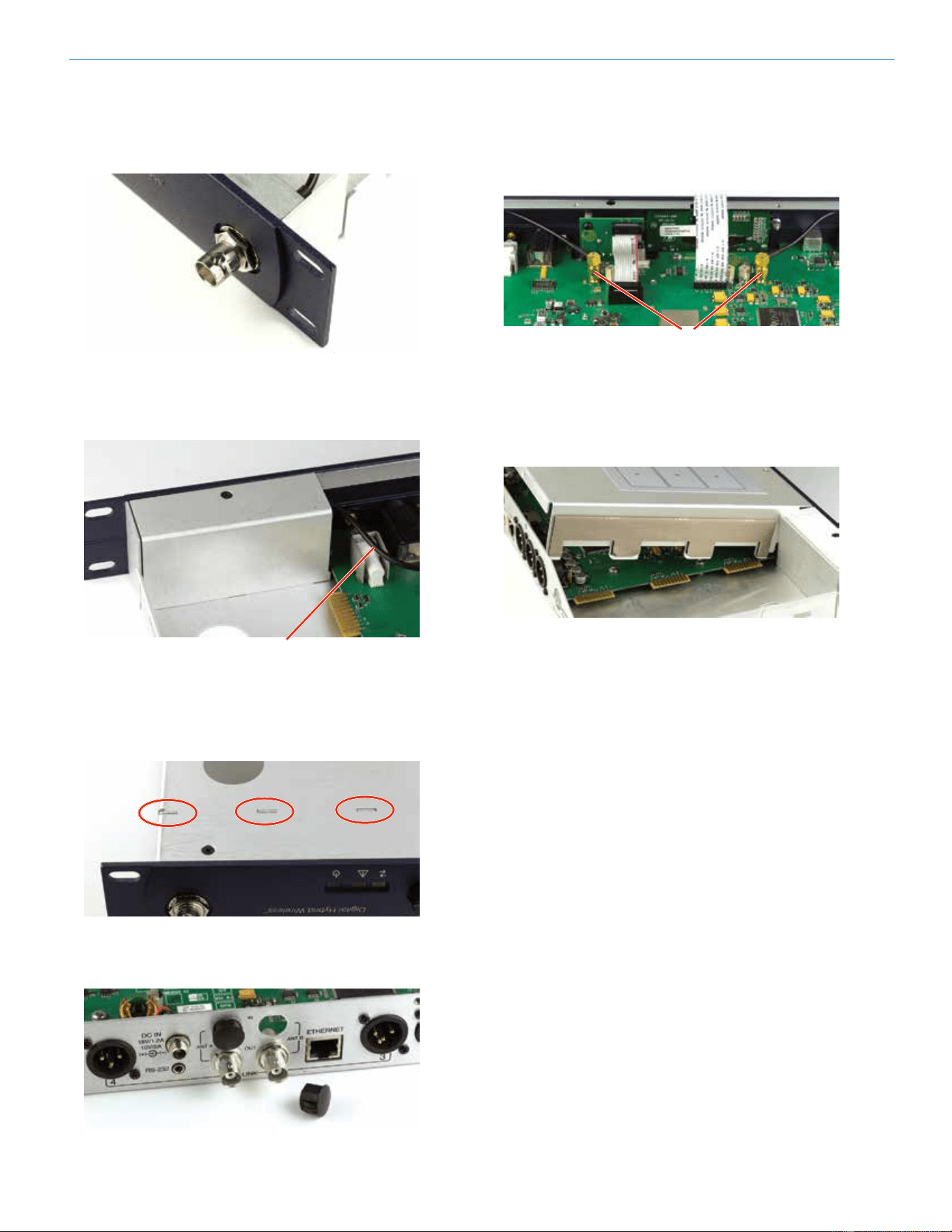
The internal coaxial cables and connectors can be
moved to the front panel if so desired, using small at
blade and Phillips screwdrivers.
WARNING: Always unplug the receiver before
performing this procedure.
Step 1
Remove receiver modules, plastic end connector cov-
ers and front panel jack covers on both sides of the
receiver.
Step 2
Remove the front panel hole caps.
Locking tabs on
opposite sides
The hole caps have locking tabs to
retain the cap when installed.
Use a at blade screwdriver and de-
press the locking tabs on one side of
the hole cap while pushing outward on
the cap. The cap will move outward
slightly to release the tabs on one side
of the plug.
Press down on the tabs with a at blade screwdriver
while pushing outward on the cap with thumb or
nger to release one side
With one side of the cap released, use the handle of the
screwdriver to press rmly on the back of the cap to
remove it from the front panel.
Step 3
Remove the four screws holding the chassis cover, then
remove the cover by lifting the rear up.
CAUTION: The exposed components on the
circuit board are sensitive to static shock.
Wear an anti-static wrist strap grounded to
the housing of the receiver to avoid damaging
the components.
Step 4
Remove the nuts and washers from the upper two BNC
connectors and route the coaxial cables to the front
panel.
Digital Hybrid Wireless
®
Modular Receiver System
Rio Rancho, NM, USA
25
Step 5
Align the ats on the BNC connectors with the ats in
the holes in the front panel and secure them with the
lock washers and nuts.
Step 6
Route the coaxial cables underneath the front panel jack
covers, replace the covers and tighten the screws.
Coaxial cable
Step 7
Turn the receiver over and make sure the tabs on the
jack covers sit ush with the bottom of the receiver
chassis.
Step 8
Press the hole caps into the holes on the rear panel.
Step 9
The coaxial cables should route toward the front of the
receiver as shown so the cable ts loosely under the
jack covers. Finger tighten the SMA connectors on the
circuit board.
SMA connectors
Step 10
Replace the chassis cover. Insert the tabs on the front
of the cover rst, then gently press outward on the rear
panel to allow the cover to slip into place and tighten
the four screws securing the cover.
Venue 2 Wideband Receiver
LECTROSONICS, INC.
26
ALP500
ALP620
ALP650
SNA600A
Includes mounting strap
and hardware
Accessories and Common Replacement Parts
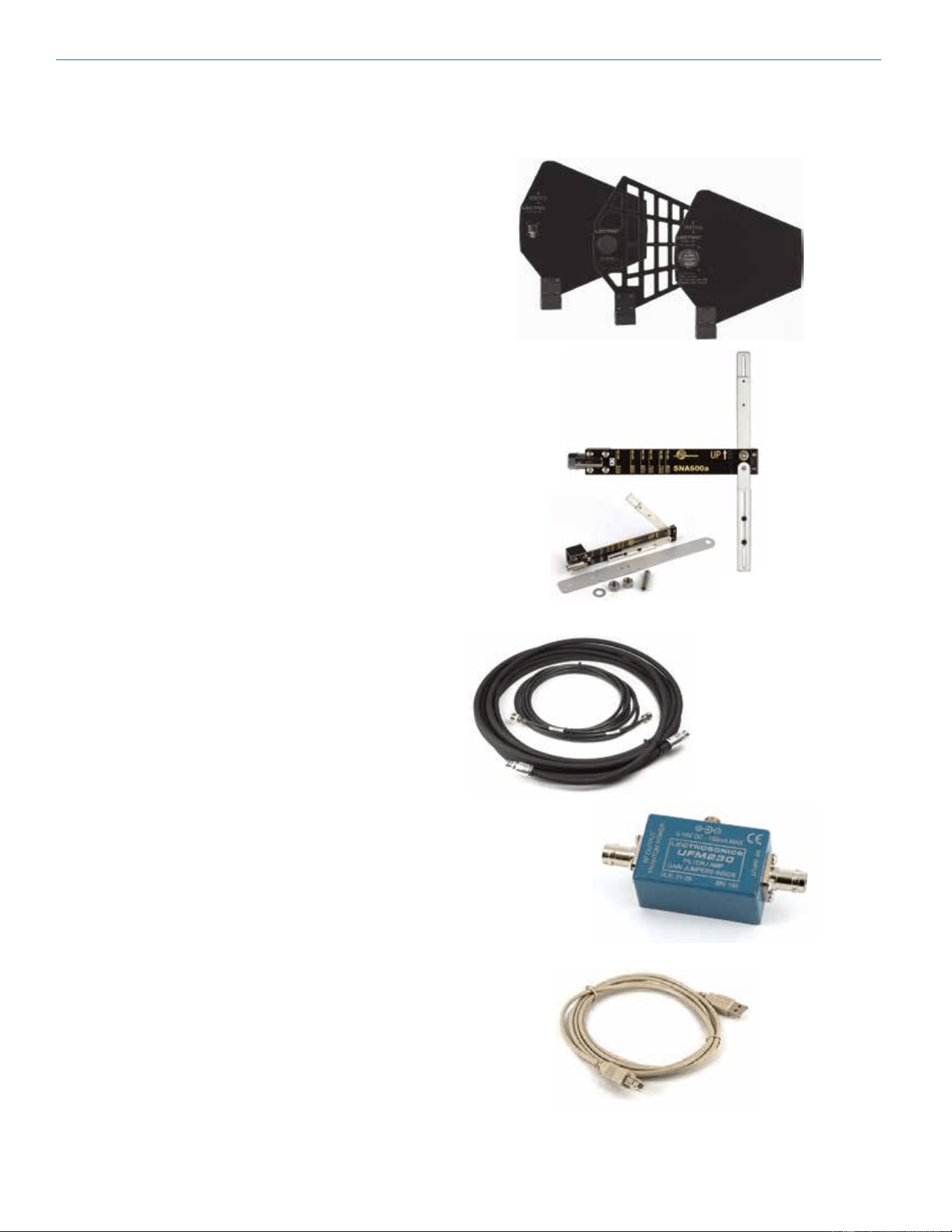
Remote Antennas
ALP Series LPDA (log periodic dipole array) models
SNA600A folding dipole antenna
ALP Kit mounting hardware
Coaxial Cable
ARG2 coaxial cable - 2 ft. length
ARG15 coaxial cable - 15 ft. length
ARG25 coaxial cable - 25 ft. length
ARG50 coaxial cable - 50 ft. length
ARG100 coaxial cable - 100 ft. length
Coaxial RF Amplier
UFM230 broadband RF amplier - 230 MHz BW
UFM50 narrowband RF amplier - 50 MHz BW
Common Replacement Parts
DCR15/4AU power supply
24088 Pre-coordinated frequency groups (folded sheet)
21710-1 LecNet Cable for AMX/Crestron control
21529-1 LecNet Cable for RS-232 control
21713 USB Cable - 6 ft. long
MC65 Cable - 1/4 inch male TRS to mini male TRS
P1196 white receiver retaining clip
P1204 receiver connector cover
USB Cable
#21713 - Cable, MB USB A2B - 6ft. length
• ARG2, ARG15 are
Belden RG-8/X cable
• ARG25, 50, 100 are
Belden 9913F cable
UFM230
USB - #21713

Digital Hybrid Wireless
®
Modular Receiver System
Rio Rancho, NM, USA
27
Specications
Operating Frequencies - Host Mainframe
VRM2WBL: Tunes to bands A1, B1, B2, C1
VRM2WBM: Tunes to bands B1, B2, C1, C2
Operating Frequencies - VRT2 Module
Band A1: 470.100 - 537.575 MHz (blocks 470, 19, 20)
Band B1: 537.600 - 614.375 MHz (blocks 21, 22, 23)
Band B2: 563.200 - 639.900 MHz (blocks 22, 23, 24)
Band C1: 614.400 - 691.175 MHz (blocks 24, 25, 26)
Band C2: 640.000 - 716.700 MHz (blocks 25, 26, 27)
Frequency selection: Up to 3072 frequencies
Frequency selection steps: Selectable; 100 kHz or 25 kHz
Digital latency: • 1.5 mS (receiver only - hybrid
mode)
• 3.0 mS (receiver and transmitter
in hybrid mode)
• 3.0 mS (receiver only - analog
compatibility mode)
The 3.0 mS latency in analog compatibility mode time aligns the audio
from analog and hybrid transmitters when they are used together in a
Venue system.
Wideband Multicoupler: Built in antenna mulitcoupler
covers a 230 MHz range.
Pilot tone: 25 to 32 kHz; 5kHz deviation;
unique pilot tone frequency for
each selected carrier frequency
(Hybrid mode)
Deviation: ± 75 kHz (max) (Hybrid mode)
Receiver Type: Triple conversion
superheterodyne
Frequency Stability: ±0.001 %
Multicoupler Bandwidth: 470 - 691 MHz or 537 - 768 MHz
Front End Bandwidth: • iQ lter wide mode: 15 MHz
• iQ lter narrow mode: 10 MHz
Sensitivity (20 dB Sinad): 0.9 uV
AM Rejection: >60 dB, 2 uV to 1 Volt
Image and Spurious
Rejection: 85 dB
Third Order Intercept: • iQ lter wide mode: +5 dBm
• iQ lter narrow mode: +12 dBm
Diversity Methods: • Antenna Combining Phase
switching
• Opti-blend
TM
ratio diversity
FM Detector: Digital pulse counting detector
@ 300 kHz
Audio Performance (overall system):
Frequency Response: 32 Hz to 20 kHz (+/-1dB), overall
system (400 Series mode)
THD: 0.2% (typical) (400 Series mode)
SNR at receiver output (dB) In Hybrid operating mode:
SmartNR No
limiting
w/
Limiting
OFF 103.5 108.5
NORMAL 107.0 111.5
(Note: the dual envelope “soft” limiter
provides exceptionally good handling of
transients using variable attack and
release time constants. The gradual onset
of limiting in the design begins below full
modulation, which reduces the measured
gure for SNR without limiting by
4.5 dB).
Input Dynamic Range: 125 dB (with full transmitter
limiting)
Audio Output Level: -35 dBu to +8 dBu, in 1 dB
increments
LCD: High resolution graphical display
Power Requirements: 10 VDC/2A to 18 VDC/1.2A
Weight: 4.4 lbs. (1984 grams) with
six modules
Dimensions: 19”W x 1.75”H x 7.75”D (panel to
rear jacks)
(48.26 cm x 4.45 cm x 19.67 cm)
Specifications and Features subject to change
without notice.
Note: Some specifications apply only when the
receiver is operating in the Digital Hybrid (400
Series) mode.

Venue 2 Wideband Receiver
LECTROSONICS, INC.
28
Service and Repair
If your system malfunctions, you should attempt to correct or isolate the trouble before concluding that the equipment
needs repair. Make sure you have followed the setup procedure and operating instructions. Check the interconnecting
cables and then go through the Troubleshooting section in this manual.
We strongly recommend that you do not try to repair the equipment yourself and do not have the local repair shop at-
tempt anything other than the simplest repair. If the repair is more complicated than a broken wire or loose connection,
send the unit to the factory for repair and service. Don’t attempt to adjust any controls inside the units. Once set at the
factory, the various controls and trimmers do not drift with age or vibration and never require readjustment. There are
no adjustments inside that will make a malfunctioning unit start working.
LECTROSONICS’ Service Department is equipped and staed to quickly repair your equipment. In warranty repairs
are made at no charge in accordance with the terms of the warranty. Out-of-warranty repairs are charged at a modest
at rate plus parts and shipping. Since it takes almost as much time and eort to determine what is wrong as it does to
make the repair, there is a charge for an exact quotation. We will be happy to quote approximate charges by phone for
out-of-warranty repairs.
Returning Units for Repair
For timely service, please follow the steps below:
A. DO NOT return equipment to the factory for repair without rst contacting us by email or by phone. We need
to know the nature of the problem, the model number and the serial number of the equipment. We also need a
phone number where you can be reached 8 A.M. to 4 P.M. (U.S. Mountain Standard Time).
B. After receiving your request, we will issue you a return authorization number (R.A.). This number will help speed
your repair through our receiving and repair departments. The return authorization number must be clearly
shown on the outside of the shipping container.
C. Pack the equipment carefully and ship to us, shipping costs prepaid. If necessary, we can provide you with the
proper packing materials. UPS is usually the best way to ship the units. Heavy units should be “double-boxed”
for safe transport.
D. We also strongly recommend that you insure the equipment, since we cannot be responsible for loss of or dam-
age to equipment that you ship. Of course, we insure the equipment when we ship it back to you.
Lectrosonics USA:
Mailing address: Shipping address: Telephone:
Lectrosonics, Inc. Lectrosonics, Inc. (505) 892-4501
PO Box 15900 561 Laser Rd. NE, Suite 102 (800) 821-1121 Toll-free
Rio Rancho, NM 87174 Rio Rancho, NM 87124 (505) 892-6243 Fax
USA USA
Web: E-mail:
www.lectrosonics.com [email protected]
service.repair@lectrosonics.com
Lectrosonics Canada:
Mailing Address: Telephone: E-mail:
Suite 600 (877) 753-2876 Toll-free Service: joeb@lectrosonics.com
Toronto, Ontario M5S 2T9 (877-7LECTRO)
(416) 596-6648 Fax
Self-Help Options for Non-Urgent Concerns
Our Facebook groups and weblists are a wealth of knowledge for user questions and information. Refer to:
Lectrosonics General Facebook Group: https://www.facebook.com/groups/69511015699
D Squared, Venue 2 and Wireless Designer Group: https://www.facebook.com/groups/104052953321109
The Wire Lists: https://lectrosonics.com/the-wire-lists.html

Digital Hybrid Wireless
®
Modular Receiver System
Rio Rancho, NM, USA
29

Venue 2 Wideband Receiver
LECTROSONICS, INC.
30

Digital Hybrid Wireless
®
Modular Receiver System
Rio Rancho, NM, USA
31

12 September 2023
581 Laser Road NE • Rio Rancho, NM 87124 USA • www.lectrosonics.com
+1(505) 892-4501 • fax +1(505) 892-6243 • (800) 821-1121 US and Canada • [email protected]
LIMITED ONE YEAR WARRANTY
The equipment is warranted for one year from date of purchase against defects in
materials or workmanship provided it was purchased from an authorized dealer. This
warranty does not cover equipment which has been abused or damaged by careless
handling or shipping. This warranty does not apply to used or demonstrator equipment.
Should any defect develop, Lectrosonics, Inc. will, at our option, repair or replace any
defective parts without charge for either parts or labor. If Lectrosonics, Inc. cannot
correct the defect in your equipment, it will be replaced at no charge with a similar new
item. Lectrosonics, Inc. will pay for the cost of returning your equipment to you.
This warranty applies only to items returned to Lectrosonics, Inc. or an authorized
dealer, shipping costs prepaid, within one year from the date of purchase.
This Limited Warranty is governed by the laws of the State of New Mexico. It states the
entire liablility of Lectrosonics Inc. and the entire remedy of the purchaser for any
breach of warranty as outlined above. NEITHER LECTROSONICS, INC. NOR
ANYONE INVOLVED IN THE PRODUCTION OR DELIVERY OF THE EQUIPMENT
SHALL BE LIABLE FOR ANY INDIRECT, SPECIAL, PUNITIVE, CONSEQUENTIAL,
OR INCIDENTAL DAMAGES ARISING OUT OF THE USE OR INABILITY TO USE
THIS EQUIPMENT EVEN IF LECTROSONICS, INC. HAS BEEN ADVISED OF THE
POSSIBILITY OF SUCH DAMAGES. IN NO EVENT SHALL THE LIABILITY OF
LECTROSONICS, INC. EXCEED THE PURCHASE PRICE OF ANY DEFECTIVE
EQUIPMENT.
This warranty gives you specific legal rights. You may have additional legal rights which
vary from state to state.