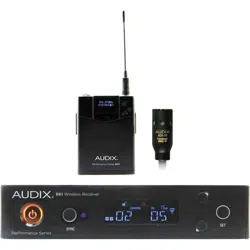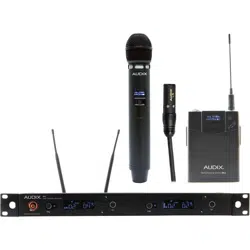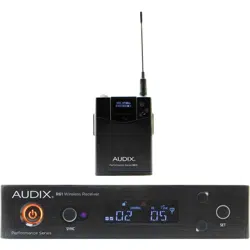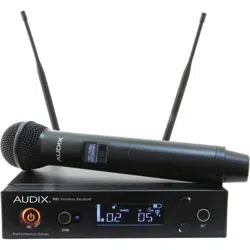
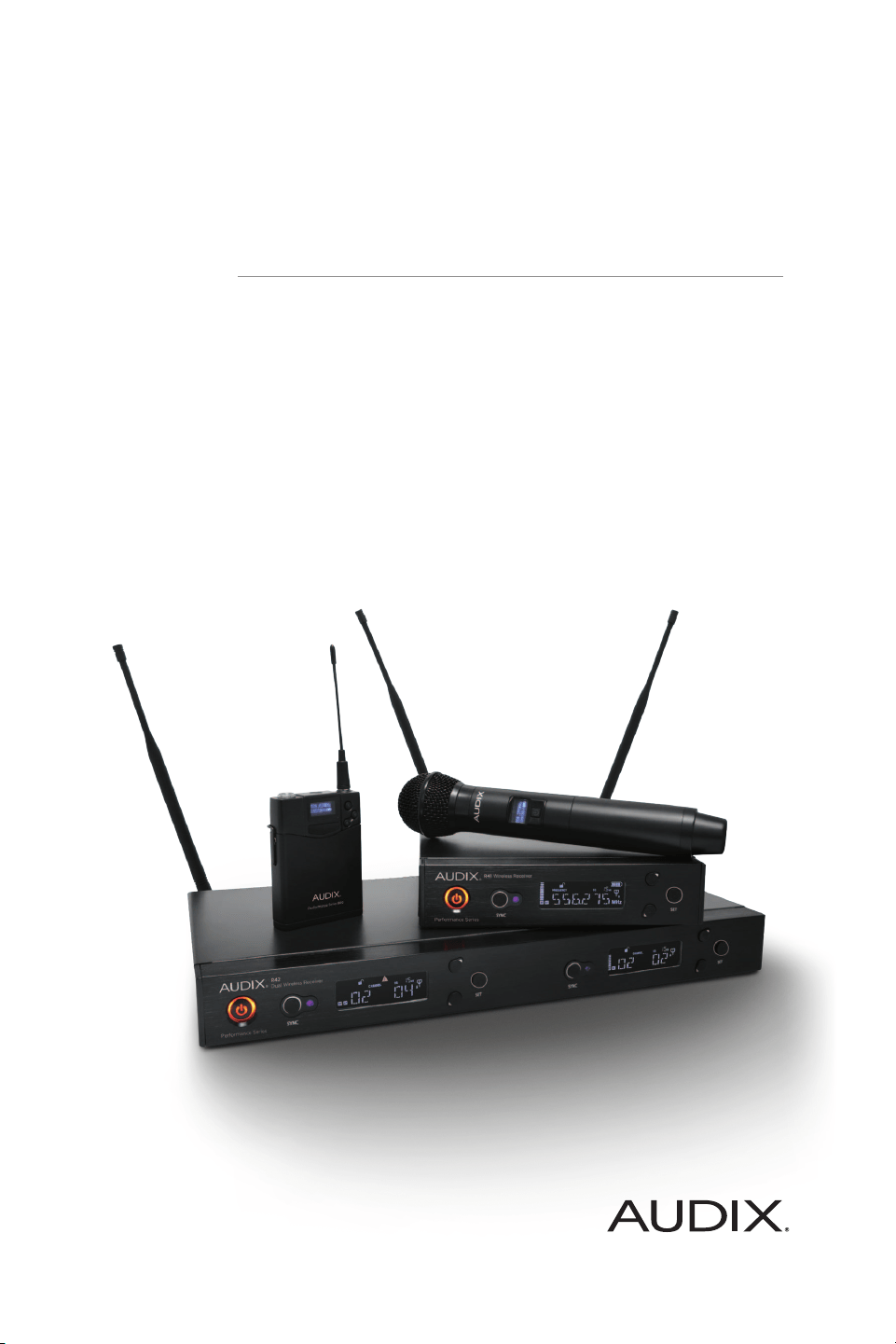
PERFORMANCE SERIES WIRELESS
AP61 & AP62 USER GUIDE


TABLE OF CONTENTS
Safety Instructions & Certifications
4
Introduction
5
Quick Set Up Guide
6
R61 Receiver Front Panel
10
R61 Receiver Back Panel
11
R61 LCD Display
12
H60 Handheld Transmitter
13
B60 Bodypack Transmitter
15
Receiver Operating Instructions / Menu Functions
16
Using the H60 Handheld Transmitter
20
Using the B60 Bodypack Transmitter
22
Performance Tips
24
Rackmounts
25
Rackmount Installation
26
Specifications
28
Troubleshooting
30
Group/Channel Charts
31
International Group/Channel Charts
32

4
SAFETY INSTRUCTIONS
Please read this instruction manual to ensure proper use and care of your system.
Quick Safety Tips
Unplug the receiver from the wall socket when not in use
Use only with the power supply provided
Keep away from water, moisture, heat generating devices and direct sunlight
Clean only with dry cloth
Do not block the receiver from ventilation
Use only with accessories produced by Audix
Operate and store in a safe temperature range 0°C (32°F) - 43°C (110°F)
CERTIFICATIONS
This product complies with FCC Part 74 regulations and conforms to CE standards.
Documentation available upon request. Operation of wireless devices may require a
license in your area. Please comply with regulations pertaining to your area. Users of
wireless microphones in the USA, on frequencies listed under FCC part 74.801, must
comply with eligibility and licensing requirements under FCC Part 74.834.

5
INTRODUCTION
Congratulations on the purchase of the Performance Series Wireless system from Audix!
Your system is jam packed with features that will enable you to fine-tune the system as
needed. However, the best part of our design is that the system is simple to use. For most
applications, simply refer to the Quick Set Up Guide to get up and running (pgs 6-8).
Please take a few minutes and read through this manual in order to familiarize yourself
with the system components and the menus. The menus are very intuitive and most
questions about operating the system will be answered by understanding the structure of
the menus.

6
2. Attach antennas to the back of the receiver. Keep each antenna straight while
screwing it into the connector (2a). After attached, bend antennas into position (2b).
2a
2b
QUICK SET UP GUIDE
Follow these instructions to get up and running in very little time.
1. Install 2 AA batteries in the handheld transmitter and bodypack. Refer to the
diagrams on the equipment to ensure batteries are positioned correctly.
1a
1b
a.) Handheld transmitter: Unscrew bottom portion of the transmitter to expose
battery holder. Push the first battery up through the housing with negative side
up. Place the second battery below the first with negative side up. The batteries are
spring loaded and will settle into place. Screw the cover back into place.
b.) Bodypack transmitter: With bodypack face down, push the spring release to
the right to open. Place left battery negative side up, and the right battery negative
side down. Snap the battery cover to close.

7
3. Connect power supply. Loop cable through the metal strain relief as shown above
prior to connecting power supply to receiver. Plug into power outlet.
3
3
4. Connect receiver to mixer or amplifier. Make sure audio levels on the mixer are
muted or off. For guitar, use the 1/4" AF output (line level unbalanced, 4b). For all other
applications use the XLR output (mic level, 4a).
4a
4b
5. Turn on transmitter.
5
5

8
6. Turn on receiver.
7. On receiver, press and hold the UP or DOWN button to trigger Scan for a clear
Group/Channel. After 8-20 seconds a Group/Channel˝ will appear on the receiver.
6
7
8
8. Sync handheld transmitter to
receiver. Unscrew the battery cover and
locate the window housing infrared
device. From a close proximity (6 inches
/ 152.40 mm), point the infrared window
(located on the opposite side of the
batteries) towards the infrared sensor
next to the SYNC button on the receiver
and press the SYNC button. Within a few
seconds the transmitter Group/Channel
and Frequency will match the receiver.
9. Sync bodypack transmitter to
receiver. Locate the window housing
infrared device on the front of the
bodypack. From a close proximity
(6 inches / 152.40 mm) point the window
below the LCD screen on the bodypack
towards the infrared sensor next to the
SYNC button on the receiver and press
the SYNC button. Within a few seconds
the transmitter Group/Channel and
Frequency will match the receiver.
QUICK SET UP GUIDE

9
Setting up multiple systems utilizes the Scan – Sync functions described to the left. In
general, compatible channels for synchronized use are organized by Group. (See the
Group/Channel chart on page 31.)
Be sure all receivers and transmitters are powered OFF.
1. Power up receiver #1 and matching transmitter: Run the standard Scan and Sync
routine as described in the previous section (Quick Set Up Guide). Leave the system ON.
Move the transmitter at least 6 feet (2 meters) away from the receiver.
2. Power up receiver #2 and matching transmitter: Run the Scan and the receiver
will find a clear channel in the same Group as the previous system. Sync the transmitter to
the receiver.
Adding more systems will follow the same procedure as above.
IMPORTANT: Be sure that all transmitters are at least 6 feet (2 meters) from each other as
you set up multiple systems.
Hint: If you are using more than one frequency band, be sure to set up all systems in the
same band before moving to the next.
MULTIPLE SYSTEMS

10
1 POWER switch. Press for instant ON.
Press and hold for 3 seconds to turn
system OFF.
2 SYNC button. Automatically synchronizes
the transmitter to the receiver.
3 Infrared sensor. Sends data from receiver
to transmitter when SYNC function
is engaged.
4 High contrast LCD display. See Menu
Functions on page 16 for more details.
5 UP button. Only active in Menu mode.
Scrolls forward through menus. Also acts
as hot key for autoscan when pushed
and held.
6 DOWN button. Only active in Menu
mode. Scrolls backwards through
menus. Also acts as hot key for
autoscan when pushed and held.
7 SET button. Press and hold to enter
the Menu mode. Also used to save
settings, exit the Menu mode and tog-
gle between Frequency˝ and Group/
Channel˝ for quick reference.
FRONT PANEL
R62 DUAL RECEIVER
1 2 3 4 5
6
7
66
55 77 44
1
2 2
3 3
R61 SINGLE RECEIVER

11
1 BNC connector for Antenna B.
2 Ground lift switch to help eliminate
ground loops or noise from
other sources.
3 Mic level balanced XLR output for
connecting receiver to an audio mixer.
4 Unbalanced ¼ inch output for
connecting receiver to an amplifier.
5 Metal strain relief. Allows power cable
to loop through for added security.
6 DC power jack for external
power supply (12 V).
7 BNC connector for Antenna A.
BACK PANEL
1
1 7
2
2 2
3
3 3
4
4 4
5
5
6
6
7
R62 DUAL RECEIVER
R61 SINGLE RECEIVER

12
R61 LCD DISPLAY
1 2 3
4 5 8
6 7
1 RF (Radio Frequency). Displays RF
signal strength.
2 AF (Audio Frequency). Displays audio
signal strength.
3 Indicates whether receiver is
unlocked or locked for security.
4 Indicates active group when display
is in Channel mode. Indicates active
frequency when display is in
Frequency mode.
5 Indicates active channel when display
is in Channel mode. Indicates active
frequency when display is in
Frequency mode.
6 Displays Level (receiver gain) or
Squelch (see Menu Functions, pg 16).
7 Battery level.
4 bars = Up to 14 hours
3 bars = 9 hours
2 bars = 7 hours
1 bar = 3 hours
0 bars = 1 hour
8 Active antenna indicator (A or B).

13
8
9
H60 TRANSMITTER - HANDHELD
1
2
3
4
6
7
5
1 Grill ball. Protects capsule.
Replaceable part.
2 Capsule housing. Threads on to
body of the transmitter housing.
Interchangeable part.
3 Transmitter housing. Contains
PCB boards and electronics for
RF transmission.
4 LCD display. Indicates Group/
Channel˝, Frequency˝ and
Battery Status˝.
5 Power ON/OFF and MUTE button.
6 Battery cover. Must be opened to
replace batteries or change transmitter
power selection.
7 Transmitter antenna housing.
8 Power dip switch (pg 14).
9 Battery compartment.
10
10 Infrared sync circuit.
The H60 is a 64 MHz wide spectrum transmitter. It covers the 522 mHz - 586 mHz frequency
group (pg 27).

14
H60 TRANSMITTER - BATTERY COMPARTMENT
H60 TRANSMITTER - TOP
1
1
1 Houses AA batteries (see Quick Set Up
Guide for installation instructions, pg 4).
1 Dip switch with choice of 3 output gain
settings for capsule (0 dB, -6 dB, -12 dB).
2 Dip switch to choose between
30 Milliwatt (HI) and 10 Milliwatt (LO)
RF power output.
2

15
2
3
4
5
6
7
8
9
1
1 Infrared panel. Point towards the SYNC
button on the receiver when locking
the transmitter to the receiver.
2 3-pin connector for microphone cable
or guitar cable.
3 LCD Display. Indicates Group/
Channel˝, Frequency˝ and
"Battery Status".
4 Power ON/OFF and MUTE button.
Bottom
Top
5 Antenna. Plug into bodypack and
thread on and off. Replaceable part.
6 SET button. Use to enter Menu and
Save settings.
7 UP button. Scrolls forward
through menu.
8 DOWN button. Scrolls backwards
through menu.
9 Battery compartment.
B60 BODYPACK - FRONT PANEL
4
2
9
5
The B60 is a 64 MHz wide spectrum transmitter. It covers the 522 mHz - 586 mHz
frequency group (pg 27).

16
RECEIVER OPERATING INSTRUCTIONS
Activate Menu: To activate the menu, press the SET button until GROUP˝ appears on
the display.
Scroll Through Menu: Each of the menu functions are displayed on the screen in the order
they appear in the grid above. To scroll through the menu press the UP button. Use the
DOWN button to scroll in reverse. For example, if you are on GROUP˝ and want to quickly
get to T-LOCK˝, press the DOWN button twice.
MENU FUNCTIONS
GROUP/CHANNEL
These two functions work hand-in-hand as they represent preselected frequency
coordinates. See page 31 for a table of coordinated frequencies. Each time a SCAN is
By understanding the menu structure it is easy to operate and make adjustments
to the system.
1. GROUP (1-10)
7. PILOT (ON, OFF) 9. NAME
10. T-LOCK (ON, OFF)
4. SQUELCH (5 – 45)
2. CHANNEL (1-7)
8. SCAN (SCAN FOR
OPEN FREQUENCY)
11. MODE
5. DISPLAY
(FREQUENCY, CHANNEL,
SQUELCH, LEVEL)
3. LEVEL (-12 to +9)
6. LOCK (ON, OFF)

17
performed (by pressing and holding the UP or DOWN button), a clear Group/Channel˝
will be chosen and appear on the display. It will be one of the 207 predesignated
frequencies available in your system (see page 31). The SCAN function takes the
guesswork out of finding the best available frequency and is also handy for adding more
systems into the mix.
Group/Channel˝ can also be controlled manually from the menu. Activate the menu (see
previous page). When GROUP˝ appears, press SET. The current Group˝ will be displayed.
Press either the UP or DOWN button to scroll to another Group˝ and then press SET. The
new Group˝ will be saved and will appear on left side of the display.
Hint: The word CHANNEL˝ will appear to the upper right of the number. This means the
display is in Channel mode. The menu displays Group/Channel˝ as the default. Press the
SET button (quickly) and the Frequency˝ will appear on the screen. After 5 seconds it will
default back to Group/Channel˝. To set Frequency˝ as the default display see Display˝
(pg 18).
To change the channel, go to CHAN˝ in the menu (it’s next in line after GROUP˝) and
press SET. The current channel will be displayed. Scroll through the channels and select
the one you want, then press SET. The same applies if Frequency˝ has been selected as
the default.
LEVEL
This setting allows for additional gain control over the receiver. The factory setting is +6, a
good gain setting for Audix dynamic microphones. The VX5 condenser microphone has
much more output than a dynamic microphone and is better suited in the -6 or -9 range.
Hint: The key to a good sound with the least amount of noise and distortion is finding
the balance between the mixer, the receiver and the capsule gain. A soft singer, for
example, will require more gain on the mixer and receiver, which could potentially add
some noise into the system. Fine tuning the receiver setting can be helpful in these cases.
A loud singer, on the other hand, will require less gain and possibly a gain reduction on
the transmitter itself for control over distortion.
SQUELCH
Squelch is an important design facet of a wireless circuit. It mutes or suppresses noise
from the receiver in the absence of a desired signal. Typically, the lower the squelch, the
less signal it takes to activate the receiver. The higher or tighter the squelch, the higher
the signal required. Squelch also affects operating distance. Unless you run into extreme
conditions where you need more or less operating range than normal, we recommend
keeping the squelch around the factory setting of +15.

18
DISPLAY
There are two default options for the LCD screen: FREQUENCY˝ or CHAN˝. Additionally,
you have a choice of displaying either SQ˝(squelch) or LEVEL˝ settings. Activate the menu
screen and scroll to DISPLY˝. Press SET and FREQUENCY˝ will flash. Press the UP button
and CHANNEL˝ will flash. Press the UP button and SQ˝ (squelch) will flash. Press the UP
button and LEVEL˝ will flash.
Once you decide whether you want Frequency˝ or Channel˝ as the default, press SET to
save it. If you choose Frequency˝, the receiver frequency will be displayed as the default. If
you choose Channel˝, then Group/Channel˝ will be displayed as the default.
Hint: If Frequency˝ is selected as the default, then by pressing the SET button quickly, the
Group/Channel˝ info will be displayed for a few seconds. If Channel˝ is selected as the
default, then by pressing the SET button quickly, the Frequency˝ will be displayed for a
few seconds.
The option of showing either Level˝ or Squelch˝ is also available. Whatever settings
are chosen for those items will be displayed once selected and saved. Level˝ is the
factory default.
LOCK
You can lock the receiver to prevent someone from accidentally pressing SCAN, SYNC or
the POWER buttons. Once everything is set and working, this is recommended.
PILOT
This is an inaudible tone generated by the transmitter to the receiver as additional
insurance to keep the receiver from generating noise when there is no signal present.
The Pilot should be left ON and only be turned OFF temporarily if troubleshooting the
system for problems.
SCAN
The option to perform a scan for a clear channel. The Audix Performance Series Wireless
Scan feature performs a scan to find clear and open frequencies as well as compatible
frequencies when using multiple systems.

19
NAME
This function allows the receiver to be given a unique name. There are six characters
available. Scroll to the NAME˝ display on the menu and press SET. The display will move
to the first character and blink. Scroll through the characters by pressing the UP button
and there will be a choice of letters, numbers or symbols. Select the desired character and
press SET. The cursor will now move to the second position. Repeat the sequence until all
six characters are selected. Press SET to save.
Hint: Once a character is selected and set there is no way to move the cursor back. If
changes are needed, the process will have to start from the beginning.
T-LOCK
Transmitter lock. This function disables the POWER and MUTE button on the handheld
transmitter. This helps prevent the transmitter from accidentally being MUTED or turned
OFF during a performance.
Hint: The bodypack has this feature built into the menu.
IMPORTANT
After making a change to one of the menu settings above, it is important to
RE-SYNC the microphone to the receiver in order to clear the previously
saved information.
MODE
The Mode menu toggles between Channel˝ and Tune˝.
Channel˝ is the factory default setting. When in the Channel˝ mode, the receiver will au-
tomatically SCAN, SELECT, and SYNC the optimal frequency from the 207 pre-coordinated
frequencies available.
Tune˝ allows for frequencies to be selected manually in steps of .025 MHz.
To enter the Tune˝ mode, scroll to MODE˝ in the display menu and press SET twice. The
current frequency will be displayed with the first three digits flashing (for example, 545.500
with 545˝ flashing). Use the UP or DOWN button to change the number to the desired
frequency.
Hint: The numbers will only change one number at a time; holding down the button will
not speed up the process.

20
Once the desired frequency is displayed, press SET and the second set of three digits will
flash (for example, 546.500 with 500˝ flashing). Use the UP or DOWN button to change
the number by increments of .025. For example, if starting at 545.500, press the UP key
four times and it will read 545.600. When the desired frequency is reached, press SET and
the frequency will be saved and displayed. Now sync the transmitter to the receiver.
Hint: In the Tune mode, no group or channel is associated with the frequency. When SET
is pressed in this mode, no group or channel data is displayed. The Group, Channel and
Scan features are inactive in Tune mode. Engaging these buttons in Tune mode will result
in no changes.
Change back to the Channel mode: Activate Menu˝, scroll to MODE˝, select CHANNEL˝
and press SET twice. Doing this will take you back to the factory default setting.
Hint: Always remember to sync the transmitter following any changes to
frequency settings.
USING THE H60 HANDHELD TRANSMITTER
POWER ON/ MUTE
The button below the display powers ON the transmitter. To power OFF the transmitter,
press and hold the button for 2 seconds. A quick touch of the POWER button will MUTE
the transmitter. Another quick touch will restore signal. This is a noiseless function and is
very convenient for applications where a vocalist or presenter wants complete control of
the microphone.
LCD DISPLAY
The display indicates the frequency of the transmitter along with Group/Channel˝.
In order for the microphone to work, the frequency of the microphone must match that of
the receiver. If they do not match, go into the Sync mode (see Quick Set Up Guide, pg 6).
The same rules of acoustics that apply to a wired microphone also apply to the
handheld transmitter.
OM SERIES
The OM Series capsules are designed to maximize gain before feedback on stage. The
hypercardioid pickup pattern of the microphones are designed to reject sound from
instruments on stage. For best results, sing within a few inches of the microphone.

21
SETTING RF POWER OUTPUT
Choice of 10 Milliwatt or 30 Milliwatt RF transmission levels (pg 14).
VX5
The VX5 condenser microphone has a more open supercardioid pickup pattern. The
extended on-axis reach is ideal for singer/songwriters, keyboard players and vocalists who
want more freedom to work the microphone from a distance.
INTERCHANGEABLE CAPSULES
It is very easy to change a capsule assembly. Simply unscrew the capsule assembly at the
ring above the Audix logo.
Hint: Do not unscrew the grill ball as it is a separate threaded piece intended to be
removed separately from the capsule housing.
CONTROLLING DISTORTION
Audix capsules are designed to handle very high sound pressure levels without distortion.
If distortion is detected, try to minimize or eliminate it from the mixing console by turning
down the trim and gain controls. If distortion persists, there is a gain setting at the capsule.
First remove the capsule assembly. Locate the dip switch on the green PCB inside the
housing. Use a miniature screwdriver to move the switch from 0 dB to -6 or -12.
Hint: Padding the sensitivity of the capsule at the source is the most effective way to
control distortion without changing the natural sound quality or response of
the microphone.
DIP SWITCH FOR
GAIN CONTROL

22
USING THE B60 BODYPACK TRANSMITTER
There are three buttons that control the menu functions—SET, UP (forward) and DOWN
(backwards). The functions controlled by the buttons are RF OUTPUT, LEVEL and LOCK.
There are 3 menu functions:
RF POWER OUTPUT, LEVEL, LOCK.
RF POWER OUTPUT
This controls the level of the
RF output. LO = 10 Milliwatts or
HIGH = 30 Milliwatts.
TO SET RF POWER OUTPUT
Make sure the bodypack is turned ON. Press and hold the SET button. Press the UP
button until "RF AMP" or "RF OUTPUT" appears on the display. Press the SET button and
the display will flash, indicating the current setting, either "HIGH" or "LO" or 10mW˝ or
30mW", depending on which bodypack model version you have. Press the UP button to
toggle between HIGH = 30 milliwatt or LO = 10 milliwatt. Press SET to save the setting.
Hint: The Lo gain setting is helpful on a smaller stage with direct line of sight or in areas
with a lot of wireless congestion. It also improves battery life.
GAIN CONTROLS
There are two level settings: Line Level and Mic Level.
Mic level features three relative gain settings: 0, -6, -12.
Line level features -24 dB for active guitar or bass pickups.
TO SET LEVEL
Press and hold the SET button until LEVEL˝ appears on the display. Press the SET button
once and Mic Level (gain) or Line Level will flash. Use the UP button or DOWN button to
SET
UP (forward)
DOWN (backwards)
POWER
(ON/OFF/MUTE)

23
select either Mic or Line Level. Press the SET button again. Use the UP button or DOWN
button to select the gain level desired. Press SET and the current setting will appear. Use the
UP or DOWN button to scroll through the settings. Press SET to save the one you want.
LOCK
This disables the POWER button from being active. This prevents the bodypack from being
accidentally turned off or muted. RF Output and LEVEL are locked when the B60 is locked.
TO SET LOCK
Press and hold the SET button and use the UP or DOWN buttons until LOCK˝ appears on
the display. Press the SET button and the current setting will flash ON˝ or OFF˝. Use the
UP or DOWN button to scroll through the two options. Press SET to save the setting.
THERE ARE THREE USES FOR THE BODYPACK TRANSMITTER:
1. Lavalier microphones 2. Headworn microphones
(ADX10, L5) (HT2, HT5, HT7)
3. Sax, brass, flute and guitar
Hint: All microphones are available individually as well as with complete systems.

24
CONNECTOR
The bodypack uses a mini 3-pin XLR connector for all microphones. Other brands of
microphones can be used with the Audix Performance Series Wireless system; however, it
will be necessary to rewire the microphone connector to a mini 3-pin XLR (f). In this case,
note the following pin configuration:
Pin 3: Signal
Pin 2: Bias (voltage)
Pin 1: Shield
PERFORMANCE TIPS
The best position for a wireless receiver is within line of sight whenever possible.
For more complex set ups, consider extending the antenna range by using the
ANTDA4161 active antennas.
High quality batteries will provide the best results for handheld and bodypack
transmitters. Rechargeable batteries typically have a shorter usage span. It is not possible
to use two sets of transmitters simultaneously on the same frequency. It will not work.
Each time a scan and sync is performed, the transmitter will always be tuned to the current
frequency on the receiver. When using dual systems, always scan and sync each channel
independently from one another.
ANTENNAS
Both antennas must be installed in order for the diversity function to work properly.
Always attach both antennas to the receiver.
MULTIPLE SYSTEMS
It is fairly straightforward to get up to 24 channels of wireless to work simultaneously. This
is done using a standard Scan and Sync method, adding one system. The systems will stay
in the same Group until the group maxes out its channel selection. At this point, it may be
necessary to manually select a different Group for additional pre-coordinated channels. More
experienced users may use the Tune mode to manually set up their frequency selections.

25
RMT 42
RMT 241
RMT 4161
RMT 41 Kit
RMT 42 Kit
Optional accessory. Adapts one R42
or R62 two channel receiver into a
single 19 inch rack space.
Optional accessory. Adapts two R41
or R61 receivers into a single 19 inch
rack space. Note: Antennas must
remain rear mounted when using
this rackmount.
Optional accessory. Includes
RMT 4161 and BNC cables for front
mounting antennas.
Included accessory with AP42 and AP62
systems. Includes RMT42 rackmount and
BNC cables for front mounting antennas.
Optional accessory. Adapts one R41 or R61
receiver into a single 19 inch rack space.
RACKMOUNTS

26
RMT 4161
1 The holes for attaching rackmounts are located on the sides of the receiver.
2 The rackmounts are attached with two Phillips head screws and are intended to lay
over the Torx machine screw that holds the receiver enclosure together. For additional
support, the Torx screw may be removed and used as one of the fastening screws for
the rackmount.
3 After both metal pieces are fastened to the receiver, it is ready to be mounted into
the rack.
RMT 41 KIT
1 This kit includes the BNC cables needed for front mounting the antennas. Remove the
hex nut from the threaded end of the BNC connector.
2 Note: The rackmount has a hole that is slotted on one side. The flat portion of the BNC
connector must line up with the slotted portion of the hole in order to be pushed
through. It can only go in one way. Once it is through the hole, screw the nut back into
place and tighten.
RACKMOUNT INSTALLATION
1
1
2
2
3
3
Holes for rackmount screws
Machine screw

27
3 After both sides are secure, connect the cables to Antenna A and Antenna B on the
back of the receiver. The antennas may now be front mounted to the BNC connectors.
RMT 241
1 Using the larger Phillips head screw, fasten the metal rackmount ears to the outside of
each receiver. Fasten the flat connecting metal piece to the inside of each receiver.
2 Place the two receivers together and line up the holes in order to adjoin the two
pieces. Once lined up, use the small screws to fasten the top side together. Then turn
the receivers over and fasten the bottom side.
3 Tighten up all screws and the receivers are now ready to be mounted into the rack.
1
2
3
RMT 42
Attach the metal rack ears in the normal fashion to each side of the receiver. See figure #2
under RMT 4161 on the previous page.
RMT 42 KIT
After the RMT 42 is attached to the receiver, follow the instructions for RMT 4161 on the
previous page for attaching BNC connectors and front mounting the antennas.

28
R61/R62 Receiver
Frequency Range 522 MHz – 586 MHz
Bandwidth 64 MHz
Compatible Systems Up to 24 systems (R61) / 12 systems (R62) simultaneous use
Switchable Frequencies 207 Pre-coordinated frequencies
Manual Mode 2560 Tunable frequencies (spaced 25 kHz apart)
Frequency Response 45 Hz – 18 kHz
Compander System 2:1
Pilot Tone 32 kHz
Receiving System Dual tuner, true diversity
Signal-to-Noise Ratio 112 db at 30 kHz deviation (A-weighted)
Total Harmonic Distortion ≤0.4% (33 kHz deviation at 1 kHz)
Sensitivity 5 dBμV (S/N 60 dB at 25 kHz deviation, A-weighted)
Audio Output (Level=6)
Balanced: -12 dbv @ 25 kHz deviation, 600 ohm load
1/4": -18 dbv @ 25 kHz deviation, 10 k ohm load
Output Connectors 1/4", XLR
Audio Level Adjustment -12 to +9 in 3 db steps
Range 450' / 137 m (R62)
Power Supply 100 - 240 V / 50 - 60 Hz, 12 V DC, 1A
Dimensions (W / D / H)
205 mm / 8.07 in x 206 mm / 8.11 in x 44 mm / 1.73 in (R61)
406 mm / 15.98 in x 209 mm / 8.23 in x 44 mm / 1.73 in (R62)
Net Weight
2.43 lb / 1.1 kg (R61)
4.75 lb / 2.1 kg (R62)
SPECIFICATIONS

29
H60 Handheld Transmitter
RF Power Output
10 mW, 30 mW
Frequency Bandwidth
64 MHz
Gain Controls
0 dB, -6 dB, -12 dB
Input Connector
n/a
Batteries Included
2 AA 1.5 V
Current Consumption
110 mA typical
Battery Life
Approximately 14 hours
(depending on battery type and usage)
Input Impedance
n/a
Max Sound Pressure Level
>140 dB (depending on capsule)
Dimensions
2.1” diameter body, 10.43” (L) /
53 mm diameter body, 265 mm (L)
Net Weight
11.0 oz / 312 g (without battery)
B60 Bodypack Transmitter
RF Power Output 10 mW, 30 mW
Frequency Bandwidth 64 MHz
Gain Controls 0 db, -6 dB, -12 dB, -24dB
Input Connector 3 pin mini-XLR
Batteries Included 2 AA 1.5 V
Current Consumption 110 mA typical
Battery Life
Approximately 14 hours
(depending on battery type and usage)
Input Impedance Mic: 10 k ohm, Line: 1 M ohm
Max Sound Pressure Level Approx. 128 db to140 dB (depending on microphone)
Dimensions (W / L / D) 67 mm / 2.6 in x 90 mm / 3.5 in x 17 mm / 0.67 in
Net Weight 3.0 oz / 85 g (without batteries)

30
TROUBLESHOOTING
PROBLEM POSSIBLE CAUSE CORRECTIVE ACTION
Receiver won’t power up Bad connection
Check your power cord to
make sure it's plugged
into the outlet and
receiver correctly
Transmitter will
not power up
Batteries
Make sure they are
installed correctly (pg 6) or
check the battery life indicator
on the transmitter
Lock mode may be ON
If T-Lock is ON, change to OFF
(pg 19)
Transmitter
locked up
Software conflict
Re-load batteries in order to
clear memory
No RF signal
Transmitter is not synced
to receiver
Sync transmitter to
receiver (pg 8)
Receiver is out of range Reduce the distance
RF signal is weak
Antennas may not be
connected correctly
Adjust antennas or use remote
antennas
Possible frequency
interference from another
wireless device
Re-Scan and Sync to another
frequency (pg 8) or try a lower
power setting if on a smaller
stage or venue (pgs 14, 22)
No AF
Transmitter muted
Check transmitter
ON/OFF button
Transmitter battery
low or dead
Replace battery
Receiver not hooked
up properly
Check cable connections on
both receiver and console, also
check cable for continuity with
a cable tester
AF Signal distorted
Transmitter sensitivity setting
is too high
Reduce output level on
transmitter (pgs 14, 21) or
reposition vocal or
instrument microphone
Receiver level too high
Change gain level of receiver
(pg 17)

31
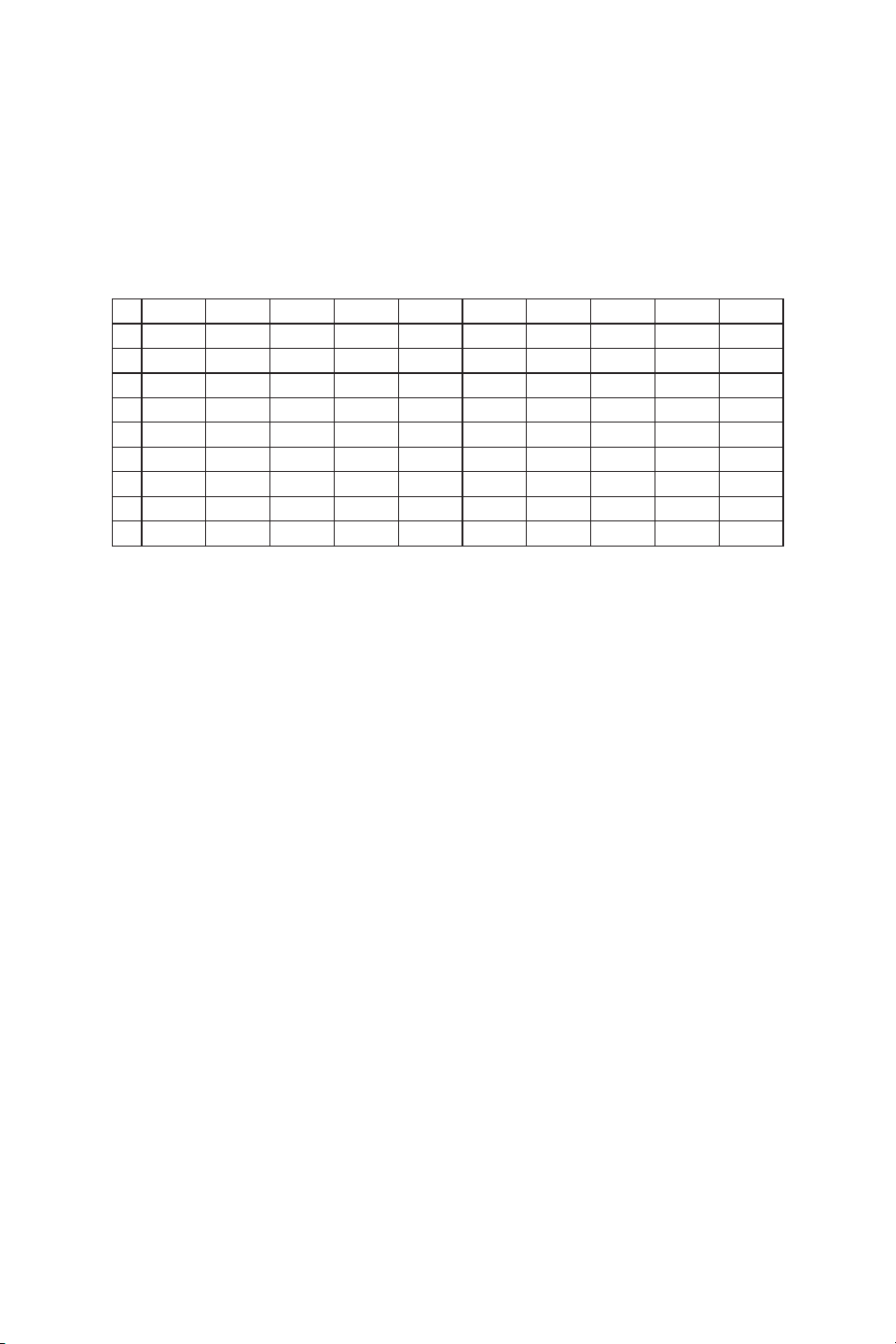
R61 AND R62 GROUP/CHANNEL CHART
GROUP
CHANNEL
*NOTE
Frequencies in the above chart may be selected by changing Group˝ and Channel˝ options from the menu (pg 16).
1 2 3 4 5 6 7 8 9 10
1 583.475 585.575 584.500 584.675 584.400 584.825 583.350 584.675 585.375 584.400
2 583.075 584.850 578.125 582.600 582.350 579.125 581.600 582.600 584.500 582.350
3 582.450 559.600 571.450 579.400 581.475 578.625 573.825 581.750 581.150 581.475
4 581.625 558.975 565.600 571.600 579.125 574.475 572.800 579.400 580.600 579.125
5 580.500 557.750 564.975 570.975 577.600 567.550 571.550 578.375 579.200 578.100
6 579.575 557.025 564.150 570.150 576.975 566.000 570.775 577.150 578.125 577.100
7 578.350 555.675 563.025 569.750 576.150 561.100 569.050 576.650 577.450 576.375
8 545.625 554.650 561.675 569.025 575.025 557.075 565.700 575.300 576.100 575.850
9 544.500 541.475 560.125 567.675 573.675 555.300 561.075 574.450 575.250 574.825
10 543.575 541.075 547.475 566.125 572.125 553.625 553.600 571.450 572.250 573.475
11 542.350 540.450 547.075 554.125 553.300 547.350 552.975 564.700 565.500 572.850
12 535.075 539.625 546.450 549.675 551.625 543.475 552.150 562.600 563.400 570.050
13 533.625 538.500 542.850 548.650 544.925 542.400 551.750 561.050 561.850 564.525
14 531.575 537.575 535.475 548.125 541.600 538.350 551.025 556.275 557.075 562.450
15 530.850 536.850 534.450 529.475 540.450 535.500 527.625 553.450 554.250 560.575
16 536.350 532.500 529.075 527.325 533.950 526.500 549.700 550.500 551.725
17 530.350 528.450 526.075 528.075 525.575 548.775 547.875 550.500
18 524.850 525.525 526.375 523.475 547.325 546.425 549.575
19 524.350 524.525 525.800 523.075 544.700 545.500 548.125
20 522.100 522.450 543.475 541.750 545.500
21 534.625 538.925 544.275
22 532.750 537.475 535.425
23 530.675 534.150 533.550
24 530.250 532.600 531.475
25 525.150 530.500 531.050
26 522.350 528.100 525.950
27 523.750 523.150
28 522.525
32
INTERNATIONAL E FREQUENCY
GROUP/CHANNEL CHART
1 823.625 823.825 823.175 827.450 823.500 823.250 824.025 824.975 823.000 823.975
2 828.275 825.000 827.200 828.575 824.500 823.750 826.225 826.025 824.225 825.775
3 829.100 825.575 827.825 829.250 825.750 825.250 826.975 828.000 824.975 828.625
4 830.225 826.550 829.375 830.275 827.250 826.500 829.300 828.700 828.000 829.500
5 830.625 827.075 829.875 830.700 828.250 827.500 829.700 829.100 829.100 831.900
6 831.625 829.700 830.625 831.725 863.150 828.250 863.125 863.150 829.500 863.475
7 863.400 831.500 863.625 863.625 863.550 863.125 863.525 863.550 863.125 863.900
8 863.825 863.350 864.350 864.325 864.600 863.525 864.175 864.175 863.525 864.550
9 864.625 863.900 864.875 864.175 864.625 864.600 864.175
10 864.875 864.625 864.625
GROUP
CHANNEL
Audix oers wireless systems that work with the international free frequency
(823 – 832 MHz and 863 – 865 MHz).

33

www.audixusa.com
503.682.6933
©2018 Audix Corporation All Rights Reserved.
Audix and the Audix Logo are trademarks of
Audix Corporation.
v.9 02.2018