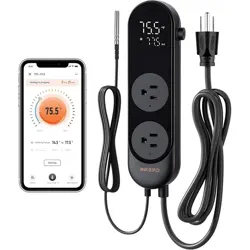
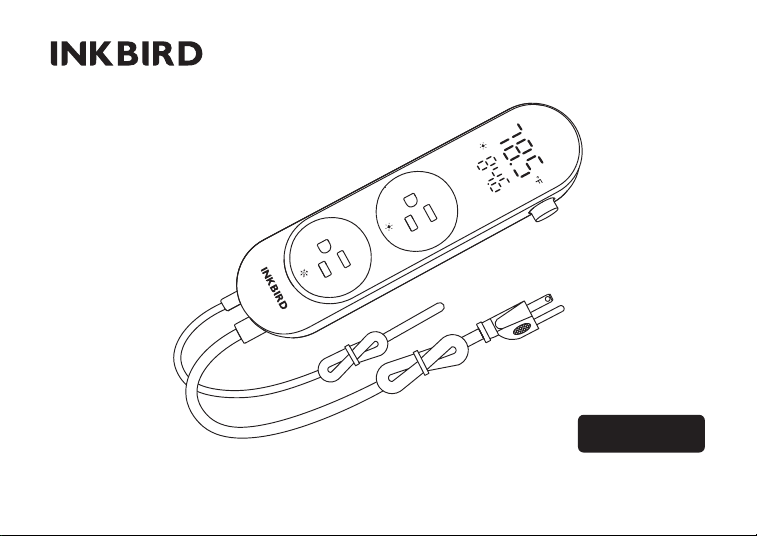
ITC-312
BLUETOOTH SMART TEMPERATURE CONTROLLER

01
Please keep this manual properly for reference. You can also
scan the QR code to visit our official website for product usage
videos. For any usage issues, please feel free to contact us at
The ITC-312 Bluetooth Smart Temperature Controller has three control functions--general
temperature mode, day/night mode, and time mode, and supports two setting methods--range
method and return differential method, making it more flexible to use. Users can choose the
setting method according to their usage habits. At the same time, it supports a Bluetooth
function, which enables app operation, which is more convenient. The device can store 30
days of temperature history and the phone app can store up to 1 year of temperature data.
It also has high and low-temperature alarm functions and is an intelligent controller that is
widely used for heating, cultivation, seedling growing, wood sheds, home living, and more.
Overview
04
02
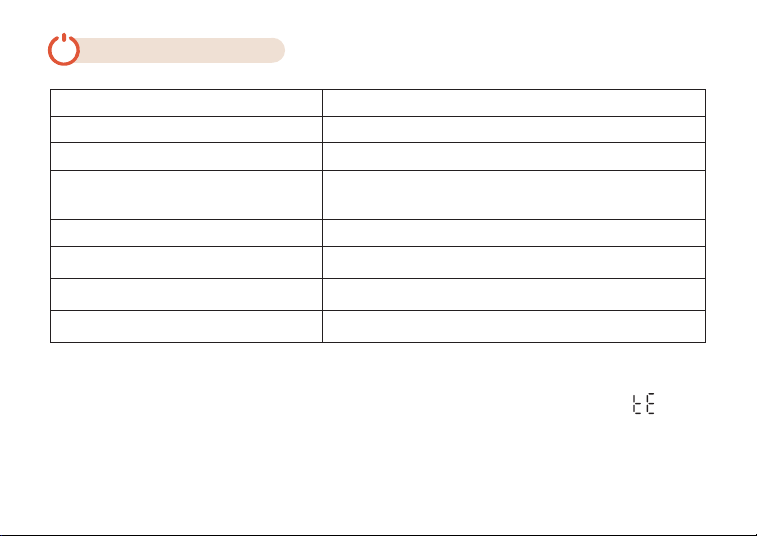
Technical Specifications
ITC-312
INKBIRD
120Vac, 60Hz, 10A Max
(total two receptacles)Max
120Vac,60Hz,10A,1200W
-40℉~212℉/-40℃~100℃
±2.0℉/1.0℃
BLE 5.0
100 meters in an open area
Input
Model
Brand
Output
Temperature Control Range
Temperature Measurement Error
Bluetooth Function
Bluetooth Distance
05
NOTE:
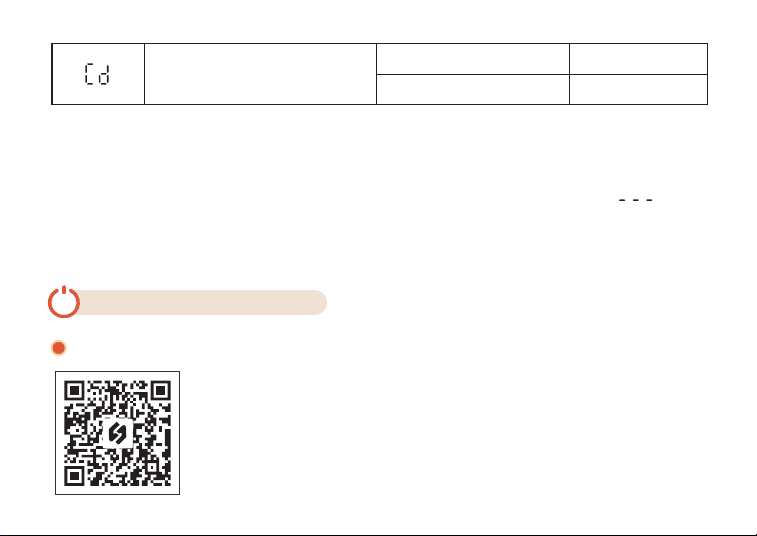
For the first use or after unplugging the controller for more than 10 days (when is
displayed on the device), please login to the INKBIRD app to connect the controller to have
it synchronize the clock and work regularly.
1
3
2
5
4
03
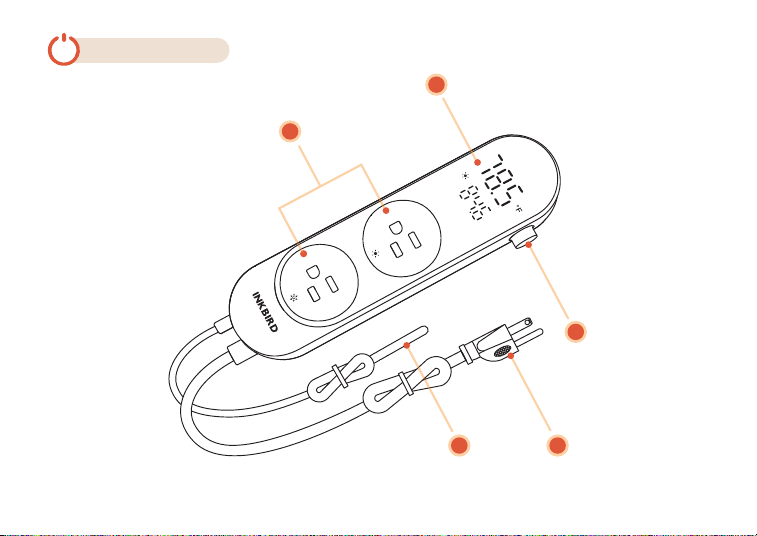
Product Diagram
06
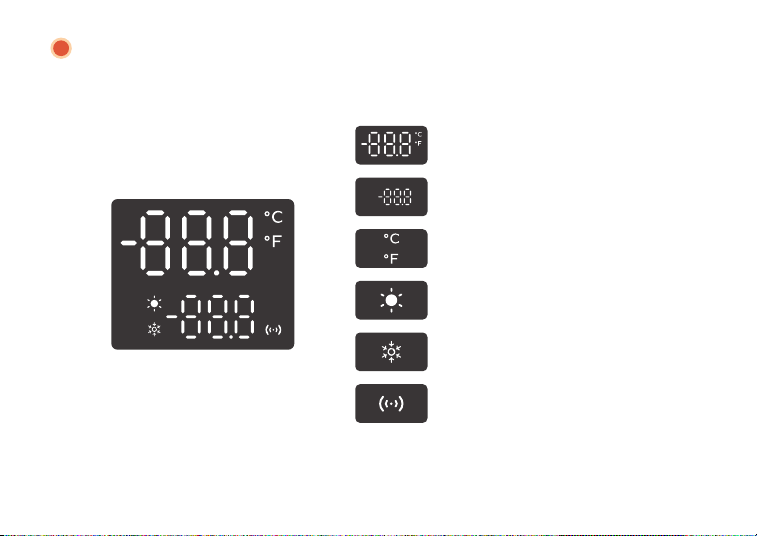
Temperature Unit
Heating Symbol
Cooling Symbol
Bluetooth Symbol
Current Temperature and Unit
Target Temperature
White Light LED
1
07
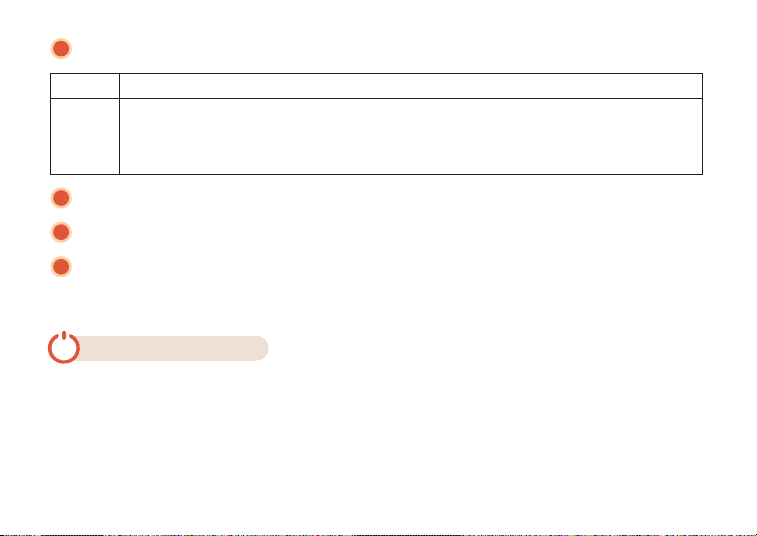
Rotary
Button
Rotary Button
Button
Function
Press and hold it for 2 seconds to enter or exit setting; in the setting state, short
press to select the setting menu; in the non-setting state, short press to
authorize Bluetooth connection; rotate up or down to adjust the parameter.
2
3
4
5
Output Port (HEATING & COOLING)
Temperature Probe(Length: 6.56ft (2m), IP67 Waterproof)
Input Power Cord
4.1 Setting Guideline
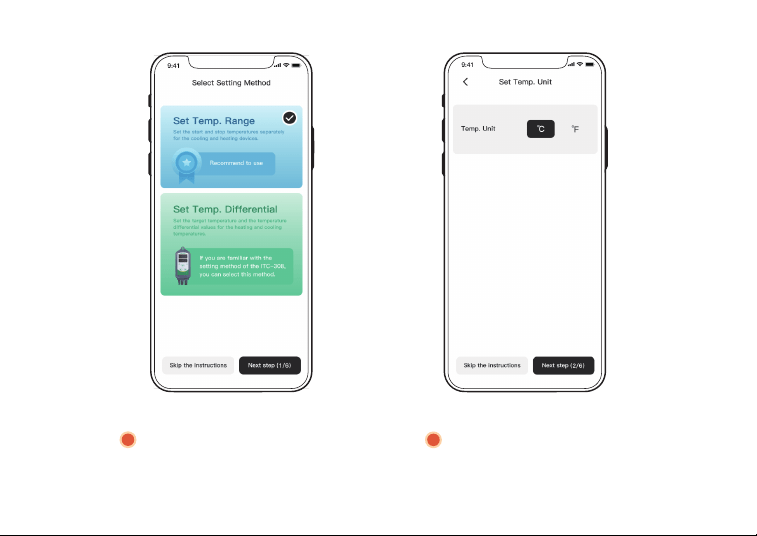
Select the device setting method through the App: Temperature range setting mode or
Temperature return difference setting mode.
04
Operation Instructions
08

Temperature range setting mode: Separately set start and stop temperatures for heating
and cooling devices. (Recommended)
Temperature return difference setting mode: Set the target temperature and the return
difference value of heating and cooling temperatures. (Select this method if you are more
accustomed to the setting logic of the ITC-308.)
4.2 Running Mode Guideline
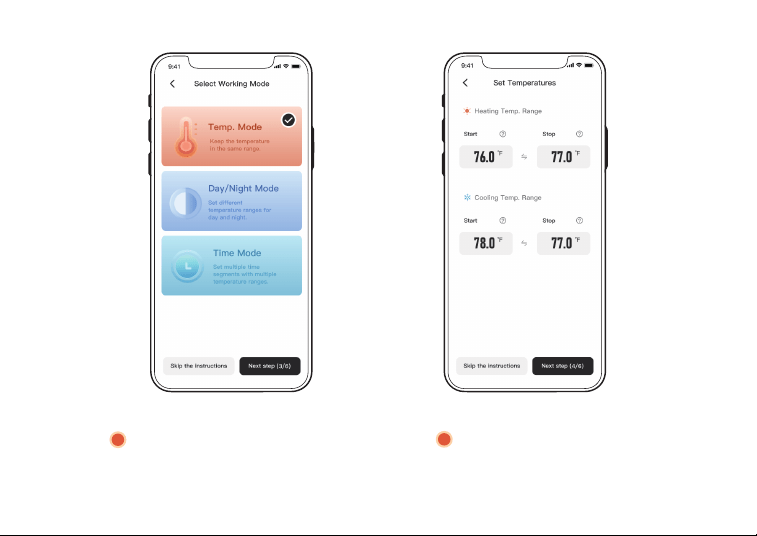
Select the device operating mode through the App: Temperature mode (default), Day/Night
mode, or Time mode.
Temperature Mode: Power on or off the plug-in devices according to the current
temperature and target temperature.
Day/Night Mode: 2 target temperatures can be set in a day, and the controller
will perform different temperature controls according to the 2 preset control periods.
Time Mode: Up to 12 target temperatures can be set in a day, and the controller will
perform different temperature controls according to the preset time periods.
09
10
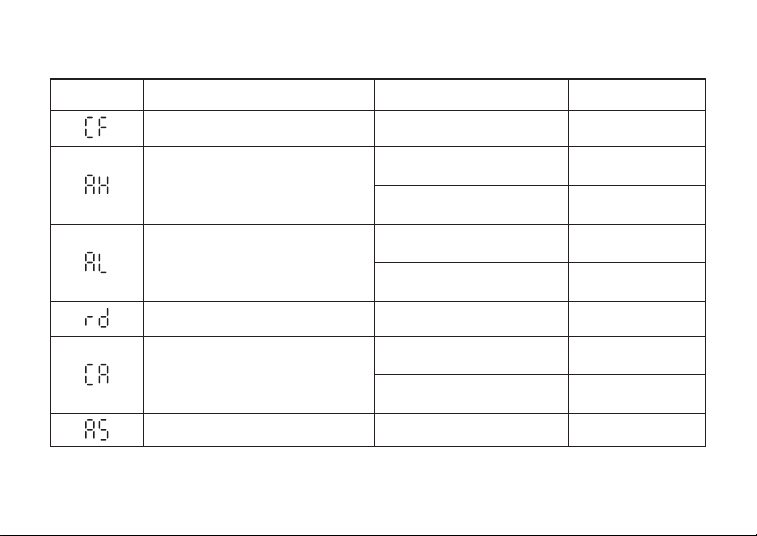
4.3 Description of the Menu Characters
Character Function DefaultRange
F
50℃
122℉
0℃
32℉
Temperature unit switch
High-temperature alarm
Low-temperature alarm
C or F
-40.0℃~100℃
-40.0℉~212℉
-40.0℃~100℃
-40.0℉~212℉
0 minuteRefrigeration delay 0~10 minutes
Temperature calibration
-4.9℃~4.9℃
-9.9℉~9.9℉
0.0℃
0.0℉
Alarm sound
ON or OFF ON
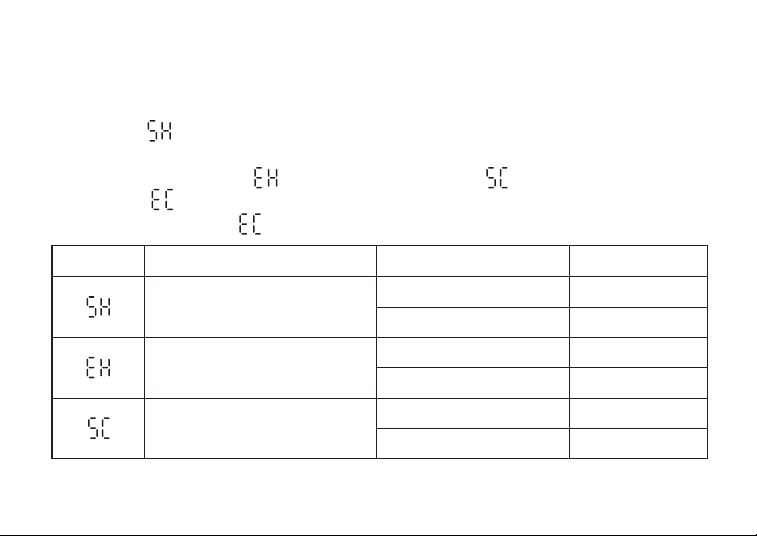
4.4 How To Quick Set Target Temperature
4.4.1 Temperature Range Setting Mode
Press the knob button to enter the quick setting of target temperature. The screen will display
the character
and the start heating temperature, with the latter flashing. Turn the knob
button to adjust the parameter, then press the knob button to confirm and switch to the setting
of end heating temperature (
), start cooling temperature (
) and end cooling
temperature (
). If there is no operation within 10 seconds, the device will automatically
exit quick setting, or, when
is displayed, press the knob button again to exit the setting.
11
Character Function DefaultRange
23.0℃
74.0℉
25.0℃
77.0℉
Start heating temperature
End heating temperature
-40.0℃~100℃
-40.0℉~212℉
-40.0℃~100℃
-40.0℉~212℉
27.0℃
80.0℉
Start cooling temperature
-40.0℃~100℃
-40.0℉~212℉
12
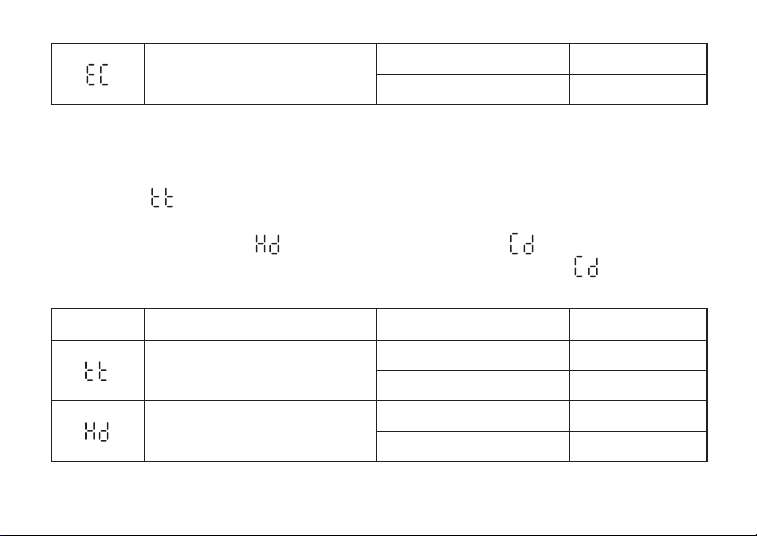
4.4.2 Temperature Return Difference Setting Mode
Press the knob button to enter the quick setting of target temperature. The screen will display
the character and the start heating temperature, with the latter flashing. Turn the knob
button to adjust the parameter, then press the knob button to confirm and switch to the setting
of heating differential value ( ) and cooling differential value ( ). If there is no operation
within 10 seconds, the device will automatically exit quick setting, or, when is displayed,
press the knob button again to exit the setting.
25.0℃
77.0℉
End cooling temperature
-40.0℃~100℃
-40.0℉~212℉
Character Function DefaultRange
25.0℃
77.0℉
2.0℃
3.0℉
Target temperature
Heating differential
-40.0℃~100℃
-40.0℉~212℉
0.2℃~15.0℃
0.3℉~25.0℉
13
NOTE:
1.In timer mode and day/night mode, quick setting can only modify the target temperature
for the current time.
2.In timer mode, if the current time is not within the preset time range, where is dis-
played, the quick setting is not available.
05
APP Installation & Connection
5.1 Search the INKBIRD App from Google Play or App Store to get it
for free, or you can scan the QR code to download it directly.
INKBIRD APP
2.0℃
3.0℉
Cooling differential
0.2℃~15.0℃
0.3℉~25.0℉

NOTE:
1. Your iOS devices must be running iOS 12.0 or above to download the app smoothly.
2. Your Android devices must be running android 7.1 or above to download the app
smoothly.
3. APP Location Permission Requirement: We need to obtain your location information to
discover and add nearby devices. INKBIRD promises to keep your location information
strictly confidential. And your location information will only be used for the location function
of the App and will not be collected, used, or disclosed to any third party. Your privacy is very
important to us. We will abide by relevant laws and regulations and take reasonable security
measures to protect your information security.
5.2 Registration
Step1: Registering an account is necessary before using the INKBIRD app for the first time.
Step2: Open the app, select your Country/Region, and a verification code will be sent to you.
Step3: Enter the verification code to confirm your identity, and the registration is complete.
14

5.3 How to Connect
Open the INKBIRD app and click the "+" in the top right corner to add a device. Then follow
the app's instructions to complete the connection. Please make sure to place the device as
close to your smartphone as possible during the connection process.
5.4 Application Instructions
5.4.1 App Guideline
For the first time connecting the product, the App will guide the user through the following
operation:
Select the setting method (Set temperature range or Set temperature return difference)
Set the temperature unit
Select the running mode of the device (Temp Mode, Day/Night Mode, or Time Mode)
Set the temperatures
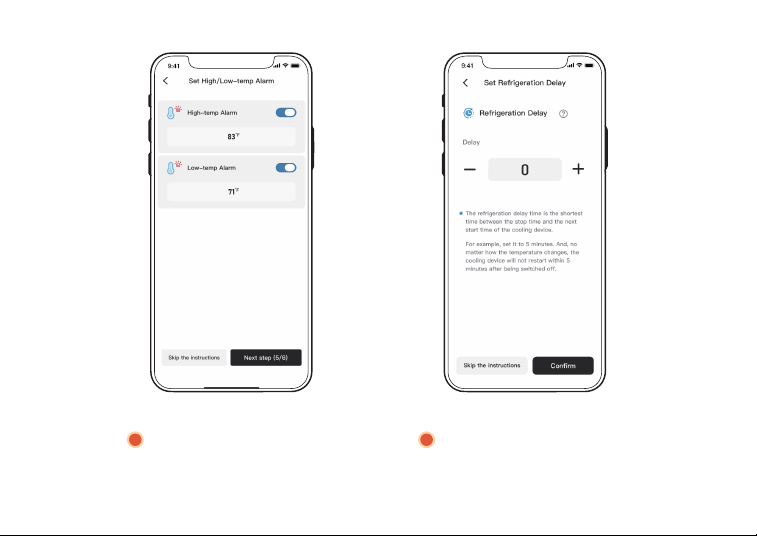
Set the high and low-temperature alarms
Set the refrigeration delay.
1
2
3
4
5
6
15
Set the temperature unit
Select the setting method
(Set temperature range or Set
temperature return difference)
1
2
16
Select the running mode of the device
(Temp Mode, Day/Night Mode,
or Time Mode)
3
Set the temperatures
4
17
Set the high and
low-temperature alarms
5
Set the refrigeration delay
6
18
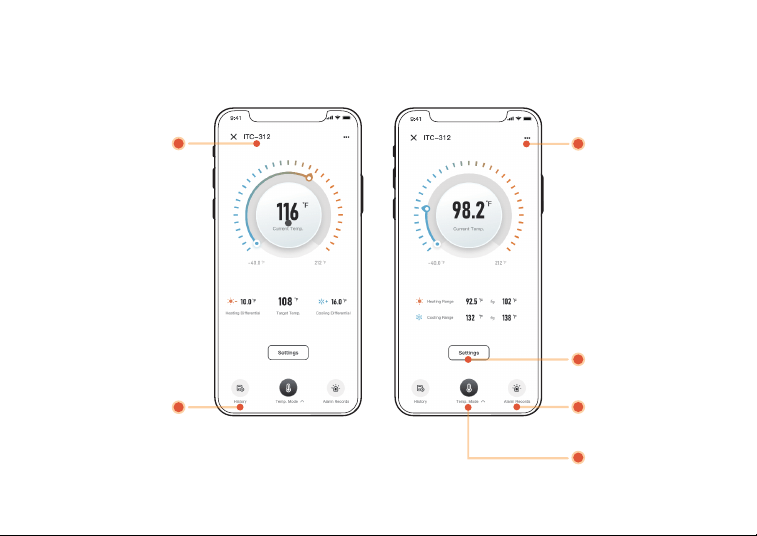
5.4.2 Main Interface Introduction
Product model
History records
Go to the
Settings page
Go to Set
Temperatures
Alarm records
Select Running
Mode
19
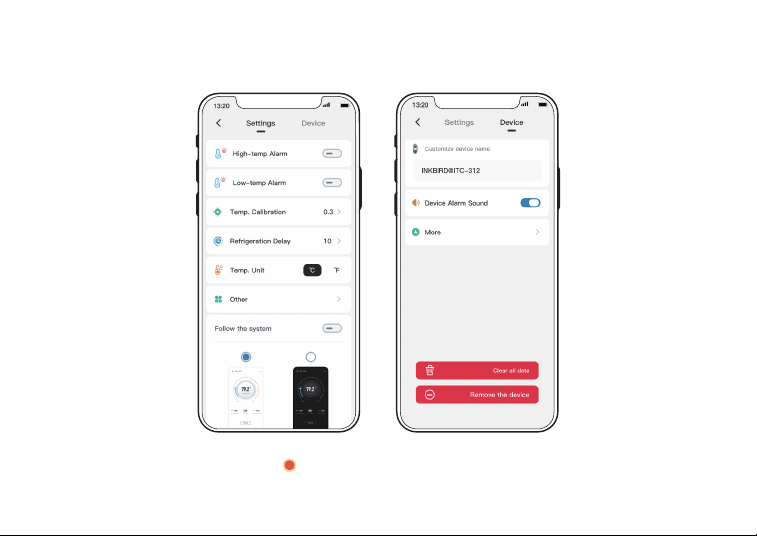
5.4.3 Setting Interface Introduction
Go to the Settings page
20
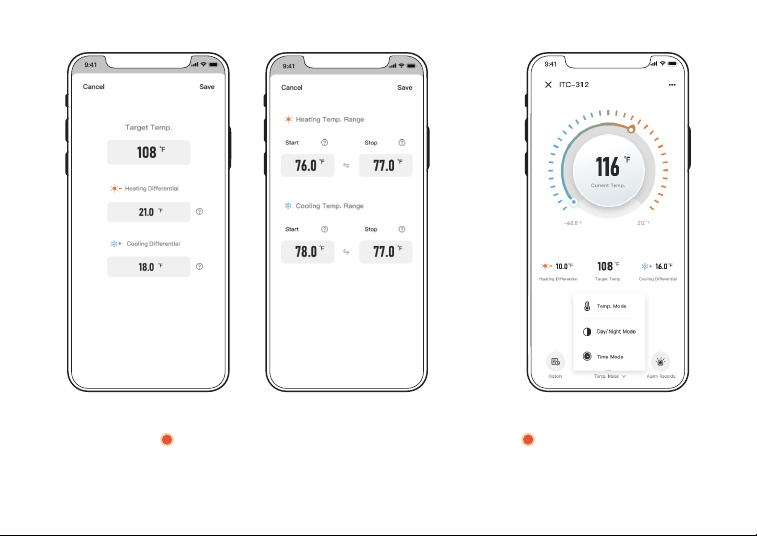
Set the Temperatures Select Running Mode
21
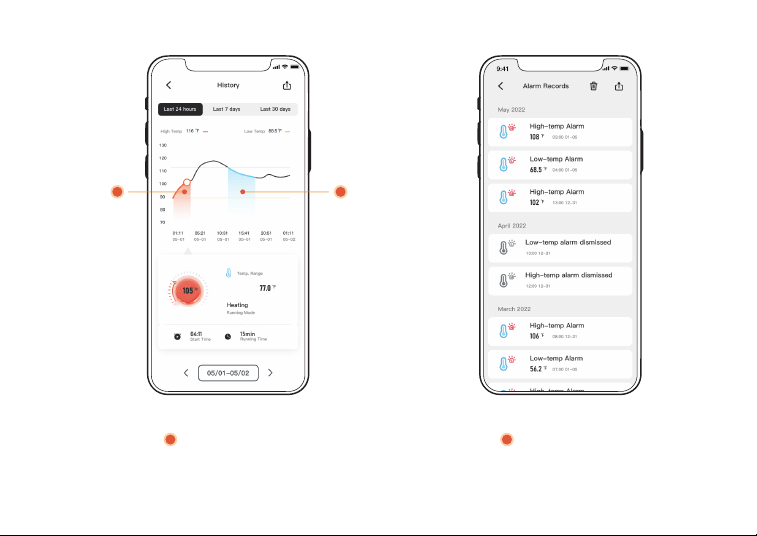
Heating
condition
Cooling
condition
History records Alarm records
22
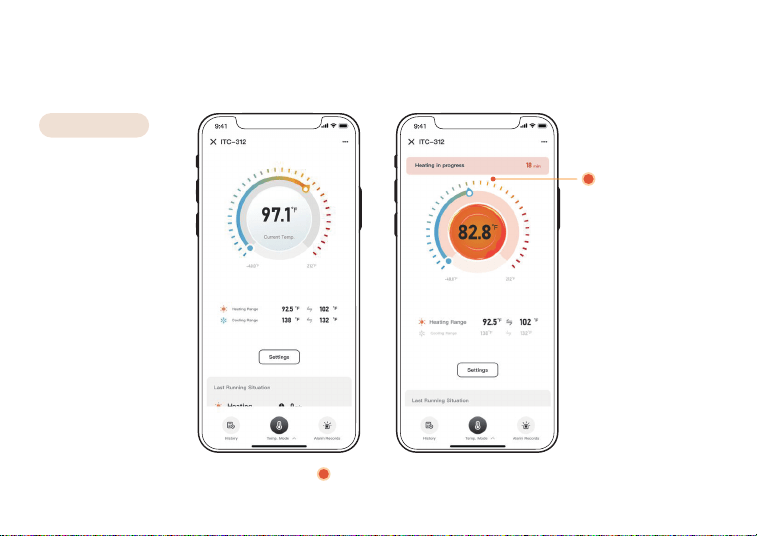
5.4.4 Introduction to the Temperature Range Main Interface and the Temperature
Setting Pop-up Window
Temp Mode
Heating/Cooling in
progress and working
time
Main interface
23
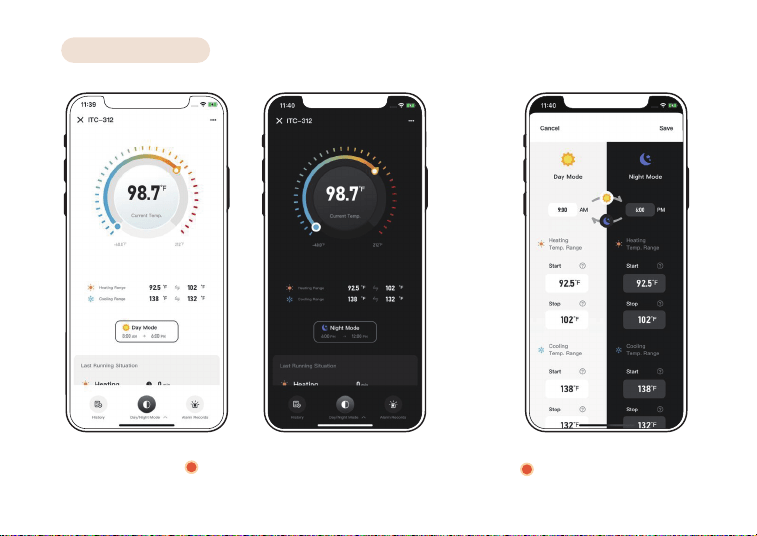
Day/Night Mode
Main interface
Set the tempera-
tures for Day/Night
24
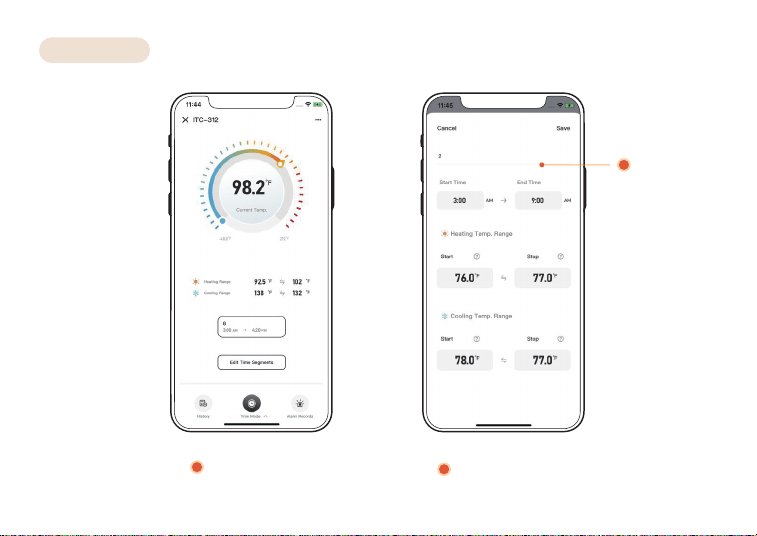
Time Mode
Rename the
current time
segment
Main interface
Set the periodic
temperatures
25
06
Cleaning and Maintenance
07
Important Notes/Warnings
6.1 Please make sure to unplug the temperature controller before cleaning. If cleaning
is necessary, use a dry, clean cloth to wipe it; do not clean with water or a wet cloth.
6.2 Do not place it where children can touch it. Store in a dry, ventilated place.
7.1 KEEP CHILDREN AWAY.
7.2 USE INDOORS ONLY TO REDUCE THE RISK OF ELECTRIC SHOCK.
7.3 DO NOT CONNECT TO OTHER RELOCATABLE POWER SOURCES OR EXTENSION
CORDS.
7.4 USE IN A DRY PLACE ONLY.
7.5 DO NOT PLACE NEAR WATER TO REDUCE THE RISK OF ELECTRIC SHOCK.
7.6 DO NOT EXPOSE TO HIGH TEMPERATURES.
7.7 THE HOUSING OF THE TEMPERATURE PROBE IS MADE OF STAINLESS STEEL
MATERIALS. WIPE OFF ANY STAINS TO AVOID AFFECTING THE ACCURACY OR RESPONSE
TIME OF THE PROBE.
7.8 DO NOT CONNECT IT TO A PRODUCT THAT IS NOT RATED FOR ITS VOLTAGE, WHICH
MAY CAUSE FIRE HAZARDS.
26
08
Troubleshooting Guide
Cannot connect Bluetooth?
1. Check that your smartphone has Bluetooth enabled.
2. Check that the device is in the connecting state.
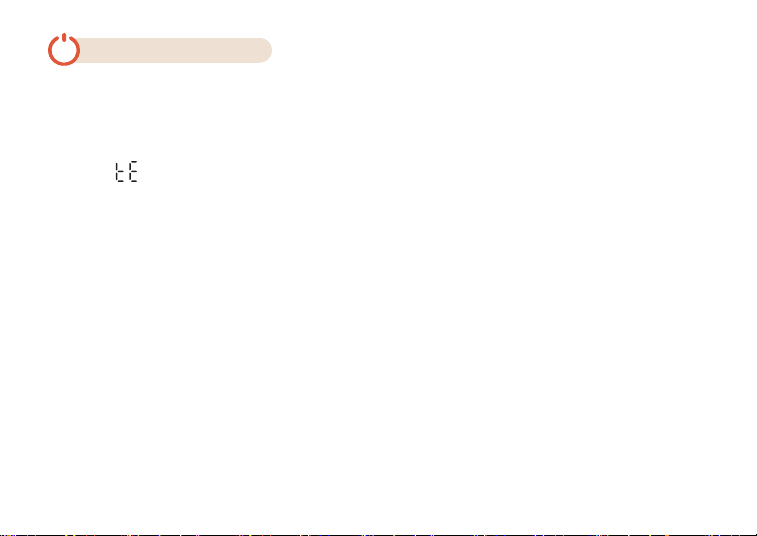
Display ?
Please login to the INKBIRD app to connect the controller to have it synchronize the clock
and work regularly.
27
Failure to switch on or off the heating/cooling output?
1. Test the electric power:
A. Unplug the controller, and plug a heating or cooling device. (Note that the device
voltage must not exceed the rated voltage of this product.)
B. Press and hold the SET button (until the Controller is turned on).
C. Connect the power supply to start up, then release the SET button.
Incorrect probe readings?
Wipe to clean the stainless steel part of the probe and blow with a hairdryer to completely
evaporate the moisture inside the probe (making sure that the device is disconnected from
the power supply).

2. Please check that the load power of the external device is within the rated power of this
product, 1200W (120Vac) or 2200W (220Vac). If the above operational steps still do not
resolve your issue, please contact our customer support team.
The screen of the controller gets stuck/frozen?
Unplug the controller and reboot it. If the problem persists, please contact
Customer Support.
Probe readings are changing repeatedly (sudden rise or fall)/Readings are changing
very slowly?
The controller will sound an alarm and AL/AH will flash on the screen. How to turn off
the AL/AH alarm sound?
1.Set through the device: Enter the setting mode, choose AS (Alarm sound) on the menu,
and then select ON (turn on the alarm sound) or OFF (turn off the alarm sound).
2.Set through the App: Enter the setting interface, select "Device", and then go to "Device
Alarm Sound" to toggle ON or OFF.
D. Turn the knob button to the left, and the heating symbol will light up on the LED,
indicating that the heating output is open. At this point, check that the unit is turned on.
E. Turn the knob button to the right, and the cooling symbol will light up on the LED,
indicating that the cooling output is open. At this point, check that the unit is turned on.
28
Wipe to clean the stainless steel part of the probe and blow with a hairdryer to completely
evaporate the moisture inside the probe (making sure that the device is disconnected from
the power supply).
09
FCC Requirement
Changes or modifications not expressly approved by the party responsible for compliance
could void the user’s authority to operate the equipment. This device complies with Part
15 of the FCC Rules. Operation is subject to the following two conditions:
(1) this device may not cause harmful interference, and
(2) this device must accept any interference received, including interference that may
cause undesired operation.
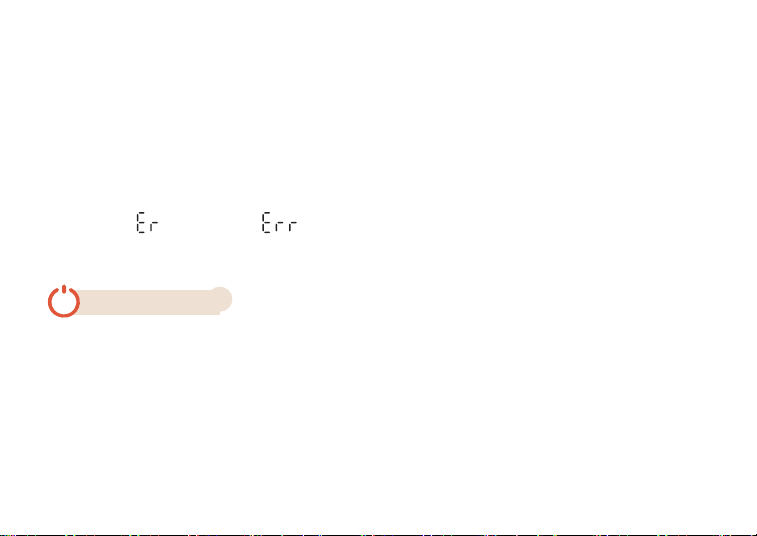
Deficient screen display / The screen keeps flashing / The sound of electricity is audible /
Displaying / Displaying ?
Please contact Customer Support.
Outlet melted/burnt?
Please check that the load power of the external device is within the rated power of this
product, 1200W (120Vac) or 2200W (220Vac), or contact Customer Support instead.
29

Note: This equipment has been tested and found to comply with the limits for a Class B
digital device, pursuant to Part 15 of the FCC Rules. These limits are designed to provide
reasonable protection against harmful interference in a residential installation. This
equipment generates, uses, and can radiate radio frequency energy, and if not installed and
used in accordance with the instructions, may cause harmful interference to radio
communications. However, there is no guarantee that interference will not occur in a
particular installation. If this equipment does cause harmful interference to radio or
elevision reception, which can be determined by turning the equipment off and on, the user
is encouraged to try to correct the interference by one or more of the following measures:
– Reorient or relocate the receiving antenna.
– Increase the separation between the equipment and receiver.
– Connect the equipment into an outlet on a circuit different from that to which the
receiver is connected.
– Consult the dealer or an experienced radio/TV technician for help.
This equipment complies with FCC radiation exposure limits set forth for an uncontrolled
environment. This equipment should be installed and operated with a minimum distance
of 20cm between the radiator & your body. This transmitter must not be co-located or
operating in conjunction with any other antenna or transmitter.
30

31
L'émetteur/récepteurexemptdelicencecontenudansleprésentappareilestconformeaux
CNRd'Innovation,SciencesetDéveloppementéconomiqueCanadaapplicablesauxappareils
radioexemptsdelicence.L'exploitationestautoriséeauxdeuxconditionssuivantes:
1)L'appareilnedoitpasproduiredebrouillage;
2)L'appareildoitacceptertoutbrouillageradioélectriquesubi,mêmesilebrouillageest
susceptibled'encompromettrelefonctionnement.
Thedevicemeetstheexemptionfromtheroutineevaluationlimitsinsection2.5ofRSS102
and compliancewithRSS-102RFexposure,userscanobtainCanadianinformationonRF
exposureand compliance.
Thisdevicecontainslicence-exempttransmitter(s)/receiver(s)thatcomplywithInnovation,
ScienceandEconomicDevelopmentCanada’slicence-exemptRSS(s).Operationissubjectto
thefollowingtwoconditions:
(1)Thisdevicemaynotcauseinterference.
(2) Thisdevicemustacceptanyinterference,includinginterferencethatmaycauseundesired
operationofthedevice.
10
IC Warning
Ledispositifrencontrel'exemptiondeslimitescourantesd'évaluationdanslasection2.5de
RSS102etlaconformitéàl'expositiondeRSS-102rf,utilisateurspeutobtenirl'information
canadiennesurl'expositionetlaconformitéderf.
Thistransmittermustnotbeco-locatedoroperatinginconjunctionwithanyotherantenna or
transmitter.Thisequipmentshouldbeinstalledandoperatedwithaminimumdistanceof20
centimetersbetweentheradiatorandyourbody.
CetémetteurnedoitpasêtreCo-placéounefonctionnantenmêmetempsqu'aucuneautre
antenneouémetteur.Cetéquipementdevraitêtreinstalléetactionnéavecunedistance
minimumde20centimètresentreleradiateuretvotrecorps.
This item carries a 2-year warranty against defects in either components or workman-
ship. During this period, products that prove to be defective will, at the discretion of
INKBIRD, be either repaired or replaced without charge. For any problems in use, please
feel free to contact us at [email protected]. We will do our best to help you.
11
Customer Service
32
Shenzhen Inkbird Technology Co.,Ltd.
MADE IN CHINA
DESIGNED BY INKBIRD
V2.0
Consignor: Shenzhen Inkbird Technology Co., Ltd.
Office Address: Room 1803, Guowei Building, No.68 Guowei Road, Xianhu Community, Liantang, Luohu
District, Shenzhen, China
Manufacturer: Shenzhen Inkbird Technology Co., Ltd.
Factory Address: 6th Floor, Building 713, Pengji Liantang Industrial Area, No.2 Pengxing Road, Luohu
District, Shenzhen, China