Register your product and get support at
www.philips.com/welcome
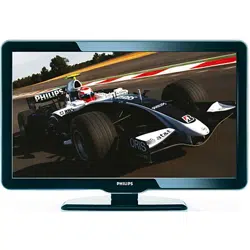
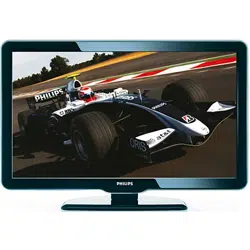
32HFL4441D/27
32HFL4461F/27
37HFL4481F/27
EN Quick User Guide

1
1 How to use this guide
TheQuickStartGuidehelpsyouinstallthePhilipscommercial
television,asquicklyaspossible.Itcontainsthenecessaryinformation
toinstalltheTVandcongurethesettings.Readandunderstandthe
instructionsintheQuickStartGuidebeforeyouuseyourTV.
Fordetailedinformationonadditionalfeatures,downloadtheuser
manualbyselectingyourTVmodelatwww.philips.com/hospitality.
TheQuickStartGuidecontainsthefollowinginformation:
• contentsofthebox
• standaloneinstallationinstructions
• congurationofchannel,advancedandSmartFeatures
settings
• cloningofdata
• troubleshooting
OSS declaration
Open source software
Thistelevisioncontainsopensourcesoftware.PhilipsBUHospitality
herebyofferstodeliverormakeavailable,uponrequest,foracharge
nomorethanthecostofphysicallyperformingsourcedistribution,a
completemachine-readablecopyofthecorrespondingsourcecodeon
amediumcustomarilyusedforsoftwareinterchange.
Toobtainthesourcecode,writeto:
PhilipsSingaporePteLtd.
PhilipsBUHospitality
SoftwareDevelopmentManager
620ALorong1,ToaPayoh
Singapore319762
Thisofferisvalidforthreeyearsafterthedateofpurchaseofthis
product.
Energy savings mode
ThisTVisconguredinEnergySavingsmode.
• ThismodewilldisablethesidecontrolkeysoftheTVandresultina
longerturnontime.TooptimizetheTVperformance,adjusttheLOW
POWERSTANDBYsettinginTVSETUPmenu.
• Formoredetails,refertotheinformationonconguringtheLOW
POWERSTANDBYfeature(see‘CongureSmartPowersettings’onpage
7).
Engli sh
EN
2
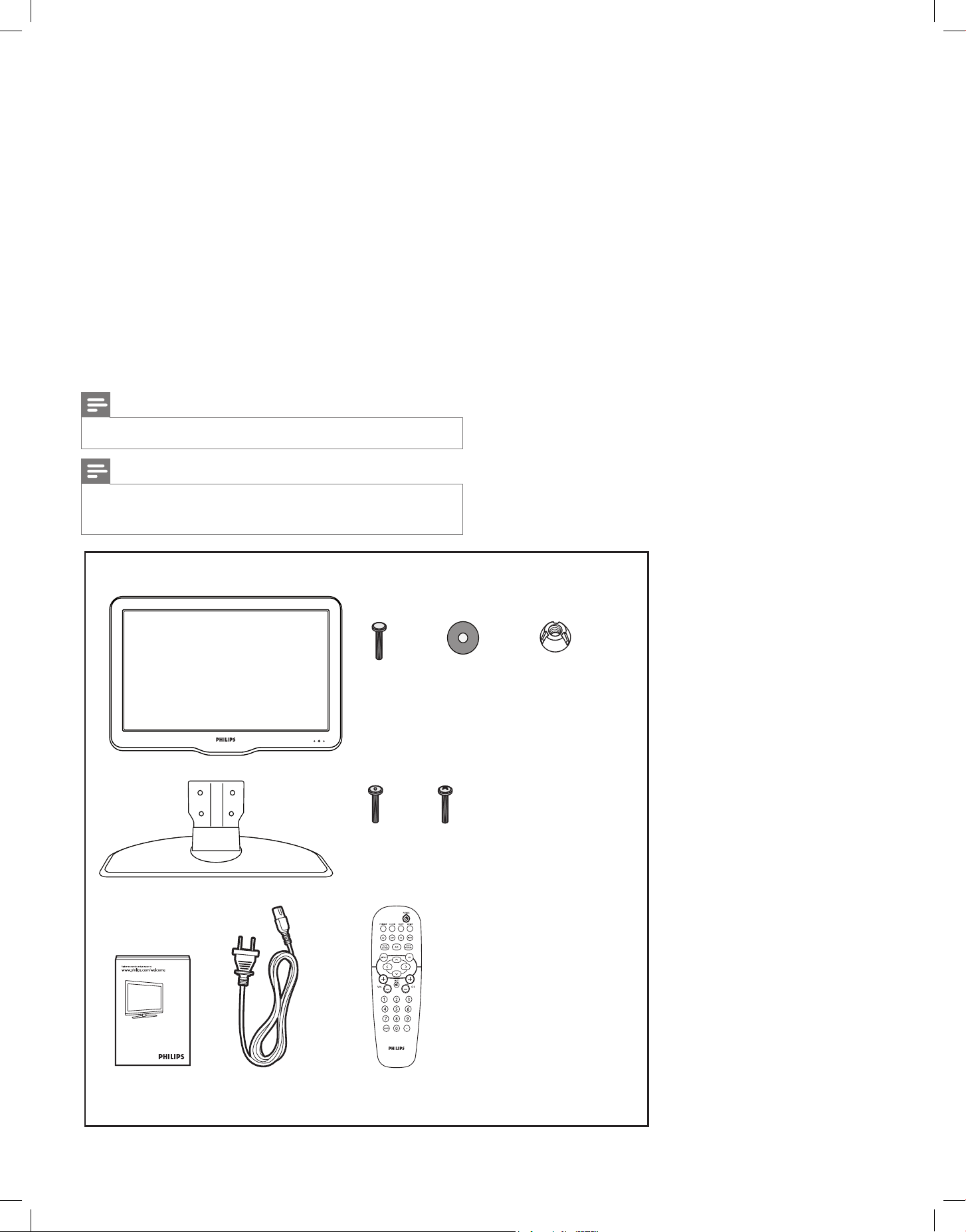
2 The contents of the box
Theboxcontainsthefollowingitems:
• whichsecuretheTVstandtothefurnitureofthehotelroomto
preventunauthorizedremovalortheft
• desk-to-standscrews(2)*
• desk-to-standwashers(2)*
• desk-to-standsecuregroovenuts(2)*
• whichsecuretheTVstandtotheTVtopreventunauthorized
removalortheft
• stand-to-TVsecurescrews(4)*
• stand-to-TVcross-headscrews(4)*
• theTV
• theTVstand
• QuickStartGuide
• 2-pinpowercord
• Guestremotecontrol*
Note
• *Theitemsareavailableinselectedmodelsonly.
Note
• Thetoolsrequiredtosecurethescrewsarenotincludedinthebox.
ContactyourPhilipsauthorizedagentordealerinNAFTAtoobtainthe
tools.
EN
x 4
x 2
x 2
x 2
x 4
(Available in selected models only)
(Available in selected models only)
(Available in selected models only)
3
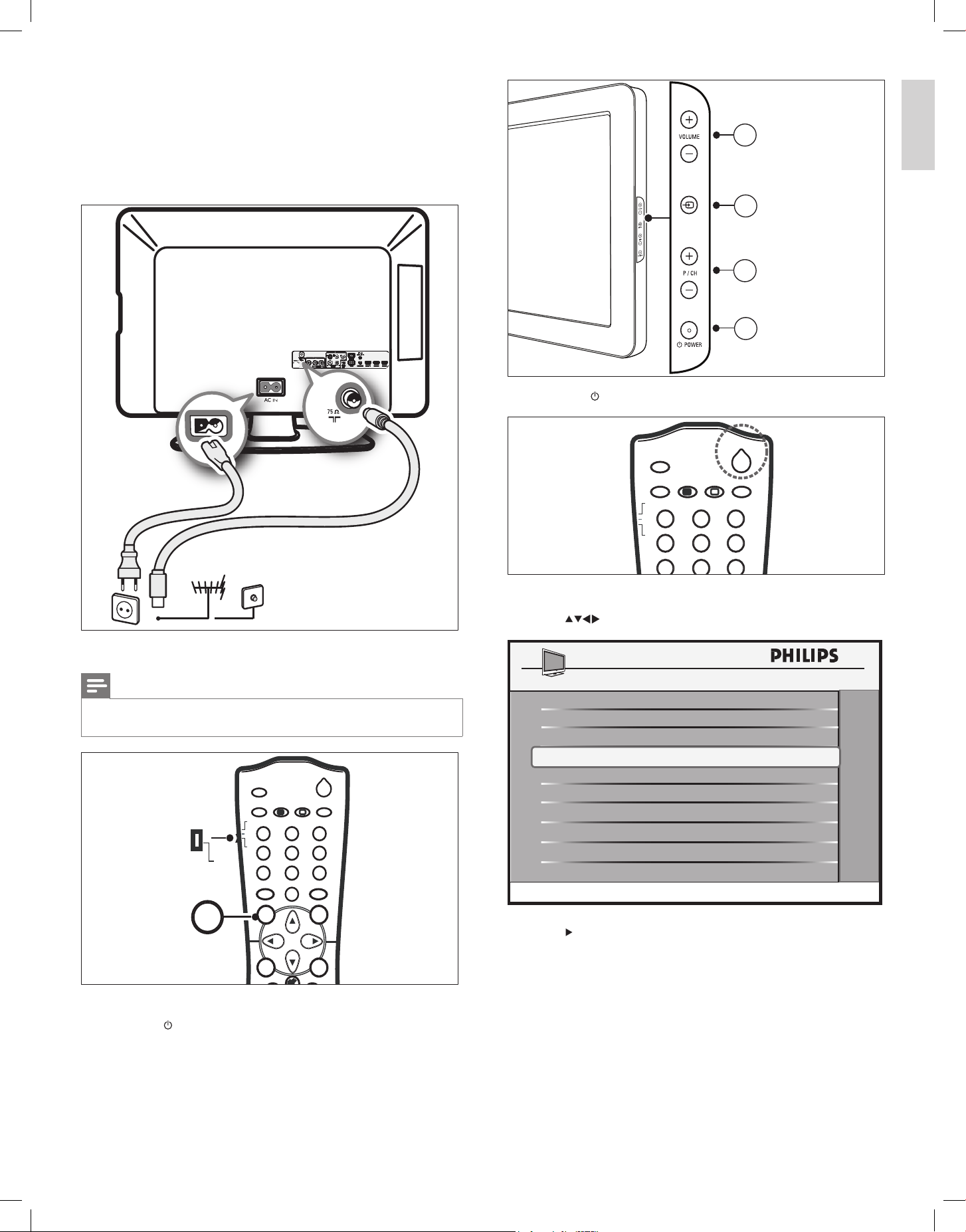
• Press Poweronthesetupremotecontrol.
5 PressMonthesetupremotecontroltodisplaythesetupmenu.
6 Press toselectAUTO INSTALL TV.
7 Press tostarttheautomaticinstallationofchannels.
» Afterthechannelsareinstalled,youcanchangethesettingsof
thechannels,picture,sound,andvolume.
3
4
2
1
MENU
POWER
SLEEP
SMART
GUEST
DCM
SETUP
TEXT
RECALL
CC
8
1
4 5 6
7
9
2 3
COMMUNICATION >
USE CHANNEL TABLE
YES
CURRENT RING
DIGITAL SETUP
SETUP
CABLE TUNING YES
CHANNEL INSTALL
>
CONFIGURATION
SMARTCLONE
>
>
>
RING2
LANGUAGE
ENGLISH
AUTO INSTALL TV
>
3 Standalone installation
ThissectiondescribeshowtoinstalltheTVchannelsautomatically.
1 ConnecttheRFsignalfromthewallsockettotheTV.
2 Plugthe2-pinpowercordintothepoweroutlet.
3 SettheswitchatthesideofthesetupremotecontroltoSETUP.
Note
• Thesetupremotecontrolisnotincludedinthebox.ContactyourPhilips
authorizedagentordealertoobtaintheremotecontrol.
4 TurntheTVon.
• Press POWERatthesideoftheTV.
TV ANTENNA
Cable
M
POWER
SLEEP
GUIDE
SMART
GUEST
DCM
SETUP
TEXT
RECALL
HCLOV
CC
RESET
CH
8
0
1
4 5 6
7
9
2 3
M
A/CH
++
+
_
SETUP
Engli sh
EN
4
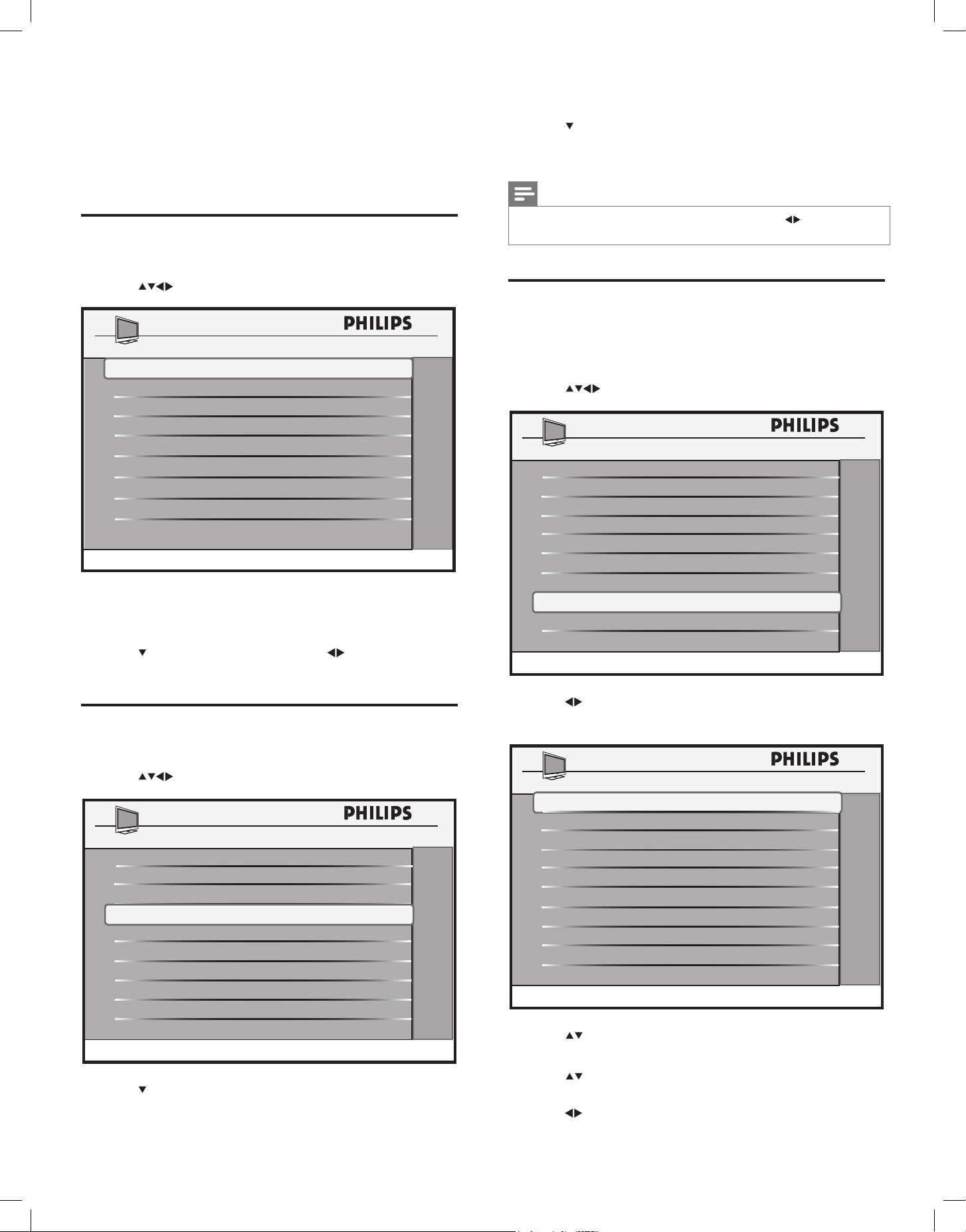
4 Press0-9(Numeric buttons)toenterthephysicalchannel
number.
5 Press tosettheMPEG PROGRAM NUMBERtoaparticular
programinthephysicalchannel.
6 Press0-9(Numeric buttons)toentertheprogramnumber.
Note
• YoucanalsoselectDIGITAL CH SCROLLandpress toselectthe
digitalchannelnumbers.
Select a ring
1 PressMonthesetupremotecontroltodisplaythesetupmenu.
2 Selectthechannelthatyouwanttosaveinaringandtheinput
source(see‘Manualinstallationofanalogchannels’onpage4).
3 Press toselectCHANNEL INSTALL > RINGS.
4 Press toselectaringnumber.
» Aashingreddashappearsnexttotheselectedring.
5 Press tosaveorremoveachannelfromthering.
» Theringismarkedbyan‘X’whenthechannelissavedinit.
6 Press toselectacategoryoption(HIGH DEFINITION,
SPORTS,NEWS,etc)tosavethechannel.
7 Press toselectYES tosavethechanneltothiscategoryor
NOtoremovethechannel.
CHANNEL TV 2
INPUT TUNER
LABEL
( )
>
MUTE
NONE
CHANNEL INSTALL
DIGITAL CH SCROLL
CHANNEL LOGO
>
RF CHANNEL NUMBER
MPEG PROGRAM NUMBER
>
2
8
DIGITAL
YES
RINGS
>
HIGH DEFINITION
RINGS
SPORTS
NEWS
YES
KIDS
YES
MOVIES
YES
NETWORK
YES
ADULT
YES
LIFESTYLE
YES
OTHERS
NO
NO
YES
CHANNEL RINGS
(1X)(2 )(3 )(4 )
4 Change the channel
settings
Thissectiondescribeshowtochangethechannelsettings.
Manual installation of analog channels
1 PressMonthesetupremotecontroltodisplaythesetupmenu.
2 Press toselectCHANNEL INSTALL > CHANNEL.
3 Press0-9(Numeric buttons)toselectachannel.
• Forcablemode,selectanumberbetween01-250.
• Forantennamode,selectanumberbetween02-250.
4 Press toselectINPUT,andthenpress toselectthesource
ofinput.
Manual installation of digital channels
1 PressMonthesetupremotecontroltodisplaythesetupmenu.
2 Press toselectCHANNEL INSTALL > DIGITAL > YES.
3 Press tosettheRF CHANNEL NUMBERtothephysical
channelnumber.
INPUT TUNER
DIGITAL
NO
RINGS
LABEL
( )
>
>
MUTE NONE
CHANNEL INSTALL
RF CHANNEL NUMBER
2
MPEG PROGRAM NUMBER
8
CHANNEL LOGO
>
CHANNEL
TV 2
CHANNEL TV 2
INPUT TUNER
RINGS
LABEL
( )
>
>
MUTE
NONE
CHANNEL INSTALL
DIGITAL CH SCROLL
CHANNEL LOGO
>
RF CHANNEL NUMBER
MPEG PROGRAM NUMBER
>
2
8
DIGITAL
YES
EN
5
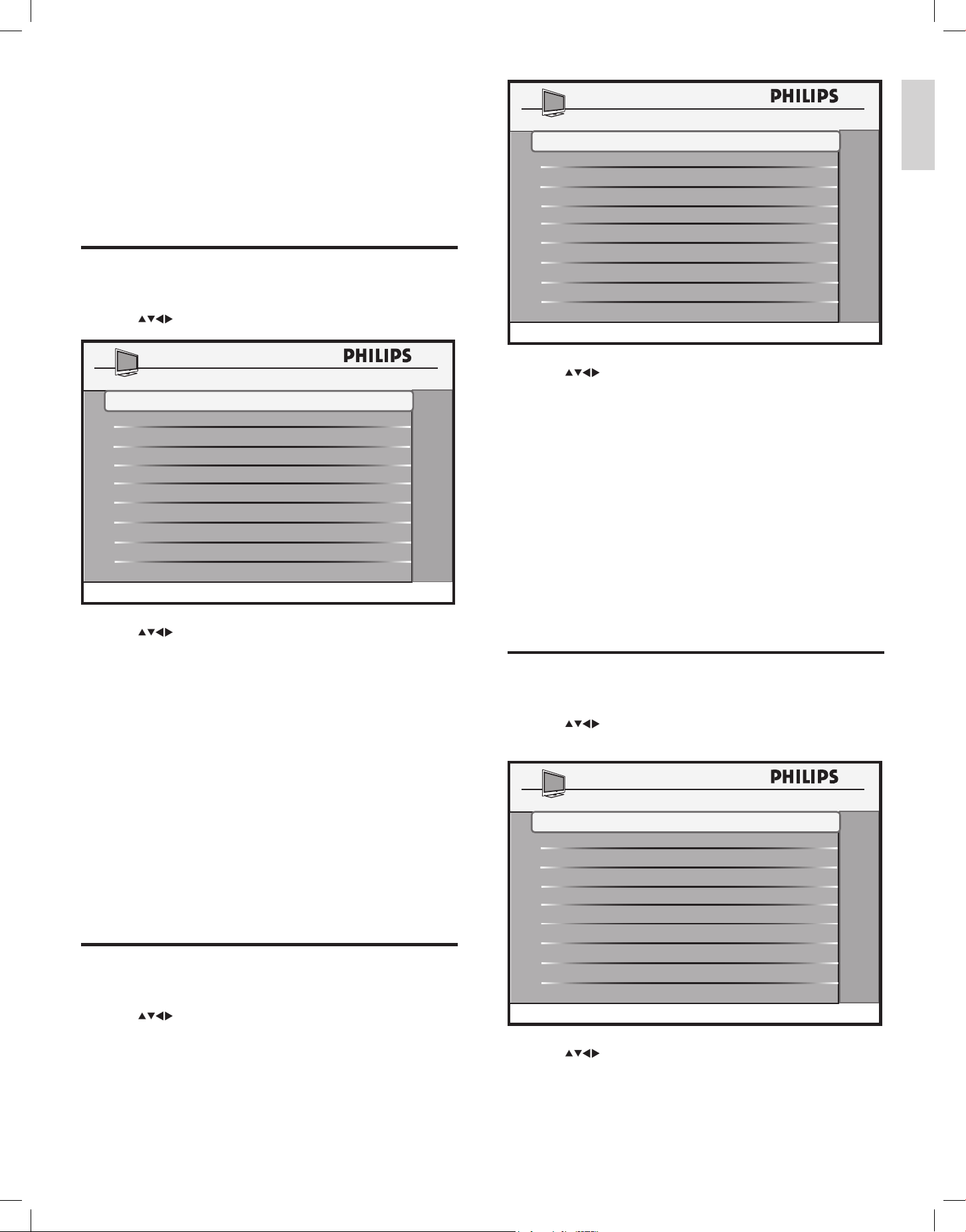
3 Press tosetthefollowingvalues:
• WELCOME MESSAGE:Setsorclearsawelcomemessage.
• SWITCH ON CHANNEL:Setsachannelthatisdisplayed
whentheTVisturnedon.
• SWITCH ON SMARTGUIDE:Setsthedisplayof
SmartGuidecategoriesscreenwhentheTVisturnedon.
• SWITCH ON VOLUME:Speciesthevolumeatwhichthe
TVisturnedon.
• SWITCH ON PIC FMT:Setsthepictureformatthatisused
todisplay.
• POWER ON:Setsthepowermodethatisusedwhenthe
TVisturnedon.
• VOLUME INDICATOR:Setsthedisplayofvolume
indicator.
• CHANNEL DISPLAY:Setsthedisplayofchannelnumber
andchannelnameonthescreen.
Congure the picture and sound settings
1
PressMonthesetupremotecontroltodisplaythesetupmenu.
2 Press toselectCONFIGURATION > PICTURE/
SOUND.
3 Press toadjustasettingforyourTV.
SWITCH ON CHANNEL TV 2
SWITCH ON PIC FMT
WIDESCREEN
POWER ON
VOLUME INDICATOR
SWITCH ON VOLUME
30
WELCOME MESSAGE
LAST STATUS
YES
SWITCH ON SMARTGUIDE
YES
SWITCH ON / OSD
>
CHANNEL DISPLAY
ALL
COLOR 38
SHARPNESS
50
TINT
ACTIVE CONTROL
PICTURE / SOUND
CONTRAST
70
BRIGHTNESS
45
36
YES
TREBLE
BASS
BALANCE
AVL
52
55
0
ON
5 Configure advanced
settings
Thissectiondescribeshowtoconguretheadvancedsettingsforthe
TVsuchasvolume,channel,pictureformat,powermode,picture,sound,
security,control,ratings,andhotelinformation.
Access the conguration menu
1
PressMontheremotecontroltodisplaythesetupmenu.
2 Press toselectCONFIGURATION.
3 Press toselectoneofthefollowingtocongurethe
settings:
• SWITCH ON/OSD
:Setsthedefaultvalueforsettingssuch
asvolume,channel,pictureformat,andpowermode.These
valuesareusedwhentheTVisswitchedon.
• PICTURE/SOUND:Setsthepictureandsoundsettingsfor
theTV.
• SECURITY:Setsthelevelofsecuritybyconguringthe
settingssuchas,TVlock,RClockanddecryptioncontrol.
• CONTROL:SetsthecontrolsettingssuchasESP,Smart
Guide,andMaxVolume.
• SMARTFEATURES:SetstheSmartPower,USBbreak-
in,SmartGuideCategory,SmartUpdate,andsoftware
downloadsettings.
• AUDIO FEATURES:Setsthecorrectaudiosource.
• CC/V-CHIP:Setstheclosedcaptionsettingsandratings.
• HOTEL INFORMATION:Setthehotelinformation
includinghotelnameandroomnumber.
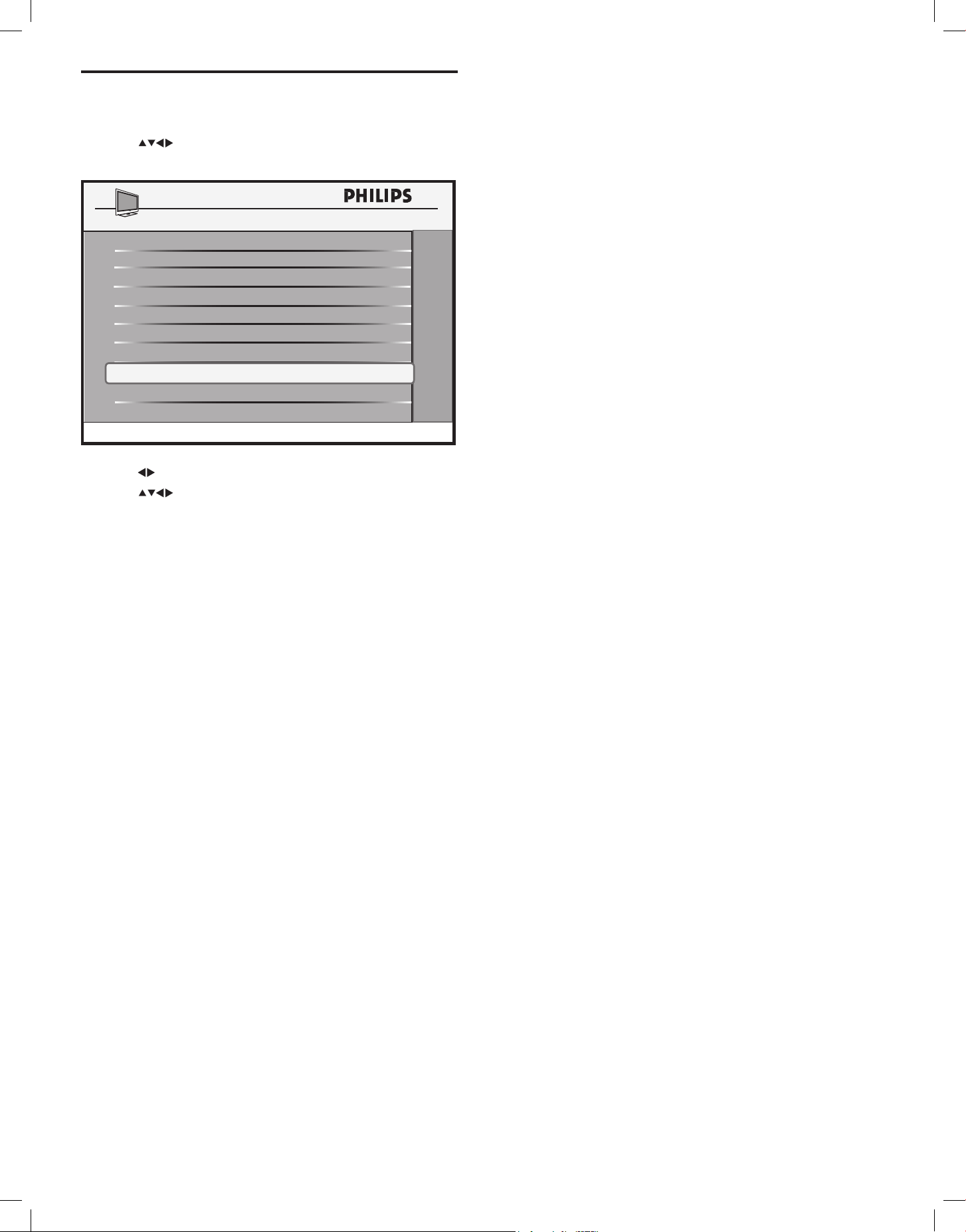
Congure the switch-on settings
1
PressMonthesetupremotecontroltodisplaythesetupmenu.
2 Press toselectCONFIGURATION > SWITCH ON/
OSD.
PICTURE / SOUND >
CONTROL
>
SMARTFEATURES
AUDIO FEATURES
CONFIGURATION
SECURITY
>
SWITCH ON / OSD
>
>
CC / V-CHIP
>
HOTEL INFORMATION
>
>
Engli sh
EN
6
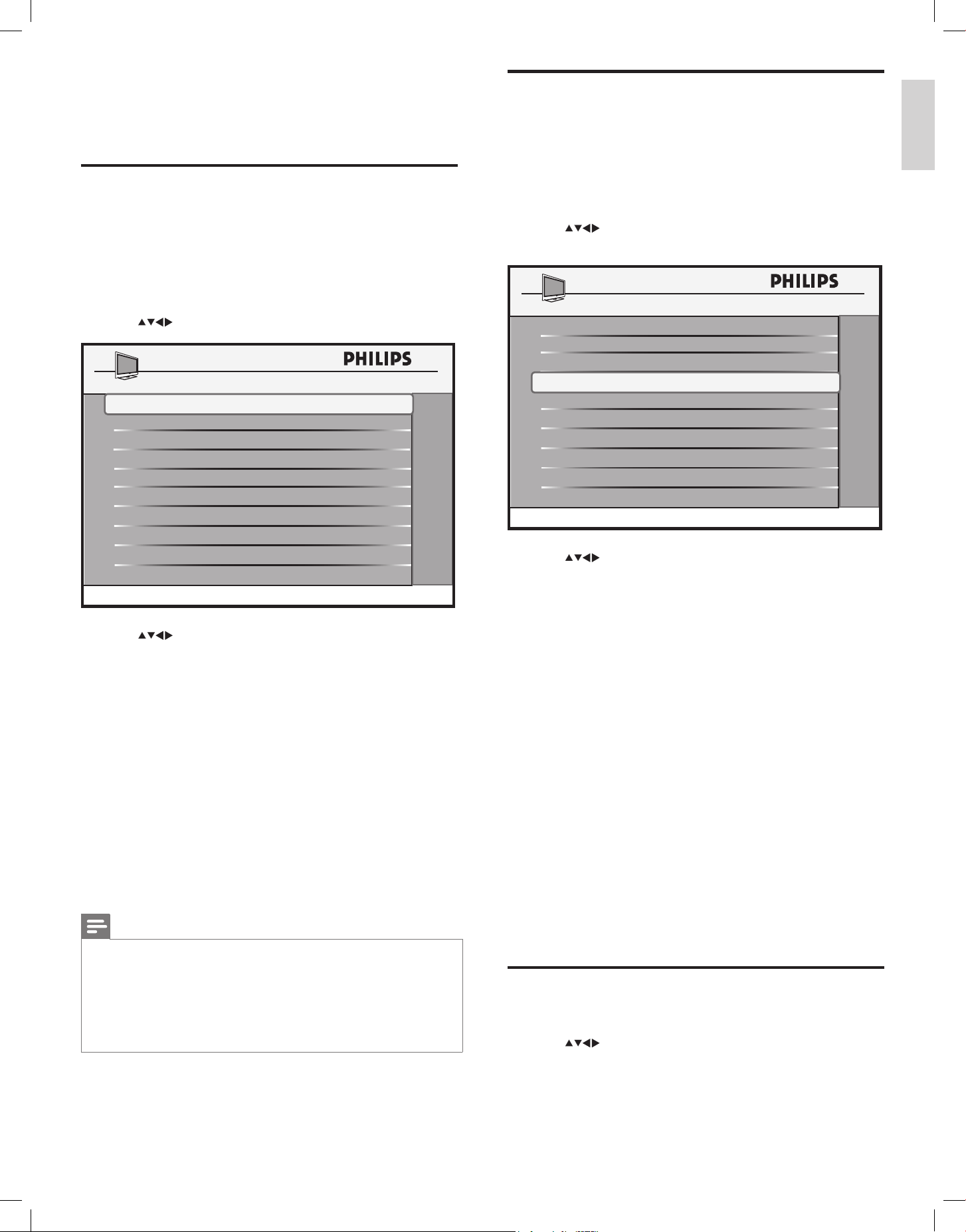
Congure the control settings
1
PressMonthesetupremotecontroltodisplaythesetupmenu.
2 Press toselectCONFIGURATION > CONTROL >
MAX VOLUME.
3 Press toadjustthemaximumvolumefortheTV.
4 Press toadjustothercontrolsettingsfromthismenu.
DIGIT TIMEOUT 3.0
SOURCE MENU ITEM
PIC FMT MENU ITEM
CONTROL
3 DIGIT ENTRY
NO
ESP
OFF
NO
NO
SMART GUIDE
MIN VOLUME
MAX VOLUME
NO
0
12
EN
7
Congure SmartGuide Categories
This section provides information to congure SmartGuide Categories
icons. Guests can access these icons by pressing the CHANNEL
GUIDE button on the guest remote control to display the SmartGuide
Categories screen. Refer to the previous chapter for information to
assign TV channels to categories (see ‘Select a ring’ on page 4).
1 Press M on the setup remote control to display the setup menu.
2 Press to select CONFIGURATION > SMARTFEATURES
> SMARTGUIDE CATEGORIES.
3 Press to select one of the following to congure the
settings:
• CHANNEL GUIDE KEY: Sets the default screen that will be
shown when you press the CHANNEL GUIDE button on the
remote control. Select between SMARTGUIDE categories or
CHANNEL LIST screen.
• HIGH DEFINITION: Enables or disables the high denition icon
in the SmartGuide Categories screen.
• SPORTS: Enables or disables the sports icon in the SmartGuide
Categories screen.
• NEWS: Enables or disables the news icon in the SmartGuide
Categories screen.
• KIDS: Enables or disables the kids icon in the SmartGuide
Categories screen.
• MOVIES: Enables or disables the movies icon in the SmartGuide
Categories screen.
• NETWORK: Enables or disables the network icon in the
SmartGuide Categories screen.
• ADULT: Enables or disables the adult icon in the SmartGuide
Categories screen.
• LIFESTYLE: Enables or disables the lifestyle icon in the
SmartGuide Categories screen.
• OTHERS: Enables or disables the others icon in the SmartGuide
Categories screen.
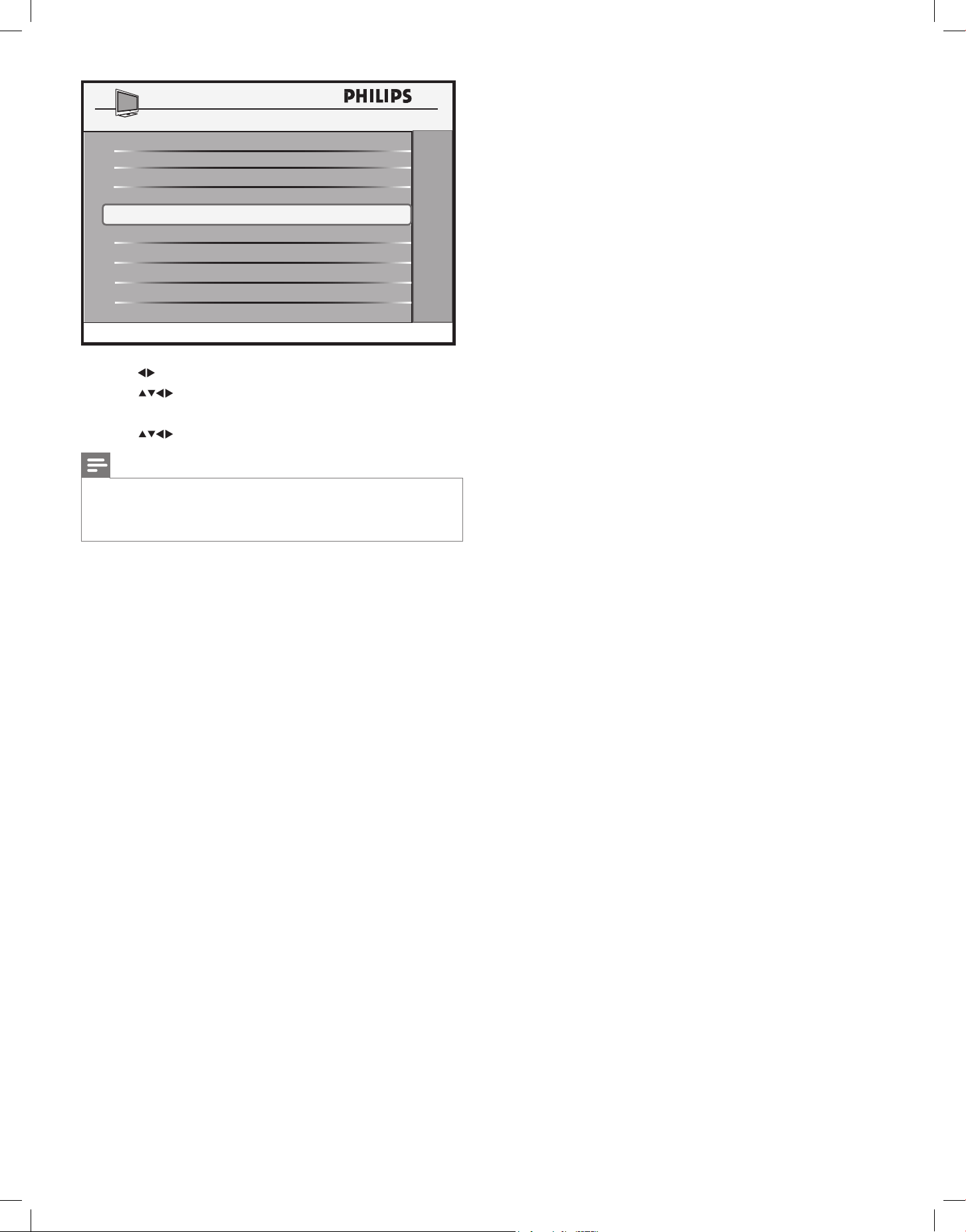
Congure SmartSecure settings
1
Press M on the setup remote control to display the setup menu.
2 Press to select CONFIGURATION > SECURITY >
SMARTSECURE.
LOW POWER STANDBY
SMARTFEATURES
SMARTPOWER
OFF
NO
AUTOSENSE
NO
USB BREAK-IN
SW DOWNLOAD
NO
SMARTUPDATE
NO
>
SMARTGUIDE CATEGORIES
>
6 Configure SmartFeatures
settings
Congure SmartPower settings
Philips continuously focuses on lowering the environmental impact
of its consumer products by adopting energy efcient ways of power
management.
This section describes how to select a setting for maximum power
savings.
1 Press M on the setup remote control to display the setup menu.
2 Press to select CONFIGURATION > SMARTFEATURES.
3 Press to select one of the following to congure the
settings:
• SMARTPOWER: Sets a power saving mode. Select one of the
following :
• OFF: Rich and dynamic settings, ideal for daylight use.
Disables power savings.
• LOW: A natural picture setting. Achieves low power savings.
• MEDIUM: Ideal settings for watching movies. Achieves
medium power savings.
• HIGH: Applies low-energy settings. Achieves highest
possible power savings.
• AUTOSENSE: Reduces the TV’s power consumption according
to the room’s ambient light. Select YES to enable the TV’s built-
in ambient light sensor. AUTOSENSE ia available in selected
models only.
• LOW POWER STANDBY: Uses minimum power when the TV
is in standby mode.
Note
• If LOW POWER STANDBY is set to YES,
• the TV can only be switched on with a remote control. Please ensure the
remote control is always available. The control buttons at the side of the
TV will not be able to switch on the TV.
• If LOW POWER STANDBY is set to YES, the TV will be congured to
the optimal energy saving mode whenever the TV is switched to standby
mode. As a result, the TV will take a little longer to switch on again. If you
need a fast switch on time, select NO.
LOW POWER STANDBY
SMARTFEATURES
SMARTPOWER
OFF
NO
AUTOSENSE
NO
USB BREAK-IN
SW DOWNLOAD
NO
SMARTUPDATE
NO
>
SMARTGUIDE CATEGORIES
>
Engli sh
EN
8
3 Press toenableordisableSmartSecure.
4 Press toselecttheSmartSecurechannel.
» TheTVchecksfortheSmartSecureIDwhenturnedon.
5 Press toadjustothersecuritysettingsonthismenu.
Note
• SMARTSECUREmustbeusedwithaPhilipsSmartGateway(PSG)
device.DonotenableSMARTSECUREunlessthePSGhasbeen
conguredatyourlocation.FormoreinformationonthePSG,contact
yourPhilipsauthorizedagentordealer.
REMOTE CONTROL LOCK
SECURITY
SECURITY
STANDARD
NO
KEYBOARD LOCK
NO
SMARTSECURE
>
DECRYPTION CONTROL
>
EN
9
SMARTCLONE
SOURCE
RF
RF TO TV
>
CABLE TUNING
RF CHANNEL NUMBER
YES
18
7 Clone TV configuration
data
YoucancopythecongurationdatafromaTVtoaUSBstoragedevice
orviceversa.Thisenablesyoutobypassthesetupmenuandcongure
multipleTVsbysimplyusingtheUSBstoragedevice.
ThissectiondescribeshowtoclonethecongurationdatafromaTVto
aUSBstoragedeviceorfromaUSBstoragedevicetoaTV.
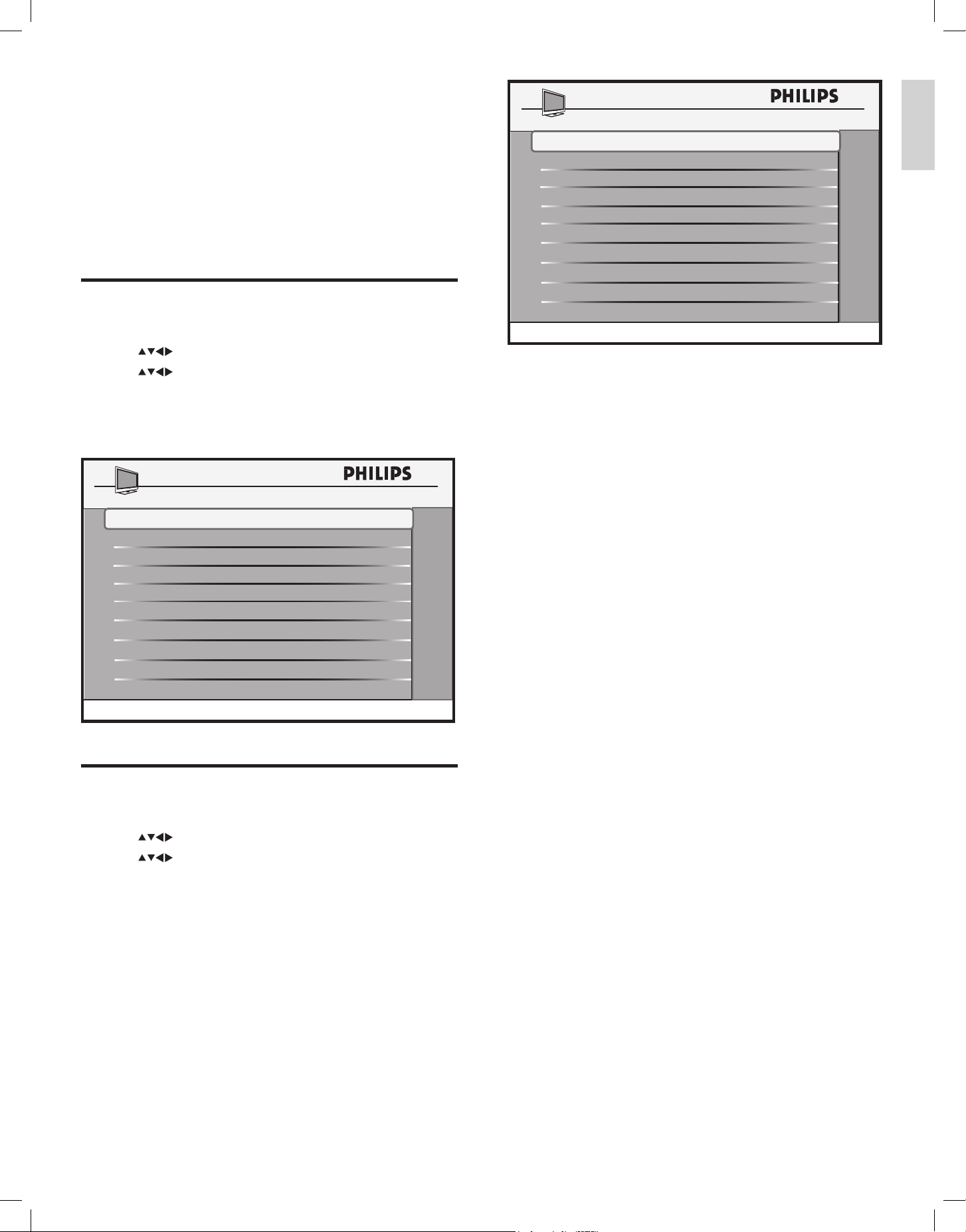
Clone data using a USB storage device
1 PressMonthesetupremotecontroltodisplaythesetupmenu.
2 Press toselectSMARTCLONE > SOURCE.
3 Press toselectoneofthefollowing:
• USB TO TV:ToclonethedatafromaUSBstoragedevice
toaTV.
• TV TO USB:ToclonethedatafromaTVtoaUSBstorage
device.
Clone data from an RF channel
1 PressMonthesetupremotecontroltodisplaythesetupmenu.
2 Press toselectSMARTCLONE > SOURCE > RF.
3 Press tosetthefollowing:
• CABLE TUNING:SelectYEStoaccesschannelnumbers
1-135.SelectNOtoaccesschannelnumbers2-69.
• RF CHANNEL NUMBER:SelectanRFchanneltoretrieve
thecongurationdatafrom.
• RF TO TV:TostartthedownloadofdatafromanRF
channel.
USB TO TV
SMARTCLONE
SOURCE
USB
>
TV TO USB
>
Engli sh
EN

10
8 Troubleshoot basic
problems
Thissectiondescribescommonlyencounteredissuesandaccompanying
solutions.
The letter ‘F’ appears on the screen:
• Iftheletter‘F’appearsonthescreen,itindicatesthattheTV
isinfactorymode.TorestoretheTVtonormalsettings,press
VOLUME (-)andP/CH (-)buttonsonthesideoftheTV,
simultaneouslyforafewseconds.
•
•
EN
11
Appendix A
Engli sh
EN
IMPORTANT SAFETY INSTRUCTIONS
Read before operating equipment
1. Read these instructions.
2. Keep these instructions.
3. Heed all warnings.
4. Follow all instructions.
5. Do not use this apparatus near water.
6. Clean only with a dry cloth.
7. Do not block any of the ventilation openings. Install in accordance with
the manufacturers instructions.
8. Do not install near any heat sources such as radiators, heat registers,
stoves, or other apparatus (including amplifiers) that produce heat.
9. Do not defeat the safety purpose of the polarized or grounding-type plug.
A polarized plug has two blades with one wider than the other. A
grounding type plug has two blades and third grounding prong. The wide
blade or third prong are provided for your safety. When the provided
plug does not fit into your outlet, consult an electrician for replacement
of the obsolete outlet.
10. Protect the power cord from being walked on or pinched particularly at
plugs, convenience receptacles, and the point where they exit from the
apparatus.
11. Only use attachments/accessories specified by the manufacturer.
12. Use only with a cart, stand, tripod, bracket, or table specified by
the manufacturer, or sold with the apparatus. When a cart is
used, use caution when moving the cart/apparatus combination
to avoid injury from tip-over.
13. Unplug this apparatus during lightning storms or when unused for long
periods of time.
14. Refer all servicing to qualified service personnel. Servicing is required
when the apparatus has been damaged in any way, such as power-supply
cord or plug is damaged, liquid has been spilled or objects have fallen
into apparatus, the apparatus has been exposed to rain or moisture,
does not operate normally, or has been dropped.
15. This product may contain lead or mercury. Disposal of these materials
may be regulated due to environmental considerations. For disposal or
recycling information, please contact your local authorities or the
Electronic Industries Alliance:www.eiae.org.
16. Damage Requiring Service - The appliance should be serviced by
qualified service personnel when:
A. The power supply cord or the plug has been damaged; or
B. Objects have fallen, or liquid has been spilled into the appliance; or
C. The appliance has been exposed to rain; or
D. The appliance does not appear to operate normally or exhibits a
marked change in performance; or
E. The appliance has been dropped, or the enclosure damaged.
17. Tilt/Stability - All televisions must comply with recommended
international global safety standards for tilt and stability properties of its
cabinets design.
• Do not compromise these design standards by applying excessive pull
force to the front, or top, of the cabinet which could ultimately
overturn the product.
• Also,do not endanger yourself, or children, by placing electronic
equipment/toys on the top of the cabinet. Such items could
unsuspectingly fall from the top of the set and cause product damage
and/or personal injury.
18. Wall or Ceiling Mounting - The appliance should be mounted to a
wall or ceiling only as recommended by the manufacturer.
19. Power Lines - An outdoor antenna should be located away from
power lines.
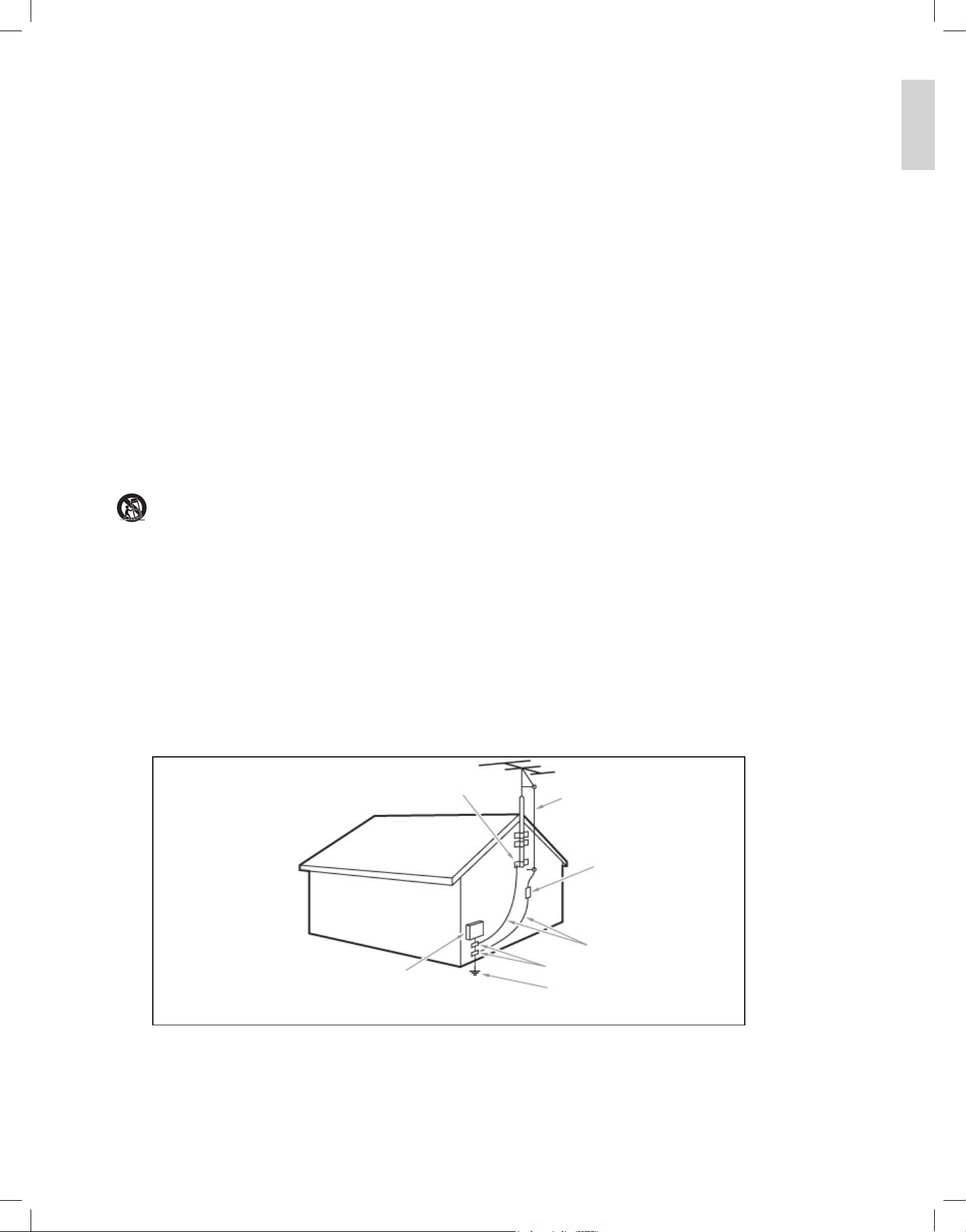
20. Outdoor Antenna Grounding - If an outside antenna is connected to
the receiver, be sure the antenna system is grounded so as to provide
some protection against voltage surges and built up static charges.
Section 810 of the National Electric Code, ANSI/NFPA No. 70-1984,
provides information with respect to proper grounding of the mats and
supporting structure grounding of the lead-in wire to an antenna-
discharge unit, size of grounding connectors, location of antenna-
discharge unit, connection to grounding electrodes and requirements for
the grounding electrode. See Figure below.
21. Objects and Liquid Entry - Care should be taken so that objects do
not fall and liquids are not spilled into the enclosure through openings.
a) Warning: To reduce the risk of fire or electric shock, this apparatus
should not be exposed to rain or moisture and objects filled with
liquids, such as vases should not be placed on this apparatus.
22. Battery Usage CAUTION - To prevent battery leakage that may
result in bodily injury, property damage, or damage to the unit:
• Install all batteries correctly, with + and - alignment as marked on the
unit.
• Do not mix batteries (old and new or carbon and alkaline, etc.)
• Remove batteries when the unit is not used for a long time.
EXAMPLE OF ANTENNA GROUNDING AS PER
NATIONAL ELECTRICAL CODE (NEC)
GROUND CLAMP
ANTENNA LEAD IN WIRE
ANTENNA DISCHARGE UNIT
(
NEC SECTION 810-20)
GROUNDING CONDUCTORS
(
NEC SECTION 810-21)
GROUND CLAMPS
POWER SERVICE GROUNDING
ELECTRODE SYSTEM
(
NEC ART 250, PART H)
ELECTRIC SERVICE EQUIPMENT
Note to the CATV system installer: this reminder is provided to call the CATV system installer’s attention to Article 820-40 of
the NEC that provides guidelines for proper grounding and, in particular, specifies that the cable ground shall be connected to the
grounding system of the building, as close to the point of cable entry as practical.

12


© 2010 Koninklijke Philips Electronics N.V.
All rights reserved.
Document order number:
3139 285 20192