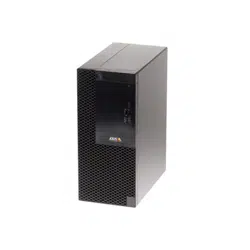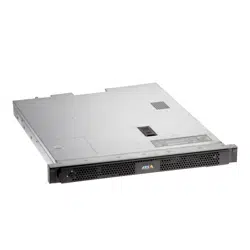


AXISCameraStationS1116RackedRecorder
TableofContents
Aboutyourdevice...........................................3
..............................................................3
Getstarted................................................4
..............................................................4
Installyourdevice..........................................5
..............................................................5
Congureyourdevice........................................13
First-timeconguration..........................................13
CongureAXISCameraStation....................................13
Licenseasystemonline..........................................17
Licenseasystemofine..........................................17
ManageWindows®useraccounts..............................19
Createauseraccount............................................19
Createanadministratoraccount...................................19
Createalocalusergroup.........................................19
Deleteauseraccount............................................19
Changeauseraccount'spassword..................................20
Createapasswordresetdiskforauseraccount.......................20
ManageAXISCameraStationuseraccounts.....................
21
Congureuserpermissions........................................21
Addusersorgroups..............................................21
Userorgroupprivileges..........................................22
Manageyourdevice.........................................24
UpdateWindows®...............................................24
CongureWindowsupdatesettings................................24
CongureRAID.................................................25
Troubleshooting............................................27
CheckthecurrentBIOSversion....................................
27
Performasystemrecovery........................................
27
TroubleshootAXISCameraStation..................................
27
Productoverview...........................................28
Frontandrearsides..............................................
28
Specications..................................................28
Needmorehelp?............................................30
Usefullinks....................................................
30
Contactsupport.................................................30
2

AXISCameraStationS1116RackedRecorder
Aboutyourdevice
Aboutyourdevice
AXISCameraStationS11Recorderseriesconsistofout-of-the-boxreadyrackserversandworkstationsvalidatedforreliable
high-denitionsurveillanceupto4K.Forquickandeasyinstallation,therecorderseriesispreconguredandpreloadedwithAXIS
CameraStationvideomanagementsoftwareincludinglicensesplusallnecessarysystemsoftware.Thesystemcongurationcan
easilybeimportedfromAXISSiteDesigner,andAXISCameraStationletsyoutakefulladvantageofAxiswiderangeofvideo
surveillancedevices.Withredundantenterprise-gradeharddisks,operatingsystemstoredonsolid-statedrive(SSD),therecorder
seriesprovideshigh-performanceandreliabilityforyoursystem.
Towatchthisvideo,gotothewebversionofthisdocument.
www.axis.com/products/online-manual/64379#t10126794
3

AXISCameraStationS1116RackedRecorder
Getstarted
Getstarted
ThestandardworkowtocongureanAXISCameraStationrecorderis:
1.Installyourdevice
2.CongureWindows®.Werecommendto:
-UpdateWindows®tothelatestversion.SeeUpdateWindows®onpage24
-Createastandarduseraccount.SeeCreateauseraccountonpage19
3.First-timecongurationonpage13
4.UpdateAXISCameraStationtothelatestversion.
-Ifyoursystemisonline:opentheAXISRecorderToolboxappandclickUpdateAXISCameraStation.
-Ifyoursystemisofine:gotoaxis.comanddownloadthelatestversion.
5.CongureAXISCameraStation
6.RegisteryouAXISCameraStationlicenses.
-Licenseasystemonlineonpage17
-Licenseasystemofineonpage17
7.ConnectyoursystemtotheAXISCameraStationmobileviewingapp.SeeCongureAXISSecureRemoteAccess
Towatchthisvideo,gotothewebversionofthisdocument.
www.axis.com/products/online-manual/64379#t10133431
4
AXISCameraStationS1116RackedRecorder
Installyourdevice
Installyourdevice
5
AXISCameraStationS1116RackedRecorder
Installyourdevice
6
AXISCameraStationS1116RackedRecorder
Installyourdevice
7
AXISCameraStationS1116RackedRecorder
Installyourdevice
8
AXISCameraStationS1116RackedRecorder
Installyourdevice
9
AXISCameraStationS1116RackedRecorder
Installyourdevice
10
AXISCameraStationS1116RackedRecorder
Installyourdevice
11
AXISCameraStationS1116RackedRecorder
Installyourdevice
12

AXISCameraStationS1116RackedRecorder
Configureyourdevice
Configureyourdevice
Note
ThissectiondescribeshowtoconguretheAXISCameraStationclientandserver.Someoftheinstructionsmaynot
berelevantforyourdevice.
First-timeconguration
AfteryouhaveconguredWindows®,AXISRecorderToolboxisopenedautomaticallyandyouareguidedthroughtherst-time
congurationwizard.Inthiswizard,youcancongureseveralbasicandnecessarysettingsbeforeyoumanageyourdevicein
AXISRecorderToolbox.
1.ChangethecomputernameifyouwantandclickNext.
2.UnderDateandtime,congurethefollowingsettingsandclickNext.
-Selectatimezone.
-TosetupanNTPserver,selectNTPserverandentertheNTPserveraddress.
-Tosetmanually,selectManualandselectadateandtime.
3.UnderNetworksettings,congurethefollowingsettingsandclickNext.
-UseautomaticIPsettings(DHCP)andUseautomaticDNSsettingsareturnedonbydefault.
-IfyourdeviceisconnectedtoanetworkwithaDHCPserver,theassignedIPaddress,subnetmask,gateway,and
preferredDNSareautomaticallydisplayed.
-IfyourdeviceisnotconnectedtoanetworkorthereisnoDHCPserveravailable,entertheIPaddress,subnet
mask,gateway,andpreferredDNSmanuallydependingonthenetworkrequirements.
4.ClickFinish.Ifyouhavechangedthecomputername,AXISRecorderToolboxwillpromptyoutorestartthedevice.
CongureAXISCameraStation
ThisGetstartedtutorialwillwalkyouthroughthebasicstepstomakeyoursystemupandrunning.
Beforeyoustart,youmayneedto:
•Congureyournetworkdependingonyourinstallation.SeeNetworkconguration.
•Congureyourserverportsifneeded.SeeServerportconguration.
•Considersecurityissues.SeeSecurityconsiderations.
Afternecessarycongurations,youcanstarttoworkwithAXISCameraStation:
1.StartAXISCameraStation
2.Adddevices
3.Congurerecordingmethodonpage14
4.Liveviewcamerasonpage14
5.Playbackrecordingsonpage14
6.Addbookmarksonpage15
7.Exportrecordingsonpage15
13

AXISCameraStationS1116RackedRecorder
Configureyourdevice
8.PlayandverifyrecordingsinAXISFilePlayeronpage15
StartAXISCameraStation
AXISCameraStationServiceControlautomaticallystartsaftertheinstallationiscomplete.
Double-clicktheAXISCameraStationClienticontostarttheAXISCameraStationclient.Whenstartingtheclientforthersttime,
itautomaticallyattemptstologintotheAXISCameraStationserverinstalledonthesamecomputerastheclient.
YoucanconnecttomultipleAXISCameraStationserversindifferentways.
Adddevices
ThersttimeyoustartyourAXISCameraStation,youarenavigatedtotheAdddevicespage.AXISCameraStationautomatically
searchesthenetworkforconnecteddevicesanddisplaysalistofdevicesfound.
1.Selectthecamerastoaddfromthelist.
Ifyourcameraisnotlisted,clickManualsearch.
2.ClickAdd.
3.SelectQuickcongurationorSiteDesignerconguration.ClickNext.
4.UsethedefaultsettingsandensuretherecordingmethodissettoNone.ClickInstall.
Congurerecordingmethod
1.GotoConguration>Recordingandevents>Recordingmethod.
2.Ifyouwanttoenablemotiondetectionrecording:
2.1Selectacamera.
2.2TurnonMotiondetection.
2.3ClickApply.
3.Ifyouwanttoenablecontinuousrecording:
3.1Selectacamera.
3.2TurnonContinuous.
3.3ClickApply.
Liveviewcameras
1.ClicktheLiveviewtabtonavigatetothecameraliveview.
2.Clickacameratonavigatetotheliveviewofthatcamera.
Abluedotafterthecameranameshowsthatcontinuousrecordingisinprogress.Areddotafterthecameranameshows
thatmotiondetectionrecordingisinprogress.
3.Click
tonavigatefromLiveviewtoRecordings.
Aredlineinthetimelineshowsthatmotiondetectionrecordinghasbeentakenforthatperiod.Abluelineinthe
timelineshowsthatcontinuousrecordingisinprogress.
Playbackrecordings
1.GototheRecordingtab.
14

AXISCameraStationS1116RackedRecorder
Configureyourdevice
2.Inthetimelineofthecamera,usethemousewheeltozoominandoutanddragthetimelinetomakethemarker
pointingatyourdesiredposition.
3.Tostartplayingtherecordingfromthedesiredposition,click
.
Addbookmarks
1.GototheRecordingtab.
2.Inthetimelineofthecamera,usethemousewheeltozoominandoutanddragthetimelinetomakethemarker
pointingatyourdesiredposition.
3.Click
.
4.Enterthebookmarknameanddescription.Usekeywordsinthedescriptiontomakethebookmarkeasytondand
recognized.
5.SelectPreventrecordingdeletiontolocktherecording.Alockedrecordingcan'tbedeletedunlessactivelyunlocked.
6.ClickOK.Abookmarkiconisdisplayedatyourdesiredpositioninthetimeline.
Exportrecordings
1.GototheRecordingtab.
2.Inthetimelineofthecamera,usethemousewheeltozoominandout.
3.Click
todisplaytheselectionmarkers.
4.Dragthemarkerstoincludetherecordingsthatyouwanttoexport.
5.Click
toopentheExporttab.
6.IntheExporttab,youcandothefollowingifdesired.
-Click
toaddanotefortherecording.
-ClickBrowsetoselectthelocationtoexporttherecordings.
-SelectIncludeAxisFilePlayer,Includenotes,andAdddigitalsignature.
7.ClickExport.
8.SelectUsepasswordandenteryourpasswordforthedigitalsignature.ClickOK.
PlayandverifyrecordingsinAXISFilePlayer
1.Gotothefolderthatyouhavespeciedfortheexportedrecordings.
15

AXISCameraStationS1116RackedRecorder
Configureyourdevice
Inthisexample,theexportedlesincludetherecordingsinthe.asfformat,thenotesinthe.txtformat,andAXISFilePlayer.
2.Double-clickAXISFilePlayer.Theexportedrecordingswillbeautomaticallyplayed.
3.Click
toshowthenotesaddedtotherecordings.
4.Toverifythedigitalsignature:
4.1GotoTools>Verifydigitalsignature.
4.2SelectValidatewithpasswordandenteryourpassword.
4.3ClickVerify.Thevericationresultpageisdisplayed.
Networkconguration
WhenAXISCameraStationClient,AXISCameraStationServer,andtheconnectednetworkdevicesareinstalledondifferent
networks,youmightneedtocongureproxyorrewallsettingsbeforeusingAXISCameraStation.
Clientproxysettings
Whentheclientandtheserverareseparatedbyaproxyserver,conguretheclientproxysettings.
1.Double-clicktheAXISCameraStationClienticon.
2.ClickChangeclientproxysettings.
3.Changetheclientproxysettings.
4.ClickOK.
Serverproxysettings
Whennetworkdevicesandtheserverareseparatedbyaproxyserver,conguretheserverproxysettings.
1.Double-clicktheAXISServiceControliconinWindowsnoticationarea.
2.SelectModifysettings.
3.IntheProxysettingssection,usethedefaultSystemaccountinternetoptionorselectUsemanualproxysettings.
4.ClickSave.
NATandFirewall
WhentheclientandtheserverareseparatedbyaNAT,rewallorsimilar,conguretheNATorrewalltoensurethattheHTTPport,
TCPport,andstreamingportspeciedinAXISCameraStationServiceControlareallowedtopassthroughtherewalland/orNAT.
ForinstructionshowtoconguretheNATorrewall,contactthenetworkadministrator.
Serverportconguration
Theports55752(HTTP),55754(TCP),55756(mobilecommunication),and55757(mobilestreaming)areusedonAXISCamera
StationServerforcommunicationbetweentheserverandtheclient.Ifrequired,theportscanbechangedfromAXISCamera
StationServiceControl.
Securityconsiderations
Topreventunauthorizedaccesstocamerasandrecordings,keepthefollowinginmind:
•Usestrongpasswordsforallnetworkdevices(cameras,videoencodersandauxiliarydevices).
16

AXISCameraStationS1116RackedRecorder
Configureyourdevice
•InstallAXISCameraStationServer,cameras,videoencoders,andauxiliarydevicesonasecurenetworkseparatedfrom
theofcenetwork.AXISCameraStationClientcanbeinstalledonacomputeronanothernetwork,forexample
anetworkwithInternetaccess.
•Ensureallusershavestrongpasswords.UsingWindowsActiveDirectoryahighlevelofsecuritycanbeimplemented.
Licenseasystemonline
BoththeAXISCameraStationclientandtheservermustbeconnectedtotheinternet.
1.IntheAXISCameraStationclient,
1.1GotoConguration>Licenses>Management.
1.2Managelicensesonlineisturnedonbydefault.
1.3ClickGotoAXISLicensePortal.
2.IntheAXISLicensePortalwww.axis.com/licenses,
2.1SigninwithyourMyAxisaccount.
2.2UnderAddlicensekey,enteryourlicensekeyandclickAdd.
3.IntheAXISCameraStationclient,checkthatyourlicensekeysareshowninConguration>Licenses>Keys.
Towatchthisvideo,gotothewebversionofthisdocument.
www.axis.com/products/online-manual/64379#t10129696
AXISCameraStationonlinelicenseregistration
Licenseasystemofine
1.IntheAXISCameraStationclient,exportthesystemle.
1.1GotoConguration>Licenses>Management.
1.2IfAXISCameraStationisonline,turnoffManagelicensesonlineandclickExportsystemle.
1.3IfAXISCameraStationisofine,clickExportsystemle.
1.4SaveyoursystemleonaUSBashdrive.
2.IntheAXISLicensePortalwww.axis.com/licenses,
2.1SigninwithyourMyAxisaccount.
2.2ClickUploadsystemletouploadthesystemleyouexported.
2.3UnderAddlicensekey,enteryourlicensekeyandclickAdd.
2.4UnderLicensekeys,clickDownloadlicenseleandsavetheletoaUSBashdrive.
17

AXISCameraStationS1116RackedRecorder
Configureyourdevice
3.IntheAXISCameraStationclient,importthelicensele.
3.1GotoConguration>Licenses>Management.
3.2ClickImportlicenseleandselectthelicenseleonyourUSBashdrive.
3.3CheckthatyourlicensekeysareshowninConguration>Licenses>Keys.
Towatchthisvideo,gotothewebversionofthisdocument.
www.axis.com/products/online-manual/64379#t10129682
AXISCameraStationofinelicenseregistration
18

AXISCameraStationS1116RackedRecorder
ManageWindows®useraccounts
ManageWindows®useraccounts
Createauseraccount
Tohelpkeepyourpersonaldataandinformationmoresecure,werecommendthatyouaddapasswordforeachlocalaccount.
Important
Onceyoucreateapasswordforalocalaccount,don'tforgetit.There’snowaytorecoveralostpasswordforlocalaccounts.
1.GotoSettings>Accounts>Otherpeople>AddsomeoneelsetothisPC.
2.ClickIdon’thavethisperson’ssign-ininformation.
3.ClickAddauserwithoutaMicrosoftaccount.
4.Enterausername,passwordandpasswordhint.
5.ClickNextandfollowtheinstructions.
Createanadministratoraccount
1.GotoSettings>Accounts>Otherpeople.
2.GototheaccountyouwanttochangeandclickChangeaccounttype.
3.GotoAccounttypeandselectAdministrator.
4.ClickOK.
5.Restartyourdeviceandsigninwiththenewadministratoraccount.
Createalocalusergroup
1.GotoComputerManagement.
2.GotoLocalUsersandGroups>Group.
3.Right-clickGroupandselectNewGroup.
4.Enteragroupnameandadescription.
5.Addgroupmembers:
5.1ClickAdd.
5.2ClickAdvanced.
5.3Findtheuseraccount(s)youwanttoaddtothegroupandclickOK.
5.4ClickOKagain.
6.ClickCreate.
Deleteauseraccount
Important
Whenyoudeleteanaccountyouremovetheuseraccountfromtheloginscreen.Youalsoremoveallles,settingsand
programdatastoredontheuseraccount.
19

AXISCameraStationS1116RackedRecorder
ManageWindows®useraccounts
1.GotoSettings>Accounts>Otherpeople.
2.GototheaccountyouwanttoremoveandclickRemove.
Changeauseraccount'spassword
1.Loginwithanadministratoraccount.
2.GotoUserAccounts>UserAccounts>Manageanotheraccountinsequence.
You’llseealistwithalluseraccountsonthedevice.
3.Selecttheuseraccountwhosepasswordyouwouldliketochange.
4.ClickChangethepassword.
5.EnterthenewpasswordandclickChangepassword.
Createapasswordresetdiskforauseraccount
WerecommendtocreateapasswordresetdiskusingaUSBashdrive.Then,ifyouforgetyourpassword,youcanresetthe
password.WithoutaUSBresetdisk,youcan’tresetthepassword.
Ifyou’reusingWindows10,version1803youcanaddsecurityquestionstoyourlocalaccountincaseyouforgetyourpassword,
soyoudon'tneedtocreateapasswordresetdisk.Todothis,gottoStartandclickSettings>Sign-inoptions>Updateyour
securityquestions.
1.Signintoyourdevicewithalocaluseraccount.Youcan’tcreateapasswordresetdiskforaconnectedaccount.
2.PlugaUSBashdriveintoyourdevice.
3.Ifthere’sanydataontheUSBashdrive,backitup.
4.FromtheWindows®searcheld,gotoCreateapasswordresetdisk.
5.IntheForgottenPasswordwizard,clickNext.
6.SelectyourUSBashdriveandclickNext.
7.TypeyourcurrentpasswordandclickNext.
8.Followtheonscreeninstructions.
9.RemovetheUSBashdriveandkeepitinasafeplacewhereyou'llrememberit.Youdon'thavetocreateanewdiskwhen
youchangeyourpasswordevenifyouchangeitseveraltimes.
20

AXISCameraStationS1116RackedRecorder
ManageAXISCameraStationuseraccounts
ManageAXISCameraStationuseraccounts
Congureuserpermissions
GotoConguration>Security>UserpermissionstoviewalistoftheusersandgroupsthathavebeenaddedtoAXISCamera
Station.
Note
AdministratorsofthecomputeronwhichtheAXISCameraStationserverisinstalledareautomaticallygivenadministrator
privilegestoAXISCameraStation.Youcan’tchangeorremovetheadministratorsgroup'sprivileges.
Beforeauserorgroupcanbeadded,theuserorgroupmustberegisteredonthelocalcomputerorhaveanWindowsActiveDirectory
useraccount.UsingWindowsActiveDirectory,ahighlevelofsecuritycanbeimplemented.
Whenauserispartofagroup,theusergetsthehighestrolepermissionthatisassignedtotheindividualandthegroup.
Whenauserispartofagroup,theusergetstheaccessgrantedasanindividualandalsoreceivestherightsaspartofagroup.For
example,auserisgivenaccesstocameraXasanindividual.Theuserisalsoamemberofagroup.Thegroupisgivenaccessto
camerasYandZ.TheuserthenhasaccesstocamerasX,YandZ.
IftherearesecurityconcernsregardingtheaccesstothecomputerbyadesignatedAXISCameraStationuser,createastandarduser
accountthatyouthenuseforaccesstoAxisCameraStation.YoucanthenelevatetheaccounttoadministratorinConguration>
Security>Userpermissions.
Thelistconsistsofthefollowinginformation:
ItemDescription
IconIndicatestheentryisagrouporasingleuser.
NameUsernameasitappearsinthelocalcomputerorActiveDirectory.
DomainDomainnamewheretheuserorgroupisregistered.
RoleTheaccessrolegiventotheuserorgroup.
Possiblevalues:Administrator,Operator,andViewer.
DetailsDetaileduserinformationasitappearsinthelocalcomputerorActiveDirectory.
ServerServernamewheretheuserorgroupisregistered.Onlyavailablewhenconnectingto
multipleAXISCameraStationservers.
Toaddusersorgroups,seeAddusersorgroups.
Tochangeuseraccessrightsforauserorgroup,clicktheuserorgroupandmakechanges.ClickApply.
Toremoveauserorgroup,selecttheuserorgroupandclickRemove.Inthepop-updialog,clickOKtoremovetheuserorgroup.
Addusersorgroups
UseraccountsinMicrosoftWindowsandActiveDirectoryusersandgroupscanaccessAXISCameraStation.ToaddausertoAXIS
CameraStation,youhavetoaddusersoragrouptoWindows.
ToaddauserorgroupinMicrosoftWindows:AddingauserinWindowsmayvarydependingonwhichversionofWindowsyou
arerunning.FollowtheinstructionsonMicrosoft'ssite.IfyouareconnectedtoanActiveDirectorydomainnetwork,consult
yournetworkadministrator.
Addusersorgroups
1.GotoConguration>Security>UserpermissionsandclickAdd.
21

AXISCameraStationS1116RackedRecorder
ManageAXISCameraStationuseraccounts
2.WhenconnectingtomultipleAXISCameraStationservers,selectaserverfromtheSelectedserverdrop-downlist.
3.SelectServertosearchforusersorgroupsonthelocalcomputer,orselectDomaintosearchforActiveDirectoryusersor
groups.WhenconnectingtomultipleAXISCameraStationservers,youcanselectwhichservertosearchfor.
4.SelectUsersorGroupstosearchforonlyusersorgroups.
5.Thelistofusersorgroupsisdisplayed.UsersandgroupsthathavealreadybeenaddedtoAXISCameraStationarenotlisted.
-Iftherearetoomanyusersorgroups,thesearchresultisnotdisplayed.UsetheTypetosearcheldtorene
thesearchandndaspecicuserorgroup.
-Ifthedomainusersearchfails,theServicelogonaccountmustbechanged.
6.SelecttheusersorgroupsandclickAdd.Theusersorgroupsareaddedtothelistandshowninitalics.
Congureauserorgroup
1.Selectauserorgroupinthelist.
2.UnderRole,selectAdministrator,Operator,orViewer.
3.IfyouhaveselectedOperatororViewer,youcanconguretheuserorgroupprivileges.SeeUserorgroupprivileges.
4.ClickSave.Theuserorgroupinthelistisnotinitalicsandreadytobeused.
Userorgroupprivileges
Therearethreerolesthatcanbegiventoauserorgroup.Forhowtodeneaccessprivilegesforauserorgroup,seeAddusersor
groups.
•Administrator:Fullaccesstotheentiresystem,includingaccesstoliveandrecordedvideoofallcameras,accesstoallI/O
portsandviews.Therefore,youdonotneedtospecifyanycamera,I/Oorviewprivilegesforauserwiththisrole.Thisrole
isrequiredinordertocongureanythinginthesystem.
•Operator:AccesstoliveandrecordedvideoofselectedcamerasandaccesstoselectedI/Oportsandviews.Anoperator
hasfullaccesstoallfunctionalityofAXISCameraStationexceptsystemconguration.
•Viewer:AccesstolivevideoofselectedcamerasandaccesstoselectedI/Oportsandviews.Aviewerdoesnothaveaccess
torecordedvideoorsystemconguration.
Cameras
ThefollowingaccessprivilegesareavailableforusersorgroupswiththeOperatororViewerrole.
•Access:Allowaccesstothecameraandallcamerafeatures.
•Video:Allowaccesstolivevideofromthecamera.
•Audiolisten:Allowaccesstolistenfromthecamera.
•Audiospeak:Allowaccesstospeaktothecamera.
•ManualRecording:Allowtostartandstoprecordingsmanually.
•MechanicalPTZ:AllowaccesstomechanicalPTZcontrols.OnlyavailableforcameraswithmechanicalPTZ.
•PTZpriority:SetthePTZpriority.Alowernumbermeansahigherpriority.0meansthatnopriorityisassigned.An
administratorhasthehighestpriority.WhenarolewithhigherpriorityoperatesaPTZcamera,otherscan’toperatethe
samecamerafor10secondsbydefault.OnlyavailableforcameraswithmechanicalPTZandMechanicalPTZisselected.
Views
22

AXISCameraStationS1116RackedRecorder
ManageAXISCameraStationuseraccounts
ThefollowingaccessprivilegesareavailableforusersorgroupswiththeOperatororViewerrole.Youcanselectmultipleviews
andsettheaccessprivileges.
•Access:AllowaccesstotheviewsinAXISCameraStation.
•Edit:AllowtoedittheviewsinAXISCameraStation.
I/O
ThefollowingaccessprivilegesareavailableforusersorgroupswiththeOperatororViewerrole.TheI/Oportsarelistedbydevice.
•Access:AllowfullaccesstotheI/Oport.
•Read:AllowtoviewthestateoftheI/Oport.Theuserisnotabletochangetheportstate.
•Write:AllowtochangethestateoftheI/Oport.
System
Theaccessprivilegesthatcan’tbeconguredaregreyedoutandlistedunderRoleprivileges.Theprivilegeswithcheckmarkmeans
theuserorgrouphavethisprivilegebydefault.
ThefollowingaccessprivilegesareavailableforusersorgroupswiththeOperatorrole.
•Takesnapshots:Allowtakingsnapshotsintheliveviewandrecordingsmodes.
•Exportrecordings:Allowexportingrecordings.
•Generateincidentreport:Allowgeneratingincidentreports.
•Preventaccesstorecordingsolderthan:Preventaccessingrecordingsolderthanthespeciednumberofminutes.When
usingsearch,theuserwillnotndrecordingsolderthanthespeciedtime.Recordingsandbookmarksolderthan
thespeciedtimecan'tbeplayed.
ThefollowingaccessprivilegesareavailableforusersorgroupswiththeViewerrole.
•Takesnapshots:Allowtakingsnapshotsintheliveviewandrecordingsmodes.
23

AXISCameraStationS1116RackedRecorder
Manageyourdevice
Manageyourdevice
UpdateWindows®
Windows®10periodicallychecksforupdates.Whenanupdateisavailable,yourdeviceautomaticallydownloadstheupdatebut
you'vetoinstallitmanually.
Note
Recordingwillbeinterruptedduringascheduledsystemrestart.
Tomanuallycheckforupdates:
1.GotoSettings>Update&Security>WindowsUpdate.
2.ClickCheckforupdates.
CongureWindowsupdatesettings
SometimesyoumightwanttochangehowandwhenWindows
®
updates.
Note
Allongoingrecordingsstopduringascheduledsystemrestart.
1.OpentheRunapp.
-GotoWindowsSystem>Run,or
-pressWINandR.
2.Typegpedit.mscandclickOK.TheLocalGroupPolicyEditoropens.
3.GotoComputerConguration>AdministrativeTemplates>WindowsComponents>WindowsUpdate.
4.Congurethesettingsasrequired,seeexample.
Example
Toautomaticallydownloadandinstallupdateswithoutanyuserinteractionandhavethedevicerestartifnecessaryoutofofce
hoursusethefollowingconguration:
1.OpenAlwaysautomaticallyrestartatthescheduledtimeandselect:
1.1Enabled
1.2Therestarttimerwillgiveusersthismuchtimetosavetheirwork(minutes):15.
1.3ClickOK.
2.OpenCongureAutomaticUpdatesandselect:
2.1Enabled
2.2CongureAutomaticupdates:Autodownloadandscheduletheinstall
2.3ScheduleInstallday:EverySunday
2.4ScheduleInstalltime:00:00
2.5ClickOK.
3.OpenAllowAutomaticUpdatesimmediateinstallationandselect:
24

AXISCameraStationS1116RackedRecorder
Manageyourdevice
3.1Enabled
3.2ClickOK.
CongureRAID
RAIDisusedtoprotectyoursolutionagainstdataloss.Itcanalsobeusedtohaveasinglelogicaldiskwithahigherspeedthroughput
andthetotalcapacityofallthedrivesaddedtotheRAIDvolume.
RAIDlevel0–Striping
Dataissplitintoblocksandiswrittenacrossalldrivesinthevolume.Itprovideshighercapacityandsuperiorperformance,butit
doesnotofferredundancy.
RAIDlevel1–Mirroring
Dataisstoredtobothamaindriveandaseconddrivewhichisaperfectmirrorofthemaindrive.Itdoesn’tprovideasmuchstorage
spaceasRAID0,butitdoesofferredundancy.
Note
•Itcantakelongtimetorebuildalostdrive,especiallyforbiggercapacityharddrives.
•Youmustuseharddriveswiththesamecapacity.
CAUTION
ConguringRAIDdeletesalldatainallharddrivesthatareusedintheRAIDvolume.
Workow
1.CreatetheRAIDvolumeonpage25
2.ConguretheRAIDvolumeinWindows®onpage26
CreatetheRAIDvolume
1.MakesurethediskstobeusedintheRAIDvolumearedetected.
1.1PoweronyourdeviceandrapidlypressF12untiltheAxislogoappears.
1.2IntheUEFIbootmenu,selectDeviceCongurationandpressENTER.
1.3IntheIntel(R)RapidStorageTechnologymenu,checkthatthedisksarecorrectlydisplayedunderNon-RAID
PhysicalDisks.
Note
OnlyRAID0andRAID1areavailableontheAXISS1 1 16MTrecordersbecausethereisonlyphysicalspaceforanadditional
singledrive.
2.IntheIntel(R)RapidStorageTechnologymenu,selectCreateRAIDVolumeandpressENTER.
3.Typeanameforthevolume.
4.ChoosetheRAIDlevel.
4.1SelectRAIDLevelandpressENTER.
4.2Inthepopupdialog,selecttheRAIDlevelyouwanttouseandpressENTER.
5.Choosethediskstobeusedinthevolume.
5.1SelectadiskandpressENTER.
25

AXISCameraStationS1116RackedRecorder
Manageyourdevice
5.2SelectXtoincludethisdiskinthevolume.
5.3Repeatuntilyouhaveselectedallthedisksyouwanttouse.
6.LeaveStripeSizeandCapacitytothedefaultvaluesunlessspecied.
7.SelectCreateVolumeandpressENTER.
8.IntheIntel(R)RapidStorageTechnologymenu,thenewlycreatedRAIDvolumeappearsunderRAIDVolumes.
9.PressF4.SelectYesandpressENTERtosavethesettingsandexittotheUEFImenu.
10.PressCTRL+ALT+DELETEtorestartyourdevice.
ConguretheRAIDvolumeinWindows®
1.Right-clicktheWindows®-symbolattheStartmenuandselectDiskManagement.
2.TheInitializeDiskwindowappears.Bydefault,thediskisselectedandGPTisselectedasthepartitionstyle.ClickOK.
3.Right-clickthenewlyinitializeddiskthatismarkedwithablackbarandselectNewSimpleVolume.
4.ClickNextuntilthecongurationiscomplete.
5.ClickFinish.Afterautomaticformatting,DiskManagementnowshowstheextendvolumeandyoursystemisreadyto
usetheextendedvolume.
26

AXISCameraStationS1116RackedRecorder
Troubleshooting
Troubleshooting
CheckthecurrentBIOSversion
Whenyoutroubleshootadevice,alwayscheckthecurrentBIOSversion.Ifyourdevicedoesn'thavethelatestversion,werecommend
toupgrade.Thelatestversionmaycontainacorrectionthatxesyourproblem.
TocheckthecurrentBIOS:
1.Poweronthedevice.
2.WaituntilyouseetheAxissplashscreen.You’llseetheversionnumberabovethesplashscreen.
Performasystemrecovery
Ifthedevicehashadacompletesystemfailure,youmustusearecoveryimagetorecreatetheWindows®system.Todownloadthe
AXISRecoveryKit,contactAXISTechnicalSupportandsupplytheserialnumberofyourdevice.
1.DownloadtheAXISRecoveryKitandAXISISOtoUSBTool.
2.InsertaUSBdriveintoyourcomputer.
-UseaUSBdrivewithaminimumof16GBto32GB.
-TheUSBdrivewillbeformatted,andallexistingdatawillbeerased.
3.RuntheAXISISOtoUSBToolandfollowtheonscreeninstructions.
WritingdatatotheUSBdrivetakesapproximately10to15min.Don’tremovetheUSBdriveuntiltheprocessiscomplete.
4.AftertheISOtoUSBtooliscomplete,taketheUSBdriveandplugitintoyourdevice.
5.StartyourdeviceandbeforetheAXISsplashscreenappearspressF12.WerecommendthatyoutaptheF12keyrepeatedly
asthedevicebootsfast.
6.NavigatetoyourUSBdriveandpressENTER.ThesystembootsintotheAXISRecoveryKit.
ForexampleitshouldsayUEFI:Sandisk.
7.ClickReinstallOperatingSystem.
Therecoverytakesroughly10to15mintocomplete.Younddetailedinstructionsinthedownloadfortherecoverykit.
TroubleshootAXISCameraStation
ForinformationabouthowtotroubleshootAXISCameraStation,gototheAXISCameraStationusermanual.
27
AXISCameraStationS1116RackedRecorder
Productoverview
Productoverview
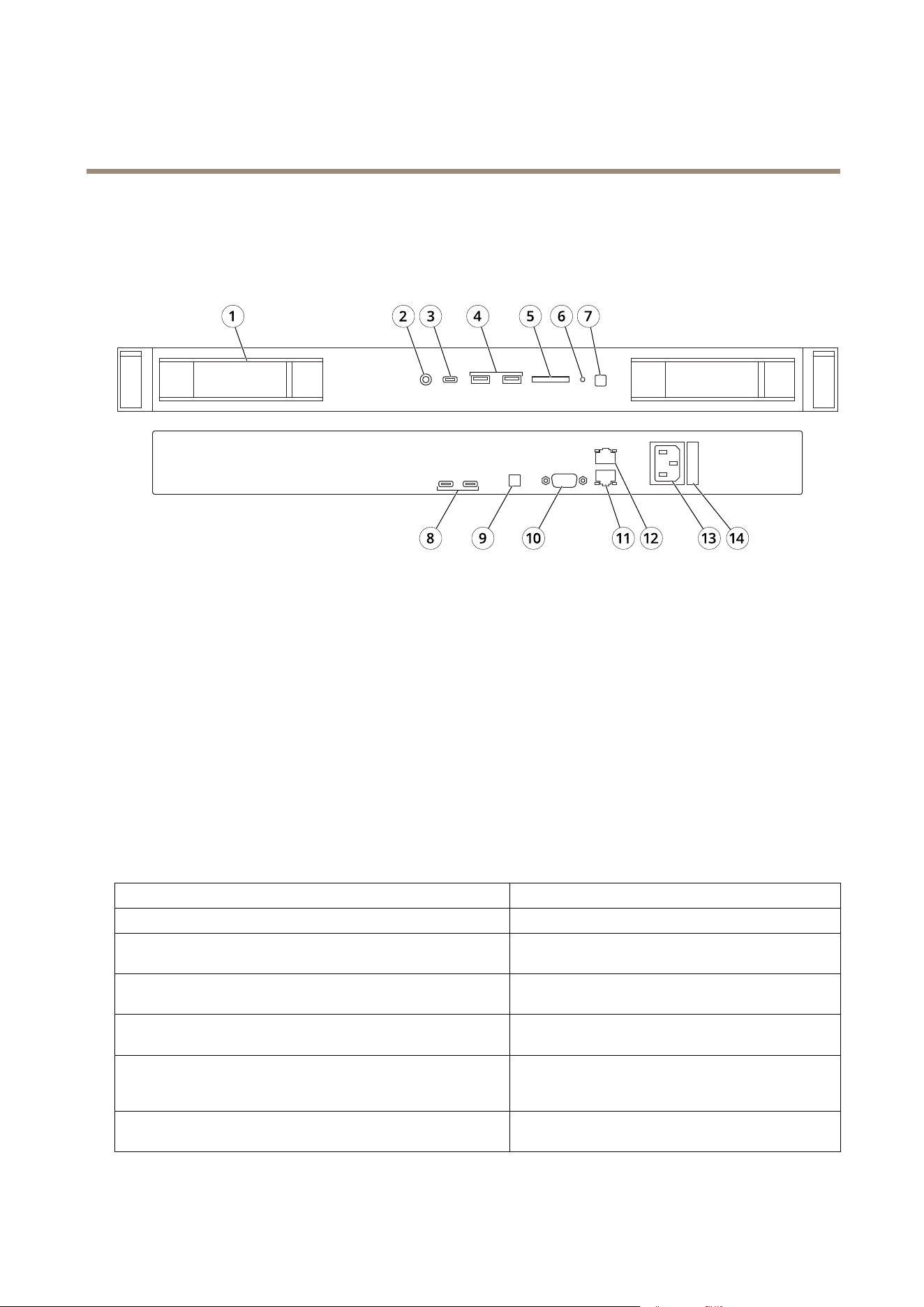
Frontandrearsides
1
Harddriveslot
2
Universalaudiojack
3
USB3.1Type-C
4
USB3.1
5
SDcardreader
6
DriveactivityLED
7
SystempowerLED/powerbutton
8
USB3.1Type-C/DisplayPort™
9
Remotepowerswitchconnector
10
Serialport
11
Ethernet(RJ45)1GbE
12
Ethernet(RJ45)10GbE
13
Powerconnector
14
Powercablelock
Specications
NICindicators
LEDDescription
Linkandactivityindicatorsareoff
TheNICisnotconnectedtothenetwork.
Linkindicatorisgreenandactivityindicatorisblinkinggreen
TheNICisconnectedtoavalidnetworkatitsmaximum
portspeedanddataisbeingsentorreceived.
Linkindicatorisamberandactivityindicatorisblinkinggreen
TheNICisconnectedtoavalidnetworkatlessthanits
maximumportspeedanddataisbeingsentorreceived.
Linkindicatorisgreenandactivityindicatorisoff
TheNICisconnectedtoavalidnetworkatitsmaximum
portspeedanddataisnotbeingsentorreceived.
Linkindicatorisamberandactivityindicatorisoff
TheNICisconnectedtoavalidnetworkatlessthat
itsmaximumportspeedanddataisnotbeingsentor
received
Linkindicatorisblinkinggreenandactivityisoff
NICidentifyisenabledthroughtheNICconguration
utility.
28

AXISCameraStationS1116RackedRecorder
Productoverview
Powersupplyunitindicators
LEDDescription
GreenAvalidpowersourceisconnectedtothePSUandthe
PSUisoperational.
Blinkingamber
IndicatesaproblemwiththePSU
NotilluminatedPowerisnotconnected.
Blinkinggreen
WhenthermwareofthePSUisbeingupdated,thePSU
handleblinksgreen.CAUTION:Donotdisconnectthe
powercordorunplugthePSUwhenupdatingrmware.If
rmwareupdateisinterruptedthePSUsdonotfunction.
Blinkinggreenandturnsoff
Whenhot-pluggingaPSU,thePSUhandleblinksgreen
vetimesatarateof4Hzandturnsoff.Thisindicates
aPSUmismatchwithrespecttoefciency,featuresset,
healthstatus,orsupportedvoltage.
CAUTION
•IftwoPSUsareinstalled,boththePSUsmust
havethesametypeoflabel.Forexample,
ExtendedPowerPerformance(EPP)label.Mixing
PSUsfrompreviousgenerationsofPowerEdge
serversisnotsupported,evenifthePSUshave
thesamepowerrating.ThisresultsinaPSU
mismatchconditionorfailuretoturnthesystem
on.
•WhencorrectingaPSUmismatch,replaceonly
thePSUwiththeblinkingindicator.Swapping
thePSUtomakeamatchedpaircanresult
inanerrorconditionandunexpectedsystem
shutdown.Tochangefromahighoutput
congurationtoalowoutputcongurationor
viceversa,youmustturnoffthesystem.
•ACPSUssupportboth240Vand120Vinput
voltageswiththeexceptionofTitaniumPSUs,
whichsupportonly240V.Whentwoidentical
PSUsreceivedifferentinputvoltages,they
canoutputdifferentwattages,andtriggera
mismatch.
•IftwoPSUsareused,theymustbeofthesame
typeandhavethesamemaximumoutputpower.
•CombiningACandDCPSUsisnotsupportedand
triggersamismatch.
29


UserManualVer.M6.2
AXISCameraStationS11 16RackedRecorder
Date:August2021
©AxisCommunicationsAB,2019
PartNo.T10133057