
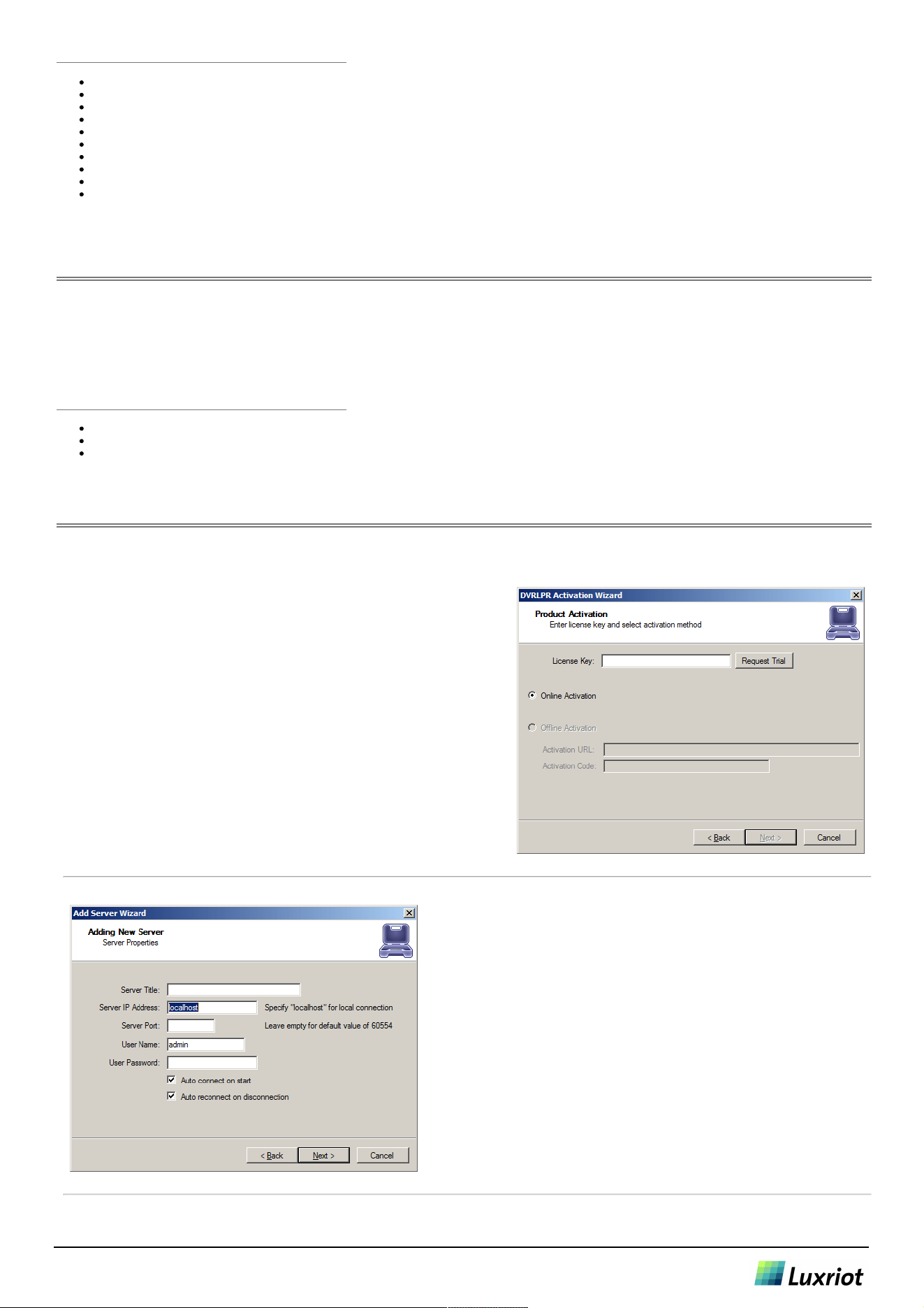
Installation itself is pretty much straight-forward - just follow the setup wizard. After
installation, if you are running software for the first time, you will see an activation wizard
appear - it is used to activate your LPR copy with a previously obtained licence key or
with a trial key, which can be requested for your machine with a press of a 'Request
Trial' button (requires internet connection).
Evaluation mode does not impose any limits other than 30 day duration.
Please note that only one trial license key is assigned per single public IP address –
this means you will be unable to get two trial keys in a local network with single public
IP.
Contents
Introduction
Software requirements
Quick start
Investigation
Configuration
Recognition engine options
Frame archive
External database accounting
Program options
White lists
Introduction
Luxriot LPR is an automatic License Plate Recognition application that is designed to work with Luxriot VMS Server. This application accommodates customers with the
specific need to detect, recognize and register motor vehicle license plates. Luxriot LPR is ideally suited for vehicle access control applications as well as for traffic control
and enforcement applications.
See 'Quick Start' section if you would like to try get LPR running without reading in-depth overview of features and configuration. Otherwise, skip 'Quick Start'.
Software requirements
Microsoft .NET Framework 3.5 ®
Luxriot © Client Kit API of version 1.8.3 or higher (Included in Luxriot VMS client install)
Intel Core i3™ processor equivalent or better.
Quick start
1. Install and activate Luxriot Luxriot LPR software.
2. Add server(s)
Upon first start after activation, you will be prompted to add a DVR server (if you have DVR
client installed on same machine, you will be prompted to import servers configured in DVR
client).
Server title: Server name as it appears in list
1/7
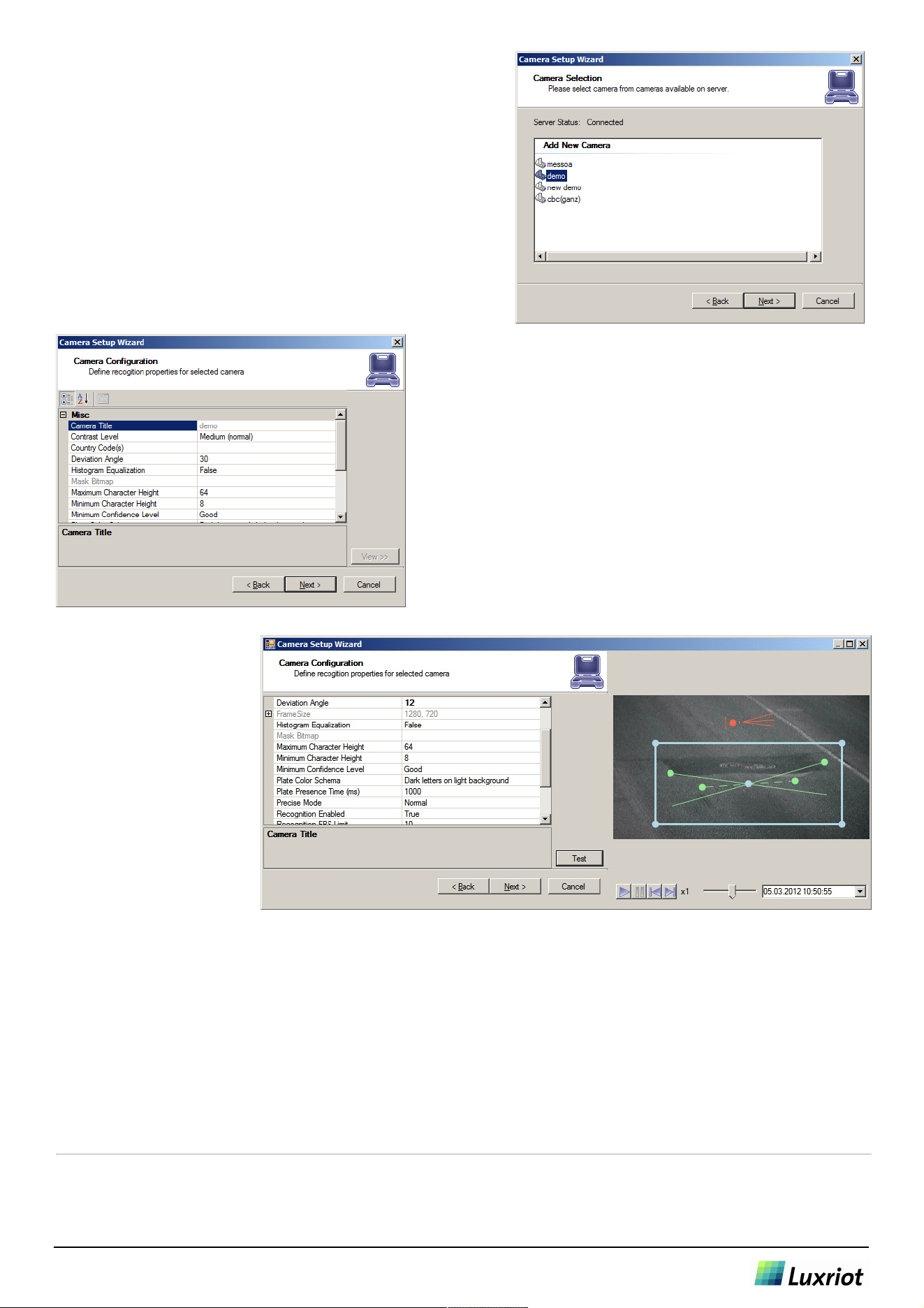
After you have completed server configuration, Camera Setup Wizard will start to assist
you with selecting camera to use for plate recognition. In case you don't have cameras
where number plates can be seen, it is possible to set up camera emulation on Server
using pre-recorded stream.Sample stream file is available at
http://luxriot.com/Downloads/Temp/SANY0011.h264.
After initially adding a
camera, right click on the
newly added camera in
structure pane and go to
Camera Setup Wizard again
for adjusting actual
configuration.
Detailed description of
recognition engine
parameters can be found
below.
3. Add camera(s) and create basic configuration
Add camera with default recognition settings first. You will be able to edit it and add more
cameras at later time. Please note that by default recognition is turned on, and as soon as
software will start receiving video, cpu load will increase a lot and if something is captured, it
will be stored to default local database.
It makes sence to turn recognition off when initially adding a camera, and turning it back on after
basic configuration is achieved.
Camera setup wizard window consists of two parts - recognition parameter table on the left and parameter preview on the right (enabled by pressing 'View>>' button).
Parameter preview is shown using DVR archive data, so you need to have archive recorded for camera you are configuring to be able to use preview. There is no need for
continuous archive recording - it is enough to create a small archive record by enabling recording for given camera during one minute or so and disabling recording
afterwards.
Blue frame defines active recognition area - anything outside this area will not be accounted. Solid green lines define amount of variation in degrees from a base level,
which is shown with green dotted line. Orange lines represent allowed visual character size range.
You can seek archive in preview window using navigation buttons to get a video frame with licence plate inside configured recognition area and check if recognition settings
are fine with a 'Test' button. Please note that such recognition test is not accurate, as it is testing settings using single frame, while in normal operation LPR uses multiple
frames to read licence plate number.
You might have also noticed that non-default recognition engine settings are maked with bold
License plate recognition takes a few seconds. If calibration was correct, software will start recognizing licence plate numbers and you will see them
appearing in a recent number plates list. Clicking on any number from the recent list will open investigation window positioned on clicked number.
Investigation history window is used to browse all recognized number plates and has an extended event viewer with search option.
2/7
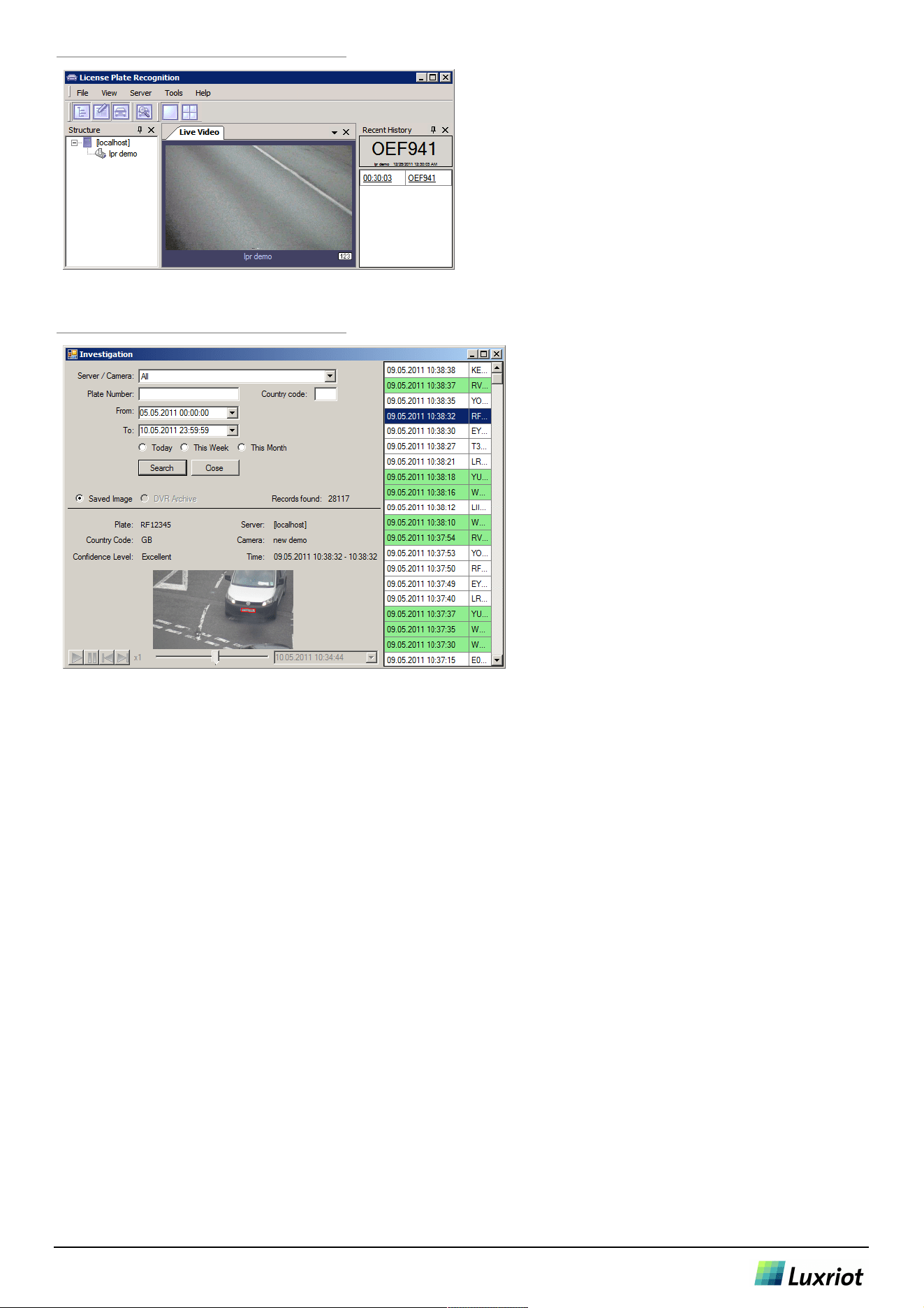
Main view
Investigation
Investigation window is used to examine and search through recognition
data. Upper-left part contains search-related options and lower-left part
displays a snapshot of recognized plate, if you have enabled snapshot
storage or have a DVR archive for the camera where plate was found for
the given time.
Investigation window can be opened from a toobar (will show all recent
entries) or using recent history panel. In latter case investigation will show
all entries for a licence plate number, if you click on licence plate number
column entry in recent history, or all records until given time if you click on
time column entry.
You also can export single entry as a report in jpeg or pdf format using
'Save as' button.
Search for a recognition entry can be issued using a pattern - entering
'AB' to Plate Number field will return licence plates: AB001',
'001AB' and '01AB01'.
Select camera name from a drop box to search only for licence plates
recognized by given camera.
Specifying country code will return only numbers belonging to specified
country (if any).
You can also use special characters in search query - '?' for single unknown character (at most 1) and '*' for multiple unknown characters (at least 0), for example
searching for 'AB*3' will return plate numbers 'AB3', 'AB23', 'DDAB23' and 'AB12D12D3', while 'AB?3' will return 'AB23' and DDAB23'.
When you enter 'AB' search is done for '*AB*' and entering 'A?B' will search for '*A?B*'.
If you have a DVR archive available for the camera, DVR archive radio button (and playback controls after you check it) will be available. Using DVR archive and selecting
recognized licence plate from a list on the right will seek archived stream to a time when plate was recognized, draw corresponding frame of the stream and pause it. Red
highlighting border will also be drawn to show where licence plate was found. From this point you will be able to playback video from arhive to see vehicle passing camera
on video.
You can also save investigation snapshots (a still frame where recognized number plate is present, along with information) using 'Save As' button to either pdf or jpeg file.
Still frame itself can also be saved.
3/7

Argentina (AR)
Australia (AU)
Austria (AT)
Belgium (BE)
Bosnia and Herzegovina (BA)
Brazil (BR)
Brunei (BN)
Bulgaria (BG)
Chile (CL)
Columbia (CO)
Croatia (HR)
Czech Republic (CZ)
Denmark (DK)
Estonia (EE)
Finland (FN)
France (FR)
Germany (DE)
Georgia (GE)
Hungary (HU)
India (IN)
Indonesia (ID)
Israel (IL)
Italy (IT)
Kuwait (KW)
South Korea (KR)
Latvia (LV)
Lithuania (LT)
Malaysia (MY)
New Zealand (NZ)
Netherlands (NL)
Norway (NO)
Philippines (PH)
Poland (PL)
Portugal (PT)
Romania (RO)
Russia (RU)
Serbia (RS)
Slovenia (SL)
South Africa (SA)
Singapore (SG)
Slovakia (SK)
Spain (ES)
Sweden (SE)
Switzerland (CH)
Taiwan (TN)
Turkey (TR)
Ukraine (UA)
United Kingdom (GB)
United States (US)
Vietnam (VN)
Configuration
Generally speaking, LPR configuration can be logically divided into parts - recognition engine configuration, database and frame archive configuration and optional
advanced configuration. This section describes configuration parameters in detail.
Camera setup notes
Cameras with faster shutter speed are recommended - even if you are receiving quality 1080p video stream at 25fps - with low shutter speed moving objects on single
frames will be blurred, despite they look clear to human eye on video playback. Shutter speeds above 1/1000s are preferred.
Physical position of a camera also takes an important role in quality of recognition and amount of computer resources required for analysis. Modern computers are
effective in mathematic calculations, and describe everything with equasions and logic operations - in turn, describing and processing some abstract actions (like reading
characters) using such methods is not an easy task. In another words, finding and reading text for a computer is a lot harder than for a human. Due to this there's high
demand on processing power for recognition engine.
Choosing a good place for a camera will give more confident results and will require less processing power. Generally, it is best to place a camera in front of expected
vehicle movement direction to minimize relative side speed of licence plate to camera. This allows to shrink active recognition area and licence plate will appear in view for
a longer time, which means more frames with visible licence plate will be received by recognition engine for analysis. Also, having more time analisys can be done a bit
slower, saving CPU power.
If licence plate number as it appears on video frame is not clearly readable by you, recognition engine will not see it as well.
Recognition engine parameters
Camera Title - can not be changed in current version
Contrast Level - expected contrast of License plate on input images.
Medium - suitable for most cases, since LPR recognition algorithm is adaptive to different lighting conditions.
Low - low contrast.
High - high contrast
Country Code - the ISO 3166 two character country code, where LP was issued (Latvia - LV, Germany - DE, USA – US).
Number plates from following countries are supported:
More countries will be added in future.
Deviation Angle – This parameter describes expected amount of variation in number plate position relative to horizontal level. Minimizing deviation angle improves
recognition performance, since less data has to be processed. It is best used in combination with Rotation Angle parameter, which sets constant adjustment angle that is
applied to picture to make it appear as horizontally levelled to recognition engine. Deviation parameter can be used more efficiently from this point. Shown with solid green
line on preview. Smaller deviation angle - less load.
Histogram Equalization – This controls whether the contrast adjustment pre-processing should be applied. Increases CPU load and recognition precision. Please leave
it as False
Mask Bitmap - Not implemented in current version
Minimum/Maximum Character Height - Minimal and maximal expected visual size of characters on license plate, as it appears in video. These parameters are
represented with orange lines in visual configuration.
Plate colour schema – Instructs LPR to look for number plates with either dark characters on bright background, or bright characters on dark background.
Plate Presence Time (ms) - To be detected, number plates should be seen in at least half of frames during this time. Increasing this value makes recognition more
accurate, but don't set it too high, otherwise licence plate numbers from faster moving cars will be ignored, due to insufficient presence in view. Setting this too low might
cause number plates to be detected more than once - if presence time is set to 200 ms and vehicle is moving by at slow speed, during it's (for example) 700ms presence
time there might be two successful recognitions (200ms each) with minor difference in some single character.
Efficient setting also depends on FPS, some examples can be found below.
For detecting numbers in short amount of time, for example if cars are moving past camera at high speed, Recognition FPS must be increased. If recognition is running at
7 frames per second and Presence Time is set to 300-400ms frames per second, recognition will only get 2-3 frames during this time and result will not be accurate. If cars
are in view for a short time, decrease Plate Presence Time and increase Recognition FPS. If cars are in view for longer time, it's better to increase Plate Presence Time
and reduce Recognition FPS (if necessary).
Precise mode - Possible values are:
PM_Normal - for video mode and images with normal quality without noise and blurring.
PM_Mode1 - for noised and night images.
PM_Mode2 - for noised and night images captured with motion blur effect.
PM_Night - for night images captured with IR illumination.
Recognition Enabled - Enable/Disable recognition. this can also be toggled from camera context menu in structure pane
When recognition is enabled, [123] icon is displayed under video stream.
4/7
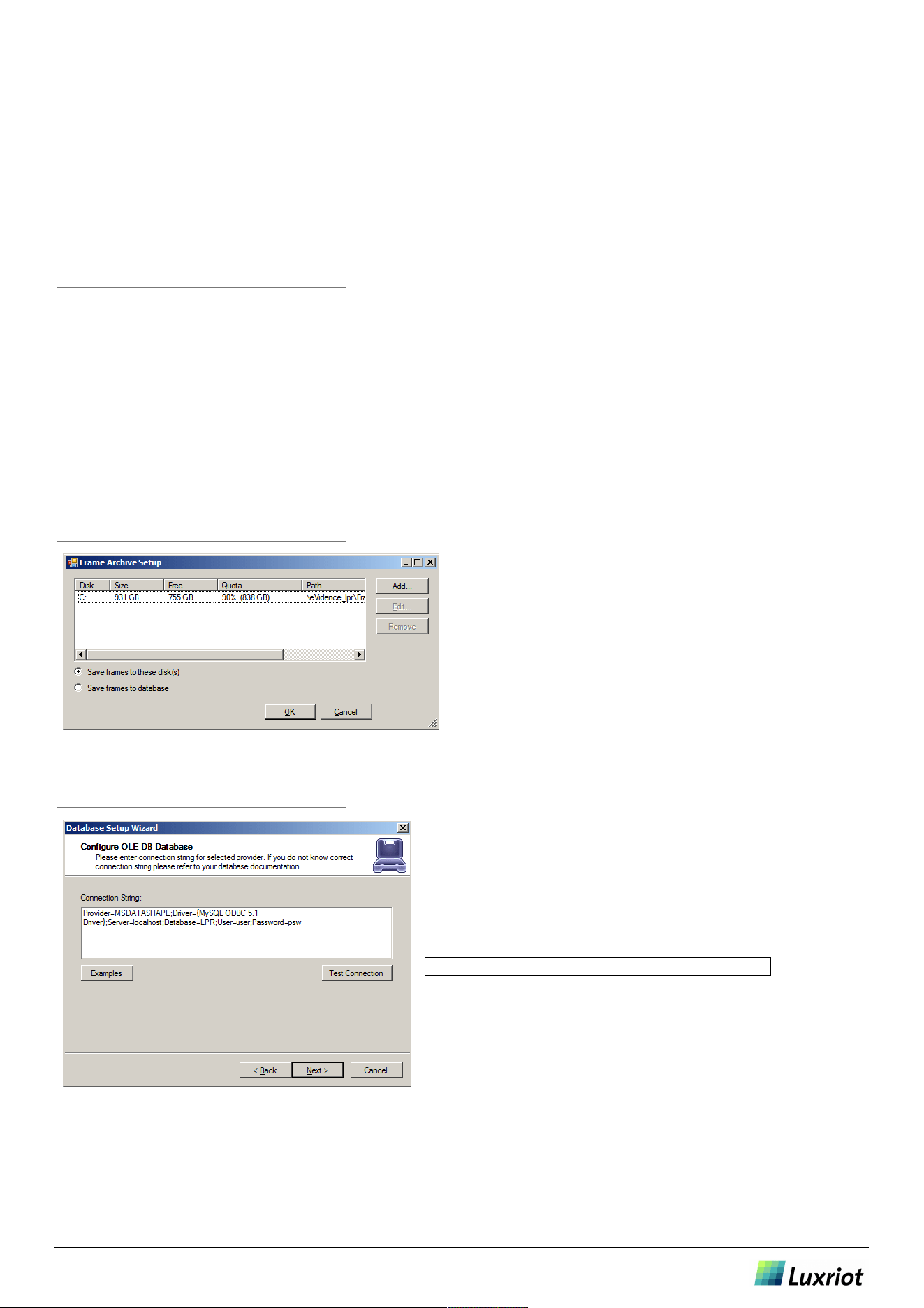
Provider=MSDATASHAPE;Driver={MySQL ODBC 5.1
Driver};Server=localhost;Database=LPR;User=user;Passw ord=psw
Recognition FPS - Desired processing rate of the video stream. Analysing more frames gives more reliable result but also consumes more CPU. Good setting depends
on quality of received video stream and on speed at which cars are moving. If numbers are not seen very well on video or cars are moving fast it's recomended to increase
this setting. For 25 fps stream fine settings would be 7 or 13 fps, for even omitting of excessive frames - 25/2 = 12.5(13 fps, every second frame analysed); 25/4 = 6.25(7
fps, every fourth frame is analysed).
Rotate Angle - indicates whether the source image should be rotated by specified angle in degrees to be horizontally levelled. Effects CPU consumption and recognition
precision. Shown with dotted green line on preview
Save Image - This feature enables storage of still frames containing recognized licence plates. As of version 1.4.0 images are saved to a filesystem by default, but will be
retrieved from a database as well, if found. You still can configure LPR to store images to database, but we surely do not recommend doing so. It is also possible to
disable image storage at all and use DVR archive to display frames containing recognized licence plates, however in this case viewing of snapshots will be limited to DVR
archive duration.
Scan Rectangle - The scan rectangle defines the active area within the image, where recognition takes place. Area outside rectangle will not be processed. On the
image below we show the scan rectangle, which covers reasonable range of possible licence plate positions. Effects CPU load, recognition precision and speed. Smaller
rectangle - less load.
Example timing/fps settings
Though these settings highly depend on video stream and camera configuration, we provide some examples to give you idea about possible values for few kinds of
situations. Do not take this as a valid setting for your setup.
Far camera zooming at road crossing at moderate angle (relative to camera side speed is average), cars moving at average speed:
Plate Presence Time: 350ms; Recognition FPS: 7;
Camera zooming at road crossing at low angle (relative to camera side speed is low), cars moving at low to average speed:
Plate Presence Time: 750ms; Recognition FPS: 7;
Camera positioned on ceiling inside parking, looking at parking entrace, in front of car moving direction (no angle), cars moving at slow speed:
Plate Presence Time: 1000ms; Recognition FPS: 3;
Camera targeted along straight road at moderate angle, cars moving at average to high speed:
Plate Presence Time: 200ms; Recognition FPS: 13;
Frame archive
As of version 1.4.0 it is possible (and recommended) to store still frames on a filesystem
instead of a database. This allows you to have a lot more records in database without
performance penalties, which come from populating database with image data. This
also allows you to use mssql express without having to worry about 10gb database limit.
(Ofcourse, It is still possible to reach 10gb size limit, but it would take few years and
millions of records)
Frame archive configuration is quite simple - you select drives that should be used for
frame storage and set a quota for each drive. When drive usage matches quota, oldest
frames will be removed.
Please note that LPR never estimates size of frame archive to avoid additional system
load - because of this, drive usage is TOTAL drive usage, NOT drive usage by frame archive only. In other words this means that if more hard drive space is used to store
other data, less space will be available for frame archive and quota will trigger faster.
External database accounting
External database communication is done in Luxriot LPR by standard OLE DB means.
We will do a brief overview on setting up external accounting with a popular MySQL database.
You will need a working MySQL server (consult MySQL documentation on how to install and
configure it) and a MySQL ODBC 5.1 driver, which can be obtained from MySQL website. The
name ODBC is a bit confusing - driver package actually contains both ODBC and OLE DB
drivers for MySQL. You also need to create an account for LPR to use, as well as create
empty database.
After database and set up, configure LPR to work with your database using OLE DB
connection string, which contains instructions on data source to use and login credentials.
We provide a way to test configured database correct operation and performance by filling it
with randomized test data. It is done by starting LPR with a /FillWithRandomData command-
line argument. You will be prompted for amount of random entries to create. You can also
specify an image to use for creating corresponding frame archive entries.
This way you can see how database will operate with expected number of records (i.e. with 2
millions of records and images, as after 3 years of production use).
For deleting all database data and frame archives, run LPR with /DeleteAllData.
5/7
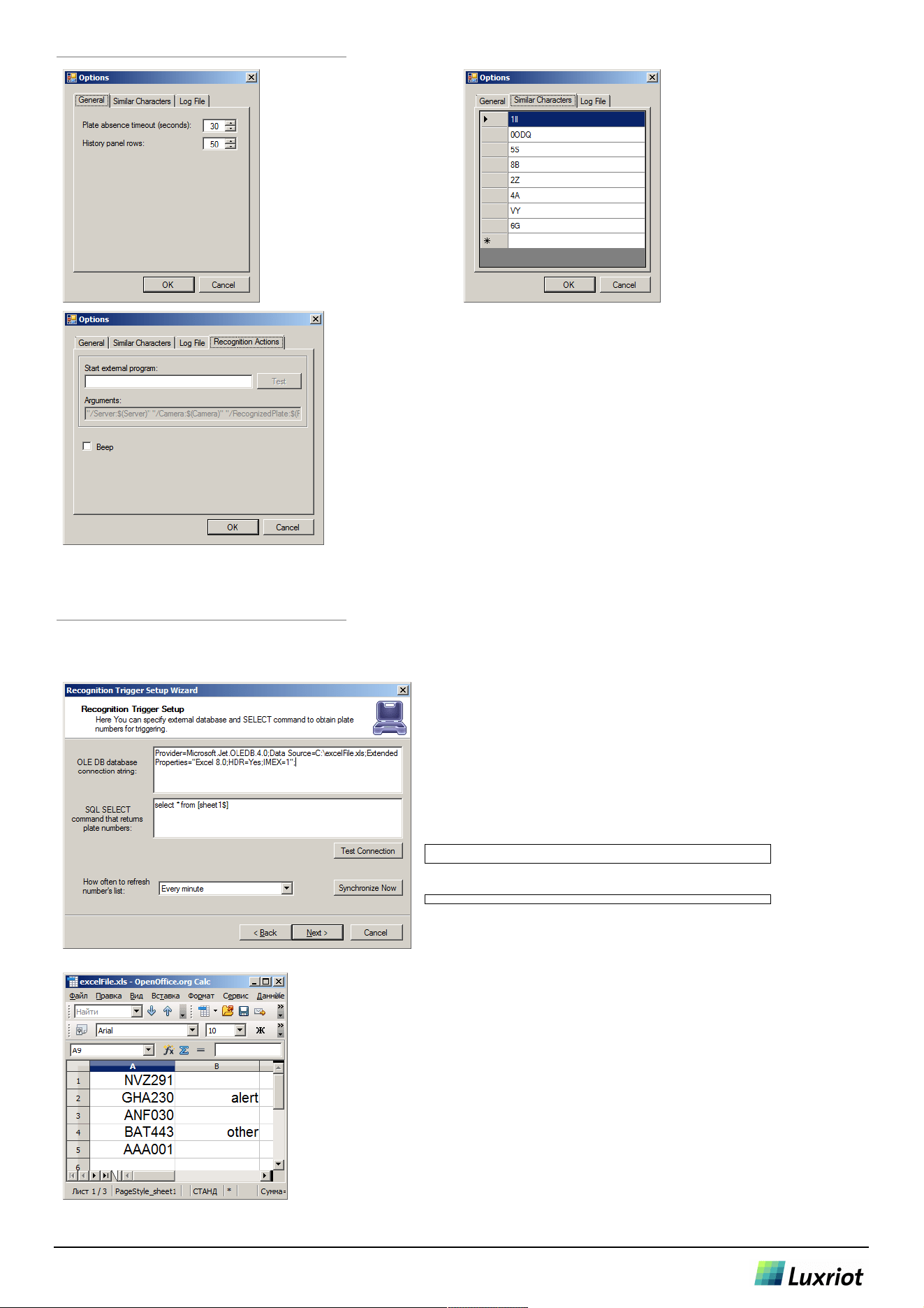
General options. Plate absence time,
given in seconds, defines how long
licence plate should be out of view to
get recognized again. This is useful,
for example, if parked cars might
appear inside recognition area. A
person walking by and covering plate
for few seconds will not trigger re-
recognition.
Here you can define characters that
will be considered similar. It is used for
investigation search and trigger
matching.
Allows you to run external program upon any new
recognition entry.
Provider=Microsoft.Jet.OLEDB.4.0;Data Source=C:\excelFile.xls;Extended Properties="Excel
8.0;HDR=No;IMEX=1";
select * from [sheet1$]
Third 'Log file' tab is used to set amount of logging performed, limit log file size and set maximum amount of log files, as well as view current log. At the moment logging
is used for debugging purposes only and most users can ignore it.
Black/white lists
Luxriot LPR allows you to set up an automatic control point. It requires a source of allowed plate numbers (which can be any Miscrosoft OLE DB compatible source) and
external program (for opening gate, for example) to run when recognized LP number matches one of numbers found in database.
Recognition trigger configuration is found under Tools -> Trigger Setup.
Screenshot on the left shows LPR configured to use a Microsoft Excel file for retrieving
triggering plate numbers.
First field (OLE DB connection string) contains instructions on what source to use for reading
triggering numbers.
Second field (SQL SELECT command) contains instructions on how to retrieve reqired data
from specifid source.
Drop box is for selecting delay between re-reading data source.
Note that similar characters have effect here as well - if you have O and 0 set as similar
characters, both 000 and OOO number plates will match 000 given in allowed plate number
list. Characters are not case-sensitive.
(HDR=No instructs OLE DB not to use first row as column names)
Please note that we
refer to 'sheet1', as our test xls document worksheet name is 'sheet1'. It may be different with
different regional settings, so please adjust as necessary.
This is example contents of an MS Excel file. First column contains triggering number plates. Second, optional column,
contains additional information about number plate, which is referred to as a Triggered Plate Tag and can be supplied
as command-line argument, TriggeredPlateTag.
You can check what number plates are curently triggering under Tools -> Trigger Plates menu
6/7
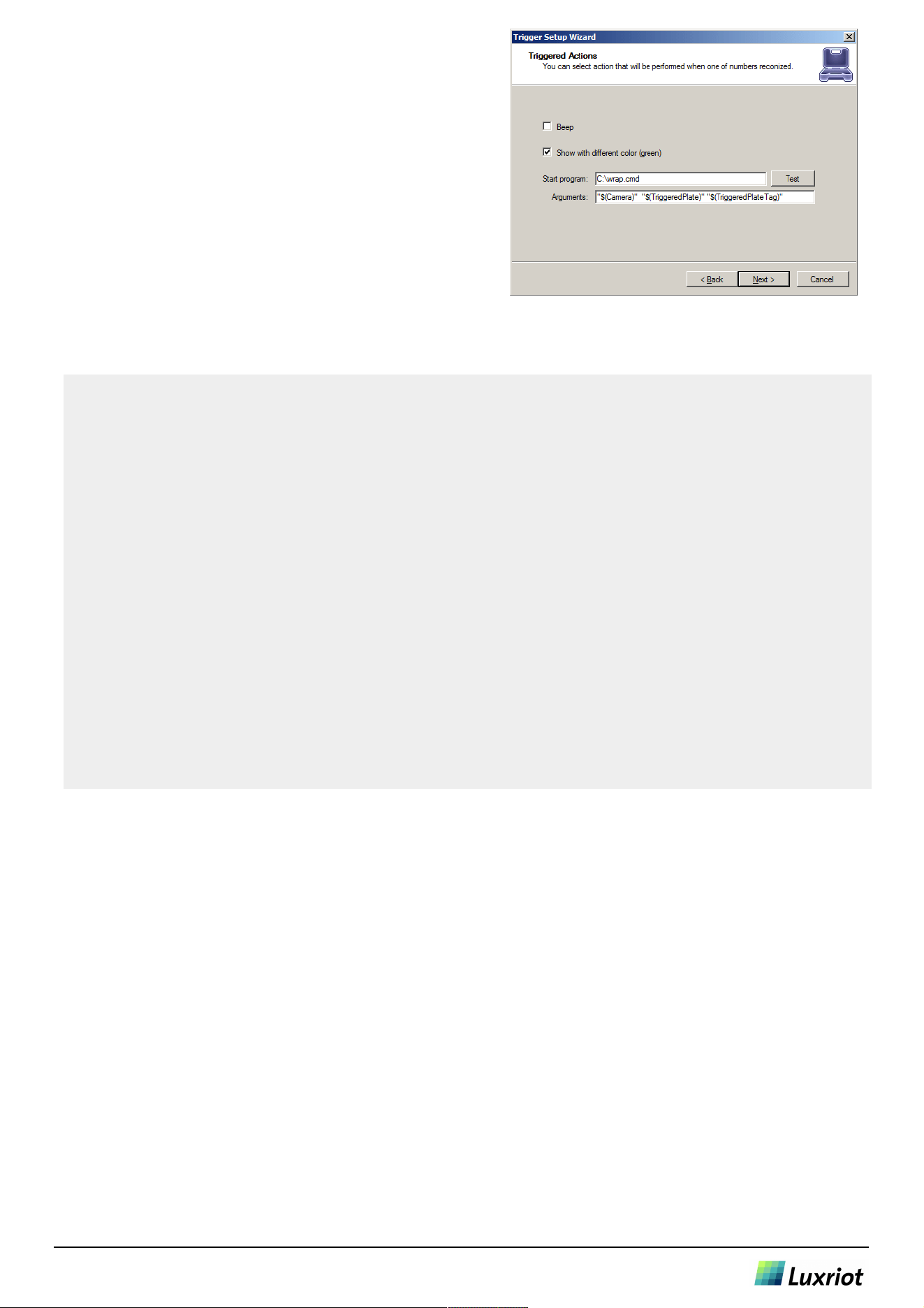
Upon trigger an external program (or wrapping command script) is called. Specify a path to
program to be executed upon trigger in Start program: field. Arguments to be passed to
external program are filled in Arguments field.
Besides constant arguments you can supply following dynamic arguments (they will be
replaced with actual values) to external progam executed upon trigger:
$(Server) - Name of a server where LP was found
$(Camera) - Camera where LP was found
$(RecognizedPlate) - LP that was recognized
$(TriggeredPlate) - Source LP that recognized plate was matched against
$(TriggeredPlateTag) - Tag corresponding to source LP that recognized plate was matched against
If you need to execute multiple or conditional commands upon trigger, you can use windows
command script as a wrapper. Consider example of basic command script usage below.
Software is configured to execute command script upon trigger, with following arguments:
"$(Camera)" "$(TriggeredPlate)" "$(TriggeredPlateTag)". Script will evaluate 3rd parameter,
a TriggeredPlateTag, to determine what action to perform and can also forward some
additional information to external programs called.
Example contents of wrap.cmd file:
rem Sample logging:
set LOGPATH="c:\cmd-test.log"
echo %DATE% %TIME% Received arguments: %* >> "%LOGPATH%"
rem Set variables
set CAMERA=%1
set TRIGGERED_PLATE=%2
set TAG=%3
rem Path of an optional file to log actions
rem Remove quotes from arguments
set CAMERA=CAMERA:"=%
set TRIGGERED_PLATE=%TRIGGERED_PLATE:"=%
set TAG=%TAG:"=%
rem Perform conditional action depending on received arguments
if /I "%TAG%" == "" (
rem Action to perform if Tag is empty
echo Opening gate for "%TRIGGERED_PLATE%" >> "%LOGPATH%"
OpenGate.exe
) else if /I "%TAG%" == "alert" (
rem Action to perform if Tag equals to "alert"
echo Alert for "%TRIGGERED_PLATE%" >> "%LOGPATH%"
ShowAlert.exe
) else (
rem Can perform default action here
echo Unknown action "%TAG%" for "%TRIGGERED_PLATE%" >> "%LOGPATH%"
)
rem Perform constant action not depending on received arguments
echo. >> "%LOGPATH%"
7/7