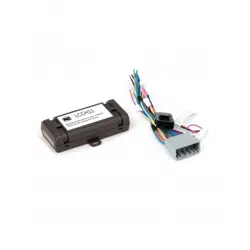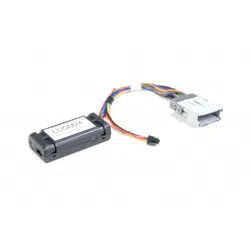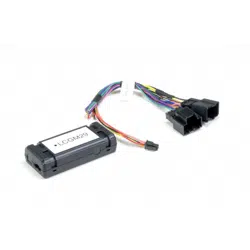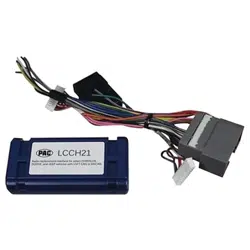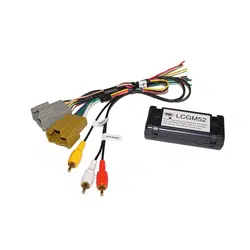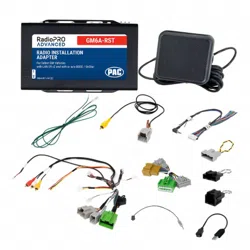
Radio Replacement Interface for General Motors Vehicles
with 29-bit V2 and with or W/O BOSE and OnStar
Pacific Accessory Corporation
Rev. 6/27/24
© 2024 PAC. All rights reserved. PAC-audio.com
GM6A-RST
Page 1
Introduction and Features
Important Notes
The GM6A-RST interface allows the replacement of a factory radio in select General Motors vehicles with 29-bit LAN v2, 20-pin and
16-pin connector radios. Using this interface will retain factory features such as BOSE, OnStar, vehicle settings, steering wheel
controls (SWC), front and rear park assist and warning chimes when the original radio is removed. The GM6A-RST also provides data
bus driven outputs such as retained accessory power (RAP), vehicle speed (VSS), illumination, reverse trigger and parking brake.
1. Please make your vehicle settings selections before removing the factory radio for optimal installation time. Once the radio has been removed,
the vehicle settings which are normally selected through the factory radio can be accessed and changed by downloading and installing the
PAC RadioPRO PC Application from http://www.pac-audio.com/rmware.
2. Before removing your factory radio, please review the following settings as these will not be retained once the factory radio is removed:
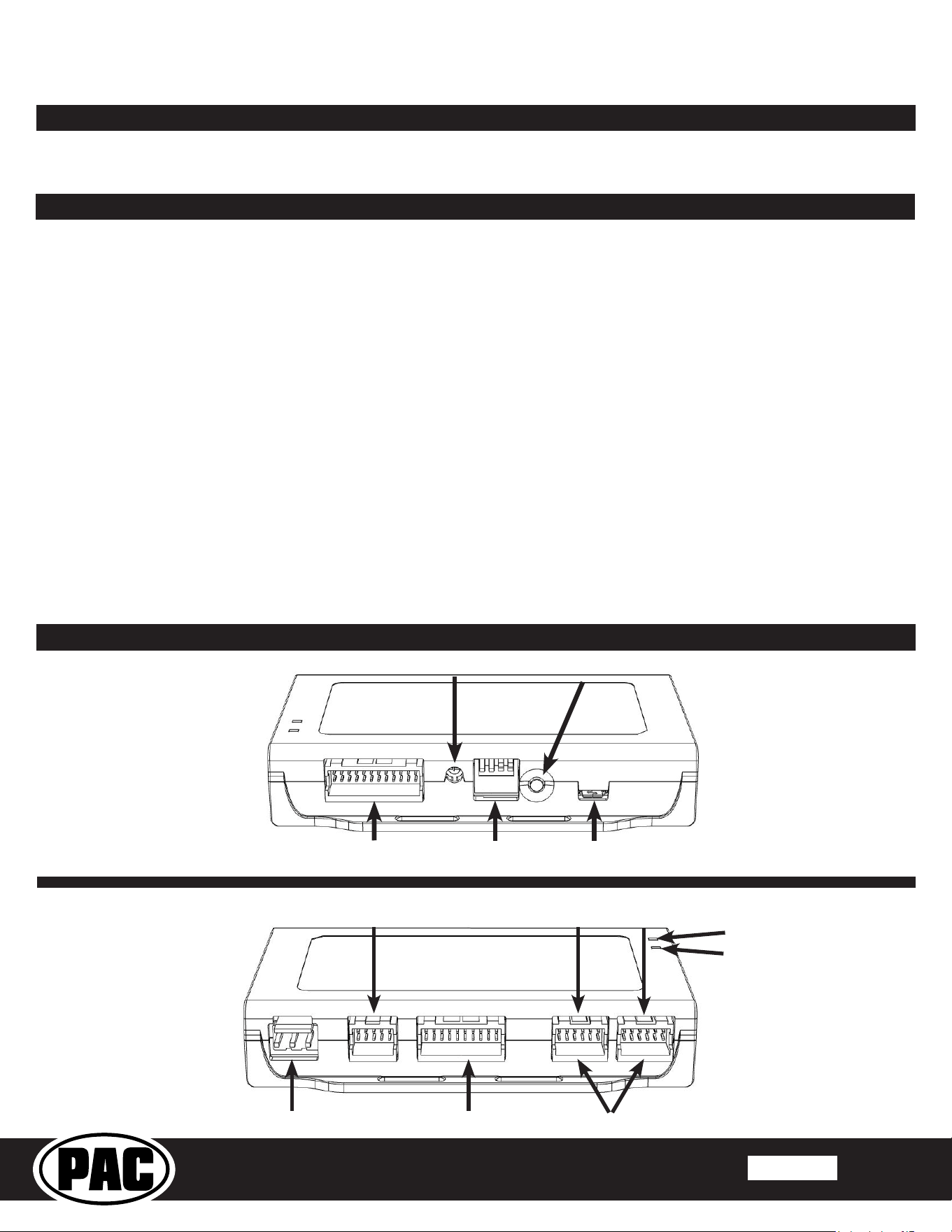
USB PortRadio Select
DIP switches
Interface Connector 4
Adjustment Dial Programming Button
Module Layout
Interface Connector 1 Interface Connector 2 Interface Connector 3
LED 2
Expansion Port
Non-Amplied
Audio Output
LED 1
Amplied
Audio Output
• Ambient Lighting Control
• Teen Driver Feature
• Valet Mode
• Rear Park Assist Symbols displayed on Reverse Camera Image
• OnStar Text
• Performance Data Recorder
• Custom Launch Control (Line Lock, Launch Control)
3. When you plug in the module for the rst time, it must go through an initialization process that takes up to 12 seconds. Make sure you have
the vehicle running diring this process.
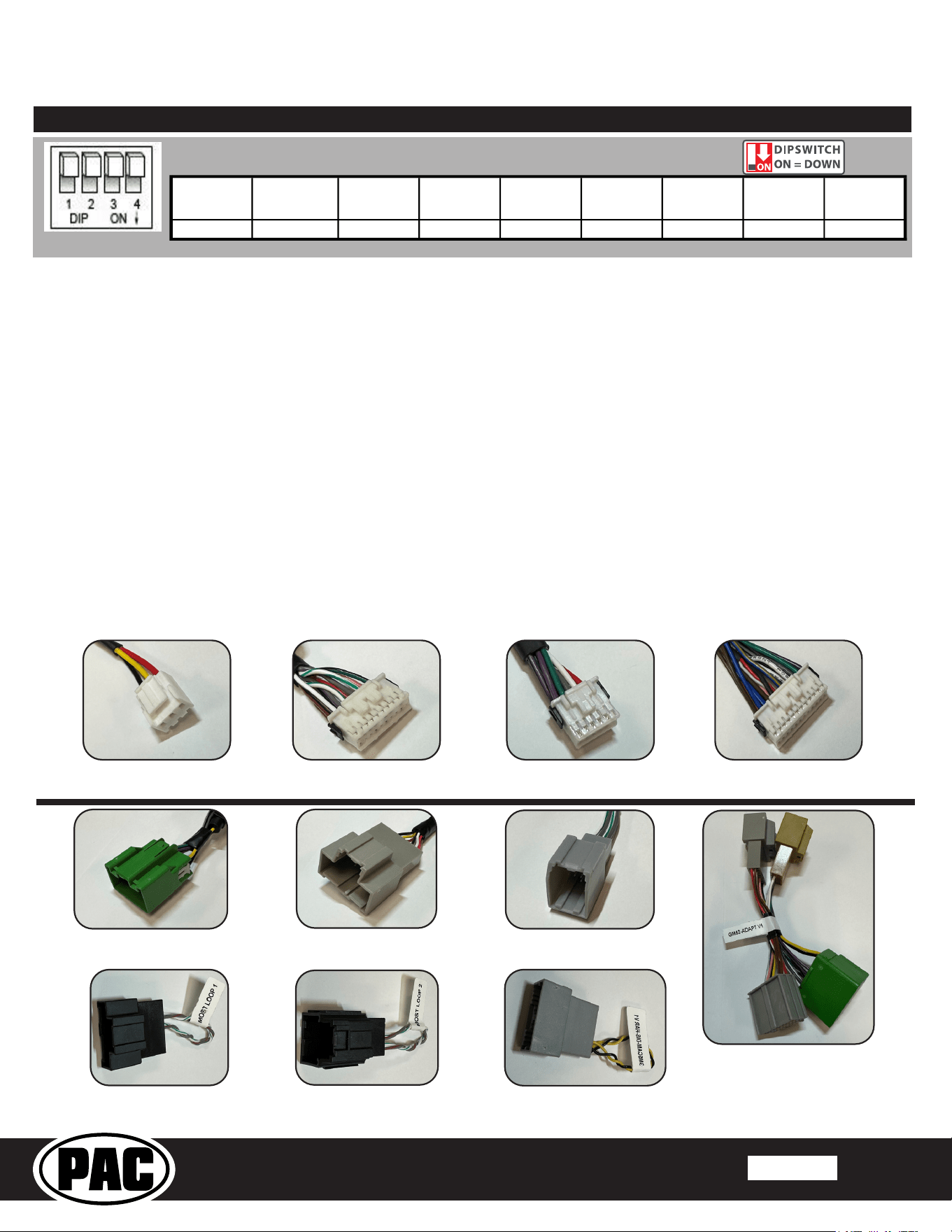
4. The radio select dip-switchs on the side of the interface must be adjusted to the proper radio setting before plugging the interface into the
vehicle (see page 2 for setting chart).
5. The Voice button can be set to activate the factory OnStar function by using the RadioPRO PC Application. By default, this button is
re-programed to control the aftermarket radios voice function.
6. The interface comes pre-programmed for all of the vehicles factory SWC functions and does not require programming unless you wish to
re-assign the SWC functions, utilize the buttons that have no initial programming or utilize short press long press dual command functionality.
The SWC can always be restored to default settings by pressing and releasing the program button on the side of the interface once and
waiting 7 seconds for the LED to ash 4 times.
• Chevrolet Malibu and Camaro will require SWC re-mapping. Failure to do this will result in irregular steering wheel control functionality.
• Chevrolet Camaro: You will not be able to control the volume of OnStar or launch OnStar with the SWC.
7. The VS41 can be added to control Rear, Frotn ,Left, Right cameras through the interface. See Page 5 for details.
8. Language: In some vehicles the Lauguage setting is controled over MOST. Please make sure that you adjust this accordlingly before removing
the radio as this will not show up in most cases after your install.
9. For Referencing (IO) Codes. Please refer the vehicles RPO CODE sticker normally located in the vehicles glove box or the underside of the
spare tire cover.
Radio Replacement Interface for General Motors Vehicles
with 29-bit V2 and with or W/O BOSE and OnStar
Pacific Accessory Corporation
Rev. 6/27/24
© 2024 PAC. All rights reserved. PAC-audio.com
GM6A-RST
Page 2
Installation Steps
Other =
Advent, BOYO, Dual, Lightning Audio, Rockford Fosgate, Visteon
Set DIP switches that correspond with your radio to the ON position.
Set all other DIP switches to the OFF position.
If your brand is not listed above, please use “ALL OTHER BRANDS.”
Alpine JVC
Kenwood /
Lightning
Audio
Stinger
Clarion /
Nakamichi
All Other
Brands
Pioneer Sony Fusion
1 2 1 & 2 3 3 1, 2, & 3 1, 2, & 3 4 1 & 4
1. Set the Radio Select DIP switches according to the radio you are installing.
2. Wire your aftermarket radio to the GM6A-RST’s harness according to the wiring connections chart on Page.3.
3. Cut the Brown mute loop in Interface Connector 4. If not cut will turn the GM6A’s accessory output o, when any OnStar
function is active.
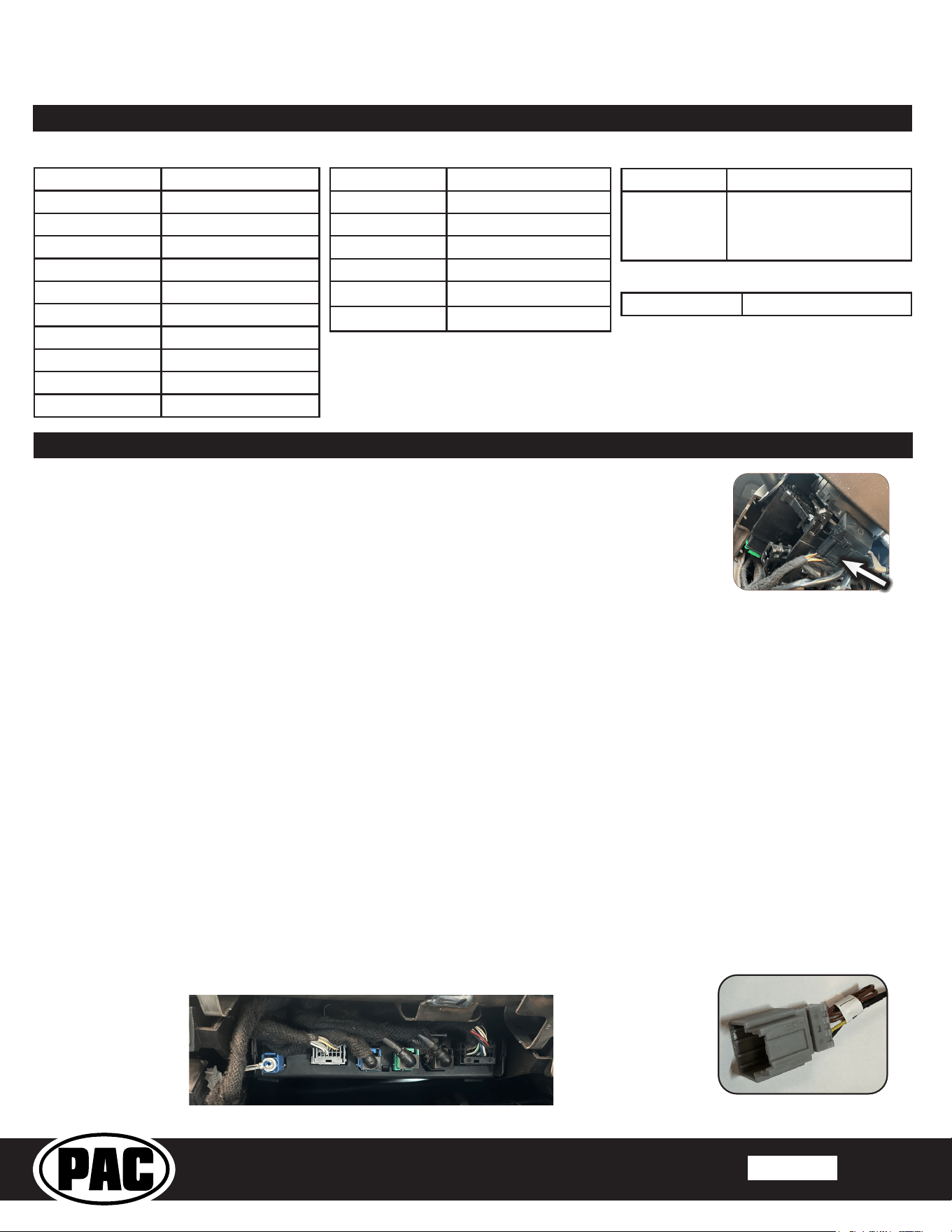
4. Plug Interface Connectors 1 & 2 into the appropriate ports on the GM6A-RST interface (using the diagram on page 1 or
the label on the bottom of the interface).
5. The Interface Connector 3 connection port will be dependent upon whether or not the vehicle has a factory amplied
system. Plug this connector into the appropriate port on the GM6A-RST (using the diagram on page 1 or the label on the
bottom of the interface).
6. Remove the factory radio and plug in the GM6A-RST’s Vehicle Connector 1, 2, & 3 into the factory vehicle harness. Vehicle
Connector 3 might not be present in all vehicles. In vehicles with IOA / IOB use Vehicle Connector 7 to adapt your main
harness to your vehicle.
7. Vehicle Connectors 4 & 5 are used when removing the factory CD player in the dash and are mandatory that they are
plugged in to keep the MOST loop Intact. Failing to plug these in will result in no sound. Not all connectors may be present.
8. Vehicle Connector 6 (GM5CAM-DIS-HAR) will only be used in vehicle with an IOB Build Code and will be connected to
the harness that was plugged in to the factory display once removed. This is used to maintain the camera signal in IOB build
code vehicles.
Interface Connector 1
(3-pin)
Interface Connector 2
(20-pin)
Interface Connector 4
(24-pin)
Interface Connector 3
(12-pin)
Vehicle Connector 1
(20-pin)
Vehicle Connector 2
(16-pin)
Vehicle Connector 3
(8-pin)
Vehicle Connector 7
(Adapter)
Vehicle Connector 4
(10-pin)
Vehicle Connector 5
(12-pin)
Vehicle Connector 6
(20-pin)
Radio Replacement Interface for General Motors Vehicles
with 29-bit V2 and with or W/O BOSE and OnStar
Pacific Accessory Corporation
Rev. 6/27/24
© 2024 PAC. All rights reserved. PAC-audio.com
GM6A-RST
Page 3
Wiring Connections Chart
SWC Connector
Blue / Yellow Kenwood or Newer JVC
3.5mm Jack
Alpine, JVC, Clarion,
Pioneer, Sony, Boyo, Dual,
Lightning Audio, Visteon or
Advent
Light Green Parking Brake Output (-)
Pink Vehicle Speed Output
Blue / White Remote Turn On
Blue Not Used
Orange / White Illumination Output (+)
Purple / White Reverse Output (+)
Brown Loop Mute Output (CUT)
Aftermarket Radio Connections
Vehicle Side Connections
Green / Black* SWC Input
Yellow Constant 12V +
Black Ground -
Red Acc. Output
White Front Left + input
White / Black Front Left - input
Grey Front Right + input
Grey / Black Front Right - input
Green Rear Left + input
Green / Black Rear Left - input
Purple Rear Right + input
Purple / Black Rear Right - input
IMPORTANT NOTES REGARDING GREEN / BLACK WIRE CONNECTIONS*
There is a 60” Pigtail that is used for
connecting the SWC input to the GM6A
module that has a bullet connector on one
end, and a loose wire on the other.
This is designed to plug into the match-
ing bullet connector on the GM6X-HAR;
both of which have a matching SWC
Input label.
1. Make all connections as described in the chart above. Be sure to review all connections before plugging the
harness into your vehicle.
2. PLEASE NOTE: If you are installing this in any vehicle other than trucks and SUVs, it’s best to make
all connections behind the radio rst, then pressing any button on the SWC and verifying that the
LED on the module blinks. If it does, this step is not needed. If it does not, please proceed with this
wiring connection.
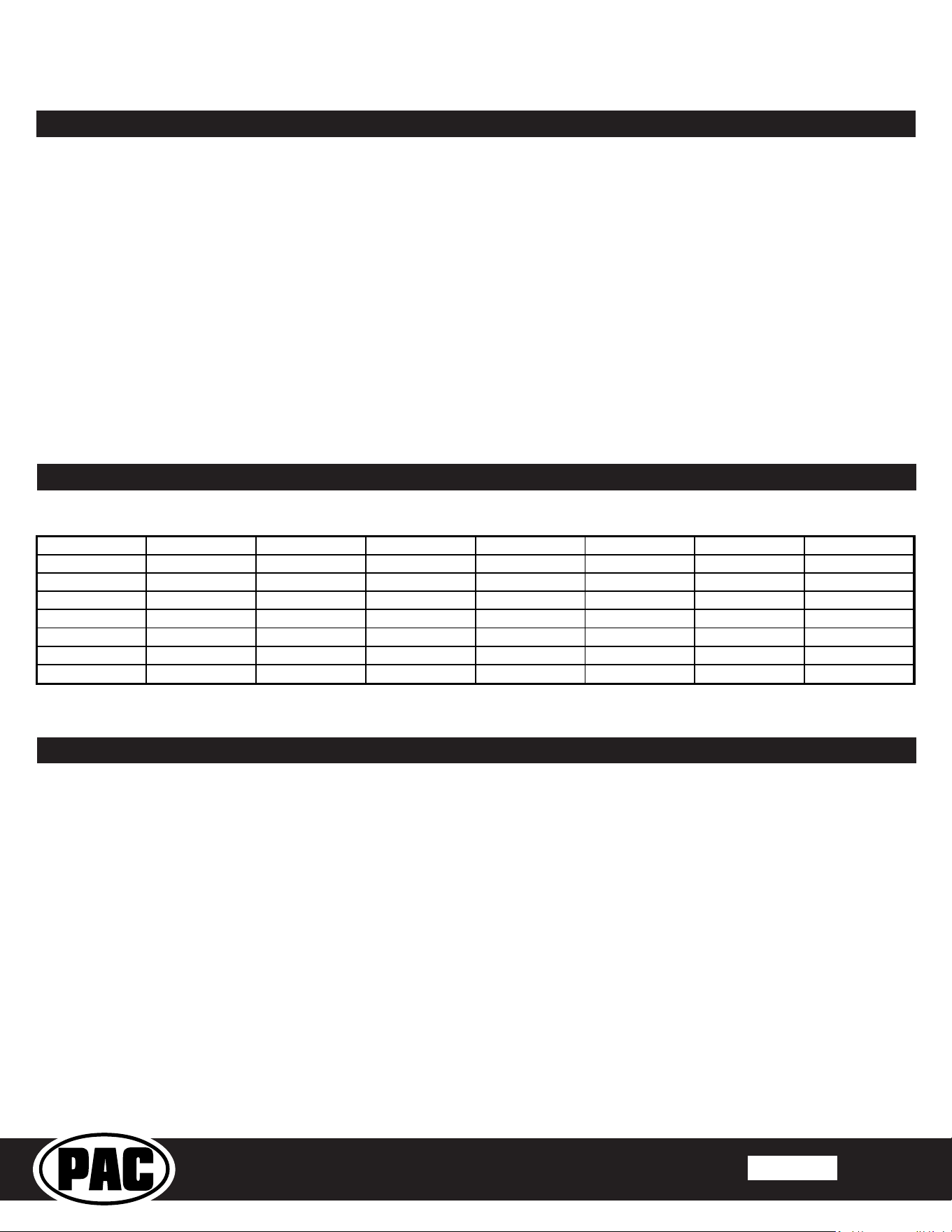
In vehicles with an IO5 / IO6 RPO CODE, to retain the steering wheel control buttons you must hardwire
them into the GM6A-RST. The wire you need to connect into can be found by removing the steering wheel
shroud located beneath the steering wheel column, and accessing the wire in pin 9 at the Black 10-pin
connector located at the base of the clock spring. (Fig. 1).
Once you have located the Green/Black wire in the vehicle you must connect the provided 60” Green/Black wire from the GM6A module.
This is a data signal so to ensure consistent operation, it is highly recommended to solder this wired connection. DO NOT cut this wire in
half. In some vehicles it may be necessary to remove the cover around the steering column and tag the wire in pin 9 at the Black 10-pin
connector located at the base of the clock spring.
3. Plug the chime speaker module in if needed. It is only necessary if you are connecting an aftermarket amplier to the cabin speakers.
Connect the chime speaker to the chime plug coming out of Interface Connector 3 and install the chime speaker in a place free of
obstructions, where it can be easily heard (usually low in the dash facing downward).
4. Connect the SWC wire or the 3.5mm SWC jack to the aftermarket radio according to the chart above (aftermarket radio MUST support a
wired remote input).
5. If you wish to reassign functions to the SWC, then follow the programming instructions on page 5.
6. Connect the Red and White RCAs to the aftermarket radios AUX input to retain the factory 3.5mm AUX input jack.
7. If the vehicle was equipped with the base level radio (IO3) and a factory reverse camera, then connect the Yellow RCA in the harness
to the reverse camera input on the back of the radio. If your vehicle is equipped with the IO4, IO5 or IO6 system, follow notes “A & B”
below for reverse camera retention. Please reference the vehicles RPO CODE sticker normally located in the vehicles glove box or the
underside of the spare tire cover. Please Disreguard the Yellow RCA on the main GM6X-HAR when using the CAM-GM51.
a. Connect the supplied CAM-GM51 Harness (Fig.2). The CAM-GM51 harness connects at the Human Machine Interface Control
Module (HMICM), not at the radio. The HMICM is normally found behind the glove box in trucks and SUVs, or high in the passenger
side kick panel area in other vehicles. The (HMICM) will have the USB and LVDS cables connected to it. (Pictured Below)
b. The factory reverse camera is powered by the vehicle, not the HMICM. The camera will continue to be powered even when
disconnected from the HMICM, so no additional wiring is required to supply the camera with power.
Fig. 2
Fig. 1
Wiring Connections (Con’t)
Radio Replacement Interface for General Motors Vehicles
with 29-bit V2 and with or W/O BOSE and OnStar
Pacific Accessory Corporation
Rev. 6/27/24
© 2024 PAC. All rights reserved. PAC-audio.com
GM6A-RST
Page 4
Optional Steering Wheel Control Programming
Programming Button and Adjustment Dial Functions
You can press and hold the programming button on the side of the interface to access dierent programming modes. Once the LED is lit to the
mode you desire (see below for modes), immediately release the programming button to access that mode.
PLEASE NOTE:
• This process must be done with the interface in the vehicle and the key in the ignition position.
• If there is a Bose system, and you are also installing an amplier on the cabin speakers, make sure that the included chime
speaker is connected.
A. LED 1 ash green: SWC re-assignment. This allows you to re-assign the SWC functions to the buttons of your choice. Please see
the Optional Steering Wheel Control Programming instructions below for more details.
B. Both LEDs ash green: Chime volume adjustment. This allows you to adjust the volume of the chimes using the adjustment dial
on the side. Please see note 6 under Testing and Verication for more details.
C. Both LEDs ash red: Master reset. This does a master reset of the interface and restores the following settings to factory defaults:
• SWC Mapping
• Camera Settings
• Infotainment Settings
• Interface User Options
Programming
1. Turn the key to the ignition position.
2. Press and release programming button on the side of the interface.
3. Within 7 seconds, press the button that is to be learned on the steering wheel. LED 1 will turn red when the button is pressed. At this point
you have two options:
A. For short press functionality: Release the button within 1.5 seconds. LED 1 will turn back to green.
B. For long press functionality: Hold the button until LED 1 starts blinking. Release the button and the LED will
go back to green.
4. Repeat step 3 for each additional audio function on the steering wheel.
5. If you come across a function in the chart that your steering wheel does not have, or you do not want to program, press and release the
programming button on the side of the interface to skip that function.
6. Once programming is completed, wait seven seconds and LED 1 will ash three times indicating that programming has nished.
7. Test the interface for proper functionality. Whenever a button on the steering wheel is pressed, then LED 1 will illuminate green.
8. If any function does not work, repeat the programming steps.
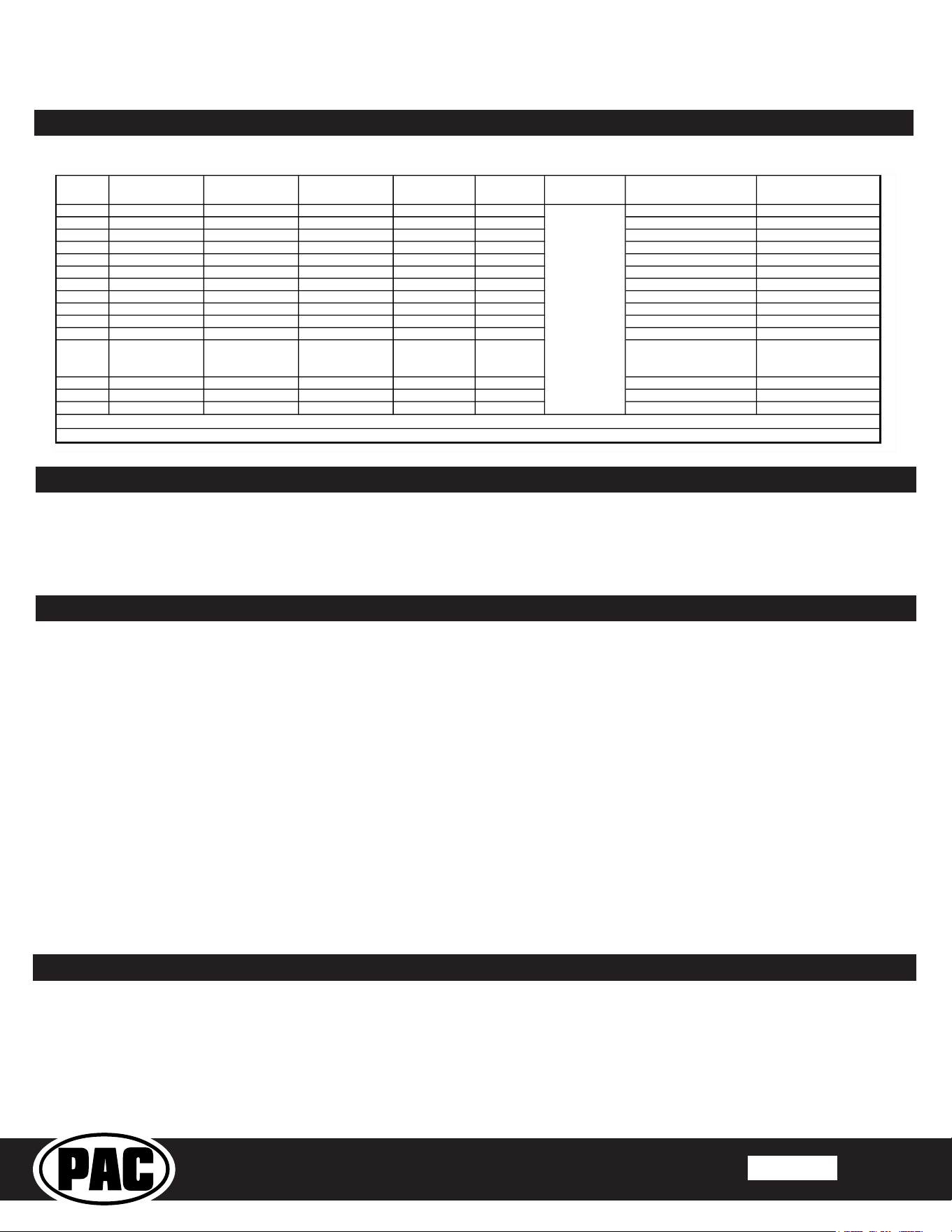
Default Steering Wheel Control Programming
Default SWC Button Assignments
Alpine JVC Kenwood Clarion Pioneer Sony Stinger
Volume + Volume + Volume + Volume + Volume + Volume + Volume + Volume +
Volume - Volume - Volume - Volume - Volume - Volume - Volume - Volume -
Track Up Track Up Track Up Track Up Track Up Track Up Track Up Track Up
Track Down Track Down Track Down Track Down Track Down Track Down Track Down Track Down
Mode Source Source Source Source Source Source Source
Voice Voice Voice Voice Voice Voice Voice Voice
Phone Phone Receive Phone Receive Answer Call Answer / End Call Answer Call Answer/End Call Answer / End Call
Radio Replacement Interface for General Motors Vehicles
with 29-bit V2 and with or W/O BOSE and OnStar
Pacific Accessory Corporation
Rev. 6/27/24
© 2024 PAC. All rights reserved. PAC-audio.com
GM6A-RST
Page 5
Optional Steering Wheel Control Programming (cont.)
Alpine JVC
Kenwood /
Lightning Audio
Stinger
Clarion /
Nakamichi
All other
Brands
Pioneer Sony
1
Volume +
Volume +
Volume +
Volume +
Volume +
Volume +
Volume +
2
Volume -
Volume -
Volume -
Volume -
Volume -
Volume -
Volume -
3
Mute
Mute
Mute
Mute
Mute
Mute
Mute
4
Preset +
Source
Source
Source
Source
Preset +
Preset +
5
Preset -
Track +
Play
Search +
Search +
Preset -
Preset -
6
Source
Track -
Track +
Search -
Search -
Source
Source / End Call
7
Track +
Band / Disc +
Track -
Band
Band
Track +
Track +
8
Track -
Preset / Disc -
Disc / FM +
Send / End
Send / End
Track -
Track -
9
Power
Select
Disc / AM -
Send
Send
Band
Band
10
Enter / Play
Attenuation
Answer
End
End
Phone Menu
Power / End Call
11
Band / Program
Phone Receive
Voice
Voice
Voice
Answer Call
Voice / Answer / End Call
12 Receive Phone Reject On Hook End Call
Voice (Android Auto &
Car Play) Answer / End
Call***
13
End
Voice
Off Hook
Voice
14
Voice
Power
Mute
15
Preset +
No specific
programming
order. Please
refer to the
owner's manual
of your radio for
SWC
programming
instructions.
Please Note: On any entry withmultiple commands, the commands shown are source dependent.
If your brand is not listed above, please use “ALL OTHER BRANDS.”
Optional Programming Order
VS41 Functionality & Wiring
• The VS41 can be connected to the GM6A-RST and used to switch multiple cameras. Please refer to the document labeled
“Instructions for wiring the VS41 with GM6A-RST” Which can be found on https://pac-audio.com under the VS41
product page.
RadioPRO PC App
PLEASE NOTE:
The interface must be connected to the vehicle when using
the following features of the RadioPRO PC App:
• Factory Amplier Settings
• Chime Volume
• Telematics Volume
• Change Vehicle Settings
• Interface User Options
• Camera Settings
The interface does not need to be connected to the vehicle
when using the following features of the RadioPRO PC
App:
• Firmware Updates
• Reading rmware/hardware versions
Use of the RadioPRO PC App allows you to do the
following:
• Congure User Interface Options such as:
• Factory amplier settings
• Chime Volume
• Camera Settings
• Telematics Volume
• Change Vehicle Settings
• Update Product Firmware
• Read Firmware/Hardware Versions
Download the RadioPRO PC App at: https://pac-audio.com/app-downloads/
OnStar Volume Adjustment for Vehicles without SWC
1. If SWC buttons are not present you must use the Adjustment Dial on the side of the interface untill the desired level is reached.
2. When OnStar is active turn the Adjustment Dial on the side of the interface untill the desired level is reached.

Radio Replacement Interface for General Motors Vehicles
with 29-bit V2 and with or W/O BOSE and OnStar
Pacific Accessory Corporation
Rev. 6/27/24
© 2024 PAC. All rights reserved. PAC-audio.com
GM6A-RST
Page 6
1. Turn the ignition on. Allow the module to go through it’s initialization procedure which takes 12 seconds. Once complete, the LED on the
interface will turn on and the +12v accessory wire will turn on.
2. Turn on the radio and check balance and fade. PLEASE NOTE: In vehicles equipped with BOSE, if there is no audio, you will need to
do a full sleep cycle on the vehicle. To do this, turn o the ignition, close all doors, lock the vehicle with the key fob, and allow it to sit
untouched for ve minutes.If after ve minutes you still do not have audio, you will need to disconnect power from the factory amplier
then reconnect it. If you need assistance with this process, call our technical support department at the number listed below.
3. Pressing the OnStar button on the rearview mirror will turn o all audio and allow the OnStar audio to be heard.
4. Verify that all SWC are functioning properly for both the aftermarket radio and OnStar. To adjust OnStar volume, press the OnStar button
on the mirror or steering wheel, then use the volume buttons on the SWC to adjust the level (this function not available in Camaro, you
must use the adjustment dial on the module to set OnStar volume). If the vehicle is not equipped with steering wheel controls, you can
use the adjustment dial to raise the volume of the OnStar.
5. Verify that chimes are functioning. Chimes will play out of the front left speaker. If you have an aftermarket amplier on your speakers,
chimes will play out of the supplied RPA-SPK chime speaker.
6. If you need to adjust the volume of the chimes: With the vehicle on, press and hold the programming button until both LEDs ash green
then release. Now turn the dial on the side of the module to adjust volume. If no BOSE amp you will hear an audible chime during
adjustment. If there is a BOSE amp there is no audible chime and you have to do a sleep cycle to hear the change. Chime adjustment
mode will time out after 10 seconds of inactivity.
7. Turn o vehicle and remove key. RAP will be active and keep the radio on for 10 minutes or until the drivers door is opened.
Testing and Verication
Technical Support and Product Updates (Firmware)
The GM6A-RST can be updated with new rmware as it becomes available using a USB cable and RadioPRO PC application.
Please visit www.PAC-audio.com/rmware for available updates.
Email: support@PAC-audio.com
Standard / International: 727-592-5991