
12 - PRECAUTIONS 91477A079/C
PRECAUTIONS 12
General safety instructions 12
Declaration of conformity 13
Declaration art. 10.10 Directive 2014/53/EU 13
This user manual 13
How to read the user manual 13
USE 13
SmegConnect 13
Connectivity requirements 13
Installation of the App 14
Creation of the account 14
Product registration 14
Connection to the device 14
Remote connection 16
Change Access Point credentials 17
SmegConnect Menu 18
Information on the connection 18
Deletion of the registration 18
Software updates 19
What to do if... 19
We advise you to read this manual carefully, which contains all the instructions for maintaining the
appliance’s aesthetic and functional qualities. For further information on the product: www.smeg.com
Apple, App Store and iOS are trademarks of Apple Inc.
Google Play Store and Android are trademarks of Google Inc.
Wi-Fi is a trademark of Wi-Fi Alliance.
PRECAUTIONS
General safety instructions
• The use of the App requires the
availability of a WLAN (Wi-Fi)
network with dedicated Internet
router, for the connection
between appliance and mobile
device.
• In case of poor signal for the
use of the appliance, envisage
to install a Wi-Fi repeater
nearby.
• Outside the coverage range of
the Wi-Fi network, the use of
the App involves the availability
of a data link for the mobile
device. CAUTION: additional
costs might arise depending on
the contract with the mobile
phone operator.
• The appliance can operate off-
line as a "non-connected"
household appliance, but it
cannot be controlled through
the App when the Wi-Fi
connection or the data link are
deactivated.
• In compliance with the
provisions regarding
electromagnetic compatibility,
the appliance belongs to group
2 and class B (EN 55011).
• This appliance complies with
the current standards and
directives regarding safety and
electromagnetic compatibility.
It is however recommended for
pacemaker wearers to
maintain a minimum distance of
20-30 cm between the
appliance when it is operating
and the pacemaker. Consult
the pacemaker manufacturer
for more information.
• In some models only, for safety
USE - 1391477A079/C
e
reasons and in compliance with
current legislation, some
functions cannot be activated
remotely.
Declaration of conformity
The manufacturer, SMEG, declares that the
types of radio equipment:
SF4104WMCN - SF4104WMCS
SF4104WVCPN - SF4104WVCPS
SF4106WMCS - SF4106WVCPS
SF4604WMCNR - SF4604WMCNRK
SF4604WMCNX - SF4604WVCPNR
SF4604WVCPNX - SF4606WMCNR
SF4606WMCNX - SF4606WVCPNR
SF4606WVCPNX - SFP6104WTPB
SFP6104WTPN - SFP6104WTPS
SFP6106WSPS - SFP6604WSPNR
SFP6604WSPNX - SFP6604WTPNR
SFP6604WTPNX - SFP6606WSPNR
SFP6606WSPNX - SFP6606WTPNR
SFP6606WTPNX - SFPR9606WTPNR
SFPRA9606WTPNR - SO4606WAPNR
SO4606WS4PNR - SO4606WM2PNR
SO6606WAPNR - SO6606WS4PNR
SOP6606WS2PNR - SOA4606WM2PNR
SOA4606WAPNR - SOA6606WS4PNR
SOA6606WM2PNR - SOA6606WAPNR
SOPA6606WS2PNR
SO6106WAPG - SO6106WAPB3
SO4106WAPG - SO4106WAPB3
comply with the directive 2014/53/EU.
• Technology: Wi-Fi IEEE 802.11 b/g/n.
• Frequencies: 2400-2497 MHz.
• Max. output power: +18.5 dBm.
• The device operates in the ISM band at 2.4
GHz.
• The maximum stand-by power consumption
of the appliance connected to the mains is
2.0 W.
The complete text of the EU declaration of
conformity is available at the following internet
address:
www.smeg.com/smegconnect/direttiva_red
Declaration art. 10.10
Directive 2014/53/EU
This radio equipment is NOT subject to
restrictions on putting into service or to
requirements concerning authorisation for use in
any of the EU Member States.
This user manual
• This user manual is an integral part of the
appliance and must therefore be kept in its
entirety and within the user's reach for the
whole working life of the appliance.
• Read this user manual carefully before using
the appliance.
• The explanations in this manual include
images, which describe all that regularly
appears on the display. However, it should
be kept in mind that the appliance may be
equipped with an updated version of the
system, and as such, all that appears on the
display may differ from those in the manual.
How to read the user manual
This user manual uses the following reading
conventions:
USE
SmegConnect
The appliance is equipped with SmegConnect
technology that allows the user to control the
appliance operation via an App on his/her
smartphone or tablet.
For further information, refer to the supplied
brochure and/or visit the site
www.smeg.com
Connectivity requirements
• Smartphone or PC tablet with IOS or
Android operating system. The minimum
Warning/Caution
Information/Advice
14 - USE 91477A079/C
versions of the operating systems are
available at the following link:
www.smeg.com/smegconnect/
• Wi-Fi network (2.4 GHz band, WPA2
protected) active and available in the place
where the appliance is installed.
• Internet connection.
• Name and password of the home Wi-Fi.
Installation of the App
Download the App SmegConnect on your
mobile smartphone or tablet from App Store
(Apple devices) or Google Play Store (Android
devices) and install it.
Creation of the account
1. Launch the SmegConnect App.
2. Enter the information required in order to
register.
3. A confirmation e-mail is sent to the address
that has been entered when the registration
procedure has been completed.
Product registration
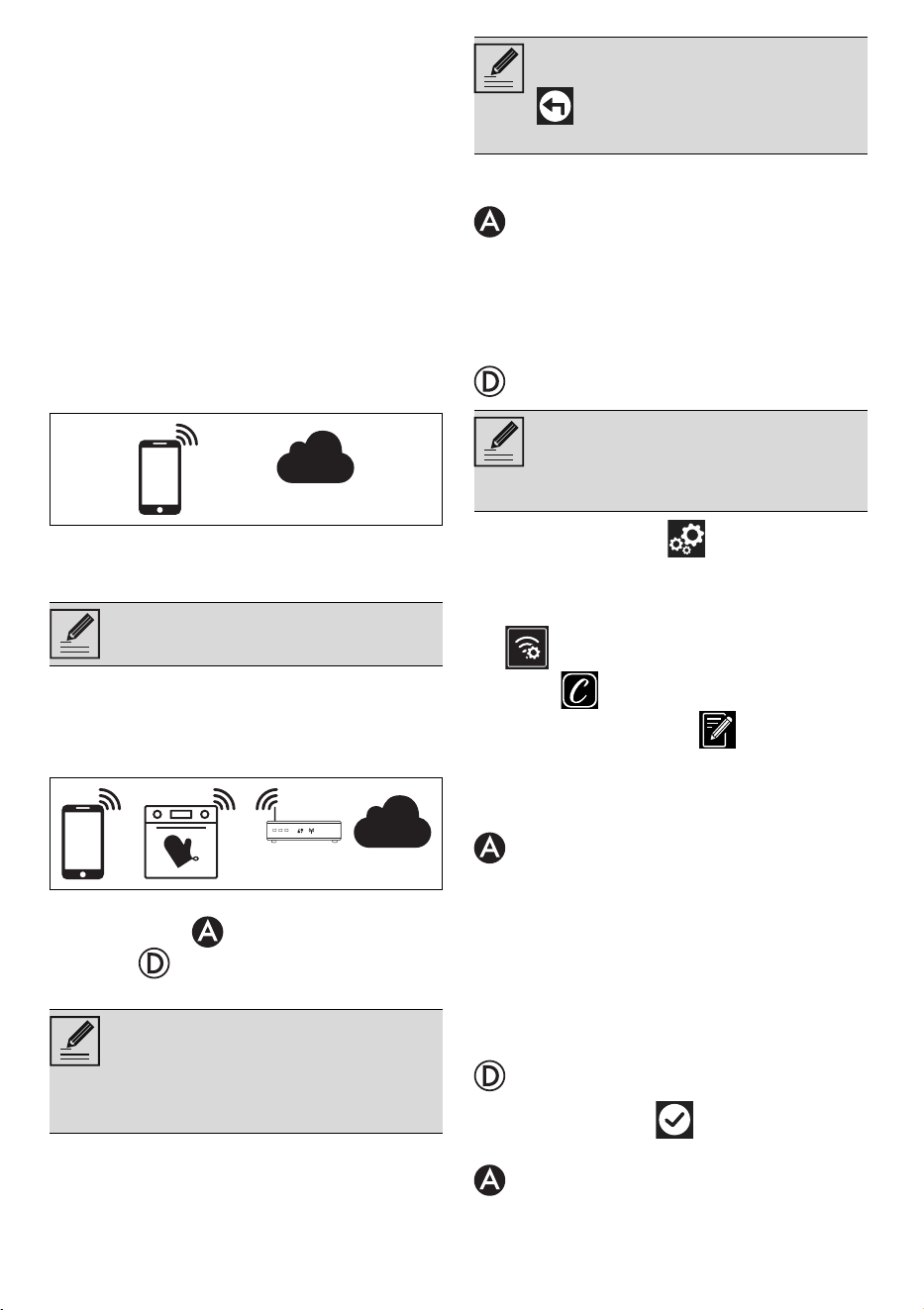
The registration step alternates operations to be
made in the App and on the display of the
appliance . Make sure you are close to the
appliance.
Connection to the device
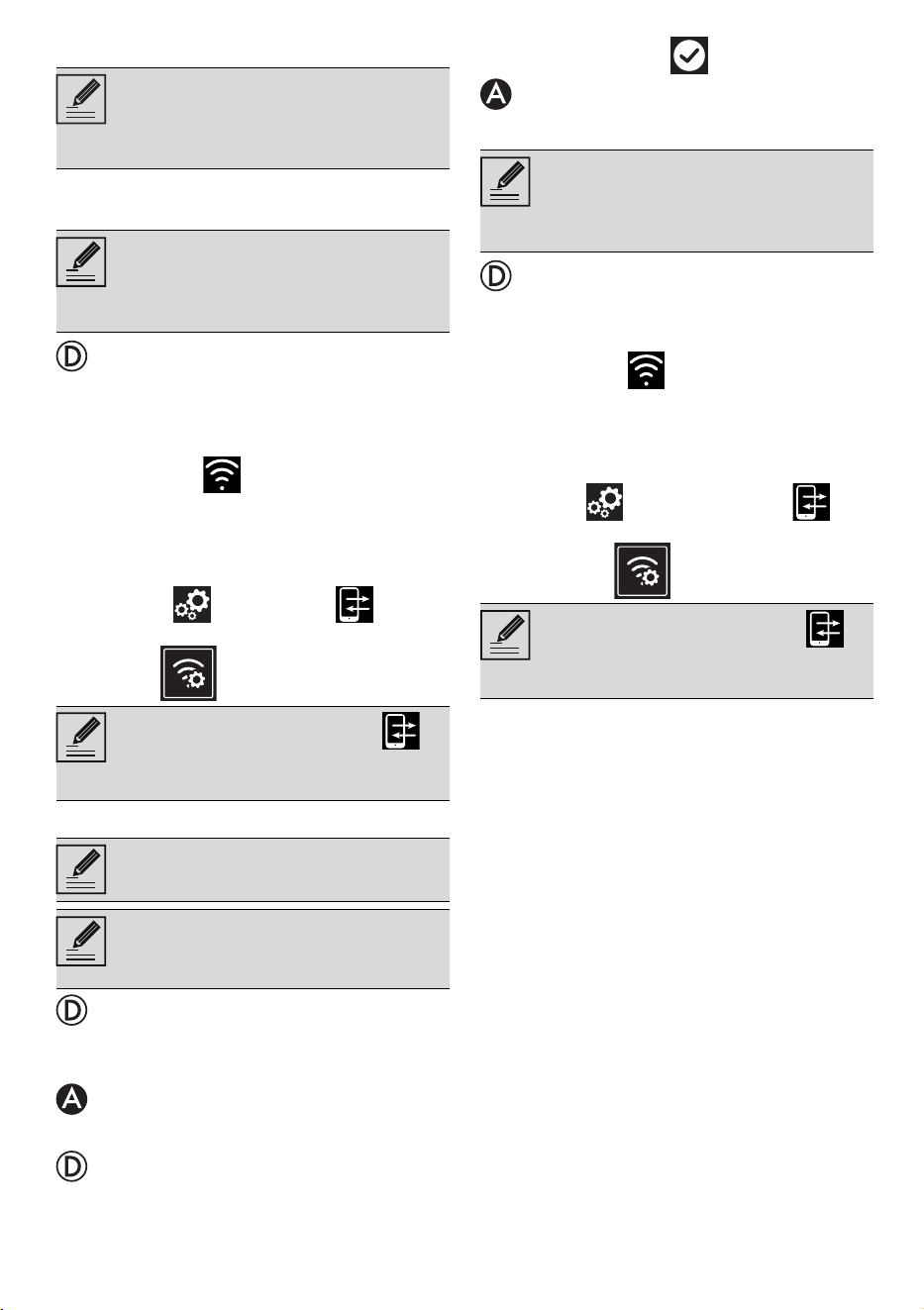
1. Tap Log in.
2. In the following screen (Home page), tap
Add product.
3. Select the type of product you wish to
connect (in this case "oven").
4. Touch the Settings button (at the
bottom right) on the main menu display on
the device.
• (on some models only) Select Connection
.
5. Select SmegConnect.
6. Touch the Registration button.
7. Select the registration procedure for the
required product (Manual or Automatic).
Manual mode
1. Select Manual mode.
2. Go to the Wi-Fi settings on the mobile
device and select the "smegconnect"
network.
3. Enter the password "smeg0001" and wait
for the connection to be established.
4. Go back to the SmegConnect App and tap
Next.
5. Press the Confirm button within one
minute.
6. Enter the Access Point data:
• Name of the home Wi-Fi network.
The fields marked with an asterisk “*”
are mandatory.
If "REGISTRATION FAILED!" displays
during the registration process, it means
that some steps of the procedure were
not carried out correctly or it was
stopped.
The registration procedure can be
interrupted by pressing the RETURN
button (available on some screens
only).
There is no need to activate the
"Connectivity" setting on the appliance
beforehand. The procedure starts
automatically.
USE - 1591477A079/C
e
• Wi-Fi password.
7. Tap Next and wait for the confirmation
page.
8. Wait for the welcome page.
The "REGISTRATION COMPLETED!" displays
on the device.
The Connectivity icon (in the information
area at the top right) remains on solid. The
product registration procedure has been
completed.
Now the display of the appliance shows the
Settings menu to activate the Remote
control (on some models only: within the
Connection menu).
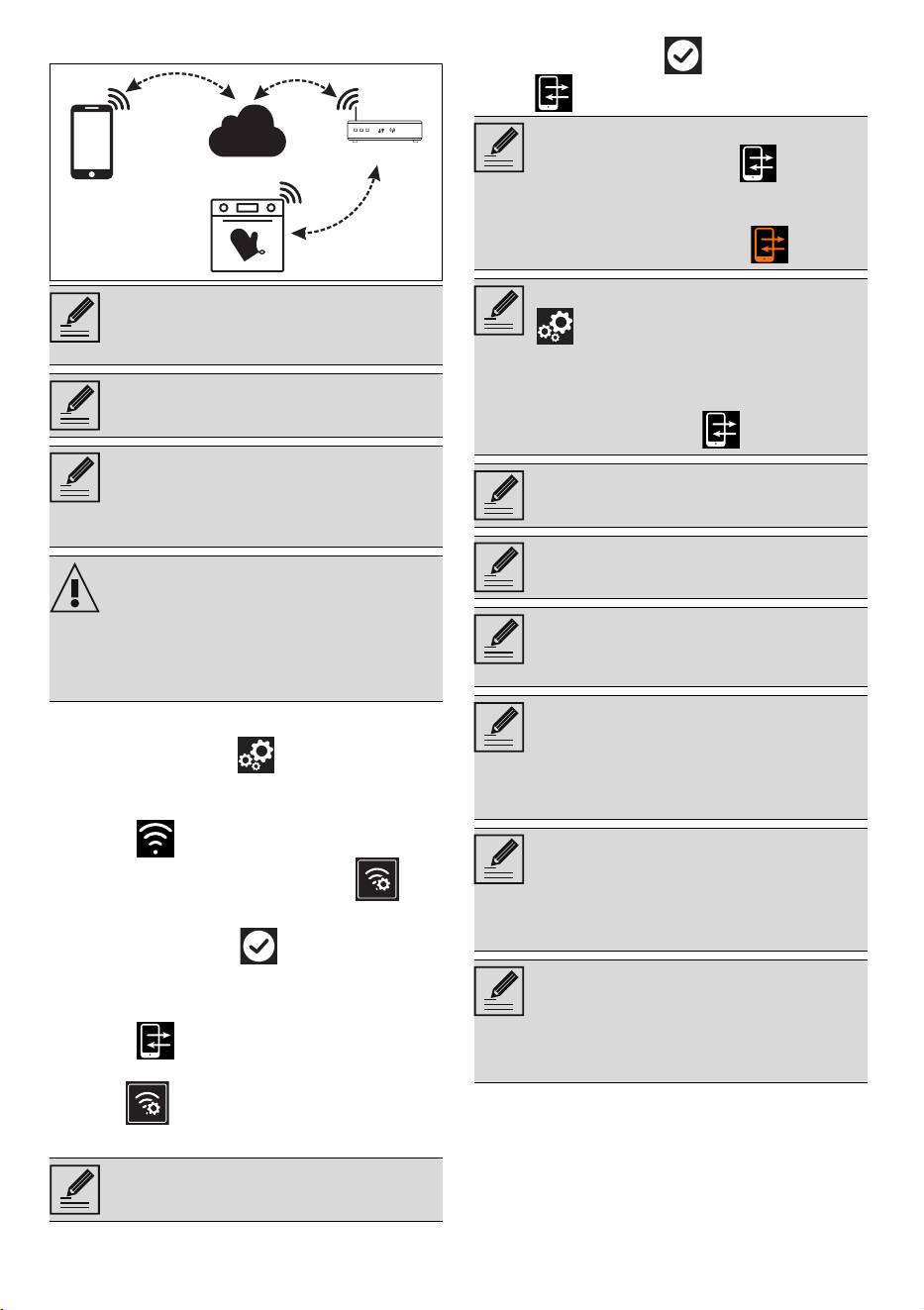
Automatic mode (WPS)
1. Select Automatic mode (WPS) on the
device.
2. Select Automatic mode (WPS).
3. Within two minutes, press the WPS button
on your router.
4. Touch the Confirm button.
5. Wait for the welcome page.
The "REGISTRATION COMPLETED!" displays
on the device.
The Connectivity icon (in the information
area at the top right) remains on solid. The
product registration procedure has been
completed.
Now the display of the appliance shows
the
Settings menu to activate the
Remote control (on some models only: within
the Connection menu).
.
The device supports network names
(SSID) up to 32 digits (including
spaces) and WPA2 security settings
(not WEP or WPA).
During this step, the mobile device
automatically reconnects to the initial
Wi-Fi network or data network. No user
operation is required.
Make sure that you activate the
Remote Control in order to control the
device via the App.
Make sure that the WPS option is
activated on your router.
Make sure that the mobile device and
the product connect to the same Wi-Fi
network during the procedure.
During this step, the mobile device
automatically reconnects to the initial
Wi-Fi network or data network. No user
operation is required.
Make sure that you activate the
Remote Control in order to control the
device via the App.
16 - USE 91477A079/C
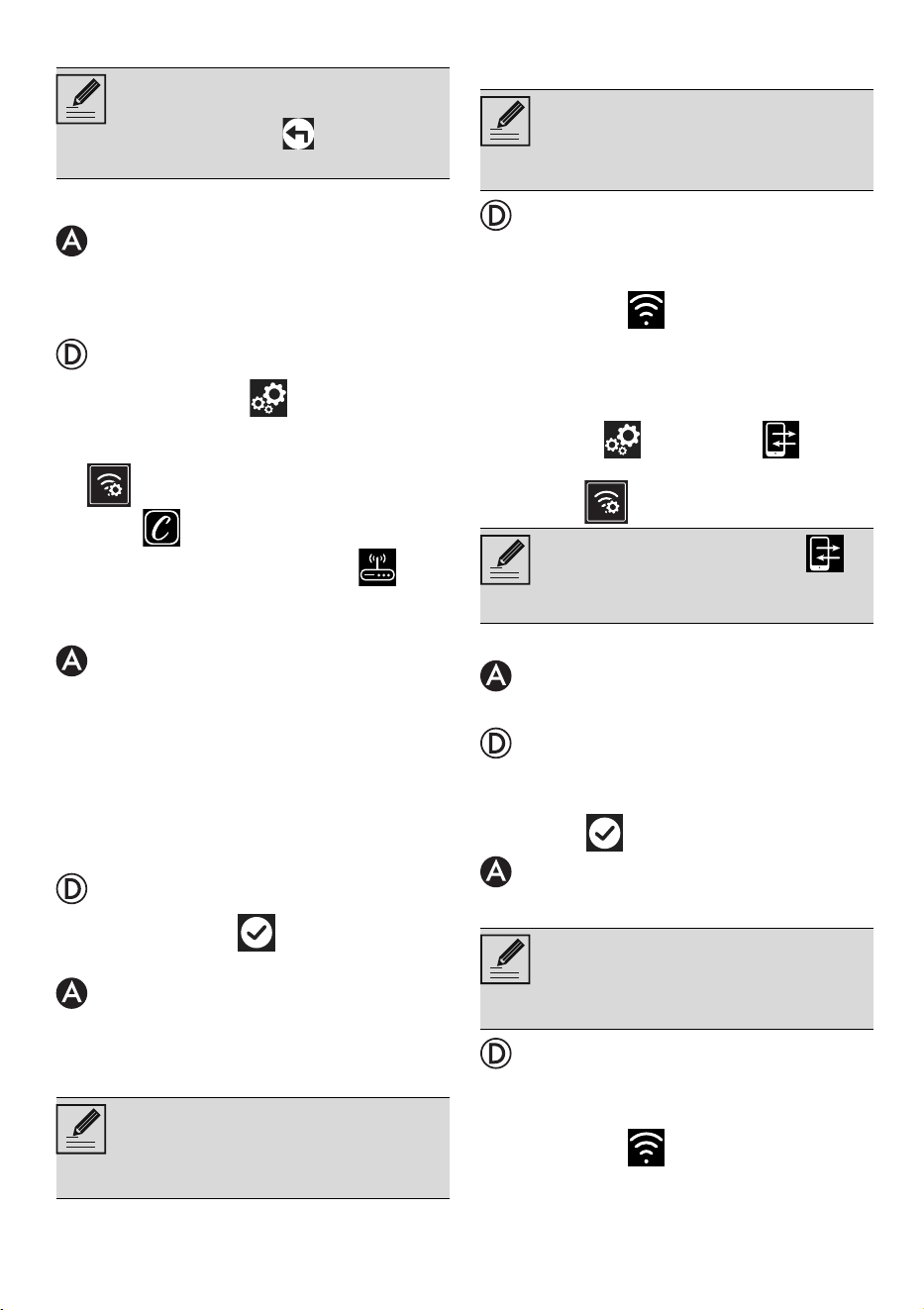
Remote connection
To connect the device:
1. Touch the Settings button (at the
bottom right) on the main menu display on
the device.
2. Select Connectivity (on some models
only: within the Connection menu ).
3. Select On.
4. Touch the Confirm button to enable
the Connectivity.
To operate the device via App:
5. Select Remote Control (on some
models only: within the Connection
menu ).
6. Select On.
7. Touch the Confirm button to activate
the Remote Control.
Once the device is registered, it can be
connected or disconnected from the
Internet at any time.
The remote connection is only available
if the device has been registered.
The remote connection is already active
when the registration procedure has
been completed. Remote Control on
the other hand is not enabled.
For safety reasons and in compliance
with current legislation, Microwave,
Combined microwave, Grill, Vapor
Clean and Pyrolytic functions (where
available) can be set but not activated
remotely.
Remote control is only available if the
Connectivity is set to Connectivity On.
The Remote Control can also be
enabled by pressing the symbol
(at the top right).
The symbol changes colour when the
remote control is enabled .
On some screens (e.g. in the Settings
menu and on the pages where the
values of a cooking function can be
changed) it is NOT possible to change
the status of the Remote Control by
pressing the symbol .
The Remote Control is deactivated in
some cases when the door is opened.
The Remote Control is deactivated in
the event of a temporary power failure.
The Remote Control is always active in
Show Room mode and Demo mode
(for exhibitors only).
Depending on the status of the device, it
is not always possible to start a new
function from the App (for example, if it
is taking in water it is not possible to start
a static function from the App).
Some configuration settings of the
device can also be changed via the
App.
Activation of the Remote Control is
always required.
Only part of the settings will be
available on the App.
Some of these can only be changed if
no other functions are active on the
device.
USE - 1791477A079/C
e
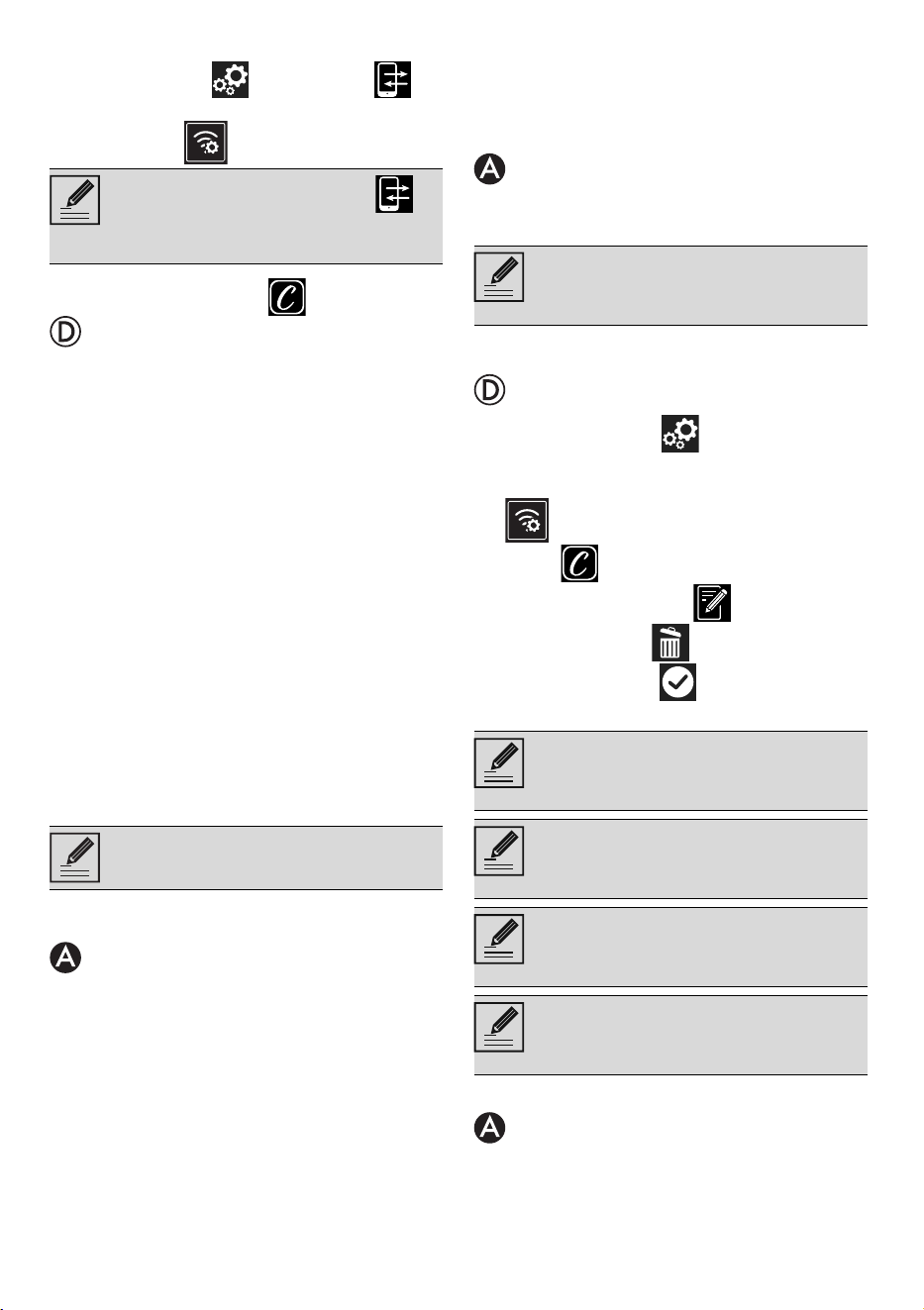
Change Access Point credentials
To change your Access Point credentials
(network name or password):
1. Log in the App, tapping Log in.
2. In the Settings menu of the product pages
select Change Access Point.
3. Touch the Settings button on the main
menu display on the device.
4. (on some models only) Select Connection
.
5. Select SmegConnect.
6. Touch the Change Access Point
button.
Manual mode
1. Select Manual mode.
2. Go to the Wi-Fi settings on the mobile
device and select the "smegconnect"
network.
3. Enter the password "smeg0001" and wait
for the connection to be established.
4. Go back to the SmegConnect App and tap
Next.
5. Press the Confirm button within one
minute.
6. Enter the Access Point data:
• Name of the home Wi-Fi network.
• Wi-Fi password.
7. Tap Next and wait for the confirmation
page.
The display of the device shows the screen
"ACCESS POINT CHANGE SUCCESSFUL!".
The Connectivity icon (in the information
area at the top right) remains on solid. The
product Access Point Change procedure has
been completed.
Now the display of the appliance shows the
Settings menu to activate the Remote
control (on some models only: within the
Connection menu).
Automatic mode (WPS)
1. Select Automatic mode (WPS).
2. Within two minutes, press the WPS button
on your router modem.
3. Confirm .
4. Wait for the welcome page.
The display of the device shows the screen
"ACCESS POINT CHANGE SUCCESSFUL!".
The Connectivity icon (in the information
area at the top right) remains on solid. The
product Access Point Change procedure has
been completed.
The procedure for changing the Access
Point credentials can be interrupted by
pressing the Return button (only
available on some screens).
The device supports network names
(SSID) up to 32 digits (including
spaces) and WPA2 security settings
(not WEP or WPA).
During this step, the mobile device
automatically reconnects to the initial
Wi-Fi network or data network. No user
operation is required.
Make sure that you activate the
Remote Control in order to control the
device via the App.
During this step, the mobile device
automatically reconnects to the initial
Wi-Fi network or data network. No user
operation is required.
18 - USE 91477A079/C
Now the display of the appliance shows
the Settings menu
to activate the
Remote control (on some models only: within
the Connection menu).
SmegConnect Menu
This menu allows you to display some
technical information about the connection:
• Cloud: Cloud connection status (Not
connected/Connected).
• Wi-Fi: Access Point connection status (not
connected or the strength of the signal
when connected).
• Access Point SSID: name of the Wi-Fi
network.
• IPv4 network address: IPv4 address of the
Connectivity card.
• IPv6 network address: IPv6 address of the
Connectivity card.
• MAC address: MAC address of the
Connectivity card.
• Wi-Fi FW release: FirmWare version of the
Connectivity card.
• SW Compliance ID: identification of
compliance with the essential requirements
of the RED directive.
Information on the connection
Within the App, in the Settings menu of the
product pages you will find information
about the connection, such as:
• device registration date;
• name of the network;
• level of Wi-Fi signal;
• MAC address of the Connectivity board;
• Firmware version of the Connectivity board;
• IPv4 and IPv6 network addresses;
• SW Compliance ID (identification of
compliance with the essential requirements
of the RED directive).
Deletion of the registration
To delete the registration of the device from
the App:
•Go to the Settings menu on the App and
follow the instructions.
To delete the registration of the device on the
product (on some models only):
1. Touch the Settings button on the main
menu display on the appliance.
2. (on some models only) Select Connection
.
3. Select SmegConnect.
4. Touch the Registration button.
5. Touch the Basket button.
6. Touch the Confirm button to confirm
that you wish to cancel the registration.
To delete the registration of the user:
• Enter the App, My account menu and touch
the Delete user button.
Make sure that you activate the
Remote Control in order to control the
device via the App.
This information may be useful when
requesting assistance.
The product can be registered again
following the procedure described
above.
This procedure only deletes the
registration and restores the factory
settings for the SmegConnect menu.
The deletion made on the appliance
does not require any connection to the
cloud.
This type of deletion only affects the
product, please delete the device also
from the App.
The product can be registered again
following the procedure described
above.
USE - 1991477A079/C
e
Software updates
Software (firmware) updates are occasionally
released concerning the device connectivity.
Download
If the device is connected to the home Wi-Fi
network, updates are automatically detected
and downloaded.
During downloading, a flashing Download
icon displays instead of the Connectivity
icon.
Installation
Updates can be installed automatically or
require confirmation from the user.
Automatic update: during this phase, the
Update icon displays, indicating that an
update is in progress and does not require any
action by the user.
Update with confirmation: the display shows
that a new update is available.
• Touch the Cancel button to cancel the
update procedure.
or
• Touch the Confirm button to confirm
the update procedure.
At the end of the update procedure, the display
shows: "UPDATE COMPLETED!":
The appliance can now be used as usual.
What to do if...
During connection, the Connectivity icon
continues to flash (trying to connect...). If this
condition continues for more than one minute,
there might be problems in the remote
connection:
• Check if the Wi-Fi router is switched on.
• Ensure that the Wi-Fi router is not too far.
• Check the conditions of the Wi-Fi network
(2.4 GHz band).
• Check the conditions of the Internet
connection.
• Unplug the appliance and try to connect
again later.
• Disconnect the device from the socket and
switch it on again after having ascertained
that it switched off.
The Access Point registration or change
procedures do not work:
• Check if the Wi-Fi router is switched on.
• Ensure that the Wi-Fi router is not too far.
• Check the conditions of the Wi-Fi network
(2.4 GHz band).
• Make sure that the WAP2 security setting is
available.
• Ensure that the name of the network is
shorter than 32 digits (including spaces).
This stage does not require any activity
of the user.
During downloading, the connectivity
service is temporarily suspended (this
phase lasts a few minutes, depending
also on the connection speed).
During downloading, it is not possible
to change the settings for Connectivity
and Remote control or
access the SmegConnect menu
and related procedures.
You can start the installation of the
update later by pressing the Update
icon
in SmegConnect (only
available if the Connectivity
setting is On).
During the update procedure with
confirmation by the user, it is not
possible to use the device as usual.
The new software version can be seen
in the SmegConnect menu under
Wi-Fi FW release.
If the update fails, it is still possible to
continue using the device and the
connectivity service. The software
version remains the previous one.
During installation, the connectivity
service is suspended temporarily (this
lasts for approximately 2 minutes).
20 - USE 91477A079/C
• Check the conditions of the Internet
connection.
• Check the conditions of the data
connection, if the mobile device uses the
latter for Internet.
•Retry later on.
• Disconnect the device from the socket and
switch it on again after having ascertained
that it switched off.
The display shows ErrE: appliance failure.
• Contact technical support.
For further information see:
•section Recommendations FAQ
Connectivity on the App;
• the web page www.smeg.it/faq/
smegconnect/