
Catalog
Operation Manual..................................................... ...............................................................................1
Packing list ................................................................................................................................................3
About us.....................................................................................................................................................3
Machine Diagram.....................................................................................................................................4
Product Specification................................................................................................................................5
Introduction of operation ...................................................................................................................6-8
1.How to install the ink cartridge........................................................................................................6
2. How to use the mini inkjet printer..................................................................................................7
Print & Sleep Setting...........................................................................................................................7
Clock & Brightness Setting: ...............................................................................................................8
3. About printer status ..........................................................................................................................8
Main Interface Instruction ......................................................................................................................9
File Interface Instruction.......................................................................................................................10
Lock Interface Instruction.....................................................................................................................10
Add Interface Instruction................................................................................................................ 11-13
Text Contents........................................................................................................................................11
Image attributes....................................................................................................................................11
Time attributes......................................................................................................................................12
Batch number (SN) attributes.............................................................................................................12
Qrcode attributes..................................................................................................................................13
Barcode attributes...............................................................................................................................13
Cut Pos.................................................................................................................................................13
Edit:.......................................................................................................................................................14
Delete:...................................................................................................................................................14
Set Interface Instruction........................................................................................................................15
Solution of common problem...............................................................................................................16
4. How to print with the Mini inkjet printer....................................................................................16
5. Solution of common problem........................................................................................................16
Q-1: What is the di-erence between water-based ink and solvent ink?.....................................16
Q-2: What’s the capacity of ink cartridge? How long can I use it?.............................................16
Q-3: What’s the height range of the font ? ....................................................................................16
Q-4: What to do if the printer do not work?.................................................................................16
Q-5: Can we erase it? .......................................................................................................................16
Q-6: How to maintain the cartridge if we don’t print for long-period?.....................................16
Q-7: Why the print is not clear aer a period of time use? .........................................................16
Warranty Card.........................................................................................................................................17
www.phezer.com [email protected]
2
About us
Wuhan Phezer Technology Co.,Ltd. is a high-tech enterprise with the application of inkjet printing
technology as its core, which is a professional manufacturer of inkjet printer and is dedicated to
independent production, research and development, sales and service of product marking, variable
data processing of product traceability, personalized & customized marking equipment and system
integration products.
www.phezer.com [email protected]
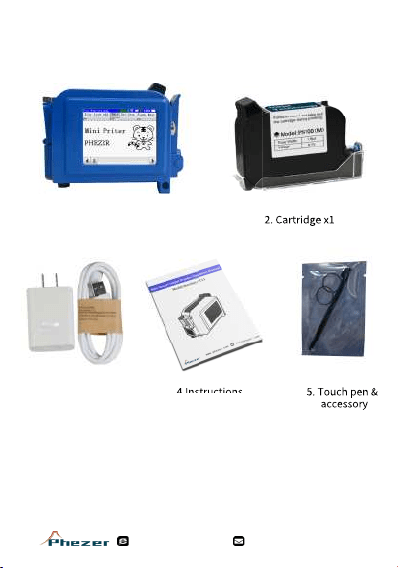
Packing list
1. Mini Inkjet Printer x1
4.Instructions3.Charger5. Touch pen &
accessory
2. Cartridge x1
3
Check the goods according to the list after receiving them

www.phezer.com [email protected]
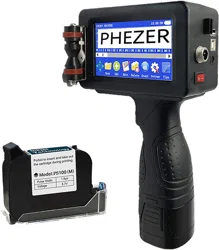
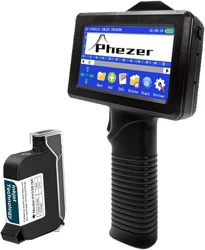
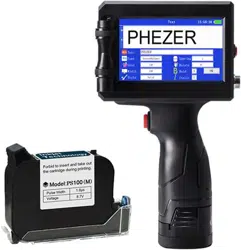
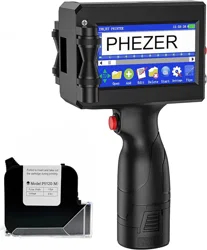
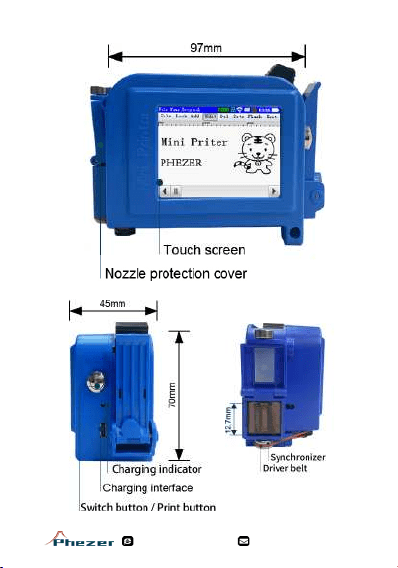
Model Name: PC11 Mini inkjet printer
Machine Size: L 100mm x W 75mm x H 47mm (L 3.94” x W 2.95”x H 1.85”)
Main Materials: ABS+PC / Metal
Control Panel: Touch screen editing directly
Printing Height: 2 mm-12.7 mm (0.08”-0.5”)
Spray Printing Distance: 2mm ~ 5mm (distance from nozzle to the object to spray on)
Print Resolution: 100dpi / 300dpi / 600dpi
Lines of Printing: 1 to 5
Printing Font Available: Built in font library
Print Content: Text, Date & time, Logo, batch number, serial number, bar code, QR code.
External Interface Support: Type-C Interface (For Image / Logo upload, BMP format only,
height within 160 pixels)
Support Print Media: Carton, boards, Paper, fabric, glass, stone, pipe, cable, metal, plastic,
electronics, automotive parts aluminum foil, etc
System Languages: Chinese and English
Weight: GW 245g
Charging Interface: TYPE-C
Power Supply Mode: Fast charge 3.0 adapter
Battery: 2600mAh
Power Input: DC-9V/2A
Maximum Power: 25W
Cartridge Type: 12.7mm / 0.5inch
Ink Cartridge: Included (Black Solvent ink x1)
Ink Cartridge Capacity: 47ml
Ink Type: Solvent ink
Ink Color Available: Black, White, Yellow, Red, Blue, Green, Invisible UV, Sky-blue
5
Product Specifification
www.phezer.com [email protected]
Introduction of operation
1. How to install the ink cartridge
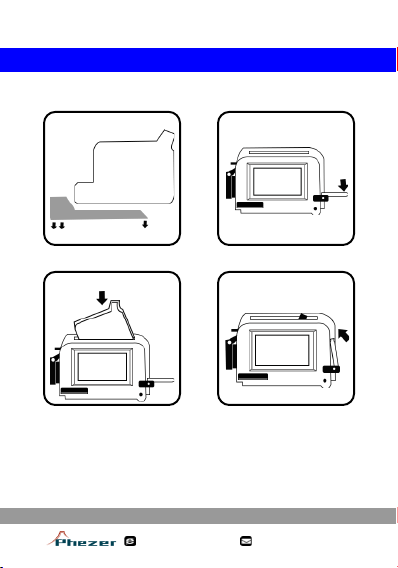
1.1 Remove the ink cartridge cover;
1.2 Find and open the ink cartridge slot back cover;
1.3 Insert the cartridge at 45° degree;
1.4 Press the cartridge down towards until firmly fixed and close the slot back cover.
Note: Please turn off the handheld printer while install and uninstall the ink cartridge.
6
STEP 1STEP 2
STEP 3STEP 4
www.phezer.com [email protected]
Introduction of operation
2. How to use the mini inkjet printer
1 : Turn on / off the printer: Press the switch button and
hold for 5-8 seconds until the display lights up;
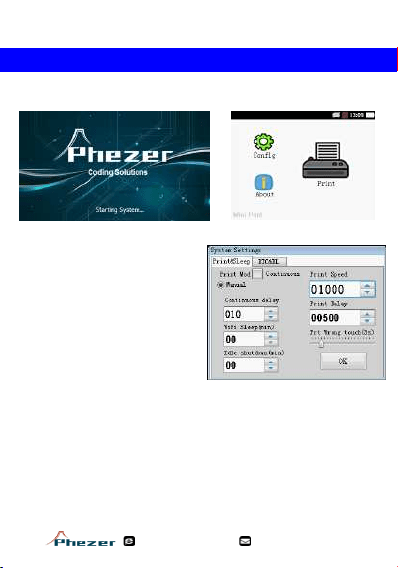
2: Clik “Config” to modify the printer settings;
7
Print & Sleep Setting
Print Mode:
Manual (default): Print manually by pressing
the button.
Continuous: For more arbitrary and frequent
printing, select continuous printing option means
the printer will print continually as the synchronizer
rolling after only one press.
Continuous delay: Adjust print interval time, the more bigger value, the more longer interval.
WiFi Sleep (min): For an old mini inkjet printer version with no touch screen only.
Idle shutdown (min): The system will automatically powered off when no action detected longer
than setting time (Default: 0 min).
Print Speed: Adjust print speed, the more bigger value, the more faster print.
Print Delay: Adjust print interval time, the more bigger value, the more longer interval.
Print Wrong Touch: It will active immediately after printing is triggered. At this time, the screen is in
locked status with no reaction to prevent mistakenly touching during printing, and then the screen will
recover after setting time (default: 2 seconds)
www.phezer.com [email protected]
Introduction of operation
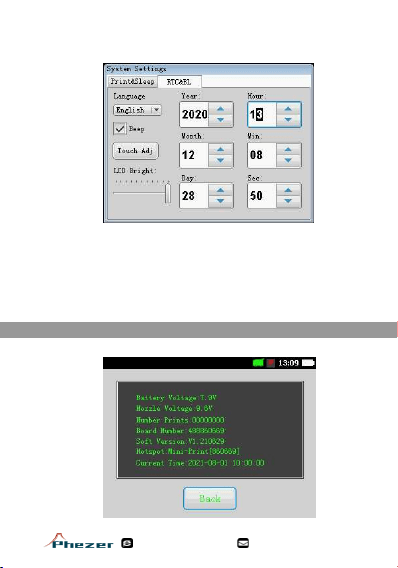
Clock & Brightness Setting
About printer status
8
Language: Choose system language, Chinese and English available.
Beep: Prompt tone on and off.
Touch Adj: Touch screen calibrating.
LCD Bright: Adjusts the screen brightness.
Year/month/day/hour/minute/second: Adjust system time (Automatically update with
the time of the day).
Check information and status about printer machine.
Note: All change will be saved after clicking the “OK” button.
www.phezer.com [email protected]
9
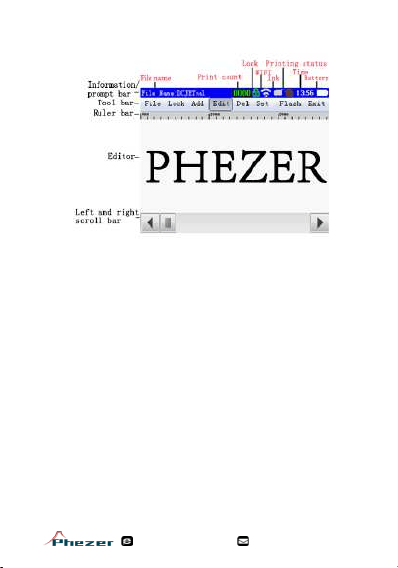
Prompt/information bar: Displays the printer working status.
File name: Name of the current file.
Print count : The number of times that have been printed (counter)
Lock: The current information is locked/unlocked. (When locked, the icon is red and the contents
cannot be edited. Click the “Lock” button again, the icon will change to green and editor will be
unlocked.)
WIFI: For an old mini inkjet printer version with no touch screenonly.
Ink : Remaining ink left (only for encrypted printer machine)Printing status: The icon will turn from
green to red as the printing ends.
Time: System time.
Battery: Displays the battery level.
Tool bar: Clicking on a button will invoke a specific command.
Ruler bar: Indicate the actual print length, slight error allowed.
Editor: Display information.
Left and right scroll bar: Preview the rest of the printing contents.
Main Interface Instruction
www.phezer.com [email protected]
File Interface Instruction
Lock Interface Instruction
10
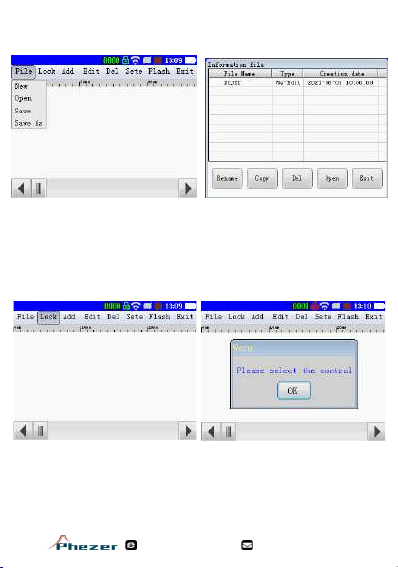
New: Add a new file.
Open: Select file from printer machine. Click “Open”, select the file and then click open to choose.
Save: Save changes of current printing contents.
Save as: Save as new file.
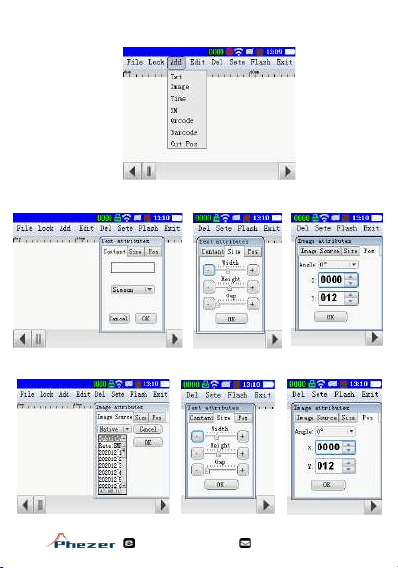
Lock :
Red: Click “Lock” button and after a short ringing, all controls will be locked;
Green: Click “Lock” button again and after 3 short ringings, all controls will be unlocked for new
editing;
www.phezer.com [email protected]
Add Interface Instruction
11
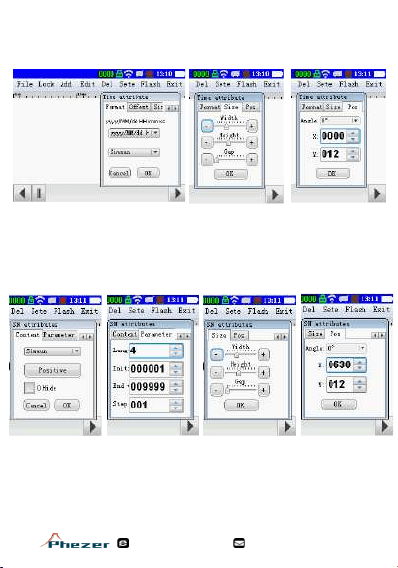
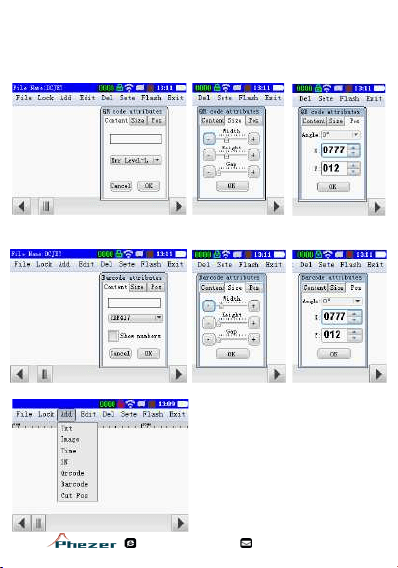
Add: A dded controls to the editor, including: Text / Image / Time / (SN) Batch Number / QR code / Bar
Code/Cut Pos.
2. Type-C data cable support only.
Text Contents: Add or modify text, number and symbol. Save contents with clicking “OK” button.
Size: Adjust font size, the more bigger value, the larger text display. Pos: Adjust angles and position.
Image attributes: Add image from printer. Note:1. BMP format only, height within 160 pixels;
www.phezer.com [email protected]
Add Interface Instruction
12
2. Type-C data cable support only.
Time attributes: Add date and time contents.
Batch number (SN) attributes: Add or edit batch number display font, direction and format,
record the code for each printing.
Format: Adjust time display format and font.
Size: Adjust font size, the more bigger value, the larger text display.
Pos: Adjust angles and position.
Parameter: Adjust display length, the smallest value,the highest value, and the value start counting.
Size: Adjust font size, the more bigger value, the larger text display.
Pos: Adjust angles and position.
13
Time attributes: Add date and time contents.
www.phezer.com [email protected]
Add Interface Instruction
Qrcode attributes: Add or modify bar code text
and display format.
Barcode attributes: Add or modify bar code text.
Size: Adjust font size, the more bigger value, the larger text display.Pos: Adjust angles and position.
Size: Adjust font size, the more bigger value, the larger text display.Pos: Adjust angles and position
Cut Pos: Add segments to printing contents. Click
add “Cut Pos” then a split line will appear, drag the
line between printing text and the printer will print the
content separately.
Edit Interface Instruction
14
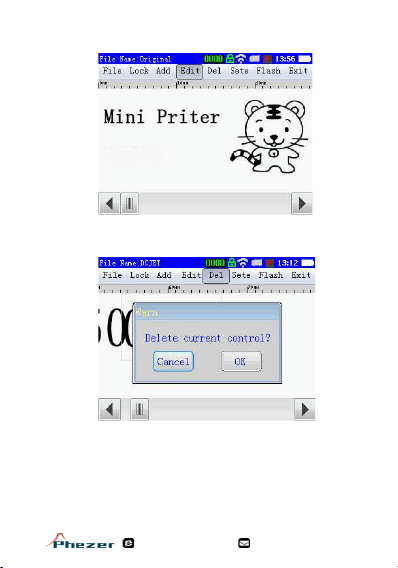
Delete: Delete the content selected. Save change with the OK button.
Edit: Modify the content selected. Click text you need to edit, then click the “EDIT”
and you will able to adjust the size, font and style. Save change with the OK button.
www.phezer.com [email protected]
Qrcode attributes: Add or modify bar code text
and display format.
Barcode attributes: Add or modify bar code text.
Set Interface Instruction
15
Delete: Delete the content selected. Save change with the OK button.
Edit: Modify the content selected. Click text you need to edit, then click the “EDIT”
and you will able to adjust the size, font and style. Save change with the OK button.
How to print with the mini inkjet printer
Print: Click the print button and scroll over the object.
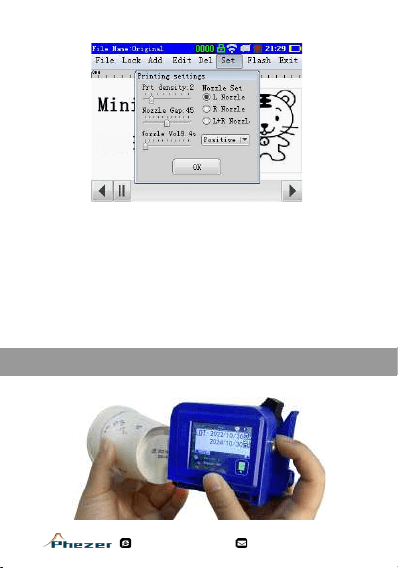
Print density: Adjust the density (amount of ink) of the print, the more bigger value, the more darker
the print display (Default: 2).
Nozzle set: Select left nozzle or right nozzle.
Nozzle Voltage: Adjust the voltage of nozzle (Default 8.5-9V). Please note higher voltage may cause ink
cartridge damage.
Printing direction: Support forward printing/reverse printing/forward printing/reverse printing.
Adjust the rolling direction according to the way you hold the printer (Default: forward printing )
Flash: Customized printing to prevent nozzle clogging problem. When the surface of the nozzle is slightly
dry, click the “Flash” to spray ink quickly once, then wipe the nozzle with cloth.
Back: Returns to the upper menu.
www.phezer.com [email protected]
Note: Please cover the nozzle with protective cover when finish printing. It can effectively
protect nozzle from clogging and prolong the life of the machine.

www.phezer.com [email protected]
Solution of common problem
1. Q: What is the difference between water-based ink and solvent ink?
2. Q: What’s the capacity of ink cartridge? How long can I use it?
3. Q: What’s the height range of the font ?
4. Q: What to do if the printer do not work?
5. Q: Can we erase it?
6. Q: How to maintain the cartridge if we don’t print for long-period?
7. Q: Why the print is not clear after a period of time use?
A: No ink is indelible. Most ink could be cleaned up by alcohol. It depends on the material
of a product, which has different adhesive force to ink. Generally, the bright surface is
easy to wipe, and the matte and frosted cover is difficult to clean.
16
A: Water-based ink can support non-coated material like (matte) cartons, fabrics and other
porous material. Solvent ink can support material includes both porous and non-porous
surface, such as plastics, glass, metal, pipe, stone, wood board, MDF, aluminum foil, cable,
leather, carton and other materials. *NOTE: All Phezer handheld inkjet printer adopts original
HP solvent ink cartridge.
A: The cartridge comes with 47mL and 72ml in capacity depends on the nozzle size. A cartridge
can print more than 800,000 times of a character measures 2mm X 2mm. Cartridge life depends
on how it actually works. There may be less than one month when frequently used or up to one
year when rarely used. Note: Please cover the nozzle with protective cover when finish printing.
It can effectively protect nozzle from clogging and prolong the life of the machine.
A: Printing height: 2-12.7 mm / 0.08-0.5 inch, supports 1-5 lines print with adjustable printing
height. You can add multiple content combinations by following: Select the text, click edit to
adjust the font size, drag to desired position and then add another lines of content.
① Check if the driving belt is falling off or not; ② Change a new cartridge to check if it is out of
ink; ③ Turn off the printer and reinsert the cartridge.
A: Turn off the handheld printer and take off the ink cartridge. Clean the nozzle with alcohol
and cover with protective cap. Store with nozzle upright at a cool, dry place away from
sunlight.
A: Click the “Flash” button to clean the print nozzle, and then gently wipe the nozzle with
cloth.
Print: Click the print button and scroll over the object.
Note: For colorful ink cartridge, gently shake 10-30 seconds before use.
www.phezer.com [email protected]
1. Warranty: 12 months. Free maintenance during warranty period, except for
wearing part.
2. Any of the following circumstances is not covered by the warranty.
1) Did not use, store or protect as the description in the manual.
2) Take apart the machine without manufacturer authorization.
3) Without a warranty card or unauthorized modification of a warranty card.
4) The model in the warranty card is inconsistent with the type of product.
5) Caused by force majeure.
6) Agreed to another agreement.
7) No use of the company's consumables.
Maintenance record
Customer information
Model:
Model NO.:
Customer name:
TEL:
Other:
Warranty period:
DATE MONTH YEAR to DATE MONTH YEAR
Signature of manufacturer
(In order to enable you to get timely and effective service, please keep this warranty
card properly and show it when it is repaired.)
17
www.phezer.com [email protected]
Handheld Inkjet Printer
Phezer PC11
Scan and Watch the Operation Video on YouTube