Your Wearable Music Remote

Happy?
We’re thrilled! If you love your
Chubby Buttons:
Tell your friends and family
Write a nice review on Amazon
Follow us on IG @Chubbybuttons
1

Not Happy?
Send a note to
and we’ll get back to you immediately.
Our friendly customer service team
will work tirelessly to get a smile
back on your face!
2
3
Getting Started:
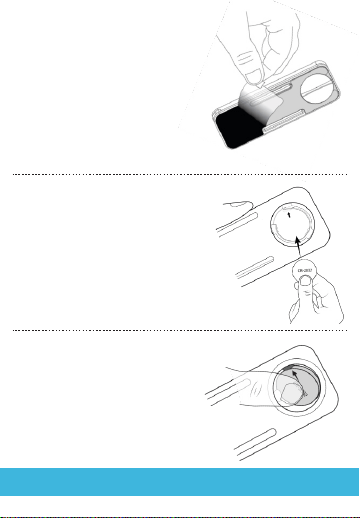
Remove the protective
backing to reveal the
Nano-Stick material.
Place the CR-2032 battery
inside the battery ring
contact. The end marked
with an arrow is the only
flexible part of the contact.
To remove, simply pull the
flexible tab to the side, and
the battery should pop out.
4
Getting Started:
How to pair Chubby Buttons with your device:
1. Hit any button until you see a blue light flash once.
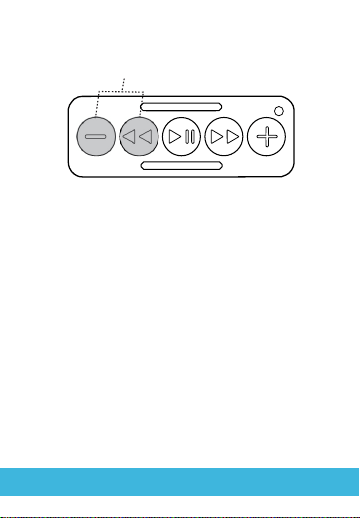
2. Press “volume down” + “track reverse” for 5 seconds to
enter pairing mode. Pairing mode is indicated by a quick
flashing blue light.
3. Activate your device’s Bluetooth function and search
for “Chubby Buttons.” Select it! (Some users may see
"Accessory" upon initial pairing only.)
4. For iPhone Users: please select “allow” when asked to
allow Chubby Buttons to display your phone notifications.
5. After successful pairing, the indicator light will turn off.
Hold both buttons to enter pairing mode
(indicated by a flashing blue light)
If you wish to pair with a new device:
1. Forget/Unpair Chubby Buttons from your current device.
2. Put Chubby Buttons into pairing mode.
3. Pair with new device.
5
Using Your Chubby Buttons:
IMPORTANT: Are You an iPhone User?
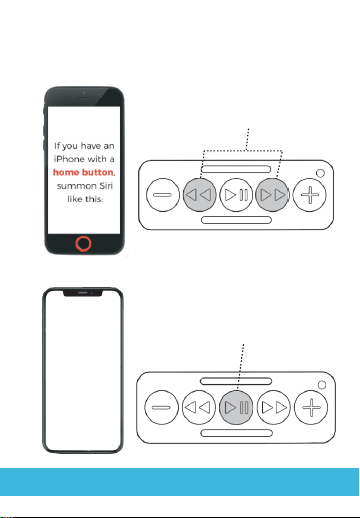
Hold for 2 seconds
If your iPhone
does not have
a home button,
summon Siri
like this:
Hold for 2 seconds
6
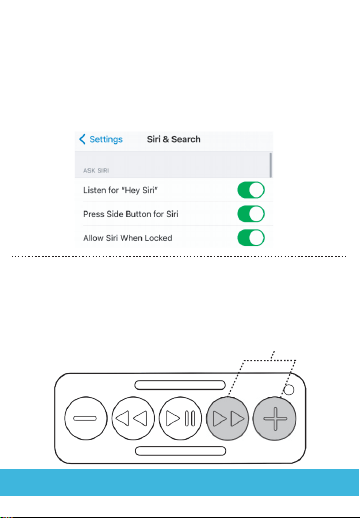
On iOS, go to Settings —> Siri & Search: make sure that
“Press Side button for Siri” and “Allow Siri When Locked”
are toggled to the on position
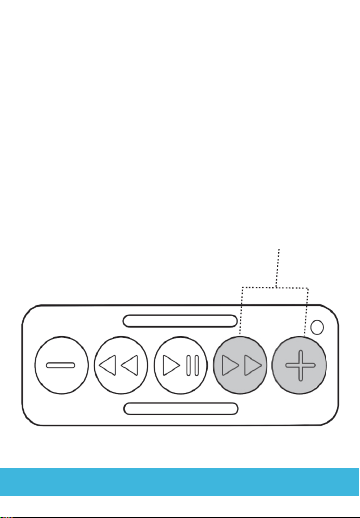
After the initial pairing of your Chubby Buttons with your
iPhone, you may notice that the onscreen keyboard may
be hidden while attempting to text. Simply tap these
two buttons together to toggle it back on!
Quick Tap to Toggle
Keyboard On/Off
Using Your Chubby Buttons:
IMPORTANT: Are You an iPhone User?
7
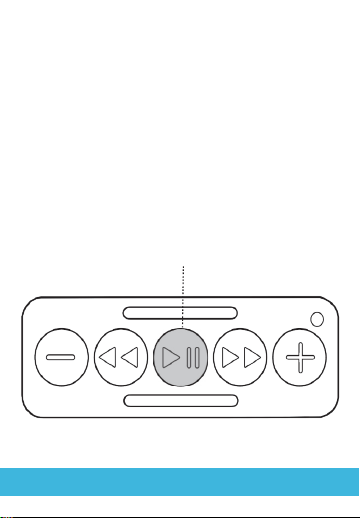
If you are an Android user, summon Google
Assistant by holding Play/Pause for 2 seconds.
This works for all Android phones!
Hold for 2 seconds
Using Your Chubby Buttons:
Are You an Android User?
Using Your Chubby Buttons:
Are You an Android User?
8
Android users can also use this function to toggle
the keyboard as well if they like. However, by
default the onscreen keyboard is not hidden.
Quick Tap to Toggle
Keyboard On/Off
9
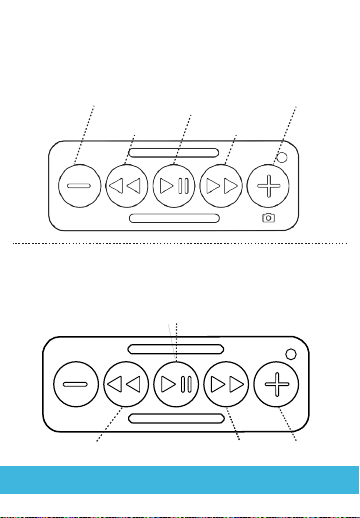
Universal Functions for All Devices:
Short Press (Single Buttons)
Track Reverse
- Volume Down
- Camera Shutter
- Play/Pause
- Receive Call
- Mute Call (Android Only)
Track Forward
Long Press (Single Buttons)
- Summon Siri (iPhone without home button)
- Summon Google Assistant (Android)
- Decline Call (all phones)
- Hangup Call (Android only)
Scrub Backward
(iOS only)
Scrub Forward
(iOS only)
Photo Burst
(iOS only)
- Volume Up
- Camera Shutter
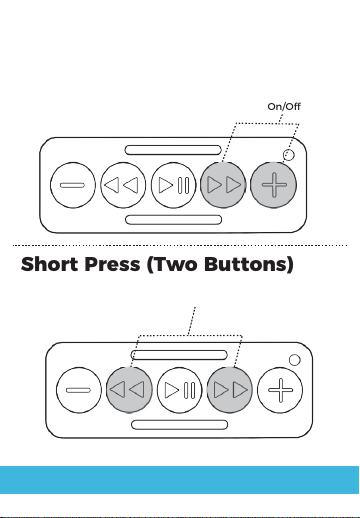
Universal Functions for All Devices:
Short Press (Two Buttons)
Toggle Keyboard
On/Off
Short Press (Two Buttons)
10
Summon Siri (iPhones
with Home Button)
11
Put Chubby Buttons into
Deep Sleep Mode:
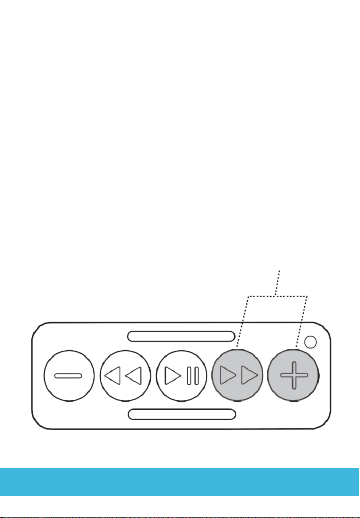
If you are going to store your Chubby Buttons for a while,
you can place it in a deep sleep state by holding “track
forward” + “volume up” for 8 seconds. You will see a quick
double green flash to indicate deep sleep mode. To wake
up, just tap any button!
Hold for 8 seconds to
enter deep sleep mode
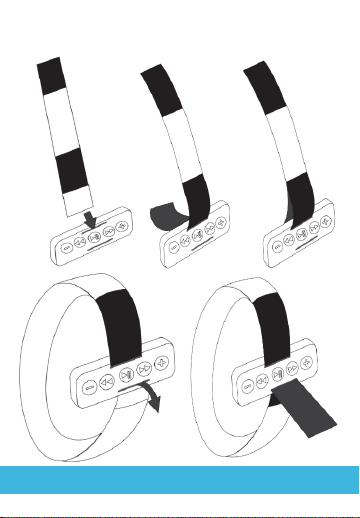
Installing the Armband:
12
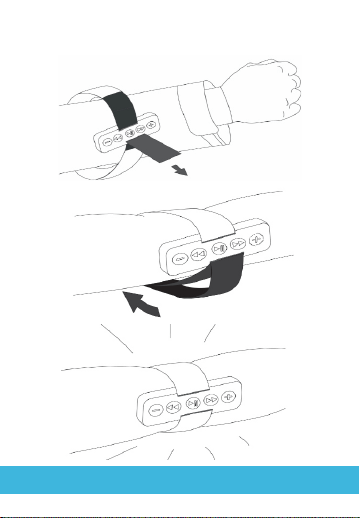
13
Installing the Armband:

Usage & Care Tips:
14
Your Chubby can get wet! But not that wet. It can
definitely take on the snow and rain, the light drizzle of
a shower, and of course — your hard-earned sweat.
Don’t take it for a dive though. Chubby doesn’t know
how to swim.
Keep your Nano-Stick in tip-top shape by giving the
black padding a quick wipe with a moist sponge to get
rid of any dust.
To sustain the life of the battery, don’t keep your
Chubby in high temperatures (140°F/60°C) for an
extended amount of time.

15
FCC Statement
This device complies with Part 15 of the FCC Rules.
Operation is subject to the following two conditions:
(1) This device may not cause harmful interference,
and
(2) This device must accept any interference received,
including interference that may cause undesired
operation.
WARNING
Changes or modifications not expressly approved by the
party responsible for compliance could void the user's
authority to operate the equipment.
NOTE
This equipment has been tested and found to comply with
the limits for a Class B digital device, pursuant to Part 15 of
the FCC Rules. These limits are designed to provide
reasonable protection against harmful interference in a
residential installation.
Emission Tests Passed: FCC Part 15 Subpart B (per ANSI C63.4:2014)
Industry Canada ICES-003 Issue 6, April 2017; for a class B device