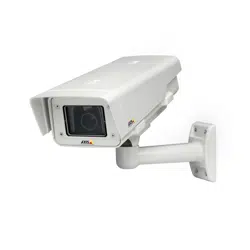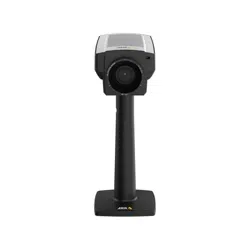


ThismanualisintendedforadministratorsandusersofAXISQ1775
FixedNetworkCamera,andisapplicabletormware5.85andlater.
Itincludesinstructionsforusingandmanagingtheproductonyour
network.Previousexperienceofnetworkingwillbeofusewhenusing
thisproduct.SomeknowledgeofUNIXorLinux-basedsystemsmay
alsobeusefulwhendevelopingshellscriptsandapplications.Later
versionsofthisdocumentwillbepostedatwww.axis.com.Seealsothe
product’sonlinehelp,availablethroughtheweb-basedinterface.
LegalConsiderations
Videoandaudiosurveillancecanberegulatedbylawsthatvaryfrom
countrytocountry.Checkthelawsinyourlocalregionbeforeusing
thisproductforsurveillancepurposes.
Thisproductincludesone(1)H.264decoderlicenseandone(1)AAC
decoderlicense.Topurchasefurtherlicenses,contactyourreseller.
Liability
Everycarehasbeentakeninthepreparationofthisdocument.Please
informyourlocalAxisofceofanyinaccuraciesoromissions.Axis
CommunicationsABcannotbeheldresponsibleforanytechnicalor
typographicalerrorsandreservestherighttomakechangestothe
productandmanualswithoutpriornotice.AxisCommunicationsAB
makesnowarrantyofanykindwithregardtothematerialcontained
withinthisdocument,including,butnotlimitedto,theimplied
warrantiesofmerchantabilityandtnessforaparticularpurpose.Axis
CommunicationsABshallnotbeliablenorresponsibleforincidentalor
consequentialdamagesinconnectionwiththefurnishing,performance
oruseofthismaterial.Thisproductisonlytobeusedforitsintended
purpose.
IntellectualPropertyRights
AxisABhasintellectualpropertyrightsrelatingtotechnologyembodied
intheproductdescribedinthisdocument.Inparticular,andwithout
limitation,theseintellectualpropertyrightsmayincludeoneormore
ofthepatentslistedatwww.axis.com/patent.htmandoneormore
additionalpatentsorpendingpatentapplicationsintheUSandother
countries.
Thisproductcontainslicensedthird-partysoftware.Seethemenuitem
“About”intheproduct’suserinterfaceformoreinformation.
ThisproductcontainssourcecodecopyrightAppleComputer,
Inc.,underthetermsofApplePublicSourceLicense2.0(see
www.opensource.apple.com/apsl).Thesourcecodeisavailablefrom
https://developer.apple.com/bonjour/
EquipmentModications
Thisequipmentmustbeinstalledandusedinstrictaccordancewiththe
instructionsgivenintheuserdocumentation.Thisequipmentcontains
nouser-serviceablecomponents.Unauthorizedequipmentchangesor
modicationswillinvalidateallapplicableregulatorycertications
andapprovals.
TrademarkAcknowledgments
AXISCOMMUNICATIONS,AXIS,ETRAX,ARTPECandVAPIXare
registeredtrademarksortrademarkapplicationsofAxisABinvarious
jurisdictions.Allothercompanynamesandproductsaretrademarksor
registeredtrademarksoftheirrespectivecompanies.
Apple,Boa,Apache,Bonjour,Ethernet,InternetExplorer,Linux,
Microsoft,Mozilla,Real,SMPTE,QuickTime,UNIX,Windows,Windows
VistaandWWWareregisteredtrademarksoftherespectiveholders.
JavaandallJava-basedtrademarksandlogosaretrademarksor
registeredtrademarksofOracleand/oritsafliates.UPnP
TM
isa
certicationmarkoftheUPnP
TM
ImplementersCorporation.
SD,SDHCandSDXCaretrademarksorregisteredtrademarksofSD-3C,
LLCintheUnitedStates,othercountriesorboth.Also,miniSD,microSD,
miniSDHC,microSDHC,microSDXCarealltrademarksorregistered
trademarksofSD-3C,LLCintheUnitedStates,othercountriesorboth.
RegulatoryInformation
Europe
ThisproductcomplieswiththeapplicableCEmarkingdirectives
andharmonizedstandards:
•ElectromagneticCompatibility(EMC)Directive2004/108/EC.See
ElectromagneticCompatibility(EMC)onpage2.
•LowVoltage(LVD)Directive2006/95/EC.SeeSafetyonpage2.
•RestrictionsofHazardousSubstances(RoHS)Directive2011/65/EU.
SeeDisposalandRecyclingonpage3.
Acopyoftheoriginaldeclarationofconformitymaybeobtainedfrom
AxisCommunicationsAB.SeeContactInformationonpage3.
ElectromagneticCompatibility(EMC)
Thisequipmenthasbeendesignedandtestedtofulllapplicable
standardsfor:
•Radiofrequencyemissionwheninstalledaccordingtothe
instructionsandusedinitsintendedenvironment.
•Immunitytoelectricalandelectromagneticphenomenawhen
installedaccordingtotheinstructionsandusedinitsintended
environment.
USA
Thisequipmenthasbeentestedusinganunshieldednetworkcable
(UTP)andfoundtocomplywiththelimitsforaClassAdigitaldevice,
pursuanttopart15oftheFCCrules.Thisequipmenthasalsobeen
testedusingashieldednetworkcable(STP)andfoundtocomplywith
thelimitsforaClassAdigitaldevice,pursuanttopart15oftheFCC
rules.Theselimitsaredesignedtoprovidereasonableprotectionagainst
harmfulinterferencewhentheequipmentisoperatedinacommercial
environment.Thisequipmentgenerates,uses,andcanradiateradio
frequencyenergyand,ifnotinstalledandusedinaccordancewith
theinstructionmanual,maycauseharmfulinterferencetoradio
communications.Operationofthisequipmentinaresidentialarea
islikelytocauseharmfulinterferenceinwhichcasetheuserwillbe
requiredtocorrecttheinterferenceathisownexpense.
Canada
ThisdigitalapparatuscomplieswithCANICES-3(ClassA).Theproduct
shallbeconnectedusingashieldednetworkcable(STP)thatis
properlygrounded.Cetappareilnumériqueestconformeàlanorme
NMBICES-3(classeA).Leproduitdoitêtreconnectéàl'aided'uncâble
réseaublindé(STP)quiestcorrectementmisàlaterre.
Europe
ThisdigitalequipmentfulllstherequirementsforRFemission
accordingtotheClassAlimitofEN55022.Theproductshallbe
connectedusingashieldednetworkcable(STP)thatisproperly
grounded.Notice!ThisisaClassAproduct.Inadomesticenvironment
thisproductmaycauseRFinterference,inwhichcasetheusermaybe
requiredtotakeadequatemeasures.
Thisproductfulllstherequirementsforimmunityaccording
toEN61000-6-1residential,commercialandlight-industrial
environments.
Thisproductfulllstherequirementsforimmunityaccordingto
EN61000-6-2industrialenvironments.
Thisproductfulllstherequirementsforimmunityaccordingto
EN55024ofceandcommercialenvironments
Australia/NewZealand
ThisdigitalequipmentfulllstherequirementsforRFemission
accordingtotheClassAlimitofAS/NZSCISPR22.Theproductshall
beconnectedusingashieldednetworkcable(STP)thatisproperly
grounded.Notice!ThisisaClassAproduct.Inadomesticenvironment
thisproductmaycauseRFinterference,inwhichcasetheusermaybe
requiredtotakeadequatemeasures.
Japan
この装置は、クラスA情報技術装置です。この装置を家庭環
境で使用すると電波妨害を引き起こすことがあります。この
場合には使用者が適切な対策を講ずるよう要求されることが
あります。本製品は、シールドネットワークケーブル(STP)を
使用して接続してください。また適切に接地してください。
Korea
이기기는업무용(A급)전자파적합기기로서판매자또는사용
자는이점을주의하시기바라며,가정외의지역에서사용하는
것을목적으로합니다.적절히접지된STP(shieldedtwistedpair)
케이블을사용하여제품을연결하십시오.
Safety
ThisproductcomplieswithIEC/EN/UL60950-1,SafetyofInformation
TechnologyEquipment.Ifitsconnectingcablesareroutedoutdoors,
theproductshallbegroundedeitherthroughashieldednetworkcable
(STP)orotherappropriatemethod.

Thepowersupplyusedwiththisproductshallfullltherequirements
forSafetyExtraLowVoltage(SELV)andLimitedPowerSource(LPS)
accordingtoIEC/EN/UL60950-1.
Battery
TheAxisproductusesa3.0VBR/CR1220lithiumbatteryasthepower
supplyforitsinternalreal-timeclock(RTC).Undernormalconditions
thisbatterywilllastforaminimumofveyears.
LowbatterypoweraffectstheoperationoftheRTC,causingittoreset
ateverypower-up.Whenthebatteryneedsreplacing,alogmessage
willappearintheproduct’sserverreport.Formoreinformationabout
theserverreport,seetheproduct´ssetuppagesorcontactAxissupport.
Thebatteryshouldnotbereplacedunlessrequired,butifthebattery
doesneedreplacing,contactAxissupportatwww.axis.com/techsupfor
assistance.
WARNING
•Riskofexplosionifthebatteryisincorrectlyreplaced.
•Replaceonlywithanidenticalbatteryorabatterywhichis
recommendedbyAxis.
•Disposeofusedbatteriesaccordingtolocalregulationsor
thebatterymanufacturer'sinstructions.
DisposalandRecycling
Whenthisproducthasreachedtheendofitsusefullife,disposeof
itaccordingtolocallawsandregulations.Forinformationabout
yournearestdesignatedcollectionpoint,contactyourlocalauthority
responsibleforwastedisposal.Inaccordancewithlocallegislation,
penaltiesmaybeapplicableforincorrectdisposalofthiswaste.
Europe
Thissymbolmeansthattheproductshallnotbedisposedof
togetherwithhouseholdorcommercialwaste.Directive2012/19/EU
onwasteelectricalandelectronicequipment(WEEE)isapplicablein
theEuropeanUnionmemberstates.Topreventpotentialharmto
humanhealthandtheenvironment,theproductmustbedisposed
ofinanapprovedandenvironmentallysaferecyclingprocess.For
informationaboutyournearestdesignatedcollectionpoint,contact
yourlocalauthorityresponsibleforwastedisposal.Businessesshould
contacttheproductsupplierforinformationabouthowtodispose
ofthisproductcorrectly.
ThisproductcomplieswiththerequirementsofDirective2011/65/EUon
therestrictionoftheuseofcertainhazardoussubstancesinelectrical
andelectronicequipment(RoHS).
China
Thisproductcomplieswiththerequirementsofthelegislative
actAdministrationontheControlofPollutionCausedbyElectronic
InformationProducts(ACPEIP).
ContactInformation
AxisCommunicationsAB
Emdalavägen14
22369Lund
Sweden
Tel:+46462721800
Fax:+4646136130
www.axis.com
Support
Shouldyourequireanytechnicalassistance,pleasecontactyourAxis
reseller.Ifyourquestionscannotbeansweredimmediately,your
resellerwillforwardyourqueriesthroughtheappropriatechannelsto
ensurearapidresponse.IfyouareconnectedtotheInternet,youcan:
•downloaduserdocumentationandsoftwareupdates
•ndanswerstoresolvedproblemsintheFAQdatabase.Search
byproduct,category,orphrase
•reportproblemstoAxissupportstaffbyloggingintoyourprivate
supportarea
•chatwithAxissupportstaff
•visitAxisSupportatwww.axis.com/techsup/
LearnMore!
VisitAxislearningcenterwww.axis.com/academy/forusefultrainings,
webinars,tutorialsandguides.

AXISQ1775NetworkCamera
TableofContents
SafetyInformation..........................................6
HazardLevels...................................................6
OtherMessageLevels............................................6
HardwareOverview..........................................7
ConnectorsandButtons..........................................7
LEDIndicators..................................................9
StatusLEDBehaviorandBuzzerSignalforLevellingAssistant...........9
AccesstheProduct..........................................11
AccessfromaBrowser...........................................11
AccessfromtheInternet..........................................11
SettheRootPassword...........................................12
CongureCaptureMode..........................................12
TheLiveViewPage..............................................12
MediaStreams.............................................15
HowtoStreamH.264............................................15
MJPEG........................................................15
AXISMediaControl(AMC)........................................15
AlternativeMethodsofAccessingtheVideoStream....................16
AccessAudioStreams............................................17
SetUptheProduct..........................................18
BasicSetup....................................................18
VideoandAudio............................................19
SetUpVideoStreams............................................19
StreamProles.................................................20
ONVIFMediaProles............................................21
CameraSettings................................................21
Overlay........................................................23
PrivacyMask...................................................25
SetUpAudio...................................................25
AudioClips....................................................26
ConguretheLiveViewPage.................................27
PTZ(PanTiltZoom).........................................29
PresetPositions.................................................29
Gatekeeper....................................................29
GuardTour.....................................................29
Advanced......................................................30
InstallPTZDriver................................................31
ControlQueue..................................................31
Detectors..................................................32
CameraTampering..............................................32
ShockDetection................................................32
MotionDetection...............................................32
AudioDetection................................................34
Applications...............................................35
ApplicationLicenses.............................................35
UploadApplication..............................................35
ApplicationConsiderations........................................35
AXISVideoMotionDetection.................................37
Considerations..................................................37
StartandStoptheApplication.....................................37
CongureApplication............................................37
UsingtheApplicationinanActionRule.............................40
Events....................................................42
SetUpActionRules.............................................42
AddRecipients..................................................44
CreateSchedules................................................46
SetUpRecurrences..............................................46
Recordings.................................................47
FindRecordings.................................................47
PlayRecording..................................................47
ExportVideoClip................................................48
4

AXISQ1775NetworkCamera
TableofContents
RecordingList..................................................48
ContinuousRecording............................................49
Languages.................................................50
SystemOptions.............................................51
Security.......................................................51
Date&Time....................................................53
Network.......................................................54
Storage.......................................................59
Ports&Devices.................................................61
Maintenance...................................................62
Support.......................................................63
Advanced......................................................63
ResettoFactoryDefaultSettings...................................64
Troubleshooting............................................65
ChecktheFirmware.............................................65
UpgradetheFirmware...........................................65
Symptoms,PossibleCausesandRemedialActions.....................65
TechnicalSpecications......................................69
Connectors....................................................71
ConnectionDiagrams............................................73
PerformanceConsiderations.......................................73
5

AXISQ1775NetworkCamera
SafetyInformation
SafetyInformation
HazardLevels
DANGER
Indicatesahazardoussituationwhich,ifnotavoided,willresultindeathorseriousinjury.
WARNING
Indicatesahazardoussituationwhich,ifnotavoided,couldresultindeathorseriousinjury.
CAUTION
Indicatesahazardoussituationwhich,ifnotavoided,couldresultinminorormoderate
injury.
NO NO
NO
TICE TICE
TICE
Indicatesasituationwhich,ifnotavoided,couldresultindamagetoproperty.
OtherMessageLevels
ImportantIndicatessignicantinformationwhichisessentialfortheproducttofunctioncorrectly.
NoteIndicatesusefulinformationwhichhelpsingettingthemostoutoftheproduct.
6

AXISQ1775NetworkCamera
HardwareOverview
HardwareOverview
NO NO
NO
TICE TICE
TICE
Donotpointthecameralenstowardthesunorotherhigh-intensityradiationsourcesbecausethiscouldcausedamageto
thecamera.
13
12
11
10
9
2
1
16
14
15
4
5
6
3
7
8
1.
StatusLED
2.
1/4”screwmountforwall/ceilingstand
3.
Powerconnector(blockedinAXISQ1775-E)
4.
RS-485/422connector
5.
I/Oconnector
6.
Controlbutton
7.
NetworkindicatorLED
8.
PowerindicatorLED
9.
Audioin
10.
SDcardslot
11.
Audioout
12.
CVBSbutton
13.
Networkconnector(PoE)
14.
VideooutY/Pb/Pr
15.
Partnumber(P/N)&Serialnumber(S/N).Theserialnumbermayberequiredduringtheinstallation.
16.
Microphone
ConnectorsandButtons
Fortechnicalspecications,seepage69.
7

AXISQ1775NetworkCamera
HardwareOverview
NetworkConnector
NO NO
NO
TICE TICE
TICE
Duetolocalregulationsortheenvironmentalandelectricalconditionsinwhichtheproductistobeused,ashieldednetwork
cable(STP)maybeappropriateorrequired.Allcablesconnectingtheproducttothenetworkandthatareroutedoutdoors
orindemandingelectricalenvironmentsshallbeintendedfortheirspecicuse.Makesurethatthenetworkdevices
areinstalledinaccordancewiththemanufacturer’sinstructions.Forinformationaboutregulatoryrequirements,see
ElectromagneticCompatibility(EMC)onpage2.
I/OConnector
Usewithexternaldevicesincombinationwith,forexample,tamperingalarms,motiondetection,eventtriggering,timelapserecording
andalarmnotications.Inadditiontothe0VDCreferencepointandpower(DCoutput),theI/Oconnectorprovidestheinterfaceto:
•Digitaloutput–ForconnectingexternaldevicessuchasrelaysandLEDs.Connecteddevicescanbeactivatedbythe
VAPIX®ApplicationProgrammingInterface,outputbuttonsontheLiveViewpageorbyanActionRule.Theoutputwill
showasactive(shownunderSystemOptions>Ports&Devices)ifthealarmdeviceisactivated.
•Digitalinput–Analarminputforconnectingdevicesthatcantogglebetweenanopenandclosedcircuit,forexample:
PIRs,door/windowcontacts,glassbreakdetectors,etc.Whenasignalisreceivedthestatechangesandtheinputbecomes
active(shownunderSystemOptions>Ports&Devices).
PowerConnector
2-pinterminalblockforAC/DCpowerinput.
AudioConnector
TheAxisproducthasthefollowingaudioconnectors:
•Audioin(pink)–3.5mminputforamonomicrophone,oraline-inmonosignal.
•Audioout(green)–3.5mmoutputforaudio(linelevel)thatcanbeconnectedtoapublicaddress(PA)systemoran
activespeakerwithabuilt-inamplier.Astereoconnectormustbeusedforaudioout.
RS485/RS422Connector
TwoterminalblocksforRS485/RS422serialinterfaceusedtocontrolauxiliaryequipmentsuchaspan-tiltdevices.
VideoOut
RCAconnectorsforcomponentorcompositevideoout.
•Componentvideoout(Y/Pb/Pr)forHDTVvideo,e.g.anentrancecameraconnectedtoanHDTVscreen.
•Compositevideoout(CVBS)-foreasyinstallationusingavideomonitor.CVBSisavailablefor2minutesafterpressing
thebuttonandshouldonlybeusedduringinstallation.
SDCardSlot
NO NO
NO
TICE TICE
TICE
•RiskofdamagetoSDcard.DonotusesharptoolsorexcessiveforcewheninsertingorremovingtheSDcard.
•Riskofdataloss.Topreventdatacorruption,theSDcardshouldbeunmountedbeforeremoval.Tounmount,gotoSetup>
SystemOptions>Storage>SDCardandclickUnmount.
ThisproductsupportsSD/SDHC/SDXCcards(notincluded).
ForSDcardrecommendations,seewww.axis.com
8

AXISQ1775NetworkCamera
HardwareOverview
ControlButton
Forlocationofthecontrolbutton,seeHardwareOverviewonpage7.
Thecontrolbuttonisusedfor:
•Resettingtheproducttofactorydefaultsettings.Seepage64.
•Ensuringthecameraislevel.Pressthebuttonfornotmorethantwosecondstostartthelevellingassistantandpress
againtostop.ThestatusLEDandbuzzersignal(seepage9)assistlevellingofthecamera.Thecameraislevelwhenthe
buzzerbeepscontinuously.
•ConnectingtoanAXISVideoHostingSystemservice.Seepage55.Toconnect,pressandholdthebuttonforabout3
secondsuntiltheStatusLEDashesgreen.
•ConnectingtoAXISInternetDynamicDNSService.Seepage56.Toconnect,pressandholdthebuttonforabout3seconds.
LEDIndicators
Note
•TheStatusLEDcanbeconguredtobeunlitduringnormaloperation.Tocongure,gotoSetup>SystemOptions>Ports
&Devices>LED.Seetheonlinehelpformoreinformation.
•TheStatusLEDcanbeconguredtoashwhileaneventisactive.
•TheStatusLEDcanbeconguredtoashforidentifyingtheunit.GotoSetup>SystemOptions>Maintenance.
StatusLED
Indication
GreenSteadygreenfornormaloperation.
Amber
Steadyduringstartupandwhenrestoringsettings.
Note
TheNetworkLEDcanbedisabledsothatitdoesnotashwhenthereisnetworktrafc.Tocongure,gotoSetup>System
Options>Ports&Devices>LED.Seetheonlinehelpformoreinformation.
NetworkLEDIndication
Green
Steadyforconnectiontoa100Mbit/snetwork.Flashesfornetworkactivity.
Amber
Steadyforconnectiontoa10Mbit/snetwork.Flashesfornetworkactivity.
UnlitNonetworkconnection.
Note
ThePowerLEDcanbeconguredtobeunlitduringnormaloperation.Tocongure,gotoSetup>SystemOptions>Ports&
Devices>LED.Seetheonlinehelpformoreinformation.
PowerLEDIndication
Green
Normaloperation.
Amber
Flashesgreen/amberduringrmwareupgrade.
StatusLEDBehaviorandBuzzerSignalforLevellingAssistant
Forinformationonusingthecontrolbuttontostartlevellingofthecamera,seepage9.
9

AXISQ1775NetworkCamera
HardwareOverview
Color
Buzzer
Cameraposition
Fixedgreen
Continuousbeep
Level
FlashinggreenFastintervalAlmostlevel
FlashingorangeMediumintervalNotlevel
Flashingred
Slowinterval
Farfromlevel
10

AXISQ1775NetworkCamera
AccesstheProduct
AccesstheProduct
ToinstalltheAxisproduct,seetheInstallationGuidesuppliedwiththeproduct.
Theproductcanbeusedwithmostoperatingsystemsandbrowsers.Therecommendedbrowsersare
•InternetExplorer
®
withWindows
®
•Safari
®
withOSX
®
•Chrome
TM
orFirefox
®
withotheroperatingsystems.
SeeTechnicalSpecicationsonpage69.
ToviewstreamingvideoinInternetExplorer,allowinstallationofAXISMediaControl(AMC)whenprompted.
TheAxisproductincludesone(1)H.264decoderlicenseforviewingvideostreamsandone(1)AACaudiolicense.Thelicensesare
automaticallyinstalledwithAMC.Theadministratorcandisabletheinstallationofthedecoders,topreventinstallationofunlicensed
copies.
Note
•QuickTime
TM
isalsosupportedforviewingH.264streamsandforaudio.
AccessfromaBrowser
1.Startawebbrowser.
2.EntertheIPaddressorhostnameoftheAxisproductinthebrowser’sLocation/Addresseld.
ToaccesstheproductfromaMaccomputer(OSX),gotoSafari,clickonBonjourandselecttheproductfromthe
drop-downlist.
IfyoudonotknowtheIPaddress,useAXISIPUtilitytolocatetheproductonthenetwork.Forinformationabout
howtodiscoverandassignanIPaddress,seethedocumentAssignanIPAddressandAccesstheVideoStreamonAxis
Supportwebatwww.axis.com/techsup
Note
ToshowBonjourasabrowserbookmark,gotoSafari>Preferences.
3.Enteryourusernameandpassword.Ifthisisthersttimetheproductisaccessed,therootpasswordmustrstbe
congured.Forinstructions,seeSettheRootPasswordonpage12.
4.Theproduct’sLiveViewpageopensinyourbrowser.
Note
ThecontrolsandlayoutoftheLiveViewpagemayhavebeencustomizedtomeetspecicinstallationrequirementsand
userpreferences.Consequently,someoftheexamplesandfunctionsfeaturedheremaydifferfromthosedisplayedin
yourownLiveViewpage.
AccessfromtheInternet
Onceconnected,theAxisproductisaccessibleonyourlocalnetwork(LAN).ToaccesstheproductfromtheInternetyoumust
congureyournetworkroutertoallowincomingdatatrafctotheproduct.Todothis,enabletheNAT-traversalfeature,which
willattempttoautomaticallyconguretheroutertoallowaccesstotheproduct.ThisisenabledfromSetup>SystemOptions>
Network>TCP/IPAdvanced.
Formoreinformation,seeNATtraversal(portmapping)forIPv4onpage57.SeealsoAXISInternetDynamicDNSServiceat
www.axiscam.net
11

AXISQ1775NetworkCamera
AccesstheProduct
ForTechnicalnotesonthisandothertopics,visittheAxisSupportwebatwww.axis.com/techsup
SettheRootPassword
ToaccesstheAxisproduct,youmustsetthepasswordforthedefaultadministratoruserroot.ThisisdoneintheCongureRoot
Passworddialog,whichopenswhentheproductisaccessedforthersttime.
Topreventnetworkeavesdropping,therootpasswordcanbesetviaanencryptedHTTPSconnection,whichrequiresanHTTPS
certicate.HTTPS(HypertextTransferProtocoloverSSL)isaprotocolusedtoencrypttrafcbetweenwebbrowsersandservers.The
HTTPScerticateensuresencryptedexchangeofinformation.SeeHTTPSonpage52.
Thedefaultadministratorusernamerootispermanentandcannotbedeleted.Ifthepasswordforrootislost,theproductmustbe
resettothefactorydefaultsettings.SeeResettoFactoryDefaultSettingsonpage64.
TosetthepasswordviaastandardHTTPconnection,enteritdirectlyinthedialog.
TosetthepasswordviaanencryptedHTTPSconnection,followthesesteps:
1.ClickUseHTTPS.
Atemporarycerticate(validforoneyear)iscreated,enablingencryptionofalltrafctoandfromtheproduct,andthe
passwordcannowbesetsecurely.
2.Enterapasswordandthenre-enterittoconrmthespelling.
3.ClickOK.Thepasswordhasnowbeencongured.
CongureCaptureMode
CapturemodedenesthemaximumresolutionandmaximumframerateavailableintheAxisproduct.Thecapturemodesettingalso
affectsthecamera’sangleofview.
Selectthedesiredcapturemodefromthedrop-downlistandclickOK.
SeealsoCaptureModeonpage21.
TheLiveViewPage
ThecontrolsandlayoutoftheLiveViewpagemayhavebeencustomizedtomeetspecicinstallationrequirementsanduser
preferences.Consequently,someoftheexamplesandfunctionsfeaturedheremaydifferfromthosedisplayedinyourownLiveView
page.Thefollowingprovidesanoverviewofeachavailablecontrol.
ControlsontheLiveViewPage
ClicktheViewsizebuttonstoshowtheimageinfullsize(rightbutton)ortoscaledowntheimageto
tthebrowserwindow(leftbutton).
ClickWDRontoenableWDRinintensebacklightconditions.ClickWDRofftodisableWDRinlow
lightconditionsforoptimalexposure.
SelectastreamprolefortheLiveViewpagefromtheStreamProledrop-downlist.Forinformation
abouthowtocongurestreamproles,seepage20.
12

AXISQ1775NetworkCamera
AccesstheProduct
ClickPulsetoactivatetheproduct’soutputportforadenedperiodoftime.Forinformationabouthow
toenableandcongureoutputbuttons,seepage28.Theoutputbuttonnamemaydifferdependingon
thenameenteredintheI/OPortsconguration.
ClicktheActive/Inactivebuttonstomanuallyactivateandinactivetheproduct’soutputport.For
informationabouthowtoenableandcongureoutputbuttons,seepage28.
TheManualTriggerbuttonisusedtotriggeranactionrulefromtheLiveViewpage.Forinformation
abouthowtocongureandenablethebutton,seeManualTriggeronpage13.
ClickSnapshottosaveasnapshotofthevideoimage.Thisbuttonisprimarilyintendedforusewhen
theAXISMediaControlviewertoolbarisnotavailable.EnablethisbuttonfromLiveViewCong>
ActionButtons.
TheAudioclipdrop-downlistallowsyoutoplayanaudioclipfromtheLiveViewpage.Selectthe
audioclipandclickthePlaybutton.
ManualTrigger
TheManualTriggerisusedtotriggeranactionrulefromtheLiveViewpage.Themanualtriggercanforexamplebeusedto
validateactionsduringproductinstallationandconguration.
Tocongurethemanualtrigger:
1.GotoSetup>Events.
2.ClickAddtoaddanewactionrule.
3.FromtheTriggerdrop-downlist,selectInputSignal.
4.Fromtheseconddrop-downlist,selectManualTrigger.
5.Selectthedesiredactionandconguretheothersettingsasrequired.
Formoreinformationaboutactionrules,seeEventsonpage42.
ToshowthemanualtriggerbuttonsintheLiveViewpage:
1.GotoSetup>LiveViewCong.
2.UnderActionButtons,selectShowmanualtriggerbutton.
AXISMediaControlviewertoolbar
TheAXISMediaControlviewertoolbarisavailableinInternetExploreronly.SeeAXISMediaControl(AMC)onpage15formore
information.Thetoolbardisplaysthefollowingbuttons:
ThePlaybuttonconnectstotheAxisproductandstartsplayingamediastream.
TheStopbuttonstopsthemediastream.
TheSnapshotbuttontakesasnapshotofthevideoimage.Thelocationwheretheimageissavedcanbespecied
intheAMCControlPanel.
13
AXISQ1775NetworkCamera
AccesstheProduct
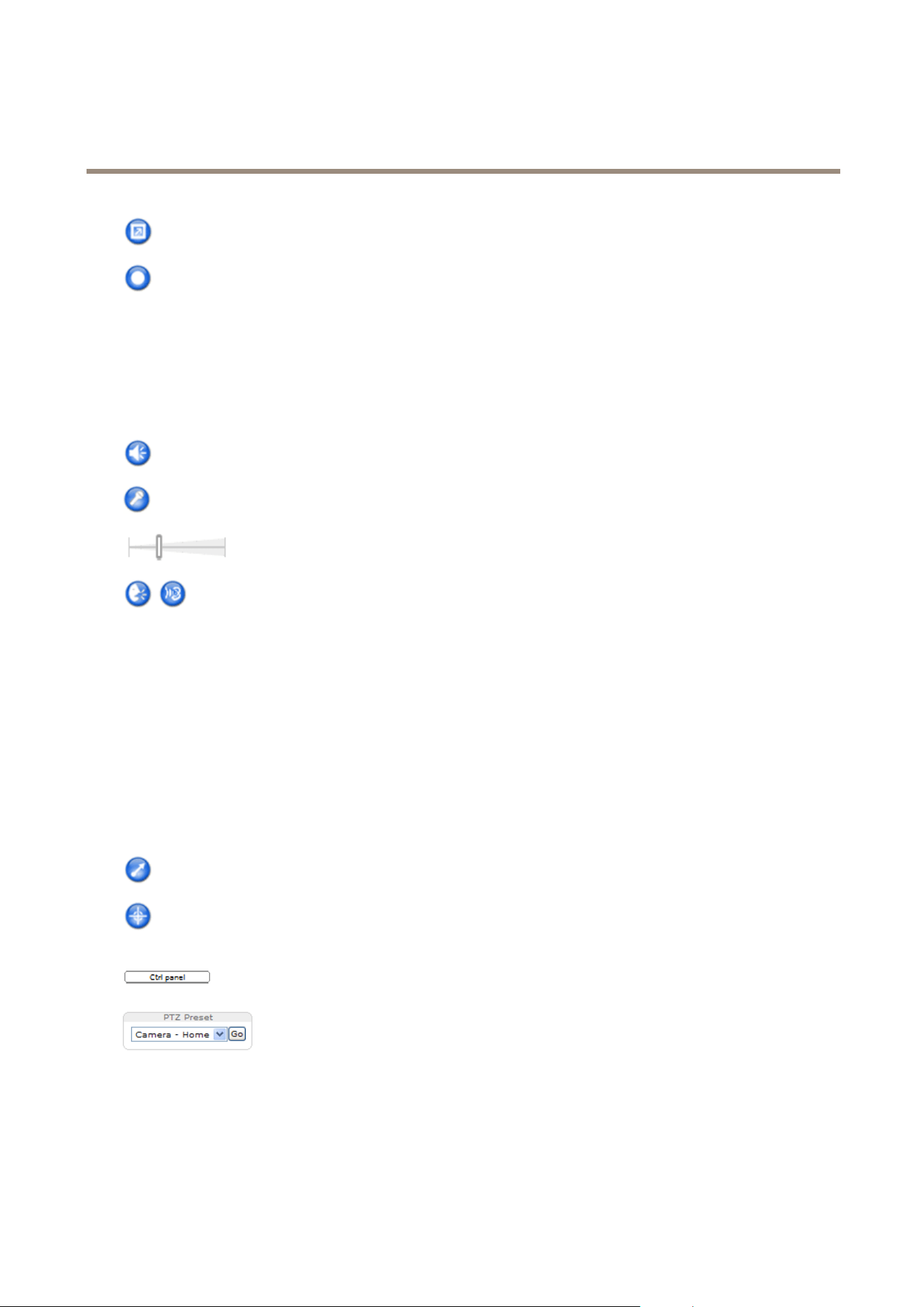
ClicktheViewFullScreenbuttonandthevideoimagewilllltheentirescreen.PressESC(Escape)onthecomputer
keyboardtocancelfullscreenview.
TheRecordbuttonisusedtorecordthecurrentvideostreamonyourcomputer.Thelocationwheretherecordingissaved
canbespeciedintheAMCControlPanel.EnablethisbuttonfromLiveViewCong>ViewerSettings.
AMCAudioControls
AMCaudiobuttonscontrolthespeakersandmicrophoneconnectedtotheclientcomputer.Thebuttonsareonlyvisiblewhen
audioisenabled.
Forinformationabouthowtocongureaudio,seeSetUpAudioonpage25.
Speakerbutton—Clicktoturnthespeakersonoroff.
Microphonebutton–Clicktomuteorunmutethemicrophone.InSimplex-speakeronlymode,theMicrophoneandTalk
buttonsmustbothbeactivetosendaudiototheAxisproduct.Clickeitherbuttontostopaudiotransmission.
Usetheslidertocontrolthevolumeofthespeakersandthemicrophone.
Half-duplexmode
TheTalk/Listenbuttonisusedtoswitchbetweensendingandreceivingaudio.Thebuttoncanbecongured
fromtheAudiotabintheAMCControlpanel:
•Push-To-Talkmode:Clickandholdthebuttontotalk/send.Releasethebuttontolisten.
•Togglemode:Clickoncetoswitchbetweentalkingandlistening.
Simplex–speakeronlymode
Tosendaudio,theTalkandMicrophonebuttonsmustbothbeactive.Clickeitherbuttontostopaudio
transmission.
PTZControls
TheLiveViewpagealsodisplaysPan/Tilt/Zoom(PTZ)controls.Theadministratorcanenable/disablecontrolsforspeciedusersunder
SystemOptions>Security>Users.
WiththePTZControlQueueenabledthetimeeachuserisincontrolofthePTZsettingsislimited.Clickthebuttonstorequestor
releasecontrolofthePTZcontrols.ThePTZControlQueueissetupunderPTZ>ControlQueue.
ClicktheEmulatejoystickmodebuttonandclickintheimagetomovethecameraviewinthedirectionofthe
mousepointer.
ClicktheCentermodebuttonandclickintheimagetocenterthecameraviewonthatposition.
Thecentermodebuttoncouldalsobeusedtozoominonaspecicarea.Clickintheimageanddragtodrawa
rectanglesurroundingtheareatobemagnied.Tozoomout,rotatethemousewheel.
ClicktheCtrlpanelbuttontoopenthePTZcontrolpanelwhichprovidesadditionalPTZcontrols.
User-denedbuttonscanalsoappearintheControlpanel.SeeControlsonpage30.
SelectaPTZpresetpositiontosteerthecameraviewtothesavedposition.SeePresetPositions
onpage29.
PanandTiltbars–Usethearrowstopanandtiltthecameraview,orclickonapositiononthebartosteerthecameraviewto
thatposition.
Zoombar–Usethearrowstozoominandout,orclickonapositiononthebartozoomtothatposition.
ThePTZcontrolscanbedisabledunderPTZ>Advanced>Controls,seeControlsonpage30.
14

AXISQ1775NetworkCamera
MediaStreams
MediaStreams
TheAxisproductprovidesseveralaudioandvideostreamformats.Yourrequirementsandthepropertiesofyournetworkwill
determinethetypeyouuse.
TheLiveViewpageintheproductprovidesaccesstoH.264andMotionJPEGvideostreams,audiostreamsandtothelistofavailable
streamproles.Otherapplicationsandclientscanaccessvideoandaudiostreamsdirectly,withoutgoingviatheLiveViewpage.
HowtoStreamH.264
H.264can,withoutcompromisingimagequality,reducethesizeofadigitalvideolebymorethan80%comparedwiththeMotion
JPEGformatandasmuchas50%morethantheMPEG-4standard.Thismeansthatmuchlessnetworkbandwidthandstoragespace
arerequiredforavideole.Orseenanotherway,muchhighervideoqualitycanbeachievedforagivenbitrate.
Decidingwhichcombinationofprotocolsandmethodstousedependsonyourviewingrequirements,andonthepropertiesof
yournetwork.TheavailableoptionsinAXISMediaControlare:
UnicastRTP
Thisunicastmethod(RTPoverUDP)isused
forliveunicastvideo,especiallywhenitis
importanttohaveanup-to-datevideostream,
evenifsomeframesaredropped.
RTPoverRTSP
Thisunicastmethod(RTPtunneledoverRTSP)
isusefulasitisrelativelysimpletocongure
rewallstoallowRTSPtrafc.
RTPoverRTSPoverHTTP
Thisunicastmethodcanbeusedtotraverse
rewalls.Firewallsarecommonlyconguredto
allowtheHTTPprotocol,thusallowingRTPto
betunneled.
Unicastingisusedforvideo-on-demand
transmissionsothatthereisnovideotrafc
onthenetworkuntilaclientconnectsand
requeststhestream.
Notethatthereareamaximumof10
simultaneousunicastconnections.
MulticastRTP
Thismethod(RTPoverUDP)shouldbeusedforlivemulticastvideo.Thevideostreamisalways
up-to-date,evenifsomeframesaredropped.
Multicastingprovidesthemostefcientusageofbandwidthwhentherearelargenumbersof
clientsviewingsimultaneously.Amulticastcannothowever,passanetworkrouterunlessthe
routerisconguredtoallowthis.ItisnotpossibletomulticastovertheInternet,forexample.
Notealsothatallmulticastviewerscountasoneunicastviewerinthemaximumtotalof10
simultaneousconnections.
AXISMediaControlnegotiateswiththeAxisproducttodeterminethetransportprotocoltouse.Theorderofpriority,listedinthe
AMCControlPanel,canbechangedandtheoptionsdisabled,tosuitspecicrequirements.
Note
H.264islicensedtechnology.TheAxisproductincludesoneH.264viewingclientlicense.Installingadditionalunlicensed
copiesoftheclientisprohibited.Topurchaseadditionallicenses,contactyourAxisreseller.
MJPEG
ThisformatusesstandardJPEGstillimagesforthevideostream.Theseimagesarethendisplayedandupdatedataratesufcient
tocreateastreamthatshowsconstantlyupdatedmotion.
TheMotionJPEGstreamusesconsiderableamountsofbandwidth,butprovidesexcellentimagequalityandaccesstoeveryimage
containedinthestream.TherecommendedmethodofaccessingMotionJPEGlivevideofromtheAxisproductistousetheAXIS
MediaControlinInternetExplorerinWindows.
AXISMediaControl(AMC)
AXISMediaControl(AMC)inInternetExplorerinWindowsistherecommendedmethodofaccessinglivevideofromtheAxisproduct.
15

AXISQ1775NetworkCamera
MediaStreams
TheAMCControlPanelcanbeusedtocongurevariousvideoandaudiosettings.PleaseseetheAXISMediaControlUser’s
Manualformoreinformation.
TheAMCControlPanelisautomaticallyinstalledonrstuse,afterwhichitcanbecongured.OpentheAMCControlPanelfrom:
•WindowsControlPanel(fromtheStartscreenorStartmenu)
•Alternatively,right-clickthevideoimageinInternetExplorerandclickSettings.
AlternativeMethodsofAccessingtheVideoStream
YoucanalsoaccessvideoandimagesfromtheAxisproductinthefollowingways:
•MotionJPEGserverpush(ifsupportedbytheclient,ChromeorFirefox,forexample).ThisoptionmaintainsanopenHTTP
connectiontothebrowserandsendsdataasandwhenrequired,foraslongasrequired.
•StillJPEGimagesinabrowser.Enterthepathhttp://<ip>/axis-cgi/jpg/image.cgi
•WindowsMediaPlayer.ThisrequiresAXISMediaControlandtheH.264decodertobeinstalled.Thefollowingpaths
canbeused:
-UnicastviaRTP:axrtpu://<ip>/axis-media/media.amp
-UnicastviaRTSP:axrtsp://<ip>/axis-media/media.amp
-UnicastviaRTSP,tunneledviaHTTP:axrtsphttp://<ip>/axis-media/media.amp
-Multicast:axrtpm://<ip>/axis-media/media.amp
•QuickTime
TM
.Thefollowingpathscanbeused:
-rtsp://<ip>/axis-media/media.amp
-rtsp://<ip>/axis-media/media.3gp
16

AXISQ1775NetworkCamera
MediaStreams
Note
•<ip>=IPaddress
•TheAxisproductsupportsQuickTime6.5.1andlater.
•QuickTimemayaddlatencytothevideostream.
•ItmaybepossibletouseotherplayerstoviewtheH.264streamusingthepathsabove,althoughAxisdoesnotguarantee
this.
AccessAudioStreams
TheLiveViewpageprovidesaccesstoaudiothroughAXISMediaControl;inadditionaudiocanbeaccessedinthefollowingways:
•VAPIX®ApplicationProgrammingInterface(API)Formoreinformation,visitwww.axis.com/developer
•WindowsMediaPlayersupportssimplexaudio.Thefollowingpathscanbeused:
-UnicastviaRTP:axrtpu://<ip>/axis-media/media.amp
-UnicastviaRTSP:axrtsp://<ip>/axis-media/media.amp
-UnicastviaRTSP,tunneledviaHTTP:axrtsphttp://<ip>/axis-media/media.amp
-Multicast:axrtpm://<ip>/axis-media/media.amp
•QuickTime
TM
supportsG.711andAACaudioencoding.Thefollowingpathscanbeused:
-rtsp://<ip>/axis-media/media.amp
-rtsp://<ip>/axis-media/media.3gp
17

AXISQ1775NetworkCamera
SetUptheProduct
SetUptheProduct
TheAxisproductcanbeconguredbyuserswithadministratororoperatorrights.Toopentheproduct’sSetuppages,clickSetupin
thetopright-handcorneroftheLiveViewpage.
•Administratorshaveunrestrictedaccesstoallsettings.
•Operatorshaverestrictedaccesstosettings,seeUsersonpage51
Seealsotheonlinehelp
.
BasicSetup
BasicSetupprovidesshortcutstothesettingsthatshouldbemadebeforeusingtheAxisproduct:
1.Users.Seepage51.
2.TCP/IP.Seepage54.
3.Date&Time.Seepage53.
4.VideoStream.Seepage19.
5.AudioSettings.Seepage25.
TheBasicSetupmenucanbedisabledfromSystemOptions>Security>Users.
18

AXISQ1775NetworkCamera
VideoandAudio
VideoandAudio
Thevideoandaudiosettingscanbeusedtooptimizevideoandaudioquality.Youcancongurethefollowing:
•Videostreamsettings.Seepage19.
•Streamproles.Seepage20.
•ONVIFMediaProles.Seepage21.
•Camerasettings.Seepage21.
•Overlayimage.Seepage23.
•Privacymask.Seepage25.
•Audiosettings.Seepage25.
•Audioclips.Seepage26.
SetUpVideoStreams
Tosetuptheproduct’svideostreams,gotoVideo&Audio>VideoStream.
Thevideostreamsettingsaredividedintothefollowingtabs:
•Image.Seepage19.
•Audio.Seepage25.
•H.264.Seepage20.
•MJPEG.Seepage20.
PixelCounter
Thepixelcountershowsthenumberofpixelsinanareaoftheimage.Thepixelcounterisusefulinsituationswherethereis
aspecicsizerequirement,forexampleinfacerecognition.
Thepixelcountercanbeused:
•Whensettingupavideostream,seeSetUpVideoStreamsonpage19.UnderPreview,clickOpenandselecttheShow
pixelcounteroptiontoenabletherectangleintheimage.Usethemousetomoveandresizetherectangle,orenterthe
numberofpixelsintheWidthandHeighteldsandclickApply.
Image
ThedefaultimagesettingscanbeconguredunderVideo&Audio>VideoStream.SelecttheImagetab.
Thefollowingsettingsareavailable:
•Resolution.Selectthedefaultresolution.
•Compression.Thecompressionlevelaffectstheimagequality,bandwidthandlesizeofsavedimages;thelowerthe
compression,thehighertheimagequalitywithhigherbandwidthrequirementsandlargerlesizes.
•Mirrorimage.Ifrequired,theimagecanbemirrored.
•Rotateimage.Ifrequired,theimagecanberotated.
19

AXISQ1775NetworkCamera
VideoandAudio
•Maximumframerate.Toavoidbandwidthproblems,theframerateallowedtoeachviewercanbeLimitedtoaxed
amount.Alternatively,theframeratecanbesetasUnlimited,whichmeanstheAxisproductalwaysdeliversthehighest
frameratepossibleunderthecurrentconditions.
•Overlaysettings.SeeOverlayonpage23.
ClickSavetoapplythenewsettings.
H.264
H.264,alsoknownasMPEG-4Part10/AVC,isavideocompressionstandardthatprovideshighqualityvideostreamsatlowbitrates.
AnH.264videostreamconsistsofdifferenttypesofframessuchasI-framesandP-frames.AnI-frameisacompleteimagewhereas
P-framesonlycontainthedifferencesfrompreviousframes.
TheH.264streamsettingscanbeconguredfromtheVideo&Audio>VideoStreampage.SelecttheH.264tab.Thesettings
denedinthispagewillapplytoallH.264streamsthatdonotuseastreamprole.
TheGOPlengthisthenumberofframesbetweentwoconsecutiveI-frames.IncreasingtheGOPlengthmaysaveconsiderablyon
bandwidthrequirementsinsomecases,butmayalsohaveanadverseaffectonimagequality.
TheAxisproductsupportsthefollowingH.264prole(s):
•Baseline.TheBaselineproleisrecommendedforclientsthatdon’tsupportCABACentropycoding.
•Main.TheMainproleprovideshighercompressionwithmaintainedvideoqualitycomparedtotheBaselineprolebut
requiresmoreprocessingpowertodecode.
•High.TheHighproleprovidesreducedbitrateandhighercompressionwithmaintainedvideoqualitycomparedtothe
Mainprolebutrequiresmoreprocessingpowertodecode.
ThebitratecanbesetasVariablebitrate(VBR)orMaximumbitrate(MBR).VBRadjuststhebitrateaccordingtotheimage
complexity,usingupmorebandwidthforincreasedactivityintheimage,andlessforlowerimageactivity.Whentheactivityin
thesceneincreases,thebitratewouldusuallyincreaseaswell.Ifthereisasurplusinbandwidth,thismaynotbeanissueand
selectingVariablebitrate(VBR)willbesufcient.Butifbandwidthislimited,itisrecommendedtocontrolthebitratebyselecting
Maximumbitrate(MBR).Whentheactivityinthesceneincreases,VBRadjuststhebitrateaccordingtothecomplexity,usingup
morebandwidthforincreasedactivityinthescene,andlessforlowersceneactivity.MBRallowsyoutosetatargetbitratethat
limitsthebandwidthconsumption.
TheMBRtargetbitrateworksliketheceilingofatent.Itlimitsthebitrate,whilemaintainingsomeexibility.Thebitrate
maybounceupanddownwithinthesettargetbutwhenitnearsthesettargetvalue,thelimitationkicksin.However,because
MBRwillalwaysprioritizeacontinuousvideostream,itallowstemporaryovershootsfromthetargetbitrate.Becausesettinga
targetvaluepreventsthebitratefromincreasing,framerateandimagequalityareaffectednegatively.Topartlycompensatefor
this,selectwhichvariableshallbeprioritized,framerateorimagequality.Notsettingaprioritymeansthatframerateand
imagequalityareequallyaffected.
Thecurrentbitratecanbesettoappearastextoverlay.UnderOverlaySettings,selectIncludetextandenterthemodier
#bintheeld.
Toapplythesettings,clickSave.
MJPEG
Sometimestheimagesizeislargeduetolowlightorcomplexscenery.Adjustingthemaximumframesizehelpstocontrolthe
bandwidthandstorageusedbytheMotionJPEGvideostreaminthesesituations.SettingtheframesizetotheDefaultsetting
providesconsistentlygoodimagequalityattheexpenseofincreasedbandwidthandstorageusageinlowlight.Limitingtheframe
sizeoptimizesbandwidthandstorageusage,butmaygivepoorimagequality.Topreventincreasedbandwidthandstorageusage,
themaximumframesizeshouldbesettoanoptimalvalue.
StreamProles
Astreamproleisasetofpredenedstreamsettingsincludingresolution,compression,framerateandoverlaysettings.Stream
prolescanbeused:
20

AXISQ1775NetworkCamera
VideoandAudio
•Whensettinguprecordingusingactionrules.SeeEventsonpage42.
•Whensettingupcontinuousrecording.SeeContinuousRecordingonpage49.
•IntheLiveViewpage–selectthestreamprolefromtheStreamproledrop-downlist.
Forquicksetup,useoneofthepredenedstreamproles.Eachpredenedprolehasadescriptivename,indicatingitspurpose.If
required,thepredenedstreamprolescanbemodiedandnewcustomizedstreamprolescanbecreated.
Tocreateanewproleormodifyanexistingprole,gotoSetup>Video&Audio>StreamProles.
ToselectadefaultstreamprolefortheLiveViewpage,gotoSetup>LiveViewCong.
ONVIFMediaProles
AnONVIFmediaproleconsistsofasetofcongurationsthatcanbeusedtochangemediastreamsettings.ONVIFmediaproles
canbesetthroughtheONVIFMediaProleSettingspageandbeusedbyaclienttoconguremediastreamproperties.
TheONVIFMediaProlespagelistsallsuchpre-conguredproles.Theseprolescannotberemoved.Pre-conguredmedia
proleshavebeenincludedintheproductforquicksetup.ItisalsopossibletocongurenewONVIFmediaprolesasperrequired
specications.ToaddanewONVIFmediaprole,clickAddandentertherequiredinformation.Youcanalsomodifyorremovea
prolefromthispage.
CameraSettings
TheVideo&Audio>CameraSettingspageprovidesaccesstoadvancedimagesettingsfortheAxisproduct.
CaptureMode
CapturemodedenesthemaximumresolutionandmaximumframerateavailableintheAxisproduct.Acapturemodewithalarge
maximumresolutionhasareducedmaximumframerateandviceversa.Thecapturemodesettingalsoaffectsthecamera’sangleof
viewastheeffectivesizeoftheimagesensordiffersbetweencapturemodes.
Capturemodeissetthersttimetheproductisaccessed.SelectthedesiredcapturemodeandclickOK.
Important
Changingcapturemodewhentheproducthasbeenconguredisnotrecommendedasmostothersettingswillbeeither
removedorreset.
Tochangecapturemode,followthesesteps:
1.GotoSetup>Video&Audio>CameraSettings.
2.Selectthenewcapturemode.
3.ClickSave.
ImageAppearance
TochangeImageAppearancegotothemenusunderSetup>Video&Audio>CameraSettings.
IncreasingtheColorlevelincreasesthecolorsaturation.Thevalue100givesmaximumcolorsaturationandthevalue0gives
minimumcolorsaturation.
TheimageBrightnesscanbeadjustedintherange0–100,whereahighervalueproducesabrighterimage.
IncreasingtheSharpnesscanincreasebandwidthusage.Asharperimagemightincreaseimagenoiseespeciallyinlowlight
conditions.Alowersettingreducesimagenoise,butthewholeimagewillappearlesssharp.
21

AXISQ1775NetworkCamera
VideoandAudio
WhiteBalance
TochangethissettinggotoSetup>Video&Audio>CameraSettings
Whitebalanceisusedtomakecolorsintheimageappearthesameregardlessofthecolortemperatureofthelightsource.TheAxis
productcanbesettoautomaticallyidentifythelightsourceandcompensateforitscolor.Alternatively,selectthetypeoflight
sourcefromthedrop-downlist.Foradescriptionofeachavailablesetting,seetheonlinehelp
.
WideDynamicRange
WideDynamicRangecanimprovetheexposurewhenthereisaconsiderablecontrastbetweenlightanddarkareasintheimage.
EnableWDRinintensebacklightconditions.DisableWDRinlowlightconditionsforoptimalexposure.
ExposureSettings
Exposurecontrol-Thesesettingsisusedtoadapttotheamountoflightused.Automaticisthedefaultsettinganditcanbe
usedinmostsituations.Theshutterspeedisautomaticallysettoproduceoptimumimagequality.UseManualifyouhavespecial
requirementsfortheexposuresettingandwishtolockit.Selectthedesiredexposuretimefromthedrop-downlist.
Maxexposuretime-Selectthemaximumexposuretimefromthedrop-downlist.Increasingtheexposuretimewillimproveimage
quality,butdecreasetheframerate.Theremayalsobeanincreaseinmotionblur.
Allowslowshutter-SelectAllowslowshuttertoletthecameradecreasetheshutterspeedinlowlighttoimproveimagebrightness.
EnableBacklightcompensation-SelectEnableBacklightcompensationifabrightspotoflight,forexamplealightbulb,causes
otherareasintheimagetoappeartoodark.
Maxgain-Measuredindecibels(dB),gaindescribestheamountofamplicationappliedtoasignal,inthiscasethevisual
informationintheimage.Ahighlevelofamplicationmayprovideabetterimageinverylowlightsituations.Ahighgainwillalso
increasetheamountofimagenoise.
Exposurezones-Thissettingsdetermineswhichpartoftheimageisusedtocalculatetheexposure.Formostsituations,theAuto
settingcanbeused.Forparticularrequirement,selectapredenedarea.
IRcutlter-TheIRcutlterpreventsinfrared(IR)lightfromreachingtheimagesensor.Inpoorlightingconditions,forexampleat
night,orwhenusinganexternalIRlamp,settheIRcutltertoOff.Thisincreaseslightsensitivityandallowstheproductto“see”
infraredlight.TheimageisshowninblackandwhitewhentheIRcutlterisoff.SettheIRcutltertoAutotoautomatically
switchbetweenOnandOffaccordingtothelightingconditions.
Day/Nightshiftpriority-UsetheDay/Nightshiftprioritybartodeterminewhenthecamerashiftsintoeitherdaymodeornight
mode.Bydefault,thecamerawillautomaticallychangefromdaytonightmodeatapre-denedlevelwhichcorrespondstolight
conditions.Bydraggingthebarhandletowardsthesun,thecamerawillchangetodaymodeearlierandchangetonightmodelate.
ImageSettings
Important
Theautofocusbehaviorisaffectedbyfactorssuchaslightconditions,contrastsinthescene,andobjectsmovinginandout.In
theseconditionsorscenes,amanualfocuscouldbepreferabletoenhanceperformanceandallowthecameratofocusfaster.
Autofocusenabled-Autofocusenablesthecameratofocusalthoughthedistancetodifferentobjectsofinterestisconstantly
changing.Wheneverthecamera’span/tilt/zoompositionischanged,theautofocusperformsasearchtondtheidealfocuspoint.
Automaticfocusingisenabledbydefault.Ifthefocuspositionischangedmanuallyusingthefocusbar,autofocuswillbedisabled
evenifenabledinImageSettings.Inthiscase,usethePTZcontrolpaneltoenableautofocus,seepage14.Ifrequired,thefocus
controlcanbedisabledunderPTZ>Advanced>Controls.
Defog-EnablethisfeaturefromVideo&Audio>CameraSettingstocountertheeffectsoffoggyweatherandgetaclearimage.
Noisereduction-SettoOntoenablenoisereduction.Noisereductionmayincreasetheamountofmotionblur.
22

AXISQ1775NetworkCamera
VideoandAudio
ImagefreezeonPTZ-SelectAllmovementstofreezetheimagewhilethecameraismovingduringapan,tiltorzoomoperation.
Oncethecamerareachesitsnewposition,theviewfromthatpositionisshown.Presetsfreezestheimageonlywhenthecamera
movesbetweenpresetpositions.
Overlay
Overlaysareusedtoprovideextrainformation,suchasforensicvideoanalysisorduringproductinstallationandconguration.
Overlaysaresuperimposedoverthevideostream.
Anoverlaytextcandisplaythecurrentdateandtime,oratextstring.
Whenusingatextstring,modierscanbeusedtodisplayinformationsuchasthecurrentbitrateorthecurrentframerate.
Forinformationaboutavailablemodiers,seeFileNaming&Date/TimeFormatsintheonlinehelp
.
Itisalsopossibletodisplaytextwhenanactionruleistriggered,seeUseOverlayTextinanActionRule.
Note
Toenableoverlays:
1.GotoVideo&Audio>VideoStreamandselecttheImagetab.
2.Toincludeanoverlayimage,selectIncludeoverlayimageatthecoordinates.Theoverlayimagemustrstbeuploadedto
theAxisproduct,seeOverlayImage.
4.Toincludedateandtime,selectIncludedateandIncludetime.
5.Toincludeatextstring,selectIncludetextandenterthetextintheeld.Modierscanbeused,seeFileNaming&
Date/TimeFormatsintheonlinehelp
.
6.Denetextoverlaycharacteristicsintherelevantelds.
7.ClickSave.
Tomodifythedateandtimeformat,gotoSystemOptions>Date&Time.SeeDate&Timeonpage53.
OverlayImage
Anoverlayimageisastaticimagesuperimposedoverthevideostream.Theimage,forexampleacompanylogo,isusedtoprovide
extrainformationortomaskapartoftheimage.
Sinceitisstatic,thepositionandsizeofanoverlayimagewillremainthesameregardlessofresolutionandPan/Tilt/Zoommovements.
Useaprivacymasktosetupadynamicmaskwhichwillalwaysmaskthespeciedpartofmonitoredarea.
Formoreinformationaboutprivacymasks,seePrivacyMaskonpage25.
Touseanoverlayimage,theimagemustrstbeuploadedtotheAxisproduct.TheuploadedimageshouldbeaWindows24-bitBMP
imagewithmaximum250colors.Theimagewidthandheight,inpixels,mustbeexactlydivisibleby4andcannotbelargerthanthe
maximumimageresolution.Ifcombiningtextandimageoverlays,takeintoconsiderationthatthetextoverlayoccupies16or32
pixelsinheight(dependingontheresolution)andhasthesamewidthasthevideoimage.
ToautomaticallyscaletheimagetotheresolutionusedbytheAxisproduct,selecttheoptionScalewithresolutionfromthe
TransparencySettingspagewhichisdisplayedwhenuploadingintheimage.
Touploadanoverlayimage:
1.GotoVideo&Audio>OverlayImage.
2.ClickBrowseandbrowsetothele.
23

AXISQ1775NetworkCamera
VideoandAudio
3.ClickUpload.
4.TheTransparencySettingspageisnowdisplayed:
-Tomakeacolorintheoverlayimagetransparent,selectUsetransparencyandentertheRGBhexadecimalvalue
forthecolor.Example:Tomakewhitetransparent,enterFFFFFF.
Formoreexamplesofhexadecimalvalues,seetheonlinehelp
.
-Toscaletheimageautomatically,selectScalewithresolution.Theimagewillbescaleddowntotthe
resolutionusedbytheAxisproduct.
5.ClickSave.
Toselecttheimagetouseasoverlay:
1.GotoVideo&Audio>OverlayImage.
2.SelecttheimagetousefromtheUseoverlayimagelistandclickSave.
Todisplaytheoverlayimage:
1.GotoVideo&Audio>VideoStreamandselecttheImagetab.
2.UnderOverlaySettings,selectIncludeoverlayimageatthecoordinates.
3.Tocontroltheimage’sposition,entertheXandYcoordinates.TheX=0andY=0positionisthetopleftcorner.Ifapartof
theimageispositionedoutsidethevideoimage,theoverlayimagewillbemovedsothatthewholeimageisvisible.
4.ClickSave.
UseOverlayTextinanActionRule
Actionrules,seepage42,candisplayanoverlaytextwhentheruleistriggered.Thetextcanbeusedtoprovideinformationfor
forensicvideoanalysis,notifysurveillanceoperatorsorvalidatetriggersandactionsduringproductinstallationandconguration.
Todisplayoverlaytextwhenanactionruleistriggered,themodier#Dshouldbeusedasdescribedbelow.Whentheruleis
triggered,#Dwillbereplacedbythetextspeciedintheactionrule.
Startbyenablingoverlaytextinthevideostream:
1.GotoVideo&Audio>VideoStreamandselecttheImagetab.
2.UnderOverlaySettings,selectIncludetext.
3.Enterthemodier#Dand,optionally,additionaltextwhichwillbedisplayedalsowhentheactionruleisnotactive.
Createtheactionrule:
1.GotoEvents>ActionRules
2.ClickAddtocreateanewrule.
3.SelectaTriggerand,optionally,aScheduleandAdditionalconditions.Seetheonlinehelpfordetails.
4.FromtheActionslist,selectOverlayText
5.EnterthetexttodisplayintheTexteld.Thisisthetextthat#Dwillbereplacedby.
6.SpecifytheDuration.Thetextcanbedisplayedwhiletheruleisactiveorforaxednumberofseconds.
24

AXISQ1775NetworkCamera
VideoandAudio
PrivacyMask
Aprivacymaskisauser-denedareathatpreventusersfromviewingpartsofthemonitoredarea.Privacymasksappearas
blocksofsolidcolororblurredimageelementsandareappliedonthevideostream.Privacymaskscannotbebypassedusingthe
VAPIX®applicationprogramminginterface(API).
ThePrivacyMaskList(Video&Audio>PrivacyMask)showsallthemasksthatarecurrentlyconguredintheAxisproductand
indicatesiftheyareenabled.
Youcanaddanewmask,re-sizethemaskwiththemouse,chooseacolorforthemask,andgivethemaskaname.
Formoreinformation,seetheonlinehelp
Important
Addingmanyprivacymasksmayaffecttheproduct’sperformance.
SetUpAudio
Tochangetheproduct’saudiosettings,gotoVideo&Audio>AudioSettings.
Eachstreamproleisaseparatevideostream.Toincludetheaudiostreaminallstreamproles,gototheaudiotabineachstream
prolesettingspageandenableaudio.Formoreinformation,seeStreamProlesonpage20.
AudioModes
TheAxisproductsupportsthefollowingaudiomodes:
•Fullduplex–Simultaneoustwo-wayaudioallowingtheAxisproducttotransmitandreceiveaudioatthesametime.
Thereisnoechocancellation;iffeedbackloopsappear,trymovingthemicrophoneorthespeaker.
•Half-duplex–AudiocanbetransmittedtoandfromtheAxisproductbutonlyinonedirectionatatime.Totransmit
audiousingtheLiveViewpage,usetheTalkandListenbuttons,seeAMCAudioControlsonpage14.
•Simplex–NetworkCameraspeakeronly-AudioistransmittedfromaclienttotheAxisproductandcanbeplayedby
aspeakerconnectedtotheproduct.TotransmitaudiousingtheLiveViewpage,theTalkandMicrophoneonbuttons
mustbothbeactive,seeAMCAudioControlsonpage14.
•Simplex–NetworkCameramicrophoneonly-Audiocapturedbytheproductmicrophoneistransmittedfromthe
Axisproducttooneormoreclients.
Tosettheaudiomode,gotoVideo&Audio>AudioSettingsandselectthedesiredmodefromtheAudiomodedrop-downlist.
AudioInput
AnexternalmicrophoneoralinesourcecanbeconnectedtotheAudio-inconnector.ConguretheaudioinputsettingsunderVideo
&Audio>AudioSettings.
Note
IfusingbalancedLineinastereocontactmustbeused.Hotontip,coldonringandgroundonsleeve.
SelectExternalMicrophonetouseanexternalmicrophoneorLinetouseaLineindevice,e.g.anaudiomixerformultiple
microphonesoramicrophonewithabuilt-inamplier,asaudiosource.
SelecttheYesoptioniftheLineinputorexternalmicrophoneisBalanced.
TheMicrophonepoweroptionisavailableforexternalmicrophones.5VDCpoweror12Vphantompowerareavailabledepending
onifthemicrophoneisunbalancedorbalanced.
Microphonepowershouldonlybeusedwithmicrophonesthathavenobattery.Thissettingshouldnotbeenabledwhenusinga
dynamicorbatterypoweredmicrophone.
25

AXISQ1775NetworkCamera
VideoandAudio
UsetheInputgaintocontrolthevolumeoftheaudioinput.Ifthesoundistoolow,chooseahigherdBvalue,toamplifythe
sound.Ifthesoundistoohigh,choosealowerdBvalue.TheLevelbargivesavisualrepresentationoftheaudiosignallevelindB
relativetothefull-scaleinputlevel.
•Green—thesignalisatagoodlevel.
•Yellow—thesignalisbecomingdistorted.
•Red—thesignalisdistorted.
UsetheEncodingoptiontoselectdigitalaudioencodingformat.
•AACrequiresalicenseforbothencodinganddecoding.AACistheleastcomplicatedandmostwidelyusedcodec.If
achievingthebestpossibleaudioqualityisapriority,AACistherecommendedcodectouse.AnAAClicenseisincluded
intheAxisproduct.
•G71 1isanunlicensedstandardcodecthatisusefulwhenintegratingaudiointoaVoIPsystem
•G726isanunlicensedspeechcodecthatismostcommonlyusedwithinthesecurityindustry.
Note
TheSampleratedenesthenumberoftimespersecondthesoundissampled.Ahighersampleratewillprovidebetteraudio
quality,butalsorequiresagreaterbandwidth.
SettherequiredBitratedependingontheselectedencoding.Ahigherbitratewillgivebetteraudioquality.Alowerbitrate
mayhavelatencyordelay,butwillrequirelessbandwidth.
Formoreinformationaboutthesesettings,pleaseseetheonlinehelp
.
AudioOutput
AnexternalspeakercanbeconnectedtotheAudio-outconnector(anactivespeakerwithbuilt-inamplierisrequiredforthis).The
outputcanbeconnectedtoanotheramplierwithspeakers.Astereoconnectormustbeusedfortheaudioout.
ConguretheaudiooutputsettingsunderVideo&Audio>AudioSettings.
Outputgain-Controlthevolumeofthelineaudiooutput.Ifthesoundistoolow,chooseahigherdBvalue.Ifthesoundis
toohigh,choosealowerdBvalue.
AudioClips
AnaudioclipisasoundlethatcanbeplayedwheneventsoccurordirectlyfromtheLiveViewpage.Theaudioclipmustrstbe
uploadedtotheAxisproductorrecordedbyamicrophoneconnectedtotheproduct.
Toadd,download,modifyorremoveaudioclips,gotoVideo&Audio>AudioClips.Formoreinformationseetheonlinehelp
.
ToconguretheAxisproducttoplayaudioclipswhenaneventoccurs,anactionrulemustbesetup.Formoreinformation,
seeEventsonpage42.
Note
Audioclipscannotbeusediftheproduct’saudiofunctionalityisenabled.TheaudiofunctionalityisenabledontheAudio
tabunderVideo&Audio>VideoStream.
26

AXISQ1775NetworkCamera
ConfiguretheLiveViewPage
ConfiguretheLiveViewPage
YoucancustomizetheLiveViewpageandalterittosuityourrequirements.Itispossibletodenethefollowingfeaturesof
theLiveViewpage.
•StreamProle.Seepage20.
•DefaultViewerforBrowser.Seepage27.
•ViewerSettings.Seepage27.
•ActionButtons.ThesearethebuttonsdescribedinControlsontheLiveViewPageonpage12.
•UserDenedLinks.Seepage28.
•OutputButtons.Seepage28.
DefaultViewerforBrowsers
FromLiveViewCong>DefaultViewerselectthedefaultmethodforviewingvideoimagesinyourbrowser.Theproductattempts
toshowthevideoimagesintheselectedvideoformatandviewer.Ifthisisnotpossible,theproductoverridesthesettingsand
selectsthebestavailablecombination.
BrowserViewerDescription
AMC
RecommendedviewerinInternetExplorer(H.264/MotionJPEG).
QuickTime
H.264.
WindowsInternetExplorer
StillimageDisplaysstillimagesonly.ClicktheRefreshbuttoninyourbrowsertoviewa
newimage.
ServerPush
Recommendedviewerforotherbrowsers(MotionJPEG).
QuickTime
H.264.
Otherbrowsers
StillimageDisplaysstillimagesonly.ClicktheRefreshbuttoninyourbrowsertoviewa
newimage.
Formoreinformation,pleaseseetheonlinehelp.
ViewerSettings
Tocongureoptionsfortheviewer,gotoLiveViewCong>ViewerSettings.
•SelectShowviewertoolbartodisplaytheAXISMediaControl(AMC)ortheQuickTimeviewertoolbarunderthevideo
imageinyourbrowser.
•H.264decoderinstallation.TheadministratorcandisableinstallationoftheH.264decoderincludedwithAXISMedia
Control.Thisisusedtopreventinstallationofunlicensedcopies.Furtherdecoderlicensescanbepurchasedfromyour
Axisreseller.
•SelectShowcrosshairinPTZjoystickmodetoenableacrossthatwillindicatethecenteroftheimageinPTZjoystick
mode.
•SelectUsePTZjoystickmodeasdefaulttoenablejoystickmode.Themodecanbechangedtemporarilyfromthe
PTZcontrolpanel.
•SelectEnablerecordingbuttontoenablerecordingfromtheLiveViewpage.Thisbuttonisavailablewhenusingthe
AMCviewer.TherecordingsaresavedtothelocationspeciedintheAMCControlPanel.SeeAXISMediaControl
(AMC)onpage15.
27

AXISQ1775NetworkCamera
ConfiguretheLiveViewPage
UserDenedLinks
Todisplayuser-denedlinksintheLiveViewpage,selecttheShowcustomlinkoption,givethelinkanameandthenentertheURL
tolinkto.Whendeningaweblinkdonotremovethe'http://'fromtheURLaddress.Customlinkscanbeusedtorunscriptsor
activateexternaldevicesconnectedtotheproduct,ortheycanlinktoawebpage.Customlinksdenedascgilinkswillrunthe
scriptinthebackground,inahiddenframe.Deningthelinkasaweblinkwillopenthelinkinanewwindow.
OutputButtons
ExternalI/OdevicesconnectedtotheAxisproduct’soutputportscanbecontrolleddirectlyfromtheLiveViewpage.
TodisplayoutputbuttonsintheLiveViewpage:
1.GotoSetup>LiveViewCong.
2.UnderOutputButtons,selectthetypeofcontroltouse:
-Pulseactivatestheoutputforadenedperiodoftime.Thepulsetimecanbesetfrom1/100secondto60
seconds.
-Active/Inactivedisplaystwobuttons,oneoreachaction.
Toconguretheactiveandinactivestates,gotoSystemOptions>Ports&Devices>I/OPortsandsettheport’sNormalstate.
FormoreinformationaboutI/Oports,seeI/OPortsonpage61.
28

AXISQ1775NetworkCamera
PTZ(PanTiltZoom)
PTZ(PanTiltZoom)
ThePTZmenuisavailableifaPTZdriverhasbeenuploaded.SeeInstallPTZDriveronpage31.
PresetPositions
Apresetpositionisasavedviewthatcanbeusedtoquicklysteerthecameratoaspecicposition.Apresetpositionconsistsof
thefollowingvalues:
•Panandtiltpositions
•Zoomposition
AccessthePresetPositions
Presetpositionscanbeaccessedinseveralways:
•ByselectingthepresetfromthePresetpositionsdrop-downlistintheLiveViewPage.
•Whensettingupactionrules.Seepage42.
•Whensettingupguardtours.Seepage29.
AddaPresetPosition
1.GotoPTZ>PresetPositions.
2.Clickintheimageorusethecontrolstosteerthecameraviewtothedesiredposition,seePresetPositions.
3.EnteradescriptivenameintheCurrentpositioneld.
4.Ifrequired,selectUsecurrentpositionasHome.
5.ClickAddtosavethepresetposition.
Toincludethepresetpositionnameintheoverlaytext,gotoVideo&Audio,selectIncludeoverlaytextandenterthemodier#Pin
theeld.Formoreinformationaboutmodiers,seeFileNaming&Date/TimeFormatsintheonlinehelp
.
SettheHomePosition
TheHomepositionisreadilyaccessiblebyclickingtheHomebuttonontheLiveViewpageandinthePresetPositionssetupwindow.
Tosetacustomizedhomeposition,selectUsecurrentpositionasHomewhenaddingapresetposition.Theuser-denedhome
positionwillhave(H)added,forexample,Entrance(H).ThedefaultHomeposition,called“Home”,willstillbeavailable.
TheproductcanbeconguredtoreturntotheHomepositionwhenthePTZfunctionalityhasbeeninactiveforaspeciedlength
oftime.EnterthelengthoftimeintheReturntohomewheninactiveeldandclickSave.Setthetimetozerotopreventthe
productfromautomaticallyreturningtotheHomeposition.
Gatekeeper
ToenabletheGatekeeper,gotoPTZ>Gatekeeperandfollowtheonlineinstructions.
GuardTour
Aguardtourdisplaysthevideostreamfromdifferentpresetpositions,one-by-one,inapredeterminedorderoratrandomandfor
congurabletimeperiods.Theenabledguardtourwillkeeprunningaftertheuserhasloggedofforclosedthebrowser.
29

AXISQ1775NetworkCamera
PTZ(PanTiltZoom)
Toaddaguardtour:
1.GotoPTZ>GuardTourandclickAdd.
2.Enteradescriptivename.
3.Specifythepauselengthbetweenruns.
4.SelectanavailablepresetpositionandclickApply.
5.SpecifytheMoveSpeed.
6.SpecifytheViewTimeinsecondsorminutes.
7.SpecifytheViewOrderorselecttheRandomvieworderoption.
8.ClickSave.
Tomodifyorremoveguardtours,gotoPTZ>GuardTour,selecttheguardtourintheGuardTourListandclickModify/Remove.
Note
ForproductsthatsupportLimitedGuardTour,theproducthasaxedminimumviewtime
Formoreinformationseetheonlinehelp
.
TourRecording
Theguardtourfunctioninthisproductincludestourrecording,whichallowsrecordingofacustomtourusinganinputdevicesuchas
ajoystick,mouse,keyboardorthroughtheVAPIX®ApplicationProgrammingInterface(API).Arecordedtourisareplayofarecorded
sequenceofPan/Tilt/Zoommovements,includingtheirvariablespeedsandlengths.
1.GotoPTZ>GuardTourandclickAdd.
2.SelectCreatearecordtourandclickOK.
3.Enteradescriptivename.
4.Specifythepauselengthbetweenruns.
5.Click
tostartrecordingthePan/Tilt/Zoommovements.
6.Whensatised,click
.
7.ClickOK.
Note
Onlythenameoftherecordedtourandpausebetweenrunscanbemodied.Startinganewrecordingwilloverwritethe
existingguardtour.
TherecordedtourcanbeactivatedfromtheLiveViewandGuardTourpagesorthroughevents.Formoreinformationseethe
onlinehelp
.
Advanced
Controls
AdvancedPTZsettingscanbeconguredunderPTZ>Advanced>Controls.
30

AXISQ1775NetworkCamera
PTZ(PanTiltZoom)
ThePanelShortcutCommandButtonslistshowstheuser-denedbuttonsthatcanbeaccessedfromtheLiveViewpage’sCtrl
panel.ThesebuttonscanbeusedtoprovidedirectaccesstocommandsissuedusingtheVAPIX®applicationprogramminginterface.
ClickAddtoaddanewshortcutcommandbutton.
ThefollowingPTZcontrolsareenabledbydefault:
•Pancontrol
•Tiltcontrol
•Zoomcontrol
Todisablespeciccontrols,deselecttheoptionsunderEnable/Disablecontrols.
Note
DisablingPTZcontrolswillnotaffectpresetpositions.Forexample,ifthetiltcontrolisdisabled,theproductcanstillmoveto
presetpositionsthatrequireatiltmovement.
InstallPTZDriver
ThisAxisproductsupportsseveralPTZdevices.Pleaseseewww.axis.comforacompletelistofsupporteddevices,andtoobtainthe
correctdriver.ToinstallaPTZdeviceyouneedtoinstallthePTZdriver.
ToinstallthePTZdrivergotoPTZ>DriverSelection.Browsetondthedriver(e.g.driver.ptz)andUpload.Ifthedriverwas
successfullyuploaded,itappearsintheSelectdrivertousedrop-downlist.Fromthisdrop-downlist,selectthedrivertoinstall
orremove,andclickSave.
SelectActivatePTZtoenablePTZ.TheaddressoftheconnecteddeviceappearsagainstDeviceID.ChoosetheDevicetypefromthe
drop-downlist.Tondwhichdevicetypetouse,consultthedocumentationsuppliedbythePTZdriver.
TocompletetheinstallationgotoSystemOptions>Ports&Devices>COMPortandverifythesettings.
ControlQueue
Note
•TheadministratorcanenableanddisablePTZcontrolsforselectedusers.
•Toidentifydifferentusersintheviewergroup,cookiesmustbeenabledontheclient.
•TheControlqueuepolltimeismeasuredinseconds.Formoreinformationseetheonlinehelp.
TheadministratorcansetupaqueueforPTZcontrollersfromPTZ>ControlQueue.Oncesetup,thePTZControlQueuebuttons
appearintheLiveViewpageofferingoneviewerexclusivecontrolforalimitedperiodoftime.Otheruserswillbeplacedinqueue.
Auserwhobelongstoagroup(seeUsersonpage51)withahigherPTZprioritycangobeforeotherusersinthequeueandtake
controloftheproduct.Theorderofpriorityisasfollows:
1.Administrator—AnadministratortakesoverPTZcontrolregardlessofwhoisrstinqueue.Theadministratorwillbe
removedfromthequeue60secondsafterthelastPTZcontrolcommand.
2.Event—TheAxisproductcanbeconguredtogotoapresetpositionwhentriggeredbyanalarm(seeEventsonpage42).
Theeventwillimmediatelybeplacedrstinthequeueexceptwhenanadministratorisincontrol.
3.Operator—Sameasadministratorbutwithlowerpriority
4.GuardTour—Aguardtour(seepage29)hasPTZcontrolforanindeniteperiodoftime.Itmaybeoverriddenbyan
operator,eventoradministrator.Theguardtourwillresumewhenhigherprioritygroupsleavethequeue.
5.Viewer—Multipleviewersmustwaitfortheirturn.Theviewerhas60secondsPTZcontrolbeforecontrolispassed
ontothenextviewerinqueue.
31

AXISQ1775NetworkCamera
Detectors
Detectors
CameraTampering
CameraTamperingcangenerateanalarmwheneverthecameraisrepositioned,orwhenthelensiscovered,spray-paintedorseverely
defocused.Tosendanalarm,forexampleanemail,anactionrulemustbesetup.
Toconguretamperingdetection:
1.GotoDetectors>CameraTampering.
2.SettheMinimumduration,thatis,thetimethatmustelapsebeforeanalarmisgenerated.Increasetimetoprevent
falsealarmsforknownconditionsthataffecttheimage.
3.SelectAlarmfordarkimagesifanalarmshouldbegeneratediflightsaredimmedorturnedoff,orifthelensissprayed,
covered,orrenderedseverelyoutoffocus.
4.ClickSave.
Toconguretheproducttosendanalarmwhentamperingoccurs:
1.GotoEvents>ActionRules.
2.ClickAddtosetupanewactionrule.
3.EnteraNamefortheactionrule.
4.UnderCondition,selectDetectorsfromtheTriggerlist.
5.SelectTamperingfromthelistofdetectors.
6.Optionally,selectascheduleandsetadditionalconditions.
7.Selecttheaction.Tosendanemail,selectSendNoticationandselectaRecipientfromthelistofdenedrecipients.
Note
TheWhiletheruleisactiveoptionunderDurationcannotbeusedwithcameratampering,sincecameratamperingdoesnot
haveadurationandonceithasbeentriggereditwillnotautomaticallyreturntoitsuntriggeredstate.
Formoreinformationonactionsrules,seeEventsonpage42.
ShockDetection
EnableShockDetectionfromtheDetectorsmenu.Shockdetectionisused,forexample,togenerateanalarmiftheproductishit
byanobjectoriftheproductistamperedwith.
UsetheShocksensitivityslidertoadjustthesensitivitylevelatwhichtheproductshouldsendanalarm.Lowsensitivityvalue
impliesthattheproductwillgenerateanalarmonlyifthehitispowerful.Ahighsensitivityvalueimpliesthattheproductwill
generateanalarmevenwithmildtampering.
MotionDetection
Motiondetectionisusedtogenerateanalarmwhenevermovementstartsorstopsinthecameraview.
Motiondetectionisconguredbydeningupto10IncludeandExcludewindows:
•Includewindows—deneareaswheremotionshouldbedetected
•Excludewindows—deneareaswithinanIncludewindowthatshouldbeignored(areasoutsideIncludewindows
areautomaticallyignored).
32

AXISQ1775NetworkCamera
Detectors
Forinstructions,seeSetUpMotionDetectionWindowsonpage33.
Tocontrolthenumberofmotiondetectionalarms,theparametersObjectSize,HistoryandSensitivitycanbeadjusted.See
MotionDetectionParametersonpage33.
Oncemotiondetectionwindowsarecongured,theAxisproductcanbeconguredtoperformactionswhenmotionisdetected.
Possibleactionsincludeuploadingimagesandstartrecording.Formoreinformation,seeSetUpActionRulesonpage42.
Note
•Usingthemotiondetectionfeaturemaydecreasetheproduct’soverallperformance.
•ThepositionoftheMotionDetectionWindowisrelativetotheorientationoftheCamera.Changingtheorientationofthe
camerawillalsochangethepositionoftheMotionDetectionWindow.
SetUpMotionDetectionWindows
TosetupamotiondetectionIncludeWindow,followtheseinstructions:
1.GotoDetectors>MotionDetection.
2.SelecttheCongureIncludedWindowsoptionandclickNew.Selectthenewwindowinthelistofwindowsand
enteradescriptivename.
3.Adjustthesize(dragthebottomright-handcorner)andtheposition(clickonthetextatthetopanddragtothedesired
position)ofthewindow.
4.AdjusttheObjectSize,HistoryandSensitivityprolesliders(seeMotionDetectionParametersfordetails).Anydetected
motionwithinanactivewindowisindicatedbyredpeaksintheActivitywindow.
5.ClickSave.
Toexcludepartsoftheincludewindow,selecttheCongureExcludedWindowsandpositiontheexcludewindowwithinthe
includewindow.
Todeleteanincludeorexcludewindow,selectthewindowinthelistofwindowsandclickDel.
MotionDetectionParameters
Theparameterscontrollingmotiondetectionaredescribedinthetablebelow:
Parameter
ObjectSize
History
Sensitivity
Description
Objectsizerelativetowindow
size.
Objectmemorylength.
Differenceinluminance
betweenbackgroundand
object.
Highlevel(100%)
Onlyverylargeobjectstrigger
motiondetection.
Anobjectthatappearsin
thewindowtriggersmotion
detectionforalongtime
beforeitisconsideredas
non-moving.
Ordinarycoloredobjectson
ordinarybackgroundstrigger
motiondetection.
Mediumlevel(50%)
Alargedifferenceinluminance
isrequiredtotriggermotion
detection.
Lowlevel(0%)
Evenverysmallobjectstrigger
motiondetection.
Anobjectthatappearsin
thewindowtriggersmotion
detectiononlyforaveryshort
timebeforeitisconsideredas
non-moving.
Onlyverybrightobjectson
adarkbackgroundtrigger
motiondetection.
33

AXISQ1775NetworkCamera
Detectors
Recommendedvalues
5–15%60–90%75–95%
Defaultvalues
15%90%90%
Note
•Totriggeronsmallobjectsormovements,useseveralsmallmotiondetectionwindowsratherthanonelargewindow,
andselectalowobjectsize.
•Toavoidtriggeringonsmallobjects,selectahighobjectsize.
•Whilemonitoringanareawheremovingobjectsarenotexpected,selectahighhistorylevel.Thiswillcausemotion
detectiontotriggeraslongastheobjectispresentinthewindow.
•Toonlydetectashinglight,selectalowsensitivity.Inothercaseshighsensitivityisrecommended.
AudioDetection
TheAxisproductcanbeconguredtogenerateanalarmwhenaudiorisesaboveorfallsbelowthethresholdvalue.Thethreshold
valuecanbesetintherange0–100where0isthemostsensitiveand100theleastsensitive.
1.GotoDetectors>AudioDetection.
2.SettheaudioalarmlevelandclickSave.
3.GotoEvents>ActionRulesandsetupanactionrule,seeSetUpActionRulesonpage42.
DetectedaudioisindicatedbycoloredpeaksintheActivityindicator.Aneventistriggeredwhendetectedaudiorisesaboveorfalls
belowthethresholdvalue,whichisrepresentedbythebar.
34

AXISQ1775NetworkCamera
Applications
Applications
AXISCameraApplicationPlatform(ACAP)isanopenplatformthatenablesthirdpartiestodevelopanalyticsandotherapplications
forAxisproducts.Forinformationaboutavailableapplications,downloads,trialsandlicenses,gotowww.axis.com/applications
Note
•TheapplicationAXISVideoMotionDetectionisincludedwiththisproduct.SeeAXISVideoMotionDetection.
•Severalapplicationscanrunatthesametimebutsomeapplicationsmightnotbecompatiblewitheachother.Certain
combinationsofapplicationsmightrequiretoomuchprocessingpowerormemoryresourceswhenruninparallel.Verify
thattheapplicationsworktogetherbeforedeployment.
ApplicationLicenses
Someapplicationsneedalicensetorun.Licensescanbeinstalledintwoways:
•Automaticinstallation—requiresaccesstotheInternet
•Manualinstallation—obtainthelicensekeyfromtheapplicationvendoranduploadthekeytotheAxisproduct
Torequestalicense,theAxisproductserialnumber(S/N)isrequired.Theserialnumbercanbefoundontheproductlabelandunder
SystemOptions>Support>SystemOverview.
UploadApplication
Touploadandstartanapplication:
1.GotoSetup>Applications.
2.UnderUploadApplication,clickBrowse.LocatetheapplicationleandclickUploadPackage.
3.Installthelicense(ifapplicable).Forinstructions,seethedocumentationprovidedbytheapplicationvendor.
4.Starttheapplication.GotopageApplications,selecttheapplicationinthelistofinstalledapplicationsandclickStart.
5.Conguretheapplication.Forinstructions,seethedocumentationprovidedbytheapplicationvendor.
Note
•Applicationscanbeuploadedbyproductadministrators.
•ApplicationsandlicensescanbeinstalledonmultipleproductsatthesametimeusingAXISCameraManagement,version
3.10andlater.
Togeneratealoglefortheapplication,gotoApplications.SelecttheapplicationandclickLog.
ApplicationConsiderations
Ifanapplicationisupgraded,applicationsettings,includingthelicense,willberemoved.Thelicensemustbereinstalledand
theapplicationrecongured.
IftheAxisproduct’srmwareisupgraded,uploadedapplicationsandtheirsettingswillremainunchanged,althoughthisisnot
guaranteedbyAxisCommunications.Notethattheapplicationmustbesupportedbythenewrmware.Forinformationabout
rmwareupgrades,seeUpgradetheFirmware.
IftheAxisproductisrestarted,runningapplicationswillrestartautomatically.
IftheAxisproductisrestored,uploadedapplicationsremainunchangedbutmustberestarted.Tostarttheapplication,goto
Setup>Applications.SelecttheapplicationinthelistofinstalledapplicationsandclickStart.Forinformationaboutrestoring
theAxisproduct,seeMaintenance.
35


AXISQ1775NetworkCamera
AXISVideoMotionDetection
AXISVideoMotionDetection
AXISVideoMotionDetectionisanapplicationthatdetectsmovingobjectsinthecamera’seldofview.Whenamovingobject
isdetected,AXISVideoMotionDetectionsendsanalarmthatcanbeusedbytheAxisproductorbythird-partysoftware,to,
forexample,recordvideoorsendanotication.
AXISVideoMotionDetection3isincludedwiththeAxisproductandisavailableunderSetup>Applications.TouseAXISVideo
MotionDetection,theapplicationmustrstbestarted.Toavoiddetectingunwantedobjects,theapplicationshouldbecongured.
Duringconguration,visualconrmationcanbeusedtohelpunderstandtheeffectofthedifferentlters.Whenvisualconrmation
isenabled,redpolygonsshowwhichobjectstheapplicationdetectsandgreenpolygonsshowwhichobjectstheapplicationignores.
Considerations
BeforeusingAXISVideoMotionDetection3,takethefollowingintoconsideration:
•Smallanddistantobjectsmightnotbedetected.
•Detectionaccuracymaybeaffectedbyweatherconditionssuchasheavyrainorsnow.
•MakesurethatthelightingconditionsarewithintheAxisproduct’sspecication.Addadditionallightingifneeded.
•Makesurethatthecameraisnotsubjecttoexcessivevibrations.Vibrationsmightcausefalsedetections.
StartandStoptheApplication
Tostarttheapplication,selectitintheInstalledApplicationslistontheApplicationspageandclickStart.
Tostoptheapplication,selectitinthelistandclickStop.
CongureApplication
TheapplicationisavailablefromSetup>Applications>MotionDetection3.GotoSettingsandthenclickAXIS AXIS
AXIS
Video Video
Video
Motion Motion
Motion
Detection Detection
Detection
settings settings
settings
toopentheapplication’swebpage.
TocongureAXISVideoMotionDetection3,followthesesteps:
1.Modifythesizeandpositionoftheincludearea.Thisistheareainwhichmovingobjectswillbedetected.SeeInclude
Areaonpage37.
2.Optionally,addoneormoreexcludeareas.Objectsinanexcludeareawillbeignored.SeeExcludeAreaonpage38.
3.ClickSavetoapplythechanges.
4.Usevisualconrmationtoverifythesettings.SeeVisualConrmationonpage38.
5.Iftoomanyunwantedobjectsaredetected,enableandcongureoneormoreoftheignorelters.SeeIgnoreFilters
onpage39.
Aftermodifyingasetting,clickSavetoapplythechanges.Thevideostreamwillberestartedanditmaytakeafewseconds
beforethechangeisapplied.
IncludeArea
Theincludeareaistheareainwhichmovingobjectswillbedetected.Objectsmovingoutsidetheincludeareawillbeignored.
Theobjectwillbedetectedalsoifonlyapartoftheobjectisinsidetheincludearea.
Note
Tomodifytheincludearea,InternetExplorerandAXISMediaControl(AMC)mustbeused.
37

AXISQ1775NetworkCamera
AXISVideoMotionDetection
Thedefaultincludeareaisasquarethatcoversthewholeimage.Clickontheicontohighlightthearea.
Usethemousetoreshapeandresizetheareasothatitonlycoversthepartoftheimageinwhichmovingobjectsshouldbedetected.
Thedefaultsquarecanbechangedtoapolygonwithupto20points(corners).
•Toaddanewpoint,clickontheincludeareaborder.Dragthepointtothedesiredposition.
•Toremoveapoint,right-clickonthepoint.
•Tomoveapoint,dragthepointtothenewposition.
•Tomovetheentireincludearea,placethemousepointerinsidethearea.Whenthepointerbecomesacross,dragthe
areatothenewposition.
•Toselecttheincludearea,clickontheborder.
Toresettheincludeareatoitsdefaultsize,clickReset.
ExcludeArea
Anexcludeareaisanareainwhichmovingobjectswillbeignored.Useexcludeareasifthereareareasinsidetheincludearea
thattriggeralotofunwanteddetectedobjects.Upto10excludeareascanbeused.
Note
Toaddandmodifyexcludeareas,InternetExplorerandAXISMediaControl(AMC)mustbeused.
Toaddanexcludearea,clickAdd.Thedefaultexcludeareaisarectangleplacedinthecenteroftheimage.Usethemouse
tomove,reshapeandresizetheareasothatitcoversthedesiredpartoftheimage.Thedefaultsquarecanbechangedtoa
polygonwithupto20points(corners).
•Tomovetheexcludearea,placethemousepointerinsidethearea.Whenthepointerbecomesacross,dragthearea
tothenewposition.
•Toaddanewpoint,clickontheexcludeareaborder.Dragthepointtothedesiredposition.
•Toremoveapoint,right-clickonthepoint.
•Tomoveapoint,dragthepointtothenewposition.
•Toselectanexcludearea,clickontheborder.
Toremoveanexcludearea,selecttheareaandthenclickRemove.
Tohighlighttheexcludeareas,clickonthe
icon.
VisualConrmation
Visualconrmationisusedtovalidatethatthesettingsarecorrect,thatis,thatallobjectsthatshouldbedetectedaredetected.
Note
Tousevisualconrmation,InternetExplorerandAXISMediaControl(AMC)mustbeused.
Whenvisualconrmationisenabled,allmovingobjectsfoundbytheapplicationwillbeencircledandfollowedbypolygons.Ared
polygonindicatesthattheobjectisfoundandisdetectedasamovingobject.Agreenpolygonindicatesthattheobjectisfoundbut
isignoredbecauseitisnotintheincludeareaorbecauseofoneoftheignorelters.
Toenablevisualconrmation:
1.SelecttheEnablevisualconrmationoption.
2.ClickSave.
38

AXISQ1775NetworkCamera
AXISVideoMotionDetection
Note
•Visualconrmationisdisabledafter15minutes.
•Aftermodifyingasetting,clickSavetoapplythechange.Thevideostreamwillberestartedanditmaytakeafewseconds
beforethechangeisapplied.
•Enablingvisualconrmationmayintroducevideolatency.
IgnoreFilters
IfAXISVideoMotionDetection3detectstoomanyunwantedobjects,startbymodifyingtheincludeandexcludeareas.Ifstilltoo
manyobjectsaredetected,useoneormoreoftheignorelters.
Supportedignorelters:
•Swayingobjects—Usedtoignoreobjectsthatonlymoveashortdistance
•Short-livedobjects—Usedtoignoreobjectsthatonlyappearintheimageforashortperiodoftime
•Smallobjects—Usedtoignoresmallobjects
Ignoreltersareappliedtoallmovingobjectsfoundbytheapplicationandshouldbeconguredwithcaretoensurethatno
importantobjectsareignored.
Onlyuseignoreltersifneededanduseasfewltersaspossible.Enableandcongureonelteratatimeandusevisualconrmation
toverifythesettingsbeforeenablinganotherlter.Whenconguringalter,startwithasmallltersize,clickSaveandusevisual
conrmationtoverifythesettings.Ifrequired,increasetheltersizeinsmallstepsuntilthenumberofunwantedobjectsisreduced.
SwayingObjectIgnoreFilter
Theswayingobjectlterisusedtoavoiddetectingobjectsthatonlymoveashortdistance,forexamplemovingtrees,agsandtheir
shadows.Usethelterifsuchobjectscausealotoffalsedetections.Iftheswayingobjectsinthescenearelarge,forexamplelarge
pondsorlargetrees,useexcludeareasinsteadofthelter.Thelterwillbeappliedtoallmovingobjectsinsceneand,ifsetto
avaluetoolarge,importantobjectsmightnotbedetected.
Whentheswayingobjectlterisenabledandtheapplicationndsamovingobject,theobjectwillnotbereportedasdetected(red
polygoninvisualconrmation)untilithastravelledadistancelargerthanthesetltersize.Thealarmsentbytheapplicationwillbe
sentwhentheobjectisdetected.Ifthealarmisusedtostartarecording,congurethepre-triggertimesothattherecordingalso
includesthetimetheobjectmovedinthescenebeforebeingdetected.
Toenablethelter:
1.SelecttheSwayingobjectsoption.
2.Clickonthe
icontoshowtheltersizeintheimage.
3.Usethemousetoadjusttheltersize.Startwithasmallsize.Objectsmovingadistanceshorterthanthedistancefrom
thecenterofthecrosstooneofthearrowheadswillbeignored.Theltercanbemovedtothelocationofaswaying
objecttomakeiteasiertoadjustthesize.Notethatthelterwillbeappliedtoallobjectsintheimage,notonlytothe
onesatthelocationwherethelterisplaced.
4.ClickSavetoapplythelter.
5.Usevisualconrmationtoverifythesettings.
6.Iftheresultisnotsatisfactory,increasetheltersizeinsmallsteps.
Theltersizecanalsobesetbyenteringavaluebetween10and50intheeld.Thevaluecorrespondstothedistancefromthe
centerofthecrosstooneofthearrowheads.Thevalue100impliesthatanobjectmusttravelfromitsinitialpointtoonethirdofthe
imagewidthorheightbeforebeingdetected.Thevalue50implieshalfthatdistance,thatis,theobjectmusttraveladistanceof
onesixthoftheimagewidthorheightbeforebeingdetected.
39

AXISQ1775NetworkCamera
AXISVideoMotionDetection
Short-LivedObjectIgnoreFilter
Theshort-livedobjectlterisusedtoavoiddetectingobjectsthatonlyappearforashortperiodoftime,suchaslightbeamsfroma
passingcarandquicklymovingshadows.Usethelterifsuchobjectscausealotoffalsedetections.
Whentheshort-livedobjectlterisenabledandtheapplicationndsamovingobject,theobjectwillnotbereportedasdetected
(redpolygoninvisualconrmation)untilthesettimeaspassed.Thealarmsentbytheapplicationwillbesentwhentheobjectis
detected.Ifthealarmisusedtostartarecording,congurethepre-triggertimesothattherecordingalsoincludesthetimethe
objectmovedinthescenebeforebeingdetected.
Toenablethelter:
1.SelecttheShort-livedobjectsoption.
2.Enterthenumberofsecondsintheeld.Thenumberofsecondsistheminimumtimethatmustpassbeforetheobjectis
detected.Startwithasmallnumber.
3.ClickSavetoapplythelter.
4.Usevisualconrmationtoverifythesettings.
5.Iftheresultisnotsatisfactory,increasetheltersizeinsmallsteps.
SmallObjectIgnoreFilter
Thesmallobjectlterisusedtoavoiddetectingobjectsthataretoosmall.Forexample,ifonlymovingcarsshouldbedetected,the
smallobjectltercanbeusedtoavoiddetectingpeopleandanimals.
Ifusingthesmallobjectlter,takeintoconsiderationthatanobjectfarfromthecameraappearssmallerthananobjectclosetothe
camera.Ifthelterissettoignoreobjectsthesizeofaperson,peoplethatareclosetobecameracanstillbedetectedbecause
theyarelargerthantheltersize.
Toenablethelter:
1.SelecttheSmallobjectsoption.
2.Clickonthe
icontoshowtheltersizeintheimage.
3.Usethemousetoadjusttheltersize.Startwithasmallsize.Movingobjectsthattinsidetherectanglewillbeignored.
Thelterdisplayedintheimagecanbemovedtomakeiteasiertocomparetheltersizewiththesizeofobjects
intheimage.Notethatthelterwillbeappliedtoallobjectsintheimage,alsotoobjectsthatarenotlocatedat
thepositionofthedisplayedlter.
4.ClickSavetoapplythelter.
5.Usevisualconrmationtoverifythesettings.
6.Iftheresultisnotsatisfactory,increasetheltersizeinsmallsteps.
Theltersizecanalsobesetbyenteringthewidthandheightintheelds.Thewidthandheightarethemaximumwidthand
maximumheightoftheobjectstoignoreandaremeasuredinpercentoftheimagewidthandheight.Valuesbetween5and100
canbeused.
UsingtheApplicationinanActionRule
ThefollowingexampleshowshowtoconguretheAxisproducttorecordvideowhenAXISVideoMotionDetection3detectsmotion.
1.InsertanSDcardintheAxisproduct,orgotoSetup>SystemOptions>StorageintheAxisproduct’swebpagesand
conguretheproducttouseanetworkshare.
2.Optionally,gotoSetup>Video&Audio>StreamProlesandcreateastreamproletouseforrecording.
3.GotoSetup>Events>ActionRulesandclickAddtocreateanewactionrule.
40

AXISQ1775NetworkCamera
AXISVideoMotionDetection
4.FromtheTriggerdrop-downlist,selectApplicationsandthenselectVMD3.
5.Congureothersettingsasrequired.Forexample,toonlyrecordvideoduringcertaintimeperiods,selectaSchedule.
6.UnderActions,selectRecordVideofromtheTypedrop-downlist.
7.Selectthestreamproleandstoragedevicetouseandcongurethepre-andpost-triggertimes.
8.MakesurethattheruleisenabledandthenclickOK.
Note
ToappearintheTriggerlist,theapplicationmustbestartedanditsstatusmustbeIdleorRunning.
41

AXISQ1775NetworkCamera
Events
Events
TheEventpagesallowyoutoconguretheAxisproducttoperformactionswhendifferenteventsoccur.Forexample,theproduct
canstartarecordingorsendanemailnoticationwhenmotionisdetected.Thesetofconditionsthatdeneshowandwhen
theactionistriggerediscalledanactionrule.
SetUpActionRules
Anactionruledenestheconditionsthatmustbemetfortheproducttoperformanaction,forexamplerecordvideoorsendan
emailnotication.Ifmultipleconditionsaredened,allofthemmustbemettotriggertheaction.
Formoreinformationaboutavailabletriggersandactions,seeTriggersonpage42andActionsonpage44.
Thefollowingexampledescribeshowtosetupanactionruletorecordvideotoanetworkshareifthereismovementinthe
camera’seldofview.
Setupmotiondetectionandaddanetworkshare:
1.GotoApplicationstostartandcongureAXISVideoMotionDetection3.SeeAXISVideoMotionDetection.
2.GotoSystemOptions>Storageandsetupthenetworkshare.Seepage61.
Setuptheactionrule:
1.GotoEvents>ActionRulesandclickAdd.
2.SelectEnableruleandenteradescriptivenamefortherule.
3.SelectApplicationsfromtheTriggerdrop-downlistandthenselectVMD3
4.Optionally,selectaScheduleandAdditionalconditions.Seebelow.
5.UnderActions,selectRecordVideofromtheTypedrop-downlist.
6.SelectaStreamproleandconguretheDurationsettingsasdescribedbelow.
7.SelectNetworkSharefromtheStoragedrop-downlist.
Tousemorethanonetriggerfortheactionrule,selectAdditionalconditionsandclickAddtoaddadditionaltriggers.Whenusing
additionalconditions,allconditionsmustbemettotriggertheaction.
Topreventanactionfrombeingtriggeredrepeatedly,aWaitatleasttimecanbeset.Enterthetimeinhours,minutesandseconds,
duringwhichthetriggershouldbeignoredbeforetheactionrulecanbeactivatedagain.
TherecordingDurationofsomeactionscanbesettoincludetimeimmediatelybeforeandaftertheevent.SelectPre-triggertime
and/orPost-triggertimeandenterthenumberofseconds.WhenWhiletheruleisactiveisenabledandtheactionistriggered
againduringthepost-triggertime,therecordingtimewillbeextendedwithanotherpost-triggertimeperiod.
Formoreinformation,seetheonlinehelp
.
Triggers
Availableactionruletriggersandconditionsinclude:
•Applications–Useinstalledapplicationstotriggertherule.SeeApplicationsonpage35.
-VMD3–TriggertherulewhenAXISVideoMotionDetectiondetectsamovingobject.SeeAXISVideoMotion
Detection.
•Detectors
42

AXISQ1775NetworkCamera
Events
-AudioDetection–Triggertherulewhenaudioisdetected.SeeAudioDetectiononpage34.
-LiveStreamAccessed–Triggertherulewhenanystreamisaccessedandduringedgestorageplayback.
Thiscanforexamplebeusedtosendnotications.
-ShockDetection–TriggertherulewhentheAxisproductdetectsithasbeentiltedorhit.SeeShockDetection
onpage32.
-Tampering–Triggertherulewhentamperingisdetected.SeeCameraTamperingonpage32.
•Hardware
-Network–Triggertheruleifnetworkconnectionislostorrestored.Thiscanforexamplebeusedtostart
recordingtotheSDcard.
-Temperature–Triggertheruleifthetemperaturefallsoutsideorinsidetheoperatingrangeoftheproduct.This
canforexamplebeusedtosendmaintenancenotications.
•InputSignal
-DigitalInputPort–TriggertherulewhenanI/Oportreceivesasignalfromaconnecteddevice.SeeI/O
Portsonpage61.
-ManualTrigger–TriggertheruleusingtheManualTriggerbuttonintheLiveViewpage.SeeControlson
theLiveViewPageonpage12.Thiscanforexamplebeusedtovalidateactionsduringproductinstallation
andconguration.
-VirtualInputs–canbeusedbyaVMS(VideoManagementSystem)totriggeractions.Virtualinputscan,for
example,beconnectedtobuttonsintheVMSuserinterface.
•PTZ
-Moving–TriggertherulewhenthecameraviewmovesduetoaPTZoperation.Thiscanforexamplebeused
asanadditionalconditiontopreventanactionruletriggeredbymotiondetectiontorecordvideowhilethe
cameraviewmovesduetoaPTZoperation.
-PresetReached–Triggertherulewhenthecamerastopsatapresetposition.Thiscanbeforexamplebeused
withtheSendImagesactiontouploadimagesfromthepresetposition.
-Ready–TriggertherulewhenthePTZfunctionalityisreadytobeused.Thiscanforexamplebeusedtosteer
thecameratoaspecicpresetpositionwhentheproductisstarted.
•Storage
-Disruption–Triggertheruleifstorageproblemsaredetected,forexampleifthestoragedeviceisunavailable,
removed,full,lockedorifotherreadorwriteproblemsoccur.Thiscanforexamplebeusedtosendmaintenance
notications.
-Recording–TriggerstherulewhentheAxisproductrecordstothestoragedevice.Therecordingstatustrigger
canbeusedtonotifytheoperator,forexamplebyashingLEDlights,iftheproducthasstartedorstoppedto
recordtothestoragedevice.Notethat,thistriggercanbeusedonlyforedgestoragerecordingstatus.
•System
-SystemReady–Triggertherulewhentheproducthasbeenstartedandallservicesarerunning.Thiscanfor
examplebeusedtosendanoticationwhentheproductrestarts.
•Time
-Recurrence–Triggertheruleperiodically.SeeSetUpRecurrencesonpage46.Thiscanforexamplebeusedto
uploadanimageevery5minutes.
-UseSchedule–Triggertheruleaccordingtotheselectedschedule.SeeCreateSchedulesonpage46.
43

AXISQ1775NetworkCamera
Events
Actions
Availableactionsinclude:
•Day/NightVisionMode–Setdaymode(IRcutlteron)ornightmode(IRcutlteroff).
•DefogMode–SetDefogModetoOnorOff.Thisactionmaybeusedtochangebetweenthemodesautomatically.
•OutputPort–ActivateanI/Oporttocontrolanexternaldevice.
•OverlayText–Displayanoverlaytext.SeeUseOverlayTextinanActionRuleonpage24.
•PlayAudioClip–SeeAudioClipsonpage26.
•PTZControl
-PresetPosition–Gotoapresetposition.
-GuardTour–Startaguardtour.SeeGuardTouronpage29.
•RecordVideo–Recordvideoandaudiotoaselectedstorage.Torecordaudio,useAACaudioencodingandmakesurethat
audioisenabledintheselectedstreamprole.
•SendImages–Sendimagestoarecipient.
•SendNotication–Sendanoticationmessagetoarecipient.
•SendSNMPTrap–SendanSNMPtrapmessagetotheoperator.MakesurethatSNMPisenabledandcongured
underSystemOptions>Network>SNMP.
•SendVideoClip–Sendavideocliptoarecipient.
•StatusLED–FlashtheLEDindicator.Thiscanforexamplebeusedtovalidatetriggerssuchasmotiondetectionduring
productinstallationandconguration.
•WDRMode–TheWDRModecanbeturnedonoroffwhentheactionruleistriggered.
AddRecipients
Theproductcansendmedialesandmessagestonotifyusersaboutevents.Beforetheproductcansendmedialesornotication
messages,youmustdeneoneoremorerecipients.Forinformationaboutavailableoptions,seeRecipientTypesonpage44.
Toaddarecipient:
1.GotoEvents>RecipientsandclickAdd.
2.Enteradescriptivename.
3.SelectarecipientType.
4.Entertheinformationneededfortherecipienttype.
5.ClickTesttotesttheconnectiontotherecipient.
6.ClickOK.
RecipientTypes
Thefollowingrecipientsareavailable:
44

AXISQ1775NetworkCamera
Events
RecipientUsewithactionNotes
Email
SendImages
SendNotication
SendVideoClip
Anemailrecipientcancontainmultipleemailaddresses.
FTP
SendImages
SendVideoClip
SFTPSendImages
SendVideoClip
EncryptedletransferusingSSHFileTransportProtocol
(SFTP).SFTPisamoresecuremethodthanFTPbutle
transfermightbeslower,especiallyforlargelessuchashigh
resolutionvideo.
SpecifylogininformationfortheSFTPserverandtheserver’s
publickeyMD5ngerprint(32hexadecimaldigits).
TheSFTPrecipientsupportsSFTPserversusingSSH-2with
RSAandDSAhostkeytypes.RSAisthepreferredmethod.To
useDSA,disabletheRSAkeyontheSFTPserver.
HTTP
SendImages
SendNotication
SendVideoClip
NetworkShareSendImages
SendVideoClip
Anetworksharecanalsobeusedasastoragedevicefor
recordedvideo.GoSystemOptions>Storagetocongure
anetworksharebeforesettingupacontinuousrecordingor
anactionruletorecordvideo.Formoreinformationabout
storagedevices,seeStorageonpage59.
TCPSendNotication
SetUpEmailRecipients
Emailrecipientscanbeconguredbyselectingoneofthelistedemailproviders,orbyspecifyingtheSMTPserver,portand
authenticationusedby,forexample,acorporateemailserver.
Note
Someemailprovidershavesecurityltersthatpreventusersfromreceivingorviewinglargeamountofattachments,from
receivingscheduledemailsandsimilar.Checktheemailprovider’ssecuritypolicytoavoiddeliveryproblemsandlocked
emailaccounts.
Tosetupanemailrecipientusingoneofthelistedproviders:
1.GotoEvents>RecipientsandclickAdd.
2.EnteraNameandselectEmailfromtheTypelist.
3.EntertheemailaddressestosendemailstointheToeld.Usecommastoseparatemultipleaddresses.
4.SelecttheemailproviderfromtheProviderlist.
5.EntertheuserIDandpasswordfortheemailaccount.
6.ClickTesttosendatestemail.
Tosetupanemailrecipientusingforexampleacorporateemailserver,followtheinstructionsabovebutselectUserdenedas
Provider.EntertheemailaddresstoappearassenderintheFromeld.SelectAdvancedsettingsandspecifytheSMTPserver
45

AXISQ1775NetworkCamera
Events
address,portandauthenticationmethod.Optionally,selectUseencryptiontosendemailsoveranencryptedconnection.Theserver
certicatecanbevalidatedusingthecerticatesavailableintheAxisproduct.Forinformationonhowtouploadcerticates,
seeCerticatesonpage53.
CreateSchedules
Schedulescanbeusedasactionruletriggersorasadditionalconditions,forexampletorecordvideoifmotionisdetectedoutside
ofcehours.Useoneofthepredenedschedulesorcreateanewscheduleasdescribedbelow.
Tocreateanewschedule:
1.GotoEvents>SchedulesandclickAdd.
2.Enteradescriptivenameandtheinformationneededforadaily,weekly,monthlyoryearlyschedule.
3.ClickOK.
Tousethescheduleinanactionrule,selecttheschedulefromtheScheduledrop-downlistintheActionRuleSetuppage.
SetUpRecurrences
Recurrencesareusedtotriggeractionrulesrepeatedly,forexampleevery5minutesoreveryhour.
Tosetuparecurrence:
1.GotoEvents>RecurrencesandclickAdd.
2.Enteradescriptivenameandrecurrencepattern.
3.ClickOK.
Tousetherecurrenceinanactionrule,rstselectTimefromtheTriggerdrop-downlistintheActionRuleSetuppageandthen
selecttherecurrencefromtheseconddrop-downlist.
Tomodifyorremoverecurrences,selecttherecurrenceintheRecurrencesListandclickModifyorRemove.
46

AXISQ1775NetworkCamera
Recordings
Recordings
TheAxisproductcanbeconguredtorecordvideocontinuouslyoraccordingtoanactionrule:
•Tostartacontinuousrecording,seepage49.
•Tosetupactionrules,seepage42.
•Toaccessrecordings,seeFindRecordingsonpage47.
•Toplayrecordings,seePlayRecordingonpage47.
•Toexportarecordingasavideoclip,seeExportVideoCliponpage48.
•Tocongurecameracontrolledstorage,seeStorageonpage59.
FindRecordings
RecordingsstoredontheSDcardornetworksharecanbeaccessedfromtheRecordings>Listpage.Thepagelistsallrecordingson
thestoragedeviceandshowseachrecording’sstartdateandtime,durationandtheeventthattriggeredtherecording.
Note
Therecording’sstartdateandtimeissetaccordingtotheAxisproduct’sdateandtimesettings.IftheAxisproductis
conguredtouseatimezonedifferentfromthelocaltimezone,makesuretoconguretheRecordingtimeltersaccording
totheproduct’stimezone.DateandtimesettingsareconguredunderSystemOptions>Date&Time,seeDate&Time
onpage53.
Tondarecording,followthesesteps:
1.GotoRecordings>List.
2.Toreducethenumberofrecordingsdisplayed,selectthedesiredoptionsunderFilter:
Recordingtime—ListrecordingsthatstartedbetweentheFromandTotimes.
Event—Listrecordingsthatweretriggeredbyaspecicevent.Selectcontinuoustolistcontinuousrecordings.
Storage—Listrecordingsfromaspecicstoragedevice.
Sort—Specifyhowrecordingsshouldbesortedinthelist.
Results—Specifythemaximumnumberofrecordingstodisplay.
3.Toapplythelters,clicktheFilterbutton.Someltersmaytakealongtimetocomplete.
4.TherecordingsaredisplayedintheRecordinglist.
Toplayarecording,selecttherecordingandclickPlay.SeealsoPlayRecordingonpage47.
Toviewdetailedinformationaboutarecording,selecttherecordingandclickProperties.
Toexportarecordingorapartofarecordingasavideoclip,selecttherecordingandclickExport.SeealsoExportVideoClipon
page48.
Toremovearecordingfromthestoragedevice,selecttherecordingandclickRemove.
PlayRecording
RecordingsontheSDcardornetworksharecanbeplayeddirectlyfromtheAxisproduct’swebpages.
47

AXISQ1775NetworkCamera
Recordings
Toplayarecording,followthesesteps:
1.GotoRecordings>List.
2.Toreducethenumberofrecordingsdisplayed,selectthedesiredoptionsunderFilterandclicktheFilterbuttonto
applythelters.SeealsoFindRecordingsonpage47.
3.SelecttherecordingandclickPlay.Therecordingwillbeplayedinanewbrowserwindow.
ExportVideoClip
RecordingsontheSDcardornetworksharecanbeexportedasvideoclips.Itispossibletoexportacompleterecordingora
partofarecording.
Note
TheexportedrecordingisaMatroskavideole(.mkv).ToplaytherecordinginWindowsMediaPlayer,AXISMatroskaFile
Splittermustbeinstalled.AXISMatroskaFileSplittercanbedownloadedfromwww.axis.com/techsup/software
Toexportavideoclip,followthesesteps:
1.GotoRecordings>List.
2.Toreducethenumberofrecordingsdisplayed,selectthedesiredoptionsunderFilterandclicktheFilterbuttonto
applythelters.SeealsoFindRecordingsonpage47.
3.SelecttherecordingandclickExport.TheExportRecordingdialogopens.
4.Bydefault,thecompleterecordingisselected.Toexportapartoftherecording,modifythestartandstoptimes.
5.Optionally,enteralenamefortherecording.
6.ClickExport.
Note
Recordingscanalsobeexportedfromtheplaybackwindow.
RecordingList
RecordedvideosarelistedontheRecordings>Listpage.Thelistshowseachrecording’sstartdateandtime,durationandthe
eventthattriggeredtherecording.
Toplayordownloadarecording,followthesesteps:
1.GotoRecordings>List.
2.Usetheltertonarrowthelistofrecordings.EnterthedesiredltercriteriaandclickFilter.Someltersmaytake
alongtimetocomplete.
3.Selecttherecording.
4.ClickPlaytoplaytherecording,orclickDownloadtodownloadtherecording.
Multiplerecordingscanbedownloadedatthesametime.SelecttherecordingsandclickDownload.Thedownloadedleisaziple
containingaminimumofthreeles,ofwhichtheMatroska(mkv)lesaretheactualrecordings.Therecordingsaretime-stamped
withthedateandtimetheyweredownloaded(asopposedtothedatetherecordingsweremade).
Note
ToplayrecordingsinWindowsMediaPlayer,AXISMatroskaFileSplittermustbeinstalled.AXISMatroskaFileSplitter
canbedownloadedfromwww.axis.com/techsup/software
Fordetailedrecordingandvideoinformation,selectarecordingandclickProperties.
48

AXISQ1775NetworkCamera
Recordings
Toremovearecording,selecttherecordingandclickRemove.
ContinuousRecording
TheAxisproductcanbeconguredtocontinuouslysavevideotoastoragedevice.Forinformationaboutstoragedevices,seeStorage
onpage59.Topreventthediskfrombecomingfull,itisrecommendedtocongurethedisktoautomaticallyremoveoldrecordings.
Ifanewstreamproleisselectedwhilearecordingisongoing,therecordingwillbestoppedandsavedintherecordinglistanda
newrecordingwiththenewstreamprolewillstart.Allpreviouscontinuousrecordingswillremainintherecordinglistuntilthey
areremovedmanuallyorthroughautomaticremovalofoldrecordings.
Tostartacontinuousrecording,followthesesteps:
1.GotoRecordings>Continuous.
2.SelectEnabled.
3.SelectthetypeofstoragedevicefromtheStoragelist.
4.SelectaStreamproletouseforcontinuousrecordings.Toincludeaudiointherecording,useAACaudioencodingand
makesurethataudioisenabledintheselectedstreamprole.
5.ClickSavetosaveandstarttherecording.
49

AXISQ1775NetworkCamera
Languages
Languages
MultiplelanguagescanbeinstalledintheAxisproduct.Allwebpagesincludingtheonlinehelpwillbedisplayedintheselected
language.Toswitchlanguages,gotoSetup>Languagesandrstuploadthenewlanguagele.Browseandlocatetheleandclick
theUploadLanguagebutton.SelectthenewlanguagefromthelistandclickSave.
Note
•Resettingtheproducttofactorydefaultsettingswilleraseanyuploadedlanguagelesandresettheproductlanguageto
English.
•ClickingtheRestorebuttonontheMaintenancepagewillnotaffectthelanguage.
•Armwareupgradewillnotaffectthelanguageused.Howeverifyouhaveuploadedanewlanguagetotheproductand
laterupgradethermware,itmayhappenthatthetranslationnolongermatchestheproduct'swebpages.Inthiscase,
uploadanupdatedlanguagele.
•Alanguagealreadyinstalledintheproductwillbereplacedwhenacurrentoralaterversionofthelanguageleisuploaded.
50

AXISQ1775NetworkCamera
SystemOptions
SystemOptions
Security
Users
UseraccesscontrolisenabledbydefaultandcanbeconguredunderSystemOptions>Security>Users.Anadministratorcan
setupotherusersbygivingthemusernamesandpasswords.Itisalsopossibletoallowanonymousviewerlogin,whichmeans
thatanybodymayaccesstheLiveViewpage.
Theuserlistdisplaysauthorizedusersandusergroups(accesslevels):
•ViewershaveaccesstotheLiveViewpage
•Operatorshaveaccesstoallsettingsexcept:
-creatingandmodifyingPTZpresets
-creatingandmodifyingPTZcontrolsettings
-creatingandmodifyingprivacymasksettings
-uploadingapplicationsandlanguageles
-anyofthesettingsincludedintheSystemOptions
•Administratorshaveunrestrictedaccesstoallsettings.Theadministratorcanadd,modifyandremoveotherusers.
Note
NotethatwhentheoptionEncrypted&unencryptedisselected,thewebserverwillencryptthepassword.Thisisthedefault
optionforanewunitoraunitresettofactorydefaultsettings.
UnderHTTP/RTSPPasswordSettings,selectthetypeofpasswordtoallow.Youmayneedtoallowunencryptedpasswordsifthereare
viewingclientsthatdonotsupportencryption,orifyouupgradedthermwareandexistingclientssupportencryptionbutneed
tologinagainandbeconguredtousethisfunctionality.
UnderUserSettings,selecttheEnableanonymousviewerloginoptiontoallowanonymoususersaccesstotheLiveViewpage.
SelecttheEnableanonymousPTZcontrollogintoallowanonymoususersaccesstothePTZcontrols.
DeselecttheEnableBasicSetupoptiontohidetheBasicSetupmenu.BasicSetupprovidesquickaccesstosettingsthatshouldbe
madebeforeusingtheAxisproduct.
ONVIF
ONVIF(OpenNetworkVideoInterfaceForum)isaglobalinterfacestandardthatmakesiteasierforendusers,integrators,consultants,
andmanufacturerstotakeadvantageofthepossibilitiesofferedbynetworkvideotechnology.ONVIFenablesinteroperability
betweendifferentvendorproducts,increasedexibility,reducedcostandfuture-proofsystems.
BycreatingauseryouautomaticallyenableONVIFcommunication.UsetheusernameandpasswordwithallONVIFcommunication
withtheproduct.Formoreinformationseewww.onvif.org
IPAddressFilter
IPaddresslteringisenabledontheSystemOptions>Security>IPAddressFilterpage.Onceenabled,thelistedIPaddressare
allowedordeniedaccesstotheAxisproduct.SelectAlloworDenyfromthelistandclickApplytoenableIPaddressltering.
Theadministratorcanaddupto256IPaddressentriestothelist(asingleentrycancontainmultipleIPaddresses).
51

AXISQ1775NetworkCamera
SystemOptions
HTTPS
HTTPS(HyperTextTransferProtocoloverSecureSocketLayer,orHTTPoverSSL)isawebprotocolprovidingencryptedbrowsing.
HTTPScanalsobeusedbyusersandclientstoverifythatthecorrectdeviceisbeingaccessed.Thesecuritylevelprovidedby
HTTPSisconsideredadequateformostcommercialexchanges.
TheAxisproductcanbeconguredtorequireHTTPSwhenusersfromdifferentusergroups(administrator,operator,viewer)login.
TouseHTTPS,anHTTPScerticatemustrstbeinstalled.GotoSystemOptions>Security>Certicatestoinstallandmanage
certicates.SeeCerticatesonpage53.
ToenableHTTPSontheAxisproduct:
1.GotoSystemOptions>Security>HTTPS
2.SelectanHTTPScerticatefromthelistofinstalledcerticates.
3.Optionally,clickCiphersandselecttheencryptionalgorithmstouseforSSL.
4.SettheHTTPSConnectionPolicyforthedifferentusergroups.
5.ClickSavetoenablethesettings.
ToaccesstheAxisproductviathedesiredprotocol,intheaddresseldinabrowser,enterhttps://fortheHTTPSprotocol
andhttp://fortheHTTPprotocol.
TheHTTPSportcanbechangedontheSystemOptions>Network>TCP/IP>Advancedpage.
IEEE802.1X
IEEE802.1Xisastandardforport-basedNetworkAdmissionControlprovidingsecureauthenticationofwiredandwirelessnetwork
devices.IEEE802.1XisbasedonEAP(ExtensibleAuthenticationProtocol).
ToaccessanetworkprotectedbyIEEE802.1X,devicesmustbeauthenticated.Theauthenticationisperformedbyanauthentication
server,typicallyaRADIUSserver,examplesofwhichareFreeRADIUSandMicrosoftInternetAuthenticationService.
InAxisimplementation,theAxisproductandtheauthenticationserveridentifythemselveswithdigitalcerticatesusingEAP-TLS
(ExtensibleAuthenticationProtocol-TransportLayerSecurity).ThecerticatesareprovidedbyaCerticationAuthority(CA).
Youneed:
•aCAcerticatetoauthenticatetheauthenticationserver.
•aCA-signedclientcerticatetoauthenticatetheAxisproduct.
Tocreateandinstallcerticates,gotoSystemOptions>Security>Certicates.SeeCerticatesonpage53.ManyCAcerticates
arepreinstalled.
ToallowtheproducttoaccessanetworkprotectedbyIEEE802.1X:
1.GotoSystemOptions>Security>IEEE802.1X.
2.SelectaCACerticateandaClientCerticatefromthelistsofinstalledcerticates.
3.UnderSettings,selecttheEAPOLversionandprovidetheEAPidentityassociatedwiththeclientcerticate.
4.ChecktheboxtoenableIEEE802.1XandclickSave.
Note
Forauthenticationtoworkproperly,thedateandtimesettingsintheAxisproductshouldbesynchronizedwithanNTP
server.SeeDate&Timeonpage53.
52

AXISQ1775NetworkCamera
SystemOptions
Certicates
Certicatesareusedtoauthenticatedevicesonanetwork.Typicalapplicationsincludeencryptedwebbrowsing(HTTPS),network
protectionviaIEEE802.1Xandsecureuploadofimagesandnoticationmessagesforexampleviaemail.Twotypesofcerticates
canbeusedwiththeAxisproduct:
Server/Clientcerticates-ToauthenticatetheAxisproduct.
CAcerticates-Toauthenticatepeercerticates,forexamplethecerticateofanauthenticationserverincasetheAxisproductis
connectedtoanIEEE802.1Xprotectednetwork.
Note
Installedcerticates,exceptpreinstalledCAcerticates,willbedeletediftheproductisresettofactorydefault.Preinstalled
CAcerticatesthathavebeendeletedwillbereinstalled.
AServer/Clientcerticatecanbeself-signedorissuedbyaCerticateAuthority(CA).Aself-signedcerticateofferslimited
protectionandcanbeusedbeforeaCA-issuedcerticatehasbeenobtained.
Toinstallaself-signedcerticate:
1.GotoSetup>SystemOptions>Security>Certicates.
2.ClickCreateself-signedcerticateandprovidetherequestedinformation.
TocreateandinstallaCA-signedcerticate:
1.Createaself-signedcerticateasdescribedabove.
2.GotoSetup>SystemOptions>Security>Certicates.
3.ClickCreatecerticatesigningrequestandprovidetherequestedinformation.
4.CopythePEM-formattedrequestandsendtotheCAofyourchoice.
5.Whenthesignedcerticateisreturned,clickInstallcerticateanduploadthecerticate.
Server/ClientcerticatescanbeinstalledasCerticatefromsigningrequestorasCerticateandprivatekey.SelectCerticate
andprivatekeyiftheprivatekeyistobeuploadasaseparateleorifthecerticateisinPKCS#12format.
TheAxisproductisshippedwithseveralpreinstalledCAcerticates.Ifrequired,additionalCAcerticatescanbeinstalled:
1.GotoSetup>SystemOptions>Security>Certicates.
2.ClickInstallcerticateanduploadthecerticate.
AudioSupport
SelectEnableaudiosupporttoallowclientstoretrieveaudiostreamsfromtheAxisproduct.Forinformationonhowtocongure
audiosettings,seeSetUpAudioonpage25.
Note
DeselectingthisoptionwilldisableaudiogloballyintheAxisproduct,forconguredeventsandproleswithaudioaswell.
Date&Time
TheAxisproduct’sdateandtimesettingsareconguredunderSystemOptions>Date&Time.
CurrentServerTimedisplaysthecurrentdateandtime(24hclock).Thetimecanbedisplayedin12hclockinthetextoverlay(see
below).
Tochangethedateandtimesettings,selectthepreferredTimemodeunderNewServerTime:
53

AXISQ1775NetworkCamera
SystemOptions
•Synchronizewithcomputertime–Setsdateandtimeaccordingtothecomputer’sclock.Withthisoption,dateand
timearesetonceandwillnotbeupdatedautomatically.
•SynchronizewithNTPServer–ObtainsdateandtimefromanNTPserver.Withthisoption,dateandtimesettingsare
updatedcontinuously.ForinformationonNTPsettings,seeNTPCongurationonpage56.
IfusingahostnamefortheNTPserver,aDNSservermustbecongured.SeeDNSCongurationonpage56.
•Setmanually–Allowsyoutomanuallysetdateandtime.
IfusinganNTPserver,selectyourTimezonefromthedrop-downlist.Ifrequired,checkAutomaticallyadjustfordaylightsaving
timechanges.
TheDate&TimeFormatUsedinImagesisthedateandtimeformatdisplayedasatextoverlayinthevideostream.Usethe
predenedformatsorseeFileNaming&Date/TimeFormatsintheonlinehelp
forinformationonhowtocreatecustomdateand
timeformats.Toincludedateandtimeintheoverlaytext,gotoVideo&AudioandselectIncludedateandIncludetime.
Network
BasicTCP/IPSettings
TheAxisproductsupportsIPversion4andIPversion6.Bothversionscanbeenabledsimultaneously,andatleastoneversion
mustalwaysbeenabled.
NetworkInterfaceMode
ThenetworkinterfacetotheAXISproductcanbewiredorwireless.Differentsettingscanbeusedforeachnetworkinterface,but
onlyonecanbeusedatatime.InAutomodetheproductwilluseawirelessnetworkunlessanetworkcableisconnected,inwhich
caseitwillusethewirednetwork.InWiredmodetheproductwillrequireanetworkcabletoconnecttothenetwork.
IPv4AddressConguration
Bydefault,theAxisproductissettouseIPv4(IPversion4)andtoobtaintheIPaddressautomaticallyviaDHCP.TheIPv4settingsare
conguredunderSystemOptions>Network>TCP/IP>Basic.
DHCP(DynamicHostCongurationProtocol)allowsnetworkadministratorstocentrallymanageandautomatetheassignmentof
IPaddresses.DHCPshouldonlybeenabledifusingdynamicIPaddressnotication,oriftheDHCPcanupdateaDNSserver.Itis
thenpossibletoaccesstheAxisproductbyname(hostname).
IfDHCPisenabledandtheproductcannotbeaccessed,runAXISIPUtilitytosearchthenetworkforconnectedAxisproducts,orreset
theproducttothefactorydefaultsettings(seepage64)andthenperformtheinstallationagain.
TouseastaticIPaddress,checkUsethefollowingIPaddressandspecifytheIPaddress,subnetmaskanddefaultrouter.
IPv6AddressConguration
IfIPv6(IPversion6)isenabled,theAxisproductwillreceiveanIPaddressaccordingtothecongurationinthenetworkrouter.
ToenableIPv6,gotoSystemOptions>Network>TCP/IP>Basic.OthersettingsforIPv6shouldbeconguredinthenetworkrouter.
ARP/Ping
Theproduct’sIPaddresscanbeassignedusingARPandPing.Forinstructions,seeAssignIPAddressUsingARP/Pingonpage55.
TheARP/Pingserviceisenabledbydefaultbutisautomaticallydisabledtwominutesaftertheproductisstarted,orassoonasanIP
addressisassigned.Tore-assignIPaddressusingARP/Ping,theproductmustberestartedtoenableARP/Pingforanadditional
twominutes.
Todisabletheservice,gotoSystemOptions>Network>TCP/IP>BasicandcleartheoptionEnableARP/PingsettingofIPaddress.
54

AXISQ1775NetworkCamera
SystemOptions
Pingingtheproductisstillpossiblewhentheserviceisdisabled.
AssignIPAddressUsingARP/Ping
Theproduct'sIPaddresscanbeassignedusingARP/Ping.Thecommandmustbeissuedwithin2minutesofconnectingpower.
1.AcquireafreestaticIPaddressonthesamenetworksegmentasthecomputer.
2.Locatetheserialnumber(S/N)ontheproductlabel.
3.Openacommandpromptandenterthefollowingcommands:
Linux/Unixsyntax
arp-s<IPaddress><serialnumber>temp
ping-s408<IPaddress>
Linux/Unixexample
arp-s192.168.0.12500:40:8c:18:10:00temp
ping-s408192.168.0.125
Windowssyntax(thismayrequirethatyourunthecommandpromptasanadministrator)
arp-s<IPaddress><serialnumber>
ping-l408-t<IPaddress>
Windowsexample(thismayrequirethatyourunthecommandpromptasanadministrator)
arp-s192.168.0.12500-40-8c-18-10-00
ping-l408-t192.168.0.125
4.Checkthatthenetworkcableisconnectedandthenrestarttheproductbydisconnectingandreconnectingpower.
5.ClosethecommandpromptwhentheproductrespondswithReplyfrom192.168.0.125:...orsimilar.
6.Openabrowserandtypehttp://<IPaddress>intheLocation/Addresseld.
ForothermethodsofassigningtheIPaddress,seethedocumentAssignanIPAddressandAccesstheVideoStreamonAxisSupport
webatwww.axis.com/techsup
Note
•ToopenacommandpromptinWindows,opentheStartmenuandtypecmdintheRun/Searcheld.
•TousetheARPcommandinWindows8/Windows7/WindowsVista,right-clickthecommandprompticonandselect
Runasadministrator.
•ToopenacommandpromptinMacOSX,opentheTerminalutilityfromApplication>Utilities.
AXISVideoHostingSystem(AVHS)
AVHSusedinconjunctionwithanAVHSservice,provideseasyandsecureInternetaccesstoliveandrecordedvideoaccessiblefrom
anylocation.FormoreinformationandhelptondalocalAVHSServiceProvidergotowww.axis.com/hosting
TheAVHSsettingsareconguredunderSystemOptions>Network>TCPIP>Basic.ThepossibilitytoconnecttoanAVHSservice
isenabledbydefault.Todisable,cleartheEnableAVHSbox.
One-clickenabled-Pressandholdtheproduct’scontrolbutton(seeHardwareOverviewonpage7)forabout3secondsto
connecttoanAVHSserviceovertheInternet.Onceregistered,AlwayswillbeenabledandtheAxisproductstaysconnectedto
theAVHSservice.Iftheproductisnotregisteredwithin24hoursfromwhenthebuttonispressed,theproductwilldisconnect
fromtheAVHSservice.
Always-TheAxisproductwillconstantlyattempttoconnecttotheAVHSserviceovertheInternet.Onceregisteredtheproductwill
stayconnectedtotheservice.Thisoptioncanbeusedwhentheproductisalreadyinstalledanditisnotconvenienttousethe
one-clickinstallation.
55

AXISQ1775NetworkCamera
SystemOptions
AXISInternetDynamicDNSService
AXISInternetDynamicDNSServiceassignsahostnameforeasyaccesstotheproduct.Formoreinformation,seewww.axiscam.net
ToregistertheAxisproductwithAXISInternetDynamicDNSService,gotoSystemOptions>Network>TCP/IP>Basic.Under
Services,clicktheAXISInternetDynamicDNSServiceSettingsbutton(requiresaccesstotheInternet).Thedomainnamecurrently
registeredatAXISInternetDynamicDNSservicefortheproductcanatanytimeberemoved.
Note
AXISInternetDynamicDNSServicerequiresIPv4.
AdvancedTCP/IPSettings
DNSConguration
DNS(DomainNameService)providesthetranslationofhostnamestoIPaddresses.TheDNSsettingsareconguredunderSystem
Options>Network>TCP/IP>Advanced.
SelectObtainDNSserveraddressviaDHCPtousetheDNSsettingsprovidedbytheDHCPserver.
Tomakemanualsettings,selectUsethefollowingDNSserveraddressandspecifythefollowing:
Domainname-Enterthedomain(s)tosearchforthehostnameusedbytheAxisproduct.Multipledomainscanbeseparatedby
semicolons.Thehostnameisalwaystherstpartofafullyqualieddomainname,forexample,myserveristhehostnameinthe
fullyqualieddomainnamemyserver.mycompany.comwheremycompany.comisthedomainname.
Primary/SecondaryDNSserver-EntertheIPaddressesoftheprimaryandsecondaryDNSservers.ThesecondaryDNSserveris
optionalandwillbeusediftheprimaryisunavailable.
NTPConguration
NTP(NetworkTimeProtocol)isusedtosynchronizetheclocktimesofdevicesinanetwork.TheNTPsettingsareconguredunder
SystemOptions>Network>TCP/IP>Advanced.
SelectObtainNTPserveraddressviaDHCPtousetheNTPsettingsprovidedbytheDHCPserver.
Tomakemanualsettings,selectUsethefollowingNTPserveraddressandenterthehostnameorIPaddressoftheNTPserver.
HostNameConguration
TheAxisproductcanbeaccessedusingahostnameinsteadofanIPaddress.ThehostnameisusuallythesameastheassignedDNS
name.ThehostnameisconguredunderSystemOptions>Network>TCP/IP>Advanced.
SelectObtainhostnameviaIPv4DHCPtousehostnameprovidedbytheDHCPserverrunningonIPv4.
SelectUsethehostnametosetthehostnamemanually.
SelectEnabledynamicDNSupdatestodynamicallyupdatelocalDNSserverswhenevertheAxisproduct’sIPaddresschanges.
Formoreinformation,seetheonlinehelp.
Link-LocalIPv4Address
Link-LocalAddressisenabledbydefaultandassignstheAxisproductanadditionalIPaddresswhichcanbeusedtoaccess
theproductfromotherhostsonthesamesegmentonthelocalnetwork.TheproductcanhaveaLink-LocalIPandastatic
orDHCP-suppliedIPaddressatthesametime.
ThisfunctioncanbedisabledunderSystemOptions>Network>TCP/IP>Advanced.
56

AXISQ1775NetworkCamera
SystemOptions
HTTP
TheHTTPportusedbytheAxisproductcanbechangedunderSystemOptions>Network>TCP/IP>Advanced.Inadditiontothe
defaultsetting,whichis80,anyportintherange1024–65535canbeused.
HTTPS
TheHTTPSportusedbytheAxisproductcanbechangedunderSystemOptions>Network>TCP/IP>Advanced.Inadditionto
thedefaultsetting,whichis443,anyportintherange1024–65535canbeused.
ToenableHTTPS,gotoSystemOptions>Security>HTTPS.Formoreinformation,seeHTTPSonpage52.
NATtraversal(portmapping)forIPv4
Anetworkrouterallowsdevicesonaprivatenetwork(LAN)toshareasingleconnectiontotheInternet.Thisisdonebyforwarding
networktrafcfromtheprivatenetworktothe“outside”,thatis,theInternet.Securityontheprivatenetwork(LAN)isincreased
sincemostroutersarepre-conguredtostopattemptstoaccesstheprivatenetwork(LAN)fromthepublicnetwork(Internet).
UseNATtraversalwhentheAxisproductislocatedonanintranet(LAN)andyouwishtomakeitavailablefromtheother(WAN)side
ofaNATrouter.WithNATtraversalproperlycongured,allHTTPtrafctoanexternalHTTPportintheNATrouterisforwardedto
theproduct.
NATtraversalisconguredunderSystemOptions>Network>TCP/IP>Advanced.
Note
•ForNATtraversaltowork,thismustbesupportedbytherouter.TheroutermustalsosupportUPnP
TM
.
•Inthiscontext,routerreferstoanynetworkroutingdevicesuchasaNATrouter,Networkrouter,InternetGateway,
Broadbandrouter,Broadbandsharingdevice,orasoftwaresuchasarewall.
Enable/Disable-Whenenabled,theAxisproductattemptstocongureportmappinginaNATrouteronyournetwork,usingUPnP
TM
.
NotethatUPnP
TM
mustbeenabledintheproduct(seeSystemOptions>Network>UPnP).
UsemanuallyselectedNATrouter-SelectthisoptiontomanuallyselectaNATrouterandentertheIPaddressfortherouterin
theeld.Ifnorouterisspecied,theproductautomaticallysearchesforNATroutersonyournetwork.Ifmorethanonerouteris
found,thedefaultrouterisselected.
AlternativeHTTPport-SelectthisoptiontomanuallydeneanexternalHTTPport.Enteraportintherange1024–65535.Ifthe
porteldisemptyorcontainsthedefaultsetting,whichis0,aportnumberisautomaticallyselectedwhenenablingNATtraversal.
Note
•AnalternativeHTTPportcanbeusedorbeactiveevenifNATtraversalisdisabled.ThisisusefulifyourNATrouterdoesnot
supportUPnPandyouneedtomanuallycongureportforwardingintheNATrouter.
•Ifyouattempttomanuallyenteraportthatisalreadyinuse,anotheravailableportisautomaticallyselected.
•Whentheportisselectedautomaticallyitisdisplayedinthiseld.Tochangethis,enteranewportnumberandclickSave.
FTP
TheFTPserverrunningintheAxisproductenablesuploadofnewrmware,userapplications,etc.TheFTPservercanbedisabled
underSystemOptions>Network>TCP/IP>Advanced.
Note
ThisFTPserverhasnothingtodowiththeproduct’sabilitytotransferimagesviaFTPtootherlocationsandservers.
RTSP
TheRTSPserverrunningintheAxisproductallowsaconnectingclienttostartanH.264stream.TheRTSPportnumbercanbe
changedunderSystemOptions>Network>TCP/IP>Advanced.Thedefaultportis554.
57

AXISQ1775NetworkCamera
SystemOptions
Note
H.264videostreamswillnotbeavailableiftheRTSPserverisdisabled.
SOCKS
SOCKSisanetworkingproxyprotocol.TheAxisproductcanbeconguredtouseaSOCKSservertoreachnetworksontheother
sideofarewallorproxyserver.ThisfunctionalityisusefuliftheAxisproductislocatedonalocalnetworkbehindarewall,and
notications,uploads,alarms,etcneedtobesenttoadestinationoutsidethelocalnetwork(forexampletheInternet).
SOCKSisconguredunderSystemOptions>Network>SOCKS.Formoreinformation,seetheonlinehelp
.
QoS(QualityofService)
QoS(QualityofService)guaranteesacertainlevelofaspeciedresourcetoselectedtrafconanetwork.AQoS-awarenetwork
prioritizesnetworktrafcandprovidesagreaternetworkreliabilitybycontrollingtheamountofbandwidthanapplicationmayuse.
TheQoSsettingsareconguredunderSystemOptions>Network>QoS.UsingDSCP(DifferentiatedServicesCodepoint)values,the
Axisproductcanmarkdifferenttypesoftrafc.
Note
LiveaudioDSCPwillbeequaltolivevideoDSCPifH.264overRTSPisused.
SNMP
TheSimpleNetworkManagementProtocol(SNMP)allowsremotemanagementofnetworkdevices.AnSNMPcommunityisthe
groupofdevicesandmanagementstationrunningSNMP.Communitynamesareusedtoidentifygroups.
AXISVideoMIB(ManagementInformationBase)forvideohardwarecanbeusedtomonitorAxis-specic,hardware-related
issuesthatmayneedadministrativeattention.FormoreinformationaboutAXISVideoMIBandtodownloadMIBles,goto
www.axis.com/techsup
ToenableandcongureSNMPintheAxisproduct,gototheSystemOptions>Network>SNMPpage.
Dependingonthelevelofsecurityrequired,selecttheversiononSNMPtouse.
TrapsareusedbytheAxisproducttosendmessagestoamanagementsystemonimportanteventsandstatuschanges.CheckEnable
trapsandentertheIPaddresswherethetrapmessageshouldbesentandtheTrapcommunitythatshouldreceivethemessage.
Note
IfHTTPSisenabled,SNMPv1andSNMPv2cshouldbedisabled.
TrapsforSNMPv1/v2areusedbytheAxisproducttosendmessagestoamanagementsystemonimportanteventsandstatus
changes.CheckEnabletrapsandentertheIPaddresswherethetrapmessageshouldbesentandtheTrapcommunitythat
shouldreceivethemessage.
Thefollowingtrapsareavailable:
•Coldstart
•Warmstart
•Linkup
•Authenticationfailed
Note
AllAXISVideoMIBtrapsareenabledwhenSNMPv1/v2ctrapsareenabled.Itisnotpossibletoturnonoroffspecictraps.
SNMPv3providesencryptionandsecurepasswords.TousetrapswithSNMPv3,anSNMPv3managementapplicationisrequired.
58

AXISQ1775NetworkCamera
SystemOptions
TouseSNMPv3,HTTPSmustbeenabled,seeHTTPSonpage52.ToenableSNMPv3,checktheboxandprovidetheinitialuser
password.
Note
Theinitialpasswordcanonlybesetonce.Ifthepasswordislost,theAxisproductmustberesettofactorydefault,see
ResettoFactoryDefaultSettingsonpage64.
UPnP
TM
TheAxisproductincludessupportforUPnP
TM
.UPnP
TM
isenabledbydefaultandtheproductisautomaticallydetectedbyoperating
systemsandclientsthatsupportthisprotocol.
UPnP
TM
canbedisabledunderSystemOptions>Network>UPnP
RTP/H.264
TheRTPportrangeandmulticastsettingsareconguredunderSystemOptions>Network>RTP.
TheRTPportrangedenestherangeofportsfromwhichthevideo/audioportsareautomaticallyselected.Formulticaststreams,
onlycertainIPaddressesandportnumbersshouldbeused.
SelectAlwaysMulticastVideoand/orAlwaysMulticastAudiotostartmulticaststreamingwithoutopeninganRTSPsession.
Bonjour
TheAxisproductincludessupportforBonjour.Bonjourisenabledbydefaultandtheproductisautomaticallydetectedbyoperating
systemsandclientsthatsupportthisprotocol.
BonjourcanbedisabledunderSystemOptions>Network>Bonjour.
Storage
SDCard
NO NO
NO
TICE TICE
TICE
Topreventdatacorruption,theSDcardshouldbeunmountedbeforeremoval.
Note
ForSDcardrecommendationsseewww.axis.com
TheAxisproductsupportsSD/SDHC/SDXCcards.
ThefollowingSDcardlesystemsaresupported:
•ext4—recommendedduetoitsresilienceagainstdatalossifthecardisejectedorifthereisabruptpowerloss.Toaccess
datastoredonthecardfromtheWindowsoperatingsystem,athird-partyext4driverorapplicationisrequired.
•vFAT—supportedbymostoperatingsystemsforpersonalcomputers.
TheSDcardismanagedontheSystemOptions>Storagepage.ClickSDCardtoopenStorageManagement.
Ifthecard’sstatusshowsasfailed,clickCheckdisktoseeiftheproblemcanbefoundandthentryRepair.Thisoptionisonly
availableforSDcardswithext4.ForSDcardswithvFAT,useacardreaderorcomputertotroubleshootthecard.
Toavoidllingthecard,itisrecommendedtoremoverecordingscontinuously.UnderGeneralSettings,selectRemoverecordings
olderthanandselectthenumberofdaysorweeks.
Tostopwritingtothecardandprotectrecordingsfrombeingremoved,selectLockunderGeneralSettings.
59

AXISQ1775NetworkCamera
SystemOptions
MountandUnmountSDCard
NO NO
NO
TICE TICE
TICE
Topreventcorruptionofrecordings,theSDcardshouldalwaysbeunmountedbeforeitisejected.
TheSDcardisautomaticallymountedwhenthecardisinsertedintotheAxisproductorwhentheproductisstarted.Amanual
mountisonlyrequiredifthecardhasbeenunmountedandnotejectedandre-inserted.
TounmounttheSDcard:
1.OpentheAxisproduct’swebpagesandgotoSetup>SystemOptions>Storage.
2.ClickSDCard.
3.ClickUnmount.
4.Thecardcannowberemoved.
FormatSDCard
NO NO
NO
TICE TICE
TICE
FormattingtheSDcardwillremovealldataandrecordingsstoredonthecard.
Important
Ifautoformatisenabled,onlyuseneworemptySDcards.Anydatastoredonthecardwillbelostwhenthecardisinserted
intotheAxisproduct.
AnSDcardinsertedintotheproductcanbemanuallyformattedtooneofthesupportedlesystems.Tomanuallyformatthe
SDcard,followthesesteps:
1.InserttheSDcardintheSDcardslot.
2.OpentheAxisproduct’swebpagesandgotoSetup>SystemOptions>Storage.
3.ClickSDCard.
4.ClickFormatandselectthedesiredlesystem.
5.ClickOKtostartformattingthecard.
EncryptSDCardData
Topreventunauthorizedindividualsandsystemstoaccessrecordedvideo,theSDcardcontentcanbeencrypted.Encryptioncanonly
beenabledwhenthecardisunmounted.Afterenablingencryption,theSDcardmustbeformattedsothatnounencrypteddata
remainonthecard.Thecardmustalsobemountedbeforeitcanbeused.
ToencrypttheSDcardcontent:
1.OpentheAxisproduct’swebpagesandgotoSetup>SystemOptions>Storage.
2.ClickSDCardtoopenStorageManagement.
3.IftheSDcardismounted,clickUnmounttounmountthecard.
4.ClickEncrypt.
5.SelectEnableSDcardencryptionandenterapassphrase.
6.BackinStorageManagement,clickFormattoformattheSDcard.
7.ClickMounttomounttheSDcard.
60

AXISQ1775NetworkCamera
SystemOptions
Itispossibletochangethepassphrasewithoutreformattingthecard.OpenStorageManagement,clickEncryptandentertheold
andnewpassphrases.Thepassphrasecanonlybechangedwhenthecardismounted.Ongoingrecordingswillnotbeaffectedif
thepassphraseischanged.
Todisableencryption,unmounttheSDcardandfollowthestepsabovebutcleartheEnableSDcardencryptionoption.Thecard
mustbeformattedandmountedwhenencryptionhasbeendisabled.
NetworkShare
NetworkshareallowsyoutoaddnetworkstoragesuchasaNAS(network-attachedstorage).TheNASshallbededicatedfor
recordingsanddatafromtheAxisproductsconnectedtothenetwork.ForinformationaboutreferenceNASdevices,goto
www.axis.com/se/sv/products/axis-camera-companion/support-and-documentation
Note
ForNASrecommendationsseewww.axis.com
Toaddanetworkshare:
1.GotoSystemOptions>Storage.
2.ClickNetworkShare.
3.EntertheIPaddress,DNSorBonjournametothehostserverintheHosteld.
4.EnterthenameoftheshareintheShareeld.Subfolderscannotbeused.
5.Ifrequired,selectThesharerequiresloginandentertheusernameandpassword.
6.ClickConnect.
ToclearallrecordingsanddatafromtheAxisproduct’sfolderonthedesignatedshare,clickClearunderStorageTools.
Toavoidllingtheshare,itisrecommendedtoremoverecordingscontinuously.UnderRecordingSettings,selectRemoverecordings
olderthanandselectthenumberofdaysorweeks.
Tostopwritingtotheshareandprotectrecordingsfrombeingremoved,selectLockunderRecordingSettings.
Ports&Devices
I/OPorts
TheAxisproductprovidestwocongurableinputandoutputportsforconnectionofexternaldevices.Forinformationabout
howtoconnectexternaldevices,seeConnectorsonpage71.
ToconguretheI/Oports,gotoSystemOptions>Ports&Devices>I/OPorts.Eachportcanfunctionasinputoroutput:
•InputasOpencircuit–Theinputbecomesactivewhenthecircuitisgroundedby,forexample,aREXdevice.Itremains
inactiveaslongasitsnormalstateequalsitscurrentstatus.
•InputasGroundedcircuit–Theinputbecomesactivewhenthecircuitisopenedbyforexampleamonitor.
•OutputasOpencircuit–Theoutputportisinanon-conductivestatewhenitscurrentstatusisopencircuit.Thecurrent
statusofanoutputportcanbechangedby,forexample,anactionrule.
•OutputasGroundedcircuit–Theoutputportisinaconductivestatewhenitscurrentstatusisgroundedcircuit.
COMPort
TheAxisproducthasoneRS-485/RS-422serialport.Theportsupportsthefollowingmodes:
•GenericHTTPallowstheAxisproducttoreceivedataandsendcommandsviaHTTP.
61

AXISQ1775NetworkCamera
SystemOptions
•PanTiltZoomisusedtocontrolaPTZdevice.ThePTZdevicerequiresadriver.SeeInstallPTZDriverformoreinformation.
Driverscanbedownloadedfromwww.axis.com
•GenericTCP/IPallowstheAxisproducttoreceivedataandsendcommandsviaTCP/IP.
SelectthedesiredPortTypefromthedrop-downlist.Formoreinformation,seetheonlinehelp
.
PortStatus
ThelistontheSystemOptions>Ports&Devices>PortStatuspageshowsthestatusoftheproduct’sinputandoutputports.
Accelerometer
Tiltangleindicatestheangletowhichthecamera’slensholderistilted.A0°tiltiswhenthecameraispointingtotheground.It’s
possibletohaveatiltanglebetween0and180°.Totiltto180°,tilttoanangleof90°,rotatethelensholderandtilttoafurther90°.
Rotationangleindicatestheangletowhichthecamera’slensholderisrotated.Therotationrangeisbetween0to360°.Thecamera
isconsideredtobeinalevelpositionwhentherotationangleis0°,90°,360°or270°.
Thelevelingassistantthathelpstolevelthecameraisenabledbydefault.Todisableit,de-selecttheEnablelevelingassistantoption
fromSystemOptions>Ports&Devices>AccelerometerandclickSave.Torefreshthepageandviewthesavedsetting,clickReset.
Maintenance
TheAxisproductprovidesseveralmaintenancefunctions.TheseareavailableunderSystemOptions>Maintenance.
ClickRestarttoperformacorrectrestartiftheAxisproductisnotbehavingasexpected.Thiswillnotaffectanyofthecurrent
settings.
Note
ArestartclearsallentriesintheServerReport.
ClickRestoretoresetmostsettingstothefactorydefaultvalues.Thefollowingsettingsarenotaffected:
•thebootprotocol(DHCPorstatic)
•thestaticIPaddress
•thedefaultrouter
•thesubnetmask
•thesystemtime
•theIEEE802.1Xsettings
•uploadedapplicationsarekeptbutmustberestarted
ClickDefaulttoresetallsettings,includingtheIPaddress,tothefactorydefaultvalues.Thisbuttonshouldbeusedwithcaution.The
Axisproductcanalsoberesettofactorydefaultusingthecontrolbutton,seeResettoFactoryDefaultSettingsonpage64.
ToidentifytheproductortesttheStatusLED,clickFlashLEDunderIdentifyandspecifythedurationinseconds,minutesorhours.
Thiscanbeusefulforidentifyingtheproductamongotherproductsinstalledinthesamelocation.
Forinformationaboutrmwareupgrade,seeUpgradetheFirmwareonpage65.
62

AXISQ1775NetworkCamera
SystemOptions
Support
SupportOverview
TheSystemOptions>Support>SupportOverviewpageprovidesinformationontroubleshootingandcontactinformation,
shouldyourequiretechnicalassistance.
SeealsoTroubleshootingonpage65.
SystemOverview
TogetanoverviewoftheAxisproduct’sstatusandsettings,gotoSystemOptions>Support>SystemOverview.Informationthat
canbefoundhereincludesrmwareversion,IPaddress,networkandsecuritysettings,eventsettings,imagesettingsandrecentlog
items.ManyofthecaptionsarelinkstotheproperSetuppage.
Logs&Reports
TheSystemOptions>Support>Logs&Reportspagegenerateslogsandreportsusefulforsystemanalysisandtroubleshooting.If
contactingAxisSupport,pleaseprovideavalidServerReportwithyourquery.
SystemLog-Providesinformationaboutsystemevents.
AccessLog-Listsallfailedattemptstoaccesstheproduct.TheAccessLogcanalsobeconguredtolistallconnectionstothe
product(seebelow).
ServerReport-Providesinformationabouttheproductstatusinapop-upwindow.TheAccessLogisautomaticallyincluded
intheServerReport.
Youcanviewordownloadtheserverreport.Downloadingtheserverreportcreatesa.ziplethatcontainsacompleteserverreport
textleinUTF–8format.SelecttheIncludesnapshotwithdefaultimagesettingsoptiontoincludeasnapshotoftheproduct’sLive
View.Theserverreport.zipleshouldalwaysbeincludedwhencontactingsupport.
ParameterList-Showstheproduct'sparametersandtheircurrentsettings.Thismayproveusefulwhentroubleshootingor
whencontactingAxisSupport.
ConnectionList-Listsallclientsthatarecurrentlyaccessingmediastreams.
CrashReport-Generatesanarchivewithdebugginginformation.Thereporttakesseveralminutestogenerate.
Advanced
Scripting
Scriptingallowsexperienceduserstocustomizeandusetheirownscripts.
NO NO
NO
TICE TICE
TICE
ImproperusemaycauseunexpectedbehaviorandlossofcontactwiththeAxisproduct.
Axisstronglyrecommendsthatyoudonotusethisfunctionunlessyouunderstandtheconsequences.AxisSupportdoesnotprovide
assistanceforproblemswithcustomizedscripts.
ToopentheScriptEditor,gotoSystemOptions>Advanced>Scripting.Ifascriptcausesproblems,resettheproducttoits
factorydefaultsettings,seepage64.
Formoreinformation,seewww.axis.com/developer
63

AXISQ1775NetworkCamera
SystemOptions
FileUpload
Files,forexamplewebpagesandimages,canbeuploadedtotheAxisproductandusedascustomsettings.Touploadale,go
toSystemOptions>Advanced>FileUpload.
Uploadedlesareaccessedthroughhttp://<ipaddress>/local/<user>/<filename>where<user>isthe
selectedusergroup(viewer,operatororadministrator)fortheuploadedle.
PlainCong
PlainCongisforadvanceduserswithexperienceofAxisproductconguration.Mostparameterscanbesetandmodiedfrom
thispage.
ToopenPlainCong,gotoSystemOptions>Advanced>PlainCong.AxisSupportdoesnotprovideassistance.
ResettoFactoryDefaultSettings
Important
Resettofactorydefaultshouldbeusedwithcaution.Aresettofactorydefaultwillresetallsettings,includingtheIP
address,tothefactorydefaultvalues.
Note
Theinstallationandmanagementsoftwaretoolsareavailablefromthesupportpagesonwww.axis.com/techsup
Toresettheproducttothefactorydefaultsettings:
1.Disconnectpowerfromtheproduct.
2.Pressandholdthecontrolbuttonandreconnectpower.SeeHardwareOverviewonpage7.
3.Keepthecontrolbuttonpressedfor15–30secondsuntilthestatusLEDindicatorashesamber.
4.Releasethecontrolbutton.TheprocessiscompletewhenthestatusLEDindicatorturnsgreen.Theproducthasbeenreset
tothefactorydefaultsettings.IfnoDHCPserverisavailableonthenetwork,thedefaultIPaddressis192.168.0.90
5.Usingtheinstallationandmanagementsoftwaretools,assignanIPaddress,setthepassword,andaccessthevideostream.
Itisalsopossibletoresetparameterstofactorydefaultviathewebinterface.GotoSetup>SystemOptions>Maintenance.
64

AXISQ1775NetworkCamera
Troubleshooting
Troubleshooting
ChecktheFirmware
Firmwareissoftwarethatdeterminesthefunctionalityofnetworkdevices.Oneofyourrstactionswhentroubleshootingaproblem
shouldbetocheckthecurrentrmwareversion.Thelatestversionmaycontainacorrectionthatxesyourparticularproblem.The
currentrmwareversionintheAxisproductisdisplayedinthepageSetup>BasicSetupandinSetup>About.
UpgradetheFirmware
Important
•Yourdealerreservestherighttochargeforanyrepairattributabletofaultyupgradebytheuser.
•Preconguredandcustomizedsettingsaresavedwhenthermwareisupgraded(providingthefeaturesareavailableinthe
newrmware)althoughthisisnotguaranteedbyAxisCommunicationsAB.
Note
•Aftertheupgradeprocesshascompleted,theproductwillrestartautomatically.Ifrestartingtheproductmanuallyafterthe
upgrade,alwayswait10minutesevenifyoususpecttheupgradehasfailed.
•WhenyouupgradetheAxisproductwiththelatestrmwarefromAxiswebsite,theproductreceivesthelatestfunctionality
available.Alwaysreadtheupgradeinstructionsandreleasenotesavailablewitheachnewreleasebeforeupgrading
thermware.
Toupgradetheproduct’srmware:
1.Savethermwareletoyourcomputer.ThelatestversionofthermwareisavailablefreeofchargefromAxiswebsite
atwww.axis.com/techsup
2.GotoSetup>SystemOptions>Maintenanceintheproduct’swebpages.
3.UnderUpgradeServer,clickBrowseandlocatetheleonyourcomputer.ClickUpgrade.
4.Waitapproximately10minuteswhiletheproductisbeingupgradedandrestarted.Thenaccesstheproduct.
AXISCameraManagementcanbeusedformultipleupgrades.Seewww.axis.comformoreinformation.
Symptoms,PossibleCausesandRemedialActions
ProblemssettingtheIPaddress
WhenusingARP/Ping
Trytheinstallationagain.TheIPaddressmustbesetwithintwominutesafterpowerhasbeen
appliedtotheproduct.EnsurethePinglengthissetto408.Forinstructions,seeAssignIPAddress
UsingARP/Pingonpage55.
Theproductislocatedona
differentsubnet
IftheIPaddressintendedfortheproductandtheIPaddressofthecomputerusedtoaccessthe
productarelocatedondifferentsubnets,youwillnotbeabletosettheIPaddress.Contactyour
networkadministratortoobtainanIPaddress.
65

AXISQ1775NetworkCamera
Troubleshooting
TheIPaddressisbeingused
byanotherdevice
DisconnecttheAxisproductfromthenetwork.RunthePingcommand(inaCommand/DOS
window,typepingandtheIPaddressoftheproduct):
•Ifyoureceive:Replyfrom<IPaddress>:bytes=32;time=10...
thismeansthattheIPaddressmayalreadybeinusebyanotherdeviceonthenetwork.
ObtainanewIPaddressfromthenetworkadministratorandreinstalltheproduct.
•Ifyoureceive:Requesttimedout,thismeansthattheIPaddressisavailable
forusewiththeAxisproduct.Checkallcablingandreinstalltheproduct.
PossibleIPaddressconict
withanotherdeviceonthe
samesubnet.
ThestaticIPaddressintheAxisproductisusedbeforetheDHCPserversetsadynamicaddress.
ThismeansthatifthesamedefaultstaticIPaddressisalsousedbyanotherdevice,theremay
beproblemsaccessingtheproduct.
Theproductcannotbeaccessedfromabrowser
Cannotlogin
WhenHTTPSisenabled,ensurethatthecorrectprotocol(HTTPorHTTPS)isusedwhenattempting
tologin.Youmayneedtomanuallytypehttporhttpsinthebrowser’saddresseld.
Ifthepasswordfortheuserrootislost,theproductmustberesettothefactorydefaultsettings.
SeeResettoFactoryDefaultSettingsonpage64.
TheIPaddresshasbeen
changedbyDHCP
IPaddressesobtainedfromaDHCPserveraredynamicandmaychange.IftheIPaddresshas
beenchanged,useAXISIPUtilityorAXISCameraManagementtolocatetheproductonthe
network.Identifytheproductusingitsmodelorserialnumber,orbytheDNSname(ifthename
hasbeencongured).
Ifrequired,astaticIPaddresscanbeassignedmanually.Forinstructions,seethedocumentAssign
anIPAddressandAccesstheVideoStreamonAxisSupportwebatwww.axis.com/techsup.
Certicateerrorwhenusing
IEEE802.1X
Forauthenticationtoworkproperly,thedateandtimesettingsintheAxisproductshouldbe
synchronizedwithanNTPserver.SeeDate&Timeonpage53.
Theproductisaccessiblelocallybutnotexternally
RoutercongurationTocongureyourroutertoallowincomingdatatrafctotheAxisproduct,enabletheNAT-traversal
featurewhichwillattempttoautomaticallyconguretheroutertoallowaccesstotheAxis
product,seeNATtraversal(portmapping)forIPv4onpage57.TheroutermustsupportUPnP
TM
.
Firewallprotection
ChecktheInternetrewallwithyournetworkadministrator.
Defaultroutersrequired
CheckifyouneedtoconguretheroutersettingsfromSystemOptions>Network>TCP/IP>
Basic.
ProblemswithstreamingH.264
ProblemswithAXISMedia
Control(InternetExplorer
only)
ToenabletheupdatingofvideoimagesinInternetExplorer,setthebrowsertoallowActiveX
controls.Also,makesurethatAXISMediaControlisinstalledonyourcomputer.
NoH.264displayedinthe
client
CheckthattherelevantH.264connectionmethodsandcorrectinterfaceareenabledintheAMC
ControlPanel(streamingtab).SeeAXISMediaControl(AMC)onpage15.
IntheAMCControlPanel,selecttheH.264tabandclickSettodefaultH.264decoder.
CheckthatRTSPisenabledunderSystemOptions>Network>TCP/IP>Advanced.
MulticastH.264only
accessiblebylocalclients
Checkifyourroutersupportsmulticasting,oriftheroutersettingsbetweentheclientandthe
productneedtobecongured.TheTTL(TimeToLive)valuemayneedtobeincreased.
NomulticastH.264
displayedintheclient
CheckwithyournetworkadministratorthatthemulticastaddressesusedbytheAxisproduct
arevalidforyournetwork.
Checkwithyournetworkadministratortoseeifthereisarewallpreventingviewing.
66

AXISQ1775NetworkCamera
Troubleshooting
PoorrenderingofH.264
images
Ensurethatyourgraphicscardisusingthelatestdriver.Thelatestdriverscanusuallybe
downloadedfromthemanufacturer’swebsite.
Colorsaturationisdifferent
inH.264andMotionJPEG
Modifythesettingsforyourgraphicsadapter.Refertotheadapter’sdocumentationformore
information.
Lowerframeratethan
expected
SeePerformanceConsiderationsonpage73.
Reducethenumberofapplicationsrunningontheclientcomputer.
Limitthenumberofsimultaneousviewers.
Checkwiththenetworkadministratorthatthereisenoughbandwidthavailable.
CheckintheAMCControlPanel(H.264tag)thatvideoprocessingisNOTsettoDecodeonly
keyframes.
Lowertheimageresolution.
SetaCaptureModethatprioritizesframerate.Changingthecapturemodetoprioritizeframerate
willlowerthemaximumresolution.SeeCaptureModeonpage21.
Themaximumframespersecondisdependentontheutilityfrequency(60/50Hz)oftheAxis
product.SeeTechnicalSpecicationsonpage69.
StatusandNetworkindicatorLEDsareashingredrapidly
Hardwarefailure
ContactyourAxisreseller.
Productdoesnotstartup
ProductdoesnotstartupIftheproductdoesnotstartupkeepthenetworkcableconnectedandre-insertthepowercable
tothemidspan.
Videoandimageproblems,general
Imageunsatisfactory
CheckthevideostreamandcamerasettingsunderSetup>Video&Audio>VideoStreamand
Setup>Video&Audio>CameraSettings.
Noaudio
Incorrectsetup
Checkthesoundcardinthecomputer.Ensurethatmuteisnotselectedandthatthevolume
settingsarecorrect.
CheckthatEnableaudiosupportisselectedunderSetup>SystemOptions>Security>Audio
Support.
CheckthatthecorrectAudioInputsourceisselectedunderSetup>Video&Audio>Audio
Settings.
Pooraudioquality
Stuttering
Reducethenumberoflistenersandviewers.Decreaseimageresolutionandcompression.
Unsynchronizedaudioand
videousingH.264
Synchronizetheproduct’sdateandtimesettingswithanNTPserver.GotoSetup>System
Options>Date&Time.
Distortedaudio
CheckthatthecorrectAudioInputsourceisselectedunderSetup>Video&Audio>Audio
Settings.
FeedbackloopsFeedbackloopsmightappearinfull-duplexmode.Trymovingthemicrophoneorthespeaker,or
usehalf-duplexmodeinstead.
67

AXISQ1775NetworkCamera
Troubleshooting
Storageanddiskmanagementproblems
Storagedisruption
Astoragedisruptionalarmissentifastoragedeviceisunavailable,removed,full,lockedorifother
readorwriteproblemsoccur.Toidentifythesourceoftheproblem,checktheSystemLogunder
SystemOptions>Support>Logs&Reports.Dependingontheproblem,itmightbenecessaryto
re-mountthestoragedevice.
Forinformationonhowtosetupastoragedisruptionalarm,seeEventsonpage42.
Videocannotberecorded
CheckthattheSDcardisnotwriteprotected(thatis,readonly).
SDcardcannotbemountedReformattheSDcardandthenclickMount.
NO NO
NO
TICE TICE
TICE
Formattingthecardwillremoveallcontent,includingallrecordings,fromtheSDcard.
Productdoesnotfunctionincoldenvironment
ArcticTemperatureControl*/
TemperatureControl
Duringstartupinacoldenvironment,functioninthemechanicalpartsissuspendeduntilthey
aresufcientlyheated.
*ArcticTemperatureControlvalidforspecicproductsonly
68

AXISQ1775NetworkCamera
TechnicalSpecifications
TechnicalSpecifications
Camera
Imagesensor
ProgressivescanCMOS1/2.8"withfullHD(1080/60p)
Lens
3.8mm(wide)-38mm(tele),F1.8–3.4
Horizontalangleofview67.8°–8.1°
Verticalangleofview41.2°–4.5°
Autofocus,Automaticday/nightIRlter,Focusnearlimit:320mm(wide)or800mm(tele),M37x0.75mounting
threadforoptionallensadaptor
Minimum
illumination
Color:0.23lux
B/W:0.05lux
Shuttertime
1/10000sto1s
Pan/Tilt/Zoom
Zoom:10xopticaland12xdigital,total120x
Video
Video
compression
H.264(MPEG-4Part10/AVC)Baseline,High,andMainProles
MotionJPEG
Resolutions1920x1080HDTV1080pto160x100
Videoout:StandardNTSC/PALforinstallation
Framerate
50/60fpsinallresolutions
Video
streaming
Multiple,individuallycongurablestreamsinH.264andMotionJPEG
Controllableframerateandbandwidth,VBR/MBRH.264
Imagesettings
Compression,Brightness,Sharpness,Whitebalance,Exposurecontrol,Exposurezones,Backlightcompensation,Fine
tuningofbehavioratlowlight,Mirroringofimages,Rotation:Auto,0°,90°,180°,270°includingCorridorFormat
(notapplicableinanalogvideooutput),Textandimageoverlay,Privacymask
Audio
Audio
streaming
Two-way,fullduplex
Audio
compression
AAC-LC8/16/32/48kHz,G.711PCM8kHz,G.726ADPCM8kHz
Congurablebitrate
Audio
input/output
Externalunbalanced/balancedmicrophoneorlineinput,built-inmicrophone(canbedisabled)
Network
SecurityPasswordprotection,IPaddressltering,HTTPS
a
encryption,IEEE802.1X
a
networkaccesscontrol,Digest
authentication,Useraccesslog
Supported
protocols
IPv4/v6,HTTP,HTTPS
a
,SSL/TLS
a
,QoSLayer3DiffServ,FTP,CIFS/SMB,SMTP,Bonjour,UPnP
TM
,SNMP
v1/v2c/v3(MIB-II),DNS,DynDNS,NTP,RTSP,RTP,SFTP,TCP,UDP,IGMP,RTCP,ICMP,DHCP,ARP,SOCKS
Systemintegration
Application
Programming
Interface
OpenAPIforsoftwareintegration,includingVAPIX®,SupportforAXISCameraApplicationPlatform,enabling
installationofadditionalapplications
AXISVideoMotionDetection3,AXISCrossLineDetection,AXISDigitalAutotracking;specicationsatwww.axis.com
AXISVideoHostingSystem(AVHS)withOne-ClickCameraConnection
ONVIFProleS,specicationsatwww.onvif.org
Analytics
Videomotiondetection,Tamperingalarm,Audiodetection,Gatekeeper,AXISCameraApplicationPlatformenabling
installationofadditionalapplications
69

AXISQ1775NetworkCamera
TechnicalSpecifications
Eventtriggers
Detectors,Hardware,Inputsignal,PTZ,Edgestorageevents,System,Time
Eventactions
Fileupload:FTP,SFTP,HTTP,networkshareandemail
Notication:email,HTTPandTCP
Externaloutputactivation
Videorecordingtoedgestorage,Playaudioclip
Pre-andpost-alarmvideobuffering
PTZpreset,Overlaytext,SendSNMPtrap,StatusLED,WDRmode
Data
streaming
Eventdata
Built-in
installation
aids
Levellingassistant,Pixelcounter
General
CasingCamera–Zinc
Color:Blackchassis,NCSS9000-N;Silvertop,RAL9600
Memory512MBRAM,128MBFlash
Batterybacked-upreal-timeclock
Power
8-28VDC,max9.3W;or20-24VAC,max15.5VA(50/60Hz);or
PoweroverEthernet(PoE)IEEE802.3af/802.3atType1Class3,max.1 1.2W
Connectors
RJ4510BASE-T/100BASE-TXPoE
I/O:4-pin2.5mmterminalblock,fortwocongurableinputs/outputs
RS485/RS422:Two2-pinterminalblocksfortheRS485/422serialinterface
2-pinterminalblockforAC/DCpowerinput
3.5mmmic/linein,3.5mmlineout
Videoout:3xRCAforYPbPr(SD/HD)or1xRCAforCVBS(SD)
Edgestorage
SupportforSD/SDHC/SDXCcard
Supportforrecordingtodedicatednetwork-attachedstorage(NAS)
ForSDcardandNASrecommendationsseewww.axis.com
Operating
conditions
0°Cto50°C(23°Fto122°F)
Humidity10-85%RH(non-condensing)
Approvals
EN55022ClassA,EN55024,EN55024,EN61000-6-1,EN61000-6-2,EN61000-3-2,EN61000-3-3,FCCPart
15SubpartBClassA,ICES-003ClassA,VCCIClassA,C-tickAS/NZSCISPR22ClassA,KCCKN22ClassA,KN24,
IEC/EN/UL60950-1,IEC60068-2-6,IEC60068-2-27LevelM3
Weight
1085g(2.3lb)excludingpowersupply
Dimensions
59x79x182mm(2.3x3.1x7.1in)
Included
accessories
I/Oconnectorblockkit,InstallationGuide,Windowsdecoder1-userlicense
Stand
Video
management
software
AXISCameraCompanion,AXISCameraStation,VideomanagementsoftwarefromAxis’ApplicationDevelopment
Partnersavailableonwww.axis.com/techsup/software
Warranty
Axis3-yearwarrantyandAXISExtendedWarrantyoption,seewww.axis.com/warranty
a.ThisproductincludessoftwaredevelopedbytheOpenSSLProjectforuseintheOpenSSLToolkit.(www.openssl.org),and
cryptographicsoftwarewrittenbyEricYoung([email protected]).
Moreinformationisavailableatwww.axis.com
70

AXISQ1775NetworkCamera
TechnicalSpecifications
Connectors
I/OConnector
4–pinterminalblock
1
2 3 4
Foranexamplediagram,seeConnectionDiagramsonpage73.
FunctionPinNotes
Specications
0VDC(-)
1
0VDC
DCoutput
2
Canbeusedtopowerauxiliaryequipment.
Note:Thispincanonlybeusedaspowerout.
12VDC
Maxload=50mA
Digitalinput–Connecttopin1toactivate,orleaveoating
(unconnected)todeactivate.
0tomax30VDC Congurable
(InputorOutput)
3–4
Digitaloutput–Connectedtopin1whenactivated,oating
(unconnected)whendeactivated.Ifusedwithaninductive
load,e.g.arelay,adiodemustbeconnectedinparallelwith
theload,forprotectionagainstvoltagetransients.
0tomax30VDC,opendrain,
100mA
PowerConnector
2-pinterminalblockforAC/DCpowerinput.UseaSafetyExtraLowVoltage(SELV)compliant
limitedpowersource(LPS)witheitheraratedoutputpowerlimitedto≤100Woraratedoutput
currentlimitedto≤5A.
AudioConnector
3.5mmaudioconnectors
(stereo)
123
1Tip2Ring
3Sleeve
AudioInput
Balanced:‘Hot’signalMicrophone/Linein
Unbalanced:Microphone/Linein
Balanced:‘Cold’signalMicrophone/Line
in
Unbalanced:Unused
Ground
AudioOutput
Lineout(mono)
Ground
71

AXISQ1775NetworkCamera
TechnicalSpecifications
RS485/422Connector
Two2-pinterminalblocksforRS485/RS422serialinterface.Theserial
portcanbeconguredtosupport:
•Two-wireRS485halfduplex
•Four-wireRS485fullduplex
•Two-wireRS422simplex
•Four-wireRS422fullduplexpointtopointcommunication
RS485/422
1 2
RX/TX TX
3 4
FunctionPinNotes
RS485/RS422RX/TXA
1
RS485/RS422RX/TXB
2
(RX)ForfullduplexRS485/RS422
(RX/TX)ForhalfduplexRS485
RS485/RS422TXA
3
RS485/RS422TXB
4
(TX)ForfullduplexRS485/RS422
VideoOutConnector
RCAconnectorsforcomponentorcompositevideoout
FunctionNotes
Y
Pb
Pr
ConnecttheAxisproductdirectlytoanHDTVmonitorusingacomponentvideocableconnected
totheVideoOutY/Pb/Prconnectors.
ConnecttheAxisproducttoavideomonitorusingacompositevideocableconnectedtothe
VideooutPr/CVBSconnector(red).
72

AXISQ1775NetworkCamera
TechnicalSpecifications
PressandholdtheCVBSbuttonfor5secondstoswitchtocompositevideoout(installationmode).
ConnectionDiagrams
I/OConnector
1
2
A
B
1
0VDC(-)
2
DCoutput12V,max50mA
A
I/Oconguredasinput
B
I/Oconguredasoutput
PerformanceConsiderations
Whensettingupyoursystem,itisimportanttoconsiderhowvarioussettingsandsituationswillaffectperformance.Somefactors
affecttheamountofbandwidth(thebitrate)required,otherscanaffecttheframerate,andsomeaffectboth.Iftheloadonthe
CPUreachesitsmaximum,thiswillalsoaffecttheframerate.
Thefollowingfactorsareamongthemostimportanttoconsider:
•Highimageresolutionand/orlowercompressionlevelsresultinimagescontainingmoredata.Bandwidthaffected.
•AccessbylargenumbersofMotionJPEGand/orunicastH.264clients.Bandwidthaffected.
•Simultaneousviewingofdifferentstreams(resolution,compression)bydifferentclients.Effectonframerateand
bandwidth.
•AccessingMotionJPEGandH.264videostreamssimultaneously.Framerateandbandwidthaffected.
•Heavyusageofeventsettingsaffecttheproduct’sCPUload.Framerateaffected.
•UsingHTTPSmayreduceframerate,inparticularifstreamingMotionJPEG.
•Heavynetworkutilizationduetopoorinfrastructure.Bandwidthaffected.
•Viewingonpoorlyperformingclientcomputerslowersperceivedperformance.Framerateaffected.
•RunningmultipleAXISCameraApplicationPlatform(ACAP)applicationssimultaneouslymayaffecttheframerateand
thegeneralperformance.
73

UserManualVer.M2.4
AXISQ1775NetworkCamera
Date:August2015
©AxisCommunicationsAB,2015
PartNo.62890