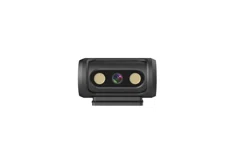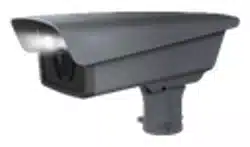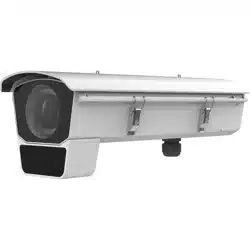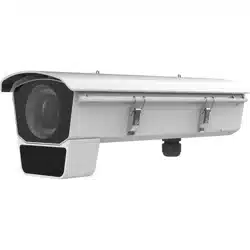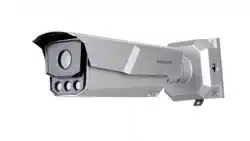

Intelligent Entrance ANPR Camera
User Manual

Legal Informaon
About this Document
●
This Document includes instrucons for using and managing the Product. Pictures, charts,
images and all other
informaon hereinaer are for descripon and explanaon only.
●
The
informaon contained in the Document is subject to change, without noce, due to
rmware updates or other reasons. Please nd the latest version of the Document at the
Hikvision website ( hps://www.hikvision.com ). Unless otherwise agreed, Hangzhou Hikvision
Digital Technology Co., Ltd. or its aliates (hereinaer referred to as "Hikvision") makes no
warranes, express or implied.
●
Please use the Document with the guidance and assistance of professionals trained in
supporng the Product.
About this Product
●
This product can only enjoy the aer-sales service support in the country or region where the
purchase is made.
●
If the product you choose is a video product, please scan the following QR code to obtain the
"Iniaves on the Use of Video Products", and read it carefully.
Acknowledgment of Intellectual Property Rights
●
Hikvision owns the copyrights and/or patents related to the technology embodied in the
Products described in this Document, which may include licenses obtained from third pares.
●
Any part of the Document, including text, pictures, graphics, etc., belongs to Hikvision. No part
of this Document may be excerpted, copied, translated, or modied in whole or in part by any
means without
wrien permission.
●
and other Hikvision’s trademarks and logos are the properes of Hikvision in
various
jurisdicons.
●
Other trademarks and logos menoned are the properes of their respecve owners.
LEGAL DISCLAIMER
●
TO THE MAXIMUM EXTENT PERMITTED BY APPLICABLE LAW, THIS DOCUMENT AND THE
PRODUCT DESCRIBED, WITH ITS HARDWARE, SOFTWARE AND FIRMWARE, ARE PROVIDED "AS
IS" AND "WITH ALL FAULTS AND ERRORS". HIKVISION MAKES NO WARRANTIES, EXPRESS OR
Intelligent Entrance ANPR Camera User Manual
i

IMPLIED, INCLUDING WITHOUT LIMITATION, MERCHANTABILITY, SATISFACTORY QUALITY, OR
FITNESS FOR A PARTICULAR PURPOSE. THE USE OF THE PRODUCT BY YOU IS AT YOUR OWN RISK.
IN NO EVENT WILL HIKVISION BE LIABLE TO YOU FOR ANY SPECIAL, CONSEQUENTIAL,
INCIDENTAL, OR INDIRECT DAMAGES, INCLUDING, AMONG OTHERS, DAMAGES FOR LOSS OF
BUSINESS PROFITS, BUSINESS INTERRUPTION, OR LOSS OF DATA, CORRUPTION OF SYSTEMS, OR
LOSS OF DOCUMENTATION, WHETHER BASED ON BREACH OF CONTRACT, TORT (INCLUDING
NEGLIGENCE), PRODUCT LIABILITY, OR OTHERWISE, IN CONNECTION WITH THE USE OF THE
PRODUCT, EVEN IF HIKVISION HAS BEEN ADVISED OF THE POSSIBILITY OF SUCH DAMAGES OR
LOSS.
●
YOU ACKNOWLEDGE THAT THE NATURE OF THE INTERNET PROVIDES FOR INHERENT SECURITY
RISKS, AND HIKVISION SHALL NOT TAKE ANY RESPONSIBILITIES FOR ABNORMAL OPERATION,
PRIVACY LEAKAGE OR OTHER DAMAGES RESULTING FROM CYBER-ATTACK, HACKER ATTACK,
VIRUS INFECTION, OR OTHER INTERNET SECURITY RISKS; HOWEVER, HIKVISION WILL PROVIDE
TIMELY TECHNICAL SUPPORT IF REQUIRED.
●
YOU AGREE TO USE THIS PRODUCT IN COMPLIANCE WITH ALL APPLICABLE LAWS, AND YOU ARE
SOLELY RESPONSIBLE FOR ENSURING THAT YOUR USE CONFORMS TO THE APPLICABLE LAW.
ESPECIALLY, YOU ARE RESPONSIBLE, FOR USING THIS PRODUCT IN A MANNER THAT DOES NOT
INFRINGE ON THE RIGHTS OF THIRD PARTIES, INCLUDING WITHOUT LIMITATION, RIGHTS OF
PUBLICITY, INTELLECTUAL PROPERTY RIGHTS, OR DATA PROTECTION AND OTHER PRIVACY
RIGHTS. YOU SHALL NOT USE THIS PRODUCT FOR ANY PROHIBITED END-USES, INCLUDING THE
DEVELOPMENT OR PRODUCTION OF WEAPONS OF MASS DESTRUCTION, THE DEVELOPMENT OR
PRODUCTION OF CHEMICAL OR BIOLOGICAL WEAPONS, ANY ACTIVITIES IN THE CONTEXT
RELATED TO ANY NUCLEAR EXPLOSIVE OR UNSAFE NUCLEAR FUEL-CYCLE, OR IN SUPPORT OF
HUMAN RIGHTS ABUSES.
●
IN THE EVENT OF ANY CONFLICTS BETWEEN THIS DOCUMENT AND THE APPLICABLE LAW, THE
LATTER PREVAILS.
© Hangzhou Hikvision Digital Technology Co., Ltd. All rights reserved.
Intelligent Entrance ANPR Camera User Manual
ii
Symbol Convenons
The symbols that may be found in this document are dened as follows.
Symbol Descripon
Danger
Indicates a hazardous situaon which, if not avoided, will or could
result in death or serious injury.
Cauon
Indicates a potenally hazardous situaon which, if not avoided, could
result in equipment damage, data loss, performance degradaon, or
unexpected results.
Note
Provides addional informaon to emphasize or supplement
important points of the main text.
Intelligent Entrance ANPR Camera User Manual
iii

Contents
Chapter 1 Introducon ............................................................................................................... 1
1.1 Introducon ........................................................................................................................... 1
1.2 Key Feature ............................................................................................................................ 1
Chapter 2 Acvaon and Login ................................................................................................... 2
2.1 Acvaon ............................................................................................................................... 2
2.1.1 Default Informaon ...................................................................................................... 2
2.1.2 Acvate via SADP .......................................................................................................... 2
2.1.3 Acvate via Web Browser ............................................................................................. 3
2.2 Login ...................................................................................................................................... 4
Chapter 3 Capture
Conguraon ................................................................................................ 5
3.1 Quick Conguraon ............................................................................................................... 5
3.1.1 Set Basic Parameters ..................................................................................................... 5
3.1.2 Adjust Image ................................................................................................................. 8
3.2 Detailed
Conguraon ......................................................................................................... 11
3.2.1 Set
Applicaon Mode .................................................................................................. 11
3.2.2 Set Capture Parameters .............................................................................................. 13
3.3 View Real-Time Picture ........................................................................................................ 17
Chapter 4 Peripheral Device Linkage ......................................................................................... 20
4.1 Set Barrier Gate Linkage ....................................................................................................... 20
4.1.1 Set Allowlist and Blocklist ........................................................................................... 20
4.1.2 Control Barrier Gate .................................................................................................... 21
4.1.3 Set Wiegand Parameters ............................................................................................. 23
Chapter 5 Live View and Local
Conguraon ............................................................................ 25
5.1 Live View .............................................................................................................................. 25
5.1.1 Start/Stop Live View .................................................................................................... 25
5.1.2 Select Image Display Mode ......................................................................................... 25
Intelligent Entrance ANPR Camera User Manual
iv

5.1.3 Select Window Division Mode .................................................................................... 25
5.1.4 Select Stream Type ...................................................................................................... 25
5.1.5 Capture Picture Manually ........................................................................................... 25
5.1.6 Record Manually ......................................................................................................... 25
5.1.7 Start/Stop Two-Way Audio .......................................................................................... 26
5.1.8 Enable/Disable Audio .................................................................................................. 26
5.1.9 Enable Digital Zoom .................................................................................................... 26
5.1.10 Enable Regional Focus .............................................................................................. 27
5.1.11 Select Video Mode .................................................................................................... 27
5.2 PTZ
Operaon ...................................................................................................................... 27
5.3 Local Conguraon .............................................................................................................. 28
Chapter 6 Playback ................................................................................................................... 32
Chapter 7 Record and Capture .................................................................................................. 33
7.1 Set Storage Path ................................................................................................................... 33
7.1.1 Set Memory Card ........................................................................................................ 33
7.1.2 Set FTP ........................................................................................................................ 33
7.1.3 Set SDK Listening ......................................................................................................... 35
7.1.4 Set Arm Host ............................................................................................................... 35
7.1.5 Set ISAPI Listening ....................................................................................................... 36
7.1.6 Set Cloud Storage ........................................................................................................ 37
7.2 Set Quota ............................................................................................................................. 38
7.3 Set Record Schedule ............................................................................................................ 39
Chapter 8 Encoding and Display ................................................................................................ 41
8.1 Set Video Encoding Parameters ........................................................................................... 41
8.2 Set Image Parameters .......................................................................................................... 42
8.3 Set ICR .................................................................................................................................. 45
8.4 Set ROI ................................................................................................................................. 46
8.5 Set OSD ................................................................................................................................ 47
Intelligent Entrance ANPR Camera User Manual
v

8.6 Enable Regional Exposure .................................................................................................... 48
Chapter 9 Network Conguraon ............................................................................................. 49
9.1 Set IP Address ...................................................................................................................... 49
9.2 Connect to
Plaorm ............................................................................................................. 51
9.2.1 Connect to ISUP Plaorm ........................................................................................... 51
9.2.2 Connect to OTAP ......................................................................................................... 52
9.2.3 Connect to Hik-Connect .............................................................................................. 52
9.3 Set DDNS .............................................................................................................................. 54
9.4 Set SNMP ............................................................................................................................. 55
9.5 Set Port ................................................................................................................................ 56
Chapter 10 Serial Port Conguraon ......................................................................................... 59
10.1 Set RS-485 .......................................................................................................................... 59
10.2 Set RS-232 .......................................................................................................................... 59
Chapter 11 Excepon Alarm ..................................................................................................... 61
Chapter 12 Safety Management ............................................................................................... 62
12.1 Manage User ...................................................................................................................... 62
12.2 Set IP Address Filtering ...................................................................................................... 62
12.3 Enable User Lock ................................................................................................................ 63
12.4 Set HTTPS ........................................................................................................................... 63
12.4.1 Create and Install Self-signed
Cercate .................................................................. 63
12.4.2 Install Authorized Cercate ..................................................................................... 64
12.5 Set SSH ............................................................................................................................... 64
12.6 Set RTSP
Authencaon .................................................................................................... 64
12.7 Set Timeout Logout ............................................................................................................ 65
12.8 Set Password Validity Period .............................................................................................. 65
Chapter 13 Maintenance .......................................................................................................... 66
13.1 View Device
Informaon .................................................................................................... 66
13.2 Log ..................................................................................................................................... 66
Intelligent Entrance ANPR Camera User Manual
vi

13.2.1 Enable System Log Service ........................................................................................ 66
13.2.2 Search Log ................................................................................................................. 66
13.3 Upgrade ............................................................................................................................. 67
13.4 Reboot ............................................................................................................................... 67
13.5 Restore Parameters ............................................................................................................ 67
13.6 Synchronize Time ............................................................................................................... 68
13.7 Set DST ............................................................................................................................... 69
13.8 Debug ................................................................................................................................. 69
13.8.1 Debug Device ............................................................................................................ 69
13.8.2 Vehicle Capture and
Recognion Service .................................................................. 69
13.9 Export Parameters ............................................................................................................. 70
13.10 Import Conguraon File ................................................................................................. 70
13.11 Export Debug File ............................................................................................................. 71
13.12 Export Diagnosis Informaon .......................................................................................... 71
Intelligent Entrance ANPR Camera User Manual
vii

Chapter 1 Introducon
1.1 Introducon
Intelligent Entrance ANPR Camera (hereinaer referred to as device) integrates mulple funcons
including video collecon, smart video compression, network transmission, etc. It can be used with
other devices (vehicle detector or barrier gate) to realize vehicle management and control, light
supplement, capture, etc.
It can be widely applied in normal entrance and exit, toll staon, and entrance and exit of
underground parking lot.
1.2 Key Feature
●
Adopts advanced video compression with high compression rao and exible operaon.
●
Captures pictures of the passing vehicles in entrance and exit via video detecon, IO coil trigger,
RS-485 trigger, etc.
●
Capture and
recognion via vehicle direcon and license plate type.
●
Remote control of barrier gate, including opening, closing, locking, and unlocking barrier gate.
●
Supplement light control according to brightness
condion or me schedule.
Note
The funcons vary with dierent models. The actual product prevails.
Intelligent Entrance ANPR Camera User Manual
1

Chapter 2 Acvaon and Login
2.1 Acvaon
For the rst-me access, you need to acvate the device by seng an admin password. No
operaon is allowed before acvaon. The device supports mulple acvaon methods, such as
acvaon via SADP soware, web browser, and iVMS-4200 Client.
Note
Refer to the user manual of iVMS-4200 Client for the acvaon via client soware.
2.1.1 Default Informaon
Device default informaon are as follows.
●
Default IP address: 192.168.1.64
●
Default port: 8000
●
Default user name: admin
2.1.2
Acvate via SADP
SADP is a tool to detect, acvate, and modify the IP address of the devices over the LAN.
Before You Start
●
Get the SADP soware from the supplied disk or the ocial website ( hps://
www.hikvision.com/ ), and install it according to the prompts.
●
The device and the computer that runs the SADP tool should belong to the same network
segment.
The following steps show how to
acvate one device and modify its IP address. For batch acvaon
and IP address modicaon, refer to User Manual of SADP for details.
Steps
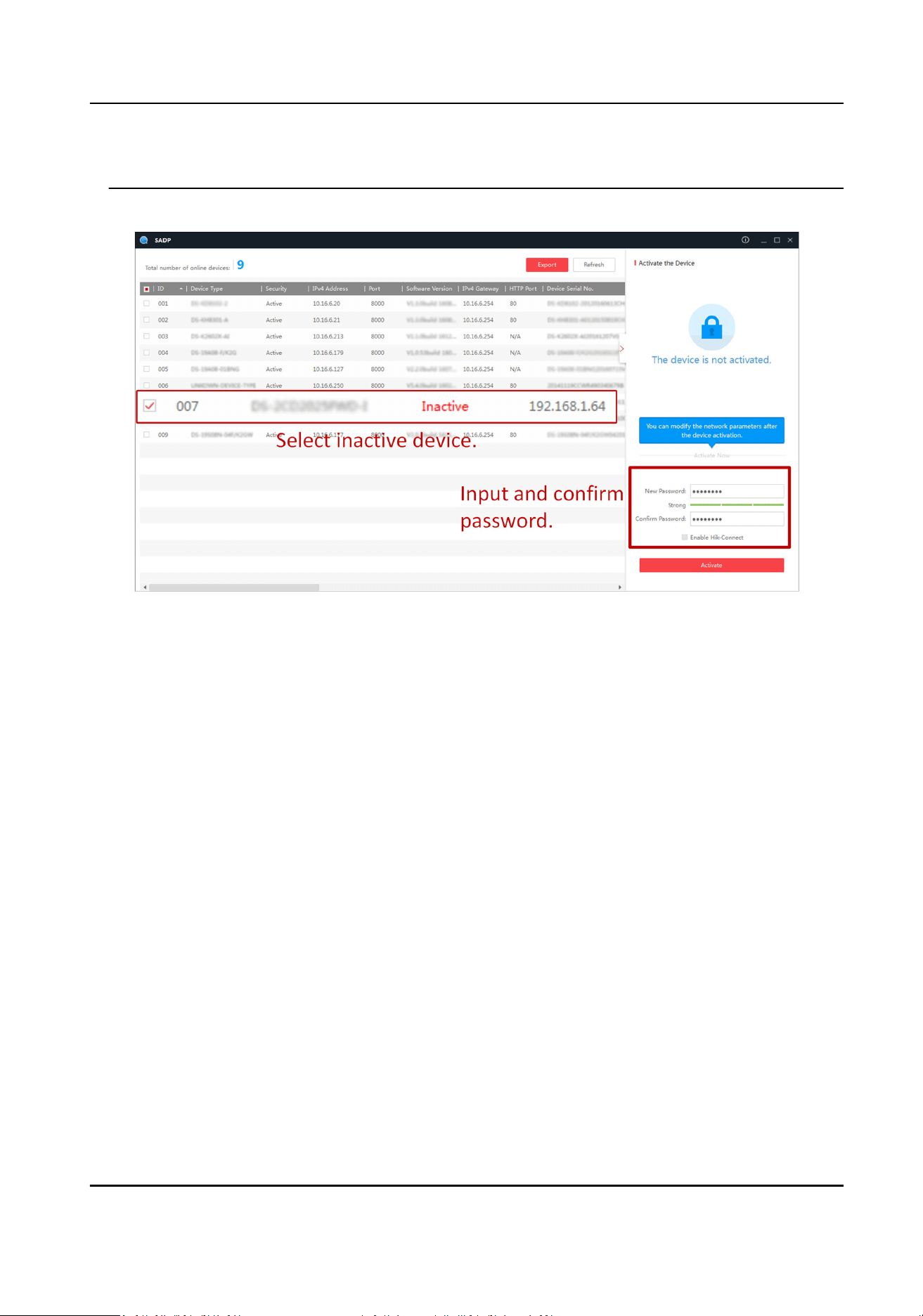
1.
Run the SADP soware and search the online devices.
2.
Find and select your device in online device list.
3.
Enter a new password (admin password) and
conrm the password.
Cauon
STRONG PASSWORD RECOMMENDED-We highly recommend you create a strong password of
your own choosing (using a minimum of 8 characters, including upper case leers, lower case
leers, numbers, and special characters) in order to increase the security of your product. And
Intelligent Entrance ANPR Camera User Manual
2
we recommend you reset your password regularly, especially in the high security system,
reseng the password monthly or weekly can beer protect your product.
4.
Click Acvate to start acvaon.
Figure 2-1 Acvate via SADP
Status of the device becomes Acve aer successful acvaon.
5.
Modify IP address of the device.
1) Select the device.
2) Change the device IP address to the same network segment as your computer by either
modifying the IP address manually or checking Enable DHCP.
3) Enter the admin password and click Modify to
acvate your IP address modicaon.
2.1.3
Acvate via Web Browser
Use web browser to acvate the device. For the device with the DHCP enabled by default, use
SADP
soware or client soware to acvate the device.
Before You Start
Ensure the device and the computer connect to the same LAN.
Steps
1.
Change the IP address of your computer to the same network segment as the device.
2.
Open the web browser, and enter the default IP address of the device to enter the
acvaon
interface.
3.
Create and conrm the admin password.
Intelligent Entrance ANPR Camera User Manual
3

Cauon
STRONG PASSWORD RECOMMENDED-We highly recommend you create a strong password of
your own choosing (using a minimum of 8 characters, including upper case leers, lower case
leers, numbers, and special characters) in order to increase the security of your product. And
we recommend you reset your password regularly, especially in the high security system,
reseng the password monthly or weekly can beer protect your product.
4.
Click OK to complete acvaon.
5.
Go to the network sengs interface to modify IP address of the device.
2.2 Login
You can log in to the device via web browser for further operaons such as live view and local
conguraon.
Before You Start
Connect the device to the network directly, or via a switch or a router.
Steps
1.
Open the web browser, and enter the IP address of the device to enter the login interface.
2.
Oponal: Select the other languages from the drop-down list on the upper right corner of the
interface to switch the language.
3.
Enter User Name and Password.
4.
Click Login.
5.
Click Plugin Download on the upper right corner of the interface to download and install the
plugin for your web browser. Follow the
installaon prompts to install the plugin.
6.
Reopen the web browser
aer the installaon of the plugin and repeat steps 1 to 3 to log in.
7.
Oponal: Click Logout on the upper right corner of the interface to log out of the device.
Intelligent Entrance ANPR Camera User Manual
4
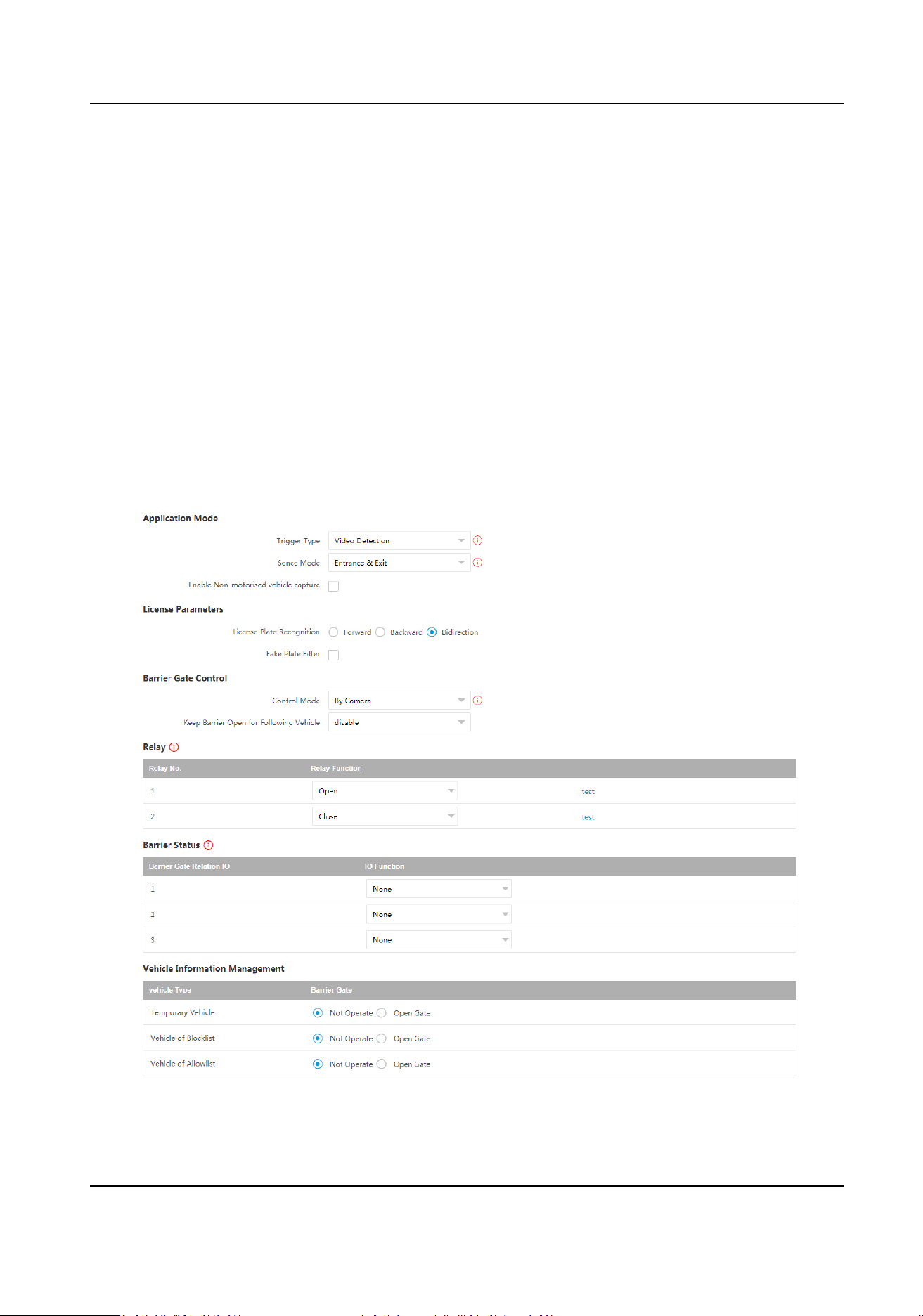
Chapter 3 Capture Conguraon
3.1 Quick Conguraon
3.1.1 Set Basic Parameters
When the I/O coils have been laid and the device has been connected to trigger capture in the site,
you can set the basic parameters in quick conguraon to realize capture quickly.
Before You Start
The device
posion has been adjusted.
Steps
1.
Go to Quick Conguraon → Basic Conguraon .
Figure 3-1 Set Basic Parameters
Intelligent Entrance ANPR Camera User Manual
5

2.
Set Applicaon Mode parameters.
1) Select Trigger Type.
Video Detecon
Select it to trigger capture by video stream detecon.
I/O Coil
Select it to trigger capture by external device such as the vehicle detector and radar.
Radar Mixed Trac
Select it to detect the driving direcon in mixed trac scene with two radars.
Note
If you select this type, one Forward Radar and one Backward Radar should be set.
2) Set the following parameters as required.
Scene Mode
Select a scene mode as required. Select Toll Gate when there are many large-sized vehicles
and vehicle heads are not captured completely. Select Underground Parking Entrance &
Exit in low light environment. Select Entrance & Exit in other scenes.
Enable Non-motorised Vehicle Capture
Check to idenfy and capture non-motor vehicles in the scene.
I/O Trigger Defaults Status
Capture is triggered according to the level signal status. If you select Falling Edge, the
device will trigger capture at the moment that the high level falls to low level. If you select
Rising Edge, the device will trigger capture at the moment that the low level rises to high
level.
Linked I/O No.
The I/O No. linked under I/O coil mode. When the coil detects that there is a vehicle
passing, a rising or falling edge signal is sent to the linked I/O of the device to trigger
capture.
Forward/Backward Radar
Radar Mixed
Trac shall be used with one forward radar and one backward radar. Select
the corresponding I/O No.
3.
Set License Parameters.
License Plate
Recognion
●
Select Forward when license plates of vehicles from the approaching direcon need to be
recognized.
●
Select Backward when license plates of vehicles from the leaving
direcon need to be
recognized.
●
Select
Bidirecon when license plates of vehicles from both the approaching direcon and
the leaving direcon need to be recognized.
Intelligent Entrance ANPR Camera User Manual
6

Fake Plate Filter
Aer you enable this funcon, if it is idened as a fake license plate, the device will not
output the captured picture and license plate informaon, and the barrier gate will not be
opened.
4.
Set Barrier Gate Control parameters.
Control Mode
●
Select By Camera in single camera scene (no control soware) and allowlist scene in which
the camera controls the barrier gate in advance according to the set passing rules in
Vehicle Informaon Management.
●
Select By
Plaorm in the scene in which the entry permissions are controlled by the
soware.
●
Select By Mixed, and the plaorm control and camera control are eecve simultaneously.
It is applicable to the scene in which dierent vehicle passing permissions are managed by
soware and camera. E.g., the soware controls the passing of blocklist vehicles and
temporary vehicles, and the camera controls the passing of allowlist vehicles and controls
the barrier gate in advance for allowlist vehicles.
Keep Barrier Open for Following Vehicle
Aer you enable this funcon, the barrier gate keeps open when the device detects following
vehicles are passing. The barrier gate will close
aer the following vehicles pass.
5.
Select Relay Funcon as needed.
Note
The supported number of relays varies with dierent models. Relay 1 corresponds to the 1A and
1B of the terminal. Relay 2 corresponds to the 2A and 2B of the terminal.
6.
Select IO Funcon for the corresponding barrier gate related I/O. The device will upload barrier
gate status informaon for convenient exit and entrance management.
Note
●
If the device only have one I/O interface, and the trigger type is I/O Coil, the barrier status
cannot be congured.
●
If the trigger type is Radar Mixed Trac and the forward radar and backward radar are
selected, the corresponding barrier gate related I/O
funcon cannot be congured. E.g., the
forward radar is IO1 and the backward radar is IO2. Then the barrier gate related IO1 and IO2
funcons cannot be congured.
7.
Oponal: Select the barrier gate operaons for temporary vehicles, vehicles of blocklist, and
vehicles of allowlist in Vehicle
Informaon Management.
What to do next
Click Next to set image adjustment parameters.
Intelligent Entrance ANPR Camera User Manual
7
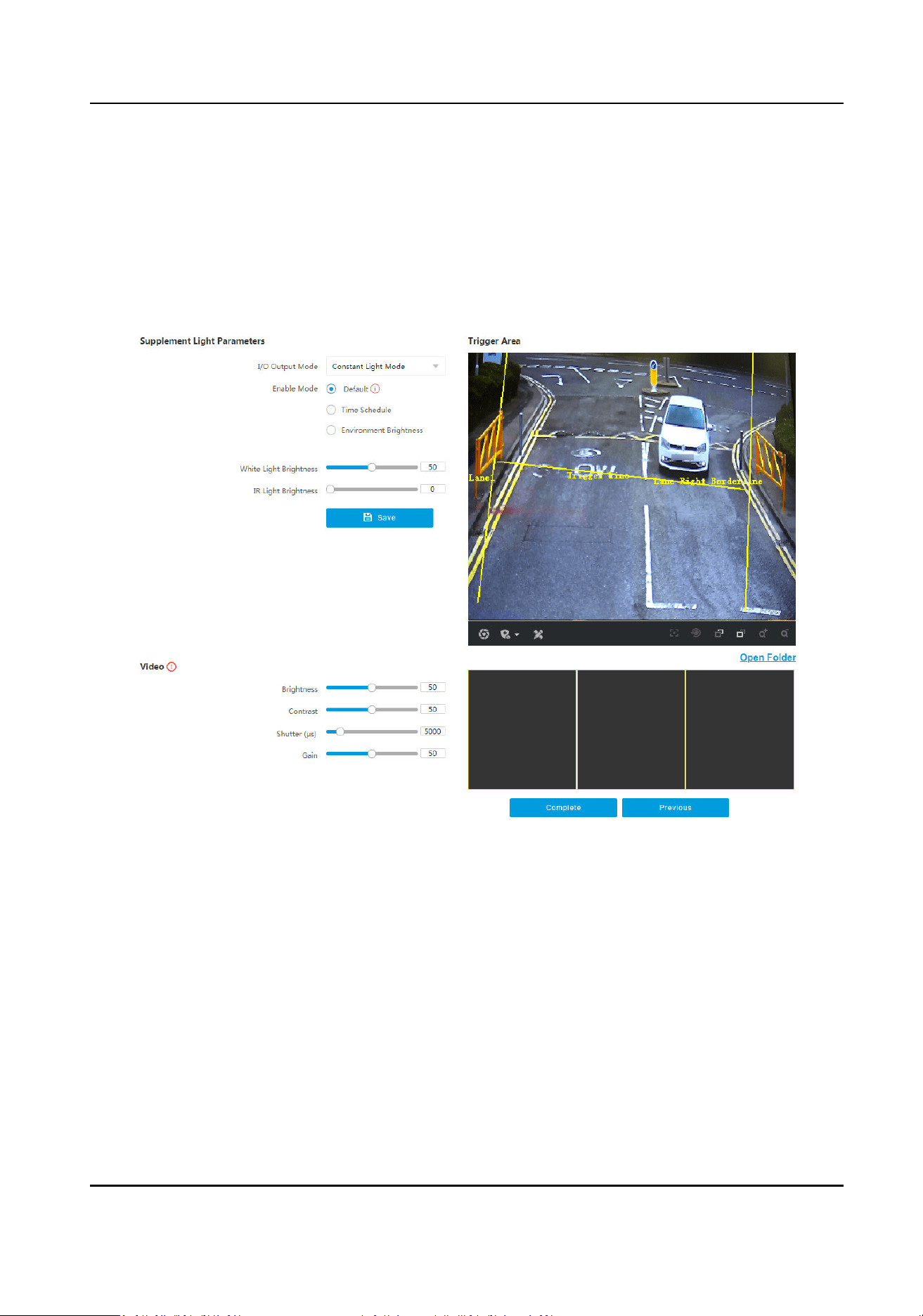
3.1.2 Adjust Image
You can adjust the posions of the lane line, lane right limit, and trigger line, and adjust the lens if
the lens is vari-focal lens.
Steps
1.
Go to Quick
Conguraon → Image Adjustment .
Figure 3-2 Adjust Image
2.
Set Supplement Light Parameters.
I/O Output Mode
Constant Light Mode: The supplement light is constantly on to supplement light for the
scene.
Enable Mode
Default
The default status of the supplement light depends on the device models.
Time Schedule
Intelligent Entrance ANPR Camera User Manual
8

Select it when you want the constant light to be enabled during xed me period. Set the
start me and end me.
Environment Brightness
Select it when you want the constant light to be controlled by detecng the surroundings
brightness automacally. Set the brightness threshold. The higher the threshold is, the
harder the constant light can be enabled.
White Light Brightness/IR Light Brightness
Drag the slider to adjust the brightness, or enter the value in the text
eld. The higher the
brightness is, the more the light will be supplemented.
Note
The actual funcons may vary with dierent models. The actual device prevails.
3.
Set Video parameters.
Note
You can adjust the video parameters according to the prompt on the interface.
Brightness
Adjust the average brightness and the reference value of the image. When the image is
overexposed, the brightness will be reduced. When the image is too dark, the brightness will
be enhanced.
Contrast
In the case of underexposure or overexposure, the brightness of the image may be limited to
a small range, and you will see a blurred image. Contrast adjusts the level and permeability of
the image. The screen blinding can be appropriately raised, and the dark place can be
appropriately lowered.
Shuer
Shuer refers to a single frame exposure me, in microseconds. If you need to increase the
light intensity, you can increase the shuer value; if you need to reduce the light intensity
coming in, lower the shuer value.
Gain
It is used to limit the upper limit of image signal
amplicaon. It is recommended to increase
the scene of insucient illuminaon. Increasing the signal gain can improve the brightness of
the picture, and the noise will also be amplied by the gain. You are recommended to reduce
the scenario with a strong point light source to prevent overexposure of the point light
source.
4.
Adjust lines on the live view image.
1) Select the lane line, right border line, or trigger line.
2) Drag the endpoints to adjust the
posion and length of the line, or drag the line to adjust its
posion.
Intelligent Entrance ANPR Camera User Manual
9
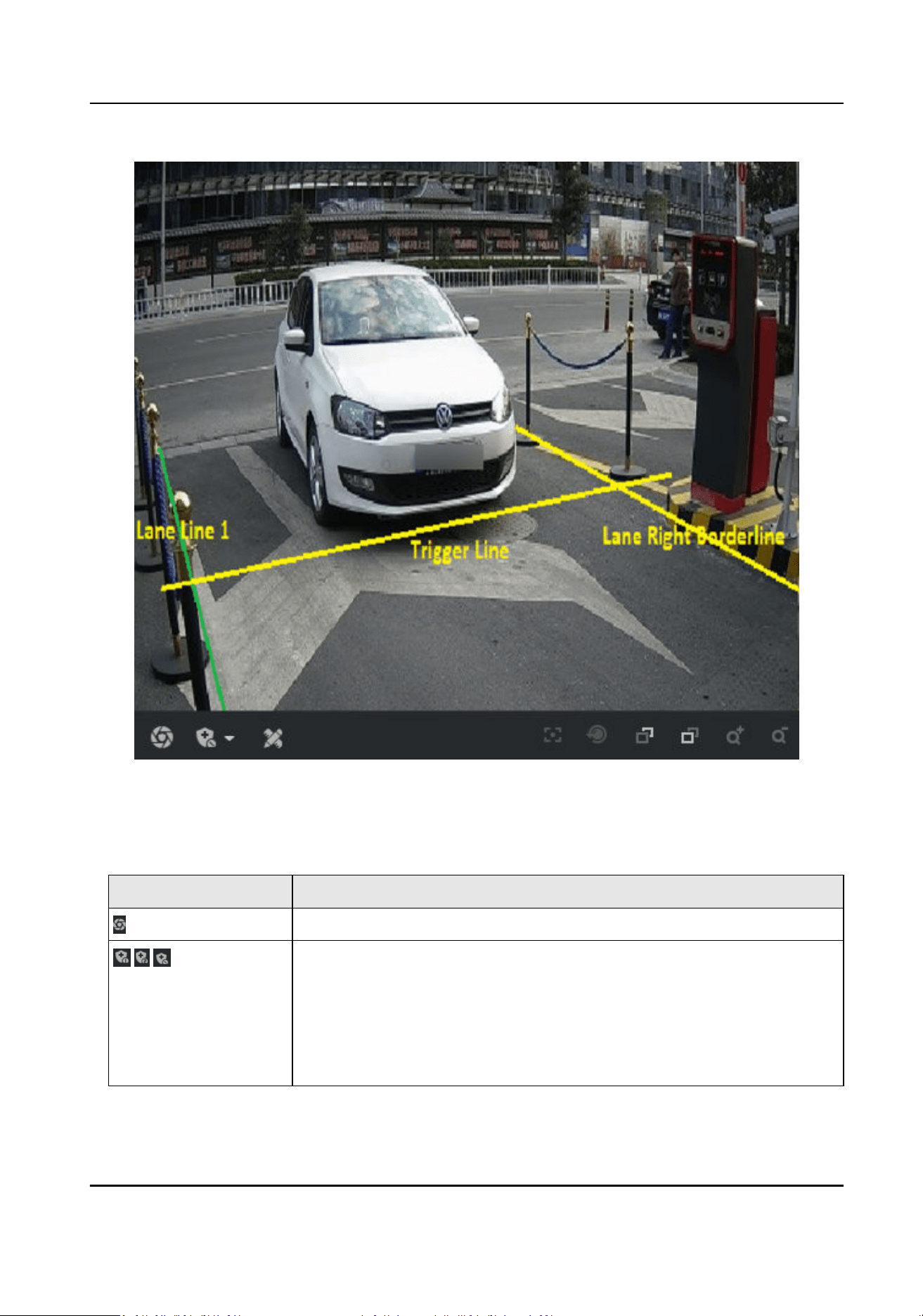
Figure 3-3 Adjust Lines
5.
Oponal: You can click the icons under the live view image to do corresponding operaons.
Table 3-1 Image Adjustment Icon
Descripon
Icon Descripon
Click it to capture a picture.
●
Level 1 Arming can only connect one client or web. The uploaded
pictures will not be stored in the storage card. The pictures in the
storage card will be uploaded to the level 1 arming.
●
Level 2 Arming can connect three clients or webs. The pictures will
be uploaded to the client/web, and stored in the storage card.
●
Disarming is to cancel the alarm status or real-me picture.
Intelligent Entrance ANPR Camera User Manual
10
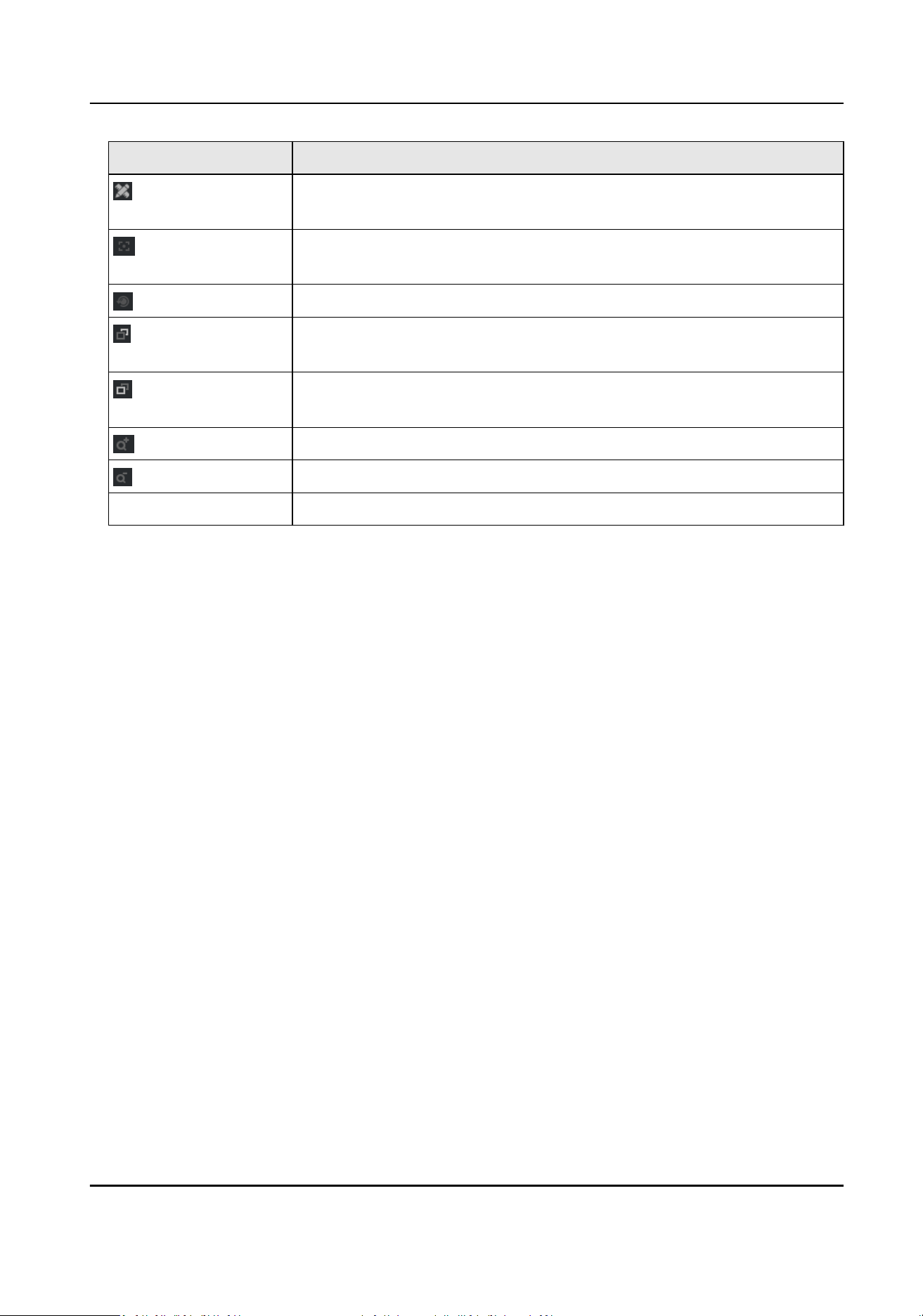
Icon Descripon
Click it to measure the license plate pixel. Click it again to disable the
measurement.
Click it to realize one-touch focus. Click it again to restore to the inial
status.
Click it to realize lens inializaon.
Focus +. Hold it to view distant objects clearly, while nearby objects
will be blurred.
Focus -. Hold it to view nearby objects clearly, while distant objects will
be blurred.
Zoom +. Hold it to zoom in the image.
Zoom -. Hold it to zoom out the image.
Open Folder Click it to open the saving path of captured pictures.
6.
Click Complete to
nish the quick conguraon.
3.2 Detailed
Conguraon
3.2.1 Set Applicaon Mode
If you want to trigger capture of the passing vehicle informaon at the entrance or exit, set the
applicaon mode.
Before You Start
The device has been installed at the specic locaon, and the lens has been debugged.
Steps
1.
Go to Conguraon → Capture → Applicaon Mode .
Intelligent Entrance ANPR Camera User Manual
11
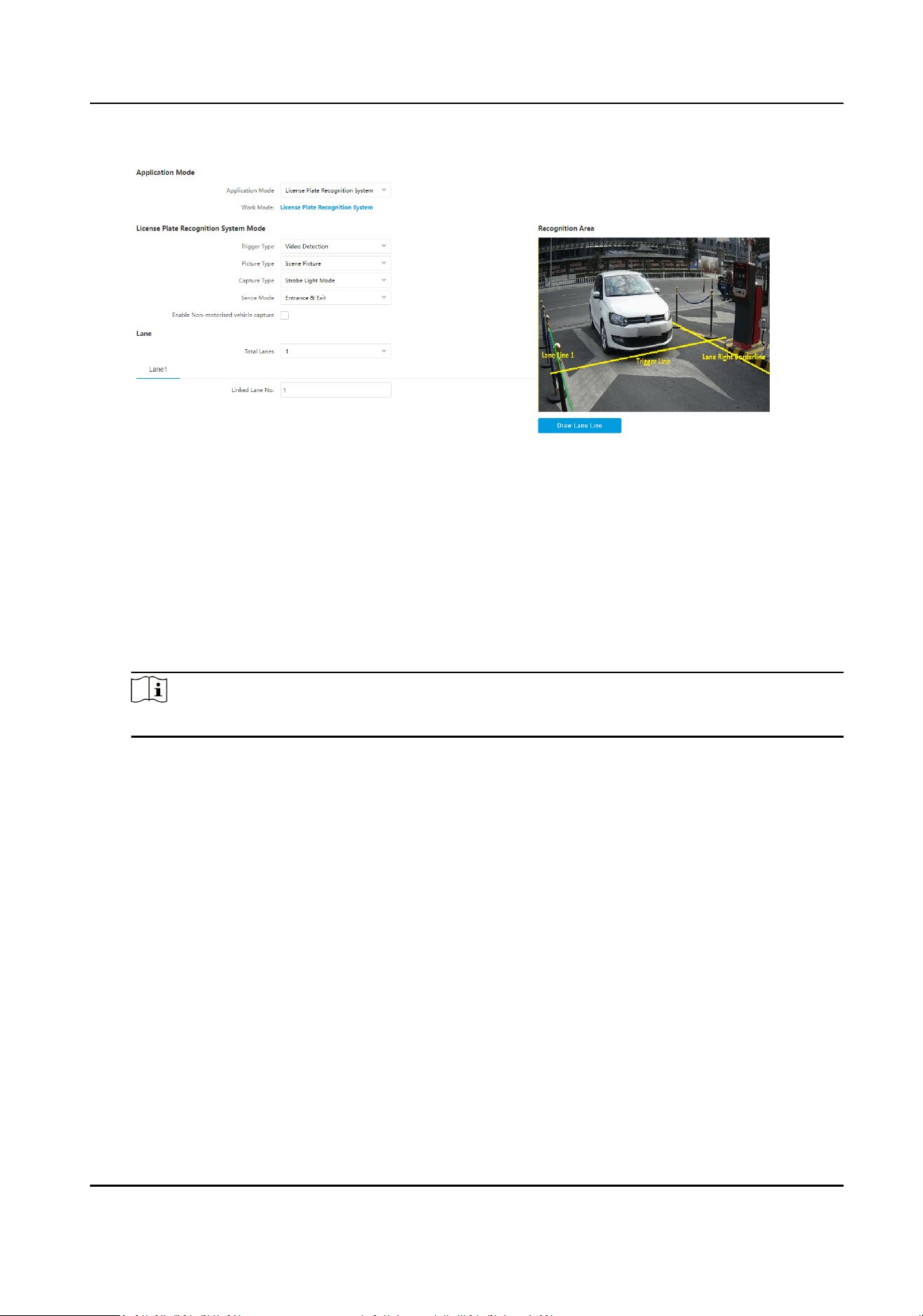
Figure 3-4 Set Applicaon Mode
2.
Select Trigger Type.
Video Detecon
Select it to trigger capture by video stream detecon.
I/O Coil
Select it to trigger capture by external device such as the vehicle detector and radar.
Radar Mixed Trac
Select it to detect the driving direcon in mixed trac scene with two radars.
Note
If you select this type, one Forward Radar and one Backward Radar should be set.
3.
Select Picture Type.
Scene Picture
One scene picture and one license plate picture will be captured.
Scene Picture + Close-up Picture
One scene picture, one license plate picture, and one close-up picture will be captured.
4.
Set the following parameters as required.
Scene Mode
Select a scene mode as required. Select Toll Gate when there are many large-sized vehicles
and vehicle heads are not captured completely. Select Underground Parking Entrance & Exit
in low light environment. Select Entrance & Exit in other scenes.
Enable Non-motorised Vehicle Capture
Check to
idenfy and capture non-motor vehicles in the scene.
I/O Trigger Defaults Status
Intelligent Entrance ANPR Camera User Manual
12

Capture is triggered according to the level signal status. If you select Falling Edge, the device
will trigger capture at the moment that the high level falls to low level. If you select Rising
Edge, the device will trigger capture at the moment that the low level rises to high level.
Linked I/O No.
The I/O No. linked under I/O coil mode. When the coil detects that there is a vehicle passing,
a rising or falling edge signal is sent to the linked I/O of the device to trigger capture.
Forward/Backward Radar
Radar Mixed
Trac shall be used with one forward radar and one backward radar. Select the
corresponding I/O No.
5.
Click Draw Lane Line to draw the lines.
1) Select the lane line, right border line, or trigger line.
2) Drag the endpoints to adjust the
posion and length of the line, or drag the line to adjust its
posion.
3) Click OK to save the sengs.
Note
It is recommended to draw the trigger line at the posion which is 1/3 to 1/4 of the lane line.
The license plate number height pixel should be between 25 to 35 pixels at the capture posion.
6.
Click Save.
3.2.2 Set Capture Parameters
Set License Plate Recognion Parameters
When there are vehicles of dierent types passing from dierent direcons, set the license plate
recognion parameters.
Steps
Note
The supported parameters vary with dierent models. The actual device prevails.
1.
Go to Conguraon → Capture → Capture Parameters → License Parameters .
Intelligent Entrance ANPR Camera User Manual
13
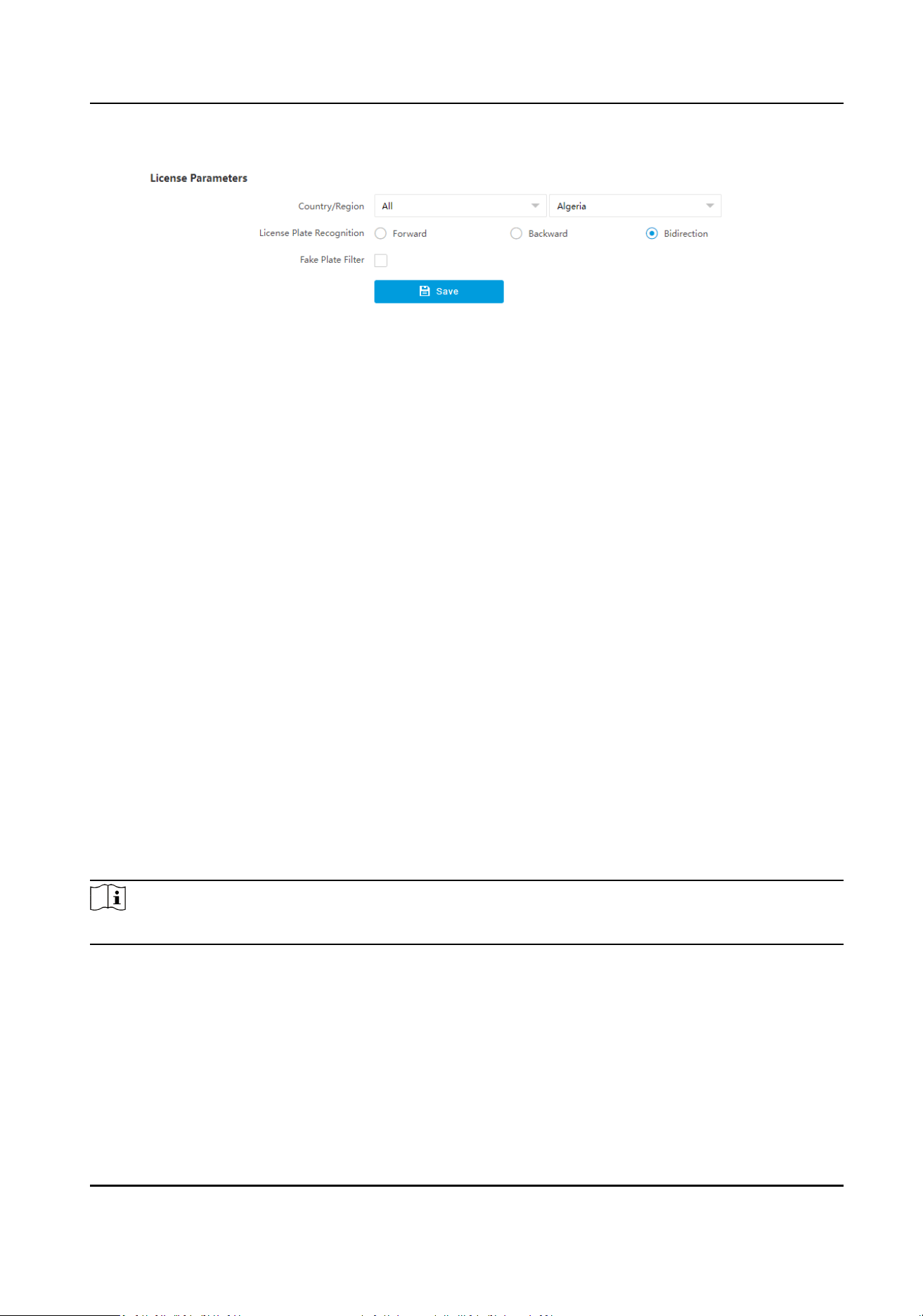
Figure 3-5 Set License Plate Recognion Parameters
2.
Set Country/Region according to the actual needs.
3.
Set the following parameters.
License Plate
Recognion
●
Select Forward when license plates of vehicles from the approaching direcon need to be
recognized.
●
Select Backward when license plates of vehicles from the leaving direcon need to be
recognized.
●
Select Bidirecon when license plates of vehicles from both the approaching direcon and
the leaving direcon need to be recognized.
Fake Plate Filter
Aer you enable this funcon, if it is idened as a fake license plate, the device will not
output the captured picture and license plate
informaon, and the barrier gate will not be
opened.
4.
Click Save.
Set Supplement Light Parameters
Supplement light can enhance the image stabilizaon and adjust the brightness and color
temperature. It can supplement light at night or when the light is dim.
Steps
Note
Only when the constant light is connected, can the set parameters take eect.
1.
Go to Conguraon → Capture → Capture Parameters → Supplement Light Parameters .
Intelligent Entrance ANPR Camera User Manual
14
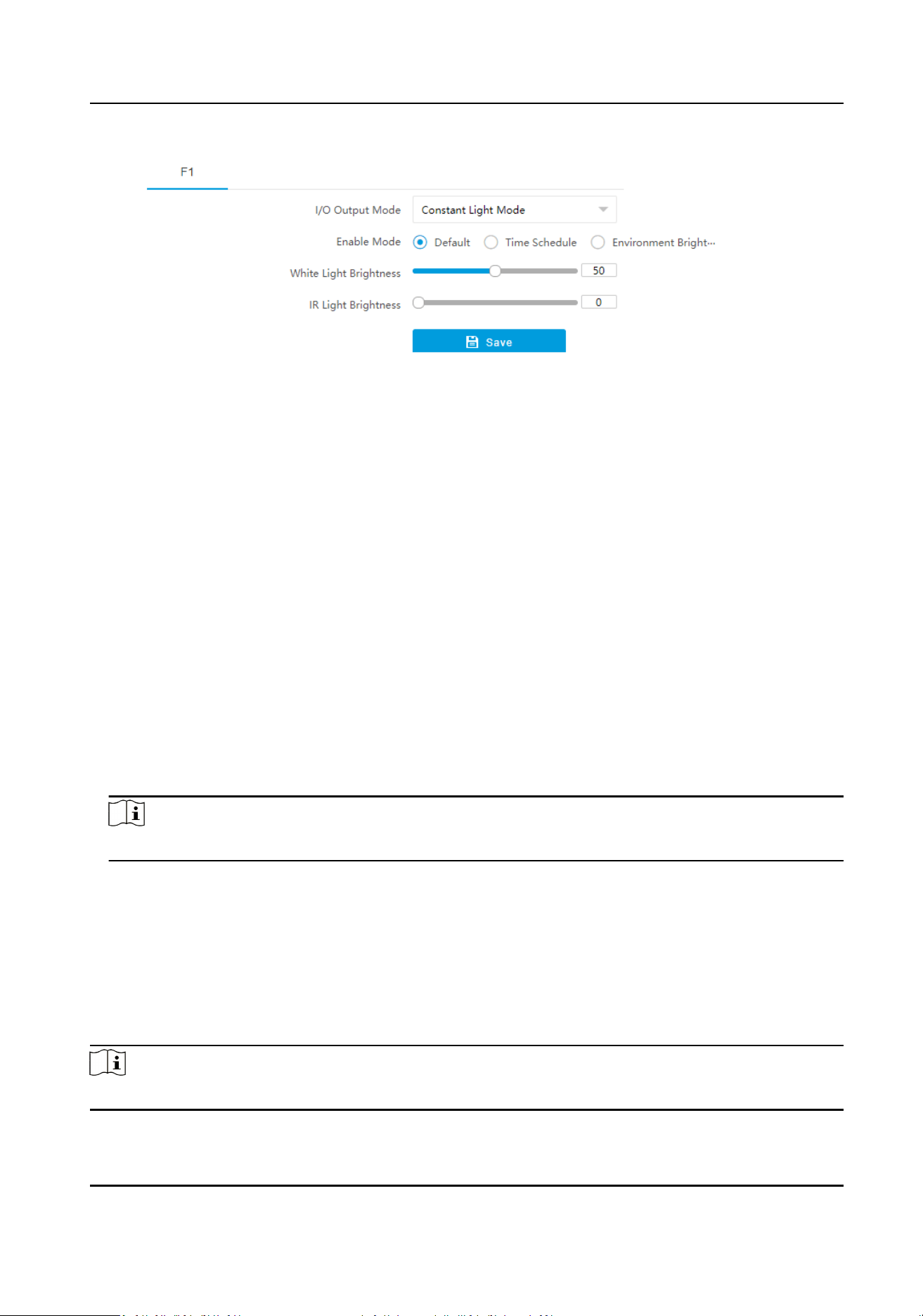
Figure 3-6 Set Supplement Light Parameters
2.
Select I/O Output Mode as Constant Light Mode.
3.
Set the supplement light parameters according to actual
condions.
Enable Mode
Default
The default status of the supplement light depends on the device models.
Time Schedule
Select it when you want the constant light to be enabled during
xed me period. Set the
start me and end me.
Environment Brightness
Select it when you want the constant light to be controlled by detecng the surroundings
brightness automacally. Set the brightness threshold. The higher the threshold is, the
harder the constant light can be enabled.
White Light Brightness/IR Light Brightness
Drag the slider to adjust the brightness, or enter the value in the text
eld. The higher the
brightness is, the more the light will be supplemented.
Note
The actual funcons may vary with dierent models. The actual device prevails.
4.
Click Save.
Set Vehicle Feature Parameters
Set vehicle feature parameters when you need to capture the passing vehicle according to the
vehicle features.
Steps
Note
Some models do not support vehicle features recognion. The actual device prevails.
Intelligent Entrance ANPR Camera User Manual
15
1.
Go to Conguraon → Capture → Capture Parameters → Vehicle Feature .
2.
Check the vehicle features to be recognized.
3.
Click Save.
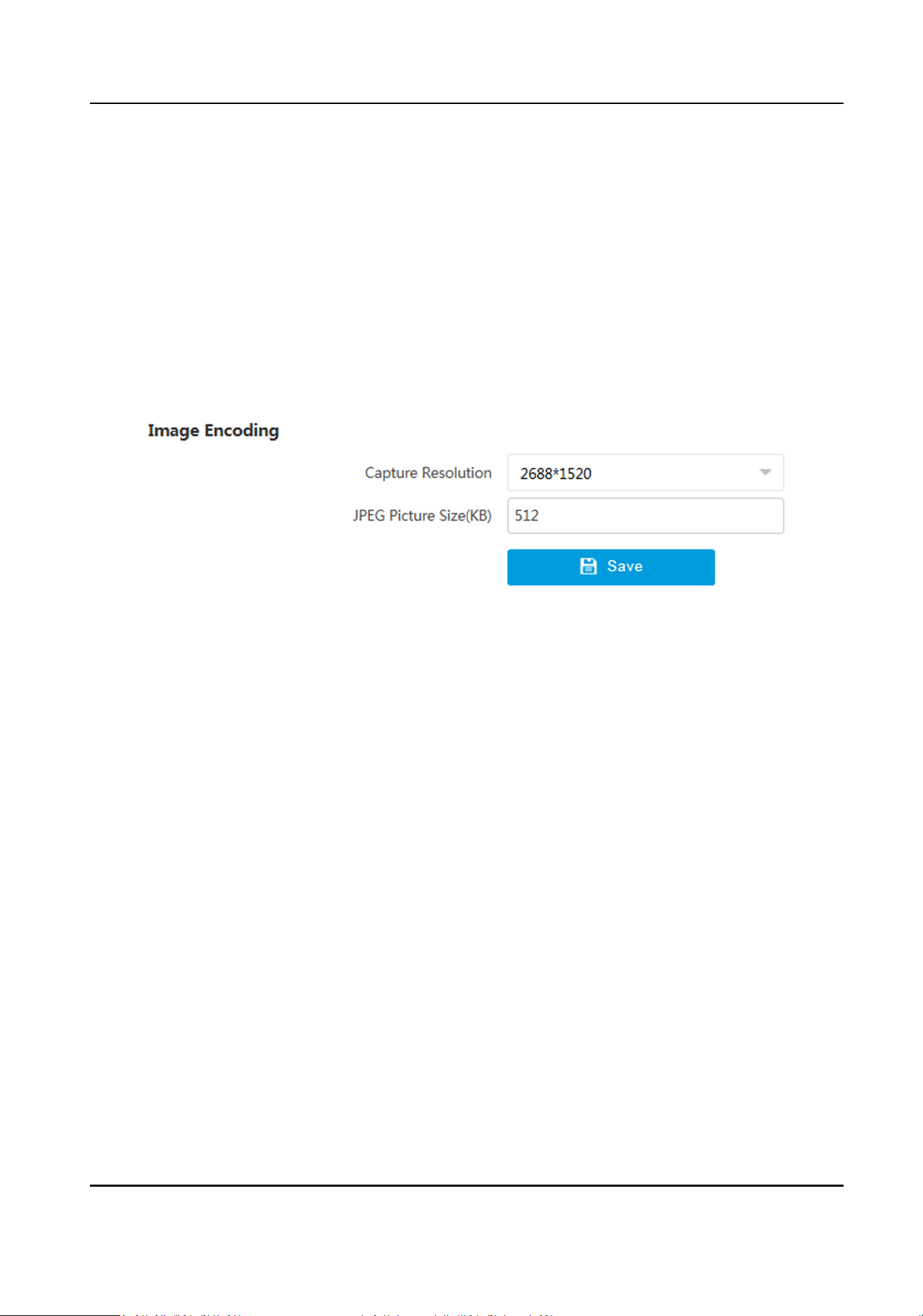
Set Image Encoding Parameters
If the captured pictures are not clear, set the resoluon of the captured pictures and the picture
size.
Steps
1.
Go to Conguraon → Capture → Capture Parameters → Image Encoding and Composion .
Figure 3-7 Set Image Encoding Parameters
2.
Select Capture Resoluon.
3.
Enter JPEG Picture Size.
4.
Click Save.
Set Capture Overlay
If you want to overlay informaon on the captured pictures, set capture overlay.
Steps
1.
Go to
Conguraon → Capture → Capture Parameters → Text Overlay .
2.
Check Capture Picture Overlay.
Intelligent Entrance ANPR Camera User Manual
16
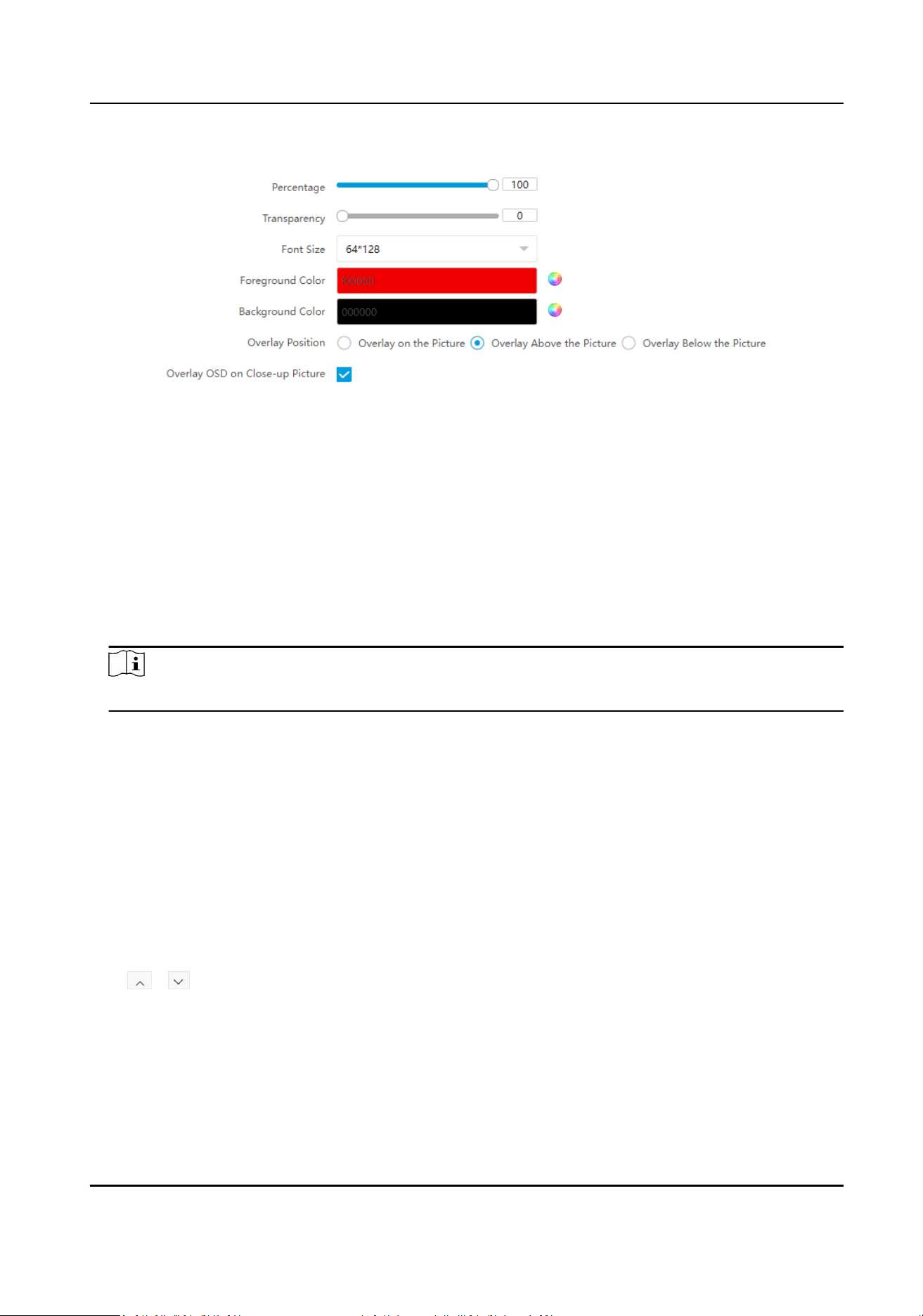
Figure 3-8 Set Capture Overlay
3.
Set the percentage, front size, color, overlay posion, etc.
Percentage
It is the percentage that the overlaid informaon occupies on the picture. For example, if you
set the percentage to 50, the overlaid
informaon in a row will occupy up to half of the image
width, and the excess content will be overlaid from a new line.
Overlay OSD on Close-up Picture
Check it to overlay the OSD informaon on the close-up pictures.
4.
Select the overlay
informaon from the list.
Note
The overlay informaon varies with dierent models. The actual device prevails.
5.
Set the overlay informaon.
Type
You can edit the type.
Overlay Informaon For some informaon types, you can edit the detailed informaon.
Overlay Posion Check it, and the current informaon will be displayed from a new line.
Space Edit the number of space between the current informaon and the
next one from 0 to 255. 0 means there is no space.
Line Break
Characters
Edit the number of characters from 0 to 100 between the current
informaon line and the previous informaon line. 0 means no line
break.
/ Adjust the display sequence of the overlay informaon.
6.
Click Save.
3.3 View Real-Time Picture
You can view the real-me captured pictures and license plate informaon.
Intelligent Entrance ANPR Camera User Manual
17
Steps
Note
The supported funcons vary with dierent models. The actual device prevails.
1.
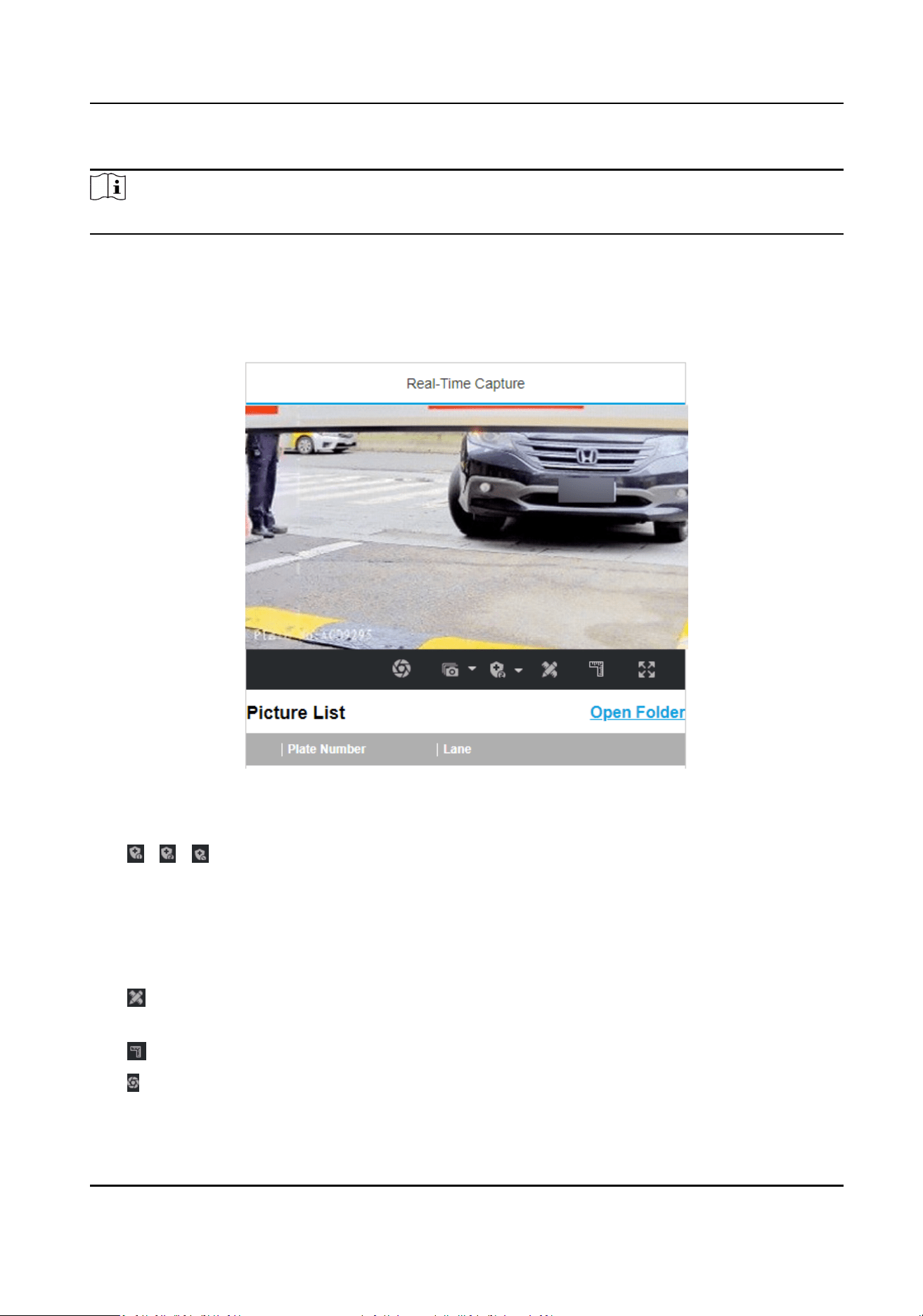
Go to Live View → Real-Time Capture .
2.
Click Arming.
3.
Select an item from the list, and you can view the capture scene picture and recognized license
plate
informaon.
Figure 3-9 Real-Time Picture
4.
Oponal: You can also do the following operaons.
/
/
●
Level 1 Arming can only connect one client or web. The uploaded pictures will
not be stored in the storage card. The pictures in the storage card will be
uploaded to the level 1 arming.
●
Level 2 Arming can connect three clients or webs. The pictures will be
uploaded to the client/web, and stored in the storage card.
●
Disarming is to cancel the alarm status or real-me picture.
Click it to measure the license plate pixel. Click it again to disable the
measurement.
Click it to enable the ruler to measure the license plate.
Click it to enable manual capture.
Intelligent Entrance ANPR Camera User Manual
18

Click it to set connuous capture parameters and the device will capture
pictures according to the set interval.
●
Capture Times: Up to ve pictures can be captured per connuous capture.
●
Interval: Up to four intervals can be set, and the default interval is 100 ms.
Display the images in full screen mode.
Open
Folder
Open the saving path of captured pictures.
Intelligent Entrance ANPR Camera User Manual
19

Chapter 4 Peripheral Device Linkage
4.1 Set Barrier Gate Linkage
If a barrier gate has been connected to the device, you can link barrier gate to realize the control
and management of the vehicles at the entrance or exit.
4.1.1 Set Allowlist and Blocklist
Set allowlist and blocklist if you want to control the passing vehicles at the entrance or exit via the
barrier gate.
Before You Start
●
Connect the barrier gate to the relay output interface of the device.
●
Install the storage card, and ensure the storage status is normal.
Steps
1.
Go to Conguraon → Capture → Entrance and Exit → Allowlist and Blocklist .
2.
Add an allowlist or blocklist.
1) Click Add.
2) Set License Plate Number and Card No., and select the list type.
3)
Oponal: If you want to control vehicles during xed me period, enable Time Sengs, and
set the
eecve start me and end me.
Note
Time sengs is only available for the allowlist vehicles.
4) Click OK.
Note
Wait for 15 minutes to let the added allowlist or blocklist write into the storage. Do not reboot
the device during the process.
The informaon of the added vehicles in the allowlist or blocklist will be listed below.
Intelligent Entrance ANPR Camera User Manual
20

Figure 4-1 Set Allowlist and Blocklist
3.
You can search, modify, delete, or import the allowlist and blocklist.
Search Select the search type, or enter the keywords. Click Search. The searched vehicle
informaon will be listed below.
Modify Select an item from the list, and click . Modify the informaon, and click OK.
Delete
●
Select the delete type, or enter the keywords. Click Delete to delete the lists of
the same type.
●
Select an item from the list, and click to delete the item.
●
Click Delete All to delete all the lists.
Import a. Click Import.
b. Click Download Template, and save the template.
c. Open the template, edit the informaon, and save it.
d. Click Import again.
e. Click Browse to select the edited template.
f. Click Import to import the
informaon to the device.
4.1.2 Control Barrier Gate
Link the barrier gate to realize the control and management of the vehicles at the entrance or exit.
Steps
1.
Go to Conguraon → Capture → Entrance and Exit → Barrier Gate .
Intelligent Entrance ANPR Camera User Manual
21
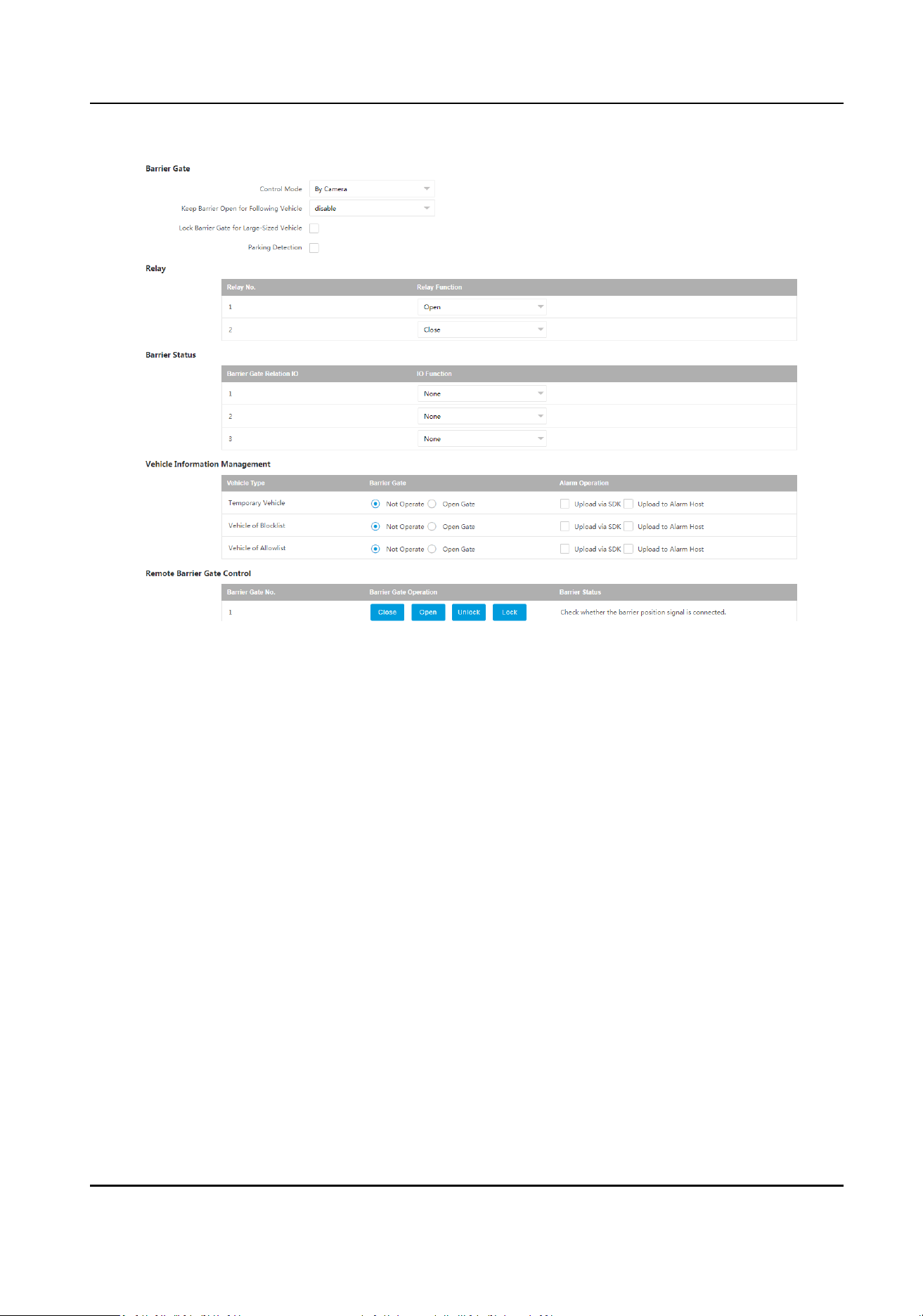
Figure 4-2 Control Barrier Gate
2.
Set Barrier Gate parameters.
Control Mode
●
Select By Camera in single camera scene (no control
soware) and allowlist scene in which
the camera controls the barrier gate in advance according to the set passing rules in
Vehicle
Informaon Management.
●
Select By Plaorm in the scene in which the entry permissions are controlled by the
soware.
●
Select By Mixed, and the plaorm control and camera control are eecve simultaneously.
It is applicable to the scene in which
dierent vehicle passing permissions are managed by
soware and camera. E.g., the soware controls the passing of blocklist vehicles and
temporary vehicles, and the camera controls the passing of allowlist vehicles and controls
the barrier gate in advance for allowlist vehicles.
Keep Barrier Open for Following Vehicle
Aer you enable this funcon, the barrier gate keeps open when the device detects following
vehicles are passing. The barrier gate will close aer the following vehicles pass.
Lock Barrier Gate for Large-Sized Vehicle
Enable the funcon and set Barrier Gate Rising Time. If a large-sized vehicle is passing, the
barrier gate will be locked during the set
me.
Intelligent Entrance ANPR Camera User Manual
22

Parking Detecon
Enable the funcon and set Judgment Time. If a vehicle has been parked for a duraon
longer than the set judgment me, the parking informaon will be upload.
3.
Set the relay funcon.
Note
The supported number of relays varies with dierent models. Relay 1 corresponds to the 1A and
1B of the terminal. Relay 2 corresponds to the 2A and 2B of the terminal.
4.
Select IO Funcon for the corresponding barrier gate related I/O. The device will upload barrier
gate status
informaon for convenient exit and entrance management.
Note
●
If the device only have one I/O interface, and the trigger type is I/O Coil, the barrier status
cannot be congured.
●
If the trigger type is Radar Mixed Trac and the forward radar and backward radar are
selected, the corresponding barrier gate related I/O
funcon cannot be congured. E.g., the
forward radar is IO1 and the backward radar is IO2. Then the barrier gate related IO1 and IO2
funcons cannot be congured.
5.
Set the barrier gate operaon and alarm operaon for the temporary vehicles, vehicles in the
blocklist, and vehicles in the allowlist in Vehicle Informaon Management.
Upload via SDK
Check Upload via SDK to arm and upload the vehicle
informaon to the arming terminal via
SDK.
Upload to Alarm Host
If the device has been connected to the alarm device, check Upload to Alarm Host. When the
barrier gate is open, the alarm device will be triggered to alarm.
6.
Oponal: You can click Close, Open, Unlock, or Lock to control the barrier gate remotely.
Note
The funcons of remote control of barrier gate vary with dierent models. The actual device
prevails.
7.
Click Save.
4.1.3 Set Wiegand Parameters
The device can get access to the access control system or other system
supporng Wiegand
protocols to send data in the entrance and exit scenes.
Steps
1.
Go to
Conguraon → Capture → Entrance and Exit → Wiegand Parameters .
2.
Check Enable.
Intelligent Entrance ANPR Camera User Manual
23
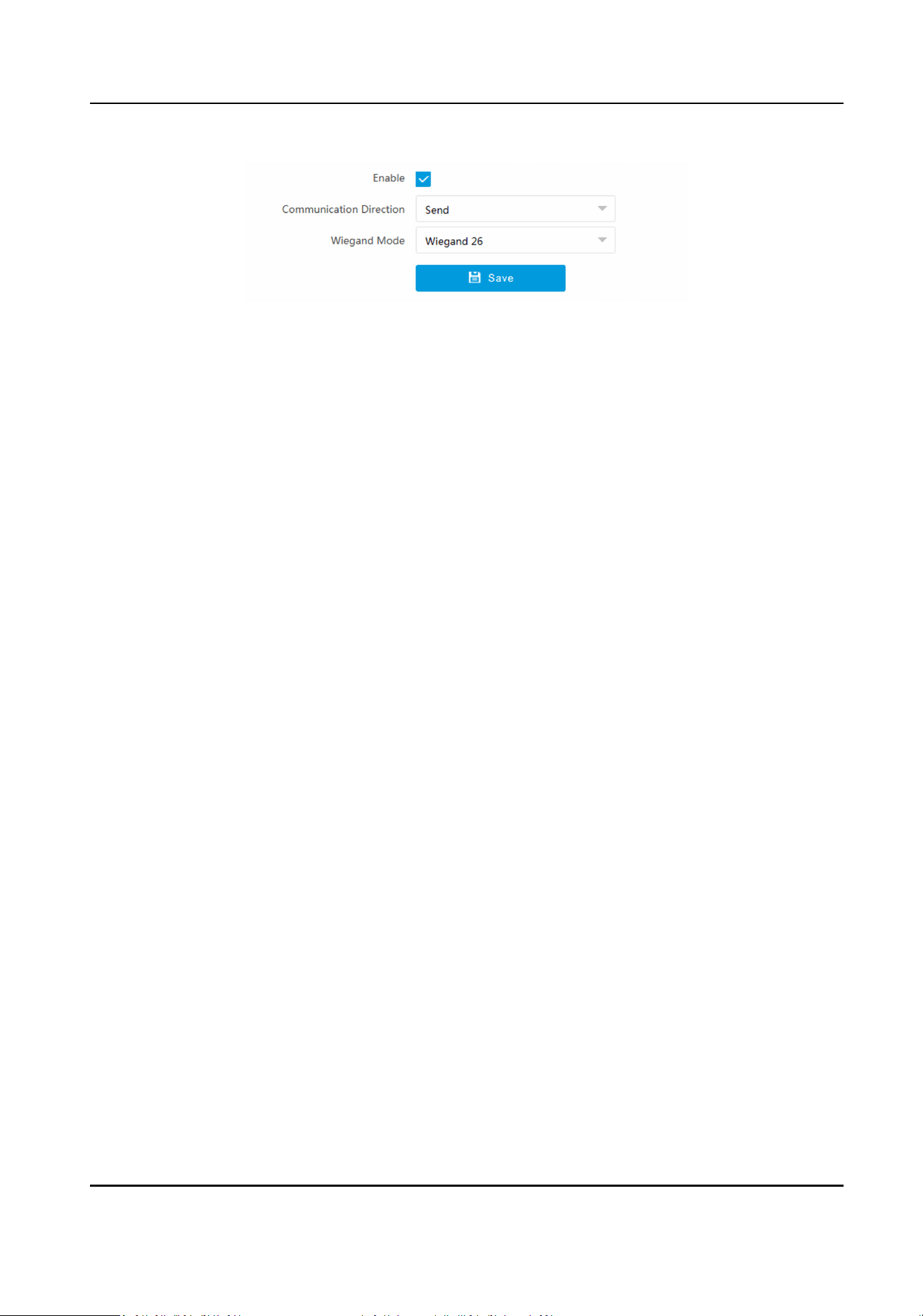
Figure 4-3 Set Wiegand Parameters
3.
Select Communicaon Direcon.
Send
The barrier gate can be connected to the device via Wiegand 26, Wiegand 34, Wiegand 72, or
Wiegand sha1 26 protocol.
4.
Select Wiegand Mode.
Wiegand 26
It is applicable to all the access control projects. The device will get the card No. (pure
numbers with no more than 8 digits) from the allowlist and blocklist related to the captured
license plate number and send the card No. to the access control system or other system
supporng Wiegand protocols via Wiegand 26 protocol.
Wiegand 34
It is applicable to all the access control projects. The device will get the card No. (pure
numbers with no more than 10 digits) from the allowlist and blocklist related to the captured
license plate number and send the card No. to the access control system or other system
supporng Wiegand protocols via Wiegand 34 protocol.
Wiegand 72
It is a non-standard Wiegand protocol. The device will get the card No. (up to 9 characters
only including 0 to 9, uppercase, or lowercase can be sent) from the allowlist and blocklist
related to the captured license plate number and send the card No. to the access control
system or other system
supporng Wiegand protocols via Wiegand 72 protocol.
Wiegand sha1 26
It is a non-standard Wiegand protocol. The captured license plate number will be encrypted
via sha1. The last low 24 bits
aer encrypon will be get as the data bits. The high 12-bit
parity check bits will be added before the highest bit. The low 12-bit parity check bits will be
added
aer the lowest bit. The bit stream composed with 26 bits will be sent to the access
control system or other system supporng Wiegand protocols.
5.
Click Save to save the
sengs.
Intelligent Entrance ANPR Camera User Manual
24
Chapter 5 Live View and Local Conguraon
5.1 Live View
5.1.1 Start/Stop Live View
Click to start live view. Click to stop live view.
5.1.2 Select Image Display Mode
Click to select an image display mode.
5.1.3 Select Window Division Mode
Click to select a window division mode.
5.1.4 Select Stream Type
Click to select the stream type. It is recommended to select the main stream to get the high-
quality image when the network condion is good, and select the sub-stream to get the uent
image when the network condion is not good enough.
Note
The supported stream types vary with dierent models. The actual device prevails.
5.1.5 Capture Picture Manually
You can capture pictures manually on the live view image and save them to the computer.
Steps
1.
Click to capture a picture.
2.
Oponal: Click Conguraon → Local → Picture and Clip Sengs to view the saving path of
snapshots in live view.
5.1.6 Record Manually
You can record videos manually on the live view image and save them to the computer.
Intelligent Entrance ANPR Camera User Manual
25
Steps
1.
Click to start live view.
2.
Click to start recording.
3.
Click
to stop recording.
4.
Oponal: Click Conguraon → Local → Record File Sengs to view the saving path of record
les.
5.1.7 Start/Stop Two-Way Audio
The device supports two-way audio with terminals, such as computers.
Before You Start
The device is equipped with an audio input interface and audio output interface, which support
connecng with the corresponding devices, such as microphones and loudspeakers.
Steps
Note
The funcon varies with dierent models. The actual device prevails.
1.
Select a window to start two-way audio.
2.
Click to start live view.
3.
Click
to start two-way audio.
When speaking at the PC end, you can hear the voice at the device end and vice versa.
4.
Click
to stop two-way audio.
5.1.8 Enable/Disable Audio
Enable the audio if necessary aer connecng an audio input device under the audio & video
stream. Click
to enable and adjust it. Click again to disable this funcon.
Note
The funcon varies with dierent models. The actual device prevails.
5.1.9 Enable Digital Zoom
You can enable digital zoom to zoom in a certain part of the live view image.
Steps
1.
Click to start live view.
2.
Click
to enable digital zoom.
3.
Place the cursor on the live view image posion which needs to be zoomed in. Drag the mouse
rightwards and downwards to draw an area.
Intelligent Entrance ANPR Camera User Manual
26
The area will be zoomed in.
4.
Click any posion of the image to restore to normal image.
5.
Click to disable digital zoom.
5.1.10 Enable Regional Focus
Steps
1.
Click .
2.
Drag the cursor from the upper le corner to the lower right corner to select the area that needs
to be focused.
Result
The selected area is focused.
5.1.11 Select Video Mode
Set the video mode when adjusng the device focus during construcon.
Click and select when the device is running normally.
5.2 PTZ
Operaon
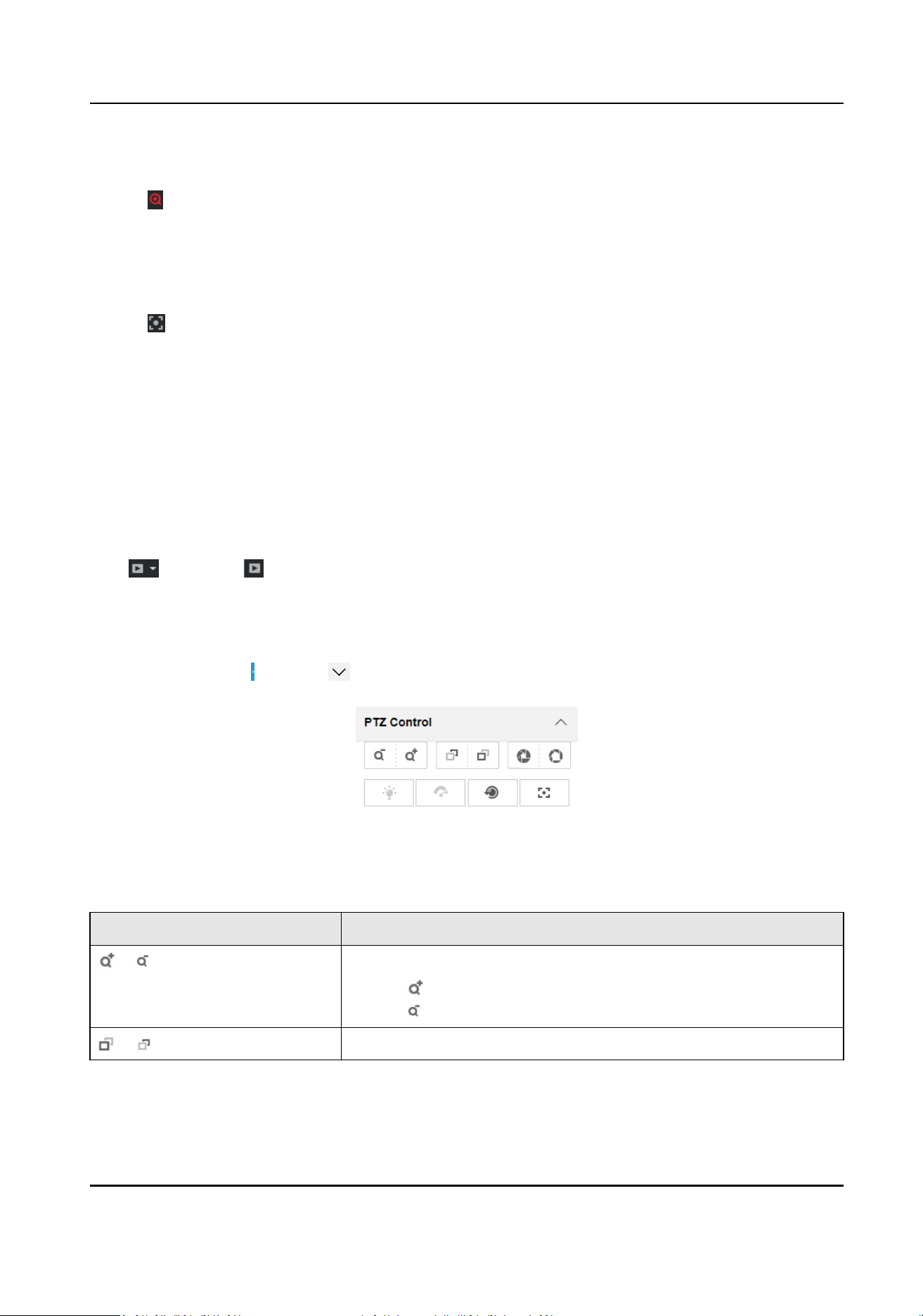
Click Live View. Click and click to show the PTZ control panel.
Figure 5-1 Control Panel
Table 5-1 Buon Descripon
Buon Descripon
/ Zoom + and Zoom -
●
Hold to zoom in the scene.
●
Hold to zoom out the scene.
/ Focus + and Focus -
Intelligent Entrance ANPR Camera User Manual
27

Buon Descripon
●
Hold under the manual focus mode to make near objects
become clear and distant objects become vague.
●
Hold to make distant objects become clear and near
objects become vague.
/ Iris + and Iris –
●
Hold to increase the iris diameter when in a dark
environment.
●
Hold
to decrease the iris diameter when in a bright
environment.
Lens Inializaon
It is applicable to devices with motorized lenses. You can use this
funcon when overcoming image blurs caused by overme
zooming or focusing.
Auxiliary Focus
It is applicable to devices with motorized lenses. Use this
funcon to focus the lens automacally and make images
become clear.
Note
Other unmenoned buons are reserved buons.
5.3 Local Conguraon
Go to Conguraon → Local to set the live view parameters and change the saving paths of videos,
captured pictures, scene pictures, etc.
Intelligent Entrance ANPR Camera User Manual
28
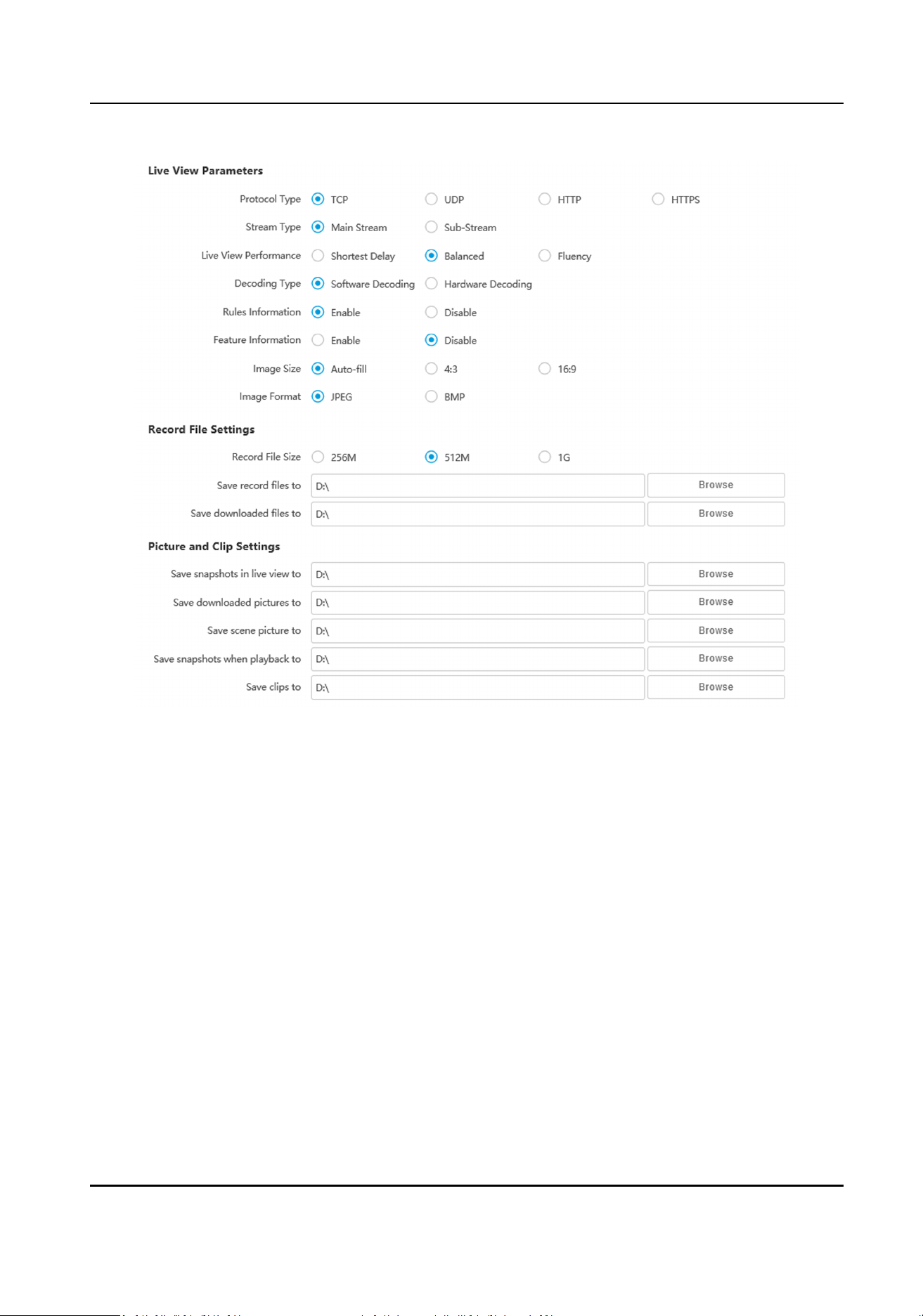
Figure 5-2 Local Conguraon
Protocol Type
Select the network transmission protocol according to the actual needs.
TCP
Ensures complete delivery of streaming data and
beer video quality, but the real-me
transmission will be aected.
UDP
Provides real-me audio and video streams.
HTTP
Gets streams from the device by a third party client.
HTTPS
Gets streams in hps format.
Stream Type
Main Stream
Intelligent Entrance ANPR Camera User Manual
29

Select it to get the high-quality image when the network condion is good.
Sub-Stream
Select it to get the uent image when the network condion is not good enough.
Live View Performance
Shortest Delay
The video is
real-me, but its uency may be aected.
Balanced
Balanced mode considers both the real me and uency of the video.
Fluency
When the network condion is good, the video is uent.
Decoding Type
Soware Decoding
Decode via soware. It takes up more CPU resources but provides images with beer quality
when it compares to the hardware decoding.
Hardware Decoding
Decode via GPU. It takes up less CPU resources but provides images with worse quality when
it compares to the
soware decoding.
Rules Informaon
If you enable this funcon, tracking frames will be displayed on the live view interface when
there are vehicles passing.
Feature Informaon
Enable it to display feature informaon of the target on the live view image.
Image Size
The display rao of the live view image.
Image Format
The saving format of manually captured images.
Record File Size
Select the packed size of the manually recorded video
les. Aer the selecon, the max. record
le size is the value you selected.
Save record les to
Set the saving path of the manually recorded video les.
Save downloaded les to
Set the saving path of the download les.
Save snapshots in live view to
Set the saving path of the manually captured pictures in live view mode.
Intelligent Entrance ANPR Camera User Manual
30

Save downloaded pictures to
Set the saving path of the downloaded pictures.
Save scene picture to
Set the saving path of the captured pictures in Live View → Real-Time Capture .
Save snapshots when playback to
Set the saving path of the manually captured pictures in playback mode.
Save clips when playback to
Set the saving path of the clips in playback mode.
Intelligent Entrance ANPR Camera User Manual
31

Chapter 6 Playback
You can search, play back, and download videos that stored on the storage card.
Steps
1.
Click Playback.
2.
Select a channel.
3.
Select a date.
4.
Click Search.
5.
Click
to start playback.
6.
Oponal: You can also do the following operaons.
Set playback me
●
Drag the me bar to the target me and click to play the video.
●
Click the current me point showed above the me bar and enter
the target me point in the popup window. Click OK and click to
play the video.
Capture image Click to capture an image.
Clip record Click / to start/stop clipping the record.
Play back in single
frame
Click once to play back the video in one frame.
Download record a. Click .
b. Select the start me and end me.
c. Click Search.
d. Check record
les that need to be downloaded.
e. Click Download.
Stop playback Click to stop playback.
Slow forward Click to slow down the playback.
Fast forward Click to speed up the playback.
Digital zoom Click to enable digital zoom.
Click to disable digital zoom.
Adjust volume Click to enable volume.
Intelligent Entrance ANPR Camera User Manual
32
Chapter 7 Record and Capture
7.1 Set Storage Path
7.1.1 Set Memory Card
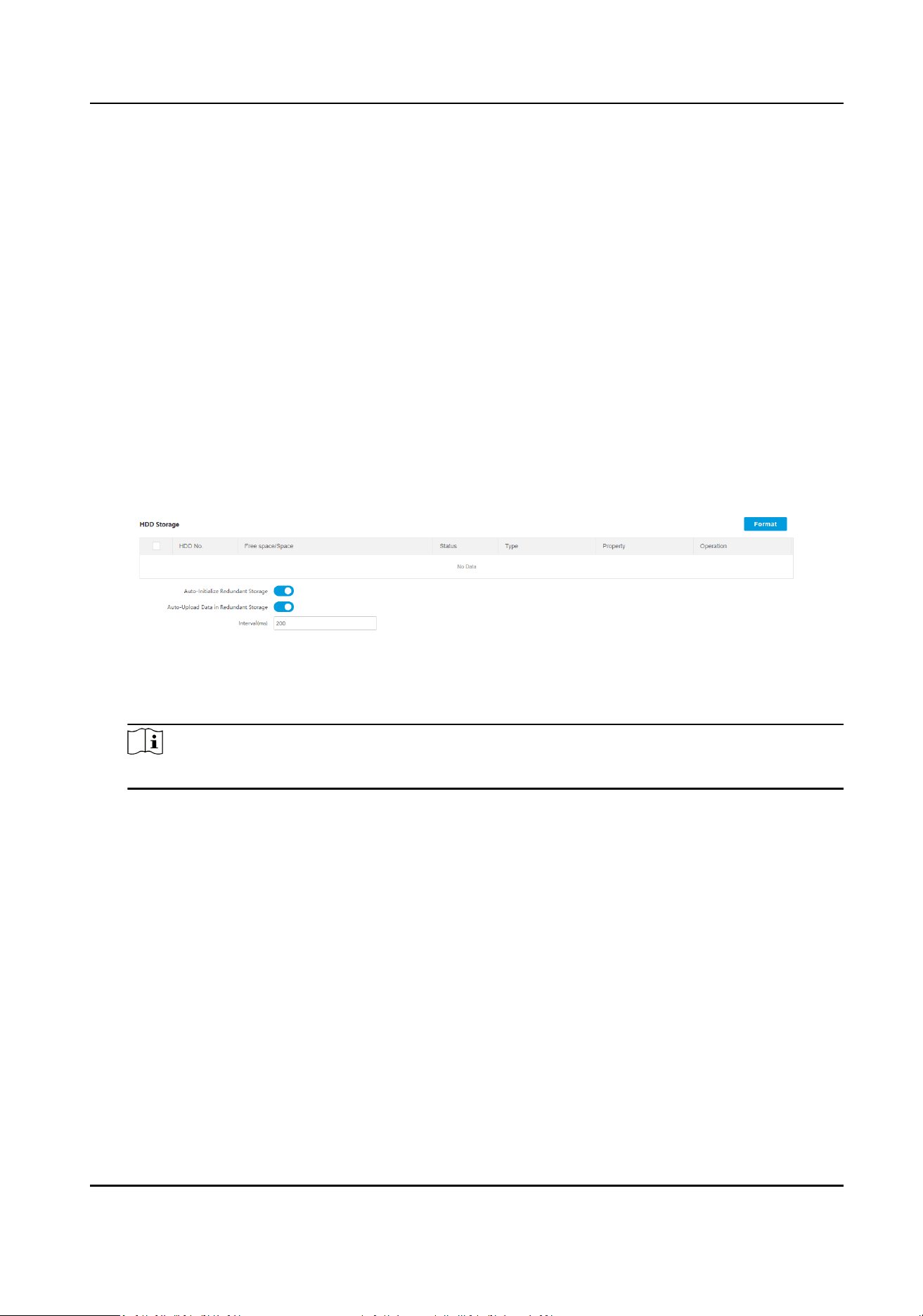
If you want to store the les to the memory card, make sure you insert and format the memory
card in advance.
Before You Start
Insert the memory card to the device.
Steps
1.
Go to
Conguraon → Storage → Storage Management → HDD Management .
Figure 7-1 Set Memory Card
2.
Format the memory card in two ways.
-
Check the memory card, and click Format to format it manually.
Note
For the newly installed memory card, you need to format it manually before using it normally.
-
If you want to format the memory card automacally when the card is abnormal, check Auto-
Inialize
Redundant Storage.
3.
Oponal: If the device has been connected to the plaorm, and you want to upload the
memory card
informaon automacally, check Auto-Upload Data in Redundant Storage and set
Interval to upload.
4.
Click Save.
7.1.2 Set FTP
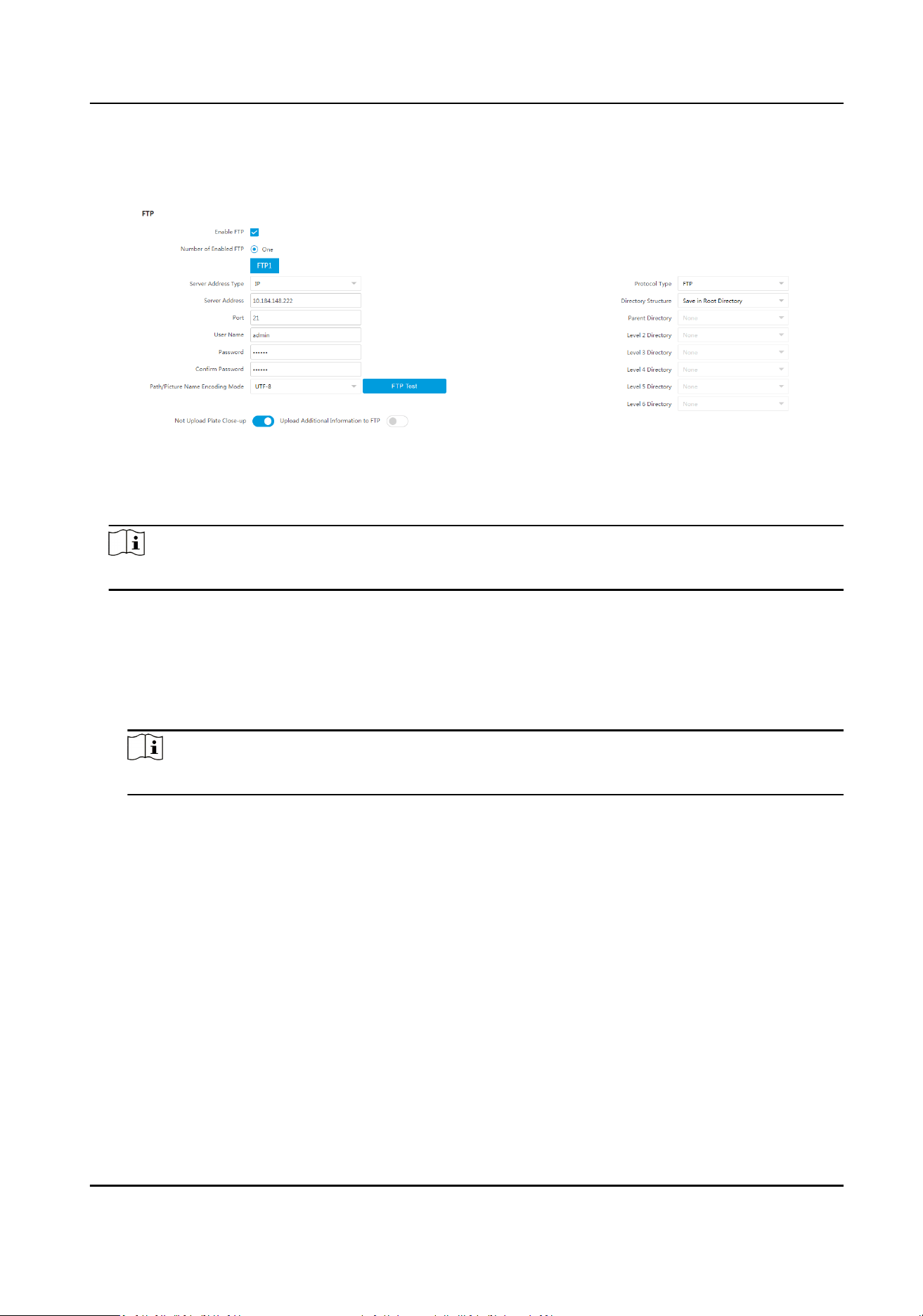
Set FTP parameters if you want to upload the captured pictures to the FTP server.
Before You Start
Set the FTP server, and ensure the device can communicate normally with the server.
Intelligent Entrance ANPR Camera User Manual
33
Steps
1.
Go to Conguraon → Network → Data Connecon → FTP .
Figure 7-2 Set FTP
2.
Check Enable FTP.
3.
Select Number of Enabled FTP.
Note
You can only enable one FTP.
4.
Set FTP Parameters.
1) Select Sever Address Type and enter corresponding informaon.
2) Enter Port.
3) Enter User Name, Password, and conrm the password.
4) Select Protocol Type.
5) Select Directory Structure.
Note
You can customize the directory structure according to your needs.
5.
Select Path/Picture Name Encoding Mode.
UTF-8
UNICODE encoding.
6.
Oponal: Enable upload funcons.
Not Upload Plate Close-up
The close-up pictures of a license plate will not be uploaded.
Upload Addional Informaon to FTP
Add related informaon when uploading data to the FTP server.
7.
Oponal: Click FTP Test to check the FTP server.
8.
Set naming rules and separators according to the actual needs.
9.
Oponal: Edit OSD informaon which can be uploaded to the FTP server with the pictures to
make it convenient to view and disnguish the data.
10.
Click Save.
Intelligent Entrance ANPR Camera User Manual
34
7.1.3 Set SDK Listening
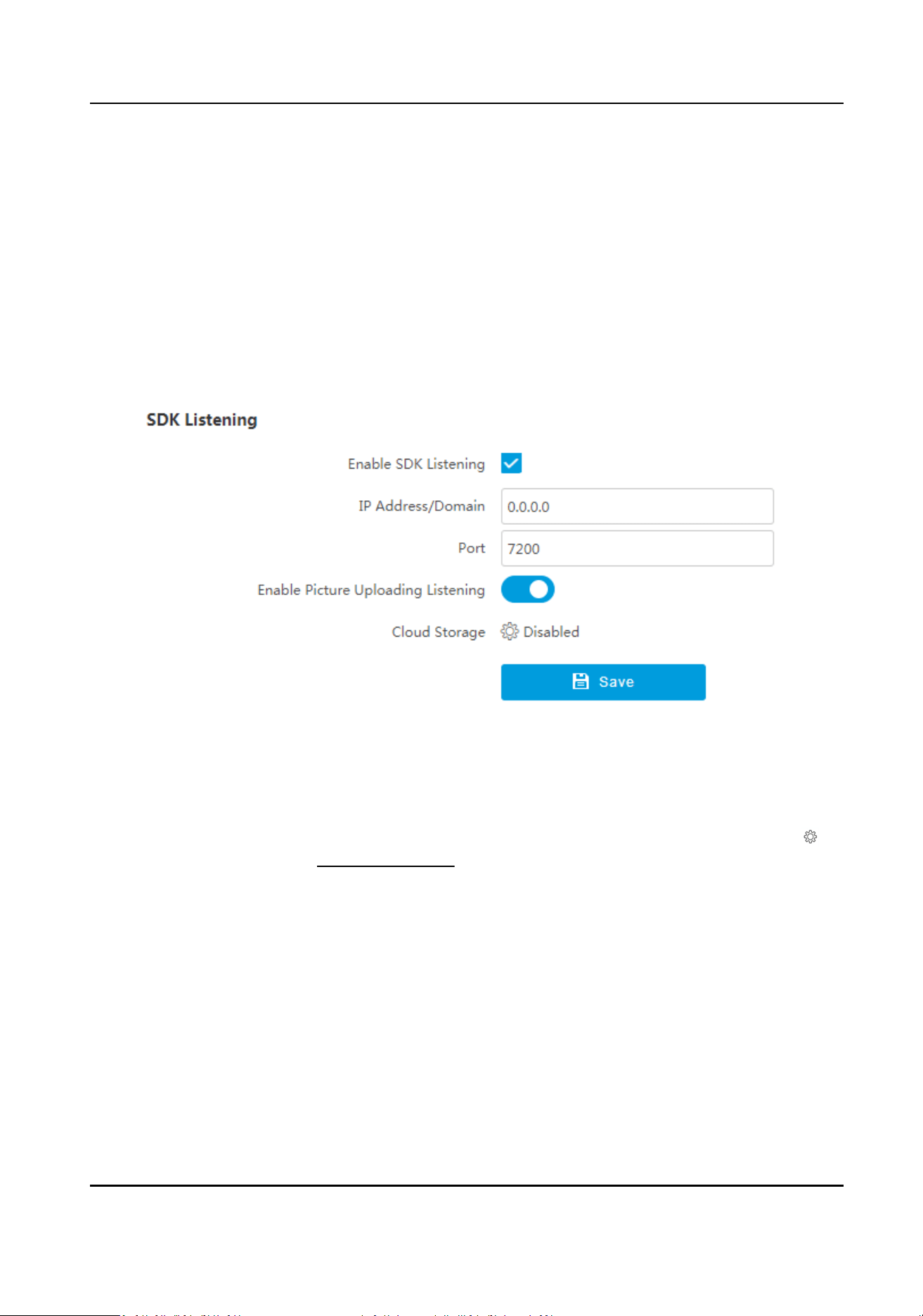
The SDK listening can be used to receive the uploaded informaon and pictures of the device
arming alarm.
Before You Start
The listening service has been enabled for the SDK listening, and the network
communicaon with
the device is normal.
Steps
1.
Go to
Conguraon → Network → Data Connecon → SDK Listening .
Figure 7-3 Set SDK Listening
2.
Check Enable SDK Listening.
3.
Set IP Address/Domain and Port if you need to upload the alarm informaon and pictures.
4.
Oponal: Enable the picture uploading listening if you need to upload image informaon.
5.
Oponal: If you want to save the alarm informaon and pictures to the cloud storage, click to
set Cloud Storage. Refer to
Set Cloud Storage for details.
6.
Click Save.
7.1.4 Set Arm Host
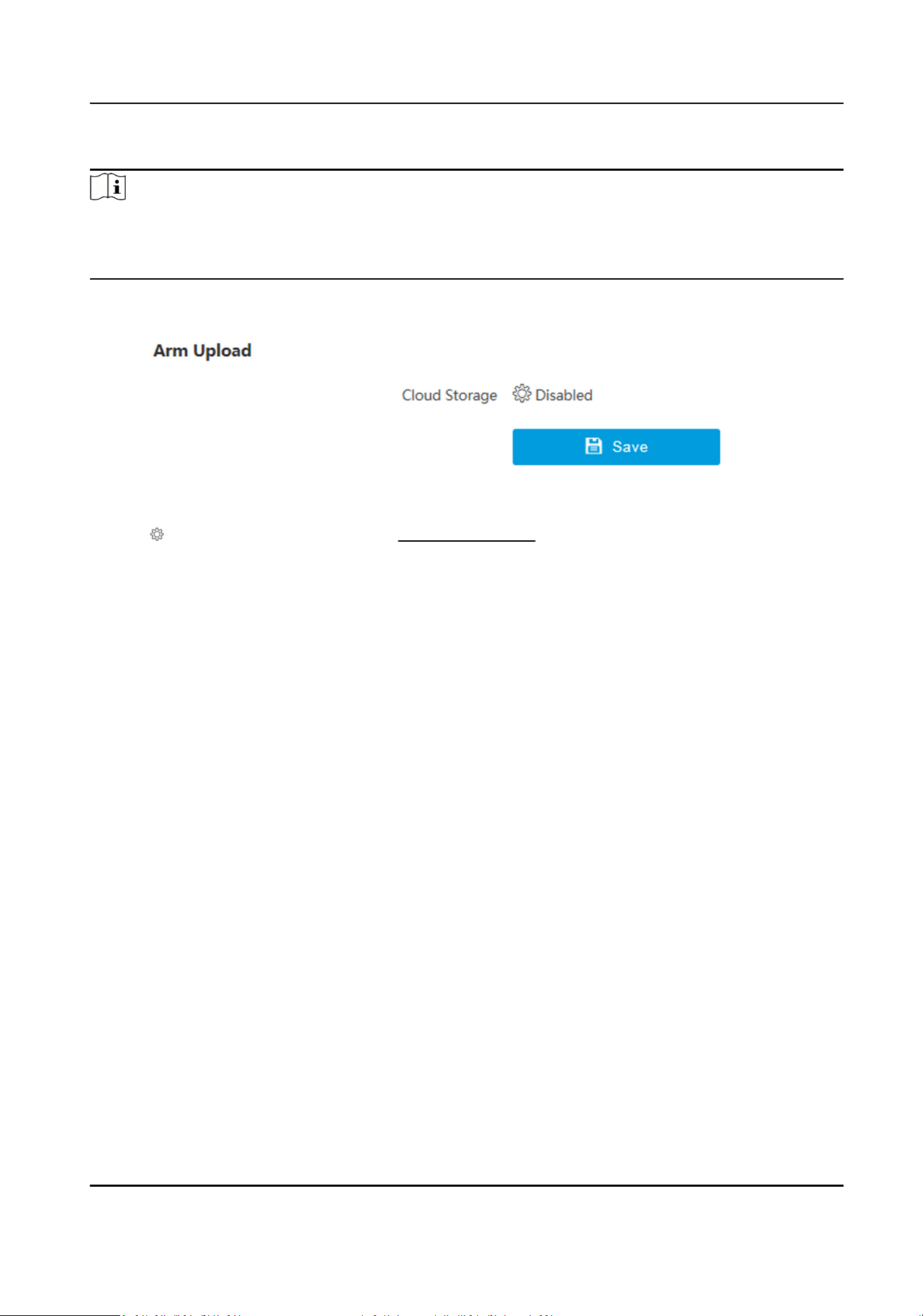
The device can upload the captured pictures via the arm host.
Intelligent Entrance ANPR Camera User Manual
35
Steps
Note
For level 1 arm, the pictures can be uploaded normally. If uploading failed, the device will upload
again. For level 2 arm, the pictures will be uploaded once. No more upload if uploading failed. For
level 3 arm, pictures will not be uploaded.
1.
Go to Conguraon → Network → Data Connecon → Arm Upload .
Figure 7-4 Set Arm Host
2.
Click
to set Cloud Storage. Refer to Set Cloud Storage for details.
3.
Click Save.
7.1.5 Set ISAPI Listening
ISAPI listening and SDK listening are mutually exclusive protocols. If you enable the picture
uploading listening, the device will transmit images via the SDK listening. If not, the device will
upload images via ISAPI protocol
aer the ISAPI parameters are set.
Before You Start
The listening service has been enabled for the ISAPI host, and the network communicaon with
the device is normal.
Steps
1.
Go to
Conguraon → Network → Data Connecon → ISAPI Listening .
Intelligent Entrance ANPR Camera User Manual
36
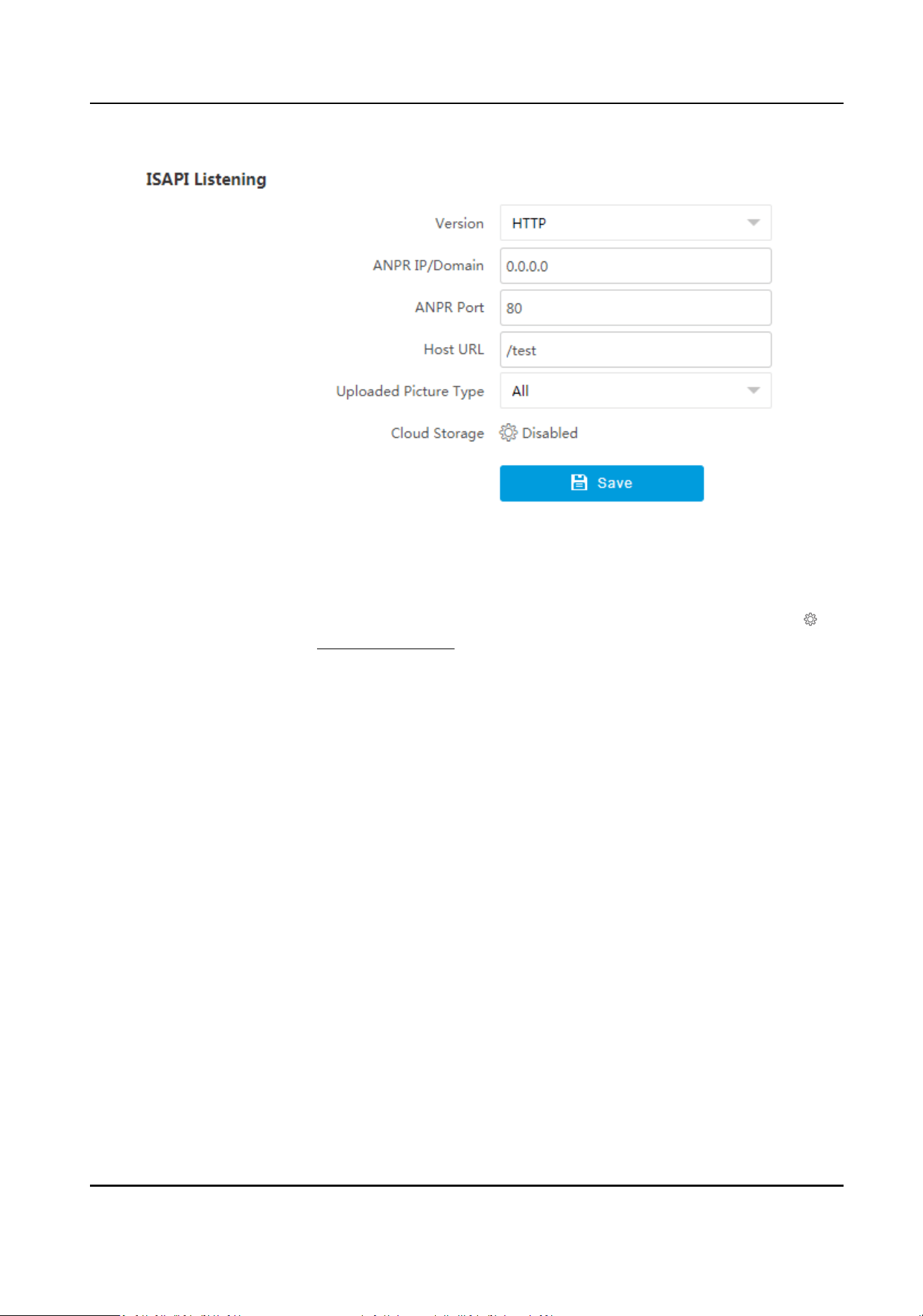
Figure 7-5 Set ISAPI Listening
2.
Set ANPR IP/Domain, ANPR Port, and Host URL.
3.
Set Uploaded Picture Type.
4.
Oponal: If you want to save the alarm informaon and pictures to the cloud storage, click to
set Cloud Storage. Refer to
Set Cloud Storage for details.
5.
Click Save.
7.1.6 Set Cloud Storage
Cloud storage is a kind of network storage. It can be used as the extended storage to save the
captured pictures.
Before You Start
●
Arrange the cloud storage server.
●
You have enabled level 1 arm in Live View → Real-Time Capture .
Steps
1.
Go to
Conguraon → Storage → Storage Management → Cloud Storage .
Intelligent Entrance ANPR Camera User Manual
37
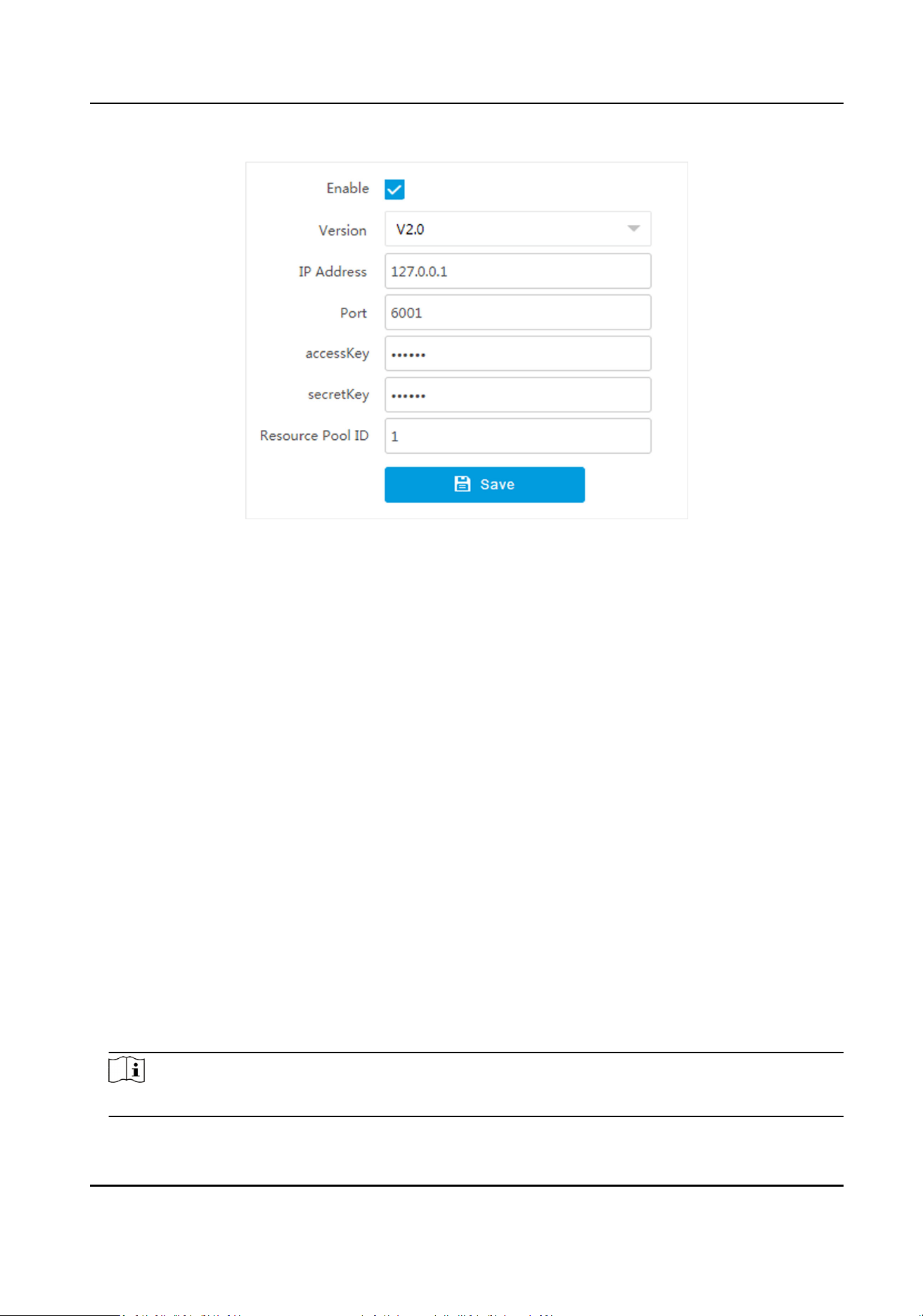
Figure 7-6 Set Cloud Storage
2.
Check Enable.
3.
Select Version.
V1.0
a. Enter IP Address and Port
b. Enter User Name and Password.
c. Enter Cloud Storage ID according to the server storage area No.
V2.0 a. Enter IP Address and Port
b. Enter accessKey and secretKey.
c. Enter Resource Pool ID according to the server storage area No. of uploading
pictures.
4.
Click Save.
7.2 Set Quota
Set the video and picture rao in the storage.
Before You Start
Install the memory card.
Steps
1.
Go to
Conguraon → Storage → Storage Management → HDD Management → HDD Quota .
2.
Set Capture Quota Rao and Video Quota Rao according to the actual needs.
Note
The percentage sum of the capture and video quota rao should be 100%.
Intelligent Entrance ANPR Camera User Manual
38
3.
Click Save.
What to do next
Format the memory card aer the sengs.
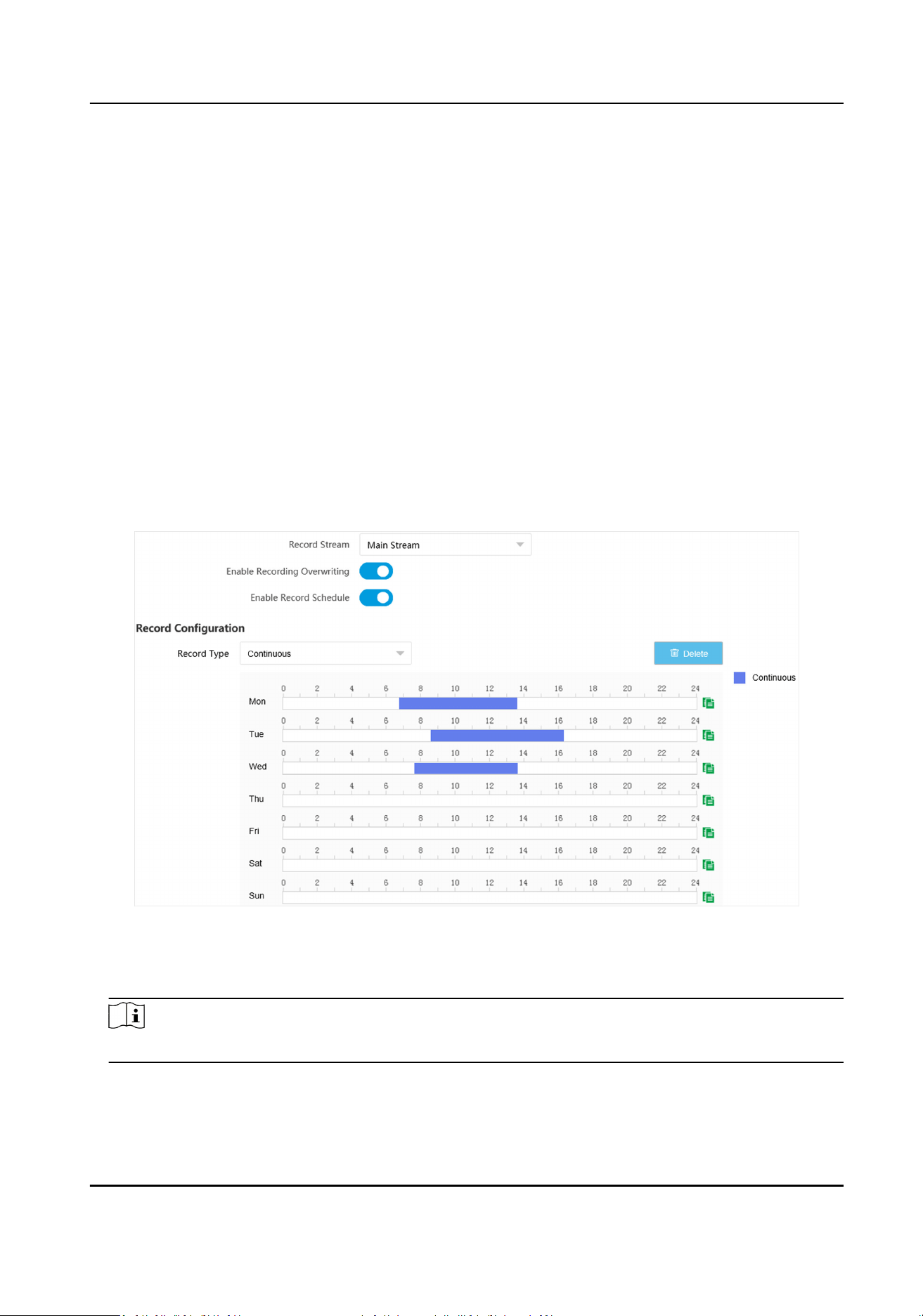
7.3 Set Record Schedule
Set record schedule to record video automacally during congured me periods.
Before You Start
Install the storage card.
Steps
1.
Go to
Conguraon → Storage → Schedule Sengs → Record Schedule .
2.
Oponal: Enable the recording overwring.
When the storage is full, the earliest videos will be overwrien.
3.
Enable the record schedule.
Figure 7-7 Set Record Schedule
4.
Select Record Type.
5.
Drag the cursor on the
me bar to set a recording me.
Note
Up to 8 me periods can be set on a me bar.
6.
Adjust the recording me.
-
Click a set recording period and enter the start me and end me in the pop-up window.
Intelligent Entrance ANPR Camera User Manual
39

-
Drag two ends of the set recording period bar to adjust the length.
-
Drag the whole set recording period bar and relocate it.
7.
Oponal: Delete recording periods.
-
Click a set recording period and click Delete in the pop-up window.
-
Click a set recording period and click Delete on the record conguraon interface.
8.
Oponal: Click to copy set recordings to other days.
9.
Click Save.
Result
The device will only record at the set periods.
Intelligent Entrance ANPR Camera User Manual
40

Chapter 8 Encoding and Display
8.1 Set Video Encoding Parameters
Set video encoding parameters to adjust the live view and recording eect.
●
When the network signal is good and the speed is fast, you can set high resoluon and bitrate to
raise the image quality.
●
When the network signal is bad and the speed is slow, you can set low resoluon, bitrate, and
frame rate to guarantee the image uency.
●
When the network signal is bad, but the resoluon should be guaranteed, you can set low
bitrate and frame rate to guarantee the image uency.
●
Main stream stands for the best stream performance the device supports. It usually oers the
best resoluon and frame rate the device can do. But high resoluon and frame rate usually
means larger storage space and higher bandwidth requirements in transmission. Sub-stream
usually
oers comparavely low resoluon opons, which consumes less bandwidth and storage
space. Third stream is oered for customized usage.
Steps
Note
The supported parameters vary with dierent models. The actual device prevails.
1.
Go to Conguraon → Video → Video Encoding → Video Encoding .
2.
Set the parameters for dierent streams.
Stream Type
Video stream and video & audio stream are selectable.
Bitrate
Select
relavely large bitrate if you need good image quality and eect, but more storage
spaces will be consumed. Select
relavely small bitrate if storage requirement is in priority.
Frame Rate
It is to describe the frequency at which the video stream is updated and it is measured by
frames per second (fps). A higher frame rate is advantageous when there is movement in the
video stream, as it maintains image quality throughout.
Resoluon
The higher the resoluon is, the clearer the image will be. Meanwhile, the network
bandwidth requirement is higher.
SVC
Intelligent Entrance ANPR Camera User Manual
41

Scalable Video Coding (SVC) is an extension of the H.264/AVC and H.265 standard. Enable the
funcon and the device will automacally extract frames from the original video when the
network bandwidth is insucient.
Bitrate Type
Select the bitrate type to constant or variable.
Video Quality
When bitrate type is variable, 6 levels of video quality are selectable. The higher the video
quality is, the higher requirements of the network bandwidth.
Prole
When you select H.264 or H.265 as video encoding, you can set the prole. Selectable
proles vary according to device models.
I Frame Interval
It refers to the number of frames between two key frames. The larger the I frame interval is,
the smaller the stream
uctuaon is, but the image quality is not that good.
Video Encoding
The device supports mulple video encoding types, such as H.264, H.265, and MJPEG.
Supported encoding types for
dierent stream types may dier. H.265 is a new encoding
technology. Compared with H.264, it reduces the transmission bitrate under the same
resoluon, frame rate, and image quality.
3.
Click Save.
8.2 Set Image Parameters
You can adjust the image parameters to get clear image.
Steps
Note
The supported parameters may vary with dierent models. The actual device prevails.
1.
Go to Conguraon → Video → Camera Parameter → Camera Parameter .
Intelligent Entrance ANPR Camera User Manual
42
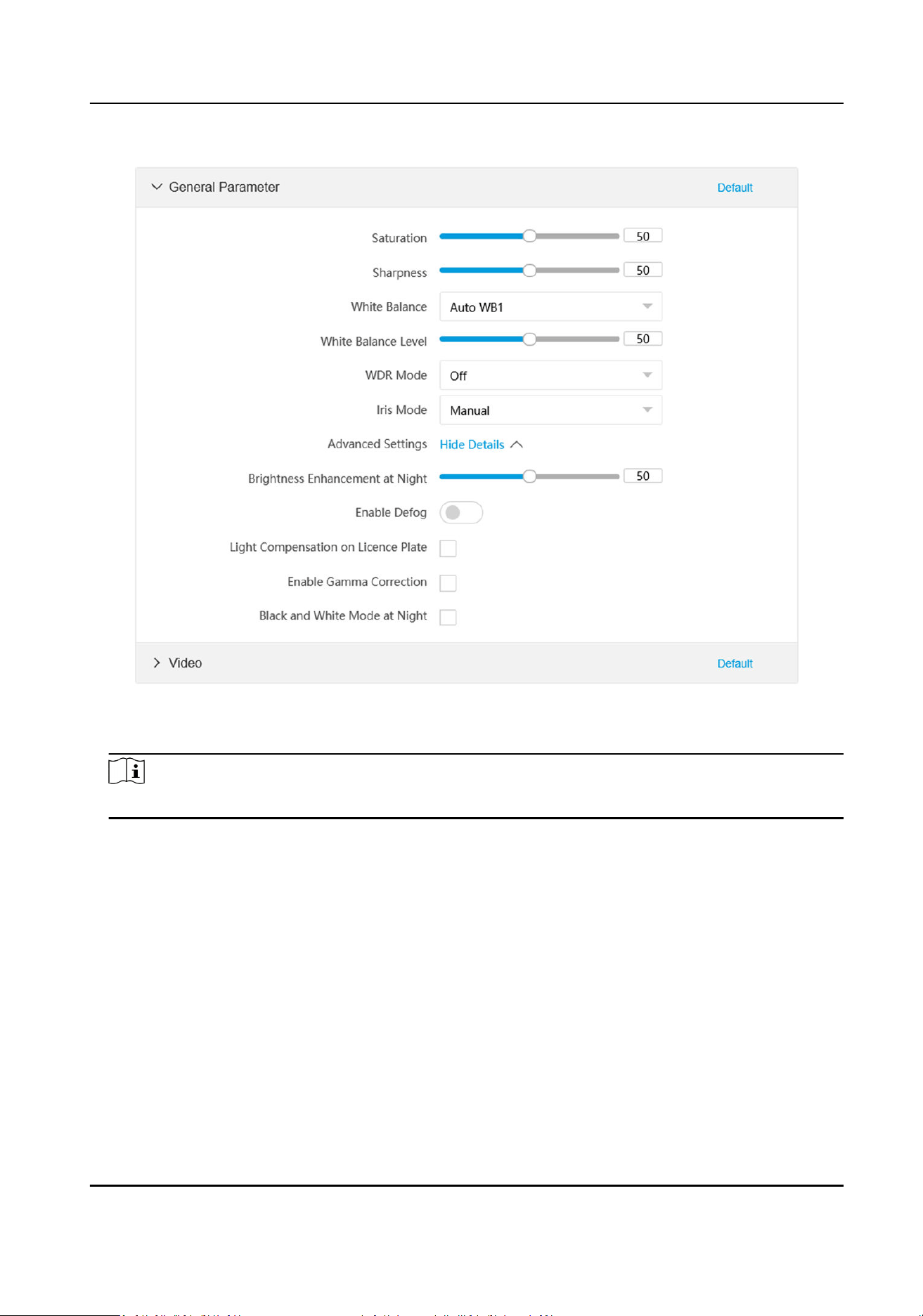
Figure 8-1 Set Image Parameters
2.
Set the camera parameters.
Note
Click Default to reset parameters.
General Parameter
Saturaon
It refers to the colorfulness of the image color.
Sharpness
It refers to the edge contrast of the image.
White Balance
It is the white rendion funcon of the device used to adjust the color temperature
according to the environment.
WDR Mode
Intelligent Entrance ANPR Camera User Manual
43

Wide Dynamic Range (WDR) can be used when there is a high contrast of the bright area
and the dark area of the scene.
Select WDR Switch and set corresponding parameters according to your needs.
On
Set WDR Level. The higher the level is, the higher the WDR strength is.
Time
Enable WDR according to the set
me period and level.
Brightness
Set Light Threshold and WDR Level. When the brightness reaches the threshold, WDR
will be enabled.
Iris Mode
Select the iris mode as manual or auto.
Brightness Enhancement at Night
The scene brightness will be enhanced at night automacally.
Enable Defog
Enable defog to get a clear image in foggy days.
Light Compensaon on License Plate
Check it. The plate brightness compensaon can be realized, and various light supplement
condions can be adapted via seng license plate expectant brightness and supplement
light
correcon coecient. The higher the sensivity is, the easier this funcon can be
enabled.
Enable Gamma Correcon
The higher the gamma correcon value is, the stronger the correcon strength is.
Black and White Mode at Night
When ICR is in night mode, you can check it to keep the video in black and white mode.
Video
Brightness
It refers to the brightness the image.
Contrast
It refers to the contrast of the image. Set it to adjust the levels and permeability of the
image.
Shuer
If the shuer speed is quick, the details of the moving objects can be displayed beer. If
the
shuer speed is slow, the outline of the moving objects will be fuzzy and trailing will
appear.
Gain
Intelligent Entrance ANPR Camera User Manual
44

It refers to the upper limit value of liming image signal amplicaon. It is recommended
to set a high gain if the illuminaon is not enough, and set a low gain if the illuminaon is
enough.
3D DNR
Digital Noise Reducon (DNR) reduces the noise in the video stream.
In Normal Mode, the higher the 3D DNR Level is, the stronger the noise will be reduced.
But if it is too high, the image may become fuzzy.
In Expert Mode, set
Spaal Intensity and Time Intensity. If the space domain intensity is
too high, the outline of the image may become fuzzy and the details may lose. If the
me
domain intensity is too high, trailing may appear.
2D DNR
The higher the 2D DNR Level is, the stronger the noise will be reduced. But if it is too high,
the image may become fuzzy.
Slow Shuer
This funcon can be used in underexposure condion. It lengthens the shuer me to
ensure full exposure. The higher Slow
Shuer Level is, the slower the shuer speed is.
Video Standard
Select the video standard according to the actual power supply frequency.
3.
Oponal: Click Capture Test to check the image.
8.3 Set ICR
ICR adopts mechanical IR lter to lter IR in the day to guarantee the image eect, and to remove
the IR
lter at night to guarantee full-spectrum rays can get through the device.
Steps
1.
Go to Conguraon → Capture → Capture Images → ICR .
2.
Select ICR Mode.
Auto Switch
Switches to ICR mode automacally at night or in dark light condions.
Manual Switch Switches to the day or night manually.
Scheduled Switch Set day/night mode, start me, and end me to switch to ICR mode only
during the set me period.
Note
The four start mes and end mes cannot be the same. At least one
minute interval should be set.
No Switch Disable ICR mode.
3.
Click Save.
Intelligent Entrance ANPR Camera User Manual
45
8.4 Set ROI
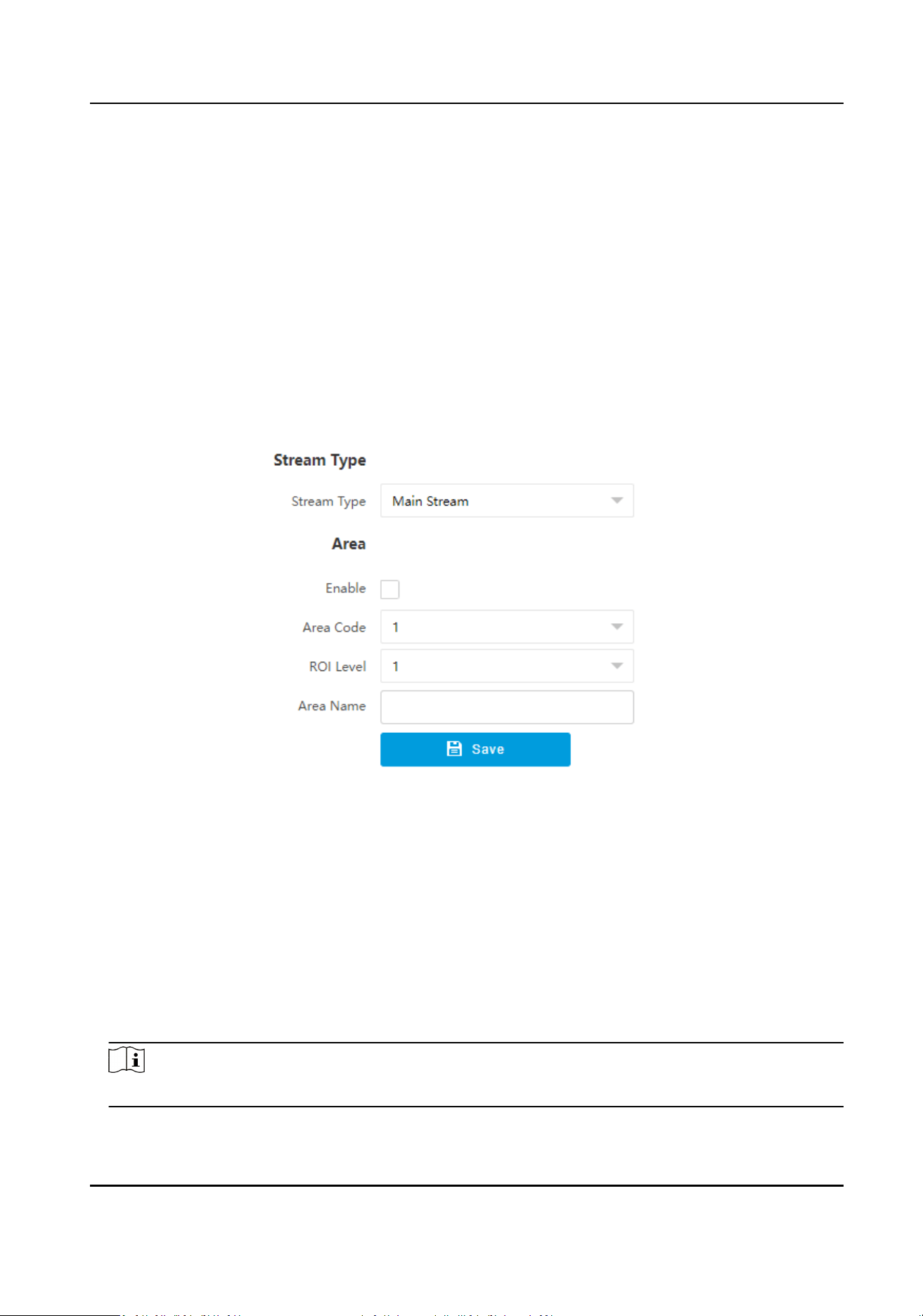
ROI (Region of Interest) encoding helps to assign more encoding resources to the region of
interest, thus to increase the quality of the ROI whereas the background informaon is less
focused.
Before You Start
Please check the video encoding type. ROI is supported when the video encoding type is H.264 or
H.265.
Steps
1.
Go to
Conguraon → Video → Video Encoding → ROI .
Figure 8-2 Set ROI
2.
Select Stream Type.
3.
Set ROI region.
1) Check Enable.
2) Select Area Code.
3) Click Draw Area.
4) Drag the mouse on the live view image to draw the
xed area.
5) Select the
xed area that needs to be adjusted and drag the mouse to adjust its posion.
6) Click Stop Drawing.
4.
Enter Area Name and select ROI Level.
Note
The higher the ROI level is, the clearer the image of the detected area is.
Intelligent Entrance ANPR Camera User Manual
46
5.
Click Save.
6.
Oponal: Select other area codes and repeat the steps above if you need to draw mulple xed
areas.
8.5 Set OSD
You can customize OSD informaon on the live view.
Steps
1.
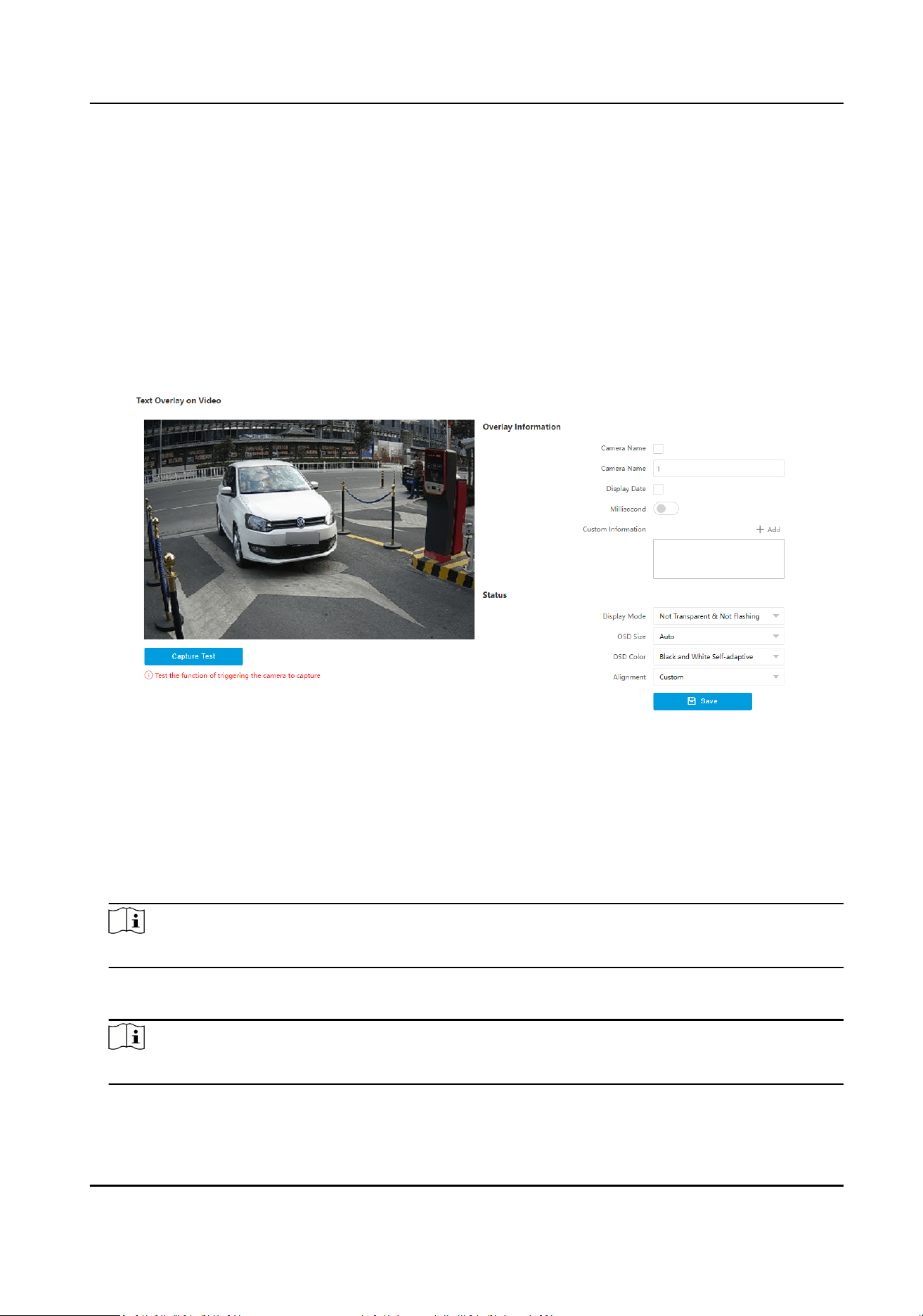
Go to Conguraon → Video → Text Overlay on Video → Text Overlay on Video .
Figure 8-3 Set OSD
2.
Set display contents.
1) Check Camera Name.
2) Enter Camera Name.
3) Check Display Date, and set the
me and date format.
4) Enable Millisecond according to your needs.
3.
Oponal: Click Add and enter informaon if you want to add custom informaon.
Note
Up to 6 items of custom informaon can be added.
4.
Set display properes (font, color, etc.).
5.
Select Alignment.
Note
If you select Align Le or Align Right, set Min. Horizontal Margin and Min. Vercal Margin.
6.
Drag the red frames on the live view image to adjust the OSD posions.
Intelligent Entrance ANPR Camera User Manual
47

7.
Click Save.
Result
The set OSD will be displayed in live view image and recorded videos.
8.6 Enable Regional Exposure
Enable regional exposure to expose
paral area of the live view image.
Steps
1.
Go to Conguraon → Video → Video Encoding → BLC .
2.
Check Enable.
3.
Drag the mouse to draw an area in the live view image.
The drawn area will be exposed.
4.
Click Save.
Intelligent Entrance ANPR Camera User Manual
48
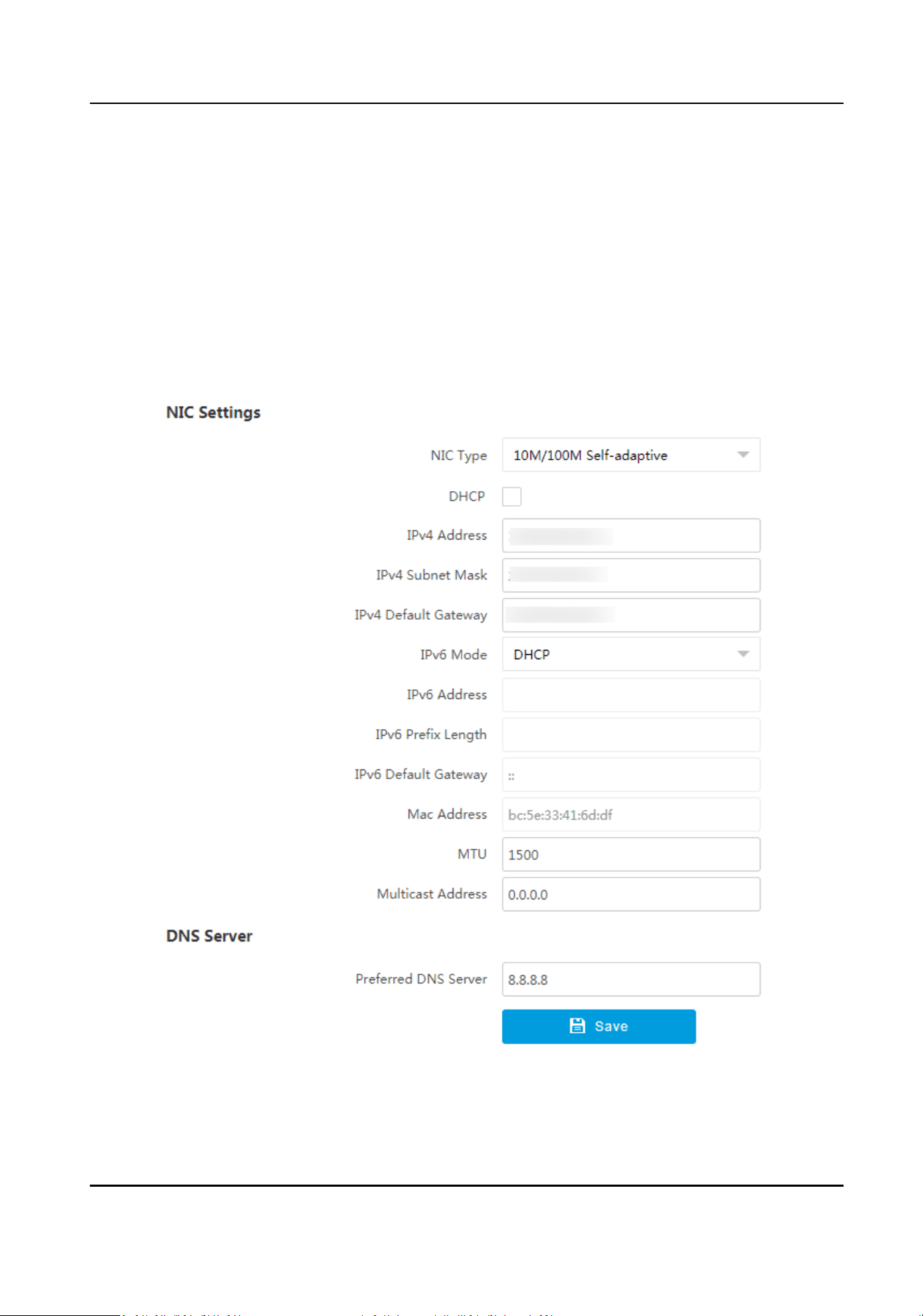
Chapter 9 Network Conguraon
9.1 Set IP Address
IP address must be properly congured before you operate the device over network. IPv4 and IPv6
are both supported. Both versions can be congured simultaneously without conicng to each
other.
Go to Conguraon → Network → Network Parameters → Network Interface .
Figure 9-1 Set IP Address
Intelligent Entrance ANPR Camera User Manual
49

NIC Type
Select a NIC (Network Interface Card) type according to your network condion.
IPv4
Two modes are available.
DHCP
The device
automacally gets the IP parameters from the network if you check DHCP. The
device IP address is changed
aer enabling the funcon. You can use SADP to get the device IP
address.
Note
The network that the device is connected to should support DHCP (Dynamic Host
Conguraon Protocol).
Manual
You can set the device IP parameters manually. Enter IPv4 Address, IPv4 Subnet Mask, and
IPv4 Default Gateway.
IPv6
Three IPv6 modes are available.
Route
Adversement
The IPv6 address is generated by combining the route adversement and the device Mac
address.
Note
Route adversement mode requires the support from the router that the device is connected
to.
DHCP
The IPv6 address is assigned by the server, router, or gateway.
Manual
Enter IPv6 Address, IPv6 Subnet Mask, and IPv6 Gateway. Consult the network administrator
for required
informaon.
MTU
It stands for maximum transmission unit. It is the size of the largest protocol data unit that can
be communicated in a single network layer transacon.
The valid value range of MTU is 1280 to 1500.
Mulcast Address
Mulcast is group communicaon where data transmission is addressed to a group of
desnaon devices simultaneously. Aer seng the IP address of the mulcast host, you can
send the source data eciently to mulple receivers.
Intelligent Entrance ANPR Camera User Manual
50
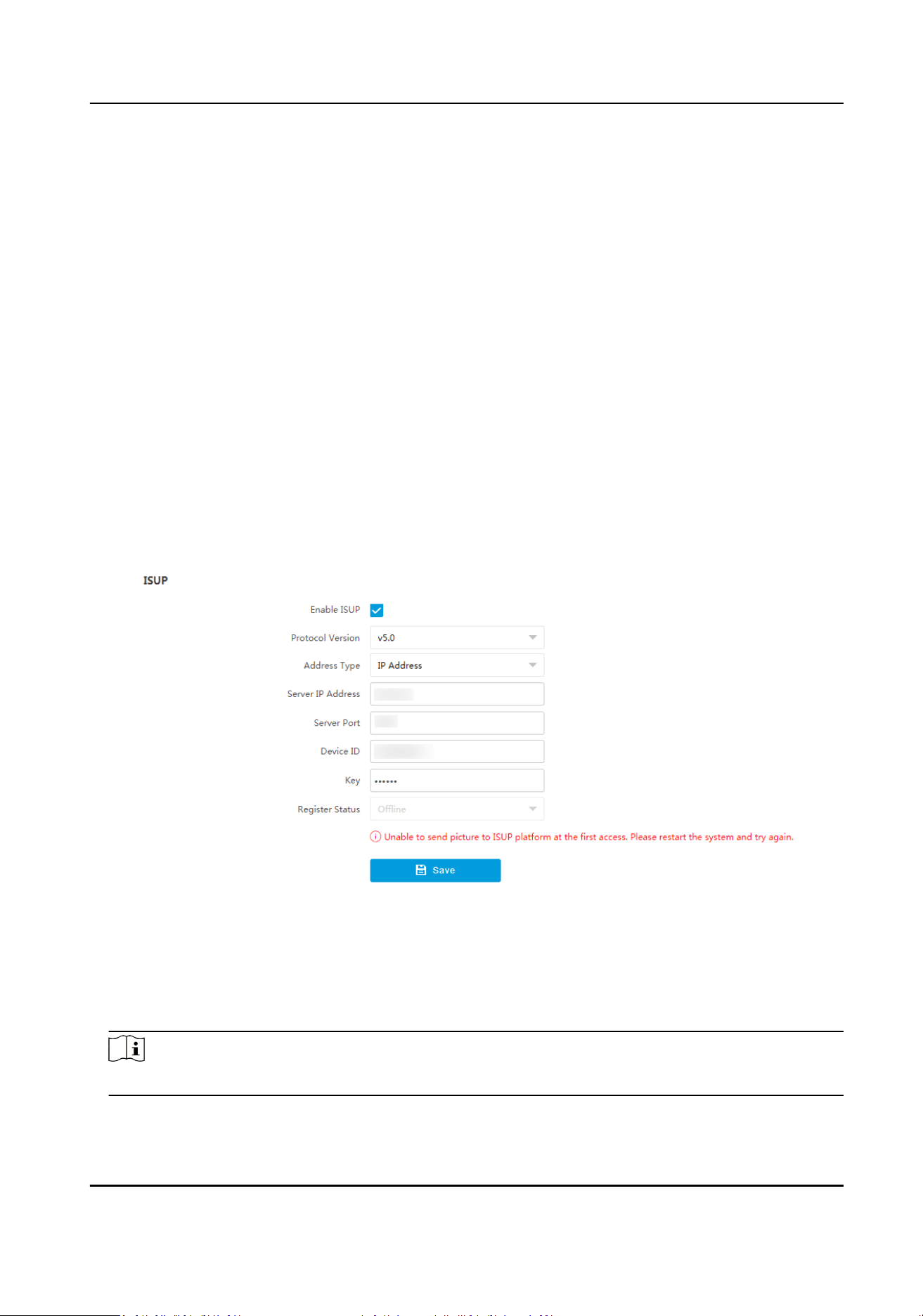
DNS
It stands for domain name server. It is required if you need to visit the device with domain
name. And it is also required for some
applicaons (e.g., sending email). Set Preferred DNS
Address properly if needed.
9.2 Connect to Plaorm
9.2.1 Connect to ISUP Plaorm
ISUP (EHome) is a plaorm access protocol. The device can be remotely accessed via this plaorm.
Before You Start
●
Create the device ID on ISUP
plaorm.
●
Ensure the device can communicate with the plaorm normally.
Steps
1.
Go to Conguraon → Network → Data Connecon → ISUP .
Figure 9-2 Connect to ISUP Plaorm
2.
Check Enable ISUP.
3.
Select Protocol Version.
4.
Select Address Type.
5.
Enter Sever IP Address, Server Port, and Device ID.
Note
You need to enter Key if you select Protocol Version as v5.0.
6.
Click Save.
Intelligent Entrance ANPR Camera User Manual
51
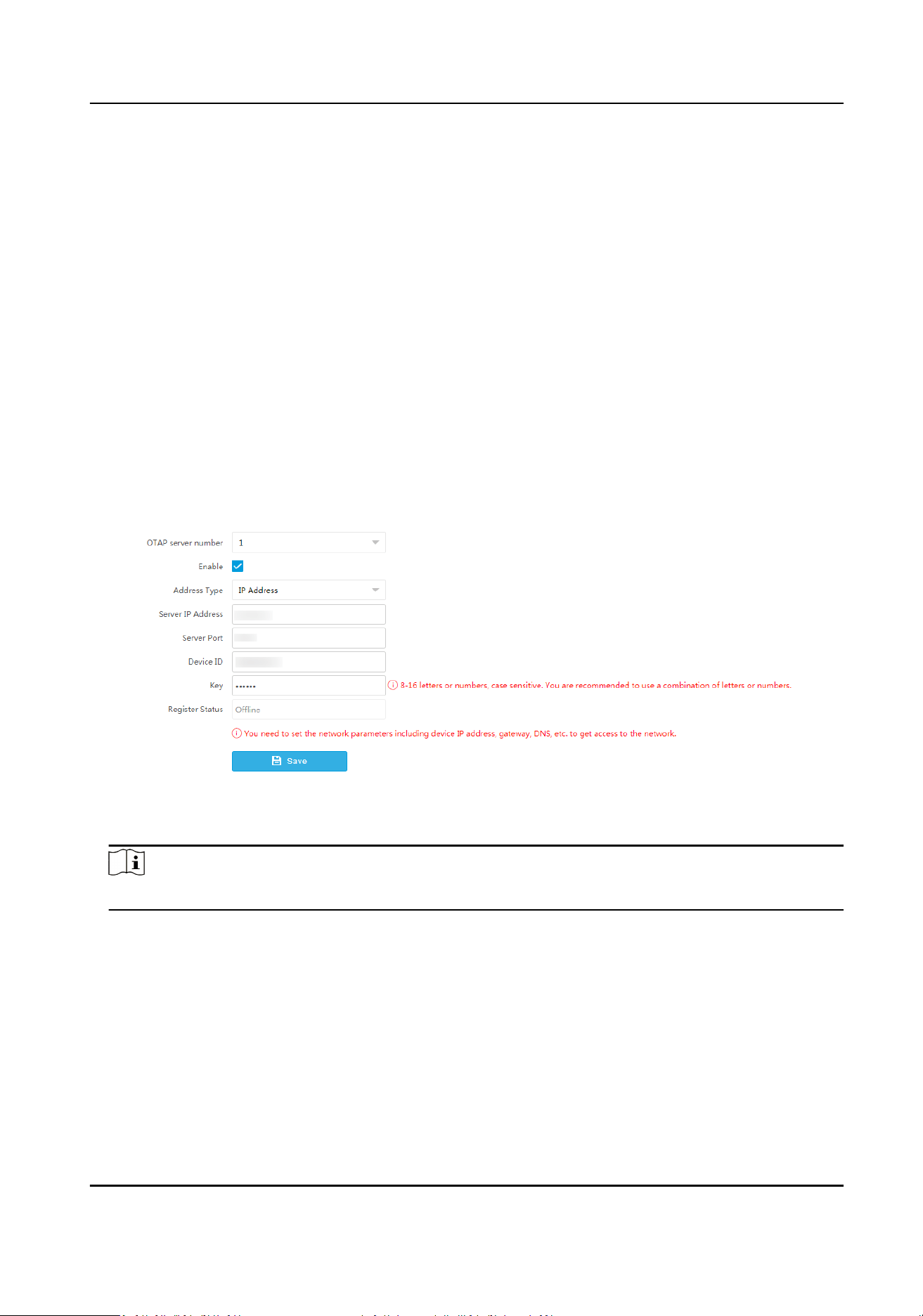
7.
Oponal: View Register Status.
What to do next
When the registraon status shows online, you can add or manage the device via the plaorm
soware.
Refer to its corresponding manual for details.
9.2.2 Connect to OTAP
The device can be accessed to the maintenance plaorm via OTAP protocol, in order to search and
acquire device informaon.
Before You Start
Ensure the device can communicate with the
plaorm normally.
Steps
1.
Go to Conguraon → Network → Data Connecon → OTAP .
2.
Check Enable.
Figure 9-3 Connect to OTAP
3.
Set corresponding parameters.
Note
The device ID should be the same with the added one on the OTAP plaorm.
4.
Click Save.
What to do next
When the registraon status is online, you can add or manage the device via the plaorm
soware. Refer to its corresponding manual for details.
9.2.3 Connect to Hik-Connect
The device can be remotely accessed via Hik-Connect.
Intelligent Entrance ANPR Camera User Manual
52
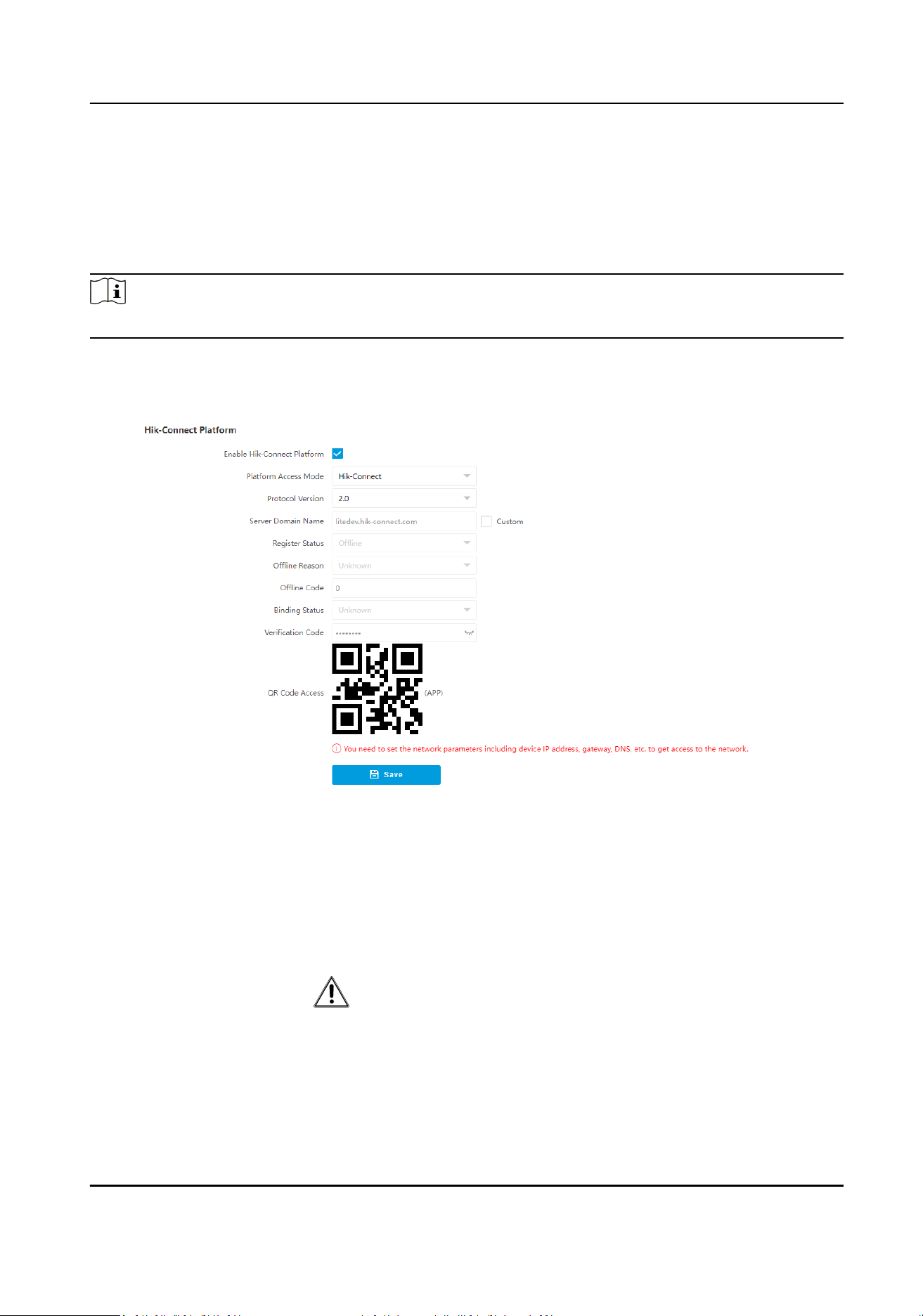
Before You Start
●
Connect the device to the Internet.
●
Set the IP address, subnet mask, gateway, and DNS server of the LAN.
●
OTAP
connecon is disabled.
Steps
Note
This funcon varies with dierent models. The actual device prevails.
1.
Go to Conguraon → Network → Data Connecon → Hik-Connect Plaorm .
2.
Check Enable Hik-Connect
Plaorm.
Figure 9-4 Connect to Hik-Connect
3.
Select Protocol Version.
4.
Oponal: If you have allocated a custom server, check Custom and enter the custom Server
Domain Name.
5.
Add the device to Hik-Connect.
Set a
vericaon
code to add the
device to Hik-
Connect
a. Enter a custom Vericaon Code used to add the device.
Cauon
The vericaon code should be 6 leers or numbers, case sensive.
You are recommended to use a combinaon of leers or numbers.
b. Click Save.
c. Get and install Hik-Connect applicaon by the following ways.
Intelligent Entrance ANPR Camera User Manual
53
-
Visit hps://appstore.hikvision.com to download the applicaon
according to your mobile phone system.
-
Visit the ocial site of our company. Then go to Support → Tools
→ Hikvision App Store .
-
Scan the QR code below to download the applicaon.
Figure 9-5 Hik-Connect
Note
If errors like "Unknown app" occur during the installaon, solve the
problem in two ways.
-
Visit hps://appstore.hikvision.com/stac/help/index.html to
refer to the
troubleshoong.
-
Visit
hps://appstore.hikvision.com/ , and click Installaon Help
at the upper right corner of the interface to refer to the
troubleshoong.
d. Start the applicaon and register a user account to log in.
e. Add device by the serial No. on the device body and the
vericaon
code.
Scan the QR code
on the interface to
add the device to
Hik-Connect
a. Get and install Hik-Connect applicaon according to the ways above.
b. Scan the QR code on the interface with the Hik-Connect applicaon,
and add the device to Hik-Connect.
Note
The vericaon informaon has been included in the QR code, so you
do not need to enter the vericaon code.
Note
Refer to the user manual of Hik-Connect applicaon for details.
9.3 Set DDNS
You can use the Dynamic DNS (DDNS) for network access. The dynamic IP address of the device can
be mapped to a domain name
resoluon server to realize the network access via domain name.
Intelligent Entrance ANPR Camera User Manual
54
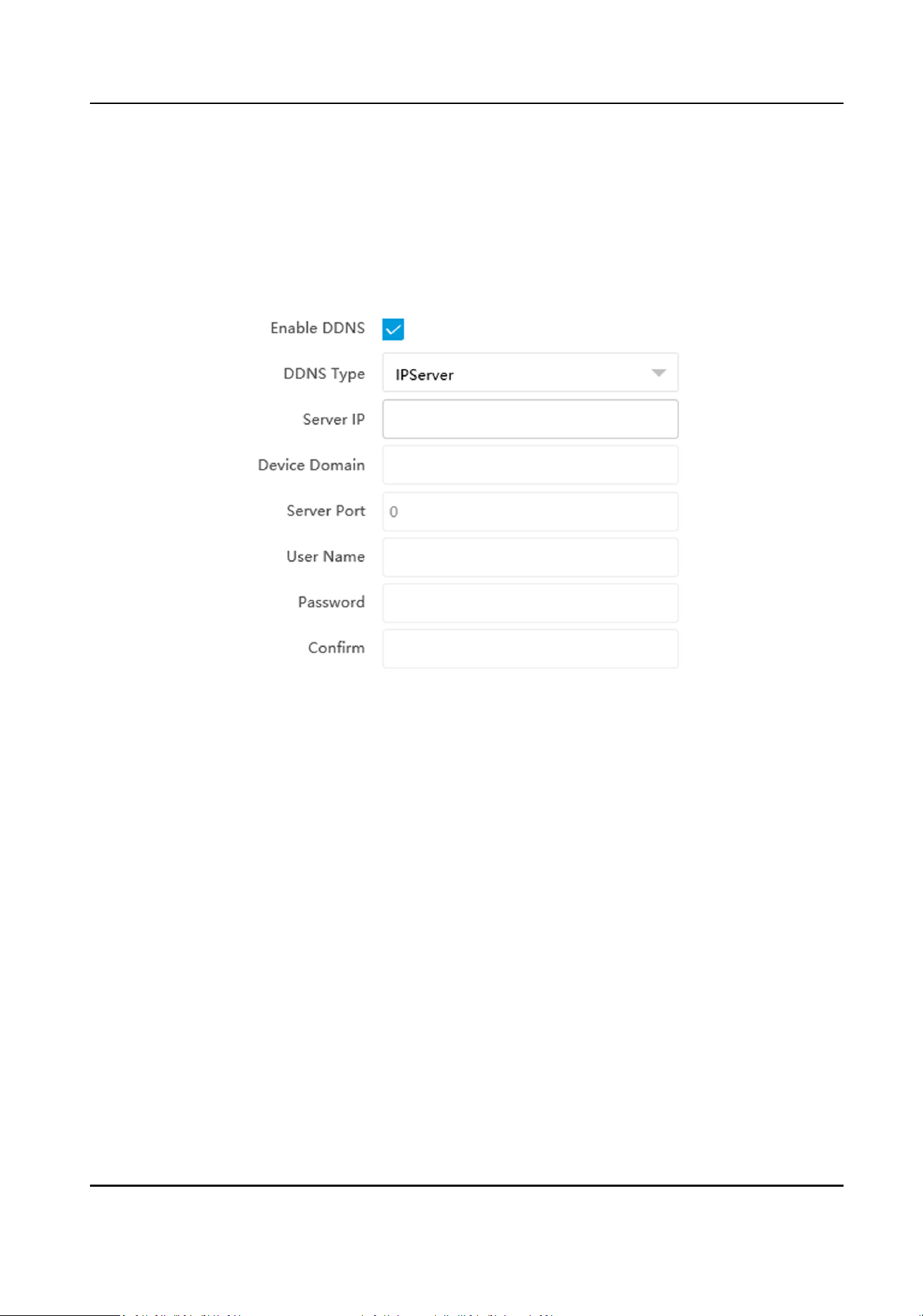
Before You Start
●
Register the domain name on the DDNS server.
●
Set the LAN IP address, subnet mask, gateway, and DNS server parameters. Refer to for details.
●
Complete port mapping. The default ports are 80, 8000, and 554.
Steps
1.
Go to
Conguraon → Network → Network Parameters → DDNS .
Figure 9-6 Set DDNS
2.
Check Enable DDNS.
3.
Enter the server address and other informaon.
4.
Click Save.
5.
Access the device.
By Browsers
Enter the domain name in the browser address bar to access the device.
By Client Soware Add domain name to the client soware. Refer to the client soware
manual for specic adding methods.
9.4 Set SNMP
You can set the SNMP network management protocol to get the alarm event and excepon
messages in network transmission.
Before You Start
Download the SNMP soware and manage to receive the device informaon via SNMP port.
Intelligent Entrance ANPR Camera User Manual
55

Steps
1.
Go to Conguraon → Network → Network Parameters → SNMP .
2.
Check Enable SNMPv1/Enable SNMP v2c/Enable SNMPv3.
Note
●
The SNMP version you select should be the same as that of the SNMP soware.
●
Use dierent versions according to the security levels required. SNMP v1 is not secure and
SNMP v2 requires password for access. SNMP v3 provides encrypon and if you use the third
version, HTTPS protocol must be enabled.
3.
Set the SNMP parameters.
4.
Click Save.
9.5 Set Port
The device port can be modied when the device cannot access the network due to port conicts.
Go to Conguraon → Network → Network Parameters → Port for port sengs.
Intelligent Entrance ANPR Camera User Manual
56
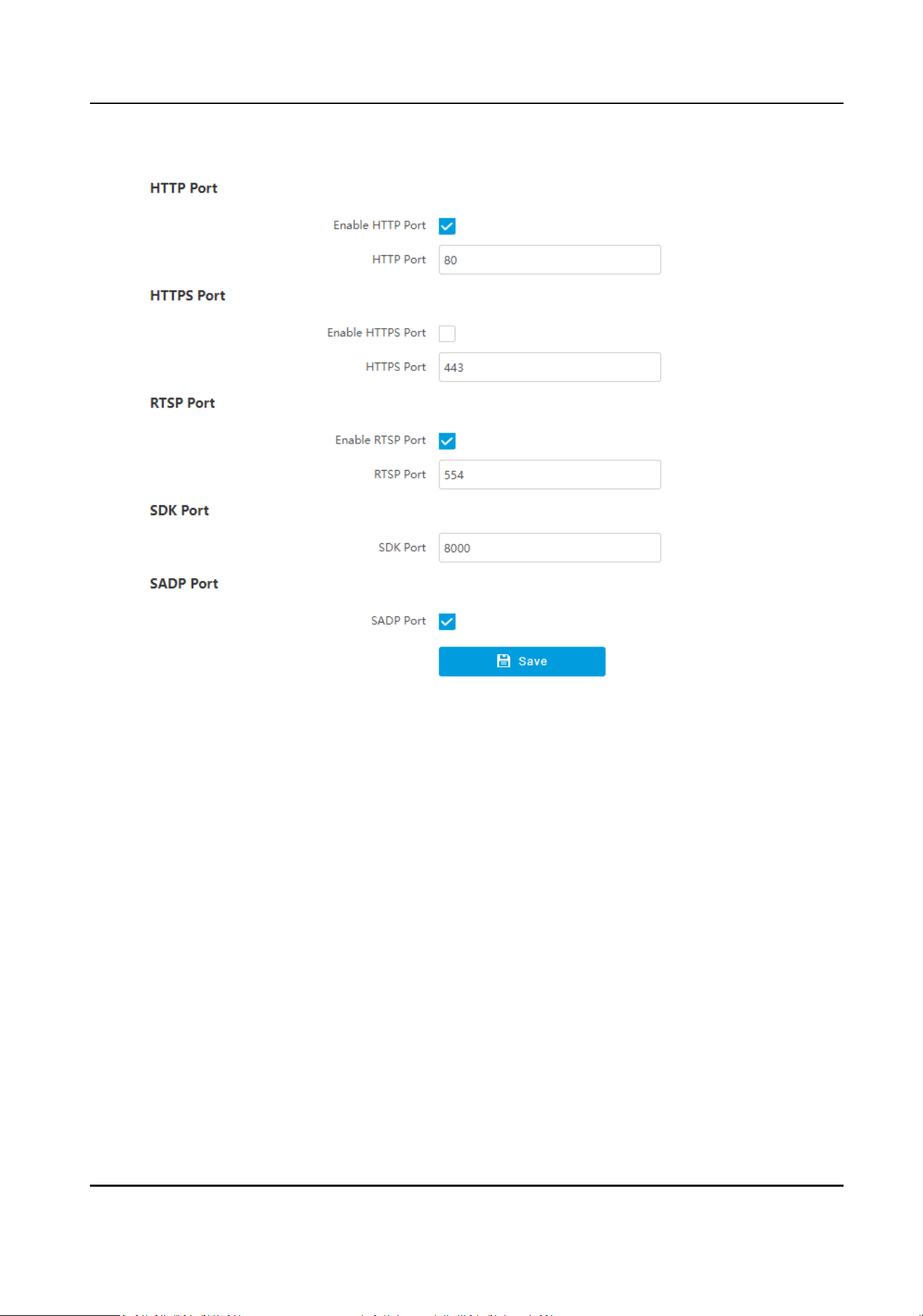
Figure 9-7 Set Port
HTTP Port
It refers to the port through which the browser accesses the device. For example, when the
HTTP Port is
modied to 81, you need to enter hp://192.168.1.64:81 in the browser for login.
HTTPS Port
Set the HTTPS for accessing the browser. Cercate is required when accessing.
RTSP Port
It refers to the port of real-me streaming protocol.
SDK Port
It refers to the port through which the client adds the device.
SADP Port
It refers to the port through which the SADP soware searches the device.
Intelligent Entrance ANPR Camera User Manual
57

Note
●
Aer eding the port, access to the device via new port.
●
Reboot the device to take the new sengs into eect.
●
The supported ports vary with dierent models. The actual device prevails.
Intelligent Entrance ANPR Camera User Manual
58

Chapter 10 Serial Port Conguraon
10.1 Set RS-485
Set RS-485 parameters if the device has been connected to a vehicle detector or other RS-485
devices.
Before You Start
The corresponding device has been connected via the RS-485 serial port.
Steps
Note
The number of available RS-485 serial port varies with dierent models.
1.
Go to Conguraon → System → System Sengs → Serial Port → RS-485 .
2.
Set Baud Rate, Data Bit, Stop Bit, etc.
Note
The parameters should be same with those of the connected device.
3.
Set Work Mode.
Transparent Channel
Select it when the other peripheral devices are connected to the RS-485 serial port of the
device for
communicaon transmission.
4.
Click Save.
10.2 Set RS-232
Set RS-232 parameters if you need to debug the device via RS-232 serial port, or peripheral devices
have been connected.
Before You Start
The debugging device has been connected via the RS-232 serial port.
Steps
1.
Go to
Conguraon → System → System Sengs → Serial Port → RS-232 .
2.
Set Baud Rate, Data Bit, Stop Bit, etc.
Note
The parameters should be same with those of the connected device.
3.
Select Work Mode.
Console
Intelligent Entrance ANPR Camera User Manual
59

Select it when you need to debug the device via RS-232 serial port.
Transparent Channel
Select it, and the network command can be transmied to RS-232 control command via the
RS-232 serial port.
Narrow Bandwidth Transmission
Reserved.
4.
Click Save.
Intelligent Entrance ANPR Camera User Manual
60

Chapter 11 Excepon Alarm
Set excepon alarm when the network is disconnected, the IP address is conicted, etc.
Steps
Note
The supported excepon types vary with dierent models. The actual device prevails.
1.
Go to Conguraon → Event → Alarm Linkage → Excepon .
2.
Select the
excepon type(s) and the linkage method.
3.
Click Save.
Intelligent Entrance ANPR Camera User Manual
61

Chapter 12 Safety Management
12.1 Manage User
The administrator can add, modify, or delete other accounts, and grant dierent permissions to
dierent user levels.
Steps
1.
Go to Conguraon → System → User Management → User List .
2.
Select Password Level.
The password level of the added user should conform to the selected level.
3.
Add a user.
1) Click Add.
2) Enter User Name and select Type.
3) Enter Admin Password, New Password, and
conrm the password.
Cauon
To increase security of using the device on the network, please change the password of your
account regularly. Changing the password every 3 months is recommended. If the device is
used in high-risk environment, it is recommended that the password should be changed every
month or week.
4) Assign remote permission to users based on needs.
User
Users can be assigned permission of viewing live video and changing their own passwords,
but no permission for other
operaons.
Operator
Operators can be assigned all permission except for operaons on the administrator and
creang accounts.
5) Click OK.
4.
Oponal: You can do the following operaons.
Change the password and permission
Click to change the password and permission.
Delete the user Click to delete the user.
12.2 Set IP Address Filtering
You can set the IP addresses allowable and not allowable to access the device.
Steps
1.
Go to Conguraon → System → Security → Security Sengs .
2.
Check Enable IP Address Filtering.
Intelligent Entrance ANPR Camera User Manual
62

3.
Set Filtering Mode.
Blocklist Mode
The added IP addresses are not allowed to access the device.
Allowlist Mode
The added IP addresses are allowed to access the device.
4.
Click Add, enter the IP address, and click OK.
Note
The IP address only refers to the IPv4 address.
5.
Oponal: Edit, delete, or clear the added IP addresses.
6.
Click Save.
12.3 Enable User Lock
To raise the data security, you are recommended to lock the current IP address.
Steps
1.
Go to Conguraon → System → Security → Security Service → Soware .
2.
Enable user lock.
3.
Click Save.
Result
When the
mes you entered incorrect passwords have reached the limit, the current IP address
will be locked automacally.
12.4 Set HTTPS
12.4.1 Create and Install Self-signed Cercate
HTTPS is a network protocol that enables encrypted transmission and identy authencaon,
which improves the security of remote access.
Steps
1.
Go to Conguraon → Network → Network Parameters → HTTPS .
2.
Select Create Self-signed
Cercate.
3.
Click Create.
4.
Follow the prompt to enter Country/Region, Domain/IP, Validity, and other parameters.
5.
Click OK.
Result
The device will install the self-signed
cercate by default.
Intelligent Entrance ANPR Camera User Manual
63

12.4.2 Install Authorized Cercate
If the demand for external access security is high, you can create and install authorized cercate
via HTTPS protocol to ensure the data transmission security.
Steps
1.
Go to Conguraon → Network → Network Parameters → HTTPS .
2.
Select Create cercate request rst and connue the installaon.
3.
Click Create.
4.
Follow the prompt to enter Country/Region, Hostname/IP, Validity, and other parameters.
5.
Click Download to download the
cercate request and submit it to the trusted authority for
signature.
6.
Import
cercate to the device.
-
Select Signed
cercate is available, start the installaon directly. Click Browse and Install to
import the
cercate to the device.
-
Select Create the
cercate request rst and connue the installaon. Click Browse and
Install to import the
cercate to the device.
7.
Click Save.
12.5 Set SSH
To raise network security, disable SSH service. The conguraon is only used to debug the device
for the professionals.
Steps
1.
Go to
Conguraon → System → Security → Security Service → Soware .
2.
Disable SSH Service.
3.
Click Save.
12.6 Set RTSP
Authencaon
You can improve network access security by seng RTSP authencaon.
Steps
1.
Go to
Conguraon → System → Security → Security Sengs .
2.
Select RTSP Authencaon.
digest
The device only supports digest
authencaon.
digest/basic
The device supports digest or basic authencaon.
3.
Click Save.
Intelligent Entrance ANPR Camera User Manual
64

12.7 Set Timeout Logout
You can improve network access security by seng meout logout.
Steps
1.
Go to
Conguraon → System → Security → Security Service → Timeout Logout .
2.
Enable meout logout for stac page.
3.
Set Max. Timeout.
4.
Click Save.
Result
When the page
stac me exceeds the set me, the device will automacally log out.
12.8 Set Password Validity Period
You can improve network access security by seng password validity period.
Steps
1.
Go to Conguraon → System → Security → Security Service → Password Validity Period .
2.
Select Validity Type.
-
Select Permanent. The password will be permanently valid.
-
Select Daily and set Password Expiry Time. It will prompt you that the password is expired
according to the set password expiry me, and you need to set the new password.
3.
Click Save.
Intelligent Entrance ANPR Camera User Manual
65

Chapter 13 Maintenance
13.1 View Device Informaon
Basic Informaon and Algorithms Library Version
Go to Conguraon → System → System Sengs → Basic Informaon to view the basic
informaon and algorithms library version of the device.
You can edit Device Name and Device No. The device No. is used to control the device. It is
recommended to reserve the default value.
Device Status
Go to Conguraon → System → System Sengs → Device Status to view the status of the
current device.
13.2 Log
13.2.1 Enable System Log Service
The security audit logs refer to the security operaon logs. You can search and analyze the security
log les of the device so as to nd out the illegal intrusion and troubleshoot the security events.
Security audit logs can be saved on device internal storage. The log will be saved every half hour
aer device boong. Due to limited storage space, you are recommended to save the logs on a log
server.
Steps
1.
Go to
Conguraon → System → Security → Security Service → Log Audit Service .
2.
Enable system log service.
3.
Enter IP Address and Port of the log server.
4.
Click Save.
Result
The device will upload the security audit logs to the log server regularly.
13.2.2 Search Log
Log helps to locate and troubleshoot problems.
Steps
1.
Go to Conguraon → System → Maintenance → Log Search .
2.
Set search
condions.
Intelligent Entrance ANPR Camera User Manual
66

3.
Click Search.
The matched log les will be displayed on the log list.
4.
Oponal: Click Export to save the log les to your computer.
13.3 Upgrade
Upgrade the system when you need to update the device version.
Before You Start
●
Update the plugin before upgrade.
●
Prepare the upgrade
le. If the upgrade le is a compressed package, it needs to be
decompressed into the .dav format.
Steps
1.
Go to
Conguraon → System → Maintenance → Upgrade & Maintenance → Upgrade .
2.
Click Browse to select the upgrade le.
3.
Click Upgrade.
4.
Click OK in the popup window.
Note
The upgrade process will take 1 to 10 minutes. Do not cut o the power supply.
Result
The device will reboot automacally aer upgrade.
13.4 Reboot
When the device needs to be rebooted, reboot it via the soware instead of cung o the power
directly.
Steps
1.
Go to Conguraon → System → Maintenance → Upgrade & Maintenance → Device
Maintenance .
2.
Click Reboot.
3.
Click OK to reboot the device.
13.5 Restore Parameters
When the device is abnormal caused by the incorrect set parameters, you can restore the
parameters.
Intelligent Entrance ANPR Camera User Manual
67

Steps
1.
Go to Conguraon → System → Maintenance → Upgrade & Maintenance → Device
Maintenance .
2.
Select the
restoraon mode.
-
Click Restore to restore the parameters except the IP address, subnet mask, gateway, and port
No. to the default sengs.
-
Click Restore Factory Sengs to restore all the parameters to the factory sengs.
3.
Click OK.
13.6 Synchronize Time
Synchronize the device
me when it is inconsistent with the actual me.
Steps
1.
Go to Conguraon → System → System Sengs → Time Sengs .
2.
Select Time Zone.
3.
Select Sync Mode.
NTP
Synchronizaon
Select it to synchronize the device me with that of the NTP server. Set Server IP, NTP Port,
and Interval. Click NTP Test to test if the
connecon between the device and the server is
normal.
Manual Synchronizaon
Select it to synchronize the device me with that of the computer. Set me manually, or
check Sync. with computer
me.
SDK
If the remote host has been set for the device, select it to synchronize me via the remote
host.
ONVIF
Select it to synchronize me via the third-party device.
No
Select it to disable me synchronizaon.
All
Select it, and you can select any mode above.
Note
The me synchronizaon modes vary with dierent models. The actual device prevails.
4.
Click Save.
Intelligent Entrance ANPR Camera User Manual
68

13.7 Set DST
If the region where the device is located adopts Daylight Saving Time (DST), you can set this
funcon.
Steps
1.
Go to Conguraon → System → System Sengs → DST .
2.
Check Enable DST.
3.
Set Start Time, End Time, and DST Bias.
4.
Click Save.
13.8 Debug
Note
The debug conguraons below are only provided to debug the device by the professionals.
13.8.1 Debug Device
You can enable the funcons to debug the device.
Steps
1.
Go to Conguraon → Capture → Advanced → System Service .
2.
Check the debug informaon according to your needs.
Note
The supported parameters vary with dierent models. The actual device prevails.
Enable Algorithm POS Informaon Debug
The algorithm POS informaon will be overlaid on the playback image when you play back
the video with the dedicated tool.
3.
Click Save.
13.8.2 Vehicle Capture and
Recognion Service
Set the vehicle capture and recognion service to debug the device.
Steps
Note
The funcon varies with dierent models. The actual device prevails.
1.
Go to Conguraon → Capture → Advanced → Vehicle Capture and Recognion Service .
Intelligent Entrance ANPR Camera User Manual
69

2.
Check the service(s) according to your needs.
Note
The supported services vary with dierent models. The actual device prevails.
mulProtocolUpload
Enabled
The captured informaon will upload to all the connected plaorms (such as the FTP, arm
host, listening, etc.) without priority.
noPlateFilter Enabled
The vehicles without license plates will not be captured.
Filter Checkpoint Capture of Same Vehicle
It is used to debug the device with the same vehicle. When the same vehicle is triggered
many
mes during a short period in the scene, the checkpoint pictures of the vehicle will not
be captured.
3.
Click Save.
13.9 Export Parameters
You can export the parameters of one device, and import them to another device to set the two
devices with the same parameters.
Steps
1.
Go to
Conguraon → System → Maintenance → Upgrade & Maintenance → Data Export .
2.
Click Export aer Conguring Parameters.
3.
Set an encrypon password, conrm the password, and click OK.
Note
The password is used for imporng the conguraon le of the current device to other devices.
4.
Select the saving path, and enter the le name.
5.
Click Save.
13.10 Import
Conguraon File
Import the conguraon le of another device to the current device to set the same parameters.
Before You Start
Save the conguraon le to the computer.
Steps
Cauon
Imporng conguraon le is only available to the devices of the same model and same version.
Intelligent Entrance ANPR Camera User Manual
70

1.
Go to Conguraon → System → Maintenance → Upgrade & Maintenance → Advanced
Sengs → Data Import .
2.
Select Imporng Method.
Note
If you select Import Part, check the parameters to be imported.
3.
Click Browse to select the
conguraon le.
4.
Click Import.
5.
Enter the password which is set when the conguraon le is exported, and click OK.
6.
Click OK on the popup window.
Result
The parameters will be imported, and the device will reboot.
13.11 Export Debug File
The technicians can export the debug le to troubleshoot and maintain the device.
Steps
1.
Go to
Conguraon → System → Maintenance → Upgrade & Maintenance → Data Export .
2.
Click Export aer Debug File.
3.
Select the saving path, and enter the le name.
4.
Click Save.
13.12 Export Diagnosis
Informaon
The technicians can export the diagnosis informaon to troubleshoot and maintain the device.
Steps
1.
Go to Conguraon → System → Maintenance → Upgrade & Maintenance → Data Export .
2.
Click Export aer Diagnosis Informaon.
3.
Select the saving path, and enter the
le name.
4.
Click Save.
Intelligent Entrance ANPR Camera User Manual
71

UD35644B